by Tanzila Kehkashan
ApplicationComponents – Resources
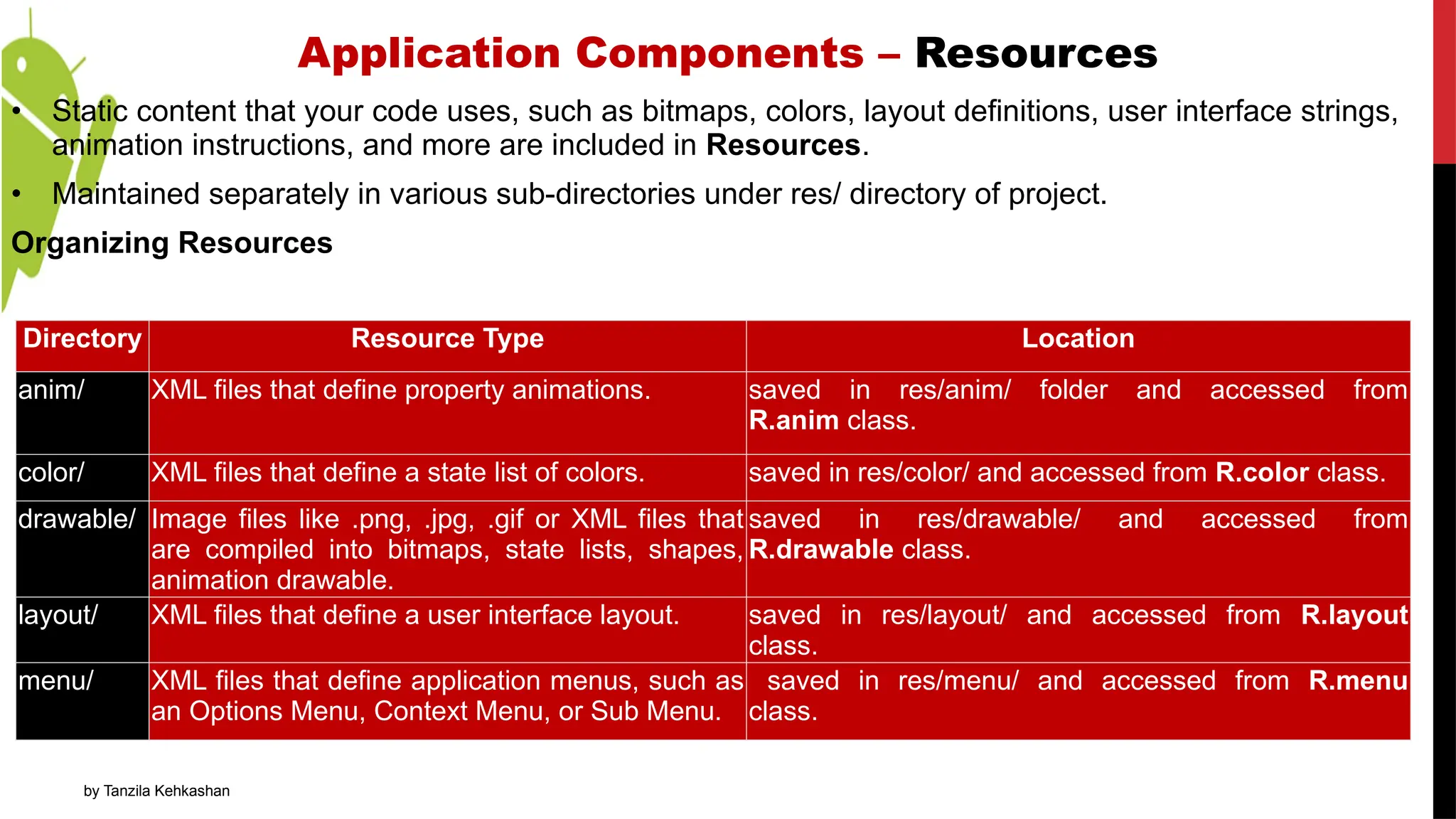
• Static content that your code uses, such as bitmaps, colors, layout definitions, user interface strings,
animation instructions, and more are included in Resources.
• Maintained separately in various sub-directories under res/ directory of project.
Organizing Resources
Directory Resource Type Location
anim/ XML files that define property animations. saved in res/anim/ folder and accessed from
R.anim class.
color/ XML files that define a state list of colors. saved in res/color/ and accessed from R.color class.
drawable/ Image files like .png, .jpg, .gif or XML files that
are compiled into bitmaps, state lists, shapes,
animation drawable.
saved in res/drawable/ and accessed from
R.drawable class.
layout/ XML files that define a user interface layout. saved in res/layout/ and accessed from R.layout
class.
menu/ XML files that define application menus, such as
an Options Menu, Context Menu, or Sub Menu.
saved in res/menu/ and accessed from R.menu
class.
3.
Application Components –Resources
Alternative Resources
• Provided to support specific device configurations. At runtime, Android detects current device
configuration and loads appropriate resources for application.
Directory Resource Type
raw/ Arbitrary files to save in their raw form. You need to call Resources.openRawResource() with the resource
ID, which is R.raw.filename to open such raw files.
values/ • XML files that contain simple values, such as strings, integers, and colors. For example, here are some
filename conventions for resources you can create in this directory −arrays.xml for resource arrays, and
accessed from the R.array class.
• integers.xml for resource integers, and accessed from the R.integer class.
• bools.xml for resource boolean, and accessed from the R.bool class.
• colors.xml for color values, and accessed from the R.color class.
• dimens.xml for dimension values, and accessed from the R.dimen class.
• strings.xml for string values, and accessed from the R.string class.
• styles.xml for styles, and accessed from the R.style class.
xml/ Arbitrary XML files that can be read at runtime by calling Resources.getXML(). You can save various
configuration files here which will be used at run time.
4.
Application Components –Resources
Alternative Resources
To create new Resource
• File -> New -> Android Resource File / Android Resource Directory
OR
• Create a new directory in res/ named in the form
<resources_name>-<config_qualifier>
• Here resources_name will be any of the resources, like layout, drawable etc. qualifier will specify an
individual configuration for which these resources are to be used. (Check official documentation for a
complete list of qualifiers for different type of resources.)
• Save respective alternative resources in this new directory. Resource files must be named exactly the same as the
default resource files, but these files will have content specific to the alternative. For example though image file
name will be same but for high resolution screen, its resolution will be high.
Figure 1. Two different devices, each using the default
layout (the app provides no alternative layouts).
Figure 2. Two different devices, each using a different layout provided
for different screen sizes.
5.
Application Components –Resources
• During your application development you will need to access defined resources either in your code,
or in your layout XML files.
Accessing Resources in Code
• When your Android application is compiled, a R class gets generated, which contains resource IDs
for all the resources available in your res/ directory. You can use R class to access that resource
using sub-directory and resource name or directly resource ID.
Example
• To access res/drawable/myimage.png and set an ImageView you will use following code:
• First line of code make use of R.id.myimageview to get ImageView defined with id myimageview in a
Layout file.
• Second line of code makes use of R.drawable.myimage to get an image with name myimage
available in drawable sub-directory under /res.
ImageView imageView = (ImageView)
findViewById(R.id.myimageview);
imageView.setImageResource(R.drawable.myimage);
6.
Application Components –Resources
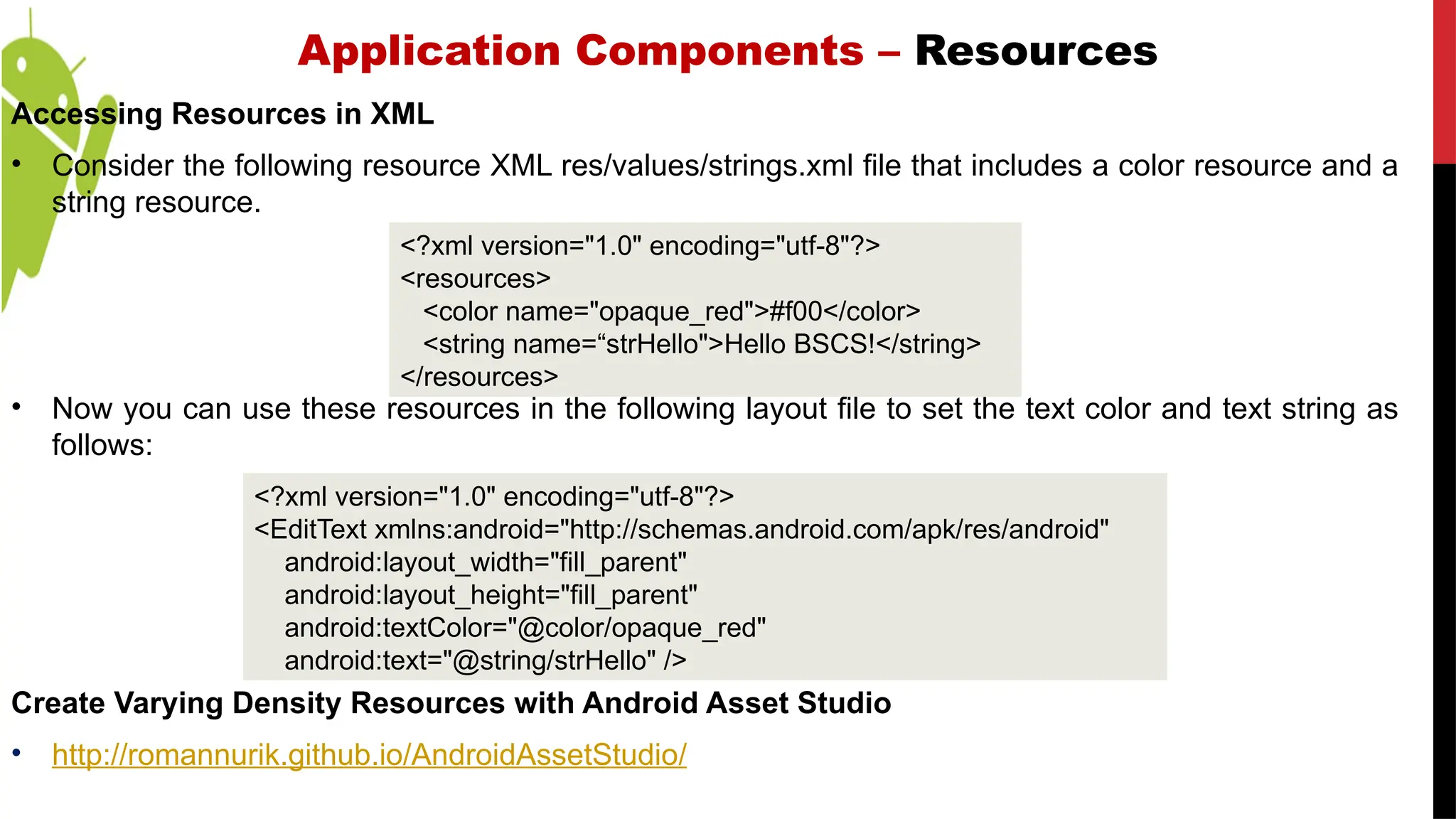
Accessing Resources in XML
• Consider the following resource XML res/values/strings.xml file that includes a color resource and a
string resource.
• Now you can use these resources in the following layout file to set the text color and text string as
follows:
Create Varying Density Resources with Android Asset Studio
• http://romannurik.github.io/AndroidAssetStudio/
<?xml version="1.0" encoding="utf-8"?>
<EditText xmlns:android="http://schemas.android.com/apk/res/android"
android:layout_width="fill_parent"
android:layout_height="fill_parent"
android:textColor="@color/opaque_red"
android:text="@string/strHello" />
<?xml version="1.0" encoding="utf-8"?>
<resources>
<color name="opaque_red">#f00</color>
<string name=“strHello">Hello BSCS!</string>
</resources>
7.
Application Components –Intents
• Intent is an abstract concept or data structure for some operation that should be performed in the
Android OS.
• Often used to launch external applications with intent to do something, such as make a phone call,
display a web page, or map an address.
• Can be used with startActivity() to launch an Activity, broadcastIntent to send it to any interested
BroadcastReceiver components, and startService(Intent) or bindService( Intent,
ServiceConnection, int) to communicate with a background Service.
• Provides a facility for performing late runtime binding between code in different applications.
• Most significant use is in launching of activities, where it can be thought of as glue between activities.
Intent Object
• An Intent generally has two pieces of information associated with it;
1. What the intent is (as in make a phone call), (Action)
2. What data does the intent need (such as a phone number) to perform the intention. (Data)
8.
Intents – Typesof Intents
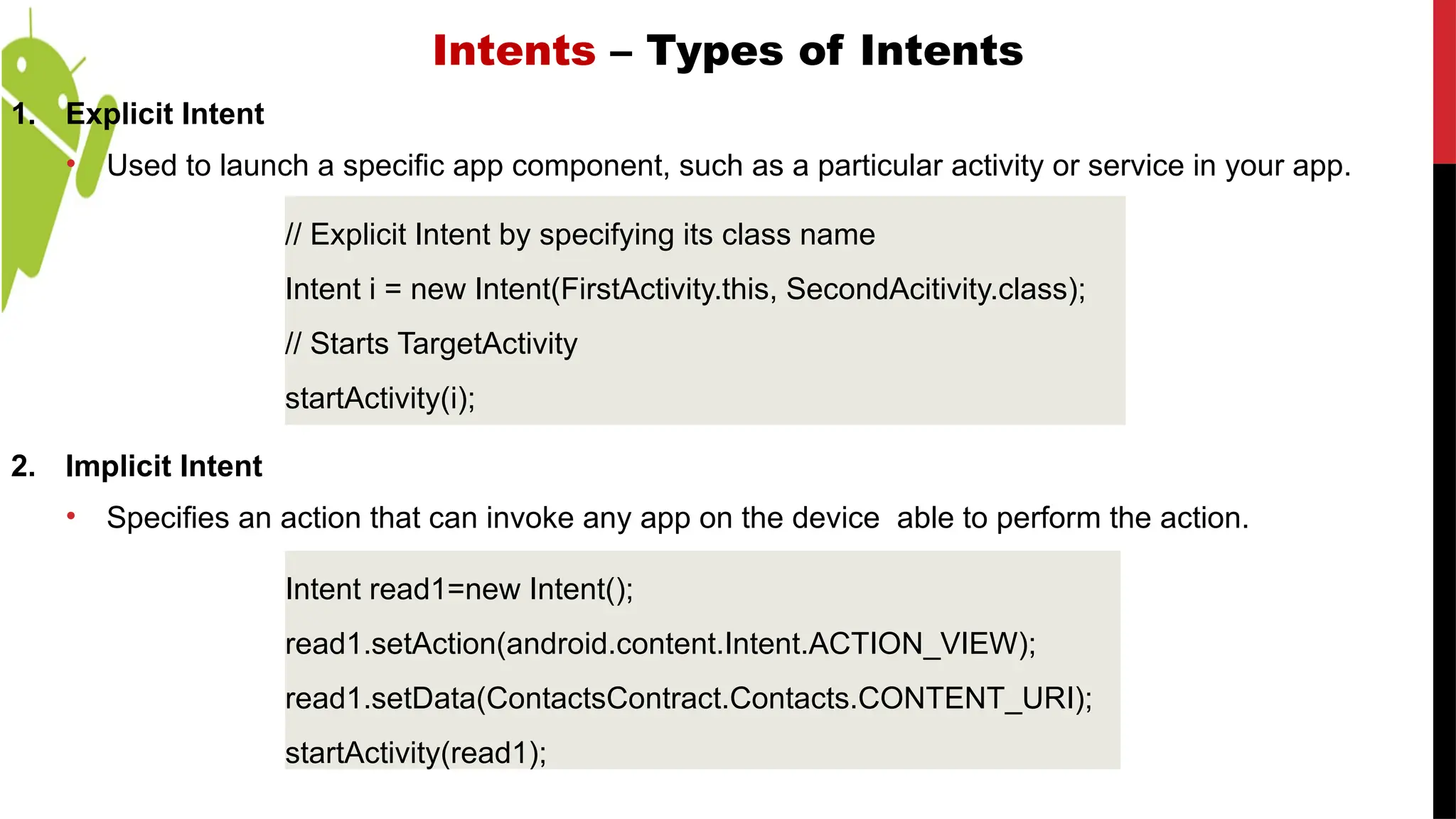
1. Explicit Intent
• Used to launch a specific app component, such as a particular activity or service in your app.
2. Implicit Intent
• Specifies an action that can invoke any app on the device able to perform the action.
// Explicit Intent by specifying its class name
Intent i = new Intent(FirstActivity.this, SecondAcitivity.class);
// Starts TargetActivity
startActivity(i);
Intent read1=new Intent();
read1.setAction(android.content.Intent.ACTION_VIEW);
read1.setData(ContactsContract.Contacts.CONTENT_URI);
startActivity(read1);
9.
Intent Fields –Action
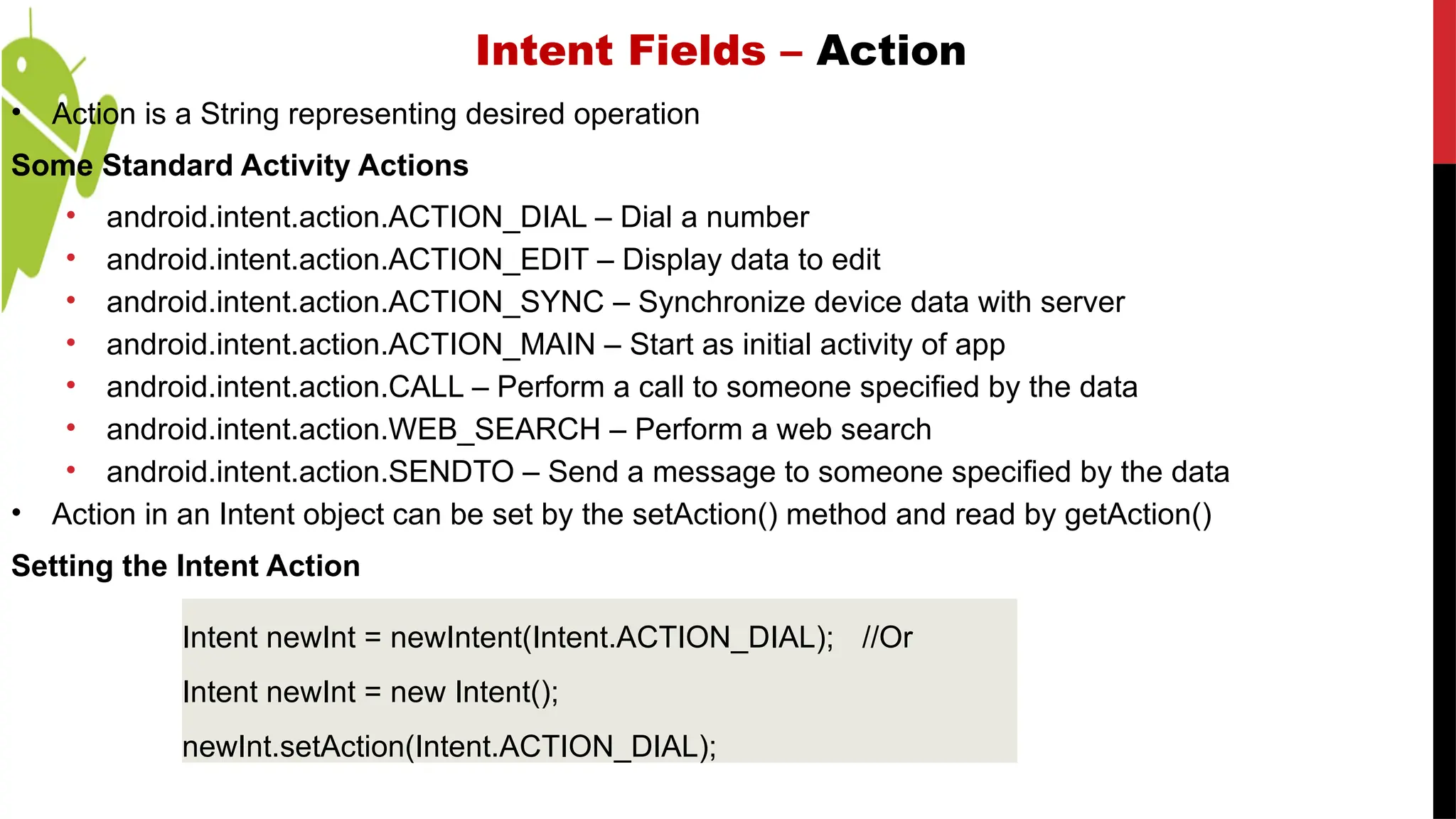
• Action is a String representing desired operation
Some Standard Activity Actions
• android.intent.action.ACTION_DIAL – Dial a number
• android.intent.action.ACTION_EDIT – Display data to edit
• android.intent.action.ACTION_SYNC – Synchronize device data with server
• android.intent.action.ACTION_MAIN – Start as initial activity of app
• android.intent.action.CALL – Perform a call to someone specified by the data
• android.intent.action.WEB_SEARCH – Perform a web search
• android.intent.action.SENDTO – Send a message to someone specified by the data
• Action in an Intent object can be set by the setAction() method and read by getAction()
Setting the Intent Action
Intent newInt = newIntent(Intent.ACTION_DIAL); //Or
Intent newInt = new Intent();
newInt.setAction(Intent.ACTION_DIAL);
10.
Intent Fields –Data
• Data associated with the Intent
• Formatted as a Uniform Resource Identifier (URI)
Examples
i. Data to view on a map
• Uri.parse(“geo:0,0? q=1600+Pennsylvania+Ave+Washington+DC”);
ii. Number to dial in phone dialer
• Uri.parse(“tel:+3007001001”);
• The setData() method specifies data only as a URI and The URI is read by getData().
Setting Intent Data
Intent newInt = new Intent (Intent.ACTION_DIAL, Uri.parse("tel:+3007001001"));
Or
Intent newInt = new Intent(Intent.ACTION_DIAL);
newInt.setData(Uri.parse("tel:+3007001001"));
11.
by Tanzila Kehkashan
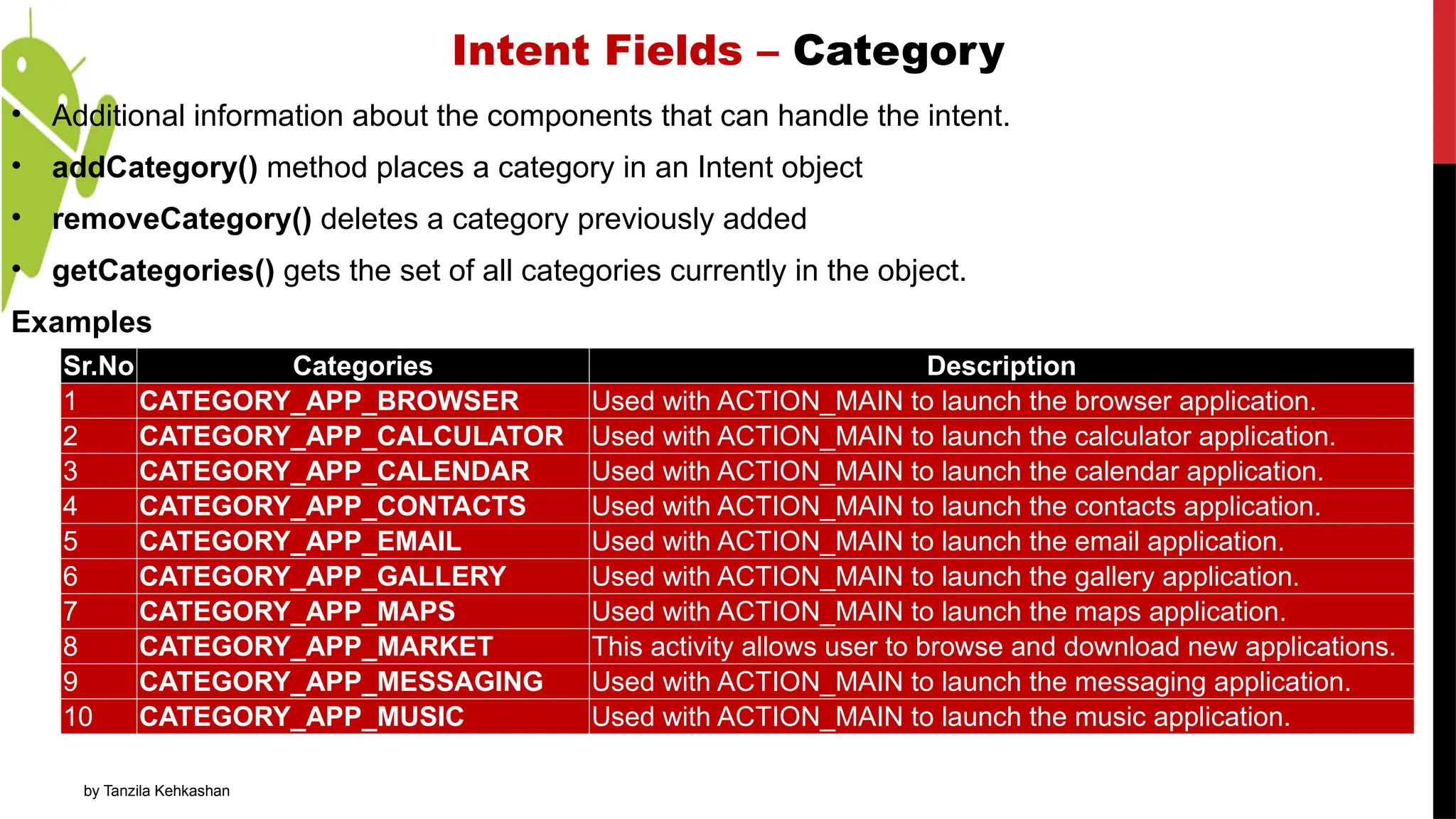
IntentFields – Category
• Additional information about the components that can handle the intent.
• addCategory() method places a category in an Intent object
• removeCategory() deletes a category previously added
• getCategories() gets the set of all categories currently in the object.
Examples
Sr.No Categories Description
1 CATEGORY_APP_BROWSER Used with ACTION_MAIN to launch the browser application.
2 CATEGORY_APP_CALCULATOR Used with ACTION_MAIN to launch the calculator application.
3 CATEGORY_APP_CALENDAR Used with ACTION_MAIN to launch the calendar application.
4 CATEGORY_APP_CONTACTS Used with ACTION_MAIN to launch the contacts application.
5 CATEGORY_APP_EMAIL Used with ACTION_MAIN to launch the email application.
6 CATEGORY_APP_GALLERY Used with ACTION_MAIN to launch the gallery application.
7 CATEGORY_APP_MAPS Used with ACTION_MAIN to launch the maps application.
8 CATEGORY_APP_MARKET This activity allows user to browse and download new applications.
9 CATEGORY_APP_MESSAGING Used with ACTION_MAIN to launch the messaging application.
10 CATEGORY_APP_MUSIC Used with ACTION_MAIN to launch the music application.
12.
Intent – IntentFields
Type
• Specifies the MIME type of the Intent Data
• Examples
• image/*, image/png, image/jpeg
• text/html, text/plain
• If unspecified, Android will infer the type
• Setting the Type
• Intent.setType(String type); Or
• Intent.setDataAndType(Uri data, String type);
Component
• The component that should receive this intent
• Use this when there’s exactly one component that should receive the Intent
• Setting the Component
• Intent newInt = new Intent (); and one of following:
• setComponent(), setClass(), or setClassName()
13.
Intent – IntentFields
Extra
• Extra is additional information associated with Intent
• Setting the Extra
• Several forms depending on data type
i. putExtra(String name, String value);
ii. putExtra(String name, float[] value);
Flag
• Specify how Intent should be handled
• Examples
• FLAG_ACTIVITY_NO_HISTORY Don’t put this Activity in the History stack
• FLAG_DEBUG_LOG_RESOLUTION Print extra logging information when this Intent is
processed
• Setting Intent Flag
Intent newInt = new Intent(Intent.ACTION_SEND);
newInt.putExtra(android.content.Intent.EXTRA_EMAIL,
new String[] {“uolidol@uol.cs.edu.pk”,
“ceo@uol.edu.pk”,
“ceo@pmhouse.gov”,
“ceo@musician.org”});
Intent newInt = new Intent(Intent.ACTION_SEND);
newInt.setFlags( Intent.FLAG_ACTIVITY_NO_HISTORY);
14.
Intent – StartingActivity with Intent
• startActivity(Intent intent);
• startActivityForResult(Intent intent, …);
Target Activity
• Above are methods to start activity.
• But Android has to figure out which activity has to start. There are two ways android does it.
1. Explicit Activation
• Explicitly name the target activity when you created the intent, android will just start it up
by setting intents component.
2. Implicit Activation
• You didn’t provide target activity and android implicitly determine it based on intent used
and based on properties of activities that you have installed on your device.






![Intent – Intent Fields
Extra
• Extra is additional information associated with Intent
• Setting the Extra
• Several forms depending on data type
i. putExtra(String name, String value);
ii. putExtra(String name, float[] value);
Flag
• Specify how Intent should be handled
• Examples
• FLAG_ACTIVITY_NO_HISTORY Don’t put this Activity in the History stack
• FLAG_DEBUG_LOG_RESOLUTION Print extra logging information when this Intent is
processed
• Setting Intent Flag
Intent newInt = new Intent(Intent.ACTION_SEND);
newInt.putExtra(android.content.Intent.EXTRA_EMAIL,
new String[] {“uolidol@uol.cs.edu.pk”,
“ceo@uol.edu.pk”,
“ceo@pmhouse.gov”,
“ceo@musician.org”});
Intent newInt = new Intent(Intent.ACTION_SEND);
newInt.setFlags( Intent.FLAG_ACTIVITY_NO_HISTORY);](https://image.slidesharecdn.com/13872085-250227150537-25fa0097/75/eyeryeryeryeryeyeyeryeryyerye13872085-ppt-13-2048.jpg)


