An Introduction to
    Processing
      Cate Huston
What We’ll Cover

• Making your first Applet
• The Processing API (where you can find all
  kinds of useful methods)
• Animating an Applet in Processing
• Exporting your Applet
What’s Processing?
• “an electronic sketchbook for developing
  ideas”
• Open source environment
• Programming language (very similar to Java)
• Can be used as a library in Eclipse
• Makes it easy to create Applets
So What Can We Make?
• Personally, I like to use it to make Fractals
  and little games:
  • http://catehuston.com/processing.html
• But you can use Processing for all kinds of
  things, see:
  • http://processing.org/exhibition/
Getting Started
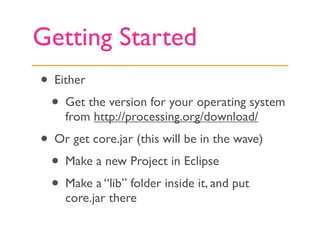
• Either
  • Get the version for your operating system
    from http://processing.org/download/
• Or get core.jar (this will be in the wave)
  • Make a new Project in Eclipse
  • Make a “lib” folder inside it, and put
    core.jar there
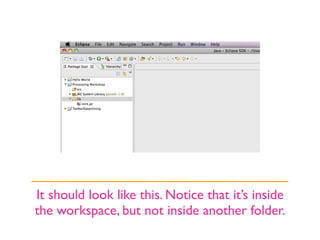
It should look like this. Notice that it’s inside
the workspace, but not inside another folder.
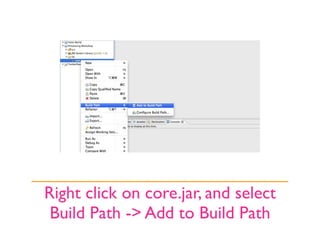
Right click on core.jar, and select
 Build Path -> Add to Build Path
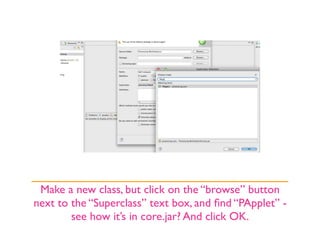
Make a new class, but click on the “browse” button
next to the “Superclass” text box, and find “PApplet” -
        see how it’s in core.jar? And click OK.
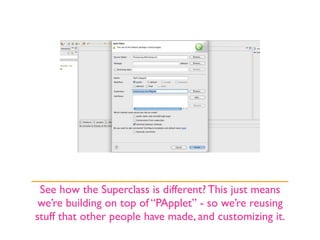
See how the Superclass is different? This just means
 we’re building on top of “PApplet” - so we’re reusing
stuff that other people have made, and customizing it.
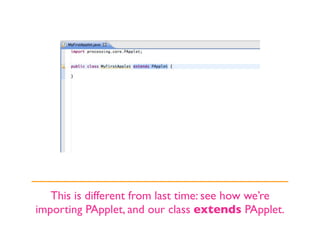
This is different from last time: see how we’re
importing PApplet, and our class extends PApplet.
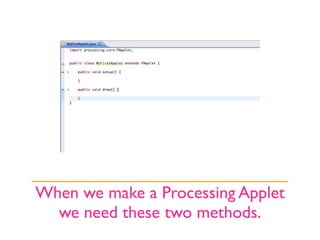
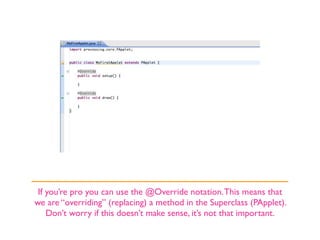
When we make a Processing Applet
  we need these two methods.
If you’re pro you can use the @Override notation. This means that
we are “overriding” (replacing) a method in the Superclass (PApplet).
    Don’t worry if this doesn’t make sense, it’s not that important.
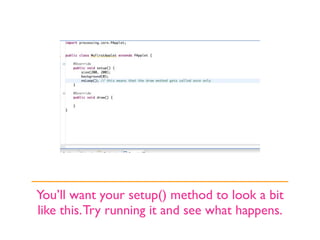
You’ll want your setup() method to look a bit
like this. Try running it and see what happens.
Size and Background
•   Play with the values we pass to size(), what
    happens if we make it size(500, 500) for
    example?

•   Play with the values we pass to background.
    What if we make it background(238)?

•   We can also call background with three values,
    which correspond to it’s RGB components. Try
    background(256, 0, 128).
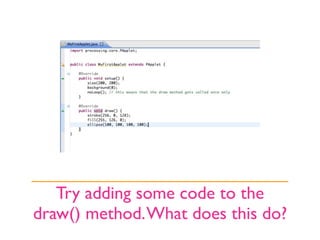
Try adding some code to the
draw() method. What does this do?
The Draw() Method
• Try changing the colors and the numbers in
  the call to ellipse(). What does that do?
• See what else you can find at http://
  processing.org/reference/
  • Ellipse takes 4 arguments, what are they?
  • Try making some other shapes.
Making Cool Stuff
• Have multiple shapes!
• Can you use the constructs from the last
  session to make something more complex?
• How about using a loop?
• Change fill() and stroke() to add more
  color.
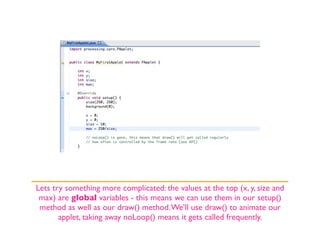
Lets try something more complicated: the values at the top (x, y, size and
 max) are global variables - this means we can use them in our setup()
 method as well as our draw() method. We’ll use draw() to animate our
       applet, taking away noLoop() means it gets called frequently.
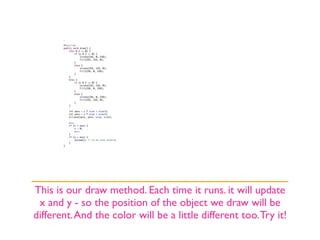
This is our draw method. Each time it runs. it will update
 x and y - so the position of the object we draw will be
different. And the color will be a little different too. Try it!
Using Animation
• Try playing with the code and see what you
  can change.
• Can you use a different shape?
• What if you change the size of the shape
  (by changing size)?
• What else would you like to know how to
  do?
Exporting Your Applet
• Download the P5Exporter plugin from
  http://www.rednoise.org/ep5/ and drag it
  into your dropins folder inside the Eclipse
  folder in your file system.
• Restart Eclipse.
• You should see a new button at the top,
  click it and follow the instructions
  (screenshots follow).
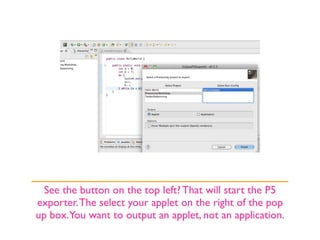
See the button on the top left? That will start the P5
exporter. The select your applet on the right of the pop
up box. You want to output an applet, not an application.
Running Your Exported
Applet
• You’ll find the Applet inside your project
  folder, which is inside your workspace
  folder.
• It should be a folder called “applet”.
• Click on index.html and it will open up
  browser window - your applet should be
  there.
Finally...

• Processing has huge potential, we’ve not
  even scratched the surface here.
• Look at the exhibition (at processing.org)
  and get inspired!
• Think about what other things you’d like to
  be able to make.
@kittenthebad

http://www.catehuston.com/

catehuston@googlewave.com

An Introduction to Processing

  • 1.
    An Introduction to Processing Cate Huston
  • 2.
    What We’ll Cover •Making your first Applet • The Processing API (where you can find all kinds of useful methods) • Animating an Applet in Processing • Exporting your Applet
  • 3.
    What’s Processing? • “anelectronic sketchbook for developing ideas” • Open source environment • Programming language (very similar to Java) • Can be used as a library in Eclipse • Makes it easy to create Applets
  • 4.
    So What CanWe Make? • Personally, I like to use it to make Fractals and little games: • http://catehuston.com/processing.html • But you can use Processing for all kinds of things, see: • http://processing.org/exhibition/
  • 5.
    Getting Started • Either • Get the version for your operating system from http://processing.org/download/ • Or get core.jar (this will be in the wave) • Make a new Project in Eclipse • Make a “lib” folder inside it, and put core.jar there
  • 6.
    It should looklike this. Notice that it’s inside the workspace, but not inside another folder.
  • 7.
    Right click oncore.jar, and select Build Path -> Add to Build Path
  • 8.
    Make a newclass, but click on the “browse” button next to the “Superclass” text box, and find “PApplet” - see how it’s in core.jar? And click OK.
  • 9.
    See how theSuperclass is different? This just means we’re building on top of “PApplet” - so we’re reusing stuff that other people have made, and customizing it.
  • 10.
    This is differentfrom last time: see how we’re importing PApplet, and our class extends PApplet.
  • 11.
    When we makea Processing Applet we need these two methods.
  • 12.
    If you’re proyou can use the @Override notation. This means that we are “overriding” (replacing) a method in the Superclass (PApplet). Don’t worry if this doesn’t make sense, it’s not that important.
  • 13.
    You’ll want yoursetup() method to look a bit like this. Try running it and see what happens.
  • 14.
    Size and Background • Play with the values we pass to size(), what happens if we make it size(500, 500) for example? • Play with the values we pass to background. What if we make it background(238)? • We can also call background with three values, which correspond to it’s RGB components. Try background(256, 0, 128).
  • 15.
    Try adding somecode to the draw() method. What does this do?
  • 16.
    The Draw() Method •Try changing the colors and the numbers in the call to ellipse(). What does that do? • See what else you can find at http:// processing.org/reference/ • Ellipse takes 4 arguments, what are they? • Try making some other shapes.
  • 17.
    Making Cool Stuff •Have multiple shapes! • Can you use the constructs from the last session to make something more complex? • How about using a loop? • Change fill() and stroke() to add more color.
  • 18.
    Lets try somethingmore complicated: the values at the top (x, y, size and max) are global variables - this means we can use them in our setup() method as well as our draw() method. We’ll use draw() to animate our applet, taking away noLoop() means it gets called frequently.
  • 19.
    This is ourdraw method. Each time it runs. it will update x and y - so the position of the object we draw will be different. And the color will be a little different too. Try it!
  • 20.
    Using Animation • Tryplaying with the code and see what you can change. • Can you use a different shape? • What if you change the size of the shape (by changing size)? • What else would you like to know how to do?
  • 21.
    Exporting Your Applet •Download the P5Exporter plugin from http://www.rednoise.org/ep5/ and drag it into your dropins folder inside the Eclipse folder in your file system. • Restart Eclipse. • You should see a new button at the top, click it and follow the instructions (screenshots follow).
  • 22.
    See the buttonon the top left? That will start the P5 exporter. The select your applet on the right of the pop up box. You want to output an applet, not an application.
  • 23.
    Running Your Exported Applet •You’ll find the Applet inside your project folder, which is inside your workspace folder. • It should be a folder called “applet”. • Click on index.html and it will open up browser window - your applet should be there.
  • 24.
    Finally... • Processing hashuge potential, we’ve not even scratched the surface here. • Look at the exhibition (at processing.org) and get inspired! • Think about what other things you’d like to be able to make.
  • 25.