
ARTDM 170, Week 5:
 Intro to Adobe Flash
         Gilbert Guerrero
        gguerrero@dvc.edu
gilbertguerrero.com/blog/artdm-170
Please turn in homework

• Last weekʼs homework was to create a
  Web page that used jQuery
• Put files in a folder with your lastname
  and first initial
• Example:
       smith-h
          myPage.html
          pic1.jpg
Group Projects
Adobe Flash
Open Flash and create a new
 ActionScript 3.0 document...
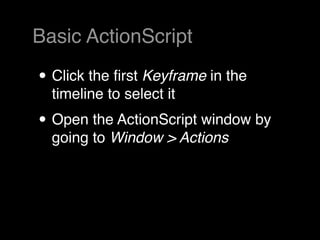
Basic ActionScript

• Click the first Keyframe in the
  timeline to select it
• Open the ActionScript window by
  going to Window > Actions
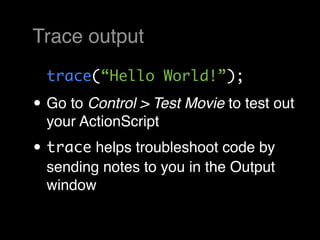
Trace output
  trace(“Hello World!”);

• Go to Control > Test Movie to test out
  your ActionScript
• trace helps troubleshoot code by
  sending notes to you in the Output
  window
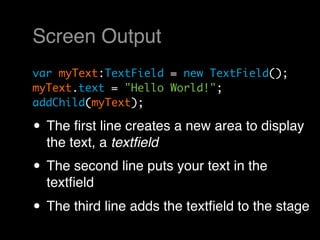
Screen Output
var myText:TextField = new TextField();
myText.text = "Hello World!";
addChild(myText);

• The first line creates a new area to display
  the text, a textfield
• The second line puts your text in the
  textfield
• The third line adds the textfield to the stage
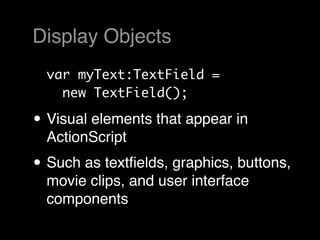
Display Objects
  var myText:TextField =
    new TextField();

• Visual elements that appear in
  ActionScript
• Such as textfields, graphics, buttons,
  movie clips, and user interface
  components
Object Properties
  myText.text =
    "Hello World!";

• Objects have properties
• Each object has itʼs own properties
• Properties of the objects can be
  changed directly
Display Lists
  addChild(myText);

• Creating objects does not add them
  to the stage. You must place them
  directly.
The Stage

• The main movie area where
 everything takes place that the user
 will see
The Library

• Where youʼll store all the media
  thatʼs associated with your Flash
  movie
The Timeline

• Frames
• Keyframes
• In-between Frames
• Empty Keyframes
• Labels
• Layers
Writing ActionScript
ActionScript Window

• Wonʼt use most of the buttons until
  you get used to ActionScript
• Use the Show/Hide Toolbox button to
  collapse the left column
• Disable Script Assist for now
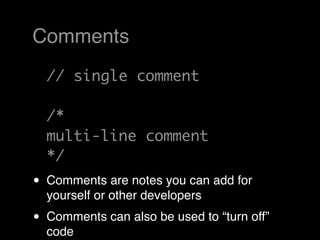
Comments
    // single comment

    /*
    multi-line comment
    */
•   Comments are notes you can add for
    yourself or other developers
•   Comments can also be used to “turn off”
    code
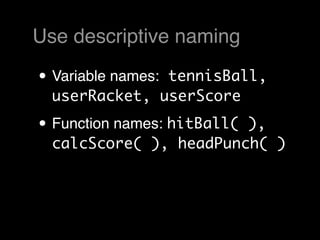
Use descriptive naming

• Variable names:
               tennisBall,
  userRacket, userScore

• Function names: hitBall(
                        ),
  calcScore( ), headPunch( )
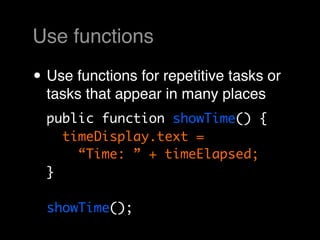
Use functions

• Use functions for repetitive tasks or
  tasks that appear in many places
  public function showTime() {
    timeDisplay.text =
      “Time: ” + timeElapsed;
  }

  showTime();
ActionScript Logic
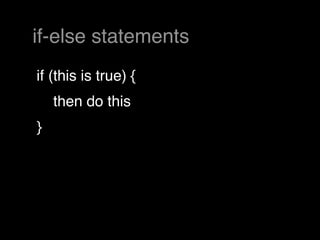
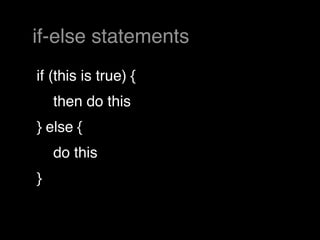
if-else statements
if (this is true) {
    then do this
}
if-else statements
if (this is true) {
    then do this
} else {
    do this
}
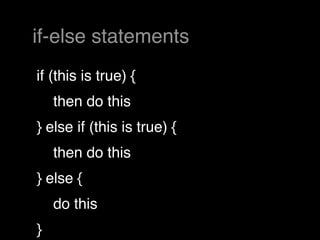
if-else statements
if (this is true) {
    then do this
} else if (this is true) {
    then do this
} else {
    do this
}
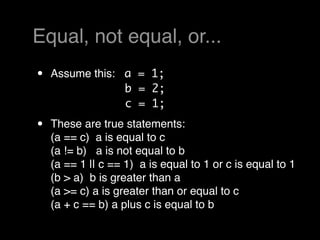
Equal, not equal, or...
•   Assume this: a = 1;
                 b = 2;
                 c = 1;

•   These are true statements:
    (a == c)  a is equal to c
    (a != b)   a is not equal to b
    (a == 1 || c == 1)  a is equal to 1 or c is equal to 1
    (b > a)  b is greater than a
    (a >= c) a is greater than or equal to c
    (a + c == b) a plus c is equal to b
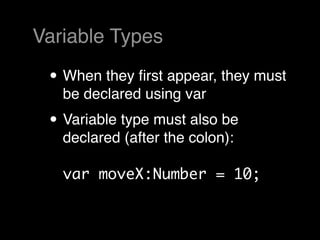
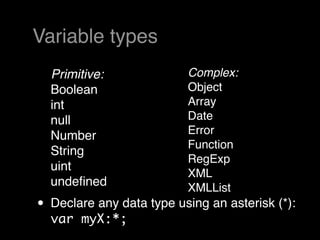
Variable Types

 • When they first appear, they must
   be declared using var
 • Variable type must also be
   declared (after the colon):

   var moveX:Number = 10;
Variable types
  Primitive:              Complex: 
  Boolean                 Object
  int                     Array
  null                    Date
  Number                  Error
                          Function
  String
                          RegExp
  uint
                          XML
  undefined                XMLList
• Declare any data type using an asterisk (*):
  var myX:*;
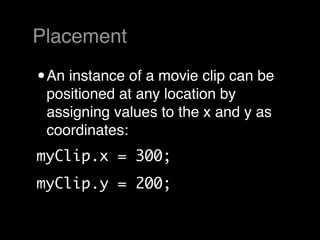
Placement

• An instance of a movie clip can be
 positioned at any location by
 assigning values to the x and y as
 coordinates:
myClip.x = 300;
myClip.y = 200;
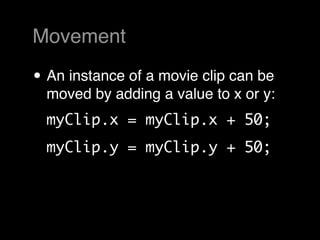
Movement

• An instance of a movie clip can be
  moved by adding a value to x or y:
  myClip.x = myClip.x + 50;
  myClip.y = myClip.y + 50;
ActionScript Classes
Object Oriented Programming

• Object Oriented Programming (OOP)
  is way of writing code that uses
  objects as building blocks
• Your application can have many
  objects, each based on a single
  blueprint called a class
• Objects can have properties which is
  the data that makes each object
  unique
External ActionScript Files

• To place ActionScript in an external
  file, rather than embedding it in
  frames on the timeline, weʼre
  required to use OOP
• Weʼll be creating an ActionScript
  class to store our code
Your first ActionScript class

• Save your Flash file as
  HelloWorld2.fla
• Go to New... > ActionScript File   to
  create a new external AS file
• Save the file using the same name
  as your Flash file, example:
  HelloWorld2.as
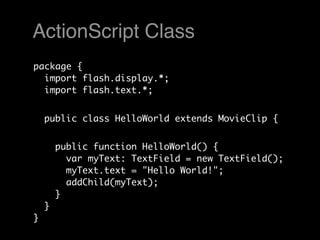
ActionScript Class
package {
  import flash.display.*;
  import flash.text.*;


    public class HelloWorld extends MovieClip {


        public function HelloWorld() {
          var myText: TextField = new TextField();
          myText.text = "Hello World!";
          addChild(myText);
        }
    }
}
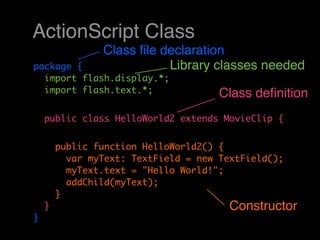
ActionScript Class
                Class file declaration
package {                  Library classes needed
  import flash.display.*;
  import flash.text.*;                Class definition
    public class HelloWorld2 extends MovieClip {


        public function HelloWorld2() {
          var myText: TextField = new TextField();
          myText.text = "Hello World!";
          addChild(myText);
        }
    }                                   Constructor
}
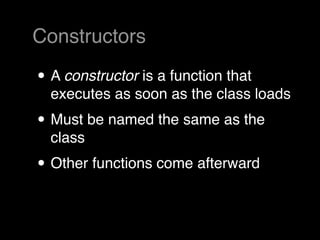
Constructors

• A constructor is a function that
  executes as soon as the class loads
• Must be named the same as the
  class
• Other functions come afterward
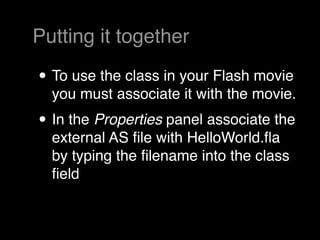
Putting it together

• To use the class in your Flash movie
  you must associate it with the movie.
• In the Properties panel associate the
  external AS file with HelloWorld.fla
  by typing the filename into the class
  field
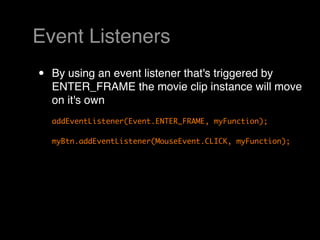
Event Listeners
•   By using an event listener that's triggered by
    ENTER_FRAME the movie clip instance will move
    on it's own
    addEventListener(Event.ENTER_FRAME, myFunction);

    myBtn.addEventListener(MouseEvent.CLICK, myFunction);
Homework, due March 2

• Read p41-64, Chapter 2:
 ActionScript Game Elements in AS
 3.0 Game Programming University
Thank You

Artdm170 Week5 Intro To Flash

  • 1.
    ARTDM 170, Week5: Intro to Adobe Flash Gilbert Guerrero gguerrero@dvc.edu gilbertguerrero.com/blog/artdm-170
  • 2.
    Please turn inhomework • Last weekʼs homework was to create a Web page that used jQuery • Put files in a folder with your lastname and first initial • Example:      smith-h myPage.html pic1.jpg
  • 3.
  • 4.
    Adobe Flash Open Flashand create a new ActionScript 3.0 document...
  • 5.
    Basic ActionScript • Clickthe first Keyframe in the timeline to select it • Open the ActionScript window by going to Window > Actions
  • 6.
    Trace output trace(“Hello World!”); • Go to Control > Test Movie to test out your ActionScript • trace helps troubleshoot code by sending notes to you in the Output window
  • 7.
    Screen Output var myText:TextField= new TextField(); myText.text = "Hello World!"; addChild(myText); • The first line creates a new area to display the text, a textfield • The second line puts your text in the textfield • The third line adds the textfield to the stage
  • 8.
    Display Objects var myText:TextField = new TextField(); • Visual elements that appear in ActionScript • Such as textfields, graphics, buttons, movie clips, and user interface components
  • 9.
    Object Properties myText.text = "Hello World!"; • Objects have properties • Each object has itʼs own properties • Properties of the objects can be changed directly
  • 10.
    Display Lists addChild(myText); • Creating objects does not add them to the stage. You must place them directly.
  • 11.
    The Stage • Themain movie area where everything takes place that the user will see
  • 12.
    The Library • Whereyouʼll store all the media thatʼs associated with your Flash movie
  • 13.
    The Timeline • Frames •Keyframes • In-between Frames • Empty Keyframes • Labels • Layers
  • 14.
  • 15.
    ActionScript Window • Wonʼtuse most of the buttons until you get used to ActionScript • Use the Show/Hide Toolbox button to collapse the left column • Disable Script Assist for now
  • 16.
    Comments // single comment /* multi-line comment */ • Comments are notes you can add for yourself or other developers • Comments can also be used to “turn off” code
  • 17.
    Use descriptive naming •Variable names: tennisBall, userRacket, userScore • Function names: hitBall( ), calcScore( ), headPunch( )
  • 18.
    Use functions • Usefunctions for repetitive tasks or tasks that appear in many places public function showTime() { timeDisplay.text = “Time: ” + timeElapsed; } showTime();
  • 19.
  • 20.
    if-else statements if (thisis true) {     then do this }
  • 21.
    if-else statements if (thisis true) {     then do this } else {     do this }
  • 22.
    if-else statements if (thisis true) {     then do this } else if (this is true) {     then do this } else {     do this }
  • 23.
    Equal, not equal,or... • Assume this: a = 1; b = 2; c = 1; • These are true statements: (a == c)  a is equal to c (a != b)   a is not equal to b (a == 1 || c == 1)  a is equal to 1 or c is equal to 1 (b > a)  b is greater than a (a >= c) a is greater than or equal to c (a + c == b) a plus c is equal to b
  • 24.
    Variable Types •When they first appear, they must be declared using var • Variable type must also be declared (after the colon): var moveX:Number = 10;
  • 25.
    Variable types Primitive: Complex:  Boolean Object int Array null Date Number Error Function String RegExp uint XML undefined  XMLList • Declare any data type using an asterisk (*): var myX:*;
  • 26.
    Placement • An instanceof a movie clip can be positioned at any location by assigning values to the x and y as coordinates: myClip.x = 300; myClip.y = 200;
  • 27.
    Movement • An instanceof a movie clip can be moved by adding a value to x or y: myClip.x = myClip.x + 50; myClip.y = myClip.y + 50;
  • 28.
  • 29.
    Object Oriented Programming •Object Oriented Programming (OOP) is way of writing code that uses objects as building blocks • Your application can have many objects, each based on a single blueprint called a class • Objects can have properties which is the data that makes each object unique
  • 30.
    External ActionScript Files •To place ActionScript in an external file, rather than embedding it in frames on the timeline, weʼre required to use OOP • Weʼll be creating an ActionScript class to store our code
  • 31.
    Your first ActionScriptclass • Save your Flash file as HelloWorld2.fla • Go to New... > ActionScript File to create a new external AS file • Save the file using the same name as your Flash file, example: HelloWorld2.as
  • 32.
    ActionScript Class package { import flash.display.*; import flash.text.*; public class HelloWorld extends MovieClip { public function HelloWorld() { var myText: TextField = new TextField(); myText.text = "Hello World!"; addChild(myText); } } }
  • 33.
    ActionScript Class Class file declaration package { Library classes needed import flash.display.*; import flash.text.*; Class definition public class HelloWorld2 extends MovieClip { public function HelloWorld2() { var myText: TextField = new TextField(); myText.text = "Hello World!"; addChild(myText); } } Constructor }
  • 34.
    Constructors • A constructoris a function that executes as soon as the class loads • Must be named the same as the class • Other functions come afterward
  • 35.
    Putting it together •To use the class in your Flash movie you must associate it with the movie. • In the Properties panel associate the external AS file with HelloWorld.fla by typing the filename into the class field
  • 36.
    Event Listeners • By using an event listener that's triggered by ENTER_FRAME the movie clip instance will move on it's own addEventListener(Event.ENTER_FRAME, myFunction); myBtn.addEventListener(MouseEvent.CLICK, myFunction);
  • 37.
    Homework, due March2 • Read p41-64, Chapter 2: ActionScript Game Elements in AS 3.0 Game Programming University
  • 38.