By 
Hafiz Mohammad Kashif IUB*
 HTML is a markup language for describing web 
documents (web pages) 
 HTML stands for Hyper Text Markup Language 
 A markup language Is a set of markup tags 
 HTML document are described by HTML tags 
 Each HTML describe different document content
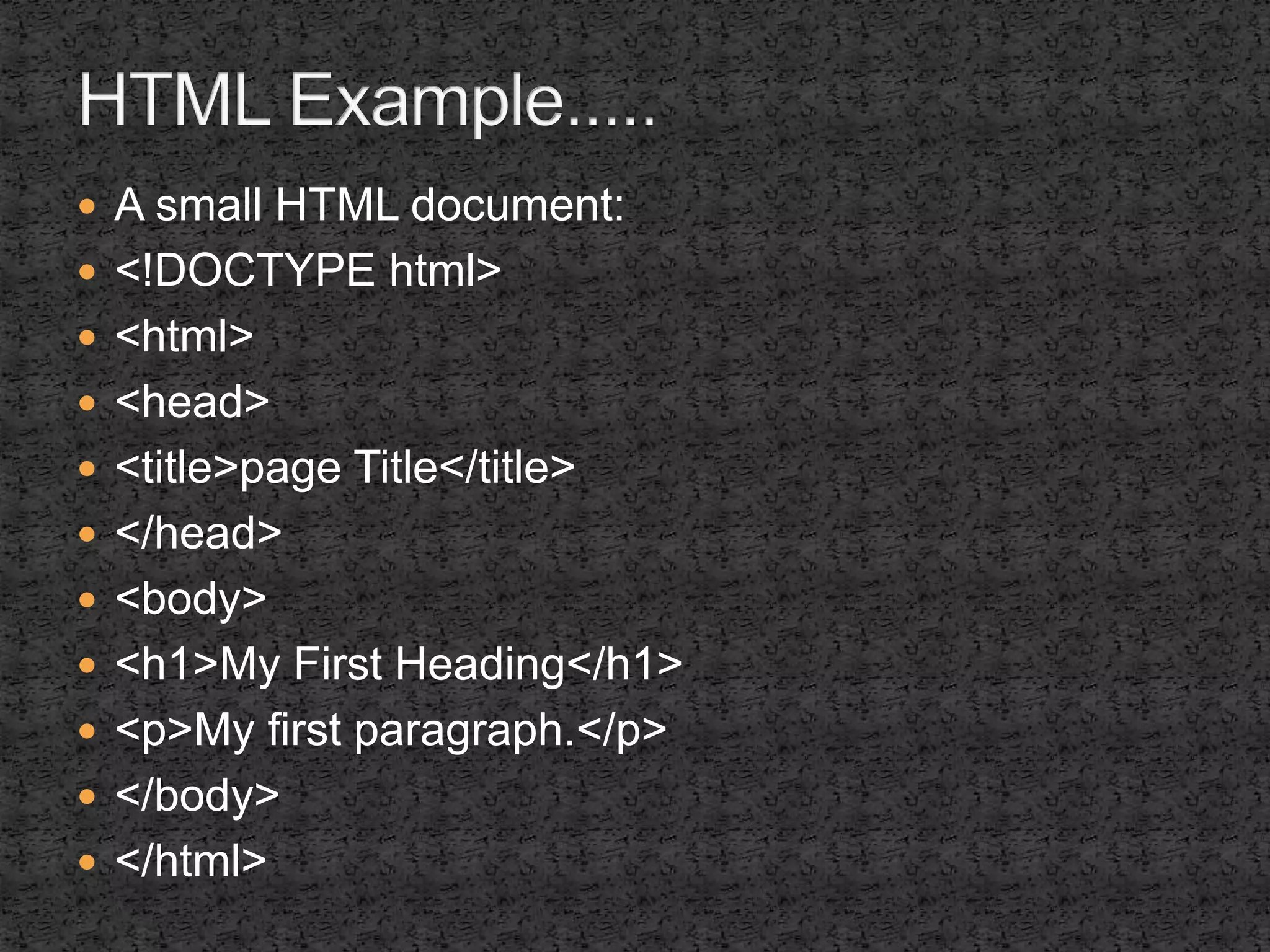
 A small HTML document: 
 <!DOCTYPE html> 
 <html> 
 <head> 
 <title>page Title</title> 
 </head> 
 <body> 
 <h1>My First Heading</h1> 
 <p>My first paragraph.</p> 
 </body> 
 </html>
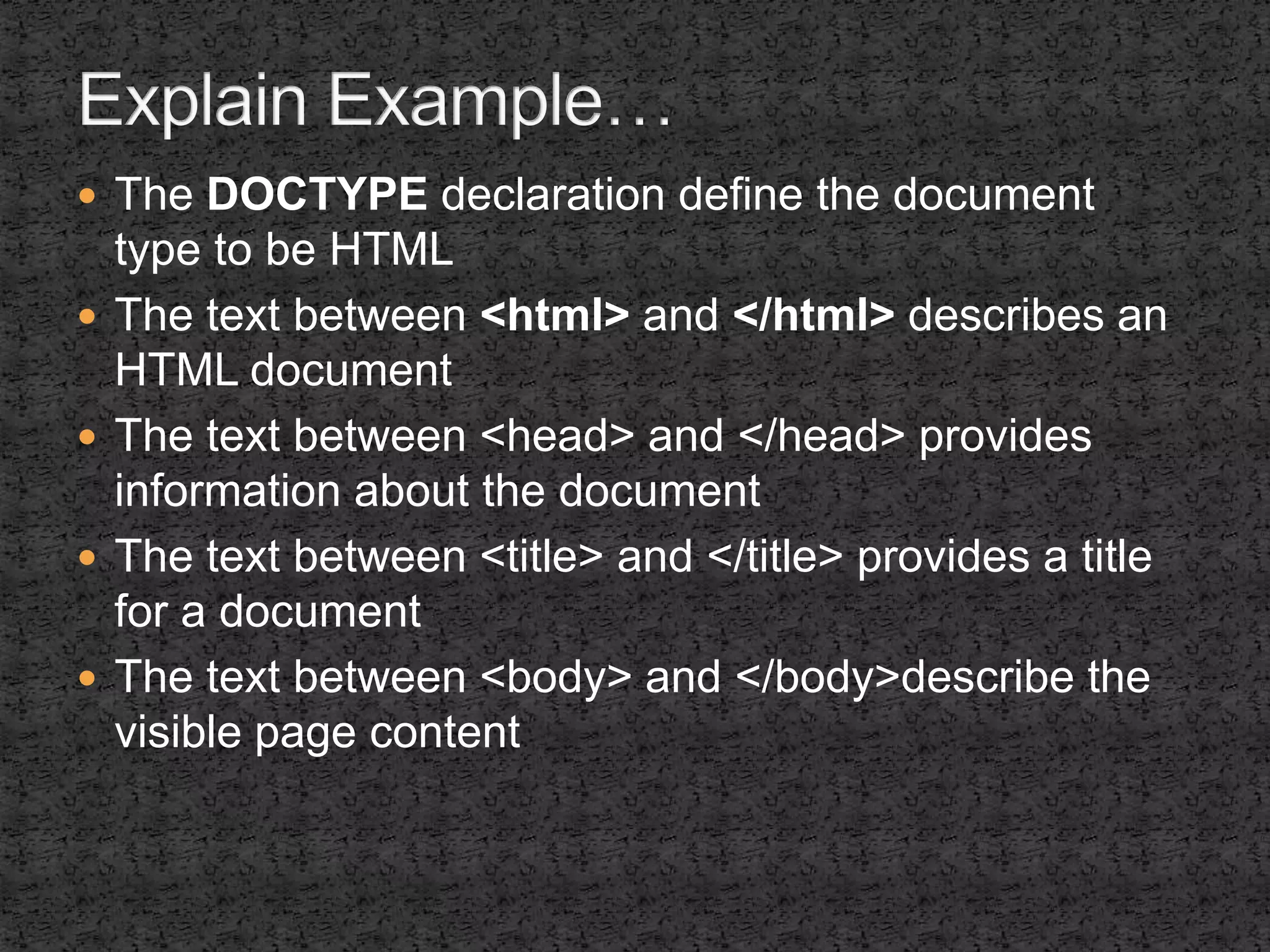
 The DOCTYPE declaration define the document 
type to be HTML 
 The text between <html> and </html> describes an 
HTML document 
 The text between <head> and </head> provides 
information about the document 
 The text between <title> and </title> provides a title 
for a document 
 The text between <body> and </body>describe the 
visible page content
 The text between <h1> and </h1> describe a 
heading. 
 The text between <p> and </p> describes 
paragraph. Using this description, a web browser 
can display a document with a heading and a 
paragraph.
 HTML tags are keywords (tag names) surrounded 
by angle brackets: 
 <tagname> content 
 </tagname> 
 HTML tags normally come in pairs like <p> and </p> 
 The first tag in a pair is the start tag, the second tag 
is end tag. 
 The end tag is written like the start tag, but with a 
slash before the tag name
 Write HTML using Notepad or Text Edit 
 HTML can be edited by using a professional HTML 
editor like: 
 Adobe Dreamweaver 
 Microsoft Expression Web 
 CofeeCup HTML Editor 
 However, for learning HTML we recommend a text 
editor like Notepad(PC) or TextEdit(Mac) 
 We believe using a simple text editor is a good way 
to learn HTML
 Setp1: Open Notepad 
 To open Notepad in window7 or earlier: 
 Click start(Bottom left on your screen). 
 Click all programs. Click accessories. Click Notepad 
 To open Notepad in window8 or earlier: 
 Open the start screen(the symbol at the bottom left 
on your screen). 
 Type Notepad
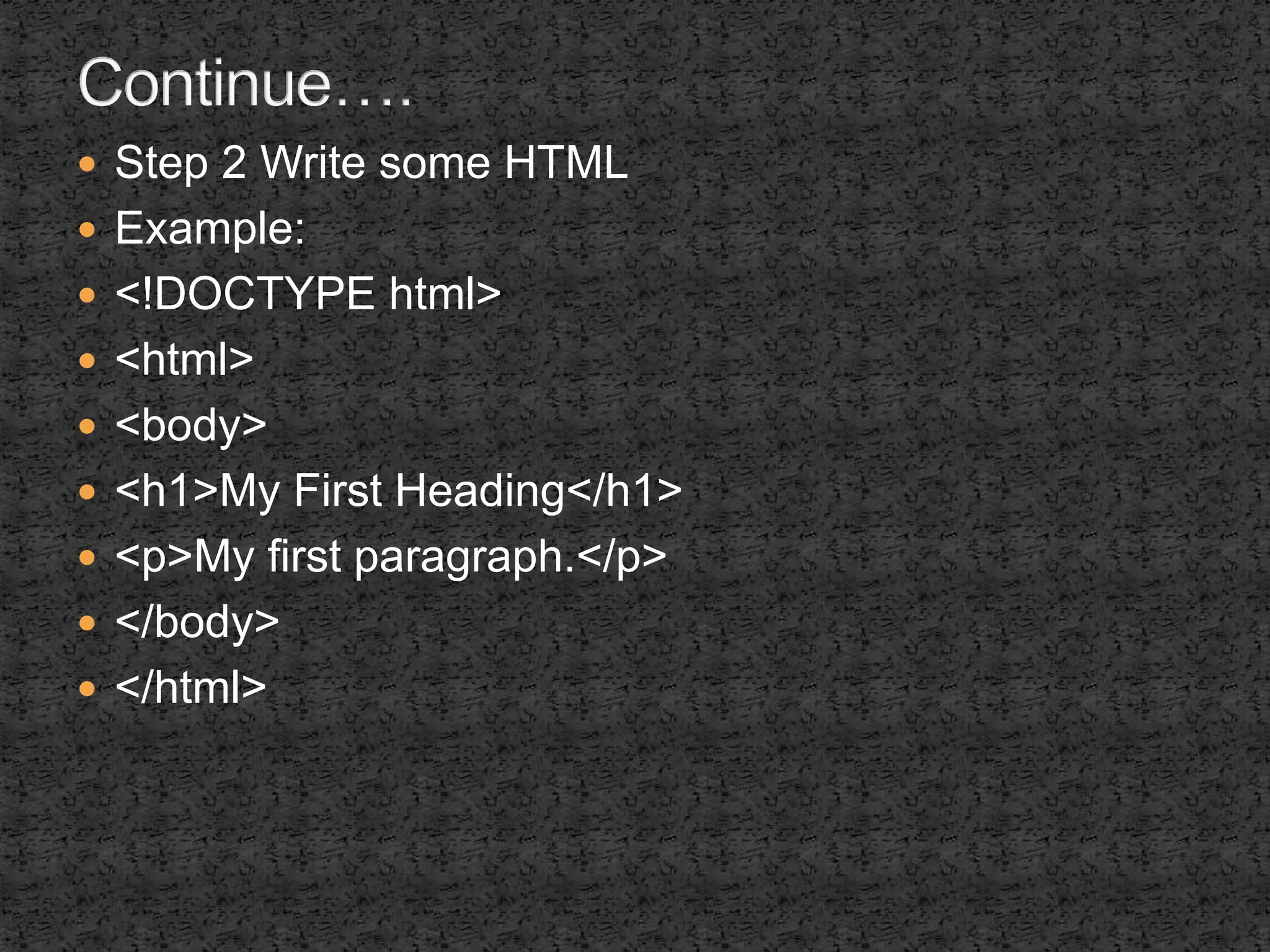
 Step 2 Write some HTML 
 Example: 
 <!DOCTYPE html> 
 <html> 
 <body> 
 <h1>My First Heading</h1> 
 <p>My first paragraph.</p> 
 </body> 
 </html>
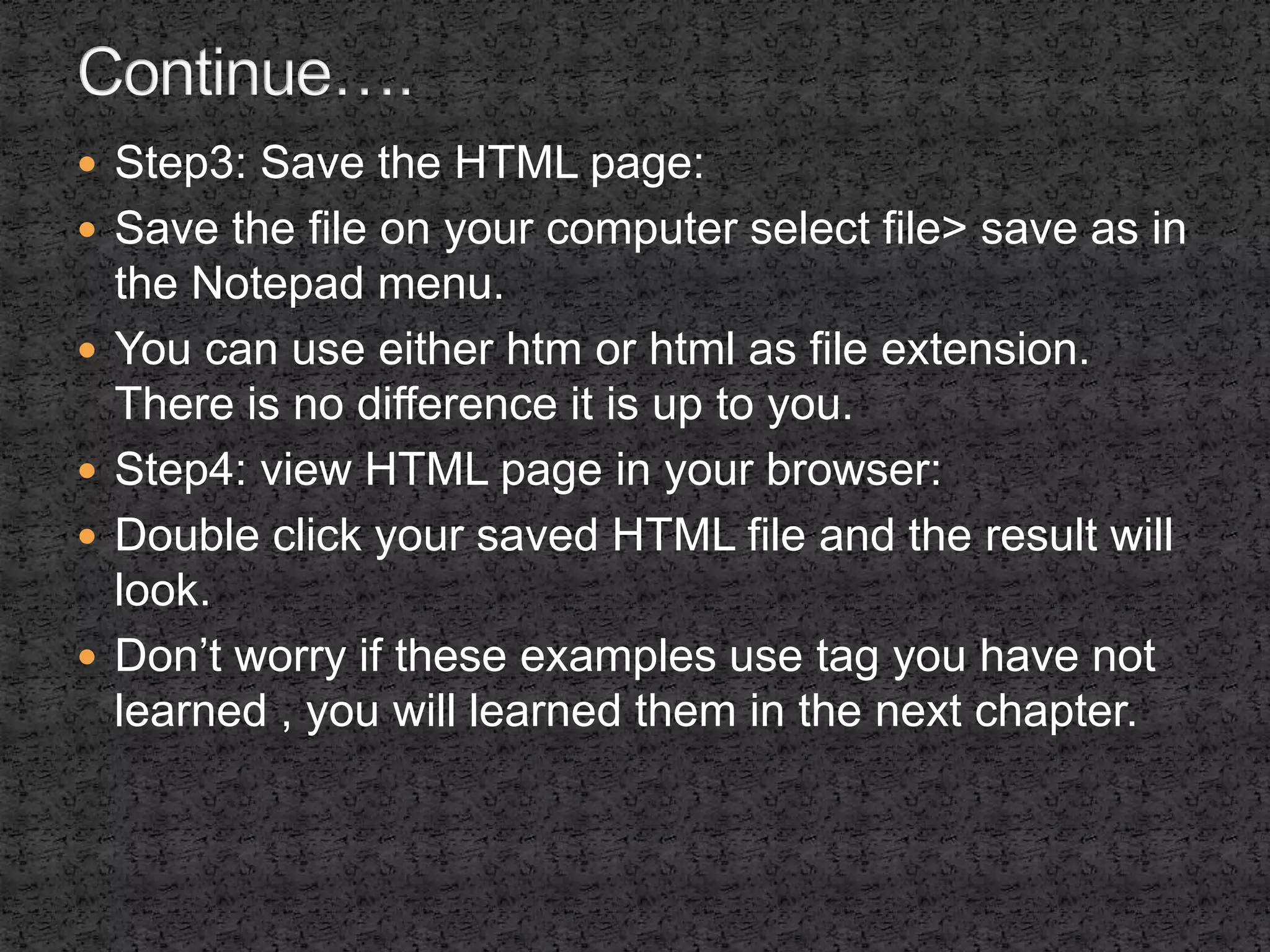
 Step3: Save the HTML page: 
 Save the file on your computer select file> save as in 
the Notepad menu. 
 You can use either htm or html as file extension. 
There is no difference it is up to you. 
 Step4: view HTML page in your browser: 
 Double click your saved HTML file and the result will 
look. 
 Don’t worry if these examples use tag you have not 
learned , you will learned them in the next chapter.
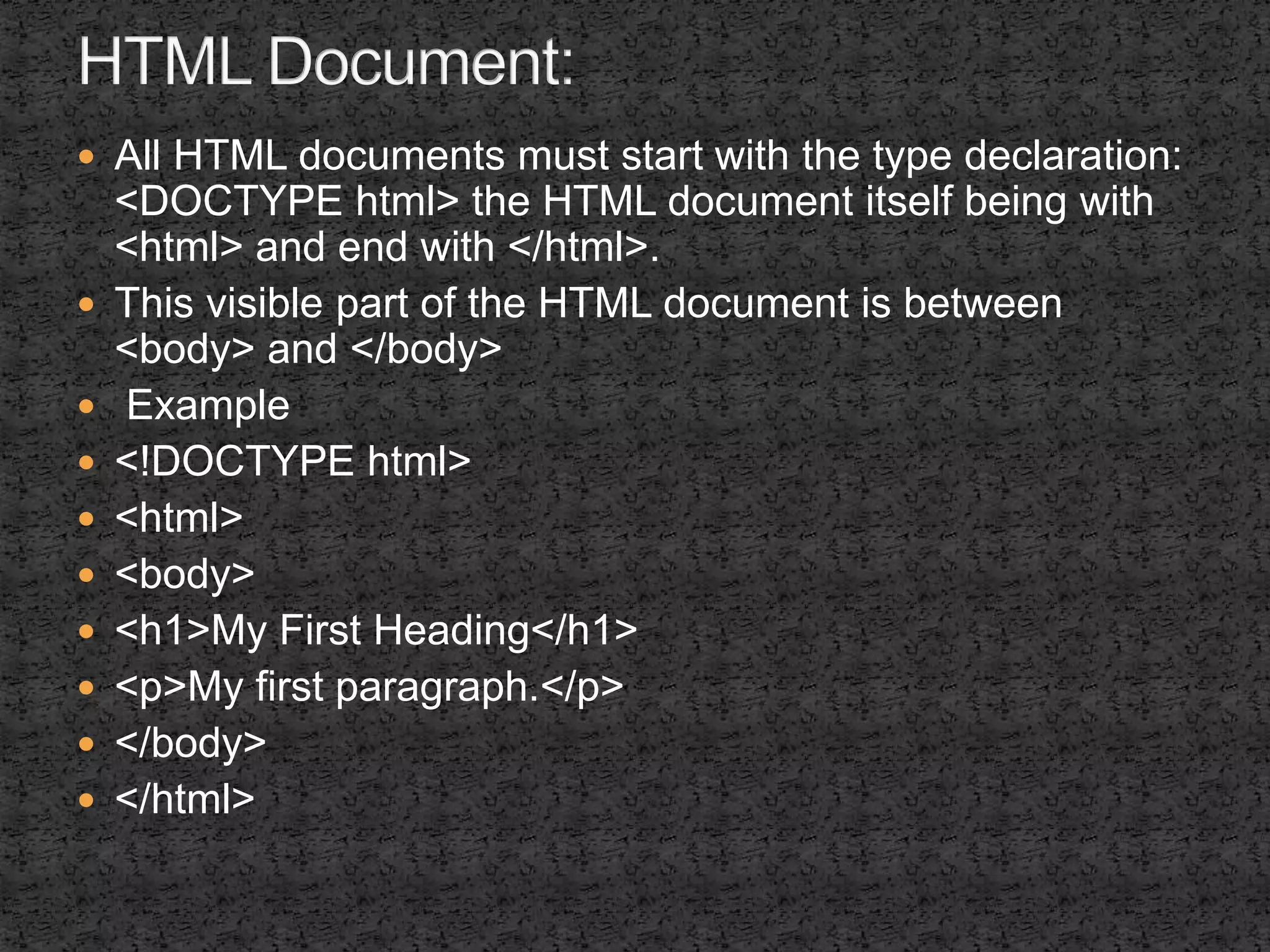
 All HTML documents must start with the type declaration: 
<DOCTYPE html> the HTML document itself being with 
<html> and end with </html>. 
 This visible part of the HTML document is between 
<body> and </body> 
 Example 
 <!DOCTYPE html> 
 <html> 
 <body> 
 <h1>My First Heading</h1> 
 <p>My first paragraph.</p> 
 </body> 
 </html>
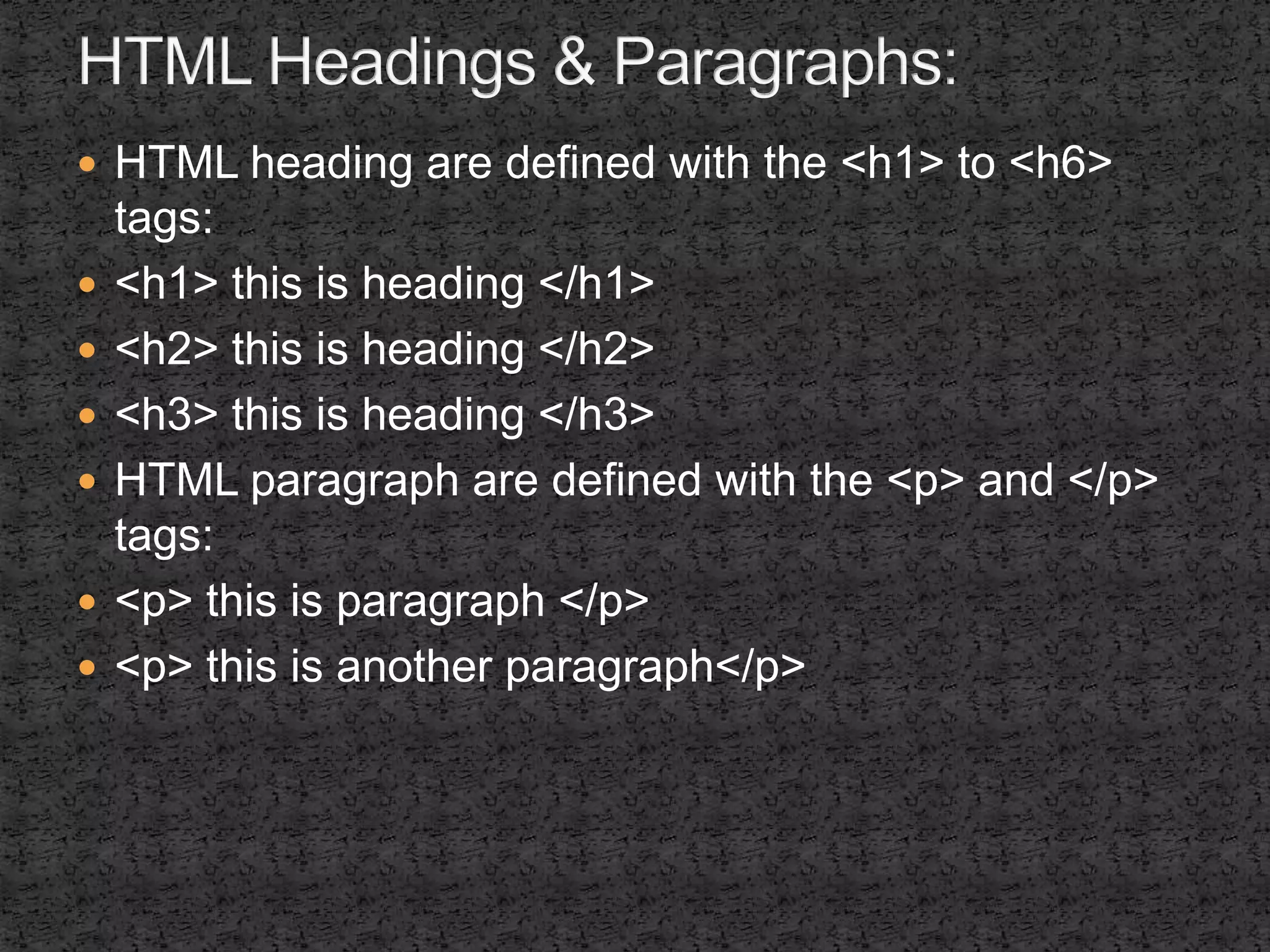
 HTML heading are defined with the <h1> to <h6> 
tags: 
 <h1> this is heading </h1> 
 <h2> this is heading </h2> 
 <h3> this is heading </h3> 
 HTML paragraph are defined with the <p> and </p> 
tags: 
 <p> this is paragraph </p> 
 <p> this is another paragraph</p>
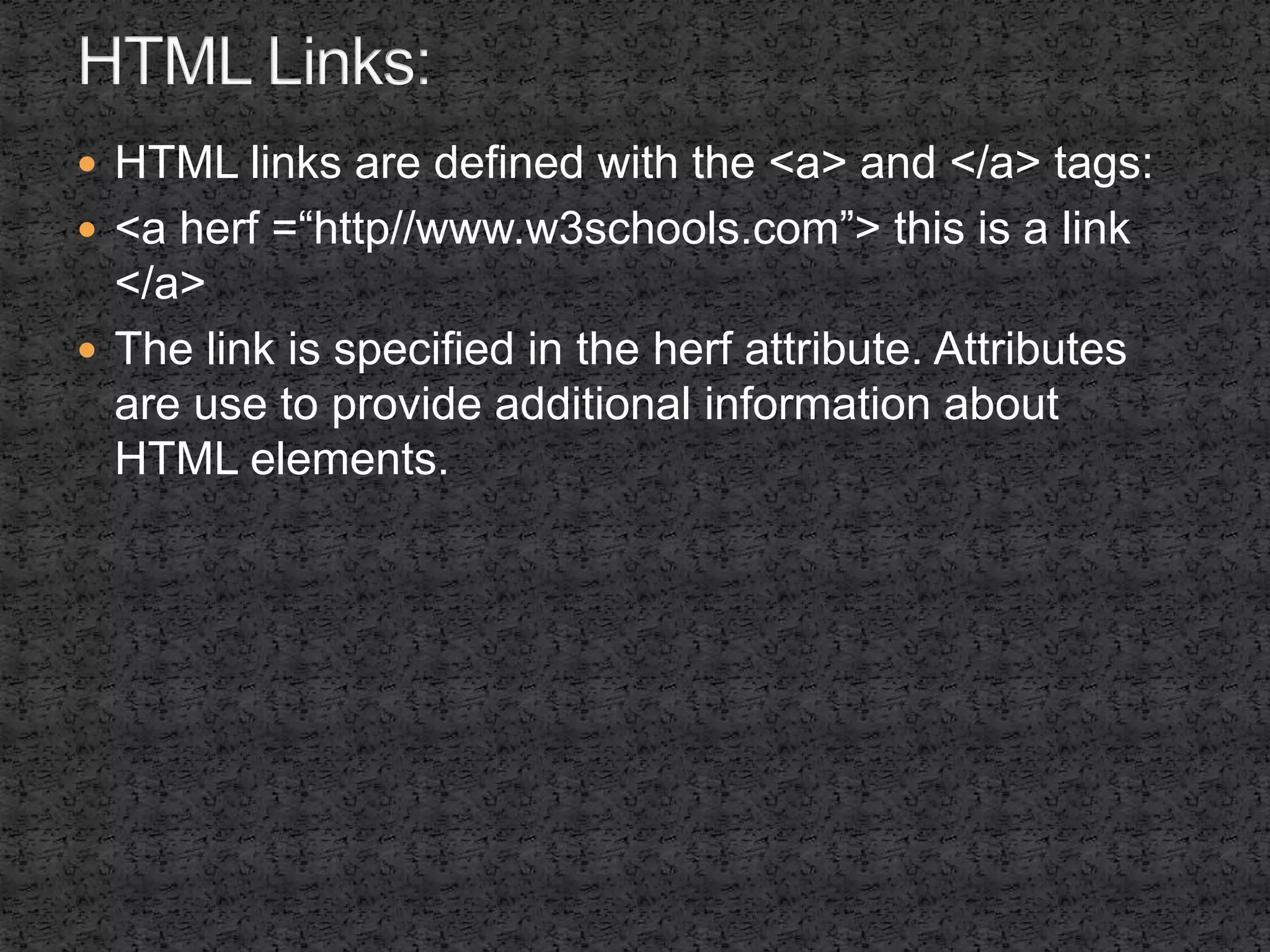
 HTML links are defined with the <a> and </a> tags: 
 <a herf =“http//www.w3schools.com”> this is a link 
</a> 
 The link is specified in the herf attribute. Attributes 
are use to provide additional information about 
HTML elements.
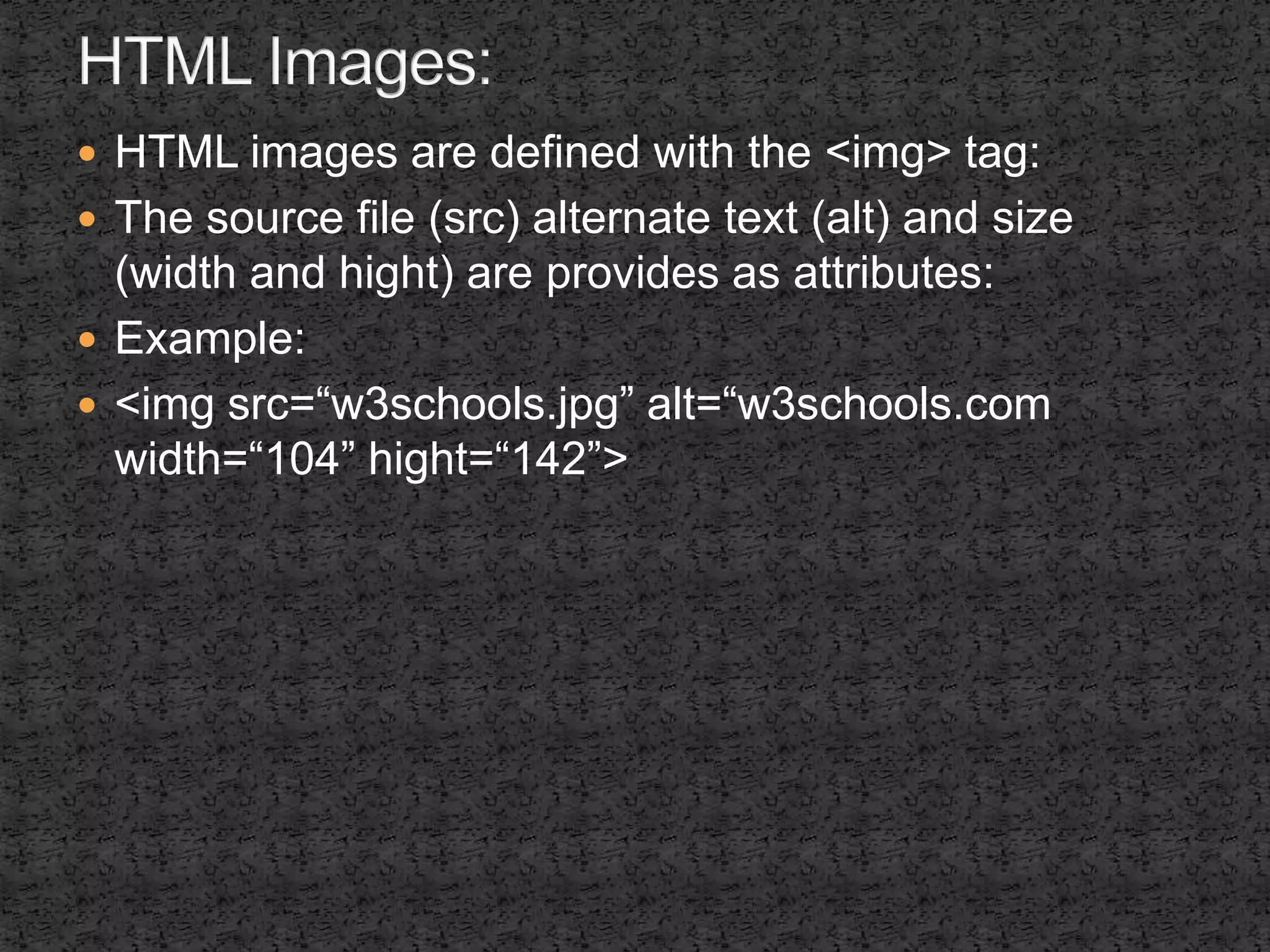
 HTML images are defined with the <img> tag: 
 The source file (src) alternate text (alt) and size 
(width and hight) are provides as attributes: 
 Example: 
 <img src=“w3schools.jpg” alt=“w3schools.com 
width=“104” hight=“142”>
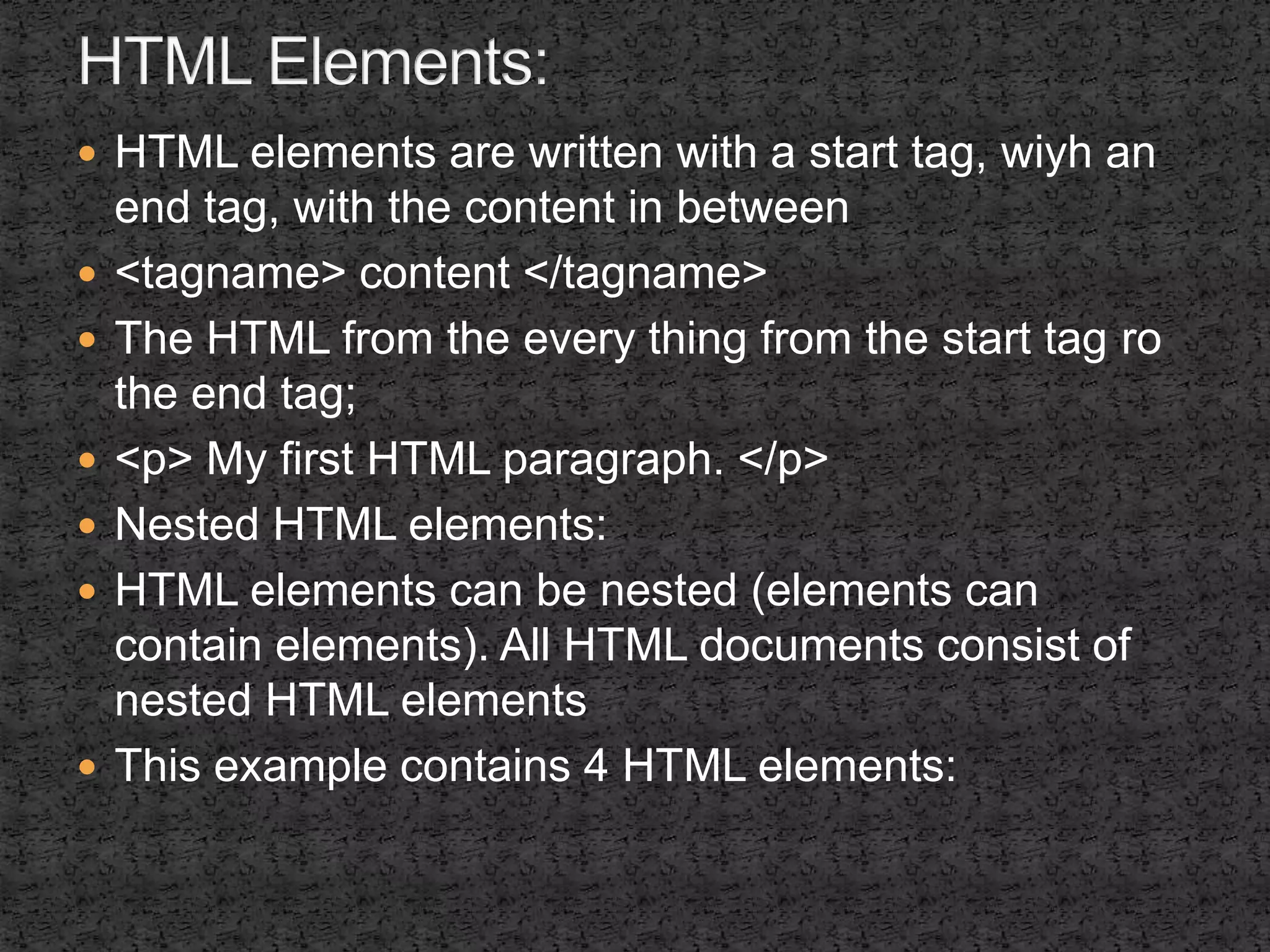
 HTML elements are written with a start tag, wiyh an 
end tag, with the content in between 
 <tagname> content </tagname> 
 The HTML from the every thing from the start tag ro 
the end tag; 
 <p> My first HTML paragraph. </p> 
 Nested HTML elements: 
 HTML elements can be nested (elements can 
contain elements). All HTML documents consist of 
nested HTML elements 
 This example contains 4 HTML elements:
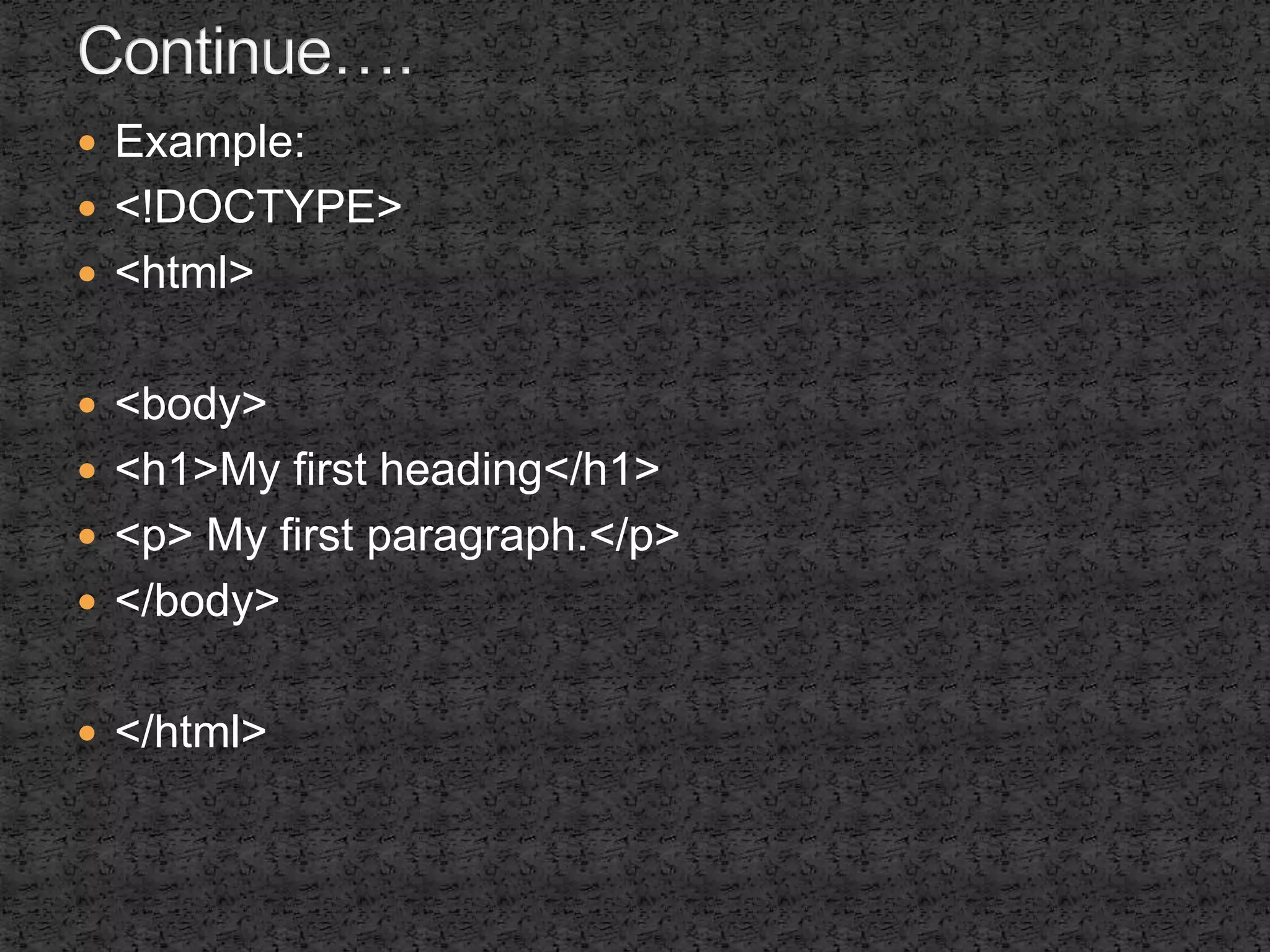
 Example: 
 <!DOCTYPE> 
 <html> 
 <body> 
 <h1>My first heading</h1> 
 <p> My first paragraph.</p> 
 </body> 
 </html>
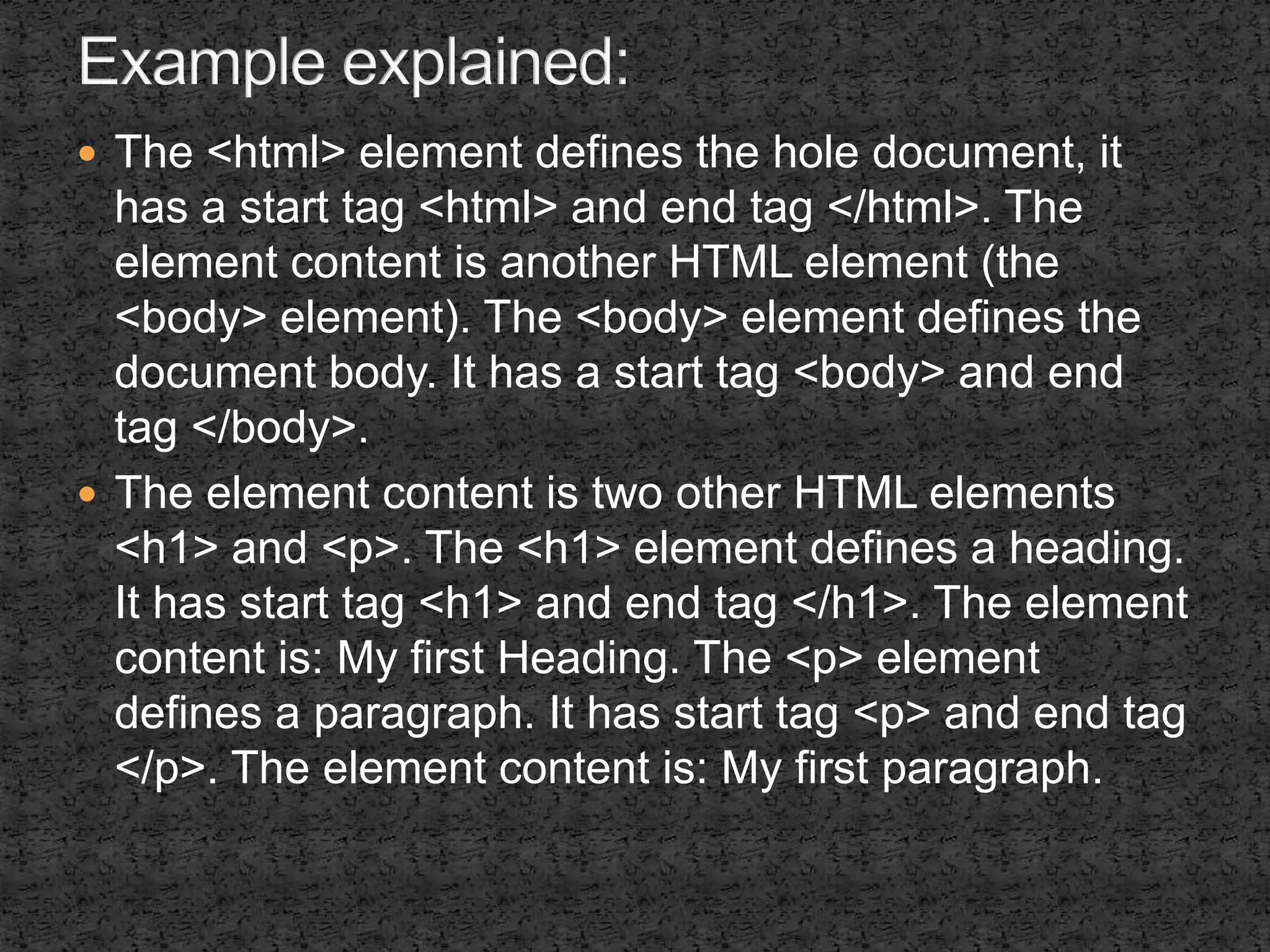
 The <html> element defines the hole document, it 
has a start tag <html> and end tag </html>. The 
element content is another HTML element (the 
<body> element). The <body> element defines the 
document body. It has a start tag <body> and end 
tag </body>. 
 The element content is two other HTML elements 
<h1> and <p>. The <h1> element defines a heading. 
It has start tag <h1> and end tag </h1>. The element 
content is: My first Heading. The <p> element 
defines a paragraph. It has start tag <p> and end tag 
</p>. The element content is: My first paragraph.
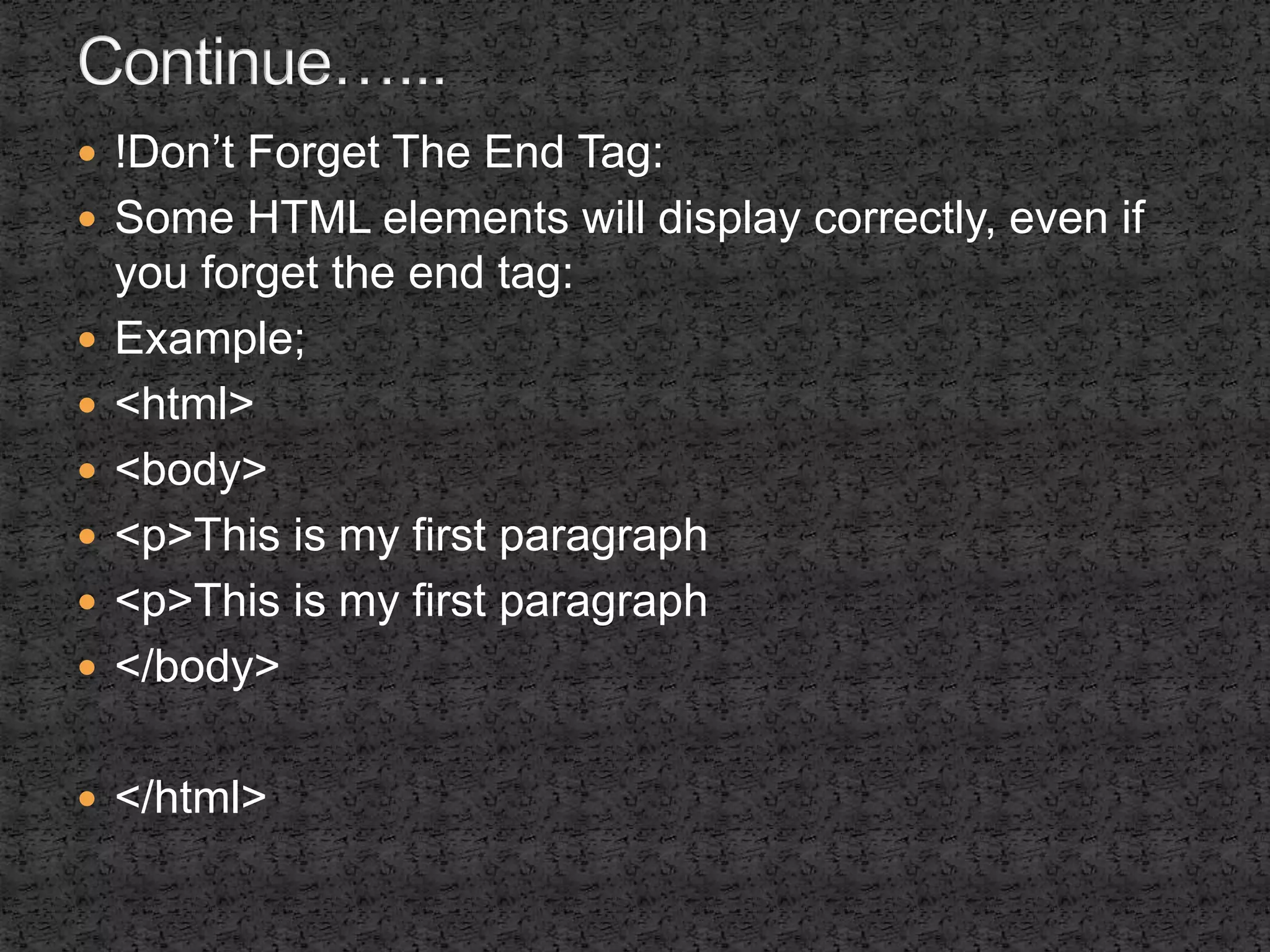
 !Don’t Forget The End Tag: 
 Some HTML elements will display correctly, even if 
you forget the end tag: 
 Example; 
 <html> 
 <body> 
 <p>This is my first paragraph 
 </body> 
 </html>
An introduction to html

An introduction to html

  • 1.
    By Hafiz MohammadKashif IUB*
  • 2.
     HTML isa markup language for describing web documents (web pages)  HTML stands for Hyper Text Markup Language  A markup language Is a set of markup tags  HTML document are described by HTML tags  Each HTML describe different document content
  • 3.
     A smallHTML document:  <!DOCTYPE html>  <html>  <head>  <title>page Title</title>  </head>  <body>  <h1>My First Heading</h1>  <p>My first paragraph.</p>  </body>  </html>
  • 4.
     The DOCTYPEdeclaration define the document type to be HTML  The text between <html> and </html> describes an HTML document  The text between <head> and </head> provides information about the document  The text between <title> and </title> provides a title for a document  The text between <body> and </body>describe the visible page content
  • 5.
     The textbetween <h1> and </h1> describe a heading.  The text between <p> and </p> describes paragraph. Using this description, a web browser can display a document with a heading and a paragraph.
  • 6.
     HTML tagsare keywords (tag names) surrounded by angle brackets:  <tagname> content  </tagname>  HTML tags normally come in pairs like <p> and </p>  The first tag in a pair is the start tag, the second tag is end tag.  The end tag is written like the start tag, but with a slash before the tag name
  • 7.
     Write HTMLusing Notepad or Text Edit  HTML can be edited by using a professional HTML editor like:  Adobe Dreamweaver  Microsoft Expression Web  CofeeCup HTML Editor  However, for learning HTML we recommend a text editor like Notepad(PC) or TextEdit(Mac)  We believe using a simple text editor is a good way to learn HTML
  • 8.
     Setp1: OpenNotepad  To open Notepad in window7 or earlier:  Click start(Bottom left on your screen).  Click all programs. Click accessories. Click Notepad  To open Notepad in window8 or earlier:  Open the start screen(the symbol at the bottom left on your screen).  Type Notepad
  • 9.
     Step 2Write some HTML  Example:  <!DOCTYPE html>  <html>  <body>  <h1>My First Heading</h1>  <p>My first paragraph.</p>  </body>  </html>
  • 10.
     Step3: Savethe HTML page:  Save the file on your computer select file> save as in the Notepad menu.  You can use either htm or html as file extension. There is no difference it is up to you.  Step4: view HTML page in your browser:  Double click your saved HTML file and the result will look.  Don’t worry if these examples use tag you have not learned , you will learned them in the next chapter.
  • 11.
     All HTMLdocuments must start with the type declaration: <DOCTYPE html> the HTML document itself being with <html> and end with </html>.  This visible part of the HTML document is between <body> and </body>  Example  <!DOCTYPE html>  <html>  <body>  <h1>My First Heading</h1>  <p>My first paragraph.</p>  </body>  </html>
  • 12.
     HTML headingare defined with the <h1> to <h6> tags:  <h1> this is heading </h1>  <h2> this is heading </h2>  <h3> this is heading </h3>  HTML paragraph are defined with the <p> and </p> tags:  <p> this is paragraph </p>  <p> this is another paragraph</p>
  • 13.
     HTML linksare defined with the <a> and </a> tags:  <a herf =“http//www.w3schools.com”> this is a link </a>  The link is specified in the herf attribute. Attributes are use to provide additional information about HTML elements.
  • 14.
     HTML imagesare defined with the <img> tag:  The source file (src) alternate text (alt) and size (width and hight) are provides as attributes:  Example:  <img src=“w3schools.jpg” alt=“w3schools.com width=“104” hight=“142”>
  • 15.
     HTML elementsare written with a start tag, wiyh an end tag, with the content in between  <tagname> content </tagname>  The HTML from the every thing from the start tag ro the end tag;  <p> My first HTML paragraph. </p>  Nested HTML elements:  HTML elements can be nested (elements can contain elements). All HTML documents consist of nested HTML elements  This example contains 4 HTML elements:
  • 16.
     Example: <!DOCTYPE>  <html>  <body>  <h1>My first heading</h1>  <p> My first paragraph.</p>  </body>  </html>
  • 17.
     The <html>element defines the hole document, it has a start tag <html> and end tag </html>. The element content is another HTML element (the <body> element). The <body> element defines the document body. It has a start tag <body> and end tag </body>.  The element content is two other HTML elements <h1> and <p>. The <h1> element defines a heading. It has start tag <h1> and end tag </h1>. The element content is: My first Heading. The <p> element defines a paragraph. It has start tag <p> and end tag </p>. The element content is: My first paragraph.
  • 18.
     !Don’t ForgetThe End Tag:  Some HTML elements will display correctly, even if you forget the end tag:  Example;  <html>  <body>  <p>This is my first paragraph  <p>This is my first paragraph  </body>  </html>