WEB FUNDAMENTALS AND HTML Chapter 1
INTRODUCING THE WORLD WIDE WEB Internet – is a structure made up of million of interconnected computers whose users can communicate with each other and share information. Network – computers that are linked together
WORLD WIDE WEB - also known as the WWW or the  Web - is an organization of files designed around a group of servers on the Internet programmed to handle requests from browser software on users’ PC’s. - is the fastest growing , most commercially popular technology to date. TIM BERNERS-LEE  – a programmer who wrote a program called a hypertext editor.  Hypertext document – an electronic file that contains elements that you can select, usually by clicking a mouse, to open another document .
Web sites – a representation of a company’s product    or services available for display via the Web. Webmaster – a person who is skilled in Web design,    Web maintenance and Web upgrade. Browser – a program designed to search for and bring    in Internet resources. Plug-in – specialized program designed to enhance a    function.
Web server – is the computer that stores the web document that users access. Web browser – is the software program that accesses the web document and displays it contents on the user’s computer Hypertext Markup Language – the language of the Web Standard Generalized Markup Language – SGML is one example of a more general mark up language
Versions of HTML HTML 0.0 – the original version developed by Tim Berners Lee and other researcher at CERN.  It has long been supplanted by the succeeding versions of HTML HTML 1.0 – the first public version of HTML, which included support for inline images and text controls.  Some browsers, most notably the text-based Lynx browser used on the UNIX system, operates at the 1.0 level
HTML 2.0  -  the version supported by all graphical browsers including Netscape Navigator, Mosaic and Internet Explorer. It supported interactive form elements such as option buttons and text boxes.  A document written to follow 2.0 specification would be readable by most browser on the Internet. HTML 3.2 – this version is also referred to as HTML+. It includes more support for creating and formatting tables and expands the option for creating interactive elements.  It also allows for the creation of complex mathematical equations.
HTML SYNTAX Syntax – a grammar or set of rules under which HTML operates Two Elements of HTML document Document contents – part of the document that you want the user to see, such as text and graphics Tags – are HTML codes that indicate the document content
< >  - identification of tag name Classification of Tag Two sided tags Opening tag – the first tag, which tells the browser to turn on the feature and apply it to document content that follows. Closing tag – which turns off the feature  </> - symbol to close the tag One sided tag  – also known as single tag  Properties – additional information placed within the bracket that defines the tag’s appearance.
CREATING A SIMPLE WEB PAGE
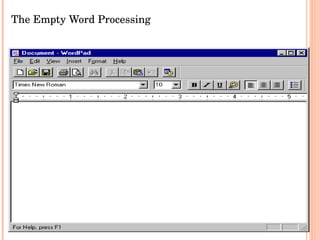
CREATING A WEB PAGE Starting a Word Processor 1.  Before you can begin, you’ll need to choose a program to use to create your HTML documents. 2. Any word processor will work 3. WordPad is a good starting point if you’re not sure which program to use 4. Your Task: Start WordPad
The Empty Word Processing  Document
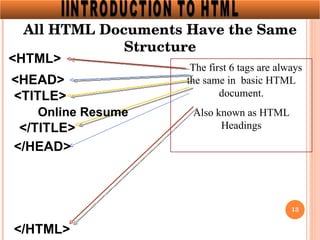
All HTML Documents Have the Same Structure <HTML> T  The first 6 tags are always the same in  basic HTML document. Also known as HTML Headings . <TITLE>  Online Resume </TITLE> </HEAD> D> <HEAD> </HTML> </HTML> IINTRODUCTION TO HTML <TITLE>
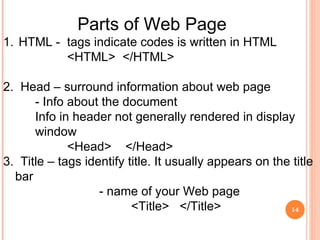
Parts of Web Page HTML -  tags indicate codes is written in HTML <HTML>  </HTML> 2.  Head – surround information about web page - Info about the document Info in header not generally rendered in display window <Head>  </Head> 3.  Title – tags identify title. It usually appears on the title bar - name of your Web page <Title>  </Title>
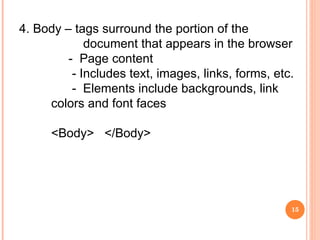
4. Body – tags surround the portion of the  document that appears in the browser -  Page content - Includes text, images, links, forms, etc. -  Elements include backgrounds, link colors and font faces <Body>  </Body>
Common Body Tags/Syntax in Creating  a Web Page
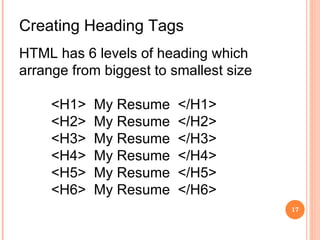
Creating Heading Tags HTML has 6 levels of heading which arrange from biggest to smallest size  <H1>  My Resume  </H1> <H2>  My Resume  </H2> <H3>  My Resume  </H3> <H4>  My Resume  </H4> <H5>  My Resume  </H5> <H6>  My Resume  </H6>
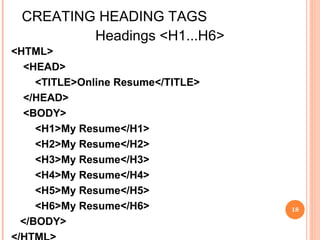
CREATING HEADING TAGS Headings <H1...H6> <HTML> <HEAD> <TITLE>Online Resume</TITLE> </HEAD> <BODY> <H1>My Resume</H1> <H2>My Resume</H2> <H3>My Resume</H3> <H4>My Resume</H4> <H5>My Resume</H5> <H6>My Resume</H6> </BODY> </HTML>
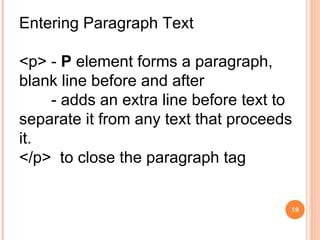
Entering Paragraph Text <p> -  P  element forms a paragraph, blank line before and after - adds an extra line before text to separate it from any text that proceeds it. </p>  to close the paragraph tag
HTML Line Breaks Use the <br /> tag if you want a line break (a new line) without starting a new paragraph: The <br /> element is an empty HTML element. It has no end tag. <br> or <br />
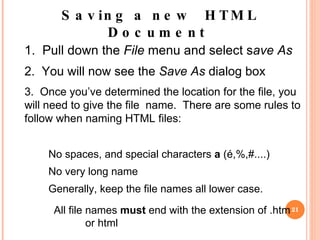
Saving a new  HTML Document   1.  Pull down the  File  menu and select s ave As 2.  You will now see the  Save As  dialog box 3.  Once you’ve determined the location for the file, you will need to give the file  name.  There are some rules to follow when naming HTML files: No spaces, and special characters  a  (é,%,#....) No very long name  Generally, keep the file names all lower case. All file names  must  end with the extension of .htm or html
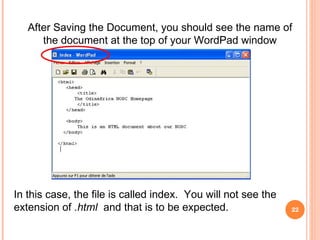
After Saving the Document, you should see the name of the document at the top of your WordPad window In this case, the file is called index.  You will not see the extension of  .html   and that is to be expected.
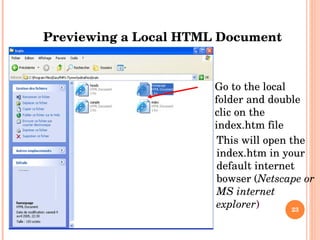
Previewing a Local HTML Document Go to the local folder and double clic on the index.htm file  This will open the index.htm in your default internet bowser ( Netscape or MS internet explorer )
BACKGROUND COLOR
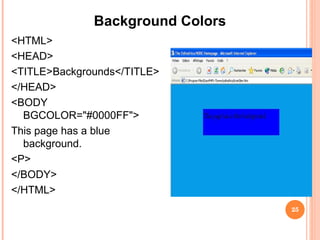
Background Colors <HTML> <HEAD> <TITLE>Backgrounds</TITLE> </HEAD> <BODY BGCOLOR=&quot;#0000FF&quot;> This page has a blue background. <P> </BODY> </HTML>
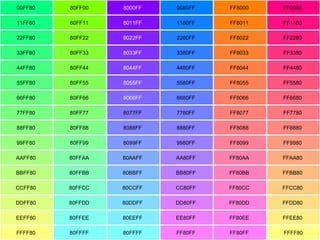
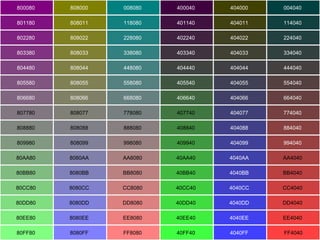
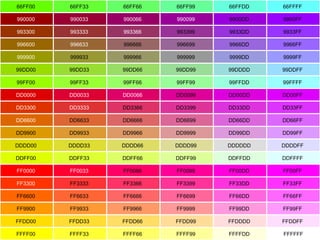
HTML COLOR CODES
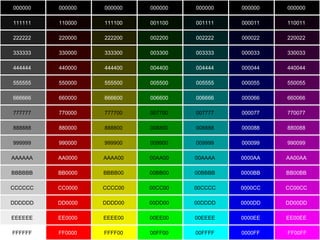
000000   000000   000000   000000   000000   000000   000000   111111   110000   111100   001100   001111   000011   110011   222222   220000   222200   002200   002222   000022   220022   333333   330000   333300   003300   003333   000033   330033   444444   440000   444400   004400   004444   000044   440044   555555   550000   555500   005500   005555   000055   550055   666666   660000   666600   006600   006666   000066   660066   777777  770000   777700  007700  007777  000077   770077   888888  880000   888800  008800  008888  000088   880088   999999  990000   999900  009900  009999  000099   990099   AAAAAA  AA0000   AAAA00  00AA00  00AAAA  0000AA   AA00AA   BBBBBB  BB0000   BBBB00  00BB00  00BBBB  0000BB   BB00BB   CCCCCC  CC0000   CCCC00  00CC00  00CCCC  0000CC   CC00CC   DDDDDD  DD0000   DDDD00  00DD00  00DDDD  0000DD   DD00DD   EEEEEE  EE0000   EEEE00  00EE00  00EEEE  0000EE   EE00EE   FFFFFF  FF0000   FFFF00  00FF00  00FFFF  0000FF   FF00FF
00FF80  80FF00  8000FF   0080FF  FF8000  FF0080  11FF80  80FF11  8011FF   1180FF  FF8011  FF1180  22FF80  80FF22  8022FF   2280FF  FF8022  FF2280  33FF80  80FF33  8033FF   3380FF  FF8033  FF3380  44FF80  80FF44  8044FF   4480FF  FF8044  FF4480  55FF80  80FF55  8055FF   5580FF  FF8055  FF5580  66FF80  80FF66  8066FF   6680FF  FF8066  FF6680  77FF80  80FF77  8077FF  7780FF  FF8077  FF7780  88FF80  80FF88  8088FF  8880FF  FF8088  FF8880  99FF80  80FF99  8099FF  9980FF  FF8099  FF9980  AAFF80  80FFAA  80AAFF  AA80FF  FF80AA  FFAA80  BBFF80  80FFBB  80BBFF  BB80FF  FF80BB  FFBB80  CCFF80  80FFCC  80CCFF  CC80FF  FF80CC  FFCC80  DDFF80  80FFDD  80DDFF  DD80FF  FF80DD  FFDD80  EEFF80  80FFEE  80EEFF  EE80FF  FF80EE  FFEE80  FFFF80  80FFFF  80FFFF  FF80FF  FF80FF  FFFF80
800080   808000   008080   400040   404000   004040   801180   808011   118080   401140   404011   114040   802280   808022   228080   402240   404022   224040   803380   808033   338080   403340   404033   334040   804480   808044   448080   404440   404044   444040   805580   808055   558080   405540   404055   554040   806680   808066   668080   406640   404066   664040   807780  808077  778080  407740  404077   774040   808880  808088  888080  408840  404088   884040   809980  808099  998080  409940  404099   994040   80AA80  8080AA  AA8080  40AA40  4040AA   AA4040  80BB80  8080BB  BB8080  40BB40  4040BB   BB4040  80CC80  8080CC  CC8080  40CC40  4040CC   CC4040  80DD80  8080DD  DD8080  40DD40  4040DD   DD4040  80EE80  8080EE  EE8080  40EE40  4040EE   EE4040  80FF80  8080FF  FF8080  40FF40  4040FF   FF4040
66FF00  66FF33  66FF66  66FF99  66FFDD  66FFFF  990000   990033   990066   990099   9900DD  9900FF  993300   993333   993366   993399  9933DD  9933FF  996600   996633   996666  996699  9966DD  9966FF  999900   999933  999966  999999  9999DD  9999FF  99DD00  99DD33  99DD66  99DD99  99DDDD  99DDFF  99FF00  99FF33  99FF66  99FF99  99FFDD  99FFFF  DD0000   DD0033   DD0066   DD0099  DD00DD  DD00FF  DD3300   DD3333   DD3366  DD3399  DD33DD  DD33FF  DD6600   DD6633  DD6666  DD6699  DD66DD  DD66FF  DD9900  DD9933  DD9966  DD9999  DD99DD  DD99FF  DDDD00  DDDD33  DDDD66  DDDD99  DDDDDD  DDDDFF  DDFF00  DDFF33  DDFF66  DDFF99  DDFFDD  DDFFFF  FF0000   FF0033   FF0066  FF0099  FF00DD  FF00FF  FF3300   FF3333  FF3366  FF3399  FF33DD  FF33FF  FF6600  FF6633  FF6666  FF6699  FF66DD  FF66FF  FF9900  FF9933  FF9966  FF9999  FF99DD  FF99FF  FFDD00  FFDD33  FFDD66  FFDD99  FFDDDD  FFDDFF  FFFF00  FFFF33  FFFF66  FFFF99  FFFFDD  FFFFFF
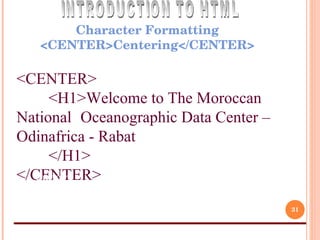
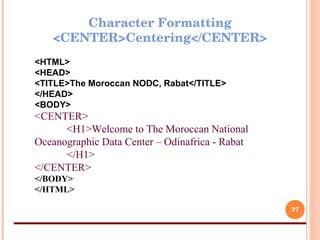
Character Formatting <CENTER>Centering</CENTER> <HTML> <HEAD> <TITLE>The Moroccan NODC, Rabat</TITLE> </HEAD> <BODY> <CENTER> <H1>Welcome to The Moroccan National  Oceanographic Data Center – Odinafrica - Rabat  </H1> </CENTER> </BODY> </HTML> INTRODUCTION TO HTML
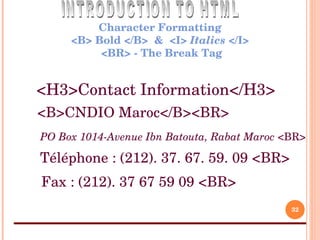
Character Formatting <B> Bold </B>  &  <I>  Italics  </I>  <BR> - The Break Tag <HTML> <HEAD> <TITLE>The Moroccan NODC, Rabat</TITLE> </HEAD> <BODY> <CENTER> <H1>Welcome to The Moroccan National Oceanographic Data  Center – Odinafrica - Rabat  </H1> </CENTER> </BODY> </HTML> <H3>Contact Information</H3> <B>CNDIO Maroc</B><BR> PO Box 1014-Avenue Ibn Batouta, Rabat Maroc  <BR> Téléphone : (212). 37. 67. 59. 09  <BR>   Fax : (212). 37 67 59 09  <BR> INTRODUCTION TO HTML
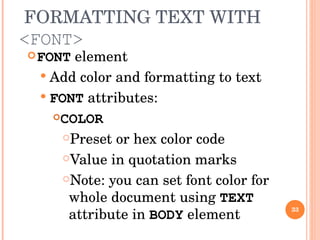
FORMATTING TEXT WITH  <FONT> FONT  element Add color and formatting to text FONT  attributes: COLOR   Preset or hex color code Value in quotation marks Note: you can set font color for whole document using  TEXT  attribute in  BODY  element
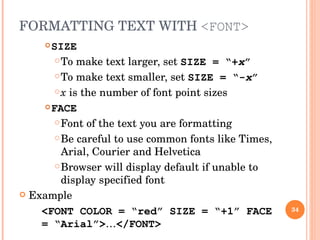
FORMATTING TEXT WITH  <FONT>   SIZE To make text larger, set  SIZE = “+ x ” To make text smaller, set  SIZE = “- x ” x  is the number of font point sizes FACE Font of the text you are formatting Be careful to use common fonts like Times, Arial, Courier and Helvetica Browser will display default if unable to display specified font Example <FONT COLOR = “red” SIZE = “+1” FACE = “Arial”> … </FONT>
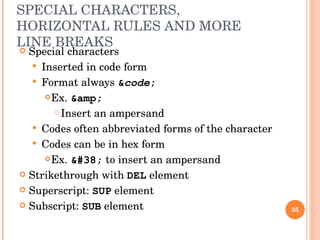
SPECIAL CHARACTERS, HORIZONTAL RULES AND MORE LINE BREAKS Special characters  Inserted in code form Format always  & code ; Ex.  &amp;   Insert an ampersand Codes often abbreviated forms of the character Codes can be in hex form Ex.  &#38;  to insert an ampersand Strikethrough with  DEL  element Superscript:  SUP  element Subscript:  SUB  element
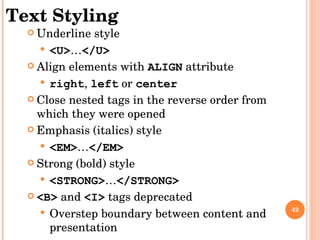
TEXT STYLING Underline style <U> … </U> Align elements with  ALIGN  attribute right ,  left  or  center Close nested tags in the reverse order from which they were opened Emphasis (italics) style <EM> … </EM> Strong (bold) style <STRONG> … </STRONG> <B>  and  <I>  tags deprecated  Overstep boundary between content and presentation
Character Formatting <CENTER>Centering</CENTER> <HTML> <HEAD> <TITLE>The Moroccan NODC, Rabat</TITLE> </HEAD> <BODY> <CENTER> <H1>Welcome to The Moroccan National  Oceanographic Data Center – Odinafrica - Rabat  </H1> </CENTER> </BODY> </HTML>
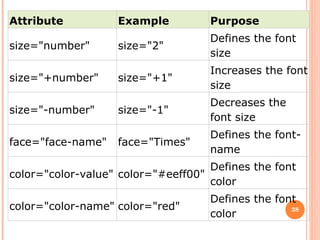
Attribute Example Purpose size=&quot;number&quot; size=&quot;2&quot; Defines the font size size=&quot;+number&quot; size=&quot;+1&quot; Increases the font size size=&quot;-number&quot; size=&quot;-1&quot; Decreases the font size face=&quot;face-name&quot; face=&quot;Times&quot; Defines the font-name color=&quot;color-value&quot; color=&quot;#eeff00&quot; Defines the font color color=&quot;color-name&quot; color=&quot;red&quot; Defines the font color
INSERTING HORIZONTAL LINES
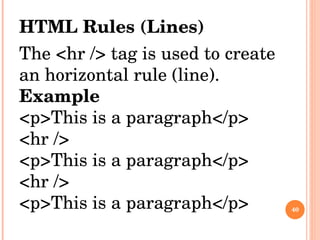
HTML Rules (Lines) The <hr /> tag is used to create an horizontal rule (line). Example <p>This is a paragraph</p> <hr /> <p>This is a paragraph</p> <hr /> <p>This is a paragraph</p>
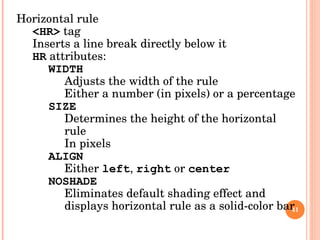
Horizontal rule <HR>  tag Inserts a line break directly below it HR  attributes: WIDTH Adjusts the width of the rule Either a number (in pixels) or a percentage SIZE Determines the height of the horizontal rule In pixels ALIGN Either  left ,  right  or  center NOSHADE Eliminates default shading effect and displays horizontal rule as a solid-color bar
Text Styling Underline style <U> … </U> Align elements with  ALIGN  attribute right ,  left  or  center Close nested tags in the reverse order from which they were opened Emphasis (italics) style <EM> … </EM> Strong (bold) style <STRONG> … </STRONG> <B>  and  <I>  tags deprecated  Overstep boundary between content and presentation
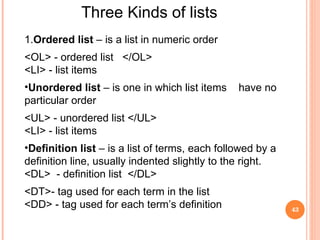
Three Kinds of lists 1. Ordered list  – is a list in numeric order <OL> - ordered list  </OL> <LI> - list items Unordered list  – is one in which list items  have no particular order <UL> - unordered list </UL> <LI> - list items Definition list  – is a list of terms, each followed by a definition line, usually indented slightly to the right. <DL>  - definition list  </DL> <DT>- tag used for each term in the list <DD> - tag used for each term’s definition
Inserting a Graphic Image
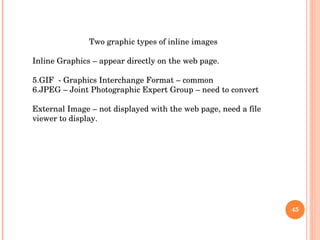
Two graphic types of inline images Inline Graphics – appear directly on the web page. GIF  - Graphics Interchange Format – common JPEG – Joint Photographic Expert Group – need to convert External Image – not displayed with the web page, need a file viewer to display.
CREATING A HYPERTEXT DOCUMENT
Destination – a hypertext document contains links  that you can select, usually by clicking a mouse,  to instantly view  another topic or document. Creating Anchors <A> - tag creates an anchor, text that is specially  marked so you can link to it from other points in the document. <A Name = “EMP”>Employment</A> <Name = “PHOTO”>IMG SRC=“Taylor.gif></A>
<A HREF = “EMP”> EMPLOYMENT</A> Link tags – tags that create links HREF – Hypertext REFerence - refer to an anchor that you place in the document. “ #anchor_name” refers to that anchor with a pound (#)symbol.
Attributes: SRC  = “location” HEIGHT  (in pixels) WIDTH  (in pixels) BORDER  (black by default) ALT  (text description for browsers that have images turned off or cannot view images)
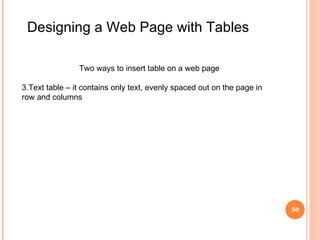
Designing a Web Page with Tables  Two ways to insert table on a web page Text table – it contains only text, evenly spaced out on the page in row and columns
Web Page Structures
System – is a set of pages, usually created by the same person or group, that treat the same topic and that have the same loo

Web Fundamentals And Html Chapter 1

  • 1.
    WEB FUNDAMENTALS ANDHTML Chapter 1
  • 2.
    INTRODUCING THE WORLDWIDE WEB Internet – is a structure made up of million of interconnected computers whose users can communicate with each other and share information. Network – computers that are linked together
  • 3.
    WORLD WIDE WEB- also known as the WWW or the Web - is an organization of files designed around a group of servers on the Internet programmed to handle requests from browser software on users’ PC’s. - is the fastest growing , most commercially popular technology to date. TIM BERNERS-LEE – a programmer who wrote a program called a hypertext editor. Hypertext document – an electronic file that contains elements that you can select, usually by clicking a mouse, to open another document .
  • 4.
    Web sites –a representation of a company’s product or services available for display via the Web. Webmaster – a person who is skilled in Web design, Web maintenance and Web upgrade. Browser – a program designed to search for and bring in Internet resources. Plug-in – specialized program designed to enhance a function.
  • 5.
    Web server –is the computer that stores the web document that users access. Web browser – is the software program that accesses the web document and displays it contents on the user’s computer Hypertext Markup Language – the language of the Web Standard Generalized Markup Language – SGML is one example of a more general mark up language
  • 6.
    Versions of HTMLHTML 0.0 – the original version developed by Tim Berners Lee and other researcher at CERN. It has long been supplanted by the succeeding versions of HTML HTML 1.0 – the first public version of HTML, which included support for inline images and text controls. Some browsers, most notably the text-based Lynx browser used on the UNIX system, operates at the 1.0 level
  • 7.
    HTML 2.0 - the version supported by all graphical browsers including Netscape Navigator, Mosaic and Internet Explorer. It supported interactive form elements such as option buttons and text boxes. A document written to follow 2.0 specification would be readable by most browser on the Internet. HTML 3.2 – this version is also referred to as HTML+. It includes more support for creating and formatting tables and expands the option for creating interactive elements. It also allows for the creation of complex mathematical equations.
  • 8.
    HTML SYNTAX Syntax– a grammar or set of rules under which HTML operates Two Elements of HTML document Document contents – part of the document that you want the user to see, such as text and graphics Tags – are HTML codes that indicate the document content
  • 9.
    < > - identification of tag name Classification of Tag Two sided tags Opening tag – the first tag, which tells the browser to turn on the feature and apply it to document content that follows. Closing tag – which turns off the feature </> - symbol to close the tag One sided tag – also known as single tag Properties – additional information placed within the bracket that defines the tag’s appearance.
  • 10.
  • 11.
    CREATING A WEBPAGE Starting a Word Processor 1. Before you can begin, you’ll need to choose a program to use to create your HTML documents. 2. Any word processor will work 3. WordPad is a good starting point if you’re not sure which program to use 4. Your Task: Start WordPad
  • 12.
    The Empty WordProcessing Document
  • 13.
    All HTML DocumentsHave the Same Structure <HTML> T The first 6 tags are always the same in basic HTML document. Also known as HTML Headings . <TITLE> Online Resume </TITLE> </HEAD> D> <HEAD> </HTML> </HTML> IINTRODUCTION TO HTML <TITLE>
  • 14.
    Parts of WebPage HTML - tags indicate codes is written in HTML <HTML> </HTML> 2. Head – surround information about web page - Info about the document Info in header not generally rendered in display window <Head> </Head> 3. Title – tags identify title. It usually appears on the title bar - name of your Web page <Title> </Title>
  • 15.
    4. Body –tags surround the portion of the document that appears in the browser - Page content - Includes text, images, links, forms, etc. - Elements include backgrounds, link colors and font faces <Body> </Body>
  • 16.
    Common Body Tags/Syntaxin Creating a Web Page
  • 17.
    Creating Heading TagsHTML has 6 levels of heading which arrange from biggest to smallest size <H1> My Resume </H1> <H2> My Resume </H2> <H3> My Resume </H3> <H4> My Resume </H4> <H5> My Resume </H5> <H6> My Resume </H6>
  • 18.
    CREATING HEADING TAGSHeadings <H1...H6> <HTML> <HEAD> <TITLE>Online Resume</TITLE> </HEAD> <BODY> <H1>My Resume</H1> <H2>My Resume</H2> <H3>My Resume</H3> <H4>My Resume</H4> <H5>My Resume</H5> <H6>My Resume</H6> </BODY> </HTML>
  • 19.
    Entering Paragraph Text<p> - P element forms a paragraph, blank line before and after - adds an extra line before text to separate it from any text that proceeds it. </p> to close the paragraph tag
  • 20.
    HTML Line BreaksUse the <br /> tag if you want a line break (a new line) without starting a new paragraph: The <br /> element is an empty HTML element. It has no end tag. <br> or <br />
  • 21.
    Saving a new HTML Document 1. Pull down the File menu and select s ave As 2. You will now see the Save As dialog box 3. Once you’ve determined the location for the file, you will need to give the file name. There are some rules to follow when naming HTML files: No spaces, and special characters a (é,%,#....) No very long name Generally, keep the file names all lower case. All file names must end with the extension of .htm or html
  • 22.
    After Saving theDocument, you should see the name of the document at the top of your WordPad window In this case, the file is called index. You will not see the extension of .html and that is to be expected.
  • 23.
    Previewing a LocalHTML Document Go to the local folder and double clic on the index.htm file This will open the index.htm in your default internet bowser ( Netscape or MS internet explorer )
  • 24.
  • 25.
    Background Colors <HTML><HEAD> <TITLE>Backgrounds</TITLE> </HEAD> <BODY BGCOLOR=&quot;#0000FF&quot;> This page has a blue background. <P> </BODY> </HTML>
  • 26.
  • 27.
    000000 000000 000000 000000 000000 000000 000000 111111 110000 111100 001100 001111 000011 110011 222222 220000 222200 002200 002222 000022 220022 333333 330000 333300 003300 003333 000033 330033 444444 440000 444400 004400 004444 000044 440044 555555 550000 555500 005500 005555 000055 550055 666666 660000 666600 006600 006666 000066 660066 777777 770000 777700 007700 007777 000077 770077 888888 880000 888800 008800 008888 000088 880088 999999 990000 999900 009900 009999 000099 990099 AAAAAA AA0000 AAAA00 00AA00 00AAAA 0000AA AA00AA BBBBBB BB0000 BBBB00 00BB00 00BBBB 0000BB BB00BB CCCCCC CC0000 CCCC00 00CC00 00CCCC 0000CC CC00CC DDDDDD DD0000 DDDD00 00DD00 00DDDD 0000DD DD00DD EEEEEE EE0000 EEEE00 00EE00 00EEEE 0000EE EE00EE FFFFFF FF0000 FFFF00 00FF00 00FFFF 0000FF FF00FF
  • 28.
    00FF80 80FF00 8000FF 0080FF FF8000 FF0080 11FF80 80FF11 8011FF 1180FF FF8011 FF1180 22FF80 80FF22 8022FF 2280FF FF8022 FF2280 33FF80 80FF33 8033FF 3380FF FF8033 FF3380 44FF80 80FF44 8044FF 4480FF FF8044 FF4480 55FF80 80FF55 8055FF 5580FF FF8055 FF5580 66FF80 80FF66 8066FF 6680FF FF8066 FF6680 77FF80 80FF77 8077FF 7780FF FF8077 FF7780 88FF80 80FF88 8088FF 8880FF FF8088 FF8880 99FF80 80FF99 8099FF 9980FF FF8099 FF9980 AAFF80 80FFAA 80AAFF AA80FF FF80AA FFAA80 BBFF80 80FFBB 80BBFF BB80FF FF80BB FFBB80 CCFF80 80FFCC 80CCFF CC80FF FF80CC FFCC80 DDFF80 80FFDD 80DDFF DD80FF FF80DD FFDD80 EEFF80 80FFEE 80EEFF EE80FF FF80EE FFEE80 FFFF80 80FFFF 80FFFF FF80FF FF80FF FFFF80
  • 29.
    800080 808000 008080 400040 404000 004040 801180 808011 118080 401140 404011 114040 802280 808022 228080 402240 404022 224040 803380 808033 338080 403340 404033 334040 804480 808044 448080 404440 404044 444040 805580 808055 558080 405540 404055 554040 806680 808066 668080 406640 404066 664040 807780 808077 778080 407740 404077 774040 808880 808088 888080 408840 404088 884040 809980 808099 998080 409940 404099 994040 80AA80 8080AA AA8080 40AA40 4040AA AA4040 80BB80 8080BB BB8080 40BB40 4040BB BB4040 80CC80 8080CC CC8080 40CC40 4040CC CC4040 80DD80 8080DD DD8080 40DD40 4040DD DD4040 80EE80 8080EE EE8080 40EE40 4040EE EE4040 80FF80 8080FF FF8080 40FF40 4040FF FF4040
  • 30.
    66FF00 66FF33 66FF66 66FF99 66FFDD 66FFFF 990000 990033 990066 990099 9900DD 9900FF 993300 993333 993366 993399 9933DD 9933FF 996600 996633 996666 996699 9966DD 9966FF 999900 999933 999966 999999 9999DD 9999FF 99DD00 99DD33 99DD66 99DD99 99DDDD 99DDFF 99FF00 99FF33 99FF66 99FF99 99FFDD 99FFFF DD0000 DD0033 DD0066 DD0099 DD00DD DD00FF DD3300 DD3333 DD3366 DD3399 DD33DD DD33FF DD6600 DD6633 DD6666 DD6699 DD66DD DD66FF DD9900 DD9933 DD9966 DD9999 DD99DD DD99FF DDDD00 DDDD33 DDDD66 DDDD99 DDDDDD DDDDFF DDFF00 DDFF33 DDFF66 DDFF99 DDFFDD DDFFFF FF0000 FF0033 FF0066 FF0099 FF00DD FF00FF FF3300 FF3333 FF3366 FF3399 FF33DD FF33FF FF6600 FF6633 FF6666 FF6699 FF66DD FF66FF FF9900 FF9933 FF9966 FF9999 FF99DD FF99FF FFDD00 FFDD33 FFDD66 FFDD99 FFDDDD FFDDFF FFFF00 FFFF33 FFFF66 FFFF99 FFFFDD FFFFFF
  • 31.
    Character Formatting <CENTER>Centering</CENTER><HTML> <HEAD> <TITLE>The Moroccan NODC, Rabat</TITLE> </HEAD> <BODY> <CENTER> <H1>Welcome to The Moroccan National Oceanographic Data Center – Odinafrica - Rabat </H1> </CENTER> </BODY> </HTML> INTRODUCTION TO HTML
  • 32.
    Character Formatting <B>Bold </B> & <I> Italics </I> <BR> - The Break Tag <HTML> <HEAD> <TITLE>The Moroccan NODC, Rabat</TITLE> </HEAD> <BODY> <CENTER> <H1>Welcome to The Moroccan National Oceanographic Data Center – Odinafrica - Rabat </H1> </CENTER> </BODY> </HTML> <H3>Contact Information</H3> <B>CNDIO Maroc</B><BR> PO Box 1014-Avenue Ibn Batouta, Rabat Maroc <BR> Téléphone : (212). 37. 67. 59. 09 <BR> Fax : (212). 37 67 59 09 <BR> INTRODUCTION TO HTML
  • 33.
    FORMATTING TEXT WITH <FONT> FONT element Add color and formatting to text FONT attributes: COLOR Preset or hex color code Value in quotation marks Note: you can set font color for whole document using TEXT attribute in BODY element
  • 34.
    FORMATTING TEXT WITH <FONT> SIZE To make text larger, set SIZE = “+ x ” To make text smaller, set SIZE = “- x ” x is the number of font point sizes FACE Font of the text you are formatting Be careful to use common fonts like Times, Arial, Courier and Helvetica Browser will display default if unable to display specified font Example <FONT COLOR = “red” SIZE = “+1” FACE = “Arial”> … </FONT>
  • 35.
    SPECIAL CHARACTERS, HORIZONTALRULES AND MORE LINE BREAKS Special characters Inserted in code form Format always & code ; Ex. &amp; Insert an ampersand Codes often abbreviated forms of the character Codes can be in hex form Ex. &#38; to insert an ampersand Strikethrough with DEL element Superscript: SUP element Subscript: SUB element
  • 36.
    TEXT STYLING Underlinestyle <U> … </U> Align elements with ALIGN attribute right , left or center Close nested tags in the reverse order from which they were opened Emphasis (italics) style <EM> … </EM> Strong (bold) style <STRONG> … </STRONG> <B> and <I> tags deprecated Overstep boundary between content and presentation
  • 37.
    Character Formatting <CENTER>Centering</CENTER><HTML> <HEAD> <TITLE>The Moroccan NODC, Rabat</TITLE> </HEAD> <BODY> <CENTER> <H1>Welcome to The Moroccan National Oceanographic Data Center – Odinafrica - Rabat </H1> </CENTER> </BODY> </HTML>
  • 38.
    Attribute Example Purposesize=&quot;number&quot; size=&quot;2&quot; Defines the font size size=&quot;+number&quot; size=&quot;+1&quot; Increases the font size size=&quot;-number&quot; size=&quot;-1&quot; Decreases the font size face=&quot;face-name&quot; face=&quot;Times&quot; Defines the font-name color=&quot;color-value&quot; color=&quot;#eeff00&quot; Defines the font color color=&quot;color-name&quot; color=&quot;red&quot; Defines the font color
  • 39.
  • 40.
    HTML Rules (Lines)The <hr /> tag is used to create an horizontal rule (line). Example <p>This is a paragraph</p> <hr /> <p>This is a paragraph</p> <hr /> <p>This is a paragraph</p>
  • 41.
    Horizontal rule <HR> tag Inserts a line break directly below it HR attributes: WIDTH Adjusts the width of the rule Either a number (in pixels) or a percentage SIZE Determines the height of the horizontal rule In pixels ALIGN Either left , right or center NOSHADE Eliminates default shading effect and displays horizontal rule as a solid-color bar
  • 42.
    Text Styling Underlinestyle <U> … </U> Align elements with ALIGN attribute right , left or center Close nested tags in the reverse order from which they were opened Emphasis (italics) style <EM> … </EM> Strong (bold) style <STRONG> … </STRONG> <B> and <I> tags deprecated Overstep boundary between content and presentation
  • 43.
    Three Kinds oflists 1. Ordered list – is a list in numeric order <OL> - ordered list </OL> <LI> - list items Unordered list – is one in which list items have no particular order <UL> - unordered list </UL> <LI> - list items Definition list – is a list of terms, each followed by a definition line, usually indented slightly to the right. <DL> - definition list </DL> <DT>- tag used for each term in the list <DD> - tag used for each term’s definition
  • 44.
  • 45.
    Two graphic typesof inline images Inline Graphics – appear directly on the web page. GIF - Graphics Interchange Format – common JPEG – Joint Photographic Expert Group – need to convert External Image – not displayed with the web page, need a file viewer to display.
  • 46.
  • 47.
    Destination – ahypertext document contains links that you can select, usually by clicking a mouse, to instantly view another topic or document. Creating Anchors <A> - tag creates an anchor, text that is specially marked so you can link to it from other points in the document. <A Name = “EMP”>Employment</A> <Name = “PHOTO”>IMG SRC=“Taylor.gif></A>
  • 48.
    <A HREF =“EMP”> EMPLOYMENT</A> Link tags – tags that create links HREF – Hypertext REFerence - refer to an anchor that you place in the document. “ #anchor_name” refers to that anchor with a pound (#)symbol.
  • 49.
    Attributes: SRC = “location” HEIGHT (in pixels) WIDTH (in pixels) BORDER (black by default) ALT (text description for browsers that have images turned off or cannot view images)
  • 50.
    Designing a WebPage with Tables Two ways to insert table on a web page Text table – it contains only text, evenly spaced out on the page in row and columns
  • 51.
  • 52.
    System – isa set of pages, usually created by the same person or group, that treat the same topic and that have the same loo