bigrockdesigns.com-ComputerTrainingConsulants
Scaling Pictures
Make sure the picture content is selected (not the frame that it’s inside)
Scale 1% Bigger............................................................. Cmd->
Scale 1% Smaller........................................................... Cmd-<
Scale 5% Bigger............................................................. Cmd-Option->
Scale 5% Smaller........................................................... Cmd-Option-<
Adjusting Font Size
Increase by Increment (set in Preferences)...................... Cmd-Shift->
Decrease by Increment................................................... Cmd-Shift-<
(Add Option to the above keystrokes to make them Increment x 5)
Adjusting Leading
Increase by Increment (set in Preferences)...................... Option-Down arrow
Decrease by Increment................................................... Option-Up arrow
(Add Cmd to the above keystrokes to make them Increment x 5)
Revert to Auto Leading.................................................... Cmd-Option-Shift-A
Adjust Kerning / Tracking & Word Spacing
Increase by Increment (set in Preferences)...................... Option-Right arrow
Decrease by Increment................................................... Option-Left arrow
(Add Cmd to the above keystrokes to make them Increment x 5)
Increase between words.................................................. Cmd-Option-Shift-
Decrease between words................................................. Cmd-Option-Shift-Delete
Clear all manual kerning, tracking, and word spacing...... Cmd-Option-Q
Adjusting Baseline Shift
Move Up by Increment (set in Preferences)...................... Option-Shift-Up arrow
Move Down by Increment................................................ Option-Shift-Down arrow
(Add Cmd to the above keystrokes to make them Increment x 5)
Fitting Content & Pictures
Fit Content Proportionally............................................... Cmd-Option-Shift-E
Fill Frame Proportionally................................................. Cmd-Option-Shift-C
Center Content............................................................... Cmd-Shift-E
Fit Frame to Content....................................................... Cmd-Option-C
Nudging Objects
Move by Increment (set in Preferences)........................... Arrow keys
Move by Increment x 10.................................................. Shift-Arrow keys
Move by Increment x 1/10.............................................. Cmd-Shift-Arrow keys
Flowing Text
Multi-Page Autoflow (creates additional pages)................ Shift-click
Semi-autoflow (text in cursor to continue flowing)........... Option-click
Fixed-Page Autoflow (does not create additional pages)... Shift-Option-click
Styling Text & Working with Styles
Bold............................................................................... Cmd-Shift-B
Italic.............................................................................. Cmd-Shift-I
Normal........................................................................... Cmd-Shift-Y
All Caps.......................................................................... Cmd-Shift-K
Edit Style Sheet without Applying it................................. Cmd-Option-Shift-Double
click style
Redefine a Paragraph Style............................................. With style selected
Cmd-Option–Shift-R
Redefine a Character Style.............................................. With style selected
Cmd-Option–Shift-C
Working with Paragraph Styles
To remove local formatting (non style changes)............... Option-click style name
To remove local formatting and Character Styles............. Option-Shift-click style
name
Working with Master Pages
Override a single master page item on a document page.Cmd-Shift-click it
Override several master page items................................ Cmd-Shift-drag a mar-
quee over them
Override all master page items on pages selected in Pages panel	 Cmd-
Option-Shift-L
Inserting Special Characters
Indent to Here................................................................ Cmd-
Right Indent Tab............................................................. Shift-Tab
Nonbreaking Hyphen...................................................... Cmd-Option-hyphen (-)
Type in Straight Single Quote (foot Mark)........................ Control-’
Type in Straight Double Quote (inch Mark)...................... Control-Shift-’
Current Page Number (auto page numbering)................. Cmd-Option-Shift-N
Inserting White Space
Em space....................................................................... Cmd-Shift-M
En space........................................................................ Cmd-Shift-N
Nonbreaking space......................................................... Cmd-Option-X
Thin space...................................................................... Cmd-Option-Shift-M
Inserting Break Characters
Column Break................................................................. Enter (on keypad)
Frame Break................................................................... Shift-Enter (on keypad)
Page Break..................................................................... Cmd-Enter (on keypad)
Forced Line Break (or “soft return”)................................ Shift-Return
Moving Text Cursor
Move cursor to beginning or end of line.......................... Home or End
Move cursor one word to the left/right............................ Cmd-Left/Right arrow
Move cursor to Previous paragraph................................. Cmd-Up arrow
Move cursor to Next paragraph....................................... Cmd-Down arrow
Selecting & Working with Text
Leave text frame and switch to Selection tool.................. Esc
Select from cursor to beginning or end of line................. Shift-Home or Shift-End
Select from cursor to end of story.................................. Cmd-Shift-End
Select from cursor to beginning of story......................... Cmd-Shift-Home
Select whole word........................................................... Double-click
Select line...................................................................... Cmd-Shift- (or Tri-
ple-click)
Select one word to the left/right..................................... Cmd-Shift-Left/Right
arrow
Navigating & Scrolling Through Documents
Scroll using Hand tool.................................................... Option-Spacebar-drag
Go to the First Page........................................................ Cmd-Shift-Page Up
Go to the Last Page........................................................ Cmd-Shift-Page Down
Go to Page (then type in page number)........................... Cmd-J
Switch between open documents.................................... Cmd-tilde(~)
Zooming
Get the Zoom In tool without selecting it......................... Hold Cmd then Spacebar
Get the Zoom Out tool without selecting it....................... Hold Cmd then Spacebar
and Option
Zoom In or Out............................................................... Cmd-plus(+) or Cmd-mi-
nus(-)
Fit Page in Window......................................................... Cmd-0 (zero)
Fit Spread in Window...................................................... Cmd-Option-0 (zero)
Access zoom percentage box (so you can enter a zoom level)	 Cmd-Op-
tion-5
Toggle between current and previous zoom levels............ Cmd-Option-2
Find / Change
Insert selected text into Find What box............................ Cmd-F1
Find the next occurrence of Find What text..................... Shift-F2
or Cmd-Option-F
Insert selected text into Change To box........................... Cmd-F2
Replace found text with Change To text........................... Cmd-F3
Replace found text with Change To text and Find Next..... Shift-F3
Working with Panels
Highlight the first option in the Control panel.................. Cmd-6
Toggle Control panel between Character & Paragraph options	 Cmd-Op-
tion-7
Apply a value but keep it highlighted in panel.................. Shift-Return
Hide/Show all Panels except the Tools/Control................ Shift-Tab (while not in a
text frame)
Expand/Collapse Panel Stacks........................................ Cmd-Option-Tab (while
not in a text frame)
Create new (style, swatches, etc) & display options dialog	 Option-click New
button
Working with Dialog Boxes
Cycle down through section of options displayed on the left	Page Down
Cycle up through section of options displayed on the left	 Page Up
Jump to section of options displayed on the left............. Cmd-1 for 1st, Cmd-2 for
2nd, etc.
Choose Yes, No, Don’t Save, or Save................................ Y, N, D, or S
Bigrock Recommended
Select frame hidden behind another................................ Hold and keep clicking
frame stack
Increase/decrease a value in a field................................ Click in field, press Up/
Down arrow
Select all Guides............................................................. Cmd-Option-G
Select an Individual Table Cell......................................... With Type tool, click in
cell and hit Esc
Quick Apply.................................................................... Press Cmd-Return. Then
start typing a style name, menu item, text variable, etc. Then press Return to
apply.
InDesignCC 2014Mac - Shortcuts
computer training consultants
BIGROCKDESIGNS
t: 028 9038 8330
e: sales@bigrockdesigns.com
w: www.bigrockdesigns.com
a: 3 Wellington Park, Malone Road,
Belfast, BT9 6DJ

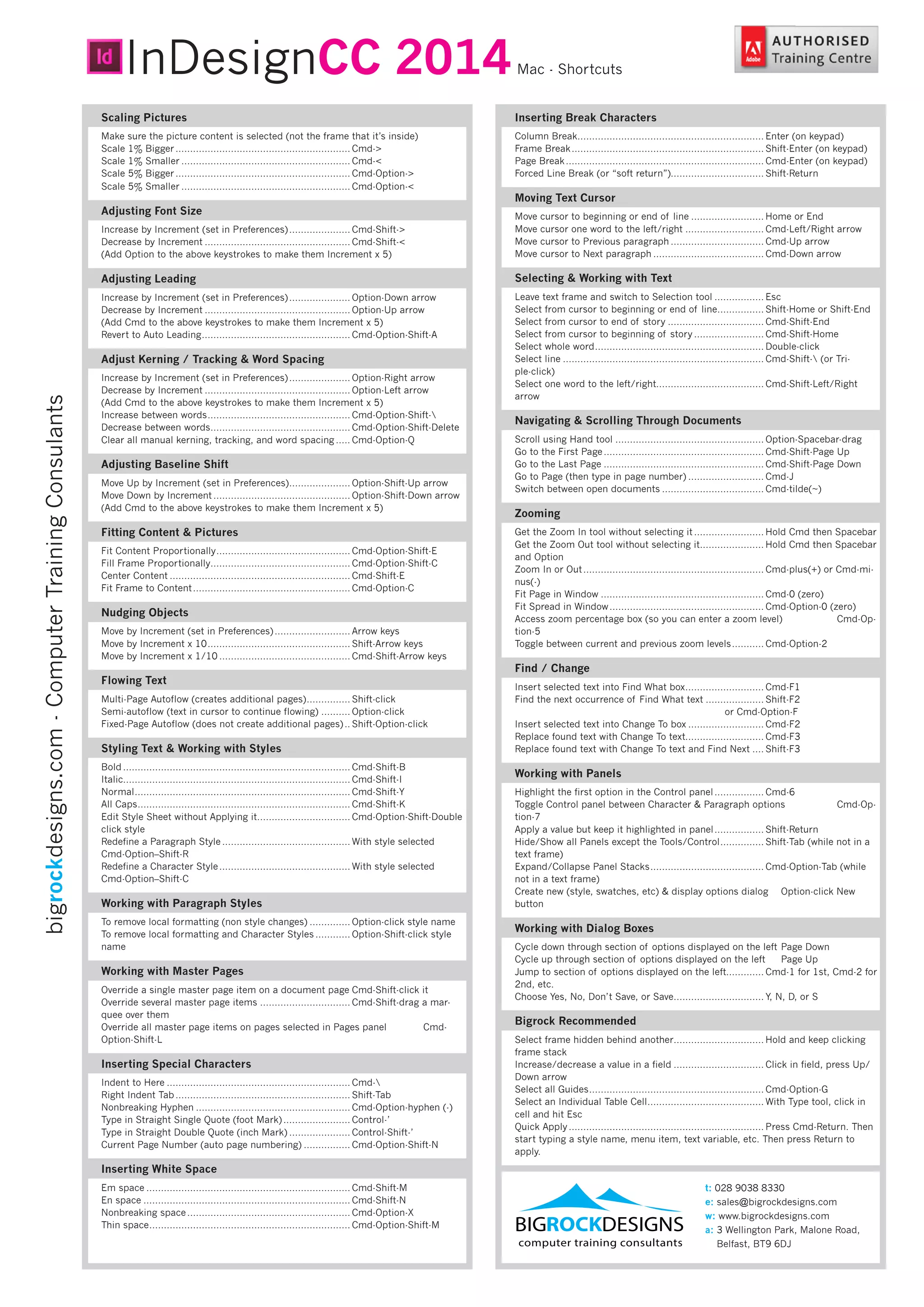
Adobe Indesign Shortcuts for Mac from Bigrockdesigns

  • 1.
    bigrockdesigns.com-ComputerTrainingConsulants Scaling Pictures Make surethe picture content is selected (not the frame that it’s inside) Scale 1% Bigger............................................................. Cmd-> Scale 1% Smaller........................................................... Cmd-< Scale 5% Bigger............................................................. Cmd-Option-> Scale 5% Smaller........................................................... Cmd-Option-< Adjusting Font Size Increase by Increment (set in Preferences)...................... Cmd-Shift-> Decrease by Increment................................................... Cmd-Shift-< (Add Option to the above keystrokes to make them Increment x 5) Adjusting Leading Increase by Increment (set in Preferences)...................... Option-Down arrow Decrease by Increment................................................... Option-Up arrow (Add Cmd to the above keystrokes to make them Increment x 5) Revert to Auto Leading.................................................... Cmd-Option-Shift-A Adjust Kerning / Tracking & Word Spacing Increase by Increment (set in Preferences)...................... Option-Right arrow Decrease by Increment................................................... Option-Left arrow (Add Cmd to the above keystrokes to make them Increment x 5) Increase between words.................................................. Cmd-Option-Shift- Decrease between words................................................. Cmd-Option-Shift-Delete Clear all manual kerning, tracking, and word spacing...... Cmd-Option-Q Adjusting Baseline Shift Move Up by Increment (set in Preferences)...................... Option-Shift-Up arrow Move Down by Increment................................................ Option-Shift-Down arrow (Add Cmd to the above keystrokes to make them Increment x 5) Fitting Content & Pictures Fit Content Proportionally............................................... Cmd-Option-Shift-E Fill Frame Proportionally................................................. Cmd-Option-Shift-C Center Content............................................................... Cmd-Shift-E Fit Frame to Content....................................................... Cmd-Option-C Nudging Objects Move by Increment (set in Preferences)........................... Arrow keys Move by Increment x 10.................................................. Shift-Arrow keys Move by Increment x 1/10.............................................. Cmd-Shift-Arrow keys Flowing Text Multi-Page Autoflow (creates additional pages)................ Shift-click Semi-autoflow (text in cursor to continue flowing)........... Option-click Fixed-Page Autoflow (does not create additional pages)... Shift-Option-click Styling Text & Working with Styles Bold............................................................................... Cmd-Shift-B Italic.............................................................................. Cmd-Shift-I Normal........................................................................... Cmd-Shift-Y All Caps.......................................................................... Cmd-Shift-K Edit Style Sheet without Applying it................................. Cmd-Option-Shift-Double click style Redefine a Paragraph Style............................................. With style selected Cmd-Option–Shift-R Redefine a Character Style.............................................. With style selected Cmd-Option–Shift-C Working with Paragraph Styles To remove local formatting (non style changes)............... Option-click style name To remove local formatting and Character Styles............. Option-Shift-click style name Working with Master Pages Override a single master page item on a document page.Cmd-Shift-click it Override several master page items................................ Cmd-Shift-drag a mar- quee over them Override all master page items on pages selected in Pages panel Cmd- Option-Shift-L Inserting Special Characters Indent to Here................................................................ Cmd- Right Indent Tab............................................................. Shift-Tab Nonbreaking Hyphen...................................................... Cmd-Option-hyphen (-) Type in Straight Single Quote (foot Mark)........................ Control-’ Type in Straight Double Quote (inch Mark)...................... Control-Shift-’ Current Page Number (auto page numbering)................. Cmd-Option-Shift-N Inserting White Space Em space....................................................................... Cmd-Shift-M En space........................................................................ Cmd-Shift-N Nonbreaking space......................................................... Cmd-Option-X Thin space...................................................................... Cmd-Option-Shift-M Inserting Break Characters Column Break................................................................. Enter (on keypad) Frame Break................................................................... Shift-Enter (on keypad) Page Break..................................................................... Cmd-Enter (on keypad) Forced Line Break (or “soft return”)................................ Shift-Return Moving Text Cursor Move cursor to beginning or end of line.......................... Home or End Move cursor one word to the left/right............................ Cmd-Left/Right arrow Move cursor to Previous paragraph................................. Cmd-Up arrow Move cursor to Next paragraph....................................... Cmd-Down arrow Selecting & Working with Text Leave text frame and switch to Selection tool.................. Esc Select from cursor to beginning or end of line................. Shift-Home or Shift-End Select from cursor to end of story.................................. Cmd-Shift-End Select from cursor to beginning of story......................... Cmd-Shift-Home Select whole word........................................................... Double-click Select line...................................................................... Cmd-Shift- (or Tri- ple-click) Select one word to the left/right..................................... Cmd-Shift-Left/Right arrow Navigating & Scrolling Through Documents Scroll using Hand tool.................................................... Option-Spacebar-drag Go to the First Page........................................................ Cmd-Shift-Page Up Go to the Last Page........................................................ Cmd-Shift-Page Down Go to Page (then type in page number)........................... Cmd-J Switch between open documents.................................... Cmd-tilde(~) Zooming Get the Zoom In tool without selecting it......................... Hold Cmd then Spacebar Get the Zoom Out tool without selecting it....................... Hold Cmd then Spacebar and Option Zoom In or Out............................................................... Cmd-plus(+) or Cmd-mi- nus(-) Fit Page in Window......................................................... Cmd-0 (zero) Fit Spread in Window...................................................... Cmd-Option-0 (zero) Access zoom percentage box (so you can enter a zoom level) Cmd-Op- tion-5 Toggle between current and previous zoom levels............ Cmd-Option-2 Find / Change Insert selected text into Find What box............................ Cmd-F1 Find the next occurrence of Find What text..................... Shift-F2 or Cmd-Option-F Insert selected text into Change To box........................... Cmd-F2 Replace found text with Change To text........................... Cmd-F3 Replace found text with Change To text and Find Next..... Shift-F3 Working with Panels Highlight the first option in the Control panel.................. Cmd-6 Toggle Control panel between Character & Paragraph options Cmd-Op- tion-7 Apply a value but keep it highlighted in panel.................. Shift-Return Hide/Show all Panels except the Tools/Control................ Shift-Tab (while not in a text frame) Expand/Collapse Panel Stacks........................................ Cmd-Option-Tab (while not in a text frame) Create new (style, swatches, etc) & display options dialog Option-click New button Working with Dialog Boxes Cycle down through section of options displayed on the left Page Down Cycle up through section of options displayed on the left Page Up Jump to section of options displayed on the left............. Cmd-1 for 1st, Cmd-2 for 2nd, etc. Choose Yes, No, Don’t Save, or Save................................ Y, N, D, or S Bigrock Recommended Select frame hidden behind another................................ Hold and keep clicking frame stack Increase/decrease a value in a field................................ Click in field, press Up/ Down arrow Select all Guides............................................................. Cmd-Option-G Select an Individual Table Cell......................................... With Type tool, click in cell and hit Esc Quick Apply.................................................................... Press Cmd-Return. Then start typing a style name, menu item, text variable, etc. Then press Return to apply. InDesignCC 2014Mac - Shortcuts computer training consultants BIGROCKDESIGNS t: 028 9038 8330 e: sales@bigrockdesigns.com w: www.bigrockdesigns.com a: 3 Wellington Park, Malone Road, Belfast, BT9 6DJ