Internet Basics
• Describe the difference between
Internet and World Wide Web.
• Describe web browsers and their uses.
• Identify screen components of Internet
Explorer.
Objectives
• Identify the basic parts of the World Wide
Web.
• Identify the components of a URL.
• Conduct effective Internet searches.
Objectives
• Understand search results.
• Evaluate web sites.
• Discuss Cyber Safety (safety on the
Internet).
Objectives
What is a Network?
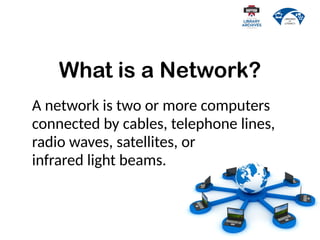
A network is two or more computers
connected by cables, telephone lines,
radio waves, satellites, or
infrared light beams.
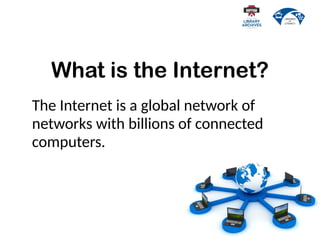
What is the Internet?
The Internet is a global network of
networks with billions of connected
computers.
What is the
World Wide Web?
People often use the words "the
Internet" and "the web“
interchangeably. Is there a difference?
• The World Wide Web is the system
we use to access the Internet.
• Email and instant messaging are
other systems we use to access the
Internet.
What is the
World Wide Web?
How to Use the Web?
We use programs called web browsers
to use the World Wide Web for a wide
variety of purposes.
We Use the Web to…
SHOP
COMMUNICATE
LEARN
PLAY
EARN
&
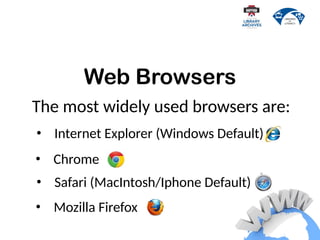
Web Browsers
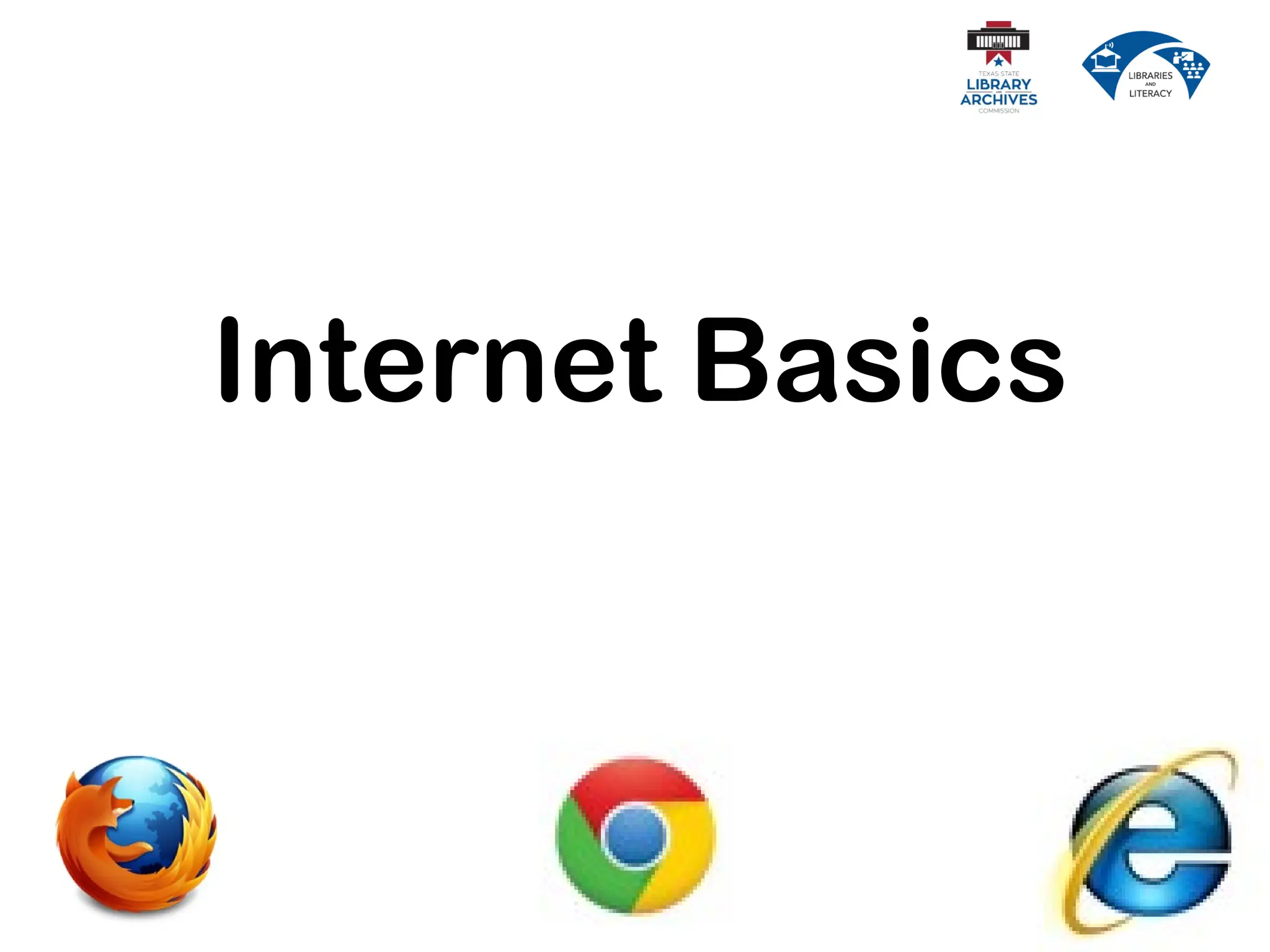
The most widely used browsers are:
• Internet Explorer (Windows Default)
• Safari (MacIntosh/Iphone Default)
• Mozilla Firefox
• Chrome
Internet Explorer
We are going to use Internet Explorer
for our lesson today because it is the
default browser on all Windows
computers.
Browser Terminology
• Because of different layouts and
appearances of different browsers
we are going to focus on browser
terminology.
• If you know the name of a feature
you will be able to find it in
another program.
Internet Explorer
From the Top Down
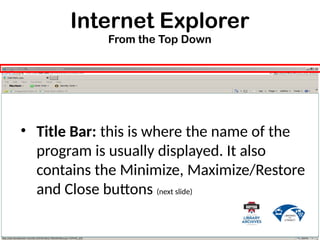
• Title Bar: this is where the name of the
program is usually displayed. It also
contains the Minimize, Maximize/Restore
and Close buttons (next slide)
Internet Explorer
From the Top Down
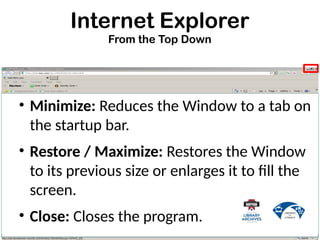
• Minimize: Reduces the Window to a tab on
the startup bar.
• Restore / Maximize: Restores the Window
to its previous size or enlarges it to fill the
screen.
• Close: Closes the program.
Internet Explorer
From the Top Down
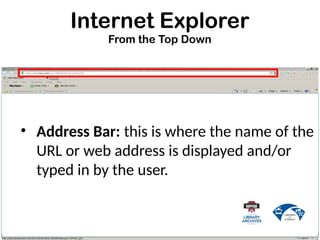
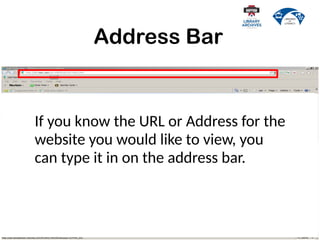
• Address Bar: this is where the name of the
URL or web address is displayed and/or
typed in by the user.
Internet Explorer
From the Top Down
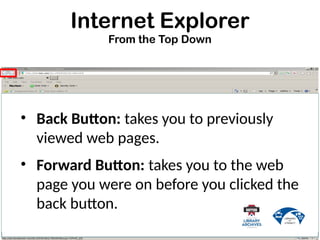
• Back Button: takes you to previously
viewed web pages.
• Forward Button: takes you to the web
page you were on before you clicked the
back button.
Internet Explorer
From the Top Down
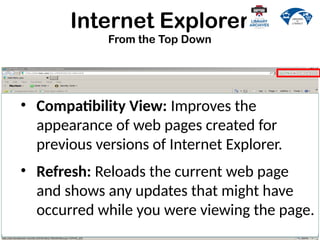
• Compatibility View: Improves the
appearance of web pages created for
previous versions of Internet Explorer.
• Refresh: Reloads the current web page
and shows any updates that might have
occurred while you were viewing the page.
Internet Explorer
From the Top Down
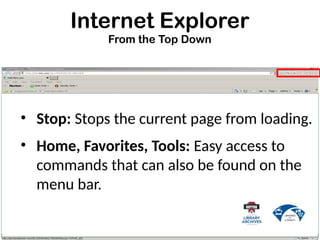
• Stop: Stops the current page from loading.
• Home, Favorites, Tools: Easy access to
commands that can also be found on the
menu bar.
Internet Explorer
From the Top Down
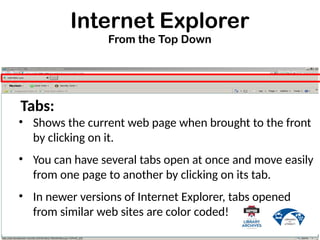
Tabs:
• Shows the current web page when brought to the front
by clicking on it.
• You can have several tabs open at once and move easily
from one page to another by clicking on its tab.
• In newer versions of Internet Explorer, tabs opened
from similar web sites are color coded!
Internet Explorer
From the Top Down
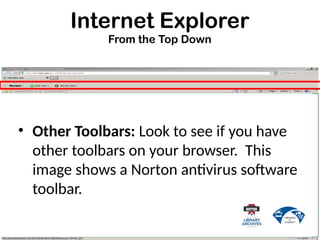
• Other Toolbars: Look to see if you have
other toolbars on your browser. This
image shows a Norton antivirus software
toolbar.
Internet Explorer
From the Top Down
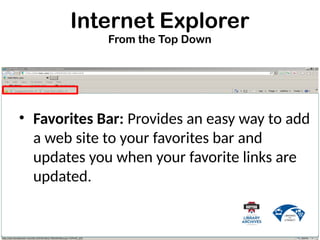
• Favorites Bar: Provides an easy way to add
a web site to your favorites bar and
updates you when your favorite links are
updated.
Internet Explorer
From the Top Down
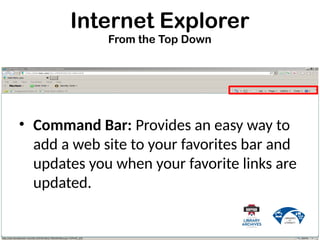
• Command Bar: Provides an easy way to
add a web site to your favorites bar and
updates you when your favorite links are
updated.
Internet Explorer
From the Top Down
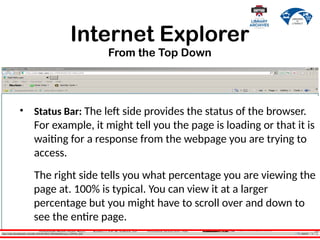
• Status Bar: The left side provides the status of the browser.
For example, it might tell you the page is loading or that it is
waiting for a response from the webpage you are trying to
access.
The right side tells you what percentage you are viewing the
page at. 100% is typical. You can view it at a larger
percentage but you might have to scroll over and down to
see the entire page.
Things to know before
surfing or searching
the
World Wide Web!
Hyperlink
A hyperlink is a command embedded in text
or an object which, when clicked, will open
another file, take you to another place in
the same file or to a new location on the
internet.
Example: this text is hyperlinked
Hyperlink
Hyperlink
A hyperlink is a command embedded in
text or an object which, when clicked, will
open another file, take you to another
place in the same file or to a new location
on the internet.
Example: this graphic is hyperlinked
Hyperlink
Hyperlinks provide an easy way to navigate
throughout the world wide web but it is
important to know what the hyperlink is
linked to before you click on it!
Hyperlink
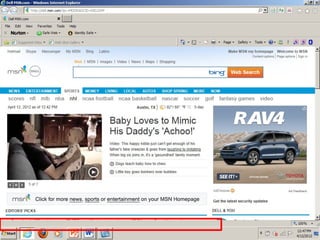
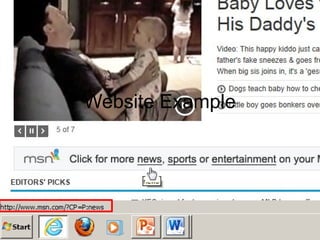
When you put your cursor over a hyperlink
on a web page, the URL (Uniform Resource
Locator or Web Address) shows up on the
left hand side of the status bar.
Example
Website Example
The Bits & Pieces of a
URL / Web Address
In order to recognize a suspicious web
address, you need to know what a
legitimate web address looks like!
The Bits & Pieces of a
URL / Web Address
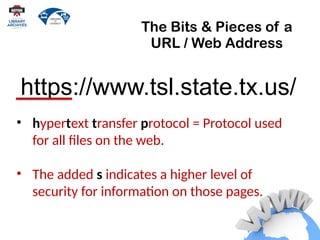
• hypertext transfer protocol = Protocol used
for all files on the web.
• The added s indicates a higher level of
security for information on those pages.
https://www.tsl.state.tx.us/
The Bits & Pieces of a
URL / Web Address
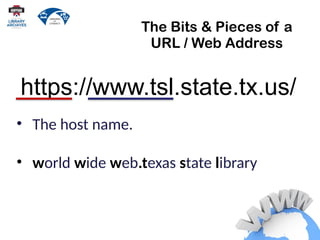
• The host name.
• world wide web.texas state library
https://www.tsl.state.tx.us/
The Bits & Pieces of a
URL / Web Address
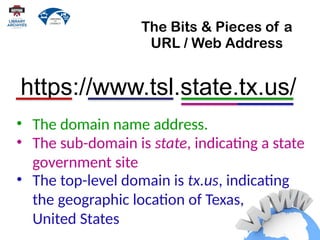
• The sub-domain is state, indicating a state
government site
https://www.tsl.state.tx.us/
• The domain name address.
• The top-level domain is tx.us, indicating
the geographic location of Texas,
United States
https://www.tsl.state.tx.us/
landing/other-programs.html
The Bits & Pieces of a
URL / Web Address
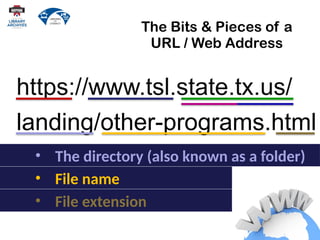
• File extension
• The directory (also known as a folder)
• File name
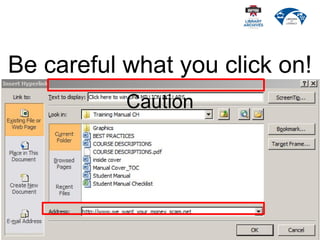
Be careful what you click on!
Caution
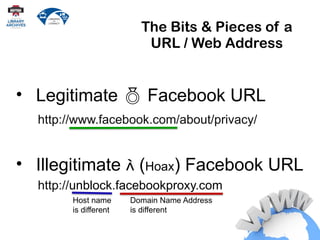
http://unblock.facebookproxy.com
The Bits & Pieces of a
URL / Web Address
• Legitimate  Facebook URL
http://www.facebook.com/about/privacy/
• Illegitimate  (Hoax) Facebook URL
Host name
is different
Domain Name Address
is different
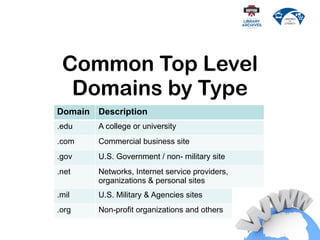
Common Top Level
Domains by Type
Domain Description
.edu A college or university
.com Commercial business site
.gov U.S. Government / non- military site
.net Networks, Internet service providers,
organizations & personal sites
.mil U.S. Military & Agencies sites
.org Non-profit organizations and others
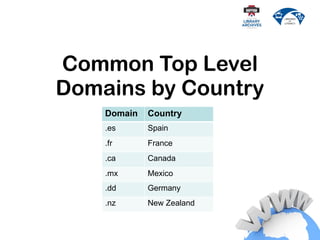
Common Top Level
Domains by Country
Domain Country
.es Spain
.fr France
.ca Canada
.mx Mexico
.dd Germany
.nz New Zealand
How to Use
the
World Wide Web
Choose a Homepage
Your home page is the first page to be
displayed when you open the web
browser, in this case the web browser is
Internet Explorer.
Default Homepage
• Internet Explorer comes pre-
installed on your computer and has
a default home page.
• If you find a page you would rather
have as your homepage you can
change the settings. (see handout)
Address Bar
If you know the URL or Address for the
website you would like to view, you
can type it in on the address bar.
If you do not know the address of a
web site, you can search for it using
any search engine.
Search Engines
Search engines are programs that search
documents for specified keywords and
returns a list of the documents where the
keywords were found.
Search Engines
Just about every website has a search
feature which will either search the web
or search within its own web site. We are
going to concentrate on three of the
most popular search engines.
Search Engines
The THREE most widely used
Search Engines are:
Search Engines
Time To Search
The
World Wide Web!

internet basics presentation url domain.pptx

  • 1.
  • 2.
    • Describe thedifference between Internet and World Wide Web. • Describe web browsers and their uses. • Identify screen components of Internet Explorer. Objectives
  • 3.
    • Identify thebasic parts of the World Wide Web. • Identify the components of a URL. • Conduct effective Internet searches. Objectives
  • 4.
    • Understand searchresults. • Evaluate web sites. • Discuss Cyber Safety (safety on the Internet). Objectives
  • 5.
    What is aNetwork? A network is two or more computers connected by cables, telephone lines, radio waves, satellites, or infrared light beams.
  • 6.
    What is theInternet? The Internet is a global network of networks with billions of connected computers.
  • 7.
    What is the WorldWide Web? People often use the words "the Internet" and "the web“ interchangeably. Is there a difference?
  • 8.
    • The WorldWide Web is the system we use to access the Internet. • Email and instant messaging are other systems we use to access the Internet. What is the World Wide Web?
  • 9.
    How to Usethe Web? We use programs called web browsers to use the World Wide Web for a wide variety of purposes.
  • 10.
    We Use theWeb to… SHOP COMMUNICATE LEARN PLAY EARN &
  • 11.
    Web Browsers The mostwidely used browsers are: • Internet Explorer (Windows Default) • Safari (MacIntosh/Iphone Default) • Mozilla Firefox • Chrome
  • 12.
    Internet Explorer We aregoing to use Internet Explorer for our lesson today because it is the default browser on all Windows computers.
  • 13.
    Browser Terminology • Becauseof different layouts and appearances of different browsers we are going to focus on browser terminology. • If you know the name of a feature you will be able to find it in another program.
  • 14.
    Internet Explorer From theTop Down • Title Bar: this is where the name of the program is usually displayed. It also contains the Minimize, Maximize/Restore and Close buttons (next slide)
  • 15.
    Internet Explorer From theTop Down • Minimize: Reduces the Window to a tab on the startup bar. • Restore / Maximize: Restores the Window to its previous size or enlarges it to fill the screen. • Close: Closes the program.
  • 16.
    Internet Explorer From theTop Down • Address Bar: this is where the name of the URL or web address is displayed and/or typed in by the user.
  • 17.
    Internet Explorer From theTop Down • Back Button: takes you to previously viewed web pages. • Forward Button: takes you to the web page you were on before you clicked the back button.
  • 18.
    Internet Explorer From theTop Down • Compatibility View: Improves the appearance of web pages created for previous versions of Internet Explorer. • Refresh: Reloads the current web page and shows any updates that might have occurred while you were viewing the page.
  • 19.
    Internet Explorer From theTop Down • Stop: Stops the current page from loading. • Home, Favorites, Tools: Easy access to commands that can also be found on the menu bar.
  • 20.
    Internet Explorer From theTop Down Tabs: • Shows the current web page when brought to the front by clicking on it. • You can have several tabs open at once and move easily from one page to another by clicking on its tab. • In newer versions of Internet Explorer, tabs opened from similar web sites are color coded!
  • 21.
    Internet Explorer From theTop Down • Other Toolbars: Look to see if you have other toolbars on your browser. This image shows a Norton antivirus software toolbar.
  • 22.
    Internet Explorer From theTop Down • Favorites Bar: Provides an easy way to add a web site to your favorites bar and updates you when your favorite links are updated.
  • 23.
    Internet Explorer From theTop Down • Command Bar: Provides an easy way to add a web site to your favorites bar and updates you when your favorite links are updated.
  • 24.
    Internet Explorer From theTop Down • Status Bar: The left side provides the status of the browser. For example, it might tell you the page is loading or that it is waiting for a response from the webpage you are trying to access. The right side tells you what percentage you are viewing the page at. 100% is typical. You can view it at a larger percentage but you might have to scroll over and down to see the entire page.
  • 25.
    Things to knowbefore surfing or searching the World Wide Web!
  • 26.
    Hyperlink A hyperlink isa command embedded in text or an object which, when clicked, will open another file, take you to another place in the same file or to a new location on the internet. Example: this text is hyperlinked Hyperlink
  • 27.
    Hyperlink A hyperlink isa command embedded in text or an object which, when clicked, will open another file, take you to another place in the same file or to a new location on the internet. Example: this graphic is hyperlinked
  • 28.
    Hyperlink Hyperlinks provide aneasy way to navigate throughout the world wide web but it is important to know what the hyperlink is linked to before you click on it!
  • 29.
    Hyperlink When you putyour cursor over a hyperlink on a web page, the URL (Uniform Resource Locator or Web Address) shows up on the left hand side of the status bar.
  • 30.
  • 31.
  • 32.
    The Bits &Pieces of a URL / Web Address In order to recognize a suspicious web address, you need to know what a legitimate web address looks like!
  • 33.
    The Bits &Pieces of a URL / Web Address • hypertext transfer protocol = Protocol used for all files on the web. • The added s indicates a higher level of security for information on those pages. https://www.tsl.state.tx.us/
  • 34.
    The Bits &Pieces of a URL / Web Address • The host name. • world wide web.texas state library https://www.tsl.state.tx.us/
  • 35.
    The Bits &Pieces of a URL / Web Address • The sub-domain is state, indicating a state government site https://www.tsl.state.tx.us/ • The domain name address. • The top-level domain is tx.us, indicating the geographic location of Texas, United States
  • 36.
    https://www.tsl.state.tx.us/ landing/other-programs.html The Bits &Pieces of a URL / Web Address • File extension • The directory (also known as a folder) • File name
  • 37.
    Be careful whatyou click on! Caution
  • 38.
    http://unblock.facebookproxy.com The Bits &Pieces of a URL / Web Address • Legitimate  Facebook URL http://www.facebook.com/about/privacy/ • Illegitimate  (Hoax) Facebook URL Host name is different Domain Name Address is different
  • 39.
    Common Top Level Domainsby Type Domain Description .edu A college or university .com Commercial business site .gov U.S. Government / non- military site .net Networks, Internet service providers, organizations & personal sites .mil U.S. Military & Agencies sites .org Non-profit organizations and others
  • 40.
    Common Top Level Domainsby Country Domain Country .es Spain .fr France .ca Canada .mx Mexico .dd Germany .nz New Zealand
  • 41.
  • 42.
    Choose a Homepage Yourhome page is the first page to be displayed when you open the web browser, in this case the web browser is Internet Explorer.
  • 43.
    Default Homepage • InternetExplorer comes pre- installed on your computer and has a default home page. • If you find a page you would rather have as your homepage you can change the settings. (see handout)
  • 44.
    Address Bar If youknow the URL or Address for the website you would like to view, you can type it in on the address bar.
  • 45.
    If you donot know the address of a web site, you can search for it using any search engine. Search Engines
  • 46.
    Search engines areprograms that search documents for specified keywords and returns a list of the documents where the keywords were found. Search Engines
  • 47.
    Just about everywebsite has a search feature which will either search the web or search within its own web site. We are going to concentrate on three of the most popular search engines. Search Engines
  • 48.
    The THREE mostwidely used Search Engines are: Search Engines
  • 49.