
Instagram Marketing Strategies for Small
Businesses Part-3
Webinar
2nd JANUARY 2019, 10 AM CST
Hashtag #Instagrammarketing
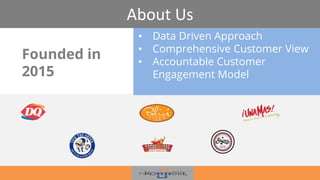
About Us
Founded in
2015
• Data Driven Approach
• Comprehensive Customer View
• Accountable Customer
Engagement Model
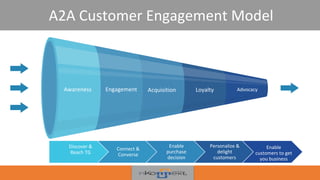
A2A Customer Engagement Model
Awareness Engagement Acquisition Loyalty Advocacy
Discover &
Reach TG
Connect &
Converse
Enable
purchase
decision
Personalize &
delight
customers
Enable
customers to get
you business
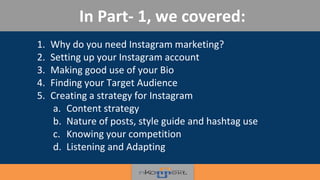
1. Why do you need Instagram marketing?
2. Setting up your Instagram account
3. Making good use of your Bio
4. Finding your Target Audience
5. Creating a strategy for Instagram
a. Content strategy
b. Nature of posts, style guide and hashtag use
c. Knowing your competition
d. Listening and Adapting
In Part- 1, we covered:
In Part 2, we covered
1. Instagram stories
2. Cross-promotion of content
3. Regramming
4. UGC and contests
5. Comarketing (shoutouts and takeover)
6. Instagram direct
7. Influencer Marketing
Agenda
Advertising on Instagram
Over 1/3rd of the
Instagram users have
used the app to
purchase online.
“ “
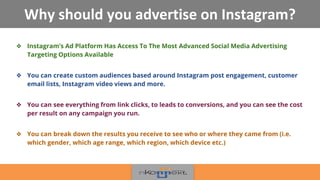
Why should you advertise on Instagram?
❖ Instagram’s Ad Platform Has Access To The Most Advanced Social Media Advertising
Targeting Options Available
❖ You can create custom audiences based around Instagram post engagement, customer
email lists, Instagram video views and more.
❖ You can see everything from link clicks, to leads to conversions, and you can see the cost
per result on any campaign you run.
❖ You can break down the results you receive to see who or where they came from (i.e.
which gender, which age range, which region, which device etc.)
75% of the Instagram Users
have taken an action like
visiting a website after
looking at an Instagram
advertising Post.
“ “
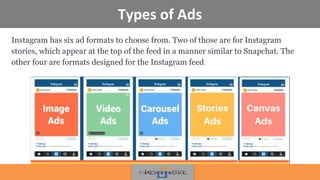
Types of Ads
Instagram has six ad formats to choose from. Two of those are for Instagram
stories, which appear at the top of the feed in a manner similar to Snapchat. The
other four are formats designed for the Instagram feed.
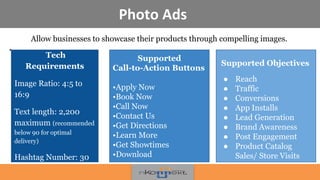
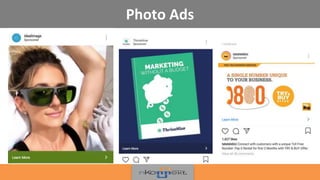
Photo Ads
Allow businesses to showcase their products through compelling images.
•
!
Supported
Call-to-Action Buttons
•Apply Now
•Book Now
•Call Now
•Contact Us
•Get Directions
•Learn More
•Get Showtimes
•Download
Supported Objectives
● Reach
● Traffic
● Conversions
● App Installs
● Lead Generation
● Brand Awareness
● Post Engagement
● Product Catalog
Sales/ Store Visits
Tech
Requirements
Image Ratio: 4:5 to
16:9
Text length: 2,200
maximum (recommended
below 90 for optimal
delivery)
Hashtag Number: 30
Photo Ads
Video Ads
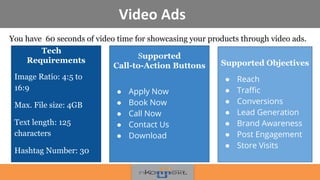
You have 60 seconds of video time for showcasing your products through video ads.
!
Supported
Call-to-Action Buttons
● Apply Now
● Book Now
● Call Now
● Contact Us
● Download
Supported Objectives
● Reach
● Traffic
● Conversions
● Lead Generation
● Brand Awareness
● Post Engagement
● Store Visits
Tech
Requirements
Image Ratio: 4:5 to
16:9
Max. File size: 4GB
Text length: 125
characters
Hashtag Number: 30
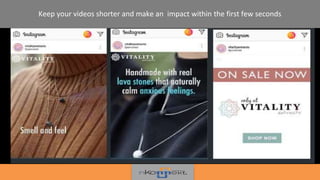
Keep your videos shorter and make an impact within the first few seconds
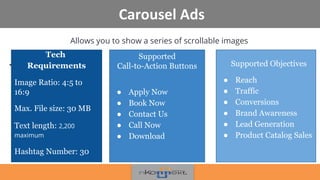
Carousel Ads
Allows you to show a series of scrollable images
•
!
Supported
Call-to-Action Buttons
● Apply Now
● Book Now
● Contact Us
● Call Now
● Download
Supported Objectives
● Reach
● Traffic
● Conversions
● Brand Awareness
● Lead Generation
● Product Catalog Sales
Tech
Requirements
Image Ratio: 4:5 to
16:9
Max. File size: 30 MB
Text length: 2,200
maximum
Hashtag Number: 30
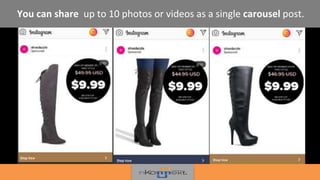
You can share up to 10 photos or videos as a single carousel post.
Stories Ads
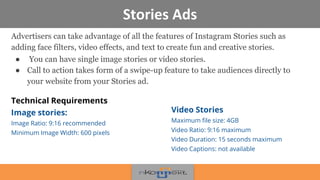
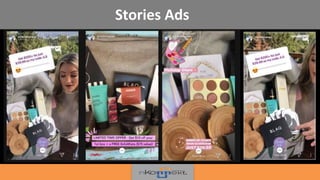
Advertisers can take advantage of all the features of Instagram Stories such as
adding face filters, video effects, and text to create fun and creative stories.
● You can have single image stories or video stories.
● Call to action takes form of a swipe-up feature to take audiences directly to
your website from your Stories ad.
Technical Requirements
Image stories:
Image Ratio: 9:16 recommended
Minimum Image Width: 600 pixels
Video Stories
Maximum file size: 4GB
Video Ratio: 9:16 maximum
Video Duration: 15 seconds maximum
Video Captions: not available
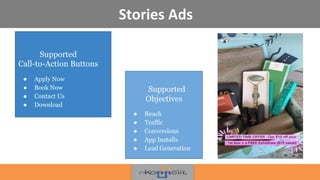
Stories Ads
•!
Supported
Call-to-Action Buttons
● Apply Now
● Book Now
● Contact Us
● Download
Supported
Objectives
● Reach
● Traffic
● Conversions
● App Installs
● Lead Generation
Stories Ads
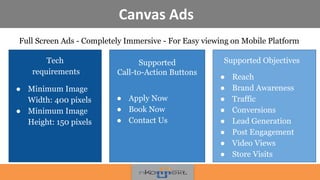
Canvas Ads
Full Screen Ads - Completely Immersive - For Easy viewing on Mobile Platform
•
!
Supported
Call-to-Action Buttons
● Apply Now
● Book Now
● Contact Us
Supported Objectives
● Reach
● Brand Awareness
● Traffic
● Conversions
● Lead Generation
● Post Engagement
● Video Views
● Store Visits
Tech
requirements
● Minimum Image
Width: 400 pixels
● Minimum Image
Height: 150 pixels
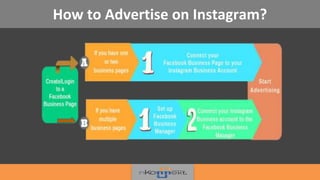
How to Advertise on Instagram?
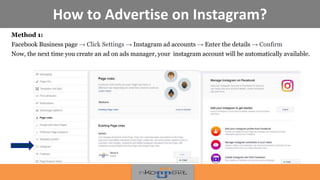
Method 1:
Facebook Business page → Click Settings → Instagram ad accounts → Enter the details → Confirm
Now, the next time you create an ad on ads manager, your instagram account will be automatically available.
!
How to Advertise on Instagram?
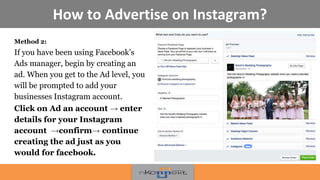
Method 2:
If you have been using Facebook’s
Ads manager, begin by creating an
ad. When you get to the Ad level, you
will be prompted to add your
businesses Instagram account.
Click on Ad an account → enter
details for your Instagram
account →confirm→ continue
creating the ad just as you
would for facebook.
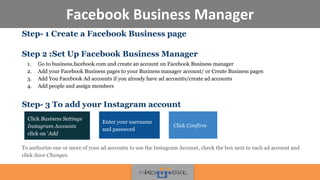
Facebook Business Manager
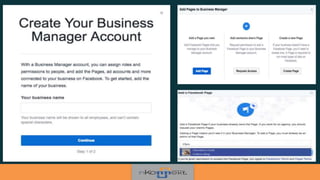
Step- 1 Create a Facebook Business page
Step 2 :Set Up Facebook Business Manager
1. Go to business.facebook.com and create an account on Facebook Business manager
2. Add your Facebook Business pages to your Business manager account/ or Create Business pages
3. Add You Faceb0ok Ad accounts if you already have ad accounts/create ad accounts
4. Add people and assign members
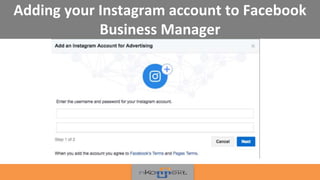
Step- 3 To add your Instagram account
To authorize one or more of your ad accounts to use the Instagram Account, check the box next to each ad account and
click Save Changes.
Click Business Settings
Instagram Accounts
click on 'Add
Enter your username
and password
Click Confirm
Click Business Settings
Instagram Accounts
click on 'Add
Adding your Instagram account to Facebook
Business Manager
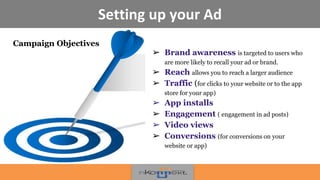
Setting up your Ad
➢ Brand awareness is targeted to users who
are more likely to recall your ad or brand.
➢ Reach allows you to reach a larger audience
➢ Traffic (for clicks to your website or to the app
store for your app)
➢ App installs
➢ Engagement ( engagement in ad posts)
➢ Video views
➢ Conversions (for conversions on your
website or app)
Campaign Objectives
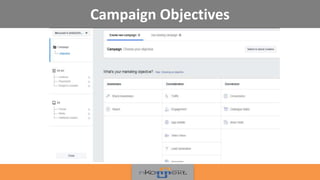
Campaign Objectives
How To Find The Right Influencer ?Name your campaign
Once you’ve selected your objective, you’ll be
prompted to name your campaign. The
default name will just be the objective you’ve
selected but you would want to give it a
detailed name to help you keep track of your
campaigns.
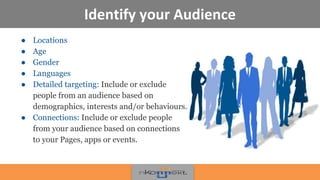
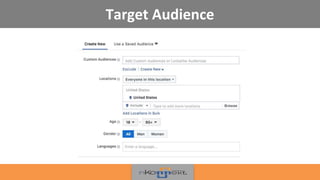
Identify your Audience
● Locations
● Age
● Gender
● Languages
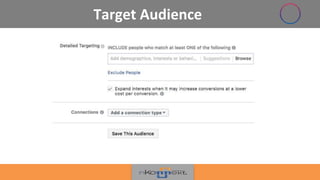
● Detailed targeting: Include or exclude
people from an audience based on
demographics, interests and/or behaviours.
● Connections: Include or exclude people
from your audience based on connections
to your Pages, apps or events.
!
Target Audience
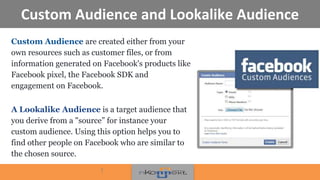
Custom Audience and Lookalike Audience
Custom Audience are created either from your
own resources such as customer files, or from
information generated on Facebook's products like
Facebook pixel, the Facebook SDK and
engagement on Facebook.
A Lookalike Audience is a target audience that
you derive from a "source” for instance your
custom audience. Using this option helps you to
find other people on Facebook who are similar to
the chosen source.
!
Target Audience
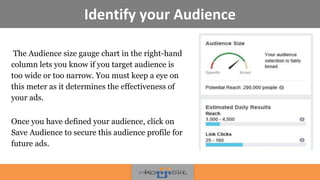
Identify your Audience
The Audience size gauge chart in the right-hand
column lets you know if you target audience is
too wide or too narrow. You must keep a eye on
this meter as it determines the effectiveness of
your ads.
Once you have defined your audience, click on
Save Audience to secure this audience profile for
future ads.
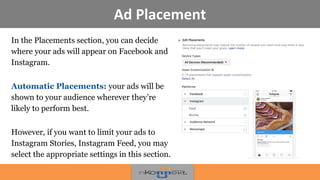
Ad Placement
In the Placements section, you can decide
where your ads will appear on Facebook and
Instagram.
Automatic Placements: your ads will be
shown to your audience wherever they’re
likely to perform best.
However, if you want to limit your ads to
Instagram Stories, Instagram Feed, you may
select the appropriate settings in this section.
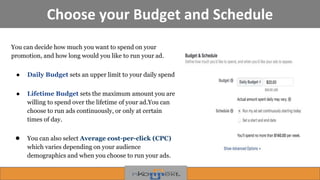
Choose your Budget and Schedule
You can decide how much you want to spend on your
promotion, and how long would you like to run your ad.
● Daily Budget sets an upper limit to your daily spend
● Lifetime Budget sets the maximum amount you are
willing to spend over the lifetime of your ad.You can
choose to run ads continuously, or only at certain
times of day.
● You can also select Average cost-per-click (CPC)
which varies depending on your audience
demographics and when you choose to run your ads.
Create your Ad
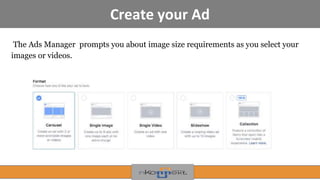
The Ads Manager prompts you about image size requirements as you select your
images or videos.
!
Key Steps
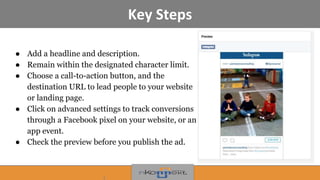
● Add a headline and description.
● Remain within the designated character limit.
● Choose a call-to-action button, and the
destination URL to lead people to your website
or landing page.
● Click on advanced settings to track conversions
through a Facebook pixel on your website, or an
app event.
● Check the preview before you publish the ad.
Advertising within the App
Boosting your Post
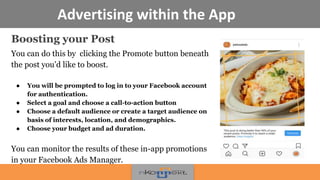
You can do this by clicking the Promote button beneath
the post you’d like to boost.
● You will be prompted to log in to your Facebook account
for authentication.
● Select a goal and choose a call-to-action button
● Choose a default audience or create a target audience on
basis of interests, location, and demographics.
● Choose your budget and ad duration.
You can monitor the results of these in-app promotions
in your Facebook Ads Manager.
Shoppable Tags
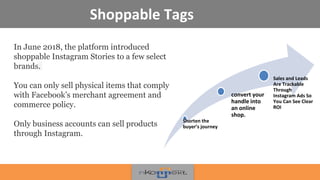
In June 2018, the platform introduced
shoppable Instagram Stories to a few select
brands.
You can only sell physical items that comply
with Facebook’s merchant agreement and
commerce policy.
Only business accounts can sell products
through Instagram.
Shorten the
buyer’s journey
convert your
handle into
an online
shop.
Sales and Leads
Are Trackable
Through
Instagram Ads So
You Can See Clear
ROI
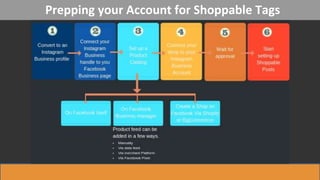
Prepping your Account for Shoppable Tags
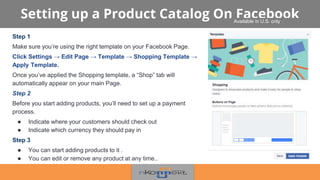
Setting up a Product Catalog On Facebook
Step 1
Make sure you’re using the right template on your Facebook Page.
Click Settings → Edit Page → Template → Shopping Template →
Apply Template.
Once you’ve applied the Shopping template, a “Shop” tab will
automatically appear on your main Page.
Step 2
Before you start adding products, you’ll need to set up a payment
process.
● Indicate where your customers should check out
● Indicate which currency they should pay in
Step 3
● You can start adding products to it .
● You can edit or remove any product at any time..
Available in U.S. only
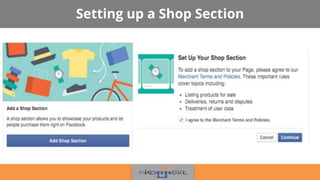
Setting up a Shop Section
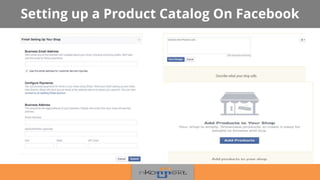
Setting up a Product Catalog On Facebook
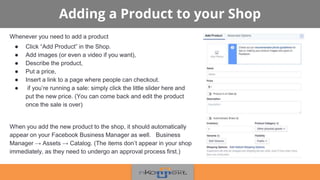
Adding a Product to your Shop
Whenever you need to add a product
● Click “Add Product” in the Shop.
● Add images (or even a video if you want),
● Describe the product,
● Put a price,
● Insert a link to a page where people can checkout.
● if you’re running a sale: simply click the little slider here and
put the new price. (You can come back and edit the product
once the sale is over)
When you add the new product to the shop, it should automatically
appear on your Facebook Business Manager as well. Business
Manager → Assets → Catalog. (The items don’t appear in your shop
immediately, as they need to undergo an approval process first.)
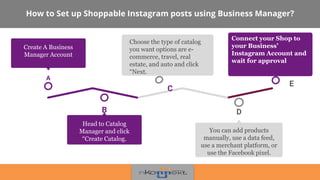
How to Set up Shoppable Instagram posts using Business Manager?
D
You can add products
manually, use a data feed,
use a merchant platform, or
use the Facebook pixel.
20XX
Choose the type of catalog
you want options are e-
commerce, travel, real
estate, and auto and click
“Next.
C
B
Head to Catalog
Manager and click
“Create Catalog.
A
Create A Business
Manager Account
20XX
Connect your Shop to
your Business’
Instagram Account and
wait for approval
E
Creating an Account on Business Manager
To create a catalog on the Facebook Business manager, you need to have a Business manager account that
is linked to your Facebook business page and Instagram Business account. Follow the ssteps in the section
above to set up your business manager account.
In your Business Manager and navigate to Business manager settings follow these steps:
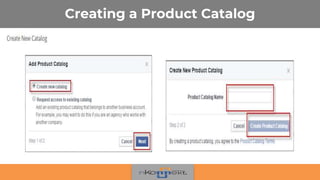
● Go to Catalog Manager
● Click Create Catalog
● Select the catalogue type and click Next. You can create catalogues for: E-commerce, Travel
(including hotels, flights and destinations), Property and Automotive.
● Select the ad account for the catalogue and enter a name for your catalogue.
● Click Create.
Note: If you need to support multiple languages, create a separate catalogue for each language
Creating a Product Catalog
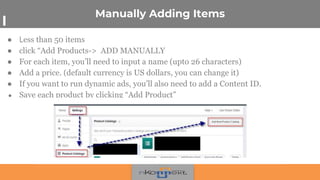
Manually Adding Items
● Less than 50 items
● click “Add Products-> ADD MANUALLY
● For each item, you’ll need to input a name (upto 26 characters)
● Add a price. (default currency is US dollars, you can change it)
● If you want to run dynamic ads, you’ll also need to add a Content ID.
● Save each product by clicking “Add Product”
Adding with a Data Feed
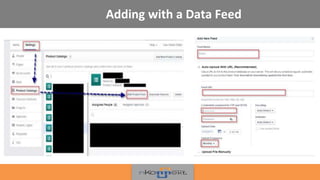
● Use a supported file format(CSV, TSV, and XML) to create a data
feed file with all the necessary information. After you save the file. ,
head to Catalog Manager, choose the catalog you want, and click
“Data Sources.” Choose “Add Data Source,” then “Use Data Feeds,”
and click “Next.”
● You’ll also need to decide if you want to upload once or set a
schedule.
● Finish by giving your data feed a name and choosing a default
currency.
● Adding items using a data feed gives you the chance to promote
your inventory through retargeting, such as with dynamic ads.
If you already have
inventory on a merchant
platform, it will be faster
to upload your inventory
from there. This is
possible with Shopify,
BigCommerce, Magento,
Google, and
WooCommerce.
Adding with a Data Feed
Connecting your Shop to your Business’ Instagram Account
The next step is to connect your product catalog to your Instagram account. Head
back to the Shopping section in your Instagram settings and tap on Products. Here,
you’ll be able to select a product catalog to connect to your business profile. Once
you’re finished, tap Done.
After you have completed setting up your product catalog in Facebook business
manager, it may take Instagram a few hours to a few days to review your account
before activating shoppable posts feature. You will receive a notification letting you
know you’re ready to start selling on Instagram.
You must create at least nine shoppable posts to activate the “Shop” tab on your
Instagram profile! This will group all your shoppable posts under one tab.
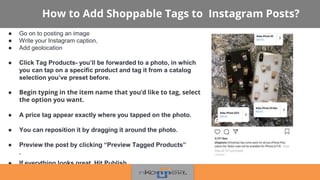
How to Add Shoppable Tags to Instagram Posts?
● Go on to posting an image
● Write your Instagram caption,
● Add geolocation
● Click Tag Products- you’ll be forwarded to a photo, in which
you can tap on a specific product and tag it from a catalog
selection you’ve preset before.
● Begin typing in the item name that you’d like to tag, select
the option you want.
● A price tag appear exactly where you tapped on the photo.
● You can reposition it by dragging it around the photo.
● Preview the post by clicking “Preview Tagged Products”
.
● If everything looks great, Hit Publish.
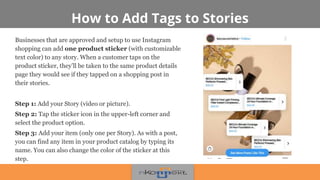
How to Add Tags to Stories
Businesses that are approved and setup to use Instagram
shopping can add one product sticker (with customizable
text color) to any story. When a customer taps on the
product sticker, they’ll be taken to the same product details
page they would see if they tapped on a shopping post in
their stories.
Step 1: Add your Story (video or picture).
Step 2: Tap the sticker icon in the upper-left corner and
select the product option.
Step 3: Add your item (only one per Story). As with a post,
you can find any item in your product catalog by typing its
name. You can also change the color of the sticker at this
step.
Quick Tips
● You don’t need to create new posts to make them shoppable. You can go back
and click “Edit” your older posts and tag the product
● You can tag up to five items per image, or up to 20 if you are sharing a
carousel post.
● Tagged products in your posts and Stories will be identified with a shopping
bag icon. Users can tap the icon to view the full product details.
● You can’t tag other accounts AND your own products at the same time, in the
same post.
● You can’t promote or boost shoppable Instagram posts.
.
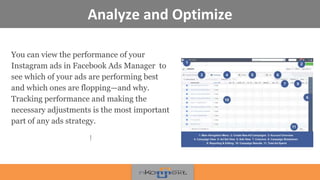
Analyze and Optimize
You can view the performance of your
Instagram ads in Facebook Ads Manager to
see which of your ads are performing best
and which ones are flopping—and why.
Tracking performance and making the
necessary adjustments is the most important
part of any ads strategy.
!
Connect With US
• Try our 4Q Platform
• Contact us for a demo
marketing@mkonnekt.com
Connect with us in case of any queries.
Ph: 619-566-6358 (619 -KONNEKT)
Email: marketing@mkonnekt.com
www.mkonnekt.com
Thanks For Your
Time

Advertising On Instagram

  • 1.
    Instagram Marketing Strategiesfor Small Businesses Part-3 Webinar 2nd JANUARY 2019, 10 AM CST Hashtag #Instagrammarketing
  • 2.
    About Us Founded in 2015 •Data Driven Approach • Comprehensive Customer View • Accountable Customer Engagement Model
  • 3.
    A2A Customer EngagementModel Awareness Engagement Acquisition Loyalty Advocacy Discover & Reach TG Connect & Converse Enable purchase decision Personalize & delight customers Enable customers to get you business
  • 4.
    1. Why doyou need Instagram marketing? 2. Setting up your Instagram account 3. Making good use of your Bio 4. Finding your Target Audience 5. Creating a strategy for Instagram a. Content strategy b. Nature of posts, style guide and hashtag use c. Knowing your competition d. Listening and Adapting In Part- 1, we covered:
  • 5.
    In Part 2,we covered 1. Instagram stories 2. Cross-promotion of content 3. Regramming 4. UGC and contests 5. Comarketing (shoutouts and takeover) 6. Instagram direct 7. Influencer Marketing
  • 6.
  • 7.
    Over 1/3rd ofthe Instagram users have used the app to purchase online. “ “
  • 8.
    Why should youadvertise on Instagram? ❖ Instagram’s Ad Platform Has Access To The Most Advanced Social Media Advertising Targeting Options Available ❖ You can create custom audiences based around Instagram post engagement, customer email lists, Instagram video views and more. ❖ You can see everything from link clicks, to leads to conversions, and you can see the cost per result on any campaign you run. ❖ You can break down the results you receive to see who or where they came from (i.e. which gender, which age range, which region, which device etc.)
  • 9.
    75% of theInstagram Users have taken an action like visiting a website after looking at an Instagram advertising Post. “ “
  • 10.
    Types of Ads Instagramhas six ad formats to choose from. Two of those are for Instagram stories, which appear at the top of the feed in a manner similar to Snapchat. The other four are formats designed for the Instagram feed.
  • 11.
    Photo Ads Allow businessesto showcase their products through compelling images. • ! Supported Call-to-Action Buttons •Apply Now •Book Now •Call Now •Contact Us •Get Directions •Learn More •Get Showtimes •Download Supported Objectives ● Reach ● Traffic ● Conversions ● App Installs ● Lead Generation ● Brand Awareness ● Post Engagement ● Product Catalog Sales/ Store Visits Tech Requirements Image Ratio: 4:5 to 16:9 Text length: 2,200 maximum (recommended below 90 for optimal delivery) Hashtag Number: 30
  • 12.
  • 13.
    Video Ads You have60 seconds of video time for showcasing your products through video ads. ! Supported Call-to-Action Buttons ● Apply Now ● Book Now ● Call Now ● Contact Us ● Download Supported Objectives ● Reach ● Traffic ● Conversions ● Lead Generation ● Brand Awareness ● Post Engagement ● Store Visits Tech Requirements Image Ratio: 4:5 to 16:9 Max. File size: 4GB Text length: 125 characters Hashtag Number: 30
  • 14.
    Keep your videosshorter and make an impact within the first few seconds
  • 15.
    Carousel Ads Allows youto show a series of scrollable images • ! Supported Call-to-Action Buttons ● Apply Now ● Book Now ● Contact Us ● Call Now ● Download Supported Objectives ● Reach ● Traffic ● Conversions ● Brand Awareness ● Lead Generation ● Product Catalog Sales Tech Requirements Image Ratio: 4:5 to 16:9 Max. File size: 30 MB Text length: 2,200 maximum Hashtag Number: 30
  • 16.
    You can shareup to 10 photos or videos as a single carousel post.
  • 17.
    Stories Ads Advertisers cantake advantage of all the features of Instagram Stories such as adding face filters, video effects, and text to create fun and creative stories. ● You can have single image stories or video stories. ● Call to action takes form of a swipe-up feature to take audiences directly to your website from your Stories ad. Technical Requirements Image stories: Image Ratio: 9:16 recommended Minimum Image Width: 600 pixels Video Stories Maximum file size: 4GB Video Ratio: 9:16 maximum Video Duration: 15 seconds maximum Video Captions: not available
  • 18.
    Stories Ads •! Supported Call-to-Action Buttons ●Apply Now ● Book Now ● Contact Us ● Download Supported Objectives ● Reach ● Traffic ● Conversions ● App Installs ● Lead Generation
  • 19.
  • 20.
    Canvas Ads Full ScreenAds - Completely Immersive - For Easy viewing on Mobile Platform • ! Supported Call-to-Action Buttons ● Apply Now ● Book Now ● Contact Us Supported Objectives ● Reach ● Brand Awareness ● Traffic ● Conversions ● Lead Generation ● Post Engagement ● Video Views ● Store Visits Tech requirements ● Minimum Image Width: 400 pixels ● Minimum Image Height: 150 pixels
  • 21.
    How to Advertiseon Instagram?
  • 22.
    How to Advertiseon Instagram? Method 1: Facebook Business page → Click Settings → Instagram ad accounts → Enter the details → Confirm Now, the next time you create an ad on ads manager, your instagram account will be automatically available. !
  • 23.
    How to Advertiseon Instagram? Method 2: If you have been using Facebook’s Ads manager, begin by creating an ad. When you get to the Ad level, you will be prompted to add your businesses Instagram account. Click on Ad an account → enter details for your Instagram account →confirm→ continue creating the ad just as you would for facebook.
  • 24.
    Facebook Business Manager Step-1 Create a Facebook Business page Step 2 :Set Up Facebook Business Manager 1. Go to business.facebook.com and create an account on Facebook Business manager 2. Add your Facebook Business pages to your Business manager account/ or Create Business pages 3. Add You Faceb0ok Ad accounts if you already have ad accounts/create ad accounts 4. Add people and assign members Step- 3 To add your Instagram account To authorize one or more of your ad accounts to use the Instagram Account, check the box next to each ad account and click Save Changes. Click Business Settings Instagram Accounts click on 'Add Enter your username and password Click Confirm
  • 25.
    Click Business Settings InstagramAccounts click on 'Add
  • 26.
    Adding your Instagramaccount to Facebook Business Manager
  • 27.
    Setting up yourAd ➢ Brand awareness is targeted to users who are more likely to recall your ad or brand. ➢ Reach allows you to reach a larger audience ➢ Traffic (for clicks to your website or to the app store for your app) ➢ App installs ➢ Engagement ( engagement in ad posts) ➢ Video views ➢ Conversions (for conversions on your website or app) Campaign Objectives
  • 28.
  • 29.
    How To FindThe Right Influencer ?Name your campaign Once you’ve selected your objective, you’ll be prompted to name your campaign. The default name will just be the objective you’ve selected but you would want to give it a detailed name to help you keep track of your campaigns.
  • 30.
    Identify your Audience ●Locations ● Age ● Gender ● Languages ● Detailed targeting: Include or exclude people from an audience based on demographics, interests and/or behaviours. ● Connections: Include or exclude people from your audience based on connections to your Pages, apps or events. !
  • 31.
  • 32.
    Custom Audience andLookalike Audience Custom Audience are created either from your own resources such as customer files, or from information generated on Facebook's products like Facebook pixel, the Facebook SDK and engagement on Facebook. A Lookalike Audience is a target audience that you derive from a "source” for instance your custom audience. Using this option helps you to find other people on Facebook who are similar to the chosen source. !
  • 33.
  • 34.
    Identify your Audience TheAudience size gauge chart in the right-hand column lets you know if you target audience is too wide or too narrow. You must keep a eye on this meter as it determines the effectiveness of your ads. Once you have defined your audience, click on Save Audience to secure this audience profile for future ads.
  • 35.
    Ad Placement In thePlacements section, you can decide where your ads will appear on Facebook and Instagram. Automatic Placements: your ads will be shown to your audience wherever they’re likely to perform best. However, if you want to limit your ads to Instagram Stories, Instagram Feed, you may select the appropriate settings in this section.
  • 36.
    Choose your Budgetand Schedule You can decide how much you want to spend on your promotion, and how long would you like to run your ad. ● Daily Budget sets an upper limit to your daily spend ● Lifetime Budget sets the maximum amount you are willing to spend over the lifetime of your ad.You can choose to run ads continuously, or only at certain times of day. ● You can also select Average cost-per-click (CPC) which varies depending on your audience demographics and when you choose to run your ads.
  • 37.
    Create your Ad TheAds Manager prompts you about image size requirements as you select your images or videos. !
  • 38.
    Key Steps ● Adda headline and description. ● Remain within the designated character limit. ● Choose a call-to-action button, and the destination URL to lead people to your website or landing page. ● Click on advanced settings to track conversions through a Facebook pixel on your website, or an app event. ● Check the preview before you publish the ad.
  • 39.
    Advertising within theApp Boosting your Post You can do this by clicking the Promote button beneath the post you’d like to boost. ● You will be prompted to log in to your Facebook account for authentication. ● Select a goal and choose a call-to-action button ● Choose a default audience or create a target audience on basis of interests, location, and demographics. ● Choose your budget and ad duration. You can monitor the results of these in-app promotions in your Facebook Ads Manager.
  • 40.
    Shoppable Tags In June2018, the platform introduced shoppable Instagram Stories to a few select brands. You can only sell physical items that comply with Facebook’s merchant agreement and commerce policy. Only business accounts can sell products through Instagram. Shorten the buyer’s journey convert your handle into an online shop. Sales and Leads Are Trackable Through Instagram Ads So You Can See Clear ROI
  • 41.
    Prepping your Accountfor Shoppable Tags
  • 42.
    Setting up aProduct Catalog On Facebook Step 1 Make sure you’re using the right template on your Facebook Page. Click Settings → Edit Page → Template → Shopping Template → Apply Template. Once you’ve applied the Shopping template, a “Shop” tab will automatically appear on your main Page. Step 2 Before you start adding products, you’ll need to set up a payment process. ● Indicate where your customers should check out ● Indicate which currency they should pay in Step 3 ● You can start adding products to it . ● You can edit or remove any product at any time.. Available in U.S. only
  • 43.
    Setting up aShop Section
  • 44.
    Setting up aProduct Catalog On Facebook
  • 45.
    Adding a Productto your Shop Whenever you need to add a product ● Click “Add Product” in the Shop. ● Add images (or even a video if you want), ● Describe the product, ● Put a price, ● Insert a link to a page where people can checkout. ● if you’re running a sale: simply click the little slider here and put the new price. (You can come back and edit the product once the sale is over) When you add the new product to the shop, it should automatically appear on your Facebook Business Manager as well. Business Manager → Assets → Catalog. (The items don’t appear in your shop immediately, as they need to undergo an approval process first.)
  • 46.
    How to Setup Shoppable Instagram posts using Business Manager? D You can add products manually, use a data feed, use a merchant platform, or use the Facebook pixel. 20XX Choose the type of catalog you want options are e- commerce, travel, real estate, and auto and click “Next. C B Head to Catalog Manager and click “Create Catalog. A Create A Business Manager Account 20XX Connect your Shop to your Business’ Instagram Account and wait for approval E
  • 47.
    Creating an Accounton Business Manager To create a catalog on the Facebook Business manager, you need to have a Business manager account that is linked to your Facebook business page and Instagram Business account. Follow the ssteps in the section above to set up your business manager account. In your Business Manager and navigate to Business manager settings follow these steps: ● Go to Catalog Manager ● Click Create Catalog ● Select the catalogue type and click Next. You can create catalogues for: E-commerce, Travel (including hotels, flights and destinations), Property and Automotive. ● Select the ad account for the catalogue and enter a name for your catalogue. ● Click Create. Note: If you need to support multiple languages, create a separate catalogue for each language
  • 48.
  • 49.
    Manually Adding Items ●Less than 50 items ● click “Add Products-> ADD MANUALLY ● For each item, you’ll need to input a name (upto 26 characters) ● Add a price. (default currency is US dollars, you can change it) ● If you want to run dynamic ads, you’ll also need to add a Content ID. ● Save each product by clicking “Add Product”
  • 50.
    Adding with aData Feed ● Use a supported file format(CSV, TSV, and XML) to create a data feed file with all the necessary information. After you save the file. , head to Catalog Manager, choose the catalog you want, and click “Data Sources.” Choose “Add Data Source,” then “Use Data Feeds,” and click “Next.” ● You’ll also need to decide if you want to upload once or set a schedule. ● Finish by giving your data feed a name and choosing a default currency. ● Adding items using a data feed gives you the chance to promote your inventory through retargeting, such as with dynamic ads. If you already have inventory on a merchant platform, it will be faster to upload your inventory from there. This is possible with Shopify, BigCommerce, Magento, Google, and WooCommerce.
  • 51.
    Adding with aData Feed
  • 52.
    Connecting your Shopto your Business’ Instagram Account The next step is to connect your product catalog to your Instagram account. Head back to the Shopping section in your Instagram settings and tap on Products. Here, you’ll be able to select a product catalog to connect to your business profile. Once you’re finished, tap Done. After you have completed setting up your product catalog in Facebook business manager, it may take Instagram a few hours to a few days to review your account before activating shoppable posts feature. You will receive a notification letting you know you’re ready to start selling on Instagram. You must create at least nine shoppable posts to activate the “Shop” tab on your Instagram profile! This will group all your shoppable posts under one tab.
  • 53.
    How to AddShoppable Tags to Instagram Posts? ● Go on to posting an image ● Write your Instagram caption, ● Add geolocation ● Click Tag Products- you’ll be forwarded to a photo, in which you can tap on a specific product and tag it from a catalog selection you’ve preset before. ● Begin typing in the item name that you’d like to tag, select the option you want. ● A price tag appear exactly where you tapped on the photo. ● You can reposition it by dragging it around the photo. ● Preview the post by clicking “Preview Tagged Products” . ● If everything looks great, Hit Publish.
  • 54.
    How to AddTags to Stories Businesses that are approved and setup to use Instagram shopping can add one product sticker (with customizable text color) to any story. When a customer taps on the product sticker, they’ll be taken to the same product details page they would see if they tapped on a shopping post in their stories. Step 1: Add your Story (video or picture). Step 2: Tap the sticker icon in the upper-left corner and select the product option. Step 3: Add your item (only one per Story). As with a post, you can find any item in your product catalog by typing its name. You can also change the color of the sticker at this step.
  • 55.
    Quick Tips ● Youdon’t need to create new posts to make them shoppable. You can go back and click “Edit” your older posts and tag the product ● You can tag up to five items per image, or up to 20 if you are sharing a carousel post. ● Tagged products in your posts and Stories will be identified with a shopping bag icon. Users can tap the icon to view the full product details. ● You can’t tag other accounts AND your own products at the same time, in the same post. ● You can’t promote or boost shoppable Instagram posts. .
  • 56.
    Analyze and Optimize Youcan view the performance of your Instagram ads in Facebook Ads Manager to see which of your ads are performing best and which ones are flopping—and why. Tracking performance and making the necessary adjustments is the most important part of any ads strategy. !
  • 57.
    Connect With US •Try our 4Q Platform • Contact us for a demo marketing@mkonnekt.com Connect with us in case of any queries. Ph: 619-566-6358 (619 -KONNEKT) Email: marketing@mkonnekt.com www.mkonnekt.com Thanks For Your Time