ADAM-3600 OpenVPN +
DDNS + 3G connection
setting
Intercorn AE
Minghung.Hsieh
2016/4/6
Agenda
 Build up OpenVPN server/client
 ADAM-3600 OpenVPN setting
 ADAM-3600 OpenVPN : 3G + DDNS + public dynamic
IP
Build up OpenVPN server/client
Topology
 Ethernet connection with OpenVPN
OpenVPN server
IP: 172.18.2.58
VPN IP : 192.168.77.1
IP: 172.18.2.49
VPN IP : 192.168.77.6
OpenVPN client
Ethernet
VPN tunnel
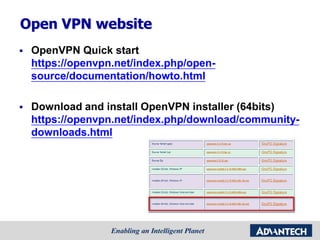
Open VPN website
 OpenVPN Quick start
https://openvpn.net/index.php/open-
source/documentation/howto.html
 Download and install OpenVPN installer (64bits)
https://openvpn.net/index.php/download/community-
downloads.html
Steps for building up VPN
1. Install OpenVPN
2. Initialize the environment
3. Edit the var for information
4. Create rootCA
5. Create the server private/public key pair
6. Create the client public/private key pair
7. Build Diffie Hellman paramaters
8. Check generating key
9. Copy the client configure file
10. Run open VPN server
11. Copy the client configure file
12. Run open VPN client
Step1 : Install OpenVPN
 Download and install OpenVPN installer (64bits)
https://openvpn.net/index.php/download/community-
downloads.html
 OpenVPN GUI
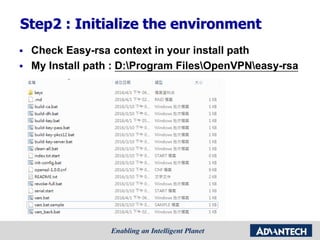
Step2 : Initialize the environment
 Check Easy-rsa context in your install path
 My Install path : D:Program FilesOpenVPNeasy-rsa
Step2 : Initialize the environment
 Easy-rsa path : D:Program FilesOpenVPNeasy-rsa
 Run batch file “init-config.bat”
Step3 : Edit the var.bat for information
 Edit your easy-rsa folder
path
 Edit the KEY_COUNTRY,
KEY_PROVINCE, KEY_CITY,
KEY_ORG, KEY_EMAIL and
the other parameters,
according to your needs.
 Don't leave any of these
parameters blank.
Step4 : Create rootCA
 Run “var.bat”, the file
that we just edited
 Run “clean-all.bat”
 Run “build-ca.bat” to
create the rootCA
– Organizational Unit
Name : user
– Common Name : RTU
– The other setting :
default
Step4 : Create rootCA
 Check import items in
running “build-ca.bat”
to create the rootCA
1. Organizational Unit
Name : user
2. Common Name : RTU
3. The other setting :
default
Step5 : Create the server private/public key pair
 Install OpenVPN
 I
 Run “build-key-
server.bat keyName”
 Example :
“build-key-server.bat
server”
 Check item
1. Organizational Unit
Name : user
2. Common Name : RTU
3. The other setting :
default
4. Password : 12345678
5. Certificate
Step5 : Create the server private/public key pair
 Check item
1. Organizational Unit
Name : user
2. Common Name : RTU
3. The other setting :
default
4. Password : 12345678
5. Certificate
Step 6 : Create the client public/private key pair
 Run “build-key.bat
keyName”
 Example :
“build-key.bat client1”
 Check item
1. Organizational Unit
Name : user
2. Common Name :
client1
3. The other setting :
default
4. Password : 12345678
5. Certificate
Step 6 : Create the client public/private key pair
 Check item
1. Organizational Unit
Name : user
2. Common Name :
client1
3. The other setting :
default
4. Password : 12345678
5. Certificate
Step 7 : Build Diffie Hellman
parameters
 Run “build-dh.bat ””
 This program will generate 1024bit RSA key
Step 8 : Check generating key
 Key path : D:Program FilesOpenVPNeasy-rsakeys
 Check client’s crt and server’s crt aren’t empty.
Steps for building up VPN
1. Install OpenVPN
2. Initialize the environment
3. Edit the var for information
4. Create rootCA
5. Create the server private/public key pair
6. Create the client public/private key pair
7. Build Diffie Hellman paramaters
8. Check generating key
9. Copy the client configure file
10. Run open VPN server
11. Copy the client configure file
12. Run open VPN client
Topology
 Ethernet connection with OpenVPN
 Server setting
OpenVPN server
IP: 172.18.2.58
VPN IP : 192.168.77.1
IP: 172.18.2.49
VPN IP : 192.168.77.6
OpenVPN client
Ethernet
VPN tunnel
Step 9 : Copy the Server configure file
 Open Server configuration
 Copy file from key folder into config folder
1. ca.key,
2. ca.crt,
3. server.key,
4. server.crt,
5. dh1024.pem
 Copy server configure file from sample
rename  server_3600.ovpn
 Key folder - D:Program FilesOpenVPNeasy-rsakeys
 Config folder - D:Program FilesOpenVPNconfig
 Sample-config folder - D:Program FilesOpenVPNsample-
config
Step 9 : Copy the Server configure file
 Modify setting in server configure
1. TCP connection : proto tcp
2. Dh file : dh dh1024.pem (default : dh2048.pem)
3. VPN domain : 192.168.77.0 255.255.255.0
User definition
Step 10 : Run open VPN server
 Run OpenVPN GUI
 Connect your server : server_3600
Topology
 Ethernet connection with OpenVPN
 Client setting
OpenVPN server
IP: 172.18.2.58
VPN IP : 192.168.77.1
IP: 172.18.2.49
VPN IP : 192.168.77.6
OpenVPN client
Ethernet
VPN tunnel
Step 11 : Copy the client configure file
 Open Server configuration
 Copy file from key folder into config folder
1. ca.crt
2. client1.key
3. clent1.crt
 Copy client configure file from sample
rename  client_3600.ovpn
 Key folder - D:Program FilesOpenVPNeasy-rsakeys
 Config folder - D:Program FilesOpenVPNconfig
 Sample-config folder - D:Program FilesOpenVPNsample-
config
Step 11 : Copy the client configure file
 Modify setting in cliet configure
1. TCP connection : proto tcp
2. Hostname/IP: remote IP port
remote 172.18.2.58 1194
3. Certificate : modify the client setting name of ca/key/cert
Step 12 : Run open VPN client
 Run OpenVPN GUI
 Connect your client : client_3600
Result
 OpenVPN server
 Ping open VPN client IP : 192.168.77.6
ADAM-3600 OpenVPN setting
Topology
 Ethernet connection with OpenVPN
OpenVPN server
IP: 172.18.2.58
VPN IP : 192.168.77.1
IP: 172.18.2.49
VPN IP : 192.168.77.6
OpenVPN client
Ethernet
VPN tunnel
Check VPN server network port
 Check VPN server & router port
1. Web server : 80
2. VPN : 1194
3. DNP3 : 20000
4. Modbus : 502
Check ADAM-3600 system time
 VPN need the closely system time of VPN server and
client
 Update ADAM-3600 Time and Date
1. by commend line: Example : date -s "2016-04-07 18:30:50“
2. by NTP:
Configure ADAM-3600 Open VPN
 Server IP/Domain : 172.18.2.58
 Port : 1194
 Protocol : TCP
 CA file : ca.crt
 CERT file : clent1.crt
 KEY file : client1.key
Check ADAM-3600 OpenVPN status
 Download project file into ADAM-3600 and reboot
 Check system log : build up VPN successfully
Result
 VPN Server connect to ADAM-3600 web server
 ADAM-3600 IP : 192.168.77.6
ADAM-3600 OpenVPN : 3G +
DDNS + public dynamic IP
• OpenVPN server : DDNS + public dynamic IP
• OpenVPN cliet : ADAM-3600 + 3G
Topology
 Public IP and DDNS in OpenVPN server
 Domain name VPN connection in ADAM-3600
OpenVPN server
IP: 124.9.8.233
VPN IP : 192.168.77.1
IP: 172.18.2.49
VPN IP : 192.168.77.6
OpenVPN client
Ethernet
VPN tunnel
Ethernet
DDNS service
adam3600.ddns.net
Check VPN server network port
 Check VPN server & router port
1. Web server : 80
2. VPN : 1194
3. DNP3 : 20000
4. Modbus : 502
Open VPN server setting
 Open port tool :
http://www.portchecktool.com/?utm_source=DUC&u
tm_medium=duc-click&utm_campaign=duc-
WINDOWS
Open VPN server setting
 Public IP setting in VPN server computer
IP: 124.9.8.233
VPN IP : 192.168.77.1
Open VPN server setting
 DDNS service – NoIP
1. Apply NoIP account : http://www.noip.com/
2. Apply a DDNS host name & domain (free)
3. IP : public IP
4. Host name & domain example : adam3600.ddns.net
Open VPN server setting
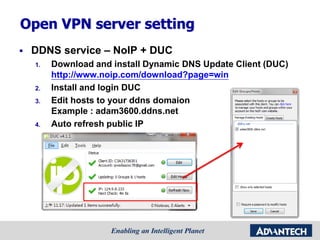
 DDNS service – NoIP + DUC
1. Download and install Dynamic DNS Update Client (DUC)
http://www.noip.com/download?page=win
2. Install and login DUC
3. Edit hosts to your ddns domaion
Example : adam3600.ddns.net
4. Auto refresh public IP
Open VPN server setting
 DDNS service – DUC update public ip
ADAM-3600 OpenVPN : 3G +
DDNS + public dynamic IP
• OpenVPN server : DDNS + public dynamic IP
• OpenVPN cliet : ADAM-3600 + 3G
Topology
 Public IP and DDNS in OpenVPN server
 Domain name VPN connection in ADAM-3600
OpenVPN server
IP: 124.9.8.233
VPN IP : 192.168.77.1
IP: 172.18.2.49
VPN IP : 192.168.77.6
OpenVPN client
Ethernet
VPN tunnel
Ethernet
DDNS service
adam3600.ddns.net
Check ADAM-3600 system time
 VPN need the closely system time of VPN server and
client
 Update ADAM-3600 Time and Date
1. by commend line: Example : date -s "2016-04-07 18:30:50“
2. by NTP:
Configure ADAM-3600 Open VPN
 Server IP/Domain : adam3600.ddns.net
 Port : 1194
 Protocol : TCP
 CA file : ca.crt
 CERT file : clent1.crt
 KEY file : client1.key
3G / WIFI setting
 GPRS/3G setting
 APN: dependent on vender (In UAE )
1. du
2. etisalat.ae
 Phone number :
1. *99#
2. *99***1#
3. *99***2#
3G / WIFI setting
 GPRS/3G setting - Taiwan
 APN: internet
 Phone number : *99#
Check ADAM-3600 3G / OpenVPN
 Download project file into ADAM-3600 and reboot
 Signal info
1. Phone number
2. Quality
3. Public IP
Check ADAM-3600 3G / OpenVPN
 System log : build up VPN successfully
Result
 OpenVPN server – DUC / OpenVPN get client (3600)
 ADAM-3600 VPN : 192.168.77.6
Result
 OpenVPN client – ADAM-3600
 Ping 192.168.77.1 VPN server

[Advantech] ADAM-3600 open vpn setting Tutorial step by step

  • 1.
    ADAM-3600 OpenVPN + DDNS+ 3G connection setting Intercorn AE Minghung.Hsieh 2016/4/6
  • 2.
    Agenda  Build upOpenVPN server/client  ADAM-3600 OpenVPN setting  ADAM-3600 OpenVPN : 3G + DDNS + public dynamic IP
  • 3.
    Build up OpenVPNserver/client
  • 4.
    Topology  Ethernet connectionwith OpenVPN OpenVPN server IP: 172.18.2.58 VPN IP : 192.168.77.1 IP: 172.18.2.49 VPN IP : 192.168.77.6 OpenVPN client Ethernet VPN tunnel
  • 5.
    Open VPN website OpenVPN Quick start https://openvpn.net/index.php/open- source/documentation/howto.html  Download and install OpenVPN installer (64bits) https://openvpn.net/index.php/download/community- downloads.html
  • 6.
    Steps for buildingup VPN 1. Install OpenVPN 2. Initialize the environment 3. Edit the var for information 4. Create rootCA 5. Create the server private/public key pair 6. Create the client public/private key pair 7. Build Diffie Hellman paramaters 8. Check generating key 9. Copy the client configure file 10. Run open VPN server 11. Copy the client configure file 12. Run open VPN client
  • 7.
    Step1 : InstallOpenVPN  Download and install OpenVPN installer (64bits) https://openvpn.net/index.php/download/community- downloads.html  OpenVPN GUI
  • 8.
    Step2 : Initializethe environment  Check Easy-rsa context in your install path  My Install path : D:Program FilesOpenVPNeasy-rsa
  • 9.
    Step2 : Initializethe environment  Easy-rsa path : D:Program FilesOpenVPNeasy-rsa  Run batch file “init-config.bat”
  • 10.
    Step3 : Editthe var.bat for information  Edit your easy-rsa folder path  Edit the KEY_COUNTRY, KEY_PROVINCE, KEY_CITY, KEY_ORG, KEY_EMAIL and the other parameters, according to your needs.  Don't leave any of these parameters blank.
  • 11.
    Step4 : CreaterootCA  Run “var.bat”, the file that we just edited  Run “clean-all.bat”  Run “build-ca.bat” to create the rootCA – Organizational Unit Name : user – Common Name : RTU – The other setting : default
  • 12.
    Step4 : CreaterootCA  Check import items in running “build-ca.bat” to create the rootCA 1. Organizational Unit Name : user 2. Common Name : RTU 3. The other setting : default
  • 13.
    Step5 : Createthe server private/public key pair  Install OpenVPN  I  Run “build-key- server.bat keyName”  Example : “build-key-server.bat server”  Check item 1. Organizational Unit Name : user 2. Common Name : RTU 3. The other setting : default 4. Password : 12345678 5. Certificate
  • 14.
    Step5 : Createthe server private/public key pair  Check item 1. Organizational Unit Name : user 2. Common Name : RTU 3. The other setting : default 4. Password : 12345678 5. Certificate
  • 15.
    Step 6 :Create the client public/private key pair  Run “build-key.bat keyName”  Example : “build-key.bat client1”  Check item 1. Organizational Unit Name : user 2. Common Name : client1 3. The other setting : default 4. Password : 12345678 5. Certificate
  • 16.
    Step 6 :Create the client public/private key pair  Check item 1. Organizational Unit Name : user 2. Common Name : client1 3. The other setting : default 4. Password : 12345678 5. Certificate
  • 17.
    Step 7 :Build Diffie Hellman parameters  Run “build-dh.bat ””  This program will generate 1024bit RSA key
  • 18.
    Step 8 :Check generating key  Key path : D:Program FilesOpenVPNeasy-rsakeys  Check client’s crt and server’s crt aren’t empty.
  • 19.
    Steps for buildingup VPN 1. Install OpenVPN 2. Initialize the environment 3. Edit the var for information 4. Create rootCA 5. Create the server private/public key pair 6. Create the client public/private key pair 7. Build Diffie Hellman paramaters 8. Check generating key 9. Copy the client configure file 10. Run open VPN server 11. Copy the client configure file 12. Run open VPN client
  • 20.
    Topology  Ethernet connectionwith OpenVPN  Server setting OpenVPN server IP: 172.18.2.58 VPN IP : 192.168.77.1 IP: 172.18.2.49 VPN IP : 192.168.77.6 OpenVPN client Ethernet VPN tunnel
  • 21.
    Step 9 :Copy the Server configure file  Open Server configuration  Copy file from key folder into config folder 1. ca.key, 2. ca.crt, 3. server.key, 4. server.crt, 5. dh1024.pem  Copy server configure file from sample rename  server_3600.ovpn  Key folder - D:Program FilesOpenVPNeasy-rsakeys  Config folder - D:Program FilesOpenVPNconfig  Sample-config folder - D:Program FilesOpenVPNsample- config
  • 22.
    Step 9 :Copy the Server configure file  Modify setting in server configure 1. TCP connection : proto tcp 2. Dh file : dh dh1024.pem (default : dh2048.pem) 3. VPN domain : 192.168.77.0 255.255.255.0 User definition
  • 23.
    Step 10 :Run open VPN server  Run OpenVPN GUI  Connect your server : server_3600
  • 24.
    Topology  Ethernet connectionwith OpenVPN  Client setting OpenVPN server IP: 172.18.2.58 VPN IP : 192.168.77.1 IP: 172.18.2.49 VPN IP : 192.168.77.6 OpenVPN client Ethernet VPN tunnel
  • 25.
    Step 11 :Copy the client configure file  Open Server configuration  Copy file from key folder into config folder 1. ca.crt 2. client1.key 3. clent1.crt  Copy client configure file from sample rename  client_3600.ovpn  Key folder - D:Program FilesOpenVPNeasy-rsakeys  Config folder - D:Program FilesOpenVPNconfig  Sample-config folder - D:Program FilesOpenVPNsample- config
  • 26.
    Step 11 :Copy the client configure file  Modify setting in cliet configure 1. TCP connection : proto tcp 2. Hostname/IP: remote IP port remote 172.18.2.58 1194 3. Certificate : modify the client setting name of ca/key/cert
  • 27.
    Step 12 :Run open VPN client  Run OpenVPN GUI  Connect your client : client_3600
  • 28.
    Result  OpenVPN server Ping open VPN client IP : 192.168.77.6
  • 29.
  • 30.
    Topology  Ethernet connectionwith OpenVPN OpenVPN server IP: 172.18.2.58 VPN IP : 192.168.77.1 IP: 172.18.2.49 VPN IP : 192.168.77.6 OpenVPN client Ethernet VPN tunnel
  • 31.
    Check VPN servernetwork port  Check VPN server & router port 1. Web server : 80 2. VPN : 1194 3. DNP3 : 20000 4. Modbus : 502
  • 32.
    Check ADAM-3600 systemtime  VPN need the closely system time of VPN server and client  Update ADAM-3600 Time and Date 1. by commend line: Example : date -s "2016-04-07 18:30:50“ 2. by NTP:
  • 33.
    Configure ADAM-3600 OpenVPN  Server IP/Domain : 172.18.2.58  Port : 1194  Protocol : TCP  CA file : ca.crt  CERT file : clent1.crt  KEY file : client1.key
  • 34.
    Check ADAM-3600 OpenVPNstatus  Download project file into ADAM-3600 and reboot  Check system log : build up VPN successfully
  • 35.
    Result  VPN Serverconnect to ADAM-3600 web server  ADAM-3600 IP : 192.168.77.6
  • 36.
    ADAM-3600 OpenVPN :3G + DDNS + public dynamic IP • OpenVPN server : DDNS + public dynamic IP • OpenVPN cliet : ADAM-3600 + 3G
  • 37.
    Topology  Public IPand DDNS in OpenVPN server  Domain name VPN connection in ADAM-3600 OpenVPN server IP: 124.9.8.233 VPN IP : 192.168.77.1 IP: 172.18.2.49 VPN IP : 192.168.77.6 OpenVPN client Ethernet VPN tunnel Ethernet DDNS service adam3600.ddns.net
  • 38.
    Check VPN servernetwork port  Check VPN server & router port 1. Web server : 80 2. VPN : 1194 3. DNP3 : 20000 4. Modbus : 502
  • 39.
    Open VPN serversetting  Open port tool : http://www.portchecktool.com/?utm_source=DUC&u tm_medium=duc-click&utm_campaign=duc- WINDOWS
  • 40.
    Open VPN serversetting  Public IP setting in VPN server computer IP: 124.9.8.233 VPN IP : 192.168.77.1
  • 41.
    Open VPN serversetting  DDNS service – NoIP 1. Apply NoIP account : http://www.noip.com/ 2. Apply a DDNS host name & domain (free) 3. IP : public IP 4. Host name & domain example : adam3600.ddns.net
  • 42.
    Open VPN serversetting  DDNS service – NoIP + DUC 1. Download and install Dynamic DNS Update Client (DUC) http://www.noip.com/download?page=win 2. Install and login DUC 3. Edit hosts to your ddns domaion Example : adam3600.ddns.net 4. Auto refresh public IP
  • 43.
    Open VPN serversetting  DDNS service – DUC update public ip
  • 44.
    ADAM-3600 OpenVPN :3G + DDNS + public dynamic IP • OpenVPN server : DDNS + public dynamic IP • OpenVPN cliet : ADAM-3600 + 3G
  • 45.
    Topology  Public IPand DDNS in OpenVPN server  Domain name VPN connection in ADAM-3600 OpenVPN server IP: 124.9.8.233 VPN IP : 192.168.77.1 IP: 172.18.2.49 VPN IP : 192.168.77.6 OpenVPN client Ethernet VPN tunnel Ethernet DDNS service adam3600.ddns.net
  • 46.
    Check ADAM-3600 systemtime  VPN need the closely system time of VPN server and client  Update ADAM-3600 Time and Date 1. by commend line: Example : date -s "2016-04-07 18:30:50“ 2. by NTP:
  • 47.
    Configure ADAM-3600 OpenVPN  Server IP/Domain : adam3600.ddns.net  Port : 1194  Protocol : TCP  CA file : ca.crt  CERT file : clent1.crt  KEY file : client1.key
  • 48.
    3G / WIFIsetting  GPRS/3G setting  APN: dependent on vender (In UAE ) 1. du 2. etisalat.ae  Phone number : 1. *99# 2. *99***1# 3. *99***2#
  • 49.
    3G / WIFIsetting  GPRS/3G setting - Taiwan  APN: internet  Phone number : *99#
  • 50.
    Check ADAM-3600 3G/ OpenVPN  Download project file into ADAM-3600 and reboot  Signal info 1. Phone number 2. Quality 3. Public IP
  • 51.
    Check ADAM-3600 3G/ OpenVPN  System log : build up VPN successfully
  • 52.
    Result  OpenVPN server– DUC / OpenVPN get client (3600)  ADAM-3600 VPN : 192.168.77.6
  • 53.
    Result  OpenVPN client– ADAM-3600  Ping 192.168.77.1 VPN server