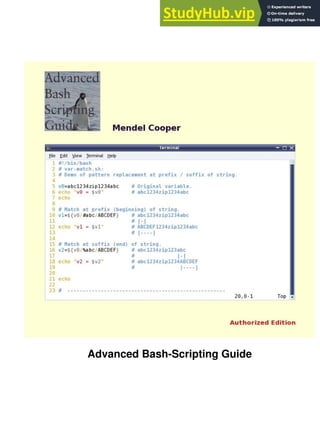
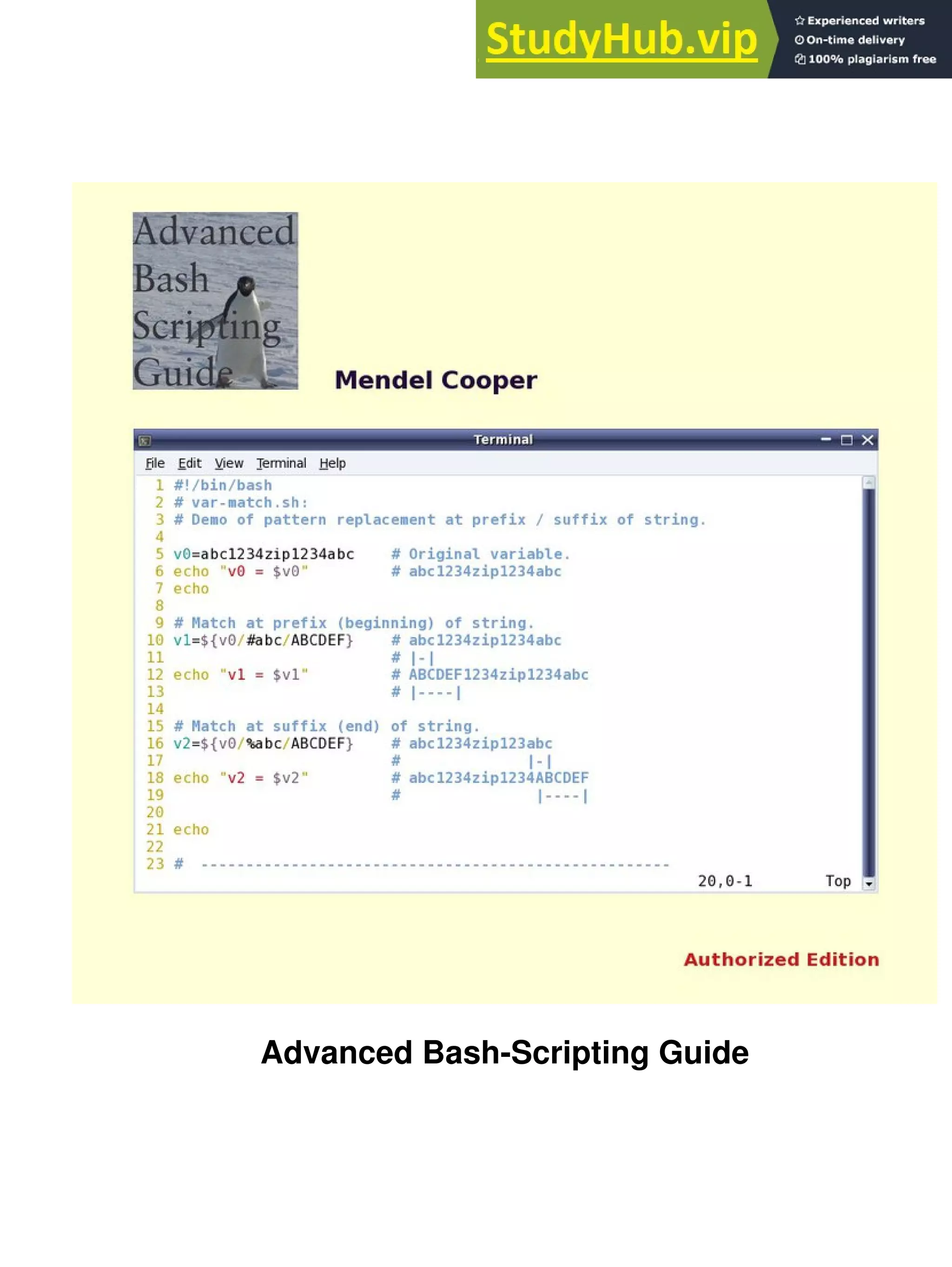
Advanced Bash-Scripting Guide
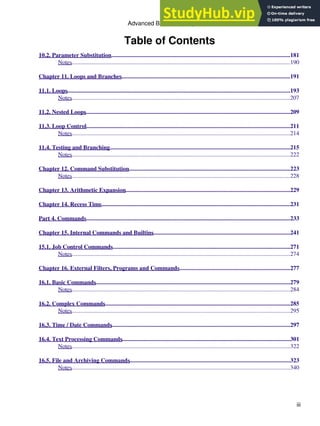
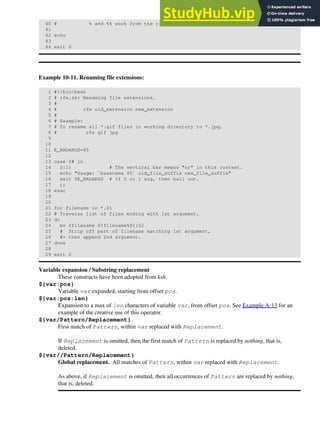
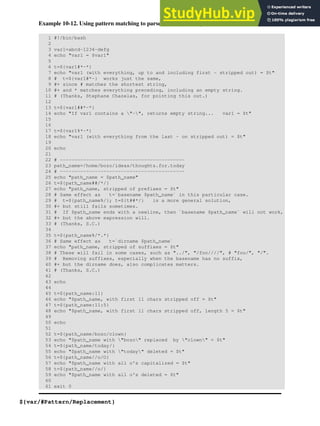
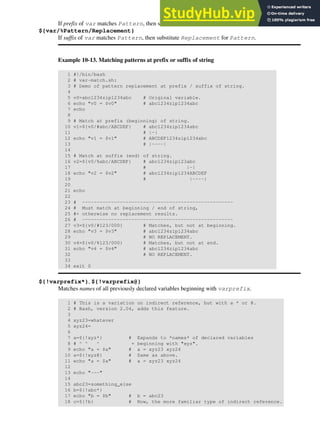
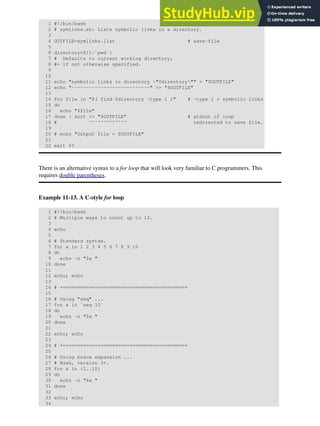
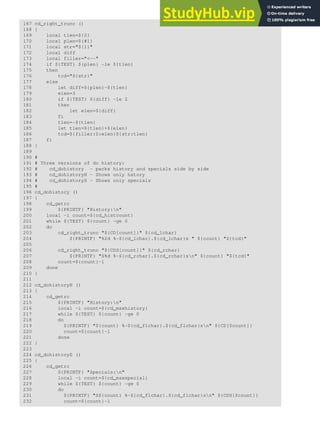
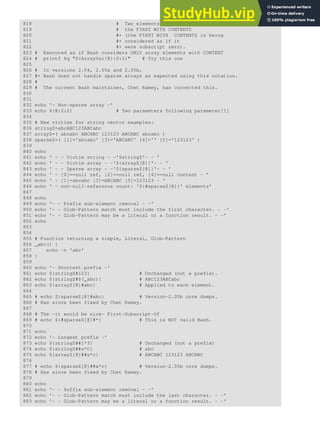
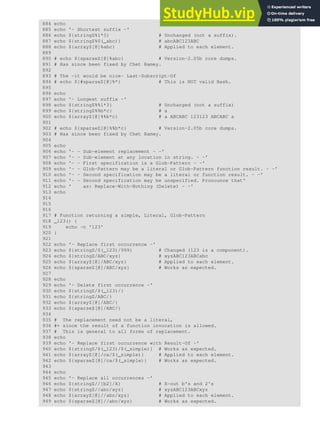
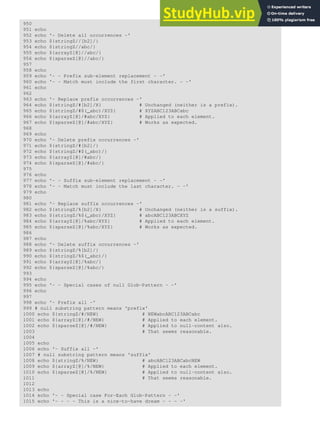
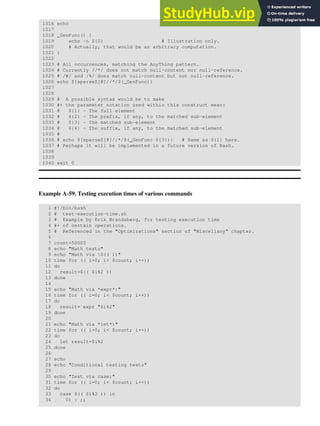
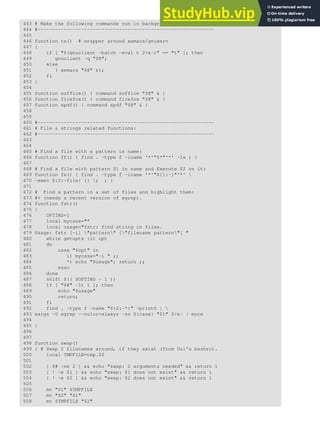
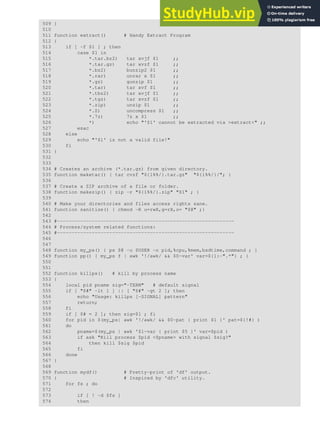
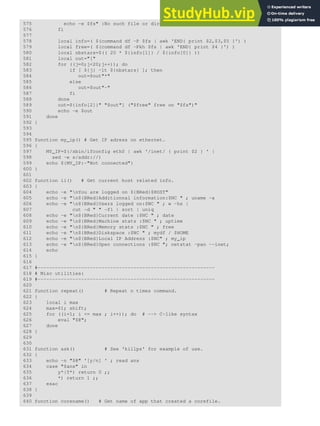
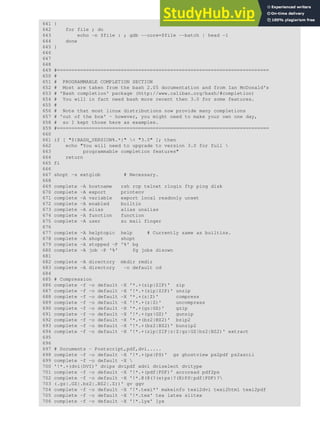
Table of Contents
Advanced Bash-Scripting Guide.......................................................................................................................1
An in-depth exploration of the art of shell scripting................................................................................1
Mendel Cooper..................................................................................................................................1
Dedication............................................................................................................................................................3
Part 1. Introduction..........................................................................................................................................15
Chapter 1. Shell Programming!
.......................................................................................................................17
Notes......................................................................................................................................................18
Chapter 2. Starting Off With a Sha-Bang......................................................................................................21
2.1. Invoking the script.....................................................................................................................................25
Notes......................................................................................................................................................25
2.2. Preliminary Exercises................................................................................................................................27
Part 2. Basics.....................................................................................................................................................29
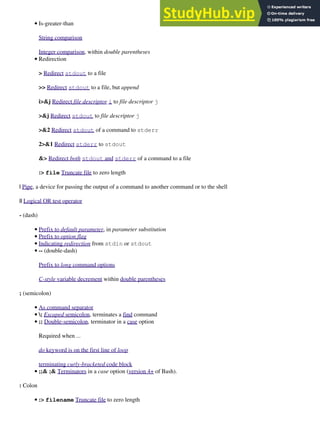
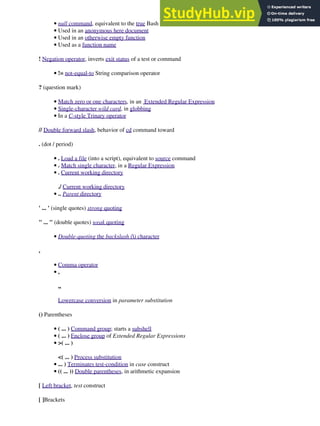
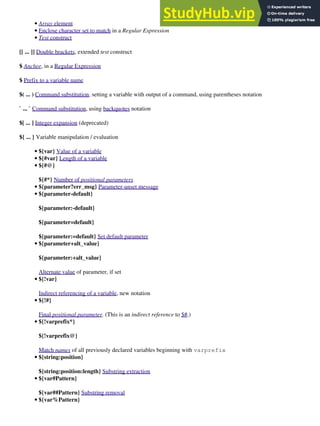
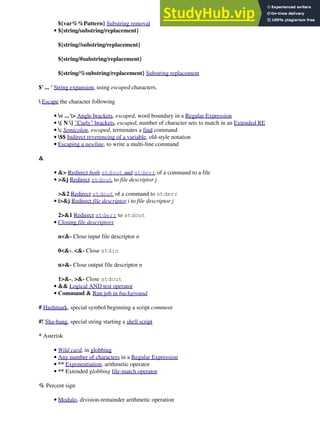
Chapter 3. Special Characters.........................................................................................................................31
Notes......................................................................................................................................................51
Chapter 4. Introduction to Variables and Parameters
..................................................................................53
4.1. Variable Substitution.................................................................................................................................55
Notes......................................................................................................................................................57
4.2. Variable Assignment..................................................................................................................................59
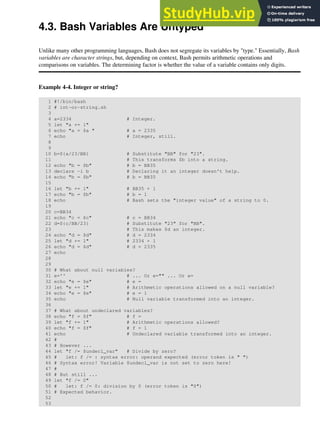
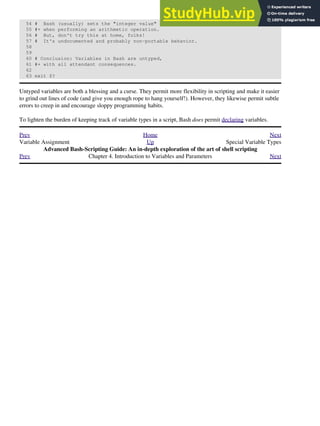
4.3. Bash Variables Are Untyped
.....................................................................................................................61
4.4. Special Variable Types..............................................................................................................................63
Notes......................................................................................................................................................67
Chapter 5. Quoting...........................................................................................................................................69
5.1. Quoting Variables......................................................................................................................................71
Notes......................................................................................................................................................73
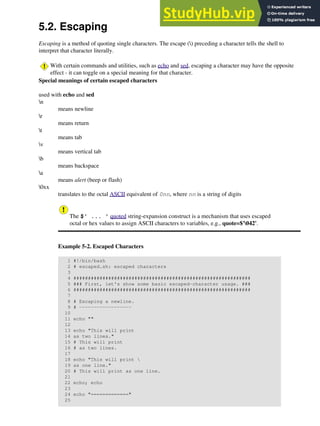
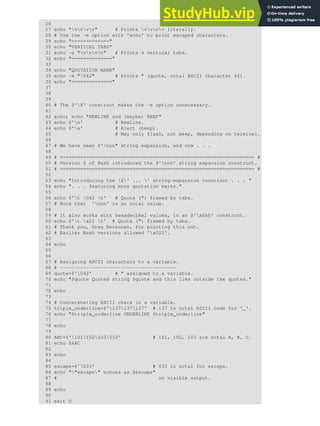
5.2. Escaping......................................................................................................................................................75
Chapter 6. Exit and Exit Status.......................................................................................................................83
Notes......................................................................................................................................................85
Chapter 7. Tests................................................................................................................................................87
Advanced Bash-Scripting Guide
i
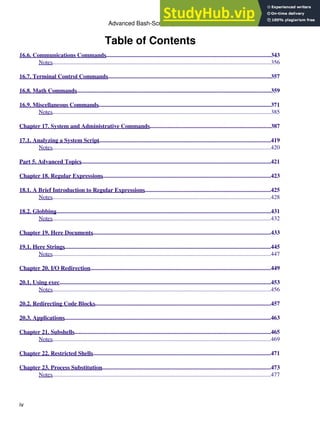
Table of Contents
7.1. Test Constructs
...........................................................................................................................................89
Notes......................................................................................................................................................96
7.2. File test operators.......................................................................................................................................97
Notes....................................................................................................................................................100
7.3. Other Comparison Operators.................................................................................................................101
Notes....................................................................................................................................................106
7.4. Nested if/then Condition Tests................................................................................................................107
7.5. Testing Your Knowledge of Tests...........................................................................................................109
Chapter 8. Operations and Related Topics..................................................................................................111
8.1. Operators..................................................................................................................................................113
Notes....................................................................................................................................................119
8.2. Numerical Constants...............................................................................................................................121
8.3. The Double-Parentheses Construct........................................................................................................123
8.4. Operator Precedence...............................................................................................................................125
Notes....................................................................................................................................................127
Part 3. Beyond the Basics...............................................................................................................................129
Chapter 9. Another Look at Variables.........................................................................................................131
9.1. Internal Variables....................................................................................................................................133
Notes....................................................................................................................................................151
9.2. Typing variables: declare or typeset......................................................................................................153
9.2.1. Another use for declare..............................................................................................................155
Notes
..............................................................................................................................................155
9.3. $RANDOM: generate random integer
...................................................................................................157
Notes....................................................................................................................................................168
Chapter 10. Manipulating Variables
.............................................................................................................169
10.1. Manipulating Strings.............................................................................................................................171
10.1.1. Manipulating strings using awk...............................................................................................178
10.1.2. Further Reference
.....................................................................................................................179
Notes
..............................................................................................................................................179
Advanced Bash-Scripting Guide
ii
Table of Contents
10.2. Parameter Substitution.........................................................................................................................181
Notes....................................................................................................................................................190
Chapter 11. Loops and Branches..................................................................................................................191
11.1. Loops.......................................................................................................................................................193
Notes....................................................................................................................................................207
11.2. Nested Loops
...........................................................................................................................................209
11.3. Loop Control..........................................................................................................................................211
Notes....................................................................................................................................................214
11.4. Testing and Branching..........................................................................................................................215
Notes....................................................................................................................................................222
Chapter 12. Command Substitution.............................................................................................................223
Notes....................................................................................................................................................228
Chapter 13. Arithmetic Expansion................................................................................................................229
Chapter 14. Recess Time................................................................................................................................231
Part 4. Commands..........................................................................................................................................233
Chapter 15. Internal Commands and Builtins.............................................................................................241
15.1. Job Control Commands........................................................................................................................271
Notes....................................................................................................................................................274
Chapter 16. External Filters, Programs and Commands...........................................................................277
16.1. Basic Commands....................................................................................................................................279
Notes....................................................................................................................................................284
16.2. Complex Commands..............................................................................................................................285
Notes....................................................................................................................................................295
16.3. Time / Date Commands.........................................................................................................................297
16.4. Text Processing Commands..................................................................................................................301
Notes....................................................................................................................................................322
16.5. File and Archiving Commands.............................................................................................................323
Notes....................................................................................................................................................340
Advanced Bash-Scripting Guide
iii
Table of Contents
16.6. Communications Commands................................................................................................................343
Notes....................................................................................................................................................356
16.7. Terminal Control Commands...............................................................................................................357
16.8. Math Commands....................................................................................................................................359
16.9. Miscellaneous Commands.....................................................................................................................371
Notes....................................................................................................................................................385
Chapter 17. System and Administrative Commands..................................................................................387
17.1. Analyzing a System Script
.....................................................................................................................419
Notes....................................................................................................................................................420
Part 5. Advanced Topics
.................................................................................................................................421
Chapter 18. Regular Expressions..................................................................................................................423
18.1. A Brief Introduction to Regular Expressions......................................................................................425
Notes....................................................................................................................................................428
18.2. Globbing
..................................................................................................................................................431
Notes....................................................................................................................................................432
Chapter 19. Here Documents.........................................................................................................................433
19.1. Here Strings............................................................................................................................................445
Notes....................................................................................................................................................447
Chapter 20. I/O Redirection
...........................................................................................................................449
20.1. Using exec...............................................................................................................................................453
Notes....................................................................................................................................................456
20.2. Redirecting Code Blocks.......................................................................................................................457
20.3. Applications............................................................................................................................................463
Chapter 21. Subshells.....................................................................................................................................465
Notes....................................................................................................................................................469
Chapter 22. Restricted Shells.........................................................................................................................471
Chapter 23. Process Substitution
...................................................................................................................473
Notes....................................................................................................................................................477
Advanced Bash-Scripting Guide
iv
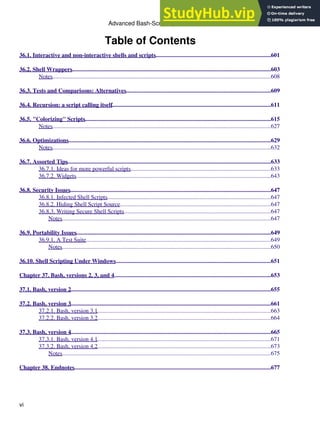
Table of Contents
Chapter 24. Functions....................................................................................................................................479
24.1. Complex Functions and Function Complexities.................................................................................485
Notes....................................................................................................................................................495
24.2. Local Variables
.......................................................................................................................................497
24.2.1. Local variables and recursion..................................................................................................498
Notes
..............................................................................................................................................500
24.3. Recursion Without Local Variables.....................................................................................................503
Chapter 25. Aliases.........................................................................................................................................507
Notes....................................................................................................................................................509
Chapter 26. List Constructs...........................................................................................................................511
Chapter 27. Arrays.........................................................................................................................................515
Chapter 28. Indirect References....................................................................................................................543
Chapter 29. /dev and /proc.............................................................................................................................547
29.1. /dev..........................................................................................................................................................549
Notes....................................................................................................................................................551
29.2. /proc.........................................................................................................................................................553
Notes....................................................................................................................................................558
Chapter 30. Network Programming.............................................................................................................559
Chapter 31. Of Zeros and Nulls.....................................................................................................................563
Chapter 32. Debugging...................................................................................................................................567
Notes....................................................................................................................................................577
Chapter 33. Options........................................................................................................................................579
Chapter 34. Gotchas.......................................................................................................................................583
Notes....................................................................................................................................................591
Chapter 35. Scripting With Style..................................................................................................................593
35.1. Unofficial Shell Scripting Stylesheet....................................................................................................595
Notes....................................................................................................................................................597
Chapter 36. Miscellany...................................................................................................................................599
Advanced Bash-Scripting Guide
v
Table of Contents
36.1. Interactive and non-interactive shells and scripts..............................................................................601
36.2. Shell Wrappers.......................................................................................................................................603
Notes....................................................................................................................................................608
36.3. Tests and Comparisons: Alternatives..................................................................................................609
36.4. Recursion: a script calling itself
............................................................................................................611
36.5. "Colorizing" Scripts..............................................................................................................................615
Notes....................................................................................................................................................627
36.6. Optimizations.........................................................................................................................................629
Notes....................................................................................................................................................632
36.7. Assorted Tips..........................................................................................................................................633
36.7.1. Ideas for more powerful scripts...............................................................................................633
36.7.2. Widgets....................................................................................................................................643
36.8. Security Issues........................................................................................................................................647
36.8.1. Infected Shell Scripts...............................................................................................................647
36.8.2. Hiding Shell Script Source......................................................................................................647
36.8.3. Writing Secure Shell Scripts....................................................................................................647
Notes
..............................................................................................................................................647
36.9. Portability Issues....................................................................................................................................649
36.9.1. A Test Suite.............................................................................................................................649
Notes
..............................................................................................................................................650
36.10. Shell Scripting Under Windows.........................................................................................................651
Chapter 37. Bash, versions 2, 3, and 4..........................................................................................................653
37.1. Bash, version 2
........................................................................................................................................655
37.2. Bash, version 3
........................................................................................................................................661
37.2.1. Bash, version 3.1......................................................................................................................663
37.2.2. Bash, version 3.2......................................................................................................................664
37.3. Bash, version 4
........................................................................................................................................665
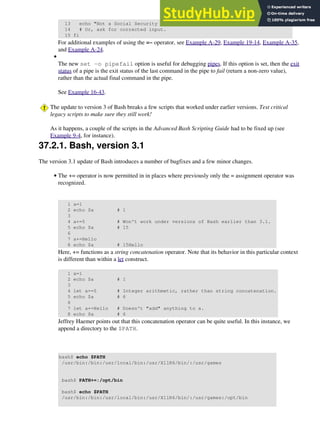
37.3.1. Bash, version 4.1......................................................................................................................671
37.3.2. Bash, version 4.2......................................................................................................................673
Notes
..............................................................................................................................................675
Chapter 38. Endnotes.....................................................................................................................................677
Advanced Bash-Scripting Guide
vi
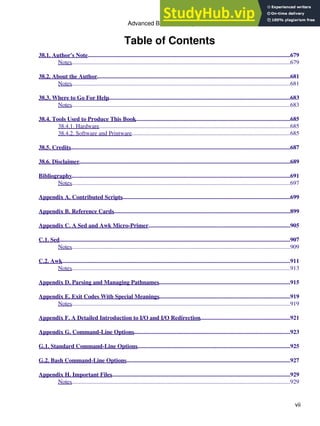
Table of Contents
38.1. Author's Note.........................................................................................................................................679
Notes....................................................................................................................................................679
38.2. About the Author...................................................................................................................................681
Notes....................................................................................................................................................681
38.3. Where to Go For Help...........................................................................................................................683
Notes....................................................................................................................................................683
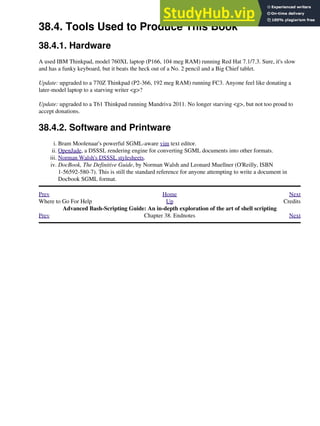
38.4. Tools Used to Produce This Book.........................................................................................................685
38.4.1. Hardware..................................................................................................................................685
38.4.2. Software and Printware............................................................................................................685
38.5. Credits.....................................................................................................................................................687
38.6. Disclaimer...............................................................................................................................................689
Bibliography....................................................................................................................................................691
Notes....................................................................................................................................................697
Appendix A. Contributed Scripts..................................................................................................................699
Appendix B. Reference Cards........................................................................................................................899
Appendix C. A Sed and Awk Micro-Primer................................................................................................905
C.1. Sed............................................................................................................................................................907
Notes....................................................................................................................................................909
C.2. Awk...........................................................................................................................................................911
Notes....................................................................................................................................................913
Appendix D. Parsing and Managing Pathnames.........................................................................................915
Appendix E. Exit Codes With Special Meanings.........................................................................................919
Notes....................................................................................................................................................919
Appendix F. A Detailed Introduction to I/O and I/O Redirection.............................................................921
Appendix G. Command-Line Options..........................................................................................................923
G.1. Standard Command-Line Options........................................................................................................925
G.2. Bash Command-Line Options...............................................................................................................927
Appendix H. Important Files.........................................................................................................................929
Notes....................................................................................................................................................929
Advanced Bash-Scripting Guide
vii
Table of Contents
Appendix I. Important System Directories..................................................................................................931
Notes....................................................................................................................................................932
Appendix J. An Introduction to Programmable Completion.....................................................................933
Notes....................................................................................................................................................935
Appendix K. Localization
...............................................................................................................................937
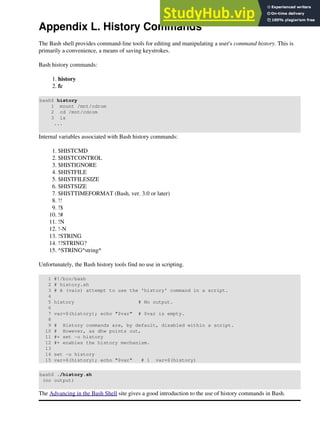
Appendix L. History Commands...................................................................................................................941
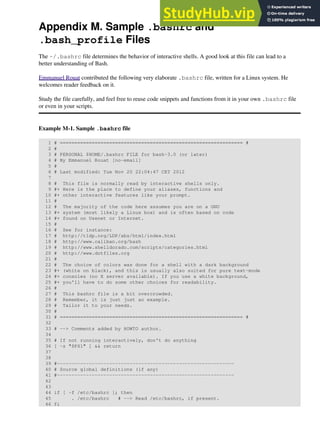
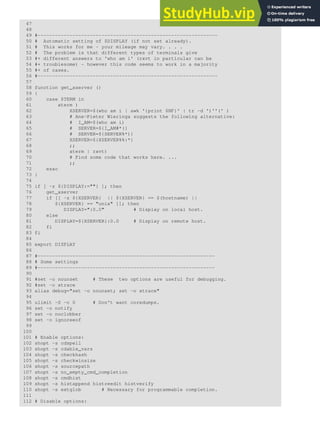
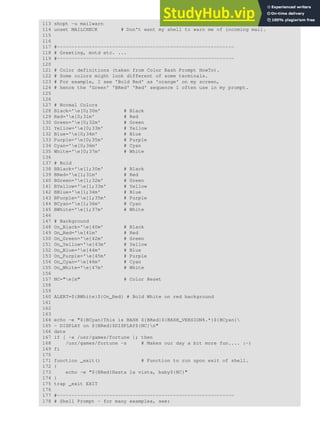
Appendix M. Sample .bashrc and .bash_profile Files.................................................................................943
Appendix N. Converting DOS Batch Files to Shell Scripts
.........................................................................959
Notes....................................................................................................................................................962
Appendix O. Exercises....................................................................................................................................963
O.1. Analyzing Scripts....................................................................................................................................965
O.2. Writing Scripts........................................................................................................................................967
Notes....................................................................................................................................................975
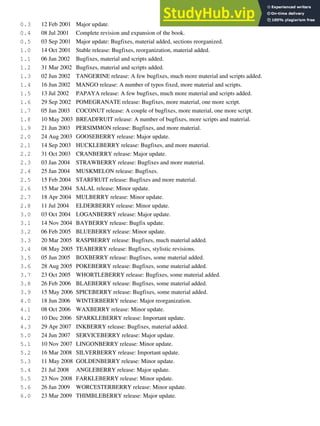
Appendix P. Revision History........................................................................................................................977
Appendix Q. Download and Mirror Sites.....................................................................................................981
Appendix R. To Do List..................................................................................................................................983
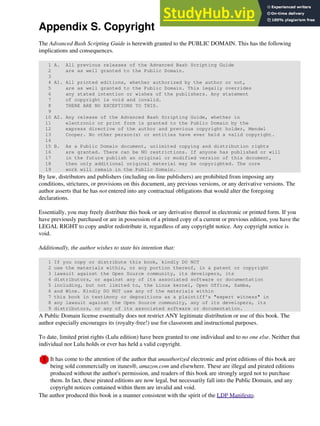
Appendix S. Copyright...................................................................................................................................985
Appendix T. ASCII Table..............................................................................................................................987
Index.................................................................................................................................................................991
Advanced Bash-Scripting Guide
viii
Advanced Bash-Scripting Guide
An in-depth exploration of the art of shell scripting
Version 10
10 Mar 2014
Mendel Cooper
thegrendel.abs@gmail.com
This tutorial assumes no previous knowledge of scripting or programming, yet progresses rapidly toward an
intermediate/advanced level of instruction . . . all the while sneaking in little nuggets of UNIX® wisdom and
lore. It serves as a textbook, a manual for self-study, and as a reference and source of knowledge on shell
scripting techniques. The exercises and heavily-commented examples invite active reader participation, under
the premise that the only way to really learn scripting is to write scripts.
This book is suitable for classroom use as a general introduction to programming concepts.
This document is herewith granted to the Public Domain. No copyright!
Dedication
For Anita, the source of all the magic
Table of Contents
Part 1. Introduction
1. Shell Programming!
2. Starting Off With a Sha-Bang
2.1. Invoking the script
2.2. Preliminary Exercises
Part 2. Basics
3. Special Characters
4. Introduction to Variables and Parameters
4.1. Variable Substitution
4.2. Variable Assignment
4.3. Bash Variables Are Untyped
4.4. Special Variable Types
5. Quoting
5.1. Quoting Variables
5.2. Escaping
6. Exit and Exit Status
7. Tests
7.1. Test Constructs
7.2. File test operators
7.3. Other Comparison Operators
7.4. Nested if/then Condition Tests
7.5. Testing Your Knowledge of Tests
8. Operations and Related Topics
8.1. Operators
8.2. Numerical Constants
8.3. The Double-Parentheses Construct
8.4. Operator Precedence
Part 3. Beyond the Basics
9. Another Look at Variables
9.1. Internal Variables
9.2. Typing variables: declare or typeset
9.3. $RANDOM: generate random integer
10. Manipulating Variables
10.1. Manipulating Strings
10.2. Parameter Substitution
11. Loops and Branches
11.1. Loops
11.2. Nested Loops
11.3. Loop Control
11.4. Testing and Branching
12. Command Substitution
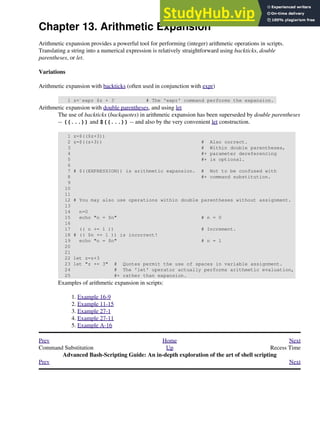
13. Arithmetic Expansion
14. Recess Time
Part 4. Commands
15. Internal Commands and Builtins
15.1. Job Control Commands
16. External Filters, Programs and Commands
16.1. Basic Commands
16.2. Complex Commands
16.3. Time / Date Commands
16.4. Text Processing Commands
16.5. File and Archiving Commands
16.6. Communications Commands
16.7. Terminal Control Commands
16.8. Math Commands
16.9. Miscellaneous Commands
17. System and Administrative Commands
17.1. Analyzing a System Script
Part 5. Advanced Topics
18. Regular Expressions
18.1. A Brief Introduction to Regular Expressions
18.2. Globbing
19. Here Documents
19.1. Here Strings
20. I/O Redirection
20.1. Using exec
20.2. Redirecting Code Blocks
20.3. Applications
21. Subshells
22. Restricted Shells
23. Process Substitution
24. Functions
24.1. Complex Functions and Function Complexities
24.2. Local Variables
24.3. Recursion Without Local Variables
25. Aliases
26. List Constructs
27. Arrays
28. Indirect References
29. /dev and /proc
29.1. /dev
29.2. /proc
30. Network Programming
31. Of Zeros and Nulls
32. Debugging
33. Options
34. Gotchas
35. Scripting With Style
35.1. Unofficial Shell Scripting Stylesheet
36. Miscellany
36.1. Interactive and non-interactive shells and scripts
36.2. Shell Wrappers
36.3. Tests and Comparisons: Alternatives
36.4. Recursion: a script calling itself
36.5. "Colorizing" Scripts
36.6. Optimizations
36.7. Assorted Tips
36.8. Security Issues
36.9. Portability Issues
36.10. Shell Scripting Under Windows
37. Bash, versions 2, 3, and 4
37.1. Bash, version 2
37.2. Bash, version 3
37.3. Bash, version 4
38. Endnotes
38.1. Author's Note
38.2. About the Author
38.3. Where to Go For Help
38.4. Tools Used to Produce This Book
38.4.1. Hardware
38.4.2. Software and Printware
38.5. Credits
38.6. Disclaimer
Bibliography
A. Contributed Scripts
B. Reference Cards
C. A Sed and Awk Micro-Primer
C.1. Sed
C.2. Awk
D. Parsing and Managing Pathnames
E. Exit Codes With Special Meanings
F. A Detailed Introduction to I/O and I/O Redirection
G. Command-Line Options
G.1. Standard Command-Line Options
G.2. Bash Command-Line Options
H. Important Files
I. Important System Directories
J. An Introduction to Programmable Completion
K. Localization
L. History Commands
M. Sample .bashrc and .bash_profile Files
N. Converting DOS Batch Files to Shell Scripts
O. Exercises
O.1. Analyzing Scripts
O.2. Writing Scripts
P. Revision History
Q. Download and Mirror Sites
R. To Do List
S. Copyright
T. ASCII Table
Index
List of Tables
8-1. Operator Precedence
15-1. Job identifiers
33-1. Bash options
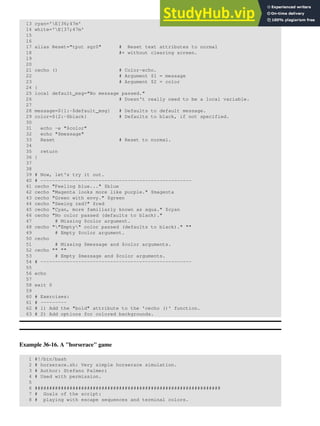
36-1. Numbers representing colors in Escape Sequences
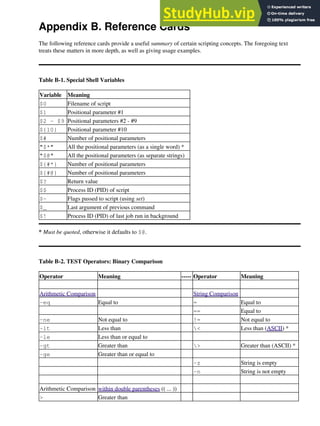
B-1. Special Shell Variables
B-2. TEST Operators: Binary Comparison
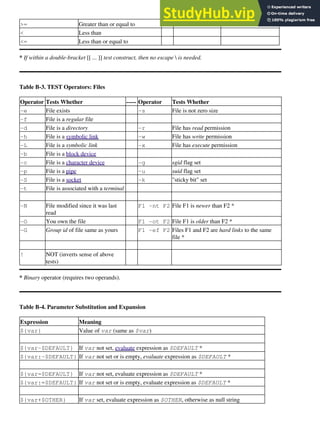
B-3. TEST Operators: Files
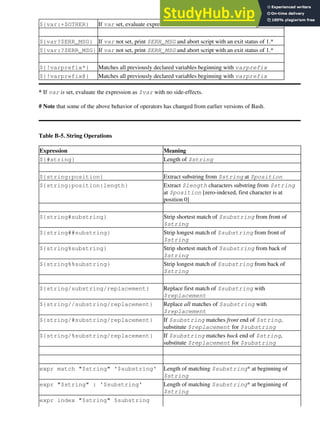
B-4. Parameter Substitution and Expansion
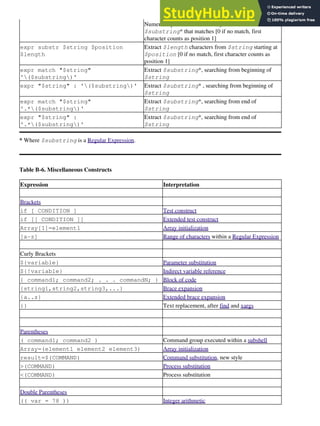
B-5. String Operations
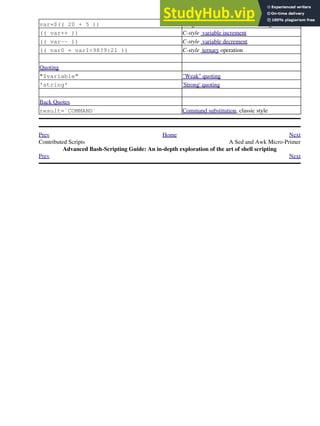
B-6. Miscellaneous Constructs
C-1. Basic sed operators
C-2. Examples of sed operators
E-1. Reserved Exit Codes
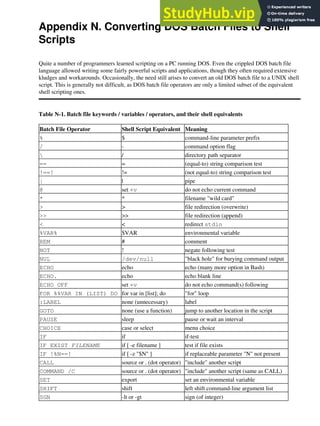
N-1. Batch file keywords / variables / operators, and their shell equivalents
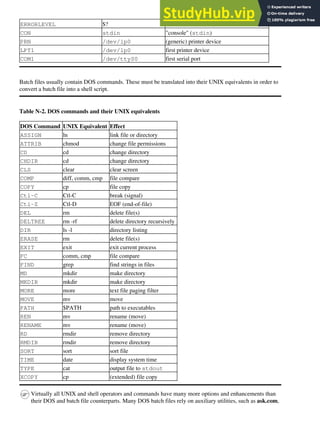
N-2. DOS commands and their UNIX equivalents
P-1. Revision History
List of Examples
2-1. cleanup: A script to clean up log files in /var/log
2-2. cleanup: An improved clean-up script
2-3. cleanup: An enhanced and generalized version of above scripts.
3-1. Code blocks and I/O redirection
3-2. Saving the output of a code block to a file
3-3. Running a loop in the background
3-4. Backup of all files changed in last day
4-1. Variable assignment and substitution
4-2. Plain Variable Assignment
4-3. Variable Assignment, plain and fancy
4-4. Integer or string?
4-5. Positional Parameters
4-6. wh, whois domain name lookup
4-7. Using shift
5-1. Echoing Weird Variables
5-2. Escaped Characters
5-3. Detecting key-presses
6-1. exit / exit status
6-2. Negating a condition using !
7-1. What is truth?
7-2. Equivalence of test, /usr/bin/test, [ ], and /usr/bin/[
7-3. Arithmetic Tests using (( ))
7-4. Testing for broken links
7-5. Arithmetic and string comparisons
7-6. Testing whether a string is null
7-7. zmore
8-1. Greatest common divisor
8-2. Using Arithmetic Operations
8-3. Compound Condition Tests Using && and ||
8-4. Representation of numerical constants
8-5. C-style manipulation of variables
9-1. $IFS and whitespace
9-2. Timed Input
9-3. Once more, timed input
9-4. Timed read
9-5. Am I root?
9-6. arglist: Listing arguments with $* and $@
9-7. Inconsistent $* and $@ behavior
9-8. $* and $@ when $IFS is empty
9-9. Underscore variable
9-10. Using declare to type variables
9-11. Generating random numbers
9-12. Picking a random card from a deck
9-13. Brownian Motion Simulation
9-14. Random between values
9-15. Rolling a single die with RANDOM
9-16. Reseeding RANDOM
9-17. Pseudorandom numbers, using awk
10-1. Inserting a blank line between paragraphs in a text file
10-2. Generating an 8-character "random" string
10-3. Converting graphic file formats, with filename change
10-4. Converting streaming audio files to ogg
10-5. Emulating getopt
10-6. Alternate ways of extracting and locating substrings
10-7. Using parameter substitution and error messages
10-8. Parameter substitution and "usage" messages
10-9. Length of a variable
10-10. Pattern matching in parameter substitution
10-11. Renaming file extensions:
10-12. Using pattern matching to parse arbitrary strings
10-13. Matching patterns at prefix or suffix of string
11-1. Simple for loops
11-2. for loop with two parameters in each [list] element
11-3. Fileinfo: operating on a file list contained in a variable
11-4. Operating on a parameterized file list
11-5. Operating on files with a for loop
11-6. Missing in [list] in a for loop
11-7. Generating the [list] in a for loop with command substitution
11-8. A grep replacement for binary files
11-9. Listing all users on the system
11-10. Checking all the binaries in a directory for authorship
11-11. Listing the symbolic links in a directory
11-12. Symbolic links in a directory, saved to a file
11-13. A C-style for loop
11-14. Using efax in batch mode
11-15. Simple while loop
11-16. Another while loop
11-17. while loop with multiple conditions
11-18. C-style syntax in a while loop
11-19. until loop
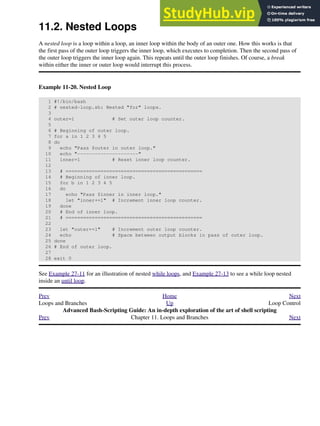
11-20. Nested Loop
11-21. Effects of break and continue in a loop
11-22. Breaking out of multiple loop levels
11-23. Continuing at a higher loop level
11-24. Using continue N in an actual task
11-25. Using case
11-26. Creating menus using case
11-27. Using command substitution to generate the case variable
11-28. Simple string matching
11-29. Checking for alphabetic input
11-30. Creating menus using select
11-31. Creating menus using select in a function
12-1. Stupid script tricks
12-2. Generating a variable from a loop
12-3. Finding anagrams
15-1. A script that spawns multiple instances of itself
15-2. printf in action
15-3. Variable assignment, using read
15-4. What happens when read has no variable
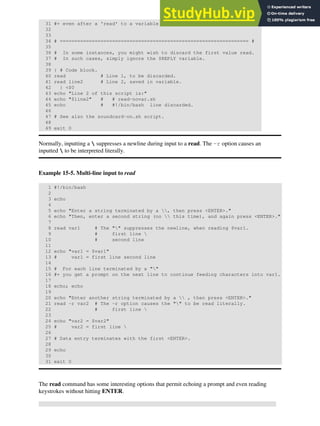
15-5. Multi-line input to read
15-6. Detecting the arrow keys
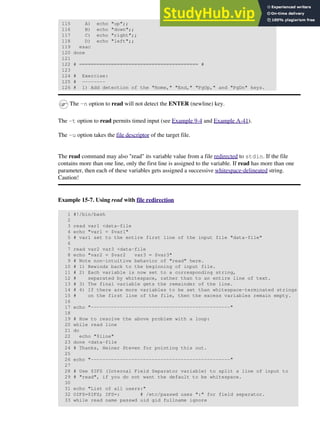
15-7. Using read with file redirection
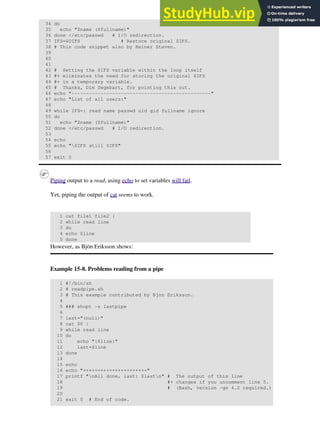
15-8. Problems reading from a pipe
15-9. Changing the current working directory
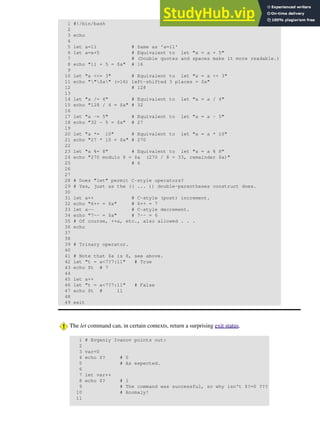
15-10. Letting let do arithmetic.
15-11. Showing the effect of eval
15-12. Using eval to select among variables
15-13. Echoing the command-line parameters
15-14. Forcing a log-off
15-15. A version of rot13
15-16. Using set with positional parameters
15-17. Reversing the positional parameters
15-18. Reassigning the positional parameters
15-19. "Unsetting" a variable
15-20. Using export to pass a variable to an embedded awk script
15-21. Using getopts to read the options/arguments passed to a script
15-22. "Including" a data file
15-23. A (useless) script that sources itself
15-24. Effects of exec
15-25. A script that exec's itself
15-26. Waiting for a process to finish before proceeding
15-27. A script that kills itself
16-1. Using ls to create a table of contents for burning a CDR disk
16-2. Hello or Good-bye
16-3. Badname, eliminate file names in current directory containing bad characters and whitespace.
16-4. Deleting a file by its inode number
16-5. Logfile: Using xargs to monitor system log
16-6. Copying files in current directory to another
16-7. Killing processes by name
16-8. Word frequency analysis using xargs
16-9. Using expr
16-10. Using date
16-11. Date calculations
16-12. Word Frequency Analysis
16-13. Which files are scripts?
16-14. Generating 10-digit random numbers
16-15. Using tail to monitor the system log
16-16. Printing out the From lines in stored e-mail messages
16-17. Emulating grep in a script
16-18. Crossword puzzle solver
16-19. Looking up definitions in Webster's 1913 Dictionary
16-20. Checking words in a list for validity
16-21. toupper: Transforms a file to all uppercase.
16-22. lowercase: Changes all filenames in working directory to lowercase.
16-23. du: DOS to UNIX text file conversion.
16-24. rot13: ultra-weak encryption.
16-25. Generating "Crypto-Quote" Puzzles
16-26. Formatted file listing.
16-27. Using column to format a directory listing
16-28. nl: A self-numbering script.
16-29. manview: Viewing formatted manpages
16-30. Using cpio to move a directory tree
16-31. Unpacking an rpm archive
16-32. Stripping comments from C program files
16-33. Exploring /usr/X11R6/bin
16-34. An "improved" strings command
16-35. Using cmp to compare two files within a script.
16-36. basename and dirname
16-37. A script that copies itself in sections
16-38. Checking file integrity
16-39. Uudecoding encoded files
16-40. Finding out where to report a spammer
16-41. Analyzing a spam domain
16-42. Getting a stock quote
16-43. Updating FC4
16-44. Using ssh
16-45. A script that mails itself
16-46. Generating prime numbers
16-47. Monthly Payment on a Mortgage
16-48. Base Conversion
16-49. Invoking bc using a here document
16-50. Calculating PI
16-51. Converting a decimal number to hexadecimal
16-52. Factoring
16-53. Calculating the hypotenuse of a triangle
16-54. Using seq to generate loop arguments
16-55. Letter Count"
16-56. Using getopt to parse command-line options
16-57. A script that copies itself
16-58. Exercising dd
16-59. Capturing Keystrokes
16-60. Preparing a bootable SD card for the Raspberry Pi
16-61. Securely deleting a file
16-62. Filename generator
16-63. Converting meters to miles
16-64. Using m4
17-1. Setting a new password
17-2. Setting an erase character
17-3. secret password: Turning off terminal echoing
17-4. Keypress detection
17-5. Checking a remote server for identd
17-6. pidof helps kill a process
17-7. Checking a CD image
17-8. Creating a filesystem in a file
17-9. Adding a new hard drive
17-10. Using umask to hide an output file from prying eyes
17-11. Backlight: changes the brightness of the (laptop) screen backlight
17-12. killall, from /etc/rc.d/init.d
19-1. broadcast: Sends message to everyone logged in
19-2. dummyfile: Creates a 2-line dummy file
19-3. Multi-line message using cat
19-4. Multi-line message, with tabs suppressed
19-5. Here document with replaceable parameters
19-6. Upload a file pair to Sunsite incoming directory
19-7. Parameter substitution turned off
19-8. A script that generates another script
19-9. Here documents and functions
19-10. "Anonymous" Here Document
19-11. Commenting out a block of code
19-12. A self-documenting script
19-13. Prepending a line to a file
19-14. Parsing a mailbox
20-1. Redirecting stdin using exec
20-2. Redirecting stdout using exec
20-3. Redirecting both stdin and stdout in the same script with exec
20-4. Avoiding a subshell
20-5. Redirected while loop
20-6. Alternate form of redirected while loop
20-7. Redirected until loop
20-8. Redirected for loop
20-9. Redirected for loop (both stdin and stdout redirected)
20-10. Redirected if/then test
20-11. Data file names.data for above examples
20-12. Logging events
21-1. Variable scope in a subshell
21-2. List User Profiles
21-3. Running parallel processes in subshells
22-1. Running a script in restricted mode
23-1. Code block redirection without forking
23-2. Redirecting the output of process substitution into a loop.
24-1. Simple functions
24-2. Function Taking Parameters
24-3. Functions and command-line args passed to the script
24-4. Passing an indirect reference to a function
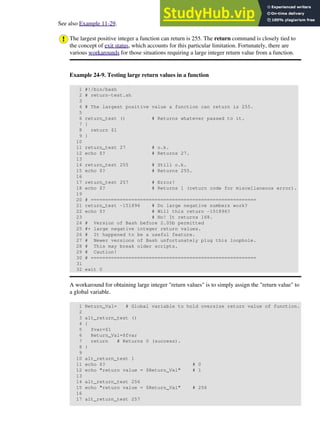
24-5. Dereferencing a parameter passed to a function
24-6. Again, dereferencing a parameter passed to a function
24-7. Maximum of two numbers
24-8. Converting numbers to Roman numerals
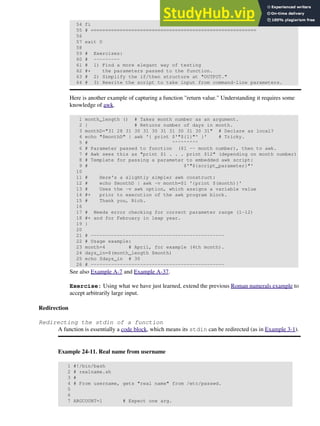
24-9. Testing large return values in a function
24-10. Comparing two large integers
24-11. Real name from username
24-12. Local variable visibility
24-13. Demonstration of a simple recursive function
24-14. Another simple demonstration
24-15. Recursion, using a local variable
24-16. The Fibonacci Sequence
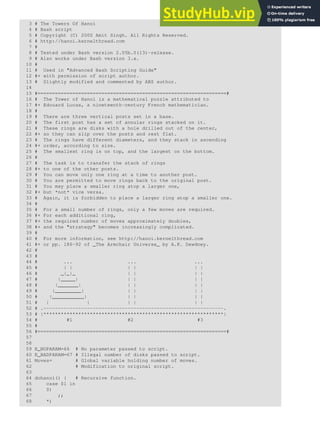
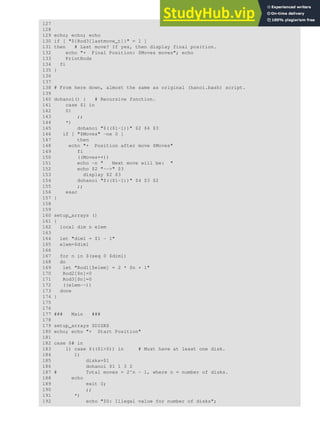
24-17. The Towers of Hanoi
25-1. Aliases within a script
25-2. unalias: Setting and unsetting an alias
26-1. Using an and list to test for command-line arguments
26-2. Another command-line arg test using an and list
26-3. Using or lists in combination with an and list
27-1. Simple array usage
27-2. Formatting a poem
27-3. Various array operations
27-4. String operations on arrays
27-5. Loading the contents of a script into an array
27-6. Some special properties of arrays
27-7. Of empty arrays and empty elements
27-8. Initializing arrays
27-9. Copying and concatenating arrays
27-10. More on concatenating arrays
27-11. The Bubble Sort
27-12. Embedded arrays and indirect references
27-13. The Sieve of Eratosthenes
27-14. The Sieve of Eratosthenes, Optimized
27-15. Emulating a push-down stack
27-16. Complex array application: Exploring a weird mathematical series
27-17. Simulating a two-dimensional array, then tilting it
28-1. Indirect Variable References
28-2. Passing an indirect reference to awk
29-1. Using /dev/tcp for troubleshooting
29-2. Playing music
29-3. Finding the process associated with a PID
29-4. On-line connect status
30-1. Print the server environment
30-2. IP addresses
31-1. Hiding the cookie jar
31-2. Setting up a swapfile using /dev/zero
31-3. Creating a ramdisk
32-1. A buggy script
32-2. Missing keyword
32-3. test24: another buggy script
32-4. Testing a condition with an assert
32-5. Trapping at exit
32-6. Cleaning up after Control-C
32-7. A Simple Implementation of a Progress Bar
32-8. Tracing a variable
32-9. Running multiple processes (on an SMP box)
34-1. Numerical and string comparison are not equivalent
34-2. Subshell Pitfalls
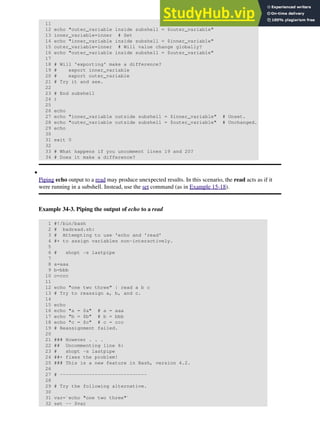
34-3. Piping the output of echo to a read
36-1. shell wrapper
36-2. A slightly more complex shell wrapper
36-3. A generic shell wrapper that writes to a logfile
36-4. A shell wrapper around an awk script
36-5. A shell wrapper around another awk script
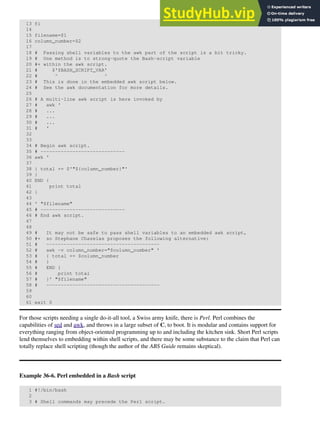
36-6. Perl embedded in a Bash script
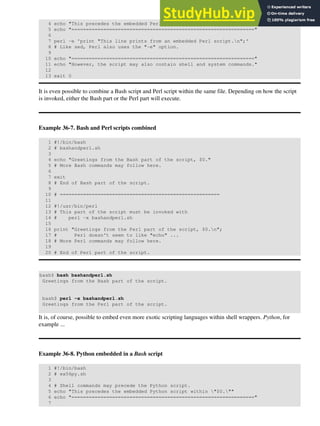
36-7. Bash and Perl scripts combined
36-8. Python embedded in a Bash script
36-9. A script that speaks
36-10. A (useless) script that recursively calls itself
36-11. A (useful) script that recursively calls itself
36-12. Another (useful) script that recursively calls itself
36-13. A "colorized" address database
36-14. Drawing a box
36-15. Echoing colored text
36-16. A "horserace" game
36-17. A Progress Bar
36-18. Return value trickery
36-19. Even more return value trickery
36-20. Passing and returning arrays
36-21. Fun with anagrams
36-22. Widgets invoked from a shell script
36-23. Test Suite
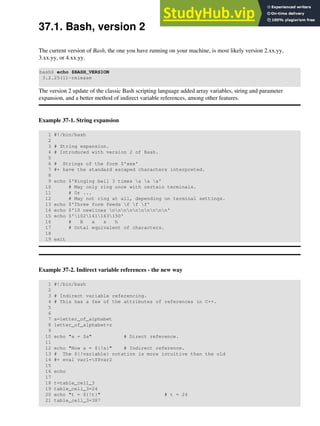
37-1. String expansion
37-2. Indirect variable references - the new way
37-3. Simple database application, using indirect variable referencing
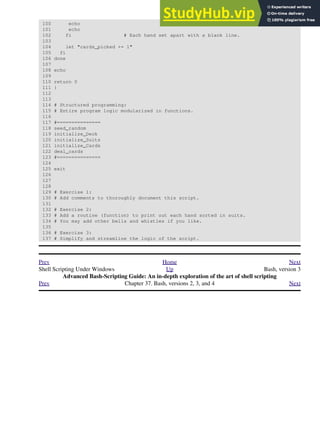
37-4. Using arrays and other miscellaneous trickery to deal four random hands from a deck of cards
37-5. A simple address database
37-6. A somewhat more elaborate address database
37-7. Testing characters
37-8. Reading N characters
37-9. Using a here document to set a variable
37-10. Piping input to a read
37-11. Negative array indices
37-12. Negative parameter in string-extraction construct
A-1. mailformat: Formatting an e-mail message
A-2. rn: A simple-minded file renaming utility
A-3. blank-rename: Renames filenames containing blanks
A-4. encryptedpw: Uploading to an ftp site, using a locally encrypted password
A-5. copy-cd: Copying a data CD
A-6. Collatz series
A-7. days-between: Days between two dates
A-8. Making a dictionary
A-9. Soundex conversion
A-10. Game of Life
A-11. Data file for Game of Life
A-12. behead: Removing mail and news message headers
A-13. password: Generating random 8-character passwords
A-14. fifo: Making daily backups, using named pipes
A-15. Generating prime numbers using the modulo operator
A-16. tree: Displaying a directory tree
A-17. tree2: Alternate directory tree script
A-18. string functions: C-style string functions
A-19. Directory information
A-20. Library of hash functions
A-21. Colorizing text using hash functions
A-22. More on hash functions
A-23. Mounting USB keychain storage devices
A-24. Converting to HTML
A-25. Preserving weblogs
A-26. Protecting literal strings
A-27. Unprotecting literal strings
A-28. Spammer Identification
A-29. Spammer Hunt
A-30. Making wget easier to use
A-31. A podcasting script
A-32. Nightly backup to a firewire HD
A-33. An expanded cd command
A-34. A soundcard setup script
A-35. Locating split paragraphs in a text file
A-36. Insertion sort
A-37. Standard Deviation
A-38. A pad file generator for shareware authors
A-39. A man page editor
A-40. Petals Around the Rose
A-41. Quacky: a Perquackey-type word game
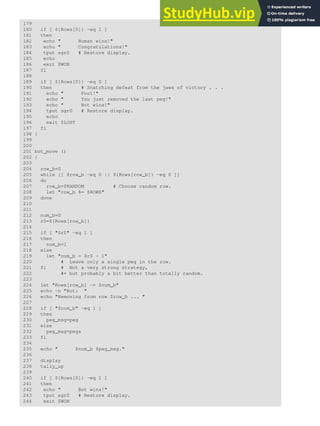
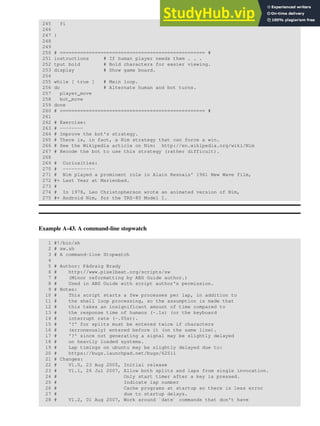
A-42. Nim
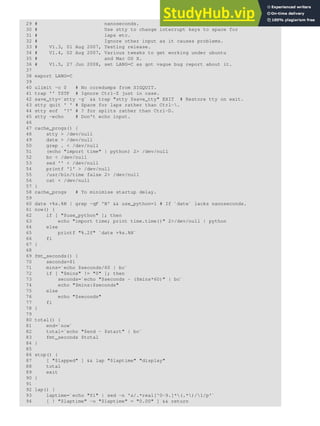
A-43. A command-line stopwatch
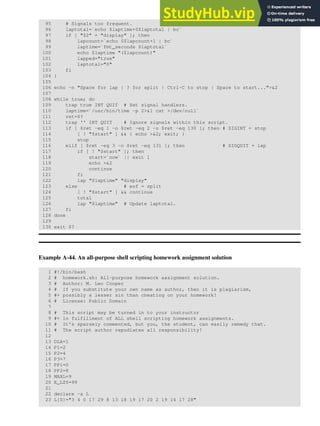
A-44. An all-purpose shell scripting homework assignment solution
A-45. The Knight's Tour
A-46. Magic Squares
A-47. Fifteen Puzzle
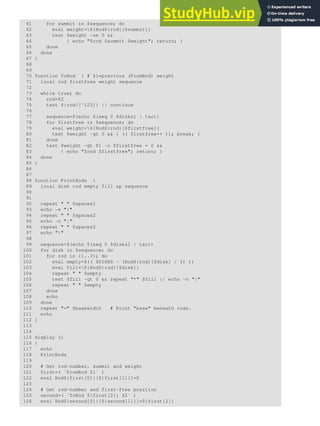
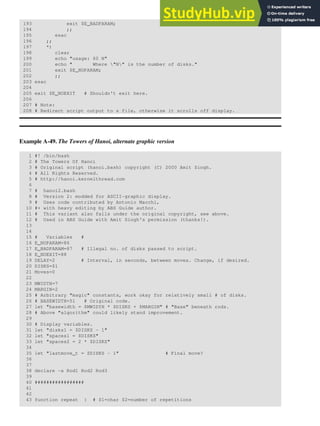
A-48. The Towers of Hanoi, graphic version
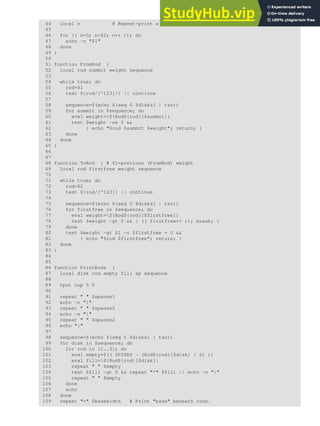
A-49. The Towers of Hanoi, alternate graphic version
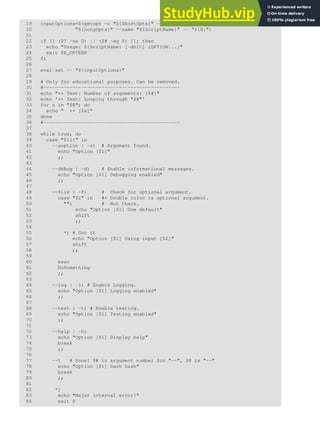
A-50. An alternate version of the getopt-simple.sh script
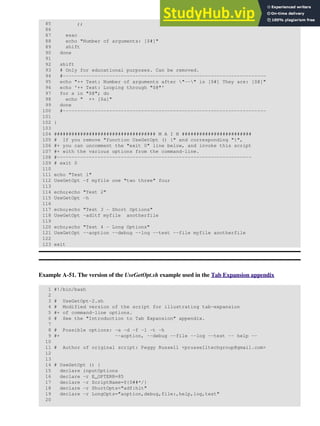
A-51. The version of the UseGetOpt.sh example used in the Tab Expansion appendix
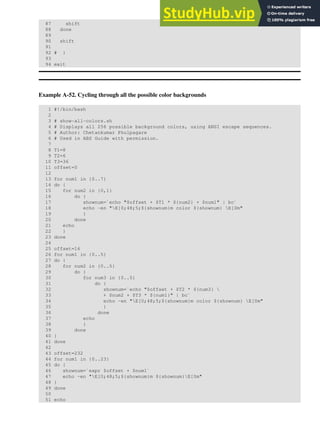
A-52. Cycling through all the possible color backgrounds
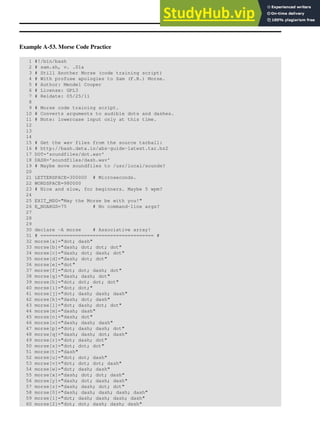
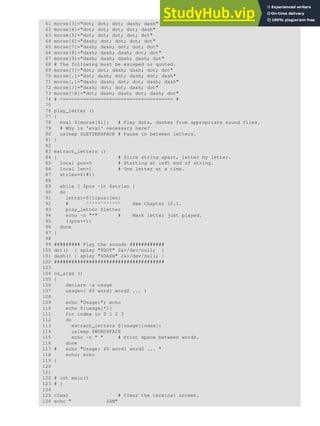
A-53. Morse Code Practice
A-54. Base64 encoding/decoding
A-55. Inserting text in a file using sed
A-56. The Gronsfeld Cipher
A-57. Bingo Number Generator
A-58. Basics Reviewed
A-59. Testing execution times of various commands
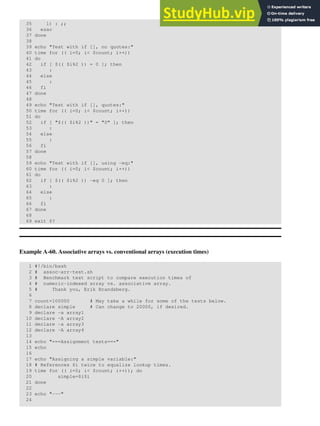
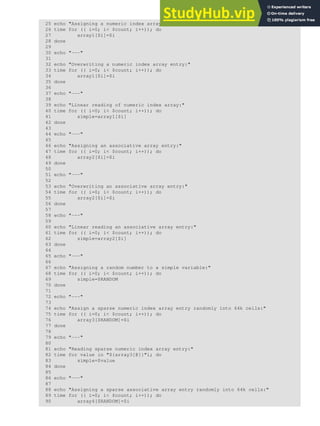
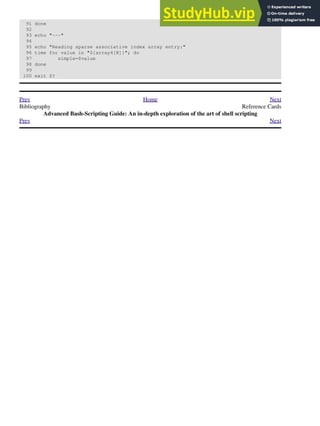
A-60. Associative arrays vs. conventional arrays (execution times)
C-1. Counting Letter Occurrences
J-1. Completion script for UseGetOpt.sh
M-1. Sample .bashrc file
M-2. .bash_profile file
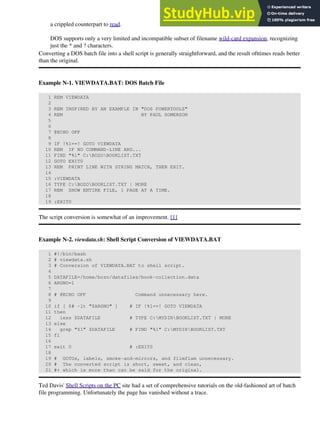
N-1. VIEWDATA.BAT: DOS Batch File
N-2. viewdata.sh: Shell Script Conversion of VIEWDATA.BAT
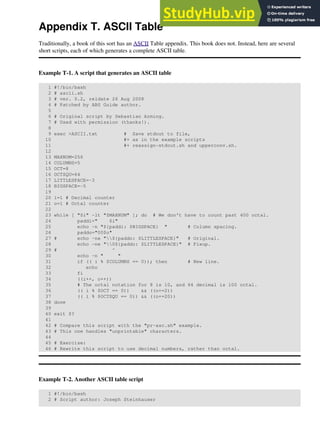
T-1. A script that generates an ASCII table
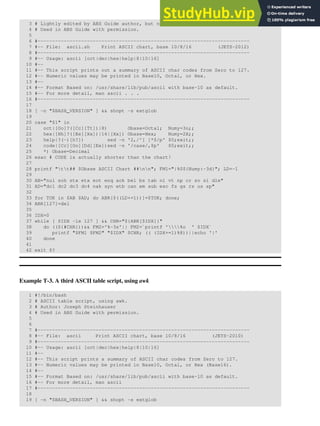
T-2. Another ASCII table script
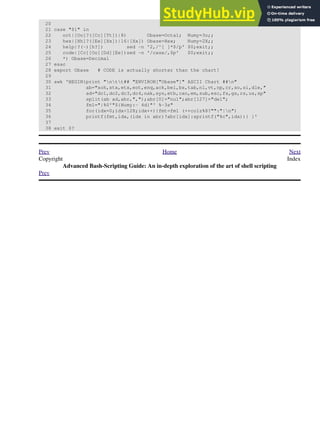
T-3. A third ASCII table script, using awk
Next
Introduction
Advanced Bash-Scripting Guide: An in-depth exploration of the art of shell scripting
Prev Next
Part 1. Introduction
Script: A writing; a written document. [Obs.]
--Webster's Dictionary, 1913 ed.
The shell is a command interpreter. More than just the insulating layer between the operating system kernel
and the user, it's also a fairly powerful programming language. A shell program, called a script, is an
easy-to-use tool for building applications by "gluing together" system calls, tools, utilities, and compiled
binaries. Virtually the entire repertoire of UNIX commands, utilities, and tools is available for invocation by a
shell script. If that were not enough, internal shell commands, such as testing and loop constructs, lend
additional power and flexibility to scripts. Shell scripts are especially well suited for administrative system
tasks and other routine repetitive tasks not requiring the bells and whistles of a full-blown tightly structured
programming language.
Table of Contents
1. Shell Programming!
2. Starting Off With a Sha-Bang
Prev Home Next
Advanced Bash-Scripting Guide Shell Programming!
Advanced Bash-Scripting Guide: An in-depth exploration of the art of shell scripting
Prev Next
Chapter 1. Shell Programming!
No programming language is perfect. There is
not even a single best language; there are only
languages well suited or perhaps poorly suited
for particular purposes.
--Herbert Mayer
A working knowledge of shell scripting is essential to anyone wishing to become reasonably proficient at
system administration, even if they do not anticipate ever having to actually write a script. Consider that as a
Linux machine boots up, it executes the shell scripts in /etc/rc.d to restore the system configuration and
set up services. A detailed understanding of these startup scripts is important for analyzing the behavior of a
system, and possibly modifying it.
The craft of scripting is not hard to master, since scripts can be built in bite-sized sections and there is only a
fairly small set of shell-specific operators and options [1] to learn. The syntax is simple -- even austere --
similar to that of invoking and chaining together utilities at the command line, and there are only a few "rules"
governing their use. Most short scripts work right the first time, and debugging even the longer ones is
straightforward.
In the early days of personal computing, the BASIC language enabled
anyone reasonably computer proficient to write programs on an early
generation of microcomputers. Decades later, the Bash scripting
language enables anyone with a rudimentary knowledge of Linux or
UNIX to do the same on modern machines.
We now have miniaturized single-board computers with amazing
capabilities, such as the Raspberry Pi.
Bash scripting provides a way to explore the capabilities of these
fascinating devices.
A shell script is a quick-and-dirty method of prototyping a complex application. Getting even a limited subset
of the functionality to work in a script is often a useful first stage in project development. In this way, the
structure of the application can be tested and tinkered with, and the major pitfalls found before proceeding to
the final coding in C, C++, Java, Perl, or Python.
Shell scripting hearkens back to the classic UNIX philosophy of breaking complex projects into simpler
subtasks, of chaining together components and utilities. Many consider this a better, or at least more
esthetically pleasing approach to problem solving than using one of the new generation of high-powered
all-in-one languages, such as Perl, which attempt to be all things to all people, but at the cost of forcing you to
alter your thinking processes to fit the tool.
According to Herbert Mayer, "a useful language needs arrays, pointers, and a generic mechanism for building
data structures." By these criteria, shell scripting falls somewhat short of being "useful." Or, perhaps not. . . .
When not to use shell scripts
Resource-intensive tasks, especially where speed is a factor (sorting, hashing, recursion [2] ...)
•
Procedures involving heavy-duty math operations, especially floating point arithmetic, arbitrary
precision calculations, or complex numbers (use C++ or FORTRAN instead)
•
Cross-platform portability required (use C or Java instead)
•
Complex applications, where structured programming is a necessity (type-checking of variables,
function prototypes, etc.)
•
Mission-critical applications upon which you are betting the future of the company
•
Situations where security is important, where you need to guarantee the integrity of your system and
protect against intrusion, cracking, and vandalism
•
Project consists of subcomponents with interlocking dependencies
•
Extensive file operations required (Bash is limited to serial file access, and that only in a
particularly clumsy and inefficient line-by-line fashion.)
•
Need native support for multi-dimensional arrays
•
Need data structures, such as linked lists or trees
•
Need to generate / manipulate graphics or GUIs
•
Need direct access to system hardware or external peripherals
•
Need port or socket I/O
•
Need to use libraries or interface with legacy code
•
Proprietary, closed-source applications (Shell scripts put the source code right out in the open for all
the world to see.)
•
If any of the above applies, consider a more powerful scripting language -- perhaps Perl, Tcl, Python, Ruby
-- or possibly a compiled language such as C, C++, or Java. Even then, prototyping the application as a
shell script might still be a useful development step.
We will be using Bash, an acronym [3] for "Bourne-Again shell" and a pun on Stephen Bourne's now classic
Bourne shell. Bash has become a de facto standard for shell scripting on most flavors of UNIX. Most of the
principles this book covers apply equally well to scripting with other shells, such as the Korn Shell, from
which Bash derives some of its features, [4] and the C Shell and its variants. (Note that C Shell programming
is not recommended due to certain inherent problems, as pointed out in an October, 1993 Usenet post by Tom
Christiansen.)
What follows is a tutorial on shell scripting. It relies heavily on examples to illustrate various features of the
shell. The example scripts work -- they've been tested, insofar as possible -- and some of them are even useful
in real life. The reader can play with the actual working code of the examples in the source archive
(scriptname.sh or scriptname.bash), [5] give them execute permission (chmod u+rx
scriptname), then run them to see what happens. Should the source archive not be available, then
cut-and-paste from the HTML or pdf rendered versions. Be aware that some of the scripts presented here
introduce features before they are explained, and this may require the reader to temporarily skip ahead for
enlightenment.
Unless otherwise noted, the author of this book wrote the example scripts that follow.
His countenance was bold and bashed not.
--Edmund Spenser
Notes
[1] These are referred to as builtins, features internal to the shell.
[2] Although recursion is possible in a shell script, it tends to be slow and its implementation is often an
ugly kludge.
[3] An acronym is an ersatz word formed by pasting together the initial letters of the words into a
tongue-tripping phrase. This morally corrupt and pernicious practice deserves appropriately severe
punishment. Public flogging suggests itself.
[4] Many of the features of ksh88, and even a few from the updated ksh93 have been merged into Bash.
[5] By convention, user-written shell scripts that are Bourne shell compliant generally take a name with a
.sh extension. System scripts, such as those found in /etc/rc.d, do not necessarily conform to this
nomenclature.
Prev Home Next
Introduction Up Starting Off With a Sha-Bang
Advanced Bash-Scripting Guide: An in-depth exploration of the art of shell scripting
Prev Next
Chapter 2. Starting Off With a Sha-Bang
Shell programming is a 1950s juke box . . .
--Larry Wall
In the simplest case, a script is nothing more than a list of system commands stored in a file. At the very least,
this saves the effort of retyping that particular sequence of commands each time it is invoked.
Example 2-1. cleanup: A script to clean up log files in /var/log
1 # Cleanup
2 # Run as root, of course.
3
4 cd /var/log
5 cat /dev/null > messages
6 cat /dev/null > wtmp
7 echo "Log files cleaned up."
There is nothing unusual here, only a set of commands that could just as easily have been invoked one by one
from the command-line on the console or in a terminal window. The advantages of placing the commands in a
script go far beyond not having to retype them time and again. The script becomes a program -- a tool -- and it
can easily be modified or customized for a particular application.
Example 2-2. cleanup: An improved clean-up script
1 #!/bin/bash
2 # Proper header for a Bash script.
3
4 # Cleanup, version 2
5
6 # Run as root, of course.
7 # Insert code here to print error message and exit if not root.
8
9 LOG_DIR=/var/log
10 # Variables are better than hard-coded values.
11 cd $LOG_DIR
12
13 cat /dev/null > messages
14 cat /dev/null > wtmp
15
16
17 echo "Logs cleaned up."
18
19 exit # The right and proper method of "exiting" from a script.
20 # A bare "exit" (no parameter) returns the exit status
21 #+ of the preceding command.
Now that's beginning to look like a real script. But we can go even farther . . .
Example 2-3. cleanup: An enhanced and generalized version of above scripts.
1 #!/bin/bash
2 # Cleanup, version 3
3
4 # Warning:
5 # -------
6 # This script uses quite a number of features that will be explained
7 #+ later on.
8 # By the time you've finished the first half of the book,
9 #+ there should be nothing mysterious about it.
10
11
12
13 LOG_DIR=/var/log
14 ROOT_UID=0 # Only users with $UID 0 have root privileges.
15 LINES=50 # Default number of lines saved.
16 E_XCD=86 # Can't change directory?
17 E_NOTROOT=87 # Non-root exit error.
18
19
20 # Run as root, of course.
21 if [ "$UID" -ne "$ROOT_UID" ]
22 then
23 echo "Must be root to run this script."
24 exit $E_NOTROOT
25 fi
26
27 if [ -n "$1" ]
28 # Test whether command-line argument is present (non-empty).
29 then
30 lines=$1
31 else
32 lines=$LINES # Default, if not specified on command-line.
33 fi
34
35
36 # Stephane Chazelas suggests the following,
37 #+ as a better way of checking command-line arguments,
38 #+ but this is still a bit advanced for this stage of the tutorial.
39 #
40 # E_WRONGARGS=85 # Non-numerical argument (bad argument format).
41 #
42 # case "$1" in
43 # "" ) lines=50;;
44 # *[!0-9]*) echo "Usage: `basename $0` lines-to-cleanup";
45 # exit $E_WRONGARGS;;
46 # * ) lines=$1;;
47 # esac
48 #
49 #* Skip ahead to "Loops" chapter to decipher all this.
50
51
52 cd $LOG_DIR
53
54 if [ `pwd` != "$LOG_DIR" ] # or if [ "$PWD" != "$LOG_DIR" ]
55 # Not in /var/log?
56 then
57 echo "Can't change to $LOG_DIR."
58 exit $E_XCD
59 fi # Doublecheck if in right directory before messing with log file.
60
61 # Far more efficient is:
62 #
63 # cd /var/log || {
64 # echo "Cannot change to necessary directory." >&2
65 # exit $E_XCD;
66 # }
67
68
69
70
71 tail -n $lines messages > mesg.temp # Save last section of message log file.
72 mv mesg.temp messages # Rename it as system log file.
73
74
75 # cat /dev/null > messages
76 #* No longer needed, as the above method is safer.
77
78 cat /dev/null > wtmp # ': > wtmp' and '> wtmp' have the same effect.
79 echo "Log files cleaned up."
80 # Note that there are other log files in /var/log not affected
81 #+ by this script.
82
83 exit 0
84 # A zero return value from the script upon exit indicates success
85 #+ to the shell.
Since you may not wish to wipe out the entire system log, this version of the script keeps the last section of
the message log intact. You will constantly discover ways of fine-tuning previously written scripts for
increased effectiveness.
* * *
The sha-bang ( #!) [1] at the head of a script tells your system that this file is a set of commands to be fed to
the command interpreter indicated. The #! is actually a two-byte [2] magic number, a special marker that
designates a file type, or in this case an executable shell script (type man magic for more details on this
fascinating topic). Immediately following the sha-bang is a path name. This is the path to the program that
interprets the commands in the script, whether it be a shell, a programming language, or a utility. This
command interpreter then executes the commands in the script, starting at the top (the line following the
sha-bang line), and ignoring comments. [3]
1 #!/bin/sh
2 #!/bin/bash
3 #!/usr/bin/perl
4 #!/usr/bin/tcl
5 #!/bin/sed -f
6 #!/bin/awk -f
Each of the above script header lines calls a different command interpreter, be it /bin/sh, the default shell
(bash in a Linux system) or otherwise. [4] Using #!/bin/sh, the default Bourne shell in most commercial
variants of UNIX, makes the script portable to non-Linux machines, though you sacrifice Bash-specific
features. The script will, however, conform to the POSIX [5] sh standard.
Note that the path given at the "sha-bang" must be correct, otherwise an error message -- usually "Command
not found." -- will be the only result of running the script. [6]
#! can be omitted if the script consists only of a set of generic system commands, using no internal shell
directives. The second example, above, requires the initial #!, since the variable assignment line, lines=50,
uses a shell-specific construct. [7] Note again that #!/bin/sh invokes the default shell interpreter, which
defaults to /bin/bash on a Linux machine.
This tutorial encourages a modular approach to constructing a script. Make note of and collect
"boilerplate" code snippets that might be useful in future scripts. Eventually you will build quite an
extensive library of nifty routines. As an example, the following script prolog tests whether the script has
been invoked with the correct number of parameters.
1 E_WRONG_ARGS=85
2 script_parameters="-a -h -m -z"
3 # -a = all, -h = help, etc.
4
5 if [ $# -ne $Number_of_expected_args ]
6 then
7 echo "Usage: `basename $0` $script_parameters"
8 # `basename $0` is the script's filename.
9 exit $E_WRONG_ARGS
10 fi
Many times, you will write a script that carries out one particular task. The first script in this chapter is
an example. Later, it might occur to you to generalize the script to do other, similar tasks. Replacing the
literal ("hard-wired") constants by variables is a step in that direction, as is replacing repetitive code
blocks by functions.
2.1. Invoking the script
Having written the script, you can invoke it by sh scriptname, [8] or alternatively bash scriptname.
(Not recommended is using sh <scriptname, since this effectively disables reading from stdin within
the script.) Much more convenient is to make the script itself directly executable with a chmod.
Either:
chmod 555 scriptname (gives everyone read/execute permission) [9]
or
chmod +rx scriptname (gives everyone read/execute permission)
chmod u+rx scriptname (gives only the script owner read/execute permission)
Having made the script executable, you may now test it by ./scriptname. [10] If it begins with a
"sha-bang" line, invoking the script calls the correct command interpreter to run it.
As a final step, after testing and debugging, you would likely want to move it to /usr/local/bin (as root,
of course), to make the script available to yourself and all other users as a systemwide executable. The script
could then be invoked by simply typing scriptname [ENTER] from the command-line.
Notes
[1] More commonly seen in the literature as she-bang or sh-bang. This derives from the concatenation of the
tokens sharp (#) and bang (!).
[2] Some flavors of UNIX (those based on 4.2 BSD) allegedly take a four-byte magic number, requiring a blank
after the ! -- #! /bin/sh. According to Sven Mascheck this is probably a myth.
[3] The #! line in a shell script will be the first thing the command interpreter (sh or bash) sees. Since this line
begins with a #, it will be correctly interpreted as a comment when the command interpreter finally executes
the script. The line has already served its purpose - calling the command interpreter.
If, in fact, the script includes an extra #! line, then bash will interpret it as a comment.
1 #!/bin/bash
2
3 echo "Part 1 of script."
4 a=1
5
6 #!/bin/bash
7 # This does *not* launch a new script.
8
9 echo "Part 2 of script."
10 echo $a # Value of $a stays at 1.
[4] This allows some cute tricks.
1 #!/bin/rm
2 # Self-deleting script.
3
4 # Nothing much seems to happen when you run this... except that the file disappears.
5
6 WHATEVER=85
7
8 echo "This line will never print (betcha!)."
9
10 exit $WHATEVER # Doesn't matter. The script will not exit here.
11 # Try an echo $? after script termination.
12 # You'll get a 0, not a 85.
Also, try starting a README file with a #!/bin/more, and making it executable. The result is a self-listing
documentation file. (A here document using cat is possibly a better alternative -- see Example 19-3).
[5] Portable Operating System Interface, an attempt to standardize UNIX-like OSes. The POSIX specifications
are listed on the Open Group site.
[6] To avoid this possibility, a script may begin with a #!/bin/env bash sha-bang line. This may be useful on
UNIX machines where bash is not located in /bin
[7] If Bash is your default shell, then the #! isn't necessary at the beginning of a script. However, if launching a
script from a different shell, such as tcsh, then you will need the #!.
[8] Caution: invoking a Bash script by sh scriptname turns off Bash-specific extensions, and the script may
therefore fail to execute.
[9] A script needs read, as well as execute permission for it to run, since the shell needs to be able to read it.
[10] Why not simply invoke the script with scriptname? If the directory you are in ($PWD) is where
scriptname is located, why doesn't this work? This fails because, for security reasons, the current
directory (./) is not by default included in a user's $PATH. It is therefore necessary to explicitly invoke the
script in the current directory with a ./scriptname.
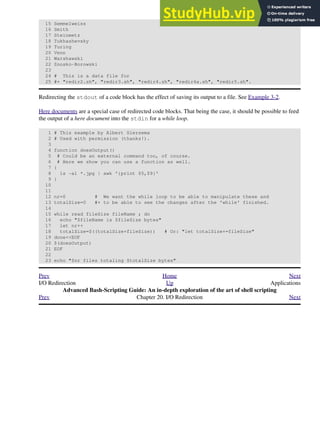
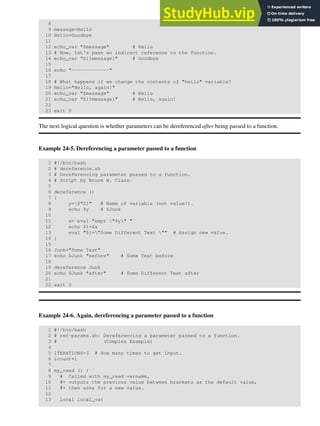
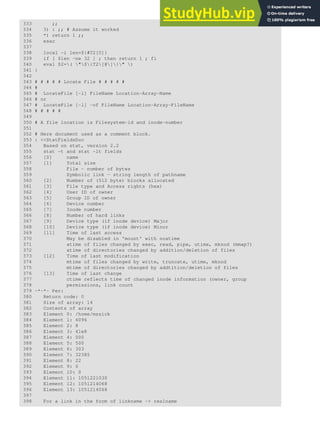
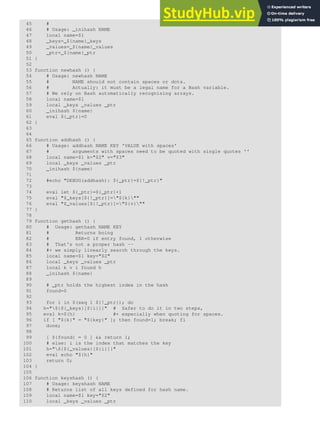
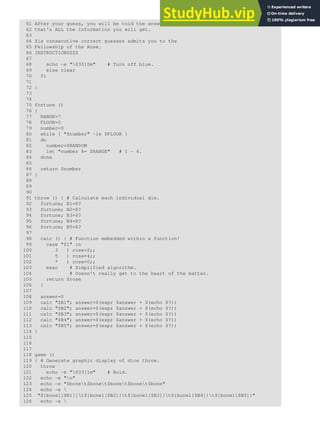
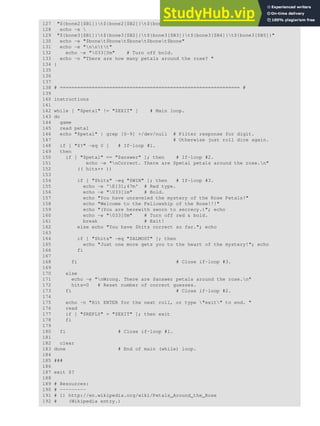
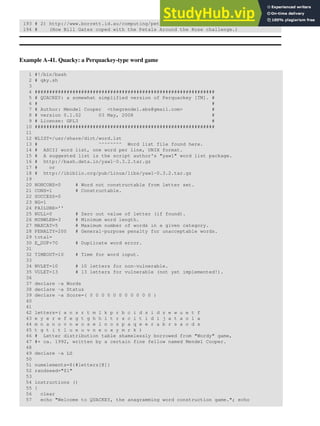
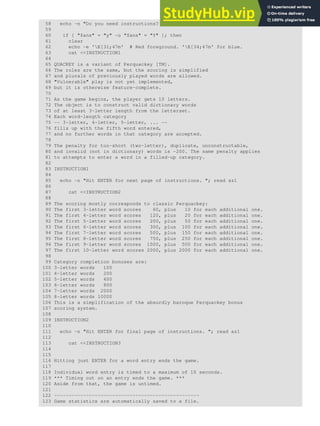
Prev Home Next
Shell Programming! Up Preliminary Exercises
Advanced Bash-Scripting Guide: An in-depth exploration of the art of shell scripting
Prev Chapter 2. Starting Off With a Sha-Bang Next
2.2. Preliminary Exercises
System administrators often write scripts to automate common tasks. Give several instances where
such scripts would be useful.
1.
Write a script that upon invocation shows the time and date, lists all logged-in users, and gives the
system uptime. The script then saves this information to a logfile.
2.
Prev Home Next
Starting Off With a Sha-Bang Up Basics
Advanced Bash-Scripting Guide: An in-depth exploration of the art of shell scripting
Prev Next
Part 2. Basics
Table of Contents
3. Special Characters
4. Introduction to Variables and Parameters
5. Quoting
6. Exit and Exit Status
7. Tests
8. Operations and Related Topics
Prev Home Next
Preliminary Exercises Special Characters
Advanced Bash-Scripting Guide: An in-depth exploration of the art of shell scripting
Prev Next
Chapter 3. Special Characters
What makes a character special? If it has a meaning beyond its literal meaning, a meta-meaning, then we refer
to it as a special character. Along with commands and keywords, special characters are building blocks of
Bash scripts.
Special Characters Found In Scripts and Elsewhere
#
Comments. Lines beginning with a # (with the exception of #!) are comments and will not be
executed.
1 # This line is a comment.
Comments may also occur following the end of a command.
1 echo "A comment will follow." # Comment here.
2 # ^ Note whitespace before #
Comments may also follow whitespace at the beginning of a line.
1 # A tab precedes this comment.
Comments may even be embedded within a pipe.
1 initial=( `cat "$startfile" | sed -e '/#/d' | tr -d 'n' |
2 # Delete lines containing '#' comment character.
3 sed -e 's/./. /g' -e 's/_/_ /g'` )
4 # Excerpted from life.sh script
A command may not follow a comment on the same line. There is no method of
terminating the comment, in order for "live code" to begin on the same line. Use
a new line for the next command.
Of course, a quoted or an escaped # in an echo statement does not begin a comment.
Likewise, a # appears in certain parameter-substitution constructs and in numerical
constant expressions.
1 echo "The # here does not begin a comment."
2 echo 'The # here does not begin a comment.'
3 echo The # here does not begin a comment.
4 echo The # here begins a comment.
5
6 echo ${PATH#*:} # Parameter substitution, not a comment.
7 echo $(( 2#101011 )) # Base conversion, not a comment.
8
9 # Thanks, S.C.
The standard quoting and escape characters (" ' ) escape the #.
Certain pattern matching operations also use the #.
;
Command separator [semicolon]. Permits putting two or more commands on the same line.
1 echo hello; echo there
2
3
4 if [ -x "$filename" ]; then # Note the space after the semicolon.
5 #+ ^^
6 echo "File $filename exists."; cp $filename $filename.bak
7 else # ^^
8 echo "File $filename not found."; touch $filename
9 fi; echo "File test complete."
Note that the ";" sometimes needs to be escaped.
;;
Terminator in a case option [double semicolon].
1 case "$variable" in
2 abc) echo "$variable = abc" ;;
3 xyz) echo "$variable = xyz" ;;
4 esac
;;&, ;&
Terminators in a case option (version 4+ of Bash).
.
"dot" command [period]. Equivalent to source (see Example 15-22). This is a bash builtin.
.
"dot", as a component of a filename. When working with filenames, a leading dot is the prefix of a
"hidden" file, a file that an ls will not normally show.
bash$ touch .hidden-file
bash$ ls -l
total 10
-rw-r--r-- 1 bozo 4034 Jul 18 22:04 data1.addressbook
-rw-r--r-- 1 bozo 4602 May 25 13:58 data1.addressbook.bak
-rw-r--r-- 1 bozo 877 Dec 17 2000 employment.addressbook
bash$ ls -al
total 14
drwxrwxr-x 2 bozo bozo 1024 Aug 29 20:54 ./
drwx------ 52 bozo bozo 3072 Aug 29 20:51 ../
-rw-r--r-- 1 bozo bozo 4034 Jul 18 22:04 data1.addressbook
-rw-r--r-- 1 bozo bozo 4602 May 25 13:58 data1.addressbook.bak
-rw-r--r-- 1 bozo bozo 877 Dec 17 2000 employment.addressbook
-rw-rw-r-- 1 bozo bozo 0 Aug 29 20:54 .hidden-file
When considering directory names, a single dot represents the current working directory, and two dots
denote the parent directory.
bash$ pwd
/home/bozo/projects
bash$ cd .
bash$ pwd
/home/bozo/projects
bash$ cd ..
bash$ pwd
/home/bozo/
The dot often appears as the destination (directory) of a file movement command, in this context
meaning current directory.
bash$ cp /home/bozo/current_work/junk/* .
Copy all the "junk" files to $PWD.
.
"dot" character match. When matching characters, as part of a regular expression, a "dot" matches a
single character.
"
partial quoting [double quote]. "STRING" preserves (from interpretation) most of the special
characters within STRING. See Chapter 5.
'
full quoting [single quote]. 'STRING' preserves all special characters within STRING. This is a
stronger form of quoting than "STRING". See Chapter 5.
,
comma operator. The comma operator [1] links together a series of arithmetic operations. All are
evaluated, but only the last one is returned.
1 let "t2 = ((a = 9, 15 / 3))"
2 # Set "a = 9" and "t2 = 15 / 3"
The comma operator can also concatenate strings.
1 for file in /{,usr/}bin/*calc
2 # ^ Find all executable files ending in "calc"
3 #+ in /bin and /usr/bin directories.
4 do
5 if [ -x "$file" ]
6 then
7 echo $file
8 fi
9 done
10
11 # /bin/ipcalc
12 # /usr/bin/kcalc
13 # /usr/bin/oidcalc
14 # /usr/bin/oocalc
15
16
17 # Thank you, Rory Winston, for pointing this out.
,, ,
Lowercase conversion in parameter substitution (added in version 4 of Bash).

escape [backslash]. A quoting mechanism for single characters.
X escapes the character X. This has the effect of "quoting" X, equivalent to 'X'. The  may be used to
quote " and ', so they are expressed literally.
See Chapter 5 for an in-depth explanation of escaped characters.
/
Filename path separator [forward slash]. Separates the components of a filename (as in
/home/bozo/projects/Makefile).
This is also the division arithmetic operator.
`
command substitution. The `command` construct makes available the output of command for
assignment to a variable. This is also known as backquotes or backticks.
:
null command [colon]. This is the shell equivalent of a "NOP" (no op, a do-nothing operation). It
may be considered a synonym for the shell builtin true. The ":" command is itself a Bash builtin, and
its exit status is true (0).
1 :
2 echo $? # 0
Endless loop:
1 while :
2 do
3 operation-1
4 operation-2
5 ...
6 operation-n
7 done
8
9 # Same as:
10 # while true
11 # do
12 # ...
13 # done
Placeholder in if/then test:
1 if condition
2 then : # Do nothing and branch ahead
3 else # Or else ...
4 take-some-action
5 fi
Provide a placeholder where a binary operation is expected, see Example 8-2 and default parameters.
1 : ${username=`whoami`}
2 # ${username=`whoami`} Gives an error without the leading :
3 # unless "username" is a command or builtin...
4
5 : ${1?"Usage: $0 ARGUMENT"} # From "usage-message.sh example script.
Provide a placeholder where a command is expected in a here document. See Example 19-10.
Evaluate string of variables using parameter substitution (as in Example 10-7).
1 : ${HOSTNAME?} ${USER?} ${MAIL?}
2 # Prints error message
3 #+ if one or more of essential environmental variables not set.
Variable expansion / substring replacement.
In combination with the > redirection operator, truncates a file to zero length, without changing its
permissions. If the file did not previously exist, creates it.
1 : > data.xxx # File "data.xxx" now empty.
2
3 # Same effect as cat /dev/null >data.xxx
4 # However, this does not fork a new process, since ":" is a builtin.
See also Example 16-15.
In combination with the >> redirection operator, has no effect on a pre-existing target file (: >>
target_file). If the file did not previously exist, creates it.
This applies to regular files, not pipes, symlinks, and certain special files.
May be used to begin a comment line, although this is not recommended. Using # for a comment
turns off error checking for the remainder of that line, so almost anything may appear in a comment.
However, this is not the case with :.
1 : This is a comment that generates an error, ( if [ $x -eq 3] ).
The ":" serves as a field separator, in /etc/passwd, and in the $PATH variable.
bash$ echo $PATH
/usr/local/bin:/bin:/usr/bin:/usr/X11R6/bin:/sbin:/usr/sbin:/usr/games
A colon is acceptable as a function name.
1 :()
2 {
3 echo "The name of this function is "$FUNCNAME" "
4 # Why use a colon as a function name?
5 # It's a way of obfuscating your code.
6 }
7
8 :
9
10 # The name of this function is :
This is not portable behavior, and therefore not a recommended practice. In fact, more recent releases
of Bash do not permit this usage. An underscore _ works, though.
A colon can serve as a placeholder in an otherwise empty function.
1 not_empty ()
2 {
3 :
4 } # Contains a : (null command), and so is not empty.
!
reverse (or negate) the sense of a test or exit status [bang]. The ! operator inverts the exit status of
the command to which it is applied (see Example 6-2). It also inverts the meaning of a test operator.
This can, for example, change the sense of equal ( = ) to not-equal ( != ). The ! operator is a Bash
keyword.
In a different context, the ! also appears in indirect variable references.
In yet another context, from the command line, the ! invokes the Bash history mechanism (see
Appendix L). Note that within a script, the history mechanism is disabled.
*
wild card [asterisk]. The * character serves as a "wild card" for filename expansion in globbing. By
itself, it matches every filename in a given directory.
bash$ echo *
abs-book.sgml add-drive.sh agram.sh alias.sh
The * also represents any number (or zero) characters in a regular expression.
*
arithmetic operator. In the context of arithmetic operations, the * denotes multiplication.
** A double asterisk can represent the exponentiation operator or extended file-match globbing.
?
test operator. Within certain expressions, the ? indicates a test for a condition.
In a double-parentheses construct, the ? can serve as an element of a C-style trinary operator. [2]
condition?result-if-true:result-if-false
1 (( var0 = var1<98?9:21 ))
2 # ^ ^
3
4 # if [ "$var1" -lt 98 ]
5 # then
6 # var0=9
7 # else
8 # var0=21
9 # fi
In a parameter substitution expression, the ? tests whether a variable has been set.
?
wild card. The ? character serves as a single-character "wild card" for filename expansion in
globbing, as well as representing one character in an extended regular expression.
$
Variable substitution (contents of a variable).
1 var1=5
2 var2=23skidoo
3
4 echo $var1 # 5
5 echo $var2 # 23skidoo
A $ prefixing a variable name indicates the value the variable holds.
$
end-of-line. In a regular expression, a "$" addresses the end of a line of text.
${}
Parameter substitution.
$' ... '
Quoted string expansion. This construct expands single or multiple escaped octal or hex values into
ASCII [3] or Unicode characters.
$*, $@
positional parameters.
$?
exit status variable. The $? variable holds the exit status of a command, a function, or of the script
itself.
$$
process ID variable. The $$ variable holds the process ID [4] of the script in which it appears.
()
command group.
1 (a=hello; echo $a)
A listing of commands within parentheses starts a subshell.
Variables inside parentheses, within the subshell, are not visible to the rest of the
script. The parent process, the script, cannot read variables created in the child
process, the subshell.
1 a=123
2 ( a=321; )
3
4 echo "a = $a" # a = 123
5 # "a" within parentheses acts like a local variable.
array initialization.
1 Array=(element1 element2 element3)
{xxx,yyy,zzz,...}
Brace expansion.
1 echo "{These,words,are,quoted}" # " prefix and suffix
2 # "These" "words" "are" "quoted"
3
4
5 cat {file1,file2,file3} > combined_file
6 # Concatenates the files file1, file2, and file3 into combined_file.
7
8 cp file22.{txt,backup}
9 # Copies "file22.txt" to "file22.backup"
A command may act upon a comma-separated list of file specs within braces. [5] Filename
expansion (globbing) applies to the file specs between the braces.
No spaces allowed within the braces unless the spaces are quoted or
escaped.
echo {file1,file2} :{ A," B",' C'}
file1 : A file1 : B file1 : C file2 : A file2 : B
file2 : C
{a..z}
Extended Brace expansion.
1 echo {a..z} # a b c d e f g h i j k l m n o p q r s t u v w x y z
2 # Echoes characters between a and z.
3
4 echo {0..3} # 0 1 2 3
5 # Echoes characters between 0 and 3.
6
7
8 base64_charset=( {A..Z} {a..z} {0..9} + / = )
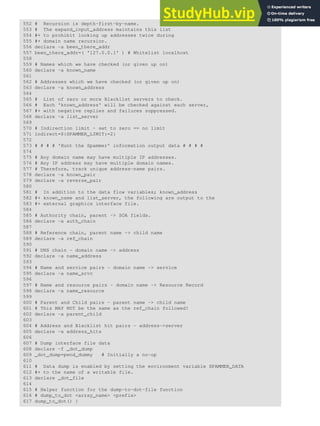
9 # Initializing an array, using extended brace expansion.
10 # From vladz's "base64.sh" example script.
The {a..z} extended brace expansion construction is a feature introduced in version 3 of Bash.
{}
Block of code [curly brackets]. Also referred to as an inline group, this construct, in effect, creates
an anonymous function (a function without a name). However, unlike in a "standard" function, the
variables inside a code block remain visible to the remainder of the script.
bash$ { local a;
a=123; }
bash: local: can only be used in a
function
1 a=123
2 { a=321; }
3 echo "a = $a" # a = 321 (value inside code block)
4
5 # Thanks, S.C.
The code block enclosed in braces may have I/O redirected to and from it.
Example 3-1. Code blocks and I/O redirection
1 #!/bin/bash
2 # Reading lines in /etc/fstab.
3
4 File=/etc/fstab
5
6 {
7 read line1
8 read line2
9 } < $File
10
11 echo "First line in $File is:"
12 echo "$line1"
13 echo
14 echo "Second line in $File is:"
15 echo "$line2"
16
17 exit 0
18
19 # Now, how do you parse the separate fields of each line?
20 # Hint: use awk, or . . .
21 # . . . Hans-Joerg Diers suggests using the "set" Bash builtin.
Example 3-2. Saving the output of a code block to a file
1 #!/bin/bash
2 # rpm-check.sh
3
4 # Queries an rpm file for description, listing,
5 #+ and whether it can be installed.
6 # Saves output to a file.
7 #
8 # This script illustrates using a code block.
9
10 SUCCESS=0
11 E_NOARGS=65
12
13 if [ -z "$1" ]
14 then
15 echo "Usage: `basename $0` rpm-file"
16 exit $E_NOARGS
17 fi
18
19 { # Begin code block.
20 echo
21 echo "Archive Description:"
22 rpm -qpi $1 # Query description.
23 echo
24 echo "Archive Listing:"
25 rpm -qpl $1 # Query listing.
26 echo
27 rpm -i --test $1 # Query whether rpm file can be installed.
28 if [ "$?" -eq $SUCCESS ]
29 then
30 echo "$1 can be installed."
31 else
32 echo "$1 cannot be installed."
33 fi
34 echo # End code block.
35 } > "$1.test" # Redirects output of everything in block to file.
36
37 echo "Results of rpm test in file $1.test"
38
39 # See rpm man page for explanation of options.
40
41 exit 0
Unlike a command group within (parentheses), as above, a code block enclosed by
{braces} will not normally launch a subshell. [6]
It is possible to iterate a code block using a non-standard for-loop.
{}
placeholder for text. Used after xargs -i (replace strings option). The {} double curly brackets are a
placeholder for output text.
1 ls . | xargs -i -t cp ./{} $1
2 # ^^ ^^
3
4 # From "ex42.sh" (copydir.sh) example.
{} ;
pathname. Mostly used in find constructs. This is not a shell builtin.
Definition: A pathname is a filename that includes the complete path. As an example,
/home/bozo/Notes/Thursday/schedule.txt. This is sometimes referred to as the
absolute path.
The ";" ends the -exec option of a find command sequence. It needs to be
escaped to protect it from interpretation by the shell.
[ ]
test.
Test expression between [ ]. Note that [ is part of the shell builtin test (and a synonym for it), not a
link to the external command /usr/bin/test.
[[ ]]
test.
Test expression between [[ ]]. More flexible than the single-bracket [ ] test, this is a shell keyword.
See the discussion on the [[ ... ]] construct.
[ ]
array element.
In the context of an array, brackets set off the numbering of each element of that array.
1 Array[1]=slot_1
2 echo ${Array[1]}
[ ]
range of characters.
As part of a regular expression, brackets delineate a range of characters to match.
$[ ... ]
integer expansion.
Evaluate integer expression between $[ ].
1 a=3
2 b=7
3
4 echo $[$a+$b] # 10
5 echo $[$a*$b] # 21
Note that this usage is deprecated, and has been replaced by the (( ... )) construct.
(( ))
integer expansion.
Expand and evaluate integer expression between (( )).
See the discussion on the (( ... )) construct.
> &> >& >> < <>
redirection.
scriptname >filename redirects the output of scriptname to file filename. Overwrite
filename if it already exists.
command &>filename redirects both the stdout and the stderr of command to filename.
This is useful for suppressing output when testing for a condition. For example, let us
test whether a certain command exists.
bash$ type bogus_command &>/dev/null
bash$ echo $?
1
Or in a script:
1 command_test () { type "$1" &>/dev/null; }
2 # ^
3
4 cmd=rmdir # Legitimate command.
5 command_test $cmd; echo $? # 0
6
7
8 cmd=bogus_command # Illegitimate command
9 command_test $cmd; echo $? # 1
command >&2 redirects stdout of command to stderr.
scriptname >>filename appends the output of scriptname to file filename. If
filename does not already exist, it is created.
[i]<>filename opens file filename for reading and writing, and assigns file descriptor i to it. If
filename does not exist, it is created.
process substitution.
(command)>
<(command)
In a different context, the "<" and ">" characters act as string comparison operators.
In yet another context, the "<" and ">" characters act as integer comparison operators. See also
Example 16-9.
<<
redirection used in a here document.
<<<
redirection used in a here string.
<, >
ASCII comparison.
1 veg1=carrots
2 veg2=tomatoes
3
4 if [[ "$veg1" < "$veg2" ]]
5 then
6 echo "Although $veg1 precede $veg2 in the dictionary,"
7 echo -n "this does not necessarily imply anything "
8 echo "about my culinary preferences."
9 else
10 echo "What kind of dictionary are you using, anyhow?"
11 fi
<, >
word boundary in a regular expression.
bash$ grep '<the>' textfile
|
pipe. Passes the output (stdout) of a previous command to the input (stdin) of the next one, or to
the shell. This is a method of chaining commands together.
1 echo ls -l | sh
2 # Passes the output of "echo ls -l" to the shell,
3 #+ with the same result as a simple "ls -l".
4
5
6 cat *.lst | sort | uniq
7 # Merges and sorts all ".lst" files, then deletes duplicate lines.
A pipe, as a classic method of interprocess communication, sends the stdout of one process to the
stdin of another. In a typical case, a command, such as cat or echo, pipes a stream of data to a
filter, a command that transforms its input for processing. [7]
cat $filename1 $filename2 | grep $search_word
For an interesting note on the complexity of using UNIX pipes, see the UNIX FAQ, Part 3.
The output of a command or commands may be piped to a script.
1 #!/bin/bash
2 # uppercase.sh : Changes input to uppercase.
3
4 tr 'a-z' 'A-Z'
5 # Letter ranges must be quoted
6 #+ to prevent filename generation from single-letter filenames.
7
8 exit 0
Now, let us pipe the output of ls -l to this script.
bash$ ls -l | ./uppercase.sh
-RW-RW-R-- 1 BOZO BOZO 109 APR 7 19:49 1.TXT
-RW-RW-R-- 1 BOZO BOZO 109 APR 14 16:48 2.TXT
-RW-R--R-- 1 BOZO BOZO 725 APR 20 20:56 DATA-FILE
The stdout of each process in a pipe must be read as the stdin of the next. If this
is not the case, the data stream will block, and the pipe will not behave as expected.
1 cat file1 file2 | ls -l | sort
2 # The output from "cat file1 file2" disappears.
A pipe runs as a child process, and therefore cannot alter script variables.
1 variable="initial_value"
2 echo "new_value" | read variable
3 echo "variable = $variable" # variable = initial_value
If one of the commands in the pipe aborts, this prematurely terminates execution of the
pipe. Called a broken pipe, this condition sends a SIGPIPE signal.
>|
force redirection (even if the noclobber option is set). This will forcibly overwrite an existing file.
||
OR logical operator. In a test construct, the || operator causes a return of 0 (success) if either of the
linked test conditions is true.
&
Run job in background. A command followed by an & will run in the background.
bash$ sleep 10 &
[1] 850
[1]+ Done sleep 10
Within a script, commands and even loops may run in the background.
Example 3-3. Running a loop in the background
1 #!/bin/bash
2 # background-loop.sh
3
4 for i in 1 2 3 4 5 6 7 8 9 10 # First loop.
5 do
6 echo -n "$i "
7 done & # Run this loop in background.
8 # Will sometimes execute after second loop.
9
10 echo # This 'echo' sometimes will not display.
11
12 for i in 11 12 13 14 15 16 17 18 19 20 # Second loop.
13 do
14 echo -n "$i "
15 done
16
17 echo # This 'echo' sometimes will not display.
18
19 # ======================================================
20
21 # The expected output from the script:
22 # 1 2 3 4 5 6 7 8 9 10
23 # 11 12 13 14 15 16 17 18 19 20
24
25 # Sometimes, though, you get:
26 # 11 12 13 14 15 16 17 18 19 20
27 # 1 2 3 4 5 6 7 8 9 10 bozo $
28 # (The second 'echo' doesn't execute. Why?)
29
30 # Occasionally also:
31 # 1 2 3 4 5 6 7 8 9 10 11 12 13 14 15 16 17 18 19 20
32 # (The first 'echo' doesn't execute. Why?)
33
34 # Very rarely something like:
35 # 11 12 13 1 2 3 4 5 6 7 8 9 10 14 15 16 17 18 19 20
36 # The foreground loop preempts the background one.
37
38 exit 0
39
40 # Nasimuddin Ansari suggests adding sleep 1
41 #+ after the echo -n "$i" in lines 6 and 14,
42 #+ for some real fun.
A command run in the background within a script may cause the script to hang,
waiting for a keystroke. Fortunately, there is a remedy for this.
&&
AND logical operator. In a test construct, the && operator causes a return of 0 (success) only if both
the linked test conditions are true.
-
option, prefix. Option flag for a command or filter. Prefix for an operator. Prefix for a default
parameter in parameter substitution.
COMMAND -[Option1][Option2][...]
ls -al
sort -dfu $filename
1 if [ $file1 -ot $file2 ]
2 then # ^
3 echo "File $file1 is older than $file2."
4 fi
5
6 if [ "$a" -eq "$b" ]
7 then # ^
8 echo "$a is equal to $b."
9 fi
10
11 if [ "$c" -eq 24 -a "$d" -eq 47 ]
12 then # ^ ^
13 echo "$c equals 24 and $d equals 47."
14 fi
15
16
17 param2=${param1:-$DEFAULTVAL}
18 # ^
--
The double-dash -- prefixes long (verbatim) options to commands.
sort --ignore-leading-blanks
Used with a Bash builtin, it means the end of options to that particular command.
This provides a handy means of removing files whose names begin with a dash.
bash$ ls -l
-rw-r--r-- 1 bozo bozo 0 Nov 25 12:29 -badname
bash$ rm -- -badname
bash$ ls -l
total 0
The double-dash is also used in conjunction with set.
set -- $variable (as in Example 15-18)
-
redirection from/to stdin or stdout [dash].
bash$ cat -
abc
abc
...
Ctl-D
As expected, cat - echoes stdin, in this case keyboarded user input, to stdout. But, does I/O
redirection using - have real-world applications?
1 (cd /source/directory && tar cf - . ) | (cd /dest/directory && tar xpvf -)
2 # Move entire file tree from one directory to another
3 # [courtesy Alan Cox <a.cox@swansea.ac.uk>, with a minor change]
4
5 # 1) cd /source/directory
6 # Source directory, where the files to be moved are.
7 # 2) &&
8 # "And-list": if the 'cd' operation successful,
9 # then execute the next command.
10 # 3) tar cf - .
11 # The 'c' option 'tar' archiving command creates a new archive,
12 # the 'f' (file) option, followed by '-' designates the target file
13 # as stdout, and do it in current directory tree ('.').
14 # 4) |
15 # Piped to ...
16 # 5) ( ... )
17 # a subshell
18 # 6) cd /dest/directory
19 # Change to the destination directory.
20 # 7) &&
21 # "And-list", as above
22 # 8) tar xpvf -
23 # Unarchive ('x'), preserve ownership and file permissions ('p'),
24 # and send verbose messages to stdout ('v'),
25 # reading data from stdin ('f' followed by '-').
26 #
27 # Note that 'x' is a command, and 'p', 'v', 'f' are options.
28 #
29 # Whew!
30
31
32
33 # More elegant than, but equivalent to:
34 # cd source/directory
35 # tar cf - . | (cd ../dest/directory; tar xpvf -)
36 #
37 # Also having same effect:
38 # cp -a /source/directory/* /dest/directory
39 # Or:
40 # cp -a /source/directory/* /source/directory/.[^.]* /dest/directory
41 # If there are hidden files in /source/directory.
1 bunzip2 -c linux-2.6.16.tar.bz2 | tar xvf -
2 # --uncompress tar file-- | --then pass it to "tar"--
3 # If "tar" has not been patched to handle "bunzip2",
4 #+ this needs to be done in two discrete steps, using a pipe.
5 # The purpose of the exercise is to unarchive "bzipped" kernel source.
Note that in this context the "-" is not itself a Bash operator, but rather an option recognized by certain
UNIX utilities that write to stdout, such as tar, cat, etc.
bash$ echo "whatever" | cat -
whatever
Where a filename is expected, - redirects output to stdout (sometimes seen with tar cf), or
accepts input from stdin, rather than from a file. This is a method of using a file-oriented utility as
a filter in a pipe.
bash$ file
Usage: file [-bciknvzL] [-f namefile] [-m magicfiles] file...
By itself on the command-line, file fails with an error message.
Add a "-" for a more useful result. This causes the shell to await user input.
bash$ file -
abc
standard input: ASCII text
bash$ file -
#!/bin/bash
standard input: Bourne-Again shell script text executable
Now the command accepts input from stdin and analyzes it.
The "-" can be used to pipe stdout to other commands. This permits such stunts as prepending lines
to a file.
Using diff to compare a file with a section of another:
grep Linux file1 | diff file2 -
Finally, a real-world example using - with tar.
Example 3-4. Backup of all files changed in last day
1 #!/bin/bash
2
3 # Backs up all files in current directory modified within last 24 hours
4 #+ in a "tarball" (tarred and gzipped file).
5
6 BACKUPFILE=backup-$(date +%m-%d-%Y)
7 # Embeds date in backup filename.
8 # Thanks, Joshua Tschida, for the idea.
9 archive=${1:-$BACKUPFILE}
10 # If no backup-archive filename specified on command-line,
11 #+ it will default to "backup-MM-DD-YYYY.tar.gz."
12
13 tar cvf - `find . -mtime -1 -type f -print` > $archive.tar
14 gzip $archive.tar
15 echo "Directory $PWD backed up in archive file "$archive.tar.gz"."
16
17
18 # Stephane Chazelas points out that the above code will fail
19 #+ if there are too many files found
20 #+ or if any filenames contain blank characters.
21
22 # He suggests the following alternatives:
23 # -------------------------------------------------------------------
24 # find . -mtime -1 -type f -print0 | xargs -0 tar rvf "$archive.tar"
25 # using the GNU version of "find".
26
27
28 # find . -mtime -1 -type f -exec tar rvf "$archive.tar" '{}' ;
29 # portable to other UNIX flavors, but much slower.
30 # -------------------------------------------------------------------
31
32
33 exit 0
Filenames beginning with "-" may cause problems when coupled with the "-"
redirection operator. A script should check for this and add an appropriate prefix to
such filenames, for example ./-FILENAME, $PWD/-FILENAME, or
$PATHNAME/-FILENAME.
If the value of a variable begins with a -, this may likewise create problems.
1 var="-n"
2 echo $var
3 # Has the effect of "echo -n", and outputs nothing.
-
previous working directory. A cd - command changes to the previous working directory. This uses
the $OLDPWD environmental variable.
Do not confuse the "-" used in this sense with the "-" redirection operator just
discussed. The interpretation of the "-" depends on the context in which it
appears.
-
Minus. Minus sign in an arithmetic operation.
=
Equals. Assignment operator
1 a=28
2 echo $a # 28
In a different context, the "=" is a string comparison operator.
+
Plus. Addition arithmetic operator.
In a different context, the + is a Regular Expression operator.
+
Option. Option flag for a command or filter.
Certain commands and builtins use the + to enable certain options and the - to disable them. In
parameter substitution, the + prefixes an alternate value that a variable expands to.
%
modulo. Modulo (remainder of a division) arithmetic operation.
1 let "z = 5 % 3"
2 echo $z # 2
In a different context, the % is a pattern matching operator.
~
home directory [tilde]. This corresponds to the $HOME internal variable. ~bozo is bozo's home
directory, and ls ~bozo lists the contents of it. ~/ is the current user's home directory, and ls ~/ lists the
contents of it.
bash$ echo ~bozo
/home/bozo
bash$ echo ~
/home/bozo
bash$ echo ~/
/home/bozo/
bash$ echo ~:
/home/bozo:
bash$ echo ~nonexistent-user
~nonexistent-user
~+
current working directory. This corresponds to the $PWD internal variable.
~-
previous working directory. This corresponds to the $OLDPWD internal variable.
=~
regular expression match. This operator was introduced with version 3 of Bash.
^
beginning-of-line. In a regular expression, a "^" addresses the beginning of a line of text.
^, ^^
Uppercase conversion in parameter substitution (added in version 4 of Bash).
Control Characters
change the behavior of the terminal or text display. A control character is a CONTROL + key
combination (pressed simultaneously). A control character may also be written in octal or
hexadecimal notation, following an escape.
Control characters are not normally useful inside a script.
Ctl-A
Moves cursor to beginning of line of text (on the command-line).
◊
Ctl-B
Backspace (nondestructive).
◊
Ctl-C
Break. Terminate a foreground job.
◊
Ctl-D
Log out from a shell (similar to exit).
◊
EOF (end-of-file). This also terminates input from stdin.
When typing text on the console or in an xterm window, Ctl-D erases the character under
the cursor. When there are no characters present, Ctl-D logs out of the session, as expected.
In an xterm window, this has the effect of closing the window.
Ctl-E
Moves cursor to end of line of text (on the command-line).
◊
Ctl-F
Moves cursor forward one character position (on the command-line).
◊
Ctl-G
BEL. On some old-time teletype terminals, this would actually ring a bell. In an xterm it
might beep.
◊
Ctl-H
Rubout (destructive backspace). Erases characters the cursor backs over while backspacing.
1 #!/bin/bash
2 # Embedding Ctl-H in a string.
3
4 a="^H^H" # Two Ctl-H's -- backspaces
5 # ctl-V ctl-H, using vi/vim
6 echo "abcdef" # abcdef
7 echo
8 echo -n "abcdef$a " # abcd f
9 # Space at end ^ ^ Backspaces twice.
10 echo
11 echo -n "abcdef$a" # abcdef
12 # No space at end ^ Doesn't backspace (why?).
13 # Results may not be quite as expected.
14 echo; echo
15
16 # Constantin Hagemeier suggests trying:
17 # a=$'010010'
18 # a=$'bb'
19 # a=$'x08x08'
20 # But, this does not change the results.
21
22 ########################################
23
24 # Now, try this.
25
26 rubout="^H^H^H^H^H" # 5 x Ctl-H.
27
28 echo -n "12345678"
29 sleep 2
30 echo -n "$rubout"
31 sleep 2
◊
Ctl-I
Horizontal tab.
◊
Ctl-J
Newline (line feed). In a script, may also be expressed in octal notation -- '012' or in
◊
hexadecimal -- 'x0a'.
Ctl-K
Vertical tab.
When typing text on the console or in an xterm window, Ctl-K erases from the character
under the cursor to end of line. Within a script, Ctl-K may behave differently, as in Lee Lee
Maschmeyer's example, below.
◊
Ctl-L
Formfeed (clear the terminal screen). In a terminal, this has the same effect as the clear
command. When sent to a printer, a Ctl-L causes an advance to end of the paper sheet.
◊
Ctl-M
Carriage return.
1 #!/bin/bash
2 # Thank you, Lee Maschmeyer, for this example.
3
4 read -n 1 -s -p 
5 $'Control-M leaves cursor at beginning of this line. Press Enter. x0d'
6 # Of course, '0d' is the hex equivalent of Control-M.
7 echo >&2 # The '-s' makes anything typed silent,
8 #+ so it is necessary to go to new line explicitly.
9
10 read -n 1 -s -p $'Control-J leaves cursor on next line. x0a'
11 # '0a' is the hex equivalent of Control-J, linefeed.
12 echo >&2
13
14 ###
15
16 read -n 1 -s -p $'And Control-Kx0bgoes straight down.'
17 echo >&2 # Control-K is vertical tab.
18
19 # A better example of the effect of a vertical tab is:
20
21 var=$'x0aThis is the bottom linex0bThis is the top linex0a'
22 echo "$var"
23 # This works the same way as the above example. However:
24 echo "$var" | col
25 # This causes the right end of the line to be higher than the left end.
26 # It also explains why we started and ended with a line feed --
27 #+ to avoid a garbled screen.
28
29 # As Lee Maschmeyer explains:
30 # --------------------------
31 # In the [first vertical tab example] . . . the vertical tab
32 #+ makes the printing go straight down without a carriage return.
33 # This is true only on devices, such as the Linux console,
34 #+ that can't go "backward."
35 # The real purpose of VT is to go straight UP, not down.
36 # It can be used to print superscripts on a printer.
37 # The col utility can be used to emulate the proper behavior of VT.
38
39 exit 0
◊
Ctl-N
Erases a line of text recalled from history buffer [8] (on the command-line).
◊
Ctl-O
◊
Issues a newline (on the command-line).
Ctl-P
Recalls last command from history buffer (on the command-line).
◊
Ctl-Q
Resume (XON).
This resumes stdin in a terminal.
◊
Ctl-R
Backwards search for text in history buffer (on the command-line).
◊
Ctl-S
Suspend (XOFF).
This freezes stdin in a terminal. (Use Ctl-Q to restore input.)
◊
Ctl-T
Reverses the position of the character the cursor is on with the previous character (on the
command-line).
◊
Ctl-U
Erase a line of input, from the cursor backward to beginning of line. In some settings, Ctl-U
erases the entire line of input, regardless of cursor position.
◊
Ctl-V
When inputting text, Ctl-V permits inserting control characters. For example, the following
two are equivalent:
1 echo -e 'x0a'
2 echo <Ctl-V><Ctl-J>
Ctl-V is primarily useful from within a text editor.
◊
Ctl-W
When typing text on the console or in an xterm window, Ctl-W erases from the character
under the cursor backwards to the first instance of whitespace. In some settings, Ctl-W
erases backwards to first non-alphanumeric character.
◊
Ctl-X
In certain word processing programs, Cuts highlighted text and copies to clipboard.
◊
Ctl-Y
Pastes back text previously erased (with Ctl-U or Ctl-W).
◊
Ctl-Z
Pauses a foreground job.
Substitute operation in certain word processing applications.
EOF (end-of-file) character in the MSDOS filesystem.
◊
Whitespace
functions as a separator between commands and/or variables. Whitespace consists of either
spaces, tabs, blank lines, or any combination thereof. [9] In some contexts, such as variable
assignment, whitespace is not permitted, and results in a syntax error.
Blank lines have no effect on the action of a script, and are therefore useful for visually separating
functional sections.
$IFS, the special variable separating fields of input to certain commands. It defaults to whitespace.
Definition: A field is a discrete chunk of data expressed as a string of consecutive characters.
Separating each field from adjacent fields is either whitespace or some other designated character
(often determined by the $IFS). In some contexts, a field may be called a record.
To preserve whitespace within a string or in a variable, use quoting.
UNIX filters can target and operate on whitespace using the POSIX character class [:space:].
Notes
[1] An operator is an agent that carries out an operation. Some examples are the common arithmetic
operators, + - * /. In Bash, there is some overlap between the concepts of operator and keyword.
[2] This is more commonly known as the ternary operator. Unfortunately, ternary is an ugly word. It
doesn't roll off the tongue, and it doesn't elucidate. It obfuscates. Trinary is by far the more elegant
usage.
[3]
American Standard Code for Information Interchange. This is a system for encoding text characters
(alphabetic, numeric, and a limited set of symbols) as 7-bit numbers that can be stored and manipulated
by computers. Many of the ASCII characters are represented on a standard keyboard.
[4]
A PID, or process ID, is a number assigned to a running process. The PIDs of running processes may
be viewed with a ps command.
Definition: A process is a currently executing command (or program), sometimes referred to as a
job.
[5] The shell does the brace expansion. The command itself acts upon the result of the expansion.
[6] Exception: a code block in braces as part of a pipe may run as a subshell.
1 ls | { read firstline; read secondline; }
2 # Error. The code block in braces runs as a subshell,
3 #+ so the output of "ls" cannot be passed to variables within the block.
4 echo "First line is $firstline; second line is $secondline" # Won't work.
5
6 # Thanks, S.C.
[7] Even as in olden times a philtre denoted a potion alleged to have magical transformative powers, so
does a UNIX filter transform its target in (roughly) analogous fashion. (The coder who comes up with a
"love philtre" that runs on a Linux machine will likely win accolades and honors.)
[8] Bash stores a list of commands previously issued from the command-line in a buffer, or memory space,
for recall with the builtin history commands.
[9] A linefeed (newline) is also a whitespace character. This explains why a blank line, consisting only of a
linefeed, is considered whitespace.
Prev Home Next
Basics Up Introduction to Variables and
Parameters
Advanced Bash-Scripting Guide: An in-depth exploration of the art of shell scripting
Prev Next
Chapter 4. Introduction to Variables and
Parameters
Variables are how programming and scripting languages represent data. A variable is nothing more than a
label, a name assigned to a location or set of locations in computer memory holding an item of data.
Variables appear in arithmetic operations and manipulation of quantities, and in string parsing.
4.1. Variable Substitution
The name of a variable is a placeholder for its value, the data it holds. Referencing (retrieving) its value is
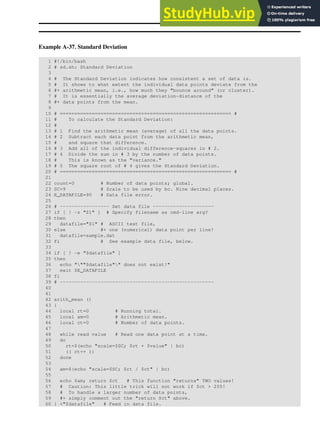
called variable substitution.
$
Let us carefully distinguish between the name of a variable and its value. If variable1 is the name
of a variable, then $variable1 is a reference to its value, the data item it contains. [1]
bash$ variable1=23
bash$ echo variable1
variable1
bash$ echo $variable1
23
The only times a variable appears "naked" -- without the $ prefix -- is when declared or assigned,
when unset, when exported, in an arithmetic expression within double parentheses (( ... )), or in the
special case of a variable representing a signal (see Example 32-5). Assignment may be with an = (as
in var1=27), in a read statement, and at the head of a loop (for var2 in 1 2 3).
Enclosing a referenced value in double quotes (" ... ") does not interfere with variable substitution.
This is called partial quoting, sometimes referred to as "weak quoting." Using single quotes (' ... ')
causes the variable name to be used literally, and no substitution will take place. This is full quoting,
sometimes referred to as 'strong quoting.' See Chapter 5 for a detailed discussion.
Note that $variable is actually a simplified form of ${variable}. In contexts where the
$variable syntax causes an error, the longer form may work (see Section 10.2, below).
Example 4-1. Variable assignment and substitution
1 #!/bin/bash
2 # ex9.sh
3
4 # Variables: assignment and substitution
5
6 a=375
7 hello=$a
8 # ^ ^
9
10 #-------------------------------------------------------------------------
11 # No space permitted on either side of = sign when initializing variables.
12 # What happens if there is a space?
13
14 # "VARIABLE =value"
15 # ^
16 #% Script tries to run "VARIABLE" command with one argument, "=value".
17
18 # "VARIABLE= value"
19 # ^
20 #% Script tries to run "value" command with
21 #+ the environmental variable "VARIABLE" set to "".
22 #-------------------------------------------------------------------------
23
24
25 echo hello # hello
26 # Not a variable reference, just the string "hello" ...
27
28 echo $hello # 375
29 # ^ This *is* a variable reference.
30 echo ${hello} # 375
31 # Likewise a variable reference, as above.
32
33 # Quoting . . .
34 echo "$hello" # 375
35 echo "${hello}" # 375
36
37 echo
38
39 hello="A B C D"
40 echo $hello # A B C D
41 echo "$hello" # A B C D
42 # As we see, echo $hello and echo "$hello" give different results.
43 # =======================================
44 # Quoting a variable preserves whitespace.
45 # =======================================
46
47 echo
48
49 echo '$hello' # $hello
50 # ^ ^
51 # Variable referencing disabled (escaped) by single quotes,
52 #+ which causes the "$" to be interpreted literally.
53
54 # Notice the effect of different types of quoting.
55
56
57 hello= # Setting it to a null value.
58 echo "$hello (null value) = $hello" # $hello (null value) =
59 # Note that setting a variable to a null value is not the same as
60 #+ unsetting it, although the end result is the same (see below).
61
62 # --------------------------------------------------------------
63
64 # It is permissible to set multiple variables on the same line,
65 #+ if separated by white space.
66 # Caution, this may reduce legibility, and may not be portable.
67
68 var1=21 var2=22 var3=$V3
69 echo
70 echo "var1=$var1 var2=$var2 var3=$var3"
71
72 # May cause problems with legacy versions of "sh" . . .
73
74 # --------------------------------------------------------------
75
76 echo; echo
77
78 numbers="one two three"
79 # ^ ^
80 other_numbers="1 2 3"
81 # ^ ^
82 # If there is whitespace embedded within a variable,
83 #+ then quotes are necessary.
84 # other_numbers=1 2 3 # Gives an error message.
85 echo "numbers = $numbers"
86 echo "other_numbers = $other_numbers" # other_numbers = 1 2 3
87 # Escaping the whitespace also works.
88 mixed_bag=2 --- Whatever
89 # ^ ^ Space after escape ().
90
91 echo "$mixed_bag" # 2 --- Whatever
92
93 echo; echo
94
95 echo "uninitialized_variable = $uninitialized_variable"
96 # Uninitialized variable has null value (no value at all!).
97 uninitialized_variable= # Declaring, but not initializing it --
98 #+ same as setting it to a null value, as above.
99 echo "uninitialized_variable = $uninitialized_variable"
100 # It still has a null value.
101
102 uninitialized_variable=23 # Set it.
103 unset uninitialized_variable # Unset it.
104 echo "uninitialized_variable = $uninitialized_variable"
105 # uninitialized_variable =
106 # It still has a null value.
107 echo
108
109 exit 0
An uninitialized variable has a "null" value -- no assigned value at all (not zero!).
1 if [ -z "$unassigned" ]
2 then
3 echo "$unassigned is NULL."
4 fi # $unassigned is NULL.
Using a variable before assigning a value to it may cause problems. It is nevertheless
possible to perform arithmetic operations on an uninitialized variable.
1 echo "$uninitialized" # (blank line)
2 let "uninitialized += 5" # Add 5 to it.
3 echo "$uninitialized" # 5
4
5 # Conclusion:
6 # An uninitialized variable has no value,
7 #+ however it evaluates as 0 in an arithmetic operation.
See also Example 15-23.
Notes
[1] Technically, the name of a variable is called an lvalue, meaning that it appears on the left side of an
assignment statment, as in VARIABLE=23. A variable's value is an rvalue, meaning that it appears on
the right side of an assignment statement, as in VAR2=$VARIABLE.
A variable's name is, in fact, a reference, a pointer to the memory location(s) where the actual data
associated with that variable is kept.
Prev Home Next
Special Characters Up Variable Assignment
Advanced Bash-Scripting Guide: An in-depth exploration of the art of shell scripting
Prev Chapter 4. Introduction to Variables and Parameters Next
4.2. Variable Assignment
=
the assignment operator (no space before and after)
Do not confuse this with = and -eq, which test, rather than assign!
Note that = can be either an assignment or a test operator, depending on context.
Example 4-2. Plain Variable Assignment
1 #!/bin/bash
2 # Naked variables
3
4 echo
5
6 # When is a variable "naked", i.e., lacking the '$' in front?
7 # When it is being assigned, rather than referenced.
8
9 # Assignment
10 a=879
11 echo "The value of "a" is $a."
12
13 # Assignment using 'let'
14 let a=16+5
15 echo "The value of "a" is now $a."
16
17 echo
18
19 # In a 'for' loop (really, a type of disguised assignment):
20 echo -n "Values of "a" in the loop are: "
21 for a in 7 8 9 11
22 do
23 echo -n "$a "
24 done
25
26 echo
27 echo
28
29 # In a 'read' statement (also a type of assignment):
30 echo -n "Enter "a" "
31 read a
32 echo "The value of "a" is now $a."
33
34 echo
35
36 exit 0
Example 4-3. Variable Assignment, plain and fancy
1 #!/bin/bash
2
3 a=23 # Simple case
4 echo $a
5 b=$a
6 echo $b
7
8 # Now, getting a little bit fancier (command substitution).
9
10 a=`echo Hello!` # Assigns result of 'echo' command to 'a' ...
11 echo $a
12 # Note that including an exclamation mark (!) within a
13 #+ command substitution construct will not work from the command-line,
14 #+ since this triggers the Bash "history mechanism."
15 # Inside a script, however, the history functions are disabled by default.
16
17 a=`ls -l` # Assigns result of 'ls -l' command to 'a'
18 echo $a # Unquoted, however, it removes tabs and newlines.
19 echo
20 echo "$a" # The quoted variable preserves whitespace.
21 # (See the chapter on "Quoting.")
22
23 exit 0
Variable assignment using the $(...) mechanism (a newer method than backquotes). This is likewise a
form of command substitution.
1 # From /etc/rc.d/rc.local
2 R=$(cat /etc/redhat-release)
3 arch=$(uname -m)
Prev Home Next
Introduction to Variables and
Parameters
Up Bash Variables Are Untyped
Advanced Bash-Scripting Guide: An in-depth exploration of the art of shell scripting
Prev Chapter 4. Introduction to Variables and Parameters Next
4.3. Bash Variables Are Untyped
Unlike many other programming languages, Bash does not segregate its variables by "type." Essentially, Bash
variables are character strings, but, depending on context, Bash permits arithmetic operations and
comparisons on variables. The determining factor is whether the value of a variable contains only digits.
Example 4-4. Integer or string?
1 #!/bin/bash
2 # int-or-string.sh
3
4 a=2334 # Integer.
5 let "a += 1"
6 echo "a = $a " # a = 2335
7 echo # Integer, still.
8
9
10 b=${a/23/BB} # Substitute "BB" for "23".
11 # This transforms $b into a string.
12 echo "b = $b" # b = BB35
13 declare -i b # Declaring it an integer doesn't help.
14 echo "b = $b" # b = BB35
15
16 let "b += 1" # BB35 + 1
17 echo "b = $b" # b = 1
18 echo # Bash sets the "integer value" of a string to 0.
19
20 c=BB34
21 echo "c = $c" # c = BB34
22 d=${c/BB/23} # Substitute "23" for "BB".
23 # This makes $d an integer.
24 echo "d = $d" # d = 2334
25 let "d += 1" # 2334 + 1
26 echo "d = $d" # d = 2335
27 echo
28
29
30 # What about null variables?
31 e='' # ... Or e="" ... Or e=
32 echo "e = $e" # e =
33 let "e += 1" # Arithmetic operations allowed on a null variable?
34 echo "e = $e" # e = 1
35 echo # Null variable transformed into an integer.
36
37 # What about undeclared variables?
38 echo "f = $f" # f =
39 let "f += 1" # Arithmetic operations allowed?
40 echo "f = $f" # f = 1
41 echo # Undeclared variable transformed into an integer.
42 #
43 # However ...
44 let "f /= $undecl_var" # Divide by zero?
45 # let: f /= : syntax error: operand expected (error token is " ")
46 # Syntax error! Variable $undecl_var is not set to zero here!
47 #
48 # But still ...
49 let "f /= 0"
50 # let: f /= 0: division by 0 (error token is "0")
51 # Expected behavior.
52
53
54 # Bash (usually) sets the "integer value" of null to zero
55 #+ when performing an arithmetic operation.
56 # But, don't try this at home, folks!
57 # It's undocumented and probably non-portable behavior.
58
59
60 # Conclusion: Variables in Bash are untyped,
61 #+ with all attendant consequences.
62
63 exit $?
Untyped variables are both a blessing and a curse. They permit more flexibility in scripting and make it easier
to grind out lines of code (and give you enough rope to hang yourself!). However, they likewise permit subtle
errors to creep in and encourage sloppy programming habits.
To lighten the burden of keeping track of variable types in a script, Bash does permit declaring variables.
Prev Home Next
Variable Assignment Up Special Variable Types
Advanced Bash-Scripting Guide: An in-depth exploration of the art of shell scripting
Prev Chapter 4. Introduction to Variables and Parameters Next
4.4. Special Variable Types
Local variables
Variables visible only within a code block or function (see also local variables in functions)
Environmental variables
Variables that affect the behavior of the shell and user interface
In a more general context, each process has an "environment", that is, a group
of variables that the process may reference. In this sense, the shell behaves like
any other process.
Every time a shell starts, it creates shell variables that correspond to its own
environmental variables. Updating or adding new environmental variables
causes the shell to update its environment, and all the shell's child processes
(the commands it executes) inherit this environment.
The space allotted to the environment is limited. Creating too many environmental
variables or ones that use up excessive space may cause problems.
bash$ eval "`seq 10000 | sed -e 's/.*/export var&=ZZZZZZZZZZZZZZ/'`"
bash$ du
bash: /usr/bin/du: Argument list too long
Note: this "error" has been fixed, as of kernel version 2.6.23.
(Thank you, Stéphane Chazelas for the clarification, and for providing the above
example.)
If a script sets environmental variables, they need to be "exported," that is, reported to the
environment local to the script. This is the function of the export command.
A script can export variables only to child processes, that is, only to commands or
processes which that particular script initiates. A script invoked from the
command-line cannot export variables back to the command-line environment.
Child processes cannot export variables back to the parent processes that spawned
them.
Definition: A child process is a subprocess launched by another process, its
parent.
Positional parameters
Arguments passed to the script from the command line [1] : $0, $1, $2, $3 . . .
$0 is the name of the script itself, $1 is the first argument, $2 the second, $3 the third, and so forth.
[2] After $9, the arguments must be enclosed in brackets, for example, ${10}, ${11}, ${12}.
The special variables $* and $@ denote all the positional parameters.
Example 4-5. Positional Parameters
1 #!/bin/bash
2
3 # Call this script with at least 10 parameters, for example
4 # ./scriptname 1 2 3 4 5 6 7 8 9 10
5 MINPARAMS=10
6
7 echo
8
9 echo "The name of this script is "$0"."
10 # Adds ./ for current directory
11 echo "The name of this script is "`basename $0`"."
12 # Strips out path name info (see 'basename')
13
14 echo
15
16 if [ -n "$1" ] # Tested variable is quoted.
17 then
18 echo "Parameter #1 is $1" # Need quotes to escape #
19 fi
20
21 if [ -n "$2" ]
22 then
23 echo "Parameter #2 is $2"
24 fi
25
26 if [ -n "$3" ]
27 then
28 echo "Parameter #3 is $3"
29 fi
30
31 # ...
32
33
34 if [ -n "${10}" ] # Parameters > $9 must be enclosed in {brackets}.
35 then
36 echo "Parameter #10 is ${10}"
37 fi
38
39 echo "-----------------------------------"
40 echo "All the command-line parameters are: "$*""
41
42 if [ $# -lt "$MINPARAMS" ]
43 then
44 echo
45 echo "This script needs at least $MINPARAMS command-line arguments!"
46 fi
47
48 echo
49
50 exit 0
Bracket notation for positional parameters leads to a fairly simple way of referencing the last
argument passed to a script on the command-line. This also requires indirect referencing.
1 args=$# # Number of args passed.
2 lastarg=${!args}
3 # Note: This is an *indirect reference* to $args ...
4
5
6 # Or: lastarg=${!#} (Thanks, Chris Monson.)
7 # This is an *indirect reference* to the $# variable.
8 # Note that lastarg=${!$#} doesn't work.
Some scripts can perform different operations, depending on which name they are invoked with. For
this to work, the script needs to check $0, the name it was invoked by. [3] There must also exist
symbolic links to all the alternate names of the script. See Example 16-2.
If a script expects a command-line parameter but is invoked without one, this may
cause a null variable assignment, generally an undesirable result. One way to prevent
this is to append an extra character to both sides of the assignment statement using the
expected positional parameter.
1 variable1_=$1_ # Rather than variable1=$1
2 # This will prevent an error, even if positional parameter is absent.
3
4 critical_argument01=$variable1_
5
6 # The extra character can be stripped off later, like so.
7 variable1=${variable1_/_/}
8 # Side effects only if $variable1_ begins with an underscore.
9 # This uses one of the parameter substitution templates discussed later.
10 # (Leaving out the replacement pattern results in a deletion.)
11
12 # A more straightforward way of dealing with this is
13 #+ to simply test whether expected positional parameters have been passed.
14 if [ -z $1 ]
15 then
16 exit $E_MISSING_POS_PARAM
17 fi
18
19
20 # However, as Fabian Kreutz points out,
21 #+ the above method may have unexpected side-effects.
22 # A better method is parameter substitution:
23 # ${1:-$DefaultVal}
24 # See the "Parameter Substition" section
25 #+ in the "Variables Revisited" chapter.
---
Example 4-6. wh, whois domain name lookup
1 #!/bin/bash
2 # ex18.sh
3
4 # Does a 'whois domain-name' lookup on any of 3 alternate servers:
5 # ripe.net, cw.net, radb.net
6
7 # Place this script -- renamed 'wh' -- in /usr/local/bin
8
9 # Requires symbolic links:
10 # ln -s /usr/local/bin/wh /usr/local/bin/wh-ripe
11 # ln -s /usr/local/bin/wh /usr/local/bin/wh-apnic
12 # ln -s /usr/local/bin/wh /usr/local/bin/wh-tucows
13
14 E_NOARGS=75
15
16
17 if [ -z "$1" ]
18 then
19 echo "Usage: `basename $0` [domain-name]"
20 exit $E_NOARGS
21 fi
22
23 # Check script name and call proper server.
24 case `basename $0` in # Or: case ${0##*/} in
25 "wh" ) whois $1@whois.tucows.com;;
26 "wh-ripe" ) whois $1@whois.ripe.net;;
27 "wh-apnic" ) whois $1@whois.apnic.net;;
28 "wh-cw" ) whois $1@whois.cw.net;;
29 * ) echo "Usage: `basename $0` [domain-name]";;
30 esac
31
32 exit $?
---
The shift command reassigns the positional parameters, in effect shifting them to the left one notch.
$1 <--- $2, $2 <--- $3, $3 <--- $4, etc.
The old $1 disappears, but $0 (the script name) does not change. If you use a large number of
positional parameters to a script, shift lets you access those past 10, although {bracket} notation also
permits this.
Example 4-7. Using shift
1 #!/bin/bash
2 # shft.sh: Using 'shift' to step through all the positional parameters.
3
4 # Name this script something like shft.sh,
5 #+ and invoke it with some parameters.
6 #+ For example:
7 # sh shft.sh a b c def 83 barndoor
8
9 until [ -z "$1" ] # Until all parameters used up . . .
10 do
11 echo -n "$1 "
12 shift
13 done
14
15 echo # Extra linefeed.
16
17 # But, what happens to the "used-up" parameters?
18 echo "$2"
19 # Nothing echoes!
20 # When $2 shifts into $1 (and there is no $3 to shift into $2)
21 #+ then $2 remains empty.
22 # So, it is not a parameter *copy*, but a *move*.
23
24 exit
25
26 # See also the echo-params.sh script for a "shiftless"
27 #+ alternative method of stepping through the positional params.
The shift command can take a numerical parameter indicating how many positions to shift.
1 #!/bin/bash
2 # shift-past.sh
3
4 shift 3 # Shift 3 positions.
5 # n=3; shift $n
6 # Has the same effect.
7
8 echo "$1"
9
10 exit 0
11
12 # ======================== #
13
14
15 $ sh shift-past.sh 1 2 3 4 5
16 4
17
18 # However, as Eleni Fragkiadaki, points out,
19 #+ attempting a 'shift' past the number of
20 #+ positional parameters ($#) returns an exit status of 1,
21 #+ and the positional parameters themselves do not change.
22 # This means possibly getting stuck in an endless loop. . . .
23 # For example:
24 # until [ -z "$1" ]
25 # do
26 # echo -n "$1 "
27 # shift 20 # If less than 20 pos params,
28 # done #+ then loop never ends!
29 #
30 # When in doubt, add a sanity check. . . .
31 # shift 20 || break
32 # ^^^^^^^^
The shift command works in a similar fashion on parameters passed to a function. See
Example 36-18.
Notes
[1] Note that functions also take positional parameters.
[2] The process calling the script sets the $0 parameter. By convention, this parameter is the name of the
script. See the manpage (manual page) for execv.
From the command-line, however, $0 is the name of the shell.
bash$ echo $0
bash
tcsh% echo $0
tcsh
[3] If the the script is sourced or symlinked, then this will not work. It is safer to check $BASH_Source.
Prev Home Next
Bash Variables Are Untyped Up Quoting
Advanced Bash-Scripting Guide: An in-depth exploration of the art of shell scripting
Prev Next
Chapter 5. Quoting
Quoting means just that, bracketing a string in quotes. This has the effect of protecting special characters in
the string from reinterpretation or expansion by the shell or shell script. (A character is "special" if it has an
interpretation other than its literal meaning. For example, the asterisk * represents a wild card character in
globbing and Regular Expressions).
bash$ ls -l [Vv]*
-rw-rw-r-- 1 bozo bozo 324 Apr 2 15:05 VIEWDATA.BAT
-rw-rw-r-- 1 bozo bozo 507 May 4 14:25 vartrace.sh
-rw-rw-r-- 1 bozo bozo 539 Apr 14 17:11 viewdata.sh
bash$ ls -l '[Vv]*'
ls: [Vv]*: No such file or directory
In everyday speech or writing, when we "quote" a phrase, we set it apart and give it special meaning. In a
Bash script, when we quote a string, we set it apart and protect its literal meaning.
Certain programs and utilities reinterpret or expand special characters in a quoted string. An important use of
quoting is protecting a command-line parameter from the shell, but still letting the calling program expand it.
bash$ grep '[Ff]irst' *.txt
file1.txt:This is the first line of file1.txt.
file2.txt:This is the First line of file2.txt.
Note that the unquoted grep [Ff]irst *.txt works under the Bash shell. [1]
Quoting can also suppress echo's "appetite" for newlines.
bash$ echo $(ls -l)
total 8 -rw-rw-r-- 1 bo bo 13 Aug 21 12:57 t.sh -rw-rw-r-- 1 bo bo 78 Aug 21 12:57 u.sh
bash$ echo "$(ls -l)"
total 8
-rw-rw-r-- 1 bo bo 13 Aug 21 12:57 t.sh
-rw-rw-r-- 1 bo bo 78 Aug 21 12:57 u.sh
5.1. Quoting Variables
When referencing a variable, it is generally advisable to enclose its name in double quotes. This prevents
reinterpretation of all special characters within the quoted string -- except $, ` (backquote), and  (escape). [2]
Keeping $ as a special character within double quotes permits referencing a quoted variable
("$variable"), that is, replacing the variable with its value (see Example 4-1, above).
Use double quotes to prevent word splitting. [3] An argument enclosed in double quotes presents itself as a
single word, even if it contains whitespace separators.
1 List="one two three"
2
3 for a in $List # Splits the variable in parts at whitespace.
4 do
5 echo "$a"
6 done
7 # one
8 # two
9 # three
10
11 echo "---"
12
13 for a in "$List" # Preserves whitespace in a single variable.
14 do # ^ ^
15 echo "$a"
16 done
17 # one two three
A more elaborate example:
1 variable1="a variable containing five words"
2 COMMAND This is $variable1 # Executes COMMAND with 7 arguments:
3 # "This" "is" "a" "variable" "containing" "five" "words"
4
5 COMMAND "This is $variable1" # Executes COMMAND with 1 argument:
6 # "This is a variable containing five words"
7
8
9 variable2="" # Empty.
10
11 COMMAND $variable2 $variable2 $variable2
12 # Executes COMMAND with no arguments.
13 COMMAND "$variable2" "$variable2" "$variable2"
14 # Executes COMMAND with 3 empty arguments.
15 COMMAND "$variable2 $variable2 $variable2"
16 # Executes COMMAND with 1 argument (2 spaces).
17
18 # Thanks, Stéphane Chazelas.
Enclosing the arguments to an echo statement in double quotes is necessary only when word splitting or
preservation of whitespace is an issue.
Example 5-1. Echoing Weird Variables
1 #!/bin/bash
2 # weirdvars.sh: Echoing weird variables.
3
4 echo
5
6 var="'(]{}$""
7 echo $var # '(]{}$"
8 echo "$var" # '(]{}$" Doesn't make a difference.
9
10 echo
11
12 IFS=''
13 echo $var # '(] {}$"  converted to space. Why?
14 echo "$var" # '(]{}$"
15
16 # Examples above supplied by Stephane Chazelas.
17
18 echo
19
20 var2="""
21 echo $var2 # "
22 echo "$var2" # "
23 echo
24 # But ... var2=""" is illegal. Why?
25 var3=''
26 echo "$var3" # 
27 # Strong quoting works, though.
28
29
30 # ************************************************************ #
31 # As the first example above shows, nesting quotes is permitted.
32
33 echo "$(echo '"')" # "
34 # ^ ^
35
36
37 # At times this comes in useful.
38
39 var1="Two bits"
40 echo "$var1 = "$var1"" # $var1 = Two bits
41 # ^ ^
42
43 # Or, as Chris Hiestand points out ...
44
45 if [[ "$(du "$My_File1")" -gt "$(du "$My_File2")" ]]
46 # ^ ^ ^ ^ ^ ^ ^ ^
47 then
48 ...
49 fi
50 # ************************************************************ #
Single quotes (' ') operate similarly to double quotes, but do not permit referencing variables, since the special
meaning of $ is turned off. Within single quotes, every special character except ' gets interpreted literally.
Consider single quotes ("full quoting") to be a stricter method of quoting than double quotes ("partial
quoting").
Since even the escape character () gets a literal interpretation within single quotes, trying to enclose a
single quote within single quotes will not yield the expected result.
1 echo "Why can't I write 's between single quotes"
2
3 echo
4
5 # The roundabout method.
6 echo 'Why can'''t I write '"'"'s between single quotes'
7 # |-------| |----------| |-----------------------|
8 # Three single-quoted strings, with escaped and quoted single quotes between.
9
10 # This example courtesy of Stéphane Chazelas.
Notes
[1] Unless there is a file named first in the current working directory. Yet another reason to quote.
(Thank you, Harald Koenig, for pointing this out.
[2]
Encapsulating "!" within double quotes gives an error when used from the command line. This is
interpreted as a history command. Within a script, though, this problem does not occur, since the Bash
history mechanism is disabled then.
Of more concern is the apparently inconsistent behavior of  within double quotes, and especially
following an echo -e command.
bash$ echo hello!
hello!
bash$ echo "hello!"
hello!
bash$ echo 
>
bash$ echo ""
>
bash$ echo a
a
bash$ echo "a"
a
bash$ echo xty
xty
bash$ echo "xty"
xty
bash$ echo -e xty
xty
bash$ echo -e "xty"
x y
Double quotes following an echo sometimes escape . Moreover, the -e option to echo causes the "t"
to be interpreted as a tab.
(Thank you, Wayne Pollock, for pointing this out, and Geoff Lee and Daniel Barclay for explaining it.)
[3] "Word splitting," in this context, means dividing a character string into separate and discrete arguments.
Prev Home Next
Special Variable Types Up Escaping
Advanced Bash-Scripting Guide: An in-depth exploration of the art of shell scripting
Prev Chapter 5. Quoting Next
5.2. Escaping
Escaping is a method of quoting single characters. The escape () preceding a character tells the shell to
interpret that character literally.
With certain commands and utilities, such as echo and sed, escaping a character may have the opposite
effect - it can toggle on a special meaning for that character.
Special meanings of certain escaped characters
used with echo and sed
n
means newline
r
means return
t
means tab
v
means vertical tab
b
means backspace
a
means alert (beep or flash)
0xx
translates to the octal ASCII equivalent of 0nn, where nn is a string of digits
The $' ... ' quoted string-expansion construct is a mechanism that uses escaped
octal or hex values to assign ASCII characters to variables, e.g., quote=$'042'.
Example 5-2. Escaped Characters
1 #!/bin/bash
2 # escaped.sh: escaped characters
3
4 #############################################################
5 ### First, let's show some basic escaped-character usage. ###
6 #############################################################
7
8 # Escaping a newline.
9 # ------------------
10
11 echo ""
12
13 echo "This will print
14 as two lines."
15 # This will print
16 # as two lines.
17
18 echo "This will print 
19 as one line."
20 # This will print as one line.
21
22 echo; echo
23
24 echo "============="
25
26
27 echo "vvvv" # Prints vvvv literally.
28 # Use the -e option with 'echo' to print escaped characters.
29 echo "============="
30 echo "VERTICAL TABS"
31 echo -e "vvvv" # Prints 4 vertical tabs.
32 echo "=============="
33
34 echo "QUOTATION MARK"
35 echo -e "042" # Prints " (quote, octal ASCII character 42).
36 echo "=============="
37
38
39
40 # The $'X' construct makes the -e option unnecessary.
41
42 echo; echo "NEWLINE and (maybe) BEEP"
43 echo $'n' # Newline.
44 echo $'a' # Alert (beep).
45 # May only flash, not beep, depending on terminal.
46
47 # We have seen $'nnn" string expansion, and now . . .
48
49 # =================================================================== #
50 # Version 2 of Bash introduced the $'nnn' string expansion construct.
51 # =================================================================== #
52
53 echo "Introducing the $' ... ' string-expansion construct . . . "
54 echo ". . . featuring more quotation marks."
55
56 echo $'t 042 t' # Quote (") framed by tabs.
57 # Note that 'nnn' is an octal value.
58
59 # It also works with hexadecimal values, in an $'xhhh' construct.
60 echo $'t x22 t' # Quote (") framed by tabs.
61 # Thank you, Greg Keraunen, for pointing this out.
62 # Earlier Bash versions allowed 'x022'.
63
64 echo
65
66
67 # Assigning ASCII characters to a variable.
68 # ----------------------------------------
69 quote=$'042' # " assigned to a variable.
70 echo "$quote Quoted string $quote and this lies outside the quotes."
71
72 echo
73
74 # Concatenating ASCII chars in a variable.
75 triple_underline=$'137137137' # 137 is octal ASCII code for '_'.
76 echo "$triple_underline UNDERLINE $triple_underline"
77
78 echo
79
80 ABC=$'101102103010' # 101, 102, 103 are octal A, B, C.
81 echo $ABC
82
83 echo
84
85 escape=$'033' # 033 is octal for escape.
86 echo ""escape" echoes as $escape"
87 # no visible output.
88
89 echo
90
91 exit 0
A more elaborate example:
Example 5-3. Detecting key-presses
1 #!/bin/bash
2 # Author: Sigurd Solaas, 20 Apr 2011
3 # Used in ABS Guide with permission.
4 # Requires version 4.2+ of Bash.
5
6 key="no value yet"
7 while true; do
8 clear
9 echo "Bash Extra Keys Demo. Keys to try:"
10 echo
11 echo "* Insert, Delete, Home, End, Page_Up and Page_Down"
12 echo "* The four arrow keys"
13 echo "* Tab, enter, escape, and space key"
14 echo "* The letter and number keys, etc."
15 echo
16 echo " d = show date/time"
17 echo " q = quit"
18 echo "================================"
19 echo
20
21 # Convert the separate home-key to home-key_num_7:
22 if [ "$key" = $'x1bx4fx48' ]; then
23 key=$'x1bx5bx31x7e'
24 # Quoted string-expansion construct.
25 fi
26
27 # Convert the separate end-key to end-key_num_1.
28 if [ "$key" = $'x1bx4fx46' ]; then
29 key=$'x1bx5bx34x7e'
30 fi
31
32 case "$key" in
33 $'x1bx5bx32x7e') # Insert
34 echo Insert Key
35 ;;
36 $'x1bx5bx33x7e') # Delete
37 echo Delete Key
38 ;;
39 $'x1bx5bx31x7e') # Home_key_num_7
40 echo Home Key
41 ;;
42 $'x1bx5bx34x7e') # End_key_num_1
43 echo End Key
44 ;;
45 $'x1bx5bx35x7e') # Page_Up
46 echo Page_Up
47 ;;
48 $'x1bx5bx36x7e') # Page_Down
49 echo Page_Down
50 ;;
51 $'x1bx5bx41') # Up_arrow
52 echo Up arrow
53 ;;
54 $'x1bx5bx42') # Down_arrow
55 echo Down arrow
56 ;;
57 $'x1bx5bx43') # Right_arrow
58 echo Right arrow
59 ;;
60 $'x1bx5bx44') # Left_arrow
61 echo Left arrow
62 ;;
63 $'x09') # Tab
64 echo Tab Key
65 ;;
66 $'x0a') # Enter
67 echo Enter Key
68 ;;
69 $'x1b') # Escape
70 echo Escape Key
71 ;;
72 $'x20') # Space
73 echo Space Key
74 ;;
75 d)
76 date
77 ;;
78 q)
79 echo Time to quit...
80 echo
81 exit 0
82 ;;
83 *)
84 echo You pressed: '"$key"'
85 ;;
86 esac
87
88 echo
89 echo "================================"
90
91 unset K1 K2 K3
92 read -s -N1 -p "Press a key: "
93 K1="$REPLY"
94 read -s -N2 -t 0.001
95 K2="$REPLY"
96 read -s -N1 -t 0.001
97 K3="$REPLY"
98 key="$K1$K2$K3"
99
100 done
101
102 exit $?
See also Example 37-1.
"
gives the quote its literal meaning
1 echo "Hello" # Hello
2 echo ""Hello" ... he said." # "Hello" ... he said.
$
gives the dollar sign its literal meaning (variable name following $ will not be referenced)
1 echo "$variable01" # $variable01
2 echo "The book cost $7.98." # The book cost $7.98.

gives the backslash its literal meaning
1 echo "" # Results in 
2
3 # Whereas . . .
4
5 echo "" # Invokes secondary prompt from the command-line.
6 # In a script, gives an error message.
7
8 # However . . .
9
10 echo '' # Results in 
The behavior of  depends on whether it is escaped, strong-quoted, weak-quoted, or appearing within
command substitution or a here document.
1 # Simple escaping and quoting
2 echo z # z
3 echo z # z
4 echo 'z' # z
5 echo 'z' # z
6 echo "z" # z
7 echo "z" # z
8
9 # Command substitution
10 echo `echo z` # z
11 echo `echo z` # z
12 echo `echo z` # z
13 echo `echo z` # z
14 echo `echo z` # z
15 echo `echo z` # z
16 echo `echo "z"` # z
17 echo `echo "z"` # z
18
19 # Here document
20 cat <<EOF
21 z
22 EOF # z
23
24 cat <<EOF
25 z
26 EOF # z
27
28 # These examples supplied by Stéphane Chazelas.
Elements of a string assigned to a variable may be escaped, but the escape character alone may not be
assigned to a variable.
1 variable=
2 echo "$variable"
3 # Will not work - gives an error message:
4 # test.sh: : command not found
5 # A "naked" escape cannot safely be assigned to a variable.
6 #
7 # What actually happens here is that the "" escapes the newline and
8 #+ the effect is variable=echo "$variable"
9 #+ invalid variable assignment
10
11 variable=
12 23skidoo
13 echo "$variable" # 23skidoo
14 # This works, since the second line
15 #+ is a valid variable assignment.
16
17 variable=
18 # ^ escape followed by space
19 echo "$variable" # space
20
21 variable=
22 echo "$variable" # 
23
24 variable=
25 echo "$variable"
26 # Will not work - gives an error message:
27 # test.sh: : command not found
28 #
29 # First escape escapes second one, but the third one is left "naked",
30 #+ with same result as first instance, above.
31
32 variable=
33 echo "$variable" # 
34 # Second and fourth escapes escaped.
35 # This is o.k.
Escaping a space can prevent word splitting in a command's argument list.
1 file_list="/bin/cat /bin/gzip /bin/more /usr/bin/less /usr/bin/emacs-20.7"
2 # List of files as argument(s) to a command.
3
4 # Add two files to the list, and list all.
5 ls -l /usr/X11R6/bin/xsetroot /sbin/dump $file_list
6
7 echo "-------------------------------------------------------------------------"
8
9 # What happens if we escape a couple of spaces?
10 ls -l /usr/X11R6/bin/xsetroot /sbin/dump $file_list
11 # Error: the first three files concatenated into a single argument to 'ls -l'
12 # because the two escaped spaces prevent argument (word) splitting.
The escape also provides a means of writing a multi-line command. Normally, each separate line constitutes a
different command, but an escape at the end of a line escapes the newline character, and the command
sequence continues on to the next line.
1 (cd /source/directory && tar cf - . ) | 
2 (cd /dest/directory && tar xpvf -)
3 # Repeating Alan Cox's directory tree copy command,
4 # but split into two lines for increased legibility.
5
6 # As an alternative:
7 tar cf - -C /source/directory . |
8 tar xpvf - -C /dest/directory
9 # See note below.
10 # (Thanks, Stéphane Chazelas.)
If a script line ends with a |, a pipe character, then a , an escape, is not strictly necessary. It is, however,
good programming practice to always escape the end of a line of code that continues to the following
line.
1 echo "foo
2 bar"
3 #foo
4 #bar
5
6 echo
7
8 echo 'foo
9 bar' # No difference yet.
10 #foo
11 #bar
12
13 echo
14
15 echo foo
16 bar # Newline escaped.
17 #foobar
18
19 echo
20
21 echo "foo
22 bar" # Same here, as  still interpreted as escape within weak quotes.
23 #foobar
24
25 echo
26
27 echo 'foo
28 bar' # Escape character  taken literally because of strong quoting.
29 #foo
30 #bar
31
32 # Examples suggested by Stéphane Chazelas.
Prev Home Next
Quoting Up Exit and Exit Status
Advanced Bash-Scripting Guide: An in-depth exploration of the art of shell scripting
Prev Next
Chapter 6. Exit and Exit Status
... there are dark corners in the Bourne shell, and
people use all of them.
--Chet Ramey
The exit command terminates a script, just as in a C program. It can also return a value, which is available to
the script's parent process.
Every command returns an exit status (sometimes referred to as a return status or exit code). A successful
command returns a 0, while an unsuccessful one returns a non-zero value that usually can be interpreted as an
error code. Well-behaved UNIX commands, programs, and utilities return a 0 exit code upon successful
completion, though there are some exceptions.
Likewise, functions within a script and the script itself return an exit status. The last command executed in the
function or script determines the exit status. Within a script, an exit nnn command may be used to deliver
an nnn exit status to the shell (nnn must be an integer in the 0 - 255 range).
When a script ends with an exit that has no parameter, the exit status of the script is the exit status of the
last command executed in the script (previous to the exit).
1 #!/bin/bash
2
3 COMMAND_1
4
5 . . .
6
7 COMMAND_LAST
8
9 # Will exit with status of last command.
10
11 exit
The equivalent of a bare exit is exit $? or even just omitting the exit.
1 #!/bin/bash
2
3 COMMAND_1
4
5 . . .
6
7 COMMAND_LAST
8
9 # Will exit with status of last command.
10
11 exit $?
1 #!/bin/bash
2
3 COMMAND1
4
5 . . .
6
7 COMMAND_LAST
8
9 # Will exit with status of last command.
$? reads the exit status of the last command executed. After a function returns, $? gives the exit status of the
last command executed in the function. This is Bash's way of giving functions a "return value." [1]
Following the execution of a pipe, a $? gives the exit status of the last command executed.
After a script terminates, a $? from the command-line gives the exit status of the script, that is, the last
command executed in the script, which is, by convention, 0 on success or an integer in the range 1 - 255 on
error.
Example 6-1. exit / exit status
1 #!/bin/bash
2
3 echo hello
4 echo $? # Exit status 0 returned because command executed successfully.
5
6 lskdf # Unrecognized command.
7 echo $? # Non-zero exit status returned -- command failed to execute.
8
9 echo
10
11 exit 113 # Will return 113 to shell.
12 # To verify this, type "echo $?" after script terminates.
13
14 # By convention, an 'exit 0' indicates success,
15 #+ while a non-zero exit value means an error or anomalous condition.
16 # See the "Exit Codes With Special Meanings" appendix.
$? is especially useful for testing the result of a command in a script (see Example 16-35 and Example 16-20).
The !, the logical not qualifier, reverses the outcome of a test or command, and this affects its exit status.
Example 6-2. Negating a condition using !
1 true # The "true" builtin.
2 echo "exit status of "true" = $?" # 0
3
4 ! true
5 echo "exit status of "! true" = $?" # 1
6 # Note that the "!" needs a space between it and the command.
7 # !true leads to a "command not found" error
8 #
9 # The '!' operator prefixing a command invokes the Bash history mechanism.
10
11 true
12 !true
13 # No error this time, but no negation either.
14 # It just repeats the previous command (true).
15
16
17 # =========================================================== #
18 # Preceding a _pipe_ with ! inverts the exit status returned.
19 ls | bogus_command # bash: bogus_command: command not found
20 echo $? # 127
21
22 ! ls | bogus_command # bash: bogus_command: command not found
23 echo $? # 0
24 # Note that the ! does not change the execution of the pipe.
25 # Only the exit status changes.
26 # =========================================================== #
27
28 # Thanks, Stéphane Chazelas and Kristopher Newsome.
Certain exit status codes have reserved meanings and should not be user-specified in a script.
Notes
[1] In those instances when there is no return terminating the function.
Prev Home Next
Escaping Up Tests
Advanced Bash-Scripting Guide: An in-depth exploration of the art of shell scripting
Prev Next
Chapter 7. Tests
Every reasonably complete programming language can test for a condition, then act according to the result of
the test. Bash has the test command, various bracket and parenthesis operators, and the if/then construct.
7.1. Test Constructs
An if/then construct tests whether the exit status of a list of commands is 0 (since 0 means "success"
by UNIX convention), and if so, executes one or more commands.
•
There exists a dedicated command called [ (left bracket special character). It is a synonym for test,
and a builtin for efficiency reasons. This command considers its arguments as comparison expressions
or file tests and returns an exit status corresponding to the result of the comparison (0 for true, 1 for
false).
•
With version 2.02, Bash introduced the [[ ... ]] extended test command, which performs comparisons
in a manner more familiar to programmers from other languages. Note that [[ is a keyword, not a
command.
Bash sees [[ $a -lt $b ]] as a single element, which returns an exit status.
•
The (( ... )) and let ... constructs return an exit status, according to whether the arithmetic expressions
they evaluate expand to a non-zero value. These arithmetic-expansion constructs may therefore be
used to perform arithmetic comparisons.
1 (( 0 && 1 )) # Logical AND
2 echo $? # 1 ***
3 # And so ...
4 let "num = (( 0 && 1 ))"
5 echo $num # 0
6 # But ...
7 let "num = (( 0 && 1 ))"
8 echo $? # 1 ***
9
10
11 (( 200 || 11 )) # Logical OR
12 echo $? # 0 ***
13 # ...
14 let "num = (( 200 || 11 ))"
15 echo $num # 1
16 let "num = (( 200 || 11 ))"
17 echo $? # 0 ***
18
19
20 (( 200 | 11 )) # Bitwise OR
21 echo $? # 0 ***
22 # ...
23 let "num = (( 200 | 11 ))"
24 echo $num # 203
25 let "num = (( 200 | 11 ))"
26 echo $? # 0 ***
27
28 # The "let" construct returns the same exit status
29 #+ as the double-parentheses arithmetic expansion.
Again, note that the exit status of an arithmetic expression is not an error value.
1 var=-2 && (( var+=2 ))
2 echo $? # 1
3
4 var=-2 && (( var+=2 )) && echo $var
5 # Will not echo $var!
•
An if can test any command, not just conditions enclosed within brackets.
1 if cmp a b &> /dev/null # Suppress output.
•
2 then echo "Files a and b are identical."
3 else echo "Files a and b differ."
4 fi
5
6 # The very useful "if-grep" construct:
7 # -----------------------------------
8 if grep -q Bash file
9 then echo "File contains at least one occurrence of Bash."
10 fi
11
12 word=Linux
13 letter_sequence=inu
14 if echo "$word" | grep -q "$letter_sequence"
15 # The "-q" option to grep suppresses output.
16 then
17 echo "$letter_sequence found in $word"
18 else
19 echo "$letter_sequence not found in $word"
20 fi
21
22
23 if COMMAND_WHOSE_EXIT_STATUS_IS_0_UNLESS_ERROR_OCCURRED
24 then echo "Command succeeded."
25 else echo "Command failed."
26 fi
These last two examples courtesy of Stéphane Chazelas.
•
Example 7-1. What is truth?
1 #!/bin/bash
2
3 # Tip:
4 # If you're unsure how a certain condition might evaluate,
5 #+ test it in an if-test.
6
7 echo
8
9 echo "Testing "0""
10 if [ 0 ] # zero
11 then
12 echo "0 is true."
13 else # Or else ...
14 echo "0 is false."
15 fi # 0 is true.
16
17 echo
18
19 echo "Testing "1""
20 if [ 1 ] # one
21 then
22 echo "1 is true."
23 else
24 echo "1 is false."
25 fi # 1 is true.
26
27 echo
28
29 echo "Testing "-1""
30 if [ -1 ] # minus one
31 then
32 echo "-1 is true."
33 else
34 echo "-1 is false."
35 fi # -1 is true.
36
37 echo
38
39 echo "Testing "NULL""
40 if [ ] # NULL (empty condition)
41 then
42 echo "NULL is true."
43 else
44 echo "NULL is false."
45 fi # NULL is false.
46
47 echo
48
49 echo "Testing "xyz""
50 if [ xyz ] # string
51 then
52 echo "Random string is true."
53 else
54 echo "Random string is false."
55 fi # Random string is true.
56
57 echo
58
59 echo "Testing "$xyz""
60 if [ $xyz ] # Tests if $xyz is null, but...
61 # it's only an uninitialized variable.
62 then
63 echo "Uninitialized variable is true."
64 else
65 echo "Uninitialized variable is false."
66 fi # Uninitialized variable is false.
67
68 echo
69
70 echo "Testing "-n $xyz""
71 if [ -n "$xyz" ] # More pedantically correct.
72 then
73 echo "Uninitialized variable is true."
74 else
75 echo "Uninitialized variable is false."
76 fi # Uninitialized variable is false.
77
78 echo
79
80
81 xyz= # Initialized, but set to null value.
82
83 echo "Testing "-n $xyz""
84 if [ -n "$xyz" ]
85 then
86 echo "Null variable is true."
87 else
88 echo "Null variable is false."
89 fi # Null variable is false.
90
91
92 echo
93
94
95 # When is "false" true?
96
97 echo "Testing "false""
98 if [ "false" ] # It seems that "false" is just a string ...
99 then
100 echo ""false" is true." #+ and it tests true.
101 else
102 echo ""false" is false."
103 fi # "false" is true.
104
105 echo
106
107 echo "Testing "$false"" # Again, uninitialized variable.
108 if [ "$false" ]
109 then
110 echo ""$false" is true."
111 else
112 echo ""$false" is false."
113 fi # "$false" is false.
114 # Now, we get the expected result.
115
116 # What would happen if we tested the uninitialized variable "$true"?
117
118 echo
119
120 exit 0
Exercise. Explain the behavior of Example 7-1, above.
1 if [ condition-true ]
2 then
3 command 1
4 command 2
5 ...
6 else # Or else ...
7 # Adds default code block executing if original condition tests false.
8 command 3
9 command 4
10 ...
11 fi
When if and then are on same line in a condition test, a semicolon must terminate the if statement. Both if
and then are keywords. Keywords (or commands) begin statements, and before a new statement on the
same line begins, the old one must terminate.
1 if [ -x "$filename" ]; then
Else if and elif
elif
elif is a contraction for else if. The effect is to nest an inner if/then construct within an outer one.
1 if [ condition1 ]
2 then
3 command1
4 command2
5 command3
6 elif [ condition2 ]
7 # Same as else if
8 then
9 command4
10 command5
11 else
12 default-command
13 fi
The if test condition-true construct is the exact equivalent of if [ condition-true ]. As
it happens, the left bracket, [ , is a token [1] which invokes the test command. The closing right bracket, ] , in
an if/test should not therefore be strictly necessary, however newer versions of Bash require it.
The test command is a Bash builtin which tests file types and compares strings. Therefore, in a Bash
script, test does not call the external /usr/bin/test binary, which is part of the sh-utils package.
Likewise, [ does not call /usr/bin/[, which is linked to /usr/bin/test.
bash$ type test
test is a shell builtin
bash$ type '['
[ is a shell builtin
bash$ type '[['
[[ is a shell keyword
bash$ type ']]'
]] is a shell keyword
bash$ type ']'
bash: type: ]: not found
If, for some reason, you wish to use /usr/bin/test in a Bash script, then specify it by full
pathname.
Example 7-2. Equivalence of test, /usr/bin/test, [ ], and /usr/bin/[
1 #!/bin/bash
2
3 echo
4
5 if test -z "$1"
6 then
7 echo "No command-line arguments."
8 else
9 echo "First command-line argument is $1."
10 fi
11
12 echo
13
14 if /usr/bin/test -z "$1" # Equivalent to "test" builtin.
15 # ^^^^^^^^^^^^^ # Specifying full pathname.
16 then
17 echo "No command-line arguments."
18 else
19 echo "First command-line argument is $1."
20 fi
21
22 echo
23
24 if [ -z "$1" ] # Functionally identical to above code blocks.
25 # if [ -z "$1" should work, but...
26 #+ Bash responds to a missing close-bracket with an error message.
27 then
28 echo "No command-line arguments."
29 else
30 echo "First command-line argument is $1."
31 fi
32
33 echo
34
35
36 if /usr/bin/[ -z "$1" ] # Again, functionally identical to above.
37 # if /usr/bin/[ -z "$1" # Works, but gives an error message.
38 # # Note:
39 # This has been fixed in Bash, version 3.x.
40 then
41 echo "No command-line arguments."
42 else
43 echo "First command-line argument is $1."
44 fi
45
46 echo
47
48 exit 0
The [[ ]] construct is the more versatile Bash version of [ ]. This is the extended test command, adopted from
ksh88.
* * *
No filename expansion or word splitting takes place between [[ and ]], but there is parameter expansion and
command substitution.
1 file=/etc/passwd
2
3 if [[ -e $file ]]
4 then
5 echo "Password file exists."
6 fi
Using the [[ ... ]] test construct, rather than [ ... ] can prevent many logic errors in scripts. For example, the
&&, ||, <, and > operators work within a [[ ]] test, despite giving an error within a [ ] construct.
Arithmetic evaluation of octal / hexadecimal constants takes place automatically within a [[ ... ]] construct.
1 # [[ Octal and hexadecimal evaluation ]]
2 # Thank you, Moritz Gronbach, for pointing this out.
3
4
5 decimal=15
6 octal=017 # = 15 (decimal)
7 hex=0x0f # = 15 (decimal)
8
9 if [ "$decimal" -eq "$octal" ]
10 then
11 echo "$decimal equals $octal"
12 else
13 echo "$decimal is not equal to $octal" # 15 is not equal to 017
14 fi # Doesn't evaluate within [ single brackets ]!
15
16
17 if [[ "$decimal" -eq "$octal" ]]
18 then
19 echo "$decimal equals $octal" # 15 equals 017
20 else
21 echo "$decimal is not equal to $octal"
22 fi # Evaluates within [[ double brackets ]]!
23
24 if [[ "$decimal" -eq "$hex" ]]
25 then
26 echo "$decimal equals $hex" # 15 equals 0x0f
27 else
28 echo "$decimal is not equal to $hex"
29 fi # [[ $hexadecimal ]] also evaluates!
Following an if, neither the test command nor the test brackets ( [ ] or [[ ]] ) are strictly necessary.
1 dir=/home/bozo
2
3 if cd "$dir" 2>/dev/null; then # "2>/dev/null" hides error message.
4 echo "Now in $dir."
5 else
6 echo "Can't change to $dir."
7 fi
The "if COMMAND" construct returns the exit status of COMMAND.
Similarly, a condition within test brackets may stand alone without an if, when used in combination with
a list construct.
1 var1=20
2 var2=22
3 [ "$var1" -ne "$var2" ] && echo "$var1 is not equal to $var2"
4
5 home=/home/bozo
6 [ -d "$home" ] || echo "$home directory does not exist."
The (( )) construct expands and evaluates an arithmetic expression. If the expression evaluates as zero, it
returns an exit status of 1, or "false". A non-zero expression returns an exit status of 0, or "true". This is in
marked contrast to using the test and [ ] constructs previously discussed.
Example 7-3. Arithmetic Tests using (( ))
1 #!/bin/bash
2 # arith-tests.sh
3 # Arithmetic tests.
4
5 # The (( ... )) construct evaluates and tests numerical expressions.
6 # Exit status opposite from [ ... ] construct!
7
8 (( 0 ))
9 echo "Exit status of "(( 0 ))" is $?." # 1
10
11 (( 1 ))
12 echo "Exit status of "(( 1 ))" is $?." # 0
13
14 (( 5 > 4 )) # true
15 echo "Exit status of "(( 5 > 4 ))" is $?." # 0
16
17 (( 5 > 9 )) # false
18 echo "Exit status of "(( 5 > 9 ))" is $?." # 1
19
20 (( 5 == 5 )) # true
21 echo "Exit status of "(( 5 == 5 ))" is $?." # 0
22 # (( 5 = 5 )) gives an error message.
23
24 (( 5 - 5 )) # 0
25 echo "Exit status of "(( 5 - 5 ))" is $?." # 1
26
27 (( 5 / 4 )) # Division o.k.
28 echo "Exit status of "(( 5 / 4 ))" is $?." # 0
29
30 (( 1 / 2 )) # Division result < 1.
31 echo "Exit status of "(( 1 / 2 ))" is $?." # Rounded off to 0.
32 # 1
33
34 (( 1 / 0 )) 2>/dev/null # Illegal division by 0.
35 # ^^^^^^^^^^^
36 echo "Exit status of "(( 1 / 0 ))" is $?." # 1
37
38 # What effect does the "2>/dev/null" have?
39 # What would happen if it were removed?
40 # Try removing it, then rerunning the script.
41
42 # ======================================= #
43
44 # (( ... )) also useful in an if-then test.
45
46 var1=5
47 var2=4
48
49 if (( var1 > var2 ))
50 then #^ ^ Note: Not $var1, $var2. Why?
51 echo "$var1 is greater than $var2"
52 fi # 5 is greater than 4
53
54 exit 0
Notes
[1] A token is a symbol or short string with a special meaning attached to it (a meta-meaning). In Bash,
certain tokens, such as [ and . (dot-command), may expand to keywords and commands.
Prev Home Next
Exit and Exit Status Up File test operators
Advanced Bash-Scripting Guide: An in-depth exploration of the art of shell scripting
Prev Chapter 7. Tests Next
7.2. File test operators
Returns true if...
-e
file exists
-a
file exists
This is identical in effect to -e. It has been "deprecated," [1] and its use is discouraged.
-f
file is a regular file (not a directory or device file)
-s
file is not zero size
-d
file is a directory
-b
file is a block device
-c
file is a character device
1 device0="/dev/sda2" # / (root directory)
2 if [ -b "$device0" ]
3 then
4 echo "$device0 is a block device."
5 fi
6
7 # /dev/sda2 is a block device.
8
9
10
11 device1="/dev/ttyS1" # PCMCIA modem card.
12 if [ -c "$device1" ]
13 then
14 echo "$device1 is a character device."
15 fi
16
17 # /dev/ttyS1 is a character device.
-p
file is a pipe
1 function show_input_type()
2 {
3 [ -p /dev/fd/0 ] && echo PIPE || echo STDIN
4 }
5
6 show_input_type "Input" # STDIN
7 echo "Input" | show_input_type # PIPE
8
9 # This example courtesy of Carl Anderson.
-h
file is a symbolic link
-L
file is a symbolic link
-S
file is a socket
-t
file (descriptor) is associated with a terminal device
This test option may be used to check whether the stdin [ -t 0 ] or stdout [ -t 1 ] in a
given script is a terminal.
-r
file has read permission (for the user running the test)
-w
file has write permission (for the user running the test)
-x
file has execute permission (for the user running the test)
-g
set-group-id (sgid) flag set on file or directory
If a directory has the sgid flag set, then a file created within that directory belongs to the group that
owns the directory, not necessarily to the group of the user who created the file. This may be useful
for a directory shared by a workgroup.
-u
set-user-id (suid) flag set on file
A binary owned by root with set-user-id flag set runs with root privileges, even when an
ordinary user invokes it. [2] This is useful for executables (such as pppd and cdrecord) that need to
access system hardware. Lacking the suid flag, these binaries could not be invoked by a non-root
user.
-rwsr-xr-t 1 root 178236 Oct 2 2000 /usr/sbin/pppd
A file with the suid flag set shows an s in its permissions.
-k
sticky bit set
Commonly known as the sticky bit, the save-text-mode flag is a special type of file permission. If a
file has this flag set, that file will be kept in cache memory, for quicker access. [3] If set on a
directory, it restricts write permission. Setting the sticky bit adds a t to the permissions on the file or
directory listing. This restricts altering or deleting specific files in that directory to the owner of those
files.
drwxrwxrwt 7 root 1024 May 19 21:26 tmp/
If a user does not own a directory that has the sticky bit set, but has write permission in that directory,
she can only delete those files that she owns in it. This keeps users from inadvertently overwriting or
deleting each other's files in a publicly accessible directory, such as /tmp. (The owner of the
directory or root can, of course, delete or rename files there.)
-O
you are owner of file
-G
group-id of file same as yours
-N
file modified since it was last read
f1 -nt f2
file f1 is newer than f2
f1 -ot f2
file f1 is older than f2
f1 -ef f2
files f1 and f2 are hard links to the same file
!
"not" -- reverses the sense of the tests above (returns true if condition absent).
Example 7-4. Testing for broken links
1 #!/bin/bash
2 # broken-link.sh
3 # Written by Lee bigelow <ligelowbee@yahoo.com>
4 # Used in ABS Guide with permission.
5
6 # A pure shell script to find dead symlinks and output them quoted
7 #+ so they can be fed to xargs and dealt with :)
8 #+ eg. sh broken-link.sh /somedir /someotherdir|xargs rm
9 #
10 # This, however, is a better method:
11 #
12 # find "somedir" -type l -print0|
13 # xargs -r0 file|
14 # grep "broken symbolic"|
15 # sed -e 's/^|: *broken symbolic.*$/"/g'
16 #
17 #+ but that wouldn't be pure Bash, now would it.
18 # Caution: beware the /proc file system and any circular links!
19 ################################################################
20
21
22 # If no args are passed to the script set directories-to-search
23 #+ to current directory. Otherwise set the directories-to-search
24 #+ to the args passed.
25 ######################
26
27 [ $# -eq 0 ] && directorys=`pwd` || directorys=$@
28
29
30 # Setup the function linkchk to check the directory it is passed
31 #+ for files that are links and don't exist, then print them quoted.
32 # If one of the elements in the directory is a subdirectory then
33 #+ send that subdirectory to the linkcheck function.
34 ##########
35
36 linkchk () {
37 for element in $1/*; do
38 [ -h "$element" -a ! -e "$element" ] && echo "$element"
39 [ -d "$element" ] && linkchk $element
40 # Of course, '-h' tests for symbolic link, '-d' for directory.
41 done
42 }
43
44 # Send each arg that was passed to the script to the linkchk() function
45 #+ if it is a valid directoy. If not, then print the error message
46 #+ and usage info.
47 ##################
48 for directory in $directorys; do
49 if [ -d $directory ]
50 then linkchk $directory
51 else
52 echo "$directory is not a directory"
53 echo "Usage: $0 dir1 dir2 ..."
54 fi
55 done
56
57 exit $?
Example 31-1, Example 11-8, Example 11-3, Example 31-3, and Example A-1 also illustrate uses of the file
test operators.
Notes
[1] Per the 1913 edition of Webster's Dictionary:
1 Deprecate
2 ...
3
4 To pray against, as an evil;
5 to seek to avert by prayer;
6 to desire the removal of;
7 to seek deliverance from;
8 to express deep regret for;
9 to disapprove of strongly.
[2] Be aware that suid binaries may open security holes. The suid flag has no effect on shell scripts.
[3] On Linux systems, the sticky bit is no longer used for files, only on directories.
Prev Home Next
Tests Up Other Comparison Operators
Advanced Bash-Scripting Guide: An in-depth exploration of the art of shell scripting
Prev Chapter 7. Tests Next
7.3. Other Comparison Operators
A binary comparison operator compares two variables or quantities. Note that integer and string comparison
use a different set of operators.
integer comparison
-eq
is equal to
if [ "$a" -eq "$b" ]
-ne
is not equal to
if [ "$a" -ne "$b" ]
-gt
is greater than
if [ "$a" -gt "$b" ]
-ge
is greater than or equal to
if [ "$a" -ge "$b" ]
-lt
is less than
if [ "$a" -lt "$b" ]
-le
is less than or equal to
if [ "$a" -le "$b" ]
<
is less than (within double parentheses)
(("$a" < "$b"))
<=
is less than or equal to (within double parentheses)
(("$a" <= "$b"))
>
is greater than (within double parentheses)
(("$a" > "$b"))
>=
is greater than or equal to (within double parentheses)
(("$a" >= "$b"))
string comparison
=
is equal to
if [ "$a" = "$b" ]
Note the whitespace framing the =.
if [ "$a"="$b" ] is not equivalent to the above.
==
is equal to
if [ "$a" == "$b" ]
This is a synonym for =.
The == comparison operator behaves differently within a double-brackets test than within
single brackets.
1 [[ $a == z* ]] # True if $a starts with an "z" (pattern matching).
2 [[ $a == "z*" ]] # True if $a is equal to z* (literal matching).
3
4 [ $a == z* ] # File globbing and word splitting take place.
5 [ "$a" == "z*" ] # True if $a is equal to z* (literal matching).
6
7 # Thanks, Stéphane Chazelas
!=
is not equal to
if [ "$a" != "$b" ]
This operator uses pattern matching within a [[ ... ]] construct.
<
is less than, in ASCII alphabetical order
if [[ "$a" < "$b" ]]
if [ "$a" < "$b" ]
Note that the "<" needs to be escaped within a [ ] construct.
>
is greater than, in ASCII alphabetical order
if [[ "$a" > "$b" ]]
if [ "$a" > "$b" ]
Note that the ">" needs to be escaped within a [ ] construct.
See Example 27-11 for an application of this comparison operator.
-z
string is null, that is, has zero length
1 String='' # Zero-length ("null") string variable.
2
3 if [ -z "$String" ]
4 then
5 echo "$String is null."
6 else
7 echo "$String is NOT null."
8 fi # $String is null.
-n
string is not null.
The -n test requires that the string be quoted within the test brackets. Using an
unquoted string with ! -z, or even just the unquoted string alone within test brackets
(see Example 7-6) normally works, however, this is an unsafe practice. Always quote a
tested string. [1]
Example 7-5. Arithmetic and string comparisons
1 #!/bin/bash
2
3 a=4
4 b=5
5
6 # Here "a" and "b" can be treated either as integers or strings.
7 # There is some blurring between the arithmetic and string comparisons,
8 #+ since Bash variables are not strongly typed.
9
10 # Bash permits integer operations and comparisons on variables
11 #+ whose value consists of all-integer characters.
12 # Caution advised, however.
13
14 echo
15
16 if [ "$a" -ne "$b" ]
17 then
18 echo "$a is not equal to $b"
19 echo "(arithmetic comparison)"
20 fi
21
22 echo
23
24 if [ "$a" != "$b" ]
25 then
26 echo "$a is not equal to $b."
27 echo "(string comparison)"
28 # "4" != "5"
29 # ASCII 52 != ASCII 53
30 fi
31
32 # In this particular instance, both "-ne" and "!=" work.
33
34 echo
35
36 exit 0
Example 7-6. Testing whether a string is null
1 #!/bin/bash
2 # str-test.sh: Testing null strings and unquoted strings,
3 #+ but not strings and sealing wax, not to mention cabbages and kings . . .
4
5 # Using if [ ... ]
6
7 # If a string has not been initialized, it has no defined value.
8 # This state is called "null" (not the same as zero!).
9
10 if [ -n $string1 ] # string1 has not been declared or initialized.
11 then
12 echo "String "string1" is not null."
13 else
14 echo "String "string1" is null."
15 fi # Wrong result.
16 # Shows $string1 as not null, although it was not initialized.
17
18 echo
19
20 # Let's try it again.
21
22 if [ -n "$string1" ] # This time, $string1 is quoted.
23 then
24 echo "String "string1" is not null."
25 else
26 echo "String "string1" is null."
27 fi # Quote strings within test brackets!
28
29 echo
30
31 if [ $string1 ] # This time, $string1 stands naked.
32 then
33 echo "String "string1" is not null."
34 else
35 echo "String "string1" is null."
36 fi # This works fine.
37 # The [ ... ] test operator alone detects whether the string is null.
38 # However it is good practice to quote it (if [ "$string1" ]).
39 #
40 # As Stephane Chazelas points out,
41 # if [ $string1 ] has one argument, "]"
42 # if [ "$string1" ] has two arguments, the empty "$string1" and "]"
43
44
45 echo
46
47
48 string1=initialized
49
50 if [ $string1 ] # Again, $string1 stands unquoted.
51 then
52 echo "String "string1" is not null."
53 else
54 echo "String "string1" is null."
55 fi # Again, gives correct result.
56 # Still, it is better to quote it ("$string1"), because . . .
57
58
59 string1="a = b"
60
61 if [ $string1 ] # Again, $string1 stands unquoted.
62 then
63 echo "String "string1" is not null."
64 else
65 echo "String "string1" is null."
66 fi # Not quoting "$string1" now gives wrong result!
67
68 exit 0 # Thank you, also, Florian Wisser, for the "heads-up".
Example 7-7. zmore
1 #!/bin/bash
2 # zmore
3
4 # View gzipped files with 'more' filter.
5
6 E_NOARGS=85
7 E_NOTFOUND=86
8 E_NOTGZIP=87
9
10 if [ $# -eq 0 ] # same effect as: if [ -z "$1" ]
11 # $1 can exist, but be empty: zmore "" arg2 arg3
12 then
13 echo "Usage: `basename $0` filename" >&2
14 # Error message to stderr.
15 exit $E_NOARGS
16 # Returns 85 as exit status of script (error code).
17 fi
18
19 filename=$1
20
21 if [ ! -f "$filename" ] # Quoting $filename allows for possible spaces.
22 then
23 echo "File $filename not found!" >&2 # Error message to stderr.
24 exit $E_NOTFOUND
25 fi
26
27 if [ ${filename##*.} != "gz" ]
28 # Using bracket in variable substitution.
29 then
30 echo "File $1 is not a gzipped file!"
31 exit $E_NOTGZIP
32 fi
33
34 zcat $1 | more
35
36 # Uses the 'more' filter.
37 # May substitute 'less' if desired.
38
39 exit $? # Script returns exit status of pipe.
40 # Actually "exit $?" is unnecessary, as the script will, in any case,
41 #+ return the exit status of the last command executed.
compound comparison
-a
logical and
exp1 -a exp2 returns true if both exp1 and exp2 are true.
-o
logical or
exp1 -o exp2 returns true if either exp1 or exp2 is true.
These are similar to the Bash comparison operators && and ||, used within double brackets.
1 [[ condition1 && condition2 ]]
The -o and -a operators work with the test command or occur within single test brackets.
1 if [ "$expr1" -a "$expr2" ]
2 then
3 echo "Both expr1 and expr2 are true."
4 else
5 echo "Either expr1 or expr2 is false."
6 fi
But, as rihad points out:
1 [ 1 -eq 1 ] && [ -n "`echo true 1>&2`" ] # true
2 [ 1 -eq 2 ] && [ -n "`echo true 1>&2`" ] # (no output)
3 # ^^^^^^^ False condition. So far, everything as expected.
4
5 # However ...
6 [ 1 -eq 2 -a -n "`echo true 1>&2`" ] # true
7 # ^^^^^^^ False condition. So, why "true" output?
8
9 # Is it because both condition clauses within brackets evaluate?
10 [[ 1 -eq 2 && -n "`echo true 1>&2`" ]] # (no output)
11 # No, that's not it.
12
13 # Apparently && and || "short-circuit" while -a and -o do not.
Refer to Example 8-3, Example 27-17, and Example A-29 to see compound comparison operators in action.
Notes
[1] As S.C. points out, in a compound test, even quoting the string variable might not suffice. [ -n
"$string" -o "$a" = "$b" ] may cause an error with some versions of Bash if $string is
empty. The safe way is to append an extra character to possibly empty variables, [ "x$string" !=
x -o "x$a" = "x$b" ] (the "x's" cancel out).
Prev Home Next
File test operators Up Nested if/then Condition Tests
Advanced Bash-Scripting Guide: An in-depth exploration of the art of shell scripting
Prev Chapter 7. Tests Next
7.4. Nested if/then Condition Tests
Condition tests using the if/then construct may be nested. The net result is equivalent to using the &&
compound comparison operator.
1 a=3
2
3 if [ "$a" -gt 0 ]
4 then
5 if [ "$a" -lt 5 ]
6 then
7 echo "The value of "a" lies somewhere between 0 and 5."
8 fi
9 fi
10
11 # Same result as:
12
13 if [ "$a" -gt 0 ] && [ "$a" -lt 5 ]
14 then
15 echo "The value of "a" lies somewhere between 0 and 5."
16 fi
Example 37-4 and Example 17-11 demonstrate nested if/then condition tests.
Prev Home Next
Other Comparison Operators Up Testing Your Knowledge of Tests
Advanced Bash-Scripting Guide: An in-depth exploration of the art of shell scripting
Prev Chapter 7. Tests Next
7.5. Testing Your Knowledge of Tests
The systemwide xinitrc file can be used to launch the X server. This file contains quite a number of if/then
tests. The following is excerpted from an "ancient" version of xinitrc (Red Hat 7.1, or thereabouts).
1 if [ -f $HOME/.Xclients ]; then
2 exec $HOME/.Xclients
3 elif [ -f /etc/X11/xinit/Xclients ]; then
4 exec /etc/X11/xinit/Xclients
5 else
6 # failsafe settings. Although we should never get here
7 # (we provide fallbacks in Xclients as well) it can't hurt.
8 xclock -geometry 100x100-5+5 &
9 xterm -geometry 80x50-50+150 &
10 if [ -f /usr/bin/netscape -a -f /usr/share/doc/HTML/index.html ]; then
11 netscape /usr/share/doc/HTML/index.html &
12 fi
13 fi
Explain the test constructs in the above snippet, then examine an updated version of the file,
/etc/X11/xinit/xinitrc, and analyze the if/then test constructs there. You may need to refer ahead to
the discussions of grep, sed, and regular expressions.
Prev Home Next
Nested if/then Condition Tests Up Operations and Related Topics
Advanced Bash-Scripting Guide: An in-depth exploration of the art of shell scripting
Prev Next
Chapter 8. Operations and Related Topics
8.1. Operators
assignment
variable assignment
Initializing or changing the value of a variable
=
All-purpose assignment operator, which works for both arithmetic and string assignments.
1 var=27
2 category=minerals # No spaces allowed after the "=".
Do not confuse the "=" assignment operator with the = test operator.
1 # = as a test operator
2
3 if [ "$string1" = "$string2" ]
4 then
5 command
6 fi
7
8 # if [ "X$string1" = "X$string2" ] is safer,
9 #+ to prevent an error message should one of the variables be empty.
10 # (The prepended "X" characters cancel out.)
arithmetic operators
+
plus
-
minus
*
multiplication
/
division
**
exponentiation
1 # Bash, version 2.02, introduced the "**" exponentiation operator.
2
3 let "z=5**3" # 5 * 5 * 5
4 echo "z = $z" # z = 125
%
modulo, or mod (returns the remainder of an integer division operation)
bash$ expr 5 % 3
2
5/3 = 1, with remainder 2
This operator finds use in, among other things, generating numbers within a specific range (see
Example 9-11 and Example 9-15) and formatting program output (see Example 27-16 and Example
A-6). It can even be used to generate prime numbers, (see Example A-15). Modulo turns up
surprisingly often in numerical recipes.
Example 8-1. Greatest common divisor
1 #!/bin/bash
2 # gcd.sh: greatest common divisor
3 # Uses Euclid's algorithm
4
5 # The "greatest common divisor" (gcd) of two integers
6 #+ is the largest integer that will divide both, leaving no remainder.
7
8 # Euclid's algorithm uses successive division.
9 # In each pass,
10 #+ dividend <--- divisor
11 #+ divisor <--- remainder
12 #+ until remainder = 0.
13 # The gcd = dividend, on the final pass.
14 #
15 # For an excellent discussion of Euclid's algorithm, see
16 #+ Jim Loy's site, http://www.jimloy.com/number/euclids.htm.
17
18
19 # ------------------------------------------------------
20 # Argument check
21 ARGS=2
22 E_BADARGS=85
23
24 if [ $# -ne "$ARGS" ]
25 then
26 echo "Usage: `basename $0` first-number second-number"
27 exit $E_BADARGS
28 fi
29 # ------------------------------------------------------
30
31
32 gcd ()
33 {
34
35 dividend=$1 # Arbitrary assignment.
36 divisor=$2 #! It doesn't matter which of the two is larger.
37 # Why not?
38
39 remainder=1 # If an uninitialized variable is used inside
40 #+ test brackets, an error message results.
41
42 until [ "$remainder" -eq 0 ]
43 do # ^^^^^^^^^^ Must be previously initialized!
44 let "remainder = $dividend % $divisor"
45 dividend=$divisor # Now repeat with 2 smallest numbers.
46 divisor=$remainder
47 done # Euclid's algorithm
48
49 } # Last $dividend is the gcd.
50
51
52 gcd $1 $2
53
54 echo; echo "GCD of $1 and $2 = $dividend"; echo
55
56
57 # Exercises :
58 # ---------
59 # 1) Check command-line arguments to make sure they are integers,
60 #+ and exit the script with an appropriate error message if not.
61 # 2) Rewrite the gcd () function to use local variables.
62
63 exit 0
+=
plus-equal (increment variable by a constant) [1]
let "var += 5" results in var being incremented by 5.
-=
minus-equal (decrement variable by a constant)
*=
times-equal (multiply variable by a constant)
let "var *= 4" results in var being multiplied by 4.
/=
slash-equal (divide variable by a constant)
%=
mod-equal (remainder of dividing variable by a constant)
Arithmetic operators often occur in an expr or let expression.
Example 8-2. Using Arithmetic Operations
1 #!/bin/bash
2 # Counting to 11 in 10 different ways.
3
4 n=1; echo -n "$n "
5
6 let "n = $n + 1" # let "n = n + 1" also works.
7 echo -n "$n "
8
9
10 : $((n = $n + 1))
11 # ":" necessary because otherwise Bash attempts
12 #+ to interpret "$((n = $n + 1))" as a command.
13 echo -n "$n "
14
15 (( n = n + 1 ))
16 # A simpler alternative to the method above.
17 # Thanks, David Lombard, for pointing this out.
18 echo -n "$n "
19
20 n=$(($n + 1))
21 echo -n "$n "
22
23 : $[ n = $n + 1 ]
24 # ":" necessary because otherwise Bash attempts
25 #+ to interpret "$[ n = $n + 1 ]" as a command.
26 # Works even if "n" was initialized as a string.
27 echo -n "$n "
28
29 n=$[ $n + 1 ]
30 # Works even if "n" was initialized as a string.
31 #* Avoid this type of construct, since it is obsolete and nonportable.
32 # Thanks, Stephane Chazelas.
33 echo -n "$n "
34
35 # Now for C-style increment operators.
36 # Thanks, Frank Wang, for pointing this out.
37
38 let "n++" # let "++n" also works.
39 echo -n "$n "
40
41 (( n++ )) # (( ++n )) also works.
42 echo -n "$n "
43
44 : $(( n++ )) # : $(( ++n )) also works.
45 echo -n "$n "
46
47 : $[ n++ ] # : $[ ++n ] also works
48 echo -n "$n "
49
50 echo
51
52 exit 0
Integer variables in older versions of Bash were signed long (32-bit) integers, in the range of
-2147483648 to 2147483647. An operation that took a variable outside these limits gave an erroneous
result.
1 echo $BASH_VERSION # 1.14
2
3 a=2147483646
4 echo "a = $a" # a = 2147483646
5 let "a+=1" # Increment "a".
6 echo "a = $a" # a = 2147483647
7 let "a+=1" # increment "a" again, past the limit.
8 echo "a = $a" # a = -2147483648
9 # ERROR: out of range,
10 # + and the leftmost bit, the sign bit,
11 # + has been set, making the result negative.
As of version >= 2.05b, Bash supports 64-bit integers.
Bash does not understand floating point arithmetic. It treats numbers containing a decimal point as
strings.
1 a=1.5
2
3 let "b = $a + 1.3" # Error.
4 # t2.sh: let: b = 1.5 + 1.3: syntax error in expression
5 # (error token is ".5 + 1.3")
6
7 echo "b = $b" # b=1
Use bc in scripts that that need floating point calculations or math library functions.
bitwise operators. The bitwise operators seldom make an appearance in shell scripts. Their chief use seems to
be manipulating and testing values read from ports or sockets. "Bit flipping" is more relevant to compiled
languages, such as C and C++, which provide direct access to system hardware. However, see vladz's
ingenious use of bitwise operators in his base64.sh (Example A-54) script.
bitwise operators
<<
bitwise left shift (multiplies by 2 for each shift position)
<<=
left-shift-equal
let "var <<= 2" results in var left-shifted 2 bits (multiplied by 4)
>>
bitwise right shift (divides by 2 for each shift position)
>>=
right-shift-equal (inverse of <<=)
&
bitwise AND
&=
bitwise AND-equal
|
bitwise OR
|=
bitwise OR-equal
~
bitwise NOT
^
bitwise XOR
^=
bitwise XOR-equal
logical (boolean) operators
!
NOT
1 if [ ! -f $FILENAME ]
2 then
3 ...
&&
AND
1 if [ $condition1 ] && [ $condition2 ]
2 # Same as: if [ $condition1 -a $condition2 ]
3 # Returns true if both condition1 and condition2 hold true...
4
5 if [[ $condition1 && $condition2 ]] # Also works.
6 # Note that && operator not permitted inside brackets
7 #+ of [ ... ] construct.
&& may also be used, depending on context, in an and list to concatenate commands.
||
OR
1 if [ $condition1 ] || [ $condition2 ]
2 # Same as: if [ $condition1 -o $condition2 ]
3 # Returns true if either condition1 or condition2 holds true...
4
5 if [[ $condition1 || $condition2 ]] # Also works.
6 # Note that || operator not permitted inside brackets
7 #+ of a [ ... ] construct.
Bash tests the exit status of each statement linked with a logical operator.
Example 8-3. Compound Condition Tests Using && and ||
1 #!/bin/bash
2
3 a=24
4 b=47
5
6 if [ "$a" -eq 24 ] && [ "$b" -eq 47 ]
7 then
8 echo "Test #1 succeeds."
9 else
10 echo "Test #1 fails."
11 fi
12
13 # ERROR: if [ "$a" -eq 24 && "$b" -eq 47 ]
14 #+ attempts to execute ' [ "$a" -eq 24 '
15 #+ and fails to finding matching ']'.
16 #
17 # Note: if [[ $a -eq 24 && $b -eq 24 ]] works.
18 # The double-bracket if-test is more flexible
19 #+ than the single-bracket version.
20 # (The "&&" has a different meaning in line 17 than in line 6.)
21 # Thanks, Stephane Chazelas, for pointing this out.
22
23
24 if [ "$a" -eq 98 ] || [ "$b" -eq 47 ]
25 then
26 echo "Test #2 succeeds."
27 else
28 echo "Test #2 fails."
29 fi
30
31
32 # The -a and -o options provide
33 #+ an alternative compound condition test.
34 # Thanks to Patrick Callahan for pointing this out.
35
36
37 if [ "$a" -eq 24 -a "$b" -eq 47 ]
38 then
39 echo "Test #3 succeeds."
40 else
41 echo "Test #3 fails."
42 fi
43
44
45 if [ "$a" -eq 98 -o "$b" -eq 47 ]
46 then
47 echo "Test #4 succeeds."
48 else
49 echo "Test #4 fails."
50 fi
51
52
53 a=rhino
54 b=crocodile
55 if [ "$a" = rhino ] && [ "$b" = crocodile ]
56 then
57 echo "Test #5 succeeds."
58 else
59 echo "Test #5 fails."
60 fi
61
62 exit 0
The && and || operators also find use in an arithmetic context.
bash$ echo $(( 1 && 2 )) $((3 && 0)) $((4 || 0)) $((0 || 0))
1 0 1 0
miscellaneous operators
,
Comma operator
The comma operator chains together two or more arithmetic operations. All the operations are
evaluated (with possible side effects. [2]
1 let "t1 = ((5 + 3, 7 - 1, 15 - 4))"
2 echo "t1 = $t1" ^^^^^^ # t1 = 11
3 # Here t1 is set to the result of the last operation. Why?
4
5 let "t2 = ((a = 9, 15 / 3))" # Set "a" and calculate "t2".
6 echo "t2 = $t2 a = $a" # t2 = 5 a = 9
The comma operator finds use mainly in for loops. See Example 11-13.
Notes
[1] In a different context, += can serve as a string concatenation operator. This can be useful for modifying
environmental variables.
[2] Side effects are, of course, unintended -- and usually undesirable -- consequences.
Prev Home Next
Testing Your Knowledge of Tests Up Numerical Constants
Advanced Bash-Scripting Guide: An in-depth exploration of the art of shell scripting
Prev Chapter 8. Operations and Related Topics Next
8.2. Numerical Constants
A shell script interprets a number as decimal (base 10), unless that number has a special prefix or notation. A
number preceded by a 0 is octal (base 8). A number preceded by 0x is hexadecimal (base 16). A
number with an embedded # evaluates as BASE#NUMBER (with range and notational restrictions).
Example 8-4. Representation of numerical constants
1 #!/bin/bash
2 # numbers.sh: Representation of numbers in different bases.
3
4 # Decimal: the default
5 let "dec = 32"
6 echo "decimal number = $dec" # 32
7 # Nothing out of the ordinary here.
8
9
10 # Octal: numbers preceded by '0' (zero)
11 let "oct = 032"
12 echo "octal number = $oct" # 26
13 # Expresses result in decimal.
14 # --------- ------ -- -------
15
16
17 # Hexadecimal: numbers preceded by '0x' or '0X'
18 let "hex = 0x32"
19 echo "hexadecimal number = $hex" # 50
20
21 echo $((0x9abc)) # 39612
22 # ^^ ^^ double-parentheses arithmetic expansion/evaluation
23 # Expresses result in decimal.
24
25
26
27 # Other bases: BASE#NUMBER
28 # BASE between 2 and 64.
29 # NUMBER must use symbols within the BASE range, see below.
30
31
32 let "bin = 2#111100111001101"
33 echo "binary number = $bin" # 31181
34
35 let "b32 = 32#77"
36 echo "base-32 number = $b32" # 231
37
38 let "b64 = 64#@_"
39 echo "base-64 number = $b64" # 4031
40 # This notation only works for a limited range (2 - 64) of ASCII characters.
41 # 10 digits + 26 lowercase characters + 26 uppercase characters + @ + _
42
43
44 echo
45
46 echo $((36#zz)) $((2#10101010)) $((16#AF16)) $((53#1aA))
47 # 1295 170 44822 3375
48
49
50 # Important note:
51 # --------------
52 # Using a digit out of range of the specified base notation
53 #+ gives an error message.
54
55 let "bad_oct = 081"
56 # (Partial) error message output:
57 # bad_oct = 081: value too great for base (error token is "081")
58 # Octal numbers use only digits in the range 0 - 7.
59
60 exit $? # Exit value = 1 (error)
61
62 # Thanks, Rich Bartell and Stephane Chazelas, for clarification.
Prev Home Next
Operations and Related Topics Up The Double-Parentheses Construct
Advanced Bash-Scripting Guide: An in-depth exploration of the art of shell scripting
Prev Chapter 8. Operations and Related Topics Next
8.3. The Double-Parentheses Construct
Similar to the let command, the (( ... )) construct permits arithmetic expansion and evaluation. In its simplest
form, a=$(( 5 + 3 )) would set a to 5 + 3, or 8. However, this double-parentheses construct is also a
mechanism for allowing C-style manipulation of variables in Bash, for example, (( var++ )).
Example 8-5. C-style manipulation of variables
1 #!/bin/bash
2 # c-vars.sh
3 # Manipulating a variable, C-style, using the (( ... )) construct.
4
5
6 echo
7
8 (( a = 23 )) # Setting a value, C-style,
9 #+ with spaces on both sides of the "=".
10 echo "a (initial value) = $a" # 23
11
12 (( a++ )) # Post-increment 'a', C-style.
13 echo "a (after a++) = $a" # 24
14
15 (( a-- )) # Post-decrement 'a', C-style.
16 echo "a (after a--) = $a" # 23
17
18
19 (( ++a )) # Pre-increment 'a', C-style.
20 echo "a (after ++a) = $a" # 24
21
22 (( --a )) # Pre-decrement 'a', C-style.
23 echo "a (after --a) = $a" # 23
24
25 echo
26
27 ########################################################
28 # Note that, as in C, pre- and post-decrement operators
29 #+ have different side-effects.
30
31 n=1; let --n && echo "True" || echo "False" # False
32 n=1; let n-- && echo "True" || echo "False" # True
33
34 # Thanks, Jeroen Domburg.
35 ########################################################
36
37 echo
38
39 (( t = a<45?7:11 )) # C-style trinary operator.
40 # ^ ^ ^
41 echo "If a < 45, then t = 7, else t = 11." # a = 23
42 echo "t = $t " # t = 7
43
44 echo
45
46
47 # -----------------
48 # Easter Egg alert!
49 # -----------------
50 # Chet Ramey seems to have snuck a bunch of undocumented C-style
51 #+ constructs into Bash (actually adapted from ksh, pretty much).
52 # In the Bash docs, Ramey calls (( ... )) shell arithmetic,
53 #+ but it goes far beyond that.
54 # Sorry, Chet, the secret is out.
55
56 # See also "for" and "while" loops using the (( ... )) construct.
57
58 # These work only with version 2.04 or later of Bash.
59
60 exit
See also Example 11-13 and Example 8-4.
Prev Home Next
Numerical Constants Up Operator Precedence
Advanced Bash-Scripting Guide: An in-depth exploration of the art of shell scripting
Prev Chapter 8. Operations and Related Topics Next
8.4. Operator Precedence
In a script, operations execute in order of precedence: the higher precedence operations execute before the
lower precedence ones. [1]
Table 8-1. Operator Precedence
Operator Meaning Comments
HIGHEST PRECEDENCE
var++ var-- post-increment,
post-decrement
C-style operators
++var --var pre-increment,
pre-decrement
! ~ negation logical / bitwise, inverts sense of following
operator
** exponentiation arithmetic operation
* / % multiplication, division,
modulo
arithmetic operation
+ - addition, subtraction arithmetic operation
<< >> left, right shift bitwise
-z -n unary comparison string is/is-not null
-e -f -t -x, etc. unary comparison file-test
< -lt > -gt <= -le >=
-ge
compound comparison string and integer
-nt -ot -ef compound comparison file-test
== -eq != -ne equality / inequality test operators, string and integer
& AND bitwise
^ XOR exclusive OR, bitwise
| OR bitwise
&& -a AND logical, compound comparison
|| -o OR logical, compound comparison
?: trinary operator C-style
= assignment (do not confuse with equality test)
*= /= %= += -= <<= >>=
&=
combination assignment times-equal, divide-equal, mod-equal, etc.
, comma links a sequence of operations
LOWEST PRECEDENCE
In practice, all you really need to remember is the following:
The "My Dear Aunt Sally" mantra (multiply, divide, add, subtract) for the familiar arithmetic
operations.
•
The compound logical operators, &&, ||, -a, and -o have low precedence.
•
The order of evaluation of equal-precedence operators is usually left-to-right.
•
Now, let's utilize our knowledge of operator precedence to analyze a couple of lines from the
/etc/init.d/functions file, as found in the Fedora Core Linux distro.
1 while [ -n "$remaining" -a "$retry" -gt 0 ]; do
2
3 # This looks rather daunting at first glance.
4
5
6 # Separate the conditions:
7 while [ -n "$remaining" -a "$retry" -gt 0 ]; do
8 # --condition 1-- ^^ --condition 2-
9
10 # If variable "$remaining" is not zero length
11 #+ AND (-a)
12 #+ variable "$retry" is greater-than zero
13 #+ then
14 #+ the [ expresion-within-condition-brackets ] returns success (0)
15 #+ and the while-loop executes an iteration.
16 # ==============================================================
17 # Evaluate "condition 1" and "condition 2" ***before***
18 #+ ANDing them. Why? Because the AND (-a) has a lower precedence
19 #+ than the -n and -gt operators,
20 #+ and therefore gets evaluated *last*.
21
22 #################################################################
23
24 if [ -f /etc/sysconfig/i18n -a -z "${NOLOCALE:-}" ] ; then
25
26
27 # Again, separate the conditions:
28 if [ -f /etc/sysconfig/i18n -a -z "${NOLOCALE:-}" ] ; then
29 # --condition 1--------- ^^ --condition 2-----
30
31 # If file "/etc/sysconfig/i18n" exists
32 #+ AND (-a)
33 #+ variable $NOLOCALE is zero length
34 #+ then
35 #+ the [ test-expresion-within-condition-brackets ] returns success (0)
36 #+ and the commands following execute.
37 #
38 # As before, the AND (-a) gets evaluated *last*
39 #+ because it has the lowest precedence of the operators within
40 #+ the test brackets.
41 # ==============================================================
42 # Note:
43 # ${NOLOCALE:-} is a parameter expansion that seems redundant.
44 # But, if $NOLOCALE has not been declared, it gets set to *null*,
45 #+ in effect declaring it.
46 # This makes a difference in some contexts.
To avoid confusion or error in a complex sequence of test operators, break up the sequence into
bracketed sections.
1 if [ "$v1" -gt "$v2" -o "$v1" -lt "$v2" -a -e "$filename" ]
2 # Unclear what's going on here...
3
4 if [[ "$v1" -gt "$v2" ]] || [[ "$v1" -lt "$v2" ]] && [[ -e "$filename" ]]
5 # Much better -- the condition tests are grouped in logical sections.
Notes
[1] Precedence, in this context, has approximately the same meaning as priority
Prev Home Next
The Double-Parentheses Construct Up Beyond the Basics
Advanced Bash-Scripting Guide: An in-depth exploration of the art of shell scripting
Prev Next
Part 3. Beyond the Basics
Table of Contents
9. Another Look at Variables
10. Manipulating Variables
11. Loops and Branches
12. Command Substitution
13. Arithmetic Expansion
14. Recess Time
Prev Home Next
Operator Precedence Another Look at Variables
Advanced Bash-Scripting Guide: An in-depth exploration of the art of shell scripting
Prev Next
Chapter 9. Another Look at Variables
Used properly, variables can add power and flexibility to scripts. This requires learning their subtleties and
nuances.
9.1. Internal Variables
Builtin variables:
variables affecting bash script behavior
$BASH
The path to the Bash binary itself
bash$ echo $BASH
/bin/bash
$BASH_ENV
An environmental variable pointing to a Bash startup file to be read when a script is invoked
$BASH_SUBSHELL
A variable indicating the subshell level. This is a new addition to Bash, version 3.
See Example 21-1 for usage.
$BASHPID
Process ID of the current instance of Bash. This is not the same as the $$ variable, but it often gives
the same result.
bash4$ echo $$
11015
bash4$ echo $BASHPID
11015
bash4$ ps ax | grep bash4
11015 pts/2 R 0:00 bash4
But ...
1 #!/bin/bash4
2
3 echo "$$ outside of subshell = $$" # 9602
4 echo "$BASH_SUBSHELL outside of subshell = $BASH_SUBSHELL" # 0
5 echo "$BASHPID outside of subshell = $BASHPID" # 9602
6
7 echo
8
9 ( echo "$$ inside of subshell = $$" # 9602
10 echo "$BASH_SUBSHELL inside of subshell = $BASH_SUBSHELL" # 1
11 echo "$BASHPID inside of subshell = $BASHPID" ) # 9603
12 # Note that $$ returns PID of parent process.
$BASH_VERSINFO[n]
A 6-element array containing version information about the installed release of Bash. This is similar
to $BASH_VERSION, below, but a bit more detailed.
1 # Bash version info:
2
3 for n in 0 1 2 3 4 5
4 do
5 echo "BASH_VERSINFO[$n] = ${BASH_VERSINFO[$n]}"
6 done
7
8 # BASH_VERSINFO[0] = 3 # Major version no.
9 # BASH_VERSINFO[1] = 00 # Minor version no.
10 # BASH_VERSINFO[2] = 14 # Patch level.
11 # BASH_VERSINFO[3] = 1 # Build version.
12 # BASH_VERSINFO[4] = release # Release status.
13 # BASH_VERSINFO[5] = i386-redhat-linux-gnu # Architecture
14 # (same as $MACHTYPE).
$BASH_VERSION
The version of Bash installed on the system
bash$ echo $BASH_VERSION
3.2.25(1)-release
tcsh% echo $BASH_VERSION
BASH_VERSION: Undefined variable.
Checking $BASH_VERSION is a good method of determining which shell is running. $SHELL does
not necessarily give the correct answer.
$CDPATH
A colon-separated list of search paths available to the cd command, similar in function to the $PATH
variable for binaries. The $CDPATH variable may be set in the local ~/.bashrc file.
bash$ cd bash-doc
bash: cd: bash-doc: No such file or directory
bash$ CDPATH=/usr/share/doc
bash$ cd bash-doc
/usr/share/doc/bash-doc
bash$ echo $PWD
/usr/share/doc/bash-doc
$DIRSTACK
The top value in the directory stack [1] (affected by pushd and popd)
This builtin variable corresponds to the dirs command, however dirs shows the entire contents of the
directory stack.
$EDITOR
The default editor invoked by a script, usually vi or emacs.
$EUID
"effective" user ID number
Identification number of whatever identity the current user has assumed, perhaps by means of su.
The $EUID is not necessarily the same as the $UID.
$FUNCNAME
Name of the current function
1 xyz23 ()
2 {
3 echo "$FUNCNAME now executing." # xyz23 now executing.
4 }
5
6 xyz23
7
8 echo "FUNCNAME = $FUNCNAME" # FUNCNAME =
9 # Null value outside a function.
See also Example A-50.
$GLOBIGNORE
A list of filename patterns to be excluded from matching in globbing.
$GROUPS
Groups current user belongs to
This is a listing (array) of the group id numbers for current user, as recorded in /etc/passwd and
/etc/group.
root# echo $GROUPS
0
root# echo ${GROUPS[1]}
1
root# echo ${GROUPS[5]}
6
$HOME
Home directory of the user, usually /home/username (see Example 10-7)
$HOSTNAME
The hostname command assigns the system host name at bootup in an init script. However, the
gethostname() function sets the Bash internal variable $HOSTNAME. See also Example 10-7.
$HOSTTYPE
host type
Like $MACHTYPE, identifies the system hardware.
bash$ echo $HOSTTYPE
i686
$IFS
internal field separator
This variable determines how Bash recognizes fields, or word boundaries, when it interprets character
strings.
$IFS defaults to whitespace (space, tab, and newline), but may be changed, for example, to parse a
comma-separated data file. Note that $* uses the first character held in $IFS. See Example 5-1.
bash$ echo "$IFS"
(With $IFS set to default, a blank line displays.)
bash$ echo "$IFS" | cat -vte
^I$
$
(Show whitespace: here a single space, ^I [horizontal tab],
and newline, and display "$" at end-of-line.)
bash$ bash -c 'set w x y z; IFS=":-;"; echo "$*"'
w:x:y:z
(Read commands from string and assign any arguments to pos params.)
Set $IFS to eliminate whitespace in pathnames.
1 IFS="$(printf 'nt')" # Per David Wheeler.
$IFS does not handle whitespace the same as it does other characters.
Example 9-1. $IFS and whitespace
1 #!/bin/bash
2 # ifs.sh
3
4
5 var1="a+b+c"
6 var2="d-e-f"
7 var3="g,h,i"
8
9 IFS=+
10 # The plus sign will be interpreted as a separator.
11 echo $var1 # a b c
12 echo $var2 # d-e-f
13 echo $var3 # g,h,i
14
15 echo
16
17 IFS="-"
18 # The plus sign reverts to default interpretation.
19 # The minus sign will be interpreted as a separator.
20 echo $var1 # a+b+c
21 echo $var2 # d e f
22 echo $var3 # g,h,i
23
24 echo
25
26 IFS=","
27 # The comma will be interpreted as a separator.
28 # The minus sign reverts to default interpretation.
29 echo $var1 # a+b+c
30 echo $var2 # d-e-f
31 echo $var3 # g h i
32
33 echo
34
35 IFS=" "
36 # The space character will be interpreted as a separator.
37 # The comma reverts to default interpretation.
38 echo $var1 # a+b+c
39 echo $var2 # d-e-f
40 echo $var3 # g,h,i
41
42 # ======================================================== #
43
44 # However ...
45 # $IFS treats whitespace differently than other characters.
46
47 output_args_one_per_line()
48 {
49 for arg
50 do
51 echo "[$arg]"
52 done # ^ ^ Embed within brackets, for your viewing pleasure.
53 }
54
55 echo; echo "IFS=" ""
56 echo "-------"
57
58 IFS=" "
59 var=" a b c "
60 # ^ ^^ ^^^
61 output_args_one_per_line $var # output_args_one_per_line `echo " a b c "`
62 # [a]
63 # [b]
64 # [c]
65
66
67 echo; echo "IFS=:"
68 echo "-----"
69
70 IFS=:
71 var=":a::b:c:::" # Same pattern as above,
72 # ^ ^^ ^^^ #+ but substituting ":" for " " ...
73 output_args_one_per_line $var
74 # []
75 # [a]
76 # []
77 # [b]
78 # [c]
79 # []
80 # []
81
82 # Note "empty" brackets.
83 # The same thing happens with the "FS" field separator in awk.
84
85
86 echo
87
88 exit
(Many thanks, Stéphane Chazelas, for clarification and above examples.)
See also Example 16-41, Example 11-8, and Example 19-14 for instructive examples of using $IFS.
$IGNOREEOF
Ignore EOF: how many end-of-files (control-D) the shell will ignore before logging out.
$LC_COLLATE
Often set in the .bashrc or /etc/profile files, this variable controls collation order in filename
expansion and pattern matching. If mishandled, LC_COLLATE can cause unexpected results in
filename globbing.
As of version 2.05 of Bash, filename globbing no longer distinguishes
between lowercase and uppercase letters in a character range between
brackets. For example, ls [A-M]* would match both File1.txt and
file1.txt. To revert to the customary behavior of bracket matching, set
LC_COLLATE to C by an export LC_COLLATE=C in /etc/profile
and/or ~/.bashrc.
$LC_CTYPE
This internal variable controls character interpretation in globbing and pattern matching.
$LINENO
This variable is the line number of the shell script in which this variable appears. It has significance
only within the script in which it appears, and is chiefly useful for debugging purposes.
1 # *** BEGIN DEBUG BLOCK ***
2 last_cmd_arg=$_ # Save it.
3
4 echo "At line number $LINENO, variable "v1" = $v1"
5 echo "Last command argument processed = $last_cmd_arg"
6 # *** END DEBUG BLOCK ***
$MACHTYPE
machine type
Identifies the system hardware.
bash$ echo $MACHTYPE
i686
$OLDPWD
Old working directory ("OLD-Print-Working-Directory", previous directory you were in).
$OSTYPE
operating system type
bash$ echo $OSTYPE
linux
$PATH
Path to binaries, usually /usr/bin/, /usr/X11R6/bin/, /usr/local/bin, etc.
When given a command, the shell automatically does a hash table search on the directories listed in
the path for the executable. The path is stored in the environmental variable, $PATH, a list of
directories, separated by colons. Normally, the system stores the $PATH definition in
/etc/profile and/or ~/.bashrc (see Appendix H).
bash$ echo $PATH
/bin:/usr/bin:/usr/local/bin:/usr/X11R6/bin:/sbin:/usr/sbin
PATH=${PATH}:/opt/bin appends the /opt/bin directory to the current path. In a script, it
may be expedient to temporarily add a directory to the path in this way. When the script exits, this
restores the original $PATH (a child process, such as a script, may not change the environment of the
parent process, the shell).
The current "working directory", ./, is usually omitted from the $PATH as a
security measure.
$PIPESTATUS
Array variable holding exit status(es) of last executed foreground pipe.
bash$ echo $PIPESTATUS
0
bash$ ls -al | bogus_command
bash: bogus_command: command not found
bash$ echo ${PIPESTATUS[1]}
127
bash$ ls -al | bogus_command
bash: bogus_command: command not found
bash$ echo $?
127
The members of the $PIPESTATUS array hold the exit status of each respective command executed
in a pipe. $PIPESTATUS[0] holds the exit status of the first command in the pipe,
$PIPESTATUS[1] the exit status of the second command, and so on.
The $PIPESTATUS variable may contain an erroneous 0 value in a login shell (in
releases prior to 3.0 of Bash).
tcsh% bash
bash$ who | grep nobody | sort
bash$ echo ${PIPESTATUS[*]}
0
The above lines contained in a script would produce the expected 0 1 0 output.
Thank you, Wayne Pollock for pointing this out and supplying the above example.
The $PIPESTATUS variable gives unexpected results in some contexts.
bash$ echo $BASH_VERSION
3.00.14(1)-release
bash$ $ ls | bogus_command | wc
bash: bogus_command: command not found
0 0 0
bash$ echo ${PIPESTATUS[@]}
141 127 0
Chet Ramey attributes the above output to the behavior of ls. If ls writes to a pipe
whose output is not read, then SIGPIPE kills it, and its exit status is 141. Otherwise
its exit status is 0, as expected. This likewise is the case for tr.
$PIPESTATUS is a "volatile" variable. It needs to be captured immediately after the
pipe in question, before any other command intervenes.
bash$ $ ls | bogus_command | wc
bash: bogus_command: command not found
0 0 0
bash$ echo ${PIPESTATUS[@]}
0 127 0
bash$ echo ${PIPESTATUS[@]}
0
The pipefail option may be useful in cases where $PIPESTATUS does not give the
desired information.
$PPID
The $PPID of a process is the process ID (pid) of its parent process. [2]
Compare this with the pidof command.
$PROMPT_COMMAND
A variable holding a command to be executed just before the primary prompt, $PS1 is to be
displayed.
$PS1
This is the main prompt, seen at the command-line.
$PS2
The secondary prompt, seen when additional input is expected. It displays as ">".
$PS3
The tertiary prompt, displayed in a select loop (see Example 11-30).
$PS4
The quartenary prompt, shown at the beginning of each line of output when invoking a script with the
-x [verbose trace] option. It displays as "+".
As a debugging aid, it may be useful to embed diagnostic information in $PS4.
1 P4='$(read time junk < /proc/$$/schedstat; echo "@@@ $time @@@ " )'
2 # Per suggestion by Erik Brandsberg.
3 set -x
4 # Various commands follow ...
$PWD
Working directory (directory you are in at the time)
This is the analog to the pwd builtin command.
1 #!/bin/bash
2
3 E_WRONG_DIRECTORY=85
4
5 clear # Clear the screen.
6
7 TargetDirectory=/home/bozo/projects/GreatAmericanNovel
8
9 cd $TargetDirectory
10 echo "Deleting stale files in $TargetDirectory."
11
12 if [ "$PWD" != "$TargetDirectory" ]
13 then # Keep from wiping out wrong directory by accident.
14 echo "Wrong directory!"
15 echo "In $PWD, rather than $TargetDirectory!"
16 echo "Bailing out!"
17 exit $E_WRONG_DIRECTORY
18 fi
19
20 rm -rf *
21 rm .[A-Za-z0-9]* # Delete dotfiles.
22 # rm -f .[^.]* ..?* to remove filenames beginning with multiple dots.
23 # (shopt -s dotglob; rm -f *) will also work.
24 # Thanks, S.C. for pointing this out.
25
26 # A filename (`basename`) may contain all characters in the 0 - 255 range,
27 #+ except "/".
28 # Deleting files beginning with weird characters, such as -
29 #+ is left as an exercise. (Hint: rm ./-weirdname or rm -- -weirdname)
30 result=$? # Result of delete operations. If successful = 0.
31
32 echo
33 ls -al # Any files left?
34 echo "Done."
35 echo "Old files deleted in $TargetDirectory."
36 echo
37
38 # Various other operations here, as necessary.
39
40 exit $result
$REPLY
The default value when a variable is not supplied to read. Also applicable to select menus, but only
supplies the item number of the variable chosen, not the value of the variable itself.
1 #!/bin/bash
2 # reply.sh
3
4 # REPLY is the default value for a 'read' command.
5
6 echo
7 echo -n "What is your favorite vegetable? "
8 read
9
10 echo "Your favorite vegetable is $REPLY."
11 # REPLY holds the value of last "read" if and only if
12 #+ no variable supplied.
13
14 echo
15 echo -n "What is your favorite fruit? "
16 read fruit
17 echo "Your favorite fruit is $fruit."
18 echo "but..."
19 echo "Value of $REPLY is still $REPLY."
20 # $REPLY is still set to its previous value because
21 #+ the variable $fruit absorbed the new "read" value.
22
23 echo
24
25 exit 0
$SECONDS
The number of seconds the script has been running.
1 #!/bin/bash
2
3 TIME_LIMIT=10
4 INTERVAL=1
5
6 echo
7 echo "Hit Control-C to exit before $TIME_LIMIT seconds."
8 echo
9
10 while [ "$SECONDS" -le "$TIME_LIMIT" ]
11 do # $SECONDS is an internal shell variable.
12 if [ "$SECONDS" -eq 1 ]
13 then
14 units=second
15 else
16 units=seconds
17 fi
18
19 echo "This script has been running $SECONDS $units."
20 # On a slow or overburdened machine, the script may skip a count
21 #+ every once in a while.
22 sleep $INTERVAL
23 done
24
25 echo -e "a" # Beep!
26
27 exit 0
$SHELLOPTS
The list of enabled shell options, a readonly variable.
bash$ echo $SHELLOPTS
braceexpand:hashall:histexpand:monitor:history:interactive-comments:emacs
$SHLVL
Shell level, how deeply Bash is nested. [3] If, at the command-line, $SHLVL is 1, then in a script it
will increment to 2.
This variable is not affected by subshells. Use $BASH_SUBSHELL when
you need an indication of subshell nesting.
$TMOUT
If the $TMOUT environmental variable is set to a non-zero value time, then the shell prompt will
time out after $time seconds. This will cause a logout.
As of version 2.05b of Bash, it is now possible to use $TMOUT in a script in combination with read.
1 # Works in scripts for Bash, versions 2.05b and later.
2
3 TMOUT=3 # Prompt times out at three seconds.
4
5 echo "What is your favorite song?"
6 echo "Quickly now, you only have $TMOUT seconds to answer!"
7 read song
8
9 if [ -z "$song" ]
10 then
11 song="(no answer)"
12 # Default response.
13 fi
14
15 echo "Your favorite song is $song."
There are other, more complex, ways of implementing timed input in a script. One alternative is to set
up a timing loop to signal the script when it times out. This also requires a signal handling routine to
trap (see Example 32-5) the interrupt generated by the timing loop (whew!).
Example 9-2. Timed Input
1 #!/bin/bash
2 # timed-input.sh
3
4 # TMOUT=3 Also works, as of newer versions of Bash.
5
6 TIMER_INTERRUPT=14
7 TIMELIMIT=3 # Three seconds in this instance.
8 # May be set to different value.
9
10 PrintAnswer()
11 {
12 if [ "$answer" = TIMEOUT ]
13 then
14 echo $answer
15 else # Don't want to mix up the two instances.
16 echo "Your favorite veggie is $answer"
17 kill $! # Kills no-longer-needed TimerOn function
18 #+ running in background.
19 # $! is PID of last job running in background.
20 fi
21
22 }
23
24
25 TimerOn()
26 {
27 sleep $TIMELIMIT && kill -s 14 $$ &
28 # Waits 3 seconds, then sends sigalarm to script.
29 }
30
31
32 Int14Vector()
33 {
34 answer="TIMEOUT"
35 PrintAnswer
36 exit $TIMER_INTERRUPT
37 }
38
39 trap Int14Vector $TIMER_INTERRUPT
40 # Timer interrupt (14) subverted for our purposes.
41
42 echo "What is your favorite vegetable "
43 TimerOn
44 read answer
45 PrintAnswer
46
47
48 # Admittedly, this is a kludgy implementation of timed input.
49 # However, the "-t" option to "read" simplifies this task.
50 # See the "t-out.sh" script.
51 # However, what about timing not just single user input,
52 #+ but an entire script?
53
54 # If you need something really elegant ...
55 #+ consider writing the application in C or C++,
56 #+ using appropriate library functions, such as 'alarm' and 'setitimer.'
57
58 exit 0
An alternative is using stty.
Example 9-3. Once more, timed input
1 #!/bin/bash
2 # timeout.sh
3
4 # Written by Stephane Chazelas,
5 #+ and modified by the document author.
6
7 INTERVAL=5 # timeout interval
8
9 timedout_read() {
10 timeout=$1
11 varname=$2
12 old_tty_settings=`stty -g`
13 stty -icanon min 0 time ${timeout}0
14 eval read $varname # or just read $varname
15 stty "$old_tty_settings"
16 # See man page for "stty."
17 }
18
19 echo; echo -n "What's your name? Quick! "
20 timedout_read $INTERVAL your_name
21
22 # This may not work on every terminal type.
23 # The maximum timeout depends on the terminal.
24 #+ (it is often 25.5 seconds).
25
26 echo
27
28 if [ ! -z "$your_name" ] # If name input before timeout ...
29 then
30 echo "Your name is $your_name."
31 else
32 echo "Timed out."
33 fi
34
35 echo
36
37 # The behavior of this script differs somewhat from "timed-input.sh."
38 # At each keystroke, the counter resets.
39
40 exit 0
Perhaps the simplest method is using the -t option to read.
Example 9-4. Timed read
1 #!/bin/bash
2 # t-out.sh [time-out]
3 # Inspired by a suggestion from "syngin seven" (thanks).
4
5
6 TIMELIMIT=4 # 4 seconds
7
8 read -t $TIMELIMIT variable <&1
9 # ^^^
10 # In this instance, "<&1" is needed for Bash 1.x and 2.x,
11 # but unnecessary for Bash 3+.
12
13 echo
14
15 if [ -z "$variable" ] # Is null?
16 then
17 echo "Timed out, variable still unset."
18 else
19 echo "variable = $variable"
20 fi
21
22 exit 0
$UID
User ID number
Current user's user identification number, as recorded in /etc/passwd
This is the current user's real id, even if she has temporarily assumed another identity through su.
$UID is a readonly variable, not subject to change from the command line or within a script, and is
the counterpart to the id builtin.
Example 9-5. Am I root?
1 #!/bin/bash
2 # am-i-root.sh: Am I root or not?
3
4 ROOT_UID=0 # Root has $UID 0.
5
6 if [ "$UID" -eq "$ROOT_UID" ] # Will the real "root" please stand up?
7 then
8 echo "You are root."
9 else
10 echo "You are just an ordinary user (but mom loves you just the same)."
11 fi
12
13 exit 0
14
15
16 # ============================================================= #
17 # Code below will not execute, because the script already exited.
18
19 # An alternate method of getting to the root of matters:
20
21 ROOTUSER_NAME=root
22
23 username=`id -nu` # Or... username=`whoami`
24 if [ "$username" = "$ROOTUSER_NAME" ]
25 then
26 echo "Rooty, toot, toot. You are root."
27 else
28 echo "You are just a regular fella."
29 fi
See also Example 2-3.
The variables $ENV, $LOGNAME, $MAIL, $TERM, $USER, and $USERNAME are not
Bash builtins. These are, however, often set as environmental variables in one of the
Bash or login startup files. $SHELL, the name of the user's login shell, may be set
from /etc/passwd or in an "init" script, and it is likewise not a Bash builtin.
tcsh% echo $LOGNAME
bozo
tcsh% echo $SHELL
/bin/tcsh
tcsh% echo $TERM
rxvt
bash$ echo $LOGNAME
bozo
bash$ echo $SHELL
/bin/tcsh
bash$ echo $TERM
rxvt
Positional Parameters
$0, $1, $2, etc.
Positional parameters, passed from command line to script, passed to a function, or set to a variable
(see Example 4-5 and Example 15-16)
$#
Number of command-line arguments [4] or positional parameters (see Example 36-2)
$*
All of the positional parameters, seen as a single word
"$*" must be quoted.
$@
Same as $*, but each parameter is a quoted string, that is, the parameters are passed on intact, without
interpretation or expansion. This means, among other things, that each parameter in the argument list
is seen as a separate word.
Of course, "$@" should be quoted.
Example 9-6. arglist: Listing arguments with $* and $@
1 #!/bin/bash
2 # arglist.sh
3 # Invoke this script with several arguments, such as "one two three" ...
4
5 E_BADARGS=85
6
7 if [ ! -n "$1" ]
8 then
9 echo "Usage: `basename $0` argument1 argument2 etc."
10 exit $E_BADARGS
11 fi
12
13 echo
14
15 index=1 # Initialize count.
16
17 echo "Listing args with "$*":"
18 for arg in "$*" # Doesn't work properly if "$*" isn't quoted.
19 do
20 echo "Arg #$index = $arg"
21 let "index+=1"
22 done # $* sees all arguments as single word.
23 echo "Entire arg list seen as single word."
24
25 echo
26
27 index=1 # Reset count.
28 # What happens if you forget to do this?
29
30 echo "Listing args with "$@":"
31 for arg in "$@"
32 do
33 echo "Arg #$index = $arg"
34 let "index+=1"
35 done # $@ sees arguments as separate words.
36 echo "Arg list seen as separate words."
37
38 echo
39
40 index=1 # Reset count.
41
42 echo "Listing args with $* (unquoted):"
43 for arg in $*
44 do
45 echo "Arg #$index = $arg"
46 let "index+=1"
47 done # Unquoted $* sees arguments as separate words.
48 echo "Arg list seen as separate words."
49
50 exit 0
Following a shift, the $@ holds the remaining command-line parameters, lacking the previous $1,
which was lost.
1 #!/bin/bash
2 # Invoke with ./scriptname 1 2 3 4 5
3
4 echo "$@" # 1 2 3 4 5
5 shift
6 echo "$@" # 2 3 4 5
7 shift
8 echo "$@" # 3 4 5
9
10 # Each "shift" loses parameter $1.
11 # "$@" then contains the remaining parameters.
The $@ special parameter finds use as a tool for filtering input into shell scripts. The cat "$@"
construction accepts input to a script either from stdin or from files given as parameters to the
script. See Example 16-24 and Example 16-25.
The $* and $@ parameters sometimes display inconsistent and puzzling behavior,
depending on the setting of $IFS.
Example 9-7. Inconsistent $* and $@ behavior
1 #!/bin/bash
2
3 # Erratic behavior of the "$*" and "$@" internal Bash variables,
4 #+ depending on whether or not they are quoted.
5 # Demonstrates inconsistent handling of word splitting and linefeeds.
6
7
8 set -- "First one" "second" "third:one" "" "Fifth: :one"
9 # Setting the script arguments, $1, $2, $3, etc.
10
11 echo
12
13 echo 'IFS unchanged, using "$*"'
14 c=0
15 for i in "$*" # quoted
16 do echo "$((c+=1)): [$i]" # This line remains the same in every instance.
17 # Echo args.
18 done
19 echo ---
20
21 echo 'IFS unchanged, using $*'
22 c=0
23 for i in $* # unquoted
24 do echo "$((c+=1)): [$i]"
25 done
26 echo ---
27
28 echo 'IFS unchanged, using "$@"'
29 c=0
30 for i in "$@"
31 do echo "$((c+=1)): [$i]"
32 done
33 echo ---
34
35 echo 'IFS unchanged, using $@'
36 c=0
37 for i in $@
38 do echo "$((c+=1)): [$i]"
39 done
40 echo ---
41
42 IFS=:
43 echo 'IFS=":", using "$*"'
44 c=0
45 for i in "$*"
46 do echo "$((c+=1)): [$i]"
47 done
48 echo ---
49
50 echo 'IFS=":", using $*'
51 c=0
52 for i in $*
53 do echo "$((c+=1)): [$i]"
54 done
55 echo ---
56
57 var=$*
58 echo 'IFS=":", using "$var" (var=$*)'
59 c=0
60 for i in "$var"
61 do echo "$((c+=1)): [$i]"
62 done
63 echo ---
64
65 echo 'IFS=":", using $var (var=$*)'
66 c=0
67 for i in $var
68 do echo "$((c+=1)): [$i]"
69 done
70 echo ---
71
72 var="$*"
73 echo 'IFS=":", using $var (var="$*")'
74 c=0
75 for i in $var
76 do echo "$((c+=1)): [$i]"
77 done
78 echo ---
79
80 echo 'IFS=":", using "$var" (var="$*")'
81 c=0
82 for i in "$var"
83 do echo "$((c+=1)): [$i]"
84 done
85 echo ---
86
87 echo 'IFS=":", using "$@"'
88 c=0
89 for i in "$@"
90 do echo "$((c+=1)): [$i]"
91 done
92 echo ---
93
94 echo 'IFS=":", using $@'
95 c=0
96 for i in $@
97 do echo "$((c+=1)): [$i]"
98 done
99 echo ---
100
101 var=$@
102 echo 'IFS=":", using $var (var=$@)'
103 c=0
104 for i in $var
105 do echo "$((c+=1)): [$i]"
106 done
107 echo ---
108
109 echo 'IFS=":", using "$var" (var=$@)'
110 c=0
111 for i in "$var"
112 do echo "$((c+=1)): [$i]"
113 done
114 echo ---
115
116 var="$@"
117 echo 'IFS=":", using "$var" (var="$@")'
118 c=0
119 for i in "$var"
120 do echo "$((c+=1)): [$i]"
121 done
122 echo ---
123
124 echo 'IFS=":", using $var (var="$@")'
125 c=0
126 for i in $var
127 do echo "$((c+=1)): [$i]"
128 done
129
130 echo
131
132 # Try this script with ksh or zsh -y.
133
134 exit 0
135
136 # This example script written by Stephane Chazelas,
137 #+ and slightly modified by the document author.
The $@ and $* parameters differ only when between double quotes.
Example 9-8. $* and $@ when $IFS is empty
1 #!/bin/bash
2
3 # If $IFS set, but empty,
4 #+ then "$*" and "$@" do not echo positional params as expected.
5
6 mecho () # Echo positional parameters.
7 {
8 echo "$1,$2,$3";
9 }
10
11
12 IFS="" # Set, but empty.
13 set a b c # Positional parameters.
14
15 mecho "$*" # abc,,
16 # ^^
17 mecho $* # a,b,c
18
19 mecho $@ # a,b,c
20 mecho "$@" # a,b,c
21
22 # The behavior of $* and $@ when $IFS is empty depends
23 #+ on which Bash or sh version being run.
24 # It is therefore inadvisable to depend on this "feature" in a script.
25
26
27 # Thanks, Stephane Chazelas.
28
29 exit
Other Special Parameters
$-
Flags passed to script (using set). See Example 15-16.
This was originally a ksh construct adopted into Bash, and unfortunately it does
not seem to work reliably in Bash scripts. One possible use for it is to have a
script self-test whether it is interactive.
$!
PID (process ID) of last job run in background
1 LOG=$0.log
2
3 COMMAND1="sleep 100"
4
5 echo "Logging PIDs background commands for script: $0" >> "$LOG"
6 # So they can be monitored, and killed as necessary.
7 echo >> "$LOG"
8
9 # Logging commands.
10
11 echo -n "PID of "$COMMAND1": " >> "$LOG"
12 ${COMMAND1} &
13 echo $! >> "$LOG"
14 # PID of "sleep 100": 1506
15
16 # Thank you, Jacques Lederer, for suggesting this.
Using $! for job control:
1 possibly_hanging_job & { sleep ${TIMEOUT}; eval 'kill -9 $!' &> /dev/null; }
2 # Forces completion of an ill-behaved program.
3 # Useful, for example, in init scripts.
4
5 # Thank you, Sylvain Fourmanoit, for this creative use of the "!" variable.
Or, alternately:
1 # This example by Matthew Sage.
2 # Used with permission.
3
4 TIMEOUT=30 # Timeout value in seconds
5 count=0
6
7 possibly_hanging_job & {
8 while ((count < TIMEOUT )); do
9 eval '[ ! -d "/proc/$!" ] && ((count = TIMEOUT))'
10 # /proc is where information about running processes is found.
11 # "-d" tests whether it exists (whether directory exists).
12 # So, we're waiting for the job in question to show up.
13 ((count++))
14 sleep 1
15 done
16 eval '[ -d "/proc/$!" ] && kill -15 $!'
17 # If the hanging job is running, kill it.
18 }
19
20 # -------------------------------------------------------------- #
21
22 # However, this may not not work as specified if another process
23 #+ begins to run after the "hanging_job" . . .
24 # In such a case, the wrong job may be killed.
25 # Ariel Meragelman suggests the following fix.
26
27 TIMEOUT=30
28 count=0
29 # Timeout value in seconds
30 possibly_hanging_job & {
31
32 while ((count < TIMEOUT )); do
33 eval '[ ! -d "/proc/$lastjob" ] && ((count = TIMEOUT))'
34 lastjob=$!
35 ((count++))
36 sleep 1
37 done
38 eval '[ -d "/proc/$lastjob" ] && kill -15 $lastjob'
39
40 }
41
42 exit
$_
Special variable set to final argument of previous command executed.
Example 9-9. Underscore variable
1 #!/bin/bash
2
3 echo $_ # /bin/bash
4 # Just called /bin/bash to run the script.
5 # Note that this will vary according to
6 #+ how the script is invoked.
7
8 du >/dev/null # So no output from command.
9 echo $_ # du
10
11 ls -al >/dev/null # So no output from command.
12 echo $_ # -al (last argument)
13
14 :
15 echo $_ # :
$?
Exit status of a command, function, or the script itself (see Example 24-7)
$$
Process ID (PID) of the script itself. [5] The $$ variable often finds use in scripts to construct
"unique" temp file names (see Example 32-6, Example 16-31, and Example 15-27). This is usually
simpler than invoking mktemp.
Notes
[1] A stack register is a set of consecutive memory locations, such that the values stored (pushed) are
retrieved (popped) in reverse order. The last value stored is the first retrieved. This is sometimes called
a LIFO (last-in-first-out) or pushdown stack.
[2] The PID of the currently running script is $$, of course.
[3] Somewhat analogous to recursion, in this context nesting refers to a pattern embedded within a larger
pattern. One of the definitions of nest, according to the 1913 edition of Webster's Dictionary, illustrates
this beautifully: "A collection of boxes, cases, or the like, of graduated size, each put within the one next
larger."
[4] The words "argument" and "parameter" are often used interchangeably. In the context of this document,
they have the same precise meaning: a variable passed to a script or function.
[5] Within a script, inside a subshell, $$ returns the PID of the script, not the subshell.
Prev Home Next
Beyond the Basics Up Typing variables: declare or
typeset
Advanced Bash-Scripting Guide: An in-depth exploration of the art of shell scripting
Prev Chapter 9. Another Look at Variables Next
9.2. Typing variables: declare or typeset
The declare or typeset builtins, which are exact synonyms, permit modifying the properties of variables. This
is a very weak form of the typing [1] available in certain programming languages. The declare command is
specific to version 2 or later of Bash. The typeset command also works in ksh scripts.
declare/typeset options
-r readonly
(declare -r var1 works the same as readonly var1)
This is the rough equivalent of the C const type qualifier. An attempt to change the value of a
readonly variable fails with an error message.
1 declare -r var1=1
2 echo "var1 = $var1" # var1 = 1
3
4 (( var1++ )) # x.sh: line 4: var1: readonly variable
-i integer
1 declare -i number
2 # The script will treat subsequent occurrences of "number" as an integer.
3
4 number=3
5 echo "Number = $number" # Number = 3
6
7 number=three
8 echo "Number = $number" # Number = 0
9 # Tries to evaluate the string "three" as an integer.
Certain arithmetic operations are permitted for declared integer variables without the need for expr or
let.
1 n=6/3
2 echo "n = $n" # n = 6/3
3
4 declare -i n
5 n=6/3
6 echo "n = $n" # n = 2
-a array
1 declare -a indices
The variable indices will be treated as an array.
-f function(s)
1 declare -f
A declare -f line with no arguments in a script causes a listing of all the functions previously
defined in that script.
1 declare -f function_name
A declare -f function_name in a script lists just the function named.
-x export
1 declare -x var3
This declares a variable as available for exporting outside the environment of the script itself.
-x var=$value
1 declare -x var3=373
The declare command permits assigning a value to a variable in the same statement as setting its
properties.
Example 9-10. Using declare to type variables
1 #!/bin/bash
2
3 func1 ()
4 {
5 echo This is a function.
6 }
7
8 declare -f # Lists the function above.
9
10 echo
11
12 declare -i var1 # var1 is an integer.
13 var1=2367
14 echo "var1 declared as $var1"
15 var1=var1+1 # Integer declaration eliminates the need for 'let'.
16 echo "var1 incremented by 1 is $var1."
17 # Attempt to change variable declared as integer.
18 echo "Attempting to change var1 to floating point value, 2367.1."
19 var1=2367.1 # Results in error message, with no change to variable.
20 echo "var1 is still $var1"
21
22 echo
23
24 declare -r var2=13.36 # 'declare' permits setting a variable property
25 #+ and simultaneously assigning it a value.
26 echo "var2 declared as $var2" # Attempt to change readonly variable.
27 var2=13.37 # Generates error message, and exit from script.
28
29 echo "var2 is still $var2" # This line will not execute.
30
31 exit 0 # Script will not exit here.
Using the declare builtin restricts the scope of a variable.
1 foo ()
2 {
3 FOO="bar"
4 }
5
6 bar ()
7 {
8 foo
9 echo $FOO
10 }
11
12 bar # Prints bar.
However . . .
1 foo (){
2 declare FOO="bar"
3 }
4
5 bar ()
6 {
7 foo
8 echo $FOO
9 }
10
11 bar # Prints nothing.
12
13
14 # Thank you, Michael Iatrou, for pointing this out.
9.2.1. Another use for declare
The declare command can be helpful in identifying variables, environmental or otherwise. This can be
especially useful with arrays.
bash$ declare | grep HOME
HOME=/home/bozo
bash$ zzy=68
bash$ declare | grep zzy
zzy=68
bash$ Colors=([0]="purple" [1]="reddish-orange" [2]="light green")
bash$ echo ${Colors[@]}
purple reddish-orange light green
bash$ declare | grep Colors
Colors=([0]="purple" [1]="reddish-orange" [2]="light green")
Notes
[1] In this context, typing a variable means to classify it and restrict its properties. For example, a variable
declared or typed as an integer is no longer available for string operations.
1 declare -i intvar
2
3 intvar=23
4 echo "$intvar" # 23
5 intvar=stringval
6 echo "$intvar" # 0
Prev Home Next
Another Look at Variables Up $RANDOM: generate random
integer
Advanced Bash-Scripting Guide: An in-depth exploration of the art of shell scripting
Prev Chapter 9. Another Look at Variables Next
9.3. $RANDOM: generate random integer
Anyone who attempts to generate random
numbers by deterministic means is, of course,
living in a state of sin.
--John von Neumann
$RANDOM is an internal Bash function (not a constant) that returns a pseudorandom [1] integer in the range 0
- 32767. It should not be used to generate an encryption key.
Example 9-11. Generating random numbers
1 #!/bin/bash
2
3 # $RANDOM returns a different random integer at each invocation.
4 # Nominal range: 0 - 32767 (signed 16-bit integer).
5
6 MAXCOUNT=10
7 count=1
8
9 echo
10 echo "$MAXCOUNT random numbers:"
11 echo "-----------------"
12 while [ "$count" -le $MAXCOUNT ] # Generate 10 ($MAXCOUNT) random integers.
13 do
14 number=$RANDOM
15 echo $number
16 let "count += 1" # Increment count.
17 done
18 echo "-----------------"
19
20 # If you need a random int within a certain range, use the 'modulo' operator.
21 # This returns the remainder of a division operation.
22
23 RANGE=500
24
25 echo
26
27 number=$RANDOM
28 let "number %= $RANGE"
29 # ^^
30 echo "Random number less than $RANGE --- $number"
31
32 echo
33
34
35
36 # If you need a random integer greater than a lower bound,
37 #+ then set up a test to discard all numbers below that.
38
39 FLOOR=200
40
41 number=0 #initialize
42 while [ "$number" -le $FLOOR ]
43 do
44 number=$RANDOM
45 done
46 echo "Random number greater than $FLOOR --- $number"
47 echo
48
49 # Let's examine a simple alternative to the above loop, namely
50 # let "number = $RANDOM + $FLOOR"
51 # That would eliminate the while-loop and run faster.
52 # But, there might be a problem with that. What is it?
53
54
55
56 # Combine above two techniques to retrieve random number between two limits.
57 number=0 #initialize
58 while [ "$number" -le $FLOOR ]
59 do
60 number=$RANDOM
61 let "number %= $RANGE" # Scales $number down within $RANGE.
62 done
63 echo "Random number between $FLOOR and $RANGE --- $number"
64 echo
65
66
67
68 # Generate binary choice, that is, "true" or "false" value.
69 BINARY=2
70 T=1
71 number=$RANDOM
72
73 let "number %= $BINARY"
74 # Note that let "number >>= 14" gives a better random distribution
75 #+ (right shifts out everything except last binary digit).
76 if [ "$number" -eq $T ]
77 then
78 echo "TRUE"
79 else
80 echo "FALSE"
81 fi
82
83 echo
84
85
86 # Generate a toss of the dice.
87 SPOTS=6 # Modulo 6 gives range 0 - 5.
88 # Incrementing by 1 gives desired range of 1 - 6.
89 # Thanks, Paulo Marcel Coelho Aragao, for the simplification.
90 die1=0
91 die2=0
92 # Would it be better to just set SPOTS=7 and not add 1? Why or why not?
93
94 # Tosses each die separately, and so gives correct odds.
95
96 let "die1 = $RANDOM % $SPOTS +1" # Roll first one.
97 let "die2 = $RANDOM % $SPOTS +1" # Roll second one.
98 # Which arithmetic operation, above, has greater precedence --
99 #+ modulo (%) or addition (+)?
100
101
102 let "throw = $die1 + $die2"
103 echo "Throw of the dice = $throw"
104 echo
105
106
107 exit 0
Example 9-12. Picking a random card from a deck
1 #!/bin/bash
2 # pick-card.sh
3
4 # This is an example of choosing random elements of an array.
5
6
7 # Pick a card, any card.
8
9 Suites="Clubs
10 Diamonds
11 Hearts
12 Spades"
13
14 Denominations="2
15 3
16 4
17 5
18 6
19 7
20 8
21 9
22 10
23 Jack
24 Queen
25 King
26 Ace"
27
28 # Note variables spread over multiple lines.
29
30
31 suite=($Suites) # Read into array variable.
32 denomination=($Denominations)
33
34 num_suites=${#suite[*]} # Count how many elements.
35 num_denominations=${#denomination[*]}
36
37 echo -n "${denomination[$((RANDOM%num_denominations))]} of "
38 echo ${suite[$((RANDOM%num_suites))]}
39
40
41 # $bozo sh pick-cards.sh
42 # Jack of Clubs
43
44
45 # Thank you, "jipe," for pointing out this use of $RANDOM.
46 exit 0
Example 9-13. Brownian Motion Simulation
1 #!/bin/bash
2 # brownian.sh
3 # Author: Mendel Cooper
4 # Reldate: 10/26/07
5 # License: GPL3
6
7 # ----------------------------------------------------------------
8 # This script models Brownian motion:
9 #+ the random wanderings of tiny particles in a fluid,
10 #+ as they are buffeted by random currents and collisions.
11 #+ This is colloquially known as the "Drunkard's Walk."
12
13 # It can also be considered as a stripped-down simulation of a
14 #+ Galton Board, a slanted board with a pattern of pegs,
15 #+ down which rolls a succession of marbles, one at a time.
16 #+ At the bottom is a row of slots or catch basins in which
17 #+ the marbles come to rest at the end of their journey.
18 # Think of it as a kind of bare-bones Pachinko game.
19 # As you see by running the script,
20 #+ most of the marbles cluster around the center slot.
21 #+ This is consistent with the expected binomial distribution.
22 # As a Galton Board simulation, the script
23 #+ disregards such parameters as
24 #+ board tilt-angle, rolling friction of the marbles,
25 #+ angles of impact, and elasticity of the pegs.
26 # To what extent does this affect the accuracy of the simulation?
27 # ----------------------------------------------------------------
28
29 PASSES=500 # Number of particle interactions / marbles.
30 ROWS=10 # Number of "collisions" (or horiz. peg rows).
31 RANGE=3 # 0 - 2 output range from $RANDOM.
32 POS=0 # Left/right position.
33 RANDOM=$$ # Seeds the random number generator from PID
34 #+ of script.
35
36 declare -a Slots # Array holding cumulative results of passes.
37 NUMSLOTS=21 # Number of slots at bottom of board.
38
39
40 Initialize_Slots () { # Zero out all elements of the array.
41 for i in $( seq $NUMSLOTS )
42 do
43 Slots[$i]=0
44 done
45
46 echo # Blank line at beginning of run.
47 }
48
49
50 Show_Slots () {
51 echo; echo
52 echo -n " "
53 for i in $( seq $NUMSLOTS ) # Pretty-print array elements.
54 do
55 printf "%3d" ${Slots[$i]} # Allot three spaces per result.
56 done
57
58 echo # Row of slots:
59 echo " |__|__|__|__|__|__|__|__|__|__|__|__|__|__|__|__|__|__|__|__|__|"
60 echo " ||"
61 echo # Note that if the count within any particular slot exceeds 99,
62 #+ it messes up the display.
63 # Running only(!) 500 passes usually avoids this.
64 }
65
66
67 Move () { # Move one unit right / left, or stay put.
68 Move=$RANDOM # How random is $RANDOM? Well, let's see ...
69 let "Move %= RANGE" # Normalize into range of 0 - 2.
70 case "$Move" in
71 0 ) ;; # Do nothing, i.e., stay in place.
72 1 ) ((POS--));; # Left.
73 2 ) ((POS++));; # Right.
74 * ) echo -n "Error ";; # Anomaly! (Should never occur.)
75 esac
76 }
77
78
79 Play () { # Single pass (inner loop).
80 i=0
81 while [ "$i" -lt "$ROWS" ] # One event per row.
82 do
83 Move
84 ((i++));
85 done
86
87 SHIFT=11 # Why 11, and not 10?
88 let "POS += $SHIFT" # Shift "zero position" to center.
89 (( Slots[$POS]++ )) # DEBUG: echo $POS
90
91 # echo -n "$POS "
92
93 }
94
95
96 Run () { # Outer loop.
97 p=0
98 while [ "$p" -lt "$PASSES" ]
99 do
100 Play
101 (( p++ ))
102 POS=0 # Reset to zero. Why?
103 done
104 }
105
106
107 # --------------
108 # main ()
109 Initialize_Slots
110 Run
111 Show_Slots
112 # --------------
113
114 exit $?
115
116 # Exercises:
117 # ---------
118 # 1) Show the results in a vertical bar graph, or as an alternative,
119 #+ a scattergram.
120 # 2) Alter the script to use /dev/urandom instead of $RANDOM.
121 # Will this make the results more random?
122 # 3) Provide some sort of "animation" or graphic output
123 # for each marble played.
Jipe points out a set of techniques for generating random numbers within a range.
1 # Generate random number between 6 and 30.
2 rnumber=$((RANDOM%25+6))
3
4 # Generate random number in the same 6 - 30 range,
5 #+ but the number must be evenly divisible by 3.
6 rnumber=$(((RANDOM%30/3+1)*3))
7
8 # Note that this will not work all the time.
9 # It fails if $RANDOM%30 returns 0.
10
11 # Frank Wang suggests the following alternative:
12 rnumber=$(( RANDOM%27/3*3+6 ))
Bill Gradwohl came up with an improved formula that works for positive numbers.
1 rnumber=$(((RANDOM%(max-min+divisibleBy))/divisibleBy*divisibleBy+min))
Here Bill presents a versatile function that returns a random number between two specified values.
Example 9-14. Random between values
1 #!/bin/bash
2 # random-between.sh
3 # Random number between two specified values.
4 # Script by Bill Gradwohl, with minor modifications by the document author.
5 # Corrections in lines 187 and 189 by Anthony Le Clezio.
6 # Used with permission.
7
8
9 randomBetween() {
10 # Generates a positive or negative random number
11 #+ between $min and $max
12 #+ and divisible by $divisibleBy.
13 # Gives a "reasonably random" distribution of return values.
14 #
15 # Bill Gradwohl - Oct 1, 2003
16
17 syntax() {
18 # Function embedded within function.
19 echo
20 echo "Syntax: randomBetween [min] [max] [multiple]"
21 echo
22 echo -n "Expects up to 3 passed parameters, "
23 echo "but all are completely optional."
24 echo "min is the minimum value"
25 echo "max is the maximum value"
26 echo -n "multiple specifies that the answer must be "
27 echo "a multiple of this value."
28 echo " i.e. answer must be evenly divisible by this number."
29 echo
30 echo "If any value is missing, defaults area supplied as: 0 32767 1"
31 echo -n "Successful completion returns 0, "
32 echo "unsuccessful completion returns"
33 echo "function syntax and 1."
34 echo -n "The answer is returned in the global variable "
35 echo "randomBetweenAnswer"
36 echo -n "Negative values for any passed parameter are "
37 echo "handled correctly."
38 }
39
40 local min=${1:-0}
41 local max=${2:-32767}
42 local divisibleBy=${3:-1}
43 # Default values assigned, in case parameters not passed to function.
44
45 local x
46 local spread
47
48 # Let's make sure the divisibleBy value is positive.
49 [ ${divisibleBy} -lt 0 ] && divisibleBy=$((0-divisibleBy))
50
51 # Sanity check.
52 if [ $# -gt 3 -o ${divisibleBy} -eq 0 -o ${min} -eq ${max} ]; then
53 syntax
54 return 1
55 fi
56
57 # See if the min and max are reversed.
58 if [ ${min} -gt ${max} ]; then
59 # Swap them.
60 x=${min}
61 min=${max}
62 max=${x}
63 fi
64
65 # If min is itself not evenly divisible by $divisibleBy,
66 #+ then fix the min to be within range.
67 if [ $((min/divisibleBy*divisibleBy)) -ne ${min} ]; then
68 if [ ${min} -lt 0 ]; then
69 min=$((min/divisibleBy*divisibleBy))
70 else
71 min=$((((min/divisibleBy)+1)*divisibleBy))
72 fi
73 fi
74
75 # If max is itself not evenly divisible by $divisibleBy,
76 #+ then fix the max to be within range.
77 if [ $((max/divisibleBy*divisibleBy)) -ne ${max} ]; then
78 if [ ${max} -lt 0 ]; then
79 max=$((((max/divisibleBy)-1)*divisibleBy))
80 else
81 max=$((max/divisibleBy*divisibleBy))
82 fi
83 fi
84
85 # ---------------------------------------------------------------------
86 # Now, to do the real work.
87
88 # Note that to get a proper distribution for the end points,
89 #+ the range of random values has to be allowed to go between
90 #+ 0 and abs(max-min)+divisibleBy, not just abs(max-min)+1.
91
92 # The slight increase will produce the proper distribution for the
93 #+ end points.
94
95 # Changing the formula to use abs(max-min)+1 will still produce
96 #+ correct answers, but the randomness of those answers is faulty in
97 #+ that the number of times the end points ($min and $max) are returned
98 #+ is considerably lower than when the correct formula is used.
99 # ---------------------------------------------------------------------
100
101 spread=$((max-min))
102 # Omair Eshkenazi points out that this test is unnecessary,
103 #+ since max and min have already been switched around.
104 [ ${spread} -lt 0 ] && spread=$((0-spread))
105 let spread+=divisibleBy
106 randomBetweenAnswer=$(((RANDOM%spread)/divisibleBy*divisibleBy+min))
107
108 return 0
109
110 # However, Paulo Marcel Coelho Aragao points out that
111 #+ when $max and $min are not divisible by $divisibleBy,
112 #+ the formula fails.
113 #
114 # He suggests instead the following formula:
115 # rnumber = $(((RANDOM%(max-min+1)+min)/divisibleBy*divisibleBy))
116
117 }
118
119 # Let's test the function.
120 min=-14
121 max=20
122 divisibleBy=3
123
124
125 # Generate an array of expected answers and check to make sure we get
126 #+ at least one of each answer if we loop long enough.
127
128 declare -a answer
129 minimum=${min}
130 maximum=${max}
131 if [ $((minimum/divisibleBy*divisibleBy)) -ne ${minimum} ]; then
132 if [ ${minimum} -lt 0 ]; then
133 minimum=$((minimum/divisibleBy*divisibleBy))
134 else
135 minimum=$((((minimum/divisibleBy)+1)*divisibleBy))
136 fi
137 fi
138
139
140 # If max is itself not evenly divisible by $divisibleBy,
141 #+ then fix the max to be within range.
142
143 if [ $((maximum/divisibleBy*divisibleBy)) -ne ${maximum} ]; then
144 if [ ${maximum} -lt 0 ]; then
145 maximum=$((((maximum/divisibleBy)-1)*divisibleBy))
146 else
147 maximum=$((maximum/divisibleBy*divisibleBy))
148 fi
149 fi
150
151
152 # We need to generate only positive array subscripts,
153 #+ so we need a displacement that that will guarantee
154 #+ positive results.
155
156 disp=$((0-minimum))
157 for ((i=${minimum}; i<=${maximum}; i+=divisibleBy)); do
158 answer[i+disp]=0
159 done
160
161
162 # Now loop a large number of times to see what we get.
163 loopIt=1000 # The script author suggests 100000,
164 #+ but that takes a good long while.
165
166 for ((i=0; i<${loopIt}; ++i)); do
167
168 # Note that we are specifying min and max in reversed order here to
169 #+ make the function correct for this case.
170
171 randomBetween ${max} ${min} ${divisibleBy}
172
173 # Report an error if an answer is unexpected.
174 [ ${randomBetweenAnswer} -lt ${min} -o ${randomBetweenAnswer} -gt ${max} ] 
175 && echo MIN or MAX error - ${randomBetweenAnswer}!
176 [ $((randomBetweenAnswer%${divisibleBy})) -ne 0 ] 
177 && echo DIVISIBLE BY error - ${randomBetweenAnswer}!
178
179 # Store the answer away statistically.
180 answer[randomBetweenAnswer+disp]=$((answer[randomBetweenAnswer+disp]+1))
181 done
182
183
184
185 # Let's check the results
186
187 for ((i=${minimum}; i<=${maximum}; i+=divisibleBy)); do
188 [ ${answer[i+disp]} -eq 0 ] 
189 && echo "We never got an answer of $i." 
190 || echo "${i} occurred ${answer[i+disp]} times."
191 done
192
193
194 exit 0
Just how random is $RANDOM? The best way to test this is to write a script that tracks the distribution of
"random" numbers generated by $RANDOM. Let's roll a $RANDOM die a few times . . .
Example 9-15. Rolling a single die with RANDOM
1 #!/bin/bash
2 # How random is RANDOM?
3
4 RANDOM=$$ # Reseed the random number generator using script process ID.
5
6 PIPS=6 # A die has 6 pips.
7 MAXTHROWS=600 # Increase this if you have nothing better to do with your time.
8 throw=0 # Number of times the dice have been cast.
9
10 ones=0 # Must initialize counts to zero,
11 twos=0 #+ since an uninitialized variable is null, NOT zero.
12 threes=0
13 fours=0
14 fives=0
15 sixes=0
16
17 print_result ()
18 {
19 echo
20 echo "ones = $ones"
21 echo "twos = $twos"
22 echo "threes = $threes"
23 echo "fours = $fours"
24 echo "fives = $fives"
25 echo "sixes = $sixes"
26 echo
27 }
28
29 update_count()
30 {
31 case "$1" in
32 0) ((ones++));; # Since a die has no "zero", this corresponds to 1.
33 1) ((twos++));; # And this to 2.
34 2) ((threes++));; # And so forth.
35 3) ((fours++));;
36 4) ((fives++));;
37 5) ((sixes++));;
38 esac
39 }
40
41 echo
42
43
44 while [ "$throw" -lt "$MAXTHROWS" ]
45 do
46 let "die1 = RANDOM % $PIPS"
47 update_count $die1
48 let "throw += 1"
49 done
50
51 print_result
52
53 exit $?
54
55 # The scores should distribute evenly, assuming RANDOM is random.
56 # With $MAXTHROWS at 600, all should cluster around 100,
57 #+ plus-or-minus 20 or so.
58 #
59 # Keep in mind that RANDOM is a ***pseudorandom*** generator,
60 #+ and not a spectacularly good one at that.
61
62 # Randomness is a deep and complex subject.
63 # Sufficiently long "random" sequences may exhibit
64 #+ chaotic and other "non-random" behavior.
65
66 # Exercise (easy):
67 # ---------------
68 # Rewrite this script to flip a coin 1000 times.
69 # Choices are "HEADS" and "TAILS."
As we have seen in the last example, it is best to reseed the RANDOM generator each time it is invoked. Using
the same seed for RANDOM repeats the same series of numbers. [2] (This mirrors the behavior of the
random() function in C.)
Example 9-16. Reseeding RANDOM
1 #!/bin/bash
2 # seeding-random.sh: Seeding the RANDOM variable.
3 # v 1.1, reldate 09 Feb 2013
4
5 MAXCOUNT=25 # How many numbers to generate.
6 SEED=
7
8 random_numbers ()
9 {
10 local count=0
11 local number
12
13 while [ "$count" -lt "$MAXCOUNT" ]
14 do
15 number=$RANDOM
16 echo -n "$number "
17 let "count++"
18 done
19 }
20
21 echo; echo
22
23 SEED=1
24 RANDOM=$SEED # Setting RANDOM seeds the random number generator.
25 echo "Random seed = $SEED"
26 random_numbers
27
28
29 RANDOM=$SEED # Same seed for RANDOM . . .
30 echo; echo "Again, with same random seed ..."
31 echo "Random seed = $SEED"
32 random_numbers # . . . reproduces the exact same number series.
33 #
34 # When is it useful to duplicate a "random" series?
35
36 echo; echo
37
38 SEED=2
39 RANDOM=$SEED # Trying again, but with a different seed . . .
40 echo "Random seed = $SEED"
41 random_numbers # . . . gives a different number series.
42
43 echo; echo
44
45 # RANDOM=$$ seeds RANDOM from process id of script.
46 # It is also possible to seed RANDOM from 'time' or 'date' commands.
47
48 # Getting fancy...
49 SEED=$(head -1 /dev/urandom | od -N 1 | awk '{ print $2 }'| sed s/^0*//)
50 # Pseudo-random output fetched
51 #+ from /dev/urandom (system pseudo-random device-file),
52 #+ then converted to line of printable (octal) numbers by "od",
53 #+ then "awk" retrieves just one number for SEED,
54 #+ finally "sed" removes any leading zeros.
55 RANDOM=$SEED
56 echo "Random seed = $SEED"
57 random_numbers
58
59 echo; echo
60
61 exit 0
The /dev/urandom pseudo-device file provides a method of generating much more "random"
pseudorandom numbers than the $RANDOM variable. dd if=/dev/urandom of=targetfile
bs=1 count=XX creates a file of well-scattered pseudorandom numbers. However, assigning these
numbers to a variable in a script requires a workaround, such as filtering through od (as in above
example, Example 16-14, and Example A-36), or even piping to md5sum (see Example 36-16).
There are also other ways to generate pseudorandom numbers in a script. Awk provides a convenient
means of doing this.
Example 9-17. Pseudorandom numbers, using awk
1 #!/bin/bash
2 # random2.sh: Returns a pseudorandom number in the range 0 - 1,
3 #+ to 6 decimal places. For example: 0.822725
4 # Uses the awk rand() function.
5
6 AWKSCRIPT=' { srand(); print rand() } '
7 # Command(s)/parameters passed to awk
8 # Note that srand() reseeds awk's random number generator.
9
10
11 echo -n "Random number between 0 and 1 = "
12
13 echo | awk "$AWKSCRIPT"
14 # What happens if you leave out the 'echo'?
15
16 exit 0
17
18
19 # Exercises:
20 # ---------
21
22 # 1) Using a loop construct, print out 10 different random numbers.
23 # (Hint: you must reseed the srand() function with a different seed
24 #+ in each pass through the loop. What happens if you omit this?)
25
26 # 2) Using an integer multiplier as a scaling factor, generate random numbers
27 #+ in the range of 10 to 100.
28
29 # 3) Same as exercise #2, above, but generate random integers this time.
The date command also lends itself to generating pseudorandom integer sequences.
Notes
[1] True "randomness," insofar as it exists at all, can only be found in certain incompletely understood
natural phenomena, such as radioactive decay. Computers only simulate randomness, and
computer-generated sequences of "random" numbers are therefore referred to as pseudorandom.
[2] The seed of a computer-generated pseudorandom number series can be considered an identification
label. For example, think of the pseudorandom series with a seed of 23 as Series #23.
A property of a pseurandom number series is the length of the cycle before it starts repeating itself. A
good pseurandom generator will produce series with very long cycles.
Prev Home Next
Typing variables: declare or
typeset
Up Manipulating Variables
Advanced Bash-Scripting Guide: An in-depth exploration of the art of shell scripting
Prev Next
Chapter 10. Manipulating Variables
10.1. Manipulating Strings
Bash supports a surprising number of string manipulation operations. Unfortunately, these tools lack a unified
focus. Some are a subset of parameter substitution, and others fall under the functionality of the UNIX expr
command. This results in inconsistent command syntax and overlap of functionality, not to mention
confusion.
String Length
${#string}
expr length $string
These are the equivalent of strlen() in C.
expr "$string" : '.*'
1 stringZ=abcABC123ABCabc
2
3 echo ${#stringZ} # 15
4 echo `expr length $stringZ` # 15
5 echo `expr "$stringZ" : '.*'` # 15
Example 10-1. Inserting a blank line between paragraphs in a text file
1 #!/bin/bash
2 # paragraph-space.sh
3 # Ver. 2.1, Reldate 29Jul12 [fixup]
4
5 # Inserts a blank line between paragraphs of a single-spaced text file.
6 # Usage: $0 <FILENAME
7
8 MINLEN=60 # Change this value? It's a judgment call.
9 # Assume lines shorter than $MINLEN characters ending in a period
10 #+ terminate a paragraph. See exercises below.
11
12 while read line # For as many lines as the input file has ...
13 do
14 echo "$line" # Output the line itself.
15
16 len=${#line}
17 if [[ "$len" -lt "$MINLEN" && "$line" =~ [*{.}]$ ]]
18 # if [[ "$len" -lt "$MINLEN" && "$line" =~ [*.] ]]
19 # An update to Bash broke the previous version of this script. Ouch!
20 # Thank you, Halim Srama, for pointing this out and suggesting a fix.
21 then echo # Add a blank line immediately
22 fi #+ after a short line terminated by a period.
23 done
24
25 exit
26
27 # Exercises:
28 # ---------
29 # 1) The script usually inserts a blank line at the end
30 #+ of the target file. Fix this.
31 # 2) Line 17 only considers periods as sentence terminators.
32 # Modify this to include other common end-of-sentence characters,
33 #+ such as ?, !, and ".
Length of Matching Substring at Beginning of String
expr match "$string" '$substring'
$substring is a regular expression.
expr "$string" : '$substring'
$substring is a regular expression.
1 stringZ=abcABC123ABCabc
2 # |------|
3 # 12345678
4
5 echo `expr match "$stringZ" 'abc[A-Z]*.2'` # 8
6 echo `expr "$stringZ" : 'abc[A-Z]*.2'` # 8
Index
expr index $string $substring
Numerical position in $string of first character in $substring that matches.
1 stringZ=abcABC123ABCabc
2 # 123456 ...
3 echo `expr index "$stringZ" C12` # 6
4 # C position.
5
6 echo `expr index "$stringZ" 1c` # 3
7 # 'c' (in #3 position) matches before '1'.
This is the near equivalent of strchr() in C.
Substring Extraction
${string:position}
Extracts substring from $string at $position.
If the $string parameter is "*" or "@", then this extracts the positional parameters, [1] starting at
$position.
${string:position:length}
Extracts $length characters of substring from $string at $position.
1 stringZ=abcABC123ABCabc
2 # 0123456789.....
3 # 0-based indexing.
4
5 echo ${stringZ:0} # abcABC123ABCabc
6 echo ${stringZ:1} # bcABC123ABCabc
7 echo ${stringZ:7} # 23ABCabc
8
9 echo ${stringZ:7:3} # 23A
10 # Three characters of substring.
11
12
13
14 # Is it possible to index from the right end of the string?
15
16 echo ${stringZ:-4} # abcABC123ABCabc
17 # Defaults to full string, as in ${parameter:-default}.
18 # However . . .
19
20 echo ${stringZ:(-4)} # Cabc
21 echo ${stringZ: -4} # Cabc
22 # Now, it works.
23 # Parentheses or added space "escape" the position parameter.
24
25 # Thank you, Dan Jacobson, for pointing this out.
The position and length arguments can be "parameterized," that is, represented as a variable, rather
than as a numerical constant.
Example 10-2. Generating an 8-character "random" string
1 #!/bin/bash
2 # rand-string.sh
3 # Generating an 8-character "random" string.
4
5 if [ -n "$1" ] # If command-line argument present,
6 then #+ then set start-string to it.
7 str0="$1"
8 else # Else use PID of script as start-string.
9 str0="$$"
10 fi
11
12 POS=2 # Starting from position 2 in the string.
13 LEN=8 # Extract eight characters.
14
15 str1=$( echo "$str0" | md5sum | md5sum )
16 # Doubly scramble ^^^^^^ ^^^^^^
17 #+ by piping and repiping to md5sum.
18
19 randstring="${str1:$POS:$LEN}"
20 # Can parameterize ^^^^ ^^^^
21
22 echo "$randstring"
23
24 exit $?
25
26 # bozo$ ./rand-string.sh my-password
27 # 1bdd88c4
28
29 # No, this is is not recommended
30 #+ as a method of generating hack-proof passwords.
If the $string parameter is "*" or "@", then this extracts a maximum of $length positional
parameters, starting at $position.
1 echo ${*:2} # Echoes second and following positional parameters.
2 echo ${@:2} # Same as above.
3
4 echo ${*:2:3} # Echoes three positional parameters, starting at second.
expr substr $string $position $length
Extracts $length characters from $string starting at $position.
1 stringZ=abcABC123ABCabc
2 # 123456789......
3 # 1-based indexing.
4
5 echo `expr substr $stringZ 1 2` # ab
6 echo `expr substr $stringZ 4 3` # ABC
expr match "$string" '($substring)'
Extracts $substring at beginning of $string, where $substring is a regular expression.
expr "$string" : '($substring)'
Extracts $substring at beginning of $string, where $substring is a regular expression.
1 stringZ=abcABC123ABCabc
2 # =======
3
4 echo `expr match "$stringZ" '(.[b-c]*[A-Z]..[0-9])'` # abcABC1
5 echo `expr "$stringZ" : '(.[b-c]*[A-Z]..[0-9])'` # abcABC1
6 echo `expr "$stringZ" : '(.......)'` # abcABC1
7 # All of the above forms give an identical result.
expr match "$string" '.*($substring)'
Extracts $substring at end of $string, where $substring is a regular expression.
expr "$string" : '.*($substring)'
Extracts $substring at end of $string, where $substring is a regular expression.
1 stringZ=abcABC123ABCabc
2 # ======
3
4 echo `expr match "$stringZ" '.*([A-C][A-C][A-C][a-c]*)'` # ABCabc
5 echo `expr "$stringZ" : '.*(......)'` # ABCabc
Substring Removal
${string#substring}
Deletes shortest match of $substring from front of $string.
${string##substring}
Deletes longest match of $substring from front of $string.
1 stringZ=abcABC123ABCabc
2 # |----| shortest
3 # |----------| longest
4
5 echo ${stringZ#a*C} # 123ABCabc
6 # Strip out shortest match between 'a' and 'C'.
7
8 echo ${stringZ##a*C} # abc
9 # Strip out longest match between 'a' and 'C'.
10
11
12
13 # You can parameterize the substrings.
14
15 X='a*C'
16
17 echo ${stringZ#$X} # 123ABCabc
18 echo ${stringZ##$X} # abc
19 # As above.
${string%substring}
Deletes shortest match of $substring from back of $string.
For example:
1 # Rename all filenames in $PWD with "TXT" suffix to a "txt" suffix.
2 # For example, "file1.TXT" becomes "file1.txt" . . .
3
4 SUFF=TXT
5 suff=txt
6
7 for i in $(ls *.$SUFF)
8 do
9 mv -f $i ${i%.$SUFF}.$suff
10 # Leave unchanged everything *except* the shortest pattern match
11 #+ starting from the right-hand-side of the variable $i . . .
12 done ### This could be condensed into a "one-liner" if desired.
13
14 # Thank you, Rory Winston.
${string%%substring}
Deletes longest match of $substring from back of $string.
1 stringZ=abcABC123ABCabc
2 # || shortest
3 # |------------| longest
4
5 echo ${stringZ%b*c} # abcABC123ABCa
6 # Strip out shortest match between 'b' and 'c', from back of $stringZ.
7
8 echo ${stringZ%%b*c} # a
9 # Strip out longest match between 'b' and 'c', from back of $stringZ.
This operator is useful for generating filenames.
Example 10-3. Converting graphic file formats, with filename change
1 #!/bin/bash
2 # cvt.sh:
3 # Converts all the MacPaint image files in a directory to "pbm" format.
4
5 # Uses the "macptopbm" binary from the "netpbm" package,
6 #+ which is maintained by Brian Henderson (bryanh@giraffe-data.com).
7 # Netpbm is a standard part of most Linux distros.
8
9 OPERATION=macptopbm
10 SUFFIX=pbm # New filename suffix.
11
12 if [ -n "$1" ]
13 then
14 directory=$1 # If directory name given as a script argument...
15 else
16 directory=$PWD # Otherwise use current working directory.
17 fi
18
19 # Assumes all files in the target directory are MacPaint image files,
20 #+ with a ".mac" filename suffix.
21
22 for file in $directory/* # Filename globbing.
23 do
24 filename=${file%.*c} # Strip ".mac" suffix off filename
25 #+ ('.*c' matches everything
26 #+ between '.' and 'c', inclusive).
27 $OPERATION $file > "$filename.$SUFFIX"
28 # Redirect conversion to new filename.
29 rm -f $file # Delete original files after converting.
30 echo "$filename.$SUFFIX" # Log what is happening to stdout.
31 done
32
33 exit 0
34
35 # Exercise:
36 # --------
37 # As it stands, this script converts *all* the files in the current
38 #+ working directory.
39 # Modify it to work *only* on files with a ".mac" suffix.
40
41
42
43 # *** And here's another way to do it. *** #
44
45 #!/bin/bash
46 # Batch convert into different graphic formats.
47 # Assumes imagemagick installed (standard in most Linux distros).
48
49 INFMT=png # Can be tif, jpg, gif, etc.
50 OUTFMT=pdf # Can be tif, jpg, gif, pdf, etc.
51
52 for pic in *"$INFMT"
53 do
54 p2=$(ls "$pic" | sed -e s/.$INFMT//)
55 # echo $p2
56 convert "$pic" $p2.$OUTFMT
57 done
58
59 exit $?
Example 10-4. Converting streaming audio files to ogg
1 #!/bin/bash
2 # ra2ogg.sh: Convert streaming audio files (*.ra) to ogg.
3
4 # Uses the "mplayer" media player program:
5 # http://www.mplayerhq.hu/homepage
6 # Uses the "ogg" library and "oggenc":
7 # http://www.xiph.org/
8 #
9 # This script may need appropriate codecs installed, such as sipr.so ...
10 # Possibly also the compat-libstdc++ package.
11
12
13 OFILEPREF=${1%%ra} # Strip off the "ra" suffix.
14 OFILESUFF=wav # Suffix for wav file.
15 OUTFILE="$OFILEPREF""$OFILESUFF"
16 E_NOARGS=85
17
18 if [ -z "$1" ] # Must specify a filename to convert.
19 then
20 echo "Usage: `basename $0` [filename]"
21 exit $E_NOARGS
22 fi
23
24
25 ##########################################################################
26 mplayer "$1" -ao pcm:file=$OUTFILE
27 oggenc "$OUTFILE" # Correct file extension automatically added by oggenc.
28 ##########################################################################
29
30 rm "$OUTFILE" # Delete intermediate *.wav file.
31 # If you want to keep it, comment out above line.
32
33 exit $?
34
35 # Note:
36 # ----
37 # On a Website, simply clicking on a *.ram streaming audio file
38 #+ usually only downloads the URL of the actual *.ra audio file.
39 # You can then use "wget" or something similar
40 #+ to download the *.ra file itself.
41
42
43 # Exercises:
44 # ---------
45 # As is, this script converts only *.ra filenames.
46 # Add flexibility by permitting use of *.ram and other filenames.
47 #
48 # If you're really ambitious, expand the script
49 #+ to do automatic downloads and conversions of streaming audio files.
50 # Given a URL, batch download streaming audio files (using "wget")
51 #+ and convert them on the fly.
A simple emulation of getopt using substring-extraction constructs.
Example 10-5. Emulating getopt
1 #!/bin/bash
2 # getopt-simple.sh
3 # Author: Chris Morgan
4 # Used in the ABS Guide with permission.
5
6
7 getopt_simple()
8 {
9 echo "getopt_simple()"
10 echo "Parameters are '$*'"
11 until [ -z "$1" ]
12 do
13 echo "Processing parameter of: '$1'"
14 if [ ${1:0:1} = '/' ]
15 then
16 tmp=${1:1} # Strip off leading '/' . . .
17 parameter=${tmp%%=*} # Extract name.
18 value=${tmp##*=} # Extract value.
19 echo "Parameter: '$parameter', value: '$value'"
20 eval $parameter=$value
21 fi
22 shift
23 done
24 }
25
26 # Pass all options to getopt_simple().
27 getopt_simple $*
28
29 echo "test is '$test'"
30 echo "test2 is '$test2'"
31
32 exit 0 # See also, UseGetOpt.sh, a modified version of this script.
33
34 ---
35
36 sh getopt_example.sh /test=value1 /test2=value2
37
38 Parameters are '/test=value1 /test2=value2'
39 Processing parameter of: '/test=value1'
40 Parameter: 'test', value: 'value1'
41 Processing parameter of: '/test2=value2'
42 Parameter: 'test2', value: 'value2'
43 test is 'value1'
44 test2 is 'value2'
45
Substring Replacement
${string/substring/replacement}
Replace first match of $substring with $replacement. [2]
${string//substring/replacement}
Replace all matches of $substring with $replacement.
1 stringZ=abcABC123ABCabc
2
3 echo ${stringZ/abc/xyz} # xyzABC123ABCabc
4 # Replaces first match of 'abc' with 'xyz'.
5
6 echo ${stringZ//abc/xyz} # xyzABC123ABCxyz
7 # Replaces all matches of 'abc' with # 'xyz'.
8
9 echo ---------------
10 echo "$stringZ" # abcABC123ABCabc
11 echo ---------------
12 # The string itself is not altered!
13
14 # Can the match and replacement strings be parameterized?
15 match=abc
16 repl=000
17 echo ${stringZ/$match/$repl} # 000ABC123ABCabc
18 # ^ ^ ^^^
19 echo ${stringZ//$match/$repl} # 000ABC123ABC000
20 # Yes! ^ ^ ^^^ ^^^
21
22 echo
23
24 # What happens if no $replacement string is supplied?
25 echo ${stringZ/abc} # ABC123ABCabc
26 echo ${stringZ//abc} # ABC123ABC
27 # A simple deletion takes place.
${string/#substring/replacement}
If $substring matches front end of $string, substitute $replacement for $substring.
${string/%substring/replacement}
If $substring matches back end of $string, substitute $replacement for $substring.
1 stringZ=abcABC123ABCabc
2
3 echo ${stringZ/#abc/XYZ} # XYZABC123ABCabc
4 # Replaces front-end match of 'abc' with 'XYZ'.
5
6 echo ${stringZ/%abc/XYZ} # abcABC123ABCXYZ
7 # Replaces back-end match of 'abc' with 'XYZ'.
10.1.1. Manipulating strings using awk
A Bash script may invoke the string manipulation facilities of awk as an alternative to using its built-in
operations.
Example 10-6. Alternate ways of extracting and locating substrings
1 #!/bin/bash
2 # substring-extraction.sh
3
4 String=23skidoo1
5 # 012345678 Bash
6 # 123456789 awk
7 # Note different string indexing system:
8 # Bash numbers first character of string as 0.
9 # Awk numbers first character of string as 1.
10
11 echo ${String:2:4} # position 3 (0-1-2), 4 characters long
12 # skid
13
14 # The awk equivalent of ${string:pos:length} is substr(string,pos,length).
15 echo | awk '
16 { print substr("'"${String}"'",3,4) # skid
17 }
18 '
19 # Piping an empty "echo" to awk gives it dummy input,
20 #+ and thus makes it unnecessary to supply a filename.
21
22 echo "----"
23
24 # And likewise:
25
26 echo | awk '
27 { print index("'"${String}"'", "skid") # 3
28 } # (skid starts at position 3)
29 ' # The awk equivalent of "expr index" ...
30
31 exit 0
10.1.2. Further Reference
For more on string manipulation in scripts, refer to Section 10.2 and the relevant section of the expr command
listing.
Script examples:
Example 16-9
1.
Example 10-9
2.
Example 10-10
3.
Example 10-11
4.
Example 10-13
5.
Example A-36
6.
Example A-41
7.
Notes
[1] This applies to either command-line arguments or parameters passed to a function.
[2] Note that $substring and $replacement may refer to either literal strings or variables,
depending on context. See the first usage example.
Prev Home Next
$RANDOM: generate random
integer
Up Parameter Substitution
Advanced Bash-Scripting Guide: An in-depth exploration of the art of shell scripting
Prev Chapter 10. Manipulating Variables Next
10.2. Parameter Substitution
Manipulating and/or expanding variables
${parameter}
Same as $parameter, i.e., value of the variable parameter. In certain contexts, only the less
ambiguous ${parameter} form works.
May be used for concatenating variables with strings.
1 your_id=${USER}-on-${HOSTNAME}
2 echo "$your_id"
3 #
4 echo "Old $PATH = $PATH"
5 PATH=${PATH}:/opt/bin # Add /opt/bin to $PATH for duration of script.
6 echo "New $PATH = $PATH"
${parameter-default}, ${parameter:-default}
If parameter not set, use default.
1 var1=1
2 var2=2
3 # var3 is unset.
4
5 echo ${var1-$var2} # 1
6 echo ${var3-$var2} # 2
7 # ^ Note the $ prefix.
8
9
10
11 echo ${username-`whoami`}
12 # Echoes the result of `whoami`, if variable $username is still unset.
${parameter-default} and ${parameter:-default} are almost
equivalent. The extra : makes a difference only when parameter has been declared,
but is null.
1 #!/bin/bash
2 # param-sub.sh
3
4 # Whether a variable has been declared
5 #+ affects triggering of the default option
6 #+ even if the variable is null.
7
8 username0=
9 echo "username0 has been declared, but is set to null."
10 echo "username0 = ${username0-`whoami`}"
11 # Will not echo.
12
13 echo
14
15 echo username1 has not been declared.
16 echo "username1 = ${username1-`whoami`}"
17 # Will echo.
18
19 username2=
20 echo "username2 has been declared, but is set to null."
21 echo "username2 = ${username2:-`whoami`}"
22 # ^
23 # Will echo because of :- rather than just - in condition test.
24 # Compare to first instance, above.
25
26
27 #
28
29 # Once again:
30
31 variable=
32 # variable has been declared, but is set to null.
33
34 echo "${variable-0}" # (no output)
35 echo "${variable:-1}" # 1
36 # ^
37
38 unset variable
39
40 echo "${variable-2}" # 2
41 echo "${variable:-3}" # 3
42
43 exit 0
The default parameter construct finds use in providing "missing" command-line arguments in scripts.
1 DEFAULT_FILENAME=generic.data
2 filename=${1:-$DEFAULT_FILENAME}
3 # If not otherwise specified, the following command block operates
4 #+ on the file "generic.data".
5 # Begin-Command-Block
6 # ...
7 # ...
8 # ...
9 # End-Command-Block
10
11
12
13 # From "hanoi2.bash" example:
14 DISKS=${1:-E_NOPARAM} # Must specify how many disks.
15 # Set $DISKS to $1 command-line-parameter,
16 #+ or to $E_NOPARAM if that is unset.
See also Example 3-4, Example 31-2, and Example A-6.
Compare this method with using an and list to supply a default command-line argument.
${parameter=default}, ${parameter:=default}
If parameter not set, set it to default.
Both forms nearly equivalent. The : makes a difference only when $parameter has been declared
and is null, [1] as above.
1 echo ${var=abc} # abc
2 echo ${var=xyz} # abc
3 # $var had already been set to abc, so it did not change.
${parameter+alt_value}, ${parameter:+alt_value}
If parameter set, use alt_value, else use null string.
Both forms nearly equivalent. The : makes a difference only when parameter has been declared
and is null, see below.
1 echo "###### ${parameter+alt_value} ########"
2 echo
3
4 a=${param1+xyz}
5 echo "a = $a" # a =
6
7 param2=
8 a=${param2+xyz}
9 echo "a = $a" # a = xyz
10
11 param3=123
12 a=${param3+xyz}
13 echo "a = $a" # a = xyz
14
15 echo
16 echo "###### ${parameter:+alt_value} ########"
17 echo
18
19 a=${param4:+xyz}
20 echo "a = $a" # a =
21
22 param5=
23 a=${param5:+xyz}
24 echo "a = $a" # a =
25 # Different result from a=${param5+xyz}
26
27 param6=123
28 a=${param6:+xyz}
29 echo "a = $a" # a = xyz
${parameter?err_msg}, ${parameter:?err_msg}
If parameter set, use it, else print err_msg and abort the script with an exit status of 1.
Both forms nearly equivalent. The : makes a difference only when parameter has been declared
and is null, as above.
Example 10-7. Using parameter substitution and error messages
1 #!/bin/bash
2
3 # Check some of the system's environmental variables.
4 # This is good preventative maintenance.
5 # If, for example, $USER, the name of the person at the console, is not set,
6 #+ the machine will not recognize you.
7
8 : ${HOSTNAME?} ${USER?} ${HOME?} ${MAIL?}
9 echo
10 echo "Name of the machine is $HOSTNAME."
11 echo "You are $USER."
12 echo "Your home directory is $HOME."
13 echo "Your mail INBOX is located in $MAIL."
14 echo
15 echo "If you are reading this message,"
16 echo "critical environmental variables have been set."
17 echo
18 echo
19
20 # ------------------------------------------------------
21
22 # The ${variablename?} construction can also check
23 #+ for variables set within the script.
24
25 ThisVariable=Value-of-ThisVariable
26 # Note, by the way, that string variables may be set
27 #+ to characters disallowed in their names.
28 : ${ThisVariable?}
29 echo "Value of ThisVariable is $ThisVariable".
30
31 echo; echo
32
33
34 : ${ZZXy23AB?"ZZXy23AB has not been set."}
35 # Since ZZXy23AB has not been set,
36 #+ then the script terminates with an error message.
37
38 # You can specify the error message.
39 # : ${variablename?"ERROR MESSAGE"}
40
41
42 # Same result with: dummy_variable=${ZZXy23AB?}
43 # dummy_variable=${ZZXy23AB?"ZXy23AB has not been set."}
44 #
45 # echo ${ZZXy23AB?} >/dev/null
46
47 # Compare these methods of checking whether a variable has been set
48 #+ with "set -u" . . .
49
50
51
52 echo "You will not see this message, because script already terminated."
53
54 HERE=0
55 exit $HERE # Will NOT exit here.
56
57 # In fact, this script will return an exit status (echo $?) of 1.
Example 10-8. Parameter substitution and "usage" messages
1 #!/bin/bash
2 # usage-message.sh
3
4 : ${1?"Usage: $0 ARGUMENT"}
5 # Script exits here if command-line parameter absent,
6 #+ with following error message.
7 # usage-message.sh: 1: Usage: usage-message.sh ARGUMENT
8
9 echo "These two lines echo only if command-line parameter given."
10 echo "command-line parameter = "$1""
11
12 exit 0 # Will exit here only if command-line parameter present.
13
14 # Check the exit status, both with and without command-line parameter.
15 # If command-line parameter present, then "$?" is 0.
16 # If not, then "$?" is 1.
Parameter substitution and/or expansion. The following expressions are the complement to the match in
expr string operations (see Example 16-9). These particular ones are used mostly in parsing file path names.
Variable length / Substring removal
${#var}
String length (number of characters in $var). For an array, ${#array} is the length of the first
element in the array.
Exceptions:
${#*} and ${#@} give the number of positional parameters.
◊
For an array, ${#array[*]} and ${#array[@]} give the number of
elements in the array.
◊
Example 10-9. Length of a variable
1 #!/bin/bash
2 # length.sh
3
4 E_NO_ARGS=65
5
6 if [ $# -eq 0 ] # Must have command-line args to demo script.
7 then
8 echo "Please invoke this script with one or more command-line arguments."
9 exit $E_NO_ARGS
10 fi
11
12 var01=abcdEFGH28ij
13 echo "var01 = ${var01}"
14 echo "Length of var01 = ${#var01}"
15 # Now, let's try embedding a space.
16 var02="abcd EFGH28ij"
17 echo "var02 = ${var02}"
18 echo "Length of var02 = ${#var02}"
19
20 echo "Number of command-line arguments passed to script = ${#@}"
21 echo "Number of command-line arguments passed to script = ${#*}"
22
23 exit 0
${var#Pattern}, ${var##Pattern}
${var#Pattern} Remove from $var the shortest part of $Pattern that matches the front end
of $var.
${var##Pattern} Remove from $var the longest part of $Pattern that matches the front end
of $var.
A usage illustration from Example A-7:
1 # Function from "days-between.sh" example.
2 # Strips leading zero(s) from argument passed.
3
4 strip_leading_zero () # Strip possible leading zero(s)
5 { #+ from argument passed.
6 return=${1#0} # The "1" refers to "$1" -- passed arg.
7 } # The "0" is what to remove from "$1" -- strips zeros.
Manfred Schwarb's more elaborate variation of the above:
1 strip_leading_zero2 () # Strip possible leading zero(s), since otherwise
2 { # Bash will interpret such numbers as octal values.
3 shopt -s extglob # Turn on extended globbing.
4 local val=${1##+(0)} # Use local variable, longest matching series of 0's.
5 shopt -u extglob # Turn off extended globbing.
6 _strip_leading_zero2=${val:-0}
7 # If input was 0, return 0 instead of "".
8 }
Another usage illustration:
1 echo `basename $PWD` # Basename of current working directory.
2 echo "${PWD##*/}" # Basename of current working directory.
3 echo
4 echo `basename $0` # Name of script.
5 echo $0 # Name of script.
6 echo "${0##*/}" # Name of script.
7 echo
8 filename=test.data
9 echo "${filename##*.}" # data
10 # Extension of filename.
${var%Pattern}, ${var%%Pattern}
${var%Pattern} Remove from $var the shortest part of $Pattern that matches the back end
of $var.
${var%%Pattern} Remove from $var the longest part of $Pattern that matches the back end
of $var.
Version 2 of Bash added additional options.
Example 10-10. Pattern matching in parameter substitution
1 #!/bin/bash
2 # patt-matching.sh
3
4 # Pattern matching using the # ## % %% parameter substitution operators.
5
6 var1=abcd12345abc6789
7 pattern1=a*c # * (wild card) matches everything between a - c.
8
9 echo
10 echo "var1 = $var1" # abcd12345abc6789
11 echo "var1 = ${var1}" # abcd12345abc6789
12 # (alternate form)
13 echo "Number of characters in ${var1} = ${#var1}"
14 echo
15
16 echo "pattern1 = $pattern1" # a*c (everything between 'a' and 'c')
17 echo "--------------"
18 echo '${var1#$pattern1} =' "${var1#$pattern1}" # d12345abc6789
19 # Shortest possible match, strips out first 3 characters abcd12345abc6789
20 # ^^^^^ |-|
21 echo '${var1##$pattern1} =' "${var1##$pattern1}" # 6789
22 # Longest possible match, strips out first 12 characters abcd12345abc6789
23 # ^^^^^ |----------|
24
25 echo; echo; echo
26
27 pattern2=b*9 # everything between 'b' and '9'
28 echo "var1 = $var1" # Still abcd12345abc6789
29 echo
30 echo "pattern2 = $pattern2"
31 echo "--------------"
32 echo '${var1%pattern2} =' "${var1%$pattern2}" # abcd12345a
33 # Shortest possible match, strips out last 6 characters abcd12345abc6789
34 # ^^^^ |----|
35 echo '${var1%%pattern2} =' "${var1%%$pattern2}" # a
36 # Longest possible match, strips out last 12 characters abcd12345abc6789
37 # ^^^^ |-------------|
38
39 # Remember, # and ## work from the left end (beginning) of string,
40 # % and %% work from the right end.
41
42 echo
43
44 exit 0
Example 10-11. Renaming file extensions:
1 #!/bin/bash
2 # rfe.sh: Renaming file extensions.
3 #
4 # rfe old_extension new_extension
5 #
6 # Example:
7 # To rename all *.gif files in working directory to *.jpg,
8 # rfe gif jpg
9
10
11 E_BADARGS=65
12
13 case $# in
14 0|1) # The vertical bar means "or" in this context.
15 echo "Usage: `basename $0` old_file_suffix new_file_suffix"
16 exit $E_BADARGS # If 0 or 1 arg, then bail out.
17 ;;
18 esac
19
20
21 for filename in *.$1
22 # Traverse list of files ending with 1st argument.
23 do
24 mv $filename ${filename%$1}$2
25 # Strip off part of filename matching 1st argument,
26 #+ then append 2nd argument.
27 done
28
29 exit 0
Variable expansion / Substring replacement
These constructs have been adopted from ksh.
${var:pos}
Variable var expanded, starting from offset pos.
${var:pos:len}
Expansion to a max of len characters of variable var, from offset pos. See Example A-13 for an
example of the creative use of this operator.
${var/Pattern/Replacement}
First match of Pattern, within var replaced with Replacement.
If Replacement is omitted, then the first match of Pattern is replaced by nothing, that is,
deleted.
${var//Pattern/Replacement}
Global replacement. All matches of Pattern, within var replaced with Replacement.
As above, if Replacement is omitted, then all occurrences of Pattern are replaced by nothing,
that is, deleted.
Example 10-12. Using pattern matching to parse arbitrary strings
1 #!/bin/bash
2
3 var1=abcd-1234-defg
4 echo "var1 = $var1"
5
6 t=${var1#*-*}
7 echo "var1 (with everything, up to and including first - stripped out) = $t"
8 # t=${var1#*-} works just the same,
9 #+ since # matches the shortest string,
10 #+ and * matches everything preceding, including an empty string.
11 # (Thanks, Stephane Chazelas, for pointing this out.)
12
13 t=${var1##*-*}
14 echo "If var1 contains a "-", returns empty string... var1 = $t"
15
16
17 t=${var1%*-*}
18 echo "var1 (with everything from the last - on stripped out) = $t"
19
20 echo
21
22 # -------------------------------------------
23 path_name=/home/bozo/ideas/thoughts.for.today
24 # -------------------------------------------
25 echo "path_name = $path_name"
26 t=${path_name##/*/}
27 echo "path_name, stripped of prefixes = $t"
28 # Same effect as t=`basename $path_name` in this particular case.
29 # t=${path_name%/}; t=${t##*/} is a more general solution,
30 #+ but still fails sometimes.
31 # If $path_name ends with a newline, then `basename $path_name` will not work,
32 #+ but the above expression will.
33 # (Thanks, S.C.)
34
35 t=${path_name%/*.*}
36 # Same effect as t=`dirname $path_name`
37 echo "path_name, stripped of suffixes = $t"
38 # These will fail in some cases, such as "../", "/foo////", # "foo/", "/".
39 # Removing suffixes, especially when the basename has no suffix,
40 #+ but the dirname does, also complicates matters.
41 # (Thanks, S.C.)
42
43 echo
44
45 t=${path_name:11}
46 echo "$path_name, with first 11 chars stripped off = $t"
47 t=${path_name:11:5}
48 echo "$path_name, with first 11 chars stripped off, length 5 = $t"
49
50 echo
51
52 t=${path_name/bozo/clown}
53 echo "$path_name with "bozo" replaced by "clown" = $t"
54 t=${path_name/today/}
55 echo "$path_name with "today" deleted = $t"
56 t=${path_name//o/O}
57 echo "$path_name with all o's capitalized = $t"
58 t=${path_name//o/}
59 echo "$path_name with all o's deleted = $t"
60
61 exit 0
${var/#Pattern/Replacement}
If prefix of var matches Pattern, then substitute Replacement for Pattern.
${var/%Pattern/Replacement}
If suffix of var matches Pattern, then substitute Replacement for Pattern.
Example 10-13. Matching patterns at prefix or suffix of string
1 #!/bin/bash
2 # var-match.sh:
3 # Demo of pattern replacement at prefix / suffix of string.
4
5 v0=abc1234zip1234abc # Original variable.
6 echo "v0 = $v0" # abc1234zip1234abc
7 echo
8
9 # Match at prefix (beginning) of string.
10 v1=${v0/#abc/ABCDEF} # abc1234zip1234abc
11 # |-|
12 echo "v1 = $v1" # ABCDEF1234zip1234abc
13 # |----|
14
15 # Match at suffix (end) of string.
16 v2=${v0/%abc/ABCDEF} # abc1234zip123abc
17 # |-|
18 echo "v2 = $v2" # abc1234zip1234ABCDEF
19 # |----|
20
21 echo
22
23 # ----------------------------------------------------
24 # Must match at beginning / end of string,
25 #+ otherwise no replacement results.
26 # ----------------------------------------------------
27 v3=${v0/#123/000} # Matches, but not at beginning.
28 echo "v3 = $v3" # abc1234zip1234abc
29 # NO REPLACEMENT.
30 v4=${v0/%123/000} # Matches, but not at end.
31 echo "v4 = $v4" # abc1234zip1234abc
32 # NO REPLACEMENT.
33
34 exit 0
${!varprefix*}, ${!varprefix@}
Matches names of all previously declared variables beginning with varprefix.
1 # This is a variation on indirect reference, but with a * or @.
2 # Bash, version 2.04, adds this feature.
3
4 xyz23=whatever
5 xyz24=
6
7 a=${!xyz*} # Expands to *names* of declared variables
8 # ^ ^ ^ + beginning with "xyz".
9 echo "a = $a" # a = xyz23 xyz24
10 a=${!xyz@} # Same as above.
11 echo "a = $a" # a = xyz23 xyz24
12
13 echo "---"
14
15 abc23=something_else
16 b=${!abc*}
17 echo "b = $b" # b = abc23
18 c=${!b} # Now, the more familiar type of indirect reference.
19 echo $c # something_else
Notes
[1] If $parameter is null in a non-interactive script, it will terminate with a 127 exit status (the Bash error
code for "command not found").
Prev Home Next
Manipulating Variables Up Loops and Branches
Advanced Bash-Scripting Guide: An in-depth exploration of the art of shell scripting
Prev Next
Chapter 11. Loops and Branches
What needs this iteration, woman?
--Shakespeare, Othello
Operations on code blocks are the key to structured and organized shell scripts. Looping and branching
constructs provide the tools for accomplishing this.
11.1. Loops
A loop is a block of code that iterates [1] a list of commands as long as the loop control condition is true.
for loops
for arg in [list]
This is the basic looping construct. It differs significantly from its C counterpart.
for arg in [list]
do
command(s)...
done
During each pass through the loop, arg takes on the value of each successive variable
in the list.
1 for arg in "$var1" "$var2" "$var3" ... "$varN"
2 # In pass 1 of the loop, arg = $var1
3 # In pass 2 of the loop, arg = $var2
4 # In pass 3 of the loop, arg = $var3
5 # ...
6 # In pass N of the loop, arg = $varN
7
8 # Arguments in [list] quoted to prevent possible word splitting.
The argument list may contain wild cards.
If do is on same line as for, there needs to be a semicolon after list.
for arg in [list] ; do
Example 11-1. Simple for loops
1 #!/bin/bash
2 # Listing the planets.
3
4 for planet in Mercury Venus Earth Mars Jupiter Saturn Uranus Neptune Pluto
5 do
6 echo $planet # Each planet on a separate line.
7 done
8
9 echo; echo
10
11 for planet in "Mercury Venus Earth Mars Jupiter Saturn Uranus Neptune Pluto"
12 # All planets on same line.
13 # Entire 'list' enclosed in quotes creates a single variable.
14 # Why? Whitespace incorporated into the variable.
15 do
16 echo $planet
17 done
18
19 echo; echo "Whoops! Pluto is no longer a planet!"
20
21 exit 0
Each [list] element may contain multiple parameters. This is useful when processing parameters
in groups. In such cases, use the set command (see Example 15-16) to force parsing of each [list]
element and assignment of each component to the positional parameters.
Example 11-2. for loop with two parameters in each [list] element
1 #!/bin/bash
2 # Planets revisited.
3
4 # Associate the name of each planet with its distance from the sun.
5
6 for planet in "Mercury 36" "Venus 67" "Earth 93" "Mars 142" "Jupiter 483"
7 do
8 set -- $planet # Parses variable "planet"
9 #+ and sets positional parameters.
10 # The "--" prevents nasty surprises if $planet is null or
11 #+ begins with a dash.
12
13 # May need to save original positional parameters,
14 #+ since they get overwritten.
15 # One way of doing this is to use an array,
16 # original_params=("$@")
17
18 echo "$1 $2,000,000 miles from the sun"
19 #-------two tabs---concatenate zeroes onto parameter $2
20 done
21
22 # (Thanks, S.C., for additional clarification.)
23
24 exit 0
A variable may supply the [list] in a for loop.
Example 11-3. Fileinfo: operating on a file list contained in a variable
1 #!/bin/bash
2 # fileinfo.sh
3
4 FILES="/usr/sbin/accept
5 /usr/sbin/pwck
6 /usr/sbin/chroot
7 /usr/bin/fakefile
8 /sbin/badblocks
9 /sbin/ypbind" # List of files you are curious about.
10 # Threw in a dummy file, /usr/bin/fakefile.
11
12 echo
13
14 for file in $FILES
15 do
16
17 if [ ! -e "$file" ] # Check if file exists.
18 then
19 echo "$file does not exist."; echo
20 continue # On to next.
21 fi
22
23 ls -l $file | awk '{ print $8 " file size: " $5 }' # Print 2 fields.
24 whatis `basename $file` # File info.
25 # Note that the whatis database needs to have been set up for this to work.
26 # To do this, as root run /usr/bin/makewhatis.
27 echo
28 done
29
30 exit 0
The [list] in a for loop may be parameterized.
Example 11-4. Operating on a parameterized file list
1 #!/bin/bash
2
3 filename="*txt"
4
5 for file in $filename
6 do
7 echo "Contents of $file"
8 echo "---"
9 cat "$file"
10 echo
11 done
If the [list] in a for loop contains wild cards (* and ?) used in filename expansion, then globbing
takes place.
Example 11-5. Operating on files with a for loop
1 #!/bin/bash
2 # list-glob.sh: Generating [list] in a for-loop, using "globbing" ...
3 # Globbing = filename expansion.
4
5 echo
6
7 for file in *
8 # ^ Bash performs filename expansion
9 #+ on expressions that globbing recognizes.
10 do
11 ls -l "$file" # Lists all files in $PWD (current directory).
12 # Recall that the wild card character "*" matches every filename,
13 #+ however, in "globbing," it doesn't match dot-files.
14
15 # If the pattern matches no file, it is expanded to itself.
16 # To prevent this, set the nullglob option
17 #+ (shopt -s nullglob).
18 # Thanks, S.C.
19 done
20
21 echo; echo
22
23 for file in [jx]*
24 do
25 rm -f $file # Removes only files beginning with "j" or "x" in $PWD.
26 echo "Removed file "$file"".
27 done
28
29 echo
30
31 exit 0
Omitting the in [list] part of a for loop causes the loop to operate on $@ -- the positional
parameters. A particularly clever illustration of this is Example A-15. See also Example 15-17.
Example 11-6. Missing in [list] in a for loop
1 #!/bin/bash
2
3 # Invoke this script both with and without arguments,
4 #+ and see what happens.
5
6 for a
7 do
8 echo -n "$a "
9 done
10
11 # The 'in list' missing, therefore the loop operates on '$@'
12 #+ (command-line argument list, including whitespace).
13
14 echo
15
16 exit 0
It is possible to use command substitution to generate the [list] in a for loop. See also Example
16-54, Example 11-11 and Example 16-48.
Example 11-7. Generating the [list] in a for loop with command substitution
1 #!/bin/bash
2 # for-loopcmd.sh: for-loop with [list]
3 #+ generated by command substitution.
4
5 NUMBERS="9 7 3 8 37.53"
6
7 for number in `echo $NUMBERS` # for number in 9 7 3 8 37.53
8 do
9 echo -n "$number "
10 done
11
12 echo
13 exit 0
Here is a somewhat more complex example of using command substitution to create the [list].
Example 11-8. A grep replacement for binary files
1 #!/bin/bash
2 # bin-grep.sh: Locates matching strings in a binary file.
3
4 # A "grep" replacement for binary files.
5 # Similar effect to "grep -a"
6
7 E_BADARGS=65
8 E_NOFILE=66
9
10 if [ $# -ne 2 ]
11 then
12 echo "Usage: `basename $0` search_string filename"
13 exit $E_BADARGS
14 fi
15
16 if [ ! -f "$2" ]
17 then
18 echo "File "$2" does not exist."
19 exit $E_NOFILE
20 fi
21
22
23 IFS=$'012' # Per suggestion of Anton Filippov.
24 # was: IFS="n"
25 for word in $( strings "$2" | grep "$1" )
26 # The "strings" command lists strings in binary files.
27 # Output then piped to "grep", which tests for desired string.
28 do
29 echo $word
30 done
31
32 # As S.C. points out, lines 23 - 30 could be replaced with the simpler
33 # strings "$2" | grep "$1" | tr -s "$IFS" '[n*]'
34
35
36 # Try something like "./bin-grep.sh mem /bin/ls"
37 #+ to exercise this script.
38
39 exit 0
More of the same.
Example 11-9. Listing all users on the system
1 #!/bin/bash
2 # userlist.sh
3
4 PASSWORD_FILE=/etc/passwd
5 n=1 # User number
6
7 for name in $(awk 'BEGIN{FS=":"}{print $1}' < "$PASSWORD_FILE" )
8 # Field separator = : ^^^^^^
9 # Print first field ^^^^^^^^
10 # Get input from password file /etc/passwd ^^^^^^^^^^^^^^^^^
11 do
12 echo "USER #$n = $name"
13 let "n += 1"
14 done
15
16
17 # USER #1 = root
18 # USER #2 = bin
19 # USER #3 = daemon
20 # ...
21 # USER #33 = bozo
22
23 exit $?
24
25 # Discussion:
26 # ----------
27 # How is it that an ordinary user, or a script run by same,
28 #+ can read /etc/passwd? (Hint: Check the /etc/passwd file permissions.)
29 # Is this a security hole? Why or why not?
Yet another example of the [list] resulting from command substitution.
Example 11-10. Checking all the binaries in a directory for authorship
1 #!/bin/bash
2 # findstring.sh:
3 # Find a particular string in the binaries in a specified directory.
4
5 directory=/usr/bin/
6 fstring="Free Software Foundation" # See which files come from the FSF.
7
8 for file in $( find $directory -type f -name '*' | sort )
9 do
10 strings -f $file | grep "$fstring" | sed -e "s%$directory%%"
11 # In the "sed" expression,
12 #+ it is necessary to substitute for the normal "/" delimiter
13 #+ because "/" happens to be one of the characters filtered out.
14 # Failure to do so gives an error message. (Try it.)
15 done
16
17 exit $?
18
19 # Exercise (easy):
20 # ---------------
21 # Convert this script to take command-line parameters
22 #+ for $directory and $fstring.
A final example of [list] / command substitution, but this time the "command" is a function.
1 generate_list ()
2 {
3 echo "one two three"
4 }
5
6 for word in $(generate_list) # Let "word" grab output of function.
7 do
8 echo "$word"
9 done
10
11 # one
12 # two
13 # three
The output of a for loop may be piped to a command or commands.
Example 11-11. Listing the symbolic links in a directory
1 #!/bin/bash
2 # symlinks.sh: Lists symbolic links in a directory.
3
4
5 directory=${1-`pwd`}
6 # Defaults to current working directory,
7 #+ if not otherwise specified.
8 # Equivalent to code block below.
9 # ----------------------------------------------------------
10 # ARGS=1 # Expect one command-line argument.
11 #
12 # if [ $# -ne "$ARGS" ] # If not 1 arg...
13 # then
14 # directory=`pwd` # current working directory
15 # else
16 # directory=$1
17 # fi
18 # ----------------------------------------------------------
19
20 echo "symbolic links in directory "$directory""
21
22 for file in "$( find $directory -type l )" # -type l = symbolic links
23 do
24 echo "$file"
25 done | sort # Otherwise file list is unsorted.
26 # Strictly speaking, a loop isn't really necessary here,
27 #+ since the output of the "find" command is expanded into a single word.
28 # However, it's easy to understand and illustrative this way.
29
30 # As Dominik 'Aeneas' Schnitzer points out,
31 #+ failing to quote $( find $directory -type l )
32 #+ will choke on filenames with embedded whitespace.
33 # containing whitespace.
34
35 exit 0
36
37
38 # --------------------------------------------------------
39 # Jean Helou proposes the following alternative:
40
41 echo "symbolic links in directory "$directory""
42 # Backup of the current IFS. One can never be too cautious.
43 OLDIFS=$IFS
44 IFS=:
45
46 for file in $(find $directory -type l -printf "%p$IFS")
47 do # ^^^^^^^^^^^^^^^^
48 echo "$file"
49 done|sort
50
51 # And, James "Mike" Conley suggests modifying Helou's code thusly:
52
53 OLDIFS=$IFS
54 IFS='' # Null IFS means no word breaks
55 for file in $( find $directory -type l )
56 do
57 echo $file
58 done | sort
59
60 # This works in the "pathological" case of a directory name having
61 #+ an embedded colon.
62 # "This also fixes the pathological case of the directory name having
63 #+ a colon (or space in earlier example) as well."
64
The stdout of a loop may be redirected to a file, as this slight modification to the previous example
shows.
Example 11-12. Symbolic links in a directory, saved to a file
1 #!/bin/bash
2 # symlinks.sh: Lists symbolic links in a directory.
3
4 OUTFILE=symlinks.list # save-file
5
6 directory=${1-`pwd`}
7 # Defaults to current working directory,
8 #+ if not otherwise specified.
9
10
11 echo "symbolic links in directory "$directory"" > "$OUTFILE"
12 echo "---------------------------" >> "$OUTFILE"
13
14 for file in "$( find $directory -type l )" # -type l = symbolic links
15 do
16 echo "$file"
17 done | sort >> "$OUTFILE" # stdout of loop
18 # ^^^^^^^^^^^^^ redirected to save file.
19
20 # echo "Output file = $OUTFILE"
21
22 exit $?
There is an alternative syntax to a for loop that will look very familiar to C programmers. This
requires double parentheses.
Example 11-13. A C-style for loop
1 #!/bin/bash
2 # Multiple ways to count up to 10.
3
4 echo
5
6 # Standard syntax.
7 for a in 1 2 3 4 5 6 7 8 9 10
8 do
9 echo -n "$a "
10 done
11
12 echo; echo
13
14 # +==========================================+
15
16 # Using "seq" ...
17 for a in `seq 10`
18 do
19 echo -n "$a "
20 done
21
22 echo; echo
23
24 # +==========================================+
25
26 # Using brace expansion ...
27 # Bash, version 3+.
28 for a in {1..10}
29 do
30 echo -n "$a "
31 done
32
33 echo; echo
34
35 # +==========================================+
36
37 # Now, let's do the same, using C-like syntax.
38
39 LIMIT=10
40
41 for ((a=1; a <= LIMIT ; a++)) # Double parentheses, and naked "LIMIT"
42 do
43 echo -n "$a "
44 done # A construct borrowed from ksh93.
45
46 echo; echo
47
48 # +=========================================================================+
49
50 # Let's use the C "comma operator" to increment two variables simultaneously.
51
52 for ((a=1, b=1; a <= LIMIT ; a++, b++))
53 do # The comma concatenates operations.
54 echo -n "$a-$b "
55 done
56
57 echo; echo
58
59 exit 0
See also Example 27-16, Example 27-17, and Example A-6.
---
Now, a for loop used in a "real-life" context.
Example 11-14. Using efax in batch mode
1 #!/bin/bash
2 # Faxing (must have 'efax' package installed).
3
4 EXPECTED_ARGS=2
5 E_BADARGS=85
6 MODEM_PORT="/dev/ttyS2" # May be different on your machine.
7 # ^^^^^ PCMCIA modem card default port.
8
9 if [ $# -ne $EXPECTED_ARGS ]
10 # Check for proper number of command-line args.
11 then
12 echo "Usage: `basename $0` phone# text-file"
13 exit $E_BADARGS
14 fi
15
16
17 if [ ! -f "$2" ]
18 then
19 echo "File $2 is not a text file."
20 # File is not a regular file, or does not exist.
21 exit $E_BADARGS
22 fi
23
24
25 fax make $2 # Create fax-formatted files from text files.
26
27 for file in $(ls $2.0*) # Concatenate the converted files.
28 # Uses wild card (filename "globbing")
29 #+ in variable list.
30 do
31 fil="$fil $file"
32 done
33
34 efax -d "$MODEM_PORT" -t "T$1" $fil # Finally, do the work.
35 # Trying adding -o1 if above line fails.
36
37
38 # As S.C. points out, the for-loop can be eliminated with
39 # efax -d /dev/ttyS2 -o1 -t "T$1" $2.0*
40 #+ but it's not quite as instructive [grin].
41
42 exit $? # Also, efax sends diagnostic messages to stdout.
The keywords do and done delineate the for-loop command block. However, these
may, in certain contexts, be omitted by framing the command block within curly
brackets
1 for((n=1; n<=10; n++))
2 # No do!
3 {
4 echo -n "* $n *"
5 }
6 # No done!
7
8
9 # Outputs:
10 # * 1 ** 2 ** 3 ** 4 ** 5 ** 6 ** 7 ** 8 ** 9 ** 10 *
11 # And, echo $? returns 0, so Bash does not register an error.
12
13
14 echo
15
16
17 # But, note that in a classic for-loop: for n in [list] ...
18 #+ a terminal semicolon is required.
19
20 for n in 1 2 3
21 { echo -n "$n "; }
22 # ^
23
24
25 # Thank you, YongYe, for pointing this out.
while
This construct tests for a condition at the top of a loop, and keeps looping as long as that condition is
true (returns a 0 exit status). In contrast to a for loop, a while loop finds use in situations where the
number of loop repetitions is not known beforehand.
while [ condition ]
do
command(s)...
done
The bracket construct in a while loop is nothing more than our old friend, the test brackets used in an
if/then test. In fact, a while loop can legally use the more versatile double-brackets construct (while [[
condition ]]).
As is the case with for loops, placing the do on the same line as the condition test requires a
semicolon.
while [ condition ] ; do
Note that the test brackets are not mandatory in a while loop. See, for example, the getopts construct.
Example 11-15. Simple while loop
1 #!/bin/bash
2
3 var0=0
4 LIMIT=10
5
6 while [ "$var0" -lt "$LIMIT" ]
7 # ^ ^
8 # Spaces, because these are "test-brackets" . . .
9 do
10 echo -n "$var0 " # -n suppresses newline.
11 # ^ Space, to separate printed out numbers.
12
13 var0=`expr $var0 + 1` # var0=$(($var0+1)) also works.
14 # var0=$((var0 + 1)) also works.
15 # let "var0 += 1" also works.
16 done # Various other methods also work.
17
18 echo
19
20 exit 0
Example 11-16. Another while loop
1 #!/bin/bash
2
3 echo
4 # Equivalent to:
5 while [ "$var1" != "end" ] # while test "$var1" != "end"
6 do
7 echo "Input variable #1 (end to exit) "
8 read var1 # Not 'read $var1' (why?).
9 echo "variable #1 = $var1" # Need quotes because of "#" . . .
10 # If input is 'end', echoes it here.
11 # Does not test for termination condition until top of loop.
12 echo
13 done
14
15 exit 0
A while loop may have multiple conditions. Only the final condition determines when the loop
terminates. This necessitates a slightly different loop syntax, however.
Example 11-17. while loop with multiple conditions
1 #!/bin/bash
2
3 var1=unset
4 previous=$var1
5
6 while echo "previous-variable = $previous"
7 echo
8 previous=$var1
9 [ "$var1" != end ] # Keeps track of what $var1 was previously.
10 # Four conditions on *while*, but only the final one controls loop.
11 # The *last* exit status is the one that counts.
12 do
13 echo "Input variable #1 (end to exit) "
14 read var1
15 echo "variable #1 = $var1"
16 done
17
18 # Try to figure out how this all works.
19 # It's a wee bit tricky.
20
21 exit 0
As with a for loop, a while loop may employ C-style syntax by using the double-parentheses construct
(see also Example 8-5).
Example 11-18. C-style syntax in a while loop
1 #!/bin/bash
2 # wh-loopc.sh: Count to 10 in a "while" loop.
3
4 LIMIT=10 # 10 iterations.
5 a=1
6
7 while [ "$a" -le $LIMIT ]
8 do
9 echo -n "$a "
10 let "a+=1"
11 done # No surprises, so far.
12
13 echo; echo
14
15 # +=================================================================+
16
17 # Now, we'll repeat with C-like syntax.
18
19 ((a = 1)) # a=1
20 # Double parentheses permit space when setting a variable, as in C.
21
22 while (( a <= LIMIT )) # Double parentheses,
23 do #+ and no "$" preceding variables.
24 echo -n "$a "
25 ((a += 1)) # let "a+=1"
26 # Yes, indeed.
27 # Double parentheses permit incrementing a variable with C-like syntax.
28 done
29
30 echo
31
32 # C and Java programmers can feel right at home in Bash.
33
34 exit 0
Inside its test brackets, a while loop can call a function.
1 t=0
2
3 condition ()
4 {
5 ((t++))
6
7 if [ $t -lt 5 ]
8 then
9 return 0 # true
10 else
11 return 1 # false
12 fi
13 }
14
15 while condition
16 # ^^^^^^^^^
17 # Function call -- four loop iterations.
18 do
19 echo "Still going: t = $t"
20 done
21
22 # Still going: t = 1
23 # Still going: t = 2
24 # Still going: t = 3
25 # Still going: t = 4
Similar to the if-test construct, a while loop can omit the test brackets.
1 while condition
2 do
3 command(s) ...
4 done
By coupling the power of the read command with a while loop, we get the handy while read construct,
useful for reading and parsing files.
1 cat $filename | # Supply input from a file.
2 while read line # As long as there is another line to read ...
3 do
4 ...
5 done
6
7 # =========== Snippet from "sd.sh" example script ========== #
8
9 while read value # Read one data point at a time.
10 do
11 rt=$(echo "scale=$SC; $rt + $value" | bc)
12 (( ct++ ))
13 done
14
15 am=$(echo "scale=$SC; $rt / $ct" | bc)
16
17 echo $am; return $ct # This function "returns" TWO values!
18 # Caution: This little trick will not work if $ct > 255!
19 # To handle a larger number of data points,
20 #+ simply comment out the "return $ct" above.
21 } <"$datafile" # Feed in data file.
A while loop may have its stdin redirected to a file by a < at its end.
A while loop may have its stdin supplied by a pipe.
until
This construct tests for a condition at the top of a loop, and keeps looping as long as that condition is
false (opposite of while loop).
until [ condition-is-true ]
do
command(s)...
done
Note that an until loop tests for the terminating condition at the top of the loop, differing from a
similar construct in some programming languages.
As is the case with for loops, placing the do on the same line as the condition test requires a
semicolon.
until [ condition-is-true ] ; do
Example 11-19. until loop
1 #!/bin/bash
2
3 END_CONDITION=end
4
5 until [ "$var1" = "$END_CONDITION" ]
6 # Tests condition here, at top of loop.
7 do
8 echo "Input variable #1 "
9 echo "($END_CONDITION to exit)"
10 read var1
11 echo "variable #1 = $var1"
12 echo
13 done
14
15 # --- #
16
17 # As with "for" and "while" loops,
18 #+ an "until" loop permits C-like test constructs.
19
20 LIMIT=10
21 var=0
22
23 until (( var > LIMIT ))
24 do # ^^ ^ ^ ^^ No brackets, no $ prefixing variables.
25 echo -n "$var "
26 (( var++ ))
27 done # 0 1 2 3 4 5 6 7 8 9 10
28
29
30 exit 0
How to choose between a for loop or a while loop or until loop? In C, you would typically use a for loop
when the number of loop iterations is known beforehand. With Bash, however, the situation is fuzzier. The
Bash for loop is more loosely structured and more flexible than its equivalent in other languages. Therefore,
feel free to use whatever type of loop gets the job done in the simplest way.
Notes
[1] Iteration: Repeated execution of a command or group of commands, usually -- but not always, while a
given condition holds, or until a given condition is met.
Prev Home Next
Parameter Substitution Up Nested Loops
Advanced Bash-Scripting Guide: An in-depth exploration of the art of shell scripting
Prev Chapter 11. Loops and Branches Next
11.2. Nested Loops
A nested loop is a loop within a loop, an inner loop within the body of an outer one. How this works is that
the first pass of the outer loop triggers the inner loop, which executes to completion. Then the second pass of
the outer loop triggers the inner loop again. This repeats until the outer loop finishes. Of course, a break
within either the inner or outer loop would interrupt this process.
Example 11-20. Nested Loop
1 #!/bin/bash
2 # nested-loop.sh: Nested "for" loops.
3
4 outer=1 # Set outer loop counter.
5
6 # Beginning of outer loop.
7 for a in 1 2 3 4 5
8 do
9 echo "Pass $outer in outer loop."
10 echo "---------------------"
11 inner=1 # Reset inner loop counter.
12
13 # ===============================================
14 # Beginning of inner loop.
15 for b in 1 2 3 4 5
16 do
17 echo "Pass $inner in inner loop."
18 let "inner+=1" # Increment inner loop counter.
19 done
20 # End of inner loop.
21 # ===============================================
22
23 let "outer+=1" # Increment outer loop counter.
24 echo # Space between output blocks in pass of outer loop.
25 done
26 # End of outer loop.
27
28 exit 0
See Example 27-11 for an illustration of nested while loops, and Example 27-13 to see a while loop nested
inside an until loop.
Prev Home Next
Loops and Branches Up Loop Control
Advanced Bash-Scripting Guide: An in-depth exploration of the art of shell scripting
Prev Chapter 11. Loops and Branches Next
11.3. Loop Control
Tournez cent tours, tournez mille tours,
Tournez souvent et tournez toujours . . .
--Verlaine, "Chevaux de bois"
Commands affecting loop behavior
break, continue
The break and continue loop control commands [1] correspond exactly to their counterparts in other
programming languages. The break command terminates the loop (breaks out of it), while continue
causes a jump to the next iteration of the loop, skipping all the remaining commands in that particular
loop cycle.
Example 11-21. Effects of break and continue in a loop
1 #!/bin/bash
2
3 LIMIT=19 # Upper limit
4
5 echo
6 echo "Printing Numbers 1 through 20 (but not 3 and 11)."
7
8 a=0
9
10 while [ $a -le "$LIMIT" ]
11 do
12 a=$(($a+1))
13
14 if [ "$a" -eq 3 ] || [ "$a" -eq 11 ] # Excludes 3 and 11.
15 then
16 continue # Skip rest of this particular loop iteration.
17 fi
18
19 echo -n "$a " # This will not execute for 3 and 11.
20 done
21
22 # Exercise:
23 # Why does the loop print up to 20?
24
25 echo; echo
26
27 echo Printing Numbers 1 through 20, but something happens after 2.
28
29 ##################################################################
30
31 # Same loop, but substituting 'break' for 'continue'.
32
33 a=0
34
35 while [ "$a" -le "$LIMIT" ]
36 do
37 a=$(($a+1))
38
39 if [ "$a" -gt 2 ]
40 then
41 break # Skip entire rest of loop.
42 fi
43
44 echo -n "$a "
45 done
46
47 echo; echo; echo
48
49 exit 0
The break command may optionally take a parameter. A plain break terminates only the innermost
loop in which it is embedded, but a break N breaks out of N levels of loop.
Example 11-22. Breaking out of multiple loop levels
1 #!/bin/bash
2 # break-levels.sh: Breaking out of loops.
3
4 # "break N" breaks out of N level loops.
5
6 for outerloop in 1 2 3 4 5
7 do
8 echo -n "Group $outerloop: "
9
10 # --------------------------------------------------------
11 for innerloop in 1 2 3 4 5
12 do
13 echo -n "$innerloop "
14
15 if [ "$innerloop" -eq 3 ]
16 then
17 break # Try break 2 to see what happens.
18 # ("Breaks" out of both inner and outer loops.)
19 fi
20 done
21 # --------------------------------------------------------
22
23 echo
24 done
25
26 echo
27
28 exit 0
The continue command, similar to break, optionally takes a parameter. A plain continue cuts short
the current iteration within its loop and begins the next. A continue N terminates all remaining
iterations at its loop level and continues with the next iteration at the loop, N levels above.
Example 11-23. Continuing at a higher loop level
1 #!/bin/bash
2 # The "continue N" command, continuing at the Nth level loop.
3
4 for outer in I II III IV V # outer loop
5 do
6 echo; echo -n "Group $outer: "
7
8 # --------------------------------------------------------------------
9 for inner in 1 2 3 4 5 6 7 8 9 10 # inner loop
10 do
11
12 if [[ "$inner" -eq 7 && "$outer" = "III" ]]
13 then
14 continue 2 # Continue at loop on 2nd level, that is "outer loop".
15 # Replace above line with a simple "continue"
16 # to see normal loop behavior.
17 fi
18
19 echo -n "$inner " # 7 8 9 10 will not echo on "Group III."
20 done
21 # --------------------------------------------------------------------
22
23 done
24
25 echo; echo
26
27 # Exercise:
28 # Come up with a meaningful use for "continue N" in a script.
29
30 exit 0
Example 11-24. Using continue N in an actual task
1 # Albert Reiner gives an example of how to use "continue N":
2 # ---------------------------------------------------------
3
4 # Suppose I have a large number of jobs that need to be run, with
5 #+ any data that is to be treated in files of a given name pattern
6 #+ in a directory. There are several machines that access
7 #+ this directory, and I want to distribute the work over these
8 #+ different boxen.
9 # Then I usually nohup something like the following on every box:
10
11 while true
12 do
13 for n in .iso.*
14 do
15 [ "$n" = ".iso.opts" ] && continue
16 beta=${n#.iso.}
17 [ -r .Iso.$beta ] && continue
18 [ -r .lock.$beta ] && sleep 10 && continue
19 lockfile -r0 .lock.$beta || continue
20 echo -n "$beta: " `date`
21 run-isotherm $beta
22 date
23 ls -alF .Iso.$beta
24 [ -r .Iso.$beta ] && rm -f .lock.$beta
25 continue 2
26 done
27 break
28 done
29
30 exit 0
31
32 # The details, in particular the sleep N, are particular to my
33 #+ application, but the general pattern is:
34
35 while true
36 do
37 for job in {pattern}
38 do
39 {job already done or running} && continue
40 {mark job as running, do job, mark job as done}
41 continue 2
42 done
43 break # Or something like `sleep 600' to avoid termination.
44 done
45
46 # This way the script will stop only when there are no more jobs to do
47 #+ (including jobs that were added during runtime). Through the use
48 #+ of appropriate lockfiles it can be run on several machines
49 #+ concurrently without duplication of calculations [which run a couple
50 #+ of hours in my case, so I really want to avoid this]. Also, as search
51 #+ always starts again from the beginning, one can encode priorities in
52 #+ the file names. Of course, one could also do this without `continue 2',
53 #+ but then one would have to actually check whether or not some job
54 #+ was done (so that we should immediately look for the next job) or not
55 #+ (in which case we terminate or sleep for a long time before checking
56 #+ for a new job).
The continue N construct is difficult to understand and tricky to use in any
meaningful context. It is probably best avoided.
Notes
[1] These are shell builtins, whereas other loop commands, such as while and case, are keywords.
Prev Home Next
Nested Loops Up Testing and Branching
Advanced Bash-Scripting Guide: An in-depth exploration of the art of shell scripting
Prev Chapter 11. Loops and Branches Next
11.4. Testing and Branching
The case and select constructs are technically not loops, since they do not iterate the execution of a code
block. Like loops, however, they direct program flow according to conditions at the top or bottom of the
block.
Controlling program flow in a code block
case (in) / esac
The case construct is the shell scripting analog to switch in C/C++. It permits branching to one of a
number of code blocks, depending on condition tests. It serves as a kind of shorthand for multiple
if/then/else statements and is an appropriate tool for creating menus.
case "$variable" in
"$condition1" )
command...
;;
"$condition2" )
command...
;;
esac
Quoting the variables is not mandatory, since word splitting does not take
place.
◊
Each test line ends with a right paren ). [1]
◊
Each condition block ends with a double semicolon ;;.
◊
If a condition tests true, then the associated commands execute and the case
block terminates.
◊
The entire case block ends with an esac (case spelled backwards).
◊
Example 11-25. Using case
1 #!/bin/bash
2 # Testing ranges of characters.
3
4 echo; echo "Hit a key, then hit return."
5 read Keypress
6
7 case "$Keypress" in
8 [[:lower:]] ) echo "Lowercase letter";;
9 [[:upper:]] ) echo "Uppercase letter";;
10 [0-9] ) echo "Digit";;
11 * ) echo "Punctuation, whitespace, or other";;
12 esac # Allows ranges of characters in [square brackets],
13 #+ or POSIX ranges in [[double square brackets.
14
15 # In the first version of this example,
16 #+ the tests for lowercase and uppercase characters were
17 #+ [a-z] and [A-Z].
18 # This no longer works in certain locales and/or Linux distros.
19 # POSIX is more portable.
20 # Thanks to Frank Wang for pointing this out.
21
22 # Exercise:
23 # --------
24 # As the script stands, it accepts a single keystroke, then terminates.
25 # Change the script so it accepts repeated input,
26 #+ reports on each keystroke, and terminates only when "X" is hit.
27 # Hint: enclose everything in a "while" loop.
28
29 exit 0
Example 11-26. Creating menus using case
1 #!/bin/bash
2
3 # Crude address database
4
5 clear # Clear the screen.
6
7 echo " Contact List"
8 echo " ------- ----"
9 echo "Choose one of the following persons:"
10 echo
11 echo "[E]vans, Roland"
12 echo "[J]ones, Mildred"
13 echo "[S]mith, Julie"
14 echo "[Z]ane, Morris"
15 echo
16
17 read person
18
19 case "$person" in
20 # Note variable is quoted.
21
22 "E" | "e" )
23 # Accept upper or lowercase input.
24 echo
25 echo "Roland Evans"
26 echo "4321 Flash Dr."
27 echo "Hardscrabble, CO 80753"
28 echo "(303) 734-9874"
29 echo "(303) 734-9892 fax"
30 echo "revans@zzy.net"
31 echo "Business partner & old friend"
32 ;;
33 # Note double semicolon to terminate each option.
34
35 "J" | "j" )
36 echo
37 echo "Mildred Jones"
38 echo "249 E. 7th St., Apt. 19"
39 echo "New York, NY 10009"
40 echo "(212) 533-2814"
41 echo "(212) 533-9972 fax"
42 echo "milliej@loisaida.com"
43 echo "Ex-girlfriend"
44 echo "Birthday: Feb. 11"
45 ;;
46
47 # Add info for Smith & Zane later.
48
49 * )
50 # Default option.
51 # Empty input (hitting RETURN) fits here, too.
52 echo
53 echo "Not yet in database."
54 ;;
55
56 esac
57
58 echo
59
60 # Exercise:
61 # --------
62 # Change the script so it accepts multiple inputs,
63 #+ instead of terminating after displaying just one address.
64
65 exit 0
An exceptionally clever use of case involves testing for command-line parameters.
1 #! /bin/bash
2
3 case "$1" in
4 "") echo "Usage: ${0##*/} <filename>"; exit $E_PARAM;;
5 # No command-line parameters,
6 # or first parameter empty.
7 # Note that ${0##*/} is ${var##pattern} param substitution.
8 # Net result is $0.
9
10 -*) FILENAME=./$1;; # If filename passed as argument ($1)
11 #+ starts with a dash,
12 #+ replace it with ./$1
13 #+ so further commands don't interpret it
14 #+ as an option.
15
16 * ) FILENAME=$1;; # Otherwise, $1.
17 esac
Here is a more straightforward example of command-line parameter handling:
1 #! /bin/bash
2
3
4 while [ $# -gt 0 ]; do # Until you run out of parameters . . .
5 case "$1" in
6 -d|--debug)
7 # "-d" or "--debug" parameter?
8 DEBUG=1
9 ;;
10 -c|--conf)
11 CONFFILE="$2"
12 shift
13 if [ ! -f $CONFFILE ]; then
14 echo "Error: Supplied file doesn't exist!"
15 exit $E_CONFFILE # File not found error.
16 fi
17 ;;
18 esac
19 shift # Check next set of parameters.
20 done
21
22 # From Stefano Falsetto's "Log2Rot" script,
23 #+ part of his "rottlog" package.
24 # Used with permission.
Example 11-27. Using command substitution to generate the case variable
1 #!/bin/bash
2 # case-cmd.sh: Using command substitution to generate a "case" variable.
3
4 case $( arch ) in # $( arch ) returns machine architecture.
5 # Equivalent to 'uname -m' ...
6 i386 ) echo "80386-based machine";;
7 i486 ) echo "80486-based machine";;
8 i586 ) echo "Pentium-based machine";;
9 i686 ) echo "Pentium2+-based machine";;
10 * ) echo "Other type of machine";;
11 esac
12
13 exit 0
A case construct can filter strings for globbing patterns.
Example 11-28. Simple string matching
1 #!/bin/bash
2 # match-string.sh: Simple string matching
3 # using a 'case' construct.
4
5 match_string ()
6 { # Exact string match.
7 MATCH=0
8 E_NOMATCH=90
9 PARAMS=2 # Function requires 2 arguments.
10 E_BAD_PARAMS=91
11
12 [ $# -eq $PARAMS ] || return $E_BAD_PARAMS
13
14 case "$1" in
15 "$2") return $MATCH;;
16 * ) return $E_NOMATCH;;
17 esac
18
19 }
20
21
22 a=one
23 b=two
24 c=three
25 d=two
26
27
28 match_string $a # wrong number of parameters
29 echo $? # 91
30
31 match_string $a $b # no match
32 echo $? # 90
33
34 match_string $b $d # match
35 echo $? # 0
36
37
38 exit 0
Example 11-29. Checking for alphabetic input
1 #!/bin/bash
2 # isalpha.sh: Using a "case" structure to filter a string.
3
4 SUCCESS=0
5 FAILURE=1 # Was FAILURE=-1,
6 #+ but Bash no longer allows negative return value.
7
8 isalpha () # Tests whether *first character* of input string is alphabetic.
9 {
10 if [ -z "$1" ] # No argument passed?
11 then
12 return $FAILURE
13 fi
14
15 case "$1" in
16 [a-zA-Z]*) return $SUCCESS;; # Begins with a letter?
17 * ) return $FAILURE;;
18 esac
19 } # Compare this with "isalpha ()" function in C.
20
21
22 isalpha2 () # Tests whether *entire string* is alphabetic.
23 {
24 [ $# -eq 1 ] || return $FAILURE
25
26 case $1 in
27 *[!a-zA-Z]*|"") return $FAILURE;;
28 *) return $SUCCESS;;
29 esac
30 }
31
32 isdigit () # Tests whether *entire string* is numerical.
33 { # In other words, tests for integer variable.
34 [ $# -eq 1 ] || return $FAILURE
35
36 case $1 in
37 *[!0-9]*|"") return $FAILURE;;
38 *) return $SUCCESS;;
39 esac
40 }
41
42
43
44 check_var () # Front-end to isalpha ().
45 {
46 if isalpha "$@"
47 then
48 echo ""$*" begins with an alpha character."
49 if isalpha2 "$@"
50 then # No point in testing if first char is non-alpha.
51 echo ""$*" contains only alpha characters."
52 else
53 echo ""$*" contains at least one non-alpha character."
54 fi
55 else
56 echo ""$*" begins with a non-alpha character."
57 # Also "non-alpha" if no argument passed.
58 fi
59
60 echo
61
62 }
63
64 digit_check () # Front-end to isdigit ().
65 {
66 if isdigit "$@"
67 then
68 echo ""$*" contains only digits [0 - 9]."
69 else
70 echo ""$*" has at least one non-digit character."
71 fi
72
73 echo
74
75 }
76
77 a=23skidoo
78 b=H3llo
79 c=-What?
80 d=What?
81 e=$(echo $b) # Command substitution.
82 f=AbcDef
83 g=27234
84 h=27a34
85 i=27.34
86
87 check_var $a
88 check_var $b
89 check_var $c
90 check_var $d
91 check_var $e
92 check_var $f
93 check_var # No argument passed, so what happens?
94 #
95 digit_check $g
96 digit_check $h
97 digit_check $i
98
99
100 exit 0 # Script improved by S.C.
101
102 # Exercise:
103 # --------
104 # Write an 'isfloat ()' function that tests for floating point numbers.
105 # Hint: The function duplicates 'isdigit ()',
106 #+ but adds a test for a mandatory decimal point.
select
The select construct, adopted from the Korn Shell, is yet another tool for building menus.
select variable [in list]
do
command...
break
done
This prompts the user to enter one of the choices presented in the variable list. Note that select uses
the $PS3 prompt (#? ) by default, but this may be changed.
Example 11-30. Creating menus using select
1 #!/bin/bash
2
3 PS3='Choose your favorite vegetable: ' # Sets the prompt string.
4 # Otherwise it defaults to #? .
5
6 echo
7
8 select vegetable in "beans" "carrots" "potatoes" "onions" "rutabagas"
9 do
10 echo
11 echo "Your favorite veggie is $vegetable."
12 echo "Yuck!"
13 echo
14 break # What happens if there is no 'break' here?
15 done
16
17 exit
18
19 # Exercise:
20 # --------
21 # Fix this script to accept user input not specified in
22 #+ the "select" statement.
23 # For example, if the user inputs "peas,"
24 #+ the script would respond "Sorry. That is not on the menu."
If in list is omitted, then select uses the list of command line arguments ($@) passed to the script
or the function containing the select construct.
Compare this to the behavior of a
for variable [in list]
construct with the in list omitted.
Example 11-31. Creating menus using select in a function
1 #!/bin/bash
2
3 PS3='Choose your favorite vegetable: '
4
5 echo
6
7 choice_of()
8 {
9 select vegetable
10 # [in list] omitted, so 'select' uses arguments passed to function.
11 do
12 echo
13 echo "Your favorite veggie is $vegetable."
14 echo "Yuck!"
15 echo
16 break
17 done
18 }
19
20 choice_of beans rice carrots radishes rutabaga spinach
21 # $1 $2 $3 $4 $5 $6
22 # passed to choice_of() function
23
24 exit 0
See also Example 37-3.
Notes
[1] Pattern-match lines may also start with a ( left paren to give the layout a more structured appearance.
1 case $( arch ) in # $( arch ) returns machine architecture.
2 ( i386 ) echo "80386-based machine";;
3 # ^ ^
4 ( i486 ) echo "80486-based machine";;
5 ( i586 ) echo "Pentium-based machine";;
6 ( i686 ) echo "Pentium2+-based machine";;
7 ( * ) echo "Other type of machine";;
8 esac
Prev Home Next
Loop Control Up Command Substitution
Advanced Bash-Scripting Guide: An in-depth exploration of the art of shell scripting
Prev Next
Chapter 12. Command Substitution
Command substitution reassigns the output of a command [1] or even multiple commands; it literally plugs
the command output into another context. [2]
The classic form of command substitution uses backquotes (`...`). Commands within backquotes (backticks)
generate command-line text.
1 script_name=`basename $0`
2 echo "The name of this script is $script_name."
The output of commands can be used as arguments to another command, to set a variable, and even for
generating the argument list in a for loop.
1 rm `cat filename` # "filename" contains a list of files to delete.
2 #
3 # S. C. points out that "arg list too long" error might result.
4 # Better is xargs rm -- < filename
5 # ( -- covers those cases where "filename" begins with a "-" )
6
7 textfile_listing=`ls *.txt`
8 # Variable contains names of all *.txt files in current working directory.
9 echo $textfile_listing
10
11 textfile_listing2=$(ls *.txt) # The alternative form of command substitution.
12 echo $textfile_listing2
13 # Same result.
14
15 # A possible problem with putting a list of files into a single string
16 # is that a newline may creep in.
17 #
18 # A safer way to assign a list of files to a parameter is with an array.
19 # shopt -s nullglob # If no match, filename expands to nothing.
20 # textfile_listing=( *.txt )
21 #
22 # Thanks, S.C.
Command substitution invokes a subshell.
Command substitution may result in word splitting.
1 COMMAND `echo a b` # 2 args: a and b
2
3 COMMAND "`echo a b`" # 1 arg: "a b"
4
5 COMMAND `echo` # no arg
6
7 COMMAND "`echo`" # one empty arg
8
9
10 # Thanks, S.C.
Even when there is no word splitting, command substitution can remove trailing newlines.
1 # cd "`pwd`" # This should always work.
2 # However...
3
4 mkdir 'dir with trailing newline
5 '
6
7 cd 'dir with trailing newline
8 '
9
10 cd "`pwd`" # Error message:
11 # bash: cd: /tmp/file with trailing newline: No such file or directory
12
13 cd "$PWD" # Works fine.
14
15
16
17
18
19 old_tty_setting=$(stty -g) # Save old terminal setting.
20 echo "Hit a key "
21 stty -icanon -echo # Disable "canonical" mode for terminal.
22 # Also, disable *local* echo.
23 key=$(dd bs=1 count=1 2> /dev/null) # Using 'dd' to get a keypress.
24 stty "$old_tty_setting" # Restore old setting.
25 echo "You hit ${#key} key." # ${#variable} = number of characters in $variable
26 #
27 # Hit any key except RETURN, and the output is "You hit 1 key."
28 # Hit RETURN, and it's "You hit 0 key."
29 # The newline gets eaten in the command substitution.
30
31 #Code snippet by Stéphane Chazelas.
Using echo to output an unquoted variable set with command substitution removes trailing newlines
characters from the output of the reassigned command(s). This can cause unpleasant surprises.
1 dir_listing=`ls -l`
2 echo $dir_listing # unquoted
3
4 # Expecting a nicely ordered directory listing.
5
6 # However, what you get is:
7 # total 3 -rw-rw-r-- 1 bozo bozo 30 May 13 17:15 1.txt -rw-rw-r-- 1 bozo
8 # bozo 51 May 15 20:57 t2.sh -rwxr-xr-x 1 bozo bozo 217 Mar 5 21:13 wi.sh
9
10 # The newlines disappeared.
11
12
13 echo "$dir_listing" # quoted
14 # -rw-rw-r-- 1 bozo 30 May 13 17:15 1.txt
15 # -rw-rw-r-- 1 bozo 51 May 15 20:57 t2.sh
16 # -rwxr-xr-x 1 bozo 217 Mar 5 21:13 wi.sh
Command substitution even permits setting a variable to the contents of a file, using either redirection or the
cat command.
1 variable1=`<file1` # Set "variable1" to contents of "file1".
2 variable2=`cat file2` # Set "variable2" to contents of "file2".
3 # This, however, forks a new process,
4 #+ so the line of code executes slower than the above version.
5
6 # Note that the variables may contain embedded whitespace,
7 #+ or even (horrors), control characters.
8
9 # It is not necessary to explicitly assign a variable.
10 echo "` <$0`" # Echoes the script itself to stdout.
1 # Excerpts from system file, /etc/rc.d/rc.sysinit
2 #+ (on a Red Hat Linux installation)
3
4
5 if [ -f /fsckoptions ]; then
6 fsckoptions=`cat /fsckoptions`
7 ...
8 fi
9 #
10 #
11 if [ -e "/proc/ide/${disk[$device]}/media" ] ; then
12 hdmedia=`cat /proc/ide/${disk[$device]}/media`
13 ...
14 fi
15 #
16 #
17 if [ ! -n "`uname -r | grep -- "-"`" ]; then
18 ktag="`cat /proc/version`"
19 ...
20 fi
21 #
22 #
23 if [ $usb = "1" ]; then
24 sleep 5
25 mouseoutput=`cat /proc/bus/usb/devices 2>/dev/null|grep -E "^I.*Cls=03.*Prot=02"`
26 kbdoutput=`cat /proc/bus/usb/devices 2>/dev/null|grep -E "^I.*Cls=03.*Prot=01"`
27 ...
28 fi
Do not set a variable to the contents of a long text file unless you have a very good reason for doing so.
Do not set a variable to the contents of a binary file, even as a joke.
Example 12-1. Stupid script tricks
1 #!/bin/bash
2 # stupid-script-tricks.sh: Don't try this at home, folks.
3 # From "Stupid Script Tricks," Volume I.
4
5 exit 99 ### Comment out this line if you dare.
6
7 dangerous_variable=`cat /boot/vmlinuz` # The compressed Linux kernel itself.
8
9 echo "string-length of $dangerous_variable = ${#dangerous_variable}"
10 # string-length of $dangerous_variable = 794151
11 # (Newer kernels are bigger.)
12 # Does not give same count as 'wc -c /boot/vmlinuz'.
13
14 # echo "$dangerous_variable"
15 # Don't try this! It would hang the script.
16
17
18 # The document author is aware of no useful applications for
19 #+ setting a variable to the contents of a binary file.
20
21 exit 0
Notice that a buffer overrun does not occur. This is one instance where an interpreted language, such as
Bash, provides more protection from programmer mistakes than a compiled language.
Command substitution permits setting a variable to the output of a loop. The key to this is grabbing the output
of an echo command within the loop.
Example 12-2. Generating a variable from a loop
1 #!/bin/bash
2 # csubloop.sh: Setting a variable to the output of a loop.
3
4 variable1=`for i in 1 2 3 4 5
5 do
6 echo -n "$i" # The 'echo' command is critical
7 done` #+ to command substitution here.
8
9 echo "variable1 = $variable1" # variable1 = 12345
10
11
12 i=0
13 variable2=`while [ "$i" -lt 10 ]
14 do
15 echo -n "$i" # Again, the necessary 'echo'.
16 let "i += 1" # Increment.
17 done`
18
19 echo "variable2 = $variable2" # variable2 = 0123456789
20
21 # Demonstrates that it's possible to embed a loop
22 #+ inside a variable declaration.
23
24 exit 0
Command substitution makes it possible to extend the toolset available to Bash. It is simply a matter of
writing a program or script that outputs to stdout (like a well-behaved UNIX tool should) and assigning
that output to a variable.
1 #include <stdio.h>
2
3 /* "Hello, world." C program */
4
5 int main()
6 {
7 printf( "Hello, world.n" );
8 return (0);
9 }
bash$ gcc -o hello hello.c
1 #!/bin/bash
2 # hello.sh
3
4 greeting=`./hello`
5 echo $greeting
bash$ sh hello.sh
Hello, world.
The $(...) form has superseded backticks for command substitution.
1 output=$(sed -n /"$1"/p $file) # From "grp.sh" example.
2
3 # Setting a variable to the contents of a text file.
4 File_contents1=$(cat $file1)
5 File_contents2=$(<$file2) # Bash permits this also.
The $(...) form of command substitution treats a double backslash in a different way than `...`.
bash$ echo `echo `
bash$ echo $(echo )
The $(...) form of command substitution permits nesting. [3]
1 word_count=$( wc -w $(echo * | awk '{print $8}') )
Or, for something a bit more elaborate . . .
Example 12-3. Finding anagrams
1 #!/bin/bash
2 # agram2.sh
3 # Example of nested command substitution.
4
5 # Uses "anagram" utility
6 #+ that is part of the author's "yawl" word list package.
7 # http://ibiblio.org/pub/Linux/libs/yawl-0.3.2.tar.gz
8 # http://bash.deta.in/yawl-0.3.2.tar.gz
9
10 E_NOARGS=86
11 E_BADARG=87
12 MINLEN=7
13
14 if [ -z "$1" ]
15 then
16 echo "Usage $0 LETTERSET"
17 exit $E_NOARGS # Script needs a command-line argument.
18 elif [ ${#1} -lt $MINLEN ]
19 then
20 echo "Argument must have at least $MINLEN letters."
21 exit $E_BADARG
22 fi
23
24
25
26 FILTER='.......' # Must have at least 7 letters.
27 # 1234567
28 Anagrams=( $(echo $(anagram $1 | grep $FILTER) ) )
29 # $( $( nested command sub. ) )
30 # ( array assignment )
31
32 echo
33 echo "${#Anagrams[*]} 7+ letter anagrams found"
34 echo
35 echo ${Anagrams[0]} # First anagram.
36 echo ${Anagrams[1]} # Second anagram.
37 # Etc.
38
39 # echo "${Anagrams[*]}" # To list all the anagrams in a single line . . .
40
41 # Look ahead to the Arrays chapter for enlightenment on
42 #+ what's going on here.
43
44 # See also the agram.sh script for an exercise in anagram finding.
45
46 exit $?
Examples of command substitution in shell scripts:
Example 11-8
1.
Example 11-27
2.
Example 9-16
3.
Example 16-3
4.
Example 16-22
5.
Example 16-17
6.
Example 16-54
7.
Example 11-14
8.
Example 11-11
9.
Example 16-32
10.
Example 20-8
11.
Example A-16
12.
Example 29-3
13.
Example 16-47
14.
Example 16-48
15.
Example 16-49
16.
Notes
[1] For purposes of command substitution, a command may be an external system command, an internal
scripting builtin, or even a script function.
[2] In a more technically correct sense, command substitution extracts the stdout of a command, then
assigns it to a variable using the = operator.
[3] In fact, nesting with backticks is also possible, but only by escaping the inner backticks, as John Default
points out.
1 word_count=` wc -w `echo * | awk '{print $8}'` `
Prev Home Next
Testing and Branching Up Arithmetic Expansion
Advanced Bash-Scripting Guide: An in-depth exploration of the art of shell scripting
Prev Next
Chapter 13. Arithmetic Expansion
Arithmetic expansion provides a powerful tool for performing (integer) arithmetic operations in scripts.
Translating a string into a numerical expression is relatively straightforward using backticks, double
parentheses, or let.
Variations
Arithmetic expansion with backticks (often used in conjunction with expr)
1 z=`expr $z + 3` # The 'expr' command performs the expansion.
Arithmetic expansion with double parentheses, and using let
The use of backticks (backquotes) in arithmetic expansion has been superseded by double parentheses
-- ((...)) and $((...)) -- and also by the very convenient let construction.
1 z=$(($z+3))
2 z=$((z+3)) # Also correct.
3 # Within double parentheses,
4 #+ parameter dereferencing
5 #+ is optional.
6
7 # $((EXPRESSION)) is arithmetic expansion. # Not to be confused with
8 #+ command substitution.
9
10
11
12 # You may also use operations within double parentheses without assignment.
13
14 n=0
15 echo "n = $n" # n = 0
16
17 (( n += 1 )) # Increment.
18 # (( $n += 1 )) is incorrect!
19 echo "n = $n" # n = 1
20
21
22 let z=z+3
23 let "z += 3" # Quotes permit the use of spaces in variable assignment.
24 # The 'let' operator actually performs arithmetic evaluation,
25 #+ rather than expansion.
Examples of arithmetic expansion in scripts:
Example 16-9
1.
Example 11-15
2.
Example 27-1
3.
Example 27-11
4.
Example A-16
5.
Prev Home Next
Command Substitution Up Recess Time
Advanced Bash-Scripting Guide: An in-depth exploration of the art of shell scripting
Prev Next
Chapter 14. Recess Time
This bizarre little intermission gives the reader a chance to relax and maybe laugh a bit.
Fellow Linux user, greetings! You are reading something which
will bring you luck and good fortune. Just e-mail a copy of
this document to 10 of your friends. Before making the copies,
send a 100-line Bash script to the first person on the list
at the bottom of this letter. Then delete their name and add
yours to the bottom of the list.
Don't break the chain! Make the copies within 48 hours.
Wilfred P. of Brooklyn failed to send out his ten copies and
woke the next morning to find his job description changed
to "COBOL programmer." Howard L. of Newport News sent
out his ten copies and within a month had enough hardware
to build a 100-node Beowulf cluster dedicated to playing
Tuxracer. Amelia V. of Chicago laughed at this letter
and broke the chain. Shortly thereafter, a fire broke out
in her terminal and she now spends her days writing
documentation for MS Windows.
Don't break the chain! Send out your ten copies today!
Courtesy 'NIX "fortune cookies", with some alterations and many apologies
Prev Home Next
Arithmetic Expansion Up Commands
Advanced Bash-Scripting Guide: An in-depth exploration of the art of shell scripting
Prev Next
Part 4. Commands
Mastering the commands on your Linux machine is an indispensable prelude to writing effective shell scripts.
This section covers the following commands:
. (See also source)
•
ac
•
adduser
•
agetty
•
agrep
•
ar
•
arch
•
at
•
autoload
•
awk (See also Using awk for math operations)
•
badblocks
•
banner
•
basename
•
batch
•
bc
•
bg
•
bind
•
bison
•
builtin
•
bzgrep
•
bzip2
•
cal
•
caller
•
cat
•
cd
•
chattr
•
chfn
•
chgrp
•
chkconfig
•
chmod
•
chown
•
chroot
•
cksum
•
clear
•
clock
•
cmp
•
col
•
colrm
•
column
•
comm
•
command
•
compgen
•
complete
•
compress
•
coproc
•
cp
•
cpio
•
cron
•
crypt
•
csplit
•
cu
•
cut
•
date
•
dc
•
dd
•
debugfs
•
declare
•
depmod
•
df
•
dialog
•
diff
•
diff3
•
diffstat
•
dig
•
dirname
•
dirs
•
disown
•
dmesg
•
doexec
•
dos2unix
•
du
•
dump
•
dumpe2fs
•
e2fsck
•
echo
•
egrep
•
enable
•
enscript
•
env
•
eqn
•
eval
•
exec
•
exit (Related topic: exit status)
•
expand
•
export
•
expr
•
factor
•
false
•
fdformat
•
fdisk
•
fg
•
fgrep
•
file
•
find
•
finger
•
flex
•
flock
•
fmt
•
fold
•
free
•
fsck
•
ftp
•
fuser
•
getfacl
•
getopt
•
getopts
•
gettext
•
getty
•
gnome-mount
•
grep
•
groff
•
groupmod
•
groups (Related topic: the $GROUPS variable)
•
gs
•
gzip
•
halt
•
hash
•
hdparm
•
head
•
help
•
hexdump
•
host
•
hostid
•
hostname (Related topic: the $HOSTNAME variable)
•
hwclock
•
iconv
•
id (Related topic: the $UID variable)
•
ifconfig
•
info
•
infocmp
•
init
•
insmod
•
install
•
ip
•
ipcalc
•
iptables
•
iwconfig
•
jobs
•
join
•
jot
•
kill
•
killall
•
last
•
lastcomm
•
lastlog
•
ldd
•
less
•
let
•
lex
•
lid
•
ln
•
locate
•
lockfile
•
logger
•
logname
•
logout
•
logrotate
•
look
•
losetup
•
lp
•
ls
•
lsdev
•
lsmod
•
lsof
•
lspci
•
lsusb
•
ltrace
•
lynx
•
lzcat
•
lzma
•
m4
•
mail
•
mailstats
•
mailto
•
make
•
MAKEDEV
•
man
•
mapfile
•
mcookie
•
md5sum
•
merge
•
mesg
•
mimencode
•
mkbootdisk
•
mkdir
•
mkdosfs
•
mke2fs
•
mkfifo
•
mkisofs
•
mknod
•
mkswap
•
mktemp
•
mmencode
•
modinfo
•
modprobe
•
more
•
mount
•
msgfmt
•
mv
•
nc
•
netconfig
•
netstat
•
newgrp
•
nice
•
nl
•
nm
•
nmap
•
nohup
•
nslookup
•
objdump
•
od
•
openssl
•
passwd
•
paste
•
patch (Related topic: diff)
•
pathchk
•
pax
•
pgrep
•
pidof
•
ping
•
pkill
•
popd
•
pr
•
printenv
•
printf
•
procinfo
•
ps
•
pstree
•
ptx
•
pushd
•
pwd (Related topic: the $PWD variable)
•
quota
•
rcp
•
rdev
•
rdist
•
read
•
readelf
•
readlink
•
readonly
•
reboot
•
recode
•
renice
•
reset
•
resize
•
restore
•
rev
•
rlogin
•
rm
•
rmdir
•
rmmod
•
route
•
rpm
•
rpm2cpio
•
rsh
•
rsync
•
runlevel
•
run-parts
•
rx
•
rz
•
sar
•
scp
•
script
•
sdiff
•
sed
•
seq
•
service
•
set
•
setfacl
•
setquota
•
setserial
•
setterm
•
sha1sum
•
shar
•
shopt
•
shred
•
shutdown
•
size
•
skill
•
sleep
•
slocate
•
snice
•
sort
•
source
•
sox
•
split
•
sq
•
ssh
•
stat
•
strace
•
strings
•
strip
•
stty
•
su
•
sudo
•
sum
•
suspend
•
swapoff
•
swapon
•
sx
•
sync
•
sz
•
tac
•
tail
•
tar
•
tbl
•
tcpdump
•
tee
•
telinit
•
telnet
•
Tex
•
texexec
•
time
•
times
•
tmpwatch
•
top
•
touch
•
tput
•
tr
•
traceroute
•
true
•
tset
•
tsort
•
tty
•
tune2fs
•
type
•
typeset
•
ulimit
•
umask
•
umount
•
uname
•
unarc
•
unarj
•
uncompress
•
unexpand
•
uniq
•
units
•
unlzma
•
unrar
•
unset
•
unsq
•
unzip
•
uptime
•
usbmodules
•
useradd
•
userdel
•
usermod
•
users
•
usleep
•
uucp
•
uudecode
•
uuencode
•
uux
•
vacation
•
vdir
•
vmstat
•
vrfy
•
w
•
wait
•
wall
•
watch
•
wc
•
wget
•
whatis
•
whereis
•
which
•
who
•
whoami
•
whois
•
write
•
xargs
•
xrandr
•
xz
•
yacc
•
yes
•
zcat
•
zdiff
•
zdump
•
zegrep
•
zfgrep
•
zgrep
•
zip
•
Table of Contents
15. Internal Commands and Builtins
16. External Filters, Programs and Commands
17. System and Administrative Commands
Prev Home Next
Recess Time Internal Commands and Builtins
Advanced Bash-Scripting Guide: An in-depth exploration of the art of shell scripting
Prev Next
Chapter 15. Internal Commands and Builtins
A builtin is a command contained within the Bash tool set, literally built in. This is either for performance
reasons -- builtins execute faster than external commands, which usually require forking off [1] a separate
process -- or because a particular builtin needs direct access to the shell internals.
When a command or the shell itself initiates (or spawns) a new subprocess to carry out a task, this is called
forking. This new process is the child, and the process that forked it off is the parent. While the child
process is doing its work, the parent process is still executing.
Note that while a parent process gets the process ID of the child process, and can thus pass arguments to it,
the reverse is not true. This can create problems that are subtle and hard to track down.
Example 15-1. A script that spawns multiple instances of itself
1 #!/bin/bash
2 # spawn.sh
3
4
5 PIDS=$(pidof sh $0) # Process IDs of the various instances of this script.
6 P_array=( $PIDS ) # Put them in an array (why?).
7 echo $PIDS # Show process IDs of parent and child processes.
8 let "instances = ${#P_array[*]} - 1" # Count elements, less 1.
9 # Why subtract 1?
10 echo "$instances instance(s) of this script running."
11 echo "[Hit Ctl-C to exit.]"; echo
12
13
14 sleep 1 # Wait.
15 sh $0 # Play it again, Sam.
16
17 exit 0 # Not necessary; script will never get to here.
18 # Why not?
19
20 # After exiting with a Ctl-C,
21 #+ do all the spawned instances of the script die?
22 # If so, why?
23
24 # Note:
25 # ----
26 # Be careful not to run this script too long.
27 # It will eventually eat up too many system resources.
28
29 # Is having a script spawn multiple instances of itself
30 #+ an advisable scripting technique.
31 # Why or why not?
Generally, a Bash builtin does not fork a subprocess when it executes within a script. An external system
command or filter in a script usually will fork a subprocess.
A builtin may be a synonym to a system command of the same name, but Bash reimplements it internally. For
example, the Bash echo command is not the same as /bin/echo, although their behavior is almost
identical.
1 #!/bin/bash
2
3 echo "This line uses the "echo" builtin."
4 /bin/echo "This line uses the /bin/echo system command."
A keyword is a reserved word, token or operator. Keywords have a special meaning to the shell, and indeed
are the building blocks of the shell's syntax. As examples, for, while, do, and ! are keywords. Similar to a
builtin, a keyword is hard-coded into Bash, but unlike a builtin, a keyword is not in itself a command, but a
subunit of a command construct. [2]
I/O
echo
prints (to stdout) an expression or variable (see Example 4-1).
1 echo Hello
2 echo $a
An echo requires the -e option to print escaped characters. See Example 5-2.
Normally, each echo command prints a terminal newline, but the -n option suppresses this.
An echo can be used to feed a sequence of commands down a pipe.
1 if echo "$VAR" | grep -q txt # if [[ $VAR = *txt* ]]
2 then
3 echo "$VAR contains the substring sequence "txt""
4 fi
An echo, in combination with command substitution can set a variable.
a=`echo "HELLO" | tr A-Z a-z`
See also Example 16-22, Example 16-3, Example 16-47, and Example 16-48.
Be aware that echo `command` deletes any linefeeds that the output of command generates.
The $IFS (internal field separator) variable normally contains n (linefeed) as one of its set of
whitespace characters. Bash therefore splits the output of command at linefeeds into arguments to
echo. Then echo outputs these arguments, separated by spaces.
bash$ ls -l /usr/share/apps/kjezz/sounds
-rw-r--r-- 1 root root 1407 Nov 7 2000 reflect.au
-rw-r--r-- 1 root root 362 Nov 7 2000 seconds.au
bash$ echo `ls -l /usr/share/apps/kjezz/sounds`
total 40 -rw-r--r-- 1 root root 716 Nov 7 2000 reflect.au -rw-r--r-- 1 root root ...
So, how can we embed a linefeed within an echoed character string?
1 # Embedding a linefeed?
2 echo "Why doesn't this string n split on two lines?"
3 # Doesn't split.
4
5 # Let's try something else.
6
7 echo
8
9 echo $"A line of text containing
10 a linefeed."
11 # Prints as two distinct lines (embedded linefeed).
12 # But, is the "$" variable prefix really necessary?
13
14 echo
15
16 echo "This string splits
17 on two lines."
18 # No, the "$" is not needed.
19
20 echo
21 echo "---------------"
22 echo
23
24 echo -n $"Another line of text containing
25 a linefeed."
26 # Prints as two distinct lines (embedded linefeed).
27 # Even the -n option fails to suppress the linefeed here.
28
29 echo
30 echo
31 echo "---------------"
32 echo
33 echo
34
35 # However, the following doesn't work as expected.
36 # Why not? Hint: Assignment to a variable.
37 string1=$"Yet another line of text containing
38 a linefeed (maybe)."
39
40 echo $string1
41 # Yet another line of text containing a linefeed (maybe).
42 # ^
43 # Linefeed becomes a space.
44
45 # Thanks, Steve Parker, for pointing this out.
This command is a shell builtin, and not the same as /bin/echo, although its
behavior is similar.
bash$ type -a echo
echo is a shell builtin
echo is /bin/echo
printf
The printf, formatted print, command is an enhanced echo. It is a limited variant of the C language
printf() library function, and its syntax is somewhat different.
printf format-string... parameter...
This is the Bash builtin version of the /bin/printf or /usr/bin/printf command. See the
printf manpage (of the system command) for in-depth coverage.
Older versions of Bash may not support printf.
Example 15-2. printf in action
1 #!/bin/bash
2 # printf demo
3
4 declare -r PI=3.14159265358979 # Read-only variable, i.e., a constant.
5 declare -r DecimalConstant=31373
6
7 Message1="Greetings,"
8 Message2="Earthling."
9
10 echo
11
12 printf "Pi to 2 decimal places = %1.2f" $PI
13 echo
14 printf "Pi to 9 decimal places = %1.9f" $PI # It even rounds off correctly.
15
16 printf "n" # Prints a line feed,
17 # Equivalent to 'echo' . . .
18
19 printf "Constant = t%dn" $DecimalConstant # Inserts tab (t).
20
21 printf "%s %s n" $Message1 $Message2
22
23 echo
24
25 # ==========================================#
26 # Simulation of C function, sprintf().
27 # Loading a variable with a formatted string.
28
29 echo
30
31 Pi12=$(printf "%1.12f" $PI)
32 echo "Pi to 12 decimal places = $Pi12" # Roundoff error!
33
34 Msg=`printf "%s %s n" $Message1 $Message2`
35 echo $Msg; echo $Msg
36
37 # As it happens, the 'sprintf' function can now be accessed
38 #+ as a loadable module to Bash,
39 #+ but this is not portable.
40
41 exit 0
Formatting error messages is a useful application of printf
1 E_BADDIR=85
2
3 var=nonexistent_directory
4
5 error()
6 {
7 printf "$@" >&2
8 # Formats positional params passed, and sends them to stderr.
9 echo
10 exit $E_BADDIR
11 }
12
13 cd $var || error $"Can't cd to %s." "$var"
14
15 # Thanks, S.C.
See also Example 36-17.
read
"Reads" the value of a variable from stdin, that is, interactively fetches input from the keyboard.
The -a option lets read get array variables (see Example 27-6).
Example 15-3. Variable assignment, using read
1 #!/bin/bash
2 # "Reading" variables.
3
4 echo -n "Enter the value of variable 'var1': "
5 # The -n option to echo suppresses newline.
6
7 read var1
8 # Note no '$' in front of var1, since it is being set.
9
10 echo "var1 = $var1"
11
12
13 echo
14
15 # A single 'read' statement can set multiple variables.
16 echo -n "Enter the values of variables 'var2' and 'var3' "
17 echo =n "(separated by a space or tab): "
18 read var2 var3
19 echo "var2 = $var2 var3 = $var3"
20 # If you input only one value,
21 #+ the other variable(s) will remain unset (null).
22
23 exit 0
A read without an associated variable assigns its input to the dedicated variable $REPLY.
Example 15-4. What happens when read has no variable
1 #!/bin/bash
2 # read-novar.sh
3
4 echo
5
6 # -------------------------- #
7 echo -n "Enter a value: "
8 read var
9 echo ""var" = "$var""
10 # Everything as expected here.
11 # -------------------------- #
12
13 echo
14
15 # ------------------------------------------------------------------- #
16 echo -n "Enter another value: "
17 read # No variable supplied for 'read', therefore...
18 #+ Input to 'read' assigned to default variable, $REPLY.
19 var="$REPLY"
20 echo ""var" = "$var""
21 # This is equivalent to the first code block.
22 # ------------------------------------------------------------------- #
23
24 echo
25 echo "========================="
26 echo
27
28
29 # This example is similar to the "reply.sh" script.
30 # However, this one shows that $REPLY is available
31 #+ even after a 'read' to a variable in the conventional way.
32
33
34 # ================================================================= #
35
36 # In some instances, you might wish to discard the first value read.
37 # In such cases, simply ignore the $REPLY variable.
38
39 { # Code block.
40 read # Line 1, to be discarded.
41 read line2 # Line 2, saved in variable.
42 } <$0
43 echo "Line 2 of this script is:"
44 echo "$line2" # # read-novar.sh
45 echo # #!/bin/bash line discarded.
46
47 # See also the soundcard-on.sh script.
48
49 exit 0
Normally, inputting a  suppresses a newline during input to a read. The -r option causes an
inputted  to be interpreted literally.
Example 15-5. Multi-line input to read
1 #!/bin/bash
2
3 echo
4
5 echo "Enter a string terminated by a , then press <ENTER>."
6 echo "Then, enter a second string (no  this time), and again press <ENTER>."
7
8 read var1 # The "" suppresses the newline, when reading $var1.
9 # first line 
10 # second line
11
12 echo "var1 = $var1"
13 # var1 = first line second line
14
15 # For each line terminated by a ""
16 #+ you get a prompt on the next line to continue feeding characters into var1.
17
18 echo; echo
19
20 echo "Enter another string terminated by a  , then press <ENTER>."
21 read -r var2 # The -r option causes the "" to be read literally.
22 # first line 
23
24 echo "var2 = $var2"
25 # var2 = first line 
26
27 # Data entry terminates with the first <ENTER>.
28
29 echo
30
31 exit 0
The read command has some interesting options that permit echoing a prompt and even reading
keystrokes without hitting ENTER.
1 # Read a keypress without hitting ENTER.
2
3 read -s -n1 -p "Hit a key " keypress
4 echo; echo "Keypress was ""$keypress""."
5
6 # -s option means do not echo input.
7 # -n N option means accept only N characters of input.
8 # -p option means echo the following prompt before reading input.
9
10 # Using these options is tricky, since they need to be in the correct order.
The -n option to read also allows detection of the arrow keys and certain of the other unusual keys.
Example 15-6. Detecting the arrow keys
1 #!/bin/bash
2 # arrow-detect.sh: Detects the arrow keys, and a few more.
3 # Thank you, Sandro Magi, for showing me how.
4
5 # --------------------------------------------
6 # Character codes generated by the keypresses.
7 arrowup='[A'
8 arrowdown='[B'
9 arrowrt='[C'
10 arrowleft='[D'
11 insert='[2'
12 delete='[3'
13 # --------------------------------------------
14
15 SUCCESS=0
16 OTHER=65
17
18 echo -n "Press a key... "
19 # May need to also press ENTER if a key not listed above pressed.
20 read -n3 key # Read 3 characters.
21
22 echo -n "$key" | grep "$arrowup" #Check if character code detected.
23 if [ "$?" -eq $SUCCESS ]
24 then
25 echo "Up-arrow key pressed."
26 exit $SUCCESS
27 fi
28
29 echo -n "$key" | grep "$arrowdown"
30 if [ "$?" -eq $SUCCESS ]
31 then
32 echo "Down-arrow key pressed."
33 exit $SUCCESS
34 fi
35
36 echo -n "$key" | grep "$arrowrt"
37 if [ "$?" -eq $SUCCESS ]
38 then
39 echo "Right-arrow key pressed."
40 exit $SUCCESS
41 fi
42
43 echo -n "$key" | grep "$arrowleft"
44 if [ "$?" -eq $SUCCESS ]
45 then
46 echo "Left-arrow key pressed."
47 exit $SUCCESS
48 fi
49
50 echo -n "$key" | grep "$insert"
51 if [ "$?" -eq $SUCCESS ]
52 then
53 echo ""Insert" key pressed."
54 exit $SUCCESS
55 fi
56
57 echo -n "$key" | grep "$delete"
58 if [ "$?" -eq $SUCCESS ]
59 then
60 echo ""Delete" key pressed."
61 exit $SUCCESS
62 fi
63
64
65 echo " Some other key pressed."
66
67 exit $OTHER
68
69 # ========================================= #
70
71 # Mark Alexander came up with a simplified
72 #+ version of the above script (Thank you!).
73 # It eliminates the need for grep.
74
75 #!/bin/bash
76
77 uparrow=$'x1b[A'
78 downarrow=$'x1b[B'
79 leftarrow=$'x1b[D'
80 rightarrow=$'x1b[C'
81
82 read -s -n3 -p "Hit an arrow key: " x
83
84 case "$x" in
85 $uparrow)
86 echo "You pressed up-arrow"
87 ;;
88 $downarrow)
89 echo "You pressed down-arrow"
90 ;;
91 $leftarrow)
92 echo "You pressed left-arrow"
93 ;;
94 $rightarrow)
95 echo "You pressed right-arrow"
96 ;;
97 esac
98
99 exit $?
100
101 # ========================================= #
102
103 # Antonio Macchi has a simpler alternative.
104
105 #!/bin/bash
106
107 while true
108 do
109 read -sn1 a
110 test "$a" == `echo -en "e"` || continue
111 read -sn1 a
112 test "$a" == "[" || continue
113 read -sn1 a
114 case "$a" in
115 A) echo "up";;
116 B) echo "down";;
117 C) echo "right";;
118 D) echo "left";;
119 esac
120 done
121
122 # ========================================= #
123
124 # Exercise:
125 # --------
126 # 1) Add detection of the "Home," "End," "PgUp," and "PgDn" keys.
The -n option to read will not detect the ENTER (newline) key.
The -t option to read permits timed input (see Example 9-4 and Example A-41).
The -u option takes the file descriptor of the target file.
The read command may also "read" its variable value from a file redirected to stdin. If the file
contains more than one line, only the first line is assigned to the variable. If read has more than one
parameter, then each of these variables gets assigned a successive whitespace-delineated string.
Caution!
Example 15-7. Using read with file redirection
1 #!/bin/bash
2
3 read var1 <data-file
4 echo "var1 = $var1"
5 # var1 set to the entire first line of the input file "data-file"
6
7 read var2 var3 <data-file
8 echo "var2 = $var2 var3 = $var3"
9 # Note non-intuitive behavior of "read" here.
10 # 1) Rewinds back to the beginning of input file.
11 # 2) Each variable is now set to a corresponding string,
12 # separated by whitespace, rather than to an entire line of text.
13 # 3) The final variable gets the remainder of the line.
14 # 4) If there are more variables to be set than whitespace-terminated strings
15 # on the first line of the file, then the excess variables remain empty.
16
17 echo "------------------------------------------------"
18
19 # How to resolve the above problem with a loop:
20 while read line
21 do
22 echo "$line"
23 done <data-file
24 # Thanks, Heiner Steven for pointing this out.
25
26 echo "------------------------------------------------"
27
28 # Use $IFS (Internal Field Separator variable) to split a line of input to
29 # "read", if you do not want the default to be whitespace.
30
31 echo "List of all users:"
32 OIFS=$IFS; IFS=: # /etc/passwd uses ":" for field separator.
33 while read name passwd uid gid fullname ignore
34 do
35 echo "$name ($fullname)"
36 done </etc/passwd # I/O redirection.
37 IFS=$OIFS # Restore original $IFS.
38 # This code snippet also by Heiner Steven.
39
40
41
42 # Setting the $IFS variable within the loop itself
43 #+ eliminates the need for storing the original $IFS
44 #+ in a temporary variable.
45 # Thanks, Dim Segebart, for pointing this out.
46 echo "------------------------------------------------"
47 echo "List of all users:"
48
49 while IFS=: read name passwd uid gid fullname ignore
50 do
51 echo "$name ($fullname)"
52 done </etc/passwd # I/O redirection.
53
54 echo
55 echo "$IFS still $IFS"
56
57 exit 0
Piping output to a read, using echo to set variables will fail.
Yet, piping the output of cat seems to work.
1 cat file1 file2 |
2 while read line
3 do
4 echo $line
5 done
However, as Bjön Eriksson shows:
Example 15-8. Problems reading from a pipe
1 #!/bin/sh
2 # readpipe.sh
3 # This example contributed by Bjon Eriksson.
4
5 ### shopt -s lastpipe
6
7 last="(null)"
8 cat $0 |
9 while read line
10 do
11 echo "{$line}"
12 last=$line
13 done
14
15 echo
16 echo "++++++++++++++++++++++"
17 printf "nAll done, last: $lastn" # The output of this line
18 #+ changes if you uncomment line 5.
19 # (Bash, version -ge 4.2 required.)
20
21 exit 0 # End of code.
22 # (Partial) output of script follows.
23 # The 'echo' supplies extra brackets.
24
25 #############################################
26
27 ./readpipe.sh
28
29 {#!/bin/sh}
30 {last="(null)"}
31 {cat $0 |}
32 {while read line}
33 {do}
34 {echo "{$line}"}
35 {last=$line}
36 {done}
37 {printf "nAll done, last: $lastn"}
38
39
40 All done, last: (null)
41
42 The variable (last) is set within the loop/subshell
43 but its value does not persist outside the loop.
The gendiff script, usually found in /usr/bin on many Linux distros, pipes the output of
find to a while read construct.
1 find $1 ( -name "*$2" -o -name ".*$2" ) -print |
2 while read f; do
3 . . .
It is possible to paste text into the input field of a read (but not multiple lines!). See
Example A-38.
Filesystem
cd
The familiar cd change directory command finds use in scripts where execution of a command
requires being in a specified directory.
1 (cd /source/directory && tar cf - . ) | (cd /dest/directory && tar xpvf -)
[from the previously cited example by Alan Cox]
The -P (physical) option to cd causes it to ignore symbolic links.
cd - changes to $OLDPWD, the previous working directory.
The cd command does not function as expected when presented with two forward
slashes.
bash$ cd //
bash$ pwd
//
The output should, of course, be /. This is a problem both from the command-line and
in a script.
pwd
Print Working Directory. This gives the user's (or script's) current directory (see Example 15-9). The
effect is identical to reading the value of the builtin variable $PWD.
pushd, popd, dirs
This command set is a mechanism for bookmarking working directories, a means of moving back and
forth through directories in an orderly manner. A pushdown stack is used to keep track of directory
names. Options allow various manipulations of the directory stack.
pushd dir-name pushes the path dir-name onto the directory stack (to the top of the stack) and
simultaneously changes the current working directory to dir-name
popd removes (pops) the top directory path name off the directory stack and simultaneously changes
the current working directory to the directory now at the top of the stack.
dirs lists the contents of the directory stack (compare this with the $DIRSTACK variable). A
successful pushd or popd will automatically invoke dirs.
Scripts that require various changes to the current working directory without hard-coding the
directory name changes can make good use of these commands. Note that the implicit $DIRSTACK
array variable, accessible from within a script, holds the contents of the directory stack.
Example 15-9. Changing the current working directory
1 #!/bin/bash
2
3 dir1=/usr/local
4 dir2=/var/spool
5
6 pushd $dir1
7 # Will do an automatic 'dirs' (list directory stack to stdout).
8 echo "Now in directory `pwd`." # Uses back-quoted 'pwd'.
9
10 # Now, do some stuff in directory 'dir1'.
11 pushd $dir2
12 echo "Now in directory `pwd`."
13
14 # Now, do some stuff in directory 'dir2'.
15 echo "The top entry in the DIRSTACK array is $DIRSTACK."
16 popd
17 echo "Now back in directory `pwd`."
18
19 # Now, do some more stuff in directory 'dir1'.
20 popd
21 echo "Now back in original working directory `pwd`."
22
23 exit 0
24
25 # What happens if you don't 'popd' -- then exit the script?
26 # Which directory do you end up in? Why?
Variables
let
The let command carries out arithmetic operations on variables. [3] In many cases, it functions as a
less complex version of expr.
Example 15-10. Letting let do arithmetic.
1 #!/bin/bash
2
3 echo
4
5 let a=11 # Same as 'a=11'
6 let a=a+5 # Equivalent to let "a = a + 5"
7 # (Double quotes and spaces make it more readable.)
8 echo "11 + 5 = $a" # 16
9
10 let "a <<= 3" # Equivalent to let "a = a << 3"
11 echo ""$a" (=16) left-shifted 3 places = $a"
12 # 128
13
14 let "a /= 4" # Equivalent to let "a = a / 4"
15 echo "128 / 4 = $a" # 32
16
17 let "a -= 5" # Equivalent to let "a = a - 5"
18 echo "32 - 5 = $a" # 27
19
20 let "a *= 10" # Equivalent to let "a = a * 10"
21 echo "27 * 10 = $a" # 270
22
23 let "a %= 8" # Equivalent to let "a = a % 8"
24 echo "270 modulo 8 = $a (270 / 8 = 33, remainder $a)"
25 # 6
26
27
28 # Does "let" permit C-style operators?
29 # Yes, just as the (( ... )) double-parentheses construct does.
30
31 let a++ # C-style (post) increment.
32 echo "6++ = $a" # 6++ = 7
33 let a-- # C-style decrement.
34 echo "7-- = $a" # 7-- = 6
35 # Of course, ++a, etc., also allowed . . .
36 echo
37
38
39 # Trinary operator.
40
41 # Note that $a is 6, see above.
42 let "t = a<7?7:11" # True
43 echo $t # 7
44
45 let a++
46 let "t = a<7?7:11" # False
47 echo $t # 11
48
49 exit
The let command can, in certain contexts, return a surprising exit status.
1 # Evgeniy Ivanov points out:
2
3 var=0
4 echo $? # 0
5 # As expected.
6
7 let var++
8 echo $? # 1
9 # The command was successful, so why isn't $?=0 ???
10 # Anomaly!
11
12 let var++
13 echo $? # 0
14 # As expected.
15
16
17 # Likewise . . .
18
19 let var=0
20 echo $? # 1
21 # The command was successful, so why isn't $?=0 ???
22
23 # However, as Jeff Gorak points out,
24 #+ this is part of the design spec for 'let' . . .
25 # "If the last ARG evaluates to 0, let returns 1;
26 # let returns 0 otherwise." ['help let']
eval
eval arg1 [arg2] ... [argN]
Combines the arguments in an expression or list of expressions and evaluates them. Any variables
within the expression are expanded. The net result is to convert a string into a command.
The eval command can be used for code generation from the command-line or
within a script.
bash$ command_string="ps ax"
bash$ process="ps ax"
bash$ eval "$command_string" | grep "$process"
26973 pts/3 R+ 0:00 grep --color ps ax
26974 pts/3 R+ 0:00 ps ax
Each invocation of eval forces a re-evaluation of its arguments.
1 a='$b'
2 b='$c'
3 c=d
4
5 echo $a # $b
6 # First level.
7 eval echo $a # $c
8 # Second level.
9 eval eval echo $a # d
10 # Third level.
11
12 # Thank you, E. Choroba.
Example 15-11. Showing the effect of eval
1 #!/bin/bash
2 # Exercising "eval" ...
3
4 y=`eval ls -l` # Similar to y=`ls -l`
5 echo $y #+ but linefeeds removed because "echoed" variable is unquoted.
6 echo
7 echo "$y" # Linefeeds preserved when variable is quoted.
8
9 echo; echo
10
11 y=`eval df` # Similar to y=`df`
12 echo $y #+ but linefeeds removed.
13
14 # When LF's not preserved, it may make it easier to parse output,
15 #+ using utilities such as "awk".
16
17 echo
18 echo "==========================================================="
19 echo
20
21 eval "`seq 3 | sed -e 's/.*/echo var&=ABCDEFGHIJ/'`"
22 # var1=ABCDEFGHIJ
23 # var2=ABCDEFGHIJ
24 # var3=ABCDEFGHIJ
25
26 echo
27 echo "==========================================================="
28 echo
29
30
31 # Now, showing how to do something useful with "eval" . . .
32 # (Thank you, E. Choroba!)
33
34 version=3.4 # Can we split the version into major and minor
35 #+ part in one command?
36 echo "version = $version"
37 eval major=${version/./;minor=} # Replaces '.' in version by ';minor='
38 # The substitution yields '3; minor=4'
39 #+ so eval does minor=4, major=3
40 echo Major: $major, minor: $minor # Major: 3, minor: 4
Example 15-12. Using eval to select among variables
1 #!/bin/bash
2 # arr-choice.sh
3
4 # Passing arguments to a function to select
5 #+ one particular variable out of a group.
6
7 arr0=( 10 11 12 13 14 15 )
8 arr1=( 20 21 22 23 24 25 )
9 arr2=( 30 31 32 33 34 35 )
10 # 0 1 2 3 4 5 Element number (zero-indexed)
11
12
13 choose_array ()
14 {
15 eval array_member=${arr${array_number}[element_number]}
16 # ^ ^^^^^^^^^^^^
17 # Using eval to construct the name of a variable,
18 #+ in this particular case, an array name.
19
20 echo "Element $element_number of array $array_number is $array_member"
21 } # Function can be rewritten to take parameters.
22
23 array_number=0 # First array.
24 element_number=3
25 choose_array # 13
26
27 array_number=2 # Third array.
28 element_number=4
29 choose_array # 34
30
31 array_number=3 # Null array (arr3 not allocated).
32 element_number=4
33 choose_array # (null)
34
35 # Thank you, Antonio Macchi, for pointing this out.
Example 15-13. Echoing the command-line parameters
1 #!/bin/bash
2 # echo-params.sh
3
4 # Call this script with a few command-line parameters.
5 # For example:
6 # sh echo-params.sh first second third fourth fifth
7
8 params=$# # Number of command-line parameters.
9 param=1 # Start at first command-line param.
10
11 while [ "$param" -le "$params" ]
12 do
13 echo -n "Command-line parameter "
14 echo -n $$param # Gives only the *name* of variable.
15 # ^^^ # $1, $2, $3, etc.
16 # Why?
17 # $ escapes the first "$"
18 #+ so it echoes literally,
19 #+ and $param dereferences "$param" . . .
20 #+ . . . as expected.
21 echo -n " = "
22 eval echo $$param # Gives the *value* of variable.
23 # ^^^^ ^^^ # The "eval" forces the *evaluation*
24 #+ of $$
25 #+ as an indirect variable reference.
26
27 (( param ++ )) # On to the next.
28 done
29
30 exit $?
31
32 # =================================================
33
34 $ sh echo-params.sh first second third fourth fifth
35 Command-line parameter $1 = first
36 Command-line parameter $2 = second
37 Command-line parameter $3 = third
38 Command-line parameter $4 = fourth
39 Command-line parameter $5 = fifth
Example 15-14. Forcing a log-off
1 #!/bin/bash
2 # Killing ppp to force a log-off.
3 # For dialup connection, of course.
4
5 # Script should be run as root user.
6
7 SERPORT=ttyS3
8 # Depending on the hardware and even the kernel version,
9 #+ the modem port on your machine may be different --
10 #+ /dev/ttyS1 or /dev/ttyS2.
11
12
13 killppp="eval kill -9 `ps ax | awk '/ppp/ { print $1 }'`"
14 # -------- process ID of ppp -------
15
16 $killppp # This variable is now a command.
17
18
19 # The following operations must be done as root user.
20
21 chmod 666 /dev/$SERPORT # Restore r+w permissions, or else what?
22 # Since doing a SIGKILL on ppp changed the permissions on the serial port,
23 #+ we restore permissions to previous state.
24
25 rm /var/lock/LCK..$SERPORT # Remove the serial port lock file. Why?
26
27 exit $?
28
29 # Exercises:
30 # ---------
31 # 1) Have script check whether root user is invoking it.
32 # 2) Do a check on whether the process to be killed
33 #+ is actually running before attempting to kill it.
34 # 3) Write an alternate version of this script based on 'fuser':
35 #+ if [ fuser -s /dev/modem ]; then . . .
Example 15-15. A version of rot13
1 #!/bin/bash
2 # A version of "rot13" using 'eval'.
3 # Compare to "rot13.sh" example.
4
5 setvar_rot_13() # "rot13" scrambling
6 {
7 local varname=$1 varvalue=$2
8 eval $varname='$(echo "$varvalue" | tr a-z n-za-m)'
9 }
10
11
12 setvar_rot_13 var "foobar" # Run "foobar" through rot13.
13 echo $var # sbbone
14
15 setvar_rot_13 var "$var" # Run "sbbone" through rot13.
16 # Back to original variable.
17 echo $var # foobar
18
19 # This example by Stephane Chazelas.
20 # Modified by document author.
21
22 exit 0
Here is another example of using eval to evaluate a complex expression, this one from an earlier
version of YongYe's Tetris game script.
1 eval ${1}+="${x} ${y} "
Example A-53 uses eval to convert array elements into a command list.
The eval command occurs in the older version of indirect referencing.
1 eval var=$$var
The eval command can be used to parameterize brace expansion.
The eval command can be risky, and normally should be avoided when there exists a
reasonable alternative. An eval $COMMANDS executes the contents of COMMANDS,
which may contain such unpleasant surprises as rm -rf *. Running an eval on
unfamiliar code written by persons unknown is living dangerously.
set
The set command changes the value of internal script variables/options. One use for this is to toggle
option flags which help determine the behavior of the script. Another application for it is to reset the
positional parameters that a script sees as the result of a command (set `command`). The script
can then parse the fields of the command output.
Example 15-16. Using set with positional parameters
1 #!/bin/bash
2 # ex34.sh
3 # Script "set-test"
4
5 # Invoke this script with three command-line parameters,
6 # for example, "sh ex34.sh one two three".
7
8 echo
9 echo "Positional parameters before set `uname -a` :"
10 echo "Command-line argument #1 = $1"
11 echo "Command-line argument #2 = $2"
12 echo "Command-line argument #3 = $3"
13
14
15 set `uname -a` # Sets the positional parameters to the output
16 # of the command `uname -a`
17
18 echo
19 echo +++++
20 echo $_ # +++++
21 # Flags set in script.
22 echo $- # hB
23 # Anomalous behavior?
24 echo
25
26 echo "Positional parameters after set `uname -a` :"
27 # $1, $2, $3, etc. reinitialized to result of `uname -a`
28 echo "Field #1 of 'uname -a' = $1"
29 echo "Field #2 of 'uname -a' = $2"
30 echo "Field #3 of 'uname -a' = $3"
31 echo ###
32 echo $_ # ###
33 echo
34
35 exit 0
More fun with positional parameters.
Example 15-17. Reversing the positional parameters
1 #!/bin/bash
2 # revposparams.sh: Reverse positional parameters.
3 # Script by Dan Jacobson, with stylistic revisions by document author.
4
5
6 set a b c d e;
7 # ^ ^ Spaces escaped
8 # ^ ^ Spaces not escaped
9 OIFS=$IFS; IFS=:;
10 # ^ Saving old IFS and setting new one.
11
12 echo
13
14 until [ $# -eq 0 ]
15 do # Step through positional parameters.
16 echo "### k0 = "$k"" # Before
17 k=$1:$k; # Append each pos param to loop variable.
18 # ^
19 echo "### k = "$k"" # After
20 echo
21 shift;
22 done
23
24 set $k # Set new positional parameters.
25 echo -
26 echo $# # Count of positional parameters.
27 echo -
28 echo
29
30 for i # Omitting the "in list" sets the variable -- i --
31 #+ to the positional parameters.
32 do
33 echo $i # Display new positional parameters.
34 done
35
36 IFS=$OIFS # Restore IFS.
37
38 # Question:
39 # Is it necessary to set an new IFS, internal field separator,
40 #+ in order for this script to work properly?
41 # What happens if you don't? Try it.
42 # And, why use the new IFS -- a colon -- in line 17,
43 #+ to append to the loop variable?
44 # What is the purpose of this?
45
46 exit 0
47
48 $ ./revposparams.sh
49
50 ### k0 =
51 ### k = a b
52
53 ### k0 = a b
54 ### k = c a b
55
56 ### k0 = c a b
57 ### k = d e c a b
58
59 -
60 3
61 -
62
63 d e
64 c
65 a b
Invoking set without any options or arguments simply lists all the environmental and other variables
that have been initialized.
bash$ set
AUTHORCOPY=/home/bozo/posts
BASH=/bin/bash
BASH_VERSION=$'2.05.8(1)-release'
...
XAUTHORITY=/home/bozo/.Xauthority
_=/etc/bashrc
variable22=abc
variable23=xzy
Using set with the -- option explicitly assigns the contents of a variable to the positional parameters.
If no variable follows the -- it unsets the positional parameters.
Example 15-18. Reassigning the positional parameters
1 #!/bin/bash
2
3 variable="one two three four five"
4
5 set -- $variable
6 # Sets positional parameters to the contents of "$variable".
7
8 first_param=$1
9 second_param=$2
10 shift; shift # Shift past first two positional params.
11 # shift 2 also works.
12 remaining_params="$*"
13
14 echo
15 echo "first parameter = $first_param" # one
16 echo "second parameter = $second_param" # two
17 echo "remaining parameters = $remaining_params" # three four five
18
19 echo; echo
20
21 # Again.
22 set -- $variable
23 first_param=$1
24 second_param=$2
25 echo "first parameter = $first_param" # one
26 echo "second parameter = $second_param" # two
27
28 # ======================================================
29
30 set --
31 # Unsets positional parameters if no variable specified.
32
33 first_param=$1
34 second_param=$2
35 echo "first parameter = $first_param" # (null value)
36 echo "second parameter = $second_param" # (null value)
37
38 exit 0
See also Example 11-2 and Example 16-56.
unset
The unset command deletes a shell variable, effectively setting it to null. Note that this command
does not affect positional parameters.
bash$ unset PATH
bash$ echo $PATH
bash$
Example 15-19. "Unsetting" a variable
1 #!/bin/bash
2 # unset.sh: Unsetting a variable.
3
4 variable=hello # Initialized.
5 echo "variable = $variable"
6
7 unset variable # Unset.
8 # In this particular context,
9 #+ same effect as: variable=
10 echo "(unset) variable = $variable" # $variable is null.
11
12 if [ -z "$variable" ] # Try a string-length test.
13 then
14 echo "$variable has zero length."
15 fi
16
17 exit 0
In most contexts, an undeclared variable and one that has been unset are equivalent.
However, the ${parameter:-default} parameter substitution construct can distinguish
between the two.
export
The export [4] command makes available variables to all child processes of the running script or
shell. One important use of the export command is in startup files, to initialize and make accessible
environmental variables to subsequent user processes.
Unfortunately, there is no way to export variables back to the parent process, to the
process that called or invoked the script or shell.
Example 15-20. Using export to pass a variable to an embedded awk script
1 #!/bin/bash
2
3 # Yet another version of the "column totaler" script (col-totaler.sh)
4 #+ that adds up a specified column (of numbers) in the target file.
5 # This uses the environment to pass a script variable to 'awk' . . .
6 #+ and places the awk script in a variable.
7
8
9 ARGS=2
10 E_WRONGARGS=85
11
12 if [ $# -ne "$ARGS" ] # Check for proper number of command-line args.
13 then
14 echo "Usage: `basename $0` filename column-number"
15 exit $E_WRONGARGS
16 fi
17
18 filename=$1
19 column_number=$2
20
21 #===== Same as original script, up to this point =====#
22
23 export column_number
24 # Export column number to environment, so it's available for retrieval.
25
26
27 # -----------------------------------------------
28 awkscript='{ total += $ENVIRON["column_number"] }
29 END { print total }'
30 # Yes, a variable can hold an awk script.
31 # -----------------------------------------------
32
33 # Now, run the awk script.
34 awk "$awkscript" "$filename"
35
36 # Thanks, Stephane Chazelas.
37
38 exit 0
It is possible to initialize and export variables in the same operation, as in export
var1=xxx.
However, as Greg Keraunen points out, in certain situations this may have a different
effect than setting a variable, then exporting it.
bash$ export var=(a b); echo ${var[0]}
(a b)
bash$ var=(a b); export var; echo ${var[0]}
a
A variable to be exported may require special treatment. See Example M-2.
declare, typeset
The declare and typeset commands specify and/or restrict properties of variables.
readonly
Same as declare -r, sets a variable as read-only, or, in effect, as a constant. Attempts to change the
variable fail with an error message. This is the shell analog of the C language const type qualifier.
getopts
This powerful tool parses command-line arguments passed to the script. This is the Bash analog of the
getopt external command and the getopt library function familiar to C programmers. It permits
passing and concatenating multiple options [5] and associated arguments to a script (for example
scriptname -abc -e /usr/local).
The getopts construct uses two implicit variables. $OPTIND is the argument pointer (OPTion INDex)
and $OPTARG (OPTion ARGument) the (optional) argument attached to an option. A colon following
the option name in the declaration tags that option as having an associated argument.
A getopts construct usually comes packaged in a while loop, which processes the options and
arguments one at a time, then increments the implicit $OPTIND variable to point to the next.
The arguments passed from the command-line to the script must be preceded
by a dash (-). It is the prefixed - that lets getopts recognize command-line
1.
arguments as options. In fact, getopts will not process arguments without the
prefixed -, and will terminate option processing at the first argument
encountered lacking them.
The getopts template differs slightly from the standard while loop, in that it
lacks condition brackets.
2.
The getopts construct is a highly functional replacement for the traditional
getopt external command.
3.
1 while getopts ":abcde:fg" Option
2 # Initial declaration.
3 # a, b, c, d, e, f, and g are the options (flags) expected.
4 # The : after option 'e' shows it will have an argument passed with it.
5 do
6 case $Option in
7 a ) # Do something with variable 'a'.
8 b ) # Do something with variable 'b'.
9 ...
10 e) # Do something with 'e', and also with $OPTARG,
11 # which is the associated argument passed with option 'e'.
12 ...
13 g ) # Do something with variable 'g'.
14 esac
15 done
16 shift $(($OPTIND - 1))
17 # Move argument pointer to next.
18
19 # All this is not nearly as complicated as it looks <grin>.
Example 15-21. Using getopts to read the options/arguments passed to a script
1 #!/bin/bash
2 # ex33.sh: Exercising getopts and OPTIND
3 # Script modified 10/09/03 at the suggestion of Bill Gradwohl.
4
5
6 # Here we observe how 'getopts' processes command-line arguments to script.
7 # The arguments are parsed as "options" (flags) and associated arguments.
8
9 # Try invoking this script with:
10 # 'scriptname -mn'
11 # 'scriptname -oq qOption' (qOption can be some arbitrary string.)
12 # 'scriptname -qXXX -r'
13 #
14 # 'scriptname -qr'
15 #+ - Unexpected result, takes "r" as the argument to option "q"
16 # 'scriptname -q -r'
17 #+ - Unexpected result, same as above
18 # 'scriptname -mnop -mnop' - Unexpected result
19 # (OPTIND is unreliable at stating where an option came from.)
20 #
21 # If an option expects an argument ("flag:"), then it will grab
22 #+ whatever is next on the command-line.
23
24 NO_ARGS=0
25 E_OPTERROR=85
26
27 if [ $# -eq "$NO_ARGS" ] # Script invoked with no command-line args?
28 then
29 echo "Usage: `basename $0` options (-mnopqrs)"
30 exit $E_OPTERROR # Exit and explain usage.
31 # Usage: scriptname -options
32 # Note: dash (-) necessary
33 fi
34
35
36 while getopts ":mnopq:rs" Option
37 do
38 case $Option in
39 m ) echo "Scenario #1: option -m- [OPTIND=${OPTIND}]";;
40 n | o ) echo "Scenario #2: option -$Option- [OPTIND=${OPTIND}]";;
41 p ) echo "Scenario #3: option -p- [OPTIND=${OPTIND}]";;
42 q ) echo "Scenario #4: option -q-
43 with argument "$OPTARG" [OPTIND=${OPTIND}]";;
44 # Note that option 'q' must have an associated argument,
45 #+ otherwise it falls through to the default.
46 r | s ) echo "Scenario #5: option -$Option-";;
47 * ) echo "Unimplemented option chosen.";; # Default.
48 esac
49 done
50
51 shift $(($OPTIND - 1))
52 # Decrements the argument pointer so it points to next argument.
53 # $1 now references the first non-option item supplied on the command-line
54 #+ if one exists.
55
56 exit $?
57
58 # As Bill Gradwohl states,
59 # "The getopts mechanism allows one to specify: scriptname -mnop -mnop
60 #+ but there is no reliable way to differentiate what came
61 #+ from where by using OPTIND."
62 # There are, however, workarounds.
Script Behavior
source, . (dot command)
This command, when invoked from the command-line, executes a script. Within a script, a source
file-name loads the file file-name. Sourcing a file (dot-command) imports code into the script,
appending to the script (same effect as the #include directive in a C program). The net result is the
same as if the "sourced" lines of code were physically present in the body of the script. This is useful
in situations when multiple scripts use a common data file or function library.
Example 15-22. "Including" a data file
1 #!/bin/bash
2 # Note that this example must be invoked with bash, i.e., bash ex38.sh
3 #+ not sh ex38.sh !
4
5 . data-file # Load a data file.
6 # Same effect as "source data-file", but more portable.
7
8 # The file "data-file" must be present in current working directory,
9 #+ since it is referred to by its basename.
10
11 # Now, let's reference some data from that file.
12
13 echo "variable1 (from data-file) = $variable1"
14 echo "variable3 (from data-file) = $variable3"
15
16 let "sum = $variable2 + $variable4"
17 echo "Sum of variable2 + variable4 (from data-file) = $sum"
18 echo "message1 (from data-file) is "$message1""
19 # Escaped quotes
20 echo "message2 (from data-file) is "$message2""
21
22 print_message This is the message-print function in the data-file.
23
24
25 exit $?
File data-file for Example 15-22, above. Must be present in same directory.
1 # This is a data file loaded by a script.
2 # Files of this type may contain variables, functions, etc.
3 # It loads with a 'source' or '.' command from a shell script.
4
5 # Let's initialize some variables.
6
7 variable1=23
8 variable2=474
9 variable3=5
10 variable4=97
11
12 message1="Greetings from *** line $LINENO *** of the data file!"
13 message2="Enough for now. Goodbye."
14
15 print_message ()
16 { # Echoes any message passed to it.
17
18 if [ -z "$1" ]
19 then
20 return 1 # Error, if argument missing.
21 fi
22
23 echo
24
25 until [ -z "$1" ]
26 do # Step through arguments passed to function.
27 echo -n "$1" # Echo args one at a time, suppressing line feeds.
28 echo -n " " # Insert spaces between words.
29 shift # Next one.
30 done
31
32 echo
33
34 return 0
35 }
If the sourced file is itself an executable script, then it will run, then return control to the script that
called it. A sourced executable script may use a return for this purpose.
Arguments may be (optionally) passed to the sourced file as positional parameters.
1 source $filename $arg1 arg2
It is even possible for a script to source itself, though this does not seem to have any practical
applications.
Example 15-23. A (useless) script that sources itself
1 #!/bin/bash
2 # self-source.sh: a script sourcing itself "recursively."
3 # From "Stupid Script Tricks," Volume II.
4
5 MAXPASSCNT=100 # Maximum number of execution passes.
6
7 echo -n "$pass_count "
8 # At first execution pass, this just echoes two blank spaces,
9 #+ since $pass_count still uninitialized.
10
11 let "pass_count += 1"
12 # Assumes the uninitialized variable $pass_count
13 #+ can be incremented the first time around.
14 # This works with Bash and pdksh, but
15 #+ it relies on non-portable (and possibly dangerous) behavior.
16 # Better would be to initialize $pass_count to 0 before incrementing.
17
18 while [ "$pass_count" -le $MAXPASSCNT ]
19 do
20 . $0 # Script "sources" itself, rather than calling itself.
21 # ./$0 (which would be true recursion) doesn't work here. Why?
22 done
23
24 # What occurs here is not actually recursion,
25 #+ since the script effectively "expands" itself, i.e.,
26 #+ generates a new section of code
27 #+ with each pass through the 'while' loop',
28 # with each 'source' in line 20.
29 #
30 # Of course, the script interprets each newly 'sourced' "#!" line
31 #+ as a comment, and not as the start of a new script.
32
33 echo
34
35 exit 0 # The net effect is counting from 1 to 100.
36 # Very impressive.
37
38 # Exercise:
39 # --------
40 # Write a script that uses this trick to actually do something useful.
exit
Unconditionally terminates a script. [6] The exit command may optionally take an integer argument,
which is returned to the shell as the exit status of the script. It is good practice to end all but the
simplest scripts with an exit 0, indicating a successful run.
If a script terminates with an exit lacking an argument, the exit status of the script is
the exit status of the last command executed in the script, not counting the exit. This is
equivalent to an exit $?.
An exit command may also be used to terminate a subshell.
exec
This shell builtin replaces the current process with a specified command. Normally, when the shell
encounters a command, it forks off a child process to actually execute the command. Using the exec
builtin, the shell does not fork, and the command exec'ed replaces the shell. When used in a script,
therefore, it forces an exit from the script when the exec'ed command terminates. [7]
Example 15-24. Effects of exec
1 #!/bin/bash
2
3 exec echo "Exiting "$0" at line $LINENO." # Exit from script here.
4 # $LINENO is an internal Bash variable set to the line number it's on.
5
6 # ----------------------------------
7 # The following lines never execute.
8
9 echo "This echo fails to echo."
10
11 exit 99 # This script will not exit here.
12 # Check exit value after script terminates
13 #+ with an 'echo $?'.
14 # It will *not* be 99.
Example 15-25. A script that exec's itself
1 #!/bin/bash
2 # self-exec.sh
3
4 # Note: Set permissions on this script to 555 or 755,
5 # then call it with ./self-exec.sh or sh ./self-exec.sh.
6
7 echo
8
9 echo "This line appears ONCE in the script, yet it keeps echoing."
10 echo "The PID of this instance of the script is still $$."
11 # Demonstrates that a subshell is not forked off.
12
13 echo "==================== Hit Ctl-C to exit ===================="
14
15 sleep 1
16
17 exec $0 # Spawns another instance of this same script
18 #+ that replaces the previous one.
19
20 echo "This line will never echo!" # Why not?
21
22 exit 99 # Will not exit here!
23 # Exit code will not be 99!
An exec also serves to reassign file descriptors. For example, exec <zzz-file replaces stdin
with the file zzz-file.
The -exec option to find is not the same as the exec shell builtin.
shopt
This command permits changing shell options on the fly (see Example 25-1 and Example 25-2). It
often appears in the Bash startup files, but also has its uses in scripts. Needs version 2 or later of Bash.
1 shopt -s cdspell
2 # Allows minor misspelling of directory names with 'cd'
3 # Option -s sets, -u unsets.
4
5 cd /hpme # Oops! Mistyped '/home'.
6 pwd # /home
7 # The shell corrected the misspelling.
caller
Putting a caller command inside a function echoes to stdout information about the caller of that
function.
1 #!/bin/bash
2
3 function1 ()
4 {
5 # Inside function1 ().
6 caller 0 # Tell me about it.
7 }
8
9 function1 # Line 9 of script.
10
11 # 9 main test.sh
12 # ^ Line number that the function was called from.
13 # ^^^^ Invoked from "main" part of script.
14 # ^^^^^^^ Name of calling script.
15
16 caller 0 # Has no effect because it's not inside a function.
A caller command can also return caller information from a script sourced within another script.
Analogous to a function, this is a "subroutine call."
You may find this command useful in debugging.
Commands
true
A command that returns a successful (zero) exit status, but does nothing else.
bash$ true
bash$ echo $?
0
1 # Endless loop
2 while true # alias for ":"
3 do
4 operation-1
5 operation-2
6 ...
7 operation-n
8 # Need a way to break out of loop or script will hang.
9 done
false
A command that returns an unsuccessful exit status, but does nothing else.
bash$ false
bash$ echo $?
1
1 # Testing "false"
2 if false
3 then
4 echo "false evaluates "true""
5 else
6 echo "false evaluates "false""
7 fi
8 # false evaluates "false"
9
10
11 # Looping while "false" (null loop)
12 while false
13 do
14 # The following code will not execute.
15 operation-1
16 operation-2
17 ...
18 operation-n
19 # Nothing happens!
20 done
type [cmd]
Similar to the which external command, type cmd identifies "cmd." Unlike which, type is a Bash
builtin. The useful -a option to type identifies keywords and builtins, and also locates system
commands with identical names.
bash$ type '['
[ is a shell builtin
bash$ type -a '['
[ is a shell builtin
[ is /usr/bin/[
bash$ type type
type is a shell builtin
The type command can be useful for testing whether a certain command exists.
hash [cmds]
Records the path name of specified commands -- in the shell hash table [8] -- so the shell or script
will not need to search the $PATH on subsequent calls to those commands. When hash is called with
no arguments, it simply lists the commands that have been hashed. The -r option resets the hash
table.
bind
The bind builtin displays or modifies readline [9] key bindings.
help
Gets a short usage summary of a shell builtin. This is the counterpart to whatis, but for builtins. The
display of help information got a much-needed update in the version 4 release of Bash.
bash$ help exit
exit: exit [n]
Exit the shell with a status of N. If N is omitted, the exit status
is that of the last command executed.
15.1. Job Control Commands
Certain of the following job control commands take a job identifier as an argument. See the table at end of the
chapter.
jobs
Lists the jobs running in the background, giving the job number. Not as useful as ps.
It is all too easy to confuse jobs and processes. Certain builtins, such as kill, disown,
and wait accept either a job number or a process number as an argument. The fg, bg
and jobs commands accept only a job number.
bash$ sleep 100 &
[1] 1384
bash $ jobs
[1]+ Running sleep 100 &
"1" is the job number (jobs are maintained by the current shell). "1384" is the PID or
process ID number (processes are maintained by the system). To kill this job/process,
either a kill %1 or a kill 1384 works.
Thanks, S.C.
disown
Remove job(s) from the shell's table of active jobs.
fg, bg
The fg command switches a job running in the background into the foreground. The bg command
restarts a suspended job, and runs it in the background. If no job number is specified, then the fg or bg
command acts upon the currently running job.
wait
Suspend script execution until all jobs running in background have terminated, or until the job number
or process ID specified as an option terminates. Returns the exit status of waited-for command.
You may use the wait command to prevent a script from exiting before a background job finishes
executing (this would create a dreaded orphan process).
Example 15-26. Waiting for a process to finish before proceeding
1 #!/bin/bash
2
3 ROOT_UID=0 # Only users with $UID 0 have root privileges.
4 E_NOTROOT=65
5 E_NOPARAMS=66
6
7 if [ "$UID" -ne "$ROOT_UID" ]
8 then
9 echo "Must be root to run this script."
10 # "Run along kid, it's past your bedtime."
11 exit $E_NOTROOT
12 fi
13
14 if [ -z "$1" ]
15 then
16 echo "Usage: `basename $0` find-string"
17 exit $E_NOPARAMS
18 fi
19
20
21 echo "Updating 'locate' database..."
22 echo "This may take a while."
23 updatedb /usr & # Must be run as root.
24
25 wait
26 # Don't run the rest of the script until 'updatedb' finished.
27 # You want the the database updated before looking up the file name.
28
29 locate $1
30
31 # Without the 'wait' command, in the worse case scenario,
32 #+ the script would exit while 'updatedb' was still running,
33 #+ leaving it as an orphan process.
34
35 exit 0
Optionally, wait can take a job identifier as an argument, for example, wait%1 or wait $PPID.
[10] See the job id table.
Within a script, running a command in the background with an ampersand (&) may
cause the script to hang until ENTER is hit. This seems to occur with commands that
write to stdout. It can be a major annoyance.
1 #!/bin/bash
2 # test.sh
3
4 ls -l &
5 echo "Done."
bash$ ./test.sh
Done.
[bozo@localhost test-scripts]$ total 1
-rwxr-xr-x 1 bozo bozo 34 Oct 11 15:09 test.sh
_
As Walter Brameld IV explains it:
As far as I can tell, such scripts don't actually hang. It just
seems that they do because the background command writes text to
the console after the prompt. The user gets the impression that
the prompt was never displayed. Here's the sequence of events:
1. Script launches background command.
2. Script exits.
3. Shell displays the prompt.
4. Background command continues running and writing text to the
console.
5. Background command finishes.
6. User doesn't see a prompt at the bottom of the output, thinks script
is hanging.
Placing a wait after the background command seems to remedy this.
1 #!/bin/bash
2 # test.sh
3
4 ls -l &
5 echo "Done."
6 wait
bash$ ./test.sh
Done.
[bozo@localhost test-scripts]$ total 1
-rwxr-xr-x 1 bozo bozo 34 Oct 11 15:09 test.sh
Redirecting the output of the command to a file or even to /dev/null also takes
care of this problem.
suspend
This has a similar effect to Control-Z, but it suspends the shell (the shell's parent process should
resume it at an appropriate time).
logout
Exit a login shell, optionally specifying an exit status.
times
Gives statistics on the system time elapsed when executing commands, in the following form:
0m0.020s 0m0.020s
This capability is of relatively limited value, since it is not common to profile and benchmark shell
scripts.
kill
Forcibly terminate a process by sending it an appropriate terminate signal (see Example 17-6).
Example 15-27. A script that kills itself
1 #!/bin/bash
2 # self-destruct.sh
3
4 kill $$ # Script kills its own process here.
5 # Recall that "$$" is the script's PID.
6
7 echo "This line will not echo."
8 # Instead, the shell sends a "Terminated" message to stdout.
9
10 exit 0 # Normal exit? No!
11
12 # After this script terminates prematurely,
13 #+ what exit status does it return?
14 #
15 # sh self-destruct.sh
16 # echo $?
17 # 143
18 #
19 # 143 = 128 + 15
20 # TERM signal
kill -l lists all the signals (as does the file /usr/include/asm/signal.h).
A kill -9 is a sure kill, which will usually terminate a process that stubbornly
refuses to die with a plain kill. Sometimes, a kill -15 works. A zombie process,
that is, a child process that has terminated, but that the parent process has not (yet)
killed, cannot be killed by a logged-on user -- you can't kill something that is already
dead -- but init will generally clean it up sooner or later.
killall
The killall command kills a running process by name, rather than by process ID. If there are multiple
instances of a particular command running, then doing a killall on that command will terminate them
all.
This refers to the killall command in /usr/bin, not the killall script in
/etc/rc.d/init.d.
command
The command directive disables aliases and functions for the command immediately following it.
bash$ command ls
This is one of three shell directives that effect script command processing. The
others are builtin and enable.
builtin
Invoking builtin BUILTIN_COMMAND runs the command BUILTIN_COMMAND as a shell
builtin, temporarily disabling both functions and external system commands with the same name.
enable
This either enables or disables a shell builtin command. As an example, enable -n kill disables
the shell builtin kill, so that when Bash subsequently encounters kill, it invokes the external command
/bin/kill.
The -a option to enable lists all the shell builtins, indicating whether or not they are enabled. The -f
filename option lets enable load a builtin as a shared library (DLL) module from a properly
compiled object file. [11].
autoload
This is a port to Bash of the ksh autoloader. With autoload in place, a function with an autoload
declaration will load from an external file at its first invocation. [12] This saves system resources.
Note that autoload is not a part of the core Bash installation. It needs to be loaded in with enable
-f (see above).
Table 15-1. Job identifiers
Notation Meaning
%N Job number [N]
%S Invocation (command-line) of job begins with string S
%?S Invocation (command-line) of job contains within it string S
%% "current" job (last job stopped in foreground or started in background)
%+ "current" job (last job stopped in foreground or started in background)
%- Last job
$! Last background process
Notes
[1] As Nathan Coulter points out, "while forking a process is a low-cost operation, executing a new
program in the newly-forked child process adds more overhead."
[2] An exception to this is the time command, listed in the official Bash documentation as a keyword
("reserved word").
[3] Note that let cannot be used for setting string variables.
[4] To Export information is to make it available in a more general context. See also scope.
[5] An option is an argument that acts as a flag, switching script behaviors on or off. The argument
associated with a particular option indicates the behavior that the option (flag) switches on or off.
[6] Technically, an exit only terminates the process (or shell) in which it is running, not the parent process.
[7] Unless the exec is used to reassign file descriptors.
[8]
Hashing is a method of creating lookup keys for data stored in a table. The data items themselves are
"scrambled" to create keys, using one of a number of simple mathematical algorithms (methods, or
recipes).
An advantage of hashing is that it is fast. A disadvantage is that collisions -- where a single key maps to
more than one data item -- are possible.
For examples of hashing see Example A-20 and Example A-21.
[9] The readline library is what Bash uses for reading input in an interactive shell.
[10] This only applies to child processes, of course.
[11] The C source for a number of loadable builtins is typically found in the
/usr/share/doc/bash-?.??/functions directory.
Note that the -f option to enable is not portable to all systems.
[12] The same effect as autoload can be achieved with typeset -fu.
Prev Home Next
Commands Up External Filters, Programs and
Commands
Advanced Bash-Scripting Guide: An in-depth exploration of the art of shell scripting
Prev Next
Chapter 16. External Filters, Programs and
Commands
Standard UNIX commands make shell scripts more versatile. The power of scripts comes from coupling
system commands and shell directives with simple programming constructs.
16.1. Basic Commands
The first commands a novice learns
ls
The basic file "list" command. It is all too easy to underestimate the power of this humble command.
For example, using the -R, recursive option, ls provides a tree-like listing of a directory structure.
Other useful options are -S, sort listing by file size, -t, sort by file modification time, -v, sort by
(numerical) version numbers embedded in the filenames, [1] -b, show escape characters, and -i,
show file inodes (see Example 16-4).
bash$ ls -l
-rw-rw-r-- 1 bozo bozo 0 Sep 14 18:44 chapter10.txt
-rw-rw-r-- 1 bozo bozo 0 Sep 14 18:44 chapter11.txt
-rw-rw-r-- 1 bozo bozo 0 Sep 14 18:44 chapter12.txt
-rw-rw-r-- 1 bozo bozo 0 Sep 14 18:44 chapter1.txt
-rw-rw-r-- 1 bozo bozo 0 Sep 14 18:44 chapter2.txt
-rw-rw-r-- 1 bozo bozo 0 Sep 14 18:44 chapter3.txt
-rw-rw-r-- 1 bozo bozo 0 Sep 14 18:49 Chapter_headings.txt
-rw-rw-r-- 1 bozo bozo 0 Sep 14 18:49 Preface.txt
bash$ ls -lv
total 0
-rw-rw-r-- 1 bozo bozo 0 Sep 14 18:49 Chapter_headings.txt
-rw-rw-r-- 1 bozo bozo 0 Sep 14 18:49 Preface.txt
-rw-rw-r-- 1 bozo bozo 0 Sep 14 18:44 chapter1.txt
-rw-rw-r-- 1 bozo bozo 0 Sep 14 18:44 chapter2.txt
-rw-rw-r-- 1 bozo bozo 0 Sep 14 18:44 chapter3.txt
-rw-rw-r-- 1 bozo bozo 0 Sep 14 18:44 chapter10.txt
-rw-rw-r-- 1 bozo bozo 0 Sep 14 18:44 chapter11.txt
-rw-rw-r-- 1 bozo bozo 0 Sep 14 18:44 chapter12.txt
The ls command returns a non-zero exit status when attempting to list a non-existent
file.
bash$ ls abc
ls: abc: No such file or directory
bash$ echo $?
2
Example 16-1. Using ls to create a table of contents for burning a CDR disk
1 #!/bin/bash
2 # ex40.sh (burn-cd.sh)
3 # Script to automate burning a CDR.
4
5
6 SPEED=10 # May use higher speed if your hardware supports it.
7 IMAGEFILE=cdimage.iso
8 CONTENTSFILE=contents
9 # DEVICE=/dev/cdrom For older versions of cdrecord
10 DEVICE="1,0,0"
11 DEFAULTDIR=/opt # This is the directory containing the data to be burned.
12 # Make sure it exists.
13 # Exercise: Add a test for this.
14
15 # Uses Joerg Schilling's "cdrecord" package:
16 # http://www.fokus.fhg.de/usr/schilling/cdrecord.html
17
18 # If this script invoked as an ordinary user, may need to suid cdrecord
19 #+ chmod u+s /usr/bin/cdrecord, as root.
20 # Of course, this creates a security hole, though a relatively minor one.
21
22 if [ -z "$1" ]
23 then
24 IMAGE_DIRECTORY=$DEFAULTDIR
25 # Default directory, if not specified on command-line.
26 else
27 IMAGE_DIRECTORY=$1
28 fi
29
30 # Create a "table of contents" file.
31 ls -lRF $IMAGE_DIRECTORY > $IMAGE_DIRECTORY/$CONTENTSFILE
32 # The "l" option gives a "long" file listing.
33 # The "R" option makes the listing recursive.
34 # The "F" option marks the file types (directories get a trailing /).
35 echo "Creating table of contents."
36
37 # Create an image file preparatory to burning it onto the CDR.
38 mkisofs -r -o $IMAGEFILE $IMAGE_DIRECTORY
39 echo "Creating ISO9660 file system image ($IMAGEFILE)."
40
41 # Burn the CDR.
42 echo "Burning the disk."
43 echo "Please be patient, this will take a while."
44 wodim -v -isosize dev=$DEVICE $IMAGEFILE
45 # In newer Linux distros, the "wodim" utility assumes the
46 #+ functionality of "cdrecord."
47 exitcode=$?
48 echo "Exit code = $exitcode"
49
50 exit $exitcode
cat, tac
cat, an acronym for concatenate, lists a file to stdout. When combined with redirection (> or >>), it
is commonly used to concatenate files.
1 # Uses of 'cat'
2 cat filename # Lists the file.
3
4 cat file.1 file.2 file.3 > file.123 # Combines three files into one.
The -n option to cat inserts consecutive numbers before all lines of the target file(s). The -b option
numbers only the non-blank lines. The -v option echoes nonprintable characters, using ^ notation.
The -s option squeezes multiple consecutive blank lines into a single blank line.
See also Example 16-28 and Example 16-24.
In a pipe, it may be more efficient to redirect the stdin to a file, rather than to cat the
file.
1 cat filename | tr a-z A-Z
2
3 tr a-z A-Z < filename # Same effect, but starts one less process,
4 #+ and also dispenses with the pipe.
tac, is the inverse of cat, listing a file backwards from its end.
rev
reverses each line of a file, and outputs to stdout. This does not have the same effect as tac, as it
preserves the order of the lines, but flips each one around (mirror image).
bash$ cat file1.txt
This is line 1.
This is line 2.
bash$ tac file1.txt
This is line 2.
This is line 1.
bash$ rev file1.txt
.1 enil si sihT
.2 enil si sihT
cp
This is the file copy command. cp file1 file2 copies file1 to file2, overwriting file2 if
it already exists (see Example 16-6).
Particularly useful are the -a archive flag (for copying an entire directory tree), the
-u update flag (which prevents overwriting identically-named newer files), and the
-r and -R recursive flags.
1 cp -u source_dir/* dest_dir
2 # "Synchronize" dest_dir to source_dir
3 #+ by copying over all newer and not previously existing files.
mv
This is the file move command. It is equivalent to a combination of cp and rm. It may be used to
move multiple files to a directory, or even to rename a directory. For some examples of using mv in a
script, see Example 10-11 and Example A-2.
When used in a non-interactive script, mv takes the -f (force) option to bypass user
input.
When a directory is moved to a preexisting directory, it becomes a subdirectory of the
destination directory.
bash$ mv source_directory target_directory
bash$ ls -lF target_directory
total 1
drwxrwxr-x 2 bozo bozo 1024 May 28 19:20 source_directory/
rm
Delete (remove) a file or files. The -f option forces removal of even readonly files, and is useful for
bypassing user input in a script.
The rm command will, by itself, fail to remove filenames beginning with a dash.
Why? Because rm sees a dash-prefixed filename as an option.
bash$ rm -badname
rm: invalid option -- b
Try `rm --help' for more information.
One clever workaround is to precede the filename with a " -- " (the end-of-options
flag).
bash$ rm -- -badname
Another method to is to preface the filename to be removed with a dot-slash .
bash$ rm ./-badname
When used with the recursive flag -r, this command removes files all the way down
the directory tree from the current directory. A careless rm -rf * can wipe out a big
chunk of a directory structure.
rmdir
Remove directory. The directory must be empty of all files -- including "invisible" dotfiles [2] -- for
this command to succeed.
mkdir
Make directory, creates a new directory. For example, mkdir -p
project/programs/December creates the named directory. The -p option automatically
creates any necessary parent directories.
chmod
Changes the attributes of an existing file or directory (see Example 15-14).
1 chmod +x filename
2 # Makes "filename" executable for all users.
3
4 chmod u+s filename
5 # Sets "suid" bit on "filename" permissions.
6 # An ordinary user may execute "filename" with same privileges as the file's owner.
7 # (This does not apply to shell scripts.)
1 chmod 644 filename
2 # Makes "filename" readable/writable to owner, readable to others
3 #+ (octal mode).
4
5 chmod 444 filename
6 # Makes "filename" read-only for all.
7 # Modifying the file (for example, with a text editor)
8 #+ not allowed for a user who does not own the file (except for root),
9 #+ and even the file owner must force a file-save
10 #+ if she modifies the file.
11 # Same restrictions apply for deleting the file.
1 chmod 1777 directory-name
2 # Gives everyone read, write, and execute permission in directory,
3 #+ however also sets the "sticky bit".
4 # This means that only the owner of the directory,
5 #+ owner of the file, and, of course, root
6 #+ can delete any particular file in that directory.
7
8 chmod 111 directory-name
9 # Gives everyone execute-only permission in a directory.
10 # This means that you can execute and READ the files in that directory
11 #+ (execute permission necessarily includes read permission
12 #+ because you can't execute a file without being able to read it).
13 # But you can't list the files or search for them with the "find" command.
14 # These restrictions do not apply to root.
15
16 chmod 000 directory-name
17 # No permissions at all for that directory.
18 # Can't read, write, or execute files in it.
19 # Can't even list files in it or "cd" to it.
20 # But, you can rename (mv) the directory
21 #+ or delete it (rmdir) if it is empty.
22 # You can even symlink to files in the directory,
23 #+ but you can't read, write, or execute the symlinks.
24 # These restrictions do not apply to root.
chattr
Change file attributes. This is analogous to chmod above, but with different options and a different
invocation syntax, and it works only on ext2/ext3 filesystems.
One particularly interesting chattr option is i. A chattr +i filename marks the file as immutable.
The file cannot be modified, linked to, or deleted, not even by root. This file attribute can be set or
removed only by root. In a similar fashion, the a option marks the file as append only.
root# chattr +i file1.txt
root# rm file1.txt
rm: remove write-protected regular file `file1.txt'? y
rm: cannot remove `file1.txt': Operation not permitted
If a file has the s (secure) attribute set, then when it is deleted its block is overwritten with binary
zeroes. [3]
If a file has the u (undelete) attribute set, then when it is deleted, its contents can still be retrieved
(undeleted).
If a file has the c (compress) attribute set, then it will automatically be compressed on writes to disk,
and uncompressed on reads.
The file attributes set with chattr do not show in a file listing (ls -l).
ln
Creates links to pre-existings files. A "link" is a reference to a file, an alternate name for it. The ln
command permits referencing the linked file by more than one name and is a superior alternative to
aliasing (see Example 4-6).
The ln creates only a reference, a pointer to the file only a few bytes in size.
The ln command is most often used with the -s, symbolic or "soft" link flag. Advantages of using the
-s flag are that it permits linking across file systems or to directories.
The syntax of the command is a bit tricky. For example: ln -s oldfile newfile links the
previously existing oldfile to the newly created link, newfile.
If a file named newfile has previously existed, an error message will result.
Which type of link to use?
As John Macdonald explains it:
Both of these [types of links] provide a certain measure of dual reference -- if you edit the contents
of the file using any name, your changes will affect both the original name and either a hard or soft
new name. The differences between them occurs when you work at a higher level. The advantage of
a hard link is that the new name is totally independent of the old name -- if you remove or rename
the old name, that does not affect the hard link, which continues to point to the data while it would
leave a soft link hanging pointing to the old name which is no longer there. The advantage of a soft
link is that it can refer to a different file system (since it is just a reference to a file name, not to
actual data). And, unlike a hard link, a symbolic link can refer to a directory.
Links give the ability to invoke a script (or any other type of executable) with multiple names, and
having that script behave according to how it was invoked.
Example 16-2. Hello or Good-bye
1 #!/bin/bash
2 # hello.sh: Saying "hello" or "goodbye"
3 #+ depending on how script is invoked.
4
5 # Make a link in current working directory ($PWD) to this script:
6 # ln -s hello.sh goodbye
7 # Now, try invoking this script both ways:
8 # ./hello.sh
9 # ./goodbye
10
11
12 HELLO_CALL=65
13 GOODBYE_CALL=66
14
15 if [ $0 = "./goodbye" ]
16 then
17 echo "Good-bye!"
18 # Some other goodbye-type commands, as appropriate.
19 exit $GOODBYE_CALL
20 fi
21
22 echo "Hello!"
23 # Some other hello-type commands, as appropriate.
24 exit $HELLO_CALL
man, info
These commands access the manual and information pages on system commands and installed
utilities. When available, the info pages usually contain more detailed descriptions than do the man
pages.
There have been various attempts at "automating" the writing of man pages. For a script that makes a
tentative first step in that direction, see Example A-39.
Notes
[1] The -v option also orders the sort by upper- and lowercase prefixed filenames.
[2]
Dotfiles are files whose names begin with a dot, such as ~/.Xdefaults. Such filenames do not
appear in a normal ls listing (although an ls -a will show them), and they cannot be deleted by an
accidental rm -rf *. Dotfiles are generally used as setup and configuration files in a user's home
directory.
[3] This particular feature may not yet be implemented in the version of the ext2/ext3 filesystem installed
on your system. Check the documentation for your Linux distro.
Prev Home Next
Internal Commands and Builtins Up Complex Commands
Advanced Bash-Scripting Guide: An in-depth exploration of the art of shell scripting
Prev Chapter 16. External Filters, Programs and Commands Next
16.2. Complex Commands
Commands for more advanced users
find
-exec COMMAND ;
Carries out COMMAND on each file that find matches. The command sequence terminates with ; (the
";" is escaped to make certain the shell passes it to find literally, without interpreting it as a special
character).
bash$ find ~/ -name '*.txt'
/home/bozo/.kde/share/apps/karm/karmdata.txt
/home/bozo/misc/irmeyc.txt
/home/bozo/test-scripts/1.txt
If COMMAND contains {}, then find substitutes the full path name of the selected file for "{}".
1 find ~/ -name 'core*' -exec rm {} ;
2 # Removes all core dump files from user's home directory.
1 find /home/bozo/projects -mtime -1
2 # ^ Note minus sign!
3 # Lists all files in /home/bozo/projects directory tree
4 #+ that were modified within the last day (current_day - 1).
5 #
6 find /home/bozo/projects -mtime 1
7 # Same as above, but modified *exactly* one day ago.
8 #
9 # mtime = last modification time of the target file
10 # ctime = last status change time (via 'chmod' or otherwise)
11 # atime = last access time
12
13 DIR=/home/bozo/junk_files
14 find "$DIR" -type f -atime +5 -exec rm {} ;
15 # ^ ^^
16 # Curly brackets are placeholder for the path name output by "find."
17 #
18 # Deletes all files in "/home/bozo/junk_files"
19 #+ that have not been accessed in *at least* 5 days (plus sign ... +5).
20 #
21 # "-type filetype", where
22 # f = regular file
23 # d = directory
24 # l = symbolic link, etc.
25 #
26 # (The 'find' manpage and info page have complete option listings.)
1 find /etc -exec grep '[0-9][0-9]*[.][0-9][0-9]*[.][0-9][0-9]*[.][0-9][0-9]*' {} ;
2
3 # Finds all IP addresses (xxx.xxx.xxx.xxx) in /etc directory files.
4 # There a few extraneous hits. Can they be filtered out?
5
6 # Possibly by:
7
8 find /etc -type f -exec cat '{}' ; | tr -c '.[:digit:]' 'n' 
9 | grep '^[^.][^.]*.[^.][^.]*.[^.][^.]*.[^.][^.]*$'
10 #
11 # [:digit:] is one of the character classes
12 #+ introduced with the POSIX 1003.2 standard.
13
14 # Thanks, Stéphane Chazelas.
The -exec option to find should not be confused with the exec shell builtin.
Example 16-3. Badname, eliminate file names in current directory containing bad characters
and whitespace.
1 #!/bin/bash
2 # badname.sh
3 # Delete filenames in current directory containing bad characters.
4
5 for filename in *
6 do
7 badname=`echo "$filename" | sed -n /[+{;"=?~()<>&*|$]/p`
8 # badname=`echo "$filename" | sed -n '/[+{;"=?~()<>&*|$]/p'` also works.
9 # Deletes files containing these nasties: + { ; "  = ? ~ ( ) < > & * | $
10 #
11 rm $badname 2>/dev/null
12 # ^^^^^^^^^^^ Error messages deep-sixed.
13 done
14
15 # Now, take care of files containing all manner of whitespace.
16 find . -name "* *" -exec rm -f {} ;
17 # The path name of the file that _find_ finds replaces the "{}".
18 # The '' ensures that the ';' is interpreted literally, as end of command.
19
20 exit 0
21
22 #---------------------------------------------------------------------
23 # Commands below this line will not execute because of _exit_ command.
24
25 # An alternative to the above script:
26 find . -name '*[+{;"=?~()<>&*|$ ]*' -maxdepth 0 
27 -exec rm -f '{}' ;
28 # The "-maxdepth 0" option ensures that _find_ will not search
29 #+ subdirectories below $PWD.
30
31 # (Thanks, S.C.)
Example 16-4. Deleting a file by its inode number
1 #!/bin/bash
2 # idelete.sh: Deleting a file by its inode number.
3
4 # This is useful when a filename starts with an illegal character,
5 #+ such as ? or -.
6
7 ARGCOUNT=1 # Filename arg must be passed to script.
8 E_WRONGARGS=70
9 E_FILE_NOT_EXIST=71
10 E_CHANGED_MIND=72
11
12 if [ $# -ne "$ARGCOUNT" ]
13 then
14 echo "Usage: `basename $0` filename"
15 exit $E_WRONGARGS
16 fi
17
18 if [ ! -e "$1" ]
19 then
20 echo "File ""$1"" does not exist."
21 exit $E_FILE_NOT_EXIST
22 fi
23
24 inum=`ls -i | grep "$1" | awk '{print $1}'`
25 # inum = inode (index node) number of file
26 # -----------------------------------------------------------------------
27 # Every file has an inode, a record that holds its physical address info.
28 # -----------------------------------------------------------------------
29
30 echo; echo -n "Are you absolutely sure you want to delete "$1" (y/n)? "
31 # The '-v' option to 'rm' also asks this.
32 read answer
33 case "$answer" in
34 [nN]) echo "Changed your mind, huh?"
35 exit $E_CHANGED_MIND
36 ;;
37 *) echo "Deleting file "$1".";;
38 esac
39
40 find . -inum $inum -exec rm {} ;
41 # ^^
42 # Curly brackets are placeholder
43 #+ for text output by "find."
44 echo "File ""$1"" deleted!"
45
46 exit 0
The find command also works without the -exec option.
1 #!/bin/bash
2 # Find suid root files.
3 # A strange suid file might indicate a security hole,
4 #+ or even a system intrusion.
5
6 directory="/usr/sbin"
7 # Might also try /sbin, /bin, /usr/bin, /usr/local/bin, etc.
8 permissions="+4000" # suid root (dangerous!)
9
10
11 for file in $( find "$directory" -perm "$permissions" )
12 do
13 ls -ltF --author "$file"
14 done
See Example 16-30, Example 3-4, and Example 11-10 for scripts using find. Its manpage provides
more detail on this complex and powerful command.
xargs
A filter for feeding arguments to a command, and also a tool for assembling the commands
themselves. It breaks a data stream into small enough chunks for filters and commands to process.
Consider it as a powerful replacement for backquotes. In situations where command substitution fails
with a too many arguments error, substituting xargs often works. [1] Normally, xargs reads from
stdin or from a pipe, but it can also be given the output of a file.
The default command for xargs is echo. This means that input piped to xargs may have linefeeds and
other whitespace characters stripped out.
bash$ ls -l
total 0
-rw-rw-r-- 1 bozo bozo 0 Jan 29 23:58 file1
-rw-rw-r-- 1 bozo bozo 0 Jan 29 23:58 file2
bash$ ls -l | xargs
total 0 -rw-rw-r-- 1 bozo bozo 0 Jan 29 23:58 file1 -rw-rw-r-- 1 bozo bozo 0 Jan...
bash$ find ~/mail -type f | xargs grep "Linux"
./misc:User-Agent: slrn/0.9.8.1 (Linux)
./sent-mail-jul-2005: hosted by the Linux Documentation Project.
./sent-mail-jul-2005: (Linux Documentation Project Site, rtf version)
./sent-mail-jul-2005: Subject: Criticism of Bozo's Windows/Linux article
./sent-mail-jul-2005: while mentioning that the Linux ext2/ext3 filesystem
. . .
ls | xargs -p -l gzip gzips every file in current directory, one at a time, prompting before
each operation.
Note that xargs processes the arguments passed to it sequentially, one at a time.
bash$ find /usr/bin | xargs file
/usr/bin: directory
/usr/bin/foomatic-ppd-options: perl script text executable
. . .
An interesting xargs option is -n NN, which limits to NN the number of arguments
passed.
ls | xargs -n 8 echo lists the files in the current directory in 8 columns.
Another useful option is -0, in combination with find -print0 or grep -lZ.
This allows handling arguments containing whitespace or quotes.
find / -type f -print0 | xargs -0 grep -liwZ GUI | xargs
-0 rm -f
grep -rliwZ GUI / | xargs -0 rm -f
Either of the above will remove any file containing "GUI". (Thanks, S.C.)
Or:
1 cat /proc/"$pid"/"$OPTION" | xargs -0 echo
2 # Formats output: ^^^^^^^^^^^^^^^
3 # From Han Holl's fixup of "get-commandline.sh"
4 #+ script in "/dev and /proc" chapter.
The -P option to xargs permits running processes in parallel. This speeds up
execution in a machine with a multicore CPU.
1 #!/bin/bash
2
3 ls *gif | xargs -t -n1 -P2 gif2png
4 # Converts all the gif images in current directory to png.
5
6 # Options:
7 # =======
8 # -t Print command to stderr.
9 # -n1 At most 1 argument per command line.
10 # -P2 Run up to 2 processes simultaneously.
11
12 # Thank you, Roberto Polli, for the inspiration.
Example 16-5. Logfile: Using xargs to monitor system log
1 #!/bin/bash
2
3 # Generates a log file in current directory
4 # from the tail end of /var/log/messages.
5
6 # Note: /var/log/messages must be world readable
7 # if this script invoked by an ordinary user.
8 # #root chmod 644 /var/log/messages
9
10 LINES=5
11
12 ( date; uname -a ) >>logfile
13 # Time and machine name
14 echo ---------------------------------------------------------- >>logfile
15 tail -n $LINES /var/log/messages | xargs | fmt -s >>logfile
16 echo >>logfile
17 echo >>logfile
18
19 exit 0
20
21 # Note:
22 # ----
23 # As Frank Wang points out,
24 #+ unmatched quotes (either single or double quotes) in the source file
25 #+ may give xargs indigestion.
26 #
27 # He suggests the following substitution for line 15:
28 # tail -n $LINES /var/log/messages | tr -d ""'" | xargs | fmt -s >>logfile
29
30
31
32 # Exercise:
33 # --------
34 # Modify this script to track changes in /var/log/messages at intervals
35 #+ of 20 minutes.
36 # Hint: Use the "watch" command.
As in find, a curly bracket pair serves as a placeholder for replacement text.
Example 16-6. Copying files in current directory to another
1 #!/bin/bash
2 # copydir.sh
3
4 # Copy (verbose) all files in current directory ($PWD)
5 #+ to directory specified on command-line.
6
7 E_NOARGS=85
8
9 if [ -z "$1" ] # Exit if no argument given.
10 then
11 echo "Usage: `basename $0` directory-to-copy-to"
12 exit $E_NOARGS
13 fi
14
15 ls . | xargs -i -t cp ./{} $1
16 # ^^ ^^ ^^
17 # -t is "verbose" (output command-line to stderr) option.
18 # -i is "replace strings" option.
19 # {} is a placeholder for output text.
20 # This is similar to the use of a curly-bracket pair in "find."
21 #
22 # List the files in current directory (ls .),
23 #+ pass the output of "ls" as arguments to "xargs" (-i -t options),
24 #+ then copy (cp) these arguments ({}) to new directory ($1).
25 #
26 # The net result is the exact equivalent of
27 #+ cp * $1
28 #+ unless any of the filenames has embedded "whitespace" characters.
29
30 exit 0
Example 16-7. Killing processes by name
1 #!/bin/bash
2 # kill-byname.sh: Killing processes by name.
3 # Compare this script with kill-process.sh.
4
5 # For instance,
6 #+ try "./kill-byname.sh xterm" --
7 #+ and watch all the xterms on your desktop disappear.
8
9 # Warning:
10 # -------
11 # This is a fairly dangerous script.
12 # Running it carelessly (especially as root)
13 #+ can cause data loss and other undesirable effects.
14
15 E_BADARGS=66
16
17 if test -z "$1" # No command-line arg supplied?
18 then
19 echo "Usage: `basename $0` Process(es)_to_kill"
20 exit $E_BADARGS
21 fi
22
23
24 PROCESS_NAME="$1"
25 ps ax | grep "$PROCESS_NAME" | awk '{print $1}' | xargs -i kill {} 2&>/dev/null
26 # ^^ ^^
27
28 # ---------------------------------------------------------------
29 # Notes:
30 # -i is the "replace strings" option to xargs.
31 # The curly brackets are the placeholder for the replacement.
32 # 2&>/dev/null suppresses unwanted error messages.
33 #
34 # Can grep "$PROCESS_NAME" be replaced by pidof "$PROCESS_NAME"?
35 # ---------------------------------------------------------------
36
37 exit $?
38
39 # The "killall" command has the same effect as this script,
40 #+ but using it is not quite as educational.
Example 16-8. Word frequency analysis using xargs
1 #!/bin/bash
2 # wf2.sh: Crude word frequency analysis on a text file.
3
4 # Uses 'xargs' to decompose lines of text into single words.
5 # Compare this example to the "wf.sh" script later on.
6
7
8 # Check for input file on command-line.
9 ARGS=1
10 E_BADARGS=85
11 E_NOFILE=86
12
13 if [ $# -ne "$ARGS" ]
14 # Correct number of arguments passed to script?
15 then
16 echo "Usage: `basename $0` filename"
17 exit $E_BADARGS
18 fi
19
20 if [ ! -f "$1" ] # Does file exist?
21 then
22 echo "File "$1" does not exist."
23 exit $E_NOFILE
24 fi
25
26
27
28 #####################################################
29 cat "$1" | xargs -n1 | 
30 # List the file, one word per line.
31 tr A-Z a-z | 
32 # Shift characters to lowercase.
33 sed -e 's/.//g' -e 's/,//g' -e 's/ /
34 /g' | 
35 # Filter out periods and commas, and
36 #+ change space between words to linefeed,
37 sort | uniq -c | sort -nr
38 # Finally remove duplicates, prefix occurrence count
39 #+ and sort numerically.
40 #####################################################
41
42 # This does the same job as the "wf.sh" example,
43 #+ but a bit more ponderously, and it runs more slowly (why?).
44
45 exit $?
expr
All-purpose expression evaluator: Concatenates and evaluates the arguments according to the
operation given (arguments must be separated by spaces). Operations may be arithmetic, comparison,
string, or logical.
expr 3 + 5
returns 8
expr 5 % 3
returns 2
expr 1 / 0
returns the error message, expr: division by zero
Illegal arithmetic operations not allowed.
expr 5 * 3
returns 15
The multiplication operator must be escaped when used in an arithmetic expression with
expr.
y=`expr $y + 1`
Increment a variable, with the same effect as let y=y+1 and y=$(($y+1)). This is an
example of arithmetic expansion.
z=`expr substr $string $position $length`
Extract substring of $length characters, starting at $position.
Example 16-9. Using expr
1 #!/bin/bash
2
3 # Demonstrating some of the uses of 'expr'
4 # =======================================
5
6 echo
7
8 # Arithmetic Operators
9 # ---------- ---------
10
11 echo "Arithmetic Operators"
12 echo
13 a=`expr 5 + 3`
14 echo "5 + 3 = $a"
15
16 a=`expr $a + 1`
17 echo
18 echo "a + 1 = $a"
19 echo "(incrementing a variable)"
20
21 a=`expr 5 % 3`
22 # modulo
23 echo
24 echo "5 mod 3 = $a"
25
26 echo
27 echo
28
29 # Logical Operators
30 # ------- ---------
31
32 # Returns 1 if true, 0 if false,
33 #+ opposite of normal Bash convention.
34
35 echo "Logical Operators"
36 echo
37
38 x=24
39 y=25
40 b=`expr $x = $y` # Test equality.
41 echo "b = $b" # 0 ( $x -ne $y )
42 echo
43
44 a=3
45 b=`expr $a > 10`
46 echo 'b=`expr $a > 10`, therefore...'
47 echo "If a > 10, b = 0 (false)"
48 echo "b = $b" # 0 ( 3 ! -gt 10 )
49 echo
50
51 b=`expr $a < 10`
52 echo "If a < 10, b = 1 (true)"
53 echo "b = $b" # 1 ( 3 -lt 10 )
54 echo
55 # Note escaping of operators.
56
57 b=`expr $a <= 3`
58 echo "If a <= 3, b = 1 (true)"
59 echo "b = $b" # 1 ( 3 -le 3 )
60 # There is also a ">=" operator (greater than or equal to).
61
62
63 echo
64 echo
65
66
67
68 # String Operators
69 # ------ ---------
70
71 echo "String Operators"
72 echo
73
74 a=1234zipper43231
75 echo "The string being operated upon is "$a"."
76
77 # length: length of string
78 b=`expr length $a`
79 echo "Length of "$a" is $b."
80
81 # index: position of first character in substring
82 # that matches a character in string
83 b=`expr index $a 23`
84 echo "Numerical position of first "2" in "$a" is "$b"."
85
86 # substr: extract substring, starting position & length specified
87 b=`expr substr $a 2 6`
88 echo "Substring of "$a", starting at position 2,
89 and 6 chars long is "$b"."
90
91
92 # The default behavior of the 'match' operations is to
93 #+ search for the specified match at the BEGINNING of the string.
94 #
95 # Using Regular Expressions ...
96 b=`expr match "$a" '[0-9]*'` # Numerical count.
97 echo Number of digits at the beginning of "$a" is $b.
98 b=`expr match "$a" '([0-9]*)'` # Note that escaped parentheses
99 # == == #+ trigger substring match.
100 echo "The digits at the beginning of "$a" are "$b"."
101
102 echo
103
104 exit 0
The : (null) operator can substitute for match. For example, b=`expr $a : [0-9]*` is the
exact equivalent of b=`expr match $a [0-9]*` in the above listing.
1 #!/bin/bash
2
3 echo
4 echo "String operations using "expr $string : " construct"
5 echo "==================================================="
6 echo
7
8 a=1234zipper5FLIPPER43231
9
10 echo "The string being operated upon is "`expr "$a" : '(.*)'`"."
11 # Escaped parentheses grouping operator. == ==
12
13 # ***************************
14 #+ Escaped parentheses
15 #+ match a substring
16 # ***************************
17
18
19 # If no escaped parentheses ...
20 #+ then 'expr' converts the string operand to an integer.
21
22 echo "Length of "$a" is `expr "$a" : '.*'`." # Length of string
23
24 echo "Number of digits at the beginning of "$a" is `expr "$a" : '[0-9]*'`."
25
26 # ------------------------------------------------------------------------- #
27
28 echo
29
30 echo "The digits at the beginning of "$a" are `expr "$a" : '([0-9]*)'`."
31 # == ==
32 echo "The first 7 characters of "$a" are `expr "$a" : '(.......)'`."
33 # ===== == ==
34 # Again, escaped parentheses force a substring match.
35 #
36 echo "The last 7 characters of "$a" are `expr "$a" : '.*(.......)'`."
37 # ==== end of string operator ^^
38 # (In fact, means skip over one or more of any characters until specified
39 #+ substring found.)
40
41 echo
42
43 exit 0
The above script illustrates how expr uses the escaped parentheses -- ( ... ) -- grouping operator in tandem
with regular expression parsing to match a substring. Here is a another example, this time from "real life."
1 # Strip the whitespace from the beginning and end.
2 LRFDATE=`expr "$LRFDATE" : '[[:space:]]*(.*)[[:space:]]*$'`
3
4 # From Peter Knowles' "booklistgen.sh" script
5 #+ for converting files to Sony Librie/PRS-50X format.
6 # (http://booklistgensh.peterknowles.com)
Perl, sed, and awk have far superior string parsing facilities. A short sed or awk "subroutine" within a script
(see Section 36.2) is an attractive alternative to expr.
See Section 10.1 for more on using expr in string operations.
Notes
[1] And even when xargs is not strictly necessary, it can speed up execution of a command involving
batch-processing of multiple files.
Prev Home Next
External Filters, Programs and
Commands
Up Time / Date Commands
Advanced Bash-Scripting Guide: An in-depth exploration of the art of shell scripting
Prev Chapter 16. External Filters, Programs and Commands Next
16.3. Time / Date Commands
Time/date and timing
date
Simply invoked, date prints the date and time to stdout. Where this command gets interesting is in
its formatting and parsing options.
Example 16-10. Using date
1 #!/bin/bash
2 # Exercising the 'date' command
3
4 echo "The number of days since the year's beginning is `date +%j`."
5 # Needs a leading '+' to invoke formatting.
6 # %j gives day of year.
7
8 echo "The number of seconds elapsed since 01/01/1970 is `date +%s`."
9 # %s yields number of seconds since "UNIX epoch" began,
10 #+ but how is this useful?
11
12 prefix=temp
13 suffix=$(date +%s) # The "+%s" option to 'date' is GNU-specific.
14 filename=$prefix.$suffix
15 echo "Temporary filename = $filename"
16 # It's great for creating "unique and random" temp filenames,
17 #+ even better than using $$.
18
19 # Read the 'date' man page for more formatting options.
20
21 exit 0
The -u option gives the UTC (Universal Coordinated Time).
bash$ date
Fri Mar 29 21:07:39 MST 2002
bash$ date -u
Sat Mar 30 04:07:42 UTC 2002
This option facilitates calculating the time between different dates.
Example 16-11. Date calculations
1 #!/bin/bash
2 # date-calc.sh
3 # Author: Nathan Coulter
4 # Used in ABS Guide with permission (thanks!).
5
6 MPHR=60 # Minutes per hour.
7 HPD=24 # Hours per day.
8
9 diff () {
10 printf '%s' $(( $(date -u -d"$TARGET" +%s) -
11 $(date -u -d"$CURRENT" +%s)))
12 # %d = day of month.
13 }
14
15
16 CURRENT=$(date -u -d '2007-09-01 17:30:24' '+%F %T.%N %Z')
17 TARGET=$(date -u -d'2007-12-25 12:30:00' '+%F %T.%N %Z')
18 # %F = full date, %T = %H:%M:%S, %N = nanoseconds, %Z = time zone.
19
20 printf 'nIn 2007, %s ' 
21 "$(date -d"$CURRENT +
22 $(( $(diff) /$MPHR /$MPHR /$HPD / 2 )) days" '+%d %B')"
23 # %B = name of month ^ halfway
24 printf 'was halfway between %s ' "$(date -d"$CURRENT" '+%d %B')"
25 printf 'and %sn' "$(date -d"$TARGET" '+%d %B')"
26
27 printf 'nOn %s at %s, there weren' 
28 $(date -u -d"$CURRENT" +%F) $(date -u -d"$CURRENT" +%T)
29 DAYS=$(( $(diff) / $MPHR / $MPHR / $HPD ))
30 CURRENT=$(date -d"$CURRENT +$DAYS days" '+%F %T.%N %Z')
31 HOURS=$(( $(diff) / $MPHR / $MPHR ))
32 CURRENT=$(date -d"$CURRENT +$HOURS hours" '+%F %T.%N %Z')
33 MINUTES=$(( $(diff) / $MPHR ))
34 CURRENT=$(date -d"$CURRENT +$MINUTES minutes" '+%F %T.%N %Z')
35 printf '%s days, %s hours, ' "$DAYS" "$HOURS"
36 printf '%s minutes, and %s seconds ' "$MINUTES" "$(diff)"
37 printf 'until Christmas Dinner!nn'
38
39 # Exercise:
40 # --------
41 # Rewrite the diff () function to accept passed parameters,
42 #+ rather than using global variables.
The date command has quite a number of output options. For example %N gives the nanosecond
portion of the current time. One interesting use for this is to generate random integers.
1 date +%N | sed -e 's/000$//' -e 's/^0//'
2 ^^^^^^^^^^^^^^^^^^^^^^^^^^^^^
3 # Strip off leading and trailing zeroes, if present.
4 # Length of generated integer depends on
5 #+ how many zeroes stripped off.
6
7 # 115281032
8 # 63408725
9 # 394504284
There are many more options (try man date).
1 date +%j
2 # Echoes day of the year (days elapsed since January 1).
3
4 date +%k%M
5 # Echoes hour and minute in 24-hour format, as a single digit string.
6
7
8
9 # The 'TZ' parameter permits overriding the default time zone.
10 date # Mon Mar 28 21:42:16 MST 2005
11 TZ=EST date # Mon Mar 28 23:42:16 EST 2005
12 # Thanks, Frank Kannemann and Pete Sjoberg, for the tip.
13
14
15 SixDaysAgo=$(date --date='6 days ago')
16 OneMonthAgo=$(date --date='1 month ago') # Four weeks back (not a month!)
17 OneYearAgo=$(date --date='1 year ago')
See also Example 3-4 and Example A-43.
zdump
Time zone dump: echoes the time in a specified time zone.
bash$ zdump EST
EST Tue Sep 18 22:09:22 2001 EST
time
Outputs verbose timing statistics for executing a command.
time ls -l / gives something like this:
real 0m0.067s
user 0m0.004s
sys 0m0.005s
See also the very similar times command in the previous section.
As of version 2.0 of Bash, time became a shell reserved word, with slightly altered
behavior in a pipeline.
touch
Utility for updating access/modification times of a file to current system time or other specified time,
but also useful for creating a new file. The command touch zzz will create a new file of zero
length, named zzz, assuming that zzz did not previously exist. Time-stamping empty files in this
way is useful for storing date information, for example in keeping track of modification times on a
project.
The touch command is equivalent to : >> newfile or >> newfile (for
ordinary files).
Before doing a cp -u (copy/update), use touch to update the time stamp of files you
don't wish overwritten.
As an example, if the directory /home/bozo/tax_audit contains the files
spreadsheet-051606.data, spreadsheet-051706.data, and
spreadsheet-051806.data, then doing a touch spreadsheet*.data will protect
these files from being overwritten by files with the same names during a cp -u
/home/bozo/financial_info/spreadsheet*data /home/bozo/tax_audit.
at
The at job control command executes a given set of commands at a specified time. Superficially, it
resembles cron, however, at is chiefly useful for one-time execution of a command set.
at 2pm January 15 prompts for a set of commands to execute at that time. These commands
should be shell-script compatible, since, for all practical purposes, the user is typing in an executable
shell script a line at a time. Input terminates with a Ctl-D.
Using either the -f option or input redirection (<), at reads a command list from a file. This file is an
executable shell script, though it should, of course, be non-interactive. Particularly clever is including
the run-parts command in the file to execute a different set of scripts.
bash$ at 2:30 am Friday < at-jobs.list
job 2 at 2000-10-27 02:30
batch
The batch job control command is similar to at, but it runs a command list when the system load
drops below .8. Like at, it can read commands from a file with the -f option.
The concept of batch processing dates back to the era of mainframe computers. It means running a
set of commands without user intervention.
cal
Prints a neatly formatted monthly calendar to stdout. Will do current year or a large range of past
and future years.
sleep
This is the shell equivalent of a wait loop. It pauses for a specified number of seconds, doing nothing.
It can be useful for timing or in processes running in the background, checking for a specific event
every so often (polling), as in Example 32-6.
1 sleep 3 # Pauses 3 seconds.
The sleep command defaults to seconds, but minute, hours, or days may also be
specified.
1 sleep 3 h # Pauses 3 hours!
The watch command may be a better choice than sleep for running commands at
timed intervals.
usleep
Microsleep (the u may be read as the Greek mu, or micro- prefix). This is the same as sleep, above,
but "sleeps" in microsecond intervals. It can be used for fine-grained timing, or for polling an ongoing
process at very frequent intervals.
1 usleep 30 # Pauses 30 microseconds.
This command is part of the Red Hat initscripts / rc-scripts package.
The usleep command does not provide particularly accurate timing, and is therefore
unsuitable for critical timing loops.
hwclock, clock
The hwclock command accesses or adjusts the machine's hardware clock. Some options require root
privileges. The /etc/rc.d/rc.sysinit startup file uses hwclock to set the system time from
the hardware clock at bootup.
The clock command is a synonym for hwclock.
Prev Home Next
Complex Commands Up Text Processing Commands
Advanced Bash-Scripting Guide: An in-depth exploration of the art of shell scripting
Prev Chapter 16. External Filters, Programs and Commands Next
16.4. Text Processing Commands
Commands affecting text and text files
sort
File sort utility, often used as a filter in a pipe. This command sorts a text stream or file forwards or
backwards, or according to various keys or character positions. Using the -m option, it merges
presorted input files. The info page lists its many capabilities and options. See Example 11-10,
Example 11-11, and Example A-8.
tsort
Topological sort, reading in pairs of whitespace-separated strings and sorting according to input
patterns. The original purpose of tsort was to sort a list of dependencies for an obsolete version of the
ld linker in an "ancient" version of UNIX.
The results of a tsort will usually differ markedly from those of the standard sort command, above.
uniq
This filter removes duplicate lines from a sorted file. It is often seen in a pipe coupled with sort.
1 cat list-1 list-2 list-3 | sort | uniq > final.list
2 # Concatenates the list files,
3 # sorts them,
4 # removes duplicate lines,
5 # and finally writes the result to an output file.
The useful -c option prefixes each line of the input file with its number of occurrences.
bash$ cat testfile
This line occurs only once.
This line occurs twice.
This line occurs three times.
bash$ uniq -c testfile
1 This line occurs only once.
2 This line occurs twice.
3 This line occurs three times.
bash$ sort testfile | uniq -c | sort -nr
3 This line occurs three times.
2 This line occurs twice.
1 This line occurs only once.
The sort INPUTFILE | uniq -c | sort -nr command string produces a frequency of
occurrence listing on the INPUTFILE file (the -nr options to sort cause a reverse numerical sort).
This template finds use in analysis of log files and dictionary lists, and wherever the lexical structure
of a document needs to be examined.
Example 16-12. Word Frequency Analysis
1 #!/bin/bash
2 # wf.sh: Crude word frequency analysis on a text file.
3 # This is a more efficient version of the "wf2.sh" script.
4
5
6 # Check for input file on command-line.
7 ARGS=1
8 E_BADARGS=85
9 E_NOFILE=86
10
11 if [ $# -ne "$ARGS" ] # Correct number of arguments passed to script?
12 then
13 echo "Usage: `basename $0` filename"
14 exit $E_BADARGS
15 fi
16
17 if [ ! -f "$1" ] # Check if file exists.
18 then
19 echo "File "$1" does not exist."
20 exit $E_NOFILE
21 fi
22
23
24
25 ########################################################
26 # main ()
27 sed -e 's/.//g' -e 's/,//g' -e 's/ /
28 /g' "$1" | tr 'A-Z' 'a-z' | sort | uniq -c | sort -nr
29 # =========================
30 # Frequency of occurrence
31
32 # Filter out periods and commas, and
33 #+ change space between words to linefeed,
34 #+ then shift characters to lowercase, and
35 #+ finally prefix occurrence count and sort numerically.
36
37 # Arun Giridhar suggests modifying the above to:
38 # . . . | sort | uniq -c | sort +1 [-f] | sort +0 -nr
39 # This adds a secondary sort key, so instances of
40 #+ equal occurrence are sorted alphabetically.
41 # As he explains it:
42 # "This is effectively a radix sort, first on the
43 #+ least significant column
44 #+ (word or string, optionally case-insensitive)
45 #+ and last on the most significant column (frequency)."
46 #
47 # As Frank Wang explains, the above is equivalent to
48 #+ . . . | sort | uniq -c | sort +0 -nr
49 #+ and the following also works:
50 #+ . . . | sort | uniq -c | sort -k1nr -k
51 ########################################################
52
53 exit 0
54
55 # Exercises:
56 # ---------
57 # 1) Add 'sed' commands to filter out other punctuation,
58 #+ such as semicolons.
59 # 2) Modify the script to also filter out multiple spaces and
60 #+ other whitespace.
bash$ cat testfile
This line occurs only once.
This line occurs twice.
This line occurs three times.
bash$ ./wf.sh testfile
6 this
6 occurs
6 line
3 times
3 three
2 twice
1 only
1 once
expand, unexpand
The expand filter converts tabs to spaces. It is often used in a pipe.
The unexpand filter converts spaces to tabs. This reverses the effect of expand.
cut
A tool for extracting fields from files. It is similar to the print $N command set in awk, but more
limited. It may be simpler to use cut in a script than awk. Particularly important are the -d (delimiter)
and -f (field specifier) options.
Using cut to obtain a listing of the mounted filesystems:
1 cut -d ' ' -f1,2 /etc/mtab
Using cut to list the OS and kernel version:
1 uname -a | cut -d" " -f1,3,11,12
Using cut to extract message headers from an e-mail folder:
bash$ grep '^Subject:' read-messages | cut -c10-80
Re: Linux suitable for mission-critical apps?
MAKE MILLIONS WORKING AT HOME!!!
Spam complaint
Re: Spam complaint
Using cut to parse a file:
1 # List all the users in /etc/passwd.
2
3 FILENAME=/etc/passwd
4
5 for user in $(cut -d: -f1 $FILENAME)
6 do
7 echo $user
8 done
9
10 # Thanks, Oleg Philon for suggesting this.
cut -d ' ' -f2,3 filename is equivalent to awk -F'[ ]' '{ print $2, $3 }'
filename
It is even possible to specify a linefeed as a delimiter. The trick is to actually embed a
linefeed (RETURN) in the command sequence.
bash$ cut -d'
' -f3,7,19 testfile
This is line 3 of testfile.
This is line 7 of testfile.
This is line 19 of testfile.
Thank you, Jaka Kranjc, for pointing this out.
See also Example 16-48.
paste
Tool for merging together different files into a single, multi-column file. In combination with cut,
useful for creating system log files.
bash$ cat items
alphabet blocks
building blocks
cables
bash$ cat prices
$1.00/dozen
$2.50 ea.
$3.75
bash$ paste items prices
alphabet blocks $1.00/dozen
building blocks $2.50 ea.
cables $3.75
join
Consider this a special-purpose cousin of paste. This powerful utility allows merging two files in a
meaningful fashion, which essentially creates a simple version of a relational database.
The join command operates on exactly two files, but pastes together only those lines with a common
tagged field (usually a numerical label), and writes the result to stdout. The files to be joined
should be sorted according to the tagged field for the matchups to work properly.
1 File: 1.data
2
3 100 Shoes
4 200 Laces
5 300 Socks
1 File: 2.data
2
3 100 $40.00
4 200 $1.00
5 300 $2.00
bash$ join 1.data 2.data
File: 1.data 2.data
100 Shoes $40.00
200 Laces $1.00
300 Socks $2.00
The tagged field appears only once in the output.
head
lists the beginning of a file to stdout. The default is 10 lines, but a different number can be
specified. The command has a number of interesting options.
Example 16-13. Which files are scripts?
1 #!/bin/bash
2 # script-detector.sh: Detects scripts within a directory.
3
4 TESTCHARS=2 # Test first 2 characters.
5 SHABANG='#!' # Scripts begin with a "sha-bang."
6
7 for file in * # Traverse all the files in current directory.
8 do
9 if [[ `head -c$TESTCHARS "$file"` = "$SHABANG" ]]
10 # head -c2 #!
11 # The '-c' option to "head" outputs a specified
12 #+ number of characters, rather than lines (the default).
13 then
14 echo "File "$file" is a script."
15 else
16 echo "File "$file" is *not* a script."
17 fi
18 done
19
20 exit 0
21
22 # Exercises:
23 # ---------
24 # 1) Modify this script to take as an optional argument
25 #+ the directory to scan for scripts
26 #+ (rather than just the current working directory).
27 #
28 # 2) As it stands, this script gives "false positives" for
29 #+ Perl, awk, and other scripting language scripts.
30 # Correct this.
Example 16-14. Generating 10-digit random numbers
1 #!/bin/bash
2 # rnd.sh: Outputs a 10-digit random number
3
4 # Script by Stephane Chazelas.
5
6 head -c4 /dev/urandom | od -N4 -tu4 | sed -ne '1s/.* //p'
7
8
9 # =================================================================== #
10
11 # Analysis
12 # --------
13
14 # head:
15 # -c4 option takes first 4 bytes.
16
17 # od:
18 # -N4 option limits output to 4 bytes.
19 # -tu4 option selects unsigned decimal format for output.
20
21 # sed:
22 # -n option, in combination with "p" flag to the "s" command,
23 # outputs only matched lines.
24
25
26
27 # The author of this script explains the action of 'sed', as follows.
28
29 # head -c4 /dev/urandom | od -N4 -tu4 | sed -ne '1s/.* //p'
30 # ----------------------------------> |
31
32 # Assume output up to "sed" --------> |
33 # is 0000000 1198195154n
34
35 # sed begins reading characters: 0000000 1198195154n.
36 # Here it finds a newline character,
37 #+ so it is ready to process the first line (0000000 1198195154).
38 # It looks at its <range><action>s. The first and only one is
39
40 # range action
41 # 1 s/.* //p
42
43 # The line number is in the range, so it executes the action:
44 #+ tries to substitute the longest string ending with a space in the line
45 # ("0000000 ") with nothing (//), and if it succeeds, prints the result
46 # ("p" is a flag to the "s" command here, this is different
47 #+ from the "p" command).
48
49 # sed is now ready to continue reading its input. (Note that before
50 #+ continuing, if -n option had not been passed, sed would have printed
51 #+ the line once again).
52
53 # Now, sed reads the remainder of the characters, and finds the
54 #+ end of the file.
55 # It is now ready to process its 2nd line (which is also numbered '$' as
56 #+ it's the last one).
57 # It sees it is not matched by any <range>, so its job is done.
58
59 # In few word this sed commmand means:
60 # "On the first line only, remove any character up to the right-most space,
61 #+ then print it."
62
63 # A better way to do this would have been:
64 # sed -e 's/.* //;q'
65
66 # Here, two <range><action>s (could have been written
67 # sed -e 's/.* //' -e q):
68
69 # range action
70 # nothing (matches line) s/.* //
71 # nothing (matches line) q (quit)
72
73 # Here, sed only reads its first line of input.
74 # It performs both actions, and prints the line (substituted) before
75 #+ quitting (because of the "q" action) since the "-n" option is not passed.
76
77 # =================================================================== #
78
79 # An even simpler altenative to the above one-line script would be:
80 # head -c4 /dev/urandom| od -An -tu4
81
82 exit
See also Example 16-39.
tail
lists the (tail) end of a file to stdout. The default is 10 lines, but this can be changed with the -n
option. Commonly used to keep track of changes to a system logfile, using the -f option, which
outputs lines appended to the file.
Example 16-15. Using tail to monitor the system log
1 #!/bin/bash
2
3 filename=sys.log
4
5 cat /dev/null > $filename; echo "Creating / cleaning out file."
6 # Creates the file if it does not already exist,
7 #+ and truncates it to zero length if it does.
8 # : > filename and > filename also work.
9
10 tail /var/log/messages > $filename
11 # /var/log/messages must have world read permission for this to work.
12
13 echo "$filename contains tail end of system log."
14
15 exit 0
To list a specific line of a text file, pipe the output of head to tail -n 1. For example
head -n 8 database.txt | tail -n 1 lists the 8th line of the file
database.txt.
To set a variable to a given block of a text file:
1 var=$(head -n $m $filename | tail -n $n)
2
3 # filename = name of file
4 # m = from beginning of file, number of lines to end of block
5 # n = number of lines to set variable to (trim from end of block)
Newer implementations of tail deprecate the older tail -$LINES filename usage. The
standard tail -n $LINES filename is correct.
See also Example 16-5, Example 16-39 and Example 32-6.
grep
A multi-purpose file search tool that uses Regular Expressions. It was originally a command/filter in
the venerable ed line editor: g/re/p -- global - regular expression - print.
grep pattern [file...]
Search the target file(s) for occurrences of pattern, where pattern may be literal text or a
Regular Expression.
bash$ grep '[rst]ystem.$' osinfo.txt
The GPL governs the distribution of the Linux operating system.
If no target file(s) specified, grep works as a filter on stdout, as in a pipe.
bash$ ps ax | grep clock
765 tty1 S 0:00 xclock
901 pts/1 S 0:00 grep clock
The -i option causes a case-insensitive search.
The -w option matches only whole words.
The -l option lists only the files in which matches were found, but not the matching lines.
The -r (recursive) option searches files in the current working directory and all subdirectories below
it.
The -n option lists the matching lines, together with line numbers.
bash$ grep -n Linux osinfo.txt
2:This is a file containing information about Linux.
6:The GPL governs the distribution of the Linux operating system.
The -v (or --invert-match) option filters out matches.
1 grep pattern1 *.txt | grep -v pattern2
2
3 # Matches all lines in "*.txt" files containing "pattern1",
4 # but ***not*** "pattern2".
The -c (--count) option gives a numerical count of matches, rather than actually listing the
matches.
1 grep -c txt *.sgml # (number of occurrences of "txt" in "*.sgml" files)
2
3
4 # grep -cz .
5 # ^ dot
6 # means count (-c) zero-separated (-z) items matching "."
7 # that is, non-empty ones (containing at least 1 character).
8 #
9 printf 'a bnc dnnnnn000n000e000000nf' | grep -cz . # 3
10 printf 'a bnc dnnnnn000n000e000000nf' | grep -cz '$' # 5
11 printf 'a bnc dnnnnn000n000e000000nf' | grep -cz '^' # 5
12 #
13 printf 'a bnc dnnnnn000n000e000000nf' | grep -c '$' # 9
14 # By default, newline chars (n) separate items to match.
15
16 # Note that the -z option is GNU "grep" specific.
17
18
19 # Thanks, S.C.
The --color (or --colour) option marks the matching string in color (on the console or in an
xterm window). Since grep prints out each entire line containing the matching pattern, this lets you
see exactly what is being matched. See also the -o option, which shows only the matching portion of
the line(s).
Example 16-16. Printing out the From lines in stored e-mail messages
1 #!/bin/bash
2 # from.sh
3
4 # Emulates the useful 'from' utility in Solaris, BSD, etc.
5 # Echoes the "From" header line in all messages
6 #+ in your e-mail directory.
7
8
9 MAILDIR=~/mail/* # No quoting of variable. Why?
10 # Maybe check if-exists $MAILDIR: if [ -d $MAILDIR ] . . .
11 GREP_OPTS="-H -A 5 --color" # Show file, plus extra context lines
12 #+ and display "From" in color.
13 TARGETSTR="^From" # "From" at beginning of line.
14
15 for file in $MAILDIR # No quoting of variable.
16 do
17 grep $GREP_OPTS "$TARGETSTR" "$file"
18 # ^^^^^^^^^^ # Again, do not quote this variable.
19 echo
20 done
21
22 exit $?
23
24 # You might wish to pipe the output of this script to 'more'
25 #+ or redirect it to a file . . .
When invoked with more than one target file given, grep specifies which file contains matches.
bash$ grep Linux osinfo.txt misc.txt
osinfo.txt:This is a file containing information about Linux.
osinfo.txt:The GPL governs the distribution of the Linux operating system.
misc.txt:The Linux operating system is steadily gaining in popularity.
To force grep to show the filename when searching only one target file, simply give
/dev/null as the second file.
bash$ grep Linux osinfo.txt /dev/null
osinfo.txt:This is a file containing information about Linux.
osinfo.txt:The GPL governs the distribution of the Linux operating system.
If there is a successful match, grep returns an exit status of 0, which makes it useful in a condition test
in a script, especially in combination with the -q option to suppress output.
1 SUCCESS=0 # if grep lookup succeeds
2 word=Linux
3 filename=data.file
4
5 grep -q "$word" "$filename" # The "-q" option
6 #+ causes nothing to echo to stdout.
7 if [ $? -eq $SUCCESS ]
8 # if grep -q "$word" "$filename" can replace lines 5 - 7.
9 then
10 echo "$word found in $filename"
11 else
12 echo "$word not found in $filename"
13 fi
Example 32-6 demonstrates how to use grep to search for a word pattern in a system logfile.
Example 16-17. Emulating grep in a script
1 #!/bin/bash
2 # grp.sh: Rudimentary reimplementation of grep.
3
4 E_BADARGS=85
5
6 if [ -z "$1" ] # Check for argument to script.
7 then
8 echo "Usage: `basename $0` pattern"
9 exit $E_BADARGS
10 fi
11
12 echo
13
14 for file in * # Traverse all files in $PWD.
15 do
16 output=$(sed -n /"$1"/p $file) # Command substitution.
17
18 if [ ! -z "$output" ] # What happens if "$output" is not quoted?
19 then
20 echo -n "$file: "
21 echo "$output"
22 fi # sed -ne "/$1/s|^|${file}: |p" is equivalent to above.
23
24 echo
25 done
26
27 echo
28
29 exit 0
30
31 # Exercises:
32 # ---------
33 # 1) Add newlines to output, if more than one match in any given file.
34 # 2) Add features.
How can grep search for two (or more) separate patterns? What if you want grep to display all lines
in a file or files that contain both "pattern1" and "pattern2"?
One method is to pipe the result of grep pattern1 to grep pattern2.
For example, given the following file:
1 # Filename: tstfile
2
3 This is a sample file.
4 This is an ordinary text file.
5 This file does not contain any unusual text.
6 This file is not unusual.
7 Here is some text.
Now, let's search this file for lines containing both "file" and "text" . . .
bash$ grep file tstfile
# Filename: tstfile
This is a sample file.
This is an ordinary text file.
This file does not contain any unusual text.
This file is not unusual.
bash$ grep file tstfile | grep text
This is an ordinary text file.
This file does not contain any unusual text.
Now, for an interesting recreational use of grep . . .
Example 16-18. Crossword puzzle solver
1 #!/bin/bash
2 # cw-solver.sh
3 # This is actually a wrapper around a one-liner (line 46).
4
5 # Crossword puzzle and anagramming word game solver.
6 # You know *some* of the letters in the word you're looking for,
7 #+ so you need a list of all valid words
8 #+ with the known letters in given positions.
9 # For example: w...i....n
10 # 1???5????10
11 # w in position 1, 3 unknowns, i in the 5th, 4 unknowns, n at the end.
12 # (See comments at end of script.)
13
14
15 E_NOPATT=71
16 DICT=/usr/share/dict/word.lst
17 # ^^^^^^^^ Looks for word list here.
18 # ASCII word list, one word per line.
19 # If you happen to need an appropriate list,
20 #+ download the author's "yawl" word list package.
21 # http://ibiblio.org/pub/Linux/libs/yawl-0.3.2.tar.gz
22 # or
23 # http://bash.deta.in/yawl-0.3.2.tar.gz
24
25
26 if [ -z "$1" ] # If no word pattern specified
27 then #+ as a command-line argument . . .
28 echo #+ . . . then . . .
29 echo "Usage:" #+ Usage message.
30 echo
31 echo ""$0" "pattern,""
32 echo "where "pattern" is in the form"
33 echo "xxx..x.x..."
34 echo
35 echo "The x's represent known letters,"
36 echo "and the periods are unknown letters (blanks)."
37 echo "Letters and periods can be in any position."
38 echo "For example, try: sh cw-solver.sh w...i....n"
39 echo
40 exit $E_NOPATT
41 fi
42
43 echo
44 # ===============================================
45 # This is where all the work gets done.
46 grep ^"$1"$ "$DICT" # Yes, only one line!
47 # | |
48 # ^ is start-of-word regex anchor.
49 # $ is end-of-word regex anchor.
50
51 # From _Stupid Grep Tricks_, vol. 1,
52 #+ a book the ABS Guide author may yet get around
53 #+ to writing . . . one of these days . . .
54 # ===============================================
55 echo
56
57
58 exit $? # Script terminates here.
59 # If there are too many words generated,
60 #+ redirect the output to a file.
61
62 $ sh cw-solver.sh w...i....n
63
64 wellington
65 workingman
66 workingmen
egrep -- extended grep -- is the same as grep -E. This uses a somewhat different, extended set of
Regular Expressions, which can make the search a bit more flexible. It also allows the boolean | (or)
operator.
bash $ egrep 'matches|Matches' file.txt
Line 1 matches.
Line 3 Matches.
Line 4 contains matches, but also Matches
fgrep -- fast grep -- is the same as grep -F. It does a literal string search (no Regular Expressions),
which generally speeds things up a bit.
On some Linux distros, egrep and fgrep are symbolic links to, or aliases for grep, but
invoked with the -E and -F options, respectively.
Example 16-19. Looking up definitions in Webster's 1913 Dictionary
1 #!/bin/bash
2 # dict-lookup.sh
3
4 # This script looks up definitions in the 1913 Webster's Dictionary.
5 # This Public Domain dictionary is available for download
6 #+ from various sites, including
7 #+ Project Gutenberg (http://www.gutenberg.org/etext/247).
8 #
9 # Convert it from DOS to UNIX format (with only LF at end of line)
10 #+ before using it with this script.
11 # Store the file in plain, uncompressed ASCII text.
12 # Set DEFAULT_DICTFILE variable below to path/filename.
13
14
15 E_BADARGS=85
16 MAXCONTEXTLINES=50 # Maximum number of lines to show.
17 DEFAULT_DICTFILE="/usr/share/dict/webster1913-dict.txt"
18 # Default dictionary file pathname.
19 # Change this as necessary.
20 # Note:
21 # ----
22 # This particular edition of the 1913 Webster's
23 #+ begins each entry with an uppercase letter
24 #+ (lowercase for the remaining characters).
25 # Only the *very first line* of an entry begins this way,
26 #+ and that's why the search algorithm below works.
27
28
29
30 if [[ -z $(echo "$1" | sed -n '/^[A-Z]/p') ]]
31 # Must at least specify word to look up, and
32 #+ it must start with an uppercase letter.
33 then
34 echo "Usage: `basename $0` Word-to-define [dictionary-file]"
35 echo
36 echo "Note: Word to look up must start with capital letter,"
37 echo "with the rest of the word in lowercase."
38 echo "--------------------------------------------"
39 echo "Examples: Abandon, Dictionary, Marking, etc."
40 exit $E_BADARGS
41 fi
42
43
44 if [ -z "$2" ] # May specify different dictionary
45 #+ as an argument to this script.
46 then
47 dictfile=$DEFAULT_DICTFILE
48 else
49 dictfile="$2"
50 fi
51
52 # ---------------------------------------------------------
53 Definition=$(fgrep -A $MAXCONTEXTLINES "$1 " "$dictfile")
54 # Definitions in form "Word ..."
55 #
56 # And, yes, "fgrep" is fast enough
57 #+ to search even a very large text file.
58
59
60 # Now, snip out just the definition block.
61
62 echo "$Definition" |
63 sed -n '1,/^[A-Z]/p' |
64 # Print from first line of output
65 #+ to the first line of the next entry.
66 sed '$d' | sed '$d'
67 # Delete last two lines of output
68 #+ (blank line and first line of next entry).
69 # ---------------------------------------------------------
70
71 exit $?
72
73 # Exercises:
74 # ---------
75 # 1) Modify the script to accept any type of alphabetic input
76 # + (uppercase, lowercase, mixed case), and convert it
77 # + to an acceptable format for processing.
78 #
79 # 2) Convert the script to a GUI application,
80 # + using something like 'gdialog' or 'zenity' . . .
81 # The script will then no longer take its argument(s)
82 # + from the command-line.
83 #
84 # 3) Modify the script to parse one of the other available
85 # + Public Domain Dictionaries, such as the U.S. Census Bureau Gazetteer.
See also Example A-41 for an example of speedy fgrep lookup on a large text file.
agrep (approximate grep) extends the capabilities of grep to approximate matching. The search string
may differ by a specified number of characters from the resulting matches. This utility is not part of
the core Linux distribution.
To search compressed files, use zgrep, zegrep, or zfgrep. These also work on
non-compressed files, though slower than plain grep, egrep, fgrep. They are
handy for searching through a mixed set of files, some compressed, some not.
To search bzipped files, use bzgrep.
look
The command look works like grep, but does a lookup on a "dictionary," a sorted word list. By
default, look searches for a match in /usr/dict/words, but a different dictionary file may be
specified.
Example 16-20. Checking words in a list for validity
1 #!/bin/bash
2 # lookup: Does a dictionary lookup on each word in a data file.
3
4 file=words.data # Data file from which to read words to test.
5
6 echo
7 echo "Testing file $file"
8 echo
9
10 while [ "$word" != end ] # Last word in data file.
11 do # ^^^
12 read word # From data file, because of redirection at end of loop.
13 look $word > /dev/null # Don't want to display lines in dictionary file.
14 # Searches for words in the file /usr/share/dict/words
15 #+ (usually a link to linux.words).
16 lookup=$? # Exit status of 'look' command.
17
18 if [ "$lookup" -eq 0 ]
19 then
20 echo ""$word" is valid."
21 else
22 echo ""$word" is invalid."
23 fi
24
25 done <"$file" # Redirects stdin to $file, so "reads" come from there.
26
27 echo
28
29 exit 0
30
31 # ----------------------------------------------------------------
32 # Code below line will not execute because of "exit" command above.
33
34
35 # Stephane Chazelas proposes the following, more concise alternative:
36
37 while read word && [[ $word != end ]]
38 do if look "$word" > /dev/null
39 then echo ""$word" is valid."
40 else echo ""$word" is invalid."
41 fi
42 done <"$file"
43
44 exit 0
sed, awk
Scripting languages especially suited for parsing text files and command output. May be embedded
singly or in combination in pipes and shell scripts.
sed
Non-interactive "stream editor", permits using many ex commands in batch mode. It finds many uses
in shell scripts.
awk
Programmable file extractor and formatter, good for manipulating and/or extracting fields (columns)
in structured text files. Its syntax is similar to C.
wc
wc gives a "word count" on a file or I/O stream:
bash $ wc /usr/share/doc/sed-4.1.2/README
13 70 447 README
[13 lines 70 words 447 characters]
wc -w gives only the word count.
wc -l gives only the line count.
wc -c gives only the byte count.
wc -m gives only the character count.
wc -L gives only the length of the longest line.
Using wc to count how many .txt files are in current working directory:
1 $ ls *.txt | wc -l
2 # Will work as long as none of the "*.txt" files
3 #+ have a linefeed embedded in their name.
4
5 # Alternative ways of doing this are:
6 # find . -maxdepth 1 -name *.txt -print0 | grep -cz .
7 # (shopt -s nullglob; set -- *.txt; echo $#)
8
9 # Thanks, S.C.
Using wc to total up the size of all the files whose names begin with letters in the range d - h
bash$ wc [d-h]* | grep total | awk '{print $3}'
71832
Using wc to count the instances of the word "Linux" in the main source file for this book.
bash$ grep Linux abs-book.sgml | wc -l
138
See also Example 16-39 and Example 20-8.
Certain commands include some of the functionality of wc as options.
1 ... | grep foo | wc -l
2 # This frequently used construct can be more concisely rendered.
3
4 ... | grep -c foo
5 # Just use the "-c" (or "--count") option of grep.
6
7 # Thanks, S.C.
tr
character translation filter.
Must use quoting and/or brackets, as appropriate. Quotes prevent the shell from
reinterpreting the special characters in tr command sequences. Brackets should be
quoted to prevent expansion by the shell.
Either tr "A-Z" "*" <filename or tr A-Z * <filename changes all the uppercase
letters in filename to asterisks (writes to stdout). On some systems this may not work, but tr
A-Z '[**]' will.
The -d option deletes a range of characters.
1 echo "abcdef" # abcdef
2 echo "abcdef" | tr -d b-d # aef
3
4
5 tr -d 0-9 <filename
6 # Deletes all digits from the file "filename".
The --squeeze-repeats (or -s) option deletes all but the first instance of a string of
consecutive characters. This option is useful for removing excess whitespace.
bash$ echo "XXXXX" | tr --squeeze-repeats 'X'
X
The -c "complement" option inverts the character set to match. With this option, tr acts only upon
those characters not matching the specified set.
bash$ echo "acfdeb123" | tr -c b-d +
+c+d+b++++
Note that tr recognizes POSIX character classes. [1]
bash$ echo "abcd2ef1" | tr '[:alpha:]' -
----2--1
Example 16-21. toupper: Transforms a file to all uppercase.
1 #!/bin/bash
2 # Changes a file to all uppercase.
3
4 E_BADARGS=85
5
6 if [ -z "$1" ] # Standard check for command-line arg.
7 then
8 echo "Usage: `basename $0` filename"
9 exit $E_BADARGS
10 fi
11
12 tr a-z A-Z <"$1"
13
14 # Same effect as above, but using POSIX character set notation:
15 # tr '[:lower:]' '[:upper:]' <"$1"
16 # Thanks, S.C.
17
18 # Or even . . .
19 # cat "$1" | tr a-z A-Z
20 # Or dozens of other ways . . .
21
22 exit 0
23
24 # Exercise:
25 # Rewrite this script to give the option of changing a file
26 #+ to *either* upper or lowercase.
27 # Hint: Use either the "case" or "select" command.
Example 16-22. lowercase: Changes all filenames in working directory to lowercase.
1 #!/bin/bash
2 #
3 # Changes every filename in working directory to all lowercase.
4 #
5 # Inspired by a script of John Dubois,
6 #+ which was translated into Bash by Chet Ramey,
7 #+ and considerably simplified by the author of the ABS Guide.
8
9
10 for filename in * # Traverse all files in directory.
11 do
12 fname=`basename $filename`
13 n=`echo $fname | tr A-Z a-z` # Change name to lowercase.
14 if [ "$fname" != "$n" ] # Rename only files not already lowercase.
15 then
16 mv $fname $n
17 fi
18 done
19
20 exit $?
21
22
23 # Code below this line will not execute because of "exit".
24 #--------------------------------------------------------#
25 # To run it, delete script above line.
26
27 # The above script will not work on filenames containing blanks or newlines.
28 # Stephane Chazelas therefore suggests the following alternative:
29
30
31 for filename in * # Not necessary to use basename,
32 # since "*" won't return any file containing "/".
33 do n=`echo "$filename/" | tr '[:upper:]' '[:lower:]'`
34 # POSIX char set notation.
35 # Slash added so that trailing newlines are not
36 # removed by command substitution.
37 # Variable substitution:
38 n=${n%/} # Removes trailing slash, added above, from filename.
39 [[ $filename == $n ]] || mv "$filename" "$n"
40 # Checks if filename already lowercase.
41 done
42
43 exit $?
Example 16-23. du: DOS to UNIX text file conversion.
1 #!/bin/bash
2 # Du.sh: DOS to UNIX text file converter.
3
4 E_WRONGARGS=85
5
6 if [ -z "$1" ]
7 then
8 echo "Usage: `basename $0` filename-to-convert"
9 exit $E_WRONGARGS
10 fi
11
12 NEWFILENAME=$1.unx
13
14 CR='015' # Carriage return.
15 # 015 is octal ASCII code for CR.
16 # Lines in a DOS text file end in CR-LF.
17 # Lines in a UNIX text file end in LF only.
18
19 tr -d $CR < $1 > $NEWFILENAME
20 # Delete CR's and write to new file.
21
22 echo "Original DOS text file is "$1"."
23 echo "Converted UNIX text file is "$NEWFILENAME"."
24
25 exit 0
26
27 # Exercise:
28 # --------
29 # Change the above script to convert from UNIX to DOS.
Example 16-24. rot13: ultra-weak encryption.
1 #!/bin/bash
2 # rot13.sh: Classic rot13 algorithm,
3 # encryption that might fool a 3-year old
4 # for about 10 minutes.
5
6 # Usage: ./rot13.sh filename
7 # or ./rot13.sh <filename
8 # or ./rot13.sh and supply keyboard input (stdin)
9
10 cat "$@" | tr 'a-zA-Z' 'n-za-mN-ZA-M' # "a" goes to "n", "b" to "o" ...
11 # The cat "$@" construct
12 #+ permits input either from stdin or from files.
13
14 exit 0
Example 16-25. Generating "Crypto-Quote" Puzzles
1 #!/bin/bash
2 # crypto-quote.sh: Encrypt quotes
3
4 # Will encrypt famous quotes in a simple monoalphabetic substitution.
5 # The result is similar to the "Crypto Quote" puzzles
6 #+ seen in the Op Ed pages of the Sunday paper.
7
8
9 key=ETAOINSHRDLUBCFGJMQPVWZYXK
10 # The "key" is nothing more than a scrambled alphabet.
11 # Changing the "key" changes the encryption.
12
13 # The 'cat "$@"' construction gets input either from stdin or from files.
14 # If using stdin, terminate input with a Control-D.
15 # Otherwise, specify filename as command-line parameter.
16
17 cat "$@" | tr "a-z" "A-Z" | tr "A-Z" "$key"
18 # | to uppercase | encrypt
19 # Will work on lowercase, uppercase, or mixed-case quotes.
20 # Passes non-alphabetic characters through unchanged.
21
22
23 # Try this script with something like:
24 # "Nothing so needs reforming as other people's habits."
25 # --Mark Twain
26 #
27 # Output is:
28 # "CFPHRCS QF CIIOQ MINFMBRCS EQ FPHIM GIFGUI'Q HETRPQ."
29 # --BEML PZERC
30
31 # To reverse the encryption:
32 # cat "$@" | tr "$key" "A-Z"
33
34
35 # This simple-minded cipher can be broken by an average 12-year old
36 #+ using only pencil and paper.
37
38 exit 0
39
40 # Exercise:
41 # --------
42 # Modify the script so that it will either encrypt or decrypt,
43 #+ depending on command-line argument(s).
Of course, tr lends itself to code obfuscation.
1 #!/bin/bash
2 # jabh.sh
3
4 x="wftedskaebjgdBstbdbsmnjgz"
5 echo $x | tr "a-z" 'oh, turtleneck Phrase Jar!'
6
7 # Based on the Wikipedia "Just another Perl hacker" article.
tr variants
The tr utility has two historic variants. The BSD version does not use brackets (tr a-z A-Z), but
the SysV one does (tr '[a-z]' '[A-Z]'). The GNU version of tr resembles the BSD one.
fold
A filter that wraps lines of input to a specified width. This is especially useful with the -s option,
which breaks lines at word spaces (see Example 16-26 and Example A-1).
fmt
Simple-minded file formatter, used as a filter in a pipe to "wrap" long lines of text output.
Example 16-26. Formatted file listing.
1 #!/bin/bash
2
3 WIDTH=40 # 40 columns wide.
4
5 b=`ls /usr/local/bin` # Get a file listing...
6
7 echo $b | fmt -w $WIDTH
8
9 # Could also have been done by
10 # echo $b | fold - -s -w $WIDTH
11
12 exit 0
See also Example 16-5.
A powerful alternative to fmt is Kamil Toman's par utility, available from
http://www.cs.berkeley.edu/~amc/Par/.
col
This deceptively named filter removes reverse line feeds from an input stream. It also attempts to
replace whitespace with equivalent tabs. The chief use of col is in filtering the output from certain text
processing utilities, such as groff and tbl.
column
Column formatter. This filter transforms list-type text output into a "pretty-printed" table by inserting
tabs at appropriate places.
Example 16-27. Using column to format a directory listing
1 #!/bin/bash
2 # colms.sh
3 # A minor modification of the example file in the "column" man page.
4
5
6 (printf "PERMISSIONS LINKS OWNER GROUP SIZE MONTH DAY HH:MM PROG-NAMEn" 
7 ; ls -l | sed 1d) | column -t
8 # ^^^^^^ ^^
9
10 # The "sed 1d" in the pipe deletes the first line of output,
11 #+ which would be "total N",
12 #+ where "N" is the total number of files found by "ls -l".
13
14 # The -t option to "column" pretty-prints a table.
15
16 exit 0
colrm
Column removal filter. This removes columns (characters) from a file and writes the file, lacking the
range of specified columns, back to stdout. colrm 2 4 <filename removes the second
through fourth characters from each line of the text file filename.
If the file contains tabs or nonprintable characters, this may cause unpredictable
behavior. In such cases, consider using expand and unexpand in a pipe preceding
colrm.
nl
Line numbering filter: nl filename lists filename to stdout, but inserts consecutive numbers
at the beginning of each non-blank line. If filename omitted, operates on stdin.
The output of nl is very similar to cat -b, since, by default nl does not list blank lines.
Example 16-28. nl: A self-numbering script.
1 #!/bin/bash
2 # line-number.sh
3
4 # This script echoes itself twice to stdout with its lines numbered.
5
6 echo " line number = $LINENO" # 'nl' sees this as line 4
7 # (nl does not number blank lines).
8 # 'cat -n' sees it correctly as line #6.
9
10 nl `basename $0`
11
12 echo; echo # Now, let's try it with 'cat -n'
13
14 cat -n `basename $0`
15 # The difference is that 'cat -n' numbers the blank lines.
16 # Note that 'nl -ba' will also do so.
17
18 exit 0
19 # -----------------------------------------------------------------
pr
Print formatting filter. This will paginate files (or stdout) into sections suitable for hard copy
printing or viewing on screen. Various options permit row and column manipulation, joining lines,
setting margins, numbering lines, adding page headers, and merging files, among other things. The pr
command combines much of the functionality of nl, paste, fold, column, and expand.
pr -o 5 --width=65 fileZZZ | more gives a nice paginated listing to screen of
fileZZZ with margins set at 5 and 65.
A particularly useful option is -d, forcing double-spacing (same effect as sed -G).
gettext
The GNU gettext package is a set of utilities for localizing and translating the text output of programs
into foreign languages. While originally intended for C programs, it now supports quite a number of
programming and scripting languages.
The gettext program works on shell scripts. See the info page.
msgfmt
A program for generating binary message catalogs. It is used for localization.
iconv
A utility for converting file(s) to a different encoding (character set). Its chief use is for localization.
1 # Convert a string from UTF-8 to UTF-16 and print to the BookList
2 function write_utf8_string {
3 STRING=$1
4 BOOKLIST=$2
5 echo -n "$STRING" | iconv -f UTF8 -t UTF16 | 
6 cut -b 3- | tr -d n >> "$BOOKLIST"
7 }
8
9 # From Peter Knowles' "booklistgen.sh" script
10 #+ for converting files to Sony Librie/PRS-50X format.
11 # (http://booklistgensh.peterknowles.com)
recode
Consider this a fancier version of iconv, above. This very versatile utility for converting a file to a
different encoding scheme. Note that recode is not part of the standard Linux installation.
TeX, gs
TeX and Postscript are text markup languages used for preparing copy for printing or formatted
video display.
TeX is Donald Knuth's elaborate typsetting system. It is often convenient to write a shell script
encapsulating all the options and arguments passed to one of these markup languages.
Ghostscript (gs) is a GPL-ed Postscript interpreter.
texexec
Utility for processing TeX and pdf files. Found in /usr/bin on many Linux distros, it is actually a
shell wrapper that calls Perl to invoke Tex.
1 texexec --pdfarrange --result=Concatenated.pdf *pdf
2
3 # Concatenates all the pdf files in the current working directory
4 #+ into the merged file, Concatenated.pdf . . .
5 # (The --pdfarrange option repaginates a pdf file. See also --pdfcombine.)
6 # The above command-line could be parameterized and put into a shell script.
enscript
Utility for converting plain text file to PostScript
For example, enscript filename.txt -p filename.ps produces the PostScript output file
filename.ps.
groff, tbl, eqn
Yet another text markup and display formatting language is groff. This is the enhanced GNU version
of the venerable UNIX roff/troff display and typesetting package. Manpages use groff.
The tbl table processing utility is considered part of groff, as its function is to convert table markup
into groff commands.
The eqn equation processing utility is likewise part of groff, and its function is to convert equation
markup into groff commands.
Example 16-29. manview: Viewing formatted manpages
1 #!/bin/bash
2 # manview.sh: Formats the source of a man page for viewing.
3
4 # This script is useful when writing man page source.
5 # It lets you look at the intermediate results on the fly
6 #+ while working on it.
7
8 E_WRONGARGS=85
9
10 if [ -z "$1" ]
11 then
12 echo "Usage: `basename $0` filename"
13 exit $E_WRONGARGS
14 fi
15
16 # ---------------------------
17 groff -Tascii -man $1 | less
18 # From the man page for groff.
19 # ---------------------------
20
21 # If the man page includes tables and/or equations,
22 #+ then the above code will barf.
23 # The following line can handle such cases.
24 #
25 # gtbl < "$1" | geqn -Tlatin1 | groff -Tlatin1 -mtty-char -man
26 #
27 # Thanks, S.C.
28
29 exit $? # See also the "maned.sh" script.
See also Example A-39.
lex, yacc
The lex lexical analyzer produces programs for pattern matching. This has been replaced by the
nonproprietary flex on Linux systems.
The yacc utility creates a parser based on a set of specifications. This has been replaced by the
nonproprietary bison on Linux systems.
Notes
[1] This is only true of the GNU version of tr, not the generic version often found on commercial UNIX
systems.
Prev Home Next
Time / Date Commands Up File and Archiving Commands
Advanced Bash-Scripting Guide: An in-depth exploration of the art of shell scripting
Prev Chapter 16. External Filters, Programs and Commands Next
16.5. File and Archiving Commands
Archiving
tar
The standard UNIX archiving utility. [1] Originally a Tape ARchiving program, it has developed into
a general purpose package that can handle all manner of archiving with all types of destination
devices, ranging from tape drives to regular files to even stdout (see Example 3-4). GNU tar has
been patched to accept various compression filters, for example: tar czvf archive_name.tar.gz *,
which recursively archives and gzips all files in a directory tree except dotfiles in the current working
directory ($PWD). [2]
Some useful tar options:
-c create (a new archive)
1.
-x extract (files from existing archive)
2.
--delete delete (files from existing archive)
This option will not work on magnetic tape devices.
3.
-r append (files to existing archive)
4.
-A append (tar files to existing archive)
5.
-t list (contents of existing archive)
6.
-u update archive
7.
-d compare archive with specified filesystem
8.
--after-date only process files with a date stamp after specified date
9.
-z gzip the archive
(compress or uncompress, depending on whether combined with the -c or -x) option
10.
-j bzip2 the archive
11.
It may be difficult to recover data from a corrupted gzipped tar archive. When
archiving important files, make multiple backups.
shar
Shell archiving utility. The text and/or binary files in a shell archive are concatenated without
compression, and the resultant archive is essentially a shell script, complete with #!/bin/sh header,
containing all the necessary unarchiving commands, as well as the files themselves. Unprintable
binary characters in the target file(s) are converted to printable ASCII characters in the output shar
file. Shar archives still show up in Usenet newsgroups, but otherwise shar has been replaced by
tar/gzip. The unshar command unpacks shar archives.
The mailshar command is a Bash script that uses shar to concatenate multiple files into a single one
for e-mailing. This script supports compression and uuencoding.
ar
Creation and manipulation utility for archives, mainly used for binary object file libraries.
rpm
The Red Hat Package Manager, or rpm utility provides a wrapper for source or binary archives. It
includes commands for installing and checking the integrity of packages, among other things.
A simple rpm -i package_name.rpm usually suffices to install a package, though there are many
more options available.
rpm -qf identifies which package a file originates from.
bash$ rpm -qf /bin/ls
coreutils-5.2.1-31
rpm -qa gives a complete list of all installed rpm packages on a given system. An
rpm -qa package_name lists only the package(s) corresponding to
package_name.
bash$ rpm -qa
redhat-logos-1.1.3-1
glibc-2.2.4-13
cracklib-2.7-12
dosfstools-2.7-1
gdbm-1.8.0-10
ksymoops-2.4.1-1
mktemp-1.5-11
perl-5.6.0-17
reiserfs-utils-3.x.0j-2
...
bash$ rpm -qa docbook-utils
docbook-utils-0.6.9-2
bash$ rpm -qa docbook | grep docbook
docbook-dtd31-sgml-1.0-10
docbook-style-dsssl-1.64-3
docbook-dtd30-sgml-1.0-10
docbook-dtd40-sgml-1.0-11
docbook-utils-pdf-0.6.9-2
docbook-dtd41-sgml-1.0-10
docbook-utils-0.6.9-2
cpio
This specialized archiving copy command (copy input and output) is rarely seen any more, having
been supplanted by tar/gzip. It still has its uses, such as moving a directory tree. With an appropriate
block size (for copying) specified, it can be appreciably faster than tar.
Example 16-30. Using cpio to move a directory tree
1 #!/bin/bash
2
3 # Copying a directory tree using cpio.
4
5 # Advantages of using 'cpio':
6 # Speed of copying. It's faster than 'tar' with pipes.
7 # Well suited for copying special files (named pipes, etc.)
8 #+ that 'cp' may choke on.
9
10 ARGS=2
11 E_BADARGS=65
12
13 if [ $# -ne "$ARGS" ]
14 then
15 echo "Usage: `basename $0` source destination"
16 exit $E_BADARGS
17 fi
18
19 source="$1"
20 destination="$2"
21
22 ###################################################################
23 find "$source" -depth | cpio -admvp "$destination"
24 # ^^^^^ ^^^^^
25 # Read the 'find' and 'cpio' info pages to decipher these options.
26 # The above works only relative to $PWD (current directory) . . .
27 #+ full pathnames are specified.
28 ###################################################################
29
30
31 # Exercise:
32 # --------
33
34 # Add code to check the exit status ($?) of the 'find | cpio' pipe
35 #+ and output appropriate error messages if anything went wrong.
36
37 exit $?
rpm2cpio
This command extracts a cpio archive from an rpm one.
Example 16-31. Unpacking an rpm archive
1 #!/bin/bash
2 # de-rpm.sh: Unpack an 'rpm' archive
3
4 : ${1?"Usage: `basename $0` target-file"}
5 # Must specify 'rpm' archive name as an argument.
6
7
8 TEMPFILE=$$.cpio # Tempfile with "unique" name.
9 # $$ is process ID of script.
10
11 rpm2cpio < $1 > $TEMPFILE # Converts rpm archive into
12 #+ cpio archive.
13 cpio --make-directories -F $TEMPFILE -i # Unpacks cpio archive.
14 rm -f $TEMPFILE # Deletes cpio archive.
15
16 exit 0
17
18 # Exercise:
19 # Add check for whether 1) "target-file" exists and
20 #+ 2) it is an rpm archive.
21 # Hint: Parse output of 'file' command.
pax
The pax portable archive exchange toolkit facilitates periodic file backups and is designed to be
cross-compatible between various flavors of UNIX. It was designed to replace tar and cpio.
1 pax -wf daily_backup.pax ~/linux-server/files
2 # Creates a tar archive of all files in the target directory.
3 # Note that the options to pax must be in the correct order --
4 #+ pax -fw has an entirely different effect.
5
6 pax -f daily_backup.pax
7 # Lists the files in the archive.
8
9 pax -rf daily_backup.pax ~/bsd-server/files
10 # Restores the backed-up files from the Linux machine
11 #+ onto a BSD one.
Note that pax handles many of the standard archiving and compression commands.
Compression
gzip
The standard GNU/UNIX compression utility, replacing the inferior and proprietary compress. The
corresponding decompression command is gunzip, which is the equivalent of gzip -d.
The -c option sends the output of gzip to stdout. This is useful when piping to
other commands.
The zcat filter decompresses a gzipped file to stdout, as possible input to a pipe or redirection. This
is, in effect, a cat command that works on compressed files (including files processed with the older
compress utility). The zcat command is equivalent to gzip -dc.
On some commercial UNIX systems, zcat is a synonym for uncompress -c,
and will not work on gzipped files.
See also Example 7-7.
bzip2
An alternate compression utility, usually more efficient (but slower) than gzip, especially on large
files. The corresponding decompression command is bunzip2.
Similar to the zcat command, bzcat decompresses a bzipped2-ed file to stdout.
Newer versions of tar have been patched with bzip2 support.
compress, uncompress
This is an older, proprietary compression utility found in commercial UNIX distributions. The more
efficient gzip has largely replaced it. Linux distributions generally include a compress workalike for
compatibility, although gunzip can unarchive files treated with compress.
The znew command transforms compressed files into gzipped ones.
sq
Yet another compression (squeeze) utility, a filter that works only on sorted ASCII word lists. It uses
the standard invocation syntax for a filter, sq < input-file > output-file. Fast, but not nearly as
efficient as gzip. The corresponding uncompression filter is unsq, invoked like sq.
The output of sq may be piped to gzip for further compression.
zip, unzip
Cross-platform file archiving and compression utility compatible with DOS pkzip.exe. "Zipped"
archives seem to be a more common medium of file exchange on the Internet than "tarballs."
unarc, unarj, unrar
These Linux utilities permit unpacking archives compressed with the DOS arc.exe, arj.exe, and
rar.exe programs.
lzma, unlzma, lzcat
Highly efficient Lempel-Ziv-Markov compression. The syntax of lzma is similar to that of gzip. The
7-zip Website has more information.
xz, unxz, xzcat
A new high-efficiency compression tool, backward compatible with lzma, and with an invocation
syntax similar to gzip. For more information, see the Wikipedia entry.
File Information
file
A utility for identifying file types. The command file file-name will return a file specification
for file-name, such as ascii text or data. It references the magic numbers found in
/usr/share/magic, /etc/magic, or /usr/lib/magic, depending on the Linux/UNIX
distribution.
The -f option causes file to run in batch mode, to read from a designated file a list of filenames to
analyze. The -z option, when used on a compressed target file, forces an attempt to analyze the
uncompressed file type.
bash$ file test.tar.gz
test.tar.gz: gzip compressed data, deflated,
last modified: Sun Sep 16 13:34:51 2001, os: Unix
bash file -z test.tar.gz
test.tar.gz: GNU tar archive (gzip compressed data, deflated,
last modified: Sun Sep 16 13:34:51 2001, os: Unix)
1 # Find sh and Bash scripts in a given directory:
2
3 DIRECTORY=/usr/local/bin
4 KEYWORD=Bourne
5 # Bourne and Bourne-Again shell scripts
6
7 file $DIRECTORY/* | fgrep $KEYWORD
8
9 # Output:
10
11 # /usr/local/bin/burn-cd: Bourne-Again shell script text executable
12 # /usr/local/bin/burnit: Bourne-Again shell script text executable
13 # /usr/local/bin/cassette.sh: Bourne shell script text executable
14 # /usr/local/bin/copy-cd: Bourne-Again shell script text executable
15 # . . .
Example 16-32. Stripping comments from C program files
1 #!/bin/bash
2 # strip-comment.sh: Strips out the comments (/* COMMENT */) in a C program.
3
4 E_NOARGS=0
5 E_ARGERROR=66
6 E_WRONG_FILE_TYPE=67
7
8 if [ $# -eq "$E_NOARGS" ]
9 then
10 echo "Usage: `basename $0` C-program-file" >&2 # Error message to stderr.
11 exit $E_ARGERROR
12 fi
13
14 # Test for correct file type.
15 type=`file $1 | awk '{ print $2, $3, $4, $5 }'`
16 # "file $1" echoes file type . . .
17 # Then awk removes the first field, the filename . . .
18 # Then the result is fed into the variable "type."
19 correct_type="ASCII C program text"
20
21 if [ "$type" != "$correct_type" ]
22 then
23 echo
24 echo "This script works on C program files only."
25 echo
26 exit $E_WRONG_FILE_TYPE
27 fi
28
29
30 # Rather cryptic sed script:
31 #--------
32 sed '
33 /^/*/d
34 /.**//d
35 ' $1
36 #--------
37 # Easy to understand if you take several hours to learn sed fundamentals.
38
39
40 # Need to add one more line to the sed script to deal with
41 #+ case where line of code has a comment following it on same line.
42 # This is left as a non-trivial exercise.
43
44 # Also, the above code deletes non-comment lines with a "*/" . . .
45 #+ not a desirable result.
46
47 exit 0
48
49
50 # ----------------------------------------------------------------
51 # Code below this line will not execute because of 'exit 0' above.
52
53 # Stephane Chazelas suggests the following alternative:
54
55 usage() {
56 echo "Usage: `basename $0` C-program-file" >&2
57 exit 1
58 }
59
60 WEIRD=`echo -n -e '377'` # or WEIRD=$'377'
61 [[ $# -eq 1 ]] || usage
62 case `file "$1"` in
63 *"C program text"*) sed -e "s%/*%${WEIRD}%g;s%*/%${WEIRD}%g" "$1" 
64 | tr '377n' 'n377' 
65 | sed -ne 'p;n' 
66 | tr -d 'n' | tr '377' 'n';;
67 *) usage;;
68 esac
69
70 # This is still fooled by things like:
71 # printf("/*");
72 # or
73 # /* /* buggy embedded comment */
74 #
75 # To handle all special cases (comments in strings, comments in string
76 #+ where there is a ", " ...),
77 #+ the only way is to write a C parser (using lex or yacc perhaps?).
78
79 exit 0
which
which command gives the full path to "command." This is useful for finding out whether a particular
command or utility is installed on the system.
$bash which rm
/usr/bin/rm
For an interesting use of this command, see Example 36-16.
whereis
Similar to which, above, whereis command gives the full path to "command," but also to its
manpage.
$bash whereis rm
rm: /bin/rm /usr/share/man/man1/rm.1.bz2
whatis
whatis command looks up "command" in the whatis database. This is useful for identifying system
commands and important configuration files. Consider it a simplified man command.
$bash whatis whatis
whatis (1) - search the whatis database for complete words
Example 16-33. Exploring /usr/X11R6/bin
1 #!/bin/bash
2
3 # What are all those mysterious binaries in /usr/X11R6/bin?
4
5 DIRECTORY="/usr/X11R6/bin"
6 # Try also "/bin", "/usr/bin", "/usr/local/bin", etc.
7
8 for file in $DIRECTORY/*
9 do
10 whatis `basename $file` # Echoes info about the binary.
11 done
12
13 exit 0
14
15 # Note: For this to work, you must create a "whatis" database
16 #+ with /usr/sbin/makewhatis.
17 # You may wish to redirect output of this script, like so:
18 # ./what.sh >>whatis.db
19 # or view it a page at a time on stdout,
20 # ./what.sh | less
See also Example 11-3.
vdir
Show a detailed directory listing. The effect is similar to ls -lb.
This is one of the GNU fileutils.
bash$ vdir
total 10
-rw-r--r-- 1 bozo bozo 4034 Jul 18 22:04 data1.xrolo
-rw-r--r-- 1 bozo bozo 4602 May 25 13:58 data1.xrolo.bak
-rw-r--r-- 1 bozo bozo 877 Dec 17 2000 employment.xrolo
bash ls -l
total 10
-rw-r--r-- 1 bozo bozo 4034 Jul 18 22:04 data1.xrolo
-rw-r--r-- 1 bozo bozo 4602 May 25 13:58 data1.xrolo.bak
-rw-r--r-- 1 bozo bozo 877 Dec 17 2000 employment.xrolo
locate, slocate
The locate command searches for files using a database stored for just that purpose. The slocate
command is the secure version of locate (which may be aliased to slocate).
$bash locate hickson
/usr/lib/xephem/catalogs/hickson.edb
getfacl, setfacl
These commands retrieve or set the file access control list -- the owner, group, and file permissions.
bash$ getfacl *
# file: test1.txt
# owner: bozo
# group: bozgrp
user::rw-
group::rw-
other::r--
# file: test2.txt
# owner: bozo
# group: bozgrp
user::rw-
group::rw-
other::r--
bash$ setfacl -m u:bozo:rw yearly_budget.csv
bash$ getfacl yearly_budget.csv
# file: yearly_budget.csv
# owner: accountant
# group: budgetgrp
user::rw-
user:bozo:rw-
user:accountant:rw-
group::rw-
mask::rw-
other::r--
readlink
Disclose the file that a symbolic link points to.
bash$ readlink /usr/bin/awk
../../bin/gawk
strings
Use the strings command to find printable strings in a binary or data file. It will list sequences of
printable characters found in the target file. This might be handy for a quick 'n dirty examination of a
core dump or for looking at an unknown graphic image file (strings image-file | more
might show something like JFIF, which would identify the file as a jpeg graphic). In a script, you
would probably parse the output of strings with grep or sed. See Example 11-8 and Example 11-10.
Example 16-34. An "improved" strings command
1 #!/bin/bash
2 # wstrings.sh: "word-strings" (enhanced "strings" command)
3 #
4 # This script filters the output of "strings" by checking it
5 #+ against a standard word list file.
6 # This effectively eliminates gibberish and noise,
7 #+ and outputs only recognized words.
8
9 # ===========================================================
10 # Standard Check for Script Argument(s)
11 ARGS=1
12 E_BADARGS=85
13 E_NOFILE=86
14
15 if [ $# -ne $ARGS ]
16 then
17 echo "Usage: `basename $0` filename"
18 exit $E_BADARGS
19 fi
20
21 if [ ! -f "$1" ] # Check if file exists.
22 then
23 echo "File "$1" does not exist."
24 exit $E_NOFILE
25 fi
26 # ===========================================================
27
28
29 MINSTRLEN=3 # Minimum string length.
30 WORDFILE=/usr/share/dict/linux.words # Dictionary file.
31 # May specify a different word list file
32 #+ of one-word-per-line format.
33 # For example, the "yawl" word-list package,
34 # http://bash.deta.in/yawl-0.3.2.tar.gz
35
36
37 wlist=`strings "$1" | tr A-Z a-z | tr '[:space:]' Z | 
38 tr -cs '[:alpha:]' Z | tr -s '173-377' Z | tr Z ' '`
39
40 # Translate output of 'strings' command with multiple passes of 'tr'.
41 # "tr A-Z a-z" converts to lowercase.
42 # "tr '[:space:]'" converts whitespace characters to Z's.
43 # "tr -cs '[:alpha:]' Z" converts non-alphabetic characters to Z's,
44 #+ and squeezes multiple consecutive Z's.
45 # "tr -s '173-377' Z" converts all characters past 'z' to Z's
46 #+ and squeezes multiple consecutive Z's,
47 #+ which gets rid of all the weird characters that the previous
48 #+ translation failed to deal with.
49 # Finally, "tr Z ' '" converts all those Z's to whitespace,
50 #+ which will be seen as word separators in the loop below.
51
52 # ***********************************************************************
53 # Note the technique of feeding/piping the output of 'tr' back to itself,
54 #+ but with different arguments and/or options on each successive pass.
55 # ***********************************************************************
56
57
58 for word in $wlist # Important:
59 # $wlist must not be quoted here.
60 # "$wlist" does not work.
61 # Why not?
62 do
63 strlen=${#word} # String length.
64 if [ "$strlen" -lt "$MINSTRLEN" ] # Skip over short strings.
65 then
66 continue
67 fi
68
69 grep -Fw $word "$WORDFILE" # Match whole words only.
70 # ^^^ # "Fixed strings" and
71 #+ "whole words" options.
72 done
73
74 exit $?
Comparison
diff, patch
diff: flexible file comparison utility. It compares the target files line-by-line sequentially. In some
applications, such as comparing word dictionaries, it may be helpful to filter the files through sort and
uniq before piping them to diff. diff file-1 file-2 outputs the lines in the files that differ,
with carets showing which file each particular line belongs to.
The --side-by-side option to diff outputs each compared file, line by line, in separate columns,
with non-matching lines marked. The -c and -u options likewise make the output of the command
easier to interpret.
There are available various fancy frontends for diff, such as sdiff, wdiff, xdiff, and mgdiff.
The diff command returns an exit status of 0 if the compared files are identical, and 1
if they differ (or 2 when binary files are being compared). This permits use of diff in a
test construct within a shell script (see below).
A common use for diff is generating difference files to be used with patch The -e option outputs
files suitable for ed or ex scripts.
patch: flexible versioning utility. Given a difference file generated by diff, patch can upgrade a
previous version of a package to a newer version. It is much more convenient to distribute a relatively
small "diff" file than the entire body of a newly revised package. Kernel "patches" have become the
preferred method of distributing the frequent releases of the Linux kernel.
1 patch -p1 <patch-file
2 # Takes all the changes listed in 'patch-file'
3 # and applies them to the files referenced therein.
4 # This upgrades to a newer version of the package.
Patching the kernel:
1 cd /usr/src
2 gzip -cd patchXX.gz | patch -p0
3 # Upgrading kernel source using 'patch'.
4 # From the Linux kernel docs "README",
5 # by anonymous author (Alan Cox?).
The diff command can also recursively compare directories (for the filenames
present).
bash$ diff -r ~/notes1 ~/notes2
Only in /home/bozo/notes1: file02
Only in /home/bozo/notes1: file03
Only in /home/bozo/notes2: file04
Use zdiff to compare gzipped files.
Use diffstat to create a histogram (point-distribution graph) of output from diff.
diff3, merge
An extended version of diff that compares three files at a time. This command returns an exit value of
0 upon successful execution, but unfortunately this gives no information about the results of the
comparison.
bash$ diff3 file-1 file-2 file-3
====
1:1c
This is line 1 of "file-1".
2:1c
This is line 1 of "file-2".
3:1c
This is line 1 of "file-3"
The merge (3-way file merge) command is an interesting adjunct to diff3. Its syntax is merge
Mergefile file1 file2. The result is to output to Mergefile the changes that lead from
file1 to file2. Consider this command a stripped-down version of patch.
sdiff
Compare and/or edit two files in order to merge them into an output file. Because of its interactive
nature, this command would find little use in a script.
cmp
The cmp command is a simpler version of diff, above. Whereas diff reports the differences between
two files, cmp merely shows at what point they differ.
Like diff, cmp returns an exit status of 0 if the compared files are identical, and 1 if
they differ. This permits use in a test construct within a shell script.
Example 16-35. Using cmp to compare two files within a script.
1 #!/bin/bash
2 # file-comparison.sh
3
4 ARGS=2 # Two args to script expected.
5 E_BADARGS=85
6 E_UNREADABLE=86
7
8 if [ $# -ne "$ARGS" ]
9 then
10 echo "Usage: `basename $0` file1 file2"
11 exit $E_BADARGS
12 fi
13
14 if [[ ! -r "$1" || ! -r "$2" ]]
15 then
16 echo "Both files to be compared must exist and be readable."
17 exit $E_UNREADABLE
18 fi
19
20 cmp $1 $2 &> /dev/null
21 # Redirection to /dev/null buries the output of the "cmp" command.
22 # cmp -s $1 $2 has same result ("-s" silent flag to "cmp")
23 # Thank you Anders Gustavsson for pointing this out.
24 #
25 # Also works with 'diff', i.e.,
26 #+ diff $1 $2 &> /dev/null
27
28 if [ $? -eq 0 ] # Test exit status of "cmp" command.
29 then
30 echo "File "$1" is identical to file "$2"."
31 else
32 echo "File "$1" differs from file "$2"."
33 fi
34
35 exit 0
Use zcmp on gzipped files.
comm
Versatile file comparison utility. The files must be sorted for this to be useful.
comm -options first-file second-file
comm file-1 file-2 outputs three columns:
column 1 = lines unique to file-1
◊
column 2 = lines unique to file-2
◊
column 3 = lines common to both.
◊
The options allow suppressing output of one or more columns.
-1 suppresses column 1
◊
-2 suppresses column 2
◊
-3 suppresses column 3
◊
-12 suppresses both columns 1 and 2, etc.
◊
This command is useful for comparing "dictionaries" or word lists -- sorted text files with one word
per line.
Utilities
basename
Strips the path information from a file name, printing only the file name. The construction
basename $0 lets the script know its name, that is, the name it was invoked by. This can be used
for "usage" messages if, for example a script is called with missing arguments:
1 echo "Usage: `basename $0` arg1 arg2 ... argn"
dirname
Strips the basename from a filename, printing only the path information.
basename and dirname can operate on any arbitrary string. The argument does not
need to refer to an existing file, or even be a filename for that matter (see Example
A-7).
Example 16-36. basename and dirname
1 #!/bin/bash
2
3 address=/home/bozo/daily-journal.txt
4
5 echo "Basename of /home/bozo/daily-journal.txt = `basename $address`"
6 echo "Dirname of /home/bozo/daily-journal.txt = `dirname $address`"
7 echo
8 echo "My own home is `basename ~/`." # `basename ~` also works.
9 echo "The home of my home is `dirname ~/`." # `dirname ~` also works.
10
11 exit 0
split, csplit
These are utilities for splitting a file into smaller chunks. Their usual use is for splitting up large files
in order to back them up on floppies or preparatory to e-mailing or uploading them.
The csplit command splits a file according to context, the split occuring where patterns are matched.
Example 16-37. A script that copies itself in sections
1 #!/bin/bash
2 # splitcopy.sh
3
4 # A script that splits itself into chunks,
5 #+ then reassembles the chunks into an exact copy
6 #+ of the original script.
7
8 CHUNKSIZE=4 # Size of first chunk of split files.
9 OUTPREFIX=xx # csplit prefixes, by default,
10 #+ files with "xx" ...
11
12 csplit "$0" "$CHUNKSIZE"
13
14 # Some comment lines for padding . . .
15 # Line 15
16 # Line 16
17 # Line 17
18 # Line 18
19 # Line 19
20 # Line 20
21
22 cat "$OUTPREFIX"* > "$0.copy" # Concatenate the chunks.
23 rm "$OUTPREFIX"* # Get rid of the chunks.
24
25 exit $?
Encoding and Encryption
sum, cksum, md5sum, sha1sum
These are utilities for generating checksums. A checksum is a number [3] mathematically calculated
from the contents of a file, for the purpose of checking its integrity. A script might refer to a list of
checksums for security purposes, such as ensuring that the contents of key system files have not been
altered or corrupted. For security applications, use the md5sum (message digest 5 checksum)
command, or better yet, the newer sha1sum (Secure Hash Algorithm). [4]
bash$ cksum /boot/vmlinuz
1670054224 804083 /boot/vmlinuz
bash$ echo -n "Top Secret" | cksum
3391003827 10
bash$ md5sum /boot/vmlinuz
0f43eccea8f09e0a0b2b5cf1dcf333ba /boot/vmlinuz
bash$ echo -n "Top Secret" | md5sum
8babc97a6f62a4649716f4df8d61728f -
The cksum command shows the size, in bytes, of its target, whether file or stdout.
The md5sum and sha1sum commands display a dash when they receive their input
from stdout.
Example 16-38. Checking file integrity
1 #!/bin/bash
2 # file-integrity.sh: Checking whether files in a given directory
3 # have been tampered with.
4
5 E_DIR_NOMATCH=80
6 E_BAD_DBFILE=81
7
8 dbfile=File_record.md5
9 # Filename for storing records (database file).
10
11
12 set_up_database ()
13 {
14 echo ""$directory"" > "$dbfile"
15 # Write directory name to first line of file.
16 md5sum "$directory"/* >> "$dbfile"
17 # Append md5 checksums and filenames.
18 }
19
20 check_database ()
21 {
22 local n=0
23 local filename
24 local checksum
25
26 # ------------------------------------------- #
27 # This file check should be unnecessary,
28 #+ but better safe than sorry.
29
30 if [ ! -r "$dbfile" ]
31 then
32 echo "Unable to read checksum database file!"
33 exit $E_BAD_DBFILE
34 fi
35 # ------------------------------------------- #
36
37 while read record[n]
38 do
39
40 directory_checked="${record[0]}"
41 if [ "$directory_checked" != "$directory" ]
42 then
43 echo "Directories do not match up!"
44 # Tried to use file for a different directory.
45 exit $E_DIR_NOMATCH
46 fi
47
48 if [ "$n" -gt 0 ] # Not directory name.
49 then
50 filename[n]=$( echo ${record[$n]} | awk '{ print $2 }' )
51 # md5sum writes records backwards,
52 #+ checksum first, then filename.
53 checksum[n]=$( md5sum "${filename[n]}" )
54
55
56 if [ "${record[n]}" = "${checksum[n]}" ]
57 then
58 echo "${filename[n]} unchanged."
59
60 elif [ "`basename ${filename[n]}`" != "$dbfile" ]
61 # Skip over checksum database file,
62 #+ as it will change with each invocation of script.
63 # ---
64 # This unfortunately means that when running
65 #+ this script on $PWD, tampering with the
66 #+ checksum database file will not be detected.
67 # Exercise: Fix this.
68 then
69 echo "${filename[n]} : CHECKSUM ERROR!"
70 # File has been changed since last checked.
71 fi
72
73 fi
74
75
76
77 let "n+=1"
78 done <"$dbfile" # Read from checksum database file.
79
80 }
81
82 # =================================================== #
83 # main ()
84
85 if [ -z "$1" ]
86 then
87 directory="$PWD" # If not specified,
88 else #+ use current working directory.
89 directory="$1"
90 fi
91
92 clear # Clear screen.
93 echo " Running file integrity check on $directory"
94 echo
95
96 # ------------------------------------------------------------------ #
97 if [ ! -r "$dbfile" ] # Need to create database file?
98 then
99 echo "Setting up database file, ""$directory"/"$dbfile""."; echo
100 set_up_database
101 fi
102 # ------------------------------------------------------------------ #
103
104 check_database # Do the actual work.
105
106 echo
107
108 # You may wish to redirect the stdout of this script to a file,
109 #+ especially if the directory checked has many files in it.
110
111 exit 0
112
113 # For a much more thorough file integrity check,
114 #+ consider the "Tripwire" package,
115 #+ http://sourceforge.net/projects/tripwire/.
Also see Example A-19, Example 36-16, and Example 10-2 for creative uses of the md5sum
command.
There have been reports that the 128-bit md5sum can be cracked, so the more secure
160-bit sha1sum is a welcome new addition to the checksum toolkit.
bash$ md5sum testfile
e181e2c8720c60522c4c4c981108e367 testfile
bash$ sha1sum testfile
5d7425a9c08a66c3177f1e31286fa40986ffc996 testfile
Security consultants have demonstrated that even sha1sum can be compromised. Fortunately, newer
Linux distros include longer bit-length sha224sum, sha256sum, sha384sum, and sha512sum
commands.
uuencode
This utility encodes binary files (images, sound files, compressed files, etc.) into ASCII characters,
making them suitable for transmission in the body of an e-mail message or in a newsgroup posting.
This is especially useful where MIME (multimedia) encoding is not available.
uudecode
This reverses the encoding, decoding uuencoded files back into the original binaries.
Example 16-39. Uudecoding encoded files
1 #!/bin/bash
2 # Uudecodes all uuencoded files in current working directory.
3
4 lines=35 # Allow 35 lines for the header (very generous).
5
6 for File in * # Test all the files in $PWD.
7 do
8 search1=`head -n $lines $File | grep begin | wc -w`
9 search2=`tail -n $lines $File | grep end | wc -w`
10 # Uuencoded files have a "begin" near the beginning,
11 #+ and an "end" near the end.
12 if [ "$search1" -gt 0 ]
13 then
14 if [ "$search2" -gt 0 ]
15 then
16 echo "uudecoding - $File -"
17 uudecode $File
18 fi
19 fi
20 done
21
22 # Note that running this script upon itself fools it
23 #+ into thinking it is a uuencoded file,
24 #+ because it contains both "begin" and "end".
25
26 # Exercise:
27 # --------
28 # Modify this script to check each file for a newsgroup header,
29 #+ and skip to next if not found.
30
31 exit 0
The fold -s command may be useful (possibly in a pipe) to process long uudecoded
text messages downloaded from Usenet newsgroups.
mimencode, mmencode
The mimencode and mmencode commands process multimedia-encoded e-mail attachments.
Although mail user agents (such as pine or kmail) normally handle this automatically, these particular
utilities permit manipulating such attachments manually from the command-line or in batch
processing mode by means of a shell script.
crypt
At one time, this was the standard UNIX file encryption utility. [5] Politically-motivated government
regulations prohibiting the export of encryption software resulted in the disappearance of crypt from
much of the UNIX world, and it is still missing from most Linux distributions. Fortunately,
programmers have come up with a number of decent alternatives to it, among them the author's very
own cruft (see Example A-4).
openssl
This is an Open Source implementation of Secure Sockets Layer encryption.
1 # To encrypt a file:
2 openssl aes-128-ecb -salt -in file.txt -out file.encrypted 
3 -pass pass:my_password
4 # ^^^^^^^^^^^ User-selected password.
5 # aes-128-ecb is the encryption method chosen.
6
7 # To decrypt an openssl-encrypted file:
8 openssl aes-128-ecb -d -salt -in file.encrypted -out file.txt 
9 -pass pass:my_password
10 # ^^^^^^^^^^^ User-selected password.
Piping openssl to/from tar makes it possible to encrypt an entire directory tree.
1 # To encrypt a directory:
2
3 sourcedir="/home/bozo/testfiles"
4 encrfile="encr-dir.tar.gz"
5 password=my_secret_password
6
7 tar czvf - "$sourcedir" |
8 openssl des3 -salt -out "$encrfile" -pass pass:"$password"
9 # ^^^^ Uses des3 encryption.
10 # Writes encrypted file "encr-dir.tar.gz" in current working directory.
11
12 # To decrypt the resulting tarball:
13 openssl des3 -d -salt -in "$encrfile" -pass pass:"$password" |
14 tar -xzv
15 # Decrypts and unpacks into current working directory.
Of course, openssl has many other uses, such as obtaining signed certificates for Web sites. See the
info page.
shred
Securely erase a file by overwriting it multiple times with random bit patterns before deleting it. This
command has the same effect as Example 16-61, but does it in a more thorough and elegant manner.
This is one of the GNU fileutils.
Advanced forensic technology may still be able to recover the contents of a file, even
after application of shred.
Miscellaneous
mktemp
Create a temporary file [6] with a "unique" filename. When invoked from the command-line without
additional arguments, it creates a zero-length file in the /tmp directory.
bash$ mktemp
/tmp/tmp.zzsvql3154
1 PREFIX=filename
2 tempfile=`mktemp $PREFIX.XXXXXX`
3 # ^^^^^^ Need at least 6 placeholders
4 #+ in the filename template.
5 # If no filename template supplied,
6 #+ "tmp.XXXXXXXXXX" is the default.
7
8 echo "tempfile name = $tempfile"
9 # tempfile name = filename.QA2ZpY
10 # or something similar...
11
12 # Creates a file of that name in the current working directory
13 #+ with 600 file permissions.
14 # A "umask 177" is therefore unnecessary,
15 #+ but it's good programming practice nevertheless.
make
Utility for building and compiling binary packages. This can also be used for any set of operations
triggered by incremental changes in source files.
The make command checks a Makefile, a list of file dependencies and operations to be carried out.
The make utility is, in effect, a powerful scripting language similar in many ways to Bash, but with
the capability of recognizing dependencies. For in-depth coverage of this useful tool set, see the GNU
software documentation site.
install
Special purpose file copying command, similar to cp, but capable of setting permissions and attributes
of the copied files. This command seems tailormade for installing software packages, and as such it
shows up frequently in Makefiles (in the make install : section). It could likewise prove
useful in installation scripts.
dos2unix
This utility, written by Benjamin Lin and collaborators, converts DOS-formatted text files (lines
terminated by CR-LF) to UNIX format (lines terminated by LF only), and vice-versa.
ptx
The ptx [targetfile] command outputs a permuted index (cross-reference list) of the targetfile. This
may be further filtered and formatted in a pipe, if necessary.
more, less
Pagers that display a text file or stream to stdout, one screenful at a time. These may be used to
filter the output of stdout . . . or of a script.
An interesting application of more is to "test drive" a command sequence, to forestall potentially
unpleasant consequences.
1 ls /home/bozo | awk '{print "rm -rf " $1}' | more
2 # ^^^^
3
4 # Testing the effect of the following (disastrous) command-line:
5 # ls /home/bozo | awk '{print "rm -rf " $1}' | sh
6 # Hand off to the shell to execute . . . ^^
The less pager has the interesting property of doing a formatted display of man page source. See
Example A-39.
Notes
[1] An archive, in the sense discussed here, is simply a set of related files stored in a single location.
[2] A tar czvf ArchiveName.tar.gz * will include dotfiles in subdirectories below the current
working directory. This is an undocumented GNU tar "feature."
[3] The checksum may be expressed as a hexadecimal number, or to some other base.
[4] For even better security, use the sha256sum, sha512, and sha1pass commands.
[5] This is a symmetric block cipher, used to encrypt files on a single system or local network, as opposed
to the public key cipher class, of which pgp is a well-known example.
[6] Creates a temporary directory when invoked with the -d option.
Prev Home Next
Text Processing Commands Up Communications Commands
Advanced Bash-Scripting Guide: An in-depth exploration of the art of shell scripting
Prev Chapter 16. External Filters, Programs and Commands Next
16.6. Communications Commands
Certain of the following commands find use in network data transfer and analysis, as well as in chasing
spammers.
Information and Statistics
host
Searches for information about an Internet host by name or IP address, using DNS.
bash$ host surfacemail.com
surfacemail.com. has address 202.92.42.236
ipcalc
Displays IP information for a host. With the -h option, ipcalc does a reverse DNS lookup, finding the
name of the host (server) from the IP address.
bash$ ipcalc -h 202.92.42.236
HOSTNAME=surfacemail.com
nslookup
Do an Internet "name server lookup" on a host by IP address. This is essentially equivalent to ipcalc
-h or dig -x . The command may be run either interactively or noninteractively, i.e., from within a
script.
The nslookup command has allegedly been "deprecated," but it is still useful.
bash$ nslookup -sil 66.97.104.180
nslookup kuhleersparnis.ch
Server: 135.116.137.2
Address: 135.116.137.2#53
Non-authoritative answer:
Name: kuhleersparnis.ch
dig
Domain Information Groper. Similar to nslookup, dig does an Internet name server lookup on a host.
May be run from the command-line or from within a script.
Some interesting options to dig are +time=N for setting a query timeout to N seconds, +nofail for
continuing to query servers until a reply is received, and -x for doing a reverse address lookup.
Compare the output of dig -x with ipcalc -h and nslookup.
bash$ dig -x 81.9.6.2
;; Got answer:
;; ->>HEADER<<- opcode: QUERY, status: NXDOMAIN, id: 11649
;; flags: qr rd ra; QUERY: 1, ANSWER: 0, AUTHORITY: 1, ADDITIONAL: 0
;; QUESTION SECTION:
;2.6.9.81.in-addr.arpa. IN PTR
;; AUTHORITY SECTION:
6.9.81.in-addr.arpa. 3600 IN SOA ns.eltel.net. noc.eltel.net.
2002031705 900 600 86400 3600
;; Query time: 537 msec
;; SERVER: 135.116.137.2#53(135.116.137.2)
;; WHEN: Wed Jun 26 08:35:24 2002
;; MSG SIZE rcvd: 91
Example 16-40. Finding out where to report a spammer
1 #!/bin/bash
2 # spam-lookup.sh: Look up abuse contact to report a spammer.
3 # Thanks, Michael Zick.
4
5 # Check for command-line arg.
6 ARGCOUNT=1
7 E_WRONGARGS=85
8 if [ $# -ne "$ARGCOUNT" ]
9 then
10 echo "Usage: `basename $0` domain-name"
11 exit $E_WRONGARGS
12 fi
13
14
15 dig +short $1.contacts.abuse.net -c in -t txt
16 # Also try:
17 # dig +nssearch $1
18 # Tries to find "authoritative name servers" and display SOA records.
19
20 # The following also works:
21 # whois -h whois.abuse.net $1
22 # ^^ ^^^^^^^^^^^^^^^ Specify host.
23 # Can even lookup multiple spammers with this, i.e."
24 # whois -h whois.abuse.net $spamdomain1 $spamdomain2 . . .
25
26
27 # Exercise:
28 # --------
29 # Expand the functionality of this script
30 #+ so that it automatically e-mails a notification
31 #+ to the responsible ISP's contact address(es).
32 # Hint: use the "mail" command.
33
34 exit $?
35
36 # spam-lookup.sh chinatietong.com
37 # A known spam domain.
38
39 # "crnet_mgr@chinatietong.com"
40 # "crnet_tec@chinatietong.com"
41 # "postmaster@chinatietong.com"
42
43
44 # For a more elaborate version of this script,
45 #+ see the SpamViz home page, http://www.spamviz.net/index.html.
Example 16-41. Analyzing a spam domain
1 #! /bin/bash
2 # is-spammer.sh: Identifying spam domains
3
4 # $Id: is-spammer, v 1.4 2004/09/01 19:37:52 mszick Exp $
5 # Above line is RCS ID info.
6 #
7 # This is a simplified version of the "is_spammer.bash
8 #+ script in the Contributed Scripts appendix.
9
10 # is-spammer <domain.name>
11
12 # Uses an external program: 'dig'
13 # Tested with version: 9.2.4rc5
14
15 # Uses functions.
16 # Uses IFS to parse strings by assignment into arrays.
17 # And even does something useful: checks e-mail blacklists.
18
19 # Use the domain.name(s) from the text body:
20 # http://www.good_stuff.spammer.biz/just_ignore_everything_else
21 # ^^^^^^^^^^^
22 # Or the domain.name(s) from any e-mail address:
23 # Really_Good_Offer@spammer.biz
24 #
25 # as the only argument to this script.
26 #(PS: have your Inet connection running)
27 #
28 # So, to invoke this script in the above two instances:
29 # is-spammer.sh spammer.biz
30
31
32 # Whitespace == :Space:Tab:Line Feed:Carriage Return:
33 WSP_IFS=$'x20'$'x09'$'x0A'$'x0D'
34
35 # No Whitespace == Line Feed:Carriage Return
36 No_WSP=$'x0A'$'x0D'
37
38 # Field separator for dotted decimal ip addresses
39 ADR_IFS=${No_WSP}'.'
40
41 # Get the dns text resource record.
42 # get_txt <error_code> <list_query>
43 get_txt() {
44
45 # Parse $1 by assignment at the dots.
46 local -a dns
47 IFS=$ADR_IFS
48 dns=( $1 )
49 IFS=$WSP_IFS
50 if [ "${dns[0]}" == '127' ]
51 then
52 # See if there is a reason.
53 echo $(dig +short $2 -t txt)
54 fi
55 }
56
57 # Get the dns address resource record.
58 # chk_adr <rev_dns> <list_server>
59 chk_adr() {
60 local reply
61 local server
62 local reason
63
64 server=${1}${2}
65 reply=$( dig +short ${server} )
66
67 # If reply might be an error code . . .
68 if [ ${#reply} -gt 6 ]
69 then
70 reason=$(get_txt ${reply} ${server} )
71 reason=${reason:-${reply}}
72 fi
73 echo ${reason:-' not blacklisted.'}
74 }
75
76 # Need to get the IP address from the name.
77 echo 'Get address of: '$1
78 ip_adr=$(dig +short $1)
79 dns_reply=${ip_adr:-' no answer '}
80 echo ' Found address: '${dns_reply}
81
82 # A valid reply is at least 4 digits plus 3 dots.
83 if [ ${#ip_adr} -gt 6 ]
84 then
85 echo
86 declare query
87
88 # Parse by assignment at the dots.
89 declare -a dns
90 IFS=$ADR_IFS
91 dns=( ${ip_adr} )
92 IFS=$WSP_IFS
93
94 # Reorder octets into dns query order.
95 rev_dns="${dns[3]}"'.'"${dns[2]}"'.'"${dns[1]}"'.'"${dns[0]}"'.'
96
97 # See: http://www.spamhaus.org (Conservative, well maintained)
98 echo -n 'spamhaus.org says: '
99 echo $(chk_adr ${rev_dns} 'sbl-xbl.spamhaus.org')
100
101 # See: http://ordb.org (Open mail relays)
102 echo -n ' ordb.org says: '
103 echo $(chk_adr ${rev_dns} 'relays.ordb.org')
104
105 # See: http://www.spamcop.net/ (You can report spammers here)
106 echo -n ' spamcop.net says: '
107 echo $(chk_adr ${rev_dns} 'bl.spamcop.net')
108
109 # # # other blacklist operations # # #
110
111 # See: http://cbl.abuseat.org.
112 echo -n ' abuseat.org says: '
113 echo $(chk_adr ${rev_dns} 'cbl.abuseat.org')
114
115 # See: http://dsbl.org/usage (Various mail relays)
116 echo
117 echo 'Distributed Server Listings'
118 echo -n ' list.dsbl.org says: '
119 echo $(chk_adr ${rev_dns} 'list.dsbl.org')
120
121 echo -n ' multihop.dsbl.org says: '
122 echo $(chk_adr ${rev_dns} 'multihop.dsbl.org')
123
124 echo -n 'unconfirmed.dsbl.org says: '
125 echo $(chk_adr ${rev_dns} 'unconfirmed.dsbl.org')
126
127 else
128 echo
129 echo 'Could not use that address.'
130 fi
131
132 exit 0
133
134 # Exercises:
135 # --------
136
137 # 1) Check arguments to script,
138 # and exit with appropriate error message if necessary.
139
140 # 2) Check if on-line at invocation of script,
141 # and exit with appropriate error message if necessary.
142
143 # 3) Substitute generic variables for "hard-coded" BHL domains.
144
145 # 4) Set a time-out for the script using the "+time=" option
146 to the 'dig' command.
For a much more elaborate version of the above script, see Example A-28.
traceroute
Trace the route taken by packets sent to a remote host. This command works within a LAN, WAN, or
over the Internet. The remote host may be specified by an IP address. The output of this command
may be filtered by grep or sed in a pipe.
bash$ traceroute 81.9.6.2
traceroute to 81.9.6.2 (81.9.6.2), 30 hops max, 38 byte packets
1 tc43.xjbnnbrb.com (136.30.178.8) 191.303 ms 179.400 ms 179.767 ms
2 or0.xjbnnbrb.com (136.30.178.1) 179.536 ms 179.534 ms 169.685 ms
3 192.168.11.101 (192.168.11.101) 189.471 ms 189.556 ms *
...
ping
Broadcast an ICMP ECHO_REQUEST packet to another machine, either on a local or remote
network. This is a diagnostic tool for testing network connections, and it should be used with caution.
bash$ ping localhost
PING localhost.localdomain (127.0.0.1) from 127.0.0.1 : 56(84) bytes of data.
64 bytes from localhost.localdomain (127.0.0.1): icmp_seq=0 ttl=255 time=709 usec
64 bytes from localhost.localdomain (127.0.0.1): icmp_seq=1 ttl=255 time=286 usec
--- localhost.localdomain ping statistics ---
2 packets transmitted, 2 packets received, 0% packet loss
round-trip min/avg/max/mdev = 0.286/0.497/0.709/0.212 ms
A successful ping returns an exit status of 0. This can be tested for in a script.
1 HNAME=news-15.net # Notorious spammer.
2 # HNAME=$HOST # Debug: test for localhost.
3 count=2 # Send only two pings.
4
5 if [[ `ping -c $count "$HNAME"` ]]
6 then
7 echo ""$HNAME" still up and broadcasting spam your way."
8 else
9 echo ""$HNAME" seems to be down. Pity."
10 fi
whois
Perform a DNS (Domain Name System) lookup. The -h option permits specifying which particular
whois server to query. See Example 4-6 and Example 16-40.
finger
Retrieve information about users on a network. Optionally, this command can display a user's
~/.plan, ~/.project, and ~/.forward files, if present.
bash$ finger
Login Name Tty Idle Login Time Office Office Phone
bozo Bozo Bozeman tty1 8 Jun 25 16:59 (:0)
bozo Bozo Bozeman ttyp0 Jun 25 16:59 (:0.0)
bozo Bozo Bozeman ttyp1 Jun 25 17:07 (:0.0)
bash$ finger bozo
Login: bozo Name: Bozo Bozeman
Directory: /home/bozo Shell: /bin/bash
Office: 2355 Clown St., 543-1234
On since Fri Aug 31 20:13 (MST) on tty1 1 hour 38 minutes idle
On since Fri Aug 31 20:13 (MST) on pts/0 12 seconds idle
On since Fri Aug 31 20:13 (MST) on pts/1
On since Fri Aug 31 20:31 (MST) on pts/2 1 hour 16 minutes idle
Mail last read Tue Jul 3 10:08 2007 (MST)
No Plan.
Out of security considerations, many networks disable finger and its associated daemon. [1]
chfn
Change information disclosed by the finger command.
vrfy
Verify an Internet e-mail address.
This command seems to be missing from newer Linux distros.
Remote Host Access
sx, rx
The sx and rx command set serves to transfer files to and from a remote host using the xmodem
protocol. These are generally part of a communications package, such as minicom.
sz, rz
The sz and rz command set serves to transfer files to and from a remote host using the zmodem
protocol. Zmodem has certain advantages over xmodem, such as faster transmission rate and
resumption of interrupted file transfers. Like sx and rx, these are generally part of a communications
package.
ftp
Utility and protocol for uploading / downloading files to or from a remote host. An ftp session can be
automated in a script (see Example 19-6 and Example A-4).
uucp, uux, cu
uucp: UNIX to UNIX copy. This is a communications package for transferring files between UNIX
servers. A shell script is an effective way to handle a uucp command sequence.
Since the advent of the Internet and e-mail, uucp seems to have faded into obscurity, but it still exists
and remains perfectly workable in situations where an Internet connection is not available or
appropriate. The advantage of uucp is that it is fault-tolerant, so even if there is a service interruption
the copy operation will resume where it left off when the connection is restored.
---
uux: UNIX to UNIX execute. Execute a command on a remote system. This command is part of the
uucp package.
---
cu: Call Up a remote system and connect as a simple terminal. It is a sort of dumbed-down version of
telnet. This command is part of the uucp package.
telnet
Utility and protocol for connecting to a remote host.
The telnet protocol contains security holes and should therefore probably be
avoided. Its use within a shell script is not recommended.
wget
The wget utility noninteractively retrieves or downloads files from a Web or ftp site. It works well in
a script.
1 wget -p http://www.xyz23.com/file01.html
2 # The -p or --page-requisite option causes wget to fetch all files
3 #+ required to display the specified page.
4
5 wget -r ftp://ftp.xyz24.net/~bozo/project_files/ -O $SAVEFILE
6 # The -r option recursively follows and retrieves all links
7 #+ on the specified site.
8
9 wget -c ftp://ftp.xyz25.net/bozofiles/filename.tar.bz2
10 # The -c option lets wget resume an interrupted download.
11 # This works with ftp servers and many HTTP sites.
Example 16-42. Getting a stock quote
1 #!/bin/bash
2 # quote-fetch.sh: Download a stock quote.
3
4
5 E_NOPARAMS=86
6
7 if [ -z "$1" ] # Must specify a stock (symbol) to fetch.
8 then echo "Usage: `basename $0` stock-symbol"
9 exit $E_NOPARAMS
10 fi
11
12 stock_symbol=$1
13
14 file_suffix=.html
15 # Fetches an HTML file, so name it appropriately.
16 URL='http://finance.yahoo.com/q?s='
17 # Yahoo finance board, with stock query suffix.
18
19 # -----------------------------------------------------------
20 wget -O ${stock_symbol}${file_suffix} "${URL}${stock_symbol}"
21 # -----------------------------------------------------------
22
23
24 # To look up stuff on http://search.yahoo.com:
25 # -----------------------------------------------------------
26 # URL="http://search.yahoo.com/search?fr=ush-news&p=${query}"
27 # wget -O "$savefilename" "${URL}"
28 # -----------------------------------------------------------
29 # Saves a list of relevant URLs.
30
31 exit $?
32
33 # Exercises:
34 # ---------
35 #
36 # 1) Add a test to ensure the user running the script is on-line.
37 # (Hint: parse the output of 'ps -ax' for "ppp" or "connect."
38 #
39 # 2) Modify this script to fetch the local weather report,
40 #+ taking the user's zip code as an argument.
See also Example A-30 and Example A-31.
lynx
The lynx Web and file browser can be used inside a script (with the -dump option) to retrieve a file
from a Web or ftp site noninteractively.
1 lynx -dump http://www.xyz23.com/file01.html >$SAVEFILE
With the -traversal option, lynx starts at the HTTP URL specified as an argument, then "crawls"
through all links located on that particular server. Used together with the -crawl option, outputs
page text to a log file.
rlogin
Remote login, initates a session on a remote host. This command has security issues, so use ssh
instead.
rsh
Remote shell, executes command(s) on a remote host. This has security issues, so use ssh
instead.
rcp
Remote copy, copies files between two different networked machines.
rsync
Remote synchronize, updates (synchronizes) files between two different networked machines.
bash$ rsync -a ~/sourcedir/*txt /node1/subdirectory/
Example 16-43. Updating FC4
1 #!/bin/bash
2 # fc4upd.sh
3
4 # Script author: Frank Wang.
5 # Slight stylistic modifications by ABS Guide author.
6 # Used in ABS Guide with permission.
7
8
9 # Download Fedora Core 4 update from mirror site using rsync.
10 # Should also work for newer Fedora Cores -- 5, 6, . . .
11 # Only download latest package if multiple versions exist,
12 #+ to save space.
13
14 URL=rsync://distro.ibiblio.org/fedora-linux-core/updates/
15 # URL=rsync://ftp.kddilabs.jp/fedora/core/updates/
16 # URL=rsync://rsync.planetmirror.com/fedora-linux-core/updates/
17
18 DEST=${1:-/var/www/html/fedora/updates/}
19 LOG=/tmp/repo-update-$(/bin/date +%Y-%m-%d).txt
20 PID_FILE=/var/run/${0##*/}.pid
21
22 E_RETURN=85 # Something unexpected happened.
23
24
25 # General rsync options
26 # -r: recursive download
27 # -t: reserve time
28 # -v: verbose
29
30 OPTS="-rtv --delete-excluded --delete-after --partial"
31
32 # rsync include pattern
33 # Leading slash causes absolute path name match.
34 INCLUDE=(
35 "/4/i386/kde-i18n-Chinese*"
36 # ^ ^
37 # Quoting is necessary to prevent globbing.
38 )
39
40
41 # rsync exclude pattern
42 # Temporarily comment out unwanted pkgs using "#" . . .
43 EXCLUDE=(
44 /1
45 /2
46 /3
47 /testing
48 /4/SRPMS
49 /4/ppc
50 /4/x86_64
51 /4/i386/debug
52 "/4/i386/kde-i18n-*"
53 "/4/i386/openoffice.org-langpack-*"
54 "/4/i386/*i586.rpm"
55 "/4/i386/GFS-*"
56 "/4/i386/cman-*"
57 "/4/i386/dlm-*"
58 "/4/i386/gnbd-*"
59 "/4/i386/kernel-smp*"
60 # "/4/i386/kernel-xen*"
61 # "/4/i386/xen-*"
62 )
63
64
65 init () {
66 # Let pipe command return possible rsync error, e.g., stalled network.
67 set -o pipefail # Newly introduced in Bash, version 3.
68
69 TMP=${TMPDIR:-/tmp}/${0##*/}.$$ # Store refined download list.
70 trap "{
71 rm -f $TMP 2>/dev/null
72 }" EXIT # Clear temporary file on exit.
73 }
74
75
76 check_pid () {
77 # Check if process exists.
78 if [ -s "$PID_FILE" ]; then
79 echo "PID file exists. Checking ..."
80 PID=$(/bin/egrep -o "^[[:digit:]]+" $PID_FILE)
81 if /bin/ps --pid $PID &>/dev/null; then
82 echo "Process $PID found. ${0##*/} seems to be running!"
83 /usr/bin/logger -t ${0##*/} 
84 "Process $PID found. ${0##*/} seems to be running!"
85 exit $E_RETURN
86 fi
87 echo "Process $PID not found. Start new process . . ."
88 fi
89 }
90
91
92 # Set overall file update range starting from root or $URL,
93 #+ according to above patterns.
94 set_range () {
95 include=
96 exclude=
97 for p in "${INCLUDE[@]}"; do
98 include="$include --include "$p""
99 done
100
101 for p in "${EXCLUDE[@]}"; do
102 exclude="$exclude --exclude "$p""
103 done
104 }
105
106
107 # Retrieve and refine rsync update list.
108 get_list () {
109 echo $$ > $PID_FILE || {
110 echo "Can't write to pid file $PID_FILE"
111 exit $E_RETURN
112 }
113
114 echo -n "Retrieving and refining update list . . ."
115
116 # Retrieve list -- 'eval' is needed to run rsync as a single command.
117 # $3 and $4 is the date and time of file creation.
118 # $5 is the full package name.
119 previous=
120 pre_file=
121 pre_date=0
122 eval /bin/nice /usr/bin/rsync 
123 -r $include $exclude $URL | 
124 egrep '^dr.x|^-r' | 
125 awk '{print $3, $4, $5}' | 
126 sort -k3 | 
127 { while read line; do
128 # Get seconds since epoch, to filter out obsolete pkgs.
129 cur_date=$(date -d "$(echo $line | awk '{print $1, $2}')" +%s)
130 # echo $cur_date
131
132 # Get file name.
133 cur_file=$(echo $line | awk '{print $3}')
134 # echo $cur_file
135
136 # Get rpm pkg name from file name, if possible.
137 if [[ $cur_file == *rpm ]]; then
138 pkg_name=$(echo $cur_file | sed -r -e 
139 's/(^([^_-]+[_-])+)[[:digit:]]+..*[_-].*$/1/')
140 else
141 pkg_name=
142 fi
143 # echo $pkg_name
144
145 if [ -z "$pkg_name" ]; then # If not a rpm file,
146 echo $cur_file >> $TMP #+ then append to download list.
147 elif [ "$pkg_name" != "$previous" ]; then # A new pkg found.
148 echo $pre_file >> $TMP # Output latest file.
149 previous=$pkg_name # Save current.
150 pre_date=$cur_date
151 pre_file=$cur_file
152 elif [ "$cur_date" -gt "$pre_date" ]; then
153 # If same pkg, but newer,
154 pre_date=$cur_date #+ then update latest pointer.
155 pre_file=$cur_file
156 fi
157 done
158 echo $pre_file >> $TMP # TMP contains ALL
159 #+ of refined list now.
160 # echo "subshell=$BASH_SUBSHELL"
161
162 } # Bracket required here to let final "echo $pre_file >> $TMP"
163 # Remained in the same subshell ( 1 ) with the entire loop.
164
165 RET=$? # Get return code of the pipe command.
166
167 [ "$RET" -ne 0 ] && {
168 echo "List retrieving failed with code $RET"
169 exit $E_RETURN
170 }
171
172 echo "done"; echo
173 }
174
175 # Real rsync download part.
176 get_file () {
177
178 echo "Downloading..."
179 /bin/nice /usr/bin/rsync 
180 $OPTS 
181 --filter "merge,+/ $TMP" 
182 --exclude '*' 
183 $URL $DEST 
184 | /usr/bin/tee $LOG
185
186 RET=$?
187
188 # --filter merge,+/ is crucial for the intention.
189 # + modifier means include and / means absolute path.
190 # Then sorted list in $TMP will contain ascending dir name and
191 #+ prevent the following --exclude '*' from "shortcutting the circuit."
192
193 echo "Done"
194
195 rm -f $PID_FILE 2>/dev/null
196
197 return $RET
198 }
199
200 # -------
201 # Main
202 init
203 check_pid
204 set_range
205 get_list
206 get_file
207 RET=$?
208 # -------
209
210 if [ "$RET" -eq 0 ]; then
211 /usr/bin/logger -t ${0##*/} "Fedora update mirrored successfully."
212 else
213 /usr/bin/logger -t ${0##*/} 
214 "Fedora update mirrored with failure code: $RET"
215 fi
216
217 exit $RET
See also Example A-32.
Using rcp, rsync, and similar utilities with security implications in a shell script may
not be advisable. Consider, instead, using ssh, scp, or an expect script.
ssh
Secure shell, logs onto a remote host and executes commands there. This secure replacement for
telnet, rlogin, rcp, and rsh uses identity authentication and encryption. See its manpage for details.
Example 16-44. Using ssh
1 #!/bin/bash
2 # remote.bash: Using ssh.
3
4 # This example by Michael Zick.
5 # Used with permission.
6
7
8 # Presumptions:
9 # ------------
10 # fd-2 isn't being captured ( '2>/dev/null' ).
11 # ssh/sshd presumes stderr ('2') will display to user.
12 #
13 # sshd is running on your machine.
14 # For any 'standard' distribution, it probably is,
15 #+ and without any funky ssh-keygen having been done.
16
17 # Try ssh to your machine from the command-line:
18 #
19 # $ ssh $HOSTNAME
20 # Without extra set-up you'll be asked for your password.
21 # enter password
22 # when done, $ exit
23 #
24 # Did that work? If so, you're ready for more fun.
25
26 # Try ssh to your machine as 'root':
27 #
28 # $ ssh -l root $HOSTNAME
29 # When asked for password, enter root's, not yours.
30 # Last login: Tue Aug 10 20:25:49 2004 from localhost.localdomain
31 # Enter 'exit' when done.
32
33 # The above gives you an interactive shell.
34 # It is possible for sshd to be set up in a 'single command' mode,
35 #+ but that is beyond the scope of this example.
36 # The only thing to note is that the following will work in
37 #+ 'single command' mode.
38
39
40 # A basic, write stdout (local) command.
41
42 ls -l
43
44 # Now the same basic command on a remote machine.
45 # Pass a different 'USERNAME' 'HOSTNAME' if desired:
46 USER=${USERNAME:-$(whoami)}
47 HOST=${HOSTNAME:-$(hostname)}
48
49 # Now excute the above command-line on the remote host,
50 #+ with all transmissions encrypted.
51
52 ssh -l ${USER} ${HOST} " ls -l "
53
54 # The expected result is a listing of your username's home
55 #+ directory on the remote machine.
56 # To see any difference, run this script from somewhere
57 #+ other than your home directory.
58
59 # In other words, the Bash command is passed as a quoted line
60 #+ to the remote shell, which executes it on the remote machine.
61 # In this case, sshd does ' bash -c "ls -l" ' on your behalf.
62
63 # For information on topics such as not having to enter a
64 #+ password/passphrase for every command-line, see
65 #+ man ssh
66 #+ man ssh-keygen
67 #+ man sshd_config.
68
69 exit 0
Within a loop, ssh may cause unexpected behavior. According to a Usenet post in the
comp.unix shell archives, ssh inherits the loop's stdin. To remedy this, pass ssh
either the -n or -f option.
Thanks, Jason Bechtel, for pointing this out.
scp
Secure copy, similar in function to rcp, copies files between two different networked machines,
but does so using authentication, and with a security level similar to ssh.
Local Network
write
This is a utility for terminal-to-terminal communication. It allows sending lines from your terminal
(console or xterm) to that of another user. The mesg command may, of course, be used to disable
write access to a terminal
Since write is interactive, it would not normally find use in a script.
netconfig
A command-line utility for configuring a network adapter (using DHCP). This command is native to
Red Hat centric Linux distros.
Mail
mail
Send or read e-mail messages.
This stripped-down command-line mail client works fine as a command embedded in a script.
Example 16-45. A script that mails itself
1 #!/bin/sh
2 # self-mailer.sh: Self-mailing script
3
4 adr=${1:-`whoami`} # Default to current user, if not specified.
5 # Typing 'self-mailer.sh wiseguy@superdupergenius.com'
6 #+ sends this script to that addressee.
7 # Just 'self-mailer.sh' (no argument) sends the script
8 #+ to the person invoking it, for example, bozo@localhost.localdomain.
9 #
10 # For more on the ${parameter:-default} construct,
11 #+ see the "Parameter Substitution" section
12 #+ of the "Variables Revisited" chapter.
13
14 # ============================================================================
15 cat $0 | mail -s "Script "`basename $0`" has mailed itself to you." "$adr"
16 # ============================================================================
17
18 # --------------------------------------------
19 # Greetings from the self-mailing script.
20 # A mischievous person has run this script,
21 #+ which has caused it to mail itself to you.
22 # Apparently, some people have nothing better
23 #+ to do with their time.
24 # --------------------------------------------
25
26 echo "At `date`, script "`basename $0`" mailed to "$adr"."
27
28 exit 0
29
30 # Note that the "mailx" command (in "send" mode) may be substituted
31 #+ for "mail" ... but with somewhat different options.
mailto
Similar to the mail command, mailto sends e-mail messages from the command-line or in a script.
However, mailto also permits sending MIME (multimedia) messages.
mailstats
Show mail statistics. This command may be invoked only by root.
root# mailstats
Statistics from Tue Jan 1 20:32:08 2008
M msgsfr bytes_from msgsto bytes_to msgsrej msgsdis msgsqur Mailer
4 1682 24118K 0 0K 0 0 0 esmtp
9 212 640K 1894 25131K 0 0 0 local
=====================================================================
T 1894 24758K 1894 25131K 0 0 0
C 414 0
vacation
This utility automatically replies to e-mails that the intended recipient is on vacation and temporarily
unavailable. It runs on a network, in conjunction with sendmail, and is not applicable to a dial-up
POPmail account.
Notes
[1]
A daemon is a background process not attached to a terminal session. Daemons perform designated
services either at specified times or explicitly triggered by certain events.
The word "daemon" means ghost in Greek, and there is certainly something mysterious, almost
supernatural, about the way UNIX daemons wander about behind the scenes, silently carrying out their
appointed tasks.
Prev Home Next
File and Archiving Commands Up Terminal Control Commands
Advanced Bash-Scripting Guide: An in-depth exploration of the art of shell scripting
Prev Chapter 16. External Filters, Programs and Commands Next
16.7. Terminal Control Commands
Command affecting the console or terminal
tput
Initialize terminal and/or fetch information about it from terminfo data. Various options permit certain
terminal operations: tput clear is the equivalent of clear; tput reset is the equivalent of reset.
bash$ tput longname
xterm terminal emulator (X Window System)
Issuing a tput cup X Y moves the cursor to the (X,Y) coordinates in the current terminal. A clear to
erase the terminal screen would normally precede this.
Some interesting options to tput are:
bold, for high-intensity text
◊
smul, to underline text in the terminal
◊
smso, to render text in reverse
◊
sgr0, to reset the terminal parameters (to normal), without clearing the screen
◊
Example scripts using tput:
Example 36-15
1.
Example 36-13
2.
Example A-44
3.
Example A-42
4.
Example 27-2
5.
Note that stty offers a more powerful command set for controlling a terminal.
infocmp
This command prints out extensive information about the current terminal. It references the terminfo
database.
bash$ infocmp
# Reconstructed via infocmp from file:
/usr/share/terminfo/r/rxvt
rxvt|rxvt terminal emulator (X Window System),
am, bce, eo, km, mir, msgr, xenl, xon,
colors#8, cols#80, it#8, lines#24, pairs#64,
acsc=``aaffggjjkkllmmnnooppqqrrssttuuvvwwxxyyzz{{||}}~~,
bel=^G, blink=E[5m, bold=E[1m,
civis=E[?25l,
clear=E[HE[2J, cnorm=E[?25h, cr=^M,
...
reset
Reset terminal parameters and clear text screen. As with clear, the cursor and prompt reappear in the
upper lefthand corner of the terminal.
clear
The clear command simply clears the text screen at the console or in an xterm. The prompt and cursor
reappear at the upper lefthand corner of the screen or xterm window. This command may be used
either at the command line or in a script. See Example 11-26.
resize
Echoes commands necessary to set $TERM and $TERMCAP to duplicate the size (dimensions) of the
current terminal.
bash$ resize
set noglob;
setenv COLUMNS '80';
setenv LINES '24';
unset noglob;
script
This utility records (saves to a file) all the user keystrokes at the command-line in a console or an
xterm window. This, in effect, creates a record of a session.
Prev Home Next
Communications Commands Up Math Commands
Advanced Bash-Scripting Guide: An in-depth exploration of the art of shell scripting
Prev Chapter 16. External Filters, Programs and Commands Next
16.8. Math Commands
"Doing the numbers"
factor
Decompose an integer into prime factors.
bash$ factor 27417
27417: 3 13 19 37
Example 16-46. Generating prime numbers
1 #!/bin/bash
2 # primes2.sh
3
4 # Generating prime numbers the quick-and-easy way,
5 #+ without resorting to fancy algorithms.
6
7 CEILING=10000 # 1 to 10000
8 PRIME=0
9 E_NOTPRIME=
10
11 is_prime ()
12 {
13 local factors
14 factors=( $(factor $1) ) # Load output of `factor` into array.
15
16 if [ -z "${factors[2]}" ]
17 # Third element of "factors" array:
18 #+ ${factors[2]} is 2nd factor of argument.
19 # If it is blank, then there is no 2nd factor,
20 #+ and the argument is therefore prime.
21 then
22 return $PRIME # 0
23 else
24 return $E_NOTPRIME # null
25 fi
26 }
27
28 echo
29 for n in $(seq $CEILING)
30 do
31 if is_prime $n
32 then
33 printf %5d $n
34 fi # ^ Five positions per number suffices.
35 done # For a higher $CEILING, adjust upward, as necessary.
36
37 echo
38
39 exit
bc
Bash can't handle floating point calculations, and it lacks operators for certain important mathematical
functions. Fortunately, bc gallops to the rescue.
Not just a versatile, arbitrary precision calculation utility, bc offers many of the facilities of a
programming language. It has a syntax vaguely resembling C.
Since it is a fairly well-behaved UNIX utility, and may therefore be used in a pipe, bc comes in handy
in scripts.
Here is a simple template for using bc to calculate a script variable. This uses command substitution.
variable=$(echo "OPTIONS; OPERATIONS" | bc)
Example 16-47. Monthly Payment on a Mortgage
1 #!/bin/bash
2 # monthlypmt.sh: Calculates monthly payment on a mortgage.
3
4
5 # This is a modification of code in the
6 #+ "mcalc" (mortgage calculator) package,
7 #+ by Jeff Schmidt
8 #+ and
9 #+ Mendel Cooper (yours truly, the ABS Guide author).
10 # http://www.ibiblio.org/pub/Linux/apps/financial/mcalc-1.6.tar.gz
11
12 echo
13 echo "Given the principal, interest rate, and term of a mortgage,"
14 echo "calculate the monthly payment."
15
16 bottom=1.0
17
18 echo
19 echo -n "Enter principal (no commas) "
20 read principal
21 echo -n "Enter interest rate (percent) " # If 12%, enter "12", not ".12".
22 read interest_r
23 echo -n "Enter term (months) "
24 read term
25
26
27 interest_r=$(echo "scale=9; $interest_r/100.0" | bc) # Convert to decimal.
28 # ^^^^^^^^^^^^^^^^^ Divide by 100.
29 # "scale" determines how many decimal places.
30
31 interest_rate=$(echo "scale=9; $interest_r/12 + 1.0" | bc)
32
33
34 top=$(echo "scale=9; $principal*$interest_rate^$term" | bc)
35 # ^^^^^^^^^^^^^^^^^^^^^^^^^^^^^^^
36 # Standard formula for figuring interest.
37
38 echo; echo "Please be patient. This may take a while."
39
40 let "months = $term - 1"
41 # ====================================================================
42 for ((x=$months; x > 0; x--))
43 do
44 bot=$(echo "scale=9; $interest_rate^$x" | bc)
45 bottom=$(echo "scale=9; $bottom+$bot" | bc)
46 # bottom = $(($bottom + $bot"))
47 done
48 # ====================================================================
49
50 # --------------------------------------------------------------------
51 # Rick Boivie pointed out a more efficient implementation
52 #+ of the above loop, which decreases computation time by 2/3.
53
54 # for ((x=1; x <= $months; x++))
55 # do
56 # bottom=$(echo "scale=9; $bottom * $interest_rate + 1" | bc)
57 # done
58
59
60 # And then he came up with an even more efficient alternative,
61 #+ one that cuts down the run time by about 95%!
62
63 # bottom=`{
64 # echo "scale=9; bottom=$bottom; interest_rate=$interest_rate"
65 # for ((x=1; x <= $months; x++))
66 # do
67 # echo 'bottom = bottom * interest_rate + 1'
68 # done
69 # echo 'bottom'
70 # } | bc` # Embeds a 'for loop' within command substitution.
71 # --------------------------------------------------------------------------
72 # On the other hand, Frank Wang suggests:
73 # bottom=$(echo "scale=9; ($interest_rate^$term-1)/($interest_rate-1)" | bc)
74
75 # Because . . .
76 # The algorithm behind the loop
77 #+ is actually a sum of geometric proportion series.
78 # The sum formula is e0(1-q^n)/(1-q),
79 #+ where e0 is the first element and q=e(n+1)/e(n)
80 #+ and n is the number of elements.
81 # --------------------------------------------------------------------------
82
83
84 # let "payment = $top/$bottom"
85 payment=$(echo "scale=2; $top/$bottom" | bc)
86 # Use two decimal places for dollars and cents.
87
88 echo
89 echo "monthly payment = $$payment" # Echo a dollar sign in front of amount.
90 echo
91
92
93 exit 0
94
95
96 # Exercises:
97 # 1) Filter input to permit commas in principal amount.
98 # 2) Filter input to permit interest to be entered as percent or decimal.
99 # 3) If you are really ambitious,
100 #+ expand this script to print complete amortization tables.
Example 16-48. Base Conversion
1 #!/bin/bash
2 ###########################################################################
3 # Shellscript: base.sh - print number to different bases (Bourne Shell)
4 # Author : Heiner Steven (heiner.steven@odn.de)
5 # Date : 07-03-95
6 # Category : Desktop
7 # $Id: base.sh,v 1.2 2000/02/06 19:55:35 heiner Exp $
8 # ==> Above line is RCS ID info.
9 ###########################################################################
10 # Description
11 #
12 # Changes
13 # 21-03-95 stv fixed error occuring with 0xb as input (0.2)
14 ###########################################################################
15
16 # ==> Used in ABS Guide with the script author's permission.
17 # ==> Comments added by ABS Guide author.
18
19 NOARGS=85
20 PN=`basename "$0"` # Program name
21 VER=`echo '$Revision: 1.2 $' | cut -d' ' -f2` # ==> VER=1.2
22
23 Usage () {
24 echo "$PN - print number to different bases, $VER (stv '95)
25 usage: $PN [number ...]
26
27 If no number is given, the numbers are read from standard input.
28 A number may be
29 binary (base 2) starting with 0b (i.e. 0b1100)
30 octal (base 8) starting with 0 (i.e. 014)
31 hexadecimal (base 16) starting with 0x (i.e. 0xc)
32 decimal otherwise (i.e. 12)" >&2
33 exit $NOARGS
34 } # ==> Prints usage message.
35
36 Msg () {
37 for i # ==> in [list] missing. Why?
38 do echo "$PN: $i" >&2
39 done
40 }
41
42 Fatal () { Msg "$@"; exit 66; }
43
44 PrintBases () {
45 # Determine base of the number
46 for i # ==> in [list] missing...
47 do # ==> so operates on command-line arg(s).
48 case "$i" in
49 0b*) ibase=2;; # binary
50 0x*|[a-f]*|[A-F]*) ibase=16;; # hexadecimal
51 0*) ibase=8;; # octal
52 [1-9]*) ibase=10;; # decimal
53 *)
54 Msg "illegal number $i - ignored"
55 continue;;
56 esac
57
58 # Remove prefix, convert hex digits to uppercase (bc needs this).
59 number=`echo "$i" | sed -e 's:^0[bBxX]::' | tr '[a-f]' '[A-F]'`
60 # ==> Uses ":" as sed separator, rather than "/".
61
62 # Convert number to decimal
63 dec=`echo "ibase=$ibase; $number" | bc` # ==> 'bc' is calculator utility.
64 case "$dec" in
65 [0-9]*) ;; # number ok
66 *) continue;; # error: ignore
67 esac
68
69 # Print all conversions in one line.
70 # ==> 'here document' feeds command list to 'bc'.
71 echo `bc <<!
72 obase=16; "hex="; $dec
73 obase=10; "dec="; $dec
74 obase=8; "oct="; $dec
75 obase=2; "bin="; $dec
76 !
77 ` | sed -e 's: : :g'
78
79 done
80 }
81
82 while [ $# -gt 0 ]
83 # ==> Is a "while loop" really necessary here,
84 # ==>+ since all the cases either break out of the loop
85 # ==>+ or terminate the script.
86 # ==> (Above comment by Paulo Marcel Coelho Aragao.)
87 do
88 case "$1" in
89 --) shift; break;;
90 -h) Usage;; # ==> Help message.
91 -*) Usage;;
92 *) break;; # First number
93 esac # ==> Error checking for illegal input might be appropriate.
94 shift
95 done
96
97 if [ $# -gt 0 ]
98 then
99 PrintBases "$@"
100 else # Read from stdin.
101 while read line
102 do
103 PrintBases $line
104 done
105 fi
106
107
108 exit
An alternate method of invoking bc involves using a here document embedded within a command
substitution block. This is especially appropriate when a script needs to pass a list of options and
commands to bc.
1 variable=`bc << LIMIT_STRING
2 options
3 statements
4 operations
5 LIMIT_STRING
6 `
7
8 ...or...
9
10
11 variable=$(bc << LIMIT_STRING
12 options
13 statements
14 operations
15 LIMIT_STRING
16 )
Example 16-49. Invoking bc using a here document
1 #!/bin/bash
2 # Invoking 'bc' using command substitution
3 # in combination with a 'here document'.
4
5
6 var1=`bc << EOF
7 18.33 * 19.78
8 EOF
9 `
10 echo $var1 # 362.56
11
12
13 # $( ... ) notation also works.
14 v1=23.53
15 v2=17.881
16 v3=83.501
17 v4=171.63
18
19 var2=$(bc << EOF
20 scale = 4
21 a = ( $v1 + $v2 )
22 b = ( $v3 * $v4 )
23 a * b + 15.35
24 EOF
25 )
26 echo $var2 # 593487.8452
27
28
29 var3=$(bc -l << EOF
30 scale = 9
31 s ( 1.7 )
32 EOF
33 )
34 # Returns the sine of 1.7 radians.
35 # The "-l" option calls the 'bc' math library.
36 echo $var3 # .991664810
37
38
39 # Now, try it in a function...
40 hypotenuse () # Calculate hypotenuse of a right triangle.
41 { # c = sqrt( a^2 + b^2 )
42 hyp=$(bc -l << EOF
43 scale = 9
44 sqrt ( $1 * $1 + $2 * $2 )
45 EOF
46 )
47 # Can't directly return floating point values from a Bash function.
48 # But, can echo-and-capture:
49 echo "$hyp"
50 }
51
52 hyp=$(hypotenuse 3.68 7.31)
53 echo "hypotenuse = $hyp" # 8.184039344
54
55
56 exit 0
Example 16-50. Calculating PI
1 #!/bin/bash
2 # cannon.sh: Approximating PI by firing cannonballs.
3
4 # Author: Mendel Cooper
5 # License: Public Domain
6 # Version 2.2, reldate 13oct08.
7
8 # This is a very simple instance of a "Monte Carlo" simulation:
9 #+ a mathematical model of a real-life event,
10 #+ using pseudorandom numbers to emulate random chance.
11
12 # Consider a perfectly square plot of land, 10000 units on a side.
13 # This land has a perfectly circular lake in its center,
14 #+ with a diameter of 10000 units.
15 # The plot is actually mostly water, except for land in the four corners.
16 # (Think of it as a square with an inscribed circle.)
17 #
18 # We will fire iron cannonballs from an old-style cannon
19 #+ at the square.
20 # All the shots impact somewhere on the square,
21 #+ either in the lake or on the dry corners.
22 # Since the lake takes up most of the area,
23 #+ most of the shots will SPLASH! into the water.
24 # Just a few shots will THUD! into solid ground
25 #+ in the four corners of the square.
26 #
27 # If we take enough random, unaimed shots at the square,
28 #+ Then the ratio of SPLASHES to total shots will approximate
29 #+ the value of PI/4.
30 #
31 # The simplified explanation is that the cannon is actually
32 #+ shooting only at the upper right-hand quadrant of the square,
33 #+ i.e., Quadrant I of the Cartesian coordinate plane.
34 #
35 #
36 # Theoretically, the more shots taken, the better the fit.
37 # However, a shell script, as opposed to a compiled language
38 #+ with floating-point math built in, requires some compromises.
39 # This decreases the accuracy of the simulation.
40
41
42 DIMENSION=10000 # Length of each side of the plot.
43 # Also sets ceiling for random integers generated.
44
45 MAXSHOTS=1000 # Fire this many shots.
46 # 10000 or more would be better, but would take too long.
47 PMULTIPLIER=4.0 # Scaling factor.
48
49 declare -r M_PI=3.141592654
50 # Actual 9-place value of PI, for comparison purposes.
51
52 get_random ()
53 {
54 SEED=$(head -n 1 /dev/urandom | od -N 1 | awk '{ print $2 }')
55 RANDOM=$SEED # From "seeding-random.sh"
56 #+ example script.
57 let "rnum = $RANDOM % $DIMENSION" # Range less than 10000.
58 echo $rnum
59 }
60
61 distance= # Declare global variable.
62 hypotenuse () # Calculate hypotenuse of a right triangle.
63 { # From "alt-bc.sh" example.
64 distance=$(bc -l << EOF
65 scale = 0
66 sqrt ( $1 * $1 + $2 * $2 )
67 EOF
68 )
69 # Setting "scale" to zero rounds down result to integer value,
70 #+ a necessary compromise in this script.
71 # It decreases the accuracy of this simulation.
72 }
73
74
75 # ==========================================================
76 # main() {
77 # "Main" code block, mimicking a C-language main() function.
78
79 # Initialize variables.
80 shots=0
81 splashes=0
82 thuds=0
83 Pi=0
84 error=0
85
86 while [ "$shots" -lt "$MAXSHOTS" ] # Main loop.
87 do
88
89 xCoord=$(get_random) # Get random X and Y coords.
90 yCoord=$(get_random)
91 hypotenuse $xCoord $yCoord # Hypotenuse of
92 #+ right-triangle = distance.
93 ((shots++))
94
95 printf "#%4d " $shots
96 printf "Xc = %4d " $xCoord
97 printf "Yc = %4d " $yCoord
98 printf "Distance = %5d " $distance # Distance from
99 #+ center of lake
100 #+ -- the "origin" --
101 #+ coordinate (0,0).
102
103 if [ "$distance" -le "$DIMENSION" ]
104 then
105 echo -n "SPLASH! "
106 ((splashes++))
107 else
108 echo -n "THUD! "
109 ((thuds++))
110 fi
111
112 Pi=$(echo "scale=9; $PMULTIPLIER*$splashes/$shots" | bc)
113 # Multiply ratio by 4.0.
114 echo -n "PI ~ $Pi"
115 echo
116
117 done
118
119 echo
120 echo "After $shots shots, PI looks like approximately $Pi"
121 # Tends to run a bit high,
122 #+ possibly due to round-off error and imperfect randomness of $RANDOM.
123 # But still usually within plus-or-minus 5% . . .
124 #+ a pretty fair rough approximation.
125 error=$(echo "scale=9; $Pi - $M_PI" | bc)
126 pct_error=$(echo "scale=2; 100.0 * $error / $M_PI" | bc)
127 echo -n "Deviation from mathematical value of PI = $error"
128 echo " ($pct_error% error)"
129 echo
130
131 # End of "main" code block.
132 # }
133 # ==========================================================
134
135 exit 0
136
137 # One might well wonder whether a shell script is appropriate for
138 #+ an application as complex and computation-intensive as a simulation.
139 #
140 # There are at least two justifications.
141 # 1) As a proof of concept: to show it can be done.
142 # 2) To prototype and test the algorithms before rewriting
143 #+ it in a compiled high-level language.
See also Example A-37.
dc
The dc (desk calculator) utility is stack-oriented and uses RPN (Reverse Polish Notation). Like bc, it
has much of the power of a programming language.
Similar to the procedure with bc, echo a command-string to dc.
1 echo "[Printing a string ... ]P" | dc
2 # The P command prints the string between the preceding brackets.
3
4 # And now for some simple arithmetic.
5 echo "7 8 * p" | dc # 56
6 # Pushes 7, then 8 onto the stack,
7 #+ multiplies ("*" operator), then prints the result ("p" operator).
Most persons avoid dc, because of its non-intuitive input and rather cryptic operators. Yet, it has its
uses.
Example 16-51. Converting a decimal number to hexadecimal
1 #!/bin/bash
2 # hexconvert.sh: Convert a decimal number to hexadecimal.
3
4 E_NOARGS=85 # Command-line arg missing.
5 BASE=16 # Hexadecimal.
6
7 if [ -z "$1" ]
8 then # Need a command-line argument.
9 echo "Usage: $0 number"
10 exit $E_NOARGS
11 fi # Exercise: add argument validity checking.
12
13
14 hexcvt ()
15 {
16 if [ -z "$1" ]
17 then
18 echo 0
19 return # "Return" 0 if no arg passed to function.
20 fi
21
22 echo ""$1" "$BASE" o p" | dc
23 # o sets radix (numerical base) of output.
24 # p prints the top of stack.
25 # For other options: 'man dc' ...
26 return
27 }
28
29 hexcvt "$1"
30
31 exit
Studying the info page for dc is a painful path to understanding its intricacies. There seems to be a
small, select group of dc wizards who delight in showing off their mastery of this powerful, but
arcane utility.
bash$ echo "16i[q]sa[ln0=aln100%Pln100/snlbx]sbA0D68736142snlbxq" | dc
Bash
1 dc <<< 10k5v1+2/p # 1.6180339887
2 # ^^^ Feed operations to dc using a Here String.
3 # ^^^ Pushes 10 and sets that as the precision (10k).
4 # ^^ Pushes 5 and takes its square root
5 # (5v, v = square root).
6 # ^^ Pushes 1 and adds it to the running total (1+).
7 # ^^ Pushes 2 and divides the running total by that (2/).
8 # ^ Pops and prints the result (p)
9 # The result is 1.6180339887 ...
10 # ... which happens to be the Pythagorean Golden Ratio, to 10 places.
Example 16-52. Factoring
1 #!/bin/bash
2 # factr.sh: Factor a number
3
4 MIN=2 # Will not work for number smaller than this.
5 E_NOARGS=85
6 E_TOOSMALL=86
7
8 if [ -z $1 ]
9 then
10 echo "Usage: $0 number"
11 exit $E_NOARGS
12 fi
13
14 if [ "$1" -lt "$MIN" ]
15 then
16 echo "Number to factor must be $MIN or greater."
17 exit $E_TOOSMALL
18 fi
19
20 # Exercise: Add type checking (to reject non-integer arg).
21
22 echo "Factors of $1:"
23 # -------------------------------------------------------
24 echo "$1[p]s2[lip/dli%0=1dvsr]s12sid2%0=13sidvsr[dli%0=
25 1lrli2+dsi!>.]ds.xd1<2" | dc
26 # -------------------------------------------------------
27 # Above code written by Michel Charpentier <charpov@cs.unh.edu>
28 # (as a one-liner, here broken into two lines for display purposes).
29 # Used in ABS Guide with permission (thanks!).
30
31 exit
32
33 # $ sh factr.sh 270138
34 # 2
35 # 3
36 # 11
37 # 4093
awk
Yet another way of doing floating point math in a script is using awk's built-in math functions in a
shell wrapper.
Example 16-53. Calculating the hypotenuse of a triangle
1 #!/bin/bash
2 # hypotenuse.sh: Returns the "hypotenuse" of a right triangle.
3 # (square root of sum of squares of the "legs")
4
5 ARGS=2 # Script needs sides of triangle passed.
6 E_BADARGS=85 # Wrong number of arguments.
7
8 if [ $# -ne "$ARGS" ] # Test number of arguments to script.
9 then
10 echo "Usage: `basename $0` side_1 side_2"
11 exit $E_BADARGS
12 fi
13
14
15 AWKSCRIPT=' { printf( "%3.7fn", sqrt($1*$1 + $2*$2) ) } '
16 # command(s) / parameters passed to awk
17
18
19 # Now, pipe the parameters to awk.
20 echo -n "Hypotenuse of $1 and $2 = "
21 echo $1 $2 | awk "$AWKSCRIPT"
22 # ^^^^^^^^^^^^
23 # An echo-and-pipe is an easy way of passing shell parameters to awk.
24
25 exit
26
27 # Exercise: Rewrite this script using 'bc' rather than awk.
28 # Which method is more intuitive?
Prev Home Next
Terminal Control Commands Up Miscellaneous Commands
Advanced Bash-Scripting Guide: An in-depth exploration of the art of shell scripting
Prev Chapter 16. External Filters, Programs and Commands Next
16.9. Miscellaneous Commands
Command that fit in no special category
jot, seq
These utilities emit a sequence of integers, with a user-selectable increment.
The default separator character between each integer is a newline, but this can be changed with the -s
option.
bash$ seq 5
1
2
3
4
5
bash$ seq -s : 5
1:2:3:4:5
Both jot and seq come in handy in a for loop.
Example 16-54. Using seq to generate loop arguments
1 #!/bin/bash
2 # Using "seq"
3
4 echo
5
6 for a in `seq 80` # or for a in $( seq 80 )
7 # Same as for a in 1 2 3 4 5 ... 80 (saves much typing!).
8 # May also use 'jot' (if present on system).
9 do
10 echo -n "$a "
11 done # 1 2 3 4 5 ... 80
12 # Example of using the output of a command to generate
13 # the [list] in a "for" loop.
14
15 echo; echo
16
17
18 COUNT=80 # Yes, 'seq' also accepts a replaceable parameter.
19
20 for a in `seq $COUNT` # or for a in $( seq $COUNT )
21 do
22 echo -n "$a "
23 done # 1 2 3 4 5 ... 80
24
25 echo; echo
26
27 BEGIN=75
28 END=80
29
30 for a in `seq $BEGIN $END`
31 # Giving "seq" two arguments starts the count at the first one,
32 #+ and continues until it reaches the second.
33 do
34 echo -n "$a "
35 done # 75 76 77 78 79 80
36
37 echo; echo
38
39 BEGIN=45
40 INTERVAL=5
41 END=80
42
43 for a in `seq $BEGIN $INTERVAL $END`
44 # Giving "seq" three arguments starts the count at the first one,
45 #+ uses the second for a step interval,
46 #+ and continues until it reaches the third.
47 do
48 echo -n "$a "
49 done # 45 50 55 60 65 70 75 80
50
51 echo; echo
52
53 exit 0
A simpler example:
1 # Create a set of 10 files,
2 #+ named file.1, file.2 . . . file.10.
3 COUNT=10
4 PREFIX=file
5
6 for filename in `seq $COUNT`
7 do
8 touch $PREFIX.$filename
9 # Or, can do other operations,
10 #+ such as rm, grep, etc.
11 done
Example 16-55. Letter Count"
1 #!/bin/bash
2 # letter-count.sh: Counting letter occurrences in a text file.
3 # Written by Stefano Palmeri.
4 # Used in ABS Guide with permission.
5 # Slightly modified by document author.
6
7 MINARGS=2 # Script requires at least two arguments.
8 E_BADARGS=65
9 FILE=$1
10
11 let LETTERS=$#-1 # How many letters specified (as command-line args).
12 # (Subtract 1 from number of command-line args.)
13
14
15 show_help(){
16 echo
17 echo Usage: `basename $0` file letters
18 echo Note: `basename $0` arguments are case sensitive.
19 echo Example: `basename $0` foobar.txt G n U L i N U x.
20 echo
21 }
22
23 # Checks number of arguments.
24 if [ $# -lt $MINARGS ]; then
25 echo
26 echo "Not enough arguments."
27 echo
28 show_help
29 exit $E_BADARGS
30 fi
31
32
33 # Checks if file exists.
34 if [ ! -f $FILE ]; then
35 echo "File "$FILE" does not exist."
36 exit $E_BADARGS
37 fi
38
39
40
41 # Counts letter occurrences .
42 for n in `seq $LETTERS`; do
43 shift
44 if [[ `echo -n "$1" | wc -c` -eq 1 ]]; then # Checks arg.
45 echo "$1" -> `cat $FILE | tr -cd "$1" | wc -c` # Counting.
46 else
47 echo "$1 is not a single char."
48 fi
49 done
50
51 exit $?
52
53 # This script has exactly the same functionality as letter-count2.sh,
54 #+ but executes faster.
55 # Why?
Somewhat more capable than seq, jot is a classic UNIX utility that is not normally
included in a standard Linux distro. However, the source rpm is available for
download from the MIT repository.
Unlike seq, jot can generate a sequence of random numbers, using the -r option.
bash$ jot -r 3 999
1069
1272
1428
getopt
The getopt command parses command-line options preceded by a dash. This external command
corresponds to the getopts Bash builtin. Using getopt permits handling long options by means of the
-l flag, and this also allows parameter reshuffling.
Example 16-56. Using getopt to parse command-line options
1 #!/bin/bash
2 # Using getopt
3
4 # Try the following when invoking this script:
5 # sh ex33a.sh -a
6 # sh ex33a.sh -abc
7 # sh ex33a.sh -a -b -c
8 # sh ex33a.sh -d
9 # sh ex33a.sh -dXYZ
10 # sh ex33a.sh -d XYZ
11 # sh ex33a.sh -abcd
12 # sh ex33a.sh -abcdZ
13 # sh ex33a.sh -z
14 # sh ex33a.sh a
15 # Explain the results of each of the above.
16
17 E_OPTERR=65
18
19 if [ "$#" -eq 0 ]
20 then # Script needs at least one command-line argument.
21 echo "Usage $0 -[options a,b,c]"
22 exit $E_OPTERR
23 fi
24
25 set -- `getopt "abcd:" "$@"`
26 # Sets positional parameters to command-line arguments.
27 # What happens if you use "$*" instead of "$@"?
28
29 while [ ! -z "$1" ]
30 do
31 case "$1" in
32 -a) echo "Option "a"";;
33 -b) echo "Option "b"";;
34 -c) echo "Option "c"";;
35 -d) echo "Option "d" $2";;
36 *) break;;
37 esac
38
39 shift
40 done
41
42 # It is usually better to use the 'getopts' builtin in a script.
43 # See "ex33.sh."
44
45 exit 0
As Peggy Russell points out:
It is often necessary to include an eval to correctly process whitespace and quotes.
1 args=$(getopt -o a:bc:d -- "$@")
2 eval set -- "$args"
See Example 10-5 for a simplified emulation of getopt.
run-parts
The run-parts command [1] executes all the scripts in a target directory, sequentially in ASCII-sorted
filename order. Of course, the scripts need to have execute permission.
The cron daemon invokes run-parts to run the scripts in the /etc/cron.* directories.
yes
In its default behavior the yes command feeds a continuous string of the character y followed by a
line feed to stdout. A control-C terminates the run. A different output string may be specified, as
in yes different string, which would continually output different string to
stdout.
One might well ask the purpose of this. From the command-line or in a script, the output of yes can be
redirected or piped into a program expecting user input. In effect, this becomes a sort of poor man's
version of expect.
yes | fsck /dev/hda1 runs fsck non-interactively (careful!).
yes | rm -r dirname has same effect as rm -rf dirname (careful!).
Caution advised when piping yes to a potentially dangerous system command, such as
fsck or fdisk. It might have unintended consequences.
The yes command parses variables, or more accurately, it echoes parsed variables. For
example:
bash$ yes $BASH_VERSION
3.1.17(1)-release
3.1.17(1)-release
3.1.17(1)-release
3.1.17(1)-release
3.1.17(1)-release
. . .
This particular "feature" may be used to create a very large ASCII file on the fly:
bash$ yes $PATH > huge_file.txt
Ctl-C
Hit Ctl-C very quickly, or you just might get more than you bargained for. . . .
The yes command may be emulated in a very simple script function.
1 yes ()
2 { # Trivial emulation of "yes" ...
3 local DEFAULT_TEXT="y"
4 while [ true ] # Endless loop.
5 do
6 if [ -z "$1" ]
7 then
8 echo "$DEFAULT_TEXT"
9 else # If argument ...
10 echo "$1" # ... expand and echo it.
11 fi
12 done # The only things missing are the
13 } #+ --help and --version options.
banner
Prints arguments as a large vertical banner to stdout, using an ASCII character (default '#'). This
may be redirected to a printer for hardcopy.
Note that banner has been dropped from many Linux distros, presumably because it is no longer
considered useful.
printenv
Show all the environmental variables set for a particular user.
bash$ printenv | grep HOME
HOME=/home/bozo
lp
The lp and lpr commands send file(s) to the print queue, to be printed as hard copy. [2] These
commands trace the origin of their names to the line printers of another era. [3]
bash$ lp file1.txt or bash lp <file1.txt
It is often useful to pipe the formatted output from pr to lp.
bash$ pr -options file1.txt | lp
Formatting packages, such as groff and Ghostscript may send their output directly to lp.
bash$ groff -Tascii file.tr | lp
bash$ gs -options | lp file.ps
Related commands are lpq, for viewing the print queue, and lprm, for removing jobs from the print
queue.
tee
[UNIX borrows an idea from the plumbing trade.]
This is a redirection operator, but with a difference. Like the plumber's tee, it permits "siphoning off"
to a file the output of a command or commands within a pipe, but without affecting the result. This is
useful for printing an ongoing process to a file or paper, perhaps to keep track of it for debugging
purposes.
(redirection)
|----> to file
|
==========================|====================
command ---> command ---> |tee ---> command ---> ---> output of pipe
===============================================
1 cat listfile* | sort | tee check.file | uniq > result.file
2 # ^^^^^^^^^^^^^^ ^^^^
3
4 # The file "check.file" contains the concatenated sorted "listfiles,"
5 #+ before the duplicate lines are removed by 'uniq.'
mkfifo
This obscure command creates a named pipe, a temporary first-in-first-out buffer for transferring data
between processes. [4] Typically, one process writes to the FIFO, and the other reads from it. See
Example A-14.
1 #!/bin/bash
2 # This short script by Omair Eshkenazi.
3 # Used in ABS Guide with permission (thanks!).
4
5 mkfifo pipe1 # Yes, pipes can be given names.
6 mkfifo pipe2 # Hence the designation "named pipe."
7
8 (cut -d' ' -f1 | tr "a-z" "A-Z") >pipe2 <pipe1 &
9 ls -l | tr -s ' ' | cut -d' ' -f3,9- | tee pipe1 |
10 cut -d' ' -f2 | paste - pipe2
11
12 rm -f pipe1
13 rm -f pipe2
14
15 # No need to kill background processes when script terminates (why not?).
16
17 exit $?
18
19 Now, invoke the script and explain the output:
20 sh mkfifo-example.sh
21
22 4830.tar.gz BOZO
23 pipe1 BOZO
24 pipe2 BOZO
25 mkfifo-example.sh BOZO
26 Mixed.msg BOZO
pathchk
This command checks the validity of a filename. If the filename exceeds the maximum allowable
length (255 characters) or one or more of the directories in its path is not searchable, then an error
message results.
Unfortunately, pathchk does not return a recognizable error code, and it is therefore pretty much
useless in a script. Consider instead the file test operators.
dd
Though this somewhat obscure and much feared data duplicator command originated as a utility for
exchanging data on magnetic tapes between UNIX minicomputers and IBM mainframes, it still has its
uses. The dd command simply copies a file (or stdin/stdout), but with conversions. Possible
conversions include ASCII/EBCDIC, [5] upper/lower case, swapping of byte pairs between input and
output, and skipping and/or truncating the head or tail of the input file.
1 # Converting a file to all uppercase:
2
3 dd if=$filename conv=ucase > $filename.uppercase
4 # lcase # For lower case conversion
Some basic options to dd are:
if=INFILE
INFILE is the source file.
◊
of=OUTFILE
OUTFILE is the target file, the file that will have the data written to it.
◊
bs=BLOCKSIZE
This is the size of each block of data being read and written, usually a power of 2.
◊
skip=BLOCKS
How many blocks of data to skip in INFILE before starting to copy. This is useful when the
INFILE has "garbage" or garbled data in its header or when it is desirable to copy only a
portion of the INFILE.
◊
seek=BLOCKS
How many blocks of data to skip in OUTFILE before starting to copy, leaving blank data at
beginning of OUTFILE.
◊
count=BLOCKS
Copy only this many blocks of data, rather than the entire INFILE.
◊
conv=CONVERSION
Type of conversion to be applied to INFILE data before copying operation.
◊
A dd --help lists all the options this powerful utility takes.
Example 16-57. A script that copies itself
1 #!/bin/bash
2 # self-copy.sh
3
4 # This script copies itself.
5
6 file_subscript=copy
7
8 dd if=$0 of=$0.$file_subscript 2>/dev/null
9 # Suppress messages from dd: ^^^^^^^^^^^
10
11 exit $?
12
13 # A program whose only output is its own source code
14 #+ is called a "quine" per Willard Quine.
15 # Does this script qualify as a quine?
Example 16-58. Exercising dd
1 #!/bin/bash
2 # exercising-dd.sh
3
4 # Script by Stephane Chazelas.
5 # Somewhat modified by ABS Guide author.
6
7 infile=$0 # This script.
8 outfile=log.txt # Output file left behind.
9 n=8
10 p=11
11
12 dd if=$infile of=$outfile bs=1 skip=$((n-1)) count=$((p-n+1)) 2> /dev/null
13 # Extracts characters n to p (8 to 11) from this script ("bash").
14
15 # ----------------------------------------------------------------
16
17 echo -n "hello vertical world" | dd cbs=1 conv=unblock 2> /dev/null
18 # Echoes "hello vertical world" vertically downward.
19 # Why? A newline follows each character dd emits.
20
21 exit $?
To demonstrate just how versatile dd is, let's use it to capture keystrokes.
Example 16-59. Capturing Keystrokes
1 #!/bin/bash
2 # dd-keypress.sh: Capture keystrokes without needing to press ENTER.
3
4
5 keypresses=4 # Number of keypresses to capture.
6
7
8 old_tty_setting=$(stty -g) # Save old terminal settings.
9
10 echo "Press $keypresses keys."
11 stty -icanon -echo # Disable canonical mode.
12 # Disable local echo.
13 keys=$(dd bs=1 count=$keypresses 2> /dev/null)
14 # 'dd' uses stdin, if "if" (input file) not specified.
15
16 stty "$old_tty_setting" # Restore old terminal settings.
17
18 echo "You pressed the "$keys" keys."
19
20 # Thanks, Stephane Chazelas, for showing the way.
21 exit 0
The dd command can do random access on a data stream.
1 echo -n . | dd bs=1 seek=4 of=file conv=notrunc
2 # The "conv=notrunc" option means that the output file
3 #+ will not be truncated.
4
5 # Thanks, S.C.
The dd command can copy raw data and disk images to and from devices, such as floppies and tape
drives (Example A-5). A common use is creating boot floppies.
dd if=kernel-image of=/dev/fd0H1440
Similarly, dd can copy the entire contents of a floppy, even one formatted with a "foreign" OS, to the
hard drive as an image file.
dd if=/dev/fd0 of=/home/bozo/projects/floppy.img
Likewise, dd can create bootable flash drives and SD cards.
dd if=image.iso of=/dev/sdb
Example 16-60. Preparing a bootable SD card for the Raspberry Pi
1 #!/bin/bash
2 # rp.sdcard.sh
3 # Preparing an SD card with a bootable image for the Raspberry Pi.
4
5 # $1 = imagefile name
6 # $2 = sdcard (device file)
7 # Otherwise defaults to the defaults, see below.
8
9 DEFAULTbs=4M # Block size, 4 mb default.
10 DEFAULTif="2013-07-26-wheezy-raspbian.img" # Commonly used distro.
11 DEFAULTsdcard="/dev/mmcblk0" # May be different. Check!
12 ROOTUSER_NAME=root # Must run as root!
13 E_NOTROOT=81
14 E_NOIMAGE=82
15
16 username=$(id -nu) # Who is running this script?
17 if [ "$username" != "$ROOTUSER_NAME" ]
18 then
19 echo "This script must run as root or with root privileges."
20 exit $E_NOTROOT
21 fi
22
23 if [ -n "$1" ]
24 then
25 imagefile="$1"
26 else
27 imagefile="$DEFAULTif"
28 fi
29
30 if [ -n "$2" ]
31 then
32 sdcard="$2"
33 else
34 sdcard="$DEFAULTsdcard"
35 fi
36
37 if [ ! -e $imagefile ]
38 then
39 echo "Image file "$imagefile" not found!"
40 exit $E_NOIMAGE
41 fi
42
43 echo "Last chance to change your mind!"; echo
44 read -s -n1 -p "Hit a key to write $imagefile to $sdcard [Ctl-c to exit]."
45 echo; echo
46
47 echo "Writing $imagefile to $sdcard ..."
48 dd bs=$DEFAULTbs if=$imagefile of=$sdcard
49
50 exit $?
51
52 # Exercises:
53 # ---------
54 # 1) Provide additional error checking.
55 # 2) Have script autodetect device file for SD card (difficult!).
56 # 3) Have script sutodetect image file (*img) in $PWD.
Other applications of dd include initializing temporary swap files (Example 31-2) and ramdisks
(Example 31-3). It can even do a low-level copy of an entire hard drive partition, although this is not
necessarily recommended.
People (with presumably nothing better to do with their time) are constantly thinking of interesting
applications of dd.
Example 16-61. Securely deleting a file
1 #!/bin/bash
2 # blot-out.sh: Erase "all" traces of a file.
3
4 # This script overwrites a target file alternately
5 #+ with random bytes, then zeros before finally deleting it.
6 # After that, even examining the raw disk sectors by conventional methods
7 #+ will not reveal the original file data.
8
9 PASSES=7 # Number of file-shredding passes.
10 # Increasing this slows script execution,
11 #+ especially on large target files.
12 BLOCKSIZE=1 # I/O with /dev/urandom requires unit block size,
13 #+ otherwise you get weird results.
14 E_BADARGS=70 # Various error exit codes.
15 E_NOT_FOUND=71
16 E_CHANGED_MIND=72
17
18 if [ -z "$1" ] # No filename specified.
19 then
20 echo "Usage: `basename $0` filename"
21 exit $E_BADARGS
22 fi
23
24 file=$1
25
26 if [ ! -e "$file" ]
27 then
28 echo "File "$file" not found."
29 exit $E_NOT_FOUND
30 fi
31
32 echo; echo -n "Are you absolutely sure you want to blot out "$file" (y/n)? "
33 read answer
34 case "$answer" in
35 [nN]) echo "Changed your mind, huh?"
36 exit $E_CHANGED_MIND
37 ;;
38 *) echo "Blotting out file "$file".";;
39 esac
40
41
42 flength=$(ls -l "$file" | awk '{print $5}') # Field 5 is file length.
43 pass_count=1
44
45 chmod u+w "$file" # Allow overwriting/deleting the file.
46
47 echo
48
49 while [ "$pass_count" -le "$PASSES" ]
50 do
51 echo "Pass #$pass_count"
52 sync # Flush buffers.
53 dd if=/dev/urandom of=$file bs=$BLOCKSIZE count=$flength
54 # Fill with random bytes.
55 sync # Flush buffers again.
56 dd if=/dev/zero of=$file bs=$BLOCKSIZE count=$flength
57 # Fill with zeros.
58 sync # Flush buffers yet again.
59 let "pass_count += 1"
60 echo
61 done
62
63
64 rm -f $file # Finally, delete scrambled and shredded file.
65 sync # Flush buffers a final time.
66
67 echo "File "$file" blotted out and deleted."; echo
68
69
70 exit 0
71
72 # This is a fairly secure, if inefficient and slow method
73 #+ of thoroughly "shredding" a file.
74 # The "shred" command, part of the GNU "fileutils" package,
75 #+ does the same thing, although more efficiently.
76
77 # The file cannot not be "undeleted" or retrieved by normal methods.
78 # However . . .
79 #+ this simple method would *not* likely withstand
80 #+ sophisticated forensic analysis.
81
82 # This script may not play well with a journaled file system.
83 # Exercise (difficult): Fix it so it does.
84
85
86
87 # Tom Vier's "wipe" file-deletion package does a much more thorough job
88 #+ of file shredding than this simple script.
89 # http://www.ibiblio.org/pub/Linux/utils/file/wipe-2.0.0.tar.bz2
90
91 # For an in-depth analysis on the topic of file deletion and security,
92 #+ see Peter Gutmann's paper,
93 #+ "Secure Deletion of Data From Magnetic and Solid-State Memory".
94 # http://www.cs.auckland.ac.nz/~pgut001/pubs/secure_del.html
See also the dd thread entry in the bibliography.
od
The od, or octal dump filter converts input (or files) to octal (base-8) or other bases. This is useful for
viewing or processing binary data files or otherwise unreadable system device files, such as
/dev/urandom, and as a filter for binary data.
1 head -c4 /dev/urandom | od -N4 -tu4 | sed -ne '1s/.* //p'
2 # Sample output: 1324725719, 3918166450, 2989231420, etc.
3
4 # From rnd.sh example script, by Stéphane Chazelas
See also Example 9-16 and Example A-36.
hexdump
Performs a hexadecimal, octal, decimal, or ASCII dump of a binary file. This command is the rough
equivalent of od, above, but not nearly as useful. May be used to view the contents of a binary file, in
combination with dd and less.
1 dd if=/bin/ls | hexdump -C | less
2 # The -C option nicely formats the output in tabular form.
objdump
Displays information about an object file or binary executable in either hexadecimal form or as a
disassembled listing (with the -d option).
bash$ objdump -d /bin/ls
/bin/ls: file format elf32-i386
Disassembly of section .init:
080490bc <.init>:
80490bc: 55 push %ebp
80490bd: 89 e5 mov %esp,%ebp
. . .
mcookie
This command generates a "magic cookie," a 128-bit (32-character) pseudorandom hexadecimal
number, normally used as an authorization "signature" by the X server. This also available for use in a
script as a "quick 'n dirty" random number.
1 random000=$(mcookie)
Of course, a script could use md5sum for the same purpose.
1 # Generate md5 checksum on the script itself.
2 random001=`md5sum $0 | awk '{print $1}'`
3 # Uses 'awk' to strip off the filename.
The mcookie command gives yet another way to generate a "unique" filename.
Example 16-62. Filename generator
1 #!/bin/bash
2 # tempfile-name.sh: temp filename generator
3
4 BASE_STR=`mcookie` # 32-character magic cookie.
5 POS=11 # Arbitrary position in magic cookie string.
6 LEN=5 # Get $LEN consecutive characters.
7
8 prefix=temp # This is, after all, a "temp" file.
9 # For more "uniqueness," generate the
10 #+ filename prefix using the same method
11 #+ as the suffix, below.
12
13 suffix=${BASE_STR:POS:LEN}
14 # Extract a 5-character string,
15 #+ starting at position 11.
16
17 temp_filename=$prefix.$suffix
18 # Construct the filename.
19
20 echo "Temp filename = "$temp_filename""
21
22 # sh tempfile-name.sh
23 # Temp filename = temp.e19ea
24
25 # Compare this method of generating "unique" filenames
26 #+ with the 'date' method in ex51.sh.
27
28 exit 0
units
This utility converts between different units of measure. While normally invoked in interactive mode,
units may find use in a script.
Example 16-63. Converting meters to miles
1 #!/bin/bash
2 # unit-conversion.sh
3 # Must have 'units' utility installed.
4
5
6 convert_units () # Takes as arguments the units to convert.
7 {
8 cf=$(units "$1" "$2" | sed --silent -e '1p' | awk '{print $2}')
9 # Strip off everything except the actual conversion factor.
10 echo "$cf"
11 }
12
13 Unit1=miles
14 Unit2=meters
15 cfactor=`convert_units $Unit1 $Unit2`
16 quantity=3.73
17
18 result=$(echo $quantity*$cfactor | bc)
19
20 echo "There are $result $Unit2 in $quantity $Unit1."
21
22 # What happens if you pass incompatible units,
23 #+ such as "acres" and "miles" to the function?
24
25 exit 0
26
27 # Exercise: Edit this script to accept command-line parameters,
28 # with appropriate error checking, of course.
m4
A hidden treasure, m4 is a powerful macro [6] processing filter, virtually a complete language.
Although originally written as a pre-processor for RatFor, m4 turned out to be useful as a stand-alone
utility. In fact, m4 combines some of the functionality of eval, tr, and awk, in addition to its extensive
macro expansion facilities.
The April, 2002 issue of Linux Journal has a very nice article on m4 and its uses.
Example 16-64. Using m4
1 #!/bin/bash
2 # m4.sh: Using the m4 macro processor
3
4 # Strings
5 string=abcdA01
6 echo "len($string)" | m4 # 7
7 echo "substr($string,4)" | m4 # A01
8 echo "regexp($string,[0-1][0-1],&Z)" | m4 # 01Z
9
10 # Arithmetic
11 var=99
12 echo "incr($var)" | m4 # 100
13 echo "eval($var / 3)" | m4 # 33
14
15 exit
xmessage
This X-based variant of echo pops up a message/query window on the desktop.
1 xmessage Left click to continue -button okay
zenity
The zenity utility is adept at displaying GTK+ dialog widgets and very suitable for scripting purposes.
doexec
The doexec command enables passing an arbitrary list of arguments to a binary executable. In
particular, passing argv[0] (which corresponds to $0 in a script) lets the executable be invoked by
various names, and it can then carry out different sets of actions, according to the name by which it
was called. What this amounts to is roundabout way of passing options to an executable.
For example, the /usr/local/bin directory might contain a binary called "aaa". Invoking doexec
/usr/local/bin/aaa list would list all those files in the current working directory beginning with an "a",
while invoking (the same executable with) doexec /usr/local/bin/aaa delete would delete those files.
The various behaviors of the executable must be defined within the code of the
executable itself, analogous to something like the following in a shell script:
1 case `basename $0` in
2 "name1" ) do_something;;
3 "name2" ) do_something_else;;
4 "name3" ) do_yet_another_thing;;
5 * ) bail_out;;
6 esac
dialog
The dialog family of tools provide a method of calling interactive "dialog" boxes from a script. The
more elaborate variations of dialog -- gdialog, Xdialog, and kdialog -- actually invoke X-Windows
widgets.
sox
The sox, or "sound exchange" command plays and performs transformations on sound files. In fact,
the /usr/bin/play executable (now deprecated) is nothing but a shell wrapper for sox.
For example, sox soundfile.wav soundfile.au changes a WAV sound file into a (Sun audio format)
AU sound file.
Shell scripts are ideally suited for batch-processing sox operations on sound files. For examples, see
the Linux Radio Timeshift HOWTO and the MP3do Project.
Notes
[1] This is actually a script adapted from the Debian Linux distribution.
[2] The print queue is the group of jobs "waiting in line" to be printed.
[3] Large mechanical line printers printed a single line of type at a time onto joined sheets of greenbar
paper, to the accompaniment of a great deal of noise. The hardcopy thusly printed was referred to as a
printout.
[4] For an excellent overview of this topic, see Andy Vaught's article, Introduction to Named Pipes, in the
September, 1997 issue of Linux Journal.
[5] EBCDIC (pronounced "ebb-sid-ick") is an acronym for Extended Binary Coded Decimal Interchange
Code, an obsolete IBM data format. A bizarre application of the conv=ebcdic option of dd is as a
quick 'n easy, but not very secure text file encoder.
1 cat $file | dd conv=swab,ebcdic > $file_encrypted
2 # Encode (looks like gibberish).
3 # Might as well switch bytes (swab), too, for a little extra obscurity.
4
5 cat $file_encrypted | dd conv=swab,ascii > $file_plaintext
6 # Decode.
[6] A macro is a symbolic constant that expands into a command string or a set of operations on
parameters. Simply put, it's a shortcut or abbreviation.
Prev Home Next
Math Commands Up System and Administrative
Commands
Advanced Bash-Scripting Guide: An in-depth exploration of the art of shell scripting
Prev Next
Chapter 17. System and Administrative Commands
The startup and shutdown scripts in /etc/rc.d illustrate the uses (and usefulness) of many of these
comands. These are usually invoked by root and used for system maintenance or emergency filesystem
repairs. Use with caution, as some of these commands may damage your system if misused.
Users and Groups
users
Show all logged on users. This is the approximate equivalent of who -q.
groups
Lists the current user and the groups she belongs to. This corresponds to the $GROUPS internal
variable, but gives the group names, rather than the numbers.
bash$ groups
bozita cdrom cdwriter audio xgrp
bash$ echo $GROUPS
501
chown, chgrp
The chown command changes the ownership of a file or files. This command is a useful method that
root can use to shift file ownership from one user to another. An ordinary user may not change the
ownership of files, not even her own files. [1]
root# chown bozo *.txt
The chgrp command changes the group ownership of a file or files. You must be owner of the
file(s) as well as a member of the destination group (or root) to use this operation.
1 chgrp --recursive dunderheads *.data
2 # The "dunderheads" group will now own all the "*.data" files
3 #+ all the way down the $PWD directory tree (that's what "recursive" means).
useradd, userdel
The useradd administrative command adds a user account to the system and creates a home directory
for that particular user, if so specified. The corresponding userdel command removes a user account
from the system [2] and deletes associated files.
The adduser command is a synonym for useradd and is usually a symbolic link to it.
usermod
Modify a user account. Changes may be made to the password, group membership, expiration date,
and other attributes of a given user's account. With this command, a user's password may be locked,
which has the effect of disabling the account.
groupmod
Modify a given group. The group name and/or ID number may be changed using this command.
id
The id command lists the real and effective user IDs and the group IDs of the user associated with the
current process. This is the counterpart to the $UID, $EUID, and $GROUPS internal Bash variables.
bash$ id
uid=501(bozo) gid=501(bozo) groups=501(bozo),22(cdrom),80(cdwriter),81(audio)
bash$ echo $UID
501
The id command shows the effective IDs only when they differ from the real ones.
Also see Example 9-5.
lid
The lid (list ID) command shows the group(s) that a given user belongs to, or alternately, the users
belonging to a given group. May be invoked only by root.
root# lid bozo
bozo(gid=500)
root# lid daemon
bin(gid=1)
daemon(gid=2)
adm(gid=4)
lp(gid=7)
who
Show all users logged on to the system.
bash$ who
bozo tty1 Apr 27 17:45
bozo pts/0 Apr 27 17:46
bozo pts/1 Apr 27 17:47
bozo pts/2 Apr 27 17:49
The -m gives detailed information about only the current user. Passing any two arguments to who is
the equivalent of who -m, as in who am i or who The Man.
bash$ who -m
localhost.localdomain!bozo pts/2 Apr 27 17:49
whoami is similar to who -m, but only lists the user name.
bash$ whoami
bozo
w
Show all logged on users and the processes belonging to them. This is an extended version of who.
The output of w may be piped to grep to find a specific user and/or process.
bash$ w | grep startx
bozo tty1 - 4:22pm 6:41 4.47s 0.45s startx
logname
Show current user's login name (as found in /var/run/utmp). This is a near-equivalent to
whoami, above.
bash$ logname
bozo
bash$ whoami
bozo
However . . .
bash$ su
Password: ......
bash# whoami
root
bash# logname
bozo
While logname prints the name of the logged in user, whoami gives the name of the
user attached to the current process. As we have just seen, sometimes these are not the
same.
su
Runs a program or script as a substitute user. su rjones starts a shell as user rjones. A naked su
defaults to root. See Example A-14.
sudo
Runs a command as root (or another user). This may be used in a script, thus permitting a regular
user to run the script.
1 #!/bin/bash
2
3 # Some commands.
4 sudo cp /root/secretfile /home/bozo/secret
5 # Some more commands.
The file /etc/sudoers holds the names of users permitted to invoke sudo.
passwd
Sets, changes, or manages a user's password.
The passwd command can be used in a script, but probably should not be.
Example 17-1. Setting a new password
1 #!/bin/bash
2 # setnew-password.sh: For demonstration purposes only.
3 # Not a good idea to actually run this script.
4 # This script must be run as root.
5
6 ROOT_UID=0 # Root has $UID 0.
7 E_WRONG_USER=65 # Not root?
8
9 E_NOSUCHUSER=70
10 SUCCESS=0
11
12
13 if [ "$UID" -ne "$ROOT_UID" ]
14 then
15 echo; echo "Only root can run this script."; echo
16 exit $E_WRONG_USER
17 else
18 echo
19 echo "You should know better than to run this script, root."
20 echo "Even root users get the blues... "
21 echo
22 fi
23
24
25 username=bozo
26 NEWPASSWORD=security_violation
27
28 # Check if bozo lives here.
29 grep -q "$username" /etc/passwd
30 if [ $? -ne $SUCCESS ]
31 then
32 echo "User $username does not exist."
33 echo "No password changed."
34 exit $E_NOSUCHUSER
35 fi
36
37 echo "$NEWPASSWORD" | passwd --stdin "$username"
38 # The '--stdin' option to 'passwd' permits
39 #+ getting a new password from stdin (or a pipe).
40
41 echo; echo "User $username's password changed!"
42
43 # Using the 'passwd' command in a script is dangerous.
44
45 exit 0
The passwd command's -l, -u, and -d options permit locking, unlocking, and deleting a user's
password. Only root may use these options.
ac
Show users' logged in time, as read from /var/log/wtmp. This is one of the GNU accounting
utilities.
bash$ ac
total 68.08
last
List last logged in users, as read from /var/log/wtmp. This command can also show remote
logins.
For example, to show the last few times the system rebooted:
bash$ last reboot
reboot system boot 2.6.9-1.667 Fri Feb 4 18:18 (00:02)
reboot system boot 2.6.9-1.667 Fri Feb 4 15:20 (01:27)
reboot system boot 2.6.9-1.667 Fri Feb 4 12:56 (00:49)
reboot system boot 2.6.9-1.667 Thu Feb 3 21:08 (02:17)
. . .
wtmp begins Tue Feb 1 12:50:09 2005
newgrp
Change user's group ID without logging out. This permits access to the new group's files. Since users
may be members of multiple groups simultaneously, this command finds only limited use.
Kurt Glaesemann points out that the newgrp command could prove helpful in setting
the default group permissions for files a user writes. However, the chgrp command
might be more convenient for this purpose.
Terminals
tty
Echoes the name (filename) of the current user's terminal. Note that each separate xterm window
counts as a different terminal.
bash$ tty
/dev/pts/1
stty
Shows and/or changes terminal settings. This complex command, used in a script, can control
terminal behavior and the way output displays. See the info page, and study it carefully.
Example 17-2. Setting an erase character
1 #!/bin/bash
2 # erase.sh: Using "stty" to set an erase character when reading input.
3
4 echo -n "What is your name? "
5 read name # Try to backspace
6 #+ to erase characters of input.
7 # Problems?
8 echo "Your name is $name."
9
10 stty erase '#' # Set "hashmark" (#) as erase character.
11 echo -n "What is your name? "
12 read name # Use # to erase last character typed.
13 echo "Your name is $name."
14
15 exit 0
16
17 # Even after the script exits, the new key value remains set.
18 # Exercise: How would you reset the erase character to the default value?
Example 17-3. secret password: Turning off terminal echoing
1 #!/bin/bash
2 # secret-pw.sh: secret password
3
4 echo
5 echo -n "Enter password "
6 read passwd
7 echo "password is $passwd"
8 echo -n "If someone had been looking over your shoulder, "
9 echo "your password would have been compromised."
10
11 echo && echo # Two line-feeds in an "and list."
12
13
14 stty -echo # Turns off screen echo.
15 # May also be done with
16 # read -sp passwd
17 # A big Thank You to Leigh James for pointing this out.
18
19 echo -n "Enter password again "
20 read passwd
21 echo
22 echo "password is $passwd"
23 echo
24
25 stty echo # Restores screen echo.
26
27 exit 0
28
29 # Do an 'info stty' for more on this useful-but-tricky command.
A creative use of stty is detecting a user keypress (without hitting ENTER).
Example 17-4. Keypress detection
1 #!/bin/bash
2 # keypress.sh: Detect a user keypress ("hot keys").
3
4 echo
5
6 old_tty_settings=$(stty -g) # Save old settings (why?).
7 stty -icanon
8 Keypress=$(head -c1) # or $(dd bs=1 count=1 2> /dev/null)
9 # on non-GNU systems
10
11 echo
12 echo "Key pressed was ""$Keypress""."
13 echo
14
15 stty "$old_tty_settings" # Restore old settings.
16
17 # Thanks, Stephane Chazelas.
18
19 exit 0
Also see Example 9-3 and Example A-43.
terminals and modes
Normally, a terminal works in the canonical mode. When a user hits a key, the resulting character does
not immediately go to the program actually running in this terminal. A buffer local to the terminal stores
keystrokes. When the user hits the ENTER key, this sends all the stored keystrokes to the program
running. There is even a basic line editor inside the terminal.
bash$ stty -a
speed 9600 baud; rows 36; columns 96; line = 0;
intr = ^C; quit = ^; erase = ^H; kill = ^U; eof = ^D; eol = <undef>; eol2 = <undef>;
start = ^Q; stop = ^S; susp = ^Z; rprnt = ^R; werase = ^W; lnext = ^V; flush = ^O;
...
isig icanon iexten echo echoe echok -echonl -noflsh -xcase -tostop -echoprt
Using canonical mode, it is possible to redefine the special keys for the local terminal line editor.
bash$ cat > filexxx
wha<ctl-W>I<ctl-H>foo bar<ctl-U>hello world<ENTER>
<ctl-D>
bash$ cat filexxx
hello world
bash$ wc -c < filexxx
12
The process controlling the terminal receives only 12 characters (11 alphabetic ones, plus a newline),
although the user hit 26 keys.
In non-canonical ("raw") mode, every key hit (including special editing keys such as ctl-H) sends a
character immediately to the controlling process.
The Bash prompt disables both icanon and echo, since it replaces the basic terminal line editor with its
own more elaborate one. For example, when you hit ctl-A at the Bash prompt, there's no ^A echoed by
the terminal, but Bash gets a 1 character, interprets it, and moves the cursor to the begining of the line.
Stéphane Chazelas
setterm
Set certain terminal attributes. This command writes to its terminal's stdout a string that changes
the behavior of that terminal.
bash$ setterm -cursor off
bash$
The setterm command can be used within a script to change the appearance of text written to
stdout, although there are certainly better tools available for this purpose.
1 setterm -bold on
2 echo bold hello
3
4 setterm -bold off
5 echo normal hello
tset
Show or initialize terminal settings. This is a less capable version of stty.
bash$ tset -r
Terminal type is xterm-xfree86.
Kill is control-U (^U).
Interrupt is control-C (^C).
setserial
Set or display serial port parameters. This command must be run by root and is usually found in a
system setup script.
1 # From /etc/pcmcia/serial script:
2
3 IRQ=`setserial /dev/$DEVICE | sed -e 's/.*IRQ: //'`
4 setserial /dev/$DEVICE irq 0 ; setserial /dev/$DEVICE irq $IRQ
getty, agetty
The initialization process for a terminal uses getty or agetty to set it up for login by a user. These
commands are not used within user shell scripts. Their scripting counterpart is stty.
mesg
Enables or disables write access to the current user's terminal. Disabling access would prevent another
user on the network to write to the terminal.
It can be quite annoying to have a message about ordering pizza suddenly appear in
the middle of the text file you are editing. On a multi-user network, you might
therefore wish to disable write access to your terminal when you need to avoid
interruptions.
wall
This is an acronym for "write all," i.e., sending a message to all users at every terminal logged into the
network. It is primarily a system administrator's tool, useful, for example, when warning everyone
that the system will shortly go down due to a problem (see Example 19-1).
bash$ wall System going down for maintenance in 5 minutes!
Broadcast message from bozo (pts/1) Sun Jul 8 13:53:27 2001...
System going down for maintenance in 5 minutes!
If write access to a particular terminal has been disabled with mesg, then wall cannot
send a message to that terminal.
Information and Statistics
uname
Output system specifications (OS, kernel version, etc.) to stdout. Invoked with the -a option, gives
verbose system info (see Example 16-5). The -s option shows only the OS type.
bash$ uname
Linux
bash$ uname -s
Linux
bash$ uname -a
Linux iron.bozo 2.6.15-1.2054_FC5 #1 Tue Mar 14 15:48:33 EST 2006
i686 i686 i386 GNU/Linux
arch
Show system architecture. Equivalent to uname -m. See Example 11-27.
bash$ arch
i686
bash$ uname -m
i686
lastcomm
Gives information about previous commands, as stored in the /var/account/pacct file.
Command name and user name can be specified by options. This is one of the GNU accounting
utilities.
lastlog
List the last login time of all system users. This references the /var/log/lastlog file.
bash$ lastlog
root tty1 Fri Dec 7 18:43:21 -0700 2001
bin **Never logged in**
daemon **Never logged in**
...
bozo tty1 Sat Dec 8 21:14:29 -0700 2001
bash$ lastlog | grep root
root tty1 Fri Dec 7 18:43:21 -0700 2001
This command will fail if the user invoking it does not have read permission for the
/var/log/lastlog file.
lsof
List open files. This command outputs a detailed table of all currently open files and gives
information about their owner, size, the processes associated with them, and more. Of course, lsof
may be piped to grep and/or awk to parse and analyze its results.
bash$ lsof
COMMAND PID USER FD TYPE DEVICE SIZE NODE NAME
init 1 root mem REG 3,5 30748 30303 /sbin/init
init 1 root mem REG 3,5 73120 8069 /lib/ld-2.1.3.so
init 1 root mem REG 3,5 931668 8075 /lib/libc-2.1.3.so
cardmgr 213 root mem REG 3,5 36956 30357 /sbin/cardmgr
...
The lsof command is a useful, if complex administrative tool. If you are unable to dismount a
filesystem and get an error message that it is still in use, then running lsof helps determine which files
are still open on that filesystem. The -i option lists open network socket files, and this can help trace
intrusion or hack attempts.
bash$ lsof -an -i tcp
COMMAND PID USER FD TYPE DEVICE SIZE NODE NAME
firefox 2330 bozo 32u IPv4 9956 TCP 66.0.118.137:57596->67.112.7.104:http ...
firefox 2330 bozo 38u IPv4 10535 TCP 66.0.118.137:57708->216.79.48.24:http ...
See Example 30-2 for an effective use of lsof.
strace
System trace: diagnostic and debugging tool for tracing system calls and signals. This command and
ltrace, following, are useful for diagnosing why a given program or package fails to run . . . perhaps
due to missing libraries or related causes.
bash$ strace df
execve("/bin/df", ["df"], [/* 45 vars */]) = 0
uname({sys="Linux", node="bozo.localdomain", ...}) = 0
brk(0) = 0x804f5e4
...
This is the Linux equivalent of the Solaris truss command.
ltrace
Library trace: diagnostic and debugging tool that traces library calls invoked by a given command.
bash$ ltrace df
__libc_start_main(0x804a910, 1, 0xbfb589a4, 0x804fb70, 0x804fb68 <unfinished ...>:
setlocale(6, "") = "en_US.UTF-8"
bindtextdomain("coreutils", "/usr/share/locale") = "/usr/share/locale"
textdomain("coreutils") = "coreutils"
__cxa_atexit(0x804b650, 0, 0, 0x8052bf0, 0xbfb58908) = 0
getenv("DF_BLOCK_SIZE") = NULL
...
nc
The nc (netcat) utility is a complete toolkit for connecting to and listening to TCP and UDP ports. It is
useful as a diagnostic and testing tool and as a component in simple script-based HTTP clients and
servers.
bash$ nc localhost.localdomain 25
220 localhost.localdomain ESMTP Sendmail 8.13.1/8.13.1;
Thu, 31 Mar 2005 15:41:35 -0700
A real-life usage example.
Example 17-5. Checking a remote server for identd
1 #! /bin/sh
2 ## Duplicate DaveG's ident-scan thingie using netcat. Oooh, he'll be p*ssed.
3 ## Args: target port [port port port ...]
4 ## Hose stdout _and_ stderr together.
5 ##
6 ## Advantages: runs slower than ident-scan, giving remote inetd less cause
7 ##+ for alarm, and only hits the few known daemon ports you specify.
8 ## Disadvantages: requires numeric-only port args, the output sleazitude,
9 ##+ and won't work for r-services when coming from high source ports.
10 # Script author: Hobbit <hobbit@avian.org>
11 # Used in ABS Guide with permission.
12
13 # ---------------------------------------------------
14 E_BADARGS=65 # Need at least two args.
15 TWO_WINKS=2 # How long to sleep.
16 THREE_WINKS=3
17 IDPORT=113 # Authentication "tap ident" port.
18 RAND1=999
19 RAND2=31337
20 TIMEOUT0=9
21 TIMEOUT1=8
22 TIMEOUT2=4
23 # ---------------------------------------------------
24
25 case "${2}" in
26 "" ) echo "Need HOST and at least one PORT." ; exit $E_BADARGS ;;
27 esac
28
29 # Ping 'em once and see if they *are* running identd.
30 nc -z -w $TIMEOUT0 "$1" $IDPORT || 
31 { echo "Oops, $1 isn't running identd." ; exit 0 ; }
32 # -z scans for listening daemons.
33 # -w $TIMEOUT = How long to try to connect.
34
35 # Generate a randomish base port.
36 RP=`expr $$ % $RAND1 + $RAND2`
37
38 TRG="$1"
39 shift
40
41 while test "$1" ; do
42 nc -v -w $TIMEOUT1 -p ${RP} "$TRG" ${1} < /dev/null > /dev/null &
43 PROC=$!
44 sleep $THREE_WINKS
45 echo "${1},${RP}" | nc -w $TIMEOUT2 -r "$TRG" $IDPORT 2>&1
46 sleep $TWO_WINKS
47
48 # Does this look like a lamer script or what . . . ?
49 # ABS Guide author comments: "Ain't really all that bad . . .
50 #+ kinda clever, actually."
51
52 kill -HUP $PROC
53 RP=`expr ${RP} + 1`
54 shift
55 done
56
57 exit $?
58
59 # Notes:
60 # -----
61
62 # Try commenting out line 30 and running this script
63 #+ with "localhost.localdomain 25" as arguments.
64
65 # For more of Hobbit's 'nc' example scripts,
66 #+ look in the documentation:
67 #+ the /usr/share/doc/nc-X.XX/scripts directory.
And, of course, there's Dr. Andrew Tridgell's notorious one-line script in the BitKeeper Affair:
1 echo clone | nc thunk.org 5000 > e2fsprogs.dat
free
Shows memory and cache usage in tabular form. The output of this command lends itself to parsing,
using grep, awk or Perl. The procinfo command shows all the information that free does, and much
more.
bash$ free
total used free shared buffers cached
Mem: 30504 28624 1880 15820 1608 16376
-/+ buffers/cache: 10640 19864
Swap: 68540 3128 65412
To show unused RAM memory:
bash$ free | grep Mem | awk '{ print $4 }'
1880
procinfo
Extract and list information and statistics from the /proc pseudo-filesystem. This gives a very
extensive and detailed listing.
bash$ procinfo | grep Bootup
Bootup: Wed Mar 21 15:15:50 2001 Load average: 0.04 0.21 0.34 3/47 6829
lsdev
List devices, that is, show installed hardware.
bash$ lsdev
Device DMA IRQ I/O Ports
------------------------------------------------
cascade 4 2
dma 0080-008f
dma1 0000-001f
dma2 00c0-00df
fpu 00f0-00ff
ide0 14 01f0-01f7 03f6-03f6
...
du
Show (disk) file usage, recursively. Defaults to current working directory, unless otherwise specified.
bash$ du -ach
1.0k ./wi.sh
1.0k ./tst.sh
1.0k ./random.file
6.0k .
6.0k total
df
Shows filesystem usage in tabular form.
bash$ df
Filesystem 1k-blocks Used Available Use% Mounted on
/dev/hda5 273262 92607 166547 36% /
/dev/hda8 222525 123951 87085 59% /home
/dev/hda7 1408796 1075744 261488 80% /usr
dmesg
Lists all system bootup messages to stdout. Handy for debugging and ascertaining which device
drivers were installed and which system interrupts in use. The output of dmesg may, of course, be
parsed with grep, sed, or awk from within a script.
bash$ dmesg | grep hda
Kernel command line: ro root=/dev/hda2
hda: IBM-DLGA-23080, ATA DISK drive
hda: 6015744 sectors (3080 MB) w/96KiB Cache, CHS=746/128/63
hda: hda1 hda2 hda3 < hda5 hda6 hda7 > hda4
stat
Gives detailed and verbose statistics on a given file (even a directory or device file) or set of files.
bash$ stat test.cru
File: "test.cru"
Size: 49970 Allocated Blocks: 100 Filetype: Regular File
Mode: (0664/-rw-rw-r--) Uid: ( 501/ bozo) Gid: ( 501/ bozo)
Device: 3,8 Inode: 18185 Links: 1
Access: Sat Jun 2 16:40:24 2001
Modify: Sat Jun 2 16:40:24 2001
Change: Sat Jun 2 16:40:24 2001
If the target file does not exist, stat returns an error message.
bash$ stat nonexistent-file
nonexistent-file: No such file or directory
In a script, you can use stat to extract information about files (and filesystems) and set variables
accordingly.
1 #!/bin/bash
2 # fileinfo2.sh
3
4 # Per suggestion of Joël Bourquard and . . .
5 # http://www.linuxquestions.org/questions/showthread.php?t=410766
6
7
8 FILENAME=testfile.txt
9 file_name=$(stat -c%n "$FILENAME") # Same as "$FILENAME" of course.
10 file_owner=$(stat -c%U "$FILENAME")
11 file_size=$(stat -c%s "$FILENAME")
12 # Certainly easier than using "ls -l $FILENAME"
13 #+ and then parsing with sed.
14 file_inode=$(stat -c%i "$FILENAME")
15 file_type=$(stat -c%F "$FILENAME")
16 file_access_rights=$(stat -c%A "$FILENAME")
17
18 echo "File name: $file_name"
19 echo "File owner: $file_owner"
20 echo "File size: $file_size"
21 echo "File inode: $file_inode"
22 echo "File type: $file_type"
23 echo "File access rights: $file_access_rights"
24
25 exit 0
26
27 sh fileinfo2.sh
28
29 File name: testfile.txt
30 File owner: bozo
31 File size: 418
32 File inode: 1730378
33 File type: regular file
34 File access rights: -rw-rw-r--
vmstat
Display virtual memory statistics.
bash$ vmstat
procs memory swap io system cpu
r b w swpd free buff cache si so bi bo in cs us sy id
0 0 0 0 11040 2636 38952 0 0 33 7 271 88 8 3 89
uptime
Shows how long the system has been running, along with associated statistics.
bash$ uptime
10:28pm up 1:57, 3 users, load average: 0.17, 0.34, 0.27
A load average of 1 or less indicates that the system handles processes
immediately. A load average greater than 1 means that processes are being
queued. When the load average gets above 3 (on a single-core processor), then
system performance is significantly degraded.
hostname
Lists the system's host name. This command sets the host name in an /etc/rc.d setup script
(/etc/rc.d/rc.sysinit or similar). It is equivalent to uname -n, and a counterpart to the
$HOSTNAME internal variable.
bash$ hostname
localhost.localdomain
bash$ echo $HOSTNAME
localhost.localdomain
Similar to the hostname command are the domainname, dnsdomainname, nisdomainname, and
ypdomainname commands. Use these to display or set the system DNS or NIS/YP domain name.
Various options to hostname also perform these functions.
hostid
Echo a 32-bit hexadecimal numerical identifier for the host machine.
bash$ hostid
7f0100
This command allegedly fetches a "unique" serial number for a particular system.
Certain product registration procedures use this number to brand a particular user
license. Unfortunately, hostid only returns the machine network address in
hexadecimal, with pairs of bytes transposed.
The network address of a typical non-networked Linux machine, is found in
/etc/hosts.
bash$ cat /etc/hosts
127.0.0.1 localhost.localdomain localhost
As it happens, transposing the bytes of 127.0.0.1, we get 0.127.1.0, which
translates in hex to 007f0100, the exact equivalent of what hostid returns, above.
There exist only a few million other Linux machines with this identical hostid.
sar
Invoking sar (System Activity Reporter) gives a very detailed rundown on system statistics. The
Santa Cruz Operation ("Old" SCO) released sar as Open Source in June, 1999.
This command is not part of the base Linux distribution, but may be obtained as part of the sysstat
utilities package, written by Sebastien Godard.
bash$ sar
Linux 2.4.9 (brooks.seringas.fr) 09/26/03
10:30:00 CPU %user %nice %system %iowait %idle
10:40:00 all 2.21 10.90 65.48 0.00 21.41
10:50:00 all 3.36 0.00 72.36 0.00 24.28
11:00:00 all 1.12 0.00 80.77 0.00 18.11
Average: all 2.23 3.63 72.87 0.00 21.27
14:32:30 LINUX RESTART
15:00:00 CPU %user %nice %system %iowait %idle
15:10:00 all 8.59 2.40 17.47 0.00 71.54
15:20:00 all 4.07 1.00 11.95 0.00 82.98
15:30:00 all 0.79 2.94 7.56 0.00 88.71
Average: all 6.33 1.70 14.71 0.00 77.26
readelf
Show information and statistics about a designated elf binary. This is part of the binutils package.
bash$ readelf -h /bin/bash
ELF Header:
Magic: 7f 45 4c 46 01 01 01 00 00 00 00 00 00 00 00 00
Class: ELF32
Data: 2's complement, little endian
Version: 1 (current)
OS/ABI: UNIX - System V
ABI Version: 0
Type: EXEC (Executable file)
. . .
size
The size [/path/to/binary] command gives the segment sizes of a binary executable or archive file.
This is mainly of use to programmers.
bash$ size /bin/bash
text data bss dec hex filename
495971 22496 17392 535859 82d33 /bin/bash
System Logs
logger
Appends a user-generated message to the system log (/var/log/messages). You do not have to
be root to invoke logger.
1 logger Experiencing instability in network connection at 23:10, 05/21.
2 # Now, do a 'tail /var/log/messages'.
By embedding a logger command in a script, it is possible to write debugging information to
/var/log/messages.
1 logger -t $0 -i Logging at line "$LINENO".
2 # The "-t" option specifies the tag for the logger entry.
3 # The "-i" option records the process ID.
4
5 # tail /var/log/message
6 # ...
7 # Jul 7 20:48:58 localhost ./test.sh[1712]: Logging at line 3.
logrotate
This utility manages the system log files, rotating, compressing, deleting, and/or e-mailing them, as
appropriate. This keeps the /var/log from getting cluttered with old log files. Usually cron runs
logrotate on a daily basis.
Adding an appropriate entry to /etc/logrotate.conf makes it possible to manage personal log
files, as well as system-wide ones.
Stefano Falsetto has created rottlog, which he considers to be an improved version of
logrotate.
Job Control
ps
Process Statistics: lists currently executing processes by owner and PID (process ID). This is usually
invoked with ax or aux options, and may be piped to grep or sed to search for a specific process (see
Example 15-14 and Example 29-3).
bash$ ps ax | grep sendmail
295 ? S 0:00 sendmail: accepting connections on port 25
To display system processes in graphical "tree" format: ps afjx or ps ax --forest.
pgrep, pkill
Combining the ps command with grep or kill.
bash$ ps a | grep mingetty
2212 tty2 Ss+ 0:00 /sbin/mingetty tty2
2213 tty3 Ss+ 0:00 /sbin/mingetty tty3
2214 tty4 Ss+ 0:00 /sbin/mingetty tty4
2215 tty5 Ss+ 0:00 /sbin/mingetty tty5
2216 tty6 Ss+ 0:00 /sbin/mingetty tty6
4849 pts/2 S+ 0:00 grep mingetty
bash$ pgrep mingetty
2212 mingetty
2213 mingetty
2214 mingetty
2215 mingetty
2216 mingetty
Compare the action of pkill with killall.
pstree
Lists currently executing processes in "tree" format. The -p option shows the PIDs, as well as the
process names.
top
Continuously updated display of most cpu-intensive processes. The -b option displays in text mode,
so that the output may be parsed or accessed from a script.
bash$ top -b
8:30pm up 3 min, 3 users, load average: 0.49, 0.32, 0.13
45 processes: 44 sleeping, 1 running, 0 zombie, 0 stopped
CPU states: 13.6% user, 7.3% system, 0.0% nice, 78.9% idle
Mem: 78396K av, 65468K used, 12928K free, 0K shrd, 2352K buff
Swap: 157208K av, 0K used, 157208K free 37244K cached
PID USER PRI NI SIZE RSS SHARE STAT %CPU %MEM TIME COMMAND
848 bozo 17 0 996 996 800 R 5.6 1.2 0:00 top
1 root 8 0 512 512 444 S 0.0 0.6 0:04 init
2 root 9 0 0 0 0 SW 0.0 0.0 0:00 keventd
...
nice
Run a background job with an altered priority. Priorities run from 19 (lowest) to -20 (highest). Only
root may set the negative (higher) priorities. Related commands are renice and snice, which change
the priority of a running process or processes, and skill, which sends a kill signal to a process or
processes.
nohup
Keeps a command running even after user logs off. The command will run as a foreground process
unless followed by &. If you use nohup within a script, consider coupling it with a wait to avoid
creating an orphan or zombie process.
pidof
Identifies process ID (PID) of a running job. Since job control commands, such as kill and renice act
on the PID of a process (not its name), it is sometimes necessary to identify that PID. The pidof
command is the approximate counterpart to the $PPID internal variable.
bash$ pidof xclock
880
Example 17-6. pidof helps kill a process
1 #!/bin/bash
2 # kill-process.sh
3
4 NOPROCESS=2
5
6 process=xxxyyyzzz # Use nonexistent process.
7 # For demo purposes only...
8 # ... don't want to actually kill any actual process with this script.
9 #
10 # If, for example, you wanted to use this script to logoff the Internet,
11 # process=pppd
12
13 t=`pidof $process` # Find pid (process id) of $process.
14 # The pid is needed by 'kill' (can't 'kill' by program name).
15
16 if [ -z "$t" ] # If process not present, 'pidof' returns null.
17 then
18 echo "Process $process was not running."
19 echo "Nothing killed."
20 exit $NOPROCESS
21 fi
22
23 kill $t # May need 'kill -9' for stubborn process.
24
25 # Need a check here to see if process allowed itself to be killed.
26 # Perhaps another " t=`pidof $process` " or ...
27
28
29 # This entire script could be replaced by
30 # kill $(pidof -x process_name)
31 # or
32 # killall process_name
33 # but it would not be as instructive.
34
35 exit 0
fuser
Identifies the processes (by PID) that are accessing a given file, set of files, or directory. May also be
invoked with the -k option, which kills those processes. This has interesting implications for system
security, especially in scripts preventing unauthorized users from accessing system services.
bash$ fuser -u /usr/bin/vim
/usr/bin/vim: 3207e(bozo)
bash$ fuser -u /dev/null
/dev/null: 3009(bozo) 3010(bozo) 3197(bozo) 3199(bozo)
One important application for fuser is when physically inserting or removing storage media, such as
CD ROM disks or USB flash drives. Sometimes trying a umount fails with a device is busy error
message. This means that some user(s) and/or process(es) are accessing the device. An fuser -um
/dev/device_name will clear up the mystery, so you can kill any relevant processes.
bash$ umount /mnt/usbdrive
umount: /mnt/usbdrive: device is busy
bash$ fuser -um /dev/usbdrive
/mnt/usbdrive: 1772c(bozo)
bash$ kill -9 1772
bash$ umount /mnt/usbdrive
The fuser command, invoked with the -n option identifies the processes accessing a port. This is
especially useful in combination with nmap.
root# nmap localhost.localdomain
PORT STATE SERVICE
25/tcp open smtp
root# fuser -un tcp 25
25/tcp: 2095(root)
root# ps ax | grep 2095 | grep -v grep
2095 ? Ss 0:00 sendmail: accepting connections
cron
Administrative program scheduler, performing such duties as cleaning up and deleting system log
files and updating the slocate database. This is the superuser version of at (although each user may
have their own crontab file which can be changed with the crontab command). It runs as a daemon
and executes scheduled entries from /etc/crontab.
Some flavors of Linux run crond, Matthew Dillon's version of cron.
Process Control and Booting
init
The init command is the parent of all processes. Called in the final step of a bootup, init determines
the runlevel of the system from /etc/inittab. Invoked by its alias telinit, and by root only.
telinit
Symlinked to init, this is a means of changing the system runlevel, usually done for system
maintenance or emergency filesystem repairs. Invoked only by root. This command can be dangerous
-- be certain you understand it well before using!
runlevel
Shows the current and last runlevel, that is, whether the system is halted (runlevel 0), in single-user
mode (1), in multi-user mode (2 or 3), in X Windows (5), or rebooting (6). This command accesses
the /var/run/utmp file.
halt, shutdown, reboot
Command set to shut the system down, usually just prior to a power down.
On some Linux distros, the halt command has 755 permissions, so it can be invoked
by a non-root user. A careless halt in a terminal or a script may shut down the system!
service
Starts or stops a system service. The startup scripts in /etc/init.d and /etc/rc.d use this
command to start services at bootup.
root# /sbin/service iptables stop
Flushing firewall rules: [ OK ]
Setting chains to policy ACCEPT: filter [ OK ]
Unloading iptables modules: [ OK ]
Network
nmap
Network mapper and port scanner. This command scans a server to locate open ports and the services
associated with those ports. It can also report information about packet filters and firewalls. This is an
important security tool for locking down a network against hacking attempts.
1 #!/bin/bash
2
3 SERVER=$HOST # localhost.localdomain (127.0.0.1).
4 PORT_NUMBER=25 # SMTP port.
5
6 nmap $SERVER | grep -w "$PORT_NUMBER" # Is that particular port open?
7 # grep -w matches whole words only,
8 #+ so this wouldn't match port 1025, for example.
9
10 exit 0
11
12 # 25/tcp open smtp
ifconfig
Network interface configuration and tuning utility.
bash$ ifconfig -a
lo Link encap:Local Loopback
inet addr:127.0.0.1 Mask:255.0.0.0
UP LOOPBACK RUNNING MTU:16436 Metric:1
RX packets:10 errors:0 dropped:0 overruns:0 frame:0
TX packets:10 errors:0 dropped:0 overruns:0 carrier:0
collisions:0 txqueuelen:0
RX bytes:700 (700.0 b) TX bytes:700 (700.0 b)
The ifconfig command is most often used at bootup to set up the interfaces, or to shut them down
when rebooting.
1 # Code snippets from /etc/rc.d/init.d/network
2
3 # ...
4
5 # Check that networking is up.
6 [ ${NETWORKING} = "no" ] && exit 0
7
8 [ -x /sbin/ifconfig ] || exit 0
9
10 # ...
11
12 for i in $interfaces ; do
13 if ifconfig $i 2>/dev/null | grep -q "UP" >/dev/null 2>&1 ; then
14 action "Shutting down interface $i: " ./ifdown $i boot
15 fi
16 # The GNU-specific "-q" option to "grep" means "quiet", i.e.,
17 #+ producing no output.
18 # Redirecting output to /dev/null is therefore not strictly necessary.
19
20 # ...
21
22 echo "Currently active devices:"
23 echo `/sbin/ifconfig | grep ^[a-z] | awk '{print $1}'`
24 # ^^^^^ should be quoted to prevent globbing.
25 # The following also work.
26 # echo $(/sbin/ifconfig | awk '/^[a-z]/ { print $1 })'
27 # echo $(/sbin/ifconfig | sed -e 's/ .*//')
28 # Thanks, S.C., for additional comments.
See also Example 32-6.
netstat
Show current network statistics and information, such as routing tables and active connections. This
utility accesses information in /proc/net (Chapter 29). See Example 29-4.
netstat -r is equivalent to route.
bash$ netstat
Active Internet connections (w/o servers)
Proto Recv-Q Send-Q Local Address Foreign Address State
Active UNIX domain sockets (w/o servers)
Proto RefCnt Flags Type State I-Node Path
unix 11 [ ] DGRAM 906 /dev/log
unix 3 [ ] STREAM CONNECTED 4514 /tmp/.X11-unix/X0
unix 3 [ ] STREAM CONNECTED 4513
. . .
A netstat -lptu shows sockets that are listening to ports, and the associated processes.
This can be useful for determining whether a computer has been hacked or
compromised.
iwconfig
This is the command set for configuring a wireless network. It is the wireless equivalent of ifconfig,
above.
ip
General purpose utility for setting up, changing, and analyzing IP (Internet Protocol) networks and
attached devices. This command is part of the iproute2 package.
bash$ ip link show
1: lo: <LOOPBACK,UP> mtu 16436 qdisc noqueue
link/loopback 00:00:00:00:00:00 brd 00:00:00:00:00:00
2: eth0: <BROADCAST,MULTICAST> mtu 1500 qdisc pfifo_fast qlen 1000
link/ether 00:d0:59:ce:af:da brd ff:ff:ff:ff:ff:ff
3: sit0: <NOARP> mtu 1480 qdisc noop
link/sit 0.0.0.0 brd 0.0.0.0
bash$ ip route list
169.254.0.0/16 dev lo scope link
Or, in a script:
1 #!/bin/bash
2 # Script by Juan Nicolas Ruiz
3 # Used with his kind permission.
4
5 # Setting up (and stopping) a GRE tunnel.
6
7
8 # --- start-tunnel.sh ---
9
10 LOCAL_IP="192.168.1.17"
11 REMOTE_IP="10.0.5.33"
12 OTHER_IFACE="192.168.0.100"
13 REMOTE_NET="192.168.3.0/24"
14
15 /sbin/ip tunnel add netb mode gre remote $REMOTE_IP
16 local $LOCAL_IP ttl 255
17 /sbin/ip addr add $OTHER_IFACE dev netb
18 /sbin/ip link set netb up
19 /sbin/ip route add $REMOTE_NET dev netb
20
21 exit 0 #############################################
22
23 # --- stop-tunnel.sh ---
24
25 REMOTE_NET="192.168.3.0/24"
26
27 /sbin/ip route del $REMOTE_NET dev netb
28 /sbin/ip link set netb down
29 /sbin/ip tunnel del netb
30
31 exit 0
route
Show info about or make changes to the kernel routing table.
bash$ route
Destination Gateway Genmask Flags MSS Window irtt Iface
pm3-67.bozosisp * 255.255.255.255 UH 40 0 0 ppp0
127.0.0.0 * 255.0.0.0 U 40 0 0 lo
default pm3-67.bozosisp 0.0.0.0 UG 40 0 0 ppp0
iptables
The iptables command set is a packet filtering tool used mainly for such security purposes as setting
up network firewalls. This is a complex tool, and a detailed explanation of its use is beyond the scope
of this document. Oskar Andreasson's tutorial is a reasonable starting point.
See also shutting down iptables and Example 30-2.
chkconfig
Check network and system configuration. This command lists and manages the network and system
services started at bootup in the /etc/rc?.d directory.
Originally a port from IRIX to Red Hat Linux, chkconfig may not be part of the core installation of
some Linux flavors.
bash$ chkconfig --list
atd 0:off 1:off 2:off 3:on 4:on 5:on 6:off
rwhod 0:off 1:off 2:off 3:off 4:off 5:off 6:off
...
tcpdump
Network packet "sniffer." This is a tool for analyzing and troubleshooting traffic on a network by
dumping packet headers that match specified criteria.
Dump ip packet traffic between hosts bozoville and caduceus:
bash$ tcpdump ip host bozoville and caduceus
Of course, the output of tcpdump can be parsed with certain of the previously discussed text
processing utilities.
Filesystem
mount
Mount a filesystem, usually on an external device, such as a floppy or CDROM. The file
/etc/fstab provides a handy listing of available filesystems, partitions, and devices, including
options, that may be automatically or manually mounted. The file /etc/mtab shows the currently
mounted filesystems and partitions (including the virtual ones, such as /proc).
mount -a mounts all filesystems and partitions listed in /etc/fstab, except those with a noauto
option. At bootup, a startup script in /etc/rc.d (rc.sysinit or something similar) invokes this
to get everything mounted.
1 mount -t iso9660 /dev/cdrom /mnt/cdrom
2 # Mounts CD ROM. ISO 9660 is a standard CD ROM filesystem.
3 mount /mnt/cdrom
4 # Shortcut, if /mnt/cdrom listed in /etc/fstab
The versatile mount command can even mount an ordinary file on a block device, and the file will act
as if it were a filesystem. Mount accomplishes that by associating the file with a loopback device. One
application of this is to mount and examine an ISO9660 filesystem image before burning it onto a
CDR. [3]
Example 17-7. Checking a CD image
1 # As root...
2
3 mkdir /mnt/cdtest # Prepare a mount point, if not already there.
4
5 mount -r -t iso9660 -o loop cd-image.iso /mnt/cdtest # Mount the image.
6 # "-o loop" option equivalent to "losetup /dev/loop0"
7 cd /mnt/cdtest # Now, check the image.
8 ls -alR # List the files in the directory tree there.
9 # And so forth.
umount
Unmount a currently mounted filesystem. Before physically removing a previously mounted floppy or
CDROM disk, the device must be umounted, else filesystem corruption may result.
1 umount /mnt/cdrom
2 # You may now press the eject button and safely remove the disk.
The automount utility, if properly installed, can mount and unmount floppies or
CDROM disks as they are accessed or removed. On "multispindle" laptops with
swappable floppy and optical drives, this can cause problems, however.
gnome-mount
The newer Linux distros have deprecated mount and umount. The successor, for command-line
mounting of removable storage devices, is gnome-mount. It can take the -d option to mount a device
file by its listing in /dev.
For example, to mount a USB flash drive:
bash$ gnome-mount -d /dev/sda1
gnome-mount 0.4
bash$ df
. . .
/dev/sda1 63584 12034 51550 19% /media/disk
sync
Forces an immediate write of all updated data from buffers to hard drive (synchronize drive with
buffers). While not strictly necessary, a sync assures the sys admin or user that the data just changed
will survive a sudden power failure. In the olden days, a sync; sync (twice, just to make
absolutely sure) was a useful precautionary measure before a system reboot.
At times, you may wish to force an immediate buffer flush, as when securely deleting a file (see
Example 16-61) or when the lights begin to flicker.
losetup
Sets up and configures loopback devices.
Example 17-8. Creating a filesystem in a file
1 SIZE=1000000 # 1 meg
2
3 head -c $SIZE < /dev/zero > file # Set up file of designated size.
4 losetup /dev/loop0 file # Set it up as loopback device.
5 mke2fs /dev/loop0 # Create filesystem.
6 mount -o loop /dev/loop0 /mnt # Mount it.
7
8 # Thanks, S.C.
mkswap
Creates a swap partition or file. The swap area must subsequently be enabled with swapon.
swapon, swapoff
Enable / disable swap partitition or file. These commands usually take effect at bootup and shutdown.
mke2fs
Create a Linux ext2 filesystem. This command must be invoked as root.
Example 17-9. Adding a new hard drive
1 #!/bin/bash
2
3 # Adding a second hard drive to system.
4 # Software configuration. Assumes hardware already mounted.
5 # From an article by the author of the ABS Guide.
6 # In issue #38 of _Linux Gazette_, http://www.linuxgazette.com.
7
8 ROOT_UID=0 # This script must be run as root.
9 E_NOTROOT=67 # Non-root exit error.
10
11 if [ "$UID" -ne "$ROOT_UID" ]
12 then
13 echo "Must be root to run this script."
14 exit $E_NOTROOT
15 fi
16
17 # Use with extreme caution!
18 # If something goes wrong, you may wipe out your current filesystem.
19
20
21 NEWDISK=/dev/hdb # Assumes /dev/hdb vacant. Check!
22 MOUNTPOINT=/mnt/newdisk # Or choose another mount point.
23
24
25 fdisk $NEWDISK
26 mke2fs -cv $NEWDISK1 # Check for bad blocks (verbose output).
27 # Note: ^ /dev/hdb1, *not* /dev/hdb!
28 mkdir $MOUNTPOINT
29 chmod 777 $MOUNTPOINT # Makes new drive accessible to all users.
30
31
32 # Now, test ...
33 # mount -t ext2 /dev/hdb1 /mnt/newdisk
34 # Try creating a directory.
35 # If it works, umount it, and proceed.
36
37 # Final step:
38 # Add the following line to /etc/fstab.
39 # /dev/hdb1 /mnt/newdisk ext2 defaults 1 1
40
41 exit
See also Example 17-8 and Example 31-3.
mkdosfs
Create a DOS FAT filesystem.
tune2fs
Tune ext2 filesystem. May be used to change filesystem parameters, such as maximum mount count.
This must be invoked as root.
This is an extremely dangerous command. Use it at your own risk, as you may
inadvertently destroy your filesystem.
dumpe2fs
Dump (list to stdout) very verbose filesystem info. This must be invoked as root.
root# dumpe2fs /dev/hda7 | grep 'ount count'
dumpe2fs 1.19, 13-Jul-2000 for EXT2 FS 0.5b, 95/08/09
Mount count: 6
Maximum mount count: 20
hdparm
List or change hard disk parameters. This command must be invoked as root, and it may be dangerous
if misused.
fdisk
Create or change a partition table on a storage device, usually a hard drive. This command must be
invoked as root.
Use this command with extreme caution. If something goes wrong, you may destroy
an existing filesystem.
fsck, e2fsck, debugfs
Filesystem check, repair, and debug command set.
fsck: a front end for checking a UNIX filesystem (may invoke other utilities). The actual filesystem
type generally defaults to ext2.
e2fsck: ext2 filesystem checker.
debugfs: ext2 filesystem debugger. One of the uses of this versatile, but dangerous command is to
(attempt to) recover deleted files. For advanced users only!
All of these should be invoked as root, and they can damage or destroy a filesystem if
misused.
badblocks
Checks for bad blocks (physical media flaws) on a storage device. This command finds use when
formatting a newly installed hard drive or testing the integrity of backup media. [4] As an example,
badblocks /dev/fd0 tests a floppy disk.
The badblocks command may be invoked destructively (overwrite all data) or in non-destructive
read-only mode. If root user owns the device to be tested, as is generally the case, then root must
invoke this command.
lsusb, usbmodules
The lsusb command lists all USB (Universal Serial Bus) buses and the devices hooked up to them.
The usbmodules command outputs information about the driver modules for connected USB devices.
bash$ lsusb
Bus 001 Device 001: ID 0000:0000
Device Descriptor:
bLength 18
bDescriptorType 1
bcdUSB 1.00
bDeviceClass 9 Hub
bDeviceSubClass 0
bDeviceProtocol 0
bMaxPacketSize0 8
idVendor 0x0000
idProduct 0x0000
. . .
lspci
Lists pci busses present.
bash$ lspci
00:00.0 Host bridge: Intel Corporation 82845 845
(Brookdale) Chipset Host Bridge (rev 04)
00:01.0 PCI bridge: Intel Corporation 82845 845
(Brookdale) Chipset AGP Bridge (rev 04)
00:1d.0 USB Controller: Intel Corporation 82801CA/CAM USB (Hub #1) (rev 02)
00:1d.1 USB Controller: Intel Corporation 82801CA/CAM USB (Hub #2) (rev 02)
00:1d.2 USB Controller: Intel Corporation 82801CA/CAM USB (Hub #3) (rev 02)
00:1e.0 PCI bridge: Intel Corporation 82801 Mobile PCI Bridge (rev 42)
. . .
mkbootdisk
Creates a boot floppy which can be used to bring up the system if, for example, the MBR (master boot
record) becomes corrupted. Of special interest is the --iso option, which uses mkisofs to create a
bootable ISO9660 filesystem image suitable for burning a bootable CDR.
The mkbootdisk command is actually a Bash script, written by Erik Troan, in the /sbin directory.
mkisofs
Creates an ISO9660 filesystem suitable for a CDR image.
chroot
CHange ROOT directory. Normally commands are fetched from $PATH, relative to /, the default
root directory. This changes the root directory to a different one (and also changes the working
directory to there). This is useful for security purposes, for instance when the system administrator
wishes to restrict certain users, such as those telnetting in, to a secured portion of the filesystem (this
is sometimes referred to as confining a guest user to a "chroot jail"). Note that after a chroot, the
execution path for system binaries is no longer valid.
A chroot /opt would cause references to /usr/bin to be translated to /opt/usr/bin.
Likewise, chroot /aaa/bbb /bin/ls would redirect future instances of ls to /aaa/bbb as
the base directory, rather than / as is normally the case. An alias XX 'chroot /aaa/bbb ls' in a user's
~/.bashrc effectively restricts which portion of the filesystem she may run command "XX" on.
The chroot command is also handy when running from an emergency boot floppy (chroot to
/dev/fd0), or as an option to lilo when recovering from a system crash. Other uses include
installation from a different filesystem (an rpm option) or running a readonly filesystem from a CD
ROM. Invoke only as root, and use with care.
It might be necessary to copy certain system files to a chrooted directory, since the
normal $PATH can no longer be relied upon.
lockfile
This utility is part of the procmail package (www.procmail.org). It creates a lock file, a semaphore
that controls access to a file, device, or resource.
Definition: A semaphore is a flag or signal. (The usage originated in railroading, where a
colored flag, lantern, or striped movable arm semaphore indicated whether a particular track was in
use and therefore unavailable for another train.) A UNIX process can check the appropriate
semaphore to determine whether a particular resource is available/accessible.
The lock file serves as a flag that this particular file, device, or resource is in use by a process (and is
therefore "busy"). The presence of a lock file permits only restricted access (or no access) to other
processes.
1 lockfile /home/bozo/lockfiles/$0.lock
2 # Creates a write-protected lockfile prefixed with the name of the script.
3
4 lockfile /home/bozo/lockfiles/${0##*/}.lock
5 # A safer version of the above, as pointed out by E. Choroba.
Lock files are used in such applications as protecting system mail folders from simultaneously being
changed by multiple users, indicating that a modem port is being accessed, and showing that an
instance of Firefox is using its cache. Scripts may check for the existence of a lock file created by a
certain process to check if that process is running. Note that if a script attempts to create a lock file
that already exists, the script will likely hang.
Normally, applications create and check for lock files in the /var/lock directory. [5] A script can
test for the presence of a lock file by something like the following.
1 appname=xyzip
2 # Application "xyzip" created lock file "/var/lock/xyzip.lock".
3
4 if [ -e "/var/lock/$appname.lock" ]
5 then #+ Prevent other programs & scripts
6 # from accessing files/resources used by xyzip.
7 ...
flock
Much less useful than the lockfile command is flock. It sets an "advisory" lock on a file and then
executes a command while the lock is on. This is to prevent any other process from setting a lock on
that file until completion of the specified command.
1 flock $0 cat $0 > lockfile__$0
2 # Set a lock on the script the above line appears in,
3 #+ while listing the script to stdout.
Unlike lockfile, flock does not automatically create a lock file.
mknod
Creates block or character device files (may be necessary when installing new hardware on the
system). The MAKEDEV utility has virtually all of the functionality of mknod, and is easier to use.
MAKEDEV
Utility for creating device files. It must be run as root, and in the /dev directory. It is a sort of
advanced version of mknod.
tmpwatch
Automatically deletes files which have not been accessed within a specified period of time. Usually
invoked by cron to remove stale log files.
Backup
dump, restore
The dump command is an elaborate filesystem backup utility, generally used on larger installations
and networks. [6] It reads raw disk partitions and writes a backup file in a binary format. Files to be
backed up may be saved to a variety of storage media, including disks and tape drives. The restore
command restores backups made with dump.
fdformat
Perform a low-level format on a floppy disk (/dev/fd0*).
System Resources
ulimit
Sets an upper limit on use of system resources. Usually invoked with the -f option, which sets a limit
on file size (ulimit -f 1000 limits files to 1 meg maximum). [7] The -t option limits the coredump
size (ulimit -c 0 eliminates coredumps). Normally, the value of ulimit would be set in
/etc/profile and/or ~/.bash_profile (see Appendix H).
Judicious use of ulimit can protect a system against the dreaded fork bomb.
1 #!/bin/bash
2 # This script is for illustrative purposes only.
3 # Run it at your own peril -- it WILL freeze your system.
4
5 while true # Endless loop.
6 do
7 $0 & # This script invokes itself . . .
8 #+ forks an infinite number of times . . .
9 #+ until the system freezes up because all resources exhausted.
10 done # This is the notorious "sorcerer's appentice" scenario.
11
12 exit 0 # Will not exit here, because this script will never terminate.
A ulimit -Hu XX (where XX is the user process limit) in /etc/profile would abort this script
when it exceeded the preset limit.
quota
Display user or group disk quotas.
setquota
Set user or group disk quotas from the command-line.
umask
User file creation permissions mask. Limit the default file attributes for a particular user. All files
created by that user take on the attributes specified by umask. The (octal) value passed to umask
defines the file permissions disabled. For example, umask 022 ensures that new files will have at
most 755 permissions (777 NAND 022). [8] Of course, the user may later change the attributes of
particular files with chmod. The usual practice is to set the value of umask in /etc/profile
and/or ~/.bash_profile (see Appendix H).
Example 17-10. Using umask to hide an output file from prying eyes
1 #!/bin/bash
2 # rot13a.sh: Same as "rot13.sh" script, but writes output to "secure" file.
3
4 # Usage: ./rot13a.sh filename
5 # or ./rot13a.sh <filename
6 # or ./rot13a.sh and supply keyboard input (stdin)
7
8 umask 177 # File creation mask.
9 # Files created by this script
10 #+ will have 600 permissions.
11
12 OUTFILE=decrypted.txt # Results output to file "decrypted.txt"
13 #+ which can only be read/written
14 # by invoker of script (or root).
15
16 cat "$@" | tr 'a-zA-Z' 'n-za-mN-ZA-M' > $OUTFILE
17 # ^^ Input from stdin or a file. ^^^^^^^^^^ Output redirected to file.
18
19 exit 0
rdev
Get info about or make changes to root device, swap space, or video mode. The functionality of rdev
has generally been taken over by lilo, but rdev remains useful for setting up a ram disk. This is a
dangerous command, if misused.
Modules
lsmod
List installed kernel modules.
bash$ lsmod
Module Size Used by
autofs 9456 2 (autoclean)
opl3 11376 0
serial_cs 5456 0 (unused)
sb 34752 0
uart401 6384 0 [sb]
sound 58368 0 [opl3 sb uart401]
soundlow 464 0 [sound]
soundcore 2800 6 [sb sound]
ds 6448 2 [serial_cs]
i82365 22928 2
pcmcia_core 45984 0 [serial_cs ds i82365]
Doing a cat /proc/modules gives the same information.
insmod
Force installation of a kernel module (use modprobe instead, when possible). Must be invoked as
root.
rmmod
Force unloading of a kernel module. Must be invoked as root.
modprobe
Module loader that is normally invoked automatically in a startup script. Must be invoked as root.
depmod
Creates module dependency file. Usually invoked from a startup script.
modinfo
Output information about a loadable module.
bash$ modinfo hid
filename: /lib/modules/2.4.20-6/kernel/drivers/usb/hid.o
description: "USB HID support drivers"
author: "Andreas Gal, Vojtech Pavlik <vojtech@suse.cz>"
license: "GPL"
Miscellaneous
env
Runs a program or script with certain environmental variables set or changed (without changing the
overall system environment). The [varname=xxx] permits changing the environmental variable
varname for the duration of the script. With no options specified, this command lists all the
environmental variable settings. [9]
The first line of a script (the "sha-bang" line) may use env when the path to the shell or
interpreter is unknown.
1 #! /usr/bin/env perl
2
3 print "This Perl script will run,n";
4 print "even when I don't know where to find Perl.n";
5
6 # Good for portable cross-platform scripts,
7 # where the Perl binaries may not be in the expected place.
8 # Thanks, S.C.
Or even ...
1 #!/bin/env bash
2 # Queries the $PATH enviromental variable for the location of bash.
3 # Therefore ...
4 # This script will run where Bash is not in its usual place, in /bin.
5 ...
ldd
Show shared lib dependencies for an executable file.
bash$ ldd /bin/ls
libc.so.6 => /lib/libc.so.6 (0x4000c000)
/lib/ld-linux.so.2 => /lib/ld-linux.so.2 (0x80000000)
watch
Run a command repeatedly, at specified time intervals.
The default is two-second intervals, but this may be changed with the -n option.
1 watch -n 5 tail /var/log/messages
2 # Shows tail end of system log, /var/log/messages, every five seconds.
Unfortunately, piping the output of watch command to grep does not work.
strip
Remove the debugging symbolic references from an executable binary. This decreases its size, but
makes debugging it impossible.
This command often occurs in a Makefile, but rarely in a shell script.
nm
List symbols in an unstripped compiled binary.
xrandr
Command-line tool for manipulating the root window of the screen.
Example 17-11. Backlight: changes the brightness of the (laptop) screen backlight
1 #!/bin/bash
2 # backlight.sh
3 # reldate 02dec2011
4
5 # A bug in Fedora Core 16/17 messes up the keyboard backlight controls.
6 # This script is a quick-n-dirty workaround, essentially a shell wrapper
7 #+ for xrandr. It gives more control than on-screen sliders and widgets.
8
9 OUTPUT=$(xrandr | grep LV | awk '{print $1}') # Get display name!
10 INCR=.05 # For finer-grained control, set INCR to .03 or .02.
11
12 old_brightness=$(xrandr --verbose | grep rightness | awk '{ print $2 }')
13
14
15 if [ -z "$1" ]
16 then
17 bright=1 # If no command-line arg, set brightness to 1.0 (default).
18
19 else
20 if [ "$1" = "+" ]
21 then
22 bright=$(echo "scale=2; $old_brightness + $INCR" | bc) # +.05
23
24 else
25 if [ "$1" = "-" ]
26 then
27 bright=$(echo "scale=2; $old_brightness - $INCR" | bc) # -.05
28
29 else
30 if [ "$1" = "#" ] # Echoes current brightness; does not change it.
31 then
32 bright=$old_brightness
33
34 else
35 if [[ "$1" = "h" || "$1" = "H" ]]
36 then
37 echo
38 echo "Usage:"
39 echo "$0 [No args] Sets/resets brightness to default (1.0)."
40 echo "$0 + Increments brightness by 0.5."
41 echo "$0 - Decrements brightness by 0.5."
42 echo "$0 # Echoes current brightness without changing it."
43 echo "$0 N (number) Sets brightness to N (useful range .7 - 1.2)."
44 echo "$0 h [H] Echoes this help message."
45 echo "$0 any-other Gives xrandr usage message."
46
47 bright=$old_brightness
48
49 else
50 bright="$1"
51
52 fi
53 fi
54 fi
55 fi
56 fi
57
58
59 xrandr --output "$OUTPUT" --brightness "$bright" # See xrandr manpage.
60 # As root!
61 E_CHANGE0=$?
62 echo "Current brightness = $bright"
63
64 exit $E_CHANGE0
65
66
67 # =========== Or, alternately . . . ==================== #
68
69 #!/bin/bash
70 # backlight2.sh
71 # reldate 20jun2012
72
73 # A bug in Fedora Core 16/17 messes up the keyboard backlight controls.
74 # This is a quick-n-dirty workaround, an alternate to backlight.sh.
75
76 target_dir=
77 /sys/devices/pci0000:00/0000:00:01.0/0000:01:00.0/backlight/acpi_video0
78 # Hardware directory.
79
80 actual_brightness=$(cat $target_dir/actual_brightness)
81 max_brightness=$(cat $target_dir/max_brightness)
82 Brightness=$target_dir/brightness
83
84 let "req_brightness = actual_brightness" # Requested brightness.
85
86 if [ "$1" = "-" ]
87 then # Decrement brightness 1 notch.
88 let "req_brightness = $actual_brightness - 1"
89 else
90 if [ "$1" = "+" ]
91 then # Increment brightness 1 notch.
92 let "req_brightness = $actual_brightness + 1"
93 fi
94 fi
95
96 if [ $req_brightness -gt $max_brightness ]
97 then
98 req_brightness=$max_brightness
99 fi # Do not exceed max. hardware design brightness.
100
101 echo
102
103 echo "Old brightness = $actual_brightness"
104 echo "Max brightness = $max_brightness"
105 echo "Requested brightness = $req_brightness"
106 echo
107
108 # =====================================
109 echo $req_brightness > $Brightness
110 # Must be root for this to take effect.
111 E_CHANGE1=$? # Successful?
112 # =====================================
113
114 if [ "$?" -eq 0 ]
115 then
116 echo "Changed brightness!"
117 else
118 echo "Failed to change brightness!"
119 fi
120
121 act_brightness=$(cat $Brightness)
122 echo "Actual brightness = $act_brightness"
123
124 scale0=2
125 sf=100 # Scale factor.
126 pct=$(echo "scale=$scale0; $act_brightness / $max_brightness * $sf" | bc)
127 echo "Percentage brightness = $pct%"
128
129 exit $E_CHANGE1
rdist
Remote distribution client: synchronizes, clones, or backs up a file system on a remote server.
17.1. Analyzing a System Script
Using our knowledge of administrative commands, let us examine a system script. One of the shortest and
simplest to understand scripts is "killall," [10] used to suspend running processes at system shutdown.
Example 17-12. killall, from /etc/rc.d/init.d
1 #!/bin/sh
2
3 # --> Comments added by the author of this document marked by "# -->".
4
5 # --> This is part of the 'rc' script package
6 # --> by Miquel van Smoorenburg, <miquels@drinkel.nl.mugnet.org>.
7
8 # --> This particular script seems to be Red Hat / FC specific
9 # --> (may not be present in other distributions).
10
11 # Bring down all unneeded services that are still running
12 #+ (there shouldn't be any, so this is just a sanity check)
13
14 for i in /var/lock/subsys/*; do
15 # --> Standard for/in loop, but since "do" is on same line,
16 # --> it is necessary to add ";".
17 # Check if the script is there.
18 [ ! -f $i ] && continue
19 # --> This is a clever use of an "and list", equivalent to:
20 # --> if [ ! -f "$i" ]; then continue
21
22 # Get the subsystem name.
23 subsys=${i#/var/lock/subsys/}
24 # --> Match variable name, which, in this case, is the file name.
25 # --> This is the exact equivalent of subsys=`basename $i`.
26
27 # --> It gets it from the lock file name
28 # -->+ (if there is a lock file,
29 # -->+ that's proof the process has been running).
30 # --> See the "lockfile" entry, above.
31
32
33 # Bring the subsystem down.
34 if [ -f /etc/rc.d/init.d/$subsys.init ]; then
35 /etc/rc.d/init.d/$subsys.init stop
36 else
37 /etc/rc.d/init.d/$subsys stop
38 # --> Suspend running jobs and daemons.
39 # --> Note that "stop" is a positional parameter,
40 # -->+ not a shell builtin.
41 fi
42 done
That wasn't so bad. Aside from a little fancy footwork with variable matching, there is no new material there.
Exercise 1. In /etc/rc.d/init.d, analyze the halt script. It is a bit longer than killall, but similar in
concept. Make a copy of this script somewhere in your home directory and experiment with it (do not run it as
root). Do a simulated run with the -vn flags (sh -vn scriptname). Add extensive comments. Change
the commands to echos.
Exercise 2. Look at some of the more complex scripts in /etc/rc.d/init.d. Try to understand at least
portions of them. Follow the above procedure to analyze them. For some additional insight, you might also
examine the file sysvinitfiles in /usr/share/doc/initscripts-?.??, which is part of the
"initscripts" documentation.
Notes
[1] This is the case on a Linux machine or a UNIX system with disk quotas.
[2] The userdel command will fail if the particular user being deleted is still logged on.
[3] For more detail on burning CDRs, see Alex Withers' article, Creating CDs, in the October, 1999 issue
of Linux Journal.
[4] The -c option to mke2fs also invokes a check for bad blocks.
[5] Since only root has write permission in the /var/lock directory, a user script cannot set a lock file
there.
[6] Operators of single-user Linux systems generally prefer something simpler for backups, such as tar.
[7] As of the version 4 update of Bash, the -f and -c options take a block size of 512 when in POSIX
mode. Additionally, there are two new options: -b for socket buffer size, and -T for the limit on the
number of threads.
[8] NAND is the logical not-and operator. Its effect is somewhat similar to subtraction.
[9] In Bash and other Bourne shell derivatives, it is possible to set variables in a single command's
environment.
1 var1=value1 var2=value2 commandXXX
2 # $var1 and $var2 set in the environment of 'commandXXX' only.
[10] The killall system script should not be confused with the killall command in /usr/bin.
Prev Home Next
Miscellaneous Commands Up Advanced Topics
Advanced Bash-Scripting Guide: An in-depth exploration of the art of shell scripting
Prev Next
Part 5. Advanced Topics
At this point, we are ready to delve into certain of the difficult and unusual aspects of scripting. Along the
way, we will attempt to "push the envelope" in various ways and examine boundary conditions (what happens
when we move into uncharted territory?).
Table of Contents
18. Regular Expressions
19. Here Documents
20. I/O Redirection
21. Subshells
22. Restricted Shells
23. Process Substitution
24. Functions
25. Aliases
26. List Constructs
27. Arrays
28. Indirect References
29. /dev and /proc
30. Network Programming
31. Of Zeros and Nulls
32. Debugging
33. Options
34. Gotchas
35. Scripting With Style
36. Miscellany
37. Bash, versions 2, 3, and 4
Prev Home Next
System and Administrative
Commands
Regular Expressions
Advanced Bash-Scripting Guide: An in-depth exploration of the art of shell scripting
Prev Next
Chapter 18. Regular Expressions
. . . the intellectual activity associated with
software development is largely one of gaining
insight.
--Stowe Boyd
To fully utilize the power of shell scripting, you need to master Regular Expressions. Certain commands and
utilities commonly used in scripts, such as grep, expr, sed and awk, interpret and use REs. As of version 3,
Bash has acquired its own RE-match operator: =~.
18.1. A Brief Introduction to Regular Expressions
An expression is a string of characters. Those characters having an interpretation above and beyond their
literal meaning are called metacharacters. A quote symbol, for example, may denote speech by a person,
ditto, or a meta-meaning [1] for the symbols that follow. Regular Expressions are sets of characters and/or
metacharacters that match (or specify) patterns.
A Regular Expression contains one or more of the following:
A character set. These are the characters retaining their literal meaning. The simplest type of Regular
Expression consists only of a character set, with no metacharacters.
•
An anchor. These designate (anchor) the position in the line of text that the RE is to match. For
example, ^, and $ are anchors.
•
Modifiers. These expand or narrow (modify) the range of text the RE is to match. Modifiers include
the asterisk, brackets, and the backslash.
•
The main uses for Regular Expressions (REs) are text searches and string manipulation. An RE matches a
single character or a set of characters -- a string or a part of a string.
The asterisk -- * -- matches any number of repeats of the character string or RE preceding it,
including zero instances.
"1133*" matches 11 + one or more 3's: 113, 1133, 1133333, and so forth.
•
The dot -- . -- matches any one character, except a newline. [2]
"13." matches 13 + at least one of any character (including a space):
1133, 11333, but not 13 (additional character missing).
See Example 16-18 for a demonstration of dot single-character matching.
•
The caret -- ^ -- matches the beginning of a line, but sometimes, depending on context, negates the
meaning of a set of characters in an RE.
•
The dollar sign -- $ -- at the end of an RE matches the end of a line.
"XXX$" matches XXX at the end of a line.
"^$" matches blank lines.
•
Brackets -- [...] -- enclose a set of characters to match in a single RE.
"[xyz]" matches any one of the characters x, y, or z.
"[c-n]" matches any one of the characters in the range c to n.
"[B-Pk-y]" matches any one of the characters in the ranges B to P and k to y.
"[a-z0-9]" matches any single lowercase letter or any digit.
"[^b-d]" matches any character except those in the range b to d. This is an instance of ^ negating or
inverting the meaning of the following RE (taking on a role similar to ! in a different context).
•
Combined sequences of bracketed characters match common word patterns. "[Yy][Ee][Ss]" matches
yes, Yes, YES, yEs, and so forth. "[0-9][0-9][0-9]-[0-9][0-9]-[0-9][0-9][0-9][0-9]" matches any
Social Security number.
The backslash --  -- escapes a special character, which means that character gets interpreted literally
(and is therefore no longer special).
A "$" reverts back to its literal meaning of "$", rather than its RE meaning of end-of-line. Likewise a
"" has the literal meaning of "".
•
Escaped "angle brackets" -- <...> -- mark word boundaries.
The angle brackets must be escaped, since otherwise they have only their literal character meaning.
"<the>" matches the word "the," but not the words "them," "there," "other," etc.
bash$ cat textfile
This is line 1, of which there is only one instance.
This is the only instance of line 2.
This is line 3, another line.
This is line 4.
bash$ grep 'the' textfile
This is line 1, of which there is only one instance.
This is the only instance of line 2.
This is line 3, another line.
bash$ grep '<the>' textfile
This is the only instance of line 2.
•
The only way to be certain that a particular RE works is to test it.
1 TEST FILE: tstfile # No match.
2 # No match.
3 Run grep "1133*" on this file. # Match.
4 # No match.
5 # No match.
6 This line contains the number 113. # Match.
7 This line contains the number 13. # No match.
8 This line contains the number 133. # No match.
9 This line contains the number 1133. # Match.
10 This line contains the number 113312. # Match.
11 This line contains the number 1112. # No match.
12 This line contains the number 113312312. # Match.
13 This line contains no numbers at all. # No match.
bash$ grep "1133*" tstfile
Run grep "1133*" on this file. # Match.
This line contains the number 113. # Match.
This line contains the number 1133. # Match.
This line contains the number 113312. # Match.
This line contains the number 113312312. # Match.
Extended REs. Additional metacharacters added to the basic set. Used in egrep, awk, and Perl.
•
The question mark -- ? -- matches zero or one of the previous RE. It is generally used for matching
single characters.
•
The plus -- + -- matches one or more of the previous RE. It serves a role similar to the *, but does not
match zero occurrences.
1 # GNU versions of sed and awk can use "+",
2 # but it needs to be escaped.
3
4 echo a111b | sed -ne '/a1+b/p'
5 echo a111b | grep 'a1+b'
6 echo a111b | gawk '/a1+b/'
7 # All of above are equivalent.
8
9 # Thanks, S.C.
•
Escaped "curly brackets" -- { } -- indicate the number of occurrences of a preceding RE to match.
It is necessary to escape the curly brackets since they have only their literal character meaning
otherwise. This usage is technically not part of the basic RE set.
"[0-9]{5}" matches exactly five digits (characters in the range of 0 to 9).
Curly brackets are not available as an RE in the "classic" (non-POSIX compliant)
version of awk. However, the GNU extended version of awk, gawk, has the
--re-interval option that permits them (without being escaped).
bash$ echo 2222 | gawk --re-interval '/2{3}/'
2222
Perl and some egrep versions do not require escaping the curly brackets.
•
Parentheses -- ( ) -- enclose a group of REs. They are useful with the following "|" operator and in
substring extraction using expr.
•
The -- | -- "or" RE operator matches any of a set of alternate characters.
bash$ egrep 're(a|e)d' misc.txt
People who read seem to be better informed than those who do not.
The clarinet produces sound by the vibration of its reed.
•
Some versions of sed, ed, and ex support escaped versions of the extended Regular Expressions
described above, as do the GNU utilities.
POSIX Character Classes. [:class:]
This is an alternate method of specifying a range of characters to match.
•
[:alnum:] matches alphabetic or numeric characters. This is equivalent to A-Za-z0-9.
•
[:alpha:] matches alphabetic characters. This is equivalent to A-Za-z.
•
[:blank:] matches a space or a tab.
•
[:cntrl:] matches control characters.
•
[:digit:] matches (decimal) digits. This is equivalent to 0-9.
•
[:graph:] (graphic printable characters). Matches characters in the range of ASCII 33 - 126. This
is the same as [:print:], below, but excluding the space character.
•
[:lower:] matches lowercase alphabetic characters. This is equivalent to a-z.
•
[:print:] (printable characters). Matches characters in the range of ASCII 32 - 126. This is the
same as [:graph:], above, but adding the space character.
•
[:space:] matches whitespace characters (space and horizontal tab).
•
[:upper:] matches uppercase alphabetic characters. This is equivalent to A-Z.
•
[:xdigit:] matches hexadecimal digits. This is equivalent to 0-9A-Fa-f.
POSIX character classes generally require quoting or double brackets ([[ ]]).
bash$ grep [[:digit:]] test.file
abc=723
1 # ...
2 if [[ $arow =~ [[:digit:]] ]] # Numerical input?
3 then # POSIX char class
4 if [[ $acol =~ [[:alpha:]] ]] # Number followed by a letter? Illegal!
5 # ...
6 # From ktour.sh example script.
These character classes may even be used with globbing, to a limited extent.
bash$ ls -l ?[[:digit:]][[:digit:]]?
-rw-rw-r-- 1 bozo bozo 0 Aug 21 14:47 a33b
POSIX character classes are used in Example 16-21 and Example 16-22.
•
Sed, awk, and Perl, used as filters in scripts, take REs as arguments when "sifting" or transforming files or I/O
streams. See Example A-12 and Example A-16 for illustrations of this.
The standard reference on this complex topic is Friedl's Mastering Regular Expressions. Sed & Awk, by
Dougherty and Robbins, also gives a very lucid treatment of REs. See the Bibliography for more information
on these books.
Notes
[1] A meta-meaning is the meaning of a term or expression on a higher level of abstraction. For example,
the literal meaning of regular expression is an ordinary expression that conforms to accepted usage.
The meta-meaning is drastically different, as discussed at length in this chapter.
[2] Since sed, awk, and grep process single lines, there will usually not be a newline to match. In those
cases where there is a newline in a multiple line expression, the dot will match the newline.
1 #!/bin/bash
2
3 sed -e 'N;s/.*/[&]/' << EOF # Here Document
4 line1
5 line2
6 EOF
7 # OUTPUT:
8 # [line1
9 # line2]
10
11
12
13 echo
14
15 awk '{ $0=$1 "n" $2; if (/line.1/) {print}}' << EOF
16 line 1
17 line 2
18 EOF
19 # OUTPUT:
20 # line
21 # 1
22
23
24 # Thanks, S.C.
25
26 exit 0
Prev Home Next
Advanced Topics Up Globbing
Advanced Bash-Scripting Guide: An in-depth exploration of the art of shell scripting
Prev Chapter 18. Regular Expressions Next
18.2. Globbing
Bash itself cannot recognize Regular Expressions. Inside scripts, it is commands and utilities -- such as sed
and awk -- that interpret RE's.
Bash does carry out filename expansion [1] -- a process known as globbing -- but this does not use the
standard RE set. Instead, globbing recognizes and expands wild cards. Globbing interprets the standard wild
card characters [2] -- * and ?, character lists in square brackets, and certain other special characters (such as ^
for negating the sense of a match). There are important limitations on wild card characters in globbing,
however. Strings containing * will not match filenames that start with a dot, as, for example, .bashrc. [3]
Likewise, the ? has a different meaning in globbing than as part of an RE.
bash$ ls -l
total 2
-rw-rw-r-- 1 bozo bozo 0 Aug 6 18:42 a.1
-rw-rw-r-- 1 bozo bozo 0 Aug 6 18:42 b.1
-rw-rw-r-- 1 bozo bozo 0 Aug 6 18:42 c.1
-rw-rw-r-- 1 bozo bozo 466 Aug 6 17:48 t2.sh
-rw-rw-r-- 1 bozo bozo 758 Jul 30 09:02 test1.txt
bash$ ls -l t?.sh
-rw-rw-r-- 1 bozo bozo 466 Aug 6 17:48 t2.sh
bash$ ls -l [ab]*
-rw-rw-r-- 1 bozo bozo 0 Aug 6 18:42 a.1
-rw-rw-r-- 1 bozo bozo 0 Aug 6 18:42 b.1
bash$ ls -l [a-c]*
-rw-rw-r-- 1 bozo bozo 0 Aug 6 18:42 a.1
-rw-rw-r-- 1 bozo bozo 0 Aug 6 18:42 b.1
-rw-rw-r-- 1 bozo bozo 0 Aug 6 18:42 c.1
bash$ ls -l [^ab]*
-rw-rw-r-- 1 bozo bozo 0 Aug 6 18:42 c.1
-rw-rw-r-- 1 bozo bozo 466 Aug 6 17:48 t2.sh
-rw-rw-r-- 1 bozo bozo 758 Jul 30 09:02 test1.txt
bash$ ls -l {b*,c*,*est*}
-rw-rw-r-- 1 bozo bozo 0 Aug 6 18:42 b.1
-rw-rw-r-- 1 bozo bozo 0 Aug 6 18:42 c.1
-rw-rw-r-- 1 bozo bozo 758 Jul 30 09:02 test1.txt
Bash performs filename expansion on unquoted command-line arguments. The echo command demonstrates
this.
bash$ echo *
a.1 b.1 c.1 t2.sh test1.txt
bash$ echo t*
t2.sh test1.txt
bash$ echo t?.sh
t2.sh
It is possible to modify the way Bash interprets special characters in globbing. A set -f command
disables globbing, and the nocaseglob and nullglob options to shopt change globbing behavior.
See also Example 11-5.
Filenames with embedded whitespace can cause globbing to choke. David Wheeler shows how to avoid
many such pitfalls.
1 IFS="$(printf 'nt')" # Remove space.
2
3 # Correct glob use:
4 # Always use for-loop, prefix glob, check if exists file.
5 for file in ./* ; do # Use ./* ... NEVER bare *
6 if [ -e "$file" ] ; then # Check whether file exists.
7 COMMAND ... "$file" ...
8 fi
9 done
10
11 # This example taken from David Wheeler's site, with permission.
Notes
[1] Filename expansion means expanding filename patterns or templates containing special characters. For
example, example.??? might expand to example.001 and/or example.txt.
[2] A wild card character, analogous to a wild card in poker, can represent (almost) any other character.
[3] Filename expansion can match dotfiles, but only if the pattern explicitly includes the dot as a literal
character.
1 ~/[.]bashrc # Will not expand to ~/.bashrc
2 ~/?bashrc # Neither will this.
3 # Wild cards and metacharacters will NOT
4 #+ expand to a dot in globbing.
5
6 ~/.[b]ashrc # Will expand to ~/.bashrc
7 ~/.ba?hrc # Likewise.
8 ~/.bashr* # Likewise.
9
10 # Setting the "dotglob" option turns this off.
11
12 # Thanks, S.C.
Prev Home Next
Regular Expressions Up Here Documents
Advanced Bash-Scripting Guide: An in-depth exploration of the art of shell scripting
Prev Next
Chapter 19. Here Documents
Here and now, boys.
--Aldous Huxley, Island
A here document is a special-purpose code block. It uses a form of I/O redirection to feed a command list to
an interactive program or a command, such as ftp, cat, or the ex text editor.
1 COMMAND <<InputComesFromHERE
2 ...
3 ...
4 ...
5 InputComesFromHERE
A limit string delineates (frames) the command list. The special symbol << precedes the limit string. This has
the effect of redirecting the output of a command block into the stdin of the program or command. It is
similar to interactive-program < command-file, where command-file contains
1 command #1
2 command #2
3 ...
The here document equivalent looks like this:
1 interactive-program <<LimitString
2 command #1
3 command #2
4 ...
5 LimitString
Choose a limit string sufficiently unusual that it will not occur anywhere in the command list and confuse
matters.
Note that here documents may sometimes be used to good effect with non-interactive utilities and commands,
such as, for example, wall.
Example 19-1. broadcast: Sends message to everyone logged in
1 #!/bin/bash
2
3 wall <<zzz23EndOfMessagezzz23
4 E-mail your noontime orders for pizza to the system administrator.
5 (Add an extra dollar for anchovy or mushroom topping.)
6 # Additional message text goes here.
7 # Note: 'wall' prints comment lines.
8 zzz23EndOfMessagezzz23
9
10 # Could have been done more efficiently by
11 # wall <message-file
12 # However, embedding the message template in a script
13 #+ is a quick-and-dirty one-off solution.
14
15 exit
Even such unlikely candidates as the vi text editor lend themselves to here documents.
Example 19-2. dummyfile: Creates a 2-line dummy file
1 #!/bin/bash
2
3 # Noninteractive use of 'vi' to edit a file.
4 # Emulates 'sed'.
5
6 E_BADARGS=85
7
8 if [ -z "$1" ]
9 then
10 echo "Usage: `basename $0` filename"
11 exit $E_BADARGS
12 fi
13
14 TARGETFILE=$1
15
16 # Insert 2 lines in file, then save.
17 #--------Begin here document-----------#
18 vi $TARGETFILE <<x23LimitStringx23
19 i
20 This is line 1 of the example file.
21 This is line 2 of the example file.
22 ^[
23 ZZ
24 x23LimitStringx23
25 #----------End here document-----------#
26
27 # Note that ^[ above is a literal escape
28 #+ typed by Control-V <Esc>.
29
30 # Bram Moolenaar points out that this may not work with 'vim'
31 #+ because of possible problems with terminal interaction.
32
33 exit
The above script could just as effectively have been implemented with ex, rather than vi. Here documents
containing a list of ex commands are common enough to form their own category, known as ex scripts.
1 #!/bin/bash
2 # Replace all instances of "Smith" with "Jones"
3 #+ in files with a ".txt" filename suffix.
4
5 ORIGINAL=Smith
6 REPLACEMENT=Jones
7
8 for word in $(fgrep -l $ORIGINAL *.txt)
9 do
10 # -------------------------------------
11 ex $word <<EOF
12 :%s/$ORIGINAL/$REPLACEMENT/g
13 :wq
14 EOF
15 # :%s is the "ex" substitution command.
16 # :wq is write-and-quit.
17 # -------------------------------------
18 done
Analogous to "ex scripts" are cat scripts.
Example 19-3. Multi-line message using cat
1 #!/bin/bash
2
3 # 'echo' is fine for printing single line messages,
4 #+ but somewhat problematic for for message blocks.
5 # A 'cat' here document overcomes this limitation.
6
7 cat <<End-of-message
8 -------------------------------------
9 This is line 1 of the message.
10 This is line 2 of the message.
11 This is line 3 of the message.
12 This is line 4 of the message.
13 This is the last line of the message.
14 -------------------------------------
15 End-of-message
16
17 # Replacing line 7, above, with
18 #+ cat > $Newfile <<End-of-message
19 #+ ^^^^^^^^^^
20 #+ writes the output to the file $Newfile, rather than to stdout.
21
22 exit 0
23
24
25 #--------------------------------------------
26 # Code below disabled, due to "exit 0" above.
27
28 # S.C. points out that the following also works.
29 echo "-------------------------------------
30 This is line 1 of the message.
31 This is line 2 of the message.
32 This is line 3 of the message.
33 This is line 4 of the message.
34 This is the last line of the message.
35 -------------------------------------"
36 # However, text may not include double quotes unless they are escaped.
The - option to mark a here document limit string (<<-LimitString) suppresses leading tabs (but not
spaces) in the output. This may be useful in making a script more readable.
Example 19-4. Multi-line message, with tabs suppressed
1 #!/bin/bash
2 # Same as previous example, but...
3
4 # The - option to a here document <<-
5 #+ suppresses leading tabs in the body of the document,
6 #+ but *not* spaces.
7
8 cat <<-ENDOFMESSAGE
9 This is line 1 of the message.
10 This is line 2 of the message.
11 This is line 3 of the message.
12 This is line 4 of the message.
13 This is the last line of the message.
14 ENDOFMESSAGE
15 # The output of the script will be flush left.
16 # Leading tab in each line will not show.
17
18 # Above 5 lines of "message" prefaced by a tab, not spaces.
19 # Spaces not affected by <<- .
20
21 # Note that this option has no effect on *embedded* tabs.
22
23 exit 0
A here document supports parameter and command substitution. It is therefore possible to pass different
parameters to the body of the here document, changing its output accordingly.
Example 19-5. Here document with replaceable parameters
1 #!/bin/bash
2 # Another 'cat' here document, using parameter substitution.
3
4 # Try it with no command-line parameters, ./scriptname
5 # Try it with one command-line parameter, ./scriptname Mortimer
6 # Try it with one two-word quoted command-line parameter,
7 # ./scriptname "Mortimer Jones"
8
9 CMDLINEPARAM=1 # Expect at least command-line parameter.
10
11 if [ $# -ge $CMDLINEPARAM ]
12 then
13 NAME=$1 # If more than one command-line param,
14 #+ then just take the first.
15 else
16 NAME="John Doe" # Default, if no command-line parameter.
17 fi
18
19 RESPONDENT="the author of this fine script"
20
21
22 cat <<Endofmessage
23
24 Hello, there, $NAME.
25 Greetings to you, $NAME, from $RESPONDENT.
26
27 # This comment shows up in the output (why?).
28
29 Endofmessage
30
31 # Note that the blank lines show up in the output.
32 # So does the comment.
33
34 exit
This is a useful script containing a here document with parameter substitution.
Example 19-6. Upload a file pair to Sunsite incoming directory
1 #!/bin/bash
2 # upload.sh
3
4 # Upload file pair (Filename.lsm, Filename.tar.gz)
5 #+ to incoming directory at Sunsite/UNC (ibiblio.org).
6 # Filename.tar.gz is the tarball itself.
7 # Filename.lsm is the descriptor file.
8 # Sunsite requires "lsm" file, otherwise will bounce contributions.
9
10
11 E_ARGERROR=85
12
13 if [ -z "$1" ]
14 then
15 echo "Usage: `basename $0` Filename-to-upload"
16 exit $E_ARGERROR
17 fi
18
19
20 Filename=`basename $1` # Strips pathname out of file name.
21
22 Server="ibiblio.org"
23 Directory="/incoming/Linux"
24 # These need not be hard-coded into script,
25 #+ but may instead be changed to command-line argument.
26
27 Password="your.e-mail.address" # Change above to suit.
28
29 ftp -n $Server <<End-Of-Session
30 # -n option disables auto-logon
31
32 user anonymous "$Password" # If this doesn't work, then try:
33 # quote user anonymous "$Password"
34 binary
35 bell # Ring 'bell' after each file transfer.
36 cd $Directory
37 put "$Filename.lsm"
38 put "$Filename.tar.gz"
39 bye
40 End-Of-Session
41
42 exit 0
Quoting or escaping the "limit string" at the head of a here document disables parameter substitution within its
body. The reason for this is that quoting/escaping the limit string effectively escapes the $, `, and  special
characters, and causes them to be interpreted literally. (Thank you, Allen Halsey, for pointing this out.)
Example 19-7. Parameter substitution turned off
1 #!/bin/bash
2 # A 'cat' here-document, but with parameter substitution disabled.
3
4 NAME="John Doe"
5 RESPONDENT="the author of this fine script"
6
7 cat <<'Endofmessage'
8
9 Hello, there, $NAME.
10 Greetings to you, $NAME, from $RESPONDENT.
11
12 Endofmessage
13
14 # No parameter substitution when the "limit string" is quoted or escaped.
15 # Either of the following at the head of the here document would have
16 #+ the same effect.
17 # cat <<"Endofmessage"
18 # cat <<Endofmessage
19
20
21
22 # And, likewise:
23
24 cat <<"SpecialCharTest"
25
26 Directory listing would follow
27 if limit string were not quoted.
28 `ls -l`
29
30 Arithmetic expansion would take place
31 if limit string were not quoted.
32 $((5 + 3))
33
34 A a single backslash would echo
35 if limit string were not quoted.
36 
37
38 SpecialCharTest
39
40
41 exit
Disabling parameter substitution permits outputting literal text. Generating scripts or even program code is
one use for this.
Example 19-8. A script that generates another script
1 #!/bin/bash
2 # generate-script.sh
3 # Based on an idea by Albert Reiner.
4
5 OUTFILE=generated.sh # Name of the file to generate.
6
7
8 # -----------------------------------------------------------
9 # 'Here document containing the body of the generated script.
10 (
11 cat <<'EOF'
12 #!/bin/bash
13
14 echo "This is a generated shell script."
15 # Note that since we are inside a subshell,
16 #+ we can't access variables in the "outside" script.
17
18 echo "Generated file will be named: $OUTFILE"
19 # Above line will not work as normally expected
20 #+ because parameter expansion has been disabled.
21 # Instead, the result is literal output.
22
23 a=7
24 b=3
25
26 let "c = $a * $b"
27 echo "c = $c"
28
29 exit 0
30 EOF
31 ) > $OUTFILE
32 # -----------------------------------------------------------
33
34 # Quoting the 'limit string' prevents variable expansion
35 #+ within the body of the above 'here document.'
36 # This permits outputting literal strings in the output file.
37
38 if [ -f "$OUTFILE" ]
39 then
40 chmod 755 $OUTFILE
41 # Make the generated file executable.
42 else
43 echo "Problem in creating file: "$OUTFILE""
44 fi
45
46 # This method also works for generating
47 #+ C programs, Perl programs, Python programs, Makefiles,
48 #+ and the like.
49
50 exit 0
It is possible to set a variable from the output of a here document. This is actually a devious form of command
substitution.
1 variable=$(cat <<SETVAR
2 This variable
3 runs over multiple lines.
4 SETVAR
5 )
6
7 echo "$variable"
A here document can supply input to a function in the same script.
Example 19-9. Here documents and functions
1 #!/bin/bash
2 # here-function.sh
3
4 GetPersonalData ()
5 {
6 read firstname
7 read lastname
8 read address
9 read city
10 read state
11 read zipcode
12 } # This certainly appears to be an interactive function, but . . .
13
14
15 # Supply input to the above function.
16 GetPersonalData <<RECORD001
17 Bozo
18 Bozeman
19 2726 Nondescript Dr.
20 Bozeman
21 MT
22 21226
23 RECORD001
24
25
26 echo
27 echo "$firstname $lastname"
28 echo "$address"
29 echo "$city, $state $zipcode"
30 echo
31
32 exit 0
It is possible to use : as a dummy command accepting output from a here document. This, in effect, creates an
"anonymous" here document.
Example 19-10. "Anonymous" Here Document
1 #!/bin/bash
2
3 : <<TESTVARIABLES
4 ${HOSTNAME?}${USER?}${MAIL?} # Print error message if one of the variables not set.
5 TESTVARIABLES
6
7 exit $?
A variation of the above technique permits "commenting out" blocks of code.
Example 19-11. Commenting out a block of code
1 #!/bin/bash
2 # commentblock.sh
3
4 : <<COMMENTBLOCK
5 echo "This line will not echo."
6 This is a comment line missing the "#" prefix.
7 This is another comment line missing the "#" prefix.
8
9 &*@!!++=
10 The above line will cause no error message,
11 because the Bash interpreter will ignore it.
12 COMMENTBLOCK
13
14 echo "Exit value of above "COMMENTBLOCK" is $?." # 0
15 # No error shown.
16 echo
17
18
19 # The above technique also comes in useful for commenting out
20 #+ a block of working code for debugging purposes.
21 # This saves having to put a "#" at the beginning of each line,
22 #+ then having to go back and delete each "#" later.
23 # Note that the use of of colon, above, is optional.
24
25 echo "Just before commented-out code block."
26 # The lines of code between the double-dashed lines will not execute.
27 # ===================================================================
28 : <<DEBUGXXX
29 for file in *
30 do
31 cat "$file"
32 done
33 DEBUGXXX
34 # ===================================================================
35 echo "Just after commented-out code block."
36
37 exit 0
38
39
40
41 ######################################################################
42 # Note, however, that if a bracketed variable is contained within
43 #+ the commented-out code block,
44 #+ then this could cause problems.
45 # for example:
46
47
48 #/!/bin/bash
49
50 : <<COMMENTBLOCK
51 echo "This line will not echo."
52 &*@!!++=
53 ${foo_bar_bazz?}
54 $(rm -rf /tmp/foobar/)
55 $(touch my_build_directory/cups/Makefile)
56 COMMENTBLOCK
57
58
59 $ sh commented-bad.sh
60 commented-bad.sh: line 3: foo_bar_bazz: parameter null or not set
61
62 # The remedy for this is to strong-quote the 'COMMENTBLOCK' in line 49, above.
63
64 : <<'COMMENTBLOCK'
65
66 # Thank you, Kurt Pfeifle, for pointing this out.
Yet another twist of this nifty trick makes "self-documenting" scripts possible.
Example 19-12. A self-documenting script
1 #!/bin/bash
2 # self-document.sh: self-documenting script
3 # Modification of "colm.sh".
4
5 DOC_REQUEST=70
6
7 if [ "$1" = "-h" -o "$1" = "--help" ] # Request help.
8 then
9 echo; echo "Usage: $0 [directory-name]"; echo
10 sed --silent -e '/DOCUMENTATIONXX$/,/^DOCUMENTATIONXX$/p' "$0" |
11 sed -e '/DOCUMENTATIONXX$/d'; exit $DOC_REQUEST; fi
12
13
14 : <<DOCUMENTATIONXX
15 List the statistics of a specified directory in tabular format.
16 ---------------------------------------------------------------
17 The command-line parameter gives the directory to be listed.
18 If no directory specified or directory specified cannot be read,
19 then list the current working directory.
20
21 DOCUMENTATIONXX
22
23 if [ -z "$1" -o ! -r "$1" ]
24 then
25 directory=.
26 else
27 directory="$1"
28 fi
29
30 echo "Listing of "$directory":"; echo
31 (printf "PERMISSIONS LINKS OWNER GROUP SIZE MONTH DAY HH:MM PROG-NAMEn" 
32 ; ls -l "$directory" | sed 1d) | column -t
33
34 exit 0
Using a cat script is an alternate way of accomplishing this.
1 DOC_REQUEST=70
2
3 if [ "$1" = "-h" -o "$1" = "--help" ] # Request help.
4 then # Use a "cat script" . . .
5 cat <<DOCUMENTATIONXX
6 List the statistics of a specified directory in tabular format.
7 ---------------------------------------------------------------
8 The command-line parameter gives the directory to be listed.
9 If no directory specified or directory specified cannot be read,
10 then list the current working directory.
11
12 DOCUMENTATIONXX
13 exit $DOC_REQUEST
14 fi
See also Example A-28, Example A-40, Example A-41, and Example A-42 for more examples of
self-documenting scripts.
Here documents create temporary files, but these files are deleted after opening and are not accessible to
any other process.
bash$ bash -c 'lsof -a -p $$ -d0' << EOF
> EOF
lsof 1213 bozo 0r REG 3,5 0 30386 /tmp/t1213-0-sh (deleted)
Some utilities will not work inside a here document.
The closing limit string, on the final line of a here document, must start in the first character position.
There can be no leading whitespace. Trailing whitespace after the limit string likewise causes
unexpected behavior. The whitespace prevents the limit string from being recognized. [1]
1 #!/bin/bash
2
3 echo "----------------------------------------------------------------------"
4
5 cat <<LimitString
6 echo "This is line 1 of the message inside the here document."
7 echo "This is line 2 of the message inside the here document."
8 echo "This is the final line of the message inside the here document."
9 LimitString
10 #^^^^Indented limit string. Error! This script will not behave as expected.
11
12 echo "----------------------------------------------------------------------"
13
14 # These comments are outside the 'here document',
15 #+ and should not echo.
16
17 echo "Outside the here document."
18
19 exit 0
20
21 echo "This line had better not echo." # Follows an 'exit' command.
Some people very cleverly use a single ! as a limit string. But, that's not necessarily a good idea.
1 # This works.
2 cat <<!
3 Hello!
4 ! Three more exclamations !!!
5 !
6
7
8 # But . . .
9 cat <<!
10 Hello!
11 Single exclamation point follows!
12 !
13 !
14 # Crashes with an error message.
15
16
17 # However, the following will work.
18 cat <<EOF
19 Hello!
20 Single exclamation point follows!
21 !
22 EOF
23 # It's safer to use a multi-character limit string.
For those tasks too complex for a here document, consider using the expect scripting language, which was
specifically designed for feeding input into interactive programs.
19.1. Here Strings
A here string can be considered as a stripped-down form of a here document.
It consists of nothing more than COMMAND <<< $WORD,
where $WORD is expanded and fed to the stdin of COMMAND.
As a simple example, consider this alternative to the echo-grep construction.
1 # Instead of:
2 if echo "$VAR" | grep -q txt # if [[ $VAR = *txt* ]]
3 # etc.
4
5 # Try:
6 if grep -q "txt" <<< "$VAR"
7 then # ^^^
8 echo "$VAR contains the substring sequence "txt""
9 fi
10 # Thank you, Sebastian Kaminski, for the suggestion.
Or, in combination with read:
1 String="This is a string of words."
2
3 read -r -a Words <<< "$String"
4 # The -a option to "read"
5 #+ assigns the resulting values to successive members of an array.
6
7 echo "First word in String is: ${Words[0]}" # This
8 echo "Second word in String is: ${Words[1]}" # is
9 echo "Third word in String is: ${Words[2]}" # a
10 echo "Fourth word in String is: ${Words[3]}" # string
11 echo "Fifth word in String is: ${Words[4]}" # of
12 echo "Sixth word in String is: ${Words[5]}" # words.
13 echo "Seventh word in String is: ${Words[6]}" # (null)
14 # Past end of $String.
15
16 # Thank you, Francisco Lobo, for the suggestion.
It is, of course, possible to feed the output of a here string into the stdin of a loop.
1 # As Seamus points out . . .
2
3 ArrayVar=( element0 element1 element2 {A..D} )
4
5 while read element ; do
6 echo "$element" 1>&2
7 done <<< $(echo ${ArrayVar[*]})
8
9 # element0 element1 element2 A B C D
Example 19-13. Prepending a line to a file
1 #!/bin/bash
2 # prepend.sh: Add text at beginning of file.
3 #
4 # Example contributed by Kenny Stauffer,
5 #+ and slightly modified by document author.
6
7
8 E_NOSUCHFILE=85
9
10 read -p "File: " file # -p arg to 'read' displays prompt.
11 if [ ! -e "$file" ]
12 then # Bail out if no such file.
13 echo "File $file not found."
14 exit $E_NOSUCHFILE
15 fi
16
17 read -p "Title: " title
18 cat - $file <<<$title > $file.new
19
20 echo "Modified file is $file.new"
21
22 exit # Ends script execution.
23
24 from 'man bash':
25 Here Strings
26 A variant of here documents, the format is:
27
28 <<<word
29
30 The word is expanded and supplied to the command on its standard input.
31
32
33 Of course, the following also works:
34 sed -e '1i
35 Title: ' $file
Example 19-14. Parsing a mailbox
1 #!/bin/bash
2 # Script by Francisco Lobo,
3 #+ and slightly modified and commented by ABS Guide author.
4 # Used in ABS Guide with permission. (Thank you!)
5
6 # This script will not run under Bash versions -lt 3.0.
7
8
9 E_MISSING_ARG=87
10 if [ -z "$1" ]
11 then
12 echo "Usage: $0 mailbox-file"
13 exit $E_MISSING_ARG
14 fi
15
16 mbox_grep() # Parse mailbox file.
17 {
18 declare -i body=0 match=0
19 declare -a date sender
20 declare mail header value
21
22
23 while IFS= read -r mail
24 # ^^^^ Reset $IFS.
25 # Otherwise "read" will strip leading & trailing space from its input.
26
27 do
28 if [[ $mail =~ ^From ]] # Match "From" field in message.
29 then
30 (( body = 0 )) # "Zero out" variables.
31 (( match = 0 ))
32 unset date
33
34 elif (( body ))
35 then
36 (( match ))
37 # echo "$mail"
38 # Uncomment above line if you want entire body
39 #+ of message to display.
40
41 elif [[ $mail ]]; then
42 IFS=: read -r header value <<< "$mail"
43 # ^^^ "here string"
44
45 case "$header" in
46 [Ff][Rr][Oo][Mm] ) [[ $value =~ "$2" ]] && (( match++ )) ;;
47 # Match "From" line.
48 [Dd][Aa][Tt][Ee] ) read -r -a date <<< "$value" ;;
49 # ^^^
50 # Match "Date" line.
51 [Rr][Ee][Cc][Ee][Ii][Vv][Ee][Dd] ) read -r -a sender <<< "$value" ;;
52 # ^^^
53 # Match IP Address (may be spoofed).
54 esac
55
56 else
57 (( body++ ))
58 (( match )) &&
59 echo "MESSAGE ${date:+of: ${date[*]} }"
60 # Entire $date array ^
61 echo "IP address of sender: ${sender[1]}"
62 # Second field of "Received" line ^
63
64 fi
65
66
67 done < "$1" # Redirect stdout of file into loop.
68 }
69
70
71 mbox_grep "$1" # Send mailbox file to function.
72
73 exit $?
74
75 # Exercises:
76 # ---------
77 # 1) Break the single function, above, into multiple functions,
78 #+ for the sake of readability.
79 # 2) Add additional parsing to the script, checking for various keywords.
80
81
82
83 $ mailbox_grep.sh scam_mail
84 MESSAGE of Thu, 5 Jan 2006 08:00:56 -0500 (EST)
85 IP address of sender: 196.3.62.4
Exercise: Find other uses for here strings, such as, for example, feeding input to dc.
Notes
[1] Except, as Dennis Benzinger points out, if using <<- to suppress tabs.
Prev Home Next
Globbing Up I/O Redirection
Advanced Bash-Scripting Guide: An in-depth exploration of the art of shell scripting
Prev Next
Chapter 20. I/O Redirection
There are always three default files [1] open, stdin (the keyboard), stdout (the screen), and stderr
(error messages output to the screen). These, and any other open files, can be redirected. Redirection simply
means capturing output from a file, command, program, script, or even code block within a script (see
Example 3-1 and Example 3-2) and sending it as input to another file, command, program, or script.
Each open file gets assigned a file descriptor. [2] The file descriptors for stdin, stdout, and stderr are
0, 1, and 2, respectively. For opening additional files, there remain descriptors 3 to 9. It is sometimes useful to
assign one of these additional file descriptors to stdin, stdout, or stderr as a temporary duplicate link.
[3] This simplifies restoration to normal after complex redirection and reshuffling (see Example 20-1).
1 COMMAND_OUTPUT >
2 # Redirect stdout to a file.
3 # Creates the file if not present, otherwise overwrites it.
4
5 ls -lR > dir-tree.list
6 # Creates a file containing a listing of the directory tree.
7
8 : > filename
9 # The > truncates file "filename" to zero length.
10 # If file not present, creates zero-length file (same effect as 'touch').
11 # The : serves as a dummy placeholder, producing no output.
12
13 > filename
14 # The > truncates file "filename" to zero length.
15 # If file not present, creates zero-length file (same effect as 'touch').
16 # (Same result as ": >", above, but this does not work with some shells.)
17
18 COMMAND_OUTPUT >>
19 # Redirect stdout to a file.
20 # Creates the file if not present, otherwise appends to it.
21
22
23 # Single-line redirection commands (affect only the line they are on):
24 # --------------------------------------------------------------------
25
26 1>filename
27 # Redirect stdout to file "filename."
28 1>>filename
29 # Redirect and append stdout to file "filename."
30 2>filename
31 # Redirect stderr to file "filename."
32 2>>filename
33 # Redirect and append stderr to file "filename."
34 &>filename
35 # Redirect both stdout and stderr to file "filename."
36 # This operator is now functional, as of Bash 4, final release.
37
38 M>N
39 # "M" is a file descriptor, which defaults to 1, if not explicitly set.
40 # "N" is a filename.
41 # File descriptor "M" is redirect to file "N."
42 M>&N
43 # "M" is a file descriptor, which defaults to 1, if not set.
44 # "N" is another file descriptor.
45
46 #==============================================================================
47
48 # Redirecting stdout, one line at a time.
49 LOGFILE=script.log
50
51 echo "This statement is sent to the log file, "$LOGFILE"." 1>$LOGFILE
52 echo "This statement is appended to "$LOGFILE"." 1>>$LOGFILE
53 echo "This statement is also appended to "$LOGFILE"." 1>>$LOGFILE
54 echo "This statement is echoed to stdout, and will not appear in "$LOGFILE"."
55 # These redirection commands automatically "reset" after each line.
56
57
58
59 # Redirecting stderr, one line at a time.
60 ERRORFILE=script.errors
61
62 bad_command1 2>$ERRORFILE # Error message sent to $ERRORFILE.
63 bad_command2 2>>$ERRORFILE # Error message appended to $ERRORFILE.
64 bad_command3 # Error message echoed to stderr,
65 #+ and does not appear in $ERRORFILE.
66 # These redirection commands also automatically "reset" after each line.
67 #=======================================================================
1 2>&1
2 # Redirects stderr to stdout.
3 # Error messages get sent to same place as standard output.
4 >>filename 2>&1
5 bad_command >>filename 2>&1
6 # Appends both stdout and stderr to the file "filename" ...
7 2>&1 | [command(s)]
8 bad_command 2>&1 | awk '{print $5}' # found
9 # Sends stderr through a pipe.
10 # |& was added to Bash 4 as an abbreviation for 2>&1 |.
11
12 i>&j
13 # Redirects file descriptor i to j.
14 # All output of file pointed to by i gets sent to file pointed to by j.
15
16 >&j
17 # Redirects, by default, file descriptor 1 (stdout) to j.
18 # All stdout gets sent to file pointed to by j.
1 0< FILENAME
2 < FILENAME
3 # Accept input from a file.
4 # Companion command to ">", and often used in combination with it.
5 #
6 # grep search-word <filename
7
8
9 [j]<>filename
10 # Open file "filename" for reading and writing,
11 #+ and assign file descriptor "j" to it.
12 # If "filename" does not exist, create it.
13 # If file descriptor "j" is not specified, default to fd 0, stdin.
14 #
15 # An application of this is writing at a specified place in a file.
16 echo 1234567890 > File # Write string to "File".
17 exec 3<> File # Open "File" and assign fd 3 to it.
18 read -n 4 <&3 # Read only 4 characters.
19 echo -n . >&3 # Write a decimal point there.
20 exec 3>&- # Close fd 3.
21 cat File # ==> 1234.67890
22 # Random access, by golly.
23
24
25
26 |
27 # Pipe.
28 # General purpose process and command chaining tool.
29 # Similar to ">", but more general in effect.
30 # Useful for chaining commands, scripts, files, and programs together.
31 cat *.txt | sort | uniq > result-file
32 # Sorts the output of all the .txt files and deletes duplicate lines,
33 # finally saves results to "result-file".
Multiple instances of input and output redirection and/or pipes can be combined in a single command line.
1 command < input-file > output-file
2 # Or the equivalent:
3 < input-file command > output-file # Although this is non-standard.
4
5 command1 | command2 | command3 > output-file
See Example 16-31 and Example A-14.
Multiple output streams may be redirected to one file.
1 ls -yz >> command.log 2>&1
2 # Capture result of illegal options "yz" in file "command.log."
3 # Because stderr is redirected to the file,
4 #+ any error messages will also be there.
5
6 # Note, however, that the following does *not* give the same result.
7 ls -yz 2>&1 >> command.log
8 # Outputs an error message, but does not write to file.
9 # More precisely, the command output (in this case, null)
10 #+ writes to the file, but the error message goes only to stdout.
11
12 # If redirecting both stdout and stderr,
13 #+ the order of the commands makes a difference.
Closing File Descriptors
n<&-
Close input file descriptor n.
0<&-, <&-
Close stdin.
n>&-
Close output file descriptor n.
1>&-, >&-
Close stdout.
Child processes inherit open file descriptors. This is why pipes work. To prevent an fd from being inherited,
close it.
1 # Redirecting only stderr to a pipe.
2
3 exec 3>&1 # Save current "value" of stdout.
4 ls -l 2>&1 >&3 3>&- | grep bad 3>&- # Close fd 3 for 'grep' (but not 'ls').
5 # ^^^^ ^^^^
6 exec 3>&- # Now close it for the remainder of the script.
7
8 # Thanks, S.C.
For a more detailed introduction to I/O redirection see Appendix F.
20.1. Using exec
An exec <filename command redirects stdin to a file. From that point on, all stdin comes from that file,
rather than its normal source (usually keyboard input). This provides a method of reading a file line by line
and possibly parsing each line of input using sed and/or awk.
Example 20-1. Redirecting stdin using exec
1 #!/bin/bash
2 # Redirecting stdin using 'exec'.
3
4
5 exec 6<&0 # Link file descriptor #6 with stdin.
6 # Saves stdin.
7
8 exec < data-file # stdin replaced by file "data-file"
9
10 read a1 # Reads first line of file "data-file".
11 read a2 # Reads second line of file "data-file."
12
13 echo
14 echo "Following lines read from file."
15 echo "-------------------------------"
16 echo $a1
17 echo $a2
18
19 echo; echo; echo
20
21 exec 0<&6 6<&-
22 # Now restore stdin from fd #6, where it had been saved,
23 #+ and close fd #6 ( 6<&- ) to free it for other processes to use.
24 #
25 # <&6 6<&- also works.
26
27 echo -n "Enter data "
28 read b1 # Now "read" functions as expected, reading from normal stdin.
29 echo "Input read from stdin."
30 echo "----------------------"
31 echo "b1 = $b1"
32
33 echo
34
35 exit 0
Similarly, an exec >filename command redirects stdout to a designated file. This sends all command
output that would normally go to stdout to that file.
exec N > filename affects the entire script or current shell. Redirection in the PID of the script or shell
from that point on has changed. However . . .
N > filename affects only the newly-forked process, not the entire script or shell.
Thank you, Ahmed Darwish, for pointing this out.
Example 20-2. Redirecting stdout using exec
1 #!/bin/bash
2 # reassign-stdout.sh
3
4 LOGFILE=logfile.txt
5
6 exec 6>&1 # Link file descriptor #6 with stdout.
7 # Saves stdout.
8
9 exec > $LOGFILE # stdout replaced with file "logfile.txt".
10
11 # ----------------------------------------------------------- #
12 # All output from commands in this block sent to file $LOGFILE.
13
14 echo -n "Logfile: "
15 date
16 echo "-------------------------------------"
17 echo
18
19 echo "Output of "ls -al" command"
20 echo
21 ls -al
22 echo; echo
23 echo "Output of "df" command"
24 echo
25 df
26
27 # ----------------------------------------------------------- #
28
29 exec 1>&6 6>&- # Restore stdout and close file descriptor #6.
30
31 echo
32 echo "== stdout now restored to default == "
33 echo
34 ls -al
35 echo
36
37 exit 0
Example 20-3. Redirecting both stdin and stdout in the same script with exec
1 #!/bin/bash
2 # upperconv.sh
3 # Converts a specified input file to uppercase.
4
5 E_FILE_ACCESS=70
6 E_WRONG_ARGS=71
7
8 if [ ! -r "$1" ] # Is specified input file readable?
9 then
10 echo "Can't read from input file!"
11 echo "Usage: $0 input-file output-file"
12 exit $E_FILE_ACCESS
13 fi # Will exit with same error
14 #+ even if input file ($1) not specified (why?).
15
16 if [ -z "$2" ]
17 then
18 echo "Need to specify output file."
19 echo "Usage: $0 input-file output-file"
20 exit $E_WRONG_ARGS
21 fi
22
23
24 exec 4<&0
25 exec < $1 # Will read from input file.
26
27 exec 7>&1
28 exec > $2 # Will write to output file.
29 # Assumes output file writable (add check?).
30
31 # -----------------------------------------------
32 cat - | tr a-z A-Z # Uppercase conversion.
33 # ^^^^^ # Reads from stdin.
34 # ^^^^^^^^^^ # Writes to stdout.
35 # However, both stdin and stdout were redirected.
36 # Note that the 'cat' can be omitted.
37 # -----------------------------------------------
38
39 exec 1>&7 7>&- # Restore stout.
40 exec 0<&4 4<&- # Restore stdin.
41
42 # After restoration, the following line prints to stdout as expected.
43 echo "File "$1" written to "$2" as uppercase conversion."
44
45 exit 0
I/O redirection is a clever way of avoiding the dreaded inaccessible variables within a subshell problem.
Example 20-4. Avoiding a subshell
1 #!/bin/bash
2 # avoid-subshell.sh
3 # Suggested by Matthew Walker.
4
5 Lines=0
6
7 echo
8
9 cat myfile.txt | while read line;
10 do {
11 echo $line
12 (( Lines++ )); # Incremented values of this variable
13 #+ inaccessible outside loop.
14 # Subshell problem.
15 }
16 done
17
18 echo "Number of lines read = $Lines" # 0
19 # Wrong!
20
21 echo "------------------------"
22
23
24 exec 3<> myfile.txt
25 while read line <&3
26 do {
27 echo "$line"
28 (( Lines++ )); # Incremented values of this variable
29 #+ accessible outside loop.
30 # No subshell, no problem.
31 }
32 done
33 exec 3>&-
34
35 echo "Number of lines read = $Lines" # 8
36
37 echo
38
39 exit 0
40
41 # Lines below not seen by script.
42
43 $ cat myfile.txt
44
45 Line 1.
46 Line 2.
47 Line 3.
48 Line 4.
49 Line 5.
50 Line 6.
51 Line 7.
52 Line 8.
Notes
[1] By convention in UNIX and Linux, data streams and peripherals (device files) are treated as files, in a
fashion analogous to ordinary files.
[2] A file descriptor is simply a number that the operating system assigns to an open file to keep track of it.
Consider it a simplified type of file pointer. It is analogous to a file handle in C.
[3] Using file descriptor 5 might cause problems. When Bash creates a child process, as with
exec, the child inherits fd 5 (see Chet Ramey's archived e-mail, SUBJECT: RE: File descriptor 5 is held
open). Best leave this particular fd alone.
Prev Home Next
Here Documents Up Redirecting Code Blocks
Advanced Bash-Scripting Guide: An in-depth exploration of the art of shell scripting
Prev Chapter 20. I/O Redirection Next
20.2. Redirecting Code Blocks
Blocks of code, such as while, until, and for loops, even if/then test blocks can also incorporate redirection of
stdin. Even a function may use this form of redirection (see Example 24-11). The < operator at the end of
the code block accomplishes this.
Example 20-5. Redirected while loop
1 #!/bin/bash
2 # redir2.sh
3
4 if [ -z "$1" ]
5 then
6 Filename=names.data # Default, if no filename specified.
7 else
8 Filename=$1
9 fi
10 #+ Filename=${1:-names.data}
11 # can replace the above test (parameter substitution).
12
13 count=0
14
15 echo
16
17 while [ "$name" != Smith ] # Why is variable $name in quotes?
18 do
19 read name # Reads from $Filename, rather than stdin.
20 echo $name
21 let "count += 1"
22 done <"$Filename" # Redirects stdin to file $Filename.
23 # ^^^^^^^^^^^^
24
25 echo; echo "$count names read"; echo
26
27 exit 0
28
29 # Note that in some older shell scripting languages,
30 #+ the redirected loop would run as a subshell.
31 # Therefore, $count would return 0, the initialized value outside the loop.
32 # Bash and ksh avoid starting a subshell *whenever possible*,
33 #+ so that this script, for example, runs correctly.
34 # (Thanks to Heiner Steven for pointing this out.)
35
36 # However . . .
37 # Bash *can* sometimes start a subshell in a PIPED "while-read" loop,
38 #+ as distinct from a REDIRECTED "while" loop.
39
40 abc=hi
41 echo -e "1n2n3" | while read l
42 do abc="$l"
43 echo $abc
44 done
45 echo $abc
46
47 # Thanks, Bruno de Oliveira Schneider, for demonstrating this
48 #+ with the above snippet of code.
49 # And, thanks, Brian Onn, for correcting an annotation error.
Example 20-6. Alternate form of redirected while loop
1 #!/bin/bash
2
3 # This is an alternate form of the preceding script.
4
5 # Suggested by Heiner Steven
6 #+ as a workaround in those situations when a redirect loop
7 #+ runs as a subshell, and therefore variables inside the loop
8 # +do not keep their values upon loop termination.
9
10
11 if [ -z "$1" ]
12 then
13 Filename=names.data # Default, if no filename specified.
14 else
15 Filename=$1
16 fi
17
18
19 exec 3<&0 # Save stdin to file descriptor 3.
20 exec 0<"$Filename" # Redirect standard input.
21
22 count=0
23 echo
24
25
26 while [ "$name" != Smith ]
27 do
28 read name # Reads from redirected stdin ($Filename).
29 echo $name
30 let "count += 1"
31 done # Loop reads from file $Filename
32 #+ because of line 20.
33
34 # The original version of this script terminated the "while" loop with
35 #+ done <"$Filename"
36 # Exercise:
37 # Why is this unnecessary?
38
39
40 exec 0<&3 # Restore old stdin.
41 exec 3<&- # Close temporary fd 3.
42
43 echo; echo "$count names read"; echo
44
45 exit 0
Example 20-7. Redirected until loop
1 #!/bin/bash
2 # Same as previous example, but with "until" loop.
3
4 if [ -z "$1" ]
5 then
6 Filename=names.data # Default, if no filename specified.
7 else
8 Filename=$1
9 fi
10
11 # while [ "$name" != Smith ]
12 until [ "$name" = Smith ] # Change != to =.
13 do
14 read name # Reads from $Filename, rather than stdin.
15 echo $name
16 done <"$Filename" # Redirects stdin to file $Filename.
17 # ^^^^^^^^^^^^
18
19 # Same results as with "while" loop in previous example.
20
21 exit 0
Example 20-8. Redirected for loop
1 #!/bin/bash
2
3 if [ -z "$1" ]
4 then
5 Filename=names.data # Default, if no filename specified.
6 else
7 Filename=$1
8 fi
9
10 line_count=`wc $Filename | awk '{ print $1 }'`
11 # Number of lines in target file.
12 #
13 # Very contrived and kludgy, nevertheless shows that
14 #+ it's possible to redirect stdin within a "for" loop...
15 #+ if you're clever enough.
16 #
17 # More concise is line_count=$(wc -l < "$Filename")
18
19
20 for name in `seq $line_count` # Recall that "seq" prints sequence of numbers.
21 # while [ "$name" != Smith ] -- more complicated than a "while" loop --
22 do
23 read name # Reads from $Filename, rather than stdin.
24 echo $name
25 if [ "$name" = Smith ] # Need all this extra baggage here.
26 then
27 break
28 fi
29 done <"$Filename" # Redirects stdin to file $Filename.
30 # ^^^^^^^^^^^^
31
32 exit 0
We can modify the previous example to also redirect the output of the loop.
Example 20-9. Redirected for loop (both stdin and stdout redirected)
1 #!/bin/bash
2
3 if [ -z "$1" ]
4 then
5 Filename=names.data # Default, if no filename specified.
6 else
7 Filename=$1
8 fi
9
10 Savefile=$Filename.new # Filename to save results in.
11 FinalName=Jonah # Name to terminate "read" on.
12
13 line_count=`wc $Filename | awk '{ print $1 }'` # Number of lines in target file.
14
15
16 for name in `seq $line_count`
17 do
18 read name
19 echo "$name"
20 if [ "$name" = "$FinalName" ]
21 then
22 break
23 fi
24 done < "$Filename" > "$Savefile" # Redirects stdin to file $Filename,
25 # ^^^^^^^^^^^^^^^^^^^^^^^^^^^ and saves it to backup file.
26
27 exit 0
Example 20-10. Redirected if/then test
1 #!/bin/bash
2
3 if [ -z "$1" ]
4 then
5 Filename=names.data # Default, if no filename specified.
6 else
7 Filename=$1
8 fi
9
10 TRUE=1
11
12 if [ "$TRUE" ] # if true and if : also work.
13 then
14 read name
15 echo $name
16 fi <"$Filename"
17 # ^^^^^^^^^^^^
18
19 # Reads only first line of file.
20 # An "if/then" test has no way of iterating unless embedded in a loop.
21
22 exit 0
Example 20-11. Data file names.data for above examples
1 Aristotle
2 Arrhenius
3 Belisarius
4 Capablanca
5 Dickens
6 Euler
7 Goethe
8 Hegel
9 Jonah
10 Laplace
11 Maroczy
12 Purcell
13 Schmidt
14 Schopenhauer
15 Semmelweiss
16 Smith
17 Steinmetz
18 Tukhashevsky
19 Turing
20 Venn
21 Warshawski
22 Znosko-Borowski
23
24 # This is a data file for
25 #+ "redir2.sh", "redir3.sh", "redir4.sh", "redir4a.sh", "redir5.sh".
Redirecting the stdout of a code block has the effect of saving its output to a file. See Example 3-2.
Here documents are a special case of redirected code blocks. That being the case, it should be possible to feed
the output of a here document into the stdin for a while loop.
1 # This example by Albert Siersema
2 # Used with permission (thanks!).
3
4 function doesOutput()
5 # Could be an external command too, of course.
6 # Here we show you can use a function as well.
7 {
8 ls -al *.jpg | awk '{print $5,$9}'
9 }
10
11
12 nr=0 # We want the while loop to be able to manipulate these and
13 totalSize=0 #+ to be able to see the changes after the 'while' finished.
14
15 while read fileSize fileName ; do
16 echo "$fileName is $fileSize bytes"
17 let nr++
18 totalSize=$((totalSize+fileSize)) # Or: "let totalSize+=fileSize"
19 done<<EOF
20 $(doesOutput)
21 EOF
22
23 echo "$nr files totaling $totalSize bytes"
Prev Home Next
I/O Redirection Up Applications
Advanced Bash-Scripting Guide: An in-depth exploration of the art of shell scripting
Prev Chapter 20. I/O Redirection Next
20.3. Applications
Clever use of I/O redirection permits parsing and stitching together snippets of command output (see Example
15-7). This permits generating report and log files.
Example 20-12. Logging events
1 #!/bin/bash
2 # logevents.sh
3 # Author: Stephane Chazelas.
4 # Used in ABS Guide with permission.
5
6 # Event logging to a file.
7 # Must be run as root (for write access in /var/log).
8
9 ROOT_UID=0 # Only users with $UID 0 have root privileges.
10 E_NOTROOT=67 # Non-root exit error.
11
12
13 if [ "$UID" -ne "$ROOT_UID" ]
14 then
15 echo "Must be root to run this script."
16 exit $E_NOTROOT
17 fi
18
19
20 FD_DEBUG1=3
21 FD_DEBUG2=4
22 FD_DEBUG3=5
23
24 # === Uncomment one of the two lines below to activate script. ===
25 # LOG_EVENTS=1
26 # LOG_VARS=1
27
28
29 log() # Writes time and date to log file.
30 {
31 echo "$(date) $*" >&7 # This *appends* the date to the file.
32 # ^^^^^^^ command substitution
33 # See below.
34 }
35
36
37
38 case $LOG_LEVEL in
39 1) exec 3>&2 4> /dev/null 5> /dev/null;;
40 2) exec 3>&2 4>&2 5> /dev/null;;
41 3) exec 3>&2 4>&2 5>&2;;
42 *) exec 3> /dev/null 4> /dev/null 5> /dev/null;;
43 esac
44
45 FD_LOGVARS=6
46 if [[ $LOG_VARS ]]
47 then exec 6>> /var/log/vars.log
48 else exec 6> /dev/null # Bury output.
49 fi
50
51 FD_LOGEVENTS=7
52 if [[ $LOG_EVENTS ]]
53 then
54 # exec 7 >(exec gawk '{print strftime(), $0}' >> /var/log/event.log)
55 # Above line fails in versions of Bash more recent than 2.04. Why?
56 exec 7>> /var/log/event.log # Append to "event.log".
57 log # Write time and date.
58 else exec 7> /dev/null # Bury output.
59 fi
60
61 echo "DEBUG3: beginning" >&${FD_DEBUG3}
62
63 ls -l >&5 2>&4 # command1 >&5 2>&4
64
65 echo "Done" # command2
66
67 echo "sending mail" >&${FD_LOGEVENTS}
68 # Writes "sending mail" to file descriptor #7.
69
70
71 exit 0
Prev Home Next
Redirecting Code Blocks Up Subshells
Advanced Bash-Scripting Guide: An in-depth exploration of the art of shell scripting
Prev Next
Chapter 21. Subshells
Running a shell script launches a new process, a subshell.
Definition: A subshell is a child process launched by a shell (or shell script).
A subshell is a separate instance of the command processor -- the shell that gives you the prompt at the
console or in an xterm window. Just as your commands are interpreted at the command-line prompt, similarly
does a script batch-process a list of commands. Each shell script running is, in effect, a subprocess (child
process) of the parent shell.
A shell script can itself launch subprocesses. These subshells let the script do parallel processing, in effect
executing multiple subtasks simultaneously.
1 #!/bin/bash
2 # subshell-test.sh
3
4 (
5 # Inside parentheses, and therefore a subshell . . .
6 while [ 1 ] # Endless loop.
7 do
8 echo "Subshell running . . ."
9 done
10 )
11
12 # Script will run forever,
13 #+ or at least until terminated by a Ctl-C.
14
15 exit $? # End of script (but will never get here).
16
17
18
19 Now, run the script:
20 sh subshell-test.sh
21
22 And, while the script is running, from a different xterm:
23 ps -ef | grep subshell-test.sh
24
25 UID PID PPID C STIME TTY TIME CMD
26 500 2698 2502 0 14:26 pts/4 00:00:00 sh subshell-test.sh
27 500 2699 2698 21 14:26 pts/4 00:00:24 sh subshell-test.sh
28
29 ^^^^
30
31 Analysis:
32 PID 2698, the script, launched PID 2699, the subshell.
33
34 Note: The "UID ..." line would be filtered out by the "grep" command,
35 but is shown here for illustrative purposes.
In general, an external command in a script forks off a subprocess, [1] whereas a Bash builtin does not. For
this reason, builtins execute more quickly and use fewer system resources than their external command
equivalents.
Command List within Parentheses
( command1; command2; command3; ... )
A command list embedded between parentheses runs as a subshell.
Variables in a subshell are not visible outside the block of code in the subshell. They are not accessible to the
parent process, to the shell that launched the subshell. These are, in effect, variables local to the child process.
Example 21-1. Variable scope in a subshell
1 #!/bin/bash
2 # subshell.sh
3
4 echo
5
6 echo "We are outside the subshell."
7 echo "Subshell level OUTSIDE subshell = $BASH_SUBSHELL"
8 # Bash, version 3, adds the new $BASH_SUBSHELL variable.
9 echo; echo
10
11 outer_variable=Outer
12 global_variable=
13 # Define global variable for "storage" of
14 #+ value of subshell variable.
15
16 (
17 echo "We are inside the subshell."
18 echo "Subshell level INSIDE subshell = $BASH_SUBSHELL"
19 inner_variable=Inner
20
21 echo "From inside subshell, "inner_variable" = $inner_variable"
22 echo "From inside subshell, "outer" = $outer_variable"
23
24 global_variable="$inner_variable" # Will this allow "exporting"
25 #+ a subshell variable?
26 )
27
28 echo; echo
29 echo "We are outside the subshell."
30 echo "Subshell level OUTSIDE subshell = $BASH_SUBSHELL"
31 echo
32
33 if [ -z "$inner_variable" ]
34 then
35 echo "inner_variable undefined in main body of shell"
36 else
37 echo "inner_variable defined in main body of shell"
38 fi
39
40 echo "From main body of shell, "inner_variable" = $inner_variable"
41 # $inner_variable will show as blank (uninitialized)
42 #+ because variables defined in a subshell are "local variables".
43 # Is there a remedy for this?
44 echo "global_variable = "$global_variable"" # Why doesn't this work?
45
46 echo
47
48 # =======================================================================
49
50 # Additionally ...
51
52 echo "-----------------"; echo
53
54 var=41 # Global variable.
55
56 ( let "var+=1"; echo "$var INSIDE subshell = $var" ) # 42
57
58 echo "$var OUTSIDE subshell = $var" # 41
59 # Variable operations inside a subshell, even to a GLOBAL variable
60 #+ do not affect the value of the variable outside the subshell!
61
62
63 exit 0
64
65 # Question:
66 # --------
67 # Once having exited a subshell,
68 #+ is there any way to reenter that very same subshell
69 #+ to modify or access the subshell variables?
See also $BASHPID and Example 34-2.
Definition: The scope of a variable is the context in which it has meaning, in which it has a value that
can be referenced. For example, the scope of a local variable lies only within the function, block of code, or
subshell within which it is defined, while the scope of a global variable is the entire script in which it
appears.
While the $BASH_SUBSHELL internal variable indicates the nesting level of a subshell, the $SHLVL
variable shows no change within a subshell.
1 echo " $BASH_SUBSHELL outside subshell = $BASH_SUBSHELL" # 0
2 ( echo " $BASH_SUBSHELL inside subshell = $BASH_SUBSHELL" ) # 1
3 ( ( echo " $BASH_SUBSHELL inside nested subshell = $BASH_SUBSHELL" ) ) # 2
4 # ^ ^ *** nested *** ^ ^
5
6 echo
7
8 echo " $SHLVL outside subshell = $SHLVL" # 3
9 ( echo " $SHLVL inside subshell = $SHLVL" ) # 3 (No change!)
Directory changes made in a subshell do not carry over to the parent shell.
Example 21-2. List User Profiles
1 #!/bin/bash
2 # allprofs.sh: Print all user profiles.
3
4 # This script written by Heiner Steven, and modified by the document author.
5
6 FILE=.bashrc # File containing user profile,
7 #+ was ".profile" in original script.
8
9 for home in `awk -F: '{print $6}' /etc/passwd`
10 do
11 [ -d "$home" ] || continue # If no home directory, go to next.
12 [ -r "$home" ] || continue # If not readable, go to next.
13 (cd $home; [ -e $FILE ] && less $FILE)
14 done
15
16 # When script terminates, there is no need to 'cd' back to original directory,
17 #+ because 'cd $home' takes place in a subshell.
18
19 exit 0
A subshell may be used to set up a "dedicated environment" for a command group.
1 COMMAND1
2 COMMAND2
3 COMMAND3
4 (
5 IFS=:
6 PATH=/bin
7 unset TERMINFO
8 set -C
9 shift 5
10 COMMAND4
11 COMMAND5
12 exit 3 # Only exits the subshell!
13 )
14 # The parent shell has not been affected, and the environment is preserved.
15 COMMAND6
16 COMMAND7
As seen here, the exit command only terminates the subshell in which it is running, not the parent shell or
script.
One application of such a "dedicated environment" is testing whether a variable is defined.
1 if (set -u; : $variable) 2> /dev/null
2 then
3 echo "Variable is set."
4 fi # Variable has been set in current script,
5 #+ or is an an internal Bash variable,
6 #+ or is present in environment (has been exported).
7
8 # Could also be written [[ ${variable-x} != x || ${variable-y} != y ]]
9 # or [[ ${variable-x} != x$variable ]]
10 # or [[ ${variable+x} = x ]]
11 # or [[ ${variable-x} != x ]]
Another application is checking for a lock file:
1 if (set -C; : > lock_file) 2> /dev/null
2 then
3 : # lock_file didn't exist: no user running the script
4 else
5 echo "Another user is already running that script."
6 exit 65
7 fi
8
9 # Code snippet by Stéphane Chazelas,
10 #+ with modifications by Paulo Marcel Coelho Aragao.
+
Processes may execute in parallel within different subshells. This permits breaking a complex task into
subcomponents processed concurrently.
Example 21-3. Running parallel processes in subshells
1 (cat list1 list2 list3 | sort | uniq > list123) &
2 (cat list4 list5 list6 | sort | uniq > list456) &
3 # Merges and sorts both sets of lists simultaneously.
4 # Running in background ensures parallel execution.
5 #
6 # Same effect as
7 # cat list1 list2 list3 | sort | uniq > list123 &
8 # cat list4 list5 list6 | sort | uniq > list456 &
9
10 wait # Don't execute the next command until subshells finish.
11
12 diff list123 list456
Redirecting I/O to a subshell uses the "|" pipe operator, as in ls -al | (command).
A code block between curly brackets does not launch a subshell.
{ command1; command2; command3; . . . commandN; }
1 var1=23
2 echo "$var1" # 23
3
4 { var1=76; }
5 echo "$var1" # 76
Notes
[1] An external command invoked with an exec does not (usually) fork off a subprocess / subshell.
Prev Home Next
Applications Up Restricted Shells
Advanced Bash-Scripting Guide: An in-depth exploration of the art of shell scripting
Prev Next
Chapter 22. Restricted Shells
Disabled commands in restricted shells
. Running a script or portion of a script in restricted mode disables certain commands that would
otherwise be available. This is a security measure intended to limit the privileges of the script user and
to minimize possible damage from running the script.
The following commands and actions are disabled:
Using cd to change the working directory.
•
Changing the values of the $PATH, $SHELL, $BASH_ENV, or $ENV environmental variables.
•
Reading or changing the $SHELLOPTS, shell environmental options.
•
Output redirection.
•
Invoking commands containing one or more /'s.
•
Invoking exec to substitute a different process for the shell.
•
Various other commands that would enable monkeying with or attempting to subvert the script for an
unintended purpose.
•
Getting out of restricted mode within the script.
•
Example 22-1. Running a script in restricted mode
1 #!/bin/bash
2
3 # Starting the script with "#!/bin/bash -r"
4 #+ runs entire script in restricted mode.
5
6 echo
7
8 echo "Changing directory."
9 cd /usr/local
10 echo "Now in `pwd`"
11 echo "Coming back home."
12 cd
13 echo "Now in `pwd`"
14 echo
15
16 # Everything up to here in normal, unrestricted mode.
17
18 set -r
19 # set --restricted has same effect.
20 echo "==> Now in restricted mode. <=="
21
22 echo
23 echo
24
25 echo "Attempting directory change in restricted mode."
26 cd ..
27 echo "Still in `pwd`"
28
29 echo
30 echo
31
32 echo "$SHELL = $SHELL"
33 echo "Attempting to change shell in restricted mode."
34 SHELL="/bin/ash"
35 echo
36 echo "$SHELL= $SHELL"
37
38 echo
39 echo
40
41 echo "Attempting to redirect output in restricted mode."
42 ls -l /usr/bin > bin.files
43 ls -l bin.files # Try to list attempted file creation effort.
44
45 echo
46
47 exit 0
Prev Home Next
Subshells Up Process Substitution
Advanced Bash-Scripting Guide: An in-depth exploration of the art of shell scripting
Prev Next
Chapter 23. Process Substitution
Piping the stdout of a command into the stdin of another is a powerful technique. But, what if you need
to pipe the stdout of multiple commands? This is where process substitution comes in.
Process substitution feeds the output of a process (or processes) into the stdin of another process.
Template
Command list enclosed within parentheses
>(command_list)
<(command_list)
Process substitution uses /dev/fd/<n> files to send the results of the process(es) within
parentheses to another process. [1]
There is no space between the the "<" or ">" and the parentheses. Space there
would give an error message.
bash$ echo >(true)
/dev/fd/63
bash$ echo <(true)
/dev/fd/63
bash$ echo >(true) <(true)
/dev/fd/63 /dev/fd/62
bash$ wc <(cat /usr/share/dict/linux.words)
483523 483523 4992010 /dev/fd/63
bash$ grep script /usr/share/dict/linux.words | wc
262 262 3601
bash$ wc <(grep script /usr/share/dict/linux.words)
262 262 3601 /dev/fd/63
Bash creates a pipe with two file descriptors, --fIn and fOut--. The stdin of true connects to
fOut (dup2(fOut, 0)), then Bash passes a /dev/fd/fIn argument to echo. On systems lacking
/dev/fd/<n> files, Bash may use temporary files. (Thanks, S.C.)
Process substitution can compare the output of two different commands, or even the output of different
options to the same command.
bash$ comm <(ls -l) <(ls -al)
total 12
-rw-rw-r-- 1 bozo bozo 78 Mar 10 12:58 File0
-rw-rw-r-- 1 bozo bozo 42 Mar 10 12:58 File2
-rw-rw-r-- 1 bozo bozo 103 Mar 10 12:58 t2.sh
total 20
drwxrwxrwx 2 bozo bozo 4096 Mar 10 18:10 .
drwx------ 72 bozo bozo 4096 Mar 10 17:58 ..
-rw-rw-r-- 1 bozo bozo 78 Mar 10 12:58 File0
-rw-rw-r-- 1 bozo bozo 42 Mar 10 12:58 File2
-rw-rw-r-- 1 bozo bozo 103 Mar 10 12:58 t2.sh
Process substitution can compare the contents of two directories -- to see which filenames are in one, but not
the other.
1 diff <(ls $first_directory) <(ls $second_directory)
Some other usages and uses of process substitution:
1 read -a list < <( od -Ad -w24 -t u2 /dev/urandom )
2 # Read a list of random numbers from /dev/urandom,
3 #+ process with "od"
4 #+ and feed into stdin of "read" . . .
5
6 # From "insertion-sort.bash" example script.
7 # Courtesy of JuanJo Ciarlante.
1 PORT=6881 # bittorrent
2
3 # Scan the port to make sure nothing nefarious is going on.
4 netcat -l $PORT | tee>(md5sum ->mydata-orig.md5) |
5 gzip | tee>(md5sum - | sed 's/-$/mydata.lz2/'>mydata-gz.md5)>mydata.gz
6
7 # Check the decompression:
8 gzip -d<mydata.gz | md5sum -c mydata-orig.md5)
9 # The MD5sum of the original checks stdin and detects compression issues.
10
11 # Bill Davidsen contributed this example
12 #+ (with light edits by the ABS Guide author).
1 cat <(ls -l)
2 # Same as ls -l | cat
3
4 sort -k 9 <(ls -l /bin) <(ls -l /usr/bin) <(ls -l /usr/X11R6/bin)
5 # Lists all the files in the 3 main 'bin' directories, and sorts by filename.
6 # Note that three (count 'em) distinct commands are fed to 'sort'.
7
8
9 diff <(command1) <(command2) # Gives difference in command output.
10
11 tar cf >(bzip2 -c > file.tar.bz2) $directory_name
12 # Calls "tar cf /dev/fd/?? $directory_name", and "bzip2 -c > file.tar.bz2".
13 #
14 # Because of the /dev/fd/<n> system feature,
15 # the pipe between both commands does not need to be named.
16 #
17 # This can be emulated.
18 #
19 bzip2 -c < pipe > file.tar.bz2&
20 tar cf pipe $directory_name
21 rm pipe
22 # or
23 exec 3>&1
24 tar cf /dev/fd/4 $directory_name 4>&1 >&3 3>&- | bzip2 -c > file.tar.bz2 3>&-
25 exec 3>&-
26
27
28 # Thanks, Stéphane Chazelas
Here is a method of circumventing the problem of an echo piped to a while-read loop running in a subshell.
Example 23-1. Code block redirection without forking
1 #!/bin/bash
2 # wr-ps.bash: while-read loop with process substitution.
3
4 # This example contributed by Tomas Pospisek.
5 # (Heavily edited by the ABS Guide author.)
6
7 echo
8
9 echo "random input" | while read i
10 do
11 global=3D": Not available outside the loop."
12 # ... because it runs in a subshell.
13 done
14
15 echo "$global (from outside the subprocess) = $global"
16 # $global (from outside the subprocess) =
17
18 echo; echo "--"; echo
19
20 while read i
21 do
22 echo $i
23 global=3D": Available outside the loop."
24 # ... because it does NOT run in a subshell.
25 done < <( echo "random input" )
26 # ^ ^
27
28 echo "$global (using process substitution) = $global"
29 # Random input
30 # $global (using process substitution) = 3D: Available outside the loop.
31
32
33 echo; echo "##########"; echo
34
35
36
37 # And likewise . . .
38
39 declare -a inloop
40 index=0
41 cat $0 | while read line
42 do
43 inloop[$index]="$line"
44 ((index++))
45 # It runs in a subshell, so ...
46 done
47 echo "OUTPUT = "
48 echo ${inloop[*]} # ... nothing echoes.
49
50
51 echo; echo "--"; echo
52
53
54 declare -a outloop
55 index=0
56 while read line
57 do
58 outloop[$index]="$line"
59 ((index++))
60 # It does NOT run in a subshell, so ...
61 done < <( cat $0 )
62 echo "OUTPUT = "
63 echo ${outloop[*]} # ... the entire script echoes.
64
65 exit $?
This is a similar example.
Example 23-2. Redirecting the output of process substitution into a loop.
1 #!/bin/bash
2 # psub.bash
3
4 # As inspired by Diego Molina (thanks!).
5
6 declare -a array0
7 while read
8 do
9 array0[${#array0[@]}]="$REPLY"
10 done < <( sed -e 's/bash/CRASH-BANG!/' $0 | grep bin | awk '{print $1}' )
11 # Sets the default 'read' variable, $REPLY, by process substitution,
12 #+ then copies it into an array.
13
14 echo "${array0[@]}"
15
16 exit $?
17
18 # ====================================== #
19
20 bash psub.bash
21
22 #!/bin/CRASH-BANG! done #!/bin/CRASH-BANG!
A reader sent in the following interesting example of process substitution.
1 # Script fragment taken from SuSE distribution:
2
3 # --------------------------------------------------------------#
4 while read des what mask iface; do
5 # Some commands ...
6 done < <(route -n)
7 # ^ ^ First < is redirection, second is process substitution.
8
9 # To test it, let's make it do something.
10 while read des what mask iface; do
11 echo $des $what $mask $iface
12 done < <(route -n)
13
14 # Output:
15 # Kernel IP routing table
16 # Destination Gateway Genmask Flags Metric Ref Use Iface
17 # 127.0.0.0 0.0.0.0 255.0.0.0 U 0 0 0 lo
18 # --------------------------------------------------------------#
19
20 # As Stéphane Chazelas points out,
21 #+ an easier-to-understand equivalent is:
22 route -n |
23 while read des what mask iface; do # Variables set from output of pipe.
24 echo $des $what $mask $iface
25 done # This yields the same output as above.
26 # However, as Ulrich Gayer points out . . .
27 #+ this simplified equivalent uses a subshell for the while loop,
28 #+ and therefore the variables disappear when the pipe terminates.
29
30 # --------------------------------------------------------------#
31
32 # However, Filip Moritz comments that there is a subtle difference
33 #+ between the above two examples, as the following shows.
34
35 (
36 route -n | while read x; do ((y++)); done
37 echo $y # $y is still unset
38
39 while read x; do ((y++)); done < <(route -n)
40 echo $y # $y has the number of lines of output of route -n
41 )
42
43 More generally spoken
44 (
45 : | x=x
46 # seems to start a subshell like
47 : | ( x=x )
48 # while
49 x=x < <(:)
50 # does not
51 )
52
53 # This is useful, when parsing csv and the like.
54 # That is, in effect, what the original SuSE code fragment does.
Notes
[1] This has the same effect as a named pipe (temp file), and, in fact, named pipes were at one time used in
process substitution.
Prev Home Next
Restricted Shells Up Functions
Advanced Bash-Scripting Guide: An in-depth exploration of the art of shell scripting
Prev Next
Chapter 24. Functions
Like "real" programming languages, Bash has functions, though in a somewhat limited implementation. A
function is a subroutine, a code block that implements a set of operations, a "black box" that performs a
specified task. Wherever there is repetitive code, when a task repeats with only slight variations in procedure,
then consider using a function.
function function_name {
command...
}
or
function_name () {
command...
}
This second form will cheer the hearts of C programmers (and is more portable).
As in C, the function's opening bracket may optionally appear on the second line.
function_name ()
{
command...
}
A function may be "compacted" into a single line.
1 fun () { echo "This is a function"; echo; }
2 # ^ ^
In this case, however, a semicolon must follow the final command in the function.
1 fun () { echo "This is a function"; echo } # Error!
2 # ^
3
4 fun2 () { echo "Even a single-command function? Yes!"; }
5 # ^
Functions are called, triggered, simply by invoking their names. A function call is equivalent to a command.
Example 24-1. Simple functions
1 #!/bin/bash
2 # ex59.sh: Exercising functions (simple).
3
4 JUST_A_SECOND=1
5
6 funky ()
7 { # This is about as simple as functions get.
8 echo "This is a funky function."
9 echo "Now exiting funky function."
10 } # Function declaration must precede call.
11
12
13 fun ()
14 { # A somewhat more complex function.
15 i=0
16 REPEATS=30
17
18 echo
19 echo "And now the fun really begins."
20 echo
21
22 sleep $JUST_A_SECOND # Hey, wait a second!
23 while [ $i -lt $REPEATS ]
24 do
25 echo "----------FUNCTIONS---------->"
26 echo "<------------ARE-------------"
27 echo "<------------FUN------------>"
28 echo
29 let "i+=1"
30 done
31 }
32
33 # Now, call the functions.
34
35 funky
36 fun
37
38 exit $?
The function definition must precede the first call to it. There is no method of "declaring" the function, as, for
example, in C.
1 f1
2 # Will give an error message, since function "f1" not yet defined.
3
4 declare -f f1 # This doesn't help either.
5 f1 # Still an error message.
6
7 # However...
8
9
10 f1 ()
11 {
12 echo "Calling function "f2" from within function "f1"."
13 f2
14 }
15
16 f2 ()
17 {
18 echo "Function "f2"."
19 }
20
21 f1 # Function "f2" is not actually called until this point,
22 #+ although it is referenced before its definition.
23 # This is permissible.
24
25 # Thanks, S.C.
Functions may not be empty!
1 #!/bin/bash
2 # empty-function.sh
3
4 empty ()
5 {
6 }
7
8 exit 0 # Will not exit here!
9
10 # $ sh empty-function.sh
11 # empty-function.sh: line 6: syntax error near unexpected token `}'
12 # empty-function.sh: line 6: `}'
13
14 # $ echo $?
15 # 2
16
17
18 # Note that a function containing only comments is empty.
19
20 func ()
21 {
22 # Comment 1.
23 # Comment 2.
24 # This is still an empty function.
25 # Thank you, Mark Bova, for pointing this out.
26 }
27 # Results in same error message as above.
28
29
30 # However ...
31
32 not_quite_empty ()
33 {
34 illegal_command
35 } # A script containing this function will *not* bomb
36 #+ as long as the function is not called.
37
38 not_empty ()
39 {
40 :
41 } # Contains a : (null command), and this is okay.
42
43
44 # Thank you, Dominick Geyer and Thiemo Kellner.
It is even possible to nest a function within another function, although this is not very useful.
1 f1 ()
2 {
3
4 f2 () # nested
5 {
6 echo "Function "f2", inside "f1"."
7 }
8
9 }
10
11 f2 # Gives an error message.
12 # Even a preceding "declare -f f2" wouldn't help.
13
14 echo
15
16 f1 # Does nothing, since calling "f1" does not automatically call "f2".
17 f2 # Now, it's all right to call "f2",
18 #+ since its definition has been made visible by calling "f1".
19
20 # Thanks, S.C.
Function declarations can appear in unlikely places, even where a command would otherwise go.
1 ls -l | foo() { echo "foo"; } # Permissible, but useless.
2
3
4
5 if [ "$USER" = bozo ]
6 then
7 bozo_greet () # Function definition embedded in an if/then construct.
8 {
9 echo "Hello, Bozo."
10 }
11 fi
12
13 bozo_greet # Works only for Bozo, and other users get an error.
14
15
16
17 # Something like this might be useful in some contexts.
18 NO_EXIT=1 # Will enable function definition below.
19
20 [[ $NO_EXIT -eq 1 ]] && exit() { true; } # Function definition in an "and-list".
21 # If $NO_EXIT is 1, declares "exit ()".
22 # This disables the "exit" builtin by aliasing it to "true".
23
24 exit # Invokes "exit ()" function, not "exit" builtin.
25
26
27
28 # Or, similarly:
29 filename=file1
30
31 [ -f "$filename" ] &&
32 foo () { rm -f "$filename"; echo "File "$filename" deleted."; } ||
33 foo () { echo "File "$filename" not found."; touch bar; }
34
35 foo
36
37 # Thanks, S.C. and Christopher Head
Function names can take strange forms.
1 _(){ for i in {1..10}; do echo -n "$FUNCNAME"; done; echo; }
2 # ^^^ No space between function name and parentheses.
3 # This doesn't always work. Why not?
4
5 # Now, let's invoke the function.
6 _ # __________
7 # ^^^^^^^^^^ 10 underscores (10 x function name)!
8 # A "naked" underscore is an acceptable function name.
9
10
11 # In fact, a colon is likewise an acceptable function name.
12
13 :(){ echo ":"; }; :
14
15 # Of what use is this?
16 # It's a devious way to obfuscate the code in a script.
See also Example A-56
What happens when different versions of the same function appear in a script?
1 # As Yan Chen points out,
2 # when a function is defined multiple times,
3 # the final version is what is invoked.
4 # This is not, however, particularly useful.
5
6 func ()
7 {
8 echo "First version of func ()."
9 }
10
11 func ()
12 {
13 echo "Second version of func ()."
14 }
15
16 func # Second version of func ().
17
18 exit $?
19
20 # It is even possible to use functions to override
21 #+ or preempt system commands.
22 # Of course, this is *not* advisable.
24.1. Complex Functions and Function
Complexities
Functions may process arguments passed to them and return an exit status to the script for further processing.
1 function_name $arg1 $arg2
The function refers to the passed arguments by position (as if they were positional parameters), that is, $1,
$2, and so forth.
Example 24-2. Function Taking Parameters
1 #!/bin/bash
2 # Functions and parameters
3
4 DEFAULT=default # Default param value.
5
6 func2 () {
7 if [ -z "$1" ] # Is parameter #1 zero length?
8 then
9 echo "-Parameter #1 is zero length.-" # Or no parameter passed.
10 else
11 echo "-Parameter #1 is "$1".-"
12 fi
13
14 variable=${1-$DEFAULT} # What does
15 echo "variable = $variable" #+ parameter substitution show?
16 # ---------------------------
17 # It distinguishes between
18 #+ no param and a null param.
19
20 if [ "$2" ]
21 then
22 echo "-Parameter #2 is "$2".-"
23 fi
24
25 return 0
26 }
27
28 echo
29
30 echo "Nothing passed."
31 func2 # Called with no params
32 echo
33
34
35 echo "Zero-length parameter passed."
36 func2 "" # Called with zero-length param
37 echo
38
39 echo "Null parameter passed."
40 func2 "$uninitialized_param" # Called with uninitialized param
41 echo
42
43 echo "One parameter passed."
44 func2 first # Called with one param
45 echo
46
47 echo "Two parameters passed."
48 func2 first second # Called with two params
49 echo
50
51 echo """ "second" passed."
52 func2 "" second # Called with zero-length first parameter
53 echo # and ASCII string as a second one.
54
55 exit 0
The shift command works on arguments passed to functions (see Example 36-18).
But, what about command-line arguments passed to the script? Does a function see them? Well, let's clear up
the confusion.
Example 24-3. Functions and command-line args passed to the script
1 #!/bin/bash
2 # func-cmdlinearg.sh
3 # Call this script with a command-line argument,
4 #+ something like $0 arg1.
5
6
7 func ()
8
9 {
10 echo "$1" # Echoes first arg passed to the function.
11 } # Does a command-line arg qualify?
12
13 echo "First call to function: no arg passed."
14 echo "See if command-line arg is seen."
15 func
16 # No! Command-line arg not seen.
17
18 echo "============================================================"
19 echo
20 echo "Second call to function: command-line arg passed explicitly."
21 func $1
22 # Now it's seen!
23
24 exit 0
In contrast to certain other programming languages, shell scripts normally pass only value parameters to
functions. Variable names (which are actually pointers), if passed as parameters to functions, will be treated
as string literals. Functions interpret their arguments literally.
Indirect variable references (see Example 37-2) provide a clumsy sort of mechanism for passing variable
pointers to functions.
Example 24-4. Passing an indirect reference to a function
1 #!/bin/bash
2 # ind-func.sh: Passing an indirect reference to a function.
3
4 echo_var ()
5 {
6 echo "$1"
7 }
8
9 message=Hello
10 Hello=Goodbye
11
12 echo_var "$message" # Hello
13 # Now, let's pass an indirect reference to the function.
14 echo_var "${!message}" # Goodbye
15
16 echo "-------------"
17
18 # What happens if we change the contents of "hello" variable?
19 Hello="Hello, again!"
20 echo_var "$message" # Hello
21 echo_var "${!message}" # Hello, again!
22
23 exit 0
The next logical question is whether parameters can be dereferenced after being passed to a function.
Example 24-5. Dereferencing a parameter passed to a function
1 #!/bin/bash
2 # dereference.sh
3 # Dereferencing parameter passed to a function.
4 # Script by Bruce W. Clare.
5
6 dereference ()
7 {
8 y=$"$1" # Name of variable (not value!).
9 echo $y # $Junk
10
11 x=`eval "expr "$y" "`
12 echo $1=$x
13 eval "$1="Some Different Text "" # Assign new value.
14 }
15
16 Junk="Some Text"
17 echo $Junk "before" # Some Text before
18
19 dereference Junk
20 echo $Junk "after" # Some Different Text after
21
22 exit 0
Example 24-6. Again, dereferencing a parameter passed to a function
1 #!/bin/bash
2 # ref-params.sh: Dereferencing a parameter passed to a function.
3 # (Complex Example)
4
5 ITERATIONS=3 # How many times to get input.
6 icount=1
7
8 my_read () {
9 # Called with my_read varname,
10 #+ outputs the previous value between brackets as the default value,
11 #+ then asks for a new value.
12
13 local local_var
14
15 echo -n "Enter a value "
16 eval 'echo -n "[$'$1'] "' # Previous value.
17 # eval echo -n "[$$1] " # Easier to understand,
18 #+ but loses trailing space in user prompt.
19 read local_var
20 [ -n "$local_var" ] && eval $1=$local_var
21
22 # "And-list": if "local_var" then set "$1" to its value.
23 }
24
25 echo
26
27 while [ "$icount" -le "$ITERATIONS" ]
28 do
29 my_read var
30 echo "Entry #$icount = $var"
31 let "icount += 1"
32 echo
33 done
34
35
36 # Thanks to Stephane Chazelas for providing this instructive example.
37
38 exit 0
Exit and Return
exit status
Functions return a value, called an exit status. This is analogous to the exit status returned by a
command. The exit status may be explicitly specified by a return statement, otherwise it is the exit
status of the last command in the function (0 if successful, and a non-zero error code if not). This exit
status may be used in the script by referencing it as $?. This mechanism effectively permits script
functions to have a "return value" similar to C functions.
return
Terminates a function. A return command [1] optionally takes an integer argument, which is returned
to the calling script as the "exit status" of the function, and this exit status is assigned to the variable
$?.
Example 24-7. Maximum of two numbers
1 #!/bin/bash
2 # max.sh: Maximum of two integers.
3
4 E_PARAM_ERR=250 # If less than 2 params passed to function.
5 EQUAL=251 # Return value if both params equal.
6 # Error values out of range of any
7 #+ params that might be fed to the function.
8
9 max2 () # Returns larger of two numbers.
10 { # Note: numbers compared must be less than 250.
11 if [ -z "$2" ]
12 then
13 return $E_PARAM_ERR
14 fi
15
16 if [ "$1" -eq "$2" ]
17 then
18 return $EQUAL
19 else
20 if [ "$1" -gt "$2" ]
21 then
22 return $1
23 else
24 return $2
25 fi
26 fi
27 }
28
29 max2 33 34
30 return_val=$?
31
32 if [ "$return_val" -eq $E_PARAM_ERR ]
33 then
34 echo "Need to pass two parameters to the function."
35 elif [ "$return_val" -eq $EQUAL ]
36 then
37 echo "The two numbers are equal."
38 else
39 echo "The larger of the two numbers is $return_val."
40 fi
41
42
43 exit 0
44
45 # Exercise (easy):
46 # ---------------
47 # Convert this to an interactive script,
48 #+ that is, have the script ask for input (two numbers).
For a function to return a string or array, use a dedicated variable.
1 count_lines_in_etc_passwd()
2 {
3 [[ -r /etc/passwd ]] && REPLY=$(echo $(wc -l < /etc/passwd))
4 # If /etc/passwd is readable, set REPLY to line count.
5 # Returns both a parameter value and status information.
6 # The 'echo' seems unnecessary, but . . .
7 #+ it removes excess whitespace from the output.
8 }
9
10 if count_lines_in_etc_passwd
11 then
12 echo "There are $REPLY lines in /etc/passwd."
13 else
14 echo "Cannot count lines in /etc/passwd."
15 fi
16
17 # Thanks, S.C.
Example 24-8. Converting numbers to Roman numerals
1 #!/bin/bash
2
3 # Arabic number to Roman numeral conversion
4 # Range: 0 - 200
5 # It's crude, but it works.
6
7 # Extending the range and otherwise improving the script is left as an exercise.
8
9 # Usage: roman number-to-convert
10
11 LIMIT=200
12 E_ARG_ERR=65
13 E_OUT_OF_RANGE=66
14
15 if [ -z "$1" ]
16 then
17 echo "Usage: `basename $0` number-to-convert"
18 exit $E_ARG_ERR
19 fi
20
21 num=$1
22 if [ "$num" -gt $LIMIT ]
23 then
24 echo "Out of range!"
25 exit $E_OUT_OF_RANGE
26 fi
27
28 to_roman () # Must declare function before first call to it.
29 {
30 number=$1
31 factor=$2
32 rchar=$3
33 let "remainder = number - factor"
34 while [ "$remainder" -ge 0 ]
35 do
36 echo -n $rchar
37 let "number -= factor"
38 let "remainder = number - factor"
39 done
40
41 return $number
42 # Exercises:
43 # ---------
44 # 1) Explain how this function works.
45 # Hint: division by successive subtraction.
46 # 2) Extend to range of the function.
47 # Hint: use "echo" and command-substitution capture.
48 }
49
50
51 to_roman $num 100 C
52 num=$?
53 to_roman $num 90 LXXXX
54 num=$?
55 to_roman $num 50 L
56 num=$?
57 to_roman $num 40 XL
58 num=$?
59 to_roman $num 10 X
60 num=$?
61 to_roman $num 9 IX
62 num=$?
63 to_roman $num 5 V
64 num=$?
65 to_roman $num 4 IV
66 num=$?
67 to_roman $num 1 I
68 # Successive calls to conversion function!
69 # Is this really necessary??? Can it be simplified?
70
71 echo
72
73 exit
See also Example 11-29.
The largest positive integer a function can return is 255. The return command is closely tied to
the concept of exit status, which accounts for this particular limitation. Fortunately, there are
various workarounds for those situations requiring a large integer return value from a function.
Example 24-9. Testing large return values in a function
1 #!/bin/bash
2 # return-test.sh
3
4 # The largest positive value a function can return is 255.
5
6 return_test () # Returns whatever passed to it.
7 {
8 return $1
9 }
10
11 return_test 27 # o.k.
12 echo $? # Returns 27.
13
14 return_test 255 # Still o.k.
15 echo $? # Returns 255.
16
17 return_test 257 # Error!
18 echo $? # Returns 1 (return code for miscellaneous error).
19
20 # =========================================================
21 return_test -151896 # Do large negative numbers work?
22 echo $? # Will this return -151896?
23 # No! It returns 168.
24 # Version of Bash before 2.05b permitted
25 #+ large negative integer return values.
26 # It happened to be a useful feature.
27 # Newer versions of Bash unfortunately plug this loophole.
28 # This may break older scripts.
29 # Caution!
30 # =========================================================
31
32 exit 0
A workaround for obtaining large integer "return values" is to simply assign the "return value" to
a global variable.
1 Return_Val= # Global variable to hold oversize return value of function.
2
3 alt_return_test ()
4 {
5 fvar=$1
6 Return_Val=$fvar
7 return # Returns 0 (success).
8 }
9
10 alt_return_test 1
11 echo $? # 0
12 echo "return value = $Return_Val" # 1
13
14 alt_return_test 256
15 echo "return value = $Return_Val" # 256
16
17 alt_return_test 257
18 echo "return value = $Return_Val" # 257
19
20 alt_return_test 25701
21 echo "return value = $Return_Val" #25701
A more elegant method is to have the function echo its "return value to stdout," and then
capture it by command substitution. See the discussion of this in Section 36.7.
Example 24-10. Comparing two large integers
1 #!/bin/bash
2 # max2.sh: Maximum of two LARGE integers.
3
4 # This is the previous "max.sh" example,
5 #+ modified to permit comparing large integers.
6
7 EQUAL=0 # Return value if both params equal.
8 E_PARAM_ERR=-99999 # Not enough params passed to function.
9 # ^^^^^^ Out of range of any params that might be passed.
10
11 max2 () # "Returns" larger of two numbers.
12 {
13 if [ -z "$2" ]
14 then
15 echo $E_PARAM_ERR
16 return
17 fi
18
19 if [ "$1" -eq "$2" ]
20 then
21 echo $EQUAL
22 return
23 else
24 if [ "$1" -gt "$2" ]
25 then
26 retval=$1
27 else
28 retval=$2
29 fi
30 fi
31
32 echo $retval # Echoes (to stdout), rather than returning value.
33 # Why?
34 }
35
36
37 return_val=$(max2 33001 33997)
38 # ^^^^ Function name
39 # ^^^^^ ^^^^^ Params passed
40 # This is actually a form of command substitution:
41 #+ treating a function as if it were a command,
42 #+ and assigning the stdout of the function to the variable "return_val."
43
44
45 # ========================= OUTPUT ========================
46 if [ "$return_val" -eq "$E_PARAM_ERR" ]
47 then
48 echo "Error in parameters passed to comparison function!"
49 elif [ "$return_val" -eq "$EQUAL" ]
50 then
51 echo "The two numbers are equal."
52 else
53 echo "The larger of the two numbers is $return_val."
54 fi
55 # =========================================================
56
57 exit 0
58
59 # Exercises:
60 # ---------
61 # 1) Find a more elegant way of testing
62 #+ the parameters passed to the function.
63 # 2) Simplify the if/then structure at "OUTPUT."
64 # 3) Rewrite the script to take input from command-line parameters.
Here is another example of capturing a function "return value." Understanding it requires some
knowledge of awk.
1 month_length () # Takes month number as an argument.
2 { # Returns number of days in month.
3 monthD="31 28 31 30 31 30 31 31 30 31 30 31" # Declare as local?
4 echo "$monthD" | awk '{ print $'"${1}"' }' # Tricky.
5 # ^^^^^^^^^
6 # Parameter passed to function ($1 -- month number), then to awk.
7 # Awk sees this as "print $1 . . . print $12" (depending on month number)
8 # Template for passing a parameter to embedded awk script:
9 # $'"${script_parameter}"'
10
11 # Here's a slightly simpler awk construct:
12 # echo $monthD | awk -v month=$1 '{print $(month)}'
13 # Uses the -v awk option, which assigns a variable value
14 #+ prior to execution of the awk program block.
15 # Thank you, Rich.
16
17 # Needs error checking for correct parameter range (1-12)
18 #+ and for February in leap year.
19 }
20
21 # ----------------------------------------------
22 # Usage example:
23 month=4 # April, for example (4th month).
24 days_in=$(month_length $month)
25 echo $days_in # 30
26 # ----------------------------------------------
See also Example A-7 and Example A-37.
Exercise: Using what we have just learned, extend the previous Roman numerals example to
accept arbitrarily large input.
Redirection
Redirecting the stdin of a function
A function is essentially a code block, which means its stdin can be redirected (as in Example 3-1).
Example 24-11. Real name from username
1 #!/bin/bash
2 # realname.sh
3 #
4 # From username, gets "real name" from /etc/passwd.
5
6
7 ARGCOUNT=1 # Expect one arg.
8 E_WRONGARGS=85
9
10 file=/etc/passwd
11 pattern=$1
12
13 if [ $# -ne "$ARGCOUNT" ]
14 then
15 echo "Usage: `basename $0` USERNAME"
16 exit $E_WRONGARGS
17 fi
18
19 file_excerpt () # Scan file for pattern,
20 { #+ then print relevant portion of line.
21 while read line # "while" does not necessarily need [ condition ]
22 do
23 echo "$line" | grep $1 | awk -F":" '{ print $5 }'
24 # Have awk use ":" delimiter.
25 done
26 } <$file # Redirect into function's stdin.
27
28 file_excerpt $pattern
29
30 # Yes, this entire script could be reduced to
31 # grep PATTERN /etc/passwd | awk -F":" '{ print $5 }'
32 # or
33 # awk -F: '/PATTERN/ {print $5}'
34 # or
35 # awk -F: '($1 == "username") { print $5 }' # real name from username
36 # However, it might not be as instructive.
37
38 exit 0
There is an alternate, and perhaps less confusing method of redirecting a function's stdin. This
involves redirecting the stdin to an embedded bracketed code block within the function.
1 # Instead of:
2 Function ()
3 {
4 ...
5 } < file
6
7 # Try this:
8 Function ()
9 {
10 {
11 ...
12 } < file
13 }
14
15 # Similarly,
16
17 Function () # This works.
18 {
19 {
20 echo $*
21 } | tr a b
22 }
23
24 Function () # This doesn't work.
25 {
26 echo $*
27 } | tr a b # A nested code block is mandatory here.
28
29
30 # Thanks, S.C.
Emmanuel Rouat's sample bashrc file contains some instructive examples of
functions.
Notes
[1] The return command is a Bash builtin.
Prev Home Next
Process Substitution Up Local Variables
Advanced Bash-Scripting Guide: An in-depth exploration of the art of shell scripting
Prev Chapter 24. Functions Next
24.2. Local Variables
What makes a variable local?
local variables
A variable declared as local is one that is visible only within the block of code in which it appears. It
has local scope. In a function, a local variable has meaning only within that function block. [1]
Example 24-12. Local variable visibility
1 #!/bin/bash
2 # ex62.sh: Global and local variables inside a function.
3
4 func ()
5 {
6 local loc_var=23 # Declared as local variable.
7 echo # Uses the 'local' builtin.
8 echo ""loc_var" in function = $loc_var"
9 global_var=999 # Not declared as local.
10 # Therefore, defaults to global.
11 echo ""global_var" in function = $global_var"
12 }
13
14 func
15
16 # Now, to see if local variable "loc_var" exists outside the function.
17
18 echo
19 echo ""loc_var" outside function = $loc_var"
20 # $loc_var outside function =
21 # No, $loc_var not visible globally.
22 echo ""global_var" outside function = $global_var"
23 # $global_var outside function = 999
24 # $global_var is visible globally.
25 echo
26
27 exit 0
28 # In contrast to C, a Bash variable declared inside a function
29 #+ is local ONLY if declared as such.
Before a function is called, all variables declared within the function are invisible outside the body
of the function, not just those explicitly declared as local.
1 #!/bin/bash
2
3 func ()
4 {
5 global_var=37 # Visible only within the function block
6 #+ before the function has been called.
7 } # END OF FUNCTION
8
9 echo "global_var = $global_var" # global_var =
10 # Function "func" has not yet been called,
11 #+ so $global_var is not visible here.
12
13 func
14 echo "global_var = $global_var" # global_var = 37
15 # Has been set by function call.
As Evgeniy Ivanov points out, when declaring and setting a local variable in a single
command, apparently the order of operations is to first set the variable, and only
afterwards restrict it to local scope. This is reflected in the return value.
1 #!/bin/bash
2
3 echo "==OUTSIDE Function (global)=="
4 t=$(exit 1)
5 echo $? # 1
6 # As expected.
7 echo
8
9 function0 ()
10 {
11
12 echo "==INSIDE Function=="
13 echo "Global"
14 t0=$(exit 1)
15 echo $? # 1
16 # As expected.
17
18 echo
19 echo "Local declared & assigned in same command."
20 local t1=$(exit 1)
21 echo $? # 0
22 # Unexpected!
23 # Apparently, the variable assignment takes place before
24 #+ the local declaration.
25 #+ The return value is for the latter.
26
27 echo
28 echo "Local declared, then assigned (separate commands)."
29 local t2
30 t2=$(exit 1)
31 echo $? # 1
32 # As expected.
33
34 }
35
36 function0
24.2.1. Local variables and recursion.
Recursion is an interesting and sometimes useful form of self-reference. Herbert Mayer defines it as ". . .
expressing an algorithm by using a simpler version of that same algorithm . . ."
Consider a definition defined in terms of itself, [2] an expression implicit in its own expression, [3] a snake
swallowing its own tail, [4] or . . . a function that calls itself. [5]
Example 24-13. Demonstration of a simple recursive function
1 #!/bin/bash
2 # recursion-demo.sh
3 # Demonstration of recursion.
4
5 RECURSIONS=9 # How many times to recurse.
6 r_count=0 # Must be global. Why?
7
8 recurse ()
9 {
10 var="$1"
11
12 while [ "$var" -ge 0 ]
13 do
14 echo "Recursion count = "$r_count" +-+ $var = "$var""
15 (( var-- )); (( r_count++ ))
16 recurse "$var" # Function calls itself (recurses)
17 done #+ until what condition is met?
18 }
19
20 recurse $RECURSIONS
21
22 exit $?
Example 24-14. Another simple demonstration
1 #!/bin/bash
2 # recursion-def.sh
3 # A script that defines "recursion" in a rather graphic way.
4
5 RECURSIONS=10
6 r_count=0
7 sp=" "
8
9 define_recursion ()
10 {
11 ((r_count++))
12 sp="$sp"" "
13 echo -n "$sp"
14 echo ""The act of recurring ... "" # Per 1913 Webster's dictionary.
15
16 while [ $r_count -le $RECURSIONS ]
17 do
18 define_recursion
19 done
20 }
21
22 echo
23 echo "Recursion: "
24 define_recursion
25 echo
26
27 exit $?
Local variables are a useful tool for writing recursive code, but this practice generally involves a great deal of
computational overhead and is definitely not recommended in a shell script. [6]
Example 24-15. Recursion, using a local variable
1 #!/bin/bash
2
3 # factorial
4 # ---------
5
6
7 # Does bash permit recursion?
8 # Well, yes, but...
9 # It's so slow that you gotta have rocks in your head to try it.
10
11
12 MAX_ARG=5
13 E_WRONG_ARGS=85
14 E_RANGE_ERR=86
15
16
17 if [ -z "$1" ]
18 then
19 echo "Usage: `basename $0` number"
20 exit $E_WRONG_ARGS
21 fi
22
23 if [ "$1" -gt $MAX_ARG ]
24 then
25 echo "Out of range ($MAX_ARG is maximum)."
26 # Let's get real now.
27 # If you want greater range than this,
28 #+ rewrite it in a Real Programming Language.
29 exit $E_RANGE_ERR
30 fi
31
32 fact ()
33 {
34 local number=$1
35 # Variable "number" must be declared as local,
36 #+ otherwise this doesn't work.
37 if [ "$number" -eq 0 ]
38 then
39 factorial=1 # Factorial of 0 = 1.
40 else
41 let "decrnum = number - 1"
42 fact $decrnum # Recursive function call (the function calls itself).
43 let "factorial = $number * $?"
44 fi
45
46 return $factorial
47 }
48
49 fact $1
50 echo "Factorial of $1 is $?."
51
52 exit 0
Also see Example A-15 for an example of recursion in a script. Be aware that recursion is resource-intensive
and executes slowly, and is therefore generally not appropriate in a script.
Notes
[1] However, as Thomas Braunberger points out, a local variable declared in a function is also visible to
functions called by the parent function.
1 #!/bin/bash
2
3 function1 ()
4 {
5 local func1var=20
6
7 echo "Within function1, $func1var = $func1var."
8
9 function2
10 }
11
12 function2 ()
13 {
14 echo "Within function2, $func1var = $func1var."
15 }
16
17 function1
18
19 exit 0
20
21
22 # Output of the script:
23
24 # Within function1, $func1var = 20.
25 # Within function2, $func1var = 20.
This is documented in the Bash manual:
"Local can only be used within a function; it makes the variable name have a visible scope restricted to
that function and its children." [emphasis added] The ABS Guide author considers this behavior to be a
bug.
[2] Otherwise known as redundancy.
[3] Otherwise known as tautology.
[4] Otherwise known as a metaphor.
[5] Otherwise known as a recursive function.
[6] Too many levels of recursion may crash a script with a segfault.
1 #!/bin/bash
2
3 # Warning: Running this script could possibly lock up your system!
4 # If you're lucky, it will segfault before using up all available memory.
5
6 recursive_function ()
7 {
8 echo "$1" # Makes the function do something, and hastens the segfault.
9 (( $1 < $2 )) && recursive_function $(( $1 + 1 )) $2;
10 # As long as 1st parameter is less than 2nd,
11 #+ increment 1st and recurse.
12 }
13
14 recursive_function 1 50000 # Recurse 50,000 levels!
15 # Most likely segfaults (depending on stack size, set by ulimit -m).
16
17 # Recursion this deep might cause even a C program to segfault,
18 #+ by using up all the memory allotted to the stack.
19
20
21 echo "This will probably not print."
22 exit 0 # This script will not exit normally.
23
24 # Thanks, Stéphane Chazelas.
Prev Home Next
Functions Up Recursion Without Local Variables
Advanced Bash-Scripting Guide: An in-depth exploration of the art of shell scripting
Prev Chapter 24. Functions Next
24.3. Recursion Without Local Variables
A function may recursively call itself even without use of local variables.
Example 24-16. The Fibonacci Sequence
1 #!/bin/bash
2 # fibo.sh : Fibonacci sequence (recursive)
3 # Author: M. Cooper
4 # License: GPL3
5
6 # ----------algorithm--------------
7 # Fibo(0) = 0
8 # Fibo(1) = 1
9 # else
10 # Fibo(j) = Fibo(j-1) + Fibo(j-2)
11 # ---------------------------------
12
13 MAXTERM=15 # Number of terms (+1) to generate.
14 MINIDX=2 # If idx is less than 2, then Fibo(idx) = idx.
15
16 Fibonacci ()
17 {
18 idx=$1 # Doesn't need to be local. Why not?
19 if [ "$idx" -lt "$MINIDX" ]
20 then
21 echo "$idx" # First two terms are 0 1 ... see above.
22 else
23 (( --idx )) # j-1
24 term1=$( Fibonacci $idx ) # Fibo(j-1)
25
26 (( --idx )) # j-2
27 term2=$( Fibonacci $idx ) # Fibo(j-2)
28
29 echo $(( term1 + term2 ))
30 fi
31 # An ugly, ugly kludge.
32 # The more elegant implementation of recursive fibo in C
33 #+ is a straightforward translation of the algorithm in lines 7 - 10.
34 }
35
36 for i in $(seq 0 $MAXTERM)
37 do # Calculate $MAXTERM+1 terms.
38 FIBO=$(Fibonacci $i)
39 echo -n "$FIBO "
40 done
41 # 0 1 1 2 3 5 8 13 21 34 55 89 144 233 377 610
42 # Takes a while, doesn't it? Recursion in a script is slow.
43
44 echo
45
46 exit 0
Example 24-17. The Towers of Hanoi
1 #! /bin/bash
2 #
3 # The Towers Of Hanoi
4 # Bash script
5 # Copyright (C) 2000 Amit Singh. All Rights Reserved.
6 # http://hanoi.kernelthread.com
7 #
8 # Tested under Bash version 2.05b.0(13)-release.
9 # Also works under Bash version 3.x.
10 #
11 # Used in "Advanced Bash Scripting Guide"
12 #+ with permission of script author.
13 # Slightly modified and commented by ABS author.
14
15 #=================================================================#
16 # The Tower of Hanoi is a mathematical puzzle attributed to
17 #+ Edouard Lucas, a nineteenth-century French mathematician.
18 #
19 # There are three vertical posts set in a base.
20 # The first post has a set of annular rings stacked on it.
21 # These rings are disks with a hole drilled out of the center,
22 #+ so they can slip over the posts and rest flat.
23 # The rings have different diameters, and they stack in ascending
24 #+ order, according to size.
25 # The smallest ring is on top, and the largest on the bottom.
26 #
27 # The task is to transfer the stack of rings
28 #+ to one of the other posts.
29 # You can move only one ring at a time to another post.
30 # You are permitted to move rings back to the original post.
31 # You may place a smaller ring atop a larger one,
32 #+ but *not* vice versa.
33 # Again, it is forbidden to place a larger ring atop a smaller one.
34 #
35 # For a small number of rings, only a few moves are required.
36 #+ For each additional ring,
37 #+ the required number of moves approximately doubles,
38 #+ and the "strategy" becomes increasingly complicated.
39 #
40 # For more information, see http://hanoi.kernelthread.com
41 #+ or pp. 186-92 of _The Armchair Universe_ by A.K. Dewdney.
42 #
43 #
44 # ... ... ...
45 # | | | | | |
46 # _|_|_ | | | |
47 # |_____| | | | |
48 # |_______| | | | |
49 # |_________| | | | |
50 # |___________| | | | |
51 # | | | | | |
52 # .--------------------------------------------------------------.
53 # |**************************************************************|
54 # #1 #2 #3
55 #
56 #=================================================================#
57
58
59 E_NOPARAM=66 # No parameter passed to script.
60 E_BADPARAM=67 # Illegal number of disks passed to script.
61 Moves= # Global variable holding number of moves.
62 # Modification to original script.
63
64 dohanoi() { # Recursive function.
65 case $1 in
66 0)
67 ;;
68 *)
69 dohanoi "$(($1-1))" $2 $4 $3
70 echo move $2 "-->" $3
71 ((Moves++)) # Modification to original script.
72 dohanoi "$(($1-1))" $4 $3 $2
73 ;;
74 esac
75 }
76
77 case $# in
78 1) case $(($1>0)) in # Must have at least one disk.
79 1) # Nested case statement.
80 dohanoi $1 1 3 2
81 echo "Total moves = $Moves" # 2^n - 1, where n = # of disks.
82 exit 0;
83 ;;
84 *)
85 echo "$0: illegal value for number of disks";
86 exit $E_BADPARAM;
87 ;;
88 esac
89 ;;
90 *)
91 echo "usage: $0 N"
92 echo " Where "N" is the number of disks."
93 exit $E_NOPARAM;
94 ;;
95 esac
96
97 # Exercises:
98 # ---------
99 # 1) Would commands beyond this point ever be executed?
100 # Why not? (Easy)
101 # 2) Explain the workings of the workings of the "dohanoi" function.
102 # (Difficult -- see the Dewdney reference, above.)
Prev Home Next
Local Variables Up Aliases
Advanced Bash-Scripting Guide: An in-depth exploration of the art of shell scripting
Prev Next
Chapter 25. Aliases
A Bash alias is essentially nothing more than a keyboard shortcut, an abbreviation, a means of avoiding
typing a long command sequence. If, for example, we include alias lm="ls -l | more" in the ~/.bashrc
file, then each lm [1] typed at the command-line will automatically be replaced by a ls -l | more. This can
save a great deal of typing at the command-line and avoid having to remember complex combinations of
commands and options. Setting alias rm="rm -i" (interactive mode delete) may save a good deal of grief,
since it can prevent inadvertently deleting important files.
In a script, aliases have very limited usefulness. It would be nice if aliases could assume some of the
functionality of the C preprocessor, such as macro expansion, but unfortunately Bash does not expand
arguments within the alias body. [2] Moreover, a script fails to expand an alias itself within "compound
constructs," such as if/then statements, loops, and functions. An added limitation is that an alias will not
expand recursively. Almost invariably, whatever we would like an alias to do could be accomplished much
more effectively with a function.
Example 25-1. Aliases within a script
1 #!/bin/bash
2 # alias.sh
3
4 shopt -s expand_aliases
5 # Must set this option, else script will not expand aliases.
6
7
8 # First, some fun.
9 alias Jesse_James='echo ""Alias Jesse James" was a 1959 comedy starring Bob Hope."'
10 Jesse_James
11
12 echo; echo; echo;
13
14 alias ll="ls -l"
15 # May use either single (') or double (") quotes to define an alias.
16
17 echo "Trying aliased "ll":"
18 ll /usr/X11R6/bin/mk* #* Alias works.
19
20 echo
21
22 directory=/usr/X11R6/bin/
23 prefix=mk* # See if wild card causes problems.
24 echo "Variables "directory" + "prefix" = $directory$prefix"
25 echo
26
27 alias lll="ls -l $directory$prefix"
28
29 echo "Trying aliased "lll":"
30 lll # Long listing of all files in /usr/X11R6/bin stating with mk.
31 # An alias can handle concatenated variables -- including wild card -- o.k.
32
33
34
35
36 TRUE=1
37
38 echo
39
40 if [ TRUE ]
41 then
42 alias rr="ls -l"
43 echo "Trying aliased "rr" within if/then statement:"
44 rr /usr/X11R6/bin/mk* #* Error message results!
45 # Aliases not expanded within compound statements.
46 echo "However, previously expanded alias still recognized:"
47 ll /usr/X11R6/bin/mk*
48 fi
49
50 echo
51
52 count=0
53 while [ $count -lt 3 ]
54 do
55 alias rrr="ls -l"
56 echo "Trying aliased "rrr" within "while" loop:"
57 rrr /usr/X11R6/bin/mk* #* Alias will not expand here either.
58 # alias.sh: line 57: rrr: command not found
59 let count+=1
60 done
61
62 echo; echo
63
64 alias xyz='cat $0' # Script lists itself.
65 # Note strong quotes.
66 xyz
67 # This seems to work,
68 #+ although the Bash documentation suggests that it shouldn't.
69 #
70 # However, as Steve Jacobson points out,
71 #+ the "$0" parameter expands immediately upon declaration of the alias.
72
73 exit 0
The unalias command removes a previously set alias.
Example 25-2. unalias: Setting and unsetting an alias
1 #!/bin/bash
2 # unalias.sh
3
4 shopt -s expand_aliases # Enables alias expansion.
5
6 alias llm='ls -al | more'
7 llm
8
9 echo
10
11 unalias llm # Unset alias.
12 llm
13 # Error message results, since 'llm' no longer recognized.
14
15 exit 0
bash$ ./unalias.sh
total 6
drwxrwxr-x 2 bozo bozo 3072 Feb 6 14:04 .
drwxr-xr-x 40 bozo bozo 2048 Feb 6 14:04 ..
-rwxr-xr-x 1 bozo bozo 199 Feb 6 14:04 unalias.sh
./unalias.sh: llm: command not found
Notes
[1] ... as the first word of a command string. Obviously, an alias is only meaningful at the beginning of a
command.
[2] However, aliases do seem to expand positional parameters.
Prev Home Next
Recursion Without Local Variables Up List Constructs
Advanced Bash-Scripting Guide: An in-depth exploration of the art of shell scripting
Prev Next
Chapter 26. List Constructs
The and list and or list constructs provide a means of processing a number of commands consecutively. These
can effectively replace complex nested if/then or even case statements.
Chaining together commands
and list
1 command-1 && command-2 && command-3 && ... command-n
Each command executes in turn, provided that the previous command has given a return value of
true (zero). At the first false (non-zero) return, the command chain terminates (the first command
returning false is the last one to execute).
An interesting use of a two-condition and list from an early version of YongYe's Tetris game script:
1 equation()
2
3 { # core algorithm used for doubling and halving the coordinates
4 [[ ${cdx} ]] && ((y=cy+(ccy-cdy)${2}2))
5 eval ${1}+="${x} ${y} "
6 }
Example 26-1. Using an and list to test for command-line arguments
1 #!/bin/bash
2 # and list
3
4 if [ ! -z "$1" ] && echo "Argument #1 = $1" && [ ! -z "$2" ] && 
5 # ^^ ^^ ^^
6 echo "Argument #2 = $2"
7 then
8 echo "At least 2 arguments passed to script."
9 # All the chained commands return true.
10 else
11 echo "Fewer than 2 arguments passed to script."
12 # At least one of the chained commands returns false.
13 fi
14 # Note that "if [ ! -z $1 ]" works, but its alleged equivalent,
15 # "if [ -n $1 ]" does not.
16 # However, quoting fixes this.
17 # if "[ -n "$1" ]" works.
18 # ^ ^ Careful!
19 # It is always best to QUOTE the variables being tested.
20
21
22 # This accomplishes the same thing, using "pure" if/then statements.
23 if [ ! -z "$1" ]
24 then
25 echo "Argument #1 = $1"
26 fi
27 if [ ! -z "$2" ]
28 then
29 echo "Argument #2 = $2"
30 echo "At least 2 arguments passed to script."
31 else
32 echo "Fewer than 2 arguments passed to script."
33 fi
34 # It's longer and more ponderous than using an "and list".
35
36
37 exit $?
Example 26-2. Another command-line arg test using an and list
1 #!/bin/bash
2
3 ARGS=1 # Number of arguments expected.
4 E_BADARGS=85 # Exit value if incorrect number of args passed.
5
6 test $# -ne $ARGS && 
7 # ^^^^^^^^^^^^ condition #1
8 echo "Usage: `basename $0` $ARGS argument(s)" && exit $E_BADARGS
9 # ^^
10 # If condition #1 tests true (wrong number of args passed to script),
11 #+ then the rest of the line executes, and script terminates.
12
13 # Line below executes only if the above test fails.
14 echo "Correct number of arguments passed to this script."
15
16 exit 0
17
18 # To check exit value, do a "echo $?" after script termination.
Of course, an and list can also set variables to a default value.
1 arg1=$@ && [ -z "$arg1" ] && arg1=DEFAULT
2
3 # Set $arg1 to command-line arguments, if any.
4 # But . . . set to DEFAULT if not specified on command-line.
or list
1 command-1 || command-2 || command-3 || ... command-n
Each command executes in turn for as long as the previous command returns false. At the first true
return, the command chain terminates (the first command returning true is the last one to execute).
This is obviously the inverse of the "and list".
Example 26-3. Using or lists in combination with an and list
1 #!/bin/bash
2
3 # delete.sh, a not-so-cunning file deletion utility.
4 # Usage: delete filename
5
6 E_BADARGS=85
7
8 if [ -z "$1" ]
9 then
10 echo "Usage: `basename $0` filename"
11 exit $E_BADARGS # No arg? Bail out.
12 else
13 file=$1 # Set filename.
14 fi
15
16
17 [ ! -f "$file" ] && echo "File "$file" not found. 
18 Cowardly refusing to delete a nonexistent file."
19 # AND LIST, to give error message if file not present.
20 # Note echo message continuing on to a second line after an escape.
21
22 [ ! -f "$file" ] || (rm -f $file; echo "File "$file" deleted.")
23 # OR LIST, to delete file if present.
24
25 # Note logic inversion above.
26 # AND LIST executes on true, OR LIST on false.
27
28 exit $?
If the first command in an or list returns true, it will execute.
1 # ==> The following snippets from the /etc/rc.d/init.d/single
2 #+==> script by Miquel van Smoorenburg
3 #+==> illustrate use of "and" and "or" lists.
4 # ==> "Arrowed" comments added by document author.
5
6 [ -x /usr/bin/clear ] && /usr/bin/clear
7 # ==> If /usr/bin/clear exists, then invoke it.
8 # ==> Checking for the existence of a command before calling it
9 #+==> avoids error messages and other awkward consequences.
10
11 # ==> . . .
12
13 # If they want to run something in single user mode, might as well run it...
14 for i in /etc/rc1.d/S[0-9][0-9]* ; do
15 # Check if the script is there.
16 [ -x "$i" ] || continue
17 # ==> If corresponding file in $PWD *not* found,
18 #+==> then "continue" by jumping to the top of the loop.
19
20 # Reject backup files and files generated by rpm.
21 case "$1" in
22 *.rpmsave|*.rpmorig|*.rpmnew|*~|*.orig)
23 continue;;
24 esac
25 [ "$i" = "/etc/rc1.d/S00single" ] && continue
26 # ==> Set script name, but don't execute it yet.
27 $i start
28 done
29
30 # ==> . . .
The exit status of an and list or an or list is the exit status of the last command executed.
Clever combinations of and and or lists are possible, but the logic may easily become convoluted and require
close attention to operator precedence rules, and possibly extensive debugging.
1 false && true || echo false # false
2
3 # Same result as
4 ( false && true ) || echo false # false
5 # But NOT
6 false && ( true || echo false ) # (nothing echoed)
7
8 # Note left-to-right grouping and evaluation of statements.
9
10 # It's usually best to avoid such complexities.
11
12 # Thanks, S.C.
See Example A-7 and Example 7-4 for illustrations of using and / or list constructs to test variables.
Prev Home Next
Aliases Up Arrays
Advanced Bash-Scripting Guide: An in-depth exploration of the art of shell scripting
Prev Next
Chapter 27. Arrays
Newer versions of Bash support one-dimensional arrays. Array elements may be initialized with the
variable[xx] notation. Alternatively, a script may introduce the entire array by an explicit declare -a
variable statement. To dereference (retrieve the contents of) an array element, use curly bracket notation,
that is, ${element[xx]}.
Example 27-1. Simple array usage
1 #!/bin/bash
2
3
4 area[11]=23
5 area[13]=37
6 area[51]=UFOs
7
8 # Array members need not be consecutive or contiguous.
9
10 # Some members of the array can be left uninitialized.
11 # Gaps in the array are okay.
12 # In fact, arrays with sparse data ("sparse arrays")
13 #+ are useful in spreadsheet-processing software.
14
15
16 echo -n "area[11] = "
17 echo ${area[11]} # {curly brackets} needed.
18
19 echo -n "area[13] = "
20 echo ${area[13]}
21
22 echo "Contents of area[51] are ${area[51]}."
23
24 # Contents of uninitialized array variable print blank (null variable).
25 echo -n "area[43] = "
26 echo ${area[43]}
27 echo "(area[43] unassigned)"
28
29 echo
30
31 # Sum of two array variables assigned to third
32 area[5]=`expr ${area[11]} + ${area[13]}`
33 echo "area[5] = area[11] + area[13]"
34 echo -n "area[5] = "
35 echo ${area[5]}
36
37 area[6]=`expr ${area[11]} + ${area[51]}`
38 echo "area[6] = area[11] + area[51]"
39 echo -n "area[6] = "
40 echo ${area[6]}
41 # This fails because adding an integer to a string is not permitted.
42
43 echo; echo; echo
44
45 # -----------------------------------------------------------------
46 # Another array, "area2".
47 # Another way of assigning array variables...
48 # array_name=( XXX YYY ZZZ ... )
49
50 area2=( zero one two three four )
51
52 echo -n "area2[0] = "
53 echo ${area2[0]}
54 # Aha, zero-based indexing (first element of array is [0], not [1]).
55
56 echo -n "area2[1] = "
57 echo ${area2[1]} # [1] is second element of array.
58 # -----------------------------------------------------------------
59
60 echo; echo; echo
61
62 # -----------------------------------------------
63 # Yet another array, "area3".
64 # Yet another way of assigning array variables...
65 # array_name=([xx]=XXX [yy]=YYY ...)
66
67 area3=([17]=seventeen [24]=twenty-four)
68
69 echo -n "area3[17] = "
70 echo ${area3[17]}
71
72 echo -n "area3[24] = "
73 echo ${area3[24]}
74 # -----------------------------------------------
75
76 exit 0
As we have seen, a convenient way of initializing an entire array is the array=( element1 element2
... elementN ) notation.
1 base64_charset=( {A..Z} {a..z} {0..9} + / = )
2 # Using extended brace expansion
3 #+ to initialize the elements of the array.
4 # Excerpted from vladz's "base64.sh" script
5 #+ in the "Contributed Scripts" appendix.
Bash permits array operations on variables, even if the variables are not explicitly declared as arrays.
1 string=abcABC123ABCabc
2 echo ${string[@]} # abcABC123ABCabc
3 echo ${string[*]} # abcABC123ABCabc
4 echo ${string[0]} # abcABC123ABCabc
5 echo ${string[1]} # No output!
6 # Why?
7 echo ${#string[@]} # 1
8 # One element in the array.
9 # The string itself.
10
11 # Thank you, Michael Zick, for pointing this out.
Once again this demonstrates that Bash variables are untyped.
Example 27-2. Formatting a poem
1 #!/bin/bash
2 # poem.sh: Pretty-prints one of the ABS Guide author's favorite poems.
3
4 # Lines of the poem (single stanza).
5 Line[1]="I do not know which to prefer,"
6 Line[2]="The beauty of inflections"
7 Line[3]="Or the beauty of innuendoes,"
8 Line[4]="The blackbird whistling"
9 Line[5]="Or just after."
10 # Note that quoting permits embedding whitespace.
11
12 # Attribution.
13 Attrib[1]=" Wallace Stevens"
14 Attrib[2]=""Thirteen Ways of Looking at a Blackbird""
15 # This poem is in the Public Domain (copyright expired).
16
17 echo
18
19 tput bold # Bold print.
20
21 for index in 1 2 3 4 5 # Five lines.
22 do
23 printf " %sn" "${Line[index]}"
24 done
25
26 for index in 1 2 # Two attribution lines.
27 do
28 printf " %sn" "${Attrib[index]}"
29 done
30
31 tput sgr0 # Reset terminal.
32 # See 'tput' docs.
33
34 echo
35
36 exit 0
37
38 # Exercise:
39 # --------
40 # Modify this script to pretty-print a poem from a text data file.
Array variables have a syntax all their own, and even standard Bash commands and operators have special
options adapted for array use.
Example 27-3. Various array operations
1 #!/bin/bash
2 # array-ops.sh: More fun with arrays.
3
4
5 array=( zero one two three four five )
6 # Element 0 1 2 3 4 5
7
8 echo ${array[0]} # zero
9 echo ${array:0} # zero
10 # Parameter expansion of first element,
11 #+ starting at position # 0 (1st character).
12 echo ${array:1} # ero
13 # Parameter expansion of first element,
14 #+ starting at position # 1 (2nd character).
15
16 echo "--------------"
17
18 echo ${#array[0]} # 4
19 # Length of first element of array.
20 echo ${#array} # 4
21 # Length of first element of array.
22 # (Alternate notation)
23
24 echo ${#array[1]} # 3
25 # Length of second element of array.
26 # Arrays in Bash have zero-based indexing.
27
28 echo ${#array[*]} # 6
29 # Number of elements in array.
30 echo ${#array[@]} # 6
31 # Number of elements in array.
32
33 echo "--------------"
34
35 array2=( [0]="first element" [1]="second element" [3]="fourth element" )
36 # ^ ^ ^ ^ ^ ^ ^ ^ ^
37 # Quoting permits embedding whitespace within individual array elements.
38
39 echo ${array2[0]} # first element
40 echo ${array2[1]} # second element
41 echo ${array2[2]} #
42 # Skipped in initialization, and therefore null.
43 echo ${array2[3]} # fourth element
44 echo ${#array2[0]} # 13 (length of first element)
45 echo ${#array2[*]} # 3 (number of elements in array)
46
47 exit
Many of the standard string operations work on arrays.
Example 27-4. String operations on arrays
1 #!/bin/bash
2 # array-strops.sh: String operations on arrays.
3
4 # Script by Michael Zick.
5 # Used in ABS Guide with permission.
6 # Fixups: 05 May 08, 04 Aug 08.
7
8 # In general, any string operation using the ${name ... } notation
9 #+ can be applied to all string elements in an array,
10 #+ with the ${name[@] ... } or ${name[*] ...} notation.
11
12
13 arrayZ=( one two three four five five )
14
15 echo
16
17 # Trailing Substring Extraction
18 echo ${arrayZ[@]:0} # one two three four five five
19 # ^ All elements.
20
21 echo ${arrayZ[@]:1} # two three four five five
22 # ^ All elements following element[0].
23
24 echo ${arrayZ[@]:1:2} # two three
25 # ^ Only the two elements after element[0].
26
27 echo "---------"
28
29
30 # Substring Removal
31
32 # Removes shortest match from front of string(s).
33
34 echo ${arrayZ[@]#f*r} # one two three five five
35 # ^ # Applied to all elements of the array.
36 # Matches "four" and removes it.
37
38 # Longest match from front of string(s)
39 echo ${arrayZ[@]##t*e} # one two four five five
40 # ^^ # Applied to all elements of the array.
41 # Matches "three" and removes it.
42
43 # Shortest match from back of string(s)
44 echo ${arrayZ[@]%h*e} # one two t four five five
45 # ^ # Applied to all elements of the array.
46 # Matches "hree" and removes it.
47
48 # Longest match from back of string(s)
49 echo ${arrayZ[@]%%t*e} # one two four five five
50 # ^^ # Applied to all elements of the array.
51 # Matches "three" and removes it.
52
53 echo "----------------------"
54
55
56 # Substring Replacement
57
58 # Replace first occurrence of substring with replacement.
59 echo ${arrayZ[@]/fiv/XYZ} # one two three four XYZe XYZe
60 # ^ # Applied to all elements of the array.
61
62 # Replace all occurrences of substring.
63 echo ${arrayZ[@]//iv/YY} # one two three four fYYe fYYe
64 # Applied to all elements of the array.
65
66 # Delete all occurrences of substring.
67 # Not specifing a replacement defaults to 'delete' ...
68 echo ${arrayZ[@]//fi/} # one two three four ve ve
69 # ^^ # Applied to all elements of the array.
70
71 # Replace front-end occurrences of substring.
72 echo ${arrayZ[@]/#fi/XY} # one two three four XYve XYve
73 # ^ # Applied to all elements of the array.
74
75 # Replace back-end occurrences of substring.
76 echo ${arrayZ[@]/%ve/ZZ} # one two three four fiZZ fiZZ
77 # ^ # Applied to all elements of the array.
78
79 echo ${arrayZ[@]/%o/XX} # one twXX three four five five
80 # ^ # Why?
81
82 echo "-----------------------------"
83
84
85 replacement() {
86 echo -n "!!!"
87 }
88
89 echo ${arrayZ[@]/%e/$(replacement)}
90 # ^ ^^^^^^^^^^^^^^
91 # on!!! two thre!!! four fiv!!! fiv!!!
92 # The stdout of replacement() is the replacement string.
93 # Q.E.D: The replacement action is, in effect, an 'assignment.'
94
95 echo "------------------------------------"
96
97 # Accessing the "for-each":
98 echo ${arrayZ[@]//*/$(replacement optional_arguments)}
99 # ^^ ^^^^^^^^^^^^^
100 # !!! !!! !!! !!! !!! !!!
101
102 # Now, if Bash would only pass the matched string
103 #+ to the function being called . . .
104
105 echo
106
107 exit 0
108
109 # Before reaching for a Big Hammer -- Perl, Python, or all the rest --
110 # recall:
111 # $( ... ) is command substitution.
112 # A function runs as a sub-process.
113 # A function writes its output (if echo-ed) to stdout.
114 # Assignment, in conjunction with "echo" and command substitution,
115 #+ can read a function's stdout.
116 # The name[@] notation specifies (the equivalent of) a "for-each"
117 #+ operation.
118 # Bash is more powerful than you think!
Command substitution can construct the individual elements of an array.
Example 27-5. Loading the contents of a script into an array
1 #!/bin/bash
2 # script-array.sh: Loads this script into an array.
3 # Inspired by an e-mail from Chris Martin (thanks!).
4
5 script_contents=( $(cat "$0") ) # Stores contents of this script ($0)
6 #+ in an array.
7
8 for element in $(seq 0 $((${#script_contents[@]} - 1)))
9 do # ${#script_contents[@]}
10 #+ gives number of elements in the array.
11 #
12 # Question:
13 # Why is seq 0 necessary?
14 # Try changing it to seq 1.
15 echo -n "${script_contents[$element]}"
16 # List each field of this script on a single line.
17 # echo -n "${script_contents[element]}" also works because of ${ ... }.
18 echo -n " -- " # Use " -- " as a field separator.
19 done
20
21 echo
22
23 exit 0
24
25 # Exercise:
26 # --------
27 # Modify this script so it lists itself
28 #+ in its original format,
29 #+ complete with whitespace, line breaks, etc.
In an array context, some Bash builtins have a slightly altered meaning. For example, unset deletes array
elements, or even an entire array.
Example 27-6. Some special properties of arrays
1 #!/bin/bash
2
3 declare -a colors
4 # All subsequent commands in this script will treat
5 #+ the variable "colors" as an array.
6
7 echo "Enter your favorite colors (separated from each other by a space)."
8
9 read -a colors # Enter at least 3 colors to demonstrate features below.
10 # Special option to 'read' command,
11 #+ allowing assignment of elements in an array.
12
13 echo
14
15 element_count=${#colors[@]}
16 # Special syntax to extract number of elements in array.
17 # element_count=${#colors[*]} works also.
18 #
19 # The "@" variable allows word splitting within quotes
20 #+ (extracts variables separated by whitespace).
21 #
22 # This corresponds to the behavior of "$@" and "$*"
23 #+ in positional parameters.
24
25 index=0
26
27 while [ "$index" -lt "$element_count" ]
28 do # List all the elements in the array.
29 echo ${colors[$index]}
30 # ${colors[index]} also works because it's within ${ ... } brackets.
31 let "index = $index + 1"
32 # Or:
33 # ((index++))
34 done
35 # Each array element listed on a separate line.
36 # If this is not desired, use echo -n "${colors[$index]} "
37 #
38 # Doing it with a "for" loop instead:
39 # for i in "${colors[@]}"
40 # do
41 # echo "$i"
42 # done
43 # (Thanks, S.C.)
44
45 echo
46
47 # Again, list all the elements in the array, but using a more elegant method.
48 echo ${colors[@]} # echo ${colors[*]} also works.
49
50 echo
51
52 # The "unset" command deletes elements of an array, or entire array.
53 unset colors[1] # Remove 2nd element of array.
54 # Same effect as colors[1]=
55 echo ${colors[@]} # List array again, missing 2nd element.
56
57 unset colors # Delete entire array.
58 # unset colors[*] and
59 #+ unset colors[@] also work.
60 echo; echo -n "Colors gone."
61 echo ${colors[@]} # List array again, now empty.
62
63 exit 0
As seen in the previous example, either ${array_name[@]} or ${array_name[*]} refers to all the elements
of the array. Similarly, to get a count of the number of elements in an array, use either ${#array_name[@]}
or ${#array_name[*]}. ${#array_name} is the length (number of characters) of ${array_name[0]}, the first
element of the array.
Example 27-7. Of empty arrays and empty elements
1 #!/bin/bash
2 # empty-array.sh
3
4 # Thanks to Stephane Chazelas for the original example,
5 #+ and to Michael Zick and Omair Eshkenazi, for extending it.
6 # And to Nathan Coulter for clarifications and corrections.
7
8
9 # An empty array is not the same as an array with empty elements.
10
11 array0=( first second third )
12 array1=( '' ) # "array1" consists of one empty element.
13 array2=( ) # No elements . . . "array2" is empty.
14 array3=( ) # What about this array?
15
16
17 echo
18 ListArray()
19 {
20 echo
21 echo "Elements in array0: ${array0[@]}"
22 echo "Elements in array1: ${array1[@]}"
23 echo "Elements in array2: ${array2[@]}"
24 echo "Elements in array3: ${array3[@]}"
25 echo
26 echo "Length of first element in array0 = ${#array0}"
27 echo "Length of first element in array1 = ${#array1}"
28 echo "Length of first element in array2 = ${#array2}"
29 echo "Length of first element in array3 = ${#array3}"
30 echo
31 echo "Number of elements in array0 = ${#array0[*]}" # 3
32 echo "Number of elements in array1 = ${#array1[*]}" # 1 (Surprise!)
33 echo "Number of elements in array2 = ${#array2[*]}" # 0
34 echo "Number of elements in array3 = ${#array3[*]}" # 0
35 }
36
37 # ===================================================================
38
39 ListArray
40
41 # Try extending those arrays.
42
43 # Adding an element to an array.
44 array0=( "${array0[@]}" "new1" )
45 array1=( "${array1[@]}" "new1" )
46 array2=( "${array2[@]}" "new1" )
47 array3=( "${array3[@]}" "new1" )
48
49 ListArray
50
51 # or
52 array0[${#array0[*]}]="new2"
53 array1[${#array1[*]}]="new2"
54 array2[${#array2[*]}]="new2"
55 array3[${#array3[*]}]="new2"
56
57 ListArray
58
59 # When extended as above, arrays are 'stacks' ...
60 # Above is the 'push' ...
61 # The stack 'height' is:
62 height=${#array2[@]}
63 echo
64 echo "Stack height for array2 = $height"
65
66 # The 'pop' is:
67 unset array2[${#array2[@]}-1] # Arrays are zero-based,
68 height=${#array2[@]} #+ which means first element has index 0.
69 echo
70 echo "POP"
71 echo "New stack height for array2 = $height"
72
73 ListArray
74
75 # List only 2nd and 3rd elements of array0.
76 from=1 # Zero-based numbering.
77 to=2
78 array3=( ${array0[@]:1:2} )
79 echo
80 echo "Elements in array3: ${array3[@]}"
81
82 # Works like a string (array of characters).
83 # Try some other "string" forms.
84
85 # Replacement:
86 array4=( ${array0[@]/second/2nd} )
87 echo
88 echo "Elements in array4: ${array4[@]}"
89
90 # Replace all matching wildcarded string.
91 array5=( ${array0[@]//new?/old} )
92 echo
93 echo "Elements in array5: ${array5[@]}"
94
95 # Just when you are getting the feel for this . . .
96 array6=( ${array0[@]#*new} )
97 echo # This one might surprise you.
98 echo "Elements in array6: ${array6[@]}"
99
100 array7=( ${array0[@]#new1} )
101 echo # After array6 this should not be a surprise.
102 echo "Elements in array7: ${array7[@]}"
103
104 # Which looks a lot like . . .
105 array8=( ${array0[@]/new1/} )
106 echo
107 echo "Elements in array8: ${array8[@]}"
108
109 # So what can one say about this?
110
111 # The string operations are performed on
112 #+ each of the elements in var[@] in succession.
113 # Therefore : Bash supports string vector operations.
114 # If the result is a zero length string,
115 #+ that element disappears in the resulting assignment.
116 # However, if the expansion is in quotes, the null elements remain.
117
118 # Michael Zick: Question, are those strings hard or soft quotes?
119 # Nathan Coulter: There is no such thing as "soft quotes."
120 #! What's really happening is that
121 #!+ the pattern matching happens after
122 #!+ all the other expansions of [word]
123 #!+ in cases like ${parameter#word}.
124
125
126 zap='new*'
127 array9=( ${array0[@]/$zap/} )
128 echo
129 echo "Number of elements in array9: ${#array9[@]}"
130 array9=( "${array0[@]/$zap/}" )
131 echo "Elements in array9: ${array9[@]}"
132 # This time the null elements remain.
133 echo "Number of elements in array9: ${#array9[@]}"
134
135
136 # Just when you thought you were still in Kansas . . .
137 array10=( ${array0[@]#$zap} )
138 echo
139 echo "Elements in array10: ${array10[@]}"
140 # But, the asterisk in zap won't be interpreted if quoted.
141 array10=( ${array0[@]#"$zap"} )
142 echo
143 echo "Elements in array10: ${array10[@]}"
144 # Well, maybe we _are_ still in Kansas . . .
145 # (Revisions to above code block by Nathan Coulter.)
146
147
148 # Compare array7 with array10.
149 # Compare array8 with array9.
150
151 # Reiterating: No such thing as soft quotes!
152 # Nathan Coulter explains:
153 # Pattern matching of 'word' in ${parameter#word} is done after
154 #+ parameter expansion and *before* quote removal.
155 # In the normal case, pattern matching is done *after* quote removal.
156
157 exit
The relationship of ${array_name[@]} and ${array_name[*]} is analogous to that between $@ and $*. This
powerful array notation has a number of uses.
1 # Copying an array.
2 array2=( "${array1[@]}" )
3 # or
4 array2="${array1[@]}"
5 #
6 # However, this fails with "sparse" arrays,
7 #+ arrays with holes (missing elements) in them,
8 #+ as Jochen DeSmet points out.
9 # ------------------------------------------
10 array1[0]=0
11 # array1[1] not assigned
12 array1[2]=2
13 array2=( "${array1[@]}" ) # Copy it?
14
15 echo ${array2[0]} # 0
16 echo ${array2[2]} # (null), should be 2
17 # ------------------------------------------
18
19
20
21 # Adding an element to an array.
22 array=( "${array[@]}" "new element" )
23 # or
24 array[${#array[*]}]="new element"
25
26 # Thanks, S.C.
The array=( element1 element2 ... elementN ) initialization operation, with the help of command
substitution, makes it possible to load the contents of a text file into an array.
1 #!/bin/bash
2
3 filename=sample_file
4
5 # cat sample_file
6 #
7 # 1 a b c
8 # 2 d e fg
9
10
11 declare -a array1
12
13 array1=( `cat "$filename"`) # Loads contents
14 # List file to stdout #+ of $filename into array1.
15 #
16 # array1=( `cat "$filename" | tr 'n' ' '`)
17 # change linefeeds in file to spaces.
18 # Not necessary because Bash does word splitting,
19 #+ changing linefeeds to spaces.
20
21 echo ${array1[@]} # List the array.
22 # 1 a b c 2 d e fg
23 #
24 # Each whitespace-separated "word" in the file
25 #+ has been assigned to an element of the array.
26
27 element_count=${#array1[*]}
28 echo $element_count # 8
Clever scripting makes it possible to add array operations.
Example 27-8. Initializing arrays
1 #! /bin/bash
2 # array-assign.bash
3
4 # Array operations are Bash-specific,
5 #+ hence the ".bash" in the script name.
6
7 # Copyright (c) Michael S. Zick, 2003, All rights reserved.
8 # License: Unrestricted reuse in any form, for any purpose.
9 # Version: $ID$
10 #
11 # Clarification and additional comments by William Park.
12
13 # Based on an example provided by Stephane Chazelas
14 #+ which appeared in an earlier version of the
15 #+ Advanced Bash Scripting Guide.
16
17 # Output format of the 'times' command:
18 # User CPU <space> System CPU
19 # User CPU of dead children <space> System CPU of dead children
20
21 # Bash has two versions of assigning all elements of an array
22 #+ to a new array variable.
23 # Both drop 'null reference' elements
24 #+ in Bash versions 2.04 and later.
25 # An additional array assignment that maintains the relationship of
26 #+ [subscript]=value for arrays may be added to newer versions.
27
28 # Constructs a large array using an internal command,
29 #+ but anything creating an array of several thousand elements
30 #+ will do just fine.
31
32 declare -a bigOne=( /dev/* ) # All the files in /dev . . .
33 echo
34 echo 'Conditions: Unquoted, default IFS, All-Elements-Of'
35 echo "Number of elements in array is ${#bigOne[@]}"
36
37 # set -vx
38
39
40
41 echo
42 echo '- - testing: =( ${array[@]} ) - -'
43 times
44 declare -a bigTwo=( ${bigOne[@]} )
45 # Note parens: ^ ^
46 times
47
48
49 echo
50 echo '- - testing: =${array[@]} - -'
51 times
52 declare -a bigThree=${bigOne[@]}
53 # No parentheses this time.
54 times
55
56 # Comparing the numbers shows that the second form, pointed out
57 #+ by Stephane Chazelas, is faster.
58 #
59 # As William Park explains:
60 #+ The bigTwo array assigned element by element (because of parentheses),
61 #+ whereas bigThree assigned as a single string.
62 # So, in essence, you have:
63 # bigTwo=( [0]="..." [1]="..." [2]="..." ... )
64 # bigThree=( [0]="... ... ..." )
65 #
66 # Verify this by: echo ${bigTwo[0]}
67 # echo ${bigThree[0]}
68
69
70 # I will continue to use the first form in my example descriptions
71 #+ because I think it is a better illustration of what is happening.
72
73 # The reusable portions of my examples will actual contain
74 #+ the second form where appropriate because of the speedup.
75
76 # MSZ: Sorry about that earlier oversight folks.
77
78
79 # Note:
80 # ----
81 # The "declare -a" statements in lines 32 and 44
82 #+ are not strictly necessary, since it is implicit
83 #+ in the Array=( ... ) assignment form.
84 # However, eliminating these declarations slows down
85 #+ the execution of the following sections of the script.
86 # Try it, and see.
87
88 exit 0
Adding a superfluous declare -a statement to an array declaration may speed up execution of subsequent
operations on the array.
Example 27-9. Copying and concatenating arrays
1 #! /bin/bash
2 # CopyArray.sh
3 #
4 # This script written by Michael Zick.
5 # Used here with permission.
6
7 # How-To "Pass by Name & Return by Name"
8 #+ or "Building your own assignment statement".
9
10
11 CpArray_Mac() {
12
13 # Assignment Command Statement Builder
14
15 echo -n 'eval '
16 echo -n "$2" # Destination name
17 echo -n '=( ${'
18 echo -n "$1" # Source name
19 echo -n '[@]} )'
20
21 # That could all be a single command.
22 # Matter of style only.
23 }
24
25 declare -f CopyArray # Function "Pointer"
26 CopyArray=CpArray_Mac # Statement Builder
27
28 Hype()
29 {
30
31 # Hype the array named $1.
32 # (Splice it together with array containing "Really Rocks".)
33 # Return in array named $2.
34
35 local -a TMP
36 local -a hype=( Really Rocks )
37
38 $($CopyArray $1 TMP)
39 TMP=( ${TMP[@]} ${hype[@]} )
40 $($CopyArray TMP $2)
41 }
42
43 declare -a before=( Advanced Bash Scripting )
44 declare -a after
45
46 echo "Array Before = ${before[@]}"
47
48 Hype before after
49
50 echo "Array After = ${after[@]}"
51
52 # Too much hype?
53
54 echo "What ${after[@]:3:2}?"
55
56 declare -a modest=( ${after[@]:2:1} ${after[@]:3:2} )
57 # ---- substring extraction ----
58
59 echo "Array Modest = ${modest[@]}"
60
61 # What happened to 'before' ?
62
63 echo "Array Before = ${before[@]}"
64
65 exit 0
Example 27-10. More on concatenating arrays
1 #! /bin/bash
2 # array-append.bash
3
4 # Copyright (c) Michael S. Zick, 2003, All rights reserved.
5 # License: Unrestricted reuse in any form, for any purpose.
6 # Version: $ID$
7 #
8 # Slightly modified in formatting by M.C.
9
10
11 # Array operations are Bash-specific.
12 # Legacy UNIX /bin/sh lacks equivalents.
13
14
15 # Pipe the output of this script to 'more'
16 #+ so it doesn't scroll off the terminal.
17 # Or, redirect output to a file.
18
19
20 declare -a array1=( zero1 one1 two1 )
21 # Subscript packed.
22 declare -a array2=( [0]=zero2 [2]=two2 [3]=three2 )
23 # Subscript sparse -- [1] is not defined.
24
25 echo
26 echo '- Confirm that the array is really subscript sparse. -'
27 echo "Number of elements: 4" # Hard-coded for illustration.
28 for (( i = 0 ; i < 4 ; i++ ))
29 do
30 echo "Element [$i]: ${array2[$i]}"
31 done
32 # See also the more general code example in basics-reviewed.bash.
33
34
35 declare -a dest
36
37 # Combine (append) two arrays into a third array.
38 echo
39 echo 'Conditions: Unquoted, default IFS, All-Elements-Of operator'
40 echo '- Undefined elements not present, subscripts not maintained. -'
41 # # The undefined elements do not exist; they are not being dropped.
42
43 dest=( ${array1[@]} ${array2[@]} )
44 # dest=${array1[@]}${array2[@]} # Strange results, possibly a bug.
45
46 # Now, list the result.
47 echo
48 echo '- - Testing Array Append - -'
49 cnt=${#dest[@]}
50
51 echo "Number of elements: $cnt"
52 for (( i = 0 ; i < cnt ; i++ ))
53 do
54 echo "Element [$i]: ${dest[$i]}"
55 done
56
57 # Assign an array to a single array element (twice).
58 dest[0]=${array1[@]}
59 dest[1]=${array2[@]}
60
61 # List the result.
62 echo
63 echo '- - Testing modified array - -'
64 cnt=${#dest[@]}
65
66 echo "Number of elements: $cnt"
67 for (( i = 0 ; i < cnt ; i++ ))
68 do
69 echo "Element [$i]: ${dest[$i]}"
70 done
71
72 # Examine the modified second element.
73 echo
74 echo '- - Reassign and list second element - -'
75
76 declare -a subArray=${dest[1]}
77 cnt=${#subArray[@]}
78
79 echo "Number of elements: $cnt"
80 for (( i = 0 ; i < cnt ; i++ ))
81 do
82 echo "Element [$i]: ${subArray[$i]}"
83 done
84
85 # The assignment of an entire array to a single element
86 #+ of another array using the '=${ ... }' array assignment
87 #+ has converted the array being assigned into a string,
88 #+ with the elements separated by a space (the first character of IFS).
89
90 # If the original elements didn't contain whitespace . . .
91 # If the original array isn't subscript sparse . . .
92 # Then we could get the original array structure back again.
93
94 # Restore from the modified second element.
95 echo
96 echo '- - Listing restored element - -'
97
98 declare -a subArray=( ${dest[1]} )
99 cnt=${#subArray[@]}
100
101 echo "Number of elements: $cnt"
102 for (( i = 0 ; i < cnt ; i++ ))
103 do
104 echo "Element [$i]: ${subArray[$i]}"
105 done
106 echo '- - Do not depend on this behavior. - -'
107 echo '- - This behavior is subject to change - -'
108 echo '- - in versions of Bash newer than version 2.05b - -'
109
110 # MSZ: Sorry about any earlier confusion folks.
111
112 exit 0
--
Arrays permit deploying old familiar algorithms as shell scripts. Whether this is necessarily a good idea is left
for the reader to decide.
Example 27-11. The Bubble Sort
1 #!/bin/bash
2 # bubble.sh: Bubble sort, of sorts.
3
4 # Recall the algorithm for a bubble sort. In this particular version...
5
6 # With each successive pass through the array to be sorted,
7 #+ compare two adjacent elements, and swap them if out of order.
8 # At the end of the first pass, the "heaviest" element has sunk to bottom.
9 # At the end of the second pass, the next "heaviest" one has sunk next to bottom.
10 # And so forth.
11 # This means that each successive pass needs to traverse less of the array.
12 # You will therefore notice a speeding up in the printing of the later passes.
13
14
15 exchange()
16 {
17 # Swaps two members of the array.
18 local temp=${Countries[$1]} # Temporary storage
19 #+ for element getting swapped out.
20 Countries[$1]=${Countries[$2]}
21 Countries[$2]=$temp
22
23 return
24 }
25
26 declare -a Countries # Declare array,
27 #+ optional here since it's initialized below.
28
29 # Is it permissable to split an array variable over multiple lines
30 #+ using an escape ()?
31 # Yes.
32
33 Countries=(Netherlands Ukraine Zaire Turkey Russia Yemen Syria 
34 Brazil Argentina Nicaragua Japan Mexico Venezuela Greece England 
35 Israel Peru Canada Oman Denmark Wales France Kenya 
36 Xanadu Qatar Liechtenstein Hungary)
37
38 # "Xanadu" is the mythical place where, according to Coleridge,
39 #+ Kubla Khan did a pleasure dome decree.
40
41
42 clear # Clear the screen to start with.
43
44 echo "0: ${Countries[*]}" # List entire array at pass 0.
45
46 number_of_elements=${#Countries[@]}
47 let "comparisons = $number_of_elements - 1"
48
49 count=1 # Pass number.
50
51 while [ "$comparisons" -gt 0 ] # Beginning of outer loop
52 do
53
54 index=0 # Reset index to start of array after each pass.
55
56 while [ "$index" -lt "$comparisons" ] # Beginning of inner loop
57 do
58 if [ ${Countries[$index]} > ${Countries[`expr $index + 1`]} ]
59 # If out of order...
60 # Recalling that > is ASCII comparison operator
61 #+ within single brackets.
62
63 # if [[ ${Countries[$index]} > ${Countries[`expr $index + 1`]} ]]
64 #+ also works.
65 then
66 exchange $index `expr $index + 1` # Swap.
67 fi
68 let "index += 1" # Or, index+=1 on Bash, ver. 3.1 or newer.
69 done # End of inner loop
70
71 # ----------------------------------------------------------------------
72 # Paulo Marcel Coelho Aragao suggests for-loops as a simpler altenative.
73 #
74 # for (( last = $number_of_elements - 1 ; last > 0 ; last-- ))
75 ## Fix by C.Y. Hunt ^ (Thanks!)
76 # do
77 # for (( i = 0 ; i < last ; i++ ))
78 # do
79 # [[ "${Countries[$i]}" > "${Countries[$((i+1))]}" ]] 
80 # && exchange $i $((i+1))
81 # done
82 # done
83 # ----------------------------------------------------------------------
84
85
86 let "comparisons -= 1" # Since "heaviest" element bubbles to bottom,
87 #+ we need do one less comparison each pass.
88
89 echo
90 echo "$count: ${Countries[@]}" # Print resultant array at end of each pass.
91 echo
92 let "count += 1" # Increment pass count.
93
94 done # End of outer loop
95 # All done.
96
97 exit 0
--
Is it possible to nest arrays within arrays?
1 #!/bin/bash
2 # "Nested" array.
3
4 # Michael Zick provided this example,
5 #+ with corrections and clarifications by William Park.
6
7 AnArray=( $(ls --inode --ignore-backups --almost-all 
8 --directory --full-time --color=none --time=status 
9 --sort=time -l ${PWD} ) ) # Commands and options.
10
11 # Spaces are significant . . . and don't quote anything in the above.
12
13 SubArray=( ${AnArray[@]:11:1} ${AnArray[@]:6:5} )
14 # This array has six elements:
15 #+ SubArray=( [0]=${AnArray[11]} [1]=${AnArray[6]} [2]=${AnArray[7]}
16 # [3]=${AnArray[8]} [4]=${AnArray[9]} [5]=${AnArray[10]} )
17 #
18 # Arrays in Bash are (circularly) linked lists
19 #+ of type string (char *).
20 # So, this isn't actually a nested array,
21 #+ but it's functionally similar.
22
23 echo "Current directory and date of last status change:"
24 echo "${SubArray[@]}"
25
26 exit 0
--
Embedded arrays in combination with indirect references create some fascinating possibilities
Example 27-12. Embedded arrays and indirect references
1 #!/bin/bash
2 # embedded-arrays.sh
3 # Embedded arrays and indirect references.
4
5 # This script by Dennis Leeuw.
6 # Used with permission.
7 # Modified by document author.
8
9
10 ARRAY1=(
11 VAR1_1=value11
12 VAR1_2=value12
13 VAR1_3=value13
14 )
15
16 ARRAY2=(
17 VARIABLE="test"
18 STRING="VAR1=value1 VAR2=value2 VAR3=value3"
19 ARRAY21=${ARRAY1[*]}
20 ) # Embed ARRAY1 within this second array.
21
22 function print () {
23 OLD_IFS="$IFS"
24 IFS=$'n' # To print each array element
25 #+ on a separate line.
26 TEST1="ARRAY2[*]"
27 local ${!TEST1} # See what happens if you delete this line.
28 # Indirect reference.
29 # This makes the components of $TEST1
30 #+ accessible to this function.
31
32
33 # Let's see what we've got so far.
34 echo
35 echo "$TEST1 = $TEST1" # Just the name of the variable.
36 echo; echo
37 echo "{$TEST1} = ${!TEST1}" # Contents of the variable.
38 # That's what an indirect
39 #+ reference does.
40 echo
41 echo "-------------------------------------------"; echo
42 echo
43
44
45 # Print variable
46 echo "Variable VARIABLE: $VARIABLE"
47
48 # Print a string element
49 IFS="$OLD_IFS"
50 TEST2="STRING[*]"
51 local ${!TEST2} # Indirect reference (as above).
52 echo "String element VAR2: $VAR2 from STRING"
53
54 # Print an array element
55 TEST2="ARRAY21[*]"
56 local ${!TEST2} # Indirect reference (as above).
57 echo "Array element VAR1_1: $VAR1_1 from ARRAY21"
58 }
59
60 print
61 echo
62
63 exit 0
64
65 # As the author of the script notes,
66 #+ "you can easily expand it to create named-hashes in bash."
67 # (Difficult) exercise for the reader: implement this.
--
Arrays enable implementing a shell script version of the Sieve of Eratosthenes. Of course, a resource-intensive
application of this nature should really be written in a compiled language, such as C. It runs excruciatingly
slowly as a script.
Example 27-13. The Sieve of Eratosthenes
1 #!/bin/bash
2 # sieve.sh (ex68.sh)
3
4 # Sieve of Eratosthenes
5 # Ancient algorithm for finding prime numbers.
6
7 # This runs a couple of orders of magnitude slower
8 #+ than the equivalent program written in C.
9
10 LOWER_LIMIT=1 # Starting with 1.
11 UPPER_LIMIT=1000 # Up to 1000.
12 # (You may set this higher . . . if you have time on your hands.)
13
14 PRIME=1
15 NON_PRIME=0
16
17 let SPLIT=UPPER_LIMIT/2
18 # Optimization:
19 # Need to test numbers only halfway to upper limit. Why?
20
21
22 declare -a Primes
23 # Primes[] is an array.
24
25
26 initialize ()
27 {
28 # Initialize the array.
29
30 i=$LOWER_LIMIT
31 until [ "$i" -gt "$UPPER_LIMIT" ]
32 do
33 Primes[i]=$PRIME
34 let "i += 1"
35 done
36 # Assume all array members guilty (prime)
37 #+ until proven innocent.
38 }
39
40 print_primes ()
41 {
42 # Print out the members of the Primes[] array tagged as prime.
43
44 i=$LOWER_LIMIT
45
46 until [ "$i" -gt "$UPPER_LIMIT" ]
47 do
48
49 if [ "${Primes[i]}" -eq "$PRIME" ]
50 then
51 printf "%8d" $i
52 # 8 spaces per number gives nice, even columns.
53 fi
54
55 let "i += 1"
56
57 done
58
59 }
60
61 sift () # Sift out the non-primes.
62 {
63
64 let i=$LOWER_LIMIT+1
65 # Let's start with 2.
66
67 until [ "$i" -gt "$UPPER_LIMIT" ]
68 do
69
70 if [ "${Primes[i]}" -eq "$PRIME" ]
71 # Don't bother sieving numbers already sieved (tagged as non-prime).
72 then
73
74 t=$i
75
76 while [ "$t" -le "$UPPER_LIMIT" ]
77 do
78 let "t += $i "
79 Primes[t]=$NON_PRIME
80 # Tag as non-prime all multiples.
81 done
82
83 fi
84
85 let "i += 1"
86 done
87
88
89 }
90
91
92 # ==============================================
93 # main ()
94 # Invoke the functions sequentially.
95 initialize
96 sift
97 print_primes
98 # This is what they call structured programming.
99 # ==============================================
100
101 echo
102
103 exit 0
104
105
106
107 # -------------------------------------------------------- #
108 # Code below line will not execute, because of 'exit.'
109
110 # This improved version of the Sieve, by Stephane Chazelas,
111 #+ executes somewhat faster.
112
113 # Must invoke with command-line argument (limit of primes).
114
115 UPPER_LIMIT=$1 # From command-line.
116 let SPLIT=UPPER_LIMIT/2 # Halfway to max number.
117
118 Primes=( '' $(seq $UPPER_LIMIT) )
119
120 i=1
121 until (( ( i += 1 ) > SPLIT )) # Need check only halfway.
122 do
123 if [[ -n ${Primes[i]} ]]
124 then
125 t=$i
126 until (( ( t += i ) > UPPER_LIMIT ))
127 do
128 Primes[t]=
129 done
130 fi
131 done
132 echo ${Primes[*]}
133
134 exit $?
Example 27-14. The Sieve of Eratosthenes, Optimized
1 #!/bin/bash
2 # Optimized Sieve of Eratosthenes
3 # Script by Jared Martin, with very minor changes by ABS Guide author.
4 # Used in ABS Guide with permission (thanks!).
5
6 # Based on script in Advanced Bash Scripting Guide.
7 # http://tldp.org/LDP/abs/html/arrays.html#PRIMES0 (ex68.sh).
8
9 # http://www.cs.hmc.edu/~oneill/papers/Sieve-JFP.pdf (reference)
10 # Check results against http://primes.utm.edu/lists/small/1000.txt
11
12 # Necessary but not sufficient would be, e.g.,
13 # (($(sieve 7919 | wc -w) == 1000)) && echo "7919 is the 1000th prime"
14
15 UPPER_LIMIT=${1:?"Need an upper limit of primes to search."}
16
17 Primes=( '' $(seq ${UPPER_LIMIT}) )
18
19 typeset -i i t
20 Primes[i=1]='' # 1 is not a prime.
21 until (( ( i += 1 ) > (${UPPER_LIMIT}/i) )) # Need check only ith-way.
22 do # Why?
23 if ((${Primes[t=i*(i-1), i]}))
24 # Obscure, but instructive, use of arithmetic expansion in subscript.
25 then
26 until (( ( t += i ) > ${UPPER_LIMIT} ))
27 do Primes[t]=; done
28 fi
29 done
30
31 # echo ${Primes[*]}
32 echo # Change to original script for pretty-printing (80-col. display).
33 printf "%8d" ${Primes[*]}
34 echo; echo
35
36 exit $?
Compare these array-based prime number generators with alternatives that do not use arrays, Example A-15,
and Example 16-46.
--
Arrays lend themselves, to some extent, to emulating data structures for which Bash has no native support.
Example 27-15. Emulating a push-down stack
1 #!/bin/bash
2 # stack.sh: push-down stack simulation
3
4 # Similar to the CPU stack, a push-down stack stores data items
5 #+ sequentially, but releases them in reverse order, last-in first-out.
6
7
8 BP=100 # Base Pointer of stack array.
9 # Begin at element 100.
10
11 SP=$BP # Stack Pointer.
12 # Initialize it to "base" (bottom) of stack.
13
14 Data= # Contents of stack location.
15 # Must use global variable,
16 #+ because of limitation on function return range.
17
18
19 # 100 Base pointer <-- Base Pointer
20 # 99 First data item
21 # 98 Second data item
22 # ... More data
23 # Last data item <-- Stack pointer
24
25
26 declare -a stack
27
28
29 push() # Push item on stack.
30 {
31 if [ -z "$1" ] # Nothing to push?
32 then
33 return
34 fi
35
36 let "SP -= 1" # Bump stack pointer.
37 stack[$SP]=$1
38
39 return
40 }
41
42 pop() # Pop item off stack.
43 {
44 Data= # Empty out data item.
45
46 if [ "$SP" -eq "$BP" ] # Stack empty?
47 then
48 return
49 fi # This also keeps SP from getting past 100,
50 #+ i.e., prevents a runaway stack.
51
52 Data=${stack[$SP]}
53 let "SP += 1" # Bump stack pointer.
54 return
55 }
56
57 status_report() # Find out what's happening.
58 {
59 echo "-------------------------------------"
60 echo "REPORT"
61 echo "Stack Pointer = $SP"
62 echo "Just popped ""$Data"" off the stack."
63 echo "-------------------------------------"
64 echo
65 }
66
67
68 # =======================================================
69 # Now, for some fun.
70
71 echo
72
73 # See if you can pop anything off empty stack.
74 pop
75 status_report
76
77 echo
78
79 push garbage
80 pop
81 status_report # Garbage in, garbage out.
82
83 value1=23; push $value1
84 value2=skidoo; push $value2
85 value3=LAST; push $value3
86
87 pop # LAST
88 status_report
89 pop # skidoo
90 status_report
91 pop # 23
92 status_report # Last-in, first-out!
93
94 # Notice how the stack pointer decrements with each push,
95 #+ and increments with each pop.
96
97 echo
98
99 exit 0
100
101 # =======================================================
102
103
104 # Exercises:
105 # ---------
106
107 # 1) Modify the "push()" function to permit pushing
108 # + multiple element on the stack with a single function call.
109
110 # 2) Modify the "pop()" function to permit popping
111 # + multiple element from the stack with a single function call.
112
113 # 3) Add error checking to the critical functions.
114 # That is, return an error code, depending on
115 # + successful or unsuccessful completion of the operation,
116 # + and take appropriate action.
117
118 # 4) Using this script as a starting point,
119 # + write a stack-based 4-function calculator.
--
Fancy manipulation of array "subscripts" may require intermediate variables. For projects involving this,
again consider using a more powerful programming language, such as Perl or C.
Example 27-16. Complex array application: Exploring a weird mathematical series
1 #!/bin/bash
2
3 # Douglas Hofstadter's notorious "Q-series":
4
5 # Q(1) = Q(2) = 1
6 # Q(n) = Q(n - Q(n-1)) + Q(n - Q(n-2)), for n>2
7
8 # This is a "chaotic" integer series with strange
9 #+ and unpredictable behavior.
10 # The first 20 terms of the series are:
11 # 1 1 2 3 3 4 5 5 6 6 6 8 8 8 10 9 10 11 11 12
12
13 # See Hofstadter's book, _Goedel, Escher, Bach: An Eternal Golden Braid_,
14 #+ p. 137, ff.
15
16
17 LIMIT=100 # Number of terms to calculate.
18 LINEWIDTH=20 # Number of terms printed per line.
19
20 Q[1]=1 # First two terms of series are 1.
21 Q[2]=1
22
23 echo
24 echo "Q-series [$LIMIT terms]:"
25 echo -n "${Q[1]} " # Output first two terms.
26 echo -n "${Q[2]} "
27
28 for ((n=3; n <= $LIMIT; n++)) # C-like loop expression.
29 do # Q[n] = Q[n - Q[n-1]] + Q[n - Q[n-2]] for n>2
30 # Need to break the expression into intermediate terms,
31 #+ since Bash doesn't handle complex array arithmetic very well.
32
33 let "n1 = $n - 1" # n-1
34 let "n2 = $n - 2" # n-2
35
36 t0=`expr $n - ${Q[n1]}` # n - Q[n-1]
37 t1=`expr $n - ${Q[n2]}` # n - Q[n-2]
38
39 T0=${Q[t0]} # Q[n - Q[n-1]]
40 T1=${Q[t1]} # Q[n - Q[n-2]]
41
42 Q[n]=`expr $T0 + $T1` # Q[n - Q[n-1]] + Q[n - Q[n-2]]
43 echo -n "${Q[n]} "
44
45 if [ `expr $n % $LINEWIDTH` -eq 0 ] # Format output.
46 then # ^ modulo
47 echo # Break lines into neat chunks.
48 fi
49
50 done
51
52 echo
53
54 exit 0
55
56 # This is an iterative implementation of the Q-series.
57 # The more intuitive recursive implementation is left as an exercise.
58 # Warning: calculating this series recursively takes a VERY long time
59 #+ via a script. C/C++ would be orders of magnitude faster.
--
Bash supports only one-dimensional arrays, though a little trickery permits simulating multi-dimensional
ones.
Example 27-17. Simulating a two-dimensional array, then tilting it
1 #!/bin/bash
2 # twodim.sh: Simulating a two-dimensional array.
3
4 # A one-dimensional array consists of a single row.
5 # A two-dimensional array stores rows sequentially.
6
7 Rows=5
8 Columns=5
9 # 5 X 5 Array.
10
11 declare -a alpha # char alpha [Rows] [Columns];
12 # Unnecessary declaration. Why?
13
14 load_alpha ()
15 {
16 local rc=0
17 local index
18
19 for i in A B C D E F G H I J K L M N O P Q R S T U V W X Y
20 do # Use different symbols if you like.
21 local row=`expr $rc / $Columns`
22 local column=`expr $rc % $Rows`
23 let "index = $row * $Rows + $column"
24 alpha[$index]=$i
25 # alpha[$row][$column]
26 let "rc += 1"
27 done
28
29 # Simpler would be
30 #+ declare -a alpha=( A B C D E F G H I J K L M N O P Q R S T U V W X Y )
31 #+ but this somehow lacks the "flavor" of a two-dimensional array.
32 }
33
34 print_alpha ()
35 {
36 local row=0
37 local index
38
39 echo
40
41 while [ "$row" -lt "$Rows" ] # Print out in "row major" order:
42 do #+ columns vary,
43 #+ while row (outer loop) remains the same.
44 local column=0
45
46 echo -n " " # Lines up "square" array with rotated one.
47
48 while [ "$column" -lt "$Columns" ]
49 do
50 let "index = $row * $Rows + $column"
51 echo -n "${alpha[index]} " # alpha[$row][$column]
52 let "column += 1"
53 done
54
55 let "row += 1"
56 echo
57
58 done
59
60 # The simpler equivalent is
61 # echo ${alpha[*]} | xargs -n $Columns
62
63 echo
64 }
65
66 filter () # Filter out negative array indices.
67 {
68
69 echo -n " " # Provides the tilt.
70 # Explain how.
71
72 if [[ "$1" -ge 0 && "$1" -lt "$Rows" && "$2" -ge 0 && "$2" -lt "$Columns" ]]
73 then
74 let "index = $1 * $Rows + $2"
75 # Now, print it rotated.
76 echo -n " ${alpha[index]}"
77 # alpha[$row][$column]
78 fi
79
80 }
81
82
83
84
85 rotate () # Rotate the array 45 degrees --
86 { #+ "balance" it on its lower lefthand corner.
87 local row
88 local column
89
90 for (( row = Rows; row > -Rows; row-- ))
91 do # Step through the array backwards. Why?
92
93 for (( column = 0; column < Columns; column++ ))
94 do
95
96 if [ "$row" -ge 0 ]
97 then
98 let "t1 = $column - $row"
99 let "t2 = $column"
100 else
101 let "t1 = $column"
102 let "t2 = $column + $row"
103 fi
104
105 filter $t1 $t2 # Filter out negative array indices.
106 # What happens if you don't do this?
107 done
108
109 echo; echo
110
111 done
112
113 # Array rotation inspired by examples (pp. 143-146) in
114 #+ "Advanced C Programming on the IBM PC," by Herbert Mayer
115 #+ (see bibliography).
116 # This just goes to show that much of what can be done in C
117 #+ can also be done in shell scripting.
118
119 }
120
121
122 #--------------- Now, let the show begin. ------------#
123 load_alpha # Load the array.
124 print_alpha # Print it out.
125 rotate # Rotate it 45 degrees counterclockwise.
126 #-----------------------------------------------------#
127
128 exit 0
129
130 # This is a rather contrived, not to mention inelegant simulation.
131
132 # Exercises:
133 # ---------
134 # 1) Rewrite the array loading and printing functions
135 # in a more intuitive and less kludgy fashion.
136 #
137 # 2) Figure out how the array rotation functions work.
138 # Hint: think about the implications of backwards-indexing an array.
139 #
140 # 3) Rewrite this script to handle a non-square array,
141 # such as a 6 X 4 one.
142 # Try to minimize "distortion" when the array is rotated.
A two-dimensional array is essentially equivalent to a one-dimensional one, but with additional addressing
modes for referencing and manipulating the individual elements by row and column position.
For an even more elaborate example of simulating a two-dimensional array, see Example A-10.
--
For more interesting scripts using arrays, see:
Example 12-3
•
Example 16-46
•
Example A-22
•
Example A-44
•
Example A-41
•
Example A-42
•
Prev Home Next
List Constructs Up Indirect References
Advanced Bash-Scripting Guide: An in-depth exploration of the art of shell scripting
Prev Next
Chapter 28. Indirect References
We have seen that referencing a variable, $var, fetches its value. But, what about the value of a value? What
about $$var?
The actual notation is $$var, usually preceded by an eval (and sometimes an echo). This is called an
indirect reference.
Example 28-1. Indirect Variable References
1 #!/bin/bash
2 # ind-ref.sh: Indirect variable referencing.
3 # Accessing the contents of the contents of a variable.
4
5 # First, let's fool around a little.
6
7 var=23
8
9 echo "$var = $var" # $var = 23
10 # So far, everything as expected. But ...
11
12 echo "$$var = $$var" # $$var = 4570var
13 # Not useful ...
14 # $$ expanded to PID of the script
15 # -- refer to the entry on the $$ variable --
16 #+ and "var" is echoed as plain text.
17 # (Thank you, Jakob Bohm, for pointing this out.)
18
19 echo "$$var = $$var" # $$var = $23
20 # As expected. The first $ is escaped and pasted on to
21 #+ the value of var ($var = 23 ).
22 # Meaningful, but still not useful.
23
24 # Now, let's start over and do it the right way.
25
26 # ============================================== #
27
28
29 a=letter_of_alphabet # Variable "a" holds the name of another variable.
30 letter_of_alphabet=z
31
32 echo
33
34 # Direct reference.
35 echo "a = $a" # a = letter_of_alphabet
36
37 # Indirect reference.
38 eval a=$$a
39 # ^^^ Forcing an eval(uation), and ...
40 # ^ Escaping the first $ ...
41 # ------------------------------------------------------------------------
42 # The 'eval' forces an update of $a, sets it to the updated value of $$a.
43 # So, we see why 'eval' so often shows up in indirect reference notation.
44 # ------------------------------------------------------------------------
45 echo "Now a = $a" # Now a = z
46
47 echo
48
49
50 # Now, let's try changing the second-order reference.
51
52 t=table_cell_3
53 table_cell_3=24
54 echo ""table_cell_3" = $table_cell_3" # "table_cell_3" = 24
55 echo -n "dereferenced "t" = "; eval echo $$t # dereferenced "t" = 24
56 # In this simple case, the following also works (why?).
57 # eval t=$$t; echo ""t" = $t"
58
59 echo
60
61 t=table_cell_3
62 NEW_VAL=387
63 table_cell_3=$NEW_VAL
64 echo "Changing value of "table_cell_3" to $NEW_VAL."
65 echo ""table_cell_3" now $table_cell_3"
66 echo -n "dereferenced "t" now "; eval echo $$t
67 # "eval" takes the two arguments "echo" and "$$t" (set equal to $table_cell_3)
68
69
70 echo
71
72 # (Thanks, Stephane Chazelas, for clearing up the above behavior.)
73
74
75 # A more straightforward method is the ${!t} notation, discussed in the
76 #+ "Bash, version 2" section.
77 # See also ex78.sh.
78
79 exit 0
Indirect referencing in Bash is a multi-step process. First, take the name of a variable: varname. Then,
reference it: $varname. Then, reference the reference: $$varname. Then, escape the first $:
$$varname. Finally, force a reevaluation of the expression and assign it: eval newvar=$$varname.
Of what practical use is indirect referencing of variables? It gives Bash a little of the functionality of pointers
in C, for instance, in table lookup. And, it also has some other very interesting applications. . . .
Nils Radtke shows how to build "dynamic" variable names and evaluate their contents. This can be useful
when sourcing configuration files.
1 #!/bin/bash
2
3
4 # ---------------------------------------------
5 # This could be "sourced" from a separate file.
6 isdnMyProviderRemoteNet=172.16.0.100
7 isdnYourProviderRemoteNet=10.0.0.10
8 isdnOnlineService="MyProvider"
9 # ---------------------------------------------
10
11
12 remoteNet=$(eval "echo $$(echo isdn${isdnOnlineService}RemoteNet)")
13 remoteNet=$(eval "echo $$(echo isdnMyProviderRemoteNet)")
14 remoteNet=$(eval "echo $isdnMyProviderRemoteNet")
15 remoteNet=$(eval "echo $isdnMyProviderRemoteNet")
16
17 echo "$remoteNet" # 172.16.0.100
18
19 # ================================================================
20
21 # And, it gets even better.
22
23 # Consider the following snippet given a variable named getSparc,
24 #+ but no such variable getIa64:
25
26 chkMirrorArchs () {
27 arch="$1";
28 if [ "$(eval "echo ${$(echo get$(echo -ne $arch |
29 sed 's/^(.).*/1/g' | tr 'a-z' 'A-Z'; echo $arch |
30 sed 's/^.(.*)/1/g')):-false}")" = true ]
31 then
32 return 0;
33 else
34 return 1;
35 fi;
36 }
37
38 getSparc="true"
39 unset getIa64
40 chkMirrorArchs sparc
41 echo $? # 0
42 # True
43
44 chkMirrorArchs Ia64
45 echo $? # 1
46 # False
47
48 # Notes:
49 # -----
50 # Even the to-be-substituted variable name part is built explicitly.
51 # The parameters to the chkMirrorArchs calls are all lower case.
52 # The variable name is composed of two parts: "get" and "Sparc" . . .
Example 28-2. Passing an indirect reference to awk
1 #!/bin/bash
2
3 # Another version of the "column totaler" script
4 #+ that adds up a specified column (of numbers) in the target file.
5 # This one uses indirect references.
6
7 ARGS=2
8 E_WRONGARGS=85
9
10 if [ $# -ne "$ARGS" ] # Check for proper number of command-line args.
11 then
12 echo "Usage: `basename $0` filename column-number"
13 exit $E_WRONGARGS
14 fi
15
16 filename=$1 # Name of file to operate on.
17 column_number=$2 # Which column to total up.
18
19 #===== Same as original script, up to this point =====#
20
21
22 # A multi-line awk script is invoked by
23 # awk "
24 # ...
25 # ...
26 # ...
27 # "
28
29
30 # Begin awk script.
31 # -------------------------------------------------
32 awk "
33
34 { total += $${column_number} # Indirect reference
35 }
36 END {
37 print total
38 }
39
40 " "$filename"
41 # Note that awk doesn't need an eval preceding $$.
42 # -------------------------------------------------
43 # End awk script.
44
45 # Indirect variable reference avoids the hassles
46 #+ of referencing a shell variable within the embedded awk script.
47 # Thanks, Stephane Chazelas.
48
49
50 exit $?
This method of indirect referencing is a bit tricky. If the second order variable changes its value, then the
first order variable must be properly dereferenced (as in the above example). Fortunately, the
${!variable} notation introduced with version 2 of Bash (see Example 37-2 and Example A-22)
makes indirect referencing more intuitive.
Bash does not support pointer arithmetic, and this severely limits the usefulness of indirect referencing. In
fact, indirect referencing in a scripting language is, at best, something of an afterthought.
Prev Home Next
Arrays Up /dev and /proc
Advanced Bash-Scripting Guide: An in-depth exploration of the art of shell scripting
Prev Next
Chapter 29. /dev and /proc
A Linux or UNIX filesystem typically has the /dev and /proc special-purpose directories.
29.1. /dev
The /dev directory contains entries for the physical devices that may or may not be present in the hardware.
[1] Appropriately enough, these are called device files. As an example, the hard drive partitions containing the
mounted filesystem(s) have entries in /dev, as df shows.
bash$ df
Filesystem 1k-blocks Used Available Use%
Mounted on
/dev/hda6 495876 222748 247527 48% /
/dev/hda1 50755 3887 44248 9% /boot
/dev/hda8 367013 13262 334803 4% /home
/dev/hda5 1714416 1123624 503704 70% /usr
Among other things, the /dev directory contains loopback devices, such as /dev/loop0. A loopback
device is a gimmick that allows an ordinary file to be accessed as if it were a block device. [2] This permits
mounting an entire filesystem within a single large file. See Example 17-8 and Example 17-7.
A few of the pseudo-devices in /dev have other specialized uses, such as /dev/null, /dev/zero,
/dev/urandom, /dev/sda1 (hard drive partition), /dev/udp (User Datagram Packet port), and
/dev/tcp.
For instance:
To manually mount a USB flash drive, append the following line to /etc/fstab. [3]
1 /dev/sda1 /mnt/flashdrive auto noauto,user,noatime 0 0
(See also Example A-23.)
Checking whether a disk is in the CD-burner (soft-linked to /dev/hdc):
1 head -1 /dev/hdc
2
3
4 # head: cannot open '/dev/hdc' for reading: No medium found
5 # (No disc in the drive.)
6
7 # head: error reading '/dev/hdc': Input/output error
8 # (There is a disk in the drive, but it can't be read;
9 #+ possibly it's an unrecorded CDR blank.)
10
11 # Stream of characters and assorted gibberish
12 # (There is a pre-recorded disk in the drive,
13 #+ and this is raw output -- a stream of ASCII and binary data.)
14 # Here we see the wisdom of using 'head' to limit the output
15 #+ to manageable proportions, rather than 'cat' or something similar.
16
17
18 # Now, it's just a matter of checking/parsing the output and taking
19 #+ appropriate action.
When executing a command on a /dev/tcp/$host/$port pseudo-device file, Bash opens a TCP
connection to the associated socket.
A socket is a communications node associated with a specific I/O port. (This is analogous to a hardware
socket, or receptacle, for a connecting cable.) It permits data transfer between hardware devices on the same
machine, between machines on the same network, between machines across different networks, and, of
course, between machines at different locations on the Internet.
The following examples assume an active Internet connection.
Getting the time from nist.gov:
bash$ cat </dev/tcp/time.nist.gov/13
53082 04-03-18 04:26:54 68 0 0 502.3 UTC(NIST) *
[Mark contributed this example.]
Generalizing the above into a script:
1 #!/bin/bash
2 # This script must run with root permissions.
3
4 URL="time.nist.gov/13"
5
6 Time=$(cat </dev/tcp/"$URL")
7 UTC=$(echo "$Time" | awk '{print$3}') # Third field is UTC (GMT) time.
8 # Exercise: modify this for different time zones.
9
10 echo "UTC Time = "$UTC""
Downloading a URL:
bash$ exec 5<>/dev/tcp/www.net.cn/80
bash$ echo -e "GET / HTTP/1.0n" >&5
bash$ cat <&5
[Thanks, Mark and Mihai Maties.]
Example 29-1. Using /dev/tcp for troubleshooting
1 #!/bin/bash
2 # dev-tcp.sh: /dev/tcp redirection to check Internet connection.
3
4 # Script by Troy Engel.
5 # Used with permission.
6
7 TCP_HOST=news-15.net # A known spam-friendly ISP.
8 TCP_PORT=80 # Port 80 is http.
9
10 # Try to connect. (Somewhat similar to a 'ping' . . .)
11 echo "HEAD / HTTP/1.0" >/dev/tcp/${TCP_HOST}/${TCP_PORT}
12 MYEXIT=$?
13
14 : <<EXPLANATION
15 If bash was compiled with --enable-net-redirections, it has the capability of
16 using a special character device for both TCP and UDP redirections. These
17 redirections are used identically as STDIN/STDOUT/STDERR. The device entries
18 are 30,36 for /dev/tcp:
19
20 mknod /dev/tcp c 30 36
21
22 >From the bash reference:
23 /dev/tcp/host/port
24 If host is a valid hostname or Internet address, and port is an integer
25 port number or service name, Bash attempts to open a TCP connection to the
26 corresponding socket.
27 EXPLANATION
28
29
30 if [ "X$MYEXIT" = "X0" ]; then
31 echo "Connection successful. Exit code: $MYEXIT"
32 else
33 echo "Connection unsuccessful. Exit code: $MYEXIT"
34 fi
35
36 exit $MYEXIT
Example 29-2. Playing music
1 #!/bin/bash
2 # music.sh
3
4 # Music without external files
5
6 # Author: Antonio Macchi
7 # Used in ABS Guide with permission.
8
9
10 # /dev/dsp default = 8000 frames per second, 8 bits per frame (1 byte),
11 #+ 1 channel (mono)
12
13 duration=2000 # If 8000 bytes = 1 second, then 2000 = 1/4 second.
14 volume=$'xc0' # Max volume = xff (or x00).
15 mute=$'x80' # No volume = x80 (the middle).
16
17 function mknote () # $1=Note Hz in bytes (e.g. A = 440Hz ::
18 { #+ 8000 fps / 440 = 16 :: A = 16 bytes per second)
19 for t in `seq 0 $duration`
20 do
21 test $(( $t % $1 )) = 0 && echo -n $volume || echo -n $mute
22 done
23 }
24
25 e=`mknote 49`
26 g=`mknote 41`
27 a=`mknote 36`
28 b=`mknote 32`
29 c=`mknote 30`
30 cis=`mknote 29`
31 d=`mknote 27`
32 e2=`mknote 24`
33 n=`mknote 32767`
34 # European notation.
35
36 echo -n "$g$e2$d$c$d$c$a$g$n$g$e$n$g$e2$d$c$c$b$c$cis$n$cis$d 
37 $n$g$e2$d$c$d$c$a$g$n$g$e$n$g$a$d$c$b$a$b$c" > /dev/dsp
38 # dsp = Digital Signal Processor
39
40 exit # A "bonny" example of an elegant shell script!
Notes
[1] The entries in /dev provide mount points for physical and virtual devices. These entries use very little
drive space.
Some devices, such as /dev/null, /dev/zero, and /dev/urandom are virtual. They are not
actual physical devices and exist only in software.
[2] A block device reads and/or writes data in chunks, or blocks, in contrast to a character device, which
acesses data in character units. Examples of block devices are hard drives, CDROM drives, and flash
drives. Examples of character devices are keyboards, modems, sound cards.
[3] Of course, the mount point /mnt/flashdrive must exist. If not, then, as root, mkdir
/mnt/flashdrive.
To actually mount the drive, use the following command: mount /mnt/flashdrive
Newer Linux distros automount flash drives in the /media directory without user intervention.
Prev Home Next
Indirect References Up /proc
Advanced Bash-Scripting Guide: An in-depth exploration of the art of shell scripting
Prev Chapter 29. /dev and /proc Next
29.2. /proc
The /proc directory is actually a pseudo-filesystem. The files in /proc mirror currently running system and
kernel processes and contain information and statistics about them.
bash$ cat /proc/devices
Character devices:
1 mem
2 pty
3 ttyp
4 ttyS
5 cua
7 vcs
10 misc
14 sound
29 fb
36 netlink
128 ptm
136 pts
162 raw
254 pcmcia
Block devices:
1 ramdisk
2 fd
3 ide0
9 md
bash$ cat /proc/interrupts
CPU0
0: 84505 XT-PIC timer
1: 3375 XT-PIC keyboard
2: 0 XT-PIC cascade
5: 1 XT-PIC soundblaster
8: 1 XT-PIC rtc
12: 4231 XT-PIC PS/2 Mouse
14: 109373 XT-PIC ide0
NMI: 0
ERR: 0
bash$ cat /proc/partitions
major minor #blocks name rio rmerge rsect ruse wio wmerge wsect wuse running use aveq
3 0 3007872 hda 4472 22260 114520 94240 3551 18703 50384 549710 0 111550 644030
3 1 52416 hda1 27 395 844 960 4 2 14 180 0 800 1140
3 2 1 hda2 0 0 0 0 0 0 0 0 0 0 0
3 4 165280 hda4 10 0 20 210 0 0 0 0 0 210 210
...
bash$ cat /proc/loadavg
0.13 0.42 0.27 2/44 1119
bash$ cat /proc/apm
1.16 1.2 0x03 0x01 0xff 0x80 -1% -1 ?
bash$ cat /proc/acpi/battery/BAT0/info
present: yes
design capacity: 43200 mWh
last full capacity: 36640 mWh
battery technology: rechargeable
design voltage: 10800 mV
design capacity warning: 1832 mWh
design capacity low: 200 mWh
capacity granularity 1: 1 mWh
capacity granularity 2: 1 mWh
model number: IBM-02K6897
serial number: 1133
battery type: LION
OEM info: Panasonic
bash$ fgrep Mem /proc/meminfo
MemTotal: 515216 kB
MemFree: 266248 kB
Shell scripts may extract data from certain of the files in /proc. [1]
1 FS=iso # ISO filesystem support in kernel?
2
3 grep $FS /proc/filesystems # iso9660
1 kernel_version=$( awk '{ print $3 }' /proc/version )
1 CPU=$( awk '/model name/ {print $5}' < /proc/cpuinfo )
2
3 if [ "$CPU" = "Pentium(R)" ]
4 then
5 run_some_commands
6 ...
7 else
8 run_other_commands
9 ...
10 fi
11
12
13
14 cpu_speed=$( fgrep "cpu MHz" /proc/cpuinfo | awk '{print $4}' )
15 # Current operating speed (in MHz) of the cpu on your machine.
16 # On a laptop this may vary, depending on use of battery
17 #+ or AC power.
1 #!/bin/bash
2 # get-commandline.sh
3 # Get the command-line parameters of a process.
4
5 OPTION=cmdline
6
7 # Identify PID.
8 pid=$( echo $(pidof "$1") | awk '{ print $1 }' )
9 # Get only first ^^^^^^^^^^^^^^^^^^ of multiple instances.
10
11 echo
12 echo "Process ID of (first instance of) "$1" = $pid"
13 echo -n "Command-line arguments: "
14 cat /proc/"$pid"/"$OPTION" | xargs -0 echo
15 # Formats output: ^^^^^^^^^^^^^^^
16 # (Thanks, Han Holl, for the fixup!)
17
18 echo; echo
19
20
21 # For example:
22 # sh get-commandline.sh xterm
+
1 devfile="/proc/bus/usb/devices"
2 text="Spd"
3 USB1="Spd=12"
4 USB2="Spd=480"
5
6
7 bus_speed=$(fgrep -m 1 "$text" $devfile | awk '{print $9}')
8 # ^^^^ Stop after first match.
9
10 if [ "$bus_speed" = "$USB1" ]
11 then
12 echo "USB 1.1 port found."
13 # Do something appropriate for USB 1.1.
14 fi
It is even possible to control certain peripherals with commands sent to the /proc directory.
root# echo on > /proc/acpi/ibm/light
This turns on the Thinklight in certain models of IBM/Lenovo Thinkpads. (May not work on all Linux
distros.)
Of course, caution is advised when writing to /proc.
The /proc directory contains subdirectories with unusual numerical names. Every one of these names maps
to the process ID of a currently running process. Within each of these subdirectories, there are a number of
files that hold useful information about the corresponding process. The stat and status files keep running
statistics on the process, the cmdline file holds the command-line arguments the process was invoked with,
and the exe file is a symbolic link to the complete path name of the invoking process. There are a few more
such files, but these seem to be the most interesting from a scripting standpoint.
Example 29-3. Finding the process associated with a PID
1 #!/bin/bash
2 # pid-identifier.sh:
3 # Gives complete path name to process associated with pid.
4
5 ARGNO=1 # Number of arguments the script expects.
6 E_WRONGARGS=65
7 E_BADPID=66
8 E_NOSUCHPROCESS=67
9 E_NOPERMISSION=68
10 PROCFILE=exe
11
12 if [ $# -ne $ARGNO ]
13 then
14 echo "Usage: `basename $0` PID-number" >&2 # Error message >stderr.
15 exit $E_WRONGARGS
16 fi
17
18 pidno=$( ps ax | grep $1 | awk '{ print $1 }' | grep $1 )
19 # Checks for pid in "ps" listing, field #1.
20 # Then makes sure it is the actual process, not the process invoked by this script.
21 # The last "grep $1" filters out this possibility.
22 #
23 # pidno=$( ps ax | awk '{ print $1 }' | grep $1 )
24 # also works, as Teemu Huovila, points out.
25
26 if [ -z "$pidno" ] # If, after all the filtering, the result is a zero-length string,
27 then #+ no running process corresponds to the pid given.
28 echo "No such process running."
29 exit $E_NOSUCHPROCESS
30 fi
31
32 # Alternatively:
33 # if ! ps $1 > /dev/null 2>&1
34 # then # no running process corresponds to the pid given.
35 # echo "No such process running."
36 # exit $E_NOSUCHPROCESS
37 # fi
38
39 # To simplify the entire process, use "pidof".
40
41
42 if [ ! -r "/proc/$1/$PROCFILE" ] # Check for read permission.
43 then
44 echo "Process $1 running, but..."
45 echo "Can't get read permission on /proc/$1/$PROCFILE."
46 exit $E_NOPERMISSION # Ordinary user can't access some files in /proc.
47 fi
48
49 # The last two tests may be replaced by:
50 # if ! kill -0 $1 > /dev/null 2>&1 # '0' is not a signal, but
51 # this will test whether it is possible
52 # to send a signal to the process.
53 # then echo "PID doesn't exist or you're not its owner" >&2
54 # exit $E_BADPID
55 # fi
56
57
58
59 exe_file=$( ls -l /proc/$1 | grep "exe" | awk '{ print $11 }' )
60 # Or exe_file=$( ls -l /proc/$1/exe | awk '{print $11}' )
61 #
62 # /proc/pid-number/exe is a symbolic link
63 #+ to the complete path name of the invoking process.
64
65 if [ -e "$exe_file" ] # If /proc/pid-number/exe exists,
66 then #+ then the corresponding process exists.
67 echo "Process #$1 invoked by $exe_file."
68 else
69 echo "No such process running."
70 fi
71
72
73 # This elaborate script can *almost* be replaced by
74 # ps ax | grep $1 | awk '{ print $5 }'
75 # However, this will not work...
76 #+ because the fifth field of 'ps' is argv[0] of the process,
77 #+ not the executable file path.
78 #
79 # However, either of the following would work.
80 # find /proc/$1/exe -printf '%ln'
81 # lsof -aFn -p $1 -d txt | sed -ne 's/^n//p'
82
83 # Additional commentary by Stephane Chazelas.
84
85 exit 0
Example 29-4. On-line connect status
1 #!/bin/bash
2 # connect-stat.sh
3 # Note that this script may need modification
4 #+ to work with a wireless connection.
5
6 PROCNAME=pppd # ppp daemon
7 PROCFILENAME=status # Where to look.
8 NOTCONNECTED=85
9 INTERVAL=2 # Update every 2 seconds.
10
11 pidno=$( ps ax | grep -v "ps ax" | grep -v grep | grep $PROCNAME |
12 awk '{ print $1 }' )
13
14 # Finding the process number of 'pppd', the 'ppp daemon'.
15 # Have to filter out the process lines generated by the search itself.
16 #
17 # However, as Oleg Philon points out,
18 #+ this could have been considerably simplified by using "pidof".
19 # pidno=$( pidof $PROCNAME )
20 #
21 # Moral of the story:
22 #+ When a command sequence gets too complex, look for a shortcut.
23
24
25 if [ -z "$pidno" ] # If no pid, then process is not running.
26 then
27 echo "Not connected."
28 # exit $NOTCONNECTED
29 else
30 echo "Connected."; echo
31 fi
32
33 while [ true ] # Endless loop, script can be improved here.
34 do
35
36 if [ ! -e "/proc/$pidno/$PROCFILENAME" ]
37 # While process running, then "status" file exists.
38 then
39 echo "Disconnected."
40 # exit $NOTCONNECTED
41 fi
42
43 netstat -s | grep "packets received" # Get some connect statistics.
44 netstat -s | grep "packets delivered"
45
46
47 sleep $INTERVAL
48 echo; echo
49
50 done
51
52 exit 0
53
54 # As it stands, this script must be terminated with a Control-C.
55
56 # Exercises:
57 # ---------
58 # Improve the script so it exits on a "q" keystroke.
59 # Make the script more user-friendly in other ways.
60 # Fix the script to work with wireless/DSL connections.
In general, it is dangerous to write to the files in /proc, as this can corrupt the filesystem or crash the
machine.
Notes
[1] Certain system commands, such as procinfo, free, vmstat, lsdev, and uptime do this as well.
Prev Home Next
/dev and /proc Up Network Programming
Advanced Bash-Scripting Guide: An in-depth exploration of the art of shell scripting
Prev Next
Chapter 30. Network Programming
The Net's a cross between an elephant and a
white elephant sale: it never forgets, and it's
always crap.
--Nemo
A Linux system has quite a number of tools for accessing, manipulating, and troubleshooting network
connections. We can incorporate some of these tools into scripts -- scripts that expand our knowledge of
networking, useful scripts that can facilitate the administration of a network.
Here is a simple CGI script that demonstrates connecting to a remote server.
Example 30-1. Print the server environment
1 #!/bin/bash
2 # test-cgi.sh
3 # by Michael Zick
4 # Used with permission
5
6 # May have to change the location for your site.
7 # (At the ISP's servers, Bash may not be in the usual place.)
8 # Other places: /usr/bin or /usr/local/bin
9 # Might even try it without any path in sha-bang.
10
11 # Disable filename globbing.
12 set -f
13
14 # Header tells browser what to expect.
15 echo Content-type: text/plain
16 echo
17
18 echo CGI/1.0 test script report:
19 echo
20
21 echo environment settings:
22 set
23 echo
24
25 echo whereis bash?
26 whereis bash
27 echo
28
29
30 echo who are we?
31 echo ${BASH_VERSINFO[*]}
32 echo
33
34 echo argc is $#. argv is "$*".
35 echo
36
37 # CGI/1.0 expected environment variables.
38
39 echo SERVER_SOFTWARE = $SERVER_SOFTWARE
40 echo SERVER_NAME = $SERVER_NAME
41 echo GATEWAY_INTERFACE = $GATEWAY_INTERFACE
42 echo SERVER_PROTOCOL = $SERVER_PROTOCOL
43 echo SERVER_PORT = $SERVER_PORT
44 echo REQUEST_METHOD = $REQUEST_METHOD
45 echo HTTP_ACCEPT = "$HTTP_ACCEPT"
46 echo PATH_INFO = "$PATH_INFO"
47 echo PATH_TRANSLATED = "$PATH_TRANSLATED"
48 echo SCRIPT_NAME = "$SCRIPT_NAME"
49 echo QUERY_STRING = "$QUERY_STRING"
50 echo REMOTE_HOST = $REMOTE_HOST
51 echo REMOTE_ADDR = $REMOTE_ADDR
52 echo REMOTE_USER = $REMOTE_USER
53 echo AUTH_TYPE = $AUTH_TYPE
54 echo CONTENT_TYPE = $CONTENT_TYPE
55 echo CONTENT_LENGTH = $CONTENT_LENGTH
56
57 exit 0
58
59 # Here document to give short instructions.
60 :<<-'_test_CGI_'
61
62 1) Drop this in your http://domain.name/cgi-bin directory.
63 2) Then, open http://domain.name/cgi-bin/test-cgi.sh.
64
65 _test_CGI_
For security purposes, it may be helpful to identify the IP addresses a computer is accessing.
Example 30-2. IP addresses
1 #!/bin/bash
2 # ip-addresses.sh
3 # List the IP addresses your computer is connected to.
4
5 # Inspired by Greg Bledsoe's ddos.sh script,
6 # Linux Journal, 09 March 2011.
7 # URL:
8 # http://www.linuxjournal.com/content/back-dead-simple-bash-complex-ddos
9 # Greg licensed his script under the GPL2,
10 #+ and as a derivative, this script is likewise GPL2.
11
12 connection_type=TCP # Also try UDP.
13 field=2 # Which field of the output we're interested in.
14 no_match=LISTEN # Filter out records containing this. Why?
15 lsof_args=-ni # -i lists Internet-associated files.
16 # -n preserves numerical IP addresses.
17 # What happens without the -n option? Try it.
18 router="[0-9][0-9][0-9][0-9][0-9]->"
19 # Delete the router info.
20
21 lsof "$lsof_args" | grep $connection_type | grep -v "$no_match" |
22 awk '{print $9}' | cut -d : -f $field | sort | uniq |
23 sed s/"^$router"//
24
25 # Bledsoe's script assigns the output of a filtered IP list,
26 # (similar to lines 19-22, above) to a variable.
27 # He checks for multiple connections to a single IP address,
28 # then uses:
29 #
30 # iptables -I INPUT -s $ip -p tcp -j REJECT --reject-with tcp-reset
31 #
32 # ... within a 60-second delay loop to bounce packets from DDOS attacks.
33
34
35 # Exercise:
36 # --------
37 # Use the 'iptables' command to extend this script
38 #+ to reject connection attempts from well-known spammer IP domains.
More examples of network programming:
Getting the time from nist.gov
1.
Downloading a URL
2.
A GRE tunnel
3.
Checking if an Internet server is up
4.
Example 16-41
5.
Example A-28
6.
Example A-29
7.
Example 29-1
8.
See also the networking commands in the System and Administrative Commands chapter and the
communications commands in the External Filters, Programs and Commands chapter.
Prev Home Next
/proc Up Of Zeros and Nulls
Advanced Bash-Scripting Guide: An in-depth exploration of the art of shell scripting
Prev Next
Chapter 31. Of Zeros and Nulls
Faultily faultless, icily regular, splendidly null
Dead perfection; no more.
--Alfred Lord Tennyson
/dev/zero ... /dev/null
Uses of /dev/null
Think of /dev/null as a black hole. It is essentially the equivalent of a write-only file. Everything
written to it disappears. Attempts to read or output from it result in nothing. All the same,
/dev/null can be quite useful from both the command-line and in scripts.
Suppressing stdout.
1 cat $filename >/dev/null
2 # Contents of the file will not list to stdout.
Suppressing stderr (from Example 16-3).
1 rm $badname 2>/dev/null
2 # So error messages [stderr] deep-sixed.
Suppressing output from both stdout and stderr.
1 cat $filename 2>/dev/null >/dev/null
2 # If "$filename" does not exist, there will be no error message output.
3 # If "$filename" does exist, the contents of the file will not list to stdout.
4 # Therefore, no output at all will result from the above line of code.
5 #
6 # This can be useful in situations where the return code from a command
7 #+ needs to be tested, but no output is desired.
8 #
9 # cat $filename &>/dev/null
10 # also works, as Baris Cicek points out.
Deleting contents of a file, but preserving the file itself, with all attendant permissions (from Example
2-1 and Example 2-3):
1 cat /dev/null > /var/log/messages
2 # : > /var/log/messages has same effect, but does not spawn a new process.
3
4 cat /dev/null > /var/log/wtmp
Automatically emptying the contents of a logfile (especially good for dealing with those nasty
"cookies" sent by commercial Web sites):
Example 31-1. Hiding the cookie jar
1 # Obsolete Netscape browser.
2 # Same principle applies to newer browsers.
3
4 if [ -f ~/.netscape/cookies ] # Remove, if exists.
5 then
6 rm -f ~/.netscape/cookies
7 fi
8
9 ln -s /dev/null ~/.netscape/cookies
10 # All cookies now get sent to a black hole, rather than saved to disk.
Uses of /dev/zero
Like /dev/null, /dev/zero is a pseudo-device file, but it actually produces a stream of nulls
(binary zeros, not the ASCII kind). Output written to /dev/zero disappears, and it is fairly difficult
to actually read the nulls emitted there, though it can be done with od or a hex editor. The chief use of
/dev/zero is creating an initialized dummy file of predetermined length intended as a temporary
swap file.
Example 31-2. Setting up a swapfile using /dev/zero
1 #!/bin/bash
2 # Creating a swap file.
3
4 # A swap file provides a temporary storage cache
5 #+ which helps speed up certain filesystem operations.
6
7 ROOT_UID=0 # Root has $UID 0.
8 E_WRONG_USER=85 # Not root?
9
10 FILE=/swap
11 BLOCKSIZE=1024
12 MINBLOCKS=40
13 SUCCESS=0
14
15
16 # This script must be run as root.
17 if [ "$UID" -ne "$ROOT_UID" ]
18 then
19 echo; echo "You must be root to run this script."; echo
20 exit $E_WRONG_USER
21 fi
22
23
24 blocks=${1:-$MINBLOCKS} # Set to default of 40 blocks,
25 #+ if nothing specified on command-line.
26 # This is the equivalent of the command block below.
27 # --------------------------------------------------
28 # if [ -n "$1" ]
29 # then
30 # blocks=$1
31 # else
32 # blocks=$MINBLOCKS
33 # fi
34 # --------------------------------------------------
35
36
37 if [ "$blocks" -lt $MINBLOCKS ]
38 then
39 blocks=$MINBLOCKS # Must be at least 40 blocks long.
40 fi
41
42
43 ######################################################################
44 echo "Creating swap file of size $blocks blocks (KB)."
45 dd if=/dev/zero of=$FILE bs=$BLOCKSIZE count=$blocks # Zero out file.
46 mkswap $FILE $blocks # Designate it a swap file.
47 swapon $FILE # Activate swap file.
48 retcode=$? # Everything worked?
49 # Note that if one or more of these commands fails,
50 #+ then it could cause nasty problems.
51 ######################################################################
52
53 # Exercise:
54 # Rewrite the above block of code so that if it does not execute
55 #+ successfully, then:
56 # 1) an error message is echoed to stderr,
57 # 2) all temporary files are cleaned up, and
58 # 3) the script exits in an orderly fashion with an
59 #+ appropriate error code.
60
61 echo "Swap file created and activated."
62
63 exit $retcode
Another application of /dev/zero is to "zero out" a file of a designated size for a special purpose,
such as mounting a filesystem on a loopback device (see Example 17-8) or "securely" deleting a file
(see Example 16-61).
Example 31-3. Creating a ramdisk
1 #!/bin/bash
2 # ramdisk.sh
3
4 # A "ramdisk" is a segment of system RAM memory
5 #+ which acts as if it were a filesystem.
6 # Its advantage is very fast access (read/write time).
7 # Disadvantages: volatility, loss of data on reboot or powerdown,
8 #+ less RAM available to system.
9 #
10 # Of what use is a ramdisk?
11 # Keeping a large dataset, such as a table or dictionary on ramdisk,
12 #+ speeds up data lookup, since memory access is much faster than disk access.
13
14
15 E_NON_ROOT_USER=70 # Must run as root.
16 ROOTUSER_NAME=root
17
18 MOUNTPT=/mnt/ramdisk # Create with mkdir /mnt/ramdisk.
19 SIZE=2000 # 2K blocks (change as appropriate)
20 BLOCKSIZE=1024 # 1K (1024 byte) block size
21 DEVICE=/dev/ram0 # First ram device
22
23 username=`id -nu`
24 if [ "$username" != "$ROOTUSER_NAME" ]
25 then
26 echo "Must be root to run "`basename $0`"."
27 exit $E_NON_ROOT_USER
28 fi
29
30 if [ ! -d "$MOUNTPT" ] # Test whether mount point already there,
31 then #+ so no error if this script is run
32 mkdir $MOUNTPT #+ multiple times.
33 fi
34
35 ##############################################################################
36 dd if=/dev/zero of=$DEVICE count=$SIZE bs=$BLOCKSIZE # Zero out RAM device.
37 # Why is this necessary?
38 mke2fs $DEVICE # Create an ext2 filesystem on it.
39 mount $DEVICE $MOUNTPT # Mount it.
40 chmod 777 $MOUNTPT # Enables ordinary user to access ramdisk.
41 # However, must be root to unmount it.
42 ##############################################################################
43 # Need to test whether above commands succeed. Could cause problems otherwise.
44 # Exercise: modify this script to make it safer.
45
46 echo ""$MOUNTPT" now available for use."
47 # The ramdisk is now accessible for storing files, even by an ordinary user.
48
49 # Caution, the ramdisk is volatile, and its contents will disappear
50 #+ on reboot or power loss.
51 # Copy anything you want saved to a regular directory.
52
53 # After reboot, run this script to again set up ramdisk.
54 # Remounting /mnt/ramdisk without the other steps will not work.
55
56 # Suitably modified, this script can by invoked in /etc/rc.d/rc.local,
57 #+ to set up ramdisk automatically at bootup.
58 # That may be appropriate on, for example, a database server.
59
60 exit 0
In addition to all the above, /dev/zero is needed by ELF (Executable and Linking Format)
UNIX/Linux binaries.
Prev Home Next
Network Programming Up Debugging
Advanced Bash-Scripting Guide: An in-depth exploration of the art of shell scripting
Prev Next
Chapter 32. Debugging
Debugging is twice as hard as writing the code in
the first place. Therefore, if you write the code as
cleverly as possible, you are, by definition, not
smart enough to debug it.
--Brian Kernighan
The Bash shell contains no built-in debugger, and only bare-bones debugging-specific commands and
constructs. Syntax errors or outright typos in the script generate cryptic error messages that are often of no
help in debugging a non-functional script.
Example 32-1. A buggy script
1 #!/bin/bash
2 # ex74.sh
3
4 # This is a buggy script.
5 # Where, oh where is the error?
6
7 a=37
8
9 if [$a -gt 27 ]
10 then
11 echo $a
12 fi
13
14 exit $? # 0! Why?
Output from script:
./ex74.sh: [37: command not found
What's wrong with the above script? Hint: after the if.
Example 32-2. Missing keyword
1 #!/bin/bash
2 # missing-keyword.sh
3 # What error message will this script generate? And why?
4
5 for a in 1 2 3
6 do
7 echo "$a"
8 # done # Required keyword 'done' commented out in line 8.
9
10 exit 0 # Will not exit here!
11
12 # === #
13
14 # From command line, after script terminates:
15 echo $? # 2
Output from script:
missing-keyword.sh: line 10: syntax error: unexpected end of file
Note that the error message does not necessarily reference the line in which the error occurs, but the line
where the Bash interpreter finally becomes aware of the error.
Error messages may disregard comment lines in a script when reporting the line number of a syntax error.
What if the script executes, but does not work as expected? This is the all too familiar logic error.
Example 32-3. test24: another buggy script
1 #!/bin/bash
2
3 # This script is supposed to delete all filenames in current directory
4 #+ containing embedded spaces.
5 # It doesn't work.
6 # Why not?
7
8
9 badname=`ls | grep ' '`
10
11 # Try this:
12 # echo "$badname"
13
14 rm "$badname"
15
16 exit 0
Try to find out what's wrong with Example 32-3 by uncommenting the echo "$badname" line. Echo
statements are useful for seeing whether what you expect is actually what you get.
In this particular case, rm "$badname" will not give the desired results because $badname should not be
quoted. Placing it in quotes ensures that rm has only one argument (it will match only one filename). A partial
fix is to remove to quotes from $badname and to reset $IFS to contain only a newline, IFS=$'n'.
However, there are simpler ways of going about it.
1 # Correct methods of deleting filenames containing spaces.
2 rm * *
3 rm *" "*
4 rm *' '*
5 # Thank you. S.C.
Summarizing the symptoms of a buggy script,
It bombs with a "syntax error" message, or
1.
It runs, but does not work as expected (logic error).
2.
It runs, works as expected, but has nasty side effects (logic bomb).
3.
Tools for debugging non-working scripts include
Inserting echo statements at critical points in the script to trace the variables, and otherwise give a
snapshot of what is going on.
Even better is an echo that echoes only when debug is on.
1 ### debecho (debug-echo), by Stefano Falsetto ###
2 ### Will echo passed parameters only if DEBUG is set to a value. ###
3 debecho () {
4 if [ ! -z "$DEBUG" ]; then
1.
5 echo "$1" >&2
6 # ^^^ to stderr
7 fi
8 }
9
10 DEBUG=on
11 Whatever=whatnot
12 debecho $Whatever # whatnot
13
14 DEBUG=
15 Whatever=notwhat
16 debecho $Whatever # (Will not echo.)
Using the tee filter to check processes or data flows at critical points.
2.
Setting option flags -n -v -x
sh -n scriptname checks for syntax errors without actually running the script. This is the
equivalent of inserting set -n or set -o noexec into the script. Note that certain types of
syntax errors can slip past this check.
sh -v scriptname echoes each command before executing it. This is the equivalent of inserting
set -v or set -o verbose in the script.
The -n and -v flags work well together. sh -nv scriptname gives a verbose syntax check.
sh -x scriptname echoes the result each command, but in an abbreviated manner. This is the
equivalent of inserting set -x or set -o xtrace in the script.
Inserting set -u or set -o nounset in the script runs it, but gives an unbound variable error
message and aborts the script.
1 set -u # Or set -o nounset
2
3 # Setting a variable to null will not trigger the error/abort.
4 # unset_var=
5
6 echo $unset_var # Unset (and undeclared) variable.
7
8 echo "Should not echo!"
9
10 # sh t2.sh
11 # t2.sh: line 6: unset_var: unbound variable
3.
Using an "assert" function to test a variable or condition at critical points in a script. (This is an idea
borrowed from C.)
Example 32-4. Testing a condition with an assert
1 #!/bin/bash
2 # assert.sh
3
4 #######################################################################
5 assert () # If condition false,
6 { #+ exit from script
7 #+ with appropriate error message.
8 E_PARAM_ERR=98
9 E_ASSERT_FAILED=99
10
11
12 if [ -z "$2" ] # Not enough parameters passed
4.
13 then #+ to assert() function.
14 return $E_PARAM_ERR # No damage done.
15 fi
16
17 lineno=$2
18
19 if [ ! $1 ]
20 then
21 echo "Assertion failed: "$1""
22 echo "File "$0", line $lineno" # Give name of file and line number.
23 exit $E_ASSERT_FAILED
24 # else
25 # return
26 # and continue executing the script.
27 fi
28 } # Insert a similar assert() function into a script you need to debug.
29 #######################################################################
30
31
32 a=5
33 b=4
34 condition="$a -lt $b" # Error message and exit from script.
35 # Try setting "condition" to something else
36 #+ and see what happens.
37
38 assert "$condition" $LINENO
39 # The remainder of the script executes only if the "assert" does not fail.
40
41
42 # Some commands.
43 # Some more commands . . .
44 echo "This statement echoes only if the "assert" does not fail."
45 # . . .
46 # More commands . . .
47
48 exit $?
Using the $LINENO variable and the caller builtin.
5.
Trapping at exit.
The exit command in a script triggers a signal 0, terminating the process, that is, the script itself. [1] It
is often useful to trap the exit, forcing a "printout" of variables, for example. The trap must be the first
command in the script.
6.
Trapping signals
trap
Specifies an action on receipt of a signal; also useful for debugging.
A signal is a message sent to a process, either by the kernel or another process, telling it to take
some specified action (usually to terminate). For example, hitting a Control-C sends a user interrupt,
an INT signal, to a running program.
A simple instance:
1 trap '' 2
2 # Ignore interrupt 2 (Control-C), with no action specified.
3
4 trap 'echo "Control-C disabled."' 2
5 # Message when Control-C pressed.
Example 32-5. Trapping at exit
1 #!/bin/bash
2 # Hunting variables with a trap.
3
4 trap 'echo Variable Listing --- a = $a b = $b' EXIT
5 # EXIT is the name of the signal generated upon exit from a script.
6 #
7 # The command specified by the "trap" doesn't execute until
8 #+ the appropriate signal is sent.
9
10 echo "This prints before the "trap" --"
11 echo "even though the script sees the "trap" first."
12 echo
13
14 a=39
15
16 b=36
17
18 exit 0
19 # Note that commenting out the 'exit' command makes no difference,
20 #+ since the script exits in any case after running out of commands.
Example 32-6. Cleaning up after Control-C
1 #!/bin/bash
2 # logon.sh: A quick 'n dirty script to check whether you are on-line yet.
3
4 umask 177 # Make sure temp files are not world readable.
5
6
7 TRUE=1
8 LOGFILE=/var/log/messages
9 # Note that $LOGFILE must be readable
10 #+ (as root, chmod 644 /var/log/messages).
11 TEMPFILE=temp.$$
12 # Create a "unique" temp file name, using process id of the script.
13 # Using 'mktemp' is an alternative.
14 # For example:
15 # TEMPFILE=`mktemp temp.XXXXXX`
16 KEYWORD=address
17 # At logon, the line "remote IP address xxx.xxx.xxx.xxx"
18 # appended to /var/log/messages.
19 ONLINE=22
20 USER_INTERRUPT=13
21 CHECK_LINES=100
22 # How many lines in log file to check.
23
24 trap 'rm -f $TEMPFILE; exit $USER_INTERRUPT' TERM INT
25 # Cleans up the temp file if script interrupted by control-c.
26
27 echo
28
29 while [ $TRUE ] #Endless loop.
30 do
31 tail -n $CHECK_LINES $LOGFILE> $TEMPFILE
32 # Saves last 100 lines of system log file as temp file.
33 # Necessary, since newer kernels generate many log messages at log on.
34 search=`grep $KEYWORD $TEMPFILE`
35 # Checks for presence of the "IP address" phrase,
36 #+ indicating a successful logon.
37
38 if [ ! -z "$search" ] # Quotes necessary because of possible spaces.
39 then
40 echo "On-line"
41 rm -f $TEMPFILE # Clean up temp file.
42 exit $ONLINE
43 else
44 echo -n "." # The -n option to echo suppresses newline,
45 #+ so you get continuous rows of dots.
46 fi
47
48 sleep 1
49 done
50
51
52 # Note: if you change the KEYWORD variable to "Exit",
53 #+ this script can be used while on-line
54 #+ to check for an unexpected logoff.
55
56 # Exercise: Change the script, per the above note,
57 # and prettify it.
58
59 exit 0
60
61
62 # Nick Drage suggests an alternate method:
63
64 while true
65 do ifconfig ppp0 | grep UP 1> /dev/null && echo "connected" && exit 0
66 echo -n "." # Prints dots (.....) until connected.
67 sleep 2
68 done
69
70 # Problem: Hitting Control-C to terminate this process may be insufficient.
71 #+ (Dots may keep on echoing.)
72 # Exercise: Fix this.
73
74
75
76 # Stephane Chazelas has yet another alternative:
77
78 CHECK_INTERVAL=1
79
80 while ! tail -n 1 "$LOGFILE" | grep -q "$KEYWORD"
81 do echo -n .
82 sleep $CHECK_INTERVAL
83 done
84 echo "On-line"
85
86 # Exercise: Discuss the relative strengths and weaknesses
87 # of each of these various approaches.
Example 32-7. A Simple Implementation of a Progress Bar
1 #! /bin/bash
2 # progress-bar2.sh
3 # Author: Graham Ewart (with reformatting by ABS Guide author).
4 # Used in ABS Guide with permission (thanks!).
5
6 # Invoke this script with bash. It doesn't work with sh.
7
8 interval=1
9 long_interval=10
10
11 {
12 trap "exit" SIGUSR1
13 sleep $interval; sleep $interval
14 while true
15 do
16 echo -n '.' # Use dots.
17 sleep $interval
18 done; } & # Start a progress bar as a background process.
19
20 pid=$!
21 trap "echo !; kill -USR1 $pid; wait $pid" EXIT # To handle ^C.
22
23 echo -n 'Long-running process '
24 sleep $long_interval
25 echo ' Finished!'
26
27 kill -USR1 $pid
28 wait $pid # Stop the progress bar.
29 trap EXIT
30
31 exit $?
The DEBUG argument to trap causes a specified action to execute after every command in a script. This
permits tracing variables, for example.
Example 32-8. Tracing a variable
1 #!/bin/bash
2
3 trap 'echo "VARIABLE-TRACE> $variable = "$variable""' DEBUG
4 # Echoes the value of $variable after every command.
5
6 variable=29; line=$LINENO
7
8 echo " Just initialized $variable to $variable in line number $line."
9
10 let "variable *= 3"; line=$LINENO
11 echo " Just multiplied $variable by 3 in line number $line."
12
13 exit 0
14
15 # The "trap 'command1 . . . command2 . . .' DEBUG" construct is
16 #+ more appropriate in the context of a complex script,
17 #+ where inserting multiple "echo $variable" statements might be
18 #+ awkward and time-consuming.
19
20 # Thanks, Stephane Chazelas for the pointer.
21
22
23 Output of script:
24
25 VARIABLE-TRACE> $variable = ""
26 VARIABLE-TRACE> $variable = "29"
27 Just initialized $variable to 29.
28 VARIABLE-TRACE> $variable = "29"
29 VARIABLE-TRACE> $variable = "87"
30 Just multiplied $variable by 3.
31 VARIABLE-TRACE> $variable = "87"
Of course, the trap command has other uses aside from debugging, such as disabling certain keystrokes
within a script (see Example A-43).
Example 32-9. Running multiple processes (on an SMP box)
1 #!/bin/bash
2 # parent.sh
3 # Running multiple processes on an SMP box.
4 # Author: Tedman Eng
5
6 # This is the first of two scripts,
7 #+ both of which must be present in the current working directory.
8
9
10
11
12 LIMIT=$1 # Total number of process to start
13 NUMPROC=4 # Number of concurrent threads (forks?)
14 PROCID=1 # Starting Process ID
15 echo "My PID is $$"
16
17 function start_thread() {
18 if [ $PROCID -le $LIMIT ] ; then
19 ./child.sh $PROCID&
20 let "PROCID++"
21 else
22 echo "Limit reached."
23 wait
24 exit
25 fi
26 }
27
28 while [ "$NUMPROC" -gt 0 ]; do
29 start_thread;
30 let "NUMPROC--"
31 done
32
33
34 while true
35 do
36
37 trap "start_thread" SIGRTMIN
38
39 done
40
41 exit 0
42
43
44
45 # ======== Second script follows ========
46
47
48 #!/bin/bash
49 # child.sh
50 # Running multiple processes on an SMP box.
51 # This script is called by parent.sh.
52 # Author: Tedman Eng
53
54 temp=$RANDOM
55 index=$1
56 shift
57 let "temp %= 5"
58 let "temp += 4"
59 echo "Starting $index Time:$temp" "$@"
60 sleep ${temp}
61 echo "Ending $index"
62 kill -s SIGRTMIN $PPID
63
64 exit 0
65
66
67 # ======================= SCRIPT AUTHOR'S NOTES ======================= #
68 # It's not completely bug free.
69 # I ran it with limit = 500 and after the first few hundred iterations,
70 #+ one of the concurrent threads disappeared!
71 # Not sure if this is collisions from trap signals or something else.
72 # Once the trap is received, there's a brief moment while executing the
73 #+ trap handler but before the next trap is set. During this time, it may
74 #+ be possible to miss a trap signal, thus miss spawning a child process.
75
76 # No doubt someone may spot the bug and will be writing
77 #+ . . . in the future.
78
79
80
81 # ===================================================================== #
82
83
84
85 # ----------------------------------------------------------------------#
86
87
88
89 #################################################################
90 # The following is the original script written by Vernia Damiano.
91 # Unfortunately, it doesn't work properly.
92 #################################################################
93
94 #!/bin/bash
95
96 # Must call script with at least one integer parameter
97 #+ (number of concurrent processes).
98 # All other parameters are passed through to the processes started.
99
100
101 INDICE=8 # Total number of process to start
102 TEMPO=5 # Maximum sleep time per process
103 E_BADARGS=65 # No arg(s) passed to script.
104
105 if [ $# -eq 0 ] # Check for at least one argument passed to script.
106 then
107 echo "Usage: `basename $0` number_of_processes [passed params]"
108 exit $E_BADARGS
109 fi
110
111 NUMPROC=$1 # Number of concurrent process
112 shift
113 PARAMETRI=( "$@" ) # Parameters of each process
114
115 function avvia() {
116 local temp
117 local index
118 temp=$RANDOM
119 index=$1
120 shift
121 let "temp %= $TEMPO"
122 let "temp += 1"
123 echo "Starting $index Time:$temp" "$@"
124 sleep ${temp}
125 echo "Ending $index"
126 kill -s SIGRTMIN $$
127 }
128
129 function parti() {
130 if [ $INDICE -gt 0 ] ; then
131 avvia $INDICE "${PARAMETRI[@]}" &
132 let "INDICE--"
133 else
134 trap : SIGRTMIN
135 fi
136 }
137
138 trap parti SIGRTMIN
139
140 while [ "$NUMPROC" -gt 0 ]; do
141 parti;
142 let "NUMPROC--"
143 done
144
145 wait
146 trap - SIGRTMIN
147
148 exit $?
149
150 : <<SCRIPT_AUTHOR_COMMENTS
151 I had the need to run a program, with specified options, on a number of
152 different files, using a SMP machine. So I thought [I'd] keep running
153 a specified number of processes and start a new one each time . . . one
154 of these terminates.
155
156 The "wait" instruction does not help, since it waits for a given process
157 or *all* process started in background. So I wrote [this] bash script
158 that can do the job, using the "trap" instruction.
159 --Vernia Damiano
160 SCRIPT_AUTHOR_COMMENTS
trap '' SIGNAL (two adjacent apostrophes) disables SIGNAL for the remainder of the script. trap
SIGNAL restores the functioning of SIGNAL once more. This is useful to protect a critical portion of a
script from an undesirable interrupt.
1 trap '' 2 # Signal 2 is Control-C, now disabled.
2 command
3 command
4 command
5 trap 2 # Reenables Control-C
6
Version 3 of Bash adds the following internal variables for use by the debugger.
$BASH_ARGC
Number of command-line arguments passed to script, similar to $#.
1.
$BASH_ARGV
Final command-line parameter passed to script, equivalent ${!#}.
2.
$BASH_COMMAND
Command currently executing.
3.
$BASH_EXECUTION_STRING
The option string following the -c option to Bash.
4.
$BASH_LINENO
In a function, indicates the line number of the function call.
5.
$BASH_REMATCH
Array variable associated with =~ conditional regex matching.
6.
$BASH_SOURCE
This is the name of the script, usually the same as $0.
7.
$BASH_SUBSHELL
8.
Notes
[1] By convention, signal 0 is assigned to exit.
Prev Home Next
Of Zeros and Nulls Up Options
Advanced Bash-Scripting Guide: An in-depth exploration of the art of shell scripting
Prev Next
Chapter 33. Options
Options are settings that change shell and/or script behavior.
The set command enables options within a script. At the point in the script where you want the options to take
effect, use set -o option-name or, in short form, set -option-abbrev. These two forms are equivalent.
1 #!/bin/bash
2
3 set -o verbose
4 # Echoes all commands before executing.
5
1 #!/bin/bash
2
3 set -v
4 # Exact same effect as above.
5
To disable an option within a script, use set +o option-name or set +option-abbrev.
1 #!/bin/bash
2
3 set -o verbose
4 # Command echoing on.
5 command
6 ...
7 command
8
9 set +o verbose
10 # Command echoing off.
11 command
12 # Not echoed.
13
14
15 set -v
16 # Command echoing on.
17 command
18 ...
19 command
20
21 set +v
22 # Command echoing off.
23 command
24
25 exit 0
26
An alternate method of enabling options in a script is to specify them immediately following the #! script
header.
1 #!/bin/bash -x
2 #
3 # Body of script follows.
4
It is also possible to enable script options from the command line. Some options that will not work with set
are available this way. Among these are -i, force script to run interactive.
bash -v script-name
bash -o verbose script-name
The following is a listing of some useful options. They may be specified in either abbreviated form (preceded
by a single dash) or by complete name (preceded by a double dash or by -o).
Table 33-1. Bash options
Abbreviation Name Effect
-B brace expansion Enable brace expansion (default setting = on)
+B brace expansion Disable brace expansion
-C noclobber Prevent overwriting of files by redirection (may be overridden
by >|)
-D (none) List double-quoted strings prefixed by $, but do not execute
commands in script
-a allexport Export all defined variables
-b notify Notify when jobs running in background terminate (not of
much use in a script)
-c ... (none) Read commands from ...
checkjobs Informs user of any open jobs upon shell exit. Introduced in
version 4 of Bash, and still "experimental." Usage: shopt -s
checkjobs (Caution: may hang!)
-e errexit Abort script at first error, when a command exits with
non-zero status (except in until or while loops, if-tests, list
constructs)
-f noglob Filename expansion (globbing) disabled
globstar globbing star-match Enables the ** globbing operator (version 4+ of Bash). Usage:
shopt -s globstar
-i interactive Script runs in interactive mode
-n noexec Read commands in script, but do not execute them (syntax
check)
-o Option-Name (none) Invoke the Option-Name option
-o posix POSIX Change the behavior of Bash, or invoked script, to conform to
POSIX standard.
-o pipefail pipe failure Causes a pipeline to return the exit status of the last command
in the pipe that returned a non-zero return value.
-p privileged Script runs as "suid" (caution!)
-r restricted Script runs in restricted mode (see Chapter 22).
-s stdin Read commands from stdin
-t (none) Exit after first command
-u nounset Attempt to use undefined variable outputs error message, and
forces an exit
-v verbose Print each command to stdout before executing it
-x xtrace Similar to -v, but expands commands
- (none) End of options flag. All other arguments are positional
parameters.
-- (none)
Unset positional parameters. If arguments given (-- arg1
arg2), positional parameters set to arguments.
Prev Home Next
Debugging Up Gotchas
Advanced Bash-Scripting Guide: An in-depth exploration of the art of shell scripting
Prev Next
Chapter 34. Gotchas
Turandot: Gli enigmi sono tre, la morte una!
Caleph: No, no! Gli enigmi sono tre, una la vita!
--Puccini
Here are some (non-recommended!) scripting practices that will bring excitement into an otherwise dull life.
Assigning reserved words or characters to variable names.
1 case=value0 # Causes problems.
2 23skidoo=value1 # Also problems.
3 # Variable names starting with a digit are reserved by the shell.
4 # Try _23skidoo=value1. Starting variables with an underscore is okay.
5
6 # However . . . using just an underscore will not work.
7 _=25
8 echo $_ # $_ is a special variable set to last arg of last command.
9 # But . . . _ is a valid function name!
10
11 xyz((!*=value2 # Causes severe problems.
12 # As of version 3 of Bash, periods are not allowed within variable names.
•
Using a hyphen or other reserved characters in a variable name (or function name).
1 var-1=23
2 # Use 'var_1' instead.
3
4 function-whatever () # Error
5 # Use 'function_whatever ()' instead.
6
7
8 # As of version 3 of Bash, periods are not allowed within function names.
9 function.whatever () # Error
10 # Use 'functionWhatever ()' instead.
•
Using the same name for a variable and a function. This can make a script difficult to understand.
1 do_something ()
2 {
3 echo "This function does something with "$1"."
4 }
5
6 do_something=do_something
7
8 do_something do_something
9
10 # All this is legal, but highly confusing.
•
Using whitespace inappropriately. In contrast to other programming languages, Bash can be quite
finicky about whitespace.
1 var1 = 23 # 'var1=23' is correct.
2 # On line above, Bash attempts to execute command "var1"
3 # with the arguments "=" and "23".
4
5 let c = $a - $b # Instead: let c=$a-$b or let "c = $a - $b"
6
7 if [ $a -le 5] # if [ $a -le 5 ] is correct.
8 # ^^ if [ "$a" -le 5 ] is even better.
•
9 # [[ $a -le 5 ]] also works.
Not terminating with a semicolon the final command in a code block within curly brackets.
1 { ls -l; df; echo "Done." }
2 # bash: syntax error: unexpected end of file
3
4 { ls -l; df; echo "Done."; }
5 # ^ ### Final command needs semicolon.
•
Assuming uninitialized variables (variables before a value is assigned to them) are "zeroed out". An
uninitialized variable has a value of null, not zero.
1 #!/bin/bash
2
3 echo "uninitialized_var = $uninitialized_var"
4 # uninitialized_var =
5
6 # However . . .
7 # if $BASH_VERSION ≥ 4.2; then
8
9 if [[ ! -v uninitialized_var ]]
10 then
11 uninitialized_var=0 # Initialize it to zero!
12 fi
13
14
•
Mixing up = and -eq in a test. Remember, = is for comparing literal variables and -eq for integers.
1 if [ "$a" = 273 ] # Is $a an integer or string?
2 if [ "$a" -eq 273 ] # If $a is an integer.
3
4 # Sometimes you can interchange -eq and = without adverse consequences.
5 # However . . .
6
7
8 a=273.0 # Not an integer.
9
10 if [ "$a" = 273 ]
11 then
12 echo "Comparison works."
13 else
14 echo "Comparison does not work."
15 fi # Comparison does not work.
16
17 # Same with a=" 273" and a="0273".
18
19
20 # Likewise, problems trying to use "-eq" with non-integer values.
21
22 if [ "$a" -eq 273.0 ]
23 then
24 echo "a = $a"
25 fi # Aborts with an error message.
26 # test.sh: [: 273.0: integer expression expected
•
Misusing string comparison operators.
•
Example 34-1. Numerical and string comparison are not equivalent
1 #!/bin/bash
2 # bad-op.sh: Trying to use a string comparison on integers.
3
4 echo
5 number=1
6
7 # The following while-loop has two errors:
8 #+ one blatant, and the other subtle.
9
10 while [ "$number" < 5 ] # Wrong! Should be: while [ "$number" -lt 5 ]
11 do
12 echo -n "$number "
13 let "number += 1"
14 done
15 # Attempt to run this bombs with the error message:
16 #+ bad-op.sh: line 10: 5: No such file or directory
17 # Within single brackets, "<" must be escaped,
18 #+ and even then, it's still wrong for comparing integers.
19
20 echo "---------------------"
21
22 while [ "$number" < 5 ] # 1 2 3 4
23 do #
24 echo -n "$number " # It *seems* to work, but . . .
25 let "number += 1" #+ it actually does an ASCII comparison,
26 done #+ rather than a numerical one.
27
28 echo; echo "---------------------"
29
30 # This can cause problems. For example:
31
32 lesser=5
33 greater=105
34
35 if [ "$greater" < "$lesser" ]
36 then
37 echo "$greater is less than $lesser"
38 fi # 105 is less than 5
39 # In fact, "105" actually is less than "5"
40 #+ in a string comparison (ASCII sort order).
41
42 echo
43
44 exit 0
Attempting to use let to set string variables.
1 let "a = hello, you"
2 echo "$a" # 0
•
Sometimes variables within "test" brackets ([ ]) need to be quoted (double quotes). Failure to do so
may cause unexpected behavior. See Example 7-6, Example 20-5, and Example 9-6.
•
Quoting a variable containing whitespace prevents splitting. Sometimes this produces unintended
consequences.
•
Commands issued from a script may fail to execute because the script owner lacks execute permission
for them. If a user cannot invoke a command from the command-line, then putting it into a script will
likewise fail. Try changing the attributes of the command in question, perhaps even setting the suid bit
•
(as root, of course).
Attempting to use - as a redirection operator (which it is not) will usually result in an unpleasant
surprise.
1 command1 2> - | command2
2 # Trying to redirect error output of command1 into a pipe . . .
3 # . . . will not work.
4
5 command1 2>& - | command2 # Also futile.
6
7 Thanks, S.C.
•
Using Bash version 2+ functionality may cause a bailout with error messages. Older Linux machines
may have version 1.XX of Bash as the default installation.
1 #!/bin/bash
2
3 minimum_version=2
4 # Since Chet Ramey is constantly adding features to Bash,
5 # you may set $minimum_version to 2.XX, 3.XX, or whatever is appropriate.
6 E_BAD_VERSION=80
7
8 if [ "$BASH_VERSION" < "$minimum_version" ]
9 then
10 echo "This script works only with Bash, version $minimum or greater."
11 echo "Upgrade strongly recommended."
12 exit $E_BAD_VERSION
13 fi
14
15 ...
•
Using Bash-specific functionality in a Bourne shell script (#!/bin/sh) on a non-Linux machine
may cause unexpected behavior. A Linux system usually aliases sh to bash, but this does not
necessarily hold true for a generic UNIX machine.
•
Using undocumented features in Bash turns out to be a dangerous practice. In previous releases of this
book there were several scripts that depended on the "feature" that, although the maximum value of
an exit or return value was 255, that limit did not apply to negative integers. Unfortunately, in version
2.05b and later, that loophole disappeared. See Example 24-9.
•
In certain contexts, a misleading exit status may be returned. This may occur when setting a local
variable within a function or when assigning an arithmetic value to a variable.
•
The exit status of an arithmetic expression is not equivalent to an error code.
1 var=1 && ((--var)) && echo $var
2 # ^^^^^^^^^ Here the and-list terminates with exit status 1.
3 # $var doesn't echo!
4 echo $? # 1
•
A script with DOS-type newlines (rn) will fail to execute, since #!/bin/bashrn is not
recognized, not the same as the expected #!/bin/bashn. The fix is to convert the script to
UNIX-style newlines.
1 #!/bin/bash
2
3 echo "Here"
4
5 unix2dos $0 # Script changes itself to DOS format.
6 chmod 755 $0 # Change back to execute permission.
•
7 # The 'unix2dos' command removes execute permission.
8
9 ./$0 # Script tries to run itself again.
10 # But it won't work as a DOS file.
11
12 echo "There"
13
14 exit 0
A shell script headed by #!/bin/sh will not run in full Bash-compatibility mode. Some
Bash-specific functions might be disabled. Scripts that need complete access to all the Bash-specific
extensions should start with #!/bin/bash.
•
Putting whitespace in front of the terminating limit string of a here document will cause unexpected
behavior in a script.
•
Putting more than one echo statement in a function whose output is captured.
1 add2 ()
2 {
3 echo "Whatever ... " # Delete this line!
4 let "retval = $1 + $2"
5 echo $retval
6 }
7
8 num1=12
9 num2=43
10 echo "Sum of $num1 and $num2 = $(add2 $num1 $num2)"
11
12 # Sum of 12 and 43 = Whatever ...
13 # 55
14
15 # The "echoes" concatenate.
This will not work.
•
A script may not export variables back to its parent process, the shell, or to the environment. Just as
we learned in biology, a child process can inherit from a parent, but not vice versa.
1 WHATEVER=/home/bozo
2 export WHATEVER
3 exit 0
bash$ echo $WHATEVER
bash$
Sure enough, back at the command prompt, $WHATEVER remains unset.
•
Setting and manipulating variables in a subshell, then attempting to use those same variables outside
the scope of the subshell will result an unpleasant surprise.
Example 34-2. Subshell Pitfalls
1 #!/bin/bash
2 # Pitfalls of variables in a subshell.
3
4 outer_variable=outer
5 echo
6 echo "outer_variable = $outer_variable"
7 echo
8
9 (
10 # Begin subshell
•
11
12 echo "outer_variable inside subshell = $outer_variable"
13 inner_variable=inner # Set
14 echo "inner_variable inside subshell = $inner_variable"
15 outer_variable=inner # Will value change globally?
16 echo "outer_variable inside subshell = $outer_variable"
17
18 # Will 'exporting' make a difference?
19 # export inner_variable
20 # export outer_variable
21 # Try it and see.
22
23 # End subshell
24 )
25
26 echo
27 echo "inner_variable outside subshell = $inner_variable" # Unset.
28 echo "outer_variable outside subshell = $outer_variable" # Unchanged.
29 echo
30
31 exit 0
32
33 # What happens if you uncomment lines 19 and 20?
34 # Does it make a difference?
Piping echo output to a read may produce unexpected results. In this scenario, the read acts as if it
were running in a subshell. Instead, use the set command (as in Example 15-18).
Example 34-3. Piping the output of echo to a read
1 #!/bin/bash
2 # badread.sh:
3 # Attempting to use 'echo and 'read'
4 #+ to assign variables non-interactively.
5
6 # shopt -s lastpipe
7
8 a=aaa
9 b=bbb
10 c=ccc
11
12 echo "one two three" | read a b c
13 # Try to reassign a, b, and c.
14
15 echo
16 echo "a = $a" # a = aaa
17 echo "b = $b" # b = bbb
18 echo "c = $c" # c = ccc
19 # Reassignment failed.
20
21 ### However . . .
22 ## Uncommenting line 6:
23 # shopt -s lastpipe
24 ##+ fixes the problem!
25 ### This is a new feature in Bash, version 4.2.
26
27 # ------------------------------
28
29 # Try the following alternative.
30
31 var=`echo "one two three"`
32 set -- $var
•
33 a=$1; b=$2; c=$3
34
35 echo "-------"
36 echo "a = $a" # a = one
37 echo "b = $b" # b = two
38 echo "c = $c" # c = three
39 # Reassignment succeeded.
40
41 # ------------------------------
42
43 # Note also that an echo to a 'read' works within a subshell.
44 # However, the value of the variable changes *only* within the subshell.
45
46 a=aaa # Starting all over again.
47 b=bbb
48 c=ccc
49
50 echo; echo
51 echo "one two three" | ( read a b c;
52 echo "Inside subshell: "; echo "a = $a"; echo "b = $b"; echo "c = $c" )
53 # a = one
54 # b = two
55 # c = three
56 echo "-----------------"
57 echo "Outside subshell: "
58 echo "a = $a" # a = aaa
59 echo "b = $b" # b = bbb
60 echo "c = $c" # c = ccc
61 echo
62
63 exit 0
In fact, as Anthony Richardson points out, piping to any loop can cause a similar problem.
1 # Loop piping troubles.
2 # This example by Anthony Richardson,
3 #+ with addendum by Wilbert Berendsen.
4
5
6 foundone=false
7 find $HOME -type f -atime +30 -size 100k |
8 while true
9 do
10 read f
11 echo "$f is over 100KB and has not been accessed in over 30 days"
12 echo "Consider moving the file to archives."
13 foundone=true
14 # ------------------------------------
15 echo "Subshell level = $BASH_SUBSHELL"
16 # Subshell level = 1
17 # Yes, we're inside a subshell.
18 # ------------------------------------
19 done
20
21 # foundone will always be false here since it is
22 #+ set to true inside a subshell
23 if [ $foundone = false ]
24 then
25 echo "No files need archiving."
26 fi
27
28 # =====================Now, here is the correct way:=================
29
30 foundone=false
31 for f in $(find $HOME -type f -atime +30 -size 100k) # No pipe here.
32 do
33 echo "$f is over 100KB and has not been accessed in over 30 days"
34 echo "Consider moving the file to archives."
35 foundone=true
36 done
37
38 if [ $foundone = false ]
39 then
40 echo "No files need archiving."
41 fi
42
43 # ==================And here is another alternative==================
44
45 # Places the part of the script that reads the variables
46 #+ within a code block, so they share the same subshell.
47 # Thank you, W.B.
48
49 find $HOME -type f -atime +30 -size 100k | {
50 foundone=false
51 while read f
52 do
53 echo "$f is over 100KB and has not been accessed in over 30 days"
54 echo "Consider moving the file to archives."
55 foundone=true
56 done
57
58 if ! $foundone
59 then
60 echo "No files need archiving."
61 fi
62 }
A lookalike problem occurs when trying to write the stdout of a tail -f piped to grep.
1 tail -f /var/log/messages | grep "$ERROR_MSG" >> error.log
2 # The "error.log" file will not have anything written to it.
3 # As Samuli Kaipiainen points out, this results from grep
4 #+ buffering its output.
5 # The fix is to add the "--line-buffered" parameter to grep.
Using "suid" commands within scripts is risky, as it may compromise system security. [1]
•
Using shell scripts for CGI programming may be problematic. Shell script variables are not
"typesafe," and this can cause undesirable behavior as far as CGI is concerned. Moreover, it is
difficult to "cracker-proof" shell scripts.
•
Bash does not handle the double slash (//) string correctly.
•
Bash scripts written for Linux or BSD systems may need fixups to run on a commercial UNIX
machine. Such scripts often employ the GNU set of commands and filters, which have greater
functionality than their generic UNIX counterparts. This is particularly true of such text processing
utilites as tr.
•
Sadly, updates to Bash itself have broken older scripts that used to work perfectly fine. Let us recall
how risky it is to use undocumented Bash features.
•
Danger is near thee --
Beware, beware, beware, beware.
Many brave hearts are asleep in the deep.
So beware --
Beware.
--A.J. Lamb and H.W. Petrie
Notes
[1] Setting the suid permission on the script itself has no effect in Linux and most other UNIX flavors.
Prev Home Next
Options Up Scripting With Style
Advanced Bash-Scripting Guide: An in-depth exploration of the art of shell scripting
Prev Next
Chapter 35. Scripting With Style
Get into the habit of writing shell scripts in a structured and systematic manner. Even on-the-fly and "written
on the back of an envelope" scripts will benefit if you take a few minutes to plan and organize your thoughts
before sitting down and coding.
Herewith are a few stylistic guidelines. This is not (necessarily) intended as an Official Shell Scripting
Stylesheet.
35.1. Unofficial Shell Scripting Stylesheet
Comment your code. This makes it easier for others to understand (and appreciate), and easier for you
to maintain.
1 PASS="$PASS${MATRIX:$(($RANDOM%${#MATRIX})):1}"
2 # It made perfect sense when you wrote it last year,
3 #+ but now it's a complete mystery.
4 # (From Antek Sawicki's "pw.sh" script.)
Add descriptive headers to your scripts and functions.
1 #!/bin/bash
2
3 #************************************************#
4 # xyz.sh #
5 # written by Bozo Bozeman #
6 # July 05, 2001 #
7 # #
8 # Clean up project files. #
9 #************************************************#
10
11 E_BADDIR=85 # No such directory.
12 projectdir=/home/bozo/projects # Directory to clean up.
13
14 # --------------------------------------------------------- #
15 # cleanup_pfiles () #
16 # Removes all files in designated directory. #
17 # Parameter: $target_directory #
18 # Returns: 0 on success, $E_BADDIR if something went wrong. #
19 # --------------------------------------------------------- #
20 cleanup_pfiles ()
21 {
22 if [ ! -d "$1" ] # Test if target directory exists.
23 then
24 echo "$1 is not a directory."
25 return $E_BADDIR
26 fi
27
28 rm -f "$1"/*
29 return 0 # Success.
30 }
31
32 cleanup_pfiles $projectdir
33
34 exit $?
•
Avoid using "magic numbers," [1] that is, "hard-wired" literal constants. Use meaningful variable
names instead. This makes the script easier to understand and permits making changes and updates
without breaking the application.
1 if [ -f /var/log/messages ]
2 then
3 ...
4 fi
5 # A year later, you decide to change the script to check /var/log/syslog.
6 # It is now necessary to manually change the script, instance by instance,
7 #+ and hope nothing breaks.
8
9 # A better way:
10 LOGFILE=/var/log/messages # Only line that needs to be changed.
11 if [ -f "$LOGFILE" ]
12 then
13 ...
•
14 fi
Choose descriptive names for variables and functions.
1 fl=`ls -al $dirname` # Cryptic.
2 file_listing=`ls -al $dirname` # Better.
3
4
5 MAXVAL=10 # All caps used for a script constant.
6 while [ "$index" -le "$MAXVAL" ]
7 ...
8
9
10 E_NOTFOUND=95 # Uppercase for an errorcode,
11 #+ and name prefixed with E_.
12 if [ ! -e "$filename" ]
13 then
14 echo "File $filename not found."
15 exit $E_NOTFOUND
16 fi
17
18
19 MAIL_DIRECTORY=/var/spool/mail/bozo # Uppercase for an environmental
20 export MAIL_DIRECTORY #+ variable.
21
22
23 GetAnswer () # Mixed case works well for a
24 { #+ function name, especially
25 prompt=$1 #+ when it improves legibility.
26 echo -n $prompt
27 read answer
28 return $answer
29 }
30
31 GetAnswer "What is your favorite number? "
32 favorite_number=$?
33 echo $favorite_number
34
35
36 _uservariable=23 # Permissible, but not recommended.
37 # It's better for user-defined variables not to start with an underscore.
38 # Leave that for system variables.
•
Use exit codes in a systematic and meaningful way.
1 E_WRONG_ARGS=95
2 ...
3 ...
4 exit $E_WRONG_ARGS
See also Appendix E.
Ender suggests using the exit codes in /usr/include/sysexits.h in shell scripts, though these
are primarily intended for C and C++ programming.
•
Use standardized parameter flags for script invocation. Ender proposes the following set of flags.
1 -a All: Return all information (including hidden file info).
2 -b Brief: Short version, usually for other scripts.
3 -c Copy, concatenate, etc.
4 -d Daily: Use information from the whole day, and not merely
5 information for a specific instance/user.
6 -e Extended/Elaborate: (often does not include hidden file info).
7 -h Help: Verbose usage w/descs, aux info, discussion, help.
8 See also -V.
9 -l Log output of script.
10 -m Manual: Launch man-page for base command.
•
11 -n Numbers: Numerical data only.
12 -r Recursive: All files in a directory (and/or all sub-dirs).
13 -s Setup & File Maintenance: Config files for this script.
14 -u Usage: List of invocation flags for the script.
15 -v Verbose: Human readable output, more or less formatted.
16 -V Version / License / Copy(right|left) / Contribs (email too).
See also Section G.1.
Break complex scripts into simpler modules. Use functions where appropriate. See Example 37-4.
•
Don't use a complex construct where a simpler one will do.
1 COMMAND
2 if [ $? -eq 0 ]
3 ...
4 # Redundant and non-intuitive.
5
6 if COMMAND
7 ...
8 # More concise (if perhaps not quite as legible).
•
... reading the UNIX source code to the Bourne
shell (/bin/sh). I was shocked at how much simple
algorithms could be made cryptic, and therefore
useless, by a poor choice of code style. I asked
myself, "Could someone be proud of this code?"
--Landon Noll
Notes
[1] In this context, "magic numbers" have an entirely different meaning than the magic numbers used to
designate file types.
Prev Home Next
Gotchas Up Miscellany
Advanced Bash-Scripting Guide: An in-depth exploration of the art of shell scripting
Prev Next
Chapter 36. Miscellany
Nobody really knows what the Bourne shell's
grammar is. Even examination of the source code
is little help.
--Tom Duff
36.1. Interactive and non-interactive shells and
scripts
An interactive shell reads commands from user input on a tty. Among other things, such a shell reads startup
files on activation, displays a prompt, and enables job control by default. The user can interact with the shell.
A shell running a script is always a non-interactive shell. All the same, the script can still access its tty. It is
even possible to emulate an interactive shell in a script.
1 #!/bin/bash
2 MY_PROMPT='$ '
3 while :
4 do
5 echo -n "$MY_PROMPT"
6 read line
7 eval "$line"
8 done
9
10 exit 0
11
12 # This example script, and much of the above explanation supplied by
13 # Stéphane Chazelas (thanks again).
Let us consider an interactive script to be one that requires input from the user, usually with read statements
(see Example 15-3). "Real life" is actually a bit messier than that. For now, assume an interactive script is
bound to a tty, a script that a user has invoked from the console or an xterm.
Init and startup scripts are necessarily non-interactive, since they must run without human intervention. Many
administrative and system maintenance scripts are likewise non-interactive. Unvarying repetitive tasks cry out
for automation by non-interactive scripts.
Non-interactive scripts can run in the background, but interactive ones hang, waiting for input that never
comes. Handle that difficulty by having an expect script or embedded here document feed input to an
interactive script running as a background job. In the simplest case, redirect a file to supply input to a read
statement (read variable <file). These particular workarounds make possible general purpose scripts that run
in either interactive or non-interactive modes.
If a script needs to test whether it is running in an interactive shell, it is simply a matter of finding whether the
prompt variable, $PS1 is set. (If the user is being prompted for input, then the script needs to display a
prompt.)
1 if [ -z $PS1 ] # no prompt?
2 ### if [ -v PS1 ] # On Bash 4.2+ ...
3 then
4 # non-interactive
5 ...
6 else
7 # interactive
8 ...
9 fi
Alternatively, the script can test for the presence of option "i" in the $- flag.
1 case $- in
2 *i*) # interactive shell
3 ;;
4 *) # non-interactive shell
5 ;;
6 # (Courtesy of "UNIX F.A.Q.," 1993)
However, John Lange describes an alternative method, using the -t test operator.
1 # Test for a terminal!
2
3 fd=0 # stdin
4
5 # As we recall, the -t test option checks whether the stdin, [ -t 0 ],
6 #+ or stdout, [ -t 1 ], in a given script is running in a terminal.
7 if [ -t "$fd" ]
8 then
9 echo interactive
10 else
11 echo non-interactive
12 fi
13
14
15 # But, as John points out:
16 # if [ -t 0 ] works ... when you're logged in locally
17 # but fails when you invoke the command remotely via ssh.
18 # So for a true test you also have to test for a socket.
19
20 if [[ -t "$fd" || -p /dev/stdin ]]
21 then
22 echo interactive
23 else
24 echo non-interactive
25 fi
Scripts may be forced to run in interactive mode with the -i option or with a #!/bin/bash -i header.
Be aware that this can cause erratic script behavior or show error messages even when no error is
present.
Prev Home Next
Scripting With Style Up Shell Wrappers
Advanced Bash-Scripting Guide: An in-depth exploration of the art of shell scripting
Prev Chapter 36. Miscellany Next
36.2. Shell Wrappers
A wrapper is a shell script that embeds a system command or utility, that accepts and passes a set of
parameters to that command. [1] Wrapping a script around a complex command-line simplifies invoking it.
This is expecially useful with sed and awk.
A sed or awk script would normally be invoked from the command-line by a sed -e 'commands' or
awk 'commands'. Embedding such a script in a Bash script permits calling it more simply, and makes it
reusable. This also enables combining the functionality of sed and awk, for example piping the output of a set
of sed commands to awk. As a saved executable file, you can then repeatedly invoke it in its original form or
modified, without the inconvenience of retyping it on the command-line.
Example 36-1. shell wrapper
1 #!/bin/bash
2
3 # This simple script removes blank lines from a file.
4 # No argument checking.
5 #
6 # You might wish to add something like:
7 #
8 # E_NOARGS=85
9 # if [ -z "$1" ]
10 # then
11 # echo "Usage: `basename $0` target-file"
12 # exit $E_NOARGS
13 # fi
14
15
16
17 sed -e /^$/d "$1"
18 # Same as
19 # sed -e '/^$/d' filename
20 # invoked from the command-line.
21
22 # The '-e' means an "editing" command follows (optional here).
23 # '^' indicates the beginning of line, '$' the end.
24 # This matches lines with nothing between the beginning and the end --
25 #+ blank lines.
26 # The 'd' is the delete command.
27
28 # Quoting the command-line arg permits
29 #+ whitespace and special characters in the filename.
30
31 # Note that this script doesn't actually change the target file.
32 # If you need to do that, redirect its output.
33
34 exit
Example 36-2. A slightly more complex shell wrapper
1 #!/bin/bash
2
3 # subst.sh: a script that substitutes one pattern for
4 #+ another in a file,
5 #+ i.e., "sh subst.sh Smith Jones letter.txt".
6 # Jones replaces Smith.
7
8 ARGS=3 # Script requires 3 arguments.
9 E_BADARGS=85 # Wrong number of arguments passed to script.
10
11 if [ $# -ne "$ARGS" ]
12 then
13 echo "Usage: `basename $0` old-pattern new-pattern filename"
14 exit $E_BADARGS
15 fi
16
17 old_pattern=$1
18 new_pattern=$2
19
20 if [ -f "$3" ]
21 then
22 file_name=$3
23 else
24 echo "File "$3" does not exist."
25 exit $E_BADARGS
26 fi
27
28
29 # -----------------------------------------------
30 # Here is where the heavy work gets done.
31 sed -e "s/$old_pattern/$new_pattern/g" $file_name
32 # -----------------------------------------------
33
34 # 's' is, of course, the substitute command in sed,
35 #+ and /pattern/ invokes address matching.
36 # The 'g,' or global flag causes substitution for EVERY
37 #+ occurence of $old_pattern on each line, not just the first.
38 # Read the 'sed' docs for an in-depth explanation.
39
40 exit $? # Redirect the output of this script to write to a file.
Example 36-3. A generic shell wrapper that writes to a logfile
1 #!/bin/bash
2 # logging-wrapper.sh
3 # Generic shell wrapper that performs an operation
4 #+ and logs it.
5
6 DEFAULT_LOGFILE=logfile.txt
7
8 # Set the following two variables.
9 OPERATION=
10 # Can be a complex chain of commands,
11 #+ for example an awk script or a pipe . . .
12
13 LOGFILE=
14 if [ -z "$LOGFILE" ]
15 then # If not set, default to ...
16 LOGFILE="$DEFAULT_LOGFILE"
17 fi
18
19 # Command-line arguments, if any, for the operation.
20 OPTIONS="$@"
21
22
23 # Log it.
24 echo "`date` + `whoami` + $OPERATION "$@"" >> $LOGFILE
25 # Now, do it.
26 exec $OPERATION "$@"
27
28 # It's necessary to do the logging before the operation.
29 # Why?
Example 36-4. A shell wrapper around an awk script
1 #!/bin/bash
2 # pr-ascii.sh: Prints a table of ASCII characters.
3
4 START=33 # Range of printable ASCII characters (decimal).
5 END=127 # Will not work for unprintable characters (> 127).
6
7 echo " Decimal Hex Character" # Header.
8 echo " ------- --- ---------"
9
10 for ((i=START; i<=END; i++))
11 do
12 echo $i | awk '{printf(" %3d %2x %cn", $1, $1, $1)}'
13 # The Bash printf builtin will not work in this context:
14 # printf "%c" "$i"
15 done
16
17 exit 0
18
19
20 # Decimal Hex Character
21 # ------- --- ---------
22 # 33 21 !
23 # 34 22 "
24 # 35 23 #
25 # 36 24 $
26 #
27 # . . .
28 #
29 # 122 7a z
30 # 123 7b {
31 # 124 7c |
32 # 125 7d }
33
34
35 # Redirect the output of this script to a file
36 #+ or pipe it to "more": sh pr-asc.sh | more
Example 36-5. A shell wrapper around another awk script
1 #!/bin/bash
2
3 # Adds up a specified column (of numbers) in the target file.
4 # Floating-point (decimal) numbers okay, because awk can handle them.
5
6 ARGS=2
7 E_WRONGARGS=85
8
9 if [ $# -ne "$ARGS" ] # Check for proper number of command-line args.
10 then
11 echo "Usage: `basename $0` filename column-number"
12 exit $E_WRONGARGS
13 fi
14
15 filename=$1
16 column_number=$2
17
18 # Passing shell variables to the awk part of the script is a bit tricky.
19 # One method is to strong-quote the Bash-script variable
20 #+ within the awk script.
21 # $'$BASH_SCRIPT_VAR'
22 # ^ ^
23 # This is done in the embedded awk script below.
24 # See the awk documentation for more details.
25
26 # A multi-line awk script is here invoked by
27 # awk '
28 # ...
29 # ...
30 # ...
31 # '
32
33
34 # Begin awk script.
35 # -----------------------------
36 awk '
37
38 { total += $'"${column_number}"'
39 }
40 END {
41 print total
42 }
43
44 ' "$filename"
45 # -----------------------------
46 # End awk script.
47
48
49 # It may not be safe to pass shell variables to an embedded awk script,
50 #+ so Stephane Chazelas proposes the following alternative:
51 # ---------------------------------------
52 # awk -v column_number="$column_number" '
53 # { total += $column_number
54 # }
55 # END {
56 # print total
57 # }' "$filename"
58 # ---------------------------------------
59
60
61 exit 0
For those scripts needing a single do-it-all tool, a Swiss army knife, there is Perl. Perl combines the
capabilities of sed and awk, and throws in a large subset of C, to boot. It is modular and contains support for
everything ranging from object-oriented programming up to and including the kitchen sink. Short Perl scripts
lend themselves to embedding within shell scripts, and there may be some substance to the claim that Perl can
totally replace shell scripting (though the author of the ABS Guide remains skeptical).
Example 36-6. Perl embedded in a Bash script
1 #!/bin/bash
2
3 # Shell commands may precede the Perl script.
4 echo "This precedes the embedded Perl script within "$0"."
5 echo "==============================================================="
6
7 perl -e 'print "This line prints from an embedded Perl script.n";'
8 # Like sed, Perl also uses the "-e" option.
9
10 echo "==============================================================="
11 echo "However, the script may also contain shell and system commands."
12
13 exit 0
It is even possible to combine a Bash script and Perl script within the same file. Depending on how the script
is invoked, either the Bash part or the Perl part will execute.
Example 36-7. Bash and Perl scripts combined
1 #!/bin/bash
2 # bashandperl.sh
3
4 echo "Greetings from the Bash part of the script, $0."
5 # More Bash commands may follow here.
6
7 exit
8 # End of Bash part of the script.
9
10 # =======================================================
11
12 #!/usr/bin/perl
13 # This part of the script must be invoked with
14 # perl -x bashandperl.sh
15
16 print "Greetings from the Perl part of the script, $0.n";
17 # Perl doesn't seem to like "echo" ...
18 # More Perl commands may follow here.
19
20 # End of Perl part of the script.
bash$ bash bashandperl.sh
Greetings from the Bash part of the script.
bash$ perl -x bashandperl.sh
Greetings from the Perl part of the script.
It is, of course, possible to embed even more exotic scripting languages within shell wrappers. Python, for
example ...
Example 36-8. Python embedded in a Bash script
1 #!/bin/bash
2 # ex56py.sh
3
4 # Shell commands may precede the Python script.
5 echo "This precedes the embedded Python script within "$0.""
6 echo "==============================================================="
7
8 python -c 'print "This line prints from an embedded Python script.n";'
9 # Unlike sed and perl, Python uses the "-c" option.
10 python -c 'k = raw_input( "Hit a key to exit to outer script. " )'
11
12 echo "==============================================================="
13 echo "However, the script may also contain shell and system commands."
14
15 exit 0
Wrapping a script around mplayer and the Google's translation server, you can create something that talks
back to you.
Example 36-9. A script that speaks
1 #!/bin/bash
2 # Courtesy of:
3 # http://elinux.org/RPi_Text_to_Speech_(Speech_Synthesis)
4
5 # You must be on-line for this script to work,
6 #+ so you can access the Google translation server.
7 # Of course, mplayer must be present on your computer.
8
9 speak()
10 {
11 local IFS=+
12 # Invoke mplayer, then connect to Google translation server.
13 /usr/bin/mplayer -ao alsa -really-quiet -noconsolecontrols 
14 "http://translate.google.com/translate_tts?tl=en&q="$*""
15 # Google translates, but can also speak.
16 }
17
18 LINES=4
19
20 spk=$(tail -$LINES $0) # Tail end of same script!
21 speak "$spk"
22 exit
23 # Browns. Nice talking to you.
One interesting example of a complex shell wrapper is Martin Matusiak's undvd script, which provides an
easy-to-use command-line interface to the complex mencoder utility. Another example is Itzchak Rehberg's
Ext3Undel, a set of scripts to recover deleted file on an ext3 filesystem.
Notes
[1] Quite a number of Linux utilities are, in fact, shell wrappers. Some examples are /usr/bin/pdf2ps,
/usr/bin/batch, and /usr/bin/xmkmf.
Prev Home Next
Miscellany Up Tests and Comparisons:
Alternatives
Advanced Bash-Scripting Guide: An in-depth exploration of the art of shell scripting
Prev Chapter 36. Miscellany Next
36.3. Tests and Comparisons: Alternatives
For tests, the [[ ]] construct may be more appropriate than [ ]. Likewise, arithmetic comparisons might
benefit from the (( )) construct.
1 a=8
2
3 # All of the comparisons below are equivalent.
4 test "$a" -lt 16 && echo "yes, $a < 16" # "and list"
5 /bin/test "$a" -lt 16 && echo "yes, $a < 16"
6 [ "$a" -lt 16 ] && echo "yes, $a < 16"
7 [[ $a -lt 16 ]] && echo "yes, $a < 16" # Quoting variables within
8 (( a < 16 )) && echo "yes, $a < 16" # [[ ]] and (( )) not necessary.
9
10 city="New York"
11 # Again, all of the comparisons below are equivalent.
12 test "$city" < Paris && echo "Yes, Paris is greater than $city"
13 # Greater ASCII order.
14 /bin/test "$city" < Paris && echo "Yes, Paris is greater than $city"
15 [ "$city" < Paris ] && echo "Yes, Paris is greater than $city"
16 [[ $city < Paris ]] && echo "Yes, Paris is greater than $city"
17 # Need not quote $city.
18
19 # Thank you, S.C.
Prev Home Next
Shell Wrappers Up Recursion: a script calling itself
Advanced Bash-Scripting Guide: An in-depth exploration of the art of shell scripting
Prev Chapter 36. Miscellany Next
36.4. Recursion: a script calling itself
Can a script recursively call itself? Indeed.
Example 36-10. A (useless) script that recursively calls itself
1 #!/bin/bash
2 # recurse.sh
3
4 # Can a script recursively call itself?
5 # Yes, but is this of any practical use?
6 # (See the following.)
7
8 RANGE=10
9 MAXVAL=9
10
11 i=$RANDOM
12 let "i %= $RANGE" # Generate a random number between 0 and $RANGE - 1.
13
14 if [ "$i" -lt "$MAXVAL" ]
15 then
16 echo "i = $i"
17 ./$0 # Script recursively spawns a new instance of itself.
18 fi # Each child script does the same, until
19 #+ a generated $i equals $MAXVAL.
20
21 # Using a "while" loop instead of an "if/then" test causes problems.
22 # Explain why.
23
24 exit 0
25
26 # Note:
27 # ----
28 # This script must have execute permission for it to work properly.
29 # This is the case even if it is invoked by an "sh" command.
30 # Explain why.
Example 36-11. A (useful) script that recursively calls itself
1 #!/bin/bash
2 # pb.sh: phone book
3
4 # Written by Rick Boivie, and used with permission.
5 # Modifications by ABS Guide author.
6
7 MINARGS=1 # Script needs at least one argument.
8 DATAFILE=./phonebook
9 # A data file in current working directory
10 #+ named "phonebook" must exist.
11 PROGNAME=$0
12 E_NOARGS=70 # No arguments error.
13
14 if [ $# -lt $MINARGS ]; then
15 echo "Usage: "$PROGNAME" data-to-look-up"
16 exit $E_NOARGS
17 fi
18
19
20 if [ $# -eq $MINARGS ]; then
21 grep $1 "$DATAFILE"
22 # 'grep' prints an error message if $DATAFILE not present.
23 else
24 ( shift; "$PROGNAME" $* ) | grep $1
25 # Script recursively calls itself.
26 fi
27
28 exit 0 # Script exits here.
29 # Therefore, it's o.k. to put
30 #+ non-hashmarked comments and data after this point.
31
32 # ------------------------------------------------------------------------
33 Sample "phonebook" datafile:
34
35 John Doe 1555 Main St., Baltimore, MD 21228 (410) 222-3333
36 Mary Moe 9899 Jones Blvd., Warren, NH 03787 (603) 898-3232
37 Richard Roe 856 E. 7th St., New York, NY 10009 (212) 333-4567
38 Sam Roe 956 E. 8th St., New York, NY 10009 (212) 444-5678
39 Zoe Zenobia 4481 N. Baker St., San Francisco, SF 94338 (415) 501-1631
40 # ------------------------------------------------------------------------
41
42 $bash pb.sh Roe
43 Richard Roe 856 E. 7th St., New York, NY 10009 (212) 333-4567
44 Sam Roe 956 E. 8th St., New York, NY 10009 (212) 444-5678
45
46 $bash pb.sh Roe Sam
47 Sam Roe 956 E. 8th St., New York, NY 10009 (212) 444-5678
48
49 # When more than one argument is passed to this script,
50 #+ it prints *only* the line(s) containing all the arguments.
Example 36-12. Another (useful) script that recursively calls itself
1 #!/bin/bash
2 # usrmnt.sh, written by Anthony Richardson
3 # Used in ABS Guide with permission.
4
5 # usage: usrmnt.sh
6 # description: mount device, invoking user must be listed in the
7 # MNTUSERS group in the /etc/sudoers file.
8
9 # ----------------------------------------------------------
10 # This is a usermount script that reruns itself using sudo.
11 # A user with the proper permissions only has to type
12
13 # usermount /dev/fd0 /mnt/floppy
14
15 # instead of
16
17 # sudo usermount /dev/fd0 /mnt/floppy
18
19 # I use this same technique for all of my
20 #+ sudo scripts, because I find it convenient.
21 # ----------------------------------------------------------
22
23 # If SUDO_COMMAND variable is not set we are not being run through
24 #+ sudo, so rerun ourselves. Pass the user's real and group id . . .
25
26 if [ -z "$SUDO_COMMAND" ]
27 then
28 mntusr=$(id -u) grpusr=$(id -g) sudo $0 $*
29 exit 0
30 fi
31
32 # We will only get here if we are being run by sudo.
33 /bin/mount $* -o uid=$mntusr,gid=$grpusr
34
35 exit 0
36
37 # Additional notes (from the author of this script):
38 # -------------------------------------------------
39
40 # 1) Linux allows the "users" option in the /etc/fstab
41 # file so that any user can mount removable media.
42 # But, on a server, I like to allow only a few
43 # individuals access to removable media.
44 # I find using sudo gives me more control.
45
46 # 2) I also find sudo to be more convenient than
47 # accomplishing this task through groups.
48
49 # 3) This method gives anyone with proper permissions
50 # root access to the mount command, so be careful
51 # about who you allow access.
52 # You can get finer control over which access can be mounted
53 # by using this same technique in separate mntfloppy, mntcdrom,
54 # and mntsamba scripts.
Too many levels of recursion can exhaust the script's stack space, causing a segfault.
Prev Home Next
Tests and Comparisons:
Alternatives
Up "Colorizing" Scripts
Advanced Bash-Scripting Guide: An in-depth exploration of the art of shell scripting
Prev Chapter 36. Miscellany Next
36.5. "Colorizing" Scripts
The ANSI [1] escape sequences set screen attributes, such as bold text, and color of foreground and
background. DOS batch files commonly used ANSI escape codes for color output, and so can Bash scripts.
Example 36-13. A "colorized" address database
1 #!/bin/bash
2 # ex30a.sh: "Colorized" version of ex30.sh.
3 # Crude address database
4
5
6 clear # Clear the screen.
7
8 echo -n " "
9 echo -e 'E[37;44m'"033[1mContact List033[0m"
10 # White on blue background
11 echo; echo
12 echo -e "033[1mChoose one of the following persons:033[0m"
13 # Bold
14 tput sgr0 # Reset attributes.
15 echo "(Enter only the first letter of name.)"
16 echo
17 echo -en 'E[47;34m'"033[1mE033[0m" # Blue
18 tput sgr0 # Reset colors to "normal."
19 echo "vans, Roland" # "[E]vans, Roland"
20 echo -en 'E[47;35m'"033[1mJ033[0m" # Magenta
21 tput sgr0
22 echo "ambalaya, Mildred"
23 echo -en 'E[47;32m'"033[1mS033[0m" # Green
24 tput sgr0
25 echo "mith, Julie"
26 echo -en 'E[47;31m'"033[1mZ033[0m" # Red
27 tput sgr0
28 echo "ane, Morris"
29 echo
30
31 read person
32
33 case "$person" in
34 # Note variable is quoted.
35
36 "E" | "e" )
37 # Accept upper or lowercase input.
38 echo
39 echo "Roland Evans"
40 echo "4321 Flash Dr."
41 echo "Hardscrabble, CO 80753"
42 echo "(303) 734-9874"
43 echo "(303) 734-9892 fax"
44 echo "revans@zzy.net"
45 echo "Business partner & old friend"
46 ;;
47
48 "J" | "j" )
49 echo
50 echo "Mildred Jambalaya"
51 echo "249 E. 7th St., Apt. 19"
52 echo "New York, NY 10009"
53 echo "(212) 533-2814"
54 echo "(212) 533-9972 fax"
55 echo "milliej@loisaida.com"
56 echo "Girlfriend"
57 echo "Birthday: Feb. 11"
58 ;;
59
60 # Add info for Smith & Zane later.
61
62 * )
63 # Default option.
64 # Empty input (hitting RETURN) fits here, too.
65 echo
66 echo "Not yet in database."
67 ;;
68
69 esac
70
71 tput sgr0 # Reset colors to "normal."
72
73 echo
74
75 exit 0
Example 36-14. Drawing a box
1 #!/bin/bash
2 # Draw-box.sh: Drawing a box using ASCII characters.
3
4 # Script by Stefano Palmeri, with minor editing by document author.
5 # Minor edits suggested by Jim Angstadt.
6 # Used in the ABS Guide with permission.
7
8
9 ######################################################################
10 ### draw_box function doc ###
11
12 # The "draw_box" function lets the user
13 #+ draw a box in a terminal.
14 #
15 # Usage: draw_box ROW COLUMN HEIGHT WIDTH [COLOR]
16 # ROW and COLUMN represent the position
17 #+ of the upper left angle of the box you're going to draw.
18 # ROW and COLUMN must be greater than 0
19 #+ and less than current terminal dimension.
20 # HEIGHT is the number of rows of the box, and must be > 0.
21 # HEIGHT + ROW must be <= than current terminal height.
22 # WIDTH is the number of columns of the box and must be > 0.
23 # WIDTH + COLUMN must be <= than current terminal width.
24 #
25 # E.g.: If your terminal dimension is 20x80,
26 # draw_box 2 3 10 45 is good
27 # draw_box 2 3 19 45 has bad HEIGHT value (19+2 > 20)
28 # draw_box 2 3 18 78 has bad WIDTH value (78+3 > 80)
29 #
30 # COLOR is the color of the box frame.
31 # This is the 5th argument and is optional.
32 # 0=black 1=red 2=green 3=tan 4=blue 5=purple 6=cyan 7=white.
33 # If you pass the function bad arguments,
34 #+ it will just exit with code 65,
35 #+ and no messages will be printed on stderr.
36 #
37 # Clear the terminal before you start to draw a box.
38 # The clear command is not contained within the function.
39 # This allows the user to draw multiple boxes, even overlapping ones.
40
41 ### end of draw_box function doc ###
42 ######################################################################
43
44 draw_box(){
45
46 #=============#
47 HORZ="-"
48 VERT="|"
49 CORNER_CHAR="+"
50
51 MINARGS=4
52 E_BADARGS=65
53 #=============#
54
55
56 if [ $# -lt "$MINARGS" ]; then # If args are less than 4, exit.
57 exit $E_BADARGS
58 fi
59
60 # Looking for non digit chars in arguments.
61 # Probably it could be done better (exercise for the reader?).
62 if echo $@ | tr -d [:blank:] | tr -d [:digit:] | grep . &> /dev/null; then
63 exit $E_BADARGS
64 fi
65
66 BOX_HEIGHT=`expr $3 - 1` # -1 correction needed because angle char "+"
67 BOX_WIDTH=`expr $4 - 1` #+ is a part of both box height and width.
68 T_ROWS=`tput lines` # Define current terminal dimension
69 T_COLS=`tput cols` #+ in rows and columns.
70
71 if [ $1 -lt 1 ] || [ $1 -gt $T_ROWS ]; then # Start checking if arguments
72 exit $E_BADARGS #+ are correct.
73 fi
74 if [ $2 -lt 1 ] || [ $2 -gt $T_COLS ]; then
75 exit $E_BADARGS
76 fi
77 if [ `expr $1 + $BOX_HEIGHT + 1` -gt $T_ROWS ]; then
78 exit $E_BADARGS
79 fi
80 if [ `expr $2 + $BOX_WIDTH + 1` -gt $T_COLS ]; then
81 exit $E_BADARGS
82 fi
83 if [ $3 -lt 1 ] || [ $4 -lt 1 ]; then
84 exit $E_BADARGS
85 fi # End checking arguments.
86
87 plot_char(){ # Function within a function.
88 echo -e "E[${1};${2}H"$3
89 }
90
91 echo -ne "E[3${5}m" # Set box frame color, if defined.
92
93 # start drawing the box
94
95 count=1 # Draw vertical lines using
96 for (( r=$1; count<=$BOX_HEIGHT; r++)); do #+ plot_char function.
97 plot_char $r $2 $VERT
98 let count=count+1
99 done
100
101 count=1
102 c=`expr $2 + $BOX_WIDTH`
103 for (( r=$1; count<=$BOX_HEIGHT; r++)); do
104 plot_char $r $c $VERT
105 let count=count+1
106 done
107
108 count=1 # Draw horizontal lines using
109 for (( c=$2; count<=$BOX_WIDTH; c++)); do #+ plot_char function.
110 plot_char $1 $c $HORZ
111 let count=count+1
112 done
113
114 count=1
115 r=`expr $1 + $BOX_HEIGHT`
116 for (( c=$2; count<=$BOX_WIDTH; c++)); do
117 plot_char $r $c $HORZ
118 let count=count+1
119 done
120
121 plot_char $1 $2 $CORNER_CHAR # Draw box angles.
122 plot_char $1 `expr $2 + $BOX_WIDTH` $CORNER_CHAR
123 plot_char `expr $1 + $BOX_HEIGHT` $2 $CORNER_CHAR
124 plot_char `expr $1 + $BOX_HEIGHT` `expr $2 + $BOX_WIDTH` $CORNER_CHAR
125
126 echo -ne "E[0m" # Restore old colors.
127
128 P_ROWS=`expr $T_ROWS - 1` # Put the prompt at bottom of the terminal.
129
130 echo -e "E[${P_ROWS};1H"
131 }
132
133
134 # Now, let's try drawing a box.
135 clear # Clear the terminal.
136 R=2 # Row
137 C=3 # Column
138 H=10 # Height
139 W=45 # Width
140 col=1 # Color (red)
141 draw_box $R $C $H $W $col # Draw the box.
142
143 exit 0
144
145 # Exercise:
146 # --------
147 # Add the option of printing text within the drawn box.
The simplest, and perhaps most useful ANSI escape sequence is bold text, 033[1m ... 033[0m. The 033
represents an escape, the "[1" turns on the bold attribute, while the "[0" switches it off. The "m" terminates
each term of the escape sequence.
bash$ echo -e "033[1mThis is bold text.033[0m"
A similar escape sequence switches on the underline attribute (on an rxvt and an aterm).
bash$ echo -e "033[4mThis is underlined text.033[0m"
With an echo, the -e option enables the escape sequences.
Other escape sequences change the text and/or background color.
bash$ echo -e 'E[34;47mThis prints in blue.'; tput sgr0
bash$ echo -e 'E[33;44m'"yellow text on blue background"; tput sgr0
bash$ echo -e 'E[1;33;44m'"BOLD yellow text on blue background"; tput sgr0
It's usually advisable to set the bold attribute for light-colored foreground text.
The tput sgr0 restores the terminal settings to normal. Omitting this lets all subsequent output from that
particular terminal remain blue.
Since tput sgr0 fails to restore terminal settings under certain circumstances, echo -ne E[0m may be a
better choice.
Use the following template for writing colored text on a colored background.
echo -e 'E[COLOR1;COLOR2mSome text goes here.'
The "E[" begins the escape sequence. The semicolon-separated numbers "COLOR1" and "COLOR2"
specify a foreground and a background color, according to the table below. (The order of the numbers does
not matter, since the foreground and background numbers fall in non-overlapping ranges.) The "m"
terminates the escape sequence, and the text begins immediately after that.
Note also that single quotes enclose the remainder of the command sequence following the echo -e.
The numbers in the following table work for an rxvt terminal. Results may vary for other terminal emulators.
Table 36-1. Numbers representing colors in Escape Sequences
Color Foreground Background
black 30 40
red 31 41
green 32 42
yellow 33 43
blue 34 44
magenta 35 45
cyan 36 46
white 37 47
Example 36-15. Echoing colored text
1 #!/bin/bash
2 # color-echo.sh: Echoing text messages in color.
3
4 # Modify this script for your own purposes.
5 # It's easier than hand-coding color.
6
7 black='E[30;47m'
8 red='E[31;47m'
9 green='E[32;47m'
10 yellow='E[33;47m'
11 blue='E[34;47m'
12 magenta='E[35;47m'
13 cyan='E[36;47m'
14 white='E[37;47m'
15
16
17 alias Reset="tput sgr0" # Reset text attributes to normal
18 #+ without clearing screen.
19
20
21 cecho () # Color-echo.
22 # Argument $1 = message
23 # Argument $2 = color
24 {
25 local default_msg="No message passed."
26 # Doesn't really need to be a local variable.
27
28 message=${1:-$default_msg} # Defaults to default message.
29 color=${2:-$black} # Defaults to black, if not specified.
30
31 echo -e "$color"
32 echo "$message"
33 Reset # Reset to normal.
34
35 return
36 }
37
38
39 # Now, let's try it out.
40 # ----------------------------------------------------
41 cecho "Feeling blue..." $blue
42 cecho "Magenta looks more like purple." $magenta
43 cecho "Green with envy." $green
44 cecho "Seeing red?" $red
45 cecho "Cyan, more familiarly known as aqua." $cyan
46 cecho "No color passed (defaults to black)."
47 # Missing $color argument.
48 cecho ""Empty" color passed (defaults to black)." ""
49 # Empty $color argument.
50 cecho
51 # Missing $message and $color arguments.
52 cecho "" ""
53 # Empty $message and $color arguments.
54 # ----------------------------------------------------
55
56 echo
57
58 exit 0
59
60 # Exercises:
61 # ---------
62 # 1) Add the "bold" attribute to the 'cecho ()' function.
63 # 2) Add options for colored backgrounds.
Example 36-16. A "horserace" game
1 #!/bin/bash
2 # horserace.sh: Very simple horserace simulation.
3 # Author: Stefano Palmeri
4 # Used with permission.
5
6 ################################################################
7 # Goals of the script:
8 # playing with escape sequences and terminal colors.
9 #
10 # Exercise:
11 # Edit the script to make it run less randomly,
12 #+ set up a fake betting shop . . .
13 # Um . . . um . . . it's starting to remind me of a movie . . .
14 #
15 # The script gives each horse a random handicap.
16 # The odds are calculated upon horse handicap
17 #+ and are expressed in European(?) style.
18 # E.g., odds=3.75 means that if you bet $1 and win,
19 #+ you receive $3.75.
20 #
21 # The script has been tested with a GNU/Linux OS,
22 #+ using xterm and rxvt, and konsole.
23 # On a machine with an AMD 900 MHz processor,
24 #+ the average race time is 75 seconds.
25 # On faster computers the race time would be lower.
26 # So, if you want more suspense, reset the USLEEP_ARG variable.
27 #
28 # Script by Stefano Palmeri.
29 ################################################################
30
31 E_RUNERR=65
32
33 # Check if md5sum and bc are installed.
34 if ! which bc &> /dev/null; then
35 echo bc is not installed.
36 echo "Can't run . . . "
37 exit $E_RUNERR
38 fi
39 if ! which md5sum &> /dev/null; then
40 echo md5sum is not installed.
41 echo "Can't run . . . "
42 exit $E_RUNERR
43 fi
44
45 # Set the following variable to slow down script execution.
46 # It will be passed as the argument for usleep (man usleep)
47 #+ and is expressed in microseconds (500000 = half a second).
48 USLEEP_ARG=0
49
50 # Clean up the temp directory, restore terminal cursor and
51 #+ terminal colors -- if script interrupted by Ctl-C.
52 trap 'echo -en "E[?25h"; echo -en "E[0m"; stty echo;
53 tput cup 20 0; rm -fr $HORSE_RACE_TMP_DIR' TERM EXIT
54 # See the chapter on debugging for an explanation of 'trap.'
55
56 # Set a unique (paranoid) name for the temp directory the script needs.
57 HORSE_RACE_TMP_DIR=$HOME/.horserace-`date +%s`-`head -c10 /dev/urandom 
58 | md5sum | head -c30`
59
60 # Create the temp directory and move right in.
61 mkdir $HORSE_RACE_TMP_DIR
62 cd $HORSE_RACE_TMP_DIR
63
64
65 # This function moves the cursor to line $1 column $2 and then prints $3.
66 # E.g.: "move_and_echo 5 10 linux" is equivalent to
67 #+ "tput cup 4 9; echo linux", but with one command instead of two.
68 # Note: "tput cup" defines 0 0 the upper left angle of the terminal,
69 #+ echo defines 1 1 the upper left angle of the terminal.
70 move_and_echo() {
71 echo -ne "E[${1};${2}H""$3"
72 }
73
74 # Function to generate a pseudo-random number between 1 and 9.
75 random_1_9 ()
76 {
77 head -c10 /dev/urandom | md5sum | tr -d [a-z] | tr -d 0 | cut -c1
78 }
79
80 # Two functions that simulate "movement," when drawing the horses.
81 draw_horse_one() {
82 echo -n " "//$MOVE_HORSE//
83 }
84 draw_horse_two(){
85 echo -n " "$MOVE_HORSE
86 }
87
88
89 # Define current terminal dimension.
90 N_COLS=`tput cols`
91 N_LINES=`tput lines`
92
93 # Need at least a 20-LINES X 80-COLUMNS terminal. Check it.
94 if [ $N_COLS -lt 80 ] || [ $N_LINES -lt 20 ]; then
95 echo "`basename $0` needs a 80-cols X 20-lines terminal."
96 echo "Your terminal is ${N_COLS}-cols X ${N_LINES}-lines."
97 exit $E_RUNERR
98 fi
99
100
101 # Start drawing the race field.
102
103 # Need a string of 80 chars. See below.
104 BLANK80=`seq -s "" 100 | head -c80`
105
106 clear
107
108 # Set foreground and background colors to white.
109 echo -ne 'E[37;47m'
110
111 # Move the cursor on the upper left angle of the terminal.
112 tput cup 0 0
113
114 # Draw six white lines.
115 for n in `seq 5`; do
116 echo $BLANK80 # Use the 80 chars string to colorize the terminal.
117 done
118
119 # Sets foreground color to black.
120 echo -ne 'E[30m'
121
122 move_and_echo 3 1 "START 1"
123 move_and_echo 3 75 FINISH
124 move_and_echo 1 5 "|"
125 move_and_echo 1 80 "|"
126 move_and_echo 2 5 "|"
127 move_and_echo 2 80 "|"
128 move_and_echo 4 5 "| 2"
129 move_and_echo 4 80 "|"
130 move_and_echo 5 5 "V 3"
131 move_and_echo 5 80 "V"
132
133 # Set foreground color to red.
134 echo -ne 'E[31m'
135
136 # Some ASCII art.
137 move_and_echo 1 8 "..@@@..@@@@@...@@@@@.@...@..@@@@..."
138 move_and_echo 2 8 ".@...@...@.......@...@...@.@......."
139 move_and_echo 3 8 ".@@@@@...@.......@...@@@@@.@@@@...."
140 move_and_echo 4 8 ".@...@...@.......@...@...@.@......."
141 move_and_echo 5 8 ".@...@...@.......@...@...@..@@@@..."
142 move_and_echo 1 43 "@@@@...@@@...@@@@..@@@@..@@@@."
143 move_and_echo 2 43 "@...@.@...@.@.....@.....@....."
144 move_and_echo 3 43 "@@@@..@@@@@.@.....@@@@...@@@.."
145 move_and_echo 4 43 "@..@..@...@.@.....@.........@."
146 move_and_echo 5 43 "@...@.@...@..@@@@..@@@@.@@@@.."
147
148
149 # Set foreground and background colors to green.
150 echo -ne 'E[32;42m'
151
152 # Draw eleven green lines.
153 tput cup 5 0
154 for n in `seq 11`; do
155 echo $BLANK80
156 done
157
158 # Set foreground color to black.
159 echo -ne 'E[30m'
160 tput cup 5 0
161
162 # Draw the fences.
163 echo "++++++++++++++++++++++++++++++++++++++
164 ++++++++++++++++++++++++++++++++++++++++++"
165
166 tput cup 15 0
167 echo "++++++++++++++++++++++++++++++++++++++
168 ++++++++++++++++++++++++++++++++++++++++++"
169
170 # Set foreground and background colors to white.
171 echo -ne 'E[37;47m'
172
173 # Draw three white lines.
174 for n in `seq 3`; do
175 echo $BLANK80
176 done
177
178 # Set foreground color to black.
179 echo -ne 'E[30m'
180
181 # Create 9 files to stores handicaps.
182 for n in `seq 10 7 68`; do
183 touch $n
184 done
185
186 # Set the first type of "horse" the script will draw.
187 HORSE_TYPE=2
188
189 # Create position-file and odds-file for every "horse".
190 #+ In these files, store the current position of the horse,
191 #+ the type and the odds.
192 for HN in `seq 9`; do
193 touch horse_${HN}_position
194 touch odds_${HN}
195 echo -1 > horse_${HN}_position
196 echo $HORSE_TYPE >> horse_${HN}_position
197 # Define a random handicap for horse.
198 HANDICAP=`random_1_9`
199 # Check if the random_1_9 function returned a good value.
200 while ! echo $HANDICAP | grep [1-9] &> /dev/null; do
201 HANDICAP=`random_1_9`
202 done
203 # Define last handicap position for horse.
204 LHP=`expr $HANDICAP * 7 + 3`
205 for FILE in `seq 10 7 $LHP`; do
206 echo $HN >> $FILE
207 done
208
209 # Calculate odds.
210 case $HANDICAP in
211 1) ODDS=`echo $HANDICAP * 0.25 + 1.25 | bc`
212 echo $ODDS > odds_${HN}
213 ;;
214 2 | 3) ODDS=`echo $HANDICAP * 0.40 + 1.25 | bc`
215 echo $ODDS > odds_${HN}
216 ;;
217 4 | 5 | 6) ODDS=`echo $HANDICAP * 0.55 + 1.25 | bc`
218 echo $ODDS > odds_${HN}
219 ;;
220 7 | 8) ODDS=`echo $HANDICAP * 0.75 + 1.25 | bc`
221 echo $ODDS > odds_${HN}
222 ;;
223 9) ODDS=`echo $HANDICAP * 0.90 + 1.25 | bc`
224 echo $ODDS > odds_${HN}
225 esac
226
227
228 done
229
230
231 # Print odds.
232 print_odds() {
233 tput cup 6 0
234 echo -ne 'E[30;42m'
235 for HN in `seq 9`; do
236 echo "#$HN odds->" `cat odds_${HN}`
237 done
238 }
239
240 # Draw the horses at starting line.
241 draw_horses() {
242 tput cup 6 0
243 echo -ne 'E[30;42m'
244 for HN in `seq 9`; do
245 echo /$HN/" "
246 done
247 }
248
249 print_odds
250
251 echo -ne 'E[47m'
252 # Wait for a enter key press to start the race.
253 # The escape sequence 'E[?25l' disables the cursor.
254 tput cup 17 0
255 echo -e 'E[?25l'Press [enter] key to start the race...
256 read -s
257
258 # Disable normal echoing in the terminal.
259 # This avoids key presses that might "contaminate" the screen
260 #+ during the race.
261 stty -echo
262
263 # --------------------------------------------------------
264 # Start the race.
265
266 draw_horses
267 echo -ne 'E[37;47m'
268 move_and_echo 18 1 $BLANK80
269 echo -ne 'E[30m'
270 move_and_echo 18 1 Starting...
271 sleep 1
272
273 # Set the column of the finish line.
274 WINNING_POS=74
275
276 # Define the time the race started.
277 START_TIME=`date +%s`
278
279 # COL variable needed by following "while" construct.
280 COL=0
281
282 while [ $COL -lt $WINNING_POS ]; do
283
284 MOVE_HORSE=0
285
286 # Check if the random_1_9 function has returned a good value.
287 while ! echo $MOVE_HORSE | grep [1-9] &> /dev/null; do
288 MOVE_HORSE=`random_1_9`
289 done
290
291 # Define old type and position of the "randomized horse".
292 HORSE_TYPE=`cat horse_${MOVE_HORSE}_position | tail -n 1`
293 COL=$(expr `cat horse_${MOVE_HORSE}_position | head -n 1`)
294
295 ADD_POS=1
296 # Check if the current position is an handicap position.
297 if seq 10 7 68 | grep -w $COL &> /dev/null; then
298 if grep -w $MOVE_HORSE $COL &> /dev/null; then
299 ADD_POS=0
300 grep -v -w $MOVE_HORSE $COL > ${COL}_new
301 rm -f $COL
302 mv -f ${COL}_new $COL
303 else ADD_POS=1
304 fi
305 else ADD_POS=1
306 fi
307 COL=`expr $COL + $ADD_POS`
308 echo $COL > horse_${MOVE_HORSE}_position # Store new position.
309
310 # Choose the type of horse to draw.
311 case $HORSE_TYPE in
312 1) HORSE_TYPE=2; DRAW_HORSE=draw_horse_two
313 ;;
314 2) HORSE_TYPE=1; DRAW_HORSE=draw_horse_one
315 esac
316 echo $HORSE_TYPE >> horse_${MOVE_HORSE}_position
317 # Store current type.
318
319 # Set foreground color to black and background to green.
320 echo -ne 'E[30;42m'
321
322 # Move the cursor to new horse position.
323 tput cup `expr $MOVE_HORSE + 5` 
324 `cat horse_${MOVE_HORSE}_position | head -n 1`
325
326 # Draw the horse.
327 $DRAW_HORSE
328 usleep $USLEEP_ARG
329
330 # When all horses have gone beyond field line 15, reprint odds.
331 touch fieldline15
332 if [ $COL = 15 ]; then
333 echo $MOVE_HORSE >> fieldline15
334 fi
335 if [ `wc -l fieldline15 | cut -f1 -d " "` = 9 ]; then
336 print_odds
337 : > fieldline15
338 fi
339
340 # Define the leading horse.
341 HIGHEST_POS=`cat *position | sort -n | tail -1`
342
343 # Set background color to white.
344 echo -ne 'E[47m'
345 tput cup 17 0
346 echo -n Current leader: `grep -w $HIGHEST_POS *position | cut -c7`
347 " "
348
349 done
350
351 # Define the time the race finished.
352 FINISH_TIME=`date +%s`
353
354 # Set background color to green and enable blinking text.
355 echo -ne 'E[30;42m'
356 echo -en 'E[5m'
357
358 # Make the winning horse blink.
359 tput cup `expr $MOVE_HORSE + 5` 
360 `cat horse_${MOVE_HORSE}_position | head -n 1`
361 $DRAW_HORSE
362
363 # Disable blinking text.
364 echo -en 'E[25m'
365
366 # Set foreground and background color to white.
367 echo -ne 'E[37;47m'
368 move_and_echo 18 1 $BLANK80
369
370 # Set foreground color to black.
371 echo -ne 'E[30m'
372
373 # Make winner blink.
374 tput cup 17 0
375 echo -e "E[5mWINNER: $MOVE_HORSEE[25m"" Odds: `cat odds_${MOVE_HORSE}`"
376 " Race time: `expr $FINISH_TIME - $START_TIME` secs"
377
378 # Restore cursor and old colors.
379 echo -en "E[?25h"
380 echo -en "E[0m"
381
382 # Restore echoing.
383 stty echo
384
385 # Remove race temp directory.
386 rm -rf $HORSE_RACE_TMP_DIR
387
388 tput cup 19 0
389
390 exit 0
See also Example A-21, Example A-44, Example A-52, and Example A-40.
There is, however, a major problem with all this. ANSI escape sequences are emphatically non-portable.
What works fine on some terminal emulators (or the console) may work differently, or not at all, on
others. A "colorized" script that looks stunning on the script author's machine may produce unreadable
output on someone else's. This somewhat compromises the usefulness of colorizing scripts, and possibly
relegates this technique to the status of a gimmick. Colorized scripts are probably inappropriate in a
commercial setting, i.e., your supervisor might disapprove.
Alister's ansi-color utility (based on Moshe Jacobson's color utility considerably simplifies using ANSI
escape sequences. It substitutes a clean and logical syntax for the clumsy constructs just discussed.
Henry/teikedvl has likewise created a utility (http://scriptechocolor.sourceforge.net/) to simplify creation of
colorized scripts.
Notes
[1] ANSI is, of course, the acronym for the American National Standards Institute. This august body
establishes and maintains various technical and industrial standards.
Prev Home Next
Recursion: a script calling itself Up Optimizations
Advanced Bash-Scripting Guide: An in-depth exploration of the art of shell scripting
Prev Chapter 36. Miscellany Next
36.6. Optimizations
Most shell scripts are quick 'n dirty solutions to non-complex problems. As such, optimizing them for speed is
not much of an issue. Consider the case, though, where a script carries out an important task, does it well, but
runs too slowly. Rewriting it in a compiled language may not be a palatable option. The simplest fix would be
to rewrite the parts of the script that slow it down. Is it possible to apply principles of code optimization even
to a lowly shell script?
Check the loops in the script. Time consumed by repetitive operations adds up quickly. If at all possible,
remove time-consuming operations from within loops.
Use builtin commands in preference to system commands. Builtins execute faster and usually do not launch a
subshell when invoked.
Avoid unnecessary commands, particularly in a pipe.
1 cat "$file" | grep "$word"
2
3 grep "$word" "$file"
4
5 # The above command-lines have an identical effect,
6 #+ but the second runs faster since it launches one fewer subprocess.
The cat command seems especially prone to overuse in scripts.
Disabling certain Bash options can speed up scripts.
As Erik Brandsberg points out:
If you don't need Unicode support, you can get potentially a 2x or more improvement in speed by simply
setting the LC_ALL variable.
1 export LC_ALL=C
2
3 [specifies the locale as ANSI C,
4 thereby disabling Unicode support]
5
6 [In an example script ...]
7
8 Without [Unicode support]:
9 erik@erik-desktop:~/capture$ time ./cap-ngrep.sh
10 live2.pcap > out.txt
11
12 real 0m20.483s
13 user 1m34.470s
14 sys 0m12.869s
15
16 With [Unicode support]:
17 erik@erik-desktop:~/capture$ time ./cap-ngrep.sh
18 live2.pcap > out.txt
19
20 real 0m50.232s
21 user 3m51.118s
22 sys 0m11.221s
23
24 A large part of the overhead that is optimized is, I believe,
25 regex match using [[ string =~ REGEX ]],
26 but it may help with other portions of the code as well.
27 I hadn't [seen it] mentioned that this optimization helped
28 with Bash, but I had seen it helped with "grep,"
29 so why not try?
Certain operators, notably expr, are very inefficient and might be replaced by double parentheses
arithmetic expansion. See Example A-59.
1 Math tests
2
3 math via $(( ))
4 real 0m0.294s
5 user 0m0.288s
6 sys 0m0.008s
7
8 math via expr:
9 real 1m17.879s # Much slower!
10 user 0m3.600s
11 sys 0m8.765s
12
13 math via let:
14 real 0m0.364s
15 user 0m0.372s
16 sys 0m0.000s
Condition testing constructs in scripts deserve close scrutiny. Substitute case for if-then constructs and
combine tests when possible, to minimize script execution time. Again, refer to Example A-59.
1 Test using "case" construct:
2 real 0m0.329s
3 user 0m0.320s
4 sys 0m0.000s
5
6
7 Test with if [], no quotes:
8 real 0m0.438s
9 user 0m0.432s
10 sys 0m0.008s
11
12
13 Test with if [], quotes:
14 real 0m0.476s
15 user 0m0.452s
16 sys 0m0.024s
17
18
19 Test with if [], using -eq:
20 real 0m0.457s
21 user 0m0.456s
22 sys 0m0.000s
Erik Brandsberg recommends using associative arrays in preference to conventional numeric-indexed
arrays in most cases. When overwriting values in a numeric array, there is a significant performance
penalty vs. associative arrays. Running a test script confirms this. See Example A-60.
1 Assignment tests
2
3 Assigning a simple variable
4 real 0m0.418s
5 user 0m0.416s
6 sys 0m0.004s
7
8 Assigning a numeric index array entry
9 real 0m0.582s
10 user 0m0.564s
11 sys 0m0.016s
12
13 Overwriting a numeric index array entry
14 real 0m21.931s
15 user 0m21.913s
16 sys 0m0.016s
17
18 Linear reading of numeric index array
19 real 0m0.422s
20 user 0m0.416s
21 sys 0m0.004s
22
23 Assigning an associative array entry
24 real 0m1.800s
25 user 0m1.796s
26 sys 0m0.004s
27
28 Overwriting an associative array entry
29 real 0m1.798s
30 user 0m1.784s
31 sys 0m0.012s
32
33 Linear reading an associative array entry
34 real 0m0.420s
35 user 0m0.420s
36 sys 0m0.000s
37
38 Assigning a random number to a simple variable
39 real 0m0.402s
40 user 0m0.388s
41 sys 0m0.016s
42
43 Assigning a sparse numeric index array entry randomly into 64k cells
44 real 0m12.678s
45 user 0m12.649s
46 sys 0m0.028s
47
48 Reading sparse numeric index array entry
49 real 0m0.087s
50 user 0m0.084s
51 sys 0m0.000s
52
53 Assigning a sparse associative array entry randomly into 64k cells
54 real 0m0.698s
55 user 0m0.696s
56 sys 0m0.004s
57
58 Reading sparse associative index array entry
59 real 0m0.083s
60 user 0m0.084s
61 sys 0m0.000s
Use the time and times tools to profile computation-intensive commands. Consider rewriting time-critical
code sections in C, or even in assembler.
Try to minimize file I/O. Bash is not particularly efficient at handling files, so consider using more
appropriate tools for this within the script, such as awk or Perl.
Write your scripts in a modular and coherent form, [1] so they can be reorganized and tightened up as
necessary. Some of the optimization techniques applicable to high-level languages may work for scripts, but
others, such as loop unrolling, are mostly irrelevant. Above all, use common sense.
For an excellent demonstration of how optimization can dramatically reduce the execution time of a script, see
Example 16-47.
Notes
[1] This usually means liberal use of functions.
Prev Home Next
"Colorizing" Scripts Up Assorted Tips
Advanced Bash-Scripting Guide: An in-depth exploration of the art of shell scripting
Prev Chapter 36. Miscellany Next
36.7. Assorted Tips
36.7.1. Ideas for more powerful scripts
You have a problem that you want to solve by writing a Bash script. Unfortunately, you don't know
quite where to start. One method is to plunge right in and code those parts of the script that come
easily, and write the hard parts as pseudo-code.
1 #!/bin/bash
2
3 ARGCOUNT=1 # Need name as argument.
4 E_WRONGARGS=65
5
6 if [ number-of-arguments is-not-equal-to "$ARGCOUNT" ]
7 # ^^^^^^^^^^^^^^^^^^^ ^^^^^^^^^^^^^^^
8 # Can't figure out how to code this . . .
9 #+ . . . so write it in pseudo-code.
10
11 then
12 echo "Usage: name-of-script name"
13 # ^^^^^^^^^^^^^^ More pseudo-code.
14 exit $E_WRONGARGS
15 fi
16
17 . . .
18
19 exit 0
20
21
22 # Later on, substitute working code for the pseudo-code.
23
24 # Line 6 becomes:
25 if [ $# -ne "$ARGCOUNT" ]
26
27 # Line 12 becomes:
28 echo "Usage: `basename $0` name"
For an example of using pseudo-code, see the Square Root exercise.
•
To keep a record of which user scripts have run during a particular session or over a number of
sessions, add the following lines to each script you want to keep track of. This will keep a continuing
file record of the script names and invocation times.
1 # Append (>>) following to end of each script tracked.
2
3 whoami>> $SAVE_FILE # User invoking the script.
4 echo $0>> $SAVE_FILE # Script name.
5 date>> $SAVE_FILE # Date and time.
6 echo>> $SAVE_FILE # Blank line as separator.
7
8 # Of course, SAVE_FILE defined and exported as environmental variable in ~/.bashrc
9 #+ (something like ~/.scripts-run)
•
The >> operator appends lines to a file. What if you wish to prepend a line to an existing file, that is,
to paste it in at the beginning?
1 file=data.txt
2 title="***This is the title line of data text file***"
3
4 echo $title | cat - $file >$file.new
•
5 # "cat -" concatenates stdout to $file.
6 # End result is
7 #+ to write a new file with $title appended at *beginning*.
This is a simplified variant of the Example 19-13 script given earlier. And, of course, sed can also do
this.
A shell script may act as an embedded command inside another shell script, a Tcl or wish script, or
even a Makefile. It can be invoked as an external shell command in a C program using the
system() call, i.e., system("script_name");.
•
Setting a variable to the contents of an embedded sed or awk script increases the readability of the
surrounding shell wrapper. See Example A-1 and Example 15-20.
•
Put together files containing your favorite and most useful definitions and functions. As necessary,
"include" one or more of these "library files" in scripts with either the dot (.) or source command.
1 # SCRIPT LIBRARY
2 # ------ -------
3
4 # Note:
5 # No "#!" here.
6 # No "live code" either.
7
8
9 # Useful variable definitions
10
11 ROOT_UID=0 # Root has $UID 0.
12 E_NOTROOT=101 # Not root user error.
13 MAXRETVAL=255 # Maximum (positive) return value of a function.
14 SUCCESS=0
15 FAILURE=-1
16
17
18
19 # Functions
20
21 Usage () # "Usage:" message.
22 {
23 if [ -z "$1" ] # No arg passed.
24 then
25 msg=filename
26 else
27 msg=$@
28 fi
29
30 echo "Usage: `basename $0` "$msg""
31 }
32
33
34 Check_if_root () # Check if root running script.
35 { # From "ex39.sh" example.
36 if [ "$UID" -ne "$ROOT_UID" ]
37 then
38 echo "Must be root to run this script."
39 exit $E_NOTROOT
40 fi
41 }
42
43
44 CreateTempfileName () # Creates a "unique" temp filename.
45 { # From "ex51.sh" example.
46 prefix=temp
47 suffix=`eval date +%s`
•
48 Tempfilename=$prefix.$suffix
49 }
50
51
52 isalpha2 () # Tests whether *entire string* is alphabetic.
53 { # From "isalpha.sh" example.
54 [ $# -eq 1 ] || return $FAILURE
55
56 case $1 in
57 *[!a-zA-Z]*|"") return $FAILURE;;
58 *) return $SUCCESS;;
59 esac # Thanks, S.C.
60 }
61
62
63 abs () # Absolute value.
64 { # Caution: Max return value = 255.
65 E_ARGERR=-999999
66
67 if [ -z "$1" ] # Need arg passed.
68 then
69 return $E_ARGERR # Obvious error value returned.
70 fi
71
72 if [ "$1" -ge 0 ] # If non-negative,
73 then #
74 absval=$1 # stays as-is.
75 else # Otherwise,
76 let "absval = (( 0 - $1 ))" # change sign.
77 fi
78
79 return $absval
80 }
81
82
83 tolower () # Converts string(s) passed as argument(s)
84 { #+ to lowercase.
85
86 if [ -z "$1" ] # If no argument(s) passed,
87 then #+ send error message
88 echo "(null)" #+ (C-style void-pointer error message)
89 return #+ and return from function.
90 fi
91
92 echo "$@" | tr A-Z a-z
93 # Translate all passed arguments ($@).
94
95 return
96
97 # Use command substitution to set a variable to function output.
98 # For example:
99 # oldvar="A seT of miXed-caSe LEtTerS"
100 # newvar=`tolower "$oldvar"`
101 # echo "$newvar" # a set of mixed-case letters
102 #
103 # Exercise: Rewrite this function to change lowercase passed argument(s)
104 # to uppercase ... toupper() [easy].
105 }
Use special-purpose comment headers to increase clarity and legibility in scripts.
1 ## Caution.
2 rm -rf *.zzy ## The "-rf" options to "rm" are very dangerous,
3 ##+ especially with wild cards.
4
•
5 #+ Line continuation.
6 # This is line 1
7 #+ of a multi-line comment,
8 #+ and this is the final line.
9
10 #* Note.
11
12 #o List item.
13
14 #> Another point of view.
15 while [ "$var1" != "end" ] #> while test "$var1" != "end"
Dotan Barak contributes template code for a progress bar in a script.
Example 36-17. A Progress Bar
1 #!/bin/bash
2 # progress-bar.sh
3
4 # Author: Dotan Barak (very minor revisions by ABS Guide author).
5 # Used in ABS Guide with permission (thanks!).
6
7
8 BAR_WIDTH=50
9 BAR_CHAR_START="["
10 BAR_CHAR_END="]"
11 BAR_CHAR_EMPTY="."
12 BAR_CHAR_FULL="="
13 BRACKET_CHARS=2
14 LIMIT=100
15
16 print_progress_bar()
17 {
18 # Calculate how many characters will be full.
19 let "full_limit = ((($1 - $BRACKET_CHARS) * $2) / $LIMIT)"
20
21 # Calculate how many characters will be empty.
22 let "empty_limit = ($1 - $BRACKET_CHARS) - ${full_limit}"
23
24 # Prepare the bar.
25 bar_line="${BAR_CHAR_START}"
26 for ((j=0; j<full_limit; j++)); do
27 bar_line="${bar_line}${BAR_CHAR_FULL}"
28 done
29
30 for ((j=0; j<empty_limit; j++)); do
31 bar_line="${bar_line}${BAR_CHAR_EMPTY}"
32 done
33
34 bar_line="${bar_line}${BAR_CHAR_END}"
35
36 printf "%3d%% %s" $2 ${bar_line}
37 }
38
39 # Here is a sample of code that uses it.
40 MAX_PERCENT=100
41 for ((i=0; i<=MAX_PERCENT; i++)); do
42 #
43 usleep 10000
44 # ... Or run some other commands ...
45 #
46 print_progress_bar ${BAR_WIDTH} ${i}
47 echo -en "r"
•
48 done
49
50 echo ""
51
52 exit
A particularly clever use of if-test constructs is for comment blocks.
1 #!/bin/bash
2
3 COMMENT_BLOCK=
4 # Try setting the above variable to some value
5 #+ for an unpleasant surprise.
6
7 if [ $COMMENT_BLOCK ]; then
8
9 Comment block --
10 =================================
11 This is a comment line.
12 This is another comment line.
13 This is yet another comment line.
14 =================================
15
16 echo "This will not echo."
17
18 Comment blocks are error-free! Whee!
19
20 fi
21
22 echo "No more comments, please."
23
24 exit 0
Compare this with using here documents to comment out code blocks.
•
Using the $? exit status variable, a script may test if a parameter contains only digits, so it can be
treated as an integer.
1 #!/bin/bash
2
3 SUCCESS=0
4 E_BADINPUT=85
5
6 test "$1" -ne 0 -o "$1" -eq 0 2>/dev/null
7 # An integer is either equal to 0 or not equal to 0.
8 # 2>/dev/null suppresses error message.
9
10 if [ $? -ne "$SUCCESS" ]
11 then
12 echo "Usage: `basename $0` integer-input"
13 exit $E_BADINPUT
14 fi
15
16 let "sum = $1 + 25" # Would give error if $1 not integer.
17 echo "Sum = $sum"
18
19 # Any variable, not just a command-line parameter, can be tested this way.
20
21 exit 0
•
The 0 - 255 range for function return values is a severe limitation. Global variables and other
workarounds are often problematic. An alternative method for a function to communicate a value
back to the main body of the script is to have the function write to stdout (usually with echo) the
•
"return value," and assign this to a variable. This is actually a variant of command substitution.
Example 36-18. Return value trickery
1 #!/bin/bash
2 # multiplication.sh
3
4 multiply () # Multiplies params passed.
5 { # Will accept a variable number of args.
6
7 local product=1
8
9 until [ -z "$1" ] # Until uses up arguments passed...
10 do
11 let "product *= $1"
12 shift
13 done
14
15 echo $product # Will not echo to stdout,
16 } #+ since this will be assigned to a variable.
17
18 mult1=15383; mult2=25211
19 val1=`multiply $mult1 $mult2`
20 # Assigns stdout (echo) of function to the variable val1.
21 echo "$mult1 X $mult2 = $val1" # 387820813
22
23 mult1=25; mult2=5; mult3=20
24 val2=`multiply $mult1 $mult2 $mult3`
25 echo "$mult1 X $mult2 X $mult3 = $val2" # 2500
26
27 mult1=188; mult2=37; mult3=25; mult4=47
28 val3=`multiply $mult1 $mult2 $mult3 $mult4`
29 echo "$mult1 X $mult2 X $mult3 X $mult4 = $val3" # 8173300
30
31 exit 0
The same technique also works for alphanumeric strings. This means that a function can "return" a
non-numeric value.
1 capitalize_ichar () # Capitalizes initial character
2 { #+ of argument string(s) passed.
3
4 string0="$@" # Accepts multiple arguments.
5
6 firstchar=${string0:0:1} # First character.
7 string1=${string0:1} # Rest of string(s).
8
9 FirstChar=`echo "$firstchar" | tr a-z A-Z`
10 # Capitalize first character.
11
12 echo "$FirstChar$string1" # Output to stdout.
13
14 }
15
16 newstring=`capitalize_ichar "every sentence should start with a capital letter."`
17 echo "$newstring" # Every sentence should start with a capital letter.
It is even possible for a function to "return" multiple values with this method.
Example 36-19. Even more return value trickery
1 #!/bin/bash
2 # sum-product.sh
3 # A function may "return" more than one value.
4
5 sum_and_product () # Calculates both sum and product of passed args.
6 {
7 echo $(( $1 + $2 )) $(( $1 * $2 ))
8 # Echoes to stdout each calculated value, separated by space.
9 }
10
11 echo
12 echo "Enter first number "
13 read first
14
15 echo
16 echo "Enter second number "
17 read second
18 echo
19
20 retval=`sum_and_product $first $second` # Assigns output of function.
21 sum=`echo "$retval" | awk '{print $1}'` # Assigns first field.
22 product=`echo "$retval" | awk '{print $2}'` # Assigns second field.
23
24 echo "$first + $second = $sum"
25 echo "$first * $second = $product"
26 echo
27
28 exit 0
There can be only one echo statement in the function for this to work. If you alter the previous
example:
1 sum_and_product ()
2 {
3 echo "This is the sum_and_product function." # This messes things up!
4 echo $(( $1 + $2 )) $(( $1 * $2 ))
5 }
6 ...
7 retval=`sum_and_product $first $second` # Assigns output of function.
8 # Now, this will not work correctly.
Next in our bag of tricks are techniques for passing an array to a function, then "returning" an array
back to the main body of the script.
Passing an array involves loading the space-separated elements of the array into a variable with
command substitution. Getting an array back as the "return value" from a function uses the previously
mentioned strategem of echoing the array in the function, then invoking command substitution and
the ( ... ) operator to assign it to an array.
Example 36-20. Passing and returning arrays
1 #!/bin/bash
2 # array-function.sh: Passing an array to a function and ...
3 # "returning" an array from a function
4
5
6 Pass_Array ()
7 {
8 local passed_array # Local variable!
9 passed_array=( `echo "$1"` )
•
10 echo "${passed_array[@]}"
11 # List all the elements of the new array
12 #+ declared and set within the function.
13 }
14
15
16 original_array=( element1 element2 element3 element4 element5 )
17
18 echo
19 echo "original_array = ${original_array[@]}"
20 # List all elements of original array.
21
22
23 # This is the trick that permits passing an array to a function.
24 # **********************************
25 argument=`echo ${original_array[@]}`
26 # **********************************
27 # Pack a variable
28 #+ with all the space-separated elements of the original array.
29 #
30 # Attempting to just pass the array itself will not work.
31
32
33 # This is the trick that allows grabbing an array as a "return value".
34 # *****************************************
35 returned_array=( `Pass_Array "$argument"` )
36 # *****************************************
37 # Assign 'echoed' output of function to array variable.
38
39 echo "returned_array = ${returned_array[@]}"
40
41 echo "============================================================="
42
43 # Now, try it again,
44 #+ attempting to access (list) the array from outside the function.
45 Pass_Array "$argument"
46
47 # The function itself lists the array, but ...
48 #+ accessing the array from outside the function is forbidden.
49 echo "Passed array (within function) = ${passed_array[@]}"
50 # NULL VALUE since the array is a variable local to the function.
51
52 echo
53
54 ############################################
55
56 # And here is an even more explicit example:
57
58 ret_array ()
59 {
60 for element in {11..20}
61 do
62 echo "$element " # Echo individual elements
63 done #+ of what will be assembled into an array.
64 }
65
66 arr=( $(ret_array) ) # Assemble into array.
67
68 echo "Capturing array "arr" from function ret_array () ..."
69 echo "Third element of array "arr" is ${arr[2]}." # 13 (zero-indexed)
70 echo -n "Entire array is: "
71 echo ${arr[@]} # 11 12 13 14 15 16 17 18 19 20
72
73 echo
74
75 exit 0
76
77 # Nathan Coulter points out that passing arrays with elements containing
78 #+ whitespace breaks this example.
For a more elaborate example of passing arrays to functions, see Example A-10.
Using the double-parentheses construct, it is possible to use C-style syntax for setting and
incrementing/decrementing variables and in for and while loops. See Example 11-13 and Example
11-18.
•
Setting the path and umask at the beginning of a script makes it more portable -- more likely to run on
a "foreign" machine whose user may have bollixed up the $PATH and umask.
1 #!/bin/bash
2 PATH=/bin:/usr/bin:/usr/local/bin ; export PATH
3 umask 022 # Files that the script creates will have 755 permission.
4
5 # Thanks to Ian D. Allen, for this tip.
•
A useful scripting technique is to repeatedly feed the output of a filter (by piping) back to the same
filter, but with a different set of arguments and/or options. Especially suitable for this are tr and grep.
1 # From "wstrings.sh" example.
2
3 wlist=`strings "$1" | tr A-Z a-z | tr '[:space:]' Z | 
4 tr -cs '[:alpha:]' Z | tr -s '173-377' Z | tr Z ' '`
Example 36-21. Fun with anagrams
1 #!/bin/bash
2 # agram.sh: Playing games with anagrams.
3
4 # Find anagrams of...
5 LETTERSET=etaoinshrdlu
6 FILTER='.......' # How many letters minimum?
7 # 1234567
8
9 anagram "$LETTERSET" | # Find all anagrams of the letterset...
10 grep "$FILTER" | # With at least 7 letters,
11 grep '^is' | # starting with 'is'
12 grep -v 's$' | # no plurals
13 grep -v 'ed$' # no past tense verbs
14 # Possible to add many combinations of conditions and filters.
15
16 # Uses "anagram" utility
17 #+ that is part of the author's "yawl" word list package.
18 # http://ibiblio.org/pub/Linux/libs/yawl-0.3.2.tar.gz
19 # http://bash.deta.in/yawl-0.3.2.tar.gz
20
21 exit 0 # End of code.
22
23
24 bash$ sh agram.sh
25 islander
26 isolate
27 isolead
28 isotheral
29
30
31
•
32 # Exercises:
33 # ---------
34 # Modify this script to take the LETTERSET as a command-line parameter.
35 # Parameterize the filters in lines 11 - 13 (as with $FILTER),
36 #+ so that they can be specified by passing arguments to a function.
37
38 # For a slightly different approach to anagramming,
39 #+ see the agram2.sh script.
See also Example 29-4, Example 16-25, and Example A-9.
Use "anonymous here documents" to comment out blocks of code, to save having to individually
comment out each line with a #. See Example 19-11.
•
Running a script on a machine that relies on a command that might not be installed is dangerous. Use
whatis to avoid potential problems with this.
1 CMD=command1 # First choice.
2 PlanB=command2 # Fallback option.
3
4 command_test=$(whatis "$CMD" | grep 'nothing appropriate')
5 # If 'command1' not found on system , 'whatis' will return
6 #+ "command1: nothing appropriate."
7 #
8 # A safer alternative is:
9 # command_test=$(whereis "$CMD" | grep /)
10 # But then the sense of the following test would have to be reversed,
11 #+ since the $command_test variable holds content only if
12 #+ the $CMD exists on the system.
13 # (Thanks, bojster.)
14
15
16 if [[ -z "$command_test" ]] # Check whether command present.
17 then
18 $CMD option1 option2 # Run command1 with options.
19 else # Otherwise,
20 $PlanB #+ run command2.
21 fi
•
An if-grep test may not return expected results in an error case, when text is output to stderr, rather
that stdout.
1 if ls -l nonexistent_filename | grep -q 'No such file or directory'
2 then echo "File "nonexistent_filename" does not exist."
3 fi
Redirecting stderr to stdout fixes this.
1 if ls -l nonexistent_filename 2>&1 | grep -q 'No such file or directory'
2 # ^^^^
3 then echo "File "nonexistent_filename" does not exist."
4 fi
5
6 # Thanks, Chris Martin, for pointing this out.
•
If you absolutely must access a subshell variable outside the subshell, here's a way to do it.
1 TMPFILE=tmpfile # Create a temp file to store the variable.
2
3 ( # Inside the subshell ...
4 inner_variable=Inner
5 echo $inner_variable
6 echo $inner_variable >>$TMPFILE # Append to temp file.
•
7 )
8
9 # Outside the subshell ...
10
11 echo; echo "-----"; echo
12 echo $inner_variable # Null, as expected.
13 echo "-----"; echo
14
15 # Now ...
16 read inner_variable <$TMPFILE # Read back shell variable.
17 rm -f "$TMPFILE" # Get rid of temp file.
18 echo "$inner_variable" # It's an ugly kludge, but it works.
The run-parts command is handy for running a set of command scripts in a particular sequence,
especially in combination with cron or at.
•
For doing multiple revisions on a complex script, use the rcs Revision Control System package.
Among other benefits of this is automatically updated ID header tags. The co command in rcs does a
parameter replacement of certain reserved key words, for example, replacing # $Id$ in a script with
something like:
1 # $Id: hello-world.sh,v 1.1 2004/10/16 02:43:05 bozo Exp $
•
36.7.2. Widgets
It would be nice to be able to invoke X-Windows widgets from a shell script. There happen to exist several
packages that purport to do so, namely Xscript, Xmenu, and widtools. The first two of these no longer seem to
be maintained. Fortunately, it is still possible to obtain widtools here.
The widtools (widget tools) package requires the XForms library to be installed. Additionally, the
Makefile needs some judicious editing before the package will build on a typical Linux system. Finally,
three of the six widgets offered do not work (and, in fact, segfault).
The dialog family of tools offers a method of calling "dialog" widgets from a shell script. The original dialog
utility works in a text console, but its successors, gdialog, Xdialog, and kdialog use X-Windows-based widget
sets.
Example 36-22. Widgets invoked from a shell script
1 #!/bin/bash
2 # dialog.sh: Using 'gdialog' widgets.
3
4 # Must have 'gdialog' installed on your system to run this script.
5 # Or, you can replace all instance of 'gdialog' below with 'kdialog' ...
6 # Version 1.1 (corrected 04/05/05)
7
8 # This script was inspired by the following article.
9 # "Scripting for X Productivity," by Marco Fioretti,
10 # LINUX JOURNAL, Issue 113, September 2003, pp. 86-9.
11 # Thank you, all you good people at LJ.
12
13
14 # Input error in dialog box.
15 E_INPUT=85
16 # Dimensions of display, input widgets.
17 HEIGHT=50
18 WIDTH=60
19
20 # Output file name (constructed out of script name).
21 OUTFILE=$0.output
22
23 # Display this script in a text widget.
24 gdialog --title "Displaying: $0" --textbox $0 $HEIGHT $WIDTH
25
26
27
28 # Now, we'll try saving input in a file.
29 echo -n "VARIABLE=" > $OUTFILE
30 gdialog --title "User Input" --inputbox "Enter variable, please:" 
31 $HEIGHT $WIDTH 2>> $OUTFILE
32
33
34 if [ "$?" -eq 0 ]
35 # It's good practice to check exit status.
36 then
37 echo "Executed "dialog box" without errors."
38 else
39 echo "Error(s) in "dialog box" execution."
40 # Or, clicked on "Cancel", instead of "OK" button.
41 rm $OUTFILE
42 exit $E_INPUT
43 fi
44
45
46
47 # Now, we'll retrieve and display the saved variable.
48 . $OUTFILE # 'Source' the saved file.
49 echo "The variable input in the "input box" was: "$VARIABLE""
50
51
52 rm $OUTFILE # Clean up by removing the temp file.
53 # Some applications may need to retain this file.
54
55 exit $?
56
57 # Exercise: Rewrite this script using the 'zenity' widget set.
The xmessage command is a simple method of popping up a message/query window. For example:
1 xmessage Fatal error in script! -button exit
The latest entry in the widget sweepstakes is zenity. This utility pops up GTK+ dialog widgets-and-windows,
and it works very nicely within a script.
1 get_info ()
2 {
3 zenity --entry # Pops up query window . . .
4 #+ and prints user entry to stdout.
5
6 # Also try the --calendar and --scale options.
7 }
8
9 answer=$( get_info ) # Capture stdout in $answer variable.
10
11 echo "User entered: "$answer""
For other methods of scripting with widgets, try Tk or wish (Tcl derivatives), PerlTk (Perl with Tk
extensions), tksh (ksh with Tk extensions), XForms4Perl (Perl with XForms extensions), Gtk-Perl (Perl with
Gtk extensions), or PyQt (Python with Qt extensions).
Prev Home Next
Optimizations Up Security Issues
Advanced Bash-Scripting Guide: An in-depth exploration of the art of shell scripting
Prev Chapter 36. Miscellany Next
36.8. Security Issues
36.8.1. Infected Shell Scripts
A brief warning about script security is indicated. A shell script may contain a worm, trojan, or even a virus.
For that reason, never run as root a script (or permit it to be inserted into the system startup scripts in
/etc/rc.d) unless you have obtained said script from a trusted source or you have carefully analyzed it to
make certain it does nothing harmful.
Various researchers at Bell Labs and other sites, including M. Douglas McIlroy, Tom Duff, and Fred Cohen
have investigated the implications of shell script viruses. They conclude that it is all too easy for even a
novice, a "script kiddie," to write one. [1]
Here is yet another reason to learn scripting. Being able to look at and understand scripts may protect your
system from being compromised by a rogue script.
36.8.2. Hiding Shell Script Source
For security purposes, it may be necessary to render a script unreadable. If only there were a utility to create a
stripped binary executable from a script. Francisco Rosales' shc -- generic shell script compiler does exactly
that.
Unfortunately, according to an article in the October, 2005 Linux Journal, the binary can, in at least some
cases, be decrypted to recover the original script source. Still, this could be a useful method of keeping scripts
secure from all but the most skilled hackers.
36.8.3. Writing Secure Shell Scripts
Dan Stromberg suggests the following guidelines for writing (relatively) secure shell scripts.
Don't put secret data in environment variables.
•
Don't pass secret data in an external command's arguments (pass them in via a pipe or redirection
instead).
•
Set your $PATH carefully. Don't just trust whatever path you inherit from the caller if your script is
running as root. In fact, whenever you use an environment variable inherited from the caller, think
about what could happen if the caller put something misleading in the variable, e.g., if the caller set
$HOME to /etc.
•
Notes
[1] See Marius van Oers' article, Unix Shell Scripting Malware, and also the Denning reference in the
bibliography.
Prev Home Next
Assorted Tips Up Portability Issues
Advanced Bash-Scripting Guide: An in-depth exploration of the art of shell scripting
Prev Chapter 36. Miscellany Next
36.9. Portability Issues
It is easier to port a shell than a shell script.
--Larry Wall
This book deals specifically with Bash scripting on a GNU/Linux system. All the same, users of sh and ksh
will find much of value here.
As it happens, many of the various shells and scripting languages seem to be converging toward the POSIX
1003.2 standard. Invoking Bash with the --posix option or inserting a set -o posix at the head of a script
causes Bash to conform very closely to this standard. Another alternative is to use a #!/bin/sh sha-bang header
in the script, rather than #!/bin/bash. [1] Note that /bin/sh is a link to /bin/bash in Linux and certain
other flavors of UNIX, and a script invoked this way disables extended Bash functionality.
Most Bash scripts will run as-is under ksh, and vice-versa, since Chet Ramey has been busily porting ksh
features to the latest versions of Bash.
On a commercial UNIX machine, scripts using GNU-specific features of standard commands may not work.
This has become less of a problem in the last few years, as the GNU utilities have pretty much displaced their
proprietary counterparts even on "big-iron" UNIX. Caldera's release of the source to many of the original
UNIX utilities has accelerated the trend.
Bash has certain features that the traditional Bourne shell lacks. Among these are:
Certain extended invocation options
•
Command substitution using $( ) notation
•
Brace expansion
•
Certain array operations, and associative arrays
•
The double brackets extended test construct
•
The double-parentheses arithmetic-evaluation construct
•
Certain string manipulation operations
•
Process substitution
•
A Regular Expression matching operator
•
Bash-specific builtins
•
Coprocesses
•
See the Bash F.A.Q. for a complete listing.
36.9.1. A Test Suite
Let us illustrate some of the incompatibilities between Bash and the classic Bourne shell. Download and
install the "Heirloom Bourne Shell" and run the following script, first using Bash, then the classic sh.
Example 36-23. Test Suite
1 #!/bin/bash
2 # test-suite.sh
3 # A partial Bash compatibility test suite.
4 # Run this on your version of Bash, or some other shell.
5
6 default_option=FAIL # Tests below will fail unless . . .
7
8 echo
9 echo -n "Testing "
10 sleep 1; echo -n ". "
11 sleep 1; echo -n ". "
12 sleep 1; echo ". "
13 echo
14
15 # Double brackets
16 String="Double brackets supported?"
17 echo -n "Double brackets test: "
18 if [[ "$String" = "Double brackets supported?" ]]
19 then
20 echo "PASS"
21 else
22 echo "FAIL"
23 fi
24
25
26 # Double brackets and regex matching
27 String="Regex matching supported?"
28 echo -n "Regex matching: "
29 if [[ "$String" =~ R.....matching* ]]
30 then
31 echo "PASS"
32 else
33 echo "FAIL"
34 fi
35
36
37 # Arrays
38 test_arr=$default_option # FAIL
39 Array=( If supports arrays will print PASS )
40 test_arr=${Array[5]}
41 echo "Array test: $test_arr"
42
43
44 # Command Substitution
45 csub_test ()
46 {
47 echo "PASS"
48 }
49
50 test_csub=$default_option # FAIL
51 test_csub=$(csub_test)
52 echo "Command substitution test: $test_csub"
53
54 echo
55
56 # Completing this script is an exercise for the reader.
57 # Add to the above similar tests for double parentheses,
58 #+ brace expansion, process substitution, etc.
59
60 exit $?
Notes
[1] Or, better yet, #!/bin/env sh.
Prev Home Next
Security Issues Up Shell Scripting Under Windows
Advanced Bash-Scripting Guide: An in-depth exploration of the art of shell scripting
Prev Chapter 36. Miscellany Next
36.10. Shell Scripting Under Windows
Even users running that other OS can run UNIX-like shell scripts, and therefore benefit from many of the
lessons of this book. The Cygwin package from Cygnus and the MKS utilities from Mortice Kern Associates
add shell scripting capabilities to Windows.
Another alternative is UWIN, written by David Korn of AT&T, of Korn Shell fame.
In 2006, Microsoft released the Windows Powershell®, which contains limited Bash-like command-line
scripting capabilities.
Prev Home Next
Portability Issues Up Bash, versions 2, 3, and 4
Advanced Bash-Scripting Guide: An in-depth exploration of the art of shell scripting
Prev Next
Chapter 37. Bash, versions 2, 3, and 4
37.1. Bash, version 2
The current version of Bash, the one you have running on your machine, is most likely version 2.xx.yy,
3.xx.yy, or 4.xx.yy.
bash$ echo $BASH_VERSION
3.2.25(1)-release
The version 2 update of the classic Bash scripting language added array variables, string and parameter
expansion, and a better method of indirect variable references, among other features.
Example 37-1. String expansion
1 #!/bin/bash
2
3 # String expansion.
4 # Introduced with version 2 of Bash.
5
6 # Strings of the form $'xxx'
7 #+ have the standard escaped characters interpreted.
8
9 echo $'Ringing bell 3 times a a a'
10 # May only ring once with certain terminals.
11 # Or ...
12 # May not ring at all, depending on terminal settings.
13 echo $'Three form feeds f f f'
14 echo $'10 newlines nnnnnnnnnn'
15 echo $'102141163150'
16 # B a s h
17 # Octal equivalent of characters.
18
19 exit
Example 37-2. Indirect variable references - the new way
1 #!/bin/bash
2
3 # Indirect variable referencing.
4 # This has a few of the attributes of references in C++.
5
6
7 a=letter_of_alphabet
8 letter_of_alphabet=z
9
10 echo "a = $a" # Direct reference.
11
12 echo "Now a = ${!a}" # Indirect reference.
13 # The ${!variable} notation is more intuitive than the old
14 #+ eval var1=$$var2
15
16 echo
17
18 t=table_cell_3
19 table_cell_3=24
20 echo "t = ${!t}" # t = 24
21 table_cell_3=387
22 echo "Value of t changed to ${!t}" # 387
23 # No 'eval' necessary.
24
25 # This is useful for referencing members of an array or table,
26 #+ or for simulating a multi-dimensional array.
27 # An indexing option (analogous to pointer arithmetic)
28 #+ would have been nice. Sigh.
29
30 exit 0
31
32 # See also, ind-ref.sh example.
Example 37-3. Simple database application, using indirect variable referencing
1 #!/bin/bash
2 # resistor-inventory.sh
3 # Simple database / table-lookup application.
4
5 # ============================================================== #
6 # Data
7
8 B1723_value=470 # Ohms
9 B1723_powerdissip=.25 # Watts
10 B1723_colorcode="yellow-violet-brown" # Color bands
11 B1723_loc=173 # Where they are
12 B1723_inventory=78 # How many
13
14 B1724_value=1000
15 B1724_powerdissip=.25
16 B1724_colorcode="brown-black-red"
17 B1724_loc=24N
18 B1724_inventory=243
19
20 B1725_value=10000
21 B1725_powerdissip=.125
22 B1725_colorcode="brown-black-orange"
23 B1725_loc=24N
24 B1725_inventory=89
25
26 # ============================================================== #
27
28
29 echo
30
31 PS3='Enter catalog number: '
32
33 echo
34
35 select catalog_number in "B1723" "B1724" "B1725"
36 do
37 Inv=${catalog_number}_inventory
38 Val=${catalog_number}_value
39 Pdissip=${catalog_number}_powerdissip
40 Loc=${catalog_number}_loc
41 Ccode=${catalog_number}_colorcode
42
43 echo
44 echo "Catalog number $catalog_number:"
45 # Now, retrieve value, using indirect referencing.
46 echo "There are ${!Inv} of [${!Val} ohm / ${!Pdissip} watt]
47 resistors in stock." # ^ ^
48 # As of Bash 4.2, you can replace "ohm" with u2126 (using echo -e).
49 echo "These are located in bin # ${!Loc}."
50 echo "Their color code is "${!Ccode}"."
51
52 break
53 done
54
55 echo; echo
56
57 # Exercises:
58 # ---------
59 # 1) Rewrite this script to read its data from an external file.
60 # 2) Rewrite this script to use arrays,
61 #+ rather than indirect variable referencing.
62 # Which method is more straightforward and intuitive?
63 # Which method is easier to code?
64
65
66 # Notes:
67 # -----
68 # Shell scripts are inappropriate for anything except the most simple
69 #+ database applications, and even then it involves workarounds and kludges.
70 # Much better is to use a language with native support for data structures,
71 #+ such as C++ or Java (or even Perl).
72
73 exit 0
Example 37-4. Using arrays and other miscellaneous trickery to deal four random hands from a deck of
cards
1 #!/bin/bash
2 # cards.sh
3
4 # Deals four random hands from a deck of cards.
5
6 UNPICKED=0
7 PICKED=1
8
9 DUPE_CARD=99
10
11 LOWER_LIMIT=0
12 UPPER_LIMIT=51
13 CARDS_IN_SUIT=13
14 CARDS=52
15
16 declare -a Deck
17 declare -a Suits
18 declare -a Cards
19 # It would have been easier to implement and more intuitive
20 #+ with a single, 3-dimensional array.
21 # Perhaps a future version of Bash will support multidimensional arrays.
22
23
24 initialize_Deck ()
25 {
26 i=$LOWER_LIMIT
27 until [ "$i" -gt $UPPER_LIMIT ]
28 do
29 Deck[i]=$UNPICKED # Set each card of "Deck" as unpicked.
30 let "i += 1"
31 done
32 echo
33 }
34
35 initialize_Suits ()
36 {
37 Suits[0]=C #Clubs
38 Suits[1]=D #Diamonds
39 Suits[2]=H #Hearts
40 Suits[3]=S #Spades
41 }
42
43 initialize_Cards ()
44 {
45 Cards=(2 3 4 5 6 7 8 9 10 J Q K A)
46 # Alternate method of initializing an array.
47 }
48
49 pick_a_card ()
50 {
51 card_number=$RANDOM
52 let "card_number %= $CARDS" # Restrict range to 0 - 51, i.e., 52 cards.
53 if [ "${Deck[card_number]}" -eq $UNPICKED ]
54 then
55 Deck[card_number]=$PICKED
56 return $card_number
57 else
58 return $DUPE_CARD
59 fi
60 }
61
62 parse_card ()
63 {
64 number=$1
65 let "suit_number = number / CARDS_IN_SUIT"
66 suit=${Suits[suit_number]}
67 echo -n "$suit-"
68 let "card_no = number % CARDS_IN_SUIT"
69 Card=${Cards[card_no]}
70 printf %-4s $Card
71 # Print cards in neat columns.
72 }
73
74 seed_random () # Seed random number generator.
75 { # What happens if you don't do this?
76 seed=`eval date +%s`
77 let "seed %= 32766"
78 RANDOM=$seed
79 } # Consider other methods of seeding the random number generator.
80
81 deal_cards ()
82 {
83 echo
84
85 cards_picked=0
86 while [ "$cards_picked" -le $UPPER_LIMIT ]
87 do
88 pick_a_card
89 t=$?
90
91 if [ "$t" -ne $DUPE_CARD ]
92 then
93 parse_card $t
94
95 u=$cards_picked+1
96 # Change back to 1-based indexing, temporarily. Why?
97 let "u %= $CARDS_IN_SUIT"
98 if [ "$u" -eq 0 ] # Nested if/then condition test.
99 then
100 echo
101 echo
102 fi # Each hand set apart with a blank line.
103
104 let "cards_picked += 1"
105 fi
106 done
107
108 echo
109
110 return 0
111 }
112
113
114 # Structured programming:
115 # Entire program logic modularized in functions.
116
117 #===============
118 seed_random
119 initialize_Deck
120 initialize_Suits
121 initialize_Cards
122 deal_cards
123 #===============
124
125 exit
126
127
128
129 # Exercise 1:
130 # Add comments to thoroughly document this script.
131
132 # Exercise 2:
133 # Add a routine (function) to print out each hand sorted in suits.
134 # You may add other bells and whistles if you like.
135
136 # Exercise 3:
137 # Simplify and streamline the logic of the script.
Prev Home Next
Shell Scripting Under Windows Up Bash, version 3
Advanced Bash-Scripting Guide: An in-depth exploration of the art of shell scripting
Prev Chapter 37. Bash, versions 2, 3, and 4 Next
37.2. Bash, version 3
On July 27, 2004, Chet Ramey released version 3 of Bash. This update fixed quite a number of bugs and
added new features.
Some of the more important added features:
A new, more generalized {a..z} brace expansion operator.
1 #!/bin/bash
2
3 for i in {1..10}
4 # Simpler and more straightforward than
5 #+ for i in $(seq 10)
6 do
7 echo -n "$i "
8 done
9
10 echo
11
12 # 1 2 3 4 5 6 7 8 9 10
13
14
15
16 # Or just . . .
17
18 echo {a..z} # a b c d e f g h i j k l m n o p q r s t u v w x y z
19 echo {e..m} # e f g h i j k l m
20 echo {z..a} # z y x w v u t s r q p o n m l k j i h g f e d c b a
21 # Works backwards, too.
22 echo {25..30} # 25 26 27 28 29 30
23 echo {3..-2} # 3 2 1 0 -1 -2
24 echo {X..d} # X Y Z [ ] ^ _ ` a b c d
25 # Shows (some of) the ASCII characters between Z and a,
26 #+ but don't rely on this type of behavior because . . .
27 echo {]..a} # {]..a}
28 # Why?
29
30
31 # You can tack on prefixes and suffixes.
32 echo "Number #"{1..4}, "..."
33 # Number #1, Number #2, Number #3, Number #4, ...
34
35
36 # You can concatenate brace-expansion sets.
37 echo {1..3}{x..z}" +" "..."
38 # 1x + 1y + 1z + 2x + 2y + 2z + 3x + 3y + 3z + ...
39 # Generates an algebraic expression.
40 # This could be used to find permutations.
41
42 # You can nest brace-expansion sets.
43 echo {{a..c},{1..3}}
44 # a b c 1 2 3
45 # The "comma operator" splices together strings.
46
47 # ########## ######### ############ ########### ######### ###############
48 # Unfortunately, brace expansion does not lend itself to parameterization.
49 var1=1
50 var2=5
51 echo {$var1..$var2} # {1..5}
52
•
53
54 # Yet, as Emiliano G. points out, using "eval" overcomes this limitation.
55
56 start=0
57 end=10
58 for index in $(eval echo {$start..$end})
59 do
60 echo -n "$index " # 0 1 2 3 4 5 6 7 8 9 10
61 done
62
63 echo
The ${!array[@]} operator, which expands to all the indices of a given array.
1 #!/bin/bash
2
3 Array=(element-zero element-one element-two element-three)
4
5 echo ${Array[0]} # element-zero
6 # First element of array.
7
8 echo ${!Array[@]} # 0 1 2 3
9 # All the indices of Array.
10
11 for i in ${!Array[@]}
12 do
13 echo ${Array[i]} # element-zero
14 # element-one
15 # element-two
16 # element-three
17 #
18 # All the elements in Array.
19 done
•
The =~ Regular Expression matching operator within a double brackets test expression. (Perl has a
similar operator.)
1 #!/bin/bash
2
3 variable="This is a fine mess."
4
5 echo "$variable"
6
7 # Regex matching with =~ operator within [[ double brackets ]].
8 if [[ "$variable" =~ T.........fin*es* ]]
9 # NOTE: As of version 3.2 of Bash, expression to match no longer quoted.
10 then
11 echo "match found"
12 # match found
13 fi
Or, more usefully:
1 #!/bin/bash
2
3 input=$1
4
5
6 if [[ "$input" =~ "[0-9][0-9][0-9]-[0-9][0-9]-[0-9][0-9][0-9][0-9]" ]]
7 # ^ NOTE: Quoting not necessary, as of version 3.2 of Bash.
8 # NNN-NN-NNNN (where each N is a digit).
9 then
10 echo "Social Security number."
11 # Process SSN.
12 else
•
13 echo "Not a Social Security number!"
14 # Or, ask for corrected input.
15 fi
For additional examples of using the =~ operator, see Example A-29, Example 19-14, Example A-35,
and Example A-24.
The new set -o pipefail option is useful for debugging pipes. If this option is set, then the exit
status of a pipe is the exit status of the last command in the pipe to fail (return a non-zero value),
rather than the actual final command in the pipe.
See Example 16-43.
•
The update to version 3 of Bash breaks a few scripts that worked under earlier versions. Test critical
legacy scripts to make sure they still work!
As it happens, a couple of the scripts in the Advanced Bash Scripting Guide had to be fixed up (see
Example 9-4, for instance).
37.2.1. Bash, version 3.1
The version 3.1 update of Bash introduces a number of bugfixes and a few minor changes.
The += operator is now permitted in in places where previously only the = assignment operator was
recognized.
1 a=1
2 echo $a # 1
3
4 a+=5 # Won't work under versions of Bash earlier than 3.1.
5 echo $a # 15
6
7 a+=Hello
8 echo $a # 15Hello
Here, += functions as a string concatenation operator. Note that its behavior in this particular context
is different than within a let construct.
1 a=1
2 echo $a # 1
3
4 let a+=5 # Integer arithmetic, rather than string concatenation.
5 echo $a # 6
6
7 let a+=Hello # Doesn't "add" anything to a.
8 echo $a # 6
Jeffrey Haemer points out that this concatenation operator can be quite useful. In this instance, we
append a directory to the $PATH.
bash$ echo $PATH
/usr/bin:/bin:/usr/local/bin:/usr/X11R6/bin/:/usr/games
bash$ PATH+=:/opt/bin
bash$ echo $PATH
/usr/bin:/bin:/usr/local/bin:/usr/X11R6/bin/:/usr/games:/opt/bin
•
37.2.2. Bash, version 3.2
This is pretty much a bugfix update.
In global parameter substitutions, the pattern no longer anchors at the start of the string.
•
The --wordexp option disables process substitution.
•
The =~ Regular Expression match operator no longer requires quoting of the pattern within [[ ... ]].
In fact, quoting in this context is not advisable as it may cause regex evaluation to fail.
Chet Ramey states in the Bash FAQ that quoting explicitly disables regex evaluation.
See also the Ubuntu Bug List and Wikinerds on Bash syntax.
Setting shopt -s compat31 in a script causes reversion to the original behavior.
•
Prev Home Next
Bash, versions 2, 3, and 4 Up Bash, version 4
Advanced Bash-Scripting Guide: An in-depth exploration of the art of shell scripting
Prev Chapter 37. Bash, versions 2, 3, and 4 Next
37.3. Bash, version 4
Chet Ramey announced Version 4 of Bash on the 20th of February, 2009. This release has a number of
significant new features, as well as some important bugfixes.
Among the new goodies:
Associative arrays. [1]
An associative array can be thought of as a set of two linked arrays -- one holding the data, and the
other the keys that index the individual elements of the data array.
Example 37-5. A simple address database
1 #!/bin/bash4
2 # fetch_address.sh
3
4 declare -A address
5 # -A option declares associative array.
6
7 address[Charles]="414 W. 10th Ave., Baltimore, MD 21236"
8 address[John]="202 E. 3rd St., New York, NY 10009"
9 address[Wilma]="1854 Vermont Ave, Los Angeles, CA 90023"
10
11
12 echo "Charles's address is ${address[Charles]}."
13 # Charles's address is 414 W. 10th Ave., Baltimore, MD 21236.
14 echo "Wilma's address is ${address[Wilma]}."
15 # Wilma's address is 1854 Vermont Ave, Los Angeles, CA 90023.
16 echo "John's address is ${address[John]}."
17 # John's address is 202 E. 3rd St., New York, NY 10009.
18
19 echo
20
21 echo "${!address[*]}" # The array indices ...
22 # Charles John Wilma
Example 37-6. A somewhat more elaborate address database
1 #!/bin/bash4
2 # fetch_address-2.sh
3 # A more elaborate version of fetch_address.sh.
4
5 SUCCESS=0
6 E_DB=99 # Error code for missing entry.
7
8 declare -A address
9 # -A option declares associative array.
10
11
12 store_address ()
13 {
14 address[$1]="$2"
15 return $?
•
16 }
17
18
19 fetch_address ()
20 {
21 if [[ -z "${address[$1]}" ]]
22 then
23 echo "$1's address is not in database."
24 return $E_DB
25 fi
26
27 echo "$1's address is ${address[$1]}."
28 return $?
29 }
30
31
32 store_address "Lucas Fayne" "414 W. 13th Ave., Baltimore, MD 21236"
33 store_address "Arvid Boyce" "202 E. 3rd St., New York, NY 10009"
34 store_address "Velma Winston" "1854 Vermont Ave, Los Angeles, CA 90023"
35 # Exercise:
36 # Rewrite the above store_address calls to read data from a file,
37 #+ then assign field 1 to name, field 2 to address in the array.
38 # Each line in the file would have a format corresponding to the above.
39 # Use a while-read loop to read from file, sed or awk to parse the fields.
40
41 fetch_address "Lucas Fayne"
42 # Lucas Fayne's address is 414 W. 13th Ave., Baltimore, MD 21236.
43 fetch_address "Velma Winston"
44 # Velma Winston's address is 1854 Vermont Ave, Los Angeles, CA 90023.
45 fetch_address "Arvid Boyce"
46 # Arvid Boyce's address is 202 E. 3rd St., New York, NY 10009.
47 fetch_address "Bozo Bozeman"
48 # Bozo Bozeman's address is not in database.
49
50 exit $? # In this case, exit code = 99, since that is function return.
See Example A-53 for an interesting usage of an associative array.
Elements of the index array may include embedded space characters, or even leading
and/or trailing space characters. However, index array elements containing only
whitespace are not permitted.
1 address[ ]="Blank" # Error!
Enhancements to the case construct: the ;;& and ;& terminators.
Example 37-7. Testing characters
1 #!/bin/bash4
2
3 test_char ()
4 {
5 case "$1" in
6 [[:print:]] ) echo "$1 is a printable character.";;& # |
7 # The ;;& terminator continues to the next pattern test. |
8 [[:alnum:]] ) echo "$1 is an alpha/numeric character.";;& # v
9 [[:alpha:]] ) echo "$1 is an alphabetic character.";;& # v
10 [[:lower:]] ) echo "$1 is a lowercase alphabetic character.";;&
11 [[:digit:]] ) echo "$1 is an numeric character.";& # |
12 # The ;& terminator executes the next statement ... # |
13 %%%@@@@@ ) echo "********************************";; # v
14 # ^^^^^^^^ ... even with a dummy pattern.
•
15 esac
16 }
17
18 echo
19
20 test_char 3
21 # 3 is a printable character.
22 # 3 is an alpha/numeric character.
23 # 3 is an numeric character.
24 # ********************************
25 echo
26
27 test_char m
28 # m is a printable character.
29 # m is an alpha/numeric character.
30 # m is an alphabetic character.
31 # m is a lowercase alphabetic character.
32 echo
33
34 test_char /
35 # / is a printable character.
36
37 echo
38
39 # The ;;& terminator can save complex if/then conditions.
40 # The ;& is somewhat less useful.
The new coproc builtin enables two parallel processes to communicate and interact. As Chet Ramey
states in the Bash FAQ [2] , ver. 4.01:
There is a new 'coproc' reserved word that specifies a coprocess:
an asynchronous command run with two pipes connected to the creating
shell. Coprocs can be named. The input and output file descriptors
and the PID of the coprocess are available to the calling shell in
variables with coproc-specific names.
George Dimitriu explains,
"... coproc ... is a feature used in Bash process substitution,
which now is made publicly available."
This means it can be explicitly invoked in a script, rather than
just being a behind-the-scenes mechanism used by Bash.
Coprocesses use file descriptors. File descriptors enable processes and pipes to communicate.
1 #!/bin/bash4
2 # A coprocess communicates with a while-read loop.
3
4
5 coproc { cat mx_data.txt; sleep 2; }
6 # ^^^^^^^
7 # Try running this without "sleep 2" and see what happens.
8
9 while read -u ${COPROC[0]} line # ${COPROC[0]} is the
10 do #+ file descriptor of the coprocess.
11 echo "$line" | sed -e 's/line/NOT-ORIGINAL-TEXT/'
12 done
13
14 kill $COPROC_PID # No longer need the coprocess,
15 #+ so kill its PID.
•
But, be careful!
1 #!/bin/bash4
2
3 echo; echo
4 a=aaa
5 b=bbb
6 c=ccc
7
8 coproc echo "one two three"
9 while read -u ${COPROC[0]} a b c; # Note that this loop
10 do #+ runs in a subshell.
11 echo "Inside while-read loop: ";
12 echo "a = $a"; echo "b = $b"; echo "c = $c"
13 echo "coproc file descriptor: ${COPROC[0]}"
14 done
15
16 # a = one
17 # b = two
18 # c = three
19 # So far, so good, but ...
20
21 echo "-----------------"
22 echo "Outside while-read loop: "
23 echo "a = $a" # a =
24 echo "b = $b" # b =
25 echo "c = $c" # c =
26 echo "coproc file descriptor: ${COPROC[0]}"
27 echo
28 # The coproc is still running, but ...
29 #+ it still doesn't enable the parent process
30 #+ to "inherit" variables from the child process, the while-read loop.
31
32 # Compare this to the "badread.sh" script.
The coprocess is asynchronous, and this might cause a problem. It may terminate before
another process has finished communicating with it.
1 #!/bin/bash4
2
3 coproc cpname { for i in {0..10}; do echo "index = $i"; done; }
4 # ^^^^^^ This is a *named* coprocess.
5 read -u ${cpname[0]}
6 echo $REPLY # index = 0
7 echo ${COPROC[0]} #+ No output ... the coprocess timed out
8 # after the first loop iteration.
9
10
11
12 # However, George Dimitriu has a partial fix.
13
14 coproc cpname { for i in {0..10}; do echo "index = $i"; done; sleep 1;
15 echo hi > myo; cat - >> myo; }
16 # ^^^^^ This is a *named* coprocess.
17
18 echo "I am main"$'04' >&${cpname[1]}
19 myfd=${cpname[0]}
20 echo myfd=$myfd
21
22 ### while read -u $myfd
23 ### do
24 ### echo $REPLY;
25 ### done
26
27 echo $cpname_PID
28
29 # Run this with and without the commented-out while-loop, and it is
30 #+ apparent that each process, the executing shell and the coprocess,
31 #+ waits for the other to finish writing in its own write-enabled pipe.
The new mapfile builtin makes it possible to load an array with the contents of a text file without
using a loop or command substitution.
1 #!/bin/bash4
2
3 mapfile Arr1 < $0
4 # Same result as Arr1=( $(cat $0) )
5 echo "${Arr1[@]}" # Copies this entire script out to stdout.
6
7 echo "--"; echo
8
9 # But, not the same as read -a !!!
10 read -a Arr2 < $0
11 echo "${Arr2[@]}" # Reads only first line of script into the array.
12
13 exit
•
The read builtin got a minor facelift. The -t timeout option now accepts (decimal) fractional values
[3] and the -i option permits preloading the edit buffer. [4] Unfortunately, these enhancements are
still a work in progress and not (yet) usable in scripts.
•
Parameter substitution gets case-modification operators.
1 #!/bin/bash4
2
3 var=veryMixedUpVariable
4 echo ${var} # veryMixedUpVariable
5 echo ${var^} # VeryMixedUpVariable
6 # * First char --> uppercase.
7 echo ${var^^} # VERYMIXEDUPVARIABLE
8 # ** All chars --> uppercase.
9 echo ${var,} # veryMixedUpVariable
10 # * First char --> lowercase.
11 echo ${var,,} # verymixedupvariable
12 # ** All chars --> lowercase.
•
The declare builtin now accepts the -l lowercase and -c capitalize options.
1 #!/bin/bash4
2
3 declare -l var1 # Will change to lowercase
4 var1=MixedCaseVARIABLE
5 echo "$var1" # mixedcasevariable
6 # Same effect as echo $var1 | tr A-Z a-z
7
8 declare -c var2 # Changes only initial char to uppercase.
9 var2=originally_lowercase
10 echo "$var2" # Originally_lowercase
11 # NOT the same effect as echo $var2 | tr a-z A-Z
•
Brace expansion has more options.
Increment/decrement, specified in the final term within braces.
1 #!/bin/bash4
2
3 echo {40..60..2}
4 # 40 42 44 46 48 50 52 54 56 58 60
5 # All the even numbers, between 40 and 60.
6
•
7 echo {60..40..2}
8 # 60 58 56 54 52 50 48 46 44 42 40
9 # All the even numbers, between 40 and 60, counting backwards.
10 # In effect, a decrement.
11 echo {60..40..-2}
12 # The same output. The minus sign is not necessary.
13
14 # But, what about letters and symbols?
15 echo {X..d}
16 # X Y Z [ ] ^ _ ` a b c d
17 # Does not echo the  which escapes a space.
Zero-padding, specified in the first term within braces, prefixes each term in the output with the same
number of zeroes.
bash4$ echo {010..15}
010 011 012 013 014 015
bash4$ echo {000..10}
000 001 002 003 004 005 006 007 008 009 010
Substring extraction on positional parameters now starts with $0 as the zero-index. (This corrects an
inconsistency in the treatment of positional parameters.)
1 #!/bin/bash
2 # show-params.bash
3 # Requires version 4+ of Bash.
4
5 # Invoke this scripts with at least one positional parameter.
6
7 E_BADPARAMS=99
8
9 if [ -z "$1" ]
10 then
11 echo "Usage $0 param1 ..."
12 exit $E_BADPARAMS
13 fi
14
15 echo ${@:0}
16
17 # bash3 show-params.bash4 one two three
18 # one two three
19
20 # bash4 show-params.bash4 one two three
21 # show-params.bash4 one two three
22
23 # $0 $1 $2 $3
•
The new ** globbing operator matches filenames and directories recursively.
1 #!/bin/bash4
2 # filelist.bash4
3
4 shopt -s globstar # Must enable globstar, otherwise ** doesn't work.
5 # The globstar shell option is new to version 4 of Bash.
6
7 echo "Using *"; echo
8 for filename in *
9 do
10 echo "$filename"
11 done # Lists only files in current directory ($PWD).
12
13 echo; echo "--------------"; echo
•
14
15 echo "Using **"
16 for filename in **
17 do
18 echo "$filename"
19 done # Lists complete file tree, recursively.
20
21 exit
22
23 Using *
24
25 allmyfiles
26 filelist.bash4
27
28 --------------
29
30 Using **
31
32 allmyfiles
33 allmyfiles/file.index.txt
34 allmyfiles/my_music
35 allmyfiles/my_music/me-singing-60s-folksongs.ogg
36 allmyfiles/my_music/me-singing-opera.ogg
37 allmyfiles/my_music/piano-lesson.1.ogg
38 allmyfiles/my_pictures
39 allmyfiles/my_pictures/at-beach-with-Jade.png
40 allmyfiles/my_pictures/picnic-with-Melissa.png
41 filelist.bash4
The new $BASHPID internal variable.
•
There is a new builtin error-handling function named command_not_found_handle.
1 #!/bin/bash4
2
3 command_not_found_handle ()
4 { # Accepts implicit parameters.
5 echo "The following command is not valid: ""$1"""
6 echo "With the following argument(s): ""$2"" ""$3""" # $4, $5 ...
7 } # $1, $2, etc. are not explicitly passed to the function.
8
9 bad_command arg1 arg2
10
11 # The following command is not valid: "bad_command"
12 # With the following argument(s): "arg1" "arg2"
•
Editorial comment
Associative arrays? Coprocesses? Whatever happened to the lean and mean Bash we have come to know
and love? Could it be suffering from (horrors!) "feature creep"? Or perhaps even Korn shell envy?
Note to Chet Ramey: Please add only essential features in future Bash releases -- perhaps for-each loops and
support for multi-dimensional arrays. [5] Most Bash users won't need, won't use, and likely won't greatly
appreciate complex "features" like built-in debuggers, Perl interfaces, and bolt-on rocket boosters.
37.3.1. Bash, version 4.1
Version 4.1 of Bash, released in May, 2010, was primarily a bugfix update.
The printf command now accepts a -v option for setting array indices.
•
Within double brackets, the > and < string comparison operators now conform to the locale. Since the
locale setting may affect the sorting order of string expressions, this has side-effects on comparison
tests within [[ ... ]] expressions.
•
The read builtin now takes a -N option (read -N chars), which causes the read to terminate after
chars characters.
Example 37-8. Reading N characters
1 #!/bin/bash
2 # Requires Bash version -ge 4.1 ...
3
4 num_chars=61
5
6 read -N $num_chars var < $0 # Read first 61 characters of script!
7 echo "$var"
8 exit
9
10 ####### Output of Script #######
11
12 #!/bin/bash
13 # Requires Bash version -ge 4.1 ...
14
15 num_chars=61
•
Here documents embedded in $( ... ) command substitution constructs may terminate with a
simple ).
Example 37-9. Using a here document to set a variable
1 #!/bin/bash
2 # here-commsub.sh
3 # Requires Bash version -ge 4.1 ...
4
5 multi_line_var=$( cat <<ENDxxx
6 ------------------------------
7 This is line 1 of the variable
8 This is line 2 of the variable
9 This is line 3 of the variable
10 ------------------------------
11 ENDxxx)
12
13 # Rather than what Bash 4.0 requires:
14 #+ that the terminating limit string and
15 #+ the terminating close-parenthesis be on separate lines.
16
17 # ENDxxx
18 # )
19
20
21 echo "$multi_line_var"
22
23 # Bash still emits a warning, though.
24 # warning: here-document at line 10 delimited
25 #+ by end-of-file (wanted `ENDxxx')
•
37.3.2. Bash, version 4.2
Version 4.2 of Bash, released in February, 2011, contains a number of new features and enhancements, in
addition to bugfixes.
Bash now supports the the u and U Unicode escape.
Unicode is a cross-platform standard for encoding into numerical values letters and graphic
symbols. This permits representing and displaying characters in foreign alphabets and unusual fonts.
1 echo -e 'u2630' # Horizontal triple bar character.
2 # Equivalent to the more roundabout:
3 echo -e "xE2x98xB0"
4 # Recognized by earlier Bash versions.
5
6 echo -e 'u220F' # PI (Greek letter and mathematical symbol)
7 echo -e 'u0416' # Capital "ZHE" (Cyrillic letter)
8 echo -e 'u2708' # Airplane (Dingbat font) symbol
9 echo -e 'u2622' # Radioactivity trefoil
10
11 echo -e "The amplifier circuit requires a 100 u2126 pull-up resistor."
12
13
14 unicode_var='u2640'
15 echo -e $unicode_var # Female symbol
16 printf "$unicode_var n" # Female symbol, with newline
17
18
19 # And for something a bit more elaborate . . .
20
21 # We can store Unicode symbols in an associative array,
22 #+ then retrieve them by name.
23 # Run this in a gnome-terminal or a terminal with a large, bold font
24 #+ for better legibility.
25
26 declare -A symbol # Associative array.
27
28 symbol[script_E]='u2130'
29 symbol[script_F]='u2131'
30 symbol[script_J]='u2110'
31 symbol[script_M]='u2133'
32 symbol[Rx]='u211E'
33 symbol[TEL]='u2121'
34 symbol[FAX]='u213B'
35 symbol[care_of]='u2105'
36 symbol[account]='u2100'
37 symbol[trademark]='u2122'
38
39
40 echo -ne "${symbol[script_E]} "
41 echo -ne "${symbol[script_F]} "
42 echo -ne "${symbol[script_J]} "
43 echo -ne "${symbol[script_M]} "
44 echo -ne "${symbol[Rx]} "
45 echo -ne "${symbol[TEL]} "
46 echo -ne "${symbol[FAX]} "
47 echo -ne "${symbol[care_of]} "
48 echo -ne "${symbol[account]} "
49 echo -ne "${symbol[trademark]} "
50 echo
•
The above example uses the $' ... ' string-expansion construct.
When the lastpipe shell option is set, the last command in a pipe doesn't run in a subshell.
Example 37-10. Piping input to a read
1 #!/bin/bash
2 # lastpipe-option.sh
3
4 line='' # Null value.
5 echo "$line = "$line"" # $line =
6
7 echo
8
9 shopt -s lastpipe # Error on Bash version -lt 4.2.
10 echo "Exit status of attempting to set "lastpipe" option is $?"
11 # 1 if Bash version -lt 4.2, 0 otherwise.
12
13 echo
14
15 head -1 $0 | read line # Pipe the first line of the script to read.
16 # ^^^^^^^^^ Not in a subshell!!!
17
18 echo "$line = "$line""
19 # Older Bash releases $line =
20 # Bash version 4.2 $line = #!/bin/bash
This option offers possible "fixups" for these example scripts: Example 34-3 and Example 15-8.
•
Negative array indices permit counting backwards from the end of an array.
Example 37-11. Negative array indices
1 #!/bin/bash
2 # neg-array.sh
3 # Requires Bash, version -ge 4.2.
4
5 array=( zero one two three four five ) # Six-element array.
6 # 0 1 2 3 4 5
7 # -6 -5 -4 -3 -2 -1
8
9 # Negative array indices now permitted.
10 echo ${array[-1]} # five
11 echo ${array[-2]} # four
12 # ...
13 echo ${array[-6]} # zero
14 # Negative array indices count backward from the last element+1.
15
16 # But, you cannot index past the beginning of the array.
17 echo ${array[-7]} # array: bad array subscript
18
19
20 # So, what is this new feature good for?
21
22 echo "The last element in the array is "${array[-1]}""
23 # Which is quite a bit more straightforward than:
24 echo "The last element in the array is "${array[${#array[*]}-1]}""
25 echo
26
27 # And ...
28
•
29 index=0
30 let "neg_element_count = 0 - ${#array[*]}"
31 # Number of elements, converted to a negative number.
32
33 while [ $index -gt $neg_element_count ]; do
34 ((index--)); echo -n "${array[index]} "
35 done # Lists the elements in the array, backwards.
36 # We have just simulated the "tac" command on this array.
37
38 echo
39
40 # See also neg-offset.sh.
Substring extraction uses a negative length parameter to specify an offset from the end of the target
string.
Example 37-12. Negative parameter in string-extraction construct
1 #!/bin/bash
2 # Bash, version -ge 4.2
3 # Negative length-index in substring extraction.
4 # Important: It changes the interpretation of this construct!
5
6 stringZ=abcABC123ABCabc
7
8 echo ${stringZ} # abcABC123ABCabc
9 # Position within string: 0123456789.....
10 echo ${stringZ:2:3} # cAB
11 # Count 2 chars forward from string beginning, and extract 3 chars.
12 # ${string:position:length}
13
14 # So far, nothing new, but now ...
15
16 # abcABC123ABCabc
17 # Position within string: 0123....6543210
18 echo ${stringZ:3:-6} # ABC123
19 # ^
20 # Index 3 chars forward from beginning and 6 chars backward from end,
21 #+ and extract everything in between.
22 # ${string:offset-from-front:offset-from-end}
23 # When the "length" parameter is negative,
24 #+ it serves as an offset-from-end parameter.
25
26 # See also neg-array.sh.
•
Notes
[1] To be more specific, Bash 4+ has limited support for associative arrays. It's a bare-bones
implementation, and it lacks the much of the functionality of such arrays in other programming
languages. Note, however, that associative arrays in Bash seem to execute faster and more efficiently
than numerically-indexed arrays.
[2] Copyright 1995-2009 by Chester Ramey.
[3] This only works with pipes and certain other special files.
[4] But only in conjunction with readline, i.e., from the command-line.
[5] And while you're at it, consider fixing the notorious piped read problem.
Prev Home Next
Bash, version 3 Up Endnotes
Advanced Bash-Scripting Guide: An in-depth exploration of the art of shell scripting
Prev Next
Chapter 38. Endnotes
38.1. Author's Note
doce ut discas
(Teach, that you yourself may learn.)
How did I come to write a scripting book? It's a strange tale. It seems that a few years back I needed to learn
shell scripting -- and what better way to do that than to read a good book on the subject? I was looking to buy
a tutorial and reference covering all aspects of the subject. I was looking for a book that would take difficult
concepts, turn them inside out, and explain them in excruciating detail, with well-commented examples. [1] In
fact, I was looking for this very book, or something very much like it. Unfortunately, it didn't exist, and if I
wanted it, I'd have to write it. And so, here we are, folks.
That reminds me of the apocryphal story about a mad professor. Crazy as a loon, the fellow was. At the sight
of a book, any book -- at the library, at a bookstore, anywhere -- he would become totally obsessed with the
idea that he could have written it, should have written it -- and done a better job of it to boot. He would
thereupon rush home and proceed to do just that, write a book with the very same title. When he died some
years later, he allegedly had several thousand books to his credit, probably putting even Asimov to shame.
The books might not have been any good, who knows, but does that really matter? Here's a fellow who lived
his dream, even if he was obsessed by it, driven by it . . . and somehow I can't help admiring the old coot.
Notes
[1] This is the notorious flog it to death technique that works so well with slow learners, eccentrics, odd
ducks, fools and geniuses.
Prev Home Next
Bash, version 4 About the Author
Advanced Bash-Scripting Guide: An in-depth exploration of the art of shell scripting
Prev Chapter 38. Endnotes Next
38.2. About the Author
Who is this guy anyhow?
The author claims no credentials or special qualifications, [1] other than a compulsion to write. [2]
This book is somewhat of a departure from his other major work, HOW-2 Meet Women: The Shy Man's
Guide to Relationships. He has also written the Software-Building HOWTO. Of late, he has been trying his
(heavy) hand at fiction: Dave Dawson Over Berlin (First Installment) Dave Dawson Over Berlin (Second
Installment) and Dave Dawson Over Berlin (Third Installment) . He also has a few Instructables (here, here,
here, here, here, here, and here to his (dis)credit.
A Linux user since 1995 (Slackware 2.2, kernel 1.2.1), the author has emitted a few software truffles,
including the cruft one-time pad encryption utility, the mcalc mortgage calculator, the judge Scrabble®
adjudicator, the yawl word gaming list package, and the Quacky anagramming gaming package. He got off to
a rather shaky start in the computer game -- programming FORTRAN IV on a CDC 3800 (on paper coding
pads, with occasional forays on a keypunch machine and a Friden Flexowriter) -- and is not the least bit
nostalgic for those days.
Living in an out-of-the-way community with wife and orange tabby, he cherishes human frailty, especially his
own. [3]
Notes
[1] In fact, he has no credentials or special qualifications. He's a school dropout with no formal credentials
or professional experience whatsoever. None. Zero. Nada. Aside from the ABS Guide, his major claim
to fame is a First Place in the sack race at the Colfax Elementary School Field Day in June, 1958.
[2] Those who can, do. Those who can't . . . get an MCSE.
[3] Sometimes it seems as if he has spent his entire life flouting conventional wisdom and defying the
sonorous Voice of Authority: "Hey, you can't do that!"
Prev Home Next
Endnotes Up Where to Go For Help
Advanced Bash-Scripting Guide: An in-depth exploration of the art of shell scripting
Prev Chapter 38. Endnotes Next
38.3. Where to Go For Help
The author is no longer supporting or updating this document. He will not answer questions about this book or
about general scripting topics.
If you need assistance with a schoolwork assignment, read the pertinent sections of this and other reference
works. Do your best to solve the problem using your own wits and resources. Please do not waste the
author's time. You will get neither help nor sympathy. [1]
Likewise, kindly refrain from annoying the author with solicitations, offers of employment, or "business
opportunities." He is doing just fine, and requires neither help nor sympathy, thank you.
Please note that the author will not answer scripting questions for Sun/Solaris/Oracle or Apple systems. The
endarkened execs and the arachnoid corporate attorneys of those particular outfits have been using litigation
in a predatory manner and/or as a weapon against the Open Source Community. Any Solaris or Apple users
needing scripting help will therefore kindly direct their concerns to corporate customer service.
... sophisticated in mechanism but possibly agile
operating under noises being extremely
suppressed ...
--CI-300 printer manual
Notes
[1] Well, if you absolutely insist, you can try modifying Example A-44 to suit your purposes.
Prev Home Next
About the Author Up Tools Used to Produce This Book
Advanced Bash-Scripting Guide: An in-depth exploration of the art of shell scripting
Prev Chapter 38. Endnotes Next
38.4. Tools Used to Produce This Book
38.4.1. Hardware
A used IBM Thinkpad, model 760XL laptop (P166, 104 meg RAM) running Red Hat 7.1/7.3. Sure, it's slow
and has a funky keyboard, but it beats the heck out of a No. 2 pencil and a Big Chief tablet.
Update: upgraded to a 770Z Thinkpad (P2-366, 192 meg RAM) running FC3. Anyone feel like donating a
later-model laptop to a starving writer <g>?
Update: upgraded to a T61 Thinkpad running Mandriva 2011. No longer starving <g>, but not too proud to
accept donations.
38.4.2. Software and Printware
Bram Moolenaar's powerful SGML-aware vim text editor.
i.
OpenJade, a DSSSL rendering engine for converting SGML documents into other formats.
ii.
Norman Walsh's DSSSL stylesheets.
iii.
DocBook, The Definitive Guide, by Norman Walsh and Leonard Muellner (O'Reilly, ISBN
1-56592-580-7). This is still the standard reference for anyone attempting to write a document in
Docbook SGML format.
iv.
Prev Home Next
Where to Go For Help Up Credits
Advanced Bash-Scripting Guide: An in-depth exploration of the art of shell scripting
Prev Chapter 38. Endnotes Next
38.5. Credits
Community participation made this project possible. The author gratefully acknowledges that writing this
book would have been unthinkable without help and feedback from all you people out there.
Philippe Martin translated the first version (0.1) of this document into DocBook/SGML. While not on the job
at a small French company as a software developer, he enjoys working on GNU/Linux documentation and
software, reading literature, playing music, and, for his peace of mind, making merry with friends. You may
run across him somewhere in France or in the Basque Country, or you can email him at feloy@free.fr.
Philippe Martin also pointed out that positional parameters past $9 are possible using {bracket} notation. (See
Example 4-5).
Stéphane Chazelas sent a long list of corrections, additions, and example scripts. More than a contributor, he
had, in effect, for a while taken on the role of co-editor for this document. Merci beaucoup!
Paulo Marcel Coelho Aragao offered many corrections, both major and minor, and contributed quite a number
of helpful suggestions.
I would like to especially thank Patrick Callahan, Mike Novak, and Pal Domokos for catching bugs, pointing
out ambiguities, and for suggesting clarifications and changes in the preliminary version (0.1) of this
document. Their lively discussion of shell scripting and general documentation issues inspired me to try to
make this document more readable.
I'm grateful to Jim Van Zandt for pointing out errors and omissions in version 0.2 of this document. He also
contributed an instructive example script.
Many thanks to Jordi Sanfeliu for giving permission to use his fine tree script (Example A-16), and to Rick
Boivie for revising it.
Likewise, thanks to Michel Charpentier for permission to use his dc factoring script (Example 16-52).
Kudos to Noah Friedman for permission to use his string function script (Example A-18).
Emmanuel Rouat suggested corrections and additions on command substitution, aliases, and path
management. He also contributed a very nice sample .bashrc file (Appendix M).
Heiner Steven kindly gave permission to use his base conversion script, Example 16-48. He also made a
number of corrections and many helpful suggestions. Special thanks.
Rick Boivie contributed the delightfully recursive pb.sh script (Example 36-11), revised the tree.sh script
(Example A-16), and suggested performance improvements for the monthlypmt.sh script (Example 16-47).
Florian Wisser enlightened me on some of the fine points of testing strings (see Example 7-6), and on other
matters.
Oleg Philon sent suggestions concerning cut and pidof.
Michael Zick extended the empty array example to demonstrate some surprising array properties. He also
contributed the isspammer scripts (Example 16-41 and Example A-28).
Marc-Jano Knopp sent corrections and clarifications on DOS batch files.
Hyun Jin Cha found several typos in the document in the process of doing a Korean translation. Thanks for
pointing these out.
Andreas Abraham sent in a long list of typographical errors and other corrections. Special thanks!
Others contributing scripts, making helpful suggestions, and pointing out errors were Gabor Kiss, Leopold
Toetsch, Peter Tillier, Marcus Berglof, Tony Richardson, Nick Drage (script ideas!), Rich Bartell, Jess
Thrysoee, Adam Lazur, Bram Moolenaar, Baris Cicek, Greg Keraunen, Keith Matthews, Sandro Magi, Albert
Reiner, Dim Segebart, Rory Winston, Lee Bigelow, Wayne Pollock, "jipe," "bojster," "nyal," "Hobbit,"
"Ender," "Little Monster" (Alexis), "Mark," "Patsie," "vladz," Peggy Russell, Emilio Conti, Ian. D. Allen,
Hans-Joerg Diers, Arun Giridhar, Dennis Leeuw, Dan Jacobson, Aurelio Marinho Jargas, Edward Scholtz,
Jean Helou, Chris Martin, Lee Maschmeyer, Bruno Haible, Wilbert Berendsen, Sebastien Godard, Bjön
Eriksson, John MacDonald, John Lange, Joshua Tschida, Troy Engel, Manfred Schwarb, Amit Singh, Bill
Gradwohl, E. Choroba, David Lombard, Jason Parker, Steve Parker, Bruce W. Clare, William Park, Vernia
Damiano, Mihai Maties, Mark Alexander, Jeremy Impson, Ken Fuchs, Jared Martin, Frank Wang, Sylvain
Fourmanoit, Matthew Sage, Matthew Walker, Kenny Stauffer, Filip Moritz, Andrzej Stefanski, Daniel Albers,
Jeffrey Haemer, Stefano Palmeri, Nils Radtke, Sigurd Solaas, Serghey Rodin, Jeroen Domburg, Alfredo
Pironti, Phil Braham, Bruno de Oliveira Schneider, Stefano Falsetto, Chris Morgan, Walter Dnes, Linc
Fessenden, Michael Iatrou, Pharis Monalo, Jesse Gough, Fabian Kreutz, Mark Norman, Harald Koenig, Dan
Stromberg, Peter Knowles, Francisco Lobo, Mariusz Gniazdowski, Sebastian Arming, Chetankumar
Phulpagare, Benno Schulenberg, Tedman Eng, Jochen DeSmet, Juan Nicolas Ruiz, Oliver Beckstein, Achmed
Darwish, Dotan Barak, Richard Neill, Albert Siersema, Omair Eshkenazi, Geoff Lee, Graham Ewart, JuanJo
Ciarlante, Cliff Bamford, Nathan Coulter, Ramses Rodriguez Martinez, Evgeniy Ivanov, Craig Barnes,
George Dimitriu, Kevin LeBlanc, Antonio Macchi, Tomas Pospisek, David Wheeler, Erik Brandsberg,
YongYe, Andreas Kühne, Pádraig Brady, Joseph Steinhauser, and David Lawyer (himself an author of four
HOWTOs).
My gratitude to Chet Ramey and Brian Fox for writing Bash, and building into it elegant and powerful
scripting capabilities rivaling those of ksh.
Very special thanks to the hard-working volunteers at the Linux Documentation Project. The LDP hosts a
repository of Linux knowledge and lore, and has, to a great extent, enabled the publication of this book.
Thanks and appreciation to IBM, Red Hat, Google, the Free Software Foundation, and all the good people
fighting the good fight to keep Open Source software free and open.
Belated thanks to my fourth grade teacher, Miss Spencer, for emotional support and for convincing me that
maybe, just maybe I wasn't a total loss.
Thanks most of all to my wife, Anita, for her encouragement, inspiration, and emotional support.
Prev Home Next
Tools Used to Produce This Book Up Disclaimer
Advanced Bash-Scripting Guide: An in-depth exploration of the art of shell scripting
Prev Chapter 38. Endnotes Next
38.6. Disclaimer
(This is a variant of the standard LDP disclaimer.)
No liability for the contents of this document can be accepted. Use the concepts, examples and information at
your own risk. There may be errors, omissions, and inaccuracies that could cause you to lose data, harm your
system, or induce involuntary electrocution, so proceed with appropriate caution. The author takes no
responsibility for any damages, incidental or otherwise.
As it happens, it is highly unlikely that either you or your system will suffer ill effects, aside from
uncontrollable hiccups. In fact, the raison d'etre of this book is to enable its readers to analyze shell scripts
and determine whether they have unanticipated consequences.
Prev Home Next
Credits Up Bibliography
Advanced Bash-Scripting Guide: An in-depth exploration of the art of shell scripting
Prev Next
Bibliography
Those who do not understand UNIX are
condemned to reinvent it, poorly.
--Henry Spencer
Edited by Peter Denning, Computers Under Attack: Intruders, Worms, and Viruses, ACM Press, 1990,
0-201-53067-8.
This compendium contains a couple of articles on shell script viruses.
*
Ken Burtch, Linux Shell Scripting with Bash, 1st edition, Sams Publishing (Pearson), 2004, 0672326426.
Covers much of the same material as the ABS Guide, though in a different style.
*
Daniel Goldman, Definitive Guide to Sed, 1st edition, 2013.
This ebook is an excellent introduction to sed. Rather than being a conversion from a printed volume, it was
specifically designed and formatted for viewing on an ebook reader. Well-written, informative, and useful as a
reference as well as a tutorial. Highly recommended.
*
Dale Dougherty and Arnold Robbins, Sed and Awk, 2nd edition, O'Reilly and Associates, 1997,
1-156592-225-5.
Unfolding the full power of shell scripting requires at least a passing familiarity with sed and awk. This is the
classic tutorial. It includes an excellent introduction to Regular Expressions. Recommended.
*
Jeffrey Friedl, Mastering Regular Expressions, O'Reilly and Associates, 2002, 0-596-00289-0.
Still the best all-around reference on Regular Expressions.
*
Aeleen Frisch, Essential System Administration, 3rd edition, O'Reilly and Associates, 2002, 0-596-00343-9.
This excellent manual provides a decent introduction to shell scripting from a sys admin point of view. It
includes comprehensive explanations of the startup and initialization scripts in a UNIX system.
*
Stephen Kochan and Patrick Wood, Unix Shell Programming, Hayden, 1990, 067248448X.
Still considered a standard reference, though somewhat dated, and a bit "wooden" stylistically speaking. [1] In
fact, this book was the ABS Guide author's first exposure to UNIX shell scripting, lo these many years ago.
*
Neil Matthew and Richard Stones, Beginning Linux Programming, Wrox Press, 1996, 1874416680.
Surprisingly good in-depth coverage of various programming languages available for Linux, including a fairly
strong chapter on shell scripting.
*
Herbert Mayer, Advanced C Programming on the IBM PC, Windcrest Books, 1989, 0830693637.
Excellent coverage of algorithms and general programming practices. Highly recommended, but unfortunately
out of print.
*
David Medinets, Unix Shell Programming Tools, McGraw-Hill, 1999, 0070397333.
Pretty good treatment of shell scripting, with examples, and a short intro to Tcl and Perl.
*
Cameron Newham and Bill Rosenblatt, Learning the Bash Shell, 2nd edition, O'Reilly and Associates, 1998,
1-56592-347-2.
This is a valiant effort at a decent shell primer, but sadly deficient in its coverage of writing scripts and
lacking sufficient examples.
*
Anatole Olczak, Bourne Shell Quick Reference Guide, ASP, Inc., 1991, 093573922X.
A very handy pocket reference, despite lacking coverage of Bash-specific features.
*
Jerry Peek, Tim O'Reilly, and Mike Loukides, Unix Power Tools, 3rd edition, O'Reilly and Associates,
Random House, 2002, 0-596-00330-7.
Contains a couple of sections of very informative in-depth articles on shell programming, but falls short of
being a self-teaching manual. It reproduces much of the Regular Expressions tutorial from the Dougherty and
Robbins book, above. The comprehensive coverage of UNIX commands makes this book worthy of a place
on your bookshelf.
*
Clifford Pickover, Computers, Pattern, Chaos, and Beauty, St. Martin's Press, 1990, 0-312-04123-3.
A treasure trove of ideas and recipes for computer-based exploration of mathematical oddities.
*
George Polya, How To Solve It, Princeton University Press, 1973, 0-691-02356-5.
The classic tutorial on problem-solving methods (algorithms), with special emphasis on how to teach them.
*
Chet Ramey and Brian Fox, The GNU Bash Reference Manual, Network Theory Ltd, 2003, 0-9541617-7-7.
This manual is the definitive reference for GNU Bash. The authors of this manual, Chet Ramey and Brian
Fox, are the original developers of GNU Bash. For each copy sold, the publisher donates $1 to the Free
Software Foundation.
*
Arnold Robbins, Bash Reference Card, SSC, 1998, 1-58731-010-5.
Excellent Bash pocket reference (don't leave home without it, especially if you're a sysadmin). A bargain at
$4.95, but unfortunately no longer available for free download.
*
Arnold Robbins, Effective Awk Programming, Free Software Foundation / O'Reilly and Associates, 2000,
1-882114-26-4.
The absolute best awk tutorial and reference. The free electronic version of this book is part of the awk
documentation, and printed copies of the latest version are available from O'Reilly and Associates.
This book served as an inspiration for the author of the ABS Guide.
*
Bill Rosenblatt, Learning the Korn Shell, O'Reilly and Associates, 1993, 1-56592-054-6.
This well-written book contains some excellent pointers on shell scripting in general.
*
Paul Sheer, LINUX: Rute User's Tutorial and Exposition, 1st edition, , 2002, 0-13-033351-4.
Very detailed and readable introduction to Linux system administration.
The book is available in print, or on-line.
*
Ellen Siever and the staff of O'Reilly and Associates, Linux in a Nutshell, 2nd edition, O'Reilly and
Associates, 1999, 1-56592-585-8.
The all-around best Linux command reference. It even has a Bash section.
*
Dave Taylor, Wicked Cool Shell Scripts: 101 Scripts for Linux, Mac OS X, and Unix Systems, 1st edition, No
Starch Press, 2004, 1-59327-012-7.
Pretty much what the title promises . . .
*
The UNIX CD Bookshelf, 3rd edition, O'Reilly and Associates, 2003, 0-596-00392-7.
An array of seven UNIX books on CD ROM, including UNIX Power Tools, Sed and Awk, and Learning the
Korn Shell. A complete set of all the UNIX references and tutorials you would ever need at about $130. Buy
this one, even if it means going into debt and not paying the rent.
Update: Seems to have somehow fallen out of print. Ah, well. You can still buy the dead-tree editions of these
books.
*
The O'Reilly books on Perl. (Actually, any O'Reilly books.)
* * *
Other Resources
Fioretti, Marco, "Scripting for X Productivity," Linux Journal, Issue 113, September, 2003, pp. 86-9.
Ben Okopnik's well-written introductory Bash scripting articles in issues 53, 54, 55, 57, and 59 of the Linux
Gazette, and his explanation of "The Deep, Dark Secrets of Bash" in issue 56.
Chet Ramey's Bash - The GNU Shell, a two-part series published in issues 3 and 4 of the Linux Journal,
July-August 1994.
Mike G's Bash-Programming-Intro HOWTO.
Richard's Unix Scripting Universe.
Chet Ramey's Bash FAQ.
Greg's WIKI: Bash FAQ.
Example shell scripts at Lucc's Shell Scripts .
Example shell scripts at SHELLdorado .
Example shell scripts at Noah Friedman's script site.
Examples from the The Bash Scripting Cookbook, by Albing, Vossen, and Newham.
Example shell scripts at zazzybob.
Steve Parker's Shell Programming Stuff. In fact, all of his shell scripting books are highly recommended. See
also Steve's Arcade Games written in a shell script.
An excellent collection of Bash scripting tips, tricks, and resources at the Bash Hackers Wiki.
Giles Orr's Bash-Prompt HOWTO.
The Pixelbeat command-line reference.
Very nice sed, awk, and regular expression tutorials at The UNIX Grymoire.
The GNU sed and gawk manuals. As you recall, gawk is the enhanced GNU version of awk.
Many interesting sed scripts at the seder's grab bag.
Tips and tricks at Linux Reviews.
Trent Fisher's groff tutorial.
David Wheeler's Filenames in Shell essay.
"Shelltris" and "shellitaire" at Shell Script Games.
YongYe's wonderfully complex Tetris game script.
Mark Komarinski's Printing-Usage HOWTO.
The Linux USB subsystem (helpful in writing scripts affecting USB peripherals).
There is some nice material on I/O redirection in chapter 10 of the textutils documentation at the University
of Alberta site.
Rick Hohensee has written the osimpa i386 assembler entirely as Bash scripts.
dgatwood has a very nice shell script games site, featuring a Tetris® clone and solitaire.
Aurelio Marinho Jargas has written a Regular expression wizard. He has also written an informative book on
Regular Expressions, in Portuguese.
Ben Tomkins has created the Bash Navigator directory management tool.
William Park has been working on a project to incorporate certain Awk and Python features into Bash. Among
these is a gdbm interface. He has released bashdiff on Freshmeat.net. He has an article in the November, 2004
issue of the Linux Gazette on adding string functions to Bash, with a followup article in the December issue,
and yet another in the January, 2005 issue.
Peter Knowles has written an elaborate Bash script that generates a book list on the Sony Librie e-book
reader. This useful tool facilitates loading non-DRM user content on the Librie (and the newer PRS-xxx-series
devices).
Tim Waugh's xmlto is an elaborate Bash script for converting Docbook XML documents to other formats.
Philip Patterson's logforbash logging/debugging script.
AuctionGallery, an application for eBay "power sellers" coded in Bash.
Of historical interest are Colin Needham's original International Movie Database (IMDB) reader polling
scripts, which nicely illustrate the use of awk for string parsing. Unfortunately, the URL link is broken.
---
Fritz Mehner has written a bash-support plugin for the vim text editor. He has also also come up with his own
stylesheet for Bash. Compare it with the ABS Guide Unofficial Stylesheet.
---
Penguin Pete has quite a number of shell scripting tips and hints on his superb site. Highly recommended.
The excellent Bash Reference Manual, by Chet Ramey and Brian Fox, distributed as part of the bash-2-doc
package (available as an rpm). See especially the instructive example scripts in this package.
John Lion's classic, A Commentary on the Sixth Edition UNIX Operating System.
The comp.os.unix.shell newsgroup.
The dd thread on Linux Questions.
The comp.os.unix.shell FAQ.
Assorted comp.os.unix FAQs.
The Wikipedia article covering dc.
The manpages for bash and bash2, date, expect, expr, find, grep, gzip, ln, patch, tar, tr, bc, xargs. The
texinfo documentation on bash, dd, m4, gawk, and sed.
Notes
[1] It was hard to resist the obvious pun. No slight intended, since the book is a pretty decent introduction
to the basic concepts of shell scripting.
Prev Home Next
Disclaimer Contributed Scripts
Advanced Bash-Scripting Guide: An in-depth exploration of the art of shell scripting
Prev Next
Appendix A. Contributed Scripts
These scripts, while not fitting into the text of this document, do illustrate some interesting shell programming
techniques. Some are useful, too. Have fun analyzing and running them.
Example A-1. mailformat: Formatting an e-mail message
1 #!/bin/bash
2 # mail-format.sh (ver. 1.1): Format e-mail messages.
3
4 # Gets rid of carets, tabs, and also folds excessively long lines.
5
6 # =================================================================
7 # Standard Check for Script Argument(s)
8 ARGS=1
9 E_BADARGS=85
10 E_NOFILE=86
11
12 if [ $# -ne $ARGS ] # Correct number of arguments passed to script?
13 then
14 echo "Usage: `basename $0` filename"
15 exit $E_BADARGS
16 fi
17
18 if [ -f "$1" ] # Check if file exists.
19 then
20 file_name=$1
21 else
22 echo "File "$1" does not exist."
23 exit $E_NOFILE
24 fi
25 # -----------------------------------------------------------------
26
27 MAXWIDTH=70 # Width to fold excessively long lines to.
28
29 # =================================
30 # A variable can hold a sed script.
31 # It's a useful technique.
32 sedscript='s/^>//
33 s/^ *>//
34 s/^ *//
35 s/ *//'
36 # =================================
37
38 # Delete carets and tabs at beginning of lines,
39 #+ then fold lines to $MAXWIDTH characters.
40 sed "$sedscript" $1 | fold -s --width=$MAXWIDTH
41 # -s option to "fold"
42 #+ breaks lines at whitespace, if possible.
43
44
45 # This script was inspired by an article in a well-known trade journal
46 #+ extolling a 164K MS Windows utility with similar functionality.
47 #
48 # An nice set of text processing utilities and an efficient
49 #+ scripting language provide an alternative to the bloated executables
50 #+ of a clunky operating system.
51
52 exit $?
Example A-2. rn: A simple-minded file renaming utility
This script is a modification of Example 16-22.
1 #! /bin/bash
2 # rn.sh
3
4 # Very simpleminded filename "rename" utility (based on "lowercase.sh").
5 #
6 # The "ren" utility, by Vladimir Lanin (lanin@csd2.nyu.edu),
7 #+ does a much better job of this.
8
9
10 ARGS=2
11 E_BADARGS=85
12 ONE=1 # For getting singular/plural right (see below).
13
14 if [ $# -ne "$ARGS" ]
15 then
16 echo "Usage: `basename $0` old-pattern new-pattern"
17 # As in "rn gif jpg", which renames all gif files in working directory to jpg.
18 exit $E_BADARGS
19 fi
20
21 number=0 # Keeps track of how many files actually renamed.
22
23
24 for filename in *$1* #Traverse all matching files in directory.
25 do
26 if [ -f "$filename" ] # If finds match...
27 then
28 fname=`basename $filename` # Strip off path.
29 n=`echo $fname | sed -e "s/$1/$2/"` # Substitute new for old in filename.
30 mv $fname $n # Rename.
31 let "number += 1"
32 fi
33 done
34
35 if [ "$number" -eq "$ONE" ] # For correct grammar.
36 then
37 echo "$number file renamed."
38 else
39 echo "$number files renamed."
40 fi
41
42 exit $?
43
44
45 # Exercises:
46 # ---------
47 # What types of files will this not work on?
48 # How can this be fixed?
Example A-3. blank-rename: Renames filenames containing blanks
This is an even simpler-minded version of previous script.
1 #! /bin/bash
2 # blank-rename.sh
3 #
4 # Substitutes underscores for blanks in all the filenames in a directory.
5
6 ONE=1 # For getting singular/plural right (see below).
7 number=0 # Keeps track of how many files actually renamed.
8 FOUND=0 # Successful return value.
9
10 for filename in * #Traverse all files in directory.
11 do
12 echo "$filename" | grep -q " " # Check whether filename
13 if [ $? -eq $FOUND ] #+ contains space(s).
14 then
15 fname=$filename # Yes, this filename needs work.
16 n=`echo $fname | sed -e "s/ /_/g"` # Substitute underscore for blank.
17 mv "$fname" "$n" # Do the actual renaming.
18 let "number += 1"
19 fi
20 done
21
22 if [ "$number" -eq "$ONE" ] # For correct grammar.
23 then
24 echo "$number file renamed."
25 else
26 echo "$number files renamed."
27 fi
28
29 exit 0
Example A-4. encryptedpw: Uploading to an ftp site, using a locally encrypted password
1 #!/bin/bash
2
3 # Example "ex72.sh" modified to use encrypted password.
4
5 # Note that this is still rather insecure,
6 #+ since the decrypted password is sent in the clear.
7 # Use something like "ssh" if this is a concern.
8
9 E_BADARGS=85
10
11 if [ -z "$1" ]
12 then
13 echo "Usage: `basename $0` filename"
14 exit $E_BADARGS
15 fi
16
17 Username=bozo # Change to suit.
18 pword=/home/bozo/secret/password_encrypted.file
19 # File containing encrypted password.
20
21 Filename=`basename $1` # Strips pathname out of file name.
22
23 Server="XXX"
24 Directory="YYY" # Change above to actual server name & directory.
25
26
27 Password=`cruft <$pword` # Decrypt password.
28 # Uses the author's own "cruft" file encryption package,
29 #+ based on the classic "onetime pad" algorithm,
30 #+ and obtainable from:
31 #+ Primary-site: ftp://ibiblio.org/pub/Linux/utils/file
32 #+ cruft-0.2.tar.gz [16k]
33
34
35 ftp -n $Server <<End-Of-Session
36 user $Username $Password
37 binary
38 bell
39 cd $Directory
40 put $Filename
41 bye
42 End-Of-Session
43 # -n option to "ftp" disables auto-logon.
44 # Note that "bell" rings 'bell' after each file transfer.
45
46 exit 0
Example A-5. copy-cd: Copying a data CD
1 #!/bin/bash
2 # copy-cd.sh: copying a data CD
3
4 CDROM=/dev/cdrom # CD ROM device
5 OF=/home/bozo/projects/cdimage.iso # output file
6 # /xxxx/xxxxxxxx/ Change to suit your system.
7 BLOCKSIZE=2048
8 # SPEED=10 # If unspecified, uses max spd.
9 # DEVICE=/dev/cdrom older version.
10 DEVICE="1,0,0"
11
12 echo; echo "Insert source CD, but do *not* mount it."
13 echo "Press ENTER when ready. "
14 read ready # Wait for input, $ready not used.
15
16 echo; echo "Copying the source CD to $OF."
17 echo "This may take a while. Please be patient."
18
19 dd if=$CDROM of=$OF bs=$BLOCKSIZE # Raw device copy.
20
21
22 echo; echo "Remove data CD."
23 echo "Insert blank CDR."
24 echo "Press ENTER when ready. "
25 read ready # Wait for input, $ready not used.
26
27 echo "Copying $OF to CDR."
28
29 # cdrecord -v -isosize speed=$SPEED dev=$DEVICE $OF # Old version.
30 wodim -v -isosize dev=$DEVICE $OF
31 # Uses Joerg Schilling's "cdrecord" package (see its docs).
32 # http://www.fokus.gmd.de/nthp/employees/schilling/cdrecord.html
33 # Newer Linux distros may use "wodim" rather than "cdrecord" ...
34
35
36 echo; echo "Done copying $OF to CDR on device $CDROM."
37
38 echo "Do you want to erase the image file (y/n)? " # Probably a huge file.
39 read answer
40
41 case "$answer" in
42 [yY]) rm -f $OF
43 echo "$OF erased."
44 ;;
45 *) echo "$OF not erased.";;
46 esac
47
48 echo
49
50 # Exercise:
51 # Change the above "case" statement to also accept "yes" and "Yes" as input.
52
53 exit 0
Example A-6. Collatz series
1 #!/bin/bash
2 # collatz.sh
3
4 # The notorious "hailstone" or Collatz series.
5 # -------------------------------------------
6 # 1) Get the integer "seed" from the command-line.
7 # 2) NUMBER <-- seed
8 # 3) Print NUMBER.
9 # 4) If NUMBER is even, divide by 2, or
10 # 5)+ if odd, multiply by 3 and add 1.
11 # 6) NUMBER <-- result
12 # 7) Loop back to step 3 (for specified number of iterations).
13 #
14 # The theory is that every such sequence,
15 #+ no matter how large the initial value,
16 #+ eventually settles down to repeating "4,2,1..." cycles,
17 #+ even after fluctuating through a wide range of values.
18 #
19 # This is an instance of an "iterate,"
20 #+ an operation that feeds its output back into its input.
21 # Sometimes the result is a "chaotic" series.
22
23
24 MAX_ITERATIONS=200
25 # For large seed numbers (>32000), try increasing MAX_ITERATIONS.
26
27 h=${1:-$$} # Seed.
28 # Use $PID as seed,
29 #+ if not specified as command-line arg.
30
31 echo
32 echo "C($h) -*- $MAX_ITERATIONS Iterations"
33 echo
34
35 for ((i=1; i<=MAX_ITERATIONS; i++))
36 do
37
38 # echo -n "$h "
39 # ^^^
40 # tab
41 # printf does it better ...
42 COLWIDTH=%7d
43 printf $COLWIDTH $h
44
45 let "remainder = h % 2"
46 if [ "$remainder" -eq 0 ] # Even?
47 then
48 let "h /= 2" # Divide by 2.
49 else
50 let "h = h*3 + 1" # Multiply by 3 and add 1.
51 fi
52
53
54 COLUMNS=10 # Output 10 values per line.
55 let "line_break = i % $COLUMNS"
56 if [ "$line_break" -eq 0 ]
57 then
58 echo
59 fi
60
61 done
62
63 echo
64
65 # For more information on this strange mathematical function,
66 #+ see _Computers, Pattern, Chaos, and Beauty_, by Pickover, p. 185 ff.,
67 #+ as listed in the bibliography.
68
69 exit 0
Example A-7. days-between: Days between two dates
1 #!/bin/bash
2 # days-between.sh: Number of days between two dates.
3 # Usage: ./days-between.sh [M]M/[D]D/YYYY [M]M/[D]D/YYYY
4 #
5 # Note: Script modified to account for changes in Bash, v. 2.05b +,
6 #+ that closed the loophole permitting large negative
7 #+ integer return values.
8
9 ARGS=2 # Two command-line parameters expected.
10 E_PARAM_ERR=85 # Param error.
11
12 REFYR=1600 # Reference year.
13 CENTURY=100
14 DIY=365
15 ADJ_DIY=367 # Adjusted for leap year + fraction.
16 MIY=12
17 DIM=31
18 LEAPCYCLE=4
19
20 MAXRETVAL=255 # Largest permissible
21 #+ positive return value from a function.
22
23 diff= # Declare global variable for date difference.
24 value= # Declare global variable for absolute value.
25 day= # Declare globals for day, month, year.
26 month=
27 year=
28
29
30 Param_Error () # Command-line parameters wrong.
31 {
32 echo "Usage: `basename $0` [M]M/[D]D/YYYY [M]M/[D]D/YYYY"
33 echo " (date must be after 1/3/1600)"
34 exit $E_PARAM_ERR
35 }
36
37
38 Parse_Date () # Parse date from command-line params.
39 {
40 month=${1%%/**}
41 dm=${1%/**} # Day and month.
42 day=${dm#*/}
43 let "year = `basename $1`" # Not a filename, but works just the same.
44 }
45
46
47 check_date () # Checks for invalid date(s) passed.
48 {
49 [ "$day" -gt "$DIM" ] || [ "$month" -gt "$MIY" ] ||
50 [ "$year" -lt "$REFYR" ] && Param_Error
51 # Exit script on bad value(s).
52 # Uses or-list / and-list.
53 #
54 # Exercise: Implement more rigorous date checking.
55 }
56
57
58 strip_leading_zero () # Better to strip possible leading zero(s)
59 { #+ from day and/or month
60 return ${1#0} #+ since otherwise Bash will interpret them
61 } #+ as octal values (POSIX.2, sect 2.9.2.1).
62
63
64 day_index () # Gauss' Formula:
65 { # Days from March 1, 1600 to date passed as param.
66 # ^^^^^^^^^^^^^
67 day=$1
68 month=$2
69 year=$3
70
71 let "month = $month - 2"
72 if [ "$month" -le 0 ]
73 then
74 let "month += 12"
75 let "year -= 1"
76 fi
77
78 let "year -= $REFYR"
79 let "indexyr = $year / $CENTURY"
80
81
82 let "Days = $DIY*$year + $year/$LEAPCYCLE - $indexyr 
83 + $indexyr/$LEAPCYCLE + $ADJ_DIY*$month/$MIY + $day - $DIM"
84 # For an in-depth explanation of this algorithm, see
85 #+ http://weblogs.asp.net/pgreborio/archive/2005/01/06/347968.aspx
86
87
88 echo $Days
89
90 }
91
92
93 calculate_difference () # Difference between two day indices.
94 {
95 let "diff = $1 - $2" # Global variable.
96 }
97
98
99 abs () # Absolute value
100 { # Uses global "value" variable.
101 if [ "$1" -lt 0 ] # If negative
102 then #+ then
103 let "value = 0 - $1" #+ change sign,
104 else #+ else
105 let "value = $1" #+ leave it alone.
106 fi
107 }
108
109
110
111 if [ $# -ne "$ARGS" ] # Require two command-line params.
112 then
113 Param_Error
114 fi
115
116 Parse_Date $1
117 check_date $day $month $year # See if valid date.
118
119 strip_leading_zero $day # Remove any leading zeroes
120 day=$? #+ on day and/or month.
121 strip_leading_zero $month
122 month=$?
123
124 let "date1 = `day_index $day $month $year`"
125
126
127 Parse_Date $2
128 check_date $day $month $year
129
130 strip_leading_zero $day
131 day=$?
132 strip_leading_zero $month
133 month=$?
134
135 date2=$(day_index $day $month $year) # Command substitution.
136
137
138 calculate_difference $date1 $date2
139
140 abs $diff # Make sure it's positive.
141 diff=$value
142
143 echo $diff
144
145 exit 0
146
147 # Exercise:
148 # --------
149 # If given only one command-line parameter, have the script
150 #+ use today's date as the second.
151
152
153 # Compare this script with
154 #+ the implementation of Gauss' Formula in a C program at
155 #+ http://buschencrew.hypermart.net/software/datedif
Example A-8. Making a dictionary
1 #!/bin/bash
2 # makedict.sh [make dictionary]
3
4 # Modification of /usr/sbin/mkdict (/usr/sbin/cracklib-forman) script.
5 # Original script copyright 1993, by Alec Muffett.
6 #
7 # This modified script included in this document in a manner
8 #+ consistent with the "LICENSE" document of the "Crack" package
9 #+ that the original script is a part of.
10
11 # This script processes text files to produce a sorted list
12 #+ of words found in the files.
13 # This may be useful for compiling dictionaries
14 #+ and for other lexicographic purposes.
15
16
17 E_BADARGS=85
18
19 if [ ! -r "$1" ] # Need at least one
20 then #+ valid file argument.
21 echo "Usage: $0 files-to-process"
22 exit $E_BADARGS
23 fi
24
25
26 # SORT="sort" # No longer necessary to define
27 #+ options to sort. Changed from
28 #+ original script.
29
30 cat $* | # Dump specified files to stdout.
31 tr A-Z a-z | # Convert to lowercase.
32 tr ' ' '012' | # New: change spaces to newlines.
33 # tr -cd '012[a-z][0-9]' | # Get rid of everything
34 #+ non-alphanumeric (in orig. script).
35 tr -c '012a-z' '012' | # Rather than deleting non-alpha
36 #+ chars, change them to newlines.
37 sort | # $SORT options unnecessary now.
38 uniq | # Remove duplicates.
39 grep -v '^#' | # Delete lines starting with #.
40 grep -v '^$' # Delete blank lines.
41
42 exit $?
Example A-9. Soundex conversion
1 #!/bin/bash
2 # soundex.sh: Calculate "soundex" code for names
3
4 # =======================================================
5 # Soundex script
6 # by
7 # Mendel Cooper
8 # thegrendel.abs@gmail.com
9 # reldate: 23 January, 2002
10 #
11 # Placed in the Public Domain.
12 #
13 # A slightly different version of this script appeared in
14 #+ Ed Schaefer's July, 2002 "Shell Corner" column
15 #+ in "Unix Review" on-line,
16 #+ http://www.unixreview.com/documents/uni1026336632258/
17 # =======================================================
18
19
20 ARGCOUNT=1 # Need name as argument.
21 E_WRONGARGS=90
22
23 if [ $# -ne "$ARGCOUNT" ]
24 then
25 echo "Usage: `basename $0` name"
26 exit $E_WRONGARGS
27 fi
28
29
30 assign_value () # Assigns numerical value
31 { #+ to letters of name.
32
33 val1=bfpv # 'b,f,p,v' = 1
34 val2=cgjkqsxz # 'c,g,j,k,q,s,x,z' = 2
35 val3=dt # etc.
36 val4=l
37 val5=mn
38 val6=r
39
40 # Exceptionally clever use of 'tr' follows.
41 # Try to figure out what is going on here.
42
43 value=$( echo "$1" 
44 | tr -d wh 
45 | tr $val1 1 | tr $val2 2 | tr $val3 3 
46 | tr $val4 4 | tr $val5 5 | tr $val6 6 
47 | tr -s 123456 
48 | tr -d aeiouy )
49
50 # Assign letter values.
51 # Remove duplicate numbers, except when separated by vowels.
52 # Ignore vowels, except as separators, so delete them last.
53 # Ignore 'w' and 'h', even as separators, so delete them first.
54 #
55 # The above command substitution lays more pipe than a plumber <g>.
56
57 }
58
59
60 input_name="$1"
61 echo
62 echo "Name = $input_name"
63
64
65 # Change all characters of name input to lowercase.
66 # ------------------------------------------------
67 name=$( echo $input_name | tr A-Z a-z )
68 # ------------------------------------------------
69 # Just in case argument to script is mixed case.
70
71
72 # Prefix of soundex code: first letter of name.
73 # --------------------------------------------
74
75
76 char_pos=0 # Initialize character position.
77 prefix0=${name:$char_pos:1}
78 prefix=`echo $prefix0 | tr a-z A-Z`
79 # Uppercase 1st letter of soundex.
80
81 let "char_pos += 1" # Bump character position to 2nd letter of name.
82 name1=${name:$char_pos}
83
84
85 # ++++++++++++++++++++++++++ Exception Patch ++++++++++++++++++++++++++++++
86 # Now, we run both the input name and the name shifted one char
87 #+ to the right through the value-assigning function.
88 # If we get the same value out, that means that the first two characters
89 #+ of the name have the same value assigned, and that one should cancel.
90 # However, we also need to test whether the first letter of the name
91 #+ is a vowel or 'w' or 'h', because otherwise this would bollix things up.
92
93 char1=`echo $prefix | tr A-Z a-z` # First letter of name, lowercased.
94
95 assign_value $name
96 s1=$value
97 assign_value $name1
98 s2=$value
99 assign_value $char1
100 s3=$value
101 s3=9$s3 # If first letter of name is a vowel
102 #+ or 'w' or 'h',
103 #+ then its "value" will be null (unset).
104 #+ Therefore, set it to 9, an otherwise
105 #+ unused value, which can be tested for.
106
107
108 if [[ "$s1" -ne "$s2" || "$s3" -eq 9 ]]
109 then
110 suffix=$s2
111 else
112 suffix=${s2:$char_pos}
113 fi
114 # ++++++++++++++++++++++ end Exception Patch ++++++++++++++++++++++++++++++
115
116
117 padding=000 # Use at most 3 zeroes to pad.
118
119
120 soun=$prefix$suffix$padding # Pad with zeroes.
121
122 MAXLEN=4 # Truncate to maximum of 4 chars.
123 soundex=${soun:0:$MAXLEN}
124
125 echo "Soundex = $soundex"
126
127 echo
128
129 # The soundex code is a method of indexing and classifying names
130 #+ by grouping together the ones that sound alike.
131 # The soundex code for a given name is the first letter of the name,
132 #+ followed by a calculated three-number code.
133 # Similar sounding names should have almost the same soundex codes.
134
135 # Examples:
136 # Smith and Smythe both have a "S-530" soundex.
137 # Harrison = H-625
138 # Hargison = H-622
139 # Harriman = H-655
140
141 # This works out fairly well in practice, but there are numerous anomalies.
142 #
143 #
144 # The U.S. Census and certain other governmental agencies use soundex,
145 # as do genealogical researchers.
146 #
147 # For more information,
148 #+ see the "National Archives and Records Administration home page",
149 #+ http://www.nara.gov/genealogy/soundex/soundex.html
150
151
152
153 # Exercise:
154 # --------
155 # Simplify the "Exception Patch" section of this script.
156
157 exit 0
Example A-10. Game of Life
1 #!/bin/bash
2 # life.sh: "Life in the Slow Lane"
3 # Author: Mendel Cooper
4 # License: GPL3
5
6 # Version 0.2: Patched by Daniel Albers
7 #+ to allow non-square grids as input.
8 # Version 0.2.1: Added 2-second delay between generations.
9
10 # ##################################################################### #
11 # This is the Bash script version of John Conway's "Game of Life". #
12 # "Life" is a simple implementation of cellular automata. #
13 # --------------------------------------------------------------------- #
14 # On a rectangular grid, let each "cell" be either "living" or "dead." #
15 # Designate a living cell with a dot, and a dead one with a blank space.#
16 # Begin with an arbitrarily drawn dot-and-blank grid, #
17 #+ and let this be the starting generation: generation 0. #
18 # Determine each successive generation by the following rules: #
19 # 1) Each cell has 8 neighbors, the adjoining cells #
20 #+ left, right, top, bottom, and the 4 diagonals. #
21 # #
22 # 123 #
23 # 4*5 The * is the cell under consideration. #
24 # 678 #
25 # #
26 # 2) A living cell with either 2 or 3 living neighbors remains alive. #
27 SURVIVE=2 #
28 # 3) A dead cell with 3 living neighbors comes alive, a "birth." #
29 BIRTH=3 #
30 # 4) All other cases result in a dead cell for the next generation. #
31 # ##################################################################### #
32
33
34 startfile=gen0 # Read the starting generation from the file "gen0" ...
35 # Default, if no other file specified when invoking script.
36 #
37 if [ -n "$1" ] # Specify another "generation 0" file.
38 then
39 startfile="$1"
40 fi
41
42 ############################################
43 # Abort script if "startfile" not specified
44 #+ and
45 #+ default file "gen0" not present.
46
47 E_NOSTARTFILE=86
48
49 if [ ! -e "$startfile" ]
50 then
51 echo "Startfile ""$startfile"" missing!"
52 exit $E_NOSTARTFILE
53 fi
54 ############################################
55
56
57 ALIVE1=.
58 DEAD1=_
59 # Represent living and dead cells in the start-up file.
60
61 # -----------------------------------------------------#
62 # This script uses a 10 x 10 grid (may be increased,
63 #+ but a large grid will slow down execution).
64 ROWS=10
65 COLS=10
66 # Change above two variables to match desired grid size.
67 # -----------------------------------------------------#
68
69 GENERATIONS=10 # How many generations to cycle through.
70 # Adjust this upwards
71 #+ if you have time on your hands.
72
73 NONE_ALIVE=85 # Exit status on premature bailout,
74 #+ if no cells left alive.
75 DELAY=2 # Pause between generations.
76 TRUE=0
77 FALSE=1
78 ALIVE=0
79 DEAD=1
80
81 avar= # Global; holds current generation.
82 generation=0 # Initialize generation count.
83
84 # =================================================================
85
86 let "cells = $ROWS * $COLS" # How many cells.
87
88 # Arrays containing "cells."
89 declare -a initial
90 declare -a current
91
92 display ()
93 {
94
95 alive=0 # How many cells alive at any given time.
96 # Initially zero.
97
98 declare -a arr
99 arr=( `echo "$1"` ) # Convert passed arg to array.
100
101 element_count=${#arr[*]}
102
103 local i
104 local rowcheck
105
106 for ((i=0; i<$element_count; i++))
107 do
108
109 # Insert newline at end of each row.
110 let "rowcheck = $i % COLS"
111 if [ "$rowcheck" -eq 0 ]
112 then
113 echo # Newline.
114 echo -n " " # Indent.
115 fi
116
117 cell=${arr[i]}
118
119 if [ "$cell" = . ]
120 then
121 let "alive += 1"
122 fi
123
124 echo -n "$cell" | sed -e 's/_/ /g'
125 # Print out array, changing underscores to spaces.
126 done
127
128 return
129
130 }
131
132 IsValid () # Test if cell coordinate valid.
133 {
134
135 if [ -z "$1" -o -z "$2" ] # Mandatory arguments missing?
136 then
137 return $FALSE
138 fi
139
140 local row
141 local lower_limit=0 # Disallow negative coordinate.
142 local upper_limit
143 local left
144 local right
145
146 let "upper_limit = $ROWS * $COLS - 1" # Total number of cells.
147
148
149 if [ "$1" -lt "$lower_limit" -o "$1" -gt "$upper_limit" ]
150 then
151 return $FALSE # Out of array bounds.
152 fi
153
154 row=$2
155 let "left = $row * $COLS" # Left limit.
156 let "right = $left + $COLS - 1" # Right limit.
157
158 if [ "$1" -lt "$left" -o "$1" -gt "$right" ]
159 then
160 return $FALSE # Beyond row boundary.
161 fi
162
163 return $TRUE # Valid coordinate.
164
165 }
166
167
168 IsAlive () # Test whether cell is alive.
169 # Takes array, cell number, and
170 { #+ state of cell as arguments.
171 GetCount "$1" $2 # Get alive cell count in neighborhood.
172 local nhbd=$?
173
174 if [ "$nhbd" -eq "$BIRTH" ] # Alive in any case.
175 then
176 return $ALIVE
177 fi
178
179 if [ "$3" = "." -a "$nhbd" -eq "$SURVIVE" ]
180 then # Alive only if previously alive.
181 return $ALIVE
182 fi
183
184 return $DEAD # Defaults to dead.
185
186 }
187
188
189 GetCount () # Count live cells in passed cell's neighborhood.
190 # Two arguments needed:
191 # $1) variable holding array
192 # $2) cell number
193 {
194 local cell_number=$2
195 local array
196 local top
197 local center
198 local bottom
199 local r
200 local row
201 local i
202 local t_top
203 local t_cen
204 local t_bot
205 local count=0
206 local ROW_NHBD=3
207
208 array=( `echo "$1"` )
209
210 let "top = $cell_number - $COLS - 1" # Set up cell neighborhood.
211 let "center = $cell_number - 1"
212 let "bottom = $cell_number + $COLS - 1"
213 let "r = $cell_number / $COLS"
214
215 for ((i=0; i<$ROW_NHBD; i++)) # Traverse from left to right.
216 do
217 let "t_top = $top + $i"
218 let "t_cen = $center + $i"
219 let "t_bot = $bottom + $i"
220
221
222 let "row = $r" # Count center row.
223 IsValid $t_cen $row # Valid cell position?
224 if [ $? -eq "$TRUE" ]
225 then
226 if [ ${array[$t_cen]} = "$ALIVE1" ] # Is it alive?
227 then # If yes, then ...
228 let "count += 1" # Increment count.
229 fi
230 fi
231
232 let "row = $r - 1" # Count top row.
233 IsValid $t_top $row
234 if [ $? -eq "$TRUE" ]
235 then
236 if [ ${array[$t_top]} = "$ALIVE1" ] # Redundancy here.
237 then # Can it be optimized?
238 let "count += 1"
239 fi
240 fi
241
242 let "row = $r + 1" # Count bottom row.
243 IsValid $t_bot $row
244 if [ $? -eq "$TRUE" ]
245 then
246 if [ ${array[$t_bot]} = "$ALIVE1" ]
247 then
248 let "count += 1"
249 fi
250 fi
251
252 done
253
254
255 if [ ${array[$cell_number]} = "$ALIVE1" ]
256 then
257 let "count -= 1" # Make sure value of tested cell itself
258 fi #+ is not counted.
259
260
261 return $count
262
263 }
264
265 next_gen () # Update generation array.
266 {
267
268 local array
269 local i=0
270
271 array=( `echo "$1"` ) # Convert passed arg to array.
272
273 while [ "$i" -lt "$cells" ]
274 do
275 IsAlive "$1" $i ${array[$i]} # Is the cell alive?
276 if [ $? -eq "$ALIVE" ]
277 then # If alive, then
278 array[$i]=. #+ represent the cell as a period.
279 else
280 array[$i]="_" # Otherwise underscore
281 fi #+ (will later be converted to space).
282 let "i += 1"
283 done
284
285
286 # let "generation += 1" # Increment generation count.
287 ### Why was the above line commented out?
288
289
290 # Set variable to pass as parameter to "display" function.
291 avar=`echo ${array[@]}` # Convert array back to string variable.
292 display "$avar" # Display it.
293 echo; echo
294 echo "Generation $generation - $alive alive"
295
296 if [ "$alive" -eq 0 ]
297 then
298 echo
299 echo "Premature exit: no more cells alive!"
300 exit $NONE_ALIVE # No point in continuing
301 fi #+ if no live cells.
302
303 }
304
305
306 # =========================================================
307
308 # main ()
309 # {
310
311 # Load initial array with contents of startup file.
312 initial=( `cat "$startfile" | sed -e '/#/d' | tr -d 'n' |
313 # Delete lines containing '#' comment character.
314 sed -e 's/./. /g' -e 's/_/_ /g'` )
315 # Remove linefeeds and insert space between elements.
316
317 clear # Clear screen.
318
319 echo # Title
320 setterm -reverse on
321 echo "======================="
322 setterm -reverse off
323 echo " $GENERATIONS generations"
324 echo " of"
325 echo ""Life in the Slow Lane""
326 setterm -reverse on
327 echo "======================="
328 setterm -reverse off
329
330 sleep $DELAY # Display "splash screen" for 2 seconds.
331
332
333 # -------- Display first generation. --------
334 Gen0=`echo ${initial[@]}`
335 display "$Gen0" # Display only.
336 echo; echo
337 echo "Generation $generation - $alive alive"
338 sleep $DELAY
339 # -------------------------------------------
340
341
342 let "generation += 1" # Bump generation count.
343 echo
344
345 # ------- Display second generation. -------
346 Cur=`echo ${initial[@]}`
347 next_gen "$Cur" # Update & display.
348 sleep $DELAY
349 # ------------------------------------------
350
351 let "generation += 1" # Increment generation count.
352
353 # ------ Main loop for displaying subsequent generations ------
354 while [ "$generation" -le "$GENERATIONS" ]
355 do
356 Cur="$avar"
357 next_gen "$Cur"
358 let "generation += 1"
359 sleep $DELAY
360 done
361 # ==============================================================
362
363 echo
364 # }
365
366 exit 0 # CEOF:EOF
367
368
369
370 # The grid in this script has a "boundary problem."
371 # The the top, bottom, and sides border on a void of dead cells.
372 # Exercise: Change the script to have the grid wrap around,
373 # + so that the left and right sides will "touch,"
374 # + as will the top and bottom.
375 #
376 # Exercise: Create a new "gen0" file to seed this script.
377 # Use a 12 x 16 grid, instead of the original 10 x 10 one.
378 # Make the necessary changes to the script,
379 #+ so it will run with the altered file.
380 #
381 # Exercise: Modify this script so that it can determine the grid size
382 #+ from the "gen0" file, and set any variables necessary
383 #+ for the script to run.
384 # This would make unnecessary any changes to variables
385 #+ in the script for an altered grid size.
386 #
387 # Exercise: Optimize this script.
388 # It has redundant code.
Example A-11. Data file for Game of Life
1 # gen0
2 #
3 # This is an example "generation 0" start-up file for "life.sh".
4 # --------------------------------------------------------------
5 # The "gen0" file is a 10 x 10 grid using a period (.) for live cells,
6 #+ and an underscore (_) for dead ones. We cannot simply use spaces
7 #+ for dead cells in this file because of a peculiarity in Bash arrays.
8 # [Exercise for the reader: explain this.]
9 #
10 # Lines beginning with a '#' are comments, and the script ignores them.
11 __.__..___
12 __.._.____
13 ____.___..
14 _._______.
15 ____._____
16 ..__...___
17 ____._____
18 ___...____
19 __.._..___
20 _..___..__
+++
The following script is by Mark Moraes of the University of Toronto. See the file Moraes-COPYRIGHT for
permissions and restrictions. This file is included in the combined HTML/source tarball of the ABS Guide.
Example A-12. behead: Removing mail and news message headers
1 #! /bin/sh
2 # Strips off the header from a mail/News message i.e. till the first
3 #+ empty line.
4 # Author: Mark Moraes, University of Toronto
5
6 # ==> These comments added by author of this document.
7
8 if [ $# -eq 0 ]; then
9 # ==> If no command-line args present, then works on file redirected to stdin.
10 sed -e '1,/^$/d' -e '/^[ ]*$/d'
11 # --> Delete empty lines and all lines until
12 # --> first one beginning with white space.
13 else
14 # ==> If command-line args present, then work on files named.
15 for i do
16 sed -e '1,/^$/d' -e '/^[ ]*$/d' $i
17 # --> Ditto, as above.
18 done
19 fi
20
21 exit
22
23 # ==> Exercise: Add error checking and other options.
24 # ==>
25 # ==> Note that the small sed script repeats, except for the arg passed.
26 # ==> Does it make sense to embed it in a function? Why or why not?
27
28
29 /*
30 * Copyright University of Toronto 1988, 1989.
31 * Written by Mark Moraes
32 *
33 * Permission is granted to anyone to use this software for any purpose on
34 * any computer system, and to alter it and redistribute it freely, subject
35 * to the following restrictions:
36 *
37 * 1. The author and the University of Toronto are not responsible
38 * for the consequences of use of this software, no matter how awful,
39 * even if they arise from flaws in it.
40 *
41 * 2. The origin of this software must not be misrepresented, either by
42 * explicit claim or by omission. Since few users ever read sources,
43 * credits must appear in the documentation.
44 *
45 * 3. Altered versions must be plainly marked as such, and must not be
46 * misrepresented as being the original software. Since few users
47 * ever read sources, credits must appear in the documentation.
48 *
49 * 4. This notice may not be removed or altered.
50 */
+
Antek Sawicki contributed the following script, which makes very clever use of the parameter substitution
operators discussed in Section 10.2.
Example A-13. password: Generating random 8-character passwords
1 #!/bin/bash
2 #
3 #
4 # Random password generator for Bash 2.x +
5 #+ by Antek Sawicki <tenox@tenox.tc>,
6 #+ who generously gave usage permission to the ABS Guide author.
7 #
8 # ==> Comments added by document author ==>
9
10
11 MATRIX="0123456789ABCDEFGHIJKLMNOPQRSTUVWXYZabcdefghijklmnopqrstuvwxyz"
12 # ==> Password will consist of alphanumeric characters.
13 LENGTH="8"
14 # ==> May change 'LENGTH' for longer password.
15
16
17 while [ "${n:=1}" -le "$LENGTH" ]
18 # ==> Recall that := is "default substitution" operator.
19 # ==> So, if 'n' has not been initialized, set it to 1.
20 do
21 PASS="$PASS${MATRIX:$(($RANDOM%${#MATRIX})):1}"
22 # ==> Very clever, but tricky.
23
24 # ==> Starting from the innermost nesting...
25 # ==> ${#MATRIX} returns length of array MATRIX.
26
27 # ==> $RANDOM%${#MATRIX} returns random number between 1
28 # ==> and [length of MATRIX] - 1.
29
30 # ==> ${MATRIX:$(($RANDOM%${#MATRIX})):1}
31 # ==> returns expansion of MATRIX at random position, by length 1.
32 # ==> See {var:pos:len} parameter substitution in Chapter 9.
33 # ==> and the associated examples.
34
35 # ==> PASS=... simply pastes this result onto previous PASS (concatenation).
36
37 # ==> To visualize this more clearly, uncomment the following line
38 # echo "$PASS"
39 # ==> to see PASS being built up,
40 # ==> one character at a time, each iteration of the loop.
41
42 let n+=1
43 # ==> Increment 'n' for next pass.
44 done
45
46 echo "$PASS" # ==> Or, redirect to a file, as desired.
47
48 exit 0
+
James R. Van Zandt contributed this script which uses named pipes and, in his words, "really exercises
quoting and escaping."
Example A-14. fifo: Making daily backups, using named pipes
1 #!/bin/bash
2 # ==> Script by James R. Van Zandt, and used here with his permission.
3
4 # ==> Comments added by author of this document.
5
6
7 HERE=`uname -n` # ==> hostname
8 THERE=bilbo
9 echo "starting remote backup to $THERE at `date +%r`"
10 # ==> `date +%r` returns time in 12-hour format, i.e. "08:08:34 PM".
11
12 # make sure /pipe really is a pipe and not a plain file
13 rm -rf /pipe
14 mkfifo /pipe # ==> Create a "named pipe", named "/pipe" ...
15
16 # ==> 'su xyz' runs commands as user "xyz".
17 # ==> 'ssh' invokes secure shell (remote login client).
18 su xyz -c "ssh $THERE "cat > /home/xyz/backup/${HERE}-daily.tar.gz" < /pipe"&
19 cd /
20 tar -czf - bin boot dev etc home info lib man root sbin share usr var > /pipe
21 # ==> Uses named pipe, /pipe, to communicate between processes:
22 # ==> 'tar/gzip' writes to /pipe and 'ssh' reads from /pipe.
23
24 # ==> The end result is this backs up the main directories, from / on down.
25
26 # ==> What are the advantages of a "named pipe" in this situation,
27 # ==>+ as opposed to an "anonymous pipe", with |?
28 # ==> Will an anonymous pipe even work here?
29
30 # ==> Is it necessary to delete the pipe before exiting the script?
31 # ==> How could that be done?
32
33
34 exit 0
+
Stéphane Chazelas used the following script to demonstrate generating prime numbers without arrays.
Example A-15. Generating prime numbers using the modulo operator
1 #!/bin/bash
2 # primes.sh: Generate prime numbers, without using arrays.
3 # Script contributed by Stephane Chazelas.
4
5 # This does *not* use the classic "Sieve of Eratosthenes" algorithm,
6 #+ but instead the more intuitive method of testing each candidate number
7 #+ for factors (divisors), using the "%" modulo operator.
8
9
10 LIMIT=1000 # Primes, 2 ... 1000.
11
12 Primes()
13 {
14 (( n = $1 + 1 )) # Bump to next integer.
15 shift # Next parameter in list.
16 # echo "_n=$n i=$i_"
17
18 if (( n == LIMIT ))
19 then echo $*
20 return
21 fi
22
23 for i; do # "i" set to "@", previous values of $n.
24 # echo "-n=$n i=$i-"
25 (( i * i > n )) && break # Optimization.
26 (( n % i )) && continue # Sift out non-primes using modulo operator.
27 Primes $n $@ # Recursion inside loop.
28 return
29 done
30
31 Primes $n $@ $n # Recursion outside loop.
32 # Successively accumulate
33 #+ positional parameters.
34 # "$@" is the accumulating list of primes.
35 }
36
37 Primes 1
38
39 exit $?
40
41 # Pipe output of the script to 'fmt' for prettier printing.
42
43 # Uncomment lines 16 and 24 to help figure out what is going on.
44
45 # Compare the speed of this algorithm for generating primes
46 #+ with the Sieve of Eratosthenes (ex68.sh).
47
48
49 # Exercise: Rewrite this script without recursion.
+
Rick Boivie's revision of Jordi Sanfeliu's tree script.
Example A-16. tree: Displaying a directory tree
1 #!/bin/bash
2 # tree.sh
3
4 # Written by Rick Boivie.
5 # Used with permission.
6 # This is a revised and simplified version of a script
7 #+ by Jordi Sanfeliu (the original author), and patched by Ian Kjos.
8 # This script replaces the earlier version used in
9 #+ previous releases of the Advanced Bash Scripting Guide.
10 # Copyright (c) 2002, by Jordi Sanfeliu, Rick Boivie, and Ian Kjos.
11
12 # ==> Comments added by the author of this document.
13
14
15 search () {
16 for dir in `echo *`
17 # ==> `echo *` lists all the files in current working directory,
18 #+ ==> without line breaks.
19 # ==> Similar effect to for dir in *
20 # ==> but "dir in `echo *`" will not handle filenames with blanks.
21 do
22 if [ -d "$dir" ] ; then # ==> If it is a directory (-d)...
23 zz=0 # ==> Temp variable, keeping track of
24 # directory level.
25 while [ $zz != $1 ] # Keep track of inner nested loop.
26 do
27 echo -n "| " # ==> Display vertical connector symbol,
28 # ==> with 2 spaces & no line feed
29 # in order to indent.
30 zz=`expr $zz + 1` # ==> Increment zz.
31 done
32
33 if [ -L "$dir" ] ; then # ==> If directory is a symbolic link...
34 echo "+---$dir" `ls -l $dir | sed 's/^.*'$dir' //'`
35 # ==> Display horiz. connector and list directory name, but...
36 # ==> delete date/time part of long listing.
37 else
38 echo "+---$dir" # ==> Display horizontal connector symbol...
39 # ==> and print directory name.
40 numdirs=`expr $numdirs + 1` # ==> Increment directory count.
41 if cd "$dir" ; then # ==> If can move to subdirectory...
42 search `expr $1 + 1` # with recursion ;-)
43 # ==> Function calls itself.
44 cd ..
45 fi
46 fi
47 fi
48 done
49 }
50
51 if [ $# != 0 ] ; then
52 cd $1 # Move to indicated directory.
53 #else # stay in current directory
54 fi
55
56 echo "Initial directory = `pwd`"
57 numdirs=0
58
59 search 0
60 echo "Total directories = $numdirs"
61
62 exit 0
Patsie's version of a directory tree script.
Example A-17. tree2: Alternate directory tree script
1 #!/bin/bash
2 # tree2.sh
3
4 # Lightly modified/reformatted by ABS Guide author.
5 # Included in ABS Guide with permission of script author (thanks!).
6
7 ## Recursive file/dirsize checking script, by Patsie
8 ##
9 ## This script builds a list of files/directories and their size (du -akx)
10 ## and processes this list to a human readable tree shape
11 ## The 'du -akx' is only as good as the permissions the owner has.
12 ## So preferably run as root* to get the best results, or use only on
13 ## directories for which you have read permissions. Anything you can't
14 ## read is not in the list.
15
16 #* ABS Guide author advises caution when running scripts as root!
17
18
19 ########## THIS IS CONFIGURABLE ##########
20
21 TOP=5 # Top 5 biggest (sub)directories.
22 MAXRECURS=5 # Max 5 subdirectories/recursions deep.
23 E_BL=80 # Blank line already returned.
24 E_DIR=81 # Directory not specified.
25
26
27 ########## DON'T CHANGE ANYTHING BELOW THIS LINE ##########
28
29 PID=$$ # Our own process ID.
30 SELF=`basename $0` # Our own program name.
31 TMP="/tmp/${SELF}.${PID}.tmp" # Temporary 'du' result.
32
33 # Convert number to dotted thousand.
34 function dot { echo " $*" |
35 sed -e :a -e 's/(.*[0-9])([0-9]{3})/1,2/;ta' |
36 tail -c 12; }
37
38 # Usage: tree <recursion> <indent prefix> <min size> <directory>
39 function tree {
40 recurs="$1" # How deep nested are we?
41 prefix="$2" # What do we display before file/dirname?
42 minsize="$3" # What is the minumum file/dirsize?
43 dirname="$4" # Which directory are we checking?
44
45 # Get ($TOP) biggest subdirs/subfiles from TMP file.
46 LIST=`egrep "[[:space:]]${dirname}/[^/]*$" "$TMP" |
47 awk '{if($1>'$minsize') print;}' | sort -nr | head -$TOP`
48 [ -z "$LIST" ] && return # Empty list, then go back.
49
50 cnt=0
51
Advanced Bash-Scripting Guide.pdf

Advanced Bash-Scripting Guide.pdf

  • 1.
  • 3.
    Table of Contents AdvancedBash-Scripting Guide.......................................................................................................................1 An in-depth exploration of the art of shell scripting................................................................................1 Mendel Cooper..................................................................................................................................1 Dedication............................................................................................................................................................3 Part 1. Introduction..........................................................................................................................................15 Chapter 1. Shell Programming! .......................................................................................................................17 Notes......................................................................................................................................................18 Chapter 2. Starting Off With a Sha-Bang......................................................................................................21 2.1. Invoking the script.....................................................................................................................................25 Notes......................................................................................................................................................25 2.2. Preliminary Exercises................................................................................................................................27 Part 2. Basics.....................................................................................................................................................29 Chapter 3. Special Characters.........................................................................................................................31 Notes......................................................................................................................................................51 Chapter 4. Introduction to Variables and Parameters ..................................................................................53 4.1. Variable Substitution.................................................................................................................................55 Notes......................................................................................................................................................57 4.2. Variable Assignment..................................................................................................................................59 4.3. Bash Variables Are Untyped .....................................................................................................................61 4.4. Special Variable Types..............................................................................................................................63 Notes......................................................................................................................................................67 Chapter 5. Quoting...........................................................................................................................................69 5.1. Quoting Variables......................................................................................................................................71 Notes......................................................................................................................................................73 5.2. Escaping......................................................................................................................................................75 Chapter 6. Exit and Exit Status.......................................................................................................................83 Notes......................................................................................................................................................85 Chapter 7. Tests................................................................................................................................................87 Advanced Bash-Scripting Guide i
  • 4.
    Table of Contents 7.1.Test Constructs ...........................................................................................................................................89 Notes......................................................................................................................................................96 7.2. File test operators.......................................................................................................................................97 Notes....................................................................................................................................................100 7.3. Other Comparison Operators.................................................................................................................101 Notes....................................................................................................................................................106 7.4. Nested if/then Condition Tests................................................................................................................107 7.5. Testing Your Knowledge of Tests...........................................................................................................109 Chapter 8. Operations and Related Topics..................................................................................................111 8.1. Operators..................................................................................................................................................113 Notes....................................................................................................................................................119 8.2. Numerical Constants...............................................................................................................................121 8.3. The Double-Parentheses Construct........................................................................................................123 8.4. Operator Precedence...............................................................................................................................125 Notes....................................................................................................................................................127 Part 3. Beyond the Basics...............................................................................................................................129 Chapter 9. Another Look at Variables.........................................................................................................131 9.1. Internal Variables....................................................................................................................................133 Notes....................................................................................................................................................151 9.2. Typing variables: declare or typeset......................................................................................................153 9.2.1. Another use for declare..............................................................................................................155 Notes ..............................................................................................................................................155 9.3. $RANDOM: generate random integer ...................................................................................................157 Notes....................................................................................................................................................168 Chapter 10. Manipulating Variables .............................................................................................................169 10.1. Manipulating Strings.............................................................................................................................171 10.1.1. Manipulating strings using awk...............................................................................................178 10.1.2. Further Reference .....................................................................................................................179 Notes ..............................................................................................................................................179 Advanced Bash-Scripting Guide ii
  • 5.
    Table of Contents 10.2.Parameter Substitution.........................................................................................................................181 Notes....................................................................................................................................................190 Chapter 11. Loops and Branches..................................................................................................................191 11.1. Loops.......................................................................................................................................................193 Notes....................................................................................................................................................207 11.2. Nested Loops ...........................................................................................................................................209 11.3. Loop Control..........................................................................................................................................211 Notes....................................................................................................................................................214 11.4. Testing and Branching..........................................................................................................................215 Notes....................................................................................................................................................222 Chapter 12. Command Substitution.............................................................................................................223 Notes....................................................................................................................................................228 Chapter 13. Arithmetic Expansion................................................................................................................229 Chapter 14. Recess Time................................................................................................................................231 Part 4. Commands..........................................................................................................................................233 Chapter 15. Internal Commands and Builtins.............................................................................................241 15.1. Job Control Commands........................................................................................................................271 Notes....................................................................................................................................................274 Chapter 16. External Filters, Programs and Commands...........................................................................277 16.1. Basic Commands....................................................................................................................................279 Notes....................................................................................................................................................284 16.2. Complex Commands..............................................................................................................................285 Notes....................................................................................................................................................295 16.3. Time / Date Commands.........................................................................................................................297 16.4. Text Processing Commands..................................................................................................................301 Notes....................................................................................................................................................322 16.5. File and Archiving Commands.............................................................................................................323 Notes....................................................................................................................................................340 Advanced Bash-Scripting Guide iii
  • 6.
    Table of Contents 16.6.Communications Commands................................................................................................................343 Notes....................................................................................................................................................356 16.7. Terminal Control Commands...............................................................................................................357 16.8. Math Commands....................................................................................................................................359 16.9. Miscellaneous Commands.....................................................................................................................371 Notes....................................................................................................................................................385 Chapter 17. System and Administrative Commands..................................................................................387 17.1. Analyzing a System Script .....................................................................................................................419 Notes....................................................................................................................................................420 Part 5. Advanced Topics .................................................................................................................................421 Chapter 18. Regular Expressions..................................................................................................................423 18.1. A Brief Introduction to Regular Expressions......................................................................................425 Notes....................................................................................................................................................428 18.2. Globbing ..................................................................................................................................................431 Notes....................................................................................................................................................432 Chapter 19. Here Documents.........................................................................................................................433 19.1. Here Strings............................................................................................................................................445 Notes....................................................................................................................................................447 Chapter 20. I/O Redirection ...........................................................................................................................449 20.1. Using exec...............................................................................................................................................453 Notes....................................................................................................................................................456 20.2. Redirecting Code Blocks.......................................................................................................................457 20.3. Applications............................................................................................................................................463 Chapter 21. Subshells.....................................................................................................................................465 Notes....................................................................................................................................................469 Chapter 22. Restricted Shells.........................................................................................................................471 Chapter 23. Process Substitution ...................................................................................................................473 Notes....................................................................................................................................................477 Advanced Bash-Scripting Guide iv
  • 7.
    Table of Contents Chapter24. Functions....................................................................................................................................479 24.1. Complex Functions and Function Complexities.................................................................................485 Notes....................................................................................................................................................495 24.2. Local Variables .......................................................................................................................................497 24.2.1. Local variables and recursion..................................................................................................498 Notes ..............................................................................................................................................500 24.3. Recursion Without Local Variables.....................................................................................................503 Chapter 25. Aliases.........................................................................................................................................507 Notes....................................................................................................................................................509 Chapter 26. List Constructs...........................................................................................................................511 Chapter 27. Arrays.........................................................................................................................................515 Chapter 28. Indirect References....................................................................................................................543 Chapter 29. /dev and /proc.............................................................................................................................547 29.1. /dev..........................................................................................................................................................549 Notes....................................................................................................................................................551 29.2. /proc.........................................................................................................................................................553 Notes....................................................................................................................................................558 Chapter 30. Network Programming.............................................................................................................559 Chapter 31. Of Zeros and Nulls.....................................................................................................................563 Chapter 32. Debugging...................................................................................................................................567 Notes....................................................................................................................................................577 Chapter 33. Options........................................................................................................................................579 Chapter 34. Gotchas.......................................................................................................................................583 Notes....................................................................................................................................................591 Chapter 35. Scripting With Style..................................................................................................................593 35.1. Unofficial Shell Scripting Stylesheet....................................................................................................595 Notes....................................................................................................................................................597 Chapter 36. Miscellany...................................................................................................................................599 Advanced Bash-Scripting Guide v
  • 8.
    Table of Contents 36.1.Interactive and non-interactive shells and scripts..............................................................................601 36.2. Shell Wrappers.......................................................................................................................................603 Notes....................................................................................................................................................608 36.3. Tests and Comparisons: Alternatives..................................................................................................609 36.4. Recursion: a script calling itself ............................................................................................................611 36.5. "Colorizing" Scripts..............................................................................................................................615 Notes....................................................................................................................................................627 36.6. Optimizations.........................................................................................................................................629 Notes....................................................................................................................................................632 36.7. Assorted Tips..........................................................................................................................................633 36.7.1. Ideas for more powerful scripts...............................................................................................633 36.7.2. Widgets....................................................................................................................................643 36.8. Security Issues........................................................................................................................................647 36.8.1. Infected Shell Scripts...............................................................................................................647 36.8.2. Hiding Shell Script Source......................................................................................................647 36.8.3. Writing Secure Shell Scripts....................................................................................................647 Notes ..............................................................................................................................................647 36.9. Portability Issues....................................................................................................................................649 36.9.1. A Test Suite.............................................................................................................................649 Notes ..............................................................................................................................................650 36.10. Shell Scripting Under Windows.........................................................................................................651 Chapter 37. Bash, versions 2, 3, and 4..........................................................................................................653 37.1. Bash, version 2 ........................................................................................................................................655 37.2. Bash, version 3 ........................................................................................................................................661 37.2.1. Bash, version 3.1......................................................................................................................663 37.2.2. Bash, version 3.2......................................................................................................................664 37.3. Bash, version 4 ........................................................................................................................................665 37.3.1. Bash, version 4.1......................................................................................................................671 37.3.2. Bash, version 4.2......................................................................................................................673 Notes ..............................................................................................................................................675 Chapter 38. Endnotes.....................................................................................................................................677 Advanced Bash-Scripting Guide vi
  • 9.
    Table of Contents 38.1.Author's Note.........................................................................................................................................679 Notes....................................................................................................................................................679 38.2. About the Author...................................................................................................................................681 Notes....................................................................................................................................................681 38.3. Where to Go For Help...........................................................................................................................683 Notes....................................................................................................................................................683 38.4. Tools Used to Produce This Book.........................................................................................................685 38.4.1. Hardware..................................................................................................................................685 38.4.2. Software and Printware............................................................................................................685 38.5. Credits.....................................................................................................................................................687 38.6. Disclaimer...............................................................................................................................................689 Bibliography....................................................................................................................................................691 Notes....................................................................................................................................................697 Appendix A. Contributed Scripts..................................................................................................................699 Appendix B. Reference Cards........................................................................................................................899 Appendix C. A Sed and Awk Micro-Primer................................................................................................905 C.1. Sed............................................................................................................................................................907 Notes....................................................................................................................................................909 C.2. Awk...........................................................................................................................................................911 Notes....................................................................................................................................................913 Appendix D. Parsing and Managing Pathnames.........................................................................................915 Appendix E. Exit Codes With Special Meanings.........................................................................................919 Notes....................................................................................................................................................919 Appendix F. A Detailed Introduction to I/O and I/O Redirection.............................................................921 Appendix G. Command-Line Options..........................................................................................................923 G.1. Standard Command-Line Options........................................................................................................925 G.2. Bash Command-Line Options...............................................................................................................927 Appendix H. Important Files.........................................................................................................................929 Notes....................................................................................................................................................929 Advanced Bash-Scripting Guide vii
  • 10.
    Table of Contents AppendixI. Important System Directories..................................................................................................931 Notes....................................................................................................................................................932 Appendix J. An Introduction to Programmable Completion.....................................................................933 Notes....................................................................................................................................................935 Appendix K. Localization ...............................................................................................................................937 Appendix L. History Commands...................................................................................................................941 Appendix M. Sample .bashrc and .bash_profile Files.................................................................................943 Appendix N. Converting DOS Batch Files to Shell Scripts .........................................................................959 Notes....................................................................................................................................................962 Appendix O. Exercises....................................................................................................................................963 O.1. Analyzing Scripts....................................................................................................................................965 O.2. Writing Scripts........................................................................................................................................967 Notes....................................................................................................................................................975 Appendix P. Revision History........................................................................................................................977 Appendix Q. Download and Mirror Sites.....................................................................................................981 Appendix R. To Do List..................................................................................................................................983 Appendix S. Copyright...................................................................................................................................985 Appendix T. ASCII Table..............................................................................................................................987 Index.................................................................................................................................................................991 Advanced Bash-Scripting Guide viii
  • 11.
    Advanced Bash-Scripting Guide Anin-depth exploration of the art of shell scripting Version 10 10 Mar 2014 Mendel Cooper thegrendel.abs@gmail.com This tutorial assumes no previous knowledge of scripting or programming, yet progresses rapidly toward an intermediate/advanced level of instruction . . . all the while sneaking in little nuggets of UNIX® wisdom and lore. It serves as a textbook, a manual for self-study, and as a reference and source of knowledge on shell scripting techniques. The exercises and heavily-commented examples invite active reader participation, under the premise that the only way to really learn scripting is to write scripts. This book is suitable for classroom use as a general introduction to programming concepts. This document is herewith granted to the Public Domain. No copyright!
  • 13.
    Dedication For Anita, thesource of all the magic Table of Contents Part 1. Introduction 1. Shell Programming! 2. Starting Off With a Sha-Bang 2.1. Invoking the script 2.2. Preliminary Exercises Part 2. Basics 3. Special Characters 4. Introduction to Variables and Parameters 4.1. Variable Substitution 4.2. Variable Assignment 4.3. Bash Variables Are Untyped 4.4. Special Variable Types 5. Quoting 5.1. Quoting Variables 5.2. Escaping 6. Exit and Exit Status 7. Tests 7.1. Test Constructs 7.2. File test operators 7.3. Other Comparison Operators 7.4. Nested if/then Condition Tests 7.5. Testing Your Knowledge of Tests 8. Operations and Related Topics 8.1. Operators 8.2. Numerical Constants 8.3. The Double-Parentheses Construct 8.4. Operator Precedence Part 3. Beyond the Basics 9. Another Look at Variables 9.1. Internal Variables 9.2. Typing variables: declare or typeset 9.3. $RANDOM: generate random integer 10. Manipulating Variables 10.1. Manipulating Strings 10.2. Parameter Substitution 11. Loops and Branches 11.1. Loops 11.2. Nested Loops 11.3. Loop Control 11.4. Testing and Branching 12. Command Substitution 13. Arithmetic Expansion 14. Recess Time Part 4. Commands 15. Internal Commands and Builtins 15.1. Job Control Commands 16. External Filters, Programs and Commands 16.1. Basic Commands
  • 14.
    16.2. Complex Commands 16.3.Time / Date Commands 16.4. Text Processing Commands 16.5. File and Archiving Commands 16.6. Communications Commands 16.7. Terminal Control Commands 16.8. Math Commands 16.9. Miscellaneous Commands 17. System and Administrative Commands 17.1. Analyzing a System Script Part 5. Advanced Topics 18. Regular Expressions 18.1. A Brief Introduction to Regular Expressions 18.2. Globbing 19. Here Documents 19.1. Here Strings 20. I/O Redirection 20.1. Using exec 20.2. Redirecting Code Blocks 20.3. Applications 21. Subshells 22. Restricted Shells 23. Process Substitution 24. Functions 24.1. Complex Functions and Function Complexities 24.2. Local Variables 24.3. Recursion Without Local Variables 25. Aliases 26. List Constructs 27. Arrays 28. Indirect References 29. /dev and /proc 29.1. /dev 29.2. /proc 30. Network Programming 31. Of Zeros and Nulls 32. Debugging 33. Options 34. Gotchas 35. Scripting With Style 35.1. Unofficial Shell Scripting Stylesheet 36. Miscellany 36.1. Interactive and non-interactive shells and scripts 36.2. Shell Wrappers 36.3. Tests and Comparisons: Alternatives 36.4. Recursion: a script calling itself 36.5. "Colorizing" Scripts 36.6. Optimizations 36.7. Assorted Tips 36.8. Security Issues 36.9. Portability Issues 36.10. Shell Scripting Under Windows 37. Bash, versions 2, 3, and 4 37.1. Bash, version 2
  • 15.
    37.2. Bash, version3 37.3. Bash, version 4 38. Endnotes 38.1. Author's Note 38.2. About the Author 38.3. Where to Go For Help 38.4. Tools Used to Produce This Book 38.4.1. Hardware 38.4.2. Software and Printware 38.5. Credits 38.6. Disclaimer Bibliography A. Contributed Scripts B. Reference Cards C. A Sed and Awk Micro-Primer C.1. Sed C.2. Awk D. Parsing and Managing Pathnames E. Exit Codes With Special Meanings F. A Detailed Introduction to I/O and I/O Redirection G. Command-Line Options G.1. Standard Command-Line Options G.2. Bash Command-Line Options H. Important Files I. Important System Directories J. An Introduction to Programmable Completion K. Localization L. History Commands M. Sample .bashrc and .bash_profile Files N. Converting DOS Batch Files to Shell Scripts O. Exercises O.1. Analyzing Scripts O.2. Writing Scripts P. Revision History Q. Download and Mirror Sites R. To Do List S. Copyright T. ASCII Table Index List of Tables 8-1. Operator Precedence 15-1. Job identifiers 33-1. Bash options 36-1. Numbers representing colors in Escape Sequences B-1. Special Shell Variables B-2. TEST Operators: Binary Comparison B-3. TEST Operators: Files B-4. Parameter Substitution and Expansion B-5. String Operations B-6. Miscellaneous Constructs C-1. Basic sed operators C-2. Examples of sed operators E-1. Reserved Exit Codes
  • 16.
    N-1. Batch filekeywords / variables / operators, and their shell equivalents N-2. DOS commands and their UNIX equivalents P-1. Revision History List of Examples 2-1. cleanup: A script to clean up log files in /var/log 2-2. cleanup: An improved clean-up script 2-3. cleanup: An enhanced and generalized version of above scripts. 3-1. Code blocks and I/O redirection 3-2. Saving the output of a code block to a file 3-3. Running a loop in the background 3-4. Backup of all files changed in last day 4-1. Variable assignment and substitution 4-2. Plain Variable Assignment 4-3. Variable Assignment, plain and fancy 4-4. Integer or string? 4-5. Positional Parameters 4-6. wh, whois domain name lookup 4-7. Using shift 5-1. Echoing Weird Variables 5-2. Escaped Characters 5-3. Detecting key-presses 6-1. exit / exit status 6-2. Negating a condition using ! 7-1. What is truth? 7-2. Equivalence of test, /usr/bin/test, [ ], and /usr/bin/[ 7-3. Arithmetic Tests using (( )) 7-4. Testing for broken links 7-5. Arithmetic and string comparisons 7-6. Testing whether a string is null 7-7. zmore 8-1. Greatest common divisor 8-2. Using Arithmetic Operations 8-3. Compound Condition Tests Using && and || 8-4. Representation of numerical constants 8-5. C-style manipulation of variables 9-1. $IFS and whitespace 9-2. Timed Input 9-3. Once more, timed input 9-4. Timed read 9-5. Am I root? 9-6. arglist: Listing arguments with $* and $@ 9-7. Inconsistent $* and $@ behavior 9-8. $* and $@ when $IFS is empty 9-9. Underscore variable 9-10. Using declare to type variables 9-11. Generating random numbers 9-12. Picking a random card from a deck 9-13. Brownian Motion Simulation 9-14. Random between values 9-15. Rolling a single die with RANDOM 9-16. Reseeding RANDOM 9-17. Pseudorandom numbers, using awk 10-1. Inserting a blank line between paragraphs in a text file
  • 17.
    10-2. Generating an8-character "random" string 10-3. Converting graphic file formats, with filename change 10-4. Converting streaming audio files to ogg 10-5. Emulating getopt 10-6. Alternate ways of extracting and locating substrings 10-7. Using parameter substitution and error messages 10-8. Parameter substitution and "usage" messages 10-9. Length of a variable 10-10. Pattern matching in parameter substitution 10-11. Renaming file extensions: 10-12. Using pattern matching to parse arbitrary strings 10-13. Matching patterns at prefix or suffix of string 11-1. Simple for loops 11-2. for loop with two parameters in each [list] element 11-3. Fileinfo: operating on a file list contained in a variable 11-4. Operating on a parameterized file list 11-5. Operating on files with a for loop 11-6. Missing in [list] in a for loop 11-7. Generating the [list] in a for loop with command substitution 11-8. A grep replacement for binary files 11-9. Listing all users on the system 11-10. Checking all the binaries in a directory for authorship 11-11. Listing the symbolic links in a directory 11-12. Symbolic links in a directory, saved to a file 11-13. A C-style for loop 11-14. Using efax in batch mode 11-15. Simple while loop 11-16. Another while loop 11-17. while loop with multiple conditions 11-18. C-style syntax in a while loop 11-19. until loop 11-20. Nested Loop 11-21. Effects of break and continue in a loop 11-22. Breaking out of multiple loop levels 11-23. Continuing at a higher loop level 11-24. Using continue N in an actual task 11-25. Using case 11-26. Creating menus using case 11-27. Using command substitution to generate the case variable 11-28. Simple string matching 11-29. Checking for alphabetic input 11-30. Creating menus using select 11-31. Creating menus using select in a function 12-1. Stupid script tricks 12-2. Generating a variable from a loop 12-3. Finding anagrams 15-1. A script that spawns multiple instances of itself 15-2. printf in action 15-3. Variable assignment, using read 15-4. What happens when read has no variable 15-5. Multi-line input to read 15-6. Detecting the arrow keys 15-7. Using read with file redirection 15-8. Problems reading from a pipe
  • 18.
    15-9. Changing thecurrent working directory 15-10. Letting let do arithmetic. 15-11. Showing the effect of eval 15-12. Using eval to select among variables 15-13. Echoing the command-line parameters 15-14. Forcing a log-off 15-15. A version of rot13 15-16. Using set with positional parameters 15-17. Reversing the positional parameters 15-18. Reassigning the positional parameters 15-19. "Unsetting" a variable 15-20. Using export to pass a variable to an embedded awk script 15-21. Using getopts to read the options/arguments passed to a script 15-22. "Including" a data file 15-23. A (useless) script that sources itself 15-24. Effects of exec 15-25. A script that exec's itself 15-26. Waiting for a process to finish before proceeding 15-27. A script that kills itself 16-1. Using ls to create a table of contents for burning a CDR disk 16-2. Hello or Good-bye 16-3. Badname, eliminate file names in current directory containing bad characters and whitespace. 16-4. Deleting a file by its inode number 16-5. Logfile: Using xargs to monitor system log 16-6. Copying files in current directory to another 16-7. Killing processes by name 16-8. Word frequency analysis using xargs 16-9. Using expr 16-10. Using date 16-11. Date calculations 16-12. Word Frequency Analysis 16-13. Which files are scripts? 16-14. Generating 10-digit random numbers 16-15. Using tail to monitor the system log 16-16. Printing out the From lines in stored e-mail messages 16-17. Emulating grep in a script 16-18. Crossword puzzle solver 16-19. Looking up definitions in Webster's 1913 Dictionary 16-20. Checking words in a list for validity 16-21. toupper: Transforms a file to all uppercase. 16-22. lowercase: Changes all filenames in working directory to lowercase. 16-23. du: DOS to UNIX text file conversion. 16-24. rot13: ultra-weak encryption. 16-25. Generating "Crypto-Quote" Puzzles 16-26. Formatted file listing. 16-27. Using column to format a directory listing 16-28. nl: A self-numbering script. 16-29. manview: Viewing formatted manpages 16-30. Using cpio to move a directory tree 16-31. Unpacking an rpm archive 16-32. Stripping comments from C program files 16-33. Exploring /usr/X11R6/bin 16-34. An "improved" strings command 16-35. Using cmp to compare two files within a script.
  • 19.
    16-36. basename anddirname 16-37. A script that copies itself in sections 16-38. Checking file integrity 16-39. Uudecoding encoded files 16-40. Finding out where to report a spammer 16-41. Analyzing a spam domain 16-42. Getting a stock quote 16-43. Updating FC4 16-44. Using ssh 16-45. A script that mails itself 16-46. Generating prime numbers 16-47. Monthly Payment on a Mortgage 16-48. Base Conversion 16-49. Invoking bc using a here document 16-50. Calculating PI 16-51. Converting a decimal number to hexadecimal 16-52. Factoring 16-53. Calculating the hypotenuse of a triangle 16-54. Using seq to generate loop arguments 16-55. Letter Count" 16-56. Using getopt to parse command-line options 16-57. A script that copies itself 16-58. Exercising dd 16-59. Capturing Keystrokes 16-60. Preparing a bootable SD card for the Raspberry Pi 16-61. Securely deleting a file 16-62. Filename generator 16-63. Converting meters to miles 16-64. Using m4 17-1. Setting a new password 17-2. Setting an erase character 17-3. secret password: Turning off terminal echoing 17-4. Keypress detection 17-5. Checking a remote server for identd 17-6. pidof helps kill a process 17-7. Checking a CD image 17-8. Creating a filesystem in a file 17-9. Adding a new hard drive 17-10. Using umask to hide an output file from prying eyes 17-11. Backlight: changes the brightness of the (laptop) screen backlight 17-12. killall, from /etc/rc.d/init.d 19-1. broadcast: Sends message to everyone logged in 19-2. dummyfile: Creates a 2-line dummy file 19-3. Multi-line message using cat 19-4. Multi-line message, with tabs suppressed 19-5. Here document with replaceable parameters 19-6. Upload a file pair to Sunsite incoming directory 19-7. Parameter substitution turned off 19-8. A script that generates another script 19-9. Here documents and functions 19-10. "Anonymous" Here Document 19-11. Commenting out a block of code 19-12. A self-documenting script 19-13. Prepending a line to a file
  • 20.
    19-14. Parsing amailbox 20-1. Redirecting stdin using exec 20-2. Redirecting stdout using exec 20-3. Redirecting both stdin and stdout in the same script with exec 20-4. Avoiding a subshell 20-5. Redirected while loop 20-6. Alternate form of redirected while loop 20-7. Redirected until loop 20-8. Redirected for loop 20-9. Redirected for loop (both stdin and stdout redirected) 20-10. Redirected if/then test 20-11. Data file names.data for above examples 20-12. Logging events 21-1. Variable scope in a subshell 21-2. List User Profiles 21-3. Running parallel processes in subshells 22-1. Running a script in restricted mode 23-1. Code block redirection without forking 23-2. Redirecting the output of process substitution into a loop. 24-1. Simple functions 24-2. Function Taking Parameters 24-3. Functions and command-line args passed to the script 24-4. Passing an indirect reference to a function 24-5. Dereferencing a parameter passed to a function 24-6. Again, dereferencing a parameter passed to a function 24-7. Maximum of two numbers 24-8. Converting numbers to Roman numerals 24-9. Testing large return values in a function 24-10. Comparing two large integers 24-11. Real name from username 24-12. Local variable visibility 24-13. Demonstration of a simple recursive function 24-14. Another simple demonstration 24-15. Recursion, using a local variable 24-16. The Fibonacci Sequence 24-17. The Towers of Hanoi 25-1. Aliases within a script 25-2. unalias: Setting and unsetting an alias 26-1. Using an and list to test for command-line arguments 26-2. Another command-line arg test using an and list 26-3. Using or lists in combination with an and list 27-1. Simple array usage 27-2. Formatting a poem 27-3. Various array operations 27-4. String operations on arrays 27-5. Loading the contents of a script into an array 27-6. Some special properties of arrays 27-7. Of empty arrays and empty elements 27-8. Initializing arrays 27-9. Copying and concatenating arrays 27-10. More on concatenating arrays 27-11. The Bubble Sort 27-12. Embedded arrays and indirect references 27-13. The Sieve of Eratosthenes
  • 21.
    27-14. The Sieveof Eratosthenes, Optimized 27-15. Emulating a push-down stack 27-16. Complex array application: Exploring a weird mathematical series 27-17. Simulating a two-dimensional array, then tilting it 28-1. Indirect Variable References 28-2. Passing an indirect reference to awk 29-1. Using /dev/tcp for troubleshooting 29-2. Playing music 29-3. Finding the process associated with a PID 29-4. On-line connect status 30-1. Print the server environment 30-2. IP addresses 31-1. Hiding the cookie jar 31-2. Setting up a swapfile using /dev/zero 31-3. Creating a ramdisk 32-1. A buggy script 32-2. Missing keyword 32-3. test24: another buggy script 32-4. Testing a condition with an assert 32-5. Trapping at exit 32-6. Cleaning up after Control-C 32-7. A Simple Implementation of a Progress Bar 32-8. Tracing a variable 32-9. Running multiple processes (on an SMP box) 34-1. Numerical and string comparison are not equivalent 34-2. Subshell Pitfalls 34-3. Piping the output of echo to a read 36-1. shell wrapper 36-2. A slightly more complex shell wrapper 36-3. A generic shell wrapper that writes to a logfile 36-4. A shell wrapper around an awk script 36-5. A shell wrapper around another awk script 36-6. Perl embedded in a Bash script 36-7. Bash and Perl scripts combined 36-8. Python embedded in a Bash script 36-9. A script that speaks 36-10. A (useless) script that recursively calls itself 36-11. A (useful) script that recursively calls itself 36-12. Another (useful) script that recursively calls itself 36-13. A "colorized" address database 36-14. Drawing a box 36-15. Echoing colored text 36-16. A "horserace" game 36-17. A Progress Bar 36-18. Return value trickery 36-19. Even more return value trickery 36-20. Passing and returning arrays 36-21. Fun with anagrams 36-22. Widgets invoked from a shell script 36-23. Test Suite 37-1. String expansion 37-2. Indirect variable references - the new way 37-3. Simple database application, using indirect variable referencing 37-4. Using arrays and other miscellaneous trickery to deal four random hands from a deck of cards
  • 22.
    37-5. A simpleaddress database 37-6. A somewhat more elaborate address database 37-7. Testing characters 37-8. Reading N characters 37-9. Using a here document to set a variable 37-10. Piping input to a read 37-11. Negative array indices 37-12. Negative parameter in string-extraction construct A-1. mailformat: Formatting an e-mail message A-2. rn: A simple-minded file renaming utility A-3. blank-rename: Renames filenames containing blanks A-4. encryptedpw: Uploading to an ftp site, using a locally encrypted password A-5. copy-cd: Copying a data CD A-6. Collatz series A-7. days-between: Days between two dates A-8. Making a dictionary A-9. Soundex conversion A-10. Game of Life A-11. Data file for Game of Life A-12. behead: Removing mail and news message headers A-13. password: Generating random 8-character passwords A-14. fifo: Making daily backups, using named pipes A-15. Generating prime numbers using the modulo operator A-16. tree: Displaying a directory tree A-17. tree2: Alternate directory tree script A-18. string functions: C-style string functions A-19. Directory information A-20. Library of hash functions A-21. Colorizing text using hash functions A-22. More on hash functions A-23. Mounting USB keychain storage devices A-24. Converting to HTML A-25. Preserving weblogs A-26. Protecting literal strings A-27. Unprotecting literal strings A-28. Spammer Identification A-29. Spammer Hunt A-30. Making wget easier to use A-31. A podcasting script A-32. Nightly backup to a firewire HD A-33. An expanded cd command A-34. A soundcard setup script A-35. Locating split paragraphs in a text file A-36. Insertion sort A-37. Standard Deviation A-38. A pad file generator for shareware authors A-39. A man page editor A-40. Petals Around the Rose A-41. Quacky: a Perquackey-type word game A-42. Nim A-43. A command-line stopwatch A-44. An all-purpose shell scripting homework assignment solution A-45. The Knight's Tour A-46. Magic Squares
  • 23.
    A-47. Fifteen Puzzle A-48.The Towers of Hanoi, graphic version A-49. The Towers of Hanoi, alternate graphic version A-50. An alternate version of the getopt-simple.sh script A-51. The version of the UseGetOpt.sh example used in the Tab Expansion appendix A-52. Cycling through all the possible color backgrounds A-53. Morse Code Practice A-54. Base64 encoding/decoding A-55. Inserting text in a file using sed A-56. The Gronsfeld Cipher A-57. Bingo Number Generator A-58. Basics Reviewed A-59. Testing execution times of various commands A-60. Associative arrays vs. conventional arrays (execution times) C-1. Counting Letter Occurrences J-1. Completion script for UseGetOpt.sh M-1. Sample .bashrc file M-2. .bash_profile file N-1. VIEWDATA.BAT: DOS Batch File N-2. viewdata.sh: Shell Script Conversion of VIEWDATA.BAT T-1. A script that generates an ASCII table T-2. Another ASCII table script T-3. A third ASCII table script, using awk Next Introduction Advanced Bash-Scripting Guide: An in-depth exploration of the art of shell scripting Prev Next
  • 25.
    Part 1. Introduction Script:A writing; a written document. [Obs.] --Webster's Dictionary, 1913 ed. The shell is a command interpreter. More than just the insulating layer between the operating system kernel and the user, it's also a fairly powerful programming language. A shell program, called a script, is an easy-to-use tool for building applications by "gluing together" system calls, tools, utilities, and compiled binaries. Virtually the entire repertoire of UNIX commands, utilities, and tools is available for invocation by a shell script. If that were not enough, internal shell commands, such as testing and loop constructs, lend additional power and flexibility to scripts. Shell scripts are especially well suited for administrative system tasks and other routine repetitive tasks not requiring the bells and whistles of a full-blown tightly structured programming language. Table of Contents 1. Shell Programming! 2. Starting Off With a Sha-Bang Prev Home Next Advanced Bash-Scripting Guide Shell Programming! Advanced Bash-Scripting Guide: An in-depth exploration of the art of shell scripting Prev Next
  • 27.
    Chapter 1. ShellProgramming! No programming language is perfect. There is not even a single best language; there are only languages well suited or perhaps poorly suited for particular purposes. --Herbert Mayer A working knowledge of shell scripting is essential to anyone wishing to become reasonably proficient at system administration, even if they do not anticipate ever having to actually write a script. Consider that as a Linux machine boots up, it executes the shell scripts in /etc/rc.d to restore the system configuration and set up services. A detailed understanding of these startup scripts is important for analyzing the behavior of a system, and possibly modifying it. The craft of scripting is not hard to master, since scripts can be built in bite-sized sections and there is only a fairly small set of shell-specific operators and options [1] to learn. The syntax is simple -- even austere -- similar to that of invoking and chaining together utilities at the command line, and there are only a few "rules" governing their use. Most short scripts work right the first time, and debugging even the longer ones is straightforward. In the early days of personal computing, the BASIC language enabled anyone reasonably computer proficient to write programs on an early generation of microcomputers. Decades later, the Bash scripting language enables anyone with a rudimentary knowledge of Linux or UNIX to do the same on modern machines. We now have miniaturized single-board computers with amazing capabilities, such as the Raspberry Pi. Bash scripting provides a way to explore the capabilities of these fascinating devices. A shell script is a quick-and-dirty method of prototyping a complex application. Getting even a limited subset of the functionality to work in a script is often a useful first stage in project development. In this way, the structure of the application can be tested and tinkered with, and the major pitfalls found before proceeding to the final coding in C, C++, Java, Perl, or Python. Shell scripting hearkens back to the classic UNIX philosophy of breaking complex projects into simpler subtasks, of chaining together components and utilities. Many consider this a better, or at least more esthetically pleasing approach to problem solving than using one of the new generation of high-powered all-in-one languages, such as Perl, which attempt to be all things to all people, but at the cost of forcing you to alter your thinking processes to fit the tool. According to Herbert Mayer, "a useful language needs arrays, pointers, and a generic mechanism for building data structures." By these criteria, shell scripting falls somewhat short of being "useful." Or, perhaps not. . . . When not to use shell scripts Resource-intensive tasks, especially where speed is a factor (sorting, hashing, recursion [2] ...) • Procedures involving heavy-duty math operations, especially floating point arithmetic, arbitrary precision calculations, or complex numbers (use C++ or FORTRAN instead) •
  • 28.
    Cross-platform portability required(use C or Java instead) • Complex applications, where structured programming is a necessity (type-checking of variables, function prototypes, etc.) • Mission-critical applications upon which you are betting the future of the company • Situations where security is important, where you need to guarantee the integrity of your system and protect against intrusion, cracking, and vandalism • Project consists of subcomponents with interlocking dependencies • Extensive file operations required (Bash is limited to serial file access, and that only in a particularly clumsy and inefficient line-by-line fashion.) • Need native support for multi-dimensional arrays • Need data structures, such as linked lists or trees • Need to generate / manipulate graphics or GUIs • Need direct access to system hardware or external peripherals • Need port or socket I/O • Need to use libraries or interface with legacy code • Proprietary, closed-source applications (Shell scripts put the source code right out in the open for all the world to see.) • If any of the above applies, consider a more powerful scripting language -- perhaps Perl, Tcl, Python, Ruby -- or possibly a compiled language such as C, C++, or Java. Even then, prototyping the application as a shell script might still be a useful development step. We will be using Bash, an acronym [3] for "Bourne-Again shell" and a pun on Stephen Bourne's now classic Bourne shell. Bash has become a de facto standard for shell scripting on most flavors of UNIX. Most of the principles this book covers apply equally well to scripting with other shells, such as the Korn Shell, from which Bash derives some of its features, [4] and the C Shell and its variants. (Note that C Shell programming is not recommended due to certain inherent problems, as pointed out in an October, 1993 Usenet post by Tom Christiansen.) What follows is a tutorial on shell scripting. It relies heavily on examples to illustrate various features of the shell. The example scripts work -- they've been tested, insofar as possible -- and some of them are even useful in real life. The reader can play with the actual working code of the examples in the source archive (scriptname.sh or scriptname.bash), [5] give them execute permission (chmod u+rx scriptname), then run them to see what happens. Should the source archive not be available, then cut-and-paste from the HTML or pdf rendered versions. Be aware that some of the scripts presented here introduce features before they are explained, and this may require the reader to temporarily skip ahead for enlightenment. Unless otherwise noted, the author of this book wrote the example scripts that follow. His countenance was bold and bashed not. --Edmund Spenser Notes [1] These are referred to as builtins, features internal to the shell. [2] Although recursion is possible in a shell script, it tends to be slow and its implementation is often an ugly kludge. [3] An acronym is an ersatz word formed by pasting together the initial letters of the words into a tongue-tripping phrase. This morally corrupt and pernicious practice deserves appropriately severe punishment. Public flogging suggests itself. [4] Many of the features of ksh88, and even a few from the updated ksh93 have been merged into Bash.
  • 29.
    [5] By convention,user-written shell scripts that are Bourne shell compliant generally take a name with a .sh extension. System scripts, such as those found in /etc/rc.d, do not necessarily conform to this nomenclature. Prev Home Next Introduction Up Starting Off With a Sha-Bang Advanced Bash-Scripting Guide: An in-depth exploration of the art of shell scripting Prev Next
  • 31.
    Chapter 2. StartingOff With a Sha-Bang Shell programming is a 1950s juke box . . . --Larry Wall In the simplest case, a script is nothing more than a list of system commands stored in a file. At the very least, this saves the effort of retyping that particular sequence of commands each time it is invoked. Example 2-1. cleanup: A script to clean up log files in /var/log 1 # Cleanup 2 # Run as root, of course. 3 4 cd /var/log 5 cat /dev/null > messages 6 cat /dev/null > wtmp 7 echo "Log files cleaned up." There is nothing unusual here, only a set of commands that could just as easily have been invoked one by one from the command-line on the console or in a terminal window. The advantages of placing the commands in a script go far beyond not having to retype them time and again. The script becomes a program -- a tool -- and it can easily be modified or customized for a particular application. Example 2-2. cleanup: An improved clean-up script 1 #!/bin/bash 2 # Proper header for a Bash script. 3 4 # Cleanup, version 2 5 6 # Run as root, of course. 7 # Insert code here to print error message and exit if not root. 8 9 LOG_DIR=/var/log 10 # Variables are better than hard-coded values. 11 cd $LOG_DIR 12 13 cat /dev/null > messages 14 cat /dev/null > wtmp 15 16 17 echo "Logs cleaned up." 18 19 exit # The right and proper method of "exiting" from a script. 20 # A bare "exit" (no parameter) returns the exit status 21 #+ of the preceding command. Now that's beginning to look like a real script. But we can go even farther . . . Example 2-3. cleanup: An enhanced and generalized version of above scripts. 1 #!/bin/bash 2 # Cleanup, version 3 3 4 # Warning:
  • 32.
    5 # ------- 6# This script uses quite a number of features that will be explained 7 #+ later on. 8 # By the time you've finished the first half of the book, 9 #+ there should be nothing mysterious about it. 10 11 12 13 LOG_DIR=/var/log 14 ROOT_UID=0 # Only users with $UID 0 have root privileges. 15 LINES=50 # Default number of lines saved. 16 E_XCD=86 # Can't change directory? 17 E_NOTROOT=87 # Non-root exit error. 18 19 20 # Run as root, of course. 21 if [ "$UID" -ne "$ROOT_UID" ] 22 then 23 echo "Must be root to run this script." 24 exit $E_NOTROOT 25 fi 26 27 if [ -n "$1" ] 28 # Test whether command-line argument is present (non-empty). 29 then 30 lines=$1 31 else 32 lines=$LINES # Default, if not specified on command-line. 33 fi 34 35 36 # Stephane Chazelas suggests the following, 37 #+ as a better way of checking command-line arguments, 38 #+ but this is still a bit advanced for this stage of the tutorial. 39 # 40 # E_WRONGARGS=85 # Non-numerical argument (bad argument format). 41 # 42 # case "$1" in 43 # "" ) lines=50;; 44 # *[!0-9]*) echo "Usage: `basename $0` lines-to-cleanup"; 45 # exit $E_WRONGARGS;; 46 # * ) lines=$1;; 47 # esac 48 # 49 #* Skip ahead to "Loops" chapter to decipher all this. 50 51 52 cd $LOG_DIR 53 54 if [ `pwd` != "$LOG_DIR" ] # or if [ "$PWD" != "$LOG_DIR" ] 55 # Not in /var/log? 56 then 57 echo "Can't change to $LOG_DIR." 58 exit $E_XCD 59 fi # Doublecheck if in right directory before messing with log file. 60 61 # Far more efficient is: 62 # 63 # cd /var/log || { 64 # echo "Cannot change to necessary directory." >&2 65 # exit $E_XCD; 66 # } 67 68 69 70
  • 33.
    71 tail -n$lines messages > mesg.temp # Save last section of message log file. 72 mv mesg.temp messages # Rename it as system log file. 73 74 75 # cat /dev/null > messages 76 #* No longer needed, as the above method is safer. 77 78 cat /dev/null > wtmp # ': > wtmp' and '> wtmp' have the same effect. 79 echo "Log files cleaned up." 80 # Note that there are other log files in /var/log not affected 81 #+ by this script. 82 83 exit 0 84 # A zero return value from the script upon exit indicates success 85 #+ to the shell. Since you may not wish to wipe out the entire system log, this version of the script keeps the last section of the message log intact. You will constantly discover ways of fine-tuning previously written scripts for increased effectiveness. * * * The sha-bang ( #!) [1] at the head of a script tells your system that this file is a set of commands to be fed to the command interpreter indicated. The #! is actually a two-byte [2] magic number, a special marker that designates a file type, or in this case an executable shell script (type man magic for more details on this fascinating topic). Immediately following the sha-bang is a path name. This is the path to the program that interprets the commands in the script, whether it be a shell, a programming language, or a utility. This command interpreter then executes the commands in the script, starting at the top (the line following the sha-bang line), and ignoring comments. [3] 1 #!/bin/sh 2 #!/bin/bash 3 #!/usr/bin/perl 4 #!/usr/bin/tcl 5 #!/bin/sed -f 6 #!/bin/awk -f Each of the above script header lines calls a different command interpreter, be it /bin/sh, the default shell (bash in a Linux system) or otherwise. [4] Using #!/bin/sh, the default Bourne shell in most commercial variants of UNIX, makes the script portable to non-Linux machines, though you sacrifice Bash-specific features. The script will, however, conform to the POSIX [5] sh standard. Note that the path given at the "sha-bang" must be correct, otherwise an error message -- usually "Command not found." -- will be the only result of running the script. [6] #! can be omitted if the script consists only of a set of generic system commands, using no internal shell directives. The second example, above, requires the initial #!, since the variable assignment line, lines=50, uses a shell-specific construct. [7] Note again that #!/bin/sh invokes the default shell interpreter, which defaults to /bin/bash on a Linux machine. This tutorial encourages a modular approach to constructing a script. Make note of and collect "boilerplate" code snippets that might be useful in future scripts. Eventually you will build quite an extensive library of nifty routines. As an example, the following script prolog tests whether the script has been invoked with the correct number of parameters. 1 E_WRONG_ARGS=85 2 script_parameters="-a -h -m -z" 3 # -a = all, -h = help, etc. 4
  • 34.
    5 if [$# -ne $Number_of_expected_args ] 6 then 7 echo "Usage: `basename $0` $script_parameters" 8 # `basename $0` is the script's filename. 9 exit $E_WRONG_ARGS 10 fi Many times, you will write a script that carries out one particular task. The first script in this chapter is an example. Later, it might occur to you to generalize the script to do other, similar tasks. Replacing the literal ("hard-wired") constants by variables is a step in that direction, as is replacing repetitive code blocks by functions.
  • 35.
    2.1. Invoking thescript Having written the script, you can invoke it by sh scriptname, [8] or alternatively bash scriptname. (Not recommended is using sh <scriptname, since this effectively disables reading from stdin within the script.) Much more convenient is to make the script itself directly executable with a chmod. Either: chmod 555 scriptname (gives everyone read/execute permission) [9] or chmod +rx scriptname (gives everyone read/execute permission) chmod u+rx scriptname (gives only the script owner read/execute permission) Having made the script executable, you may now test it by ./scriptname. [10] If it begins with a "sha-bang" line, invoking the script calls the correct command interpreter to run it. As a final step, after testing and debugging, you would likely want to move it to /usr/local/bin (as root, of course), to make the script available to yourself and all other users as a systemwide executable. The script could then be invoked by simply typing scriptname [ENTER] from the command-line. Notes [1] More commonly seen in the literature as she-bang or sh-bang. This derives from the concatenation of the tokens sharp (#) and bang (!). [2] Some flavors of UNIX (those based on 4.2 BSD) allegedly take a four-byte magic number, requiring a blank after the ! -- #! /bin/sh. According to Sven Mascheck this is probably a myth. [3] The #! line in a shell script will be the first thing the command interpreter (sh or bash) sees. Since this line begins with a #, it will be correctly interpreted as a comment when the command interpreter finally executes the script. The line has already served its purpose - calling the command interpreter. If, in fact, the script includes an extra #! line, then bash will interpret it as a comment. 1 #!/bin/bash 2 3 echo "Part 1 of script." 4 a=1 5 6 #!/bin/bash 7 # This does *not* launch a new script. 8 9 echo "Part 2 of script." 10 echo $a # Value of $a stays at 1. [4] This allows some cute tricks. 1 #!/bin/rm 2 # Self-deleting script. 3 4 # Nothing much seems to happen when you run this... except that the file disappears. 5 6 WHATEVER=85 7 8 echo "This line will never print (betcha!)." 9 10 exit $WHATEVER # Doesn't matter. The script will not exit here. 11 # Try an echo $? after script termination. 12 # You'll get a 0, not a 85.
  • 36.
    Also, try startinga README file with a #!/bin/more, and making it executable. The result is a self-listing documentation file. (A here document using cat is possibly a better alternative -- see Example 19-3). [5] Portable Operating System Interface, an attempt to standardize UNIX-like OSes. The POSIX specifications are listed on the Open Group site. [6] To avoid this possibility, a script may begin with a #!/bin/env bash sha-bang line. This may be useful on UNIX machines where bash is not located in /bin [7] If Bash is your default shell, then the #! isn't necessary at the beginning of a script. However, if launching a script from a different shell, such as tcsh, then you will need the #!. [8] Caution: invoking a Bash script by sh scriptname turns off Bash-specific extensions, and the script may therefore fail to execute. [9] A script needs read, as well as execute permission for it to run, since the shell needs to be able to read it. [10] Why not simply invoke the script with scriptname? If the directory you are in ($PWD) is where scriptname is located, why doesn't this work? This fails because, for security reasons, the current directory (./) is not by default included in a user's $PATH. It is therefore necessary to explicitly invoke the script in the current directory with a ./scriptname. Prev Home Next Shell Programming! Up Preliminary Exercises Advanced Bash-Scripting Guide: An in-depth exploration of the art of shell scripting Prev Chapter 2. Starting Off With a Sha-Bang Next
  • 37.
    2.2. Preliminary Exercises Systemadministrators often write scripts to automate common tasks. Give several instances where such scripts would be useful. 1. Write a script that upon invocation shows the time and date, lists all logged-in users, and gives the system uptime. The script then saves this information to a logfile. 2. Prev Home Next Starting Off With a Sha-Bang Up Basics Advanced Bash-Scripting Guide: An in-depth exploration of the art of shell scripting Prev Next
  • 39.
    Part 2. Basics Tableof Contents 3. Special Characters 4. Introduction to Variables and Parameters 5. Quoting 6. Exit and Exit Status 7. Tests 8. Operations and Related Topics Prev Home Next Preliminary Exercises Special Characters Advanced Bash-Scripting Guide: An in-depth exploration of the art of shell scripting Prev Next
  • 41.
    Chapter 3. SpecialCharacters What makes a character special? If it has a meaning beyond its literal meaning, a meta-meaning, then we refer to it as a special character. Along with commands and keywords, special characters are building blocks of Bash scripts. Special Characters Found In Scripts and Elsewhere # Comments. Lines beginning with a # (with the exception of #!) are comments and will not be executed. 1 # This line is a comment. Comments may also occur following the end of a command. 1 echo "A comment will follow." # Comment here. 2 # ^ Note whitespace before # Comments may also follow whitespace at the beginning of a line. 1 # A tab precedes this comment. Comments may even be embedded within a pipe. 1 initial=( `cat "$startfile" | sed -e '/#/d' | tr -d 'n' | 2 # Delete lines containing '#' comment character. 3 sed -e 's/./. /g' -e 's/_/_ /g'` ) 4 # Excerpted from life.sh script A command may not follow a comment on the same line. There is no method of terminating the comment, in order for "live code" to begin on the same line. Use a new line for the next command. Of course, a quoted or an escaped # in an echo statement does not begin a comment. Likewise, a # appears in certain parameter-substitution constructs and in numerical constant expressions. 1 echo "The # here does not begin a comment." 2 echo 'The # here does not begin a comment.' 3 echo The # here does not begin a comment. 4 echo The # here begins a comment. 5 6 echo ${PATH#*:} # Parameter substitution, not a comment. 7 echo $(( 2#101011 )) # Base conversion, not a comment. 8 9 # Thanks, S.C. The standard quoting and escape characters (" ' ) escape the #. Certain pattern matching operations also use the #. ; Command separator [semicolon]. Permits putting two or more commands on the same line. 1 echo hello; echo there 2 3 4 if [ -x "$filename" ]; then # Note the space after the semicolon. 5 #+ ^^ 6 echo "File $filename exists."; cp $filename $filename.bak 7 else # ^^ 8 echo "File $filename not found."; touch $filename 9 fi; echo "File test complete."
  • 42.
    Note that the";" sometimes needs to be escaped. ;; Terminator in a case option [double semicolon]. 1 case "$variable" in 2 abc) echo "$variable = abc" ;; 3 xyz) echo "$variable = xyz" ;; 4 esac ;;&, ;& Terminators in a case option (version 4+ of Bash). . "dot" command [period]. Equivalent to source (see Example 15-22). This is a bash builtin. . "dot", as a component of a filename. When working with filenames, a leading dot is the prefix of a "hidden" file, a file that an ls will not normally show. bash$ touch .hidden-file bash$ ls -l total 10 -rw-r--r-- 1 bozo 4034 Jul 18 22:04 data1.addressbook -rw-r--r-- 1 bozo 4602 May 25 13:58 data1.addressbook.bak -rw-r--r-- 1 bozo 877 Dec 17 2000 employment.addressbook bash$ ls -al total 14 drwxrwxr-x 2 bozo bozo 1024 Aug 29 20:54 ./ drwx------ 52 bozo bozo 3072 Aug 29 20:51 ../ -rw-r--r-- 1 bozo bozo 4034 Jul 18 22:04 data1.addressbook -rw-r--r-- 1 bozo bozo 4602 May 25 13:58 data1.addressbook.bak -rw-r--r-- 1 bozo bozo 877 Dec 17 2000 employment.addressbook -rw-rw-r-- 1 bozo bozo 0 Aug 29 20:54 .hidden-file When considering directory names, a single dot represents the current working directory, and two dots denote the parent directory. bash$ pwd /home/bozo/projects bash$ cd . bash$ pwd /home/bozo/projects bash$ cd .. bash$ pwd /home/bozo/ The dot often appears as the destination (directory) of a file movement command, in this context meaning current directory. bash$ cp /home/bozo/current_work/junk/* . Copy all the "junk" files to $PWD. . "dot" character match. When matching characters, as part of a regular expression, a "dot" matches a single character. "
  • 43.
    partial quoting [doublequote]. "STRING" preserves (from interpretation) most of the special characters within STRING. See Chapter 5. ' full quoting [single quote]. 'STRING' preserves all special characters within STRING. This is a stronger form of quoting than "STRING". See Chapter 5. , comma operator. The comma operator [1] links together a series of arithmetic operations. All are evaluated, but only the last one is returned. 1 let "t2 = ((a = 9, 15 / 3))" 2 # Set "a = 9" and "t2 = 15 / 3" The comma operator can also concatenate strings. 1 for file in /{,usr/}bin/*calc 2 # ^ Find all executable files ending in "calc" 3 #+ in /bin and /usr/bin directories. 4 do 5 if [ -x "$file" ] 6 then 7 echo $file 8 fi 9 done 10 11 # /bin/ipcalc 12 # /usr/bin/kcalc 13 # /usr/bin/oidcalc 14 # /usr/bin/oocalc 15 16 17 # Thank you, Rory Winston, for pointing this out. ,, , Lowercase conversion in parameter substitution (added in version 4 of Bash). escape [backslash]. A quoting mechanism for single characters. X escapes the character X. This has the effect of "quoting" X, equivalent to 'X'. The may be used to quote " and ', so they are expressed literally. See Chapter 5 for an in-depth explanation of escaped characters. / Filename path separator [forward slash]. Separates the components of a filename (as in /home/bozo/projects/Makefile). This is also the division arithmetic operator. ` command substitution. The `command` construct makes available the output of command for assignment to a variable. This is also known as backquotes or backticks. : null command [colon]. This is the shell equivalent of a "NOP" (no op, a do-nothing operation). It may be considered a synonym for the shell builtin true. The ":" command is itself a Bash builtin, and its exit status is true (0). 1 : 2 echo $? # 0 Endless loop:
  • 44.
    1 while : 2do 3 operation-1 4 operation-2 5 ... 6 operation-n 7 done 8 9 # Same as: 10 # while true 11 # do 12 # ... 13 # done Placeholder in if/then test: 1 if condition 2 then : # Do nothing and branch ahead 3 else # Or else ... 4 take-some-action 5 fi Provide a placeholder where a binary operation is expected, see Example 8-2 and default parameters. 1 : ${username=`whoami`} 2 # ${username=`whoami`} Gives an error without the leading : 3 # unless "username" is a command or builtin... 4 5 : ${1?"Usage: $0 ARGUMENT"} # From "usage-message.sh example script. Provide a placeholder where a command is expected in a here document. See Example 19-10. Evaluate string of variables using parameter substitution (as in Example 10-7). 1 : ${HOSTNAME?} ${USER?} ${MAIL?} 2 # Prints error message 3 #+ if one or more of essential environmental variables not set. Variable expansion / substring replacement. In combination with the > redirection operator, truncates a file to zero length, without changing its permissions. If the file did not previously exist, creates it. 1 : > data.xxx # File "data.xxx" now empty. 2 3 # Same effect as cat /dev/null >data.xxx 4 # However, this does not fork a new process, since ":" is a builtin. See also Example 16-15. In combination with the >> redirection operator, has no effect on a pre-existing target file (: >> target_file). If the file did not previously exist, creates it. This applies to regular files, not pipes, symlinks, and certain special files. May be used to begin a comment line, although this is not recommended. Using # for a comment turns off error checking for the remainder of that line, so almost anything may appear in a comment. However, this is not the case with :. 1 : This is a comment that generates an error, ( if [ $x -eq 3] ). The ":" serves as a field separator, in /etc/passwd, and in the $PATH variable. bash$ echo $PATH /usr/local/bin:/bin:/usr/bin:/usr/X11R6/bin:/sbin:/usr/sbin:/usr/games
  • 45.
    A colon isacceptable as a function name. 1 :() 2 { 3 echo "The name of this function is "$FUNCNAME" " 4 # Why use a colon as a function name? 5 # It's a way of obfuscating your code. 6 } 7 8 : 9 10 # The name of this function is : This is not portable behavior, and therefore not a recommended practice. In fact, more recent releases of Bash do not permit this usage. An underscore _ works, though. A colon can serve as a placeholder in an otherwise empty function. 1 not_empty () 2 { 3 : 4 } # Contains a : (null command), and so is not empty. ! reverse (or negate) the sense of a test or exit status [bang]. The ! operator inverts the exit status of the command to which it is applied (see Example 6-2). It also inverts the meaning of a test operator. This can, for example, change the sense of equal ( = ) to not-equal ( != ). The ! operator is a Bash keyword. In a different context, the ! also appears in indirect variable references. In yet another context, from the command line, the ! invokes the Bash history mechanism (see Appendix L). Note that within a script, the history mechanism is disabled. * wild card [asterisk]. The * character serves as a "wild card" for filename expansion in globbing. By itself, it matches every filename in a given directory. bash$ echo * abs-book.sgml add-drive.sh agram.sh alias.sh The * also represents any number (or zero) characters in a regular expression. * arithmetic operator. In the context of arithmetic operations, the * denotes multiplication. ** A double asterisk can represent the exponentiation operator or extended file-match globbing. ? test operator. Within certain expressions, the ? indicates a test for a condition. In a double-parentheses construct, the ? can serve as an element of a C-style trinary operator. [2] condition?result-if-true:result-if-false 1 (( var0 = var1<98?9:21 )) 2 # ^ ^ 3 4 # if [ "$var1" -lt 98 ]
  • 46.
    5 # then 6# var0=9 7 # else 8 # var0=21 9 # fi In a parameter substitution expression, the ? tests whether a variable has been set. ? wild card. The ? character serves as a single-character "wild card" for filename expansion in globbing, as well as representing one character in an extended regular expression. $ Variable substitution (contents of a variable). 1 var1=5 2 var2=23skidoo 3 4 echo $var1 # 5 5 echo $var2 # 23skidoo A $ prefixing a variable name indicates the value the variable holds. $ end-of-line. In a regular expression, a "$" addresses the end of a line of text. ${} Parameter substitution. $' ... ' Quoted string expansion. This construct expands single or multiple escaped octal or hex values into ASCII [3] or Unicode characters. $*, $@ positional parameters. $? exit status variable. The $? variable holds the exit status of a command, a function, or of the script itself. $$ process ID variable. The $$ variable holds the process ID [4] of the script in which it appears. () command group. 1 (a=hello; echo $a) A listing of commands within parentheses starts a subshell. Variables inside parentheses, within the subshell, are not visible to the rest of the script. The parent process, the script, cannot read variables created in the child process, the subshell. 1 a=123 2 ( a=321; ) 3 4 echo "a = $a" # a = 123 5 # "a" within parentheses acts like a local variable. array initialization. 1 Array=(element1 element2 element3) {xxx,yyy,zzz,...} Brace expansion. 1 echo "{These,words,are,quoted}" # " prefix and suffix 2 # "These" "words" "are" "quoted"
  • 47.
    3 4 5 cat {file1,file2,file3}> combined_file 6 # Concatenates the files file1, file2, and file3 into combined_file. 7 8 cp file22.{txt,backup} 9 # Copies "file22.txt" to "file22.backup" A command may act upon a comma-separated list of file specs within braces. [5] Filename expansion (globbing) applies to the file specs between the braces. No spaces allowed within the braces unless the spaces are quoted or escaped. echo {file1,file2} :{ A," B",' C'} file1 : A file1 : B file1 : C file2 : A file2 : B file2 : C {a..z} Extended Brace expansion. 1 echo {a..z} # a b c d e f g h i j k l m n o p q r s t u v w x y z 2 # Echoes characters between a and z. 3 4 echo {0..3} # 0 1 2 3 5 # Echoes characters between 0 and 3. 6 7 8 base64_charset=( {A..Z} {a..z} {0..9} + / = ) 9 # Initializing an array, using extended brace expansion. 10 # From vladz's "base64.sh" example script. The {a..z} extended brace expansion construction is a feature introduced in version 3 of Bash. {} Block of code [curly brackets]. Also referred to as an inline group, this construct, in effect, creates an anonymous function (a function without a name). However, unlike in a "standard" function, the variables inside a code block remain visible to the remainder of the script. bash$ { local a; a=123; } bash: local: can only be used in a function 1 a=123 2 { a=321; } 3 echo "a = $a" # a = 321 (value inside code block) 4 5 # Thanks, S.C. The code block enclosed in braces may have I/O redirected to and from it. Example 3-1. Code blocks and I/O redirection 1 #!/bin/bash 2 # Reading lines in /etc/fstab. 3 4 File=/etc/fstab 5 6 {
  • 48.
    7 read line1 8read line2 9 } < $File 10 11 echo "First line in $File is:" 12 echo "$line1" 13 echo 14 echo "Second line in $File is:" 15 echo "$line2" 16 17 exit 0 18 19 # Now, how do you parse the separate fields of each line? 20 # Hint: use awk, or . . . 21 # . . . Hans-Joerg Diers suggests using the "set" Bash builtin. Example 3-2. Saving the output of a code block to a file 1 #!/bin/bash 2 # rpm-check.sh 3 4 # Queries an rpm file for description, listing, 5 #+ and whether it can be installed. 6 # Saves output to a file. 7 # 8 # This script illustrates using a code block. 9 10 SUCCESS=0 11 E_NOARGS=65 12 13 if [ -z "$1" ] 14 then 15 echo "Usage: `basename $0` rpm-file" 16 exit $E_NOARGS 17 fi 18 19 { # Begin code block. 20 echo 21 echo "Archive Description:" 22 rpm -qpi $1 # Query description. 23 echo 24 echo "Archive Listing:" 25 rpm -qpl $1 # Query listing. 26 echo 27 rpm -i --test $1 # Query whether rpm file can be installed. 28 if [ "$?" -eq $SUCCESS ] 29 then 30 echo "$1 can be installed." 31 else 32 echo "$1 cannot be installed." 33 fi 34 echo # End code block. 35 } > "$1.test" # Redirects output of everything in block to file. 36 37 echo "Results of rpm test in file $1.test" 38 39 # See rpm man page for explanation of options. 40 41 exit 0
  • 49.
    Unlike a commandgroup within (parentheses), as above, a code block enclosed by {braces} will not normally launch a subshell. [6] It is possible to iterate a code block using a non-standard for-loop. {} placeholder for text. Used after xargs -i (replace strings option). The {} double curly brackets are a placeholder for output text. 1 ls . | xargs -i -t cp ./{} $1 2 # ^^ ^^ 3 4 # From "ex42.sh" (copydir.sh) example. {} ; pathname. Mostly used in find constructs. This is not a shell builtin. Definition: A pathname is a filename that includes the complete path. As an example, /home/bozo/Notes/Thursday/schedule.txt. This is sometimes referred to as the absolute path. The ";" ends the -exec option of a find command sequence. It needs to be escaped to protect it from interpretation by the shell. [ ] test. Test expression between [ ]. Note that [ is part of the shell builtin test (and a synonym for it), not a link to the external command /usr/bin/test. [[ ]] test. Test expression between [[ ]]. More flexible than the single-bracket [ ] test, this is a shell keyword. See the discussion on the [[ ... ]] construct. [ ] array element. In the context of an array, brackets set off the numbering of each element of that array. 1 Array[1]=slot_1 2 echo ${Array[1]} [ ] range of characters. As part of a regular expression, brackets delineate a range of characters to match. $[ ... ] integer expansion. Evaluate integer expression between $[ ]. 1 a=3 2 b=7 3 4 echo $[$a+$b] # 10 5 echo $[$a*$b] # 21
  • 50.
    Note that thisusage is deprecated, and has been replaced by the (( ... )) construct. (( )) integer expansion. Expand and evaluate integer expression between (( )). See the discussion on the (( ... )) construct. > &> >& >> < <> redirection. scriptname >filename redirects the output of scriptname to file filename. Overwrite filename if it already exists. command &>filename redirects both the stdout and the stderr of command to filename. This is useful for suppressing output when testing for a condition. For example, let us test whether a certain command exists. bash$ type bogus_command &>/dev/null bash$ echo $? 1 Or in a script: 1 command_test () { type "$1" &>/dev/null; } 2 # ^ 3 4 cmd=rmdir # Legitimate command. 5 command_test $cmd; echo $? # 0 6 7 8 cmd=bogus_command # Illegitimate command 9 command_test $cmd; echo $? # 1 command >&2 redirects stdout of command to stderr. scriptname >>filename appends the output of scriptname to file filename. If filename does not already exist, it is created. [i]<>filename opens file filename for reading and writing, and assigns file descriptor i to it. If filename does not exist, it is created. process substitution. (command)> <(command) In a different context, the "<" and ">" characters act as string comparison operators.
  • 51.
    In yet anothercontext, the "<" and ">" characters act as integer comparison operators. See also Example 16-9. << redirection used in a here document. <<< redirection used in a here string. <, > ASCII comparison. 1 veg1=carrots 2 veg2=tomatoes 3 4 if [[ "$veg1" < "$veg2" ]] 5 then 6 echo "Although $veg1 precede $veg2 in the dictionary," 7 echo -n "this does not necessarily imply anything " 8 echo "about my culinary preferences." 9 else 10 echo "What kind of dictionary are you using, anyhow?" 11 fi <, > word boundary in a regular expression. bash$ grep '<the>' textfile | pipe. Passes the output (stdout) of a previous command to the input (stdin) of the next one, or to the shell. This is a method of chaining commands together. 1 echo ls -l | sh 2 # Passes the output of "echo ls -l" to the shell, 3 #+ with the same result as a simple "ls -l". 4 5 6 cat *.lst | sort | uniq 7 # Merges and sorts all ".lst" files, then deletes duplicate lines. A pipe, as a classic method of interprocess communication, sends the stdout of one process to the stdin of another. In a typical case, a command, such as cat or echo, pipes a stream of data to a filter, a command that transforms its input for processing. [7] cat $filename1 $filename2 | grep $search_word For an interesting note on the complexity of using UNIX pipes, see the UNIX FAQ, Part 3. The output of a command or commands may be piped to a script. 1 #!/bin/bash 2 # uppercase.sh : Changes input to uppercase. 3 4 tr 'a-z' 'A-Z' 5 # Letter ranges must be quoted 6 #+ to prevent filename generation from single-letter filenames. 7 8 exit 0 Now, let us pipe the output of ls -l to this script. bash$ ls -l | ./uppercase.sh -RW-RW-R-- 1 BOZO BOZO 109 APR 7 19:49 1.TXT -RW-RW-R-- 1 BOZO BOZO 109 APR 14 16:48 2.TXT
  • 52.
    -RW-R--R-- 1 BOZOBOZO 725 APR 20 20:56 DATA-FILE The stdout of each process in a pipe must be read as the stdin of the next. If this is not the case, the data stream will block, and the pipe will not behave as expected. 1 cat file1 file2 | ls -l | sort 2 # The output from "cat file1 file2" disappears. A pipe runs as a child process, and therefore cannot alter script variables. 1 variable="initial_value" 2 echo "new_value" | read variable 3 echo "variable = $variable" # variable = initial_value If one of the commands in the pipe aborts, this prematurely terminates execution of the pipe. Called a broken pipe, this condition sends a SIGPIPE signal. >| force redirection (even if the noclobber option is set). This will forcibly overwrite an existing file. || OR logical operator. In a test construct, the || operator causes a return of 0 (success) if either of the linked test conditions is true. & Run job in background. A command followed by an & will run in the background. bash$ sleep 10 & [1] 850 [1]+ Done sleep 10 Within a script, commands and even loops may run in the background. Example 3-3. Running a loop in the background 1 #!/bin/bash 2 # background-loop.sh 3 4 for i in 1 2 3 4 5 6 7 8 9 10 # First loop. 5 do 6 echo -n "$i " 7 done & # Run this loop in background. 8 # Will sometimes execute after second loop. 9 10 echo # This 'echo' sometimes will not display. 11 12 for i in 11 12 13 14 15 16 17 18 19 20 # Second loop. 13 do 14 echo -n "$i " 15 done 16 17 echo # This 'echo' sometimes will not display. 18 19 # ====================================================== 20 21 # The expected output from the script: 22 # 1 2 3 4 5 6 7 8 9 10 23 # 11 12 13 14 15 16 17 18 19 20 24 25 # Sometimes, though, you get: 26 # 11 12 13 14 15 16 17 18 19 20 27 # 1 2 3 4 5 6 7 8 9 10 bozo $ 28 # (The second 'echo' doesn't execute. Why?)
  • 53.
    29 30 # Occasionallyalso: 31 # 1 2 3 4 5 6 7 8 9 10 11 12 13 14 15 16 17 18 19 20 32 # (The first 'echo' doesn't execute. Why?) 33 34 # Very rarely something like: 35 # 11 12 13 1 2 3 4 5 6 7 8 9 10 14 15 16 17 18 19 20 36 # The foreground loop preempts the background one. 37 38 exit 0 39 40 # Nasimuddin Ansari suggests adding sleep 1 41 #+ after the echo -n "$i" in lines 6 and 14, 42 #+ for some real fun. A command run in the background within a script may cause the script to hang, waiting for a keystroke. Fortunately, there is a remedy for this. && AND logical operator. In a test construct, the && operator causes a return of 0 (success) only if both the linked test conditions are true. - option, prefix. Option flag for a command or filter. Prefix for an operator. Prefix for a default parameter in parameter substitution. COMMAND -[Option1][Option2][...] ls -al sort -dfu $filename 1 if [ $file1 -ot $file2 ] 2 then # ^ 3 echo "File $file1 is older than $file2." 4 fi 5 6 if [ "$a" -eq "$b" ] 7 then # ^ 8 echo "$a is equal to $b." 9 fi 10 11 if [ "$c" -eq 24 -a "$d" -eq 47 ] 12 then # ^ ^ 13 echo "$c equals 24 and $d equals 47." 14 fi 15 16 17 param2=${param1:-$DEFAULTVAL} 18 # ^ -- The double-dash -- prefixes long (verbatim) options to commands. sort --ignore-leading-blanks Used with a Bash builtin, it means the end of options to that particular command. This provides a handy means of removing files whose names begin with a dash.
  • 54.
    bash$ ls -l -rw-r--r--1 bozo bozo 0 Nov 25 12:29 -badname bash$ rm -- -badname bash$ ls -l total 0 The double-dash is also used in conjunction with set. set -- $variable (as in Example 15-18) - redirection from/to stdin or stdout [dash]. bash$ cat - abc abc ... Ctl-D As expected, cat - echoes stdin, in this case keyboarded user input, to stdout. But, does I/O redirection using - have real-world applications? 1 (cd /source/directory && tar cf - . ) | (cd /dest/directory && tar xpvf -) 2 # Move entire file tree from one directory to another 3 # [courtesy Alan Cox <a.cox@swansea.ac.uk>, with a minor change] 4 5 # 1) cd /source/directory 6 # Source directory, where the files to be moved are. 7 # 2) && 8 # "And-list": if the 'cd' operation successful, 9 # then execute the next command. 10 # 3) tar cf - . 11 # The 'c' option 'tar' archiving command creates a new archive, 12 # the 'f' (file) option, followed by '-' designates the target file 13 # as stdout, and do it in current directory tree ('.'). 14 # 4) | 15 # Piped to ... 16 # 5) ( ... ) 17 # a subshell 18 # 6) cd /dest/directory 19 # Change to the destination directory. 20 # 7) && 21 # "And-list", as above 22 # 8) tar xpvf - 23 # Unarchive ('x'), preserve ownership and file permissions ('p'), 24 # and send verbose messages to stdout ('v'), 25 # reading data from stdin ('f' followed by '-'). 26 # 27 # Note that 'x' is a command, and 'p', 'v', 'f' are options. 28 # 29 # Whew! 30 31 32 33 # More elegant than, but equivalent to: 34 # cd source/directory 35 # tar cf - . | (cd ../dest/directory; tar xpvf -) 36 # 37 # Also having same effect: 38 # cp -a /source/directory/* /dest/directory 39 # Or:
  • 55.
    40 # cp-a /source/directory/* /source/directory/.[^.]* /dest/directory 41 # If there are hidden files in /source/directory. 1 bunzip2 -c linux-2.6.16.tar.bz2 | tar xvf - 2 # --uncompress tar file-- | --then pass it to "tar"-- 3 # If "tar" has not been patched to handle "bunzip2", 4 #+ this needs to be done in two discrete steps, using a pipe. 5 # The purpose of the exercise is to unarchive "bzipped" kernel source. Note that in this context the "-" is not itself a Bash operator, but rather an option recognized by certain UNIX utilities that write to stdout, such as tar, cat, etc. bash$ echo "whatever" | cat - whatever Where a filename is expected, - redirects output to stdout (sometimes seen with tar cf), or accepts input from stdin, rather than from a file. This is a method of using a file-oriented utility as a filter in a pipe. bash$ file Usage: file [-bciknvzL] [-f namefile] [-m magicfiles] file... By itself on the command-line, file fails with an error message. Add a "-" for a more useful result. This causes the shell to await user input. bash$ file - abc standard input: ASCII text bash$ file - #!/bin/bash standard input: Bourne-Again shell script text executable Now the command accepts input from stdin and analyzes it. The "-" can be used to pipe stdout to other commands. This permits such stunts as prepending lines to a file. Using diff to compare a file with a section of another: grep Linux file1 | diff file2 - Finally, a real-world example using - with tar. Example 3-4. Backup of all files changed in last day 1 #!/bin/bash 2 3 # Backs up all files in current directory modified within last 24 hours 4 #+ in a "tarball" (tarred and gzipped file). 5 6 BACKUPFILE=backup-$(date +%m-%d-%Y) 7 # Embeds date in backup filename. 8 # Thanks, Joshua Tschida, for the idea. 9 archive=${1:-$BACKUPFILE} 10 # If no backup-archive filename specified on command-line, 11 #+ it will default to "backup-MM-DD-YYYY.tar.gz."
  • 56.
    12 13 tar cvf- `find . -mtime -1 -type f -print` > $archive.tar 14 gzip $archive.tar 15 echo "Directory $PWD backed up in archive file "$archive.tar.gz"." 16 17 18 # Stephane Chazelas points out that the above code will fail 19 #+ if there are too many files found 20 #+ or if any filenames contain blank characters. 21 22 # He suggests the following alternatives: 23 # ------------------------------------------------------------------- 24 # find . -mtime -1 -type f -print0 | xargs -0 tar rvf "$archive.tar" 25 # using the GNU version of "find". 26 27 28 # find . -mtime -1 -type f -exec tar rvf "$archive.tar" '{}' ; 29 # portable to other UNIX flavors, but much slower. 30 # ------------------------------------------------------------------- 31 32 33 exit 0 Filenames beginning with "-" may cause problems when coupled with the "-" redirection operator. A script should check for this and add an appropriate prefix to such filenames, for example ./-FILENAME, $PWD/-FILENAME, or $PATHNAME/-FILENAME. If the value of a variable begins with a -, this may likewise create problems. 1 var="-n" 2 echo $var 3 # Has the effect of "echo -n", and outputs nothing. - previous working directory. A cd - command changes to the previous working directory. This uses the $OLDPWD environmental variable. Do not confuse the "-" used in this sense with the "-" redirection operator just discussed. The interpretation of the "-" depends on the context in which it appears. - Minus. Minus sign in an arithmetic operation. = Equals. Assignment operator 1 a=28 2 echo $a # 28 In a different context, the "=" is a string comparison operator. + Plus. Addition arithmetic operator. In a different context, the + is a Regular Expression operator. + Option. Option flag for a command or filter. Certain commands and builtins use the + to enable certain options and the - to disable them. In parameter substitution, the + prefixes an alternate value that a variable expands to. %
  • 57.
    modulo. Modulo (remainderof a division) arithmetic operation. 1 let "z = 5 % 3" 2 echo $z # 2 In a different context, the % is a pattern matching operator. ~ home directory [tilde]. This corresponds to the $HOME internal variable. ~bozo is bozo's home directory, and ls ~bozo lists the contents of it. ~/ is the current user's home directory, and ls ~/ lists the contents of it. bash$ echo ~bozo /home/bozo bash$ echo ~ /home/bozo bash$ echo ~/ /home/bozo/ bash$ echo ~: /home/bozo: bash$ echo ~nonexistent-user ~nonexistent-user ~+ current working directory. This corresponds to the $PWD internal variable. ~- previous working directory. This corresponds to the $OLDPWD internal variable. =~ regular expression match. This operator was introduced with version 3 of Bash. ^ beginning-of-line. In a regular expression, a "^" addresses the beginning of a line of text. ^, ^^ Uppercase conversion in parameter substitution (added in version 4 of Bash). Control Characters change the behavior of the terminal or text display. A control character is a CONTROL + key combination (pressed simultaneously). A control character may also be written in octal or hexadecimal notation, following an escape. Control characters are not normally useful inside a script. Ctl-A Moves cursor to beginning of line of text (on the command-line). ◊ Ctl-B Backspace (nondestructive). ◊ Ctl-C Break. Terminate a foreground job. ◊ Ctl-D Log out from a shell (similar to exit). ◊
  • 58.
    EOF (end-of-file). Thisalso terminates input from stdin. When typing text on the console or in an xterm window, Ctl-D erases the character under the cursor. When there are no characters present, Ctl-D logs out of the session, as expected. In an xterm window, this has the effect of closing the window. Ctl-E Moves cursor to end of line of text (on the command-line). ◊ Ctl-F Moves cursor forward one character position (on the command-line). ◊ Ctl-G BEL. On some old-time teletype terminals, this would actually ring a bell. In an xterm it might beep. ◊ Ctl-H Rubout (destructive backspace). Erases characters the cursor backs over while backspacing. 1 #!/bin/bash 2 # Embedding Ctl-H in a string. 3 4 a="^H^H" # Two Ctl-H's -- backspaces 5 # ctl-V ctl-H, using vi/vim 6 echo "abcdef" # abcdef 7 echo 8 echo -n "abcdef$a " # abcd f 9 # Space at end ^ ^ Backspaces twice. 10 echo 11 echo -n "abcdef$a" # abcdef 12 # No space at end ^ Doesn't backspace (why?). 13 # Results may not be quite as expected. 14 echo; echo 15 16 # Constantin Hagemeier suggests trying: 17 # a=$'010010' 18 # a=$'bb' 19 # a=$'x08x08' 20 # But, this does not change the results. 21 22 ######################################## 23 24 # Now, try this. 25 26 rubout="^H^H^H^H^H" # 5 x Ctl-H. 27 28 echo -n "12345678" 29 sleep 2 30 echo -n "$rubout" 31 sleep 2 ◊ Ctl-I Horizontal tab. ◊ Ctl-J Newline (line feed). In a script, may also be expressed in octal notation -- '012' or in ◊
  • 59.
    hexadecimal -- 'x0a'. Ctl-K Verticaltab. When typing text on the console or in an xterm window, Ctl-K erases from the character under the cursor to end of line. Within a script, Ctl-K may behave differently, as in Lee Lee Maschmeyer's example, below. ◊ Ctl-L Formfeed (clear the terminal screen). In a terminal, this has the same effect as the clear command. When sent to a printer, a Ctl-L causes an advance to end of the paper sheet. ◊ Ctl-M Carriage return. 1 #!/bin/bash 2 # Thank you, Lee Maschmeyer, for this example. 3 4 read -n 1 -s -p 5 $'Control-M leaves cursor at beginning of this line. Press Enter. x0d' 6 # Of course, '0d' is the hex equivalent of Control-M. 7 echo >&2 # The '-s' makes anything typed silent, 8 #+ so it is necessary to go to new line explicitly. 9 10 read -n 1 -s -p $'Control-J leaves cursor on next line. x0a' 11 # '0a' is the hex equivalent of Control-J, linefeed. 12 echo >&2 13 14 ### 15 16 read -n 1 -s -p $'And Control-Kx0bgoes straight down.' 17 echo >&2 # Control-K is vertical tab. 18 19 # A better example of the effect of a vertical tab is: 20 21 var=$'x0aThis is the bottom linex0bThis is the top linex0a' 22 echo "$var" 23 # This works the same way as the above example. However: 24 echo "$var" | col 25 # This causes the right end of the line to be higher than the left end. 26 # It also explains why we started and ended with a line feed -- 27 #+ to avoid a garbled screen. 28 29 # As Lee Maschmeyer explains: 30 # -------------------------- 31 # In the [first vertical tab example] . . . the vertical tab 32 #+ makes the printing go straight down without a carriage return. 33 # This is true only on devices, such as the Linux console, 34 #+ that can't go "backward." 35 # The real purpose of VT is to go straight UP, not down. 36 # It can be used to print superscripts on a printer. 37 # The col utility can be used to emulate the proper behavior of VT. 38 39 exit 0 ◊ Ctl-N Erases a line of text recalled from history buffer [8] (on the command-line). ◊ Ctl-O ◊
  • 60.
    Issues a newline(on the command-line). Ctl-P Recalls last command from history buffer (on the command-line). ◊ Ctl-Q Resume (XON). This resumes stdin in a terminal. ◊ Ctl-R Backwards search for text in history buffer (on the command-line). ◊ Ctl-S Suspend (XOFF). This freezes stdin in a terminal. (Use Ctl-Q to restore input.) ◊ Ctl-T Reverses the position of the character the cursor is on with the previous character (on the command-line). ◊ Ctl-U Erase a line of input, from the cursor backward to beginning of line. In some settings, Ctl-U erases the entire line of input, regardless of cursor position. ◊ Ctl-V When inputting text, Ctl-V permits inserting control characters. For example, the following two are equivalent: 1 echo -e 'x0a' 2 echo <Ctl-V><Ctl-J> Ctl-V is primarily useful from within a text editor. ◊ Ctl-W When typing text on the console or in an xterm window, Ctl-W erases from the character under the cursor backwards to the first instance of whitespace. In some settings, Ctl-W erases backwards to first non-alphanumeric character. ◊ Ctl-X In certain word processing programs, Cuts highlighted text and copies to clipboard. ◊ Ctl-Y Pastes back text previously erased (with Ctl-U or Ctl-W). ◊ Ctl-Z Pauses a foreground job. Substitute operation in certain word processing applications. EOF (end-of-file) character in the MSDOS filesystem. ◊ Whitespace functions as a separator between commands and/or variables. Whitespace consists of either spaces, tabs, blank lines, or any combination thereof. [9] In some contexts, such as variable
  • 61.
    assignment, whitespace isnot permitted, and results in a syntax error. Blank lines have no effect on the action of a script, and are therefore useful for visually separating functional sections. $IFS, the special variable separating fields of input to certain commands. It defaults to whitespace. Definition: A field is a discrete chunk of data expressed as a string of consecutive characters. Separating each field from adjacent fields is either whitespace or some other designated character (often determined by the $IFS). In some contexts, a field may be called a record. To preserve whitespace within a string or in a variable, use quoting. UNIX filters can target and operate on whitespace using the POSIX character class [:space:]. Notes [1] An operator is an agent that carries out an operation. Some examples are the common arithmetic operators, + - * /. In Bash, there is some overlap between the concepts of operator and keyword. [2] This is more commonly known as the ternary operator. Unfortunately, ternary is an ugly word. It doesn't roll off the tongue, and it doesn't elucidate. It obfuscates. Trinary is by far the more elegant usage. [3] American Standard Code for Information Interchange. This is a system for encoding text characters (alphabetic, numeric, and a limited set of symbols) as 7-bit numbers that can be stored and manipulated by computers. Many of the ASCII characters are represented on a standard keyboard. [4] A PID, or process ID, is a number assigned to a running process. The PIDs of running processes may be viewed with a ps command. Definition: A process is a currently executing command (or program), sometimes referred to as a job. [5] The shell does the brace expansion. The command itself acts upon the result of the expansion. [6] Exception: a code block in braces as part of a pipe may run as a subshell. 1 ls | { read firstline; read secondline; } 2 # Error. The code block in braces runs as a subshell, 3 #+ so the output of "ls" cannot be passed to variables within the block. 4 echo "First line is $firstline; second line is $secondline" # Won't work. 5 6 # Thanks, S.C. [7] Even as in olden times a philtre denoted a potion alleged to have magical transformative powers, so does a UNIX filter transform its target in (roughly) analogous fashion. (The coder who comes up with a "love philtre" that runs on a Linux machine will likely win accolades and honors.) [8] Bash stores a list of commands previously issued from the command-line in a buffer, or memory space, for recall with the builtin history commands. [9] A linefeed (newline) is also a whitespace character. This explains why a blank line, consisting only of a linefeed, is considered whitespace. Prev Home Next
  • 62.
    Basics Up Introductionto Variables and Parameters Advanced Bash-Scripting Guide: An in-depth exploration of the art of shell scripting Prev Next
  • 63.
    Chapter 4. Introductionto Variables and Parameters Variables are how programming and scripting languages represent data. A variable is nothing more than a label, a name assigned to a location or set of locations in computer memory holding an item of data. Variables appear in arithmetic operations and manipulation of quantities, and in string parsing.
  • 65.
    4.1. Variable Substitution Thename of a variable is a placeholder for its value, the data it holds. Referencing (retrieving) its value is called variable substitution. $ Let us carefully distinguish between the name of a variable and its value. If variable1 is the name of a variable, then $variable1 is a reference to its value, the data item it contains. [1] bash$ variable1=23 bash$ echo variable1 variable1 bash$ echo $variable1 23 The only times a variable appears "naked" -- without the $ prefix -- is when declared or assigned, when unset, when exported, in an arithmetic expression within double parentheses (( ... )), or in the special case of a variable representing a signal (see Example 32-5). Assignment may be with an = (as in var1=27), in a read statement, and at the head of a loop (for var2 in 1 2 3). Enclosing a referenced value in double quotes (" ... ") does not interfere with variable substitution. This is called partial quoting, sometimes referred to as "weak quoting." Using single quotes (' ... ') causes the variable name to be used literally, and no substitution will take place. This is full quoting, sometimes referred to as 'strong quoting.' See Chapter 5 for a detailed discussion. Note that $variable is actually a simplified form of ${variable}. In contexts where the $variable syntax causes an error, the longer form may work (see Section 10.2, below). Example 4-1. Variable assignment and substitution 1 #!/bin/bash 2 # ex9.sh 3 4 # Variables: assignment and substitution 5 6 a=375 7 hello=$a 8 # ^ ^ 9 10 #------------------------------------------------------------------------- 11 # No space permitted on either side of = sign when initializing variables. 12 # What happens if there is a space? 13 14 # "VARIABLE =value" 15 # ^ 16 #% Script tries to run "VARIABLE" command with one argument, "=value". 17 18 # "VARIABLE= value" 19 # ^ 20 #% Script tries to run "value" command with 21 #+ the environmental variable "VARIABLE" set to "". 22 #------------------------------------------------------------------------- 23 24
  • 66.
    25 echo hello# hello 26 # Not a variable reference, just the string "hello" ... 27 28 echo $hello # 375 29 # ^ This *is* a variable reference. 30 echo ${hello} # 375 31 # Likewise a variable reference, as above. 32 33 # Quoting . . . 34 echo "$hello" # 375 35 echo "${hello}" # 375 36 37 echo 38 39 hello="A B C D" 40 echo $hello # A B C D 41 echo "$hello" # A B C D 42 # As we see, echo $hello and echo "$hello" give different results. 43 # ======================================= 44 # Quoting a variable preserves whitespace. 45 # ======================================= 46 47 echo 48 49 echo '$hello' # $hello 50 # ^ ^ 51 # Variable referencing disabled (escaped) by single quotes, 52 #+ which causes the "$" to be interpreted literally. 53 54 # Notice the effect of different types of quoting. 55 56 57 hello= # Setting it to a null value. 58 echo "$hello (null value) = $hello" # $hello (null value) = 59 # Note that setting a variable to a null value is not the same as 60 #+ unsetting it, although the end result is the same (see below). 61 62 # -------------------------------------------------------------- 63 64 # It is permissible to set multiple variables on the same line, 65 #+ if separated by white space. 66 # Caution, this may reduce legibility, and may not be portable. 67 68 var1=21 var2=22 var3=$V3 69 echo 70 echo "var1=$var1 var2=$var2 var3=$var3" 71 72 # May cause problems with legacy versions of "sh" . . . 73 74 # -------------------------------------------------------------- 75 76 echo; echo 77 78 numbers="one two three" 79 # ^ ^ 80 other_numbers="1 2 3" 81 # ^ ^ 82 # If there is whitespace embedded within a variable, 83 #+ then quotes are necessary. 84 # other_numbers=1 2 3 # Gives an error message. 85 echo "numbers = $numbers" 86 echo "other_numbers = $other_numbers" # other_numbers = 1 2 3 87 # Escaping the whitespace also works. 88 mixed_bag=2 --- Whatever 89 # ^ ^ Space after escape (). 90
  • 67.
    91 echo "$mixed_bag"# 2 --- Whatever 92 93 echo; echo 94 95 echo "uninitialized_variable = $uninitialized_variable" 96 # Uninitialized variable has null value (no value at all!). 97 uninitialized_variable= # Declaring, but not initializing it -- 98 #+ same as setting it to a null value, as above. 99 echo "uninitialized_variable = $uninitialized_variable" 100 # It still has a null value. 101 102 uninitialized_variable=23 # Set it. 103 unset uninitialized_variable # Unset it. 104 echo "uninitialized_variable = $uninitialized_variable" 105 # uninitialized_variable = 106 # It still has a null value. 107 echo 108 109 exit 0 An uninitialized variable has a "null" value -- no assigned value at all (not zero!). 1 if [ -z "$unassigned" ] 2 then 3 echo "$unassigned is NULL." 4 fi # $unassigned is NULL. Using a variable before assigning a value to it may cause problems. It is nevertheless possible to perform arithmetic operations on an uninitialized variable. 1 echo "$uninitialized" # (blank line) 2 let "uninitialized += 5" # Add 5 to it. 3 echo "$uninitialized" # 5 4 5 # Conclusion: 6 # An uninitialized variable has no value, 7 #+ however it evaluates as 0 in an arithmetic operation. See also Example 15-23. Notes [1] Technically, the name of a variable is called an lvalue, meaning that it appears on the left side of an assignment statment, as in VARIABLE=23. A variable's value is an rvalue, meaning that it appears on the right side of an assignment statement, as in VAR2=$VARIABLE. A variable's name is, in fact, a reference, a pointer to the memory location(s) where the actual data associated with that variable is kept. Prev Home Next Special Characters Up Variable Assignment Advanced Bash-Scripting Guide: An in-depth exploration of the art of shell scripting Prev Chapter 4. Introduction to Variables and Parameters Next
  • 69.
    4.2. Variable Assignment = theassignment operator (no space before and after) Do not confuse this with = and -eq, which test, rather than assign! Note that = can be either an assignment or a test operator, depending on context. Example 4-2. Plain Variable Assignment 1 #!/bin/bash 2 # Naked variables 3 4 echo 5 6 # When is a variable "naked", i.e., lacking the '$' in front? 7 # When it is being assigned, rather than referenced. 8 9 # Assignment 10 a=879 11 echo "The value of "a" is $a." 12 13 # Assignment using 'let' 14 let a=16+5 15 echo "The value of "a" is now $a." 16 17 echo 18 19 # In a 'for' loop (really, a type of disguised assignment): 20 echo -n "Values of "a" in the loop are: " 21 for a in 7 8 9 11 22 do 23 echo -n "$a " 24 done 25 26 echo 27 echo 28 29 # In a 'read' statement (also a type of assignment): 30 echo -n "Enter "a" " 31 read a 32 echo "The value of "a" is now $a." 33 34 echo 35 36 exit 0 Example 4-3. Variable Assignment, plain and fancy 1 #!/bin/bash 2 3 a=23 # Simple case 4 echo $a 5 b=$a 6 echo $b 7
  • 70.
    8 # Now,getting a little bit fancier (command substitution). 9 10 a=`echo Hello!` # Assigns result of 'echo' command to 'a' ... 11 echo $a 12 # Note that including an exclamation mark (!) within a 13 #+ command substitution construct will not work from the command-line, 14 #+ since this triggers the Bash "history mechanism." 15 # Inside a script, however, the history functions are disabled by default. 16 17 a=`ls -l` # Assigns result of 'ls -l' command to 'a' 18 echo $a # Unquoted, however, it removes tabs and newlines. 19 echo 20 echo "$a" # The quoted variable preserves whitespace. 21 # (See the chapter on "Quoting.") 22 23 exit 0 Variable assignment using the $(...) mechanism (a newer method than backquotes). This is likewise a form of command substitution. 1 # From /etc/rc.d/rc.local 2 R=$(cat /etc/redhat-release) 3 arch=$(uname -m) Prev Home Next Introduction to Variables and Parameters Up Bash Variables Are Untyped Advanced Bash-Scripting Guide: An in-depth exploration of the art of shell scripting Prev Chapter 4. Introduction to Variables and Parameters Next
  • 71.
    4.3. Bash VariablesAre Untyped Unlike many other programming languages, Bash does not segregate its variables by "type." Essentially, Bash variables are character strings, but, depending on context, Bash permits arithmetic operations and comparisons on variables. The determining factor is whether the value of a variable contains only digits. Example 4-4. Integer or string? 1 #!/bin/bash 2 # int-or-string.sh 3 4 a=2334 # Integer. 5 let "a += 1" 6 echo "a = $a " # a = 2335 7 echo # Integer, still. 8 9 10 b=${a/23/BB} # Substitute "BB" for "23". 11 # This transforms $b into a string. 12 echo "b = $b" # b = BB35 13 declare -i b # Declaring it an integer doesn't help. 14 echo "b = $b" # b = BB35 15 16 let "b += 1" # BB35 + 1 17 echo "b = $b" # b = 1 18 echo # Bash sets the "integer value" of a string to 0. 19 20 c=BB34 21 echo "c = $c" # c = BB34 22 d=${c/BB/23} # Substitute "23" for "BB". 23 # This makes $d an integer. 24 echo "d = $d" # d = 2334 25 let "d += 1" # 2334 + 1 26 echo "d = $d" # d = 2335 27 echo 28 29 30 # What about null variables? 31 e='' # ... Or e="" ... Or e= 32 echo "e = $e" # e = 33 let "e += 1" # Arithmetic operations allowed on a null variable? 34 echo "e = $e" # e = 1 35 echo # Null variable transformed into an integer. 36 37 # What about undeclared variables? 38 echo "f = $f" # f = 39 let "f += 1" # Arithmetic operations allowed? 40 echo "f = $f" # f = 1 41 echo # Undeclared variable transformed into an integer. 42 # 43 # However ... 44 let "f /= $undecl_var" # Divide by zero? 45 # let: f /= : syntax error: operand expected (error token is " ") 46 # Syntax error! Variable $undecl_var is not set to zero here! 47 # 48 # But still ... 49 let "f /= 0" 50 # let: f /= 0: division by 0 (error token is "0") 51 # Expected behavior. 52 53
  • 72.
    54 # Bash(usually) sets the "integer value" of null to zero 55 #+ when performing an arithmetic operation. 56 # But, don't try this at home, folks! 57 # It's undocumented and probably non-portable behavior. 58 59 60 # Conclusion: Variables in Bash are untyped, 61 #+ with all attendant consequences. 62 63 exit $? Untyped variables are both a blessing and a curse. They permit more flexibility in scripting and make it easier to grind out lines of code (and give you enough rope to hang yourself!). However, they likewise permit subtle errors to creep in and encourage sloppy programming habits. To lighten the burden of keeping track of variable types in a script, Bash does permit declaring variables. Prev Home Next Variable Assignment Up Special Variable Types Advanced Bash-Scripting Guide: An in-depth exploration of the art of shell scripting Prev Chapter 4. Introduction to Variables and Parameters Next
  • 73.
    4.4. Special VariableTypes Local variables Variables visible only within a code block or function (see also local variables in functions) Environmental variables Variables that affect the behavior of the shell and user interface In a more general context, each process has an "environment", that is, a group of variables that the process may reference. In this sense, the shell behaves like any other process. Every time a shell starts, it creates shell variables that correspond to its own environmental variables. Updating or adding new environmental variables causes the shell to update its environment, and all the shell's child processes (the commands it executes) inherit this environment. The space allotted to the environment is limited. Creating too many environmental variables or ones that use up excessive space may cause problems. bash$ eval "`seq 10000 | sed -e 's/.*/export var&=ZZZZZZZZZZZZZZ/'`" bash$ du bash: /usr/bin/du: Argument list too long Note: this "error" has been fixed, as of kernel version 2.6.23. (Thank you, Stéphane Chazelas for the clarification, and for providing the above example.) If a script sets environmental variables, they need to be "exported," that is, reported to the environment local to the script. This is the function of the export command. A script can export variables only to child processes, that is, only to commands or processes which that particular script initiates. A script invoked from the command-line cannot export variables back to the command-line environment. Child processes cannot export variables back to the parent processes that spawned them. Definition: A child process is a subprocess launched by another process, its parent. Positional parameters Arguments passed to the script from the command line [1] : $0, $1, $2, $3 . . . $0 is the name of the script itself, $1 is the first argument, $2 the second, $3 the third, and so forth. [2] After $9, the arguments must be enclosed in brackets, for example, ${10}, ${11}, ${12}. The special variables $* and $@ denote all the positional parameters. Example 4-5. Positional Parameters 1 #!/bin/bash 2 3 # Call this script with at least 10 parameters, for example 4 # ./scriptname 1 2 3 4 5 6 7 8 9 10
  • 74.
    5 MINPARAMS=10 6 7 echo 8 9echo "The name of this script is "$0"." 10 # Adds ./ for current directory 11 echo "The name of this script is "`basename $0`"." 12 # Strips out path name info (see 'basename') 13 14 echo 15 16 if [ -n "$1" ] # Tested variable is quoted. 17 then 18 echo "Parameter #1 is $1" # Need quotes to escape # 19 fi 20 21 if [ -n "$2" ] 22 then 23 echo "Parameter #2 is $2" 24 fi 25 26 if [ -n "$3" ] 27 then 28 echo "Parameter #3 is $3" 29 fi 30 31 # ... 32 33 34 if [ -n "${10}" ] # Parameters > $9 must be enclosed in {brackets}. 35 then 36 echo "Parameter #10 is ${10}" 37 fi 38 39 echo "-----------------------------------" 40 echo "All the command-line parameters are: "$*"" 41 42 if [ $# -lt "$MINPARAMS" ] 43 then 44 echo 45 echo "This script needs at least $MINPARAMS command-line arguments!" 46 fi 47 48 echo 49 50 exit 0 Bracket notation for positional parameters leads to a fairly simple way of referencing the last argument passed to a script on the command-line. This also requires indirect referencing. 1 args=$# # Number of args passed. 2 lastarg=${!args} 3 # Note: This is an *indirect reference* to $args ... 4 5 6 # Or: lastarg=${!#} (Thanks, Chris Monson.) 7 # This is an *indirect reference* to the $# variable. 8 # Note that lastarg=${!$#} doesn't work. Some scripts can perform different operations, depending on which name they are invoked with. For this to work, the script needs to check $0, the name it was invoked by. [3] There must also exist symbolic links to all the alternate names of the script. See Example 16-2.
  • 75.
    If a scriptexpects a command-line parameter but is invoked without one, this may cause a null variable assignment, generally an undesirable result. One way to prevent this is to append an extra character to both sides of the assignment statement using the expected positional parameter. 1 variable1_=$1_ # Rather than variable1=$1 2 # This will prevent an error, even if positional parameter is absent. 3 4 critical_argument01=$variable1_ 5 6 # The extra character can be stripped off later, like so. 7 variable1=${variable1_/_/} 8 # Side effects only if $variable1_ begins with an underscore. 9 # This uses one of the parameter substitution templates discussed later. 10 # (Leaving out the replacement pattern results in a deletion.) 11 12 # A more straightforward way of dealing with this is 13 #+ to simply test whether expected positional parameters have been passed. 14 if [ -z $1 ] 15 then 16 exit $E_MISSING_POS_PARAM 17 fi 18 19 20 # However, as Fabian Kreutz points out, 21 #+ the above method may have unexpected side-effects. 22 # A better method is parameter substitution: 23 # ${1:-$DefaultVal} 24 # See the "Parameter Substition" section 25 #+ in the "Variables Revisited" chapter. --- Example 4-6. wh, whois domain name lookup 1 #!/bin/bash 2 # ex18.sh 3 4 # Does a 'whois domain-name' lookup on any of 3 alternate servers: 5 # ripe.net, cw.net, radb.net 6 7 # Place this script -- renamed 'wh' -- in /usr/local/bin 8 9 # Requires symbolic links: 10 # ln -s /usr/local/bin/wh /usr/local/bin/wh-ripe 11 # ln -s /usr/local/bin/wh /usr/local/bin/wh-apnic 12 # ln -s /usr/local/bin/wh /usr/local/bin/wh-tucows 13 14 E_NOARGS=75 15 16 17 if [ -z "$1" ] 18 then 19 echo "Usage: `basename $0` [domain-name]" 20 exit $E_NOARGS 21 fi 22 23 # Check script name and call proper server. 24 case `basename $0` in # Or: case ${0##*/} in 25 "wh" ) whois $1@whois.tucows.com;; 26 "wh-ripe" ) whois $1@whois.ripe.net;; 27 "wh-apnic" ) whois $1@whois.apnic.net;; 28 "wh-cw" ) whois $1@whois.cw.net;; 29 * ) echo "Usage: `basename $0` [domain-name]";;
  • 76.
    30 esac 31 32 exit$? --- The shift command reassigns the positional parameters, in effect shifting them to the left one notch. $1 <--- $2, $2 <--- $3, $3 <--- $4, etc. The old $1 disappears, but $0 (the script name) does not change. If you use a large number of positional parameters to a script, shift lets you access those past 10, although {bracket} notation also permits this. Example 4-7. Using shift 1 #!/bin/bash 2 # shft.sh: Using 'shift' to step through all the positional parameters. 3 4 # Name this script something like shft.sh, 5 #+ and invoke it with some parameters. 6 #+ For example: 7 # sh shft.sh a b c def 83 barndoor 8 9 until [ -z "$1" ] # Until all parameters used up . . . 10 do 11 echo -n "$1 " 12 shift 13 done 14 15 echo # Extra linefeed. 16 17 # But, what happens to the "used-up" parameters? 18 echo "$2" 19 # Nothing echoes! 20 # When $2 shifts into $1 (and there is no $3 to shift into $2) 21 #+ then $2 remains empty. 22 # So, it is not a parameter *copy*, but a *move*. 23 24 exit 25 26 # See also the echo-params.sh script for a "shiftless" 27 #+ alternative method of stepping through the positional params. The shift command can take a numerical parameter indicating how many positions to shift. 1 #!/bin/bash 2 # shift-past.sh 3 4 shift 3 # Shift 3 positions. 5 # n=3; shift $n 6 # Has the same effect. 7 8 echo "$1" 9 10 exit 0 11 12 # ======================== # 13
  • 77.
    14 15 $ shshift-past.sh 1 2 3 4 5 16 4 17 18 # However, as Eleni Fragkiadaki, points out, 19 #+ attempting a 'shift' past the number of 20 #+ positional parameters ($#) returns an exit status of 1, 21 #+ and the positional parameters themselves do not change. 22 # This means possibly getting stuck in an endless loop. . . . 23 # For example: 24 # until [ -z "$1" ] 25 # do 26 # echo -n "$1 " 27 # shift 20 # If less than 20 pos params, 28 # done #+ then loop never ends! 29 # 30 # When in doubt, add a sanity check. . . . 31 # shift 20 || break 32 # ^^^^^^^^ The shift command works in a similar fashion on parameters passed to a function. See Example 36-18. Notes [1] Note that functions also take positional parameters. [2] The process calling the script sets the $0 parameter. By convention, this parameter is the name of the script. See the manpage (manual page) for execv. From the command-line, however, $0 is the name of the shell. bash$ echo $0 bash tcsh% echo $0 tcsh [3] If the the script is sourced or symlinked, then this will not work. It is safer to check $BASH_Source. Prev Home Next Bash Variables Are Untyped Up Quoting Advanced Bash-Scripting Guide: An in-depth exploration of the art of shell scripting Prev Next
  • 79.
    Chapter 5. Quoting Quotingmeans just that, bracketing a string in quotes. This has the effect of protecting special characters in the string from reinterpretation or expansion by the shell or shell script. (A character is "special" if it has an interpretation other than its literal meaning. For example, the asterisk * represents a wild card character in globbing and Regular Expressions). bash$ ls -l [Vv]* -rw-rw-r-- 1 bozo bozo 324 Apr 2 15:05 VIEWDATA.BAT -rw-rw-r-- 1 bozo bozo 507 May 4 14:25 vartrace.sh -rw-rw-r-- 1 bozo bozo 539 Apr 14 17:11 viewdata.sh bash$ ls -l '[Vv]*' ls: [Vv]*: No such file or directory In everyday speech or writing, when we "quote" a phrase, we set it apart and give it special meaning. In a Bash script, when we quote a string, we set it apart and protect its literal meaning. Certain programs and utilities reinterpret or expand special characters in a quoted string. An important use of quoting is protecting a command-line parameter from the shell, but still letting the calling program expand it. bash$ grep '[Ff]irst' *.txt file1.txt:This is the first line of file1.txt. file2.txt:This is the First line of file2.txt. Note that the unquoted grep [Ff]irst *.txt works under the Bash shell. [1] Quoting can also suppress echo's "appetite" for newlines. bash$ echo $(ls -l) total 8 -rw-rw-r-- 1 bo bo 13 Aug 21 12:57 t.sh -rw-rw-r-- 1 bo bo 78 Aug 21 12:57 u.sh bash$ echo "$(ls -l)" total 8 -rw-rw-r-- 1 bo bo 13 Aug 21 12:57 t.sh -rw-rw-r-- 1 bo bo 78 Aug 21 12:57 u.sh
  • 81.
    5.1. Quoting Variables Whenreferencing a variable, it is generally advisable to enclose its name in double quotes. This prevents reinterpretation of all special characters within the quoted string -- except $, ` (backquote), and (escape). [2] Keeping $ as a special character within double quotes permits referencing a quoted variable ("$variable"), that is, replacing the variable with its value (see Example 4-1, above). Use double quotes to prevent word splitting. [3] An argument enclosed in double quotes presents itself as a single word, even if it contains whitespace separators. 1 List="one two three" 2 3 for a in $List # Splits the variable in parts at whitespace. 4 do 5 echo "$a" 6 done 7 # one 8 # two 9 # three 10 11 echo "---" 12 13 for a in "$List" # Preserves whitespace in a single variable. 14 do # ^ ^ 15 echo "$a" 16 done 17 # one two three A more elaborate example: 1 variable1="a variable containing five words" 2 COMMAND This is $variable1 # Executes COMMAND with 7 arguments: 3 # "This" "is" "a" "variable" "containing" "five" "words" 4 5 COMMAND "This is $variable1" # Executes COMMAND with 1 argument: 6 # "This is a variable containing five words" 7 8 9 variable2="" # Empty. 10 11 COMMAND $variable2 $variable2 $variable2 12 # Executes COMMAND with no arguments. 13 COMMAND "$variable2" "$variable2" "$variable2" 14 # Executes COMMAND with 3 empty arguments. 15 COMMAND "$variable2 $variable2 $variable2" 16 # Executes COMMAND with 1 argument (2 spaces). 17 18 # Thanks, Stéphane Chazelas. Enclosing the arguments to an echo statement in double quotes is necessary only when word splitting or preservation of whitespace is an issue. Example 5-1. Echoing Weird Variables 1 #!/bin/bash 2 # weirdvars.sh: Echoing weird variables. 3 4 echo 5
  • 82.
    6 var="'(]{}$"" 7 echo$var # '(]{}$" 8 echo "$var" # '(]{}$" Doesn't make a difference. 9 10 echo 11 12 IFS='' 13 echo $var # '(] {}$" converted to space. Why? 14 echo "$var" # '(]{}$" 15 16 # Examples above supplied by Stephane Chazelas. 17 18 echo 19 20 var2=""" 21 echo $var2 # " 22 echo "$var2" # " 23 echo 24 # But ... var2=""" is illegal. Why? 25 var3='' 26 echo "$var3" # 27 # Strong quoting works, though. 28 29 30 # ************************************************************ # 31 # As the first example above shows, nesting quotes is permitted. 32 33 echo "$(echo '"')" # " 34 # ^ ^ 35 36 37 # At times this comes in useful. 38 39 var1="Two bits" 40 echo "$var1 = "$var1"" # $var1 = Two bits 41 # ^ ^ 42 43 # Or, as Chris Hiestand points out ... 44 45 if [[ "$(du "$My_File1")" -gt "$(du "$My_File2")" ]] 46 # ^ ^ ^ ^ ^ ^ ^ ^ 47 then 48 ... 49 fi 50 # ************************************************************ # Single quotes (' ') operate similarly to double quotes, but do not permit referencing variables, since the special meaning of $ is turned off. Within single quotes, every special character except ' gets interpreted literally. Consider single quotes ("full quoting") to be a stricter method of quoting than double quotes ("partial quoting"). Since even the escape character () gets a literal interpretation within single quotes, trying to enclose a single quote within single quotes will not yield the expected result. 1 echo "Why can't I write 's between single quotes" 2 3 echo 4 5 # The roundabout method. 6 echo 'Why can'''t I write '"'"'s between single quotes' 7 # |-------| |----------| |-----------------------| 8 # Three single-quoted strings, with escaped and quoted single quotes between. 9
  • 83.
    10 # Thisexample courtesy of Stéphane Chazelas. Notes [1] Unless there is a file named first in the current working directory. Yet another reason to quote. (Thank you, Harald Koenig, for pointing this out. [2] Encapsulating "!" within double quotes gives an error when used from the command line. This is interpreted as a history command. Within a script, though, this problem does not occur, since the Bash history mechanism is disabled then. Of more concern is the apparently inconsistent behavior of within double quotes, and especially following an echo -e command. bash$ echo hello! hello! bash$ echo "hello!" hello! bash$ echo > bash$ echo "" > bash$ echo a a bash$ echo "a" a bash$ echo xty xty bash$ echo "xty" xty bash$ echo -e xty xty bash$ echo -e "xty" x y Double quotes following an echo sometimes escape . Moreover, the -e option to echo causes the "t" to be interpreted as a tab. (Thank you, Wayne Pollock, for pointing this out, and Geoff Lee and Daniel Barclay for explaining it.) [3] "Word splitting," in this context, means dividing a character string into separate and discrete arguments. Prev Home Next Special Variable Types Up Escaping Advanced Bash-Scripting Guide: An in-depth exploration of the art of shell scripting Prev Chapter 5. Quoting Next
  • 85.
    5.2. Escaping Escaping isa method of quoting single characters. The escape () preceding a character tells the shell to interpret that character literally. With certain commands and utilities, such as echo and sed, escaping a character may have the opposite effect - it can toggle on a special meaning for that character. Special meanings of certain escaped characters used with echo and sed n means newline r means return t means tab v means vertical tab b means backspace a means alert (beep or flash) 0xx translates to the octal ASCII equivalent of 0nn, where nn is a string of digits The $' ... ' quoted string-expansion construct is a mechanism that uses escaped octal or hex values to assign ASCII characters to variables, e.g., quote=$'042'. Example 5-2. Escaped Characters 1 #!/bin/bash 2 # escaped.sh: escaped characters 3 4 ############################################################# 5 ### First, let's show some basic escaped-character usage. ### 6 ############################################################# 7 8 # Escaping a newline. 9 # ------------------ 10 11 echo "" 12 13 echo "This will print 14 as two lines." 15 # This will print 16 # as two lines. 17 18 echo "This will print 19 as one line." 20 # This will print as one line. 21 22 echo; echo 23 24 echo "=============" 25
  • 86.
    26 27 echo "vvvv"# Prints vvvv literally. 28 # Use the -e option with 'echo' to print escaped characters. 29 echo "=============" 30 echo "VERTICAL TABS" 31 echo -e "vvvv" # Prints 4 vertical tabs. 32 echo "==============" 33 34 echo "QUOTATION MARK" 35 echo -e "042" # Prints " (quote, octal ASCII character 42). 36 echo "==============" 37 38 39 40 # The $'X' construct makes the -e option unnecessary. 41 42 echo; echo "NEWLINE and (maybe) BEEP" 43 echo $'n' # Newline. 44 echo $'a' # Alert (beep). 45 # May only flash, not beep, depending on terminal. 46 47 # We have seen $'nnn" string expansion, and now . . . 48 49 # =================================================================== # 50 # Version 2 of Bash introduced the $'nnn' string expansion construct. 51 # =================================================================== # 52 53 echo "Introducing the $' ... ' string-expansion construct . . . " 54 echo ". . . featuring more quotation marks." 55 56 echo $'t 042 t' # Quote (") framed by tabs. 57 # Note that 'nnn' is an octal value. 58 59 # It also works with hexadecimal values, in an $'xhhh' construct. 60 echo $'t x22 t' # Quote (") framed by tabs. 61 # Thank you, Greg Keraunen, for pointing this out. 62 # Earlier Bash versions allowed 'x022'. 63 64 echo 65 66 67 # Assigning ASCII characters to a variable. 68 # ---------------------------------------- 69 quote=$'042' # " assigned to a variable. 70 echo "$quote Quoted string $quote and this lies outside the quotes." 71 72 echo 73 74 # Concatenating ASCII chars in a variable. 75 triple_underline=$'137137137' # 137 is octal ASCII code for '_'. 76 echo "$triple_underline UNDERLINE $triple_underline" 77 78 echo 79 80 ABC=$'101102103010' # 101, 102, 103 are octal A, B, C. 81 echo $ABC 82 83 echo 84 85 escape=$'033' # 033 is octal for escape. 86 echo ""escape" echoes as $escape" 87 # no visible output. 88 89 echo 90 91 exit 0
  • 87.
    A more elaborateexample: Example 5-3. Detecting key-presses 1 #!/bin/bash 2 # Author: Sigurd Solaas, 20 Apr 2011 3 # Used in ABS Guide with permission. 4 # Requires version 4.2+ of Bash. 5 6 key="no value yet" 7 while true; do 8 clear 9 echo "Bash Extra Keys Demo. Keys to try:" 10 echo 11 echo "* Insert, Delete, Home, End, Page_Up and Page_Down" 12 echo "* The four arrow keys" 13 echo "* Tab, enter, escape, and space key" 14 echo "* The letter and number keys, etc." 15 echo 16 echo " d = show date/time" 17 echo " q = quit" 18 echo "================================" 19 echo 20 21 # Convert the separate home-key to home-key_num_7: 22 if [ "$key" = $'x1bx4fx48' ]; then 23 key=$'x1bx5bx31x7e' 24 # Quoted string-expansion construct. 25 fi 26 27 # Convert the separate end-key to end-key_num_1. 28 if [ "$key" = $'x1bx4fx46' ]; then 29 key=$'x1bx5bx34x7e' 30 fi 31 32 case "$key" in 33 $'x1bx5bx32x7e') # Insert 34 echo Insert Key 35 ;; 36 $'x1bx5bx33x7e') # Delete 37 echo Delete Key 38 ;; 39 $'x1bx5bx31x7e') # Home_key_num_7 40 echo Home Key 41 ;; 42 $'x1bx5bx34x7e') # End_key_num_1 43 echo End Key 44 ;; 45 $'x1bx5bx35x7e') # Page_Up 46 echo Page_Up 47 ;; 48 $'x1bx5bx36x7e') # Page_Down 49 echo Page_Down 50 ;; 51 $'x1bx5bx41') # Up_arrow 52 echo Up arrow 53 ;; 54 $'x1bx5bx42') # Down_arrow 55 echo Down arrow 56 ;; 57 $'x1bx5bx43') # Right_arrow 58 echo Right arrow
  • 88.
    59 ;; 60 $'x1bx5bx44')# Left_arrow 61 echo Left arrow 62 ;; 63 $'x09') # Tab 64 echo Tab Key 65 ;; 66 $'x0a') # Enter 67 echo Enter Key 68 ;; 69 $'x1b') # Escape 70 echo Escape Key 71 ;; 72 $'x20') # Space 73 echo Space Key 74 ;; 75 d) 76 date 77 ;; 78 q) 79 echo Time to quit... 80 echo 81 exit 0 82 ;; 83 *) 84 echo You pressed: '"$key"' 85 ;; 86 esac 87 88 echo 89 echo "================================" 90 91 unset K1 K2 K3 92 read -s -N1 -p "Press a key: " 93 K1="$REPLY" 94 read -s -N2 -t 0.001 95 K2="$REPLY" 96 read -s -N1 -t 0.001 97 K3="$REPLY" 98 key="$K1$K2$K3" 99 100 done 101 102 exit $? See also Example 37-1. " gives the quote its literal meaning 1 echo "Hello" # Hello 2 echo ""Hello" ... he said." # "Hello" ... he said. $ gives the dollar sign its literal meaning (variable name following $ will not be referenced) 1 echo "$variable01" # $variable01 2 echo "The book cost $7.98." # The book cost $7.98. gives the backslash its literal meaning 1 echo "" # Results in 2 3 # Whereas . . . 4
  • 89.
    5 echo ""# Invokes secondary prompt from the command-line. 6 # In a script, gives an error message. 7 8 # However . . . 9 10 echo '' # Results in The behavior of depends on whether it is escaped, strong-quoted, weak-quoted, or appearing within command substitution or a here document. 1 # Simple escaping and quoting 2 echo z # z 3 echo z # z 4 echo 'z' # z 5 echo 'z' # z 6 echo "z" # z 7 echo "z" # z 8 9 # Command substitution 10 echo `echo z` # z 11 echo `echo z` # z 12 echo `echo z` # z 13 echo `echo z` # z 14 echo `echo z` # z 15 echo `echo z` # z 16 echo `echo "z"` # z 17 echo `echo "z"` # z 18 19 # Here document 20 cat <<EOF 21 z 22 EOF # z 23 24 cat <<EOF 25 z 26 EOF # z 27 28 # These examples supplied by Stéphane Chazelas. Elements of a string assigned to a variable may be escaped, but the escape character alone may not be assigned to a variable. 1 variable= 2 echo "$variable" 3 # Will not work - gives an error message: 4 # test.sh: : command not found 5 # A "naked" escape cannot safely be assigned to a variable. 6 # 7 # What actually happens here is that the "" escapes the newline and 8 #+ the effect is variable=echo "$variable" 9 #+ invalid variable assignment 10 11 variable= 12 23skidoo 13 echo "$variable" # 23skidoo 14 # This works, since the second line 15 #+ is a valid variable assignment. 16 17 variable= 18 # ^ escape followed by space 19 echo "$variable" # space 20 21 variable= 22 echo "$variable" # 23
  • 90.
    24 variable= 25 echo"$variable" 26 # Will not work - gives an error message: 27 # test.sh: : command not found 28 # 29 # First escape escapes second one, but the third one is left "naked", 30 #+ with same result as first instance, above. 31 32 variable= 33 echo "$variable" # 34 # Second and fourth escapes escaped. 35 # This is o.k. Escaping a space can prevent word splitting in a command's argument list. 1 file_list="/bin/cat /bin/gzip /bin/more /usr/bin/less /usr/bin/emacs-20.7" 2 # List of files as argument(s) to a command. 3 4 # Add two files to the list, and list all. 5 ls -l /usr/X11R6/bin/xsetroot /sbin/dump $file_list 6 7 echo "-------------------------------------------------------------------------" 8 9 # What happens if we escape a couple of spaces? 10 ls -l /usr/X11R6/bin/xsetroot /sbin/dump $file_list 11 # Error: the first three files concatenated into a single argument to 'ls -l' 12 # because the two escaped spaces prevent argument (word) splitting. The escape also provides a means of writing a multi-line command. Normally, each separate line constitutes a different command, but an escape at the end of a line escapes the newline character, and the command sequence continues on to the next line. 1 (cd /source/directory && tar cf - . ) | 2 (cd /dest/directory && tar xpvf -) 3 # Repeating Alan Cox's directory tree copy command, 4 # but split into two lines for increased legibility. 5 6 # As an alternative: 7 tar cf - -C /source/directory . | 8 tar xpvf - -C /dest/directory 9 # See note below. 10 # (Thanks, Stéphane Chazelas.) If a script line ends with a |, a pipe character, then a , an escape, is not strictly necessary. It is, however, good programming practice to always escape the end of a line of code that continues to the following line. 1 echo "foo 2 bar" 3 #foo 4 #bar 5 6 echo 7 8 echo 'foo 9 bar' # No difference yet. 10 #foo 11 #bar 12 13 echo 14 15 echo foo 16 bar # Newline escaped. 17 #foobar
  • 91.
    18 19 echo 20 21 echo"foo 22 bar" # Same here, as still interpreted as escape within weak quotes. 23 #foobar 24 25 echo 26 27 echo 'foo 28 bar' # Escape character taken literally because of strong quoting. 29 #foo 30 #bar 31 32 # Examples suggested by Stéphane Chazelas. Prev Home Next Quoting Up Exit and Exit Status Advanced Bash-Scripting Guide: An in-depth exploration of the art of shell scripting Prev Next
  • 93.
    Chapter 6. Exitand Exit Status ... there are dark corners in the Bourne shell, and people use all of them. --Chet Ramey The exit command terminates a script, just as in a C program. It can also return a value, which is available to the script's parent process. Every command returns an exit status (sometimes referred to as a return status or exit code). A successful command returns a 0, while an unsuccessful one returns a non-zero value that usually can be interpreted as an error code. Well-behaved UNIX commands, programs, and utilities return a 0 exit code upon successful completion, though there are some exceptions. Likewise, functions within a script and the script itself return an exit status. The last command executed in the function or script determines the exit status. Within a script, an exit nnn command may be used to deliver an nnn exit status to the shell (nnn must be an integer in the 0 - 255 range). When a script ends with an exit that has no parameter, the exit status of the script is the exit status of the last command executed in the script (previous to the exit). 1 #!/bin/bash 2 3 COMMAND_1 4 5 . . . 6 7 COMMAND_LAST 8 9 # Will exit with status of last command. 10 11 exit The equivalent of a bare exit is exit $? or even just omitting the exit. 1 #!/bin/bash 2 3 COMMAND_1 4 5 . . . 6 7 COMMAND_LAST 8 9 # Will exit with status of last command. 10 11 exit $? 1 #!/bin/bash 2 3 COMMAND1 4 5 . . . 6 7 COMMAND_LAST 8 9 # Will exit with status of last command.
  • 94.
    $? reads theexit status of the last command executed. After a function returns, $? gives the exit status of the last command executed in the function. This is Bash's way of giving functions a "return value." [1] Following the execution of a pipe, a $? gives the exit status of the last command executed. After a script terminates, a $? from the command-line gives the exit status of the script, that is, the last command executed in the script, which is, by convention, 0 on success or an integer in the range 1 - 255 on error. Example 6-1. exit / exit status 1 #!/bin/bash 2 3 echo hello 4 echo $? # Exit status 0 returned because command executed successfully. 5 6 lskdf # Unrecognized command. 7 echo $? # Non-zero exit status returned -- command failed to execute. 8 9 echo 10 11 exit 113 # Will return 113 to shell. 12 # To verify this, type "echo $?" after script terminates. 13 14 # By convention, an 'exit 0' indicates success, 15 #+ while a non-zero exit value means an error or anomalous condition. 16 # See the "Exit Codes With Special Meanings" appendix. $? is especially useful for testing the result of a command in a script (see Example 16-35 and Example 16-20). The !, the logical not qualifier, reverses the outcome of a test or command, and this affects its exit status. Example 6-2. Negating a condition using ! 1 true # The "true" builtin. 2 echo "exit status of "true" = $?" # 0 3 4 ! true 5 echo "exit status of "! true" = $?" # 1 6 # Note that the "!" needs a space between it and the command. 7 # !true leads to a "command not found" error 8 # 9 # The '!' operator prefixing a command invokes the Bash history mechanism. 10 11 true 12 !true 13 # No error this time, but no negation either. 14 # It just repeats the previous command (true). 15 16 17 # =========================================================== # 18 # Preceding a _pipe_ with ! inverts the exit status returned. 19 ls | bogus_command # bash: bogus_command: command not found 20 echo $? # 127 21 22 ! ls | bogus_command # bash: bogus_command: command not found 23 echo $? # 0 24 # Note that the ! does not change the execution of the pipe. 25 # Only the exit status changes.
  • 95.
    26 # ===========================================================# 27 28 # Thanks, Stéphane Chazelas and Kristopher Newsome. Certain exit status codes have reserved meanings and should not be user-specified in a script. Notes [1] In those instances when there is no return terminating the function. Prev Home Next Escaping Up Tests Advanced Bash-Scripting Guide: An in-depth exploration of the art of shell scripting Prev Next
  • 97.
    Chapter 7. Tests Everyreasonably complete programming language can test for a condition, then act according to the result of the test. Bash has the test command, various bracket and parenthesis operators, and the if/then construct.
  • 99.
    7.1. Test Constructs Anif/then construct tests whether the exit status of a list of commands is 0 (since 0 means "success" by UNIX convention), and if so, executes one or more commands. • There exists a dedicated command called [ (left bracket special character). It is a synonym for test, and a builtin for efficiency reasons. This command considers its arguments as comparison expressions or file tests and returns an exit status corresponding to the result of the comparison (0 for true, 1 for false). • With version 2.02, Bash introduced the [[ ... ]] extended test command, which performs comparisons in a manner more familiar to programmers from other languages. Note that [[ is a keyword, not a command. Bash sees [[ $a -lt $b ]] as a single element, which returns an exit status. • The (( ... )) and let ... constructs return an exit status, according to whether the arithmetic expressions they evaluate expand to a non-zero value. These arithmetic-expansion constructs may therefore be used to perform arithmetic comparisons. 1 (( 0 && 1 )) # Logical AND 2 echo $? # 1 *** 3 # And so ... 4 let "num = (( 0 && 1 ))" 5 echo $num # 0 6 # But ... 7 let "num = (( 0 && 1 ))" 8 echo $? # 1 *** 9 10 11 (( 200 || 11 )) # Logical OR 12 echo $? # 0 *** 13 # ... 14 let "num = (( 200 || 11 ))" 15 echo $num # 1 16 let "num = (( 200 || 11 ))" 17 echo $? # 0 *** 18 19 20 (( 200 | 11 )) # Bitwise OR 21 echo $? # 0 *** 22 # ... 23 let "num = (( 200 | 11 ))" 24 echo $num # 203 25 let "num = (( 200 | 11 ))" 26 echo $? # 0 *** 27 28 # The "let" construct returns the same exit status 29 #+ as the double-parentheses arithmetic expansion. Again, note that the exit status of an arithmetic expression is not an error value. 1 var=-2 && (( var+=2 )) 2 echo $? # 1 3 4 var=-2 && (( var+=2 )) && echo $var 5 # Will not echo $var! • An if can test any command, not just conditions enclosed within brackets. 1 if cmp a b &> /dev/null # Suppress output. •
  • 100.
    2 then echo"Files a and b are identical." 3 else echo "Files a and b differ." 4 fi 5 6 # The very useful "if-grep" construct: 7 # ----------------------------------- 8 if grep -q Bash file 9 then echo "File contains at least one occurrence of Bash." 10 fi 11 12 word=Linux 13 letter_sequence=inu 14 if echo "$word" | grep -q "$letter_sequence" 15 # The "-q" option to grep suppresses output. 16 then 17 echo "$letter_sequence found in $word" 18 else 19 echo "$letter_sequence not found in $word" 20 fi 21 22 23 if COMMAND_WHOSE_EXIT_STATUS_IS_0_UNLESS_ERROR_OCCURRED 24 then echo "Command succeeded." 25 else echo "Command failed." 26 fi These last two examples courtesy of Stéphane Chazelas. • Example 7-1. What is truth? 1 #!/bin/bash 2 3 # Tip: 4 # If you're unsure how a certain condition might evaluate, 5 #+ test it in an if-test. 6 7 echo 8 9 echo "Testing "0"" 10 if [ 0 ] # zero 11 then 12 echo "0 is true." 13 else # Or else ... 14 echo "0 is false." 15 fi # 0 is true. 16 17 echo 18 19 echo "Testing "1"" 20 if [ 1 ] # one 21 then 22 echo "1 is true." 23 else 24 echo "1 is false." 25 fi # 1 is true. 26 27 echo 28 29 echo "Testing "-1"" 30 if [ -1 ] # minus one 31 then 32 echo "-1 is true." 33 else 34 echo "-1 is false." 35 fi # -1 is true.
  • 101.
    36 37 echo 38 39 echo"Testing "NULL"" 40 if [ ] # NULL (empty condition) 41 then 42 echo "NULL is true." 43 else 44 echo "NULL is false." 45 fi # NULL is false. 46 47 echo 48 49 echo "Testing "xyz"" 50 if [ xyz ] # string 51 then 52 echo "Random string is true." 53 else 54 echo "Random string is false." 55 fi # Random string is true. 56 57 echo 58 59 echo "Testing "$xyz"" 60 if [ $xyz ] # Tests if $xyz is null, but... 61 # it's only an uninitialized variable. 62 then 63 echo "Uninitialized variable is true." 64 else 65 echo "Uninitialized variable is false." 66 fi # Uninitialized variable is false. 67 68 echo 69 70 echo "Testing "-n $xyz"" 71 if [ -n "$xyz" ] # More pedantically correct. 72 then 73 echo "Uninitialized variable is true." 74 else 75 echo "Uninitialized variable is false." 76 fi # Uninitialized variable is false. 77 78 echo 79 80 81 xyz= # Initialized, but set to null value. 82 83 echo "Testing "-n $xyz"" 84 if [ -n "$xyz" ] 85 then 86 echo "Null variable is true." 87 else 88 echo "Null variable is false." 89 fi # Null variable is false. 90 91 92 echo 93 94 95 # When is "false" true? 96 97 echo "Testing "false"" 98 if [ "false" ] # It seems that "false" is just a string ... 99 then 100 echo ""false" is true." #+ and it tests true. 101 else
  • 102.
    102 echo ""false"is false." 103 fi # "false" is true. 104 105 echo 106 107 echo "Testing "$false"" # Again, uninitialized variable. 108 if [ "$false" ] 109 then 110 echo ""$false" is true." 111 else 112 echo ""$false" is false." 113 fi # "$false" is false. 114 # Now, we get the expected result. 115 116 # What would happen if we tested the uninitialized variable "$true"? 117 118 echo 119 120 exit 0 Exercise. Explain the behavior of Example 7-1, above. 1 if [ condition-true ] 2 then 3 command 1 4 command 2 5 ... 6 else # Or else ... 7 # Adds default code block executing if original condition tests false. 8 command 3 9 command 4 10 ... 11 fi When if and then are on same line in a condition test, a semicolon must terminate the if statement. Both if and then are keywords. Keywords (or commands) begin statements, and before a new statement on the same line begins, the old one must terminate. 1 if [ -x "$filename" ]; then Else if and elif elif elif is a contraction for else if. The effect is to nest an inner if/then construct within an outer one. 1 if [ condition1 ] 2 then 3 command1 4 command2 5 command3 6 elif [ condition2 ] 7 # Same as else if 8 then 9 command4 10 command5 11 else 12 default-command 13 fi The if test condition-true construct is the exact equivalent of if [ condition-true ]. As it happens, the left bracket, [ , is a token [1] which invokes the test command. The closing right bracket, ] , in an if/test should not therefore be strictly necessary, however newer versions of Bash require it.
  • 103.
    The test commandis a Bash builtin which tests file types and compares strings. Therefore, in a Bash script, test does not call the external /usr/bin/test binary, which is part of the sh-utils package. Likewise, [ does not call /usr/bin/[, which is linked to /usr/bin/test. bash$ type test test is a shell builtin bash$ type '[' [ is a shell builtin bash$ type '[[' [[ is a shell keyword bash$ type ']]' ]] is a shell keyword bash$ type ']' bash: type: ]: not found If, for some reason, you wish to use /usr/bin/test in a Bash script, then specify it by full pathname. Example 7-2. Equivalence of test, /usr/bin/test, [ ], and /usr/bin/[ 1 #!/bin/bash 2 3 echo 4 5 if test -z "$1" 6 then 7 echo "No command-line arguments." 8 else 9 echo "First command-line argument is $1." 10 fi 11 12 echo 13 14 if /usr/bin/test -z "$1" # Equivalent to "test" builtin. 15 # ^^^^^^^^^^^^^ # Specifying full pathname. 16 then 17 echo "No command-line arguments." 18 else 19 echo "First command-line argument is $1." 20 fi 21 22 echo 23 24 if [ -z "$1" ] # Functionally identical to above code blocks. 25 # if [ -z "$1" should work, but... 26 #+ Bash responds to a missing close-bracket with an error message. 27 then 28 echo "No command-line arguments." 29 else 30 echo "First command-line argument is $1." 31 fi 32 33 echo 34 35 36 if /usr/bin/[ -z "$1" ] # Again, functionally identical to above. 37 # if /usr/bin/[ -z "$1" # Works, but gives an error message. 38 # # Note: 39 # This has been fixed in Bash, version 3.x. 40 then 41 echo "No command-line arguments."
  • 104.
    42 else 43 echo"First command-line argument is $1." 44 fi 45 46 echo 47 48 exit 0 The [[ ]] construct is the more versatile Bash version of [ ]. This is the extended test command, adopted from ksh88. * * * No filename expansion or word splitting takes place between [[ and ]], but there is parameter expansion and command substitution. 1 file=/etc/passwd 2 3 if [[ -e $file ]] 4 then 5 echo "Password file exists." 6 fi Using the [[ ... ]] test construct, rather than [ ... ] can prevent many logic errors in scripts. For example, the &&, ||, <, and > operators work within a [[ ]] test, despite giving an error within a [ ] construct. Arithmetic evaluation of octal / hexadecimal constants takes place automatically within a [[ ... ]] construct. 1 # [[ Octal and hexadecimal evaluation ]] 2 # Thank you, Moritz Gronbach, for pointing this out. 3 4 5 decimal=15 6 octal=017 # = 15 (decimal) 7 hex=0x0f # = 15 (decimal) 8 9 if [ "$decimal" -eq "$octal" ] 10 then 11 echo "$decimal equals $octal" 12 else 13 echo "$decimal is not equal to $octal" # 15 is not equal to 017 14 fi # Doesn't evaluate within [ single brackets ]! 15 16 17 if [[ "$decimal" -eq "$octal" ]] 18 then 19 echo "$decimal equals $octal" # 15 equals 017 20 else 21 echo "$decimal is not equal to $octal" 22 fi # Evaluates within [[ double brackets ]]! 23 24 if [[ "$decimal" -eq "$hex" ]] 25 then 26 echo "$decimal equals $hex" # 15 equals 0x0f 27 else 28 echo "$decimal is not equal to $hex" 29 fi # [[ $hexadecimal ]] also evaluates! Following an if, neither the test command nor the test brackets ( [ ] or [[ ]] ) are strictly necessary.
  • 105.
    1 dir=/home/bozo 2 3 ifcd "$dir" 2>/dev/null; then # "2>/dev/null" hides error message. 4 echo "Now in $dir." 5 else 6 echo "Can't change to $dir." 7 fi The "if COMMAND" construct returns the exit status of COMMAND. Similarly, a condition within test brackets may stand alone without an if, when used in combination with a list construct. 1 var1=20 2 var2=22 3 [ "$var1" -ne "$var2" ] && echo "$var1 is not equal to $var2" 4 5 home=/home/bozo 6 [ -d "$home" ] || echo "$home directory does not exist." The (( )) construct expands and evaluates an arithmetic expression. If the expression evaluates as zero, it returns an exit status of 1, or "false". A non-zero expression returns an exit status of 0, or "true". This is in marked contrast to using the test and [ ] constructs previously discussed. Example 7-3. Arithmetic Tests using (( )) 1 #!/bin/bash 2 # arith-tests.sh 3 # Arithmetic tests. 4 5 # The (( ... )) construct evaluates and tests numerical expressions. 6 # Exit status opposite from [ ... ] construct! 7 8 (( 0 )) 9 echo "Exit status of "(( 0 ))" is $?." # 1 10 11 (( 1 )) 12 echo "Exit status of "(( 1 ))" is $?." # 0 13 14 (( 5 > 4 )) # true 15 echo "Exit status of "(( 5 > 4 ))" is $?." # 0 16 17 (( 5 > 9 )) # false 18 echo "Exit status of "(( 5 > 9 ))" is $?." # 1 19 20 (( 5 == 5 )) # true 21 echo "Exit status of "(( 5 == 5 ))" is $?." # 0 22 # (( 5 = 5 )) gives an error message. 23 24 (( 5 - 5 )) # 0 25 echo "Exit status of "(( 5 - 5 ))" is $?." # 1 26 27 (( 5 / 4 )) # Division o.k. 28 echo "Exit status of "(( 5 / 4 ))" is $?." # 0 29 30 (( 1 / 2 )) # Division result < 1. 31 echo "Exit status of "(( 1 / 2 ))" is $?." # Rounded off to 0. 32 # 1 33 34 (( 1 / 0 )) 2>/dev/null # Illegal division by 0. 35 # ^^^^^^^^^^^ 36 echo "Exit status of "(( 1 / 0 ))" is $?." # 1 37
  • 106.
    38 # Whateffect does the "2>/dev/null" have? 39 # What would happen if it were removed? 40 # Try removing it, then rerunning the script. 41 42 # ======================================= # 43 44 # (( ... )) also useful in an if-then test. 45 46 var1=5 47 var2=4 48 49 if (( var1 > var2 )) 50 then #^ ^ Note: Not $var1, $var2. Why? 51 echo "$var1 is greater than $var2" 52 fi # 5 is greater than 4 53 54 exit 0 Notes [1] A token is a symbol or short string with a special meaning attached to it (a meta-meaning). In Bash, certain tokens, such as [ and . (dot-command), may expand to keywords and commands. Prev Home Next Exit and Exit Status Up File test operators Advanced Bash-Scripting Guide: An in-depth exploration of the art of shell scripting Prev Chapter 7. Tests Next
  • 107.
    7.2. File testoperators Returns true if... -e file exists -a file exists This is identical in effect to -e. It has been "deprecated," [1] and its use is discouraged. -f file is a regular file (not a directory or device file) -s file is not zero size -d file is a directory -b file is a block device -c file is a character device 1 device0="/dev/sda2" # / (root directory) 2 if [ -b "$device0" ] 3 then 4 echo "$device0 is a block device." 5 fi 6 7 # /dev/sda2 is a block device. 8 9 10 11 device1="/dev/ttyS1" # PCMCIA modem card. 12 if [ -c "$device1" ] 13 then 14 echo "$device1 is a character device." 15 fi 16 17 # /dev/ttyS1 is a character device. -p file is a pipe 1 function show_input_type() 2 { 3 [ -p /dev/fd/0 ] && echo PIPE || echo STDIN 4 } 5 6 show_input_type "Input" # STDIN 7 echo "Input" | show_input_type # PIPE 8 9 # This example courtesy of Carl Anderson. -h file is a symbolic link -L file is a symbolic link -S file is a socket -t
  • 108.
    file (descriptor) isassociated with a terminal device This test option may be used to check whether the stdin [ -t 0 ] or stdout [ -t 1 ] in a given script is a terminal. -r file has read permission (for the user running the test) -w file has write permission (for the user running the test) -x file has execute permission (for the user running the test) -g set-group-id (sgid) flag set on file or directory If a directory has the sgid flag set, then a file created within that directory belongs to the group that owns the directory, not necessarily to the group of the user who created the file. This may be useful for a directory shared by a workgroup. -u set-user-id (suid) flag set on file A binary owned by root with set-user-id flag set runs with root privileges, even when an ordinary user invokes it. [2] This is useful for executables (such as pppd and cdrecord) that need to access system hardware. Lacking the suid flag, these binaries could not be invoked by a non-root user. -rwsr-xr-t 1 root 178236 Oct 2 2000 /usr/sbin/pppd A file with the suid flag set shows an s in its permissions. -k sticky bit set Commonly known as the sticky bit, the save-text-mode flag is a special type of file permission. If a file has this flag set, that file will be kept in cache memory, for quicker access. [3] If set on a directory, it restricts write permission. Setting the sticky bit adds a t to the permissions on the file or directory listing. This restricts altering or deleting specific files in that directory to the owner of those files. drwxrwxrwt 7 root 1024 May 19 21:26 tmp/ If a user does not own a directory that has the sticky bit set, but has write permission in that directory, she can only delete those files that she owns in it. This keeps users from inadvertently overwriting or deleting each other's files in a publicly accessible directory, such as /tmp. (The owner of the directory or root can, of course, delete or rename files there.) -O you are owner of file -G group-id of file same as yours -N file modified since it was last read f1 -nt f2 file f1 is newer than f2 f1 -ot f2 file f1 is older than f2 f1 -ef f2
  • 109.
    files f1 andf2 are hard links to the same file ! "not" -- reverses the sense of the tests above (returns true if condition absent). Example 7-4. Testing for broken links 1 #!/bin/bash 2 # broken-link.sh 3 # Written by Lee bigelow <ligelowbee@yahoo.com> 4 # Used in ABS Guide with permission. 5 6 # A pure shell script to find dead symlinks and output them quoted 7 #+ so they can be fed to xargs and dealt with :) 8 #+ eg. sh broken-link.sh /somedir /someotherdir|xargs rm 9 # 10 # This, however, is a better method: 11 # 12 # find "somedir" -type l -print0| 13 # xargs -r0 file| 14 # grep "broken symbolic"| 15 # sed -e 's/^|: *broken symbolic.*$/"/g' 16 # 17 #+ but that wouldn't be pure Bash, now would it. 18 # Caution: beware the /proc file system and any circular links! 19 ################################################################ 20 21 22 # If no args are passed to the script set directories-to-search 23 #+ to current directory. Otherwise set the directories-to-search 24 #+ to the args passed. 25 ###################### 26 27 [ $# -eq 0 ] && directorys=`pwd` || directorys=$@ 28 29 30 # Setup the function linkchk to check the directory it is passed 31 #+ for files that are links and don't exist, then print them quoted. 32 # If one of the elements in the directory is a subdirectory then 33 #+ send that subdirectory to the linkcheck function. 34 ########## 35 36 linkchk () { 37 for element in $1/*; do 38 [ -h "$element" -a ! -e "$element" ] && echo "$element" 39 [ -d "$element" ] && linkchk $element 40 # Of course, '-h' tests for symbolic link, '-d' for directory. 41 done 42 } 43 44 # Send each arg that was passed to the script to the linkchk() function 45 #+ if it is a valid directoy. If not, then print the error message 46 #+ and usage info. 47 ################## 48 for directory in $directorys; do 49 if [ -d $directory ] 50 then linkchk $directory 51 else 52 echo "$directory is not a directory" 53 echo "Usage: $0 dir1 dir2 ..." 54 fi 55 done 56 57 exit $?
  • 110.
    Example 31-1, Example11-8, Example 11-3, Example 31-3, and Example A-1 also illustrate uses of the file test operators. Notes [1] Per the 1913 edition of Webster's Dictionary: 1 Deprecate 2 ... 3 4 To pray against, as an evil; 5 to seek to avert by prayer; 6 to desire the removal of; 7 to seek deliverance from; 8 to express deep regret for; 9 to disapprove of strongly. [2] Be aware that suid binaries may open security holes. The suid flag has no effect on shell scripts. [3] On Linux systems, the sticky bit is no longer used for files, only on directories. Prev Home Next Tests Up Other Comparison Operators Advanced Bash-Scripting Guide: An in-depth exploration of the art of shell scripting Prev Chapter 7. Tests Next
  • 111.
    7.3. Other ComparisonOperators A binary comparison operator compares two variables or quantities. Note that integer and string comparison use a different set of operators. integer comparison -eq is equal to if [ "$a" -eq "$b" ] -ne is not equal to if [ "$a" -ne "$b" ] -gt is greater than if [ "$a" -gt "$b" ] -ge is greater than or equal to if [ "$a" -ge "$b" ] -lt is less than if [ "$a" -lt "$b" ] -le is less than or equal to if [ "$a" -le "$b" ] < is less than (within double parentheses) (("$a" < "$b")) <= is less than or equal to (within double parentheses) (("$a" <= "$b")) > is greater than (within double parentheses) (("$a" > "$b")) >= is greater than or equal to (within double parentheses) (("$a" >= "$b")) string comparison = is equal to
  • 112.
    if [ "$a"= "$b" ] Note the whitespace framing the =. if [ "$a"="$b" ] is not equivalent to the above. == is equal to if [ "$a" == "$b" ] This is a synonym for =. The == comparison operator behaves differently within a double-brackets test than within single brackets. 1 [[ $a == z* ]] # True if $a starts with an "z" (pattern matching). 2 [[ $a == "z*" ]] # True if $a is equal to z* (literal matching). 3 4 [ $a == z* ] # File globbing and word splitting take place. 5 [ "$a" == "z*" ] # True if $a is equal to z* (literal matching). 6 7 # Thanks, Stéphane Chazelas != is not equal to if [ "$a" != "$b" ] This operator uses pattern matching within a [[ ... ]] construct. < is less than, in ASCII alphabetical order if [[ "$a" < "$b" ]] if [ "$a" < "$b" ] Note that the "<" needs to be escaped within a [ ] construct. > is greater than, in ASCII alphabetical order if [[ "$a" > "$b" ]] if [ "$a" > "$b" ] Note that the ">" needs to be escaped within a [ ] construct. See Example 27-11 for an application of this comparison operator. -z string is null, that is, has zero length 1 String='' # Zero-length ("null") string variable. 2 3 if [ -z "$String" ] 4 then 5 echo "$String is null." 6 else 7 echo "$String is NOT null."
  • 113.
    8 fi #$String is null. -n string is not null. The -n test requires that the string be quoted within the test brackets. Using an unquoted string with ! -z, or even just the unquoted string alone within test brackets (see Example 7-6) normally works, however, this is an unsafe practice. Always quote a tested string. [1] Example 7-5. Arithmetic and string comparisons 1 #!/bin/bash 2 3 a=4 4 b=5 5 6 # Here "a" and "b" can be treated either as integers or strings. 7 # There is some blurring between the arithmetic and string comparisons, 8 #+ since Bash variables are not strongly typed. 9 10 # Bash permits integer operations and comparisons on variables 11 #+ whose value consists of all-integer characters. 12 # Caution advised, however. 13 14 echo 15 16 if [ "$a" -ne "$b" ] 17 then 18 echo "$a is not equal to $b" 19 echo "(arithmetic comparison)" 20 fi 21 22 echo 23 24 if [ "$a" != "$b" ] 25 then 26 echo "$a is not equal to $b." 27 echo "(string comparison)" 28 # "4" != "5" 29 # ASCII 52 != ASCII 53 30 fi 31 32 # In this particular instance, both "-ne" and "!=" work. 33 34 echo 35 36 exit 0 Example 7-6. Testing whether a string is null 1 #!/bin/bash 2 # str-test.sh: Testing null strings and unquoted strings, 3 #+ but not strings and sealing wax, not to mention cabbages and kings . . . 4 5 # Using if [ ... ] 6 7 # If a string has not been initialized, it has no defined value. 8 # This state is called "null" (not the same as zero!).
  • 114.
    9 10 if [-n $string1 ] # string1 has not been declared or initialized. 11 then 12 echo "String "string1" is not null." 13 else 14 echo "String "string1" is null." 15 fi # Wrong result. 16 # Shows $string1 as not null, although it was not initialized. 17 18 echo 19 20 # Let's try it again. 21 22 if [ -n "$string1" ] # This time, $string1 is quoted. 23 then 24 echo "String "string1" is not null." 25 else 26 echo "String "string1" is null." 27 fi # Quote strings within test brackets! 28 29 echo 30 31 if [ $string1 ] # This time, $string1 stands naked. 32 then 33 echo "String "string1" is not null." 34 else 35 echo "String "string1" is null." 36 fi # This works fine. 37 # The [ ... ] test operator alone detects whether the string is null. 38 # However it is good practice to quote it (if [ "$string1" ]). 39 # 40 # As Stephane Chazelas points out, 41 # if [ $string1 ] has one argument, "]" 42 # if [ "$string1" ] has two arguments, the empty "$string1" and "]" 43 44 45 echo 46 47 48 string1=initialized 49 50 if [ $string1 ] # Again, $string1 stands unquoted. 51 then 52 echo "String "string1" is not null." 53 else 54 echo "String "string1" is null." 55 fi # Again, gives correct result. 56 # Still, it is better to quote it ("$string1"), because . . . 57 58 59 string1="a = b" 60 61 if [ $string1 ] # Again, $string1 stands unquoted. 62 then 63 echo "String "string1" is not null." 64 else 65 echo "String "string1" is null." 66 fi # Not quoting "$string1" now gives wrong result! 67 68 exit 0 # Thank you, also, Florian Wisser, for the "heads-up". Example 7-7. zmore
  • 115.
    1 #!/bin/bash 2 #zmore 3 4 # View gzipped files with 'more' filter. 5 6 E_NOARGS=85 7 E_NOTFOUND=86 8 E_NOTGZIP=87 9 10 if [ $# -eq 0 ] # same effect as: if [ -z "$1" ] 11 # $1 can exist, but be empty: zmore "" arg2 arg3 12 then 13 echo "Usage: `basename $0` filename" >&2 14 # Error message to stderr. 15 exit $E_NOARGS 16 # Returns 85 as exit status of script (error code). 17 fi 18 19 filename=$1 20 21 if [ ! -f "$filename" ] # Quoting $filename allows for possible spaces. 22 then 23 echo "File $filename not found!" >&2 # Error message to stderr. 24 exit $E_NOTFOUND 25 fi 26 27 if [ ${filename##*.} != "gz" ] 28 # Using bracket in variable substitution. 29 then 30 echo "File $1 is not a gzipped file!" 31 exit $E_NOTGZIP 32 fi 33 34 zcat $1 | more 35 36 # Uses the 'more' filter. 37 # May substitute 'less' if desired. 38 39 exit $? # Script returns exit status of pipe. 40 # Actually "exit $?" is unnecessary, as the script will, in any case, 41 #+ return the exit status of the last command executed. compound comparison -a logical and exp1 -a exp2 returns true if both exp1 and exp2 are true. -o logical or exp1 -o exp2 returns true if either exp1 or exp2 is true. These are similar to the Bash comparison operators && and ||, used within double brackets. 1 [[ condition1 && condition2 ]] The -o and -a operators work with the test command or occur within single test brackets. 1 if [ "$expr1" -a "$expr2" ] 2 then 3 echo "Both expr1 and expr2 are true." 4 else
  • 116.
    5 echo "Eitherexpr1 or expr2 is false." 6 fi But, as rihad points out: 1 [ 1 -eq 1 ] && [ -n "`echo true 1>&2`" ] # true 2 [ 1 -eq 2 ] && [ -n "`echo true 1>&2`" ] # (no output) 3 # ^^^^^^^ False condition. So far, everything as expected. 4 5 # However ... 6 [ 1 -eq 2 -a -n "`echo true 1>&2`" ] # true 7 # ^^^^^^^ False condition. So, why "true" output? 8 9 # Is it because both condition clauses within brackets evaluate? 10 [[ 1 -eq 2 && -n "`echo true 1>&2`" ]] # (no output) 11 # No, that's not it. 12 13 # Apparently && and || "short-circuit" while -a and -o do not. Refer to Example 8-3, Example 27-17, and Example A-29 to see compound comparison operators in action. Notes [1] As S.C. points out, in a compound test, even quoting the string variable might not suffice. [ -n "$string" -o "$a" = "$b" ] may cause an error with some versions of Bash if $string is empty. The safe way is to append an extra character to possibly empty variables, [ "x$string" != x -o "x$a" = "x$b" ] (the "x's" cancel out). Prev Home Next File test operators Up Nested if/then Condition Tests Advanced Bash-Scripting Guide: An in-depth exploration of the art of shell scripting Prev Chapter 7. Tests Next
  • 117.
    7.4. Nested if/thenCondition Tests Condition tests using the if/then construct may be nested. The net result is equivalent to using the && compound comparison operator. 1 a=3 2 3 if [ "$a" -gt 0 ] 4 then 5 if [ "$a" -lt 5 ] 6 then 7 echo "The value of "a" lies somewhere between 0 and 5." 8 fi 9 fi 10 11 # Same result as: 12 13 if [ "$a" -gt 0 ] && [ "$a" -lt 5 ] 14 then 15 echo "The value of "a" lies somewhere between 0 and 5." 16 fi Example 37-4 and Example 17-11 demonstrate nested if/then condition tests. Prev Home Next Other Comparison Operators Up Testing Your Knowledge of Tests Advanced Bash-Scripting Guide: An in-depth exploration of the art of shell scripting Prev Chapter 7. Tests Next
  • 119.
    7.5. Testing YourKnowledge of Tests The systemwide xinitrc file can be used to launch the X server. This file contains quite a number of if/then tests. The following is excerpted from an "ancient" version of xinitrc (Red Hat 7.1, or thereabouts). 1 if [ -f $HOME/.Xclients ]; then 2 exec $HOME/.Xclients 3 elif [ -f /etc/X11/xinit/Xclients ]; then 4 exec /etc/X11/xinit/Xclients 5 else 6 # failsafe settings. Although we should never get here 7 # (we provide fallbacks in Xclients as well) it can't hurt. 8 xclock -geometry 100x100-5+5 & 9 xterm -geometry 80x50-50+150 & 10 if [ -f /usr/bin/netscape -a -f /usr/share/doc/HTML/index.html ]; then 11 netscape /usr/share/doc/HTML/index.html & 12 fi 13 fi Explain the test constructs in the above snippet, then examine an updated version of the file, /etc/X11/xinit/xinitrc, and analyze the if/then test constructs there. You may need to refer ahead to the discussions of grep, sed, and regular expressions. Prev Home Next Nested if/then Condition Tests Up Operations and Related Topics Advanced Bash-Scripting Guide: An in-depth exploration of the art of shell scripting Prev Next
  • 121.
    Chapter 8. Operationsand Related Topics
  • 123.
    8.1. Operators assignment variable assignment Initializingor changing the value of a variable = All-purpose assignment operator, which works for both arithmetic and string assignments. 1 var=27 2 category=minerals # No spaces allowed after the "=". Do not confuse the "=" assignment operator with the = test operator. 1 # = as a test operator 2 3 if [ "$string1" = "$string2" ] 4 then 5 command 6 fi 7 8 # if [ "X$string1" = "X$string2" ] is safer, 9 #+ to prevent an error message should one of the variables be empty. 10 # (The prepended "X" characters cancel out.) arithmetic operators + plus - minus * multiplication / division ** exponentiation 1 # Bash, version 2.02, introduced the "**" exponentiation operator. 2 3 let "z=5**3" # 5 * 5 * 5 4 echo "z = $z" # z = 125 % modulo, or mod (returns the remainder of an integer division operation) bash$ expr 5 % 3 2 5/3 = 1, with remainder 2 This operator finds use in, among other things, generating numbers within a specific range (see Example 9-11 and Example 9-15) and formatting program output (see Example 27-16 and Example A-6). It can even be used to generate prime numbers, (see Example A-15). Modulo turns up surprisingly often in numerical recipes.
  • 124.
    Example 8-1. Greatestcommon divisor 1 #!/bin/bash 2 # gcd.sh: greatest common divisor 3 # Uses Euclid's algorithm 4 5 # The "greatest common divisor" (gcd) of two integers 6 #+ is the largest integer that will divide both, leaving no remainder. 7 8 # Euclid's algorithm uses successive division. 9 # In each pass, 10 #+ dividend <--- divisor 11 #+ divisor <--- remainder 12 #+ until remainder = 0. 13 # The gcd = dividend, on the final pass. 14 # 15 # For an excellent discussion of Euclid's algorithm, see 16 #+ Jim Loy's site, http://www.jimloy.com/number/euclids.htm. 17 18 19 # ------------------------------------------------------ 20 # Argument check 21 ARGS=2 22 E_BADARGS=85 23 24 if [ $# -ne "$ARGS" ] 25 then 26 echo "Usage: `basename $0` first-number second-number" 27 exit $E_BADARGS 28 fi 29 # ------------------------------------------------------ 30 31 32 gcd () 33 { 34 35 dividend=$1 # Arbitrary assignment. 36 divisor=$2 #! It doesn't matter which of the two is larger. 37 # Why not? 38 39 remainder=1 # If an uninitialized variable is used inside 40 #+ test brackets, an error message results. 41 42 until [ "$remainder" -eq 0 ] 43 do # ^^^^^^^^^^ Must be previously initialized! 44 let "remainder = $dividend % $divisor" 45 dividend=$divisor # Now repeat with 2 smallest numbers. 46 divisor=$remainder 47 done # Euclid's algorithm 48 49 } # Last $dividend is the gcd. 50 51 52 gcd $1 $2 53 54 echo; echo "GCD of $1 and $2 = $dividend"; echo 55 56 57 # Exercises : 58 # --------- 59 # 1) Check command-line arguments to make sure they are integers, 60 #+ and exit the script with an appropriate error message if not. 61 # 2) Rewrite the gcd () function to use local variables. 62 63 exit 0
  • 125.
    += plus-equal (increment variableby a constant) [1] let "var += 5" results in var being incremented by 5. -= minus-equal (decrement variable by a constant) *= times-equal (multiply variable by a constant) let "var *= 4" results in var being multiplied by 4. /= slash-equal (divide variable by a constant) %= mod-equal (remainder of dividing variable by a constant) Arithmetic operators often occur in an expr or let expression. Example 8-2. Using Arithmetic Operations 1 #!/bin/bash 2 # Counting to 11 in 10 different ways. 3 4 n=1; echo -n "$n " 5 6 let "n = $n + 1" # let "n = n + 1" also works. 7 echo -n "$n " 8 9 10 : $((n = $n + 1)) 11 # ":" necessary because otherwise Bash attempts 12 #+ to interpret "$((n = $n + 1))" as a command. 13 echo -n "$n " 14 15 (( n = n + 1 )) 16 # A simpler alternative to the method above. 17 # Thanks, David Lombard, for pointing this out. 18 echo -n "$n " 19 20 n=$(($n + 1)) 21 echo -n "$n " 22 23 : $[ n = $n + 1 ] 24 # ":" necessary because otherwise Bash attempts 25 #+ to interpret "$[ n = $n + 1 ]" as a command. 26 # Works even if "n" was initialized as a string. 27 echo -n "$n " 28 29 n=$[ $n + 1 ] 30 # Works even if "n" was initialized as a string. 31 #* Avoid this type of construct, since it is obsolete and nonportable. 32 # Thanks, Stephane Chazelas. 33 echo -n "$n " 34 35 # Now for C-style increment operators. 36 # Thanks, Frank Wang, for pointing this out. 37 38 let "n++" # let "++n" also works. 39 echo -n "$n " 40
  • 126.
    41 (( n++)) # (( ++n )) also works. 42 echo -n "$n " 43 44 : $(( n++ )) # : $(( ++n )) also works. 45 echo -n "$n " 46 47 : $[ n++ ] # : $[ ++n ] also works 48 echo -n "$n " 49 50 echo 51 52 exit 0 Integer variables in older versions of Bash were signed long (32-bit) integers, in the range of -2147483648 to 2147483647. An operation that took a variable outside these limits gave an erroneous result. 1 echo $BASH_VERSION # 1.14 2 3 a=2147483646 4 echo "a = $a" # a = 2147483646 5 let "a+=1" # Increment "a". 6 echo "a = $a" # a = 2147483647 7 let "a+=1" # increment "a" again, past the limit. 8 echo "a = $a" # a = -2147483648 9 # ERROR: out of range, 10 # + and the leftmost bit, the sign bit, 11 # + has been set, making the result negative. As of version >= 2.05b, Bash supports 64-bit integers. Bash does not understand floating point arithmetic. It treats numbers containing a decimal point as strings. 1 a=1.5 2 3 let "b = $a + 1.3" # Error. 4 # t2.sh: let: b = 1.5 + 1.3: syntax error in expression 5 # (error token is ".5 + 1.3") 6 7 echo "b = $b" # b=1 Use bc in scripts that that need floating point calculations or math library functions. bitwise operators. The bitwise operators seldom make an appearance in shell scripts. Their chief use seems to be manipulating and testing values read from ports or sockets. "Bit flipping" is more relevant to compiled languages, such as C and C++, which provide direct access to system hardware. However, see vladz's ingenious use of bitwise operators in his base64.sh (Example A-54) script. bitwise operators << bitwise left shift (multiplies by 2 for each shift position) <<= left-shift-equal let "var <<= 2" results in var left-shifted 2 bits (multiplied by 4) >> bitwise right shift (divides by 2 for each shift position)
  • 127.
    >>= right-shift-equal (inverse of<<=) & bitwise AND &= bitwise AND-equal | bitwise OR |= bitwise OR-equal ~ bitwise NOT ^ bitwise XOR ^= bitwise XOR-equal logical (boolean) operators ! NOT 1 if [ ! -f $FILENAME ] 2 then 3 ... && AND 1 if [ $condition1 ] && [ $condition2 ] 2 # Same as: if [ $condition1 -a $condition2 ] 3 # Returns true if both condition1 and condition2 hold true... 4 5 if [[ $condition1 && $condition2 ]] # Also works. 6 # Note that && operator not permitted inside brackets 7 #+ of [ ... ] construct. && may also be used, depending on context, in an and list to concatenate commands. || OR 1 if [ $condition1 ] || [ $condition2 ] 2 # Same as: if [ $condition1 -o $condition2 ] 3 # Returns true if either condition1 or condition2 holds true... 4 5 if [[ $condition1 || $condition2 ]] # Also works. 6 # Note that || operator not permitted inside brackets 7 #+ of a [ ... ] construct. Bash tests the exit status of each statement linked with a logical operator. Example 8-3. Compound Condition Tests Using && and || 1 #!/bin/bash 2 3 a=24 4 b=47 5
  • 128.
    6 if ["$a" -eq 24 ] && [ "$b" -eq 47 ] 7 then 8 echo "Test #1 succeeds." 9 else 10 echo "Test #1 fails." 11 fi 12 13 # ERROR: if [ "$a" -eq 24 && "$b" -eq 47 ] 14 #+ attempts to execute ' [ "$a" -eq 24 ' 15 #+ and fails to finding matching ']'. 16 # 17 # Note: if [[ $a -eq 24 && $b -eq 24 ]] works. 18 # The double-bracket if-test is more flexible 19 #+ than the single-bracket version. 20 # (The "&&" has a different meaning in line 17 than in line 6.) 21 # Thanks, Stephane Chazelas, for pointing this out. 22 23 24 if [ "$a" -eq 98 ] || [ "$b" -eq 47 ] 25 then 26 echo "Test #2 succeeds." 27 else 28 echo "Test #2 fails." 29 fi 30 31 32 # The -a and -o options provide 33 #+ an alternative compound condition test. 34 # Thanks to Patrick Callahan for pointing this out. 35 36 37 if [ "$a" -eq 24 -a "$b" -eq 47 ] 38 then 39 echo "Test #3 succeeds." 40 else 41 echo "Test #3 fails." 42 fi 43 44 45 if [ "$a" -eq 98 -o "$b" -eq 47 ] 46 then 47 echo "Test #4 succeeds." 48 else 49 echo "Test #4 fails." 50 fi 51 52 53 a=rhino 54 b=crocodile 55 if [ "$a" = rhino ] && [ "$b" = crocodile ] 56 then 57 echo "Test #5 succeeds." 58 else 59 echo "Test #5 fails." 60 fi 61 62 exit 0 The && and || operators also find use in an arithmetic context. bash$ echo $(( 1 && 2 )) $((3 && 0)) $((4 || 0)) $((0 || 0)) 1 0 1 0
  • 129.
    miscellaneous operators , Comma operator Thecomma operator chains together two or more arithmetic operations. All the operations are evaluated (with possible side effects. [2] 1 let "t1 = ((5 + 3, 7 - 1, 15 - 4))" 2 echo "t1 = $t1" ^^^^^^ # t1 = 11 3 # Here t1 is set to the result of the last operation. Why? 4 5 let "t2 = ((a = 9, 15 / 3))" # Set "a" and calculate "t2". 6 echo "t2 = $t2 a = $a" # t2 = 5 a = 9 The comma operator finds use mainly in for loops. See Example 11-13. Notes [1] In a different context, += can serve as a string concatenation operator. This can be useful for modifying environmental variables. [2] Side effects are, of course, unintended -- and usually undesirable -- consequences. Prev Home Next Testing Your Knowledge of Tests Up Numerical Constants Advanced Bash-Scripting Guide: An in-depth exploration of the art of shell scripting Prev Chapter 8. Operations and Related Topics Next
  • 131.
    8.2. Numerical Constants Ashell script interprets a number as decimal (base 10), unless that number has a special prefix or notation. A number preceded by a 0 is octal (base 8). A number preceded by 0x is hexadecimal (base 16). A number with an embedded # evaluates as BASE#NUMBER (with range and notational restrictions). Example 8-4. Representation of numerical constants 1 #!/bin/bash 2 # numbers.sh: Representation of numbers in different bases. 3 4 # Decimal: the default 5 let "dec = 32" 6 echo "decimal number = $dec" # 32 7 # Nothing out of the ordinary here. 8 9 10 # Octal: numbers preceded by '0' (zero) 11 let "oct = 032" 12 echo "octal number = $oct" # 26 13 # Expresses result in decimal. 14 # --------- ------ -- ------- 15 16 17 # Hexadecimal: numbers preceded by '0x' or '0X' 18 let "hex = 0x32" 19 echo "hexadecimal number = $hex" # 50 20 21 echo $((0x9abc)) # 39612 22 # ^^ ^^ double-parentheses arithmetic expansion/evaluation 23 # Expresses result in decimal. 24 25 26 27 # Other bases: BASE#NUMBER 28 # BASE between 2 and 64. 29 # NUMBER must use symbols within the BASE range, see below. 30 31 32 let "bin = 2#111100111001101" 33 echo "binary number = $bin" # 31181 34 35 let "b32 = 32#77" 36 echo "base-32 number = $b32" # 231 37 38 let "b64 = 64#@_" 39 echo "base-64 number = $b64" # 4031 40 # This notation only works for a limited range (2 - 64) of ASCII characters. 41 # 10 digits + 26 lowercase characters + 26 uppercase characters + @ + _ 42 43 44 echo 45 46 echo $((36#zz)) $((2#10101010)) $((16#AF16)) $((53#1aA)) 47 # 1295 170 44822 3375 48 49 50 # Important note: 51 # -------------- 52 # Using a digit out of range of the specified base notation 53 #+ gives an error message. 54
  • 132.
    55 let "bad_oct= 081" 56 # (Partial) error message output: 57 # bad_oct = 081: value too great for base (error token is "081") 58 # Octal numbers use only digits in the range 0 - 7. 59 60 exit $? # Exit value = 1 (error) 61 62 # Thanks, Rich Bartell and Stephane Chazelas, for clarification. Prev Home Next Operations and Related Topics Up The Double-Parentheses Construct Advanced Bash-Scripting Guide: An in-depth exploration of the art of shell scripting Prev Chapter 8. Operations and Related Topics Next
  • 133.
    8.3. The Double-ParenthesesConstruct Similar to the let command, the (( ... )) construct permits arithmetic expansion and evaluation. In its simplest form, a=$(( 5 + 3 )) would set a to 5 + 3, or 8. However, this double-parentheses construct is also a mechanism for allowing C-style manipulation of variables in Bash, for example, (( var++ )). Example 8-5. C-style manipulation of variables 1 #!/bin/bash 2 # c-vars.sh 3 # Manipulating a variable, C-style, using the (( ... )) construct. 4 5 6 echo 7 8 (( a = 23 )) # Setting a value, C-style, 9 #+ with spaces on both sides of the "=". 10 echo "a (initial value) = $a" # 23 11 12 (( a++ )) # Post-increment 'a', C-style. 13 echo "a (after a++) = $a" # 24 14 15 (( a-- )) # Post-decrement 'a', C-style. 16 echo "a (after a--) = $a" # 23 17 18 19 (( ++a )) # Pre-increment 'a', C-style. 20 echo "a (after ++a) = $a" # 24 21 22 (( --a )) # Pre-decrement 'a', C-style. 23 echo "a (after --a) = $a" # 23 24 25 echo 26 27 ######################################################## 28 # Note that, as in C, pre- and post-decrement operators 29 #+ have different side-effects. 30 31 n=1; let --n && echo "True" || echo "False" # False 32 n=1; let n-- && echo "True" || echo "False" # True 33 34 # Thanks, Jeroen Domburg. 35 ######################################################## 36 37 echo 38 39 (( t = a<45?7:11 )) # C-style trinary operator. 40 # ^ ^ ^ 41 echo "If a < 45, then t = 7, else t = 11." # a = 23 42 echo "t = $t " # t = 7 43 44 echo 45 46 47 # ----------------- 48 # Easter Egg alert! 49 # ----------------- 50 # Chet Ramey seems to have snuck a bunch of undocumented C-style 51 #+ constructs into Bash (actually adapted from ksh, pretty much).
  • 134.
    52 # Inthe Bash docs, Ramey calls (( ... )) shell arithmetic, 53 #+ but it goes far beyond that. 54 # Sorry, Chet, the secret is out. 55 56 # See also "for" and "while" loops using the (( ... )) construct. 57 58 # These work only with version 2.04 or later of Bash. 59 60 exit See also Example 11-13 and Example 8-4. Prev Home Next Numerical Constants Up Operator Precedence Advanced Bash-Scripting Guide: An in-depth exploration of the art of shell scripting Prev Chapter 8. Operations and Related Topics Next
  • 135.
    8.4. Operator Precedence Ina script, operations execute in order of precedence: the higher precedence operations execute before the lower precedence ones. [1] Table 8-1. Operator Precedence Operator Meaning Comments HIGHEST PRECEDENCE var++ var-- post-increment, post-decrement C-style operators ++var --var pre-increment, pre-decrement ! ~ negation logical / bitwise, inverts sense of following operator ** exponentiation arithmetic operation * / % multiplication, division, modulo arithmetic operation + - addition, subtraction arithmetic operation << >> left, right shift bitwise -z -n unary comparison string is/is-not null -e -f -t -x, etc. unary comparison file-test < -lt > -gt <= -le >= -ge compound comparison string and integer -nt -ot -ef compound comparison file-test == -eq != -ne equality / inequality test operators, string and integer & AND bitwise ^ XOR exclusive OR, bitwise | OR bitwise && -a AND logical, compound comparison || -o OR logical, compound comparison ?: trinary operator C-style = assignment (do not confuse with equality test) *= /= %= += -= <<= >>= &= combination assignment times-equal, divide-equal, mod-equal, etc. , comma links a sequence of operations
  • 136.
    LOWEST PRECEDENCE In practice,all you really need to remember is the following: The "My Dear Aunt Sally" mantra (multiply, divide, add, subtract) for the familiar arithmetic operations. • The compound logical operators, &&, ||, -a, and -o have low precedence. • The order of evaluation of equal-precedence operators is usually left-to-right. • Now, let's utilize our knowledge of operator precedence to analyze a couple of lines from the /etc/init.d/functions file, as found in the Fedora Core Linux distro. 1 while [ -n "$remaining" -a "$retry" -gt 0 ]; do 2 3 # This looks rather daunting at first glance. 4 5 6 # Separate the conditions: 7 while [ -n "$remaining" -a "$retry" -gt 0 ]; do 8 # --condition 1-- ^^ --condition 2- 9 10 # If variable "$remaining" is not zero length 11 #+ AND (-a) 12 #+ variable "$retry" is greater-than zero 13 #+ then 14 #+ the [ expresion-within-condition-brackets ] returns success (0) 15 #+ and the while-loop executes an iteration. 16 # ============================================================== 17 # Evaluate "condition 1" and "condition 2" ***before*** 18 #+ ANDing them. Why? Because the AND (-a) has a lower precedence 19 #+ than the -n and -gt operators, 20 #+ and therefore gets evaluated *last*. 21 22 ################################################################# 23 24 if [ -f /etc/sysconfig/i18n -a -z "${NOLOCALE:-}" ] ; then 25 26 27 # Again, separate the conditions: 28 if [ -f /etc/sysconfig/i18n -a -z "${NOLOCALE:-}" ] ; then 29 # --condition 1--------- ^^ --condition 2----- 30 31 # If file "/etc/sysconfig/i18n" exists 32 #+ AND (-a) 33 #+ variable $NOLOCALE is zero length 34 #+ then 35 #+ the [ test-expresion-within-condition-brackets ] returns success (0) 36 #+ and the commands following execute. 37 # 38 # As before, the AND (-a) gets evaluated *last* 39 #+ because it has the lowest precedence of the operators within 40 #+ the test brackets. 41 # ============================================================== 42 # Note: 43 # ${NOLOCALE:-} is a parameter expansion that seems redundant. 44 # But, if $NOLOCALE has not been declared, it gets set to *null*, 45 #+ in effect declaring it. 46 # This makes a difference in some contexts. To avoid confusion or error in a complex sequence of test operators, break up the sequence into bracketed sections.
  • 137.
    1 if ["$v1" -gt "$v2" -o "$v1" -lt "$v2" -a -e "$filename" ] 2 # Unclear what's going on here... 3 4 if [[ "$v1" -gt "$v2" ]] || [[ "$v1" -lt "$v2" ]] && [[ -e "$filename" ]] 5 # Much better -- the condition tests are grouped in logical sections. Notes [1] Precedence, in this context, has approximately the same meaning as priority Prev Home Next The Double-Parentheses Construct Up Beyond the Basics Advanced Bash-Scripting Guide: An in-depth exploration of the art of shell scripting Prev Next
  • 139.
    Part 3. Beyondthe Basics Table of Contents 9. Another Look at Variables 10. Manipulating Variables 11. Loops and Branches 12. Command Substitution 13. Arithmetic Expansion 14. Recess Time Prev Home Next Operator Precedence Another Look at Variables Advanced Bash-Scripting Guide: An in-depth exploration of the art of shell scripting Prev Next
  • 141.
    Chapter 9. AnotherLook at Variables Used properly, variables can add power and flexibility to scripts. This requires learning their subtleties and nuances.
  • 143.
    9.1. Internal Variables Builtinvariables: variables affecting bash script behavior $BASH The path to the Bash binary itself bash$ echo $BASH /bin/bash $BASH_ENV An environmental variable pointing to a Bash startup file to be read when a script is invoked $BASH_SUBSHELL A variable indicating the subshell level. This is a new addition to Bash, version 3. See Example 21-1 for usage. $BASHPID Process ID of the current instance of Bash. This is not the same as the $$ variable, but it often gives the same result. bash4$ echo $$ 11015 bash4$ echo $BASHPID 11015 bash4$ ps ax | grep bash4 11015 pts/2 R 0:00 bash4 But ... 1 #!/bin/bash4 2 3 echo "$$ outside of subshell = $$" # 9602 4 echo "$BASH_SUBSHELL outside of subshell = $BASH_SUBSHELL" # 0 5 echo "$BASHPID outside of subshell = $BASHPID" # 9602 6 7 echo 8 9 ( echo "$$ inside of subshell = $$" # 9602 10 echo "$BASH_SUBSHELL inside of subshell = $BASH_SUBSHELL" # 1 11 echo "$BASHPID inside of subshell = $BASHPID" ) # 9603 12 # Note that $$ returns PID of parent process. $BASH_VERSINFO[n] A 6-element array containing version information about the installed release of Bash. This is similar to $BASH_VERSION, below, but a bit more detailed. 1 # Bash version info: 2 3 for n in 0 1 2 3 4 5 4 do 5 echo "BASH_VERSINFO[$n] = ${BASH_VERSINFO[$n]}" 6 done 7 8 # BASH_VERSINFO[0] = 3 # Major version no. 9 # BASH_VERSINFO[1] = 00 # Minor version no. 10 # BASH_VERSINFO[2] = 14 # Patch level. 11 # BASH_VERSINFO[3] = 1 # Build version.
  • 144.
    12 # BASH_VERSINFO[4]= release # Release status. 13 # BASH_VERSINFO[5] = i386-redhat-linux-gnu # Architecture 14 # (same as $MACHTYPE). $BASH_VERSION The version of Bash installed on the system bash$ echo $BASH_VERSION 3.2.25(1)-release tcsh% echo $BASH_VERSION BASH_VERSION: Undefined variable. Checking $BASH_VERSION is a good method of determining which shell is running. $SHELL does not necessarily give the correct answer. $CDPATH A colon-separated list of search paths available to the cd command, similar in function to the $PATH variable for binaries. The $CDPATH variable may be set in the local ~/.bashrc file. bash$ cd bash-doc bash: cd: bash-doc: No such file or directory bash$ CDPATH=/usr/share/doc bash$ cd bash-doc /usr/share/doc/bash-doc bash$ echo $PWD /usr/share/doc/bash-doc $DIRSTACK The top value in the directory stack [1] (affected by pushd and popd) This builtin variable corresponds to the dirs command, however dirs shows the entire contents of the directory stack. $EDITOR The default editor invoked by a script, usually vi or emacs. $EUID "effective" user ID number Identification number of whatever identity the current user has assumed, perhaps by means of su. The $EUID is not necessarily the same as the $UID. $FUNCNAME Name of the current function 1 xyz23 () 2 { 3 echo "$FUNCNAME now executing." # xyz23 now executing. 4 } 5 6 xyz23 7 8 echo "FUNCNAME = $FUNCNAME" # FUNCNAME = 9 # Null value outside a function. See also Example A-50. $GLOBIGNORE
  • 145.
    A list offilename patterns to be excluded from matching in globbing. $GROUPS Groups current user belongs to This is a listing (array) of the group id numbers for current user, as recorded in /etc/passwd and /etc/group. root# echo $GROUPS 0 root# echo ${GROUPS[1]} 1 root# echo ${GROUPS[5]} 6 $HOME Home directory of the user, usually /home/username (see Example 10-7) $HOSTNAME The hostname command assigns the system host name at bootup in an init script. However, the gethostname() function sets the Bash internal variable $HOSTNAME. See also Example 10-7. $HOSTTYPE host type Like $MACHTYPE, identifies the system hardware. bash$ echo $HOSTTYPE i686 $IFS internal field separator This variable determines how Bash recognizes fields, or word boundaries, when it interprets character strings. $IFS defaults to whitespace (space, tab, and newline), but may be changed, for example, to parse a comma-separated data file. Note that $* uses the first character held in $IFS. See Example 5-1. bash$ echo "$IFS" (With $IFS set to default, a blank line displays.) bash$ echo "$IFS" | cat -vte ^I$ $ (Show whitespace: here a single space, ^I [horizontal tab], and newline, and display "$" at end-of-line.) bash$ bash -c 'set w x y z; IFS=":-;"; echo "$*"' w:x:y:z (Read commands from string and assign any arguments to pos params.) Set $IFS to eliminate whitespace in pathnames.
  • 146.
    1 IFS="$(printf 'nt')"# Per David Wheeler. $IFS does not handle whitespace the same as it does other characters. Example 9-1. $IFS and whitespace 1 #!/bin/bash 2 # ifs.sh 3 4 5 var1="a+b+c" 6 var2="d-e-f" 7 var3="g,h,i" 8 9 IFS=+ 10 # The plus sign will be interpreted as a separator. 11 echo $var1 # a b c 12 echo $var2 # d-e-f 13 echo $var3 # g,h,i 14 15 echo 16 17 IFS="-" 18 # The plus sign reverts to default interpretation. 19 # The minus sign will be interpreted as a separator. 20 echo $var1 # a+b+c 21 echo $var2 # d e f 22 echo $var3 # g,h,i 23 24 echo 25 26 IFS="," 27 # The comma will be interpreted as a separator. 28 # The minus sign reverts to default interpretation. 29 echo $var1 # a+b+c 30 echo $var2 # d-e-f 31 echo $var3 # g h i 32 33 echo 34 35 IFS=" " 36 # The space character will be interpreted as a separator. 37 # The comma reverts to default interpretation. 38 echo $var1 # a+b+c 39 echo $var2 # d-e-f 40 echo $var3 # g,h,i 41 42 # ======================================================== # 43 44 # However ... 45 # $IFS treats whitespace differently than other characters. 46 47 output_args_one_per_line() 48 { 49 for arg 50 do 51 echo "[$arg]" 52 done # ^ ^ Embed within brackets, for your viewing pleasure. 53 } 54 55 echo; echo "IFS=" "" 56 echo "-------" 57 58 IFS=" "
  • 147.
    59 var=" ab c " 60 # ^ ^^ ^^^ 61 output_args_one_per_line $var # output_args_one_per_line `echo " a b c "` 62 # [a] 63 # [b] 64 # [c] 65 66 67 echo; echo "IFS=:" 68 echo "-----" 69 70 IFS=: 71 var=":a::b:c:::" # Same pattern as above, 72 # ^ ^^ ^^^ #+ but substituting ":" for " " ... 73 output_args_one_per_line $var 74 # [] 75 # [a] 76 # [] 77 # [b] 78 # [c] 79 # [] 80 # [] 81 82 # Note "empty" brackets. 83 # The same thing happens with the "FS" field separator in awk. 84 85 86 echo 87 88 exit (Many thanks, Stéphane Chazelas, for clarification and above examples.) See also Example 16-41, Example 11-8, and Example 19-14 for instructive examples of using $IFS. $IGNOREEOF Ignore EOF: how many end-of-files (control-D) the shell will ignore before logging out. $LC_COLLATE Often set in the .bashrc or /etc/profile files, this variable controls collation order in filename expansion and pattern matching. If mishandled, LC_COLLATE can cause unexpected results in filename globbing. As of version 2.05 of Bash, filename globbing no longer distinguishes between lowercase and uppercase letters in a character range between brackets. For example, ls [A-M]* would match both File1.txt and file1.txt. To revert to the customary behavior of bracket matching, set LC_COLLATE to C by an export LC_COLLATE=C in /etc/profile and/or ~/.bashrc. $LC_CTYPE This internal variable controls character interpretation in globbing and pattern matching. $LINENO This variable is the line number of the shell script in which this variable appears. It has significance only within the script in which it appears, and is chiefly useful for debugging purposes. 1 # *** BEGIN DEBUG BLOCK *** 2 last_cmd_arg=$_ # Save it. 3 4 echo "At line number $LINENO, variable "v1" = $v1" 5 echo "Last command argument processed = $last_cmd_arg" 6 # *** END DEBUG BLOCK *** $MACHTYPE
  • 148.
    machine type Identifies thesystem hardware. bash$ echo $MACHTYPE i686 $OLDPWD Old working directory ("OLD-Print-Working-Directory", previous directory you were in). $OSTYPE operating system type bash$ echo $OSTYPE linux $PATH Path to binaries, usually /usr/bin/, /usr/X11R6/bin/, /usr/local/bin, etc. When given a command, the shell automatically does a hash table search on the directories listed in the path for the executable. The path is stored in the environmental variable, $PATH, a list of directories, separated by colons. Normally, the system stores the $PATH definition in /etc/profile and/or ~/.bashrc (see Appendix H). bash$ echo $PATH /bin:/usr/bin:/usr/local/bin:/usr/X11R6/bin:/sbin:/usr/sbin PATH=${PATH}:/opt/bin appends the /opt/bin directory to the current path. In a script, it may be expedient to temporarily add a directory to the path in this way. When the script exits, this restores the original $PATH (a child process, such as a script, may not change the environment of the parent process, the shell). The current "working directory", ./, is usually omitted from the $PATH as a security measure. $PIPESTATUS Array variable holding exit status(es) of last executed foreground pipe. bash$ echo $PIPESTATUS 0 bash$ ls -al | bogus_command bash: bogus_command: command not found bash$ echo ${PIPESTATUS[1]} 127 bash$ ls -al | bogus_command bash: bogus_command: command not found bash$ echo $? 127 The members of the $PIPESTATUS array hold the exit status of each respective command executed in a pipe. $PIPESTATUS[0] holds the exit status of the first command in the pipe, $PIPESTATUS[1] the exit status of the second command, and so on. The $PIPESTATUS variable may contain an erroneous 0 value in a login shell (in releases prior to 3.0 of Bash). tcsh% bash bash$ who | grep nobody | sort
  • 149.
    bash$ echo ${PIPESTATUS[*]} 0 Theabove lines contained in a script would produce the expected 0 1 0 output. Thank you, Wayne Pollock for pointing this out and supplying the above example. The $PIPESTATUS variable gives unexpected results in some contexts. bash$ echo $BASH_VERSION 3.00.14(1)-release bash$ $ ls | bogus_command | wc bash: bogus_command: command not found 0 0 0 bash$ echo ${PIPESTATUS[@]} 141 127 0 Chet Ramey attributes the above output to the behavior of ls. If ls writes to a pipe whose output is not read, then SIGPIPE kills it, and its exit status is 141. Otherwise its exit status is 0, as expected. This likewise is the case for tr. $PIPESTATUS is a "volatile" variable. It needs to be captured immediately after the pipe in question, before any other command intervenes. bash$ $ ls | bogus_command | wc bash: bogus_command: command not found 0 0 0 bash$ echo ${PIPESTATUS[@]} 0 127 0 bash$ echo ${PIPESTATUS[@]} 0 The pipefail option may be useful in cases where $PIPESTATUS does not give the desired information. $PPID The $PPID of a process is the process ID (pid) of its parent process. [2] Compare this with the pidof command. $PROMPT_COMMAND A variable holding a command to be executed just before the primary prompt, $PS1 is to be displayed. $PS1 This is the main prompt, seen at the command-line. $PS2 The secondary prompt, seen when additional input is expected. It displays as ">". $PS3 The tertiary prompt, displayed in a select loop (see Example 11-30). $PS4 The quartenary prompt, shown at the beginning of each line of output when invoking a script with the -x [verbose trace] option. It displays as "+". As a debugging aid, it may be useful to embed diagnostic information in $PS4.
  • 150.
    1 P4='$(read timejunk < /proc/$$/schedstat; echo "@@@ $time @@@ " )' 2 # Per suggestion by Erik Brandsberg. 3 set -x 4 # Various commands follow ... $PWD Working directory (directory you are in at the time) This is the analog to the pwd builtin command. 1 #!/bin/bash 2 3 E_WRONG_DIRECTORY=85 4 5 clear # Clear the screen. 6 7 TargetDirectory=/home/bozo/projects/GreatAmericanNovel 8 9 cd $TargetDirectory 10 echo "Deleting stale files in $TargetDirectory." 11 12 if [ "$PWD" != "$TargetDirectory" ] 13 then # Keep from wiping out wrong directory by accident. 14 echo "Wrong directory!" 15 echo "In $PWD, rather than $TargetDirectory!" 16 echo "Bailing out!" 17 exit $E_WRONG_DIRECTORY 18 fi 19 20 rm -rf * 21 rm .[A-Za-z0-9]* # Delete dotfiles. 22 # rm -f .[^.]* ..?* to remove filenames beginning with multiple dots. 23 # (shopt -s dotglob; rm -f *) will also work. 24 # Thanks, S.C. for pointing this out. 25 26 # A filename (`basename`) may contain all characters in the 0 - 255 range, 27 #+ except "/". 28 # Deleting files beginning with weird characters, such as - 29 #+ is left as an exercise. (Hint: rm ./-weirdname or rm -- -weirdname) 30 result=$? # Result of delete operations. If successful = 0. 31 32 echo 33 ls -al # Any files left? 34 echo "Done." 35 echo "Old files deleted in $TargetDirectory." 36 echo 37 38 # Various other operations here, as necessary. 39 40 exit $result $REPLY The default value when a variable is not supplied to read. Also applicable to select menus, but only supplies the item number of the variable chosen, not the value of the variable itself. 1 #!/bin/bash 2 # reply.sh 3 4 # REPLY is the default value for a 'read' command. 5 6 echo 7 echo -n "What is your favorite vegetable? " 8 read 9 10 echo "Your favorite vegetable is $REPLY." 11 # REPLY holds the value of last "read" if and only if
  • 151.
    12 #+ novariable supplied. 13 14 echo 15 echo -n "What is your favorite fruit? " 16 read fruit 17 echo "Your favorite fruit is $fruit." 18 echo "but..." 19 echo "Value of $REPLY is still $REPLY." 20 # $REPLY is still set to its previous value because 21 #+ the variable $fruit absorbed the new "read" value. 22 23 echo 24 25 exit 0 $SECONDS The number of seconds the script has been running. 1 #!/bin/bash 2 3 TIME_LIMIT=10 4 INTERVAL=1 5 6 echo 7 echo "Hit Control-C to exit before $TIME_LIMIT seconds." 8 echo 9 10 while [ "$SECONDS" -le "$TIME_LIMIT" ] 11 do # $SECONDS is an internal shell variable. 12 if [ "$SECONDS" -eq 1 ] 13 then 14 units=second 15 else 16 units=seconds 17 fi 18 19 echo "This script has been running $SECONDS $units." 20 # On a slow or overburdened machine, the script may skip a count 21 #+ every once in a while. 22 sleep $INTERVAL 23 done 24 25 echo -e "a" # Beep! 26 27 exit 0 $SHELLOPTS The list of enabled shell options, a readonly variable. bash$ echo $SHELLOPTS braceexpand:hashall:histexpand:monitor:history:interactive-comments:emacs $SHLVL Shell level, how deeply Bash is nested. [3] If, at the command-line, $SHLVL is 1, then in a script it will increment to 2. This variable is not affected by subshells. Use $BASH_SUBSHELL when you need an indication of subshell nesting. $TMOUT If the $TMOUT environmental variable is set to a non-zero value time, then the shell prompt will time out after $time seconds. This will cause a logout. As of version 2.05b of Bash, it is now possible to use $TMOUT in a script in combination with read.
  • 152.
    1 # Worksin scripts for Bash, versions 2.05b and later. 2 3 TMOUT=3 # Prompt times out at three seconds. 4 5 echo "What is your favorite song?" 6 echo "Quickly now, you only have $TMOUT seconds to answer!" 7 read song 8 9 if [ -z "$song" ] 10 then 11 song="(no answer)" 12 # Default response. 13 fi 14 15 echo "Your favorite song is $song." There are other, more complex, ways of implementing timed input in a script. One alternative is to set up a timing loop to signal the script when it times out. This also requires a signal handling routine to trap (see Example 32-5) the interrupt generated by the timing loop (whew!). Example 9-2. Timed Input 1 #!/bin/bash 2 # timed-input.sh 3 4 # TMOUT=3 Also works, as of newer versions of Bash. 5 6 TIMER_INTERRUPT=14 7 TIMELIMIT=3 # Three seconds in this instance. 8 # May be set to different value. 9 10 PrintAnswer() 11 { 12 if [ "$answer" = TIMEOUT ] 13 then 14 echo $answer 15 else # Don't want to mix up the two instances. 16 echo "Your favorite veggie is $answer" 17 kill $! # Kills no-longer-needed TimerOn function 18 #+ running in background. 19 # $! is PID of last job running in background. 20 fi 21 22 } 23 24 25 TimerOn() 26 { 27 sleep $TIMELIMIT && kill -s 14 $$ & 28 # Waits 3 seconds, then sends sigalarm to script. 29 } 30 31 32 Int14Vector() 33 { 34 answer="TIMEOUT" 35 PrintAnswer 36 exit $TIMER_INTERRUPT 37 } 38 39 trap Int14Vector $TIMER_INTERRUPT 40 # Timer interrupt (14) subverted for our purposes. 41
  • 153.
    42 echo "Whatis your favorite vegetable " 43 TimerOn 44 read answer 45 PrintAnswer 46 47 48 # Admittedly, this is a kludgy implementation of timed input. 49 # However, the "-t" option to "read" simplifies this task. 50 # See the "t-out.sh" script. 51 # However, what about timing not just single user input, 52 #+ but an entire script? 53 54 # If you need something really elegant ... 55 #+ consider writing the application in C or C++, 56 #+ using appropriate library functions, such as 'alarm' and 'setitimer.' 57 58 exit 0 An alternative is using stty. Example 9-3. Once more, timed input 1 #!/bin/bash 2 # timeout.sh 3 4 # Written by Stephane Chazelas, 5 #+ and modified by the document author. 6 7 INTERVAL=5 # timeout interval 8 9 timedout_read() { 10 timeout=$1 11 varname=$2 12 old_tty_settings=`stty -g` 13 stty -icanon min 0 time ${timeout}0 14 eval read $varname # or just read $varname 15 stty "$old_tty_settings" 16 # See man page for "stty." 17 } 18 19 echo; echo -n "What's your name? Quick! " 20 timedout_read $INTERVAL your_name 21 22 # This may not work on every terminal type. 23 # The maximum timeout depends on the terminal. 24 #+ (it is often 25.5 seconds). 25 26 echo 27 28 if [ ! -z "$your_name" ] # If name input before timeout ... 29 then 30 echo "Your name is $your_name." 31 else 32 echo "Timed out." 33 fi 34 35 echo 36 37 # The behavior of this script differs somewhat from "timed-input.sh." 38 # At each keystroke, the counter resets. 39 40 exit 0
  • 154.
    Perhaps the simplestmethod is using the -t option to read. Example 9-4. Timed read 1 #!/bin/bash 2 # t-out.sh [time-out] 3 # Inspired by a suggestion from "syngin seven" (thanks). 4 5 6 TIMELIMIT=4 # 4 seconds 7 8 read -t $TIMELIMIT variable <&1 9 # ^^^ 10 # In this instance, "<&1" is needed for Bash 1.x and 2.x, 11 # but unnecessary for Bash 3+. 12 13 echo 14 15 if [ -z "$variable" ] # Is null? 16 then 17 echo "Timed out, variable still unset." 18 else 19 echo "variable = $variable" 20 fi 21 22 exit 0 $UID User ID number Current user's user identification number, as recorded in /etc/passwd This is the current user's real id, even if she has temporarily assumed another identity through su. $UID is a readonly variable, not subject to change from the command line or within a script, and is the counterpart to the id builtin. Example 9-5. Am I root? 1 #!/bin/bash 2 # am-i-root.sh: Am I root or not? 3 4 ROOT_UID=0 # Root has $UID 0. 5 6 if [ "$UID" -eq "$ROOT_UID" ] # Will the real "root" please stand up? 7 then 8 echo "You are root." 9 else 10 echo "You are just an ordinary user (but mom loves you just the same)." 11 fi 12 13 exit 0 14 15 16 # ============================================================= # 17 # Code below will not execute, because the script already exited. 18 19 # An alternate method of getting to the root of matters: 20
  • 155.
    21 ROOTUSER_NAME=root 22 23 username=`id-nu` # Or... username=`whoami` 24 if [ "$username" = "$ROOTUSER_NAME" ] 25 then 26 echo "Rooty, toot, toot. You are root." 27 else 28 echo "You are just a regular fella." 29 fi See also Example 2-3. The variables $ENV, $LOGNAME, $MAIL, $TERM, $USER, and $USERNAME are not Bash builtins. These are, however, often set as environmental variables in one of the Bash or login startup files. $SHELL, the name of the user's login shell, may be set from /etc/passwd or in an "init" script, and it is likewise not a Bash builtin. tcsh% echo $LOGNAME bozo tcsh% echo $SHELL /bin/tcsh tcsh% echo $TERM rxvt bash$ echo $LOGNAME bozo bash$ echo $SHELL /bin/tcsh bash$ echo $TERM rxvt Positional Parameters $0, $1, $2, etc. Positional parameters, passed from command line to script, passed to a function, or set to a variable (see Example 4-5 and Example 15-16) $# Number of command-line arguments [4] or positional parameters (see Example 36-2) $* All of the positional parameters, seen as a single word "$*" must be quoted. $@ Same as $*, but each parameter is a quoted string, that is, the parameters are passed on intact, without interpretation or expansion. This means, among other things, that each parameter in the argument list is seen as a separate word. Of course, "$@" should be quoted. Example 9-6. arglist: Listing arguments with $* and $@ 1 #!/bin/bash 2 # arglist.sh 3 # Invoke this script with several arguments, such as "one two three" ... 4
  • 156.
    5 E_BADARGS=85 6 7 if[ ! -n "$1" ] 8 then 9 echo "Usage: `basename $0` argument1 argument2 etc." 10 exit $E_BADARGS 11 fi 12 13 echo 14 15 index=1 # Initialize count. 16 17 echo "Listing args with "$*":" 18 for arg in "$*" # Doesn't work properly if "$*" isn't quoted. 19 do 20 echo "Arg #$index = $arg" 21 let "index+=1" 22 done # $* sees all arguments as single word. 23 echo "Entire arg list seen as single word." 24 25 echo 26 27 index=1 # Reset count. 28 # What happens if you forget to do this? 29 30 echo "Listing args with "$@":" 31 for arg in "$@" 32 do 33 echo "Arg #$index = $arg" 34 let "index+=1" 35 done # $@ sees arguments as separate words. 36 echo "Arg list seen as separate words." 37 38 echo 39 40 index=1 # Reset count. 41 42 echo "Listing args with $* (unquoted):" 43 for arg in $* 44 do 45 echo "Arg #$index = $arg" 46 let "index+=1" 47 done # Unquoted $* sees arguments as separate words. 48 echo "Arg list seen as separate words." 49 50 exit 0 Following a shift, the $@ holds the remaining command-line parameters, lacking the previous $1, which was lost. 1 #!/bin/bash 2 # Invoke with ./scriptname 1 2 3 4 5 3 4 echo "$@" # 1 2 3 4 5 5 shift 6 echo "$@" # 2 3 4 5 7 shift 8 echo "$@" # 3 4 5 9 10 # Each "shift" loses parameter $1. 11 # "$@" then contains the remaining parameters. The $@ special parameter finds use as a tool for filtering input into shell scripts. The cat "$@" construction accepts input to a script either from stdin or from files given as parameters to the script. See Example 16-24 and Example 16-25.
  • 157.
    The $* and$@ parameters sometimes display inconsistent and puzzling behavior, depending on the setting of $IFS. Example 9-7. Inconsistent $* and $@ behavior 1 #!/bin/bash 2 3 # Erratic behavior of the "$*" and "$@" internal Bash variables, 4 #+ depending on whether or not they are quoted. 5 # Demonstrates inconsistent handling of word splitting and linefeeds. 6 7 8 set -- "First one" "second" "third:one" "" "Fifth: :one" 9 # Setting the script arguments, $1, $2, $3, etc. 10 11 echo 12 13 echo 'IFS unchanged, using "$*"' 14 c=0 15 for i in "$*" # quoted 16 do echo "$((c+=1)): [$i]" # This line remains the same in every instance. 17 # Echo args. 18 done 19 echo --- 20 21 echo 'IFS unchanged, using $*' 22 c=0 23 for i in $* # unquoted 24 do echo "$((c+=1)): [$i]" 25 done 26 echo --- 27 28 echo 'IFS unchanged, using "$@"' 29 c=0 30 for i in "$@" 31 do echo "$((c+=1)): [$i]" 32 done 33 echo --- 34 35 echo 'IFS unchanged, using $@' 36 c=0 37 for i in $@ 38 do echo "$((c+=1)): [$i]" 39 done 40 echo --- 41 42 IFS=: 43 echo 'IFS=":", using "$*"' 44 c=0 45 for i in "$*" 46 do echo "$((c+=1)): [$i]" 47 done 48 echo --- 49 50 echo 'IFS=":", using $*' 51 c=0 52 for i in $* 53 do echo "$((c+=1)): [$i]" 54 done 55 echo --- 56 57 var=$* 58 echo 'IFS=":", using "$var" (var=$*)'
  • 158.
    59 c=0 60 fori in "$var" 61 do echo "$((c+=1)): [$i]" 62 done 63 echo --- 64 65 echo 'IFS=":", using $var (var=$*)' 66 c=0 67 for i in $var 68 do echo "$((c+=1)): [$i]" 69 done 70 echo --- 71 72 var="$*" 73 echo 'IFS=":", using $var (var="$*")' 74 c=0 75 for i in $var 76 do echo "$((c+=1)): [$i]" 77 done 78 echo --- 79 80 echo 'IFS=":", using "$var" (var="$*")' 81 c=0 82 for i in "$var" 83 do echo "$((c+=1)): [$i]" 84 done 85 echo --- 86 87 echo 'IFS=":", using "$@"' 88 c=0 89 for i in "$@" 90 do echo "$((c+=1)): [$i]" 91 done 92 echo --- 93 94 echo 'IFS=":", using $@' 95 c=0 96 for i in $@ 97 do echo "$((c+=1)): [$i]" 98 done 99 echo --- 100 101 var=$@ 102 echo 'IFS=":", using $var (var=$@)' 103 c=0 104 for i in $var 105 do echo "$((c+=1)): [$i]" 106 done 107 echo --- 108 109 echo 'IFS=":", using "$var" (var=$@)' 110 c=0 111 for i in "$var" 112 do echo "$((c+=1)): [$i]" 113 done 114 echo --- 115 116 var="$@" 117 echo 'IFS=":", using "$var" (var="$@")' 118 c=0 119 for i in "$var" 120 do echo "$((c+=1)): [$i]" 121 done 122 echo --- 123 124 echo 'IFS=":", using $var (var="$@")'
  • 159.
    125 c=0 126 fori in $var 127 do echo "$((c+=1)): [$i]" 128 done 129 130 echo 131 132 # Try this script with ksh or zsh -y. 133 134 exit 0 135 136 # This example script written by Stephane Chazelas, 137 #+ and slightly modified by the document author. The $@ and $* parameters differ only when between double quotes. Example 9-8. $* and $@ when $IFS is empty 1 #!/bin/bash 2 3 # If $IFS set, but empty, 4 #+ then "$*" and "$@" do not echo positional params as expected. 5 6 mecho () # Echo positional parameters. 7 { 8 echo "$1,$2,$3"; 9 } 10 11 12 IFS="" # Set, but empty. 13 set a b c # Positional parameters. 14 15 mecho "$*" # abc,, 16 # ^^ 17 mecho $* # a,b,c 18 19 mecho $@ # a,b,c 20 mecho "$@" # a,b,c 21 22 # The behavior of $* and $@ when $IFS is empty depends 23 #+ on which Bash or sh version being run. 24 # It is therefore inadvisable to depend on this "feature" in a script. 25 26 27 # Thanks, Stephane Chazelas. 28 29 exit Other Special Parameters $- Flags passed to script (using set). See Example 15-16. This was originally a ksh construct adopted into Bash, and unfortunately it does not seem to work reliably in Bash scripts. One possible use for it is to have a script self-test whether it is interactive. $! PID (process ID) of last job run in background
  • 160.
    1 LOG=$0.log 2 3 COMMAND1="sleep100" 4 5 echo "Logging PIDs background commands for script: $0" >> "$LOG" 6 # So they can be monitored, and killed as necessary. 7 echo >> "$LOG" 8 9 # Logging commands. 10 11 echo -n "PID of "$COMMAND1": " >> "$LOG" 12 ${COMMAND1} & 13 echo $! >> "$LOG" 14 # PID of "sleep 100": 1506 15 16 # Thank you, Jacques Lederer, for suggesting this. Using $! for job control: 1 possibly_hanging_job & { sleep ${TIMEOUT}; eval 'kill -9 $!' &> /dev/null; } 2 # Forces completion of an ill-behaved program. 3 # Useful, for example, in init scripts. 4 5 # Thank you, Sylvain Fourmanoit, for this creative use of the "!" variable. Or, alternately: 1 # This example by Matthew Sage. 2 # Used with permission. 3 4 TIMEOUT=30 # Timeout value in seconds 5 count=0 6 7 possibly_hanging_job & { 8 while ((count < TIMEOUT )); do 9 eval '[ ! -d "/proc/$!" ] && ((count = TIMEOUT))' 10 # /proc is where information about running processes is found. 11 # "-d" tests whether it exists (whether directory exists). 12 # So, we're waiting for the job in question to show up. 13 ((count++)) 14 sleep 1 15 done 16 eval '[ -d "/proc/$!" ] && kill -15 $!' 17 # If the hanging job is running, kill it. 18 } 19 20 # -------------------------------------------------------------- # 21 22 # However, this may not not work as specified if another process 23 #+ begins to run after the "hanging_job" . . . 24 # In such a case, the wrong job may be killed. 25 # Ariel Meragelman suggests the following fix. 26 27 TIMEOUT=30 28 count=0 29 # Timeout value in seconds 30 possibly_hanging_job & { 31 32 while ((count < TIMEOUT )); do 33 eval '[ ! -d "/proc/$lastjob" ] && ((count = TIMEOUT))' 34 lastjob=$! 35 ((count++)) 36 sleep 1 37 done 38 eval '[ -d "/proc/$lastjob" ] && kill -15 $lastjob' 39 40 }
  • 161.
    41 42 exit $_ Special variableset to final argument of previous command executed. Example 9-9. Underscore variable 1 #!/bin/bash 2 3 echo $_ # /bin/bash 4 # Just called /bin/bash to run the script. 5 # Note that this will vary according to 6 #+ how the script is invoked. 7 8 du >/dev/null # So no output from command. 9 echo $_ # du 10 11 ls -al >/dev/null # So no output from command. 12 echo $_ # -al (last argument) 13 14 : 15 echo $_ # : $? Exit status of a command, function, or the script itself (see Example 24-7) $$ Process ID (PID) of the script itself. [5] The $$ variable often finds use in scripts to construct "unique" temp file names (see Example 32-6, Example 16-31, and Example 15-27). This is usually simpler than invoking mktemp. Notes [1] A stack register is a set of consecutive memory locations, such that the values stored (pushed) are retrieved (popped) in reverse order. The last value stored is the first retrieved. This is sometimes called a LIFO (last-in-first-out) or pushdown stack. [2] The PID of the currently running script is $$, of course. [3] Somewhat analogous to recursion, in this context nesting refers to a pattern embedded within a larger pattern. One of the definitions of nest, according to the 1913 edition of Webster's Dictionary, illustrates this beautifully: "A collection of boxes, cases, or the like, of graduated size, each put within the one next larger." [4] The words "argument" and "parameter" are often used interchangeably. In the context of this document, they have the same precise meaning: a variable passed to a script or function. [5] Within a script, inside a subshell, $$ returns the PID of the script, not the subshell. Prev Home Next Beyond the Basics Up Typing variables: declare or typeset Advanced Bash-Scripting Guide: An in-depth exploration of the art of shell scripting Prev Chapter 9. Another Look at Variables Next
  • 163.
    9.2. Typing variables:declare or typeset The declare or typeset builtins, which are exact synonyms, permit modifying the properties of variables. This is a very weak form of the typing [1] available in certain programming languages. The declare command is specific to version 2 or later of Bash. The typeset command also works in ksh scripts. declare/typeset options -r readonly (declare -r var1 works the same as readonly var1) This is the rough equivalent of the C const type qualifier. An attempt to change the value of a readonly variable fails with an error message. 1 declare -r var1=1 2 echo "var1 = $var1" # var1 = 1 3 4 (( var1++ )) # x.sh: line 4: var1: readonly variable -i integer 1 declare -i number 2 # The script will treat subsequent occurrences of "number" as an integer. 3 4 number=3 5 echo "Number = $number" # Number = 3 6 7 number=three 8 echo "Number = $number" # Number = 0 9 # Tries to evaluate the string "three" as an integer. Certain arithmetic operations are permitted for declared integer variables without the need for expr or let. 1 n=6/3 2 echo "n = $n" # n = 6/3 3 4 declare -i n 5 n=6/3 6 echo "n = $n" # n = 2 -a array 1 declare -a indices The variable indices will be treated as an array. -f function(s) 1 declare -f A declare -f line with no arguments in a script causes a listing of all the functions previously defined in that script. 1 declare -f function_name A declare -f function_name in a script lists just the function named. -x export 1 declare -x var3 This declares a variable as available for exporting outside the environment of the script itself. -x var=$value
  • 164.
    1 declare -xvar3=373 The declare command permits assigning a value to a variable in the same statement as setting its properties. Example 9-10. Using declare to type variables 1 #!/bin/bash 2 3 func1 () 4 { 5 echo This is a function. 6 } 7 8 declare -f # Lists the function above. 9 10 echo 11 12 declare -i var1 # var1 is an integer. 13 var1=2367 14 echo "var1 declared as $var1" 15 var1=var1+1 # Integer declaration eliminates the need for 'let'. 16 echo "var1 incremented by 1 is $var1." 17 # Attempt to change variable declared as integer. 18 echo "Attempting to change var1 to floating point value, 2367.1." 19 var1=2367.1 # Results in error message, with no change to variable. 20 echo "var1 is still $var1" 21 22 echo 23 24 declare -r var2=13.36 # 'declare' permits setting a variable property 25 #+ and simultaneously assigning it a value. 26 echo "var2 declared as $var2" # Attempt to change readonly variable. 27 var2=13.37 # Generates error message, and exit from script. 28 29 echo "var2 is still $var2" # This line will not execute. 30 31 exit 0 # Script will not exit here. Using the declare builtin restricts the scope of a variable. 1 foo () 2 { 3 FOO="bar" 4 } 5 6 bar () 7 { 8 foo 9 echo $FOO 10 } 11 12 bar # Prints bar. However . . . 1 foo (){ 2 declare FOO="bar" 3 } 4 5 bar () 6 { 7 foo
  • 165.
    8 echo $FOO 9} 10 11 bar # Prints nothing. 12 13 14 # Thank you, Michael Iatrou, for pointing this out. 9.2.1. Another use for declare The declare command can be helpful in identifying variables, environmental or otherwise. This can be especially useful with arrays. bash$ declare | grep HOME HOME=/home/bozo bash$ zzy=68 bash$ declare | grep zzy zzy=68 bash$ Colors=([0]="purple" [1]="reddish-orange" [2]="light green") bash$ echo ${Colors[@]} purple reddish-orange light green bash$ declare | grep Colors Colors=([0]="purple" [1]="reddish-orange" [2]="light green") Notes [1] In this context, typing a variable means to classify it and restrict its properties. For example, a variable declared or typed as an integer is no longer available for string operations. 1 declare -i intvar 2 3 intvar=23 4 echo "$intvar" # 23 5 intvar=stringval 6 echo "$intvar" # 0 Prev Home Next Another Look at Variables Up $RANDOM: generate random integer Advanced Bash-Scripting Guide: An in-depth exploration of the art of shell scripting Prev Chapter 9. Another Look at Variables Next
  • 167.
    9.3. $RANDOM: generaterandom integer Anyone who attempts to generate random numbers by deterministic means is, of course, living in a state of sin. --John von Neumann $RANDOM is an internal Bash function (not a constant) that returns a pseudorandom [1] integer in the range 0 - 32767. It should not be used to generate an encryption key. Example 9-11. Generating random numbers 1 #!/bin/bash 2 3 # $RANDOM returns a different random integer at each invocation. 4 # Nominal range: 0 - 32767 (signed 16-bit integer). 5 6 MAXCOUNT=10 7 count=1 8 9 echo 10 echo "$MAXCOUNT random numbers:" 11 echo "-----------------" 12 while [ "$count" -le $MAXCOUNT ] # Generate 10 ($MAXCOUNT) random integers. 13 do 14 number=$RANDOM 15 echo $number 16 let "count += 1" # Increment count. 17 done 18 echo "-----------------" 19 20 # If you need a random int within a certain range, use the 'modulo' operator. 21 # This returns the remainder of a division operation. 22 23 RANGE=500 24 25 echo 26 27 number=$RANDOM 28 let "number %= $RANGE" 29 # ^^ 30 echo "Random number less than $RANGE --- $number" 31 32 echo 33 34 35 36 # If you need a random integer greater than a lower bound, 37 #+ then set up a test to discard all numbers below that. 38 39 FLOOR=200 40 41 number=0 #initialize 42 while [ "$number" -le $FLOOR ] 43 do 44 number=$RANDOM 45 done 46 echo "Random number greater than $FLOOR --- $number" 47 echo 48
  • 168.
    49 # Let'sexamine a simple alternative to the above loop, namely 50 # let "number = $RANDOM + $FLOOR" 51 # That would eliminate the while-loop and run faster. 52 # But, there might be a problem with that. What is it? 53 54 55 56 # Combine above two techniques to retrieve random number between two limits. 57 number=0 #initialize 58 while [ "$number" -le $FLOOR ] 59 do 60 number=$RANDOM 61 let "number %= $RANGE" # Scales $number down within $RANGE. 62 done 63 echo "Random number between $FLOOR and $RANGE --- $number" 64 echo 65 66 67 68 # Generate binary choice, that is, "true" or "false" value. 69 BINARY=2 70 T=1 71 number=$RANDOM 72 73 let "number %= $BINARY" 74 # Note that let "number >>= 14" gives a better random distribution 75 #+ (right shifts out everything except last binary digit). 76 if [ "$number" -eq $T ] 77 then 78 echo "TRUE" 79 else 80 echo "FALSE" 81 fi 82 83 echo 84 85 86 # Generate a toss of the dice. 87 SPOTS=6 # Modulo 6 gives range 0 - 5. 88 # Incrementing by 1 gives desired range of 1 - 6. 89 # Thanks, Paulo Marcel Coelho Aragao, for the simplification. 90 die1=0 91 die2=0 92 # Would it be better to just set SPOTS=7 and not add 1? Why or why not? 93 94 # Tosses each die separately, and so gives correct odds. 95 96 let "die1 = $RANDOM % $SPOTS +1" # Roll first one. 97 let "die2 = $RANDOM % $SPOTS +1" # Roll second one. 98 # Which arithmetic operation, above, has greater precedence -- 99 #+ modulo (%) or addition (+)? 100 101 102 let "throw = $die1 + $die2" 103 echo "Throw of the dice = $throw" 104 echo 105 106 107 exit 0 Example 9-12. Picking a random card from a deck
  • 169.
    1 #!/bin/bash 2 #pick-card.sh 3 4 # This is an example of choosing random elements of an array. 5 6 7 # Pick a card, any card. 8 9 Suites="Clubs 10 Diamonds 11 Hearts 12 Spades" 13 14 Denominations="2 15 3 16 4 17 5 18 6 19 7 20 8 21 9 22 10 23 Jack 24 Queen 25 King 26 Ace" 27 28 # Note variables spread over multiple lines. 29 30 31 suite=($Suites) # Read into array variable. 32 denomination=($Denominations) 33 34 num_suites=${#suite[*]} # Count how many elements. 35 num_denominations=${#denomination[*]} 36 37 echo -n "${denomination[$((RANDOM%num_denominations))]} of " 38 echo ${suite[$((RANDOM%num_suites))]} 39 40 41 # $bozo sh pick-cards.sh 42 # Jack of Clubs 43 44 45 # Thank you, "jipe," for pointing out this use of $RANDOM. 46 exit 0 Example 9-13. Brownian Motion Simulation 1 #!/bin/bash 2 # brownian.sh 3 # Author: Mendel Cooper 4 # Reldate: 10/26/07 5 # License: GPL3 6 7 # ---------------------------------------------------------------- 8 # This script models Brownian motion: 9 #+ the random wanderings of tiny particles in a fluid, 10 #+ as they are buffeted by random currents and collisions. 11 #+ This is colloquially known as the "Drunkard's Walk." 12 13 # It can also be considered as a stripped-down simulation of a
  • 170.
    14 #+ GaltonBoard, a slanted board with a pattern of pegs, 15 #+ down which rolls a succession of marbles, one at a time. 16 #+ At the bottom is a row of slots or catch basins in which 17 #+ the marbles come to rest at the end of their journey. 18 # Think of it as a kind of bare-bones Pachinko game. 19 # As you see by running the script, 20 #+ most of the marbles cluster around the center slot. 21 #+ This is consistent with the expected binomial distribution. 22 # As a Galton Board simulation, the script 23 #+ disregards such parameters as 24 #+ board tilt-angle, rolling friction of the marbles, 25 #+ angles of impact, and elasticity of the pegs. 26 # To what extent does this affect the accuracy of the simulation? 27 # ---------------------------------------------------------------- 28 29 PASSES=500 # Number of particle interactions / marbles. 30 ROWS=10 # Number of "collisions" (or horiz. peg rows). 31 RANGE=3 # 0 - 2 output range from $RANDOM. 32 POS=0 # Left/right position. 33 RANDOM=$$ # Seeds the random number generator from PID 34 #+ of script. 35 36 declare -a Slots # Array holding cumulative results of passes. 37 NUMSLOTS=21 # Number of slots at bottom of board. 38 39 40 Initialize_Slots () { # Zero out all elements of the array. 41 for i in $( seq $NUMSLOTS ) 42 do 43 Slots[$i]=0 44 done 45 46 echo # Blank line at beginning of run. 47 } 48 49 50 Show_Slots () { 51 echo; echo 52 echo -n " " 53 for i in $( seq $NUMSLOTS ) # Pretty-print array elements. 54 do 55 printf "%3d" ${Slots[$i]} # Allot three spaces per result. 56 done 57 58 echo # Row of slots: 59 echo " |__|__|__|__|__|__|__|__|__|__|__|__|__|__|__|__|__|__|__|__|__|" 60 echo " ||" 61 echo # Note that if the count within any particular slot exceeds 99, 62 #+ it messes up the display. 63 # Running only(!) 500 passes usually avoids this. 64 } 65 66 67 Move () { # Move one unit right / left, or stay put. 68 Move=$RANDOM # How random is $RANDOM? Well, let's see ... 69 let "Move %= RANGE" # Normalize into range of 0 - 2. 70 case "$Move" in 71 0 ) ;; # Do nothing, i.e., stay in place. 72 1 ) ((POS--));; # Left. 73 2 ) ((POS++));; # Right. 74 * ) echo -n "Error ";; # Anomaly! (Should never occur.) 75 esac 76 } 77 78 79 Play () { # Single pass (inner loop).
  • 171.
    80 i=0 81 while[ "$i" -lt "$ROWS" ] # One event per row. 82 do 83 Move 84 ((i++)); 85 done 86 87 SHIFT=11 # Why 11, and not 10? 88 let "POS += $SHIFT" # Shift "zero position" to center. 89 (( Slots[$POS]++ )) # DEBUG: echo $POS 90 91 # echo -n "$POS " 92 93 } 94 95 96 Run () { # Outer loop. 97 p=0 98 while [ "$p" -lt "$PASSES" ] 99 do 100 Play 101 (( p++ )) 102 POS=0 # Reset to zero. Why? 103 done 104 } 105 106 107 # -------------- 108 # main () 109 Initialize_Slots 110 Run 111 Show_Slots 112 # -------------- 113 114 exit $? 115 116 # Exercises: 117 # --------- 118 # 1) Show the results in a vertical bar graph, or as an alternative, 119 #+ a scattergram. 120 # 2) Alter the script to use /dev/urandom instead of $RANDOM. 121 # Will this make the results more random? 122 # 3) Provide some sort of "animation" or graphic output 123 # for each marble played. Jipe points out a set of techniques for generating random numbers within a range. 1 # Generate random number between 6 and 30. 2 rnumber=$((RANDOM%25+6)) 3 4 # Generate random number in the same 6 - 30 range, 5 #+ but the number must be evenly divisible by 3. 6 rnumber=$(((RANDOM%30/3+1)*3)) 7 8 # Note that this will not work all the time. 9 # It fails if $RANDOM%30 returns 0. 10 11 # Frank Wang suggests the following alternative: 12 rnumber=$(( RANDOM%27/3*3+6 )) Bill Gradwohl came up with an improved formula that works for positive numbers. 1 rnumber=$(((RANDOM%(max-min+divisibleBy))/divisibleBy*divisibleBy+min)) Here Bill presents a versatile function that returns a random number between two specified values.
  • 172.
    Example 9-14. Randombetween values 1 #!/bin/bash 2 # random-between.sh 3 # Random number between two specified values. 4 # Script by Bill Gradwohl, with minor modifications by the document author. 5 # Corrections in lines 187 and 189 by Anthony Le Clezio. 6 # Used with permission. 7 8 9 randomBetween() { 10 # Generates a positive or negative random number 11 #+ between $min and $max 12 #+ and divisible by $divisibleBy. 13 # Gives a "reasonably random" distribution of return values. 14 # 15 # Bill Gradwohl - Oct 1, 2003 16 17 syntax() { 18 # Function embedded within function. 19 echo 20 echo "Syntax: randomBetween [min] [max] [multiple]" 21 echo 22 echo -n "Expects up to 3 passed parameters, " 23 echo "but all are completely optional." 24 echo "min is the minimum value" 25 echo "max is the maximum value" 26 echo -n "multiple specifies that the answer must be " 27 echo "a multiple of this value." 28 echo " i.e. answer must be evenly divisible by this number." 29 echo 30 echo "If any value is missing, defaults area supplied as: 0 32767 1" 31 echo -n "Successful completion returns 0, " 32 echo "unsuccessful completion returns" 33 echo "function syntax and 1." 34 echo -n "The answer is returned in the global variable " 35 echo "randomBetweenAnswer" 36 echo -n "Negative values for any passed parameter are " 37 echo "handled correctly." 38 } 39 40 local min=${1:-0} 41 local max=${2:-32767} 42 local divisibleBy=${3:-1} 43 # Default values assigned, in case parameters not passed to function. 44 45 local x 46 local spread 47 48 # Let's make sure the divisibleBy value is positive. 49 [ ${divisibleBy} -lt 0 ] && divisibleBy=$((0-divisibleBy)) 50 51 # Sanity check. 52 if [ $# -gt 3 -o ${divisibleBy} -eq 0 -o ${min} -eq ${max} ]; then 53 syntax 54 return 1 55 fi 56 57 # See if the min and max are reversed. 58 if [ ${min} -gt ${max} ]; then 59 # Swap them. 60 x=${min} 61 min=${max}
  • 173.
    62 max=${x} 63 fi 64 65# If min is itself not evenly divisible by $divisibleBy, 66 #+ then fix the min to be within range. 67 if [ $((min/divisibleBy*divisibleBy)) -ne ${min} ]; then 68 if [ ${min} -lt 0 ]; then 69 min=$((min/divisibleBy*divisibleBy)) 70 else 71 min=$((((min/divisibleBy)+1)*divisibleBy)) 72 fi 73 fi 74 75 # If max is itself not evenly divisible by $divisibleBy, 76 #+ then fix the max to be within range. 77 if [ $((max/divisibleBy*divisibleBy)) -ne ${max} ]; then 78 if [ ${max} -lt 0 ]; then 79 max=$((((max/divisibleBy)-1)*divisibleBy)) 80 else 81 max=$((max/divisibleBy*divisibleBy)) 82 fi 83 fi 84 85 # --------------------------------------------------------------------- 86 # Now, to do the real work. 87 88 # Note that to get a proper distribution for the end points, 89 #+ the range of random values has to be allowed to go between 90 #+ 0 and abs(max-min)+divisibleBy, not just abs(max-min)+1. 91 92 # The slight increase will produce the proper distribution for the 93 #+ end points. 94 95 # Changing the formula to use abs(max-min)+1 will still produce 96 #+ correct answers, but the randomness of those answers is faulty in 97 #+ that the number of times the end points ($min and $max) are returned 98 #+ is considerably lower than when the correct formula is used. 99 # --------------------------------------------------------------------- 100 101 spread=$((max-min)) 102 # Omair Eshkenazi points out that this test is unnecessary, 103 #+ since max and min have already been switched around. 104 [ ${spread} -lt 0 ] && spread=$((0-spread)) 105 let spread+=divisibleBy 106 randomBetweenAnswer=$(((RANDOM%spread)/divisibleBy*divisibleBy+min)) 107 108 return 0 109 110 # However, Paulo Marcel Coelho Aragao points out that 111 #+ when $max and $min are not divisible by $divisibleBy, 112 #+ the formula fails. 113 # 114 # He suggests instead the following formula: 115 # rnumber = $(((RANDOM%(max-min+1)+min)/divisibleBy*divisibleBy)) 116 117 } 118 119 # Let's test the function. 120 min=-14 121 max=20 122 divisibleBy=3 123 124 125 # Generate an array of expected answers and check to make sure we get 126 #+ at least one of each answer if we loop long enough. 127
  • 174.
    128 declare -aanswer 129 minimum=${min} 130 maximum=${max} 131 if [ $((minimum/divisibleBy*divisibleBy)) -ne ${minimum} ]; then 132 if [ ${minimum} -lt 0 ]; then 133 minimum=$((minimum/divisibleBy*divisibleBy)) 134 else 135 minimum=$((((minimum/divisibleBy)+1)*divisibleBy)) 136 fi 137 fi 138 139 140 # If max is itself not evenly divisible by $divisibleBy, 141 #+ then fix the max to be within range. 142 143 if [ $((maximum/divisibleBy*divisibleBy)) -ne ${maximum} ]; then 144 if [ ${maximum} -lt 0 ]; then 145 maximum=$((((maximum/divisibleBy)-1)*divisibleBy)) 146 else 147 maximum=$((maximum/divisibleBy*divisibleBy)) 148 fi 149 fi 150 151 152 # We need to generate only positive array subscripts, 153 #+ so we need a displacement that that will guarantee 154 #+ positive results. 155 156 disp=$((0-minimum)) 157 for ((i=${minimum}; i<=${maximum}; i+=divisibleBy)); do 158 answer[i+disp]=0 159 done 160 161 162 # Now loop a large number of times to see what we get. 163 loopIt=1000 # The script author suggests 100000, 164 #+ but that takes a good long while. 165 166 for ((i=0; i<${loopIt}; ++i)); do 167 168 # Note that we are specifying min and max in reversed order here to 169 #+ make the function correct for this case. 170 171 randomBetween ${max} ${min} ${divisibleBy} 172 173 # Report an error if an answer is unexpected. 174 [ ${randomBetweenAnswer} -lt ${min} -o ${randomBetweenAnswer} -gt ${max} ] 175 && echo MIN or MAX error - ${randomBetweenAnswer}! 176 [ $((randomBetweenAnswer%${divisibleBy})) -ne 0 ] 177 && echo DIVISIBLE BY error - ${randomBetweenAnswer}! 178 179 # Store the answer away statistically. 180 answer[randomBetweenAnswer+disp]=$((answer[randomBetweenAnswer+disp]+1)) 181 done 182 183 184 185 # Let's check the results 186 187 for ((i=${minimum}; i<=${maximum}; i+=divisibleBy)); do 188 [ ${answer[i+disp]} -eq 0 ] 189 && echo "We never got an answer of $i." 190 || echo "${i} occurred ${answer[i+disp]} times." 191 done 192 193
  • 175.
    194 exit 0 Justhow random is $RANDOM? The best way to test this is to write a script that tracks the distribution of "random" numbers generated by $RANDOM. Let's roll a $RANDOM die a few times . . . Example 9-15. Rolling a single die with RANDOM 1 #!/bin/bash 2 # How random is RANDOM? 3 4 RANDOM=$$ # Reseed the random number generator using script process ID. 5 6 PIPS=6 # A die has 6 pips. 7 MAXTHROWS=600 # Increase this if you have nothing better to do with your time. 8 throw=0 # Number of times the dice have been cast. 9 10 ones=0 # Must initialize counts to zero, 11 twos=0 #+ since an uninitialized variable is null, NOT zero. 12 threes=0 13 fours=0 14 fives=0 15 sixes=0 16 17 print_result () 18 { 19 echo 20 echo "ones = $ones" 21 echo "twos = $twos" 22 echo "threes = $threes" 23 echo "fours = $fours" 24 echo "fives = $fives" 25 echo "sixes = $sixes" 26 echo 27 } 28 29 update_count() 30 { 31 case "$1" in 32 0) ((ones++));; # Since a die has no "zero", this corresponds to 1. 33 1) ((twos++));; # And this to 2. 34 2) ((threes++));; # And so forth. 35 3) ((fours++));; 36 4) ((fives++));; 37 5) ((sixes++));; 38 esac 39 } 40 41 echo 42 43 44 while [ "$throw" -lt "$MAXTHROWS" ] 45 do 46 let "die1 = RANDOM % $PIPS" 47 update_count $die1 48 let "throw += 1" 49 done 50 51 print_result 52 53 exit $? 54 55 # The scores should distribute evenly, assuming RANDOM is random. 56 # With $MAXTHROWS at 600, all should cluster around 100,
  • 176.
    57 #+ plus-or-minus20 or so. 58 # 59 # Keep in mind that RANDOM is a ***pseudorandom*** generator, 60 #+ and not a spectacularly good one at that. 61 62 # Randomness is a deep and complex subject. 63 # Sufficiently long "random" sequences may exhibit 64 #+ chaotic and other "non-random" behavior. 65 66 # Exercise (easy): 67 # --------------- 68 # Rewrite this script to flip a coin 1000 times. 69 # Choices are "HEADS" and "TAILS." As we have seen in the last example, it is best to reseed the RANDOM generator each time it is invoked. Using the same seed for RANDOM repeats the same series of numbers. [2] (This mirrors the behavior of the random() function in C.) Example 9-16. Reseeding RANDOM 1 #!/bin/bash 2 # seeding-random.sh: Seeding the RANDOM variable. 3 # v 1.1, reldate 09 Feb 2013 4 5 MAXCOUNT=25 # How many numbers to generate. 6 SEED= 7 8 random_numbers () 9 { 10 local count=0 11 local number 12 13 while [ "$count" -lt "$MAXCOUNT" ] 14 do 15 number=$RANDOM 16 echo -n "$number " 17 let "count++" 18 done 19 } 20 21 echo; echo 22 23 SEED=1 24 RANDOM=$SEED # Setting RANDOM seeds the random number generator. 25 echo "Random seed = $SEED" 26 random_numbers 27 28 29 RANDOM=$SEED # Same seed for RANDOM . . . 30 echo; echo "Again, with same random seed ..." 31 echo "Random seed = $SEED" 32 random_numbers # . . . reproduces the exact same number series. 33 # 34 # When is it useful to duplicate a "random" series? 35 36 echo; echo 37 38 SEED=2 39 RANDOM=$SEED # Trying again, but with a different seed . . . 40 echo "Random seed = $SEED" 41 random_numbers # . . . gives a different number series. 42 43 echo; echo
  • 177.
    44 45 # RANDOM=$$seeds RANDOM from process id of script. 46 # It is also possible to seed RANDOM from 'time' or 'date' commands. 47 48 # Getting fancy... 49 SEED=$(head -1 /dev/urandom | od -N 1 | awk '{ print $2 }'| sed s/^0*//) 50 # Pseudo-random output fetched 51 #+ from /dev/urandom (system pseudo-random device-file), 52 #+ then converted to line of printable (octal) numbers by "od", 53 #+ then "awk" retrieves just one number for SEED, 54 #+ finally "sed" removes any leading zeros. 55 RANDOM=$SEED 56 echo "Random seed = $SEED" 57 random_numbers 58 59 echo; echo 60 61 exit 0 The /dev/urandom pseudo-device file provides a method of generating much more "random" pseudorandom numbers than the $RANDOM variable. dd if=/dev/urandom of=targetfile bs=1 count=XX creates a file of well-scattered pseudorandom numbers. However, assigning these numbers to a variable in a script requires a workaround, such as filtering through od (as in above example, Example 16-14, and Example A-36), or even piping to md5sum (see Example 36-16). There are also other ways to generate pseudorandom numbers in a script. Awk provides a convenient means of doing this. Example 9-17. Pseudorandom numbers, using awk 1 #!/bin/bash 2 # random2.sh: Returns a pseudorandom number in the range 0 - 1, 3 #+ to 6 decimal places. For example: 0.822725 4 # Uses the awk rand() function. 5 6 AWKSCRIPT=' { srand(); print rand() } ' 7 # Command(s)/parameters passed to awk 8 # Note that srand() reseeds awk's random number generator. 9 10 11 echo -n "Random number between 0 and 1 = " 12 13 echo | awk "$AWKSCRIPT" 14 # What happens if you leave out the 'echo'? 15 16 exit 0 17 18 19 # Exercises: 20 # --------- 21 22 # 1) Using a loop construct, print out 10 different random numbers. 23 # (Hint: you must reseed the srand() function with a different seed 24 #+ in each pass through the loop. What happens if you omit this?) 25 26 # 2) Using an integer multiplier as a scaling factor, generate random numbers 27 #+ in the range of 10 to 100. 28 29 # 3) Same as exercise #2, above, but generate random integers this time.
  • 178.
    The date commandalso lends itself to generating pseudorandom integer sequences. Notes [1] True "randomness," insofar as it exists at all, can only be found in certain incompletely understood natural phenomena, such as radioactive decay. Computers only simulate randomness, and computer-generated sequences of "random" numbers are therefore referred to as pseudorandom. [2] The seed of a computer-generated pseudorandom number series can be considered an identification label. For example, think of the pseudorandom series with a seed of 23 as Series #23. A property of a pseurandom number series is the length of the cycle before it starts repeating itself. A good pseurandom generator will produce series with very long cycles. Prev Home Next Typing variables: declare or typeset Up Manipulating Variables Advanced Bash-Scripting Guide: An in-depth exploration of the art of shell scripting Prev Next
  • 179.
  • 181.
    10.1. Manipulating Strings Bashsupports a surprising number of string manipulation operations. Unfortunately, these tools lack a unified focus. Some are a subset of parameter substitution, and others fall under the functionality of the UNIX expr command. This results in inconsistent command syntax and overlap of functionality, not to mention confusion. String Length ${#string} expr length $string These are the equivalent of strlen() in C. expr "$string" : '.*' 1 stringZ=abcABC123ABCabc 2 3 echo ${#stringZ} # 15 4 echo `expr length $stringZ` # 15 5 echo `expr "$stringZ" : '.*'` # 15 Example 10-1. Inserting a blank line between paragraphs in a text file 1 #!/bin/bash 2 # paragraph-space.sh 3 # Ver. 2.1, Reldate 29Jul12 [fixup] 4 5 # Inserts a blank line between paragraphs of a single-spaced text file. 6 # Usage: $0 <FILENAME 7 8 MINLEN=60 # Change this value? It's a judgment call. 9 # Assume lines shorter than $MINLEN characters ending in a period 10 #+ terminate a paragraph. See exercises below. 11 12 while read line # For as many lines as the input file has ... 13 do 14 echo "$line" # Output the line itself. 15 16 len=${#line} 17 if [[ "$len" -lt "$MINLEN" && "$line" =~ [*{.}]$ ]] 18 # if [[ "$len" -lt "$MINLEN" && "$line" =~ [*.] ]] 19 # An update to Bash broke the previous version of this script. Ouch! 20 # Thank you, Halim Srama, for pointing this out and suggesting a fix. 21 then echo # Add a blank line immediately 22 fi #+ after a short line terminated by a period. 23 done 24 25 exit 26 27 # Exercises: 28 # --------- 29 # 1) The script usually inserts a blank line at the end 30 #+ of the target file. Fix this. 31 # 2) Line 17 only considers periods as sentence terminators. 32 # Modify this to include other common end-of-sentence characters, 33 #+ such as ?, !, and ". Length of Matching Substring at Beginning of String
  • 182.
    expr match "$string"'$substring' $substring is a regular expression. expr "$string" : '$substring' $substring is a regular expression. 1 stringZ=abcABC123ABCabc 2 # |------| 3 # 12345678 4 5 echo `expr match "$stringZ" 'abc[A-Z]*.2'` # 8 6 echo `expr "$stringZ" : 'abc[A-Z]*.2'` # 8 Index expr index $string $substring Numerical position in $string of first character in $substring that matches. 1 stringZ=abcABC123ABCabc 2 # 123456 ... 3 echo `expr index "$stringZ" C12` # 6 4 # C position. 5 6 echo `expr index "$stringZ" 1c` # 3 7 # 'c' (in #3 position) matches before '1'. This is the near equivalent of strchr() in C. Substring Extraction ${string:position} Extracts substring from $string at $position. If the $string parameter is "*" or "@", then this extracts the positional parameters, [1] starting at $position. ${string:position:length} Extracts $length characters of substring from $string at $position. 1 stringZ=abcABC123ABCabc 2 # 0123456789..... 3 # 0-based indexing. 4 5 echo ${stringZ:0} # abcABC123ABCabc 6 echo ${stringZ:1} # bcABC123ABCabc 7 echo ${stringZ:7} # 23ABCabc 8 9 echo ${stringZ:7:3} # 23A 10 # Three characters of substring. 11 12 13 14 # Is it possible to index from the right end of the string? 15 16 echo ${stringZ:-4} # abcABC123ABCabc 17 # Defaults to full string, as in ${parameter:-default}. 18 # However . . . 19 20 echo ${stringZ:(-4)} # Cabc 21 echo ${stringZ: -4} # Cabc 22 # Now, it works.
  • 183.
    23 # Parenthesesor added space "escape" the position parameter. 24 25 # Thank you, Dan Jacobson, for pointing this out. The position and length arguments can be "parameterized," that is, represented as a variable, rather than as a numerical constant. Example 10-2. Generating an 8-character "random" string 1 #!/bin/bash 2 # rand-string.sh 3 # Generating an 8-character "random" string. 4 5 if [ -n "$1" ] # If command-line argument present, 6 then #+ then set start-string to it. 7 str0="$1" 8 else # Else use PID of script as start-string. 9 str0="$$" 10 fi 11 12 POS=2 # Starting from position 2 in the string. 13 LEN=8 # Extract eight characters. 14 15 str1=$( echo "$str0" | md5sum | md5sum ) 16 # Doubly scramble ^^^^^^ ^^^^^^ 17 #+ by piping and repiping to md5sum. 18 19 randstring="${str1:$POS:$LEN}" 20 # Can parameterize ^^^^ ^^^^ 21 22 echo "$randstring" 23 24 exit $? 25 26 # bozo$ ./rand-string.sh my-password 27 # 1bdd88c4 28 29 # No, this is is not recommended 30 #+ as a method of generating hack-proof passwords. If the $string parameter is "*" or "@", then this extracts a maximum of $length positional parameters, starting at $position. 1 echo ${*:2} # Echoes second and following positional parameters. 2 echo ${@:2} # Same as above. 3 4 echo ${*:2:3} # Echoes three positional parameters, starting at second. expr substr $string $position $length Extracts $length characters from $string starting at $position. 1 stringZ=abcABC123ABCabc 2 # 123456789...... 3 # 1-based indexing. 4 5 echo `expr substr $stringZ 1 2` # ab 6 echo `expr substr $stringZ 4 3` # ABC expr match "$string" '($substring)' Extracts $substring at beginning of $string, where $substring is a regular expression. expr "$string" : '($substring)'
  • 184.
    Extracts $substring atbeginning of $string, where $substring is a regular expression. 1 stringZ=abcABC123ABCabc 2 # ======= 3 4 echo `expr match "$stringZ" '(.[b-c]*[A-Z]..[0-9])'` # abcABC1 5 echo `expr "$stringZ" : '(.[b-c]*[A-Z]..[0-9])'` # abcABC1 6 echo `expr "$stringZ" : '(.......)'` # abcABC1 7 # All of the above forms give an identical result. expr match "$string" '.*($substring)' Extracts $substring at end of $string, where $substring is a regular expression. expr "$string" : '.*($substring)' Extracts $substring at end of $string, where $substring is a regular expression. 1 stringZ=abcABC123ABCabc 2 # ====== 3 4 echo `expr match "$stringZ" '.*([A-C][A-C][A-C][a-c]*)'` # ABCabc 5 echo `expr "$stringZ" : '.*(......)'` # ABCabc Substring Removal ${string#substring} Deletes shortest match of $substring from front of $string. ${string##substring} Deletes longest match of $substring from front of $string. 1 stringZ=abcABC123ABCabc 2 # |----| shortest 3 # |----------| longest 4 5 echo ${stringZ#a*C} # 123ABCabc 6 # Strip out shortest match between 'a' and 'C'. 7 8 echo ${stringZ##a*C} # abc 9 # Strip out longest match between 'a' and 'C'. 10 11 12 13 # You can parameterize the substrings. 14 15 X='a*C' 16 17 echo ${stringZ#$X} # 123ABCabc 18 echo ${stringZ##$X} # abc 19 # As above. ${string%substring} Deletes shortest match of $substring from back of $string. For example: 1 # Rename all filenames in $PWD with "TXT" suffix to a "txt" suffix. 2 # For example, "file1.TXT" becomes "file1.txt" . . . 3 4 SUFF=TXT 5 suff=txt 6 7 for i in $(ls *.$SUFF) 8 do 9 mv -f $i ${i%.$SUFF}.$suff 10 # Leave unchanged everything *except* the shortest pattern match
  • 185.
    11 #+ startingfrom the right-hand-side of the variable $i . . . 12 done ### This could be condensed into a "one-liner" if desired. 13 14 # Thank you, Rory Winston. ${string%%substring} Deletes longest match of $substring from back of $string. 1 stringZ=abcABC123ABCabc 2 # || shortest 3 # |------------| longest 4 5 echo ${stringZ%b*c} # abcABC123ABCa 6 # Strip out shortest match between 'b' and 'c', from back of $stringZ. 7 8 echo ${stringZ%%b*c} # a 9 # Strip out longest match between 'b' and 'c', from back of $stringZ. This operator is useful for generating filenames. Example 10-3. Converting graphic file formats, with filename change 1 #!/bin/bash 2 # cvt.sh: 3 # Converts all the MacPaint image files in a directory to "pbm" format. 4 5 # Uses the "macptopbm" binary from the "netpbm" package, 6 #+ which is maintained by Brian Henderson (bryanh@giraffe-data.com). 7 # Netpbm is a standard part of most Linux distros. 8 9 OPERATION=macptopbm 10 SUFFIX=pbm # New filename suffix. 11 12 if [ -n "$1" ] 13 then 14 directory=$1 # If directory name given as a script argument... 15 else 16 directory=$PWD # Otherwise use current working directory. 17 fi 18 19 # Assumes all files in the target directory are MacPaint image files, 20 #+ with a ".mac" filename suffix. 21 22 for file in $directory/* # Filename globbing. 23 do 24 filename=${file%.*c} # Strip ".mac" suffix off filename 25 #+ ('.*c' matches everything 26 #+ between '.' and 'c', inclusive). 27 $OPERATION $file > "$filename.$SUFFIX" 28 # Redirect conversion to new filename. 29 rm -f $file # Delete original files after converting. 30 echo "$filename.$SUFFIX" # Log what is happening to stdout. 31 done 32 33 exit 0 34 35 # Exercise: 36 # -------- 37 # As it stands, this script converts *all* the files in the current 38 #+ working directory. 39 # Modify it to work *only* on files with a ".mac" suffix. 40 41 42 43 # *** And here's another way to do it. *** #
  • 186.
    44 45 #!/bin/bash 46 #Batch convert into different graphic formats. 47 # Assumes imagemagick installed (standard in most Linux distros). 48 49 INFMT=png # Can be tif, jpg, gif, etc. 50 OUTFMT=pdf # Can be tif, jpg, gif, pdf, etc. 51 52 for pic in *"$INFMT" 53 do 54 p2=$(ls "$pic" | sed -e s/.$INFMT//) 55 # echo $p2 56 convert "$pic" $p2.$OUTFMT 57 done 58 59 exit $? Example 10-4. Converting streaming audio files to ogg 1 #!/bin/bash 2 # ra2ogg.sh: Convert streaming audio files (*.ra) to ogg. 3 4 # Uses the "mplayer" media player program: 5 # http://www.mplayerhq.hu/homepage 6 # Uses the "ogg" library and "oggenc": 7 # http://www.xiph.org/ 8 # 9 # This script may need appropriate codecs installed, such as sipr.so ... 10 # Possibly also the compat-libstdc++ package. 11 12 13 OFILEPREF=${1%%ra} # Strip off the "ra" suffix. 14 OFILESUFF=wav # Suffix for wav file. 15 OUTFILE="$OFILEPREF""$OFILESUFF" 16 E_NOARGS=85 17 18 if [ -z "$1" ] # Must specify a filename to convert. 19 then 20 echo "Usage: `basename $0` [filename]" 21 exit $E_NOARGS 22 fi 23 24 25 ########################################################################## 26 mplayer "$1" -ao pcm:file=$OUTFILE 27 oggenc "$OUTFILE" # Correct file extension automatically added by oggenc. 28 ########################################################################## 29 30 rm "$OUTFILE" # Delete intermediate *.wav file. 31 # If you want to keep it, comment out above line. 32 33 exit $? 34 35 # Note: 36 # ---- 37 # On a Website, simply clicking on a *.ram streaming audio file 38 #+ usually only downloads the URL of the actual *.ra audio file. 39 # You can then use "wget" or something similar 40 #+ to download the *.ra file itself. 41 42 43 # Exercises:
  • 187.
    44 # --------- 45# As is, this script converts only *.ra filenames. 46 # Add flexibility by permitting use of *.ram and other filenames. 47 # 48 # If you're really ambitious, expand the script 49 #+ to do automatic downloads and conversions of streaming audio files. 50 # Given a URL, batch download streaming audio files (using "wget") 51 #+ and convert them on the fly. A simple emulation of getopt using substring-extraction constructs. Example 10-5. Emulating getopt 1 #!/bin/bash 2 # getopt-simple.sh 3 # Author: Chris Morgan 4 # Used in the ABS Guide with permission. 5 6 7 getopt_simple() 8 { 9 echo "getopt_simple()" 10 echo "Parameters are '$*'" 11 until [ -z "$1" ] 12 do 13 echo "Processing parameter of: '$1'" 14 if [ ${1:0:1} = '/' ] 15 then 16 tmp=${1:1} # Strip off leading '/' . . . 17 parameter=${tmp%%=*} # Extract name. 18 value=${tmp##*=} # Extract value. 19 echo "Parameter: '$parameter', value: '$value'" 20 eval $parameter=$value 21 fi 22 shift 23 done 24 } 25 26 # Pass all options to getopt_simple(). 27 getopt_simple $* 28 29 echo "test is '$test'" 30 echo "test2 is '$test2'" 31 32 exit 0 # See also, UseGetOpt.sh, a modified version of this script. 33 34 --- 35 36 sh getopt_example.sh /test=value1 /test2=value2 37 38 Parameters are '/test=value1 /test2=value2' 39 Processing parameter of: '/test=value1' 40 Parameter: 'test', value: 'value1' 41 Processing parameter of: '/test2=value2' 42 Parameter: 'test2', value: 'value2' 43 test is 'value1' 44 test2 is 'value2' 45 Substring Replacement
  • 188.
    ${string/substring/replacement} Replace first matchof $substring with $replacement. [2] ${string//substring/replacement} Replace all matches of $substring with $replacement. 1 stringZ=abcABC123ABCabc 2 3 echo ${stringZ/abc/xyz} # xyzABC123ABCabc 4 # Replaces first match of 'abc' with 'xyz'. 5 6 echo ${stringZ//abc/xyz} # xyzABC123ABCxyz 7 # Replaces all matches of 'abc' with # 'xyz'. 8 9 echo --------------- 10 echo "$stringZ" # abcABC123ABCabc 11 echo --------------- 12 # The string itself is not altered! 13 14 # Can the match and replacement strings be parameterized? 15 match=abc 16 repl=000 17 echo ${stringZ/$match/$repl} # 000ABC123ABCabc 18 # ^ ^ ^^^ 19 echo ${stringZ//$match/$repl} # 000ABC123ABC000 20 # Yes! ^ ^ ^^^ ^^^ 21 22 echo 23 24 # What happens if no $replacement string is supplied? 25 echo ${stringZ/abc} # ABC123ABCabc 26 echo ${stringZ//abc} # ABC123ABC 27 # A simple deletion takes place. ${string/#substring/replacement} If $substring matches front end of $string, substitute $replacement for $substring. ${string/%substring/replacement} If $substring matches back end of $string, substitute $replacement for $substring. 1 stringZ=abcABC123ABCabc 2 3 echo ${stringZ/#abc/XYZ} # XYZABC123ABCabc 4 # Replaces front-end match of 'abc' with 'XYZ'. 5 6 echo ${stringZ/%abc/XYZ} # abcABC123ABCXYZ 7 # Replaces back-end match of 'abc' with 'XYZ'. 10.1.1. Manipulating strings using awk A Bash script may invoke the string manipulation facilities of awk as an alternative to using its built-in operations. Example 10-6. Alternate ways of extracting and locating substrings 1 #!/bin/bash 2 # substring-extraction.sh 3 4 String=23skidoo1 5 # 012345678 Bash 6 # 123456789 awk
  • 189.
    7 # Notedifferent string indexing system: 8 # Bash numbers first character of string as 0. 9 # Awk numbers first character of string as 1. 10 11 echo ${String:2:4} # position 3 (0-1-2), 4 characters long 12 # skid 13 14 # The awk equivalent of ${string:pos:length} is substr(string,pos,length). 15 echo | awk ' 16 { print substr("'"${String}"'",3,4) # skid 17 } 18 ' 19 # Piping an empty "echo" to awk gives it dummy input, 20 #+ and thus makes it unnecessary to supply a filename. 21 22 echo "----" 23 24 # And likewise: 25 26 echo | awk ' 27 { print index("'"${String}"'", "skid") # 3 28 } # (skid starts at position 3) 29 ' # The awk equivalent of "expr index" ... 30 31 exit 0 10.1.2. Further Reference For more on string manipulation in scripts, refer to Section 10.2 and the relevant section of the expr command listing. Script examples: Example 16-9 1. Example 10-9 2. Example 10-10 3. Example 10-11 4. Example 10-13 5. Example A-36 6. Example A-41 7. Notes [1] This applies to either command-line arguments or parameters passed to a function. [2] Note that $substring and $replacement may refer to either literal strings or variables, depending on context. See the first usage example. Prev Home Next $RANDOM: generate random integer Up Parameter Substitution Advanced Bash-Scripting Guide: An in-depth exploration of the art of shell scripting Prev Chapter 10. Manipulating Variables Next
  • 191.
    10.2. Parameter Substitution Manipulatingand/or expanding variables ${parameter} Same as $parameter, i.e., value of the variable parameter. In certain contexts, only the less ambiguous ${parameter} form works. May be used for concatenating variables with strings. 1 your_id=${USER}-on-${HOSTNAME} 2 echo "$your_id" 3 # 4 echo "Old $PATH = $PATH" 5 PATH=${PATH}:/opt/bin # Add /opt/bin to $PATH for duration of script. 6 echo "New $PATH = $PATH" ${parameter-default}, ${parameter:-default} If parameter not set, use default. 1 var1=1 2 var2=2 3 # var3 is unset. 4 5 echo ${var1-$var2} # 1 6 echo ${var3-$var2} # 2 7 # ^ Note the $ prefix. 8 9 10 11 echo ${username-`whoami`} 12 # Echoes the result of `whoami`, if variable $username is still unset. ${parameter-default} and ${parameter:-default} are almost equivalent. The extra : makes a difference only when parameter has been declared, but is null. 1 #!/bin/bash 2 # param-sub.sh 3 4 # Whether a variable has been declared 5 #+ affects triggering of the default option 6 #+ even if the variable is null. 7 8 username0= 9 echo "username0 has been declared, but is set to null." 10 echo "username0 = ${username0-`whoami`}" 11 # Will not echo. 12 13 echo 14 15 echo username1 has not been declared. 16 echo "username1 = ${username1-`whoami`}" 17 # Will echo. 18 19 username2= 20 echo "username2 has been declared, but is set to null." 21 echo "username2 = ${username2:-`whoami`}" 22 # ^ 23 # Will echo because of :- rather than just - in condition test. 24 # Compare to first instance, above.
  • 192.
    25 26 27 # 28 29 #Once again: 30 31 variable= 32 # variable has been declared, but is set to null. 33 34 echo "${variable-0}" # (no output) 35 echo "${variable:-1}" # 1 36 # ^ 37 38 unset variable 39 40 echo "${variable-2}" # 2 41 echo "${variable:-3}" # 3 42 43 exit 0 The default parameter construct finds use in providing "missing" command-line arguments in scripts. 1 DEFAULT_FILENAME=generic.data 2 filename=${1:-$DEFAULT_FILENAME} 3 # If not otherwise specified, the following command block operates 4 #+ on the file "generic.data". 5 # Begin-Command-Block 6 # ... 7 # ... 8 # ... 9 # End-Command-Block 10 11 12 13 # From "hanoi2.bash" example: 14 DISKS=${1:-E_NOPARAM} # Must specify how many disks. 15 # Set $DISKS to $1 command-line-parameter, 16 #+ or to $E_NOPARAM if that is unset. See also Example 3-4, Example 31-2, and Example A-6. Compare this method with using an and list to supply a default command-line argument. ${parameter=default}, ${parameter:=default} If parameter not set, set it to default. Both forms nearly equivalent. The : makes a difference only when $parameter has been declared and is null, [1] as above. 1 echo ${var=abc} # abc 2 echo ${var=xyz} # abc 3 # $var had already been set to abc, so it did not change. ${parameter+alt_value}, ${parameter:+alt_value} If parameter set, use alt_value, else use null string. Both forms nearly equivalent. The : makes a difference only when parameter has been declared and is null, see below. 1 echo "###### ${parameter+alt_value} ########" 2 echo 3 4 a=${param1+xyz} 5 echo "a = $a" # a =
  • 193.
    6 7 param2= 8 a=${param2+xyz} 9echo "a = $a" # a = xyz 10 11 param3=123 12 a=${param3+xyz} 13 echo "a = $a" # a = xyz 14 15 echo 16 echo "###### ${parameter:+alt_value} ########" 17 echo 18 19 a=${param4:+xyz} 20 echo "a = $a" # a = 21 22 param5= 23 a=${param5:+xyz} 24 echo "a = $a" # a = 25 # Different result from a=${param5+xyz} 26 27 param6=123 28 a=${param6:+xyz} 29 echo "a = $a" # a = xyz ${parameter?err_msg}, ${parameter:?err_msg} If parameter set, use it, else print err_msg and abort the script with an exit status of 1. Both forms nearly equivalent. The : makes a difference only when parameter has been declared and is null, as above. Example 10-7. Using parameter substitution and error messages 1 #!/bin/bash 2 3 # Check some of the system's environmental variables. 4 # This is good preventative maintenance. 5 # If, for example, $USER, the name of the person at the console, is not set, 6 #+ the machine will not recognize you. 7 8 : ${HOSTNAME?} ${USER?} ${HOME?} ${MAIL?} 9 echo 10 echo "Name of the machine is $HOSTNAME." 11 echo "You are $USER." 12 echo "Your home directory is $HOME." 13 echo "Your mail INBOX is located in $MAIL." 14 echo 15 echo "If you are reading this message," 16 echo "critical environmental variables have been set." 17 echo 18 echo 19 20 # ------------------------------------------------------ 21 22 # The ${variablename?} construction can also check 23 #+ for variables set within the script. 24 25 ThisVariable=Value-of-ThisVariable 26 # Note, by the way, that string variables may be set 27 #+ to characters disallowed in their names. 28 : ${ThisVariable?} 29 echo "Value of ThisVariable is $ThisVariable". 30 31 echo; echo
  • 194.
    32 33 34 : ${ZZXy23AB?"ZZXy23ABhas not been set."} 35 # Since ZZXy23AB has not been set, 36 #+ then the script terminates with an error message. 37 38 # You can specify the error message. 39 # : ${variablename?"ERROR MESSAGE"} 40 41 42 # Same result with: dummy_variable=${ZZXy23AB?} 43 # dummy_variable=${ZZXy23AB?"ZXy23AB has not been set."} 44 # 45 # echo ${ZZXy23AB?} >/dev/null 46 47 # Compare these methods of checking whether a variable has been set 48 #+ with "set -u" . . . 49 50 51 52 echo "You will not see this message, because script already terminated." 53 54 HERE=0 55 exit $HERE # Will NOT exit here. 56 57 # In fact, this script will return an exit status (echo $?) of 1. Example 10-8. Parameter substitution and "usage" messages 1 #!/bin/bash 2 # usage-message.sh 3 4 : ${1?"Usage: $0 ARGUMENT"} 5 # Script exits here if command-line parameter absent, 6 #+ with following error message. 7 # usage-message.sh: 1: Usage: usage-message.sh ARGUMENT 8 9 echo "These two lines echo only if command-line parameter given." 10 echo "command-line parameter = "$1"" 11 12 exit 0 # Will exit here only if command-line parameter present. 13 14 # Check the exit status, both with and without command-line parameter. 15 # If command-line parameter present, then "$?" is 0. 16 # If not, then "$?" is 1. Parameter substitution and/or expansion. The following expressions are the complement to the match in expr string operations (see Example 16-9). These particular ones are used mostly in parsing file path names. Variable length / Substring removal ${#var} String length (number of characters in $var). For an array, ${#array} is the length of the first element in the array. Exceptions: ${#*} and ${#@} give the number of positional parameters. ◊
  • 195.
    For an array,${#array[*]} and ${#array[@]} give the number of elements in the array. ◊ Example 10-9. Length of a variable 1 #!/bin/bash 2 # length.sh 3 4 E_NO_ARGS=65 5 6 if [ $# -eq 0 ] # Must have command-line args to demo script. 7 then 8 echo "Please invoke this script with one or more command-line arguments." 9 exit $E_NO_ARGS 10 fi 11 12 var01=abcdEFGH28ij 13 echo "var01 = ${var01}" 14 echo "Length of var01 = ${#var01}" 15 # Now, let's try embedding a space. 16 var02="abcd EFGH28ij" 17 echo "var02 = ${var02}" 18 echo "Length of var02 = ${#var02}" 19 20 echo "Number of command-line arguments passed to script = ${#@}" 21 echo "Number of command-line arguments passed to script = ${#*}" 22 23 exit 0 ${var#Pattern}, ${var##Pattern} ${var#Pattern} Remove from $var the shortest part of $Pattern that matches the front end of $var. ${var##Pattern} Remove from $var the longest part of $Pattern that matches the front end of $var. A usage illustration from Example A-7: 1 # Function from "days-between.sh" example. 2 # Strips leading zero(s) from argument passed. 3 4 strip_leading_zero () # Strip possible leading zero(s) 5 { #+ from argument passed. 6 return=${1#0} # The "1" refers to "$1" -- passed arg. 7 } # The "0" is what to remove from "$1" -- strips zeros. Manfred Schwarb's more elaborate variation of the above: 1 strip_leading_zero2 () # Strip possible leading zero(s), since otherwise 2 { # Bash will interpret such numbers as octal values. 3 shopt -s extglob # Turn on extended globbing. 4 local val=${1##+(0)} # Use local variable, longest matching series of 0's. 5 shopt -u extglob # Turn off extended globbing. 6 _strip_leading_zero2=${val:-0} 7 # If input was 0, return 0 instead of "". 8 } Another usage illustration:
  • 196.
    1 echo `basename$PWD` # Basename of current working directory. 2 echo "${PWD##*/}" # Basename of current working directory. 3 echo 4 echo `basename $0` # Name of script. 5 echo $0 # Name of script. 6 echo "${0##*/}" # Name of script. 7 echo 8 filename=test.data 9 echo "${filename##*.}" # data 10 # Extension of filename. ${var%Pattern}, ${var%%Pattern} ${var%Pattern} Remove from $var the shortest part of $Pattern that matches the back end of $var. ${var%%Pattern} Remove from $var the longest part of $Pattern that matches the back end of $var. Version 2 of Bash added additional options. Example 10-10. Pattern matching in parameter substitution 1 #!/bin/bash 2 # patt-matching.sh 3 4 # Pattern matching using the # ## % %% parameter substitution operators. 5 6 var1=abcd12345abc6789 7 pattern1=a*c # * (wild card) matches everything between a - c. 8 9 echo 10 echo "var1 = $var1" # abcd12345abc6789 11 echo "var1 = ${var1}" # abcd12345abc6789 12 # (alternate form) 13 echo "Number of characters in ${var1} = ${#var1}" 14 echo 15 16 echo "pattern1 = $pattern1" # a*c (everything between 'a' and 'c') 17 echo "--------------" 18 echo '${var1#$pattern1} =' "${var1#$pattern1}" # d12345abc6789 19 # Shortest possible match, strips out first 3 characters abcd12345abc6789 20 # ^^^^^ |-| 21 echo '${var1##$pattern1} =' "${var1##$pattern1}" # 6789 22 # Longest possible match, strips out first 12 characters abcd12345abc6789 23 # ^^^^^ |----------| 24 25 echo; echo; echo 26 27 pattern2=b*9 # everything between 'b' and '9' 28 echo "var1 = $var1" # Still abcd12345abc6789 29 echo 30 echo "pattern2 = $pattern2" 31 echo "--------------" 32 echo '${var1%pattern2} =' "${var1%$pattern2}" # abcd12345a 33 # Shortest possible match, strips out last 6 characters abcd12345abc6789 34 # ^^^^ |----| 35 echo '${var1%%pattern2} =' "${var1%%$pattern2}" # a 36 # Longest possible match, strips out last 12 characters abcd12345abc6789 37 # ^^^^ |-------------| 38 39 # Remember, # and ## work from the left end (beginning) of string,
  • 197.
    40 # %and %% work from the right end. 41 42 echo 43 44 exit 0 Example 10-11. Renaming file extensions: 1 #!/bin/bash 2 # rfe.sh: Renaming file extensions. 3 # 4 # rfe old_extension new_extension 5 # 6 # Example: 7 # To rename all *.gif files in working directory to *.jpg, 8 # rfe gif jpg 9 10 11 E_BADARGS=65 12 13 case $# in 14 0|1) # The vertical bar means "or" in this context. 15 echo "Usage: `basename $0` old_file_suffix new_file_suffix" 16 exit $E_BADARGS # If 0 or 1 arg, then bail out. 17 ;; 18 esac 19 20 21 for filename in *.$1 22 # Traverse list of files ending with 1st argument. 23 do 24 mv $filename ${filename%$1}$2 25 # Strip off part of filename matching 1st argument, 26 #+ then append 2nd argument. 27 done 28 29 exit 0 Variable expansion / Substring replacement These constructs have been adopted from ksh. ${var:pos} Variable var expanded, starting from offset pos. ${var:pos:len} Expansion to a max of len characters of variable var, from offset pos. See Example A-13 for an example of the creative use of this operator. ${var/Pattern/Replacement} First match of Pattern, within var replaced with Replacement. If Replacement is omitted, then the first match of Pattern is replaced by nothing, that is, deleted. ${var//Pattern/Replacement} Global replacement. All matches of Pattern, within var replaced with Replacement. As above, if Replacement is omitted, then all occurrences of Pattern are replaced by nothing, that is, deleted.
  • 198.
    Example 10-12. Usingpattern matching to parse arbitrary strings 1 #!/bin/bash 2 3 var1=abcd-1234-defg 4 echo "var1 = $var1" 5 6 t=${var1#*-*} 7 echo "var1 (with everything, up to and including first - stripped out) = $t" 8 # t=${var1#*-} works just the same, 9 #+ since # matches the shortest string, 10 #+ and * matches everything preceding, including an empty string. 11 # (Thanks, Stephane Chazelas, for pointing this out.) 12 13 t=${var1##*-*} 14 echo "If var1 contains a "-", returns empty string... var1 = $t" 15 16 17 t=${var1%*-*} 18 echo "var1 (with everything from the last - on stripped out) = $t" 19 20 echo 21 22 # ------------------------------------------- 23 path_name=/home/bozo/ideas/thoughts.for.today 24 # ------------------------------------------- 25 echo "path_name = $path_name" 26 t=${path_name##/*/} 27 echo "path_name, stripped of prefixes = $t" 28 # Same effect as t=`basename $path_name` in this particular case. 29 # t=${path_name%/}; t=${t##*/} is a more general solution, 30 #+ but still fails sometimes. 31 # If $path_name ends with a newline, then `basename $path_name` will not work, 32 #+ but the above expression will. 33 # (Thanks, S.C.) 34 35 t=${path_name%/*.*} 36 # Same effect as t=`dirname $path_name` 37 echo "path_name, stripped of suffixes = $t" 38 # These will fail in some cases, such as "../", "/foo////", # "foo/", "/". 39 # Removing suffixes, especially when the basename has no suffix, 40 #+ but the dirname does, also complicates matters. 41 # (Thanks, S.C.) 42 43 echo 44 45 t=${path_name:11} 46 echo "$path_name, with first 11 chars stripped off = $t" 47 t=${path_name:11:5} 48 echo "$path_name, with first 11 chars stripped off, length 5 = $t" 49 50 echo 51 52 t=${path_name/bozo/clown} 53 echo "$path_name with "bozo" replaced by "clown" = $t" 54 t=${path_name/today/} 55 echo "$path_name with "today" deleted = $t" 56 t=${path_name//o/O} 57 echo "$path_name with all o's capitalized = $t" 58 t=${path_name//o/} 59 echo "$path_name with all o's deleted = $t" 60 61 exit 0 ${var/#Pattern/Replacement}
  • 199.
    If prefix ofvar matches Pattern, then substitute Replacement for Pattern. ${var/%Pattern/Replacement} If suffix of var matches Pattern, then substitute Replacement for Pattern. Example 10-13. Matching patterns at prefix or suffix of string 1 #!/bin/bash 2 # var-match.sh: 3 # Demo of pattern replacement at prefix / suffix of string. 4 5 v0=abc1234zip1234abc # Original variable. 6 echo "v0 = $v0" # abc1234zip1234abc 7 echo 8 9 # Match at prefix (beginning) of string. 10 v1=${v0/#abc/ABCDEF} # abc1234zip1234abc 11 # |-| 12 echo "v1 = $v1" # ABCDEF1234zip1234abc 13 # |----| 14 15 # Match at suffix (end) of string. 16 v2=${v0/%abc/ABCDEF} # abc1234zip123abc 17 # |-| 18 echo "v2 = $v2" # abc1234zip1234ABCDEF 19 # |----| 20 21 echo 22 23 # ---------------------------------------------------- 24 # Must match at beginning / end of string, 25 #+ otherwise no replacement results. 26 # ---------------------------------------------------- 27 v3=${v0/#123/000} # Matches, but not at beginning. 28 echo "v3 = $v3" # abc1234zip1234abc 29 # NO REPLACEMENT. 30 v4=${v0/%123/000} # Matches, but not at end. 31 echo "v4 = $v4" # abc1234zip1234abc 32 # NO REPLACEMENT. 33 34 exit 0 ${!varprefix*}, ${!varprefix@} Matches names of all previously declared variables beginning with varprefix. 1 # This is a variation on indirect reference, but with a * or @. 2 # Bash, version 2.04, adds this feature. 3 4 xyz23=whatever 5 xyz24= 6 7 a=${!xyz*} # Expands to *names* of declared variables 8 # ^ ^ ^ + beginning with "xyz". 9 echo "a = $a" # a = xyz23 xyz24 10 a=${!xyz@} # Same as above. 11 echo "a = $a" # a = xyz23 xyz24 12 13 echo "---" 14 15 abc23=something_else 16 b=${!abc*} 17 echo "b = $b" # b = abc23 18 c=${!b} # Now, the more familiar type of indirect reference.
  • 200.
    19 echo $c# something_else Notes [1] If $parameter is null in a non-interactive script, it will terminate with a 127 exit status (the Bash error code for "command not found"). Prev Home Next Manipulating Variables Up Loops and Branches Advanced Bash-Scripting Guide: An in-depth exploration of the art of shell scripting Prev Next
  • 201.
    Chapter 11. Loopsand Branches What needs this iteration, woman? --Shakespeare, Othello Operations on code blocks are the key to structured and organized shell scripts. Looping and branching constructs provide the tools for accomplishing this.
  • 203.
    11.1. Loops A loopis a block of code that iterates [1] a list of commands as long as the loop control condition is true. for loops for arg in [list] This is the basic looping construct. It differs significantly from its C counterpart. for arg in [list] do command(s)... done During each pass through the loop, arg takes on the value of each successive variable in the list. 1 for arg in "$var1" "$var2" "$var3" ... "$varN" 2 # In pass 1 of the loop, arg = $var1 3 # In pass 2 of the loop, arg = $var2 4 # In pass 3 of the loop, arg = $var3 5 # ... 6 # In pass N of the loop, arg = $varN 7 8 # Arguments in [list] quoted to prevent possible word splitting. The argument list may contain wild cards. If do is on same line as for, there needs to be a semicolon after list. for arg in [list] ; do Example 11-1. Simple for loops 1 #!/bin/bash 2 # Listing the planets. 3 4 for planet in Mercury Venus Earth Mars Jupiter Saturn Uranus Neptune Pluto 5 do 6 echo $planet # Each planet on a separate line. 7 done 8 9 echo; echo 10 11 for planet in "Mercury Venus Earth Mars Jupiter Saturn Uranus Neptune Pluto" 12 # All planets on same line. 13 # Entire 'list' enclosed in quotes creates a single variable. 14 # Why? Whitespace incorporated into the variable. 15 do 16 echo $planet 17 done 18 19 echo; echo "Whoops! Pluto is no longer a planet!" 20 21 exit 0
  • 204.
    Each [list] elementmay contain multiple parameters. This is useful when processing parameters in groups. In such cases, use the set command (see Example 15-16) to force parsing of each [list] element and assignment of each component to the positional parameters. Example 11-2. for loop with two parameters in each [list] element 1 #!/bin/bash 2 # Planets revisited. 3 4 # Associate the name of each planet with its distance from the sun. 5 6 for planet in "Mercury 36" "Venus 67" "Earth 93" "Mars 142" "Jupiter 483" 7 do 8 set -- $planet # Parses variable "planet" 9 #+ and sets positional parameters. 10 # The "--" prevents nasty surprises if $planet is null or 11 #+ begins with a dash. 12 13 # May need to save original positional parameters, 14 #+ since they get overwritten. 15 # One way of doing this is to use an array, 16 # original_params=("$@") 17 18 echo "$1 $2,000,000 miles from the sun" 19 #-------two tabs---concatenate zeroes onto parameter $2 20 done 21 22 # (Thanks, S.C., for additional clarification.) 23 24 exit 0 A variable may supply the [list] in a for loop. Example 11-3. Fileinfo: operating on a file list contained in a variable 1 #!/bin/bash 2 # fileinfo.sh 3 4 FILES="/usr/sbin/accept 5 /usr/sbin/pwck 6 /usr/sbin/chroot 7 /usr/bin/fakefile 8 /sbin/badblocks 9 /sbin/ypbind" # List of files you are curious about. 10 # Threw in a dummy file, /usr/bin/fakefile. 11 12 echo 13 14 for file in $FILES 15 do 16 17 if [ ! -e "$file" ] # Check if file exists. 18 then 19 echo "$file does not exist."; echo 20 continue # On to next. 21 fi 22 23 ls -l $file | awk '{ print $8 " file size: " $5 }' # Print 2 fields. 24 whatis `basename $file` # File info.
  • 205.
    25 # Notethat the whatis database needs to have been set up for this to work. 26 # To do this, as root run /usr/bin/makewhatis. 27 echo 28 done 29 30 exit 0 The [list] in a for loop may be parameterized. Example 11-4. Operating on a parameterized file list 1 #!/bin/bash 2 3 filename="*txt" 4 5 for file in $filename 6 do 7 echo "Contents of $file" 8 echo "---" 9 cat "$file" 10 echo 11 done If the [list] in a for loop contains wild cards (* and ?) used in filename expansion, then globbing takes place. Example 11-5. Operating on files with a for loop 1 #!/bin/bash 2 # list-glob.sh: Generating [list] in a for-loop, using "globbing" ... 3 # Globbing = filename expansion. 4 5 echo 6 7 for file in * 8 # ^ Bash performs filename expansion 9 #+ on expressions that globbing recognizes. 10 do 11 ls -l "$file" # Lists all files in $PWD (current directory). 12 # Recall that the wild card character "*" matches every filename, 13 #+ however, in "globbing," it doesn't match dot-files. 14 15 # If the pattern matches no file, it is expanded to itself. 16 # To prevent this, set the nullglob option 17 #+ (shopt -s nullglob). 18 # Thanks, S.C. 19 done 20 21 echo; echo 22 23 for file in [jx]* 24 do 25 rm -f $file # Removes only files beginning with "j" or "x" in $PWD. 26 echo "Removed file "$file"". 27 done 28 29 echo
  • 206.
    30 31 exit 0 Omittingthe in [list] part of a for loop causes the loop to operate on $@ -- the positional parameters. A particularly clever illustration of this is Example A-15. See also Example 15-17. Example 11-6. Missing in [list] in a for loop 1 #!/bin/bash 2 3 # Invoke this script both with and without arguments, 4 #+ and see what happens. 5 6 for a 7 do 8 echo -n "$a " 9 done 10 11 # The 'in list' missing, therefore the loop operates on '$@' 12 #+ (command-line argument list, including whitespace). 13 14 echo 15 16 exit 0 It is possible to use command substitution to generate the [list] in a for loop. See also Example 16-54, Example 11-11 and Example 16-48. Example 11-7. Generating the [list] in a for loop with command substitution 1 #!/bin/bash 2 # for-loopcmd.sh: for-loop with [list] 3 #+ generated by command substitution. 4 5 NUMBERS="9 7 3 8 37.53" 6 7 for number in `echo $NUMBERS` # for number in 9 7 3 8 37.53 8 do 9 echo -n "$number " 10 done 11 12 echo 13 exit 0 Here is a somewhat more complex example of using command substitution to create the [list]. Example 11-8. A grep replacement for binary files 1 #!/bin/bash 2 # bin-grep.sh: Locates matching strings in a binary file. 3 4 # A "grep" replacement for binary files. 5 # Similar effect to "grep -a" 6
  • 207.
    7 E_BADARGS=65 8 E_NOFILE=66 9 10if [ $# -ne 2 ] 11 then 12 echo "Usage: `basename $0` search_string filename" 13 exit $E_BADARGS 14 fi 15 16 if [ ! -f "$2" ] 17 then 18 echo "File "$2" does not exist." 19 exit $E_NOFILE 20 fi 21 22 23 IFS=$'012' # Per suggestion of Anton Filippov. 24 # was: IFS="n" 25 for word in $( strings "$2" | grep "$1" ) 26 # The "strings" command lists strings in binary files. 27 # Output then piped to "grep", which tests for desired string. 28 do 29 echo $word 30 done 31 32 # As S.C. points out, lines 23 - 30 could be replaced with the simpler 33 # strings "$2" | grep "$1" | tr -s "$IFS" '[n*]' 34 35 36 # Try something like "./bin-grep.sh mem /bin/ls" 37 #+ to exercise this script. 38 39 exit 0 More of the same. Example 11-9. Listing all users on the system 1 #!/bin/bash 2 # userlist.sh 3 4 PASSWORD_FILE=/etc/passwd 5 n=1 # User number 6 7 for name in $(awk 'BEGIN{FS=":"}{print $1}' < "$PASSWORD_FILE" ) 8 # Field separator = : ^^^^^^ 9 # Print first field ^^^^^^^^ 10 # Get input from password file /etc/passwd ^^^^^^^^^^^^^^^^^ 11 do 12 echo "USER #$n = $name" 13 let "n += 1" 14 done 15 16 17 # USER #1 = root 18 # USER #2 = bin 19 # USER #3 = daemon 20 # ... 21 # USER #33 = bozo 22 23 exit $? 24 25 # Discussion:
  • 208.
    26 # ---------- 27# How is it that an ordinary user, or a script run by same, 28 #+ can read /etc/passwd? (Hint: Check the /etc/passwd file permissions.) 29 # Is this a security hole? Why or why not? Yet another example of the [list] resulting from command substitution. Example 11-10. Checking all the binaries in a directory for authorship 1 #!/bin/bash 2 # findstring.sh: 3 # Find a particular string in the binaries in a specified directory. 4 5 directory=/usr/bin/ 6 fstring="Free Software Foundation" # See which files come from the FSF. 7 8 for file in $( find $directory -type f -name '*' | sort ) 9 do 10 strings -f $file | grep "$fstring" | sed -e "s%$directory%%" 11 # In the "sed" expression, 12 #+ it is necessary to substitute for the normal "/" delimiter 13 #+ because "/" happens to be one of the characters filtered out. 14 # Failure to do so gives an error message. (Try it.) 15 done 16 17 exit $? 18 19 # Exercise (easy): 20 # --------------- 21 # Convert this script to take command-line parameters 22 #+ for $directory and $fstring. A final example of [list] / command substitution, but this time the "command" is a function. 1 generate_list () 2 { 3 echo "one two three" 4 } 5 6 for word in $(generate_list) # Let "word" grab output of function. 7 do 8 echo "$word" 9 done 10 11 # one 12 # two 13 # three The output of a for loop may be piped to a command or commands. Example 11-11. Listing the symbolic links in a directory 1 #!/bin/bash 2 # symlinks.sh: Lists symbolic links in a directory. 3 4 5 directory=${1-`pwd`} 6 # Defaults to current working directory, 7 #+ if not otherwise specified.
  • 209.
    8 # Equivalentto code block below. 9 # ---------------------------------------------------------- 10 # ARGS=1 # Expect one command-line argument. 11 # 12 # if [ $# -ne "$ARGS" ] # If not 1 arg... 13 # then 14 # directory=`pwd` # current working directory 15 # else 16 # directory=$1 17 # fi 18 # ---------------------------------------------------------- 19 20 echo "symbolic links in directory "$directory"" 21 22 for file in "$( find $directory -type l )" # -type l = symbolic links 23 do 24 echo "$file" 25 done | sort # Otherwise file list is unsorted. 26 # Strictly speaking, a loop isn't really necessary here, 27 #+ since the output of the "find" command is expanded into a single word. 28 # However, it's easy to understand and illustrative this way. 29 30 # As Dominik 'Aeneas' Schnitzer points out, 31 #+ failing to quote $( find $directory -type l ) 32 #+ will choke on filenames with embedded whitespace. 33 # containing whitespace. 34 35 exit 0 36 37 38 # -------------------------------------------------------- 39 # Jean Helou proposes the following alternative: 40 41 echo "symbolic links in directory "$directory"" 42 # Backup of the current IFS. One can never be too cautious. 43 OLDIFS=$IFS 44 IFS=: 45 46 for file in $(find $directory -type l -printf "%p$IFS") 47 do # ^^^^^^^^^^^^^^^^ 48 echo "$file" 49 done|sort 50 51 # And, James "Mike" Conley suggests modifying Helou's code thusly: 52 53 OLDIFS=$IFS 54 IFS='' # Null IFS means no word breaks 55 for file in $( find $directory -type l ) 56 do 57 echo $file 58 done | sort 59 60 # This works in the "pathological" case of a directory name having 61 #+ an embedded colon. 62 # "This also fixes the pathological case of the directory name having 63 #+ a colon (or space in earlier example) as well." 64 The stdout of a loop may be redirected to a file, as this slight modification to the previous example shows. Example 11-12. Symbolic links in a directory, saved to a file
  • 210.
    1 #!/bin/bash 2 #symlinks.sh: Lists symbolic links in a directory. 3 4 OUTFILE=symlinks.list # save-file 5 6 directory=${1-`pwd`} 7 # Defaults to current working directory, 8 #+ if not otherwise specified. 9 10 11 echo "symbolic links in directory "$directory"" > "$OUTFILE" 12 echo "---------------------------" >> "$OUTFILE" 13 14 for file in "$( find $directory -type l )" # -type l = symbolic links 15 do 16 echo "$file" 17 done | sort >> "$OUTFILE" # stdout of loop 18 # ^^^^^^^^^^^^^ redirected to save file. 19 20 # echo "Output file = $OUTFILE" 21 22 exit $? There is an alternative syntax to a for loop that will look very familiar to C programmers. This requires double parentheses. Example 11-13. A C-style for loop 1 #!/bin/bash 2 # Multiple ways to count up to 10. 3 4 echo 5 6 # Standard syntax. 7 for a in 1 2 3 4 5 6 7 8 9 10 8 do 9 echo -n "$a " 10 done 11 12 echo; echo 13 14 # +==========================================+ 15 16 # Using "seq" ... 17 for a in `seq 10` 18 do 19 echo -n "$a " 20 done 21 22 echo; echo 23 24 # +==========================================+ 25 26 # Using brace expansion ... 27 # Bash, version 3+. 28 for a in {1..10} 29 do 30 echo -n "$a " 31 done 32 33 echo; echo 34
  • 211.
    35 # +==========================================+ 36 37# Now, let's do the same, using C-like syntax. 38 39 LIMIT=10 40 41 for ((a=1; a <= LIMIT ; a++)) # Double parentheses, and naked "LIMIT" 42 do 43 echo -n "$a " 44 done # A construct borrowed from ksh93. 45 46 echo; echo 47 48 # +=========================================================================+ 49 50 # Let's use the C "comma operator" to increment two variables simultaneously. 51 52 for ((a=1, b=1; a <= LIMIT ; a++, b++)) 53 do # The comma concatenates operations. 54 echo -n "$a-$b " 55 done 56 57 echo; echo 58 59 exit 0 See also Example 27-16, Example 27-17, and Example A-6. --- Now, a for loop used in a "real-life" context. Example 11-14. Using efax in batch mode 1 #!/bin/bash 2 # Faxing (must have 'efax' package installed). 3 4 EXPECTED_ARGS=2 5 E_BADARGS=85 6 MODEM_PORT="/dev/ttyS2" # May be different on your machine. 7 # ^^^^^ PCMCIA modem card default port. 8 9 if [ $# -ne $EXPECTED_ARGS ] 10 # Check for proper number of command-line args. 11 then 12 echo "Usage: `basename $0` phone# text-file" 13 exit $E_BADARGS 14 fi 15 16 17 if [ ! -f "$2" ] 18 then 19 echo "File $2 is not a text file." 20 # File is not a regular file, or does not exist. 21 exit $E_BADARGS 22 fi 23 24 25 fax make $2 # Create fax-formatted files from text files. 26 27 for file in $(ls $2.0*) # Concatenate the converted files. 28 # Uses wild card (filename "globbing")
  • 212.
    29 #+ invariable list. 30 do 31 fil="$fil $file" 32 done 33 34 efax -d "$MODEM_PORT" -t "T$1" $fil # Finally, do the work. 35 # Trying adding -o1 if above line fails. 36 37 38 # As S.C. points out, the for-loop can be eliminated with 39 # efax -d /dev/ttyS2 -o1 -t "T$1" $2.0* 40 #+ but it's not quite as instructive [grin]. 41 42 exit $? # Also, efax sends diagnostic messages to stdout. The keywords do and done delineate the for-loop command block. However, these may, in certain contexts, be omitted by framing the command block within curly brackets 1 for((n=1; n<=10; n++)) 2 # No do! 3 { 4 echo -n "* $n *" 5 } 6 # No done! 7 8 9 # Outputs: 10 # * 1 ** 2 ** 3 ** 4 ** 5 ** 6 ** 7 ** 8 ** 9 ** 10 * 11 # And, echo $? returns 0, so Bash does not register an error. 12 13 14 echo 15 16 17 # But, note that in a classic for-loop: for n in [list] ... 18 #+ a terminal semicolon is required. 19 20 for n in 1 2 3 21 { echo -n "$n "; } 22 # ^ 23 24 25 # Thank you, YongYe, for pointing this out. while This construct tests for a condition at the top of a loop, and keeps looping as long as that condition is true (returns a 0 exit status). In contrast to a for loop, a while loop finds use in situations where the number of loop repetitions is not known beforehand. while [ condition ] do command(s)... done The bracket construct in a while loop is nothing more than our old friend, the test brackets used in an if/then test. In fact, a while loop can legally use the more versatile double-brackets construct (while [[ condition ]]). As is the case with for loops, placing the do on the same line as the condition test requires a
  • 213.
    semicolon. while [ condition] ; do Note that the test brackets are not mandatory in a while loop. See, for example, the getopts construct. Example 11-15. Simple while loop 1 #!/bin/bash 2 3 var0=0 4 LIMIT=10 5 6 while [ "$var0" -lt "$LIMIT" ] 7 # ^ ^ 8 # Spaces, because these are "test-brackets" . . . 9 do 10 echo -n "$var0 " # -n suppresses newline. 11 # ^ Space, to separate printed out numbers. 12 13 var0=`expr $var0 + 1` # var0=$(($var0+1)) also works. 14 # var0=$((var0 + 1)) also works. 15 # let "var0 += 1" also works. 16 done # Various other methods also work. 17 18 echo 19 20 exit 0 Example 11-16. Another while loop 1 #!/bin/bash 2 3 echo 4 # Equivalent to: 5 while [ "$var1" != "end" ] # while test "$var1" != "end" 6 do 7 echo "Input variable #1 (end to exit) " 8 read var1 # Not 'read $var1' (why?). 9 echo "variable #1 = $var1" # Need quotes because of "#" . . . 10 # If input is 'end', echoes it here. 11 # Does not test for termination condition until top of loop. 12 echo 13 done 14 15 exit 0 A while loop may have multiple conditions. Only the final condition determines when the loop terminates. This necessitates a slightly different loop syntax, however. Example 11-17. while loop with multiple conditions 1 #!/bin/bash 2 3 var1=unset
  • 214.
    4 previous=$var1 5 6 whileecho "previous-variable = $previous" 7 echo 8 previous=$var1 9 [ "$var1" != end ] # Keeps track of what $var1 was previously. 10 # Four conditions on *while*, but only the final one controls loop. 11 # The *last* exit status is the one that counts. 12 do 13 echo "Input variable #1 (end to exit) " 14 read var1 15 echo "variable #1 = $var1" 16 done 17 18 # Try to figure out how this all works. 19 # It's a wee bit tricky. 20 21 exit 0 As with a for loop, a while loop may employ C-style syntax by using the double-parentheses construct (see also Example 8-5). Example 11-18. C-style syntax in a while loop 1 #!/bin/bash 2 # wh-loopc.sh: Count to 10 in a "while" loop. 3 4 LIMIT=10 # 10 iterations. 5 a=1 6 7 while [ "$a" -le $LIMIT ] 8 do 9 echo -n "$a " 10 let "a+=1" 11 done # No surprises, so far. 12 13 echo; echo 14 15 # +=================================================================+ 16 17 # Now, we'll repeat with C-like syntax. 18 19 ((a = 1)) # a=1 20 # Double parentheses permit space when setting a variable, as in C. 21 22 while (( a <= LIMIT )) # Double parentheses, 23 do #+ and no "$" preceding variables. 24 echo -n "$a " 25 ((a += 1)) # let "a+=1" 26 # Yes, indeed. 27 # Double parentheses permit incrementing a variable with C-like syntax. 28 done 29 30 echo 31 32 # C and Java programmers can feel right at home in Bash. 33 34 exit 0 Inside its test brackets, a while loop can call a function.
  • 215.
    1 t=0 2 3 condition() 4 { 5 ((t++)) 6 7 if [ $t -lt 5 ] 8 then 9 return 0 # true 10 else 11 return 1 # false 12 fi 13 } 14 15 while condition 16 # ^^^^^^^^^ 17 # Function call -- four loop iterations. 18 do 19 echo "Still going: t = $t" 20 done 21 22 # Still going: t = 1 23 # Still going: t = 2 24 # Still going: t = 3 25 # Still going: t = 4 Similar to the if-test construct, a while loop can omit the test brackets. 1 while condition 2 do 3 command(s) ... 4 done By coupling the power of the read command with a while loop, we get the handy while read construct, useful for reading and parsing files. 1 cat $filename | # Supply input from a file. 2 while read line # As long as there is another line to read ... 3 do 4 ... 5 done 6 7 # =========== Snippet from "sd.sh" example script ========== # 8 9 while read value # Read one data point at a time. 10 do 11 rt=$(echo "scale=$SC; $rt + $value" | bc) 12 (( ct++ )) 13 done 14 15 am=$(echo "scale=$SC; $rt / $ct" | bc) 16 17 echo $am; return $ct # This function "returns" TWO values! 18 # Caution: This little trick will not work if $ct > 255! 19 # To handle a larger number of data points, 20 #+ simply comment out the "return $ct" above. 21 } <"$datafile" # Feed in data file. A while loop may have its stdin redirected to a file by a < at its end. A while loop may have its stdin supplied by a pipe.
  • 216.
    until This construct testsfor a condition at the top of a loop, and keeps looping as long as that condition is false (opposite of while loop). until [ condition-is-true ] do command(s)... done Note that an until loop tests for the terminating condition at the top of the loop, differing from a similar construct in some programming languages. As is the case with for loops, placing the do on the same line as the condition test requires a semicolon. until [ condition-is-true ] ; do Example 11-19. until loop 1 #!/bin/bash 2 3 END_CONDITION=end 4 5 until [ "$var1" = "$END_CONDITION" ] 6 # Tests condition here, at top of loop. 7 do 8 echo "Input variable #1 " 9 echo "($END_CONDITION to exit)" 10 read var1 11 echo "variable #1 = $var1" 12 echo 13 done 14 15 # --- # 16 17 # As with "for" and "while" loops, 18 #+ an "until" loop permits C-like test constructs. 19 20 LIMIT=10 21 var=0 22 23 until (( var > LIMIT )) 24 do # ^^ ^ ^ ^^ No brackets, no $ prefixing variables. 25 echo -n "$var " 26 (( var++ )) 27 done # 0 1 2 3 4 5 6 7 8 9 10 28 29 30 exit 0 How to choose between a for loop or a while loop or until loop? In C, you would typically use a for loop when the number of loop iterations is known beforehand. With Bash, however, the situation is fuzzier. The Bash for loop is more loosely structured and more flexible than its equivalent in other languages. Therefore, feel free to use whatever type of loop gets the job done in the simplest way.
  • 217.
    Notes [1] Iteration: Repeatedexecution of a command or group of commands, usually -- but not always, while a given condition holds, or until a given condition is met. Prev Home Next Parameter Substitution Up Nested Loops Advanced Bash-Scripting Guide: An in-depth exploration of the art of shell scripting Prev Chapter 11. Loops and Branches Next
  • 219.
    11.2. Nested Loops Anested loop is a loop within a loop, an inner loop within the body of an outer one. How this works is that the first pass of the outer loop triggers the inner loop, which executes to completion. Then the second pass of the outer loop triggers the inner loop again. This repeats until the outer loop finishes. Of course, a break within either the inner or outer loop would interrupt this process. Example 11-20. Nested Loop 1 #!/bin/bash 2 # nested-loop.sh: Nested "for" loops. 3 4 outer=1 # Set outer loop counter. 5 6 # Beginning of outer loop. 7 for a in 1 2 3 4 5 8 do 9 echo "Pass $outer in outer loop." 10 echo "---------------------" 11 inner=1 # Reset inner loop counter. 12 13 # =============================================== 14 # Beginning of inner loop. 15 for b in 1 2 3 4 5 16 do 17 echo "Pass $inner in inner loop." 18 let "inner+=1" # Increment inner loop counter. 19 done 20 # End of inner loop. 21 # =============================================== 22 23 let "outer+=1" # Increment outer loop counter. 24 echo # Space between output blocks in pass of outer loop. 25 done 26 # End of outer loop. 27 28 exit 0 See Example 27-11 for an illustration of nested while loops, and Example 27-13 to see a while loop nested inside an until loop. Prev Home Next Loops and Branches Up Loop Control Advanced Bash-Scripting Guide: An in-depth exploration of the art of shell scripting Prev Chapter 11. Loops and Branches Next
  • 221.
    11.3. Loop Control Tournezcent tours, tournez mille tours, Tournez souvent et tournez toujours . . . --Verlaine, "Chevaux de bois" Commands affecting loop behavior break, continue The break and continue loop control commands [1] correspond exactly to their counterparts in other programming languages. The break command terminates the loop (breaks out of it), while continue causes a jump to the next iteration of the loop, skipping all the remaining commands in that particular loop cycle. Example 11-21. Effects of break and continue in a loop 1 #!/bin/bash 2 3 LIMIT=19 # Upper limit 4 5 echo 6 echo "Printing Numbers 1 through 20 (but not 3 and 11)." 7 8 a=0 9 10 while [ $a -le "$LIMIT" ] 11 do 12 a=$(($a+1)) 13 14 if [ "$a" -eq 3 ] || [ "$a" -eq 11 ] # Excludes 3 and 11. 15 then 16 continue # Skip rest of this particular loop iteration. 17 fi 18 19 echo -n "$a " # This will not execute for 3 and 11. 20 done 21 22 # Exercise: 23 # Why does the loop print up to 20? 24 25 echo; echo 26 27 echo Printing Numbers 1 through 20, but something happens after 2. 28 29 ################################################################## 30 31 # Same loop, but substituting 'break' for 'continue'. 32 33 a=0 34 35 while [ "$a" -le "$LIMIT" ] 36 do 37 a=$(($a+1)) 38 39 if [ "$a" -gt 2 ] 40 then 41 break # Skip entire rest of loop. 42 fi 43
  • 222.
    44 echo -n"$a " 45 done 46 47 echo; echo; echo 48 49 exit 0 The break command may optionally take a parameter. A plain break terminates only the innermost loop in which it is embedded, but a break N breaks out of N levels of loop. Example 11-22. Breaking out of multiple loop levels 1 #!/bin/bash 2 # break-levels.sh: Breaking out of loops. 3 4 # "break N" breaks out of N level loops. 5 6 for outerloop in 1 2 3 4 5 7 do 8 echo -n "Group $outerloop: " 9 10 # -------------------------------------------------------- 11 for innerloop in 1 2 3 4 5 12 do 13 echo -n "$innerloop " 14 15 if [ "$innerloop" -eq 3 ] 16 then 17 break # Try break 2 to see what happens. 18 # ("Breaks" out of both inner and outer loops.) 19 fi 20 done 21 # -------------------------------------------------------- 22 23 echo 24 done 25 26 echo 27 28 exit 0 The continue command, similar to break, optionally takes a parameter. A plain continue cuts short the current iteration within its loop and begins the next. A continue N terminates all remaining iterations at its loop level and continues with the next iteration at the loop, N levels above. Example 11-23. Continuing at a higher loop level 1 #!/bin/bash 2 # The "continue N" command, continuing at the Nth level loop. 3 4 for outer in I II III IV V # outer loop 5 do 6 echo; echo -n "Group $outer: " 7 8 # -------------------------------------------------------------------- 9 for inner in 1 2 3 4 5 6 7 8 9 10 # inner loop 10 do 11
  • 223.
    12 if [["$inner" -eq 7 && "$outer" = "III" ]] 13 then 14 continue 2 # Continue at loop on 2nd level, that is "outer loop". 15 # Replace above line with a simple "continue" 16 # to see normal loop behavior. 17 fi 18 19 echo -n "$inner " # 7 8 9 10 will not echo on "Group III." 20 done 21 # -------------------------------------------------------------------- 22 23 done 24 25 echo; echo 26 27 # Exercise: 28 # Come up with a meaningful use for "continue N" in a script. 29 30 exit 0 Example 11-24. Using continue N in an actual task 1 # Albert Reiner gives an example of how to use "continue N": 2 # --------------------------------------------------------- 3 4 # Suppose I have a large number of jobs that need to be run, with 5 #+ any data that is to be treated in files of a given name pattern 6 #+ in a directory. There are several machines that access 7 #+ this directory, and I want to distribute the work over these 8 #+ different boxen. 9 # Then I usually nohup something like the following on every box: 10 11 while true 12 do 13 for n in .iso.* 14 do 15 [ "$n" = ".iso.opts" ] && continue 16 beta=${n#.iso.} 17 [ -r .Iso.$beta ] && continue 18 [ -r .lock.$beta ] && sleep 10 && continue 19 lockfile -r0 .lock.$beta || continue 20 echo -n "$beta: " `date` 21 run-isotherm $beta 22 date 23 ls -alF .Iso.$beta 24 [ -r .Iso.$beta ] && rm -f .lock.$beta 25 continue 2 26 done 27 break 28 done 29 30 exit 0 31 32 # The details, in particular the sleep N, are particular to my 33 #+ application, but the general pattern is: 34 35 while true 36 do 37 for job in {pattern} 38 do 39 {job already done or running} && continue 40 {mark job as running, do job, mark job as done}
  • 224.
    41 continue 2 42done 43 break # Or something like `sleep 600' to avoid termination. 44 done 45 46 # This way the script will stop only when there are no more jobs to do 47 #+ (including jobs that were added during runtime). Through the use 48 #+ of appropriate lockfiles it can be run on several machines 49 #+ concurrently without duplication of calculations [which run a couple 50 #+ of hours in my case, so I really want to avoid this]. Also, as search 51 #+ always starts again from the beginning, one can encode priorities in 52 #+ the file names. Of course, one could also do this without `continue 2', 53 #+ but then one would have to actually check whether or not some job 54 #+ was done (so that we should immediately look for the next job) or not 55 #+ (in which case we terminate or sleep for a long time before checking 56 #+ for a new job). The continue N construct is difficult to understand and tricky to use in any meaningful context. It is probably best avoided. Notes [1] These are shell builtins, whereas other loop commands, such as while and case, are keywords. Prev Home Next Nested Loops Up Testing and Branching Advanced Bash-Scripting Guide: An in-depth exploration of the art of shell scripting Prev Chapter 11. Loops and Branches Next
  • 225.
    11.4. Testing andBranching The case and select constructs are technically not loops, since they do not iterate the execution of a code block. Like loops, however, they direct program flow according to conditions at the top or bottom of the block. Controlling program flow in a code block case (in) / esac The case construct is the shell scripting analog to switch in C/C++. It permits branching to one of a number of code blocks, depending on condition tests. It serves as a kind of shorthand for multiple if/then/else statements and is an appropriate tool for creating menus. case "$variable" in "$condition1" ) command... ;; "$condition2" ) command... ;; esac Quoting the variables is not mandatory, since word splitting does not take place. ◊ Each test line ends with a right paren ). [1] ◊ Each condition block ends with a double semicolon ;;. ◊ If a condition tests true, then the associated commands execute and the case block terminates. ◊ The entire case block ends with an esac (case spelled backwards). ◊ Example 11-25. Using case 1 #!/bin/bash 2 # Testing ranges of characters. 3 4 echo; echo "Hit a key, then hit return." 5 read Keypress 6 7 case "$Keypress" in 8 [[:lower:]] ) echo "Lowercase letter";; 9 [[:upper:]] ) echo "Uppercase letter";; 10 [0-9] ) echo "Digit";; 11 * ) echo "Punctuation, whitespace, or other";; 12 esac # Allows ranges of characters in [square brackets], 13 #+ or POSIX ranges in [[double square brackets. 14 15 # In the first version of this example, 16 #+ the tests for lowercase and uppercase characters were 17 #+ [a-z] and [A-Z]. 18 # This no longer works in certain locales and/or Linux distros.
  • 226.
    19 # POSIXis more portable. 20 # Thanks to Frank Wang for pointing this out. 21 22 # Exercise: 23 # -------- 24 # As the script stands, it accepts a single keystroke, then terminates. 25 # Change the script so it accepts repeated input, 26 #+ reports on each keystroke, and terminates only when "X" is hit. 27 # Hint: enclose everything in a "while" loop. 28 29 exit 0 Example 11-26. Creating menus using case 1 #!/bin/bash 2 3 # Crude address database 4 5 clear # Clear the screen. 6 7 echo " Contact List" 8 echo " ------- ----" 9 echo "Choose one of the following persons:" 10 echo 11 echo "[E]vans, Roland" 12 echo "[J]ones, Mildred" 13 echo "[S]mith, Julie" 14 echo "[Z]ane, Morris" 15 echo 16 17 read person 18 19 case "$person" in 20 # Note variable is quoted. 21 22 "E" | "e" ) 23 # Accept upper or lowercase input. 24 echo 25 echo "Roland Evans" 26 echo "4321 Flash Dr." 27 echo "Hardscrabble, CO 80753" 28 echo "(303) 734-9874" 29 echo "(303) 734-9892 fax" 30 echo "revans@zzy.net" 31 echo "Business partner & old friend" 32 ;; 33 # Note double semicolon to terminate each option. 34 35 "J" | "j" ) 36 echo 37 echo "Mildred Jones" 38 echo "249 E. 7th St., Apt. 19" 39 echo "New York, NY 10009" 40 echo "(212) 533-2814" 41 echo "(212) 533-9972 fax" 42 echo "milliej@loisaida.com" 43 echo "Ex-girlfriend" 44 echo "Birthday: Feb. 11" 45 ;; 46 47 # Add info for Smith & Zane later. 48
  • 227.
    49 * ) 50# Default option. 51 # Empty input (hitting RETURN) fits here, too. 52 echo 53 echo "Not yet in database." 54 ;; 55 56 esac 57 58 echo 59 60 # Exercise: 61 # -------- 62 # Change the script so it accepts multiple inputs, 63 #+ instead of terminating after displaying just one address. 64 65 exit 0 An exceptionally clever use of case involves testing for command-line parameters. 1 #! /bin/bash 2 3 case "$1" in 4 "") echo "Usage: ${0##*/} <filename>"; exit $E_PARAM;; 5 # No command-line parameters, 6 # or first parameter empty. 7 # Note that ${0##*/} is ${var##pattern} param substitution. 8 # Net result is $0. 9 10 -*) FILENAME=./$1;; # If filename passed as argument ($1) 11 #+ starts with a dash, 12 #+ replace it with ./$1 13 #+ so further commands don't interpret it 14 #+ as an option. 15 16 * ) FILENAME=$1;; # Otherwise, $1. 17 esac Here is a more straightforward example of command-line parameter handling: 1 #! /bin/bash 2 3 4 while [ $# -gt 0 ]; do # Until you run out of parameters . . . 5 case "$1" in 6 -d|--debug) 7 # "-d" or "--debug" parameter? 8 DEBUG=1 9 ;; 10 -c|--conf) 11 CONFFILE="$2" 12 shift 13 if [ ! -f $CONFFILE ]; then 14 echo "Error: Supplied file doesn't exist!" 15 exit $E_CONFFILE # File not found error. 16 fi 17 ;; 18 esac 19 shift # Check next set of parameters. 20 done 21 22 # From Stefano Falsetto's "Log2Rot" script, 23 #+ part of his "rottlog" package. 24 # Used with permission.
  • 228.
    Example 11-27. Usingcommand substitution to generate the case variable 1 #!/bin/bash 2 # case-cmd.sh: Using command substitution to generate a "case" variable. 3 4 case $( arch ) in # $( arch ) returns machine architecture. 5 # Equivalent to 'uname -m' ... 6 i386 ) echo "80386-based machine";; 7 i486 ) echo "80486-based machine";; 8 i586 ) echo "Pentium-based machine";; 9 i686 ) echo "Pentium2+-based machine";; 10 * ) echo "Other type of machine";; 11 esac 12 13 exit 0 A case construct can filter strings for globbing patterns. Example 11-28. Simple string matching 1 #!/bin/bash 2 # match-string.sh: Simple string matching 3 # using a 'case' construct. 4 5 match_string () 6 { # Exact string match. 7 MATCH=0 8 E_NOMATCH=90 9 PARAMS=2 # Function requires 2 arguments. 10 E_BAD_PARAMS=91 11 12 [ $# -eq $PARAMS ] || return $E_BAD_PARAMS 13 14 case "$1" in 15 "$2") return $MATCH;; 16 * ) return $E_NOMATCH;; 17 esac 18 19 } 20 21 22 a=one 23 b=two 24 c=three 25 d=two 26 27 28 match_string $a # wrong number of parameters 29 echo $? # 91 30 31 match_string $a $b # no match 32 echo $? # 90 33 34 match_string $b $d # match 35 echo $? # 0 36 37 38 exit 0
  • 229.
    Example 11-29. Checkingfor alphabetic input 1 #!/bin/bash 2 # isalpha.sh: Using a "case" structure to filter a string. 3 4 SUCCESS=0 5 FAILURE=1 # Was FAILURE=-1, 6 #+ but Bash no longer allows negative return value. 7 8 isalpha () # Tests whether *first character* of input string is alphabetic. 9 { 10 if [ -z "$1" ] # No argument passed? 11 then 12 return $FAILURE 13 fi 14 15 case "$1" in 16 [a-zA-Z]*) return $SUCCESS;; # Begins with a letter? 17 * ) return $FAILURE;; 18 esac 19 } # Compare this with "isalpha ()" function in C. 20 21 22 isalpha2 () # Tests whether *entire string* is alphabetic. 23 { 24 [ $# -eq 1 ] || return $FAILURE 25 26 case $1 in 27 *[!a-zA-Z]*|"") return $FAILURE;; 28 *) return $SUCCESS;; 29 esac 30 } 31 32 isdigit () # Tests whether *entire string* is numerical. 33 { # In other words, tests for integer variable. 34 [ $# -eq 1 ] || return $FAILURE 35 36 case $1 in 37 *[!0-9]*|"") return $FAILURE;; 38 *) return $SUCCESS;; 39 esac 40 } 41 42 43 44 check_var () # Front-end to isalpha (). 45 { 46 if isalpha "$@" 47 then 48 echo ""$*" begins with an alpha character." 49 if isalpha2 "$@" 50 then # No point in testing if first char is non-alpha. 51 echo ""$*" contains only alpha characters." 52 else 53 echo ""$*" contains at least one non-alpha character." 54 fi 55 else 56 echo ""$*" begins with a non-alpha character." 57 # Also "non-alpha" if no argument passed. 58 fi 59 60 echo
  • 230.
    61 62 } 63 64 digit_check() # Front-end to isdigit (). 65 { 66 if isdigit "$@" 67 then 68 echo ""$*" contains only digits [0 - 9]." 69 else 70 echo ""$*" has at least one non-digit character." 71 fi 72 73 echo 74 75 } 76 77 a=23skidoo 78 b=H3llo 79 c=-What? 80 d=What? 81 e=$(echo $b) # Command substitution. 82 f=AbcDef 83 g=27234 84 h=27a34 85 i=27.34 86 87 check_var $a 88 check_var $b 89 check_var $c 90 check_var $d 91 check_var $e 92 check_var $f 93 check_var # No argument passed, so what happens? 94 # 95 digit_check $g 96 digit_check $h 97 digit_check $i 98 99 100 exit 0 # Script improved by S.C. 101 102 # Exercise: 103 # -------- 104 # Write an 'isfloat ()' function that tests for floating point numbers. 105 # Hint: The function duplicates 'isdigit ()', 106 #+ but adds a test for a mandatory decimal point. select The select construct, adopted from the Korn Shell, is yet another tool for building menus. select variable [in list] do command... break done This prompts the user to enter one of the choices presented in the variable list. Note that select uses the $PS3 prompt (#? ) by default, but this may be changed. Example 11-30. Creating menus using select
  • 231.
    1 #!/bin/bash 2 3 PS3='Chooseyour favorite vegetable: ' # Sets the prompt string. 4 # Otherwise it defaults to #? . 5 6 echo 7 8 select vegetable in "beans" "carrots" "potatoes" "onions" "rutabagas" 9 do 10 echo 11 echo "Your favorite veggie is $vegetable." 12 echo "Yuck!" 13 echo 14 break # What happens if there is no 'break' here? 15 done 16 17 exit 18 19 # Exercise: 20 # -------- 21 # Fix this script to accept user input not specified in 22 #+ the "select" statement. 23 # For example, if the user inputs "peas," 24 #+ the script would respond "Sorry. That is not on the menu." If in list is omitted, then select uses the list of command line arguments ($@) passed to the script or the function containing the select construct. Compare this to the behavior of a for variable [in list] construct with the in list omitted. Example 11-31. Creating menus using select in a function 1 #!/bin/bash 2 3 PS3='Choose your favorite vegetable: ' 4 5 echo 6 7 choice_of() 8 { 9 select vegetable 10 # [in list] omitted, so 'select' uses arguments passed to function. 11 do 12 echo 13 echo "Your favorite veggie is $vegetable." 14 echo "Yuck!" 15 echo 16 break 17 done 18 } 19 20 choice_of beans rice carrots radishes rutabaga spinach 21 # $1 $2 $3 $4 $5 $6 22 # passed to choice_of() function 23 24 exit 0
  • 232.
    See also Example37-3. Notes [1] Pattern-match lines may also start with a ( left paren to give the layout a more structured appearance. 1 case $( arch ) in # $( arch ) returns machine architecture. 2 ( i386 ) echo "80386-based machine";; 3 # ^ ^ 4 ( i486 ) echo "80486-based machine";; 5 ( i586 ) echo "Pentium-based machine";; 6 ( i686 ) echo "Pentium2+-based machine";; 7 ( * ) echo "Other type of machine";; 8 esac Prev Home Next Loop Control Up Command Substitution Advanced Bash-Scripting Guide: An in-depth exploration of the art of shell scripting Prev Next
  • 233.
    Chapter 12. CommandSubstitution Command substitution reassigns the output of a command [1] or even multiple commands; it literally plugs the command output into another context. [2] The classic form of command substitution uses backquotes (`...`). Commands within backquotes (backticks) generate command-line text. 1 script_name=`basename $0` 2 echo "The name of this script is $script_name." The output of commands can be used as arguments to another command, to set a variable, and even for generating the argument list in a for loop. 1 rm `cat filename` # "filename" contains a list of files to delete. 2 # 3 # S. C. points out that "arg list too long" error might result. 4 # Better is xargs rm -- < filename 5 # ( -- covers those cases where "filename" begins with a "-" ) 6 7 textfile_listing=`ls *.txt` 8 # Variable contains names of all *.txt files in current working directory. 9 echo $textfile_listing 10 11 textfile_listing2=$(ls *.txt) # The alternative form of command substitution. 12 echo $textfile_listing2 13 # Same result. 14 15 # A possible problem with putting a list of files into a single string 16 # is that a newline may creep in. 17 # 18 # A safer way to assign a list of files to a parameter is with an array. 19 # shopt -s nullglob # If no match, filename expands to nothing. 20 # textfile_listing=( *.txt ) 21 # 22 # Thanks, S.C. Command substitution invokes a subshell. Command substitution may result in word splitting. 1 COMMAND `echo a b` # 2 args: a and b 2 3 COMMAND "`echo a b`" # 1 arg: "a b" 4 5 COMMAND `echo` # no arg 6 7 COMMAND "`echo`" # one empty arg 8 9 10 # Thanks, S.C. Even when there is no word splitting, command substitution can remove trailing newlines. 1 # cd "`pwd`" # This should always work. 2 # However... 3 4 mkdir 'dir with trailing newline 5 ' 6 7 cd 'dir with trailing newline 8 ' 9
  • 234.
    10 cd "`pwd`"# Error message: 11 # bash: cd: /tmp/file with trailing newline: No such file or directory 12 13 cd "$PWD" # Works fine. 14 15 16 17 18 19 old_tty_setting=$(stty -g) # Save old terminal setting. 20 echo "Hit a key " 21 stty -icanon -echo # Disable "canonical" mode for terminal. 22 # Also, disable *local* echo. 23 key=$(dd bs=1 count=1 2> /dev/null) # Using 'dd' to get a keypress. 24 stty "$old_tty_setting" # Restore old setting. 25 echo "You hit ${#key} key." # ${#variable} = number of characters in $variable 26 # 27 # Hit any key except RETURN, and the output is "You hit 1 key." 28 # Hit RETURN, and it's "You hit 0 key." 29 # The newline gets eaten in the command substitution. 30 31 #Code snippet by Stéphane Chazelas. Using echo to output an unquoted variable set with command substitution removes trailing newlines characters from the output of the reassigned command(s). This can cause unpleasant surprises. 1 dir_listing=`ls -l` 2 echo $dir_listing # unquoted 3 4 # Expecting a nicely ordered directory listing. 5 6 # However, what you get is: 7 # total 3 -rw-rw-r-- 1 bozo bozo 30 May 13 17:15 1.txt -rw-rw-r-- 1 bozo 8 # bozo 51 May 15 20:57 t2.sh -rwxr-xr-x 1 bozo bozo 217 Mar 5 21:13 wi.sh 9 10 # The newlines disappeared. 11 12 13 echo "$dir_listing" # quoted 14 # -rw-rw-r-- 1 bozo 30 May 13 17:15 1.txt 15 # -rw-rw-r-- 1 bozo 51 May 15 20:57 t2.sh 16 # -rwxr-xr-x 1 bozo 217 Mar 5 21:13 wi.sh Command substitution even permits setting a variable to the contents of a file, using either redirection or the cat command. 1 variable1=`<file1` # Set "variable1" to contents of "file1". 2 variable2=`cat file2` # Set "variable2" to contents of "file2". 3 # This, however, forks a new process, 4 #+ so the line of code executes slower than the above version. 5 6 # Note that the variables may contain embedded whitespace, 7 #+ or even (horrors), control characters. 8 9 # It is not necessary to explicitly assign a variable. 10 echo "` <$0`" # Echoes the script itself to stdout. 1 # Excerpts from system file, /etc/rc.d/rc.sysinit 2 #+ (on a Red Hat Linux installation) 3 4 5 if [ -f /fsckoptions ]; then 6 fsckoptions=`cat /fsckoptions` 7 ... 8 fi
  • 235.
    9 # 10 # 11if [ -e "/proc/ide/${disk[$device]}/media" ] ; then 12 hdmedia=`cat /proc/ide/${disk[$device]}/media` 13 ... 14 fi 15 # 16 # 17 if [ ! -n "`uname -r | grep -- "-"`" ]; then 18 ktag="`cat /proc/version`" 19 ... 20 fi 21 # 22 # 23 if [ $usb = "1" ]; then 24 sleep 5 25 mouseoutput=`cat /proc/bus/usb/devices 2>/dev/null|grep -E "^I.*Cls=03.*Prot=02"` 26 kbdoutput=`cat /proc/bus/usb/devices 2>/dev/null|grep -E "^I.*Cls=03.*Prot=01"` 27 ... 28 fi Do not set a variable to the contents of a long text file unless you have a very good reason for doing so. Do not set a variable to the contents of a binary file, even as a joke. Example 12-1. Stupid script tricks 1 #!/bin/bash 2 # stupid-script-tricks.sh: Don't try this at home, folks. 3 # From "Stupid Script Tricks," Volume I. 4 5 exit 99 ### Comment out this line if you dare. 6 7 dangerous_variable=`cat /boot/vmlinuz` # The compressed Linux kernel itself. 8 9 echo "string-length of $dangerous_variable = ${#dangerous_variable}" 10 # string-length of $dangerous_variable = 794151 11 # (Newer kernels are bigger.) 12 # Does not give same count as 'wc -c /boot/vmlinuz'. 13 14 # echo "$dangerous_variable" 15 # Don't try this! It would hang the script. 16 17 18 # The document author is aware of no useful applications for 19 #+ setting a variable to the contents of a binary file. 20 21 exit 0 Notice that a buffer overrun does not occur. This is one instance where an interpreted language, such as Bash, provides more protection from programmer mistakes than a compiled language. Command substitution permits setting a variable to the output of a loop. The key to this is grabbing the output of an echo command within the loop. Example 12-2. Generating a variable from a loop 1 #!/bin/bash 2 # csubloop.sh: Setting a variable to the output of a loop. 3 4 variable1=`for i in 1 2 3 4 5
  • 236.
    5 do 6 echo-n "$i" # The 'echo' command is critical 7 done` #+ to command substitution here. 8 9 echo "variable1 = $variable1" # variable1 = 12345 10 11 12 i=0 13 variable2=`while [ "$i" -lt 10 ] 14 do 15 echo -n "$i" # Again, the necessary 'echo'. 16 let "i += 1" # Increment. 17 done` 18 19 echo "variable2 = $variable2" # variable2 = 0123456789 20 21 # Demonstrates that it's possible to embed a loop 22 #+ inside a variable declaration. 23 24 exit 0 Command substitution makes it possible to extend the toolset available to Bash. It is simply a matter of writing a program or script that outputs to stdout (like a well-behaved UNIX tool should) and assigning that output to a variable. 1 #include <stdio.h> 2 3 /* "Hello, world." C program */ 4 5 int main() 6 { 7 printf( "Hello, world.n" ); 8 return (0); 9 } bash$ gcc -o hello hello.c 1 #!/bin/bash 2 # hello.sh 3 4 greeting=`./hello` 5 echo $greeting bash$ sh hello.sh Hello, world. The $(...) form has superseded backticks for command substitution. 1 output=$(sed -n /"$1"/p $file) # From "grp.sh" example. 2 3 # Setting a variable to the contents of a text file. 4 File_contents1=$(cat $file1) 5 File_contents2=$(<$file2) # Bash permits this also. The $(...) form of command substitution treats a double backslash in a different way than `...`. bash$ echo `echo ` bash$ echo $(echo )
  • 237.
    The $(...) formof command substitution permits nesting. [3] 1 word_count=$( wc -w $(echo * | awk '{print $8}') ) Or, for something a bit more elaborate . . . Example 12-3. Finding anagrams 1 #!/bin/bash 2 # agram2.sh 3 # Example of nested command substitution. 4 5 # Uses "anagram" utility 6 #+ that is part of the author's "yawl" word list package. 7 # http://ibiblio.org/pub/Linux/libs/yawl-0.3.2.tar.gz 8 # http://bash.deta.in/yawl-0.3.2.tar.gz 9 10 E_NOARGS=86 11 E_BADARG=87 12 MINLEN=7 13 14 if [ -z "$1" ] 15 then 16 echo "Usage $0 LETTERSET" 17 exit $E_NOARGS # Script needs a command-line argument. 18 elif [ ${#1} -lt $MINLEN ] 19 then 20 echo "Argument must have at least $MINLEN letters." 21 exit $E_BADARG 22 fi 23 24 25 26 FILTER='.......' # Must have at least 7 letters. 27 # 1234567 28 Anagrams=( $(echo $(anagram $1 | grep $FILTER) ) ) 29 # $( $( nested command sub. ) ) 30 # ( array assignment ) 31 32 echo 33 echo "${#Anagrams[*]} 7+ letter anagrams found" 34 echo 35 echo ${Anagrams[0]} # First anagram. 36 echo ${Anagrams[1]} # Second anagram. 37 # Etc. 38 39 # echo "${Anagrams[*]}" # To list all the anagrams in a single line . . . 40 41 # Look ahead to the Arrays chapter for enlightenment on 42 #+ what's going on here. 43 44 # See also the agram.sh script for an exercise in anagram finding. 45 46 exit $? Examples of command substitution in shell scripts: Example 11-8 1. Example 11-27 2. Example 9-16 3.
  • 238.
    Example 16-3 4. Example 16-22 5. Example16-17 6. Example 16-54 7. Example 11-14 8. Example 11-11 9. Example 16-32 10. Example 20-8 11. Example A-16 12. Example 29-3 13. Example 16-47 14. Example 16-48 15. Example 16-49 16. Notes [1] For purposes of command substitution, a command may be an external system command, an internal scripting builtin, or even a script function. [2] In a more technically correct sense, command substitution extracts the stdout of a command, then assigns it to a variable using the = operator. [3] In fact, nesting with backticks is also possible, but only by escaping the inner backticks, as John Default points out. 1 word_count=` wc -w `echo * | awk '{print $8}'` ` Prev Home Next Testing and Branching Up Arithmetic Expansion Advanced Bash-Scripting Guide: An in-depth exploration of the art of shell scripting Prev Next
  • 239.
    Chapter 13. ArithmeticExpansion Arithmetic expansion provides a powerful tool for performing (integer) arithmetic operations in scripts. Translating a string into a numerical expression is relatively straightforward using backticks, double parentheses, or let. Variations Arithmetic expansion with backticks (often used in conjunction with expr) 1 z=`expr $z + 3` # The 'expr' command performs the expansion. Arithmetic expansion with double parentheses, and using let The use of backticks (backquotes) in arithmetic expansion has been superseded by double parentheses -- ((...)) and $((...)) -- and also by the very convenient let construction. 1 z=$(($z+3)) 2 z=$((z+3)) # Also correct. 3 # Within double parentheses, 4 #+ parameter dereferencing 5 #+ is optional. 6 7 # $((EXPRESSION)) is arithmetic expansion. # Not to be confused with 8 #+ command substitution. 9 10 11 12 # You may also use operations within double parentheses without assignment. 13 14 n=0 15 echo "n = $n" # n = 0 16 17 (( n += 1 )) # Increment. 18 # (( $n += 1 )) is incorrect! 19 echo "n = $n" # n = 1 20 21 22 let z=z+3 23 let "z += 3" # Quotes permit the use of spaces in variable assignment. 24 # The 'let' operator actually performs arithmetic evaluation, 25 #+ rather than expansion. Examples of arithmetic expansion in scripts: Example 16-9 1. Example 11-15 2. Example 27-1 3. Example 27-11 4. Example A-16 5. Prev Home Next Command Substitution Up Recess Time Advanced Bash-Scripting Guide: An in-depth exploration of the art of shell scripting Prev Next
  • 241.
    Chapter 14. RecessTime This bizarre little intermission gives the reader a chance to relax and maybe laugh a bit. Fellow Linux user, greetings! You are reading something which will bring you luck and good fortune. Just e-mail a copy of this document to 10 of your friends. Before making the copies, send a 100-line Bash script to the first person on the list at the bottom of this letter. Then delete their name and add yours to the bottom of the list. Don't break the chain! Make the copies within 48 hours. Wilfred P. of Brooklyn failed to send out his ten copies and woke the next morning to find his job description changed to "COBOL programmer." Howard L. of Newport News sent out his ten copies and within a month had enough hardware to build a 100-node Beowulf cluster dedicated to playing Tuxracer. Amelia V. of Chicago laughed at this letter and broke the chain. Shortly thereafter, a fire broke out in her terminal and she now spends her days writing documentation for MS Windows. Don't break the chain! Send out your ten copies today! Courtesy 'NIX "fortune cookies", with some alterations and many apologies Prev Home Next Arithmetic Expansion Up Commands Advanced Bash-Scripting Guide: An in-depth exploration of the art of shell scripting Prev Next
  • 243.
    Part 4. Commands Masteringthe commands on your Linux machine is an indispensable prelude to writing effective shell scripts. This section covers the following commands: . (See also source) • ac • adduser • agetty • agrep • ar • arch • at • autoload • awk (See also Using awk for math operations) • badblocks • banner • basename • batch • bc • bg • bind • bison • builtin • bzgrep • bzip2 • cal • caller • cat • cd • chattr • chfn • chgrp • chkconfig • chmod • chown • chroot • cksum • clear • clock • cmp • col • colrm • column • comm • command • compgen • complete • compress • coproc •
  • 244.
  • 245.
    free • fsck • ftp • fuser • getfacl • getopt • getopts • gettext • getty • gnome-mount • grep • groff • groupmod • groups (Related topic:the $GROUPS variable) • gs • gzip • halt • hash • hdparm • head • help • hexdump • host • hostid • hostname (Related topic: the $HOSTNAME variable) • hwclock • iconv • id (Related topic: the $UID variable) • ifconfig • info • infocmp • init • insmod • install • ip • ipcalc • iptables • iwconfig • jobs • join • jot • kill • killall • last • lastcomm • lastlog • ldd • less • let • lex • lid • ln • locate • lockfile •
  • 246.
  • 247.
    nohup • nslookup • objdump • od • openssl • passwd • paste • patch (Related topic:diff) • pathchk • pax • pgrep • pidof • ping • pkill • popd • pr • printenv • printf • procinfo • ps • pstree • ptx • pushd • pwd (Related topic: the $PWD variable) • quota • rcp • rdev • rdist • read • readelf • readlink • readonly • reboot • recode • renice • reset • resize • restore • rev • rlogin • rm • rmdir • rmmod • route • rpm • rpm2cpio • rsh • rsync • runlevel • run-parts • rx • rz • sar • scp •
  • 248.
  • 249.
  • 250.
    xargs • xrandr • xz • yacc • yes • zcat • zdiff • zdump • zegrep • zfgrep • zgrep • zip • Table of Contents 15.Internal Commands and Builtins 16. External Filters, Programs and Commands 17. System and Administrative Commands Prev Home Next Recess Time Internal Commands and Builtins Advanced Bash-Scripting Guide: An in-depth exploration of the art of shell scripting Prev Next
  • 251.
    Chapter 15. InternalCommands and Builtins A builtin is a command contained within the Bash tool set, literally built in. This is either for performance reasons -- builtins execute faster than external commands, which usually require forking off [1] a separate process -- or because a particular builtin needs direct access to the shell internals. When a command or the shell itself initiates (or spawns) a new subprocess to carry out a task, this is called forking. This new process is the child, and the process that forked it off is the parent. While the child process is doing its work, the parent process is still executing. Note that while a parent process gets the process ID of the child process, and can thus pass arguments to it, the reverse is not true. This can create problems that are subtle and hard to track down. Example 15-1. A script that spawns multiple instances of itself 1 #!/bin/bash 2 # spawn.sh 3 4 5 PIDS=$(pidof sh $0) # Process IDs of the various instances of this script. 6 P_array=( $PIDS ) # Put them in an array (why?). 7 echo $PIDS # Show process IDs of parent and child processes. 8 let "instances = ${#P_array[*]} - 1" # Count elements, less 1. 9 # Why subtract 1? 10 echo "$instances instance(s) of this script running." 11 echo "[Hit Ctl-C to exit.]"; echo 12 13 14 sleep 1 # Wait. 15 sh $0 # Play it again, Sam. 16 17 exit 0 # Not necessary; script will never get to here. 18 # Why not? 19 20 # After exiting with a Ctl-C, 21 #+ do all the spawned instances of the script die? 22 # If so, why? 23 24 # Note: 25 # ---- 26 # Be careful not to run this script too long. 27 # It will eventually eat up too many system resources. 28 29 # Is having a script spawn multiple instances of itself 30 #+ an advisable scripting technique. 31 # Why or why not? Generally, a Bash builtin does not fork a subprocess when it executes within a script. An external system command or filter in a script usually will fork a subprocess. A builtin may be a synonym to a system command of the same name, but Bash reimplements it internally. For example, the Bash echo command is not the same as /bin/echo, although their behavior is almost identical.
  • 252.
    1 #!/bin/bash 2 3 echo"This line uses the "echo" builtin." 4 /bin/echo "This line uses the /bin/echo system command." A keyword is a reserved word, token or operator. Keywords have a special meaning to the shell, and indeed are the building blocks of the shell's syntax. As examples, for, while, do, and ! are keywords. Similar to a builtin, a keyword is hard-coded into Bash, but unlike a builtin, a keyword is not in itself a command, but a subunit of a command construct. [2] I/O echo prints (to stdout) an expression or variable (see Example 4-1). 1 echo Hello 2 echo $a An echo requires the -e option to print escaped characters. See Example 5-2. Normally, each echo command prints a terminal newline, but the -n option suppresses this. An echo can be used to feed a sequence of commands down a pipe. 1 if echo "$VAR" | grep -q txt # if [[ $VAR = *txt* ]] 2 then 3 echo "$VAR contains the substring sequence "txt"" 4 fi An echo, in combination with command substitution can set a variable. a=`echo "HELLO" | tr A-Z a-z` See also Example 16-22, Example 16-3, Example 16-47, and Example 16-48. Be aware that echo `command` deletes any linefeeds that the output of command generates. The $IFS (internal field separator) variable normally contains n (linefeed) as one of its set of whitespace characters. Bash therefore splits the output of command at linefeeds into arguments to echo. Then echo outputs these arguments, separated by spaces. bash$ ls -l /usr/share/apps/kjezz/sounds -rw-r--r-- 1 root root 1407 Nov 7 2000 reflect.au -rw-r--r-- 1 root root 362 Nov 7 2000 seconds.au bash$ echo `ls -l /usr/share/apps/kjezz/sounds` total 40 -rw-r--r-- 1 root root 716 Nov 7 2000 reflect.au -rw-r--r-- 1 root root ... So, how can we embed a linefeed within an echoed character string? 1 # Embedding a linefeed? 2 echo "Why doesn't this string n split on two lines?" 3 # Doesn't split. 4 5 # Let's try something else. 6 7 echo
  • 253.
    8 9 echo $"Aline of text containing 10 a linefeed." 11 # Prints as two distinct lines (embedded linefeed). 12 # But, is the "$" variable prefix really necessary? 13 14 echo 15 16 echo "This string splits 17 on two lines." 18 # No, the "$" is not needed. 19 20 echo 21 echo "---------------" 22 echo 23 24 echo -n $"Another line of text containing 25 a linefeed." 26 # Prints as two distinct lines (embedded linefeed). 27 # Even the -n option fails to suppress the linefeed here. 28 29 echo 30 echo 31 echo "---------------" 32 echo 33 echo 34 35 # However, the following doesn't work as expected. 36 # Why not? Hint: Assignment to a variable. 37 string1=$"Yet another line of text containing 38 a linefeed (maybe)." 39 40 echo $string1 41 # Yet another line of text containing a linefeed (maybe). 42 # ^ 43 # Linefeed becomes a space. 44 45 # Thanks, Steve Parker, for pointing this out. This command is a shell builtin, and not the same as /bin/echo, although its behavior is similar. bash$ type -a echo echo is a shell builtin echo is /bin/echo printf The printf, formatted print, command is an enhanced echo. It is a limited variant of the C language printf() library function, and its syntax is somewhat different. printf format-string... parameter... This is the Bash builtin version of the /bin/printf or /usr/bin/printf command. See the printf manpage (of the system command) for in-depth coverage. Older versions of Bash may not support printf. Example 15-2. printf in action
  • 254.
    1 #!/bin/bash 2 #printf demo 3 4 declare -r PI=3.14159265358979 # Read-only variable, i.e., a constant. 5 declare -r DecimalConstant=31373 6 7 Message1="Greetings," 8 Message2="Earthling." 9 10 echo 11 12 printf "Pi to 2 decimal places = %1.2f" $PI 13 echo 14 printf "Pi to 9 decimal places = %1.9f" $PI # It even rounds off correctly. 15 16 printf "n" # Prints a line feed, 17 # Equivalent to 'echo' . . . 18 19 printf "Constant = t%dn" $DecimalConstant # Inserts tab (t). 20 21 printf "%s %s n" $Message1 $Message2 22 23 echo 24 25 # ==========================================# 26 # Simulation of C function, sprintf(). 27 # Loading a variable with a formatted string. 28 29 echo 30 31 Pi12=$(printf "%1.12f" $PI) 32 echo "Pi to 12 decimal places = $Pi12" # Roundoff error! 33 34 Msg=`printf "%s %s n" $Message1 $Message2` 35 echo $Msg; echo $Msg 36 37 # As it happens, the 'sprintf' function can now be accessed 38 #+ as a loadable module to Bash, 39 #+ but this is not portable. 40 41 exit 0 Formatting error messages is a useful application of printf 1 E_BADDIR=85 2 3 var=nonexistent_directory 4 5 error() 6 { 7 printf "$@" >&2 8 # Formats positional params passed, and sends them to stderr. 9 echo 10 exit $E_BADDIR 11 } 12 13 cd $var || error $"Can't cd to %s." "$var" 14 15 # Thanks, S.C. See also Example 36-17. read "Reads" the value of a variable from stdin, that is, interactively fetches input from the keyboard. The -a option lets read get array variables (see Example 27-6).
  • 255.
    Example 15-3. Variableassignment, using read 1 #!/bin/bash 2 # "Reading" variables. 3 4 echo -n "Enter the value of variable 'var1': " 5 # The -n option to echo suppresses newline. 6 7 read var1 8 # Note no '$' in front of var1, since it is being set. 9 10 echo "var1 = $var1" 11 12 13 echo 14 15 # A single 'read' statement can set multiple variables. 16 echo -n "Enter the values of variables 'var2' and 'var3' " 17 echo =n "(separated by a space or tab): " 18 read var2 var3 19 echo "var2 = $var2 var3 = $var3" 20 # If you input only one value, 21 #+ the other variable(s) will remain unset (null). 22 23 exit 0 A read without an associated variable assigns its input to the dedicated variable $REPLY. Example 15-4. What happens when read has no variable 1 #!/bin/bash 2 # read-novar.sh 3 4 echo 5 6 # -------------------------- # 7 echo -n "Enter a value: " 8 read var 9 echo ""var" = "$var"" 10 # Everything as expected here. 11 # -------------------------- # 12 13 echo 14 15 # ------------------------------------------------------------------- # 16 echo -n "Enter another value: " 17 read # No variable supplied for 'read', therefore... 18 #+ Input to 'read' assigned to default variable, $REPLY. 19 var="$REPLY" 20 echo ""var" = "$var"" 21 # This is equivalent to the first code block. 22 # ------------------------------------------------------------------- # 23 24 echo 25 echo "=========================" 26 echo 27 28 29 # This example is similar to the "reply.sh" script. 30 # However, this one shows that $REPLY is available
  • 256.
    31 #+ evenafter a 'read' to a variable in the conventional way. 32 33 34 # ================================================================= # 35 36 # In some instances, you might wish to discard the first value read. 37 # In such cases, simply ignore the $REPLY variable. 38 39 { # Code block. 40 read # Line 1, to be discarded. 41 read line2 # Line 2, saved in variable. 42 } <$0 43 echo "Line 2 of this script is:" 44 echo "$line2" # # read-novar.sh 45 echo # #!/bin/bash line discarded. 46 47 # See also the soundcard-on.sh script. 48 49 exit 0 Normally, inputting a suppresses a newline during input to a read. The -r option causes an inputted to be interpreted literally. Example 15-5. Multi-line input to read 1 #!/bin/bash 2 3 echo 4 5 echo "Enter a string terminated by a , then press <ENTER>." 6 echo "Then, enter a second string (no this time), and again press <ENTER>." 7 8 read var1 # The "" suppresses the newline, when reading $var1. 9 # first line 10 # second line 11 12 echo "var1 = $var1" 13 # var1 = first line second line 14 15 # For each line terminated by a "" 16 #+ you get a prompt on the next line to continue feeding characters into var1. 17 18 echo; echo 19 20 echo "Enter another string terminated by a , then press <ENTER>." 21 read -r var2 # The -r option causes the "" to be read literally. 22 # first line 23 24 echo "var2 = $var2" 25 # var2 = first line 26 27 # Data entry terminates with the first <ENTER>. 28 29 echo 30 31 exit 0 The read command has some interesting options that permit echoing a prompt and even reading keystrokes without hitting ENTER.
  • 257.
    1 # Reada keypress without hitting ENTER. 2 3 read -s -n1 -p "Hit a key " keypress 4 echo; echo "Keypress was ""$keypress""." 5 6 # -s option means do not echo input. 7 # -n N option means accept only N characters of input. 8 # -p option means echo the following prompt before reading input. 9 10 # Using these options is tricky, since they need to be in the correct order. The -n option to read also allows detection of the arrow keys and certain of the other unusual keys. Example 15-6. Detecting the arrow keys 1 #!/bin/bash 2 # arrow-detect.sh: Detects the arrow keys, and a few more. 3 # Thank you, Sandro Magi, for showing me how. 4 5 # -------------------------------------------- 6 # Character codes generated by the keypresses. 7 arrowup='[A' 8 arrowdown='[B' 9 arrowrt='[C' 10 arrowleft='[D' 11 insert='[2' 12 delete='[3' 13 # -------------------------------------------- 14 15 SUCCESS=0 16 OTHER=65 17 18 echo -n "Press a key... " 19 # May need to also press ENTER if a key not listed above pressed. 20 read -n3 key # Read 3 characters. 21 22 echo -n "$key" | grep "$arrowup" #Check if character code detected. 23 if [ "$?" -eq $SUCCESS ] 24 then 25 echo "Up-arrow key pressed." 26 exit $SUCCESS 27 fi 28 29 echo -n "$key" | grep "$arrowdown" 30 if [ "$?" -eq $SUCCESS ] 31 then 32 echo "Down-arrow key pressed." 33 exit $SUCCESS 34 fi 35 36 echo -n "$key" | grep "$arrowrt" 37 if [ "$?" -eq $SUCCESS ] 38 then 39 echo "Right-arrow key pressed." 40 exit $SUCCESS 41 fi 42 43 echo -n "$key" | grep "$arrowleft" 44 if [ "$?" -eq $SUCCESS ] 45 then 46 echo "Left-arrow key pressed." 47 exit $SUCCESS 48 fi
  • 258.
    49 50 echo -n"$key" | grep "$insert" 51 if [ "$?" -eq $SUCCESS ] 52 then 53 echo ""Insert" key pressed." 54 exit $SUCCESS 55 fi 56 57 echo -n "$key" | grep "$delete" 58 if [ "$?" -eq $SUCCESS ] 59 then 60 echo ""Delete" key pressed." 61 exit $SUCCESS 62 fi 63 64 65 echo " Some other key pressed." 66 67 exit $OTHER 68 69 # ========================================= # 70 71 # Mark Alexander came up with a simplified 72 #+ version of the above script (Thank you!). 73 # It eliminates the need for grep. 74 75 #!/bin/bash 76 77 uparrow=$'x1b[A' 78 downarrow=$'x1b[B' 79 leftarrow=$'x1b[D' 80 rightarrow=$'x1b[C' 81 82 read -s -n3 -p "Hit an arrow key: " x 83 84 case "$x" in 85 $uparrow) 86 echo "You pressed up-arrow" 87 ;; 88 $downarrow) 89 echo "You pressed down-arrow" 90 ;; 91 $leftarrow) 92 echo "You pressed left-arrow" 93 ;; 94 $rightarrow) 95 echo "You pressed right-arrow" 96 ;; 97 esac 98 99 exit $? 100 101 # ========================================= # 102 103 # Antonio Macchi has a simpler alternative. 104 105 #!/bin/bash 106 107 while true 108 do 109 read -sn1 a 110 test "$a" == `echo -en "e"` || continue 111 read -sn1 a 112 test "$a" == "[" || continue 113 read -sn1 a 114 case "$a" in
  • 259.
    115 A) echo"up";; 116 B) echo "down";; 117 C) echo "right";; 118 D) echo "left";; 119 esac 120 done 121 122 # ========================================= # 123 124 # Exercise: 125 # -------- 126 # 1) Add detection of the "Home," "End," "PgUp," and "PgDn" keys. The -n option to read will not detect the ENTER (newline) key. The -t option to read permits timed input (see Example 9-4 and Example A-41). The -u option takes the file descriptor of the target file. The read command may also "read" its variable value from a file redirected to stdin. If the file contains more than one line, only the first line is assigned to the variable. If read has more than one parameter, then each of these variables gets assigned a successive whitespace-delineated string. Caution! Example 15-7. Using read with file redirection 1 #!/bin/bash 2 3 read var1 <data-file 4 echo "var1 = $var1" 5 # var1 set to the entire first line of the input file "data-file" 6 7 read var2 var3 <data-file 8 echo "var2 = $var2 var3 = $var3" 9 # Note non-intuitive behavior of "read" here. 10 # 1) Rewinds back to the beginning of input file. 11 # 2) Each variable is now set to a corresponding string, 12 # separated by whitespace, rather than to an entire line of text. 13 # 3) The final variable gets the remainder of the line. 14 # 4) If there are more variables to be set than whitespace-terminated strings 15 # on the first line of the file, then the excess variables remain empty. 16 17 echo "------------------------------------------------" 18 19 # How to resolve the above problem with a loop: 20 while read line 21 do 22 echo "$line" 23 done <data-file 24 # Thanks, Heiner Steven for pointing this out. 25 26 echo "------------------------------------------------" 27 28 # Use $IFS (Internal Field Separator variable) to split a line of input to 29 # "read", if you do not want the default to be whitespace. 30 31 echo "List of all users:" 32 OIFS=$IFS; IFS=: # /etc/passwd uses ":" for field separator. 33 while read name passwd uid gid fullname ignore
  • 260.
    34 do 35 echo"$name ($fullname)" 36 done </etc/passwd # I/O redirection. 37 IFS=$OIFS # Restore original $IFS. 38 # This code snippet also by Heiner Steven. 39 40 41 42 # Setting the $IFS variable within the loop itself 43 #+ eliminates the need for storing the original $IFS 44 #+ in a temporary variable. 45 # Thanks, Dim Segebart, for pointing this out. 46 echo "------------------------------------------------" 47 echo "List of all users:" 48 49 while IFS=: read name passwd uid gid fullname ignore 50 do 51 echo "$name ($fullname)" 52 done </etc/passwd # I/O redirection. 53 54 echo 55 echo "$IFS still $IFS" 56 57 exit 0 Piping output to a read, using echo to set variables will fail. Yet, piping the output of cat seems to work. 1 cat file1 file2 | 2 while read line 3 do 4 echo $line 5 done However, as Bjön Eriksson shows: Example 15-8. Problems reading from a pipe 1 #!/bin/sh 2 # readpipe.sh 3 # This example contributed by Bjon Eriksson. 4 5 ### shopt -s lastpipe 6 7 last="(null)" 8 cat $0 | 9 while read line 10 do 11 echo "{$line}" 12 last=$line 13 done 14 15 echo 16 echo "++++++++++++++++++++++" 17 printf "nAll done, last: $lastn" # The output of this line 18 #+ changes if you uncomment line 5. 19 # (Bash, version -ge 4.2 required.) 20 21 exit 0 # End of code.
  • 261.
    22 # (Partial)output of script follows. 23 # The 'echo' supplies extra brackets. 24 25 ############################################# 26 27 ./readpipe.sh 28 29 {#!/bin/sh} 30 {last="(null)"} 31 {cat $0 |} 32 {while read line} 33 {do} 34 {echo "{$line}"} 35 {last=$line} 36 {done} 37 {printf "nAll done, last: $lastn"} 38 39 40 All done, last: (null) 41 42 The variable (last) is set within the loop/subshell 43 but its value does not persist outside the loop. The gendiff script, usually found in /usr/bin on many Linux distros, pipes the output of find to a while read construct. 1 find $1 ( -name "*$2" -o -name ".*$2" ) -print | 2 while read f; do 3 . . . It is possible to paste text into the input field of a read (but not multiple lines!). See Example A-38. Filesystem cd The familiar cd change directory command finds use in scripts where execution of a command requires being in a specified directory. 1 (cd /source/directory && tar cf - . ) | (cd /dest/directory && tar xpvf -) [from the previously cited example by Alan Cox] The -P (physical) option to cd causes it to ignore symbolic links. cd - changes to $OLDPWD, the previous working directory. The cd command does not function as expected when presented with two forward slashes. bash$ cd // bash$ pwd // The output should, of course, be /. This is a problem both from the command-line and in a script. pwd Print Working Directory. This gives the user's (or script's) current directory (see Example 15-9). The effect is identical to reading the value of the builtin variable $PWD.
  • 262.
    pushd, popd, dirs Thiscommand set is a mechanism for bookmarking working directories, a means of moving back and forth through directories in an orderly manner. A pushdown stack is used to keep track of directory names. Options allow various manipulations of the directory stack. pushd dir-name pushes the path dir-name onto the directory stack (to the top of the stack) and simultaneously changes the current working directory to dir-name popd removes (pops) the top directory path name off the directory stack and simultaneously changes the current working directory to the directory now at the top of the stack. dirs lists the contents of the directory stack (compare this with the $DIRSTACK variable). A successful pushd or popd will automatically invoke dirs. Scripts that require various changes to the current working directory without hard-coding the directory name changes can make good use of these commands. Note that the implicit $DIRSTACK array variable, accessible from within a script, holds the contents of the directory stack. Example 15-9. Changing the current working directory 1 #!/bin/bash 2 3 dir1=/usr/local 4 dir2=/var/spool 5 6 pushd $dir1 7 # Will do an automatic 'dirs' (list directory stack to stdout). 8 echo "Now in directory `pwd`." # Uses back-quoted 'pwd'. 9 10 # Now, do some stuff in directory 'dir1'. 11 pushd $dir2 12 echo "Now in directory `pwd`." 13 14 # Now, do some stuff in directory 'dir2'. 15 echo "The top entry in the DIRSTACK array is $DIRSTACK." 16 popd 17 echo "Now back in directory `pwd`." 18 19 # Now, do some more stuff in directory 'dir1'. 20 popd 21 echo "Now back in original working directory `pwd`." 22 23 exit 0 24 25 # What happens if you don't 'popd' -- then exit the script? 26 # Which directory do you end up in? Why? Variables let The let command carries out arithmetic operations on variables. [3] In many cases, it functions as a less complex version of expr. Example 15-10. Letting let do arithmetic.
  • 263.
    1 #!/bin/bash 2 3 echo 4 5let a=11 # Same as 'a=11' 6 let a=a+5 # Equivalent to let "a = a + 5" 7 # (Double quotes and spaces make it more readable.) 8 echo "11 + 5 = $a" # 16 9 10 let "a <<= 3" # Equivalent to let "a = a << 3" 11 echo ""$a" (=16) left-shifted 3 places = $a" 12 # 128 13 14 let "a /= 4" # Equivalent to let "a = a / 4" 15 echo "128 / 4 = $a" # 32 16 17 let "a -= 5" # Equivalent to let "a = a - 5" 18 echo "32 - 5 = $a" # 27 19 20 let "a *= 10" # Equivalent to let "a = a * 10" 21 echo "27 * 10 = $a" # 270 22 23 let "a %= 8" # Equivalent to let "a = a % 8" 24 echo "270 modulo 8 = $a (270 / 8 = 33, remainder $a)" 25 # 6 26 27 28 # Does "let" permit C-style operators? 29 # Yes, just as the (( ... )) double-parentheses construct does. 30 31 let a++ # C-style (post) increment. 32 echo "6++ = $a" # 6++ = 7 33 let a-- # C-style decrement. 34 echo "7-- = $a" # 7-- = 6 35 # Of course, ++a, etc., also allowed . . . 36 echo 37 38 39 # Trinary operator. 40 41 # Note that $a is 6, see above. 42 let "t = a<7?7:11" # True 43 echo $t # 7 44 45 let a++ 46 let "t = a<7?7:11" # False 47 echo $t # 11 48 49 exit The let command can, in certain contexts, return a surprising exit status. 1 # Evgeniy Ivanov points out: 2 3 var=0 4 echo $? # 0 5 # As expected. 6 7 let var++ 8 echo $? # 1 9 # The command was successful, so why isn't $?=0 ??? 10 # Anomaly! 11
  • 264.
    12 let var++ 13echo $? # 0 14 # As expected. 15 16 17 # Likewise . . . 18 19 let var=0 20 echo $? # 1 21 # The command was successful, so why isn't $?=0 ??? 22 23 # However, as Jeff Gorak points out, 24 #+ this is part of the design spec for 'let' . . . 25 # "If the last ARG evaluates to 0, let returns 1; 26 # let returns 0 otherwise." ['help let'] eval eval arg1 [arg2] ... [argN] Combines the arguments in an expression or list of expressions and evaluates them. Any variables within the expression are expanded. The net result is to convert a string into a command. The eval command can be used for code generation from the command-line or within a script. bash$ command_string="ps ax" bash$ process="ps ax" bash$ eval "$command_string" | grep "$process" 26973 pts/3 R+ 0:00 grep --color ps ax 26974 pts/3 R+ 0:00 ps ax Each invocation of eval forces a re-evaluation of its arguments. 1 a='$b' 2 b='$c' 3 c=d 4 5 echo $a # $b 6 # First level. 7 eval echo $a # $c 8 # Second level. 9 eval eval echo $a # d 10 # Third level. 11 12 # Thank you, E. Choroba. Example 15-11. Showing the effect of eval 1 #!/bin/bash 2 # Exercising "eval" ... 3 4 y=`eval ls -l` # Similar to y=`ls -l` 5 echo $y #+ but linefeeds removed because "echoed" variable is unquoted. 6 echo 7 echo "$y" # Linefeeds preserved when variable is quoted. 8 9 echo; echo 10 11 y=`eval df` # Similar to y=`df` 12 echo $y #+ but linefeeds removed.
  • 265.
    13 14 # WhenLF's not preserved, it may make it easier to parse output, 15 #+ using utilities such as "awk". 16 17 echo 18 echo "===========================================================" 19 echo 20 21 eval "`seq 3 | sed -e 's/.*/echo var&=ABCDEFGHIJ/'`" 22 # var1=ABCDEFGHIJ 23 # var2=ABCDEFGHIJ 24 # var3=ABCDEFGHIJ 25 26 echo 27 echo "===========================================================" 28 echo 29 30 31 # Now, showing how to do something useful with "eval" . . . 32 # (Thank you, E. Choroba!) 33 34 version=3.4 # Can we split the version into major and minor 35 #+ part in one command? 36 echo "version = $version" 37 eval major=${version/./;minor=} # Replaces '.' in version by ';minor=' 38 # The substitution yields '3; minor=4' 39 #+ so eval does minor=4, major=3 40 echo Major: $major, minor: $minor # Major: 3, minor: 4 Example 15-12. Using eval to select among variables 1 #!/bin/bash 2 # arr-choice.sh 3 4 # Passing arguments to a function to select 5 #+ one particular variable out of a group. 6 7 arr0=( 10 11 12 13 14 15 ) 8 arr1=( 20 21 22 23 24 25 ) 9 arr2=( 30 31 32 33 34 35 ) 10 # 0 1 2 3 4 5 Element number (zero-indexed) 11 12 13 choose_array () 14 { 15 eval array_member=${arr${array_number}[element_number]} 16 # ^ ^^^^^^^^^^^^ 17 # Using eval to construct the name of a variable, 18 #+ in this particular case, an array name. 19 20 echo "Element $element_number of array $array_number is $array_member" 21 } # Function can be rewritten to take parameters. 22 23 array_number=0 # First array. 24 element_number=3 25 choose_array # 13 26 27 array_number=2 # Third array. 28 element_number=4 29 choose_array # 34 30 31 array_number=3 # Null array (arr3 not allocated).
  • 266.
    32 element_number=4 33 choose_array# (null) 34 35 # Thank you, Antonio Macchi, for pointing this out. Example 15-13. Echoing the command-line parameters 1 #!/bin/bash 2 # echo-params.sh 3 4 # Call this script with a few command-line parameters. 5 # For example: 6 # sh echo-params.sh first second third fourth fifth 7 8 params=$# # Number of command-line parameters. 9 param=1 # Start at first command-line param. 10 11 while [ "$param" -le "$params" ] 12 do 13 echo -n "Command-line parameter " 14 echo -n $$param # Gives only the *name* of variable. 15 # ^^^ # $1, $2, $3, etc. 16 # Why? 17 # $ escapes the first "$" 18 #+ so it echoes literally, 19 #+ and $param dereferences "$param" . . . 20 #+ . . . as expected. 21 echo -n " = " 22 eval echo $$param # Gives the *value* of variable. 23 # ^^^^ ^^^ # The "eval" forces the *evaluation* 24 #+ of $$ 25 #+ as an indirect variable reference. 26 27 (( param ++ )) # On to the next. 28 done 29 30 exit $? 31 32 # ================================================= 33 34 $ sh echo-params.sh first second third fourth fifth 35 Command-line parameter $1 = first 36 Command-line parameter $2 = second 37 Command-line parameter $3 = third 38 Command-line parameter $4 = fourth 39 Command-line parameter $5 = fifth Example 15-14. Forcing a log-off 1 #!/bin/bash 2 # Killing ppp to force a log-off. 3 # For dialup connection, of course. 4 5 # Script should be run as root user. 6 7 SERPORT=ttyS3 8 # Depending on the hardware and even the kernel version, 9 #+ the modem port on your machine may be different -- 10 #+ /dev/ttyS1 or /dev/ttyS2.
  • 267.
    11 12 13 killppp="eval kill-9 `ps ax | awk '/ppp/ { print $1 }'`" 14 # -------- process ID of ppp ------- 15 16 $killppp # This variable is now a command. 17 18 19 # The following operations must be done as root user. 20 21 chmod 666 /dev/$SERPORT # Restore r+w permissions, or else what? 22 # Since doing a SIGKILL on ppp changed the permissions on the serial port, 23 #+ we restore permissions to previous state. 24 25 rm /var/lock/LCK..$SERPORT # Remove the serial port lock file. Why? 26 27 exit $? 28 29 # Exercises: 30 # --------- 31 # 1) Have script check whether root user is invoking it. 32 # 2) Do a check on whether the process to be killed 33 #+ is actually running before attempting to kill it. 34 # 3) Write an alternate version of this script based on 'fuser': 35 #+ if [ fuser -s /dev/modem ]; then . . . Example 15-15. A version of rot13 1 #!/bin/bash 2 # A version of "rot13" using 'eval'. 3 # Compare to "rot13.sh" example. 4 5 setvar_rot_13() # "rot13" scrambling 6 { 7 local varname=$1 varvalue=$2 8 eval $varname='$(echo "$varvalue" | tr a-z n-za-m)' 9 } 10 11 12 setvar_rot_13 var "foobar" # Run "foobar" through rot13. 13 echo $var # sbbone 14 15 setvar_rot_13 var "$var" # Run "sbbone" through rot13. 16 # Back to original variable. 17 echo $var # foobar 18 19 # This example by Stephane Chazelas. 20 # Modified by document author. 21 22 exit 0 Here is another example of using eval to evaluate a complex expression, this one from an earlier version of YongYe's Tetris game script. 1 eval ${1}+="${x} ${y} " Example A-53 uses eval to convert array elements into a command list. The eval command occurs in the older version of indirect referencing.
  • 268.
    1 eval var=$$var Theeval command can be used to parameterize brace expansion. The eval command can be risky, and normally should be avoided when there exists a reasonable alternative. An eval $COMMANDS executes the contents of COMMANDS, which may contain such unpleasant surprises as rm -rf *. Running an eval on unfamiliar code written by persons unknown is living dangerously. set The set command changes the value of internal script variables/options. One use for this is to toggle option flags which help determine the behavior of the script. Another application for it is to reset the positional parameters that a script sees as the result of a command (set `command`). The script can then parse the fields of the command output. Example 15-16. Using set with positional parameters 1 #!/bin/bash 2 # ex34.sh 3 # Script "set-test" 4 5 # Invoke this script with three command-line parameters, 6 # for example, "sh ex34.sh one two three". 7 8 echo 9 echo "Positional parameters before set `uname -a` :" 10 echo "Command-line argument #1 = $1" 11 echo "Command-line argument #2 = $2" 12 echo "Command-line argument #3 = $3" 13 14 15 set `uname -a` # Sets the positional parameters to the output 16 # of the command `uname -a` 17 18 echo 19 echo +++++ 20 echo $_ # +++++ 21 # Flags set in script. 22 echo $- # hB 23 # Anomalous behavior? 24 echo 25 26 echo "Positional parameters after set `uname -a` :" 27 # $1, $2, $3, etc. reinitialized to result of `uname -a` 28 echo "Field #1 of 'uname -a' = $1" 29 echo "Field #2 of 'uname -a' = $2" 30 echo "Field #3 of 'uname -a' = $3" 31 echo ### 32 echo $_ # ### 33 echo 34 35 exit 0 More fun with positional parameters. Example 15-17. Reversing the positional parameters 1 #!/bin/bash 2 # revposparams.sh: Reverse positional parameters.
  • 269.
    3 # Scriptby Dan Jacobson, with stylistic revisions by document author. 4 5 6 set a b c d e; 7 # ^ ^ Spaces escaped 8 # ^ ^ Spaces not escaped 9 OIFS=$IFS; IFS=:; 10 # ^ Saving old IFS and setting new one. 11 12 echo 13 14 until [ $# -eq 0 ] 15 do # Step through positional parameters. 16 echo "### k0 = "$k"" # Before 17 k=$1:$k; # Append each pos param to loop variable. 18 # ^ 19 echo "### k = "$k"" # After 20 echo 21 shift; 22 done 23 24 set $k # Set new positional parameters. 25 echo - 26 echo $# # Count of positional parameters. 27 echo - 28 echo 29 30 for i # Omitting the "in list" sets the variable -- i -- 31 #+ to the positional parameters. 32 do 33 echo $i # Display new positional parameters. 34 done 35 36 IFS=$OIFS # Restore IFS. 37 38 # Question: 39 # Is it necessary to set an new IFS, internal field separator, 40 #+ in order for this script to work properly? 41 # What happens if you don't? Try it. 42 # And, why use the new IFS -- a colon -- in line 17, 43 #+ to append to the loop variable? 44 # What is the purpose of this? 45 46 exit 0 47 48 $ ./revposparams.sh 49 50 ### k0 = 51 ### k = a b 52 53 ### k0 = a b 54 ### k = c a b 55 56 ### k0 = c a b 57 ### k = d e c a b 58 59 - 60 3 61 - 62 63 d e 64 c 65 a b
  • 270.
    Invoking set withoutany options or arguments simply lists all the environmental and other variables that have been initialized. bash$ set AUTHORCOPY=/home/bozo/posts BASH=/bin/bash BASH_VERSION=$'2.05.8(1)-release' ... XAUTHORITY=/home/bozo/.Xauthority _=/etc/bashrc variable22=abc variable23=xzy Using set with the -- option explicitly assigns the contents of a variable to the positional parameters. If no variable follows the -- it unsets the positional parameters. Example 15-18. Reassigning the positional parameters 1 #!/bin/bash 2 3 variable="one two three four five" 4 5 set -- $variable 6 # Sets positional parameters to the contents of "$variable". 7 8 first_param=$1 9 second_param=$2 10 shift; shift # Shift past first two positional params. 11 # shift 2 also works. 12 remaining_params="$*" 13 14 echo 15 echo "first parameter = $first_param" # one 16 echo "second parameter = $second_param" # two 17 echo "remaining parameters = $remaining_params" # three four five 18 19 echo; echo 20 21 # Again. 22 set -- $variable 23 first_param=$1 24 second_param=$2 25 echo "first parameter = $first_param" # one 26 echo "second parameter = $second_param" # two 27 28 # ====================================================== 29 30 set -- 31 # Unsets positional parameters if no variable specified. 32 33 first_param=$1 34 second_param=$2 35 echo "first parameter = $first_param" # (null value) 36 echo "second parameter = $second_param" # (null value) 37 38 exit 0 See also Example 11-2 and Example 16-56. unset The unset command deletes a shell variable, effectively setting it to null. Note that this command does not affect positional parameters.
  • 271.
    bash$ unset PATH bash$echo $PATH bash$ Example 15-19. "Unsetting" a variable 1 #!/bin/bash 2 # unset.sh: Unsetting a variable. 3 4 variable=hello # Initialized. 5 echo "variable = $variable" 6 7 unset variable # Unset. 8 # In this particular context, 9 #+ same effect as: variable= 10 echo "(unset) variable = $variable" # $variable is null. 11 12 if [ -z "$variable" ] # Try a string-length test. 13 then 14 echo "$variable has zero length." 15 fi 16 17 exit 0 In most contexts, an undeclared variable and one that has been unset are equivalent. However, the ${parameter:-default} parameter substitution construct can distinguish between the two. export The export [4] command makes available variables to all child processes of the running script or shell. One important use of the export command is in startup files, to initialize and make accessible environmental variables to subsequent user processes. Unfortunately, there is no way to export variables back to the parent process, to the process that called or invoked the script or shell. Example 15-20. Using export to pass a variable to an embedded awk script 1 #!/bin/bash 2 3 # Yet another version of the "column totaler" script (col-totaler.sh) 4 #+ that adds up a specified column (of numbers) in the target file. 5 # This uses the environment to pass a script variable to 'awk' . . . 6 #+ and places the awk script in a variable. 7 8 9 ARGS=2 10 E_WRONGARGS=85 11 12 if [ $# -ne "$ARGS" ] # Check for proper number of command-line args. 13 then 14 echo "Usage: `basename $0` filename column-number" 15 exit $E_WRONGARGS 16 fi 17 18 filename=$1
  • 272.
    19 column_number=$2 20 21 #=====Same as original script, up to this point =====# 22 23 export column_number 24 # Export column number to environment, so it's available for retrieval. 25 26 27 # ----------------------------------------------- 28 awkscript='{ total += $ENVIRON["column_number"] } 29 END { print total }' 30 # Yes, a variable can hold an awk script. 31 # ----------------------------------------------- 32 33 # Now, run the awk script. 34 awk "$awkscript" "$filename" 35 36 # Thanks, Stephane Chazelas. 37 38 exit 0 It is possible to initialize and export variables in the same operation, as in export var1=xxx. However, as Greg Keraunen points out, in certain situations this may have a different effect than setting a variable, then exporting it. bash$ export var=(a b); echo ${var[0]} (a b) bash$ var=(a b); export var; echo ${var[0]} a A variable to be exported may require special treatment. See Example M-2. declare, typeset The declare and typeset commands specify and/or restrict properties of variables. readonly Same as declare -r, sets a variable as read-only, or, in effect, as a constant. Attempts to change the variable fail with an error message. This is the shell analog of the C language const type qualifier. getopts This powerful tool parses command-line arguments passed to the script. This is the Bash analog of the getopt external command and the getopt library function familiar to C programmers. It permits passing and concatenating multiple options [5] and associated arguments to a script (for example scriptname -abc -e /usr/local). The getopts construct uses two implicit variables. $OPTIND is the argument pointer (OPTion INDex) and $OPTARG (OPTion ARGument) the (optional) argument attached to an option. A colon following the option name in the declaration tags that option as having an associated argument. A getopts construct usually comes packaged in a while loop, which processes the options and arguments one at a time, then increments the implicit $OPTIND variable to point to the next. The arguments passed from the command-line to the script must be preceded by a dash (-). It is the prefixed - that lets getopts recognize command-line 1.
  • 273.
    arguments as options.In fact, getopts will not process arguments without the prefixed -, and will terminate option processing at the first argument encountered lacking them. The getopts template differs slightly from the standard while loop, in that it lacks condition brackets. 2. The getopts construct is a highly functional replacement for the traditional getopt external command. 3. 1 while getopts ":abcde:fg" Option 2 # Initial declaration. 3 # a, b, c, d, e, f, and g are the options (flags) expected. 4 # The : after option 'e' shows it will have an argument passed with it. 5 do 6 case $Option in 7 a ) # Do something with variable 'a'. 8 b ) # Do something with variable 'b'. 9 ... 10 e) # Do something with 'e', and also with $OPTARG, 11 # which is the associated argument passed with option 'e'. 12 ... 13 g ) # Do something with variable 'g'. 14 esac 15 done 16 shift $(($OPTIND - 1)) 17 # Move argument pointer to next. 18 19 # All this is not nearly as complicated as it looks <grin>. Example 15-21. Using getopts to read the options/arguments passed to a script 1 #!/bin/bash 2 # ex33.sh: Exercising getopts and OPTIND 3 # Script modified 10/09/03 at the suggestion of Bill Gradwohl. 4 5 6 # Here we observe how 'getopts' processes command-line arguments to script. 7 # The arguments are parsed as "options" (flags) and associated arguments. 8 9 # Try invoking this script with: 10 # 'scriptname -mn' 11 # 'scriptname -oq qOption' (qOption can be some arbitrary string.) 12 # 'scriptname -qXXX -r' 13 # 14 # 'scriptname -qr' 15 #+ - Unexpected result, takes "r" as the argument to option "q" 16 # 'scriptname -q -r' 17 #+ - Unexpected result, same as above 18 # 'scriptname -mnop -mnop' - Unexpected result 19 # (OPTIND is unreliable at stating where an option came from.) 20 # 21 # If an option expects an argument ("flag:"), then it will grab 22 #+ whatever is next on the command-line. 23 24 NO_ARGS=0 25 E_OPTERROR=85 26 27 if [ $# -eq "$NO_ARGS" ] # Script invoked with no command-line args? 28 then 29 echo "Usage: `basename $0` options (-mnopqrs)" 30 exit $E_OPTERROR # Exit and explain usage. 31 # Usage: scriptname -options 32 # Note: dash (-) necessary
  • 274.
    33 fi 34 35 36 whilegetopts ":mnopq:rs" Option 37 do 38 case $Option in 39 m ) echo "Scenario #1: option -m- [OPTIND=${OPTIND}]";; 40 n | o ) echo "Scenario #2: option -$Option- [OPTIND=${OPTIND}]";; 41 p ) echo "Scenario #3: option -p- [OPTIND=${OPTIND}]";; 42 q ) echo "Scenario #4: option -q- 43 with argument "$OPTARG" [OPTIND=${OPTIND}]";; 44 # Note that option 'q' must have an associated argument, 45 #+ otherwise it falls through to the default. 46 r | s ) echo "Scenario #5: option -$Option-";; 47 * ) echo "Unimplemented option chosen.";; # Default. 48 esac 49 done 50 51 shift $(($OPTIND - 1)) 52 # Decrements the argument pointer so it points to next argument. 53 # $1 now references the first non-option item supplied on the command-line 54 #+ if one exists. 55 56 exit $? 57 58 # As Bill Gradwohl states, 59 # "The getopts mechanism allows one to specify: scriptname -mnop -mnop 60 #+ but there is no reliable way to differentiate what came 61 #+ from where by using OPTIND." 62 # There are, however, workarounds. Script Behavior source, . (dot command) This command, when invoked from the command-line, executes a script. Within a script, a source file-name loads the file file-name. Sourcing a file (dot-command) imports code into the script, appending to the script (same effect as the #include directive in a C program). The net result is the same as if the "sourced" lines of code were physically present in the body of the script. This is useful in situations when multiple scripts use a common data file or function library. Example 15-22. "Including" a data file 1 #!/bin/bash 2 # Note that this example must be invoked with bash, i.e., bash ex38.sh 3 #+ not sh ex38.sh ! 4 5 . data-file # Load a data file. 6 # Same effect as "source data-file", but more portable. 7 8 # The file "data-file" must be present in current working directory, 9 #+ since it is referred to by its basename. 10 11 # Now, let's reference some data from that file. 12 13 echo "variable1 (from data-file) = $variable1" 14 echo "variable3 (from data-file) = $variable3" 15 16 let "sum = $variable2 + $variable4" 17 echo "Sum of variable2 + variable4 (from data-file) = $sum" 18 echo "message1 (from data-file) is "$message1""
  • 275.
    19 # Escapedquotes 20 echo "message2 (from data-file) is "$message2"" 21 22 print_message This is the message-print function in the data-file. 23 24 25 exit $? File data-file for Example 15-22, above. Must be present in same directory. 1 # This is a data file loaded by a script. 2 # Files of this type may contain variables, functions, etc. 3 # It loads with a 'source' or '.' command from a shell script. 4 5 # Let's initialize some variables. 6 7 variable1=23 8 variable2=474 9 variable3=5 10 variable4=97 11 12 message1="Greetings from *** line $LINENO *** of the data file!" 13 message2="Enough for now. Goodbye." 14 15 print_message () 16 { # Echoes any message passed to it. 17 18 if [ -z "$1" ] 19 then 20 return 1 # Error, if argument missing. 21 fi 22 23 echo 24 25 until [ -z "$1" ] 26 do # Step through arguments passed to function. 27 echo -n "$1" # Echo args one at a time, suppressing line feeds. 28 echo -n " " # Insert spaces between words. 29 shift # Next one. 30 done 31 32 echo 33 34 return 0 35 } If the sourced file is itself an executable script, then it will run, then return control to the script that called it. A sourced executable script may use a return for this purpose. Arguments may be (optionally) passed to the sourced file as positional parameters. 1 source $filename $arg1 arg2 It is even possible for a script to source itself, though this does not seem to have any practical applications. Example 15-23. A (useless) script that sources itself 1 #!/bin/bash 2 # self-source.sh: a script sourcing itself "recursively." 3 # From "Stupid Script Tricks," Volume II. 4
  • 276.
    5 MAXPASSCNT=100 #Maximum number of execution passes. 6 7 echo -n "$pass_count " 8 # At first execution pass, this just echoes two blank spaces, 9 #+ since $pass_count still uninitialized. 10 11 let "pass_count += 1" 12 # Assumes the uninitialized variable $pass_count 13 #+ can be incremented the first time around. 14 # This works with Bash and pdksh, but 15 #+ it relies on non-portable (and possibly dangerous) behavior. 16 # Better would be to initialize $pass_count to 0 before incrementing. 17 18 while [ "$pass_count" -le $MAXPASSCNT ] 19 do 20 . $0 # Script "sources" itself, rather than calling itself. 21 # ./$0 (which would be true recursion) doesn't work here. Why? 22 done 23 24 # What occurs here is not actually recursion, 25 #+ since the script effectively "expands" itself, i.e., 26 #+ generates a new section of code 27 #+ with each pass through the 'while' loop', 28 # with each 'source' in line 20. 29 # 30 # Of course, the script interprets each newly 'sourced' "#!" line 31 #+ as a comment, and not as the start of a new script. 32 33 echo 34 35 exit 0 # The net effect is counting from 1 to 100. 36 # Very impressive. 37 38 # Exercise: 39 # -------- 40 # Write a script that uses this trick to actually do something useful. exit Unconditionally terminates a script. [6] The exit command may optionally take an integer argument, which is returned to the shell as the exit status of the script. It is good practice to end all but the simplest scripts with an exit 0, indicating a successful run. If a script terminates with an exit lacking an argument, the exit status of the script is the exit status of the last command executed in the script, not counting the exit. This is equivalent to an exit $?. An exit command may also be used to terminate a subshell. exec This shell builtin replaces the current process with a specified command. Normally, when the shell encounters a command, it forks off a child process to actually execute the command. Using the exec builtin, the shell does not fork, and the command exec'ed replaces the shell. When used in a script, therefore, it forces an exit from the script when the exec'ed command terminates. [7] Example 15-24. Effects of exec 1 #!/bin/bash 2 3 exec echo "Exiting "$0" at line $LINENO." # Exit from script here. 4 # $LINENO is an internal Bash variable set to the line number it's on. 5
  • 277.
    6 # ---------------------------------- 7# The following lines never execute. 8 9 echo "This echo fails to echo." 10 11 exit 99 # This script will not exit here. 12 # Check exit value after script terminates 13 #+ with an 'echo $?'. 14 # It will *not* be 99. Example 15-25. A script that exec's itself 1 #!/bin/bash 2 # self-exec.sh 3 4 # Note: Set permissions on this script to 555 or 755, 5 # then call it with ./self-exec.sh or sh ./self-exec.sh. 6 7 echo 8 9 echo "This line appears ONCE in the script, yet it keeps echoing." 10 echo "The PID of this instance of the script is still $$." 11 # Demonstrates that a subshell is not forked off. 12 13 echo "==================== Hit Ctl-C to exit ====================" 14 15 sleep 1 16 17 exec $0 # Spawns another instance of this same script 18 #+ that replaces the previous one. 19 20 echo "This line will never echo!" # Why not? 21 22 exit 99 # Will not exit here! 23 # Exit code will not be 99! An exec also serves to reassign file descriptors. For example, exec <zzz-file replaces stdin with the file zzz-file. The -exec option to find is not the same as the exec shell builtin. shopt This command permits changing shell options on the fly (see Example 25-1 and Example 25-2). It often appears in the Bash startup files, but also has its uses in scripts. Needs version 2 or later of Bash. 1 shopt -s cdspell 2 # Allows minor misspelling of directory names with 'cd' 3 # Option -s sets, -u unsets. 4 5 cd /hpme # Oops! Mistyped '/home'. 6 pwd # /home 7 # The shell corrected the misspelling. caller Putting a caller command inside a function echoes to stdout information about the caller of that function. 1 #!/bin/bash 2 3 function1 ()
  • 278.
    4 { 5 #Inside function1 (). 6 caller 0 # Tell me about it. 7 } 8 9 function1 # Line 9 of script. 10 11 # 9 main test.sh 12 # ^ Line number that the function was called from. 13 # ^^^^ Invoked from "main" part of script. 14 # ^^^^^^^ Name of calling script. 15 16 caller 0 # Has no effect because it's not inside a function. A caller command can also return caller information from a script sourced within another script. Analogous to a function, this is a "subroutine call." You may find this command useful in debugging. Commands true A command that returns a successful (zero) exit status, but does nothing else. bash$ true bash$ echo $? 0 1 # Endless loop 2 while true # alias for ":" 3 do 4 operation-1 5 operation-2 6 ... 7 operation-n 8 # Need a way to break out of loop or script will hang. 9 done false A command that returns an unsuccessful exit status, but does nothing else. bash$ false bash$ echo $? 1 1 # Testing "false" 2 if false 3 then 4 echo "false evaluates "true"" 5 else 6 echo "false evaluates "false"" 7 fi 8 # false evaluates "false" 9 10 11 # Looping while "false" (null loop) 12 while false 13 do 14 # The following code will not execute. 15 operation-1 16 operation-2 17 ...
  • 279.
    18 operation-n 19 #Nothing happens! 20 done type [cmd] Similar to the which external command, type cmd identifies "cmd." Unlike which, type is a Bash builtin. The useful -a option to type identifies keywords and builtins, and also locates system commands with identical names. bash$ type '[' [ is a shell builtin bash$ type -a '[' [ is a shell builtin [ is /usr/bin/[ bash$ type type type is a shell builtin The type command can be useful for testing whether a certain command exists. hash [cmds] Records the path name of specified commands -- in the shell hash table [8] -- so the shell or script will not need to search the $PATH on subsequent calls to those commands. When hash is called with no arguments, it simply lists the commands that have been hashed. The -r option resets the hash table. bind The bind builtin displays or modifies readline [9] key bindings. help Gets a short usage summary of a shell builtin. This is the counterpart to whatis, but for builtins. The display of help information got a much-needed update in the version 4 release of Bash. bash$ help exit exit: exit [n] Exit the shell with a status of N. If N is omitted, the exit status is that of the last command executed.
  • 281.
    15.1. Job ControlCommands Certain of the following job control commands take a job identifier as an argument. See the table at end of the chapter. jobs Lists the jobs running in the background, giving the job number. Not as useful as ps. It is all too easy to confuse jobs and processes. Certain builtins, such as kill, disown, and wait accept either a job number or a process number as an argument. The fg, bg and jobs commands accept only a job number. bash$ sleep 100 & [1] 1384 bash $ jobs [1]+ Running sleep 100 & "1" is the job number (jobs are maintained by the current shell). "1384" is the PID or process ID number (processes are maintained by the system). To kill this job/process, either a kill %1 or a kill 1384 works. Thanks, S.C. disown Remove job(s) from the shell's table of active jobs. fg, bg The fg command switches a job running in the background into the foreground. The bg command restarts a suspended job, and runs it in the background. If no job number is specified, then the fg or bg command acts upon the currently running job. wait Suspend script execution until all jobs running in background have terminated, or until the job number or process ID specified as an option terminates. Returns the exit status of waited-for command. You may use the wait command to prevent a script from exiting before a background job finishes executing (this would create a dreaded orphan process). Example 15-26. Waiting for a process to finish before proceeding 1 #!/bin/bash 2 3 ROOT_UID=0 # Only users with $UID 0 have root privileges. 4 E_NOTROOT=65 5 E_NOPARAMS=66 6 7 if [ "$UID" -ne "$ROOT_UID" ] 8 then 9 echo "Must be root to run this script." 10 # "Run along kid, it's past your bedtime." 11 exit $E_NOTROOT 12 fi 13 14 if [ -z "$1" ] 15 then 16 echo "Usage: `basename $0` find-string" 17 exit $E_NOPARAMS 18 fi 19
  • 282.
    20 21 echo "Updating'locate' database..." 22 echo "This may take a while." 23 updatedb /usr & # Must be run as root. 24 25 wait 26 # Don't run the rest of the script until 'updatedb' finished. 27 # You want the the database updated before looking up the file name. 28 29 locate $1 30 31 # Without the 'wait' command, in the worse case scenario, 32 #+ the script would exit while 'updatedb' was still running, 33 #+ leaving it as an orphan process. 34 35 exit 0 Optionally, wait can take a job identifier as an argument, for example, wait%1 or wait $PPID. [10] See the job id table. Within a script, running a command in the background with an ampersand (&) may cause the script to hang until ENTER is hit. This seems to occur with commands that write to stdout. It can be a major annoyance. 1 #!/bin/bash 2 # test.sh 3 4 ls -l & 5 echo "Done." bash$ ./test.sh Done. [bozo@localhost test-scripts]$ total 1 -rwxr-xr-x 1 bozo bozo 34 Oct 11 15:09 test.sh _ As Walter Brameld IV explains it: As far as I can tell, such scripts don't actually hang. It just seems that they do because the background command writes text to the console after the prompt. The user gets the impression that the prompt was never displayed. Here's the sequence of events: 1. Script launches background command. 2. Script exits. 3. Shell displays the prompt. 4. Background command continues running and writing text to the console. 5. Background command finishes. 6. User doesn't see a prompt at the bottom of the output, thinks script is hanging. Placing a wait after the background command seems to remedy this. 1 #!/bin/bash 2 # test.sh 3 4 ls -l &
  • 283.
    5 echo "Done." 6wait bash$ ./test.sh Done. [bozo@localhost test-scripts]$ total 1 -rwxr-xr-x 1 bozo bozo 34 Oct 11 15:09 test.sh Redirecting the output of the command to a file or even to /dev/null also takes care of this problem. suspend This has a similar effect to Control-Z, but it suspends the shell (the shell's parent process should resume it at an appropriate time). logout Exit a login shell, optionally specifying an exit status. times Gives statistics on the system time elapsed when executing commands, in the following form: 0m0.020s 0m0.020s This capability is of relatively limited value, since it is not common to profile and benchmark shell scripts. kill Forcibly terminate a process by sending it an appropriate terminate signal (see Example 17-6). Example 15-27. A script that kills itself 1 #!/bin/bash 2 # self-destruct.sh 3 4 kill $$ # Script kills its own process here. 5 # Recall that "$$" is the script's PID. 6 7 echo "This line will not echo." 8 # Instead, the shell sends a "Terminated" message to stdout. 9 10 exit 0 # Normal exit? No! 11 12 # After this script terminates prematurely, 13 #+ what exit status does it return? 14 # 15 # sh self-destruct.sh 16 # echo $? 17 # 143 18 # 19 # 143 = 128 + 15 20 # TERM signal kill -l lists all the signals (as does the file /usr/include/asm/signal.h). A kill -9 is a sure kill, which will usually terminate a process that stubbornly refuses to die with a plain kill. Sometimes, a kill -15 works. A zombie process, that is, a child process that has terminated, but that the parent process has not (yet) killed, cannot be killed by a logged-on user -- you can't kill something that is already dead -- but init will generally clean it up sooner or later. killall The killall command kills a running process by name, rather than by process ID. If there are multiple instances of a particular command running, then doing a killall on that command will terminate them all.
  • 284.
    This refers tothe killall command in /usr/bin, not the killall script in /etc/rc.d/init.d. command The command directive disables aliases and functions for the command immediately following it. bash$ command ls This is one of three shell directives that effect script command processing. The others are builtin and enable. builtin Invoking builtin BUILTIN_COMMAND runs the command BUILTIN_COMMAND as a shell builtin, temporarily disabling both functions and external system commands with the same name. enable This either enables or disables a shell builtin command. As an example, enable -n kill disables the shell builtin kill, so that when Bash subsequently encounters kill, it invokes the external command /bin/kill. The -a option to enable lists all the shell builtins, indicating whether or not they are enabled. The -f filename option lets enable load a builtin as a shared library (DLL) module from a properly compiled object file. [11]. autoload This is a port to Bash of the ksh autoloader. With autoload in place, a function with an autoload declaration will load from an external file at its first invocation. [12] This saves system resources. Note that autoload is not a part of the core Bash installation. It needs to be loaded in with enable -f (see above). Table 15-1. Job identifiers Notation Meaning %N Job number [N] %S Invocation (command-line) of job begins with string S %?S Invocation (command-line) of job contains within it string S %% "current" job (last job stopped in foreground or started in background) %+ "current" job (last job stopped in foreground or started in background) %- Last job $! Last background process Notes [1] As Nathan Coulter points out, "while forking a process is a low-cost operation, executing a new program in the newly-forked child process adds more overhead." [2] An exception to this is the time command, listed in the official Bash documentation as a keyword ("reserved word"). [3] Note that let cannot be used for setting string variables. [4] To Export information is to make it available in a more general context. See also scope. [5] An option is an argument that acts as a flag, switching script behaviors on or off. The argument associated with a particular option indicates the behavior that the option (flag) switches on or off.
  • 285.
    [6] Technically, anexit only terminates the process (or shell) in which it is running, not the parent process. [7] Unless the exec is used to reassign file descriptors. [8] Hashing is a method of creating lookup keys for data stored in a table. The data items themselves are "scrambled" to create keys, using one of a number of simple mathematical algorithms (methods, or recipes). An advantage of hashing is that it is fast. A disadvantage is that collisions -- where a single key maps to more than one data item -- are possible. For examples of hashing see Example A-20 and Example A-21. [9] The readline library is what Bash uses for reading input in an interactive shell. [10] This only applies to child processes, of course. [11] The C source for a number of loadable builtins is typically found in the /usr/share/doc/bash-?.??/functions directory. Note that the -f option to enable is not portable to all systems. [12] The same effect as autoload can be achieved with typeset -fu. Prev Home Next Commands Up External Filters, Programs and Commands Advanced Bash-Scripting Guide: An in-depth exploration of the art of shell scripting Prev Next
  • 287.
    Chapter 16. ExternalFilters, Programs and Commands Standard UNIX commands make shell scripts more versatile. The power of scripts comes from coupling system commands and shell directives with simple programming constructs.
  • 289.
    16.1. Basic Commands Thefirst commands a novice learns ls The basic file "list" command. It is all too easy to underestimate the power of this humble command. For example, using the -R, recursive option, ls provides a tree-like listing of a directory structure. Other useful options are -S, sort listing by file size, -t, sort by file modification time, -v, sort by (numerical) version numbers embedded in the filenames, [1] -b, show escape characters, and -i, show file inodes (see Example 16-4). bash$ ls -l -rw-rw-r-- 1 bozo bozo 0 Sep 14 18:44 chapter10.txt -rw-rw-r-- 1 bozo bozo 0 Sep 14 18:44 chapter11.txt -rw-rw-r-- 1 bozo bozo 0 Sep 14 18:44 chapter12.txt -rw-rw-r-- 1 bozo bozo 0 Sep 14 18:44 chapter1.txt -rw-rw-r-- 1 bozo bozo 0 Sep 14 18:44 chapter2.txt -rw-rw-r-- 1 bozo bozo 0 Sep 14 18:44 chapter3.txt -rw-rw-r-- 1 bozo bozo 0 Sep 14 18:49 Chapter_headings.txt -rw-rw-r-- 1 bozo bozo 0 Sep 14 18:49 Preface.txt bash$ ls -lv total 0 -rw-rw-r-- 1 bozo bozo 0 Sep 14 18:49 Chapter_headings.txt -rw-rw-r-- 1 bozo bozo 0 Sep 14 18:49 Preface.txt -rw-rw-r-- 1 bozo bozo 0 Sep 14 18:44 chapter1.txt -rw-rw-r-- 1 bozo bozo 0 Sep 14 18:44 chapter2.txt -rw-rw-r-- 1 bozo bozo 0 Sep 14 18:44 chapter3.txt -rw-rw-r-- 1 bozo bozo 0 Sep 14 18:44 chapter10.txt -rw-rw-r-- 1 bozo bozo 0 Sep 14 18:44 chapter11.txt -rw-rw-r-- 1 bozo bozo 0 Sep 14 18:44 chapter12.txt The ls command returns a non-zero exit status when attempting to list a non-existent file. bash$ ls abc ls: abc: No such file or directory bash$ echo $? 2 Example 16-1. Using ls to create a table of contents for burning a CDR disk 1 #!/bin/bash 2 # ex40.sh (burn-cd.sh) 3 # Script to automate burning a CDR. 4 5 6 SPEED=10 # May use higher speed if your hardware supports it. 7 IMAGEFILE=cdimage.iso 8 CONTENTSFILE=contents 9 # DEVICE=/dev/cdrom For older versions of cdrecord 10 DEVICE="1,0,0" 11 DEFAULTDIR=/opt # This is the directory containing the data to be burned. 12 # Make sure it exists. 13 # Exercise: Add a test for this. 14 15 # Uses Joerg Schilling's "cdrecord" package:
  • 290.
    16 # http://www.fokus.fhg.de/usr/schilling/cdrecord.html 17 18# If this script invoked as an ordinary user, may need to suid cdrecord 19 #+ chmod u+s /usr/bin/cdrecord, as root. 20 # Of course, this creates a security hole, though a relatively minor one. 21 22 if [ -z "$1" ] 23 then 24 IMAGE_DIRECTORY=$DEFAULTDIR 25 # Default directory, if not specified on command-line. 26 else 27 IMAGE_DIRECTORY=$1 28 fi 29 30 # Create a "table of contents" file. 31 ls -lRF $IMAGE_DIRECTORY > $IMAGE_DIRECTORY/$CONTENTSFILE 32 # The "l" option gives a "long" file listing. 33 # The "R" option makes the listing recursive. 34 # The "F" option marks the file types (directories get a trailing /). 35 echo "Creating table of contents." 36 37 # Create an image file preparatory to burning it onto the CDR. 38 mkisofs -r -o $IMAGEFILE $IMAGE_DIRECTORY 39 echo "Creating ISO9660 file system image ($IMAGEFILE)." 40 41 # Burn the CDR. 42 echo "Burning the disk." 43 echo "Please be patient, this will take a while." 44 wodim -v -isosize dev=$DEVICE $IMAGEFILE 45 # In newer Linux distros, the "wodim" utility assumes the 46 #+ functionality of "cdrecord." 47 exitcode=$? 48 echo "Exit code = $exitcode" 49 50 exit $exitcode cat, tac cat, an acronym for concatenate, lists a file to stdout. When combined with redirection (> or >>), it is commonly used to concatenate files. 1 # Uses of 'cat' 2 cat filename # Lists the file. 3 4 cat file.1 file.2 file.3 > file.123 # Combines three files into one. The -n option to cat inserts consecutive numbers before all lines of the target file(s). The -b option numbers only the non-blank lines. The -v option echoes nonprintable characters, using ^ notation. The -s option squeezes multiple consecutive blank lines into a single blank line. See also Example 16-28 and Example 16-24. In a pipe, it may be more efficient to redirect the stdin to a file, rather than to cat the file. 1 cat filename | tr a-z A-Z 2 3 tr a-z A-Z < filename # Same effect, but starts one less process, 4 #+ and also dispenses with the pipe. tac, is the inverse of cat, listing a file backwards from its end. rev reverses each line of a file, and outputs to stdout. This does not have the same effect as tac, as it preserves the order of the lines, but flips each one around (mirror image).
  • 291.
    bash$ cat file1.txt Thisis line 1. This is line 2. bash$ tac file1.txt This is line 2. This is line 1. bash$ rev file1.txt .1 enil si sihT .2 enil si sihT cp This is the file copy command. cp file1 file2 copies file1 to file2, overwriting file2 if it already exists (see Example 16-6). Particularly useful are the -a archive flag (for copying an entire directory tree), the -u update flag (which prevents overwriting identically-named newer files), and the -r and -R recursive flags. 1 cp -u source_dir/* dest_dir 2 # "Synchronize" dest_dir to source_dir 3 #+ by copying over all newer and not previously existing files. mv This is the file move command. It is equivalent to a combination of cp and rm. It may be used to move multiple files to a directory, or even to rename a directory. For some examples of using mv in a script, see Example 10-11 and Example A-2. When used in a non-interactive script, mv takes the -f (force) option to bypass user input. When a directory is moved to a preexisting directory, it becomes a subdirectory of the destination directory. bash$ mv source_directory target_directory bash$ ls -lF target_directory total 1 drwxrwxr-x 2 bozo bozo 1024 May 28 19:20 source_directory/ rm Delete (remove) a file or files. The -f option forces removal of even readonly files, and is useful for bypassing user input in a script. The rm command will, by itself, fail to remove filenames beginning with a dash. Why? Because rm sees a dash-prefixed filename as an option. bash$ rm -badname rm: invalid option -- b Try `rm --help' for more information. One clever workaround is to precede the filename with a " -- " (the end-of-options flag). bash$ rm -- -badname
  • 292.
    Another method tois to preface the filename to be removed with a dot-slash . bash$ rm ./-badname When used with the recursive flag -r, this command removes files all the way down the directory tree from the current directory. A careless rm -rf * can wipe out a big chunk of a directory structure. rmdir Remove directory. The directory must be empty of all files -- including "invisible" dotfiles [2] -- for this command to succeed. mkdir Make directory, creates a new directory. For example, mkdir -p project/programs/December creates the named directory. The -p option automatically creates any necessary parent directories. chmod Changes the attributes of an existing file or directory (see Example 15-14). 1 chmod +x filename 2 # Makes "filename" executable for all users. 3 4 chmod u+s filename 5 # Sets "suid" bit on "filename" permissions. 6 # An ordinary user may execute "filename" with same privileges as the file's owner. 7 # (This does not apply to shell scripts.) 1 chmod 644 filename 2 # Makes "filename" readable/writable to owner, readable to others 3 #+ (octal mode). 4 5 chmod 444 filename 6 # Makes "filename" read-only for all. 7 # Modifying the file (for example, with a text editor) 8 #+ not allowed for a user who does not own the file (except for root), 9 #+ and even the file owner must force a file-save 10 #+ if she modifies the file. 11 # Same restrictions apply for deleting the file. 1 chmod 1777 directory-name 2 # Gives everyone read, write, and execute permission in directory, 3 #+ however also sets the "sticky bit". 4 # This means that only the owner of the directory, 5 #+ owner of the file, and, of course, root 6 #+ can delete any particular file in that directory. 7 8 chmod 111 directory-name 9 # Gives everyone execute-only permission in a directory. 10 # This means that you can execute and READ the files in that directory 11 #+ (execute permission necessarily includes read permission 12 #+ because you can't execute a file without being able to read it). 13 # But you can't list the files or search for them with the "find" command. 14 # These restrictions do not apply to root. 15 16 chmod 000 directory-name 17 # No permissions at all for that directory. 18 # Can't read, write, or execute files in it. 19 # Can't even list files in it or "cd" to it. 20 # But, you can rename (mv) the directory 21 #+ or delete it (rmdir) if it is empty. 22 # You can even symlink to files in the directory, 23 #+ but you can't read, write, or execute the symlinks. 24 # These restrictions do not apply to root. chattr
  • 293.
    Change file attributes.This is analogous to chmod above, but with different options and a different invocation syntax, and it works only on ext2/ext3 filesystems. One particularly interesting chattr option is i. A chattr +i filename marks the file as immutable. The file cannot be modified, linked to, or deleted, not even by root. This file attribute can be set or removed only by root. In a similar fashion, the a option marks the file as append only. root# chattr +i file1.txt root# rm file1.txt rm: remove write-protected regular file `file1.txt'? y rm: cannot remove `file1.txt': Operation not permitted If a file has the s (secure) attribute set, then when it is deleted its block is overwritten with binary zeroes. [3] If a file has the u (undelete) attribute set, then when it is deleted, its contents can still be retrieved (undeleted). If a file has the c (compress) attribute set, then it will automatically be compressed on writes to disk, and uncompressed on reads. The file attributes set with chattr do not show in a file listing (ls -l). ln Creates links to pre-existings files. A "link" is a reference to a file, an alternate name for it. The ln command permits referencing the linked file by more than one name and is a superior alternative to aliasing (see Example 4-6). The ln creates only a reference, a pointer to the file only a few bytes in size. The ln command is most often used with the -s, symbolic or "soft" link flag. Advantages of using the -s flag are that it permits linking across file systems or to directories. The syntax of the command is a bit tricky. For example: ln -s oldfile newfile links the previously existing oldfile to the newly created link, newfile. If a file named newfile has previously existed, an error message will result. Which type of link to use? As John Macdonald explains it: Both of these [types of links] provide a certain measure of dual reference -- if you edit the contents of the file using any name, your changes will affect both the original name and either a hard or soft new name. The differences between them occurs when you work at a higher level. The advantage of a hard link is that the new name is totally independent of the old name -- if you remove or rename the old name, that does not affect the hard link, which continues to point to the data while it would leave a soft link hanging pointing to the old name which is no longer there. The advantage of a soft link is that it can refer to a different file system (since it is just a reference to a file name, not to actual data). And, unlike a hard link, a symbolic link can refer to a directory.
  • 294.
    Links give theability to invoke a script (or any other type of executable) with multiple names, and having that script behave according to how it was invoked. Example 16-2. Hello or Good-bye 1 #!/bin/bash 2 # hello.sh: Saying "hello" or "goodbye" 3 #+ depending on how script is invoked. 4 5 # Make a link in current working directory ($PWD) to this script: 6 # ln -s hello.sh goodbye 7 # Now, try invoking this script both ways: 8 # ./hello.sh 9 # ./goodbye 10 11 12 HELLO_CALL=65 13 GOODBYE_CALL=66 14 15 if [ $0 = "./goodbye" ] 16 then 17 echo "Good-bye!" 18 # Some other goodbye-type commands, as appropriate. 19 exit $GOODBYE_CALL 20 fi 21 22 echo "Hello!" 23 # Some other hello-type commands, as appropriate. 24 exit $HELLO_CALL man, info These commands access the manual and information pages on system commands and installed utilities. When available, the info pages usually contain more detailed descriptions than do the man pages. There have been various attempts at "automating" the writing of man pages. For a script that makes a tentative first step in that direction, see Example A-39. Notes [1] The -v option also orders the sort by upper- and lowercase prefixed filenames. [2] Dotfiles are files whose names begin with a dot, such as ~/.Xdefaults. Such filenames do not appear in a normal ls listing (although an ls -a will show them), and they cannot be deleted by an accidental rm -rf *. Dotfiles are generally used as setup and configuration files in a user's home directory. [3] This particular feature may not yet be implemented in the version of the ext2/ext3 filesystem installed on your system. Check the documentation for your Linux distro. Prev Home Next Internal Commands and Builtins Up Complex Commands Advanced Bash-Scripting Guide: An in-depth exploration of the art of shell scripting Prev Chapter 16. External Filters, Programs and Commands Next
  • 295.
    16.2. Complex Commands Commandsfor more advanced users find -exec COMMAND ; Carries out COMMAND on each file that find matches. The command sequence terminates with ; (the ";" is escaped to make certain the shell passes it to find literally, without interpreting it as a special character). bash$ find ~/ -name '*.txt' /home/bozo/.kde/share/apps/karm/karmdata.txt /home/bozo/misc/irmeyc.txt /home/bozo/test-scripts/1.txt If COMMAND contains {}, then find substitutes the full path name of the selected file for "{}". 1 find ~/ -name 'core*' -exec rm {} ; 2 # Removes all core dump files from user's home directory. 1 find /home/bozo/projects -mtime -1 2 # ^ Note minus sign! 3 # Lists all files in /home/bozo/projects directory tree 4 #+ that were modified within the last day (current_day - 1). 5 # 6 find /home/bozo/projects -mtime 1 7 # Same as above, but modified *exactly* one day ago. 8 # 9 # mtime = last modification time of the target file 10 # ctime = last status change time (via 'chmod' or otherwise) 11 # atime = last access time 12 13 DIR=/home/bozo/junk_files 14 find "$DIR" -type f -atime +5 -exec rm {} ; 15 # ^ ^^ 16 # Curly brackets are placeholder for the path name output by "find." 17 # 18 # Deletes all files in "/home/bozo/junk_files" 19 #+ that have not been accessed in *at least* 5 days (plus sign ... +5). 20 # 21 # "-type filetype", where 22 # f = regular file 23 # d = directory 24 # l = symbolic link, etc. 25 # 26 # (The 'find' manpage and info page have complete option listings.) 1 find /etc -exec grep '[0-9][0-9]*[.][0-9][0-9]*[.][0-9][0-9]*[.][0-9][0-9]*' {} ; 2 3 # Finds all IP addresses (xxx.xxx.xxx.xxx) in /etc directory files. 4 # There a few extraneous hits. Can they be filtered out? 5 6 # Possibly by: 7 8 find /etc -type f -exec cat '{}' ; | tr -c '.[:digit:]' 'n' 9 | grep '^[^.][^.]*.[^.][^.]*.[^.][^.]*.[^.][^.]*$' 10 #
  • 296.
    11 # [:digit:]is one of the character classes 12 #+ introduced with the POSIX 1003.2 standard. 13 14 # Thanks, Stéphane Chazelas. The -exec option to find should not be confused with the exec shell builtin. Example 16-3. Badname, eliminate file names in current directory containing bad characters and whitespace. 1 #!/bin/bash 2 # badname.sh 3 # Delete filenames in current directory containing bad characters. 4 5 for filename in * 6 do 7 badname=`echo "$filename" | sed -n /[+{;"=?~()<>&*|$]/p` 8 # badname=`echo "$filename" | sed -n '/[+{;"=?~()<>&*|$]/p'` also works. 9 # Deletes files containing these nasties: + { ; " = ? ~ ( ) < > & * | $ 10 # 11 rm $badname 2>/dev/null 12 # ^^^^^^^^^^^ Error messages deep-sixed. 13 done 14 15 # Now, take care of files containing all manner of whitespace. 16 find . -name "* *" -exec rm -f {} ; 17 # The path name of the file that _find_ finds replaces the "{}". 18 # The '' ensures that the ';' is interpreted literally, as end of command. 19 20 exit 0 21 22 #--------------------------------------------------------------------- 23 # Commands below this line will not execute because of _exit_ command. 24 25 # An alternative to the above script: 26 find . -name '*[+{;"=?~()<>&*|$ ]*' -maxdepth 0 27 -exec rm -f '{}' ; 28 # The "-maxdepth 0" option ensures that _find_ will not search 29 #+ subdirectories below $PWD. 30 31 # (Thanks, S.C.) Example 16-4. Deleting a file by its inode number 1 #!/bin/bash 2 # idelete.sh: Deleting a file by its inode number. 3 4 # This is useful when a filename starts with an illegal character, 5 #+ such as ? or -. 6 7 ARGCOUNT=1 # Filename arg must be passed to script. 8 E_WRONGARGS=70 9 E_FILE_NOT_EXIST=71 10 E_CHANGED_MIND=72 11 12 if [ $# -ne "$ARGCOUNT" ] 13 then 14 echo "Usage: `basename $0` filename" 15 exit $E_WRONGARGS 16 fi
  • 297.
    17 18 if [! -e "$1" ] 19 then 20 echo "File ""$1"" does not exist." 21 exit $E_FILE_NOT_EXIST 22 fi 23 24 inum=`ls -i | grep "$1" | awk '{print $1}'` 25 # inum = inode (index node) number of file 26 # ----------------------------------------------------------------------- 27 # Every file has an inode, a record that holds its physical address info. 28 # ----------------------------------------------------------------------- 29 30 echo; echo -n "Are you absolutely sure you want to delete "$1" (y/n)? " 31 # The '-v' option to 'rm' also asks this. 32 read answer 33 case "$answer" in 34 [nN]) echo "Changed your mind, huh?" 35 exit $E_CHANGED_MIND 36 ;; 37 *) echo "Deleting file "$1".";; 38 esac 39 40 find . -inum $inum -exec rm {} ; 41 # ^^ 42 # Curly brackets are placeholder 43 #+ for text output by "find." 44 echo "File ""$1"" deleted!" 45 46 exit 0 The find command also works without the -exec option. 1 #!/bin/bash 2 # Find suid root files. 3 # A strange suid file might indicate a security hole, 4 #+ or even a system intrusion. 5 6 directory="/usr/sbin" 7 # Might also try /sbin, /bin, /usr/bin, /usr/local/bin, etc. 8 permissions="+4000" # suid root (dangerous!) 9 10 11 for file in $( find "$directory" -perm "$permissions" ) 12 do 13 ls -ltF --author "$file" 14 done See Example 16-30, Example 3-4, and Example 11-10 for scripts using find. Its manpage provides more detail on this complex and powerful command. xargs A filter for feeding arguments to a command, and also a tool for assembling the commands themselves. It breaks a data stream into small enough chunks for filters and commands to process. Consider it as a powerful replacement for backquotes. In situations where command substitution fails with a too many arguments error, substituting xargs often works. [1] Normally, xargs reads from stdin or from a pipe, but it can also be given the output of a file. The default command for xargs is echo. This means that input piped to xargs may have linefeeds and other whitespace characters stripped out. bash$ ls -l total 0 -rw-rw-r-- 1 bozo bozo 0 Jan 29 23:58 file1
  • 298.
    -rw-rw-r-- 1 bozobozo 0 Jan 29 23:58 file2 bash$ ls -l | xargs total 0 -rw-rw-r-- 1 bozo bozo 0 Jan 29 23:58 file1 -rw-rw-r-- 1 bozo bozo 0 Jan... bash$ find ~/mail -type f | xargs grep "Linux" ./misc:User-Agent: slrn/0.9.8.1 (Linux) ./sent-mail-jul-2005: hosted by the Linux Documentation Project. ./sent-mail-jul-2005: (Linux Documentation Project Site, rtf version) ./sent-mail-jul-2005: Subject: Criticism of Bozo's Windows/Linux article ./sent-mail-jul-2005: while mentioning that the Linux ext2/ext3 filesystem . . . ls | xargs -p -l gzip gzips every file in current directory, one at a time, prompting before each operation. Note that xargs processes the arguments passed to it sequentially, one at a time. bash$ find /usr/bin | xargs file /usr/bin: directory /usr/bin/foomatic-ppd-options: perl script text executable . . . An interesting xargs option is -n NN, which limits to NN the number of arguments passed. ls | xargs -n 8 echo lists the files in the current directory in 8 columns. Another useful option is -0, in combination with find -print0 or grep -lZ. This allows handling arguments containing whitespace or quotes. find / -type f -print0 | xargs -0 grep -liwZ GUI | xargs -0 rm -f grep -rliwZ GUI / | xargs -0 rm -f Either of the above will remove any file containing "GUI". (Thanks, S.C.) Or: 1 cat /proc/"$pid"/"$OPTION" | xargs -0 echo 2 # Formats output: ^^^^^^^^^^^^^^^ 3 # From Han Holl's fixup of "get-commandline.sh" 4 #+ script in "/dev and /proc" chapter. The -P option to xargs permits running processes in parallel. This speeds up execution in a machine with a multicore CPU. 1 #!/bin/bash 2 3 ls *gif | xargs -t -n1 -P2 gif2png 4 # Converts all the gif images in current directory to png.
  • 299.
    5 6 # Options: 7# ======= 8 # -t Print command to stderr. 9 # -n1 At most 1 argument per command line. 10 # -P2 Run up to 2 processes simultaneously. 11 12 # Thank you, Roberto Polli, for the inspiration. Example 16-5. Logfile: Using xargs to monitor system log 1 #!/bin/bash 2 3 # Generates a log file in current directory 4 # from the tail end of /var/log/messages. 5 6 # Note: /var/log/messages must be world readable 7 # if this script invoked by an ordinary user. 8 # #root chmod 644 /var/log/messages 9 10 LINES=5 11 12 ( date; uname -a ) >>logfile 13 # Time and machine name 14 echo ---------------------------------------------------------- >>logfile 15 tail -n $LINES /var/log/messages | xargs | fmt -s >>logfile 16 echo >>logfile 17 echo >>logfile 18 19 exit 0 20 21 # Note: 22 # ---- 23 # As Frank Wang points out, 24 #+ unmatched quotes (either single or double quotes) in the source file 25 #+ may give xargs indigestion. 26 # 27 # He suggests the following substitution for line 15: 28 # tail -n $LINES /var/log/messages | tr -d ""'" | xargs | fmt -s >>logfile 29 30 31 32 # Exercise: 33 # -------- 34 # Modify this script to track changes in /var/log/messages at intervals 35 #+ of 20 minutes. 36 # Hint: Use the "watch" command. As in find, a curly bracket pair serves as a placeholder for replacement text. Example 16-6. Copying files in current directory to another 1 #!/bin/bash 2 # copydir.sh 3 4 # Copy (verbose) all files in current directory ($PWD) 5 #+ to directory specified on command-line. 6 7 E_NOARGS=85
  • 300.
    8 9 if [-z "$1" ] # Exit if no argument given. 10 then 11 echo "Usage: `basename $0` directory-to-copy-to" 12 exit $E_NOARGS 13 fi 14 15 ls . | xargs -i -t cp ./{} $1 16 # ^^ ^^ ^^ 17 # -t is "verbose" (output command-line to stderr) option. 18 # -i is "replace strings" option. 19 # {} is a placeholder for output text. 20 # This is similar to the use of a curly-bracket pair in "find." 21 # 22 # List the files in current directory (ls .), 23 #+ pass the output of "ls" as arguments to "xargs" (-i -t options), 24 #+ then copy (cp) these arguments ({}) to new directory ($1). 25 # 26 # The net result is the exact equivalent of 27 #+ cp * $1 28 #+ unless any of the filenames has embedded "whitespace" characters. 29 30 exit 0 Example 16-7. Killing processes by name 1 #!/bin/bash 2 # kill-byname.sh: Killing processes by name. 3 # Compare this script with kill-process.sh. 4 5 # For instance, 6 #+ try "./kill-byname.sh xterm" -- 7 #+ and watch all the xterms on your desktop disappear. 8 9 # Warning: 10 # ------- 11 # This is a fairly dangerous script. 12 # Running it carelessly (especially as root) 13 #+ can cause data loss and other undesirable effects. 14 15 E_BADARGS=66 16 17 if test -z "$1" # No command-line arg supplied? 18 then 19 echo "Usage: `basename $0` Process(es)_to_kill" 20 exit $E_BADARGS 21 fi 22 23 24 PROCESS_NAME="$1" 25 ps ax | grep "$PROCESS_NAME" | awk '{print $1}' | xargs -i kill {} 2&>/dev/null 26 # ^^ ^^ 27 28 # --------------------------------------------------------------- 29 # Notes: 30 # -i is the "replace strings" option to xargs. 31 # The curly brackets are the placeholder for the replacement. 32 # 2&>/dev/null suppresses unwanted error messages. 33 # 34 # Can grep "$PROCESS_NAME" be replaced by pidof "$PROCESS_NAME"? 35 # --------------------------------------------------------------- 36
  • 301.
    37 exit $? 38 39# The "killall" command has the same effect as this script, 40 #+ but using it is not quite as educational. Example 16-8. Word frequency analysis using xargs 1 #!/bin/bash 2 # wf2.sh: Crude word frequency analysis on a text file. 3 4 # Uses 'xargs' to decompose lines of text into single words. 5 # Compare this example to the "wf.sh" script later on. 6 7 8 # Check for input file on command-line. 9 ARGS=1 10 E_BADARGS=85 11 E_NOFILE=86 12 13 if [ $# -ne "$ARGS" ] 14 # Correct number of arguments passed to script? 15 then 16 echo "Usage: `basename $0` filename" 17 exit $E_BADARGS 18 fi 19 20 if [ ! -f "$1" ] # Does file exist? 21 then 22 echo "File "$1" does not exist." 23 exit $E_NOFILE 24 fi 25 26 27 28 ##################################################### 29 cat "$1" | xargs -n1 | 30 # List the file, one word per line. 31 tr A-Z a-z | 32 # Shift characters to lowercase. 33 sed -e 's/.//g' -e 's/,//g' -e 's/ / 34 /g' | 35 # Filter out periods and commas, and 36 #+ change space between words to linefeed, 37 sort | uniq -c | sort -nr 38 # Finally remove duplicates, prefix occurrence count 39 #+ and sort numerically. 40 ##################################################### 41 42 # This does the same job as the "wf.sh" example, 43 #+ but a bit more ponderously, and it runs more slowly (why?). 44 45 exit $? expr All-purpose expression evaluator: Concatenates and evaluates the arguments according to the operation given (arguments must be separated by spaces). Operations may be arithmetic, comparison, string, or logical. expr 3 + 5 returns 8
  • 302.
    expr 5 %3 returns 2 expr 1 / 0 returns the error message, expr: division by zero Illegal arithmetic operations not allowed. expr 5 * 3 returns 15 The multiplication operator must be escaped when used in an arithmetic expression with expr. y=`expr $y + 1` Increment a variable, with the same effect as let y=y+1 and y=$(($y+1)). This is an example of arithmetic expansion. z=`expr substr $string $position $length` Extract substring of $length characters, starting at $position. Example 16-9. Using expr 1 #!/bin/bash 2 3 # Demonstrating some of the uses of 'expr' 4 # ======================================= 5 6 echo 7 8 # Arithmetic Operators 9 # ---------- --------- 10 11 echo "Arithmetic Operators" 12 echo 13 a=`expr 5 + 3` 14 echo "5 + 3 = $a" 15 16 a=`expr $a + 1` 17 echo 18 echo "a + 1 = $a" 19 echo "(incrementing a variable)" 20 21 a=`expr 5 % 3` 22 # modulo 23 echo 24 echo "5 mod 3 = $a" 25 26 echo 27 echo 28 29 # Logical Operators 30 # ------- --------- 31 32 # Returns 1 if true, 0 if false, 33 #+ opposite of normal Bash convention. 34 35 echo "Logical Operators" 36 echo 37 38 x=24 39 y=25 40 b=`expr $x = $y` # Test equality. 41 echo "b = $b" # 0 ( $x -ne $y )
  • 303.
    42 echo 43 44 a=3 45b=`expr $a > 10` 46 echo 'b=`expr $a > 10`, therefore...' 47 echo "If a > 10, b = 0 (false)" 48 echo "b = $b" # 0 ( 3 ! -gt 10 ) 49 echo 50 51 b=`expr $a < 10` 52 echo "If a < 10, b = 1 (true)" 53 echo "b = $b" # 1 ( 3 -lt 10 ) 54 echo 55 # Note escaping of operators. 56 57 b=`expr $a <= 3` 58 echo "If a <= 3, b = 1 (true)" 59 echo "b = $b" # 1 ( 3 -le 3 ) 60 # There is also a ">=" operator (greater than or equal to). 61 62 63 echo 64 echo 65 66 67 68 # String Operators 69 # ------ --------- 70 71 echo "String Operators" 72 echo 73 74 a=1234zipper43231 75 echo "The string being operated upon is "$a"." 76 77 # length: length of string 78 b=`expr length $a` 79 echo "Length of "$a" is $b." 80 81 # index: position of first character in substring 82 # that matches a character in string 83 b=`expr index $a 23` 84 echo "Numerical position of first "2" in "$a" is "$b"." 85 86 # substr: extract substring, starting position & length specified 87 b=`expr substr $a 2 6` 88 echo "Substring of "$a", starting at position 2, 89 and 6 chars long is "$b"." 90 91 92 # The default behavior of the 'match' operations is to 93 #+ search for the specified match at the BEGINNING of the string. 94 # 95 # Using Regular Expressions ... 96 b=`expr match "$a" '[0-9]*'` # Numerical count. 97 echo Number of digits at the beginning of "$a" is $b. 98 b=`expr match "$a" '([0-9]*)'` # Note that escaped parentheses 99 # == == #+ trigger substring match. 100 echo "The digits at the beginning of "$a" are "$b"." 101 102 echo 103 104 exit 0
  • 304.
    The : (null)operator can substitute for match. For example, b=`expr $a : [0-9]*` is the exact equivalent of b=`expr match $a [0-9]*` in the above listing. 1 #!/bin/bash 2 3 echo 4 echo "String operations using "expr $string : " construct" 5 echo "===================================================" 6 echo 7 8 a=1234zipper5FLIPPER43231 9 10 echo "The string being operated upon is "`expr "$a" : '(.*)'`"." 11 # Escaped parentheses grouping operator. == == 12 13 # *************************** 14 #+ Escaped parentheses 15 #+ match a substring 16 # *************************** 17 18 19 # If no escaped parentheses ... 20 #+ then 'expr' converts the string operand to an integer. 21 22 echo "Length of "$a" is `expr "$a" : '.*'`." # Length of string 23 24 echo "Number of digits at the beginning of "$a" is `expr "$a" : '[0-9]*'`." 25 26 # ------------------------------------------------------------------------- # 27 28 echo 29 30 echo "The digits at the beginning of "$a" are `expr "$a" : '([0-9]*)'`." 31 # == == 32 echo "The first 7 characters of "$a" are `expr "$a" : '(.......)'`." 33 # ===== == == 34 # Again, escaped parentheses force a substring match. 35 # 36 echo "The last 7 characters of "$a" are `expr "$a" : '.*(.......)'`." 37 # ==== end of string operator ^^ 38 # (In fact, means skip over one or more of any characters until specified 39 #+ substring found.) 40 41 echo 42 43 exit 0 The above script illustrates how expr uses the escaped parentheses -- ( ... ) -- grouping operator in tandem with regular expression parsing to match a substring. Here is a another example, this time from "real life." 1 # Strip the whitespace from the beginning and end. 2 LRFDATE=`expr "$LRFDATE" : '[[:space:]]*(.*)[[:space:]]*$'` 3 4 # From Peter Knowles' "booklistgen.sh" script 5 #+ for converting files to Sony Librie/PRS-50X format. 6 # (http://booklistgensh.peterknowles.com) Perl, sed, and awk have far superior string parsing facilities. A short sed or awk "subroutine" within a script (see Section 36.2) is an attractive alternative to expr. See Section 10.1 for more on using expr in string operations.
  • 305.
    Notes [1] And evenwhen xargs is not strictly necessary, it can speed up execution of a command involving batch-processing of multiple files. Prev Home Next External Filters, Programs and Commands Up Time / Date Commands Advanced Bash-Scripting Guide: An in-depth exploration of the art of shell scripting Prev Chapter 16. External Filters, Programs and Commands Next
  • 307.
    16.3. Time /Date Commands Time/date and timing date Simply invoked, date prints the date and time to stdout. Where this command gets interesting is in its formatting and parsing options. Example 16-10. Using date 1 #!/bin/bash 2 # Exercising the 'date' command 3 4 echo "The number of days since the year's beginning is `date +%j`." 5 # Needs a leading '+' to invoke formatting. 6 # %j gives day of year. 7 8 echo "The number of seconds elapsed since 01/01/1970 is `date +%s`." 9 # %s yields number of seconds since "UNIX epoch" began, 10 #+ but how is this useful? 11 12 prefix=temp 13 suffix=$(date +%s) # The "+%s" option to 'date' is GNU-specific. 14 filename=$prefix.$suffix 15 echo "Temporary filename = $filename" 16 # It's great for creating "unique and random" temp filenames, 17 #+ even better than using $$. 18 19 # Read the 'date' man page for more formatting options. 20 21 exit 0 The -u option gives the UTC (Universal Coordinated Time). bash$ date Fri Mar 29 21:07:39 MST 2002 bash$ date -u Sat Mar 30 04:07:42 UTC 2002 This option facilitates calculating the time between different dates. Example 16-11. Date calculations 1 #!/bin/bash 2 # date-calc.sh 3 # Author: Nathan Coulter 4 # Used in ABS Guide with permission (thanks!). 5 6 MPHR=60 # Minutes per hour. 7 HPD=24 # Hours per day. 8 9 diff () { 10 printf '%s' $(( $(date -u -d"$TARGET" +%s) - 11 $(date -u -d"$CURRENT" +%s))) 12 # %d = day of month.
  • 308.
    13 } 14 15 16 CURRENT=$(date-u -d '2007-09-01 17:30:24' '+%F %T.%N %Z') 17 TARGET=$(date -u -d'2007-12-25 12:30:00' '+%F %T.%N %Z') 18 # %F = full date, %T = %H:%M:%S, %N = nanoseconds, %Z = time zone. 19 20 printf 'nIn 2007, %s ' 21 "$(date -d"$CURRENT + 22 $(( $(diff) /$MPHR /$MPHR /$HPD / 2 )) days" '+%d %B')" 23 # %B = name of month ^ halfway 24 printf 'was halfway between %s ' "$(date -d"$CURRENT" '+%d %B')" 25 printf 'and %sn' "$(date -d"$TARGET" '+%d %B')" 26 27 printf 'nOn %s at %s, there weren' 28 $(date -u -d"$CURRENT" +%F) $(date -u -d"$CURRENT" +%T) 29 DAYS=$(( $(diff) / $MPHR / $MPHR / $HPD )) 30 CURRENT=$(date -d"$CURRENT +$DAYS days" '+%F %T.%N %Z') 31 HOURS=$(( $(diff) / $MPHR / $MPHR )) 32 CURRENT=$(date -d"$CURRENT +$HOURS hours" '+%F %T.%N %Z') 33 MINUTES=$(( $(diff) / $MPHR )) 34 CURRENT=$(date -d"$CURRENT +$MINUTES minutes" '+%F %T.%N %Z') 35 printf '%s days, %s hours, ' "$DAYS" "$HOURS" 36 printf '%s minutes, and %s seconds ' "$MINUTES" "$(diff)" 37 printf 'until Christmas Dinner!nn' 38 39 # Exercise: 40 # -------- 41 # Rewrite the diff () function to accept passed parameters, 42 #+ rather than using global variables. The date command has quite a number of output options. For example %N gives the nanosecond portion of the current time. One interesting use for this is to generate random integers. 1 date +%N | sed -e 's/000$//' -e 's/^0//' 2 ^^^^^^^^^^^^^^^^^^^^^^^^^^^^^ 3 # Strip off leading and trailing zeroes, if present. 4 # Length of generated integer depends on 5 #+ how many zeroes stripped off. 6 7 # 115281032 8 # 63408725 9 # 394504284 There are many more options (try man date). 1 date +%j 2 # Echoes day of the year (days elapsed since January 1). 3 4 date +%k%M 5 # Echoes hour and minute in 24-hour format, as a single digit string. 6 7 8 9 # The 'TZ' parameter permits overriding the default time zone. 10 date # Mon Mar 28 21:42:16 MST 2005 11 TZ=EST date # Mon Mar 28 23:42:16 EST 2005 12 # Thanks, Frank Kannemann and Pete Sjoberg, for the tip. 13 14 15 SixDaysAgo=$(date --date='6 days ago') 16 OneMonthAgo=$(date --date='1 month ago') # Four weeks back (not a month!) 17 OneYearAgo=$(date --date='1 year ago')
  • 309.
    See also Example3-4 and Example A-43. zdump Time zone dump: echoes the time in a specified time zone. bash$ zdump EST EST Tue Sep 18 22:09:22 2001 EST time Outputs verbose timing statistics for executing a command. time ls -l / gives something like this: real 0m0.067s user 0m0.004s sys 0m0.005s See also the very similar times command in the previous section. As of version 2.0 of Bash, time became a shell reserved word, with slightly altered behavior in a pipeline. touch Utility for updating access/modification times of a file to current system time or other specified time, but also useful for creating a new file. The command touch zzz will create a new file of zero length, named zzz, assuming that zzz did not previously exist. Time-stamping empty files in this way is useful for storing date information, for example in keeping track of modification times on a project. The touch command is equivalent to : >> newfile or >> newfile (for ordinary files). Before doing a cp -u (copy/update), use touch to update the time stamp of files you don't wish overwritten. As an example, if the directory /home/bozo/tax_audit contains the files spreadsheet-051606.data, spreadsheet-051706.data, and spreadsheet-051806.data, then doing a touch spreadsheet*.data will protect these files from being overwritten by files with the same names during a cp -u /home/bozo/financial_info/spreadsheet*data /home/bozo/tax_audit. at The at job control command executes a given set of commands at a specified time. Superficially, it resembles cron, however, at is chiefly useful for one-time execution of a command set. at 2pm January 15 prompts for a set of commands to execute at that time. These commands should be shell-script compatible, since, for all practical purposes, the user is typing in an executable shell script a line at a time. Input terminates with a Ctl-D. Using either the -f option or input redirection (<), at reads a command list from a file. This file is an executable shell script, though it should, of course, be non-interactive. Particularly clever is including the run-parts command in the file to execute a different set of scripts. bash$ at 2:30 am Friday < at-jobs.list job 2 at 2000-10-27 02:30 batch The batch job control command is similar to at, but it runs a command list when the system load drops below .8. Like at, it can read commands from a file with the -f option.
  • 310.
    The concept ofbatch processing dates back to the era of mainframe computers. It means running a set of commands without user intervention. cal Prints a neatly formatted monthly calendar to stdout. Will do current year or a large range of past and future years. sleep This is the shell equivalent of a wait loop. It pauses for a specified number of seconds, doing nothing. It can be useful for timing or in processes running in the background, checking for a specific event every so often (polling), as in Example 32-6. 1 sleep 3 # Pauses 3 seconds. The sleep command defaults to seconds, but minute, hours, or days may also be specified. 1 sleep 3 h # Pauses 3 hours! The watch command may be a better choice than sleep for running commands at timed intervals. usleep Microsleep (the u may be read as the Greek mu, or micro- prefix). This is the same as sleep, above, but "sleeps" in microsecond intervals. It can be used for fine-grained timing, or for polling an ongoing process at very frequent intervals. 1 usleep 30 # Pauses 30 microseconds. This command is part of the Red Hat initscripts / rc-scripts package. The usleep command does not provide particularly accurate timing, and is therefore unsuitable for critical timing loops. hwclock, clock The hwclock command accesses or adjusts the machine's hardware clock. Some options require root privileges. The /etc/rc.d/rc.sysinit startup file uses hwclock to set the system time from the hardware clock at bootup. The clock command is a synonym for hwclock. Prev Home Next Complex Commands Up Text Processing Commands Advanced Bash-Scripting Guide: An in-depth exploration of the art of shell scripting Prev Chapter 16. External Filters, Programs and Commands Next
  • 311.
    16.4. Text ProcessingCommands Commands affecting text and text files sort File sort utility, often used as a filter in a pipe. This command sorts a text stream or file forwards or backwards, or according to various keys or character positions. Using the -m option, it merges presorted input files. The info page lists its many capabilities and options. See Example 11-10, Example 11-11, and Example A-8. tsort Topological sort, reading in pairs of whitespace-separated strings and sorting according to input patterns. The original purpose of tsort was to sort a list of dependencies for an obsolete version of the ld linker in an "ancient" version of UNIX. The results of a tsort will usually differ markedly from those of the standard sort command, above. uniq This filter removes duplicate lines from a sorted file. It is often seen in a pipe coupled with sort. 1 cat list-1 list-2 list-3 | sort | uniq > final.list 2 # Concatenates the list files, 3 # sorts them, 4 # removes duplicate lines, 5 # and finally writes the result to an output file. The useful -c option prefixes each line of the input file with its number of occurrences. bash$ cat testfile This line occurs only once. This line occurs twice. This line occurs twice. This line occurs three times. This line occurs three times. This line occurs three times. bash$ uniq -c testfile 1 This line occurs only once. 2 This line occurs twice. 3 This line occurs three times. bash$ sort testfile | uniq -c | sort -nr 3 This line occurs three times. 2 This line occurs twice. 1 This line occurs only once. The sort INPUTFILE | uniq -c | sort -nr command string produces a frequency of occurrence listing on the INPUTFILE file (the -nr options to sort cause a reverse numerical sort). This template finds use in analysis of log files and dictionary lists, and wherever the lexical structure of a document needs to be examined. Example 16-12. Word Frequency Analysis 1 #!/bin/bash 2 # wf.sh: Crude word frequency analysis on a text file. 3 # This is a more efficient version of the "wf2.sh" script. 4 5
  • 312.
    6 # Checkfor input file on command-line. 7 ARGS=1 8 E_BADARGS=85 9 E_NOFILE=86 10 11 if [ $# -ne "$ARGS" ] # Correct number of arguments passed to script? 12 then 13 echo "Usage: `basename $0` filename" 14 exit $E_BADARGS 15 fi 16 17 if [ ! -f "$1" ] # Check if file exists. 18 then 19 echo "File "$1" does not exist." 20 exit $E_NOFILE 21 fi 22 23 24 25 ######################################################## 26 # main () 27 sed -e 's/.//g' -e 's/,//g' -e 's/ / 28 /g' "$1" | tr 'A-Z' 'a-z' | sort | uniq -c | sort -nr 29 # ========================= 30 # Frequency of occurrence 31 32 # Filter out periods and commas, and 33 #+ change space between words to linefeed, 34 #+ then shift characters to lowercase, and 35 #+ finally prefix occurrence count and sort numerically. 36 37 # Arun Giridhar suggests modifying the above to: 38 # . . . | sort | uniq -c | sort +1 [-f] | sort +0 -nr 39 # This adds a secondary sort key, so instances of 40 #+ equal occurrence are sorted alphabetically. 41 # As he explains it: 42 # "This is effectively a radix sort, first on the 43 #+ least significant column 44 #+ (word or string, optionally case-insensitive) 45 #+ and last on the most significant column (frequency)." 46 # 47 # As Frank Wang explains, the above is equivalent to 48 #+ . . . | sort | uniq -c | sort +0 -nr 49 #+ and the following also works: 50 #+ . . . | sort | uniq -c | sort -k1nr -k 51 ######################################################## 52 53 exit 0 54 55 # Exercises: 56 # --------- 57 # 1) Add 'sed' commands to filter out other punctuation, 58 #+ such as semicolons. 59 # 2) Modify the script to also filter out multiple spaces and 60 #+ other whitespace. bash$ cat testfile This line occurs only once. This line occurs twice. This line occurs twice. This line occurs three times. This line occurs three times. This line occurs three times.
  • 313.
    bash$ ./wf.sh testfile 6this 6 occurs 6 line 3 times 3 three 2 twice 1 only 1 once expand, unexpand The expand filter converts tabs to spaces. It is often used in a pipe. The unexpand filter converts spaces to tabs. This reverses the effect of expand. cut A tool for extracting fields from files. It is similar to the print $N command set in awk, but more limited. It may be simpler to use cut in a script than awk. Particularly important are the -d (delimiter) and -f (field specifier) options. Using cut to obtain a listing of the mounted filesystems: 1 cut -d ' ' -f1,2 /etc/mtab Using cut to list the OS and kernel version: 1 uname -a | cut -d" " -f1,3,11,12 Using cut to extract message headers from an e-mail folder: bash$ grep '^Subject:' read-messages | cut -c10-80 Re: Linux suitable for mission-critical apps? MAKE MILLIONS WORKING AT HOME!!! Spam complaint Re: Spam complaint Using cut to parse a file: 1 # List all the users in /etc/passwd. 2 3 FILENAME=/etc/passwd 4 5 for user in $(cut -d: -f1 $FILENAME) 6 do 7 echo $user 8 done 9 10 # Thanks, Oleg Philon for suggesting this. cut -d ' ' -f2,3 filename is equivalent to awk -F'[ ]' '{ print $2, $3 }' filename It is even possible to specify a linefeed as a delimiter. The trick is to actually embed a linefeed (RETURN) in the command sequence. bash$ cut -d' ' -f3,7,19 testfile This is line 3 of testfile. This is line 7 of testfile. This is line 19 of testfile. Thank you, Jaka Kranjc, for pointing this out. See also Example 16-48.
  • 314.
    paste Tool for mergingtogether different files into a single, multi-column file. In combination with cut, useful for creating system log files. bash$ cat items alphabet blocks building blocks cables bash$ cat prices $1.00/dozen $2.50 ea. $3.75 bash$ paste items prices alphabet blocks $1.00/dozen building blocks $2.50 ea. cables $3.75 join Consider this a special-purpose cousin of paste. This powerful utility allows merging two files in a meaningful fashion, which essentially creates a simple version of a relational database. The join command operates on exactly two files, but pastes together only those lines with a common tagged field (usually a numerical label), and writes the result to stdout. The files to be joined should be sorted according to the tagged field for the matchups to work properly. 1 File: 1.data 2 3 100 Shoes 4 200 Laces 5 300 Socks 1 File: 2.data 2 3 100 $40.00 4 200 $1.00 5 300 $2.00 bash$ join 1.data 2.data File: 1.data 2.data 100 Shoes $40.00 200 Laces $1.00 300 Socks $2.00 The tagged field appears only once in the output. head lists the beginning of a file to stdout. The default is 10 lines, but a different number can be specified. The command has a number of interesting options. Example 16-13. Which files are scripts? 1 #!/bin/bash 2 # script-detector.sh: Detects scripts within a directory. 3 4 TESTCHARS=2 # Test first 2 characters. 5 SHABANG='#!' # Scripts begin with a "sha-bang." 6
  • 315.
    7 for filein * # Traverse all the files in current directory. 8 do 9 if [[ `head -c$TESTCHARS "$file"` = "$SHABANG" ]] 10 # head -c2 #! 11 # The '-c' option to "head" outputs a specified 12 #+ number of characters, rather than lines (the default). 13 then 14 echo "File "$file" is a script." 15 else 16 echo "File "$file" is *not* a script." 17 fi 18 done 19 20 exit 0 21 22 # Exercises: 23 # --------- 24 # 1) Modify this script to take as an optional argument 25 #+ the directory to scan for scripts 26 #+ (rather than just the current working directory). 27 # 28 # 2) As it stands, this script gives "false positives" for 29 #+ Perl, awk, and other scripting language scripts. 30 # Correct this. Example 16-14. Generating 10-digit random numbers 1 #!/bin/bash 2 # rnd.sh: Outputs a 10-digit random number 3 4 # Script by Stephane Chazelas. 5 6 head -c4 /dev/urandom | od -N4 -tu4 | sed -ne '1s/.* //p' 7 8 9 # =================================================================== # 10 11 # Analysis 12 # -------- 13 14 # head: 15 # -c4 option takes first 4 bytes. 16 17 # od: 18 # -N4 option limits output to 4 bytes. 19 # -tu4 option selects unsigned decimal format for output. 20 21 # sed: 22 # -n option, in combination with "p" flag to the "s" command, 23 # outputs only matched lines. 24 25 26 27 # The author of this script explains the action of 'sed', as follows. 28 29 # head -c4 /dev/urandom | od -N4 -tu4 | sed -ne '1s/.* //p' 30 # ----------------------------------> | 31 32 # Assume output up to "sed" --------> | 33 # is 0000000 1198195154n 34 35 # sed begins reading characters: 0000000 1198195154n.
  • 316.
    36 # Hereit finds a newline character, 37 #+ so it is ready to process the first line (0000000 1198195154). 38 # It looks at its <range><action>s. The first and only one is 39 40 # range action 41 # 1 s/.* //p 42 43 # The line number is in the range, so it executes the action: 44 #+ tries to substitute the longest string ending with a space in the line 45 # ("0000000 ") with nothing (//), and if it succeeds, prints the result 46 # ("p" is a flag to the "s" command here, this is different 47 #+ from the "p" command). 48 49 # sed is now ready to continue reading its input. (Note that before 50 #+ continuing, if -n option had not been passed, sed would have printed 51 #+ the line once again). 52 53 # Now, sed reads the remainder of the characters, and finds the 54 #+ end of the file. 55 # It is now ready to process its 2nd line (which is also numbered '$' as 56 #+ it's the last one). 57 # It sees it is not matched by any <range>, so its job is done. 58 59 # In few word this sed commmand means: 60 # "On the first line only, remove any character up to the right-most space, 61 #+ then print it." 62 63 # A better way to do this would have been: 64 # sed -e 's/.* //;q' 65 66 # Here, two <range><action>s (could have been written 67 # sed -e 's/.* //' -e q): 68 69 # range action 70 # nothing (matches line) s/.* // 71 # nothing (matches line) q (quit) 72 73 # Here, sed only reads its first line of input. 74 # It performs both actions, and prints the line (substituted) before 75 #+ quitting (because of the "q" action) since the "-n" option is not passed. 76 77 # =================================================================== # 78 79 # An even simpler altenative to the above one-line script would be: 80 # head -c4 /dev/urandom| od -An -tu4 81 82 exit See also Example 16-39. tail lists the (tail) end of a file to stdout. The default is 10 lines, but this can be changed with the -n option. Commonly used to keep track of changes to a system logfile, using the -f option, which outputs lines appended to the file. Example 16-15. Using tail to monitor the system log 1 #!/bin/bash 2 3 filename=sys.log 4 5 cat /dev/null > $filename; echo "Creating / cleaning out file." 6 # Creates the file if it does not already exist,
  • 317.
    7 #+ andtruncates it to zero length if it does. 8 # : > filename and > filename also work. 9 10 tail /var/log/messages > $filename 11 # /var/log/messages must have world read permission for this to work. 12 13 echo "$filename contains tail end of system log." 14 15 exit 0 To list a specific line of a text file, pipe the output of head to tail -n 1. For example head -n 8 database.txt | tail -n 1 lists the 8th line of the file database.txt. To set a variable to a given block of a text file: 1 var=$(head -n $m $filename | tail -n $n) 2 3 # filename = name of file 4 # m = from beginning of file, number of lines to end of block 5 # n = number of lines to set variable to (trim from end of block) Newer implementations of tail deprecate the older tail -$LINES filename usage. The standard tail -n $LINES filename is correct. See also Example 16-5, Example 16-39 and Example 32-6. grep A multi-purpose file search tool that uses Regular Expressions. It was originally a command/filter in the venerable ed line editor: g/re/p -- global - regular expression - print. grep pattern [file...] Search the target file(s) for occurrences of pattern, where pattern may be literal text or a Regular Expression. bash$ grep '[rst]ystem.$' osinfo.txt The GPL governs the distribution of the Linux operating system. If no target file(s) specified, grep works as a filter on stdout, as in a pipe. bash$ ps ax | grep clock 765 tty1 S 0:00 xclock 901 pts/1 S 0:00 grep clock The -i option causes a case-insensitive search. The -w option matches only whole words. The -l option lists only the files in which matches were found, but not the matching lines. The -r (recursive) option searches files in the current working directory and all subdirectories below it. The -n option lists the matching lines, together with line numbers. bash$ grep -n Linux osinfo.txt 2:This is a file containing information about Linux. 6:The GPL governs the distribution of the Linux operating system.
  • 318.
    The -v (or--invert-match) option filters out matches. 1 grep pattern1 *.txt | grep -v pattern2 2 3 # Matches all lines in "*.txt" files containing "pattern1", 4 # but ***not*** "pattern2". The -c (--count) option gives a numerical count of matches, rather than actually listing the matches. 1 grep -c txt *.sgml # (number of occurrences of "txt" in "*.sgml" files) 2 3 4 # grep -cz . 5 # ^ dot 6 # means count (-c) zero-separated (-z) items matching "." 7 # that is, non-empty ones (containing at least 1 character). 8 # 9 printf 'a bnc dnnnnn000n000e000000nf' | grep -cz . # 3 10 printf 'a bnc dnnnnn000n000e000000nf' | grep -cz '$' # 5 11 printf 'a bnc dnnnnn000n000e000000nf' | grep -cz '^' # 5 12 # 13 printf 'a bnc dnnnnn000n000e000000nf' | grep -c '$' # 9 14 # By default, newline chars (n) separate items to match. 15 16 # Note that the -z option is GNU "grep" specific. 17 18 19 # Thanks, S.C. The --color (or --colour) option marks the matching string in color (on the console or in an xterm window). Since grep prints out each entire line containing the matching pattern, this lets you see exactly what is being matched. See also the -o option, which shows only the matching portion of the line(s). Example 16-16. Printing out the From lines in stored e-mail messages 1 #!/bin/bash 2 # from.sh 3 4 # Emulates the useful 'from' utility in Solaris, BSD, etc. 5 # Echoes the "From" header line in all messages 6 #+ in your e-mail directory. 7 8 9 MAILDIR=~/mail/* # No quoting of variable. Why? 10 # Maybe check if-exists $MAILDIR: if [ -d $MAILDIR ] . . . 11 GREP_OPTS="-H -A 5 --color" # Show file, plus extra context lines 12 #+ and display "From" in color. 13 TARGETSTR="^From" # "From" at beginning of line. 14 15 for file in $MAILDIR # No quoting of variable. 16 do 17 grep $GREP_OPTS "$TARGETSTR" "$file" 18 # ^^^^^^^^^^ # Again, do not quote this variable. 19 echo 20 done 21 22 exit $? 23 24 # You might wish to pipe the output of this script to 'more' 25 #+ or redirect it to a file . . .
  • 319.
    When invoked withmore than one target file given, grep specifies which file contains matches. bash$ grep Linux osinfo.txt misc.txt osinfo.txt:This is a file containing information about Linux. osinfo.txt:The GPL governs the distribution of the Linux operating system. misc.txt:The Linux operating system is steadily gaining in popularity. To force grep to show the filename when searching only one target file, simply give /dev/null as the second file. bash$ grep Linux osinfo.txt /dev/null osinfo.txt:This is a file containing information about Linux. osinfo.txt:The GPL governs the distribution of the Linux operating system. If there is a successful match, grep returns an exit status of 0, which makes it useful in a condition test in a script, especially in combination with the -q option to suppress output. 1 SUCCESS=0 # if grep lookup succeeds 2 word=Linux 3 filename=data.file 4 5 grep -q "$word" "$filename" # The "-q" option 6 #+ causes nothing to echo to stdout. 7 if [ $? -eq $SUCCESS ] 8 # if grep -q "$word" "$filename" can replace lines 5 - 7. 9 then 10 echo "$word found in $filename" 11 else 12 echo "$word not found in $filename" 13 fi Example 32-6 demonstrates how to use grep to search for a word pattern in a system logfile. Example 16-17. Emulating grep in a script 1 #!/bin/bash 2 # grp.sh: Rudimentary reimplementation of grep. 3 4 E_BADARGS=85 5 6 if [ -z "$1" ] # Check for argument to script. 7 then 8 echo "Usage: `basename $0` pattern" 9 exit $E_BADARGS 10 fi 11 12 echo 13 14 for file in * # Traverse all files in $PWD. 15 do 16 output=$(sed -n /"$1"/p $file) # Command substitution. 17 18 if [ ! -z "$output" ] # What happens if "$output" is not quoted? 19 then 20 echo -n "$file: " 21 echo "$output" 22 fi # sed -ne "/$1/s|^|${file}: |p" is equivalent to above. 23 24 echo 25 done 26 27 echo
  • 320.
    28 29 exit 0 30 31# Exercises: 32 # --------- 33 # 1) Add newlines to output, if more than one match in any given file. 34 # 2) Add features. How can grep search for two (or more) separate patterns? What if you want grep to display all lines in a file or files that contain both "pattern1" and "pattern2"? One method is to pipe the result of grep pattern1 to grep pattern2. For example, given the following file: 1 # Filename: tstfile 2 3 This is a sample file. 4 This is an ordinary text file. 5 This file does not contain any unusual text. 6 This file is not unusual. 7 Here is some text. Now, let's search this file for lines containing both "file" and "text" . . . bash$ grep file tstfile # Filename: tstfile This is a sample file. This is an ordinary text file. This file does not contain any unusual text. This file is not unusual. bash$ grep file tstfile | grep text This is an ordinary text file. This file does not contain any unusual text. Now, for an interesting recreational use of grep . . . Example 16-18. Crossword puzzle solver 1 #!/bin/bash 2 # cw-solver.sh 3 # This is actually a wrapper around a one-liner (line 46). 4 5 # Crossword puzzle and anagramming word game solver. 6 # You know *some* of the letters in the word you're looking for, 7 #+ so you need a list of all valid words 8 #+ with the known letters in given positions. 9 # For example: w...i....n 10 # 1???5????10 11 # w in position 1, 3 unknowns, i in the 5th, 4 unknowns, n at the end. 12 # (See comments at end of script.) 13 14 15 E_NOPATT=71 16 DICT=/usr/share/dict/word.lst 17 # ^^^^^^^^ Looks for word list here. 18 # ASCII word list, one word per line. 19 # If you happen to need an appropriate list, 20 #+ download the author's "yawl" word list package. 21 # http://ibiblio.org/pub/Linux/libs/yawl-0.3.2.tar.gz 22 # or 23 # http://bash.deta.in/yawl-0.3.2.tar.gz
  • 321.
    24 25 26 if [-z "$1" ] # If no word pattern specified 27 then #+ as a command-line argument . . . 28 echo #+ . . . then . . . 29 echo "Usage:" #+ Usage message. 30 echo 31 echo ""$0" "pattern,"" 32 echo "where "pattern" is in the form" 33 echo "xxx..x.x..." 34 echo 35 echo "The x's represent known letters," 36 echo "and the periods are unknown letters (blanks)." 37 echo "Letters and periods can be in any position." 38 echo "For example, try: sh cw-solver.sh w...i....n" 39 echo 40 exit $E_NOPATT 41 fi 42 43 echo 44 # =============================================== 45 # This is where all the work gets done. 46 grep ^"$1"$ "$DICT" # Yes, only one line! 47 # | | 48 # ^ is start-of-word regex anchor. 49 # $ is end-of-word regex anchor. 50 51 # From _Stupid Grep Tricks_, vol. 1, 52 #+ a book the ABS Guide author may yet get around 53 #+ to writing . . . one of these days . . . 54 # =============================================== 55 echo 56 57 58 exit $? # Script terminates here. 59 # If there are too many words generated, 60 #+ redirect the output to a file. 61 62 $ sh cw-solver.sh w...i....n 63 64 wellington 65 workingman 66 workingmen egrep -- extended grep -- is the same as grep -E. This uses a somewhat different, extended set of Regular Expressions, which can make the search a bit more flexible. It also allows the boolean | (or) operator. bash $ egrep 'matches|Matches' file.txt Line 1 matches. Line 3 Matches. Line 4 contains matches, but also Matches fgrep -- fast grep -- is the same as grep -F. It does a literal string search (no Regular Expressions), which generally speeds things up a bit. On some Linux distros, egrep and fgrep are symbolic links to, or aliases for grep, but invoked with the -E and -F options, respectively. Example 16-19. Looking up definitions in Webster's 1913 Dictionary
  • 322.
    1 #!/bin/bash 2 #dict-lookup.sh 3 4 # This script looks up definitions in the 1913 Webster's Dictionary. 5 # This Public Domain dictionary is available for download 6 #+ from various sites, including 7 #+ Project Gutenberg (http://www.gutenberg.org/etext/247). 8 # 9 # Convert it from DOS to UNIX format (with only LF at end of line) 10 #+ before using it with this script. 11 # Store the file in plain, uncompressed ASCII text. 12 # Set DEFAULT_DICTFILE variable below to path/filename. 13 14 15 E_BADARGS=85 16 MAXCONTEXTLINES=50 # Maximum number of lines to show. 17 DEFAULT_DICTFILE="/usr/share/dict/webster1913-dict.txt" 18 # Default dictionary file pathname. 19 # Change this as necessary. 20 # Note: 21 # ---- 22 # This particular edition of the 1913 Webster's 23 #+ begins each entry with an uppercase letter 24 #+ (lowercase for the remaining characters). 25 # Only the *very first line* of an entry begins this way, 26 #+ and that's why the search algorithm below works. 27 28 29 30 if [[ -z $(echo "$1" | sed -n '/^[A-Z]/p') ]] 31 # Must at least specify word to look up, and 32 #+ it must start with an uppercase letter. 33 then 34 echo "Usage: `basename $0` Word-to-define [dictionary-file]" 35 echo 36 echo "Note: Word to look up must start with capital letter," 37 echo "with the rest of the word in lowercase." 38 echo "--------------------------------------------" 39 echo "Examples: Abandon, Dictionary, Marking, etc." 40 exit $E_BADARGS 41 fi 42 43 44 if [ -z "$2" ] # May specify different dictionary 45 #+ as an argument to this script. 46 then 47 dictfile=$DEFAULT_DICTFILE 48 else 49 dictfile="$2" 50 fi 51 52 # --------------------------------------------------------- 53 Definition=$(fgrep -A $MAXCONTEXTLINES "$1 " "$dictfile") 54 # Definitions in form "Word ..." 55 # 56 # And, yes, "fgrep" is fast enough 57 #+ to search even a very large text file. 58 59 60 # Now, snip out just the definition block. 61 62 echo "$Definition" | 63 sed -n '1,/^[A-Z]/p' | 64 # Print from first line of output 65 #+ to the first line of the next entry. 66 sed '$d' | sed '$d'
  • 323.
    67 # Deletelast two lines of output 68 #+ (blank line and first line of next entry). 69 # --------------------------------------------------------- 70 71 exit $? 72 73 # Exercises: 74 # --------- 75 # 1) Modify the script to accept any type of alphabetic input 76 # + (uppercase, lowercase, mixed case), and convert it 77 # + to an acceptable format for processing. 78 # 79 # 2) Convert the script to a GUI application, 80 # + using something like 'gdialog' or 'zenity' . . . 81 # The script will then no longer take its argument(s) 82 # + from the command-line. 83 # 84 # 3) Modify the script to parse one of the other available 85 # + Public Domain Dictionaries, such as the U.S. Census Bureau Gazetteer. See also Example A-41 for an example of speedy fgrep lookup on a large text file. agrep (approximate grep) extends the capabilities of grep to approximate matching. The search string may differ by a specified number of characters from the resulting matches. This utility is not part of the core Linux distribution. To search compressed files, use zgrep, zegrep, or zfgrep. These also work on non-compressed files, though slower than plain grep, egrep, fgrep. They are handy for searching through a mixed set of files, some compressed, some not. To search bzipped files, use bzgrep. look The command look works like grep, but does a lookup on a "dictionary," a sorted word list. By default, look searches for a match in /usr/dict/words, but a different dictionary file may be specified. Example 16-20. Checking words in a list for validity 1 #!/bin/bash 2 # lookup: Does a dictionary lookup on each word in a data file. 3 4 file=words.data # Data file from which to read words to test. 5 6 echo 7 echo "Testing file $file" 8 echo 9 10 while [ "$word" != end ] # Last word in data file. 11 do # ^^^ 12 read word # From data file, because of redirection at end of loop. 13 look $word > /dev/null # Don't want to display lines in dictionary file. 14 # Searches for words in the file /usr/share/dict/words 15 #+ (usually a link to linux.words). 16 lookup=$? # Exit status of 'look' command. 17 18 if [ "$lookup" -eq 0 ] 19 then
  • 324.
    20 echo ""$word"is valid." 21 else 22 echo ""$word" is invalid." 23 fi 24 25 done <"$file" # Redirects stdin to $file, so "reads" come from there. 26 27 echo 28 29 exit 0 30 31 # ---------------------------------------------------------------- 32 # Code below line will not execute because of "exit" command above. 33 34 35 # Stephane Chazelas proposes the following, more concise alternative: 36 37 while read word && [[ $word != end ]] 38 do if look "$word" > /dev/null 39 then echo ""$word" is valid." 40 else echo ""$word" is invalid." 41 fi 42 done <"$file" 43 44 exit 0 sed, awk Scripting languages especially suited for parsing text files and command output. May be embedded singly or in combination in pipes and shell scripts. sed Non-interactive "stream editor", permits using many ex commands in batch mode. It finds many uses in shell scripts. awk Programmable file extractor and formatter, good for manipulating and/or extracting fields (columns) in structured text files. Its syntax is similar to C. wc wc gives a "word count" on a file or I/O stream: bash $ wc /usr/share/doc/sed-4.1.2/README 13 70 447 README [13 lines 70 words 447 characters] wc -w gives only the word count. wc -l gives only the line count. wc -c gives only the byte count. wc -m gives only the character count. wc -L gives only the length of the longest line. Using wc to count how many .txt files are in current working directory: 1 $ ls *.txt | wc -l 2 # Will work as long as none of the "*.txt" files 3 #+ have a linefeed embedded in their name. 4 5 # Alternative ways of doing this are: 6 # find . -maxdepth 1 -name *.txt -print0 | grep -cz . 7 # (shopt -s nullglob; set -- *.txt; echo $#)
  • 325.
    8 9 # Thanks,S.C. Using wc to total up the size of all the files whose names begin with letters in the range d - h bash$ wc [d-h]* | grep total | awk '{print $3}' 71832 Using wc to count the instances of the word "Linux" in the main source file for this book. bash$ grep Linux abs-book.sgml | wc -l 138 See also Example 16-39 and Example 20-8. Certain commands include some of the functionality of wc as options. 1 ... | grep foo | wc -l 2 # This frequently used construct can be more concisely rendered. 3 4 ... | grep -c foo 5 # Just use the "-c" (or "--count") option of grep. 6 7 # Thanks, S.C. tr character translation filter. Must use quoting and/or brackets, as appropriate. Quotes prevent the shell from reinterpreting the special characters in tr command sequences. Brackets should be quoted to prevent expansion by the shell. Either tr "A-Z" "*" <filename or tr A-Z * <filename changes all the uppercase letters in filename to asterisks (writes to stdout). On some systems this may not work, but tr A-Z '[**]' will. The -d option deletes a range of characters. 1 echo "abcdef" # abcdef 2 echo "abcdef" | tr -d b-d # aef 3 4 5 tr -d 0-9 <filename 6 # Deletes all digits from the file "filename". The --squeeze-repeats (or -s) option deletes all but the first instance of a string of consecutive characters. This option is useful for removing excess whitespace. bash$ echo "XXXXX" | tr --squeeze-repeats 'X' X The -c "complement" option inverts the character set to match. With this option, tr acts only upon those characters not matching the specified set. bash$ echo "acfdeb123" | tr -c b-d + +c+d+b++++ Note that tr recognizes POSIX character classes. [1] bash$ echo "abcd2ef1" | tr '[:alpha:]' - ----2--1
  • 326.
    Example 16-21. toupper:Transforms a file to all uppercase. 1 #!/bin/bash 2 # Changes a file to all uppercase. 3 4 E_BADARGS=85 5 6 if [ -z "$1" ] # Standard check for command-line arg. 7 then 8 echo "Usage: `basename $0` filename" 9 exit $E_BADARGS 10 fi 11 12 tr a-z A-Z <"$1" 13 14 # Same effect as above, but using POSIX character set notation: 15 # tr '[:lower:]' '[:upper:]' <"$1" 16 # Thanks, S.C. 17 18 # Or even . . . 19 # cat "$1" | tr a-z A-Z 20 # Or dozens of other ways . . . 21 22 exit 0 23 24 # Exercise: 25 # Rewrite this script to give the option of changing a file 26 #+ to *either* upper or lowercase. 27 # Hint: Use either the "case" or "select" command. Example 16-22. lowercase: Changes all filenames in working directory to lowercase. 1 #!/bin/bash 2 # 3 # Changes every filename in working directory to all lowercase. 4 # 5 # Inspired by a script of John Dubois, 6 #+ which was translated into Bash by Chet Ramey, 7 #+ and considerably simplified by the author of the ABS Guide. 8 9 10 for filename in * # Traverse all files in directory. 11 do 12 fname=`basename $filename` 13 n=`echo $fname | tr A-Z a-z` # Change name to lowercase. 14 if [ "$fname" != "$n" ] # Rename only files not already lowercase. 15 then 16 mv $fname $n 17 fi 18 done 19 20 exit $? 21 22 23 # Code below this line will not execute because of "exit". 24 #--------------------------------------------------------# 25 # To run it, delete script above line. 26 27 # The above script will not work on filenames containing blanks or newlines.
  • 327.
    28 # StephaneChazelas therefore suggests the following alternative: 29 30 31 for filename in * # Not necessary to use basename, 32 # since "*" won't return any file containing "/". 33 do n=`echo "$filename/" | tr '[:upper:]' '[:lower:]'` 34 # POSIX char set notation. 35 # Slash added so that trailing newlines are not 36 # removed by command substitution. 37 # Variable substitution: 38 n=${n%/} # Removes trailing slash, added above, from filename. 39 [[ $filename == $n ]] || mv "$filename" "$n" 40 # Checks if filename already lowercase. 41 done 42 43 exit $? Example 16-23. du: DOS to UNIX text file conversion. 1 #!/bin/bash 2 # Du.sh: DOS to UNIX text file converter. 3 4 E_WRONGARGS=85 5 6 if [ -z "$1" ] 7 then 8 echo "Usage: `basename $0` filename-to-convert" 9 exit $E_WRONGARGS 10 fi 11 12 NEWFILENAME=$1.unx 13 14 CR='015' # Carriage return. 15 # 015 is octal ASCII code for CR. 16 # Lines in a DOS text file end in CR-LF. 17 # Lines in a UNIX text file end in LF only. 18 19 tr -d $CR < $1 > $NEWFILENAME 20 # Delete CR's and write to new file. 21 22 echo "Original DOS text file is "$1"." 23 echo "Converted UNIX text file is "$NEWFILENAME"." 24 25 exit 0 26 27 # Exercise: 28 # -------- 29 # Change the above script to convert from UNIX to DOS. Example 16-24. rot13: ultra-weak encryption. 1 #!/bin/bash 2 # rot13.sh: Classic rot13 algorithm, 3 # encryption that might fool a 3-year old 4 # for about 10 minutes. 5 6 # Usage: ./rot13.sh filename 7 # or ./rot13.sh <filename 8 # or ./rot13.sh and supply keyboard input (stdin)
  • 328.
    9 10 cat "$@"| tr 'a-zA-Z' 'n-za-mN-ZA-M' # "a" goes to "n", "b" to "o" ... 11 # The cat "$@" construct 12 #+ permits input either from stdin or from files. 13 14 exit 0 Example 16-25. Generating "Crypto-Quote" Puzzles 1 #!/bin/bash 2 # crypto-quote.sh: Encrypt quotes 3 4 # Will encrypt famous quotes in a simple monoalphabetic substitution. 5 # The result is similar to the "Crypto Quote" puzzles 6 #+ seen in the Op Ed pages of the Sunday paper. 7 8 9 key=ETAOINSHRDLUBCFGJMQPVWZYXK 10 # The "key" is nothing more than a scrambled alphabet. 11 # Changing the "key" changes the encryption. 12 13 # The 'cat "$@"' construction gets input either from stdin or from files. 14 # If using stdin, terminate input with a Control-D. 15 # Otherwise, specify filename as command-line parameter. 16 17 cat "$@" | tr "a-z" "A-Z" | tr "A-Z" "$key" 18 # | to uppercase | encrypt 19 # Will work on lowercase, uppercase, or mixed-case quotes. 20 # Passes non-alphabetic characters through unchanged. 21 22 23 # Try this script with something like: 24 # "Nothing so needs reforming as other people's habits." 25 # --Mark Twain 26 # 27 # Output is: 28 # "CFPHRCS QF CIIOQ MINFMBRCS EQ FPHIM GIFGUI'Q HETRPQ." 29 # --BEML PZERC 30 31 # To reverse the encryption: 32 # cat "$@" | tr "$key" "A-Z" 33 34 35 # This simple-minded cipher can be broken by an average 12-year old 36 #+ using only pencil and paper. 37 38 exit 0 39 40 # Exercise: 41 # -------- 42 # Modify the script so that it will either encrypt or decrypt, 43 #+ depending on command-line argument(s). Of course, tr lends itself to code obfuscation. 1 #!/bin/bash 2 # jabh.sh 3 4 x="wftedskaebjgdBstbdbsmnjgz" 5 echo $x | tr "a-z" 'oh, turtleneck Phrase Jar!' 6
  • 329.
    7 # Basedon the Wikipedia "Just another Perl hacker" article. tr variants The tr utility has two historic variants. The BSD version does not use brackets (tr a-z A-Z), but the SysV one does (tr '[a-z]' '[A-Z]'). The GNU version of tr resembles the BSD one. fold A filter that wraps lines of input to a specified width. This is especially useful with the -s option, which breaks lines at word spaces (see Example 16-26 and Example A-1). fmt Simple-minded file formatter, used as a filter in a pipe to "wrap" long lines of text output. Example 16-26. Formatted file listing. 1 #!/bin/bash 2 3 WIDTH=40 # 40 columns wide. 4 5 b=`ls /usr/local/bin` # Get a file listing... 6 7 echo $b | fmt -w $WIDTH 8 9 # Could also have been done by 10 # echo $b | fold - -s -w $WIDTH 11 12 exit 0 See also Example 16-5. A powerful alternative to fmt is Kamil Toman's par utility, available from http://www.cs.berkeley.edu/~amc/Par/. col This deceptively named filter removes reverse line feeds from an input stream. It also attempts to replace whitespace with equivalent tabs. The chief use of col is in filtering the output from certain text processing utilities, such as groff and tbl. column Column formatter. This filter transforms list-type text output into a "pretty-printed" table by inserting tabs at appropriate places. Example 16-27. Using column to format a directory listing 1 #!/bin/bash 2 # colms.sh 3 # A minor modification of the example file in the "column" man page. 4 5 6 (printf "PERMISSIONS LINKS OWNER GROUP SIZE MONTH DAY HH:MM PROG-NAMEn" 7 ; ls -l | sed 1d) | column -t 8 # ^^^^^^ ^^ 9 10 # The "sed 1d" in the pipe deletes the first line of output, 11 #+ which would be "total N", 12 #+ where "N" is the total number of files found by "ls -l". 13
  • 330.
    14 # The-t option to "column" pretty-prints a table. 15 16 exit 0 colrm Column removal filter. This removes columns (characters) from a file and writes the file, lacking the range of specified columns, back to stdout. colrm 2 4 <filename removes the second through fourth characters from each line of the text file filename. If the file contains tabs or nonprintable characters, this may cause unpredictable behavior. In such cases, consider using expand and unexpand in a pipe preceding colrm. nl Line numbering filter: nl filename lists filename to stdout, but inserts consecutive numbers at the beginning of each non-blank line. If filename omitted, operates on stdin. The output of nl is very similar to cat -b, since, by default nl does not list blank lines. Example 16-28. nl: A self-numbering script. 1 #!/bin/bash 2 # line-number.sh 3 4 # This script echoes itself twice to stdout with its lines numbered. 5 6 echo " line number = $LINENO" # 'nl' sees this as line 4 7 # (nl does not number blank lines). 8 # 'cat -n' sees it correctly as line #6. 9 10 nl `basename $0` 11 12 echo; echo # Now, let's try it with 'cat -n' 13 14 cat -n `basename $0` 15 # The difference is that 'cat -n' numbers the blank lines. 16 # Note that 'nl -ba' will also do so. 17 18 exit 0 19 # ----------------------------------------------------------------- pr Print formatting filter. This will paginate files (or stdout) into sections suitable for hard copy printing or viewing on screen. Various options permit row and column manipulation, joining lines, setting margins, numbering lines, adding page headers, and merging files, among other things. The pr command combines much of the functionality of nl, paste, fold, column, and expand. pr -o 5 --width=65 fileZZZ | more gives a nice paginated listing to screen of fileZZZ with margins set at 5 and 65. A particularly useful option is -d, forcing double-spacing (same effect as sed -G). gettext The GNU gettext package is a set of utilities for localizing and translating the text output of programs into foreign languages. While originally intended for C programs, it now supports quite a number of programming and scripting languages. The gettext program works on shell scripts. See the info page.
  • 331.
    msgfmt A program forgenerating binary message catalogs. It is used for localization. iconv A utility for converting file(s) to a different encoding (character set). Its chief use is for localization. 1 # Convert a string from UTF-8 to UTF-16 and print to the BookList 2 function write_utf8_string { 3 STRING=$1 4 BOOKLIST=$2 5 echo -n "$STRING" | iconv -f UTF8 -t UTF16 | 6 cut -b 3- | tr -d n >> "$BOOKLIST" 7 } 8 9 # From Peter Knowles' "booklistgen.sh" script 10 #+ for converting files to Sony Librie/PRS-50X format. 11 # (http://booklistgensh.peterknowles.com) recode Consider this a fancier version of iconv, above. This very versatile utility for converting a file to a different encoding scheme. Note that recode is not part of the standard Linux installation. TeX, gs TeX and Postscript are text markup languages used for preparing copy for printing or formatted video display. TeX is Donald Knuth's elaborate typsetting system. It is often convenient to write a shell script encapsulating all the options and arguments passed to one of these markup languages. Ghostscript (gs) is a GPL-ed Postscript interpreter. texexec Utility for processing TeX and pdf files. Found in /usr/bin on many Linux distros, it is actually a shell wrapper that calls Perl to invoke Tex. 1 texexec --pdfarrange --result=Concatenated.pdf *pdf 2 3 # Concatenates all the pdf files in the current working directory 4 #+ into the merged file, Concatenated.pdf . . . 5 # (The --pdfarrange option repaginates a pdf file. See also --pdfcombine.) 6 # The above command-line could be parameterized and put into a shell script. enscript Utility for converting plain text file to PostScript For example, enscript filename.txt -p filename.ps produces the PostScript output file filename.ps. groff, tbl, eqn Yet another text markup and display formatting language is groff. This is the enhanced GNU version of the venerable UNIX roff/troff display and typesetting package. Manpages use groff. The tbl table processing utility is considered part of groff, as its function is to convert table markup into groff commands. The eqn equation processing utility is likewise part of groff, and its function is to convert equation markup into groff commands. Example 16-29. manview: Viewing formatted manpages 1 #!/bin/bash 2 # manview.sh: Formats the source of a man page for viewing.
  • 332.
    3 4 # Thisscript is useful when writing man page source. 5 # It lets you look at the intermediate results on the fly 6 #+ while working on it. 7 8 E_WRONGARGS=85 9 10 if [ -z "$1" ] 11 then 12 echo "Usage: `basename $0` filename" 13 exit $E_WRONGARGS 14 fi 15 16 # --------------------------- 17 groff -Tascii -man $1 | less 18 # From the man page for groff. 19 # --------------------------- 20 21 # If the man page includes tables and/or equations, 22 #+ then the above code will barf. 23 # The following line can handle such cases. 24 # 25 # gtbl < "$1" | geqn -Tlatin1 | groff -Tlatin1 -mtty-char -man 26 # 27 # Thanks, S.C. 28 29 exit $? # See also the "maned.sh" script. See also Example A-39. lex, yacc The lex lexical analyzer produces programs for pattern matching. This has been replaced by the nonproprietary flex on Linux systems. The yacc utility creates a parser based on a set of specifications. This has been replaced by the nonproprietary bison on Linux systems. Notes [1] This is only true of the GNU version of tr, not the generic version often found on commercial UNIX systems. Prev Home Next Time / Date Commands Up File and Archiving Commands Advanced Bash-Scripting Guide: An in-depth exploration of the art of shell scripting Prev Chapter 16. External Filters, Programs and Commands Next
  • 333.
    16.5. File andArchiving Commands Archiving tar The standard UNIX archiving utility. [1] Originally a Tape ARchiving program, it has developed into a general purpose package that can handle all manner of archiving with all types of destination devices, ranging from tape drives to regular files to even stdout (see Example 3-4). GNU tar has been patched to accept various compression filters, for example: tar czvf archive_name.tar.gz *, which recursively archives and gzips all files in a directory tree except dotfiles in the current working directory ($PWD). [2] Some useful tar options: -c create (a new archive) 1. -x extract (files from existing archive) 2. --delete delete (files from existing archive) This option will not work on magnetic tape devices. 3. -r append (files to existing archive) 4. -A append (tar files to existing archive) 5. -t list (contents of existing archive) 6. -u update archive 7. -d compare archive with specified filesystem 8. --after-date only process files with a date stamp after specified date 9. -z gzip the archive (compress or uncompress, depending on whether combined with the -c or -x) option 10. -j bzip2 the archive 11. It may be difficult to recover data from a corrupted gzipped tar archive. When archiving important files, make multiple backups. shar Shell archiving utility. The text and/or binary files in a shell archive are concatenated without compression, and the resultant archive is essentially a shell script, complete with #!/bin/sh header, containing all the necessary unarchiving commands, as well as the files themselves. Unprintable binary characters in the target file(s) are converted to printable ASCII characters in the output shar file. Shar archives still show up in Usenet newsgroups, but otherwise shar has been replaced by tar/gzip. The unshar command unpacks shar archives. The mailshar command is a Bash script that uses shar to concatenate multiple files into a single one for e-mailing. This script supports compression and uuencoding. ar Creation and manipulation utility for archives, mainly used for binary object file libraries. rpm The Red Hat Package Manager, or rpm utility provides a wrapper for source or binary archives. It includes commands for installing and checking the integrity of packages, among other things. A simple rpm -i package_name.rpm usually suffices to install a package, though there are many more options available. rpm -qf identifies which package a file originates from.
  • 334.
    bash$ rpm -qf/bin/ls coreutils-5.2.1-31 rpm -qa gives a complete list of all installed rpm packages on a given system. An rpm -qa package_name lists only the package(s) corresponding to package_name. bash$ rpm -qa redhat-logos-1.1.3-1 glibc-2.2.4-13 cracklib-2.7-12 dosfstools-2.7-1 gdbm-1.8.0-10 ksymoops-2.4.1-1 mktemp-1.5-11 perl-5.6.0-17 reiserfs-utils-3.x.0j-2 ... bash$ rpm -qa docbook-utils docbook-utils-0.6.9-2 bash$ rpm -qa docbook | grep docbook docbook-dtd31-sgml-1.0-10 docbook-style-dsssl-1.64-3 docbook-dtd30-sgml-1.0-10 docbook-dtd40-sgml-1.0-11 docbook-utils-pdf-0.6.9-2 docbook-dtd41-sgml-1.0-10 docbook-utils-0.6.9-2 cpio This specialized archiving copy command (copy input and output) is rarely seen any more, having been supplanted by tar/gzip. It still has its uses, such as moving a directory tree. With an appropriate block size (for copying) specified, it can be appreciably faster than tar. Example 16-30. Using cpio to move a directory tree 1 #!/bin/bash 2 3 # Copying a directory tree using cpio. 4 5 # Advantages of using 'cpio': 6 # Speed of copying. It's faster than 'tar' with pipes. 7 # Well suited for copying special files (named pipes, etc.) 8 #+ that 'cp' may choke on. 9 10 ARGS=2 11 E_BADARGS=65 12 13 if [ $# -ne "$ARGS" ] 14 then 15 echo "Usage: `basename $0` source destination" 16 exit $E_BADARGS 17 fi 18 19 source="$1" 20 destination="$2" 21
  • 335.
    22 ################################################################### 23 find"$source" -depth | cpio -admvp "$destination" 24 # ^^^^^ ^^^^^ 25 # Read the 'find' and 'cpio' info pages to decipher these options. 26 # The above works only relative to $PWD (current directory) . . . 27 #+ full pathnames are specified. 28 ################################################################### 29 30 31 # Exercise: 32 # -------- 33 34 # Add code to check the exit status ($?) of the 'find | cpio' pipe 35 #+ and output appropriate error messages if anything went wrong. 36 37 exit $? rpm2cpio This command extracts a cpio archive from an rpm one. Example 16-31. Unpacking an rpm archive 1 #!/bin/bash 2 # de-rpm.sh: Unpack an 'rpm' archive 3 4 : ${1?"Usage: `basename $0` target-file"} 5 # Must specify 'rpm' archive name as an argument. 6 7 8 TEMPFILE=$$.cpio # Tempfile with "unique" name. 9 # $$ is process ID of script. 10 11 rpm2cpio < $1 > $TEMPFILE # Converts rpm archive into 12 #+ cpio archive. 13 cpio --make-directories -F $TEMPFILE -i # Unpacks cpio archive. 14 rm -f $TEMPFILE # Deletes cpio archive. 15 16 exit 0 17 18 # Exercise: 19 # Add check for whether 1) "target-file" exists and 20 #+ 2) it is an rpm archive. 21 # Hint: Parse output of 'file' command. pax The pax portable archive exchange toolkit facilitates periodic file backups and is designed to be cross-compatible between various flavors of UNIX. It was designed to replace tar and cpio. 1 pax -wf daily_backup.pax ~/linux-server/files 2 # Creates a tar archive of all files in the target directory. 3 # Note that the options to pax must be in the correct order -- 4 #+ pax -fw has an entirely different effect. 5 6 pax -f daily_backup.pax 7 # Lists the files in the archive. 8 9 pax -rf daily_backup.pax ~/bsd-server/files 10 # Restores the backed-up files from the Linux machine 11 #+ onto a BSD one. Note that pax handles many of the standard archiving and compression commands.
  • 336.
    Compression gzip The standard GNU/UNIXcompression utility, replacing the inferior and proprietary compress. The corresponding decompression command is gunzip, which is the equivalent of gzip -d. The -c option sends the output of gzip to stdout. This is useful when piping to other commands. The zcat filter decompresses a gzipped file to stdout, as possible input to a pipe or redirection. This is, in effect, a cat command that works on compressed files (including files processed with the older compress utility). The zcat command is equivalent to gzip -dc. On some commercial UNIX systems, zcat is a synonym for uncompress -c, and will not work on gzipped files. See also Example 7-7. bzip2 An alternate compression utility, usually more efficient (but slower) than gzip, especially on large files. The corresponding decompression command is bunzip2. Similar to the zcat command, bzcat decompresses a bzipped2-ed file to stdout. Newer versions of tar have been patched with bzip2 support. compress, uncompress This is an older, proprietary compression utility found in commercial UNIX distributions. The more efficient gzip has largely replaced it. Linux distributions generally include a compress workalike for compatibility, although gunzip can unarchive files treated with compress. The znew command transforms compressed files into gzipped ones. sq Yet another compression (squeeze) utility, a filter that works only on sorted ASCII word lists. It uses the standard invocation syntax for a filter, sq < input-file > output-file. Fast, but not nearly as efficient as gzip. The corresponding uncompression filter is unsq, invoked like sq. The output of sq may be piped to gzip for further compression. zip, unzip Cross-platform file archiving and compression utility compatible with DOS pkzip.exe. "Zipped" archives seem to be a more common medium of file exchange on the Internet than "tarballs." unarc, unarj, unrar These Linux utilities permit unpacking archives compressed with the DOS arc.exe, arj.exe, and rar.exe programs. lzma, unlzma, lzcat Highly efficient Lempel-Ziv-Markov compression. The syntax of lzma is similar to that of gzip. The 7-zip Website has more information. xz, unxz, xzcat A new high-efficiency compression tool, backward compatible with lzma, and with an invocation syntax similar to gzip. For more information, see the Wikipedia entry. File Information file
  • 337.
    A utility foridentifying file types. The command file file-name will return a file specification for file-name, such as ascii text or data. It references the magic numbers found in /usr/share/magic, /etc/magic, or /usr/lib/magic, depending on the Linux/UNIX distribution. The -f option causes file to run in batch mode, to read from a designated file a list of filenames to analyze. The -z option, when used on a compressed target file, forces an attempt to analyze the uncompressed file type. bash$ file test.tar.gz test.tar.gz: gzip compressed data, deflated, last modified: Sun Sep 16 13:34:51 2001, os: Unix bash file -z test.tar.gz test.tar.gz: GNU tar archive (gzip compressed data, deflated, last modified: Sun Sep 16 13:34:51 2001, os: Unix) 1 # Find sh and Bash scripts in a given directory: 2 3 DIRECTORY=/usr/local/bin 4 KEYWORD=Bourne 5 # Bourne and Bourne-Again shell scripts 6 7 file $DIRECTORY/* | fgrep $KEYWORD 8 9 # Output: 10 11 # /usr/local/bin/burn-cd: Bourne-Again shell script text executable 12 # /usr/local/bin/burnit: Bourne-Again shell script text executable 13 # /usr/local/bin/cassette.sh: Bourne shell script text executable 14 # /usr/local/bin/copy-cd: Bourne-Again shell script text executable 15 # . . . Example 16-32. Stripping comments from C program files 1 #!/bin/bash 2 # strip-comment.sh: Strips out the comments (/* COMMENT */) in a C program. 3 4 E_NOARGS=0 5 E_ARGERROR=66 6 E_WRONG_FILE_TYPE=67 7 8 if [ $# -eq "$E_NOARGS" ] 9 then 10 echo "Usage: `basename $0` C-program-file" >&2 # Error message to stderr. 11 exit $E_ARGERROR 12 fi 13 14 # Test for correct file type. 15 type=`file $1 | awk '{ print $2, $3, $4, $5 }'` 16 # "file $1" echoes file type . . . 17 # Then awk removes the first field, the filename . . . 18 # Then the result is fed into the variable "type." 19 correct_type="ASCII C program text" 20 21 if [ "$type" != "$correct_type" ] 22 then 23 echo 24 echo "This script works on C program files only." 25 echo
  • 338.
    26 exit $E_WRONG_FILE_TYPE 27fi 28 29 30 # Rather cryptic sed script: 31 #-------- 32 sed ' 33 /^/*/d 34 /.**//d 35 ' $1 36 #-------- 37 # Easy to understand if you take several hours to learn sed fundamentals. 38 39 40 # Need to add one more line to the sed script to deal with 41 #+ case where line of code has a comment following it on same line. 42 # This is left as a non-trivial exercise. 43 44 # Also, the above code deletes non-comment lines with a "*/" . . . 45 #+ not a desirable result. 46 47 exit 0 48 49 50 # ---------------------------------------------------------------- 51 # Code below this line will not execute because of 'exit 0' above. 52 53 # Stephane Chazelas suggests the following alternative: 54 55 usage() { 56 echo "Usage: `basename $0` C-program-file" >&2 57 exit 1 58 } 59 60 WEIRD=`echo -n -e '377'` # or WEIRD=$'377' 61 [[ $# -eq 1 ]] || usage 62 case `file "$1"` in 63 *"C program text"*) sed -e "s%/*%${WEIRD}%g;s%*/%${WEIRD}%g" "$1" 64 | tr '377n' 'n377' 65 | sed -ne 'p;n' 66 | tr -d 'n' | tr '377' 'n';; 67 *) usage;; 68 esac 69 70 # This is still fooled by things like: 71 # printf("/*"); 72 # or 73 # /* /* buggy embedded comment */ 74 # 75 # To handle all special cases (comments in strings, comments in string 76 #+ where there is a ", " ...), 77 #+ the only way is to write a C parser (using lex or yacc perhaps?). 78 79 exit 0 which which command gives the full path to "command." This is useful for finding out whether a particular command or utility is installed on the system. $bash which rm /usr/bin/rm For an interesting use of this command, see Example 36-16.
  • 339.
    whereis Similar to which,above, whereis command gives the full path to "command," but also to its manpage. $bash whereis rm rm: /bin/rm /usr/share/man/man1/rm.1.bz2 whatis whatis command looks up "command" in the whatis database. This is useful for identifying system commands and important configuration files. Consider it a simplified man command. $bash whatis whatis whatis (1) - search the whatis database for complete words Example 16-33. Exploring /usr/X11R6/bin 1 #!/bin/bash 2 3 # What are all those mysterious binaries in /usr/X11R6/bin? 4 5 DIRECTORY="/usr/X11R6/bin" 6 # Try also "/bin", "/usr/bin", "/usr/local/bin", etc. 7 8 for file in $DIRECTORY/* 9 do 10 whatis `basename $file` # Echoes info about the binary. 11 done 12 13 exit 0 14 15 # Note: For this to work, you must create a "whatis" database 16 #+ with /usr/sbin/makewhatis. 17 # You may wish to redirect output of this script, like so: 18 # ./what.sh >>whatis.db 19 # or view it a page at a time on stdout, 20 # ./what.sh | less See also Example 11-3. vdir Show a detailed directory listing. The effect is similar to ls -lb. This is one of the GNU fileutils. bash$ vdir total 10 -rw-r--r-- 1 bozo bozo 4034 Jul 18 22:04 data1.xrolo -rw-r--r-- 1 bozo bozo 4602 May 25 13:58 data1.xrolo.bak -rw-r--r-- 1 bozo bozo 877 Dec 17 2000 employment.xrolo bash ls -l total 10 -rw-r--r-- 1 bozo bozo 4034 Jul 18 22:04 data1.xrolo -rw-r--r-- 1 bozo bozo 4602 May 25 13:58 data1.xrolo.bak -rw-r--r-- 1 bozo bozo 877 Dec 17 2000 employment.xrolo locate, slocate
  • 340.
    The locate commandsearches for files using a database stored for just that purpose. The slocate command is the secure version of locate (which may be aliased to slocate). $bash locate hickson /usr/lib/xephem/catalogs/hickson.edb getfacl, setfacl These commands retrieve or set the file access control list -- the owner, group, and file permissions. bash$ getfacl * # file: test1.txt # owner: bozo # group: bozgrp user::rw- group::rw- other::r-- # file: test2.txt # owner: bozo # group: bozgrp user::rw- group::rw- other::r-- bash$ setfacl -m u:bozo:rw yearly_budget.csv bash$ getfacl yearly_budget.csv # file: yearly_budget.csv # owner: accountant # group: budgetgrp user::rw- user:bozo:rw- user:accountant:rw- group::rw- mask::rw- other::r-- readlink Disclose the file that a symbolic link points to. bash$ readlink /usr/bin/awk ../../bin/gawk strings Use the strings command to find printable strings in a binary or data file. It will list sequences of printable characters found in the target file. This might be handy for a quick 'n dirty examination of a core dump or for looking at an unknown graphic image file (strings image-file | more might show something like JFIF, which would identify the file as a jpeg graphic). In a script, you would probably parse the output of strings with grep or sed. See Example 11-8 and Example 11-10. Example 16-34. An "improved" strings command 1 #!/bin/bash 2 # wstrings.sh: "word-strings" (enhanced "strings" command) 3 # 4 # This script filters the output of "strings" by checking it 5 #+ against a standard word list file. 6 # This effectively eliminates gibberish and noise,
  • 341.
    7 #+ andoutputs only recognized words. 8 9 # =========================================================== 10 # Standard Check for Script Argument(s) 11 ARGS=1 12 E_BADARGS=85 13 E_NOFILE=86 14 15 if [ $# -ne $ARGS ] 16 then 17 echo "Usage: `basename $0` filename" 18 exit $E_BADARGS 19 fi 20 21 if [ ! -f "$1" ] # Check if file exists. 22 then 23 echo "File "$1" does not exist." 24 exit $E_NOFILE 25 fi 26 # =========================================================== 27 28 29 MINSTRLEN=3 # Minimum string length. 30 WORDFILE=/usr/share/dict/linux.words # Dictionary file. 31 # May specify a different word list file 32 #+ of one-word-per-line format. 33 # For example, the "yawl" word-list package, 34 # http://bash.deta.in/yawl-0.3.2.tar.gz 35 36 37 wlist=`strings "$1" | tr A-Z a-z | tr '[:space:]' Z | 38 tr -cs '[:alpha:]' Z | tr -s '173-377' Z | tr Z ' '` 39 40 # Translate output of 'strings' command with multiple passes of 'tr'. 41 # "tr A-Z a-z" converts to lowercase. 42 # "tr '[:space:]'" converts whitespace characters to Z's. 43 # "tr -cs '[:alpha:]' Z" converts non-alphabetic characters to Z's, 44 #+ and squeezes multiple consecutive Z's. 45 # "tr -s '173-377' Z" converts all characters past 'z' to Z's 46 #+ and squeezes multiple consecutive Z's, 47 #+ which gets rid of all the weird characters that the previous 48 #+ translation failed to deal with. 49 # Finally, "tr Z ' '" converts all those Z's to whitespace, 50 #+ which will be seen as word separators in the loop below. 51 52 # *********************************************************************** 53 # Note the technique of feeding/piping the output of 'tr' back to itself, 54 #+ but with different arguments and/or options on each successive pass. 55 # *********************************************************************** 56 57 58 for word in $wlist # Important: 59 # $wlist must not be quoted here. 60 # "$wlist" does not work. 61 # Why not? 62 do 63 strlen=${#word} # String length. 64 if [ "$strlen" -lt "$MINSTRLEN" ] # Skip over short strings. 65 then 66 continue 67 fi 68 69 grep -Fw $word "$WORDFILE" # Match whole words only. 70 # ^^^ # "Fixed strings" and 71 #+ "whole words" options. 72 done
  • 342.
    73 74 exit $? Comparison diff,patch diff: flexible file comparison utility. It compares the target files line-by-line sequentially. In some applications, such as comparing word dictionaries, it may be helpful to filter the files through sort and uniq before piping them to diff. diff file-1 file-2 outputs the lines in the files that differ, with carets showing which file each particular line belongs to. The --side-by-side option to diff outputs each compared file, line by line, in separate columns, with non-matching lines marked. The -c and -u options likewise make the output of the command easier to interpret. There are available various fancy frontends for diff, such as sdiff, wdiff, xdiff, and mgdiff. The diff command returns an exit status of 0 if the compared files are identical, and 1 if they differ (or 2 when binary files are being compared). This permits use of diff in a test construct within a shell script (see below). A common use for diff is generating difference files to be used with patch The -e option outputs files suitable for ed or ex scripts. patch: flexible versioning utility. Given a difference file generated by diff, patch can upgrade a previous version of a package to a newer version. It is much more convenient to distribute a relatively small "diff" file than the entire body of a newly revised package. Kernel "patches" have become the preferred method of distributing the frequent releases of the Linux kernel. 1 patch -p1 <patch-file 2 # Takes all the changes listed in 'patch-file' 3 # and applies them to the files referenced therein. 4 # This upgrades to a newer version of the package. Patching the kernel: 1 cd /usr/src 2 gzip -cd patchXX.gz | patch -p0 3 # Upgrading kernel source using 'patch'. 4 # From the Linux kernel docs "README", 5 # by anonymous author (Alan Cox?). The diff command can also recursively compare directories (for the filenames present). bash$ diff -r ~/notes1 ~/notes2 Only in /home/bozo/notes1: file02 Only in /home/bozo/notes1: file03 Only in /home/bozo/notes2: file04 Use zdiff to compare gzipped files. Use diffstat to create a histogram (point-distribution graph) of output from diff. diff3, merge
  • 343.
    An extended versionof diff that compares three files at a time. This command returns an exit value of 0 upon successful execution, but unfortunately this gives no information about the results of the comparison. bash$ diff3 file-1 file-2 file-3 ==== 1:1c This is line 1 of "file-1". 2:1c This is line 1 of "file-2". 3:1c This is line 1 of "file-3" The merge (3-way file merge) command is an interesting adjunct to diff3. Its syntax is merge Mergefile file1 file2. The result is to output to Mergefile the changes that lead from file1 to file2. Consider this command a stripped-down version of patch. sdiff Compare and/or edit two files in order to merge them into an output file. Because of its interactive nature, this command would find little use in a script. cmp The cmp command is a simpler version of diff, above. Whereas diff reports the differences between two files, cmp merely shows at what point they differ. Like diff, cmp returns an exit status of 0 if the compared files are identical, and 1 if they differ. This permits use in a test construct within a shell script. Example 16-35. Using cmp to compare two files within a script. 1 #!/bin/bash 2 # file-comparison.sh 3 4 ARGS=2 # Two args to script expected. 5 E_BADARGS=85 6 E_UNREADABLE=86 7 8 if [ $# -ne "$ARGS" ] 9 then 10 echo "Usage: `basename $0` file1 file2" 11 exit $E_BADARGS 12 fi 13 14 if [[ ! -r "$1" || ! -r "$2" ]] 15 then 16 echo "Both files to be compared must exist and be readable." 17 exit $E_UNREADABLE 18 fi 19 20 cmp $1 $2 &> /dev/null 21 # Redirection to /dev/null buries the output of the "cmp" command. 22 # cmp -s $1 $2 has same result ("-s" silent flag to "cmp") 23 # Thank you Anders Gustavsson for pointing this out. 24 # 25 # Also works with 'diff', i.e., 26 #+ diff $1 $2 &> /dev/null 27 28 if [ $? -eq 0 ] # Test exit status of "cmp" command. 29 then 30 echo "File "$1" is identical to file "$2"." 31 else 32 echo "File "$1" differs from file "$2"."
  • 344.
    33 fi 34 35 exit0 Use zcmp on gzipped files. comm Versatile file comparison utility. The files must be sorted for this to be useful. comm -options first-file second-file comm file-1 file-2 outputs three columns: column 1 = lines unique to file-1 ◊ column 2 = lines unique to file-2 ◊ column 3 = lines common to both. ◊ The options allow suppressing output of one or more columns. -1 suppresses column 1 ◊ -2 suppresses column 2 ◊ -3 suppresses column 3 ◊ -12 suppresses both columns 1 and 2, etc. ◊ This command is useful for comparing "dictionaries" or word lists -- sorted text files with one word per line. Utilities basename Strips the path information from a file name, printing only the file name. The construction basename $0 lets the script know its name, that is, the name it was invoked by. This can be used for "usage" messages if, for example a script is called with missing arguments: 1 echo "Usage: `basename $0` arg1 arg2 ... argn" dirname Strips the basename from a filename, printing only the path information. basename and dirname can operate on any arbitrary string. The argument does not need to refer to an existing file, or even be a filename for that matter (see Example A-7). Example 16-36. basename and dirname 1 #!/bin/bash 2 3 address=/home/bozo/daily-journal.txt 4 5 echo "Basename of /home/bozo/daily-journal.txt = `basename $address`" 6 echo "Dirname of /home/bozo/daily-journal.txt = `dirname $address`" 7 echo 8 echo "My own home is `basename ~/`." # `basename ~` also works. 9 echo "The home of my home is `dirname ~/`." # `dirname ~` also works. 10 11 exit 0 split, csplit
  • 345.
    These are utilitiesfor splitting a file into smaller chunks. Their usual use is for splitting up large files in order to back them up on floppies or preparatory to e-mailing or uploading them. The csplit command splits a file according to context, the split occuring where patterns are matched. Example 16-37. A script that copies itself in sections 1 #!/bin/bash 2 # splitcopy.sh 3 4 # A script that splits itself into chunks, 5 #+ then reassembles the chunks into an exact copy 6 #+ of the original script. 7 8 CHUNKSIZE=4 # Size of first chunk of split files. 9 OUTPREFIX=xx # csplit prefixes, by default, 10 #+ files with "xx" ... 11 12 csplit "$0" "$CHUNKSIZE" 13 14 # Some comment lines for padding . . . 15 # Line 15 16 # Line 16 17 # Line 17 18 # Line 18 19 # Line 19 20 # Line 20 21 22 cat "$OUTPREFIX"* > "$0.copy" # Concatenate the chunks. 23 rm "$OUTPREFIX"* # Get rid of the chunks. 24 25 exit $? Encoding and Encryption sum, cksum, md5sum, sha1sum These are utilities for generating checksums. A checksum is a number [3] mathematically calculated from the contents of a file, for the purpose of checking its integrity. A script might refer to a list of checksums for security purposes, such as ensuring that the contents of key system files have not been altered or corrupted. For security applications, use the md5sum (message digest 5 checksum) command, or better yet, the newer sha1sum (Secure Hash Algorithm). [4] bash$ cksum /boot/vmlinuz 1670054224 804083 /boot/vmlinuz bash$ echo -n "Top Secret" | cksum 3391003827 10 bash$ md5sum /boot/vmlinuz 0f43eccea8f09e0a0b2b5cf1dcf333ba /boot/vmlinuz bash$ echo -n "Top Secret" | md5sum 8babc97a6f62a4649716f4df8d61728f - The cksum command shows the size, in bytes, of its target, whether file or stdout.
  • 346.
    The md5sum andsha1sum commands display a dash when they receive their input from stdout. Example 16-38. Checking file integrity 1 #!/bin/bash 2 # file-integrity.sh: Checking whether files in a given directory 3 # have been tampered with. 4 5 E_DIR_NOMATCH=80 6 E_BAD_DBFILE=81 7 8 dbfile=File_record.md5 9 # Filename for storing records (database file). 10 11 12 set_up_database () 13 { 14 echo ""$directory"" > "$dbfile" 15 # Write directory name to first line of file. 16 md5sum "$directory"/* >> "$dbfile" 17 # Append md5 checksums and filenames. 18 } 19 20 check_database () 21 { 22 local n=0 23 local filename 24 local checksum 25 26 # ------------------------------------------- # 27 # This file check should be unnecessary, 28 #+ but better safe than sorry. 29 30 if [ ! -r "$dbfile" ] 31 then 32 echo "Unable to read checksum database file!" 33 exit $E_BAD_DBFILE 34 fi 35 # ------------------------------------------- # 36 37 while read record[n] 38 do 39 40 directory_checked="${record[0]}" 41 if [ "$directory_checked" != "$directory" ] 42 then 43 echo "Directories do not match up!" 44 # Tried to use file for a different directory. 45 exit $E_DIR_NOMATCH 46 fi 47 48 if [ "$n" -gt 0 ] # Not directory name. 49 then 50 filename[n]=$( echo ${record[$n]} | awk '{ print $2 }' ) 51 # md5sum writes records backwards, 52 #+ checksum first, then filename. 53 checksum[n]=$( md5sum "${filename[n]}" ) 54 55 56 if [ "${record[n]}" = "${checksum[n]}" ] 57 then 58 echo "${filename[n]} unchanged."
  • 347.
    59 60 elif ["`basename ${filename[n]}`" != "$dbfile" ] 61 # Skip over checksum database file, 62 #+ as it will change with each invocation of script. 63 # --- 64 # This unfortunately means that when running 65 #+ this script on $PWD, tampering with the 66 #+ checksum database file will not be detected. 67 # Exercise: Fix this. 68 then 69 echo "${filename[n]} : CHECKSUM ERROR!" 70 # File has been changed since last checked. 71 fi 72 73 fi 74 75 76 77 let "n+=1" 78 done <"$dbfile" # Read from checksum database file. 79 80 } 81 82 # =================================================== # 83 # main () 84 85 if [ -z "$1" ] 86 then 87 directory="$PWD" # If not specified, 88 else #+ use current working directory. 89 directory="$1" 90 fi 91 92 clear # Clear screen. 93 echo " Running file integrity check on $directory" 94 echo 95 96 # ------------------------------------------------------------------ # 97 if [ ! -r "$dbfile" ] # Need to create database file? 98 then 99 echo "Setting up database file, ""$directory"/"$dbfile""."; echo 100 set_up_database 101 fi 102 # ------------------------------------------------------------------ # 103 104 check_database # Do the actual work. 105 106 echo 107 108 # You may wish to redirect the stdout of this script to a file, 109 #+ especially if the directory checked has many files in it. 110 111 exit 0 112 113 # For a much more thorough file integrity check, 114 #+ consider the "Tripwire" package, 115 #+ http://sourceforge.net/projects/tripwire/. Also see Example A-19, Example 36-16, and Example 10-2 for creative uses of the md5sum command. There have been reports that the 128-bit md5sum can be cracked, so the more secure 160-bit sha1sum is a welcome new addition to the checksum toolkit.
  • 348.
    bash$ md5sum testfile e181e2c8720c60522c4c4c981108e367testfile bash$ sha1sum testfile 5d7425a9c08a66c3177f1e31286fa40986ffc996 testfile Security consultants have demonstrated that even sha1sum can be compromised. Fortunately, newer Linux distros include longer bit-length sha224sum, sha256sum, sha384sum, and sha512sum commands. uuencode This utility encodes binary files (images, sound files, compressed files, etc.) into ASCII characters, making them suitable for transmission in the body of an e-mail message or in a newsgroup posting. This is especially useful where MIME (multimedia) encoding is not available. uudecode This reverses the encoding, decoding uuencoded files back into the original binaries. Example 16-39. Uudecoding encoded files 1 #!/bin/bash 2 # Uudecodes all uuencoded files in current working directory. 3 4 lines=35 # Allow 35 lines for the header (very generous). 5 6 for File in * # Test all the files in $PWD. 7 do 8 search1=`head -n $lines $File | grep begin | wc -w` 9 search2=`tail -n $lines $File | grep end | wc -w` 10 # Uuencoded files have a "begin" near the beginning, 11 #+ and an "end" near the end. 12 if [ "$search1" -gt 0 ] 13 then 14 if [ "$search2" -gt 0 ] 15 then 16 echo "uudecoding - $File -" 17 uudecode $File 18 fi 19 fi 20 done 21 22 # Note that running this script upon itself fools it 23 #+ into thinking it is a uuencoded file, 24 #+ because it contains both "begin" and "end". 25 26 # Exercise: 27 # -------- 28 # Modify this script to check each file for a newsgroup header, 29 #+ and skip to next if not found. 30 31 exit 0 The fold -s command may be useful (possibly in a pipe) to process long uudecoded text messages downloaded from Usenet newsgroups. mimencode, mmencode The mimencode and mmencode commands process multimedia-encoded e-mail attachments. Although mail user agents (such as pine or kmail) normally handle this automatically, these particular utilities permit manipulating such attachments manually from the command-line or in batch processing mode by means of a shell script. crypt
  • 349.
    At one time,this was the standard UNIX file encryption utility. [5] Politically-motivated government regulations prohibiting the export of encryption software resulted in the disappearance of crypt from much of the UNIX world, and it is still missing from most Linux distributions. Fortunately, programmers have come up with a number of decent alternatives to it, among them the author's very own cruft (see Example A-4). openssl This is an Open Source implementation of Secure Sockets Layer encryption. 1 # To encrypt a file: 2 openssl aes-128-ecb -salt -in file.txt -out file.encrypted 3 -pass pass:my_password 4 # ^^^^^^^^^^^ User-selected password. 5 # aes-128-ecb is the encryption method chosen. 6 7 # To decrypt an openssl-encrypted file: 8 openssl aes-128-ecb -d -salt -in file.encrypted -out file.txt 9 -pass pass:my_password 10 # ^^^^^^^^^^^ User-selected password. Piping openssl to/from tar makes it possible to encrypt an entire directory tree. 1 # To encrypt a directory: 2 3 sourcedir="/home/bozo/testfiles" 4 encrfile="encr-dir.tar.gz" 5 password=my_secret_password 6 7 tar czvf - "$sourcedir" | 8 openssl des3 -salt -out "$encrfile" -pass pass:"$password" 9 # ^^^^ Uses des3 encryption. 10 # Writes encrypted file "encr-dir.tar.gz" in current working directory. 11 12 # To decrypt the resulting tarball: 13 openssl des3 -d -salt -in "$encrfile" -pass pass:"$password" | 14 tar -xzv 15 # Decrypts and unpacks into current working directory. Of course, openssl has many other uses, such as obtaining signed certificates for Web sites. See the info page. shred Securely erase a file by overwriting it multiple times with random bit patterns before deleting it. This command has the same effect as Example 16-61, but does it in a more thorough and elegant manner. This is one of the GNU fileutils. Advanced forensic technology may still be able to recover the contents of a file, even after application of shred. Miscellaneous mktemp Create a temporary file [6] with a "unique" filename. When invoked from the command-line without additional arguments, it creates a zero-length file in the /tmp directory. bash$ mktemp /tmp/tmp.zzsvql3154 1 PREFIX=filename 2 tempfile=`mktemp $PREFIX.XXXXXX` 3 # ^^^^^^ Need at least 6 placeholders
  • 350.
    4 #+ inthe filename template. 5 # If no filename template supplied, 6 #+ "tmp.XXXXXXXXXX" is the default. 7 8 echo "tempfile name = $tempfile" 9 # tempfile name = filename.QA2ZpY 10 # or something similar... 11 12 # Creates a file of that name in the current working directory 13 #+ with 600 file permissions. 14 # A "umask 177" is therefore unnecessary, 15 #+ but it's good programming practice nevertheless. make Utility for building and compiling binary packages. This can also be used for any set of operations triggered by incremental changes in source files. The make command checks a Makefile, a list of file dependencies and operations to be carried out. The make utility is, in effect, a powerful scripting language similar in many ways to Bash, but with the capability of recognizing dependencies. For in-depth coverage of this useful tool set, see the GNU software documentation site. install Special purpose file copying command, similar to cp, but capable of setting permissions and attributes of the copied files. This command seems tailormade for installing software packages, and as such it shows up frequently in Makefiles (in the make install : section). It could likewise prove useful in installation scripts. dos2unix This utility, written by Benjamin Lin and collaborators, converts DOS-formatted text files (lines terminated by CR-LF) to UNIX format (lines terminated by LF only), and vice-versa. ptx The ptx [targetfile] command outputs a permuted index (cross-reference list) of the targetfile. This may be further filtered and formatted in a pipe, if necessary. more, less Pagers that display a text file or stream to stdout, one screenful at a time. These may be used to filter the output of stdout . . . or of a script. An interesting application of more is to "test drive" a command sequence, to forestall potentially unpleasant consequences. 1 ls /home/bozo | awk '{print "rm -rf " $1}' | more 2 # ^^^^ 3 4 # Testing the effect of the following (disastrous) command-line: 5 # ls /home/bozo | awk '{print "rm -rf " $1}' | sh 6 # Hand off to the shell to execute . . . ^^ The less pager has the interesting property of doing a formatted display of man page source. See Example A-39. Notes [1] An archive, in the sense discussed here, is simply a set of related files stored in a single location. [2] A tar czvf ArchiveName.tar.gz * will include dotfiles in subdirectories below the current working directory. This is an undocumented GNU tar "feature." [3] The checksum may be expressed as a hexadecimal number, or to some other base. [4] For even better security, use the sha256sum, sha512, and sha1pass commands.
  • 351.
    [5] This isa symmetric block cipher, used to encrypt files on a single system or local network, as opposed to the public key cipher class, of which pgp is a well-known example. [6] Creates a temporary directory when invoked with the -d option. Prev Home Next Text Processing Commands Up Communications Commands Advanced Bash-Scripting Guide: An in-depth exploration of the art of shell scripting Prev Chapter 16. External Filters, Programs and Commands Next
  • 353.
    16.6. Communications Commands Certainof the following commands find use in network data transfer and analysis, as well as in chasing spammers. Information and Statistics host Searches for information about an Internet host by name or IP address, using DNS. bash$ host surfacemail.com surfacemail.com. has address 202.92.42.236 ipcalc Displays IP information for a host. With the -h option, ipcalc does a reverse DNS lookup, finding the name of the host (server) from the IP address. bash$ ipcalc -h 202.92.42.236 HOSTNAME=surfacemail.com nslookup Do an Internet "name server lookup" on a host by IP address. This is essentially equivalent to ipcalc -h or dig -x . The command may be run either interactively or noninteractively, i.e., from within a script. The nslookup command has allegedly been "deprecated," but it is still useful. bash$ nslookup -sil 66.97.104.180 nslookup kuhleersparnis.ch Server: 135.116.137.2 Address: 135.116.137.2#53 Non-authoritative answer: Name: kuhleersparnis.ch dig Domain Information Groper. Similar to nslookup, dig does an Internet name server lookup on a host. May be run from the command-line or from within a script. Some interesting options to dig are +time=N for setting a query timeout to N seconds, +nofail for continuing to query servers until a reply is received, and -x for doing a reverse address lookup. Compare the output of dig -x with ipcalc -h and nslookup. bash$ dig -x 81.9.6.2 ;; Got answer: ;; ->>HEADER<<- opcode: QUERY, status: NXDOMAIN, id: 11649 ;; flags: qr rd ra; QUERY: 1, ANSWER: 0, AUTHORITY: 1, ADDITIONAL: 0 ;; QUESTION SECTION: ;2.6.9.81.in-addr.arpa. IN PTR ;; AUTHORITY SECTION: 6.9.81.in-addr.arpa. 3600 IN SOA ns.eltel.net. noc.eltel.net. 2002031705 900 600 86400 3600 ;; Query time: 537 msec ;; SERVER: 135.116.137.2#53(135.116.137.2)
  • 354.
    ;; WHEN: WedJun 26 08:35:24 2002 ;; MSG SIZE rcvd: 91 Example 16-40. Finding out where to report a spammer 1 #!/bin/bash 2 # spam-lookup.sh: Look up abuse contact to report a spammer. 3 # Thanks, Michael Zick. 4 5 # Check for command-line arg. 6 ARGCOUNT=1 7 E_WRONGARGS=85 8 if [ $# -ne "$ARGCOUNT" ] 9 then 10 echo "Usage: `basename $0` domain-name" 11 exit $E_WRONGARGS 12 fi 13 14 15 dig +short $1.contacts.abuse.net -c in -t txt 16 # Also try: 17 # dig +nssearch $1 18 # Tries to find "authoritative name servers" and display SOA records. 19 20 # The following also works: 21 # whois -h whois.abuse.net $1 22 # ^^ ^^^^^^^^^^^^^^^ Specify host. 23 # Can even lookup multiple spammers with this, i.e." 24 # whois -h whois.abuse.net $spamdomain1 $spamdomain2 . . . 25 26 27 # Exercise: 28 # -------- 29 # Expand the functionality of this script 30 #+ so that it automatically e-mails a notification 31 #+ to the responsible ISP's contact address(es). 32 # Hint: use the "mail" command. 33 34 exit $? 35 36 # spam-lookup.sh chinatietong.com 37 # A known spam domain. 38 39 # "crnet_mgr@chinatietong.com" 40 # "crnet_tec@chinatietong.com" 41 # "postmaster@chinatietong.com" 42 43 44 # For a more elaborate version of this script, 45 #+ see the SpamViz home page, http://www.spamviz.net/index.html. Example 16-41. Analyzing a spam domain 1 #! /bin/bash 2 # is-spammer.sh: Identifying spam domains 3 4 # $Id: is-spammer, v 1.4 2004/09/01 19:37:52 mszick Exp $ 5 # Above line is RCS ID info. 6 #
  • 355.
    7 # Thisis a simplified version of the "is_spammer.bash 8 #+ script in the Contributed Scripts appendix. 9 10 # is-spammer <domain.name> 11 12 # Uses an external program: 'dig' 13 # Tested with version: 9.2.4rc5 14 15 # Uses functions. 16 # Uses IFS to parse strings by assignment into arrays. 17 # And even does something useful: checks e-mail blacklists. 18 19 # Use the domain.name(s) from the text body: 20 # http://www.good_stuff.spammer.biz/just_ignore_everything_else 21 # ^^^^^^^^^^^ 22 # Or the domain.name(s) from any e-mail address: 23 # Really_Good_Offer@spammer.biz 24 # 25 # as the only argument to this script. 26 #(PS: have your Inet connection running) 27 # 28 # So, to invoke this script in the above two instances: 29 # is-spammer.sh spammer.biz 30 31 32 # Whitespace == :Space:Tab:Line Feed:Carriage Return: 33 WSP_IFS=$'x20'$'x09'$'x0A'$'x0D' 34 35 # No Whitespace == Line Feed:Carriage Return 36 No_WSP=$'x0A'$'x0D' 37 38 # Field separator for dotted decimal ip addresses 39 ADR_IFS=${No_WSP}'.' 40 41 # Get the dns text resource record. 42 # get_txt <error_code> <list_query> 43 get_txt() { 44 45 # Parse $1 by assignment at the dots. 46 local -a dns 47 IFS=$ADR_IFS 48 dns=( $1 ) 49 IFS=$WSP_IFS 50 if [ "${dns[0]}" == '127' ] 51 then 52 # See if there is a reason. 53 echo $(dig +short $2 -t txt) 54 fi 55 } 56 57 # Get the dns address resource record. 58 # chk_adr <rev_dns> <list_server> 59 chk_adr() { 60 local reply 61 local server 62 local reason 63 64 server=${1}${2} 65 reply=$( dig +short ${server} ) 66 67 # If reply might be an error code . . . 68 if [ ${#reply} -gt 6 ] 69 then 70 reason=$(get_txt ${reply} ${server} ) 71 reason=${reason:-${reply}} 72 fi
  • 356.
    73 echo ${reason:-'not blacklisted.'} 74 } 75 76 # Need to get the IP address from the name. 77 echo 'Get address of: '$1 78 ip_adr=$(dig +short $1) 79 dns_reply=${ip_adr:-' no answer '} 80 echo ' Found address: '${dns_reply} 81 82 # A valid reply is at least 4 digits plus 3 dots. 83 if [ ${#ip_adr} -gt 6 ] 84 then 85 echo 86 declare query 87 88 # Parse by assignment at the dots. 89 declare -a dns 90 IFS=$ADR_IFS 91 dns=( ${ip_adr} ) 92 IFS=$WSP_IFS 93 94 # Reorder octets into dns query order. 95 rev_dns="${dns[3]}"'.'"${dns[2]}"'.'"${dns[1]}"'.'"${dns[0]}"'.' 96 97 # See: http://www.spamhaus.org (Conservative, well maintained) 98 echo -n 'spamhaus.org says: ' 99 echo $(chk_adr ${rev_dns} 'sbl-xbl.spamhaus.org') 100 101 # See: http://ordb.org (Open mail relays) 102 echo -n ' ordb.org says: ' 103 echo $(chk_adr ${rev_dns} 'relays.ordb.org') 104 105 # See: http://www.spamcop.net/ (You can report spammers here) 106 echo -n ' spamcop.net says: ' 107 echo $(chk_adr ${rev_dns} 'bl.spamcop.net') 108 109 # # # other blacklist operations # # # 110 111 # See: http://cbl.abuseat.org. 112 echo -n ' abuseat.org says: ' 113 echo $(chk_adr ${rev_dns} 'cbl.abuseat.org') 114 115 # See: http://dsbl.org/usage (Various mail relays) 116 echo 117 echo 'Distributed Server Listings' 118 echo -n ' list.dsbl.org says: ' 119 echo $(chk_adr ${rev_dns} 'list.dsbl.org') 120 121 echo -n ' multihop.dsbl.org says: ' 122 echo $(chk_adr ${rev_dns} 'multihop.dsbl.org') 123 124 echo -n 'unconfirmed.dsbl.org says: ' 125 echo $(chk_adr ${rev_dns} 'unconfirmed.dsbl.org') 126 127 else 128 echo 129 echo 'Could not use that address.' 130 fi 131 132 exit 0 133 134 # Exercises: 135 # -------- 136 137 # 1) Check arguments to script, 138 # and exit with appropriate error message if necessary.
  • 357.
    139 140 # 2)Check if on-line at invocation of script, 141 # and exit with appropriate error message if necessary. 142 143 # 3) Substitute generic variables for "hard-coded" BHL domains. 144 145 # 4) Set a time-out for the script using the "+time=" option 146 to the 'dig' command. For a much more elaborate version of the above script, see Example A-28. traceroute Trace the route taken by packets sent to a remote host. This command works within a LAN, WAN, or over the Internet. The remote host may be specified by an IP address. The output of this command may be filtered by grep or sed in a pipe. bash$ traceroute 81.9.6.2 traceroute to 81.9.6.2 (81.9.6.2), 30 hops max, 38 byte packets 1 tc43.xjbnnbrb.com (136.30.178.8) 191.303 ms 179.400 ms 179.767 ms 2 or0.xjbnnbrb.com (136.30.178.1) 179.536 ms 179.534 ms 169.685 ms 3 192.168.11.101 (192.168.11.101) 189.471 ms 189.556 ms * ... ping Broadcast an ICMP ECHO_REQUEST packet to another machine, either on a local or remote network. This is a diagnostic tool for testing network connections, and it should be used with caution. bash$ ping localhost PING localhost.localdomain (127.0.0.1) from 127.0.0.1 : 56(84) bytes of data. 64 bytes from localhost.localdomain (127.0.0.1): icmp_seq=0 ttl=255 time=709 usec 64 bytes from localhost.localdomain (127.0.0.1): icmp_seq=1 ttl=255 time=286 usec --- localhost.localdomain ping statistics --- 2 packets transmitted, 2 packets received, 0% packet loss round-trip min/avg/max/mdev = 0.286/0.497/0.709/0.212 ms A successful ping returns an exit status of 0. This can be tested for in a script. 1 HNAME=news-15.net # Notorious spammer. 2 # HNAME=$HOST # Debug: test for localhost. 3 count=2 # Send only two pings. 4 5 if [[ `ping -c $count "$HNAME"` ]] 6 then 7 echo ""$HNAME" still up and broadcasting spam your way." 8 else 9 echo ""$HNAME" seems to be down. Pity." 10 fi whois Perform a DNS (Domain Name System) lookup. The -h option permits specifying which particular whois server to query. See Example 4-6 and Example 16-40. finger Retrieve information about users on a network. Optionally, this command can display a user's ~/.plan, ~/.project, and ~/.forward files, if present. bash$ finger Login Name Tty Idle Login Time Office Office Phone bozo Bozo Bozeman tty1 8 Jun 25 16:59 (:0) bozo Bozo Bozeman ttyp0 Jun 25 16:59 (:0.0) bozo Bozo Bozeman ttyp1 Jun 25 17:07 (:0.0)
  • 358.
    bash$ finger bozo Login:bozo Name: Bozo Bozeman Directory: /home/bozo Shell: /bin/bash Office: 2355 Clown St., 543-1234 On since Fri Aug 31 20:13 (MST) on tty1 1 hour 38 minutes idle On since Fri Aug 31 20:13 (MST) on pts/0 12 seconds idle On since Fri Aug 31 20:13 (MST) on pts/1 On since Fri Aug 31 20:31 (MST) on pts/2 1 hour 16 minutes idle Mail last read Tue Jul 3 10:08 2007 (MST) No Plan. Out of security considerations, many networks disable finger and its associated daemon. [1] chfn Change information disclosed by the finger command. vrfy Verify an Internet e-mail address. This command seems to be missing from newer Linux distros. Remote Host Access sx, rx The sx and rx command set serves to transfer files to and from a remote host using the xmodem protocol. These are generally part of a communications package, such as minicom. sz, rz The sz and rz command set serves to transfer files to and from a remote host using the zmodem protocol. Zmodem has certain advantages over xmodem, such as faster transmission rate and resumption of interrupted file transfers. Like sx and rx, these are generally part of a communications package. ftp Utility and protocol for uploading / downloading files to or from a remote host. An ftp session can be automated in a script (see Example 19-6 and Example A-4). uucp, uux, cu uucp: UNIX to UNIX copy. This is a communications package for transferring files between UNIX servers. A shell script is an effective way to handle a uucp command sequence. Since the advent of the Internet and e-mail, uucp seems to have faded into obscurity, but it still exists and remains perfectly workable in situations where an Internet connection is not available or appropriate. The advantage of uucp is that it is fault-tolerant, so even if there is a service interruption the copy operation will resume where it left off when the connection is restored. --- uux: UNIX to UNIX execute. Execute a command on a remote system. This command is part of the uucp package. --- cu: Call Up a remote system and connect as a simple terminal. It is a sort of dumbed-down version of telnet. This command is part of the uucp package. telnet Utility and protocol for connecting to a remote host.
  • 359.
    The telnet protocolcontains security holes and should therefore probably be avoided. Its use within a shell script is not recommended. wget The wget utility noninteractively retrieves or downloads files from a Web or ftp site. It works well in a script. 1 wget -p http://www.xyz23.com/file01.html 2 # The -p or --page-requisite option causes wget to fetch all files 3 #+ required to display the specified page. 4 5 wget -r ftp://ftp.xyz24.net/~bozo/project_files/ -O $SAVEFILE 6 # The -r option recursively follows and retrieves all links 7 #+ on the specified site. 8 9 wget -c ftp://ftp.xyz25.net/bozofiles/filename.tar.bz2 10 # The -c option lets wget resume an interrupted download. 11 # This works with ftp servers and many HTTP sites. Example 16-42. Getting a stock quote 1 #!/bin/bash 2 # quote-fetch.sh: Download a stock quote. 3 4 5 E_NOPARAMS=86 6 7 if [ -z "$1" ] # Must specify a stock (symbol) to fetch. 8 then echo "Usage: `basename $0` stock-symbol" 9 exit $E_NOPARAMS 10 fi 11 12 stock_symbol=$1 13 14 file_suffix=.html 15 # Fetches an HTML file, so name it appropriately. 16 URL='http://finance.yahoo.com/q?s=' 17 # Yahoo finance board, with stock query suffix. 18 19 # ----------------------------------------------------------- 20 wget -O ${stock_symbol}${file_suffix} "${URL}${stock_symbol}" 21 # ----------------------------------------------------------- 22 23 24 # To look up stuff on http://search.yahoo.com: 25 # ----------------------------------------------------------- 26 # URL="http://search.yahoo.com/search?fr=ush-news&p=${query}" 27 # wget -O "$savefilename" "${URL}" 28 # ----------------------------------------------------------- 29 # Saves a list of relevant URLs. 30 31 exit $? 32 33 # Exercises: 34 # --------- 35 # 36 # 1) Add a test to ensure the user running the script is on-line. 37 # (Hint: parse the output of 'ps -ax' for "ppp" or "connect." 38 # 39 # 2) Modify this script to fetch the local weather report, 40 #+ taking the user's zip code as an argument.
  • 360.
    See also ExampleA-30 and Example A-31. lynx The lynx Web and file browser can be used inside a script (with the -dump option) to retrieve a file from a Web or ftp site noninteractively. 1 lynx -dump http://www.xyz23.com/file01.html >$SAVEFILE With the -traversal option, lynx starts at the HTTP URL specified as an argument, then "crawls" through all links located on that particular server. Used together with the -crawl option, outputs page text to a log file. rlogin Remote login, initates a session on a remote host. This command has security issues, so use ssh instead. rsh Remote shell, executes command(s) on a remote host. This has security issues, so use ssh instead. rcp Remote copy, copies files between two different networked machines. rsync Remote synchronize, updates (synchronizes) files between two different networked machines. bash$ rsync -a ~/sourcedir/*txt /node1/subdirectory/ Example 16-43. Updating FC4 1 #!/bin/bash 2 # fc4upd.sh 3 4 # Script author: Frank Wang. 5 # Slight stylistic modifications by ABS Guide author. 6 # Used in ABS Guide with permission. 7 8 9 # Download Fedora Core 4 update from mirror site using rsync. 10 # Should also work for newer Fedora Cores -- 5, 6, . . . 11 # Only download latest package if multiple versions exist, 12 #+ to save space. 13 14 URL=rsync://distro.ibiblio.org/fedora-linux-core/updates/ 15 # URL=rsync://ftp.kddilabs.jp/fedora/core/updates/ 16 # URL=rsync://rsync.planetmirror.com/fedora-linux-core/updates/ 17 18 DEST=${1:-/var/www/html/fedora/updates/} 19 LOG=/tmp/repo-update-$(/bin/date +%Y-%m-%d).txt 20 PID_FILE=/var/run/${0##*/}.pid 21 22 E_RETURN=85 # Something unexpected happened. 23 24 25 # General rsync options 26 # -r: recursive download 27 # -t: reserve time 28 # -v: verbose 29 30 OPTS="-rtv --delete-excluded --delete-after --partial" 31 32 # rsync include pattern 33 # Leading slash causes absolute path name match. 34 INCLUDE=(
  • 361.
    35 "/4/i386/kde-i18n-Chinese*" 36 #^ ^ 37 # Quoting is necessary to prevent globbing. 38 ) 39 40 41 # rsync exclude pattern 42 # Temporarily comment out unwanted pkgs using "#" . . . 43 EXCLUDE=( 44 /1 45 /2 46 /3 47 /testing 48 /4/SRPMS 49 /4/ppc 50 /4/x86_64 51 /4/i386/debug 52 "/4/i386/kde-i18n-*" 53 "/4/i386/openoffice.org-langpack-*" 54 "/4/i386/*i586.rpm" 55 "/4/i386/GFS-*" 56 "/4/i386/cman-*" 57 "/4/i386/dlm-*" 58 "/4/i386/gnbd-*" 59 "/4/i386/kernel-smp*" 60 # "/4/i386/kernel-xen*" 61 # "/4/i386/xen-*" 62 ) 63 64 65 init () { 66 # Let pipe command return possible rsync error, e.g., stalled network. 67 set -o pipefail # Newly introduced in Bash, version 3. 68 69 TMP=${TMPDIR:-/tmp}/${0##*/}.$$ # Store refined download list. 70 trap "{ 71 rm -f $TMP 2>/dev/null 72 }" EXIT # Clear temporary file on exit. 73 } 74 75 76 check_pid () { 77 # Check if process exists. 78 if [ -s "$PID_FILE" ]; then 79 echo "PID file exists. Checking ..." 80 PID=$(/bin/egrep -o "^[[:digit:]]+" $PID_FILE) 81 if /bin/ps --pid $PID &>/dev/null; then 82 echo "Process $PID found. ${0##*/} seems to be running!" 83 /usr/bin/logger -t ${0##*/} 84 "Process $PID found. ${0##*/} seems to be running!" 85 exit $E_RETURN 86 fi 87 echo "Process $PID not found. Start new process . . ." 88 fi 89 } 90 91 92 # Set overall file update range starting from root or $URL, 93 #+ according to above patterns. 94 set_range () { 95 include= 96 exclude= 97 for p in "${INCLUDE[@]}"; do 98 include="$include --include "$p"" 99 done 100
  • 362.
    101 for pin "${EXCLUDE[@]}"; do 102 exclude="$exclude --exclude "$p"" 103 done 104 } 105 106 107 # Retrieve and refine rsync update list. 108 get_list () { 109 echo $$ > $PID_FILE || { 110 echo "Can't write to pid file $PID_FILE" 111 exit $E_RETURN 112 } 113 114 echo -n "Retrieving and refining update list . . ." 115 116 # Retrieve list -- 'eval' is needed to run rsync as a single command. 117 # $3 and $4 is the date and time of file creation. 118 # $5 is the full package name. 119 previous= 120 pre_file= 121 pre_date=0 122 eval /bin/nice /usr/bin/rsync 123 -r $include $exclude $URL | 124 egrep '^dr.x|^-r' | 125 awk '{print $3, $4, $5}' | 126 sort -k3 | 127 { while read line; do 128 # Get seconds since epoch, to filter out obsolete pkgs. 129 cur_date=$(date -d "$(echo $line | awk '{print $1, $2}')" +%s) 130 # echo $cur_date 131 132 # Get file name. 133 cur_file=$(echo $line | awk '{print $3}') 134 # echo $cur_file 135 136 # Get rpm pkg name from file name, if possible. 137 if [[ $cur_file == *rpm ]]; then 138 pkg_name=$(echo $cur_file | sed -r -e 139 's/(^([^_-]+[_-])+)[[:digit:]]+..*[_-].*$/1/') 140 else 141 pkg_name= 142 fi 143 # echo $pkg_name 144 145 if [ -z "$pkg_name" ]; then # If not a rpm file, 146 echo $cur_file >> $TMP #+ then append to download list. 147 elif [ "$pkg_name" != "$previous" ]; then # A new pkg found. 148 echo $pre_file >> $TMP # Output latest file. 149 previous=$pkg_name # Save current. 150 pre_date=$cur_date 151 pre_file=$cur_file 152 elif [ "$cur_date" -gt "$pre_date" ]; then 153 # If same pkg, but newer, 154 pre_date=$cur_date #+ then update latest pointer. 155 pre_file=$cur_file 156 fi 157 done 158 echo $pre_file >> $TMP # TMP contains ALL 159 #+ of refined list now. 160 # echo "subshell=$BASH_SUBSHELL" 161 162 } # Bracket required here to let final "echo $pre_file >> $TMP" 163 # Remained in the same subshell ( 1 ) with the entire loop. 164 165 RET=$? # Get return code of the pipe command. 166
  • 363.
    167 [ "$RET"-ne 0 ] && { 168 echo "List retrieving failed with code $RET" 169 exit $E_RETURN 170 } 171 172 echo "done"; echo 173 } 174 175 # Real rsync download part. 176 get_file () { 177 178 echo "Downloading..." 179 /bin/nice /usr/bin/rsync 180 $OPTS 181 --filter "merge,+/ $TMP" 182 --exclude '*' 183 $URL $DEST 184 | /usr/bin/tee $LOG 185 186 RET=$? 187 188 # --filter merge,+/ is crucial for the intention. 189 # + modifier means include and / means absolute path. 190 # Then sorted list in $TMP will contain ascending dir name and 191 #+ prevent the following --exclude '*' from "shortcutting the circuit." 192 193 echo "Done" 194 195 rm -f $PID_FILE 2>/dev/null 196 197 return $RET 198 } 199 200 # ------- 201 # Main 202 init 203 check_pid 204 set_range 205 get_list 206 get_file 207 RET=$? 208 # ------- 209 210 if [ "$RET" -eq 0 ]; then 211 /usr/bin/logger -t ${0##*/} "Fedora update mirrored successfully." 212 else 213 /usr/bin/logger -t ${0##*/} 214 "Fedora update mirrored with failure code: $RET" 215 fi 216 217 exit $RET See also Example A-32. Using rcp, rsync, and similar utilities with security implications in a shell script may not be advisable. Consider, instead, using ssh, scp, or an expect script. ssh Secure shell, logs onto a remote host and executes commands there. This secure replacement for telnet, rlogin, rcp, and rsh uses identity authentication and encryption. See its manpage for details. Example 16-44. Using ssh
  • 364.
    1 #!/bin/bash 2 #remote.bash: Using ssh. 3 4 # This example by Michael Zick. 5 # Used with permission. 6 7 8 # Presumptions: 9 # ------------ 10 # fd-2 isn't being captured ( '2>/dev/null' ). 11 # ssh/sshd presumes stderr ('2') will display to user. 12 # 13 # sshd is running on your machine. 14 # For any 'standard' distribution, it probably is, 15 #+ and without any funky ssh-keygen having been done. 16 17 # Try ssh to your machine from the command-line: 18 # 19 # $ ssh $HOSTNAME 20 # Without extra set-up you'll be asked for your password. 21 # enter password 22 # when done, $ exit 23 # 24 # Did that work? If so, you're ready for more fun. 25 26 # Try ssh to your machine as 'root': 27 # 28 # $ ssh -l root $HOSTNAME 29 # When asked for password, enter root's, not yours. 30 # Last login: Tue Aug 10 20:25:49 2004 from localhost.localdomain 31 # Enter 'exit' when done. 32 33 # The above gives you an interactive shell. 34 # It is possible for sshd to be set up in a 'single command' mode, 35 #+ but that is beyond the scope of this example. 36 # The only thing to note is that the following will work in 37 #+ 'single command' mode. 38 39 40 # A basic, write stdout (local) command. 41 42 ls -l 43 44 # Now the same basic command on a remote machine. 45 # Pass a different 'USERNAME' 'HOSTNAME' if desired: 46 USER=${USERNAME:-$(whoami)} 47 HOST=${HOSTNAME:-$(hostname)} 48 49 # Now excute the above command-line on the remote host, 50 #+ with all transmissions encrypted. 51 52 ssh -l ${USER} ${HOST} " ls -l " 53 54 # The expected result is a listing of your username's home 55 #+ directory on the remote machine. 56 # To see any difference, run this script from somewhere 57 #+ other than your home directory. 58 59 # In other words, the Bash command is passed as a quoted line 60 #+ to the remote shell, which executes it on the remote machine. 61 # In this case, sshd does ' bash -c "ls -l" ' on your behalf. 62 63 # For information on topics such as not having to enter a 64 #+ password/passphrase for every command-line, see 65 #+ man ssh 66 #+ man ssh-keygen
  • 365.
    67 #+ mansshd_config. 68 69 exit 0 Within a loop, ssh may cause unexpected behavior. According to a Usenet post in the comp.unix shell archives, ssh inherits the loop's stdin. To remedy this, pass ssh either the -n or -f option. Thanks, Jason Bechtel, for pointing this out. scp Secure copy, similar in function to rcp, copies files between two different networked machines, but does so using authentication, and with a security level similar to ssh. Local Network write This is a utility for terminal-to-terminal communication. It allows sending lines from your terminal (console or xterm) to that of another user. The mesg command may, of course, be used to disable write access to a terminal Since write is interactive, it would not normally find use in a script. netconfig A command-line utility for configuring a network adapter (using DHCP). This command is native to Red Hat centric Linux distros. Mail mail Send or read e-mail messages. This stripped-down command-line mail client works fine as a command embedded in a script. Example 16-45. A script that mails itself 1 #!/bin/sh 2 # self-mailer.sh: Self-mailing script 3 4 adr=${1:-`whoami`} # Default to current user, if not specified. 5 # Typing 'self-mailer.sh wiseguy@superdupergenius.com' 6 #+ sends this script to that addressee. 7 # Just 'self-mailer.sh' (no argument) sends the script 8 #+ to the person invoking it, for example, bozo@localhost.localdomain. 9 # 10 # For more on the ${parameter:-default} construct, 11 #+ see the "Parameter Substitution" section 12 #+ of the "Variables Revisited" chapter. 13 14 # ============================================================================ 15 cat $0 | mail -s "Script "`basename $0`" has mailed itself to you." "$adr" 16 # ============================================================================ 17 18 # -------------------------------------------- 19 # Greetings from the self-mailing script. 20 # A mischievous person has run this script, 21 #+ which has caused it to mail itself to you. 22 # Apparently, some people have nothing better 23 #+ to do with their time.
  • 366.
    24 # -------------------------------------------- 25 26echo "At `date`, script "`basename $0`" mailed to "$adr"." 27 28 exit 0 29 30 # Note that the "mailx" command (in "send" mode) may be substituted 31 #+ for "mail" ... but with somewhat different options. mailto Similar to the mail command, mailto sends e-mail messages from the command-line or in a script. However, mailto also permits sending MIME (multimedia) messages. mailstats Show mail statistics. This command may be invoked only by root. root# mailstats Statistics from Tue Jan 1 20:32:08 2008 M msgsfr bytes_from msgsto bytes_to msgsrej msgsdis msgsqur Mailer 4 1682 24118K 0 0K 0 0 0 esmtp 9 212 640K 1894 25131K 0 0 0 local ===================================================================== T 1894 24758K 1894 25131K 0 0 0 C 414 0 vacation This utility automatically replies to e-mails that the intended recipient is on vacation and temporarily unavailable. It runs on a network, in conjunction with sendmail, and is not applicable to a dial-up POPmail account. Notes [1] A daemon is a background process not attached to a terminal session. Daemons perform designated services either at specified times or explicitly triggered by certain events. The word "daemon" means ghost in Greek, and there is certainly something mysterious, almost supernatural, about the way UNIX daemons wander about behind the scenes, silently carrying out their appointed tasks. Prev Home Next File and Archiving Commands Up Terminal Control Commands Advanced Bash-Scripting Guide: An in-depth exploration of the art of shell scripting Prev Chapter 16. External Filters, Programs and Commands Next
  • 367.
    16.7. Terminal ControlCommands Command affecting the console or terminal tput Initialize terminal and/or fetch information about it from terminfo data. Various options permit certain terminal operations: tput clear is the equivalent of clear; tput reset is the equivalent of reset. bash$ tput longname xterm terminal emulator (X Window System) Issuing a tput cup X Y moves the cursor to the (X,Y) coordinates in the current terminal. A clear to erase the terminal screen would normally precede this. Some interesting options to tput are: bold, for high-intensity text ◊ smul, to underline text in the terminal ◊ smso, to render text in reverse ◊ sgr0, to reset the terminal parameters (to normal), without clearing the screen ◊ Example scripts using tput: Example 36-15 1. Example 36-13 2. Example A-44 3. Example A-42 4. Example 27-2 5. Note that stty offers a more powerful command set for controlling a terminal. infocmp This command prints out extensive information about the current terminal. It references the terminfo database. bash$ infocmp # Reconstructed via infocmp from file: /usr/share/terminfo/r/rxvt rxvt|rxvt terminal emulator (X Window System), am, bce, eo, km, mir, msgr, xenl, xon, colors#8, cols#80, it#8, lines#24, pairs#64, acsc=``aaffggjjkkllmmnnooppqqrrssttuuvvwwxxyyzz{{||}}~~, bel=^G, blink=E[5m, bold=E[1m, civis=E[?25l, clear=E[HE[2J, cnorm=E[?25h, cr=^M, ... reset Reset terminal parameters and clear text screen. As with clear, the cursor and prompt reappear in the upper lefthand corner of the terminal. clear The clear command simply clears the text screen at the console or in an xterm. The prompt and cursor reappear at the upper lefthand corner of the screen or xterm window. This command may be used either at the command line or in a script. See Example 11-26. resize Echoes commands necessary to set $TERM and $TERMCAP to duplicate the size (dimensions) of the current terminal.
  • 368.
    bash$ resize set noglob; setenvCOLUMNS '80'; setenv LINES '24'; unset noglob; script This utility records (saves to a file) all the user keystrokes at the command-line in a console or an xterm window. This, in effect, creates a record of a session. Prev Home Next Communications Commands Up Math Commands Advanced Bash-Scripting Guide: An in-depth exploration of the art of shell scripting Prev Chapter 16. External Filters, Programs and Commands Next
  • 369.
    16.8. Math Commands "Doingthe numbers" factor Decompose an integer into prime factors. bash$ factor 27417 27417: 3 13 19 37 Example 16-46. Generating prime numbers 1 #!/bin/bash 2 # primes2.sh 3 4 # Generating prime numbers the quick-and-easy way, 5 #+ without resorting to fancy algorithms. 6 7 CEILING=10000 # 1 to 10000 8 PRIME=0 9 E_NOTPRIME= 10 11 is_prime () 12 { 13 local factors 14 factors=( $(factor $1) ) # Load output of `factor` into array. 15 16 if [ -z "${factors[2]}" ] 17 # Third element of "factors" array: 18 #+ ${factors[2]} is 2nd factor of argument. 19 # If it is blank, then there is no 2nd factor, 20 #+ and the argument is therefore prime. 21 then 22 return $PRIME # 0 23 else 24 return $E_NOTPRIME # null 25 fi 26 } 27 28 echo 29 for n in $(seq $CEILING) 30 do 31 if is_prime $n 32 then 33 printf %5d $n 34 fi # ^ Five positions per number suffices. 35 done # For a higher $CEILING, adjust upward, as necessary. 36 37 echo 38 39 exit bc Bash can't handle floating point calculations, and it lacks operators for certain important mathematical functions. Fortunately, bc gallops to the rescue. Not just a versatile, arbitrary precision calculation utility, bc offers many of the facilities of a programming language. It has a syntax vaguely resembling C.
  • 370.
    Since it isa fairly well-behaved UNIX utility, and may therefore be used in a pipe, bc comes in handy in scripts. Here is a simple template for using bc to calculate a script variable. This uses command substitution. variable=$(echo "OPTIONS; OPERATIONS" | bc) Example 16-47. Monthly Payment on a Mortgage 1 #!/bin/bash 2 # monthlypmt.sh: Calculates monthly payment on a mortgage. 3 4 5 # This is a modification of code in the 6 #+ "mcalc" (mortgage calculator) package, 7 #+ by Jeff Schmidt 8 #+ and 9 #+ Mendel Cooper (yours truly, the ABS Guide author). 10 # http://www.ibiblio.org/pub/Linux/apps/financial/mcalc-1.6.tar.gz 11 12 echo 13 echo "Given the principal, interest rate, and term of a mortgage," 14 echo "calculate the monthly payment." 15 16 bottom=1.0 17 18 echo 19 echo -n "Enter principal (no commas) " 20 read principal 21 echo -n "Enter interest rate (percent) " # If 12%, enter "12", not ".12". 22 read interest_r 23 echo -n "Enter term (months) " 24 read term 25 26 27 interest_r=$(echo "scale=9; $interest_r/100.0" | bc) # Convert to decimal. 28 # ^^^^^^^^^^^^^^^^^ Divide by 100. 29 # "scale" determines how many decimal places. 30 31 interest_rate=$(echo "scale=9; $interest_r/12 + 1.0" | bc) 32 33 34 top=$(echo "scale=9; $principal*$interest_rate^$term" | bc) 35 # ^^^^^^^^^^^^^^^^^^^^^^^^^^^^^^^ 36 # Standard formula for figuring interest. 37 38 echo; echo "Please be patient. This may take a while." 39 40 let "months = $term - 1" 41 # ==================================================================== 42 for ((x=$months; x > 0; x--)) 43 do 44 bot=$(echo "scale=9; $interest_rate^$x" | bc) 45 bottom=$(echo "scale=9; $bottom+$bot" | bc) 46 # bottom = $(($bottom + $bot")) 47 done 48 # ==================================================================== 49 50 # -------------------------------------------------------------------- 51 # Rick Boivie pointed out a more efficient implementation
  • 371.
    52 #+ ofthe above loop, which decreases computation time by 2/3. 53 54 # for ((x=1; x <= $months; x++)) 55 # do 56 # bottom=$(echo "scale=9; $bottom * $interest_rate + 1" | bc) 57 # done 58 59 60 # And then he came up with an even more efficient alternative, 61 #+ one that cuts down the run time by about 95%! 62 63 # bottom=`{ 64 # echo "scale=9; bottom=$bottom; interest_rate=$interest_rate" 65 # for ((x=1; x <= $months; x++)) 66 # do 67 # echo 'bottom = bottom * interest_rate + 1' 68 # done 69 # echo 'bottom' 70 # } | bc` # Embeds a 'for loop' within command substitution. 71 # -------------------------------------------------------------------------- 72 # On the other hand, Frank Wang suggests: 73 # bottom=$(echo "scale=9; ($interest_rate^$term-1)/($interest_rate-1)" | bc) 74 75 # Because . . . 76 # The algorithm behind the loop 77 #+ is actually a sum of geometric proportion series. 78 # The sum formula is e0(1-q^n)/(1-q), 79 #+ where e0 is the first element and q=e(n+1)/e(n) 80 #+ and n is the number of elements. 81 # -------------------------------------------------------------------------- 82 83 84 # let "payment = $top/$bottom" 85 payment=$(echo "scale=2; $top/$bottom" | bc) 86 # Use two decimal places for dollars and cents. 87 88 echo 89 echo "monthly payment = $$payment" # Echo a dollar sign in front of amount. 90 echo 91 92 93 exit 0 94 95 96 # Exercises: 97 # 1) Filter input to permit commas in principal amount. 98 # 2) Filter input to permit interest to be entered as percent or decimal. 99 # 3) If you are really ambitious, 100 #+ expand this script to print complete amortization tables. Example 16-48. Base Conversion 1 #!/bin/bash 2 ########################################################################### 3 # Shellscript: base.sh - print number to different bases (Bourne Shell) 4 # Author : Heiner Steven (heiner.steven@odn.de) 5 # Date : 07-03-95 6 # Category : Desktop 7 # $Id: base.sh,v 1.2 2000/02/06 19:55:35 heiner Exp $ 8 # ==> Above line is RCS ID info. 9 ########################################################################### 10 # Description
  • 372.
    11 # 12 #Changes 13 # 21-03-95 stv fixed error occuring with 0xb as input (0.2) 14 ########################################################################### 15 16 # ==> Used in ABS Guide with the script author's permission. 17 # ==> Comments added by ABS Guide author. 18 19 NOARGS=85 20 PN=`basename "$0"` # Program name 21 VER=`echo '$Revision: 1.2 $' | cut -d' ' -f2` # ==> VER=1.2 22 23 Usage () { 24 echo "$PN - print number to different bases, $VER (stv '95) 25 usage: $PN [number ...] 26 27 If no number is given, the numbers are read from standard input. 28 A number may be 29 binary (base 2) starting with 0b (i.e. 0b1100) 30 octal (base 8) starting with 0 (i.e. 014) 31 hexadecimal (base 16) starting with 0x (i.e. 0xc) 32 decimal otherwise (i.e. 12)" >&2 33 exit $NOARGS 34 } # ==> Prints usage message. 35 36 Msg () { 37 for i # ==> in [list] missing. Why? 38 do echo "$PN: $i" >&2 39 done 40 } 41 42 Fatal () { Msg "$@"; exit 66; } 43 44 PrintBases () { 45 # Determine base of the number 46 for i # ==> in [list] missing... 47 do # ==> so operates on command-line arg(s). 48 case "$i" in 49 0b*) ibase=2;; # binary 50 0x*|[a-f]*|[A-F]*) ibase=16;; # hexadecimal 51 0*) ibase=8;; # octal 52 [1-9]*) ibase=10;; # decimal 53 *) 54 Msg "illegal number $i - ignored" 55 continue;; 56 esac 57 58 # Remove prefix, convert hex digits to uppercase (bc needs this). 59 number=`echo "$i" | sed -e 's:^0[bBxX]::' | tr '[a-f]' '[A-F]'` 60 # ==> Uses ":" as sed separator, rather than "/". 61 62 # Convert number to decimal 63 dec=`echo "ibase=$ibase; $number" | bc` # ==> 'bc' is calculator utility. 64 case "$dec" in 65 [0-9]*) ;; # number ok 66 *) continue;; # error: ignore 67 esac 68 69 # Print all conversions in one line. 70 # ==> 'here document' feeds command list to 'bc'. 71 echo `bc <<! 72 obase=16; "hex="; $dec 73 obase=10; "dec="; $dec 74 obase=8; "oct="; $dec 75 obase=2; "bin="; $dec 76 !
  • 373.
    77 ` |sed -e 's: : :g' 78 79 done 80 } 81 82 while [ $# -gt 0 ] 83 # ==> Is a "while loop" really necessary here, 84 # ==>+ since all the cases either break out of the loop 85 # ==>+ or terminate the script. 86 # ==> (Above comment by Paulo Marcel Coelho Aragao.) 87 do 88 case "$1" in 89 --) shift; break;; 90 -h) Usage;; # ==> Help message. 91 -*) Usage;; 92 *) break;; # First number 93 esac # ==> Error checking for illegal input might be appropriate. 94 shift 95 done 96 97 if [ $# -gt 0 ] 98 then 99 PrintBases "$@" 100 else # Read from stdin. 101 while read line 102 do 103 PrintBases $line 104 done 105 fi 106 107 108 exit An alternate method of invoking bc involves using a here document embedded within a command substitution block. This is especially appropriate when a script needs to pass a list of options and commands to bc. 1 variable=`bc << LIMIT_STRING 2 options 3 statements 4 operations 5 LIMIT_STRING 6 ` 7 8 ...or... 9 10 11 variable=$(bc << LIMIT_STRING 12 options 13 statements 14 operations 15 LIMIT_STRING 16 ) Example 16-49. Invoking bc using a here document 1 #!/bin/bash 2 # Invoking 'bc' using command substitution 3 # in combination with a 'here document'. 4 5
  • 374.
    6 var1=`bc <<EOF 7 18.33 * 19.78 8 EOF 9 ` 10 echo $var1 # 362.56 11 12 13 # $( ... ) notation also works. 14 v1=23.53 15 v2=17.881 16 v3=83.501 17 v4=171.63 18 19 var2=$(bc << EOF 20 scale = 4 21 a = ( $v1 + $v2 ) 22 b = ( $v3 * $v4 ) 23 a * b + 15.35 24 EOF 25 ) 26 echo $var2 # 593487.8452 27 28 29 var3=$(bc -l << EOF 30 scale = 9 31 s ( 1.7 ) 32 EOF 33 ) 34 # Returns the sine of 1.7 radians. 35 # The "-l" option calls the 'bc' math library. 36 echo $var3 # .991664810 37 38 39 # Now, try it in a function... 40 hypotenuse () # Calculate hypotenuse of a right triangle. 41 { # c = sqrt( a^2 + b^2 ) 42 hyp=$(bc -l << EOF 43 scale = 9 44 sqrt ( $1 * $1 + $2 * $2 ) 45 EOF 46 ) 47 # Can't directly return floating point values from a Bash function. 48 # But, can echo-and-capture: 49 echo "$hyp" 50 } 51 52 hyp=$(hypotenuse 3.68 7.31) 53 echo "hypotenuse = $hyp" # 8.184039344 54 55 56 exit 0 Example 16-50. Calculating PI 1 #!/bin/bash 2 # cannon.sh: Approximating PI by firing cannonballs. 3 4 # Author: Mendel Cooper 5 # License: Public Domain 6 # Version 2.2, reldate 13oct08. 7 8 # This is a very simple instance of a "Monte Carlo" simulation:
  • 375.
    9 #+ amathematical model of a real-life event, 10 #+ using pseudorandom numbers to emulate random chance. 11 12 # Consider a perfectly square plot of land, 10000 units on a side. 13 # This land has a perfectly circular lake in its center, 14 #+ with a diameter of 10000 units. 15 # The plot is actually mostly water, except for land in the four corners. 16 # (Think of it as a square with an inscribed circle.) 17 # 18 # We will fire iron cannonballs from an old-style cannon 19 #+ at the square. 20 # All the shots impact somewhere on the square, 21 #+ either in the lake or on the dry corners. 22 # Since the lake takes up most of the area, 23 #+ most of the shots will SPLASH! into the water. 24 # Just a few shots will THUD! into solid ground 25 #+ in the four corners of the square. 26 # 27 # If we take enough random, unaimed shots at the square, 28 #+ Then the ratio of SPLASHES to total shots will approximate 29 #+ the value of PI/4. 30 # 31 # The simplified explanation is that the cannon is actually 32 #+ shooting only at the upper right-hand quadrant of the square, 33 #+ i.e., Quadrant I of the Cartesian coordinate plane. 34 # 35 # 36 # Theoretically, the more shots taken, the better the fit. 37 # However, a shell script, as opposed to a compiled language 38 #+ with floating-point math built in, requires some compromises. 39 # This decreases the accuracy of the simulation. 40 41 42 DIMENSION=10000 # Length of each side of the plot. 43 # Also sets ceiling for random integers generated. 44 45 MAXSHOTS=1000 # Fire this many shots. 46 # 10000 or more would be better, but would take too long. 47 PMULTIPLIER=4.0 # Scaling factor. 48 49 declare -r M_PI=3.141592654 50 # Actual 9-place value of PI, for comparison purposes. 51 52 get_random () 53 { 54 SEED=$(head -n 1 /dev/urandom | od -N 1 | awk '{ print $2 }') 55 RANDOM=$SEED # From "seeding-random.sh" 56 #+ example script. 57 let "rnum = $RANDOM % $DIMENSION" # Range less than 10000. 58 echo $rnum 59 } 60 61 distance= # Declare global variable. 62 hypotenuse () # Calculate hypotenuse of a right triangle. 63 { # From "alt-bc.sh" example. 64 distance=$(bc -l << EOF 65 scale = 0 66 sqrt ( $1 * $1 + $2 * $2 ) 67 EOF 68 ) 69 # Setting "scale" to zero rounds down result to integer value, 70 #+ a necessary compromise in this script. 71 # It decreases the accuracy of this simulation. 72 } 73 74
  • 376.
    75 # ========================================================== 76# main() { 77 # "Main" code block, mimicking a C-language main() function. 78 79 # Initialize variables. 80 shots=0 81 splashes=0 82 thuds=0 83 Pi=0 84 error=0 85 86 while [ "$shots" -lt "$MAXSHOTS" ] # Main loop. 87 do 88 89 xCoord=$(get_random) # Get random X and Y coords. 90 yCoord=$(get_random) 91 hypotenuse $xCoord $yCoord # Hypotenuse of 92 #+ right-triangle = distance. 93 ((shots++)) 94 95 printf "#%4d " $shots 96 printf "Xc = %4d " $xCoord 97 printf "Yc = %4d " $yCoord 98 printf "Distance = %5d " $distance # Distance from 99 #+ center of lake 100 #+ -- the "origin" -- 101 #+ coordinate (0,0). 102 103 if [ "$distance" -le "$DIMENSION" ] 104 then 105 echo -n "SPLASH! " 106 ((splashes++)) 107 else 108 echo -n "THUD! " 109 ((thuds++)) 110 fi 111 112 Pi=$(echo "scale=9; $PMULTIPLIER*$splashes/$shots" | bc) 113 # Multiply ratio by 4.0. 114 echo -n "PI ~ $Pi" 115 echo 116 117 done 118 119 echo 120 echo "After $shots shots, PI looks like approximately $Pi" 121 # Tends to run a bit high, 122 #+ possibly due to round-off error and imperfect randomness of $RANDOM. 123 # But still usually within plus-or-minus 5% . . . 124 #+ a pretty fair rough approximation. 125 error=$(echo "scale=9; $Pi - $M_PI" | bc) 126 pct_error=$(echo "scale=2; 100.0 * $error / $M_PI" | bc) 127 echo -n "Deviation from mathematical value of PI = $error" 128 echo " ($pct_error% error)" 129 echo 130 131 # End of "main" code block. 132 # } 133 # ========================================================== 134 135 exit 0 136 137 # One might well wonder whether a shell script is appropriate for 138 #+ an application as complex and computation-intensive as a simulation. 139 # 140 # There are at least two justifications.
  • 377.
    141 # 1)As a proof of concept: to show it can be done. 142 # 2) To prototype and test the algorithms before rewriting 143 #+ it in a compiled high-level language. See also Example A-37. dc The dc (desk calculator) utility is stack-oriented and uses RPN (Reverse Polish Notation). Like bc, it has much of the power of a programming language. Similar to the procedure with bc, echo a command-string to dc. 1 echo "[Printing a string ... ]P" | dc 2 # The P command prints the string between the preceding brackets. 3 4 # And now for some simple arithmetic. 5 echo "7 8 * p" | dc # 56 6 # Pushes 7, then 8 onto the stack, 7 #+ multiplies ("*" operator), then prints the result ("p" operator). Most persons avoid dc, because of its non-intuitive input and rather cryptic operators. Yet, it has its uses. Example 16-51. Converting a decimal number to hexadecimal 1 #!/bin/bash 2 # hexconvert.sh: Convert a decimal number to hexadecimal. 3 4 E_NOARGS=85 # Command-line arg missing. 5 BASE=16 # Hexadecimal. 6 7 if [ -z "$1" ] 8 then # Need a command-line argument. 9 echo "Usage: $0 number" 10 exit $E_NOARGS 11 fi # Exercise: add argument validity checking. 12 13 14 hexcvt () 15 { 16 if [ -z "$1" ] 17 then 18 echo 0 19 return # "Return" 0 if no arg passed to function. 20 fi 21 22 echo ""$1" "$BASE" o p" | dc 23 # o sets radix (numerical base) of output. 24 # p prints the top of stack. 25 # For other options: 'man dc' ... 26 return 27 } 28 29 hexcvt "$1" 30 31 exit Studying the info page for dc is a painful path to understanding its intricacies. There seems to be a small, select group of dc wizards who delight in showing off their mastery of this powerful, but arcane utility.
  • 378.
    bash$ echo "16i[q]sa[ln0=aln100%Pln100/snlbx]sbA0D68736142snlbxq"| dc Bash 1 dc <<< 10k5v1+2/p # 1.6180339887 2 # ^^^ Feed operations to dc using a Here String. 3 # ^^^ Pushes 10 and sets that as the precision (10k). 4 # ^^ Pushes 5 and takes its square root 5 # (5v, v = square root). 6 # ^^ Pushes 1 and adds it to the running total (1+). 7 # ^^ Pushes 2 and divides the running total by that (2/). 8 # ^ Pops and prints the result (p) 9 # The result is 1.6180339887 ... 10 # ... which happens to be the Pythagorean Golden Ratio, to 10 places. Example 16-52. Factoring 1 #!/bin/bash 2 # factr.sh: Factor a number 3 4 MIN=2 # Will not work for number smaller than this. 5 E_NOARGS=85 6 E_TOOSMALL=86 7 8 if [ -z $1 ] 9 then 10 echo "Usage: $0 number" 11 exit $E_NOARGS 12 fi 13 14 if [ "$1" -lt "$MIN" ] 15 then 16 echo "Number to factor must be $MIN or greater." 17 exit $E_TOOSMALL 18 fi 19 20 # Exercise: Add type checking (to reject non-integer arg). 21 22 echo "Factors of $1:" 23 # ------------------------------------------------------- 24 echo "$1[p]s2[lip/dli%0=1dvsr]s12sid2%0=13sidvsr[dli%0= 25 1lrli2+dsi!>.]ds.xd1<2" | dc 26 # ------------------------------------------------------- 27 # Above code written by Michel Charpentier <charpov@cs.unh.edu> 28 # (as a one-liner, here broken into two lines for display purposes). 29 # Used in ABS Guide with permission (thanks!). 30 31 exit 32 33 # $ sh factr.sh 270138 34 # 2 35 # 3 36 # 11 37 # 4093 awk Yet another way of doing floating point math in a script is using awk's built-in math functions in a shell wrapper. Example 16-53. Calculating the hypotenuse of a triangle
  • 379.
    1 #!/bin/bash 2 #hypotenuse.sh: Returns the "hypotenuse" of a right triangle. 3 # (square root of sum of squares of the "legs") 4 5 ARGS=2 # Script needs sides of triangle passed. 6 E_BADARGS=85 # Wrong number of arguments. 7 8 if [ $# -ne "$ARGS" ] # Test number of arguments to script. 9 then 10 echo "Usage: `basename $0` side_1 side_2" 11 exit $E_BADARGS 12 fi 13 14 15 AWKSCRIPT=' { printf( "%3.7fn", sqrt($1*$1 + $2*$2) ) } ' 16 # command(s) / parameters passed to awk 17 18 19 # Now, pipe the parameters to awk. 20 echo -n "Hypotenuse of $1 and $2 = " 21 echo $1 $2 | awk "$AWKSCRIPT" 22 # ^^^^^^^^^^^^ 23 # An echo-and-pipe is an easy way of passing shell parameters to awk. 24 25 exit 26 27 # Exercise: Rewrite this script using 'bc' rather than awk. 28 # Which method is more intuitive? Prev Home Next Terminal Control Commands Up Miscellaneous Commands Advanced Bash-Scripting Guide: An in-depth exploration of the art of shell scripting Prev Chapter 16. External Filters, Programs and Commands Next
  • 381.
    16.9. Miscellaneous Commands Commandthat fit in no special category jot, seq These utilities emit a sequence of integers, with a user-selectable increment. The default separator character between each integer is a newline, but this can be changed with the -s option. bash$ seq 5 1 2 3 4 5 bash$ seq -s : 5 1:2:3:4:5 Both jot and seq come in handy in a for loop. Example 16-54. Using seq to generate loop arguments 1 #!/bin/bash 2 # Using "seq" 3 4 echo 5 6 for a in `seq 80` # or for a in $( seq 80 ) 7 # Same as for a in 1 2 3 4 5 ... 80 (saves much typing!). 8 # May also use 'jot' (if present on system). 9 do 10 echo -n "$a " 11 done # 1 2 3 4 5 ... 80 12 # Example of using the output of a command to generate 13 # the [list] in a "for" loop. 14 15 echo; echo 16 17 18 COUNT=80 # Yes, 'seq' also accepts a replaceable parameter. 19 20 for a in `seq $COUNT` # or for a in $( seq $COUNT ) 21 do 22 echo -n "$a " 23 done # 1 2 3 4 5 ... 80 24 25 echo; echo 26 27 BEGIN=75 28 END=80 29 30 for a in `seq $BEGIN $END` 31 # Giving "seq" two arguments starts the count at the first one, 32 #+ and continues until it reaches the second. 33 do 34 echo -n "$a "
  • 382.
    35 done #75 76 77 78 79 80 36 37 echo; echo 38 39 BEGIN=45 40 INTERVAL=5 41 END=80 42 43 for a in `seq $BEGIN $INTERVAL $END` 44 # Giving "seq" three arguments starts the count at the first one, 45 #+ uses the second for a step interval, 46 #+ and continues until it reaches the third. 47 do 48 echo -n "$a " 49 done # 45 50 55 60 65 70 75 80 50 51 echo; echo 52 53 exit 0 A simpler example: 1 # Create a set of 10 files, 2 #+ named file.1, file.2 . . . file.10. 3 COUNT=10 4 PREFIX=file 5 6 for filename in `seq $COUNT` 7 do 8 touch $PREFIX.$filename 9 # Or, can do other operations, 10 #+ such as rm, grep, etc. 11 done Example 16-55. Letter Count" 1 #!/bin/bash 2 # letter-count.sh: Counting letter occurrences in a text file. 3 # Written by Stefano Palmeri. 4 # Used in ABS Guide with permission. 5 # Slightly modified by document author. 6 7 MINARGS=2 # Script requires at least two arguments. 8 E_BADARGS=65 9 FILE=$1 10 11 let LETTERS=$#-1 # How many letters specified (as command-line args). 12 # (Subtract 1 from number of command-line args.) 13 14 15 show_help(){ 16 echo 17 echo Usage: `basename $0` file letters 18 echo Note: `basename $0` arguments are case sensitive. 19 echo Example: `basename $0` foobar.txt G n U L i N U x. 20 echo 21 } 22 23 # Checks number of arguments. 24 if [ $# -lt $MINARGS ]; then 25 echo 26 echo "Not enough arguments." 27 echo
  • 383.
    28 show_help 29 exit$E_BADARGS 30 fi 31 32 33 # Checks if file exists. 34 if [ ! -f $FILE ]; then 35 echo "File "$FILE" does not exist." 36 exit $E_BADARGS 37 fi 38 39 40 41 # Counts letter occurrences . 42 for n in `seq $LETTERS`; do 43 shift 44 if [[ `echo -n "$1" | wc -c` -eq 1 ]]; then # Checks arg. 45 echo "$1" -> `cat $FILE | tr -cd "$1" | wc -c` # Counting. 46 else 47 echo "$1 is not a single char." 48 fi 49 done 50 51 exit $? 52 53 # This script has exactly the same functionality as letter-count2.sh, 54 #+ but executes faster. 55 # Why? Somewhat more capable than seq, jot is a classic UNIX utility that is not normally included in a standard Linux distro. However, the source rpm is available for download from the MIT repository. Unlike seq, jot can generate a sequence of random numbers, using the -r option. bash$ jot -r 3 999 1069 1272 1428 getopt The getopt command parses command-line options preceded by a dash. This external command corresponds to the getopts Bash builtin. Using getopt permits handling long options by means of the -l flag, and this also allows parameter reshuffling. Example 16-56. Using getopt to parse command-line options 1 #!/bin/bash 2 # Using getopt 3 4 # Try the following when invoking this script: 5 # sh ex33a.sh -a 6 # sh ex33a.sh -abc 7 # sh ex33a.sh -a -b -c 8 # sh ex33a.sh -d 9 # sh ex33a.sh -dXYZ 10 # sh ex33a.sh -d XYZ 11 # sh ex33a.sh -abcd 12 # sh ex33a.sh -abcdZ 13 # sh ex33a.sh -z
  • 384.
    14 # shex33a.sh a 15 # Explain the results of each of the above. 16 17 E_OPTERR=65 18 19 if [ "$#" -eq 0 ] 20 then # Script needs at least one command-line argument. 21 echo "Usage $0 -[options a,b,c]" 22 exit $E_OPTERR 23 fi 24 25 set -- `getopt "abcd:" "$@"` 26 # Sets positional parameters to command-line arguments. 27 # What happens if you use "$*" instead of "$@"? 28 29 while [ ! -z "$1" ] 30 do 31 case "$1" in 32 -a) echo "Option "a"";; 33 -b) echo "Option "b"";; 34 -c) echo "Option "c"";; 35 -d) echo "Option "d" $2";; 36 *) break;; 37 esac 38 39 shift 40 done 41 42 # It is usually better to use the 'getopts' builtin in a script. 43 # See "ex33.sh." 44 45 exit 0 As Peggy Russell points out: It is often necessary to include an eval to correctly process whitespace and quotes. 1 args=$(getopt -o a:bc:d -- "$@") 2 eval set -- "$args" See Example 10-5 for a simplified emulation of getopt. run-parts The run-parts command [1] executes all the scripts in a target directory, sequentially in ASCII-sorted filename order. Of course, the scripts need to have execute permission. The cron daemon invokes run-parts to run the scripts in the /etc/cron.* directories. yes In its default behavior the yes command feeds a continuous string of the character y followed by a line feed to stdout. A control-C terminates the run. A different output string may be specified, as in yes different string, which would continually output different string to stdout. One might well ask the purpose of this. From the command-line or in a script, the output of yes can be redirected or piped into a program expecting user input. In effect, this becomes a sort of poor man's version of expect. yes | fsck /dev/hda1 runs fsck non-interactively (careful!). yes | rm -r dirname has same effect as rm -rf dirname (careful!).
  • 385.
    Caution advised whenpiping yes to a potentially dangerous system command, such as fsck or fdisk. It might have unintended consequences. The yes command parses variables, or more accurately, it echoes parsed variables. For example: bash$ yes $BASH_VERSION 3.1.17(1)-release 3.1.17(1)-release 3.1.17(1)-release 3.1.17(1)-release 3.1.17(1)-release . . . This particular "feature" may be used to create a very large ASCII file on the fly: bash$ yes $PATH > huge_file.txt Ctl-C Hit Ctl-C very quickly, or you just might get more than you bargained for. . . . The yes command may be emulated in a very simple script function. 1 yes () 2 { # Trivial emulation of "yes" ... 3 local DEFAULT_TEXT="y" 4 while [ true ] # Endless loop. 5 do 6 if [ -z "$1" ] 7 then 8 echo "$DEFAULT_TEXT" 9 else # If argument ... 10 echo "$1" # ... expand and echo it. 11 fi 12 done # The only things missing are the 13 } #+ --help and --version options. banner Prints arguments as a large vertical banner to stdout, using an ASCII character (default '#'). This may be redirected to a printer for hardcopy. Note that banner has been dropped from many Linux distros, presumably because it is no longer considered useful. printenv Show all the environmental variables set for a particular user. bash$ printenv | grep HOME HOME=/home/bozo lp The lp and lpr commands send file(s) to the print queue, to be printed as hard copy. [2] These commands trace the origin of their names to the line printers of another era. [3] bash$ lp file1.txt or bash lp <file1.txt It is often useful to pipe the formatted output from pr to lp. bash$ pr -options file1.txt | lp Formatting packages, such as groff and Ghostscript may send their output directly to lp.
  • 386.
    bash$ groff -Tasciifile.tr | lp bash$ gs -options | lp file.ps Related commands are lpq, for viewing the print queue, and lprm, for removing jobs from the print queue. tee [UNIX borrows an idea from the plumbing trade.] This is a redirection operator, but with a difference. Like the plumber's tee, it permits "siphoning off" to a file the output of a command or commands within a pipe, but without affecting the result. This is useful for printing an ongoing process to a file or paper, perhaps to keep track of it for debugging purposes. (redirection) |----> to file | ==========================|==================== command ---> command ---> |tee ---> command ---> ---> output of pipe =============================================== 1 cat listfile* | sort | tee check.file | uniq > result.file 2 # ^^^^^^^^^^^^^^ ^^^^ 3 4 # The file "check.file" contains the concatenated sorted "listfiles," 5 #+ before the duplicate lines are removed by 'uniq.' mkfifo This obscure command creates a named pipe, a temporary first-in-first-out buffer for transferring data between processes. [4] Typically, one process writes to the FIFO, and the other reads from it. See Example A-14. 1 #!/bin/bash 2 # This short script by Omair Eshkenazi. 3 # Used in ABS Guide with permission (thanks!). 4 5 mkfifo pipe1 # Yes, pipes can be given names. 6 mkfifo pipe2 # Hence the designation "named pipe." 7 8 (cut -d' ' -f1 | tr "a-z" "A-Z") >pipe2 <pipe1 & 9 ls -l | tr -s ' ' | cut -d' ' -f3,9- | tee pipe1 | 10 cut -d' ' -f2 | paste - pipe2 11 12 rm -f pipe1 13 rm -f pipe2 14 15 # No need to kill background processes when script terminates (why not?). 16 17 exit $? 18 19 Now, invoke the script and explain the output: 20 sh mkfifo-example.sh 21 22 4830.tar.gz BOZO 23 pipe1 BOZO 24 pipe2 BOZO 25 mkfifo-example.sh BOZO 26 Mixed.msg BOZO pathchk
  • 387.
    This command checksthe validity of a filename. If the filename exceeds the maximum allowable length (255 characters) or one or more of the directories in its path is not searchable, then an error message results. Unfortunately, pathchk does not return a recognizable error code, and it is therefore pretty much useless in a script. Consider instead the file test operators. dd Though this somewhat obscure and much feared data duplicator command originated as a utility for exchanging data on magnetic tapes between UNIX minicomputers and IBM mainframes, it still has its uses. The dd command simply copies a file (or stdin/stdout), but with conversions. Possible conversions include ASCII/EBCDIC, [5] upper/lower case, swapping of byte pairs between input and output, and skipping and/or truncating the head or tail of the input file. 1 # Converting a file to all uppercase: 2 3 dd if=$filename conv=ucase > $filename.uppercase 4 # lcase # For lower case conversion Some basic options to dd are: if=INFILE INFILE is the source file. ◊ of=OUTFILE OUTFILE is the target file, the file that will have the data written to it. ◊ bs=BLOCKSIZE This is the size of each block of data being read and written, usually a power of 2. ◊ skip=BLOCKS How many blocks of data to skip in INFILE before starting to copy. This is useful when the INFILE has "garbage" or garbled data in its header or when it is desirable to copy only a portion of the INFILE. ◊ seek=BLOCKS How many blocks of data to skip in OUTFILE before starting to copy, leaving blank data at beginning of OUTFILE. ◊ count=BLOCKS Copy only this many blocks of data, rather than the entire INFILE. ◊ conv=CONVERSION Type of conversion to be applied to INFILE data before copying operation. ◊ A dd --help lists all the options this powerful utility takes. Example 16-57. A script that copies itself 1 #!/bin/bash 2 # self-copy.sh 3 4 # This script copies itself. 5 6 file_subscript=copy 7
  • 388.
    8 dd if=$0of=$0.$file_subscript 2>/dev/null 9 # Suppress messages from dd: ^^^^^^^^^^^ 10 11 exit $? 12 13 # A program whose only output is its own source code 14 #+ is called a "quine" per Willard Quine. 15 # Does this script qualify as a quine? Example 16-58. Exercising dd 1 #!/bin/bash 2 # exercising-dd.sh 3 4 # Script by Stephane Chazelas. 5 # Somewhat modified by ABS Guide author. 6 7 infile=$0 # This script. 8 outfile=log.txt # Output file left behind. 9 n=8 10 p=11 11 12 dd if=$infile of=$outfile bs=1 skip=$((n-1)) count=$((p-n+1)) 2> /dev/null 13 # Extracts characters n to p (8 to 11) from this script ("bash"). 14 15 # ---------------------------------------------------------------- 16 17 echo -n "hello vertical world" | dd cbs=1 conv=unblock 2> /dev/null 18 # Echoes "hello vertical world" vertically downward. 19 # Why? A newline follows each character dd emits. 20 21 exit $? To demonstrate just how versatile dd is, let's use it to capture keystrokes. Example 16-59. Capturing Keystrokes 1 #!/bin/bash 2 # dd-keypress.sh: Capture keystrokes without needing to press ENTER. 3 4 5 keypresses=4 # Number of keypresses to capture. 6 7 8 old_tty_setting=$(stty -g) # Save old terminal settings. 9 10 echo "Press $keypresses keys." 11 stty -icanon -echo # Disable canonical mode. 12 # Disable local echo. 13 keys=$(dd bs=1 count=$keypresses 2> /dev/null) 14 # 'dd' uses stdin, if "if" (input file) not specified. 15 16 stty "$old_tty_setting" # Restore old terminal settings. 17 18 echo "You pressed the "$keys" keys." 19 20 # Thanks, Stephane Chazelas, for showing the way. 21 exit 0
  • 389.
    The dd commandcan do random access on a data stream. 1 echo -n . | dd bs=1 seek=4 of=file conv=notrunc 2 # The "conv=notrunc" option means that the output file 3 #+ will not be truncated. 4 5 # Thanks, S.C. The dd command can copy raw data and disk images to and from devices, such as floppies and tape drives (Example A-5). A common use is creating boot floppies. dd if=kernel-image of=/dev/fd0H1440 Similarly, dd can copy the entire contents of a floppy, even one formatted with a "foreign" OS, to the hard drive as an image file. dd if=/dev/fd0 of=/home/bozo/projects/floppy.img Likewise, dd can create bootable flash drives and SD cards. dd if=image.iso of=/dev/sdb Example 16-60. Preparing a bootable SD card for the Raspberry Pi 1 #!/bin/bash 2 # rp.sdcard.sh 3 # Preparing an SD card with a bootable image for the Raspberry Pi. 4 5 # $1 = imagefile name 6 # $2 = sdcard (device file) 7 # Otherwise defaults to the defaults, see below. 8 9 DEFAULTbs=4M # Block size, 4 mb default. 10 DEFAULTif="2013-07-26-wheezy-raspbian.img" # Commonly used distro. 11 DEFAULTsdcard="/dev/mmcblk0" # May be different. Check! 12 ROOTUSER_NAME=root # Must run as root! 13 E_NOTROOT=81 14 E_NOIMAGE=82 15 16 username=$(id -nu) # Who is running this script? 17 if [ "$username" != "$ROOTUSER_NAME" ] 18 then 19 echo "This script must run as root or with root privileges." 20 exit $E_NOTROOT 21 fi 22 23 if [ -n "$1" ] 24 then 25 imagefile="$1" 26 else 27 imagefile="$DEFAULTif" 28 fi 29 30 if [ -n "$2" ] 31 then 32 sdcard="$2"
  • 390.
    33 else 34 sdcard="$DEFAULTsdcard" 35fi 36 37 if [ ! -e $imagefile ] 38 then 39 echo "Image file "$imagefile" not found!" 40 exit $E_NOIMAGE 41 fi 42 43 echo "Last chance to change your mind!"; echo 44 read -s -n1 -p "Hit a key to write $imagefile to $sdcard [Ctl-c to exit]." 45 echo; echo 46 47 echo "Writing $imagefile to $sdcard ..." 48 dd bs=$DEFAULTbs if=$imagefile of=$sdcard 49 50 exit $? 51 52 # Exercises: 53 # --------- 54 # 1) Provide additional error checking. 55 # 2) Have script autodetect device file for SD card (difficult!). 56 # 3) Have script sutodetect image file (*img) in $PWD. Other applications of dd include initializing temporary swap files (Example 31-2) and ramdisks (Example 31-3). It can even do a low-level copy of an entire hard drive partition, although this is not necessarily recommended. People (with presumably nothing better to do with their time) are constantly thinking of interesting applications of dd. Example 16-61. Securely deleting a file 1 #!/bin/bash 2 # blot-out.sh: Erase "all" traces of a file. 3 4 # This script overwrites a target file alternately 5 #+ with random bytes, then zeros before finally deleting it. 6 # After that, even examining the raw disk sectors by conventional methods 7 #+ will not reveal the original file data. 8 9 PASSES=7 # Number of file-shredding passes. 10 # Increasing this slows script execution, 11 #+ especially on large target files. 12 BLOCKSIZE=1 # I/O with /dev/urandom requires unit block size, 13 #+ otherwise you get weird results. 14 E_BADARGS=70 # Various error exit codes. 15 E_NOT_FOUND=71 16 E_CHANGED_MIND=72 17 18 if [ -z "$1" ] # No filename specified. 19 then 20 echo "Usage: `basename $0` filename" 21 exit $E_BADARGS 22 fi 23 24 file=$1 25 26 if [ ! -e "$file" ]
  • 391.
    27 then 28 echo"File "$file" not found." 29 exit $E_NOT_FOUND 30 fi 31 32 echo; echo -n "Are you absolutely sure you want to blot out "$file" (y/n)? " 33 read answer 34 case "$answer" in 35 [nN]) echo "Changed your mind, huh?" 36 exit $E_CHANGED_MIND 37 ;; 38 *) echo "Blotting out file "$file".";; 39 esac 40 41 42 flength=$(ls -l "$file" | awk '{print $5}') # Field 5 is file length. 43 pass_count=1 44 45 chmod u+w "$file" # Allow overwriting/deleting the file. 46 47 echo 48 49 while [ "$pass_count" -le "$PASSES" ] 50 do 51 echo "Pass #$pass_count" 52 sync # Flush buffers. 53 dd if=/dev/urandom of=$file bs=$BLOCKSIZE count=$flength 54 # Fill with random bytes. 55 sync # Flush buffers again. 56 dd if=/dev/zero of=$file bs=$BLOCKSIZE count=$flength 57 # Fill with zeros. 58 sync # Flush buffers yet again. 59 let "pass_count += 1" 60 echo 61 done 62 63 64 rm -f $file # Finally, delete scrambled and shredded file. 65 sync # Flush buffers a final time. 66 67 echo "File "$file" blotted out and deleted."; echo 68 69 70 exit 0 71 72 # This is a fairly secure, if inefficient and slow method 73 #+ of thoroughly "shredding" a file. 74 # The "shred" command, part of the GNU "fileutils" package, 75 #+ does the same thing, although more efficiently. 76 77 # The file cannot not be "undeleted" or retrieved by normal methods. 78 # However . . . 79 #+ this simple method would *not* likely withstand 80 #+ sophisticated forensic analysis. 81 82 # This script may not play well with a journaled file system. 83 # Exercise (difficult): Fix it so it does. 84 85 86 87 # Tom Vier's "wipe" file-deletion package does a much more thorough job 88 #+ of file shredding than this simple script. 89 # http://www.ibiblio.org/pub/Linux/utils/file/wipe-2.0.0.tar.bz2 90 91 # For an in-depth analysis on the topic of file deletion and security, 92 #+ see Peter Gutmann's paper,
  • 392.
    93 #+ "SecureDeletion of Data From Magnetic and Solid-State Memory". 94 # http://www.cs.auckland.ac.nz/~pgut001/pubs/secure_del.html See also the dd thread entry in the bibliography. od The od, or octal dump filter converts input (or files) to octal (base-8) or other bases. This is useful for viewing or processing binary data files or otherwise unreadable system device files, such as /dev/urandom, and as a filter for binary data. 1 head -c4 /dev/urandom | od -N4 -tu4 | sed -ne '1s/.* //p' 2 # Sample output: 1324725719, 3918166450, 2989231420, etc. 3 4 # From rnd.sh example script, by Stéphane Chazelas See also Example 9-16 and Example A-36. hexdump Performs a hexadecimal, octal, decimal, or ASCII dump of a binary file. This command is the rough equivalent of od, above, but not nearly as useful. May be used to view the contents of a binary file, in combination with dd and less. 1 dd if=/bin/ls | hexdump -C | less 2 # The -C option nicely formats the output in tabular form. objdump Displays information about an object file or binary executable in either hexadecimal form or as a disassembled listing (with the -d option). bash$ objdump -d /bin/ls /bin/ls: file format elf32-i386 Disassembly of section .init: 080490bc <.init>: 80490bc: 55 push %ebp 80490bd: 89 e5 mov %esp,%ebp . . . mcookie This command generates a "magic cookie," a 128-bit (32-character) pseudorandom hexadecimal number, normally used as an authorization "signature" by the X server. This also available for use in a script as a "quick 'n dirty" random number. 1 random000=$(mcookie) Of course, a script could use md5sum for the same purpose. 1 # Generate md5 checksum on the script itself. 2 random001=`md5sum $0 | awk '{print $1}'` 3 # Uses 'awk' to strip off the filename. The mcookie command gives yet another way to generate a "unique" filename. Example 16-62. Filename generator 1 #!/bin/bash 2 # tempfile-name.sh: temp filename generator 3 4 BASE_STR=`mcookie` # 32-character magic cookie. 5 POS=11 # Arbitrary position in magic cookie string. 6 LEN=5 # Get $LEN consecutive characters. 7
  • 393.
    8 prefix=temp #This is, after all, a "temp" file. 9 # For more "uniqueness," generate the 10 #+ filename prefix using the same method 11 #+ as the suffix, below. 12 13 suffix=${BASE_STR:POS:LEN} 14 # Extract a 5-character string, 15 #+ starting at position 11. 16 17 temp_filename=$prefix.$suffix 18 # Construct the filename. 19 20 echo "Temp filename = "$temp_filename"" 21 22 # sh tempfile-name.sh 23 # Temp filename = temp.e19ea 24 25 # Compare this method of generating "unique" filenames 26 #+ with the 'date' method in ex51.sh. 27 28 exit 0 units This utility converts between different units of measure. While normally invoked in interactive mode, units may find use in a script. Example 16-63. Converting meters to miles 1 #!/bin/bash 2 # unit-conversion.sh 3 # Must have 'units' utility installed. 4 5 6 convert_units () # Takes as arguments the units to convert. 7 { 8 cf=$(units "$1" "$2" | sed --silent -e '1p' | awk '{print $2}') 9 # Strip off everything except the actual conversion factor. 10 echo "$cf" 11 } 12 13 Unit1=miles 14 Unit2=meters 15 cfactor=`convert_units $Unit1 $Unit2` 16 quantity=3.73 17 18 result=$(echo $quantity*$cfactor | bc) 19 20 echo "There are $result $Unit2 in $quantity $Unit1." 21 22 # What happens if you pass incompatible units, 23 #+ such as "acres" and "miles" to the function? 24 25 exit 0 26 27 # Exercise: Edit this script to accept command-line parameters, 28 # with appropriate error checking, of course. m4 A hidden treasure, m4 is a powerful macro [6] processing filter, virtually a complete language. Although originally written as a pre-processor for RatFor, m4 turned out to be useful as a stand-alone utility. In fact, m4 combines some of the functionality of eval, tr, and awk, in addition to its extensive
  • 394.
    macro expansion facilities. TheApril, 2002 issue of Linux Journal has a very nice article on m4 and its uses. Example 16-64. Using m4 1 #!/bin/bash 2 # m4.sh: Using the m4 macro processor 3 4 # Strings 5 string=abcdA01 6 echo "len($string)" | m4 # 7 7 echo "substr($string,4)" | m4 # A01 8 echo "regexp($string,[0-1][0-1],&Z)" | m4 # 01Z 9 10 # Arithmetic 11 var=99 12 echo "incr($var)" | m4 # 100 13 echo "eval($var / 3)" | m4 # 33 14 15 exit xmessage This X-based variant of echo pops up a message/query window on the desktop. 1 xmessage Left click to continue -button okay zenity The zenity utility is adept at displaying GTK+ dialog widgets and very suitable for scripting purposes. doexec The doexec command enables passing an arbitrary list of arguments to a binary executable. In particular, passing argv[0] (which corresponds to $0 in a script) lets the executable be invoked by various names, and it can then carry out different sets of actions, according to the name by which it was called. What this amounts to is roundabout way of passing options to an executable. For example, the /usr/local/bin directory might contain a binary called "aaa". Invoking doexec /usr/local/bin/aaa list would list all those files in the current working directory beginning with an "a", while invoking (the same executable with) doexec /usr/local/bin/aaa delete would delete those files. The various behaviors of the executable must be defined within the code of the executable itself, analogous to something like the following in a shell script: 1 case `basename $0` in 2 "name1" ) do_something;; 3 "name2" ) do_something_else;; 4 "name3" ) do_yet_another_thing;; 5 * ) bail_out;; 6 esac dialog The dialog family of tools provide a method of calling interactive "dialog" boxes from a script. The more elaborate variations of dialog -- gdialog, Xdialog, and kdialog -- actually invoke X-Windows widgets. sox The sox, or "sound exchange" command plays and performs transformations on sound files. In fact, the /usr/bin/play executable (now deprecated) is nothing but a shell wrapper for sox.
  • 395.
    For example, soxsoundfile.wav soundfile.au changes a WAV sound file into a (Sun audio format) AU sound file. Shell scripts are ideally suited for batch-processing sox operations on sound files. For examples, see the Linux Radio Timeshift HOWTO and the MP3do Project. Notes [1] This is actually a script adapted from the Debian Linux distribution. [2] The print queue is the group of jobs "waiting in line" to be printed. [3] Large mechanical line printers printed a single line of type at a time onto joined sheets of greenbar paper, to the accompaniment of a great deal of noise. The hardcopy thusly printed was referred to as a printout. [4] For an excellent overview of this topic, see Andy Vaught's article, Introduction to Named Pipes, in the September, 1997 issue of Linux Journal. [5] EBCDIC (pronounced "ebb-sid-ick") is an acronym for Extended Binary Coded Decimal Interchange Code, an obsolete IBM data format. A bizarre application of the conv=ebcdic option of dd is as a quick 'n easy, but not very secure text file encoder. 1 cat $file | dd conv=swab,ebcdic > $file_encrypted 2 # Encode (looks like gibberish). 3 # Might as well switch bytes (swab), too, for a little extra obscurity. 4 5 cat $file_encrypted | dd conv=swab,ascii > $file_plaintext 6 # Decode. [6] A macro is a symbolic constant that expands into a command string or a set of operations on parameters. Simply put, it's a shortcut or abbreviation. Prev Home Next Math Commands Up System and Administrative Commands Advanced Bash-Scripting Guide: An in-depth exploration of the art of shell scripting Prev Next
  • 397.
    Chapter 17. Systemand Administrative Commands The startup and shutdown scripts in /etc/rc.d illustrate the uses (and usefulness) of many of these comands. These are usually invoked by root and used for system maintenance or emergency filesystem repairs. Use with caution, as some of these commands may damage your system if misused. Users and Groups users Show all logged on users. This is the approximate equivalent of who -q. groups Lists the current user and the groups she belongs to. This corresponds to the $GROUPS internal variable, but gives the group names, rather than the numbers. bash$ groups bozita cdrom cdwriter audio xgrp bash$ echo $GROUPS 501 chown, chgrp The chown command changes the ownership of a file or files. This command is a useful method that root can use to shift file ownership from one user to another. An ordinary user may not change the ownership of files, not even her own files. [1] root# chown bozo *.txt The chgrp command changes the group ownership of a file or files. You must be owner of the file(s) as well as a member of the destination group (or root) to use this operation. 1 chgrp --recursive dunderheads *.data 2 # The "dunderheads" group will now own all the "*.data" files 3 #+ all the way down the $PWD directory tree (that's what "recursive" means). useradd, userdel The useradd administrative command adds a user account to the system and creates a home directory for that particular user, if so specified. The corresponding userdel command removes a user account from the system [2] and deletes associated files. The adduser command is a synonym for useradd and is usually a symbolic link to it. usermod Modify a user account. Changes may be made to the password, group membership, expiration date, and other attributes of a given user's account. With this command, a user's password may be locked, which has the effect of disabling the account. groupmod Modify a given group. The group name and/or ID number may be changed using this command. id The id command lists the real and effective user IDs and the group IDs of the user associated with the current process. This is the counterpart to the $UID, $EUID, and $GROUPS internal Bash variables. bash$ id uid=501(bozo) gid=501(bozo) groups=501(bozo),22(cdrom),80(cdwriter),81(audio) bash$ echo $UID 501
  • 398.
    The id commandshows the effective IDs only when they differ from the real ones. Also see Example 9-5. lid The lid (list ID) command shows the group(s) that a given user belongs to, or alternately, the users belonging to a given group. May be invoked only by root. root# lid bozo bozo(gid=500) root# lid daemon bin(gid=1) daemon(gid=2) adm(gid=4) lp(gid=7) who Show all users logged on to the system. bash$ who bozo tty1 Apr 27 17:45 bozo pts/0 Apr 27 17:46 bozo pts/1 Apr 27 17:47 bozo pts/2 Apr 27 17:49 The -m gives detailed information about only the current user. Passing any two arguments to who is the equivalent of who -m, as in who am i or who The Man. bash$ who -m localhost.localdomain!bozo pts/2 Apr 27 17:49 whoami is similar to who -m, but only lists the user name. bash$ whoami bozo w Show all logged on users and the processes belonging to them. This is an extended version of who. The output of w may be piped to grep to find a specific user and/or process. bash$ w | grep startx bozo tty1 - 4:22pm 6:41 4.47s 0.45s startx logname Show current user's login name (as found in /var/run/utmp). This is a near-equivalent to whoami, above. bash$ logname bozo bash$ whoami bozo However . . . bash$ su Password: ...... bash# whoami root bash# logname
  • 399.
    bozo While logname printsthe name of the logged in user, whoami gives the name of the user attached to the current process. As we have just seen, sometimes these are not the same. su Runs a program or script as a substitute user. su rjones starts a shell as user rjones. A naked su defaults to root. See Example A-14. sudo Runs a command as root (or another user). This may be used in a script, thus permitting a regular user to run the script. 1 #!/bin/bash 2 3 # Some commands. 4 sudo cp /root/secretfile /home/bozo/secret 5 # Some more commands. The file /etc/sudoers holds the names of users permitted to invoke sudo. passwd Sets, changes, or manages a user's password. The passwd command can be used in a script, but probably should not be. Example 17-1. Setting a new password 1 #!/bin/bash 2 # setnew-password.sh: For demonstration purposes only. 3 # Not a good idea to actually run this script. 4 # This script must be run as root. 5 6 ROOT_UID=0 # Root has $UID 0. 7 E_WRONG_USER=65 # Not root? 8 9 E_NOSUCHUSER=70 10 SUCCESS=0 11 12 13 if [ "$UID" -ne "$ROOT_UID" ] 14 then 15 echo; echo "Only root can run this script."; echo 16 exit $E_WRONG_USER 17 else 18 echo 19 echo "You should know better than to run this script, root." 20 echo "Even root users get the blues... " 21 echo 22 fi 23 24 25 username=bozo 26 NEWPASSWORD=security_violation 27 28 # Check if bozo lives here. 29 grep -q "$username" /etc/passwd 30 if [ $? -ne $SUCCESS ] 31 then 32 echo "User $username does not exist." 33 echo "No password changed." 34 exit $E_NOSUCHUSER 35 fi 36
  • 400.
    37 echo "$NEWPASSWORD"| passwd --stdin "$username" 38 # The '--stdin' option to 'passwd' permits 39 #+ getting a new password from stdin (or a pipe). 40 41 echo; echo "User $username's password changed!" 42 43 # Using the 'passwd' command in a script is dangerous. 44 45 exit 0 The passwd command's -l, -u, and -d options permit locking, unlocking, and deleting a user's password. Only root may use these options. ac Show users' logged in time, as read from /var/log/wtmp. This is one of the GNU accounting utilities. bash$ ac total 68.08 last List last logged in users, as read from /var/log/wtmp. This command can also show remote logins. For example, to show the last few times the system rebooted: bash$ last reboot reboot system boot 2.6.9-1.667 Fri Feb 4 18:18 (00:02) reboot system boot 2.6.9-1.667 Fri Feb 4 15:20 (01:27) reboot system boot 2.6.9-1.667 Fri Feb 4 12:56 (00:49) reboot system boot 2.6.9-1.667 Thu Feb 3 21:08 (02:17) . . . wtmp begins Tue Feb 1 12:50:09 2005 newgrp Change user's group ID without logging out. This permits access to the new group's files. Since users may be members of multiple groups simultaneously, this command finds only limited use. Kurt Glaesemann points out that the newgrp command could prove helpful in setting the default group permissions for files a user writes. However, the chgrp command might be more convenient for this purpose. Terminals tty Echoes the name (filename) of the current user's terminal. Note that each separate xterm window counts as a different terminal. bash$ tty /dev/pts/1 stty Shows and/or changes terminal settings. This complex command, used in a script, can control terminal behavior and the way output displays. See the info page, and study it carefully. Example 17-2. Setting an erase character 1 #!/bin/bash 2 # erase.sh: Using "stty" to set an erase character when reading input.
  • 401.
    3 4 echo -n"What is your name? " 5 read name # Try to backspace 6 #+ to erase characters of input. 7 # Problems? 8 echo "Your name is $name." 9 10 stty erase '#' # Set "hashmark" (#) as erase character. 11 echo -n "What is your name? " 12 read name # Use # to erase last character typed. 13 echo "Your name is $name." 14 15 exit 0 16 17 # Even after the script exits, the new key value remains set. 18 # Exercise: How would you reset the erase character to the default value? Example 17-3. secret password: Turning off terminal echoing 1 #!/bin/bash 2 # secret-pw.sh: secret password 3 4 echo 5 echo -n "Enter password " 6 read passwd 7 echo "password is $passwd" 8 echo -n "If someone had been looking over your shoulder, " 9 echo "your password would have been compromised." 10 11 echo && echo # Two line-feeds in an "and list." 12 13 14 stty -echo # Turns off screen echo. 15 # May also be done with 16 # read -sp passwd 17 # A big Thank You to Leigh James for pointing this out. 18 19 echo -n "Enter password again " 20 read passwd 21 echo 22 echo "password is $passwd" 23 echo 24 25 stty echo # Restores screen echo. 26 27 exit 0 28 29 # Do an 'info stty' for more on this useful-but-tricky command. A creative use of stty is detecting a user keypress (without hitting ENTER). Example 17-4. Keypress detection 1 #!/bin/bash 2 # keypress.sh: Detect a user keypress ("hot keys"). 3 4 echo 5 6 old_tty_settings=$(stty -g) # Save old settings (why?).
  • 402.
    7 stty -icanon 8Keypress=$(head -c1) # or $(dd bs=1 count=1 2> /dev/null) 9 # on non-GNU systems 10 11 echo 12 echo "Key pressed was ""$Keypress""." 13 echo 14 15 stty "$old_tty_settings" # Restore old settings. 16 17 # Thanks, Stephane Chazelas. 18 19 exit 0 Also see Example 9-3 and Example A-43. terminals and modes Normally, a terminal works in the canonical mode. When a user hits a key, the resulting character does not immediately go to the program actually running in this terminal. A buffer local to the terminal stores keystrokes. When the user hits the ENTER key, this sends all the stored keystrokes to the program running. There is even a basic line editor inside the terminal. bash$ stty -a speed 9600 baud; rows 36; columns 96; line = 0; intr = ^C; quit = ^; erase = ^H; kill = ^U; eof = ^D; eol = <undef>; eol2 = <undef>; start = ^Q; stop = ^S; susp = ^Z; rprnt = ^R; werase = ^W; lnext = ^V; flush = ^O; ... isig icanon iexten echo echoe echok -echonl -noflsh -xcase -tostop -echoprt Using canonical mode, it is possible to redefine the special keys for the local terminal line editor. bash$ cat > filexxx wha<ctl-W>I<ctl-H>foo bar<ctl-U>hello world<ENTER> <ctl-D> bash$ cat filexxx hello world bash$ wc -c < filexxx 12 The process controlling the terminal receives only 12 characters (11 alphabetic ones, plus a newline), although the user hit 26 keys. In non-canonical ("raw") mode, every key hit (including special editing keys such as ctl-H) sends a character immediately to the controlling process. The Bash prompt disables both icanon and echo, since it replaces the basic terminal line editor with its own more elaborate one. For example, when you hit ctl-A at the Bash prompt, there's no ^A echoed by the terminal, but Bash gets a 1 character, interprets it, and moves the cursor to the begining of the line. Stéphane Chazelas setterm Set certain terminal attributes. This command writes to its terminal's stdout a string that changes the behavior of that terminal.
  • 403.
    bash$ setterm -cursoroff bash$ The setterm command can be used within a script to change the appearance of text written to stdout, although there are certainly better tools available for this purpose. 1 setterm -bold on 2 echo bold hello 3 4 setterm -bold off 5 echo normal hello tset Show or initialize terminal settings. This is a less capable version of stty. bash$ tset -r Terminal type is xterm-xfree86. Kill is control-U (^U). Interrupt is control-C (^C). setserial Set or display serial port parameters. This command must be run by root and is usually found in a system setup script. 1 # From /etc/pcmcia/serial script: 2 3 IRQ=`setserial /dev/$DEVICE | sed -e 's/.*IRQ: //'` 4 setserial /dev/$DEVICE irq 0 ; setserial /dev/$DEVICE irq $IRQ getty, agetty The initialization process for a terminal uses getty or agetty to set it up for login by a user. These commands are not used within user shell scripts. Their scripting counterpart is stty. mesg Enables or disables write access to the current user's terminal. Disabling access would prevent another user on the network to write to the terminal. It can be quite annoying to have a message about ordering pizza suddenly appear in the middle of the text file you are editing. On a multi-user network, you might therefore wish to disable write access to your terminal when you need to avoid interruptions. wall This is an acronym for "write all," i.e., sending a message to all users at every terminal logged into the network. It is primarily a system administrator's tool, useful, for example, when warning everyone that the system will shortly go down due to a problem (see Example 19-1). bash$ wall System going down for maintenance in 5 minutes! Broadcast message from bozo (pts/1) Sun Jul 8 13:53:27 2001... System going down for maintenance in 5 minutes! If write access to a particular terminal has been disabled with mesg, then wall cannot send a message to that terminal. Information and Statistics uname Output system specifications (OS, kernel version, etc.) to stdout. Invoked with the -a option, gives verbose system info (see Example 16-5). The -s option shows only the OS type.
  • 404.
    bash$ uname Linux bash$ uname-s Linux bash$ uname -a Linux iron.bozo 2.6.15-1.2054_FC5 #1 Tue Mar 14 15:48:33 EST 2006 i686 i686 i386 GNU/Linux arch Show system architecture. Equivalent to uname -m. See Example 11-27. bash$ arch i686 bash$ uname -m i686 lastcomm Gives information about previous commands, as stored in the /var/account/pacct file. Command name and user name can be specified by options. This is one of the GNU accounting utilities. lastlog List the last login time of all system users. This references the /var/log/lastlog file. bash$ lastlog root tty1 Fri Dec 7 18:43:21 -0700 2001 bin **Never logged in** daemon **Never logged in** ... bozo tty1 Sat Dec 8 21:14:29 -0700 2001 bash$ lastlog | grep root root tty1 Fri Dec 7 18:43:21 -0700 2001 This command will fail if the user invoking it does not have read permission for the /var/log/lastlog file. lsof List open files. This command outputs a detailed table of all currently open files and gives information about their owner, size, the processes associated with them, and more. Of course, lsof may be piped to grep and/or awk to parse and analyze its results. bash$ lsof COMMAND PID USER FD TYPE DEVICE SIZE NODE NAME init 1 root mem REG 3,5 30748 30303 /sbin/init init 1 root mem REG 3,5 73120 8069 /lib/ld-2.1.3.so init 1 root mem REG 3,5 931668 8075 /lib/libc-2.1.3.so cardmgr 213 root mem REG 3,5 36956 30357 /sbin/cardmgr ... The lsof command is a useful, if complex administrative tool. If you are unable to dismount a filesystem and get an error message that it is still in use, then running lsof helps determine which files are still open on that filesystem. The -i option lists open network socket files, and this can help trace intrusion or hack attempts. bash$ lsof -an -i tcp COMMAND PID USER FD TYPE DEVICE SIZE NODE NAME firefox 2330 bozo 32u IPv4 9956 TCP 66.0.118.137:57596->67.112.7.104:http ...
  • 405.
    firefox 2330 bozo38u IPv4 10535 TCP 66.0.118.137:57708->216.79.48.24:http ... See Example 30-2 for an effective use of lsof. strace System trace: diagnostic and debugging tool for tracing system calls and signals. This command and ltrace, following, are useful for diagnosing why a given program or package fails to run . . . perhaps due to missing libraries or related causes. bash$ strace df execve("/bin/df", ["df"], [/* 45 vars */]) = 0 uname({sys="Linux", node="bozo.localdomain", ...}) = 0 brk(0) = 0x804f5e4 ... This is the Linux equivalent of the Solaris truss command. ltrace Library trace: diagnostic and debugging tool that traces library calls invoked by a given command. bash$ ltrace df __libc_start_main(0x804a910, 1, 0xbfb589a4, 0x804fb70, 0x804fb68 <unfinished ...>: setlocale(6, "") = "en_US.UTF-8" bindtextdomain("coreutils", "/usr/share/locale") = "/usr/share/locale" textdomain("coreutils") = "coreutils" __cxa_atexit(0x804b650, 0, 0, 0x8052bf0, 0xbfb58908) = 0 getenv("DF_BLOCK_SIZE") = NULL ... nc The nc (netcat) utility is a complete toolkit for connecting to and listening to TCP and UDP ports. It is useful as a diagnostic and testing tool and as a component in simple script-based HTTP clients and servers. bash$ nc localhost.localdomain 25 220 localhost.localdomain ESMTP Sendmail 8.13.1/8.13.1; Thu, 31 Mar 2005 15:41:35 -0700 A real-life usage example. Example 17-5. Checking a remote server for identd 1 #! /bin/sh 2 ## Duplicate DaveG's ident-scan thingie using netcat. Oooh, he'll be p*ssed. 3 ## Args: target port [port port port ...] 4 ## Hose stdout _and_ stderr together. 5 ## 6 ## Advantages: runs slower than ident-scan, giving remote inetd less cause 7 ##+ for alarm, and only hits the few known daemon ports you specify. 8 ## Disadvantages: requires numeric-only port args, the output sleazitude, 9 ##+ and won't work for r-services when coming from high source ports. 10 # Script author: Hobbit <hobbit@avian.org> 11 # Used in ABS Guide with permission. 12 13 # --------------------------------------------------- 14 E_BADARGS=65 # Need at least two args. 15 TWO_WINKS=2 # How long to sleep. 16 THREE_WINKS=3 17 IDPORT=113 # Authentication "tap ident" port. 18 RAND1=999
  • 406.
    19 RAND2=31337 20 TIMEOUT0=9 21TIMEOUT1=8 22 TIMEOUT2=4 23 # --------------------------------------------------- 24 25 case "${2}" in 26 "" ) echo "Need HOST and at least one PORT." ; exit $E_BADARGS ;; 27 esac 28 29 # Ping 'em once and see if they *are* running identd. 30 nc -z -w $TIMEOUT0 "$1" $IDPORT || 31 { echo "Oops, $1 isn't running identd." ; exit 0 ; } 32 # -z scans for listening daemons. 33 # -w $TIMEOUT = How long to try to connect. 34 35 # Generate a randomish base port. 36 RP=`expr $$ % $RAND1 + $RAND2` 37 38 TRG="$1" 39 shift 40 41 while test "$1" ; do 42 nc -v -w $TIMEOUT1 -p ${RP} "$TRG" ${1} < /dev/null > /dev/null & 43 PROC=$! 44 sleep $THREE_WINKS 45 echo "${1},${RP}" | nc -w $TIMEOUT2 -r "$TRG" $IDPORT 2>&1 46 sleep $TWO_WINKS 47 48 # Does this look like a lamer script or what . . . ? 49 # ABS Guide author comments: "Ain't really all that bad . . . 50 #+ kinda clever, actually." 51 52 kill -HUP $PROC 53 RP=`expr ${RP} + 1` 54 shift 55 done 56 57 exit $? 58 59 # Notes: 60 # ----- 61 62 # Try commenting out line 30 and running this script 63 #+ with "localhost.localdomain 25" as arguments. 64 65 # For more of Hobbit's 'nc' example scripts, 66 #+ look in the documentation: 67 #+ the /usr/share/doc/nc-X.XX/scripts directory. And, of course, there's Dr. Andrew Tridgell's notorious one-line script in the BitKeeper Affair: 1 echo clone | nc thunk.org 5000 > e2fsprogs.dat free Shows memory and cache usage in tabular form. The output of this command lends itself to parsing, using grep, awk or Perl. The procinfo command shows all the information that free does, and much more. bash$ free total used free shared buffers cached Mem: 30504 28624 1880 15820 1608 16376 -/+ buffers/cache: 10640 19864 Swap: 68540 3128 65412
  • 407.
    To show unusedRAM memory: bash$ free | grep Mem | awk '{ print $4 }' 1880 procinfo Extract and list information and statistics from the /proc pseudo-filesystem. This gives a very extensive and detailed listing. bash$ procinfo | grep Bootup Bootup: Wed Mar 21 15:15:50 2001 Load average: 0.04 0.21 0.34 3/47 6829 lsdev List devices, that is, show installed hardware. bash$ lsdev Device DMA IRQ I/O Ports ------------------------------------------------ cascade 4 2 dma 0080-008f dma1 0000-001f dma2 00c0-00df fpu 00f0-00ff ide0 14 01f0-01f7 03f6-03f6 ... du Show (disk) file usage, recursively. Defaults to current working directory, unless otherwise specified. bash$ du -ach 1.0k ./wi.sh 1.0k ./tst.sh 1.0k ./random.file 6.0k . 6.0k total df Shows filesystem usage in tabular form. bash$ df Filesystem 1k-blocks Used Available Use% Mounted on /dev/hda5 273262 92607 166547 36% / /dev/hda8 222525 123951 87085 59% /home /dev/hda7 1408796 1075744 261488 80% /usr dmesg Lists all system bootup messages to stdout. Handy for debugging and ascertaining which device drivers were installed and which system interrupts in use. The output of dmesg may, of course, be parsed with grep, sed, or awk from within a script. bash$ dmesg | grep hda Kernel command line: ro root=/dev/hda2 hda: IBM-DLGA-23080, ATA DISK drive hda: 6015744 sectors (3080 MB) w/96KiB Cache, CHS=746/128/63 hda: hda1 hda2 hda3 < hda5 hda6 hda7 > hda4 stat Gives detailed and verbose statistics on a given file (even a directory or device file) or set of files. bash$ stat test.cru File: "test.cru" Size: 49970 Allocated Blocks: 100 Filetype: Regular File Mode: (0664/-rw-rw-r--) Uid: ( 501/ bozo) Gid: ( 501/ bozo)
  • 408.
    Device: 3,8 Inode:18185 Links: 1 Access: Sat Jun 2 16:40:24 2001 Modify: Sat Jun 2 16:40:24 2001 Change: Sat Jun 2 16:40:24 2001 If the target file does not exist, stat returns an error message. bash$ stat nonexistent-file nonexistent-file: No such file or directory In a script, you can use stat to extract information about files (and filesystems) and set variables accordingly. 1 #!/bin/bash 2 # fileinfo2.sh 3 4 # Per suggestion of Joël Bourquard and . . . 5 # http://www.linuxquestions.org/questions/showthread.php?t=410766 6 7 8 FILENAME=testfile.txt 9 file_name=$(stat -c%n "$FILENAME") # Same as "$FILENAME" of course. 10 file_owner=$(stat -c%U "$FILENAME") 11 file_size=$(stat -c%s "$FILENAME") 12 # Certainly easier than using "ls -l $FILENAME" 13 #+ and then parsing with sed. 14 file_inode=$(stat -c%i "$FILENAME") 15 file_type=$(stat -c%F "$FILENAME") 16 file_access_rights=$(stat -c%A "$FILENAME") 17 18 echo "File name: $file_name" 19 echo "File owner: $file_owner" 20 echo "File size: $file_size" 21 echo "File inode: $file_inode" 22 echo "File type: $file_type" 23 echo "File access rights: $file_access_rights" 24 25 exit 0 26 27 sh fileinfo2.sh 28 29 File name: testfile.txt 30 File owner: bozo 31 File size: 418 32 File inode: 1730378 33 File type: regular file 34 File access rights: -rw-rw-r-- vmstat Display virtual memory statistics. bash$ vmstat procs memory swap io system cpu r b w swpd free buff cache si so bi bo in cs us sy id 0 0 0 0 11040 2636 38952 0 0 33 7 271 88 8 3 89 uptime Shows how long the system has been running, along with associated statistics. bash$ uptime 10:28pm up 1:57, 3 users, load average: 0.17, 0.34, 0.27 A load average of 1 or less indicates that the system handles processes immediately. A load average greater than 1 means that processes are being
  • 409.
    queued. When theload average gets above 3 (on a single-core processor), then system performance is significantly degraded. hostname Lists the system's host name. This command sets the host name in an /etc/rc.d setup script (/etc/rc.d/rc.sysinit or similar). It is equivalent to uname -n, and a counterpart to the $HOSTNAME internal variable. bash$ hostname localhost.localdomain bash$ echo $HOSTNAME localhost.localdomain Similar to the hostname command are the domainname, dnsdomainname, nisdomainname, and ypdomainname commands. Use these to display or set the system DNS or NIS/YP domain name. Various options to hostname also perform these functions. hostid Echo a 32-bit hexadecimal numerical identifier for the host machine. bash$ hostid 7f0100 This command allegedly fetches a "unique" serial number for a particular system. Certain product registration procedures use this number to brand a particular user license. Unfortunately, hostid only returns the machine network address in hexadecimal, with pairs of bytes transposed. The network address of a typical non-networked Linux machine, is found in /etc/hosts. bash$ cat /etc/hosts 127.0.0.1 localhost.localdomain localhost As it happens, transposing the bytes of 127.0.0.1, we get 0.127.1.0, which translates in hex to 007f0100, the exact equivalent of what hostid returns, above. There exist only a few million other Linux machines with this identical hostid. sar Invoking sar (System Activity Reporter) gives a very detailed rundown on system statistics. The Santa Cruz Operation ("Old" SCO) released sar as Open Source in June, 1999. This command is not part of the base Linux distribution, but may be obtained as part of the sysstat utilities package, written by Sebastien Godard. bash$ sar Linux 2.4.9 (brooks.seringas.fr) 09/26/03 10:30:00 CPU %user %nice %system %iowait %idle 10:40:00 all 2.21 10.90 65.48 0.00 21.41 10:50:00 all 3.36 0.00 72.36 0.00 24.28 11:00:00 all 1.12 0.00 80.77 0.00 18.11 Average: all 2.23 3.63 72.87 0.00 21.27 14:32:30 LINUX RESTART 15:00:00 CPU %user %nice %system %iowait %idle 15:10:00 all 8.59 2.40 17.47 0.00 71.54 15:20:00 all 4.07 1.00 11.95 0.00 82.98 15:30:00 all 0.79 2.94 7.56 0.00 88.71 Average: all 6.33 1.70 14.71 0.00 77.26
  • 410.
    readelf Show information andstatistics about a designated elf binary. This is part of the binutils package. bash$ readelf -h /bin/bash ELF Header: Magic: 7f 45 4c 46 01 01 01 00 00 00 00 00 00 00 00 00 Class: ELF32 Data: 2's complement, little endian Version: 1 (current) OS/ABI: UNIX - System V ABI Version: 0 Type: EXEC (Executable file) . . . size The size [/path/to/binary] command gives the segment sizes of a binary executable or archive file. This is mainly of use to programmers. bash$ size /bin/bash text data bss dec hex filename 495971 22496 17392 535859 82d33 /bin/bash System Logs logger Appends a user-generated message to the system log (/var/log/messages). You do not have to be root to invoke logger. 1 logger Experiencing instability in network connection at 23:10, 05/21. 2 # Now, do a 'tail /var/log/messages'. By embedding a logger command in a script, it is possible to write debugging information to /var/log/messages. 1 logger -t $0 -i Logging at line "$LINENO". 2 # The "-t" option specifies the tag for the logger entry. 3 # The "-i" option records the process ID. 4 5 # tail /var/log/message 6 # ... 7 # Jul 7 20:48:58 localhost ./test.sh[1712]: Logging at line 3. logrotate This utility manages the system log files, rotating, compressing, deleting, and/or e-mailing them, as appropriate. This keeps the /var/log from getting cluttered with old log files. Usually cron runs logrotate on a daily basis. Adding an appropriate entry to /etc/logrotate.conf makes it possible to manage personal log files, as well as system-wide ones. Stefano Falsetto has created rottlog, which he considers to be an improved version of logrotate. Job Control ps Process Statistics: lists currently executing processes by owner and PID (process ID). This is usually invoked with ax or aux options, and may be piped to grep or sed to search for a specific process (see Example 15-14 and Example 29-3).
  • 411.
    bash$ ps ax| grep sendmail 295 ? S 0:00 sendmail: accepting connections on port 25 To display system processes in graphical "tree" format: ps afjx or ps ax --forest. pgrep, pkill Combining the ps command with grep or kill. bash$ ps a | grep mingetty 2212 tty2 Ss+ 0:00 /sbin/mingetty tty2 2213 tty3 Ss+ 0:00 /sbin/mingetty tty3 2214 tty4 Ss+ 0:00 /sbin/mingetty tty4 2215 tty5 Ss+ 0:00 /sbin/mingetty tty5 2216 tty6 Ss+ 0:00 /sbin/mingetty tty6 4849 pts/2 S+ 0:00 grep mingetty bash$ pgrep mingetty 2212 mingetty 2213 mingetty 2214 mingetty 2215 mingetty 2216 mingetty Compare the action of pkill with killall. pstree Lists currently executing processes in "tree" format. The -p option shows the PIDs, as well as the process names. top Continuously updated display of most cpu-intensive processes. The -b option displays in text mode, so that the output may be parsed or accessed from a script. bash$ top -b 8:30pm up 3 min, 3 users, load average: 0.49, 0.32, 0.13 45 processes: 44 sleeping, 1 running, 0 zombie, 0 stopped CPU states: 13.6% user, 7.3% system, 0.0% nice, 78.9% idle Mem: 78396K av, 65468K used, 12928K free, 0K shrd, 2352K buff Swap: 157208K av, 0K used, 157208K free 37244K cached PID USER PRI NI SIZE RSS SHARE STAT %CPU %MEM TIME COMMAND 848 bozo 17 0 996 996 800 R 5.6 1.2 0:00 top 1 root 8 0 512 512 444 S 0.0 0.6 0:04 init 2 root 9 0 0 0 0 SW 0.0 0.0 0:00 keventd ... nice Run a background job with an altered priority. Priorities run from 19 (lowest) to -20 (highest). Only root may set the negative (higher) priorities. Related commands are renice and snice, which change the priority of a running process or processes, and skill, which sends a kill signal to a process or processes. nohup Keeps a command running even after user logs off. The command will run as a foreground process unless followed by &. If you use nohup within a script, consider coupling it with a wait to avoid creating an orphan or zombie process. pidof Identifies process ID (PID) of a running job. Since job control commands, such as kill and renice act on the PID of a process (not its name), it is sometimes necessary to identify that PID. The pidof command is the approximate counterpart to the $PPID internal variable. bash$ pidof xclock
  • 412.
    880 Example 17-6. pidofhelps kill a process 1 #!/bin/bash 2 # kill-process.sh 3 4 NOPROCESS=2 5 6 process=xxxyyyzzz # Use nonexistent process. 7 # For demo purposes only... 8 # ... don't want to actually kill any actual process with this script. 9 # 10 # If, for example, you wanted to use this script to logoff the Internet, 11 # process=pppd 12 13 t=`pidof $process` # Find pid (process id) of $process. 14 # The pid is needed by 'kill' (can't 'kill' by program name). 15 16 if [ -z "$t" ] # If process not present, 'pidof' returns null. 17 then 18 echo "Process $process was not running." 19 echo "Nothing killed." 20 exit $NOPROCESS 21 fi 22 23 kill $t # May need 'kill -9' for stubborn process. 24 25 # Need a check here to see if process allowed itself to be killed. 26 # Perhaps another " t=`pidof $process` " or ... 27 28 29 # This entire script could be replaced by 30 # kill $(pidof -x process_name) 31 # or 32 # killall process_name 33 # but it would not be as instructive. 34 35 exit 0 fuser Identifies the processes (by PID) that are accessing a given file, set of files, or directory. May also be invoked with the -k option, which kills those processes. This has interesting implications for system security, especially in scripts preventing unauthorized users from accessing system services. bash$ fuser -u /usr/bin/vim /usr/bin/vim: 3207e(bozo) bash$ fuser -u /dev/null /dev/null: 3009(bozo) 3010(bozo) 3197(bozo) 3199(bozo) One important application for fuser is when physically inserting or removing storage media, such as CD ROM disks or USB flash drives. Sometimes trying a umount fails with a device is busy error message. This means that some user(s) and/or process(es) are accessing the device. An fuser -um /dev/device_name will clear up the mystery, so you can kill any relevant processes. bash$ umount /mnt/usbdrive umount: /mnt/usbdrive: device is busy
  • 413.
    bash$ fuser -um/dev/usbdrive /mnt/usbdrive: 1772c(bozo) bash$ kill -9 1772 bash$ umount /mnt/usbdrive The fuser command, invoked with the -n option identifies the processes accessing a port. This is especially useful in combination with nmap. root# nmap localhost.localdomain PORT STATE SERVICE 25/tcp open smtp root# fuser -un tcp 25 25/tcp: 2095(root) root# ps ax | grep 2095 | grep -v grep 2095 ? Ss 0:00 sendmail: accepting connections cron Administrative program scheduler, performing such duties as cleaning up and deleting system log files and updating the slocate database. This is the superuser version of at (although each user may have their own crontab file which can be changed with the crontab command). It runs as a daemon and executes scheduled entries from /etc/crontab. Some flavors of Linux run crond, Matthew Dillon's version of cron. Process Control and Booting init The init command is the parent of all processes. Called in the final step of a bootup, init determines the runlevel of the system from /etc/inittab. Invoked by its alias telinit, and by root only. telinit Symlinked to init, this is a means of changing the system runlevel, usually done for system maintenance or emergency filesystem repairs. Invoked only by root. This command can be dangerous -- be certain you understand it well before using! runlevel Shows the current and last runlevel, that is, whether the system is halted (runlevel 0), in single-user mode (1), in multi-user mode (2 or 3), in X Windows (5), or rebooting (6). This command accesses the /var/run/utmp file. halt, shutdown, reboot Command set to shut the system down, usually just prior to a power down. On some Linux distros, the halt command has 755 permissions, so it can be invoked by a non-root user. A careless halt in a terminal or a script may shut down the system! service Starts or stops a system service. The startup scripts in /etc/init.d and /etc/rc.d use this command to start services at bootup.
  • 414.
    root# /sbin/service iptablesstop Flushing firewall rules: [ OK ] Setting chains to policy ACCEPT: filter [ OK ] Unloading iptables modules: [ OK ] Network nmap Network mapper and port scanner. This command scans a server to locate open ports and the services associated with those ports. It can also report information about packet filters and firewalls. This is an important security tool for locking down a network against hacking attempts. 1 #!/bin/bash 2 3 SERVER=$HOST # localhost.localdomain (127.0.0.1). 4 PORT_NUMBER=25 # SMTP port. 5 6 nmap $SERVER | grep -w "$PORT_NUMBER" # Is that particular port open? 7 # grep -w matches whole words only, 8 #+ so this wouldn't match port 1025, for example. 9 10 exit 0 11 12 # 25/tcp open smtp ifconfig Network interface configuration and tuning utility. bash$ ifconfig -a lo Link encap:Local Loopback inet addr:127.0.0.1 Mask:255.0.0.0 UP LOOPBACK RUNNING MTU:16436 Metric:1 RX packets:10 errors:0 dropped:0 overruns:0 frame:0 TX packets:10 errors:0 dropped:0 overruns:0 carrier:0 collisions:0 txqueuelen:0 RX bytes:700 (700.0 b) TX bytes:700 (700.0 b) The ifconfig command is most often used at bootup to set up the interfaces, or to shut them down when rebooting. 1 # Code snippets from /etc/rc.d/init.d/network 2 3 # ... 4 5 # Check that networking is up. 6 [ ${NETWORKING} = "no" ] && exit 0 7 8 [ -x /sbin/ifconfig ] || exit 0 9 10 # ... 11 12 for i in $interfaces ; do 13 if ifconfig $i 2>/dev/null | grep -q "UP" >/dev/null 2>&1 ; then 14 action "Shutting down interface $i: " ./ifdown $i boot 15 fi 16 # The GNU-specific "-q" option to "grep" means "quiet", i.e., 17 #+ producing no output. 18 # Redirecting output to /dev/null is therefore not strictly necessary. 19 20 # ... 21 22 echo "Currently active devices:" 23 echo `/sbin/ifconfig | grep ^[a-z] | awk '{print $1}'`
  • 415.
    24 # ^^^^^should be quoted to prevent globbing. 25 # The following also work. 26 # echo $(/sbin/ifconfig | awk '/^[a-z]/ { print $1 })' 27 # echo $(/sbin/ifconfig | sed -e 's/ .*//') 28 # Thanks, S.C., for additional comments. See also Example 32-6. netstat Show current network statistics and information, such as routing tables and active connections. This utility accesses information in /proc/net (Chapter 29). See Example 29-4. netstat -r is equivalent to route. bash$ netstat Active Internet connections (w/o servers) Proto Recv-Q Send-Q Local Address Foreign Address State Active UNIX domain sockets (w/o servers) Proto RefCnt Flags Type State I-Node Path unix 11 [ ] DGRAM 906 /dev/log unix 3 [ ] STREAM CONNECTED 4514 /tmp/.X11-unix/X0 unix 3 [ ] STREAM CONNECTED 4513 . . . A netstat -lptu shows sockets that are listening to ports, and the associated processes. This can be useful for determining whether a computer has been hacked or compromised. iwconfig This is the command set for configuring a wireless network. It is the wireless equivalent of ifconfig, above. ip General purpose utility for setting up, changing, and analyzing IP (Internet Protocol) networks and attached devices. This command is part of the iproute2 package. bash$ ip link show 1: lo: <LOOPBACK,UP> mtu 16436 qdisc noqueue link/loopback 00:00:00:00:00:00 brd 00:00:00:00:00:00 2: eth0: <BROADCAST,MULTICAST> mtu 1500 qdisc pfifo_fast qlen 1000 link/ether 00:d0:59:ce:af:da brd ff:ff:ff:ff:ff:ff 3: sit0: <NOARP> mtu 1480 qdisc noop link/sit 0.0.0.0 brd 0.0.0.0 bash$ ip route list 169.254.0.0/16 dev lo scope link Or, in a script: 1 #!/bin/bash 2 # Script by Juan Nicolas Ruiz 3 # Used with his kind permission. 4 5 # Setting up (and stopping) a GRE tunnel. 6 7 8 # --- start-tunnel.sh --- 9 10 LOCAL_IP="192.168.1.17" 11 REMOTE_IP="10.0.5.33" 12 OTHER_IFACE="192.168.0.100" 13 REMOTE_NET="192.168.3.0/24" 14 15 /sbin/ip tunnel add netb mode gre remote $REMOTE_IP
  • 416.
    16 local $LOCAL_IPttl 255 17 /sbin/ip addr add $OTHER_IFACE dev netb 18 /sbin/ip link set netb up 19 /sbin/ip route add $REMOTE_NET dev netb 20 21 exit 0 ############################################# 22 23 # --- stop-tunnel.sh --- 24 25 REMOTE_NET="192.168.3.0/24" 26 27 /sbin/ip route del $REMOTE_NET dev netb 28 /sbin/ip link set netb down 29 /sbin/ip tunnel del netb 30 31 exit 0 route Show info about or make changes to the kernel routing table. bash$ route Destination Gateway Genmask Flags MSS Window irtt Iface pm3-67.bozosisp * 255.255.255.255 UH 40 0 0 ppp0 127.0.0.0 * 255.0.0.0 U 40 0 0 lo default pm3-67.bozosisp 0.0.0.0 UG 40 0 0 ppp0 iptables The iptables command set is a packet filtering tool used mainly for such security purposes as setting up network firewalls. This is a complex tool, and a detailed explanation of its use is beyond the scope of this document. Oskar Andreasson's tutorial is a reasonable starting point. See also shutting down iptables and Example 30-2. chkconfig Check network and system configuration. This command lists and manages the network and system services started at bootup in the /etc/rc?.d directory. Originally a port from IRIX to Red Hat Linux, chkconfig may not be part of the core installation of some Linux flavors. bash$ chkconfig --list atd 0:off 1:off 2:off 3:on 4:on 5:on 6:off rwhod 0:off 1:off 2:off 3:off 4:off 5:off 6:off ... tcpdump Network packet "sniffer." This is a tool for analyzing and troubleshooting traffic on a network by dumping packet headers that match specified criteria. Dump ip packet traffic between hosts bozoville and caduceus: bash$ tcpdump ip host bozoville and caduceus Of course, the output of tcpdump can be parsed with certain of the previously discussed text processing utilities. Filesystem mount Mount a filesystem, usually on an external device, such as a floppy or CDROM. The file
  • 417.
    /etc/fstab provides ahandy listing of available filesystems, partitions, and devices, including options, that may be automatically or manually mounted. The file /etc/mtab shows the currently mounted filesystems and partitions (including the virtual ones, such as /proc). mount -a mounts all filesystems and partitions listed in /etc/fstab, except those with a noauto option. At bootup, a startup script in /etc/rc.d (rc.sysinit or something similar) invokes this to get everything mounted. 1 mount -t iso9660 /dev/cdrom /mnt/cdrom 2 # Mounts CD ROM. ISO 9660 is a standard CD ROM filesystem. 3 mount /mnt/cdrom 4 # Shortcut, if /mnt/cdrom listed in /etc/fstab The versatile mount command can even mount an ordinary file on a block device, and the file will act as if it were a filesystem. Mount accomplishes that by associating the file with a loopback device. One application of this is to mount and examine an ISO9660 filesystem image before burning it onto a CDR. [3] Example 17-7. Checking a CD image 1 # As root... 2 3 mkdir /mnt/cdtest # Prepare a mount point, if not already there. 4 5 mount -r -t iso9660 -o loop cd-image.iso /mnt/cdtest # Mount the image. 6 # "-o loop" option equivalent to "losetup /dev/loop0" 7 cd /mnt/cdtest # Now, check the image. 8 ls -alR # List the files in the directory tree there. 9 # And so forth. umount Unmount a currently mounted filesystem. Before physically removing a previously mounted floppy or CDROM disk, the device must be umounted, else filesystem corruption may result. 1 umount /mnt/cdrom 2 # You may now press the eject button and safely remove the disk. The automount utility, if properly installed, can mount and unmount floppies or CDROM disks as they are accessed or removed. On "multispindle" laptops with swappable floppy and optical drives, this can cause problems, however. gnome-mount The newer Linux distros have deprecated mount and umount. The successor, for command-line mounting of removable storage devices, is gnome-mount. It can take the -d option to mount a device file by its listing in /dev. For example, to mount a USB flash drive: bash$ gnome-mount -d /dev/sda1 gnome-mount 0.4 bash$ df . . . /dev/sda1 63584 12034 51550 19% /media/disk sync
  • 418.
    Forces an immediatewrite of all updated data from buffers to hard drive (synchronize drive with buffers). While not strictly necessary, a sync assures the sys admin or user that the data just changed will survive a sudden power failure. In the olden days, a sync; sync (twice, just to make absolutely sure) was a useful precautionary measure before a system reboot. At times, you may wish to force an immediate buffer flush, as when securely deleting a file (see Example 16-61) or when the lights begin to flicker. losetup Sets up and configures loopback devices. Example 17-8. Creating a filesystem in a file 1 SIZE=1000000 # 1 meg 2 3 head -c $SIZE < /dev/zero > file # Set up file of designated size. 4 losetup /dev/loop0 file # Set it up as loopback device. 5 mke2fs /dev/loop0 # Create filesystem. 6 mount -o loop /dev/loop0 /mnt # Mount it. 7 8 # Thanks, S.C. mkswap Creates a swap partition or file. The swap area must subsequently be enabled with swapon. swapon, swapoff Enable / disable swap partitition or file. These commands usually take effect at bootup and shutdown. mke2fs Create a Linux ext2 filesystem. This command must be invoked as root. Example 17-9. Adding a new hard drive 1 #!/bin/bash 2 3 # Adding a second hard drive to system. 4 # Software configuration. Assumes hardware already mounted. 5 # From an article by the author of the ABS Guide. 6 # In issue #38 of _Linux Gazette_, http://www.linuxgazette.com. 7 8 ROOT_UID=0 # This script must be run as root. 9 E_NOTROOT=67 # Non-root exit error. 10 11 if [ "$UID" -ne "$ROOT_UID" ] 12 then 13 echo "Must be root to run this script." 14 exit $E_NOTROOT 15 fi 16 17 # Use with extreme caution! 18 # If something goes wrong, you may wipe out your current filesystem. 19 20 21 NEWDISK=/dev/hdb # Assumes /dev/hdb vacant. Check! 22 MOUNTPOINT=/mnt/newdisk # Or choose another mount point. 23 24 25 fdisk $NEWDISK 26 mke2fs -cv $NEWDISK1 # Check for bad blocks (verbose output). 27 # Note: ^ /dev/hdb1, *not* /dev/hdb! 28 mkdir $MOUNTPOINT
  • 419.
    29 chmod 777$MOUNTPOINT # Makes new drive accessible to all users. 30 31 32 # Now, test ... 33 # mount -t ext2 /dev/hdb1 /mnt/newdisk 34 # Try creating a directory. 35 # If it works, umount it, and proceed. 36 37 # Final step: 38 # Add the following line to /etc/fstab. 39 # /dev/hdb1 /mnt/newdisk ext2 defaults 1 1 40 41 exit See also Example 17-8 and Example 31-3. mkdosfs Create a DOS FAT filesystem. tune2fs Tune ext2 filesystem. May be used to change filesystem parameters, such as maximum mount count. This must be invoked as root. This is an extremely dangerous command. Use it at your own risk, as you may inadvertently destroy your filesystem. dumpe2fs Dump (list to stdout) very verbose filesystem info. This must be invoked as root. root# dumpe2fs /dev/hda7 | grep 'ount count' dumpe2fs 1.19, 13-Jul-2000 for EXT2 FS 0.5b, 95/08/09 Mount count: 6 Maximum mount count: 20 hdparm List or change hard disk parameters. This command must be invoked as root, and it may be dangerous if misused. fdisk Create or change a partition table on a storage device, usually a hard drive. This command must be invoked as root. Use this command with extreme caution. If something goes wrong, you may destroy an existing filesystem. fsck, e2fsck, debugfs Filesystem check, repair, and debug command set. fsck: a front end for checking a UNIX filesystem (may invoke other utilities). The actual filesystem type generally defaults to ext2. e2fsck: ext2 filesystem checker. debugfs: ext2 filesystem debugger. One of the uses of this versatile, but dangerous command is to (attempt to) recover deleted files. For advanced users only! All of these should be invoked as root, and they can damage or destroy a filesystem if misused. badblocks Checks for bad blocks (physical media flaws) on a storage device. This command finds use when formatting a newly installed hard drive or testing the integrity of backup media. [4] As an example, badblocks /dev/fd0 tests a floppy disk.
  • 420.
    The badblocks commandmay be invoked destructively (overwrite all data) or in non-destructive read-only mode. If root user owns the device to be tested, as is generally the case, then root must invoke this command. lsusb, usbmodules The lsusb command lists all USB (Universal Serial Bus) buses and the devices hooked up to them. The usbmodules command outputs information about the driver modules for connected USB devices. bash$ lsusb Bus 001 Device 001: ID 0000:0000 Device Descriptor: bLength 18 bDescriptorType 1 bcdUSB 1.00 bDeviceClass 9 Hub bDeviceSubClass 0 bDeviceProtocol 0 bMaxPacketSize0 8 idVendor 0x0000 idProduct 0x0000 . . . lspci Lists pci busses present. bash$ lspci 00:00.0 Host bridge: Intel Corporation 82845 845 (Brookdale) Chipset Host Bridge (rev 04) 00:01.0 PCI bridge: Intel Corporation 82845 845 (Brookdale) Chipset AGP Bridge (rev 04) 00:1d.0 USB Controller: Intel Corporation 82801CA/CAM USB (Hub #1) (rev 02) 00:1d.1 USB Controller: Intel Corporation 82801CA/CAM USB (Hub #2) (rev 02) 00:1d.2 USB Controller: Intel Corporation 82801CA/CAM USB (Hub #3) (rev 02) 00:1e.0 PCI bridge: Intel Corporation 82801 Mobile PCI Bridge (rev 42) . . . mkbootdisk Creates a boot floppy which can be used to bring up the system if, for example, the MBR (master boot record) becomes corrupted. Of special interest is the --iso option, which uses mkisofs to create a bootable ISO9660 filesystem image suitable for burning a bootable CDR. The mkbootdisk command is actually a Bash script, written by Erik Troan, in the /sbin directory. mkisofs Creates an ISO9660 filesystem suitable for a CDR image. chroot CHange ROOT directory. Normally commands are fetched from $PATH, relative to /, the default root directory. This changes the root directory to a different one (and also changes the working directory to there). This is useful for security purposes, for instance when the system administrator wishes to restrict certain users, such as those telnetting in, to a secured portion of the filesystem (this is sometimes referred to as confining a guest user to a "chroot jail"). Note that after a chroot, the execution path for system binaries is no longer valid. A chroot /opt would cause references to /usr/bin to be translated to /opt/usr/bin. Likewise, chroot /aaa/bbb /bin/ls would redirect future instances of ls to /aaa/bbb as the base directory, rather than / as is normally the case. An alias XX 'chroot /aaa/bbb ls' in a user's ~/.bashrc effectively restricts which portion of the filesystem she may run command "XX" on.
  • 421.
    The chroot commandis also handy when running from an emergency boot floppy (chroot to /dev/fd0), or as an option to lilo when recovering from a system crash. Other uses include installation from a different filesystem (an rpm option) or running a readonly filesystem from a CD ROM. Invoke only as root, and use with care. It might be necessary to copy certain system files to a chrooted directory, since the normal $PATH can no longer be relied upon. lockfile This utility is part of the procmail package (www.procmail.org). It creates a lock file, a semaphore that controls access to a file, device, or resource. Definition: A semaphore is a flag or signal. (The usage originated in railroading, where a colored flag, lantern, or striped movable arm semaphore indicated whether a particular track was in use and therefore unavailable for another train.) A UNIX process can check the appropriate semaphore to determine whether a particular resource is available/accessible. The lock file serves as a flag that this particular file, device, or resource is in use by a process (and is therefore "busy"). The presence of a lock file permits only restricted access (or no access) to other processes. 1 lockfile /home/bozo/lockfiles/$0.lock 2 # Creates a write-protected lockfile prefixed with the name of the script. 3 4 lockfile /home/bozo/lockfiles/${0##*/}.lock 5 # A safer version of the above, as pointed out by E. Choroba. Lock files are used in such applications as protecting system mail folders from simultaneously being changed by multiple users, indicating that a modem port is being accessed, and showing that an instance of Firefox is using its cache. Scripts may check for the existence of a lock file created by a certain process to check if that process is running. Note that if a script attempts to create a lock file that already exists, the script will likely hang. Normally, applications create and check for lock files in the /var/lock directory. [5] A script can test for the presence of a lock file by something like the following. 1 appname=xyzip 2 # Application "xyzip" created lock file "/var/lock/xyzip.lock". 3 4 if [ -e "/var/lock/$appname.lock" ] 5 then #+ Prevent other programs & scripts 6 # from accessing files/resources used by xyzip. 7 ... flock Much less useful than the lockfile command is flock. It sets an "advisory" lock on a file and then executes a command while the lock is on. This is to prevent any other process from setting a lock on that file until completion of the specified command. 1 flock $0 cat $0 > lockfile__$0 2 # Set a lock on the script the above line appears in, 3 #+ while listing the script to stdout. Unlike lockfile, flock does not automatically create a lock file. mknod Creates block or character device files (may be necessary when installing new hardware on the system). The MAKEDEV utility has virtually all of the functionality of mknod, and is easier to use. MAKEDEV
  • 422.
    Utility for creatingdevice files. It must be run as root, and in the /dev directory. It is a sort of advanced version of mknod. tmpwatch Automatically deletes files which have not been accessed within a specified period of time. Usually invoked by cron to remove stale log files. Backup dump, restore The dump command is an elaborate filesystem backup utility, generally used on larger installations and networks. [6] It reads raw disk partitions and writes a backup file in a binary format. Files to be backed up may be saved to a variety of storage media, including disks and tape drives. The restore command restores backups made with dump. fdformat Perform a low-level format on a floppy disk (/dev/fd0*). System Resources ulimit Sets an upper limit on use of system resources. Usually invoked with the -f option, which sets a limit on file size (ulimit -f 1000 limits files to 1 meg maximum). [7] The -t option limits the coredump size (ulimit -c 0 eliminates coredumps). Normally, the value of ulimit would be set in /etc/profile and/or ~/.bash_profile (see Appendix H). Judicious use of ulimit can protect a system against the dreaded fork bomb. 1 #!/bin/bash 2 # This script is for illustrative purposes only. 3 # Run it at your own peril -- it WILL freeze your system. 4 5 while true # Endless loop. 6 do 7 $0 & # This script invokes itself . . . 8 #+ forks an infinite number of times . . . 9 #+ until the system freezes up because all resources exhausted. 10 done # This is the notorious "sorcerer's appentice" scenario. 11 12 exit 0 # Will not exit here, because this script will never terminate. A ulimit -Hu XX (where XX is the user process limit) in /etc/profile would abort this script when it exceeded the preset limit. quota Display user or group disk quotas. setquota Set user or group disk quotas from the command-line. umask User file creation permissions mask. Limit the default file attributes for a particular user. All files created by that user take on the attributes specified by umask. The (octal) value passed to umask defines the file permissions disabled. For example, umask 022 ensures that new files will have at most 755 permissions (777 NAND 022). [8] Of course, the user may later change the attributes of particular files with chmod. The usual practice is to set the value of umask in /etc/profile and/or ~/.bash_profile (see Appendix H). Example 17-10. Using umask to hide an output file from prying eyes
  • 423.
    1 #!/bin/bash 2 #rot13a.sh: Same as "rot13.sh" script, but writes output to "secure" file. 3 4 # Usage: ./rot13a.sh filename 5 # or ./rot13a.sh <filename 6 # or ./rot13a.sh and supply keyboard input (stdin) 7 8 umask 177 # File creation mask. 9 # Files created by this script 10 #+ will have 600 permissions. 11 12 OUTFILE=decrypted.txt # Results output to file "decrypted.txt" 13 #+ which can only be read/written 14 # by invoker of script (or root). 15 16 cat "$@" | tr 'a-zA-Z' 'n-za-mN-ZA-M' > $OUTFILE 17 # ^^ Input from stdin or a file. ^^^^^^^^^^ Output redirected to file. 18 19 exit 0 rdev Get info about or make changes to root device, swap space, or video mode. The functionality of rdev has generally been taken over by lilo, but rdev remains useful for setting up a ram disk. This is a dangerous command, if misused. Modules lsmod List installed kernel modules. bash$ lsmod Module Size Used by autofs 9456 2 (autoclean) opl3 11376 0 serial_cs 5456 0 (unused) sb 34752 0 uart401 6384 0 [sb] sound 58368 0 [opl3 sb uart401] soundlow 464 0 [sound] soundcore 2800 6 [sb sound] ds 6448 2 [serial_cs] i82365 22928 2 pcmcia_core 45984 0 [serial_cs ds i82365] Doing a cat /proc/modules gives the same information. insmod Force installation of a kernel module (use modprobe instead, when possible). Must be invoked as root. rmmod Force unloading of a kernel module. Must be invoked as root. modprobe Module loader that is normally invoked automatically in a startup script. Must be invoked as root. depmod Creates module dependency file. Usually invoked from a startup script. modinfo Output information about a loadable module. bash$ modinfo hid filename: /lib/modules/2.4.20-6/kernel/drivers/usb/hid.o
  • 424.
    description: "USB HIDsupport drivers" author: "Andreas Gal, Vojtech Pavlik <vojtech@suse.cz>" license: "GPL" Miscellaneous env Runs a program or script with certain environmental variables set or changed (without changing the overall system environment). The [varname=xxx] permits changing the environmental variable varname for the duration of the script. With no options specified, this command lists all the environmental variable settings. [9] The first line of a script (the "sha-bang" line) may use env when the path to the shell or interpreter is unknown. 1 #! /usr/bin/env perl 2 3 print "This Perl script will run,n"; 4 print "even when I don't know where to find Perl.n"; 5 6 # Good for portable cross-platform scripts, 7 # where the Perl binaries may not be in the expected place. 8 # Thanks, S.C. Or even ... 1 #!/bin/env bash 2 # Queries the $PATH enviromental variable for the location of bash. 3 # Therefore ... 4 # This script will run where Bash is not in its usual place, in /bin. 5 ... ldd Show shared lib dependencies for an executable file. bash$ ldd /bin/ls libc.so.6 => /lib/libc.so.6 (0x4000c000) /lib/ld-linux.so.2 => /lib/ld-linux.so.2 (0x80000000) watch Run a command repeatedly, at specified time intervals. The default is two-second intervals, but this may be changed with the -n option. 1 watch -n 5 tail /var/log/messages 2 # Shows tail end of system log, /var/log/messages, every five seconds. Unfortunately, piping the output of watch command to grep does not work. strip Remove the debugging symbolic references from an executable binary. This decreases its size, but makes debugging it impossible. This command often occurs in a Makefile, but rarely in a shell script. nm List symbols in an unstripped compiled binary. xrandr Command-line tool for manipulating the root window of the screen.
  • 425.
    Example 17-11. Backlight:changes the brightness of the (laptop) screen backlight 1 #!/bin/bash 2 # backlight.sh 3 # reldate 02dec2011 4 5 # A bug in Fedora Core 16/17 messes up the keyboard backlight controls. 6 # This script is a quick-n-dirty workaround, essentially a shell wrapper 7 #+ for xrandr. It gives more control than on-screen sliders and widgets. 8 9 OUTPUT=$(xrandr | grep LV | awk '{print $1}') # Get display name! 10 INCR=.05 # For finer-grained control, set INCR to .03 or .02. 11 12 old_brightness=$(xrandr --verbose | grep rightness | awk '{ print $2 }') 13 14 15 if [ -z "$1" ] 16 then 17 bright=1 # If no command-line arg, set brightness to 1.0 (default). 18 19 else 20 if [ "$1" = "+" ] 21 then 22 bright=$(echo "scale=2; $old_brightness + $INCR" | bc) # +.05 23 24 else 25 if [ "$1" = "-" ] 26 then 27 bright=$(echo "scale=2; $old_brightness - $INCR" | bc) # -.05 28 29 else 30 if [ "$1" = "#" ] # Echoes current brightness; does not change it. 31 then 32 bright=$old_brightness 33 34 else 35 if [[ "$1" = "h" || "$1" = "H" ]] 36 then 37 echo 38 echo "Usage:" 39 echo "$0 [No args] Sets/resets brightness to default (1.0)." 40 echo "$0 + Increments brightness by 0.5." 41 echo "$0 - Decrements brightness by 0.5." 42 echo "$0 # Echoes current brightness without changing it." 43 echo "$0 N (number) Sets brightness to N (useful range .7 - 1.2)." 44 echo "$0 h [H] Echoes this help message." 45 echo "$0 any-other Gives xrandr usage message." 46 47 bright=$old_brightness 48 49 else 50 bright="$1" 51 52 fi 53 fi 54 fi 55 fi 56 fi 57 58 59 xrandr --output "$OUTPUT" --brightness "$bright" # See xrandr manpage. 60 # As root! 61 E_CHANGE0=$? 62 echo "Current brightness = $bright" 63 64 exit $E_CHANGE0
  • 426.
    65 66 67 # ===========Or, alternately . . . ==================== # 68 69 #!/bin/bash 70 # backlight2.sh 71 # reldate 20jun2012 72 73 # A bug in Fedora Core 16/17 messes up the keyboard backlight controls. 74 # This is a quick-n-dirty workaround, an alternate to backlight.sh. 75 76 target_dir= 77 /sys/devices/pci0000:00/0000:00:01.0/0000:01:00.0/backlight/acpi_video0 78 # Hardware directory. 79 80 actual_brightness=$(cat $target_dir/actual_brightness) 81 max_brightness=$(cat $target_dir/max_brightness) 82 Brightness=$target_dir/brightness 83 84 let "req_brightness = actual_brightness" # Requested brightness. 85 86 if [ "$1" = "-" ] 87 then # Decrement brightness 1 notch. 88 let "req_brightness = $actual_brightness - 1" 89 else 90 if [ "$1" = "+" ] 91 then # Increment brightness 1 notch. 92 let "req_brightness = $actual_brightness + 1" 93 fi 94 fi 95 96 if [ $req_brightness -gt $max_brightness ] 97 then 98 req_brightness=$max_brightness 99 fi # Do not exceed max. hardware design brightness. 100 101 echo 102 103 echo "Old brightness = $actual_brightness" 104 echo "Max brightness = $max_brightness" 105 echo "Requested brightness = $req_brightness" 106 echo 107 108 # ===================================== 109 echo $req_brightness > $Brightness 110 # Must be root for this to take effect. 111 E_CHANGE1=$? # Successful? 112 # ===================================== 113 114 if [ "$?" -eq 0 ] 115 then 116 echo "Changed brightness!" 117 else 118 echo "Failed to change brightness!" 119 fi 120 121 act_brightness=$(cat $Brightness) 122 echo "Actual brightness = $act_brightness" 123 124 scale0=2 125 sf=100 # Scale factor. 126 pct=$(echo "scale=$scale0; $act_brightness / $max_brightness * $sf" | bc) 127 echo "Percentage brightness = $pct%" 128 129 exit $E_CHANGE1
  • 427.
    rdist Remote distribution client:synchronizes, clones, or backs up a file system on a remote server.
  • 429.
    17.1. Analyzing aSystem Script Using our knowledge of administrative commands, let us examine a system script. One of the shortest and simplest to understand scripts is "killall," [10] used to suspend running processes at system shutdown. Example 17-12. killall, from /etc/rc.d/init.d 1 #!/bin/sh 2 3 # --> Comments added by the author of this document marked by "# -->". 4 5 # --> This is part of the 'rc' script package 6 # --> by Miquel van Smoorenburg, <miquels@drinkel.nl.mugnet.org>. 7 8 # --> This particular script seems to be Red Hat / FC specific 9 # --> (may not be present in other distributions). 10 11 # Bring down all unneeded services that are still running 12 #+ (there shouldn't be any, so this is just a sanity check) 13 14 for i in /var/lock/subsys/*; do 15 # --> Standard for/in loop, but since "do" is on same line, 16 # --> it is necessary to add ";". 17 # Check if the script is there. 18 [ ! -f $i ] && continue 19 # --> This is a clever use of an "and list", equivalent to: 20 # --> if [ ! -f "$i" ]; then continue 21 22 # Get the subsystem name. 23 subsys=${i#/var/lock/subsys/} 24 # --> Match variable name, which, in this case, is the file name. 25 # --> This is the exact equivalent of subsys=`basename $i`. 26 27 # --> It gets it from the lock file name 28 # -->+ (if there is a lock file, 29 # -->+ that's proof the process has been running). 30 # --> See the "lockfile" entry, above. 31 32 33 # Bring the subsystem down. 34 if [ -f /etc/rc.d/init.d/$subsys.init ]; then 35 /etc/rc.d/init.d/$subsys.init stop 36 else 37 /etc/rc.d/init.d/$subsys stop 38 # --> Suspend running jobs and daemons. 39 # --> Note that "stop" is a positional parameter, 40 # -->+ not a shell builtin. 41 fi 42 done That wasn't so bad. Aside from a little fancy footwork with variable matching, there is no new material there. Exercise 1. In /etc/rc.d/init.d, analyze the halt script. It is a bit longer than killall, but similar in concept. Make a copy of this script somewhere in your home directory and experiment with it (do not run it as root). Do a simulated run with the -vn flags (sh -vn scriptname). Add extensive comments. Change the commands to echos. Exercise 2. Look at some of the more complex scripts in /etc/rc.d/init.d. Try to understand at least
  • 430.
    portions of them.Follow the above procedure to analyze them. For some additional insight, you might also examine the file sysvinitfiles in /usr/share/doc/initscripts-?.??, which is part of the "initscripts" documentation. Notes [1] This is the case on a Linux machine or a UNIX system with disk quotas. [2] The userdel command will fail if the particular user being deleted is still logged on. [3] For more detail on burning CDRs, see Alex Withers' article, Creating CDs, in the October, 1999 issue of Linux Journal. [4] The -c option to mke2fs also invokes a check for bad blocks. [5] Since only root has write permission in the /var/lock directory, a user script cannot set a lock file there. [6] Operators of single-user Linux systems generally prefer something simpler for backups, such as tar. [7] As of the version 4 update of Bash, the -f and -c options take a block size of 512 when in POSIX mode. Additionally, there are two new options: -b for socket buffer size, and -T for the limit on the number of threads. [8] NAND is the logical not-and operator. Its effect is somewhat similar to subtraction. [9] In Bash and other Bourne shell derivatives, it is possible to set variables in a single command's environment. 1 var1=value1 var2=value2 commandXXX 2 # $var1 and $var2 set in the environment of 'commandXXX' only. [10] The killall system script should not be confused with the killall command in /usr/bin. Prev Home Next Miscellaneous Commands Up Advanced Topics Advanced Bash-Scripting Guide: An in-depth exploration of the art of shell scripting Prev Next
  • 431.
    Part 5. AdvancedTopics At this point, we are ready to delve into certain of the difficult and unusual aspects of scripting. Along the way, we will attempt to "push the envelope" in various ways and examine boundary conditions (what happens when we move into uncharted territory?). Table of Contents 18. Regular Expressions 19. Here Documents 20. I/O Redirection 21. Subshells 22. Restricted Shells 23. Process Substitution 24. Functions 25. Aliases 26. List Constructs 27. Arrays 28. Indirect References 29. /dev and /proc 30. Network Programming 31. Of Zeros and Nulls 32. Debugging 33. Options 34. Gotchas 35. Scripting With Style 36. Miscellany 37. Bash, versions 2, 3, and 4 Prev Home Next System and Administrative Commands Regular Expressions Advanced Bash-Scripting Guide: An in-depth exploration of the art of shell scripting Prev Next
  • 433.
    Chapter 18. RegularExpressions . . . the intellectual activity associated with software development is largely one of gaining insight. --Stowe Boyd To fully utilize the power of shell scripting, you need to master Regular Expressions. Certain commands and utilities commonly used in scripts, such as grep, expr, sed and awk, interpret and use REs. As of version 3, Bash has acquired its own RE-match operator: =~.
  • 435.
    18.1. A BriefIntroduction to Regular Expressions An expression is a string of characters. Those characters having an interpretation above and beyond their literal meaning are called metacharacters. A quote symbol, for example, may denote speech by a person, ditto, or a meta-meaning [1] for the symbols that follow. Regular Expressions are sets of characters and/or metacharacters that match (or specify) patterns. A Regular Expression contains one or more of the following: A character set. These are the characters retaining their literal meaning. The simplest type of Regular Expression consists only of a character set, with no metacharacters. • An anchor. These designate (anchor) the position in the line of text that the RE is to match. For example, ^, and $ are anchors. • Modifiers. These expand or narrow (modify) the range of text the RE is to match. Modifiers include the asterisk, brackets, and the backslash. • The main uses for Regular Expressions (REs) are text searches and string manipulation. An RE matches a single character or a set of characters -- a string or a part of a string. The asterisk -- * -- matches any number of repeats of the character string or RE preceding it, including zero instances. "1133*" matches 11 + one or more 3's: 113, 1133, 1133333, and so forth. • The dot -- . -- matches any one character, except a newline. [2] "13." matches 13 + at least one of any character (including a space): 1133, 11333, but not 13 (additional character missing). See Example 16-18 for a demonstration of dot single-character matching. • The caret -- ^ -- matches the beginning of a line, but sometimes, depending on context, negates the meaning of a set of characters in an RE. • The dollar sign -- $ -- at the end of an RE matches the end of a line. "XXX$" matches XXX at the end of a line. "^$" matches blank lines. • Brackets -- [...] -- enclose a set of characters to match in a single RE. "[xyz]" matches any one of the characters x, y, or z. "[c-n]" matches any one of the characters in the range c to n. "[B-Pk-y]" matches any one of the characters in the ranges B to P and k to y. "[a-z0-9]" matches any single lowercase letter or any digit. "[^b-d]" matches any character except those in the range b to d. This is an instance of ^ negating or inverting the meaning of the following RE (taking on a role similar to ! in a different context). •
  • 436.
    Combined sequences ofbracketed characters match common word patterns. "[Yy][Ee][Ss]" matches yes, Yes, YES, yEs, and so forth. "[0-9][0-9][0-9]-[0-9][0-9]-[0-9][0-9][0-9][0-9]" matches any Social Security number. The backslash -- -- escapes a special character, which means that character gets interpreted literally (and is therefore no longer special). A "$" reverts back to its literal meaning of "$", rather than its RE meaning of end-of-line. Likewise a "" has the literal meaning of "". • Escaped "angle brackets" -- <...> -- mark word boundaries. The angle brackets must be escaped, since otherwise they have only their literal character meaning. "<the>" matches the word "the," but not the words "them," "there," "other," etc. bash$ cat textfile This is line 1, of which there is only one instance. This is the only instance of line 2. This is line 3, another line. This is line 4. bash$ grep 'the' textfile This is line 1, of which there is only one instance. This is the only instance of line 2. This is line 3, another line. bash$ grep '<the>' textfile This is the only instance of line 2. • The only way to be certain that a particular RE works is to test it. 1 TEST FILE: tstfile # No match. 2 # No match. 3 Run grep "1133*" on this file. # Match. 4 # No match. 5 # No match. 6 This line contains the number 113. # Match. 7 This line contains the number 13. # No match. 8 This line contains the number 133. # No match. 9 This line contains the number 1133. # Match. 10 This line contains the number 113312. # Match. 11 This line contains the number 1112. # No match. 12 This line contains the number 113312312. # Match. 13 This line contains no numbers at all. # No match. bash$ grep "1133*" tstfile Run grep "1133*" on this file. # Match. This line contains the number 113. # Match. This line contains the number 1133. # Match. This line contains the number 113312. # Match. This line contains the number 113312312. # Match. Extended REs. Additional metacharacters added to the basic set. Used in egrep, awk, and Perl. •
  • 437.
    The question mark-- ? -- matches zero or one of the previous RE. It is generally used for matching single characters. • The plus -- + -- matches one or more of the previous RE. It serves a role similar to the *, but does not match zero occurrences. 1 # GNU versions of sed and awk can use "+", 2 # but it needs to be escaped. 3 4 echo a111b | sed -ne '/a1+b/p' 5 echo a111b | grep 'a1+b' 6 echo a111b | gawk '/a1+b/' 7 # All of above are equivalent. 8 9 # Thanks, S.C. • Escaped "curly brackets" -- { } -- indicate the number of occurrences of a preceding RE to match. It is necessary to escape the curly brackets since they have only their literal character meaning otherwise. This usage is technically not part of the basic RE set. "[0-9]{5}" matches exactly five digits (characters in the range of 0 to 9). Curly brackets are not available as an RE in the "classic" (non-POSIX compliant) version of awk. However, the GNU extended version of awk, gawk, has the --re-interval option that permits them (without being escaped). bash$ echo 2222 | gawk --re-interval '/2{3}/' 2222 Perl and some egrep versions do not require escaping the curly brackets. • Parentheses -- ( ) -- enclose a group of REs. They are useful with the following "|" operator and in substring extraction using expr. • The -- | -- "or" RE operator matches any of a set of alternate characters. bash$ egrep 're(a|e)d' misc.txt People who read seem to be better informed than those who do not. The clarinet produces sound by the vibration of its reed. • Some versions of sed, ed, and ex support escaped versions of the extended Regular Expressions described above, as do the GNU utilities. POSIX Character Classes. [:class:] This is an alternate method of specifying a range of characters to match. • [:alnum:] matches alphabetic or numeric characters. This is equivalent to A-Za-z0-9. • [:alpha:] matches alphabetic characters. This is equivalent to A-Za-z. • [:blank:] matches a space or a tab. • [:cntrl:] matches control characters. • [:digit:] matches (decimal) digits. This is equivalent to 0-9. • [:graph:] (graphic printable characters). Matches characters in the range of ASCII 33 - 126. This is the same as [:print:], below, but excluding the space character. • [:lower:] matches lowercase alphabetic characters. This is equivalent to a-z. • [:print:] (printable characters). Matches characters in the range of ASCII 32 - 126. This is the same as [:graph:], above, but adding the space character. •
  • 438.
    [:space:] matches whitespacecharacters (space and horizontal tab). • [:upper:] matches uppercase alphabetic characters. This is equivalent to A-Z. • [:xdigit:] matches hexadecimal digits. This is equivalent to 0-9A-Fa-f. POSIX character classes generally require quoting or double brackets ([[ ]]). bash$ grep [[:digit:]] test.file abc=723 1 # ... 2 if [[ $arow =~ [[:digit:]] ]] # Numerical input? 3 then # POSIX char class 4 if [[ $acol =~ [[:alpha:]] ]] # Number followed by a letter? Illegal! 5 # ... 6 # From ktour.sh example script. These character classes may even be used with globbing, to a limited extent. bash$ ls -l ?[[:digit:]][[:digit:]]? -rw-rw-r-- 1 bozo bozo 0 Aug 21 14:47 a33b POSIX character classes are used in Example 16-21 and Example 16-22. • Sed, awk, and Perl, used as filters in scripts, take REs as arguments when "sifting" or transforming files or I/O streams. See Example A-12 and Example A-16 for illustrations of this. The standard reference on this complex topic is Friedl's Mastering Regular Expressions. Sed & Awk, by Dougherty and Robbins, also gives a very lucid treatment of REs. See the Bibliography for more information on these books. Notes [1] A meta-meaning is the meaning of a term or expression on a higher level of abstraction. For example, the literal meaning of regular expression is an ordinary expression that conforms to accepted usage. The meta-meaning is drastically different, as discussed at length in this chapter. [2] Since sed, awk, and grep process single lines, there will usually not be a newline to match. In those cases where there is a newline in a multiple line expression, the dot will match the newline. 1 #!/bin/bash 2 3 sed -e 'N;s/.*/[&]/' << EOF # Here Document 4 line1 5 line2 6 EOF 7 # OUTPUT: 8 # [line1 9 # line2] 10 11 12 13 echo 14 15 awk '{ $0=$1 "n" $2; if (/line.1/) {print}}' << EOF 16 line 1 17 line 2 18 EOF 19 # OUTPUT: 20 # line
  • 439.
    21 # 1 22 23 24# Thanks, S.C. 25 26 exit 0 Prev Home Next Advanced Topics Up Globbing Advanced Bash-Scripting Guide: An in-depth exploration of the art of shell scripting Prev Chapter 18. Regular Expressions Next
  • 441.
    18.2. Globbing Bash itselfcannot recognize Regular Expressions. Inside scripts, it is commands and utilities -- such as sed and awk -- that interpret RE's. Bash does carry out filename expansion [1] -- a process known as globbing -- but this does not use the standard RE set. Instead, globbing recognizes and expands wild cards. Globbing interprets the standard wild card characters [2] -- * and ?, character lists in square brackets, and certain other special characters (such as ^ for negating the sense of a match). There are important limitations on wild card characters in globbing, however. Strings containing * will not match filenames that start with a dot, as, for example, .bashrc. [3] Likewise, the ? has a different meaning in globbing than as part of an RE. bash$ ls -l total 2 -rw-rw-r-- 1 bozo bozo 0 Aug 6 18:42 a.1 -rw-rw-r-- 1 bozo bozo 0 Aug 6 18:42 b.1 -rw-rw-r-- 1 bozo bozo 0 Aug 6 18:42 c.1 -rw-rw-r-- 1 bozo bozo 466 Aug 6 17:48 t2.sh -rw-rw-r-- 1 bozo bozo 758 Jul 30 09:02 test1.txt bash$ ls -l t?.sh -rw-rw-r-- 1 bozo bozo 466 Aug 6 17:48 t2.sh bash$ ls -l [ab]* -rw-rw-r-- 1 bozo bozo 0 Aug 6 18:42 a.1 -rw-rw-r-- 1 bozo bozo 0 Aug 6 18:42 b.1 bash$ ls -l [a-c]* -rw-rw-r-- 1 bozo bozo 0 Aug 6 18:42 a.1 -rw-rw-r-- 1 bozo bozo 0 Aug 6 18:42 b.1 -rw-rw-r-- 1 bozo bozo 0 Aug 6 18:42 c.1 bash$ ls -l [^ab]* -rw-rw-r-- 1 bozo bozo 0 Aug 6 18:42 c.1 -rw-rw-r-- 1 bozo bozo 466 Aug 6 17:48 t2.sh -rw-rw-r-- 1 bozo bozo 758 Jul 30 09:02 test1.txt bash$ ls -l {b*,c*,*est*} -rw-rw-r-- 1 bozo bozo 0 Aug 6 18:42 b.1 -rw-rw-r-- 1 bozo bozo 0 Aug 6 18:42 c.1 -rw-rw-r-- 1 bozo bozo 758 Jul 30 09:02 test1.txt Bash performs filename expansion on unquoted command-line arguments. The echo command demonstrates this. bash$ echo * a.1 b.1 c.1 t2.sh test1.txt bash$ echo t* t2.sh test1.txt bash$ echo t?.sh t2.sh It is possible to modify the way Bash interprets special characters in globbing. A set -f command disables globbing, and the nocaseglob and nullglob options to shopt change globbing behavior. See also Example 11-5.
  • 442.
    Filenames with embeddedwhitespace can cause globbing to choke. David Wheeler shows how to avoid many such pitfalls. 1 IFS="$(printf 'nt')" # Remove space. 2 3 # Correct glob use: 4 # Always use for-loop, prefix glob, check if exists file. 5 for file in ./* ; do # Use ./* ... NEVER bare * 6 if [ -e "$file" ] ; then # Check whether file exists. 7 COMMAND ... "$file" ... 8 fi 9 done 10 11 # This example taken from David Wheeler's site, with permission. Notes [1] Filename expansion means expanding filename patterns or templates containing special characters. For example, example.??? might expand to example.001 and/or example.txt. [2] A wild card character, analogous to a wild card in poker, can represent (almost) any other character. [3] Filename expansion can match dotfiles, but only if the pattern explicitly includes the dot as a literal character. 1 ~/[.]bashrc # Will not expand to ~/.bashrc 2 ~/?bashrc # Neither will this. 3 # Wild cards and metacharacters will NOT 4 #+ expand to a dot in globbing. 5 6 ~/.[b]ashrc # Will expand to ~/.bashrc 7 ~/.ba?hrc # Likewise. 8 ~/.bashr* # Likewise. 9 10 # Setting the "dotglob" option turns this off. 11 12 # Thanks, S.C. Prev Home Next Regular Expressions Up Here Documents Advanced Bash-Scripting Guide: An in-depth exploration of the art of shell scripting Prev Next
  • 443.
    Chapter 19. HereDocuments Here and now, boys. --Aldous Huxley, Island A here document is a special-purpose code block. It uses a form of I/O redirection to feed a command list to an interactive program or a command, such as ftp, cat, or the ex text editor. 1 COMMAND <<InputComesFromHERE 2 ... 3 ... 4 ... 5 InputComesFromHERE A limit string delineates (frames) the command list. The special symbol << precedes the limit string. This has the effect of redirecting the output of a command block into the stdin of the program or command. It is similar to interactive-program < command-file, where command-file contains 1 command #1 2 command #2 3 ... The here document equivalent looks like this: 1 interactive-program <<LimitString 2 command #1 3 command #2 4 ... 5 LimitString Choose a limit string sufficiently unusual that it will not occur anywhere in the command list and confuse matters. Note that here documents may sometimes be used to good effect with non-interactive utilities and commands, such as, for example, wall. Example 19-1. broadcast: Sends message to everyone logged in 1 #!/bin/bash 2 3 wall <<zzz23EndOfMessagezzz23 4 E-mail your noontime orders for pizza to the system administrator. 5 (Add an extra dollar for anchovy or mushroom topping.) 6 # Additional message text goes here. 7 # Note: 'wall' prints comment lines. 8 zzz23EndOfMessagezzz23 9 10 # Could have been done more efficiently by 11 # wall <message-file 12 # However, embedding the message template in a script 13 #+ is a quick-and-dirty one-off solution. 14 15 exit Even such unlikely candidates as the vi text editor lend themselves to here documents.
  • 444.
    Example 19-2. dummyfile:Creates a 2-line dummy file 1 #!/bin/bash 2 3 # Noninteractive use of 'vi' to edit a file. 4 # Emulates 'sed'. 5 6 E_BADARGS=85 7 8 if [ -z "$1" ] 9 then 10 echo "Usage: `basename $0` filename" 11 exit $E_BADARGS 12 fi 13 14 TARGETFILE=$1 15 16 # Insert 2 lines in file, then save. 17 #--------Begin here document-----------# 18 vi $TARGETFILE <<x23LimitStringx23 19 i 20 This is line 1 of the example file. 21 This is line 2 of the example file. 22 ^[ 23 ZZ 24 x23LimitStringx23 25 #----------End here document-----------# 26 27 # Note that ^[ above is a literal escape 28 #+ typed by Control-V <Esc>. 29 30 # Bram Moolenaar points out that this may not work with 'vim' 31 #+ because of possible problems with terminal interaction. 32 33 exit The above script could just as effectively have been implemented with ex, rather than vi. Here documents containing a list of ex commands are common enough to form their own category, known as ex scripts. 1 #!/bin/bash 2 # Replace all instances of "Smith" with "Jones" 3 #+ in files with a ".txt" filename suffix. 4 5 ORIGINAL=Smith 6 REPLACEMENT=Jones 7 8 for word in $(fgrep -l $ORIGINAL *.txt) 9 do 10 # ------------------------------------- 11 ex $word <<EOF 12 :%s/$ORIGINAL/$REPLACEMENT/g 13 :wq 14 EOF 15 # :%s is the "ex" substitution command. 16 # :wq is write-and-quit. 17 # ------------------------------------- 18 done Analogous to "ex scripts" are cat scripts. Example 19-3. Multi-line message using cat
  • 445.
    1 #!/bin/bash 2 3 #'echo' is fine for printing single line messages, 4 #+ but somewhat problematic for for message blocks. 5 # A 'cat' here document overcomes this limitation. 6 7 cat <<End-of-message 8 ------------------------------------- 9 This is line 1 of the message. 10 This is line 2 of the message. 11 This is line 3 of the message. 12 This is line 4 of the message. 13 This is the last line of the message. 14 ------------------------------------- 15 End-of-message 16 17 # Replacing line 7, above, with 18 #+ cat > $Newfile <<End-of-message 19 #+ ^^^^^^^^^^ 20 #+ writes the output to the file $Newfile, rather than to stdout. 21 22 exit 0 23 24 25 #-------------------------------------------- 26 # Code below disabled, due to "exit 0" above. 27 28 # S.C. points out that the following also works. 29 echo "------------------------------------- 30 This is line 1 of the message. 31 This is line 2 of the message. 32 This is line 3 of the message. 33 This is line 4 of the message. 34 This is the last line of the message. 35 -------------------------------------" 36 # However, text may not include double quotes unless they are escaped. The - option to mark a here document limit string (<<-LimitString) suppresses leading tabs (but not spaces) in the output. This may be useful in making a script more readable. Example 19-4. Multi-line message, with tabs suppressed 1 #!/bin/bash 2 # Same as previous example, but... 3 4 # The - option to a here document <<- 5 #+ suppresses leading tabs in the body of the document, 6 #+ but *not* spaces. 7 8 cat <<-ENDOFMESSAGE 9 This is line 1 of the message. 10 This is line 2 of the message. 11 This is line 3 of the message. 12 This is line 4 of the message. 13 This is the last line of the message. 14 ENDOFMESSAGE 15 # The output of the script will be flush left. 16 # Leading tab in each line will not show. 17 18 # Above 5 lines of "message" prefaced by a tab, not spaces. 19 # Spaces not affected by <<- . 20
  • 446.
    21 # Notethat this option has no effect on *embedded* tabs. 22 23 exit 0 A here document supports parameter and command substitution. It is therefore possible to pass different parameters to the body of the here document, changing its output accordingly. Example 19-5. Here document with replaceable parameters 1 #!/bin/bash 2 # Another 'cat' here document, using parameter substitution. 3 4 # Try it with no command-line parameters, ./scriptname 5 # Try it with one command-line parameter, ./scriptname Mortimer 6 # Try it with one two-word quoted command-line parameter, 7 # ./scriptname "Mortimer Jones" 8 9 CMDLINEPARAM=1 # Expect at least command-line parameter. 10 11 if [ $# -ge $CMDLINEPARAM ] 12 then 13 NAME=$1 # If more than one command-line param, 14 #+ then just take the first. 15 else 16 NAME="John Doe" # Default, if no command-line parameter. 17 fi 18 19 RESPONDENT="the author of this fine script" 20 21 22 cat <<Endofmessage 23 24 Hello, there, $NAME. 25 Greetings to you, $NAME, from $RESPONDENT. 26 27 # This comment shows up in the output (why?). 28 29 Endofmessage 30 31 # Note that the blank lines show up in the output. 32 # So does the comment. 33 34 exit This is a useful script containing a here document with parameter substitution. Example 19-6. Upload a file pair to Sunsite incoming directory 1 #!/bin/bash 2 # upload.sh 3 4 # Upload file pair (Filename.lsm, Filename.tar.gz) 5 #+ to incoming directory at Sunsite/UNC (ibiblio.org). 6 # Filename.tar.gz is the tarball itself. 7 # Filename.lsm is the descriptor file. 8 # Sunsite requires "lsm" file, otherwise will bounce contributions. 9
  • 447.
    10 11 E_ARGERROR=85 12 13 if[ -z "$1" ] 14 then 15 echo "Usage: `basename $0` Filename-to-upload" 16 exit $E_ARGERROR 17 fi 18 19 20 Filename=`basename $1` # Strips pathname out of file name. 21 22 Server="ibiblio.org" 23 Directory="/incoming/Linux" 24 # These need not be hard-coded into script, 25 #+ but may instead be changed to command-line argument. 26 27 Password="your.e-mail.address" # Change above to suit. 28 29 ftp -n $Server <<End-Of-Session 30 # -n option disables auto-logon 31 32 user anonymous "$Password" # If this doesn't work, then try: 33 # quote user anonymous "$Password" 34 binary 35 bell # Ring 'bell' after each file transfer. 36 cd $Directory 37 put "$Filename.lsm" 38 put "$Filename.tar.gz" 39 bye 40 End-Of-Session 41 42 exit 0 Quoting or escaping the "limit string" at the head of a here document disables parameter substitution within its body. The reason for this is that quoting/escaping the limit string effectively escapes the $, `, and special characters, and causes them to be interpreted literally. (Thank you, Allen Halsey, for pointing this out.) Example 19-7. Parameter substitution turned off 1 #!/bin/bash 2 # A 'cat' here-document, but with parameter substitution disabled. 3 4 NAME="John Doe" 5 RESPONDENT="the author of this fine script" 6 7 cat <<'Endofmessage' 8 9 Hello, there, $NAME. 10 Greetings to you, $NAME, from $RESPONDENT. 11 12 Endofmessage 13 14 # No parameter substitution when the "limit string" is quoted or escaped. 15 # Either of the following at the head of the here document would have 16 #+ the same effect. 17 # cat <<"Endofmessage" 18 # cat <<Endofmessage 19 20 21
  • 448.
    22 # And,likewise: 23 24 cat <<"SpecialCharTest" 25 26 Directory listing would follow 27 if limit string were not quoted. 28 `ls -l` 29 30 Arithmetic expansion would take place 31 if limit string were not quoted. 32 $((5 + 3)) 33 34 A a single backslash would echo 35 if limit string were not quoted. 36 37 38 SpecialCharTest 39 40 41 exit Disabling parameter substitution permits outputting literal text. Generating scripts or even program code is one use for this. Example 19-8. A script that generates another script 1 #!/bin/bash 2 # generate-script.sh 3 # Based on an idea by Albert Reiner. 4 5 OUTFILE=generated.sh # Name of the file to generate. 6 7 8 # ----------------------------------------------------------- 9 # 'Here document containing the body of the generated script. 10 ( 11 cat <<'EOF' 12 #!/bin/bash 13 14 echo "This is a generated shell script." 15 # Note that since we are inside a subshell, 16 #+ we can't access variables in the "outside" script. 17 18 echo "Generated file will be named: $OUTFILE" 19 # Above line will not work as normally expected 20 #+ because parameter expansion has been disabled. 21 # Instead, the result is literal output. 22 23 a=7 24 b=3 25 26 let "c = $a * $b" 27 echo "c = $c" 28 29 exit 0 30 EOF 31 ) > $OUTFILE 32 # ----------------------------------------------------------- 33 34 # Quoting the 'limit string' prevents variable expansion 35 #+ within the body of the above 'here document.' 36 # This permits outputting literal strings in the output file.
  • 449.
    37 38 if [-f "$OUTFILE" ] 39 then 40 chmod 755 $OUTFILE 41 # Make the generated file executable. 42 else 43 echo "Problem in creating file: "$OUTFILE"" 44 fi 45 46 # This method also works for generating 47 #+ C programs, Perl programs, Python programs, Makefiles, 48 #+ and the like. 49 50 exit 0 It is possible to set a variable from the output of a here document. This is actually a devious form of command substitution. 1 variable=$(cat <<SETVAR 2 This variable 3 runs over multiple lines. 4 SETVAR 5 ) 6 7 echo "$variable" A here document can supply input to a function in the same script. Example 19-9. Here documents and functions 1 #!/bin/bash 2 # here-function.sh 3 4 GetPersonalData () 5 { 6 read firstname 7 read lastname 8 read address 9 read city 10 read state 11 read zipcode 12 } # This certainly appears to be an interactive function, but . . . 13 14 15 # Supply input to the above function. 16 GetPersonalData <<RECORD001 17 Bozo 18 Bozeman 19 2726 Nondescript Dr. 20 Bozeman 21 MT 22 21226 23 RECORD001 24 25 26 echo 27 echo "$firstname $lastname" 28 echo "$address" 29 echo "$city, $state $zipcode" 30 echo 31
  • 450.
    32 exit 0 Itis possible to use : as a dummy command accepting output from a here document. This, in effect, creates an "anonymous" here document. Example 19-10. "Anonymous" Here Document 1 #!/bin/bash 2 3 : <<TESTVARIABLES 4 ${HOSTNAME?}${USER?}${MAIL?} # Print error message if one of the variables not set. 5 TESTVARIABLES 6 7 exit $? A variation of the above technique permits "commenting out" blocks of code. Example 19-11. Commenting out a block of code 1 #!/bin/bash 2 # commentblock.sh 3 4 : <<COMMENTBLOCK 5 echo "This line will not echo." 6 This is a comment line missing the "#" prefix. 7 This is another comment line missing the "#" prefix. 8 9 &*@!!++= 10 The above line will cause no error message, 11 because the Bash interpreter will ignore it. 12 COMMENTBLOCK 13 14 echo "Exit value of above "COMMENTBLOCK" is $?." # 0 15 # No error shown. 16 echo 17 18 19 # The above technique also comes in useful for commenting out 20 #+ a block of working code for debugging purposes. 21 # This saves having to put a "#" at the beginning of each line, 22 #+ then having to go back and delete each "#" later. 23 # Note that the use of of colon, above, is optional. 24 25 echo "Just before commented-out code block." 26 # The lines of code between the double-dashed lines will not execute. 27 # =================================================================== 28 : <<DEBUGXXX 29 for file in * 30 do 31 cat "$file" 32 done 33 DEBUGXXX 34 # =================================================================== 35 echo "Just after commented-out code block." 36 37 exit 0 38
  • 451.
    39 40 41 ###################################################################### 42 #Note, however, that if a bracketed variable is contained within 43 #+ the commented-out code block, 44 #+ then this could cause problems. 45 # for example: 46 47 48 #/!/bin/bash 49 50 : <<COMMENTBLOCK 51 echo "This line will not echo." 52 &*@!!++= 53 ${foo_bar_bazz?} 54 $(rm -rf /tmp/foobar/) 55 $(touch my_build_directory/cups/Makefile) 56 COMMENTBLOCK 57 58 59 $ sh commented-bad.sh 60 commented-bad.sh: line 3: foo_bar_bazz: parameter null or not set 61 62 # The remedy for this is to strong-quote the 'COMMENTBLOCK' in line 49, above. 63 64 : <<'COMMENTBLOCK' 65 66 # Thank you, Kurt Pfeifle, for pointing this out. Yet another twist of this nifty trick makes "self-documenting" scripts possible. Example 19-12. A self-documenting script 1 #!/bin/bash 2 # self-document.sh: self-documenting script 3 # Modification of "colm.sh". 4 5 DOC_REQUEST=70 6 7 if [ "$1" = "-h" -o "$1" = "--help" ] # Request help. 8 then 9 echo; echo "Usage: $0 [directory-name]"; echo 10 sed --silent -e '/DOCUMENTATIONXX$/,/^DOCUMENTATIONXX$/p' "$0" | 11 sed -e '/DOCUMENTATIONXX$/d'; exit $DOC_REQUEST; fi 12 13 14 : <<DOCUMENTATIONXX 15 List the statistics of a specified directory in tabular format. 16 --------------------------------------------------------------- 17 The command-line parameter gives the directory to be listed. 18 If no directory specified or directory specified cannot be read, 19 then list the current working directory. 20 21 DOCUMENTATIONXX 22 23 if [ -z "$1" -o ! -r "$1" ] 24 then 25 directory=. 26 else 27 directory="$1" 28 fi
  • 452.
    29 30 echo "Listingof "$directory":"; echo 31 (printf "PERMISSIONS LINKS OWNER GROUP SIZE MONTH DAY HH:MM PROG-NAMEn" 32 ; ls -l "$directory" | sed 1d) | column -t 33 34 exit 0 Using a cat script is an alternate way of accomplishing this. 1 DOC_REQUEST=70 2 3 if [ "$1" = "-h" -o "$1" = "--help" ] # Request help. 4 then # Use a "cat script" . . . 5 cat <<DOCUMENTATIONXX 6 List the statistics of a specified directory in tabular format. 7 --------------------------------------------------------------- 8 The command-line parameter gives the directory to be listed. 9 If no directory specified or directory specified cannot be read, 10 then list the current working directory. 11 12 DOCUMENTATIONXX 13 exit $DOC_REQUEST 14 fi See also Example A-28, Example A-40, Example A-41, and Example A-42 for more examples of self-documenting scripts. Here documents create temporary files, but these files are deleted after opening and are not accessible to any other process. bash$ bash -c 'lsof -a -p $$ -d0' << EOF > EOF lsof 1213 bozo 0r REG 3,5 0 30386 /tmp/t1213-0-sh (deleted) Some utilities will not work inside a here document. The closing limit string, on the final line of a here document, must start in the first character position. There can be no leading whitespace. Trailing whitespace after the limit string likewise causes unexpected behavior. The whitespace prevents the limit string from being recognized. [1] 1 #!/bin/bash 2 3 echo "----------------------------------------------------------------------" 4 5 cat <<LimitString 6 echo "This is line 1 of the message inside the here document." 7 echo "This is line 2 of the message inside the here document." 8 echo "This is the final line of the message inside the here document." 9 LimitString 10 #^^^^Indented limit string. Error! This script will not behave as expected. 11 12 echo "----------------------------------------------------------------------" 13 14 # These comments are outside the 'here document', 15 #+ and should not echo. 16 17 echo "Outside the here document." 18 19 exit 0 20
  • 453.
    21 echo "Thisline had better not echo." # Follows an 'exit' command. Some people very cleverly use a single ! as a limit string. But, that's not necessarily a good idea. 1 # This works. 2 cat <<! 3 Hello! 4 ! Three more exclamations !!! 5 ! 6 7 8 # But . . . 9 cat <<! 10 Hello! 11 Single exclamation point follows! 12 ! 13 ! 14 # Crashes with an error message. 15 16 17 # However, the following will work. 18 cat <<EOF 19 Hello! 20 Single exclamation point follows! 21 ! 22 EOF 23 # It's safer to use a multi-character limit string. For those tasks too complex for a here document, consider using the expect scripting language, which was specifically designed for feeding input into interactive programs.
  • 455.
    19.1. Here Strings Ahere string can be considered as a stripped-down form of a here document. It consists of nothing more than COMMAND <<< $WORD, where $WORD is expanded and fed to the stdin of COMMAND. As a simple example, consider this alternative to the echo-grep construction. 1 # Instead of: 2 if echo "$VAR" | grep -q txt # if [[ $VAR = *txt* ]] 3 # etc. 4 5 # Try: 6 if grep -q "txt" <<< "$VAR" 7 then # ^^^ 8 echo "$VAR contains the substring sequence "txt"" 9 fi 10 # Thank you, Sebastian Kaminski, for the suggestion. Or, in combination with read: 1 String="This is a string of words." 2 3 read -r -a Words <<< "$String" 4 # The -a option to "read" 5 #+ assigns the resulting values to successive members of an array. 6 7 echo "First word in String is: ${Words[0]}" # This 8 echo "Second word in String is: ${Words[1]}" # is 9 echo "Third word in String is: ${Words[2]}" # a 10 echo "Fourth word in String is: ${Words[3]}" # string 11 echo "Fifth word in String is: ${Words[4]}" # of 12 echo "Sixth word in String is: ${Words[5]}" # words. 13 echo "Seventh word in String is: ${Words[6]}" # (null) 14 # Past end of $String. 15 16 # Thank you, Francisco Lobo, for the suggestion. It is, of course, possible to feed the output of a here string into the stdin of a loop. 1 # As Seamus points out . . . 2 3 ArrayVar=( element0 element1 element2 {A..D} ) 4 5 while read element ; do 6 echo "$element" 1>&2 7 done <<< $(echo ${ArrayVar[*]}) 8 9 # element0 element1 element2 A B C D Example 19-13. Prepending a line to a file 1 #!/bin/bash 2 # prepend.sh: Add text at beginning of file. 3 # 4 # Example contributed by Kenny Stauffer, 5 #+ and slightly modified by document author.
  • 456.
    6 7 8 E_NOSUCHFILE=85 9 10 read-p "File: " file # -p arg to 'read' displays prompt. 11 if [ ! -e "$file" ] 12 then # Bail out if no such file. 13 echo "File $file not found." 14 exit $E_NOSUCHFILE 15 fi 16 17 read -p "Title: " title 18 cat - $file <<<$title > $file.new 19 20 echo "Modified file is $file.new" 21 22 exit # Ends script execution. 23 24 from 'man bash': 25 Here Strings 26 A variant of here documents, the format is: 27 28 <<<word 29 30 The word is expanded and supplied to the command on its standard input. 31 32 33 Of course, the following also works: 34 sed -e '1i 35 Title: ' $file Example 19-14. Parsing a mailbox 1 #!/bin/bash 2 # Script by Francisco Lobo, 3 #+ and slightly modified and commented by ABS Guide author. 4 # Used in ABS Guide with permission. (Thank you!) 5 6 # This script will not run under Bash versions -lt 3.0. 7 8 9 E_MISSING_ARG=87 10 if [ -z "$1" ] 11 then 12 echo "Usage: $0 mailbox-file" 13 exit $E_MISSING_ARG 14 fi 15 16 mbox_grep() # Parse mailbox file. 17 { 18 declare -i body=0 match=0 19 declare -a date sender 20 declare mail header value 21 22 23 while IFS= read -r mail 24 # ^^^^ Reset $IFS. 25 # Otherwise "read" will strip leading & trailing space from its input. 26 27 do 28 if [[ $mail =~ ^From ]] # Match "From" field in message. 29 then
  • 457.
    30 (( body= 0 )) # "Zero out" variables. 31 (( match = 0 )) 32 unset date 33 34 elif (( body )) 35 then 36 (( match )) 37 # echo "$mail" 38 # Uncomment above line if you want entire body 39 #+ of message to display. 40 41 elif [[ $mail ]]; then 42 IFS=: read -r header value <<< "$mail" 43 # ^^^ "here string" 44 45 case "$header" in 46 [Ff][Rr][Oo][Mm] ) [[ $value =~ "$2" ]] && (( match++ )) ;; 47 # Match "From" line. 48 [Dd][Aa][Tt][Ee] ) read -r -a date <<< "$value" ;; 49 # ^^^ 50 # Match "Date" line. 51 [Rr][Ee][Cc][Ee][Ii][Vv][Ee][Dd] ) read -r -a sender <<< "$value" ;; 52 # ^^^ 53 # Match IP Address (may be spoofed). 54 esac 55 56 else 57 (( body++ )) 58 (( match )) && 59 echo "MESSAGE ${date:+of: ${date[*]} }" 60 # Entire $date array ^ 61 echo "IP address of sender: ${sender[1]}" 62 # Second field of "Received" line ^ 63 64 fi 65 66 67 done < "$1" # Redirect stdout of file into loop. 68 } 69 70 71 mbox_grep "$1" # Send mailbox file to function. 72 73 exit $? 74 75 # Exercises: 76 # --------- 77 # 1) Break the single function, above, into multiple functions, 78 #+ for the sake of readability. 79 # 2) Add additional parsing to the script, checking for various keywords. 80 81 82 83 $ mailbox_grep.sh scam_mail 84 MESSAGE of Thu, 5 Jan 2006 08:00:56 -0500 (EST) 85 IP address of sender: 196.3.62.4 Exercise: Find other uses for here strings, such as, for example, feeding input to dc. Notes [1] Except, as Dennis Benzinger points out, if using <<- to suppress tabs.
  • 458.
    Prev Home Next GlobbingUp I/O Redirection Advanced Bash-Scripting Guide: An in-depth exploration of the art of shell scripting Prev Next
  • 459.
    Chapter 20. I/ORedirection There are always three default files [1] open, stdin (the keyboard), stdout (the screen), and stderr (error messages output to the screen). These, and any other open files, can be redirected. Redirection simply means capturing output from a file, command, program, script, or even code block within a script (see Example 3-1 and Example 3-2) and sending it as input to another file, command, program, or script. Each open file gets assigned a file descriptor. [2] The file descriptors for stdin, stdout, and stderr are 0, 1, and 2, respectively. For opening additional files, there remain descriptors 3 to 9. It is sometimes useful to assign one of these additional file descriptors to stdin, stdout, or stderr as a temporary duplicate link. [3] This simplifies restoration to normal after complex redirection and reshuffling (see Example 20-1). 1 COMMAND_OUTPUT > 2 # Redirect stdout to a file. 3 # Creates the file if not present, otherwise overwrites it. 4 5 ls -lR > dir-tree.list 6 # Creates a file containing a listing of the directory tree. 7 8 : > filename 9 # The > truncates file "filename" to zero length. 10 # If file not present, creates zero-length file (same effect as 'touch'). 11 # The : serves as a dummy placeholder, producing no output. 12 13 > filename 14 # The > truncates file "filename" to zero length. 15 # If file not present, creates zero-length file (same effect as 'touch'). 16 # (Same result as ": >", above, but this does not work with some shells.) 17 18 COMMAND_OUTPUT >> 19 # Redirect stdout to a file. 20 # Creates the file if not present, otherwise appends to it. 21 22 23 # Single-line redirection commands (affect only the line they are on): 24 # -------------------------------------------------------------------- 25 26 1>filename 27 # Redirect stdout to file "filename." 28 1>>filename 29 # Redirect and append stdout to file "filename." 30 2>filename 31 # Redirect stderr to file "filename." 32 2>>filename 33 # Redirect and append stderr to file "filename." 34 &>filename 35 # Redirect both stdout and stderr to file "filename." 36 # This operator is now functional, as of Bash 4, final release. 37 38 M>N 39 # "M" is a file descriptor, which defaults to 1, if not explicitly set. 40 # "N" is a filename. 41 # File descriptor "M" is redirect to file "N." 42 M>&N 43 # "M" is a file descriptor, which defaults to 1, if not set. 44 # "N" is another file descriptor. 45 46 #============================================================================== 47 48 # Redirecting stdout, one line at a time.
  • 460.
    49 LOGFILE=script.log 50 51 echo"This statement is sent to the log file, "$LOGFILE"." 1>$LOGFILE 52 echo "This statement is appended to "$LOGFILE"." 1>>$LOGFILE 53 echo "This statement is also appended to "$LOGFILE"." 1>>$LOGFILE 54 echo "This statement is echoed to stdout, and will not appear in "$LOGFILE"." 55 # These redirection commands automatically "reset" after each line. 56 57 58 59 # Redirecting stderr, one line at a time. 60 ERRORFILE=script.errors 61 62 bad_command1 2>$ERRORFILE # Error message sent to $ERRORFILE. 63 bad_command2 2>>$ERRORFILE # Error message appended to $ERRORFILE. 64 bad_command3 # Error message echoed to stderr, 65 #+ and does not appear in $ERRORFILE. 66 # These redirection commands also automatically "reset" after each line. 67 #======================================================================= 1 2>&1 2 # Redirects stderr to stdout. 3 # Error messages get sent to same place as standard output. 4 >>filename 2>&1 5 bad_command >>filename 2>&1 6 # Appends both stdout and stderr to the file "filename" ... 7 2>&1 | [command(s)] 8 bad_command 2>&1 | awk '{print $5}' # found 9 # Sends stderr through a pipe. 10 # |& was added to Bash 4 as an abbreviation for 2>&1 |. 11 12 i>&j 13 # Redirects file descriptor i to j. 14 # All output of file pointed to by i gets sent to file pointed to by j. 15 16 >&j 17 # Redirects, by default, file descriptor 1 (stdout) to j. 18 # All stdout gets sent to file pointed to by j. 1 0< FILENAME 2 < FILENAME 3 # Accept input from a file. 4 # Companion command to ">", and often used in combination with it. 5 # 6 # grep search-word <filename 7 8 9 [j]<>filename 10 # Open file "filename" for reading and writing, 11 #+ and assign file descriptor "j" to it. 12 # If "filename" does not exist, create it. 13 # If file descriptor "j" is not specified, default to fd 0, stdin. 14 # 15 # An application of this is writing at a specified place in a file. 16 echo 1234567890 > File # Write string to "File". 17 exec 3<> File # Open "File" and assign fd 3 to it. 18 read -n 4 <&3 # Read only 4 characters. 19 echo -n . >&3 # Write a decimal point there. 20 exec 3>&- # Close fd 3. 21 cat File # ==> 1234.67890 22 # Random access, by golly. 23 24 25 26 |
  • 461.
    27 # Pipe. 28# General purpose process and command chaining tool. 29 # Similar to ">", but more general in effect. 30 # Useful for chaining commands, scripts, files, and programs together. 31 cat *.txt | sort | uniq > result-file 32 # Sorts the output of all the .txt files and deletes duplicate lines, 33 # finally saves results to "result-file". Multiple instances of input and output redirection and/or pipes can be combined in a single command line. 1 command < input-file > output-file 2 # Or the equivalent: 3 < input-file command > output-file # Although this is non-standard. 4 5 command1 | command2 | command3 > output-file See Example 16-31 and Example A-14. Multiple output streams may be redirected to one file. 1 ls -yz >> command.log 2>&1 2 # Capture result of illegal options "yz" in file "command.log." 3 # Because stderr is redirected to the file, 4 #+ any error messages will also be there. 5 6 # Note, however, that the following does *not* give the same result. 7 ls -yz 2>&1 >> command.log 8 # Outputs an error message, but does not write to file. 9 # More precisely, the command output (in this case, null) 10 #+ writes to the file, but the error message goes only to stdout. 11 12 # If redirecting both stdout and stderr, 13 #+ the order of the commands makes a difference. Closing File Descriptors n<&- Close input file descriptor n. 0<&-, <&- Close stdin. n>&- Close output file descriptor n. 1>&-, >&- Close stdout. Child processes inherit open file descriptors. This is why pipes work. To prevent an fd from being inherited, close it. 1 # Redirecting only stderr to a pipe. 2 3 exec 3>&1 # Save current "value" of stdout. 4 ls -l 2>&1 >&3 3>&- | grep bad 3>&- # Close fd 3 for 'grep' (but not 'ls'). 5 # ^^^^ ^^^^ 6 exec 3>&- # Now close it for the remainder of the script. 7 8 # Thanks, S.C. For a more detailed introduction to I/O redirection see Appendix F.
  • 463.
    20.1. Using exec Anexec <filename command redirects stdin to a file. From that point on, all stdin comes from that file, rather than its normal source (usually keyboard input). This provides a method of reading a file line by line and possibly parsing each line of input using sed and/or awk. Example 20-1. Redirecting stdin using exec 1 #!/bin/bash 2 # Redirecting stdin using 'exec'. 3 4 5 exec 6<&0 # Link file descriptor #6 with stdin. 6 # Saves stdin. 7 8 exec < data-file # stdin replaced by file "data-file" 9 10 read a1 # Reads first line of file "data-file". 11 read a2 # Reads second line of file "data-file." 12 13 echo 14 echo "Following lines read from file." 15 echo "-------------------------------" 16 echo $a1 17 echo $a2 18 19 echo; echo; echo 20 21 exec 0<&6 6<&- 22 # Now restore stdin from fd #6, where it had been saved, 23 #+ and close fd #6 ( 6<&- ) to free it for other processes to use. 24 # 25 # <&6 6<&- also works. 26 27 echo -n "Enter data " 28 read b1 # Now "read" functions as expected, reading from normal stdin. 29 echo "Input read from stdin." 30 echo "----------------------" 31 echo "b1 = $b1" 32 33 echo 34 35 exit 0 Similarly, an exec >filename command redirects stdout to a designated file. This sends all command output that would normally go to stdout to that file. exec N > filename affects the entire script or current shell. Redirection in the PID of the script or shell from that point on has changed. However . . . N > filename affects only the newly-forked process, not the entire script or shell. Thank you, Ahmed Darwish, for pointing this out. Example 20-2. Redirecting stdout using exec
  • 464.
    1 #!/bin/bash 2 #reassign-stdout.sh 3 4 LOGFILE=logfile.txt 5 6 exec 6>&1 # Link file descriptor #6 with stdout. 7 # Saves stdout. 8 9 exec > $LOGFILE # stdout replaced with file "logfile.txt". 10 11 # ----------------------------------------------------------- # 12 # All output from commands in this block sent to file $LOGFILE. 13 14 echo -n "Logfile: " 15 date 16 echo "-------------------------------------" 17 echo 18 19 echo "Output of "ls -al" command" 20 echo 21 ls -al 22 echo; echo 23 echo "Output of "df" command" 24 echo 25 df 26 27 # ----------------------------------------------------------- # 28 29 exec 1>&6 6>&- # Restore stdout and close file descriptor #6. 30 31 echo 32 echo "== stdout now restored to default == " 33 echo 34 ls -al 35 echo 36 37 exit 0 Example 20-3. Redirecting both stdin and stdout in the same script with exec 1 #!/bin/bash 2 # upperconv.sh 3 # Converts a specified input file to uppercase. 4 5 E_FILE_ACCESS=70 6 E_WRONG_ARGS=71 7 8 if [ ! -r "$1" ] # Is specified input file readable? 9 then 10 echo "Can't read from input file!" 11 echo "Usage: $0 input-file output-file" 12 exit $E_FILE_ACCESS 13 fi # Will exit with same error 14 #+ even if input file ($1) not specified (why?). 15 16 if [ -z "$2" ] 17 then 18 echo "Need to specify output file." 19 echo "Usage: $0 input-file output-file" 20 exit $E_WRONG_ARGS 21 fi 22
  • 465.
    23 24 exec 4<&0 25exec < $1 # Will read from input file. 26 27 exec 7>&1 28 exec > $2 # Will write to output file. 29 # Assumes output file writable (add check?). 30 31 # ----------------------------------------------- 32 cat - | tr a-z A-Z # Uppercase conversion. 33 # ^^^^^ # Reads from stdin. 34 # ^^^^^^^^^^ # Writes to stdout. 35 # However, both stdin and stdout were redirected. 36 # Note that the 'cat' can be omitted. 37 # ----------------------------------------------- 38 39 exec 1>&7 7>&- # Restore stout. 40 exec 0<&4 4<&- # Restore stdin. 41 42 # After restoration, the following line prints to stdout as expected. 43 echo "File "$1" written to "$2" as uppercase conversion." 44 45 exit 0 I/O redirection is a clever way of avoiding the dreaded inaccessible variables within a subshell problem. Example 20-4. Avoiding a subshell 1 #!/bin/bash 2 # avoid-subshell.sh 3 # Suggested by Matthew Walker. 4 5 Lines=0 6 7 echo 8 9 cat myfile.txt | while read line; 10 do { 11 echo $line 12 (( Lines++ )); # Incremented values of this variable 13 #+ inaccessible outside loop. 14 # Subshell problem. 15 } 16 done 17 18 echo "Number of lines read = $Lines" # 0 19 # Wrong! 20 21 echo "------------------------" 22 23 24 exec 3<> myfile.txt 25 while read line <&3 26 do { 27 echo "$line" 28 (( Lines++ )); # Incremented values of this variable 29 #+ accessible outside loop. 30 # No subshell, no problem. 31 } 32 done 33 exec 3>&- 34 35 echo "Number of lines read = $Lines" # 8
  • 466.
    36 37 echo 38 39 exit0 40 41 # Lines below not seen by script. 42 43 $ cat myfile.txt 44 45 Line 1. 46 Line 2. 47 Line 3. 48 Line 4. 49 Line 5. 50 Line 6. 51 Line 7. 52 Line 8. Notes [1] By convention in UNIX and Linux, data streams and peripherals (device files) are treated as files, in a fashion analogous to ordinary files. [2] A file descriptor is simply a number that the operating system assigns to an open file to keep track of it. Consider it a simplified type of file pointer. It is analogous to a file handle in C. [3] Using file descriptor 5 might cause problems. When Bash creates a child process, as with exec, the child inherits fd 5 (see Chet Ramey's archived e-mail, SUBJECT: RE: File descriptor 5 is held open). Best leave this particular fd alone. Prev Home Next Here Documents Up Redirecting Code Blocks Advanced Bash-Scripting Guide: An in-depth exploration of the art of shell scripting Prev Chapter 20. I/O Redirection Next
  • 467.
    20.2. Redirecting CodeBlocks Blocks of code, such as while, until, and for loops, even if/then test blocks can also incorporate redirection of stdin. Even a function may use this form of redirection (see Example 24-11). The < operator at the end of the code block accomplishes this. Example 20-5. Redirected while loop 1 #!/bin/bash 2 # redir2.sh 3 4 if [ -z "$1" ] 5 then 6 Filename=names.data # Default, if no filename specified. 7 else 8 Filename=$1 9 fi 10 #+ Filename=${1:-names.data} 11 # can replace the above test (parameter substitution). 12 13 count=0 14 15 echo 16 17 while [ "$name" != Smith ] # Why is variable $name in quotes? 18 do 19 read name # Reads from $Filename, rather than stdin. 20 echo $name 21 let "count += 1" 22 done <"$Filename" # Redirects stdin to file $Filename. 23 # ^^^^^^^^^^^^ 24 25 echo; echo "$count names read"; echo 26 27 exit 0 28 29 # Note that in some older shell scripting languages, 30 #+ the redirected loop would run as a subshell. 31 # Therefore, $count would return 0, the initialized value outside the loop. 32 # Bash and ksh avoid starting a subshell *whenever possible*, 33 #+ so that this script, for example, runs correctly. 34 # (Thanks to Heiner Steven for pointing this out.) 35 36 # However . . . 37 # Bash *can* sometimes start a subshell in a PIPED "while-read" loop, 38 #+ as distinct from a REDIRECTED "while" loop. 39 40 abc=hi 41 echo -e "1n2n3" | while read l 42 do abc="$l" 43 echo $abc 44 done 45 echo $abc 46 47 # Thanks, Bruno de Oliveira Schneider, for demonstrating this 48 #+ with the above snippet of code. 49 # And, thanks, Brian Onn, for correcting an annotation error.
  • 468.
    Example 20-6. Alternateform of redirected while loop 1 #!/bin/bash 2 3 # This is an alternate form of the preceding script. 4 5 # Suggested by Heiner Steven 6 #+ as a workaround in those situations when a redirect loop 7 #+ runs as a subshell, and therefore variables inside the loop 8 # +do not keep their values upon loop termination. 9 10 11 if [ -z "$1" ] 12 then 13 Filename=names.data # Default, if no filename specified. 14 else 15 Filename=$1 16 fi 17 18 19 exec 3<&0 # Save stdin to file descriptor 3. 20 exec 0<"$Filename" # Redirect standard input. 21 22 count=0 23 echo 24 25 26 while [ "$name" != Smith ] 27 do 28 read name # Reads from redirected stdin ($Filename). 29 echo $name 30 let "count += 1" 31 done # Loop reads from file $Filename 32 #+ because of line 20. 33 34 # The original version of this script terminated the "while" loop with 35 #+ done <"$Filename" 36 # Exercise: 37 # Why is this unnecessary? 38 39 40 exec 0<&3 # Restore old stdin. 41 exec 3<&- # Close temporary fd 3. 42 43 echo; echo "$count names read"; echo 44 45 exit 0 Example 20-7. Redirected until loop 1 #!/bin/bash 2 # Same as previous example, but with "until" loop. 3 4 if [ -z "$1" ] 5 then 6 Filename=names.data # Default, if no filename specified. 7 else 8 Filename=$1 9 fi 10 11 # while [ "$name" != Smith ] 12 until [ "$name" = Smith ] # Change != to =.
  • 469.
    13 do 14 readname # Reads from $Filename, rather than stdin. 15 echo $name 16 done <"$Filename" # Redirects stdin to file $Filename. 17 # ^^^^^^^^^^^^ 18 19 # Same results as with "while" loop in previous example. 20 21 exit 0 Example 20-8. Redirected for loop 1 #!/bin/bash 2 3 if [ -z "$1" ] 4 then 5 Filename=names.data # Default, if no filename specified. 6 else 7 Filename=$1 8 fi 9 10 line_count=`wc $Filename | awk '{ print $1 }'` 11 # Number of lines in target file. 12 # 13 # Very contrived and kludgy, nevertheless shows that 14 #+ it's possible to redirect stdin within a "for" loop... 15 #+ if you're clever enough. 16 # 17 # More concise is line_count=$(wc -l < "$Filename") 18 19 20 for name in `seq $line_count` # Recall that "seq" prints sequence of numbers. 21 # while [ "$name" != Smith ] -- more complicated than a "while" loop -- 22 do 23 read name # Reads from $Filename, rather than stdin. 24 echo $name 25 if [ "$name" = Smith ] # Need all this extra baggage here. 26 then 27 break 28 fi 29 done <"$Filename" # Redirects stdin to file $Filename. 30 # ^^^^^^^^^^^^ 31 32 exit 0 We can modify the previous example to also redirect the output of the loop. Example 20-9. Redirected for loop (both stdin and stdout redirected) 1 #!/bin/bash 2 3 if [ -z "$1" ] 4 then 5 Filename=names.data # Default, if no filename specified. 6 else 7 Filename=$1 8 fi 9 10 Savefile=$Filename.new # Filename to save results in.
  • 470.
    11 FinalName=Jonah #Name to terminate "read" on. 12 13 line_count=`wc $Filename | awk '{ print $1 }'` # Number of lines in target file. 14 15 16 for name in `seq $line_count` 17 do 18 read name 19 echo "$name" 20 if [ "$name" = "$FinalName" ] 21 then 22 break 23 fi 24 done < "$Filename" > "$Savefile" # Redirects stdin to file $Filename, 25 # ^^^^^^^^^^^^^^^^^^^^^^^^^^^ and saves it to backup file. 26 27 exit 0 Example 20-10. Redirected if/then test 1 #!/bin/bash 2 3 if [ -z "$1" ] 4 then 5 Filename=names.data # Default, if no filename specified. 6 else 7 Filename=$1 8 fi 9 10 TRUE=1 11 12 if [ "$TRUE" ] # if true and if : also work. 13 then 14 read name 15 echo $name 16 fi <"$Filename" 17 # ^^^^^^^^^^^^ 18 19 # Reads only first line of file. 20 # An "if/then" test has no way of iterating unless embedded in a loop. 21 22 exit 0 Example 20-11. Data file names.data for above examples 1 Aristotle 2 Arrhenius 3 Belisarius 4 Capablanca 5 Dickens 6 Euler 7 Goethe 8 Hegel 9 Jonah 10 Laplace 11 Maroczy 12 Purcell 13 Schmidt 14 Schopenhauer
  • 471.
    15 Semmelweiss 16 Smith 17Steinmetz 18 Tukhashevsky 19 Turing 20 Venn 21 Warshawski 22 Znosko-Borowski 23 24 # This is a data file for 25 #+ "redir2.sh", "redir3.sh", "redir4.sh", "redir4a.sh", "redir5.sh". Redirecting the stdout of a code block has the effect of saving its output to a file. See Example 3-2. Here documents are a special case of redirected code blocks. That being the case, it should be possible to feed the output of a here document into the stdin for a while loop. 1 # This example by Albert Siersema 2 # Used with permission (thanks!). 3 4 function doesOutput() 5 # Could be an external command too, of course. 6 # Here we show you can use a function as well. 7 { 8 ls -al *.jpg | awk '{print $5,$9}' 9 } 10 11 12 nr=0 # We want the while loop to be able to manipulate these and 13 totalSize=0 #+ to be able to see the changes after the 'while' finished. 14 15 while read fileSize fileName ; do 16 echo "$fileName is $fileSize bytes" 17 let nr++ 18 totalSize=$((totalSize+fileSize)) # Or: "let totalSize+=fileSize" 19 done<<EOF 20 $(doesOutput) 21 EOF 22 23 echo "$nr files totaling $totalSize bytes" Prev Home Next I/O Redirection Up Applications Advanced Bash-Scripting Guide: An in-depth exploration of the art of shell scripting Prev Chapter 20. I/O Redirection Next
  • 473.
    20.3. Applications Clever useof I/O redirection permits parsing and stitching together snippets of command output (see Example 15-7). This permits generating report and log files. Example 20-12. Logging events 1 #!/bin/bash 2 # logevents.sh 3 # Author: Stephane Chazelas. 4 # Used in ABS Guide with permission. 5 6 # Event logging to a file. 7 # Must be run as root (for write access in /var/log). 8 9 ROOT_UID=0 # Only users with $UID 0 have root privileges. 10 E_NOTROOT=67 # Non-root exit error. 11 12 13 if [ "$UID" -ne "$ROOT_UID" ] 14 then 15 echo "Must be root to run this script." 16 exit $E_NOTROOT 17 fi 18 19 20 FD_DEBUG1=3 21 FD_DEBUG2=4 22 FD_DEBUG3=5 23 24 # === Uncomment one of the two lines below to activate script. === 25 # LOG_EVENTS=1 26 # LOG_VARS=1 27 28 29 log() # Writes time and date to log file. 30 { 31 echo "$(date) $*" >&7 # This *appends* the date to the file. 32 # ^^^^^^^ command substitution 33 # See below. 34 } 35 36 37 38 case $LOG_LEVEL in 39 1) exec 3>&2 4> /dev/null 5> /dev/null;; 40 2) exec 3>&2 4>&2 5> /dev/null;; 41 3) exec 3>&2 4>&2 5>&2;; 42 *) exec 3> /dev/null 4> /dev/null 5> /dev/null;; 43 esac 44 45 FD_LOGVARS=6 46 if [[ $LOG_VARS ]] 47 then exec 6>> /var/log/vars.log 48 else exec 6> /dev/null # Bury output. 49 fi 50 51 FD_LOGEVENTS=7 52 if [[ $LOG_EVENTS ]] 53 then 54 # exec 7 >(exec gawk '{print strftime(), $0}' >> /var/log/event.log) 55 # Above line fails in versions of Bash more recent than 2.04. Why?
  • 474.
    56 exec 7>>/var/log/event.log # Append to "event.log". 57 log # Write time and date. 58 else exec 7> /dev/null # Bury output. 59 fi 60 61 echo "DEBUG3: beginning" >&${FD_DEBUG3} 62 63 ls -l >&5 2>&4 # command1 >&5 2>&4 64 65 echo "Done" # command2 66 67 echo "sending mail" >&${FD_LOGEVENTS} 68 # Writes "sending mail" to file descriptor #7. 69 70 71 exit 0 Prev Home Next Redirecting Code Blocks Up Subshells Advanced Bash-Scripting Guide: An in-depth exploration of the art of shell scripting Prev Next
  • 475.
    Chapter 21. Subshells Runninga shell script launches a new process, a subshell. Definition: A subshell is a child process launched by a shell (or shell script). A subshell is a separate instance of the command processor -- the shell that gives you the prompt at the console or in an xterm window. Just as your commands are interpreted at the command-line prompt, similarly does a script batch-process a list of commands. Each shell script running is, in effect, a subprocess (child process) of the parent shell. A shell script can itself launch subprocesses. These subshells let the script do parallel processing, in effect executing multiple subtasks simultaneously. 1 #!/bin/bash 2 # subshell-test.sh 3 4 ( 5 # Inside parentheses, and therefore a subshell . . . 6 while [ 1 ] # Endless loop. 7 do 8 echo "Subshell running . . ." 9 done 10 ) 11 12 # Script will run forever, 13 #+ or at least until terminated by a Ctl-C. 14 15 exit $? # End of script (but will never get here). 16 17 18 19 Now, run the script: 20 sh subshell-test.sh 21 22 And, while the script is running, from a different xterm: 23 ps -ef | grep subshell-test.sh 24 25 UID PID PPID C STIME TTY TIME CMD 26 500 2698 2502 0 14:26 pts/4 00:00:00 sh subshell-test.sh 27 500 2699 2698 21 14:26 pts/4 00:00:24 sh subshell-test.sh 28 29 ^^^^ 30 31 Analysis: 32 PID 2698, the script, launched PID 2699, the subshell. 33 34 Note: The "UID ..." line would be filtered out by the "grep" command, 35 but is shown here for illustrative purposes. In general, an external command in a script forks off a subprocess, [1] whereas a Bash builtin does not. For this reason, builtins execute more quickly and use fewer system resources than their external command equivalents. Command List within Parentheses ( command1; command2; command3; ... ) A command list embedded between parentheses runs as a subshell.
  • 476.
    Variables in asubshell are not visible outside the block of code in the subshell. They are not accessible to the parent process, to the shell that launched the subshell. These are, in effect, variables local to the child process. Example 21-1. Variable scope in a subshell 1 #!/bin/bash 2 # subshell.sh 3 4 echo 5 6 echo "We are outside the subshell." 7 echo "Subshell level OUTSIDE subshell = $BASH_SUBSHELL" 8 # Bash, version 3, adds the new $BASH_SUBSHELL variable. 9 echo; echo 10 11 outer_variable=Outer 12 global_variable= 13 # Define global variable for "storage" of 14 #+ value of subshell variable. 15 16 ( 17 echo "We are inside the subshell." 18 echo "Subshell level INSIDE subshell = $BASH_SUBSHELL" 19 inner_variable=Inner 20 21 echo "From inside subshell, "inner_variable" = $inner_variable" 22 echo "From inside subshell, "outer" = $outer_variable" 23 24 global_variable="$inner_variable" # Will this allow "exporting" 25 #+ a subshell variable? 26 ) 27 28 echo; echo 29 echo "We are outside the subshell." 30 echo "Subshell level OUTSIDE subshell = $BASH_SUBSHELL" 31 echo 32 33 if [ -z "$inner_variable" ] 34 then 35 echo "inner_variable undefined in main body of shell" 36 else 37 echo "inner_variable defined in main body of shell" 38 fi 39 40 echo "From main body of shell, "inner_variable" = $inner_variable" 41 # $inner_variable will show as blank (uninitialized) 42 #+ because variables defined in a subshell are "local variables". 43 # Is there a remedy for this? 44 echo "global_variable = "$global_variable"" # Why doesn't this work? 45 46 echo 47 48 # ======================================================================= 49 50 # Additionally ... 51 52 echo "-----------------"; echo 53 54 var=41 # Global variable. 55 56 ( let "var+=1"; echo "$var INSIDE subshell = $var" ) # 42 57 58 echo "$var OUTSIDE subshell = $var" # 41 59 # Variable operations inside a subshell, even to a GLOBAL variable
  • 477.
    60 #+ donot affect the value of the variable outside the subshell! 61 62 63 exit 0 64 65 # Question: 66 # -------- 67 # Once having exited a subshell, 68 #+ is there any way to reenter that very same subshell 69 #+ to modify or access the subshell variables? See also $BASHPID and Example 34-2. Definition: The scope of a variable is the context in which it has meaning, in which it has a value that can be referenced. For example, the scope of a local variable lies only within the function, block of code, or subshell within which it is defined, while the scope of a global variable is the entire script in which it appears. While the $BASH_SUBSHELL internal variable indicates the nesting level of a subshell, the $SHLVL variable shows no change within a subshell. 1 echo " $BASH_SUBSHELL outside subshell = $BASH_SUBSHELL" # 0 2 ( echo " $BASH_SUBSHELL inside subshell = $BASH_SUBSHELL" ) # 1 3 ( ( echo " $BASH_SUBSHELL inside nested subshell = $BASH_SUBSHELL" ) ) # 2 4 # ^ ^ *** nested *** ^ ^ 5 6 echo 7 8 echo " $SHLVL outside subshell = $SHLVL" # 3 9 ( echo " $SHLVL inside subshell = $SHLVL" ) # 3 (No change!) Directory changes made in a subshell do not carry over to the parent shell. Example 21-2. List User Profiles 1 #!/bin/bash 2 # allprofs.sh: Print all user profiles. 3 4 # This script written by Heiner Steven, and modified by the document author. 5 6 FILE=.bashrc # File containing user profile, 7 #+ was ".profile" in original script. 8 9 for home in `awk -F: '{print $6}' /etc/passwd` 10 do 11 [ -d "$home" ] || continue # If no home directory, go to next. 12 [ -r "$home" ] || continue # If not readable, go to next. 13 (cd $home; [ -e $FILE ] && less $FILE) 14 done 15 16 # When script terminates, there is no need to 'cd' back to original directory, 17 #+ because 'cd $home' takes place in a subshell. 18 19 exit 0 A subshell may be used to set up a "dedicated environment" for a command group.
  • 478.
    1 COMMAND1 2 COMMAND2 3COMMAND3 4 ( 5 IFS=: 6 PATH=/bin 7 unset TERMINFO 8 set -C 9 shift 5 10 COMMAND4 11 COMMAND5 12 exit 3 # Only exits the subshell! 13 ) 14 # The parent shell has not been affected, and the environment is preserved. 15 COMMAND6 16 COMMAND7 As seen here, the exit command only terminates the subshell in which it is running, not the parent shell or script. One application of such a "dedicated environment" is testing whether a variable is defined. 1 if (set -u; : $variable) 2> /dev/null 2 then 3 echo "Variable is set." 4 fi # Variable has been set in current script, 5 #+ or is an an internal Bash variable, 6 #+ or is present in environment (has been exported). 7 8 # Could also be written [[ ${variable-x} != x || ${variable-y} != y ]] 9 # or [[ ${variable-x} != x$variable ]] 10 # or [[ ${variable+x} = x ]] 11 # or [[ ${variable-x} != x ]] Another application is checking for a lock file: 1 if (set -C; : > lock_file) 2> /dev/null 2 then 3 : # lock_file didn't exist: no user running the script 4 else 5 echo "Another user is already running that script." 6 exit 65 7 fi 8 9 # Code snippet by Stéphane Chazelas, 10 #+ with modifications by Paulo Marcel Coelho Aragao. + Processes may execute in parallel within different subshells. This permits breaking a complex task into subcomponents processed concurrently. Example 21-3. Running parallel processes in subshells 1 (cat list1 list2 list3 | sort | uniq > list123) & 2 (cat list4 list5 list6 | sort | uniq > list456) & 3 # Merges and sorts both sets of lists simultaneously. 4 # Running in background ensures parallel execution. 5 # 6 # Same effect as 7 # cat list1 list2 list3 | sort | uniq > list123 & 8 # cat list4 list5 list6 | sort | uniq > list456 & 9 10 wait # Don't execute the next command until subshells finish.
  • 479.
    11 12 diff list123list456 Redirecting I/O to a subshell uses the "|" pipe operator, as in ls -al | (command). A code block between curly brackets does not launch a subshell. { command1; command2; command3; . . . commandN; } 1 var1=23 2 echo "$var1" # 23 3 4 { var1=76; } 5 echo "$var1" # 76 Notes [1] An external command invoked with an exec does not (usually) fork off a subprocess / subshell. Prev Home Next Applications Up Restricted Shells Advanced Bash-Scripting Guide: An in-depth exploration of the art of shell scripting Prev Next
  • 481.
    Chapter 22. RestrictedShells Disabled commands in restricted shells . Running a script or portion of a script in restricted mode disables certain commands that would otherwise be available. This is a security measure intended to limit the privileges of the script user and to minimize possible damage from running the script. The following commands and actions are disabled: Using cd to change the working directory. • Changing the values of the $PATH, $SHELL, $BASH_ENV, or $ENV environmental variables. • Reading or changing the $SHELLOPTS, shell environmental options. • Output redirection. • Invoking commands containing one or more /'s. • Invoking exec to substitute a different process for the shell. • Various other commands that would enable monkeying with or attempting to subvert the script for an unintended purpose. • Getting out of restricted mode within the script. • Example 22-1. Running a script in restricted mode 1 #!/bin/bash 2 3 # Starting the script with "#!/bin/bash -r" 4 #+ runs entire script in restricted mode. 5 6 echo 7 8 echo "Changing directory." 9 cd /usr/local 10 echo "Now in `pwd`" 11 echo "Coming back home." 12 cd 13 echo "Now in `pwd`" 14 echo 15 16 # Everything up to here in normal, unrestricted mode. 17 18 set -r 19 # set --restricted has same effect. 20 echo "==> Now in restricted mode. <==" 21 22 echo 23 echo 24 25 echo "Attempting directory change in restricted mode." 26 cd .. 27 echo "Still in `pwd`" 28 29 echo 30 echo 31 32 echo "$SHELL = $SHELL" 33 echo "Attempting to change shell in restricted mode." 34 SHELL="/bin/ash" 35 echo 36 echo "$SHELL= $SHELL" 37
  • 482.
    38 echo 39 echo 40 41echo "Attempting to redirect output in restricted mode." 42 ls -l /usr/bin > bin.files 43 ls -l bin.files # Try to list attempted file creation effort. 44 45 echo 46 47 exit 0 Prev Home Next Subshells Up Process Substitution Advanced Bash-Scripting Guide: An in-depth exploration of the art of shell scripting Prev Next
  • 483.
    Chapter 23. ProcessSubstitution Piping the stdout of a command into the stdin of another is a powerful technique. But, what if you need to pipe the stdout of multiple commands? This is where process substitution comes in. Process substitution feeds the output of a process (or processes) into the stdin of another process. Template Command list enclosed within parentheses >(command_list) <(command_list) Process substitution uses /dev/fd/<n> files to send the results of the process(es) within parentheses to another process. [1] There is no space between the the "<" or ">" and the parentheses. Space there would give an error message. bash$ echo >(true) /dev/fd/63 bash$ echo <(true) /dev/fd/63 bash$ echo >(true) <(true) /dev/fd/63 /dev/fd/62 bash$ wc <(cat /usr/share/dict/linux.words) 483523 483523 4992010 /dev/fd/63 bash$ grep script /usr/share/dict/linux.words | wc 262 262 3601 bash$ wc <(grep script /usr/share/dict/linux.words) 262 262 3601 /dev/fd/63 Bash creates a pipe with two file descriptors, --fIn and fOut--. The stdin of true connects to fOut (dup2(fOut, 0)), then Bash passes a /dev/fd/fIn argument to echo. On systems lacking /dev/fd/<n> files, Bash may use temporary files. (Thanks, S.C.) Process substitution can compare the output of two different commands, or even the output of different options to the same command. bash$ comm <(ls -l) <(ls -al) total 12 -rw-rw-r-- 1 bozo bozo 78 Mar 10 12:58 File0 -rw-rw-r-- 1 bozo bozo 42 Mar 10 12:58 File2 -rw-rw-r-- 1 bozo bozo 103 Mar 10 12:58 t2.sh total 20 drwxrwxrwx 2 bozo bozo 4096 Mar 10 18:10 . drwx------ 72 bozo bozo 4096 Mar 10 17:58 .. -rw-rw-r-- 1 bozo bozo 78 Mar 10 12:58 File0 -rw-rw-r-- 1 bozo bozo 42 Mar 10 12:58 File2 -rw-rw-r-- 1 bozo bozo 103 Mar 10 12:58 t2.sh
  • 484.
    Process substitution cancompare the contents of two directories -- to see which filenames are in one, but not the other. 1 diff <(ls $first_directory) <(ls $second_directory) Some other usages and uses of process substitution: 1 read -a list < <( od -Ad -w24 -t u2 /dev/urandom ) 2 # Read a list of random numbers from /dev/urandom, 3 #+ process with "od" 4 #+ and feed into stdin of "read" . . . 5 6 # From "insertion-sort.bash" example script. 7 # Courtesy of JuanJo Ciarlante. 1 PORT=6881 # bittorrent 2 3 # Scan the port to make sure nothing nefarious is going on. 4 netcat -l $PORT | tee>(md5sum ->mydata-orig.md5) | 5 gzip | tee>(md5sum - | sed 's/-$/mydata.lz2/'>mydata-gz.md5)>mydata.gz 6 7 # Check the decompression: 8 gzip -d<mydata.gz | md5sum -c mydata-orig.md5) 9 # The MD5sum of the original checks stdin and detects compression issues. 10 11 # Bill Davidsen contributed this example 12 #+ (with light edits by the ABS Guide author). 1 cat <(ls -l) 2 # Same as ls -l | cat 3 4 sort -k 9 <(ls -l /bin) <(ls -l /usr/bin) <(ls -l /usr/X11R6/bin) 5 # Lists all the files in the 3 main 'bin' directories, and sorts by filename. 6 # Note that three (count 'em) distinct commands are fed to 'sort'. 7 8 9 diff <(command1) <(command2) # Gives difference in command output. 10 11 tar cf >(bzip2 -c > file.tar.bz2) $directory_name 12 # Calls "tar cf /dev/fd/?? $directory_name", and "bzip2 -c > file.tar.bz2". 13 # 14 # Because of the /dev/fd/<n> system feature, 15 # the pipe between both commands does not need to be named. 16 # 17 # This can be emulated. 18 # 19 bzip2 -c < pipe > file.tar.bz2& 20 tar cf pipe $directory_name 21 rm pipe 22 # or 23 exec 3>&1 24 tar cf /dev/fd/4 $directory_name 4>&1 >&3 3>&- | bzip2 -c > file.tar.bz2 3>&- 25 exec 3>&- 26 27 28 # Thanks, Stéphane Chazelas Here is a method of circumventing the problem of an echo piped to a while-read loop running in a subshell. Example 23-1. Code block redirection without forking 1 #!/bin/bash
  • 485.
    2 # wr-ps.bash:while-read loop with process substitution. 3 4 # This example contributed by Tomas Pospisek. 5 # (Heavily edited by the ABS Guide author.) 6 7 echo 8 9 echo "random input" | while read i 10 do 11 global=3D": Not available outside the loop." 12 # ... because it runs in a subshell. 13 done 14 15 echo "$global (from outside the subprocess) = $global" 16 # $global (from outside the subprocess) = 17 18 echo; echo "--"; echo 19 20 while read i 21 do 22 echo $i 23 global=3D": Available outside the loop." 24 # ... because it does NOT run in a subshell. 25 done < <( echo "random input" ) 26 # ^ ^ 27 28 echo "$global (using process substitution) = $global" 29 # Random input 30 # $global (using process substitution) = 3D: Available outside the loop. 31 32 33 echo; echo "##########"; echo 34 35 36 37 # And likewise . . . 38 39 declare -a inloop 40 index=0 41 cat $0 | while read line 42 do 43 inloop[$index]="$line" 44 ((index++)) 45 # It runs in a subshell, so ... 46 done 47 echo "OUTPUT = " 48 echo ${inloop[*]} # ... nothing echoes. 49 50 51 echo; echo "--"; echo 52 53 54 declare -a outloop 55 index=0 56 while read line 57 do 58 outloop[$index]="$line" 59 ((index++)) 60 # It does NOT run in a subshell, so ... 61 done < <( cat $0 ) 62 echo "OUTPUT = " 63 echo ${outloop[*]} # ... the entire script echoes. 64 65 exit $?
  • 486.
    This is asimilar example. Example 23-2. Redirecting the output of process substitution into a loop. 1 #!/bin/bash 2 # psub.bash 3 4 # As inspired by Diego Molina (thanks!). 5 6 declare -a array0 7 while read 8 do 9 array0[${#array0[@]}]="$REPLY" 10 done < <( sed -e 's/bash/CRASH-BANG!/' $0 | grep bin | awk '{print $1}' ) 11 # Sets the default 'read' variable, $REPLY, by process substitution, 12 #+ then copies it into an array. 13 14 echo "${array0[@]}" 15 16 exit $? 17 18 # ====================================== # 19 20 bash psub.bash 21 22 #!/bin/CRASH-BANG! done #!/bin/CRASH-BANG! A reader sent in the following interesting example of process substitution. 1 # Script fragment taken from SuSE distribution: 2 3 # --------------------------------------------------------------# 4 while read des what mask iface; do 5 # Some commands ... 6 done < <(route -n) 7 # ^ ^ First < is redirection, second is process substitution. 8 9 # To test it, let's make it do something. 10 while read des what mask iface; do 11 echo $des $what $mask $iface 12 done < <(route -n) 13 14 # Output: 15 # Kernel IP routing table 16 # Destination Gateway Genmask Flags Metric Ref Use Iface 17 # 127.0.0.0 0.0.0.0 255.0.0.0 U 0 0 0 lo 18 # --------------------------------------------------------------# 19 20 # As Stéphane Chazelas points out, 21 #+ an easier-to-understand equivalent is: 22 route -n | 23 while read des what mask iface; do # Variables set from output of pipe. 24 echo $des $what $mask $iface 25 done # This yields the same output as above. 26 # However, as Ulrich Gayer points out . . . 27 #+ this simplified equivalent uses a subshell for the while loop, 28 #+ and therefore the variables disappear when the pipe terminates. 29 30 # --------------------------------------------------------------# 31 32 # However, Filip Moritz comments that there is a subtle difference 33 #+ between the above two examples, as the following shows. 34
  • 487.
    35 ( 36 route-n | while read x; do ((y++)); done 37 echo $y # $y is still unset 38 39 while read x; do ((y++)); done < <(route -n) 40 echo $y # $y has the number of lines of output of route -n 41 ) 42 43 More generally spoken 44 ( 45 : | x=x 46 # seems to start a subshell like 47 : | ( x=x ) 48 # while 49 x=x < <(:) 50 # does not 51 ) 52 53 # This is useful, when parsing csv and the like. 54 # That is, in effect, what the original SuSE code fragment does. Notes [1] This has the same effect as a named pipe (temp file), and, in fact, named pipes were at one time used in process substitution. Prev Home Next Restricted Shells Up Functions Advanced Bash-Scripting Guide: An in-depth exploration of the art of shell scripting Prev Next
  • 489.
    Chapter 24. Functions Like"real" programming languages, Bash has functions, though in a somewhat limited implementation. A function is a subroutine, a code block that implements a set of operations, a "black box" that performs a specified task. Wherever there is repetitive code, when a task repeats with only slight variations in procedure, then consider using a function. function function_name { command... } or function_name () { command... } This second form will cheer the hearts of C programmers (and is more portable). As in C, the function's opening bracket may optionally appear on the second line. function_name () { command... } A function may be "compacted" into a single line. 1 fun () { echo "This is a function"; echo; } 2 # ^ ^ In this case, however, a semicolon must follow the final command in the function. 1 fun () { echo "This is a function"; echo } # Error! 2 # ^ 3 4 fun2 () { echo "Even a single-command function? Yes!"; } 5 # ^ Functions are called, triggered, simply by invoking their names. A function call is equivalent to a command. Example 24-1. Simple functions 1 #!/bin/bash 2 # ex59.sh: Exercising functions (simple). 3 4 JUST_A_SECOND=1 5 6 funky () 7 { # This is about as simple as functions get. 8 echo "This is a funky function." 9 echo "Now exiting funky function." 10 } # Function declaration must precede call. 11 12 13 fun ()
  • 490.
    14 { #A somewhat more complex function. 15 i=0 16 REPEATS=30 17 18 echo 19 echo "And now the fun really begins." 20 echo 21 22 sleep $JUST_A_SECOND # Hey, wait a second! 23 while [ $i -lt $REPEATS ] 24 do 25 echo "----------FUNCTIONS---------->" 26 echo "<------------ARE-------------" 27 echo "<------------FUN------------>" 28 echo 29 let "i+=1" 30 done 31 } 32 33 # Now, call the functions. 34 35 funky 36 fun 37 38 exit $? The function definition must precede the first call to it. There is no method of "declaring" the function, as, for example, in C. 1 f1 2 # Will give an error message, since function "f1" not yet defined. 3 4 declare -f f1 # This doesn't help either. 5 f1 # Still an error message. 6 7 # However... 8 9 10 f1 () 11 { 12 echo "Calling function "f2" from within function "f1"." 13 f2 14 } 15 16 f2 () 17 { 18 echo "Function "f2"." 19 } 20 21 f1 # Function "f2" is not actually called until this point, 22 #+ although it is referenced before its definition. 23 # This is permissible. 24 25 # Thanks, S.C. Functions may not be empty! 1 #!/bin/bash 2 # empty-function.sh 3 4 empty () 5 { 6 } 7
  • 491.
    8 exit 0# Will not exit here! 9 10 # $ sh empty-function.sh 11 # empty-function.sh: line 6: syntax error near unexpected token `}' 12 # empty-function.sh: line 6: `}' 13 14 # $ echo $? 15 # 2 16 17 18 # Note that a function containing only comments is empty. 19 20 func () 21 { 22 # Comment 1. 23 # Comment 2. 24 # This is still an empty function. 25 # Thank you, Mark Bova, for pointing this out. 26 } 27 # Results in same error message as above. 28 29 30 # However ... 31 32 not_quite_empty () 33 { 34 illegal_command 35 } # A script containing this function will *not* bomb 36 #+ as long as the function is not called. 37 38 not_empty () 39 { 40 : 41 } # Contains a : (null command), and this is okay. 42 43 44 # Thank you, Dominick Geyer and Thiemo Kellner. It is even possible to nest a function within another function, although this is not very useful. 1 f1 () 2 { 3 4 f2 () # nested 5 { 6 echo "Function "f2", inside "f1"." 7 } 8 9 } 10 11 f2 # Gives an error message. 12 # Even a preceding "declare -f f2" wouldn't help. 13 14 echo 15 16 f1 # Does nothing, since calling "f1" does not automatically call "f2". 17 f2 # Now, it's all right to call "f2", 18 #+ since its definition has been made visible by calling "f1". 19 20 # Thanks, S.C. Function declarations can appear in unlikely places, even where a command would otherwise go. 1 ls -l | foo() { echo "foo"; } # Permissible, but useless. 2 3
  • 492.
    4 5 if ["$USER" = bozo ] 6 then 7 bozo_greet () # Function definition embedded in an if/then construct. 8 { 9 echo "Hello, Bozo." 10 } 11 fi 12 13 bozo_greet # Works only for Bozo, and other users get an error. 14 15 16 17 # Something like this might be useful in some contexts. 18 NO_EXIT=1 # Will enable function definition below. 19 20 [[ $NO_EXIT -eq 1 ]] && exit() { true; } # Function definition in an "and-list". 21 # If $NO_EXIT is 1, declares "exit ()". 22 # This disables the "exit" builtin by aliasing it to "true". 23 24 exit # Invokes "exit ()" function, not "exit" builtin. 25 26 27 28 # Or, similarly: 29 filename=file1 30 31 [ -f "$filename" ] && 32 foo () { rm -f "$filename"; echo "File "$filename" deleted."; } || 33 foo () { echo "File "$filename" not found."; touch bar; } 34 35 foo 36 37 # Thanks, S.C. and Christopher Head Function names can take strange forms. 1 _(){ for i in {1..10}; do echo -n "$FUNCNAME"; done; echo; } 2 # ^^^ No space between function name and parentheses. 3 # This doesn't always work. Why not? 4 5 # Now, let's invoke the function. 6 _ # __________ 7 # ^^^^^^^^^^ 10 underscores (10 x function name)! 8 # A "naked" underscore is an acceptable function name. 9 10 11 # In fact, a colon is likewise an acceptable function name. 12 13 :(){ echo ":"; }; : 14 15 # Of what use is this? 16 # It's a devious way to obfuscate the code in a script. See also Example A-56 What happens when different versions of the same function appear in a script? 1 # As Yan Chen points out, 2 # when a function is defined multiple times, 3 # the final version is what is invoked. 4 # This is not, however, particularly useful. 5 6 func () 7 { 8 echo "First version of func ()." 9 }
  • 493.
    10 11 func () 12{ 13 echo "Second version of func ()." 14 } 15 16 func # Second version of func (). 17 18 exit $? 19 20 # It is even possible to use functions to override 21 #+ or preempt system commands. 22 # Of course, this is *not* advisable.
  • 495.
    24.1. Complex Functionsand Function Complexities Functions may process arguments passed to them and return an exit status to the script for further processing. 1 function_name $arg1 $arg2 The function refers to the passed arguments by position (as if they were positional parameters), that is, $1, $2, and so forth. Example 24-2. Function Taking Parameters 1 #!/bin/bash 2 # Functions and parameters 3 4 DEFAULT=default # Default param value. 5 6 func2 () { 7 if [ -z "$1" ] # Is parameter #1 zero length? 8 then 9 echo "-Parameter #1 is zero length.-" # Or no parameter passed. 10 else 11 echo "-Parameter #1 is "$1".-" 12 fi 13 14 variable=${1-$DEFAULT} # What does 15 echo "variable = $variable" #+ parameter substitution show? 16 # --------------------------- 17 # It distinguishes between 18 #+ no param and a null param. 19 20 if [ "$2" ] 21 then 22 echo "-Parameter #2 is "$2".-" 23 fi 24 25 return 0 26 } 27 28 echo 29 30 echo "Nothing passed." 31 func2 # Called with no params 32 echo 33 34 35 echo "Zero-length parameter passed." 36 func2 "" # Called with zero-length param 37 echo 38 39 echo "Null parameter passed." 40 func2 "$uninitialized_param" # Called with uninitialized param 41 echo 42 43 echo "One parameter passed." 44 func2 first # Called with one param 45 echo 46 47 echo "Two parameters passed." 48 func2 first second # Called with two params
  • 496.
    49 echo 50 51 echo""" "second" passed." 52 func2 "" second # Called with zero-length first parameter 53 echo # and ASCII string as a second one. 54 55 exit 0 The shift command works on arguments passed to functions (see Example 36-18). But, what about command-line arguments passed to the script? Does a function see them? Well, let's clear up the confusion. Example 24-3. Functions and command-line args passed to the script 1 #!/bin/bash 2 # func-cmdlinearg.sh 3 # Call this script with a command-line argument, 4 #+ something like $0 arg1. 5 6 7 func () 8 9 { 10 echo "$1" # Echoes first arg passed to the function. 11 } # Does a command-line arg qualify? 12 13 echo "First call to function: no arg passed." 14 echo "See if command-line arg is seen." 15 func 16 # No! Command-line arg not seen. 17 18 echo "============================================================" 19 echo 20 echo "Second call to function: command-line arg passed explicitly." 21 func $1 22 # Now it's seen! 23 24 exit 0 In contrast to certain other programming languages, shell scripts normally pass only value parameters to functions. Variable names (which are actually pointers), if passed as parameters to functions, will be treated as string literals. Functions interpret their arguments literally. Indirect variable references (see Example 37-2) provide a clumsy sort of mechanism for passing variable pointers to functions. Example 24-4. Passing an indirect reference to a function 1 #!/bin/bash 2 # ind-func.sh: Passing an indirect reference to a function. 3 4 echo_var () 5 { 6 echo "$1" 7 }
  • 497.
    8 9 message=Hello 10 Hello=Goodbye 11 12echo_var "$message" # Hello 13 # Now, let's pass an indirect reference to the function. 14 echo_var "${!message}" # Goodbye 15 16 echo "-------------" 17 18 # What happens if we change the contents of "hello" variable? 19 Hello="Hello, again!" 20 echo_var "$message" # Hello 21 echo_var "${!message}" # Hello, again! 22 23 exit 0 The next logical question is whether parameters can be dereferenced after being passed to a function. Example 24-5. Dereferencing a parameter passed to a function 1 #!/bin/bash 2 # dereference.sh 3 # Dereferencing parameter passed to a function. 4 # Script by Bruce W. Clare. 5 6 dereference () 7 { 8 y=$"$1" # Name of variable (not value!). 9 echo $y # $Junk 10 11 x=`eval "expr "$y" "` 12 echo $1=$x 13 eval "$1="Some Different Text "" # Assign new value. 14 } 15 16 Junk="Some Text" 17 echo $Junk "before" # Some Text before 18 19 dereference Junk 20 echo $Junk "after" # Some Different Text after 21 22 exit 0 Example 24-6. Again, dereferencing a parameter passed to a function 1 #!/bin/bash 2 # ref-params.sh: Dereferencing a parameter passed to a function. 3 # (Complex Example) 4 5 ITERATIONS=3 # How many times to get input. 6 icount=1 7 8 my_read () { 9 # Called with my_read varname, 10 #+ outputs the previous value between brackets as the default value, 11 #+ then asks for a new value. 12 13 local local_var
  • 498.
    14 15 echo -n"Enter a value " 16 eval 'echo -n "[$'$1'] "' # Previous value. 17 # eval echo -n "[$$1] " # Easier to understand, 18 #+ but loses trailing space in user prompt. 19 read local_var 20 [ -n "$local_var" ] && eval $1=$local_var 21 22 # "And-list": if "local_var" then set "$1" to its value. 23 } 24 25 echo 26 27 while [ "$icount" -le "$ITERATIONS" ] 28 do 29 my_read var 30 echo "Entry #$icount = $var" 31 let "icount += 1" 32 echo 33 done 34 35 36 # Thanks to Stephane Chazelas for providing this instructive example. 37 38 exit 0 Exit and Return exit status Functions return a value, called an exit status. This is analogous to the exit status returned by a command. The exit status may be explicitly specified by a return statement, otherwise it is the exit status of the last command in the function (0 if successful, and a non-zero error code if not). This exit status may be used in the script by referencing it as $?. This mechanism effectively permits script functions to have a "return value" similar to C functions. return Terminates a function. A return command [1] optionally takes an integer argument, which is returned to the calling script as the "exit status" of the function, and this exit status is assigned to the variable $?. Example 24-7. Maximum of two numbers 1 #!/bin/bash 2 # max.sh: Maximum of two integers. 3 4 E_PARAM_ERR=250 # If less than 2 params passed to function. 5 EQUAL=251 # Return value if both params equal. 6 # Error values out of range of any 7 #+ params that might be fed to the function. 8 9 max2 () # Returns larger of two numbers. 10 { # Note: numbers compared must be less than 250. 11 if [ -z "$2" ] 12 then 13 return $E_PARAM_ERR 14 fi 15 16 if [ "$1" -eq "$2" ] 17 then 18 return $EQUAL
  • 499.
    19 else 20 if[ "$1" -gt "$2" ] 21 then 22 return $1 23 else 24 return $2 25 fi 26 fi 27 } 28 29 max2 33 34 30 return_val=$? 31 32 if [ "$return_val" -eq $E_PARAM_ERR ] 33 then 34 echo "Need to pass two parameters to the function." 35 elif [ "$return_val" -eq $EQUAL ] 36 then 37 echo "The two numbers are equal." 38 else 39 echo "The larger of the two numbers is $return_val." 40 fi 41 42 43 exit 0 44 45 # Exercise (easy): 46 # --------------- 47 # Convert this to an interactive script, 48 #+ that is, have the script ask for input (two numbers). For a function to return a string or array, use a dedicated variable. 1 count_lines_in_etc_passwd() 2 { 3 [[ -r /etc/passwd ]] && REPLY=$(echo $(wc -l < /etc/passwd)) 4 # If /etc/passwd is readable, set REPLY to line count. 5 # Returns both a parameter value and status information. 6 # The 'echo' seems unnecessary, but . . . 7 #+ it removes excess whitespace from the output. 8 } 9 10 if count_lines_in_etc_passwd 11 then 12 echo "There are $REPLY lines in /etc/passwd." 13 else 14 echo "Cannot count lines in /etc/passwd." 15 fi 16 17 # Thanks, S.C. Example 24-8. Converting numbers to Roman numerals 1 #!/bin/bash 2 3 # Arabic number to Roman numeral conversion 4 # Range: 0 - 200 5 # It's crude, but it works. 6 7 # Extending the range and otherwise improving the script is left as an exercise. 8 9 # Usage: roman number-to-convert
  • 500.
    10 11 LIMIT=200 12 E_ARG_ERR=65 13E_OUT_OF_RANGE=66 14 15 if [ -z "$1" ] 16 then 17 echo "Usage: `basename $0` number-to-convert" 18 exit $E_ARG_ERR 19 fi 20 21 num=$1 22 if [ "$num" -gt $LIMIT ] 23 then 24 echo "Out of range!" 25 exit $E_OUT_OF_RANGE 26 fi 27 28 to_roman () # Must declare function before first call to it. 29 { 30 number=$1 31 factor=$2 32 rchar=$3 33 let "remainder = number - factor" 34 while [ "$remainder" -ge 0 ] 35 do 36 echo -n $rchar 37 let "number -= factor" 38 let "remainder = number - factor" 39 done 40 41 return $number 42 # Exercises: 43 # --------- 44 # 1) Explain how this function works. 45 # Hint: division by successive subtraction. 46 # 2) Extend to range of the function. 47 # Hint: use "echo" and command-substitution capture. 48 } 49 50 51 to_roman $num 100 C 52 num=$? 53 to_roman $num 90 LXXXX 54 num=$? 55 to_roman $num 50 L 56 num=$? 57 to_roman $num 40 XL 58 num=$? 59 to_roman $num 10 X 60 num=$? 61 to_roman $num 9 IX 62 num=$? 63 to_roman $num 5 V 64 num=$? 65 to_roman $num 4 IV 66 num=$? 67 to_roman $num 1 I 68 # Successive calls to conversion function! 69 # Is this really necessary??? Can it be simplified? 70 71 echo 72 73 exit
  • 501.
    See also Example11-29. The largest positive integer a function can return is 255. The return command is closely tied to the concept of exit status, which accounts for this particular limitation. Fortunately, there are various workarounds for those situations requiring a large integer return value from a function. Example 24-9. Testing large return values in a function 1 #!/bin/bash 2 # return-test.sh 3 4 # The largest positive value a function can return is 255. 5 6 return_test () # Returns whatever passed to it. 7 { 8 return $1 9 } 10 11 return_test 27 # o.k. 12 echo $? # Returns 27. 13 14 return_test 255 # Still o.k. 15 echo $? # Returns 255. 16 17 return_test 257 # Error! 18 echo $? # Returns 1 (return code for miscellaneous error). 19 20 # ========================================================= 21 return_test -151896 # Do large negative numbers work? 22 echo $? # Will this return -151896? 23 # No! It returns 168. 24 # Version of Bash before 2.05b permitted 25 #+ large negative integer return values. 26 # It happened to be a useful feature. 27 # Newer versions of Bash unfortunately plug this loophole. 28 # This may break older scripts. 29 # Caution! 30 # ========================================================= 31 32 exit 0 A workaround for obtaining large integer "return values" is to simply assign the "return value" to a global variable. 1 Return_Val= # Global variable to hold oversize return value of function. 2 3 alt_return_test () 4 { 5 fvar=$1 6 Return_Val=$fvar 7 return # Returns 0 (success). 8 } 9 10 alt_return_test 1 11 echo $? # 0 12 echo "return value = $Return_Val" # 1 13 14 alt_return_test 256 15 echo "return value = $Return_Val" # 256 16 17 alt_return_test 257
  • 502.
    18 echo "returnvalue = $Return_Val" # 257 19 20 alt_return_test 25701 21 echo "return value = $Return_Val" #25701 A more elegant method is to have the function echo its "return value to stdout," and then capture it by command substitution. See the discussion of this in Section 36.7. Example 24-10. Comparing two large integers 1 #!/bin/bash 2 # max2.sh: Maximum of two LARGE integers. 3 4 # This is the previous "max.sh" example, 5 #+ modified to permit comparing large integers. 6 7 EQUAL=0 # Return value if both params equal. 8 E_PARAM_ERR=-99999 # Not enough params passed to function. 9 # ^^^^^^ Out of range of any params that might be passed. 10 11 max2 () # "Returns" larger of two numbers. 12 { 13 if [ -z "$2" ] 14 then 15 echo $E_PARAM_ERR 16 return 17 fi 18 19 if [ "$1" -eq "$2" ] 20 then 21 echo $EQUAL 22 return 23 else 24 if [ "$1" -gt "$2" ] 25 then 26 retval=$1 27 else 28 retval=$2 29 fi 30 fi 31 32 echo $retval # Echoes (to stdout), rather than returning value. 33 # Why? 34 } 35 36 37 return_val=$(max2 33001 33997) 38 # ^^^^ Function name 39 # ^^^^^ ^^^^^ Params passed 40 # This is actually a form of command substitution: 41 #+ treating a function as if it were a command, 42 #+ and assigning the stdout of the function to the variable "return_val." 43 44 45 # ========================= OUTPUT ======================== 46 if [ "$return_val" -eq "$E_PARAM_ERR" ] 47 then 48 echo "Error in parameters passed to comparison function!" 49 elif [ "$return_val" -eq "$EQUAL" ] 50 then 51 echo "The two numbers are equal." 52 else 53 echo "The larger of the two numbers is $return_val."
  • 503.
    54 fi 55 #========================================================= 56 57 exit 0 58 59 # Exercises: 60 # --------- 61 # 1) Find a more elegant way of testing 62 #+ the parameters passed to the function. 63 # 2) Simplify the if/then structure at "OUTPUT." 64 # 3) Rewrite the script to take input from command-line parameters. Here is another example of capturing a function "return value." Understanding it requires some knowledge of awk. 1 month_length () # Takes month number as an argument. 2 { # Returns number of days in month. 3 monthD="31 28 31 30 31 30 31 31 30 31 30 31" # Declare as local? 4 echo "$monthD" | awk '{ print $'"${1}"' }' # Tricky. 5 # ^^^^^^^^^ 6 # Parameter passed to function ($1 -- month number), then to awk. 7 # Awk sees this as "print $1 . . . print $12" (depending on month number) 8 # Template for passing a parameter to embedded awk script: 9 # $'"${script_parameter}"' 10 11 # Here's a slightly simpler awk construct: 12 # echo $monthD | awk -v month=$1 '{print $(month)}' 13 # Uses the -v awk option, which assigns a variable value 14 #+ prior to execution of the awk program block. 15 # Thank you, Rich. 16 17 # Needs error checking for correct parameter range (1-12) 18 #+ and for February in leap year. 19 } 20 21 # ---------------------------------------------- 22 # Usage example: 23 month=4 # April, for example (4th month). 24 days_in=$(month_length $month) 25 echo $days_in # 30 26 # ---------------------------------------------- See also Example A-7 and Example A-37. Exercise: Using what we have just learned, extend the previous Roman numerals example to accept arbitrarily large input. Redirection Redirecting the stdin of a function A function is essentially a code block, which means its stdin can be redirected (as in Example 3-1). Example 24-11. Real name from username 1 #!/bin/bash 2 # realname.sh 3 # 4 # From username, gets "real name" from /etc/passwd. 5 6 7 ARGCOUNT=1 # Expect one arg.
  • 504.
    8 E_WRONGARGS=85 9 10 file=/etc/passwd 11pattern=$1 12 13 if [ $# -ne "$ARGCOUNT" ] 14 then 15 echo "Usage: `basename $0` USERNAME" 16 exit $E_WRONGARGS 17 fi 18 19 file_excerpt () # Scan file for pattern, 20 { #+ then print relevant portion of line. 21 while read line # "while" does not necessarily need [ condition ] 22 do 23 echo "$line" | grep $1 | awk -F":" '{ print $5 }' 24 # Have awk use ":" delimiter. 25 done 26 } <$file # Redirect into function's stdin. 27 28 file_excerpt $pattern 29 30 # Yes, this entire script could be reduced to 31 # grep PATTERN /etc/passwd | awk -F":" '{ print $5 }' 32 # or 33 # awk -F: '/PATTERN/ {print $5}' 34 # or 35 # awk -F: '($1 == "username") { print $5 }' # real name from username 36 # However, it might not be as instructive. 37 38 exit 0 There is an alternate, and perhaps less confusing method of redirecting a function's stdin. This involves redirecting the stdin to an embedded bracketed code block within the function. 1 # Instead of: 2 Function () 3 { 4 ... 5 } < file 6 7 # Try this: 8 Function () 9 { 10 { 11 ... 12 } < file 13 } 14 15 # Similarly, 16 17 Function () # This works. 18 { 19 { 20 echo $* 21 } | tr a b 22 } 23 24 Function () # This doesn't work. 25 { 26 echo $* 27 } | tr a b # A nested code block is mandatory here. 28 29 30 # Thanks, S.C.
  • 505.
    Emmanuel Rouat's samplebashrc file contains some instructive examples of functions. Notes [1] The return command is a Bash builtin. Prev Home Next Process Substitution Up Local Variables Advanced Bash-Scripting Guide: An in-depth exploration of the art of shell scripting Prev Chapter 24. Functions Next
  • 507.
    24.2. Local Variables Whatmakes a variable local? local variables A variable declared as local is one that is visible only within the block of code in which it appears. It has local scope. In a function, a local variable has meaning only within that function block. [1] Example 24-12. Local variable visibility 1 #!/bin/bash 2 # ex62.sh: Global and local variables inside a function. 3 4 func () 5 { 6 local loc_var=23 # Declared as local variable. 7 echo # Uses the 'local' builtin. 8 echo ""loc_var" in function = $loc_var" 9 global_var=999 # Not declared as local. 10 # Therefore, defaults to global. 11 echo ""global_var" in function = $global_var" 12 } 13 14 func 15 16 # Now, to see if local variable "loc_var" exists outside the function. 17 18 echo 19 echo ""loc_var" outside function = $loc_var" 20 # $loc_var outside function = 21 # No, $loc_var not visible globally. 22 echo ""global_var" outside function = $global_var" 23 # $global_var outside function = 999 24 # $global_var is visible globally. 25 echo 26 27 exit 0 28 # In contrast to C, a Bash variable declared inside a function 29 #+ is local ONLY if declared as such. Before a function is called, all variables declared within the function are invisible outside the body of the function, not just those explicitly declared as local. 1 #!/bin/bash 2 3 func () 4 { 5 global_var=37 # Visible only within the function block 6 #+ before the function has been called. 7 } # END OF FUNCTION 8 9 echo "global_var = $global_var" # global_var = 10 # Function "func" has not yet been called, 11 #+ so $global_var is not visible here. 12 13 func 14 echo "global_var = $global_var" # global_var = 37 15 # Has been set by function call.
  • 508.
    As Evgeniy Ivanovpoints out, when declaring and setting a local variable in a single command, apparently the order of operations is to first set the variable, and only afterwards restrict it to local scope. This is reflected in the return value. 1 #!/bin/bash 2 3 echo "==OUTSIDE Function (global)==" 4 t=$(exit 1) 5 echo $? # 1 6 # As expected. 7 echo 8 9 function0 () 10 { 11 12 echo "==INSIDE Function==" 13 echo "Global" 14 t0=$(exit 1) 15 echo $? # 1 16 # As expected. 17 18 echo 19 echo "Local declared & assigned in same command." 20 local t1=$(exit 1) 21 echo $? # 0 22 # Unexpected! 23 # Apparently, the variable assignment takes place before 24 #+ the local declaration. 25 #+ The return value is for the latter. 26 27 echo 28 echo "Local declared, then assigned (separate commands)." 29 local t2 30 t2=$(exit 1) 31 echo $? # 1 32 # As expected. 33 34 } 35 36 function0 24.2.1. Local variables and recursion. Recursion is an interesting and sometimes useful form of self-reference. Herbert Mayer defines it as ". . . expressing an algorithm by using a simpler version of that same algorithm . . ." Consider a definition defined in terms of itself, [2] an expression implicit in its own expression, [3] a snake swallowing its own tail, [4] or . . . a function that calls itself. [5] Example 24-13. Demonstration of a simple recursive function 1 #!/bin/bash 2 # recursion-demo.sh 3 # Demonstration of recursion.
  • 509.
    4 5 RECURSIONS=9 #How many times to recurse. 6 r_count=0 # Must be global. Why? 7 8 recurse () 9 { 10 var="$1" 11 12 while [ "$var" -ge 0 ] 13 do 14 echo "Recursion count = "$r_count" +-+ $var = "$var"" 15 (( var-- )); (( r_count++ )) 16 recurse "$var" # Function calls itself (recurses) 17 done #+ until what condition is met? 18 } 19 20 recurse $RECURSIONS 21 22 exit $? Example 24-14. Another simple demonstration 1 #!/bin/bash 2 # recursion-def.sh 3 # A script that defines "recursion" in a rather graphic way. 4 5 RECURSIONS=10 6 r_count=0 7 sp=" " 8 9 define_recursion () 10 { 11 ((r_count++)) 12 sp="$sp"" " 13 echo -n "$sp" 14 echo ""The act of recurring ... "" # Per 1913 Webster's dictionary. 15 16 while [ $r_count -le $RECURSIONS ] 17 do 18 define_recursion 19 done 20 } 21 22 echo 23 echo "Recursion: " 24 define_recursion 25 echo 26 27 exit $? Local variables are a useful tool for writing recursive code, but this practice generally involves a great deal of computational overhead and is definitely not recommended in a shell script. [6] Example 24-15. Recursion, using a local variable 1 #!/bin/bash 2
  • 510.
    3 # factorial 4# --------- 5 6 7 # Does bash permit recursion? 8 # Well, yes, but... 9 # It's so slow that you gotta have rocks in your head to try it. 10 11 12 MAX_ARG=5 13 E_WRONG_ARGS=85 14 E_RANGE_ERR=86 15 16 17 if [ -z "$1" ] 18 then 19 echo "Usage: `basename $0` number" 20 exit $E_WRONG_ARGS 21 fi 22 23 if [ "$1" -gt $MAX_ARG ] 24 then 25 echo "Out of range ($MAX_ARG is maximum)." 26 # Let's get real now. 27 # If you want greater range than this, 28 #+ rewrite it in a Real Programming Language. 29 exit $E_RANGE_ERR 30 fi 31 32 fact () 33 { 34 local number=$1 35 # Variable "number" must be declared as local, 36 #+ otherwise this doesn't work. 37 if [ "$number" -eq 0 ] 38 then 39 factorial=1 # Factorial of 0 = 1. 40 else 41 let "decrnum = number - 1" 42 fact $decrnum # Recursive function call (the function calls itself). 43 let "factorial = $number * $?" 44 fi 45 46 return $factorial 47 } 48 49 fact $1 50 echo "Factorial of $1 is $?." 51 52 exit 0 Also see Example A-15 for an example of recursion in a script. Be aware that recursion is resource-intensive and executes slowly, and is therefore generally not appropriate in a script. Notes [1] However, as Thomas Braunberger points out, a local variable declared in a function is also visible to functions called by the parent function. 1 #!/bin/bash 2 3 function1 () 4 {
  • 511.
    5 local func1var=20 6 7echo "Within function1, $func1var = $func1var." 8 9 function2 10 } 11 12 function2 () 13 { 14 echo "Within function2, $func1var = $func1var." 15 } 16 17 function1 18 19 exit 0 20 21 22 # Output of the script: 23 24 # Within function1, $func1var = 20. 25 # Within function2, $func1var = 20. This is documented in the Bash manual: "Local can only be used within a function; it makes the variable name have a visible scope restricted to that function and its children." [emphasis added] The ABS Guide author considers this behavior to be a bug. [2] Otherwise known as redundancy. [3] Otherwise known as tautology. [4] Otherwise known as a metaphor. [5] Otherwise known as a recursive function. [6] Too many levels of recursion may crash a script with a segfault. 1 #!/bin/bash 2 3 # Warning: Running this script could possibly lock up your system! 4 # If you're lucky, it will segfault before using up all available memory. 5 6 recursive_function () 7 { 8 echo "$1" # Makes the function do something, and hastens the segfault. 9 (( $1 < $2 )) && recursive_function $(( $1 + 1 )) $2; 10 # As long as 1st parameter is less than 2nd, 11 #+ increment 1st and recurse. 12 } 13 14 recursive_function 1 50000 # Recurse 50,000 levels! 15 # Most likely segfaults (depending on stack size, set by ulimit -m). 16 17 # Recursion this deep might cause even a C program to segfault, 18 #+ by using up all the memory allotted to the stack. 19 20 21 echo "This will probably not print." 22 exit 0 # This script will not exit normally. 23 24 # Thanks, Stéphane Chazelas. Prev Home Next Functions Up Recursion Without Local Variables Advanced Bash-Scripting Guide: An in-depth exploration of the art of shell scripting
  • 512.
    Prev Chapter 24.Functions Next
  • 513.
    24.3. Recursion WithoutLocal Variables A function may recursively call itself even without use of local variables. Example 24-16. The Fibonacci Sequence 1 #!/bin/bash 2 # fibo.sh : Fibonacci sequence (recursive) 3 # Author: M. Cooper 4 # License: GPL3 5 6 # ----------algorithm-------------- 7 # Fibo(0) = 0 8 # Fibo(1) = 1 9 # else 10 # Fibo(j) = Fibo(j-1) + Fibo(j-2) 11 # --------------------------------- 12 13 MAXTERM=15 # Number of terms (+1) to generate. 14 MINIDX=2 # If idx is less than 2, then Fibo(idx) = idx. 15 16 Fibonacci () 17 { 18 idx=$1 # Doesn't need to be local. Why not? 19 if [ "$idx" -lt "$MINIDX" ] 20 then 21 echo "$idx" # First two terms are 0 1 ... see above. 22 else 23 (( --idx )) # j-1 24 term1=$( Fibonacci $idx ) # Fibo(j-1) 25 26 (( --idx )) # j-2 27 term2=$( Fibonacci $idx ) # Fibo(j-2) 28 29 echo $(( term1 + term2 )) 30 fi 31 # An ugly, ugly kludge. 32 # The more elegant implementation of recursive fibo in C 33 #+ is a straightforward translation of the algorithm in lines 7 - 10. 34 } 35 36 for i in $(seq 0 $MAXTERM) 37 do # Calculate $MAXTERM+1 terms. 38 FIBO=$(Fibonacci $i) 39 echo -n "$FIBO " 40 done 41 # 0 1 1 2 3 5 8 13 21 34 55 89 144 233 377 610 42 # Takes a while, doesn't it? Recursion in a script is slow. 43 44 echo 45 46 exit 0 Example 24-17. The Towers of Hanoi 1 #! /bin/bash 2 #
  • 514.
    3 # TheTowers Of Hanoi 4 # Bash script 5 # Copyright (C) 2000 Amit Singh. All Rights Reserved. 6 # http://hanoi.kernelthread.com 7 # 8 # Tested under Bash version 2.05b.0(13)-release. 9 # Also works under Bash version 3.x. 10 # 11 # Used in "Advanced Bash Scripting Guide" 12 #+ with permission of script author. 13 # Slightly modified and commented by ABS author. 14 15 #=================================================================# 16 # The Tower of Hanoi is a mathematical puzzle attributed to 17 #+ Edouard Lucas, a nineteenth-century French mathematician. 18 # 19 # There are three vertical posts set in a base. 20 # The first post has a set of annular rings stacked on it. 21 # These rings are disks with a hole drilled out of the center, 22 #+ so they can slip over the posts and rest flat. 23 # The rings have different diameters, and they stack in ascending 24 #+ order, according to size. 25 # The smallest ring is on top, and the largest on the bottom. 26 # 27 # The task is to transfer the stack of rings 28 #+ to one of the other posts. 29 # You can move only one ring at a time to another post. 30 # You are permitted to move rings back to the original post. 31 # You may place a smaller ring atop a larger one, 32 #+ but *not* vice versa. 33 # Again, it is forbidden to place a larger ring atop a smaller one. 34 # 35 # For a small number of rings, only a few moves are required. 36 #+ For each additional ring, 37 #+ the required number of moves approximately doubles, 38 #+ and the "strategy" becomes increasingly complicated. 39 # 40 # For more information, see http://hanoi.kernelthread.com 41 #+ or pp. 186-92 of _The Armchair Universe_ by A.K. Dewdney. 42 # 43 # 44 # ... ... ... 45 # | | | | | | 46 # _|_|_ | | | | 47 # |_____| | | | | 48 # |_______| | | | | 49 # |_________| | | | | 50 # |___________| | | | | 51 # | | | | | | 52 # .--------------------------------------------------------------. 53 # |**************************************************************| 54 # #1 #2 #3 55 # 56 #=================================================================# 57 58 59 E_NOPARAM=66 # No parameter passed to script. 60 E_BADPARAM=67 # Illegal number of disks passed to script. 61 Moves= # Global variable holding number of moves. 62 # Modification to original script. 63 64 dohanoi() { # Recursive function. 65 case $1 in 66 0) 67 ;; 68 *)
  • 515.
    69 dohanoi "$(($1-1))"$2 $4 $3 70 echo move $2 "-->" $3 71 ((Moves++)) # Modification to original script. 72 dohanoi "$(($1-1))" $4 $3 $2 73 ;; 74 esac 75 } 76 77 case $# in 78 1) case $(($1>0)) in # Must have at least one disk. 79 1) # Nested case statement. 80 dohanoi $1 1 3 2 81 echo "Total moves = $Moves" # 2^n - 1, where n = # of disks. 82 exit 0; 83 ;; 84 *) 85 echo "$0: illegal value for number of disks"; 86 exit $E_BADPARAM; 87 ;; 88 esac 89 ;; 90 *) 91 echo "usage: $0 N" 92 echo " Where "N" is the number of disks." 93 exit $E_NOPARAM; 94 ;; 95 esac 96 97 # Exercises: 98 # --------- 99 # 1) Would commands beyond this point ever be executed? 100 # Why not? (Easy) 101 # 2) Explain the workings of the workings of the "dohanoi" function. 102 # (Difficult -- see the Dewdney reference, above.) Prev Home Next Local Variables Up Aliases Advanced Bash-Scripting Guide: An in-depth exploration of the art of shell scripting Prev Next
  • 517.
    Chapter 25. Aliases ABash alias is essentially nothing more than a keyboard shortcut, an abbreviation, a means of avoiding typing a long command sequence. If, for example, we include alias lm="ls -l | more" in the ~/.bashrc file, then each lm [1] typed at the command-line will automatically be replaced by a ls -l | more. This can save a great deal of typing at the command-line and avoid having to remember complex combinations of commands and options. Setting alias rm="rm -i" (interactive mode delete) may save a good deal of grief, since it can prevent inadvertently deleting important files. In a script, aliases have very limited usefulness. It would be nice if aliases could assume some of the functionality of the C preprocessor, such as macro expansion, but unfortunately Bash does not expand arguments within the alias body. [2] Moreover, a script fails to expand an alias itself within "compound constructs," such as if/then statements, loops, and functions. An added limitation is that an alias will not expand recursively. Almost invariably, whatever we would like an alias to do could be accomplished much more effectively with a function. Example 25-1. Aliases within a script 1 #!/bin/bash 2 # alias.sh 3 4 shopt -s expand_aliases 5 # Must set this option, else script will not expand aliases. 6 7 8 # First, some fun. 9 alias Jesse_James='echo ""Alias Jesse James" was a 1959 comedy starring Bob Hope."' 10 Jesse_James 11 12 echo; echo; echo; 13 14 alias ll="ls -l" 15 # May use either single (') or double (") quotes to define an alias. 16 17 echo "Trying aliased "ll":" 18 ll /usr/X11R6/bin/mk* #* Alias works. 19 20 echo 21 22 directory=/usr/X11R6/bin/ 23 prefix=mk* # See if wild card causes problems. 24 echo "Variables "directory" + "prefix" = $directory$prefix" 25 echo 26 27 alias lll="ls -l $directory$prefix" 28 29 echo "Trying aliased "lll":" 30 lll # Long listing of all files in /usr/X11R6/bin stating with mk. 31 # An alias can handle concatenated variables -- including wild card -- o.k. 32 33 34 35 36 TRUE=1 37 38 echo 39 40 if [ TRUE ]
  • 518.
    41 then 42 aliasrr="ls -l" 43 echo "Trying aliased "rr" within if/then statement:" 44 rr /usr/X11R6/bin/mk* #* Error message results! 45 # Aliases not expanded within compound statements. 46 echo "However, previously expanded alias still recognized:" 47 ll /usr/X11R6/bin/mk* 48 fi 49 50 echo 51 52 count=0 53 while [ $count -lt 3 ] 54 do 55 alias rrr="ls -l" 56 echo "Trying aliased "rrr" within "while" loop:" 57 rrr /usr/X11R6/bin/mk* #* Alias will not expand here either. 58 # alias.sh: line 57: rrr: command not found 59 let count+=1 60 done 61 62 echo; echo 63 64 alias xyz='cat $0' # Script lists itself. 65 # Note strong quotes. 66 xyz 67 # This seems to work, 68 #+ although the Bash documentation suggests that it shouldn't. 69 # 70 # However, as Steve Jacobson points out, 71 #+ the "$0" parameter expands immediately upon declaration of the alias. 72 73 exit 0 The unalias command removes a previously set alias. Example 25-2. unalias: Setting and unsetting an alias 1 #!/bin/bash 2 # unalias.sh 3 4 shopt -s expand_aliases # Enables alias expansion. 5 6 alias llm='ls -al | more' 7 llm 8 9 echo 10 11 unalias llm # Unset alias. 12 llm 13 # Error message results, since 'llm' no longer recognized. 14 15 exit 0 bash$ ./unalias.sh total 6 drwxrwxr-x 2 bozo bozo 3072 Feb 6 14:04 . drwxr-xr-x 40 bozo bozo 2048 Feb 6 14:04 .. -rwxr-xr-x 1 bozo bozo 199 Feb 6 14:04 unalias.sh ./unalias.sh: llm: command not found
  • 519.
    Notes [1] ... asthe first word of a command string. Obviously, an alias is only meaningful at the beginning of a command. [2] However, aliases do seem to expand positional parameters. Prev Home Next Recursion Without Local Variables Up List Constructs Advanced Bash-Scripting Guide: An in-depth exploration of the art of shell scripting Prev Next
  • 521.
    Chapter 26. ListConstructs The and list and or list constructs provide a means of processing a number of commands consecutively. These can effectively replace complex nested if/then or even case statements. Chaining together commands and list 1 command-1 && command-2 && command-3 && ... command-n Each command executes in turn, provided that the previous command has given a return value of true (zero). At the first false (non-zero) return, the command chain terminates (the first command returning false is the last one to execute). An interesting use of a two-condition and list from an early version of YongYe's Tetris game script: 1 equation() 2 3 { # core algorithm used for doubling and halving the coordinates 4 [[ ${cdx} ]] && ((y=cy+(ccy-cdy)${2}2)) 5 eval ${1}+="${x} ${y} " 6 } Example 26-1. Using an and list to test for command-line arguments 1 #!/bin/bash 2 # and list 3 4 if [ ! -z "$1" ] && echo "Argument #1 = $1" && [ ! -z "$2" ] && 5 # ^^ ^^ ^^ 6 echo "Argument #2 = $2" 7 then 8 echo "At least 2 arguments passed to script." 9 # All the chained commands return true. 10 else 11 echo "Fewer than 2 arguments passed to script." 12 # At least one of the chained commands returns false. 13 fi 14 # Note that "if [ ! -z $1 ]" works, but its alleged equivalent, 15 # "if [ -n $1 ]" does not. 16 # However, quoting fixes this. 17 # if "[ -n "$1" ]" works. 18 # ^ ^ Careful! 19 # It is always best to QUOTE the variables being tested. 20 21 22 # This accomplishes the same thing, using "pure" if/then statements. 23 if [ ! -z "$1" ] 24 then 25 echo "Argument #1 = $1" 26 fi 27 if [ ! -z "$2" ] 28 then 29 echo "Argument #2 = $2" 30 echo "At least 2 arguments passed to script." 31 else 32 echo "Fewer than 2 arguments passed to script." 33 fi
  • 522.
    34 # It'slonger and more ponderous than using an "and list". 35 36 37 exit $? Example 26-2. Another command-line arg test using an and list 1 #!/bin/bash 2 3 ARGS=1 # Number of arguments expected. 4 E_BADARGS=85 # Exit value if incorrect number of args passed. 5 6 test $# -ne $ARGS && 7 # ^^^^^^^^^^^^ condition #1 8 echo "Usage: `basename $0` $ARGS argument(s)" && exit $E_BADARGS 9 # ^^ 10 # If condition #1 tests true (wrong number of args passed to script), 11 #+ then the rest of the line executes, and script terminates. 12 13 # Line below executes only if the above test fails. 14 echo "Correct number of arguments passed to this script." 15 16 exit 0 17 18 # To check exit value, do a "echo $?" after script termination. Of course, an and list can also set variables to a default value. 1 arg1=$@ && [ -z "$arg1" ] && arg1=DEFAULT 2 3 # Set $arg1 to command-line arguments, if any. 4 # But . . . set to DEFAULT if not specified on command-line. or list 1 command-1 || command-2 || command-3 || ... command-n Each command executes in turn for as long as the previous command returns false. At the first true return, the command chain terminates (the first command returning true is the last one to execute). This is obviously the inverse of the "and list". Example 26-3. Using or lists in combination with an and list 1 #!/bin/bash 2 3 # delete.sh, a not-so-cunning file deletion utility. 4 # Usage: delete filename 5 6 E_BADARGS=85 7 8 if [ -z "$1" ] 9 then 10 echo "Usage: `basename $0` filename" 11 exit $E_BADARGS # No arg? Bail out. 12 else 13 file=$1 # Set filename. 14 fi 15
  • 523.
    16 17 [ !-f "$file" ] && echo "File "$file" not found. 18 Cowardly refusing to delete a nonexistent file." 19 # AND LIST, to give error message if file not present. 20 # Note echo message continuing on to a second line after an escape. 21 22 [ ! -f "$file" ] || (rm -f $file; echo "File "$file" deleted.") 23 # OR LIST, to delete file if present. 24 25 # Note logic inversion above. 26 # AND LIST executes on true, OR LIST on false. 27 28 exit $? If the first command in an or list returns true, it will execute. 1 # ==> The following snippets from the /etc/rc.d/init.d/single 2 #+==> script by Miquel van Smoorenburg 3 #+==> illustrate use of "and" and "or" lists. 4 # ==> "Arrowed" comments added by document author. 5 6 [ -x /usr/bin/clear ] && /usr/bin/clear 7 # ==> If /usr/bin/clear exists, then invoke it. 8 # ==> Checking for the existence of a command before calling it 9 #+==> avoids error messages and other awkward consequences. 10 11 # ==> . . . 12 13 # If they want to run something in single user mode, might as well run it... 14 for i in /etc/rc1.d/S[0-9][0-9]* ; do 15 # Check if the script is there. 16 [ -x "$i" ] || continue 17 # ==> If corresponding file in $PWD *not* found, 18 #+==> then "continue" by jumping to the top of the loop. 19 20 # Reject backup files and files generated by rpm. 21 case "$1" in 22 *.rpmsave|*.rpmorig|*.rpmnew|*~|*.orig) 23 continue;; 24 esac 25 [ "$i" = "/etc/rc1.d/S00single" ] && continue 26 # ==> Set script name, but don't execute it yet. 27 $i start 28 done 29 30 # ==> . . . The exit status of an and list or an or list is the exit status of the last command executed. Clever combinations of and and or lists are possible, but the logic may easily become convoluted and require close attention to operator precedence rules, and possibly extensive debugging. 1 false && true || echo false # false 2 3 # Same result as 4 ( false && true ) || echo false # false 5 # But NOT 6 false && ( true || echo false ) # (nothing echoed) 7 8 # Note left-to-right grouping and evaluation of statements. 9 10 # It's usually best to avoid such complexities. 11 12 # Thanks, S.C.
  • 524.
    See Example A-7and Example 7-4 for illustrations of using and / or list constructs to test variables. Prev Home Next Aliases Up Arrays Advanced Bash-Scripting Guide: An in-depth exploration of the art of shell scripting Prev Next
  • 525.
    Chapter 27. Arrays Newerversions of Bash support one-dimensional arrays. Array elements may be initialized with the variable[xx] notation. Alternatively, a script may introduce the entire array by an explicit declare -a variable statement. To dereference (retrieve the contents of) an array element, use curly bracket notation, that is, ${element[xx]}. Example 27-1. Simple array usage 1 #!/bin/bash 2 3 4 area[11]=23 5 area[13]=37 6 area[51]=UFOs 7 8 # Array members need not be consecutive or contiguous. 9 10 # Some members of the array can be left uninitialized. 11 # Gaps in the array are okay. 12 # In fact, arrays with sparse data ("sparse arrays") 13 #+ are useful in spreadsheet-processing software. 14 15 16 echo -n "area[11] = " 17 echo ${area[11]} # {curly brackets} needed. 18 19 echo -n "area[13] = " 20 echo ${area[13]} 21 22 echo "Contents of area[51] are ${area[51]}." 23 24 # Contents of uninitialized array variable print blank (null variable). 25 echo -n "area[43] = " 26 echo ${area[43]} 27 echo "(area[43] unassigned)" 28 29 echo 30 31 # Sum of two array variables assigned to third 32 area[5]=`expr ${area[11]} + ${area[13]}` 33 echo "area[5] = area[11] + area[13]" 34 echo -n "area[5] = " 35 echo ${area[5]} 36 37 area[6]=`expr ${area[11]} + ${area[51]}` 38 echo "area[6] = area[11] + area[51]" 39 echo -n "area[6] = " 40 echo ${area[6]} 41 # This fails because adding an integer to a string is not permitted. 42 43 echo; echo; echo 44 45 # ----------------------------------------------------------------- 46 # Another array, "area2". 47 # Another way of assigning array variables... 48 # array_name=( XXX YYY ZZZ ... ) 49 50 area2=( zero one two three four )
  • 526.
    51 52 echo -n"area2[0] = " 53 echo ${area2[0]} 54 # Aha, zero-based indexing (first element of array is [0], not [1]). 55 56 echo -n "area2[1] = " 57 echo ${area2[1]} # [1] is second element of array. 58 # ----------------------------------------------------------------- 59 60 echo; echo; echo 61 62 # ----------------------------------------------- 63 # Yet another array, "area3". 64 # Yet another way of assigning array variables... 65 # array_name=([xx]=XXX [yy]=YYY ...) 66 67 area3=([17]=seventeen [24]=twenty-four) 68 69 echo -n "area3[17] = " 70 echo ${area3[17]} 71 72 echo -n "area3[24] = " 73 echo ${area3[24]} 74 # ----------------------------------------------- 75 76 exit 0 As we have seen, a convenient way of initializing an entire array is the array=( element1 element2 ... elementN ) notation. 1 base64_charset=( {A..Z} {a..z} {0..9} + / = ) 2 # Using extended brace expansion 3 #+ to initialize the elements of the array. 4 # Excerpted from vladz's "base64.sh" script 5 #+ in the "Contributed Scripts" appendix. Bash permits array operations on variables, even if the variables are not explicitly declared as arrays. 1 string=abcABC123ABCabc 2 echo ${string[@]} # abcABC123ABCabc 3 echo ${string[*]} # abcABC123ABCabc 4 echo ${string[0]} # abcABC123ABCabc 5 echo ${string[1]} # No output! 6 # Why? 7 echo ${#string[@]} # 1 8 # One element in the array. 9 # The string itself. 10 11 # Thank you, Michael Zick, for pointing this out. Once again this demonstrates that Bash variables are untyped. Example 27-2. Formatting a poem 1 #!/bin/bash 2 # poem.sh: Pretty-prints one of the ABS Guide author's favorite poems. 3 4 # Lines of the poem (single stanza). 5 Line[1]="I do not know which to prefer,"
  • 527.
    6 Line[2]="The beautyof inflections" 7 Line[3]="Or the beauty of innuendoes," 8 Line[4]="The blackbird whistling" 9 Line[5]="Or just after." 10 # Note that quoting permits embedding whitespace. 11 12 # Attribution. 13 Attrib[1]=" Wallace Stevens" 14 Attrib[2]=""Thirteen Ways of Looking at a Blackbird"" 15 # This poem is in the Public Domain (copyright expired). 16 17 echo 18 19 tput bold # Bold print. 20 21 for index in 1 2 3 4 5 # Five lines. 22 do 23 printf " %sn" "${Line[index]}" 24 done 25 26 for index in 1 2 # Two attribution lines. 27 do 28 printf " %sn" "${Attrib[index]}" 29 done 30 31 tput sgr0 # Reset terminal. 32 # See 'tput' docs. 33 34 echo 35 36 exit 0 37 38 # Exercise: 39 # -------- 40 # Modify this script to pretty-print a poem from a text data file. Array variables have a syntax all their own, and even standard Bash commands and operators have special options adapted for array use. Example 27-3. Various array operations 1 #!/bin/bash 2 # array-ops.sh: More fun with arrays. 3 4 5 array=( zero one two three four five ) 6 # Element 0 1 2 3 4 5 7 8 echo ${array[0]} # zero 9 echo ${array:0} # zero 10 # Parameter expansion of first element, 11 #+ starting at position # 0 (1st character). 12 echo ${array:1} # ero 13 # Parameter expansion of first element, 14 #+ starting at position # 1 (2nd character). 15 16 echo "--------------" 17 18 echo ${#array[0]} # 4 19 # Length of first element of array. 20 echo ${#array} # 4 21 # Length of first element of array.
  • 528.
    22 # (Alternatenotation) 23 24 echo ${#array[1]} # 3 25 # Length of second element of array. 26 # Arrays in Bash have zero-based indexing. 27 28 echo ${#array[*]} # 6 29 # Number of elements in array. 30 echo ${#array[@]} # 6 31 # Number of elements in array. 32 33 echo "--------------" 34 35 array2=( [0]="first element" [1]="second element" [3]="fourth element" ) 36 # ^ ^ ^ ^ ^ ^ ^ ^ ^ 37 # Quoting permits embedding whitespace within individual array elements. 38 39 echo ${array2[0]} # first element 40 echo ${array2[1]} # second element 41 echo ${array2[2]} # 42 # Skipped in initialization, and therefore null. 43 echo ${array2[3]} # fourth element 44 echo ${#array2[0]} # 13 (length of first element) 45 echo ${#array2[*]} # 3 (number of elements in array) 46 47 exit Many of the standard string operations work on arrays. Example 27-4. String operations on arrays 1 #!/bin/bash 2 # array-strops.sh: String operations on arrays. 3 4 # Script by Michael Zick. 5 # Used in ABS Guide with permission. 6 # Fixups: 05 May 08, 04 Aug 08. 7 8 # In general, any string operation using the ${name ... } notation 9 #+ can be applied to all string elements in an array, 10 #+ with the ${name[@] ... } or ${name[*] ...} notation. 11 12 13 arrayZ=( one two three four five five ) 14 15 echo 16 17 # Trailing Substring Extraction 18 echo ${arrayZ[@]:0} # one two three four five five 19 # ^ All elements. 20 21 echo ${arrayZ[@]:1} # two three four five five 22 # ^ All elements following element[0]. 23 24 echo ${arrayZ[@]:1:2} # two three 25 # ^ Only the two elements after element[0]. 26 27 echo "---------" 28 29 30 # Substring Removal 31
  • 529.
    32 # Removesshortest match from front of string(s). 33 34 echo ${arrayZ[@]#f*r} # one two three five five 35 # ^ # Applied to all elements of the array. 36 # Matches "four" and removes it. 37 38 # Longest match from front of string(s) 39 echo ${arrayZ[@]##t*e} # one two four five five 40 # ^^ # Applied to all elements of the array. 41 # Matches "three" and removes it. 42 43 # Shortest match from back of string(s) 44 echo ${arrayZ[@]%h*e} # one two t four five five 45 # ^ # Applied to all elements of the array. 46 # Matches "hree" and removes it. 47 48 # Longest match from back of string(s) 49 echo ${arrayZ[@]%%t*e} # one two four five five 50 # ^^ # Applied to all elements of the array. 51 # Matches "three" and removes it. 52 53 echo "----------------------" 54 55 56 # Substring Replacement 57 58 # Replace first occurrence of substring with replacement. 59 echo ${arrayZ[@]/fiv/XYZ} # one two three four XYZe XYZe 60 # ^ # Applied to all elements of the array. 61 62 # Replace all occurrences of substring. 63 echo ${arrayZ[@]//iv/YY} # one two three four fYYe fYYe 64 # Applied to all elements of the array. 65 66 # Delete all occurrences of substring. 67 # Not specifing a replacement defaults to 'delete' ... 68 echo ${arrayZ[@]//fi/} # one two three four ve ve 69 # ^^ # Applied to all elements of the array. 70 71 # Replace front-end occurrences of substring. 72 echo ${arrayZ[@]/#fi/XY} # one two three four XYve XYve 73 # ^ # Applied to all elements of the array. 74 75 # Replace back-end occurrences of substring. 76 echo ${arrayZ[@]/%ve/ZZ} # one two three four fiZZ fiZZ 77 # ^ # Applied to all elements of the array. 78 79 echo ${arrayZ[@]/%o/XX} # one twXX three four five five 80 # ^ # Why? 81 82 echo "-----------------------------" 83 84 85 replacement() { 86 echo -n "!!!" 87 } 88 89 echo ${arrayZ[@]/%e/$(replacement)} 90 # ^ ^^^^^^^^^^^^^^ 91 # on!!! two thre!!! four fiv!!! fiv!!! 92 # The stdout of replacement() is the replacement string. 93 # Q.E.D: The replacement action is, in effect, an 'assignment.' 94 95 echo "------------------------------------" 96 97 # Accessing the "for-each":
  • 530.
    98 echo ${arrayZ[@]//*/$(replacementoptional_arguments)} 99 # ^^ ^^^^^^^^^^^^^ 100 # !!! !!! !!! !!! !!! !!! 101 102 # Now, if Bash would only pass the matched string 103 #+ to the function being called . . . 104 105 echo 106 107 exit 0 108 109 # Before reaching for a Big Hammer -- Perl, Python, or all the rest -- 110 # recall: 111 # $( ... ) is command substitution. 112 # A function runs as a sub-process. 113 # A function writes its output (if echo-ed) to stdout. 114 # Assignment, in conjunction with "echo" and command substitution, 115 #+ can read a function's stdout. 116 # The name[@] notation specifies (the equivalent of) a "for-each" 117 #+ operation. 118 # Bash is more powerful than you think! Command substitution can construct the individual elements of an array. Example 27-5. Loading the contents of a script into an array 1 #!/bin/bash 2 # script-array.sh: Loads this script into an array. 3 # Inspired by an e-mail from Chris Martin (thanks!). 4 5 script_contents=( $(cat "$0") ) # Stores contents of this script ($0) 6 #+ in an array. 7 8 for element in $(seq 0 $((${#script_contents[@]} - 1))) 9 do # ${#script_contents[@]} 10 #+ gives number of elements in the array. 11 # 12 # Question: 13 # Why is seq 0 necessary? 14 # Try changing it to seq 1. 15 echo -n "${script_contents[$element]}" 16 # List each field of this script on a single line. 17 # echo -n "${script_contents[element]}" also works because of ${ ... }. 18 echo -n " -- " # Use " -- " as a field separator. 19 done 20 21 echo 22 23 exit 0 24 25 # Exercise: 26 # -------- 27 # Modify this script so it lists itself 28 #+ in its original format, 29 #+ complete with whitespace, line breaks, etc. In an array context, some Bash builtins have a slightly altered meaning. For example, unset deletes array elements, or even an entire array.
  • 531.
    Example 27-6. Somespecial properties of arrays 1 #!/bin/bash 2 3 declare -a colors 4 # All subsequent commands in this script will treat 5 #+ the variable "colors" as an array. 6 7 echo "Enter your favorite colors (separated from each other by a space)." 8 9 read -a colors # Enter at least 3 colors to demonstrate features below. 10 # Special option to 'read' command, 11 #+ allowing assignment of elements in an array. 12 13 echo 14 15 element_count=${#colors[@]} 16 # Special syntax to extract number of elements in array. 17 # element_count=${#colors[*]} works also. 18 # 19 # The "@" variable allows word splitting within quotes 20 #+ (extracts variables separated by whitespace). 21 # 22 # This corresponds to the behavior of "$@" and "$*" 23 #+ in positional parameters. 24 25 index=0 26 27 while [ "$index" -lt "$element_count" ] 28 do # List all the elements in the array. 29 echo ${colors[$index]} 30 # ${colors[index]} also works because it's within ${ ... } brackets. 31 let "index = $index + 1" 32 # Or: 33 # ((index++)) 34 done 35 # Each array element listed on a separate line. 36 # If this is not desired, use echo -n "${colors[$index]} " 37 # 38 # Doing it with a "for" loop instead: 39 # for i in "${colors[@]}" 40 # do 41 # echo "$i" 42 # done 43 # (Thanks, S.C.) 44 45 echo 46 47 # Again, list all the elements in the array, but using a more elegant method. 48 echo ${colors[@]} # echo ${colors[*]} also works. 49 50 echo 51 52 # The "unset" command deletes elements of an array, or entire array. 53 unset colors[1] # Remove 2nd element of array. 54 # Same effect as colors[1]= 55 echo ${colors[@]} # List array again, missing 2nd element. 56 57 unset colors # Delete entire array. 58 # unset colors[*] and 59 #+ unset colors[@] also work. 60 echo; echo -n "Colors gone." 61 echo ${colors[@]} # List array again, now empty. 62 63 exit 0
  • 532.
    As seen inthe previous example, either ${array_name[@]} or ${array_name[*]} refers to all the elements of the array. Similarly, to get a count of the number of elements in an array, use either ${#array_name[@]} or ${#array_name[*]}. ${#array_name} is the length (number of characters) of ${array_name[0]}, the first element of the array. Example 27-7. Of empty arrays and empty elements 1 #!/bin/bash 2 # empty-array.sh 3 4 # Thanks to Stephane Chazelas for the original example, 5 #+ and to Michael Zick and Omair Eshkenazi, for extending it. 6 # And to Nathan Coulter for clarifications and corrections. 7 8 9 # An empty array is not the same as an array with empty elements. 10 11 array0=( first second third ) 12 array1=( '' ) # "array1" consists of one empty element. 13 array2=( ) # No elements . . . "array2" is empty. 14 array3=( ) # What about this array? 15 16 17 echo 18 ListArray() 19 { 20 echo 21 echo "Elements in array0: ${array0[@]}" 22 echo "Elements in array1: ${array1[@]}" 23 echo "Elements in array2: ${array2[@]}" 24 echo "Elements in array3: ${array3[@]}" 25 echo 26 echo "Length of first element in array0 = ${#array0}" 27 echo "Length of first element in array1 = ${#array1}" 28 echo "Length of first element in array2 = ${#array2}" 29 echo "Length of first element in array3 = ${#array3}" 30 echo 31 echo "Number of elements in array0 = ${#array0[*]}" # 3 32 echo "Number of elements in array1 = ${#array1[*]}" # 1 (Surprise!) 33 echo "Number of elements in array2 = ${#array2[*]}" # 0 34 echo "Number of elements in array3 = ${#array3[*]}" # 0 35 } 36 37 # =================================================================== 38 39 ListArray 40 41 # Try extending those arrays. 42 43 # Adding an element to an array. 44 array0=( "${array0[@]}" "new1" ) 45 array1=( "${array1[@]}" "new1" ) 46 array2=( "${array2[@]}" "new1" ) 47 array3=( "${array3[@]}" "new1" ) 48 49 ListArray 50 51 # or 52 array0[${#array0[*]}]="new2"
  • 533.
    53 array1[${#array1[*]}]="new2" 54 array2[${#array2[*]}]="new2" 55array3[${#array3[*]}]="new2" 56 57 ListArray 58 59 # When extended as above, arrays are 'stacks' ... 60 # Above is the 'push' ... 61 # The stack 'height' is: 62 height=${#array2[@]} 63 echo 64 echo "Stack height for array2 = $height" 65 66 # The 'pop' is: 67 unset array2[${#array2[@]}-1] # Arrays are zero-based, 68 height=${#array2[@]} #+ which means first element has index 0. 69 echo 70 echo "POP" 71 echo "New stack height for array2 = $height" 72 73 ListArray 74 75 # List only 2nd and 3rd elements of array0. 76 from=1 # Zero-based numbering. 77 to=2 78 array3=( ${array0[@]:1:2} ) 79 echo 80 echo "Elements in array3: ${array3[@]}" 81 82 # Works like a string (array of characters). 83 # Try some other "string" forms. 84 85 # Replacement: 86 array4=( ${array0[@]/second/2nd} ) 87 echo 88 echo "Elements in array4: ${array4[@]}" 89 90 # Replace all matching wildcarded string. 91 array5=( ${array0[@]//new?/old} ) 92 echo 93 echo "Elements in array5: ${array5[@]}" 94 95 # Just when you are getting the feel for this . . . 96 array6=( ${array0[@]#*new} ) 97 echo # This one might surprise you. 98 echo "Elements in array6: ${array6[@]}" 99 100 array7=( ${array0[@]#new1} ) 101 echo # After array6 this should not be a surprise. 102 echo "Elements in array7: ${array7[@]}" 103 104 # Which looks a lot like . . . 105 array8=( ${array0[@]/new1/} ) 106 echo 107 echo "Elements in array8: ${array8[@]}" 108 109 # So what can one say about this? 110 111 # The string operations are performed on 112 #+ each of the elements in var[@] in succession. 113 # Therefore : Bash supports string vector operations. 114 # If the result is a zero length string, 115 #+ that element disappears in the resulting assignment. 116 # However, if the expansion is in quotes, the null elements remain. 117 118 # Michael Zick: Question, are those strings hard or soft quotes?
  • 534.
    119 # NathanCoulter: There is no such thing as "soft quotes." 120 #! What's really happening is that 121 #!+ the pattern matching happens after 122 #!+ all the other expansions of [word] 123 #!+ in cases like ${parameter#word}. 124 125 126 zap='new*' 127 array9=( ${array0[@]/$zap/} ) 128 echo 129 echo "Number of elements in array9: ${#array9[@]}" 130 array9=( "${array0[@]/$zap/}" ) 131 echo "Elements in array9: ${array9[@]}" 132 # This time the null elements remain. 133 echo "Number of elements in array9: ${#array9[@]}" 134 135 136 # Just when you thought you were still in Kansas . . . 137 array10=( ${array0[@]#$zap} ) 138 echo 139 echo "Elements in array10: ${array10[@]}" 140 # But, the asterisk in zap won't be interpreted if quoted. 141 array10=( ${array0[@]#"$zap"} ) 142 echo 143 echo "Elements in array10: ${array10[@]}" 144 # Well, maybe we _are_ still in Kansas . . . 145 # (Revisions to above code block by Nathan Coulter.) 146 147 148 # Compare array7 with array10. 149 # Compare array8 with array9. 150 151 # Reiterating: No such thing as soft quotes! 152 # Nathan Coulter explains: 153 # Pattern matching of 'word' in ${parameter#word} is done after 154 #+ parameter expansion and *before* quote removal. 155 # In the normal case, pattern matching is done *after* quote removal. 156 157 exit The relationship of ${array_name[@]} and ${array_name[*]} is analogous to that between $@ and $*. This powerful array notation has a number of uses. 1 # Copying an array. 2 array2=( "${array1[@]}" ) 3 # or 4 array2="${array1[@]}" 5 # 6 # However, this fails with "sparse" arrays, 7 #+ arrays with holes (missing elements) in them, 8 #+ as Jochen DeSmet points out. 9 # ------------------------------------------ 10 array1[0]=0 11 # array1[1] not assigned 12 array1[2]=2 13 array2=( "${array1[@]}" ) # Copy it? 14 15 echo ${array2[0]} # 0 16 echo ${array2[2]} # (null), should be 2 17 # ------------------------------------------ 18 19 20 21 # Adding an element to an array.
  • 535.
    22 array=( "${array[@]}""new element" ) 23 # or 24 array[${#array[*]}]="new element" 25 26 # Thanks, S.C. The array=( element1 element2 ... elementN ) initialization operation, with the help of command substitution, makes it possible to load the contents of a text file into an array. 1 #!/bin/bash 2 3 filename=sample_file 4 5 # cat sample_file 6 # 7 # 1 a b c 8 # 2 d e fg 9 10 11 declare -a array1 12 13 array1=( `cat "$filename"`) # Loads contents 14 # List file to stdout #+ of $filename into array1. 15 # 16 # array1=( `cat "$filename" | tr 'n' ' '`) 17 # change linefeeds in file to spaces. 18 # Not necessary because Bash does word splitting, 19 #+ changing linefeeds to spaces. 20 21 echo ${array1[@]} # List the array. 22 # 1 a b c 2 d e fg 23 # 24 # Each whitespace-separated "word" in the file 25 #+ has been assigned to an element of the array. 26 27 element_count=${#array1[*]} 28 echo $element_count # 8 Clever scripting makes it possible to add array operations. Example 27-8. Initializing arrays 1 #! /bin/bash 2 # array-assign.bash 3 4 # Array operations are Bash-specific, 5 #+ hence the ".bash" in the script name. 6 7 # Copyright (c) Michael S. Zick, 2003, All rights reserved. 8 # License: Unrestricted reuse in any form, for any purpose. 9 # Version: $ID$ 10 # 11 # Clarification and additional comments by William Park. 12 13 # Based on an example provided by Stephane Chazelas 14 #+ which appeared in an earlier version of the 15 #+ Advanced Bash Scripting Guide. 16 17 # Output format of the 'times' command: 18 # User CPU <space> System CPU 19 # User CPU of dead children <space> System CPU of dead children 20
  • 536.
    21 # Bashhas two versions of assigning all elements of an array 22 #+ to a new array variable. 23 # Both drop 'null reference' elements 24 #+ in Bash versions 2.04 and later. 25 # An additional array assignment that maintains the relationship of 26 #+ [subscript]=value for arrays may be added to newer versions. 27 28 # Constructs a large array using an internal command, 29 #+ but anything creating an array of several thousand elements 30 #+ will do just fine. 31 32 declare -a bigOne=( /dev/* ) # All the files in /dev . . . 33 echo 34 echo 'Conditions: Unquoted, default IFS, All-Elements-Of' 35 echo "Number of elements in array is ${#bigOne[@]}" 36 37 # set -vx 38 39 40 41 echo 42 echo '- - testing: =( ${array[@]} ) - -' 43 times 44 declare -a bigTwo=( ${bigOne[@]} ) 45 # Note parens: ^ ^ 46 times 47 48 49 echo 50 echo '- - testing: =${array[@]} - -' 51 times 52 declare -a bigThree=${bigOne[@]} 53 # No parentheses this time. 54 times 55 56 # Comparing the numbers shows that the second form, pointed out 57 #+ by Stephane Chazelas, is faster. 58 # 59 # As William Park explains: 60 #+ The bigTwo array assigned element by element (because of parentheses), 61 #+ whereas bigThree assigned as a single string. 62 # So, in essence, you have: 63 # bigTwo=( [0]="..." [1]="..." [2]="..." ... ) 64 # bigThree=( [0]="... ... ..." ) 65 # 66 # Verify this by: echo ${bigTwo[0]} 67 # echo ${bigThree[0]} 68 69 70 # I will continue to use the first form in my example descriptions 71 #+ because I think it is a better illustration of what is happening. 72 73 # The reusable portions of my examples will actual contain 74 #+ the second form where appropriate because of the speedup. 75 76 # MSZ: Sorry about that earlier oversight folks. 77 78 79 # Note: 80 # ---- 81 # The "declare -a" statements in lines 32 and 44 82 #+ are not strictly necessary, since it is implicit 83 #+ in the Array=( ... ) assignment form. 84 # However, eliminating these declarations slows down 85 #+ the execution of the following sections of the script. 86 # Try it, and see.
  • 537.
    87 88 exit 0 Addinga superfluous declare -a statement to an array declaration may speed up execution of subsequent operations on the array. Example 27-9. Copying and concatenating arrays 1 #! /bin/bash 2 # CopyArray.sh 3 # 4 # This script written by Michael Zick. 5 # Used here with permission. 6 7 # How-To "Pass by Name & Return by Name" 8 #+ or "Building your own assignment statement". 9 10 11 CpArray_Mac() { 12 13 # Assignment Command Statement Builder 14 15 echo -n 'eval ' 16 echo -n "$2" # Destination name 17 echo -n '=( ${' 18 echo -n "$1" # Source name 19 echo -n '[@]} )' 20 21 # That could all be a single command. 22 # Matter of style only. 23 } 24 25 declare -f CopyArray # Function "Pointer" 26 CopyArray=CpArray_Mac # Statement Builder 27 28 Hype() 29 { 30 31 # Hype the array named $1. 32 # (Splice it together with array containing "Really Rocks".) 33 # Return in array named $2. 34 35 local -a TMP 36 local -a hype=( Really Rocks ) 37 38 $($CopyArray $1 TMP) 39 TMP=( ${TMP[@]} ${hype[@]} ) 40 $($CopyArray TMP $2) 41 } 42 43 declare -a before=( Advanced Bash Scripting ) 44 declare -a after 45 46 echo "Array Before = ${before[@]}" 47 48 Hype before after 49 50 echo "Array After = ${after[@]}" 51 52 # Too much hype? 53 54 echo "What ${after[@]:3:2}?" 55
  • 538.
    56 declare -amodest=( ${after[@]:2:1} ${after[@]:3:2} ) 57 # ---- substring extraction ---- 58 59 echo "Array Modest = ${modest[@]}" 60 61 # What happened to 'before' ? 62 63 echo "Array Before = ${before[@]}" 64 65 exit 0 Example 27-10. More on concatenating arrays 1 #! /bin/bash 2 # array-append.bash 3 4 # Copyright (c) Michael S. Zick, 2003, All rights reserved. 5 # License: Unrestricted reuse in any form, for any purpose. 6 # Version: $ID$ 7 # 8 # Slightly modified in formatting by M.C. 9 10 11 # Array operations are Bash-specific. 12 # Legacy UNIX /bin/sh lacks equivalents. 13 14 15 # Pipe the output of this script to 'more' 16 #+ so it doesn't scroll off the terminal. 17 # Or, redirect output to a file. 18 19 20 declare -a array1=( zero1 one1 two1 ) 21 # Subscript packed. 22 declare -a array2=( [0]=zero2 [2]=two2 [3]=three2 ) 23 # Subscript sparse -- [1] is not defined. 24 25 echo 26 echo '- Confirm that the array is really subscript sparse. -' 27 echo "Number of elements: 4" # Hard-coded for illustration. 28 for (( i = 0 ; i < 4 ; i++ )) 29 do 30 echo "Element [$i]: ${array2[$i]}" 31 done 32 # See also the more general code example in basics-reviewed.bash. 33 34 35 declare -a dest 36 37 # Combine (append) two arrays into a third array. 38 echo 39 echo 'Conditions: Unquoted, default IFS, All-Elements-Of operator' 40 echo '- Undefined elements not present, subscripts not maintained. -' 41 # # The undefined elements do not exist; they are not being dropped. 42 43 dest=( ${array1[@]} ${array2[@]} ) 44 # dest=${array1[@]}${array2[@]} # Strange results, possibly a bug. 45 46 # Now, list the result. 47 echo 48 echo '- - Testing Array Append - -' 49 cnt=${#dest[@]}
  • 539.
    50 51 echo "Numberof elements: $cnt" 52 for (( i = 0 ; i < cnt ; i++ )) 53 do 54 echo "Element [$i]: ${dest[$i]}" 55 done 56 57 # Assign an array to a single array element (twice). 58 dest[0]=${array1[@]} 59 dest[1]=${array2[@]} 60 61 # List the result. 62 echo 63 echo '- - Testing modified array - -' 64 cnt=${#dest[@]} 65 66 echo "Number of elements: $cnt" 67 for (( i = 0 ; i < cnt ; i++ )) 68 do 69 echo "Element [$i]: ${dest[$i]}" 70 done 71 72 # Examine the modified second element. 73 echo 74 echo '- - Reassign and list second element - -' 75 76 declare -a subArray=${dest[1]} 77 cnt=${#subArray[@]} 78 79 echo "Number of elements: $cnt" 80 for (( i = 0 ; i < cnt ; i++ )) 81 do 82 echo "Element [$i]: ${subArray[$i]}" 83 done 84 85 # The assignment of an entire array to a single element 86 #+ of another array using the '=${ ... }' array assignment 87 #+ has converted the array being assigned into a string, 88 #+ with the elements separated by a space (the first character of IFS). 89 90 # If the original elements didn't contain whitespace . . . 91 # If the original array isn't subscript sparse . . . 92 # Then we could get the original array structure back again. 93 94 # Restore from the modified second element. 95 echo 96 echo '- - Listing restored element - -' 97 98 declare -a subArray=( ${dest[1]} ) 99 cnt=${#subArray[@]} 100 101 echo "Number of elements: $cnt" 102 for (( i = 0 ; i < cnt ; i++ )) 103 do 104 echo "Element [$i]: ${subArray[$i]}" 105 done 106 echo '- - Do not depend on this behavior. - -' 107 echo '- - This behavior is subject to change - -' 108 echo '- - in versions of Bash newer than version 2.05b - -' 109 110 # MSZ: Sorry about any earlier confusion folks. 111 112 exit 0 --
  • 540.
    Arrays permit deployingold familiar algorithms as shell scripts. Whether this is necessarily a good idea is left for the reader to decide. Example 27-11. The Bubble Sort 1 #!/bin/bash 2 # bubble.sh: Bubble sort, of sorts. 3 4 # Recall the algorithm for a bubble sort. In this particular version... 5 6 # With each successive pass through the array to be sorted, 7 #+ compare two adjacent elements, and swap them if out of order. 8 # At the end of the first pass, the "heaviest" element has sunk to bottom. 9 # At the end of the second pass, the next "heaviest" one has sunk next to bottom. 10 # And so forth. 11 # This means that each successive pass needs to traverse less of the array. 12 # You will therefore notice a speeding up in the printing of the later passes. 13 14 15 exchange() 16 { 17 # Swaps two members of the array. 18 local temp=${Countries[$1]} # Temporary storage 19 #+ for element getting swapped out. 20 Countries[$1]=${Countries[$2]} 21 Countries[$2]=$temp 22 23 return 24 } 25 26 declare -a Countries # Declare array, 27 #+ optional here since it's initialized below. 28 29 # Is it permissable to split an array variable over multiple lines 30 #+ using an escape ()? 31 # Yes. 32 33 Countries=(Netherlands Ukraine Zaire Turkey Russia Yemen Syria 34 Brazil Argentina Nicaragua Japan Mexico Venezuela Greece England 35 Israel Peru Canada Oman Denmark Wales France Kenya 36 Xanadu Qatar Liechtenstein Hungary) 37 38 # "Xanadu" is the mythical place where, according to Coleridge, 39 #+ Kubla Khan did a pleasure dome decree. 40 41 42 clear # Clear the screen to start with. 43 44 echo "0: ${Countries[*]}" # List entire array at pass 0. 45 46 number_of_elements=${#Countries[@]} 47 let "comparisons = $number_of_elements - 1" 48 49 count=1 # Pass number. 50 51 while [ "$comparisons" -gt 0 ] # Beginning of outer loop 52 do 53 54 index=0 # Reset index to start of array after each pass. 55 56 while [ "$index" -lt "$comparisons" ] # Beginning of inner loop 57 do
  • 541.
    58 if [${Countries[$index]} > ${Countries[`expr $index + 1`]} ] 59 # If out of order... 60 # Recalling that > is ASCII comparison operator 61 #+ within single brackets. 62 63 # if [[ ${Countries[$index]} > ${Countries[`expr $index + 1`]} ]] 64 #+ also works. 65 then 66 exchange $index `expr $index + 1` # Swap. 67 fi 68 let "index += 1" # Or, index+=1 on Bash, ver. 3.1 or newer. 69 done # End of inner loop 70 71 # ---------------------------------------------------------------------- 72 # Paulo Marcel Coelho Aragao suggests for-loops as a simpler altenative. 73 # 74 # for (( last = $number_of_elements - 1 ; last > 0 ; last-- )) 75 ## Fix by C.Y. Hunt ^ (Thanks!) 76 # do 77 # for (( i = 0 ; i < last ; i++ )) 78 # do 79 # [[ "${Countries[$i]}" > "${Countries[$((i+1))]}" ]] 80 # && exchange $i $((i+1)) 81 # done 82 # done 83 # ---------------------------------------------------------------------- 84 85 86 let "comparisons -= 1" # Since "heaviest" element bubbles to bottom, 87 #+ we need do one less comparison each pass. 88 89 echo 90 echo "$count: ${Countries[@]}" # Print resultant array at end of each pass. 91 echo 92 let "count += 1" # Increment pass count. 93 94 done # End of outer loop 95 # All done. 96 97 exit 0 -- Is it possible to nest arrays within arrays? 1 #!/bin/bash 2 # "Nested" array. 3 4 # Michael Zick provided this example, 5 #+ with corrections and clarifications by William Park. 6 7 AnArray=( $(ls --inode --ignore-backups --almost-all 8 --directory --full-time --color=none --time=status 9 --sort=time -l ${PWD} ) ) # Commands and options. 10 11 # Spaces are significant . . . and don't quote anything in the above. 12 13 SubArray=( ${AnArray[@]:11:1} ${AnArray[@]:6:5} ) 14 # This array has six elements: 15 #+ SubArray=( [0]=${AnArray[11]} [1]=${AnArray[6]} [2]=${AnArray[7]} 16 # [3]=${AnArray[8]} [4]=${AnArray[9]} [5]=${AnArray[10]} ) 17 # 18 # Arrays in Bash are (circularly) linked lists
  • 542.
    19 #+ oftype string (char *). 20 # So, this isn't actually a nested array, 21 #+ but it's functionally similar. 22 23 echo "Current directory and date of last status change:" 24 echo "${SubArray[@]}" 25 26 exit 0 -- Embedded arrays in combination with indirect references create some fascinating possibilities Example 27-12. Embedded arrays and indirect references 1 #!/bin/bash 2 # embedded-arrays.sh 3 # Embedded arrays and indirect references. 4 5 # This script by Dennis Leeuw. 6 # Used with permission. 7 # Modified by document author. 8 9 10 ARRAY1=( 11 VAR1_1=value11 12 VAR1_2=value12 13 VAR1_3=value13 14 ) 15 16 ARRAY2=( 17 VARIABLE="test" 18 STRING="VAR1=value1 VAR2=value2 VAR3=value3" 19 ARRAY21=${ARRAY1[*]} 20 ) # Embed ARRAY1 within this second array. 21 22 function print () { 23 OLD_IFS="$IFS" 24 IFS=$'n' # To print each array element 25 #+ on a separate line. 26 TEST1="ARRAY2[*]" 27 local ${!TEST1} # See what happens if you delete this line. 28 # Indirect reference. 29 # This makes the components of $TEST1 30 #+ accessible to this function. 31 32 33 # Let's see what we've got so far. 34 echo 35 echo "$TEST1 = $TEST1" # Just the name of the variable. 36 echo; echo 37 echo "{$TEST1} = ${!TEST1}" # Contents of the variable. 38 # That's what an indirect 39 #+ reference does. 40 echo 41 echo "-------------------------------------------"; echo 42 echo 43 44 45 # Print variable 46 echo "Variable VARIABLE: $VARIABLE" 47 48 # Print a string element
  • 543.
    49 IFS="$OLD_IFS" 50 TEST2="STRING[*]" 51local ${!TEST2} # Indirect reference (as above). 52 echo "String element VAR2: $VAR2 from STRING" 53 54 # Print an array element 55 TEST2="ARRAY21[*]" 56 local ${!TEST2} # Indirect reference (as above). 57 echo "Array element VAR1_1: $VAR1_1 from ARRAY21" 58 } 59 60 print 61 echo 62 63 exit 0 64 65 # As the author of the script notes, 66 #+ "you can easily expand it to create named-hashes in bash." 67 # (Difficult) exercise for the reader: implement this. -- Arrays enable implementing a shell script version of the Sieve of Eratosthenes. Of course, a resource-intensive application of this nature should really be written in a compiled language, such as C. It runs excruciatingly slowly as a script. Example 27-13. The Sieve of Eratosthenes 1 #!/bin/bash 2 # sieve.sh (ex68.sh) 3 4 # Sieve of Eratosthenes 5 # Ancient algorithm for finding prime numbers. 6 7 # This runs a couple of orders of magnitude slower 8 #+ than the equivalent program written in C. 9 10 LOWER_LIMIT=1 # Starting with 1. 11 UPPER_LIMIT=1000 # Up to 1000. 12 # (You may set this higher . . . if you have time on your hands.) 13 14 PRIME=1 15 NON_PRIME=0 16 17 let SPLIT=UPPER_LIMIT/2 18 # Optimization: 19 # Need to test numbers only halfway to upper limit. Why? 20 21 22 declare -a Primes 23 # Primes[] is an array. 24 25 26 initialize () 27 { 28 # Initialize the array. 29 30 i=$LOWER_LIMIT 31 until [ "$i" -gt "$UPPER_LIMIT" ] 32 do 33 Primes[i]=$PRIME
  • 544.
    34 let "i+= 1" 35 done 36 # Assume all array members guilty (prime) 37 #+ until proven innocent. 38 } 39 40 print_primes () 41 { 42 # Print out the members of the Primes[] array tagged as prime. 43 44 i=$LOWER_LIMIT 45 46 until [ "$i" -gt "$UPPER_LIMIT" ] 47 do 48 49 if [ "${Primes[i]}" -eq "$PRIME" ] 50 then 51 printf "%8d" $i 52 # 8 spaces per number gives nice, even columns. 53 fi 54 55 let "i += 1" 56 57 done 58 59 } 60 61 sift () # Sift out the non-primes. 62 { 63 64 let i=$LOWER_LIMIT+1 65 # Let's start with 2. 66 67 until [ "$i" -gt "$UPPER_LIMIT" ] 68 do 69 70 if [ "${Primes[i]}" -eq "$PRIME" ] 71 # Don't bother sieving numbers already sieved (tagged as non-prime). 72 then 73 74 t=$i 75 76 while [ "$t" -le "$UPPER_LIMIT" ] 77 do 78 let "t += $i " 79 Primes[t]=$NON_PRIME 80 # Tag as non-prime all multiples. 81 done 82 83 fi 84 85 let "i += 1" 86 done 87 88 89 } 90 91 92 # ============================================== 93 # main () 94 # Invoke the functions sequentially. 95 initialize 96 sift 97 print_primes 98 # This is what they call structured programming. 99 # ==============================================
  • 545.
    100 101 echo 102 103 exit0 104 105 106 107 # -------------------------------------------------------- # 108 # Code below line will not execute, because of 'exit.' 109 110 # This improved version of the Sieve, by Stephane Chazelas, 111 #+ executes somewhat faster. 112 113 # Must invoke with command-line argument (limit of primes). 114 115 UPPER_LIMIT=$1 # From command-line. 116 let SPLIT=UPPER_LIMIT/2 # Halfway to max number. 117 118 Primes=( '' $(seq $UPPER_LIMIT) ) 119 120 i=1 121 until (( ( i += 1 ) > SPLIT )) # Need check only halfway. 122 do 123 if [[ -n ${Primes[i]} ]] 124 then 125 t=$i 126 until (( ( t += i ) > UPPER_LIMIT )) 127 do 128 Primes[t]= 129 done 130 fi 131 done 132 echo ${Primes[*]} 133 134 exit $? Example 27-14. The Sieve of Eratosthenes, Optimized 1 #!/bin/bash 2 # Optimized Sieve of Eratosthenes 3 # Script by Jared Martin, with very minor changes by ABS Guide author. 4 # Used in ABS Guide with permission (thanks!). 5 6 # Based on script in Advanced Bash Scripting Guide. 7 # http://tldp.org/LDP/abs/html/arrays.html#PRIMES0 (ex68.sh). 8 9 # http://www.cs.hmc.edu/~oneill/papers/Sieve-JFP.pdf (reference) 10 # Check results against http://primes.utm.edu/lists/small/1000.txt 11 12 # Necessary but not sufficient would be, e.g., 13 # (($(sieve 7919 | wc -w) == 1000)) && echo "7919 is the 1000th prime" 14 15 UPPER_LIMIT=${1:?"Need an upper limit of primes to search."} 16 17 Primes=( '' $(seq ${UPPER_LIMIT}) ) 18 19 typeset -i i t 20 Primes[i=1]='' # 1 is not a prime. 21 until (( ( i += 1 ) > (${UPPER_LIMIT}/i) )) # Need check only ith-way. 22 do # Why? 23 if ((${Primes[t=i*(i-1), i]})) 24 # Obscure, but instructive, use of arithmetic expansion in subscript.
  • 546.
    25 then 26 until(( ( t += i ) > ${UPPER_LIMIT} )) 27 do Primes[t]=; done 28 fi 29 done 30 31 # echo ${Primes[*]} 32 echo # Change to original script for pretty-printing (80-col. display). 33 printf "%8d" ${Primes[*]} 34 echo; echo 35 36 exit $? Compare these array-based prime number generators with alternatives that do not use arrays, Example A-15, and Example 16-46. -- Arrays lend themselves, to some extent, to emulating data structures for which Bash has no native support. Example 27-15. Emulating a push-down stack 1 #!/bin/bash 2 # stack.sh: push-down stack simulation 3 4 # Similar to the CPU stack, a push-down stack stores data items 5 #+ sequentially, but releases them in reverse order, last-in first-out. 6 7 8 BP=100 # Base Pointer of stack array. 9 # Begin at element 100. 10 11 SP=$BP # Stack Pointer. 12 # Initialize it to "base" (bottom) of stack. 13 14 Data= # Contents of stack location. 15 # Must use global variable, 16 #+ because of limitation on function return range. 17 18 19 # 100 Base pointer <-- Base Pointer 20 # 99 First data item 21 # 98 Second data item 22 # ... More data 23 # Last data item <-- Stack pointer 24 25 26 declare -a stack 27 28 29 push() # Push item on stack. 30 { 31 if [ -z "$1" ] # Nothing to push? 32 then 33 return 34 fi 35 36 let "SP -= 1" # Bump stack pointer. 37 stack[$SP]=$1 38 39 return
  • 547.
    40 } 41 42 pop()# Pop item off stack. 43 { 44 Data= # Empty out data item. 45 46 if [ "$SP" -eq "$BP" ] # Stack empty? 47 then 48 return 49 fi # This also keeps SP from getting past 100, 50 #+ i.e., prevents a runaway stack. 51 52 Data=${stack[$SP]} 53 let "SP += 1" # Bump stack pointer. 54 return 55 } 56 57 status_report() # Find out what's happening. 58 { 59 echo "-------------------------------------" 60 echo "REPORT" 61 echo "Stack Pointer = $SP" 62 echo "Just popped ""$Data"" off the stack." 63 echo "-------------------------------------" 64 echo 65 } 66 67 68 # ======================================================= 69 # Now, for some fun. 70 71 echo 72 73 # See if you can pop anything off empty stack. 74 pop 75 status_report 76 77 echo 78 79 push garbage 80 pop 81 status_report # Garbage in, garbage out. 82 83 value1=23; push $value1 84 value2=skidoo; push $value2 85 value3=LAST; push $value3 86 87 pop # LAST 88 status_report 89 pop # skidoo 90 status_report 91 pop # 23 92 status_report # Last-in, first-out! 93 94 # Notice how the stack pointer decrements with each push, 95 #+ and increments with each pop. 96 97 echo 98 99 exit 0 100 101 # ======================================================= 102 103 104 # Exercises: 105 # ---------
  • 548.
    106 107 # 1)Modify the "push()" function to permit pushing 108 # + multiple element on the stack with a single function call. 109 110 # 2) Modify the "pop()" function to permit popping 111 # + multiple element from the stack with a single function call. 112 113 # 3) Add error checking to the critical functions. 114 # That is, return an error code, depending on 115 # + successful or unsuccessful completion of the operation, 116 # + and take appropriate action. 117 118 # 4) Using this script as a starting point, 119 # + write a stack-based 4-function calculator. -- Fancy manipulation of array "subscripts" may require intermediate variables. For projects involving this, again consider using a more powerful programming language, such as Perl or C. Example 27-16. Complex array application: Exploring a weird mathematical series 1 #!/bin/bash 2 3 # Douglas Hofstadter's notorious "Q-series": 4 5 # Q(1) = Q(2) = 1 6 # Q(n) = Q(n - Q(n-1)) + Q(n - Q(n-2)), for n>2 7 8 # This is a "chaotic" integer series with strange 9 #+ and unpredictable behavior. 10 # The first 20 terms of the series are: 11 # 1 1 2 3 3 4 5 5 6 6 6 8 8 8 10 9 10 11 11 12 12 13 # See Hofstadter's book, _Goedel, Escher, Bach: An Eternal Golden Braid_, 14 #+ p. 137, ff. 15 16 17 LIMIT=100 # Number of terms to calculate. 18 LINEWIDTH=20 # Number of terms printed per line. 19 20 Q[1]=1 # First two terms of series are 1. 21 Q[2]=1 22 23 echo 24 echo "Q-series [$LIMIT terms]:" 25 echo -n "${Q[1]} " # Output first two terms. 26 echo -n "${Q[2]} " 27 28 for ((n=3; n <= $LIMIT; n++)) # C-like loop expression. 29 do # Q[n] = Q[n - Q[n-1]] + Q[n - Q[n-2]] for n>2 30 # Need to break the expression into intermediate terms, 31 #+ since Bash doesn't handle complex array arithmetic very well. 32 33 let "n1 = $n - 1" # n-1 34 let "n2 = $n - 2" # n-2 35 36 t0=`expr $n - ${Q[n1]}` # n - Q[n-1] 37 t1=`expr $n - ${Q[n2]}` # n - Q[n-2] 38 39 T0=${Q[t0]} # Q[n - Q[n-1]] 40 T1=${Q[t1]} # Q[n - Q[n-2]]
  • 549.
    41 42 Q[n]=`expr $T0+ $T1` # Q[n - Q[n-1]] + Q[n - Q[n-2]] 43 echo -n "${Q[n]} " 44 45 if [ `expr $n % $LINEWIDTH` -eq 0 ] # Format output. 46 then # ^ modulo 47 echo # Break lines into neat chunks. 48 fi 49 50 done 51 52 echo 53 54 exit 0 55 56 # This is an iterative implementation of the Q-series. 57 # The more intuitive recursive implementation is left as an exercise. 58 # Warning: calculating this series recursively takes a VERY long time 59 #+ via a script. C/C++ would be orders of magnitude faster. -- Bash supports only one-dimensional arrays, though a little trickery permits simulating multi-dimensional ones. Example 27-17. Simulating a two-dimensional array, then tilting it 1 #!/bin/bash 2 # twodim.sh: Simulating a two-dimensional array. 3 4 # A one-dimensional array consists of a single row. 5 # A two-dimensional array stores rows sequentially. 6 7 Rows=5 8 Columns=5 9 # 5 X 5 Array. 10 11 declare -a alpha # char alpha [Rows] [Columns]; 12 # Unnecessary declaration. Why? 13 14 load_alpha () 15 { 16 local rc=0 17 local index 18 19 for i in A B C D E F G H I J K L M N O P Q R S T U V W X Y 20 do # Use different symbols if you like. 21 local row=`expr $rc / $Columns` 22 local column=`expr $rc % $Rows` 23 let "index = $row * $Rows + $column" 24 alpha[$index]=$i 25 # alpha[$row][$column] 26 let "rc += 1" 27 done 28 29 # Simpler would be 30 #+ declare -a alpha=( A B C D E F G H I J K L M N O P Q R S T U V W X Y ) 31 #+ but this somehow lacks the "flavor" of a two-dimensional array. 32 } 33 34 print_alpha ()
  • 550.
    35 { 36 localrow=0 37 local index 38 39 echo 40 41 while [ "$row" -lt "$Rows" ] # Print out in "row major" order: 42 do #+ columns vary, 43 #+ while row (outer loop) remains the same. 44 local column=0 45 46 echo -n " " # Lines up "square" array with rotated one. 47 48 while [ "$column" -lt "$Columns" ] 49 do 50 let "index = $row * $Rows + $column" 51 echo -n "${alpha[index]} " # alpha[$row][$column] 52 let "column += 1" 53 done 54 55 let "row += 1" 56 echo 57 58 done 59 60 # The simpler equivalent is 61 # echo ${alpha[*]} | xargs -n $Columns 62 63 echo 64 } 65 66 filter () # Filter out negative array indices. 67 { 68 69 echo -n " " # Provides the tilt. 70 # Explain how. 71 72 if [[ "$1" -ge 0 && "$1" -lt "$Rows" && "$2" -ge 0 && "$2" -lt "$Columns" ]] 73 then 74 let "index = $1 * $Rows + $2" 75 # Now, print it rotated. 76 echo -n " ${alpha[index]}" 77 # alpha[$row][$column] 78 fi 79 80 } 81 82 83 84 85 rotate () # Rotate the array 45 degrees -- 86 { #+ "balance" it on its lower lefthand corner. 87 local row 88 local column 89 90 for (( row = Rows; row > -Rows; row-- )) 91 do # Step through the array backwards. Why? 92 93 for (( column = 0; column < Columns; column++ )) 94 do 95 96 if [ "$row" -ge 0 ] 97 then 98 let "t1 = $column - $row" 99 let "t2 = $column" 100 else
  • 551.
    101 let "t1= $column" 102 let "t2 = $column + $row" 103 fi 104 105 filter $t1 $t2 # Filter out negative array indices. 106 # What happens if you don't do this? 107 done 108 109 echo; echo 110 111 done 112 113 # Array rotation inspired by examples (pp. 143-146) in 114 #+ "Advanced C Programming on the IBM PC," by Herbert Mayer 115 #+ (see bibliography). 116 # This just goes to show that much of what can be done in C 117 #+ can also be done in shell scripting. 118 119 } 120 121 122 #--------------- Now, let the show begin. ------------# 123 load_alpha # Load the array. 124 print_alpha # Print it out. 125 rotate # Rotate it 45 degrees counterclockwise. 126 #-----------------------------------------------------# 127 128 exit 0 129 130 # This is a rather contrived, not to mention inelegant simulation. 131 132 # Exercises: 133 # --------- 134 # 1) Rewrite the array loading and printing functions 135 # in a more intuitive and less kludgy fashion. 136 # 137 # 2) Figure out how the array rotation functions work. 138 # Hint: think about the implications of backwards-indexing an array. 139 # 140 # 3) Rewrite this script to handle a non-square array, 141 # such as a 6 X 4 one. 142 # Try to minimize "distortion" when the array is rotated. A two-dimensional array is essentially equivalent to a one-dimensional one, but with additional addressing modes for referencing and manipulating the individual elements by row and column position. For an even more elaborate example of simulating a two-dimensional array, see Example A-10. -- For more interesting scripts using arrays, see: Example 12-3 • Example 16-46 • Example A-22 • Example A-44 • Example A-41 • Example A-42 • Prev Home Next List Constructs Up Indirect References
  • 552.
    Advanced Bash-Scripting Guide:An in-depth exploration of the art of shell scripting Prev Next
  • 553.
    Chapter 28. IndirectReferences We have seen that referencing a variable, $var, fetches its value. But, what about the value of a value? What about $$var? The actual notation is $$var, usually preceded by an eval (and sometimes an echo). This is called an indirect reference. Example 28-1. Indirect Variable References 1 #!/bin/bash 2 # ind-ref.sh: Indirect variable referencing. 3 # Accessing the contents of the contents of a variable. 4 5 # First, let's fool around a little. 6 7 var=23 8 9 echo "$var = $var" # $var = 23 10 # So far, everything as expected. But ... 11 12 echo "$$var = $$var" # $$var = 4570var 13 # Not useful ... 14 # $$ expanded to PID of the script 15 # -- refer to the entry on the $$ variable -- 16 #+ and "var" is echoed as plain text. 17 # (Thank you, Jakob Bohm, for pointing this out.) 18 19 echo "$$var = $$var" # $$var = $23 20 # As expected. The first $ is escaped and pasted on to 21 #+ the value of var ($var = 23 ). 22 # Meaningful, but still not useful. 23 24 # Now, let's start over and do it the right way. 25 26 # ============================================== # 27 28 29 a=letter_of_alphabet # Variable "a" holds the name of another variable. 30 letter_of_alphabet=z 31 32 echo 33 34 # Direct reference. 35 echo "a = $a" # a = letter_of_alphabet 36 37 # Indirect reference. 38 eval a=$$a 39 # ^^^ Forcing an eval(uation), and ... 40 # ^ Escaping the first $ ... 41 # ------------------------------------------------------------------------ 42 # The 'eval' forces an update of $a, sets it to the updated value of $$a. 43 # So, we see why 'eval' so often shows up in indirect reference notation. 44 # ------------------------------------------------------------------------ 45 echo "Now a = $a" # Now a = z 46 47 echo 48 49 50 # Now, let's try changing the second-order reference.
  • 554.
    51 52 t=table_cell_3 53 table_cell_3=24 54echo ""table_cell_3" = $table_cell_3" # "table_cell_3" = 24 55 echo -n "dereferenced "t" = "; eval echo $$t # dereferenced "t" = 24 56 # In this simple case, the following also works (why?). 57 # eval t=$$t; echo ""t" = $t" 58 59 echo 60 61 t=table_cell_3 62 NEW_VAL=387 63 table_cell_3=$NEW_VAL 64 echo "Changing value of "table_cell_3" to $NEW_VAL." 65 echo ""table_cell_3" now $table_cell_3" 66 echo -n "dereferenced "t" now "; eval echo $$t 67 # "eval" takes the two arguments "echo" and "$$t" (set equal to $table_cell_3) 68 69 70 echo 71 72 # (Thanks, Stephane Chazelas, for clearing up the above behavior.) 73 74 75 # A more straightforward method is the ${!t} notation, discussed in the 76 #+ "Bash, version 2" section. 77 # See also ex78.sh. 78 79 exit 0 Indirect referencing in Bash is a multi-step process. First, take the name of a variable: varname. Then, reference it: $varname. Then, reference the reference: $$varname. Then, escape the first $: $$varname. Finally, force a reevaluation of the expression and assign it: eval newvar=$$varname. Of what practical use is indirect referencing of variables? It gives Bash a little of the functionality of pointers in C, for instance, in table lookup. And, it also has some other very interesting applications. . . . Nils Radtke shows how to build "dynamic" variable names and evaluate their contents. This can be useful when sourcing configuration files. 1 #!/bin/bash 2 3 4 # --------------------------------------------- 5 # This could be "sourced" from a separate file. 6 isdnMyProviderRemoteNet=172.16.0.100 7 isdnYourProviderRemoteNet=10.0.0.10 8 isdnOnlineService="MyProvider" 9 # --------------------------------------------- 10 11 12 remoteNet=$(eval "echo $$(echo isdn${isdnOnlineService}RemoteNet)") 13 remoteNet=$(eval "echo $$(echo isdnMyProviderRemoteNet)") 14 remoteNet=$(eval "echo $isdnMyProviderRemoteNet") 15 remoteNet=$(eval "echo $isdnMyProviderRemoteNet") 16 17 echo "$remoteNet" # 172.16.0.100 18 19 # ================================================================ 20 21 # And, it gets even better.
  • 555.
    22 23 # Considerthe following snippet given a variable named getSparc, 24 #+ but no such variable getIa64: 25 26 chkMirrorArchs () { 27 arch="$1"; 28 if [ "$(eval "echo ${$(echo get$(echo -ne $arch | 29 sed 's/^(.).*/1/g' | tr 'a-z' 'A-Z'; echo $arch | 30 sed 's/^.(.*)/1/g')):-false}")" = true ] 31 then 32 return 0; 33 else 34 return 1; 35 fi; 36 } 37 38 getSparc="true" 39 unset getIa64 40 chkMirrorArchs sparc 41 echo $? # 0 42 # True 43 44 chkMirrorArchs Ia64 45 echo $? # 1 46 # False 47 48 # Notes: 49 # ----- 50 # Even the to-be-substituted variable name part is built explicitly. 51 # The parameters to the chkMirrorArchs calls are all lower case. 52 # The variable name is composed of two parts: "get" and "Sparc" . . . Example 28-2. Passing an indirect reference to awk 1 #!/bin/bash 2 3 # Another version of the "column totaler" script 4 #+ that adds up a specified column (of numbers) in the target file. 5 # This one uses indirect references. 6 7 ARGS=2 8 E_WRONGARGS=85 9 10 if [ $# -ne "$ARGS" ] # Check for proper number of command-line args. 11 then 12 echo "Usage: `basename $0` filename column-number" 13 exit $E_WRONGARGS 14 fi 15 16 filename=$1 # Name of file to operate on. 17 column_number=$2 # Which column to total up. 18 19 #===== Same as original script, up to this point =====# 20 21 22 # A multi-line awk script is invoked by 23 # awk " 24 # ... 25 # ... 26 # ... 27 # " 28 29 30 # Begin awk script.
  • 556.
    31 # ------------------------------------------------- 32awk " 33 34 { total += $${column_number} # Indirect reference 35 } 36 END { 37 print total 38 } 39 40 " "$filename" 41 # Note that awk doesn't need an eval preceding $$. 42 # ------------------------------------------------- 43 # End awk script. 44 45 # Indirect variable reference avoids the hassles 46 #+ of referencing a shell variable within the embedded awk script. 47 # Thanks, Stephane Chazelas. 48 49 50 exit $? This method of indirect referencing is a bit tricky. If the second order variable changes its value, then the first order variable must be properly dereferenced (as in the above example). Fortunately, the ${!variable} notation introduced with version 2 of Bash (see Example 37-2 and Example A-22) makes indirect referencing more intuitive. Bash does not support pointer arithmetic, and this severely limits the usefulness of indirect referencing. In fact, indirect referencing in a scripting language is, at best, something of an afterthought. Prev Home Next Arrays Up /dev and /proc Advanced Bash-Scripting Guide: An in-depth exploration of the art of shell scripting Prev Next
  • 557.
    Chapter 29. /devand /proc A Linux or UNIX filesystem typically has the /dev and /proc special-purpose directories.
  • 559.
    29.1. /dev The /devdirectory contains entries for the physical devices that may or may not be present in the hardware. [1] Appropriately enough, these are called device files. As an example, the hard drive partitions containing the mounted filesystem(s) have entries in /dev, as df shows. bash$ df Filesystem 1k-blocks Used Available Use% Mounted on /dev/hda6 495876 222748 247527 48% / /dev/hda1 50755 3887 44248 9% /boot /dev/hda8 367013 13262 334803 4% /home /dev/hda5 1714416 1123624 503704 70% /usr Among other things, the /dev directory contains loopback devices, such as /dev/loop0. A loopback device is a gimmick that allows an ordinary file to be accessed as if it were a block device. [2] This permits mounting an entire filesystem within a single large file. See Example 17-8 and Example 17-7. A few of the pseudo-devices in /dev have other specialized uses, such as /dev/null, /dev/zero, /dev/urandom, /dev/sda1 (hard drive partition), /dev/udp (User Datagram Packet port), and /dev/tcp. For instance: To manually mount a USB flash drive, append the following line to /etc/fstab. [3] 1 /dev/sda1 /mnt/flashdrive auto noauto,user,noatime 0 0 (See also Example A-23.) Checking whether a disk is in the CD-burner (soft-linked to /dev/hdc): 1 head -1 /dev/hdc 2 3 4 # head: cannot open '/dev/hdc' for reading: No medium found 5 # (No disc in the drive.) 6 7 # head: error reading '/dev/hdc': Input/output error 8 # (There is a disk in the drive, but it can't be read; 9 #+ possibly it's an unrecorded CDR blank.) 10 11 # Stream of characters and assorted gibberish 12 # (There is a pre-recorded disk in the drive, 13 #+ and this is raw output -- a stream of ASCII and binary data.) 14 # Here we see the wisdom of using 'head' to limit the output 15 #+ to manageable proportions, rather than 'cat' or something similar. 16 17 18 # Now, it's just a matter of checking/parsing the output and taking 19 #+ appropriate action. When executing a command on a /dev/tcp/$host/$port pseudo-device file, Bash opens a TCP connection to the associated socket. A socket is a communications node associated with a specific I/O port. (This is analogous to a hardware socket, or receptacle, for a connecting cable.) It permits data transfer between hardware devices on the same
  • 560.
    machine, between machineson the same network, between machines across different networks, and, of course, between machines at different locations on the Internet. The following examples assume an active Internet connection. Getting the time from nist.gov: bash$ cat </dev/tcp/time.nist.gov/13 53082 04-03-18 04:26:54 68 0 0 502.3 UTC(NIST) * [Mark contributed this example.] Generalizing the above into a script: 1 #!/bin/bash 2 # This script must run with root permissions. 3 4 URL="time.nist.gov/13" 5 6 Time=$(cat </dev/tcp/"$URL") 7 UTC=$(echo "$Time" | awk '{print$3}') # Third field is UTC (GMT) time. 8 # Exercise: modify this for different time zones. 9 10 echo "UTC Time = "$UTC"" Downloading a URL: bash$ exec 5<>/dev/tcp/www.net.cn/80 bash$ echo -e "GET / HTTP/1.0n" >&5 bash$ cat <&5 [Thanks, Mark and Mihai Maties.] Example 29-1. Using /dev/tcp for troubleshooting 1 #!/bin/bash 2 # dev-tcp.sh: /dev/tcp redirection to check Internet connection. 3 4 # Script by Troy Engel. 5 # Used with permission. 6 7 TCP_HOST=news-15.net # A known spam-friendly ISP. 8 TCP_PORT=80 # Port 80 is http. 9 10 # Try to connect. (Somewhat similar to a 'ping' . . .) 11 echo "HEAD / HTTP/1.0" >/dev/tcp/${TCP_HOST}/${TCP_PORT} 12 MYEXIT=$? 13 14 : <<EXPLANATION 15 If bash was compiled with --enable-net-redirections, it has the capability of 16 using a special character device for both TCP and UDP redirections. These 17 redirections are used identically as STDIN/STDOUT/STDERR. The device entries 18 are 30,36 for /dev/tcp: 19 20 mknod /dev/tcp c 30 36 21 22 >From the bash reference: 23 /dev/tcp/host/port 24 If host is a valid hostname or Internet address, and port is an integer 25 port number or service name, Bash attempts to open a TCP connection to the 26 corresponding socket. 27 EXPLANATION
  • 561.
    28 29 30 if ["X$MYEXIT" = "X0" ]; then 31 echo "Connection successful. Exit code: $MYEXIT" 32 else 33 echo "Connection unsuccessful. Exit code: $MYEXIT" 34 fi 35 36 exit $MYEXIT Example 29-2. Playing music 1 #!/bin/bash 2 # music.sh 3 4 # Music without external files 5 6 # Author: Antonio Macchi 7 # Used in ABS Guide with permission. 8 9 10 # /dev/dsp default = 8000 frames per second, 8 bits per frame (1 byte), 11 #+ 1 channel (mono) 12 13 duration=2000 # If 8000 bytes = 1 second, then 2000 = 1/4 second. 14 volume=$'xc0' # Max volume = xff (or x00). 15 mute=$'x80' # No volume = x80 (the middle). 16 17 function mknote () # $1=Note Hz in bytes (e.g. A = 440Hz :: 18 { #+ 8000 fps / 440 = 16 :: A = 16 bytes per second) 19 for t in `seq 0 $duration` 20 do 21 test $(( $t % $1 )) = 0 && echo -n $volume || echo -n $mute 22 done 23 } 24 25 e=`mknote 49` 26 g=`mknote 41` 27 a=`mknote 36` 28 b=`mknote 32` 29 c=`mknote 30` 30 cis=`mknote 29` 31 d=`mknote 27` 32 e2=`mknote 24` 33 n=`mknote 32767` 34 # European notation. 35 36 echo -n "$g$e2$d$c$d$c$a$g$n$g$e$n$g$e2$d$c$c$b$c$cis$n$cis$d 37 $n$g$e2$d$c$d$c$a$g$n$g$e$n$g$a$d$c$b$a$b$c" > /dev/dsp 38 # dsp = Digital Signal Processor 39 40 exit # A "bonny" example of an elegant shell script! Notes [1] The entries in /dev provide mount points for physical and virtual devices. These entries use very little drive space. Some devices, such as /dev/null, /dev/zero, and /dev/urandom are virtual. They are not actual physical devices and exist only in software.
  • 562.
    [2] A blockdevice reads and/or writes data in chunks, or blocks, in contrast to a character device, which acesses data in character units. Examples of block devices are hard drives, CDROM drives, and flash drives. Examples of character devices are keyboards, modems, sound cards. [3] Of course, the mount point /mnt/flashdrive must exist. If not, then, as root, mkdir /mnt/flashdrive. To actually mount the drive, use the following command: mount /mnt/flashdrive Newer Linux distros automount flash drives in the /media directory without user intervention. Prev Home Next Indirect References Up /proc Advanced Bash-Scripting Guide: An in-depth exploration of the art of shell scripting Prev Chapter 29. /dev and /proc Next
  • 563.
    29.2. /proc The /procdirectory is actually a pseudo-filesystem. The files in /proc mirror currently running system and kernel processes and contain information and statistics about them. bash$ cat /proc/devices Character devices: 1 mem 2 pty 3 ttyp 4 ttyS 5 cua 7 vcs 10 misc 14 sound 29 fb 36 netlink 128 ptm 136 pts 162 raw 254 pcmcia Block devices: 1 ramdisk 2 fd 3 ide0 9 md bash$ cat /proc/interrupts CPU0 0: 84505 XT-PIC timer 1: 3375 XT-PIC keyboard 2: 0 XT-PIC cascade 5: 1 XT-PIC soundblaster 8: 1 XT-PIC rtc 12: 4231 XT-PIC PS/2 Mouse 14: 109373 XT-PIC ide0 NMI: 0 ERR: 0 bash$ cat /proc/partitions major minor #blocks name rio rmerge rsect ruse wio wmerge wsect wuse running use aveq 3 0 3007872 hda 4472 22260 114520 94240 3551 18703 50384 549710 0 111550 644030 3 1 52416 hda1 27 395 844 960 4 2 14 180 0 800 1140 3 2 1 hda2 0 0 0 0 0 0 0 0 0 0 0 3 4 165280 hda4 10 0 20 210 0 0 0 0 0 210 210 ... bash$ cat /proc/loadavg 0.13 0.42 0.27 2/44 1119 bash$ cat /proc/apm 1.16 1.2 0x03 0x01 0xff 0x80 -1% -1 ?
  • 564.
    bash$ cat /proc/acpi/battery/BAT0/info present:yes design capacity: 43200 mWh last full capacity: 36640 mWh battery technology: rechargeable design voltage: 10800 mV design capacity warning: 1832 mWh design capacity low: 200 mWh capacity granularity 1: 1 mWh capacity granularity 2: 1 mWh model number: IBM-02K6897 serial number: 1133 battery type: LION OEM info: Panasonic bash$ fgrep Mem /proc/meminfo MemTotal: 515216 kB MemFree: 266248 kB Shell scripts may extract data from certain of the files in /proc. [1] 1 FS=iso # ISO filesystem support in kernel? 2 3 grep $FS /proc/filesystems # iso9660 1 kernel_version=$( awk '{ print $3 }' /proc/version ) 1 CPU=$( awk '/model name/ {print $5}' < /proc/cpuinfo ) 2 3 if [ "$CPU" = "Pentium(R)" ] 4 then 5 run_some_commands 6 ... 7 else 8 run_other_commands 9 ... 10 fi 11 12 13 14 cpu_speed=$( fgrep "cpu MHz" /proc/cpuinfo | awk '{print $4}' ) 15 # Current operating speed (in MHz) of the cpu on your machine. 16 # On a laptop this may vary, depending on use of battery 17 #+ or AC power. 1 #!/bin/bash 2 # get-commandline.sh 3 # Get the command-line parameters of a process. 4 5 OPTION=cmdline 6 7 # Identify PID. 8 pid=$( echo $(pidof "$1") | awk '{ print $1 }' ) 9 # Get only first ^^^^^^^^^^^^^^^^^^ of multiple instances. 10 11 echo 12 echo "Process ID of (first instance of) "$1" = $pid" 13 echo -n "Command-line arguments: " 14 cat /proc/"$pid"/"$OPTION" | xargs -0 echo 15 # Formats output: ^^^^^^^^^^^^^^^ 16 # (Thanks, Han Holl, for the fixup!)
  • 565.
    17 18 echo; echo 19 20 21# For example: 22 # sh get-commandline.sh xterm + 1 devfile="/proc/bus/usb/devices" 2 text="Spd" 3 USB1="Spd=12" 4 USB2="Spd=480" 5 6 7 bus_speed=$(fgrep -m 1 "$text" $devfile | awk '{print $9}') 8 # ^^^^ Stop after first match. 9 10 if [ "$bus_speed" = "$USB1" ] 11 then 12 echo "USB 1.1 port found." 13 # Do something appropriate for USB 1.1. 14 fi It is even possible to control certain peripherals with commands sent to the /proc directory. root# echo on > /proc/acpi/ibm/light This turns on the Thinklight in certain models of IBM/Lenovo Thinkpads. (May not work on all Linux distros.) Of course, caution is advised when writing to /proc. The /proc directory contains subdirectories with unusual numerical names. Every one of these names maps to the process ID of a currently running process. Within each of these subdirectories, there are a number of files that hold useful information about the corresponding process. The stat and status files keep running statistics on the process, the cmdline file holds the command-line arguments the process was invoked with, and the exe file is a symbolic link to the complete path name of the invoking process. There are a few more such files, but these seem to be the most interesting from a scripting standpoint. Example 29-3. Finding the process associated with a PID 1 #!/bin/bash 2 # pid-identifier.sh: 3 # Gives complete path name to process associated with pid. 4 5 ARGNO=1 # Number of arguments the script expects. 6 E_WRONGARGS=65 7 E_BADPID=66 8 E_NOSUCHPROCESS=67 9 E_NOPERMISSION=68 10 PROCFILE=exe 11 12 if [ $# -ne $ARGNO ] 13 then 14 echo "Usage: `basename $0` PID-number" >&2 # Error message >stderr. 15 exit $E_WRONGARGS 16 fi 17 18 pidno=$( ps ax | grep $1 | awk '{ print $1 }' | grep $1 ) 19 # Checks for pid in "ps" listing, field #1. 20 # Then makes sure it is the actual process, not the process invoked by this script.
  • 566.
    21 # Thelast "grep $1" filters out this possibility. 22 # 23 # pidno=$( ps ax | awk '{ print $1 }' | grep $1 ) 24 # also works, as Teemu Huovila, points out. 25 26 if [ -z "$pidno" ] # If, after all the filtering, the result is a zero-length string, 27 then #+ no running process corresponds to the pid given. 28 echo "No such process running." 29 exit $E_NOSUCHPROCESS 30 fi 31 32 # Alternatively: 33 # if ! ps $1 > /dev/null 2>&1 34 # then # no running process corresponds to the pid given. 35 # echo "No such process running." 36 # exit $E_NOSUCHPROCESS 37 # fi 38 39 # To simplify the entire process, use "pidof". 40 41 42 if [ ! -r "/proc/$1/$PROCFILE" ] # Check for read permission. 43 then 44 echo "Process $1 running, but..." 45 echo "Can't get read permission on /proc/$1/$PROCFILE." 46 exit $E_NOPERMISSION # Ordinary user can't access some files in /proc. 47 fi 48 49 # The last two tests may be replaced by: 50 # if ! kill -0 $1 > /dev/null 2>&1 # '0' is not a signal, but 51 # this will test whether it is possible 52 # to send a signal to the process. 53 # then echo "PID doesn't exist or you're not its owner" >&2 54 # exit $E_BADPID 55 # fi 56 57 58 59 exe_file=$( ls -l /proc/$1 | grep "exe" | awk '{ print $11 }' ) 60 # Or exe_file=$( ls -l /proc/$1/exe | awk '{print $11}' ) 61 # 62 # /proc/pid-number/exe is a symbolic link 63 #+ to the complete path name of the invoking process. 64 65 if [ -e "$exe_file" ] # If /proc/pid-number/exe exists, 66 then #+ then the corresponding process exists. 67 echo "Process #$1 invoked by $exe_file." 68 else 69 echo "No such process running." 70 fi 71 72 73 # This elaborate script can *almost* be replaced by 74 # ps ax | grep $1 | awk '{ print $5 }' 75 # However, this will not work... 76 #+ because the fifth field of 'ps' is argv[0] of the process, 77 #+ not the executable file path. 78 # 79 # However, either of the following would work. 80 # find /proc/$1/exe -printf '%ln' 81 # lsof -aFn -p $1 -d txt | sed -ne 's/^n//p' 82 83 # Additional commentary by Stephane Chazelas. 84 85 exit 0
  • 567.
    Example 29-4. On-lineconnect status 1 #!/bin/bash 2 # connect-stat.sh 3 # Note that this script may need modification 4 #+ to work with a wireless connection. 5 6 PROCNAME=pppd # ppp daemon 7 PROCFILENAME=status # Where to look. 8 NOTCONNECTED=85 9 INTERVAL=2 # Update every 2 seconds. 10 11 pidno=$( ps ax | grep -v "ps ax" | grep -v grep | grep $PROCNAME | 12 awk '{ print $1 }' ) 13 14 # Finding the process number of 'pppd', the 'ppp daemon'. 15 # Have to filter out the process lines generated by the search itself. 16 # 17 # However, as Oleg Philon points out, 18 #+ this could have been considerably simplified by using "pidof". 19 # pidno=$( pidof $PROCNAME ) 20 # 21 # Moral of the story: 22 #+ When a command sequence gets too complex, look for a shortcut. 23 24 25 if [ -z "$pidno" ] # If no pid, then process is not running. 26 then 27 echo "Not connected." 28 # exit $NOTCONNECTED 29 else 30 echo "Connected."; echo 31 fi 32 33 while [ true ] # Endless loop, script can be improved here. 34 do 35 36 if [ ! -e "/proc/$pidno/$PROCFILENAME" ] 37 # While process running, then "status" file exists. 38 then 39 echo "Disconnected." 40 # exit $NOTCONNECTED 41 fi 42 43 netstat -s | grep "packets received" # Get some connect statistics. 44 netstat -s | grep "packets delivered" 45 46 47 sleep $INTERVAL 48 echo; echo 49 50 done 51 52 exit 0 53 54 # As it stands, this script must be terminated with a Control-C. 55 56 # Exercises: 57 # --------- 58 # Improve the script so it exits on a "q" keystroke. 59 # Make the script more user-friendly in other ways. 60 # Fix the script to work with wireless/DSL connections.
  • 568.
    In general, itis dangerous to write to the files in /proc, as this can corrupt the filesystem or crash the machine. Notes [1] Certain system commands, such as procinfo, free, vmstat, lsdev, and uptime do this as well. Prev Home Next /dev and /proc Up Network Programming Advanced Bash-Scripting Guide: An in-depth exploration of the art of shell scripting Prev Next
  • 569.
    Chapter 30. NetworkProgramming The Net's a cross between an elephant and a white elephant sale: it never forgets, and it's always crap. --Nemo A Linux system has quite a number of tools for accessing, manipulating, and troubleshooting network connections. We can incorporate some of these tools into scripts -- scripts that expand our knowledge of networking, useful scripts that can facilitate the administration of a network. Here is a simple CGI script that demonstrates connecting to a remote server. Example 30-1. Print the server environment 1 #!/bin/bash 2 # test-cgi.sh 3 # by Michael Zick 4 # Used with permission 5 6 # May have to change the location for your site. 7 # (At the ISP's servers, Bash may not be in the usual place.) 8 # Other places: /usr/bin or /usr/local/bin 9 # Might even try it without any path in sha-bang. 10 11 # Disable filename globbing. 12 set -f 13 14 # Header tells browser what to expect. 15 echo Content-type: text/plain 16 echo 17 18 echo CGI/1.0 test script report: 19 echo 20 21 echo environment settings: 22 set 23 echo 24 25 echo whereis bash? 26 whereis bash 27 echo 28 29 30 echo who are we? 31 echo ${BASH_VERSINFO[*]} 32 echo 33 34 echo argc is $#. argv is "$*". 35 echo 36 37 # CGI/1.0 expected environment variables. 38 39 echo SERVER_SOFTWARE = $SERVER_SOFTWARE 40 echo SERVER_NAME = $SERVER_NAME 41 echo GATEWAY_INTERFACE = $GATEWAY_INTERFACE 42 echo SERVER_PROTOCOL = $SERVER_PROTOCOL 43 echo SERVER_PORT = $SERVER_PORT 44 echo REQUEST_METHOD = $REQUEST_METHOD 45 echo HTTP_ACCEPT = "$HTTP_ACCEPT"
  • 570.
    46 echo PATH_INFO= "$PATH_INFO" 47 echo PATH_TRANSLATED = "$PATH_TRANSLATED" 48 echo SCRIPT_NAME = "$SCRIPT_NAME" 49 echo QUERY_STRING = "$QUERY_STRING" 50 echo REMOTE_HOST = $REMOTE_HOST 51 echo REMOTE_ADDR = $REMOTE_ADDR 52 echo REMOTE_USER = $REMOTE_USER 53 echo AUTH_TYPE = $AUTH_TYPE 54 echo CONTENT_TYPE = $CONTENT_TYPE 55 echo CONTENT_LENGTH = $CONTENT_LENGTH 56 57 exit 0 58 59 # Here document to give short instructions. 60 :<<-'_test_CGI_' 61 62 1) Drop this in your http://domain.name/cgi-bin directory. 63 2) Then, open http://domain.name/cgi-bin/test-cgi.sh. 64 65 _test_CGI_ For security purposes, it may be helpful to identify the IP addresses a computer is accessing. Example 30-2. IP addresses 1 #!/bin/bash 2 # ip-addresses.sh 3 # List the IP addresses your computer is connected to. 4 5 # Inspired by Greg Bledsoe's ddos.sh script, 6 # Linux Journal, 09 March 2011. 7 # URL: 8 # http://www.linuxjournal.com/content/back-dead-simple-bash-complex-ddos 9 # Greg licensed his script under the GPL2, 10 #+ and as a derivative, this script is likewise GPL2. 11 12 connection_type=TCP # Also try UDP. 13 field=2 # Which field of the output we're interested in. 14 no_match=LISTEN # Filter out records containing this. Why? 15 lsof_args=-ni # -i lists Internet-associated files. 16 # -n preserves numerical IP addresses. 17 # What happens without the -n option? Try it. 18 router="[0-9][0-9][0-9][0-9][0-9]->" 19 # Delete the router info. 20 21 lsof "$lsof_args" | grep $connection_type | grep -v "$no_match" | 22 awk '{print $9}' | cut -d : -f $field | sort | uniq | 23 sed s/"^$router"// 24 25 # Bledsoe's script assigns the output of a filtered IP list, 26 # (similar to lines 19-22, above) to a variable. 27 # He checks for multiple connections to a single IP address, 28 # then uses: 29 # 30 # iptables -I INPUT -s $ip -p tcp -j REJECT --reject-with tcp-reset 31 # 32 # ... within a 60-second delay loop to bounce packets from DDOS attacks. 33 34 35 # Exercise: 36 # -------- 37 # Use the 'iptables' command to extend this script
  • 571.
    38 #+ toreject connection attempts from well-known spammer IP domains. More examples of network programming: Getting the time from nist.gov 1. Downloading a URL 2. A GRE tunnel 3. Checking if an Internet server is up 4. Example 16-41 5. Example A-28 6. Example A-29 7. Example 29-1 8. See also the networking commands in the System and Administrative Commands chapter and the communications commands in the External Filters, Programs and Commands chapter. Prev Home Next /proc Up Of Zeros and Nulls Advanced Bash-Scripting Guide: An in-depth exploration of the art of shell scripting Prev Next
  • 573.
    Chapter 31. OfZeros and Nulls Faultily faultless, icily regular, splendidly null Dead perfection; no more. --Alfred Lord Tennyson /dev/zero ... /dev/null Uses of /dev/null Think of /dev/null as a black hole. It is essentially the equivalent of a write-only file. Everything written to it disappears. Attempts to read or output from it result in nothing. All the same, /dev/null can be quite useful from both the command-line and in scripts. Suppressing stdout. 1 cat $filename >/dev/null 2 # Contents of the file will not list to stdout. Suppressing stderr (from Example 16-3). 1 rm $badname 2>/dev/null 2 # So error messages [stderr] deep-sixed. Suppressing output from both stdout and stderr. 1 cat $filename 2>/dev/null >/dev/null 2 # If "$filename" does not exist, there will be no error message output. 3 # If "$filename" does exist, the contents of the file will not list to stdout. 4 # Therefore, no output at all will result from the above line of code. 5 # 6 # This can be useful in situations where the return code from a command 7 #+ needs to be tested, but no output is desired. 8 # 9 # cat $filename &>/dev/null 10 # also works, as Baris Cicek points out. Deleting contents of a file, but preserving the file itself, with all attendant permissions (from Example 2-1 and Example 2-3): 1 cat /dev/null > /var/log/messages 2 # : > /var/log/messages has same effect, but does not spawn a new process. 3 4 cat /dev/null > /var/log/wtmp Automatically emptying the contents of a logfile (especially good for dealing with those nasty "cookies" sent by commercial Web sites): Example 31-1. Hiding the cookie jar 1 # Obsolete Netscape browser. 2 # Same principle applies to newer browsers. 3 4 if [ -f ~/.netscape/cookies ] # Remove, if exists. 5 then 6 rm -f ~/.netscape/cookies 7 fi 8 9 ln -s /dev/null ~/.netscape/cookies
  • 574.
    10 # Allcookies now get sent to a black hole, rather than saved to disk. Uses of /dev/zero Like /dev/null, /dev/zero is a pseudo-device file, but it actually produces a stream of nulls (binary zeros, not the ASCII kind). Output written to /dev/zero disappears, and it is fairly difficult to actually read the nulls emitted there, though it can be done with od or a hex editor. The chief use of /dev/zero is creating an initialized dummy file of predetermined length intended as a temporary swap file. Example 31-2. Setting up a swapfile using /dev/zero 1 #!/bin/bash 2 # Creating a swap file. 3 4 # A swap file provides a temporary storage cache 5 #+ which helps speed up certain filesystem operations. 6 7 ROOT_UID=0 # Root has $UID 0. 8 E_WRONG_USER=85 # Not root? 9 10 FILE=/swap 11 BLOCKSIZE=1024 12 MINBLOCKS=40 13 SUCCESS=0 14 15 16 # This script must be run as root. 17 if [ "$UID" -ne "$ROOT_UID" ] 18 then 19 echo; echo "You must be root to run this script."; echo 20 exit $E_WRONG_USER 21 fi 22 23 24 blocks=${1:-$MINBLOCKS} # Set to default of 40 blocks, 25 #+ if nothing specified on command-line. 26 # This is the equivalent of the command block below. 27 # -------------------------------------------------- 28 # if [ -n "$1" ] 29 # then 30 # blocks=$1 31 # else 32 # blocks=$MINBLOCKS 33 # fi 34 # -------------------------------------------------- 35 36 37 if [ "$blocks" -lt $MINBLOCKS ] 38 then 39 blocks=$MINBLOCKS # Must be at least 40 blocks long. 40 fi 41 42 43 ###################################################################### 44 echo "Creating swap file of size $blocks blocks (KB)." 45 dd if=/dev/zero of=$FILE bs=$BLOCKSIZE count=$blocks # Zero out file. 46 mkswap $FILE $blocks # Designate it a swap file. 47 swapon $FILE # Activate swap file. 48 retcode=$? # Everything worked? 49 # Note that if one or more of these commands fails, 50 #+ then it could cause nasty problems. 51 ######################################################################
  • 575.
    52 53 # Exercise: 54# Rewrite the above block of code so that if it does not execute 55 #+ successfully, then: 56 # 1) an error message is echoed to stderr, 57 # 2) all temporary files are cleaned up, and 58 # 3) the script exits in an orderly fashion with an 59 #+ appropriate error code. 60 61 echo "Swap file created and activated." 62 63 exit $retcode Another application of /dev/zero is to "zero out" a file of a designated size for a special purpose, such as mounting a filesystem on a loopback device (see Example 17-8) or "securely" deleting a file (see Example 16-61). Example 31-3. Creating a ramdisk 1 #!/bin/bash 2 # ramdisk.sh 3 4 # A "ramdisk" is a segment of system RAM memory 5 #+ which acts as if it were a filesystem. 6 # Its advantage is very fast access (read/write time). 7 # Disadvantages: volatility, loss of data on reboot or powerdown, 8 #+ less RAM available to system. 9 # 10 # Of what use is a ramdisk? 11 # Keeping a large dataset, such as a table or dictionary on ramdisk, 12 #+ speeds up data lookup, since memory access is much faster than disk access. 13 14 15 E_NON_ROOT_USER=70 # Must run as root. 16 ROOTUSER_NAME=root 17 18 MOUNTPT=/mnt/ramdisk # Create with mkdir /mnt/ramdisk. 19 SIZE=2000 # 2K blocks (change as appropriate) 20 BLOCKSIZE=1024 # 1K (1024 byte) block size 21 DEVICE=/dev/ram0 # First ram device 22 23 username=`id -nu` 24 if [ "$username" != "$ROOTUSER_NAME" ] 25 then 26 echo "Must be root to run "`basename $0`"." 27 exit $E_NON_ROOT_USER 28 fi 29 30 if [ ! -d "$MOUNTPT" ] # Test whether mount point already there, 31 then #+ so no error if this script is run 32 mkdir $MOUNTPT #+ multiple times. 33 fi 34 35 ############################################################################## 36 dd if=/dev/zero of=$DEVICE count=$SIZE bs=$BLOCKSIZE # Zero out RAM device. 37 # Why is this necessary? 38 mke2fs $DEVICE # Create an ext2 filesystem on it. 39 mount $DEVICE $MOUNTPT # Mount it. 40 chmod 777 $MOUNTPT # Enables ordinary user to access ramdisk. 41 # However, must be root to unmount it. 42 ############################################################################## 43 # Need to test whether above commands succeed. Could cause problems otherwise. 44 # Exercise: modify this script to make it safer.
  • 576.
    45 46 echo ""$MOUNTPT"now available for use." 47 # The ramdisk is now accessible for storing files, even by an ordinary user. 48 49 # Caution, the ramdisk is volatile, and its contents will disappear 50 #+ on reboot or power loss. 51 # Copy anything you want saved to a regular directory. 52 53 # After reboot, run this script to again set up ramdisk. 54 # Remounting /mnt/ramdisk without the other steps will not work. 55 56 # Suitably modified, this script can by invoked in /etc/rc.d/rc.local, 57 #+ to set up ramdisk automatically at bootup. 58 # That may be appropriate on, for example, a database server. 59 60 exit 0 In addition to all the above, /dev/zero is needed by ELF (Executable and Linking Format) UNIX/Linux binaries. Prev Home Next Network Programming Up Debugging Advanced Bash-Scripting Guide: An in-depth exploration of the art of shell scripting Prev Next
  • 577.
    Chapter 32. Debugging Debuggingis twice as hard as writing the code in the first place. Therefore, if you write the code as cleverly as possible, you are, by definition, not smart enough to debug it. --Brian Kernighan The Bash shell contains no built-in debugger, and only bare-bones debugging-specific commands and constructs. Syntax errors or outright typos in the script generate cryptic error messages that are often of no help in debugging a non-functional script. Example 32-1. A buggy script 1 #!/bin/bash 2 # ex74.sh 3 4 # This is a buggy script. 5 # Where, oh where is the error? 6 7 a=37 8 9 if [$a -gt 27 ] 10 then 11 echo $a 12 fi 13 14 exit $? # 0! Why? Output from script: ./ex74.sh: [37: command not found What's wrong with the above script? Hint: after the if. Example 32-2. Missing keyword 1 #!/bin/bash 2 # missing-keyword.sh 3 # What error message will this script generate? And why? 4 5 for a in 1 2 3 6 do 7 echo "$a" 8 # done # Required keyword 'done' commented out in line 8. 9 10 exit 0 # Will not exit here! 11 12 # === # 13 14 # From command line, after script terminates: 15 echo $? # 2 Output from script: missing-keyword.sh: line 10: syntax error: unexpected end of file
  • 578.
    Note that theerror message does not necessarily reference the line in which the error occurs, but the line where the Bash interpreter finally becomes aware of the error. Error messages may disregard comment lines in a script when reporting the line number of a syntax error. What if the script executes, but does not work as expected? This is the all too familiar logic error. Example 32-3. test24: another buggy script 1 #!/bin/bash 2 3 # This script is supposed to delete all filenames in current directory 4 #+ containing embedded spaces. 5 # It doesn't work. 6 # Why not? 7 8 9 badname=`ls | grep ' '` 10 11 # Try this: 12 # echo "$badname" 13 14 rm "$badname" 15 16 exit 0 Try to find out what's wrong with Example 32-3 by uncommenting the echo "$badname" line. Echo statements are useful for seeing whether what you expect is actually what you get. In this particular case, rm "$badname" will not give the desired results because $badname should not be quoted. Placing it in quotes ensures that rm has only one argument (it will match only one filename). A partial fix is to remove to quotes from $badname and to reset $IFS to contain only a newline, IFS=$'n'. However, there are simpler ways of going about it. 1 # Correct methods of deleting filenames containing spaces. 2 rm * * 3 rm *" "* 4 rm *' '* 5 # Thank you. S.C. Summarizing the symptoms of a buggy script, It bombs with a "syntax error" message, or 1. It runs, but does not work as expected (logic error). 2. It runs, works as expected, but has nasty side effects (logic bomb). 3. Tools for debugging non-working scripts include Inserting echo statements at critical points in the script to trace the variables, and otherwise give a snapshot of what is going on. Even better is an echo that echoes only when debug is on. 1 ### debecho (debug-echo), by Stefano Falsetto ### 2 ### Will echo passed parameters only if DEBUG is set to a value. ### 3 debecho () { 4 if [ ! -z "$DEBUG" ]; then 1.
  • 579.
    5 echo "$1">&2 6 # ^^^ to stderr 7 fi 8 } 9 10 DEBUG=on 11 Whatever=whatnot 12 debecho $Whatever # whatnot 13 14 DEBUG= 15 Whatever=notwhat 16 debecho $Whatever # (Will not echo.) Using the tee filter to check processes or data flows at critical points. 2. Setting option flags -n -v -x sh -n scriptname checks for syntax errors without actually running the script. This is the equivalent of inserting set -n or set -o noexec into the script. Note that certain types of syntax errors can slip past this check. sh -v scriptname echoes each command before executing it. This is the equivalent of inserting set -v or set -o verbose in the script. The -n and -v flags work well together. sh -nv scriptname gives a verbose syntax check. sh -x scriptname echoes the result each command, but in an abbreviated manner. This is the equivalent of inserting set -x or set -o xtrace in the script. Inserting set -u or set -o nounset in the script runs it, but gives an unbound variable error message and aborts the script. 1 set -u # Or set -o nounset 2 3 # Setting a variable to null will not trigger the error/abort. 4 # unset_var= 5 6 echo $unset_var # Unset (and undeclared) variable. 7 8 echo "Should not echo!" 9 10 # sh t2.sh 11 # t2.sh: line 6: unset_var: unbound variable 3. Using an "assert" function to test a variable or condition at critical points in a script. (This is an idea borrowed from C.) Example 32-4. Testing a condition with an assert 1 #!/bin/bash 2 # assert.sh 3 4 ####################################################################### 5 assert () # If condition false, 6 { #+ exit from script 7 #+ with appropriate error message. 8 E_PARAM_ERR=98 9 E_ASSERT_FAILED=99 10 11 12 if [ -z "$2" ] # Not enough parameters passed 4.
  • 580.
    13 then #+to assert() function. 14 return $E_PARAM_ERR # No damage done. 15 fi 16 17 lineno=$2 18 19 if [ ! $1 ] 20 then 21 echo "Assertion failed: "$1"" 22 echo "File "$0", line $lineno" # Give name of file and line number. 23 exit $E_ASSERT_FAILED 24 # else 25 # return 26 # and continue executing the script. 27 fi 28 } # Insert a similar assert() function into a script you need to debug. 29 ####################################################################### 30 31 32 a=5 33 b=4 34 condition="$a -lt $b" # Error message and exit from script. 35 # Try setting "condition" to something else 36 #+ and see what happens. 37 38 assert "$condition" $LINENO 39 # The remainder of the script executes only if the "assert" does not fail. 40 41 42 # Some commands. 43 # Some more commands . . . 44 echo "This statement echoes only if the "assert" does not fail." 45 # . . . 46 # More commands . . . 47 48 exit $? Using the $LINENO variable and the caller builtin. 5. Trapping at exit. The exit command in a script triggers a signal 0, terminating the process, that is, the script itself. [1] It is often useful to trap the exit, forcing a "printout" of variables, for example. The trap must be the first command in the script. 6. Trapping signals trap Specifies an action on receipt of a signal; also useful for debugging. A signal is a message sent to a process, either by the kernel or another process, telling it to take some specified action (usually to terminate). For example, hitting a Control-C sends a user interrupt, an INT signal, to a running program. A simple instance: 1 trap '' 2 2 # Ignore interrupt 2 (Control-C), with no action specified. 3 4 trap 'echo "Control-C disabled."' 2
  • 581.
    5 # Messagewhen Control-C pressed. Example 32-5. Trapping at exit 1 #!/bin/bash 2 # Hunting variables with a trap. 3 4 trap 'echo Variable Listing --- a = $a b = $b' EXIT 5 # EXIT is the name of the signal generated upon exit from a script. 6 # 7 # The command specified by the "trap" doesn't execute until 8 #+ the appropriate signal is sent. 9 10 echo "This prints before the "trap" --" 11 echo "even though the script sees the "trap" first." 12 echo 13 14 a=39 15 16 b=36 17 18 exit 0 19 # Note that commenting out the 'exit' command makes no difference, 20 #+ since the script exits in any case after running out of commands. Example 32-6. Cleaning up after Control-C 1 #!/bin/bash 2 # logon.sh: A quick 'n dirty script to check whether you are on-line yet. 3 4 umask 177 # Make sure temp files are not world readable. 5 6 7 TRUE=1 8 LOGFILE=/var/log/messages 9 # Note that $LOGFILE must be readable 10 #+ (as root, chmod 644 /var/log/messages). 11 TEMPFILE=temp.$$ 12 # Create a "unique" temp file name, using process id of the script. 13 # Using 'mktemp' is an alternative. 14 # For example: 15 # TEMPFILE=`mktemp temp.XXXXXX` 16 KEYWORD=address 17 # At logon, the line "remote IP address xxx.xxx.xxx.xxx" 18 # appended to /var/log/messages. 19 ONLINE=22 20 USER_INTERRUPT=13 21 CHECK_LINES=100 22 # How many lines in log file to check. 23 24 trap 'rm -f $TEMPFILE; exit $USER_INTERRUPT' TERM INT 25 # Cleans up the temp file if script interrupted by control-c. 26 27 echo 28 29 while [ $TRUE ] #Endless loop. 30 do 31 tail -n $CHECK_LINES $LOGFILE> $TEMPFILE 32 # Saves last 100 lines of system log file as temp file. 33 # Necessary, since newer kernels generate many log messages at log on.
  • 582.
    34 search=`grep $KEYWORD$TEMPFILE` 35 # Checks for presence of the "IP address" phrase, 36 #+ indicating a successful logon. 37 38 if [ ! -z "$search" ] # Quotes necessary because of possible spaces. 39 then 40 echo "On-line" 41 rm -f $TEMPFILE # Clean up temp file. 42 exit $ONLINE 43 else 44 echo -n "." # The -n option to echo suppresses newline, 45 #+ so you get continuous rows of dots. 46 fi 47 48 sleep 1 49 done 50 51 52 # Note: if you change the KEYWORD variable to "Exit", 53 #+ this script can be used while on-line 54 #+ to check for an unexpected logoff. 55 56 # Exercise: Change the script, per the above note, 57 # and prettify it. 58 59 exit 0 60 61 62 # Nick Drage suggests an alternate method: 63 64 while true 65 do ifconfig ppp0 | grep UP 1> /dev/null && echo "connected" && exit 0 66 echo -n "." # Prints dots (.....) until connected. 67 sleep 2 68 done 69 70 # Problem: Hitting Control-C to terminate this process may be insufficient. 71 #+ (Dots may keep on echoing.) 72 # Exercise: Fix this. 73 74 75 76 # Stephane Chazelas has yet another alternative: 77 78 CHECK_INTERVAL=1 79 80 while ! tail -n 1 "$LOGFILE" | grep -q "$KEYWORD" 81 do echo -n . 82 sleep $CHECK_INTERVAL 83 done 84 echo "On-line" 85 86 # Exercise: Discuss the relative strengths and weaknesses 87 # of each of these various approaches. Example 32-7. A Simple Implementation of a Progress Bar 1 #! /bin/bash 2 # progress-bar2.sh 3 # Author: Graham Ewart (with reformatting by ABS Guide author). 4 # Used in ABS Guide with permission (thanks!). 5
  • 583.
    6 # Invokethis script with bash. It doesn't work with sh. 7 8 interval=1 9 long_interval=10 10 11 { 12 trap "exit" SIGUSR1 13 sleep $interval; sleep $interval 14 while true 15 do 16 echo -n '.' # Use dots. 17 sleep $interval 18 done; } & # Start a progress bar as a background process. 19 20 pid=$! 21 trap "echo !; kill -USR1 $pid; wait $pid" EXIT # To handle ^C. 22 23 echo -n 'Long-running process ' 24 sleep $long_interval 25 echo ' Finished!' 26 27 kill -USR1 $pid 28 wait $pid # Stop the progress bar. 29 trap EXIT 30 31 exit $? The DEBUG argument to trap causes a specified action to execute after every command in a script. This permits tracing variables, for example. Example 32-8. Tracing a variable 1 #!/bin/bash 2 3 trap 'echo "VARIABLE-TRACE> $variable = "$variable""' DEBUG 4 # Echoes the value of $variable after every command. 5 6 variable=29; line=$LINENO 7 8 echo " Just initialized $variable to $variable in line number $line." 9 10 let "variable *= 3"; line=$LINENO 11 echo " Just multiplied $variable by 3 in line number $line." 12 13 exit 0 14 15 # The "trap 'command1 . . . command2 . . .' DEBUG" construct is 16 #+ more appropriate in the context of a complex script, 17 #+ where inserting multiple "echo $variable" statements might be 18 #+ awkward and time-consuming. 19 20 # Thanks, Stephane Chazelas for the pointer. 21 22 23 Output of script: 24 25 VARIABLE-TRACE> $variable = "" 26 VARIABLE-TRACE> $variable = "29" 27 Just initialized $variable to 29. 28 VARIABLE-TRACE> $variable = "29" 29 VARIABLE-TRACE> $variable = "87" 30 Just multiplied $variable by 3. 31 VARIABLE-TRACE> $variable = "87"
  • 584.
    Of course, thetrap command has other uses aside from debugging, such as disabling certain keystrokes within a script (see Example A-43). Example 32-9. Running multiple processes (on an SMP box) 1 #!/bin/bash 2 # parent.sh 3 # Running multiple processes on an SMP box. 4 # Author: Tedman Eng 5 6 # This is the first of two scripts, 7 #+ both of which must be present in the current working directory. 8 9 10 11 12 LIMIT=$1 # Total number of process to start 13 NUMPROC=4 # Number of concurrent threads (forks?) 14 PROCID=1 # Starting Process ID 15 echo "My PID is $$" 16 17 function start_thread() { 18 if [ $PROCID -le $LIMIT ] ; then 19 ./child.sh $PROCID& 20 let "PROCID++" 21 else 22 echo "Limit reached." 23 wait 24 exit 25 fi 26 } 27 28 while [ "$NUMPROC" -gt 0 ]; do 29 start_thread; 30 let "NUMPROC--" 31 done 32 33 34 while true 35 do 36 37 trap "start_thread" SIGRTMIN 38 39 done 40 41 exit 0 42 43 44 45 # ======== Second script follows ======== 46 47 48 #!/bin/bash 49 # child.sh 50 # Running multiple processes on an SMP box. 51 # This script is called by parent.sh. 52 # Author: Tedman Eng 53 54 temp=$RANDOM 55 index=$1 56 shift 57 let "temp %= 5"
  • 585.
    58 let "temp+= 4" 59 echo "Starting $index Time:$temp" "$@" 60 sleep ${temp} 61 echo "Ending $index" 62 kill -s SIGRTMIN $PPID 63 64 exit 0 65 66 67 # ======================= SCRIPT AUTHOR'S NOTES ======================= # 68 # It's not completely bug free. 69 # I ran it with limit = 500 and after the first few hundred iterations, 70 #+ one of the concurrent threads disappeared! 71 # Not sure if this is collisions from trap signals or something else. 72 # Once the trap is received, there's a brief moment while executing the 73 #+ trap handler but before the next trap is set. During this time, it may 74 #+ be possible to miss a trap signal, thus miss spawning a child process. 75 76 # No doubt someone may spot the bug and will be writing 77 #+ . . . in the future. 78 79 80 81 # ===================================================================== # 82 83 84 85 # ----------------------------------------------------------------------# 86 87 88 89 ################################################################# 90 # The following is the original script written by Vernia Damiano. 91 # Unfortunately, it doesn't work properly. 92 ################################################################# 93 94 #!/bin/bash 95 96 # Must call script with at least one integer parameter 97 #+ (number of concurrent processes). 98 # All other parameters are passed through to the processes started. 99 100 101 INDICE=8 # Total number of process to start 102 TEMPO=5 # Maximum sleep time per process 103 E_BADARGS=65 # No arg(s) passed to script. 104 105 if [ $# -eq 0 ] # Check for at least one argument passed to script. 106 then 107 echo "Usage: `basename $0` number_of_processes [passed params]" 108 exit $E_BADARGS 109 fi 110 111 NUMPROC=$1 # Number of concurrent process 112 shift 113 PARAMETRI=( "$@" ) # Parameters of each process 114 115 function avvia() { 116 local temp 117 local index 118 temp=$RANDOM 119 index=$1 120 shift 121 let "temp %= $TEMPO" 122 let "temp += 1" 123 echo "Starting $index Time:$temp" "$@"
  • 586.
    124 sleep ${temp} 125echo "Ending $index" 126 kill -s SIGRTMIN $$ 127 } 128 129 function parti() { 130 if [ $INDICE -gt 0 ] ; then 131 avvia $INDICE "${PARAMETRI[@]}" & 132 let "INDICE--" 133 else 134 trap : SIGRTMIN 135 fi 136 } 137 138 trap parti SIGRTMIN 139 140 while [ "$NUMPROC" -gt 0 ]; do 141 parti; 142 let "NUMPROC--" 143 done 144 145 wait 146 trap - SIGRTMIN 147 148 exit $? 149 150 : <<SCRIPT_AUTHOR_COMMENTS 151 I had the need to run a program, with specified options, on a number of 152 different files, using a SMP machine. So I thought [I'd] keep running 153 a specified number of processes and start a new one each time . . . one 154 of these terminates. 155 156 The "wait" instruction does not help, since it waits for a given process 157 or *all* process started in background. So I wrote [this] bash script 158 that can do the job, using the "trap" instruction. 159 --Vernia Damiano 160 SCRIPT_AUTHOR_COMMENTS trap '' SIGNAL (two adjacent apostrophes) disables SIGNAL for the remainder of the script. trap SIGNAL restores the functioning of SIGNAL once more. This is useful to protect a critical portion of a script from an undesirable interrupt. 1 trap '' 2 # Signal 2 is Control-C, now disabled. 2 command 3 command 4 command 5 trap 2 # Reenables Control-C 6 Version 3 of Bash adds the following internal variables for use by the debugger. $BASH_ARGC Number of command-line arguments passed to script, similar to $#. 1. $BASH_ARGV Final command-line parameter passed to script, equivalent ${!#}. 2. $BASH_COMMAND Command currently executing. 3.
  • 587.
    $BASH_EXECUTION_STRING The option stringfollowing the -c option to Bash. 4. $BASH_LINENO In a function, indicates the line number of the function call. 5. $BASH_REMATCH Array variable associated with =~ conditional regex matching. 6. $BASH_SOURCE This is the name of the script, usually the same as $0. 7. $BASH_SUBSHELL 8. Notes [1] By convention, signal 0 is assigned to exit. Prev Home Next Of Zeros and Nulls Up Options Advanced Bash-Scripting Guide: An in-depth exploration of the art of shell scripting Prev Next
  • 589.
    Chapter 33. Options Optionsare settings that change shell and/or script behavior. The set command enables options within a script. At the point in the script where you want the options to take effect, use set -o option-name or, in short form, set -option-abbrev. These two forms are equivalent. 1 #!/bin/bash 2 3 set -o verbose 4 # Echoes all commands before executing. 5 1 #!/bin/bash 2 3 set -v 4 # Exact same effect as above. 5 To disable an option within a script, use set +o option-name or set +option-abbrev. 1 #!/bin/bash 2 3 set -o verbose 4 # Command echoing on. 5 command 6 ... 7 command 8 9 set +o verbose 10 # Command echoing off. 11 command 12 # Not echoed. 13 14 15 set -v 16 # Command echoing on. 17 command 18 ... 19 command 20 21 set +v 22 # Command echoing off. 23 command 24 25 exit 0 26 An alternate method of enabling options in a script is to specify them immediately following the #! script header. 1 #!/bin/bash -x 2 # 3 # Body of script follows. 4 It is also possible to enable script options from the command line. Some options that will not work with set are available this way. Among these are -i, force script to run interactive. bash -v script-name
  • 590.
    bash -o verbosescript-name The following is a listing of some useful options. They may be specified in either abbreviated form (preceded by a single dash) or by complete name (preceded by a double dash or by -o). Table 33-1. Bash options Abbreviation Name Effect -B brace expansion Enable brace expansion (default setting = on) +B brace expansion Disable brace expansion -C noclobber Prevent overwriting of files by redirection (may be overridden by >|) -D (none) List double-quoted strings prefixed by $, but do not execute commands in script -a allexport Export all defined variables -b notify Notify when jobs running in background terminate (not of much use in a script) -c ... (none) Read commands from ... checkjobs Informs user of any open jobs upon shell exit. Introduced in version 4 of Bash, and still "experimental." Usage: shopt -s checkjobs (Caution: may hang!) -e errexit Abort script at first error, when a command exits with non-zero status (except in until or while loops, if-tests, list constructs) -f noglob Filename expansion (globbing) disabled globstar globbing star-match Enables the ** globbing operator (version 4+ of Bash). Usage: shopt -s globstar -i interactive Script runs in interactive mode -n noexec Read commands in script, but do not execute them (syntax check) -o Option-Name (none) Invoke the Option-Name option -o posix POSIX Change the behavior of Bash, or invoked script, to conform to POSIX standard. -o pipefail pipe failure Causes a pipeline to return the exit status of the last command in the pipe that returned a non-zero return value. -p privileged Script runs as "suid" (caution!) -r restricted Script runs in restricted mode (see Chapter 22). -s stdin Read commands from stdin -t (none) Exit after first command -u nounset Attempt to use undefined variable outputs error message, and forces an exit -v verbose Print each command to stdout before executing it -x xtrace Similar to -v, but expands commands - (none) End of options flag. All other arguments are positional parameters. -- (none)
  • 591.
    Unset positional parameters.If arguments given (-- arg1 arg2), positional parameters set to arguments. Prev Home Next Debugging Up Gotchas Advanced Bash-Scripting Guide: An in-depth exploration of the art of shell scripting Prev Next
  • 593.
    Chapter 34. Gotchas Turandot:Gli enigmi sono tre, la morte una! Caleph: No, no! Gli enigmi sono tre, una la vita! --Puccini Here are some (non-recommended!) scripting practices that will bring excitement into an otherwise dull life. Assigning reserved words or characters to variable names. 1 case=value0 # Causes problems. 2 23skidoo=value1 # Also problems. 3 # Variable names starting with a digit are reserved by the shell. 4 # Try _23skidoo=value1. Starting variables with an underscore is okay. 5 6 # However . . . using just an underscore will not work. 7 _=25 8 echo $_ # $_ is a special variable set to last arg of last command. 9 # But . . . _ is a valid function name! 10 11 xyz((!*=value2 # Causes severe problems. 12 # As of version 3 of Bash, periods are not allowed within variable names. • Using a hyphen or other reserved characters in a variable name (or function name). 1 var-1=23 2 # Use 'var_1' instead. 3 4 function-whatever () # Error 5 # Use 'function_whatever ()' instead. 6 7 8 # As of version 3 of Bash, periods are not allowed within function names. 9 function.whatever () # Error 10 # Use 'functionWhatever ()' instead. • Using the same name for a variable and a function. This can make a script difficult to understand. 1 do_something () 2 { 3 echo "This function does something with "$1"." 4 } 5 6 do_something=do_something 7 8 do_something do_something 9 10 # All this is legal, but highly confusing. • Using whitespace inappropriately. In contrast to other programming languages, Bash can be quite finicky about whitespace. 1 var1 = 23 # 'var1=23' is correct. 2 # On line above, Bash attempts to execute command "var1" 3 # with the arguments "=" and "23". 4 5 let c = $a - $b # Instead: let c=$a-$b or let "c = $a - $b" 6 7 if [ $a -le 5] # if [ $a -le 5 ] is correct. 8 # ^^ if [ "$a" -le 5 ] is even better. •
  • 594.
    9 # [[$a -le 5 ]] also works. Not terminating with a semicolon the final command in a code block within curly brackets. 1 { ls -l; df; echo "Done." } 2 # bash: syntax error: unexpected end of file 3 4 { ls -l; df; echo "Done."; } 5 # ^ ### Final command needs semicolon. • Assuming uninitialized variables (variables before a value is assigned to them) are "zeroed out". An uninitialized variable has a value of null, not zero. 1 #!/bin/bash 2 3 echo "uninitialized_var = $uninitialized_var" 4 # uninitialized_var = 5 6 # However . . . 7 # if $BASH_VERSION ≥ 4.2; then 8 9 if [[ ! -v uninitialized_var ]] 10 then 11 uninitialized_var=0 # Initialize it to zero! 12 fi 13 14 • Mixing up = and -eq in a test. Remember, = is for comparing literal variables and -eq for integers. 1 if [ "$a" = 273 ] # Is $a an integer or string? 2 if [ "$a" -eq 273 ] # If $a is an integer. 3 4 # Sometimes you can interchange -eq and = without adverse consequences. 5 # However . . . 6 7 8 a=273.0 # Not an integer. 9 10 if [ "$a" = 273 ] 11 then 12 echo "Comparison works." 13 else 14 echo "Comparison does not work." 15 fi # Comparison does not work. 16 17 # Same with a=" 273" and a="0273". 18 19 20 # Likewise, problems trying to use "-eq" with non-integer values. 21 22 if [ "$a" -eq 273.0 ] 23 then 24 echo "a = $a" 25 fi # Aborts with an error message. 26 # test.sh: [: 273.0: integer expression expected • Misusing string comparison operators. •
  • 595.
    Example 34-1. Numericaland string comparison are not equivalent 1 #!/bin/bash 2 # bad-op.sh: Trying to use a string comparison on integers. 3 4 echo 5 number=1 6 7 # The following while-loop has two errors: 8 #+ one blatant, and the other subtle. 9 10 while [ "$number" < 5 ] # Wrong! Should be: while [ "$number" -lt 5 ] 11 do 12 echo -n "$number " 13 let "number += 1" 14 done 15 # Attempt to run this bombs with the error message: 16 #+ bad-op.sh: line 10: 5: No such file or directory 17 # Within single brackets, "<" must be escaped, 18 #+ and even then, it's still wrong for comparing integers. 19 20 echo "---------------------" 21 22 while [ "$number" < 5 ] # 1 2 3 4 23 do # 24 echo -n "$number " # It *seems* to work, but . . . 25 let "number += 1" #+ it actually does an ASCII comparison, 26 done #+ rather than a numerical one. 27 28 echo; echo "---------------------" 29 30 # This can cause problems. For example: 31 32 lesser=5 33 greater=105 34 35 if [ "$greater" < "$lesser" ] 36 then 37 echo "$greater is less than $lesser" 38 fi # 105 is less than 5 39 # In fact, "105" actually is less than "5" 40 #+ in a string comparison (ASCII sort order). 41 42 echo 43 44 exit 0 Attempting to use let to set string variables. 1 let "a = hello, you" 2 echo "$a" # 0 • Sometimes variables within "test" brackets ([ ]) need to be quoted (double quotes). Failure to do so may cause unexpected behavior. See Example 7-6, Example 20-5, and Example 9-6. • Quoting a variable containing whitespace prevents splitting. Sometimes this produces unintended consequences. • Commands issued from a script may fail to execute because the script owner lacks execute permission for them. If a user cannot invoke a command from the command-line, then putting it into a script will likewise fail. Try changing the attributes of the command in question, perhaps even setting the suid bit •
  • 596.
    (as root, ofcourse). Attempting to use - as a redirection operator (which it is not) will usually result in an unpleasant surprise. 1 command1 2> - | command2 2 # Trying to redirect error output of command1 into a pipe . . . 3 # . . . will not work. 4 5 command1 2>& - | command2 # Also futile. 6 7 Thanks, S.C. • Using Bash version 2+ functionality may cause a bailout with error messages. Older Linux machines may have version 1.XX of Bash as the default installation. 1 #!/bin/bash 2 3 minimum_version=2 4 # Since Chet Ramey is constantly adding features to Bash, 5 # you may set $minimum_version to 2.XX, 3.XX, or whatever is appropriate. 6 E_BAD_VERSION=80 7 8 if [ "$BASH_VERSION" < "$minimum_version" ] 9 then 10 echo "This script works only with Bash, version $minimum or greater." 11 echo "Upgrade strongly recommended." 12 exit $E_BAD_VERSION 13 fi 14 15 ... • Using Bash-specific functionality in a Bourne shell script (#!/bin/sh) on a non-Linux machine may cause unexpected behavior. A Linux system usually aliases sh to bash, but this does not necessarily hold true for a generic UNIX machine. • Using undocumented features in Bash turns out to be a dangerous practice. In previous releases of this book there were several scripts that depended on the "feature" that, although the maximum value of an exit or return value was 255, that limit did not apply to negative integers. Unfortunately, in version 2.05b and later, that loophole disappeared. See Example 24-9. • In certain contexts, a misleading exit status may be returned. This may occur when setting a local variable within a function or when assigning an arithmetic value to a variable. • The exit status of an arithmetic expression is not equivalent to an error code. 1 var=1 && ((--var)) && echo $var 2 # ^^^^^^^^^ Here the and-list terminates with exit status 1. 3 # $var doesn't echo! 4 echo $? # 1 • A script with DOS-type newlines (rn) will fail to execute, since #!/bin/bashrn is not recognized, not the same as the expected #!/bin/bashn. The fix is to convert the script to UNIX-style newlines. 1 #!/bin/bash 2 3 echo "Here" 4 5 unix2dos $0 # Script changes itself to DOS format. 6 chmod 755 $0 # Change back to execute permission. •
  • 597.
    7 # The'unix2dos' command removes execute permission. 8 9 ./$0 # Script tries to run itself again. 10 # But it won't work as a DOS file. 11 12 echo "There" 13 14 exit 0 A shell script headed by #!/bin/sh will not run in full Bash-compatibility mode. Some Bash-specific functions might be disabled. Scripts that need complete access to all the Bash-specific extensions should start with #!/bin/bash. • Putting whitespace in front of the terminating limit string of a here document will cause unexpected behavior in a script. • Putting more than one echo statement in a function whose output is captured. 1 add2 () 2 { 3 echo "Whatever ... " # Delete this line! 4 let "retval = $1 + $2" 5 echo $retval 6 } 7 8 num1=12 9 num2=43 10 echo "Sum of $num1 and $num2 = $(add2 $num1 $num2)" 11 12 # Sum of 12 and 43 = Whatever ... 13 # 55 14 15 # The "echoes" concatenate. This will not work. • A script may not export variables back to its parent process, the shell, or to the environment. Just as we learned in biology, a child process can inherit from a parent, but not vice versa. 1 WHATEVER=/home/bozo 2 export WHATEVER 3 exit 0 bash$ echo $WHATEVER bash$ Sure enough, back at the command prompt, $WHATEVER remains unset. • Setting and manipulating variables in a subshell, then attempting to use those same variables outside the scope of the subshell will result an unpleasant surprise. Example 34-2. Subshell Pitfalls 1 #!/bin/bash 2 # Pitfalls of variables in a subshell. 3 4 outer_variable=outer 5 echo 6 echo "outer_variable = $outer_variable" 7 echo 8 9 ( 10 # Begin subshell •
  • 598.
    11 12 echo "outer_variableinside subshell = $outer_variable" 13 inner_variable=inner # Set 14 echo "inner_variable inside subshell = $inner_variable" 15 outer_variable=inner # Will value change globally? 16 echo "outer_variable inside subshell = $outer_variable" 17 18 # Will 'exporting' make a difference? 19 # export inner_variable 20 # export outer_variable 21 # Try it and see. 22 23 # End subshell 24 ) 25 26 echo 27 echo "inner_variable outside subshell = $inner_variable" # Unset. 28 echo "outer_variable outside subshell = $outer_variable" # Unchanged. 29 echo 30 31 exit 0 32 33 # What happens if you uncomment lines 19 and 20? 34 # Does it make a difference? Piping echo output to a read may produce unexpected results. In this scenario, the read acts as if it were running in a subshell. Instead, use the set command (as in Example 15-18). Example 34-3. Piping the output of echo to a read 1 #!/bin/bash 2 # badread.sh: 3 # Attempting to use 'echo and 'read' 4 #+ to assign variables non-interactively. 5 6 # shopt -s lastpipe 7 8 a=aaa 9 b=bbb 10 c=ccc 11 12 echo "one two three" | read a b c 13 # Try to reassign a, b, and c. 14 15 echo 16 echo "a = $a" # a = aaa 17 echo "b = $b" # b = bbb 18 echo "c = $c" # c = ccc 19 # Reassignment failed. 20 21 ### However . . . 22 ## Uncommenting line 6: 23 # shopt -s lastpipe 24 ##+ fixes the problem! 25 ### This is a new feature in Bash, version 4.2. 26 27 # ------------------------------ 28 29 # Try the following alternative. 30 31 var=`echo "one two three"` 32 set -- $var •
  • 599.
    33 a=$1; b=$2;c=$3 34 35 echo "-------" 36 echo "a = $a" # a = one 37 echo "b = $b" # b = two 38 echo "c = $c" # c = three 39 # Reassignment succeeded. 40 41 # ------------------------------ 42 43 # Note also that an echo to a 'read' works within a subshell. 44 # However, the value of the variable changes *only* within the subshell. 45 46 a=aaa # Starting all over again. 47 b=bbb 48 c=ccc 49 50 echo; echo 51 echo "one two three" | ( read a b c; 52 echo "Inside subshell: "; echo "a = $a"; echo "b = $b"; echo "c = $c" ) 53 # a = one 54 # b = two 55 # c = three 56 echo "-----------------" 57 echo "Outside subshell: " 58 echo "a = $a" # a = aaa 59 echo "b = $b" # b = bbb 60 echo "c = $c" # c = ccc 61 echo 62 63 exit 0 In fact, as Anthony Richardson points out, piping to any loop can cause a similar problem. 1 # Loop piping troubles. 2 # This example by Anthony Richardson, 3 #+ with addendum by Wilbert Berendsen. 4 5 6 foundone=false 7 find $HOME -type f -atime +30 -size 100k | 8 while true 9 do 10 read f 11 echo "$f is over 100KB and has not been accessed in over 30 days" 12 echo "Consider moving the file to archives." 13 foundone=true 14 # ------------------------------------ 15 echo "Subshell level = $BASH_SUBSHELL" 16 # Subshell level = 1 17 # Yes, we're inside a subshell. 18 # ------------------------------------ 19 done 20 21 # foundone will always be false here since it is 22 #+ set to true inside a subshell 23 if [ $foundone = false ] 24 then 25 echo "No files need archiving." 26 fi 27 28 # =====================Now, here is the correct way:================= 29 30 foundone=false
  • 600.
    31 for fin $(find $HOME -type f -atime +30 -size 100k) # No pipe here. 32 do 33 echo "$f is over 100KB and has not been accessed in over 30 days" 34 echo "Consider moving the file to archives." 35 foundone=true 36 done 37 38 if [ $foundone = false ] 39 then 40 echo "No files need archiving." 41 fi 42 43 # ==================And here is another alternative================== 44 45 # Places the part of the script that reads the variables 46 #+ within a code block, so they share the same subshell. 47 # Thank you, W.B. 48 49 find $HOME -type f -atime +30 -size 100k | { 50 foundone=false 51 while read f 52 do 53 echo "$f is over 100KB and has not been accessed in over 30 days" 54 echo "Consider moving the file to archives." 55 foundone=true 56 done 57 58 if ! $foundone 59 then 60 echo "No files need archiving." 61 fi 62 } A lookalike problem occurs when trying to write the stdout of a tail -f piped to grep. 1 tail -f /var/log/messages | grep "$ERROR_MSG" >> error.log 2 # The "error.log" file will not have anything written to it. 3 # As Samuli Kaipiainen points out, this results from grep 4 #+ buffering its output. 5 # The fix is to add the "--line-buffered" parameter to grep. Using "suid" commands within scripts is risky, as it may compromise system security. [1] • Using shell scripts for CGI programming may be problematic. Shell script variables are not "typesafe," and this can cause undesirable behavior as far as CGI is concerned. Moreover, it is difficult to "cracker-proof" shell scripts. • Bash does not handle the double slash (//) string correctly. • Bash scripts written for Linux or BSD systems may need fixups to run on a commercial UNIX machine. Such scripts often employ the GNU set of commands and filters, which have greater functionality than their generic UNIX counterparts. This is particularly true of such text processing utilites as tr. • Sadly, updates to Bash itself have broken older scripts that used to work perfectly fine. Let us recall how risky it is to use undocumented Bash features. • Danger is near thee -- Beware, beware, beware, beware.
  • 601.
    Many brave heartsare asleep in the deep. So beware -- Beware. --A.J. Lamb and H.W. Petrie Notes [1] Setting the suid permission on the script itself has no effect in Linux and most other UNIX flavors. Prev Home Next Options Up Scripting With Style Advanced Bash-Scripting Guide: An in-depth exploration of the art of shell scripting Prev Next
  • 603.
    Chapter 35. ScriptingWith Style Get into the habit of writing shell scripts in a structured and systematic manner. Even on-the-fly and "written on the back of an envelope" scripts will benefit if you take a few minutes to plan and organize your thoughts before sitting down and coding. Herewith are a few stylistic guidelines. This is not (necessarily) intended as an Official Shell Scripting Stylesheet.
  • 605.
    35.1. Unofficial ShellScripting Stylesheet Comment your code. This makes it easier for others to understand (and appreciate), and easier for you to maintain. 1 PASS="$PASS${MATRIX:$(($RANDOM%${#MATRIX})):1}" 2 # It made perfect sense when you wrote it last year, 3 #+ but now it's a complete mystery. 4 # (From Antek Sawicki's "pw.sh" script.) Add descriptive headers to your scripts and functions. 1 #!/bin/bash 2 3 #************************************************# 4 # xyz.sh # 5 # written by Bozo Bozeman # 6 # July 05, 2001 # 7 # # 8 # Clean up project files. # 9 #************************************************# 10 11 E_BADDIR=85 # No such directory. 12 projectdir=/home/bozo/projects # Directory to clean up. 13 14 # --------------------------------------------------------- # 15 # cleanup_pfiles () # 16 # Removes all files in designated directory. # 17 # Parameter: $target_directory # 18 # Returns: 0 on success, $E_BADDIR if something went wrong. # 19 # --------------------------------------------------------- # 20 cleanup_pfiles () 21 { 22 if [ ! -d "$1" ] # Test if target directory exists. 23 then 24 echo "$1 is not a directory." 25 return $E_BADDIR 26 fi 27 28 rm -f "$1"/* 29 return 0 # Success. 30 } 31 32 cleanup_pfiles $projectdir 33 34 exit $? • Avoid using "magic numbers," [1] that is, "hard-wired" literal constants. Use meaningful variable names instead. This makes the script easier to understand and permits making changes and updates without breaking the application. 1 if [ -f /var/log/messages ] 2 then 3 ... 4 fi 5 # A year later, you decide to change the script to check /var/log/syslog. 6 # It is now necessary to manually change the script, instance by instance, 7 #+ and hope nothing breaks. 8 9 # A better way: 10 LOGFILE=/var/log/messages # Only line that needs to be changed. 11 if [ -f "$LOGFILE" ] 12 then 13 ... •
  • 606.
    14 fi Choose descriptivenames for variables and functions. 1 fl=`ls -al $dirname` # Cryptic. 2 file_listing=`ls -al $dirname` # Better. 3 4 5 MAXVAL=10 # All caps used for a script constant. 6 while [ "$index" -le "$MAXVAL" ] 7 ... 8 9 10 E_NOTFOUND=95 # Uppercase for an errorcode, 11 #+ and name prefixed with E_. 12 if [ ! -e "$filename" ] 13 then 14 echo "File $filename not found." 15 exit $E_NOTFOUND 16 fi 17 18 19 MAIL_DIRECTORY=/var/spool/mail/bozo # Uppercase for an environmental 20 export MAIL_DIRECTORY #+ variable. 21 22 23 GetAnswer () # Mixed case works well for a 24 { #+ function name, especially 25 prompt=$1 #+ when it improves legibility. 26 echo -n $prompt 27 read answer 28 return $answer 29 } 30 31 GetAnswer "What is your favorite number? " 32 favorite_number=$? 33 echo $favorite_number 34 35 36 _uservariable=23 # Permissible, but not recommended. 37 # It's better for user-defined variables not to start with an underscore. 38 # Leave that for system variables. • Use exit codes in a systematic and meaningful way. 1 E_WRONG_ARGS=95 2 ... 3 ... 4 exit $E_WRONG_ARGS See also Appendix E. Ender suggests using the exit codes in /usr/include/sysexits.h in shell scripts, though these are primarily intended for C and C++ programming. • Use standardized parameter flags for script invocation. Ender proposes the following set of flags. 1 -a All: Return all information (including hidden file info). 2 -b Brief: Short version, usually for other scripts. 3 -c Copy, concatenate, etc. 4 -d Daily: Use information from the whole day, and not merely 5 information for a specific instance/user. 6 -e Extended/Elaborate: (often does not include hidden file info). 7 -h Help: Verbose usage w/descs, aux info, discussion, help. 8 See also -V. 9 -l Log output of script. 10 -m Manual: Launch man-page for base command. •
  • 607.
    11 -n Numbers:Numerical data only. 12 -r Recursive: All files in a directory (and/or all sub-dirs). 13 -s Setup & File Maintenance: Config files for this script. 14 -u Usage: List of invocation flags for the script. 15 -v Verbose: Human readable output, more or less formatted. 16 -V Version / License / Copy(right|left) / Contribs (email too). See also Section G.1. Break complex scripts into simpler modules. Use functions where appropriate. See Example 37-4. • Don't use a complex construct where a simpler one will do. 1 COMMAND 2 if [ $? -eq 0 ] 3 ... 4 # Redundant and non-intuitive. 5 6 if COMMAND 7 ... 8 # More concise (if perhaps not quite as legible). • ... reading the UNIX source code to the Bourne shell (/bin/sh). I was shocked at how much simple algorithms could be made cryptic, and therefore useless, by a poor choice of code style. I asked myself, "Could someone be proud of this code?" --Landon Noll Notes [1] In this context, "magic numbers" have an entirely different meaning than the magic numbers used to designate file types. Prev Home Next Gotchas Up Miscellany Advanced Bash-Scripting Guide: An in-depth exploration of the art of shell scripting Prev Next
  • 609.
    Chapter 36. Miscellany Nobodyreally knows what the Bourne shell's grammar is. Even examination of the source code is little help. --Tom Duff
  • 611.
    36.1. Interactive andnon-interactive shells and scripts An interactive shell reads commands from user input on a tty. Among other things, such a shell reads startup files on activation, displays a prompt, and enables job control by default. The user can interact with the shell. A shell running a script is always a non-interactive shell. All the same, the script can still access its tty. It is even possible to emulate an interactive shell in a script. 1 #!/bin/bash 2 MY_PROMPT='$ ' 3 while : 4 do 5 echo -n "$MY_PROMPT" 6 read line 7 eval "$line" 8 done 9 10 exit 0 11 12 # This example script, and much of the above explanation supplied by 13 # Stéphane Chazelas (thanks again). Let us consider an interactive script to be one that requires input from the user, usually with read statements (see Example 15-3). "Real life" is actually a bit messier than that. For now, assume an interactive script is bound to a tty, a script that a user has invoked from the console or an xterm. Init and startup scripts are necessarily non-interactive, since they must run without human intervention. Many administrative and system maintenance scripts are likewise non-interactive. Unvarying repetitive tasks cry out for automation by non-interactive scripts. Non-interactive scripts can run in the background, but interactive ones hang, waiting for input that never comes. Handle that difficulty by having an expect script or embedded here document feed input to an interactive script running as a background job. In the simplest case, redirect a file to supply input to a read statement (read variable <file). These particular workarounds make possible general purpose scripts that run in either interactive or non-interactive modes. If a script needs to test whether it is running in an interactive shell, it is simply a matter of finding whether the prompt variable, $PS1 is set. (If the user is being prompted for input, then the script needs to display a prompt.) 1 if [ -z $PS1 ] # no prompt? 2 ### if [ -v PS1 ] # On Bash 4.2+ ... 3 then 4 # non-interactive 5 ... 6 else 7 # interactive 8 ... 9 fi Alternatively, the script can test for the presence of option "i" in the $- flag. 1 case $- in 2 *i*) # interactive shell 3 ;; 4 *) # non-interactive shell 5 ;; 6 # (Courtesy of "UNIX F.A.Q.," 1993)
  • 612.
    However, John Langedescribes an alternative method, using the -t test operator. 1 # Test for a terminal! 2 3 fd=0 # stdin 4 5 # As we recall, the -t test option checks whether the stdin, [ -t 0 ], 6 #+ or stdout, [ -t 1 ], in a given script is running in a terminal. 7 if [ -t "$fd" ] 8 then 9 echo interactive 10 else 11 echo non-interactive 12 fi 13 14 15 # But, as John points out: 16 # if [ -t 0 ] works ... when you're logged in locally 17 # but fails when you invoke the command remotely via ssh. 18 # So for a true test you also have to test for a socket. 19 20 if [[ -t "$fd" || -p /dev/stdin ]] 21 then 22 echo interactive 23 else 24 echo non-interactive 25 fi Scripts may be forced to run in interactive mode with the -i option or with a #!/bin/bash -i header. Be aware that this can cause erratic script behavior or show error messages even when no error is present. Prev Home Next Scripting With Style Up Shell Wrappers Advanced Bash-Scripting Guide: An in-depth exploration of the art of shell scripting Prev Chapter 36. Miscellany Next
  • 613.
    36.2. Shell Wrappers Awrapper is a shell script that embeds a system command or utility, that accepts and passes a set of parameters to that command. [1] Wrapping a script around a complex command-line simplifies invoking it. This is expecially useful with sed and awk. A sed or awk script would normally be invoked from the command-line by a sed -e 'commands' or awk 'commands'. Embedding such a script in a Bash script permits calling it more simply, and makes it reusable. This also enables combining the functionality of sed and awk, for example piping the output of a set of sed commands to awk. As a saved executable file, you can then repeatedly invoke it in its original form or modified, without the inconvenience of retyping it on the command-line. Example 36-1. shell wrapper 1 #!/bin/bash 2 3 # This simple script removes blank lines from a file. 4 # No argument checking. 5 # 6 # You might wish to add something like: 7 # 8 # E_NOARGS=85 9 # if [ -z "$1" ] 10 # then 11 # echo "Usage: `basename $0` target-file" 12 # exit $E_NOARGS 13 # fi 14 15 16 17 sed -e /^$/d "$1" 18 # Same as 19 # sed -e '/^$/d' filename 20 # invoked from the command-line. 21 22 # The '-e' means an "editing" command follows (optional here). 23 # '^' indicates the beginning of line, '$' the end. 24 # This matches lines with nothing between the beginning and the end -- 25 #+ blank lines. 26 # The 'd' is the delete command. 27 28 # Quoting the command-line arg permits 29 #+ whitespace and special characters in the filename. 30 31 # Note that this script doesn't actually change the target file. 32 # If you need to do that, redirect its output. 33 34 exit Example 36-2. A slightly more complex shell wrapper 1 #!/bin/bash 2 3 # subst.sh: a script that substitutes one pattern for 4 #+ another in a file, 5 #+ i.e., "sh subst.sh Smith Jones letter.txt".
  • 614.
    6 # Jonesreplaces Smith. 7 8 ARGS=3 # Script requires 3 arguments. 9 E_BADARGS=85 # Wrong number of arguments passed to script. 10 11 if [ $# -ne "$ARGS" ] 12 then 13 echo "Usage: `basename $0` old-pattern new-pattern filename" 14 exit $E_BADARGS 15 fi 16 17 old_pattern=$1 18 new_pattern=$2 19 20 if [ -f "$3" ] 21 then 22 file_name=$3 23 else 24 echo "File "$3" does not exist." 25 exit $E_BADARGS 26 fi 27 28 29 # ----------------------------------------------- 30 # Here is where the heavy work gets done. 31 sed -e "s/$old_pattern/$new_pattern/g" $file_name 32 # ----------------------------------------------- 33 34 # 's' is, of course, the substitute command in sed, 35 #+ and /pattern/ invokes address matching. 36 # The 'g,' or global flag causes substitution for EVERY 37 #+ occurence of $old_pattern on each line, not just the first. 38 # Read the 'sed' docs for an in-depth explanation. 39 40 exit $? # Redirect the output of this script to write to a file. Example 36-3. A generic shell wrapper that writes to a logfile 1 #!/bin/bash 2 # logging-wrapper.sh 3 # Generic shell wrapper that performs an operation 4 #+ and logs it. 5 6 DEFAULT_LOGFILE=logfile.txt 7 8 # Set the following two variables. 9 OPERATION= 10 # Can be a complex chain of commands, 11 #+ for example an awk script or a pipe . . . 12 13 LOGFILE= 14 if [ -z "$LOGFILE" ] 15 then # If not set, default to ... 16 LOGFILE="$DEFAULT_LOGFILE" 17 fi 18 19 # Command-line arguments, if any, for the operation. 20 OPTIONS="$@" 21 22 23 # Log it. 24 echo "`date` + `whoami` + $OPERATION "$@"" >> $LOGFILE
  • 615.
    25 # Now,do it. 26 exec $OPERATION "$@" 27 28 # It's necessary to do the logging before the operation. 29 # Why? Example 36-4. A shell wrapper around an awk script 1 #!/bin/bash 2 # pr-ascii.sh: Prints a table of ASCII characters. 3 4 START=33 # Range of printable ASCII characters (decimal). 5 END=127 # Will not work for unprintable characters (> 127). 6 7 echo " Decimal Hex Character" # Header. 8 echo " ------- --- ---------" 9 10 for ((i=START; i<=END; i++)) 11 do 12 echo $i | awk '{printf(" %3d %2x %cn", $1, $1, $1)}' 13 # The Bash printf builtin will not work in this context: 14 # printf "%c" "$i" 15 done 16 17 exit 0 18 19 20 # Decimal Hex Character 21 # ------- --- --------- 22 # 33 21 ! 23 # 34 22 " 24 # 35 23 # 25 # 36 24 $ 26 # 27 # . . . 28 # 29 # 122 7a z 30 # 123 7b { 31 # 124 7c | 32 # 125 7d } 33 34 35 # Redirect the output of this script to a file 36 #+ or pipe it to "more": sh pr-asc.sh | more Example 36-5. A shell wrapper around another awk script 1 #!/bin/bash 2 3 # Adds up a specified column (of numbers) in the target file. 4 # Floating-point (decimal) numbers okay, because awk can handle them. 5 6 ARGS=2 7 E_WRONGARGS=85 8 9 if [ $# -ne "$ARGS" ] # Check for proper number of command-line args. 10 then 11 echo "Usage: `basename $0` filename column-number" 12 exit $E_WRONGARGS
  • 616.
    13 fi 14 15 filename=$1 16column_number=$2 17 18 # Passing shell variables to the awk part of the script is a bit tricky. 19 # One method is to strong-quote the Bash-script variable 20 #+ within the awk script. 21 # $'$BASH_SCRIPT_VAR' 22 # ^ ^ 23 # This is done in the embedded awk script below. 24 # See the awk documentation for more details. 25 26 # A multi-line awk script is here invoked by 27 # awk ' 28 # ... 29 # ... 30 # ... 31 # ' 32 33 34 # Begin awk script. 35 # ----------------------------- 36 awk ' 37 38 { total += $'"${column_number}"' 39 } 40 END { 41 print total 42 } 43 44 ' "$filename" 45 # ----------------------------- 46 # End awk script. 47 48 49 # It may not be safe to pass shell variables to an embedded awk script, 50 #+ so Stephane Chazelas proposes the following alternative: 51 # --------------------------------------- 52 # awk -v column_number="$column_number" ' 53 # { total += $column_number 54 # } 55 # END { 56 # print total 57 # }' "$filename" 58 # --------------------------------------- 59 60 61 exit 0 For those scripts needing a single do-it-all tool, a Swiss army knife, there is Perl. Perl combines the capabilities of sed and awk, and throws in a large subset of C, to boot. It is modular and contains support for everything ranging from object-oriented programming up to and including the kitchen sink. Short Perl scripts lend themselves to embedding within shell scripts, and there may be some substance to the claim that Perl can totally replace shell scripting (though the author of the ABS Guide remains skeptical). Example 36-6. Perl embedded in a Bash script 1 #!/bin/bash 2 3 # Shell commands may precede the Perl script.
  • 617.
    4 echo "Thisprecedes the embedded Perl script within "$0"." 5 echo "===============================================================" 6 7 perl -e 'print "This line prints from an embedded Perl script.n";' 8 # Like sed, Perl also uses the "-e" option. 9 10 echo "===============================================================" 11 echo "However, the script may also contain shell and system commands." 12 13 exit 0 It is even possible to combine a Bash script and Perl script within the same file. Depending on how the script is invoked, either the Bash part or the Perl part will execute. Example 36-7. Bash and Perl scripts combined 1 #!/bin/bash 2 # bashandperl.sh 3 4 echo "Greetings from the Bash part of the script, $0." 5 # More Bash commands may follow here. 6 7 exit 8 # End of Bash part of the script. 9 10 # ======================================================= 11 12 #!/usr/bin/perl 13 # This part of the script must be invoked with 14 # perl -x bashandperl.sh 15 16 print "Greetings from the Perl part of the script, $0.n"; 17 # Perl doesn't seem to like "echo" ... 18 # More Perl commands may follow here. 19 20 # End of Perl part of the script. bash$ bash bashandperl.sh Greetings from the Bash part of the script. bash$ perl -x bashandperl.sh Greetings from the Perl part of the script. It is, of course, possible to embed even more exotic scripting languages within shell wrappers. Python, for example ... Example 36-8. Python embedded in a Bash script 1 #!/bin/bash 2 # ex56py.sh 3 4 # Shell commands may precede the Python script. 5 echo "This precedes the embedded Python script within "$0."" 6 echo "===============================================================" 7
  • 618.
    8 python -c'print "This line prints from an embedded Python script.n";' 9 # Unlike sed and perl, Python uses the "-c" option. 10 python -c 'k = raw_input( "Hit a key to exit to outer script. " )' 11 12 echo "===============================================================" 13 echo "However, the script may also contain shell and system commands." 14 15 exit 0 Wrapping a script around mplayer and the Google's translation server, you can create something that talks back to you. Example 36-9. A script that speaks 1 #!/bin/bash 2 # Courtesy of: 3 # http://elinux.org/RPi_Text_to_Speech_(Speech_Synthesis) 4 5 # You must be on-line for this script to work, 6 #+ so you can access the Google translation server. 7 # Of course, mplayer must be present on your computer. 8 9 speak() 10 { 11 local IFS=+ 12 # Invoke mplayer, then connect to Google translation server. 13 /usr/bin/mplayer -ao alsa -really-quiet -noconsolecontrols 14 "http://translate.google.com/translate_tts?tl=en&q="$*"" 15 # Google translates, but can also speak. 16 } 17 18 LINES=4 19 20 spk=$(tail -$LINES $0) # Tail end of same script! 21 speak "$spk" 22 exit 23 # Browns. Nice talking to you. One interesting example of a complex shell wrapper is Martin Matusiak's undvd script, which provides an easy-to-use command-line interface to the complex mencoder utility. Another example is Itzchak Rehberg's Ext3Undel, a set of scripts to recover deleted file on an ext3 filesystem. Notes [1] Quite a number of Linux utilities are, in fact, shell wrappers. Some examples are /usr/bin/pdf2ps, /usr/bin/batch, and /usr/bin/xmkmf. Prev Home Next Miscellany Up Tests and Comparisons: Alternatives Advanced Bash-Scripting Guide: An in-depth exploration of the art of shell scripting Prev Chapter 36. Miscellany Next
  • 619.
    36.3. Tests andComparisons: Alternatives For tests, the [[ ]] construct may be more appropriate than [ ]. Likewise, arithmetic comparisons might benefit from the (( )) construct. 1 a=8 2 3 # All of the comparisons below are equivalent. 4 test "$a" -lt 16 && echo "yes, $a < 16" # "and list" 5 /bin/test "$a" -lt 16 && echo "yes, $a < 16" 6 [ "$a" -lt 16 ] && echo "yes, $a < 16" 7 [[ $a -lt 16 ]] && echo "yes, $a < 16" # Quoting variables within 8 (( a < 16 )) && echo "yes, $a < 16" # [[ ]] and (( )) not necessary. 9 10 city="New York" 11 # Again, all of the comparisons below are equivalent. 12 test "$city" < Paris && echo "Yes, Paris is greater than $city" 13 # Greater ASCII order. 14 /bin/test "$city" < Paris && echo "Yes, Paris is greater than $city" 15 [ "$city" < Paris ] && echo "Yes, Paris is greater than $city" 16 [[ $city < Paris ]] && echo "Yes, Paris is greater than $city" 17 # Need not quote $city. 18 19 # Thank you, S.C. Prev Home Next Shell Wrappers Up Recursion: a script calling itself Advanced Bash-Scripting Guide: An in-depth exploration of the art of shell scripting Prev Chapter 36. Miscellany Next
  • 621.
    36.4. Recursion: ascript calling itself Can a script recursively call itself? Indeed. Example 36-10. A (useless) script that recursively calls itself 1 #!/bin/bash 2 # recurse.sh 3 4 # Can a script recursively call itself? 5 # Yes, but is this of any practical use? 6 # (See the following.) 7 8 RANGE=10 9 MAXVAL=9 10 11 i=$RANDOM 12 let "i %= $RANGE" # Generate a random number between 0 and $RANGE - 1. 13 14 if [ "$i" -lt "$MAXVAL" ] 15 then 16 echo "i = $i" 17 ./$0 # Script recursively spawns a new instance of itself. 18 fi # Each child script does the same, until 19 #+ a generated $i equals $MAXVAL. 20 21 # Using a "while" loop instead of an "if/then" test causes problems. 22 # Explain why. 23 24 exit 0 25 26 # Note: 27 # ---- 28 # This script must have execute permission for it to work properly. 29 # This is the case even if it is invoked by an "sh" command. 30 # Explain why. Example 36-11. A (useful) script that recursively calls itself 1 #!/bin/bash 2 # pb.sh: phone book 3 4 # Written by Rick Boivie, and used with permission. 5 # Modifications by ABS Guide author. 6 7 MINARGS=1 # Script needs at least one argument. 8 DATAFILE=./phonebook 9 # A data file in current working directory 10 #+ named "phonebook" must exist. 11 PROGNAME=$0 12 E_NOARGS=70 # No arguments error. 13 14 if [ $# -lt $MINARGS ]; then 15 echo "Usage: "$PROGNAME" data-to-look-up" 16 exit $E_NOARGS 17 fi 18
  • 622.
    19 20 if [$# -eq $MINARGS ]; then 21 grep $1 "$DATAFILE" 22 # 'grep' prints an error message if $DATAFILE not present. 23 else 24 ( shift; "$PROGNAME" $* ) | grep $1 25 # Script recursively calls itself. 26 fi 27 28 exit 0 # Script exits here. 29 # Therefore, it's o.k. to put 30 #+ non-hashmarked comments and data after this point. 31 32 # ------------------------------------------------------------------------ 33 Sample "phonebook" datafile: 34 35 John Doe 1555 Main St., Baltimore, MD 21228 (410) 222-3333 36 Mary Moe 9899 Jones Blvd., Warren, NH 03787 (603) 898-3232 37 Richard Roe 856 E. 7th St., New York, NY 10009 (212) 333-4567 38 Sam Roe 956 E. 8th St., New York, NY 10009 (212) 444-5678 39 Zoe Zenobia 4481 N. Baker St., San Francisco, SF 94338 (415) 501-1631 40 # ------------------------------------------------------------------------ 41 42 $bash pb.sh Roe 43 Richard Roe 856 E. 7th St., New York, NY 10009 (212) 333-4567 44 Sam Roe 956 E. 8th St., New York, NY 10009 (212) 444-5678 45 46 $bash pb.sh Roe Sam 47 Sam Roe 956 E. 8th St., New York, NY 10009 (212) 444-5678 48 49 # When more than one argument is passed to this script, 50 #+ it prints *only* the line(s) containing all the arguments. Example 36-12. Another (useful) script that recursively calls itself 1 #!/bin/bash 2 # usrmnt.sh, written by Anthony Richardson 3 # Used in ABS Guide with permission. 4 5 # usage: usrmnt.sh 6 # description: mount device, invoking user must be listed in the 7 # MNTUSERS group in the /etc/sudoers file. 8 9 # ---------------------------------------------------------- 10 # This is a usermount script that reruns itself using sudo. 11 # A user with the proper permissions only has to type 12 13 # usermount /dev/fd0 /mnt/floppy 14 15 # instead of 16 17 # sudo usermount /dev/fd0 /mnt/floppy 18 19 # I use this same technique for all of my 20 #+ sudo scripts, because I find it convenient. 21 # ---------------------------------------------------------- 22 23 # If SUDO_COMMAND variable is not set we are not being run through 24 #+ sudo, so rerun ourselves. Pass the user's real and group id . . . 25 26 if [ -z "$SUDO_COMMAND" ] 27 then
  • 623.
    28 mntusr=$(id -u)grpusr=$(id -g) sudo $0 $* 29 exit 0 30 fi 31 32 # We will only get here if we are being run by sudo. 33 /bin/mount $* -o uid=$mntusr,gid=$grpusr 34 35 exit 0 36 37 # Additional notes (from the author of this script): 38 # ------------------------------------------------- 39 40 # 1) Linux allows the "users" option in the /etc/fstab 41 # file so that any user can mount removable media. 42 # But, on a server, I like to allow only a few 43 # individuals access to removable media. 44 # I find using sudo gives me more control. 45 46 # 2) I also find sudo to be more convenient than 47 # accomplishing this task through groups. 48 49 # 3) This method gives anyone with proper permissions 50 # root access to the mount command, so be careful 51 # about who you allow access. 52 # You can get finer control over which access can be mounted 53 # by using this same technique in separate mntfloppy, mntcdrom, 54 # and mntsamba scripts. Too many levels of recursion can exhaust the script's stack space, causing a segfault. Prev Home Next Tests and Comparisons: Alternatives Up "Colorizing" Scripts Advanced Bash-Scripting Guide: An in-depth exploration of the art of shell scripting Prev Chapter 36. Miscellany Next
  • 625.
    36.5. "Colorizing" Scripts TheANSI [1] escape sequences set screen attributes, such as bold text, and color of foreground and background. DOS batch files commonly used ANSI escape codes for color output, and so can Bash scripts. Example 36-13. A "colorized" address database 1 #!/bin/bash 2 # ex30a.sh: "Colorized" version of ex30.sh. 3 # Crude address database 4 5 6 clear # Clear the screen. 7 8 echo -n " " 9 echo -e 'E[37;44m'"033[1mContact List033[0m" 10 # White on blue background 11 echo; echo 12 echo -e "033[1mChoose one of the following persons:033[0m" 13 # Bold 14 tput sgr0 # Reset attributes. 15 echo "(Enter only the first letter of name.)" 16 echo 17 echo -en 'E[47;34m'"033[1mE033[0m" # Blue 18 tput sgr0 # Reset colors to "normal." 19 echo "vans, Roland" # "[E]vans, Roland" 20 echo -en 'E[47;35m'"033[1mJ033[0m" # Magenta 21 tput sgr0 22 echo "ambalaya, Mildred" 23 echo -en 'E[47;32m'"033[1mS033[0m" # Green 24 tput sgr0 25 echo "mith, Julie" 26 echo -en 'E[47;31m'"033[1mZ033[0m" # Red 27 tput sgr0 28 echo "ane, Morris" 29 echo 30 31 read person 32 33 case "$person" in 34 # Note variable is quoted. 35 36 "E" | "e" ) 37 # Accept upper or lowercase input. 38 echo 39 echo "Roland Evans" 40 echo "4321 Flash Dr." 41 echo "Hardscrabble, CO 80753" 42 echo "(303) 734-9874" 43 echo "(303) 734-9892 fax" 44 echo "revans@zzy.net" 45 echo "Business partner & old friend" 46 ;; 47 48 "J" | "j" ) 49 echo 50 echo "Mildred Jambalaya" 51 echo "249 E. 7th St., Apt. 19" 52 echo "New York, NY 10009" 53 echo "(212) 533-2814" 54 echo "(212) 533-9972 fax"
  • 626.
    55 echo "milliej@loisaida.com" 56echo "Girlfriend" 57 echo "Birthday: Feb. 11" 58 ;; 59 60 # Add info for Smith & Zane later. 61 62 * ) 63 # Default option. 64 # Empty input (hitting RETURN) fits here, too. 65 echo 66 echo "Not yet in database." 67 ;; 68 69 esac 70 71 tput sgr0 # Reset colors to "normal." 72 73 echo 74 75 exit 0 Example 36-14. Drawing a box 1 #!/bin/bash 2 # Draw-box.sh: Drawing a box using ASCII characters. 3 4 # Script by Stefano Palmeri, with minor editing by document author. 5 # Minor edits suggested by Jim Angstadt. 6 # Used in the ABS Guide with permission. 7 8 9 ###################################################################### 10 ### draw_box function doc ### 11 12 # The "draw_box" function lets the user 13 #+ draw a box in a terminal. 14 # 15 # Usage: draw_box ROW COLUMN HEIGHT WIDTH [COLOR] 16 # ROW and COLUMN represent the position 17 #+ of the upper left angle of the box you're going to draw. 18 # ROW and COLUMN must be greater than 0 19 #+ and less than current terminal dimension. 20 # HEIGHT is the number of rows of the box, and must be > 0. 21 # HEIGHT + ROW must be <= than current terminal height. 22 # WIDTH is the number of columns of the box and must be > 0. 23 # WIDTH + COLUMN must be <= than current terminal width. 24 # 25 # E.g.: If your terminal dimension is 20x80, 26 # draw_box 2 3 10 45 is good 27 # draw_box 2 3 19 45 has bad HEIGHT value (19+2 > 20) 28 # draw_box 2 3 18 78 has bad WIDTH value (78+3 > 80) 29 # 30 # COLOR is the color of the box frame. 31 # This is the 5th argument and is optional. 32 # 0=black 1=red 2=green 3=tan 4=blue 5=purple 6=cyan 7=white. 33 # If you pass the function bad arguments, 34 #+ it will just exit with code 65, 35 #+ and no messages will be printed on stderr. 36 # 37 # Clear the terminal before you start to draw a box. 38 # The clear command is not contained within the function.
  • 627.
    39 # Thisallows the user to draw multiple boxes, even overlapping ones. 40 41 ### end of draw_box function doc ### 42 ###################################################################### 43 44 draw_box(){ 45 46 #=============# 47 HORZ="-" 48 VERT="|" 49 CORNER_CHAR="+" 50 51 MINARGS=4 52 E_BADARGS=65 53 #=============# 54 55 56 if [ $# -lt "$MINARGS" ]; then # If args are less than 4, exit. 57 exit $E_BADARGS 58 fi 59 60 # Looking for non digit chars in arguments. 61 # Probably it could be done better (exercise for the reader?). 62 if echo $@ | tr -d [:blank:] | tr -d [:digit:] | grep . &> /dev/null; then 63 exit $E_BADARGS 64 fi 65 66 BOX_HEIGHT=`expr $3 - 1` # -1 correction needed because angle char "+" 67 BOX_WIDTH=`expr $4 - 1` #+ is a part of both box height and width. 68 T_ROWS=`tput lines` # Define current terminal dimension 69 T_COLS=`tput cols` #+ in rows and columns. 70 71 if [ $1 -lt 1 ] || [ $1 -gt $T_ROWS ]; then # Start checking if arguments 72 exit $E_BADARGS #+ are correct. 73 fi 74 if [ $2 -lt 1 ] || [ $2 -gt $T_COLS ]; then 75 exit $E_BADARGS 76 fi 77 if [ `expr $1 + $BOX_HEIGHT + 1` -gt $T_ROWS ]; then 78 exit $E_BADARGS 79 fi 80 if [ `expr $2 + $BOX_WIDTH + 1` -gt $T_COLS ]; then 81 exit $E_BADARGS 82 fi 83 if [ $3 -lt 1 ] || [ $4 -lt 1 ]; then 84 exit $E_BADARGS 85 fi # End checking arguments. 86 87 plot_char(){ # Function within a function. 88 echo -e "E[${1};${2}H"$3 89 } 90 91 echo -ne "E[3${5}m" # Set box frame color, if defined. 92 93 # start drawing the box 94 95 count=1 # Draw vertical lines using 96 for (( r=$1; count<=$BOX_HEIGHT; r++)); do #+ plot_char function. 97 plot_char $r $2 $VERT 98 let count=count+1 99 done 100 101 count=1 102 c=`expr $2 + $BOX_WIDTH` 103 for (( r=$1; count<=$BOX_HEIGHT; r++)); do 104 plot_char $r $c $VERT
  • 628.
    105 let count=count+1 106done 107 108 count=1 # Draw horizontal lines using 109 for (( c=$2; count<=$BOX_WIDTH; c++)); do #+ plot_char function. 110 plot_char $1 $c $HORZ 111 let count=count+1 112 done 113 114 count=1 115 r=`expr $1 + $BOX_HEIGHT` 116 for (( c=$2; count<=$BOX_WIDTH; c++)); do 117 plot_char $r $c $HORZ 118 let count=count+1 119 done 120 121 plot_char $1 $2 $CORNER_CHAR # Draw box angles. 122 plot_char $1 `expr $2 + $BOX_WIDTH` $CORNER_CHAR 123 plot_char `expr $1 + $BOX_HEIGHT` $2 $CORNER_CHAR 124 plot_char `expr $1 + $BOX_HEIGHT` `expr $2 + $BOX_WIDTH` $CORNER_CHAR 125 126 echo -ne "E[0m" # Restore old colors. 127 128 P_ROWS=`expr $T_ROWS - 1` # Put the prompt at bottom of the terminal. 129 130 echo -e "E[${P_ROWS};1H" 131 } 132 133 134 # Now, let's try drawing a box. 135 clear # Clear the terminal. 136 R=2 # Row 137 C=3 # Column 138 H=10 # Height 139 W=45 # Width 140 col=1 # Color (red) 141 draw_box $R $C $H $W $col # Draw the box. 142 143 exit 0 144 145 # Exercise: 146 # -------- 147 # Add the option of printing text within the drawn box. The simplest, and perhaps most useful ANSI escape sequence is bold text, 033[1m ... 033[0m. The 033 represents an escape, the "[1" turns on the bold attribute, while the "[0" switches it off. The "m" terminates each term of the escape sequence. bash$ echo -e "033[1mThis is bold text.033[0m" A similar escape sequence switches on the underline attribute (on an rxvt and an aterm). bash$ echo -e "033[4mThis is underlined text.033[0m" With an echo, the -e option enables the escape sequences. Other escape sequences change the text and/or background color. bash$ echo -e 'E[34;47mThis prints in blue.'; tput sgr0 bash$ echo -e 'E[33;44m'"yellow text on blue background"; tput sgr0
  • 629.
    bash$ echo -e'E[1;33;44m'"BOLD yellow text on blue background"; tput sgr0 It's usually advisable to set the bold attribute for light-colored foreground text. The tput sgr0 restores the terminal settings to normal. Omitting this lets all subsequent output from that particular terminal remain blue. Since tput sgr0 fails to restore terminal settings under certain circumstances, echo -ne E[0m may be a better choice. Use the following template for writing colored text on a colored background. echo -e 'E[COLOR1;COLOR2mSome text goes here.' The "E[" begins the escape sequence. The semicolon-separated numbers "COLOR1" and "COLOR2" specify a foreground and a background color, according to the table below. (The order of the numbers does not matter, since the foreground and background numbers fall in non-overlapping ranges.) The "m" terminates the escape sequence, and the text begins immediately after that. Note also that single quotes enclose the remainder of the command sequence following the echo -e. The numbers in the following table work for an rxvt terminal. Results may vary for other terminal emulators. Table 36-1. Numbers representing colors in Escape Sequences Color Foreground Background black 30 40 red 31 41 green 32 42 yellow 33 43 blue 34 44 magenta 35 45 cyan 36 46 white 37 47 Example 36-15. Echoing colored text 1 #!/bin/bash 2 # color-echo.sh: Echoing text messages in color. 3 4 # Modify this script for your own purposes. 5 # It's easier than hand-coding color. 6 7 black='E[30;47m' 8 red='E[31;47m' 9 green='E[32;47m' 10 yellow='E[33;47m' 11 blue='E[34;47m' 12 magenta='E[35;47m'
  • 630.
    13 cyan='E[36;47m' 14 white='E[37;47m' 15 16 17alias Reset="tput sgr0" # Reset text attributes to normal 18 #+ without clearing screen. 19 20 21 cecho () # Color-echo. 22 # Argument $1 = message 23 # Argument $2 = color 24 { 25 local default_msg="No message passed." 26 # Doesn't really need to be a local variable. 27 28 message=${1:-$default_msg} # Defaults to default message. 29 color=${2:-$black} # Defaults to black, if not specified. 30 31 echo -e "$color" 32 echo "$message" 33 Reset # Reset to normal. 34 35 return 36 } 37 38 39 # Now, let's try it out. 40 # ---------------------------------------------------- 41 cecho "Feeling blue..." $blue 42 cecho "Magenta looks more like purple." $magenta 43 cecho "Green with envy." $green 44 cecho "Seeing red?" $red 45 cecho "Cyan, more familiarly known as aqua." $cyan 46 cecho "No color passed (defaults to black)." 47 # Missing $color argument. 48 cecho ""Empty" color passed (defaults to black)." "" 49 # Empty $color argument. 50 cecho 51 # Missing $message and $color arguments. 52 cecho "" "" 53 # Empty $message and $color arguments. 54 # ---------------------------------------------------- 55 56 echo 57 58 exit 0 59 60 # Exercises: 61 # --------- 62 # 1) Add the "bold" attribute to the 'cecho ()' function. 63 # 2) Add options for colored backgrounds. Example 36-16. A "horserace" game 1 #!/bin/bash 2 # horserace.sh: Very simple horserace simulation. 3 # Author: Stefano Palmeri 4 # Used with permission. 5 6 ################################################################ 7 # Goals of the script: 8 # playing with escape sequences and terminal colors.
  • 631.
    9 # 10 #Exercise: 11 # Edit the script to make it run less randomly, 12 #+ set up a fake betting shop . . . 13 # Um . . . um . . . it's starting to remind me of a movie . . . 14 # 15 # The script gives each horse a random handicap. 16 # The odds are calculated upon horse handicap 17 #+ and are expressed in European(?) style. 18 # E.g., odds=3.75 means that if you bet $1 and win, 19 #+ you receive $3.75. 20 # 21 # The script has been tested with a GNU/Linux OS, 22 #+ using xterm and rxvt, and konsole. 23 # On a machine with an AMD 900 MHz processor, 24 #+ the average race time is 75 seconds. 25 # On faster computers the race time would be lower. 26 # So, if you want more suspense, reset the USLEEP_ARG variable. 27 # 28 # Script by Stefano Palmeri. 29 ################################################################ 30 31 E_RUNERR=65 32 33 # Check if md5sum and bc are installed. 34 if ! which bc &> /dev/null; then 35 echo bc is not installed. 36 echo "Can't run . . . " 37 exit $E_RUNERR 38 fi 39 if ! which md5sum &> /dev/null; then 40 echo md5sum is not installed. 41 echo "Can't run . . . " 42 exit $E_RUNERR 43 fi 44 45 # Set the following variable to slow down script execution. 46 # It will be passed as the argument for usleep (man usleep) 47 #+ and is expressed in microseconds (500000 = half a second). 48 USLEEP_ARG=0 49 50 # Clean up the temp directory, restore terminal cursor and 51 #+ terminal colors -- if script interrupted by Ctl-C. 52 trap 'echo -en "E[?25h"; echo -en "E[0m"; stty echo; 53 tput cup 20 0; rm -fr $HORSE_RACE_TMP_DIR' TERM EXIT 54 # See the chapter on debugging for an explanation of 'trap.' 55 56 # Set a unique (paranoid) name for the temp directory the script needs. 57 HORSE_RACE_TMP_DIR=$HOME/.horserace-`date +%s`-`head -c10 /dev/urandom 58 | md5sum | head -c30` 59 60 # Create the temp directory and move right in. 61 mkdir $HORSE_RACE_TMP_DIR 62 cd $HORSE_RACE_TMP_DIR 63 64 65 # This function moves the cursor to line $1 column $2 and then prints $3. 66 # E.g.: "move_and_echo 5 10 linux" is equivalent to 67 #+ "tput cup 4 9; echo linux", but with one command instead of two. 68 # Note: "tput cup" defines 0 0 the upper left angle of the terminal, 69 #+ echo defines 1 1 the upper left angle of the terminal. 70 move_and_echo() { 71 echo -ne "E[${1};${2}H""$3" 72 } 73 74 # Function to generate a pseudo-random number between 1 and 9.
  • 632.
    75 random_1_9 () 76{ 77 head -c10 /dev/urandom | md5sum | tr -d [a-z] | tr -d 0 | cut -c1 78 } 79 80 # Two functions that simulate "movement," when drawing the horses. 81 draw_horse_one() { 82 echo -n " "//$MOVE_HORSE// 83 } 84 draw_horse_two(){ 85 echo -n " "$MOVE_HORSE 86 } 87 88 89 # Define current terminal dimension. 90 N_COLS=`tput cols` 91 N_LINES=`tput lines` 92 93 # Need at least a 20-LINES X 80-COLUMNS terminal. Check it. 94 if [ $N_COLS -lt 80 ] || [ $N_LINES -lt 20 ]; then 95 echo "`basename $0` needs a 80-cols X 20-lines terminal." 96 echo "Your terminal is ${N_COLS}-cols X ${N_LINES}-lines." 97 exit $E_RUNERR 98 fi 99 100 101 # Start drawing the race field. 102 103 # Need a string of 80 chars. See below. 104 BLANK80=`seq -s "" 100 | head -c80` 105 106 clear 107 108 # Set foreground and background colors to white. 109 echo -ne 'E[37;47m' 110 111 # Move the cursor on the upper left angle of the terminal. 112 tput cup 0 0 113 114 # Draw six white lines. 115 for n in `seq 5`; do 116 echo $BLANK80 # Use the 80 chars string to colorize the terminal. 117 done 118 119 # Sets foreground color to black. 120 echo -ne 'E[30m' 121 122 move_and_echo 3 1 "START 1" 123 move_and_echo 3 75 FINISH 124 move_and_echo 1 5 "|" 125 move_and_echo 1 80 "|" 126 move_and_echo 2 5 "|" 127 move_and_echo 2 80 "|" 128 move_and_echo 4 5 "| 2" 129 move_and_echo 4 80 "|" 130 move_and_echo 5 5 "V 3" 131 move_and_echo 5 80 "V" 132 133 # Set foreground color to red. 134 echo -ne 'E[31m' 135 136 # Some ASCII art. 137 move_and_echo 1 8 "..@@@..@@@@@...@@@@@.@...@..@@@@..." 138 move_and_echo 2 8 ".@...@...@.......@...@...@.@......." 139 move_and_echo 3 8 ".@@@@@...@.......@...@@@@@.@@@@...." 140 move_and_echo 4 8 ".@...@...@.......@...@...@.@......."
  • 633.
    141 move_and_echo 58 ".@...@...@.......@...@...@..@@@@..." 142 move_and_echo 1 43 "@@@@...@@@...@@@@..@@@@..@@@@." 143 move_and_echo 2 43 "@...@.@...@.@.....@.....@....." 144 move_and_echo 3 43 "@@@@..@@@@@.@.....@@@@...@@@.." 145 move_and_echo 4 43 "@..@..@...@.@.....@.........@." 146 move_and_echo 5 43 "@...@.@...@..@@@@..@@@@.@@@@.." 147 148 149 # Set foreground and background colors to green. 150 echo -ne 'E[32;42m' 151 152 # Draw eleven green lines. 153 tput cup 5 0 154 for n in `seq 11`; do 155 echo $BLANK80 156 done 157 158 # Set foreground color to black. 159 echo -ne 'E[30m' 160 tput cup 5 0 161 162 # Draw the fences. 163 echo "++++++++++++++++++++++++++++++++++++++ 164 ++++++++++++++++++++++++++++++++++++++++++" 165 166 tput cup 15 0 167 echo "++++++++++++++++++++++++++++++++++++++ 168 ++++++++++++++++++++++++++++++++++++++++++" 169 170 # Set foreground and background colors to white. 171 echo -ne 'E[37;47m' 172 173 # Draw three white lines. 174 for n in `seq 3`; do 175 echo $BLANK80 176 done 177 178 # Set foreground color to black. 179 echo -ne 'E[30m' 180 181 # Create 9 files to stores handicaps. 182 for n in `seq 10 7 68`; do 183 touch $n 184 done 185 186 # Set the first type of "horse" the script will draw. 187 HORSE_TYPE=2 188 189 # Create position-file and odds-file for every "horse". 190 #+ In these files, store the current position of the horse, 191 #+ the type and the odds. 192 for HN in `seq 9`; do 193 touch horse_${HN}_position 194 touch odds_${HN} 195 echo -1 > horse_${HN}_position 196 echo $HORSE_TYPE >> horse_${HN}_position 197 # Define a random handicap for horse. 198 HANDICAP=`random_1_9` 199 # Check if the random_1_9 function returned a good value. 200 while ! echo $HANDICAP | grep [1-9] &> /dev/null; do 201 HANDICAP=`random_1_9` 202 done 203 # Define last handicap position for horse. 204 LHP=`expr $HANDICAP * 7 + 3` 205 for FILE in `seq 10 7 $LHP`; do 206 echo $HN >> $FILE
  • 634.
    207 done 208 209 #Calculate odds. 210 case $HANDICAP in 211 1) ODDS=`echo $HANDICAP * 0.25 + 1.25 | bc` 212 echo $ODDS > odds_${HN} 213 ;; 214 2 | 3) ODDS=`echo $HANDICAP * 0.40 + 1.25 | bc` 215 echo $ODDS > odds_${HN} 216 ;; 217 4 | 5 | 6) ODDS=`echo $HANDICAP * 0.55 + 1.25 | bc` 218 echo $ODDS > odds_${HN} 219 ;; 220 7 | 8) ODDS=`echo $HANDICAP * 0.75 + 1.25 | bc` 221 echo $ODDS > odds_${HN} 222 ;; 223 9) ODDS=`echo $HANDICAP * 0.90 + 1.25 | bc` 224 echo $ODDS > odds_${HN} 225 esac 226 227 228 done 229 230 231 # Print odds. 232 print_odds() { 233 tput cup 6 0 234 echo -ne 'E[30;42m' 235 for HN in `seq 9`; do 236 echo "#$HN odds->" `cat odds_${HN}` 237 done 238 } 239 240 # Draw the horses at starting line. 241 draw_horses() { 242 tput cup 6 0 243 echo -ne 'E[30;42m' 244 for HN in `seq 9`; do 245 echo /$HN/" " 246 done 247 } 248 249 print_odds 250 251 echo -ne 'E[47m' 252 # Wait for a enter key press to start the race. 253 # The escape sequence 'E[?25l' disables the cursor. 254 tput cup 17 0 255 echo -e 'E[?25l'Press [enter] key to start the race... 256 read -s 257 258 # Disable normal echoing in the terminal. 259 # This avoids key presses that might "contaminate" the screen 260 #+ during the race. 261 stty -echo 262 263 # -------------------------------------------------------- 264 # Start the race. 265 266 draw_horses 267 echo -ne 'E[37;47m' 268 move_and_echo 18 1 $BLANK80 269 echo -ne 'E[30m' 270 move_and_echo 18 1 Starting... 271 sleep 1 272
  • 635.
    273 # Setthe column of the finish line. 274 WINNING_POS=74 275 276 # Define the time the race started. 277 START_TIME=`date +%s` 278 279 # COL variable needed by following "while" construct. 280 COL=0 281 282 while [ $COL -lt $WINNING_POS ]; do 283 284 MOVE_HORSE=0 285 286 # Check if the random_1_9 function has returned a good value. 287 while ! echo $MOVE_HORSE | grep [1-9] &> /dev/null; do 288 MOVE_HORSE=`random_1_9` 289 done 290 291 # Define old type and position of the "randomized horse". 292 HORSE_TYPE=`cat horse_${MOVE_HORSE}_position | tail -n 1` 293 COL=$(expr `cat horse_${MOVE_HORSE}_position | head -n 1`) 294 295 ADD_POS=1 296 # Check if the current position is an handicap position. 297 if seq 10 7 68 | grep -w $COL &> /dev/null; then 298 if grep -w $MOVE_HORSE $COL &> /dev/null; then 299 ADD_POS=0 300 grep -v -w $MOVE_HORSE $COL > ${COL}_new 301 rm -f $COL 302 mv -f ${COL}_new $COL 303 else ADD_POS=1 304 fi 305 else ADD_POS=1 306 fi 307 COL=`expr $COL + $ADD_POS` 308 echo $COL > horse_${MOVE_HORSE}_position # Store new position. 309 310 # Choose the type of horse to draw. 311 case $HORSE_TYPE in 312 1) HORSE_TYPE=2; DRAW_HORSE=draw_horse_two 313 ;; 314 2) HORSE_TYPE=1; DRAW_HORSE=draw_horse_one 315 esac 316 echo $HORSE_TYPE >> horse_${MOVE_HORSE}_position 317 # Store current type. 318 319 # Set foreground color to black and background to green. 320 echo -ne 'E[30;42m' 321 322 # Move the cursor to new horse position. 323 tput cup `expr $MOVE_HORSE + 5` 324 `cat horse_${MOVE_HORSE}_position | head -n 1` 325 326 # Draw the horse. 327 $DRAW_HORSE 328 usleep $USLEEP_ARG 329 330 # When all horses have gone beyond field line 15, reprint odds. 331 touch fieldline15 332 if [ $COL = 15 ]; then 333 echo $MOVE_HORSE >> fieldline15 334 fi 335 if [ `wc -l fieldline15 | cut -f1 -d " "` = 9 ]; then 336 print_odds 337 : > fieldline15 338 fi
  • 636.
    339 340 # Definethe leading horse. 341 HIGHEST_POS=`cat *position | sort -n | tail -1` 342 343 # Set background color to white. 344 echo -ne 'E[47m' 345 tput cup 17 0 346 echo -n Current leader: `grep -w $HIGHEST_POS *position | cut -c7` 347 " " 348 349 done 350 351 # Define the time the race finished. 352 FINISH_TIME=`date +%s` 353 354 # Set background color to green and enable blinking text. 355 echo -ne 'E[30;42m' 356 echo -en 'E[5m' 357 358 # Make the winning horse blink. 359 tput cup `expr $MOVE_HORSE + 5` 360 `cat horse_${MOVE_HORSE}_position | head -n 1` 361 $DRAW_HORSE 362 363 # Disable blinking text. 364 echo -en 'E[25m' 365 366 # Set foreground and background color to white. 367 echo -ne 'E[37;47m' 368 move_and_echo 18 1 $BLANK80 369 370 # Set foreground color to black. 371 echo -ne 'E[30m' 372 373 # Make winner blink. 374 tput cup 17 0 375 echo -e "E[5mWINNER: $MOVE_HORSEE[25m"" Odds: `cat odds_${MOVE_HORSE}`" 376 " Race time: `expr $FINISH_TIME - $START_TIME` secs" 377 378 # Restore cursor and old colors. 379 echo -en "E[?25h" 380 echo -en "E[0m" 381 382 # Restore echoing. 383 stty echo 384 385 # Remove race temp directory. 386 rm -rf $HORSE_RACE_TMP_DIR 387 388 tput cup 19 0 389 390 exit 0 See also Example A-21, Example A-44, Example A-52, and Example A-40. There is, however, a major problem with all this. ANSI escape sequences are emphatically non-portable. What works fine on some terminal emulators (or the console) may work differently, or not at all, on others. A "colorized" script that looks stunning on the script author's machine may produce unreadable output on someone else's. This somewhat compromises the usefulness of colorizing scripts, and possibly relegates this technique to the status of a gimmick. Colorized scripts are probably inappropriate in a commercial setting, i.e., your supervisor might disapprove. Alister's ansi-color utility (based on Moshe Jacobson's color utility considerably simplifies using ANSI escape sequences. It substitutes a clean and logical syntax for the clumsy constructs just discussed.
  • 637.
    Henry/teikedvl has likewisecreated a utility (http://scriptechocolor.sourceforge.net/) to simplify creation of colorized scripts. Notes [1] ANSI is, of course, the acronym for the American National Standards Institute. This august body establishes and maintains various technical and industrial standards. Prev Home Next Recursion: a script calling itself Up Optimizations Advanced Bash-Scripting Guide: An in-depth exploration of the art of shell scripting Prev Chapter 36. Miscellany Next
  • 639.
    36.6. Optimizations Most shellscripts are quick 'n dirty solutions to non-complex problems. As such, optimizing them for speed is not much of an issue. Consider the case, though, where a script carries out an important task, does it well, but runs too slowly. Rewriting it in a compiled language may not be a palatable option. The simplest fix would be to rewrite the parts of the script that slow it down. Is it possible to apply principles of code optimization even to a lowly shell script? Check the loops in the script. Time consumed by repetitive operations adds up quickly. If at all possible, remove time-consuming operations from within loops. Use builtin commands in preference to system commands. Builtins execute faster and usually do not launch a subshell when invoked. Avoid unnecessary commands, particularly in a pipe. 1 cat "$file" | grep "$word" 2 3 grep "$word" "$file" 4 5 # The above command-lines have an identical effect, 6 #+ but the second runs faster since it launches one fewer subprocess. The cat command seems especially prone to overuse in scripts. Disabling certain Bash options can speed up scripts. As Erik Brandsberg points out: If you don't need Unicode support, you can get potentially a 2x or more improvement in speed by simply setting the LC_ALL variable. 1 export LC_ALL=C 2 3 [specifies the locale as ANSI C, 4 thereby disabling Unicode support] 5 6 [In an example script ...] 7 8 Without [Unicode support]: 9 erik@erik-desktop:~/capture$ time ./cap-ngrep.sh 10 live2.pcap > out.txt 11 12 real 0m20.483s 13 user 1m34.470s 14 sys 0m12.869s 15 16 With [Unicode support]: 17 erik@erik-desktop:~/capture$ time ./cap-ngrep.sh 18 live2.pcap > out.txt 19 20 real 0m50.232s 21 user 3m51.118s 22 sys 0m11.221s 23 24 A large part of the overhead that is optimized is, I believe,
  • 640.
    25 regex matchusing [[ string =~ REGEX ]], 26 but it may help with other portions of the code as well. 27 I hadn't [seen it] mentioned that this optimization helped 28 with Bash, but I had seen it helped with "grep," 29 so why not try? Certain operators, notably expr, are very inefficient and might be replaced by double parentheses arithmetic expansion. See Example A-59. 1 Math tests 2 3 math via $(( )) 4 real 0m0.294s 5 user 0m0.288s 6 sys 0m0.008s 7 8 math via expr: 9 real 1m17.879s # Much slower! 10 user 0m3.600s 11 sys 0m8.765s 12 13 math via let: 14 real 0m0.364s 15 user 0m0.372s 16 sys 0m0.000s Condition testing constructs in scripts deserve close scrutiny. Substitute case for if-then constructs and combine tests when possible, to minimize script execution time. Again, refer to Example A-59. 1 Test using "case" construct: 2 real 0m0.329s 3 user 0m0.320s 4 sys 0m0.000s 5 6 7 Test with if [], no quotes: 8 real 0m0.438s 9 user 0m0.432s 10 sys 0m0.008s 11 12 13 Test with if [], quotes: 14 real 0m0.476s 15 user 0m0.452s 16 sys 0m0.024s 17 18 19 Test with if [], using -eq: 20 real 0m0.457s 21 user 0m0.456s 22 sys 0m0.000s Erik Brandsberg recommends using associative arrays in preference to conventional numeric-indexed arrays in most cases. When overwriting values in a numeric array, there is a significant performance penalty vs. associative arrays. Running a test script confirms this. See Example A-60. 1 Assignment tests 2 3 Assigning a simple variable 4 real 0m0.418s 5 user 0m0.416s 6 sys 0m0.004s
  • 641.
    7 8 Assigning anumeric index array entry 9 real 0m0.582s 10 user 0m0.564s 11 sys 0m0.016s 12 13 Overwriting a numeric index array entry 14 real 0m21.931s 15 user 0m21.913s 16 sys 0m0.016s 17 18 Linear reading of numeric index array 19 real 0m0.422s 20 user 0m0.416s 21 sys 0m0.004s 22 23 Assigning an associative array entry 24 real 0m1.800s 25 user 0m1.796s 26 sys 0m0.004s 27 28 Overwriting an associative array entry 29 real 0m1.798s 30 user 0m1.784s 31 sys 0m0.012s 32 33 Linear reading an associative array entry 34 real 0m0.420s 35 user 0m0.420s 36 sys 0m0.000s 37 38 Assigning a random number to a simple variable 39 real 0m0.402s 40 user 0m0.388s 41 sys 0m0.016s 42 43 Assigning a sparse numeric index array entry randomly into 64k cells 44 real 0m12.678s 45 user 0m12.649s 46 sys 0m0.028s 47 48 Reading sparse numeric index array entry 49 real 0m0.087s 50 user 0m0.084s 51 sys 0m0.000s 52 53 Assigning a sparse associative array entry randomly into 64k cells 54 real 0m0.698s 55 user 0m0.696s 56 sys 0m0.004s 57 58 Reading sparse associative index array entry 59 real 0m0.083s 60 user 0m0.084s 61 sys 0m0.000s Use the time and times tools to profile computation-intensive commands. Consider rewriting time-critical code sections in C, or even in assembler. Try to minimize file I/O. Bash is not particularly efficient at handling files, so consider using more appropriate tools for this within the script, such as awk or Perl. Write your scripts in a modular and coherent form, [1] so they can be reorganized and tightened up as necessary. Some of the optimization techniques applicable to high-level languages may work for scripts, but others, such as loop unrolling, are mostly irrelevant. Above all, use common sense.
  • 642.
    For an excellentdemonstration of how optimization can dramatically reduce the execution time of a script, see Example 16-47. Notes [1] This usually means liberal use of functions. Prev Home Next "Colorizing" Scripts Up Assorted Tips Advanced Bash-Scripting Guide: An in-depth exploration of the art of shell scripting Prev Chapter 36. Miscellany Next
  • 643.
    36.7. Assorted Tips 36.7.1.Ideas for more powerful scripts You have a problem that you want to solve by writing a Bash script. Unfortunately, you don't know quite where to start. One method is to plunge right in and code those parts of the script that come easily, and write the hard parts as pseudo-code. 1 #!/bin/bash 2 3 ARGCOUNT=1 # Need name as argument. 4 E_WRONGARGS=65 5 6 if [ number-of-arguments is-not-equal-to "$ARGCOUNT" ] 7 # ^^^^^^^^^^^^^^^^^^^ ^^^^^^^^^^^^^^^ 8 # Can't figure out how to code this . . . 9 #+ . . . so write it in pseudo-code. 10 11 then 12 echo "Usage: name-of-script name" 13 # ^^^^^^^^^^^^^^ More pseudo-code. 14 exit $E_WRONGARGS 15 fi 16 17 . . . 18 19 exit 0 20 21 22 # Later on, substitute working code for the pseudo-code. 23 24 # Line 6 becomes: 25 if [ $# -ne "$ARGCOUNT" ] 26 27 # Line 12 becomes: 28 echo "Usage: `basename $0` name" For an example of using pseudo-code, see the Square Root exercise. • To keep a record of which user scripts have run during a particular session or over a number of sessions, add the following lines to each script you want to keep track of. This will keep a continuing file record of the script names and invocation times. 1 # Append (>>) following to end of each script tracked. 2 3 whoami>> $SAVE_FILE # User invoking the script. 4 echo $0>> $SAVE_FILE # Script name. 5 date>> $SAVE_FILE # Date and time. 6 echo>> $SAVE_FILE # Blank line as separator. 7 8 # Of course, SAVE_FILE defined and exported as environmental variable in ~/.bashrc 9 #+ (something like ~/.scripts-run) • The >> operator appends lines to a file. What if you wish to prepend a line to an existing file, that is, to paste it in at the beginning? 1 file=data.txt 2 title="***This is the title line of data text file***" 3 4 echo $title | cat - $file >$file.new •
  • 644.
    5 # "cat-" concatenates stdout to $file. 6 # End result is 7 #+ to write a new file with $title appended at *beginning*. This is a simplified variant of the Example 19-13 script given earlier. And, of course, sed can also do this. A shell script may act as an embedded command inside another shell script, a Tcl or wish script, or even a Makefile. It can be invoked as an external shell command in a C program using the system() call, i.e., system("script_name");. • Setting a variable to the contents of an embedded sed or awk script increases the readability of the surrounding shell wrapper. See Example A-1 and Example 15-20. • Put together files containing your favorite and most useful definitions and functions. As necessary, "include" one or more of these "library files" in scripts with either the dot (.) or source command. 1 # SCRIPT LIBRARY 2 # ------ ------- 3 4 # Note: 5 # No "#!" here. 6 # No "live code" either. 7 8 9 # Useful variable definitions 10 11 ROOT_UID=0 # Root has $UID 0. 12 E_NOTROOT=101 # Not root user error. 13 MAXRETVAL=255 # Maximum (positive) return value of a function. 14 SUCCESS=0 15 FAILURE=-1 16 17 18 19 # Functions 20 21 Usage () # "Usage:" message. 22 { 23 if [ -z "$1" ] # No arg passed. 24 then 25 msg=filename 26 else 27 msg=$@ 28 fi 29 30 echo "Usage: `basename $0` "$msg"" 31 } 32 33 34 Check_if_root () # Check if root running script. 35 { # From "ex39.sh" example. 36 if [ "$UID" -ne "$ROOT_UID" ] 37 then 38 echo "Must be root to run this script." 39 exit $E_NOTROOT 40 fi 41 } 42 43 44 CreateTempfileName () # Creates a "unique" temp filename. 45 { # From "ex51.sh" example. 46 prefix=temp 47 suffix=`eval date +%s` •
  • 645.
    48 Tempfilename=$prefix.$suffix 49 } 50 51 52isalpha2 () # Tests whether *entire string* is alphabetic. 53 { # From "isalpha.sh" example. 54 [ $# -eq 1 ] || return $FAILURE 55 56 case $1 in 57 *[!a-zA-Z]*|"") return $FAILURE;; 58 *) return $SUCCESS;; 59 esac # Thanks, S.C. 60 } 61 62 63 abs () # Absolute value. 64 { # Caution: Max return value = 255. 65 E_ARGERR=-999999 66 67 if [ -z "$1" ] # Need arg passed. 68 then 69 return $E_ARGERR # Obvious error value returned. 70 fi 71 72 if [ "$1" -ge 0 ] # If non-negative, 73 then # 74 absval=$1 # stays as-is. 75 else # Otherwise, 76 let "absval = (( 0 - $1 ))" # change sign. 77 fi 78 79 return $absval 80 } 81 82 83 tolower () # Converts string(s) passed as argument(s) 84 { #+ to lowercase. 85 86 if [ -z "$1" ] # If no argument(s) passed, 87 then #+ send error message 88 echo "(null)" #+ (C-style void-pointer error message) 89 return #+ and return from function. 90 fi 91 92 echo "$@" | tr A-Z a-z 93 # Translate all passed arguments ($@). 94 95 return 96 97 # Use command substitution to set a variable to function output. 98 # For example: 99 # oldvar="A seT of miXed-caSe LEtTerS" 100 # newvar=`tolower "$oldvar"` 101 # echo "$newvar" # a set of mixed-case letters 102 # 103 # Exercise: Rewrite this function to change lowercase passed argument(s) 104 # to uppercase ... toupper() [easy]. 105 } Use special-purpose comment headers to increase clarity and legibility in scripts. 1 ## Caution. 2 rm -rf *.zzy ## The "-rf" options to "rm" are very dangerous, 3 ##+ especially with wild cards. 4 •
  • 646.
    5 #+ Linecontinuation. 6 # This is line 1 7 #+ of a multi-line comment, 8 #+ and this is the final line. 9 10 #* Note. 11 12 #o List item. 13 14 #> Another point of view. 15 while [ "$var1" != "end" ] #> while test "$var1" != "end" Dotan Barak contributes template code for a progress bar in a script. Example 36-17. A Progress Bar 1 #!/bin/bash 2 # progress-bar.sh 3 4 # Author: Dotan Barak (very minor revisions by ABS Guide author). 5 # Used in ABS Guide with permission (thanks!). 6 7 8 BAR_WIDTH=50 9 BAR_CHAR_START="[" 10 BAR_CHAR_END="]" 11 BAR_CHAR_EMPTY="." 12 BAR_CHAR_FULL="=" 13 BRACKET_CHARS=2 14 LIMIT=100 15 16 print_progress_bar() 17 { 18 # Calculate how many characters will be full. 19 let "full_limit = ((($1 - $BRACKET_CHARS) * $2) / $LIMIT)" 20 21 # Calculate how many characters will be empty. 22 let "empty_limit = ($1 - $BRACKET_CHARS) - ${full_limit}" 23 24 # Prepare the bar. 25 bar_line="${BAR_CHAR_START}" 26 for ((j=0; j<full_limit; j++)); do 27 bar_line="${bar_line}${BAR_CHAR_FULL}" 28 done 29 30 for ((j=0; j<empty_limit; j++)); do 31 bar_line="${bar_line}${BAR_CHAR_EMPTY}" 32 done 33 34 bar_line="${bar_line}${BAR_CHAR_END}" 35 36 printf "%3d%% %s" $2 ${bar_line} 37 } 38 39 # Here is a sample of code that uses it. 40 MAX_PERCENT=100 41 for ((i=0; i<=MAX_PERCENT; i++)); do 42 # 43 usleep 10000 44 # ... Or run some other commands ... 45 # 46 print_progress_bar ${BAR_WIDTH} ${i} 47 echo -en "r" •
  • 647.
    48 done 49 50 echo"" 51 52 exit A particularly clever use of if-test constructs is for comment blocks. 1 #!/bin/bash 2 3 COMMENT_BLOCK= 4 # Try setting the above variable to some value 5 #+ for an unpleasant surprise. 6 7 if [ $COMMENT_BLOCK ]; then 8 9 Comment block -- 10 ================================= 11 This is a comment line. 12 This is another comment line. 13 This is yet another comment line. 14 ================================= 15 16 echo "This will not echo." 17 18 Comment blocks are error-free! Whee! 19 20 fi 21 22 echo "No more comments, please." 23 24 exit 0 Compare this with using here documents to comment out code blocks. • Using the $? exit status variable, a script may test if a parameter contains only digits, so it can be treated as an integer. 1 #!/bin/bash 2 3 SUCCESS=0 4 E_BADINPUT=85 5 6 test "$1" -ne 0 -o "$1" -eq 0 2>/dev/null 7 # An integer is either equal to 0 or not equal to 0. 8 # 2>/dev/null suppresses error message. 9 10 if [ $? -ne "$SUCCESS" ] 11 then 12 echo "Usage: `basename $0` integer-input" 13 exit $E_BADINPUT 14 fi 15 16 let "sum = $1 + 25" # Would give error if $1 not integer. 17 echo "Sum = $sum" 18 19 # Any variable, not just a command-line parameter, can be tested this way. 20 21 exit 0 • The 0 - 255 range for function return values is a severe limitation. Global variables and other workarounds are often problematic. An alternative method for a function to communicate a value back to the main body of the script is to have the function write to stdout (usually with echo) the •
  • 648.
    "return value," andassign this to a variable. This is actually a variant of command substitution. Example 36-18. Return value trickery 1 #!/bin/bash 2 # multiplication.sh 3 4 multiply () # Multiplies params passed. 5 { # Will accept a variable number of args. 6 7 local product=1 8 9 until [ -z "$1" ] # Until uses up arguments passed... 10 do 11 let "product *= $1" 12 shift 13 done 14 15 echo $product # Will not echo to stdout, 16 } #+ since this will be assigned to a variable. 17 18 mult1=15383; mult2=25211 19 val1=`multiply $mult1 $mult2` 20 # Assigns stdout (echo) of function to the variable val1. 21 echo "$mult1 X $mult2 = $val1" # 387820813 22 23 mult1=25; mult2=5; mult3=20 24 val2=`multiply $mult1 $mult2 $mult3` 25 echo "$mult1 X $mult2 X $mult3 = $val2" # 2500 26 27 mult1=188; mult2=37; mult3=25; mult4=47 28 val3=`multiply $mult1 $mult2 $mult3 $mult4` 29 echo "$mult1 X $mult2 X $mult3 X $mult4 = $val3" # 8173300 30 31 exit 0 The same technique also works for alphanumeric strings. This means that a function can "return" a non-numeric value. 1 capitalize_ichar () # Capitalizes initial character 2 { #+ of argument string(s) passed. 3 4 string0="$@" # Accepts multiple arguments. 5 6 firstchar=${string0:0:1} # First character. 7 string1=${string0:1} # Rest of string(s). 8 9 FirstChar=`echo "$firstchar" | tr a-z A-Z` 10 # Capitalize first character. 11 12 echo "$FirstChar$string1" # Output to stdout. 13 14 } 15 16 newstring=`capitalize_ichar "every sentence should start with a capital letter."` 17 echo "$newstring" # Every sentence should start with a capital letter. It is even possible for a function to "return" multiple values with this method. Example 36-19. Even more return value trickery
  • 649.
    1 #!/bin/bash 2 #sum-product.sh 3 # A function may "return" more than one value. 4 5 sum_and_product () # Calculates both sum and product of passed args. 6 { 7 echo $(( $1 + $2 )) $(( $1 * $2 )) 8 # Echoes to stdout each calculated value, separated by space. 9 } 10 11 echo 12 echo "Enter first number " 13 read first 14 15 echo 16 echo "Enter second number " 17 read second 18 echo 19 20 retval=`sum_and_product $first $second` # Assigns output of function. 21 sum=`echo "$retval" | awk '{print $1}'` # Assigns first field. 22 product=`echo "$retval" | awk '{print $2}'` # Assigns second field. 23 24 echo "$first + $second = $sum" 25 echo "$first * $second = $product" 26 echo 27 28 exit 0 There can be only one echo statement in the function for this to work. If you alter the previous example: 1 sum_and_product () 2 { 3 echo "This is the sum_and_product function." # This messes things up! 4 echo $(( $1 + $2 )) $(( $1 * $2 )) 5 } 6 ... 7 retval=`sum_and_product $first $second` # Assigns output of function. 8 # Now, this will not work correctly. Next in our bag of tricks are techniques for passing an array to a function, then "returning" an array back to the main body of the script. Passing an array involves loading the space-separated elements of the array into a variable with command substitution. Getting an array back as the "return value" from a function uses the previously mentioned strategem of echoing the array in the function, then invoking command substitution and the ( ... ) operator to assign it to an array. Example 36-20. Passing and returning arrays 1 #!/bin/bash 2 # array-function.sh: Passing an array to a function and ... 3 # "returning" an array from a function 4 5 6 Pass_Array () 7 { 8 local passed_array # Local variable! 9 passed_array=( `echo "$1"` ) •
  • 650.
    10 echo "${passed_array[@]}" 11# List all the elements of the new array 12 #+ declared and set within the function. 13 } 14 15 16 original_array=( element1 element2 element3 element4 element5 ) 17 18 echo 19 echo "original_array = ${original_array[@]}" 20 # List all elements of original array. 21 22 23 # This is the trick that permits passing an array to a function. 24 # ********************************** 25 argument=`echo ${original_array[@]}` 26 # ********************************** 27 # Pack a variable 28 #+ with all the space-separated elements of the original array. 29 # 30 # Attempting to just pass the array itself will not work. 31 32 33 # This is the trick that allows grabbing an array as a "return value". 34 # ***************************************** 35 returned_array=( `Pass_Array "$argument"` ) 36 # ***************************************** 37 # Assign 'echoed' output of function to array variable. 38 39 echo "returned_array = ${returned_array[@]}" 40 41 echo "=============================================================" 42 43 # Now, try it again, 44 #+ attempting to access (list) the array from outside the function. 45 Pass_Array "$argument" 46 47 # The function itself lists the array, but ... 48 #+ accessing the array from outside the function is forbidden. 49 echo "Passed array (within function) = ${passed_array[@]}" 50 # NULL VALUE since the array is a variable local to the function. 51 52 echo 53 54 ############################################ 55 56 # And here is an even more explicit example: 57 58 ret_array () 59 { 60 for element in {11..20} 61 do 62 echo "$element " # Echo individual elements 63 done #+ of what will be assembled into an array. 64 } 65 66 arr=( $(ret_array) ) # Assemble into array. 67 68 echo "Capturing array "arr" from function ret_array () ..." 69 echo "Third element of array "arr" is ${arr[2]}." # 13 (zero-indexed) 70 echo -n "Entire array is: " 71 echo ${arr[@]} # 11 12 13 14 15 16 17 18 19 20 72 73 echo 74 75 exit 0
  • 651.
    76 77 # NathanCoulter points out that passing arrays with elements containing 78 #+ whitespace breaks this example. For a more elaborate example of passing arrays to functions, see Example A-10. Using the double-parentheses construct, it is possible to use C-style syntax for setting and incrementing/decrementing variables and in for and while loops. See Example 11-13 and Example 11-18. • Setting the path and umask at the beginning of a script makes it more portable -- more likely to run on a "foreign" machine whose user may have bollixed up the $PATH and umask. 1 #!/bin/bash 2 PATH=/bin:/usr/bin:/usr/local/bin ; export PATH 3 umask 022 # Files that the script creates will have 755 permission. 4 5 # Thanks to Ian D. Allen, for this tip. • A useful scripting technique is to repeatedly feed the output of a filter (by piping) back to the same filter, but with a different set of arguments and/or options. Especially suitable for this are tr and grep. 1 # From "wstrings.sh" example. 2 3 wlist=`strings "$1" | tr A-Z a-z | tr '[:space:]' Z | 4 tr -cs '[:alpha:]' Z | tr -s '173-377' Z | tr Z ' '` Example 36-21. Fun with anagrams 1 #!/bin/bash 2 # agram.sh: Playing games with anagrams. 3 4 # Find anagrams of... 5 LETTERSET=etaoinshrdlu 6 FILTER='.......' # How many letters minimum? 7 # 1234567 8 9 anagram "$LETTERSET" | # Find all anagrams of the letterset... 10 grep "$FILTER" | # With at least 7 letters, 11 grep '^is' | # starting with 'is' 12 grep -v 's$' | # no plurals 13 grep -v 'ed$' # no past tense verbs 14 # Possible to add many combinations of conditions and filters. 15 16 # Uses "anagram" utility 17 #+ that is part of the author's "yawl" word list package. 18 # http://ibiblio.org/pub/Linux/libs/yawl-0.3.2.tar.gz 19 # http://bash.deta.in/yawl-0.3.2.tar.gz 20 21 exit 0 # End of code. 22 23 24 bash$ sh agram.sh 25 islander 26 isolate 27 isolead 28 isotheral 29 30 31 •
  • 652.
    32 # Exercises: 33# --------- 34 # Modify this script to take the LETTERSET as a command-line parameter. 35 # Parameterize the filters in lines 11 - 13 (as with $FILTER), 36 #+ so that they can be specified by passing arguments to a function. 37 38 # For a slightly different approach to anagramming, 39 #+ see the agram2.sh script. See also Example 29-4, Example 16-25, and Example A-9. Use "anonymous here documents" to comment out blocks of code, to save having to individually comment out each line with a #. See Example 19-11. • Running a script on a machine that relies on a command that might not be installed is dangerous. Use whatis to avoid potential problems with this. 1 CMD=command1 # First choice. 2 PlanB=command2 # Fallback option. 3 4 command_test=$(whatis "$CMD" | grep 'nothing appropriate') 5 # If 'command1' not found on system , 'whatis' will return 6 #+ "command1: nothing appropriate." 7 # 8 # A safer alternative is: 9 # command_test=$(whereis "$CMD" | grep /) 10 # But then the sense of the following test would have to be reversed, 11 #+ since the $command_test variable holds content only if 12 #+ the $CMD exists on the system. 13 # (Thanks, bojster.) 14 15 16 if [[ -z "$command_test" ]] # Check whether command present. 17 then 18 $CMD option1 option2 # Run command1 with options. 19 else # Otherwise, 20 $PlanB #+ run command2. 21 fi • An if-grep test may not return expected results in an error case, when text is output to stderr, rather that stdout. 1 if ls -l nonexistent_filename | grep -q 'No such file or directory' 2 then echo "File "nonexistent_filename" does not exist." 3 fi Redirecting stderr to stdout fixes this. 1 if ls -l nonexistent_filename 2>&1 | grep -q 'No such file or directory' 2 # ^^^^ 3 then echo "File "nonexistent_filename" does not exist." 4 fi 5 6 # Thanks, Chris Martin, for pointing this out. • If you absolutely must access a subshell variable outside the subshell, here's a way to do it. 1 TMPFILE=tmpfile # Create a temp file to store the variable. 2 3 ( # Inside the subshell ... 4 inner_variable=Inner 5 echo $inner_variable 6 echo $inner_variable >>$TMPFILE # Append to temp file. •
  • 653.
    7 ) 8 9 #Outside the subshell ... 10 11 echo; echo "-----"; echo 12 echo $inner_variable # Null, as expected. 13 echo "-----"; echo 14 15 # Now ... 16 read inner_variable <$TMPFILE # Read back shell variable. 17 rm -f "$TMPFILE" # Get rid of temp file. 18 echo "$inner_variable" # It's an ugly kludge, but it works. The run-parts command is handy for running a set of command scripts in a particular sequence, especially in combination with cron or at. • For doing multiple revisions on a complex script, use the rcs Revision Control System package. Among other benefits of this is automatically updated ID header tags. The co command in rcs does a parameter replacement of certain reserved key words, for example, replacing # $Id$ in a script with something like: 1 # $Id: hello-world.sh,v 1.1 2004/10/16 02:43:05 bozo Exp $ • 36.7.2. Widgets It would be nice to be able to invoke X-Windows widgets from a shell script. There happen to exist several packages that purport to do so, namely Xscript, Xmenu, and widtools. The first two of these no longer seem to be maintained. Fortunately, it is still possible to obtain widtools here. The widtools (widget tools) package requires the XForms library to be installed. Additionally, the Makefile needs some judicious editing before the package will build on a typical Linux system. Finally, three of the six widgets offered do not work (and, in fact, segfault). The dialog family of tools offers a method of calling "dialog" widgets from a shell script. The original dialog utility works in a text console, but its successors, gdialog, Xdialog, and kdialog use X-Windows-based widget sets. Example 36-22. Widgets invoked from a shell script 1 #!/bin/bash 2 # dialog.sh: Using 'gdialog' widgets. 3 4 # Must have 'gdialog' installed on your system to run this script. 5 # Or, you can replace all instance of 'gdialog' below with 'kdialog' ... 6 # Version 1.1 (corrected 04/05/05) 7 8 # This script was inspired by the following article. 9 # "Scripting for X Productivity," by Marco Fioretti, 10 # LINUX JOURNAL, Issue 113, September 2003, pp. 86-9. 11 # Thank you, all you good people at LJ. 12 13 14 # Input error in dialog box. 15 E_INPUT=85 16 # Dimensions of display, input widgets.
  • 654.
    17 HEIGHT=50 18 WIDTH=60 19 20# Output file name (constructed out of script name). 21 OUTFILE=$0.output 22 23 # Display this script in a text widget. 24 gdialog --title "Displaying: $0" --textbox $0 $HEIGHT $WIDTH 25 26 27 28 # Now, we'll try saving input in a file. 29 echo -n "VARIABLE=" > $OUTFILE 30 gdialog --title "User Input" --inputbox "Enter variable, please:" 31 $HEIGHT $WIDTH 2>> $OUTFILE 32 33 34 if [ "$?" -eq 0 ] 35 # It's good practice to check exit status. 36 then 37 echo "Executed "dialog box" without errors." 38 else 39 echo "Error(s) in "dialog box" execution." 40 # Or, clicked on "Cancel", instead of "OK" button. 41 rm $OUTFILE 42 exit $E_INPUT 43 fi 44 45 46 47 # Now, we'll retrieve and display the saved variable. 48 . $OUTFILE # 'Source' the saved file. 49 echo "The variable input in the "input box" was: "$VARIABLE"" 50 51 52 rm $OUTFILE # Clean up by removing the temp file. 53 # Some applications may need to retain this file. 54 55 exit $? 56 57 # Exercise: Rewrite this script using the 'zenity' widget set. The xmessage command is a simple method of popping up a message/query window. For example: 1 xmessage Fatal error in script! -button exit The latest entry in the widget sweepstakes is zenity. This utility pops up GTK+ dialog widgets-and-windows, and it works very nicely within a script. 1 get_info () 2 { 3 zenity --entry # Pops up query window . . . 4 #+ and prints user entry to stdout. 5 6 # Also try the --calendar and --scale options. 7 } 8 9 answer=$( get_info ) # Capture stdout in $answer variable. 10 11 echo "User entered: "$answer"" For other methods of scripting with widgets, try Tk or wish (Tcl derivatives), PerlTk (Perl with Tk extensions), tksh (ksh with Tk extensions), XForms4Perl (Perl with XForms extensions), Gtk-Perl (Perl with Gtk extensions), or PyQt (Python with Qt extensions).
  • 655.
    Prev Home Next OptimizationsUp Security Issues Advanced Bash-Scripting Guide: An in-depth exploration of the art of shell scripting Prev Chapter 36. Miscellany Next
  • 657.
    36.8. Security Issues 36.8.1.Infected Shell Scripts A brief warning about script security is indicated. A shell script may contain a worm, trojan, or even a virus. For that reason, never run as root a script (or permit it to be inserted into the system startup scripts in /etc/rc.d) unless you have obtained said script from a trusted source or you have carefully analyzed it to make certain it does nothing harmful. Various researchers at Bell Labs and other sites, including M. Douglas McIlroy, Tom Duff, and Fred Cohen have investigated the implications of shell script viruses. They conclude that it is all too easy for even a novice, a "script kiddie," to write one. [1] Here is yet another reason to learn scripting. Being able to look at and understand scripts may protect your system from being compromised by a rogue script. 36.8.2. Hiding Shell Script Source For security purposes, it may be necessary to render a script unreadable. If only there were a utility to create a stripped binary executable from a script. Francisco Rosales' shc -- generic shell script compiler does exactly that. Unfortunately, according to an article in the October, 2005 Linux Journal, the binary can, in at least some cases, be decrypted to recover the original script source. Still, this could be a useful method of keeping scripts secure from all but the most skilled hackers. 36.8.3. Writing Secure Shell Scripts Dan Stromberg suggests the following guidelines for writing (relatively) secure shell scripts. Don't put secret data in environment variables. • Don't pass secret data in an external command's arguments (pass them in via a pipe or redirection instead). • Set your $PATH carefully. Don't just trust whatever path you inherit from the caller if your script is running as root. In fact, whenever you use an environment variable inherited from the caller, think about what could happen if the caller put something misleading in the variable, e.g., if the caller set $HOME to /etc. • Notes [1] See Marius van Oers' article, Unix Shell Scripting Malware, and also the Denning reference in the bibliography. Prev Home Next Assorted Tips Up Portability Issues Advanced Bash-Scripting Guide: An in-depth exploration of the art of shell scripting Prev Chapter 36. Miscellany Next
  • 659.
    36.9. Portability Issues Itis easier to port a shell than a shell script. --Larry Wall This book deals specifically with Bash scripting on a GNU/Linux system. All the same, users of sh and ksh will find much of value here. As it happens, many of the various shells and scripting languages seem to be converging toward the POSIX 1003.2 standard. Invoking Bash with the --posix option or inserting a set -o posix at the head of a script causes Bash to conform very closely to this standard. Another alternative is to use a #!/bin/sh sha-bang header in the script, rather than #!/bin/bash. [1] Note that /bin/sh is a link to /bin/bash in Linux and certain other flavors of UNIX, and a script invoked this way disables extended Bash functionality. Most Bash scripts will run as-is under ksh, and vice-versa, since Chet Ramey has been busily porting ksh features to the latest versions of Bash. On a commercial UNIX machine, scripts using GNU-specific features of standard commands may not work. This has become less of a problem in the last few years, as the GNU utilities have pretty much displaced their proprietary counterparts even on "big-iron" UNIX. Caldera's release of the source to many of the original UNIX utilities has accelerated the trend. Bash has certain features that the traditional Bourne shell lacks. Among these are: Certain extended invocation options • Command substitution using $( ) notation • Brace expansion • Certain array operations, and associative arrays • The double brackets extended test construct • The double-parentheses arithmetic-evaluation construct • Certain string manipulation operations • Process substitution • A Regular Expression matching operator • Bash-specific builtins • Coprocesses • See the Bash F.A.Q. for a complete listing. 36.9.1. A Test Suite Let us illustrate some of the incompatibilities between Bash and the classic Bourne shell. Download and install the "Heirloom Bourne Shell" and run the following script, first using Bash, then the classic sh. Example 36-23. Test Suite 1 #!/bin/bash 2 # test-suite.sh 3 # A partial Bash compatibility test suite. 4 # Run this on your version of Bash, or some other shell. 5 6 default_option=FAIL # Tests below will fail unless . . . 7
  • 660.
    8 echo 9 echo-n "Testing " 10 sleep 1; echo -n ". " 11 sleep 1; echo -n ". " 12 sleep 1; echo ". " 13 echo 14 15 # Double brackets 16 String="Double brackets supported?" 17 echo -n "Double brackets test: " 18 if [[ "$String" = "Double brackets supported?" ]] 19 then 20 echo "PASS" 21 else 22 echo "FAIL" 23 fi 24 25 26 # Double brackets and regex matching 27 String="Regex matching supported?" 28 echo -n "Regex matching: " 29 if [[ "$String" =~ R.....matching* ]] 30 then 31 echo "PASS" 32 else 33 echo "FAIL" 34 fi 35 36 37 # Arrays 38 test_arr=$default_option # FAIL 39 Array=( If supports arrays will print PASS ) 40 test_arr=${Array[5]} 41 echo "Array test: $test_arr" 42 43 44 # Command Substitution 45 csub_test () 46 { 47 echo "PASS" 48 } 49 50 test_csub=$default_option # FAIL 51 test_csub=$(csub_test) 52 echo "Command substitution test: $test_csub" 53 54 echo 55 56 # Completing this script is an exercise for the reader. 57 # Add to the above similar tests for double parentheses, 58 #+ brace expansion, process substitution, etc. 59 60 exit $? Notes [1] Or, better yet, #!/bin/env sh. Prev Home Next Security Issues Up Shell Scripting Under Windows Advanced Bash-Scripting Guide: An in-depth exploration of the art of shell scripting Prev Chapter 36. Miscellany Next
  • 661.
    36.10. Shell ScriptingUnder Windows Even users running that other OS can run UNIX-like shell scripts, and therefore benefit from many of the lessons of this book. The Cygwin package from Cygnus and the MKS utilities from Mortice Kern Associates add shell scripting capabilities to Windows. Another alternative is UWIN, written by David Korn of AT&T, of Korn Shell fame. In 2006, Microsoft released the Windows Powershell®, which contains limited Bash-like command-line scripting capabilities. Prev Home Next Portability Issues Up Bash, versions 2, 3, and 4 Advanced Bash-Scripting Guide: An in-depth exploration of the art of shell scripting Prev Next
  • 663.
    Chapter 37. Bash,versions 2, 3, and 4
  • 665.
    37.1. Bash, version2 The current version of Bash, the one you have running on your machine, is most likely version 2.xx.yy, 3.xx.yy, or 4.xx.yy. bash$ echo $BASH_VERSION 3.2.25(1)-release The version 2 update of the classic Bash scripting language added array variables, string and parameter expansion, and a better method of indirect variable references, among other features. Example 37-1. String expansion 1 #!/bin/bash 2 3 # String expansion. 4 # Introduced with version 2 of Bash. 5 6 # Strings of the form $'xxx' 7 #+ have the standard escaped characters interpreted. 8 9 echo $'Ringing bell 3 times a a a' 10 # May only ring once with certain terminals. 11 # Or ... 12 # May not ring at all, depending on terminal settings. 13 echo $'Three form feeds f f f' 14 echo $'10 newlines nnnnnnnnnn' 15 echo $'102141163150' 16 # B a s h 17 # Octal equivalent of characters. 18 19 exit Example 37-2. Indirect variable references - the new way 1 #!/bin/bash 2 3 # Indirect variable referencing. 4 # This has a few of the attributes of references in C++. 5 6 7 a=letter_of_alphabet 8 letter_of_alphabet=z 9 10 echo "a = $a" # Direct reference. 11 12 echo "Now a = ${!a}" # Indirect reference. 13 # The ${!variable} notation is more intuitive than the old 14 #+ eval var1=$$var2 15 16 echo 17 18 t=table_cell_3 19 table_cell_3=24 20 echo "t = ${!t}" # t = 24 21 table_cell_3=387
  • 666.
    22 echo "Valueof t changed to ${!t}" # 387 23 # No 'eval' necessary. 24 25 # This is useful for referencing members of an array or table, 26 #+ or for simulating a multi-dimensional array. 27 # An indexing option (analogous to pointer arithmetic) 28 #+ would have been nice. Sigh. 29 30 exit 0 31 32 # See also, ind-ref.sh example. Example 37-3. Simple database application, using indirect variable referencing 1 #!/bin/bash 2 # resistor-inventory.sh 3 # Simple database / table-lookup application. 4 5 # ============================================================== # 6 # Data 7 8 B1723_value=470 # Ohms 9 B1723_powerdissip=.25 # Watts 10 B1723_colorcode="yellow-violet-brown" # Color bands 11 B1723_loc=173 # Where they are 12 B1723_inventory=78 # How many 13 14 B1724_value=1000 15 B1724_powerdissip=.25 16 B1724_colorcode="brown-black-red" 17 B1724_loc=24N 18 B1724_inventory=243 19 20 B1725_value=10000 21 B1725_powerdissip=.125 22 B1725_colorcode="brown-black-orange" 23 B1725_loc=24N 24 B1725_inventory=89 25 26 # ============================================================== # 27 28 29 echo 30 31 PS3='Enter catalog number: ' 32 33 echo 34 35 select catalog_number in "B1723" "B1724" "B1725" 36 do 37 Inv=${catalog_number}_inventory 38 Val=${catalog_number}_value 39 Pdissip=${catalog_number}_powerdissip 40 Loc=${catalog_number}_loc 41 Ccode=${catalog_number}_colorcode 42 43 echo 44 echo "Catalog number $catalog_number:" 45 # Now, retrieve value, using indirect referencing. 46 echo "There are ${!Inv} of [${!Val} ohm / ${!Pdissip} watt] 47 resistors in stock." # ^ ^ 48 # As of Bash 4.2, you can replace "ohm" with u2126 (using echo -e).
  • 667.
    49 echo "Theseare located in bin # ${!Loc}." 50 echo "Their color code is "${!Ccode}"." 51 52 break 53 done 54 55 echo; echo 56 57 # Exercises: 58 # --------- 59 # 1) Rewrite this script to read its data from an external file. 60 # 2) Rewrite this script to use arrays, 61 #+ rather than indirect variable referencing. 62 # Which method is more straightforward and intuitive? 63 # Which method is easier to code? 64 65 66 # Notes: 67 # ----- 68 # Shell scripts are inappropriate for anything except the most simple 69 #+ database applications, and even then it involves workarounds and kludges. 70 # Much better is to use a language with native support for data structures, 71 #+ such as C++ or Java (or even Perl). 72 73 exit 0 Example 37-4. Using arrays and other miscellaneous trickery to deal four random hands from a deck of cards 1 #!/bin/bash 2 # cards.sh 3 4 # Deals four random hands from a deck of cards. 5 6 UNPICKED=0 7 PICKED=1 8 9 DUPE_CARD=99 10 11 LOWER_LIMIT=0 12 UPPER_LIMIT=51 13 CARDS_IN_SUIT=13 14 CARDS=52 15 16 declare -a Deck 17 declare -a Suits 18 declare -a Cards 19 # It would have been easier to implement and more intuitive 20 #+ with a single, 3-dimensional array. 21 # Perhaps a future version of Bash will support multidimensional arrays. 22 23 24 initialize_Deck () 25 { 26 i=$LOWER_LIMIT 27 until [ "$i" -gt $UPPER_LIMIT ] 28 do 29 Deck[i]=$UNPICKED # Set each card of "Deck" as unpicked. 30 let "i += 1" 31 done 32 echo 33 }
  • 668.
    34 35 initialize_Suits () 36{ 37 Suits[0]=C #Clubs 38 Suits[1]=D #Diamonds 39 Suits[2]=H #Hearts 40 Suits[3]=S #Spades 41 } 42 43 initialize_Cards () 44 { 45 Cards=(2 3 4 5 6 7 8 9 10 J Q K A) 46 # Alternate method of initializing an array. 47 } 48 49 pick_a_card () 50 { 51 card_number=$RANDOM 52 let "card_number %= $CARDS" # Restrict range to 0 - 51, i.e., 52 cards. 53 if [ "${Deck[card_number]}" -eq $UNPICKED ] 54 then 55 Deck[card_number]=$PICKED 56 return $card_number 57 else 58 return $DUPE_CARD 59 fi 60 } 61 62 parse_card () 63 { 64 number=$1 65 let "suit_number = number / CARDS_IN_SUIT" 66 suit=${Suits[suit_number]} 67 echo -n "$suit-" 68 let "card_no = number % CARDS_IN_SUIT" 69 Card=${Cards[card_no]} 70 printf %-4s $Card 71 # Print cards in neat columns. 72 } 73 74 seed_random () # Seed random number generator. 75 { # What happens if you don't do this? 76 seed=`eval date +%s` 77 let "seed %= 32766" 78 RANDOM=$seed 79 } # Consider other methods of seeding the random number generator. 80 81 deal_cards () 82 { 83 echo 84 85 cards_picked=0 86 while [ "$cards_picked" -le $UPPER_LIMIT ] 87 do 88 pick_a_card 89 t=$? 90 91 if [ "$t" -ne $DUPE_CARD ] 92 then 93 parse_card $t 94 95 u=$cards_picked+1 96 # Change back to 1-based indexing, temporarily. Why? 97 let "u %= $CARDS_IN_SUIT" 98 if [ "$u" -eq 0 ] # Nested if/then condition test. 99 then
  • 669.
    100 echo 101 echo 102fi # Each hand set apart with a blank line. 103 104 let "cards_picked += 1" 105 fi 106 done 107 108 echo 109 110 return 0 111 } 112 113 114 # Structured programming: 115 # Entire program logic modularized in functions. 116 117 #=============== 118 seed_random 119 initialize_Deck 120 initialize_Suits 121 initialize_Cards 122 deal_cards 123 #=============== 124 125 exit 126 127 128 129 # Exercise 1: 130 # Add comments to thoroughly document this script. 131 132 # Exercise 2: 133 # Add a routine (function) to print out each hand sorted in suits. 134 # You may add other bells and whistles if you like. 135 136 # Exercise 3: 137 # Simplify and streamline the logic of the script. Prev Home Next Shell Scripting Under Windows Up Bash, version 3 Advanced Bash-Scripting Guide: An in-depth exploration of the art of shell scripting Prev Chapter 37. Bash, versions 2, 3, and 4 Next
  • 671.
    37.2. Bash, version3 On July 27, 2004, Chet Ramey released version 3 of Bash. This update fixed quite a number of bugs and added new features. Some of the more important added features: A new, more generalized {a..z} brace expansion operator. 1 #!/bin/bash 2 3 for i in {1..10} 4 # Simpler and more straightforward than 5 #+ for i in $(seq 10) 6 do 7 echo -n "$i " 8 done 9 10 echo 11 12 # 1 2 3 4 5 6 7 8 9 10 13 14 15 16 # Or just . . . 17 18 echo {a..z} # a b c d e f g h i j k l m n o p q r s t u v w x y z 19 echo {e..m} # e f g h i j k l m 20 echo {z..a} # z y x w v u t s r q p o n m l k j i h g f e d c b a 21 # Works backwards, too. 22 echo {25..30} # 25 26 27 28 29 30 23 echo {3..-2} # 3 2 1 0 -1 -2 24 echo {X..d} # X Y Z [ ] ^ _ ` a b c d 25 # Shows (some of) the ASCII characters between Z and a, 26 #+ but don't rely on this type of behavior because . . . 27 echo {]..a} # {]..a} 28 # Why? 29 30 31 # You can tack on prefixes and suffixes. 32 echo "Number #"{1..4}, "..." 33 # Number #1, Number #2, Number #3, Number #4, ... 34 35 36 # You can concatenate brace-expansion sets. 37 echo {1..3}{x..z}" +" "..." 38 # 1x + 1y + 1z + 2x + 2y + 2z + 3x + 3y + 3z + ... 39 # Generates an algebraic expression. 40 # This could be used to find permutations. 41 42 # You can nest brace-expansion sets. 43 echo {{a..c},{1..3}} 44 # a b c 1 2 3 45 # The "comma operator" splices together strings. 46 47 # ########## ######### ############ ########### ######### ############### 48 # Unfortunately, brace expansion does not lend itself to parameterization. 49 var1=1 50 var2=5 51 echo {$var1..$var2} # {1..5} 52 •
  • 672.
    53 54 # Yet,as Emiliano G. points out, using "eval" overcomes this limitation. 55 56 start=0 57 end=10 58 for index in $(eval echo {$start..$end}) 59 do 60 echo -n "$index " # 0 1 2 3 4 5 6 7 8 9 10 61 done 62 63 echo The ${!array[@]} operator, which expands to all the indices of a given array. 1 #!/bin/bash 2 3 Array=(element-zero element-one element-two element-three) 4 5 echo ${Array[0]} # element-zero 6 # First element of array. 7 8 echo ${!Array[@]} # 0 1 2 3 9 # All the indices of Array. 10 11 for i in ${!Array[@]} 12 do 13 echo ${Array[i]} # element-zero 14 # element-one 15 # element-two 16 # element-three 17 # 18 # All the elements in Array. 19 done • The =~ Regular Expression matching operator within a double brackets test expression. (Perl has a similar operator.) 1 #!/bin/bash 2 3 variable="This is a fine mess." 4 5 echo "$variable" 6 7 # Regex matching with =~ operator within [[ double brackets ]]. 8 if [[ "$variable" =~ T.........fin*es* ]] 9 # NOTE: As of version 3.2 of Bash, expression to match no longer quoted. 10 then 11 echo "match found" 12 # match found 13 fi Or, more usefully: 1 #!/bin/bash 2 3 input=$1 4 5 6 if [[ "$input" =~ "[0-9][0-9][0-9]-[0-9][0-9]-[0-9][0-9][0-9][0-9]" ]] 7 # ^ NOTE: Quoting not necessary, as of version 3.2 of Bash. 8 # NNN-NN-NNNN (where each N is a digit). 9 then 10 echo "Social Security number." 11 # Process SSN. 12 else •
  • 673.
    13 echo "Nota Social Security number!" 14 # Or, ask for corrected input. 15 fi For additional examples of using the =~ operator, see Example A-29, Example 19-14, Example A-35, and Example A-24. The new set -o pipefail option is useful for debugging pipes. If this option is set, then the exit status of a pipe is the exit status of the last command in the pipe to fail (return a non-zero value), rather than the actual final command in the pipe. See Example 16-43. • The update to version 3 of Bash breaks a few scripts that worked under earlier versions. Test critical legacy scripts to make sure they still work! As it happens, a couple of the scripts in the Advanced Bash Scripting Guide had to be fixed up (see Example 9-4, for instance). 37.2.1. Bash, version 3.1 The version 3.1 update of Bash introduces a number of bugfixes and a few minor changes. The += operator is now permitted in in places where previously only the = assignment operator was recognized. 1 a=1 2 echo $a # 1 3 4 a+=5 # Won't work under versions of Bash earlier than 3.1. 5 echo $a # 15 6 7 a+=Hello 8 echo $a # 15Hello Here, += functions as a string concatenation operator. Note that its behavior in this particular context is different than within a let construct. 1 a=1 2 echo $a # 1 3 4 let a+=5 # Integer arithmetic, rather than string concatenation. 5 echo $a # 6 6 7 let a+=Hello # Doesn't "add" anything to a. 8 echo $a # 6 Jeffrey Haemer points out that this concatenation operator can be quite useful. In this instance, we append a directory to the $PATH. bash$ echo $PATH /usr/bin:/bin:/usr/local/bin:/usr/X11R6/bin/:/usr/games bash$ PATH+=:/opt/bin bash$ echo $PATH /usr/bin:/bin:/usr/local/bin:/usr/X11R6/bin/:/usr/games:/opt/bin •
  • 674.
    37.2.2. Bash, version3.2 This is pretty much a bugfix update. In global parameter substitutions, the pattern no longer anchors at the start of the string. • The --wordexp option disables process substitution. • The =~ Regular Expression match operator no longer requires quoting of the pattern within [[ ... ]]. In fact, quoting in this context is not advisable as it may cause regex evaluation to fail. Chet Ramey states in the Bash FAQ that quoting explicitly disables regex evaluation. See also the Ubuntu Bug List and Wikinerds on Bash syntax. Setting shopt -s compat31 in a script causes reversion to the original behavior. • Prev Home Next Bash, versions 2, 3, and 4 Up Bash, version 4 Advanced Bash-Scripting Guide: An in-depth exploration of the art of shell scripting Prev Chapter 37. Bash, versions 2, 3, and 4 Next
  • 675.
    37.3. Bash, version4 Chet Ramey announced Version 4 of Bash on the 20th of February, 2009. This release has a number of significant new features, as well as some important bugfixes. Among the new goodies: Associative arrays. [1] An associative array can be thought of as a set of two linked arrays -- one holding the data, and the other the keys that index the individual elements of the data array. Example 37-5. A simple address database 1 #!/bin/bash4 2 # fetch_address.sh 3 4 declare -A address 5 # -A option declares associative array. 6 7 address[Charles]="414 W. 10th Ave., Baltimore, MD 21236" 8 address[John]="202 E. 3rd St., New York, NY 10009" 9 address[Wilma]="1854 Vermont Ave, Los Angeles, CA 90023" 10 11 12 echo "Charles's address is ${address[Charles]}." 13 # Charles's address is 414 W. 10th Ave., Baltimore, MD 21236. 14 echo "Wilma's address is ${address[Wilma]}." 15 # Wilma's address is 1854 Vermont Ave, Los Angeles, CA 90023. 16 echo "John's address is ${address[John]}." 17 # John's address is 202 E. 3rd St., New York, NY 10009. 18 19 echo 20 21 echo "${!address[*]}" # The array indices ... 22 # Charles John Wilma Example 37-6. A somewhat more elaborate address database 1 #!/bin/bash4 2 # fetch_address-2.sh 3 # A more elaborate version of fetch_address.sh. 4 5 SUCCESS=0 6 E_DB=99 # Error code for missing entry. 7 8 declare -A address 9 # -A option declares associative array. 10 11 12 store_address () 13 { 14 address[$1]="$2" 15 return $? •
  • 676.
    16 } 17 18 19 fetch_address() 20 { 21 if [[ -z "${address[$1]}" ]] 22 then 23 echo "$1's address is not in database." 24 return $E_DB 25 fi 26 27 echo "$1's address is ${address[$1]}." 28 return $? 29 } 30 31 32 store_address "Lucas Fayne" "414 W. 13th Ave., Baltimore, MD 21236" 33 store_address "Arvid Boyce" "202 E. 3rd St., New York, NY 10009" 34 store_address "Velma Winston" "1854 Vermont Ave, Los Angeles, CA 90023" 35 # Exercise: 36 # Rewrite the above store_address calls to read data from a file, 37 #+ then assign field 1 to name, field 2 to address in the array. 38 # Each line in the file would have a format corresponding to the above. 39 # Use a while-read loop to read from file, sed or awk to parse the fields. 40 41 fetch_address "Lucas Fayne" 42 # Lucas Fayne's address is 414 W. 13th Ave., Baltimore, MD 21236. 43 fetch_address "Velma Winston" 44 # Velma Winston's address is 1854 Vermont Ave, Los Angeles, CA 90023. 45 fetch_address "Arvid Boyce" 46 # Arvid Boyce's address is 202 E. 3rd St., New York, NY 10009. 47 fetch_address "Bozo Bozeman" 48 # Bozo Bozeman's address is not in database. 49 50 exit $? # In this case, exit code = 99, since that is function return. See Example A-53 for an interesting usage of an associative array. Elements of the index array may include embedded space characters, or even leading and/or trailing space characters. However, index array elements containing only whitespace are not permitted. 1 address[ ]="Blank" # Error! Enhancements to the case construct: the ;;& and ;& terminators. Example 37-7. Testing characters 1 #!/bin/bash4 2 3 test_char () 4 { 5 case "$1" in 6 [[:print:]] ) echo "$1 is a printable character.";;& # | 7 # The ;;& terminator continues to the next pattern test. | 8 [[:alnum:]] ) echo "$1 is an alpha/numeric character.";;& # v 9 [[:alpha:]] ) echo "$1 is an alphabetic character.";;& # v 10 [[:lower:]] ) echo "$1 is a lowercase alphabetic character.";;& 11 [[:digit:]] ) echo "$1 is an numeric character.";& # | 12 # The ;& terminator executes the next statement ... # | 13 %%%@@@@@ ) echo "********************************";; # v 14 # ^^^^^^^^ ... even with a dummy pattern. •
  • 677.
    15 esac 16 } 17 18echo 19 20 test_char 3 21 # 3 is a printable character. 22 # 3 is an alpha/numeric character. 23 # 3 is an numeric character. 24 # ******************************** 25 echo 26 27 test_char m 28 # m is a printable character. 29 # m is an alpha/numeric character. 30 # m is an alphabetic character. 31 # m is a lowercase alphabetic character. 32 echo 33 34 test_char / 35 # / is a printable character. 36 37 echo 38 39 # The ;;& terminator can save complex if/then conditions. 40 # The ;& is somewhat less useful. The new coproc builtin enables two parallel processes to communicate and interact. As Chet Ramey states in the Bash FAQ [2] , ver. 4.01: There is a new 'coproc' reserved word that specifies a coprocess: an asynchronous command run with two pipes connected to the creating shell. Coprocs can be named. The input and output file descriptors and the PID of the coprocess are available to the calling shell in variables with coproc-specific names. George Dimitriu explains, "... coproc ... is a feature used in Bash process substitution, which now is made publicly available." This means it can be explicitly invoked in a script, rather than just being a behind-the-scenes mechanism used by Bash. Coprocesses use file descriptors. File descriptors enable processes and pipes to communicate. 1 #!/bin/bash4 2 # A coprocess communicates with a while-read loop. 3 4 5 coproc { cat mx_data.txt; sleep 2; } 6 # ^^^^^^^ 7 # Try running this without "sleep 2" and see what happens. 8 9 while read -u ${COPROC[0]} line # ${COPROC[0]} is the 10 do #+ file descriptor of the coprocess. 11 echo "$line" | sed -e 's/line/NOT-ORIGINAL-TEXT/' 12 done 13 14 kill $COPROC_PID # No longer need the coprocess, 15 #+ so kill its PID. •
  • 678.
    But, be careful! 1#!/bin/bash4 2 3 echo; echo 4 a=aaa 5 b=bbb 6 c=ccc 7 8 coproc echo "one two three" 9 while read -u ${COPROC[0]} a b c; # Note that this loop 10 do #+ runs in a subshell. 11 echo "Inside while-read loop: "; 12 echo "a = $a"; echo "b = $b"; echo "c = $c" 13 echo "coproc file descriptor: ${COPROC[0]}" 14 done 15 16 # a = one 17 # b = two 18 # c = three 19 # So far, so good, but ... 20 21 echo "-----------------" 22 echo "Outside while-read loop: " 23 echo "a = $a" # a = 24 echo "b = $b" # b = 25 echo "c = $c" # c = 26 echo "coproc file descriptor: ${COPROC[0]}" 27 echo 28 # The coproc is still running, but ... 29 #+ it still doesn't enable the parent process 30 #+ to "inherit" variables from the child process, the while-read loop. 31 32 # Compare this to the "badread.sh" script. The coprocess is asynchronous, and this might cause a problem. It may terminate before another process has finished communicating with it. 1 #!/bin/bash4 2 3 coproc cpname { for i in {0..10}; do echo "index = $i"; done; } 4 # ^^^^^^ This is a *named* coprocess. 5 read -u ${cpname[0]} 6 echo $REPLY # index = 0 7 echo ${COPROC[0]} #+ No output ... the coprocess timed out 8 # after the first loop iteration. 9 10 11 12 # However, George Dimitriu has a partial fix. 13 14 coproc cpname { for i in {0..10}; do echo "index = $i"; done; sleep 1; 15 echo hi > myo; cat - >> myo; } 16 # ^^^^^ This is a *named* coprocess. 17 18 echo "I am main"$'04' >&${cpname[1]} 19 myfd=${cpname[0]} 20 echo myfd=$myfd 21 22 ### while read -u $myfd 23 ### do 24 ### echo $REPLY; 25 ### done 26 27 echo $cpname_PID
  • 679.
    28 29 # Runthis with and without the commented-out while-loop, and it is 30 #+ apparent that each process, the executing shell and the coprocess, 31 #+ waits for the other to finish writing in its own write-enabled pipe. The new mapfile builtin makes it possible to load an array with the contents of a text file without using a loop or command substitution. 1 #!/bin/bash4 2 3 mapfile Arr1 < $0 4 # Same result as Arr1=( $(cat $0) ) 5 echo "${Arr1[@]}" # Copies this entire script out to stdout. 6 7 echo "--"; echo 8 9 # But, not the same as read -a !!! 10 read -a Arr2 < $0 11 echo "${Arr2[@]}" # Reads only first line of script into the array. 12 13 exit • The read builtin got a minor facelift. The -t timeout option now accepts (decimal) fractional values [3] and the -i option permits preloading the edit buffer. [4] Unfortunately, these enhancements are still a work in progress and not (yet) usable in scripts. • Parameter substitution gets case-modification operators. 1 #!/bin/bash4 2 3 var=veryMixedUpVariable 4 echo ${var} # veryMixedUpVariable 5 echo ${var^} # VeryMixedUpVariable 6 # * First char --> uppercase. 7 echo ${var^^} # VERYMIXEDUPVARIABLE 8 # ** All chars --> uppercase. 9 echo ${var,} # veryMixedUpVariable 10 # * First char --> lowercase. 11 echo ${var,,} # verymixedupvariable 12 # ** All chars --> lowercase. • The declare builtin now accepts the -l lowercase and -c capitalize options. 1 #!/bin/bash4 2 3 declare -l var1 # Will change to lowercase 4 var1=MixedCaseVARIABLE 5 echo "$var1" # mixedcasevariable 6 # Same effect as echo $var1 | tr A-Z a-z 7 8 declare -c var2 # Changes only initial char to uppercase. 9 var2=originally_lowercase 10 echo "$var2" # Originally_lowercase 11 # NOT the same effect as echo $var2 | tr a-z A-Z • Brace expansion has more options. Increment/decrement, specified in the final term within braces. 1 #!/bin/bash4 2 3 echo {40..60..2} 4 # 40 42 44 46 48 50 52 54 56 58 60 5 # All the even numbers, between 40 and 60. 6 •
  • 680.
    7 echo {60..40..2} 8# 60 58 56 54 52 50 48 46 44 42 40 9 # All the even numbers, between 40 and 60, counting backwards. 10 # In effect, a decrement. 11 echo {60..40..-2} 12 # The same output. The minus sign is not necessary. 13 14 # But, what about letters and symbols? 15 echo {X..d} 16 # X Y Z [ ] ^ _ ` a b c d 17 # Does not echo the which escapes a space. Zero-padding, specified in the first term within braces, prefixes each term in the output with the same number of zeroes. bash4$ echo {010..15} 010 011 012 013 014 015 bash4$ echo {000..10} 000 001 002 003 004 005 006 007 008 009 010 Substring extraction on positional parameters now starts with $0 as the zero-index. (This corrects an inconsistency in the treatment of positional parameters.) 1 #!/bin/bash 2 # show-params.bash 3 # Requires version 4+ of Bash. 4 5 # Invoke this scripts with at least one positional parameter. 6 7 E_BADPARAMS=99 8 9 if [ -z "$1" ] 10 then 11 echo "Usage $0 param1 ..." 12 exit $E_BADPARAMS 13 fi 14 15 echo ${@:0} 16 17 # bash3 show-params.bash4 one two three 18 # one two three 19 20 # bash4 show-params.bash4 one two three 21 # show-params.bash4 one two three 22 23 # $0 $1 $2 $3 • The new ** globbing operator matches filenames and directories recursively. 1 #!/bin/bash4 2 # filelist.bash4 3 4 shopt -s globstar # Must enable globstar, otherwise ** doesn't work. 5 # The globstar shell option is new to version 4 of Bash. 6 7 echo "Using *"; echo 8 for filename in * 9 do 10 echo "$filename" 11 done # Lists only files in current directory ($PWD). 12 13 echo; echo "--------------"; echo •
  • 681.
    14 15 echo "Using**" 16 for filename in ** 17 do 18 echo "$filename" 19 done # Lists complete file tree, recursively. 20 21 exit 22 23 Using * 24 25 allmyfiles 26 filelist.bash4 27 28 -------------- 29 30 Using ** 31 32 allmyfiles 33 allmyfiles/file.index.txt 34 allmyfiles/my_music 35 allmyfiles/my_music/me-singing-60s-folksongs.ogg 36 allmyfiles/my_music/me-singing-opera.ogg 37 allmyfiles/my_music/piano-lesson.1.ogg 38 allmyfiles/my_pictures 39 allmyfiles/my_pictures/at-beach-with-Jade.png 40 allmyfiles/my_pictures/picnic-with-Melissa.png 41 filelist.bash4 The new $BASHPID internal variable. • There is a new builtin error-handling function named command_not_found_handle. 1 #!/bin/bash4 2 3 command_not_found_handle () 4 { # Accepts implicit parameters. 5 echo "The following command is not valid: ""$1""" 6 echo "With the following argument(s): ""$2"" ""$3""" # $4, $5 ... 7 } # $1, $2, etc. are not explicitly passed to the function. 8 9 bad_command arg1 arg2 10 11 # The following command is not valid: "bad_command" 12 # With the following argument(s): "arg1" "arg2" • Editorial comment Associative arrays? Coprocesses? Whatever happened to the lean and mean Bash we have come to know and love? Could it be suffering from (horrors!) "feature creep"? Or perhaps even Korn shell envy? Note to Chet Ramey: Please add only essential features in future Bash releases -- perhaps for-each loops and support for multi-dimensional arrays. [5] Most Bash users won't need, won't use, and likely won't greatly appreciate complex "features" like built-in debuggers, Perl interfaces, and bolt-on rocket boosters. 37.3.1. Bash, version 4.1 Version 4.1 of Bash, released in May, 2010, was primarily a bugfix update. The printf command now accepts a -v option for setting array indices. •
  • 682.
    Within double brackets,the > and < string comparison operators now conform to the locale. Since the locale setting may affect the sorting order of string expressions, this has side-effects on comparison tests within [[ ... ]] expressions. • The read builtin now takes a -N option (read -N chars), which causes the read to terminate after chars characters. Example 37-8. Reading N characters 1 #!/bin/bash 2 # Requires Bash version -ge 4.1 ... 3 4 num_chars=61 5 6 read -N $num_chars var < $0 # Read first 61 characters of script! 7 echo "$var" 8 exit 9 10 ####### Output of Script ####### 11 12 #!/bin/bash 13 # Requires Bash version -ge 4.1 ... 14 15 num_chars=61 • Here documents embedded in $( ... ) command substitution constructs may terminate with a simple ). Example 37-9. Using a here document to set a variable 1 #!/bin/bash 2 # here-commsub.sh 3 # Requires Bash version -ge 4.1 ... 4 5 multi_line_var=$( cat <<ENDxxx 6 ------------------------------ 7 This is line 1 of the variable 8 This is line 2 of the variable 9 This is line 3 of the variable 10 ------------------------------ 11 ENDxxx) 12 13 # Rather than what Bash 4.0 requires: 14 #+ that the terminating limit string and 15 #+ the terminating close-parenthesis be on separate lines. 16 17 # ENDxxx 18 # ) 19 20 21 echo "$multi_line_var" 22 23 # Bash still emits a warning, though. 24 # warning: here-document at line 10 delimited 25 #+ by end-of-file (wanted `ENDxxx') •
  • 683.
    37.3.2. Bash, version4.2 Version 4.2 of Bash, released in February, 2011, contains a number of new features and enhancements, in addition to bugfixes. Bash now supports the the u and U Unicode escape. Unicode is a cross-platform standard for encoding into numerical values letters and graphic symbols. This permits representing and displaying characters in foreign alphabets and unusual fonts. 1 echo -e 'u2630' # Horizontal triple bar character. 2 # Equivalent to the more roundabout: 3 echo -e "xE2x98xB0" 4 # Recognized by earlier Bash versions. 5 6 echo -e 'u220F' # PI (Greek letter and mathematical symbol) 7 echo -e 'u0416' # Capital "ZHE" (Cyrillic letter) 8 echo -e 'u2708' # Airplane (Dingbat font) symbol 9 echo -e 'u2622' # Radioactivity trefoil 10 11 echo -e "The amplifier circuit requires a 100 u2126 pull-up resistor." 12 13 14 unicode_var='u2640' 15 echo -e $unicode_var # Female symbol 16 printf "$unicode_var n" # Female symbol, with newline 17 18 19 # And for something a bit more elaborate . . . 20 21 # We can store Unicode symbols in an associative array, 22 #+ then retrieve them by name. 23 # Run this in a gnome-terminal or a terminal with a large, bold font 24 #+ for better legibility. 25 26 declare -A symbol # Associative array. 27 28 symbol[script_E]='u2130' 29 symbol[script_F]='u2131' 30 symbol[script_J]='u2110' 31 symbol[script_M]='u2133' 32 symbol[Rx]='u211E' 33 symbol[TEL]='u2121' 34 symbol[FAX]='u213B' 35 symbol[care_of]='u2105' 36 symbol[account]='u2100' 37 symbol[trademark]='u2122' 38 39 40 echo -ne "${symbol[script_E]} " 41 echo -ne "${symbol[script_F]} " 42 echo -ne "${symbol[script_J]} " 43 echo -ne "${symbol[script_M]} " 44 echo -ne "${symbol[Rx]} " 45 echo -ne "${symbol[TEL]} " 46 echo -ne "${symbol[FAX]} " 47 echo -ne "${symbol[care_of]} " 48 echo -ne "${symbol[account]} " 49 echo -ne "${symbol[trademark]} " 50 echo •
  • 684.
    The above exampleuses the $' ... ' string-expansion construct. When the lastpipe shell option is set, the last command in a pipe doesn't run in a subshell. Example 37-10. Piping input to a read 1 #!/bin/bash 2 # lastpipe-option.sh 3 4 line='' # Null value. 5 echo "$line = "$line"" # $line = 6 7 echo 8 9 shopt -s lastpipe # Error on Bash version -lt 4.2. 10 echo "Exit status of attempting to set "lastpipe" option is $?" 11 # 1 if Bash version -lt 4.2, 0 otherwise. 12 13 echo 14 15 head -1 $0 | read line # Pipe the first line of the script to read. 16 # ^^^^^^^^^ Not in a subshell!!! 17 18 echo "$line = "$line"" 19 # Older Bash releases $line = 20 # Bash version 4.2 $line = #!/bin/bash This option offers possible "fixups" for these example scripts: Example 34-3 and Example 15-8. • Negative array indices permit counting backwards from the end of an array. Example 37-11. Negative array indices 1 #!/bin/bash 2 # neg-array.sh 3 # Requires Bash, version -ge 4.2. 4 5 array=( zero one two three four five ) # Six-element array. 6 # 0 1 2 3 4 5 7 # -6 -5 -4 -3 -2 -1 8 9 # Negative array indices now permitted. 10 echo ${array[-1]} # five 11 echo ${array[-2]} # four 12 # ... 13 echo ${array[-6]} # zero 14 # Negative array indices count backward from the last element+1. 15 16 # But, you cannot index past the beginning of the array. 17 echo ${array[-7]} # array: bad array subscript 18 19 20 # So, what is this new feature good for? 21 22 echo "The last element in the array is "${array[-1]}"" 23 # Which is quite a bit more straightforward than: 24 echo "The last element in the array is "${array[${#array[*]}-1]}"" 25 echo 26 27 # And ... 28 •
  • 685.
    29 index=0 30 let"neg_element_count = 0 - ${#array[*]}" 31 # Number of elements, converted to a negative number. 32 33 while [ $index -gt $neg_element_count ]; do 34 ((index--)); echo -n "${array[index]} " 35 done # Lists the elements in the array, backwards. 36 # We have just simulated the "tac" command on this array. 37 38 echo 39 40 # See also neg-offset.sh. Substring extraction uses a negative length parameter to specify an offset from the end of the target string. Example 37-12. Negative parameter in string-extraction construct 1 #!/bin/bash 2 # Bash, version -ge 4.2 3 # Negative length-index in substring extraction. 4 # Important: It changes the interpretation of this construct! 5 6 stringZ=abcABC123ABCabc 7 8 echo ${stringZ} # abcABC123ABCabc 9 # Position within string: 0123456789..... 10 echo ${stringZ:2:3} # cAB 11 # Count 2 chars forward from string beginning, and extract 3 chars. 12 # ${string:position:length} 13 14 # So far, nothing new, but now ... 15 16 # abcABC123ABCabc 17 # Position within string: 0123....6543210 18 echo ${stringZ:3:-6} # ABC123 19 # ^ 20 # Index 3 chars forward from beginning and 6 chars backward from end, 21 #+ and extract everything in between. 22 # ${string:offset-from-front:offset-from-end} 23 # When the "length" parameter is negative, 24 #+ it serves as an offset-from-end parameter. 25 26 # See also neg-array.sh. • Notes [1] To be more specific, Bash 4+ has limited support for associative arrays. It's a bare-bones implementation, and it lacks the much of the functionality of such arrays in other programming languages. Note, however, that associative arrays in Bash seem to execute faster and more efficiently than numerically-indexed arrays. [2] Copyright 1995-2009 by Chester Ramey. [3] This only works with pipes and certain other special files. [4] But only in conjunction with readline, i.e., from the command-line. [5] And while you're at it, consider fixing the notorious piped read problem. Prev Home Next
  • 686.
    Bash, version 3Up Endnotes Advanced Bash-Scripting Guide: An in-depth exploration of the art of shell scripting Prev Next
  • 687.
  • 689.
    38.1. Author's Note doceut discas (Teach, that you yourself may learn.) How did I come to write a scripting book? It's a strange tale. It seems that a few years back I needed to learn shell scripting -- and what better way to do that than to read a good book on the subject? I was looking to buy a tutorial and reference covering all aspects of the subject. I was looking for a book that would take difficult concepts, turn them inside out, and explain them in excruciating detail, with well-commented examples. [1] In fact, I was looking for this very book, or something very much like it. Unfortunately, it didn't exist, and if I wanted it, I'd have to write it. And so, here we are, folks. That reminds me of the apocryphal story about a mad professor. Crazy as a loon, the fellow was. At the sight of a book, any book -- at the library, at a bookstore, anywhere -- he would become totally obsessed with the idea that he could have written it, should have written it -- and done a better job of it to boot. He would thereupon rush home and proceed to do just that, write a book with the very same title. When he died some years later, he allegedly had several thousand books to his credit, probably putting even Asimov to shame. The books might not have been any good, who knows, but does that really matter? Here's a fellow who lived his dream, even if he was obsessed by it, driven by it . . . and somehow I can't help admiring the old coot. Notes [1] This is the notorious flog it to death technique that works so well with slow learners, eccentrics, odd ducks, fools and geniuses. Prev Home Next Bash, version 4 About the Author Advanced Bash-Scripting Guide: An in-depth exploration of the art of shell scripting Prev Chapter 38. Endnotes Next
  • 691.
    38.2. About theAuthor Who is this guy anyhow? The author claims no credentials or special qualifications, [1] other than a compulsion to write. [2] This book is somewhat of a departure from his other major work, HOW-2 Meet Women: The Shy Man's Guide to Relationships. He has also written the Software-Building HOWTO. Of late, he has been trying his (heavy) hand at fiction: Dave Dawson Over Berlin (First Installment) Dave Dawson Over Berlin (Second Installment) and Dave Dawson Over Berlin (Third Installment) . He also has a few Instructables (here, here, here, here, here, here, and here to his (dis)credit. A Linux user since 1995 (Slackware 2.2, kernel 1.2.1), the author has emitted a few software truffles, including the cruft one-time pad encryption utility, the mcalc mortgage calculator, the judge Scrabble® adjudicator, the yawl word gaming list package, and the Quacky anagramming gaming package. He got off to a rather shaky start in the computer game -- programming FORTRAN IV on a CDC 3800 (on paper coding pads, with occasional forays on a keypunch machine and a Friden Flexowriter) -- and is not the least bit nostalgic for those days. Living in an out-of-the-way community with wife and orange tabby, he cherishes human frailty, especially his own. [3] Notes [1] In fact, he has no credentials or special qualifications. He's a school dropout with no formal credentials or professional experience whatsoever. None. Zero. Nada. Aside from the ABS Guide, his major claim to fame is a First Place in the sack race at the Colfax Elementary School Field Day in June, 1958. [2] Those who can, do. Those who can't . . . get an MCSE. [3] Sometimes it seems as if he has spent his entire life flouting conventional wisdom and defying the sonorous Voice of Authority: "Hey, you can't do that!" Prev Home Next Endnotes Up Where to Go For Help Advanced Bash-Scripting Guide: An in-depth exploration of the art of shell scripting Prev Chapter 38. Endnotes Next
  • 693.
    38.3. Where toGo For Help The author is no longer supporting or updating this document. He will not answer questions about this book or about general scripting topics. If you need assistance with a schoolwork assignment, read the pertinent sections of this and other reference works. Do your best to solve the problem using your own wits and resources. Please do not waste the author's time. You will get neither help nor sympathy. [1] Likewise, kindly refrain from annoying the author with solicitations, offers of employment, or "business opportunities." He is doing just fine, and requires neither help nor sympathy, thank you. Please note that the author will not answer scripting questions for Sun/Solaris/Oracle or Apple systems. The endarkened execs and the arachnoid corporate attorneys of those particular outfits have been using litigation in a predatory manner and/or as a weapon against the Open Source Community. Any Solaris or Apple users needing scripting help will therefore kindly direct their concerns to corporate customer service. ... sophisticated in mechanism but possibly agile operating under noises being extremely suppressed ... --CI-300 printer manual Notes [1] Well, if you absolutely insist, you can try modifying Example A-44 to suit your purposes. Prev Home Next About the Author Up Tools Used to Produce This Book Advanced Bash-Scripting Guide: An in-depth exploration of the art of shell scripting Prev Chapter 38. Endnotes Next
  • 695.
    38.4. Tools Usedto Produce This Book 38.4.1. Hardware A used IBM Thinkpad, model 760XL laptop (P166, 104 meg RAM) running Red Hat 7.1/7.3. Sure, it's slow and has a funky keyboard, but it beats the heck out of a No. 2 pencil and a Big Chief tablet. Update: upgraded to a 770Z Thinkpad (P2-366, 192 meg RAM) running FC3. Anyone feel like donating a later-model laptop to a starving writer <g>? Update: upgraded to a T61 Thinkpad running Mandriva 2011. No longer starving <g>, but not too proud to accept donations. 38.4.2. Software and Printware Bram Moolenaar's powerful SGML-aware vim text editor. i. OpenJade, a DSSSL rendering engine for converting SGML documents into other formats. ii. Norman Walsh's DSSSL stylesheets. iii. DocBook, The Definitive Guide, by Norman Walsh and Leonard Muellner (O'Reilly, ISBN 1-56592-580-7). This is still the standard reference for anyone attempting to write a document in Docbook SGML format. iv. Prev Home Next Where to Go For Help Up Credits Advanced Bash-Scripting Guide: An in-depth exploration of the art of shell scripting Prev Chapter 38. Endnotes Next
  • 697.
    38.5. Credits Community participationmade this project possible. The author gratefully acknowledges that writing this book would have been unthinkable without help and feedback from all you people out there. Philippe Martin translated the first version (0.1) of this document into DocBook/SGML. While not on the job at a small French company as a software developer, he enjoys working on GNU/Linux documentation and software, reading literature, playing music, and, for his peace of mind, making merry with friends. You may run across him somewhere in France or in the Basque Country, or you can email him at feloy@free.fr. Philippe Martin also pointed out that positional parameters past $9 are possible using {bracket} notation. (See Example 4-5). Stéphane Chazelas sent a long list of corrections, additions, and example scripts. More than a contributor, he had, in effect, for a while taken on the role of co-editor for this document. Merci beaucoup! Paulo Marcel Coelho Aragao offered many corrections, both major and minor, and contributed quite a number of helpful suggestions. I would like to especially thank Patrick Callahan, Mike Novak, and Pal Domokos for catching bugs, pointing out ambiguities, and for suggesting clarifications and changes in the preliminary version (0.1) of this document. Their lively discussion of shell scripting and general documentation issues inspired me to try to make this document more readable. I'm grateful to Jim Van Zandt for pointing out errors and omissions in version 0.2 of this document. He also contributed an instructive example script. Many thanks to Jordi Sanfeliu for giving permission to use his fine tree script (Example A-16), and to Rick Boivie for revising it. Likewise, thanks to Michel Charpentier for permission to use his dc factoring script (Example 16-52). Kudos to Noah Friedman for permission to use his string function script (Example A-18). Emmanuel Rouat suggested corrections and additions on command substitution, aliases, and path management. He also contributed a very nice sample .bashrc file (Appendix M). Heiner Steven kindly gave permission to use his base conversion script, Example 16-48. He also made a number of corrections and many helpful suggestions. Special thanks. Rick Boivie contributed the delightfully recursive pb.sh script (Example 36-11), revised the tree.sh script (Example A-16), and suggested performance improvements for the monthlypmt.sh script (Example 16-47). Florian Wisser enlightened me on some of the fine points of testing strings (see Example 7-6), and on other matters. Oleg Philon sent suggestions concerning cut and pidof. Michael Zick extended the empty array example to demonstrate some surprising array properties. He also contributed the isspammer scripts (Example 16-41 and Example A-28). Marc-Jano Knopp sent corrections and clarifications on DOS batch files.
  • 698.
    Hyun Jin Chafound several typos in the document in the process of doing a Korean translation. Thanks for pointing these out. Andreas Abraham sent in a long list of typographical errors and other corrections. Special thanks! Others contributing scripts, making helpful suggestions, and pointing out errors were Gabor Kiss, Leopold Toetsch, Peter Tillier, Marcus Berglof, Tony Richardson, Nick Drage (script ideas!), Rich Bartell, Jess Thrysoee, Adam Lazur, Bram Moolenaar, Baris Cicek, Greg Keraunen, Keith Matthews, Sandro Magi, Albert Reiner, Dim Segebart, Rory Winston, Lee Bigelow, Wayne Pollock, "jipe," "bojster," "nyal," "Hobbit," "Ender," "Little Monster" (Alexis), "Mark," "Patsie," "vladz," Peggy Russell, Emilio Conti, Ian. D. Allen, Hans-Joerg Diers, Arun Giridhar, Dennis Leeuw, Dan Jacobson, Aurelio Marinho Jargas, Edward Scholtz, Jean Helou, Chris Martin, Lee Maschmeyer, Bruno Haible, Wilbert Berendsen, Sebastien Godard, Bjön Eriksson, John MacDonald, John Lange, Joshua Tschida, Troy Engel, Manfred Schwarb, Amit Singh, Bill Gradwohl, E. Choroba, David Lombard, Jason Parker, Steve Parker, Bruce W. Clare, William Park, Vernia Damiano, Mihai Maties, Mark Alexander, Jeremy Impson, Ken Fuchs, Jared Martin, Frank Wang, Sylvain Fourmanoit, Matthew Sage, Matthew Walker, Kenny Stauffer, Filip Moritz, Andrzej Stefanski, Daniel Albers, Jeffrey Haemer, Stefano Palmeri, Nils Radtke, Sigurd Solaas, Serghey Rodin, Jeroen Domburg, Alfredo Pironti, Phil Braham, Bruno de Oliveira Schneider, Stefano Falsetto, Chris Morgan, Walter Dnes, Linc Fessenden, Michael Iatrou, Pharis Monalo, Jesse Gough, Fabian Kreutz, Mark Norman, Harald Koenig, Dan Stromberg, Peter Knowles, Francisco Lobo, Mariusz Gniazdowski, Sebastian Arming, Chetankumar Phulpagare, Benno Schulenberg, Tedman Eng, Jochen DeSmet, Juan Nicolas Ruiz, Oliver Beckstein, Achmed Darwish, Dotan Barak, Richard Neill, Albert Siersema, Omair Eshkenazi, Geoff Lee, Graham Ewart, JuanJo Ciarlante, Cliff Bamford, Nathan Coulter, Ramses Rodriguez Martinez, Evgeniy Ivanov, Craig Barnes, George Dimitriu, Kevin LeBlanc, Antonio Macchi, Tomas Pospisek, David Wheeler, Erik Brandsberg, YongYe, Andreas Kühne, Pádraig Brady, Joseph Steinhauser, and David Lawyer (himself an author of four HOWTOs). My gratitude to Chet Ramey and Brian Fox for writing Bash, and building into it elegant and powerful scripting capabilities rivaling those of ksh. Very special thanks to the hard-working volunteers at the Linux Documentation Project. The LDP hosts a repository of Linux knowledge and lore, and has, to a great extent, enabled the publication of this book. Thanks and appreciation to IBM, Red Hat, Google, the Free Software Foundation, and all the good people fighting the good fight to keep Open Source software free and open. Belated thanks to my fourth grade teacher, Miss Spencer, for emotional support and for convincing me that maybe, just maybe I wasn't a total loss. Thanks most of all to my wife, Anita, for her encouragement, inspiration, and emotional support. Prev Home Next Tools Used to Produce This Book Up Disclaimer Advanced Bash-Scripting Guide: An in-depth exploration of the art of shell scripting Prev Chapter 38. Endnotes Next
  • 699.
    38.6. Disclaimer (This isa variant of the standard LDP disclaimer.) No liability for the contents of this document can be accepted. Use the concepts, examples and information at your own risk. There may be errors, omissions, and inaccuracies that could cause you to lose data, harm your system, or induce involuntary electrocution, so proceed with appropriate caution. The author takes no responsibility for any damages, incidental or otherwise. As it happens, it is highly unlikely that either you or your system will suffer ill effects, aside from uncontrollable hiccups. In fact, the raison d'etre of this book is to enable its readers to analyze shell scripts and determine whether they have unanticipated consequences. Prev Home Next Credits Up Bibliography Advanced Bash-Scripting Guide: An in-depth exploration of the art of shell scripting Prev Next
  • 701.
    Bibliography Those who donot understand UNIX are condemned to reinvent it, poorly. --Henry Spencer Edited by Peter Denning, Computers Under Attack: Intruders, Worms, and Viruses, ACM Press, 1990, 0-201-53067-8. This compendium contains a couple of articles on shell script viruses. * Ken Burtch, Linux Shell Scripting with Bash, 1st edition, Sams Publishing (Pearson), 2004, 0672326426. Covers much of the same material as the ABS Guide, though in a different style. * Daniel Goldman, Definitive Guide to Sed, 1st edition, 2013. This ebook is an excellent introduction to sed. Rather than being a conversion from a printed volume, it was specifically designed and formatted for viewing on an ebook reader. Well-written, informative, and useful as a reference as well as a tutorial. Highly recommended. * Dale Dougherty and Arnold Robbins, Sed and Awk, 2nd edition, O'Reilly and Associates, 1997, 1-156592-225-5. Unfolding the full power of shell scripting requires at least a passing familiarity with sed and awk. This is the classic tutorial. It includes an excellent introduction to Regular Expressions. Recommended. * Jeffrey Friedl, Mastering Regular Expressions, O'Reilly and Associates, 2002, 0-596-00289-0. Still the best all-around reference on Regular Expressions. * Aeleen Frisch, Essential System Administration, 3rd edition, O'Reilly and Associates, 2002, 0-596-00343-9.
  • 702.
    This excellent manualprovides a decent introduction to shell scripting from a sys admin point of view. It includes comprehensive explanations of the startup and initialization scripts in a UNIX system. * Stephen Kochan and Patrick Wood, Unix Shell Programming, Hayden, 1990, 067248448X. Still considered a standard reference, though somewhat dated, and a bit "wooden" stylistically speaking. [1] In fact, this book was the ABS Guide author's first exposure to UNIX shell scripting, lo these many years ago. * Neil Matthew and Richard Stones, Beginning Linux Programming, Wrox Press, 1996, 1874416680. Surprisingly good in-depth coverage of various programming languages available for Linux, including a fairly strong chapter on shell scripting. * Herbert Mayer, Advanced C Programming on the IBM PC, Windcrest Books, 1989, 0830693637. Excellent coverage of algorithms and general programming practices. Highly recommended, but unfortunately out of print. * David Medinets, Unix Shell Programming Tools, McGraw-Hill, 1999, 0070397333. Pretty good treatment of shell scripting, with examples, and a short intro to Tcl and Perl. * Cameron Newham and Bill Rosenblatt, Learning the Bash Shell, 2nd edition, O'Reilly and Associates, 1998, 1-56592-347-2. This is a valiant effort at a decent shell primer, but sadly deficient in its coverage of writing scripts and lacking sufficient examples. * Anatole Olczak, Bourne Shell Quick Reference Guide, ASP, Inc., 1991, 093573922X. A very handy pocket reference, despite lacking coverage of Bash-specific features. *
  • 703.
    Jerry Peek, TimO'Reilly, and Mike Loukides, Unix Power Tools, 3rd edition, O'Reilly and Associates, Random House, 2002, 0-596-00330-7. Contains a couple of sections of very informative in-depth articles on shell programming, but falls short of being a self-teaching manual. It reproduces much of the Regular Expressions tutorial from the Dougherty and Robbins book, above. The comprehensive coverage of UNIX commands makes this book worthy of a place on your bookshelf. * Clifford Pickover, Computers, Pattern, Chaos, and Beauty, St. Martin's Press, 1990, 0-312-04123-3. A treasure trove of ideas and recipes for computer-based exploration of mathematical oddities. * George Polya, How To Solve It, Princeton University Press, 1973, 0-691-02356-5. The classic tutorial on problem-solving methods (algorithms), with special emphasis on how to teach them. * Chet Ramey and Brian Fox, The GNU Bash Reference Manual, Network Theory Ltd, 2003, 0-9541617-7-7. This manual is the definitive reference for GNU Bash. The authors of this manual, Chet Ramey and Brian Fox, are the original developers of GNU Bash. For each copy sold, the publisher donates $1 to the Free Software Foundation. * Arnold Robbins, Bash Reference Card, SSC, 1998, 1-58731-010-5. Excellent Bash pocket reference (don't leave home without it, especially if you're a sysadmin). A bargain at $4.95, but unfortunately no longer available for free download. * Arnold Robbins, Effective Awk Programming, Free Software Foundation / O'Reilly and Associates, 2000, 1-882114-26-4. The absolute best awk tutorial and reference. The free electronic version of this book is part of the awk documentation, and printed copies of the latest version are available from O'Reilly and Associates. This book served as an inspiration for the author of the ABS Guide. * Bill Rosenblatt, Learning the Korn Shell, O'Reilly and Associates, 1993, 1-56592-054-6.
  • 704.
    This well-written bookcontains some excellent pointers on shell scripting in general. * Paul Sheer, LINUX: Rute User's Tutorial and Exposition, 1st edition, , 2002, 0-13-033351-4. Very detailed and readable introduction to Linux system administration. The book is available in print, or on-line. * Ellen Siever and the staff of O'Reilly and Associates, Linux in a Nutshell, 2nd edition, O'Reilly and Associates, 1999, 1-56592-585-8. The all-around best Linux command reference. It even has a Bash section. * Dave Taylor, Wicked Cool Shell Scripts: 101 Scripts for Linux, Mac OS X, and Unix Systems, 1st edition, No Starch Press, 2004, 1-59327-012-7. Pretty much what the title promises . . . * The UNIX CD Bookshelf, 3rd edition, O'Reilly and Associates, 2003, 0-596-00392-7. An array of seven UNIX books on CD ROM, including UNIX Power Tools, Sed and Awk, and Learning the Korn Shell. A complete set of all the UNIX references and tutorials you would ever need at about $130. Buy this one, even if it means going into debt and not paying the rent. Update: Seems to have somehow fallen out of print. Ah, well. You can still buy the dead-tree editions of these books. * The O'Reilly books on Perl. (Actually, any O'Reilly books.) * * * Other Resources Fioretti, Marco, "Scripting for X Productivity," Linux Journal, Issue 113, September, 2003, pp. 86-9.
  • 705.
    Ben Okopnik's well-writtenintroductory Bash scripting articles in issues 53, 54, 55, 57, and 59 of the Linux Gazette, and his explanation of "The Deep, Dark Secrets of Bash" in issue 56. Chet Ramey's Bash - The GNU Shell, a two-part series published in issues 3 and 4 of the Linux Journal, July-August 1994. Mike G's Bash-Programming-Intro HOWTO. Richard's Unix Scripting Universe. Chet Ramey's Bash FAQ. Greg's WIKI: Bash FAQ. Example shell scripts at Lucc's Shell Scripts . Example shell scripts at SHELLdorado . Example shell scripts at Noah Friedman's script site. Examples from the The Bash Scripting Cookbook, by Albing, Vossen, and Newham. Example shell scripts at zazzybob. Steve Parker's Shell Programming Stuff. In fact, all of his shell scripting books are highly recommended. See also Steve's Arcade Games written in a shell script. An excellent collection of Bash scripting tips, tricks, and resources at the Bash Hackers Wiki. Giles Orr's Bash-Prompt HOWTO. The Pixelbeat command-line reference. Very nice sed, awk, and regular expression tutorials at The UNIX Grymoire. The GNU sed and gawk manuals. As you recall, gawk is the enhanced GNU version of awk.
  • 706.
    Many interesting sedscripts at the seder's grab bag. Tips and tricks at Linux Reviews. Trent Fisher's groff tutorial. David Wheeler's Filenames in Shell essay. "Shelltris" and "shellitaire" at Shell Script Games. YongYe's wonderfully complex Tetris game script. Mark Komarinski's Printing-Usage HOWTO. The Linux USB subsystem (helpful in writing scripts affecting USB peripherals). There is some nice material on I/O redirection in chapter 10 of the textutils documentation at the University of Alberta site. Rick Hohensee has written the osimpa i386 assembler entirely as Bash scripts. dgatwood has a very nice shell script games site, featuring a Tetris® clone and solitaire. Aurelio Marinho Jargas has written a Regular expression wizard. He has also written an informative book on Regular Expressions, in Portuguese. Ben Tomkins has created the Bash Navigator directory management tool. William Park has been working on a project to incorporate certain Awk and Python features into Bash. Among these is a gdbm interface. He has released bashdiff on Freshmeat.net. He has an article in the November, 2004 issue of the Linux Gazette on adding string functions to Bash, with a followup article in the December issue, and yet another in the January, 2005 issue. Peter Knowles has written an elaborate Bash script that generates a book list on the Sony Librie e-book reader. This useful tool facilitates loading non-DRM user content on the Librie (and the newer PRS-xxx-series devices). Tim Waugh's xmlto is an elaborate Bash script for converting Docbook XML documents to other formats.
  • 707.
    Philip Patterson's logforbashlogging/debugging script. AuctionGallery, an application for eBay "power sellers" coded in Bash. Of historical interest are Colin Needham's original International Movie Database (IMDB) reader polling scripts, which nicely illustrate the use of awk for string parsing. Unfortunately, the URL link is broken. --- Fritz Mehner has written a bash-support plugin for the vim text editor. He has also also come up with his own stylesheet for Bash. Compare it with the ABS Guide Unofficial Stylesheet. --- Penguin Pete has quite a number of shell scripting tips and hints on his superb site. Highly recommended. The excellent Bash Reference Manual, by Chet Ramey and Brian Fox, distributed as part of the bash-2-doc package (available as an rpm). See especially the instructive example scripts in this package. John Lion's classic, A Commentary on the Sixth Edition UNIX Operating System. The comp.os.unix.shell newsgroup. The dd thread on Linux Questions. The comp.os.unix.shell FAQ. Assorted comp.os.unix FAQs. The Wikipedia article covering dc. The manpages for bash and bash2, date, expect, expr, find, grep, gzip, ln, patch, tar, tr, bc, xargs. The texinfo documentation on bash, dd, m4, gawk, and sed. Notes [1] It was hard to resist the obvious pun. No slight intended, since the book is a pretty decent introduction to the basic concepts of shell scripting. Prev Home Next
  • 708.
    Disclaimer Contributed Scripts AdvancedBash-Scripting Guide: An in-depth exploration of the art of shell scripting Prev Next
  • 709.
    Appendix A. ContributedScripts These scripts, while not fitting into the text of this document, do illustrate some interesting shell programming techniques. Some are useful, too. Have fun analyzing and running them. Example A-1. mailformat: Formatting an e-mail message 1 #!/bin/bash 2 # mail-format.sh (ver. 1.1): Format e-mail messages. 3 4 # Gets rid of carets, tabs, and also folds excessively long lines. 5 6 # ================================================================= 7 # Standard Check for Script Argument(s) 8 ARGS=1 9 E_BADARGS=85 10 E_NOFILE=86 11 12 if [ $# -ne $ARGS ] # Correct number of arguments passed to script? 13 then 14 echo "Usage: `basename $0` filename" 15 exit $E_BADARGS 16 fi 17 18 if [ -f "$1" ] # Check if file exists. 19 then 20 file_name=$1 21 else 22 echo "File "$1" does not exist." 23 exit $E_NOFILE 24 fi 25 # ----------------------------------------------------------------- 26 27 MAXWIDTH=70 # Width to fold excessively long lines to. 28 29 # ================================= 30 # A variable can hold a sed script. 31 # It's a useful technique. 32 sedscript='s/^>// 33 s/^ *>// 34 s/^ *// 35 s/ *//' 36 # ================================= 37 38 # Delete carets and tabs at beginning of lines, 39 #+ then fold lines to $MAXWIDTH characters. 40 sed "$sedscript" $1 | fold -s --width=$MAXWIDTH 41 # -s option to "fold" 42 #+ breaks lines at whitespace, if possible. 43 44 45 # This script was inspired by an article in a well-known trade journal 46 #+ extolling a 164K MS Windows utility with similar functionality. 47 # 48 # An nice set of text processing utilities and an efficient 49 #+ scripting language provide an alternative to the bloated executables 50 #+ of a clunky operating system. 51 52 exit $?
  • 710.
    Example A-2. rn:A simple-minded file renaming utility This script is a modification of Example 16-22. 1 #! /bin/bash 2 # rn.sh 3 4 # Very simpleminded filename "rename" utility (based on "lowercase.sh"). 5 # 6 # The "ren" utility, by Vladimir Lanin (lanin@csd2.nyu.edu), 7 #+ does a much better job of this. 8 9 10 ARGS=2 11 E_BADARGS=85 12 ONE=1 # For getting singular/plural right (see below). 13 14 if [ $# -ne "$ARGS" ] 15 then 16 echo "Usage: `basename $0` old-pattern new-pattern" 17 # As in "rn gif jpg", which renames all gif files in working directory to jpg. 18 exit $E_BADARGS 19 fi 20 21 number=0 # Keeps track of how many files actually renamed. 22 23 24 for filename in *$1* #Traverse all matching files in directory. 25 do 26 if [ -f "$filename" ] # If finds match... 27 then 28 fname=`basename $filename` # Strip off path. 29 n=`echo $fname | sed -e "s/$1/$2/"` # Substitute new for old in filename. 30 mv $fname $n # Rename. 31 let "number += 1" 32 fi 33 done 34 35 if [ "$number" -eq "$ONE" ] # For correct grammar. 36 then 37 echo "$number file renamed." 38 else 39 echo "$number files renamed." 40 fi 41 42 exit $? 43 44 45 # Exercises: 46 # --------- 47 # What types of files will this not work on? 48 # How can this be fixed? Example A-3. blank-rename: Renames filenames containing blanks This is an even simpler-minded version of previous script. 1 #! /bin/bash 2 # blank-rename.sh 3 # 4 # Substitutes underscores for blanks in all the filenames in a directory.
  • 711.
    5 6 ONE=1 #For getting singular/plural right (see below). 7 number=0 # Keeps track of how many files actually renamed. 8 FOUND=0 # Successful return value. 9 10 for filename in * #Traverse all files in directory. 11 do 12 echo "$filename" | grep -q " " # Check whether filename 13 if [ $? -eq $FOUND ] #+ contains space(s). 14 then 15 fname=$filename # Yes, this filename needs work. 16 n=`echo $fname | sed -e "s/ /_/g"` # Substitute underscore for blank. 17 mv "$fname" "$n" # Do the actual renaming. 18 let "number += 1" 19 fi 20 done 21 22 if [ "$number" -eq "$ONE" ] # For correct grammar. 23 then 24 echo "$number file renamed." 25 else 26 echo "$number files renamed." 27 fi 28 29 exit 0 Example A-4. encryptedpw: Uploading to an ftp site, using a locally encrypted password 1 #!/bin/bash 2 3 # Example "ex72.sh" modified to use encrypted password. 4 5 # Note that this is still rather insecure, 6 #+ since the decrypted password is sent in the clear. 7 # Use something like "ssh" if this is a concern. 8 9 E_BADARGS=85 10 11 if [ -z "$1" ] 12 then 13 echo "Usage: `basename $0` filename" 14 exit $E_BADARGS 15 fi 16 17 Username=bozo # Change to suit. 18 pword=/home/bozo/secret/password_encrypted.file 19 # File containing encrypted password. 20 21 Filename=`basename $1` # Strips pathname out of file name. 22 23 Server="XXX" 24 Directory="YYY" # Change above to actual server name & directory. 25 26 27 Password=`cruft <$pword` # Decrypt password. 28 # Uses the author's own "cruft" file encryption package, 29 #+ based on the classic "onetime pad" algorithm, 30 #+ and obtainable from: 31 #+ Primary-site: ftp://ibiblio.org/pub/Linux/utils/file 32 #+ cruft-0.2.tar.gz [16k] 33 34
  • 712.
    35 ftp -n$Server <<End-Of-Session 36 user $Username $Password 37 binary 38 bell 39 cd $Directory 40 put $Filename 41 bye 42 End-Of-Session 43 # -n option to "ftp" disables auto-logon. 44 # Note that "bell" rings 'bell' after each file transfer. 45 46 exit 0 Example A-5. copy-cd: Copying a data CD 1 #!/bin/bash 2 # copy-cd.sh: copying a data CD 3 4 CDROM=/dev/cdrom # CD ROM device 5 OF=/home/bozo/projects/cdimage.iso # output file 6 # /xxxx/xxxxxxxx/ Change to suit your system. 7 BLOCKSIZE=2048 8 # SPEED=10 # If unspecified, uses max spd. 9 # DEVICE=/dev/cdrom older version. 10 DEVICE="1,0,0" 11 12 echo; echo "Insert source CD, but do *not* mount it." 13 echo "Press ENTER when ready. " 14 read ready # Wait for input, $ready not used. 15 16 echo; echo "Copying the source CD to $OF." 17 echo "This may take a while. Please be patient." 18 19 dd if=$CDROM of=$OF bs=$BLOCKSIZE # Raw device copy. 20 21 22 echo; echo "Remove data CD." 23 echo "Insert blank CDR." 24 echo "Press ENTER when ready. " 25 read ready # Wait for input, $ready not used. 26 27 echo "Copying $OF to CDR." 28 29 # cdrecord -v -isosize speed=$SPEED dev=$DEVICE $OF # Old version. 30 wodim -v -isosize dev=$DEVICE $OF 31 # Uses Joerg Schilling's "cdrecord" package (see its docs). 32 # http://www.fokus.gmd.de/nthp/employees/schilling/cdrecord.html 33 # Newer Linux distros may use "wodim" rather than "cdrecord" ... 34 35 36 echo; echo "Done copying $OF to CDR on device $CDROM." 37 38 echo "Do you want to erase the image file (y/n)? " # Probably a huge file. 39 read answer 40 41 case "$answer" in 42 [yY]) rm -f $OF 43 echo "$OF erased." 44 ;; 45 *) echo "$OF not erased.";; 46 esac 47
  • 713.
    48 echo 49 50 #Exercise: 51 # Change the above "case" statement to also accept "yes" and "Yes" as input. 52 53 exit 0 Example A-6. Collatz series 1 #!/bin/bash 2 # collatz.sh 3 4 # The notorious "hailstone" or Collatz series. 5 # ------------------------------------------- 6 # 1) Get the integer "seed" from the command-line. 7 # 2) NUMBER <-- seed 8 # 3) Print NUMBER. 9 # 4) If NUMBER is even, divide by 2, or 10 # 5)+ if odd, multiply by 3 and add 1. 11 # 6) NUMBER <-- result 12 # 7) Loop back to step 3 (for specified number of iterations). 13 # 14 # The theory is that every such sequence, 15 #+ no matter how large the initial value, 16 #+ eventually settles down to repeating "4,2,1..." cycles, 17 #+ even after fluctuating through a wide range of values. 18 # 19 # This is an instance of an "iterate," 20 #+ an operation that feeds its output back into its input. 21 # Sometimes the result is a "chaotic" series. 22 23 24 MAX_ITERATIONS=200 25 # For large seed numbers (>32000), try increasing MAX_ITERATIONS. 26 27 h=${1:-$$} # Seed. 28 # Use $PID as seed, 29 #+ if not specified as command-line arg. 30 31 echo 32 echo "C($h) -*- $MAX_ITERATIONS Iterations" 33 echo 34 35 for ((i=1; i<=MAX_ITERATIONS; i++)) 36 do 37 38 # echo -n "$h " 39 # ^^^ 40 # tab 41 # printf does it better ... 42 COLWIDTH=%7d 43 printf $COLWIDTH $h 44 45 let "remainder = h % 2" 46 if [ "$remainder" -eq 0 ] # Even? 47 then 48 let "h /= 2" # Divide by 2. 49 else 50 let "h = h*3 + 1" # Multiply by 3 and add 1. 51 fi 52 53
  • 714.
    54 COLUMNS=10 #Output 10 values per line. 55 let "line_break = i % $COLUMNS" 56 if [ "$line_break" -eq 0 ] 57 then 58 echo 59 fi 60 61 done 62 63 echo 64 65 # For more information on this strange mathematical function, 66 #+ see _Computers, Pattern, Chaos, and Beauty_, by Pickover, p. 185 ff., 67 #+ as listed in the bibliography. 68 69 exit 0 Example A-7. days-between: Days between two dates 1 #!/bin/bash 2 # days-between.sh: Number of days between two dates. 3 # Usage: ./days-between.sh [M]M/[D]D/YYYY [M]M/[D]D/YYYY 4 # 5 # Note: Script modified to account for changes in Bash, v. 2.05b +, 6 #+ that closed the loophole permitting large negative 7 #+ integer return values. 8 9 ARGS=2 # Two command-line parameters expected. 10 E_PARAM_ERR=85 # Param error. 11 12 REFYR=1600 # Reference year. 13 CENTURY=100 14 DIY=365 15 ADJ_DIY=367 # Adjusted for leap year + fraction. 16 MIY=12 17 DIM=31 18 LEAPCYCLE=4 19 20 MAXRETVAL=255 # Largest permissible 21 #+ positive return value from a function. 22 23 diff= # Declare global variable for date difference. 24 value= # Declare global variable for absolute value. 25 day= # Declare globals for day, month, year. 26 month= 27 year= 28 29 30 Param_Error () # Command-line parameters wrong. 31 { 32 echo "Usage: `basename $0` [M]M/[D]D/YYYY [M]M/[D]D/YYYY" 33 echo " (date must be after 1/3/1600)" 34 exit $E_PARAM_ERR 35 } 36 37 38 Parse_Date () # Parse date from command-line params. 39 { 40 month=${1%%/**} 41 dm=${1%/**} # Day and month. 42 day=${dm#*/} 43 let "year = `basename $1`" # Not a filename, but works just the same.
  • 715.
    44 } 45 46 47 check_date() # Checks for invalid date(s) passed. 48 { 49 [ "$day" -gt "$DIM" ] || [ "$month" -gt "$MIY" ] || 50 [ "$year" -lt "$REFYR" ] && Param_Error 51 # Exit script on bad value(s). 52 # Uses or-list / and-list. 53 # 54 # Exercise: Implement more rigorous date checking. 55 } 56 57 58 strip_leading_zero () # Better to strip possible leading zero(s) 59 { #+ from day and/or month 60 return ${1#0} #+ since otherwise Bash will interpret them 61 } #+ as octal values (POSIX.2, sect 2.9.2.1). 62 63 64 day_index () # Gauss' Formula: 65 { # Days from March 1, 1600 to date passed as param. 66 # ^^^^^^^^^^^^^ 67 day=$1 68 month=$2 69 year=$3 70 71 let "month = $month - 2" 72 if [ "$month" -le 0 ] 73 then 74 let "month += 12" 75 let "year -= 1" 76 fi 77 78 let "year -= $REFYR" 79 let "indexyr = $year / $CENTURY" 80 81 82 let "Days = $DIY*$year + $year/$LEAPCYCLE - $indexyr 83 + $indexyr/$LEAPCYCLE + $ADJ_DIY*$month/$MIY + $day - $DIM" 84 # For an in-depth explanation of this algorithm, see 85 #+ http://weblogs.asp.net/pgreborio/archive/2005/01/06/347968.aspx 86 87 88 echo $Days 89 90 } 91 92 93 calculate_difference () # Difference between two day indices. 94 { 95 let "diff = $1 - $2" # Global variable. 96 } 97 98 99 abs () # Absolute value 100 { # Uses global "value" variable. 101 if [ "$1" -lt 0 ] # If negative 102 then #+ then 103 let "value = 0 - $1" #+ change sign, 104 else #+ else 105 let "value = $1" #+ leave it alone. 106 fi 107 } 108 109
  • 716.
    110 111 if [$# -ne "$ARGS" ] # Require two command-line params. 112 then 113 Param_Error 114 fi 115 116 Parse_Date $1 117 check_date $day $month $year # See if valid date. 118 119 strip_leading_zero $day # Remove any leading zeroes 120 day=$? #+ on day and/or month. 121 strip_leading_zero $month 122 month=$? 123 124 let "date1 = `day_index $day $month $year`" 125 126 127 Parse_Date $2 128 check_date $day $month $year 129 130 strip_leading_zero $day 131 day=$? 132 strip_leading_zero $month 133 month=$? 134 135 date2=$(day_index $day $month $year) # Command substitution. 136 137 138 calculate_difference $date1 $date2 139 140 abs $diff # Make sure it's positive. 141 diff=$value 142 143 echo $diff 144 145 exit 0 146 147 # Exercise: 148 # -------- 149 # If given only one command-line parameter, have the script 150 #+ use today's date as the second. 151 152 153 # Compare this script with 154 #+ the implementation of Gauss' Formula in a C program at 155 #+ http://buschencrew.hypermart.net/software/datedif Example A-8. Making a dictionary 1 #!/bin/bash 2 # makedict.sh [make dictionary] 3 4 # Modification of /usr/sbin/mkdict (/usr/sbin/cracklib-forman) script. 5 # Original script copyright 1993, by Alec Muffett. 6 # 7 # This modified script included in this document in a manner 8 #+ consistent with the "LICENSE" document of the "Crack" package 9 #+ that the original script is a part of. 10 11 # This script processes text files to produce a sorted list 12 #+ of words found in the files. 13 # This may be useful for compiling dictionaries
  • 717.
    14 #+ andfor other lexicographic purposes. 15 16 17 E_BADARGS=85 18 19 if [ ! -r "$1" ] # Need at least one 20 then #+ valid file argument. 21 echo "Usage: $0 files-to-process" 22 exit $E_BADARGS 23 fi 24 25 26 # SORT="sort" # No longer necessary to define 27 #+ options to sort. Changed from 28 #+ original script. 29 30 cat $* | # Dump specified files to stdout. 31 tr A-Z a-z | # Convert to lowercase. 32 tr ' ' '012' | # New: change spaces to newlines. 33 # tr -cd '012[a-z][0-9]' | # Get rid of everything 34 #+ non-alphanumeric (in orig. script). 35 tr -c '012a-z' '012' | # Rather than deleting non-alpha 36 #+ chars, change them to newlines. 37 sort | # $SORT options unnecessary now. 38 uniq | # Remove duplicates. 39 grep -v '^#' | # Delete lines starting with #. 40 grep -v '^$' # Delete blank lines. 41 42 exit $? Example A-9. Soundex conversion 1 #!/bin/bash 2 # soundex.sh: Calculate "soundex" code for names 3 4 # ======================================================= 5 # Soundex script 6 # by 7 # Mendel Cooper 8 # thegrendel.abs@gmail.com 9 # reldate: 23 January, 2002 10 # 11 # Placed in the Public Domain. 12 # 13 # A slightly different version of this script appeared in 14 #+ Ed Schaefer's July, 2002 "Shell Corner" column 15 #+ in "Unix Review" on-line, 16 #+ http://www.unixreview.com/documents/uni1026336632258/ 17 # ======================================================= 18 19 20 ARGCOUNT=1 # Need name as argument. 21 E_WRONGARGS=90 22 23 if [ $# -ne "$ARGCOUNT" ] 24 then 25 echo "Usage: `basename $0` name" 26 exit $E_WRONGARGS 27 fi 28 29 30 assign_value () # Assigns numerical value
  • 718.
    31 { #+to letters of name. 32 33 val1=bfpv # 'b,f,p,v' = 1 34 val2=cgjkqsxz # 'c,g,j,k,q,s,x,z' = 2 35 val3=dt # etc. 36 val4=l 37 val5=mn 38 val6=r 39 40 # Exceptionally clever use of 'tr' follows. 41 # Try to figure out what is going on here. 42 43 value=$( echo "$1" 44 | tr -d wh 45 | tr $val1 1 | tr $val2 2 | tr $val3 3 46 | tr $val4 4 | tr $val5 5 | tr $val6 6 47 | tr -s 123456 48 | tr -d aeiouy ) 49 50 # Assign letter values. 51 # Remove duplicate numbers, except when separated by vowels. 52 # Ignore vowels, except as separators, so delete them last. 53 # Ignore 'w' and 'h', even as separators, so delete them first. 54 # 55 # The above command substitution lays more pipe than a plumber <g>. 56 57 } 58 59 60 input_name="$1" 61 echo 62 echo "Name = $input_name" 63 64 65 # Change all characters of name input to lowercase. 66 # ------------------------------------------------ 67 name=$( echo $input_name | tr A-Z a-z ) 68 # ------------------------------------------------ 69 # Just in case argument to script is mixed case. 70 71 72 # Prefix of soundex code: first letter of name. 73 # -------------------------------------------- 74 75 76 char_pos=0 # Initialize character position. 77 prefix0=${name:$char_pos:1} 78 prefix=`echo $prefix0 | tr a-z A-Z` 79 # Uppercase 1st letter of soundex. 80 81 let "char_pos += 1" # Bump character position to 2nd letter of name. 82 name1=${name:$char_pos} 83 84 85 # ++++++++++++++++++++++++++ Exception Patch ++++++++++++++++++++++++++++++ 86 # Now, we run both the input name and the name shifted one char 87 #+ to the right through the value-assigning function. 88 # If we get the same value out, that means that the first two characters 89 #+ of the name have the same value assigned, and that one should cancel. 90 # However, we also need to test whether the first letter of the name 91 #+ is a vowel or 'w' or 'h', because otherwise this would bollix things up. 92 93 char1=`echo $prefix | tr A-Z a-z` # First letter of name, lowercased. 94 95 assign_value $name 96 s1=$value
  • 719.
    97 assign_value $name1 98s2=$value 99 assign_value $char1 100 s3=$value 101 s3=9$s3 # If first letter of name is a vowel 102 #+ or 'w' or 'h', 103 #+ then its "value" will be null (unset). 104 #+ Therefore, set it to 9, an otherwise 105 #+ unused value, which can be tested for. 106 107 108 if [[ "$s1" -ne "$s2" || "$s3" -eq 9 ]] 109 then 110 suffix=$s2 111 else 112 suffix=${s2:$char_pos} 113 fi 114 # ++++++++++++++++++++++ end Exception Patch ++++++++++++++++++++++++++++++ 115 116 117 padding=000 # Use at most 3 zeroes to pad. 118 119 120 soun=$prefix$suffix$padding # Pad with zeroes. 121 122 MAXLEN=4 # Truncate to maximum of 4 chars. 123 soundex=${soun:0:$MAXLEN} 124 125 echo "Soundex = $soundex" 126 127 echo 128 129 # The soundex code is a method of indexing and classifying names 130 #+ by grouping together the ones that sound alike. 131 # The soundex code for a given name is the first letter of the name, 132 #+ followed by a calculated three-number code. 133 # Similar sounding names should have almost the same soundex codes. 134 135 # Examples: 136 # Smith and Smythe both have a "S-530" soundex. 137 # Harrison = H-625 138 # Hargison = H-622 139 # Harriman = H-655 140 141 # This works out fairly well in practice, but there are numerous anomalies. 142 # 143 # 144 # The U.S. Census and certain other governmental agencies use soundex, 145 # as do genealogical researchers. 146 # 147 # For more information, 148 #+ see the "National Archives and Records Administration home page", 149 #+ http://www.nara.gov/genealogy/soundex/soundex.html 150 151 152 153 # Exercise: 154 # -------- 155 # Simplify the "Exception Patch" section of this script. 156 157 exit 0 Example A-10. Game of Life
  • 720.
    1 #!/bin/bash 2 #life.sh: "Life in the Slow Lane" 3 # Author: Mendel Cooper 4 # License: GPL3 5 6 # Version 0.2: Patched by Daniel Albers 7 #+ to allow non-square grids as input. 8 # Version 0.2.1: Added 2-second delay between generations. 9 10 # ##################################################################### # 11 # This is the Bash script version of John Conway's "Game of Life". # 12 # "Life" is a simple implementation of cellular automata. # 13 # --------------------------------------------------------------------- # 14 # On a rectangular grid, let each "cell" be either "living" or "dead." # 15 # Designate a living cell with a dot, and a dead one with a blank space.# 16 # Begin with an arbitrarily drawn dot-and-blank grid, # 17 #+ and let this be the starting generation: generation 0. # 18 # Determine each successive generation by the following rules: # 19 # 1) Each cell has 8 neighbors, the adjoining cells # 20 #+ left, right, top, bottom, and the 4 diagonals. # 21 # # 22 # 123 # 23 # 4*5 The * is the cell under consideration. # 24 # 678 # 25 # # 26 # 2) A living cell with either 2 or 3 living neighbors remains alive. # 27 SURVIVE=2 # 28 # 3) A dead cell with 3 living neighbors comes alive, a "birth." # 29 BIRTH=3 # 30 # 4) All other cases result in a dead cell for the next generation. # 31 # ##################################################################### # 32 33 34 startfile=gen0 # Read the starting generation from the file "gen0" ... 35 # Default, if no other file specified when invoking script. 36 # 37 if [ -n "$1" ] # Specify another "generation 0" file. 38 then 39 startfile="$1" 40 fi 41 42 ############################################ 43 # Abort script if "startfile" not specified 44 #+ and 45 #+ default file "gen0" not present. 46 47 E_NOSTARTFILE=86 48 49 if [ ! -e "$startfile" ] 50 then 51 echo "Startfile ""$startfile"" missing!" 52 exit $E_NOSTARTFILE 53 fi 54 ############################################ 55 56 57 ALIVE1=. 58 DEAD1=_ 59 # Represent living and dead cells in the start-up file. 60 61 # -----------------------------------------------------# 62 # This script uses a 10 x 10 grid (may be increased, 63 #+ but a large grid will slow down execution). 64 ROWS=10 65 COLS=10 66 # Change above two variables to match desired grid size.
  • 721.
    67 # -----------------------------------------------------# 68 69GENERATIONS=10 # How many generations to cycle through. 70 # Adjust this upwards 71 #+ if you have time on your hands. 72 73 NONE_ALIVE=85 # Exit status on premature bailout, 74 #+ if no cells left alive. 75 DELAY=2 # Pause between generations. 76 TRUE=0 77 FALSE=1 78 ALIVE=0 79 DEAD=1 80 81 avar= # Global; holds current generation. 82 generation=0 # Initialize generation count. 83 84 # ================================================================= 85 86 let "cells = $ROWS * $COLS" # How many cells. 87 88 # Arrays containing "cells." 89 declare -a initial 90 declare -a current 91 92 display () 93 { 94 95 alive=0 # How many cells alive at any given time. 96 # Initially zero. 97 98 declare -a arr 99 arr=( `echo "$1"` ) # Convert passed arg to array. 100 101 element_count=${#arr[*]} 102 103 local i 104 local rowcheck 105 106 for ((i=0; i<$element_count; i++)) 107 do 108 109 # Insert newline at end of each row. 110 let "rowcheck = $i % COLS" 111 if [ "$rowcheck" -eq 0 ] 112 then 113 echo # Newline. 114 echo -n " " # Indent. 115 fi 116 117 cell=${arr[i]} 118 119 if [ "$cell" = . ] 120 then 121 let "alive += 1" 122 fi 123 124 echo -n "$cell" | sed -e 's/_/ /g' 125 # Print out array, changing underscores to spaces. 126 done 127 128 return 129 130 } 131 132 IsValid () # Test if cell coordinate valid.
  • 722.
    133 { 134 135 if[ -z "$1" -o -z "$2" ] # Mandatory arguments missing? 136 then 137 return $FALSE 138 fi 139 140 local row 141 local lower_limit=0 # Disallow negative coordinate. 142 local upper_limit 143 local left 144 local right 145 146 let "upper_limit = $ROWS * $COLS - 1" # Total number of cells. 147 148 149 if [ "$1" -lt "$lower_limit" -o "$1" -gt "$upper_limit" ] 150 then 151 return $FALSE # Out of array bounds. 152 fi 153 154 row=$2 155 let "left = $row * $COLS" # Left limit. 156 let "right = $left + $COLS - 1" # Right limit. 157 158 if [ "$1" -lt "$left" -o "$1" -gt "$right" ] 159 then 160 return $FALSE # Beyond row boundary. 161 fi 162 163 return $TRUE # Valid coordinate. 164 165 } 166 167 168 IsAlive () # Test whether cell is alive. 169 # Takes array, cell number, and 170 { #+ state of cell as arguments. 171 GetCount "$1" $2 # Get alive cell count in neighborhood. 172 local nhbd=$? 173 174 if [ "$nhbd" -eq "$BIRTH" ] # Alive in any case. 175 then 176 return $ALIVE 177 fi 178 179 if [ "$3" = "." -a "$nhbd" -eq "$SURVIVE" ] 180 then # Alive only if previously alive. 181 return $ALIVE 182 fi 183 184 return $DEAD # Defaults to dead. 185 186 } 187 188 189 GetCount () # Count live cells in passed cell's neighborhood. 190 # Two arguments needed: 191 # $1) variable holding array 192 # $2) cell number 193 { 194 local cell_number=$2 195 local array 196 local top 197 local center 198 local bottom
  • 723.
    199 local r 200local row 201 local i 202 local t_top 203 local t_cen 204 local t_bot 205 local count=0 206 local ROW_NHBD=3 207 208 array=( `echo "$1"` ) 209 210 let "top = $cell_number - $COLS - 1" # Set up cell neighborhood. 211 let "center = $cell_number - 1" 212 let "bottom = $cell_number + $COLS - 1" 213 let "r = $cell_number / $COLS" 214 215 for ((i=0; i<$ROW_NHBD; i++)) # Traverse from left to right. 216 do 217 let "t_top = $top + $i" 218 let "t_cen = $center + $i" 219 let "t_bot = $bottom + $i" 220 221 222 let "row = $r" # Count center row. 223 IsValid $t_cen $row # Valid cell position? 224 if [ $? -eq "$TRUE" ] 225 then 226 if [ ${array[$t_cen]} = "$ALIVE1" ] # Is it alive? 227 then # If yes, then ... 228 let "count += 1" # Increment count. 229 fi 230 fi 231 232 let "row = $r - 1" # Count top row. 233 IsValid $t_top $row 234 if [ $? -eq "$TRUE" ] 235 then 236 if [ ${array[$t_top]} = "$ALIVE1" ] # Redundancy here. 237 then # Can it be optimized? 238 let "count += 1" 239 fi 240 fi 241 242 let "row = $r + 1" # Count bottom row. 243 IsValid $t_bot $row 244 if [ $? -eq "$TRUE" ] 245 then 246 if [ ${array[$t_bot]} = "$ALIVE1" ] 247 then 248 let "count += 1" 249 fi 250 fi 251 252 done 253 254 255 if [ ${array[$cell_number]} = "$ALIVE1" ] 256 then 257 let "count -= 1" # Make sure value of tested cell itself 258 fi #+ is not counted. 259 260 261 return $count 262 263 } 264
  • 724.
    265 next_gen ()# Update generation array. 266 { 267 268 local array 269 local i=0 270 271 array=( `echo "$1"` ) # Convert passed arg to array. 272 273 while [ "$i" -lt "$cells" ] 274 do 275 IsAlive "$1" $i ${array[$i]} # Is the cell alive? 276 if [ $? -eq "$ALIVE" ] 277 then # If alive, then 278 array[$i]=. #+ represent the cell as a period. 279 else 280 array[$i]="_" # Otherwise underscore 281 fi #+ (will later be converted to space). 282 let "i += 1" 283 done 284 285 286 # let "generation += 1" # Increment generation count. 287 ### Why was the above line commented out? 288 289 290 # Set variable to pass as parameter to "display" function. 291 avar=`echo ${array[@]}` # Convert array back to string variable. 292 display "$avar" # Display it. 293 echo; echo 294 echo "Generation $generation - $alive alive" 295 296 if [ "$alive" -eq 0 ] 297 then 298 echo 299 echo "Premature exit: no more cells alive!" 300 exit $NONE_ALIVE # No point in continuing 301 fi #+ if no live cells. 302 303 } 304 305 306 # ========================================================= 307 308 # main () 309 # { 310 311 # Load initial array with contents of startup file. 312 initial=( `cat "$startfile" | sed -e '/#/d' | tr -d 'n' | 313 # Delete lines containing '#' comment character. 314 sed -e 's/./. /g' -e 's/_/_ /g'` ) 315 # Remove linefeeds and insert space between elements. 316 317 clear # Clear screen. 318 319 echo # Title 320 setterm -reverse on 321 echo "=======================" 322 setterm -reverse off 323 echo " $GENERATIONS generations" 324 echo " of" 325 echo ""Life in the Slow Lane"" 326 setterm -reverse on 327 echo "=======================" 328 setterm -reverse off 329 330 sleep $DELAY # Display "splash screen" for 2 seconds.
  • 725.
    331 332 333 # --------Display first generation. -------- 334 Gen0=`echo ${initial[@]}` 335 display "$Gen0" # Display only. 336 echo; echo 337 echo "Generation $generation - $alive alive" 338 sleep $DELAY 339 # ------------------------------------------- 340 341 342 let "generation += 1" # Bump generation count. 343 echo 344 345 # ------- Display second generation. ------- 346 Cur=`echo ${initial[@]}` 347 next_gen "$Cur" # Update & display. 348 sleep $DELAY 349 # ------------------------------------------ 350 351 let "generation += 1" # Increment generation count. 352 353 # ------ Main loop for displaying subsequent generations ------ 354 while [ "$generation" -le "$GENERATIONS" ] 355 do 356 Cur="$avar" 357 next_gen "$Cur" 358 let "generation += 1" 359 sleep $DELAY 360 done 361 # ============================================================== 362 363 echo 364 # } 365 366 exit 0 # CEOF:EOF 367 368 369 370 # The grid in this script has a "boundary problem." 371 # The the top, bottom, and sides border on a void of dead cells. 372 # Exercise: Change the script to have the grid wrap around, 373 # + so that the left and right sides will "touch," 374 # + as will the top and bottom. 375 # 376 # Exercise: Create a new "gen0" file to seed this script. 377 # Use a 12 x 16 grid, instead of the original 10 x 10 one. 378 # Make the necessary changes to the script, 379 #+ so it will run with the altered file. 380 # 381 # Exercise: Modify this script so that it can determine the grid size 382 #+ from the "gen0" file, and set any variables necessary 383 #+ for the script to run. 384 # This would make unnecessary any changes to variables 385 #+ in the script for an altered grid size. 386 # 387 # Exercise: Optimize this script. 388 # It has redundant code. Example A-11. Data file for Game of Life 1 # gen0
  • 726.
    2 # 3 #This is an example "generation 0" start-up file for "life.sh". 4 # -------------------------------------------------------------- 5 # The "gen0" file is a 10 x 10 grid using a period (.) for live cells, 6 #+ and an underscore (_) for dead ones. We cannot simply use spaces 7 #+ for dead cells in this file because of a peculiarity in Bash arrays. 8 # [Exercise for the reader: explain this.] 9 # 10 # Lines beginning with a '#' are comments, and the script ignores them. 11 __.__..___ 12 __.._.____ 13 ____.___.. 14 _._______. 15 ____._____ 16 ..__...___ 17 ____._____ 18 ___...____ 19 __.._..___ 20 _..___..__ +++ The following script is by Mark Moraes of the University of Toronto. See the file Moraes-COPYRIGHT for permissions and restrictions. This file is included in the combined HTML/source tarball of the ABS Guide. Example A-12. behead: Removing mail and news message headers 1 #! /bin/sh 2 # Strips off the header from a mail/News message i.e. till the first 3 #+ empty line. 4 # Author: Mark Moraes, University of Toronto 5 6 # ==> These comments added by author of this document. 7 8 if [ $# -eq 0 ]; then 9 # ==> If no command-line args present, then works on file redirected to stdin. 10 sed -e '1,/^$/d' -e '/^[ ]*$/d' 11 # --> Delete empty lines and all lines until 12 # --> first one beginning with white space. 13 else 14 # ==> If command-line args present, then work on files named. 15 for i do 16 sed -e '1,/^$/d' -e '/^[ ]*$/d' $i 17 # --> Ditto, as above. 18 done 19 fi 20 21 exit 22 23 # ==> Exercise: Add error checking and other options. 24 # ==> 25 # ==> Note that the small sed script repeats, except for the arg passed. 26 # ==> Does it make sense to embed it in a function? Why or why not? 27 28 29 /* 30 * Copyright University of Toronto 1988, 1989. 31 * Written by Mark Moraes 32 * 33 * Permission is granted to anyone to use this software for any purpose on 34 * any computer system, and to alter it and redistribute it freely, subject 35 * to the following restrictions:
  • 727.
    36 * 37 *1. The author and the University of Toronto are not responsible 38 * for the consequences of use of this software, no matter how awful, 39 * even if they arise from flaws in it. 40 * 41 * 2. The origin of this software must not be misrepresented, either by 42 * explicit claim or by omission. Since few users ever read sources, 43 * credits must appear in the documentation. 44 * 45 * 3. Altered versions must be plainly marked as such, and must not be 46 * misrepresented as being the original software. Since few users 47 * ever read sources, credits must appear in the documentation. 48 * 49 * 4. This notice may not be removed or altered. 50 */ + Antek Sawicki contributed the following script, which makes very clever use of the parameter substitution operators discussed in Section 10.2. Example A-13. password: Generating random 8-character passwords 1 #!/bin/bash 2 # 3 # 4 # Random password generator for Bash 2.x + 5 #+ by Antek Sawicki <tenox@tenox.tc>, 6 #+ who generously gave usage permission to the ABS Guide author. 7 # 8 # ==> Comments added by document author ==> 9 10 11 MATRIX="0123456789ABCDEFGHIJKLMNOPQRSTUVWXYZabcdefghijklmnopqrstuvwxyz" 12 # ==> Password will consist of alphanumeric characters. 13 LENGTH="8" 14 # ==> May change 'LENGTH' for longer password. 15 16 17 while [ "${n:=1}" -le "$LENGTH" ] 18 # ==> Recall that := is "default substitution" operator. 19 # ==> So, if 'n' has not been initialized, set it to 1. 20 do 21 PASS="$PASS${MATRIX:$(($RANDOM%${#MATRIX})):1}" 22 # ==> Very clever, but tricky. 23 24 # ==> Starting from the innermost nesting... 25 # ==> ${#MATRIX} returns length of array MATRIX. 26 27 # ==> $RANDOM%${#MATRIX} returns random number between 1 28 # ==> and [length of MATRIX] - 1. 29 30 # ==> ${MATRIX:$(($RANDOM%${#MATRIX})):1} 31 # ==> returns expansion of MATRIX at random position, by length 1. 32 # ==> See {var:pos:len} parameter substitution in Chapter 9. 33 # ==> and the associated examples. 34 35 # ==> PASS=... simply pastes this result onto previous PASS (concatenation). 36 37 # ==> To visualize this more clearly, uncomment the following line 38 # echo "$PASS"
  • 728.
    39 # ==>to see PASS being built up, 40 # ==> one character at a time, each iteration of the loop. 41 42 let n+=1 43 # ==> Increment 'n' for next pass. 44 done 45 46 echo "$PASS" # ==> Or, redirect to a file, as desired. 47 48 exit 0 + James R. Van Zandt contributed this script which uses named pipes and, in his words, "really exercises quoting and escaping." Example A-14. fifo: Making daily backups, using named pipes 1 #!/bin/bash 2 # ==> Script by James R. Van Zandt, and used here with his permission. 3 4 # ==> Comments added by author of this document. 5 6 7 HERE=`uname -n` # ==> hostname 8 THERE=bilbo 9 echo "starting remote backup to $THERE at `date +%r`" 10 # ==> `date +%r` returns time in 12-hour format, i.e. "08:08:34 PM". 11 12 # make sure /pipe really is a pipe and not a plain file 13 rm -rf /pipe 14 mkfifo /pipe # ==> Create a "named pipe", named "/pipe" ... 15 16 # ==> 'su xyz' runs commands as user "xyz". 17 # ==> 'ssh' invokes secure shell (remote login client). 18 su xyz -c "ssh $THERE "cat > /home/xyz/backup/${HERE}-daily.tar.gz" < /pipe"& 19 cd / 20 tar -czf - bin boot dev etc home info lib man root sbin share usr var > /pipe 21 # ==> Uses named pipe, /pipe, to communicate between processes: 22 # ==> 'tar/gzip' writes to /pipe and 'ssh' reads from /pipe. 23 24 # ==> The end result is this backs up the main directories, from / on down. 25 26 # ==> What are the advantages of a "named pipe" in this situation, 27 # ==>+ as opposed to an "anonymous pipe", with |? 28 # ==> Will an anonymous pipe even work here? 29 30 # ==> Is it necessary to delete the pipe before exiting the script? 31 # ==> How could that be done? 32 33 34 exit 0 + Stéphane Chazelas used the following script to demonstrate generating prime numbers without arrays.
  • 729.
    Example A-15. Generatingprime numbers using the modulo operator 1 #!/bin/bash 2 # primes.sh: Generate prime numbers, without using arrays. 3 # Script contributed by Stephane Chazelas. 4 5 # This does *not* use the classic "Sieve of Eratosthenes" algorithm, 6 #+ but instead the more intuitive method of testing each candidate number 7 #+ for factors (divisors), using the "%" modulo operator. 8 9 10 LIMIT=1000 # Primes, 2 ... 1000. 11 12 Primes() 13 { 14 (( n = $1 + 1 )) # Bump to next integer. 15 shift # Next parameter in list. 16 # echo "_n=$n i=$i_" 17 18 if (( n == LIMIT )) 19 then echo $* 20 return 21 fi 22 23 for i; do # "i" set to "@", previous values of $n. 24 # echo "-n=$n i=$i-" 25 (( i * i > n )) && break # Optimization. 26 (( n % i )) && continue # Sift out non-primes using modulo operator. 27 Primes $n $@ # Recursion inside loop. 28 return 29 done 30 31 Primes $n $@ $n # Recursion outside loop. 32 # Successively accumulate 33 #+ positional parameters. 34 # "$@" is the accumulating list of primes. 35 } 36 37 Primes 1 38 39 exit $? 40 41 # Pipe output of the script to 'fmt' for prettier printing. 42 43 # Uncomment lines 16 and 24 to help figure out what is going on. 44 45 # Compare the speed of this algorithm for generating primes 46 #+ with the Sieve of Eratosthenes (ex68.sh). 47 48 49 # Exercise: Rewrite this script without recursion. + Rick Boivie's revision of Jordi Sanfeliu's tree script. Example A-16. tree: Displaying a directory tree 1 #!/bin/bash 2 # tree.sh 3 4 # Written by Rick Boivie.
  • 730.
    5 # Usedwith permission. 6 # This is a revised and simplified version of a script 7 #+ by Jordi Sanfeliu (the original author), and patched by Ian Kjos. 8 # This script replaces the earlier version used in 9 #+ previous releases of the Advanced Bash Scripting Guide. 10 # Copyright (c) 2002, by Jordi Sanfeliu, Rick Boivie, and Ian Kjos. 11 12 # ==> Comments added by the author of this document. 13 14 15 search () { 16 for dir in `echo *` 17 # ==> `echo *` lists all the files in current working directory, 18 #+ ==> without line breaks. 19 # ==> Similar effect to for dir in * 20 # ==> but "dir in `echo *`" will not handle filenames with blanks. 21 do 22 if [ -d "$dir" ] ; then # ==> If it is a directory (-d)... 23 zz=0 # ==> Temp variable, keeping track of 24 # directory level. 25 while [ $zz != $1 ] # Keep track of inner nested loop. 26 do 27 echo -n "| " # ==> Display vertical connector symbol, 28 # ==> with 2 spaces & no line feed 29 # in order to indent. 30 zz=`expr $zz + 1` # ==> Increment zz. 31 done 32 33 if [ -L "$dir" ] ; then # ==> If directory is a symbolic link... 34 echo "+---$dir" `ls -l $dir | sed 's/^.*'$dir' //'` 35 # ==> Display horiz. connector and list directory name, but... 36 # ==> delete date/time part of long listing. 37 else 38 echo "+---$dir" # ==> Display horizontal connector symbol... 39 # ==> and print directory name. 40 numdirs=`expr $numdirs + 1` # ==> Increment directory count. 41 if cd "$dir" ; then # ==> If can move to subdirectory... 42 search `expr $1 + 1` # with recursion ;-) 43 # ==> Function calls itself. 44 cd .. 45 fi 46 fi 47 fi 48 done 49 } 50 51 if [ $# != 0 ] ; then 52 cd $1 # Move to indicated directory. 53 #else # stay in current directory 54 fi 55 56 echo "Initial directory = `pwd`" 57 numdirs=0 58 59 search 0 60 echo "Total directories = $numdirs" 61 62 exit 0 Patsie's version of a directory tree script. Example A-17. tree2: Alternate directory tree script
  • 731.
    1 #!/bin/bash 2 #tree2.sh 3 4 # Lightly modified/reformatted by ABS Guide author. 5 # Included in ABS Guide with permission of script author (thanks!). 6 7 ## Recursive file/dirsize checking script, by Patsie 8 ## 9 ## This script builds a list of files/directories and their size (du -akx) 10 ## and processes this list to a human readable tree shape 11 ## The 'du -akx' is only as good as the permissions the owner has. 12 ## So preferably run as root* to get the best results, or use only on 13 ## directories for which you have read permissions. Anything you can't 14 ## read is not in the list. 15 16 #* ABS Guide author advises caution when running scripts as root! 17 18 19 ########## THIS IS CONFIGURABLE ########## 20 21 TOP=5 # Top 5 biggest (sub)directories. 22 MAXRECURS=5 # Max 5 subdirectories/recursions deep. 23 E_BL=80 # Blank line already returned. 24 E_DIR=81 # Directory not specified. 25 26 27 ########## DON'T CHANGE ANYTHING BELOW THIS LINE ########## 28 29 PID=$$ # Our own process ID. 30 SELF=`basename $0` # Our own program name. 31 TMP="/tmp/${SELF}.${PID}.tmp" # Temporary 'du' result. 32 33 # Convert number to dotted thousand. 34 function dot { echo " $*" | 35 sed -e :a -e 's/(.*[0-9])([0-9]{3})/1,2/;ta' | 36 tail -c 12; } 37 38 # Usage: tree <recursion> <indent prefix> <min size> <directory> 39 function tree { 40 recurs="$1" # How deep nested are we? 41 prefix="$2" # What do we display before file/dirname? 42 minsize="$3" # What is the minumum file/dirsize? 43 dirname="$4" # Which directory are we checking? 44 45 # Get ($TOP) biggest subdirs/subfiles from TMP file. 46 LIST=`egrep "[[:space:]]${dirname}/[^/]*$" "$TMP" | 47 awk '{if($1>'$minsize') print;}' | sort -nr | head -$TOP` 48 [ -z "$LIST" ] && return # Empty list, then go back. 49 50 cnt=0 51