RADD LTD.
ADDING TITLE GRAPHICS
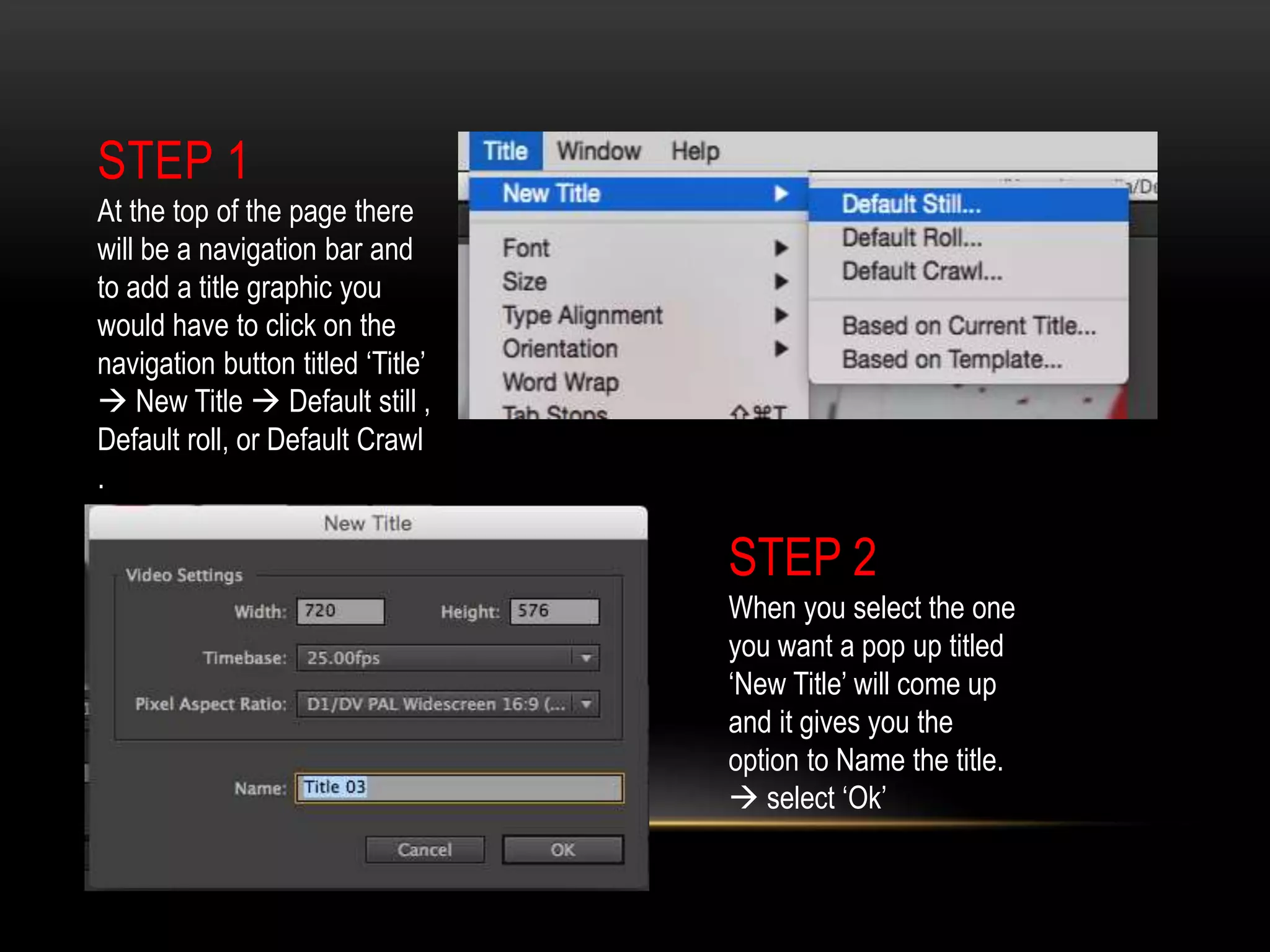
STEP 1
At the top of the page there
will be a navigation bar and
to add a title graphic you
would have to click on the
navigation button titled ‘Title’
 New Title  Default still ,
Default roll, or Default Crawl
.
STEP 2
When you select the one
you want a pop up titled
‘New Title’ will come up
and it gives you the
option to Name the title.
 select ‘Ok’
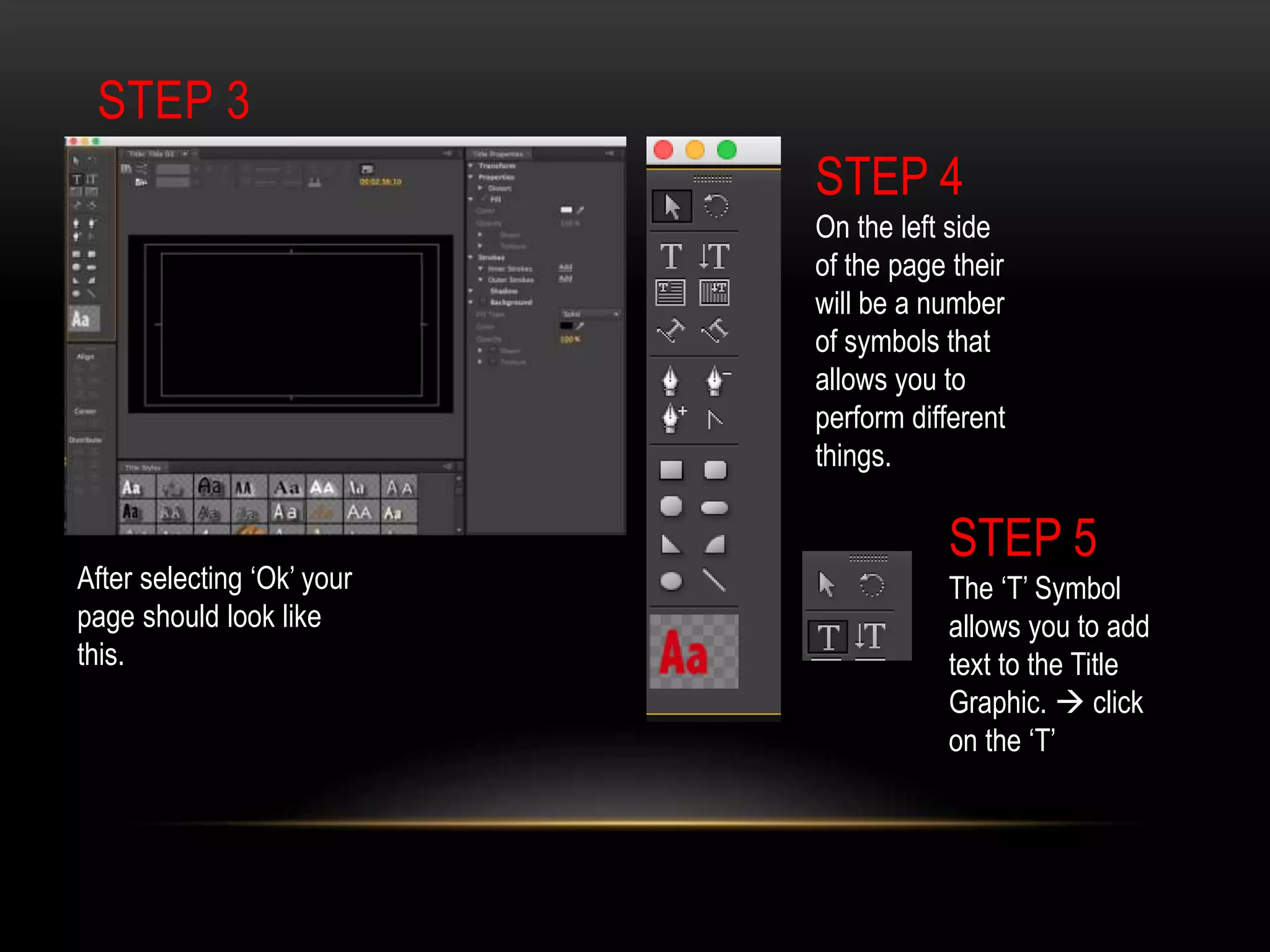
STEP 3
After selecting ‘Ok’ your
page should look like
this.
STEP 4
On the left side
of the page their
will be a number
of symbols that
allows you to
perform different
things.
STEP 5
The ‘T’ Symbol
allows you to add
text to the Title
Graphic.  click
on the ‘T’
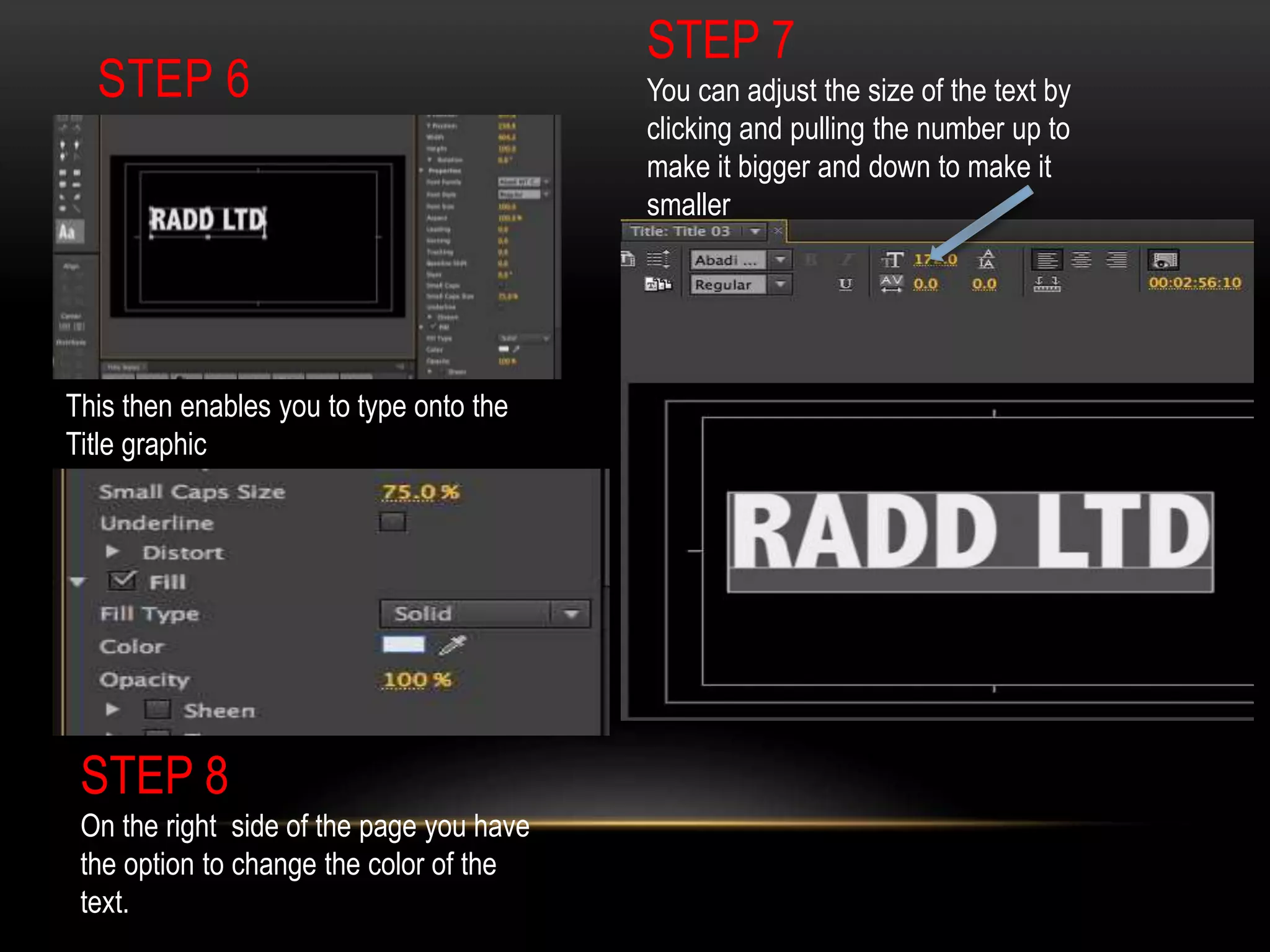
STEP 6
This then enables you to type onto the
Title graphic
STEP 7
You can adjust the size of the text by
clicking and pulling the number up to
make it bigger and down to make it
smaller
STEP 8
On the right side of the page you have
the option to change the color of the
text.
STEP 9
Select color of your
choice
STEP 10
Text will change to the color that you have
chosen
STEP 11
Minimize the Title Graphic  at the bottom
left side of the page under ‘Project:
BLOOPER REEL’ there will be all the clips
and titles.
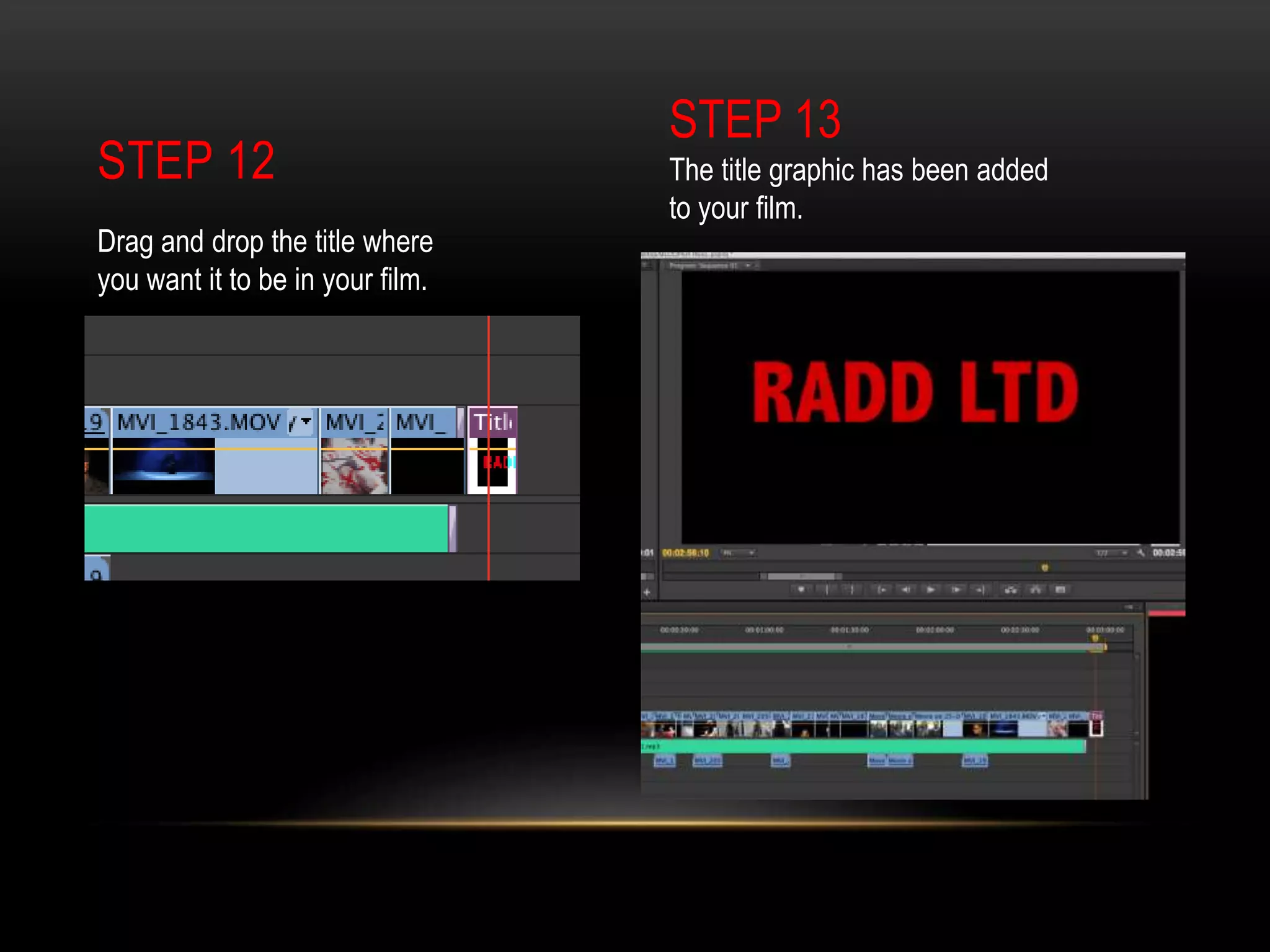
STEP 12
Drag and drop the title where
you want it to be in your film.
STEP 13
The title graphic has been added
to your film.

Adding title graphics

  • 1.
  • 2.
    STEP 1 At thetop of the page there will be a navigation bar and to add a title graphic you would have to click on the navigation button titled ‘Title’  New Title  Default still , Default roll, or Default Crawl . STEP 2 When you select the one you want a pop up titled ‘New Title’ will come up and it gives you the option to Name the title.  select ‘Ok’
  • 3.
    STEP 3 After selecting‘Ok’ your page should look like this. STEP 4 On the left side of the page their will be a number of symbols that allows you to perform different things. STEP 5 The ‘T’ Symbol allows you to add text to the Title Graphic.  click on the ‘T’
  • 4.
    STEP 6 This thenenables you to type onto the Title graphic STEP 7 You can adjust the size of the text by clicking and pulling the number up to make it bigger and down to make it smaller STEP 8 On the right side of the page you have the option to change the color of the text.
  • 5.
    STEP 9 Select colorof your choice STEP 10 Text will change to the color that you have chosen STEP 11 Minimize the Title Graphic  at the bottom left side of the page under ‘Project: BLOOPER REEL’ there will be all the clips and titles.
  • 6.
    STEP 12 Drag anddrop the title where you want it to be in your film. STEP 13 The title graphic has been added to your film.