Getting Into
WordPress
CLARE PARKINSON
CLARE@GREENBEE -WEB.COM, @CLAREPARKINSON
WWW.GREENBEE-WEB.COM, @GREENBEEWEB
HTTP://WWW.SLIDESHARE.NET/CLAREPARKINSON/GETTING -INTOWORDPRESS
CLARE@GREENBEE-WEB.COM

1
What is a Content Management
System?
•Sits on the website’s server, not on your computer, runs in a
browser

•Takes data from a database and turns it into web pages
•Allows you to perform programming-type tasks without
learning code or markup

•Automatically publishes, updates, archives content
according to rules you create

CLARE@GREENBEE-WEB.COM

2
Geek stuff: front end
•The “front end” is the website that visitors to your site see.
•Files: HTML, CSS, Media (images, videos, PDFs…), JavaScript
•Wordpress URL: yoursitename.wordpress.com
•On your server at www.yoursitename.com

CLARE@GREENBEE-WEB.COM

3
Geek stuff: backend
•The “back end” is the Admin Panel, only you see it.
•It controls the behavior and appearance of the front end
website.
•Files: PHP – the theme templates and plugin files
•Database: MySQL
•On your server at www.yoursitename.com/wp-admin/

CLARE@GREENBEE-WEB.COM

4
Why WordPress? Inexpensive
•Open source = Free! Sort of.
•Hosting for as little as $20/year.
•Purchase more specialized or customized design and
features
•You can invest time to learn, or hire a developer.

CLARE@GREENBEE-WEB.COM

5
Why WordPress? Flexible
•Content organization: taxonomy, menus, galleries
•Custom appearance: Themes, theme options
•Extendable functionality: Plugins and widgets
•Custom Post Types

•PHP templates and CSS layouts are fully customizable

CLARE@GREENBEE-WEB.COM

6
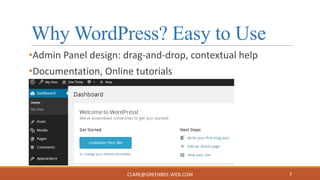
Why WordPress? Easy to Use
•Admin Panel design: drag-and-drop, contextual help
•Documentation, Online tutorials

CLARE@GREENBEE-WEB.COM

7
Why WordPress? Very widely used
•18.9% of the top 10 million websites use WordPress
•Community of development
•Community of support
•Third-party integration:
Amazon, DropBox, EventBrite, YouTube…

CLARE@GREENBEE-WEB.COM

8
Why not WordPress?
WordPress does everything, but if you have a few very
specific needs, it might not be the best tool to meet those
needs.
◦Simple E-Commerce: Shopify
◦Podcast published to iTunes: SquareSpace
◦Sell tickets for events: EventBrite
◦Online/mobile schedule for an event: Sched.org

CLARE@GREENBEE-WEB.COM

9
What WordPress can do
•Brochure site: information about an organization or person
•Publication: blog, magazine, journal
•Community: social network for a specific topic or
organization
•E-commerce: store, subscription, selling downloads
•Prototype: build a “clickable demo” of an online product or
service
CLARE@GREENBEE-WEB.COM

10
Hosting Options: WordPress.com
A great place to start – you can always move your content to
another host.

•Free: Yoursitename.wordpress.com, limited themes, forum
support
•$18/year: www.yoursitename.com

•$99/year value bundle: no ads, more design
customization, limited themes, email support, no plugins

CLARE@GREENBEE-WEB.COM

11
Hosting Options: Managed Hosting
They’ll take care of all the technical problems, but it’s
expensive.

•Extensive customization: all plugins and themes are
available.
•Updating, maintenance, testing, and support are provided

•$30/month
•WPengine.com, dreamhost.com, others
CLARE@GREENBEE-WEB.COM

12
Hosting Options: Self - Hosting
Less expensive than managed, more freedom than
wordpress.com, but you’re on your own.
•Unlimited customization: all plugins and themes are
available, you can edit your own template code and stylesheets.
•You are responsible for all testing, maintenance, and updates
•Support only covers server/network problems, not WordPress
•$60/year or more
•mediatemple.com, Site5.com, many others
CLARE@GREENBEE-WEB.COM

13
Walk through a demo site
http://demo.greenbee-web.com/site1/wpadmin/
Username: site1
Password: on your handout

CLARE@GREENBEE-WEB.COM

14
CLARE@GREENBEE-WEB.COM

15
WordPress Core and Customization
•WordPress Core is the features and functionality that come
with an empty installation of WordPress

•You can extend this functionality with
themes, plugins, custom PHP code in templates, and custom
post types.
•WordPress Core contains everything you need to create a
website.

CLARE@GREENBEE-WEB.COM

16
WordPress Core: Posts
Admin Panel > Posts
◦The most versatile post type
◦Posts are used for content that’s time-sensitive, that
expires, is updated, or replaced frequently.
◦Add content and media in the Visual Editor
◦Can be organized with Taxonomy (Categories and Tags)
◦Can be organized in Archives

CLARE@GREENBEE-WEB.COM

17
WordPress Core: Pages
Admin Panel > Pages
◦Used for content that is timeless, like “About us” or
“Contact me”
◦Content and Media are added in the Visual Editor
◦Can have parent/child relationships, e.g. “About us” >
“Our History”
◦No archives, i.e. they can’t easily be organized and
displayed in lists
CLARE@GREENBEE-WEB.COM

18
Post and Page Content
Admin Panel > Posts > Edit/Add New
◦Title
◦Permalink: the URL at which the post will be displayed in
its entirety
◦Visual Editor: add text and media. Use “styles” pulldown
for formatting.
◦Excerpt: displayed separately in Archives, etc
◦Featured Image: displayed separately in Archives, etc
CLARE@GREENBEE-WEB.COM

19
WordPress Core: Media Library
•Admin Panel > Media Library
•Upload media files one at a time or in batches
•Edit media in the Media Library
•Add media to Posts, Pages, and Galleries from the
Post or Page edit screen.

CLARE@GREENBEE-WEB.COM

20
WordPress Core: Taxonomy
Admin Panel > Posts > Categories
Hierarchical (nested)
organization:
1. Recipes
a) Desserts

Admin Panel > Posts > Tags
Free-form organization:
Traditional, low carb, quick
and easy, French, just like
mom’s

1. Cake
2. Pie

b) Soup
CLARE@GREENBEE-WEB.COM

21
CLARE@GREENBEE-WEB.COM

22
WordPress Core: Menus
•Admin Panel > Appearance > Menus
•Menus are lists of links you can customize
•They are usually used for navigation
•They can be displayed in any Widget area

CLARE@GREENBEE-WEB.COM

23
WordPress Core: Widgets
•Admin Panel > Appearance > Widgets
•Widgets are small chunks of functionality that can be
added to “widget areas” in your site, usually in the
header, sidebar, or footer
•New widgets can be added with Plugins

CLARE@GREENBEE-WEB.COM

24
Customizing WordPress: Themes
•Admin Panel > Appearance > Themes
•Template files control the layout of the site.
•CSS controls the styling: colors, font, sizes, responsiveness
•Template files control the placement of Widget Areas
•Child themes allow a developer to overwrite parts of the parent
theme with specific customizations.
•Change themes to change the design of your site without affecting
the content.

CLARE@GREENBEE-WEB.COM

25
Where to Get Themes
•Admin Panel > Appearance. Browse available themes.
•Or purchase premium themes to upload
•StudioPress http://www.studiopress.com/
•WooThemes http://www.woothemes.com/
•ThemeForest http://themeforest.net/

•Research carefully! Look at demos, read reviews. Check for
“responsive”: will work on any screen size.
CLARE@GREENBEE-WEB.COM

26
Customizing WordPress: Plugins
•Admin Panel > Plugins. Search. (not in your demo site
today)

•Plugins are small chunks of software that extend WordPress
Core functionality with new features.
•Can be widgets, social sharing, e-commerce, enhancements
to the Admin Panel, pull content from other sites and
services…

CLARE@GREENBEE-WEB.COM

27
Where to get Plugins
•Admin Panel > Plugins > Add New (not in your demo site
today)

•WordPress Plugin Directory: http://wordpress.org/plugins/
•CodeCanyon: http://codecanyon.net/category/wordpress
•Research carefully! Read reviews, check for support, make
sure plugin is maintained and updated frequently.

CLARE@GREENBEE-WEB.COM

28
Clare’s favorite plugins
•Contact Form 7:
http://wordpress.org/plugins/contact-form-7/
•WordPress SEO by Yoast:
http://wordpress.org/plugins/wordpress-seo/

•RoyalSlider: http://dimsemenov.com/plugins/royal-slider/
•WordPress Backup to DropBox:
http://wordpress.org/plugins/wordpress-backup-todropbox/
CLARE@GREENBEE-WEB.COM

29
Advanced customization: Templates
•Templates are PHP files that control the layout and
behavior of the website.
•Each theme has its own set of template files.
•You need to know PHP or hire a developer to
customize these.

CLARE@GREENBEE-WEB.COM

30
Advanced customization:
Custom Post Types
•A “post” can be a single item of content, e.g. a
Recipe, or a Product, or an Event.
•Set Custom Post Types up with a plugin (e.g. wptypes.com) , or with custom PHP code.
•Custom Post Types need their own templates to
make the most of their functionality. Many themes
and plugins use custom post types + templates.
CLARE@GREENBEE-WEB.COM

31
Where to learn or get help
Tutorials:
http://codex.wordpress.org/WordPress_Lessons
Documentation: http://codex.wordpress.org
Support forums: http://wordpress.org/support/
Videos: http://wordpress.tv/
From the community at MeetUps and WordCamp
CLARE@GREENBEE-WEB.COM

32
Join the WordPress community
Local MeetUps
http://www.meetup.com/Chicago-WordPress-Meetup/

http://www.meetup.com/wordpress-lake-county/
http://www.meetup.com/Chicago-NW-Suburbs-WordPress-Meetup/
http://www.meetup.com/WordPress-Aurora/
WordCamp Chicago
http://2013.chicago.wordcamp.org/

CLARE@GREENBEE-WEB.COM

33
Thanks!
CLARE PARKINSON
CLARE@GREENBEE -WEB.COM, @CLAREPARKINSON
WWW.GREENBEE-WEB.COM, @GREENBEEWEB
HTTP://WWW.SLIDESHARE.NET/CLAREPARKINSON/GETTING -INTOWORDPRESS
CLARE@GREENBEE-WEB.COM

34

Getting into WordPress

  • 1.
    Getting Into WordPress CLARE PARKINSON CLARE@GREENBEE-WEB.COM, @CLAREPARKINSON WWW.GREENBEE-WEB.COM, @GREENBEEWEB HTTP://WWW.SLIDESHARE.NET/CLAREPARKINSON/GETTING -INTOWORDPRESS CLARE@GREENBEE-WEB.COM 1
  • 2.
    What is aContent Management System? •Sits on the website’s server, not on your computer, runs in a browser •Takes data from a database and turns it into web pages •Allows you to perform programming-type tasks without learning code or markup •Automatically publishes, updates, archives content according to rules you create CLARE@GREENBEE-WEB.COM 2
  • 3.
    Geek stuff: frontend •The “front end” is the website that visitors to your site see. •Files: HTML, CSS, Media (images, videos, PDFs…), JavaScript •Wordpress URL: yoursitename.wordpress.com •On your server at www.yoursitename.com CLARE@GREENBEE-WEB.COM 3
  • 4.
    Geek stuff: backend •The“back end” is the Admin Panel, only you see it. •It controls the behavior and appearance of the front end website. •Files: PHP – the theme templates and plugin files •Database: MySQL •On your server at www.yoursitename.com/wp-admin/ CLARE@GREENBEE-WEB.COM 4
  • 5.
    Why WordPress? Inexpensive •Opensource = Free! Sort of. •Hosting for as little as $20/year. •Purchase more specialized or customized design and features •You can invest time to learn, or hire a developer. CLARE@GREENBEE-WEB.COM 5
  • 6.
    Why WordPress? Flexible •Contentorganization: taxonomy, menus, galleries •Custom appearance: Themes, theme options •Extendable functionality: Plugins and widgets •Custom Post Types •PHP templates and CSS layouts are fully customizable CLARE@GREENBEE-WEB.COM 6
  • 7.
    Why WordPress? Easyto Use •Admin Panel design: drag-and-drop, contextual help •Documentation, Online tutorials CLARE@GREENBEE-WEB.COM 7
  • 8.
    Why WordPress? Verywidely used •18.9% of the top 10 million websites use WordPress •Community of development •Community of support •Third-party integration: Amazon, DropBox, EventBrite, YouTube… CLARE@GREENBEE-WEB.COM 8
  • 9.
    Why not WordPress? WordPressdoes everything, but if you have a few very specific needs, it might not be the best tool to meet those needs. ◦Simple E-Commerce: Shopify ◦Podcast published to iTunes: SquareSpace ◦Sell tickets for events: EventBrite ◦Online/mobile schedule for an event: Sched.org CLARE@GREENBEE-WEB.COM 9
  • 10.
    What WordPress cando •Brochure site: information about an organization or person •Publication: blog, magazine, journal •Community: social network for a specific topic or organization •E-commerce: store, subscription, selling downloads •Prototype: build a “clickable demo” of an online product or service CLARE@GREENBEE-WEB.COM 10
  • 11.
    Hosting Options: WordPress.com Agreat place to start – you can always move your content to another host. •Free: Yoursitename.wordpress.com, limited themes, forum support •$18/year: www.yoursitename.com •$99/year value bundle: no ads, more design customization, limited themes, email support, no plugins CLARE@GREENBEE-WEB.COM 11
  • 12.
    Hosting Options: ManagedHosting They’ll take care of all the technical problems, but it’s expensive. •Extensive customization: all plugins and themes are available. •Updating, maintenance, testing, and support are provided •$30/month •WPengine.com, dreamhost.com, others CLARE@GREENBEE-WEB.COM 12
  • 13.
    Hosting Options: Self- Hosting Less expensive than managed, more freedom than wordpress.com, but you’re on your own. •Unlimited customization: all plugins and themes are available, you can edit your own template code and stylesheets. •You are responsible for all testing, maintenance, and updates •Support only covers server/network problems, not WordPress •$60/year or more •mediatemple.com, Site5.com, many others CLARE@GREENBEE-WEB.COM 13
  • 14.
    Walk through ademo site http://demo.greenbee-web.com/site1/wpadmin/ Username: site1 Password: on your handout CLARE@GREENBEE-WEB.COM 14
  • 15.
  • 16.
    WordPress Core andCustomization •WordPress Core is the features and functionality that come with an empty installation of WordPress •You can extend this functionality with themes, plugins, custom PHP code in templates, and custom post types. •WordPress Core contains everything you need to create a website. CLARE@GREENBEE-WEB.COM 16
  • 17.
    WordPress Core: Posts AdminPanel > Posts ◦The most versatile post type ◦Posts are used for content that’s time-sensitive, that expires, is updated, or replaced frequently. ◦Add content and media in the Visual Editor ◦Can be organized with Taxonomy (Categories and Tags) ◦Can be organized in Archives CLARE@GREENBEE-WEB.COM 17
  • 18.
    WordPress Core: Pages AdminPanel > Pages ◦Used for content that is timeless, like “About us” or “Contact me” ◦Content and Media are added in the Visual Editor ◦Can have parent/child relationships, e.g. “About us” > “Our History” ◦No archives, i.e. they can’t easily be organized and displayed in lists CLARE@GREENBEE-WEB.COM 18
  • 19.
    Post and PageContent Admin Panel > Posts > Edit/Add New ◦Title ◦Permalink: the URL at which the post will be displayed in its entirety ◦Visual Editor: add text and media. Use “styles” pulldown for formatting. ◦Excerpt: displayed separately in Archives, etc ◦Featured Image: displayed separately in Archives, etc CLARE@GREENBEE-WEB.COM 19
  • 20.
    WordPress Core: MediaLibrary •Admin Panel > Media Library •Upload media files one at a time or in batches •Edit media in the Media Library •Add media to Posts, Pages, and Galleries from the Post or Page edit screen. CLARE@GREENBEE-WEB.COM 20
  • 21.
    WordPress Core: Taxonomy AdminPanel > Posts > Categories Hierarchical (nested) organization: 1. Recipes a) Desserts Admin Panel > Posts > Tags Free-form organization: Traditional, low carb, quick and easy, French, just like mom’s 1. Cake 2. Pie b) Soup CLARE@GREENBEE-WEB.COM 21
  • 22.
  • 23.
    WordPress Core: Menus •AdminPanel > Appearance > Menus •Menus are lists of links you can customize •They are usually used for navigation •They can be displayed in any Widget area CLARE@GREENBEE-WEB.COM 23
  • 24.
    WordPress Core: Widgets •AdminPanel > Appearance > Widgets •Widgets are small chunks of functionality that can be added to “widget areas” in your site, usually in the header, sidebar, or footer •New widgets can be added with Plugins CLARE@GREENBEE-WEB.COM 24
  • 25.
    Customizing WordPress: Themes •AdminPanel > Appearance > Themes •Template files control the layout of the site. •CSS controls the styling: colors, font, sizes, responsiveness •Template files control the placement of Widget Areas •Child themes allow a developer to overwrite parts of the parent theme with specific customizations. •Change themes to change the design of your site without affecting the content. CLARE@GREENBEE-WEB.COM 25
  • 26.
    Where to GetThemes •Admin Panel > Appearance. Browse available themes. •Or purchase premium themes to upload •StudioPress http://www.studiopress.com/ •WooThemes http://www.woothemes.com/ •ThemeForest http://themeforest.net/ •Research carefully! Look at demos, read reviews. Check for “responsive”: will work on any screen size. CLARE@GREENBEE-WEB.COM 26
  • 27.
    Customizing WordPress: Plugins •AdminPanel > Plugins. Search. (not in your demo site today) •Plugins are small chunks of software that extend WordPress Core functionality with new features. •Can be widgets, social sharing, e-commerce, enhancements to the Admin Panel, pull content from other sites and services… CLARE@GREENBEE-WEB.COM 27
  • 28.
    Where to getPlugins •Admin Panel > Plugins > Add New (not in your demo site today) •WordPress Plugin Directory: http://wordpress.org/plugins/ •CodeCanyon: http://codecanyon.net/category/wordpress •Research carefully! Read reviews, check for support, make sure plugin is maintained and updated frequently. CLARE@GREENBEE-WEB.COM 28
  • 29.
    Clare’s favorite plugins •ContactForm 7: http://wordpress.org/plugins/contact-form-7/ •WordPress SEO by Yoast: http://wordpress.org/plugins/wordpress-seo/ •RoyalSlider: http://dimsemenov.com/plugins/royal-slider/ •WordPress Backup to DropBox: http://wordpress.org/plugins/wordpress-backup-todropbox/ CLARE@GREENBEE-WEB.COM 29
  • 30.
    Advanced customization: Templates •Templatesare PHP files that control the layout and behavior of the website. •Each theme has its own set of template files. •You need to know PHP or hire a developer to customize these. CLARE@GREENBEE-WEB.COM 30
  • 31.
    Advanced customization: Custom PostTypes •A “post” can be a single item of content, e.g. a Recipe, or a Product, or an Event. •Set Custom Post Types up with a plugin (e.g. wptypes.com) , or with custom PHP code. •Custom Post Types need their own templates to make the most of their functionality. Many themes and plugins use custom post types + templates. CLARE@GREENBEE-WEB.COM 31
  • 32.
    Where to learnor get help Tutorials: http://codex.wordpress.org/WordPress_Lessons Documentation: http://codex.wordpress.org Support forums: http://wordpress.org/support/ Videos: http://wordpress.tv/ From the community at MeetUps and WordCamp CLARE@GREENBEE-WEB.COM 32
  • 33.
    Join the WordPresscommunity Local MeetUps http://www.meetup.com/Chicago-WordPress-Meetup/ http://www.meetup.com/wordpress-lake-county/ http://www.meetup.com/Chicago-NW-Suburbs-WordPress-Meetup/ http://www.meetup.com/WordPress-Aurora/ WordCamp Chicago http://2013.chicago.wordcamp.org/ CLARE@GREENBEE-WEB.COM 33
  • 34.
    Thanks! CLARE PARKINSON CLARE@GREENBEE -WEB.COM,@CLAREPARKINSON WWW.GREENBEE-WEB.COM, @GREENBEEWEB HTTP://WWW.SLIDESHARE.NET/CLAREPARKINSON/GETTING -INTOWORDPRESS CLARE@GREENBEE-WEB.COM 34