A BasicGuide toSafe
Surfing on the Internet
How to surf the internet safely and avoid the pitfalls and
traps of Data Brokers and IdentityThieves
Updated 03/16/2014
Advocate
Tips
 Your personal information is a commodity to
Data Brokers who collect , manage and sell your
information. Protect it!
 Before you try any suggestions in the following
slides. Be sure to back up your computer and set
your System Restore. Use what fits your needs.
Don’t add everything.
 If you find a program that you like, use the free
trial version before purchasing. Most companies
will not provide refunds.
 Check the internet for online reviews from
reputable companies. Be a smart shopper
 Use pseudonyms on the web for non- important
web activity. Be safe online!
Google
Voice
 This is one of the best ‘unknown’ tools available
free of charge.
 Use it as a alternate phone orVoice Mail phone
number when you don’t want to disclose your
cell or home number.
 Many other GoogleVoice services—such as
voicemail, free text messaging, call history,
conference calling, call screening, blocking of
unwanted calls, and voice transcription to text of
voicemail messages—are also available to users
resident in the US.
 GoogleVoice
Abbreviate
 If you need to user your real name, change it up.
 Use abbreviations instead of your full name,
example: John Jacob Jingleheimer Schmidt
would be ‘J Schmidt’ or ‘j_schmidt’.
 Using abbreviations makes it difficult to
determine your gender or locate you in public
records.
 The less about the ‘real’ you the better when
surfing the internet.
 Use variations of your name :
 Jon instead of John
 Marc instead of Mark
 Jan instead of Janet
Social
Media
 Create multiple Social Media Accounts using
different email addresses.
 Stay anonymous while surfing online.
 Use real information for business or financial
accounts, family. Everything else pseudonyms.
 Limit how much of your real ‘you’ is provided
online. If you use your real name, secure that site!
 Keep work and socializing website separate.
 Match them up. Example:
 Facebook +Twitter+ Email (pseudo name)
 Tumble + Pinterest + Email (pseudo name)
 LinkedIn +Twitter + Email (real name)
 Pandora +Yelp + Craigslist + Email (pseudo name)
 Financial Institution + Credit Card + Email (real
name)
Caricatures
 Companies like Facebook use real pictures of
members to sell to marketing companies for use
with products and advertisements.
 Using a Caricatures stops your real image from
being used without your consent.
 Using your pet is a good idea, using your child is
not.Again, it can be used for advertising.
 Look for free Caricatures programs on the
internet.
VPN
 AVirtual Private Network (VPN) extends a
private network across the Internet.
 It secures your computer's internet connection
to guarantee that all of the data you're sending
and receiving is encrypted and secured from
prying eyes.
 VPNs allow individuals to spoof their physical
location—the user's actual IP address is replaced
byVPN provider—allowing them to bypass
content filters.
 Use Public or HotelWi-Fi in Confidence
 Download and Upload P2P Files in Privacy
 CloakYourVOIP PhoneCalls
 Use Search EnginesWithout HavingYour
Searches Logged
OptOut
 The term opt-out refers to several methods by
which individuals can avoid receiving unsolicited
product or service information.
 This ability is usually associated with direct
marketing campaigns such as telemarketing or
e-mail marketing.
 Whenever the option is available, do it.
 If you are creating an online identity, you don’t
want to create a new one because spam and e-
marketing is flooding your account.
Anti-
Malware
/Spyware/
Firewall
 Malware is short for “malicious software." It
includes viruses and spyware that get installed
on your computer, phone, or mobile device
without your consent.
 These programs can cause your device to crash
and can be used to monitor and control your
online activity.
 Criminals use malware to steal personal
information, send spam, and commit fraud.
 It is imperative you have some type of protection
in addition to your computers installed program.
Anti-
Malware
/Spyware/
Firewall
Malwarebytes
Microsoft Essentials
AVG
CCleaner
Windows Firewall
MacOS X Firewall
Encryption
 Encryption is the last and strongest line of
defense against the myriad attacks your
computer experiences every day.
 Spam filters, Firewalls, Privacy Settings,
Passwords andAnti-virus programs all offer
defensive measures against broad based
attacks, but none of these offer any defense
against targeted data theft.
Encryption
Kruptos 2
Professional
TrueCrypt
Secure
Browser
 Protect your connection, secure URLs begin with
https:// instead of http://.
 HTTP stands for HypertextTransfer Protocol
 HTTPS stands for HypertextTransfer Protocol
Secure
 Only download files or software from sites that
have been rated/verified by trusted sources.
 Keep your Browser settings updated.
 Use anonymous privacy setting, if available.
 A good secure Browser encrypts your passwords
or your phone number or anything personal you
enter online.
Secure
Browser
Mozilla Firefox
Internet Explorer
GoogleChrome
Opera
Safari
Secure
WebSearch
Engines
 In general,Web search engines work by sending
out a software system or spider to collect as
many documents as possible.
 Every time you use a regular search engine, your
search data is recorded.
 Major search engines capture your IP address
and use tracking cookies to make a record of
your search terms, the time of your visit, and the
links you choose - then they store that
information in a giant database.
 This information is a ‘Gold Mine’ for marketers,
data broker and identity thieves.
 Use Search Engines that contain non-tracking
features
Secure
WebSearch
Engines
 IXQuick
 DuckDuckGo
 Ask.com
 Blekko
Back(it)Up
 Backing up is simply making an electronic copy
of files and storing that copy in a safe place.
 If you back up your files regularly, you can
retrieve some, if not all, of your information if
something happens to the originals on your
computer.
 Use either external hard disk, CDs, DVDs, or
other storage medium for your backup copies.
 Upload data to an Internet-based file storage
service (cloud).
 Do not store your backup on your computer!
Back(it)Up
Financial
Information
Digital photos
Digital music
Programs
downloaded from
theWeb
Important email
messages
Email address book
Operating System
 Dropbox
 Google Drive
 iCloud
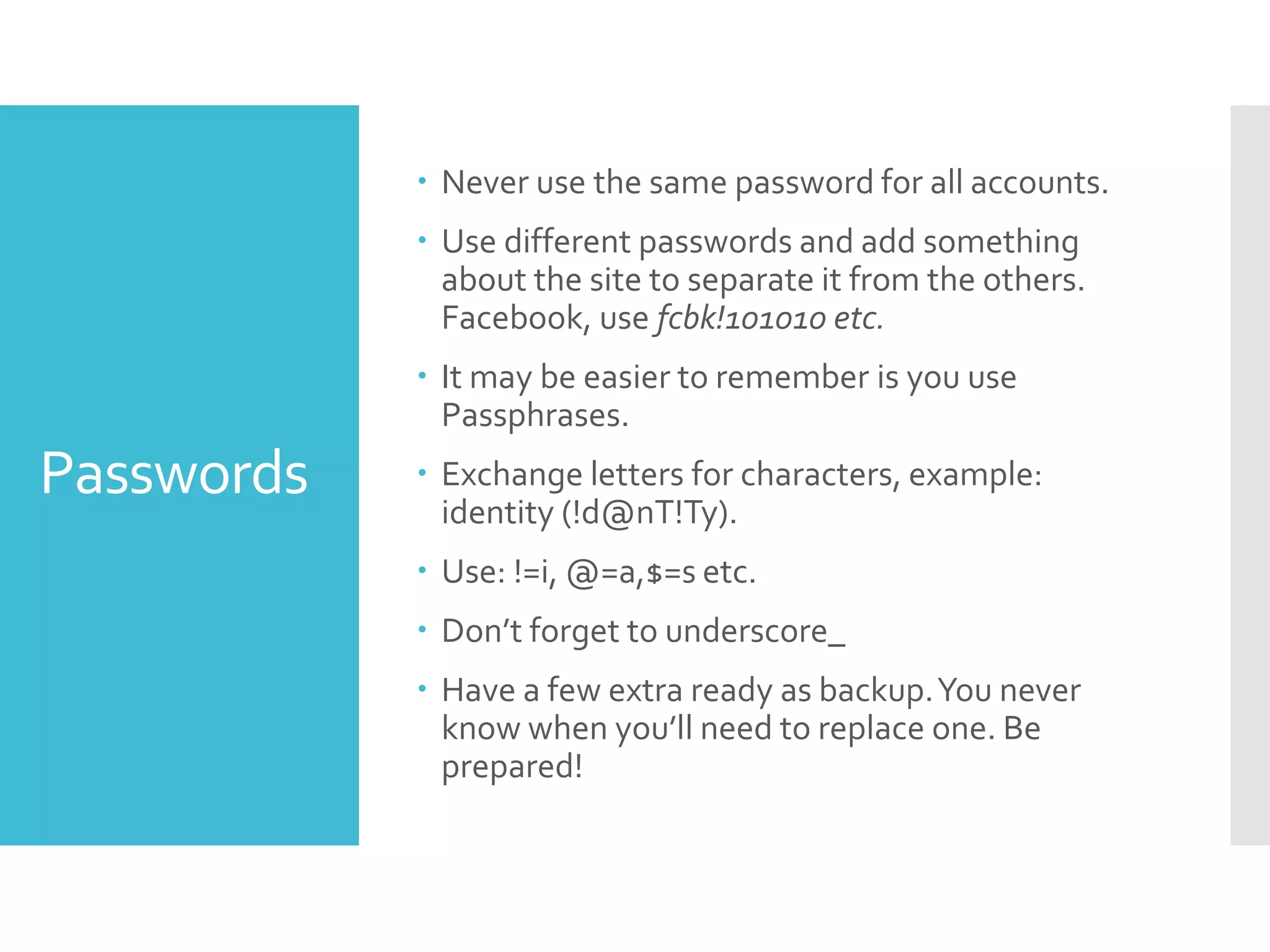
Passwords
 Never use the same password for all accounts.
 Use different passwords and add something
about the site to separate it from the others.
Facebook, use fcbk!101010 etc.
 It may be easier to remember is you use
Passphrases.
 Exchange letters for characters, example:
identity (!d@nT!Ty).
 Use: !=i, @=a,$=s etc.
 Don’t forget to underscore_
 Have a few extra ready as backup.You never
know when you’ll need to replace one. Be
prepared!
Protect
Your
Identity
 Do not give out your full name, address, or
phone number to anyone online that you don't
trust or know in person.
 Pseudonymity: the use of a pseudonym
 Unless it’s a business relationship, financial or an
important account.Go Pseudo!
 Anonymity: a person whose name is unknown or
withheld
 Some websites will use address verification tools
to verify your identity. Unless you need to use
your real name. Skip it!
 Check your social media privacy settings
 Use strong Security Questions, if required.
Wi-Fi
 Using a public wireless network?Turn off file
sharing and network discovery.
 UseWPA (WPA-Personal) orWPA2 (Wi-Fi Protected
Access version 2).
 Don’t use WEP, it’s weak.
 Avoid Automatically Connecting toWi-Fi Hotspots.
 Observation ofTCP flags to uncover various types
of network scans.
 UseTwo-Factor Authentication
 Use Encryption !
 Avoid piggybacking.
 Change your Network’s SSID name. Don’t keep the
default name.
Email
Accounts
 A good rule is to have multiple email
accounts:
 One for friends
 One for websites that require
email addresses
 One for your job, personal clients,
bank correspondence, etc.
 Having a backup email service is a
great idea. Have it ready but not
used until needed.
Email
Accounts
 Gmail
 Inbox
 Live
 AOL
 Mail.com
 Hushmail
 GMX
 Yahoo
Resources
 Gizmo'sTechTips
 Download Security Center
 Get Safe Online
 OnGuard Online
Disclosure
 Company names mentioned herein are the
property of, and may be trademarks of, their
respective owners and are for educational purposes
only.
This document is not an endorsement of any of the
products mentioned. It is suggested that consumers
conduct their own due diligence before uploading
or purchasing any products mentioned.
I have not received any payment or compensation
for mentioning any products in this document.
I do not imply one product is better than another
or by not mentioning a certain product imply it is
substandard.
Data
Brokers in
the News
 The Data Brokers: Selling your personal
information 03/09/2014
 http://www.cbsnews.com/news/the-data-
brokers-selling-your-personal-information/
CompiledanddesignedbyMarkFullbright,CertifiedIdentity
TheftRiskManagementSpecialist™(CITRMS)asafreeservice
forconsumerstoprotectthemselvesonlineandreducetheir
exposuretoidentitytheftandfromonlinewebsitesthatgather
andsell personalinformation.
StaySafe,StaySecure

A Basic Guide to Safe Surfing on the Internet

  • 1.
    A BasicGuide toSafe Surfingon the Internet How to surf the internet safely and avoid the pitfalls and traps of Data Brokers and IdentityThieves Updated 03/16/2014
  • 2.
    Advocate Tips  Your personalinformation is a commodity to Data Brokers who collect , manage and sell your information. Protect it!  Before you try any suggestions in the following slides. Be sure to back up your computer and set your System Restore. Use what fits your needs. Don’t add everything.  If you find a program that you like, use the free trial version before purchasing. Most companies will not provide refunds.  Check the internet for online reviews from reputable companies. Be a smart shopper  Use pseudonyms on the web for non- important web activity. Be safe online!
  • 3.
    Google Voice  This isone of the best ‘unknown’ tools available free of charge.  Use it as a alternate phone orVoice Mail phone number when you don’t want to disclose your cell or home number.  Many other GoogleVoice services—such as voicemail, free text messaging, call history, conference calling, call screening, blocking of unwanted calls, and voice transcription to text of voicemail messages—are also available to users resident in the US.  GoogleVoice
  • 4.
    Abbreviate  If youneed to user your real name, change it up.  Use abbreviations instead of your full name, example: John Jacob Jingleheimer Schmidt would be ‘J Schmidt’ or ‘j_schmidt’.  Using abbreviations makes it difficult to determine your gender or locate you in public records.  The less about the ‘real’ you the better when surfing the internet.  Use variations of your name :  Jon instead of John  Marc instead of Mark  Jan instead of Janet
  • 5.
    Social Media  Create multipleSocial Media Accounts using different email addresses.  Stay anonymous while surfing online.  Use real information for business or financial accounts, family. Everything else pseudonyms.  Limit how much of your real ‘you’ is provided online. If you use your real name, secure that site!  Keep work and socializing website separate.  Match them up. Example:  Facebook +Twitter+ Email (pseudo name)  Tumble + Pinterest + Email (pseudo name)  LinkedIn +Twitter + Email (real name)  Pandora +Yelp + Craigslist + Email (pseudo name)  Financial Institution + Credit Card + Email (real name)
  • 6.
    Caricatures  Companies likeFacebook use real pictures of members to sell to marketing companies for use with products and advertisements.  Using a Caricatures stops your real image from being used without your consent.  Using your pet is a good idea, using your child is not.Again, it can be used for advertising.  Look for free Caricatures programs on the internet.
  • 7.
    VPN  AVirtual PrivateNetwork (VPN) extends a private network across the Internet.  It secures your computer's internet connection to guarantee that all of the data you're sending and receiving is encrypted and secured from prying eyes.  VPNs allow individuals to spoof their physical location—the user's actual IP address is replaced byVPN provider—allowing them to bypass content filters.  Use Public or HotelWi-Fi in Confidence  Download and Upload P2P Files in Privacy  CloakYourVOIP PhoneCalls  Use Search EnginesWithout HavingYour Searches Logged
  • 8.
    OptOut  The termopt-out refers to several methods by which individuals can avoid receiving unsolicited product or service information.  This ability is usually associated with direct marketing campaigns such as telemarketing or e-mail marketing.  Whenever the option is available, do it.  If you are creating an online identity, you don’t want to create a new one because spam and e- marketing is flooding your account.
  • 9.
    Anti- Malware /Spyware/ Firewall  Malware isshort for “malicious software." It includes viruses and spyware that get installed on your computer, phone, or mobile device without your consent.  These programs can cause your device to crash and can be used to monitor and control your online activity.  Criminals use malware to steal personal information, send spam, and commit fraud.  It is imperative you have some type of protection in addition to your computers installed program.
  • 10.
  • 11.
    Encryption  Encryption isthe last and strongest line of defense against the myriad attacks your computer experiences every day.  Spam filters, Firewalls, Privacy Settings, Passwords andAnti-virus programs all offer defensive measures against broad based attacks, but none of these offer any defense against targeted data theft.
  • 12.
  • 13.
    Secure Browser  Protect yourconnection, secure URLs begin with https:// instead of http://.  HTTP stands for HypertextTransfer Protocol  HTTPS stands for HypertextTransfer Protocol Secure  Only download files or software from sites that have been rated/verified by trusted sources.  Keep your Browser settings updated.  Use anonymous privacy setting, if available.  A good secure Browser encrypts your passwords or your phone number or anything personal you enter online.
  • 14.
  • 15.
    Secure WebSearch Engines  In general,Websearch engines work by sending out a software system or spider to collect as many documents as possible.  Every time you use a regular search engine, your search data is recorded.  Major search engines capture your IP address and use tracking cookies to make a record of your search terms, the time of your visit, and the links you choose - then they store that information in a giant database.  This information is a ‘Gold Mine’ for marketers, data broker and identity thieves.  Use Search Engines that contain non-tracking features
  • 16.
  • 17.
    Back(it)Up  Backing upis simply making an electronic copy of files and storing that copy in a safe place.  If you back up your files regularly, you can retrieve some, if not all, of your information if something happens to the originals on your computer.  Use either external hard disk, CDs, DVDs, or other storage medium for your backup copies.  Upload data to an Internet-based file storage service (cloud).  Do not store your backup on your computer!
  • 18.
    Back(it)Up Financial Information Digital photos Digital music Programs downloadedfrom theWeb Important email messages Email address book Operating System  Dropbox  Google Drive  iCloud
  • 19.
    Passwords  Never usethe same password for all accounts.  Use different passwords and add something about the site to separate it from the others. Facebook, use fcbk!101010 etc.  It may be easier to remember is you use Passphrases.  Exchange letters for characters, example: identity (!d@nT!Ty).  Use: !=i, @=a,$=s etc.  Don’t forget to underscore_  Have a few extra ready as backup.You never know when you’ll need to replace one. Be prepared!
  • 20.
    Protect Your Identity  Do notgive out your full name, address, or phone number to anyone online that you don't trust or know in person.  Pseudonymity: the use of a pseudonym  Unless it’s a business relationship, financial or an important account.Go Pseudo!  Anonymity: a person whose name is unknown or withheld  Some websites will use address verification tools to verify your identity. Unless you need to use your real name. Skip it!  Check your social media privacy settings  Use strong Security Questions, if required.
  • 21.
    Wi-Fi  Using apublic wireless network?Turn off file sharing and network discovery.  UseWPA (WPA-Personal) orWPA2 (Wi-Fi Protected Access version 2).  Don’t use WEP, it’s weak.  Avoid Automatically Connecting toWi-Fi Hotspots.  Observation ofTCP flags to uncover various types of network scans.  UseTwo-Factor Authentication  Use Encryption !  Avoid piggybacking.  Change your Network’s SSID name. Don’t keep the default name.
  • 22.
    Email Accounts  A goodrule is to have multiple email accounts:  One for friends  One for websites that require email addresses  One for your job, personal clients, bank correspondence, etc.  Having a backup email service is a great idea. Have it ready but not used until needed.
  • 23.
    Email Accounts  Gmail  Inbox Live  AOL  Mail.com  Hushmail  GMX  Yahoo
  • 24.
    Resources  Gizmo'sTechTips  DownloadSecurity Center  Get Safe Online  OnGuard Online
  • 25.
    Disclosure  Company namesmentioned herein are the property of, and may be trademarks of, their respective owners and are for educational purposes only. This document is not an endorsement of any of the products mentioned. It is suggested that consumers conduct their own due diligence before uploading or purchasing any products mentioned. I have not received any payment or compensation for mentioning any products in this document. I do not imply one product is better than another or by not mentioning a certain product imply it is substandard.
  • 26.
    Data Brokers in the News The Data Brokers: Selling your personal information 03/09/2014  http://www.cbsnews.com/news/the-data- brokers-selling-your-personal-information/
  • 27.