Application Note

                                  860 DSPi Wi-Fi Option

Wi-Fi (802.11bg) in the 860 DSPi
Cable companies are beginning to deploy Wi-Fi
networks within their communities as a
differentiating feature that enables data
customers to connect in a wide variety of
locations. This attractive add-on service helps
to hold customers in the highly competitive
telecommunications market.

Cable technical personnel must be able to verify
that the company’s Wi-Fi access points are
properly broadcasting with adequate field
strength and security. A variety of means are
currently available for viewing local wireless
access points, with the most typical being the
wireless connection application on most
notebook PCs. Techs do not always have
access to a notebook PC, so the addition of a
Wi-Fi option to their field analyzer is an
attractive concept. The survey mode can also be used on data service installations to
verify wireless accessibility throughout a customer’s home, and to verify that the
configured channel is not conflicting with a neighbor’s access point.

Trilithic offers a Wi-Fi adaptor for the 860 DSPi. In addition to providing an alternate
communications path for measurement data, unit configurations and internet sites, the
new feature performs common Wi-Fi network verification tests:
   •    Detects in-range wireless IEEE 802.11 b/g access points and lists SSID’s and
        channels
   •    Displays the up to 10 access points, with the one currently connected highlighted
   •    List includes received signal strength in dBm for each access point, and indicates
        security enabled/disabled
   •    Indicates the type of access point (infrastructure or ad hoc)


 For Additional Help Contact
 Trilithic Applications Engineering                                                          860 DSPi Wi-Fi Option
 1-800-344-2412 or 317-895-3600                                                         P/N 0010275051 – Rev 8/09
 support@trilithic.com or                                                                                    1 of 5
 www.trilithic.com

                                Copyright © 2009 Trilithic, Inc. All Rights Reserved.
Application Note

Using the Wi-Fi Option
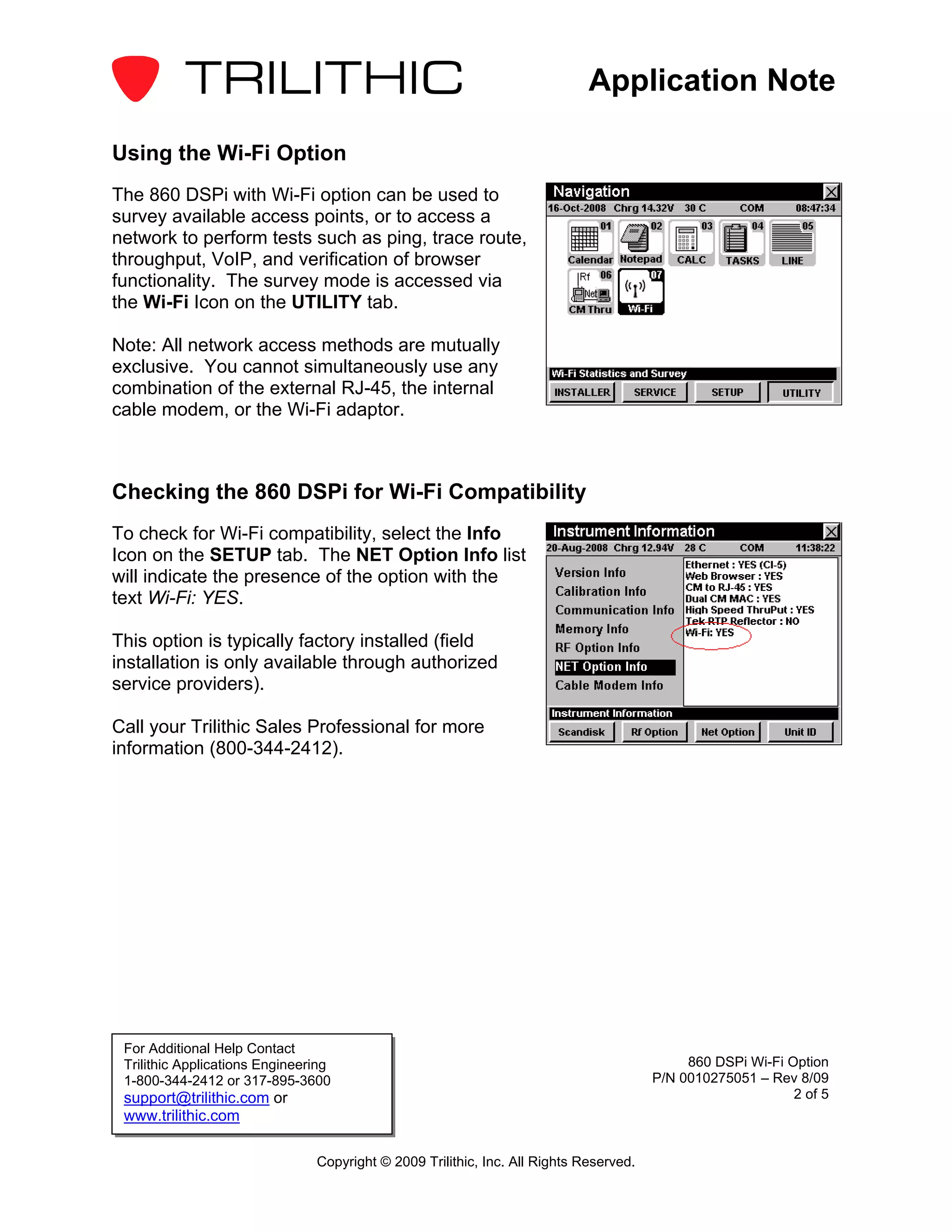
The 860 DSPi with Wi-Fi option can be used to
survey available access points, or to access a
network to perform tests such as ping, trace route,
throughput, VoIP, and verification of browser
functionality. The survey mode is accessed via
the Wi-Fi Icon on the UTILITY tab.

Note: All network access methods are mutually
exclusive. You cannot simultaneously use any
combination of the external RJ-45, the internal
cable modem, or the Wi-Fi adaptor.


Checking the 860 DSPi for Wi-Fi Compatibility
To check for Wi-Fi compatibility, select the Info
Icon on the SETUP tab. The NET Option Info list
will indicate the presence of the option with the
text Wi-Fi: YES.

This option is typically factory installed (field
installation is only available through authorized
service providers).

Call your Trilithic Sales Professional for more
information (800-344-2412).


 For Additional Help Contact
 Trilithic Applications Engineering                                                          860 DSPi Wi-Fi Option
 1-800-344-2412 or 317-895-3600                                                         P/N 0010275051 – Rev 8/09
 support@trilithic.com or                                                                                    2 of 5
 www.trilithic.com

                                Copyright © 2009 Trilithic, Inc. All Rights Reserved.
Application Note

Using the Wi-Fi Survey Mode
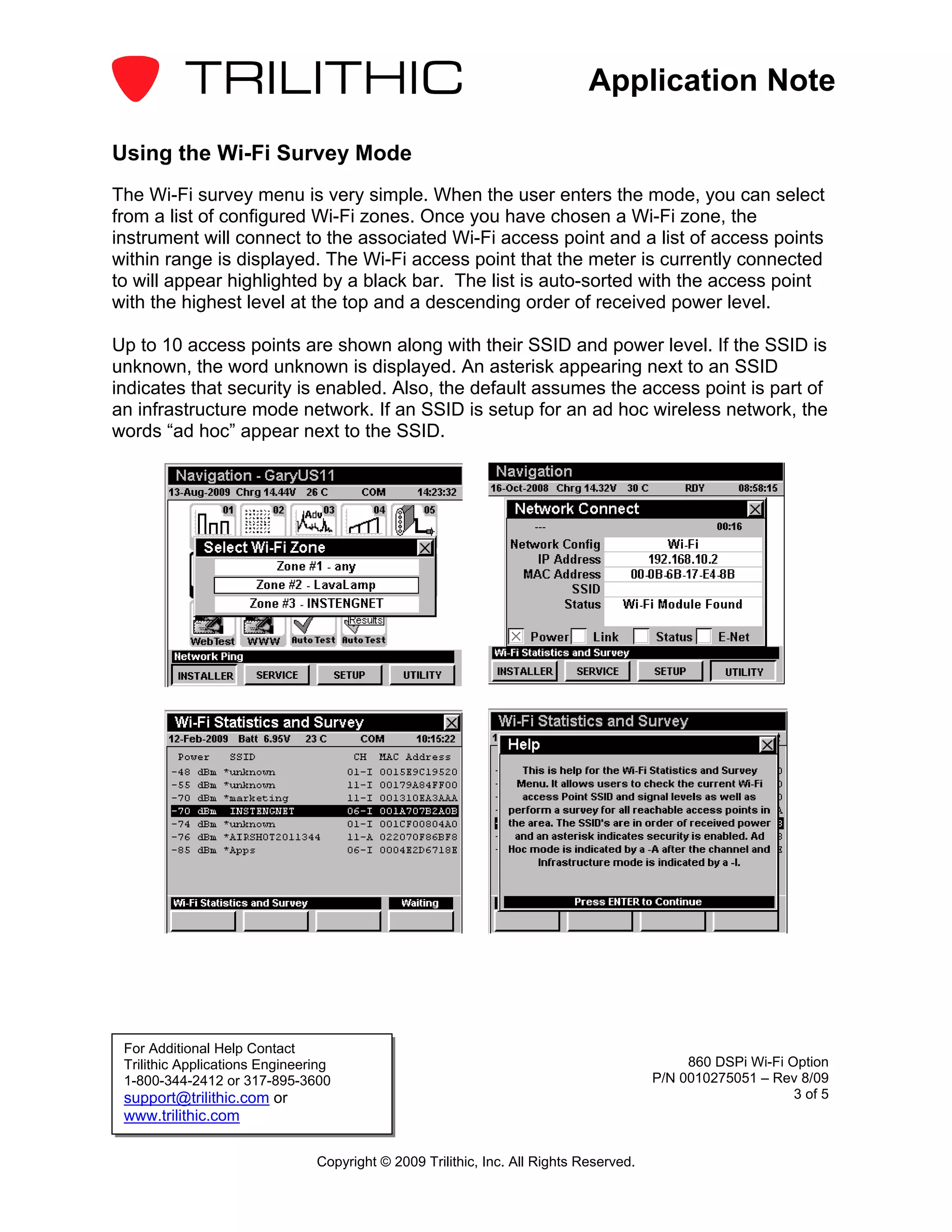
The Wi-Fi survey menu is very simple. When the user enters the mode, you can select
from a list of configured Wi-Fi zones. Once you have chosen a Wi-Fi zone, the
instrument will connect to the associated Wi-Fi access point and a list of access points
within range is displayed. The Wi-Fi access point that the meter is currently connected
to will appear highlighted by a black bar. The list is auto-sorted with the access point
with the highest level at the top and a descending order of received power level.

Up to 10 access points are shown along with their SSID and power level. If the SSID is
unknown, the word unknown is displayed. An asterisk appearing next to an SSID
indicates that security is enabled. Also, the default assumes the access point is part of
an infrastructure mode network. If an SSID is setup for an ad hoc wireless network, the
words “ad hoc” appear next to the SSID.


 For Additional Help Contact
 Trilithic Applications Engineering                                                          860 DSPi Wi-Fi Option
 1-800-344-2412 or 317-895-3600                                                         P/N 0010275051 – Rev 8/09
 support@trilithic.com or                                                                                    3 of 5
 www.trilithic.com

                                Copyright © 2009 Trilithic, Inc. All Rights Reserved.
Application Note

Wi-Fi Mode Setup
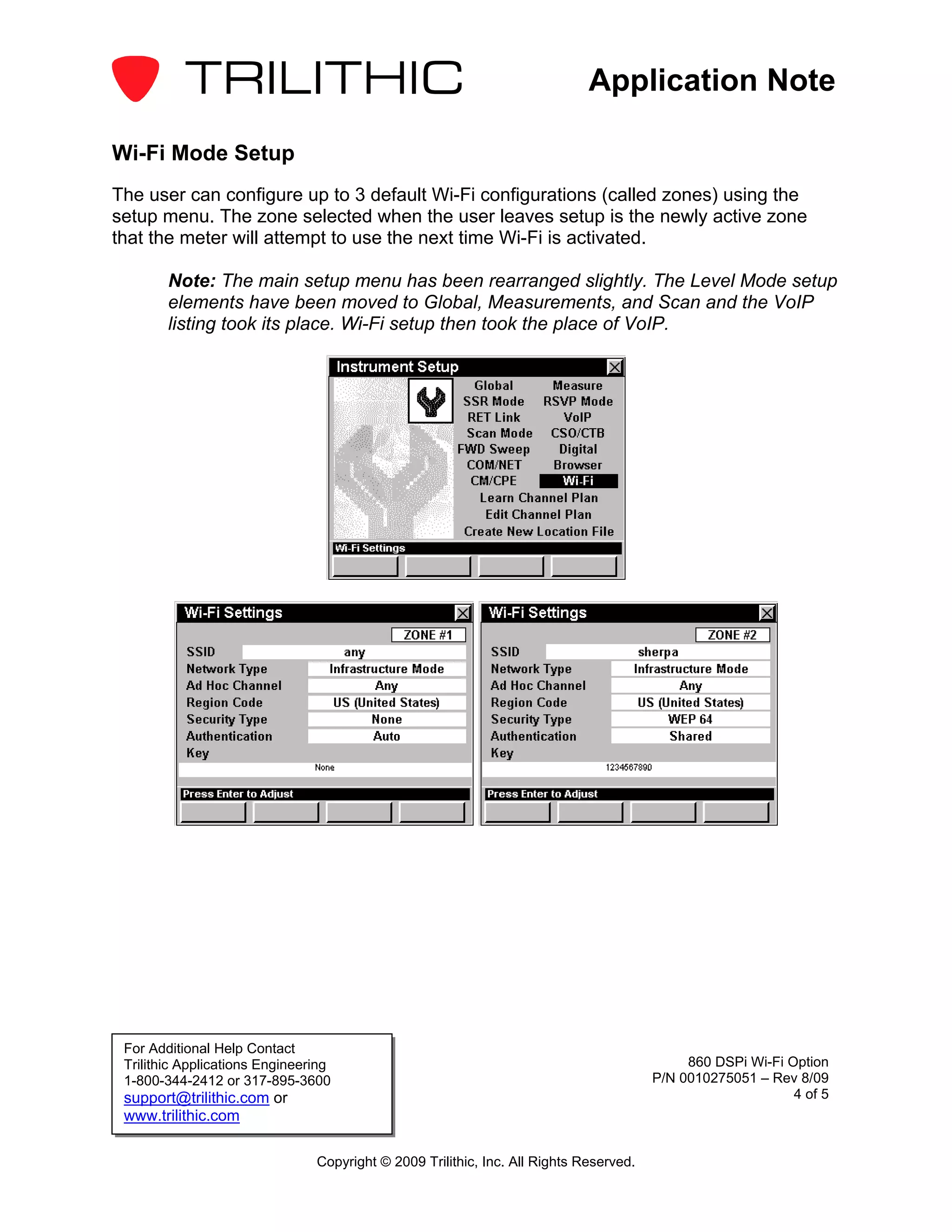
The user can configure up to 3 default Wi-Fi configurations (called zones) using the
setup menu. The zone selected when the user leaves setup is the newly active zone
that the meter will attempt to use the next time Wi-Fi is activated.

        Note: The main setup menu has been rearranged slightly. The Level Mode setup
        elements have been moved to Global, Measurements, and Scan and the VoIP
        listing took its place. Wi-Fi setup then took the place of VoIP.


 For Additional Help Contact
 Trilithic Applications Engineering                                                          860 DSPi Wi-Fi Option
 1-800-344-2412 or 317-895-3600                                                         P/N 0010275051 – Rev 8/09
 support@trilithic.com or                                                                                    4 of 5
 www.trilithic.com

                                Copyright © 2009 Trilithic, Inc. All Rights Reserved.
Application Note

Using the Wi-Fi Mode
Perform the following steps in order to use the Wi-Fi Mode;
   1. To communicate (receive or send information) using Wi-Fi, the user selects Wi-Fi
      as the network login default (similar to ping or cable modem) in the Setup,
      COM/NET settings. When the user activates the network by entering Ping, Trace
      Route, Browser, etc; the meter logs into the Wi-Fi network and functions the
      same as when connected using the internal cable modem, or the RJ-45 (network
      adapter) and all network functions should be available.
            Note: The meter must either be able to acquire an IP address from the
            network, or have been setup with a static IP address if using an ad hoc
            network. The Wi-Fi survey mode is also available at this time.
   2. Alternatively, the user can simply enter the Wi-Fi survey mode without acquiring
      an IP address, and the meter will not attempt to login to the Wi-Fi network. In this
      mode of operation the survey is available, but other network related test modes
      are not. When you exit the survey mode, the meter automatically powers down
      the Wi-Fi module.


Workbench Support
Workbench version 2.2.0 and higher supports Wi-Fi data logs and up to 3 default Wi-Fi
configurations.


 For Additional Help Contact
 Trilithic Applications Engineering                                                          860 DSPi Wi-Fi Option
 1-800-344-2412 or 317-895-3600                                                         P/N 0010275051 – Rev 8/09
 support@trilithic.com or                                                                                    5 of 5
 www.trilithic.com

                                Copyright © 2009 Trilithic, Inc. All Rights Reserved.

860 dspi wi-fi_option_appnote

  • 1.
    Application Note 860 DSPi Wi-Fi Option Wi-Fi (802.11bg) in the 860 DSPi Cable companies are beginning to deploy Wi-Fi networks within their communities as a differentiating feature that enables data customers to connect in a wide variety of locations. This attractive add-on service helps to hold customers in the highly competitive telecommunications market. Cable technical personnel must be able to verify that the company’s Wi-Fi access points are properly broadcasting with adequate field strength and security. A variety of means are currently available for viewing local wireless access points, with the most typical being the wireless connection application on most notebook PCs. Techs do not always have access to a notebook PC, so the addition of a Wi-Fi option to their field analyzer is an attractive concept. The survey mode can also be used on data service installations to verify wireless accessibility throughout a customer’s home, and to verify that the configured channel is not conflicting with a neighbor’s access point. Trilithic offers a Wi-Fi adaptor for the 860 DSPi. In addition to providing an alternate communications path for measurement data, unit configurations and internet sites, the new feature performs common Wi-Fi network verification tests: • Detects in-range wireless IEEE 802.11 b/g access points and lists SSID’s and channels • Displays the up to 10 access points, with the one currently connected highlighted • List includes received signal strength in dBm for each access point, and indicates security enabled/disabled • Indicates the type of access point (infrastructure or ad hoc) For Additional Help Contact Trilithic Applications Engineering 860 DSPi Wi-Fi Option 1-800-344-2412 or 317-895-3600 P/N 0010275051 – Rev 8/09 support@trilithic.com or 1 of 5 www.trilithic.com Copyright © 2009 Trilithic, Inc. All Rights Reserved.
  • 2.
    Application Note Using theWi-Fi Option The 860 DSPi with Wi-Fi option can be used to survey available access points, or to access a network to perform tests such as ping, trace route, throughput, VoIP, and verification of browser functionality. The survey mode is accessed via the Wi-Fi Icon on the UTILITY tab. Note: All network access methods are mutually exclusive. You cannot simultaneously use any combination of the external RJ-45, the internal cable modem, or the Wi-Fi adaptor. Checking the 860 DSPi for Wi-Fi Compatibility To check for Wi-Fi compatibility, select the Info Icon on the SETUP tab. The NET Option Info list will indicate the presence of the option with the text Wi-Fi: YES. This option is typically factory installed (field installation is only available through authorized service providers). Call your Trilithic Sales Professional for more information (800-344-2412). For Additional Help Contact Trilithic Applications Engineering 860 DSPi Wi-Fi Option 1-800-344-2412 or 317-895-3600 P/N 0010275051 – Rev 8/09 support@trilithic.com or 2 of 5 www.trilithic.com Copyright © 2009 Trilithic, Inc. All Rights Reserved.
  • 3.
    Application Note Using theWi-Fi Survey Mode The Wi-Fi survey menu is very simple. When the user enters the mode, you can select from a list of configured Wi-Fi zones. Once you have chosen a Wi-Fi zone, the instrument will connect to the associated Wi-Fi access point and a list of access points within range is displayed. The Wi-Fi access point that the meter is currently connected to will appear highlighted by a black bar. The list is auto-sorted with the access point with the highest level at the top and a descending order of received power level. Up to 10 access points are shown along with their SSID and power level. If the SSID is unknown, the word unknown is displayed. An asterisk appearing next to an SSID indicates that security is enabled. Also, the default assumes the access point is part of an infrastructure mode network. If an SSID is setup for an ad hoc wireless network, the words “ad hoc” appear next to the SSID. For Additional Help Contact Trilithic Applications Engineering 860 DSPi Wi-Fi Option 1-800-344-2412 or 317-895-3600 P/N 0010275051 – Rev 8/09 support@trilithic.com or 3 of 5 www.trilithic.com Copyright © 2009 Trilithic, Inc. All Rights Reserved.
  • 4.
    Application Note Wi-Fi ModeSetup The user can configure up to 3 default Wi-Fi configurations (called zones) using the setup menu. The zone selected when the user leaves setup is the newly active zone that the meter will attempt to use the next time Wi-Fi is activated. Note: The main setup menu has been rearranged slightly. The Level Mode setup elements have been moved to Global, Measurements, and Scan and the VoIP listing took its place. Wi-Fi setup then took the place of VoIP. For Additional Help Contact Trilithic Applications Engineering 860 DSPi Wi-Fi Option 1-800-344-2412 or 317-895-3600 P/N 0010275051 – Rev 8/09 support@trilithic.com or 4 of 5 www.trilithic.com Copyright © 2009 Trilithic, Inc. All Rights Reserved.
  • 5.
    Application Note Using theWi-Fi Mode Perform the following steps in order to use the Wi-Fi Mode; 1. To communicate (receive or send information) using Wi-Fi, the user selects Wi-Fi as the network login default (similar to ping or cable modem) in the Setup, COM/NET settings. When the user activates the network by entering Ping, Trace Route, Browser, etc; the meter logs into the Wi-Fi network and functions the same as when connected using the internal cable modem, or the RJ-45 (network adapter) and all network functions should be available. Note: The meter must either be able to acquire an IP address from the network, or have been setup with a static IP address if using an ad hoc network. The Wi-Fi survey mode is also available at this time. 2. Alternatively, the user can simply enter the Wi-Fi survey mode without acquiring an IP address, and the meter will not attempt to login to the Wi-Fi network. In this mode of operation the survey is available, but other network related test modes are not. When you exit the survey mode, the meter automatically powers down the Wi-Fi module. Workbench Support Workbench version 2.2.0 and higher supports Wi-Fi data logs and up to 3 default Wi-Fi configurations. For Additional Help Contact Trilithic Applications Engineering 860 DSPi Wi-Fi Option 1-800-344-2412 or 317-895-3600 P/N 0010275051 – Rev 8/09 support@trilithic.com or 5 of 5 www.trilithic.com Copyright © 2009 Trilithic, Inc. All Rights Reserved.