Application Note

                     Unlocking Options on an 860 DSPi
The following steps are required to unlock a feature on the 860 DSPi:
Using the buttons on the 860 DSPi’s keypad, navigate to the Setup menu, then the Info icon, and then
press the Enter button.
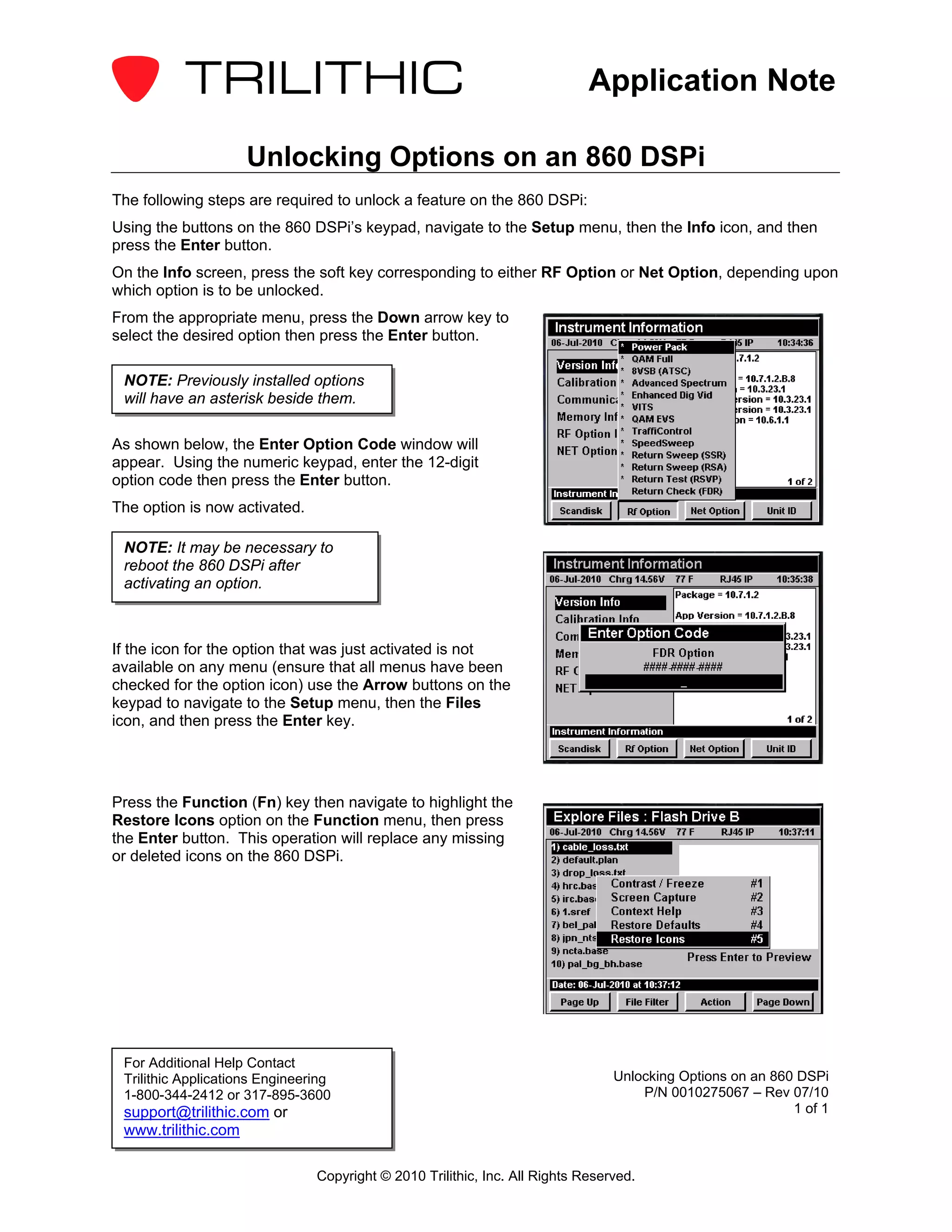
On the Info screen, press the soft key corresponding to either RF Option or Net Option, depending upon
which option is to be unlocked.
From the appropriate menu, press the Down arrow key to
select the desired option then press the Enter button.

 NOTE: Previously installed options
 will have an asterisk beside them.

As shown below, the Enter Option Code window will
appear. Using the numeric keypad, enter the 12-digit
option code then press the Enter button.
The option is now activated.

 NOTE: It may be necessary to
 reboot the 860 DSPi after
 activating an option.


If the icon for the option that was just activated is not
available on any menu (ensure that all menus have been
checked for the option icon) use the Arrow buttons on the
keypad to navigate to the Setup menu, then the Files
icon, and then press the Enter key.


Press the Function (Fn) key then navigate to highlight the
Restore Icons option on the Function menu, then press
the Enter button. This operation will replace any missing
or deleted icons on the 860 DSPi.


 For Additional Help Contact
 Trilithic Applications Engineering                                              Unlocking Options on an 860 DSPi
 1-800-344-2412 or 317-895-3600                                                      P/N 0010275067 – Rev 07/10
 support@trilithic.com or                                                                                   1 of 1
 www.trilithic.com

                                Copyright © 2010 Trilithic, Inc. All Rights Reserved.

Unlocking options on_an_860_dspi

  • 1.
    Application Note Unlocking Options on an 860 DSPi The following steps are required to unlock a feature on the 860 DSPi: Using the buttons on the 860 DSPi’s keypad, navigate to the Setup menu, then the Info icon, and then press the Enter button. On the Info screen, press the soft key corresponding to either RF Option or Net Option, depending upon which option is to be unlocked. From the appropriate menu, press the Down arrow key to select the desired option then press the Enter button. NOTE: Previously installed options will have an asterisk beside them. As shown below, the Enter Option Code window will appear. Using the numeric keypad, enter the 12-digit option code then press the Enter button. The option is now activated. NOTE: It may be necessary to reboot the 860 DSPi after activating an option. If the icon for the option that was just activated is not available on any menu (ensure that all menus have been checked for the option icon) use the Arrow buttons on the keypad to navigate to the Setup menu, then the Files icon, and then press the Enter key. Press the Function (Fn) key then navigate to highlight the Restore Icons option on the Function menu, then press the Enter button. This operation will replace any missing or deleted icons on the 860 DSPi. For Additional Help Contact Trilithic Applications Engineering Unlocking Options on an 860 DSPi 1-800-344-2412 or 317-895-3600 P/N 0010275067 – Rev 07/10 support@trilithic.com or 1 of 1 www.trilithic.com Copyright © 2010 Trilithic, Inc. All Rights Reserved.