7750 SR-7
INSTALLATION GUIDE
February 2007
Document Part Number: 93-0032-06-01
*93-0032-06-01*
Copyright 2007 Alcatel-Lucent All rights reserved. February 2007.
No portion of this document may be reproduced in any form or means without prior written permission from Alcatel-Lucent.
Information in this document is proprietary and confidential to Alcatel. The information in this document is subject to change. All
trademarks and registered trademarks are the property of the respective owners.
USA Requirements Only
Federal Communications Commission (FCC) Compliance Notice: Radio Frequency Notice
Note: This equipment has been tested and found to comply with the limits for a Class A digital device, pursuant to part 15 of the FCC
Rules. These limits are designed to provide reasonable protection against harmful interference when the equipment is operated in a
commercial environment. This equipment generates, uses, and can radiate radio frequency energy and, if not installed and used in
accordance with the instruction manual, may cause harmful interference to radio communications. Operation of this equipment in a
residential area is likely to cause harmful interference in which case the user will be required to correct the interference at his own
expense.
Canadian Requirements Only
This Class A digital apparatus meets all requirements of the Canadian Interference-Causing Equipment Regulations.
Cet appareil numérique de la classe A respecte toutes les exigences du Réglement sur le matériel brouilleur du Canada.
Japan/Nippon Requirements Only
This is a Class A product. In a domestic environment this product may cause radio interference in which case the user may be required
to take adequate measures.
Caution:
Use of controls or adjustments or performance of procedures other than those specified herein may result in hazardous
laser radiation exposure.
VCCI-A
7750 SR-7 Page 3
TABLE OF CONTENTS
Preface . . . . . . . . . . . . . . . . . . . . . . . . . . . . . . . . . . . . . . . . . . . . . . . . . . . . . . . . . . . . . . . . . . . . . . . . . . . . . 11
7750 SR-7 Overview
Chassis Features . . . . . . . . . . . . . . . . . . . . . . . . . . . . . . . . . . . . . . . . . . . . . . . . . . . . . . . . . . . . . . . . . . . . 16
7750 SR-7 Modules . . . . . . . . . . . . . . . . . . . . . . . . . . . . . . . . . . . . . . . . . . . . . . . . . . . . . . . . . . . . . . . 20
SF/CPMs . . . . . . . . . . . . . . . . . . . . . . . . . . . . . . . . . . . . . . . . . . . . . . . . . . . . . . . . . . . . . . . . . . . . . 20
IOMs . . . . . . . . . . . . . . . . . . . . . . . . . . . . . . . . . . . . . . . . . . . . . . . . . . . . . . . . . . . . . . . . . . . . . . . . 26
MDAs. . . . . . . . . . . . . . . . . . . . . . . . . . . . . . . . . . . . . . . . . . . . . . . . . . . . . . . . . . . . . . . . . . . . . . . . 26
Chassis Components . . . . . . . . . . . . . . . . . . . . . . . . . . . . . . . . . . . . . . . . . . . . . . . . . . . . . . . . . . . . . . 27
Power Supplies and Redundancy . . . . . . . . . . . . . . . . . . . . . . . . . . . . . . . . . . . . . . . . . . . . . . . . . . 27
Fan Trays. . . . . . . . . . . . . . . . . . . . . . . . . . . . . . . . . . . . . . . . . . . . . . . . . . . . . . . . . . . . . . . . . . . . . 31
Air Filter . . . . . . . . . . . . . . . . . . . . . . . . . . . . . . . . . . . . . . . . . . . . . . . . . . . . . . . . . . . . . . . . . . . . . . 33
Blank Panels . . . . . . . . . . . . . . . . . . . . . . . . . . . . . . . . . . . . . . . . . . . . . . . . . . . . . . . . . . . . . . . . . . 33
Component Operating Requirements . . . . . . . . . . . . . . . . . . . . . . . . . . . . . . . . . . . . . . . . . . . . . . . . . . 34
7750 SR-7 System Installation Process. . . . . . . . . . . . . . . . . . . . . . . . . . . . . . . . . . . . . . . . . . . . . . . . . . . 35
Site Preparation
Warnings and Notes. . . . . . . . . . . . . . . . . . . . . . . . . . . . . . . . . . . . . . . . . . . . . . . . . . . . . . . . . . . . . . . . . . 38
System Specifications . . . . . . . . . . . . . . . . . . . . . . . . . . . . . . . . . . . . . . . . . . . . . . . . . . . . . . . . . . . . . . . . 39
Chassis Specifications . . . . . . . . . . . . . . . . . . . . . . . . . . . . . . . . . . . . . . . . . . . . . . . . . . . . . . . . . . . . . 39
Environmental Specifications . . . . . . . . . . . . . . . . . . . . . . . . . . . . . . . . . . . . . . . . . . . . . . . . . . . . . . . . 39
Power Module Specifications . . . . . . . . . . . . . . . . . . . . . . . . . . . . . . . . . . . . . . . . . . . . . . . . . . . . . . . . 40
Electrical Characteristics. . . . . . . . . . . . . . . . . . . . . . . . . . . . . . . . . . . . . . . . . . . . . . . . . . . . . . . . . . . . 40
Component Power Consumption . . . . . . . . . . . . . . . . . . . . . . . . . . . . . . . . . . . . . . . . . . . . . . . . . . . . . 41
Component Specifications . . . . . . . . . . . . . . . . . . . . . . . . . . . . . . . . . . . . . . . . . . . . . . . . . . . . . . . . . . 43
The Equipment Rack . . . . . . . . . . . . . . . . . . . . . . . . . . . . . . . . . . . . . . . . . . . . . . . . . . . . . . . . . . . . . . 44
Rack Clearance Requirements . . . . . . . . . . . . . . . . . . . . . . . . . . . . . . . . . . . . . . . . . . . . . . . . . . . . 45
Safety Considerations . . . . . . . . . . . . . . . . . . . . . . . . . . . . . . . . . . . . . . . . . . . . . . . . . . . . . . . . . . . . . . . . 46
Placement. . . . . . . . . . . . . . . . . . . . . . . . . . . . . . . . . . . . . . . . . . . . . . . . . . . . . . . . . . . . . . . . . . . . . . . 46
Grounding . . . . . . . . . . . . . . . . . . . . . . . . . . . . . . . . . . . . . . . . . . . . . . . . . . . . . . . . . . . . . . . . . . . . . . . 46
Cabling . . . . . . . . . . . . . . . . . . . . . . . . . . . . . . . . . . . . . . . . . . . . . . . . . . . . . . . . . . . . . . . . . . . . . . . . . 47
Power . . . . . . . . . . . . . . . . . . . . . . . . . . . . . . . . . . . . . . . . . . . . . . . . . . . . . . . . . . . . . . . . . . . . . . . . . . 47
Fans . . . . . . . . . . . . . . . . . . . . . . . . . . . . . . . . . . . . . . . . . . . . . . . . . . . . . . . . . . . . . . . . . . . . . . . . . . . 48
Filters . . . . . . . . . . . . . . . . . . . . . . . . . . . . . . . . . . . . . . . . . . . . . . . . . . . . . . . . . . . . . . . . . . . . . . . . . . 48
Storage . . . . . . . . . . . . . . . . . . . . . . . . . . . . . . . . . . . . . . . . . . . . . . . . . . . . . . . . . . . . . . . . . . . . . . . . . 49
Safety Standards/Compliance Agency Certifications. . . . . . . . . . . . . . . . . . . . . . . . . . . . . . . . . . . . . . . . . 50
Installing the 7750 SR-7
Unpacking the Chassis . . . . . . . . . . . . . . . . . . . . . . . . . . . . . . . . . . . . . . . . . . . . . . . . . . . . . . . . . . . . . . . 52
Unpacking Precautions. . . . . . . . . . . . . . . . . . . . . . . . . . . . . . . . . . . . . . . . . . . . . . . . . . . . . . . . . . . . . 52
Rack Mounting the Chassis . . . . . . . . . . . . . . . . . . . . . . . . . . . . . . . . . . . . . . . . . . . . . . . . . . . . . . . . . . . . 54
Making the Chassis Ground Connection . . . . . . . . . . . . . . . . . . . . . . . . . . . . . . . . . . . . . . . . . . . . . . . . . . 57
Preparing the Ground Wire. . . . . . . . . . . . . . . . . . . . . . . . . . . . . . . . . . . . . . . . . . . . . . . . . . . . . . . . . . 57
Making the Ground Wiring Connection. . . . . . . . . . . . . . . . . . . . . . . . . . . . . . . . . . . . . . . . . . . . . . . . . 59
Installing Power Modules
General Power Warnings and Notes . . . . . . . . . . . . . . . . . . . . . . . . . . . . . . . . . . . . . . . . . . . . . . . . . . . . . 62
Page 4 7750 SR-7
Table of Contents
Installing DC PEMs. . . . . . . . . . . . . . . . . . . . . . . . . . . . . . . . . . . . . . . . . . . . . . . . . . . . . . . . . . . . . . . . . . .63
DC Power Warnings and Notes . . . . . . . . . . . . . . . . . . . . . . . . . . . . . . . . . . . . . . . . . . . . . . . . . . . . . .63
Installing a DC PEM. . . . . . . . . . . . . . . . . . . . . . . . . . . . . . . . . . . . . . . . . . . . . . . . . . . . . . . . . . . . . . . .65
DC-Input Power Wiring . . . . . . . . . . . . . . . . . . . . . . . . . . . . . . . . . . . . . . . . . . . . . . . . . . . . . . . . . . . . .67
Preparing the Power Cable . . . . . . . . . . . . . . . . . . . . . . . . . . . . . . . . . . . . . . . . . . . . . . . . . . . . . . .67
DC Input Terminal Block Wiring . . . . . . . . . . . . . . . . . . . . . . . . . . . . . . . . . . . . . . . . . . . . . . . . . . . .69
Installing AC Power Components . . . . . . . . . . . . . . . . . . . . . . . . . . . . . . . . . . . . . . . . . . . . . . . . . . . . . . . .71
AC Power Warnings and Notes . . . . . . . . . . . . . . . . . . . . . . . . . . . . . . . . . . . . . . . . . . . . . . . . . . . . . .71
Installing an AC PSM. . . . . . . . . . . . . . . . . . . . . . . . . . . . . . . . . . . . . . . . . . . . . . . . . . . . . . . . . . . . . . .73
Installing an AC PEM. . . . . . . . . . . . . . . . . . . . . . . . . . . . . . . . . . . . . . . . . . . . . . . . . . . . . . . . . . . . . . .77
Connecting the AC Power Cord. . . . . . . . . . . . . . . . . . . . . . . . . . . . . . . . . . . . . . . . . . . . . . . . . . . . . . .79
Installing the SF/CPM
Installing SF/CPM Modules. . . . . . . . . . . . . . . . . . . . . . . . . . . . . . . . . . . . . . . . . . . . . . . . . . . . . . . . . . . . .82
Warnings and Notes . . . . . . . . . . . . . . . . . . . . . . . . . . . . . . . . . . . . . . . . . . . . . . . . . . . . . . . . . . . . . . .82
Installing the SF/CPM . . . . . . . . . . . . . . . . . . . . . . . . . . . . . . . . . . . . . . . . . . . . . . . . . . . . . . . . . . . . . .83
Initializing the System . . . . . . . . . . . . . . . . . . . . . . . . . . . . . . . . . . . . . . . . . . . . . . . . . . . . . . . . . . . . . . . . .85
Using the Compact Flash Slot #3 Locking Mechanism . . . . . . . . . . . . . . . . . . . . . . . . . . . . . . . . . . . . .86
Initial System Startup . . . . . . . . . . . . . . . . . . . . . . . . . . . . . . . . . . . . . . . . . . . . . . . . . . . . . . . . . . . . . . . . .87
Troubleshooting . . . . . . . . . . . . . . . . . . . . . . . . . . . . . . . . . . . . . . . . . . . . . . . . . . . . . . . . . . . . . . . .87
Establishing Router Connections . . . . . . . . . . . . . . . . . . . . . . . . . . . . . . . . . . . . . . . . . . . . . . . . . . . . . . . .90
Console Connection . . . . . . . . . . . . . . . . . . . . . . . . . . . . . . . . . . . . . . . . . . . . . . . . . . . . . . . . . . . . . . .90
Telnet Connection . . . . . . . . . . . . . . . . . . . . . . . . . . . . . . . . . . . . . . . . . . . . . . . . . . . . . . . . . . . . . . . . .92
Ejecting Flash Cards . . . . . . . . . . . . . . . . . . . . . . . . . . . . . . . . . . . . . . . . . . . . . . . . . . . . . . . . . . . .94
Installing IOMs and MDAs
Configuring Chassis Slot, IOM, and MDA Parameters . . . . . . . . . . . . . . . . . . . . . . . . . . . . . . . . . . . . . . . .96
Configuring Chassis Slot and IOM Parameters. . . . . . . . . . . . . . . . . . . . . . . . . . . . . . . . . . . . . . . . . . .96
Configuring MDA Parameters . . . . . . . . . . . . . . . . . . . . . . . . . . . . . . . . . . . . . . . . . . . . . . . . . . . . . . . .97
Example . . . . . . . . . . . . . . . . . . . . . . . . . . . . . . . . . . . . . . . . . . . . . . . . . . . . . . . . . . . . . . . . . . . . . .97
Installing IOMs . . . . . . . . . . . . . . . . . . . . . . . . . . . . . . . . . . . . . . . . . . . . . . . . . . . . . . . . . . . . . . . . . . . . . .99
Warnings and Notes . . . . . . . . . . . . . . . . . . . . . . . . . . . . . . . . . . . . . . . . . . . . . . . . . . . . . . . . . . . . . . .99
Installing IOMs. . . . . . . . . . . . . . . . . . . . . . . . . . . . . . . . . . . . . . . . . . . . . . . . . . . . . . . . . . . . . . . . . . .100
Installing MDAs. . . . . . . . . . . . . . . . . . . . . . . . . . . . . . . . . . . . . . . . . . . . . . . . . . . . . . . . . . . . . . . . . . . . .102
Warnings and Notes . . . . . . . . . . . . . . . . . . . . . . . . . . . . . . . . . . . . . . . . . . . . . . . . . . . . . . . . . . . . . .102
Installing an MDA on an IOM. . . . . . . . . . . . . . . . . . . . . . . . . . . . . . . . . . . . . . . . . . . . . . . . . . . . . . . .103
Installing an MDA on a Chassis-Installed IOM . . . . . . . . . . . . . . . . . . . . . . . . . . . . . . . . . . . . . . . . . .105
MDA LEDs. . . . . . . . . . . . . . . . . . . . . . . . . . . . . . . . . . . . . . . . . . . . . . . . . . . . . . . . . . . . . . . . . . . . . .107
Appendix A: LEDs and Optics
AC Power Supply Module LEDs . . . . . . . . . . . . . . . . . . . . . . . . . . . . . . . . . . . . . . . . . . . . . . . . . . . . . . . .110
SF/CPM LEDs . . . . . . . . . . . . . . . . . . . . . . . . . . . . . . . . . . . . . . . . . . . . . . . . . . . . . . . . . . . . . . . . . . . . .111
Appendix B: Field Replaceable Units
Power Modules . . . . . . . . . . . . . . . . . . . . . . . . . . . . . . . . . . . . . . . . . . . . . . . . . . . . . . . . . . . . . . . . . . . . .118
Warnings and Notes . . . . . . . . . . . . . . . . . . . . . . . . . . . . . . . . . . . . . . . . . . . . . . . . . . . . . . . . . . . . . .118
DC Power . . . . . . . . . . . . . . . . . . . . . . . . . . . . . . . . . . . . . . . . . . . . . . . . . . . . . . . . . . . . . . . . . . . . . .120
Removing a DC PEM . . . . . . . . . . . . . . . . . . . . . . . . . . . . . . . . . . . . . . . . . . . . . . . . . . . . . . . . . . .120
Replacing a DC PEM . . . . . . . . . . . . . . . . . . . . . . . . . . . . . . . . . . . . . . . . . . . . . . . . . . . . . . . . . . .122
7750 SR-7 Page 5
Table of Contents
AC Power. . . . . . . . . . . . . . . . . . . . . . . . . . . . . . . . . . . . . . . . . . . . . . . . . . . . . . . . . . . . . . . . . . . . . . .124
Removing an AC PSM . . . . . . . . . . . . . . . . . . . . . . . . . . . . . . . . . . . . . . . . . . . . . . . . . . . . . . . . . .124
Replacing an AC PSM . . . . . . . . . . . . . . . . . . . . . . . . . . . . . . . . . . . . . . . . . . . . . . . . . . . . . . . . . .125
Removing an AC PEM . . . . . . . . . . . . . . . . . . . . . . . . . . . . . . . . . . . . . . . . . . . . . . . . . . . . . . . . . .126
Replacing an AC PEM . . . . . . . . . . . . . . . . . . . . . . . . . . . . . . . . . . . . . . . . . . . . . . . . . . . . . . . . . .127
SF/CPMs . . . . . . . . . . . . . . . . . . . . . . . . . . . . . . . . . . . . . . . . . . . . . . . . . . . . . . . . . . . . . . . . . . . . . . . . .129
Warnings and Notes . . . . . . . . . . . . . . . . . . . . . . . . . . . . . . . . . . . . . . . . . . . . . . . . . . . . . . . . . . . . . .129
Removing an SF/CPM. . . . . . . . . . . . . . . . . . . . . . . . . . . . . . . . . . . . . . . . . . . . . . . . . . . . . . . . . . . . .130
Replacing an SF/CPM . . . . . . . . . . . . . . . . . . . . . . . . . . . . . . . . . . . . . . . . . . . . . . . . . . . . . . . . . . . . .131
IOMs . . . . . . . . . . . . . . . . . . . . . . . . . . . . . . . . . . . . . . . . . . . . . . . . . . . . . . . . . . . . . . . . . . . . . . . . . . . . .133
Warnings and Notes . . . . . . . . . . . . . . . . . . . . . . . . . . . . . . . . . . . . . . . . . . . . . . . . . . . . . . . . . . . . . .133
Shutting Down and Modifying an IOM Configuration. . . . . . . . . . . . . . . . . . . . . . . . . . . . . . . . . . . . . .134
Removing an IOM . . . . . . . . . . . . . . . . . . . . . . . . . . . . . . . . . . . . . . . . . . . . . . . . . . . . . . . . . . . . . . . .136
Installing a Filler Panel Blank. . . . . . . . . . . . . . . . . . . . . . . . . . . . . . . . . . . . . . . . . . . . . . . . . . . . . . . .137
Replacing an IOM . . . . . . . . . . . . . . . . . . . . . . . . . . . . . . . . . . . . . . . . . . . . . . . . . . . . . . . . . . . . . . . .138
MDAs . . . . . . . . . . . . . . . . . . . . . . . . . . . . . . . . . . . . . . . . . . . . . . . . . . . . . . . . . . . . . . . . . . . . . . . . . . . .140
Warnings and Notes . . . . . . . . . . . . . . . . . . . . . . . . . . . . . . . . . . . . . . . . . . . . . . . . . . . . . . . . . . . . . .140
Changing the MDA Configuration . . . . . . . . . . . . . . . . . . . . . . . . . . . . . . . . . . . . . . . . . . . . . . . . . . . .141
Removing an MDA. . . . . . . . . . . . . . . . . . . . . . . . . . . . . . . . . . . . . . . . . . . . . . . . . . . . . . . . . . . . . . . .142
Replacing an MDA. . . . . . . . . . . . . . . . . . . . . . . . . . . . . . . . . . . . . . . . . . . . . . . . . . . . . . . . . . . . . . . .143
Fan Tray . . . . . . . . . . . . . . . . . . . . . . . . . . . . . . . . . . . . . . . . . . . . . . . . . . . . . . . . . . . . . . . . . . . . . . . . . .145
Warnings and Notes . . . . . . . . . . . . . . . . . . . . . . . . . . . . . . . . . . . . . . . . . . . . . . . . . . . . . . . . . . . . . .145
Removing a Fan Tray . . . . . . . . . . . . . . . . . . . . . . . . . . . . . . . . . . . . . . . . . . . . . . . . . . . . . . . . . . . . .146
Replacing a Fan Tray . . . . . . . . . . . . . . . . . . . . . . . . . . . . . . . . . . . . . . . . . . . . . . . . . . . . . . . . . . . . .148
Air Filter Tray . . . . . . . . . . . . . . . . . . . . . . . . . . . . . . . . . . . . . . . . . . . . . . . . . . . . . . . . . . . . . . . . . . . . . .150
Notes . . . . . . . . . . . . . . . . . . . . . . . . . . . . . . . . . . . . . . . . . . . . . . . . . . . . . . . . . . . . . . . . . . . . . . . . . .150
Removing the Air Filter . . . . . . . . . . . . . . . . . . . . . . . . . . . . . . . . . . . . . . . . . . . . . . . . . . . . . . . . . . . .150
Replacing the Air Filter Tray . . . . . . . . . . . . . . . . . . . . . . . . . . . . . . . . . . . . . . . . . . . . . . . . . . . . . . . .152
Appendix C: Pinout Assignments
SF/CPM Port Types . . . . . . . . . . . . . . . . . . . . . . . . . . . . . . . . . . . . . . . . . . . . . . . . . . . . . . . . . . . . . . . . .154
Cable Pin Assignments. . . . . . . . . . . . . . . . . . . . . . . . . . . . . . . . . . . . . . . . . . . . . . . . . . . . . . . . . . . . . . .156
Index. . . . . . . . . . . . . . . . . . . . . . . . . . . . . . . . . . . . . . . . . . . . . . . . . . . . . . . . . . . . . . . . . . . . . . . . . . . . . . .159
Page 6 7750 SR-7
Table of Contents
7750 SR-7 Page 7
LIST OF TABLES
Preface
Table 1: Information Symbols . . . . . . . . . . . . . . . . . . . . . . . . . . . . . . . . . . . . . . . . . . . . . . . . . . . . . . . . . .13
7750 SR-7 Overview
Table 2: Power Chassis Front View Features . . . . . . . . . . . . . . . . . . . . . . . . . . . . . . . . . . . . . . . . . . . . . .17
Table 3: Chassis Rear View Features . . . . . . . . . . . . . . . . . . . . . . . . . . . . . . . . . . . . . . . . . . . . . . . . . . . .18
Table 4: Chassis Rear View Features . . . . . . . . . . . . . . . . . . . . . . . . . . . . . . . . . . . . . . . . . . . . . . . . . . . .19
Table 5: SF/CPM Field Descriptions . . . . . . . . . . . . . . . . . . . . . . . . . . . . . . . . . . . . . . . . . . . . . . . . . . . . .21
Table 6: 7750 SR-7 Hardware Components for DC Operational Requirements . . . . . . . . . . . . . . . . . . . .34
Table 7: 7750 SR-7 Hardware Component for AC Operational Requirements . . . . . . . . . . . . . . . . . . . . .34
Site Preparation
Table 8: Chassis Specifications . . . . . . . . . . . . . . . . . . . . . . . . . . . . . . . . . . . . . . . . . . . . . . . . . . . . . . . . .39
Table 9: Environmental Specifications . . . . . . . . . . . . . . . . . . . . . . . . . . . . . . . . . . . . . . . . . . . . . . . . . . .39
Table 10: Power Module Specifications . . . . . . . . . . . . . . . . . . . . . . . . . . . . . . . . . . . . . . . . . . . . . . . . . . .40
Table 11: Electrical Characteristics . . . . . . . . . . . . . . . . . . . . . . . . . . . . . . . . . . . . . . . . . . . . . . . . . . . . . . .40
Table 12: Chassis Power Consumption . . . . . . . . . . . . . . . . . . . . . . . . . . . . . . . . . . . . . . . . . . . . . . . . . . .41
Table 13: MDA Power Consumption . . . . . . . . . . . . . . . . . . . . . . . . . . . . . . . . . . . . . . . . . . . . . . . . . . . . . .41
Table 14: Board Power Consumption . . . . . . . . . . . . . . . . . . . . . . . . . . . . . . . . . . . . . . . . . . . . . . . . . . . . .42
Table 15: Component Specifications . . . . . . . . . . . . . . . . . . . . . . . . . . . . . . . . . . . . . . . . . . . . . . . . . . . . . .43
Table 16: Storage Specifications . . . . . . . . . . . . . . . . . . . . . . . . . . . . . . . . . . . . . . . . . . . . . . . . . . . . . . . . .49
Table 17: Safety Standards and Compliance Agency Certifications . . . . . . . . . . . . . . . . . . . . . . . . . . . . . .50
Installing the 7750 SR-7
Table 18: Rack Mounting the 7750 SR-7 Chassis . . . . . . . . . . . . . . . . . . . . . . . . . . . . . . . . . . . . . . . . . . . .55
Table 19: Preparing the Ground Wire . . . . . . . . . . . . . . . . . . . . . . . . . . . . . . . . . . . . . . . . . . . . . . . . . . . . .57
Table 20: Ground Wire Connection Descriptions . . . . . . . . . . . . . . . . . . . . . . . . . . . . . . . . . . . . . . . . . . . .59
Installing Power Modules
Table 21: DC PEM Features . . . . . . . . . . . . . . . . . . . . . . . . . . . . . . . . . . . . . . . . . . . . . . . . . . . . . . . . . . . .65
Table 22: DC Power Cable Description . . . . . . . . . . . . . . . . . . . . . . . . . . . . . . . . . . . . . . . . . . . . . . . . . . . .68
Table 23: DC-Input Terminal Block Descriptions . . . . . . . . . . . . . . . . . . . . . . . . . . . . . . . . . . . . . . . . . . . . .69
Table 24: AC PEM and AC PSM Installation Features . . . . . . . . . . . . . . . . . . . . . . . . . . . . . . . . . . . . . . . .74
Table 25: AC-to-DC Converter Installation Features . . . . . . . . . . . . . . . . . . . . . . . . . . . . . . . . . . . . . . . . . .75
Table 26: AC Power Entry Module Installation Features . . . . . . . . . . . . . . . . . . . . . . . . . . . . . . . . . . . . . . .77
Table 27: AC Power Cord Specifications . . . . . . . . . . . . . . . . . . . . . . . . . . . . . . . . . . . . . . . . . . . . . . . . . .79
Table 28: AC PEM Installation Features . . . . . . . . . . . . . . . . . . . . . . . . . . . . . . . . . . . . . . . . . . . . . . . . . . .80
Installing the SF/CPM
Table 29: Installing SF/CPM Features . . . . . . . . . . . . . . . . . . . . . . . . . . . . . . . . . . . . . . . . . . . . . . . . . . . . .84
Table 30: Setting the DTE/DCE Switch . . . . . . . . . . . . . . . . . . . . . . . . . . . . . . . . . . . . . . . . . . . . . . . . . . . .90
Table 31: Console Configuration Parameter Values . . . . . . . . . . . . . . . . . . . . . . . . . . . . . . . . . . . . . . . . . .90
Installing IOMs and MDAs
Table 32: Installing IOM Features . . . . . . . . . . . . . . . . . . . . . . . . . . . . . . . . . . . . . . . . . . . . . . . . . . . . . . .100
Table 33: MDA Installation Features . . . . . . . . . . . . . . . . . . . . . . . . . . . . . . . . . . . . . . . . . . . . . . . . . . . . .103
Table 34: MDA Features . . . . . . . . . . . . . . . . . . . . . . . . . . . . . . . . . . . . . . . . . . . . . . . . . . . . . . . . . . . . . .105
Table 35: M10-1GB-SFP MDA Features . . . . . . . . . . . . . . . . . . . . . . . . . . . . . . . . . . . . . . . . . . . . . . . . . .107
Page 8 7750 SR-7
List of Tables
Appendix A: LEDs and Optics
Table 36: AC PSM LED Descriptions . . . . . . . . . . . . . . . . . . . . . . . . . . . . . . . . . . . . . . . . . . . . . . . . . . . .110
Table 37: SF/CPM Field Descriptions . . . . . . . . . . . . . . . . . . . . . . . . . . . . . . . . . . . . . . . . . . . . . . . . . . . .111
Appendix B: Field Replaceable Units
Table 38: DC PEM Features . . . . . . . . . . . . . . . . . . . . . . . . . . . . . . . . . . . . . . . . . . . . . . . . . . . . . . . . . . .121
Table 39: DC PEM Features . . . . . . . . . . . . . . . . . . . . . . . . . . . . . . . . . . . . . . . . . . . . . . . . . . . . . . . . . . .122
Table 40: AC PSM Features . . . . . . . . . . . . . . . . . . . . . . . . . . . . . . . . . . . . . . . . . . . . . . . . . . . . . . . . . . .124
Table 41: Installing SF/CPM Features . . . . . . . . . . . . . . . . . . . . . . . . . . . . . . . . . . . . . . . . . . . . . . . . . . . .131
Table 42: Installing IOM Features . . . . . . . . . . . . . . . . . . . . . . . . . . . . . . . . . . . . . . . . . . . . . . . . . . . . . . .138
Table 43: MDA Installation Features . . . . . . . . . . . . . . . . . . . . . . . . . . . . . . . . . . . . . . . . . . . . . . . . . . . . .143
Table 44: Fan Tray Removal Features . . . . . . . . . . . . . . . . . . . . . . . . . . . . . . . . . . . . . . . . . . . . . . . . . . .147
Table 45: Fan Tray Installation Features . . . . . . . . . . . . . . . . . . . . . . . . . . . . . . . . . . . . . . . . . . . . . . . . . .149
Table 46: Air Filter Features . . . . . . . . . . . . . . . . . . . . . . . . . . . . . . . . . . . . . . . . . . . . . . . . . . . . . . . . . . .151
Table 47: Filter Tray Features . . . . . . . . . . . . . . . . . . . . . . . . . . . . . . . . . . . . . . . . . . . . . . . . . . . . . . . . .152
Appendix C: Pinout Assignments
Table 48: BITS Port - RJ48C Female . . . . . . . . . . . . . . . . . . . . . . . . . . . . . . . . . . . . . . . . . . . . . . . . . . . .156
Table 49: Console Port - DTE Mode - DB9 Male . . . . . . . . . . . . . . . . . . . . . . . . . . . . . . . . . . . . . . . . . . .156
Table 50: Console Port - DCE Mode - DB9 Male . . . . . . . . . . . . . . . . . . . . . . . . . . . . . . . . . . . . . . . . . . .157
Table 51: Auxiliary Port - DTE Mode Only - DB9 Male . . . . . . . . . . . . . . . . . . . . . . . . . . . . . . . . . . . . . . .157
Table 52: Alarm Port - DB9 Female . . . . . . . . . . . . . . . . . . . . . . . . . . . . . . . . . . . . . . . . . . . . . . . . . . . . .158
Table 53: 10/100 Management Ethernet Port - RJ45 Female . . . . . . . . . . . . . . . . . . . . . . . . . . . . . . . . . .158
7750 SR-7 Page 9
LIST OF FIGURES
7750 SR-7 Overview
Figure 1: 7750 SR-7 Chassis Front View (with AC-Power Converters) . . . . . . . . . . . . . . . . . . . . . . . . . . . . .16
Figure 2: 7750 SR-7 Chassis Front View (with Front Safety Cover) . . . . . . . . . . . . . . . . . . . . . . . . . . . . . . .17
Figure 3: 7750 SR-7 Chassis Rear View (DC version) . . . . . . . . . . . . . . . . . . . . . . . . . . . . . . . . . . . . . . . . . .18
Figure 4: 7750 SR-7 Chassis Rear View (AC version) . . . . . . . . . . . . . . . . . . . . . . . . . . . . . . . . . . . . . . . . . .19
Figure 5: SF/CPM Faceplate Example . . . . . . . . . . . . . . . . . . . . . . . . . . . . . . . . . . . . . . . . . . . . . . . . . . . . . .20
Figure 6: 7750 SR-7 DC Power Entry Module . . . . . . . . . . . . . . . . . . . . . . . . . . . . . . . . . . . . . . . . . . . . . . . .28
Figure 7: 7750 SR-7 AC Power Supply Module (PSM) . . . . . . . . . . . . . . . . . . . . . . . . . . . . . . . . . . . . . . . . .29
Figure 8: 7750 SR-7 AC Power Entry Module (PEM) . . . . . . . . . . . . . . . . . . . . . . . . . . . . . . . . . . . . . . . . . . .30
Figure 9: Fan Tray - Dual Fan Tray Example . . . . . . . . . . . . . . . . . . . . . . . . . . . . . . . . . . . . . . . . . . . . . . . . .32
Figure 10: Fan Tray - Single Fan Tray Example . . . . . . . . . . . . . . . . . . . . . . . . . . . . . . . . . . . . . . . . . . . . . . .32
Site Preparation
Figure 11: Chassis Clearance Requirements . . . . . . . . . . . . . . . . . . . . . . . . . . . . . . . . . . . . . . . . . . . . . . . . .45
Installing the 7750 SR-7
Figure 12: Unpacking the 7750 SR-7 Chassis . . . . . . . . . . . . . . . . . . . . . . . . . . . . . . . . . . . . . . . . . . . . . . . .53
Figure 13: Installing the 7750 SR-7 Chassis . . . . . . . . . . . . . . . . . . . . . . . . . . . . . . . . . . . . . . . . . . . . . . . . .55
Figure 14: Preparing the Ground Wire . . . . . . . . . . . . . . . . . . . . . . . . . . . . . . . . . . . . . . . . . . . . . . . . . . . . . .57
Figure 15: Connecting the Grounding Lug . . . . . . . . . . . . . . . . . . . . . . . . . . . . . . . . . . . . . . . . . . . . . . . . . . .59
Installing Power Modules
Figure 16: Installing a DC PEM . . . . . . . . . . . . . . . . . . . . . . . . . . . . . . . . . . . . . . . . . . . . . . . . . . . . . . . . . . .65
Figure 17: DC Terminal Block Lug . . . . . . . . . . . . . . . . . . . . . . . . . . . . . . . . . . . . . . . . . . . . . . . . . . . . . . . . .67
Figure 18: Preparing the DC Cable . . . . . . . . . . . . . . . . . . . . . . . . . . . . . . . . . . . . . . . . . . . . . . . . . . . . . . . .67
Figure 19: Wiring the DC-Input Power Terminal Block . . . . . . . . . . . . . . . . . . . . . . . . . . . . . . . . . . . . . . . . . .69
Figure 20: DC-Input Power Terminal Block Wiring with Safety Cover . . . . . . . . . . . . . . . . . . . . . . . . . . . . . .70
Figure 21: AC PEM and AC PSM Installation . . . . . . . . . . . . . . . . . . . . . . . . . . . . . . . . . . . . . . . . . . . . . . . . .73
Figure 22: Non-Redundant AC PEM and AC PSM Installation . . . . . . . . . . . . . . . . . . . . . . . . . . . . . . . . . . .74
Figure 23: Installing an AC PSM . . . . . . . . . . . . . . . . . . . . . . . . . . . . . . . . . . . . . . . . . . . . . . . . . . . . . . . . . . .75
Figure 24: Installing an AC PEM . . . . . . . . . . . . . . . . . . . . . . . . . . . . . . . . . . . . . . . . . . . . . . . . . . . . . . . . . . .77
Figure 25: AC Power Cord Example . . . . . . . . . . . . . . . . . . . . . . . . . . . . . . . . . . . . . . . . . . . . . . . . . . . . . . . .79
Figure 26: AC PEM Wiring . . . . . . . . . . . . . . . . . . . . . . . . . . . . . . . . . . . . . . . . . . . . . . . . . . . . . . . . . . . . . . .80
Installing the SF/CPM
Figure 27: Installing the SF/CPM Module . . . . . . . . . . . . . . . . . . . . . . . . . . . . . . . . . . . . . . . . . . . . . . . . . . . .83
Figure 28: Compact Flash Slot #3 on the SF/CPM Front Panel . . . . . . . . . . . . . . . . . . . . . . . . . . . . . . . . . . .86
Figure 29: Files on the Compact Flash . . . . . . . . . . . . . . . . . . . . . . . . . . . . . . . . . . . . . . . . . . . . . . . . . . . . . .89
Figure 30: Console Port Connection . . . . . . . . . . . . . . . . . . . . . . . . . . . . . . . . . . . . . . . . . . . . . . . . . . . . . . . .91
Figure 31: Management Port Connection . . . . . . . . . . . . . . . . . . . . . . . . . . . . . . . . . . . . . . . . . . . . . . . . . . . .92
Installing IOMs and MDAs
Figure 32: Installing an IOM . . . . . . . . . . . . . . . . . . . . . . . . . . . . . . . . . . . . . . . . . . . . . . . . . . . . . . . . . . . . .100
Figure 33: Installing an MDA on an IOM . . . . . . . . . . . . . . . . . . . . . . . . . . . . . . . . . . . . . . . . . . . . . . . . . . . .103
Figure 34: Installing an MDA in an IOM in the Chassis . . . . . . . . . . . . . . . . . . . . . . . . . . . . . . . . . . . . . . . .105
Figure 35: MDA Front Panel Example . . . . . . . . . . . . . . . . . . . . . . . . . . . . . . . . . . . . . . . . . . . . . . . . . . . . .107
Appendix A: LEDs and Optics
Figure 36: 7750 SR-7 AC Power Supply Module . . . . . . . . . . . . . . . . . . . . . . . . . . . . . . . . . . . . . . . . . . . . .110
Page 10 7750 SR-7
List of Figures
Figure 37: SF/CPM Front Panel . . . . . . . . . . . . . . . . . . . . . . . . . . . . . . . . . . . . . . . . . . . . . . . . . . . . . . . . . 111
Appendix B: Field Replaceable Units
Figure 38: Removing a DC PEM . . . . . . . . . . . . . . . . . . . . . . . . . . . . . . . . . . . . . . . . . . . . . . . . . . . . . . . . . 120
Figure 39: Replacing a DC PEM . . . . . . . . . . . . . . . . . . . . . . . . . . . . . . . . . . . . . . . . . . . . . . . . . . . . . . . . . 122
Figure 40: Replace the Safety Cover . . . . . . . . . . . . . . . . . . . . . . . . . . . . . . . . . . . . . . . . . . . . . . . . . . . . . . 123
Figure 41: Removing an AC PSM . . . . . . . . . . . . . . . . . . . . . . . . . . . . . . . . . . . . . . . . . . . . . . . . . . . . . . . . 124
Figure 42: Replacing an AC PSM . . . . . . . . . . . . . . . . . . . . . . . . . . . . . . . . . . . . . . . . . . . . . . . . . . . . . . . . 125
Figure 43: Removing an AC Power Entry Module . . . . . . . . . . . . . . . . . . . . . . . . . . . . . . . . . . . . . . . . . . . . 126
Figure 44: Replacing an AC PEM . . . . . . . . . . . . . . . . . . . . . . . . . . . . . . . . . . . . . . . . . . . . . . . . . . . . . . . . 127
Figure 45: Removing an SF/CPM . . . . . . . . . . . . . . . . . . . . . . . . . . . . . . . . . . . . . . . . . . . . . . . . . . . . . . . . 130
Figure 46: Installing the SF/CPM Module . . . . . . . . . . . . . . . . . . . . . . . . . . . . . . . . . . . . . . . . . . . . . . . . . . 131
Figure 47: Removing an IOM . . . . . . . . . . . . . . . . . . . . . . . . . . . . . . . . . . . . . . . . . . . . . . . . . . . . . . . . . . . . 136
Figure 48: Installing an IOM . . . . . . . . . . . . . . . . . . . . . . . . . . . . . . . . . . . . . . . . . . . . . . . . . . . . . . . . . . . . . 138
Figure 49: Installing an MDA . . . . . . . . . . . . . . . . . . . . . . . . . . . . . . . . . . . . . . . . . . . . . . . . . . . . . . . . . . . . 143
Figure 50: Removing a Fan Tray - Dual Fan Tray Example . . . . . . . . . . . . . . . . . . . . . . . . . . . . . . . . . . . . 146
Figure 51: Removing a Fan Tray - Single Fan Tray Example . . . . . . . . . . . . . . . . . . . . . . . . . . . . . . . . . . . 146
Figure 52: Replacing a Fan Tray - Dual Fan Tray Example . . . . . . . . . . . . . . . . . . . . . . . . . . . . . . . . . . . . 148
Figure 53: Replacing a Fan Tray - Single Fan Tray Example . . . . . . . . . . . . . . . . . . . . . . . . . . . . . . . . . . . 148
Figure 54: Removing the Air Filter . . . . . . . . . . . . . . . . . . . . . . . . . . . . . . . . . . . . . . . . . . . . . . . . . . . . . . . . 150
Figure 55: Replacing the Air Filter Faceplate . . . . . . . . . . . . . . . . . . . . . . . . . . . . . . . . . . . . . . . . . . . . . . . 152
Appendix C: Pinout Assignments
Figure 56: Port Types . . . . . . . . . . . . . . . . . . . . . . . . . . . . . . . . . . . . . . . . . . . . . . . . . . . . . . . . . . . . . . . . . 154
7750 SR-7 Page 11
Preface
About This Manual
This guide provides site preparation recommendations, step-by-step procedures to rack mount the
Alcatel-Lucent 7750 SR-7®
router, as well as instructions to install AC power supply modules
(PSMs), AC power entry modules (PEMs), DC PEMs, Switch Fabric/Control Processor Module
(SF/CPM), and Input/Output Modules (IOMs).
Each 7750 SR-7 router is shipped with two factory-installed DC power entry modules (PEMs) or
AC power supply modules (PSMs) and AC power entry modules (PEMs), one fan tray, and one
filter tray. Components, such as SF/CPMs, IOMs, MDAs are packaged and shipped separately.
This guide also includes instructions to remove and install field-replaceable parts. Each 7750 SR-7
router is shipped with blank panels installed in the component slots. Blank panels are required in
empty slots to ensure cooling, for EMI containment during operation, and to prevent dust
accumulation.
After the hardware installation process is completed, refer to the following documents for details
on the boot process, software configuration, and Command Line Interface (CLI) information to
configure system and network parameters:
• 7750 SR OS Basic System Configuration Guide
This guide describes basic system configurations and operations.
• 7750 SR OS System Management Guide
This guide describes system security and access configurations as well as event logging
and accounting logs.
• 7750 SR OS SR Interface Configuration Guide
This guide describes card, Media Dependent Adapter (MDA), and port provisioning.
• 7750 SR OS Router Configuration Guide
This guide describes logical IP routing interfaces and associated attributes such as an IP
address, port, link aggregation group (LAG), systems with IP interfaces as well as IP and
MAC-based filtering, VRRP, and Cflowd.
Preface
Page 12 7750 SR-7
• 7750 SR OS Routing Protocols Guide
This guide provides an overview of routing concepts and provides configuration examples
for RIP, OSPF, IS-IS, Multicast, BGP, and route policies.
• 7750 SR OS MPLS Guide
This guide describes how to configure Multiprotocol Label Switching (MPLS) and Label
Distribution Protocol (LDP).
• Alcatel OS Services Guide
This guide describes how to configure service parameters such as service distribution
points (SDPs), customer information, user services, service mirroring and Operations,
Administration and Management (OAM) tools.
• 7750 SR OS Triple Play Guide
This guide describes Triple Play services and support provided by the 7750 SR OS and
presents examples to configure and implement various protocols and services.
• 7750 SR OS Quality of Services Guide
This guide describes how to configure Quality of Service (QoS) policy management.
Warnings and Notes
Observe the warnings and notes to avoid injury or router damage during installation and
maintenance. Follow the safety procedures and guidelines when working with and near electrical
equipment. Warning statements and notes are provided in each chapter.
Audience
This guide is intended for network installers and system administrators who are responsible for
installing, configuring, or maintaining networks. This guide assumes you are familiar with
electronic and networking technologies.
Preface
7750 SR-7 Page 13
Information Symbols
Table 1 describes symbols contained in this guide:
Technical Support
If you purchased a service agreement for your 7750 SR-7 router and related products from a
distributor or authorized reseller, contact the technical support staff for that distributor or reseller
for assistance. If you purchased an Alcatel-Lucent service agreement, contact technical assistance
at:
Web: http://www1.alcatel-lucent.com/comps/pages/carrier_support.jhtml
Table 1: Information Symbols
Symbol Meaning Description
Danger This symbol warns that improper handling and installation could result in bodily
injury. An electric shock hazard could exist. Before you begin work on this
equipment, be aware of hazards involving electrical circuitry, networking
environments, and instigate accident prevention procedures.
Caution This symbol warns that improper handling and installation could result in
equipment damage or loss of data.
Warning This symbol warns that improper handling may reduce your component or
system performance.
Note This symbol provides additional operational information.
Class 1 laser products are listed in the Media Dependent Adapter (MDA)
installation guides. Only approved Class 1 replaceable laser transceivers should
be used with this product.
Class 1 Laser Product
Preface
Page 14 7750 SR-7
7750 SR-7 Page 15
7750 SR-7 OVERVIEW
IN THIS CHAPTER
This chapter introduces the Alcatel-Lucent 7750 SR-7 router and provides an overview of the
following topics:
• Chassis Features on page 16
→ 7750 SR-7 Modules on page 20
− SF/CPMs on page 20
− IOMs on page 26
− MDAs on page 26
→ Chassis Components on page 27
− DC Power Entry Modules on page 27
− AC Power Entry Modules on page 30
− Fan Trays on page 31
− Air Filter on page 33
− Blank Panels on page 33
• 7750 SR-7 System Installation Process on page 35
Chassis Features
Page 16 7750 SR-7
CHASSIS FEATURES
In the 7750 SR-7 chassis, the top slots, numbered 1 through 5, are reserved for input/output module
(IOMs) cards. The module slots are horizontally oriented. A maximum of two MDAs can be
installed on each IOM. MDAs are installed in either MDA slot 1 (left slot) or MDA slot 2 (right
slot) on an IOM.
The 2 bottom module slots, labeled A and B, are reserved for the SF/CPM cards. At least one SF/
CPM must be installed in order for the router to operate. The redundant SF/CPM operates in
standby mode and takes over system operation if the primary fails.
The Alcatel-Lucent 7750 SR-7 chassis provides access to components from both the front and
back. The SF/CPM, IOMs, MDAs, and AC-to-DC power converter can be accessed from the front
of the chassis. The AC and DC PEMs, fan and filter trays are accessible from the chassis rear.
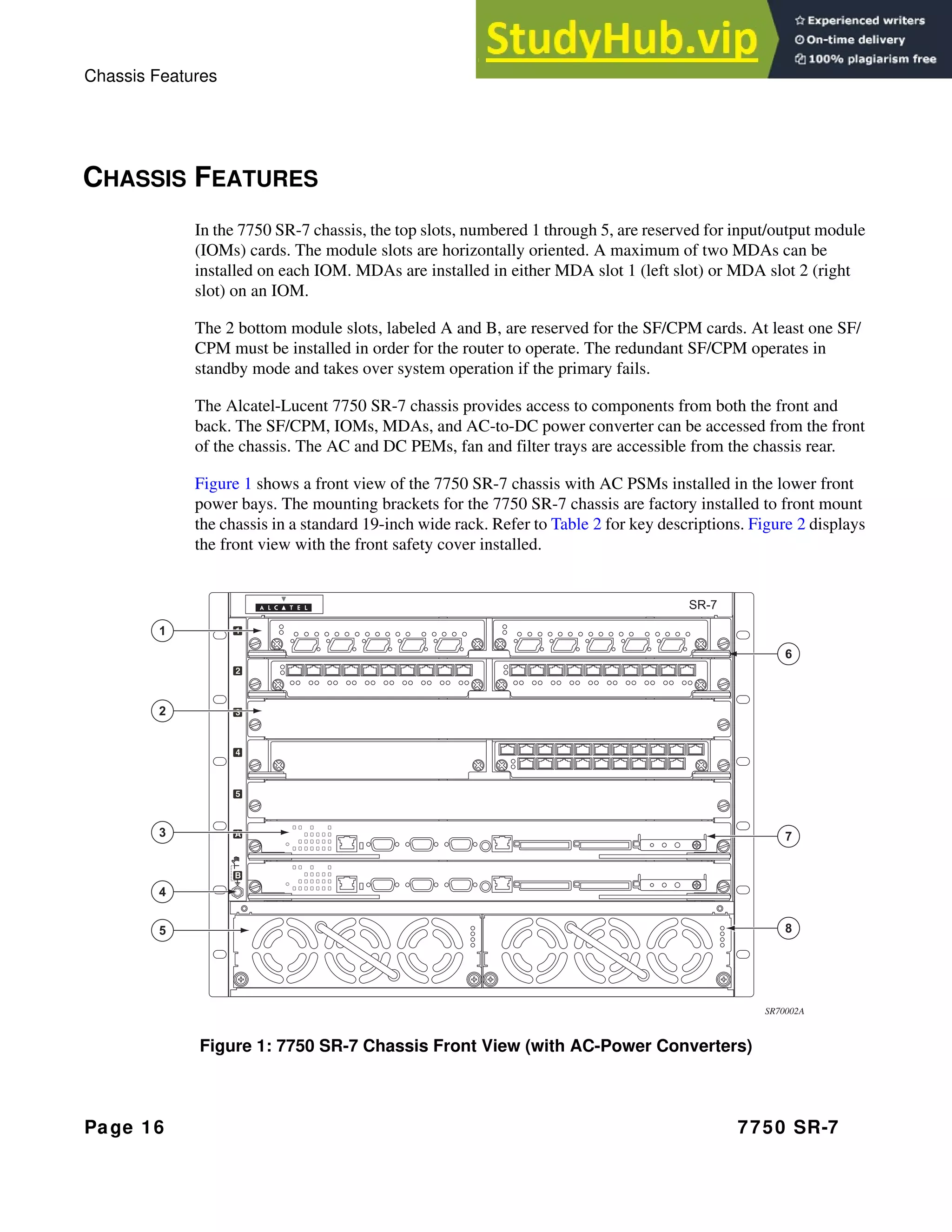
Figure 1 shows a front view of the 7750 SR-7 chassis with AC PSMs installed in the lower front
power bays. The mounting brackets for the 7750 SR-7 chassis are factory installed to front mount
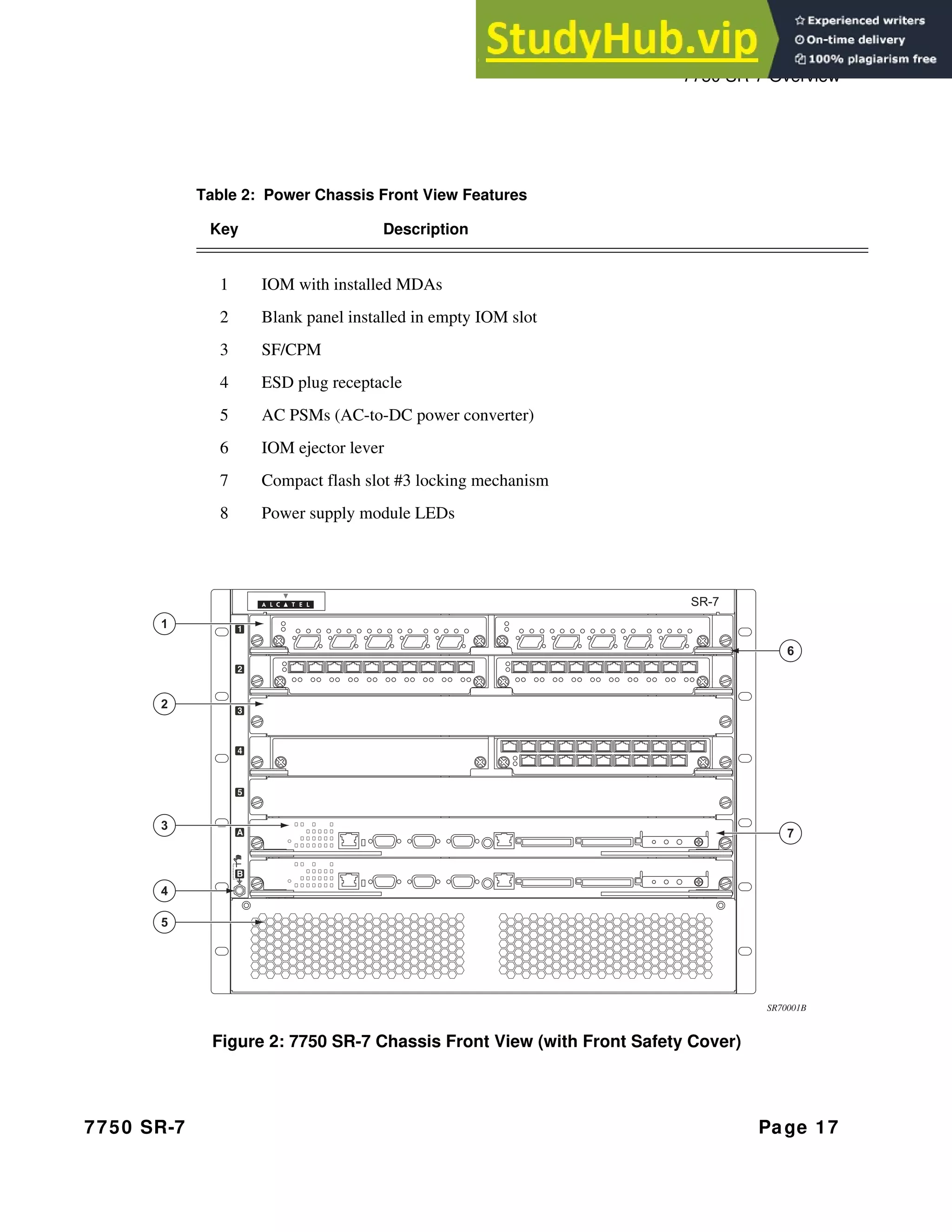
the chassis in a standard 19-inch wide rack. Refer to Table 2 for key descriptions. Figure 2 displays
the front view with the front safety cover installed.
Figure 1: 7750 SR-7 Chassis Front View (with AC-Power Converters)
6
7
8
1
2
3
5
4
SR70002A
7750 SR-7 Overview
7750 SR-7 Page 17
Figure 2: 7750 SR-7 Chassis Front View (with Front Safety Cover)
Table 2: Power Chassis Front View Features
Key Description
1 IOM with installed MDAs
2 Blank panel installed in empty IOM slot
3 SF/CPM
4 ESD plug receptacle
5 AC PSMs (AC-to-DC power converter)
6 IOM ejector lever
7 Compact flash slot #3 locking mechanism
8 Power supply module LEDs
6
7
1
2
3
5
4
SR70001B
Chassis Features
Page 18 7750 SR-7
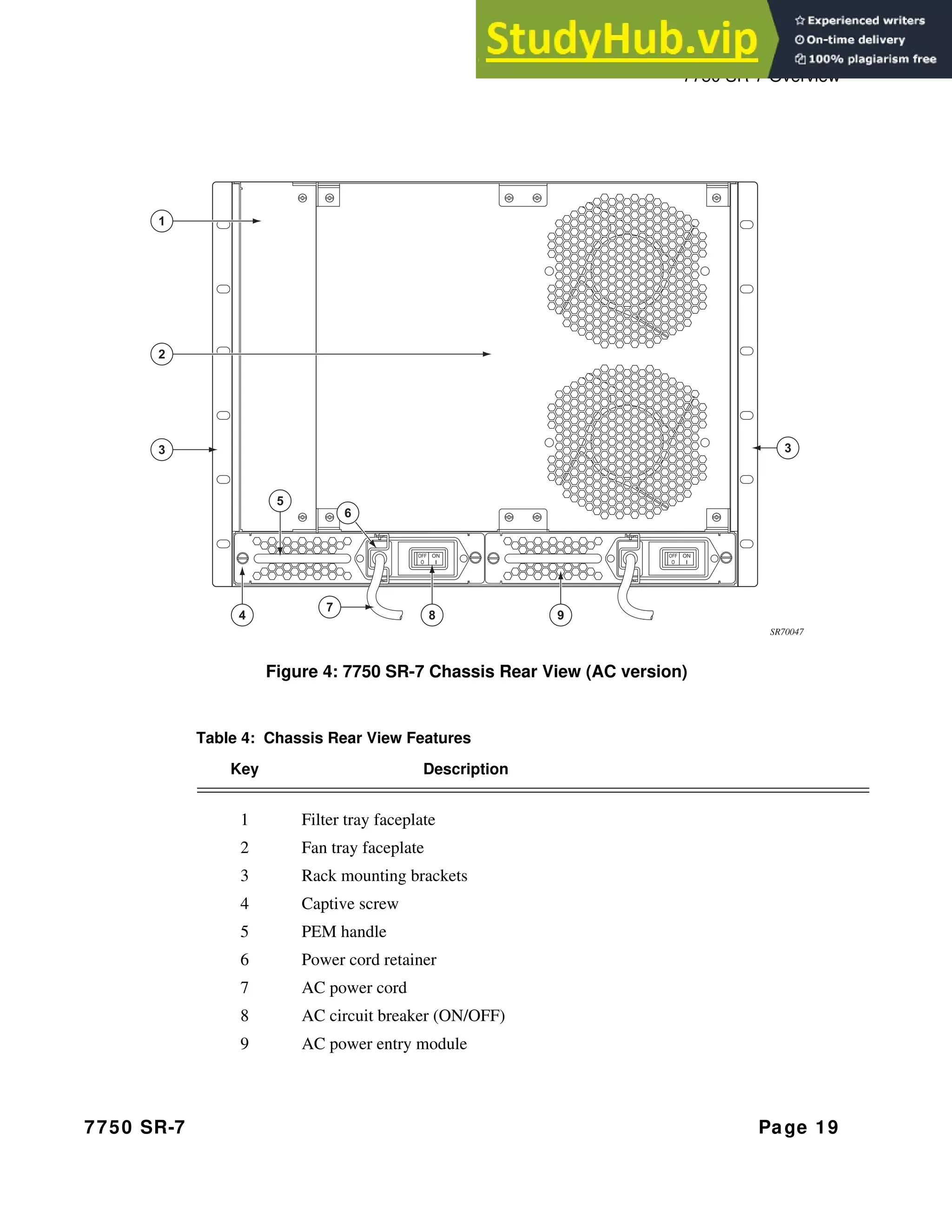
Figure 3 and Figure 4 display the 7750 SR-7 rear view with DC and AC PEMs installed in bays
(slots) 1 and 2. Refer to Table 3 for key descriptions.
Figure 3: 7750 SR-7 Chassis Rear View (DC version)
VDC
RTN
OFF
O
ON
I
VDC
RTN
OFF
O
ON
I
3
1
2
6 6
7 7
8 8
5 5
4 4
3
SR70046
Table 3: Chassis Rear View Features
Key Description
1 Filter tray faceplate
2 Fan tray faceplate
3 Rack mounting brackets
4 VDC power cable
5 RTN power cable
6 DC PEM
7 Circuit breaker (ON/OFF)
8 PEM handle
7750 SR-7 Overview
7750 SR-7 Page 19
Figure 4: 7750 SR-7 Chassis Rear View (AC version)
3
1
2
7
6
8 9
4
5
3
SR70047
Table 4: Chassis Rear View Features
Key Description
1 Filter tray faceplate
2 Fan tray faceplate
3 Rack mounting brackets
4 Captive screw
5 PEM handle
6 Power cord retainer
7 AC power cord
8 AC circuit breaker (ON/OFF)
9 AC power entry module
Chassis Features
Page 20 7750 SR-7
7750 SR-7 MODULES
This section describes the 7750 SR-7 SF/CPM, IOMs, and MDAs.
• SF/CPMs on page 20
• IOMs on page 26
• MDAs on page 26
SF/CPMS
The SF/CPM controls the routing and switching functions for the entire 7750 SR-7 system. The
7750 SR-7 operates with at least one SF/CPM installed. The redundant SF/CPM operates in
standby mode and takes over system operation if the primary fails.
The SF/CPM connects directly to the backplane and carries traffic between line cards. The
backplane provides high-speed access to the SF/CPMs, IOMs, and MDAs.
The switch fabric (SF) portion of the SF/CPM receives and directs traffic to the appropriate
destinations according to the routing information.
Each SF/CPM module can accommodate up to 3 compact flash memory cards which can be used
to copy and store system boot, software images, and configuration files and logs.
Figure 5 displays the front panel faceplate.
Figure 5: SF/CPM Faceplate Example
2 2
4 9 10
13
1 1
5 6 7 8 11 12
3
SR40018B
7750 SR-7 Overview
7750 SR-7 Page 21
Table 5 displays the SF/CPM field and LED descriptions.
Table 5: SF/CPM Field Descriptions
Key Label/Part Sub
category
Description
1 Captive screws Secures the SF/CPM in place.
2 Ejector lever Ejector levers are used to seat and disengage the connectors to and from
the backplane.
3 Reset A recessed button used to restart the SF/CPM. Insert a small object such
as a pen tip to depress the button.
Power • Blue: Power on.
• Unlit: Power off.
Status • Green: Operationally up and administratively up.
• Amber: Operationally down but administratively up.
• Unlit: Not operational, shutdown, or administratively down.
M/S Ctl Master/Slave SF/CPM designation:
• Green: Indicates that the SF/CPM is designated as the primary SF/CPM
in a redundant system.
• Green (blinking): Indicates that the SF/CPM is operating as the
secondary SF/CPM in a redundant configuration.
M/S Ref Master/Slave clocking reference designation:
• Green: Indicates that the SF/CPM is designated as the primary clocking
reference in a redundant system.
• Green (blinking): Indicates that the SF/CPM is operating as the
secondary clocking reference in a redundant system.
• Unlit: Clock not initialized.
Note: The clock is only required for SONET and/or 10GbE WAN
operations.
Timing The Timing LED indicates system status and quality.
• Green: Locked (operational state).
• Green (blinking): Clock in (internal) holdover state.
• Amber (blinking): Clock in free running state. The SR is attempting to
get a lock. When in the free running state, the timing of the SR can drift
and is not reliable. The preferred state is locked.
• Unlit: Clock not initialized.
Chassis Features
Page 22 7750 SR-7
3
(cont)
Reference 1, 2 The Reference LEDs indicate the status and quality of the individual
timing sources.
• Green: Qualified and selected as clock reference input.
• Green (blinking): Qualified but set as the standby clock reference.
• Amber: The reference is enabled (no shutdown) but not qualified.
• Amber (blinking): Now qualified, but failed previously. This state only
occurs in non-revertive mode.
• Unlit: Not in use, not configured.
3 Building integrated timing supply (BITS) network clocking: Derives
network timing from the central office (CO) BITS.
• Green: Qualified and selected as clock reference input.
• Green (blinking): Qualified but set as the standby clock reference.
• Amber: The reference is enabled (no shutdown) but not qualified.
• Amber (blinking): Now qualified, but failed previously. This state only
occurs in non-revertive mode.
• Unlit: Not in use, not configured.
Power Supply 1,2,3,4 The Power Supply LEDs indicate power status.
• Green: Indicates that a power entry module is installed and operational
in the associated slot.
• Amber (blinking): Indicates an error condition with an installed power
supply in the associated slot or the power supply was removed.
• Unlit: Indicates that a power supply is not installed or not recognized.
Only LEDs 1 and 2 illuminate for the 7750 SR-7 model.
• In the 7750 SR-7 model, the power supply LEDs on the secondary SFM
will light similarly to the primary SFM. A fault is indicated in one SFM
if the primary power supply LED and the comparable LED differ. The
SFM should be returned for repair. This may indicate a fault in the SFM
fuse system.
Fan Status
Fan Status LEDs
1,2,3 The Fan Status LEDs indicate fan tray status.
• Green: Indicates that the fan tray is installed and operational.
• Amber (blinking): Indicates a fan tray removal or failure.
• Unlit: Indicates that the fan tray is not installed.
• In the 7750 SR-7 model, only LED 1 and 2 illuminate.
• In the 7750 SR-7 model, the fan status LEDs on the secondary SFM
will light similarly to the primary SFM. A fault is indicated in one SFM
if the primary fan status LED and the comparable secondary LED
differ. The SFM should be returned for repair.
Table 5: SF/CPM Field Descriptions (Continued)
Key Label/Part Sub
category
Description
7750 SR-7 Overview
7750 SR-7 Page 23
Compact Flash 1,2,3 The Compact Flash LEDs indicate flash slot operational status.
• Green: Indicates that the flash card is operational and in a read or write
process.
Note: Do not physically remove or attempt to remove the flash card
when the LED is lit green.
• Amber (blinking): Error condition exists.
• Amber (solid): Indicates that the slot is in an operationally down mode.
This is the only mode to safely remove the flash card.
• Unlit: A flash card is not installed in the slot.
Alarms The Alarms LEDs indicate temperature and power supply status.
OT • Red: An overtemperature condition exists.
If there are no OT conditions, this LED should remain off.
Crit • Red: Indicates that a critical condition exists, such as a power supply
overtemperature condition, a fan tray failure, or an AC or DC power
supply failure.
If there are no critical conditions, this LED should remain off.
Maj • Red: Indicates that a serious condition exists, such as the removal of a
power supply.
If there are no major conditions, this LED should remain off.
Min • Amber: There are no conditions defined for a minor alarm.
This LED should remain off.
4 BITS • The BITS port is provisioned with a RJ-45 jack and used for the
network clock source.
• The link LED on the BITS interface is lit if a clock signal is being
received.
→ If sync-if-timing is configured and no clock signal is received, the
link LED lights amber.
→ If sync-if-timing is configured and a clock signal is received, the
link LED lights green.
5 DTE • Flip the switch to DTE when connecting to the serial port of a PC with
a null modem cable. When the switch is flipped to DTE, the console
port acts as a data terminal equipment (DTE) serial port.
DCE • Flip the switch to DCE when connecting to the serial port of a PC with
a straight-through cable. When the switch is flipped to DCE, the
console port is acting as a data communications equipment (DCE)
serial port.
Table 5: SF/CPM Field Descriptions (Continued)
Key Label/Part Sub
category
Description
Chassis Features
Page 24 7750 SR-7
6 Console • The console port is provisioned with a DB-9 jack and used for the
initial system startup as well as system configuration and monitoring.
The console port, a Universal Asynchronous Receiver/Transmitter
(UART) port, is used for system configuration and monitoring.
• Use a EIA/TIA-232 DCE console cable to connect a terminal to the
console port.
• The factory default baud rate is typically 115.2KBaud.
7 AUX The UART Auxiliary (diagnostic) port is provisioned as a DB-9 serial
auxiliary port and is used for modem connection.
8 Alarm The Alarm port is provisioned as a DB-9 serial port and is used to connect
to external alarm devices that report conditions that trigger red or amber
alarms.
9 ACO/LT The Audible Alarm Cutoff/Lamp Test button verifies the operability of
LEDs. When pressed, the LEDs should temporarily illuminate. This
button also turns off all external alarm relay control bits until the next
new alarm condition.
The LEDs blink when the button is depressed.
10 Mgmt Link • Amber: 10 M/bps
• Amber (blinking): Indicates half duplex mode.
• Green: 100 M/bps
• Unlit: Operationally down.
Data • Green (blinking): RX/TX activity.
• Amber (blinking): Error condition.
11 Compact Flash #1 (Slot) • Default filename: cf1:
• See the Compact Flash LED description for the status of a compact
flash slot.
• To eject a flash card, gently depress the ejector button until the flash
card releases.
• Amber (blinking): The compact flash was not removed safely or an
error condition exists.
12 Compact Flash #2 (Slot) • Default filename: cf2:
• See the Compact Flash LED description for the status of a compact
flash slot.
• To eject a flash card, gently depress the ejector button until the flash
card releases.
• Amber (blinking): The compact flash was not removed safely or an
error condition exists.
Table 5: SF/CPM Field Descriptions (Continued)
Key Label/Part Sub
category
Description
7750 SR-7 Overview
7750 SR-7 Page 25
SYNCHRONIZATION IN REDUNDANT SYSTEMS
The 7750 SR-7 router is capable of a 1:1 Control Processor Module (CPM) redundancy scheme.
Redundancy methods facilitate system synchronization between the active and standby CPMs so
they maintain identical operational parameters to prevent inconsistencies in the event of a CPM
failure.
When automatic system synchronization is enabled for an entity, any save or delete file operation
configured on the primary, secondary or tertiary locations on the active CPM file system are
mirrored in the standby CPM file system.
13 Compact Flash #3 (Slot) • Default filename: cf3:
• This slot should be used to download the boot and configuration
images.
• See the Compact Flash LED description for the status of a compact
flash slot.
• The ejector button for Compact Flash Slot #3 is slightly recessed. Insert
a small object such as a pen tip to depress the button.
• Amber (blinking): The compact flash was not removed safely or an
error condition exists.
Compact flash slot locking
mechanism
When engaged, the locking mechanism prevents the accidental jostling or
removal of the flash card inserted in Compact Flash Slot #3.
Table 5: SF/CPM Field Descriptions (Continued)
Key Label/Part Sub
category
Description
Chassis Features
Page 26 7750 SR-7
Although software configurations and images can be copied or downloaded from remote locations,
synchronization can only occur locally between compact flash drives (cf1:, cf2:, and cf3:).
Synchronization can occur either:
• Automatically — Automatic synchronization is disabled by default. To enable automatic
synchronization, the config>redundancy>synchronization command must be
specified with either the boot-env parameter or the config parameter.
When the boot-env parameter is specified, the BOF, boot.ldr, config, and image files are
automatically synchronized. When the config parameter is specified, only the config
files are automatically synchronized.
Automatic synchronization also occurs whenever the BOF is modified and when an
admin>save command is entered with no filename specified.
• Manually — To execute synchronization manually, the admin>redundancy>
synchronization command must be entered with the boot-env parameter or the
config parameter.
When the boot-env parameter is specified, the BOF, boot.ldr, config, and image files are
synchronized. When the config parameter is specified, only the config files are
synchronized.
For more information about redundancy and synchronization, refer to the Alcatel OS
System Guide
IOMS
Alcatel-Lucent’s 7750 routers support a wide variety of interfaces, including Ethernet, SONET/
SDH (channelized and concatenated) and ATM. Each input/output module (IOM) features a single-
slot baseboard carrying up to two hot-swappable MDAs.
MDAS
Alcatel-Lucent’s Ethernet MDAs for the 7750 Service Router family provide the critical high-
speed interfaces. An MDA is a plug-in module allowing selection among fiber-optic, twisted pair,
and coaxial cable. A maximum of 2 MDAs can be installed on each IOM.
See Appendix A: LEDs and Optics on page 109 for LED descriptions.
7750 SR-7 Overview
7750 SR-7 Page 27
CHASSIS COMPONENTS
The 7750 SR-7 chassis contains the following components:
• Power Supplies and Redundancy on page 27
→ DC Power Entry Modules on page 27
→ AC Power Entry Modules on page 30
• Fan Trays on page 31
• Air Filter on page 33
• Blank Panels on page 33
POWER SUPPLIES AND REDUNDANCY
The 7750 SR-7 chassis is designed to accommodate swappable, load-sharing power modules
(Figure 8). One DC PEM or the combination of one AC power supply module (PSM) and AC
power entry module (PEM) can support the full system current requirements if you are operating
the 7750 SR-7 without power redundancy. The PSM is also referred to as an AC-to-DC power
converter. For redundancy, two DC PEMs or the combination of two PSMs (for AC-to-DC power
conversion) and two AC PEMs must be installed and powered on at all times.
DC POWER ENTRY MODULES
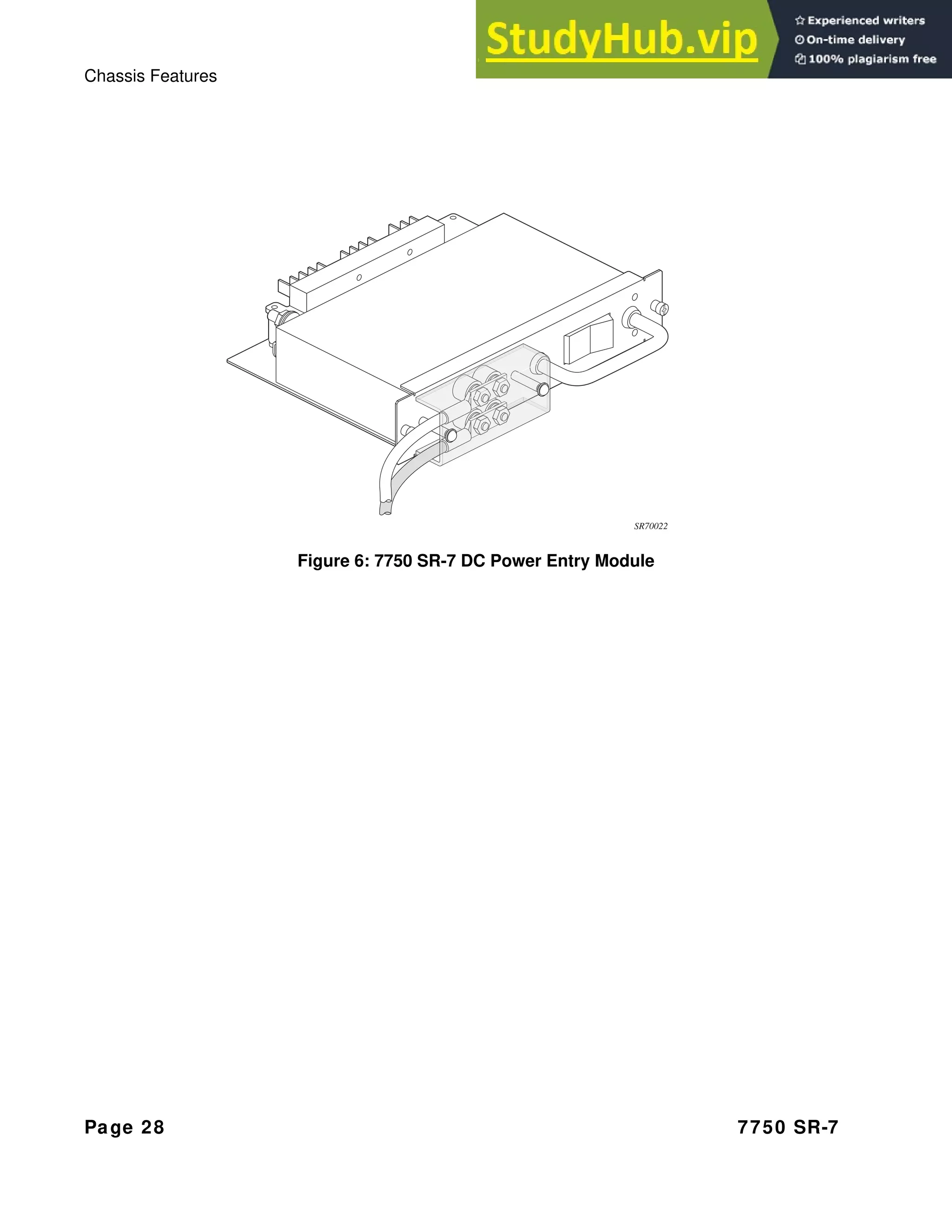
DC PEMs (Figure 6) are easily installed and removed from the rear of the 7750 SR-7 chassis. DC
modules are installed in power bays 1 and 2. One PEM can support the full system current
requirements if you are operating the 7750 SR-7 without power redundancy. For redundancy, two
PEMs must be installed and powered on at all times.
To prevent contact with hazardous voltages and currents and to prevent accidental removal, always
operate an energized chassis with the safety cover installed over the DC power terminal block.
DC power cables are a separate orderable item. If you supply your own power cables, verify that
they are compliant with your local safety codes.
PEMs are packaged and shipped separately. Refer to Preparing the Power Cable on page 67 for
requirements and information to preparing cables.
PEMs have no field replaceable parts. The entire unit must be replaced in the event of a failure.
Chassis Features
Page 28 7750 SR-7
Figure 6: 7750 SR-7 DC Power Entry Module
SR70022
7750 SR-7 Overview
7750 SR-7 Page 29
AC POWER SUPPLY MODULES
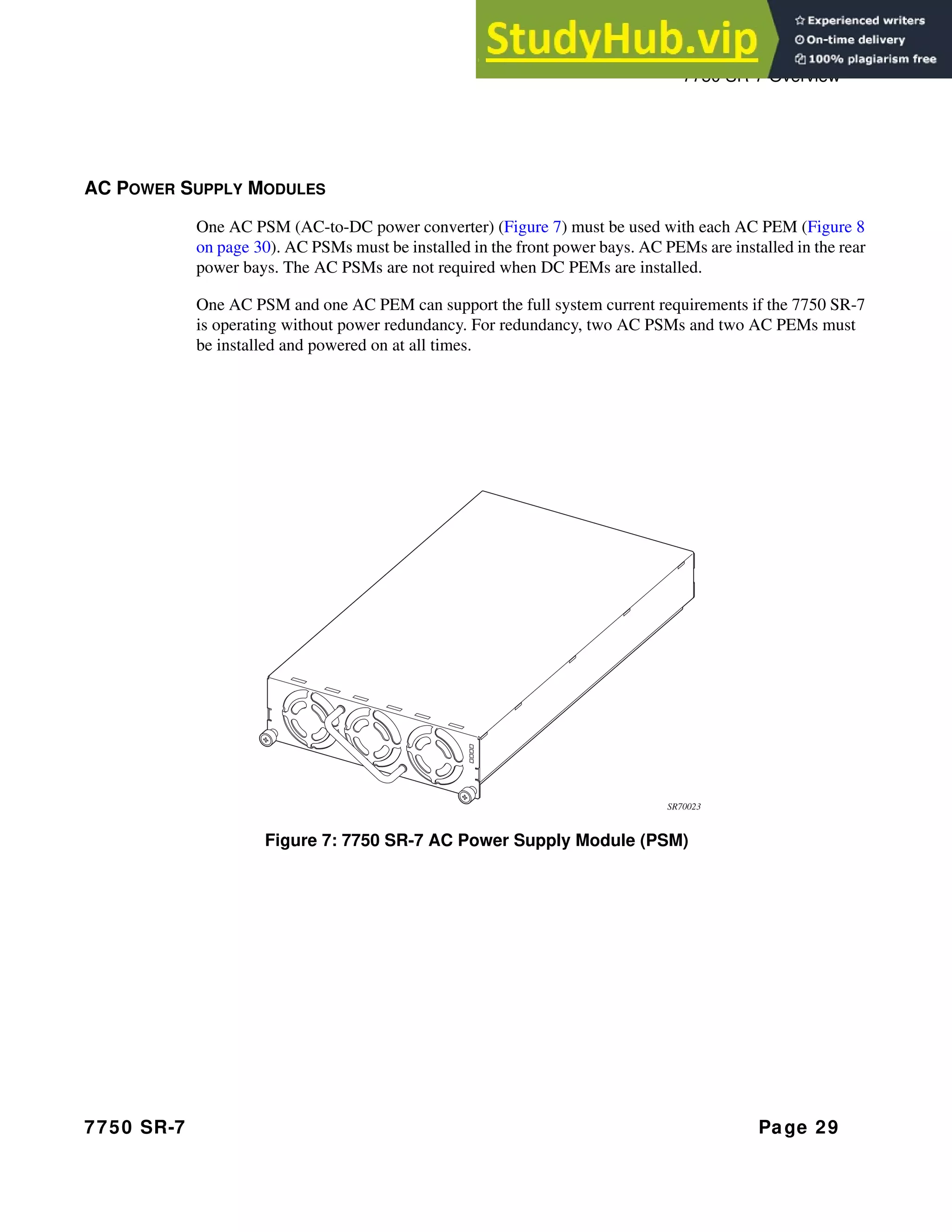
One AC PSM (AC-to-DC power converter) (Figure 7) must be used with each AC PEM (Figure 8
on page 30). AC PSMs must be installed in the front power bays. AC PEMs are installed in the rear
power bays. The AC PSMs are not required when DC PEMs are installed.
One AC PSM and one AC PEM can support the full system current requirements if the 7750 SR-7
is operating without power redundancy. For redundancy, two AC PSMs and two AC PEMs must
be installed and powered on at all times.
Figure 7: 7750 SR-7 AC Power Supply Module (PSM)
SR70023
Chassis Features
Page 30 7750 SR-7
AC POWER ENTRY MODULES
Two bays in the rear of the 7750 SR-7 chassis are designated for swappable, load-sharing power
entry modules (PEM) (Figure 8). One AC PEM and one AC PSM can support the full system
current requirements if you are operating the 7750 SR-7 without power redundancy. For
redundancy, two AC PEMs and two AC PSMs must be installed and powered on at all times. See
AC Power Supply Modules on page 29.
AC power cables are only shipped with the 7750 SR-7 chassis if ordered. If power cords are not
ordered, you must supply them. All power cables used on the 7750 SR-7 chassis must meet your
local safety codes.
The associated LED on the SF/CPM faceplate indicates normal online (green), fault (red), or
offline (not lit) power conditions. A circuit breaker integrated into the AC PEM provides over-
current protection.
AC PEMs have no field replaceable parts. The entire unit must be replaced in the event of a failure.
Power can be removed with the circuit breaker (ON/OFF) on each AC PEM.
Figure 8: 7750 SR-7 AC Power Entry Module (PEM)
SR70023
7750 SR-7 Overview
7750 SR-7 Page 31
FAN TRAYS
The 7750 SR-7 system is cooled by either a dual-tray system that houses two fans on each tray
(Figure 9) or a single high flow fan tray that houses four fans (Figure 10). Air is pulled through the
system from a left-side filtered-intake vent, across the line cards and then exits through the two
rear fan trays. The AC PSM intakes air through the front of the unit and exhausts out the back. The
fan rate is reduced at normal temperatures and increases to high speed when the operating
temperature rises above 68° C (154° F). When the temperature drops to 50° C (122° F) the fans
return to the half speed rate.
The fan LED located on the front panel of the chassis indicates normal online (green), fault
(amber), or offline (not lit) if there is no power to the fans.
NOTE: There are three temperature sensors per IOM and SF/CPM and one temperature sensor per
MDA. The highest temperature from any sensor is reported as the temperature for that slot. If the
fan LED is lit amber (which indicates a fan problem), use the show card 1 detail CLI
command to monitor the current temperature and temperature threshold fields. If the
temperature rises quickly and remains above the temperature threshold, an alarm is generated.
Repair or replace the unit immediately.
The cooling system components work together to keep the internal components within the
acceptable temperature range. The cooling system consists of the following components:
• One fan tray with four fans
• One air filter
• Chassis left-side air intake
• Rear air outlet
Chassis Features
Page 32 7750 SR-7
Figure 9: Fan Tray - Dual Fan Tray Example
Figure 10: Fan Tray - Single Fan Tray Example
SR70027
SR70049
7750 SR-7 Overview
7750 SR-7 Page 33
The fan status indicator LEDs, labeled Fan Status, are displayed on the SF/CPM front panel (see
Figure 5 on page 20). Table 5 on page 21 provides LED descriptions. The green LED indicates
normal operation. The LED is amber if there is a fan failure or unlit if there is no power to a fan.
Fan trays are factory installed. There are no field replaceable parts within the fan tray. The entire
fan tray must be replaced if a component, such as a single fan, fails.
The fan tray must always be installed and fully operational while the 7750 SR-7 is powered up.
During routine maintenance and fan tray replacement, the system can operate safely for up to
approximately 5 minutes at an ambient temperature of 95°F (35°C).
AIR FILTER
One air filter prevents large particles, debris, and dust from entering and circulating through the
system. Filters should be inspected monthly and cleaned and replaced every twelve months or as
required.
The filter is factory installed and is field replaceable.
BLANK PANELS
Blank panels and faceplates are required in all empty card and component slots to prevent excess
dust accumulation and to help control airflow and electromagnetic interference, and for safety
reasons. Blanks do not have board components or connector pins.
Chassis Features
Page 34 7750 SR-7
COMPONENT OPERATING REQUIREMENTS
Table 6 and Table 7 display the 7750 SR-7 hardware component operating requirements.
1 Power cables are only shipped with the 7750 SR-7 chassis if ordered. If power cords are not
ordered, you must supply them. All power cables used on the 7750 SR-7 chassis must meet your
local safety codes.
2 Each AC PEM must be installed with a corresponding AC PSM.
Table 6: 7750 SR-7 Hardware Components for DC Operational Requirements
Component Minimum Maximum Field-Replaceable
Backplane (factory installed) 1 1 N
DC PEM 1 2 Y
Power cables1 1 per module 1 Y
Air filter (factory installed) 1 1 Y
Dual fan tray system (factory installed) 2 2 Y
Single fan tray system (factory installed) 1 1 Y
SF/CPM 1 2 Y
IOM 1 5 Y
MDAs 1 2 per IOM Y
Table 7: 7750 SR-7 Hardware Component for AC Operational Requirements
Component Minimum Maximum Field-Replaceable
Backplane (factory installed) 1 1 N
Power cables1 1 per module 1 Y
AC PSM (AC-to-DC power converter)2 1 2 Y
AC PEM2 1 2 Y
Air filter (factory installed) 1 1 Y
Dual fan tray system (factory installed) 2 2 Y
Single fan tray system (factory installed) 1 1 Y
SF/CPM 1 2 Y
IOM 1 5 Y
MDAs 1 2 per IOM Y
7750 SR-7 Overview
7750 SR-7 Page 35
7750 SR-7 SYSTEM INSTALLATION PROCESS
To install the 7750 SR-7 system, perform the installation procedures in the following order:
Step 1 Prepare the site.
Step 2 Unpack the chassis and components.
Step 3 Mount the chassis.
Step 4 Prepare the chassis ground cables and make the grounding connections.
Step 5 Install DC PEMs or AC PSMs and AC PEMs.
Step 6 Prepare power cords. Make power connections.
Step 7 (Optional) You can either turn on the power modules now or after you install the SF/
CPM, IOMs, and MDAs.
Step 8 Install SF/CPM(s).
Step 9 Preconfigure card slot, IOM, MDA, and port information.
Step 10 Install at least one IOM.
Step 11 Install at least one MDA.
Step 12 Connect network cables.
7750 SR-7 System Installation Process
Page 36 7750 SR-7
7750 SR-7 Page 37
SITE PREPARATION
In This Chapter
This chapter provides information about preparing your site to install a 7750 SR-7 router.
This chapter provides an overview of the following topics:
• Warnings and Notes on page 38
• System Specifications on page 39
→ Chassis Specifications on page 39
→ Environmental Specifications on page 39
→ Power Module Specifications on page 40
→ Electrical Characteristics on page 40
→ Component Power Consumption on page 41
→ Component Specifications on page 43
→ Storage on page 49
• Safety Considerations on page 46
→ Placement on page 46
→ Grounding on page 46
→ Cabling on page 47
→ Power on page 47
→ Fans on page 48
→ Storage on page 49
• Safety Standards/Compliance Agency Certifications on page 50
Warnings and Notes
Page 38 7750 SR-7
Warnings and Notes
Warning:
• Do not assume that power has been disconnected from a circuit. Be sure to disconnect power to the
equipment rack and external cables before installing or removing the 7750 SR-7 router.
• Do not install equipment that appears to be damaged.
• Install this unit in a restricted area that is only accessible by authorized service personnel.
Notes:
• Prepare the equipment rack and site before installing the router. Plan the router placement near the
power sources and network interface connections.
• An empty 7750 SR-7 chassis weighs approximately 45 lbs. (20.42 kg). The shipping weight is
approximately 60 lbs. (27.22 kg). For personal safety, use at least two people or a hand cart to lift
or move the router.
• Always install the heaviest equipment on the bottom of the rack to keep the center of gravity of the
equipment rack as low as possible.
• To provide necessary stability, ensure that the equipment rack is bolted to the floor. Ceiling
brackets are useful to provide additional stability.
• The equipment rack must be properly grounded.
• Install components after the chassis is installed in a rack.
• Maintain a clearance of at least 20-inches (50.8 cm) at the front and back of the router to ensure
adequate air intake and exhaust, and for fan and filter tray maintenance.
• Maintain a clearance of at least 3-inches (7.6 cm) on each side to ensure adequate air intake and
exhaust.
• Maintain adequate air flow to and from all equipment in the rack that might interfere with the
normal flow of cooling air through the router.
• The 7750 SR-7 router includes factory installed rack mounting brackets to install in a 19-inch
equipment rack.
Site Preparation
7750 SR-7 Page 39
System Specifications
Chassis Specifications
Environmental Specifications
Table 8: Chassis Specifications
Parameter Description
Dimensions 14" H x 17.5" W x 23.5" D
Chassis weight (with factory-installed
fan tray and air filter)
60 lbs. (27.22 kg)
Chassis weight loaded 155 lbs. (approx.)
Mounting Mount in 19-inch equipment rack. Bracket ears are factory installed
for 19-inch front mounting.
Table 9: Environmental Specifications
Parameter Description
Operating:
Temperature
Short term
41 to 104º F (5 to 40º C)
23 to 122º F (-5 to 50º C)
Maximum altitude 13,000 ft./3962.4 m
Relative humidity
Short term
5 to 85% (non-condensing)
5 to 90% (non-condensing)
Heat dissipation (worst case
configuration)
2200W (joules/sec)
6,826 BTU/hour
Acoustic noise level NEBS:
72.36 dBA (dual fan trays)
71.78 dBA (single high-flow fan tray)
ETSI
75.86 dBA (dual fan trays)
76.75 dBA (single high-flow fan tray)
Power consumption 2400W
Nominal power required per
slot (max)
240W
System Specifications
Page 40 7750 SR-7
Power Module Specifications
Electrical Characteristics
Table 10: Power Module Specifications
Parameter Description
AC PSM:
Max. quantity per chassis 2
PSM dimensions 16.5" L x 8.5" W x 2.5" H
Weight 10.5 lbs. (4.76 kg)
AC PEM:
Max. quantity per chassis 2
PEM dimensions 7.5" L x 8.75" W x 1.75" H
Weight 1.3 lbs. (0.59 kg)
DC PEM:
Max. quantity per chassis 2
PEM dimensions 7.5" L x 8.75" W x 1.75" H
Weight 5 lbs. (2.27 kg)
Table 11: Electrical Characteristics
Power Supply
Type
Electrical
Characteristics
Value
Using AC PEMs:
AC Input 200-240VAC
10.0 ~ 8.3A
50/60 Hz
DC Output -48V
Note that each power supply is capable of provid-
ing in excess of 50A.
Using DC PEMs:
DC Input -40VDC — -72VDC
60A — 34A
Site Preparation
7750 SR-7 Page 41
Component Power Consumption
• Chassis Power Consumption on page 41
• MDA Power Consumption on page 41
• Board Power Consumption on page 42
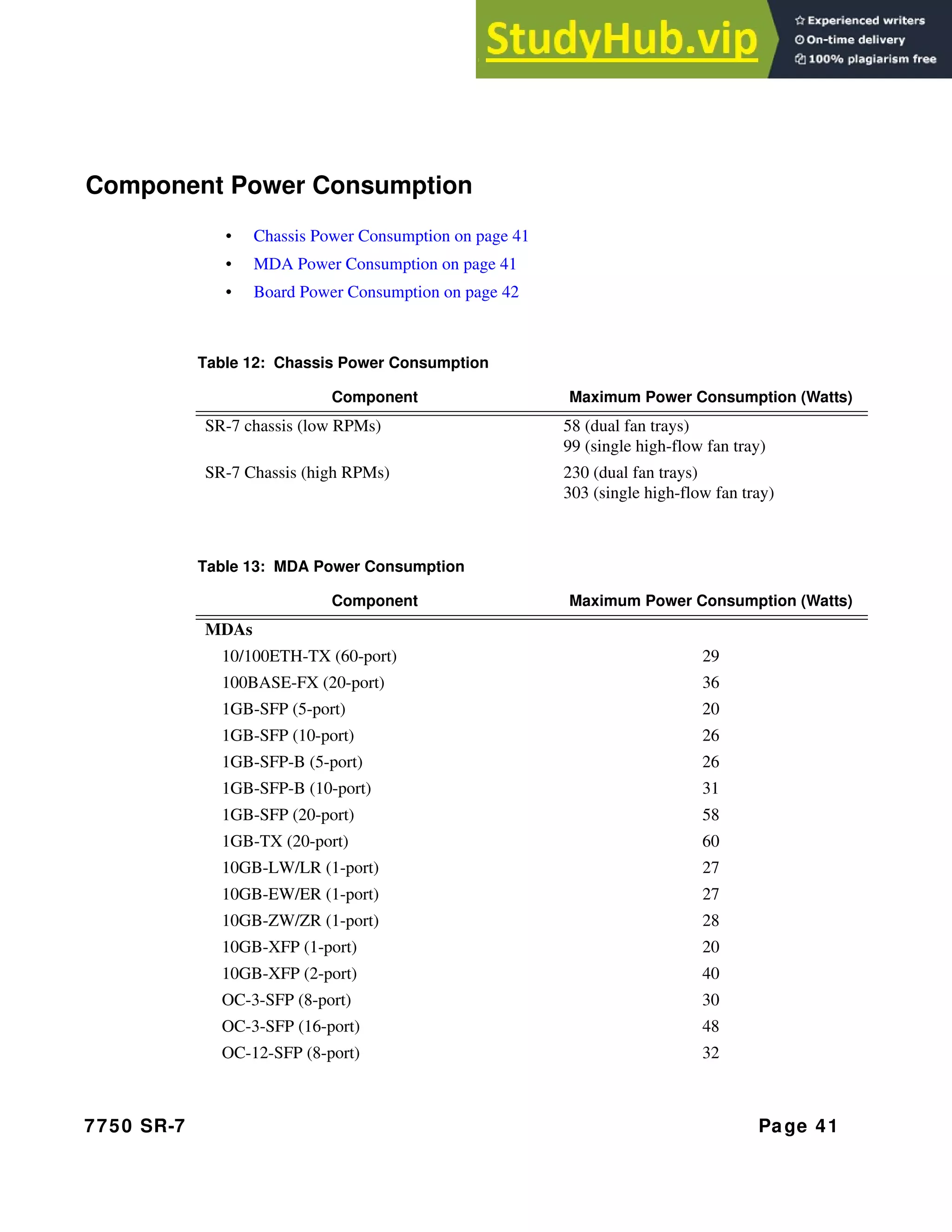
Table 12: Chassis Power Consumption
Component Maximum Power Consumption (Watts)
SR-7 chassis (low RPMs) 58 (dual fan trays)
99 (single high-flow fan tray)
SR-7 Chassis (high RPMs) 230 (dual fan trays)
303 (single high-flow fan tray)
Table 13: MDA Power Consumption
Component Maximum Power Consumption (Watts)
MDAs
10/100ETH-TX (60-port) 29
100BASE-FX (20-port) 36
1GB-SFP (5-port) 20
1GB-SFP (10-port) 26
1GB-SFP-B (5-port) 26
1GB-SFP-B (10-port) 31
1GB-SFP (20-port) 58
1GB-TX (20-port) 60
10GB-LW/LR (1-port) 27
10GB-EW/ER (1-port) 27
10GB-ZW/ZR (1-port) 28
10GB-XFP (1-port) 20
10GB-XFP (2-port) 40
OC-3-SFP (8-port) 30
OC-3-SFP (16-port) 48
OC-12-SFP (8-port) 32
System Specifications
Page 42 7750 SR-7
OC-12-SFP (16-port) 50
OC-48/STM-16 (2-port) 20
OC-48/STM-16 (4-port) 24
OC-192-SR1-SM (1-port) 25
OC-192-IR2-SM (1-port) 32
OC-192-LR2-SM (1-port) 35
Channelized DS3 (4-port) 21
Channelized DS3 (12-port) 27
Channelized OC-3/STM-1 (4-port) 60
Channelized OC-12/STM-4 (1-port) 29
Channelized OC-3 ASAP (4-port) 65
OC-12/3-ATM (4-port) 45
OC-12/3-ATM (16-port) 47
GigE + 1-port 10GBASE (10-port) 55
Versatile Service Module (VSM) (No ports) 10
Table 14: Board Power Consumption
Component/ Board Maximum Power Consumption (Watts)
IOM iom-20g 168
iom-20g-b 168
IOM iom2-20g 200
IOM iom-10g 140
SFM 200g 150
SFM2 200g 150
SFM 400g 150
SFM2 400g 150
Table 13: MDA Power Consumption (Continued)
Component Maximum Power Consumption (Watts)
Site Preparation
7750 SR-7 Page 43
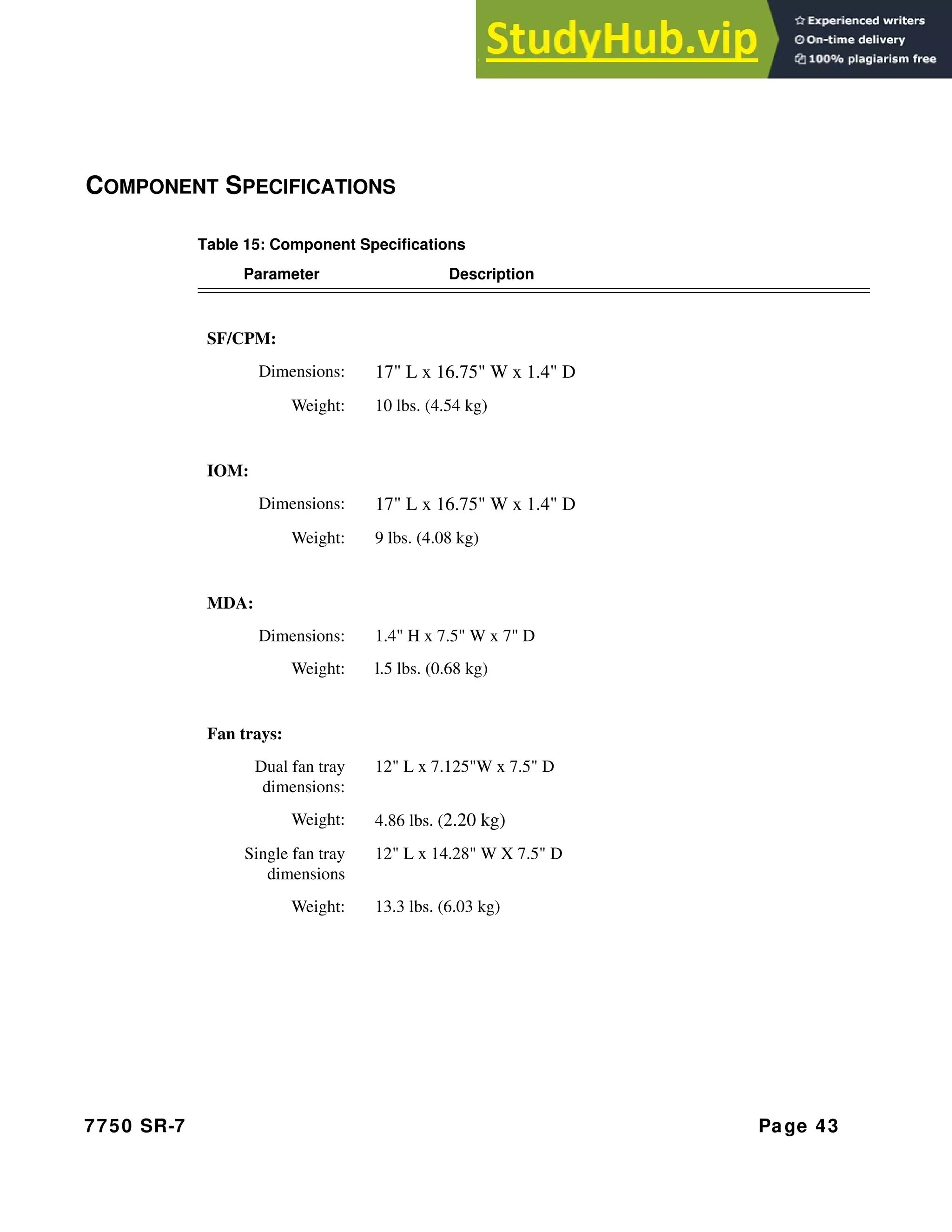
COMPONENT SPECIFICATIONS
Table 15: Component Specifications
Parameter Description
SF/CPM:
Dimensions: 17" L x 16.75" W x 1.4" D
Weight: 10 lbs. (4.54 kg)
IOM:
Dimensions: 17" L x 16.75" W x 1.4" D
Weight: 9 lbs. (4.08 kg)
MDA:
Dimensions: 1.4" H x 7.5" W x 7" D
Weight: l.5 lbs. (0.68 kg)
Fan trays:
Dual fan tray
dimensions:
12" L x 7.125"W x 7.5" D
Weight: 4.86 lbs. (2.20 kg)
Single fan tray
dimensions
12" L x 14.28" W X 7.5" D
Weight: 13.3 lbs. (6.03 kg)
System Specifications
Page 44 7750 SR-7
The Equipment Rack
Follow the equipment rack manufacturer’s instructions for proper rack installation.
The router must be installed in a rack. It cannot operate from a tabletop or floor. It can be front or
center mounted in many types of racks, including the following:
• Standard 19-inch (48.26 cm) equipment rack
• Standard telco rack (four-post)
The equipment rack rail mounting holes must align with the mounting holes on the chassis
mounting brackets. The mounting brackets are factory installed for a front mount in a 19-inch
rack.
Required tools:
• #2 Phillips screwdriver
• Flathead screwdriver
• Anti-static bags, mats, and packaging
• ESD wrist strap
Site Preparation
7750 SR-7 Page 45
Rack Clearance Requirements
Allow at least 3-inch clearance on the sides of the rack for proper airflow and at least 20-inches in
the front and rear of the rack for maintenance access and to allow space to remove and install SF/
CPM, IOMs, MDAs, and AC PSMs in the front and allow space to remove and install the fan and
filter trays and DC or AC PEMs in the rear.
Figure 11: Chassis Clearance Requirements
FRONT
REAR
20” REAR
REQUIRED FOR MAINTENANCE
20” FRONT
REQUIRED FOR MAINTENANCE
3” SIDE
RECOMMENDED FOR AIR FLOW AND
MAINTENANCE
Safety Considerations
Page 46 7750 SR-7
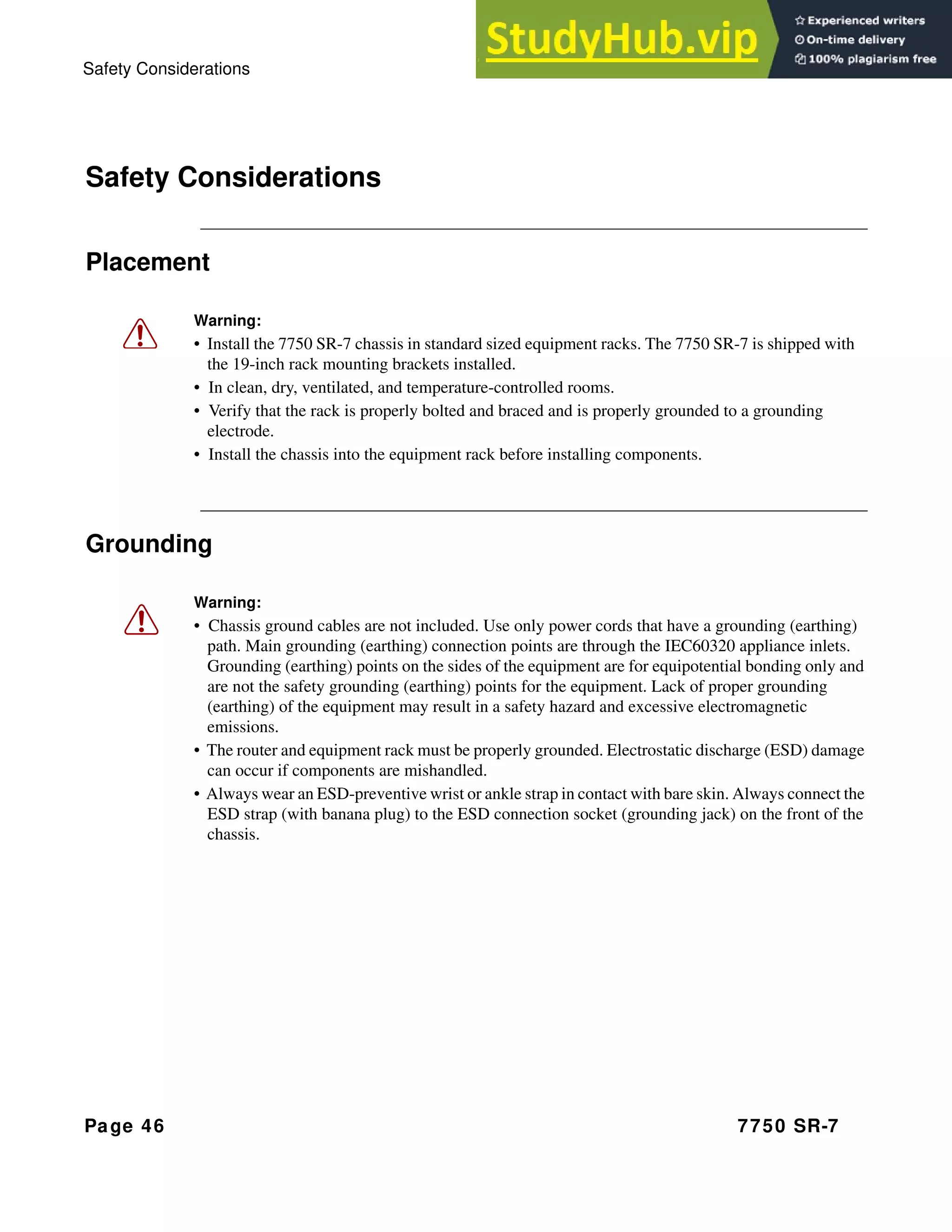
Safety Considerations
Placement
Grounding
Warning:
• Install the 7750 SR-7 chassis in standard sized equipment racks. The 7750 SR-7 is shipped with
the 19-inch rack mounting brackets installed.
• In clean, dry, ventilated, and temperature-controlled rooms.
• Verify that the rack is properly bolted and braced and is properly grounded to a grounding
electrode.
• Install the chassis into the equipment rack before installing components.
Warning:
• Chassis ground cables are not included. Use only power cords that have a grounding (earthing)
path. Main grounding (earthing) connection points are through the IEC60320 appliance inlets.
Grounding (earthing) points on the sides of the equipment are for equipotential bonding only and
are not the safety grounding (earthing) points for the equipment. Lack of proper grounding
(earthing) of the equipment may result in a safety hazard and excessive electromagnetic
emissions.
• The router and equipment rack must be properly grounded. Electrostatic discharge (ESD) damage
can occur if components are mishandled.
• Always wear an ESD-preventive wrist or ankle strap in contact with bare skin. Always connect the
ESD strap (with banana plug) to the ESD connection socket (grounding jack) on the front of the
chassis.
Site Preparation
7750 SR-7 Page 47
Cabling
Power
Warning:
• To comply with the GR-1089-CORE, Issue 03, requirement R4-9 [31] standard for
electromagnetic compatibility and safety, all intra-building ports are specified for use with
shielded and grounded cables at both ends.
• The intra-building port(s) of the equipment or sub-assembly is suitable for connection to intra-
building or unexposed wiring or cabling only. The intra-building port(s) of the equipment or sub-
assembly must not be metallically connected to interfaces that connect to the Outside Plant
(OSP) or its wiring. These interfaces are designed for use as intra-building interfaces only (Type
2 or Type 4 ports as described in GR-1089-CORE, Issue 4) and require isolation from the
exposed OSP cabling. The addition of primary protectors is not sufficient protection in order to
connect these interfaces metallically to OSP wiring.
• Bare conductors must be coated with an appropriate antioxidant compound before crimp
connections are made. All unplated connectors, braided strap, and bus bars must be brought to a
bright finish and then coated with an antioxidant before they are connected.
• The equipment under test (EUT) is specified for DC-I power configurations. The battery returns
must remain isolated until they reach the main power buss.
Warning:
• Only service electrical personnel should perform wiring and cabling to the system.
• All power to the equipment rack or cabinet should be disconnect before the installation.
• The power cable(s) must meet your local electric code requirements.
• The PEM circuit breaker is not intended to be used as the chassis ON/OFF switch. Unplug the
power cord from the power source and disconnect the cord from the receptacle on the power
module to remove power.
Safety Considerations
Page 48 7750 SR-7
Fans
The 7750 SR-7 cooling system must have at least 3-inch clearance on the sides of the rack for
proper airflow and at least 20-inches in the front and rear for installation and maintenance access.
The fan tray must be in place before the chassis is powered on.
Blank panels and faceplates are required in all empty card and component slots to prevent excess
dust accumulation and to help control airflow and electromagnetic interference.
Filters
The filter tray must always be installed while the 7750 SR-7 is powered up.
The filter should be inspected monthly and cleaned and replaced every twelve months or as
required. The filter is field replaceable.
Site Preparation
7750 SR-7 Page 49
Storage
To store unused components and extra field-replaceable parts, re-wrap the components in the
original packaging and keep them in a dry, dust-free temperature controlled environment.
Table 16: Storage Specifications
Parameter Description
Storage temperature From -40° to 158°F (-40° to 70°C)
Non-condensing relative humidity Within 5 to 95 percent.
Safety Standards/Compliance Agency Certifications
Page 50 7750 SR-7
SAFETY STANDARDS/COMPLIANCE AGENCY CERTIFICATIONS
Table 17: Safety Standards and Compliance Agency Certifications
Type Publication
Safety CAN/CSA-C22.2 No 60950-1-03
ANSI/UL 60950-1-2002
IEC 60950: 1999 3rd edition
EN 60825-1 Safety of laser products
CB test certificate
EMC EN300 386 V1.3.1.2001 - For equipment operating in telecommunications
centers
VCCI Class A
FCC Part 15 Class A
EN55022 Class A
EN55024:1998 For information technology equipment
ICES-003 Class A
CE Declaration
Certifications NEBS
• GR-1089-CORE
• CR-63-CORE
• SBC-TP-76200
Environmental TS 300 019-1-1, Storage Tests, Class 1.2
ETS 300 019-1-2, Transportation Tests, Class 2.3
ETS 300 019-1-3, Operational Tests, Class 3.2
ETS 300 019-2-4 pr A1 Seismic
ETS 300 753 Acoustic noise
7750 SR-7 Page 51
INSTALLING THE 7750 SR-7
IN THIS CHAPTER
This chapter provides information about installing a 7750 SR-7 router.
This chapter provides information on the following topics:
• Unpacking the Chassis on page 52
→ Unpacking Precautions on page 52
• Rack Mounting the Chassis on page 54
• Making the Chassis Ground Connection on page 57
→ Preparing the Ground Wire on page 57
→ Making the Ground Wiring Connection on page 59
Unpacking the Chassis
Page 52 7750 SR-7
UNPACKING THE CHASSIS
UNPACKING PRECAUTIONS
Review this section to avoid injury or damage to the 7750 SR-7:
• An empty 7750 SR-7 router is approximately 60 lbs. (27.22 kg). The router is shipped
with the fan and filter trays as well as the AC or DC PEMs installed. To prevent injury or
damage to the router, it is recommended that at least two people remove the router from
the shipping crate and mount it into a rack.
• Do not load components into the router until it is rack mounted.
• The router is shipped in a heavy corrugated cardboard container protected by a foam cap
and base. Do not discard the packaging container and materials used in shipping. The
packing materials should be re-used if it is necessary to relocate the router.
• Keep the 7750 SR-7 wrapped in the anti-static packaging until you are ready to install the
router.
• Keep the arrows on the shipping container pointing up.
Installing the 7750 SR-7
7750 SR-7 Page 53
Figure 12: Unpacking the 7750 SR-7 Chassis
Follow these steps to unpack the chassis:
Step 1 Cut and remove the packing straps.
Step 2 Remove the cardboard box top.
Step 3 Remove the foam cap and accessories kit.
Step 4 Remove the anti-static bag.
Step 5 The chassis shipping weight is approximately 60 lbs. (27.22 kg). With two people,
carefully remove the chassis from the carton’s base.
SR70036A
1
4
3
2
5
Caution: There are no handles or hand grips on the 7750 SR-7. Lift by the bottom of the chassis.
Do not put your hands inside the chassis to lift.
Rack Mounting the Chassis
Page 54 7750 SR-7
RACK MOUNTING THE CHASSIS
The 7750 SR-7 router chassis is designed for front and middle-mount installation into a 19-inch
rack. The rack mounting hardware (including rack bolts) is factory installed to front-mount the
chassis in a 19-inch rack.
Required tools:
• Use a screwdriver to loosen and tighten the mounting bracket bolts.
Before you begin, verify:
• The equipment rack is securely installed, anchored, and grounded. Refer to the rack
manufacturer’s documentation for instructions.
• The power to the rack is OFF.
Danger:
• Only trained and qualified personnel should install or replace this equipment.
Caution:
• There are no handles or hand grips on the 7750 SR-7. Lift the router from underneath. Do not
lift the router by the internal chassis frame.
• When rack mounting the 7750 SR-7 in an equipment rack, do not stack other units or any other
equipment directly on top (where the bottom unit is supporting other devices). Each unit must
be secured into the rack with the appropriate mounting apparatus.
Installing the 7750 SR-7
7750 SR-7 Page 55
Figure 13: Installing the 7750 SR-7 Chassis
3
2
1
SR70004
Table 18: Rack Mounting the 7750 SR-7 Chassis
Key Description
1 Equipment rack
2 Rack mounting screws
3 Rack mounting bracket
Rack Mounting the Chassis
Page 56 7750 SR-7
To install the chassis into the rack:
Step 1 With at least two people, or, if necessary, using a hand cart, pallet jack, or forklift, position
the chassis in front of the rack.
Step 2 With one person in front of the rack and one behind the rack, lift the chassis from the
bottom and position it in the rack.
Step 3 (Optional) Slide the chassis on top of the shelf / bar.
Step 4 Align the four mounting holes on each bracket to the rack rail.
Insert a screw into each hole in the mounting bracket and tighten. Do not skip any holes.
Installing the 7750 SR-7
7750 SR-7 Page 57
MAKING THE CHASSIS GROUND CONNECTION
Prepare your ground cable with a standard barrel, 2-hole lug with two .25-inch (.635 cm) diameter
holes on a 5/8-inch (1.5875 cm) hole spacing, such as a Panduit LCCF6-14A-L. Grounding cables
are not provided. To make sure that the equipment is connected to earth ground, follow the
instructions to prepare the ground wire. The length of the grounding wire depends on the location
of the router and proximity to the proper grounding facilities.
PREPARING THE GROUND WIRE
Figure 14: Preparing the Ground Wire
Danger: Only trained and qualified personnel should install or replace this equipment.
Notes: When wiring any Alcatel-Lucent 7750 router, the ground connection must always be
made first and disconnected last.
1
2
SR10030
Table 19: Preparing the Ground Wire
Key Description
1 Copper wire (#6 AWG)
2 Insulation stripped 1 5/16"
Making the Chassis Ground Connection
Page 58 7750 SR-7
To prepare the ground wire:
Step 1 Using a wire-stripping tool, strip each the insulation from the wire to 1 5/16-inches.
Step 2 Slide the open end of the ground lug (accessory box) over the exposed area of the prepared
wire.
Step 3 Using a crimping tool, crimp the ground lug to the wire.
Installing the 7750 SR-7
7750 SR-7 Page 59
MAKING THE GROUND WIRING CONNECTION
The grounding receptacles are located in two places on the chassis for easier access depending on
your rack configuration. Make the ground wire on either the right lower side of the chassis or the
top left side.
Figure 15: Connecting the Grounding Lug
SR70024A
3
1
2
CONNECT GROUND WIRE TO EITHER THE
TOP OR SIDE RECEPTACLE.
Table 20: Ground Wire Connection Descriptions
Key Description
1 Two 1/4-20 x 3/8" screws
2 Grounding lug
3 Ground receptacles
Making the Chassis Ground Connection
Page 60 7750 SR-7
To connect the ground cable:
Step 1 Using the prepared ground wire, place the ground lug through the two chassis ground
screws.
Step 2 Insert the screws through the washers and lug and then insert into the grounding
receptacles.
Step 3 Torque each bolt screw to 56 pound-inches. Do not overtighten.
Step 4 Connect the opposite end of the grounding cable to the appropriate grounding point at
your site to ensure adequate chassis ground according to local safety codes.
7750 SR-7 Page 61
INSTALLING POWER MODULES
IN THIS CHAPTER
This chapter provides information about installing the DC power entry modules (PEMs) and AC
PSMs and AC PEMs in the 7750 SR-7 router.
This chapter provides information on the following topics:
• General Power Warnings and Notes on page 62
• Installing DC PEMs on page 63
→ Preparing the Power Cable on page 67
→ DC Input Terminal Block Wiring on page 69
• Installing AC Power Components on page 71
→ Installing an AC PSM on page 73
→ Installing an AC PEM on page 77
→ Connecting the AC Power Cord on page 79
General Power Warnings and Notes
Page 62 7750 SR-7
GENERAL POWER WARNINGS AND NOTES
Danger:
• Only a qualified electrician should connect power cables.
• Before working on equipment that is connected to power, remove jewelry, (rings, necklaces,
watches, etc.). When metal objects are in contact with power and ground, serious burns can occur
or the objects can be welded to the terminals.
• Turn off power at the power source before you install or remove power cords.
• You must use cables that meet local electrical code requirements.
• Make your ground connections first.
Warning:
• Do not install equipment that appears to be damaged.
• Blank panels and faceplates are required in all empty card and component slots to prevent excess
dust accumulation and to help control airflow and electromagnetic interference. Faceplate blanks
do not have board components or connector pins.
• Electrostatic discharge (ESD) damage can occur if components are mishandled. Always wear an
ESD-preventive wrist or ankle strap and always connect an ESD strap to the grounding plug on the
front of the chassis.
Notes:
• The 7750 SR-7 requires a minimum of one DC PEM or one AC PSM and one AC PEM to operate.
Additional power units are recommended for redundancy.
• For full redundancy, each PEM should be attached to an independent power source with a
dedicated circuit breaker.
• In the event of a power module failure, the entire power module must be replaced. There are no
field serviceable parts inside the modules.
• If you plan to operate the 7750 SR-7 with DC power, proceed to Installing DC PEMs on page 63.
• If you plan to operate the 7750 SR-7 with AC power, proceed to Installing AC Power Components
on page 71.
Installing Power Modules
7750 SR-7 Page 63
INSTALLING DC PEMS
This section provides information and instructions to perform the following:
• DC Power Warnings and Notes on page 63
• DC-Input Power Wiring on page 67
→ Preparing the Power Cable on page 67
→ DC Input Terminal Block Wiring on page 69
DC POWER WARNINGS AND NOTES
Danger:
• The unit should be connected to a DC branch circuit with a 60A circuit breaker or fuse which
meets the requirements for branch circuit protection. A suitable disconnect device must be
provided in the DC branch, either a circuit breaker or switch that can be employed to
disconnect power to the system during servicing.
• Confirm that the DC power source is OFF during installation. The power source should be a
safety extra-low voltage (SELV) source.
• The 7750 SR-7 router with DC PEMs should be installed only in restricted access areas (such
as dedicated equipment rooms and electrical closets) in accordance with Articles 110-26 and
110-27 of the most recent National Electrical Code ANSI/NFPA 70.
Warning:
• Before connecting or disconnecting ground or power wires to the chassis, ensure that power is
removed from the DC circuit.
Caution:
• The 7750 SR-7 must be connected directly to the DC PEM’s earthing electrode conductor or
to a bonding jumper from an earthing terminal bar or bus to which the DC PEM earthing
electrode is connected.
• The DC power source must be located within the same premises as this equipment.
• There must be no switching or disconnecting devices in the earthed circuit conductor between
the DC source and the point of connection of the earthing electrode conductor.
• #6 AWG conductors for main wiring is suitable for main wiring. Other field wiring
applications should be in accordance to the National Electric Code, NFPA 70 or local
electrical code requirements.
Installing DC PEMs
Page 64 7750 SR-7
Notes:
• The DC power source should be located in the same building as the equipment.
• Each DC-input PEM requires a dedicated 60A service.
• Power cables are not provided. In the United States, use #6 AWG, high strand count copper wire. If
the 7750 router is located outside the USA, consult local and national electrical code for proper
wire sizing.
• For the DC PEM terminal block lug, use a lug such as a Panduit LCC6-10A-L copper, standard
barrel, 2-hole lug with two .200-inch (.508 cm) diameter holes on a .625-inch (1.6 cm) spacing.
• Overtightening the lugs can lead to PEM damage and subsequent electrical failure.
• The 7750 SR-7 requires a minimum of one DC PEM to operate, but two are recommended for
redundancy. When two PEMs are installed, they share the electrical load as long as both PEMs are
operational. If one PEM fails, the remaining PEM provides the power the router requires for
normal operation.
• For full redundancy, each power entry module should be attached to an independent power source
with a dedicated circuit breaker.
• The DC PEMs are designed to be installed in the right or left rear power slot, although they are
interchangeable. The terminal block on the left DC PEM should be oriented on the left side of the
faceplate so the power cables are directed to the left of the chassis. The terminal block on the right
DC PEM must be oriented on the right side of the faceplate so the power cables are directed to the
right of the chassis. See Figure 16.
Installing Power Modules
7750 SR-7 Page 65
INSTALLING A DC PEM
Note that Figure 16 shows the proper installation of the right and left DC PEMs.
Figure 16: Installing a DC PEM
SR70041
2
4
3
1
Table 21: DC PEM Features
Key Description
1 Slot guide
2 DC PEM
3 Captive screws
4 Terminal block safety cover
Installing DC PEMs
Page 66 7750 SR-7
To install a DC PEM:
Step 1 Remove the DC PEM from the packaging.
Step 2 Make sure that the circuit breaker (ON/OFF) on the PEM is in the OFF ( O ) position.
Step 3 Align the right or left PEM with the slot guides in the appropriate left or right slot. Slide
the unit into the slot until the connectors are seated with the receptacle in the rear of the
slot.
Step 4 Secure into place by tightening the captive screws.
Step 5 Install the redundant PEM into the other DC power slot. Align the PEM with the slot
guides. Slide the unit into the slot until the connectors are seated with the receptacle in the
rear of the slot.
Step 6 Secure into place by tightening the captive screws.
Step 7 Follow the steps to prepare and connect the power cord(s). See Preparing the Power Cable
on page 67.
Installing Power Modules
7750 SR-7 Page 67
DC-INPUT POWER WIRING
PREPARING THE POWER CABLE
Connect the VDC and RTN studs on the DC terminal block with power cables terminated with
lugs such as a Panduit LCC6-10A-L copper, standard barrel, 2-hole lug with two .200-inch (.508
cm) diameter holes on a .625-inch (1.6 cm) spacing (Figure 17).
The other non-terminated end of the power cables must be prepared according to your local safety
codes. The length of the power cable depends on the location of the router and proximity to the
power source.
Figure 17: DC Terminal Block Lug
Figure 18: Preparing the DC Cable
Warning:
• Ensure that all power is OFF from the DC circuit. Locate the circuit breaker on the panel board
that services the DC circuit. Flip the circuit breaker to the OFF ( O ) position.
• When wiring the unit, the ground connection must always be made first and disconnected last.
• The proper wiring sequence is ground/negative to ground/negative and positive/return to
positive/return.
• Use a #6 AWG for the -48 and RTN power connections.
0.750"
0.250
2 Holes
All measurements in inches.
SR12030
.200
.625”
1
2
SR10030
Installing DC PEMs
Page 68 7750 SR-7
To prepare the cable:
Step 1 Using a wire-stripping tool, strip the insulation from the wire to 1 1/8-inches.
Step 2 Locate the lug in the accessory box or use a lug such as a Panduit LCC6-10A-L copper,
standard barrel, 2-hole lug with two .200-inch (.508 cm) diameter holes on a .625-inch
(1.6 cm) spacing. Slide the open end of the lug over the exposed area of the prepared wire.
Step 3 Using a crimping tool, crimp the lug to the wire.
Table 22: DC Power Cable Description
Key Description
1 Copper wire
2 Insulation stripped 1 1/8-inch
Installing Power Modules
7750 SR-7 Page 69
DC INPUT TERMINAL BLOCK WIRING
The DC power entry cables attach to the power entry terminal studs. Figure 19 and Figure 20
display DC-input terminal block safety cover and wiring views.
Figure 19: Wiring the DC-Input Power Terminal Block
6
5
7
1
8
3
2
4
SR70017A
Table 23: DC-Input Terminal Block Descriptions
Key Description
1 DC terminal block studs
2 Washer
3 Lug
4 Washer
5 Terminal block stud nuts
6 Safety cover
7 Safety cover screws
8 DC power cords
Installing DC PEMs
Page 70 7750 SR-7
Follow these steps to wire the DC-input power terminal block (Figure 19):
Step 1 Remove the safety cover from the DC terminal block.
Step 2 Loosen the -VDC and RTN terminal nuts and one washer from each stud.
Step 3 Using the prepared DC cable(s), connect the RTN positive/return (+) cable to the (RTN)
terminal according to local safety codes.
Step 4 Place the washer and nut on the stud and tighten with a torque wrench to 27 pound-inches.
Do not overtighten.
Step 5 Connect the VDC (-) cable to the top (-48V) terminal.
Step 6 Place the washer and nut on the stud and tighten with a torque wrench to 27 pound-inches.
Do not overtighten.
Step 7 Replace the safety cover and secure into place by tightening the captive screws
(Figure 20).
Figure 20: DC-Input Power Terminal Block Wiring with Safety Cover
OFF
O
ON
I
VDC
RTN
Installing Power Modules
7750 SR-7 Page 71
INSTALLING AC POWER COMPONENTS
This section provides information and instructions to perform the following:
• AC Power Warnings and Notes on page 71
• Installing an AC PSM on page 73
• Installing an AC PEM on page 77
• Connecting the AC Power Cord on page 79
AC POWER WARNINGS AND NOTES
Danger:
• Before connecting or disconnecting ground or power wires, make sure that power is removed
from the AC circuit.
• You must use cables that meet local electrical code requirements.
• AC power cord set supplied with this product is strictly restricted for use with this product
only. The AC power cord set must not be used for any other purposes or any other products.
When applying power to the chassis, be sure to use the supplied AC power cord set, and make
sure that you do not use any other product's AC power cord set.
Japanese note:
Caution:
• This product relies on the building’s installation for short-circuit (overcurrent) protection.
Ensure that a circuit breaker, or other equivalent means, no larger than 20A is used in the
building’s AC branch circuit for the current carrying conductors.
• There must be no switching or disconnecting devices in the earthed circuit conductor between
the AC source and the point of connection of the earthing electrode conductor.
• This equipment has a high leakage current due to multiple AC power modules. Connect each
power entry module to a separate branch circuit with proper earth ground connections.
Installing AC Power Components
Page 72 7750 SR-7
Notes:
If you intend to use AC power entry modules in the 7750 SR-7, observe the following
guidelines:
• AC power modules operate with a nominal utility system voltage of 200V to 240V, but will
operate with input voltages ranging from 175 to 264 VAC.
• A fully redundant AC system must have two AC power entry modules and two AC-to-DC
power converters installed and operational.
• Each AC PEM contains an AC plug receptacle to accept an AC power cord. The other end of
the AC power cord must have a plug that fits into the power source receptacle that is standard
for your geographic region.
• Each AC-input PEM requires a dedicated 20A service.
• For a listing of the electrical specifications for the AC-input power module, see Power Module
Specifications on page 40.
• The remote power source (circuit breaker panel, outlet, etc.) must be easily accessible.
Installing Power Modules
7750 SR-7 Page 73
INSTALLING AN AC PSM
The combination of one AC PSM (AC-to-DC power converter) and one AC PEM can support the
full system current requirements if you are operating the 7750 SR-7 without power redundancy.
For AC power redundancy, two AC PSMs and two AC PEMs must be installed and powered on at
all times.
There are two front and two rear power bays in the 7750 SR-7 chassis. The AC PSMs are installed
in the front power slots 1 and 2 (Figure 21). They correspond to the AC PEMs installed in the
respective rear power slots 1 and 2, directly behind the PSM. For example, the AC PSM installed
in the front power slot 1 corresponds to the AC PSM installed in the rear power slot 1 and the AC
PSM installed in the front power slot 2 corresponds to the AC PEM installed in the rear power slot
2.
Table 24 describes the chassis and power module features depicted in Figure 21 and Figure 22.
Figure 21: AC PEM and AC PSM Installation
1
2
4
2
2
1
2
3
1
1
5
5
6
6
SR70038A
Chassis Top View
Installing AC Power Components
Page 74 7750 SR-7
If you operate the 7750 SR-7 chassis without redundant AC power, the AC PSM and AC PEM
must be installed in either AC PSM 1 and AC PEM slot 1 or AC PSM 2 and AC PEM slot 2. There
are no crossover redundancy relationships (Figure 22).
3
Figure 22: Non-Redundant AC PEM and AC PSM Installation
4
3
5
6
6
SR70039A
1
2
2
2
1
2
1
Chassis Top View
Table 24: AC PEM and AC PSM Installation Features
Key Description
1 AC PEMs
2 AC PSMs
3 Chassis rear
4 Chassis front
5 AC power cord
6 Rack mounting brackets
Installing Power Modules
7750 SR-7 Page 75
A safety cover is installed in the slot covering the AC PSMs (Figure 23). The front safety cover
must be removed in order to install and replace the power converters.
Figure 23: Installing an AC PSM
1
4
2
3
SR70005A
Table 25: AC-to-DC Converter Installation Features
Key Description
1 Safety cover
2 AC PSM handle
3 Captive screws
4 Screw receptacle
Installing AC Power Components
Page 76 7750 SR-7
Follow these steps to remove the front safety cover:
Step 1 Loosen the safety cover captive screws.
Step 2 Remove the cover.
Follow these steps to install an AC PSM:
Step 1 Remove the PSM from the packaging.
Step 2 Insert the PSM in either power bay 1 or 2. Slide the unit into the slot.
Step 3 Firmly press the power converter all the way into the slot.
Step 4 Tighten captive screws
Step 5 (Optional) Install a redundant AC PSM into the other slot.
Step 6 Replace the front safety cover and tighten captive screws.
Installing Power Modules
7750 SR-7 Page 77
INSTALLING AN AC PEM
Figure 24: Installing an AC PEM
SR70050
2
4
1
3
Table 26: AC Power Entry Module Installation Features
Key Description
1 AC PEM
2 Slot guide
3 Captive screw
4 PSM handle
Installing AC Power Components
Page 78 7750 SR-7
To install an AC PEM:
Step 1 Remove the AC PEM from the packaging and place on an anti-static surface.
Step 2 Verify that the circuit breaker on the PEM is in the OFF ( O ) position.
Step 3 Align the module with the guides in the rear power slot (1 or 2) that corresponds to the
slot in which the AC PSM populates. For example, if the AC PSM is installed in front
power slot 1, then install the AC PEM in rear power slot 1.
Slide the unit into the slot and firmly press the unit all the way into the slot. Tighten the
captive screws.
Step 4 (Optional) Install the redundant power module into the other rear power slot.
Step 5 Verify that the correlating AC PEM is properly installed in the appropriate slot.
Installing Power Modules
7750 SR-7 Page 79
CONNECTING THE AC POWER CORD
Figure 25: AC Power Cord Example
Follow these steps to connect the AC power cord.
Step 1 Locate your AC power cord(s). Power cables are only shipped with the 7750 SR-7 chassis
if ordered. If power cords are not ordered, you must supply them. All power cables used
on the 7750 SR-7 chassis must meet your local safety codes. Do not use cords that do not
meet these standards.
Step 2 Plug the cords into the receptacle on each AC PEM.
Step 3 Engage the cord retainer by engaging the retainer bracket toward the power cord and snap
the bracket in place (see Figure 24). The power cord retainer prevents the power cord
from being accidentally pulled out.
Step 4 Plug the other end of the power cord into the AC power source receptacle.
Step 5 Turn the circuit breaker on each unit to the ON position ( | ).
Step 6 Proceed to Installing the SF/CPM on page 81.
Table 27: AC Power Cord Specifications
Component Specification
Wire type 14 AWG 3 SJT
Conductors North American
NOM O.D. .360-.395
Rating 15A/250V
Supply end NEMA-L6-15P
Equipment end IEC-60320-C19
Installing AC Power Components
Page 80 7750 SR-7
Figure 26: AC PEM Wiring
6
2 3
5
4
1
SR70019
Table 28: AC PEM Installation Features
Key Description
1 AC power entry module
2 Power entry module handle
3 AC power cord
4 Cord retainer
5 Circuit breaker (ON/OFF)
6 Captive screw
7750 SR-7 Page 81
INSTALLING THE SF/CPM
IN THIS CHAPTER
This chapter provides information about installing the SF/CPM, router connections, image, and
preconfiguration information.
This chapter provides information on the following topics:
• Installing SF/CPM Modules on page 82
• Initializing the System on page 85
→ Using the Compact Flash Slot #3 Locking Mechanism on page 86
• Initial System Startup on page 87
→ Troubleshooting on page 87
• Establishing Router Connections on page 90
→ Console Connection on page 90
→ Telnet Connection on page 92
Installing SF/CPM Modules
Page 82 7750 SR-7
INSTALLING SF/CPM MODULES
WARNINGS AND NOTES
Warning:
• Electrostatic discharge (ESD) damage can occur if IOMs, SF/CPMs, or MDAs are mishandled.
Always wear an ESD-preventive wrist or ankle strap and always connect an ESD strap to the
grounding plug on the front of the chassis.
• Always place router components on an anti-static surface.
• Do not power up the 7750 SR-7 router until all components are installed and verified.
• Blank panels and faceplates are required in all empty card and component slots to prevent excess
dust accumulation and to help control airflow and electromagnetic interference. Faceplate blanks
do not have board components or connector pins.
Notes:
General:
• SF/CPM modules do not require preconfiguration. Factory default values allow the system to
boot successfully.
• All 7750 SR-7 routers require at least one SF/CPM.
• Install the SF/CPM before installing IOMs.
• Do not force an IOM into a SF/CPM slot.
• Do not force a SF/CPM into an IOM slot.
7750 SR-7:
• The 7750 SR-7 card slots are horizontally oriented.
• Each router requires at least one SF/CPM to operate. The SF/CPM must be installed in bottom
slot labeled A or B.
• IOMs are designed to fit in slots numbered from top to bottom, 1 through 5.
Installing the SF/CPM
7750 SR-7 Page 83
INSTALLING THE SF/CPM
Install an SF/CPM module before installing IOMs. Install SF/CPMs only in lower slots A or B.
Typically, the first SF/CPM module installed in an 7750 SR-7 chassis assumes the role as active,
regardless of being inserted in Slot A or B. The next CPM installed in the same chassis then
assumes the role as the standby CPM. If only one CPM is installed in the 7750 SR-7 router, it
becomes the active CPM regardless of the slot it is installed in.
When the active CPM is removed for replacement or fails, the standby becomes the active CPM. If
two CPMs are inserted simultaneously (or almost simultaneously) and are booting at the same
time, then preference is given to the CPM installed in Slot A.
NOTE: Each SF/CPM module has two ejector levers which seats and releases the card from the
backplane connectors. During installation, the ejector levers must be positioned inward and then
rotated outward to lock into place. The ejector levers must remain in the locked position while the
card is installed in the chassis.
Figure 27: Installing the SF/CPM Module
SR70008
1
2
4
3
Installing SF/CPM Modules
Page 84 7750 SR-7
To install a SF/CPM:
Step 1 Remove the SF/CPM module from the packaging. Do not touch the printed circuit board
or connector pins.
Step 2 The SF/CPM must be installed in either chassis slot A or B.
Hold the SF/CPM by the edges and then rotate the ejector levers inward toward the
faceplate.
Step 3 Align the card with the slot guides and slide inward until the locking mechanism engages
with the card cage.
Step 4 Simultaneously, rotate the ejector levers outward to lock the backplane connectors and
SF/CPM in place.
If an SF/CPM ejector lever does not shift to the locked position, the card is probably not
seated properly in the backplane. Pull the card out halfway, verify the card is moving
properly in its slot guides and then reinsert it. Shift the levers to the locked position.
Step 5 Secure the card in place by tightening the captive screws. The ejector levers must remain
in the locked position while the card is installed in the chassis.
Step 6 (Optional) Install the redundant SF/CPM in the other lower chassis slot.
Step 7 Establish a console connection. See Console Connection on page 90.
Table 29: Installing SF/CPM Features
Key Description
1 Slot guide
2 SF/CPM positioned in the slot guide
3 SF/CPM captive screw
4 Ejector lever
Installing the SF/CPM
7750 SR-7 Page 85
INITIALIZING THE SYSTEM
The primary copy of 7750 SR OS software is located on a compact flash card. The removable
media shipped with each software license and contains a copy of the 7750 SR OS software.
Notes:
• The SF/CPM modules contain three slots for removable compact flash cards. The drives are
named Compact Flash Slot #1 (cf1), Compact Flash Slot #2 (cf2), and Compact Flash Slot #3
(cf3). Configurations and executable images can be stored on flash cards or an FTP file location.
• The flash card containing the bootstrap and boot option files must be installed in Compact Flash
Slot #3 (cf3) on the SF/CPM.
• You must have a console connection. See Console Connection on page 90.
Initializing the System
Page 86 7750 SR-7
USING THE COMPACT FLASH SLOT #3 LOCKING MECHANISM
NOTE: Compact Flash #3 slot has a slot locking mechanism (Figure 28) to prevent accidental
jostling or removal of the flash card.
Figure 28: Compact Flash Slot #3 on the SF/CPM Front Panel
To secure a compact flash card into slot #3, follow these steps:
Step 1 Loosen the compact flash slot locking screw.
Step 2 Lift the slot cover.
Step 3 Align the compact flash card with the slot guides. Insert the card until it is completely
seated in the slot. Do not force the card into the slot.
Step 4 Lower the slot cover and tighten the locking screw.
SR40028
3
1
2
SR10026A
Installing the SF/CPM
7750 SR-7 Page 87
INITIAL SYSTEM STARTUP
To initialize the system, follow these steps:
Step 1 When the compact flash card is installed in the cf3: slot, the Compact Flash 3 LED on the
active CPM front panel should light green within approximately 30 seconds. If it does not
light or if it turns off again, refer to theTroubleshooting. section.
Step 2 Depress the Reset button on the SF/CPM or power cycle the router to initiate the boot
process.
Step 3 The system searches Compact Flash Slot #3 (cf3) for the boot.ldr file (also known as
the bootstrap file).
Step 4 Verify the operational status by checking the Power and Status LEDs on the SF/CPM
faceplate. If the LEDs on the SF/CPM front panel blink continuously, refer to
Troubleshooting on page 87.
Step 5 After verifying the LEDs, proceed with the IOM and MDA installation and
configurations.
You can either preconfigure the IOMs, MDAs, and ports prior to installation or install the
IOMs and MDAs first and then configure the parameters.
To preconfigure IOMs and MDAs, see Configuring Chassis Slot, IOM, and MDA
Parameters on page 96.
TROUBLESHOOTING
If the Compact Flash 3 LED does not light after 30 seconds, the compact flash card is most likely
faulty. If the system cannot load or cannot find the boot.ldr file on cf3:, the Compact Flash 3
LED will turn off and the system will check for a manual boot sequence interruption. A manual
boot sequence interruption is done by connecting a terminal to a console port and hitting any key
when prompted by the display. Unless an unsuccessful system initialization is manually
interrupted, the system will continuously reboot in an attempt to successfully find and load the
boot.ldr file. Load a compact flash card with the appropriate boot.ldr file into the cf3: slot.
When the system finds the boot.ldr file, the system processes the initialization parameters from
the BOF. The BOF should be on the same drive as the boot loader file. If the BOF cannot be found
or loaded, then the system prompts for a different image and configuration location.
When the image is successfully loaded, control is passed from the boot loader file to the image.
The runtime image attempts to locate the configuration file as configured in the BOF. The
configuration file include chassis, IOM, MDA, and port configurations, as well as system, routing,
and service configurations.
Initial System Startup
Page 88 7750 SR-7
The following example displays the output when either no flash is present or the boot.ldr file
cannot be found.
. . .
Alcatel-Lucent
Build: X-0.0.x.x on Thu Apr 06 21:05:50 2006 by builder
Starting CPU/Switch card
COLD boot on processor #1
CPU Control FPGA version is 0x17
Testing mainboard FPGA chain...
Validating SDRAM from 0x7ff00000 to 0x80000000
Testing SDRAM from 0x02200000 to 0x7ff00000
Testing Compact Flash 1... Slot Empty
Testing Compact Flash 2... Slot Empty
Testing Compact Flash 3... Slot Empty
Peripheral FPGA version is 0x13
Board Serial Number is 'rus4-07'
Chassis Serial Number is '0103010009'
Searching for boot.ldr on local drives:
No disk in cf3
No disk in cf3
No disk in cf3
Error - file boot.ldr not found on any drive
Please insert CF containing boot.ldr. Rebooting in 5 seconds.
Rebooting...
Alcatel-Lucent
Build: X-0.0.x.x on Thu Apr 06 21:05:50 2006 by builder
Starting CPU/Switch card
Installing the SF/CPM
7750 SR-7 Page 89
Figure 29 displays the compact flash directory structure and file names.
Figure 29: Files on the Compact Flash
Files on the compact flash are:
• bof.cfg — Boot option file
• boot.ldr — Bootstrap image
• config.cfg — Default configuration file
• TIMOS-m.n.Yz:
m — Major release number
n — minor release number
Y:A — Alpha release
B — Beta release
M — Maintenance release
R — Released software
z — Version number
→ cpm.tim — CPM image file
→ iom.tim — IOM image file
ROOT
bof.cfg boot.ldr config.cfg TIMOS-n.m.Yz
cpm.tim iom.tim
Establishing Router Connections
Page 90 7750 SR-7
ESTABLISHING ROUTER CONNECTIONS
Access the newly installed router two ways:
• Console Connection on page 90
• Telnet Connection on page 92
CONSOLE CONNECTION
To establish a console connection, you will need the following:
• An ASCII terminal or a PC running terminal emulation software set to the parameters
shown in the table below.
• The accessory kit contains a null modem DB-9 cable for console connection. If the cable is
missing or misplaced, use a standard null modem serial cable or straight- through cable
with a female DB9 connector.
For pinout information, refer to Appendix C: Pinout Assignments on page 153.
Table 30: Setting the DTE/DCE Switch
Cable Type DTE/DCE Switch
Null modem DTE
Straight-through DCE
Table 31: Console Configuration Parameter Values
Parameter Value
Baud Rate 115,200
Data Bits 8
Parity None
Stop Bits 1
Flow Control None
Installing the SF/CPM
7750 SR-7 Page 91
Figure 30: Console Port Connection
To establish a console connection:
Step 1 Connect the terminal to the Console port on the SF/CPM (Figure 30) using the serial
cable.
If you use a null modem cable, make sure that the switch beside the console port is flipped
to DTE when connecting to the serial port of a PC.
If you use a straight-through cable, make sure that the switch beside the console port is
flipped to DCE when connecting to the serial port of a PC.
Step 2 Power on the terminal.
Step 3 Establish the connection by pressing the <Enter> key a few times on your terminal
keyboard.
Step 4 At the router prompt, enter the login and password.
The default login is admin.
The default password is admin.
SR40028
Console Port
Establishing Router Connections
Page 92 7750 SR-7
TELNET CONNECTION
Access the router after a successful initialization with a Telnet connection from a PC or
workstation connected to the network after the management port (Figure 31) has been configured
using the bof>address command (see below). Telnet access provides the same options for user
and administrator access as those available through the console port.
To configure the 7750 SR-7 for Telnet access, you need to have a device with Telnet software
located on the same network. The 7750 SR-7 must have a management IP address. The IP address
is manually configured. Each 7750 SR router is limited to a total of 7 inbound/outbound Telnet or
SSH sessions to guarantee that either inbound or outbound sessions will be available. For
information about configuring router parameters, refer to the IP Router Configuration Overview
chapter. For pinout information, refer to Appendix C: Pinout Assignments on page 153.
MAC addresses are listed on a small label on the chassis, IOM, and MDA. The MAC address also
displays in the show router arp command output.
Figure 31: Management Port Connection
CLI Syntax: bof
address ip-address/mask [active|standby]
The 7750 SR-7 must have a management IP address. The IP address is manually configured.
SR40028
Mgmt Port
Installing the SF/CPM
7750 SR-7 Page 93
RUNNING TELNET
Once the IP parameters are configured, the CLI command line can be accessed with a Telnet
connection. To establish a Telnet connection, run a Telnet program and issue the Telnet command,
followed by the IP address:
The following displays an example of a Telnet login:
C:>telnet 192.168.1.111
Login: admin
Password: ########
ALA-7#
Establishing Router Connections
Page 94 7750 SR-7
EJECTING FLASH CARDS
To eject the slot #3 flash card:
Step 1 The shutdown command MUST be issued prior to removing a flash card.
Command Example
file shutdown cflash-id ALA-7# file shutdown cf3:
Step 1 Loosen the compact flash slot locking screw.
Step 2 Lift the slot cover.
Step 3 The ejector button for Compact Flash Slot #3 is slightly recessed. Insert a small object
such as a pen tip to depress the button. The card will partially pop out of the slot.
Step 4 Remove the card and place it in an anti-static bag.
The flash card containing the boot and configuration files must be installed in Compact
Flash Slot #3 (cf3:) on the SF/CPM card.
Step 5 Lower the slot cover and tighten the locking screw.
To eject the slot #1 or slot #2 flash cards:
Step 1 The shutdown command MUST be issued prior to removing a flash card.
Command Example
file>shutdown cflash-id ALA-7# file shutdown cf1:
file>shutdown cflash-id ALA-7# file shutdown cf2:
Step 2 Press the ejector button on compact flash slot #1 or compact flash slot #2. The card will
partially pop out of the slot.
Step 3 Remove the card and place it in an anti-static bag.
7750 SR-7 Page 95
INSTALLING IOMS AND MDAS
IN THIS CHAPTER
This chapter provides information about installing IOMs and MDAs.
This chapter provides information on the following topics:
• Configuring Chassis Slot, IOM, and MDA Parameters on page 96
• Installing IOMs on page 99
• Installing MDAs on page 102
→ Installing an MDA on an IOM on page 103
→ Installing an MDA on a Chassis-Installed IOM on page 105
Configuring Chassis Slot, IOM, and MDA Parameters
Page 96 7750 SR-7
CONFIGURING CHASSIS SLOT, IOM, AND MDA PARAMETERS
After the SF/CPM is installed, chassis slots, IOMs, and MDAs can be preconfigured prior to the
component installation or configured after the components are installed. Each specific slot must
specify an IOM, MDA slot, and MDA type. Ports cannot be configured until the MDA is
configured.
Preprovision components in the following order:
1. Chassis slot number
2. Card type
3. MDA slot number
4. MDA type
5. Ports
CONFIGURING CHASSIS SLOT AND IOM PARAMETERS
In the config>card context, use the following CLI commands and syntax examples to
provision the chassis slot and IOM:
Command Example
Step 1 card slot-number card 1
Step 2 card-type card-type card-type iom-20g
Step 3 no shutdown no shutdown
Installing IOMs and MDAs
7750 SR-7 Page 97
CONFIGURING MDA PARAMETERS
MDA information must be must be configured before ports can be configured.
After the IOM is configured, use the following CLI commands to provision the MDA(s). A
maximum of two MDAs can be configured on an IOM.
Command Example
Step 1 mda mda-slot mda 1
Step 2 mda-type mda-type mda-type m60-10/100eth-tx
Step 3 no shutdown no shutdown
Step 4 exit exit
To provision an additional MDA, continue the configuration process with Step 5:
Step 5 mda mda-slot mda 2
Step 6 mda-type mda-type mda-type m10-1gb-sfp
Step 7 no shutdown no shutdown
Step 8 exit exit
EXAMPLE
The following example displays card slot, card type, MDA slot, and MDA type command usage:
ALA-7>config# card 1
ALA-7>config>card# card-type iom-20g
ALA-7>config>card# mda 1
ALA-7>config>card>mda# mda-type m60-10/100eth-tx
ALA-7>config>card>mda# no shutdown
ALA-7>config>card>mda# exit
ALA-7>config>card# mda 2
ALA-7>config>card>mda# mda-type m10-1gb-sfp
ALA-7>config>card>mda# no shutdown
ALA-7>config>card>mda# exit
Configuring Chassis Slot, IOM, and MDA Parameters
Page 98 7750 SR-7
The following example displays the configuration:
ALA-7>config# info
. . .
----------------------------------------------
echo "Card Configuration "
#------------------------------------------
card 1
card-type iom-20g
mda 1
mda-type m60-10/100eth-tx
exit
mda 2
mda-type m10-1gb-sfp
exit
exit
----------------------------------------------
ALA-7>config#
Installing IOMs and MDAs
7750 SR-7 Page 99
INSTALLING IOMS
WARNINGS AND NOTES
Warning:
• Electrostatic discharge (ESD) damage can occur if IOMs, SF/CPMs, or MDAs are
mishandled. Always wear an ESD-preventive wrist or ankle strap and always connect an
ESD strap to the grounding plug on the front of the chassis.
• Always place router components on an anti-static surface.
• Do not power up the 7750 SR-7 router until all components are installed and verified.
• Blank panels and faceplates are required in all empty card and component slots to prevent
excess dust accumulation and to help control airflow and electromagnetic interference.
Faceplate blanks do not have board components or connector pins.
Notes:
General:
• Chassis slots, IOM, and MDA type information can be configured prior to the component
installation.
• IOMs do not have LEDs.
• Do not force an IOM into a SF/CPM slot.
• Do not force a SF/CPM into an IOM slot.
7750 SR-7:
• The 7750 SR-7 card slots are horizontally oriented.
• IOMs are designed to fit in slots 1 through 5.
Installing IOMs
Page 100 7750 SR-7
INSTALLING IOMS
IOMs can be installed into the chassis with or without attached MDAs. Refer to the instruction
described in Installing MDAs on page 102. Install IOMs in chassis slots 1 through 5.
Note: The ejector levers must be positioned inward during the card installation.
Figure 32: Installing an IOM
1
2
4
3
Table 32: Installing IOM Features
Key Description
1 Slot guide
2 IOM positioned between the slot guides
3 IOM captive screw
4 Ejector lever
Installing IOMs and MDAs
7750 SR-7 Page 101
To install an IOM:
Step 1 Remove the IOM from the packaging. Do not touch the printed circuit board and
connector pins.
Step 2 Holding the IOM by the edges, rotate the ejector levers inward. The ejector levers must
be in this position to release the locking mechanism.
Step 3 Align the IOM with the slot guides and slide inward until the locking mechanism engages
with the card cage.
Step 4 Rotate the ejector levers outward to lock the IOM in place.
If an IOM lever does not shift to the locked position, then the card is probably not properly
seated. Pull the IOM out halfway, verify the card is moving properly in the slot guides and
then reinsert it. Shift the levers to the locked position.
Step 5 Secure into place by tightening the captive screws.
Installing MDAs
Page 102 7750 SR-7
INSTALLING MDAS
WARNINGS AND NOTES
Warning:
• Electrostatic discharge (ESD) damage can occur if SF/CPMs, IOMs, or MDAs are
mishandled. Always wear an ESD-preventive wrist or ankle strap and always connect an
ESD strap to the grounding plug on the front of the chassis.
• Invisible laser radiation can be emitted from the aperture ports of an MDA when no cable
is connected. Avoid exposure and do not stare into open apertures.
• Always place components on an anti-static surface.
• Do not power up a 7750 SR-7 until all components are installed and verified.
• Use only approved small form factor pluggable GBIC fiber optic devices in MDA ports.
Notes:
General:
• Ports cannot be provisioned if the MDA is not preprovisioned.
• Services cannot be provisioned if ports are not provisioned.
• MDAs can be installed on an IOM two ways:
→ Install MDAs on the IOM and then load the unit into the chassis slot. See Installing
an MDA on an IOM on page 103.
→ Install MDAs after the IOM is loaded in the chassis slot. See Installing an MDA on
a Chassis-Installed IOM on page 105.
• For configuration purposes, MDA slots are number 1 (left slot) and 2 (right slot).
Installing IOMs and MDAs
7750 SR-7 Page 103
INSTALLING AN MDA ON AN IOM
MDAs can be installed on an IOM before installing the IOM into the chassis.
Figure 33: Installing an MDA on an IOM
2
1
3
4
SR40021A
5
6
Table 33: MDA Installation Features
Key Description
1 MDA
2 Captive screw
3 MDA handle
Installing MDAs
Page 104 7750 SR-7
To install MDAs before the IOM is installed in the chassis:
Step 1 Remove MDA from the packaging and place on a flat anti-static work surface. Avoid
touching board components and connector pins.
Step 2 Rotate the IOM ejector levers outward (Figure 33) and then insert the MDA into MDA
slot. Align the MDA with the slot guides.
Step 3 Press the MDA firmly into the slot. Make sure that the connectors are fully seated in the
IOM receptacle. The faceplate of the MDA should be flush with the IOM faceplate.
Step 4 Tighten the captive screws to secure the MDA. Do not over-tighten. The maximum
recommended torque is 10 lbf.in.
4 Connectors
5 Threaded receptacle
6 Slot guides
Table 33: MDA Installation Features (Continued)
Key Description
Installing IOMs and MDAs
7750 SR-7 Page 105
INSTALLING AN MDA ON A CHASSIS-INSTALLED IOM
Figure 34: Installing an MDA in an IOM in the Chassis
2
1
3
4
SR70006
Table 34: MDA Features
Key Description
1 Example of an installed MDA
2 Captive screw
3 MDA slot guides
4 Threaded receptacle
Installing MDAs
Page 106 7750 SR-7
To install an MDA:
Step 1 Install the IOM first. See Installing IOMs on page 99.
Step 2 Remove the MDA from the packaging. Avoid touching board components and connector
pins.
Step 3 Insert the MDA into the slot. Align the MDA with the slot guides and the captive screw
with the threaded receptacle.
Step 4 Tighten the captive screws to secure the MDA. Do not over-tighten. The maximum
recommended torque is 10 lbf.in.
Step 5 Check the Power LED on the MDA faceplate.
Step 6 Attach cables to the MDA ports.
Installing IOMs and MDAs
7750 SR-7 Page 107
MDA LEDS
Each MDA has a Power and Status LED. For a description of the LEDs for each MDA model,
refer to the specific MDA documentation.
Figure 35 displays an example of an MDA front panel. Table 35 describes common MDA LEDs.
Figure 35: MDA Front Panel Example
1 3
4 5 6
MDA0003A
2
Table 35: M10-1GB-SFP MDA Features
Key Label Description
1 Status • Green (blinking): Initializing.
• Green: Operational up, administratively up.
• Amber: Operationally down, administratively up.
• Off: Administratively down, shut down.
2 Power • Blue: On
• Off: No power
3 Ports
4 Captive screws
5 Lnk • Green: 1000 M/bps
• Amber (blinking): SFP not present.
• Amber: SFP/optics installed but no link present.
• Unlit: Disabled, shut down.
Act • Green (blinking): RX/TX: Port is active, transmitting and receiving
data.
• Amber (fast blinking): Indicates an error condition.
• Unlit: Disabled, shut down.
6 MDA model number.
Installing MDAs
Page 108 7750 SR-7
7750 SR-7 Page 109
APPENDIX A: LEDS AND OPTICS
IN THIS CHAPTER
This section describes the 7750 SR-7 PSM and SF/CPM LEDs. MDA LEDs are described in the
MDA documentation.
The following LED descriptions are included:
• AC Power Supply Module LEDs on page 110
• SF/CPM LEDs on page 111
LED and Optics
Page 110 7750 SR-7
AC POWER SUPPLY MODULE LEDS
Figure 36: 7750 SR-7 AC Power Supply Module
SR70026
Table 36: AC PSM LED Descriptions
Symbol Label Color
AC_ON Green
Power_Good (48Vdc ON) Green
OK_to_remove Amber
Fault Red
~
---
!
LED and Optics
7750 SR-7 Page 111
SF/CPM LEDS
Figure 37 displays the front panel faceplate, using Model SFM-400G as an example.
Figure 37: SF/CPM Front Panel
Table 37 describes the fields and LED states.
2 2
4 9 10
13
1 1
5 6 7 8 11 12
3
SR40018B
Table 37: SF/CPM Field Descriptions
Key Label/Part Sub
category
Description
1 Captive screws Secures the SF/CPM in place.
2 Ejector lever Ejector levers are used to seat and disengage the connectors to and from
the backplane.
3 Reset A recessed button used to restart the SF/CPM. Insert a small object such
as a pen tip to depress the button.
Power • Blue: Power on.
• Unlit: Power off.
Status • Green: Operationally up and administratively up.
• Amber: Operationally down but administratively up.
• Unlit: Not operational, shutdown, or administratively down.
M/S Ctl Master/Slave SF/CPM designation:
• Green: Indicates that the SF/CPM is designated as the primary SF/CPM
in a redundant system.
• Green (blinking): Indicates that the SF/CPM is operating as the
secondary SF/CPM in a redundant configuration.
LED and Optics
Page 112 7750 SR-7
3
(cont)
M/S Ref Master/Slave clocking reference designation:
• Green: Indicates that the SF/CPM is designated as the primary clocking
reference in a redundant system.
• Green (blinking): Indicates that the SF/CPM is operating as the
secondary clocking reference in a redundant system.
• Unlit: Clock not initialized.
Note: The clock is only required for SONET and/or 10GbE WAN
operations.
Timing The Timing LED indicates system status and quality.
• Green: Locked (operational state)
• Green (blinking): Clock in (internal) holdover state
• Amber (blinking): Clock in free running state
• Unlit: Clock not initialized.
Reference 1, 2 The Reference LEDs indicate the status and quality of the individual
timing sources.
• Green: Qualified and selected as clock reference input.
• Green (blinking): Qualified but set as the standby clock reference.
• Amber: The reference is enabled (no shutdown) but not qualified.
• Unlit: Not in use, not configured.
3 Building integrated timing supply (BITS) network clocking: Derives
network timing from the central office (CO) BITS.
• Green: Qualified and selected as clock reference input.
• Green (blinking): Qualified but set as the standby clock reference.
• Amber: The reference is enabled (no shutdown) but not qualified.
• Unlit: Not in use, not configured.
Power Supply 1,2,3,4 • Green: Indicates that a power entry module is installed and operational
in the associated slot.
• Amber: Indicates an error condition with an installed power entry
module in the associated slot.
• Unlit: Indicates that a power entry module is not installed or not
recognized.
Only LEDs 1 and 2 illuminate for the 7750 SR-7 model.
• In the 7750 SR-7 model, the power supply LEDs on the secondary SFM
will light similarly to the primary SFM. A fault is indicated in one SFM
if the primary power supply LED and the comparable LED differ. The
SFM should be returned for repair. This may indicate a fault in the SFM
fuse system.
Table 37: SF/CPM Field Descriptions (Continued)
Key Label/Part Sub
category
Description
LED and Optics
7750 SR-7 Page 113
3
(cont)
Fan Status
Fan Status LEDs
1,2,3 • Green: Indicates that the fan tray is installed and operational.
• Amber: Indicates a fan tray removal or failure.
• Unlit: Indicates that the fan tray is not installed.
In the 7750 SR-7 model, only LED 1 and 2 illuminate.
• In the 7750 SR-7 model, the fan status LEDs on the secondary SFM
will light similarly to the primary SFM. A fault is indicated in one SFM
if the primary fan status LED and the comparable secondary LED
differ. The SFM should be returned for repair.
Compact Flash 1,2,3 • Green: Indicates that the flash card is operational and in a read or write
process.
Note: Do not physically remove or attempt to remove the flash card
when the LED is lit green.
• Amber (blinking): Error condition exists.
• Amber (solid): Indicates that the slot is in an operationally down mode.
This is the only mode to safely remove the flash card.
• Unlit: A flash card is not installed in the slot.
Alarms OT • Red: An overtemperature condition exists.
If there are no OT conditions, this LED should remain off.
Crit • Red: A critical condition exists, such as a severe overtemperature
condition, a fan tray failure, an overcurrent condition in a power
module, or an out-of-tolerance voltage.
If there are no critical conditions, this LED should remain off.
Maj • Red: A serious condition exists, such as an overtemperature condition,
a fan tray failure, an overcurrent condition in a power module, or an
out-of-tolerance voltage.
If there are no major conditions, this LED should remain off.
Min • Amber: A serious condition exists, such as a component failure.
If there are no minor alarm conditions, this LED should remain off.
4 BITS The BITS port is provisioned with a RJ-45 jack and used for the network
clock source.
• The link LED on the BITS interface is lit if a clock signal is being
received.
→ If sync-if-timing is configured and no clock signal is received, the
link LED lights amber.
→ If sync-if-timing is configured and a clock signal is received, the
link LED lights green.
5 DTE • Flip the switch to DTE when connecting to the serial port of a PC with
a null modem cable. When the switch is flipped to DTE, the console
port acts as a data terminal equipment (DTE) serial port.
Table 37: SF/CPM Field Descriptions (Continued)
Key Label/Part Sub
category
Description
LED and Optics
Page 114 7750 SR-7
DCE • Flip the switch to DCE when connecting to the serial port of a PC with
a straight-through cable. When the switch is flipped to DCE, the
console port is acting as a data communications equipment (DCE)
serial port.
6 Console The console port is provisioned with a DB-9 jack and used for the initial
system startup as well as system configuration and monitoring. The
console port, a Universal Asynchronous Receiver/Transmitter (UART)
port, is used for system configuration and monitoring.
Use an EIA/TIA-232 DCE console cable to connect a terminal to the
console port. The factory default baud rate is typically 115.2KBaud.
7 AUX The UART Auxiliary (diagnostic) port is provisioned as a DB-9 serial
auxiliary port and is used for modem connection.
8 Alarm The Alarm port is provisioned as a DB-9 serial port and is used to connect
to external alarm devices that report conditions that trigger red or amber
alarms.
9 ACO/LT The Audible Alarm Cutoff/Lamp Test button verifies the operability of
LEDs. When pressed, the LEDs should temporarily illuminate. This
button also turns off all external alarm relay control bits until the next
new alarm condition.
The LED blinks when the button is depressed.
10 Mgmt Link
Data
• Amber: 10 M/bps
• Green: 100 M/bps
• Unlit: Operationally down.
• Green (blinking): RX/TX activity.
• Amber (blinking): Error condition.
11 Compact Flash #1 (Slot) • Default filename: cf1:
• See the Compact Flash LED description for the status of a compact
flash slot.
• To eject a flash card, gently depress the ejector button until the flash
card releases.
12 Compact Flash #2 (Slot) • Default filename: cf2:
• See the Compact Flash LED description for the status of a compact
flash slot.
• To eject a flash card, gently depress the ejector button until the flash
card releases.
Table 37: SF/CPM Field Descriptions (Continued)
Key Label/Part Sub
category
Description
LED and Optics
7750 SR-7 Page 115
13 Compact Flash #3 (Slot) • Default filename: cf3:
• Use this slot to download the boot and configuration images.
• See the Compact Flash LED description for the status of a compact
flash slot.
• The ejector button for Compact Flash Slot #3 is slightly recessed. Insert
a small object such as a pen tip to depress the button.
Compact flash slot locking
mechanism
When engaged, the locking mechanism prevents the accidental jostling or
removal of the flash card inserted in Compact Flash Slot #3.
Table 37: SF/CPM Field Descriptions (Continued)
Key Label/Part Sub
category
Description
LED and Optics
Page 116 7750 SR-7
7750 SR-7 Page 117
APPENDIX B: FIELD REPLACEABLE UNITS
IN THIS CHAPTER
This chapter provides information about field replaceable units (FRUs) in the 7750 SR-7 chassis.
Topics in this chapter include:
• Power Modules on page 118
• SF/CPMs on page 129
• IOMs on page 133
• MDAs on page 140
• Fan Tray on page 145
• Air Filter Tray on page 150
Field Replaceable Units
Page 118 7750 SR-7
POWER MODULES
This section covers:
• Warnings and Notes on page 118
• DC Power on page 120
→ Removing a DC PEM on page 120
→ Replacing a DC PEM on page 122
• AC Power on page 124
→ Removing an AC PEM on page 126
→ Replacing an AC PEM on page 127
WARNINGS AND NOTES
Danger:
• Only trained and qualified personnel should install or replace this equipment and connect the
power cables.
• Make your ground connections first.
• Even though the power modules are hot swappable, for extra safety, turn off power at the power
source, disconnect and unplug the power cables before you remove and replace a power module.
• You must use power cables which meet local electrical code requirements.
Caution:
• There are no handles or hand grips on the 7750 SR-7. Lift the router from underneath. Do not lift
the router by the internal chassis frame.
Warning:
• Do not install equipment that appears to be damaged.
• Blank panels and faceplates are required in all empty card and component slots to prevent excess
dust accumulation and to help control airflow and electromagnetic interference. Faceplate blanks
do not have board components or connector pins.
• Power supply modules are hot insertable. If power cables are plugged into a circuit panel, always
use caution when removing and replacing field replaceable components.
Field Replaceable Units
7750 SR-7 Page 119
Notes:
• The 7750 SR-7 requires a minimum of one DC PEM or one AC PSM and one AC PEM to
operate. Additional modules are recommended for redundancy.
• For full redundancy, each PEM should be attached to an independent power source with a
dedicated circuit breaker.
• In the event of a power module failure, the entire power module must be replaced. There are no
field serviceable parts inside the PSMs or PEMs.
Field Replaceable Units
Page 120 7750 SR-7
DC POWER
REMOVING A DC PEM
If you are operating your 7750 SR-7 with redundant DC PEMs, you can remove and replace a
single PEM without affecting your system’s operation. If you are operating your 7750 SR-7 with
only one DC PEM, the system will shut down when power to the PEM is removed.
Figure 38: Removing a DC PEM
Danger:
• If your 7750 SR-7 router is powered by AC power rectifiers, you must remove all cable
connections which attach to the DC PEM you are removing.
• Turn off the power from the remote power source to the PEM before you remove the safety
cover.
SR70043
4
3
2
1
Field Replaceable Units
7750 SR-7 Page 121
To remove a DC PEM:
Step 1 Turn off power at the appropriate remote source.
Step 2 Flip the circuit breaker (ON/OFF) on the PEM front panel to the OFF ( O ) position.
Step 3 Make sure the appropriate Power Supply LED on the SF/CPM is unlit.
Step 4 Remove the safety cover.
Step 5 Disconnect the VDC and RTN cables.
Step 6 Loosen the captive screws and slide the DC PEM out of the slot (Figure 38).
Step 7 If you do not replace the PEM immediately, install a blank panel to prevent excess dust
accumulation and to help control airflow and electromagnetic interference.
Table 38: DC PEM Features
Key Description
1 Circuit breaker (ON/OFF) flipped to OFF
2 Disconnected VDC and RTN cables and safety cover
3 Captive screws (2 on each PEM)
4 DC PEM handle
Field Replaceable Units
Page 122 7750 SR-7
REPLACING A DC PEM
Figure 39: Replacing a DC PEM
SR70041
2
4
3
1
Table 39: DC PEM Features
Key Description
1 Slot guide
2 DC PEM handle
3 Captive screws (2 per PEM)
4 Terminal block safety cover
Field Replaceable Units
7750 SR-7 Page 123
To install a DC PEM:
Step 1 Remove the replacement DC PEM from the packaging.
Step 2 Make sure that the circuit breaker (ON/OFF) on the PEM is in the OFF ( O ) position.
Step 3 Align the PEM with the slot guides in the appropriate power slot. Slide the unit into the
slot until the connectors are seated with the receptacle in the rear of the slot.
Step 4 Secure the module into place by tightening the captive screws.
Step 5 Reconnect the prepared power cables terminated only with a UL-listed copper, standard
barrel, 2-hole lug with two .200-inch (.508 cm) diameter holes on a .625-inch (1.6 cm)
spacing such as a Panduit LCC6-10A-L. Tighten with a torque wrench to 27 pound-
inches. Do not overtighten.
Step 6 Replace the safety cover (Figure 40).
Step 7 Flip the circuit breaker (ON/OFF) on the PEM to the ON position when ready.
Figure 40: Replace the Safety Cover
OFF
O
ON
I
VDC
RTN
Field Replaceable Units
Page 124 7750 SR-7
AC POWER
REMOVING AN AC PSM
If you are operating your 7750 SR-7 router with redundant AC PSMs and AC PEMs, you can
install, remove, or replace a power module without affecting system operation. To assure safety,
flip the circuit breaker (ON/OFF) on the PEM to the OFF ( O ) position while replacing a AC
PSM.
Figure 41: Removing an AC PSM
1
3
SR70033
2
Table 40: AC PSM Features
Key Description
1 Safety cover
2 Captive screw (there are 2 on each PSM)
3 AC PSM handle
Field Replaceable Units
7750 SR-7 Page 125
REPLACING AN AC PSM
Figure 42: Replacing an AC PSM
Follow these steps to install an AC PSM:
Step 1 Remove the front safety cover.
Step 2 Insert the PSM in either power bay 1 or 2. Slide the unit into the slot.
Step 3 Align the unit with the slot guides.
Step 4 Align captive screws with the screw receptacles in the slot. Firmly press the power
converter all the way into the slot.Tighten the captive screws.
Step 5 (Optional) Install a redundant AC PSM into the other slot.
Step 6 Replace the front safety cover and tighten captive screws.
1
4
2
3
SR70005A
4
3
Field Replaceable Units
Page 126 7750 SR-7
REMOVING AN AC PEM
Figure 43: Removing an AC Power Entry Module
To remove an AC power entry module:
Step 1 Verify that the circuit breaker (ON/OFF) on the PEM is in the OFF ( O ) position.
Step 2 Detach the cable from the cord retainer by lifting the retainer bracket away from the
power cord and disconnect the cord.
Step 3 Loosen the captive screws on the PEM.
Step 4 Grip the handle and pull the module out of the slot.
Step 5 If you are installing a replacement PEM, proceed to the next section, Replacing an AC
PEM on page 127. If you are not installing a replacement PEM, replace the empty slot
with a blank faceplate.
SR70044
2
1
Field Replaceable Units
7750 SR-7 Page 127
REPLACING AN AC PEM
For added safety, before installing the PEM replacement, verify that the circuit breaker (ON/OFF)
for the new PEM is in the OFF ( O ) position.
Figure 44: Replacing an AC PEM
SR70050
2
4
1
3
Field Replaceable Units
Page 128 7750 SR-7
To install a PEM replacement:
Step 1 Remove the AC PEM from the packaging and place on an anti-static surface.
Step 2 Verify that the circuit breaker (ON/OFF) on the PEM is in the OFF ( O ) position.
Step 3 Align the module with the guides in power slot (1 or 2) that corresponds to the slot in
which the AC PSM populates. For example, if the PSM is installed in front power slot 1,
install the AC PEM in rear power slot 1.
Slide the PEM into the slot and firmly press the unit all the way into the slot. Tighten the
captive screws.
Step 4 Verify that the correlating PSM is properly installed in the appropriate slot.
Step 5 Locate the AC power cords. Verify that the cords meet your regional requirements. Do
not use cords that do not meet these standards.
Step 6 Plug the cords into the receptacles.
Step 7 Engage the cord retainer by engaging the retainer bracket toward the power cord and snap
the bracket in place. The power cord retainer prevents the power cord from being
accidentally pulled out.
Step 8 Plug the other end of the power cord into the AC power source receptacle.
Step 9 Turn the circuit breaker (ON/OFF) on the PEM to the ON position ( | ).
Field Replaceable Units
7750 SR-7 Page 129
SF/CPMS
This section covers:
• Warnings and Notes on page 129
• Removing an SF/CPM on page 130
• Installing a Filler Panel Blank on page 137
• Removing an SF/CPM on page 130
WARNINGS AND NOTES
Warning:
• Do not remove a SF/CPM if a compact flash LED is lit green. If green, a read/write action is in
progress.
• Electrostatic discharge (ESD) damage can occur if IOMs, SF/CPMs, or MDAs are
mishandled. Always wear an ESD-preventive wrist or ankle strap connected to the grounding
plug on the front of the chassis. Always place router components on an anti-static surface.
• Blank panels and faceplates are required in all empty card and component slots to prevent
excess dust accumulation and to help control airflow and electromagnetic interference.
Notes:
General:
• When replacing SF/CPM modules, configuration modifications are not required.
• All 7750 routers require at least one SF/CPM.
• Do not force an IOM into a SF/CPM slot.
• Do not force a SF/CPM into an IOM slot.
• When you remove a SF/CPM, always use the ejector levers to make sure that the connector
pins disconnect from the backplane.
• Removing the SF/CPM module causes the system to shut down. If you are not immediately
installing a replacement SF/CPM module, replace the empty slot with a blank panel and power
off the system until the SF/CPM module is replaced
7750 SR-7:
• Accommodates two SF/CPMs, one active and one standby. One SF/CPM is required for
operation.
• The SF/CPMs must be installed in center slots A or B.
Field Replaceable Units
Page 130 7750 SR-7
REMOVING AN SF/CPM
To remove a SF/CPM:
Step 1 If applicable, eject all compact flash cards from their slots. The compact flash LEDs
displayed on the SF/CPM must be either unlit or blinking amber before ejecting the flash
card.
Step 2 Disconnect all cable connections to the SF/CPM.
Step 3 Loosen the captive screws that fasten the SF/CPM to the chassis.
Step 4 Simultaneously, rotate the ejector levers inward to unlock the panel.
Step 5 Pull the card out of the slot. Place on an anti-static surface or in an anti-static bag.
Figure 45: Removing an SF/CPM
SR70029
2
3
1
Field Replaceable Units
7750 SR-7 Page 131
REPLACING AN SF/CPM
NOTE: Each SF/CPM module has two ejector levers which seats and releases the card from the
backplane connectors. During installation, the ejector levers must be positioned inward and then
rotated outward to lock into place. The ejector levers must remain in the locked position while the
card is installed in the chassis.
Figure 46: Installing the SF/CPM Module
SR70008
1
2
4
3
Table 41: Installing SF/CPM Features
Key Description
1 Slot guide
2 SF/CPM positioned in the slot guide
3 SF/CPM captive screw (2 on each SF/CPM)
4 Ejector lever
Field Replaceable Units
Page 132 7750 SR-7
To install a SF/CPM:
Step 1 Remove the SF/CPM module from the packaging. Do not touch the printed circuit board
or connector pins.
Step 2 The SF/CPM must be installed in the lower chassis slots labeled A or B.
Hold the SF/CPM by the edges and then rotate the ejector levers inward toward the
faceplate.
Step 3 Align the card with the slot guides and slide inward until the locking mechanism engages
with the card cage.
Step 4 Simultaneously, rotate the ejector levers outward to lock the backplane connectors and
SF/CPM in place.
If an SF/CPM ejector lever does not shift to the locked position, the card is probably not
seated properly in the backplane. Pull the card out halfway and then reinsert it. Shift the
levers to the locked position.
Step 5 Secure the card in place by tightening the captive screws. The ejector levers must remain
in the locked position while the card is installed in the chassis.
Field Replaceable Units
7750 SR-7 Page 133
IOMS
This section covers:
• Warnings and Notes on page 133
• Shutting Down and Modifying an IOM Configuration on page 134
• Removing an IOM on page 136
• Replacing an IOM on page 138
WARNINGS AND NOTES
Warning:
• Electrostatic discharge (ESD) damage can occur if IOMs, SF/CPMs, or MDAs are
mishandled. Always wear an ESD-preventive wrist or ankle strap connected to the grounding
plug on the front of the chassis. Always place router components on an anti-static surface.
• Blank panels and faceplates are required in all empty card and component slots to prevent
excess dust accumulation and to help control airflow and electromagnetic interference.
Notes:
General:
• When replacing an IOM, ports, MDAs, and card parameters must be shut down.
• All 7750 SR-7 routers require at least one IOM.
• When you remove an IOM, always use the ejector levers to make sure that the connector pins
disconnect from the backplane.
• Removing an IOM module will not cause the system to shut down. If you are not immediately
installing a replacement IOM module, replace the empty slot with a blank panel.
7750 SR-7:
• Accommodates a maximum of five IOMs.
Field Replaceable Units
Page 134 7750 SR-7
SHUTTING DOWN AND MODIFYING AN IOM CONFIGURATION
NOTE: IOMs and MDAs are hot swappable but you cannot replace an IOM without affecting the
MDA connectivity.
You can shut down ports, MDAs, and cards with the following commands in the config context:
Command Example
Shut down ports:
Step 1 port port-id port 1/1/1
Step 2 shutdown shutdown
Step 3 port port-id port 1/1/2
Step 4 shutdown shutdown
Step 5 port port-id port 1/1/3 (etc.)
Step 6 shutdown shutdown
Shut down the card:
Step 7 card slot-number card 1
Step 8 shutdown shutdown
Shut down the MDA(s):
Step 9 mda slot-number mda 1
Step 10 shutdown shutdown
Step 11 mda slot-number mda 2
Step 12 shutdown shutdown
Remove the MDA(s) and card from the configuration:
Step 13 no mda slot-number no mda 1
Step 14 no mda slot-number no mda 2
Step 15 no card slot-number no card 1
Field Replaceable Units
7750 SR-7 Page 135
Use the following command syntax to reconfigure the card, MDA, and port configurations:
Command Example
Configure slot and card type:
Step 1 card slot-number card 1
Step 2 card-type card-type card-type iom-20g
Step 3 no shutdown no shutdown
Configure MDA slot and type:
Step 4 mda slot-number mda 1
Step 5 mda mda-type mda-type m1-10gb
Step 6 no shutdown no shutdown
Step 7 mda slot-number mda 2
Step 8 mda mda-type mda-type m60-10/100eth-tx
Step 9 no shutdown no shutdown
Configure port:
Step 10 port port-id port 1/1/1
Step 11 no shutdown no shutdown
Continue port configurations as required.
Field Replaceable Units
Page 136 7750 SR-7
REMOVING AN IOM
To remove an IOM:
Step 1 Disconnect the network interface cables connected to the MDA(s).
Step 2 You can either remove each MDA independently before you remove the IOM or remove
the MDAs and the IOM as one unit.
To remove the MDAs and IOMs as one unit, loosen the IOM captive screws and rotate
the ejector levers (Keys 1 and 2 in Figure 47) simultaneously inward to disengage the
backplane connections. Slide the IOM out of the slot.
Figure 47: Removing an IOM
To remove the MDAs from the IOMs, see Removing an MDA on page 142. Then loosen
the IOM captive screws and rotate the ejector levers simultaneously inward to disengage
the backplane connections. Slide the IOM out of the slot.
Step 3 If you are not replacing the IOM, install a blank panel in the empty slot, use a flathead
screwdriver to tighten the 2 captive screws.
If you are replacing the IOM, proceed to the next section, Replacing an IOM.
SR70030-NC
2
1
Field Replaceable Units
7750 SR-7 Page 137
INSTALLING A FILLER PANEL BLANK
A blank panel must be installed in all empty chassis slots. To install a blank panel:
Step 1 Align the blank and insert the blank into the chassis slot.
Step 2 Use a flathead screwdriver to tighten the 2 captive screws that fasten the blank panel to
the chassis.
Field Replaceable Units
Page 138 7750 SR-7
REPLACING AN IOM
Figure 48: Installing an IOM
SR70007
1
2
4
3
Table 42: Installing IOM Features
Key Description
1 Slot guide
2 IOM positioned between the slot guides
3 IOM captive screw (2 on each IOM)
4 Ejector lever (2 on each IOM)
Field Replaceable Units
7750 SR-7 Page 139
To install an IOM:
Step 1 Remove the replacement IOM from the packaging. Do not touch the printed circuit
board and connector pins.
Step 2 Holding the IOM by the edges, rotate the ejector levers inward. The ejector levers must
be in this position to release the locking mechanism.
Step 3 Align the IOM with the slot guide and slide the IOM inward until the connectors are
seated with the backplane.
Step 4 Rotate the ejector levers outward to lock the IOM in place.
If an IOM lever does not shift to the locked position, the card is probably not seated
properly in the backplane. Pull the card out halfway, verify the card is moving properly
in its slot guides and then reinsert it. Shift the levers to the locked position.
Step 5 Secure into place by tightening the captive screws.
Field Replaceable Units
Page 140 7750 SR-7
MDAS
This section contains:
• Warnings and Notes on page 140
• Changing the MDA Configuration on page 141
• Removing an MDA on page 142
• Replacing an MDA on page 143
WARNINGS AND NOTES
Danger:
• Only trained and qualified personnel should install or replace this equipment.
Warning:
• Electrostatic discharge (ESD) damage can occur if SF/CPMs, IOMs, or MDAs are
mishandled. Always wear an ESD-preventive wrist or ankle strap and always connect an ESD
strap to the grounding plug on the front of the chassis.
• Invisible laser radiation can be emitted from the aperture ports of an MDA when no cable is
connected. Avoid exposure and do not stare into open apertures.
• Always place components on an anti-static surface.
• Do not power up a 7750 SR-7 router until all components are installed and verified.
• Use only approved small form factor pluggable fiber optic devices in MDA ports.
Notes:
General:
• Ports cannot be provisioned if the MDA is not preprovisioned.
• Services cannot be provisioned if ports are not provisioned.
• MDAs can be attached to an IOM two ways:
→ Attach MDAs to the IOM and then load the unit into the chassis slot.
→ Install MDAs after the IOM is loaded in the chassis slot.
• For configuration purposes, MDA slots are numbered 1 (the left MDA slot) and 2 (the right
MDA slot).
Field Replaceable Units
7750 SR-7 Page 141
CHANGING THE MDA CONFIGURATION
If you replace an MDA with a different type, you must change the configuration to reflect the new
MDA type prior to the installation. Each active port must be shut down in order to shut down and
remove an MDA configuration. Refer to the Alcatel OS System Guide for details on configuring
cards, MDAs, and ports.
Issue the following commands in the config context to shut down ports and remove the MDA
from the configuration:
Command Example
Step 1 port port-id* port 5/1/1
Step 2 shutdown shutdown
*NOTE: The port>shutdown command must be entered for all enabled ports on the MDA.
Step 3 exit exit
Step 4 card slot-number card 5
Step 5 mda mda-slot mda 1
Step 6 shutdown shutdown
Step 7 exit exit
Step 8 no mda mda-slot no mda 1
Step 9 card slot-number card 5
Step 10 card-type card-type card-type iom-20g
Step 11 shutdown shutdown
Step 12 mda mda-slot mda 1
Step 13 mda-type mda-type mda m1-10gb
Step 14 shutdown shutdown
Step 15 exit exit
Field Replaceable Units
Page 142 7750 SR-7
REMOVING AN MDA
To remove an MDA:
Step 1 Disconnect all cables from the MDA ports.
Step 2 Loosen the MDA captive screws.
NOTE: The MDA cannot be removed if the captive screws are tightened.
Step 3 Slide the MDA out of the slot.
Step 4 Place the MDA on an anti-static surface.
Step 5 You must either immediately install another MDA into the slot or replace the MDA slot
with blank cover.
Field Replaceable Units
7750 SR-7 Page 143
REPLACING AN MDA
Figure 49: Installing an MDA
2
1
3
4
SR70006
Table 43: MDA Installation Features
Key Description
1 Example of an installed MDA
2 Captive screw (2 on each MDA)
3 MDA slot guides
4 Threaded receptacle
Field Replaceable Units
Page 144 7750 SR-7
To install an MDA:
Step 1 Remove the replacement MDA from the packaging and place on a flat anti-static work
surface. Avoid touching board components and connector pins.
Step 2 Rotate the IOM ejector levers outward (Figure 49) and then insert the MDA into MDA
slot. Align the MDA with the slot guides.
Step 3 Press the MDA firmly into the slot. Make sure that the connectors are fully seated in the
IOM receptacle.
Step 4 Tighten the captive screws to secure the MDA. Do not over-tighten. The maximum
recommended torque is 10 lbf.in.
Step 5 Check the Power LED.
Step 6 Attach cables to the MDA ports.
Field Replaceable Units
7750 SR-7 Page 145
FAN TRAY
• Warnings and Notes on page 145
• Removing a Fan Tray on page 146
• Replacing a Fan Tray on page 148
WARNINGS AND NOTES
Warning:
• Always keep your fingers away from rotating blades.
• Verify that the fan blades have stopped rotating before removing the fan tray.
Notes:
• Fan trays are hot-swappable. The 7750 SR-7 chassis operates safely while you replace a fan
tray for up to approximately 5 minutes at an ambient temperature of 95° F (35° C). If a longer
maintenance time is required, power off the system to prevent over temperature conditions.
• Immediately replace the fan tray as soon as a failure is detected.
• In the event of a single fan failure, the entire fan tray must be replaced.
• For fan tray maintenance, you must have access to the rear of the chassis. You must have
enough room, at least 20-inches, to pull the tray completely out of the slot.
Field Replaceable Units
Page 146 7750 SR-7
REMOVING A FAN TRAY
Figure 50: Removing a Fan Tray - Dual Fan Tray Example
Figure 51: Removing a Fan Tray - Single Fan Tray Example
2
1
SR70034
2
1
SR70045
Field Replaceable Units
7750 SR-7 Page 147
To remove a fan tray:
Step 1 Unpack the replacement fan tray from the protective packaging. Place on an anti-static
surface.
Step 2 Use a flathead screwdriver to loosen the captive screws on the fan tray faceplate.
Remove the faceplate.
Step 3 Grip the fan tray screws or the handle (dual fan trays only) and pull the tray half way out
of the chassis.
Step 4 When the fans stop spinning, remove the fan tray completely out of the slot.
Step 5 Proceed to Replacing a Fan Tray on page 148.
Table 44: Fan Tray Removal Features
Key Description
1 Captive screw (4 on each fan tray)
2 Fan tray handle (dual fan trays only)
Caution:
• DO NOT put your fingers or any tool in the fan tray if the fans are still spinning. Wait until the
fans stop spinning (about 20 seconds) before removing the fan tray.
Field Replaceable Units
Page 148 7750 SR-7
REPLACING A FAN TRAY
Figure 52: Replacing a Fan Tray - Dual Fan Tray Example
Figure 53: Replacing a Fan Tray - Single Fan Tray Example
4
2
3
2
5
1
SR70011A
4
5
3
2
1
SR70040A
5
2
3
4
1
Field Replaceable Units
7750 SR-7 Page 149
To replace a fan tray:
Step 1 Orient the fan tray so that the inside connector is on top in order to mate with the
connector on the backplane.
Step 2 Align the fan tray with the slot guides. Slide the tray into the slot until the faceplate of
the fan tray is flush with the chassis back.
Step 3 Make sure the connectors engage.
Step 4 Secure the fan tray faceplate into place by tightening the captive screws.
Step 5 Verify the fan status LED on the SF/CPM.
Table 45: Fan Tray Installation Features
Key Description
1 Fan tray
2 Captive screw hole
3 Captive screw (4 per fan tray)
4 Slot guide
5 Fan tray handle (dual fan trays only)
Field Replaceable Units
Page 150 7750 SR-7
AIR FILTER TRAY
This section contains:
• Notes on page 150
• Removing the Air Filter on page 150
• Replacing the Air Filter Tray on page 152
NOTES
REMOVING THE AIR FILTER
Figure 54: Removing the Air Filter
Notes:
• The air filter is accessible from the rear of the chassis. Use a flathead screwdriver to loosen
the captive screws.
• The air filter should be inspected and cleaned at least monthly and replaced every 12
months.
1
1
3
Field Replaceable Units
7750 SR-7 Page 151
To remove the air filter:
Step 1 Use a flathead screwdriver to loosen the captive screws on the filter tray faceplate.
Step 2 Pull the faceplate straight out of the slot with the filter tray attached by the Velcro tabs.
NOTE: Velcro tabs connect the filter tray to the filter tray faceplate. When you remove
the filter faceplate, make sure the filter tray is attached. They should be removed as one
unit.
Step 3 Detach the filter tray.
Table 46: Air Filter Features
Key Description
1 Filter tray
2 Filter tray faceplate
3 Captive screw (2 on each filter tray)
Field Replaceable Units
Page 152 7750 SR-7
REPLACING THE AIR FILTER TRAY
Figure 55: Replacing the Air Filter Faceplate
To install the filter tray:
Step 1 Insert the replacement filter tray into the filter tray slot until the filter is fully inserted.
Step 2 Insert the air filter faceplate to cover the slot.
Step 3 Use a flathead screwdriver to tighten the captive screws.
3
1
2
SR70042
Table 47: Filter Tray Features
Key Description
1 Filter tray with Velcro tabs
2 Filter tray faceplate
3 Captive screw (2 on each filter tray)
7750 SR-7 Page 153
APPENDIX C: PINOUT ASSIGNMENTS
IN THIS CHAPTER
This chapter provides information about standard cable pin assignments.
Topics in this chapter include:
• SF/CPM Port Types on page 154
• Cable Pin Assignments on page 156
→ BITS Port - RJ48C Female on page 156
→ Console Port - DTE Mode - DB9 Male on page 156
→ Console Port - DCE Mode - DB9 Male on page 157
→ Auxiliary Port - DTE Mode Only - DB9 Male on page 157
→ Alarm Port - DB9 Female on page 158
→ 10/100 Management Ethernet Port - RJ45 Female on page 158
Pinout Assignments
Page 154 7750 SR-7
SF/CPM PORT TYPES
Figure 56 displays the port types on the SF/CPM.
Figure 56: Port Types
• The Building Integrated Timing Supply (BITS) port on the SF/CPM front panel is a clock
in a central office that supplies digital signal level 1 (DS1) and/or composite clock timing
references to all synchronous network elements in that office. This port is provisioned
with an RJ-48 connector. An appropriate T1 cable must be used to connect an
asynchronous serial device to this port.
• The Console port is a Universal Asynchronous Receiver/Transmitter (UART) port used to
configure router and system parameters and can be also be used for monitoring purposes.
The console port is enabled by default. The default Baud rate is 115,200. This port is
provisioned with an DB-9 connector. Connect the console port to a terminal with an RS-
232 serial cable.
The DTE/DCE switch on the front panel controls the serial port type as either data
terminal equipment (DTE) or data communications equipment (DCE).
Flip the switch to DTE when connecting to the serial port of a PC with a null modem
cable. Flip the switch to DCE when connecting to the serial port of a PC with a straight-
through cable.
The port is configured as DTE or DCE depending on the switch setting. No crossover
cables are required.
• The Auxiliary port is a Universal Asynchronous Receiver/Transmitter (UART) port used
to connect a modem, laptop, or other auxiliary devices to the router. It is configured as data
terminal equipment (DTE). This port is provisioned with an DB-9 connector. You must
use an RS-232 serial cable to connect an asynchronous serial device to this port.
• The Alarm port is provisioned as a DB-9 serial port and is used to connect to external
alarm devices that report conditions that trigger red or amber alarms. You must provide an
appropriate cable configured according to the your alarm panel.
SR40028
BITS
CONSOLE
AUX
ALARM
MANAGEMENT
DTE/DCE SWITCH
Pinout Assignments
7750 SR-7 Page 155
• The Management port is a 10/100 Ethernet port which is a channel to download images
and manage the system. This port is provisioned with an RJ-45 jack on the front panel.
You must provide a CAT5 Ethernet cable to connect to the port.
Pinout Assignments
Page 156 7750 SR-7
CABLE PIN ASSIGNMENTS
Table 48 specifies the RJ-48 timing BITS (Building Integrated Timing Supply) clock connector
pinouts.
Table 49 displays the DB9 DTE mode Console port pin assignments. Use these pin assignments
when the DTE/DCE switch on the SF/CPM front panel is flipped to DTE.
Table 48: BITS Port - RJ48C Female
Pin Signal Direction Description
1 RXRING Input Receive Ring Signal
2 RXTIP Input Receive Tip Signal
3 NC - Not connected
4 TXRING Output Transmit Ring Signal
5 TXTIP Output Transmit Tip Signal
6 NC - Not connected
7 NC - Not connected
8 NC - Not connected
Table 49: Console Port - DTE Mode - DB9 Male
Pin Signal Direction Description
1 DCD Input Data carrier detect
2 RXD Input Receive data
3 TXD Output Transmit data
4 DTR Output Data terminal ready
5 GND Signal ground Signal ground
6 DSR Input Data set ready
7 RTS Output Request to send
8 CTS Input Clear to send
9 RI Input Ring indicator
Pinout Assignments
7750 SR-7 Page 157
Table 50 displays the DB9 DCE mode Console port pin assignments. Use these pin assignments
when the DTE/DCE switch on the SF/CPM front panel is flipped to DCE.
Table 51 displays the DB9 DTE mode Auxiliary port pin assignments.
Table 50: Console Port - DCE Mode - DB9 Male
Pin Signal Direction Description
1 DCD Output Data carrier detect
2 TXD Output Transmit data
3 RXD Input Receive data
4 DSR Input Data set ready
5 GND - Signal ground
6 DTR Output Data terminal ready
7 CTS Input Clear to send
8 RTS Output Request to send
9 RI Input Ring indicator
Table 51: Auxiliary Port - DTE Mode Only - DB9 Male
Pin Signal Direction Description
1 NC - Not connected
2 RXD Input Receive data
3 TXD Output Transmit data
4 DTR/DSR Output Data terminal ready/Data set ready
5 GND - Signal ground
6 DSR/DTR Input Data set ready/Data terminal ready
7 RTS Output Request to send
8 CTS Input Clear to send
9 NC - Not connected
Pinout Assignments
Page 158 7750 SR-7
Figure 48 specifies Alarm port connector pinouts. Examples of critical alarms include a fan failure,
a power supply over temperature condition, and a power supply failure. The major alarm LED can
illuminate when a power supply is removed. There are no conditions defined for minor alarms.
Table 53 displays the 10/100 Management Ethernet port pin assignments
Table 52: Alarm Port - DB9 Female
Pin Signal Direction Description
1 MAJ_COMMON Output Major alarm common
2 MAJ_NORM_CLOSED Output Major alarm normally closed
3 CRIT_NORM_OPEN Output Critical alarm normally open
4 CRIT_COMMON Output Critical alarm common
5 CRIT_NORM_CLOSED Output Critical alarm normally closed
6 MIN_NORM_OPEN Output Minor alarm normally open
7 MIN_COMMON Output Minor alarm common
8 MIN_NORM_CLOSED Output Minor alarm normally closed
9 MAJ_NORM_OPEN Output Major alarm normally open
Table 53: 10/100 Management Ethernet Port - RJ45 Female
Pin Signal Direction Description
2 TX- Output Differential transmit data - negative
3 RX+ Input Differential receive data - positive
4 NC - Not connected
5 NC - Not connected
6 RX- Input Differential receive data - negative
7 NC - Not connected
8 NC - Not connected
7750 SR-7 Page 159
Index
A
AC
power overview 27
attaching the power cord 79
electrical characteristics 40
installing AC PEMs 77
installing AC PSMs 73
power entry modules (PEMs) 30
power module specifications 40
power supply modules (PSMs) 29
C
cable
ground wire 57
preparing DC cable 67
chassis
clearance 45
specifications 39
CLI
configuration commands
changing configurations 134
IOM 96
MDA 97
shutting down 134
compact flash 86
connections
Console 90
Telnet 92
D
DC
power overview 27
attaching power cable 69
electrical characteristics 40
ground connection 57
ground wire 57, 67
input terminal block wiring 69
installing DC PEMs 65
power module specifications 40
preparing power cable 67
terminal block wiring 69
DC power entry modules (PEMs) 27
F
fan tray
dual 32
overview 31
single 32
Field Replaceable Unit (FRU)
AC
PEM
removing 126
replacing 127
PSM
removing 124
replacing 125
DC
PEM
removing 120
replacing 123
fan tray
removing 146
replacing 148
filter tray
removing 150
replacing 152
IOMs
removing 136
replacing 138
MDA
removing 142
replacing 143
G
grounding 46, 57
ground connection 57
preparing the ground wire 57
Index
Page 160 7750 SR-7
I
initializing the system 87
installing
air filter 33
fan tray 147
IOMs 100
MDAs 102
rack clearance requirements 45
required tools 44
SF/CPM 82
L
LEDs
AC power supply module 110
MDAs 107
SF/CPM 21, 111
status
compact flash 23, 113
fans 22, 113
power supply 22, 112
M
MDAs 26
changing configuration 141
configuring 97
installing 102
P
pin assignments
alarm port 158
auxiliary port 157
BITS port 156
console port (DCE) 157
console port (DTE) 156
management port 158
power requirements 41
S
safety considerations
cabling 47
fans 48
filters 48
grounding 46
placement 46
power 47
specifications 39
storing components 49

7750 SR-7 INSTALLATION GUIDE

  • 1.
    7750 SR-7 INSTALLATION GUIDE February2007 Document Part Number: 93-0032-06-01 *93-0032-06-01*
  • 2.
    Copyright 2007 Alcatel-LucentAll rights reserved. February 2007. No portion of this document may be reproduced in any form or means without prior written permission from Alcatel-Lucent. Information in this document is proprietary and confidential to Alcatel. The information in this document is subject to change. All trademarks and registered trademarks are the property of the respective owners. USA Requirements Only Federal Communications Commission (FCC) Compliance Notice: Radio Frequency Notice Note: This equipment has been tested and found to comply with the limits for a Class A digital device, pursuant to part 15 of the FCC Rules. These limits are designed to provide reasonable protection against harmful interference when the equipment is operated in a commercial environment. This equipment generates, uses, and can radiate radio frequency energy and, if not installed and used in accordance with the instruction manual, may cause harmful interference to radio communications. Operation of this equipment in a residential area is likely to cause harmful interference in which case the user will be required to correct the interference at his own expense. Canadian Requirements Only This Class A digital apparatus meets all requirements of the Canadian Interference-Causing Equipment Regulations. Cet appareil numérique de la classe A respecte toutes les exigences du Réglement sur le matériel brouilleur du Canada. Japan/Nippon Requirements Only This is a Class A product. In a domestic environment this product may cause radio interference in which case the user may be required to take adequate measures. Caution: Use of controls or adjustments or performance of procedures other than those specified herein may result in hazardous laser radiation exposure. VCCI-A
  • 3.
    7750 SR-7 Page3 TABLE OF CONTENTS Preface . . . . . . . . . . . . . . . . . . . . . . . . . . . . . . . . . . . . . . . . . . . . . . . . . . . . . . . . . . . . . . . . . . . . . . . . . . . . . 11 7750 SR-7 Overview Chassis Features . . . . . . . . . . . . . . . . . . . . . . . . . . . . . . . . . . . . . . . . . . . . . . . . . . . . . . . . . . . . . . . . . . . . 16 7750 SR-7 Modules . . . . . . . . . . . . . . . . . . . . . . . . . . . . . . . . . . . . . . . . . . . . . . . . . . . . . . . . . . . . . . . 20 SF/CPMs . . . . . . . . . . . . . . . . . . . . . . . . . . . . . . . . . . . . . . . . . . . . . . . . . . . . . . . . . . . . . . . . . . . . . 20 IOMs . . . . . . . . . . . . . . . . . . . . . . . . . . . . . . . . . . . . . . . . . . . . . . . . . . . . . . . . . . . . . . . . . . . . . . . . 26 MDAs. . . . . . . . . . . . . . . . . . . . . . . . . . . . . . . . . . . . . . . . . . . . . . . . . . . . . . . . . . . . . . . . . . . . . . . . 26 Chassis Components . . . . . . . . . . . . . . . . . . . . . . . . . . . . . . . . . . . . . . . . . . . . . . . . . . . . . . . . . . . . . . 27 Power Supplies and Redundancy . . . . . . . . . . . . . . . . . . . . . . . . . . . . . . . . . . . . . . . . . . . . . . . . . . 27 Fan Trays. . . . . . . . . . . . . . . . . . . . . . . . . . . . . . . . . . . . . . . . . . . . . . . . . . . . . . . . . . . . . . . . . . . . . 31 Air Filter . . . . . . . . . . . . . . . . . . . . . . . . . . . . . . . . . . . . . . . . . . . . . . . . . . . . . . . . . . . . . . . . . . . . . . 33 Blank Panels . . . . . . . . . . . . . . . . . . . . . . . . . . . . . . . . . . . . . . . . . . . . . . . . . . . . . . . . . . . . . . . . . . 33 Component Operating Requirements . . . . . . . . . . . . . . . . . . . . . . . . . . . . . . . . . . . . . . . . . . . . . . . . . . 34 7750 SR-7 System Installation Process. . . . . . . . . . . . . . . . . . . . . . . . . . . . . . . . . . . . . . . . . . . . . . . . . . . 35 Site Preparation Warnings and Notes. . . . . . . . . . . . . . . . . . . . . . . . . . . . . . . . . . . . . . . . . . . . . . . . . . . . . . . . . . . . . . . . . . 38 System Specifications . . . . . . . . . . . . . . . . . . . . . . . . . . . . . . . . . . . . . . . . . . . . . . . . . . . . . . . . . . . . . . . . 39 Chassis Specifications . . . . . . . . . . . . . . . . . . . . . . . . . . . . . . . . . . . . . . . . . . . . . . . . . . . . . . . . . . . . . 39 Environmental Specifications . . . . . . . . . . . . . . . . . . . . . . . . . . . . . . . . . . . . . . . . . . . . . . . . . . . . . . . . 39 Power Module Specifications . . . . . . . . . . . . . . . . . . . . . . . . . . . . . . . . . . . . . . . . . . . . . . . . . . . . . . . . 40 Electrical Characteristics. . . . . . . . . . . . . . . . . . . . . . . . . . . . . . . . . . . . . . . . . . . . . . . . . . . . . . . . . . . . 40 Component Power Consumption . . . . . . . . . . . . . . . . . . . . . . . . . . . . . . . . . . . . . . . . . . . . . . . . . . . . . 41 Component Specifications . . . . . . . . . . . . . . . . . . . . . . . . . . . . . . . . . . . . . . . . . . . . . . . . . . . . . . . . . . 43 The Equipment Rack . . . . . . . . . . . . . . . . . . . . . . . . . . . . . . . . . . . . . . . . . . . . . . . . . . . . . . . . . . . . . . 44 Rack Clearance Requirements . . . . . . . . . . . . . . . . . . . . . . . . . . . . . . . . . . . . . . . . . . . . . . . . . . . . 45 Safety Considerations . . . . . . . . . . . . . . . . . . . . . . . . . . . . . . . . . . . . . . . . . . . . . . . . . . . . . . . . . . . . . . . . 46 Placement. . . . . . . . . . . . . . . . . . . . . . . . . . . . . . . . . . . . . . . . . . . . . . . . . . . . . . . . . . . . . . . . . . . . . . . 46 Grounding . . . . . . . . . . . . . . . . . . . . . . . . . . . . . . . . . . . . . . . . . . . . . . . . . . . . . . . . . . . . . . . . . . . . . . . 46 Cabling . . . . . . . . . . . . . . . . . . . . . . . . . . . . . . . . . . . . . . . . . . . . . . . . . . . . . . . . . . . . . . . . . . . . . . . . . 47 Power . . . . . . . . . . . . . . . . . . . . . . . . . . . . . . . . . . . . . . . . . . . . . . . . . . . . . . . . . . . . . . . . . . . . . . . . . . 47 Fans . . . . . . . . . . . . . . . . . . . . . . . . . . . . . . . . . . . . . . . . . . . . . . . . . . . . . . . . . . . . . . . . . . . . . . . . . . . 48 Filters . . . . . . . . . . . . . . . . . . . . . . . . . . . . . . . . . . . . . . . . . . . . . . . . . . . . . . . . . . . . . . . . . . . . . . . . . . 48 Storage . . . . . . . . . . . . . . . . . . . . . . . . . . . . . . . . . . . . . . . . . . . . . . . . . . . . . . . . . . . . . . . . . . . . . . . . . 49 Safety Standards/Compliance Agency Certifications. . . . . . . . . . . . . . . . . . . . . . . . . . . . . . . . . . . . . . . . . 50 Installing the 7750 SR-7 Unpacking the Chassis . . . . . . . . . . . . . . . . . . . . . . . . . . . . . . . . . . . . . . . . . . . . . . . . . . . . . . . . . . . . . . . 52 Unpacking Precautions. . . . . . . . . . . . . . . . . . . . . . . . . . . . . . . . . . . . . . . . . . . . . . . . . . . . . . . . . . . . . 52 Rack Mounting the Chassis . . . . . . . . . . . . . . . . . . . . . . . . . . . . . . . . . . . . . . . . . . . . . . . . . . . . . . . . . . . . 54 Making the Chassis Ground Connection . . . . . . . . . . . . . . . . . . . . . . . . . . . . . . . . . . . . . . . . . . . . . . . . . . 57 Preparing the Ground Wire. . . . . . . . . . . . . . . . . . . . . . . . . . . . . . . . . . . . . . . . . . . . . . . . . . . . . . . . . . 57 Making the Ground Wiring Connection. . . . . . . . . . . . . . . . . . . . . . . . . . . . . . . . . . . . . . . . . . . . . . . . . 59 Installing Power Modules General Power Warnings and Notes . . . . . . . . . . . . . . . . . . . . . . . . . . . . . . . . . . . . . . . . . . . . . . . . . . . . . 62
  • 4.
    Page 4 7750SR-7 Table of Contents Installing DC PEMs. . . . . . . . . . . . . . . . . . . . . . . . . . . . . . . . . . . . . . . . . . . . . . . . . . . . . . . . . . . . . . . . . . .63 DC Power Warnings and Notes . . . . . . . . . . . . . . . . . . . . . . . . . . . . . . . . . . . . . . . . . . . . . . . . . . . . . .63 Installing a DC PEM. . . . . . . . . . . . . . . . . . . . . . . . . . . . . . . . . . . . . . . . . . . . . . . . . . . . . . . . . . . . . . . .65 DC-Input Power Wiring . . . . . . . . . . . . . . . . . . . . . . . . . . . . . . . . . . . . . . . . . . . . . . . . . . . . . . . . . . . . .67 Preparing the Power Cable . . . . . . . . . . . . . . . . . . . . . . . . . . . . . . . . . . . . . . . . . . . . . . . . . . . . . . .67 DC Input Terminal Block Wiring . . . . . . . . . . . . . . . . . . . . . . . . . . . . . . . . . . . . . . . . . . . . . . . . . . . .69 Installing AC Power Components . . . . . . . . . . . . . . . . . . . . . . . . . . . . . . . . . . . . . . . . . . . . . . . . . . . . . . . .71 AC Power Warnings and Notes . . . . . . . . . . . . . . . . . . . . . . . . . . . . . . . . . . . . . . . . . . . . . . . . . . . . . .71 Installing an AC PSM. . . . . . . . . . . . . . . . . . . . . . . . . . . . . . . . . . . . . . . . . . . . . . . . . . . . . . . . . . . . . . .73 Installing an AC PEM. . . . . . . . . . . . . . . . . . . . . . . . . . . . . . . . . . . . . . . . . . . . . . . . . . . . . . . . . . . . . . .77 Connecting the AC Power Cord. . . . . . . . . . . . . . . . . . . . . . . . . . . . . . . . . . . . . . . . . . . . . . . . . . . . . . .79 Installing the SF/CPM Installing SF/CPM Modules. . . . . . . . . . . . . . . . . . . . . . . . . . . . . . . . . . . . . . . . . . . . . . . . . . . . . . . . . . . . .82 Warnings and Notes . . . . . . . . . . . . . . . . . . . . . . . . . . . . . . . . . . . . . . . . . . . . . . . . . . . . . . . . . . . . . . .82 Installing the SF/CPM . . . . . . . . . . . . . . . . . . . . . . . . . . . . . . . . . . . . . . . . . . . . . . . . . . . . . . . . . . . . . .83 Initializing the System . . . . . . . . . . . . . . . . . . . . . . . . . . . . . . . . . . . . . . . . . . . . . . . . . . . . . . . . . . . . . . . . .85 Using the Compact Flash Slot #3 Locking Mechanism . . . . . . . . . . . . . . . . . . . . . . . . . . . . . . . . . . . . .86 Initial System Startup . . . . . . . . . . . . . . . . . . . . . . . . . . . . . . . . . . . . . . . . . . . . . . . . . . . . . . . . . . . . . . . . .87 Troubleshooting . . . . . . . . . . . . . . . . . . . . . . . . . . . . . . . . . . . . . . . . . . . . . . . . . . . . . . . . . . . . . . . .87 Establishing Router Connections . . . . . . . . . . . . . . . . . . . . . . . . . . . . . . . . . . . . . . . . . . . . . . . . . . . . . . . .90 Console Connection . . . . . . . . . . . . . . . . . . . . . . . . . . . . . . . . . . . . . . . . . . . . . . . . . . . . . . . . . . . . . . .90 Telnet Connection . . . . . . . . . . . . . . . . . . . . . . . . . . . . . . . . . . . . . . . . . . . . . . . . . . . . . . . . . . . . . . . . .92 Ejecting Flash Cards . . . . . . . . . . . . . . . . . . . . . . . . . . . . . . . . . . . . . . . . . . . . . . . . . . . . . . . . . . . .94 Installing IOMs and MDAs Configuring Chassis Slot, IOM, and MDA Parameters . . . . . . . . . . . . . . . . . . . . . . . . . . . . . . . . . . . . . . . .96 Configuring Chassis Slot and IOM Parameters. . . . . . . . . . . . . . . . . . . . . . . . . . . . . . . . . . . . . . . . . . .96 Configuring MDA Parameters . . . . . . . . . . . . . . . . . . . . . . . . . . . . . . . . . . . . . . . . . . . . . . . . . . . . . . . .97 Example . . . . . . . . . . . . . . . . . . . . . . . . . . . . . . . . . . . . . . . . . . . . . . . . . . . . . . . . . . . . . . . . . . . . . .97 Installing IOMs . . . . . . . . . . . . . . . . . . . . . . . . . . . . . . . . . . . . . . . . . . . . . . . . . . . . . . . . . . . . . . . . . . . . . .99 Warnings and Notes . . . . . . . . . . . . . . . . . . . . . . . . . . . . . . . . . . . . . . . . . . . . . . . . . . . . . . . . . . . . . . .99 Installing IOMs. . . . . . . . . . . . . . . . . . . . . . . . . . . . . . . . . . . . . . . . . . . . . . . . . . . . . . . . . . . . . . . . . . .100 Installing MDAs. . . . . . . . . . . . . . . . . . . . . . . . . . . . . . . . . . . . . . . . . . . . . . . . . . . . . . . . . . . . . . . . . . . . .102 Warnings and Notes . . . . . . . . . . . . . . . . . . . . . . . . . . . . . . . . . . . . . . . . . . . . . . . . . . . . . . . . . . . . . .102 Installing an MDA on an IOM. . . . . . . . . . . . . . . . . . . . . . . . . . . . . . . . . . . . . . . . . . . . . . . . . . . . . . . .103 Installing an MDA on a Chassis-Installed IOM . . . . . . . . . . . . . . . . . . . . . . . . . . . . . . . . . . . . . . . . . .105 MDA LEDs. . . . . . . . . . . . . . . . . . . . . . . . . . . . . . . . . . . . . . . . . . . . . . . . . . . . . . . . . . . . . . . . . . . . . .107 Appendix A: LEDs and Optics AC Power Supply Module LEDs . . . . . . . . . . . . . . . . . . . . . . . . . . . . . . . . . . . . . . . . . . . . . . . . . . . . . . . .110 SF/CPM LEDs . . . . . . . . . . . . . . . . . . . . . . . . . . . . . . . . . . . . . . . . . . . . . . . . . . . . . . . . . . . . . . . . . . . . .111 Appendix B: Field Replaceable Units Power Modules . . . . . . . . . . . . . . . . . . . . . . . . . . . . . . . . . . . . . . . . . . . . . . . . . . . . . . . . . . . . . . . . . . . . .118 Warnings and Notes . . . . . . . . . . . . . . . . . . . . . . . . . . . . . . . . . . . . . . . . . . . . . . . . . . . . . . . . . . . . . .118 DC Power . . . . . . . . . . . . . . . . . . . . . . . . . . . . . . . . . . . . . . . . . . . . . . . . . . . . . . . . . . . . . . . . . . . . . .120 Removing a DC PEM . . . . . . . . . . . . . . . . . . . . . . . . . . . . . . . . . . . . . . . . . . . . . . . . . . . . . . . . . . .120 Replacing a DC PEM . . . . . . . . . . . . . . . . . . . . . . . . . . . . . . . . . . . . . . . . . . . . . . . . . . . . . . . . . . .122
  • 5.
    7750 SR-7 Page5 Table of Contents AC Power. . . . . . . . . . . . . . . . . . . . . . . . . . . . . . . . . . . . . . . . . . . . . . . . . . . . . . . . . . . . . . . . . . . . . . .124 Removing an AC PSM . . . . . . . . . . . . . . . . . . . . . . . . . . . . . . . . . . . . . . . . . . . . . . . . . . . . . . . . . .124 Replacing an AC PSM . . . . . . . . . . . . . . . . . . . . . . . . . . . . . . . . . . . . . . . . . . . . . . . . . . . . . . . . . .125 Removing an AC PEM . . . . . . . . . . . . . . . . . . . . . . . . . . . . . . . . . . . . . . . . . . . . . . . . . . . . . . . . . .126 Replacing an AC PEM . . . . . . . . . . . . . . . . . . . . . . . . . . . . . . . . . . . . . . . . . . . . . . . . . . . . . . . . . .127 SF/CPMs . . . . . . . . . . . . . . . . . . . . . . . . . . . . . . . . . . . . . . . . . . . . . . . . . . . . . . . . . . . . . . . . . . . . . . . . .129 Warnings and Notes . . . . . . . . . . . . . . . . . . . . . . . . . . . . . . . . . . . . . . . . . . . . . . . . . . . . . . . . . . . . . .129 Removing an SF/CPM. . . . . . . . . . . . . . . . . . . . . . . . . . . . . . . . . . . . . . . . . . . . . . . . . . . . . . . . . . . . .130 Replacing an SF/CPM . . . . . . . . . . . . . . . . . . . . . . . . . . . . . . . . . . . . . . . . . . . . . . . . . . . . . . . . . . . . .131 IOMs . . . . . . . . . . . . . . . . . . . . . . . . . . . . . . . . . . . . . . . . . . . . . . . . . . . . . . . . . . . . . . . . . . . . . . . . . . . . .133 Warnings and Notes . . . . . . . . . . . . . . . . . . . . . . . . . . . . . . . . . . . . . . . . . . . . . . . . . . . . . . . . . . . . . .133 Shutting Down and Modifying an IOM Configuration. . . . . . . . . . . . . . . . . . . . . . . . . . . . . . . . . . . . . .134 Removing an IOM . . . . . . . . . . . . . . . . . . . . . . . . . . . . . . . . . . . . . . . . . . . . . . . . . . . . . . . . . . . . . . . .136 Installing a Filler Panel Blank. . . . . . . . . . . . . . . . . . . . . . . . . . . . . . . . . . . . . . . . . . . . . . . . . . . . . . . .137 Replacing an IOM . . . . . . . . . . . . . . . . . . . . . . . . . . . . . . . . . . . . . . . . . . . . . . . . . . . . . . . . . . . . . . . .138 MDAs . . . . . . . . . . . . . . . . . . . . . . . . . . . . . . . . . . . . . . . . . . . . . . . . . . . . . . . . . . . . . . . . . . . . . . . . . . . .140 Warnings and Notes . . . . . . . . . . . . . . . . . . . . . . . . . . . . . . . . . . . . . . . . . . . . . . . . . . . . . . . . . . . . . .140 Changing the MDA Configuration . . . . . . . . . . . . . . . . . . . . . . . . . . . . . . . . . . . . . . . . . . . . . . . . . . . .141 Removing an MDA. . . . . . . . . . . . . . . . . . . . . . . . . . . . . . . . . . . . . . . . . . . . . . . . . . . . . . . . . . . . . . . .142 Replacing an MDA. . . . . . . . . . . . . . . . . . . . . . . . . . . . . . . . . . . . . . . . . . . . . . . . . . . . . . . . . . . . . . . .143 Fan Tray . . . . . . . . . . . . . . . . . . . . . . . . . . . . . . . . . . . . . . . . . . . . . . . . . . . . . . . . . . . . . . . . . . . . . . . . . .145 Warnings and Notes . . . . . . . . . . . . . . . . . . . . . . . . . . . . . . . . . . . . . . . . . . . . . . . . . . . . . . . . . . . . . .145 Removing a Fan Tray . . . . . . . . . . . . . . . . . . . . . . . . . . . . . . . . . . . . . . . . . . . . . . . . . . . . . . . . . . . . .146 Replacing a Fan Tray . . . . . . . . . . . . . . . . . . . . . . . . . . . . . . . . . . . . . . . . . . . . . . . . . . . . . . . . . . . . .148 Air Filter Tray . . . . . . . . . . . . . . . . . . . . . . . . . . . . . . . . . . . . . . . . . . . . . . . . . . . . . . . . . . . . . . . . . . . . . .150 Notes . . . . . . . . . . . . . . . . . . . . . . . . . . . . . . . . . . . . . . . . . . . . . . . . . . . . . . . . . . . . . . . . . . . . . . . . . .150 Removing the Air Filter . . . . . . . . . . . . . . . . . . . . . . . . . . . . . . . . . . . . . . . . . . . . . . . . . . . . . . . . . . . .150 Replacing the Air Filter Tray . . . . . . . . . . . . . . . . . . . . . . . . . . . . . . . . . . . . . . . . . . . . . . . . . . . . . . . .152 Appendix C: Pinout Assignments SF/CPM Port Types . . . . . . . . . . . . . . . . . . . . . . . . . . . . . . . . . . . . . . . . . . . . . . . . . . . . . . . . . . . . . . . . .154 Cable Pin Assignments. . . . . . . . . . . . . . . . . . . . . . . . . . . . . . . . . . . . . . . . . . . . . . . . . . . . . . . . . . . . . . .156 Index. . . . . . . . . . . . . . . . . . . . . . . . . . . . . . . . . . . . . . . . . . . . . . . . . . . . . . . . . . . . . . . . . . . . . . . . . . . . . . .159
  • 6.
    Page 6 7750SR-7 Table of Contents
  • 7.
    7750 SR-7 Page7 LIST OF TABLES Preface Table 1: Information Symbols . . . . . . . . . . . . . . . . . . . . . . . . . . . . . . . . . . . . . . . . . . . . . . . . . . . . . . . . . .13 7750 SR-7 Overview Table 2: Power Chassis Front View Features . . . . . . . . . . . . . . . . . . . . . . . . . . . . . . . . . . . . . . . . . . . . . .17 Table 3: Chassis Rear View Features . . . . . . . . . . . . . . . . . . . . . . . . . . . . . . . . . . . . . . . . . . . . . . . . . . . .18 Table 4: Chassis Rear View Features . . . . . . . . . . . . . . . . . . . . . . . . . . . . . . . . . . . . . . . . . . . . . . . . . . . .19 Table 5: SF/CPM Field Descriptions . . . . . . . . . . . . . . . . . . . . . . . . . . . . . . . . . . . . . . . . . . . . . . . . . . . . .21 Table 6: 7750 SR-7 Hardware Components for DC Operational Requirements . . . . . . . . . . . . . . . . . . . .34 Table 7: 7750 SR-7 Hardware Component for AC Operational Requirements . . . . . . . . . . . . . . . . . . . . .34 Site Preparation Table 8: Chassis Specifications . . . . . . . . . . . . . . . . . . . . . . . . . . . . . . . . . . . . . . . . . . . . . . . . . . . . . . . . .39 Table 9: Environmental Specifications . . . . . . . . . . . . . . . . . . . . . . . . . . . . . . . . . . . . . . . . . . . . . . . . . . .39 Table 10: Power Module Specifications . . . . . . . . . . . . . . . . . . . . . . . . . . . . . . . . . . . . . . . . . . . . . . . . . . .40 Table 11: Electrical Characteristics . . . . . . . . . . . . . . . . . . . . . . . . . . . . . . . . . . . . . . . . . . . . . . . . . . . . . . .40 Table 12: Chassis Power Consumption . . . . . . . . . . . . . . . . . . . . . . . . . . . . . . . . . . . . . . . . . . . . . . . . . . .41 Table 13: MDA Power Consumption . . . . . . . . . . . . . . . . . . . . . . . . . . . . . . . . . . . . . . . . . . . . . . . . . . . . . .41 Table 14: Board Power Consumption . . . . . . . . . . . . . . . . . . . . . . . . . . . . . . . . . . . . . . . . . . . . . . . . . . . . .42 Table 15: Component Specifications . . . . . . . . . . . . . . . . . . . . . . . . . . . . . . . . . . . . . . . . . . . . . . . . . . . . . .43 Table 16: Storage Specifications . . . . . . . . . . . . . . . . . . . . . . . . . . . . . . . . . . . . . . . . . . . . . . . . . . . . . . . . .49 Table 17: Safety Standards and Compliance Agency Certifications . . . . . . . . . . . . . . . . . . . . . . . . . . . . . .50 Installing the 7750 SR-7 Table 18: Rack Mounting the 7750 SR-7 Chassis . . . . . . . . . . . . . . . . . . . . . . . . . . . . . . . . . . . . . . . . . . . .55 Table 19: Preparing the Ground Wire . . . . . . . . . . . . . . . . . . . . . . . . . . . . . . . . . . . . . . . . . . . . . . . . . . . . .57 Table 20: Ground Wire Connection Descriptions . . . . . . . . . . . . . . . . . . . . . . . . . . . . . . . . . . . . . . . . . . . .59 Installing Power Modules Table 21: DC PEM Features . . . . . . . . . . . . . . . . . . . . . . . . . . . . . . . . . . . . . . . . . . . . . . . . . . . . . . . . . . . .65 Table 22: DC Power Cable Description . . . . . . . . . . . . . . . . . . . . . . . . . . . . . . . . . . . . . . . . . . . . . . . . . . . .68 Table 23: DC-Input Terminal Block Descriptions . . . . . . . . . . . . . . . . . . . . . . . . . . . . . . . . . . . . . . . . . . . . .69 Table 24: AC PEM and AC PSM Installation Features . . . . . . . . . . . . . . . . . . . . . . . . . . . . . . . . . . . . . . . .74 Table 25: AC-to-DC Converter Installation Features . . . . . . . . . . . . . . . . . . . . . . . . . . . . . . . . . . . . . . . . . .75 Table 26: AC Power Entry Module Installation Features . . . . . . . . . . . . . . . . . . . . . . . . . . . . . . . . . . . . . . .77 Table 27: AC Power Cord Specifications . . . . . . . . . . . . . . . . . . . . . . . . . . . . . . . . . . . . . . . . . . . . . . . . . .79 Table 28: AC PEM Installation Features . . . . . . . . . . . . . . . . . . . . . . . . . . . . . . . . . . . . . . . . . . . . . . . . . . .80 Installing the SF/CPM Table 29: Installing SF/CPM Features . . . . . . . . . . . . . . . . . . . . . . . . . . . . . . . . . . . . . . . . . . . . . . . . . . . . .84 Table 30: Setting the DTE/DCE Switch . . . . . . . . . . . . . . . . . . . . . . . . . . . . . . . . . . . . . . . . . . . . . . . . . . . .90 Table 31: Console Configuration Parameter Values . . . . . . . . . . . . . . . . . . . . . . . . . . . . . . . . . . . . . . . . . .90 Installing IOMs and MDAs Table 32: Installing IOM Features . . . . . . . . . . . . . . . . . . . . . . . . . . . . . . . . . . . . . . . . . . . . . . . . . . . . . . .100 Table 33: MDA Installation Features . . . . . . . . . . . . . . . . . . . . . . . . . . . . . . . . . . . . . . . . . . . . . . . . . . . . .103 Table 34: MDA Features . . . . . . . . . . . . . . . . . . . . . . . . . . . . . . . . . . . . . . . . . . . . . . . . . . . . . . . . . . . . . .105 Table 35: M10-1GB-SFP MDA Features . . . . . . . . . . . . . . . . . . . . . . . . . . . . . . . . . . . . . . . . . . . . . . . . . .107
  • 8.
    Page 8 7750SR-7 List of Tables Appendix A: LEDs and Optics Table 36: AC PSM LED Descriptions . . . . . . . . . . . . . . . . . . . . . . . . . . . . . . . . . . . . . . . . . . . . . . . . . . . .110 Table 37: SF/CPM Field Descriptions . . . . . . . . . . . . . . . . . . . . . . . . . . . . . . . . . . . . . . . . . . . . . . . . . . . .111 Appendix B: Field Replaceable Units Table 38: DC PEM Features . . . . . . . . . . . . . . . . . . . . . . . . . . . . . . . . . . . . . . . . . . . . . . . . . . . . . . . . . . .121 Table 39: DC PEM Features . . . . . . . . . . . . . . . . . . . . . . . . . . . . . . . . . . . . . . . . . . . . . . . . . . . . . . . . . . .122 Table 40: AC PSM Features . . . . . . . . . . . . . . . . . . . . . . . . . . . . . . . . . . . . . . . . . . . . . . . . . . . . . . . . . . .124 Table 41: Installing SF/CPM Features . . . . . . . . . . . . . . . . . . . . . . . . . . . . . . . . . . . . . . . . . . . . . . . . . . . .131 Table 42: Installing IOM Features . . . . . . . . . . . . . . . . . . . . . . . . . . . . . . . . . . . . . . . . . . . . . . . . . . . . . . .138 Table 43: MDA Installation Features . . . . . . . . . . . . . . . . . . . . . . . . . . . . . . . . . . . . . . . . . . . . . . . . . . . . .143 Table 44: Fan Tray Removal Features . . . . . . . . . . . . . . . . . . . . . . . . . . . . . . . . . . . . . . . . . . . . . . . . . . .147 Table 45: Fan Tray Installation Features . . . . . . . . . . . . . . . . . . . . . . . . . . . . . . . . . . . . . . . . . . . . . . . . . .149 Table 46: Air Filter Features . . . . . . . . . . . . . . . . . . . . . . . . . . . . . . . . . . . . . . . . . . . . . . . . . . . . . . . . . . .151 Table 47: Filter Tray Features . . . . . . . . . . . . . . . . . . . . . . . . . . . . . . . . . . . . . . . . . . . . . . . . . . . . . . . . .152 Appendix C: Pinout Assignments Table 48: BITS Port - RJ48C Female . . . . . . . . . . . . . . . . . . . . . . . . . . . . . . . . . . . . . . . . . . . . . . . . . . . .156 Table 49: Console Port - DTE Mode - DB9 Male . . . . . . . . . . . . . . . . . . . . . . . . . . . . . . . . . . . . . . . . . . .156 Table 50: Console Port - DCE Mode - DB9 Male . . . . . . . . . . . . . . . . . . . . . . . . . . . . . . . . . . . . . . . . . . .157 Table 51: Auxiliary Port - DTE Mode Only - DB9 Male . . . . . . . . . . . . . . . . . . . . . . . . . . . . . . . . . . . . . . .157 Table 52: Alarm Port - DB9 Female . . . . . . . . . . . . . . . . . . . . . . . . . . . . . . . . . . . . . . . . . . . . . . . . . . . . .158 Table 53: 10/100 Management Ethernet Port - RJ45 Female . . . . . . . . . . . . . . . . . . . . . . . . . . . . . . . . . .158
  • 9.
    7750 SR-7 Page9 LIST OF FIGURES 7750 SR-7 Overview Figure 1: 7750 SR-7 Chassis Front View (with AC-Power Converters) . . . . . . . . . . . . . . . . . . . . . . . . . . . . .16 Figure 2: 7750 SR-7 Chassis Front View (with Front Safety Cover) . . . . . . . . . . . . . . . . . . . . . . . . . . . . . . .17 Figure 3: 7750 SR-7 Chassis Rear View (DC version) . . . . . . . . . . . . . . . . . . . . . . . . . . . . . . . . . . . . . . . . . .18 Figure 4: 7750 SR-7 Chassis Rear View (AC version) . . . . . . . . . . . . . . . . . . . . . . . . . . . . . . . . . . . . . . . . . .19 Figure 5: SF/CPM Faceplate Example . . . . . . . . . . . . . . . . . . . . . . . . . . . . . . . . . . . . . . . . . . . . . . . . . . . . . .20 Figure 6: 7750 SR-7 DC Power Entry Module . . . . . . . . . . . . . . . . . . . . . . . . . . . . . . . . . . . . . . . . . . . . . . . .28 Figure 7: 7750 SR-7 AC Power Supply Module (PSM) . . . . . . . . . . . . . . . . . . . . . . . . . . . . . . . . . . . . . . . . .29 Figure 8: 7750 SR-7 AC Power Entry Module (PEM) . . . . . . . . . . . . . . . . . . . . . . . . . . . . . . . . . . . . . . . . . . .30 Figure 9: Fan Tray - Dual Fan Tray Example . . . . . . . . . . . . . . . . . . . . . . . . . . . . . . . . . . . . . . . . . . . . . . . . .32 Figure 10: Fan Tray - Single Fan Tray Example . . . . . . . . . . . . . . . . . . . . . . . . . . . . . . . . . . . . . . . . . . . . . . .32 Site Preparation Figure 11: Chassis Clearance Requirements . . . . . . . . . . . . . . . . . . . . . . . . . . . . . . . . . . . . . . . . . . . . . . . . .45 Installing the 7750 SR-7 Figure 12: Unpacking the 7750 SR-7 Chassis . . . . . . . . . . . . . . . . . . . . . . . . . . . . . . . . . . . . . . . . . . . . . . . .53 Figure 13: Installing the 7750 SR-7 Chassis . . . . . . . . . . . . . . . . . . . . . . . . . . . . . . . . . . . . . . . . . . . . . . . . .55 Figure 14: Preparing the Ground Wire . . . . . . . . . . . . . . . . . . . . . . . . . . . . . . . . . . . . . . . . . . . . . . . . . . . . . .57 Figure 15: Connecting the Grounding Lug . . . . . . . . . . . . . . . . . . . . . . . . . . . . . . . . . . . . . . . . . . . . . . . . . . .59 Installing Power Modules Figure 16: Installing a DC PEM . . . . . . . . . . . . . . . . . . . . . . . . . . . . . . . . . . . . . . . . . . . . . . . . . . . . . . . . . . .65 Figure 17: DC Terminal Block Lug . . . . . . . . . . . . . . . . . . . . . . . . . . . . . . . . . . . . . . . . . . . . . . . . . . . . . . . . .67 Figure 18: Preparing the DC Cable . . . . . . . . . . . . . . . . . . . . . . . . . . . . . . . . . . . . . . . . . . . . . . . . . . . . . . . .67 Figure 19: Wiring the DC-Input Power Terminal Block . . . . . . . . . . . . . . . . . . . . . . . . . . . . . . . . . . . . . . . . . .69 Figure 20: DC-Input Power Terminal Block Wiring with Safety Cover . . . . . . . . . . . . . . . . . . . . . . . . . . . . . .70 Figure 21: AC PEM and AC PSM Installation . . . . . . . . . . . . . . . . . . . . . . . . . . . . . . . . . . . . . . . . . . . . . . . . .73 Figure 22: Non-Redundant AC PEM and AC PSM Installation . . . . . . . . . . . . . . . . . . . . . . . . . . . . . . . . . . .74 Figure 23: Installing an AC PSM . . . . . . . . . . . . . . . . . . . . . . . . . . . . . . . . . . . . . . . . . . . . . . . . . . . . . . . . . . .75 Figure 24: Installing an AC PEM . . . . . . . . . . . . . . . . . . . . . . . . . . . . . . . . . . . . . . . . . . . . . . . . . . . . . . . . . . .77 Figure 25: AC Power Cord Example . . . . . . . . . . . . . . . . . . . . . . . . . . . . . . . . . . . . . . . . . . . . . . . . . . . . . . . .79 Figure 26: AC PEM Wiring . . . . . . . . . . . . . . . . . . . . . . . . . . . . . . . . . . . . . . . . . . . . . . . . . . . . . . . . . . . . . . .80 Installing the SF/CPM Figure 27: Installing the SF/CPM Module . . . . . . . . . . . . . . . . . . . . . . . . . . . . . . . . . . . . . . . . . . . . . . . . . . . .83 Figure 28: Compact Flash Slot #3 on the SF/CPM Front Panel . . . . . . . . . . . . . . . . . . . . . . . . . . . . . . . . . . .86 Figure 29: Files on the Compact Flash . . . . . . . . . . . . . . . . . . . . . . . . . . . . . . . . . . . . . . . . . . . . . . . . . . . . . .89 Figure 30: Console Port Connection . . . . . . . . . . . . . . . . . . . . . . . . . . . . . . . . . . . . . . . . . . . . . . . . . . . . . . . .91 Figure 31: Management Port Connection . . . . . . . . . . . . . . . . . . . . . . . . . . . . . . . . . . . . . . . . . . . . . . . . . . . .92 Installing IOMs and MDAs Figure 32: Installing an IOM . . . . . . . . . . . . . . . . . . . . . . . . . . . . . . . . . . . . . . . . . . . . . . . . . . . . . . . . . . . . .100 Figure 33: Installing an MDA on an IOM . . . . . . . . . . . . . . . . . . . . . . . . . . . . . . . . . . . . . . . . . . . . . . . . . . . .103 Figure 34: Installing an MDA in an IOM in the Chassis . . . . . . . . . . . . . . . . . . . . . . . . . . . . . . . . . . . . . . . .105 Figure 35: MDA Front Panel Example . . . . . . . . . . . . . . . . . . . . . . . . . . . . . . . . . . . . . . . . . . . . . . . . . . . . .107 Appendix A: LEDs and Optics Figure 36: 7750 SR-7 AC Power Supply Module . . . . . . . . . . . . . . . . . . . . . . . . . . . . . . . . . . . . . . . . . . . . .110
  • 10.
    Page 10 7750SR-7 List of Figures Figure 37: SF/CPM Front Panel . . . . . . . . . . . . . . . . . . . . . . . . . . . . . . . . . . . . . . . . . . . . . . . . . . . . . . . . . 111 Appendix B: Field Replaceable Units Figure 38: Removing a DC PEM . . . . . . . . . . . . . . . . . . . . . . . . . . . . . . . . . . . . . . . . . . . . . . . . . . . . . . . . . 120 Figure 39: Replacing a DC PEM . . . . . . . . . . . . . . . . . . . . . . . . . . . . . . . . . . . . . . . . . . . . . . . . . . . . . . . . . 122 Figure 40: Replace the Safety Cover . . . . . . . . . . . . . . . . . . . . . . . . . . . . . . . . . . . . . . . . . . . . . . . . . . . . . . 123 Figure 41: Removing an AC PSM . . . . . . . . . . . . . . . . . . . . . . . . . . . . . . . . . . . . . . . . . . . . . . . . . . . . . . . . 124 Figure 42: Replacing an AC PSM . . . . . . . . . . . . . . . . . . . . . . . . . . . . . . . . . . . . . . . . . . . . . . . . . . . . . . . . 125 Figure 43: Removing an AC Power Entry Module . . . . . . . . . . . . . . . . . . . . . . . . . . . . . . . . . . . . . . . . . . . . 126 Figure 44: Replacing an AC PEM . . . . . . . . . . . . . . . . . . . . . . . . . . . . . . . . . . . . . . . . . . . . . . . . . . . . . . . . 127 Figure 45: Removing an SF/CPM . . . . . . . . . . . . . . . . . . . . . . . . . . . . . . . . . . . . . . . . . . . . . . . . . . . . . . . . 130 Figure 46: Installing the SF/CPM Module . . . . . . . . . . . . . . . . . . . . . . . . . . . . . . . . . . . . . . . . . . . . . . . . . . 131 Figure 47: Removing an IOM . . . . . . . . . . . . . . . . . . . . . . . . . . . . . . . . . . . . . . . . . . . . . . . . . . . . . . . . . . . . 136 Figure 48: Installing an IOM . . . . . . . . . . . . . . . . . . . . . . . . . . . . . . . . . . . . . . . . . . . . . . . . . . . . . . . . . . . . . 138 Figure 49: Installing an MDA . . . . . . . . . . . . . . . . . . . . . . . . . . . . . . . . . . . . . . . . . . . . . . . . . . . . . . . . . . . . 143 Figure 50: Removing a Fan Tray - Dual Fan Tray Example . . . . . . . . . . . . . . . . . . . . . . . . . . . . . . . . . . . . 146 Figure 51: Removing a Fan Tray - Single Fan Tray Example . . . . . . . . . . . . . . . . . . . . . . . . . . . . . . . . . . . 146 Figure 52: Replacing a Fan Tray - Dual Fan Tray Example . . . . . . . . . . . . . . . . . . . . . . . . . . . . . . . . . . . . 148 Figure 53: Replacing a Fan Tray - Single Fan Tray Example . . . . . . . . . . . . . . . . . . . . . . . . . . . . . . . . . . . 148 Figure 54: Removing the Air Filter . . . . . . . . . . . . . . . . . . . . . . . . . . . . . . . . . . . . . . . . . . . . . . . . . . . . . . . . 150 Figure 55: Replacing the Air Filter Faceplate . . . . . . . . . . . . . . . . . . . . . . . . . . . . . . . . . . . . . . . . . . . . . . . 152 Appendix C: Pinout Assignments Figure 56: Port Types . . . . . . . . . . . . . . . . . . . . . . . . . . . . . . . . . . . . . . . . . . . . . . . . . . . . . . . . . . . . . . . . . 154
  • 11.
    7750 SR-7 Page11 Preface About This Manual This guide provides site preparation recommendations, step-by-step procedures to rack mount the Alcatel-Lucent 7750 SR-7® router, as well as instructions to install AC power supply modules (PSMs), AC power entry modules (PEMs), DC PEMs, Switch Fabric/Control Processor Module (SF/CPM), and Input/Output Modules (IOMs). Each 7750 SR-7 router is shipped with two factory-installed DC power entry modules (PEMs) or AC power supply modules (PSMs) and AC power entry modules (PEMs), one fan tray, and one filter tray. Components, such as SF/CPMs, IOMs, MDAs are packaged and shipped separately. This guide also includes instructions to remove and install field-replaceable parts. Each 7750 SR-7 router is shipped with blank panels installed in the component slots. Blank panels are required in empty slots to ensure cooling, for EMI containment during operation, and to prevent dust accumulation. After the hardware installation process is completed, refer to the following documents for details on the boot process, software configuration, and Command Line Interface (CLI) information to configure system and network parameters: • 7750 SR OS Basic System Configuration Guide This guide describes basic system configurations and operations. • 7750 SR OS System Management Guide This guide describes system security and access configurations as well as event logging and accounting logs. • 7750 SR OS SR Interface Configuration Guide This guide describes card, Media Dependent Adapter (MDA), and port provisioning. • 7750 SR OS Router Configuration Guide This guide describes logical IP routing interfaces and associated attributes such as an IP address, port, link aggregation group (LAG), systems with IP interfaces as well as IP and MAC-based filtering, VRRP, and Cflowd.
  • 12.
    Preface Page 12 7750SR-7 • 7750 SR OS Routing Protocols Guide This guide provides an overview of routing concepts and provides configuration examples for RIP, OSPF, IS-IS, Multicast, BGP, and route policies. • 7750 SR OS MPLS Guide This guide describes how to configure Multiprotocol Label Switching (MPLS) and Label Distribution Protocol (LDP). • Alcatel OS Services Guide This guide describes how to configure service parameters such as service distribution points (SDPs), customer information, user services, service mirroring and Operations, Administration and Management (OAM) tools. • 7750 SR OS Triple Play Guide This guide describes Triple Play services and support provided by the 7750 SR OS and presents examples to configure and implement various protocols and services. • 7750 SR OS Quality of Services Guide This guide describes how to configure Quality of Service (QoS) policy management. Warnings and Notes Observe the warnings and notes to avoid injury or router damage during installation and maintenance. Follow the safety procedures and guidelines when working with and near electrical equipment. Warning statements and notes are provided in each chapter. Audience This guide is intended for network installers and system administrators who are responsible for installing, configuring, or maintaining networks. This guide assumes you are familiar with electronic and networking technologies.
  • 13.
    Preface 7750 SR-7 Page13 Information Symbols Table 1 describes symbols contained in this guide: Technical Support If you purchased a service agreement for your 7750 SR-7 router and related products from a distributor or authorized reseller, contact the technical support staff for that distributor or reseller for assistance. If you purchased an Alcatel-Lucent service agreement, contact technical assistance at: Web: http://www1.alcatel-lucent.com/comps/pages/carrier_support.jhtml Table 1: Information Symbols Symbol Meaning Description Danger This symbol warns that improper handling and installation could result in bodily injury. An electric shock hazard could exist. Before you begin work on this equipment, be aware of hazards involving electrical circuitry, networking environments, and instigate accident prevention procedures. Caution This symbol warns that improper handling and installation could result in equipment damage or loss of data. Warning This symbol warns that improper handling may reduce your component or system performance. Note This symbol provides additional operational information. Class 1 laser products are listed in the Media Dependent Adapter (MDA) installation guides. Only approved Class 1 replaceable laser transceivers should be used with this product. Class 1 Laser Product
  • 14.
  • 15.
    7750 SR-7 Page15 7750 SR-7 OVERVIEW IN THIS CHAPTER This chapter introduces the Alcatel-Lucent 7750 SR-7 router and provides an overview of the following topics: • Chassis Features on page 16 → 7750 SR-7 Modules on page 20 − SF/CPMs on page 20 − IOMs on page 26 − MDAs on page 26 → Chassis Components on page 27 − DC Power Entry Modules on page 27 − AC Power Entry Modules on page 30 − Fan Trays on page 31 − Air Filter on page 33 − Blank Panels on page 33 • 7750 SR-7 System Installation Process on page 35
  • 16.
    Chassis Features Page 167750 SR-7 CHASSIS FEATURES In the 7750 SR-7 chassis, the top slots, numbered 1 through 5, are reserved for input/output module (IOMs) cards. The module slots are horizontally oriented. A maximum of two MDAs can be installed on each IOM. MDAs are installed in either MDA slot 1 (left slot) or MDA slot 2 (right slot) on an IOM. The 2 bottom module slots, labeled A and B, are reserved for the SF/CPM cards. At least one SF/ CPM must be installed in order for the router to operate. The redundant SF/CPM operates in standby mode and takes over system operation if the primary fails. The Alcatel-Lucent 7750 SR-7 chassis provides access to components from both the front and back. The SF/CPM, IOMs, MDAs, and AC-to-DC power converter can be accessed from the front of the chassis. The AC and DC PEMs, fan and filter trays are accessible from the chassis rear. Figure 1 shows a front view of the 7750 SR-7 chassis with AC PSMs installed in the lower front power bays. The mounting brackets for the 7750 SR-7 chassis are factory installed to front mount the chassis in a standard 19-inch wide rack. Refer to Table 2 for key descriptions. Figure 2 displays the front view with the front safety cover installed. Figure 1: 7750 SR-7 Chassis Front View (with AC-Power Converters) 6 7 8 1 2 3 5 4 SR70002A
  • 17.
    7750 SR-7 Overview 7750SR-7 Page 17 Figure 2: 7750 SR-7 Chassis Front View (with Front Safety Cover) Table 2: Power Chassis Front View Features Key Description 1 IOM with installed MDAs 2 Blank panel installed in empty IOM slot 3 SF/CPM 4 ESD plug receptacle 5 AC PSMs (AC-to-DC power converter) 6 IOM ejector lever 7 Compact flash slot #3 locking mechanism 8 Power supply module LEDs 6 7 1 2 3 5 4 SR70001B
  • 18.
    Chassis Features Page 187750 SR-7 Figure 3 and Figure 4 display the 7750 SR-7 rear view with DC and AC PEMs installed in bays (slots) 1 and 2. Refer to Table 3 for key descriptions. Figure 3: 7750 SR-7 Chassis Rear View (DC version) VDC RTN OFF O ON I VDC RTN OFF O ON I 3 1 2 6 6 7 7 8 8 5 5 4 4 3 SR70046 Table 3: Chassis Rear View Features Key Description 1 Filter tray faceplate 2 Fan tray faceplate 3 Rack mounting brackets 4 VDC power cable 5 RTN power cable 6 DC PEM 7 Circuit breaker (ON/OFF) 8 PEM handle
  • 19.
    7750 SR-7 Overview 7750SR-7 Page 19 Figure 4: 7750 SR-7 Chassis Rear View (AC version) 3 1 2 7 6 8 9 4 5 3 SR70047 Table 4: Chassis Rear View Features Key Description 1 Filter tray faceplate 2 Fan tray faceplate 3 Rack mounting brackets 4 Captive screw 5 PEM handle 6 Power cord retainer 7 AC power cord 8 AC circuit breaker (ON/OFF) 9 AC power entry module
  • 20.
    Chassis Features Page 207750 SR-7 7750 SR-7 MODULES This section describes the 7750 SR-7 SF/CPM, IOMs, and MDAs. • SF/CPMs on page 20 • IOMs on page 26 • MDAs on page 26 SF/CPMS The SF/CPM controls the routing and switching functions for the entire 7750 SR-7 system. The 7750 SR-7 operates with at least one SF/CPM installed. The redundant SF/CPM operates in standby mode and takes over system operation if the primary fails. The SF/CPM connects directly to the backplane and carries traffic between line cards. The backplane provides high-speed access to the SF/CPMs, IOMs, and MDAs. The switch fabric (SF) portion of the SF/CPM receives and directs traffic to the appropriate destinations according to the routing information. Each SF/CPM module can accommodate up to 3 compact flash memory cards which can be used to copy and store system boot, software images, and configuration files and logs. Figure 5 displays the front panel faceplate. Figure 5: SF/CPM Faceplate Example 2 2 4 9 10 13 1 1 5 6 7 8 11 12 3 SR40018B
  • 21.
    7750 SR-7 Overview 7750SR-7 Page 21 Table 5 displays the SF/CPM field and LED descriptions. Table 5: SF/CPM Field Descriptions Key Label/Part Sub category Description 1 Captive screws Secures the SF/CPM in place. 2 Ejector lever Ejector levers are used to seat and disengage the connectors to and from the backplane. 3 Reset A recessed button used to restart the SF/CPM. Insert a small object such as a pen tip to depress the button. Power • Blue: Power on. • Unlit: Power off. Status • Green: Operationally up and administratively up. • Amber: Operationally down but administratively up. • Unlit: Not operational, shutdown, or administratively down. M/S Ctl Master/Slave SF/CPM designation: • Green: Indicates that the SF/CPM is designated as the primary SF/CPM in a redundant system. • Green (blinking): Indicates that the SF/CPM is operating as the secondary SF/CPM in a redundant configuration. M/S Ref Master/Slave clocking reference designation: • Green: Indicates that the SF/CPM is designated as the primary clocking reference in a redundant system. • Green (blinking): Indicates that the SF/CPM is operating as the secondary clocking reference in a redundant system. • Unlit: Clock not initialized. Note: The clock is only required for SONET and/or 10GbE WAN operations. Timing The Timing LED indicates system status and quality. • Green: Locked (operational state). • Green (blinking): Clock in (internal) holdover state. • Amber (blinking): Clock in free running state. The SR is attempting to get a lock. When in the free running state, the timing of the SR can drift and is not reliable. The preferred state is locked. • Unlit: Clock not initialized.
  • 22.
    Chassis Features Page 227750 SR-7 3 (cont) Reference 1, 2 The Reference LEDs indicate the status and quality of the individual timing sources. • Green: Qualified and selected as clock reference input. • Green (blinking): Qualified but set as the standby clock reference. • Amber: The reference is enabled (no shutdown) but not qualified. • Amber (blinking): Now qualified, but failed previously. This state only occurs in non-revertive mode. • Unlit: Not in use, not configured. 3 Building integrated timing supply (BITS) network clocking: Derives network timing from the central office (CO) BITS. • Green: Qualified and selected as clock reference input. • Green (blinking): Qualified but set as the standby clock reference. • Amber: The reference is enabled (no shutdown) but not qualified. • Amber (blinking): Now qualified, but failed previously. This state only occurs in non-revertive mode. • Unlit: Not in use, not configured. Power Supply 1,2,3,4 The Power Supply LEDs indicate power status. • Green: Indicates that a power entry module is installed and operational in the associated slot. • Amber (blinking): Indicates an error condition with an installed power supply in the associated slot or the power supply was removed. • Unlit: Indicates that a power supply is not installed or not recognized. Only LEDs 1 and 2 illuminate for the 7750 SR-7 model. • In the 7750 SR-7 model, the power supply LEDs on the secondary SFM will light similarly to the primary SFM. A fault is indicated in one SFM if the primary power supply LED and the comparable LED differ. The SFM should be returned for repair. This may indicate a fault in the SFM fuse system. Fan Status Fan Status LEDs 1,2,3 The Fan Status LEDs indicate fan tray status. • Green: Indicates that the fan tray is installed and operational. • Amber (blinking): Indicates a fan tray removal or failure. • Unlit: Indicates that the fan tray is not installed. • In the 7750 SR-7 model, only LED 1 and 2 illuminate. • In the 7750 SR-7 model, the fan status LEDs on the secondary SFM will light similarly to the primary SFM. A fault is indicated in one SFM if the primary fan status LED and the comparable secondary LED differ. The SFM should be returned for repair. Table 5: SF/CPM Field Descriptions (Continued) Key Label/Part Sub category Description
  • 23.
    7750 SR-7 Overview 7750SR-7 Page 23 Compact Flash 1,2,3 The Compact Flash LEDs indicate flash slot operational status. • Green: Indicates that the flash card is operational and in a read or write process. Note: Do not physically remove or attempt to remove the flash card when the LED is lit green. • Amber (blinking): Error condition exists. • Amber (solid): Indicates that the slot is in an operationally down mode. This is the only mode to safely remove the flash card. • Unlit: A flash card is not installed in the slot. Alarms The Alarms LEDs indicate temperature and power supply status. OT • Red: An overtemperature condition exists. If there are no OT conditions, this LED should remain off. Crit • Red: Indicates that a critical condition exists, such as a power supply overtemperature condition, a fan tray failure, or an AC or DC power supply failure. If there are no critical conditions, this LED should remain off. Maj • Red: Indicates that a serious condition exists, such as the removal of a power supply. If there are no major conditions, this LED should remain off. Min • Amber: There are no conditions defined for a minor alarm. This LED should remain off. 4 BITS • The BITS port is provisioned with a RJ-45 jack and used for the network clock source. • The link LED on the BITS interface is lit if a clock signal is being received. → If sync-if-timing is configured and no clock signal is received, the link LED lights amber. → If sync-if-timing is configured and a clock signal is received, the link LED lights green. 5 DTE • Flip the switch to DTE when connecting to the serial port of a PC with a null modem cable. When the switch is flipped to DTE, the console port acts as a data terminal equipment (DTE) serial port. DCE • Flip the switch to DCE when connecting to the serial port of a PC with a straight-through cable. When the switch is flipped to DCE, the console port is acting as a data communications equipment (DCE) serial port. Table 5: SF/CPM Field Descriptions (Continued) Key Label/Part Sub category Description
  • 24.
    Chassis Features Page 247750 SR-7 6 Console • The console port is provisioned with a DB-9 jack and used for the initial system startup as well as system configuration and monitoring. The console port, a Universal Asynchronous Receiver/Transmitter (UART) port, is used for system configuration and monitoring. • Use a EIA/TIA-232 DCE console cable to connect a terminal to the console port. • The factory default baud rate is typically 115.2KBaud. 7 AUX The UART Auxiliary (diagnostic) port is provisioned as a DB-9 serial auxiliary port and is used for modem connection. 8 Alarm The Alarm port is provisioned as a DB-9 serial port and is used to connect to external alarm devices that report conditions that trigger red or amber alarms. 9 ACO/LT The Audible Alarm Cutoff/Lamp Test button verifies the operability of LEDs. When pressed, the LEDs should temporarily illuminate. This button also turns off all external alarm relay control bits until the next new alarm condition. The LEDs blink when the button is depressed. 10 Mgmt Link • Amber: 10 M/bps • Amber (blinking): Indicates half duplex mode. • Green: 100 M/bps • Unlit: Operationally down. Data • Green (blinking): RX/TX activity. • Amber (blinking): Error condition. 11 Compact Flash #1 (Slot) • Default filename: cf1: • See the Compact Flash LED description for the status of a compact flash slot. • To eject a flash card, gently depress the ejector button until the flash card releases. • Amber (blinking): The compact flash was not removed safely or an error condition exists. 12 Compact Flash #2 (Slot) • Default filename: cf2: • See the Compact Flash LED description for the status of a compact flash slot. • To eject a flash card, gently depress the ejector button until the flash card releases. • Amber (blinking): The compact flash was not removed safely or an error condition exists. Table 5: SF/CPM Field Descriptions (Continued) Key Label/Part Sub category Description
  • 25.
    7750 SR-7 Overview 7750SR-7 Page 25 SYNCHRONIZATION IN REDUNDANT SYSTEMS The 7750 SR-7 router is capable of a 1:1 Control Processor Module (CPM) redundancy scheme. Redundancy methods facilitate system synchronization between the active and standby CPMs so they maintain identical operational parameters to prevent inconsistencies in the event of a CPM failure. When automatic system synchronization is enabled for an entity, any save or delete file operation configured on the primary, secondary or tertiary locations on the active CPM file system are mirrored in the standby CPM file system. 13 Compact Flash #3 (Slot) • Default filename: cf3: • This slot should be used to download the boot and configuration images. • See the Compact Flash LED description for the status of a compact flash slot. • The ejector button for Compact Flash Slot #3 is slightly recessed. Insert a small object such as a pen tip to depress the button. • Amber (blinking): The compact flash was not removed safely or an error condition exists. Compact flash slot locking mechanism When engaged, the locking mechanism prevents the accidental jostling or removal of the flash card inserted in Compact Flash Slot #3. Table 5: SF/CPM Field Descriptions (Continued) Key Label/Part Sub category Description
  • 26.
    Chassis Features Page 267750 SR-7 Although software configurations and images can be copied or downloaded from remote locations, synchronization can only occur locally between compact flash drives (cf1:, cf2:, and cf3:). Synchronization can occur either: • Automatically — Automatic synchronization is disabled by default. To enable automatic synchronization, the config>redundancy>synchronization command must be specified with either the boot-env parameter or the config parameter. When the boot-env parameter is specified, the BOF, boot.ldr, config, and image files are automatically synchronized. When the config parameter is specified, only the config files are automatically synchronized. Automatic synchronization also occurs whenever the BOF is modified and when an admin>save command is entered with no filename specified. • Manually — To execute synchronization manually, the admin>redundancy> synchronization command must be entered with the boot-env parameter or the config parameter. When the boot-env parameter is specified, the BOF, boot.ldr, config, and image files are synchronized. When the config parameter is specified, only the config files are synchronized. For more information about redundancy and synchronization, refer to the Alcatel OS System Guide IOMS Alcatel-Lucent’s 7750 routers support a wide variety of interfaces, including Ethernet, SONET/ SDH (channelized and concatenated) and ATM. Each input/output module (IOM) features a single- slot baseboard carrying up to two hot-swappable MDAs. MDAS Alcatel-Lucent’s Ethernet MDAs for the 7750 Service Router family provide the critical high- speed interfaces. An MDA is a plug-in module allowing selection among fiber-optic, twisted pair, and coaxial cable. A maximum of 2 MDAs can be installed on each IOM. See Appendix A: LEDs and Optics on page 109 for LED descriptions.
  • 27.
    7750 SR-7 Overview 7750SR-7 Page 27 CHASSIS COMPONENTS The 7750 SR-7 chassis contains the following components: • Power Supplies and Redundancy on page 27 → DC Power Entry Modules on page 27 → AC Power Entry Modules on page 30 • Fan Trays on page 31 • Air Filter on page 33 • Blank Panels on page 33 POWER SUPPLIES AND REDUNDANCY The 7750 SR-7 chassis is designed to accommodate swappable, load-sharing power modules (Figure 8). One DC PEM or the combination of one AC power supply module (PSM) and AC power entry module (PEM) can support the full system current requirements if you are operating the 7750 SR-7 without power redundancy. The PSM is also referred to as an AC-to-DC power converter. For redundancy, two DC PEMs or the combination of two PSMs (for AC-to-DC power conversion) and two AC PEMs must be installed and powered on at all times. DC POWER ENTRY MODULES DC PEMs (Figure 6) are easily installed and removed from the rear of the 7750 SR-7 chassis. DC modules are installed in power bays 1 and 2. One PEM can support the full system current requirements if you are operating the 7750 SR-7 without power redundancy. For redundancy, two PEMs must be installed and powered on at all times. To prevent contact with hazardous voltages and currents and to prevent accidental removal, always operate an energized chassis with the safety cover installed over the DC power terminal block. DC power cables are a separate orderable item. If you supply your own power cables, verify that they are compliant with your local safety codes. PEMs are packaged and shipped separately. Refer to Preparing the Power Cable on page 67 for requirements and information to preparing cables. PEMs have no field replaceable parts. The entire unit must be replaced in the event of a failure.
  • 28.
    Chassis Features Page 287750 SR-7 Figure 6: 7750 SR-7 DC Power Entry Module SR70022
  • 29.
    7750 SR-7 Overview 7750SR-7 Page 29 AC POWER SUPPLY MODULES One AC PSM (AC-to-DC power converter) (Figure 7) must be used with each AC PEM (Figure 8 on page 30). AC PSMs must be installed in the front power bays. AC PEMs are installed in the rear power bays. The AC PSMs are not required when DC PEMs are installed. One AC PSM and one AC PEM can support the full system current requirements if the 7750 SR-7 is operating without power redundancy. For redundancy, two AC PSMs and two AC PEMs must be installed and powered on at all times. Figure 7: 7750 SR-7 AC Power Supply Module (PSM) SR70023
  • 30.
    Chassis Features Page 307750 SR-7 AC POWER ENTRY MODULES Two bays in the rear of the 7750 SR-7 chassis are designated for swappable, load-sharing power entry modules (PEM) (Figure 8). One AC PEM and one AC PSM can support the full system current requirements if you are operating the 7750 SR-7 without power redundancy. For redundancy, two AC PEMs and two AC PSMs must be installed and powered on at all times. See AC Power Supply Modules on page 29. AC power cables are only shipped with the 7750 SR-7 chassis if ordered. If power cords are not ordered, you must supply them. All power cables used on the 7750 SR-7 chassis must meet your local safety codes. The associated LED on the SF/CPM faceplate indicates normal online (green), fault (red), or offline (not lit) power conditions. A circuit breaker integrated into the AC PEM provides over- current protection. AC PEMs have no field replaceable parts. The entire unit must be replaced in the event of a failure. Power can be removed with the circuit breaker (ON/OFF) on each AC PEM. Figure 8: 7750 SR-7 AC Power Entry Module (PEM) SR70023
  • 31.
    7750 SR-7 Overview 7750SR-7 Page 31 FAN TRAYS The 7750 SR-7 system is cooled by either a dual-tray system that houses two fans on each tray (Figure 9) or a single high flow fan tray that houses four fans (Figure 10). Air is pulled through the system from a left-side filtered-intake vent, across the line cards and then exits through the two rear fan trays. The AC PSM intakes air through the front of the unit and exhausts out the back. The fan rate is reduced at normal temperatures and increases to high speed when the operating temperature rises above 68° C (154° F). When the temperature drops to 50° C (122° F) the fans return to the half speed rate. The fan LED located on the front panel of the chassis indicates normal online (green), fault (amber), or offline (not lit) if there is no power to the fans. NOTE: There are three temperature sensors per IOM and SF/CPM and one temperature sensor per MDA. The highest temperature from any sensor is reported as the temperature for that slot. If the fan LED is lit amber (which indicates a fan problem), use the show card 1 detail CLI command to monitor the current temperature and temperature threshold fields. If the temperature rises quickly and remains above the temperature threshold, an alarm is generated. Repair or replace the unit immediately. The cooling system components work together to keep the internal components within the acceptable temperature range. The cooling system consists of the following components: • One fan tray with four fans • One air filter • Chassis left-side air intake • Rear air outlet
  • 32.
    Chassis Features Page 327750 SR-7 Figure 9: Fan Tray - Dual Fan Tray Example Figure 10: Fan Tray - Single Fan Tray Example SR70027 SR70049
  • 33.
    7750 SR-7 Overview 7750SR-7 Page 33 The fan status indicator LEDs, labeled Fan Status, are displayed on the SF/CPM front panel (see Figure 5 on page 20). Table 5 on page 21 provides LED descriptions. The green LED indicates normal operation. The LED is amber if there is a fan failure or unlit if there is no power to a fan. Fan trays are factory installed. There are no field replaceable parts within the fan tray. The entire fan tray must be replaced if a component, such as a single fan, fails. The fan tray must always be installed and fully operational while the 7750 SR-7 is powered up. During routine maintenance and fan tray replacement, the system can operate safely for up to approximately 5 minutes at an ambient temperature of 95°F (35°C). AIR FILTER One air filter prevents large particles, debris, and dust from entering and circulating through the system. Filters should be inspected monthly and cleaned and replaced every twelve months or as required. The filter is factory installed and is field replaceable. BLANK PANELS Blank panels and faceplates are required in all empty card and component slots to prevent excess dust accumulation and to help control airflow and electromagnetic interference, and for safety reasons. Blanks do not have board components or connector pins.
  • 34.
    Chassis Features Page 347750 SR-7 COMPONENT OPERATING REQUIREMENTS Table 6 and Table 7 display the 7750 SR-7 hardware component operating requirements. 1 Power cables are only shipped with the 7750 SR-7 chassis if ordered. If power cords are not ordered, you must supply them. All power cables used on the 7750 SR-7 chassis must meet your local safety codes. 2 Each AC PEM must be installed with a corresponding AC PSM. Table 6: 7750 SR-7 Hardware Components for DC Operational Requirements Component Minimum Maximum Field-Replaceable Backplane (factory installed) 1 1 N DC PEM 1 2 Y Power cables1 1 per module 1 Y Air filter (factory installed) 1 1 Y Dual fan tray system (factory installed) 2 2 Y Single fan tray system (factory installed) 1 1 Y SF/CPM 1 2 Y IOM 1 5 Y MDAs 1 2 per IOM Y Table 7: 7750 SR-7 Hardware Component for AC Operational Requirements Component Minimum Maximum Field-Replaceable Backplane (factory installed) 1 1 N Power cables1 1 per module 1 Y AC PSM (AC-to-DC power converter)2 1 2 Y AC PEM2 1 2 Y Air filter (factory installed) 1 1 Y Dual fan tray system (factory installed) 2 2 Y Single fan tray system (factory installed) 1 1 Y SF/CPM 1 2 Y IOM 1 5 Y MDAs 1 2 per IOM Y
  • 35.
    7750 SR-7 Overview 7750SR-7 Page 35 7750 SR-7 SYSTEM INSTALLATION PROCESS To install the 7750 SR-7 system, perform the installation procedures in the following order: Step 1 Prepare the site. Step 2 Unpack the chassis and components. Step 3 Mount the chassis. Step 4 Prepare the chassis ground cables and make the grounding connections. Step 5 Install DC PEMs or AC PSMs and AC PEMs. Step 6 Prepare power cords. Make power connections. Step 7 (Optional) You can either turn on the power modules now or after you install the SF/ CPM, IOMs, and MDAs. Step 8 Install SF/CPM(s). Step 9 Preconfigure card slot, IOM, MDA, and port information. Step 10 Install at least one IOM. Step 11 Install at least one MDA. Step 12 Connect network cables.
  • 36.
    7750 SR-7 SystemInstallation Process Page 36 7750 SR-7
  • 37.
    7750 SR-7 Page37 SITE PREPARATION In This Chapter This chapter provides information about preparing your site to install a 7750 SR-7 router. This chapter provides an overview of the following topics: • Warnings and Notes on page 38 • System Specifications on page 39 → Chassis Specifications on page 39 → Environmental Specifications on page 39 → Power Module Specifications on page 40 → Electrical Characteristics on page 40 → Component Power Consumption on page 41 → Component Specifications on page 43 → Storage on page 49 • Safety Considerations on page 46 → Placement on page 46 → Grounding on page 46 → Cabling on page 47 → Power on page 47 → Fans on page 48 → Storage on page 49 • Safety Standards/Compliance Agency Certifications on page 50
  • 38.
    Warnings and Notes Page38 7750 SR-7 Warnings and Notes Warning: • Do not assume that power has been disconnected from a circuit. Be sure to disconnect power to the equipment rack and external cables before installing or removing the 7750 SR-7 router. • Do not install equipment that appears to be damaged. • Install this unit in a restricted area that is only accessible by authorized service personnel. Notes: • Prepare the equipment rack and site before installing the router. Plan the router placement near the power sources and network interface connections. • An empty 7750 SR-7 chassis weighs approximately 45 lbs. (20.42 kg). The shipping weight is approximately 60 lbs. (27.22 kg). For personal safety, use at least two people or a hand cart to lift or move the router. • Always install the heaviest equipment on the bottom of the rack to keep the center of gravity of the equipment rack as low as possible. • To provide necessary stability, ensure that the equipment rack is bolted to the floor. Ceiling brackets are useful to provide additional stability. • The equipment rack must be properly grounded. • Install components after the chassis is installed in a rack. • Maintain a clearance of at least 20-inches (50.8 cm) at the front and back of the router to ensure adequate air intake and exhaust, and for fan and filter tray maintenance. • Maintain a clearance of at least 3-inches (7.6 cm) on each side to ensure adequate air intake and exhaust. • Maintain adequate air flow to and from all equipment in the rack that might interfere with the normal flow of cooling air through the router. • The 7750 SR-7 router includes factory installed rack mounting brackets to install in a 19-inch equipment rack.
  • 39.
    Site Preparation 7750 SR-7Page 39 System Specifications Chassis Specifications Environmental Specifications Table 8: Chassis Specifications Parameter Description Dimensions 14" H x 17.5" W x 23.5" D Chassis weight (with factory-installed fan tray and air filter) 60 lbs. (27.22 kg) Chassis weight loaded 155 lbs. (approx.) Mounting Mount in 19-inch equipment rack. Bracket ears are factory installed for 19-inch front mounting. Table 9: Environmental Specifications Parameter Description Operating: Temperature Short term 41 to 104º F (5 to 40º C) 23 to 122º F (-5 to 50º C) Maximum altitude 13,000 ft./3962.4 m Relative humidity Short term 5 to 85% (non-condensing) 5 to 90% (non-condensing) Heat dissipation (worst case configuration) 2200W (joules/sec) 6,826 BTU/hour Acoustic noise level NEBS: 72.36 dBA (dual fan trays) 71.78 dBA (single high-flow fan tray) ETSI 75.86 dBA (dual fan trays) 76.75 dBA (single high-flow fan tray) Power consumption 2400W Nominal power required per slot (max) 240W
  • 40.
    System Specifications Page 407750 SR-7 Power Module Specifications Electrical Characteristics Table 10: Power Module Specifications Parameter Description AC PSM: Max. quantity per chassis 2 PSM dimensions 16.5" L x 8.5" W x 2.5" H Weight 10.5 lbs. (4.76 kg) AC PEM: Max. quantity per chassis 2 PEM dimensions 7.5" L x 8.75" W x 1.75" H Weight 1.3 lbs. (0.59 kg) DC PEM: Max. quantity per chassis 2 PEM dimensions 7.5" L x 8.75" W x 1.75" H Weight 5 lbs. (2.27 kg) Table 11: Electrical Characteristics Power Supply Type Electrical Characteristics Value Using AC PEMs: AC Input 200-240VAC 10.0 ~ 8.3A 50/60 Hz DC Output -48V Note that each power supply is capable of provid- ing in excess of 50A. Using DC PEMs: DC Input -40VDC — -72VDC 60A — 34A
  • 41.
    Site Preparation 7750 SR-7Page 41 Component Power Consumption • Chassis Power Consumption on page 41 • MDA Power Consumption on page 41 • Board Power Consumption on page 42 Table 12: Chassis Power Consumption Component Maximum Power Consumption (Watts) SR-7 chassis (low RPMs) 58 (dual fan trays) 99 (single high-flow fan tray) SR-7 Chassis (high RPMs) 230 (dual fan trays) 303 (single high-flow fan tray) Table 13: MDA Power Consumption Component Maximum Power Consumption (Watts) MDAs 10/100ETH-TX (60-port) 29 100BASE-FX (20-port) 36 1GB-SFP (5-port) 20 1GB-SFP (10-port) 26 1GB-SFP-B (5-port) 26 1GB-SFP-B (10-port) 31 1GB-SFP (20-port) 58 1GB-TX (20-port) 60 10GB-LW/LR (1-port) 27 10GB-EW/ER (1-port) 27 10GB-ZW/ZR (1-port) 28 10GB-XFP (1-port) 20 10GB-XFP (2-port) 40 OC-3-SFP (8-port) 30 OC-3-SFP (16-port) 48 OC-12-SFP (8-port) 32
  • 42.
    System Specifications Page 427750 SR-7 OC-12-SFP (16-port) 50 OC-48/STM-16 (2-port) 20 OC-48/STM-16 (4-port) 24 OC-192-SR1-SM (1-port) 25 OC-192-IR2-SM (1-port) 32 OC-192-LR2-SM (1-port) 35 Channelized DS3 (4-port) 21 Channelized DS3 (12-port) 27 Channelized OC-3/STM-1 (4-port) 60 Channelized OC-12/STM-4 (1-port) 29 Channelized OC-3 ASAP (4-port) 65 OC-12/3-ATM (4-port) 45 OC-12/3-ATM (16-port) 47 GigE + 1-port 10GBASE (10-port) 55 Versatile Service Module (VSM) (No ports) 10 Table 14: Board Power Consumption Component/ Board Maximum Power Consumption (Watts) IOM iom-20g 168 iom-20g-b 168 IOM iom2-20g 200 IOM iom-10g 140 SFM 200g 150 SFM2 200g 150 SFM 400g 150 SFM2 400g 150 Table 13: MDA Power Consumption (Continued) Component Maximum Power Consumption (Watts)
  • 43.
    Site Preparation 7750 SR-7Page 43 COMPONENT SPECIFICATIONS Table 15: Component Specifications Parameter Description SF/CPM: Dimensions: 17" L x 16.75" W x 1.4" D Weight: 10 lbs. (4.54 kg) IOM: Dimensions: 17" L x 16.75" W x 1.4" D Weight: 9 lbs. (4.08 kg) MDA: Dimensions: 1.4" H x 7.5" W x 7" D Weight: l.5 lbs. (0.68 kg) Fan trays: Dual fan tray dimensions: 12" L x 7.125"W x 7.5" D Weight: 4.86 lbs. (2.20 kg) Single fan tray dimensions 12" L x 14.28" W X 7.5" D Weight: 13.3 lbs. (6.03 kg)
  • 44.
    System Specifications Page 447750 SR-7 The Equipment Rack Follow the equipment rack manufacturer’s instructions for proper rack installation. The router must be installed in a rack. It cannot operate from a tabletop or floor. It can be front or center mounted in many types of racks, including the following: • Standard 19-inch (48.26 cm) equipment rack • Standard telco rack (four-post) The equipment rack rail mounting holes must align with the mounting holes on the chassis mounting brackets. The mounting brackets are factory installed for a front mount in a 19-inch rack. Required tools: • #2 Phillips screwdriver • Flathead screwdriver • Anti-static bags, mats, and packaging • ESD wrist strap
  • 45.
    Site Preparation 7750 SR-7Page 45 Rack Clearance Requirements Allow at least 3-inch clearance on the sides of the rack for proper airflow and at least 20-inches in the front and rear of the rack for maintenance access and to allow space to remove and install SF/ CPM, IOMs, MDAs, and AC PSMs in the front and allow space to remove and install the fan and filter trays and DC or AC PEMs in the rear. Figure 11: Chassis Clearance Requirements FRONT REAR 20” REAR REQUIRED FOR MAINTENANCE 20” FRONT REQUIRED FOR MAINTENANCE 3” SIDE RECOMMENDED FOR AIR FLOW AND MAINTENANCE
  • 46.
    Safety Considerations Page 467750 SR-7 Safety Considerations Placement Grounding Warning: • Install the 7750 SR-7 chassis in standard sized equipment racks. The 7750 SR-7 is shipped with the 19-inch rack mounting brackets installed. • In clean, dry, ventilated, and temperature-controlled rooms. • Verify that the rack is properly bolted and braced and is properly grounded to a grounding electrode. • Install the chassis into the equipment rack before installing components. Warning: • Chassis ground cables are not included. Use only power cords that have a grounding (earthing) path. Main grounding (earthing) connection points are through the IEC60320 appliance inlets. Grounding (earthing) points on the sides of the equipment are for equipotential bonding only and are not the safety grounding (earthing) points for the equipment. Lack of proper grounding (earthing) of the equipment may result in a safety hazard and excessive electromagnetic emissions. • The router and equipment rack must be properly grounded. Electrostatic discharge (ESD) damage can occur if components are mishandled. • Always wear an ESD-preventive wrist or ankle strap in contact with bare skin. Always connect the ESD strap (with banana plug) to the ESD connection socket (grounding jack) on the front of the chassis.
  • 47.
    Site Preparation 7750 SR-7Page 47 Cabling Power Warning: • To comply with the GR-1089-CORE, Issue 03, requirement R4-9 [31] standard for electromagnetic compatibility and safety, all intra-building ports are specified for use with shielded and grounded cables at both ends. • The intra-building port(s) of the equipment or sub-assembly is suitable for connection to intra- building or unexposed wiring or cabling only. The intra-building port(s) of the equipment or sub- assembly must not be metallically connected to interfaces that connect to the Outside Plant (OSP) or its wiring. These interfaces are designed for use as intra-building interfaces only (Type 2 or Type 4 ports as described in GR-1089-CORE, Issue 4) and require isolation from the exposed OSP cabling. The addition of primary protectors is not sufficient protection in order to connect these interfaces metallically to OSP wiring. • Bare conductors must be coated with an appropriate antioxidant compound before crimp connections are made. All unplated connectors, braided strap, and bus bars must be brought to a bright finish and then coated with an antioxidant before they are connected. • The equipment under test (EUT) is specified for DC-I power configurations. The battery returns must remain isolated until they reach the main power buss. Warning: • Only service electrical personnel should perform wiring and cabling to the system. • All power to the equipment rack or cabinet should be disconnect before the installation. • The power cable(s) must meet your local electric code requirements. • The PEM circuit breaker is not intended to be used as the chassis ON/OFF switch. Unplug the power cord from the power source and disconnect the cord from the receptacle on the power module to remove power.
  • 48.
    Safety Considerations Page 487750 SR-7 Fans The 7750 SR-7 cooling system must have at least 3-inch clearance on the sides of the rack for proper airflow and at least 20-inches in the front and rear for installation and maintenance access. The fan tray must be in place before the chassis is powered on. Blank panels and faceplates are required in all empty card and component slots to prevent excess dust accumulation and to help control airflow and electromagnetic interference. Filters The filter tray must always be installed while the 7750 SR-7 is powered up. The filter should be inspected monthly and cleaned and replaced every twelve months or as required. The filter is field replaceable.
  • 49.
    Site Preparation 7750 SR-7Page 49 Storage To store unused components and extra field-replaceable parts, re-wrap the components in the original packaging and keep them in a dry, dust-free temperature controlled environment. Table 16: Storage Specifications Parameter Description Storage temperature From -40° to 158°F (-40° to 70°C) Non-condensing relative humidity Within 5 to 95 percent.
  • 50.
    Safety Standards/Compliance AgencyCertifications Page 50 7750 SR-7 SAFETY STANDARDS/COMPLIANCE AGENCY CERTIFICATIONS Table 17: Safety Standards and Compliance Agency Certifications Type Publication Safety CAN/CSA-C22.2 No 60950-1-03 ANSI/UL 60950-1-2002 IEC 60950: 1999 3rd edition EN 60825-1 Safety of laser products CB test certificate EMC EN300 386 V1.3.1.2001 - For equipment operating in telecommunications centers VCCI Class A FCC Part 15 Class A EN55022 Class A EN55024:1998 For information technology equipment ICES-003 Class A CE Declaration Certifications NEBS • GR-1089-CORE • CR-63-CORE • SBC-TP-76200 Environmental TS 300 019-1-1, Storage Tests, Class 1.2 ETS 300 019-1-2, Transportation Tests, Class 2.3 ETS 300 019-1-3, Operational Tests, Class 3.2 ETS 300 019-2-4 pr A1 Seismic ETS 300 753 Acoustic noise
  • 51.
    7750 SR-7 Page51 INSTALLING THE 7750 SR-7 IN THIS CHAPTER This chapter provides information about installing a 7750 SR-7 router. This chapter provides information on the following topics: • Unpacking the Chassis on page 52 → Unpacking Precautions on page 52 • Rack Mounting the Chassis on page 54 • Making the Chassis Ground Connection on page 57 → Preparing the Ground Wire on page 57 → Making the Ground Wiring Connection on page 59
  • 52.
    Unpacking the Chassis Page52 7750 SR-7 UNPACKING THE CHASSIS UNPACKING PRECAUTIONS Review this section to avoid injury or damage to the 7750 SR-7: • An empty 7750 SR-7 router is approximately 60 lbs. (27.22 kg). The router is shipped with the fan and filter trays as well as the AC or DC PEMs installed. To prevent injury or damage to the router, it is recommended that at least two people remove the router from the shipping crate and mount it into a rack. • Do not load components into the router until it is rack mounted. • The router is shipped in a heavy corrugated cardboard container protected by a foam cap and base. Do not discard the packaging container and materials used in shipping. The packing materials should be re-used if it is necessary to relocate the router. • Keep the 7750 SR-7 wrapped in the anti-static packaging until you are ready to install the router. • Keep the arrows on the shipping container pointing up.
  • 53.
    Installing the 7750SR-7 7750 SR-7 Page 53 Figure 12: Unpacking the 7750 SR-7 Chassis Follow these steps to unpack the chassis: Step 1 Cut and remove the packing straps. Step 2 Remove the cardboard box top. Step 3 Remove the foam cap and accessories kit. Step 4 Remove the anti-static bag. Step 5 The chassis shipping weight is approximately 60 lbs. (27.22 kg). With two people, carefully remove the chassis from the carton’s base. SR70036A 1 4 3 2 5 Caution: There are no handles or hand grips on the 7750 SR-7. Lift by the bottom of the chassis. Do not put your hands inside the chassis to lift.
  • 54.
    Rack Mounting theChassis Page 54 7750 SR-7 RACK MOUNTING THE CHASSIS The 7750 SR-7 router chassis is designed for front and middle-mount installation into a 19-inch rack. The rack mounting hardware (including rack bolts) is factory installed to front-mount the chassis in a 19-inch rack. Required tools: • Use a screwdriver to loosen and tighten the mounting bracket bolts. Before you begin, verify: • The equipment rack is securely installed, anchored, and grounded. Refer to the rack manufacturer’s documentation for instructions. • The power to the rack is OFF. Danger: • Only trained and qualified personnel should install or replace this equipment. Caution: • There are no handles or hand grips on the 7750 SR-7. Lift the router from underneath. Do not lift the router by the internal chassis frame. • When rack mounting the 7750 SR-7 in an equipment rack, do not stack other units or any other equipment directly on top (where the bottom unit is supporting other devices). Each unit must be secured into the rack with the appropriate mounting apparatus.
  • 55.
    Installing the 7750SR-7 7750 SR-7 Page 55 Figure 13: Installing the 7750 SR-7 Chassis 3 2 1 SR70004 Table 18: Rack Mounting the 7750 SR-7 Chassis Key Description 1 Equipment rack 2 Rack mounting screws 3 Rack mounting bracket
  • 56.
    Rack Mounting theChassis Page 56 7750 SR-7 To install the chassis into the rack: Step 1 With at least two people, or, if necessary, using a hand cart, pallet jack, or forklift, position the chassis in front of the rack. Step 2 With one person in front of the rack and one behind the rack, lift the chassis from the bottom and position it in the rack. Step 3 (Optional) Slide the chassis on top of the shelf / bar. Step 4 Align the four mounting holes on each bracket to the rack rail. Insert a screw into each hole in the mounting bracket and tighten. Do not skip any holes.
  • 57.
    Installing the 7750SR-7 7750 SR-7 Page 57 MAKING THE CHASSIS GROUND CONNECTION Prepare your ground cable with a standard barrel, 2-hole lug with two .25-inch (.635 cm) diameter holes on a 5/8-inch (1.5875 cm) hole spacing, such as a Panduit LCCF6-14A-L. Grounding cables are not provided. To make sure that the equipment is connected to earth ground, follow the instructions to prepare the ground wire. The length of the grounding wire depends on the location of the router and proximity to the proper grounding facilities. PREPARING THE GROUND WIRE Figure 14: Preparing the Ground Wire Danger: Only trained and qualified personnel should install or replace this equipment. Notes: When wiring any Alcatel-Lucent 7750 router, the ground connection must always be made first and disconnected last. 1 2 SR10030 Table 19: Preparing the Ground Wire Key Description 1 Copper wire (#6 AWG) 2 Insulation stripped 1 5/16"
  • 58.
    Making the ChassisGround Connection Page 58 7750 SR-7 To prepare the ground wire: Step 1 Using a wire-stripping tool, strip each the insulation from the wire to 1 5/16-inches. Step 2 Slide the open end of the ground lug (accessory box) over the exposed area of the prepared wire. Step 3 Using a crimping tool, crimp the ground lug to the wire.
  • 59.
    Installing the 7750SR-7 7750 SR-7 Page 59 MAKING THE GROUND WIRING CONNECTION The grounding receptacles are located in two places on the chassis for easier access depending on your rack configuration. Make the ground wire on either the right lower side of the chassis or the top left side. Figure 15: Connecting the Grounding Lug SR70024A 3 1 2 CONNECT GROUND WIRE TO EITHER THE TOP OR SIDE RECEPTACLE. Table 20: Ground Wire Connection Descriptions Key Description 1 Two 1/4-20 x 3/8" screws 2 Grounding lug 3 Ground receptacles
  • 60.
    Making the ChassisGround Connection Page 60 7750 SR-7 To connect the ground cable: Step 1 Using the prepared ground wire, place the ground lug through the two chassis ground screws. Step 2 Insert the screws through the washers and lug and then insert into the grounding receptacles. Step 3 Torque each bolt screw to 56 pound-inches. Do not overtighten. Step 4 Connect the opposite end of the grounding cable to the appropriate grounding point at your site to ensure adequate chassis ground according to local safety codes.
  • 61.
    7750 SR-7 Page61 INSTALLING POWER MODULES IN THIS CHAPTER This chapter provides information about installing the DC power entry modules (PEMs) and AC PSMs and AC PEMs in the 7750 SR-7 router. This chapter provides information on the following topics: • General Power Warnings and Notes on page 62 • Installing DC PEMs on page 63 → Preparing the Power Cable on page 67 → DC Input Terminal Block Wiring on page 69 • Installing AC Power Components on page 71 → Installing an AC PSM on page 73 → Installing an AC PEM on page 77 → Connecting the AC Power Cord on page 79
  • 62.
    General Power Warningsand Notes Page 62 7750 SR-7 GENERAL POWER WARNINGS AND NOTES Danger: • Only a qualified electrician should connect power cables. • Before working on equipment that is connected to power, remove jewelry, (rings, necklaces, watches, etc.). When metal objects are in contact with power and ground, serious burns can occur or the objects can be welded to the terminals. • Turn off power at the power source before you install or remove power cords. • You must use cables that meet local electrical code requirements. • Make your ground connections first. Warning: • Do not install equipment that appears to be damaged. • Blank panels and faceplates are required in all empty card and component slots to prevent excess dust accumulation and to help control airflow and electromagnetic interference. Faceplate blanks do not have board components or connector pins. • Electrostatic discharge (ESD) damage can occur if components are mishandled. Always wear an ESD-preventive wrist or ankle strap and always connect an ESD strap to the grounding plug on the front of the chassis. Notes: • The 7750 SR-7 requires a minimum of one DC PEM or one AC PSM and one AC PEM to operate. Additional power units are recommended for redundancy. • For full redundancy, each PEM should be attached to an independent power source with a dedicated circuit breaker. • In the event of a power module failure, the entire power module must be replaced. There are no field serviceable parts inside the modules. • If you plan to operate the 7750 SR-7 with DC power, proceed to Installing DC PEMs on page 63. • If you plan to operate the 7750 SR-7 with AC power, proceed to Installing AC Power Components on page 71.
  • 63.
    Installing Power Modules 7750SR-7 Page 63 INSTALLING DC PEMS This section provides information and instructions to perform the following: • DC Power Warnings and Notes on page 63 • DC-Input Power Wiring on page 67 → Preparing the Power Cable on page 67 → DC Input Terminal Block Wiring on page 69 DC POWER WARNINGS AND NOTES Danger: • The unit should be connected to a DC branch circuit with a 60A circuit breaker or fuse which meets the requirements for branch circuit protection. A suitable disconnect device must be provided in the DC branch, either a circuit breaker or switch that can be employed to disconnect power to the system during servicing. • Confirm that the DC power source is OFF during installation. The power source should be a safety extra-low voltage (SELV) source. • The 7750 SR-7 router with DC PEMs should be installed only in restricted access areas (such as dedicated equipment rooms and electrical closets) in accordance with Articles 110-26 and 110-27 of the most recent National Electrical Code ANSI/NFPA 70. Warning: • Before connecting or disconnecting ground or power wires to the chassis, ensure that power is removed from the DC circuit. Caution: • The 7750 SR-7 must be connected directly to the DC PEM’s earthing electrode conductor or to a bonding jumper from an earthing terminal bar or bus to which the DC PEM earthing electrode is connected. • The DC power source must be located within the same premises as this equipment. • There must be no switching or disconnecting devices in the earthed circuit conductor between the DC source and the point of connection of the earthing electrode conductor. • #6 AWG conductors for main wiring is suitable for main wiring. Other field wiring applications should be in accordance to the National Electric Code, NFPA 70 or local electrical code requirements.
  • 64.
    Installing DC PEMs Page64 7750 SR-7 Notes: • The DC power source should be located in the same building as the equipment. • Each DC-input PEM requires a dedicated 60A service. • Power cables are not provided. In the United States, use #6 AWG, high strand count copper wire. If the 7750 router is located outside the USA, consult local and national electrical code for proper wire sizing. • For the DC PEM terminal block lug, use a lug such as a Panduit LCC6-10A-L copper, standard barrel, 2-hole lug with two .200-inch (.508 cm) diameter holes on a .625-inch (1.6 cm) spacing. • Overtightening the lugs can lead to PEM damage and subsequent electrical failure. • The 7750 SR-7 requires a minimum of one DC PEM to operate, but two are recommended for redundancy. When two PEMs are installed, they share the electrical load as long as both PEMs are operational. If one PEM fails, the remaining PEM provides the power the router requires for normal operation. • For full redundancy, each power entry module should be attached to an independent power source with a dedicated circuit breaker. • The DC PEMs are designed to be installed in the right or left rear power slot, although they are interchangeable. The terminal block on the left DC PEM should be oriented on the left side of the faceplate so the power cables are directed to the left of the chassis. The terminal block on the right DC PEM must be oriented on the right side of the faceplate so the power cables are directed to the right of the chassis. See Figure 16.
  • 65.
    Installing Power Modules 7750SR-7 Page 65 INSTALLING A DC PEM Note that Figure 16 shows the proper installation of the right and left DC PEMs. Figure 16: Installing a DC PEM SR70041 2 4 3 1 Table 21: DC PEM Features Key Description 1 Slot guide 2 DC PEM 3 Captive screws 4 Terminal block safety cover
  • 66.
    Installing DC PEMs Page66 7750 SR-7 To install a DC PEM: Step 1 Remove the DC PEM from the packaging. Step 2 Make sure that the circuit breaker (ON/OFF) on the PEM is in the OFF ( O ) position. Step 3 Align the right or left PEM with the slot guides in the appropriate left or right slot. Slide the unit into the slot until the connectors are seated with the receptacle in the rear of the slot. Step 4 Secure into place by tightening the captive screws. Step 5 Install the redundant PEM into the other DC power slot. Align the PEM with the slot guides. Slide the unit into the slot until the connectors are seated with the receptacle in the rear of the slot. Step 6 Secure into place by tightening the captive screws. Step 7 Follow the steps to prepare and connect the power cord(s). See Preparing the Power Cable on page 67.
  • 67.
    Installing Power Modules 7750SR-7 Page 67 DC-INPUT POWER WIRING PREPARING THE POWER CABLE Connect the VDC and RTN studs on the DC terminal block with power cables terminated with lugs such as a Panduit LCC6-10A-L copper, standard barrel, 2-hole lug with two .200-inch (.508 cm) diameter holes on a .625-inch (1.6 cm) spacing (Figure 17). The other non-terminated end of the power cables must be prepared according to your local safety codes. The length of the power cable depends on the location of the router and proximity to the power source. Figure 17: DC Terminal Block Lug Figure 18: Preparing the DC Cable Warning: • Ensure that all power is OFF from the DC circuit. Locate the circuit breaker on the panel board that services the DC circuit. Flip the circuit breaker to the OFF ( O ) position. • When wiring the unit, the ground connection must always be made first and disconnected last. • The proper wiring sequence is ground/negative to ground/negative and positive/return to positive/return. • Use a #6 AWG for the -48 and RTN power connections. 0.750" 0.250 2 Holes All measurements in inches. SR12030 .200 .625” 1 2 SR10030
  • 68.
    Installing DC PEMs Page68 7750 SR-7 To prepare the cable: Step 1 Using a wire-stripping tool, strip the insulation from the wire to 1 1/8-inches. Step 2 Locate the lug in the accessory box or use a lug such as a Panduit LCC6-10A-L copper, standard barrel, 2-hole lug with two .200-inch (.508 cm) diameter holes on a .625-inch (1.6 cm) spacing. Slide the open end of the lug over the exposed area of the prepared wire. Step 3 Using a crimping tool, crimp the lug to the wire. Table 22: DC Power Cable Description Key Description 1 Copper wire 2 Insulation stripped 1 1/8-inch
  • 69.
    Installing Power Modules 7750SR-7 Page 69 DC INPUT TERMINAL BLOCK WIRING The DC power entry cables attach to the power entry terminal studs. Figure 19 and Figure 20 display DC-input terminal block safety cover and wiring views. Figure 19: Wiring the DC-Input Power Terminal Block 6 5 7 1 8 3 2 4 SR70017A Table 23: DC-Input Terminal Block Descriptions Key Description 1 DC terminal block studs 2 Washer 3 Lug 4 Washer 5 Terminal block stud nuts 6 Safety cover 7 Safety cover screws 8 DC power cords
  • 70.
    Installing DC PEMs Page70 7750 SR-7 Follow these steps to wire the DC-input power terminal block (Figure 19): Step 1 Remove the safety cover from the DC terminal block. Step 2 Loosen the -VDC and RTN terminal nuts and one washer from each stud. Step 3 Using the prepared DC cable(s), connect the RTN positive/return (+) cable to the (RTN) terminal according to local safety codes. Step 4 Place the washer and nut on the stud and tighten with a torque wrench to 27 pound-inches. Do not overtighten. Step 5 Connect the VDC (-) cable to the top (-48V) terminal. Step 6 Place the washer and nut on the stud and tighten with a torque wrench to 27 pound-inches. Do not overtighten. Step 7 Replace the safety cover and secure into place by tightening the captive screws (Figure 20). Figure 20: DC-Input Power Terminal Block Wiring with Safety Cover OFF O ON I VDC RTN
  • 71.
    Installing Power Modules 7750SR-7 Page 71 INSTALLING AC POWER COMPONENTS This section provides information and instructions to perform the following: • AC Power Warnings and Notes on page 71 • Installing an AC PSM on page 73 • Installing an AC PEM on page 77 • Connecting the AC Power Cord on page 79 AC POWER WARNINGS AND NOTES Danger: • Before connecting or disconnecting ground or power wires, make sure that power is removed from the AC circuit. • You must use cables that meet local electrical code requirements. • AC power cord set supplied with this product is strictly restricted for use with this product only. The AC power cord set must not be used for any other purposes or any other products. When applying power to the chassis, be sure to use the supplied AC power cord set, and make sure that you do not use any other product's AC power cord set. Japanese note: Caution: • This product relies on the building’s installation for short-circuit (overcurrent) protection. Ensure that a circuit breaker, or other equivalent means, no larger than 20A is used in the building’s AC branch circuit for the current carrying conductors. • There must be no switching or disconnecting devices in the earthed circuit conductor between the AC source and the point of connection of the earthing electrode conductor. • This equipment has a high leakage current due to multiple AC power modules. Connect each power entry module to a separate branch circuit with proper earth ground connections.
  • 72.
    Installing AC PowerComponents Page 72 7750 SR-7 Notes: If you intend to use AC power entry modules in the 7750 SR-7, observe the following guidelines: • AC power modules operate with a nominal utility system voltage of 200V to 240V, but will operate with input voltages ranging from 175 to 264 VAC. • A fully redundant AC system must have two AC power entry modules and two AC-to-DC power converters installed and operational. • Each AC PEM contains an AC plug receptacle to accept an AC power cord. The other end of the AC power cord must have a plug that fits into the power source receptacle that is standard for your geographic region. • Each AC-input PEM requires a dedicated 20A service. • For a listing of the electrical specifications for the AC-input power module, see Power Module Specifications on page 40. • The remote power source (circuit breaker panel, outlet, etc.) must be easily accessible.
  • 73.
    Installing Power Modules 7750SR-7 Page 73 INSTALLING AN AC PSM The combination of one AC PSM (AC-to-DC power converter) and one AC PEM can support the full system current requirements if you are operating the 7750 SR-7 without power redundancy. For AC power redundancy, two AC PSMs and two AC PEMs must be installed and powered on at all times. There are two front and two rear power bays in the 7750 SR-7 chassis. The AC PSMs are installed in the front power slots 1 and 2 (Figure 21). They correspond to the AC PEMs installed in the respective rear power slots 1 and 2, directly behind the PSM. For example, the AC PSM installed in the front power slot 1 corresponds to the AC PSM installed in the rear power slot 1 and the AC PSM installed in the front power slot 2 corresponds to the AC PEM installed in the rear power slot 2. Table 24 describes the chassis and power module features depicted in Figure 21 and Figure 22. Figure 21: AC PEM and AC PSM Installation 1 2 4 2 2 1 2 3 1 1 5 5 6 6 SR70038A Chassis Top View
  • 74.
    Installing AC PowerComponents Page 74 7750 SR-7 If you operate the 7750 SR-7 chassis without redundant AC power, the AC PSM and AC PEM must be installed in either AC PSM 1 and AC PEM slot 1 or AC PSM 2 and AC PEM slot 2. There are no crossover redundancy relationships (Figure 22). 3 Figure 22: Non-Redundant AC PEM and AC PSM Installation 4 3 5 6 6 SR70039A 1 2 2 2 1 2 1 Chassis Top View Table 24: AC PEM and AC PSM Installation Features Key Description 1 AC PEMs 2 AC PSMs 3 Chassis rear 4 Chassis front 5 AC power cord 6 Rack mounting brackets
  • 75.
    Installing Power Modules 7750SR-7 Page 75 A safety cover is installed in the slot covering the AC PSMs (Figure 23). The front safety cover must be removed in order to install and replace the power converters. Figure 23: Installing an AC PSM 1 4 2 3 SR70005A Table 25: AC-to-DC Converter Installation Features Key Description 1 Safety cover 2 AC PSM handle 3 Captive screws 4 Screw receptacle
  • 76.
    Installing AC PowerComponents Page 76 7750 SR-7 Follow these steps to remove the front safety cover: Step 1 Loosen the safety cover captive screws. Step 2 Remove the cover. Follow these steps to install an AC PSM: Step 1 Remove the PSM from the packaging. Step 2 Insert the PSM in either power bay 1 or 2. Slide the unit into the slot. Step 3 Firmly press the power converter all the way into the slot. Step 4 Tighten captive screws Step 5 (Optional) Install a redundant AC PSM into the other slot. Step 6 Replace the front safety cover and tighten captive screws.
  • 77.
    Installing Power Modules 7750SR-7 Page 77 INSTALLING AN AC PEM Figure 24: Installing an AC PEM SR70050 2 4 1 3 Table 26: AC Power Entry Module Installation Features Key Description 1 AC PEM 2 Slot guide 3 Captive screw 4 PSM handle
  • 78.
    Installing AC PowerComponents Page 78 7750 SR-7 To install an AC PEM: Step 1 Remove the AC PEM from the packaging and place on an anti-static surface. Step 2 Verify that the circuit breaker on the PEM is in the OFF ( O ) position. Step 3 Align the module with the guides in the rear power slot (1 or 2) that corresponds to the slot in which the AC PSM populates. For example, if the AC PSM is installed in front power slot 1, then install the AC PEM in rear power slot 1. Slide the unit into the slot and firmly press the unit all the way into the slot. Tighten the captive screws. Step 4 (Optional) Install the redundant power module into the other rear power slot. Step 5 Verify that the correlating AC PEM is properly installed in the appropriate slot.
  • 79.
    Installing Power Modules 7750SR-7 Page 79 CONNECTING THE AC POWER CORD Figure 25: AC Power Cord Example Follow these steps to connect the AC power cord. Step 1 Locate your AC power cord(s). Power cables are only shipped with the 7750 SR-7 chassis if ordered. If power cords are not ordered, you must supply them. All power cables used on the 7750 SR-7 chassis must meet your local safety codes. Do not use cords that do not meet these standards. Step 2 Plug the cords into the receptacle on each AC PEM. Step 3 Engage the cord retainer by engaging the retainer bracket toward the power cord and snap the bracket in place (see Figure 24). The power cord retainer prevents the power cord from being accidentally pulled out. Step 4 Plug the other end of the power cord into the AC power source receptacle. Step 5 Turn the circuit breaker on each unit to the ON position ( | ). Step 6 Proceed to Installing the SF/CPM on page 81. Table 27: AC Power Cord Specifications Component Specification Wire type 14 AWG 3 SJT Conductors North American NOM O.D. .360-.395 Rating 15A/250V Supply end NEMA-L6-15P Equipment end IEC-60320-C19
  • 80.
    Installing AC PowerComponents Page 80 7750 SR-7 Figure 26: AC PEM Wiring 6 2 3 5 4 1 SR70019 Table 28: AC PEM Installation Features Key Description 1 AC power entry module 2 Power entry module handle 3 AC power cord 4 Cord retainer 5 Circuit breaker (ON/OFF) 6 Captive screw
  • 81.
    7750 SR-7 Page81 INSTALLING THE SF/CPM IN THIS CHAPTER This chapter provides information about installing the SF/CPM, router connections, image, and preconfiguration information. This chapter provides information on the following topics: • Installing SF/CPM Modules on page 82 • Initializing the System on page 85 → Using the Compact Flash Slot #3 Locking Mechanism on page 86 • Initial System Startup on page 87 → Troubleshooting on page 87 • Establishing Router Connections on page 90 → Console Connection on page 90 → Telnet Connection on page 92
  • 82.
    Installing SF/CPM Modules Page82 7750 SR-7 INSTALLING SF/CPM MODULES WARNINGS AND NOTES Warning: • Electrostatic discharge (ESD) damage can occur if IOMs, SF/CPMs, or MDAs are mishandled. Always wear an ESD-preventive wrist or ankle strap and always connect an ESD strap to the grounding plug on the front of the chassis. • Always place router components on an anti-static surface. • Do not power up the 7750 SR-7 router until all components are installed and verified. • Blank panels and faceplates are required in all empty card and component slots to prevent excess dust accumulation and to help control airflow and electromagnetic interference. Faceplate blanks do not have board components or connector pins. Notes: General: • SF/CPM modules do not require preconfiguration. Factory default values allow the system to boot successfully. • All 7750 SR-7 routers require at least one SF/CPM. • Install the SF/CPM before installing IOMs. • Do not force an IOM into a SF/CPM slot. • Do not force a SF/CPM into an IOM slot. 7750 SR-7: • The 7750 SR-7 card slots are horizontally oriented. • Each router requires at least one SF/CPM to operate. The SF/CPM must be installed in bottom slot labeled A or B. • IOMs are designed to fit in slots numbered from top to bottom, 1 through 5.
  • 83.
    Installing the SF/CPM 7750SR-7 Page 83 INSTALLING THE SF/CPM Install an SF/CPM module before installing IOMs. Install SF/CPMs only in lower slots A or B. Typically, the first SF/CPM module installed in an 7750 SR-7 chassis assumes the role as active, regardless of being inserted in Slot A or B. The next CPM installed in the same chassis then assumes the role as the standby CPM. If only one CPM is installed in the 7750 SR-7 router, it becomes the active CPM regardless of the slot it is installed in. When the active CPM is removed for replacement or fails, the standby becomes the active CPM. If two CPMs are inserted simultaneously (or almost simultaneously) and are booting at the same time, then preference is given to the CPM installed in Slot A. NOTE: Each SF/CPM module has two ejector levers which seats and releases the card from the backplane connectors. During installation, the ejector levers must be positioned inward and then rotated outward to lock into place. The ejector levers must remain in the locked position while the card is installed in the chassis. Figure 27: Installing the SF/CPM Module SR70008 1 2 4 3
  • 84.
    Installing SF/CPM Modules Page84 7750 SR-7 To install a SF/CPM: Step 1 Remove the SF/CPM module from the packaging. Do not touch the printed circuit board or connector pins. Step 2 The SF/CPM must be installed in either chassis slot A or B. Hold the SF/CPM by the edges and then rotate the ejector levers inward toward the faceplate. Step 3 Align the card with the slot guides and slide inward until the locking mechanism engages with the card cage. Step 4 Simultaneously, rotate the ejector levers outward to lock the backplane connectors and SF/CPM in place. If an SF/CPM ejector lever does not shift to the locked position, the card is probably not seated properly in the backplane. Pull the card out halfway, verify the card is moving properly in its slot guides and then reinsert it. Shift the levers to the locked position. Step 5 Secure the card in place by tightening the captive screws. The ejector levers must remain in the locked position while the card is installed in the chassis. Step 6 (Optional) Install the redundant SF/CPM in the other lower chassis slot. Step 7 Establish a console connection. See Console Connection on page 90. Table 29: Installing SF/CPM Features Key Description 1 Slot guide 2 SF/CPM positioned in the slot guide 3 SF/CPM captive screw 4 Ejector lever
  • 85.
    Installing the SF/CPM 7750SR-7 Page 85 INITIALIZING THE SYSTEM The primary copy of 7750 SR OS software is located on a compact flash card. The removable media shipped with each software license and contains a copy of the 7750 SR OS software. Notes: • The SF/CPM modules contain three slots for removable compact flash cards. The drives are named Compact Flash Slot #1 (cf1), Compact Flash Slot #2 (cf2), and Compact Flash Slot #3 (cf3). Configurations and executable images can be stored on flash cards or an FTP file location. • The flash card containing the bootstrap and boot option files must be installed in Compact Flash Slot #3 (cf3) on the SF/CPM. • You must have a console connection. See Console Connection on page 90.
  • 86.
    Initializing the System Page86 7750 SR-7 USING THE COMPACT FLASH SLOT #3 LOCKING MECHANISM NOTE: Compact Flash #3 slot has a slot locking mechanism (Figure 28) to prevent accidental jostling or removal of the flash card. Figure 28: Compact Flash Slot #3 on the SF/CPM Front Panel To secure a compact flash card into slot #3, follow these steps: Step 1 Loosen the compact flash slot locking screw. Step 2 Lift the slot cover. Step 3 Align the compact flash card with the slot guides. Insert the card until it is completely seated in the slot. Do not force the card into the slot. Step 4 Lower the slot cover and tighten the locking screw. SR40028 3 1 2 SR10026A
  • 87.
    Installing the SF/CPM 7750SR-7 Page 87 INITIAL SYSTEM STARTUP To initialize the system, follow these steps: Step 1 When the compact flash card is installed in the cf3: slot, the Compact Flash 3 LED on the active CPM front panel should light green within approximately 30 seconds. If it does not light or if it turns off again, refer to theTroubleshooting. section. Step 2 Depress the Reset button on the SF/CPM or power cycle the router to initiate the boot process. Step 3 The system searches Compact Flash Slot #3 (cf3) for the boot.ldr file (also known as the bootstrap file). Step 4 Verify the operational status by checking the Power and Status LEDs on the SF/CPM faceplate. If the LEDs on the SF/CPM front panel blink continuously, refer to Troubleshooting on page 87. Step 5 After verifying the LEDs, proceed with the IOM and MDA installation and configurations. You can either preconfigure the IOMs, MDAs, and ports prior to installation or install the IOMs and MDAs first and then configure the parameters. To preconfigure IOMs and MDAs, see Configuring Chassis Slot, IOM, and MDA Parameters on page 96. TROUBLESHOOTING If the Compact Flash 3 LED does not light after 30 seconds, the compact flash card is most likely faulty. If the system cannot load or cannot find the boot.ldr file on cf3:, the Compact Flash 3 LED will turn off and the system will check for a manual boot sequence interruption. A manual boot sequence interruption is done by connecting a terminal to a console port and hitting any key when prompted by the display. Unless an unsuccessful system initialization is manually interrupted, the system will continuously reboot in an attempt to successfully find and load the boot.ldr file. Load a compact flash card with the appropriate boot.ldr file into the cf3: slot. When the system finds the boot.ldr file, the system processes the initialization parameters from the BOF. The BOF should be on the same drive as the boot loader file. If the BOF cannot be found or loaded, then the system prompts for a different image and configuration location. When the image is successfully loaded, control is passed from the boot loader file to the image. The runtime image attempts to locate the configuration file as configured in the BOF. The configuration file include chassis, IOM, MDA, and port configurations, as well as system, routing, and service configurations.
  • 88.
    Initial System Startup Page88 7750 SR-7 The following example displays the output when either no flash is present or the boot.ldr file cannot be found. . . . Alcatel-Lucent Build: X-0.0.x.x on Thu Apr 06 21:05:50 2006 by builder Starting CPU/Switch card COLD boot on processor #1 CPU Control FPGA version is 0x17 Testing mainboard FPGA chain... Validating SDRAM from 0x7ff00000 to 0x80000000 Testing SDRAM from 0x02200000 to 0x7ff00000 Testing Compact Flash 1... Slot Empty Testing Compact Flash 2... Slot Empty Testing Compact Flash 3... Slot Empty Peripheral FPGA version is 0x13 Board Serial Number is 'rus4-07' Chassis Serial Number is '0103010009' Searching for boot.ldr on local drives: No disk in cf3 No disk in cf3 No disk in cf3 Error - file boot.ldr not found on any drive Please insert CF containing boot.ldr. Rebooting in 5 seconds. Rebooting... Alcatel-Lucent Build: X-0.0.x.x on Thu Apr 06 21:05:50 2006 by builder Starting CPU/Switch card
  • 89.
    Installing the SF/CPM 7750SR-7 Page 89 Figure 29 displays the compact flash directory structure and file names. Figure 29: Files on the Compact Flash Files on the compact flash are: • bof.cfg — Boot option file • boot.ldr — Bootstrap image • config.cfg — Default configuration file • TIMOS-m.n.Yz: m — Major release number n — minor release number Y:A — Alpha release B — Beta release M — Maintenance release R — Released software z — Version number → cpm.tim — CPM image file → iom.tim — IOM image file ROOT bof.cfg boot.ldr config.cfg TIMOS-n.m.Yz cpm.tim iom.tim
  • 90.
    Establishing Router Connections Page90 7750 SR-7 ESTABLISHING ROUTER CONNECTIONS Access the newly installed router two ways: • Console Connection on page 90 • Telnet Connection on page 92 CONSOLE CONNECTION To establish a console connection, you will need the following: • An ASCII terminal or a PC running terminal emulation software set to the parameters shown in the table below. • The accessory kit contains a null modem DB-9 cable for console connection. If the cable is missing or misplaced, use a standard null modem serial cable or straight- through cable with a female DB9 connector. For pinout information, refer to Appendix C: Pinout Assignments on page 153. Table 30: Setting the DTE/DCE Switch Cable Type DTE/DCE Switch Null modem DTE Straight-through DCE Table 31: Console Configuration Parameter Values Parameter Value Baud Rate 115,200 Data Bits 8 Parity None Stop Bits 1 Flow Control None
  • 91.
    Installing the SF/CPM 7750SR-7 Page 91 Figure 30: Console Port Connection To establish a console connection: Step 1 Connect the terminal to the Console port on the SF/CPM (Figure 30) using the serial cable. If you use a null modem cable, make sure that the switch beside the console port is flipped to DTE when connecting to the serial port of a PC. If you use a straight-through cable, make sure that the switch beside the console port is flipped to DCE when connecting to the serial port of a PC. Step 2 Power on the terminal. Step 3 Establish the connection by pressing the <Enter> key a few times on your terminal keyboard. Step 4 At the router prompt, enter the login and password. The default login is admin. The default password is admin. SR40028 Console Port
  • 92.
    Establishing Router Connections Page92 7750 SR-7 TELNET CONNECTION Access the router after a successful initialization with a Telnet connection from a PC or workstation connected to the network after the management port (Figure 31) has been configured using the bof>address command (see below). Telnet access provides the same options for user and administrator access as those available through the console port. To configure the 7750 SR-7 for Telnet access, you need to have a device with Telnet software located on the same network. The 7750 SR-7 must have a management IP address. The IP address is manually configured. Each 7750 SR router is limited to a total of 7 inbound/outbound Telnet or SSH sessions to guarantee that either inbound or outbound sessions will be available. For information about configuring router parameters, refer to the IP Router Configuration Overview chapter. For pinout information, refer to Appendix C: Pinout Assignments on page 153. MAC addresses are listed on a small label on the chassis, IOM, and MDA. The MAC address also displays in the show router arp command output. Figure 31: Management Port Connection CLI Syntax: bof address ip-address/mask [active|standby] The 7750 SR-7 must have a management IP address. The IP address is manually configured. SR40028 Mgmt Port
  • 93.
    Installing the SF/CPM 7750SR-7 Page 93 RUNNING TELNET Once the IP parameters are configured, the CLI command line can be accessed with a Telnet connection. To establish a Telnet connection, run a Telnet program and issue the Telnet command, followed by the IP address: The following displays an example of a Telnet login: C:>telnet 192.168.1.111 Login: admin Password: ######## ALA-7#

  • 94.
    Establishing Router Connections Page94 7750 SR-7 EJECTING FLASH CARDS To eject the slot #3 flash card: Step 1 The shutdown command MUST be issued prior to removing a flash card. Command Example file shutdown cflash-id ALA-7# file shutdown cf3: Step 1 Loosen the compact flash slot locking screw. Step 2 Lift the slot cover. Step 3 The ejector button for Compact Flash Slot #3 is slightly recessed. Insert a small object such as a pen tip to depress the button. The card will partially pop out of the slot. Step 4 Remove the card and place it in an anti-static bag. The flash card containing the boot and configuration files must be installed in Compact Flash Slot #3 (cf3:) on the SF/CPM card. Step 5 Lower the slot cover and tighten the locking screw. To eject the slot #1 or slot #2 flash cards: Step 1 The shutdown command MUST be issued prior to removing a flash card. Command Example file>shutdown cflash-id ALA-7# file shutdown cf1: file>shutdown cflash-id ALA-7# file shutdown cf2: Step 2 Press the ejector button on compact flash slot #1 or compact flash slot #2. The card will partially pop out of the slot. Step 3 Remove the card and place it in an anti-static bag.
  • 95.
    7750 SR-7 Page95 INSTALLING IOMS AND MDAS IN THIS CHAPTER This chapter provides information about installing IOMs and MDAs. This chapter provides information on the following topics: • Configuring Chassis Slot, IOM, and MDA Parameters on page 96 • Installing IOMs on page 99 • Installing MDAs on page 102 → Installing an MDA on an IOM on page 103 → Installing an MDA on a Chassis-Installed IOM on page 105
  • 96.
    Configuring Chassis Slot,IOM, and MDA Parameters Page 96 7750 SR-7 CONFIGURING CHASSIS SLOT, IOM, AND MDA PARAMETERS After the SF/CPM is installed, chassis slots, IOMs, and MDAs can be preconfigured prior to the component installation or configured after the components are installed. Each specific slot must specify an IOM, MDA slot, and MDA type. Ports cannot be configured until the MDA is configured. Preprovision components in the following order: 1. Chassis slot number 2. Card type 3. MDA slot number 4. MDA type 5. Ports CONFIGURING CHASSIS SLOT AND IOM PARAMETERS In the config>card context, use the following CLI commands and syntax examples to provision the chassis slot and IOM: Command Example Step 1 card slot-number card 1 Step 2 card-type card-type card-type iom-20g Step 3 no shutdown no shutdown
  • 97.
    Installing IOMs andMDAs 7750 SR-7 Page 97 CONFIGURING MDA PARAMETERS MDA information must be must be configured before ports can be configured. After the IOM is configured, use the following CLI commands to provision the MDA(s). A maximum of two MDAs can be configured on an IOM. Command Example Step 1 mda mda-slot mda 1 Step 2 mda-type mda-type mda-type m60-10/100eth-tx Step 3 no shutdown no shutdown Step 4 exit exit To provision an additional MDA, continue the configuration process with Step 5: Step 5 mda mda-slot mda 2 Step 6 mda-type mda-type mda-type m10-1gb-sfp Step 7 no shutdown no shutdown Step 8 exit exit EXAMPLE The following example displays card slot, card type, MDA slot, and MDA type command usage: ALA-7>config# card 1 ALA-7>config>card# card-type iom-20g ALA-7>config>card# mda 1 ALA-7>config>card>mda# mda-type m60-10/100eth-tx ALA-7>config>card>mda# no shutdown ALA-7>config>card>mda# exit ALA-7>config>card# mda 2 ALA-7>config>card>mda# mda-type m10-1gb-sfp ALA-7>config>card>mda# no shutdown ALA-7>config>card>mda# exit
  • 98.
    Configuring Chassis Slot,IOM, and MDA Parameters Page 98 7750 SR-7 The following example displays the configuration: ALA-7>config# info . . . ---------------------------------------------- echo "Card Configuration " #------------------------------------------ card 1 card-type iom-20g mda 1 mda-type m60-10/100eth-tx exit mda 2 mda-type m10-1gb-sfp exit exit ---------------------------------------------- ALA-7>config#
  • 99.
    Installing IOMs andMDAs 7750 SR-7 Page 99 INSTALLING IOMS WARNINGS AND NOTES Warning: • Electrostatic discharge (ESD) damage can occur if IOMs, SF/CPMs, or MDAs are mishandled. Always wear an ESD-preventive wrist or ankle strap and always connect an ESD strap to the grounding plug on the front of the chassis. • Always place router components on an anti-static surface. • Do not power up the 7750 SR-7 router until all components are installed and verified. • Blank panels and faceplates are required in all empty card and component slots to prevent excess dust accumulation and to help control airflow and electromagnetic interference. Faceplate blanks do not have board components or connector pins. Notes: General: • Chassis slots, IOM, and MDA type information can be configured prior to the component installation. • IOMs do not have LEDs. • Do not force an IOM into a SF/CPM slot. • Do not force a SF/CPM into an IOM slot. 7750 SR-7: • The 7750 SR-7 card slots are horizontally oriented. • IOMs are designed to fit in slots 1 through 5.
  • 100.
    Installing IOMs Page 1007750 SR-7 INSTALLING IOMS IOMs can be installed into the chassis with or without attached MDAs. Refer to the instruction described in Installing MDAs on page 102. Install IOMs in chassis slots 1 through 5. Note: The ejector levers must be positioned inward during the card installation. Figure 32: Installing an IOM 1 2 4 3 Table 32: Installing IOM Features Key Description 1 Slot guide 2 IOM positioned between the slot guides 3 IOM captive screw 4 Ejector lever
  • 101.
    Installing IOMs andMDAs 7750 SR-7 Page 101 To install an IOM: Step 1 Remove the IOM from the packaging. Do not touch the printed circuit board and connector pins. Step 2 Holding the IOM by the edges, rotate the ejector levers inward. The ejector levers must be in this position to release the locking mechanism. Step 3 Align the IOM with the slot guides and slide inward until the locking mechanism engages with the card cage. Step 4 Rotate the ejector levers outward to lock the IOM in place. If an IOM lever does not shift to the locked position, then the card is probably not properly seated. Pull the IOM out halfway, verify the card is moving properly in the slot guides and then reinsert it. Shift the levers to the locked position. Step 5 Secure into place by tightening the captive screws.
  • 102.
    Installing MDAs Page 1027750 SR-7 INSTALLING MDAS WARNINGS AND NOTES Warning: • Electrostatic discharge (ESD) damage can occur if SF/CPMs, IOMs, or MDAs are mishandled. Always wear an ESD-preventive wrist or ankle strap and always connect an ESD strap to the grounding plug on the front of the chassis. • Invisible laser radiation can be emitted from the aperture ports of an MDA when no cable is connected. Avoid exposure and do not stare into open apertures. • Always place components on an anti-static surface. • Do not power up a 7750 SR-7 until all components are installed and verified. • Use only approved small form factor pluggable GBIC fiber optic devices in MDA ports. Notes: General: • Ports cannot be provisioned if the MDA is not preprovisioned. • Services cannot be provisioned if ports are not provisioned. • MDAs can be installed on an IOM two ways: → Install MDAs on the IOM and then load the unit into the chassis slot. See Installing an MDA on an IOM on page 103. → Install MDAs after the IOM is loaded in the chassis slot. See Installing an MDA on a Chassis-Installed IOM on page 105. • For configuration purposes, MDA slots are number 1 (left slot) and 2 (right slot).
  • 103.
    Installing IOMs andMDAs 7750 SR-7 Page 103 INSTALLING AN MDA ON AN IOM MDAs can be installed on an IOM before installing the IOM into the chassis. Figure 33: Installing an MDA on an IOM 2 1 3 4 SR40021A 5 6 Table 33: MDA Installation Features Key Description 1 MDA 2 Captive screw 3 MDA handle
  • 104.
    Installing MDAs Page 1047750 SR-7 To install MDAs before the IOM is installed in the chassis: Step 1 Remove MDA from the packaging and place on a flat anti-static work surface. Avoid touching board components and connector pins. Step 2 Rotate the IOM ejector levers outward (Figure 33) and then insert the MDA into MDA slot. Align the MDA with the slot guides. Step 3 Press the MDA firmly into the slot. Make sure that the connectors are fully seated in the IOM receptacle. The faceplate of the MDA should be flush with the IOM faceplate. Step 4 Tighten the captive screws to secure the MDA. Do not over-tighten. The maximum recommended torque is 10 lbf.in. 4 Connectors 5 Threaded receptacle 6 Slot guides Table 33: MDA Installation Features (Continued) Key Description
  • 105.
    Installing IOMs andMDAs 7750 SR-7 Page 105 INSTALLING AN MDA ON A CHASSIS-INSTALLED IOM Figure 34: Installing an MDA in an IOM in the Chassis 2 1 3 4 SR70006 Table 34: MDA Features Key Description 1 Example of an installed MDA 2 Captive screw 3 MDA slot guides 4 Threaded receptacle
  • 106.
    Installing MDAs Page 1067750 SR-7 To install an MDA: Step 1 Install the IOM first. See Installing IOMs on page 99. Step 2 Remove the MDA from the packaging. Avoid touching board components and connector pins. Step 3 Insert the MDA into the slot. Align the MDA with the slot guides and the captive screw with the threaded receptacle. Step 4 Tighten the captive screws to secure the MDA. Do not over-tighten. The maximum recommended torque is 10 lbf.in. Step 5 Check the Power LED on the MDA faceplate. Step 6 Attach cables to the MDA ports.
  • 107.
    Installing IOMs andMDAs 7750 SR-7 Page 107 MDA LEDS Each MDA has a Power and Status LED. For a description of the LEDs for each MDA model, refer to the specific MDA documentation. Figure 35 displays an example of an MDA front panel. Table 35 describes common MDA LEDs. Figure 35: MDA Front Panel Example 1 3 4 5 6 MDA0003A 2 Table 35: M10-1GB-SFP MDA Features Key Label Description 1 Status • Green (blinking): Initializing. • Green: Operational up, administratively up. • Amber: Operationally down, administratively up. • Off: Administratively down, shut down. 2 Power • Blue: On • Off: No power 3 Ports 4 Captive screws 5 Lnk • Green: 1000 M/bps • Amber (blinking): SFP not present. • Amber: SFP/optics installed but no link present. • Unlit: Disabled, shut down. Act • Green (blinking): RX/TX: Port is active, transmitting and receiving data. • Amber (fast blinking): Indicates an error condition. • Unlit: Disabled, shut down. 6 MDA model number.
  • 108.
  • 109.
    7750 SR-7 Page109 APPENDIX A: LEDS AND OPTICS IN THIS CHAPTER This section describes the 7750 SR-7 PSM and SF/CPM LEDs. MDA LEDs are described in the MDA documentation. The following LED descriptions are included: • AC Power Supply Module LEDs on page 110 • SF/CPM LEDs on page 111
  • 110.
    LED and Optics Page110 7750 SR-7 AC POWER SUPPLY MODULE LEDS Figure 36: 7750 SR-7 AC Power Supply Module SR70026 Table 36: AC PSM LED Descriptions Symbol Label Color AC_ON Green Power_Good (48Vdc ON) Green OK_to_remove Amber Fault Red ~ --- !
  • 111.
    LED and Optics 7750SR-7 Page 111 SF/CPM LEDS Figure 37 displays the front panel faceplate, using Model SFM-400G as an example. Figure 37: SF/CPM Front Panel Table 37 describes the fields and LED states. 2 2 4 9 10 13 1 1 5 6 7 8 11 12 3 SR40018B Table 37: SF/CPM Field Descriptions Key Label/Part Sub category Description 1 Captive screws Secures the SF/CPM in place. 2 Ejector lever Ejector levers are used to seat and disengage the connectors to and from the backplane. 3 Reset A recessed button used to restart the SF/CPM. Insert a small object such as a pen tip to depress the button. Power • Blue: Power on. • Unlit: Power off. Status • Green: Operationally up and administratively up. • Amber: Operationally down but administratively up. • Unlit: Not operational, shutdown, or administratively down. M/S Ctl Master/Slave SF/CPM designation: • Green: Indicates that the SF/CPM is designated as the primary SF/CPM in a redundant system. • Green (blinking): Indicates that the SF/CPM is operating as the secondary SF/CPM in a redundant configuration.
  • 112.
    LED and Optics Page112 7750 SR-7 3 (cont) M/S Ref Master/Slave clocking reference designation: • Green: Indicates that the SF/CPM is designated as the primary clocking reference in a redundant system. • Green (blinking): Indicates that the SF/CPM is operating as the secondary clocking reference in a redundant system. • Unlit: Clock not initialized. Note: The clock is only required for SONET and/or 10GbE WAN operations. Timing The Timing LED indicates system status and quality. • Green: Locked (operational state) • Green (blinking): Clock in (internal) holdover state • Amber (blinking): Clock in free running state • Unlit: Clock not initialized. Reference 1, 2 The Reference LEDs indicate the status and quality of the individual timing sources. • Green: Qualified and selected as clock reference input. • Green (blinking): Qualified but set as the standby clock reference. • Amber: The reference is enabled (no shutdown) but not qualified. • Unlit: Not in use, not configured. 3 Building integrated timing supply (BITS) network clocking: Derives network timing from the central office (CO) BITS. • Green: Qualified and selected as clock reference input. • Green (blinking): Qualified but set as the standby clock reference. • Amber: The reference is enabled (no shutdown) but not qualified. • Unlit: Not in use, not configured. Power Supply 1,2,3,4 • Green: Indicates that a power entry module is installed and operational in the associated slot. • Amber: Indicates an error condition with an installed power entry module in the associated slot. • Unlit: Indicates that a power entry module is not installed or not recognized. Only LEDs 1 and 2 illuminate for the 7750 SR-7 model. • In the 7750 SR-7 model, the power supply LEDs on the secondary SFM will light similarly to the primary SFM. A fault is indicated in one SFM if the primary power supply LED and the comparable LED differ. The SFM should be returned for repair. This may indicate a fault in the SFM fuse system. Table 37: SF/CPM Field Descriptions (Continued) Key Label/Part Sub category Description

  • 113.
    LED and Optics 7750SR-7 Page 113 3 (cont) Fan Status Fan Status LEDs 1,2,3 • Green: Indicates that the fan tray is installed and operational. • Amber: Indicates a fan tray removal or failure. • Unlit: Indicates that the fan tray is not installed. In the 7750 SR-7 model, only LED 1 and 2 illuminate. • In the 7750 SR-7 model, the fan status LEDs on the secondary SFM will light similarly to the primary SFM. A fault is indicated in one SFM if the primary fan status LED and the comparable secondary LED differ. The SFM should be returned for repair. Compact Flash 1,2,3 • Green: Indicates that the flash card is operational and in a read or write process. Note: Do not physically remove or attempt to remove the flash card when the LED is lit green. • Amber (blinking): Error condition exists. • Amber (solid): Indicates that the slot is in an operationally down mode. This is the only mode to safely remove the flash card. • Unlit: A flash card is not installed in the slot. Alarms OT • Red: An overtemperature condition exists. If there are no OT conditions, this LED should remain off. Crit • Red: A critical condition exists, such as a severe overtemperature condition, a fan tray failure, an overcurrent condition in a power module, or an out-of-tolerance voltage. If there are no critical conditions, this LED should remain off. Maj • Red: A serious condition exists, such as an overtemperature condition, a fan tray failure, an overcurrent condition in a power module, or an out-of-tolerance voltage. If there are no major conditions, this LED should remain off. Min • Amber: A serious condition exists, such as a component failure. If there are no minor alarm conditions, this LED should remain off. 4 BITS The BITS port is provisioned with a RJ-45 jack and used for the network clock source. • The link LED on the BITS interface is lit if a clock signal is being received. → If sync-if-timing is configured and no clock signal is received, the link LED lights amber. → If sync-if-timing is configured and a clock signal is received, the link LED lights green. 5 DTE • Flip the switch to DTE when connecting to the serial port of a PC with a null modem cable. When the switch is flipped to DTE, the console port acts as a data terminal equipment (DTE) serial port. Table 37: SF/CPM Field Descriptions (Continued) Key Label/Part Sub category Description
  • 114.
    LED and Optics Page114 7750 SR-7 DCE • Flip the switch to DCE when connecting to the serial port of a PC with a straight-through cable. When the switch is flipped to DCE, the console port is acting as a data communications equipment (DCE) serial port. 6 Console The console port is provisioned with a DB-9 jack and used for the initial system startup as well as system configuration and monitoring. The console port, a Universal Asynchronous Receiver/Transmitter (UART) port, is used for system configuration and monitoring. Use an EIA/TIA-232 DCE console cable to connect a terminal to the console port. The factory default baud rate is typically 115.2KBaud. 7 AUX The UART Auxiliary (diagnostic) port is provisioned as a DB-9 serial auxiliary port and is used for modem connection. 8 Alarm The Alarm port is provisioned as a DB-9 serial port and is used to connect to external alarm devices that report conditions that trigger red or amber alarms. 9 ACO/LT The Audible Alarm Cutoff/Lamp Test button verifies the operability of LEDs. When pressed, the LEDs should temporarily illuminate. This button also turns off all external alarm relay control bits until the next new alarm condition. The LED blinks when the button is depressed. 10 Mgmt Link Data • Amber: 10 M/bps • Green: 100 M/bps • Unlit: Operationally down. • Green (blinking): RX/TX activity. • Amber (blinking): Error condition. 11 Compact Flash #1 (Slot) • Default filename: cf1: • See the Compact Flash LED description for the status of a compact flash slot. • To eject a flash card, gently depress the ejector button until the flash card releases. 12 Compact Flash #2 (Slot) • Default filename: cf2: • See the Compact Flash LED description for the status of a compact flash slot. • To eject a flash card, gently depress the ejector button until the flash card releases. Table 37: SF/CPM Field Descriptions (Continued) Key Label/Part Sub category Description
  • 115.
    LED and Optics 7750SR-7 Page 115 13 Compact Flash #3 (Slot) • Default filename: cf3: • Use this slot to download the boot and configuration images. • See the Compact Flash LED description for the status of a compact flash slot. • The ejector button for Compact Flash Slot #3 is slightly recessed. Insert a small object such as a pen tip to depress the button. Compact flash slot locking mechanism When engaged, the locking mechanism prevents the accidental jostling or removal of the flash card inserted in Compact Flash Slot #3. Table 37: SF/CPM Field Descriptions (Continued) Key Label/Part Sub category Description
  • 116.
    LED and Optics Page116 7750 SR-7
  • 117.
    7750 SR-7 Page117 APPENDIX B: FIELD REPLACEABLE UNITS IN THIS CHAPTER This chapter provides information about field replaceable units (FRUs) in the 7750 SR-7 chassis. Topics in this chapter include: • Power Modules on page 118 • SF/CPMs on page 129 • IOMs on page 133 • MDAs on page 140 • Fan Tray on page 145 • Air Filter Tray on page 150
  • 118.
    Field Replaceable Units Page118 7750 SR-7 POWER MODULES This section covers: • Warnings and Notes on page 118 • DC Power on page 120 → Removing a DC PEM on page 120 → Replacing a DC PEM on page 122 • AC Power on page 124 → Removing an AC PEM on page 126 → Replacing an AC PEM on page 127 WARNINGS AND NOTES Danger: • Only trained and qualified personnel should install or replace this equipment and connect the power cables. • Make your ground connections first. • Even though the power modules are hot swappable, for extra safety, turn off power at the power source, disconnect and unplug the power cables before you remove and replace a power module. • You must use power cables which meet local electrical code requirements. Caution: • There are no handles or hand grips on the 7750 SR-7. Lift the router from underneath. Do not lift the router by the internal chassis frame. Warning: • Do not install equipment that appears to be damaged. • Blank panels and faceplates are required in all empty card and component slots to prevent excess dust accumulation and to help control airflow and electromagnetic interference. Faceplate blanks do not have board components or connector pins. • Power supply modules are hot insertable. If power cables are plugged into a circuit panel, always use caution when removing and replacing field replaceable components.
  • 119.
    Field Replaceable Units 7750SR-7 Page 119 Notes: • The 7750 SR-7 requires a minimum of one DC PEM or one AC PSM and one AC PEM to operate. Additional modules are recommended for redundancy. • For full redundancy, each PEM should be attached to an independent power source with a dedicated circuit breaker. • In the event of a power module failure, the entire power module must be replaced. There are no field serviceable parts inside the PSMs or PEMs.
  • 120.
    Field Replaceable Units Page120 7750 SR-7 DC POWER REMOVING A DC PEM If you are operating your 7750 SR-7 with redundant DC PEMs, you can remove and replace a single PEM without affecting your system’s operation. If you are operating your 7750 SR-7 with only one DC PEM, the system will shut down when power to the PEM is removed. Figure 38: Removing a DC PEM Danger: • If your 7750 SR-7 router is powered by AC power rectifiers, you must remove all cable connections which attach to the DC PEM you are removing. • Turn off the power from the remote power source to the PEM before you remove the safety cover. SR70043 4 3 2 1
  • 121.
    Field Replaceable Units 7750SR-7 Page 121 To remove a DC PEM: Step 1 Turn off power at the appropriate remote source. Step 2 Flip the circuit breaker (ON/OFF) on the PEM front panel to the OFF ( O ) position. Step 3 Make sure the appropriate Power Supply LED on the SF/CPM is unlit. Step 4 Remove the safety cover. Step 5 Disconnect the VDC and RTN cables. Step 6 Loosen the captive screws and slide the DC PEM out of the slot (Figure 38). Step 7 If you do not replace the PEM immediately, install a blank panel to prevent excess dust accumulation and to help control airflow and electromagnetic interference. Table 38: DC PEM Features Key Description 1 Circuit breaker (ON/OFF) flipped to OFF 2 Disconnected VDC and RTN cables and safety cover 3 Captive screws (2 on each PEM) 4 DC PEM handle
  • 122.
    Field Replaceable Units Page122 7750 SR-7 REPLACING A DC PEM Figure 39: Replacing a DC PEM SR70041 2 4 3 1 Table 39: DC PEM Features Key Description 1 Slot guide 2 DC PEM handle 3 Captive screws (2 per PEM) 4 Terminal block safety cover
  • 123.
    Field Replaceable Units 7750SR-7 Page 123 To install a DC PEM: Step 1 Remove the replacement DC PEM from the packaging. Step 2 Make sure that the circuit breaker (ON/OFF) on the PEM is in the OFF ( O ) position. Step 3 Align the PEM with the slot guides in the appropriate power slot. Slide the unit into the slot until the connectors are seated with the receptacle in the rear of the slot. Step 4 Secure the module into place by tightening the captive screws. Step 5 Reconnect the prepared power cables terminated only with a UL-listed copper, standard barrel, 2-hole lug with two .200-inch (.508 cm) diameter holes on a .625-inch (1.6 cm) spacing such as a Panduit LCC6-10A-L. Tighten with a torque wrench to 27 pound- inches. Do not overtighten. Step 6 Replace the safety cover (Figure 40). Step 7 Flip the circuit breaker (ON/OFF) on the PEM to the ON position when ready. Figure 40: Replace the Safety Cover OFF O ON I VDC RTN
  • 124.
    Field Replaceable Units Page124 7750 SR-7 AC POWER REMOVING AN AC PSM If you are operating your 7750 SR-7 router with redundant AC PSMs and AC PEMs, you can install, remove, or replace a power module without affecting system operation. To assure safety, flip the circuit breaker (ON/OFF) on the PEM to the OFF ( O ) position while replacing a AC PSM. Figure 41: Removing an AC PSM 1 3 SR70033 2 Table 40: AC PSM Features Key Description 1 Safety cover 2 Captive screw (there are 2 on each PSM) 3 AC PSM handle
  • 125.
    Field Replaceable Units 7750SR-7 Page 125 REPLACING AN AC PSM Figure 42: Replacing an AC PSM Follow these steps to install an AC PSM: Step 1 Remove the front safety cover. Step 2 Insert the PSM in either power bay 1 or 2. Slide the unit into the slot. Step 3 Align the unit with the slot guides. Step 4 Align captive screws with the screw receptacles in the slot. Firmly press the power converter all the way into the slot.Tighten the captive screws. Step 5 (Optional) Install a redundant AC PSM into the other slot. Step 6 Replace the front safety cover and tighten captive screws. 1 4 2 3 SR70005A 4 3
  • 126.
    Field Replaceable Units Page126 7750 SR-7 REMOVING AN AC PEM Figure 43: Removing an AC Power Entry Module To remove an AC power entry module: Step 1 Verify that the circuit breaker (ON/OFF) on the PEM is in the OFF ( O ) position. Step 2 Detach the cable from the cord retainer by lifting the retainer bracket away from the power cord and disconnect the cord. Step 3 Loosen the captive screws on the PEM. Step 4 Grip the handle and pull the module out of the slot. Step 5 If you are installing a replacement PEM, proceed to the next section, Replacing an AC PEM on page 127. If you are not installing a replacement PEM, replace the empty slot with a blank faceplate. SR70044 2 1
  • 127.
    Field Replaceable Units 7750SR-7 Page 127 REPLACING AN AC PEM For added safety, before installing the PEM replacement, verify that the circuit breaker (ON/OFF) for the new PEM is in the OFF ( O ) position. Figure 44: Replacing an AC PEM SR70050 2 4 1 3
  • 128.
    Field Replaceable Units Page128 7750 SR-7 To install a PEM replacement: Step 1 Remove the AC PEM from the packaging and place on an anti-static surface. Step 2 Verify that the circuit breaker (ON/OFF) on the PEM is in the OFF ( O ) position. Step 3 Align the module with the guides in power slot (1 or 2) that corresponds to the slot in which the AC PSM populates. For example, if the PSM is installed in front power slot 1, install the AC PEM in rear power slot 1. Slide the PEM into the slot and firmly press the unit all the way into the slot. Tighten the captive screws. Step 4 Verify that the correlating PSM is properly installed in the appropriate slot. Step 5 Locate the AC power cords. Verify that the cords meet your regional requirements. Do not use cords that do not meet these standards. Step 6 Plug the cords into the receptacles. Step 7 Engage the cord retainer by engaging the retainer bracket toward the power cord and snap the bracket in place. The power cord retainer prevents the power cord from being accidentally pulled out. Step 8 Plug the other end of the power cord into the AC power source receptacle. Step 9 Turn the circuit breaker (ON/OFF) on the PEM to the ON position ( | ).
  • 129.
    Field Replaceable Units 7750SR-7 Page 129 SF/CPMS This section covers: • Warnings and Notes on page 129 • Removing an SF/CPM on page 130 • Installing a Filler Panel Blank on page 137 • Removing an SF/CPM on page 130 WARNINGS AND NOTES Warning: • Do not remove a SF/CPM if a compact flash LED is lit green. If green, a read/write action is in progress. • Electrostatic discharge (ESD) damage can occur if IOMs, SF/CPMs, or MDAs are mishandled. Always wear an ESD-preventive wrist or ankle strap connected to the grounding plug on the front of the chassis. Always place router components on an anti-static surface. • Blank panels and faceplates are required in all empty card and component slots to prevent excess dust accumulation and to help control airflow and electromagnetic interference. Notes: General: • When replacing SF/CPM modules, configuration modifications are not required. • All 7750 routers require at least one SF/CPM. • Do not force an IOM into a SF/CPM slot. • Do not force a SF/CPM into an IOM slot. • When you remove a SF/CPM, always use the ejector levers to make sure that the connector pins disconnect from the backplane. • Removing the SF/CPM module causes the system to shut down. If you are not immediately installing a replacement SF/CPM module, replace the empty slot with a blank panel and power off the system until the SF/CPM module is replaced 7750 SR-7: • Accommodates two SF/CPMs, one active and one standby. One SF/CPM is required for operation. • The SF/CPMs must be installed in center slots A or B.
  • 130.
    Field Replaceable Units Page130 7750 SR-7 REMOVING AN SF/CPM To remove a SF/CPM: Step 1 If applicable, eject all compact flash cards from their slots. The compact flash LEDs displayed on the SF/CPM must be either unlit or blinking amber before ejecting the flash card. Step 2 Disconnect all cable connections to the SF/CPM. Step 3 Loosen the captive screws that fasten the SF/CPM to the chassis. Step 4 Simultaneously, rotate the ejector levers inward to unlock the panel. Step 5 Pull the card out of the slot. Place on an anti-static surface or in an anti-static bag. Figure 45: Removing an SF/CPM SR70029 2 3 1
  • 131.
    Field Replaceable Units 7750SR-7 Page 131 REPLACING AN SF/CPM NOTE: Each SF/CPM module has two ejector levers which seats and releases the card from the backplane connectors. During installation, the ejector levers must be positioned inward and then rotated outward to lock into place. The ejector levers must remain in the locked position while the card is installed in the chassis. Figure 46: Installing the SF/CPM Module SR70008 1 2 4 3 Table 41: Installing SF/CPM Features Key Description 1 Slot guide 2 SF/CPM positioned in the slot guide 3 SF/CPM captive screw (2 on each SF/CPM) 4 Ejector lever
  • 132.
    Field Replaceable Units Page132 7750 SR-7 To install a SF/CPM: Step 1 Remove the SF/CPM module from the packaging. Do not touch the printed circuit board or connector pins. Step 2 The SF/CPM must be installed in the lower chassis slots labeled A or B. Hold the SF/CPM by the edges and then rotate the ejector levers inward toward the faceplate. Step 3 Align the card with the slot guides and slide inward until the locking mechanism engages with the card cage. Step 4 Simultaneously, rotate the ejector levers outward to lock the backplane connectors and SF/CPM in place. If an SF/CPM ejector lever does not shift to the locked position, the card is probably not seated properly in the backplane. Pull the card out halfway and then reinsert it. Shift the levers to the locked position. Step 5 Secure the card in place by tightening the captive screws. The ejector levers must remain in the locked position while the card is installed in the chassis.
  • 133.
    Field Replaceable Units 7750SR-7 Page 133 IOMS This section covers: • Warnings and Notes on page 133 • Shutting Down and Modifying an IOM Configuration on page 134 • Removing an IOM on page 136 • Replacing an IOM on page 138 WARNINGS AND NOTES Warning: • Electrostatic discharge (ESD) damage can occur if IOMs, SF/CPMs, or MDAs are mishandled. Always wear an ESD-preventive wrist or ankle strap connected to the grounding plug on the front of the chassis. Always place router components on an anti-static surface. • Blank panels and faceplates are required in all empty card and component slots to prevent excess dust accumulation and to help control airflow and electromagnetic interference. Notes: General: • When replacing an IOM, ports, MDAs, and card parameters must be shut down. • All 7750 SR-7 routers require at least one IOM. • When you remove an IOM, always use the ejector levers to make sure that the connector pins disconnect from the backplane. • Removing an IOM module will not cause the system to shut down. If you are not immediately installing a replacement IOM module, replace the empty slot with a blank panel. 7750 SR-7: • Accommodates a maximum of five IOMs.
  • 134.
    Field Replaceable Units Page134 7750 SR-7 SHUTTING DOWN AND MODIFYING AN IOM CONFIGURATION NOTE: IOMs and MDAs are hot swappable but you cannot replace an IOM without affecting the MDA connectivity. You can shut down ports, MDAs, and cards with the following commands in the config context: Command Example Shut down ports: Step 1 port port-id port 1/1/1 Step 2 shutdown shutdown Step 3 port port-id port 1/1/2 Step 4 shutdown shutdown Step 5 port port-id port 1/1/3 (etc.) Step 6 shutdown shutdown Shut down the card: Step 7 card slot-number card 1 Step 8 shutdown shutdown Shut down the MDA(s): Step 9 mda slot-number mda 1 Step 10 shutdown shutdown Step 11 mda slot-number mda 2 Step 12 shutdown shutdown Remove the MDA(s) and card from the configuration: Step 13 no mda slot-number no mda 1 Step 14 no mda slot-number no mda 2 Step 15 no card slot-number no card 1
  • 135.
    Field Replaceable Units 7750SR-7 Page 135 Use the following command syntax to reconfigure the card, MDA, and port configurations: Command Example Configure slot and card type: Step 1 card slot-number card 1 Step 2 card-type card-type card-type iom-20g Step 3 no shutdown no shutdown Configure MDA slot and type: Step 4 mda slot-number mda 1 Step 5 mda mda-type mda-type m1-10gb Step 6 no shutdown no shutdown Step 7 mda slot-number mda 2 Step 8 mda mda-type mda-type m60-10/100eth-tx Step 9 no shutdown no shutdown Configure port: Step 10 port port-id port 1/1/1 Step 11 no shutdown no shutdown Continue port configurations as required.
  • 136.
    Field Replaceable Units Page136 7750 SR-7 REMOVING AN IOM To remove an IOM: Step 1 Disconnect the network interface cables connected to the MDA(s). Step 2 You can either remove each MDA independently before you remove the IOM or remove the MDAs and the IOM as one unit. To remove the MDAs and IOMs as one unit, loosen the IOM captive screws and rotate the ejector levers (Keys 1 and 2 in Figure 47) simultaneously inward to disengage the backplane connections. Slide the IOM out of the slot. Figure 47: Removing an IOM To remove the MDAs from the IOMs, see Removing an MDA on page 142. Then loosen the IOM captive screws and rotate the ejector levers simultaneously inward to disengage the backplane connections. Slide the IOM out of the slot. Step 3 If you are not replacing the IOM, install a blank panel in the empty slot, use a flathead screwdriver to tighten the 2 captive screws. If you are replacing the IOM, proceed to the next section, Replacing an IOM. SR70030-NC 2 1
  • 137.
    Field Replaceable Units 7750SR-7 Page 137 INSTALLING A FILLER PANEL BLANK A blank panel must be installed in all empty chassis slots. To install a blank panel: Step 1 Align the blank and insert the blank into the chassis slot. Step 2 Use a flathead screwdriver to tighten the 2 captive screws that fasten the blank panel to the chassis.
  • 138.
    Field Replaceable Units Page138 7750 SR-7 REPLACING AN IOM Figure 48: Installing an IOM SR70007 1 2 4 3 Table 42: Installing IOM Features Key Description 1 Slot guide 2 IOM positioned between the slot guides 3 IOM captive screw (2 on each IOM) 4 Ejector lever (2 on each IOM)
  • 139.
    Field Replaceable Units 7750SR-7 Page 139 To install an IOM: Step 1 Remove the replacement IOM from the packaging. Do not touch the printed circuit board and connector pins. Step 2 Holding the IOM by the edges, rotate the ejector levers inward. The ejector levers must be in this position to release the locking mechanism. Step 3 Align the IOM with the slot guide and slide the IOM inward until the connectors are seated with the backplane. Step 4 Rotate the ejector levers outward to lock the IOM in place. If an IOM lever does not shift to the locked position, the card is probably not seated properly in the backplane. Pull the card out halfway, verify the card is moving properly in its slot guides and then reinsert it. Shift the levers to the locked position. Step 5 Secure into place by tightening the captive screws.
  • 140.
    Field Replaceable Units Page140 7750 SR-7 MDAS This section contains: • Warnings and Notes on page 140 • Changing the MDA Configuration on page 141 • Removing an MDA on page 142 • Replacing an MDA on page 143 WARNINGS AND NOTES Danger: • Only trained and qualified personnel should install or replace this equipment. Warning: • Electrostatic discharge (ESD) damage can occur if SF/CPMs, IOMs, or MDAs are mishandled. Always wear an ESD-preventive wrist or ankle strap and always connect an ESD strap to the grounding plug on the front of the chassis. • Invisible laser radiation can be emitted from the aperture ports of an MDA when no cable is connected. Avoid exposure and do not stare into open apertures. • Always place components on an anti-static surface. • Do not power up a 7750 SR-7 router until all components are installed and verified. • Use only approved small form factor pluggable fiber optic devices in MDA ports. Notes: General: • Ports cannot be provisioned if the MDA is not preprovisioned. • Services cannot be provisioned if ports are not provisioned. • MDAs can be attached to an IOM two ways: → Attach MDAs to the IOM and then load the unit into the chassis slot. → Install MDAs after the IOM is loaded in the chassis slot. • For configuration purposes, MDA slots are numbered 1 (the left MDA slot) and 2 (the right MDA slot).
  • 141.
    Field Replaceable Units 7750SR-7 Page 141 CHANGING THE MDA CONFIGURATION If you replace an MDA with a different type, you must change the configuration to reflect the new MDA type prior to the installation. Each active port must be shut down in order to shut down and remove an MDA configuration. Refer to the Alcatel OS System Guide for details on configuring cards, MDAs, and ports. Issue the following commands in the config context to shut down ports and remove the MDA from the configuration: Command Example Step 1 port port-id* port 5/1/1 Step 2 shutdown shutdown *NOTE: The port>shutdown command must be entered for all enabled ports on the MDA. Step 3 exit exit Step 4 card slot-number card 5 Step 5 mda mda-slot mda 1 Step 6 shutdown shutdown Step 7 exit exit Step 8 no mda mda-slot no mda 1 Step 9 card slot-number card 5 Step 10 card-type card-type card-type iom-20g Step 11 shutdown shutdown Step 12 mda mda-slot mda 1 Step 13 mda-type mda-type mda m1-10gb Step 14 shutdown shutdown Step 15 exit exit
  • 142.
    Field Replaceable Units Page142 7750 SR-7 REMOVING AN MDA To remove an MDA: Step 1 Disconnect all cables from the MDA ports. Step 2 Loosen the MDA captive screws. NOTE: The MDA cannot be removed if the captive screws are tightened. Step 3 Slide the MDA out of the slot. Step 4 Place the MDA on an anti-static surface. Step 5 You must either immediately install another MDA into the slot or replace the MDA slot with blank cover.
  • 143.
    Field Replaceable Units 7750SR-7 Page 143 REPLACING AN MDA Figure 49: Installing an MDA 2 1 3 4 SR70006 Table 43: MDA Installation Features Key Description 1 Example of an installed MDA 2 Captive screw (2 on each MDA) 3 MDA slot guides 4 Threaded receptacle
  • 144.
    Field Replaceable Units Page144 7750 SR-7 To install an MDA: Step 1 Remove the replacement MDA from the packaging and place on a flat anti-static work surface. Avoid touching board components and connector pins. Step 2 Rotate the IOM ejector levers outward (Figure 49) and then insert the MDA into MDA slot. Align the MDA with the slot guides. Step 3 Press the MDA firmly into the slot. Make sure that the connectors are fully seated in the IOM receptacle. Step 4 Tighten the captive screws to secure the MDA. Do not over-tighten. The maximum recommended torque is 10 lbf.in. Step 5 Check the Power LED. Step 6 Attach cables to the MDA ports.
  • 145.
    Field Replaceable Units 7750SR-7 Page 145 FAN TRAY • Warnings and Notes on page 145 • Removing a Fan Tray on page 146 • Replacing a Fan Tray on page 148 WARNINGS AND NOTES Warning: • Always keep your fingers away from rotating blades. • Verify that the fan blades have stopped rotating before removing the fan tray. Notes: • Fan trays are hot-swappable. The 7750 SR-7 chassis operates safely while you replace a fan tray for up to approximately 5 minutes at an ambient temperature of 95° F (35° C). If a longer maintenance time is required, power off the system to prevent over temperature conditions. • Immediately replace the fan tray as soon as a failure is detected. • In the event of a single fan failure, the entire fan tray must be replaced. • For fan tray maintenance, you must have access to the rear of the chassis. You must have enough room, at least 20-inches, to pull the tray completely out of the slot.
  • 146.
    Field Replaceable Units Page146 7750 SR-7 REMOVING A FAN TRAY Figure 50: Removing a Fan Tray - Dual Fan Tray Example Figure 51: Removing a Fan Tray - Single Fan Tray Example 2 1 SR70034 2 1 SR70045
  • 147.
    Field Replaceable Units 7750SR-7 Page 147 To remove a fan tray: Step 1 Unpack the replacement fan tray from the protective packaging. Place on an anti-static surface. Step 2 Use a flathead screwdriver to loosen the captive screws on the fan tray faceplate. Remove the faceplate. Step 3 Grip the fan tray screws or the handle (dual fan trays only) and pull the tray half way out of the chassis. Step 4 When the fans stop spinning, remove the fan tray completely out of the slot. Step 5 Proceed to Replacing a Fan Tray on page 148. Table 44: Fan Tray Removal Features Key Description 1 Captive screw (4 on each fan tray) 2 Fan tray handle (dual fan trays only) Caution: • DO NOT put your fingers or any tool in the fan tray if the fans are still spinning. Wait until the fans stop spinning (about 20 seconds) before removing the fan tray.
  • 148.
    Field Replaceable Units Page148 7750 SR-7 REPLACING A FAN TRAY Figure 52: Replacing a Fan Tray - Dual Fan Tray Example Figure 53: Replacing a Fan Tray - Single Fan Tray Example 4 2 3 2 5 1 SR70011A 4 5 3 2 1 SR70040A 5 2 3 4 1
  • 149.
    Field Replaceable Units 7750SR-7 Page 149 To replace a fan tray: Step 1 Orient the fan tray so that the inside connector is on top in order to mate with the connector on the backplane. Step 2 Align the fan tray with the slot guides. Slide the tray into the slot until the faceplate of the fan tray is flush with the chassis back. Step 3 Make sure the connectors engage. Step 4 Secure the fan tray faceplate into place by tightening the captive screws. Step 5 Verify the fan status LED on the SF/CPM. Table 45: Fan Tray Installation Features Key Description 1 Fan tray 2 Captive screw hole 3 Captive screw (4 per fan tray) 4 Slot guide 5 Fan tray handle (dual fan trays only)
  • 150.
    Field Replaceable Units Page150 7750 SR-7 AIR FILTER TRAY This section contains: • Notes on page 150 • Removing the Air Filter on page 150 • Replacing the Air Filter Tray on page 152 NOTES REMOVING THE AIR FILTER Figure 54: Removing the Air Filter Notes: • The air filter is accessible from the rear of the chassis. Use a flathead screwdriver to loosen the captive screws. • The air filter should be inspected and cleaned at least monthly and replaced every 12 months. 1 1 3
  • 151.
    Field Replaceable Units 7750SR-7 Page 151 To remove the air filter: Step 1 Use a flathead screwdriver to loosen the captive screws on the filter tray faceplate. Step 2 Pull the faceplate straight out of the slot with the filter tray attached by the Velcro tabs. NOTE: Velcro tabs connect the filter tray to the filter tray faceplate. When you remove the filter faceplate, make sure the filter tray is attached. They should be removed as one unit. Step 3 Detach the filter tray. Table 46: Air Filter Features Key Description 1 Filter tray 2 Filter tray faceplate 3 Captive screw (2 on each filter tray)
  • 152.
    Field Replaceable Units Page152 7750 SR-7 REPLACING THE AIR FILTER TRAY Figure 55: Replacing the Air Filter Faceplate To install the filter tray: Step 1 Insert the replacement filter tray into the filter tray slot until the filter is fully inserted. Step 2 Insert the air filter faceplate to cover the slot. Step 3 Use a flathead screwdriver to tighten the captive screws. 3 1 2 SR70042 Table 47: Filter Tray Features Key Description 1 Filter tray with Velcro tabs 2 Filter tray faceplate 3 Captive screw (2 on each filter tray)
  • 153.
    7750 SR-7 Page153 APPENDIX C: PINOUT ASSIGNMENTS IN THIS CHAPTER This chapter provides information about standard cable pin assignments. Topics in this chapter include: • SF/CPM Port Types on page 154 • Cable Pin Assignments on page 156 → BITS Port - RJ48C Female on page 156 → Console Port - DTE Mode - DB9 Male on page 156 → Console Port - DCE Mode - DB9 Male on page 157 → Auxiliary Port - DTE Mode Only - DB9 Male on page 157 → Alarm Port - DB9 Female on page 158 → 10/100 Management Ethernet Port - RJ45 Female on page 158
  • 154.
    Pinout Assignments Page 1547750 SR-7 SF/CPM PORT TYPES Figure 56 displays the port types on the SF/CPM. Figure 56: Port Types • The Building Integrated Timing Supply (BITS) port on the SF/CPM front panel is a clock in a central office that supplies digital signal level 1 (DS1) and/or composite clock timing references to all synchronous network elements in that office. This port is provisioned with an RJ-48 connector. An appropriate T1 cable must be used to connect an asynchronous serial device to this port. • The Console port is a Universal Asynchronous Receiver/Transmitter (UART) port used to configure router and system parameters and can be also be used for monitoring purposes. The console port is enabled by default. The default Baud rate is 115,200. This port is provisioned with an DB-9 connector. Connect the console port to a terminal with an RS- 232 serial cable. The DTE/DCE switch on the front panel controls the serial port type as either data terminal equipment (DTE) or data communications equipment (DCE). Flip the switch to DTE when connecting to the serial port of a PC with a null modem cable. Flip the switch to DCE when connecting to the serial port of a PC with a straight- through cable. The port is configured as DTE or DCE depending on the switch setting. No crossover cables are required. • The Auxiliary port is a Universal Asynchronous Receiver/Transmitter (UART) port used to connect a modem, laptop, or other auxiliary devices to the router. It is configured as data terminal equipment (DTE). This port is provisioned with an DB-9 connector. You must use an RS-232 serial cable to connect an asynchronous serial device to this port. • The Alarm port is provisioned as a DB-9 serial port and is used to connect to external alarm devices that report conditions that trigger red or amber alarms. You must provide an appropriate cable configured according to the your alarm panel. SR40028 BITS CONSOLE AUX ALARM MANAGEMENT DTE/DCE SWITCH
  • 155.
    Pinout Assignments 7750 SR-7Page 155 • The Management port is a 10/100 Ethernet port which is a channel to download images and manage the system. This port is provisioned with an RJ-45 jack on the front panel. You must provide a CAT5 Ethernet cable to connect to the port.
  • 156.
    Pinout Assignments Page 1567750 SR-7 CABLE PIN ASSIGNMENTS Table 48 specifies the RJ-48 timing BITS (Building Integrated Timing Supply) clock connector pinouts. Table 49 displays the DB9 DTE mode Console port pin assignments. Use these pin assignments when the DTE/DCE switch on the SF/CPM front panel is flipped to DTE. Table 48: BITS Port - RJ48C Female Pin Signal Direction Description 1 RXRING Input Receive Ring Signal 2 RXTIP Input Receive Tip Signal 3 NC - Not connected 4 TXRING Output Transmit Ring Signal 5 TXTIP Output Transmit Tip Signal 6 NC - Not connected 7 NC - Not connected 8 NC - Not connected Table 49: Console Port - DTE Mode - DB9 Male Pin Signal Direction Description 1 DCD Input Data carrier detect 2 RXD Input Receive data 3 TXD Output Transmit data 4 DTR Output Data terminal ready 5 GND Signal ground Signal ground 6 DSR Input Data set ready 7 RTS Output Request to send 8 CTS Input Clear to send 9 RI Input Ring indicator
  • 157.
    Pinout Assignments 7750 SR-7Page 157 Table 50 displays the DB9 DCE mode Console port pin assignments. Use these pin assignments when the DTE/DCE switch on the SF/CPM front panel is flipped to DCE. Table 51 displays the DB9 DTE mode Auxiliary port pin assignments. Table 50: Console Port - DCE Mode - DB9 Male Pin Signal Direction Description 1 DCD Output Data carrier detect 2 TXD Output Transmit data 3 RXD Input Receive data 4 DSR Input Data set ready 5 GND - Signal ground 6 DTR Output Data terminal ready 7 CTS Input Clear to send 8 RTS Output Request to send 9 RI Input Ring indicator Table 51: Auxiliary Port - DTE Mode Only - DB9 Male Pin Signal Direction Description 1 NC - Not connected 2 RXD Input Receive data 3 TXD Output Transmit data 4 DTR/DSR Output Data terminal ready/Data set ready 5 GND - Signal ground 6 DSR/DTR Input Data set ready/Data terminal ready 7 RTS Output Request to send 8 CTS Input Clear to send 9 NC - Not connected
  • 158.
    Pinout Assignments Page 1587750 SR-7 Figure 48 specifies Alarm port connector pinouts. Examples of critical alarms include a fan failure, a power supply over temperature condition, and a power supply failure. The major alarm LED can illuminate when a power supply is removed. There are no conditions defined for minor alarms. Table 53 displays the 10/100 Management Ethernet port pin assignments Table 52: Alarm Port - DB9 Female Pin Signal Direction Description 1 MAJ_COMMON Output Major alarm common 2 MAJ_NORM_CLOSED Output Major alarm normally closed 3 CRIT_NORM_OPEN Output Critical alarm normally open 4 CRIT_COMMON Output Critical alarm common 5 CRIT_NORM_CLOSED Output Critical alarm normally closed 6 MIN_NORM_OPEN Output Minor alarm normally open 7 MIN_COMMON Output Minor alarm common 8 MIN_NORM_CLOSED Output Minor alarm normally closed 9 MAJ_NORM_OPEN Output Major alarm normally open Table 53: 10/100 Management Ethernet Port - RJ45 Female Pin Signal Direction Description 2 TX- Output Differential transmit data - negative 3 RX+ Input Differential receive data - positive 4 NC - Not connected 5 NC - Not connected 6 RX- Input Differential receive data - negative 7 NC - Not connected 8 NC - Not connected
  • 159.
    7750 SR-7 Page159 Index A AC power overview 27 attaching the power cord 79 electrical characteristics 40 installing AC PEMs 77 installing AC PSMs 73 power entry modules (PEMs) 30 power module specifications 40 power supply modules (PSMs) 29 C cable ground wire 57 preparing DC cable 67 chassis clearance 45 specifications 39 CLI configuration commands changing configurations 134 IOM 96 MDA 97 shutting down 134 compact flash 86 connections Console 90 Telnet 92 D DC power overview 27 attaching power cable 69 electrical characteristics 40 ground connection 57 ground wire 57, 67 input terminal block wiring 69 installing DC PEMs 65 power module specifications 40 preparing power cable 67 terminal block wiring 69 DC power entry modules (PEMs) 27 F fan tray dual 32 overview 31 single 32 Field Replaceable Unit (FRU) AC PEM removing 126 replacing 127 PSM removing 124 replacing 125 DC PEM removing 120 replacing 123 fan tray removing 146 replacing 148 filter tray removing 150 replacing 152 IOMs removing 136 replacing 138 MDA removing 142 replacing 143 G grounding 46, 57 ground connection 57 preparing the ground wire 57
  • 160.
    Index Page 160 7750SR-7 I initializing the system 87 installing air filter 33 fan tray 147 IOMs 100 MDAs 102 rack clearance requirements 45 required tools 44 SF/CPM 82 L LEDs AC power supply module 110 MDAs 107 SF/CPM 21, 111 status compact flash 23, 113 fans 22, 113 power supply 22, 112 M MDAs 26 changing configuration 141 configuring 97 installing 102 P pin assignments alarm port 158 auxiliary port 157 BITS port 156 console port (DCE) 157 console port (DTE) 156 management port 158 power requirements 41 S safety considerations cabling 47 fans 48 filters 48 grounding 46 placement 46 power 47 specifications 39 storing components 49