®
Parallels Plesk Panel
Copyright Notice
    ISBN: N/A
    Parallels
    660 SW 39th Street
    Suite 205
    Renton, Washington 98057
    USA
    Phone: +1 (425) 282 6400
    Fax: +1 (425) 282 6444


    © Copyright 1999-2009,
    Parallels, Inc.
    All rights reserved


   Distribution of this work or derivative of this work in any form is prohibited unless prior written
permission is obtained from the copyright holder.
    Patented technology protected by U.S.Patents 7,328,225; 7,325,017; 7,293,033; 7,099,948;
7,076,633.
    Patents pending in the U.S.
    Product and service names mentioned herein are the trademarks of their respective owners.
Preface              3


Contents

Preface                                                                                                                                              4
     Typographical Conventions ........................................................................................................... 4
     Feedback ....................................................................................................................................... 5


About This Guide                                                                                                                                     6


Becoming Familiar with Parallels Plesk Panel                                                                                                         7


Setting Up the Server                                                                                                                              13


Simplifying Setup of User Accounts                                                                                                                 34


Simplifying Setup of Domains and Web Sites                                                                                                         43


Creating User Accounts                                                                                                                             48
     Adding Reseller Accounts for Hosting Resellers ......................................................................... 49
     Adding Client Accounts for End Users of Hosting Services ........................................................ 54


Hosting Web Sites                                                                                                                                  59
     Setting Up a Hosting Account for a Web Site ............................................................................. 60
            Allowing a Site Owner to Log In to Control Panel ............................................................. 66
     Creating and Publishing a Site .................................................................................................... 68
            Creating and Publishing Web Sites Using Sitebuilder ...................................................... 68
            Publishing Sites Through FTP .......................................................................................... 69
            Publishing Sites Through Parallels Plesk Panel File Manager ......................................... 70
            Publishing Sites Through SSH Connection ...................................................................... 71
            Publishing Sites with Microsoft FrontPage ........................................................................ 71
            Publishing Sites with Adobe Dreamweaver ...................................................................... 74
4          Preface


  Preface


  In this section:
  Typographical Conventions ............................................................................... 4
  Feedback .......................................................................................................... 5


Typographical Conventions
  The following kinds of formatting in the text identify special information.

   Formatting convention                  Type of Information                        Example
   Special Bold                           Items you must select, such as Go to the QoS tab.
                                          menu options, command
                                          buttons, or items in a list.
                                          Titles of chapters, sections,              Read the Basic Administration
                                          and subsections.                           chapter.
   Italics                                Used to emphasize the                      The system supports the so
                                          importance of a point, to                  called wildcard character
                                          introduce a term or to                     search.
                                          designate a command line
                                          placeholder, which is to be
                                          replaced with a real name or
                                          value.
   Monospace                              The names of style sheet          The license file is called
                                          selectors, files and directories, license.key.
                                          and CSS fragments.
Preface     5


  Preformatted Bold           What you type, contrasted with Unix/Linux:
                              on-screen computer output.
                                                             # cd /root/rpms/php
                                                            Windows:
                                                            >cd %myfolder%
  Preformatted                On-screen computer output in Unix/Linux:
                              your command-line sessions;
                              source code in XML, C++, or  # ls –al /files
                              other programming languages. total 14470
                                                            Windows:
                                                            >ping localhost
                                                            Reply from 127.0.0.1:
                                                            bytes=32 time<1ms
                                                            TTL=128


Feedback
  If you have found a mistake in this guide, or if you have suggestions or ideas on how to
  improve this guide, please send your feedback using the online form at
  http://www.parallels.com/en/support/usersdoc/. Please include in your report the guide's title,
  chapter and section titles, and the fragment of text in which you have found an error.
CHAPTER 1

About This Guide
  This guide is intended to give administrators a practical introduction to Parallels Plesk
  Panel™ by explaining how to perform basic administrative tasks and configure your
  control panel for further use. It covers a straightforward Parallels Plesk Panel scenario
  to help you start working with the control panel immediately after the installation.

  For more information about Parallels Plesk Panel's functions, refer to Parallels Plesk
  Panel Administrator's Guide at Parallels Web site available in HTML and printable PDF
  formats: http://www.parallels.com/en/products/plesk/docs/

  The Parallels Plesk Panel Administrator's Guide is also accessible from your control
  panel as context-sensitive help: to open it, log in to control panel and click the Help
  shortcut in the left navigation pane.

  For information about installing Parallels Plesk Panel components, see the Parallels
  Plesk Panel Installation Guide at Parallels Web site available in HTML and printable
  PDF formats: http://www.parallels.com/en/products/plesk/docs/.

  For frequently asked questions related to Parallels Plesk Panel and other Parallels
  products, visit the Parallels online knowledge base at http://kb.parallels.com.
CHAPTER 2

Becoming Familiar with Parallels Plesk
Panel
  Parallels Plesk Panel is a hosting automation solution that gives you full control over
  the managed Web hosting servers and simplifies setup and management of user
  accounts, Web sites, and e-mail accounts.

  Parallels Plesk Panel effectively lowers the threshold for non-technical users to log in
  and self administer their virtual host account on your Web server.

  User accounts hierarchy of Parallels Plesk Panel is limited to five user levels:
     Server administrator account.
     Reseller accounts. These accounts are created for the customers who need to
      resell hosting services and host their own Web sites.
     Client accounts. These accounts are created for the customers who do not need to
      resell hosting services, but need to host Web sites.
     Domain administrator accounts. These accounts can be created to allow access to
      the Parallels Plesk Panel for site administrators. One domain administrator account
      per one site.
     E-mail user accounts. These accounts can be created to allow access to the
      Parallels Plesk Panel for e-mail users.
  Parallels Plesk Panel also allows site owners to host personal Web pages or small
  sites called Web users' personal pages. However, these accounts are considered sub
  accounts and are not given access to the control panel.

   Now let's log in to the control panel and perform initial configuration steps:
  1 Log in to the Parallels Plesk Panel as administrator.
      Open your Web browser, and in the address bar, type your server's IP address.
      Parallels Plesk Panel requires that you access the control panel using a secure
      SSL connection, so you need to use the https prefix and specify the port 8443 to
      access the user interface. For example, https://192.168.10.10:8443, where
      192.168.10.10 is your server's IP address.
      Note: After you set up a host name for your server, you will be able to access your
      Parallels Plesk Panel by host name instead of IP address.
      Click through the SSL warning and type the user name "admin" and the default
      password "setup" into the Username and Password boxes, respectively. If this is your
      first login to the control panel, use the default password "setup". Click Log In.
  2 Accept the license agreement. Note that if you run Parallels Plesk
    Panel inside a Virtuozzo container, and the Offline management mode
    is switched off in the Virtuozzo Power Panel, then this license
    agreement is not shown.
8       Becoming Familiar with Parallels Plesk Panel


          Read the terms of the License Agreement and, if you agree to all the terms, select
          the I agree to the terms of this license agreement and Do not show it again check boxes.
          Click Accept.
    3 Specify the following:
          a   Under Preferences, specify the full host name for your server. This is a three-part
              name without WWW prefix, for example, host.example.com.
          b   Under Default IP Address, select the primary IP address that you would like to use
              on your server.
          c   Under Shared IP Addresses, specify which of the available IP addresses should be
              used for hosting Web sites. Select an IP address and click Shared >>.
              You can skip this step and define the type of IP addresses later (Home > IP
              Addresses).
          d   Under Administrator's Preferences, enter the new password and confirm it in the
              New password and Confirm password boxes. The password can have up to 14
              symbols. Note that the password is case sensitive.
    4 Click OK.
    5 Fill in administrator‘s contact information.
    6 Click OK.
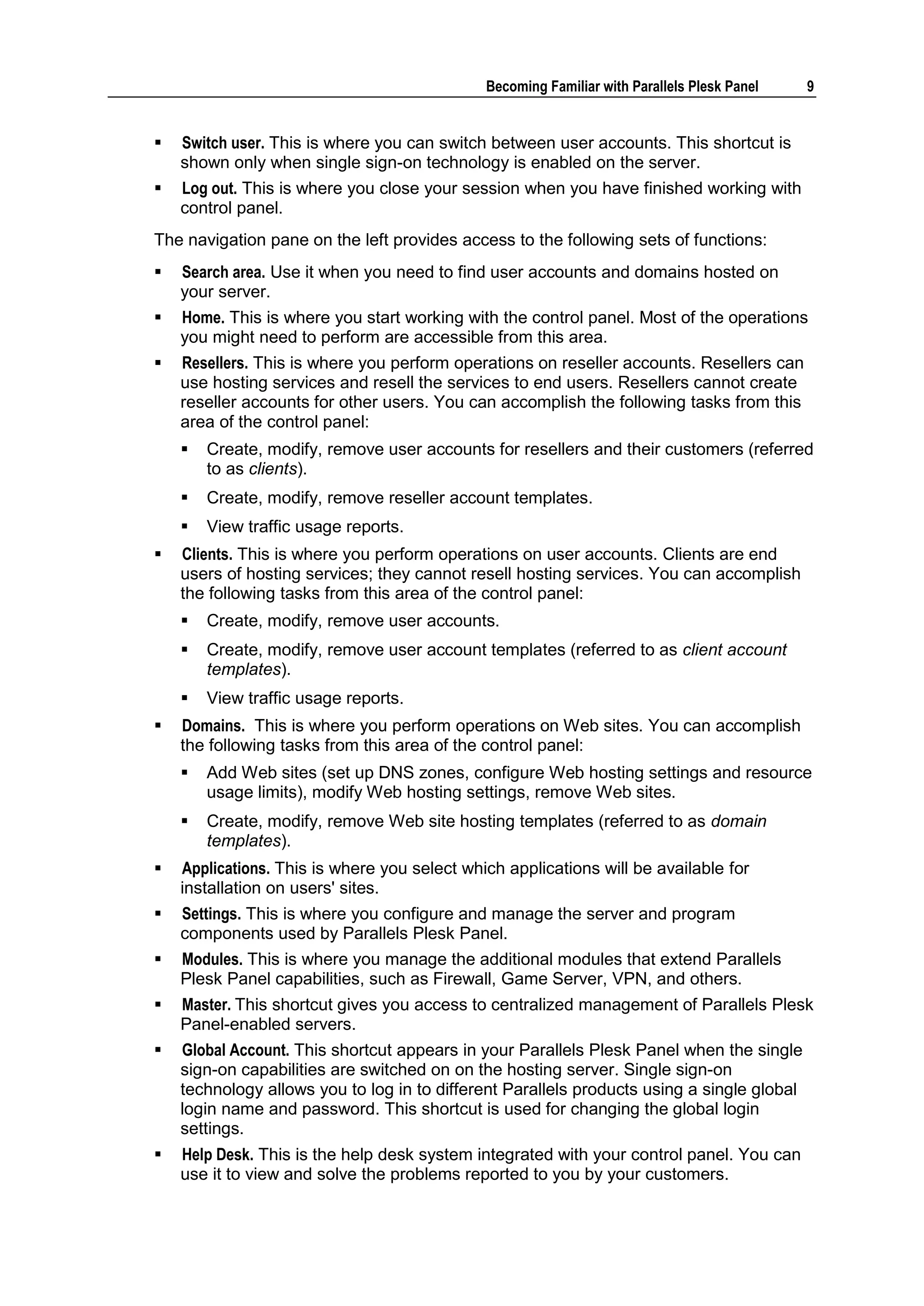
    The control panel opens and you see the administrator's Home page. It provides
    shortcuts to the most frequently performed operations.


    The top banner area provides access to the following functions:
         My account. This is where you can select a language and theme for your control
          panel and change your contact information.
Becoming Familiar with Parallels Plesk Panel   9


   Switch user. This is where you can switch between user accounts. This shortcut is
    shown only when single sign-on technology is enabled on the server.
   Log out. This is where you close your session when you have finished working with
    control panel.
The navigation pane on the left provides access to the following sets of functions:
   Search area. Use it when you need to find user accounts and domains hosted on
    your server.
   Home. This is where you start working with the control panel. Most of the operations
    you might need to perform are accessible from this area.
   Resellers. This is where you perform operations on reseller accounts. Resellers can
    use hosting services and resell the services to end users. Resellers cannot create
    reseller accounts for other users. You can accomplish the following tasks from this
    area of the control panel:
       Create, modify, remove user accounts for resellers and their customers (referred
        to as clients).
       Create, modify, remove reseller account templates.
       View traffic usage reports.
   Clients. This is where you perform operations on user accounts. Clients are end
    users of hosting services; they cannot resell hosting services. You can accomplish
    the following tasks from this area of the control panel:
       Create, modify, remove user accounts.
       Create, modify, remove user account templates (referred to as client account
        templates).
       View traffic usage reports.
   Domains. This is where you perform operations on Web sites. You can accomplish
    the following tasks from this area of the control panel:
       Add Web sites (set up DNS zones, configure Web hosting settings and resource
        usage limits), modify Web hosting settings, remove Web sites.
       Create, modify, remove Web site hosting templates (referred to as domain
        templates).
   Applications. This is where you select which applications will be available for
    installation on users' sites.
   Settings. This is where you configure and manage the server and program
    components used by Parallels Plesk Panel.
   Modules. This is where you manage the additional modules that extend Parallels
    Plesk Panel capabilities, such as Firewall, Game Server, VPN, and others.
   Master. This shortcut gives you access to centralized management of Parallels Plesk
    Panel-enabled servers.
   Global Account. This shortcut appears in your Parallels Plesk Panel when the single
    sign-on capabilities are switched on on the hosting server. Single sign-on
    technology allows you to log in to different Parallels products using a single global
    login name and password. This shortcut is used for changing the global login
    settings.
   Help Desk. This is the help desk system integrated with your control panel. You can
    use it to view and solve the problems reported to you by your customers.
10       Becoming Familiar with Parallels Plesk Panel


          Help. Provides context sensitive help with search function.
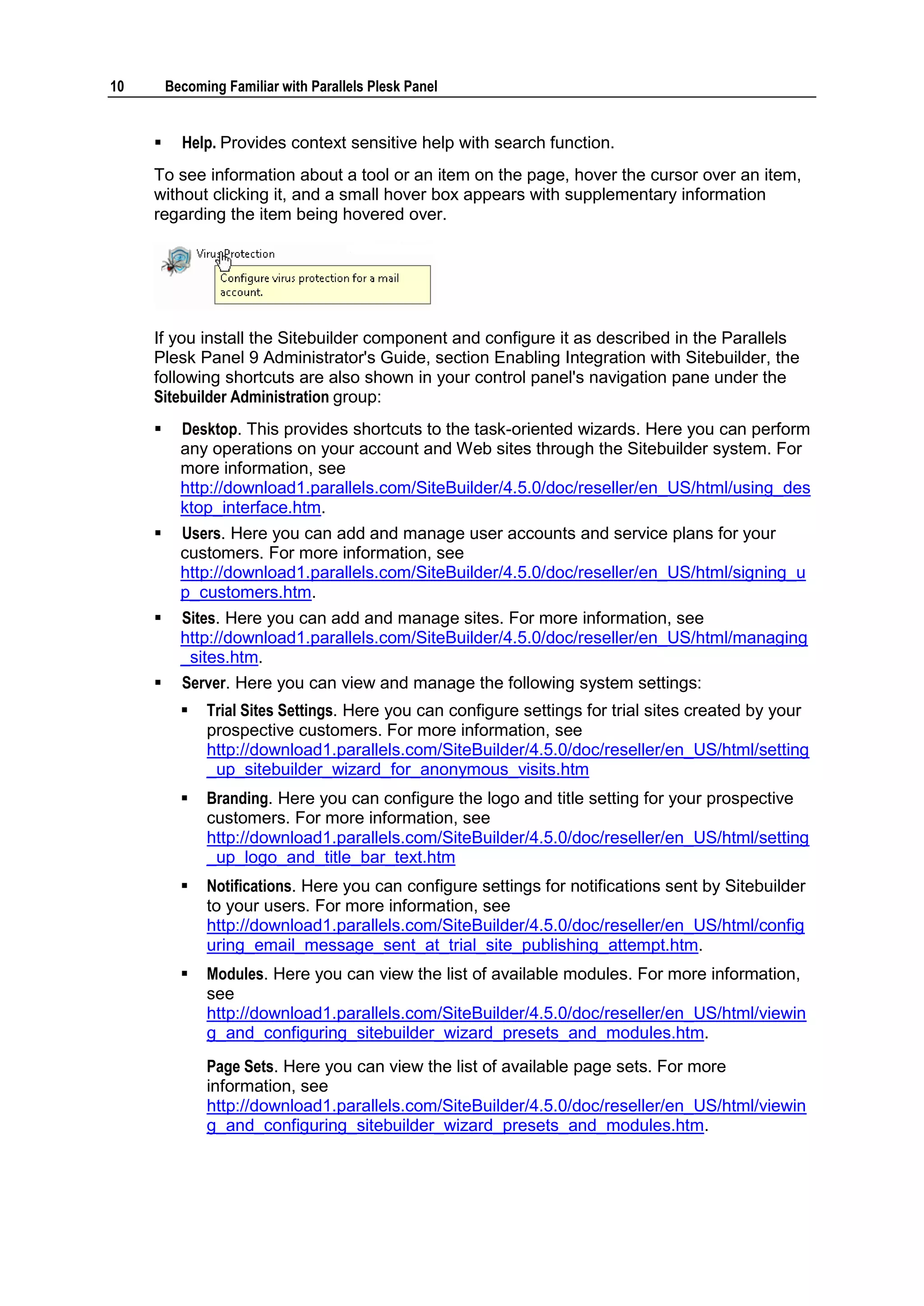
     To see information about a tool or an item on the page, hover the cursor over an item,
     without clicking it, and a small hover box appears with supplementary information
     regarding the item being hovered over.


     If you install the Sitebuilder component and configure it as described in the Parallels
     Plesk Panel 9 Administrator's Guide, section Enabling Integration with Sitebuilder, the
     following shortcuts are also shown in your control panel's navigation pane under the
     Sitebuilder Administration group:
          Desktop. This provides shortcuts to the task-oriented wizards. Here you can perform
           any operations on your account and Web sites through the Sitebuilder system. For
           more information, see
           http://download1.parallels.com/SiteBuilder/4.5.0/doc/reseller/en_US/html/using_des
           ktop_interface.htm.
          Users. Here you can add and manage user accounts and service plans for your
           customers. For more information, see
           http://download1.parallels.com/SiteBuilder/4.5.0/doc/reseller/en_US/html/signing_u
           p_customers.htm.
          Sites. Here you can add and manage sites. For more information, see
           http://download1.parallels.com/SiteBuilder/4.5.0/doc/reseller/en_US/html/managing
           _sites.htm.
          Server. Here you can view and manage the following system settings:
              Trial Sites Settings. Here you can configure settings for trial sites created by your
               prospective customers. For more information, see
               http://download1.parallels.com/SiteBuilder/4.5.0/doc/reseller/en_US/html/setting
               _up_sitebuilder_wizard_for_anonymous_visits.htm
              Branding. Here you can configure the logo and title setting for your prospective
               customers. For more information, see
               http://download1.parallels.com/SiteBuilder/4.5.0/doc/reseller/en_US/html/setting
               _up_logo_and_title_bar_text.htm
              Notifications. Here you can configure settings for notifications sent by Sitebuilder
               to your users. For more information, see
               http://download1.parallels.com/SiteBuilder/4.5.0/doc/reseller/en_US/html/config
               uring_email_message_sent_at_trial_site_publishing_attempt.htm.
              Modules. Here you can view the list of available modules. For more information,
               see
               http://download1.parallels.com/SiteBuilder/4.5.0/doc/reseller/en_US/html/viewin
               g_and_configuring_sitebuilder_wizard_presets_and_modules.htm.
               Page Sets. Here you can view the list of available page sets. For more
               information, see
               http://download1.parallels.com/SiteBuilder/4.5.0/doc/reseller/en_US/html/viewin
               g_and_configuring_sitebuilder_wizard_presets_and_modules.htm.
Becoming Familiar with Parallels Plesk Panel   11


      Site Families. Here you can view the list of available templates that combine
       design templates and page sets. For more information, see
       http://download1.parallels.com/SiteBuilder/4.5.0/doc/reseller/en_US/html/viewin
       g_and_configuring_sitebuilder_wizard_presets_and_modules.htm.
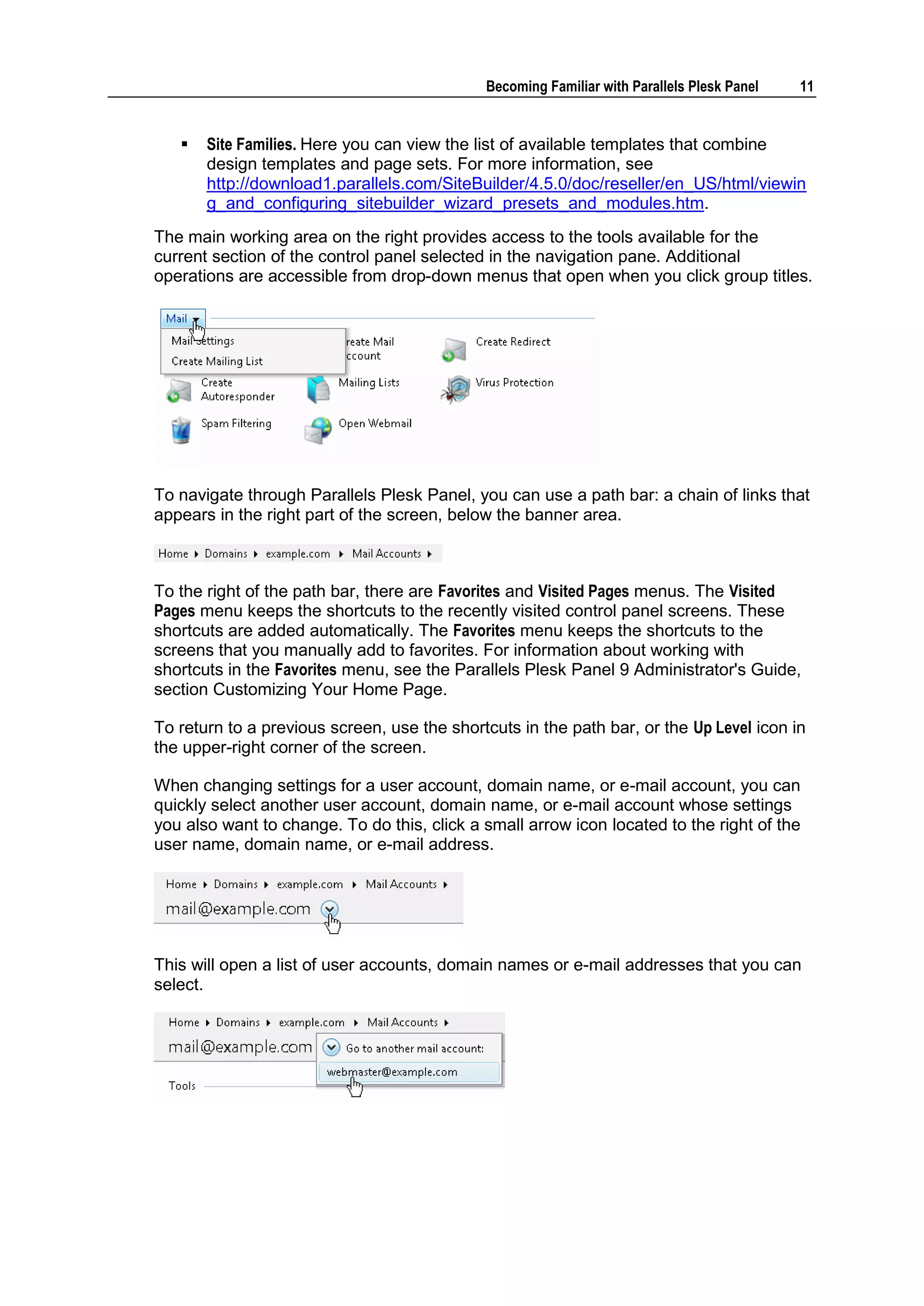
The main working area on the right provides access to the tools available for the
current section of the control panel selected in the navigation pane. Additional
operations are accessible from drop-down menus that open when you click group titles.


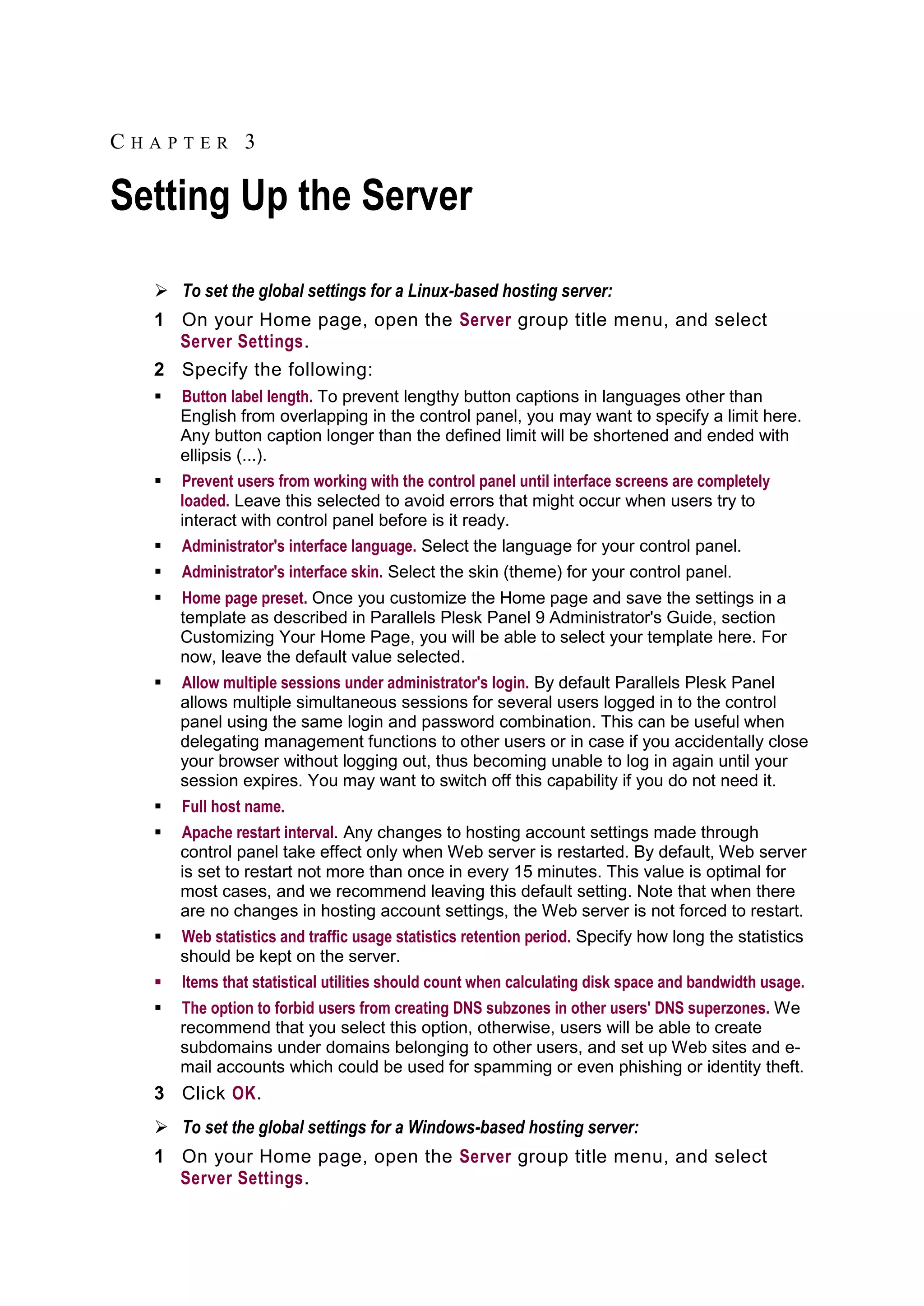
To navigate through Parallels Plesk Panel, you can use a path bar: a chain of links that
appears in the right part of the screen, below the banner area.


To the right of the path bar, there are Favorites and Visited Pages menus. The Visited
Pages menu keeps the shortcuts to the recently visited control panel screens. These
shortcuts are added automatically. The Favorites menu keeps the shortcuts to the
screens that you manually add to favorites. For information about working with
shortcuts in the Favorites menu, see the Parallels Plesk Panel 9 Administrator's Guide,
section Customizing Your Home Page.

To return to a previous screen, use the shortcuts in the path bar, or the Up Level icon in
the upper-right corner of the screen.

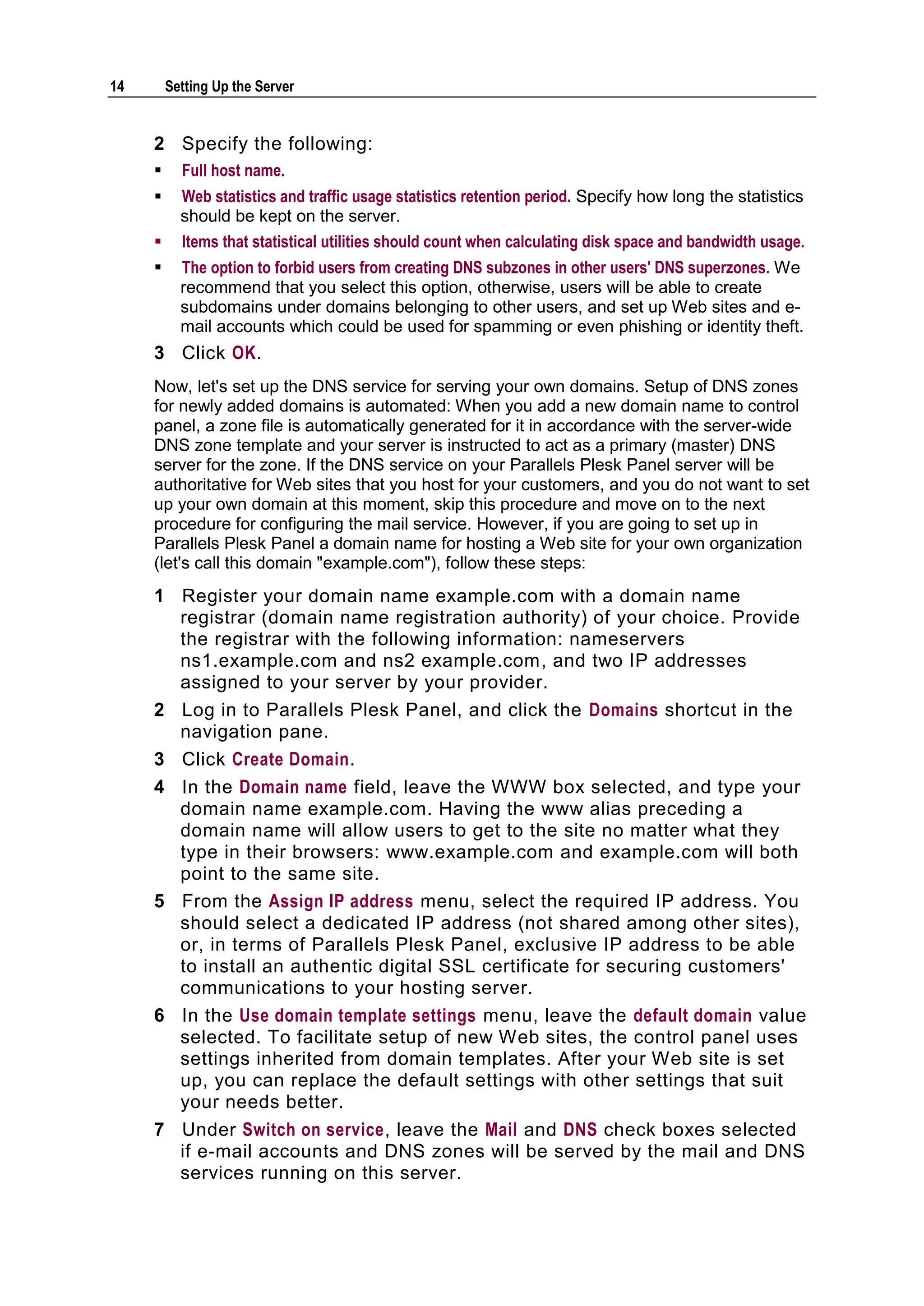
When changing settings for a user account, domain name, or e-mail account, you can
quickly select another user account, domain name, or e-mail account whose settings
you also want to change. To do this, click a small arrow icon located to the right of the
user name, domain name, or e-mail address.


This will open a list of user accounts, domain names or e-mail addresses that you can
select.
12    Becoming Familiar with Parallels Plesk Panel


     To sort a list by a certain parameter in ascending or descending order, click on the
     parameter's title in the column heading. The order of sorting will be indicated by a small
     triangle displayed next to the parameter's title. Now proceed to the following chapter
     and set up your server.
CHAPTER 3

Setting Up the Server

   To set the global settings for a Linux-based hosting server:
  1 On your Home page, open the Server group title menu, and select
    Server Settings.
  2 Specify the following:
     Button label length. To prevent lengthy button captions in languages other than
      English from overlapping in the control panel, you may want to specify a limit here.
      Any button caption longer than the defined limit will be shortened and ended with
      ellipsis (...).
     Prevent users from working with the control panel until interface screens are completely
      loaded. Leave this selected to avoid errors that might occur when users try to
      interact with control panel before is it ready.
     Administrator's interface language. Select the language for your control panel.
     Administrator's interface skin. Select the skin (theme) for your control panel.
     Home page preset. Once you customize the Home page and save the settings in a
      template as described in Parallels Plesk Panel 9 Administrator's Guide, section
      Customizing Your Home Page, you will be able to select your template here. For
      now, leave the default value selected.
     Allow multiple sessions under administrator's login. By default Parallels Plesk Panel
      allows multiple simultaneous sessions for several users logged in to the control
      panel using the same login and password combination. This can be useful when
      delegating management functions to other users or in case if you accidentally close
      your browser without logging out, thus becoming unable to log in again until your
      session expires. You may want to switch off this capability if you do not need it.
     Full host name.
     Apache restart interval. Any changes to hosting account settings made through
      control panel take effect only when Web server is restarted. By default, Web server
      is set to restart not more than once in every 15 minutes. This value is optimal for
      most cases, and we recommend leaving this default setting. Note that when there
      are no changes in hosting account settings, the Web server is not forced to restart.
     Web statistics and traffic usage statistics retention period. Specify how long the statistics
      should be kept on the server.
     Items that statistical utilities should count when calculating disk space and bandwidth usage.
     The option to forbid users from creating DNS subzones in other users' DNS superzones. We
      recommend that you select this option, otherwise, users will be able to create
      subdomains under domains belonging to other users, and set up Web sites and e-
      mail accounts which could be used for spamming or even phishing or identity theft.
  3 Click OK.
   To set the global settings for a Windows-based hosting server:
  1 On your Home page, open the Server group title menu, and select
    Server Settings.
14       Setting Up the Server


     2 Specify the following:
          Full host name.
          Web statistics and traffic usage statistics retention period. Specify how long the statistics
           should be kept on the server.
          Items that statistical utilities should count when calculating disk space and bandwidth usage.
          The option to forbid users from creating DNS subzones in other users' DNS superzones. We
           recommend that you select this option, otherwise, users will be able to create
           subdomains under domains belonging to other users, and set up Web sites and e-
           mail accounts which could be used for spamming or even phishing or identity theft.
     3 Click OK.
     Now, let's set up the DNS service for serving your own domains. Setup of DNS zones
     for newly added domains is automated: When you add a new domain name to control
     panel, a zone file is automatically generated for it in accordance with the server-wide
     DNS zone template and your server is instructed to act as a primary (master) DNS
     server for the zone. If the DNS service on your Parallels Plesk Panel server will be
     authoritative for Web sites that you host for your customers, and you do not want to set
     up your own domain at this moment, skip this procedure and move on to the next
     procedure for configuring the mail service. However, if you are going to set up in
     Parallels Plesk Panel a domain name for hosting a Web site for your own organization
     (let's call this domain "example.com"), follow these steps:
     1 Register your domain name example.com with a domain name
       registrar (domain name registration authority) of your choice. Provide
       the registrar with the following information: nameservers
       ns1.example.com and ns2 example.com, and two IP addresses
       assigned to your server by your provider.
     2 Log in to Parallels Plesk Panel, and click the Domains shortcut in the
       navigation pane.
     3 Click Create Domain.
     4 In the Domain name field, leave the WWW box selected, and type your
       domain name example.com. Having the www alias preceding a
       domain name will allow users to get to the site no matter what they
       type in their browsers: www.example.com and example.com will both
       point to the same site.
     5 From the Assign IP address menu, select the required IP address. You
       should select a dedicated IP address (not shared among other sites),
       or, in terms of Parallels Plesk Panel, exclusive IP address to be able
       to install an authentic digital SSL certificate for securing customers'
       communications to your hosting server.
     6 In the Use domain template settings menu, leave the default domain value
       selected. To facilitate setup of new Web sites, the control panel uses
       settings inherited from domain templates. After your Web site is set
       up, you can replace the default settings with other settings that suit
       your needs better.
     7 Under Switch on service, leave the Mail and DNS check boxes selected
       if e-mail accounts and DNS zones will be served by the mail and DNS
       services running on this server.
Setting Up the Server      15


8 Under Hosting type, select the Web site hosting option to host the Web
   site on this machine.
9 Specify the username and password that will be used for uploading
   site content over FTP.
10 Click Next >>.
11 Specify the following settings:
      SSL support. Secure Sockets Layer encryption is generally used for protecting
       transfer of sensitive data during online transactions on e-commerce Web sites
       that run on dedicated IP addresses. SSL certificates that participate in the
       encryption process are usually applied to a single domain name on a single IP
       address, therefore, each site that needs SSL protection must be hosted on a
       dedicated IP address. An exception to this is subdomains, which you can
       protect with a wildcard certificate. Installing an SSL certificate on a Web server
       that hosts several Web sites with different domain names on a single IP address
       (shared or name-based hosting) is technically possible, however, it is not
       recommended: the encryption will be provided, but users will get warning
       messages on attempt to connect to the secure site. To allow SSL encryption for
       this Web site, select the SSL support check box.
      Use a single directory for housing SSL and non-SSL content (available only for Linux
       hosting). By default, when you publish a site through your FTP account, you
       need to upload the Web content that should be accessible through secure
       connections to the httpsdocs directory, and the content that should be
       accessible via plain HTTP, to the httpdocs directory. For the convenience of
       publishing all content through a single location – httpdocs directory on your
       FTP account, select the Use a single directory for housing SSL and non-SSL content
       check box.
      FTP login and FTP password. Specify the username and password that will be
       used for publishing the site to the server through FTP. Retype the password into
       the Confirm Password box.
      Hard disk quota (available only for Linux hosting). Specify the amount of disk
       space in megabytes allocated to the Web space for this site. This is the so-
       called hard quota that will not allow writing more files to the Web space when
       the limit is reached. At attempt to write files, an error message will show. Hard
       quotas should be enabled in the server's operating system, so if you see the
       "Hard disk quota is not supported" notice to the right of the Hard disk quota field,
       but would like to use the hard quotas on your server, log in to the server shell
       and run the quotaon -a command to enable the hard quotas.
      Access to server over SSH or Remote Desktop with FTP user's credentials. This allows
       you to upload securely Web content to the server through a Secure Socket Shell
       or Remote Desktop connection, however, allowing access to the server also
       poses a potential threat to the server security, so we recommend that you leave
       the Forbidden option selected.
16    Setting Up the Server


           Support for hosting services and scripting languages. Specify which of the following
            programming and scripting languages should be supported by the Web server:
            Active Server Pages (ASP), Server Side Includes (SSI), PHP hypertext
            preprocessor (PHP), Common Gateway Interface (CGI), Fast Common
            Gateway Interface (FastCGI), Perl, Python, ColdFusion, and Miva scripting
            required for running Miva e-commerce solutions. By default, PHP is configured
            to operate in safe mode with functional restrictions. To learn more about PHP
            safe mode, refer to http://php.net/features.safe-mode. Some web applications
            may not work properly with safe mode enabled: If an application on your site
            fails due to safe mode, switch the safe mode off by clearing the PHP 'safe_mode'
            on check box in the hosting account properties (Domains > domain name > Web
            Hosting Settings).
           Web statistics. To allow the Web site owner to view the information on the
            number of people visited his or her site and the pages of the site they viewed,
            select the statistics program from the Web statistics menu, and select the
            accessible via password protected directory /plesk-stat/webstat check box. This will
            install the statistics software of your choice, which will generate reports and
            place them into the password protected directory. The domain/web site owner
            will then be able to access Web statistics at the URL: https://your-
            domain.com/plesk-stat/webstat using his or her FTP account login and
            password.
             Note: When you switch from one statistics program to another, all reports
                created by the previously used statistics program are deleted and new
                reports are created in accordance with the information read from log files
                kept on the server. This means that if you configured the system (at Domains
                > domain name > Log Manager > Log Rotation) so as to keep log files only for the
                last month, then Web statistics will be available only for the last month.
           Custom error documents. When visitors coming to the site request pages that the
            Web server cannot find, the Web server generates and displays a standard
            HTML page with an error message. If you wish to create your own error pages
            and use them on your Web server, select the Custom error documents check box.
           Additional write/modify permissions (available only for Windows hosting). This
            option is required if Web applications under a domain will be using a file-based
            database (like Jet) located in the root of httpdocs or httpsdocs folders.
            Please note that selecting this option might seriously compromise the Web site
            security.
           Use dedicated IIS application pool (available only for Windows hosting). This option
            enables the use of dedicated IIS application pool for Web applications on a
            domain. Using dedicated IIS application pool dramatically improves the stability
            of domain Web applications due to worker process isolation mode. This mode
            gives each Web site hosted on the server the possibility to allocate a separate
            process pool for execution of its Web applications. This way, malfunction in one
            application will not cause stopping of all the others. This is especially useful
            when you are using shared hosting package.
     12 Click Next >>.
     13 Specify the following settings:
Setting Up the Server     17


   Overuse policy. Specify what should be done to the site when disk space and
    traffic limits are exceeded: To block the site, select the Overuse is not allowed
    option. To allow the site to operate, select the Overuse is allowed option. Leave
    the check box Notify the domain owner about reaching the resource limit selected if
    you want the control panel to notify you when the resource usage limit is
    reached.
   Disk space. Specify the total amount of disk space allocated to a hosting account
    associated with the domain. This amount is measured in megabytes. It includes
    disk space occupied by all files related to the domain/Web site: Web site
    contents, databases, applications, mailboxes, log files and backup files.
   Traffic. Specify the amount of data in megabytes that can be transferred from the
    Web site during a month.
   Subdomains. Specify the number of subdomains that can be hosted under this
    domain.
   Domain aliases. Specify the total number of additional alternative domain names
    that can be used for this site.
   Web users. Specify the number of personal Web pages that can be hosted for
    other users under his or her domain. This service is mostly used in educational
    institutions that host non-commercial personal pages of their students and staff.
    These pages usually have web addresses like http://your-
    domain.com/~username. If you wish to allow execution of scripts embedded in
    personal Web pages, select also the Allow the web users scripting check box. For
    more information, refer to Parallels Plesk Panel 9 Administrator's Guide, section
    Hosting Personal Web Pages.
   Microsoft FrontPage accounts (only for Windows hosting). Specify the maximum
    number of additional Microsoft FrontPage accounts that can be created under
    the domain.
   FTP accounts (available only for Windows hosting). Specify the maximum number
    of additional FTP accounts that can be created under the domain.
   Mailboxes. Specify the number of mailboxes that can be hosted under this
    domain.
   Mailbox quota. Specify the amount of disk space in kilobytes that is allocated for
    storing e-mail messages and autoresponder attachment files to each mailbox
    under this domain.
   Mail redirects. Specify the number of mail forwarders that can be used in a
    domain.
   Mail groups. Specify the number of simple mailing lists that can be set up in a
    domain.
   Autoresponders. Specify the number of automatic responses that can be set up in
    a domain.
   Mailing lists. Specify the number of mailing lists that can run in a domain.
   Databases. Specify the number of databases that can be hosted under this
    domain.
   Databases quota (only for Windows hosting). Specify the maximum disk space
    amount in megabytes that MySQL and Microsoft SQL Server databases
    respectively can occupy under the domain.
18    Setting Up the Server


           ODBC connections (available only for Windows hosting). Specify the total number
            of ODBC connections that can be used under the domain.
           ColdFusion DSN connections (available only for Windows hosting). Specify the total
            number of ColdFusion DSN connections that can be used under the domain.
           Java applications. Specify the maximum number of Java applications or applets
            that the domain owner can install under a domain.
           Shared SSL links (available only for Windows hosting). Specify the total number of
            shared SSL links that can be used under the domain.
           Expiration date. Specify the term for the Web site hosting account. At the end of
            the term, the domain (Web site) will be suspended, its Web, FTP and mail
            services will no longer be accessible to the Internet users, and domain owner
            will not be able to log in to the control panel. Hosting accounts cannot be
            automatically renewed, therefore, in order to bring the hosted domain name
            (and Web site) back to operation, you will need to manually renew the hosting
            account: click the Domains shortcut in the navigation pane, click the domain
            name your need, click the Resource Usage icon, specify another expiration date,
            click OK, then click the Unsuspend icon (Domains > domain name > Unsuspend).
     14 Click Finish. You are taken to the domain management screen.
     15 Correct the information in the DNS zone of your domain:
        a    Open the Web Site group title menu, and select DNS Settings.
        b   Locate the records example.com NS ns.example.com and ns.example.com A <IP
            address>, select the respective check boxes and click Remove. Now the default
            records are removed, and you can specify the name servers that you have
            registered with your registrar.
        c   Click Add Record. In the Record type menu, select the NS value, leave the Enter
            domain name box blank, and in the Enter nameserver box, type ns1.example.com,
            then click OK.
        d   Click Add Record. In the Record type menu, select the NS value, leave the Enter
            domain name box blank, and in the Enter nameserver box, type ns2.example.com,
            then click OK.
        e   Click Add Record. In the Record type menu, select the A value, in the Enter domain
            name box, type the ns1 value, and in the Enter IP address box, type the first IP
            address of your server that you registered with a registrar, then click OK.
        f   Click Add Record. In the Record type menu, select the A value, in the Enter domain
            name box, type the ns1 value, and in the Enter IP address box, type the second IP
            address of your server that you registered with a registrar, then click OK.
     16 Specify the correct name servers in the server-wide DNS template:
        a   Click the Home shortcut in the navigation pane and then click DNS Settings. A list
            of record templates opens.
        b   Locate the records <domain> NS ns.<domain> and ns.<domain> A <IP>, select the
            respective check boxes and click Remove. Now the default records are removed,
            and you can specify the name servers that you have registered with your
            registrar.
        c   Click Add DNS Record. In the Record type menu, select the NS value, leave the
            Enter domain name box blank, and in the Enter nameserver box, type
            ns1.example.com, then click OK.
Setting Up the Server     19


      Click Add DNS Record. In the Record type menu, select the NS value, leave the
      Enter domain name box blank, and in the Enter nameserver box, type
      ns2.example.com, then click OK.
Now the server-wide DNS settings are set up properly, your domain example.com is
hosted on the server, and you can publish the site content. For instructions on
publishing a Web site, refer to the Publishing a Site section of this guide.

Now, let's set up the mail service. Your control panel works in cooperation with mail
server software, which provides mail services for your domains. After installation the
mail server is configured automatically and is ready to serve, however, we recommend
that you review the default settings to ensure that they satisfy your needs:
1 Click the Home shortcut in the navigation pane and then click Mail
  Server Settings. The server-wide mail preferences screen will open on
  the Preferences tab.
2 If you wish to limit the size of an e-mail message that can be sent
  through your server, type the desired value in kilobytes into the
  Maximum message size box, otherwise, leave this field blank.
3 If you wish to protect your users from dictionary attacks by not
  allowing them to use simple passwords, select the Check the passwords
  for mailboxes in the dictionary option.
   A dictionary attack is when someone tries to find out a valid user name and
   password by running a program that tries different combinations of dictionary words
   in different languages. Dictionary attacks can be successful because many users
   choose their passwords carelessly.
   Note for Windows hosting users: To make this function work properly on
   Windows platforms, make sure that the Password must meet complexity requirements
   option is switched on in your server's Local Security Policy settings (the option is
   located in Start > Administrative Tools > Local Security Policy > Account Policies >
   Password policy).
4 To protect your server against unauthorized mail relaying or injection
  of unsolicited bulk mail, select the Enable message submission check
  box to allow your customers to send e-mail messages through the port
  587.
   Also notify your customers that they need to specify in their e-mail programs'
   settings the port 587 for outgoing SMTP connections, and be sure to allow
   connections to this port in your firewall settings.
5 Select the mail relay mode.
   With closed relay the mail server will accept only e-mail addressed to the users who
   have mailboxes on this server. Your customers will not be able to send any mail
   through your outgoing SMTP server, therefore, we do not recommend closing mail
   relay.
   With relay after authorization, only your customers will be able to receive and send
   e-mail through your mail server. We recommend that you leave the authorization is
   required option selected, and specify allowed authentication methods:
20    Setting Up the Server


           POP3 authorization. With POP3 authorization, once a user has successfully
            authenticated to the POP server, he or she is permitted to receive and send e-
            mail through the mail server for the next 20 minutes (default value). You can
            adjust this interval by specifying another value in the lock time box.
           SMTP authorization. With SMTP authorization, your mail server requires
            authorization if the e-mail message must be sent to an external address.
             Note for Windows hosting users: If you do not wish to use relay restrictions
                for networks that you trust, specify the network IP and mask in the Use no
                relay restrictions for the following networks: field (e.g., 123.123.123.123/16) and
                click the      icon. To remove a network from the list, click the       icon
                corresponding to the network you wish to remove.
             The relay hosts on the networks in the list are considered not to be potentially
                operated by spammers, open relays, or open proxies. A trusted host could
                conceivably relay spam, but will not originate it, and will not forge header
                data. DNS blacklist checks will never query for hosts on these networks.
        There is also an option to allow open relay without authorization, which, by default,
        is hidden from the user interface. Opening mail relay without authorization is not
        recommended because it allows spammers to send unsolicited mail through your
        server. If you want to set the open relay, log in to the server's file system, locate the
        file root.controls.lock in your Parallels Plesk Panel installation directory
        (PRODUCT_ROOT_D/var/root.controls.lock on Unix and
        PRODUCT_DATA_D/var/root.controls.lock on Windows platforms) and
        remove the line /server/mail.php3:relay_open from this file. The open relay
        option will show in your control panel.
     6 If you are setting up a Linux-based server, select antivirus and
       webmail program components that should be available to the users. If
       you are setting up a Windows-based server, you can select webmail
       and antivirus later: click Settings in the navigation pane, and then click
       Select Webmail and Select Antivirus.
     7 Select the mail account name format (available only on Linux
       hosting).
        Selecting the Use of short and full names is allowed option will allow users to log in to
        their mail accounts by specifying only the left part of e-mail address before the @
        sign (for example, username), or by specifying the full e-mail address (for example,
        username@your-domain.com).
        To avoid possible authorization problems for e-mail users who reside in different
        domains but have identical user names and passwords, we recommend that you
        choose the Only use of full mail account names is allowed option.
        Once you have set your mail server to support only full mail account names, you
        will not be able to switch back to supporting short account names until you make
        sure there are no encrypted passwords for mailboxes and user accounts with
        coinciding user names and passwords residing in different domains.
     8 Click OK to submit any changes.
Setting Up the Server    21


Set up spam filters. Parallels Plesk Panel supports anti-spam systems, such as
SpamAssassin spam filter, and protection systems based on DomainKeys, DNS
blackhole lists, and Sender Policy Framework (SPF). This guide covers the setup of
SpamAssassin spam filter. For instruction on using DomainKeys, DNS blackhole lists,
and Sender Policy Framework, refer to Parallels Plesk Panel 9 Administrator's Guide,
section Setting Up Spam Protection.

 To set up spam filtering with SpamAssassin:
1 On your Home page, open the Server group title menu, and select
  Spam Filter Settings.
2 To allow server wide filtering based on the settings you define, select
  the Use server-wide settings check box.
3 To let your users set their own spam filtering preferences on a per -
  mailbox basis, select the Allow personal settings check box.
4 If you wish to adjust the amount of system resources the spam filter
  should use (available only for Linux hosting), type the desired value
  from 1 to 5 into the Maximum number of worker spamd processes to run (1 -
  5) box (1 is the lowest load, and 5 is the highest). We recommend that
  you use the default value.
5 If you wish to adjust the spam filter's sensitivity, type the desired
  value in the The number of points a message must score to be considered
  spam box.
6 SpamAssassin performs a number of different tests on contents and
  subject line of each message. As a result, each message scores a
  number of points. The higher the number, the more likely a message
  is spam. For example, a message containing the text string ―BUY
  VIAGRA AT LOW PRICE!!!‖ in Subject line and message body scores
  8.3 points. By default, the filter sensitivity is set so that all messa ges
  that score 7 or more points are classified as spam.
      When your users receive lots of spam messages with the current setting, to
       make filter more sensitive, try setting a lesser value in the The score that a
       message must receive to qualify as spam box; for example, 6.
      When your users are missing e-mails because your spam filter thinks they are
       junk, try reducing filter sensitivity by setting a higher value in the The score that a
       message must receive to qualify as spam box.
7 To reduce the load on your Windows server, you can select the Do not
  filter if mail size exceeds specified size check box and specify the
  maximum size of the message that the spam filter will test.
  Recommended mail size limit is 150 - 250 Kbytes, which is usual for
  mail messages in HTML format with images. The size of the mail is
  considered critical for filter and server overload when it exceeds 500
  Kbytes, which is usual for mail messages containing attachments.
22    Setting Up the Server


     8 To make sure that the spam filter on your Windows server is not
       leaving some e-mail messages unchecked (this can happen if the
       amount of incoming mail is very large), limit the number of e -mail
       messages that can be checked simultaneously in the Number of threads
       that spam filter can create field.
     9 Specify how to mark messages recognized as spam.
     10 At the server level, you cannot set the server-wide spam filter to
        automatically delete spam: you can do it only on a per-mailbox basis.
        So, for the server-wide policy, you can choose only marking
        messages as spam: ―X-Spam-Flag: YES‖ and ―X-Spam-Status: Yes‖
        headers are added to the message source by default, and if you want,
        the spam filter will additionally include a specific text string to the
        beginning of Subject line. To include a desired combination of
        symbols or words to the message subject, type it into the Add the
        following text to the beginning of subject of each message recognized as
        spam box. If you do not want the spam filter to modify message
        subject, leave this box blank. If you want to include into the subject
        line the number of points that messages score, type _SCORE_ in this
        box.
     11 If you use Parallels Plesk Panel for Windows, define the language
        characteristics of mail that should always pass the filter by specifying
        trusted languages and locales.
           Select the required items from the boxes under Trusted languages and Trusted
            locales and click Add >>.
           Letters written in the specified languages and with the defined character sets
            will not be marked as spam.
     12 If you do not want your users to receive e-mail from specific domains
        or individual senders, click the Black List tab, and then add the
        respective entries to the spam filter‘s black list:
           To add entries to the black list, click Add Addresses. If you have a list of entries
            stored in a file, click Browse to specify it, and then click OK. Otherwise, select the
            From List option, and type the e-mail addresses into the E-mail addresses box.
            Place each address in one row, or separate addresses with a coma, a colon, or
            a white space. You can use an asterisk (*) as a substitute for a number of
            letters, and question mark (?) as a substitute for a single letter. For example:
            address@spammers.net, user?@spammers.net, *@spammers.net. Specifying
            *@spammers.net will block the entire mail domain spammers.net. To save the
            entries you added, click OK, then confirm adding, and click OK again.
           To remove entries from the black list, under the Black List tab, select the entries
            and click Remove. Confirm removal and click OK.
     13 If you want to be sure that you and your users will not miss e -mail
        from specific senders, click the White List tab, and then add e-mail
        addresses or entire domains to the spam filter‘s white list:
Setting Up the Server    23


      To add entries to the white list, click Add Addresses. If you have a list of entries
       stored in a file, click Browse to specify it, and then click OK. Otherwise, select the
       From List option, and type the e-mail addresses into the E-mail addresses box.
       Place each address in one row, or separate addresses with a coma, a colon, or
       a white space. You can use an asterisk (*) as a substitute for a number of
       letters, and question mark (?) as a substitute for a single letter. For example:
       address@mycompany.com, user?@mycompany.com, *@mycompany.com.
       Specifying *@mycompany.com will add to the white list all e-mail addresses that
       are under the mycompany.com mail domain. To save the entries you added,
       click OK, then confirm adding, and click OK again.
      To remove entries from the white list, under the White List tab, select the entries
       and click Remove. Confirm removal and click OK.
14 Once finished with setting up the spam filter, click Switch On, and then
   click OK.
Now all the incoming mail will be filtered on the server side. By default, spam filter does
not delete spam mail, it only adds the "X-Spam-Flag: YES" and "X-Spam-Status: Yes"
headers to the message, and "*****SPAM*****" text string to the beginning of Subject
line of each message recognized as spam.

If you have enabled the Allow personal settings option, then your users will be able to set
their spam filters so as to automatically delete junk mail. They will also be able to set
up their personal black and white lists of correspondents that will override the server
settings, and teach the spam filter on a per-mailbox basis.

Now let's set up antivirus for protecting your customers' mailboxes from viruses.

 To set up antivirus on a Windows-based hosting server:
1 Click the Settings shortcut in the navigation pane, and then click Select
  Antivirus.
2 Select the antivirus program that you want to use and click OK.
3 Click Up Level, and then click Virus Protection Settings.
4 From the Server-wide settings menu, select the desired scanning mode.
5 To allow users to adjust scanning settings for incoming and outgoing
  mail, select the respective check boxes.
6 Click OK.
The antivirus is now switched on. It will scan mail and delete all infected messages.

 To set up antivirus on a Linux-based hosting server:
1 Go to Home > Updates.
2 Click your Parallels Plesk Panel version.
3 In the list of components, select either Dr.Web antivirus or Kaspersky
  antivirus.
4 Click Install.
   After the installation is completed, obtain and install a license key for the selected
   antivirus program, as described in the following steps.
5 Go to Home > License Management.
24       Setting Up the Server


     6 Click Order Control Panel Add-ons. The Parallels online store page
       listing available add-ons opens in a new browser window.
     7 On this page, select the check box next to the Dr. Web Antivirus or
       Kaspersky Antivirus item and click ADD TO MY BASKET.
     8 Because Parallels Plesk Panel add-ons are added to the license keys
       that already exist, the Parallels Plesk Panel Number Checking System
       page will open. Enter the number of your license key to which you add
       this feature and click Submit.
     9 In the next steps, indicate the currency, number of keys, provide
        contact details, billing address, and payment method, and submit the
        form. You will be notified by e-mail when your order is processed.
     10 When you receive the e-mail notice, return to the License Management
        screen (Home > License Management) and click Retrieve Keys to retrieve
        the ordered license key. Parallels Plesk Panel License Manager will
        retrieve the upgraded license key from the Parallels licensing server
        and install it to your control panel.
     11 Go to Settings > Virus Protection Settings.
     12 Under Antivirus preferences, select the antivirus you need and click OK.
     If you installed Dr.Web, you can switch on antivirus protection only on a per-mailbox
     basis, and only after you have set up mailboxes. By default, virus definitions are
     retrieved every 5 hours from Dr.Web site, and this setting is not changeable through
     the control panel.

     For instructions on setting up anti-virus protection for a mailbox, refer to Parallels Plesk
     Panel 9 Administrator's Guide, section Protecting Mailboxes From Viruses.

     If you installed Kaspersky Antivirus, click the Modules shortcut in the navigation pane,
     click Kaspersky Antivirus, and then click the Server-wide scanning settings tab. If you need
     further instructions on using Kaspersky antivirus, see Kaspersky Antivirus Module
     Administrator's Guide at http://www.parallels.com/en/products/plesk/docs/.

     Now let's set up e-mail notification. When new user accounts or domains are created in
     the system, or when disk space and bandwidth allotments are overused, the control
     panel notifies you and the appropriate users by e-mail. With the default settings,
     however, domain and web site owners are not notified. We recommend that you enable
     resource overage notification for domain and Web site owners because they need to
     know what happens to their domains and Web sites.

     The control panel can notify the appropriate users when:
          New user accounts are created.
          New domains are added.
          Hosting accounts are expired (expiration date is defined for user accounts and Web
           sites separately).
          Resource usage limits are exceeded.
          There are new requests for assistance (trouble tickets) from your customers in Help
           Desk.
          The requests are fulfilled and the trouble tickets are closed in Help Desk.
Setting Up the Server     25


   New comments are posted to the existing trouble tickets.
   The closed trouble tickets are reopened because the customer has encountered
    the same problem again.
 To view or modify the notification system settings:
1 Go to Home > Notifications.
2 By selecting the check boxes in the Notifications table, specify the
  types of control panel users or external e-mail users who should
  receive notices on events.
    We recommend that you also select all check boxes in the domain administrator
    column in order to let your resellers' customers know what happens to their Web
    sites.
3 To view or edit the default notice text, click the respective                          icon in
  the Text column.
    In notices you can use tags that will be replaced with actual data (see the table
    below).
4 Specify when to send the user account and domain (Web site) hosting
  account expiration notices. By default, such notices are sent 10 days
  in advance. Click OK.
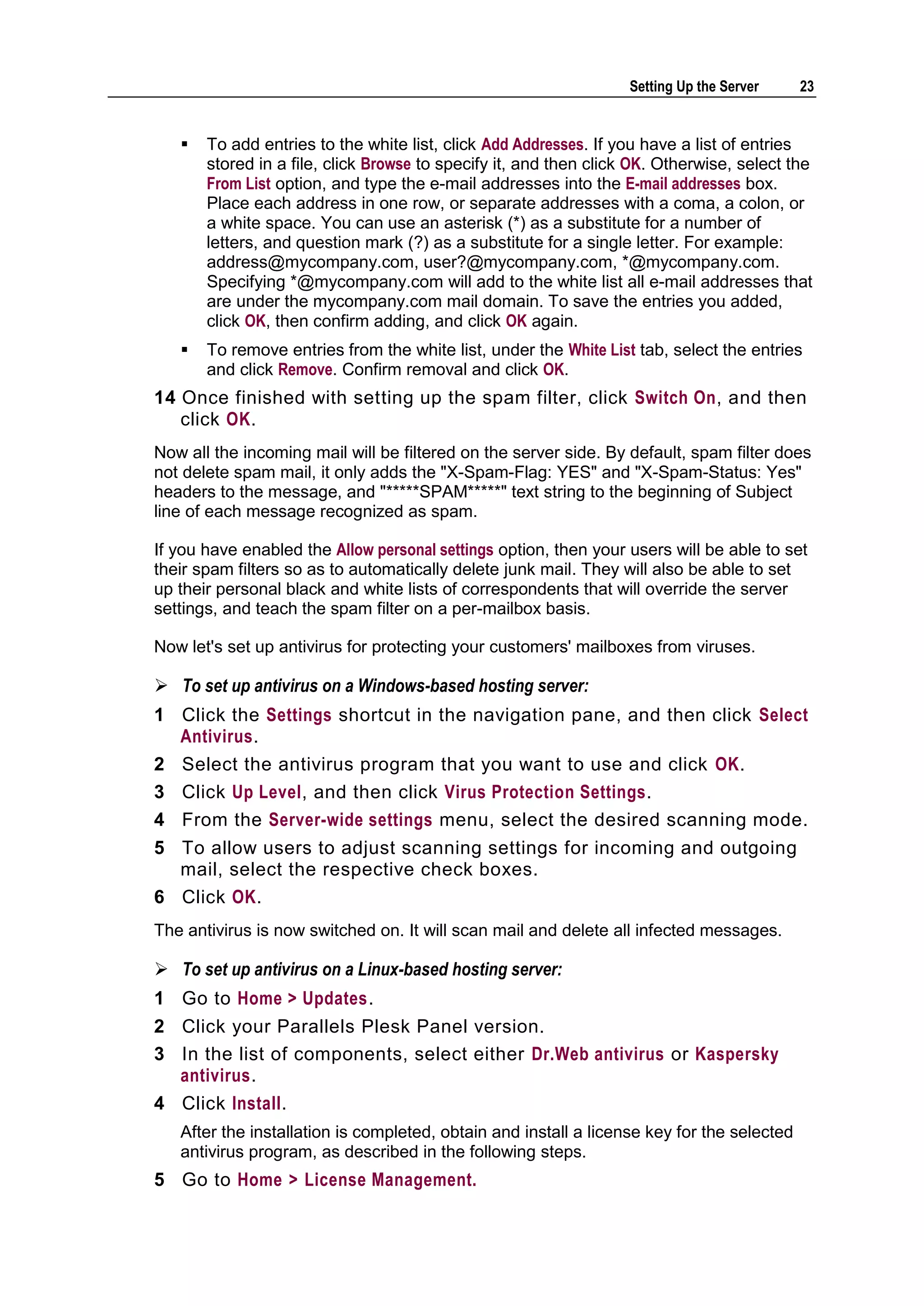
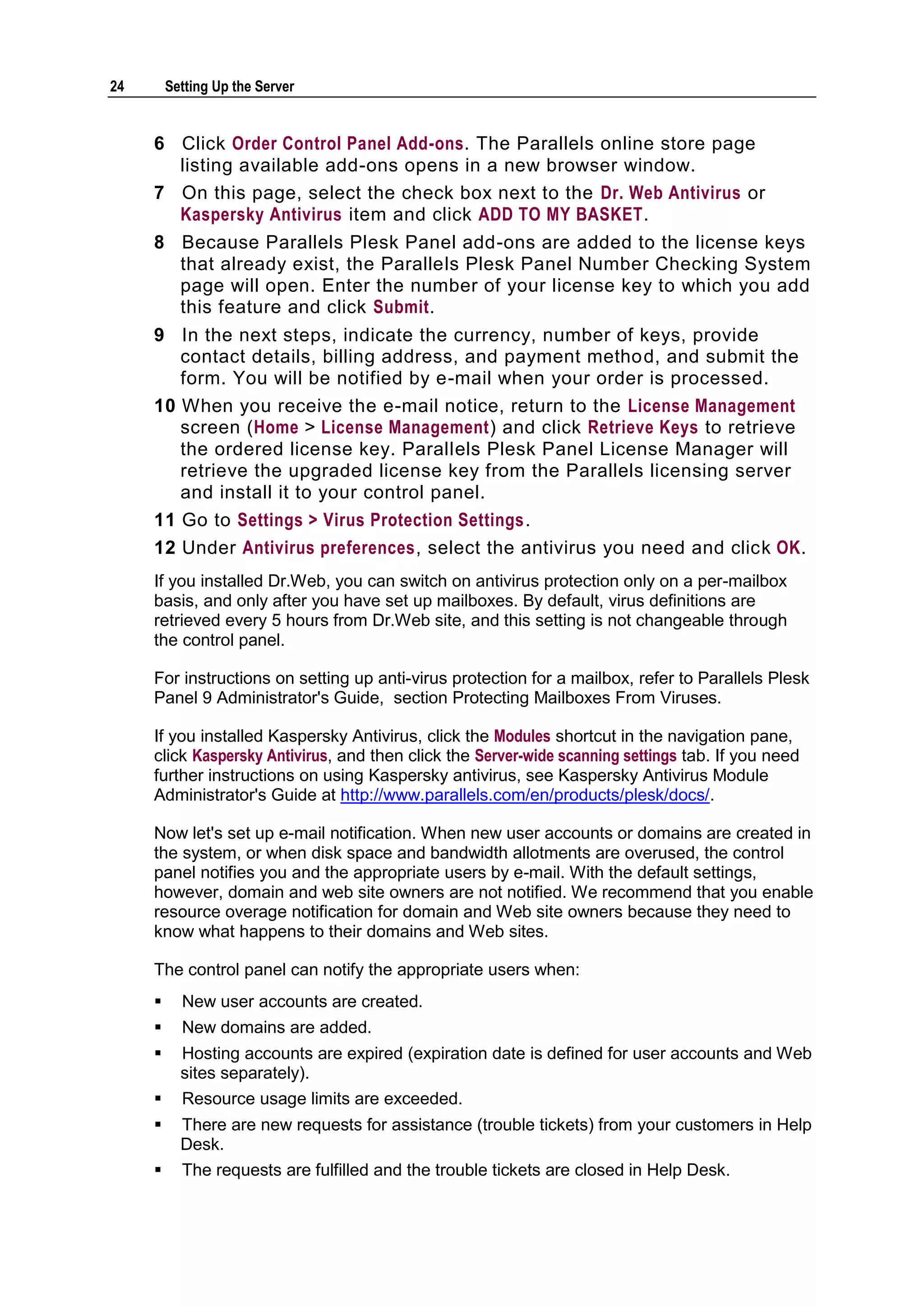
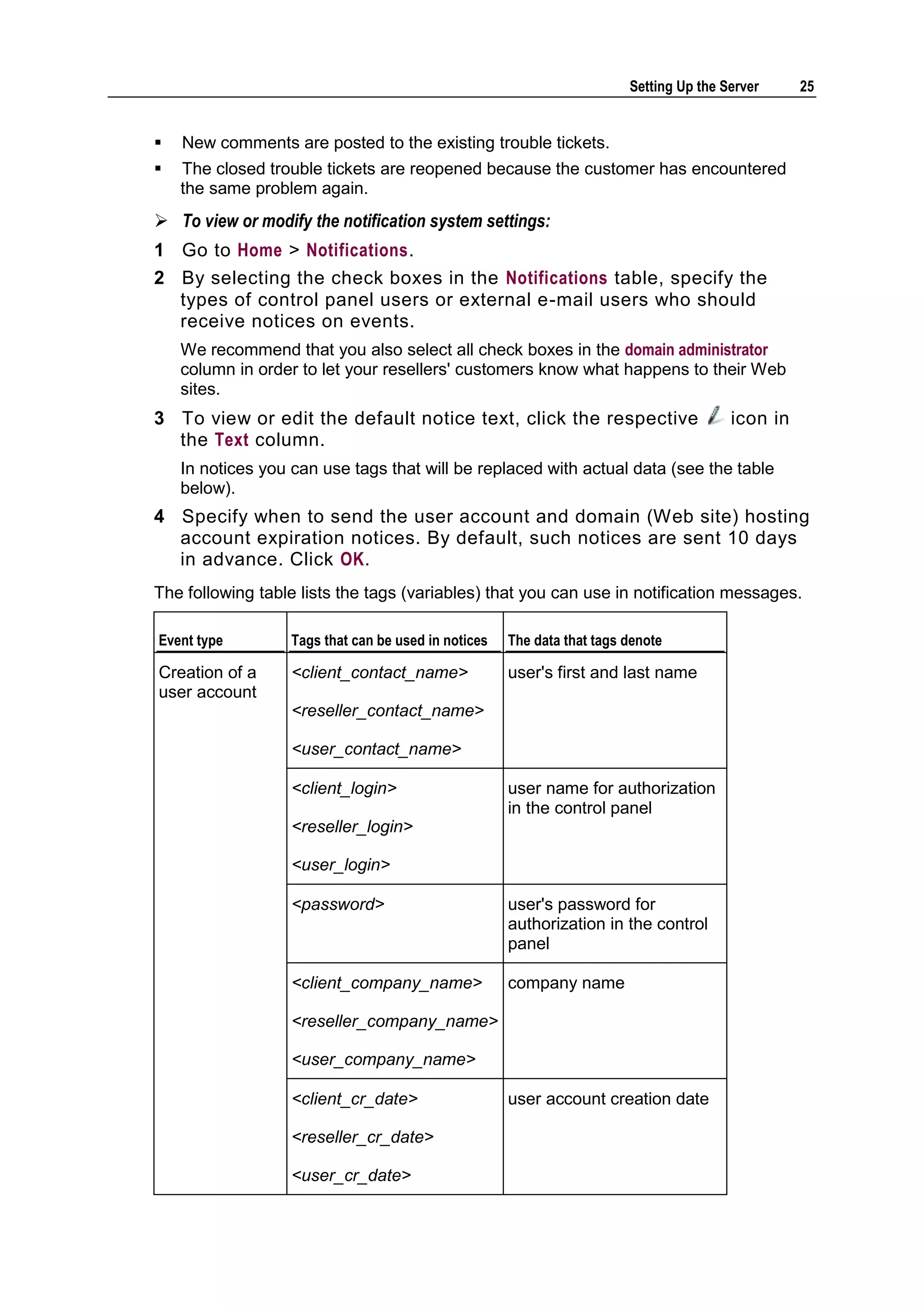
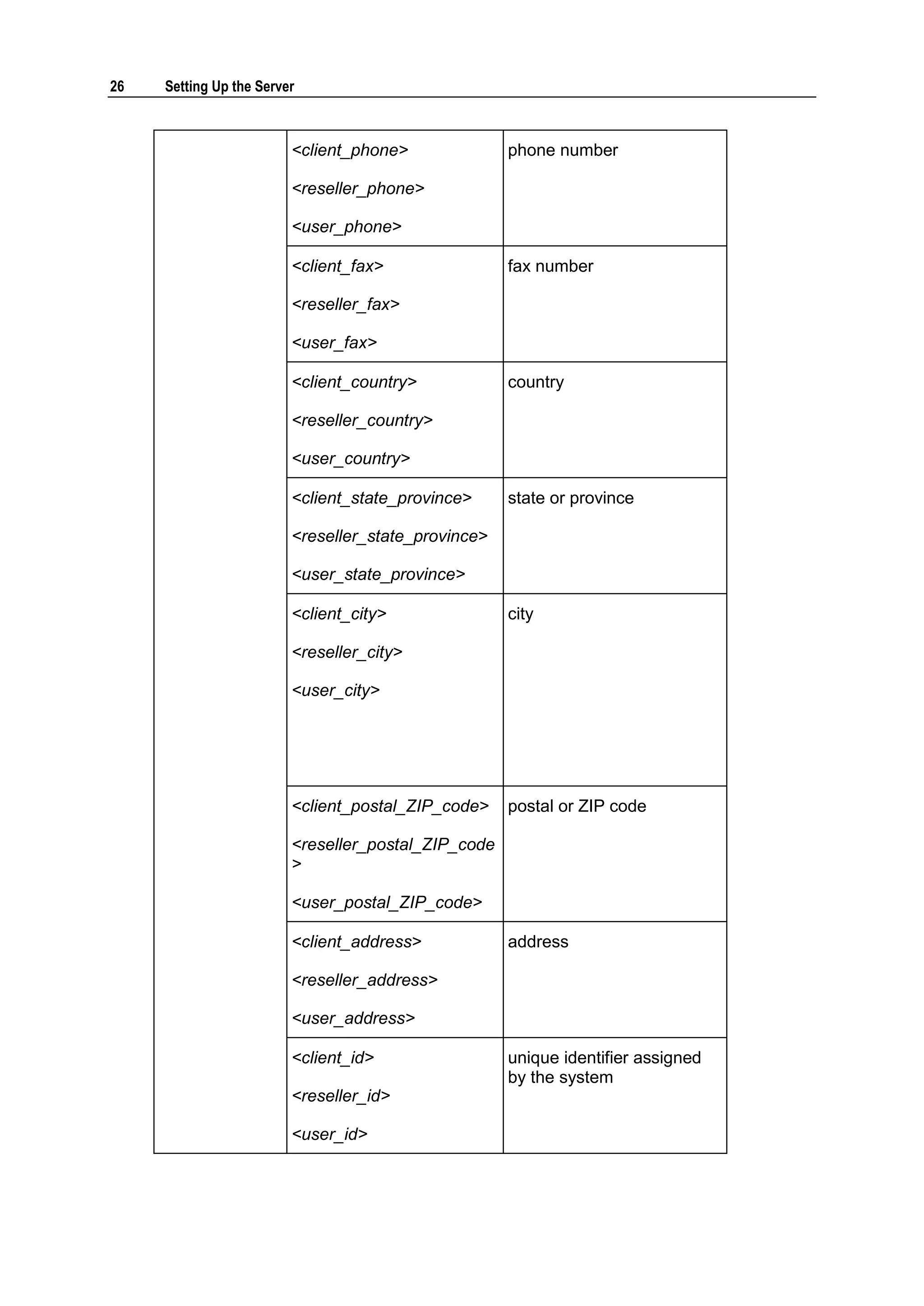
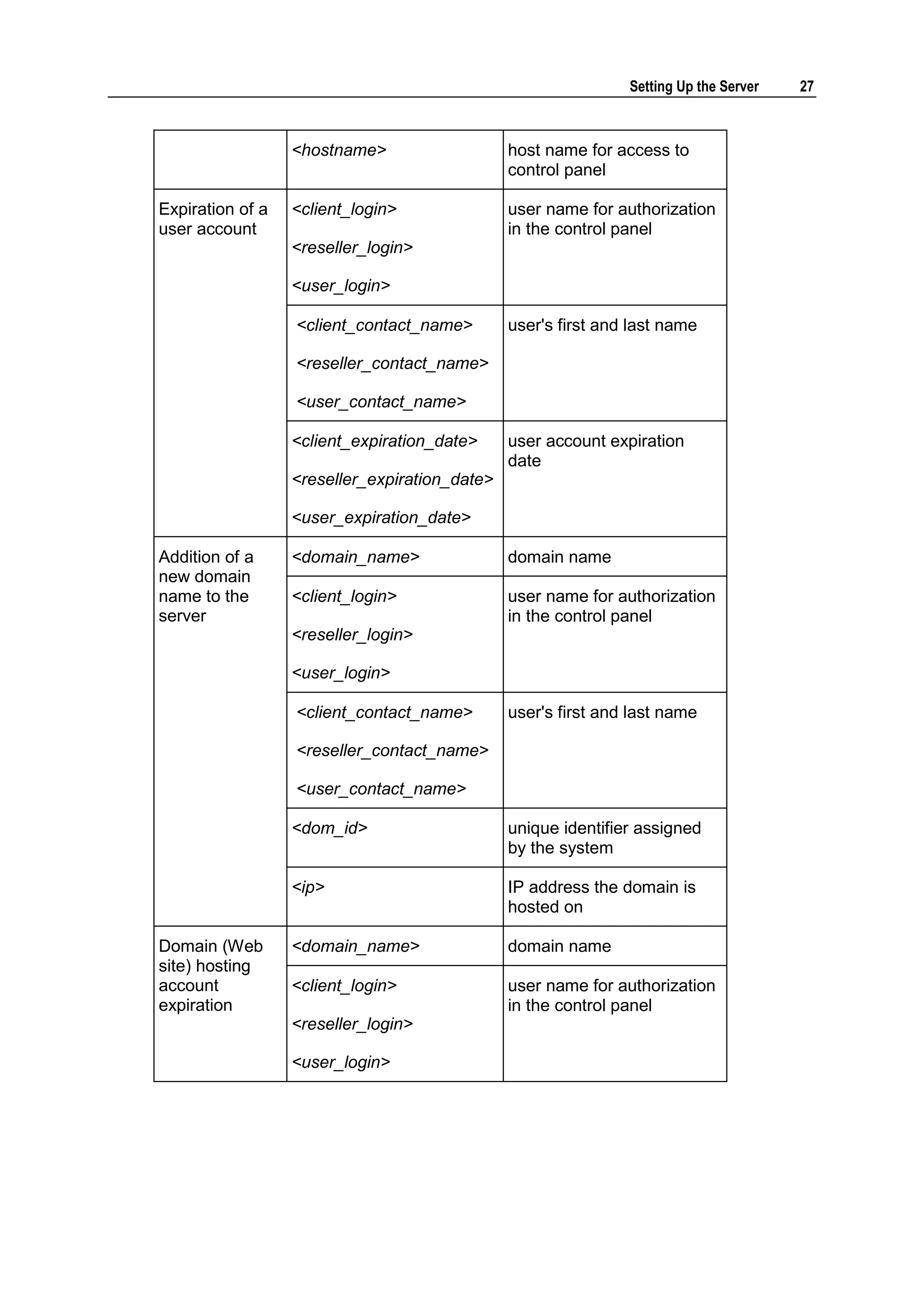
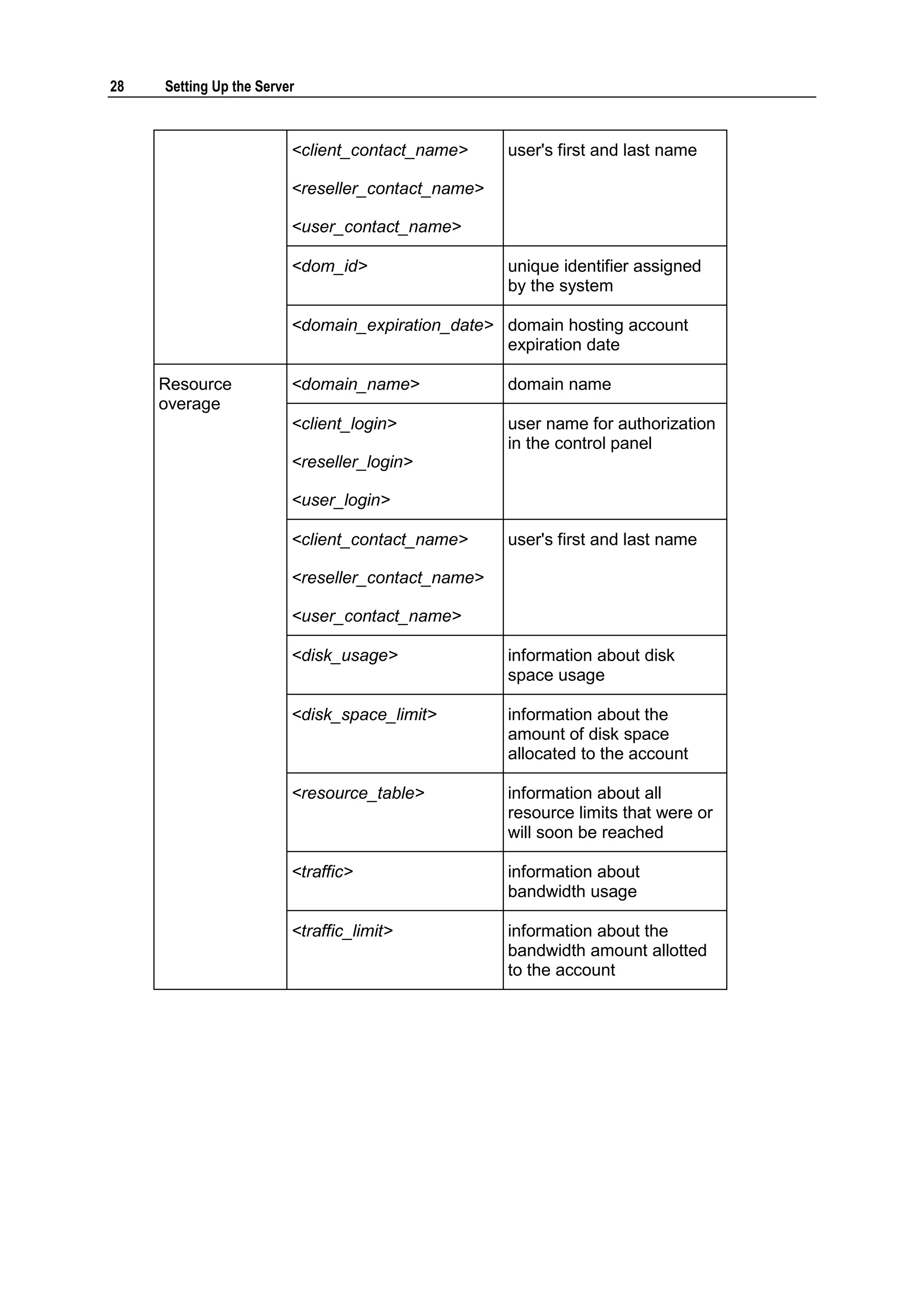
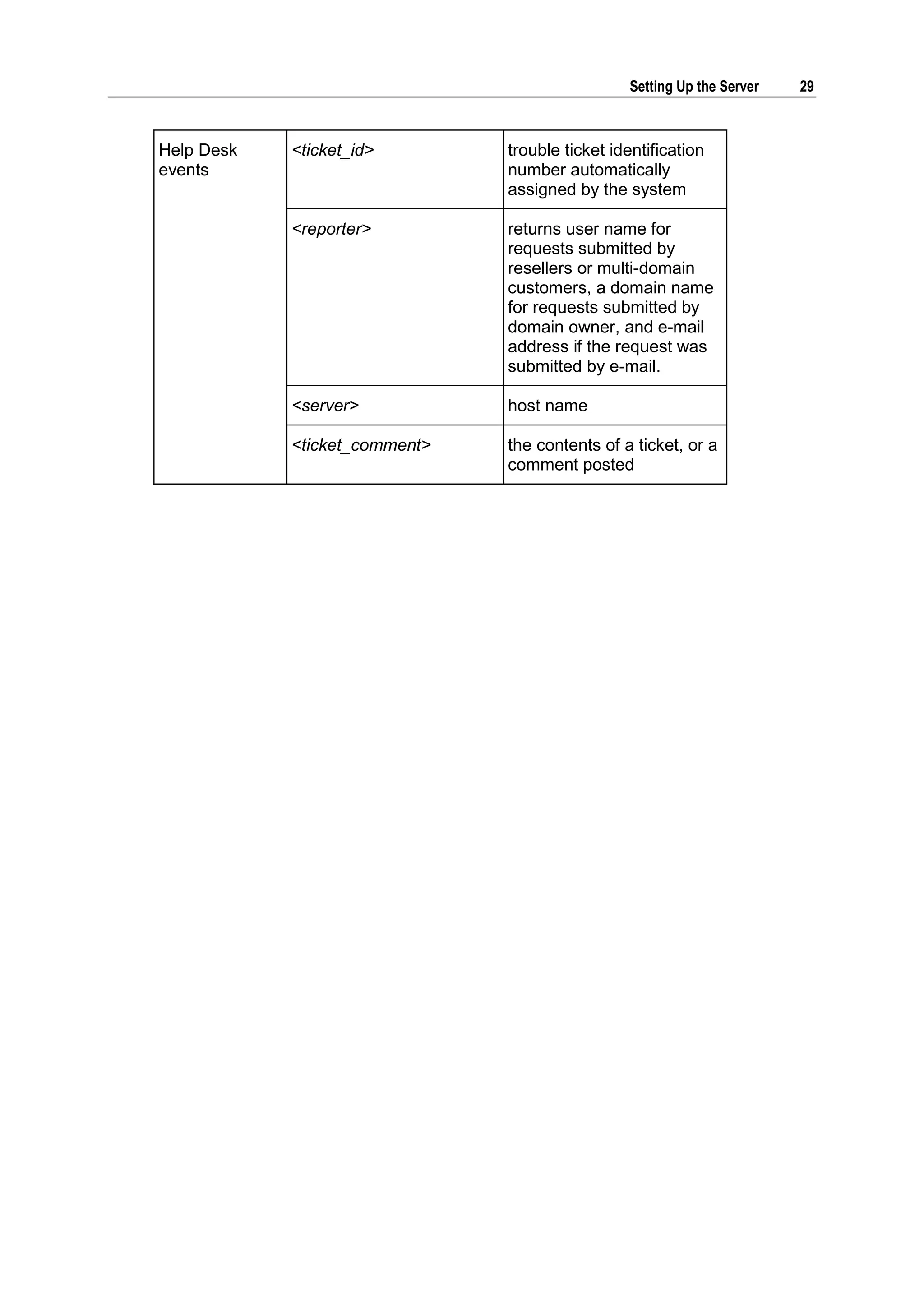
The following table lists the tags (variables) that you can use in notification messages.

Event type         Tags that can be used in notices   The data that tags denote

Creation of a      <client_contact_name>              user's first and last name
user account
                   <reseller_contact_name>

                   <user_contact_name>

                   <client_login>                     user name for authorization
                                                      in the control panel
                   <reseller_login>

                   <user_login>

                   <password>                         user's password for
                                                      authorization in the control
                                                      panel

                   <client_company_name>              company name

                   <reseller_company_name>

                   <user_company_name>

                   <client_cr_date>                   user account creation date

                   <reseller_cr_date>

                   <user_cr_date>
26   Setting Up the Server


                         <client_phone>              phone number

                         <reseller_phone>

                         <user_phone>

                         <client_fax>                fax number

                         <reseller_fax>

                         <user_fax>

                         <client_country>            country

                         <reseller_country>

                         <user_country>

                         <client_state_province>     state or province

                         <reseller_state_province>

                         <user_state_province>

                         <client_city>               city

                         <reseller_city>

                         <user_city>


                         <client_postal_ZIP_code>    postal or ZIP code

                         <reseller_postal_ZIP_code
                         >

                         <user_postal_ZIP_code>

                         <client_address>            address

                         <reseller_address>

                         <user_address>

                         <client_id>                 unique identifier assigned
                                                     by the system
                         <reseller_id>

                         <user_id>
Setting Up the Server   27


                  <hostname>                   host name for access to
                                               control panel

Expiration of a   <client_login>               user name for authorization
user account                                   in the control panel
                  <reseller_login>

                  <user_login>

                  <client_contact_name>        user's first and last name

                  <reseller_contact_name>

                  <user_contact_name>

                  <client_expiration_date>     user account expiration
                                               date
                  <reseller_expiration_date>

                  <user_expiration_date>

Addition of a     <domain_name>                domain name
new domain
name to the       <client_login>               user name for authorization
server                                         in the control panel
                  <reseller_login>

                  <user_login>

                  <client_contact_name>        user's first and last name

                  <reseller_contact_name>

                  <user_contact_name>

                  <dom_id>                     unique identifier assigned
                                               by the system

                  <ip>                         IP address the domain is
                                               hosted on

Domain (Web       <domain_name>                domain name
site) hosting
account           <client_login>               user name for authorization
expiration                                     in the control panel
                  <reseller_login>

                  <user_login>
28   Setting Up the Server


                         <client_contact_name>     user's first and last name

                         <reseller_contact_name>

                         <user_contact_name>

                         <dom_id>                  unique identifier assigned
                                                   by the system

                         <domain_expiration_date> domain hosting account
                                                  expiration date

     Resource            <domain_name>             domain name
     overage
                         <client_login>            user name for authorization
                                                   in the control panel
                         <reseller_login>

                         <user_login>

                         <client_contact_name>     user's first and last name

                         <reseller_contact_name>

                         <user_contact_name>

                         <disk_usage>              information about disk
                                                   space usage

                         <disk_space_limit>        information about the
                                                   amount of disk space
                                                   allocated to the account

                         <resource_table>          information about all
                                                   resource limits that were or
                                                   will soon be reached

                         <traffic>                 information about
                                                   bandwidth usage

                         <traffic_limit>           information about the
                                                   bandwidth amount allotted
                                                   to the account
Setting Up the Server   29


Help Desk   <ticket_id>        trouble ticket identification
events                         number automatically
                               assigned by the system

            <reporter>         returns user name for
                               requests submitted by
                               resellers or multi-domain
                               customers, a domain name
                               for requests submitted by
                               domain owner, and e-mail
                               address if the request was
                               submitted by e-mail.

            <server>           host name

            <ticket_comment>   the contents of a ticket, or a
                               comment posted
30       Setting Up the Server


     Now let's obtain and install an authentic digital SSL certificate to secure connections to
     your control panel.

     For security reasons, you can access your control panel only through a secure
     connection provided by Secure Sockets Layer-enabled hypertext transfer protocol. All
     data you exchange with the Parallels Plesk Panel-managed server are encrypted, thus
     preventing interception of sensitive information. The SSL certificate used in the data
     encryption process is automatically generated and installed on the server during
     installation of the control panel. This is the so-called self-signed certificate: it is not
     signed by a recognized certification authority (CA), therefore, upon attempt to connect
     to your control panel, you and your customers will see warning messages in Web
     browsers.

     To gain customer confidence, you should purchase an SSL certificate from a reputable
     certification authority, and install it to the control panel.

     You can either:
          use the facilities for purchasing SSL certificates from Comodo, GeoTrust, Inc. or
           GoDaddy provided by your control panel,
           OR
          create a certificate signing request (CSR) from the control panel and submit it to the
           certification authority of your choice, which will create an SSL certificate for you.
           Note: If you are going to use the control panel's facilities for purchasing a certificate
           through MyPlesk.com online store, you should not use command line tools for
           creating the certificate signing request.

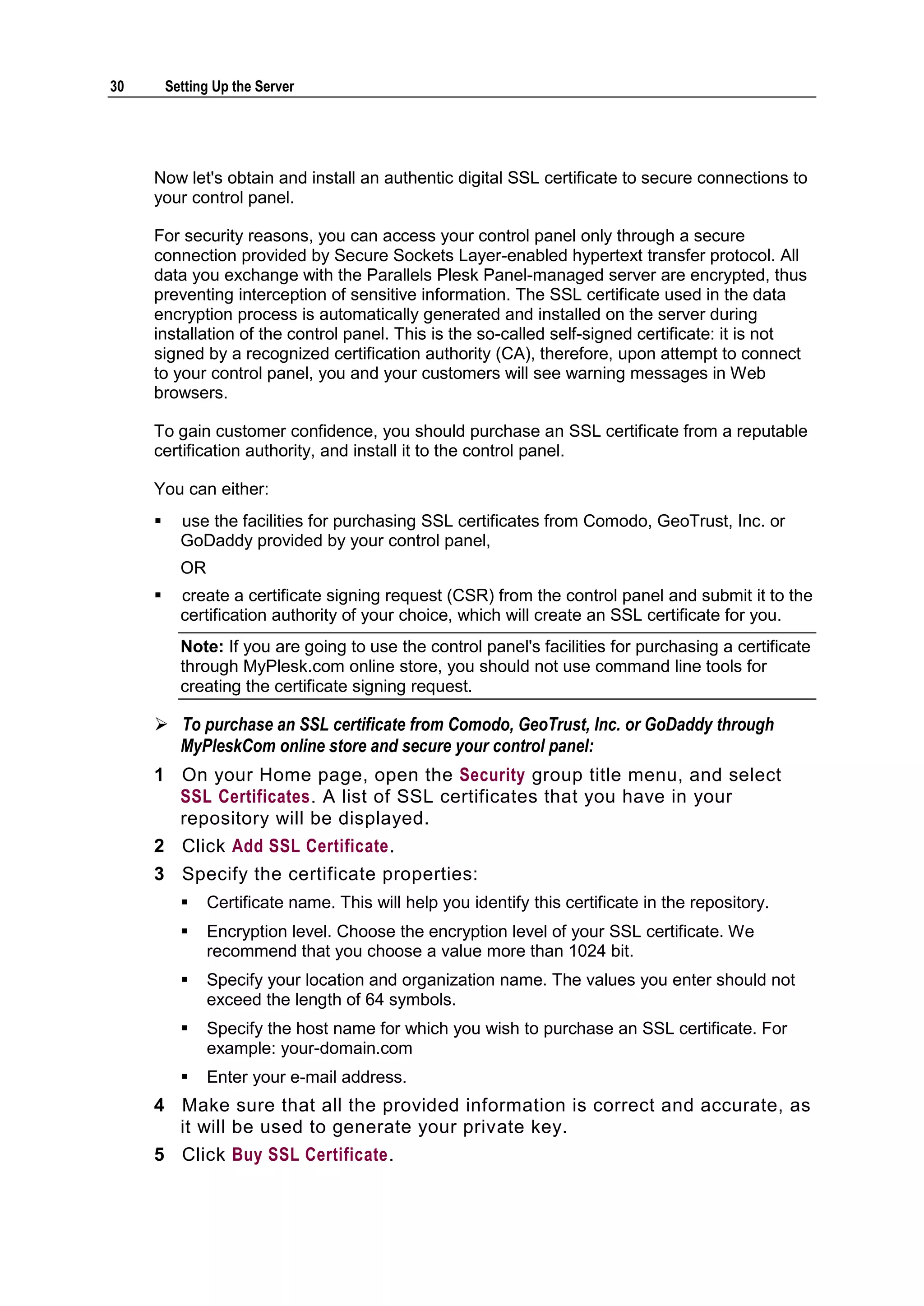
      To purchase an SSL certificate from Comodo, GeoTrust, Inc. or GoDaddy through
       MyPleskCom online store and secure your control panel:
     1 On your Home page, open the Security group title menu, and select
       SSL Certificates. A list of SSL certificates that you have in your
       repository will be displayed.
     2 Click Add SSL Certificate.
     3 Specify the certificate properties:
               Certificate name. This will help you identify this certificate in the repository.
               Encryption level. Choose the encryption level of your SSL certificate. We
                recommend that you choose a value more than 1024 bit.
               Specify your location and organization name. The values you enter should not
                exceed the length of 64 symbols.
               Specify the host name for which you wish to purchase an SSL certificate. For
                example: your-domain.com
               Enter your e-mail address.
     4 Make sure that all the provided information is correct and accurate, as
       it will be used to generate your private key.
     5 Click Buy SSL Certificate.
Setting Up the Server   31


   Your private key and certificate signing request will be generated. Do not delete
   them. MyPlesk.com login page will open in a new browser window.
6 Register or log in to an existing MyPlesk.com account and you will be
  taken step by step through the certificate purchase procedure.
7 Choose the type of certificate that you wish to purchase.
8 Click Proceed to Buy and order the certificate. In the Approver E -Mail
  drop-down box, please select the correct Approver e-mail.
   The approver e-mail is an e-mail address that can confirm that certificate for
   specific domain name was requested by an authorized person.
9 Once your certificate request is processed, you will be sent a
   confirmation e-mail. After you confirm, the certificate will be sent to
   your e-mail.
10 When you receive your SSL certificate, save it on your local machine
   or network.
11 Return to the SSL Certificates repository (Home > Security group title
   menu > SSL Certificates).
12 Click Browse in the middle of the page and navigate to the location of
   the saved certificate. Select it, and then click Send File. This will
   upload the certificate to the repository.
13 Select the check box corresponding to the certificate you just added,
   and click    Secure control panel.
Now you can register the server at MyPlesk.com. My.Plesk.com (MPC) is the Parallels
commerce center that you can customize for your clients. Your registration is free with
your Parallels Plesk Panel 9 license. Click the Home shortcut in the navigation pane,
open the Applications & Services menu, select the Register Your Server option, and follow
the directions on MPC. The system creates an administrator's account in the
commerce portal for your server. Customize the account to offer any of the services or
applications you like. When your customers log in to the system, they become part of
your server's account. As your customers become familiar with the portal they can use
it to register domains, purchase SSL certificates, and purchase a pre-selected list of
applications available for the Parallels Plesk Panel system and their domains. Every
time they use the portal for their accounts you enjoy the revenue without the tax or
accounting responsibilities. My.Plesk.com gives you a management portal to view your
sales and the system accounts and instantly get an update on what your customers are
purchasing as well as the amount of revenue you will receive at the end of each month.
No headaches, no minimum purchases, no partnership fees, just additional revenue for
you to enjoy from your customizable portal.

Now let's set up Help Desk. Help Desk is a convenient way for your customers to reach
you when they need your assistance. After you set it up and switch on, the Help Desk
becomes accessible to all users who were granted access to control panel, including
your resellers, clients, domain owners, and e-mail users. Additionally, you can allow
submission of problem reports by e-mail.
32    Setting Up the Server


     Your Help Desk shows all reports posted by your resellers and their customers. Your
     reseller's Help Desk shows only reports posted by himself or herself and his or her
     customers. A client's Help Desk shows only reports posted by himself or herself and
     domain administrator's of his or her sites, if domain administration privileges were
     granted to the client's users. The domain owner's Help Desk shows only reports posted
     by himself or herself and by e-mail users under his or her domain.

      To configure Help Desk and allow your customers post problem reports through the
       control panel:
     1 Go to Help Desk > General Settings.
     2 Select the Allow customers to submit tickets check box.
     3 Select the trouble ticket queue, priority a nd category that will be
       offered to your customers as the default choice.
        When users post a new ticket, they can specify the order in which they would prefer
        their problems to be resolved (queue), the priority of their requests (priority), and
        the category to which the problem is related (category). The queue, priority and
        category are abstract entities: they have no effect on the system, but they can help
        you decide what problems to resolve in the first place. There are three predefined
        queues and priority levels and nine predefined categories including Database, DNS,
        FTP, General, Hosting, Mail, Mailing Lists, Web Applications, and Tomcat Java. You can
        remove these items and add your own.
     4 Click Switch On in the Tools group, then click OK.
      If you wish to allow users to submit problem reports by e-mail:
     1 Create a POP3 mailbox with an e-mail address like helpdesk@your-
       domain.com or anything you like.
     2 Configure the help desk to periodically retrieve problem reports from
       that mailbox and post them to your Help Desk.
     3 Inform your customers of the Help Desk's e-mail address.
      To allow users to submit problem reports to Help Desk by e-mail:
     1 Go to Help Desk > Mail Gate Settings.
     2 Specify the following settings:
           Notification sender's name, and Notification sender's return address. Once a report has
            been retrieved by e-mail and posted to the Help Desk, the Help Desk sends a
            notice to the report sender. This allows the report sender to subsequently add
            comments to the report by replying to the message. Therefore, we recommend
            that you specify your Help Desk's e-mail address in the Notification sender's return
            address box, and type a phrase like "<company name> Help Desk" into the
            Notification sender's name box. Be sure to specify your organization name in place
            of <company name> and omit the quotation marks.
           POP3 server: POP3 server the mail should be fetched from.
           POP3 login: user name for authentication to the mail server.
           New POP3 password: password that will be used for authentication to the mail
            server and retrieving problem reports from the mailbox.
           Confirm POP3 password: retype password for confirmation.
Setting Up the Server      33


       Query mail once in: specify how often Help Desk should check for new reports.
       Ticket subject must start with: specify the combination of symbols the subject line
        of e-mail messages (problem reports) must start with. This can help filter out
        spam. All e-mail messages that do not have the specified combination of
        symbols in the subject line will be deleted.
3 Click Switch On in the Tools group and click OK.
Now your server is set up and you can do the following:
   Prepare user account templates (referred to as reseller account templates and
    client account templates in Parallels Plesk Panel) to simplify setup of new user
    accounts. (on page 34)
   Prepare Web site hosting account templates (referred to as domain templates in
    Parallels Plesk Panel) to simplify set up of new Web sites. (on page 43)
   Create new user accounts for your customers or resellers. (see page 48)
   Host Web sites. (see page 59)
CHAPTER 4

Simplifying Setup of User Accounts
  Before you start signing up new users for your services, you should create account
  configuration presets, referred to as reseller account templates and client account
  templates. They will simplify setting up user accounts for new customers. The
  templates cover all resource usage allotments, permissions and limits that you can
  define for a user account. There are predefined reseller account and client account
  templates: You can modify them as required and use them, or you can create your own
  templates. The default templates cannot be removed.

   To create a reseller account template:
  1 Go to Resellers > Reseller Account Templates > Create Reseller Account
    Template.
  2 Specify the following settings:
        Template name. Specify a name for this template. During setup of a new reseller
         account, you will be prompted to select the required template by its name.
         Therefore, we recommend that you choose a meaningful name that
         corresponds to one of your hosting plans or describes the amount of allotted
         resources. For example, Reseller account, 50 GB disk space, 100 domains.
        Access to control panel. Select this to allow the reseller to access the control panel
         for managing his or her account, users accounts, and sites.
        Client account creation. Select this to allow the reseller to create user accounts.
        Domain creation and Physical hosting management. Select these two options to allow
         the reseller to set up hosting accounts for new sites, modify hosting account
         features and switch on or off support for programming and scripting languages.
        Hosting performance settings management. Specify whether the reseller will be able
         to limit bandwidth usage and number of connections to his or her Web sites.
        PHP safe mode management (available only for Linux hosting). Specify whether the
         reseller will be able to switch the PHP safe mode off for his or her sites. By
         default, PHP is configured to operate in safe mode with functional restrictions.
         To learn more about PHP safe mode, refer to http://php.net/features.safe-
         mode. Some Web applications may not work properly with safe mode enabled:
         If an application on a site fails due to safe mode, switch the safe mode off by
         clearing the PHP 'safe_mode' on check box in the hosting account properties
         (Domains > domain name > Web Hosting Settings).
        Management of access to the server over SSH or Remote Desktop connection. Specify
         whether the reseller will be able to access the server shell through Secure Shell
         or Remote Desktop protocols.
        Hard disk quota assignment. Specify whether the reseller will be able to assign
         hard quotas on disk space for his or her own Web sites and for Web sites of his
         or her customers.
Simplifying Setup of User Accounts    35


   Subdomains management. Specify whether the reseller will be able to set up
    additional sites under his or her domains and allow his or her customers to do
    so.
   Domain aliases management. Specify whether the reseller will be able to set up
    additional alternative domain names for his or her Web sites and allow his or her
    users to do so.
   Log rotation management. Specify whether the reseller will be able to adjust the
    cleanup and recycling of processed log files for his or her sites.
   Anonymous FTP management. Specify whether the reseller will be able to have an
    FTP directory where all users could download and upload files without the need
    to enter login and password. A web site should reside on a dedicated IP
    address in order to use anonymous FTP service.
   FTP accounts management (only for Windows hosting). Specify whether the reseller
    will be able to manage additional FTP accounts for Web sites.
   Task scheduling. Specify whether the reseller will be able to schedule tasks in the
    system. Scheduled tasks can be used for running scripts or utilities on schedule.
   Domain limits adjustment. Specify whether the reseller will be able to adjust
    resource allotments for his or her Web sites. You must select this option,
    otherwise the reseller will not be able to set up new user accounts and Web
    sites.
   DNS zone management. Specify whether the reseller will be able to manage the
    DNS zones of his or her domains.
   Java applications management. Specify whether the reseller will be able to install
    Java applications and applets on Web sites through the control panel.
   Mailing lists management. Specify whether the customer will be able to use mailing
    lists provided by the GNU Mailman software.
   Spam filter management. Specify whether the reseller will be able to use
    SpamAssassin spam filter and customize filtering settings.
   Antivirus management. Specify whether the reseller will be able to use server-side
    antivirus protection for filtering incoming and outgoing mail.
   Backup and restore functions. Specify whether the reseller will be able to use the
    control panel's facilities to back up and restore his or her sites. To allow storing
    backup files on the server, select the local repository check box. To allow the
    customer to use an arbitrary FTP server for storing backups, select the remote
    (FTP) repository check box.
   Ability to use remote XML interface. Specify whether the reseller will be able to
    remotely manage his or her Web sites through custom applications. The XML
    interface can be used for developing custom applications integrated with Web
    sites, which could be used, for instance, for automating setup of hosting
    accounts and provisioning of services for customers purchasing hosting
    services from a site. To learn more about using Parallels Plesk Panel's XML
    interface (also referred to as Parallels Plesk Panel API RPC), refer to the
    documents: http://download1.parallels.com/Plesk/Plesk9.0/Doc/en-US/plesk-
    9.0-api-rpc-guide/index.htm and
    http://download1.parallels.com/Plesk/Plesk9.0/Doc/en-US/plesk-9.0-api-
    rpc/index.htm.
36   Simplifying Setup of User Accounts


          Ability to use Sitebuilder. Specify whether the reseller will be able to use
           Sitebuilder for creating and editing his or her Web sites.
          IIS application pool management (available only for Windows hosting). Specify
           whether the reseller will be able to manage his or her IIS application pool.
          Web statistics management. Specify whether the reseller will be able to manage
           Web statistics for his or her Web sites.
          Additional write/modify permissions management (available only for Windows
           hosting). Specify whether the reseller will be able to manage additional
           write/modify permissions for their domains. These permissions are required if
           customer's Web applications are using a file-based database (like Jet) located in
           the root of httpdocs or httpsdocs folders. Please note that selecting this
           option might seriously compromise the Web site security.
          Shared SSL management (available only for Windows hosting). Specify whether the
           reseller will be able to manage shared SSL for his or her Web sites.
          Home page management. Specify whether the reseller will be able to customize his
           or her Home page.
          Ability to select a database server. Specify whether the reseller will be able to select
           a database server of each type for creating his or her databases, not only use
           the default database server.
          Overuse and overselling. Specify whether the reseller will be able to sell more
           resources to the customers than his or her hosting plan actually provides.
           Overselling is a marketing strategy based on the following scheme: a reseller,
           who was allotted, for example, ten gigabytes of disk space, allocates five
           gigabytes of disk space to each of his or her customers, assuming that none of
           them will actually use all of their allocated disk space. When the amount of disk
           space used by reseller‘s customers exceeds reseller‘s disk space allotment (ten
           gigabytes in our example), two things can happen depending on the overuse
           policy selected for this reseller account. If overuse is allowed for this reseller,
           then the reseller will have to pay overage charges and upgrade his or her
           hosting account to accommodate the increased needs of his or her customers. If
           overuse is not allowed for this reseller, all Web sites and user accounts of this
           reseller's customers will be suspended which can lead to customer
           dissatisfaction and complaints since customers did not actually exceed their
           own limits. Due to this, it is not generally recommended to allow overselling for
           reseller accounts. If you want to allow overselling for a reseller account, it is
           recommended to also allow overuse for this account.
          Maximum number of domains. Specify the total number of domain names (Web
           sites) that the reseller will be able to host on the server. This includes Web sites
           hosted on this server, and domain forwarders that point to Web sites hosted on
           other servers. Domain aliases (additional domain names for a site hosted on
           this server) and subdomains are counted separately and are not limited by this
           resource type.
          Maximum number of subdomains. Specify the total number of subdomains that the
           reseller will be able to host.
          Maximum number of domain aliases. Specify the total number of additional
           alternative domain names that the reseller will be able to use for his or her Web
           sites.
Simplifying Setup of User Accounts     37


   Disk space. Specify the total amount of disk space in megabytes that is allocated
    to the reseller. It includes disk space occupied by all files related to user
    accounts and sites: Web site contents, databases, applications, mailboxes, log
    files and backup files.
   Maximum amount of traffic. Specify the total amount of data in megabytes that can
    be transferred from the reseller's Web sites during a month.
   Maximum number of Web users. Specify the total number of personal Web pages
    that the reseller can host for other users under his or her domains. This service
    is mostly used in educational institutions that host non-commercial personal
    pages of their students and staff. These pages usually have Web addresses like
    http://your-domain.com/~username.
   Maximum number of databases. Specify the total number of databases that the
    reseller can host on the server.
   Maximum number of mailboxes. Specify the total number of mailboxes that the
    reseller can host on the server.
   Mailbox quota. Specify the amount of disk space in kilobytes that is allocated for
    storing e-mail messages and autoresponder attachment files to each mailbox in
    a domain.
   Maximum number of mail forwarders. Specify the total number of mail forwarders
    that the reseller can set up.
   Maximum number of mail autoresponders. Specify the total number of automatic
    responses that the reseller can set up.
   Maximum number of mail groups. Specify the total number of mail groups that the
    reseller can set up.
   Maximum number of mailing lists. Specify the total number of mailing lists that the
    reseller can host on the server.
   Maximum number of Java applications. Specify the total number of Java applications
    or applets that can be hosted on the server.
   MySQL databases quota and Microsoft SQL databases quota (available only for
    Windows hosting). Specify the maximum disk space amount in megabytes that
    MySQL and Microsoft SQL Server databases respectively can occupy under
    domains belonging to the reseller.
   Maximum number of MySQL databases and Maximum number of Microsoft SQL server
    databases (available only for Windows hosting). Specify the maximum number of
    MySQL and Microsoft SQL Server databases respectively that the reseller can
    create under his or her domains.
   Maximum number of additional Microsoft FrontPage accounts (available only for
    Windows hosting). Specify the maximum number of additional Microsoft
    FrontPage accounts that the reseller can create under his or her domains.
   Maximum number of additional FTP accounts (available only for Windows hosting).
    Specify the maximum number of additional FTP accounts that the reseller can
    create on his or her domains.
   Maximum number of IIS application pools (available only for Windows hosting).
    Specify the total number of dedicated IIS application pools that the reseller can
    allocate between his or her domains.
38    Simplifying Setup of User Accounts


           Maximum number of shared SSL links (available only for Windows hosting). Specify
            the total number of shared SSL links that the reseller can use on his or her
            domains.
           Maximum number of ODBC connections (available only for Windows hosting).
            Specify the total number of ODBC connections that the reseller can use on his
            or her domains.
           Maximum number of ColdFusion DSN connections (available only for Windows
            hosting). Specify the total number of ColdFusion DSN connections that the
            reseller can use on his or her domains.
           Expiration date. Specify the term for a hosting account. At the end of the term, all
            reseller's sites and sites of the reseller's customers will be suspended, their
            Web, FTP and mail services will no longer be accessible to the Internet users,
            and the users will not be able to log in to the control panel. Accounts cannot be
            automatically renewed, therefore, in order to bring the hosted domain names
            (Web sites) back to operation, you will need to manually renew the user
            account: go to Resellers > reseller's name > Resource Usage, specify another term,
            click OK, then click the Unsuspend.
           IP address allocation. Specify the shared IP addresses that you wish to allocate to
            the reseller. If you wish to automatically provision dedicated IP addresses,
            select the Allocate exclusive IP addresses to reseller check box and specify the
            number of IP addresses that should be taken from your IP range and assigned
            to the reseller.
           Creation of a user account in Sitebuilder. To allow the reseller to create and manage
            Web sites using Sitebuilder, select the Create a corresponding user account in
            Sitebuilder check box.
     3 Click OK to complete creation of a template.
        During setup of a new reseller account, you will select the required template and
        the account will be created and allocated the resources you defined.

      To create a client account template:
     1 Go to Clients > Client Account Templates > Create Client Account Template.
     2 Specify the following settings:
           Template name. Specify a name for this template. During setup of a new user
            account, you will be prompted to select the required template by its name.
            Therefore, we recommend that you choose a meaningful name that
            corresponds to one of your hosting plans or describes the amount of allotted
            resources. For example, Shared hosting user account, 5GB disk space, 10 domains.
           Access to control panel. Specify whether the customer will be able to access the
            control panel for managing his or her account and sites.
           Domain creation. Specify whether the customer will be able to set up hosting
            accounts for new sites.
           Physical hosting management. Specify whether the customer will be able to set up
            hosting accounts, modify hosting account features and switch on or off support
            for programming and scripting languages.
           Hosting performance management. Specify whether the customer will be able to
            limit bandwidth usage and number of connections to his or her Web sites.
Simplifying Setup of User Accounts    39


   PHP safe mode management. Specify whether the customer will be able to switch
    the PHP safe mode off for his or her sites. By default, PHP is configured to
    operate in safe mode with functional restrictions. To learn more about PHP safe
    mode, refer to http://php.net/features.safe-mode. Some web applications may
    not work properly with safe mode enabled: If an application on a site fails due to
    safe mode, switch the safe mode off by clearing the PHP 'safe_mode' on check
    box in the hosting account properties (Domains > domain name > Web Hosting
    Settings).
   Management of access to the server over SSH or Remote Desktop connection. Specify
    whether the customer will be able to access the server shell through Secure
    Shell or Remote Desktop protocols.
   Hard disk quota assignment. Specify whether the customer will be able to assign
    hard quotas on disk space for his or her own web sites and for web sites of his
    or her customers.
   Subdomains management. Specify whether the customer will be able to set up
    additional sites under his or her domains and allow his or her customers to do
    so.
   Domain aliases management. Specify whether the customer will be able to set up
    additional alternative domain names for his or her web sites and allow his or her
    users to do so.
   Log rotation management. Specify whether the customer will be able to adjust the
    cleanup and recycling of processed log files for his or her sites.
   Anonymous FTP management. Specify whether the customer will be able to have
    an FTP directory where all users could download and upload files without the
    need to enter login and password. A web site should reside on a dedicated IP
    address in order to use anonymous FTP service.
   FTP accounts management (this option is available only for hosting accounts based
    on Microsoft Windows platforms). Specify whether the customer will be able to
    create and manage additional FTP accounts.
   Task scheduling. Specify whether the customer will be able to schedule tasks in
    the system. Scheduled tasks can be used for running scripts or utilities on
    schedule.
   Domain limits adjustment. Specify whether the customer will be able to adjust
    resource allotments for his or her account. This option must be selected if the
    customer should be able to set up new Web sites.
   DNS zone management. Specify whether the customer will be able to manage the
    DNS zones of his or her domains.
   Java applications management. Specify whether the customer will be able to install
    Java applications and applets on web sites through the control panel.
   Mailing lists management. Specify whether the customer will be able to use mailing
    lists provided by the GNU Mailman software.
   Spam filter management. Specify whether the customer will be able to use
    SpamAssassin spam filter and customize filtering settings.
   Antivirus management. Specify whether the customer will be able to use server-
    side antivirus protection for filtering incoming and outgoing mail.
40   Simplifying Setup of User Accounts


          Backup and restore functions. Specify whether the customer will be able to use the
           control panel's facilities to back up and restore his or her sites. To allow storing
           backup files on the server, select the local repository check box. To allow the
           customer to use an arbitrary FTP server for storing backups, select the remote
           (FTP) repository check box.
          Ability to select a database server. Specify whether the customer will be able to
           select a database server of each type for creating his or her databases, not only
           use the default database server.
          Ability to use remote XML interface. Specify whether the customer will be able to
           remotely manage his or her Web sites through custom applications. The XML
           interface can be used for developing custom applications integrated with Web
           sites, which could be used, for instance, for automating setup of hosting
           accounts and provisioning of services for customers purchasing hosting
           services from a site. To learn more about using Parallels Plesk Panel's XML
           interface (also referred to as Parallels Plesk Panel API RPC), refer to the
           documents: http://download1.parallels.com/Plesk/Plesk9.0/Doc/en-US/plesk-
           9.0-api-rpc-guide/index.htm and
           http://download1.parallels.com/Plesk/Plesk9.0/Doc/en-US/plesk-9.0-api-
           rpc/index.htm.
          Ability to use Sitebuilder. Specify whether the customer will be able to use
           Sitebuilder for creating and editing his or her Web sites.
          IIS application pool management (available only for Windows hosting). Specify
           whether the customer will be able to manage his or her IIS application pool.
          Web statistics management. Specify whether the customer will be able to manage
           Web statistics for his or her Web sites.
          Additional write/modify permissions management (available only for Windows
           hosting). Specify whether the customer will be able to manage additional
           write/modify permissions for their domains. These permissions are required if
           customer's Web applications are using a file-based database (like Jet) located in
           the root of httpdocs or httpsdocs folders. Please note that selecting this
           option might seriously compromise the Web site security.
          Shared SSL management (available only for Windows hosting). Specify whether the
           customer will be able to manage shared SSL for their domains.
          Home page management. Specify whether the customer will be able to customize
           his or her Home page.
          Maximum number of domains. Specify the total number of domain names (Web
           sites) your customer will be able to host on the server. This includes Web sites
           hosted on this server, and domain forwarders that point to Web sites hosted on
           other servers. Domain aliases (additional domain names for a site hosted on
           this server) and subdomains are counted separately and are not limited by this
           resource type.
          Maximum number of subdomains. Specify the total number of subdomains that the
           customer will be able to host.
          Maximum number of domain aliases. Specify the total number of additional
           alternative domain names that the customer will be able to use for his or her
           Web sites.
Simplifying Setup of User Accounts   41


   Disk space. Specify the total amount of disk space in megabytes that is allocated
    to the customer. It includes disk space occupied by all files related to user's
    domains (Web sites): Web site contents, databases, applications, mailboxes,
    log files and backup files.
   Maximum amount of traffic. Specify the amount of data in megabytes that can be
    transferred from the customer's Web sites during a month.
   Maximum number of Web users. Specify the total number of personal Web pages
    that your customer can host for other users under his or her domains. This
    service is mostly used in educational institutions that host non-commercial
    personal pages of their students and staff. These pages usually have Web
    addresses like http://your-domain.com/~username.
   Maximum number of databases. Specify the total number of databases that the
    customer can host on the server.
   Maximum number of mailboxes. Specify the total number of mailboxes that the
    customer can host on the server.
   Mailbox quota. Specify the amount of disk space in kilobytes that is allocated for
    storing e-mail messages and autoresponder attachment files to each mailbox in
    a domain.
   Maximum number of mail forwarders. Specify the total number of mail forwarders
    that the customer can set up.
   Maximum number of mail autoresponders. Specify the total number of automatic
    responses that the customer can set up.
   Maximum number of mail groups. Specify the total number of mail groups that the
    customer can set up.
   Maximum number of mailing lists. Specify the total number of mailing lists that you
    customer can host on the server. To provide users with mailing lists, you should
    install the GNU Mailman software.
   Maximum number of Java applications. Specify the total number of Java applications
    or applets that can be hosted on the server.
   MySQL databases quota and Microsoft SQL databases quota. Specify the maximum
    disk space amount in megabytes that MySQL and Microsoft SQL Server
    databases respectively can occupy on a domains belonging to the customer.
   Maximum number of MySQL databases and Maximum number of Microsoft SQL server
    databases. Specify the maximum number of MySQL and Microsoft SQL Server
    databases respectively that the customer can create on his or her domains.
   Maximum number of additional Microsoft FrontPage accounts. Specify the maximum
    number of additional Microsoft FrontPage accounts that the customer can
    create on his or her domains.
   Maximum number of additional FTP accounts. Specify the maximum number of
    additional FTP accounts that the customer can create on his or her domains.
   Maximum number of IIS application pools (available only for Windows hosting).
    Specify the total number of dedicated IIS application pools that the customer
    can allocate between his or her domains.
   Maximum number of shared SSL links (available only for Windows hosting). Specify
    the total number of shared SSL links that the customer can use on his or her
    domains.
42    Simplifying Setup of User Accounts


           Maximum number of ODBC connections (available only for Windows hosting).
            Specify the total number of ODBC connections that the customer can use on his
            or her domains.
           Maximum number of ColdFusion DSN connections (available only for Windows
            hosting). Specify the total number of ColdFusion DSN connections that the
            customer can use on his or her domains.
           Expiration date. Specify the term for a hosting account. At the end of the term, all
            customer's domains (Web sites) will be suspended, their Web, FTP and mail
            services will no longer be accessible to the Internet users, and the user will not
            be able to log in to the control panel. Accounts cannot be automatically
            renewed, therefore, in order to bring the hosted domain names (Web sites) back
            to operation, you will need to manually renew the user account: Click the Clients
            shortcut in the navigation pane, click the client name you need, click the
            Resource Usage icon, specify another term, click OK, then click the Unsuspend
            shortcut.
           IP address allocation. Specify the shared IP addresses that you wish to allocate to
            the customer. If you wish to automatically provision dedicated IP addresses,
            select the Allocate exclusive IP addresses to client check box and specify the
            number of IP addresses that should be taken from your IP range and assigned
            to the customer.
           Creation of a user account in Sitebuilder. To allow the customer to create and
            manage Web sites using Sitebuilder, select the Create a corresponding user
            account in Sitebuilder check box.
     3 Click OK to complete creation of a template.
        During setup of a new user account, you will select the required template and the
        account will be created and allocated the resources you defined.
CHAPTER 5

Simplifying Setup of Domains and Web
Sites
  Before you start hosting Web sites, you should create hosting configuration presets,
  referred to as domain templates. The templates cover all resource usage allotments,
  permissions and resource limits that you can define for a hosting account, plus mail
  bounce and Web statistics retention settings. There is a predefined domain template
  available from the control panel: You can modify it as required and use it, or you can
  create your own templates. The default template cannot be removed.

   To create a domain template:
  1 Go to Domains > Domain Templates > Create Domain Template.
  2 Specify the following settings:
        Template name. Specify a name for this template. During setup of a new hosting
         account, you will be prompted to select the required template by its name.
         Therefore, we recommend that you choose a meaningful name that
         corresponds to one of your hosting plans or describes the amount of allotted
         resources. For example, Mail hosting, 5GB disk space, 500 mailboxes.
        Availability to other users. If you want your customers to be able to use this
         template, select the check box Make this template available to other users (sub-
         logins).
        Mail to nonexistent users. Specify the domain-wide mail bounce options: When
         somebody sends an e-mail message to an e-mail address that does not exist
         under your domain, the mail server on your domain accepts mails, processes it,
         and when it finds out that there is no such a recipient under your domain, it
         returns the mail back to sender with the ―this address no longer accepts mail‖
         notice. You can choose to:
            change the default notice if you do not like it (leave the Bounce with message
             option selected and type another message into the input box),
            forward undelivered mail to another e-mail address (select the Forward to
             address option and specify the e-mail address you need), or
            reject mail without accepting it (select the Discard option). This setting can
             decrease mail server load caused by a large amount of spam, which is often
             directed at randomly generated user names. However, for spammers this
             can somewhat speed up scanning of your mail server for valid e-mail
             addresses.
            forward to external mail server (available only for Windows hosting). With
             this setting, all mail addressed to nonexistent users will be forwarded to the
             specified external mail server.
        Webmail. Specify whether the users of mailboxes in this domain should be able
         to read their mail through a browser based webmail application, and select the
         application that should be used.
44   Simplifying Setup of Domains and Web Sites


          Overuse policy. Specify what should be done to the site when disk space and
           traffic limits are exceeded: To block the site, select the Overuse is not allowed
           option. To allow the site to operate, select the Overuse is allowed option. Leave
           the check box Notify the domain owner about reaching the resource limit selected if
           you want the control panel to notify you when the resource usage limit is
           reached.
          Subdomains. Specify the number of subdomains that can be hosted under this
           domain.
          Domain aliases. Specify the total number of additional alternative domain names
           that can be used for this site.
          Disk space. Specify the total amount of disk space allocated to a hosting account
           associated with the domain. This amount is measured in megabytes. It includes
           disk space occupied by all files related to the domain/Web site: Web site
           contents, databases, applications, mailboxes, log files and backup files.
          Traffic. Specify the amount of data in megabytes that can be transferred from the
           Web site during a month.
          Web users. Specify the number of personal Web pages that can be hosted for
           other users under his or her domain. This service is mostly used in educational
           institutions that host non-commercial personal pages of their students and staff.
           These pages usually have web addresses like http://your-
           domain.com/~username. If you wish to allow execution of scripts embedded in
           personal Web pages, select also the Allow the web users scripting check box. For
           more information, refer to Parallels Plesk Panel 9 Administrator's Guide, section
           Hosting Personal Web Pages.
          MySQL Databases. Specify the number of databases that can be hosted under this
           domain.
          Mailboxes. Specify the number of mailboxes that can be hosted under this
           domain.
          Mailbox quota. Specify the amount of disk space in kilobytes that is allocated for
           storing e-mail messages and autoresponder attachment files to each mailbox
           under this domain.
          Mail redirects. Specify the number of mail forwarders that can be used in a
           domain.
          Mail groups. Specify the number of simple mailing lists that can be set up in a
           domain.
          Autoresponders. Specify the number of automatic responses that can be set up in
           a domain.
          Mailing lists. Specify the number of mailing lists that can run in a domain.
          Java applications. Specify the maximum number of Java applications or applets
           that the domain owner can install under a domain.
          Databases quota (only for Windows hosting). Specify the maximum disk space
           amount in megabytes that MySQL and Microsoft SQL Server databases
           respectively can occupy under the domain.
          Microsoft FrontPage accounts (only for Windows hosting). Specify the maximum
           number of additional Microsoft FrontPage accounts that can be created under
           the domain.
Simplifying Setup of Domains and Web Sites   45


   FTP accounts (available only for Windows hosting). Specify the maximum number
    of additional FTP accounts that can be created under the domain.
   Microsoft SQL Server databases (available only for Windows hosting). Specify the
    number of databases that can be hosted under this domain.
   ODBC connections (available only for Windows hosting). Specify the total number
    of ODBC connections that can be used under the domain.
   ColdFusion DSN connections (available only for Windows hosting). Specify the total
    number of ColdFusion DSN connections that can be used under the domain.
   Shared SSL links (available only for Windows hosting). Specify the total number of
    shared SSL links that can be used under the domain.
   Expiration date. Specify the term for the Web site hosting account. At the end of
    the term, the domain (Web site) will be suspended, its Web, FTP and mail
    services will no longer be accessible to the Internet users, and domain owner
    will not be able to log in to the control panel. Hosting accounts cannot be
    automatically renewed, therefore, in order to bring the hosted domain name
    (and Web site) back to operation, you will need to manually renew the hosting
    account: click the Domains shortcut in the navigation pane, click the domain
    name your need, click the Resource Usage icon, specify another expiration date,
    click OK, then click the Unsuspend icon (Domains > domain name > Unsuspend).
   Log rotation. All connections to the Web server and requests for files that were
    not found on the server are registered in log files. These log files are analyzed
    by the statistical utilities running on the server, which then present graphical
    reports on demand. If you need to view the contents of these raw log files for
    debugging purposes, go to Domains > domain name > Log Manager, and then click
    the log file name you need. To prevent these log files from growing too large,
    you should enable automatic cleanup and recycling of log files:
       select the Switch on log rotation check box,
       specify when to recycle log files,
       specify how many instances of each log file processed by Parallels Plesk
        Panel's statistical utilities to store on the server,
       specify whether they should be compressed,
       specify whether they should be sent to an e-mail address after processing.
   Web and traffic statistics retention. Specify the number of months during which the
    Web and bandwidth usage statistics should be kept on the server.
   DNS. Specify whether the DNS server on your Web host should act as a master
    (primary) or slave (secondary) name server for the domain name zone. A
    primary name server stores locally the zone file it serves, while a secondary
    server only retrieves a copy of this file from the primary. You would normally
    leave the Master option selected.
   Physical hosting account. If you are going to host not only domain names (DNS
    zone settings), but also Web sites, select the Physical hosting check box and
    specify the hosting features:
       Hard disk quota. In addition to the soft quota, you can specify the so-called
        hard quota that will not allow writing more files to the web space when the
        limit is reached. At attempt to write files, users will get "Out of disk space"
        error.
46   Simplifying Setup of Domains and Web Sites


              SSL support. Secure Sockets Layer encryption is generally used for protecting
               transfer of sensitive data during online transactions on e-commerce Web
               sites that run on dedicated IP addresses. SSL certificates that participate in
               the encryption process are usually applied to a single domain name on a
               single IP address, therefore, each site that needs SSL protection must be
               hosted on a dedicated IP address. An exception to this is subdomains, which
               you can protect with a wildcard certificate. Installing an SSL certificate on a
               Web server that hosts several web sites with different domain names on a
               single IP address (shared or name-based hosting) is technically possible,
               however, it is not recommended: the encryption will be provided, but users
               will get warning messages on attempt to connect to the secure site. To allow
               SSL encryption for Web sites, select the SSL support check box.
              Create and publish Web site using Sitebuilder. This will enable the site owner to
               create and manage a Web site using Sitebuilder.
              Use a single directory for housing SSL and non-SSL content (available only for
               Linux hosting). By default, when users publish their sites through their FTP
               accounts, they need to upload the Web content that should be accessible via
               secure connections to the httpsdocs directory, and the content that should
               be accessible via plain HTTP, to the httpdocs directory. For the convenience
               of publishing all content through a single location – httpdocs directory, select
               the Use a single directory for housing SSL and non-SSL content check
               box.Microsoft FrontPage support. Microsoft FrontPage is a popular Web site
               authoring tool. To enable users to publish and modify their sites through
               Microsoft FrontPage, select the Microsoft FrontPage support and FrontPage over
               SSL support check boxes and set the Remote Microsoft FrontPage authoring
               option to allowed.
              Support for hosting services and scripting languages. Specify which of the
               following programming and scripting languages should be interpreted,
               executed or otherwise processed by the Web server: Active Server Pages
               (ASP), Server Side Includes (SSI), PHP hypertext preprocessor (PHP),
               Common Gateway Interface (CGI), Fast Common Gateway Interface
               (FastCGI), Perl, Python, ColdFusion, and Miva scripting required for running
               Miva e-commerce solutions.
              Web statistics. To allow domain (Web site) owner to view the information on
               the number of people visited his or her site and the pages of the site they
               viewed, select the statistical package you need from the Web statistics menu,
               and select the accessible via password protected directory /plesk-stat/webstat
               check box. This will install the statistical software of your choice, which will
               generate reports and place them into the password-protected directory. The
               domain/web site owner will then be able to access Web statistics at the URL:
               https://your-domain.com/plesk-stat/webstat using his or her FTP account
               login and password.
              Custom error documents. When visitors coming to your site request pages that
               the web server cannot find, the web server generates and displays a
               standard HTML page with an error message. If you wish to create your own
               error pages and use them on your server or allow your customers to do that,
               select the Custom error documents check box.
Simplifying Setup of Domains and Web Sites      47


         Access to the server over SSH or Remote Desktop with FTP user's credentials. This
          allows a site owner to upload securely Web content to the server through a
          Secure Socket Shell or Remote Desktop connection, however, allowing
          access to the server also poses a potential threat to the server security, so
          we recommend that you leave the Forbidden option selected.
         Additional write/modify permissions (available only for Windows hosting). This
          option is required if customer's web applications are using a file-based
          database (like Jet) located in the root of httpdocs or httpsdocs folders.
          Please note that selecting this option might seriously compromise the Web
          site security.
         Use dedicated IIS application pool (available only for Windows hosting). This
          option enables the use of dedicated IIS application pool for Web applications
          on a domain. Using dedicated IIS application pool dramatically improves the
          stability of domain Web applications due to worker process isolation mode.
          This mode gives each Web site hosted on the server the possibility to
          allocate a separate process pool for execution of its Web applications. This
          way, malfunction in one application will not cause stopping of all the others.
          This is especially useful when you are using shared hosting package.
         Maximum CPU use (available only for Windows hosting). To limit the amount of
          CPU resources that domain's IIS application pool can use, clear the Unlimited
          check box and type in the number (in percents).
     Performance. To avoid excessive usage of bandwidth, which can lead to
      resources overage, you can set various performance limitations for a domain.
         Maximum bandwidth usage. To limit the maximum speed (measured in kilobytes
          per second) that a domain can share between all its connections, clear the
          Unlimited check box and type in a number in kilobytes.
         Connections limiting. To limit the maximum number of simultaneous
          connections to a domain, clear the Unlimited check box and type in a number.
3 Click OK to complete creation of a template.
  During setup of a hosting account for a new domain (Web site), you will select the
  required template and the hosting account will be created and allocated the
  resources and hosting services you defined.
CHAPTER 6

Creating User Accounts
  This chapter focuses on creating reseller accounts that you will create for resellers, and
  client accounts that you will create for end users of Web hosting services.

  If you need to create a domain administrator's account, see Parallels Plesk Panel 9
  Administrator's Guide, section Setting Up Hosting Account for a Web Site.

  If you need to create an e-mail user account, see Parallels Plesk Panel 9
  Administrator's Guide, section Creating Mailboxes.

  In this chapter:
  Adding Reseller Accounts for Hosting Resellers ................................................ 49
  Adding Client Accounts for End Users of Hosting Services ............................... 54
Creating User Accounts    49


Adding Reseller Accounts for Hosting
Resellers
   To accommodate a new reseller:
  1 Go to Home > Accounts group title menu > Create Reseller Account.
  2 Specify the contact and billing information. Contact name, login name
    and password are mandatory fields.
  3 If you have predefined user account templates, you can select the
    template you need from the Select template menu.
  4 If the Sitebuilder Web site creation and management service is
    installed on the server, leave the Create a corresponding user account in
    Sitebuilder check box selected.
  5 Click Next >>.
  6 Specify the following settings:
        Overuse and overselling. Specify whether the reseller will be able to sell more
         resources to the customers than his or her hosting plan actually provides.
         Overselling is a marketing strategy based on the following scheme: a reseller,
         who was allotted, for example, ten gigabytes of disk space, allocates five
         gigabytes of disk space to each of his or her customers, assuming that none of
         them will actually use all of their allocated disk space. When the amount of disk
         space used by reseller‘s customers exceeds reseller‘s disk space allotment (ten
         gigabytes in our example), two things can happen depending on the overuse
         policy selected for this reseller account. If overuse is allowed for this reseller,
         then the reseller will have to pay overage charges and upgrade his or her
         hosting account to accommodate the increased needs of his or her customers. If
         overuse is not allowed for this reseller, all Web sites and user accounts of this
         reseller's customers will be suspended which can lead to customer
         dissatisfaction and complaints since customers did not actually exceed their
         own limits. Due to this, it is not generally recommended to allow overselling for
         reseller accounts. If you want to allow overselling for a reseller account, it is
         recommended to also allow overuse for this account.
        Maximum number of clients. Specify the total number of user accounts that the
         reseller can create for his or her customers.
        Maximum number of domains. Specify the total number of domain names (Web
         sites) that the reseller will be able to host on the server. This includes Web sites
         hosted on this server, and domain forwarders that point to Web sites hosted on
         other servers. Domain aliases (additional domain names for a site hosted on
         this server) and subdomains are counted separately and are not limited by this
         resource type.
        Maximum number of subdomains. Specify the total number of subdomains that the
         reseller will be able to host.
        Maximum number of domain aliases. Specify the total number of additional
         alternative domain names that the reseller will be able to use for his or her Web
         sites.
50   Creating User Accounts


          Maximum number of Web users. Specify the total number of personal Web pages
           that the reseller can host for other users under his or her domains. This service
           is mostly used in educational institutions that host non-commercial personal
           pages of their students and staff. These pages usually have Web addresses like
           http://your-domain.com/~username. See the Hosting Personal Web Pages
           section for details.
          Maximum number of additional Microsoft FrontPage accounts (available only for
           Windows hosting). Specify the maximum number of additional Microsoft
           FrontPage accounts that the reseller can create under his or her domains.
          Maximum number of additional FTP accounts (available only for Windows hosting).
           Specify the maximum number of additional FTP accounts that the reseller can
           create on his or her domains.
          Disk space. Specify the total amount of disk space in megabytes that is allocated
           to the reseller. It includes disk space occupied by all files related to user
           accounts and sites: Web site contents, databases, applications, mailboxes, log
           files and backup files.
          Maximum amount of traffic. Specify the total amount of data in megabytes that can
           be transferred from the reseller's Web sites during a month.
          MySQL databases quota and Microsoft SQL databases quota (available only for
           Windows hosting). Specify the maximum disk space amount in megabytes that
           MySQL and Microsoft SQL Server databases respectively can occupy under
           domains belonging to the reseller.
          Maximum number of MySQL databases and Maximum number of Microsoft SQL server
           databases (available only for Windows hosting). Specify the maximum number of
           MySQL and Microsoft SQL Server databases respectively that the reseller can
           create under his or her domains.
          Maximum number of ODBC connections (available only for Windows hosting).
           Specify the total number of ODBC connections that the reseller can use on his
           or her domains.
          Maximum number of ColdFusion DSN connections (available only for Windows
           hosting). Specify the total number of ColdFusion DSN connections that the
           reseller can use on his or her domains.
          Maximum number of mailboxes. Specify the total number of mailboxes that the
           reseller can host on the server.
          Mailbox quota. Specify the amount of disk space in kilobytes that is allocated for
           storing e-mail messages and autoresponder attachment files to each mailbox in
           a domain.
          Maximum number of mail forwarders. Specify the total number of mail forwarders
           that the reseller can set up.
          Maximum number of mail autoresponders. Specify the total number of automatic
           responses that the reseller can set up.
          Maximum number of mail groups. Specify the total number of mail groups that the
           reseller can set up.
          Maximum number of mailing lists. Specify the total number of mailing lists that the
           reseller can host on the server.
Creating User Accounts      51


     Maximum number of Java applications. Specify the total number of Java applications
      or applets that can be hosted on the server.
     Maximum number of IIS application pools (available only for Windows hosting).
      Specify the total number of dedicated IIS application pools that the reseller can
      allocate between his or her domains.
     Maximum number of shared SSL links (available only for Windows hosting). Specify
      the total number of shared SSL links that the reseller can use on his or her
      domains.
     Expiration date. Specify the term for a hosting account. At the end of the term, all
      reseller's sites and sites of the reseller's customers will be suspended, their
      Web, FTP and mail services will no longer be accessible to the Internet users,
      and the users will not be able to log in to the control panel. Accounts cannot be
      automatically renewed, therefore, in order to bring the hosted domain names
      (Web sites) back to operation, you will need to manually renew the user
      account: go to Resellers > reseller's name > Resource Usage, specify another term,
      click OK, then click Unsuspend.
7 Click Next >>.
8 Grant the required permissions to the reseller:
     Access to control panel. Select this to allow the reseller to access the control panel
      for managing his or her account, users accounts, and sites.
     Client account creation. Select this to allow the reseller to create user accounts.
     Domain creation and Physical hosting management. Select these two options to allow
      the reseller to set up hosting accounts for new sites, modify hosting account
      features and switch on or off support for programming and scripting languages.
     Hosting performance management. Specify whether the reseller will be able to limit
      bandwidth usage and number of connections to his or her Web sites.
     PHP safe mode management (available only for Linux hosting). Specify whether the
      reseller will be able to switch the PHP safe mode off for his or her sites. By
      default, PHP is configured to operate in safe mode with functional restrictions.
      To learn more about PHP safe mode, refer to http://php.net/features.safe-
      mode. Some Web applications may not work properly with safe mode enabled:
      If an application on a site fails due to safe mode, switch the safe mode off by
      clearing the PHP 'safe_mode' on check box in the hosting account properties
      (Domains > domain name > Web Hosting Settings).
     Management of access to the server over SSH or Remote Desktop connection. Specify
      whether the reseller will be able to access the server shell through Secure Shell
      or Remote Desktop protocols.
     Hard disk quota assignment. Specify whether the reseller will be able to assign
      hard quotas on disk space for his or her own Web sites and for Web sites of his
      or her customers.
     Subdomains management. Specify whether the reseller will be able to set up
      additional sites under his or her domains and allow his or her customers to do
      so.
     Domain aliases management. Specify whether the reseller will be able to set up
      additional alternative domain names for his or her Web sites and allow his or her
      users to do so.
52   Creating User Accounts


          Log rotation management. Specify whether the reseller will be able to adjust the
           cleanup and recycling of processed log files for his or her sites.
          Anonymous FTP management. Specify whether the reseller will be able to have an
           FTP directory where all users could download and upload files without the need
           to enter login and password. A web site should reside on a dedicated IP
           address in order to use anonymous FTP service.
          FTP accounts management (only for Windows hosting). Specify whether the reseller
           will be able to manage additional FTP accounts for Web sites.
          Task scheduling. Specify whether the reseller will be able to schedule tasks in the
           system. Scheduled tasks can be used for running scripts or utilities on schedule.
          Domain limits adjustment. Specify whether the reseller will be able to adjust
           resource allotments for his or her customers and Web sites. This option must be
           selected if the reseller should be able to set up new user accounts and Web
           sites.
          DNS zone management. Specify whether the reseller will be able to manage the
           DNS zones of his or her domains.
          Java applications management. Specify whether the reseller will be able to install
           Java applications and applets on Web sites through the control panel.
          Mailing lists management. Specify whether the customer will be able to use mailing
           lists provided by the GNU Mailman software.
          Spam filter management. Specify whether the reseller will be able to use
           SpamAssassin spam filter and customize filtering settings.
          Antivirus management. Specify whether the reseller will be able to use server-side
           antivirus protection for filtering incoming and outgoing mail.
          Backup and restore functions. Specify whether the reseller will be able to use the
           control panel's facilities to back up and restore his or her sites. To allow storing
           backup files on the server, select the local repository check box. To allow the
           customer to use an arbitrary FTP server for storing backups, select the remote
           (FTP) repository check box.
          Ability to use remote XML interface. Specify whether the reseller will be able to
           remotely manage his or her Web sites through custom applications. The XML
           interface can be used for developing custom applications integrated with Web
           sites, which could be used, for instance, for automating setup of hosting
           accounts and provisioning of services for customers purchasing hosting
           services from a site. To learn more about using Parallels Plesk Panel's XML
           interface (also referred to as Parallels Plesk Panel API RPC), refer to the
           documents: http://download1.parallels.com/Plesk/Plesk9.0/Doc/en-US/plesk-
           9.0-api-rpc-guide/index.htm and
           http://download1.parallels.com/Plesk/Plesk9.0/Doc/en-US/plesk-9.0-api-
           rpc/index.htm.
          Ability to use Sitebuilder. Specify whether the reseller will be able to use
           Sitebuilder for creating and editing his or her Web sites.
          IIS application pool management (available only for Windows hosting). Specify
           whether the reseller will be able to manage his or her IIS application pool.
          Web statistics management. Specify whether the reseller will be able to manage
           Web statistics for his or her Web sites.
Creating User Accounts     53


      Additional write/modify permissions management (available only for Windows
       hosting). Specify whether the reseller will be able to manage additional
       write/modify permissions for their domains. These permissions are required if
       customer's Web applications are using a file-based database (like Jet) located in
       the root of httpdocs or httpsdocs folders. Please note that selecting this
       option might seriously compromise the Web site security.
      Shared SSL management (available only for Windows hosting). Specify whether the
       reseller will be able to manage shared SSL for his or her Web sites.
      Home page management. Specify whether the reseller will be able to customize his
       or her Home page.
      Ability to select a database server. Specify whether the reseller will be able to select
       a database server of each type for creating his or her databases, not only use
       the default database server.
9 Click Next >>.
10 Allocate IP addresses to the user: select IP addresses and click Add
   >>.
11 Click Finish.
You can now send the URL to control panel and login credentials to the reseller.
54    Creating User Accounts


Adding Client Accounts for End Users of
Hosting Services
      To accommodate a new Web hosting service customer:
     1 To sign up your own customer, go to Home > Accounts group title menu
       > Create Client Account. To sign up a reseller's customer, go to Resellers
       > reseller's name > Clients group title menu > Create Client Account.
     2 Specify the contact and billing information. Contact name, login name
       and password are mandatory fields.
     3 If you have predefined user account templates, you can select the
       template you need from the Select template menu.
     4 If the Sitebuilder Web site creation and management service is
       installed on the server, leave the Create a corresponding user account in
       Sitebuilder check box selected.
     5 Click Next >>.
     6 Specify the following settings:
           Overuse policy. Specify what should be done when disk space and monthly
            bandwidth (traffic) allotments are exceeded. We recommend setting this option
            to Overuse is allowed. Otherwise, the user account and user's sites will be blocked
            when the resource limits are exceeded.
           Maximum number of domains. Specify the total number of domain names (Web
            sites) your customer will be able to host on the server. This includes Web sites
            hosted on this server, and domain forwarders that point to Web sites hosted on
            other servers. Domain aliases (additional domain names for a site hosted on
            this server) and subdomains are counted separately and are not limited by this
            resource type.
           Maximum number of subdomains. Specify the total number of subdomains that the
            customer will be able to host.
           Maximum number of domain aliases. Specify the total number of additional
            alternative domain names that the customer will be able to use for his or her
            Web sites.
           Maximum number of Web users. Specify the total number of personal Web pages
            that your customer can host for other users under his or her domains. This
            service is mostly used in educational institutions that host non-commercial
            personal pages of their students and staff. These pages usually have web
            addresses like http://your-domain.com/~username. See the Hosting Personal
            Web Pages section for details.
           Maximum number of additional Microsoft FrontPage accounts (available only for
            Windows hosting). Specify the maximum number of additional Microsoft
            FrontPage accounts that the customer can create on his or her domains.
           Maximum number of additional FTP accounts (available only for Windows hosting).
            Specify the maximum number of additional FTP accounts that the customer can
            create on his or her domains.
Creating User Accounts       55


   Disk space. Specify the total amount of disk space in megabytes that is allocated
    to the customer. It includes disk space occupied by all files related to user's
    domains (Web sites): Web site contents, databases, applications, mailboxes,
    log files and backup files.
   Maximum amount of traffic. Specify the amount of data in megabytes that can be
    transferred from the customer's Web sites during a month.
   Maximum number of MySQL databases and Maximum number of Microsoft SQL server
    databases. Specify the maximum number of MySQL and Microsoft SQL Server
    databases respectively that the customer can host under his or her domains.
   MySQL databases quota and Microsoft SQL databases quota. Specify the maximum
    disk space amount in megabytes that MySQL and Microsoft SQL Server
    databases respectively can occupy on a domains belonging to the customer.
   Maximum number of ODBC connections (available only for Windows hosting).
    Specify the total number of ODBC connections that the customer can use on his
    or her domains.
   Maximum number of ColdFusion DSN connections (available only for Windows
    hosting). Specify the total number of ColdFusion DSN connections that the
    customer can use on his or her domains.
   Maximum number of mailboxes. Specify the total number of mailboxes that the
    customer can host on the server.
   Mailbox quota. Specify the amount of disk space in kilobytes that is allocated for
    storing e-mail messages and autoresponder attachment files to each mailbox in
    a domain.
   Maximum number of mail forwarders. Specify the total number of mail forwarders to
    a single recipient that the customer can set up.
   Maximum number of mail groups. Specify the total number of mail forwarders to
    multiple recipients that the customer can set up.
   Maximum number of mail autoresponders. Specify the total number of automatic
    responses that the customer can set up.
   Maximum number of mailing lists. Specify the total number of mailing lists that you
    customer can host on the server.
   Maximum number of Java applications. Specify the total number of Java applications
    or applets that can be hosted on the server.
   Maximum number of IIS application pools (available only for Windows hosting).
    Specify the total number of dedicated IIS application pools that the customer
    can allocate among his or her domains.
   Maximum number of shared SSL links (available only for Windows hosting). Specify
    the total number of shared SSL links that the customer can use on his or her
    domains.
56    Creating User Accounts


           Expiration date. Specify the term for the hosting account. At the end of the term,
            all domains (Web sites) of the user will be suspended, their Web, FTP and mail
            services will no longer be accessible to the Internet users, and the user will not
            be able to log in to the control panel. Accounts cannot be automatically
            renewed, therefore, in order to bring the hosted domain names (Web sites) back
            to operation, you will need to manually renew the user account: go to Clients >
            client name > Resource Usage, specify another term, click OK, then click the
            Unsuspend shortcut.
     7 Click Next >>.
     8 Grant the required permissions to the customer (if you created this
       user account without using an account template):
           Access to control panel. Specify whether the customer will be able to access the
            control panel for managing his or her account and sites.
           Domain creation. Specify whether the customer will be able to set up hosting
            accounts for new sites.
           Physical hosting management. Specify whether the customer will be able to set up
            hosting accounts, modify hosting account features and switch on or off support
            for programming and scripting languages.
           Hosting performance management. Specify whether the customer will be able to
            limit bandwidth usage and number of connections to his or her Web sites.
           PHP safe mode management (available only for Linux hosting). Specify whether the
            customer will be able to switch the PHP safe mode off for his or her sites. By
            default, PHP is configured to operate in safe mode with functional restrictions.
            To learn more about PHP safe mode, refer to http://php.net/features.safe-
            mode. Some web applications may not work properly with safe mode enabled: If
            an application on a site fails due to safe mode, switch the safe mode off by
            clearing the PHP 'safe_mode' on check box in the hosting account properties
            (Domains > domain name > Web Hosting Settings).
           Management of access to the server over SSH or Remote Desktop. Specify whether the
            customer will be able to access the server shell through Secure Shell (for Linux
            hosting) or Remote Desktop (for Windows hosting) protocols.
           Hard disk quota assignment. Specify whether the customer will be able to assign
            hard quotas on disk space for his or her Web sites.
           Subdomains management. Specify whether the customer will be able to set up
            additional sites under his or her domains.
           Domain aliases management. Specify whether the customer will be able to set up
            additional alternative domain names for his or her Web sites.
           Log rotation management. Specify whether the customer will be able to adjust the
            cleanup and recycling of processed log files for his or her sites.
           Anonymous FTP management. Specify whether the customer will be able to have
            an FTP directory where all users could download and upload files without the
            need to enter login and password. A Web site should reside on a dedicated IP
            address in order to use anonymous FTP service.
           FTP accounts management (available only for Windows hosting). Specify whether
            the customer will be able to create and manage additional FTP accounts.
Creating User Accounts      57


   Task scheduling. Specify whether the customer will be able to schedule tasks in
    the system. Scheduled tasks can be used for running scripts or utilities on
    schedule.
   Domain limits adjustment. Specify whether the customer will be able to change
    resource allotments for his or her own account. This option must be selected if
    the customer should be able to set up new Web sites.
   DNS zone management. Specify whether the customer will be able to manage the
    DNS zones of his or her domains.
   Java applications management. Specify whether the customer will be able to install
    Java applications and applets on web sites through the control panel.
   Mailing lists management. Specify whether the customer will be able to use mailing
    lists.
   Spam filter management. Specify whether the customer will be able to use spam
    filter provided by the SpamAssassin software.
   Antivirus management. Specify whether the customer will be able to use server-
    side antivirus protection for filtering incoming and outgoing mail.
   Data backup and restore functions. Specify whether the customer will be able to use
    the control panel's facilities to back up and restore his or her sites. For Linux
    hosting accounts, you also need to select the following check boxes: To allow
    storing backup files on the server, select the local repository check box, to allow
    the customer to use an arbitrary FTP server for storing backups, select the
    remote (FTP) repository check box.
   Ability to use remote XML interface. Specify whether the customer will be able to
    remotely manage his or her Web sites through custom applications. The XML
    interface can be used for developing custom applications integrated with Web
    sites, which could be used, for instance, for automating setup of hosting
    accounts and provisioning of services for customers purchasing hosting
    services from a site. To learn more about using Parallels Plesk Panel's XML
    interface (also referred to as Parallels Plesk Panel API RPC), refer to the
    documents: http://download1.parallels.com/Plesk/Plesk9.0/Doc/en-US/plesk-
    9.0-api-rpc-guide/index.htm and
    http://download1.parallels.com/Plesk/Plesk9.0/Doc/en-US/plesk-9.0-api-
    rpc/index.htm.
   Sitebuilder. Specify whether the customer will be able to use Sitebuilder for
    creating and editing his or her Web site.
   IIS Application Pool Management (available only for Windows hosting). Specify
    whether the customer will be able to manage his or her IIS application pool.
   Web statistics management. Specify whether the customer will be able to manage
    Web statistics for his or her domains.
   Additional write/modify permissions management (available only for Windows
    hosting). Specify whether the customer will be able to manage additional
    write/modify permissions for his or her domains. These permissions are required
    if customer's Web applications are using a file-based database (like Jet) located
    in the root of httpdocs or httpsdocs folders. Please note that selecting this
    option might seriously compromise the Web site security.
   Shared SSL management (available only for Windows hosting). Specify whether the
    customer will be able to manage shared SSL for his or her domains.
58    Creating User Accounts


           Home page management. Specify whether the customer will be able to customize
            his or her Home page.
           Ability to select a database server. Specify whether the customer will be able to
            select a database server of each type for creating his or her databases, not only
            use the default database server.
     9 Click Next >>.
     10 Allocate IP addresses to the user: select IP addresses and click Add
        >>.
     11 Click Finish.
     You can now send the URL to control panel and login credentials to your customer.
CHAPTER 7

Hosting Web Sites
  This chapter explains how to:
     Create a hosting account for publishing a site.
     Specify the amount of disk space and monthly bandwidth a site can consume.
     Delegate privileges to manage a site through Parallels Plesk Panel to another user,
      if that user does not have access to a client level account.
     Publish a site to the server.

      In this chapter:
      Setting Up a Hosting Account for a Web Site .....................................................60
      Creating and Publishing a Site ...........................................................................68
60    Hosting Web Sites


Setting Up a Hosting Account for a Web
Site
      To host a Web site on the server:
     1 Go to Home > Domains group title menu > Create Domain.
     2 Select the user account to which the site will belong (click an option
       button to the left of the user name).
     3 Click Next >>.
     4 In the Domain name field, leave the WWW box selected, and type your
       domain name example.com. Having the www alias preceding a
       domain name will allow users to get to the site no matter what they
       type in their browsers: www.example.com and example.com will both
       point to the same site.
     5 From the Assign IP address menu, select the required IP address. You
       should select a dedicated IP address (not shared among other sites) ,
       or, in terms of Parallels Plesk Panel, exclusive IP address to be able
       to install an authentic digital SSL certificate for securing customers'
       communications to your hosting server.
     6 In the Use domain template settings menu, select the template you created,
       or leave the default domain value selected if you did not create custom
       templates. To facilitate setup of new Web sites, the control panel uses
       settings inherited from domain templates. After your Web site is set
       up, you can replace the default settings with other settings.
     7 Under Switch on service, leave the Mail and DNS check boxes selected if
       e-mail accounts and DNS zones will be served by the mail and DNS
       services running on this server.
     8 Under Hosting type, select the Web site hosting option to host the Web site
       on this machine.
        Upon completion of this procedure, your control panel will set up the domain name
        server on this machine to serve the new domain name and prepare the Web server
        to serve the new Web site: a new zone file with appropriate resource records will be
        added to the Domain Name Server's configuration files, a Web space will be
        created inside the Web server's directory, and necessary user accounts will be
        created on the server.
Hosting Web Sites    61


   Note: If the site is hosted on another machine, and you wish to set up your control
   panel's DNS server only to serve the DNS zone for that site, select either Frame
   forwarding or Standard forwarding option. With standard forwarding, a user is
   redirected to the site and the actual site's URL is shown in the user's browser, so
   the user always knows that he or she is redirected to another URL. With frame
   forwarding, a user is redirected to the site without knowing that the site actually
   resides at another location. For example: your customer has a free personal web
   site with his or her Internet Service Provider or a free Web host, and the Web site
   address is http://www.geocities.com/~myhomepage. The customer purchased a
   second level domain name www.myname.com and wants you to provide domain
   forwarding to his Web site. In this case you would normally choose the Frame
   forwarding service. For more information, refer to the Parallels Plesk Panel 9
   Administrator's Guide, section Serving Domain Names for Sites Hosted on Other
   Servers (Domain Forwarding).
9 Type in the username and password that will be used for uploading
   Web site content over FTP and Microsoft FrontPage.
10 Select the Configure advanced Web hosting settings check box and click Next
   >>.
11 Specify the following settings:
      SSL support. Secure Sockets Layer encryption is generally used for protecting
       transfer of sensitive data during online transactions on e-commerce Web sites
       that run on dedicated IP addresses. SSL certificates that participate in the
       encryption process are usually applied to a single domain name on a single IP
       address, therefore, each site that needs SSL protection must be hosted on a
       dedicated IP address. An exception to this is subdomains, which you can
       protect with a wildcard certificate. Installing an SSL certificate on a Web server
       that hosts several Web sites with different domain names on a single IP address
       (shared or name-based hosting) is technically possible, however, it is not
       recommended: the encryption will be provided, but users will get warning
       messages on attempt to connect to the secure site. To allow SSL encryption for
       Web sites, select the SSL support check box.
      Use a single directory for housing SSL and non-SSL content (available only for Linux
       hosting). By default, when users publish their sites through their FTP accounts,
       they need to upload the web content that should be accessible via secure
       connections to the httpsdocs directory, and the content that should be
       accessible via plain HTTP, to the httpdocs directory. For the convenience of
       publishing all content through a single location – httpdocs directory, select the
       Use a single directory for housing SSL and non-SSL content check box.
      Hard disk quota (available only for Linux hosting). Specify the amount of disk
       space in megabytes allocated to the Web space for this site. This is the so-
       called hard quota that will not allow writing more files to the Web space when
       the limit is reached. At attempt to write files, users will get the "Out of disk
       space" error. Hard quotas should be enabled in the server's operating system,
       so if you see the "Hard disk quota is not supported" notice to the right of the Hard
       disk quota field, but would like to use the hard quotas, log in to the server shell
       and run the command quotaon -a.
62   Hosting Web Sites


          Access to the server over SSH or Remote Desktop with FTP user's credentials. This
           allows a site owner to upload securely Web content to the server through a
           Secure Socket Shell or Remote Desktop connection, however, allowing access
           to the server also poses a potential threat to the server security, so we
           recommend that you set this option to Forbidden.
          Create and publish Web site using Sitebuilder. This allows a site owner to create and
           manage his or her Web site using the Sitebuilder program installed on your
           server.
          Microsoft FrontPage support. Microsoft FrontPage is a popular Web site authoring
           tool. To enable users to publish and modify their sites through Microsoft
           FrontPage, select the options Microsoft FrontPage support, Microsoft FrontPage over
           SSL support, and Remote FrontPage authoring allowed.
          Support for hosting services and scripting languages. Specify which of the following
           programming and scripting languages should be supported by the Web server:
           Active Server Pages (ASP), Server Side Includes (SSI), PHP hypertext
           preprocessor (PHP), Common Gateway Interface (CGI), Fast Common
           Gateway Interface (FastCGI), Perl, Python, ColdFusion, and Miva scripting
           required for running Miva e-commerce solutions. By default, PHP is configured
           to operate in safe mode with functional restrictions. To learn more about PHP
           safe mode, refer to http://php.net/features.safe-mode. Some web applications
           may not work properly with safe mode enabled: If an application on your site
           fails due to safe mode, switch the safe mode off by clearing the PHP 'safe_mode'
           on check box in the hosting account properties (Domains > domain name > Web
           Hosting Settings).
          Web statistics. To allow the Web site owner to view the information on the
           number of people visited his or her site and the pages of the site they viewed,
           select the statistics program from the Web statistics menu, and select the
           accessible via password protected directory /plesk-stat/webstat check box. This will
           install the statistics software of your choice, which will generate reports and
           place them into the password protected directory. The domain/web site owner
           will then be able to access Web statistics at the URL: https://your-
           domain.com/plesk-stat/webstat using his or her FTP account login and
           password.
           Note: When you switch from one statistics program to another, all reports
              created by the previously used statistics program are deleted and new
              reports are created in accordance with the information read from log files
              kept on the server. This means that if you configured the system (at Domains
              > domain name > Log Manager > Log Rotation) so as to keep log files only for the
              last month, then Web statistics will be available only for the last month.
          Custom error documents. When visitors coming to a site request pages that the
           Web server cannot find, the Web server generates and displays a standard
           HTML page with an error message. If you wish to create your own error pages
           and use them on your Web server or allow your customers to do that, select the
           Custom error documents check box.
          Additional write/modify permissions (available only for Windows hosting). This
           option is required if Web applications under a domain will be using a file-based
           database (like Jet) located in the root of httpdocs or httpsdocs folders.
           Please note that selecting this option might seriously compromise the Web site
           security.
Hosting Web Sites     63


      Use dedicated IIS application pool (available only for Windows hosting). This option
       enables the use of dedicated IIS application pool for Web applications on a
       domain. Using dedicated IIS application pool dramatically improves the stability
       of domain Web applications due to worker process isolation mode. This mode
       gives each Web site hosted on the server the possibility to allocate a separate
       process pool for execution of its Web applications. This way, malfunction in one
       application will not cause stopping of all the others. This is especially useful
       when you are using shared hosting package.
12 Click Next >>.
13 Specify the following settings:
      Overuse policy. Specify what should be done to the site when disk space and
       traffic limits are exceeded: To block the site, select the Overuse is not allowed
       option. To allow the site to operate, select the Overuse is allowed option.
      Maximum number of subdomains. Specify the number of subdomains that can be
       hosted under this domain.
      Maximum number of domain aliases. Specify the total number of additional
       alternative domain names that the site owner will be able to use for his or her
       Web site.
      Disk space. Specify the total amount of disk space allocated to a hosting account
       associated with the domain. This amount is measured in megabytes. It includes
       disk space occupied by all files related to the domain/Web site: Web site
       contents, databases, applications, mailboxes, log files and backup files.
      Maximum amount of traffic. Specify the amount of data in megabytes that can be
       transferred from the Web site during a month.
      Maximum number of Web users. Specify the number of personal Web pages that
       the domain owner can host for other users under his or her domain. This service
       is mostly used in educational institutions that host non-commercial personal
       pages of their students and staff. These pages usually have web addresses like
       http://your-domain.com/~username. If you wish to allow execution of scripts
       embedded in personal Web pages, select also the Allow the web users scripting
       check box. See the Hosting Personal Web Pages section for details.
      Maximum number of MySQL databases. Specify the number of databases that can
       be hosted in a domain.
      Maximum number of mailboxes. Specify the number of mailboxes that can be
       hosted in a domain.
      Mailbox quota. Specify the amount of disk space in kilobytes that is allocated for
       storing e-mail messages and autoresponder attachment files to each mailbox in
       a domain.
      Maximum number of mail forwarders. Specify the number of mail forwarders that
       can be used in a domain.
      Maximum number of mail autoresponders. Specify the number of automatic
       responses that can be set up in a domain.
64    Hosting Web Sites


           Maximum number of mailing lists. Specify the number of mailing lists that the
            domain owner can run in a domain. The mailing lists are served by the GNU
            Mailman software, which may or may not be installed on the server. If it is not
            installed and your customers would like to use it, you may want to to install it. To
            allow the use of mailing lists, you should also put a check mark into the Mailing
            lists check box under the Preferences group.
           Maximum number of Java applications. Specify the maximum number of Java
            applications or applets that the domain owner can install under a domain.
           MySQL databases quota and Microsoft SQL databases quota. Specify the maximum
            disk space amount in megabytes that MySQL and Microsoft SQL Server
            databases respectively can occupy under a domain.
           Maximum number of additional Microsoft FrontPage accounts (only for Windows
            hosting). Specify the maximum number of additional Microsoft FrontPage
            accounts that can be created under a domain.
           Maximum number of MySQL databases and Maximum number of Microsoft SQL server
            databases. Specify the maximum number of MySQL and Microsoft SQL Server
            databases that can be hosted under a domain.
           Maximum number of additional FTP accounts (available only for Windows hosting).
            Specify the maximum number of additional FTP accounts that can be created
            under a domain.
           Maximum number of shared SSL links (available only for Windows hosting). Specify
            the total number of shared SSL links that can be used under a domain.
           Maximum number of ODBC connections (available only for Windows hosting).
            Specify the total number of ODBC connections that can be used under a
            domain.
           Maximum number of ColdFusion DSN connections (available only for Windows
            hosting). Specify the total number of ColdFusion DSN connections that can be
            used under a domain.
           Expiration date. Specify the term for a hosting account. At the end of the term, the
            domain (Web site) will be suspended, its Web, FTP and mail services will no
            longer be accessible to the Internet users, and domain owner will not be able to
            log in to the control panel. Hosting accounts cannot be automatically renewed,
            therefore, in order to bring the hosted domain name/web site back to operation,
            you will need to manually renew the hosting account: click the Domains shortcut
            in the navigation pane, click the domain name your need, click the Resource
            Usage icon, specify another term, click OK, then click the Unsuspend icon (Domains
            > domain name > Unsuspend).
     14 Click Finish.
     Now your server is ready to accommodate the new Web site, and the site owner can
     publish the site to the server. For instructions on publishing a Web site, refer to the
     Publishing a Site (see page 68) section of this guide.

     Note: If you transferred this domain name from another Web host, you will need to
     update the host DNS address with the domain name registrar so as to point to your
     name servers: log in to your registrar's web site, locate the forms used to manage the
     domain host pointers, and replace the current DNS host settings with your name
     servers' host names. The information on new name servers will spread across the DNS
     system within 48 hours.
Hosting Web Sites      65


If you have registered several domain names that you would like to point to a site
hosted on this server, you should set up domain aliases. For more information, refer to
the Parallels Plesk Panel 9 Administrator's Guide, section Setting Up Additional
Domain Names for a Site (Domain Aliases).

If you need to host several domains on your machine that will point to a site hosted on
another server, you should set up domain forwarding. For more information, refer to
the Parallels Plesk Panel 9 Administrator's Guide, section Serving Domain Names for
Sites Hosted on Other Servers (Domain Forwarding).

In this section:
Allowing a Site Owner to Log In to Control Panel .............................................. 66
66    Hosting Web Sites


Allowing a Site Owner to Log In to Control Panel
     If you have set up a Web site for a user, whom you did not grant access to the client
     level account, you can create a domain owner's account to allow the site owner to log
     in to control panel for managing his or her own Web site.

      To allow the site owner to log in to control panel for managing his or her Web site:
     1 Go to Domains > domain name > Domain Administrator Access.
     2 Select the Allow domain administrator's access check box.
     3 Type the password for access to the site owner's control panel.
        For security reasons, the password should be more than 8 symbols, and it should
        comprise a combination of letters, numbers, and punctuation; dictionary words and
        proper names should be avoided.
     4 Specify the settings related to the appearance of user's control panel,
       if desired: interface language, theme (skin), the limit on number of
       characters that can appear on custom buttons placed into the control
       panel by the site owner.
     5 Leave the Allow multiple sessions check box selected to allow the site
       owner to have several simultaneous sessions in the control panel.
     6 Leave the Prevent users from working with the control panel until interface screens
       are completely loaded check box selected.
        This will forbid users from submitting data or performing operations until the control
        panel is ready to accept them.
     7 Specify the operations that the site owner will be able to perform in
       his or her control panel:
           Physical hosting management. Allow or disallow full control of the hosting account
            and Web space.
           Hosting performance settings management. Specify whether the user will be able to
            limit bandwidth usage and number of connections to his or her Web site.
           PHP safe mode management (available only for Linux hosting). Specify whether the
            user will be able to switch the PHP safe mode off for the site. By default, PHP is
            configured to operate in safe mode with functional restrictions. To learn more
            about PHP safe mode, refer to http://php.net/features.safe-mode. Some Web
            applications may not work properly with safe mode enabled: If an application on
            a site fails due to safe mode, switch the safe mode off by clearing the PHP
            'safe_mode' on check box in the hosting account properties (Domains > domain
            name > Web Hosting Settings).
           Management of access to the server over SSH or Remote Desktop. Specify whether the
            user will be able to access the server shell through Secure Shell (for Linux
            hosting) or Remote Desktop (for Windows hosting) protocols.
           Hard disk quota assignment. Specify whether the user will be able to assign hard
            quota on disk space for this Web site.
           Subdomains management. Specify whether the user will be able to set up
            additional sites under this domain.
Hosting Web Sites       67


      Domain aliases management. Specify whether the user will be able to set up
       additional alternative domain names for this site.
      Log rotation management. Specify whether the user will be able to adjust the
       cleanup and recycling of processed log files for this sites.
      Anonymous FTP management. Specify whether the user will be able to have an
       FTP directory where all other users could download and upload files without the
       need to enter login and password. A Web site should reside on a dedicated IP
       address in order to use anonymous FTP service.
      FTP accounts management (available only for Windows hosting). Specify whether
       the user will be able to create and manage additional FTP accounts.
      Task scheduling. Specify whether the user will be able to schedule tasks in the
       system. Scheduled tasks can be used for running scripts or utilities on schedule.
      DNS zone management. Specify whether the user will be able to manage the DNS
       zone of this site.
      Java applications management. Specify whether the user will be able to install Java
       applications and applets on the site.
      Mailing lists management. Specify whether the user will be able to use mailing lists.
      Spam filter management. Specify whether the user will be able to use spam filter.
      Antivirus management. Specify whether the user will be able to use server-side
       antivirus protection for filtering incoming and outgoing mail.
      Data backup and restore functions. Specify whether the user will be able to use the
       control panel's facilities to back up and restore the site.
      Sitebuilder. Specify whether the user will be able to use Sitebuilder for creating
       and editing his or her Web site.
      IIS application pool management (available only for Windows hosting). Specify
       whether the user will be able to manage his or her IIS application pool.
      Web statistics management. Specify whether the user will be able to manage Web
       statistics for this site.
      Additional write/modify permissions management (available only for Windows
       hosting). Specify whether the user will be able to manage additional write/modify
       permissions for this site. These permissions are required if user's Web
       applications are using a file-based database (like Jet) located in the root of
       httpdocs or httpsdocs folders. Please note that selecting this option might
       seriously compromise the Web site security.
      Home page management. Specify whether the customer will be able to customize
       his or her Home page.
8 Specify the site owner's contact information.
9 Click OK.
Now you can send the control panel's URL, login and password to the site owner. The
URL is https://<user's_domain_name>:8443, where <user's_domain_name> is the
domain name without the www alias. The login name that the site owner should specify
in order to log in to the control panel is his or her domain name, for example, your-
domain.com.
68       Hosting Web Sites


Creating and Publishing a Site
     If you installed Sitebuilder and a license key for it on the server, you can create and
     publish Web sites using Sitebuilder. Or you can create your site content (Web pages,
     scripts and graphic files that compose your site) on your home or office computer and
     then publish it to the server in any of the following ways:
          Through FTP connection (most common and easiest way)
          Through control panel's file manager
          Through Secure Shell connection (only for users of Linux and FreeBSD operating
           systems)
          Through Adobe Dreamweaver or Microsoft FrontPage software (only for users of
           Microsoft Windows operating systems)
     FTP is one of the most common and easiest ways to upload files.

     In this section:
     Creating and Publishing Web Sites Using Sitebuilder........................................ 68
     Publishing Sites Through FTP ........................................................................... 69
     Publishing Sites Through Parallels Plesk Panel File Manager ........................... 70
     Publishing Sites Through SSH Connection ....................................................... 71
     Publishing Sites with Microsoft FrontPage ......................................................... 71
     Publishing Sites with Adobe Dreamweaver ....................................................... 74


Creating and Publishing Web Sites Using Sitebuilder
      To start creating a Web site using Sitebuilder:
     1 Go to Domains > domain name > Edit in Sitebuilder. The Sitebuilder
       wizard opens.
     2 Select the Create your site option and click Next at the bottom of the
       screen.
     For further instructions on creating or editing your site, refer to the online Sitebuilder
     Wizard user's guide at
     http://download1.parallels.com/SiteBuilder/4.5.0/doc/user/en_US/html/index.htm.
Hosting Web Sites   69


Publishing Sites Through FTP
    To publish a site through FTP:
   1 Connect to the server with an FTP client program, using FTP account
     credentials that you specified during setup of hosting account or
     obtained from your provider. The FTP address should be ftp://your-
     domain-name.com, where your-domain-name.com is your site's
     Internet address.
      Enable the passive mode if you are behind a firewall.
   2 Upload files and directories that should be accessible through HTTP
     protocol to the httpdocs directory, and files/directories that should
     be transferred securely over SSL protocol to the httpsdocs
     directory.
   3 Place your CGI scripts into the cgi-bin directory.
   4 Close your FTP session.
70    Hosting Web Sites


Publishing Sites Through Parallels Plesk Panel File
Manager
      To upload files through Parallels Plesk Panel File Manager:
     1 Log in to Parallels Plesk Panel.
     2 Go to Domains > domain name > File Manager.
     3 Create and upload files and directories.
        Place the files and directories that should be accessible via HTTP protocol to the
        httpdocs directory, and files/directories that should be transferred securely over
        SSL protocol to the httpsdocs directory. Place your CGI scripts into the cgi-bin
        directory.
           To create a new directory within your current location, click the Add New Directory
            button.
           To create new files in the required directory, click Add New File, in the File creation
            section specify the file name, select the Use html template check box, if you want
            file manager to insert some basic html tags to the new file, and click OK. A page
            will open allowing you to enter the content or html-formatted source of a new
            file. After you are done, click OK.
           To upload a file from the local machine, click Add New File, specify the path to its
            location in the File source box (or use the Browse button to locate the file), and
            click OK.
           To modify permissions for a file or directory, in the Permissions column, click the
            respective hyperlink representing the set of permissions. Modify the permissions
            as desired and click OK.
           To edit the source code of a file, click    .
           To edit the Web page in the built-in visual editor (available only to users of
            Microsoft Internet Explorer), click . When editing an HTML file, Parallels Plesk
            Panel opens internal WYSIWYG editor by default. If you want to edit the source
            code of the HTML file, click HTML. To return back to WYSIWYG mode, click
            Design.
           To view the file, click   .
           To rename a file or directory, click    . Type in a new name and click OK.
           To copy or move a file or directory to another location, select the required file or
            directory using the appropriate check box, and click Copy/Move. Specify the
            destination for the file or directory to be copied or renamed to, then click Copy to
            copy, or Move to move it.
           To update the file or directory creation date, click Change Timestamp. The time
            stamp will be updated with the current local time.
           To remove a file or directory, select the corresponding check box, and click
            Remove. Confirm removal and click OK.
Hosting Web Sites     71


Publishing Sites Through SSH Connection
   If your are using a Linux or FreeBSD operating system on your local computer and
   have access to server shell, use the ‗scp‘ command to copy files and directories to the
   server: scp your_file_name login@remoteserver.com:path to copy files,
   and scp –r your_directory_name login@remoteserver.com:path to copy
   entire directories.

   After publishing, you will be able to work with files and directories on your account
   using SSH terminal Web application integrated in your Parallels Plesk Panel (Domains >
   domain name > SSH Terminal).


Publishing Sites with Microsoft FrontPage
   Microsoft FrontPage deals with two kinds of Web sites: disk-based and server-based.
   In short, a disk-based site is a FrontPage Web site you create on your local hard disk
   and then later publish to a Web server. A server-based site is one you create and work
   with directly on a Web server, without the extra step of publishing. This section
   provides you with instructions on publishing only disk-based web sites.

   You can publish disk-based web sites either through FTP or HTTP. If your server is
   running FrontPage Server Extensions, you would publish your site to an HTTP location.
   For example: http://your-domain.com/MyWebSite. If your server supports FTP, you
   would publish to an FTP location. For example: ftp://ftp.your-domain.com/myFolder.

   After publishing, you can manage your site through FrontPage Server Extensions.

    To access FrontPage Server Extensions management interface:
   1   Log in to Parallels Plesk Panel.
   2   Click the Domains shortcut in the navigation pane.
   3   Click the required domain name in the list.
   4   To manage a site, which is not protected by SSL, click Frontpage
       Webadmin. To manage an SSL-enabled site, click Frontpage SSL Webadmin.
   5 Type your FrontPage administrator‘s login name and password, and
     click OK.
   For instructions on using FrontPage server extensions, see online help (Frontpage
   Webadmin > Help) or visit Microsoft Web site.

   In this section:
   Publishing from Microsoft FrontPage through FTP ............................................ 72
   Publishing from Microsoft FrontPage through HTTP.......................................... 73
72    Hosting Web Sites


Publishing from Microsoft FrontPage through FTP
      To publish files through FTP:
     1 Open your FrontPage program.
     2 Open a FrontPage Web site: open File menu and select the Open Site
       item.
     3 Go to Remote Web site view: click the Web Site tab, and then the Remote
       Web Site button at the bottom of the window.
     4 Set up your Remote Web Site Properties:
           Click the Remote Web Site Properties button in the upper-right corner of the
            window.
           Select FTP as the remote Web server.
           In the Remote Web site location box, type your host name (e.g., ftp://ftp.your-
            domain.com)
           In the FTP directory box, type your FTP directory if your hosting company
            provided one. Leave it blank if they did not specify one.
           Select the Use Passive FTP check box if your computer or network is protected by
            a firewall.
     5 Click OK to connect to the remote site.
        The Remote Web site view will show files that you have in your local and remote
        sites.
     6 Click the Publish Web site button in the lower-right corner of the window.
Hosting Web Sites     73


Publishing from Microsoft FrontPage through HTTP
    To publish files through HTTP on a server that supports FrontPage Server Extensions:
   1 Open your FrontPage program.
   2 Open a FrontPage Web site: open File menu and select the Open Site
     item.
   3 Go to Remote Web site view: click the Web Site tab, and then the Remote
     Web Site button at the bottom of the window.
   4 Click the Remote Web Site Properties button in the upper-right corner of
     the window.
   5 On the Remote Web Site tab, under Remote Web server type, click FrontPage or
     SharePoint Services.
   6 In the Remote Web site location box, type the Internet address, including
     the protocol, of the remote Web site that you want to publish folders
     and files to — for example, http://www.your-domain.com — or click
     Browse to locate the site.
   7 Do any of the following:
         To use Secure Sockets Layer (SSL) for establishing a secure communications
          channel to prevent the interception of critical information, click Encryption
          connection required (SSL). To use SSL connections on your Web server, the
          server must be configured with a security certificate from a recognized certificate
          authority. If the server does not support SSL, clear this check box. Otherwise,
          you will not be able to publish folders and files to the remote Web site.
         To remove specific types of code from Web pages as they are being published,
          on the Optimize HTML tab, select the options you want.
         To change the default options for publishing, on the Publishing tab, select the
          options you want.
   8 Click OK to connect to the remote site.
      The Remote Web site view will show files that you have in your local and remote sites.
   9 Click the Publish Web site button in the lower-right corner of the window.
74    Hosting Web Sites


Publishing Sites with Adobe Dreamweaver
     Before publishing a site from Dreamweaver, you need to define the site properties, that
     is, you need to tell Dreamweaver where your site files are located on your computer,
     and to specify the server to which you want to publish the site.

      To define a site in Dreamweaver:
     1 From the Site menu, choose New Site. The Site Definition screen
       opens.
     2 Click the Advanced tab.
     3 In the Local Info category, specify the following:
           Site name. This will show in Web browser‘s title bar.
           Local root folder. This is the folder on your computer where all of your site files
            are stored. For example c:My Site
           Default images folder. Specify the folder where your site‘s graphic files are stored.
            For example c:My Siteimages
           HTTP address. Specify your domain name. For example, http://your-
            domain.com
     4 From the Category menu, select the Remote Info item.
     5 From the Access menu, select the FTP option. Most likely, your server
       supports publishing through FTP (File Transfer Protocol, commonly
       used for transferring files over the Internet).
     6 Specify the following settings:
           FTP host. Type your FTP host name without the ftp:// prefix. For example,
            your-domain.com.
           Host directory. Specify the directory on the server where your site will reside. In
            most cases, this is httpdocs.
           Login and password. Specify the login name and password for access to the FTP
            account.
           Use passive FTP. Select this option only if your computer is behind a firewall.
     7 To ensure that you specified the correct login and password, and that
       Dreamweaver can connect to the server, click the Test button.
     8 To save the settings, click OK.


      To publish your site:
     1 Open your site in Dreamweaver.
     2 From the Site menu, select the Put option (or press Ctrl+Shift+U
       simultaneously).

Parallels Plesk Panel 9 Quick Start Guide

  • 1.
  • 2.
    Copyright Notice ISBN: N/A Parallels 660 SW 39th Street Suite 205 Renton, Washington 98057 USA Phone: +1 (425) 282 6400 Fax: +1 (425) 282 6444 © Copyright 1999-2009, Parallels, Inc. All rights reserved Distribution of this work or derivative of this work in any form is prohibited unless prior written permission is obtained from the copyright holder. Patented technology protected by U.S.Patents 7,328,225; 7,325,017; 7,293,033; 7,099,948; 7,076,633. Patents pending in the U.S. Product and service names mentioned herein are the trademarks of their respective owners.
  • 3.
    Preface 3 Contents Preface 4 Typographical Conventions ........................................................................................................... 4 Feedback ....................................................................................................................................... 5 About This Guide 6 Becoming Familiar with Parallels Plesk Panel 7 Setting Up the Server 13 Simplifying Setup of User Accounts 34 Simplifying Setup of Domains and Web Sites 43 Creating User Accounts 48 Adding Reseller Accounts for Hosting Resellers ......................................................................... 49 Adding Client Accounts for End Users of Hosting Services ........................................................ 54 Hosting Web Sites 59 Setting Up a Hosting Account for a Web Site ............................................................................. 60 Allowing a Site Owner to Log In to Control Panel ............................................................. 66 Creating and Publishing a Site .................................................................................................... 68 Creating and Publishing Web Sites Using Sitebuilder ...................................................... 68 Publishing Sites Through FTP .......................................................................................... 69 Publishing Sites Through Parallels Plesk Panel File Manager ......................................... 70 Publishing Sites Through SSH Connection ...................................................................... 71 Publishing Sites with Microsoft FrontPage ........................................................................ 71 Publishing Sites with Adobe Dreamweaver ...................................................................... 74
  • 4.
    4 Preface Preface In this section: Typographical Conventions ............................................................................... 4 Feedback .......................................................................................................... 5 Typographical Conventions The following kinds of formatting in the text identify special information. Formatting convention Type of Information Example Special Bold Items you must select, such as Go to the QoS tab. menu options, command buttons, or items in a list. Titles of chapters, sections, Read the Basic Administration and subsections. chapter. Italics Used to emphasize the The system supports the so importance of a point, to called wildcard character introduce a term or to search. designate a command line placeholder, which is to be replaced with a real name or value. Monospace The names of style sheet The license file is called selectors, files and directories, license.key. and CSS fragments.
  • 5.
    Preface 5 Preformatted Bold What you type, contrasted with Unix/Linux: on-screen computer output. # cd /root/rpms/php Windows: >cd %myfolder% Preformatted On-screen computer output in Unix/Linux: your command-line sessions; source code in XML, C++, or # ls –al /files other programming languages. total 14470 Windows: >ping localhost Reply from 127.0.0.1: bytes=32 time<1ms TTL=128 Feedback If you have found a mistake in this guide, or if you have suggestions or ideas on how to improve this guide, please send your feedback using the online form at http://www.parallels.com/en/support/usersdoc/. Please include in your report the guide's title, chapter and section titles, and the fragment of text in which you have found an error.
  • 6.
    CHAPTER 1 About ThisGuide This guide is intended to give administrators a practical introduction to Parallels Plesk Panel™ by explaining how to perform basic administrative tasks and configure your control panel for further use. It covers a straightforward Parallels Plesk Panel scenario to help you start working with the control panel immediately after the installation. For more information about Parallels Plesk Panel's functions, refer to Parallels Plesk Panel Administrator's Guide at Parallels Web site available in HTML and printable PDF formats: http://www.parallels.com/en/products/plesk/docs/ The Parallels Plesk Panel Administrator's Guide is also accessible from your control panel as context-sensitive help: to open it, log in to control panel and click the Help shortcut in the left navigation pane. For information about installing Parallels Plesk Panel components, see the Parallels Plesk Panel Installation Guide at Parallels Web site available in HTML and printable PDF formats: http://www.parallels.com/en/products/plesk/docs/. For frequently asked questions related to Parallels Plesk Panel and other Parallels products, visit the Parallels online knowledge base at http://kb.parallels.com.
  • 7.
    CHAPTER 2 Becoming Familiarwith Parallels Plesk Panel Parallels Plesk Panel is a hosting automation solution that gives you full control over the managed Web hosting servers and simplifies setup and management of user accounts, Web sites, and e-mail accounts. Parallels Plesk Panel effectively lowers the threshold for non-technical users to log in and self administer their virtual host account on your Web server. User accounts hierarchy of Parallels Plesk Panel is limited to five user levels:  Server administrator account.  Reseller accounts. These accounts are created for the customers who need to resell hosting services and host their own Web sites.  Client accounts. These accounts are created for the customers who do not need to resell hosting services, but need to host Web sites.  Domain administrator accounts. These accounts can be created to allow access to the Parallels Plesk Panel for site administrators. One domain administrator account per one site.  E-mail user accounts. These accounts can be created to allow access to the Parallels Plesk Panel for e-mail users. Parallels Plesk Panel also allows site owners to host personal Web pages or small sites called Web users' personal pages. However, these accounts are considered sub accounts and are not given access to the control panel.  Now let's log in to the control panel and perform initial configuration steps: 1 Log in to the Parallels Plesk Panel as administrator. Open your Web browser, and in the address bar, type your server's IP address. Parallels Plesk Panel requires that you access the control panel using a secure SSL connection, so you need to use the https prefix and specify the port 8443 to access the user interface. For example, https://192.168.10.10:8443, where 192.168.10.10 is your server's IP address. Note: After you set up a host name for your server, you will be able to access your Parallels Plesk Panel by host name instead of IP address. Click through the SSL warning and type the user name "admin" and the default password "setup" into the Username and Password boxes, respectively. If this is your first login to the control panel, use the default password "setup". Click Log In. 2 Accept the license agreement. Note that if you run Parallels Plesk Panel inside a Virtuozzo container, and the Offline management mode is switched off in the Virtuozzo Power Panel, then this license agreement is not shown.
  • 8.
    8 Becoming Familiar with Parallels Plesk Panel Read the terms of the License Agreement and, if you agree to all the terms, select the I agree to the terms of this license agreement and Do not show it again check boxes. Click Accept. 3 Specify the following: a Under Preferences, specify the full host name for your server. This is a three-part name without WWW prefix, for example, host.example.com. b Under Default IP Address, select the primary IP address that you would like to use on your server. c Under Shared IP Addresses, specify which of the available IP addresses should be used for hosting Web sites. Select an IP address and click Shared >>. You can skip this step and define the type of IP addresses later (Home > IP Addresses). d Under Administrator's Preferences, enter the new password and confirm it in the New password and Confirm password boxes. The password can have up to 14 symbols. Note that the password is case sensitive. 4 Click OK. 5 Fill in administrator‘s contact information. 6 Click OK. The control panel opens and you see the administrator's Home page. It provides shortcuts to the most frequently performed operations. The top banner area provides access to the following functions:  My account. This is where you can select a language and theme for your control panel and change your contact information.
  • 9.
    Becoming Familiar withParallels Plesk Panel 9  Switch user. This is where you can switch between user accounts. This shortcut is shown only when single sign-on technology is enabled on the server.  Log out. This is where you close your session when you have finished working with control panel. The navigation pane on the left provides access to the following sets of functions:  Search area. Use it when you need to find user accounts and domains hosted on your server.  Home. This is where you start working with the control panel. Most of the operations you might need to perform are accessible from this area.  Resellers. This is where you perform operations on reseller accounts. Resellers can use hosting services and resell the services to end users. Resellers cannot create reseller accounts for other users. You can accomplish the following tasks from this area of the control panel:  Create, modify, remove user accounts for resellers and their customers (referred to as clients).  Create, modify, remove reseller account templates.  View traffic usage reports.  Clients. This is where you perform operations on user accounts. Clients are end users of hosting services; they cannot resell hosting services. You can accomplish the following tasks from this area of the control panel:  Create, modify, remove user accounts.  Create, modify, remove user account templates (referred to as client account templates).  View traffic usage reports.  Domains. This is where you perform operations on Web sites. You can accomplish the following tasks from this area of the control panel:  Add Web sites (set up DNS zones, configure Web hosting settings and resource usage limits), modify Web hosting settings, remove Web sites.  Create, modify, remove Web site hosting templates (referred to as domain templates).  Applications. This is where you select which applications will be available for installation on users' sites.  Settings. This is where you configure and manage the server and program components used by Parallels Plesk Panel.  Modules. This is where you manage the additional modules that extend Parallels Plesk Panel capabilities, such as Firewall, Game Server, VPN, and others.  Master. This shortcut gives you access to centralized management of Parallels Plesk Panel-enabled servers.  Global Account. This shortcut appears in your Parallels Plesk Panel when the single sign-on capabilities are switched on on the hosting server. Single sign-on technology allows you to log in to different Parallels products using a single global login name and password. This shortcut is used for changing the global login settings.  Help Desk. This is the help desk system integrated with your control panel. You can use it to view and solve the problems reported to you by your customers.
  • 10.
    10 Becoming Familiar with Parallels Plesk Panel  Help. Provides context sensitive help with search function. To see information about a tool or an item on the page, hover the cursor over an item, without clicking it, and a small hover box appears with supplementary information regarding the item being hovered over. If you install the Sitebuilder component and configure it as described in the Parallels Plesk Panel 9 Administrator's Guide, section Enabling Integration with Sitebuilder, the following shortcuts are also shown in your control panel's navigation pane under the Sitebuilder Administration group:  Desktop. This provides shortcuts to the task-oriented wizards. Here you can perform any operations on your account and Web sites through the Sitebuilder system. For more information, see http://download1.parallels.com/SiteBuilder/4.5.0/doc/reseller/en_US/html/using_des ktop_interface.htm.  Users. Here you can add and manage user accounts and service plans for your customers. For more information, see http://download1.parallels.com/SiteBuilder/4.5.0/doc/reseller/en_US/html/signing_u p_customers.htm.  Sites. Here you can add and manage sites. For more information, see http://download1.parallels.com/SiteBuilder/4.5.0/doc/reseller/en_US/html/managing _sites.htm.  Server. Here you can view and manage the following system settings:  Trial Sites Settings. Here you can configure settings for trial sites created by your prospective customers. For more information, see http://download1.parallels.com/SiteBuilder/4.5.0/doc/reseller/en_US/html/setting _up_sitebuilder_wizard_for_anonymous_visits.htm  Branding. Here you can configure the logo and title setting for your prospective customers. For more information, see http://download1.parallels.com/SiteBuilder/4.5.0/doc/reseller/en_US/html/setting _up_logo_and_title_bar_text.htm  Notifications. Here you can configure settings for notifications sent by Sitebuilder to your users. For more information, see http://download1.parallels.com/SiteBuilder/4.5.0/doc/reseller/en_US/html/config uring_email_message_sent_at_trial_site_publishing_attempt.htm.  Modules. Here you can view the list of available modules. For more information, see http://download1.parallels.com/SiteBuilder/4.5.0/doc/reseller/en_US/html/viewin g_and_configuring_sitebuilder_wizard_presets_and_modules.htm. Page Sets. Here you can view the list of available page sets. For more information, see http://download1.parallels.com/SiteBuilder/4.5.0/doc/reseller/en_US/html/viewin g_and_configuring_sitebuilder_wizard_presets_and_modules.htm.
  • 11.
    Becoming Familiar withParallels Plesk Panel 11  Site Families. Here you can view the list of available templates that combine design templates and page sets. For more information, see http://download1.parallels.com/SiteBuilder/4.5.0/doc/reseller/en_US/html/viewin g_and_configuring_sitebuilder_wizard_presets_and_modules.htm. The main working area on the right provides access to the tools available for the current section of the control panel selected in the navigation pane. Additional operations are accessible from drop-down menus that open when you click group titles. To navigate through Parallels Plesk Panel, you can use a path bar: a chain of links that appears in the right part of the screen, below the banner area. To the right of the path bar, there are Favorites and Visited Pages menus. The Visited Pages menu keeps the shortcuts to the recently visited control panel screens. These shortcuts are added automatically. The Favorites menu keeps the shortcuts to the screens that you manually add to favorites. For information about working with shortcuts in the Favorites menu, see the Parallels Plesk Panel 9 Administrator's Guide, section Customizing Your Home Page. To return to a previous screen, use the shortcuts in the path bar, or the Up Level icon in the upper-right corner of the screen. When changing settings for a user account, domain name, or e-mail account, you can quickly select another user account, domain name, or e-mail account whose settings you also want to change. To do this, click a small arrow icon located to the right of the user name, domain name, or e-mail address. This will open a list of user accounts, domain names or e-mail addresses that you can select.
  • 12.
    12 Becoming Familiar with Parallels Plesk Panel To sort a list by a certain parameter in ascending or descending order, click on the parameter's title in the column heading. The order of sorting will be indicated by a small triangle displayed next to the parameter's title. Now proceed to the following chapter and set up your server.
  • 13.
    CHAPTER 3 Setting Upthe Server  To set the global settings for a Linux-based hosting server: 1 On your Home page, open the Server group title menu, and select Server Settings. 2 Specify the following:  Button label length. To prevent lengthy button captions in languages other than English from overlapping in the control panel, you may want to specify a limit here. Any button caption longer than the defined limit will be shortened and ended with ellipsis (...).  Prevent users from working with the control panel until interface screens are completely loaded. Leave this selected to avoid errors that might occur when users try to interact with control panel before is it ready.  Administrator's interface language. Select the language for your control panel.  Administrator's interface skin. Select the skin (theme) for your control panel.  Home page preset. Once you customize the Home page and save the settings in a template as described in Parallels Plesk Panel 9 Administrator's Guide, section Customizing Your Home Page, you will be able to select your template here. For now, leave the default value selected.  Allow multiple sessions under administrator's login. By default Parallels Plesk Panel allows multiple simultaneous sessions for several users logged in to the control panel using the same login and password combination. This can be useful when delegating management functions to other users or in case if you accidentally close your browser without logging out, thus becoming unable to log in again until your session expires. You may want to switch off this capability if you do not need it.  Full host name.  Apache restart interval. Any changes to hosting account settings made through control panel take effect only when Web server is restarted. By default, Web server is set to restart not more than once in every 15 minutes. This value is optimal for most cases, and we recommend leaving this default setting. Note that when there are no changes in hosting account settings, the Web server is not forced to restart.  Web statistics and traffic usage statistics retention period. Specify how long the statistics should be kept on the server.  Items that statistical utilities should count when calculating disk space and bandwidth usage.  The option to forbid users from creating DNS subzones in other users' DNS superzones. We recommend that you select this option, otherwise, users will be able to create subdomains under domains belonging to other users, and set up Web sites and e- mail accounts which could be used for spamming or even phishing or identity theft. 3 Click OK.  To set the global settings for a Windows-based hosting server: 1 On your Home page, open the Server group title menu, and select Server Settings.
  • 14.
    14 Setting Up the Server 2 Specify the following:  Full host name.  Web statistics and traffic usage statistics retention period. Specify how long the statistics should be kept on the server.  Items that statistical utilities should count when calculating disk space and bandwidth usage.  The option to forbid users from creating DNS subzones in other users' DNS superzones. We recommend that you select this option, otherwise, users will be able to create subdomains under domains belonging to other users, and set up Web sites and e- mail accounts which could be used for spamming or even phishing or identity theft. 3 Click OK. Now, let's set up the DNS service for serving your own domains. Setup of DNS zones for newly added domains is automated: When you add a new domain name to control panel, a zone file is automatically generated for it in accordance with the server-wide DNS zone template and your server is instructed to act as a primary (master) DNS server for the zone. If the DNS service on your Parallels Plesk Panel server will be authoritative for Web sites that you host for your customers, and you do not want to set up your own domain at this moment, skip this procedure and move on to the next procedure for configuring the mail service. However, if you are going to set up in Parallels Plesk Panel a domain name for hosting a Web site for your own organization (let's call this domain "example.com"), follow these steps: 1 Register your domain name example.com with a domain name registrar (domain name registration authority) of your choice. Provide the registrar with the following information: nameservers ns1.example.com and ns2 example.com, and two IP addresses assigned to your server by your provider. 2 Log in to Parallels Plesk Panel, and click the Domains shortcut in the navigation pane. 3 Click Create Domain. 4 In the Domain name field, leave the WWW box selected, and type your domain name example.com. Having the www alias preceding a domain name will allow users to get to the site no matter what they type in their browsers: www.example.com and example.com will both point to the same site. 5 From the Assign IP address menu, select the required IP address. You should select a dedicated IP address (not shared among other sites), or, in terms of Parallels Plesk Panel, exclusive IP address to be able to install an authentic digital SSL certificate for securing customers' communications to your hosting server. 6 In the Use domain template settings menu, leave the default domain value selected. To facilitate setup of new Web sites, the control panel uses settings inherited from domain templates. After your Web site is set up, you can replace the default settings with other settings that suit your needs better. 7 Under Switch on service, leave the Mail and DNS check boxes selected if e-mail accounts and DNS zones will be served by the mail and DNS services running on this server.
  • 15.
    Setting Up theServer 15 8 Under Hosting type, select the Web site hosting option to host the Web site on this machine. 9 Specify the username and password that will be used for uploading site content over FTP. 10 Click Next >>. 11 Specify the following settings:  SSL support. Secure Sockets Layer encryption is generally used for protecting transfer of sensitive data during online transactions on e-commerce Web sites that run on dedicated IP addresses. SSL certificates that participate in the encryption process are usually applied to a single domain name on a single IP address, therefore, each site that needs SSL protection must be hosted on a dedicated IP address. An exception to this is subdomains, which you can protect with a wildcard certificate. Installing an SSL certificate on a Web server that hosts several Web sites with different domain names on a single IP address (shared or name-based hosting) is technically possible, however, it is not recommended: the encryption will be provided, but users will get warning messages on attempt to connect to the secure site. To allow SSL encryption for this Web site, select the SSL support check box.  Use a single directory for housing SSL and non-SSL content (available only for Linux hosting). By default, when you publish a site through your FTP account, you need to upload the Web content that should be accessible through secure connections to the httpsdocs directory, and the content that should be accessible via plain HTTP, to the httpdocs directory. For the convenience of publishing all content through a single location – httpdocs directory on your FTP account, select the Use a single directory for housing SSL and non-SSL content check box.  FTP login and FTP password. Specify the username and password that will be used for publishing the site to the server through FTP. Retype the password into the Confirm Password box.  Hard disk quota (available only for Linux hosting). Specify the amount of disk space in megabytes allocated to the Web space for this site. This is the so- called hard quota that will not allow writing more files to the Web space when the limit is reached. At attempt to write files, an error message will show. Hard quotas should be enabled in the server's operating system, so if you see the "Hard disk quota is not supported" notice to the right of the Hard disk quota field, but would like to use the hard quotas on your server, log in to the server shell and run the quotaon -a command to enable the hard quotas.  Access to server over SSH or Remote Desktop with FTP user's credentials. This allows you to upload securely Web content to the server through a Secure Socket Shell or Remote Desktop connection, however, allowing access to the server also poses a potential threat to the server security, so we recommend that you leave the Forbidden option selected.
  • 16.
    16 Setting Up the Server  Support for hosting services and scripting languages. Specify which of the following programming and scripting languages should be supported by the Web server: Active Server Pages (ASP), Server Side Includes (SSI), PHP hypertext preprocessor (PHP), Common Gateway Interface (CGI), Fast Common Gateway Interface (FastCGI), Perl, Python, ColdFusion, and Miva scripting required for running Miva e-commerce solutions. By default, PHP is configured to operate in safe mode with functional restrictions. To learn more about PHP safe mode, refer to http://php.net/features.safe-mode. Some web applications may not work properly with safe mode enabled: If an application on your site fails due to safe mode, switch the safe mode off by clearing the PHP 'safe_mode' on check box in the hosting account properties (Domains > domain name > Web Hosting Settings).  Web statistics. To allow the Web site owner to view the information on the number of people visited his or her site and the pages of the site they viewed, select the statistics program from the Web statistics menu, and select the accessible via password protected directory /plesk-stat/webstat check box. This will install the statistics software of your choice, which will generate reports and place them into the password protected directory. The domain/web site owner will then be able to access Web statistics at the URL: https://your- domain.com/plesk-stat/webstat using his or her FTP account login and password. Note: When you switch from one statistics program to another, all reports created by the previously used statistics program are deleted and new reports are created in accordance with the information read from log files kept on the server. This means that if you configured the system (at Domains > domain name > Log Manager > Log Rotation) so as to keep log files only for the last month, then Web statistics will be available only for the last month.  Custom error documents. When visitors coming to the site request pages that the Web server cannot find, the Web server generates and displays a standard HTML page with an error message. If you wish to create your own error pages and use them on your Web server, select the Custom error documents check box.  Additional write/modify permissions (available only for Windows hosting). This option is required if Web applications under a domain will be using a file-based database (like Jet) located in the root of httpdocs or httpsdocs folders. Please note that selecting this option might seriously compromise the Web site security.  Use dedicated IIS application pool (available only for Windows hosting). This option enables the use of dedicated IIS application pool for Web applications on a domain. Using dedicated IIS application pool dramatically improves the stability of domain Web applications due to worker process isolation mode. This mode gives each Web site hosted on the server the possibility to allocate a separate process pool for execution of its Web applications. This way, malfunction in one application will not cause stopping of all the others. This is especially useful when you are using shared hosting package. 12 Click Next >>. 13 Specify the following settings:
  • 17.
    Setting Up theServer 17  Overuse policy. Specify what should be done to the site when disk space and traffic limits are exceeded: To block the site, select the Overuse is not allowed option. To allow the site to operate, select the Overuse is allowed option. Leave the check box Notify the domain owner about reaching the resource limit selected if you want the control panel to notify you when the resource usage limit is reached.  Disk space. Specify the total amount of disk space allocated to a hosting account associated with the domain. This amount is measured in megabytes. It includes disk space occupied by all files related to the domain/Web site: Web site contents, databases, applications, mailboxes, log files and backup files.  Traffic. Specify the amount of data in megabytes that can be transferred from the Web site during a month.  Subdomains. Specify the number of subdomains that can be hosted under this domain.  Domain aliases. Specify the total number of additional alternative domain names that can be used for this site.  Web users. Specify the number of personal Web pages that can be hosted for other users under his or her domain. This service is mostly used in educational institutions that host non-commercial personal pages of their students and staff. These pages usually have web addresses like http://your- domain.com/~username. If you wish to allow execution of scripts embedded in personal Web pages, select also the Allow the web users scripting check box. For more information, refer to Parallels Plesk Panel 9 Administrator's Guide, section Hosting Personal Web Pages.  Microsoft FrontPage accounts (only for Windows hosting). Specify the maximum number of additional Microsoft FrontPage accounts that can be created under the domain.  FTP accounts (available only for Windows hosting). Specify the maximum number of additional FTP accounts that can be created under the domain.  Mailboxes. Specify the number of mailboxes that can be hosted under this domain.  Mailbox quota. Specify the amount of disk space in kilobytes that is allocated for storing e-mail messages and autoresponder attachment files to each mailbox under this domain.  Mail redirects. Specify the number of mail forwarders that can be used in a domain.  Mail groups. Specify the number of simple mailing lists that can be set up in a domain.  Autoresponders. Specify the number of automatic responses that can be set up in a domain.  Mailing lists. Specify the number of mailing lists that can run in a domain.  Databases. Specify the number of databases that can be hosted under this domain.  Databases quota (only for Windows hosting). Specify the maximum disk space amount in megabytes that MySQL and Microsoft SQL Server databases respectively can occupy under the domain.
  • 18.
    18 Setting Up the Server  ODBC connections (available only for Windows hosting). Specify the total number of ODBC connections that can be used under the domain.  ColdFusion DSN connections (available only for Windows hosting). Specify the total number of ColdFusion DSN connections that can be used under the domain.  Java applications. Specify the maximum number of Java applications or applets that the domain owner can install under a domain.  Shared SSL links (available only for Windows hosting). Specify the total number of shared SSL links that can be used under the domain.  Expiration date. Specify the term for the Web site hosting account. At the end of the term, the domain (Web site) will be suspended, its Web, FTP and mail services will no longer be accessible to the Internet users, and domain owner will not be able to log in to the control panel. Hosting accounts cannot be automatically renewed, therefore, in order to bring the hosted domain name (and Web site) back to operation, you will need to manually renew the hosting account: click the Domains shortcut in the navigation pane, click the domain name your need, click the Resource Usage icon, specify another expiration date, click OK, then click the Unsuspend icon (Domains > domain name > Unsuspend). 14 Click Finish. You are taken to the domain management screen. 15 Correct the information in the DNS zone of your domain: a Open the Web Site group title menu, and select DNS Settings. b Locate the records example.com NS ns.example.com and ns.example.com A <IP address>, select the respective check boxes and click Remove. Now the default records are removed, and you can specify the name servers that you have registered with your registrar. c Click Add Record. In the Record type menu, select the NS value, leave the Enter domain name box blank, and in the Enter nameserver box, type ns1.example.com, then click OK. d Click Add Record. In the Record type menu, select the NS value, leave the Enter domain name box blank, and in the Enter nameserver box, type ns2.example.com, then click OK. e Click Add Record. In the Record type menu, select the A value, in the Enter domain name box, type the ns1 value, and in the Enter IP address box, type the first IP address of your server that you registered with a registrar, then click OK. f Click Add Record. In the Record type menu, select the A value, in the Enter domain name box, type the ns1 value, and in the Enter IP address box, type the second IP address of your server that you registered with a registrar, then click OK. 16 Specify the correct name servers in the server-wide DNS template: a Click the Home shortcut in the navigation pane and then click DNS Settings. A list of record templates opens. b Locate the records <domain> NS ns.<domain> and ns.<domain> A <IP>, select the respective check boxes and click Remove. Now the default records are removed, and you can specify the name servers that you have registered with your registrar. c Click Add DNS Record. In the Record type menu, select the NS value, leave the Enter domain name box blank, and in the Enter nameserver box, type ns1.example.com, then click OK.
  • 19.
    Setting Up theServer 19 Click Add DNS Record. In the Record type menu, select the NS value, leave the Enter domain name box blank, and in the Enter nameserver box, type ns2.example.com, then click OK. Now the server-wide DNS settings are set up properly, your domain example.com is hosted on the server, and you can publish the site content. For instructions on publishing a Web site, refer to the Publishing a Site section of this guide. Now, let's set up the mail service. Your control panel works in cooperation with mail server software, which provides mail services for your domains. After installation the mail server is configured automatically and is ready to serve, however, we recommend that you review the default settings to ensure that they satisfy your needs: 1 Click the Home shortcut in the navigation pane and then click Mail Server Settings. The server-wide mail preferences screen will open on the Preferences tab. 2 If you wish to limit the size of an e-mail message that can be sent through your server, type the desired value in kilobytes into the Maximum message size box, otherwise, leave this field blank. 3 If you wish to protect your users from dictionary attacks by not allowing them to use simple passwords, select the Check the passwords for mailboxes in the dictionary option. A dictionary attack is when someone tries to find out a valid user name and password by running a program that tries different combinations of dictionary words in different languages. Dictionary attacks can be successful because many users choose their passwords carelessly. Note for Windows hosting users: To make this function work properly on Windows platforms, make sure that the Password must meet complexity requirements option is switched on in your server's Local Security Policy settings (the option is located in Start > Administrative Tools > Local Security Policy > Account Policies > Password policy). 4 To protect your server against unauthorized mail relaying or injection of unsolicited bulk mail, select the Enable message submission check box to allow your customers to send e-mail messages through the port 587. Also notify your customers that they need to specify in their e-mail programs' settings the port 587 for outgoing SMTP connections, and be sure to allow connections to this port in your firewall settings. 5 Select the mail relay mode. With closed relay the mail server will accept only e-mail addressed to the users who have mailboxes on this server. Your customers will not be able to send any mail through your outgoing SMTP server, therefore, we do not recommend closing mail relay. With relay after authorization, only your customers will be able to receive and send e-mail through your mail server. We recommend that you leave the authorization is required option selected, and specify allowed authentication methods:
  • 20.
    20 Setting Up the Server  POP3 authorization. With POP3 authorization, once a user has successfully authenticated to the POP server, he or she is permitted to receive and send e- mail through the mail server for the next 20 minutes (default value). You can adjust this interval by specifying another value in the lock time box.  SMTP authorization. With SMTP authorization, your mail server requires authorization if the e-mail message must be sent to an external address. Note for Windows hosting users: If you do not wish to use relay restrictions for networks that you trust, specify the network IP and mask in the Use no relay restrictions for the following networks: field (e.g., 123.123.123.123/16) and click the icon. To remove a network from the list, click the icon corresponding to the network you wish to remove. The relay hosts on the networks in the list are considered not to be potentially operated by spammers, open relays, or open proxies. A trusted host could conceivably relay spam, but will not originate it, and will not forge header data. DNS blacklist checks will never query for hosts on these networks. There is also an option to allow open relay without authorization, which, by default, is hidden from the user interface. Opening mail relay without authorization is not recommended because it allows spammers to send unsolicited mail through your server. If you want to set the open relay, log in to the server's file system, locate the file root.controls.lock in your Parallels Plesk Panel installation directory (PRODUCT_ROOT_D/var/root.controls.lock on Unix and PRODUCT_DATA_D/var/root.controls.lock on Windows platforms) and remove the line /server/mail.php3:relay_open from this file. The open relay option will show in your control panel. 6 If you are setting up a Linux-based server, select antivirus and webmail program components that should be available to the users. If you are setting up a Windows-based server, you can select webmail and antivirus later: click Settings in the navigation pane, and then click Select Webmail and Select Antivirus. 7 Select the mail account name format (available only on Linux hosting). Selecting the Use of short and full names is allowed option will allow users to log in to their mail accounts by specifying only the left part of e-mail address before the @ sign (for example, username), or by specifying the full e-mail address (for example, username@your-domain.com). To avoid possible authorization problems for e-mail users who reside in different domains but have identical user names and passwords, we recommend that you choose the Only use of full mail account names is allowed option. Once you have set your mail server to support only full mail account names, you will not be able to switch back to supporting short account names until you make sure there are no encrypted passwords for mailboxes and user accounts with coinciding user names and passwords residing in different domains. 8 Click OK to submit any changes.
  • 21.
    Setting Up theServer 21 Set up spam filters. Parallels Plesk Panel supports anti-spam systems, such as SpamAssassin spam filter, and protection systems based on DomainKeys, DNS blackhole lists, and Sender Policy Framework (SPF). This guide covers the setup of SpamAssassin spam filter. For instruction on using DomainKeys, DNS blackhole lists, and Sender Policy Framework, refer to Parallels Plesk Panel 9 Administrator's Guide, section Setting Up Spam Protection.  To set up spam filtering with SpamAssassin: 1 On your Home page, open the Server group title menu, and select Spam Filter Settings. 2 To allow server wide filtering based on the settings you define, select the Use server-wide settings check box. 3 To let your users set their own spam filtering preferences on a per - mailbox basis, select the Allow personal settings check box. 4 If you wish to adjust the amount of system resources the spam filter should use (available only for Linux hosting), type the desired value from 1 to 5 into the Maximum number of worker spamd processes to run (1 - 5) box (1 is the lowest load, and 5 is the highest). We recommend that you use the default value. 5 If you wish to adjust the spam filter's sensitivity, type the desired value in the The number of points a message must score to be considered spam box. 6 SpamAssassin performs a number of different tests on contents and subject line of each message. As a result, each message scores a number of points. The higher the number, the more likely a message is spam. For example, a message containing the text string ―BUY VIAGRA AT LOW PRICE!!!‖ in Subject line and message body scores 8.3 points. By default, the filter sensitivity is set so that all messa ges that score 7 or more points are classified as spam.  When your users receive lots of spam messages with the current setting, to make filter more sensitive, try setting a lesser value in the The score that a message must receive to qualify as spam box; for example, 6.  When your users are missing e-mails because your spam filter thinks they are junk, try reducing filter sensitivity by setting a higher value in the The score that a message must receive to qualify as spam box. 7 To reduce the load on your Windows server, you can select the Do not filter if mail size exceeds specified size check box and specify the maximum size of the message that the spam filter will test. Recommended mail size limit is 150 - 250 Kbytes, which is usual for mail messages in HTML format with images. The size of the mail is considered critical for filter and server overload when it exceeds 500 Kbytes, which is usual for mail messages containing attachments.
  • 22.
    22 Setting Up the Server 8 To make sure that the spam filter on your Windows server is not leaving some e-mail messages unchecked (this can happen if the amount of incoming mail is very large), limit the number of e -mail messages that can be checked simultaneously in the Number of threads that spam filter can create field. 9 Specify how to mark messages recognized as spam. 10 At the server level, you cannot set the server-wide spam filter to automatically delete spam: you can do it only on a per-mailbox basis. So, for the server-wide policy, you can choose only marking messages as spam: ―X-Spam-Flag: YES‖ and ―X-Spam-Status: Yes‖ headers are added to the message source by default, and if you want, the spam filter will additionally include a specific text string to the beginning of Subject line. To include a desired combination of symbols or words to the message subject, type it into the Add the following text to the beginning of subject of each message recognized as spam box. If you do not want the spam filter to modify message subject, leave this box blank. If you want to include into the subject line the number of points that messages score, type _SCORE_ in this box. 11 If you use Parallels Plesk Panel for Windows, define the language characteristics of mail that should always pass the filter by specifying trusted languages and locales.  Select the required items from the boxes under Trusted languages and Trusted locales and click Add >>.  Letters written in the specified languages and with the defined character sets will not be marked as spam. 12 If you do not want your users to receive e-mail from specific domains or individual senders, click the Black List tab, and then add the respective entries to the spam filter‘s black list:  To add entries to the black list, click Add Addresses. If you have a list of entries stored in a file, click Browse to specify it, and then click OK. Otherwise, select the From List option, and type the e-mail addresses into the E-mail addresses box. Place each address in one row, or separate addresses with a coma, a colon, or a white space. You can use an asterisk (*) as a substitute for a number of letters, and question mark (?) as a substitute for a single letter. For example: address@spammers.net, user?@spammers.net, *@spammers.net. Specifying *@spammers.net will block the entire mail domain spammers.net. To save the entries you added, click OK, then confirm adding, and click OK again.  To remove entries from the black list, under the Black List tab, select the entries and click Remove. Confirm removal and click OK. 13 If you want to be sure that you and your users will not miss e -mail from specific senders, click the White List tab, and then add e-mail addresses or entire domains to the spam filter‘s white list:
  • 23.
    Setting Up theServer 23  To add entries to the white list, click Add Addresses. If you have a list of entries stored in a file, click Browse to specify it, and then click OK. Otherwise, select the From List option, and type the e-mail addresses into the E-mail addresses box. Place each address in one row, or separate addresses with a coma, a colon, or a white space. You can use an asterisk (*) as a substitute for a number of letters, and question mark (?) as a substitute for a single letter. For example: address@mycompany.com, user?@mycompany.com, *@mycompany.com. Specifying *@mycompany.com will add to the white list all e-mail addresses that are under the mycompany.com mail domain. To save the entries you added, click OK, then confirm adding, and click OK again.  To remove entries from the white list, under the White List tab, select the entries and click Remove. Confirm removal and click OK. 14 Once finished with setting up the spam filter, click Switch On, and then click OK. Now all the incoming mail will be filtered on the server side. By default, spam filter does not delete spam mail, it only adds the "X-Spam-Flag: YES" and "X-Spam-Status: Yes" headers to the message, and "*****SPAM*****" text string to the beginning of Subject line of each message recognized as spam. If you have enabled the Allow personal settings option, then your users will be able to set their spam filters so as to automatically delete junk mail. They will also be able to set up their personal black and white lists of correspondents that will override the server settings, and teach the spam filter on a per-mailbox basis. Now let's set up antivirus for protecting your customers' mailboxes from viruses.  To set up antivirus on a Windows-based hosting server: 1 Click the Settings shortcut in the navigation pane, and then click Select Antivirus. 2 Select the antivirus program that you want to use and click OK. 3 Click Up Level, and then click Virus Protection Settings. 4 From the Server-wide settings menu, select the desired scanning mode. 5 To allow users to adjust scanning settings for incoming and outgoing mail, select the respective check boxes. 6 Click OK. The antivirus is now switched on. It will scan mail and delete all infected messages.  To set up antivirus on a Linux-based hosting server: 1 Go to Home > Updates. 2 Click your Parallels Plesk Panel version. 3 In the list of components, select either Dr.Web antivirus or Kaspersky antivirus. 4 Click Install. After the installation is completed, obtain and install a license key for the selected antivirus program, as described in the following steps. 5 Go to Home > License Management.
  • 24.
    24 Setting Up the Server 6 Click Order Control Panel Add-ons. The Parallels online store page listing available add-ons opens in a new browser window. 7 On this page, select the check box next to the Dr. Web Antivirus or Kaspersky Antivirus item and click ADD TO MY BASKET. 8 Because Parallels Plesk Panel add-ons are added to the license keys that already exist, the Parallels Plesk Panel Number Checking System page will open. Enter the number of your license key to which you add this feature and click Submit. 9 In the next steps, indicate the currency, number of keys, provide contact details, billing address, and payment method, and submit the form. You will be notified by e-mail when your order is processed. 10 When you receive the e-mail notice, return to the License Management screen (Home > License Management) and click Retrieve Keys to retrieve the ordered license key. Parallels Plesk Panel License Manager will retrieve the upgraded license key from the Parallels licensing server and install it to your control panel. 11 Go to Settings > Virus Protection Settings. 12 Under Antivirus preferences, select the antivirus you need and click OK. If you installed Dr.Web, you can switch on antivirus protection only on a per-mailbox basis, and only after you have set up mailboxes. By default, virus definitions are retrieved every 5 hours from Dr.Web site, and this setting is not changeable through the control panel. For instructions on setting up anti-virus protection for a mailbox, refer to Parallels Plesk Panel 9 Administrator's Guide, section Protecting Mailboxes From Viruses. If you installed Kaspersky Antivirus, click the Modules shortcut in the navigation pane, click Kaspersky Antivirus, and then click the Server-wide scanning settings tab. If you need further instructions on using Kaspersky antivirus, see Kaspersky Antivirus Module Administrator's Guide at http://www.parallels.com/en/products/plesk/docs/. Now let's set up e-mail notification. When new user accounts or domains are created in the system, or when disk space and bandwidth allotments are overused, the control panel notifies you and the appropriate users by e-mail. With the default settings, however, domain and web site owners are not notified. We recommend that you enable resource overage notification for domain and Web site owners because they need to know what happens to their domains and Web sites. The control panel can notify the appropriate users when:  New user accounts are created.  New domains are added.  Hosting accounts are expired (expiration date is defined for user accounts and Web sites separately).  Resource usage limits are exceeded.  There are new requests for assistance (trouble tickets) from your customers in Help Desk.  The requests are fulfilled and the trouble tickets are closed in Help Desk.
  • 25.
    Setting Up theServer 25  New comments are posted to the existing trouble tickets.  The closed trouble tickets are reopened because the customer has encountered the same problem again.  To view or modify the notification system settings: 1 Go to Home > Notifications. 2 By selecting the check boxes in the Notifications table, specify the types of control panel users or external e-mail users who should receive notices on events. We recommend that you also select all check boxes in the domain administrator column in order to let your resellers' customers know what happens to their Web sites. 3 To view or edit the default notice text, click the respective icon in the Text column. In notices you can use tags that will be replaced with actual data (see the table below). 4 Specify when to send the user account and domain (Web site) hosting account expiration notices. By default, such notices are sent 10 days in advance. Click OK. The following table lists the tags (variables) that you can use in notification messages. Event type Tags that can be used in notices The data that tags denote Creation of a <client_contact_name> user's first and last name user account <reseller_contact_name> <user_contact_name> <client_login> user name for authorization in the control panel <reseller_login> <user_login> <password> user's password for authorization in the control panel <client_company_name> company name <reseller_company_name> <user_company_name> <client_cr_date> user account creation date <reseller_cr_date> <user_cr_date>
  • 26.
    26 Setting Up the Server <client_phone> phone number <reseller_phone> <user_phone> <client_fax> fax number <reseller_fax> <user_fax> <client_country> country <reseller_country> <user_country> <client_state_province> state or province <reseller_state_province> <user_state_province> <client_city> city <reseller_city> <user_city> <client_postal_ZIP_code> postal or ZIP code <reseller_postal_ZIP_code > <user_postal_ZIP_code> <client_address> address <reseller_address> <user_address> <client_id> unique identifier assigned by the system <reseller_id> <user_id>
  • 27.
    Setting Up theServer 27 <hostname> host name for access to control panel Expiration of a <client_login> user name for authorization user account in the control panel <reseller_login> <user_login> <client_contact_name> user's first and last name <reseller_contact_name> <user_contact_name> <client_expiration_date> user account expiration date <reseller_expiration_date> <user_expiration_date> Addition of a <domain_name> domain name new domain name to the <client_login> user name for authorization server in the control panel <reseller_login> <user_login> <client_contact_name> user's first and last name <reseller_contact_name> <user_contact_name> <dom_id> unique identifier assigned by the system <ip> IP address the domain is hosted on Domain (Web <domain_name> domain name site) hosting account <client_login> user name for authorization expiration in the control panel <reseller_login> <user_login>
  • 28.
    28 Setting Up the Server <client_contact_name> user's first and last name <reseller_contact_name> <user_contact_name> <dom_id> unique identifier assigned by the system <domain_expiration_date> domain hosting account expiration date Resource <domain_name> domain name overage <client_login> user name for authorization in the control panel <reseller_login> <user_login> <client_contact_name> user's first and last name <reseller_contact_name> <user_contact_name> <disk_usage> information about disk space usage <disk_space_limit> information about the amount of disk space allocated to the account <resource_table> information about all resource limits that were or will soon be reached <traffic> information about bandwidth usage <traffic_limit> information about the bandwidth amount allotted to the account
  • 29.
    Setting Up theServer 29 Help Desk <ticket_id> trouble ticket identification events number automatically assigned by the system <reporter> returns user name for requests submitted by resellers or multi-domain customers, a domain name for requests submitted by domain owner, and e-mail address if the request was submitted by e-mail. <server> host name <ticket_comment> the contents of a ticket, or a comment posted
  • 30.
    30 Setting Up the Server Now let's obtain and install an authentic digital SSL certificate to secure connections to your control panel. For security reasons, you can access your control panel only through a secure connection provided by Secure Sockets Layer-enabled hypertext transfer protocol. All data you exchange with the Parallels Plesk Panel-managed server are encrypted, thus preventing interception of sensitive information. The SSL certificate used in the data encryption process is automatically generated and installed on the server during installation of the control panel. This is the so-called self-signed certificate: it is not signed by a recognized certification authority (CA), therefore, upon attempt to connect to your control panel, you and your customers will see warning messages in Web browsers. To gain customer confidence, you should purchase an SSL certificate from a reputable certification authority, and install it to the control panel. You can either:  use the facilities for purchasing SSL certificates from Comodo, GeoTrust, Inc. or GoDaddy provided by your control panel, OR  create a certificate signing request (CSR) from the control panel and submit it to the certification authority of your choice, which will create an SSL certificate for you. Note: If you are going to use the control panel's facilities for purchasing a certificate through MyPlesk.com online store, you should not use command line tools for creating the certificate signing request.  To purchase an SSL certificate from Comodo, GeoTrust, Inc. or GoDaddy through MyPleskCom online store and secure your control panel: 1 On your Home page, open the Security group title menu, and select SSL Certificates. A list of SSL certificates that you have in your repository will be displayed. 2 Click Add SSL Certificate. 3 Specify the certificate properties:  Certificate name. This will help you identify this certificate in the repository.  Encryption level. Choose the encryption level of your SSL certificate. We recommend that you choose a value more than 1024 bit.  Specify your location and organization name. The values you enter should not exceed the length of 64 symbols.  Specify the host name for which you wish to purchase an SSL certificate. For example: your-domain.com  Enter your e-mail address. 4 Make sure that all the provided information is correct and accurate, as it will be used to generate your private key. 5 Click Buy SSL Certificate.
  • 31.
    Setting Up theServer 31 Your private key and certificate signing request will be generated. Do not delete them. MyPlesk.com login page will open in a new browser window. 6 Register or log in to an existing MyPlesk.com account and you will be taken step by step through the certificate purchase procedure. 7 Choose the type of certificate that you wish to purchase. 8 Click Proceed to Buy and order the certificate. In the Approver E -Mail drop-down box, please select the correct Approver e-mail. The approver e-mail is an e-mail address that can confirm that certificate for specific domain name was requested by an authorized person. 9 Once your certificate request is processed, you will be sent a confirmation e-mail. After you confirm, the certificate will be sent to your e-mail. 10 When you receive your SSL certificate, save it on your local machine or network. 11 Return to the SSL Certificates repository (Home > Security group title menu > SSL Certificates). 12 Click Browse in the middle of the page and navigate to the location of the saved certificate. Select it, and then click Send File. This will upload the certificate to the repository. 13 Select the check box corresponding to the certificate you just added, and click Secure control panel. Now you can register the server at MyPlesk.com. My.Plesk.com (MPC) is the Parallels commerce center that you can customize for your clients. Your registration is free with your Parallels Plesk Panel 9 license. Click the Home shortcut in the navigation pane, open the Applications & Services menu, select the Register Your Server option, and follow the directions on MPC. The system creates an administrator's account in the commerce portal for your server. Customize the account to offer any of the services or applications you like. When your customers log in to the system, they become part of your server's account. As your customers become familiar with the portal they can use it to register domains, purchase SSL certificates, and purchase a pre-selected list of applications available for the Parallels Plesk Panel system and their domains. Every time they use the portal for their accounts you enjoy the revenue without the tax or accounting responsibilities. My.Plesk.com gives you a management portal to view your sales and the system accounts and instantly get an update on what your customers are purchasing as well as the amount of revenue you will receive at the end of each month. No headaches, no minimum purchases, no partnership fees, just additional revenue for you to enjoy from your customizable portal. Now let's set up Help Desk. Help Desk is a convenient way for your customers to reach you when they need your assistance. After you set it up and switch on, the Help Desk becomes accessible to all users who were granted access to control panel, including your resellers, clients, domain owners, and e-mail users. Additionally, you can allow submission of problem reports by e-mail.
  • 32.
    32 Setting Up the Server Your Help Desk shows all reports posted by your resellers and their customers. Your reseller's Help Desk shows only reports posted by himself or herself and his or her customers. A client's Help Desk shows only reports posted by himself or herself and domain administrator's of his or her sites, if domain administration privileges were granted to the client's users. The domain owner's Help Desk shows only reports posted by himself or herself and by e-mail users under his or her domain.  To configure Help Desk and allow your customers post problem reports through the control panel: 1 Go to Help Desk > General Settings. 2 Select the Allow customers to submit tickets check box. 3 Select the trouble ticket queue, priority a nd category that will be offered to your customers as the default choice. When users post a new ticket, they can specify the order in which they would prefer their problems to be resolved (queue), the priority of their requests (priority), and the category to which the problem is related (category). The queue, priority and category are abstract entities: they have no effect on the system, but they can help you decide what problems to resolve in the first place. There are three predefined queues and priority levels and nine predefined categories including Database, DNS, FTP, General, Hosting, Mail, Mailing Lists, Web Applications, and Tomcat Java. You can remove these items and add your own. 4 Click Switch On in the Tools group, then click OK.  If you wish to allow users to submit problem reports by e-mail: 1 Create a POP3 mailbox with an e-mail address like helpdesk@your- domain.com or anything you like. 2 Configure the help desk to periodically retrieve problem reports from that mailbox and post them to your Help Desk. 3 Inform your customers of the Help Desk's e-mail address.  To allow users to submit problem reports to Help Desk by e-mail: 1 Go to Help Desk > Mail Gate Settings. 2 Specify the following settings:  Notification sender's name, and Notification sender's return address. Once a report has been retrieved by e-mail and posted to the Help Desk, the Help Desk sends a notice to the report sender. This allows the report sender to subsequently add comments to the report by replying to the message. Therefore, we recommend that you specify your Help Desk's e-mail address in the Notification sender's return address box, and type a phrase like "<company name> Help Desk" into the Notification sender's name box. Be sure to specify your organization name in place of <company name> and omit the quotation marks.  POP3 server: POP3 server the mail should be fetched from.  POP3 login: user name for authentication to the mail server.  New POP3 password: password that will be used for authentication to the mail server and retrieving problem reports from the mailbox.  Confirm POP3 password: retype password for confirmation.
  • 33.
    Setting Up theServer 33  Query mail once in: specify how often Help Desk should check for new reports.  Ticket subject must start with: specify the combination of symbols the subject line of e-mail messages (problem reports) must start with. This can help filter out spam. All e-mail messages that do not have the specified combination of symbols in the subject line will be deleted. 3 Click Switch On in the Tools group and click OK. Now your server is set up and you can do the following:  Prepare user account templates (referred to as reseller account templates and client account templates in Parallels Plesk Panel) to simplify setup of new user accounts. (on page 34)  Prepare Web site hosting account templates (referred to as domain templates in Parallels Plesk Panel) to simplify set up of new Web sites. (on page 43)  Create new user accounts for your customers or resellers. (see page 48)  Host Web sites. (see page 59)
  • 34.
    CHAPTER 4 Simplifying Setupof User Accounts Before you start signing up new users for your services, you should create account configuration presets, referred to as reseller account templates and client account templates. They will simplify setting up user accounts for new customers. The templates cover all resource usage allotments, permissions and limits that you can define for a user account. There are predefined reseller account and client account templates: You can modify them as required and use them, or you can create your own templates. The default templates cannot be removed.  To create a reseller account template: 1 Go to Resellers > Reseller Account Templates > Create Reseller Account Template. 2 Specify the following settings:  Template name. Specify a name for this template. During setup of a new reseller account, you will be prompted to select the required template by its name. Therefore, we recommend that you choose a meaningful name that corresponds to one of your hosting plans or describes the amount of allotted resources. For example, Reseller account, 50 GB disk space, 100 domains.  Access to control panel. Select this to allow the reseller to access the control panel for managing his or her account, users accounts, and sites.  Client account creation. Select this to allow the reseller to create user accounts.  Domain creation and Physical hosting management. Select these two options to allow the reseller to set up hosting accounts for new sites, modify hosting account features and switch on or off support for programming and scripting languages.  Hosting performance settings management. Specify whether the reseller will be able to limit bandwidth usage and number of connections to his or her Web sites.  PHP safe mode management (available only for Linux hosting). Specify whether the reseller will be able to switch the PHP safe mode off for his or her sites. By default, PHP is configured to operate in safe mode with functional restrictions. To learn more about PHP safe mode, refer to http://php.net/features.safe- mode. Some Web applications may not work properly with safe mode enabled: If an application on a site fails due to safe mode, switch the safe mode off by clearing the PHP 'safe_mode' on check box in the hosting account properties (Domains > domain name > Web Hosting Settings).  Management of access to the server over SSH or Remote Desktop connection. Specify whether the reseller will be able to access the server shell through Secure Shell or Remote Desktop protocols.  Hard disk quota assignment. Specify whether the reseller will be able to assign hard quotas on disk space for his or her own Web sites and for Web sites of his or her customers.
  • 35.
    Simplifying Setup ofUser Accounts 35  Subdomains management. Specify whether the reseller will be able to set up additional sites under his or her domains and allow his or her customers to do so.  Domain aliases management. Specify whether the reseller will be able to set up additional alternative domain names for his or her Web sites and allow his or her users to do so.  Log rotation management. Specify whether the reseller will be able to adjust the cleanup and recycling of processed log files for his or her sites.  Anonymous FTP management. Specify whether the reseller will be able to have an FTP directory where all users could download and upload files without the need to enter login and password. A web site should reside on a dedicated IP address in order to use anonymous FTP service.  FTP accounts management (only for Windows hosting). Specify whether the reseller will be able to manage additional FTP accounts for Web sites.  Task scheduling. Specify whether the reseller will be able to schedule tasks in the system. Scheduled tasks can be used for running scripts or utilities on schedule.  Domain limits adjustment. Specify whether the reseller will be able to adjust resource allotments for his or her Web sites. You must select this option, otherwise the reseller will not be able to set up new user accounts and Web sites.  DNS zone management. Specify whether the reseller will be able to manage the DNS zones of his or her domains.  Java applications management. Specify whether the reseller will be able to install Java applications and applets on Web sites through the control panel.  Mailing lists management. Specify whether the customer will be able to use mailing lists provided by the GNU Mailman software.  Spam filter management. Specify whether the reseller will be able to use SpamAssassin spam filter and customize filtering settings.  Antivirus management. Specify whether the reseller will be able to use server-side antivirus protection for filtering incoming and outgoing mail.  Backup and restore functions. Specify whether the reseller will be able to use the control panel's facilities to back up and restore his or her sites. To allow storing backup files on the server, select the local repository check box. To allow the customer to use an arbitrary FTP server for storing backups, select the remote (FTP) repository check box.  Ability to use remote XML interface. Specify whether the reseller will be able to remotely manage his or her Web sites through custom applications. The XML interface can be used for developing custom applications integrated with Web sites, which could be used, for instance, for automating setup of hosting accounts and provisioning of services for customers purchasing hosting services from a site. To learn more about using Parallels Plesk Panel's XML interface (also referred to as Parallels Plesk Panel API RPC), refer to the documents: http://download1.parallels.com/Plesk/Plesk9.0/Doc/en-US/plesk- 9.0-api-rpc-guide/index.htm and http://download1.parallels.com/Plesk/Plesk9.0/Doc/en-US/plesk-9.0-api- rpc/index.htm.
  • 36.
    36 Simplifying Setup of User Accounts  Ability to use Sitebuilder. Specify whether the reseller will be able to use Sitebuilder for creating and editing his or her Web sites.  IIS application pool management (available only for Windows hosting). Specify whether the reseller will be able to manage his or her IIS application pool.  Web statistics management. Specify whether the reseller will be able to manage Web statistics for his or her Web sites.  Additional write/modify permissions management (available only for Windows hosting). Specify whether the reseller will be able to manage additional write/modify permissions for their domains. These permissions are required if customer's Web applications are using a file-based database (like Jet) located in the root of httpdocs or httpsdocs folders. Please note that selecting this option might seriously compromise the Web site security.  Shared SSL management (available only for Windows hosting). Specify whether the reseller will be able to manage shared SSL for his or her Web sites.  Home page management. Specify whether the reseller will be able to customize his or her Home page.  Ability to select a database server. Specify whether the reseller will be able to select a database server of each type for creating his or her databases, not only use the default database server.  Overuse and overselling. Specify whether the reseller will be able to sell more resources to the customers than his or her hosting plan actually provides. Overselling is a marketing strategy based on the following scheme: a reseller, who was allotted, for example, ten gigabytes of disk space, allocates five gigabytes of disk space to each of his or her customers, assuming that none of them will actually use all of their allocated disk space. When the amount of disk space used by reseller‘s customers exceeds reseller‘s disk space allotment (ten gigabytes in our example), two things can happen depending on the overuse policy selected for this reseller account. If overuse is allowed for this reseller, then the reseller will have to pay overage charges and upgrade his or her hosting account to accommodate the increased needs of his or her customers. If overuse is not allowed for this reseller, all Web sites and user accounts of this reseller's customers will be suspended which can lead to customer dissatisfaction and complaints since customers did not actually exceed their own limits. Due to this, it is not generally recommended to allow overselling for reseller accounts. If you want to allow overselling for a reseller account, it is recommended to also allow overuse for this account.  Maximum number of domains. Specify the total number of domain names (Web sites) that the reseller will be able to host on the server. This includes Web sites hosted on this server, and domain forwarders that point to Web sites hosted on other servers. Domain aliases (additional domain names for a site hosted on this server) and subdomains are counted separately and are not limited by this resource type.  Maximum number of subdomains. Specify the total number of subdomains that the reseller will be able to host.  Maximum number of domain aliases. Specify the total number of additional alternative domain names that the reseller will be able to use for his or her Web sites.
  • 37.
    Simplifying Setup ofUser Accounts 37  Disk space. Specify the total amount of disk space in megabytes that is allocated to the reseller. It includes disk space occupied by all files related to user accounts and sites: Web site contents, databases, applications, mailboxes, log files and backup files.  Maximum amount of traffic. Specify the total amount of data in megabytes that can be transferred from the reseller's Web sites during a month.  Maximum number of Web users. Specify the total number of personal Web pages that the reseller can host for other users under his or her domains. This service is mostly used in educational institutions that host non-commercial personal pages of their students and staff. These pages usually have Web addresses like http://your-domain.com/~username.  Maximum number of databases. Specify the total number of databases that the reseller can host on the server.  Maximum number of mailboxes. Specify the total number of mailboxes that the reseller can host on the server.  Mailbox quota. Specify the amount of disk space in kilobytes that is allocated for storing e-mail messages and autoresponder attachment files to each mailbox in a domain.  Maximum number of mail forwarders. Specify the total number of mail forwarders that the reseller can set up.  Maximum number of mail autoresponders. Specify the total number of automatic responses that the reseller can set up.  Maximum number of mail groups. Specify the total number of mail groups that the reseller can set up.  Maximum number of mailing lists. Specify the total number of mailing lists that the reseller can host on the server.  Maximum number of Java applications. Specify the total number of Java applications or applets that can be hosted on the server.  MySQL databases quota and Microsoft SQL databases quota (available only for Windows hosting). Specify the maximum disk space amount in megabytes that MySQL and Microsoft SQL Server databases respectively can occupy under domains belonging to the reseller.  Maximum number of MySQL databases and Maximum number of Microsoft SQL server databases (available only for Windows hosting). Specify the maximum number of MySQL and Microsoft SQL Server databases respectively that the reseller can create under his or her domains.  Maximum number of additional Microsoft FrontPage accounts (available only for Windows hosting). Specify the maximum number of additional Microsoft FrontPage accounts that the reseller can create under his or her domains.  Maximum number of additional FTP accounts (available only for Windows hosting). Specify the maximum number of additional FTP accounts that the reseller can create on his or her domains.  Maximum number of IIS application pools (available only for Windows hosting). Specify the total number of dedicated IIS application pools that the reseller can allocate between his or her domains.
  • 38.
    38 Simplifying Setup of User Accounts  Maximum number of shared SSL links (available only for Windows hosting). Specify the total number of shared SSL links that the reseller can use on his or her domains.  Maximum number of ODBC connections (available only for Windows hosting). Specify the total number of ODBC connections that the reseller can use on his or her domains.  Maximum number of ColdFusion DSN connections (available only for Windows hosting). Specify the total number of ColdFusion DSN connections that the reseller can use on his or her domains.  Expiration date. Specify the term for a hosting account. At the end of the term, all reseller's sites and sites of the reseller's customers will be suspended, their Web, FTP and mail services will no longer be accessible to the Internet users, and the users will not be able to log in to the control panel. Accounts cannot be automatically renewed, therefore, in order to bring the hosted domain names (Web sites) back to operation, you will need to manually renew the user account: go to Resellers > reseller's name > Resource Usage, specify another term, click OK, then click the Unsuspend.  IP address allocation. Specify the shared IP addresses that you wish to allocate to the reseller. If you wish to automatically provision dedicated IP addresses, select the Allocate exclusive IP addresses to reseller check box and specify the number of IP addresses that should be taken from your IP range and assigned to the reseller.  Creation of a user account in Sitebuilder. To allow the reseller to create and manage Web sites using Sitebuilder, select the Create a corresponding user account in Sitebuilder check box. 3 Click OK to complete creation of a template. During setup of a new reseller account, you will select the required template and the account will be created and allocated the resources you defined.  To create a client account template: 1 Go to Clients > Client Account Templates > Create Client Account Template. 2 Specify the following settings:  Template name. Specify a name for this template. During setup of a new user account, you will be prompted to select the required template by its name. Therefore, we recommend that you choose a meaningful name that corresponds to one of your hosting plans or describes the amount of allotted resources. For example, Shared hosting user account, 5GB disk space, 10 domains.  Access to control panel. Specify whether the customer will be able to access the control panel for managing his or her account and sites.  Domain creation. Specify whether the customer will be able to set up hosting accounts for new sites.  Physical hosting management. Specify whether the customer will be able to set up hosting accounts, modify hosting account features and switch on or off support for programming and scripting languages.  Hosting performance management. Specify whether the customer will be able to limit bandwidth usage and number of connections to his or her Web sites.
  • 39.
    Simplifying Setup ofUser Accounts 39  PHP safe mode management. Specify whether the customer will be able to switch the PHP safe mode off for his or her sites. By default, PHP is configured to operate in safe mode with functional restrictions. To learn more about PHP safe mode, refer to http://php.net/features.safe-mode. Some web applications may not work properly with safe mode enabled: If an application on a site fails due to safe mode, switch the safe mode off by clearing the PHP 'safe_mode' on check box in the hosting account properties (Domains > domain name > Web Hosting Settings).  Management of access to the server over SSH or Remote Desktop connection. Specify whether the customer will be able to access the server shell through Secure Shell or Remote Desktop protocols.  Hard disk quota assignment. Specify whether the customer will be able to assign hard quotas on disk space for his or her own web sites and for web sites of his or her customers.  Subdomains management. Specify whether the customer will be able to set up additional sites under his or her domains and allow his or her customers to do so.  Domain aliases management. Specify whether the customer will be able to set up additional alternative domain names for his or her web sites and allow his or her users to do so.  Log rotation management. Specify whether the customer will be able to adjust the cleanup and recycling of processed log files for his or her sites.  Anonymous FTP management. Specify whether the customer will be able to have an FTP directory where all users could download and upload files without the need to enter login and password. A web site should reside on a dedicated IP address in order to use anonymous FTP service.  FTP accounts management (this option is available only for hosting accounts based on Microsoft Windows platforms). Specify whether the customer will be able to create and manage additional FTP accounts.  Task scheduling. Specify whether the customer will be able to schedule tasks in the system. Scheduled tasks can be used for running scripts or utilities on schedule.  Domain limits adjustment. Specify whether the customer will be able to adjust resource allotments for his or her account. This option must be selected if the customer should be able to set up new Web sites.  DNS zone management. Specify whether the customer will be able to manage the DNS zones of his or her domains.  Java applications management. Specify whether the customer will be able to install Java applications and applets on web sites through the control panel.  Mailing lists management. Specify whether the customer will be able to use mailing lists provided by the GNU Mailman software.  Spam filter management. Specify whether the customer will be able to use SpamAssassin spam filter and customize filtering settings.  Antivirus management. Specify whether the customer will be able to use server- side antivirus protection for filtering incoming and outgoing mail.
  • 40.
    40 Simplifying Setup of User Accounts  Backup and restore functions. Specify whether the customer will be able to use the control panel's facilities to back up and restore his or her sites. To allow storing backup files on the server, select the local repository check box. To allow the customer to use an arbitrary FTP server for storing backups, select the remote (FTP) repository check box.  Ability to select a database server. Specify whether the customer will be able to select a database server of each type for creating his or her databases, not only use the default database server.  Ability to use remote XML interface. Specify whether the customer will be able to remotely manage his or her Web sites through custom applications. The XML interface can be used for developing custom applications integrated with Web sites, which could be used, for instance, for automating setup of hosting accounts and provisioning of services for customers purchasing hosting services from a site. To learn more about using Parallels Plesk Panel's XML interface (also referred to as Parallels Plesk Panel API RPC), refer to the documents: http://download1.parallels.com/Plesk/Plesk9.0/Doc/en-US/plesk- 9.0-api-rpc-guide/index.htm and http://download1.parallels.com/Plesk/Plesk9.0/Doc/en-US/plesk-9.0-api- rpc/index.htm.  Ability to use Sitebuilder. Specify whether the customer will be able to use Sitebuilder for creating and editing his or her Web sites.  IIS application pool management (available only for Windows hosting). Specify whether the customer will be able to manage his or her IIS application pool.  Web statistics management. Specify whether the customer will be able to manage Web statistics for his or her Web sites.  Additional write/modify permissions management (available only for Windows hosting). Specify whether the customer will be able to manage additional write/modify permissions for their domains. These permissions are required if customer's Web applications are using a file-based database (like Jet) located in the root of httpdocs or httpsdocs folders. Please note that selecting this option might seriously compromise the Web site security.  Shared SSL management (available only for Windows hosting). Specify whether the customer will be able to manage shared SSL for their domains.  Home page management. Specify whether the customer will be able to customize his or her Home page.  Maximum number of domains. Specify the total number of domain names (Web sites) your customer will be able to host on the server. This includes Web sites hosted on this server, and domain forwarders that point to Web sites hosted on other servers. Domain aliases (additional domain names for a site hosted on this server) and subdomains are counted separately and are not limited by this resource type.  Maximum number of subdomains. Specify the total number of subdomains that the customer will be able to host.  Maximum number of domain aliases. Specify the total number of additional alternative domain names that the customer will be able to use for his or her Web sites.
  • 41.
    Simplifying Setup ofUser Accounts 41  Disk space. Specify the total amount of disk space in megabytes that is allocated to the customer. It includes disk space occupied by all files related to user's domains (Web sites): Web site contents, databases, applications, mailboxes, log files and backup files.  Maximum amount of traffic. Specify the amount of data in megabytes that can be transferred from the customer's Web sites during a month.  Maximum number of Web users. Specify the total number of personal Web pages that your customer can host for other users under his or her domains. This service is mostly used in educational institutions that host non-commercial personal pages of their students and staff. These pages usually have Web addresses like http://your-domain.com/~username.  Maximum number of databases. Specify the total number of databases that the customer can host on the server.  Maximum number of mailboxes. Specify the total number of mailboxes that the customer can host on the server.  Mailbox quota. Specify the amount of disk space in kilobytes that is allocated for storing e-mail messages and autoresponder attachment files to each mailbox in a domain.  Maximum number of mail forwarders. Specify the total number of mail forwarders that the customer can set up.  Maximum number of mail autoresponders. Specify the total number of automatic responses that the customer can set up.  Maximum number of mail groups. Specify the total number of mail groups that the customer can set up.  Maximum number of mailing lists. Specify the total number of mailing lists that you customer can host on the server. To provide users with mailing lists, you should install the GNU Mailman software.  Maximum number of Java applications. Specify the total number of Java applications or applets that can be hosted on the server.  MySQL databases quota and Microsoft SQL databases quota. Specify the maximum disk space amount in megabytes that MySQL and Microsoft SQL Server databases respectively can occupy on a domains belonging to the customer.  Maximum number of MySQL databases and Maximum number of Microsoft SQL server databases. Specify the maximum number of MySQL and Microsoft SQL Server databases respectively that the customer can create on his or her domains.  Maximum number of additional Microsoft FrontPage accounts. Specify the maximum number of additional Microsoft FrontPage accounts that the customer can create on his or her domains.  Maximum number of additional FTP accounts. Specify the maximum number of additional FTP accounts that the customer can create on his or her domains.  Maximum number of IIS application pools (available only for Windows hosting). Specify the total number of dedicated IIS application pools that the customer can allocate between his or her domains.  Maximum number of shared SSL links (available only for Windows hosting). Specify the total number of shared SSL links that the customer can use on his or her domains.
  • 42.
    42 Simplifying Setup of User Accounts  Maximum number of ODBC connections (available only for Windows hosting). Specify the total number of ODBC connections that the customer can use on his or her domains.  Maximum number of ColdFusion DSN connections (available only for Windows hosting). Specify the total number of ColdFusion DSN connections that the customer can use on his or her domains.  Expiration date. Specify the term for a hosting account. At the end of the term, all customer's domains (Web sites) will be suspended, their Web, FTP and mail services will no longer be accessible to the Internet users, and the user will not be able to log in to the control panel. Accounts cannot be automatically renewed, therefore, in order to bring the hosted domain names (Web sites) back to operation, you will need to manually renew the user account: Click the Clients shortcut in the navigation pane, click the client name you need, click the Resource Usage icon, specify another term, click OK, then click the Unsuspend shortcut.  IP address allocation. Specify the shared IP addresses that you wish to allocate to the customer. If you wish to automatically provision dedicated IP addresses, select the Allocate exclusive IP addresses to client check box and specify the number of IP addresses that should be taken from your IP range and assigned to the customer.  Creation of a user account in Sitebuilder. To allow the customer to create and manage Web sites using Sitebuilder, select the Create a corresponding user account in Sitebuilder check box. 3 Click OK to complete creation of a template. During setup of a new user account, you will select the required template and the account will be created and allocated the resources you defined.
  • 43.
    CHAPTER 5 Simplifying Setupof Domains and Web Sites Before you start hosting Web sites, you should create hosting configuration presets, referred to as domain templates. The templates cover all resource usage allotments, permissions and resource limits that you can define for a hosting account, plus mail bounce and Web statistics retention settings. There is a predefined domain template available from the control panel: You can modify it as required and use it, or you can create your own templates. The default template cannot be removed.  To create a domain template: 1 Go to Domains > Domain Templates > Create Domain Template. 2 Specify the following settings:  Template name. Specify a name for this template. During setup of a new hosting account, you will be prompted to select the required template by its name. Therefore, we recommend that you choose a meaningful name that corresponds to one of your hosting plans or describes the amount of allotted resources. For example, Mail hosting, 5GB disk space, 500 mailboxes.  Availability to other users. If you want your customers to be able to use this template, select the check box Make this template available to other users (sub- logins).  Mail to nonexistent users. Specify the domain-wide mail bounce options: When somebody sends an e-mail message to an e-mail address that does not exist under your domain, the mail server on your domain accepts mails, processes it, and when it finds out that there is no such a recipient under your domain, it returns the mail back to sender with the ―this address no longer accepts mail‖ notice. You can choose to:  change the default notice if you do not like it (leave the Bounce with message option selected and type another message into the input box),  forward undelivered mail to another e-mail address (select the Forward to address option and specify the e-mail address you need), or  reject mail without accepting it (select the Discard option). This setting can decrease mail server load caused by a large amount of spam, which is often directed at randomly generated user names. However, for spammers this can somewhat speed up scanning of your mail server for valid e-mail addresses.  forward to external mail server (available only for Windows hosting). With this setting, all mail addressed to nonexistent users will be forwarded to the specified external mail server.  Webmail. Specify whether the users of mailboxes in this domain should be able to read their mail through a browser based webmail application, and select the application that should be used.
  • 44.
    44 Simplifying Setup of Domains and Web Sites  Overuse policy. Specify what should be done to the site when disk space and traffic limits are exceeded: To block the site, select the Overuse is not allowed option. To allow the site to operate, select the Overuse is allowed option. Leave the check box Notify the domain owner about reaching the resource limit selected if you want the control panel to notify you when the resource usage limit is reached.  Subdomains. Specify the number of subdomains that can be hosted under this domain.  Domain aliases. Specify the total number of additional alternative domain names that can be used for this site.  Disk space. Specify the total amount of disk space allocated to a hosting account associated with the domain. This amount is measured in megabytes. It includes disk space occupied by all files related to the domain/Web site: Web site contents, databases, applications, mailboxes, log files and backup files.  Traffic. Specify the amount of data in megabytes that can be transferred from the Web site during a month.  Web users. Specify the number of personal Web pages that can be hosted for other users under his or her domain. This service is mostly used in educational institutions that host non-commercial personal pages of their students and staff. These pages usually have web addresses like http://your- domain.com/~username. If you wish to allow execution of scripts embedded in personal Web pages, select also the Allow the web users scripting check box. For more information, refer to Parallels Plesk Panel 9 Administrator's Guide, section Hosting Personal Web Pages.  MySQL Databases. Specify the number of databases that can be hosted under this domain.  Mailboxes. Specify the number of mailboxes that can be hosted under this domain.  Mailbox quota. Specify the amount of disk space in kilobytes that is allocated for storing e-mail messages and autoresponder attachment files to each mailbox under this domain.  Mail redirects. Specify the number of mail forwarders that can be used in a domain.  Mail groups. Specify the number of simple mailing lists that can be set up in a domain.  Autoresponders. Specify the number of automatic responses that can be set up in a domain.  Mailing lists. Specify the number of mailing lists that can run in a domain.  Java applications. Specify the maximum number of Java applications or applets that the domain owner can install under a domain.  Databases quota (only for Windows hosting). Specify the maximum disk space amount in megabytes that MySQL and Microsoft SQL Server databases respectively can occupy under the domain.  Microsoft FrontPage accounts (only for Windows hosting). Specify the maximum number of additional Microsoft FrontPage accounts that can be created under the domain.
  • 45.
    Simplifying Setup ofDomains and Web Sites 45  FTP accounts (available only for Windows hosting). Specify the maximum number of additional FTP accounts that can be created under the domain.  Microsoft SQL Server databases (available only for Windows hosting). Specify the number of databases that can be hosted under this domain.  ODBC connections (available only for Windows hosting). Specify the total number of ODBC connections that can be used under the domain.  ColdFusion DSN connections (available only for Windows hosting). Specify the total number of ColdFusion DSN connections that can be used under the domain.  Shared SSL links (available only for Windows hosting). Specify the total number of shared SSL links that can be used under the domain.  Expiration date. Specify the term for the Web site hosting account. At the end of the term, the domain (Web site) will be suspended, its Web, FTP and mail services will no longer be accessible to the Internet users, and domain owner will not be able to log in to the control panel. Hosting accounts cannot be automatically renewed, therefore, in order to bring the hosted domain name (and Web site) back to operation, you will need to manually renew the hosting account: click the Domains shortcut in the navigation pane, click the domain name your need, click the Resource Usage icon, specify another expiration date, click OK, then click the Unsuspend icon (Domains > domain name > Unsuspend).  Log rotation. All connections to the Web server and requests for files that were not found on the server are registered in log files. These log files are analyzed by the statistical utilities running on the server, which then present graphical reports on demand. If you need to view the contents of these raw log files for debugging purposes, go to Domains > domain name > Log Manager, and then click the log file name you need. To prevent these log files from growing too large, you should enable automatic cleanup and recycling of log files:  select the Switch on log rotation check box,  specify when to recycle log files,  specify how many instances of each log file processed by Parallels Plesk Panel's statistical utilities to store on the server,  specify whether they should be compressed,  specify whether they should be sent to an e-mail address after processing.  Web and traffic statistics retention. Specify the number of months during which the Web and bandwidth usage statistics should be kept on the server.  DNS. Specify whether the DNS server on your Web host should act as a master (primary) or slave (secondary) name server for the domain name zone. A primary name server stores locally the zone file it serves, while a secondary server only retrieves a copy of this file from the primary. You would normally leave the Master option selected.  Physical hosting account. If you are going to host not only domain names (DNS zone settings), but also Web sites, select the Physical hosting check box and specify the hosting features:  Hard disk quota. In addition to the soft quota, you can specify the so-called hard quota that will not allow writing more files to the web space when the limit is reached. At attempt to write files, users will get "Out of disk space" error.
  • 46.
    46 Simplifying Setup of Domains and Web Sites  SSL support. Secure Sockets Layer encryption is generally used for protecting transfer of sensitive data during online transactions on e-commerce Web sites that run on dedicated IP addresses. SSL certificates that participate in the encryption process are usually applied to a single domain name on a single IP address, therefore, each site that needs SSL protection must be hosted on a dedicated IP address. An exception to this is subdomains, which you can protect with a wildcard certificate. Installing an SSL certificate on a Web server that hosts several web sites with different domain names on a single IP address (shared or name-based hosting) is technically possible, however, it is not recommended: the encryption will be provided, but users will get warning messages on attempt to connect to the secure site. To allow SSL encryption for Web sites, select the SSL support check box.  Create and publish Web site using Sitebuilder. This will enable the site owner to create and manage a Web site using Sitebuilder.  Use a single directory for housing SSL and non-SSL content (available only for Linux hosting). By default, when users publish their sites through their FTP accounts, they need to upload the Web content that should be accessible via secure connections to the httpsdocs directory, and the content that should be accessible via plain HTTP, to the httpdocs directory. For the convenience of publishing all content through a single location – httpdocs directory, select the Use a single directory for housing SSL and non-SSL content check box.Microsoft FrontPage support. Microsoft FrontPage is a popular Web site authoring tool. To enable users to publish and modify their sites through Microsoft FrontPage, select the Microsoft FrontPage support and FrontPage over SSL support check boxes and set the Remote Microsoft FrontPage authoring option to allowed.  Support for hosting services and scripting languages. Specify which of the following programming and scripting languages should be interpreted, executed or otherwise processed by the Web server: Active Server Pages (ASP), Server Side Includes (SSI), PHP hypertext preprocessor (PHP), Common Gateway Interface (CGI), Fast Common Gateway Interface (FastCGI), Perl, Python, ColdFusion, and Miva scripting required for running Miva e-commerce solutions.  Web statistics. To allow domain (Web site) owner to view the information on the number of people visited his or her site and the pages of the site they viewed, select the statistical package you need from the Web statistics menu, and select the accessible via password protected directory /plesk-stat/webstat check box. This will install the statistical software of your choice, which will generate reports and place them into the password-protected directory. The domain/web site owner will then be able to access Web statistics at the URL: https://your-domain.com/plesk-stat/webstat using his or her FTP account login and password.  Custom error documents. When visitors coming to your site request pages that the web server cannot find, the web server generates and displays a standard HTML page with an error message. If you wish to create your own error pages and use them on your server or allow your customers to do that, select the Custom error documents check box.
  • 47.
    Simplifying Setup ofDomains and Web Sites 47  Access to the server over SSH or Remote Desktop with FTP user's credentials. This allows a site owner to upload securely Web content to the server through a Secure Socket Shell or Remote Desktop connection, however, allowing access to the server also poses a potential threat to the server security, so we recommend that you leave the Forbidden option selected.  Additional write/modify permissions (available only for Windows hosting). This option is required if customer's web applications are using a file-based database (like Jet) located in the root of httpdocs or httpsdocs folders. Please note that selecting this option might seriously compromise the Web site security.  Use dedicated IIS application pool (available only for Windows hosting). This option enables the use of dedicated IIS application pool for Web applications on a domain. Using dedicated IIS application pool dramatically improves the stability of domain Web applications due to worker process isolation mode. This mode gives each Web site hosted on the server the possibility to allocate a separate process pool for execution of its Web applications. This way, malfunction in one application will not cause stopping of all the others. This is especially useful when you are using shared hosting package.  Maximum CPU use (available only for Windows hosting). To limit the amount of CPU resources that domain's IIS application pool can use, clear the Unlimited check box and type in the number (in percents).  Performance. To avoid excessive usage of bandwidth, which can lead to resources overage, you can set various performance limitations for a domain.  Maximum bandwidth usage. To limit the maximum speed (measured in kilobytes per second) that a domain can share between all its connections, clear the Unlimited check box and type in a number in kilobytes.  Connections limiting. To limit the maximum number of simultaneous connections to a domain, clear the Unlimited check box and type in a number. 3 Click OK to complete creation of a template. During setup of a hosting account for a new domain (Web site), you will select the required template and the hosting account will be created and allocated the resources and hosting services you defined.
  • 48.
    CHAPTER 6 Creating UserAccounts This chapter focuses on creating reseller accounts that you will create for resellers, and client accounts that you will create for end users of Web hosting services. If you need to create a domain administrator's account, see Parallels Plesk Panel 9 Administrator's Guide, section Setting Up Hosting Account for a Web Site. If you need to create an e-mail user account, see Parallels Plesk Panel 9 Administrator's Guide, section Creating Mailboxes. In this chapter: Adding Reseller Accounts for Hosting Resellers ................................................ 49 Adding Client Accounts for End Users of Hosting Services ............................... 54
  • 49.
    Creating User Accounts 49 Adding Reseller Accounts for Hosting Resellers  To accommodate a new reseller: 1 Go to Home > Accounts group title menu > Create Reseller Account. 2 Specify the contact and billing information. Contact name, login name and password are mandatory fields. 3 If you have predefined user account templates, you can select the template you need from the Select template menu. 4 If the Sitebuilder Web site creation and management service is installed on the server, leave the Create a corresponding user account in Sitebuilder check box selected. 5 Click Next >>. 6 Specify the following settings:  Overuse and overselling. Specify whether the reseller will be able to sell more resources to the customers than his or her hosting plan actually provides. Overselling is a marketing strategy based on the following scheme: a reseller, who was allotted, for example, ten gigabytes of disk space, allocates five gigabytes of disk space to each of his or her customers, assuming that none of them will actually use all of their allocated disk space. When the amount of disk space used by reseller‘s customers exceeds reseller‘s disk space allotment (ten gigabytes in our example), two things can happen depending on the overuse policy selected for this reseller account. If overuse is allowed for this reseller, then the reseller will have to pay overage charges and upgrade his or her hosting account to accommodate the increased needs of his or her customers. If overuse is not allowed for this reseller, all Web sites and user accounts of this reseller's customers will be suspended which can lead to customer dissatisfaction and complaints since customers did not actually exceed their own limits. Due to this, it is not generally recommended to allow overselling for reseller accounts. If you want to allow overselling for a reseller account, it is recommended to also allow overuse for this account.  Maximum number of clients. Specify the total number of user accounts that the reseller can create for his or her customers.  Maximum number of domains. Specify the total number of domain names (Web sites) that the reseller will be able to host on the server. This includes Web sites hosted on this server, and domain forwarders that point to Web sites hosted on other servers. Domain aliases (additional domain names for a site hosted on this server) and subdomains are counted separately and are not limited by this resource type.  Maximum number of subdomains. Specify the total number of subdomains that the reseller will be able to host.  Maximum number of domain aliases. Specify the total number of additional alternative domain names that the reseller will be able to use for his or her Web sites.
  • 50.
    50 Creating User Accounts  Maximum number of Web users. Specify the total number of personal Web pages that the reseller can host for other users under his or her domains. This service is mostly used in educational institutions that host non-commercial personal pages of their students and staff. These pages usually have Web addresses like http://your-domain.com/~username. See the Hosting Personal Web Pages section for details.  Maximum number of additional Microsoft FrontPage accounts (available only for Windows hosting). Specify the maximum number of additional Microsoft FrontPage accounts that the reseller can create under his or her domains.  Maximum number of additional FTP accounts (available only for Windows hosting). Specify the maximum number of additional FTP accounts that the reseller can create on his or her domains.  Disk space. Specify the total amount of disk space in megabytes that is allocated to the reseller. It includes disk space occupied by all files related to user accounts and sites: Web site contents, databases, applications, mailboxes, log files and backup files.  Maximum amount of traffic. Specify the total amount of data in megabytes that can be transferred from the reseller's Web sites during a month.  MySQL databases quota and Microsoft SQL databases quota (available only for Windows hosting). Specify the maximum disk space amount in megabytes that MySQL and Microsoft SQL Server databases respectively can occupy under domains belonging to the reseller.  Maximum number of MySQL databases and Maximum number of Microsoft SQL server databases (available only for Windows hosting). Specify the maximum number of MySQL and Microsoft SQL Server databases respectively that the reseller can create under his or her domains.  Maximum number of ODBC connections (available only for Windows hosting). Specify the total number of ODBC connections that the reseller can use on his or her domains.  Maximum number of ColdFusion DSN connections (available only for Windows hosting). Specify the total number of ColdFusion DSN connections that the reseller can use on his or her domains.  Maximum number of mailboxes. Specify the total number of mailboxes that the reseller can host on the server.  Mailbox quota. Specify the amount of disk space in kilobytes that is allocated for storing e-mail messages and autoresponder attachment files to each mailbox in a domain.  Maximum number of mail forwarders. Specify the total number of mail forwarders that the reseller can set up.  Maximum number of mail autoresponders. Specify the total number of automatic responses that the reseller can set up.  Maximum number of mail groups. Specify the total number of mail groups that the reseller can set up.  Maximum number of mailing lists. Specify the total number of mailing lists that the reseller can host on the server.
  • 51.
    Creating User Accounts 51  Maximum number of Java applications. Specify the total number of Java applications or applets that can be hosted on the server.  Maximum number of IIS application pools (available only for Windows hosting). Specify the total number of dedicated IIS application pools that the reseller can allocate between his or her domains.  Maximum number of shared SSL links (available only for Windows hosting). Specify the total number of shared SSL links that the reseller can use on his or her domains.  Expiration date. Specify the term for a hosting account. At the end of the term, all reseller's sites and sites of the reseller's customers will be suspended, their Web, FTP and mail services will no longer be accessible to the Internet users, and the users will not be able to log in to the control panel. Accounts cannot be automatically renewed, therefore, in order to bring the hosted domain names (Web sites) back to operation, you will need to manually renew the user account: go to Resellers > reseller's name > Resource Usage, specify another term, click OK, then click Unsuspend. 7 Click Next >>. 8 Grant the required permissions to the reseller:  Access to control panel. Select this to allow the reseller to access the control panel for managing his or her account, users accounts, and sites.  Client account creation. Select this to allow the reseller to create user accounts.  Domain creation and Physical hosting management. Select these two options to allow the reseller to set up hosting accounts for new sites, modify hosting account features and switch on or off support for programming and scripting languages.  Hosting performance management. Specify whether the reseller will be able to limit bandwidth usage and number of connections to his or her Web sites.  PHP safe mode management (available only for Linux hosting). Specify whether the reseller will be able to switch the PHP safe mode off for his or her sites. By default, PHP is configured to operate in safe mode with functional restrictions. To learn more about PHP safe mode, refer to http://php.net/features.safe- mode. Some Web applications may not work properly with safe mode enabled: If an application on a site fails due to safe mode, switch the safe mode off by clearing the PHP 'safe_mode' on check box in the hosting account properties (Domains > domain name > Web Hosting Settings).  Management of access to the server over SSH or Remote Desktop connection. Specify whether the reseller will be able to access the server shell through Secure Shell or Remote Desktop protocols.  Hard disk quota assignment. Specify whether the reseller will be able to assign hard quotas on disk space for his or her own Web sites and for Web sites of his or her customers.  Subdomains management. Specify whether the reseller will be able to set up additional sites under his or her domains and allow his or her customers to do so.  Domain aliases management. Specify whether the reseller will be able to set up additional alternative domain names for his or her Web sites and allow his or her users to do so.
  • 52.
    52 Creating User Accounts  Log rotation management. Specify whether the reseller will be able to adjust the cleanup and recycling of processed log files for his or her sites.  Anonymous FTP management. Specify whether the reseller will be able to have an FTP directory where all users could download and upload files without the need to enter login and password. A web site should reside on a dedicated IP address in order to use anonymous FTP service.  FTP accounts management (only for Windows hosting). Specify whether the reseller will be able to manage additional FTP accounts for Web sites.  Task scheduling. Specify whether the reseller will be able to schedule tasks in the system. Scheduled tasks can be used for running scripts or utilities on schedule.  Domain limits adjustment. Specify whether the reseller will be able to adjust resource allotments for his or her customers and Web sites. This option must be selected if the reseller should be able to set up new user accounts and Web sites.  DNS zone management. Specify whether the reseller will be able to manage the DNS zones of his or her domains.  Java applications management. Specify whether the reseller will be able to install Java applications and applets on Web sites through the control panel.  Mailing lists management. Specify whether the customer will be able to use mailing lists provided by the GNU Mailman software.  Spam filter management. Specify whether the reseller will be able to use SpamAssassin spam filter and customize filtering settings.  Antivirus management. Specify whether the reseller will be able to use server-side antivirus protection for filtering incoming and outgoing mail.  Backup and restore functions. Specify whether the reseller will be able to use the control panel's facilities to back up and restore his or her sites. To allow storing backup files on the server, select the local repository check box. To allow the customer to use an arbitrary FTP server for storing backups, select the remote (FTP) repository check box.  Ability to use remote XML interface. Specify whether the reseller will be able to remotely manage his or her Web sites through custom applications. The XML interface can be used for developing custom applications integrated with Web sites, which could be used, for instance, for automating setup of hosting accounts and provisioning of services for customers purchasing hosting services from a site. To learn more about using Parallels Plesk Panel's XML interface (also referred to as Parallels Plesk Panel API RPC), refer to the documents: http://download1.parallels.com/Plesk/Plesk9.0/Doc/en-US/plesk- 9.0-api-rpc-guide/index.htm and http://download1.parallels.com/Plesk/Plesk9.0/Doc/en-US/plesk-9.0-api- rpc/index.htm.  Ability to use Sitebuilder. Specify whether the reseller will be able to use Sitebuilder for creating and editing his or her Web sites.  IIS application pool management (available only for Windows hosting). Specify whether the reseller will be able to manage his or her IIS application pool.  Web statistics management. Specify whether the reseller will be able to manage Web statistics for his or her Web sites.
  • 53.
    Creating User Accounts 53  Additional write/modify permissions management (available only for Windows hosting). Specify whether the reseller will be able to manage additional write/modify permissions for their domains. These permissions are required if customer's Web applications are using a file-based database (like Jet) located in the root of httpdocs or httpsdocs folders. Please note that selecting this option might seriously compromise the Web site security.  Shared SSL management (available only for Windows hosting). Specify whether the reseller will be able to manage shared SSL for his or her Web sites.  Home page management. Specify whether the reseller will be able to customize his or her Home page.  Ability to select a database server. Specify whether the reseller will be able to select a database server of each type for creating his or her databases, not only use the default database server. 9 Click Next >>. 10 Allocate IP addresses to the user: select IP addresses and click Add >>. 11 Click Finish. You can now send the URL to control panel and login credentials to the reseller.
  • 54.
    54 Creating User Accounts Adding Client Accounts for End Users of Hosting Services  To accommodate a new Web hosting service customer: 1 To sign up your own customer, go to Home > Accounts group title menu > Create Client Account. To sign up a reseller's customer, go to Resellers > reseller's name > Clients group title menu > Create Client Account. 2 Specify the contact and billing information. Contact name, login name and password are mandatory fields. 3 If you have predefined user account templates, you can select the template you need from the Select template menu. 4 If the Sitebuilder Web site creation and management service is installed on the server, leave the Create a corresponding user account in Sitebuilder check box selected. 5 Click Next >>. 6 Specify the following settings:  Overuse policy. Specify what should be done when disk space and monthly bandwidth (traffic) allotments are exceeded. We recommend setting this option to Overuse is allowed. Otherwise, the user account and user's sites will be blocked when the resource limits are exceeded.  Maximum number of domains. Specify the total number of domain names (Web sites) your customer will be able to host on the server. This includes Web sites hosted on this server, and domain forwarders that point to Web sites hosted on other servers. Domain aliases (additional domain names for a site hosted on this server) and subdomains are counted separately and are not limited by this resource type.  Maximum number of subdomains. Specify the total number of subdomains that the customer will be able to host.  Maximum number of domain aliases. Specify the total number of additional alternative domain names that the customer will be able to use for his or her Web sites.  Maximum number of Web users. Specify the total number of personal Web pages that your customer can host for other users under his or her domains. This service is mostly used in educational institutions that host non-commercial personal pages of their students and staff. These pages usually have web addresses like http://your-domain.com/~username. See the Hosting Personal Web Pages section for details.  Maximum number of additional Microsoft FrontPage accounts (available only for Windows hosting). Specify the maximum number of additional Microsoft FrontPage accounts that the customer can create on his or her domains.  Maximum number of additional FTP accounts (available only for Windows hosting). Specify the maximum number of additional FTP accounts that the customer can create on his or her domains.
  • 55.
    Creating User Accounts 55  Disk space. Specify the total amount of disk space in megabytes that is allocated to the customer. It includes disk space occupied by all files related to user's domains (Web sites): Web site contents, databases, applications, mailboxes, log files and backup files.  Maximum amount of traffic. Specify the amount of data in megabytes that can be transferred from the customer's Web sites during a month.  Maximum number of MySQL databases and Maximum number of Microsoft SQL server databases. Specify the maximum number of MySQL and Microsoft SQL Server databases respectively that the customer can host under his or her domains.  MySQL databases quota and Microsoft SQL databases quota. Specify the maximum disk space amount in megabytes that MySQL and Microsoft SQL Server databases respectively can occupy on a domains belonging to the customer.  Maximum number of ODBC connections (available only for Windows hosting). Specify the total number of ODBC connections that the customer can use on his or her domains.  Maximum number of ColdFusion DSN connections (available only for Windows hosting). Specify the total number of ColdFusion DSN connections that the customer can use on his or her domains.  Maximum number of mailboxes. Specify the total number of mailboxes that the customer can host on the server.  Mailbox quota. Specify the amount of disk space in kilobytes that is allocated for storing e-mail messages and autoresponder attachment files to each mailbox in a domain.  Maximum number of mail forwarders. Specify the total number of mail forwarders to a single recipient that the customer can set up.  Maximum number of mail groups. Specify the total number of mail forwarders to multiple recipients that the customer can set up.  Maximum number of mail autoresponders. Specify the total number of automatic responses that the customer can set up.  Maximum number of mailing lists. Specify the total number of mailing lists that you customer can host on the server.  Maximum number of Java applications. Specify the total number of Java applications or applets that can be hosted on the server.  Maximum number of IIS application pools (available only for Windows hosting). Specify the total number of dedicated IIS application pools that the customer can allocate among his or her domains.  Maximum number of shared SSL links (available only for Windows hosting). Specify the total number of shared SSL links that the customer can use on his or her domains.
  • 56.
    56 Creating User Accounts  Expiration date. Specify the term for the hosting account. At the end of the term, all domains (Web sites) of the user will be suspended, their Web, FTP and mail services will no longer be accessible to the Internet users, and the user will not be able to log in to the control panel. Accounts cannot be automatically renewed, therefore, in order to bring the hosted domain names (Web sites) back to operation, you will need to manually renew the user account: go to Clients > client name > Resource Usage, specify another term, click OK, then click the Unsuspend shortcut. 7 Click Next >>. 8 Grant the required permissions to the customer (if you created this user account without using an account template):  Access to control panel. Specify whether the customer will be able to access the control panel for managing his or her account and sites.  Domain creation. Specify whether the customer will be able to set up hosting accounts for new sites.  Physical hosting management. Specify whether the customer will be able to set up hosting accounts, modify hosting account features and switch on or off support for programming and scripting languages.  Hosting performance management. Specify whether the customer will be able to limit bandwidth usage and number of connections to his or her Web sites.  PHP safe mode management (available only for Linux hosting). Specify whether the customer will be able to switch the PHP safe mode off for his or her sites. By default, PHP is configured to operate in safe mode with functional restrictions. To learn more about PHP safe mode, refer to http://php.net/features.safe- mode. Some web applications may not work properly with safe mode enabled: If an application on a site fails due to safe mode, switch the safe mode off by clearing the PHP 'safe_mode' on check box in the hosting account properties (Domains > domain name > Web Hosting Settings).  Management of access to the server over SSH or Remote Desktop. Specify whether the customer will be able to access the server shell through Secure Shell (for Linux hosting) or Remote Desktop (for Windows hosting) protocols.  Hard disk quota assignment. Specify whether the customer will be able to assign hard quotas on disk space for his or her Web sites.  Subdomains management. Specify whether the customer will be able to set up additional sites under his or her domains.  Domain aliases management. Specify whether the customer will be able to set up additional alternative domain names for his or her Web sites.  Log rotation management. Specify whether the customer will be able to adjust the cleanup and recycling of processed log files for his or her sites.  Anonymous FTP management. Specify whether the customer will be able to have an FTP directory where all users could download and upload files without the need to enter login and password. A Web site should reside on a dedicated IP address in order to use anonymous FTP service.  FTP accounts management (available only for Windows hosting). Specify whether the customer will be able to create and manage additional FTP accounts.
  • 57.
    Creating User Accounts 57  Task scheduling. Specify whether the customer will be able to schedule tasks in the system. Scheduled tasks can be used for running scripts or utilities on schedule.  Domain limits adjustment. Specify whether the customer will be able to change resource allotments for his or her own account. This option must be selected if the customer should be able to set up new Web sites.  DNS zone management. Specify whether the customer will be able to manage the DNS zones of his or her domains.  Java applications management. Specify whether the customer will be able to install Java applications and applets on web sites through the control panel.  Mailing lists management. Specify whether the customer will be able to use mailing lists.  Spam filter management. Specify whether the customer will be able to use spam filter provided by the SpamAssassin software.  Antivirus management. Specify whether the customer will be able to use server- side antivirus protection for filtering incoming and outgoing mail.  Data backup and restore functions. Specify whether the customer will be able to use the control panel's facilities to back up and restore his or her sites. For Linux hosting accounts, you also need to select the following check boxes: To allow storing backup files on the server, select the local repository check box, to allow the customer to use an arbitrary FTP server for storing backups, select the remote (FTP) repository check box.  Ability to use remote XML interface. Specify whether the customer will be able to remotely manage his or her Web sites through custom applications. The XML interface can be used for developing custom applications integrated with Web sites, which could be used, for instance, for automating setup of hosting accounts and provisioning of services for customers purchasing hosting services from a site. To learn more about using Parallels Plesk Panel's XML interface (also referred to as Parallels Plesk Panel API RPC), refer to the documents: http://download1.parallels.com/Plesk/Plesk9.0/Doc/en-US/plesk- 9.0-api-rpc-guide/index.htm and http://download1.parallels.com/Plesk/Plesk9.0/Doc/en-US/plesk-9.0-api- rpc/index.htm.  Sitebuilder. Specify whether the customer will be able to use Sitebuilder for creating and editing his or her Web site.  IIS Application Pool Management (available only for Windows hosting). Specify whether the customer will be able to manage his or her IIS application pool.  Web statistics management. Specify whether the customer will be able to manage Web statistics for his or her domains.  Additional write/modify permissions management (available only for Windows hosting). Specify whether the customer will be able to manage additional write/modify permissions for his or her domains. These permissions are required if customer's Web applications are using a file-based database (like Jet) located in the root of httpdocs or httpsdocs folders. Please note that selecting this option might seriously compromise the Web site security.  Shared SSL management (available only for Windows hosting). Specify whether the customer will be able to manage shared SSL for his or her domains.
  • 58.
    58 Creating User Accounts  Home page management. Specify whether the customer will be able to customize his or her Home page.  Ability to select a database server. Specify whether the customer will be able to select a database server of each type for creating his or her databases, not only use the default database server. 9 Click Next >>. 10 Allocate IP addresses to the user: select IP addresses and click Add >>. 11 Click Finish. You can now send the URL to control panel and login credentials to your customer.
  • 59.
    CHAPTER 7 Hosting WebSites This chapter explains how to:  Create a hosting account for publishing a site.  Specify the amount of disk space and monthly bandwidth a site can consume.  Delegate privileges to manage a site through Parallels Plesk Panel to another user, if that user does not have access to a client level account.  Publish a site to the server. In this chapter: Setting Up a Hosting Account for a Web Site .....................................................60 Creating and Publishing a Site ...........................................................................68
  • 60.
    60 Hosting Web Sites Setting Up a Hosting Account for a Web Site  To host a Web site on the server: 1 Go to Home > Domains group title menu > Create Domain. 2 Select the user account to which the site will belong (click an option button to the left of the user name). 3 Click Next >>. 4 In the Domain name field, leave the WWW box selected, and type your domain name example.com. Having the www alias preceding a domain name will allow users to get to the site no matter what they type in their browsers: www.example.com and example.com will both point to the same site. 5 From the Assign IP address menu, select the required IP address. You should select a dedicated IP address (not shared among other sites) , or, in terms of Parallels Plesk Panel, exclusive IP address to be able to install an authentic digital SSL certificate for securing customers' communications to your hosting server. 6 In the Use domain template settings menu, select the template you created, or leave the default domain value selected if you did not create custom templates. To facilitate setup of new Web sites, the control panel uses settings inherited from domain templates. After your Web site is set up, you can replace the default settings with other settings. 7 Under Switch on service, leave the Mail and DNS check boxes selected if e-mail accounts and DNS zones will be served by the mail and DNS services running on this server. 8 Under Hosting type, select the Web site hosting option to host the Web site on this machine. Upon completion of this procedure, your control panel will set up the domain name server on this machine to serve the new domain name and prepare the Web server to serve the new Web site: a new zone file with appropriate resource records will be added to the Domain Name Server's configuration files, a Web space will be created inside the Web server's directory, and necessary user accounts will be created on the server.
  • 61.
    Hosting Web Sites 61 Note: If the site is hosted on another machine, and you wish to set up your control panel's DNS server only to serve the DNS zone for that site, select either Frame forwarding or Standard forwarding option. With standard forwarding, a user is redirected to the site and the actual site's URL is shown in the user's browser, so the user always knows that he or she is redirected to another URL. With frame forwarding, a user is redirected to the site without knowing that the site actually resides at another location. For example: your customer has a free personal web site with his or her Internet Service Provider or a free Web host, and the Web site address is http://www.geocities.com/~myhomepage. The customer purchased a second level domain name www.myname.com and wants you to provide domain forwarding to his Web site. In this case you would normally choose the Frame forwarding service. For more information, refer to the Parallels Plesk Panel 9 Administrator's Guide, section Serving Domain Names for Sites Hosted on Other Servers (Domain Forwarding). 9 Type in the username and password that will be used for uploading Web site content over FTP and Microsoft FrontPage. 10 Select the Configure advanced Web hosting settings check box and click Next >>. 11 Specify the following settings:  SSL support. Secure Sockets Layer encryption is generally used for protecting transfer of sensitive data during online transactions on e-commerce Web sites that run on dedicated IP addresses. SSL certificates that participate in the encryption process are usually applied to a single domain name on a single IP address, therefore, each site that needs SSL protection must be hosted on a dedicated IP address. An exception to this is subdomains, which you can protect with a wildcard certificate. Installing an SSL certificate on a Web server that hosts several Web sites with different domain names on a single IP address (shared or name-based hosting) is technically possible, however, it is not recommended: the encryption will be provided, but users will get warning messages on attempt to connect to the secure site. To allow SSL encryption for Web sites, select the SSL support check box.  Use a single directory for housing SSL and non-SSL content (available only for Linux hosting). By default, when users publish their sites through their FTP accounts, they need to upload the web content that should be accessible via secure connections to the httpsdocs directory, and the content that should be accessible via plain HTTP, to the httpdocs directory. For the convenience of publishing all content through a single location – httpdocs directory, select the Use a single directory for housing SSL and non-SSL content check box.  Hard disk quota (available only for Linux hosting). Specify the amount of disk space in megabytes allocated to the Web space for this site. This is the so- called hard quota that will not allow writing more files to the Web space when the limit is reached. At attempt to write files, users will get the "Out of disk space" error. Hard quotas should be enabled in the server's operating system, so if you see the "Hard disk quota is not supported" notice to the right of the Hard disk quota field, but would like to use the hard quotas, log in to the server shell and run the command quotaon -a.
  • 62.
    62 Hosting Web Sites  Access to the server over SSH or Remote Desktop with FTP user's credentials. This allows a site owner to upload securely Web content to the server through a Secure Socket Shell or Remote Desktop connection, however, allowing access to the server also poses a potential threat to the server security, so we recommend that you set this option to Forbidden.  Create and publish Web site using Sitebuilder. This allows a site owner to create and manage his or her Web site using the Sitebuilder program installed on your server.  Microsoft FrontPage support. Microsoft FrontPage is a popular Web site authoring tool. To enable users to publish and modify their sites through Microsoft FrontPage, select the options Microsoft FrontPage support, Microsoft FrontPage over SSL support, and Remote FrontPage authoring allowed.  Support for hosting services and scripting languages. Specify which of the following programming and scripting languages should be supported by the Web server: Active Server Pages (ASP), Server Side Includes (SSI), PHP hypertext preprocessor (PHP), Common Gateway Interface (CGI), Fast Common Gateway Interface (FastCGI), Perl, Python, ColdFusion, and Miva scripting required for running Miva e-commerce solutions. By default, PHP is configured to operate in safe mode with functional restrictions. To learn more about PHP safe mode, refer to http://php.net/features.safe-mode. Some web applications may not work properly with safe mode enabled: If an application on your site fails due to safe mode, switch the safe mode off by clearing the PHP 'safe_mode' on check box in the hosting account properties (Domains > domain name > Web Hosting Settings).  Web statistics. To allow the Web site owner to view the information on the number of people visited his or her site and the pages of the site they viewed, select the statistics program from the Web statistics menu, and select the accessible via password protected directory /plesk-stat/webstat check box. This will install the statistics software of your choice, which will generate reports and place them into the password protected directory. The domain/web site owner will then be able to access Web statistics at the URL: https://your- domain.com/plesk-stat/webstat using his or her FTP account login and password. Note: When you switch from one statistics program to another, all reports created by the previously used statistics program are deleted and new reports are created in accordance with the information read from log files kept on the server. This means that if you configured the system (at Domains > domain name > Log Manager > Log Rotation) so as to keep log files only for the last month, then Web statistics will be available only for the last month.  Custom error documents. When visitors coming to a site request pages that the Web server cannot find, the Web server generates and displays a standard HTML page with an error message. If you wish to create your own error pages and use them on your Web server or allow your customers to do that, select the Custom error documents check box.  Additional write/modify permissions (available only for Windows hosting). This option is required if Web applications under a domain will be using a file-based database (like Jet) located in the root of httpdocs or httpsdocs folders. Please note that selecting this option might seriously compromise the Web site security.
  • 63.
    Hosting Web Sites 63  Use dedicated IIS application pool (available only for Windows hosting). This option enables the use of dedicated IIS application pool for Web applications on a domain. Using dedicated IIS application pool dramatically improves the stability of domain Web applications due to worker process isolation mode. This mode gives each Web site hosted on the server the possibility to allocate a separate process pool for execution of its Web applications. This way, malfunction in one application will not cause stopping of all the others. This is especially useful when you are using shared hosting package. 12 Click Next >>. 13 Specify the following settings:  Overuse policy. Specify what should be done to the site when disk space and traffic limits are exceeded: To block the site, select the Overuse is not allowed option. To allow the site to operate, select the Overuse is allowed option.  Maximum number of subdomains. Specify the number of subdomains that can be hosted under this domain.  Maximum number of domain aliases. Specify the total number of additional alternative domain names that the site owner will be able to use for his or her Web site.  Disk space. Specify the total amount of disk space allocated to a hosting account associated with the domain. This amount is measured in megabytes. It includes disk space occupied by all files related to the domain/Web site: Web site contents, databases, applications, mailboxes, log files and backup files.  Maximum amount of traffic. Specify the amount of data in megabytes that can be transferred from the Web site during a month.  Maximum number of Web users. Specify the number of personal Web pages that the domain owner can host for other users under his or her domain. This service is mostly used in educational institutions that host non-commercial personal pages of their students and staff. These pages usually have web addresses like http://your-domain.com/~username. If you wish to allow execution of scripts embedded in personal Web pages, select also the Allow the web users scripting check box. See the Hosting Personal Web Pages section for details.  Maximum number of MySQL databases. Specify the number of databases that can be hosted in a domain.  Maximum number of mailboxes. Specify the number of mailboxes that can be hosted in a domain.  Mailbox quota. Specify the amount of disk space in kilobytes that is allocated for storing e-mail messages and autoresponder attachment files to each mailbox in a domain.  Maximum number of mail forwarders. Specify the number of mail forwarders that can be used in a domain.  Maximum number of mail autoresponders. Specify the number of automatic responses that can be set up in a domain.
  • 64.
    64 Hosting Web Sites  Maximum number of mailing lists. Specify the number of mailing lists that the domain owner can run in a domain. The mailing lists are served by the GNU Mailman software, which may or may not be installed on the server. If it is not installed and your customers would like to use it, you may want to to install it. To allow the use of mailing lists, you should also put a check mark into the Mailing lists check box under the Preferences group.  Maximum number of Java applications. Specify the maximum number of Java applications or applets that the domain owner can install under a domain.  MySQL databases quota and Microsoft SQL databases quota. Specify the maximum disk space amount in megabytes that MySQL and Microsoft SQL Server databases respectively can occupy under a domain.  Maximum number of additional Microsoft FrontPage accounts (only for Windows hosting). Specify the maximum number of additional Microsoft FrontPage accounts that can be created under a domain.  Maximum number of MySQL databases and Maximum number of Microsoft SQL server databases. Specify the maximum number of MySQL and Microsoft SQL Server databases that can be hosted under a domain.  Maximum number of additional FTP accounts (available only for Windows hosting). Specify the maximum number of additional FTP accounts that can be created under a domain.  Maximum number of shared SSL links (available only for Windows hosting). Specify the total number of shared SSL links that can be used under a domain.  Maximum number of ODBC connections (available only for Windows hosting). Specify the total number of ODBC connections that can be used under a domain.  Maximum number of ColdFusion DSN connections (available only for Windows hosting). Specify the total number of ColdFusion DSN connections that can be used under a domain.  Expiration date. Specify the term for a hosting account. At the end of the term, the domain (Web site) will be suspended, its Web, FTP and mail services will no longer be accessible to the Internet users, and domain owner will not be able to log in to the control panel. Hosting accounts cannot be automatically renewed, therefore, in order to bring the hosted domain name/web site back to operation, you will need to manually renew the hosting account: click the Domains shortcut in the navigation pane, click the domain name your need, click the Resource Usage icon, specify another term, click OK, then click the Unsuspend icon (Domains > domain name > Unsuspend). 14 Click Finish. Now your server is ready to accommodate the new Web site, and the site owner can publish the site to the server. For instructions on publishing a Web site, refer to the Publishing a Site (see page 68) section of this guide. Note: If you transferred this domain name from another Web host, you will need to update the host DNS address with the domain name registrar so as to point to your name servers: log in to your registrar's web site, locate the forms used to manage the domain host pointers, and replace the current DNS host settings with your name servers' host names. The information on new name servers will spread across the DNS system within 48 hours.
  • 65.
    Hosting Web Sites 65 If you have registered several domain names that you would like to point to a site hosted on this server, you should set up domain aliases. For more information, refer to the Parallels Plesk Panel 9 Administrator's Guide, section Setting Up Additional Domain Names for a Site (Domain Aliases). If you need to host several domains on your machine that will point to a site hosted on another server, you should set up domain forwarding. For more information, refer to the Parallels Plesk Panel 9 Administrator's Guide, section Serving Domain Names for Sites Hosted on Other Servers (Domain Forwarding). In this section: Allowing a Site Owner to Log In to Control Panel .............................................. 66
  • 66.
    66 Hosting Web Sites Allowing a Site Owner to Log In to Control Panel If you have set up a Web site for a user, whom you did not grant access to the client level account, you can create a domain owner's account to allow the site owner to log in to control panel for managing his or her own Web site.  To allow the site owner to log in to control panel for managing his or her Web site: 1 Go to Domains > domain name > Domain Administrator Access. 2 Select the Allow domain administrator's access check box. 3 Type the password for access to the site owner's control panel. For security reasons, the password should be more than 8 symbols, and it should comprise a combination of letters, numbers, and punctuation; dictionary words and proper names should be avoided. 4 Specify the settings related to the appearance of user's control panel, if desired: interface language, theme (skin), the limit on number of characters that can appear on custom buttons placed into the control panel by the site owner. 5 Leave the Allow multiple sessions check box selected to allow the site owner to have several simultaneous sessions in the control panel. 6 Leave the Prevent users from working with the control panel until interface screens are completely loaded check box selected. This will forbid users from submitting data or performing operations until the control panel is ready to accept them. 7 Specify the operations that the site owner will be able to perform in his or her control panel:  Physical hosting management. Allow or disallow full control of the hosting account and Web space.  Hosting performance settings management. Specify whether the user will be able to limit bandwidth usage and number of connections to his or her Web site.  PHP safe mode management (available only for Linux hosting). Specify whether the user will be able to switch the PHP safe mode off for the site. By default, PHP is configured to operate in safe mode with functional restrictions. To learn more about PHP safe mode, refer to http://php.net/features.safe-mode. Some Web applications may not work properly with safe mode enabled: If an application on a site fails due to safe mode, switch the safe mode off by clearing the PHP 'safe_mode' on check box in the hosting account properties (Domains > domain name > Web Hosting Settings).  Management of access to the server over SSH or Remote Desktop. Specify whether the user will be able to access the server shell through Secure Shell (for Linux hosting) or Remote Desktop (for Windows hosting) protocols.  Hard disk quota assignment. Specify whether the user will be able to assign hard quota on disk space for this Web site.  Subdomains management. Specify whether the user will be able to set up additional sites under this domain.
  • 67.
    Hosting Web Sites 67  Domain aliases management. Specify whether the user will be able to set up additional alternative domain names for this site.  Log rotation management. Specify whether the user will be able to adjust the cleanup and recycling of processed log files for this sites.  Anonymous FTP management. Specify whether the user will be able to have an FTP directory where all other users could download and upload files without the need to enter login and password. A Web site should reside on a dedicated IP address in order to use anonymous FTP service.  FTP accounts management (available only for Windows hosting). Specify whether the user will be able to create and manage additional FTP accounts.  Task scheduling. Specify whether the user will be able to schedule tasks in the system. Scheduled tasks can be used for running scripts or utilities on schedule.  DNS zone management. Specify whether the user will be able to manage the DNS zone of this site.  Java applications management. Specify whether the user will be able to install Java applications and applets on the site.  Mailing lists management. Specify whether the user will be able to use mailing lists.  Spam filter management. Specify whether the user will be able to use spam filter.  Antivirus management. Specify whether the user will be able to use server-side antivirus protection for filtering incoming and outgoing mail.  Data backup and restore functions. Specify whether the user will be able to use the control panel's facilities to back up and restore the site.  Sitebuilder. Specify whether the user will be able to use Sitebuilder for creating and editing his or her Web site.  IIS application pool management (available only for Windows hosting). Specify whether the user will be able to manage his or her IIS application pool.  Web statistics management. Specify whether the user will be able to manage Web statistics for this site.  Additional write/modify permissions management (available only for Windows hosting). Specify whether the user will be able to manage additional write/modify permissions for this site. These permissions are required if user's Web applications are using a file-based database (like Jet) located in the root of httpdocs or httpsdocs folders. Please note that selecting this option might seriously compromise the Web site security.  Home page management. Specify whether the customer will be able to customize his or her Home page. 8 Specify the site owner's contact information. 9 Click OK. Now you can send the control panel's URL, login and password to the site owner. The URL is https://<user's_domain_name>:8443, where <user's_domain_name> is the domain name without the www alias. The login name that the site owner should specify in order to log in to the control panel is his or her domain name, for example, your- domain.com.
  • 68.
    68 Hosting Web Sites Creating and Publishing a Site If you installed Sitebuilder and a license key for it on the server, you can create and publish Web sites using Sitebuilder. Or you can create your site content (Web pages, scripts and graphic files that compose your site) on your home or office computer and then publish it to the server in any of the following ways:  Through FTP connection (most common and easiest way)  Through control panel's file manager  Through Secure Shell connection (only for users of Linux and FreeBSD operating systems)  Through Adobe Dreamweaver or Microsoft FrontPage software (only for users of Microsoft Windows operating systems) FTP is one of the most common and easiest ways to upload files. In this section: Creating and Publishing Web Sites Using Sitebuilder........................................ 68 Publishing Sites Through FTP ........................................................................... 69 Publishing Sites Through Parallels Plesk Panel File Manager ........................... 70 Publishing Sites Through SSH Connection ....................................................... 71 Publishing Sites with Microsoft FrontPage ......................................................... 71 Publishing Sites with Adobe Dreamweaver ....................................................... 74 Creating and Publishing Web Sites Using Sitebuilder  To start creating a Web site using Sitebuilder: 1 Go to Domains > domain name > Edit in Sitebuilder. The Sitebuilder wizard opens. 2 Select the Create your site option and click Next at the bottom of the screen. For further instructions on creating or editing your site, refer to the online Sitebuilder Wizard user's guide at http://download1.parallels.com/SiteBuilder/4.5.0/doc/user/en_US/html/index.htm.
  • 69.
    Hosting Web Sites 69 Publishing Sites Through FTP  To publish a site through FTP: 1 Connect to the server with an FTP client program, using FTP account credentials that you specified during setup of hosting account or obtained from your provider. The FTP address should be ftp://your- domain-name.com, where your-domain-name.com is your site's Internet address. Enable the passive mode if you are behind a firewall. 2 Upload files and directories that should be accessible through HTTP protocol to the httpdocs directory, and files/directories that should be transferred securely over SSL protocol to the httpsdocs directory. 3 Place your CGI scripts into the cgi-bin directory. 4 Close your FTP session.
  • 70.
    70 Hosting Web Sites Publishing Sites Through Parallels Plesk Panel File Manager  To upload files through Parallels Plesk Panel File Manager: 1 Log in to Parallels Plesk Panel. 2 Go to Domains > domain name > File Manager. 3 Create and upload files and directories. Place the files and directories that should be accessible via HTTP protocol to the httpdocs directory, and files/directories that should be transferred securely over SSL protocol to the httpsdocs directory. Place your CGI scripts into the cgi-bin directory.  To create a new directory within your current location, click the Add New Directory button.  To create new files in the required directory, click Add New File, in the File creation section specify the file name, select the Use html template check box, if you want file manager to insert some basic html tags to the new file, and click OK. A page will open allowing you to enter the content or html-formatted source of a new file. After you are done, click OK.  To upload a file from the local machine, click Add New File, specify the path to its location in the File source box (or use the Browse button to locate the file), and click OK.  To modify permissions for a file or directory, in the Permissions column, click the respective hyperlink representing the set of permissions. Modify the permissions as desired and click OK.  To edit the source code of a file, click .  To edit the Web page in the built-in visual editor (available only to users of Microsoft Internet Explorer), click . When editing an HTML file, Parallels Plesk Panel opens internal WYSIWYG editor by default. If you want to edit the source code of the HTML file, click HTML. To return back to WYSIWYG mode, click Design.  To view the file, click .  To rename a file or directory, click . Type in a new name and click OK.  To copy or move a file or directory to another location, select the required file or directory using the appropriate check box, and click Copy/Move. Specify the destination for the file or directory to be copied or renamed to, then click Copy to copy, or Move to move it.  To update the file or directory creation date, click Change Timestamp. The time stamp will be updated with the current local time.  To remove a file or directory, select the corresponding check box, and click Remove. Confirm removal and click OK.
  • 71.
    Hosting Web Sites 71 Publishing Sites Through SSH Connection If your are using a Linux or FreeBSD operating system on your local computer and have access to server shell, use the ‗scp‘ command to copy files and directories to the server: scp your_file_name login@remoteserver.com:path to copy files, and scp –r your_directory_name login@remoteserver.com:path to copy entire directories. After publishing, you will be able to work with files and directories on your account using SSH terminal Web application integrated in your Parallels Plesk Panel (Domains > domain name > SSH Terminal). Publishing Sites with Microsoft FrontPage Microsoft FrontPage deals with two kinds of Web sites: disk-based and server-based. In short, a disk-based site is a FrontPage Web site you create on your local hard disk and then later publish to a Web server. A server-based site is one you create and work with directly on a Web server, without the extra step of publishing. This section provides you with instructions on publishing only disk-based web sites. You can publish disk-based web sites either through FTP or HTTP. If your server is running FrontPage Server Extensions, you would publish your site to an HTTP location. For example: http://your-domain.com/MyWebSite. If your server supports FTP, you would publish to an FTP location. For example: ftp://ftp.your-domain.com/myFolder. After publishing, you can manage your site through FrontPage Server Extensions.  To access FrontPage Server Extensions management interface: 1 Log in to Parallels Plesk Panel. 2 Click the Domains shortcut in the navigation pane. 3 Click the required domain name in the list. 4 To manage a site, which is not protected by SSL, click Frontpage Webadmin. To manage an SSL-enabled site, click Frontpage SSL Webadmin. 5 Type your FrontPage administrator‘s login name and password, and click OK. For instructions on using FrontPage server extensions, see online help (Frontpage Webadmin > Help) or visit Microsoft Web site. In this section: Publishing from Microsoft FrontPage through FTP ............................................ 72 Publishing from Microsoft FrontPage through HTTP.......................................... 73
  • 72.
    72 Hosting Web Sites Publishing from Microsoft FrontPage through FTP  To publish files through FTP: 1 Open your FrontPage program. 2 Open a FrontPage Web site: open File menu and select the Open Site item. 3 Go to Remote Web site view: click the Web Site tab, and then the Remote Web Site button at the bottom of the window. 4 Set up your Remote Web Site Properties:  Click the Remote Web Site Properties button in the upper-right corner of the window.  Select FTP as the remote Web server.  In the Remote Web site location box, type your host name (e.g., ftp://ftp.your- domain.com)  In the FTP directory box, type your FTP directory if your hosting company provided one. Leave it blank if they did not specify one.  Select the Use Passive FTP check box if your computer or network is protected by a firewall. 5 Click OK to connect to the remote site. The Remote Web site view will show files that you have in your local and remote sites. 6 Click the Publish Web site button in the lower-right corner of the window.
  • 73.
    Hosting Web Sites 73 Publishing from Microsoft FrontPage through HTTP  To publish files through HTTP on a server that supports FrontPage Server Extensions: 1 Open your FrontPage program. 2 Open a FrontPage Web site: open File menu and select the Open Site item. 3 Go to Remote Web site view: click the Web Site tab, and then the Remote Web Site button at the bottom of the window. 4 Click the Remote Web Site Properties button in the upper-right corner of the window. 5 On the Remote Web Site tab, under Remote Web server type, click FrontPage or SharePoint Services. 6 In the Remote Web site location box, type the Internet address, including the protocol, of the remote Web site that you want to publish folders and files to — for example, http://www.your-domain.com — or click Browse to locate the site. 7 Do any of the following:  To use Secure Sockets Layer (SSL) for establishing a secure communications channel to prevent the interception of critical information, click Encryption connection required (SSL). To use SSL connections on your Web server, the server must be configured with a security certificate from a recognized certificate authority. If the server does not support SSL, clear this check box. Otherwise, you will not be able to publish folders and files to the remote Web site.  To remove specific types of code from Web pages as they are being published, on the Optimize HTML tab, select the options you want.  To change the default options for publishing, on the Publishing tab, select the options you want. 8 Click OK to connect to the remote site. The Remote Web site view will show files that you have in your local and remote sites. 9 Click the Publish Web site button in the lower-right corner of the window.
  • 74.
    74 Hosting Web Sites Publishing Sites with Adobe Dreamweaver Before publishing a site from Dreamweaver, you need to define the site properties, that is, you need to tell Dreamweaver where your site files are located on your computer, and to specify the server to which you want to publish the site.  To define a site in Dreamweaver: 1 From the Site menu, choose New Site. The Site Definition screen opens. 2 Click the Advanced tab. 3 In the Local Info category, specify the following:  Site name. This will show in Web browser‘s title bar.  Local root folder. This is the folder on your computer where all of your site files are stored. For example c:My Site  Default images folder. Specify the folder where your site‘s graphic files are stored. For example c:My Siteimages  HTTP address. Specify your domain name. For example, http://your- domain.com 4 From the Category menu, select the Remote Info item. 5 From the Access menu, select the FTP option. Most likely, your server supports publishing through FTP (File Transfer Protocol, commonly used for transferring files over the Internet). 6 Specify the following settings:  FTP host. Type your FTP host name without the ftp:// prefix. For example, your-domain.com.  Host directory. Specify the directory on the server where your site will reside. In most cases, this is httpdocs.  Login and password. Specify the login name and password for access to the FTP account.  Use passive FTP. Select this option only if your computer is behind a firewall. 7 To ensure that you specified the correct login and password, and that Dreamweaver can connect to the server, click the Test button. 8 To save the settings, click OK.  To publish your site: 1 Open your site in Dreamweaver. 2 From the Site menu, select the Put option (or press Ctrl+Shift+U simultaneously).