IMRAN DAUD
FOUNDATION UNIVERSITY
INSTITUTE OF MANAGEMENT AND
COMPUTER SCIENCES
Imran Daud
FUIMCS
Web Engineering
Java Applets
Applets
 An applet is a Java program that a browser can
download and run.
 An applet is embedded inside a web page and runs in
the context of a browser.
 An applet must be a subclass of the
java.applet.Applet class.
 Swing provides javax.swing.JApplet.
Sample Applet Code
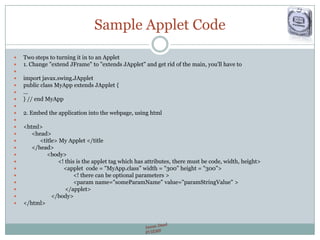
 Two steps to turning it in to an Applet
 1. Change "extend JFrame" to "extends JApplet" and get rid of the main, you'll have to

 import javax.swing.JApplet
 public class MyApp extends JApplet {
 ...
 } // end MyApp

 2. Embed the application into the webpage, using html

 <html>
 <head>
 <title> My Applet </title
 </head>
 <body>
 <! this is the applet tag which has attributes, there must be code, width, height>
 <applet code = "MyApp.class” width = "300” height = "300”>
 <! there can be optional parameters >
 <param name="someParamName" value="paramStringValue" >
 </applet>
 </body>
 </html>
Applet Life Cycle
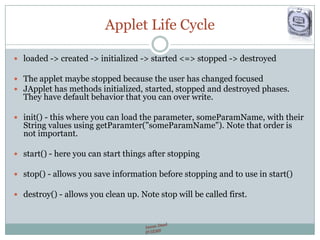
 loaded -> created -> initialized -> started <=> stopped -> destroyed
 The applet maybe stopped because the user has changed focused
 JApplet has methods initialized, started, stopped and destroyed phases.
They have default behavior that you can over write.
 init() - this where you can load the parameter, someParamName, with their
String values using getParamter("someParamName"). Note that order is
not important.
 start() - here you can start things after stopping
 stop() - allows you save information before stopping and to use in start()
 destroy() - allows you clean up. Note stop will be called first.
Applets have restrictions:
 Cannot read or write files on the client machine
 Cannot run programs on the client machine
 Cannot make any computer connections
But the Applet can read data files on the Sever
Steps to create Applet Projects in
Netbeans
 Choose File > New Project (Ctrl-Shift-N). Under
Categories, select Java.
 Choose one of the following:
 If you are creating a new applet source file, select Java Class
Library under Projects. Click Next.
 If you want to import an applet source file, select Java Project
with Existing Sources. Click Next. Specify the file's location in
the Source Packages Folder text box.
 Under Project Name, type HelloApplet. Change the
Project Location to any folder on your computer.
 Click Finish.
Create applet source file
 Right-click the HelloApplet project and choose Properties
to open the Properties window.
 Select the desired Source / Binary Format for the project
from source tab.
 Right-click the HelloApplet project node in the Projects
window and select New > Other (Ctrl-N).
 Under Categories, select Java. Under File Types, select
Applet.
 (for visual design applet select Swing GUI Forms > JApplet
Form.)
 Give name to applet and click finish.
Demo
 Init()
 Start()
 Stop()
 Destroy()
Setting ground for applet
 Set all static parameters in init() function. Like
 Setsize(int width, int height)
 Setbackgroundcolor()
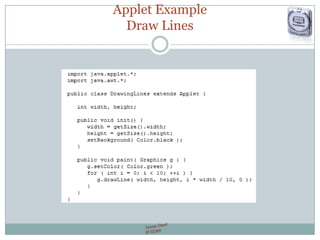
Applet Example
Draw Lines
Drawing Shapes
 Rectangle
 Oval
 Etc (consult documentation)
Adding Mouse
 MouseListener
 MouseMotionListener
 (Consult API Documentation for function details)
Keyboard Input
 KeyListener
 actionListener
 (Consult API Documentatio)
 Panel
 JTextField
 JTextArea
 JCombobox
 etc
Java Layouts
 FlowLayout
 BorderLayout
 GridLayout
 BoxLayout
 CardLayout
 GridBagLayout
 GroupLayout
 SpringLayout
Threads
 Thread --- Class
 Runnable ---- Interface
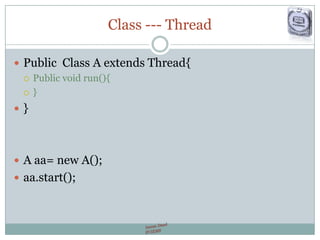
Class --- Thread
 Public Class A extends Thread{
 Public void run(){
 }
 }
 A aa= new A();
 aa.start();
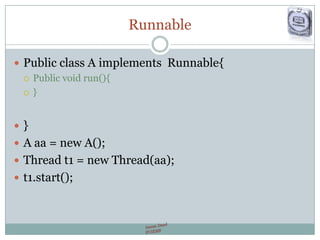
Runnable
 Public class A implements Runnable{
 Public void run(){
 }
 }
 A aa = new A();
 Thread t1 = new Thread(aa);
 t1.start();
Reference
 http://www.csl.mtu.edu/cs2321/
 Netbeans.org

3. applets

  • 1.
    IMRAN DAUD FOUNDATION UNIVERSITY INSTITUTEOF MANAGEMENT AND COMPUTER SCIENCES Imran Daud FUIMCS Web Engineering Java Applets
  • 2.
    Applets  An appletis a Java program that a browser can download and run.  An applet is embedded inside a web page and runs in the context of a browser.  An applet must be a subclass of the java.applet.Applet class.  Swing provides javax.swing.JApplet.
  • 3.
    Sample Applet Code Two steps to turning it in to an Applet  1. Change "extend JFrame" to "extends JApplet" and get rid of the main, you'll have to   import javax.swing.JApplet  public class MyApp extends JApplet {  ...  } // end MyApp   2. Embed the application into the webpage, using html   <html>  <head>  <title> My Applet </title  </head>  <body>  <! this is the applet tag which has attributes, there must be code, width, height>  <applet code = "MyApp.class” width = "300” height = "300”>  <! there can be optional parameters >  <param name="someParamName" value="paramStringValue" >  </applet>  </body>  </html>
  • 4.
    Applet Life Cycle loaded -> created -> initialized -> started <=> stopped -> destroyed  The applet maybe stopped because the user has changed focused  JApplet has methods initialized, started, stopped and destroyed phases. They have default behavior that you can over write.  init() - this where you can load the parameter, someParamName, with their String values using getParamter("someParamName"). Note that order is not important.  start() - here you can start things after stopping  stop() - allows you save information before stopping and to use in start()  destroy() - allows you clean up. Note stop will be called first.
  • 5.
    Applets have restrictions: Cannot read or write files on the client machine  Cannot run programs on the client machine  Cannot make any computer connections But the Applet can read data files on the Sever
  • 6.
    Steps to createApplet Projects in Netbeans  Choose File > New Project (Ctrl-Shift-N). Under Categories, select Java.  Choose one of the following:  If you are creating a new applet source file, select Java Class Library under Projects. Click Next.  If you want to import an applet source file, select Java Project with Existing Sources. Click Next. Specify the file's location in the Source Packages Folder text box.  Under Project Name, type HelloApplet. Change the Project Location to any folder on your computer.  Click Finish.
  • 7.
    Create applet sourcefile  Right-click the HelloApplet project and choose Properties to open the Properties window.  Select the desired Source / Binary Format for the project from source tab.  Right-click the HelloApplet project node in the Projects window and select New > Other (Ctrl-N).  Under Categories, select Java. Under File Types, select Applet.  (for visual design applet select Swing GUI Forms > JApplet Form.)  Give name to applet and click finish.
  • 8.
    Demo  Init()  Start() Stop()  Destroy()
  • 9.
    Setting ground forapplet  Set all static parameters in init() function. Like  Setsize(int width, int height)  Setbackgroundcolor()
  • 10.
  • 11.
    Drawing Shapes  Rectangle Oval  Etc (consult documentation)
  • 12.
    Adding Mouse  MouseListener MouseMotionListener  (Consult API Documentation for function details)
  • 13.
    Keyboard Input  KeyListener actionListener  (Consult API Documentatio)
  • 14.
     Panel  JTextField JTextArea  JCombobox  etc
  • 15.
    Java Layouts  FlowLayout BorderLayout  GridLayout  BoxLayout  CardLayout  GridBagLayout  GroupLayout  SpringLayout
  • 16.
    Threads  Thread ---Class  Runnable ---- Interface
  • 17.
    Class --- Thread Public Class A extends Thread{  Public void run(){  }  }  A aa= new A();  aa.start();
  • 18.
    Runnable  Public classA implements Runnable{  Public void run(){  }  }  A aa = new A();  Thread t1 = new Thread(aa);  t1.start();
  • 19.