Module  1 0 Backup and Restore Strategies for Virtual Machines
Module Overview Overview of Backup and Restore Options for Virtual Machines and the VMM database Implementing Data Protection Manager  2007 SP1  for Backing Up the  Hyper-V  Infrastructure
Lesson  1 : Overview of Backup and Restore Options for Virtual Machines and the VMM database Virtual Machine Backup and Restore Backup Options for Virtual Machines Demonstration: Backing Up and Restoring Virtual Machines by Using Windows Server Backup Considerations for Backing Up and Restoring Clustered Virtual Machines Backup and Restore Options for VMM 2008 R2  Demonstration: Backing Up and Restoring a VMM Database
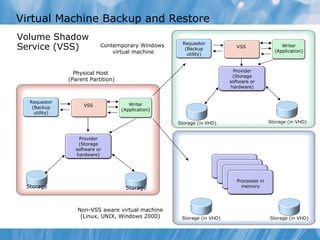
Virtual Machine Backup and Restore Volume Shadow Service (VSS)  Storage Storage Physical Host  (Parent Partition) Storage (in VHD) Storage (in VHD) Contemporary Windows  virtual machine Non-VSS aware virtual machine (Linux, UNIX, Windows 2000) Storage (in VHD) Storage (in VHD) Requestor (Backup utility) VSS Writer (Application) Provider (Storage software or hardware) Requestor (Backup utility) VSS Writer (Application) Provider (Storage software or hardware) Processes in memory
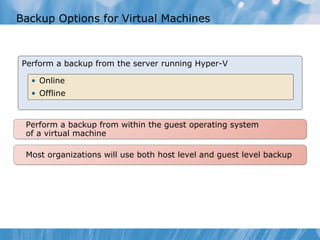
Backup Options for Virtual Machines Perform a backup from the server running Hyper-V Online Offline Perform a backup from within the guest operating system  of a virtual machine Most organizations will use both host level and guest level backup
Demonstration: Backing Up and Restoring Virtual Machines by Using Windows Server Backup In this demonstration, your instructor will show how to backup  and restore a  virtual machine  by  using Windows Server Backup in Windows Server 2008 R2
Notes Page Over-flow Slide. Do Not Print Slide. See Notes pane.
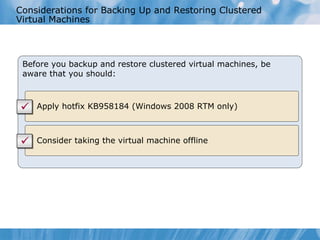
Considerations for Backing Up and Restoring Clustered Virtual Machines Before you backup and restore clustered virtual machines, be aware that you should: Apply hotfix  KB 958184  (Windows 2008 RTM only) Consider taking the virtual machine offline
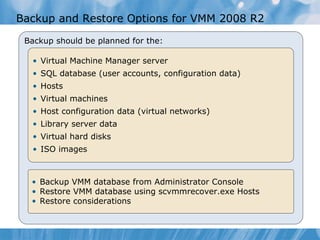
Backup  and Restore  Options for VMM 2008  R2  Backup should be planned for the: Virtual Machine Manager server SQL database (user accounts, configuration data) Hosts Virtual machines Host configuration data (virtual networks) Library server data Virtual hard disks  ISO images Backup VMM database from Admin istrator  Console Restore VMM database using scvmmrecover.exe  Hosts Restore considerations
Demonstration: Backing Up and Restoring a  VMM Database In this demonstration, your instructor will show you how to back up and restore the VMM database, using built-in tools
Lesson  2 :   Backing Up the Hyper-V Infrastructure by Implementing Data Protection Manager 2007 What Is Data Protection Manager 2007 SP1? System Requirements for DPM 2007 SP1 How DPM 2007 SP1 Protects Virtual Machines  Options for Backing Up Virtual Machines with DPM 2007 SP1  Demonstration:  Reviewing and  Configuring DPM 2007 SP1 Considerations for Using DPM to Back Up Virtual Machines  Demonstration: Backing Up A Virtual Machine Using DPM 2007 SP1 Choosing a Virtual Machine Recovery Method  Demonstration: Restoring Virtual Machines with DPM 2007 SP1
What Is Data Protection Manager 2007 SP1? Online Snapshots (up to 512) Disk-based  Recovery Tape-based  Backup DPM 2007 SP1 Active Directory System State Windows Server 2003 Windows Server 2008 File Shares and Directories Windows XP Windows Vista Windows 7 Disaster Recovery with Offsite Replication and Tape DPM 2007 SP1 Friday May occur   every 15 minutes Monday Tuesday Wed Thurs
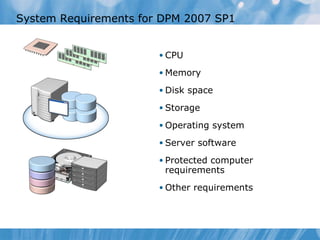
System Requirements for DPM 2007 SP1  CPU Memory Disk space Storage Operating system Server software Protected computer requirements Other requirements
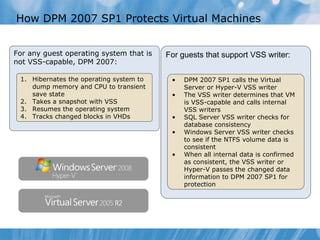
How DPM 2007 SP1 Protects Virtual Machines For any guest operating system that is not VSS-capable, DPM 2007: Hibernates the operating system to dump memory and CPU to transient save state Takes a snapshot with VSS Resumes the operating system Tracks changed blocks in VHDs For guests that support VSS writer : DPM 2007 SP1 calls the Virtual Server or Hyper-V VSS writer The VSS writer determines that VM is VSS-capable and calls internal VSS writers SQL Server VSS writer checks for database consistency Windows Server VSS writer checks to see if the NTFS volume data is consistent When all internal data is confirmed as consistent, the VSS writer or Hyper-V passes the changed data information to DPM 2007 SP1 for protection
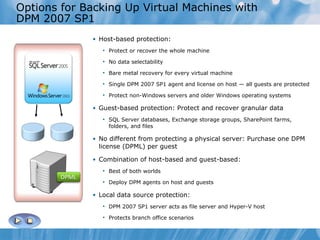
Options for Backing Up Virtual Machines with DPM 2007 SP1  Host-based protection: Protect or recover the whole machine No data selectability Bare metal recovery for every virtual machine Single DPM 2007 SP1 agent and license on host — all guests are protected Protect non-Windows servers and older Windows operating systems Guest-based protection: Protect and recover granular data SQL Server databases, Exchange storage groups, SharePoint farms, folders, and files No different from protecting a physical server: Purchase one DPM license (DPML) per guest Combination of host-based and guest-based: Best of both worlds Deploy DPM agents on host and guests Local data source protection: DPM 2007 SP1 server acts as file server and Hyper-V host Protects branch office scenarios
Demonstration: Reviewing and Configuring DPM 2007 SP1  In this demonstration ,   you will see the  DPM 2007 SP1  A dministration  C onsole and perform  the  configuration steps needed for Hyper-V backup
Notes Page Over-flow Slide. Do Not Print Slide. See Notes pane.
Considerations for Using DPM to Back Up Virtual Machines  Adding virtual machines Moving virtual machines Moving virtual hard disks Renaming the protected virtual server Changing virtual machine file paths Optimizing performance for slow networks
Demonstration: Backing Up A Virtual Machine Using DPM 2007 SP1 In this demonstration, you will see how to backup the virtual machine environment using DPM 2007 SP1
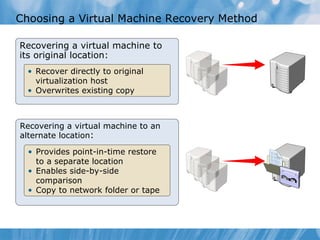
Choosing a Virtual Machine Recovery Method Recovering a virtual machine to its original location: Recover directly to original virtualization host   Overwrites existing copy Recovering a virtual machine to an alternate location : Provides point-in-time restore to a separate location Enables side-by-side comparison Copy to network folder or tape
Demonstration: Restoring Virtual Machines with DPM 2007 SP1 In this demonstration ,   you will see  how to restore  a  virtual machine from backup
Lab :  Backing up and Restoring the VMM 2008 Infrastructure  Exercise  1 :Backing Up and Restoring the SCVMM Database Exercise  2  :Using Windows Server Backup to Perform Virtual Machine Backup  Exercise 3 :  Performing Backup of Virtual Machines by Using DPM 2007 SP1  Logon information Estimated time:  50  minutes NYC-Host1, NYC-Host2 Host machines Virtual machines NYC-DC1, NYC-SVR1 User name Administrator Password Pa$$w0rd
Lab Scenario As a part of planning for a production server’s virtualization, Contoso Ltd. is considering backup strategies for its virtual environment. Contoso prefers a solution that is cost effective and that can integrate easily into the current environment, which is based on Windows Server 2008 R2 servers. Your job is to evaluate available technologies and propose solutions. After doing the research, you decide to conduct a more-detailed evaluation of built-in technologies in Windows Server 2008 R2 and Virtual Machine Manager, and in Data Protection Manager 2007 SP1.
Lab Review What do you need to ensure after you restore VMM database from backup? How  does  Windows Server Backup backup virtual machines that do not support VSS writer? List some advantages in DPM 2007 SP1 over Windows Server Backup from the aspect of virtual machine backup.
Module Review and Takeaways Review Questions Common Issues and Troubleshooting Tips Real-World Issues and Scenarios Best Practices Tools

10215 A 10

  • 1.
    Module 10 Backup and Restore Strategies for Virtual Machines
  • 2.
    Module Overview Overviewof Backup and Restore Options for Virtual Machines and the VMM database Implementing Data Protection Manager 2007 SP1 for Backing Up the Hyper-V Infrastructure
  • 3.
    Lesson 1: Overview of Backup and Restore Options for Virtual Machines and the VMM database Virtual Machine Backup and Restore Backup Options for Virtual Machines Demonstration: Backing Up and Restoring Virtual Machines by Using Windows Server Backup Considerations for Backing Up and Restoring Clustered Virtual Machines Backup and Restore Options for VMM 2008 R2 Demonstration: Backing Up and Restoring a VMM Database
  • 4.
    Virtual Machine Backupand Restore Volume Shadow Service (VSS) Storage Storage Physical Host (Parent Partition) Storage (in VHD) Storage (in VHD) Contemporary Windows virtual machine Non-VSS aware virtual machine (Linux, UNIX, Windows 2000) Storage (in VHD) Storage (in VHD) Requestor (Backup utility) VSS Writer (Application) Provider (Storage software or hardware) Requestor (Backup utility) VSS Writer (Application) Provider (Storage software or hardware) Processes in memory
  • 5.
    Backup Options forVirtual Machines Perform a backup from the server running Hyper-V Online Offline Perform a backup from within the guest operating system of a virtual machine Most organizations will use both host level and guest level backup
  • 6.
    Demonstration: Backing Upand Restoring Virtual Machines by Using Windows Server Backup In this demonstration, your instructor will show how to backup and restore a virtual machine by using Windows Server Backup in Windows Server 2008 R2
  • 7.
    Notes Page Over-flowSlide. Do Not Print Slide. See Notes pane.
  • 8.
    Notes Page Over-flowSlide. Do Not Print Slide. See Notes pane.
  • 9.
    Considerations for BackingUp and Restoring Clustered Virtual Machines Before you backup and restore clustered virtual machines, be aware that you should: Apply hotfix KB 958184 (Windows 2008 RTM only) Consider taking the virtual machine offline
  • 10.
    Backup andRestore Options for VMM 2008 R2 Backup should be planned for the: Virtual Machine Manager server SQL database (user accounts, configuration data) Hosts Virtual machines Host configuration data (virtual networks) Library server data Virtual hard disks ISO images Backup VMM database from Admin istrator Console Restore VMM database using scvmmrecover.exe Hosts Restore considerations
  • 11.
    Demonstration: Backing Upand Restoring a VMM Database In this demonstration, your instructor will show you how to back up and restore the VMM database, using built-in tools
  • 12.
    Lesson 2: Backing Up the Hyper-V Infrastructure by Implementing Data Protection Manager 2007 What Is Data Protection Manager 2007 SP1? System Requirements for DPM 2007 SP1 How DPM 2007 SP1 Protects Virtual Machines Options for Backing Up Virtual Machines with DPM 2007 SP1 Demonstration: Reviewing and Configuring DPM 2007 SP1 Considerations for Using DPM to Back Up Virtual Machines Demonstration: Backing Up A Virtual Machine Using DPM 2007 SP1 Choosing a Virtual Machine Recovery Method Demonstration: Restoring Virtual Machines with DPM 2007 SP1
  • 13.
    What Is DataProtection Manager 2007 SP1? Online Snapshots (up to 512) Disk-based Recovery Tape-based Backup DPM 2007 SP1 Active Directory System State Windows Server 2003 Windows Server 2008 File Shares and Directories Windows XP Windows Vista Windows 7 Disaster Recovery with Offsite Replication and Tape DPM 2007 SP1 Friday May occur every 15 minutes Monday Tuesday Wed Thurs
  • 14.
    System Requirements forDPM 2007 SP1 CPU Memory Disk space Storage Operating system Server software Protected computer requirements Other requirements
  • 15.
    How DPM 2007SP1 Protects Virtual Machines For any guest operating system that is not VSS-capable, DPM 2007: Hibernates the operating system to dump memory and CPU to transient save state Takes a snapshot with VSS Resumes the operating system Tracks changed blocks in VHDs For guests that support VSS writer : DPM 2007 SP1 calls the Virtual Server or Hyper-V VSS writer The VSS writer determines that VM is VSS-capable and calls internal VSS writers SQL Server VSS writer checks for database consistency Windows Server VSS writer checks to see if the NTFS volume data is consistent When all internal data is confirmed as consistent, the VSS writer or Hyper-V passes the changed data information to DPM 2007 SP1 for protection
  • 16.
    Options for BackingUp Virtual Machines with DPM 2007 SP1 Host-based protection: Protect or recover the whole machine No data selectability Bare metal recovery for every virtual machine Single DPM 2007 SP1 agent and license on host — all guests are protected Protect non-Windows servers and older Windows operating systems Guest-based protection: Protect and recover granular data SQL Server databases, Exchange storage groups, SharePoint farms, folders, and files No different from protecting a physical server: Purchase one DPM license (DPML) per guest Combination of host-based and guest-based: Best of both worlds Deploy DPM agents on host and guests Local data source protection: DPM 2007 SP1 server acts as file server and Hyper-V host Protects branch office scenarios
  • 17.
    Demonstration: Reviewing andConfiguring DPM 2007 SP1 In this demonstration , you will see the DPM 2007 SP1 A dministration C onsole and perform the configuration steps needed for Hyper-V backup
  • 18.
    Notes Page Over-flowSlide. Do Not Print Slide. See Notes pane.
  • 19.
    Considerations for UsingDPM to Back Up Virtual Machines Adding virtual machines Moving virtual machines Moving virtual hard disks Renaming the protected virtual server Changing virtual machine file paths Optimizing performance for slow networks
  • 20.
    Demonstration: Backing UpA Virtual Machine Using DPM 2007 SP1 In this demonstration, you will see how to backup the virtual machine environment using DPM 2007 SP1
  • 21.
    Choosing a VirtualMachine Recovery Method Recovering a virtual machine to its original location: Recover directly to original virtualization host Overwrites existing copy Recovering a virtual machine to an alternate location : Provides point-in-time restore to a separate location Enables side-by-side comparison Copy to network folder or tape
  • 22.
    Demonstration: Restoring VirtualMachines with DPM 2007 SP1 In this demonstration , you will see how to restore a virtual machine from backup
  • 23.
    Lab : Backing up and Restoring the VMM 2008 Infrastructure Exercise 1 :Backing Up and Restoring the SCVMM Database Exercise 2 :Using Windows Server Backup to Perform Virtual Machine Backup Exercise 3 : Performing Backup of Virtual Machines by Using DPM 2007 SP1 Logon information Estimated time: 50 minutes NYC-Host1, NYC-Host2 Host machines Virtual machines NYC-DC1, NYC-SVR1 User name Administrator Password Pa$$w0rd
  • 24.
    Lab Scenario Asa part of planning for a production server’s virtualization, Contoso Ltd. is considering backup strategies for its virtual environment. Contoso prefers a solution that is cost effective and that can integrate easily into the current environment, which is based on Windows Server 2008 R2 servers. Your job is to evaluate available technologies and propose solutions. After doing the research, you decide to conduct a more-detailed evaluation of built-in technologies in Windows Server 2008 R2 and Virtual Machine Manager, and in Data Protection Manager 2007 SP1.
  • 25.
    Lab Review Whatdo you need to ensure after you restore VMM database from backup? How does Windows Server Backup backup virtual machines that do not support VSS writer? List some advantages in DPM 2007 SP1 over Windows Server Backup from the aspect of virtual machine backup.
  • 26.
    Module Review andTakeaways Review Questions Common Issues and Troubleshooting Tips Real-World Issues and Scenarios Best Practices Tools

Editor's Notes

  • #2 Presentation: 75 minutes Lab: 60 minutes After completing this module, students will be able to: Describe backup and restore options for virtual machines and the Microsoft® System Center Virtual Machine Manager (VMM) database Implement Data Protection Manager (DPM) 2007 Service Pack 1 ( SP1 ) for backing up the Hyper-V ™ infrastructure Required materials To teach this module, you need the Microsoft Office PowerPoint® file 10215A_12.ppt. Important: We recommend that you use PowerPoint 2002 or a later version to display the slides for this course. If you use PowerPoint Viewer or an earlier version of PowerPoint, all the features of the slides might not be displayed correctly. Preparation tasks To prepare for this module: Read all of the materials for this module. Practice performing the demonstrations and the lab exercises. Detailed steps for the demonstrations are provided in the course companion CD. Work through the Module Review and Takeaways section, and determine how you will use this section to reinforce student learning and promote knowledge transfer to on-the-job performance. Make sure that students are aware that there are additional information and resources for the module on the Course Companion CD.
  • #3 Briefly present the module’s content. Start a short discussion about strategies that students use so far for virtual machine backups or backups in general. Emphasize that Microsoft Windows Server ® 2008 R2 and System Center Virtual Machine Manager 2008 R2 have some built-in tools that you can use to back up virtual machines, but with somewhat limited functionality. However, DPM SP1 is a product that provides full-featured backup and restore functionality for Hyper-V-based virtual machines. Ask the students if they use Data Protection Manager 2007 , or if they have experience with other third-party backup tools.
  • #4 Present the lesson’s content. Tell students that this lesson will discuss some general concepts about virtual machine backup and restore strategies. Emphasize that you can back up virtual machines using the same procedure as physical computers. However, virtual machines are different from physical computers since they are mostly contained in one file – the virtual hard disk (VHD) . Also, point out that the VMM has some backup capabilities that enable you to perform backup of the VMM database and restore it from backup.
  • #5 The key point of this topic is to explain Volume Shadow Copy Service (VSS) and its role in backing up virtual machines. Explain how VSS works, and how the backup process benefits from using VSS. Be sure to explain the terms requestor and writer . Also explain how you perform backups if you cannot use VSS (for virtual machines that are not VSS-aware). Also discuss the restore process. Be aware that some students might not be familiar with the concept of VSS snapshots, so be prepared to explain VSS in more detail. Also, make sure that you make a clear distinction between VSS snapshots and virtual machine snapshots. At this point, tell the students that virtual machine snapshots are not a backup technology. Question: Why is it important to have backup software that supports Hyper-V VSS writer? Answer: Backup software that supports Hyper-V VSS writer allows you to back up virtual machines while they are running, with no downtime. This enables you to back up at any time, without service interruption. Resources If you are not familiar with VSS , read the article available at: http://technet.microsoft.com/en-us/library/cc785914(WS.10).aspx
  • #6 Explain the backup types that you can perform with virtual machines on Hyper-V. The key point of this topic is to explain the benefits and drawbacks of each approach. Be sure to explain the terms online backups and offline backups . Emphasize that online backup is not always possible, and then discuss the requirements that must be met for online backup to succeed. The requirements are : Integration services are installed Disks inside the virtual machine that are formatted for NTFS file system, (dynamic volumes are supported only for offline backup) Volume Shadow Copy Service must be enabled inside virtual machine Emphasize the NTFS basic disks requirement, as this often is a reason why online backup does not work. Choosing the appropriate backup method For most organizations, a combination of host level backup and guest level backup will be the most appropriate solution. By using this approach, you will have very good options for complete disaster recovery (host level backups), while still keeping day-to-day recovery functionality (guest level backup). You should determine the frequency of each of these backup methods based how frequently data changes on both the host level and virtual machine level. Question: Under which circumstances will you run the backup application inside the virtual machine? Answer: If it is not possible to use Hyper-V VSS writer, run backup from within the virtual machine. Or, run this type of backup if you want to have more granular control over the data inside the virtual machine that is backed up. For example, if you just want to backup data related to one application that is running inside virtual machine, run backup software inside the virtual machine.
  • #7 The key point of this demonstration is to show students how to use the built-in backup utility to protect virtual environment based on Hyper-V. Also, you should discuss the limitations of Windows Server backup. For example, you cannot selectively backup virtual machines, only volumes that have virtual machine files. Demonstration steps To speed up this demonstration, complete the following steps to create a virtual machine with a blank hard disk on the V: drive on NYC-Host2. Create a virtual machine for backup 1.On NYC-Host1, in SCVMM Admin Console, in the Actions pane, click New virtual machine . 2.On the Select Source page, click Browse . Click Blank Disk – Small , and then click OK . 3.Click Next . 5.On the Virtual Machine Identity page, type Demo10-VM as the Virtual machine name , and then click Next . 5.The Configure Hardware page appears. Click Next . 6.The Select Destination page appears. Make sure Place the virtual machine on a host is selected, and then click Next . 7.The Select Host page appears. Ensure that nyc-host2.contoso.com is selected, and then click Next . 8.The Select Path page appears. Click Browse , click VMStorage (V:) and then click OK . Click Next . 9.The Select Networks page appears. In the Virtual Network list, click Corporate Network , and then click Next . 10.The Additional Properties page appears. Click Next . 11.The Summary page appears. Verify that the option to Start the virtual machine after deploying it on the host is not selected, and then click Create. 12.When job is complete, close the Jobs window. Note : To register the Hyper-V VSS writer with Windows Server Backup, perform the following steps. Alternatively, if your computer has an Internet connection, you can go to the Web site, How to back up Hyper-V virtual machines from the parent partition on a Windows Server 2008-based computer by using Windows Server Backup, and choose the Microsoft FixIt option. This generates the same result as using Windows Server Backup, but does not require that you edit the registry manually.
  • #8 Register VSS Hyper-V writer in Windows Server Backup 1.Click Start , click Run , type regedit , and then click OK . 2.Locate the following registry key: HKEY_LOCAL_MACHINE\\SOFTWARE\\Microsoft\\Windows NT\\CurrentVersion 3.Right-click CurrentVersion , point to New , and then click Key . 4.Type WindowsServerBackup , and then press ENTER. 5.Right-click WindowsServerBackup , point to New , and then click Key . 6.Type Application Support , and then press ENTER. 7.Right-click Application Support , point to New , and then click Key . 8.Type {66841CD4-6DED-4F4B-8F17-FD23F8DDC3DE}, and then press ENTER. 9.Right-click {66841CD4-6DED-4F4B-8F17-FD23F8DDC3DE} , point to New , and then click String Value . 10.Type Application Identifier , and then press ENTER. 11.Right-click Application Identifier , and then click Modify . 12.In the Value data box, type Hyper-V , and then click OK . 13.On the File menu, click Exit . Perform a virtual machine backup, on NYC-Host2 1.Click Start , navigate to Administrative Tools , and then click Windows Server Backup . 2.In the Windows Server Backup window, click Backup Once… in the Actions pane. 3.In the Backup Once Wizard , on the Backup Options page, click Different options , and then click Next . 4.On the Select Backup Configuration page, select Custom , and then click Next . 5.On the Select Items for Backup page, click Add Items . 6.Place the check mark next to VMStorage (V:) volume, and then click OK . 7.On the Select Items for Backup page, click Advanced Settings , click VSS Settings tab, select VSS full Backup , and then click OK . 8.On the Select Items for Backup page, click Next . 9.On the Specify Destination Type page, click Local drives , and then click Next . 10.On the Select Backup Destination in Backup Destination drop-down box, select Local Disk (E:) , and click then Next . 11.On the Confirmation page, review the settings, and then click Backup . 12.On the Backup Progress page, click Close after the backup completes.
  • #9 Delete virtual machine files 1.On NYC-Host1, open Hyper-V Manager console from Administrative Tools . 2.Click NYC-Host2 . Right-click on Demo10-VM virtual machine, and then select Delete . 3.In the Delete Selected Virtual Machines window, click Delete . 4.Open Windows Explorer , navigate to folder V:\\ , and then open the folder. 5.Delete the subfolder named Demo10-VM . Note: If you are not able to delete the subfolder, wait for 30 seconds, and then try again. To perform a recover procedure for the virtual machine by using Windows Server Backup software, follow these steps: 1.On NYC-Host2, click Start , navigate to Administrative Tools , and then click Windows Server Backup . 2.In the Windows Server Backup window, click Recover… in the Actions pane. 3.On the Getting Started page, click This server , and then click Next . 4.On the Select Backup Date , accept the default value, and then click Next . 5.On the Select Recovery Type page, select Applications , and then click Next . 6.On the Select Application page, make sure that Hyper-V is selected, and then click Next . 7.On the Specify Recovery Options page, select Recover to original location , and then click Next . 8.On the Confirmation page, click Recover . After recovery is complete, restore the Hyper-V Manager console, and make sure that Demo10-VM is present. Question: List some limitations of performing virtual machine backups with Windows Server Backup software? Answer: For example, you cannot back up a specific virtual machine. You can back up a volume that contains virtual machine(s). Also, you cannot restore individual files inside the virtual machine.
  • #10 Tell students that several factors can affect backup and recovery operations when working with clustered virtual machines. Direct students to the tables that the student workbook provides, which identify the factors that they need to consider and the action that they need to take to perform backup or recovery on clustered virtual machines.
  • #11 Tell students that if you manage your virtual environment with Virtual Machine Manager 2008 R2, you must plan to back up its resources and settings. Discuss possible ways to backup each listed component on a slide. Explain that VMM does not have a built-in utility for backing up all the resources but that it can back up the VMM database. Remind students that it is very important to back up the Virtual Machine Manager (VMM) database, because it is a Microsoft SQL Server® database that contains all VMM configuration information. Spend some time discussing database restore considerations because they are very important points. Question: Which technique can you use to back up Library Server resources, such as .ISO files, VHDs, and virtual machine templates? Answer: Since Library files are stored in a file share on Library server, you can use any available method for file and folder backup. However, also ensure that you back up the database to protect the Library metadata.
  • #12 This demonstration’s key point is to show students how they can use the VMM Admin Console and command-line tools to back up and restore the VMM database. You also should mention that you can back up the database by using other tools, such as DPM 2007 SP1, which the next lesson details. Since the procedure for backup and restore is pretty simple, be sure to focus on the importance of making the V MM database backup. Demonstration steps Perform a database backup with the System Center Virtual Machine Admin Console 1. Open the System Center Virtual Machine Admin Console . 2. In Administration view, click General , and then, in the Actions pane, click Back up Virtual Machine Manager . 3. In the Virtual Machine Manager Backup dialog box, type the path for the backup file’s destination folder. The folder must not be a root directory and must be accessible to the SQL Server. For demonstration purposes, type D:\\backupVMM , and then click OK . 4. Navigate to D:\\VMM with Windows Explorer, and ensure that backup was created, because VMM does not provide a confirmation screen. Note the name of the backup file because you need it for the restore procedure. Perform a database restore with scvmmrecover.exe tool To restore the VMM database, on the computer to which you are restoring the VMM database, run the SCVMMrecover.exe tool from the command line. The scvmmrecover.exe tool is located in the installation folder of the VMM inside the bin subfolder: 1. Open Windows Explorer , and navigate to C:\\Program Files\\Microsoft System Center Virtual Machine Manager 2008 R2 . 2. Hold down Shift key, and then right-click the bin folder. 3. Select Open command window here . 4. In a Command Prompt window, type scvmmrecover.exe –path D:\\backupVMM\\”backupfilename ”, and press Enter. Note that : backupfilename is the name of backup file, as noted in step 4 during backup. 5. Type y to confirm, and then press ENTER. 6. Confirm that backup was performed successfully. You will receive a confirmation message in the command prompt window.
  • #13 Briefly present the lesson content. It is very important to ask students if they have any previous experience with DPM software. Since this lesson introduces a new product, be prepared to devote more time to your lecture if students are not familiar with it . The f ocus of this lesson is to analyze DPM 2007 SP1 from the aspect of virtual machine backup . This lesson does not describe all of its features. Make sure that students are aware of this .
  • #14 If students are new to DPM 2007 SP1 , introduce it as a Microsoft advanced solution for the backup and restore of various platforms and products. Explain that DPM 2007 SP1 is the new standard for Windows backup and recovery, and that it delivers continuous data protection for Microsoft applications, virtualization, file servers, and desktops by using seamlessly integrated disk and tape media, as well as cloud repositories. Try to focus more on virtual machines backup. Also make a note that DPM 2007 SP1 does not fully supports all features of Hyper-V 2.0 that is part of Windows Server 2008 R2. For example, Cluster Shared Volumes are not supported fully. Next version of DPM, version 2010, will fully support the backup and restore of all configurations on Hyper-V 2.0. Briefly explain how DPM 2007 SP1 works, using the schema on a slide, and discuss some changes in the SP1 version of DPM 2007. Resources : What's New in Microsoft System Center Data Protection Manager 2007 Service Pack 1? http://technet.microsoft.com/hr-hr/library/dd347836(en-us).aspx
  • #15 This topic’s key point is to discuss the DPM 2007 SP1 deployment requirements. Explain that unlike other products, DPM 2007 SP1 can have complex requirements, and that you must be aware of various aspects of these requirements. Discuss each of requirement category that the slide presents. Be sure to mention following limitations : DPM 2007 SP1 does not support IA64-bit operating systems. The server cannot be the management server for Microsoft System Center Operations Manager (SCOM) 2007. You cannot install DPM 2007 SP1 on a domain controller. If you are protecting more than 10 terabytes of data, the DPM server must be running on a 64-bit operating system. The DPM 2007 SP1 server should not be an application server running the core workloads such as SQL Server, Exchange Server, or Office SharePoint® Server 2007 You can use an existing remote instance of SQL Server for your DPM database Although you can protect SQL Server 2008 by using DPM 2007 SP1, it is not supported as the back-end database for DPM 2007 SP1.
  • #16 Question: When is guest-based backup more beneficial than host-based? Answer: If you want to have more granular control over data being backed up inside virtual machine.
  • #17 Explain virtual machine backup options in DPM 2007 SP1. Explain the difference between h ost-based and guest-based protection, and also discuss benefits of using mixed approach. Also, discuss l ocal data source protection but do not spend much time discussing this feature because it is not very relevant to this course. Question: When is guest-based backup more beneficial than host-based? Answer: If you want to have more granular control over data being backed up inside virtual machine.
  • #18 The k eypoint of this demo nstration is to familirize students with the DPM console. Open the DPM Admin istrator Console, browse the available tabs , and explain the functionality of each tab briefly . Also, explain what the Data Protection Manager agent is and what storage pool is because it will be deployed and created during the demo nstration : Demonstration steps DPM 2007 SP1 Administration console overview 1.On NYC-SVR1, open Microsoft System Center Data Protection Manager 2007 from the Desktop. 2.Click the Management tab, and then browse the Agents , Disk , and Libraries tabs. 3.Click the Reporting tab., and review the available report templates. Note: Reporting may take approximately two minutes to initialize. 4.Click the Protection tab. 5.Click the Monitoring tab. Deploying the DPM 2007 SP1 agent to a host 1.On NYC-Host2, click Start and click Control Panel . 2.Click System and Security , click Windows Firewall , and click Turn Windows Firewall on or off . 3.Under Domain network location settings , click Turn off Windows Firewall (not recommended) . Click OK . Note: You are disabling Windows Firewall only until you installed the DPM agent. You will reenable and configure Windows Firewall after you have installed the agent. 4.On NYC-SVR1, in the DPM 2007 Administrator Console , on the navigation bar, click Management , and then click the Agents tab. 5.In the Actions pane, click Install . The Protection Agent Installation Wizard starts, and displays a list of available computers in the DPM server domain. 6.On the Select Computers page, in the Computer name list, click NYC-Host2 , click Add , and then click Next . 7.On the Enter Credentials page, in the User name box, type Administrator , and then in the Password box, type Pa$$w0rd . 8.Click Next . If a Microsoft System Center Data Protection Manager 2007 warning dialog box displays, click OK . 9.On the Choose Restart Method page, click Yes . Restart the selected computers after installing the protection agents , and then click Next . 10.On the Summary page, click Install to begin the installation.
  • #19 On the Installation page, the results appear on the Tasks tab to indicate whether the installation succeeds. 11.When the protection agent installs successfully, Success is displayed under the Results column. Click Close . 12.The computer on which you install the DPM protection agent now restarts. Note: At this point you can take a short break, as the restart will take a few minutes. Creating the storage pool. 1.In the DPM 2007 Administrator Console , on the navigation bar, click Management , and then click the Disks tab. 2.In the Actions pane, click Add . The Add Disks to Storage Pool dialog box appears. 3.In the Available disks section, click Disk 1 , click Add , and then click OK .
  • #20 This topic should explain to students what issues they need to address after they design backup strategies with DPM 2007 SP1 . Procedures that can affect a backup strategy include adding new virtual machines on hosts or moving existing virtual machines . This is because DPM 2007 SP1 does not change settings to reflect changes automatically. Be sure to explain all consequences and how to overcome them.
  • #21 IMPORTANT: You must finish the previous demonstration successfully in order to complete this one. In this demonstration you should show students how to create a protection group in DPM 2007 SP1, and how to perform backup of single virtual machine. Spend some time to explain what a protection group is, because it a very important component in the whole DPM 2007 SP1 backup strategy. Demonstration steps Create protection group 1. In the DPM 2007 Administrator Console , on the navigation bar, click the Protection tab. 2. In the Actions pane, click Create protection group . 3. The Welcome to the New Protection Group Wizard page appears. Click Next . 4. On the Select Group Members page, expand the NYC-Host2, and then expand the Microsoft Hyper-V node to see each of the virtual machines that the server hosts. Set backup options 1. Place a checkmark next to Backup using Child Partition Snapshot\\Demo10-VM , and then click Next . 2. On the Select Data Protection Method page, accept the default name for the protection group (which is Protection Group 1 ) or provide a new name. 3. In the Protection method section, click the I want short-term protection using check box, and in the list, make sure Disk is selected, and then click Next . 4. On a Specify Short-Term Goals page, in the Retention range box, enter the retention duration for data recovery. Leave the value on 5. 5. In the Application recovery points section, next to Express Full Backup , click Modify to modify the times and days. Deselect all days except Monday, click OK , and then click Next . Perform a backup 1. Data Protection Manager 2007 then displays the disk allocations that it recommends on the Review Disk Allocation page. The Data Protection Manager 2007 server typically has a significant amount of disk storage for disk-to-disk protection and recovery. This step enables you to allocate how much of that large disk storage pool to use to protect the selected virtual machines. For demonstration purposes, do not make changes here. Click Next . 2. On the Choose Replica Creation Method page, select Now to replicate the data immediately after creating the data group. 3. On the Summary page, review settings, and then click Create Group . 4. On a Status page, click Close after the tasks complete. 5. Wait until DPM creates the replica. You can monitor progress on the Protection tab of the DPM Administrator console. Note: Creating a replica may take approximately six minutes. Use that time to discuss the procedure.
  • #22 Discuss the methods for performing virtual machine recovery. This topic’s k ey message is to show the differences and discuss the scenarios for applying these two methods. Question: List one or more scenarios where restoring to an alternate location would be preferable? Answer: If you cannot repair the physical host that was originally hosting the virtual machine after failure, you have to restore the virtual machine to an alternate location. Also, if you want to perform testing on a production machine, restoring from backup to an alternate location is a good method.
  • #23 Demonstration steps 1.In the DPM 2007 Administrator Console , on the navigation bar, click the Recovery tab. In the Protected Data box, expand Contoso.com , expand NYC-Host2 , expand All DPM Protected Data , and then expand Backup Using Child Partition Snapshot\\Demo10-VM . 2.Under Recoverable Item , click the virtual machine item that you want to recover. 3.In the Actions pane, click Recover to launch the Recovery Wizard. 4.On a Review Recovery Selection page, click Next . 5.Click Recover to original instance , and then click Next . 6.On the Specify Recovery Options page, review the available options, make no changes, and then click Next. 7.Review your selected settings on the Summary page, and then click Recover . 8.When the recovery is complete, click Close .
  • #24 In this lab, students will try to perform backup and restore procedures for virtual machines and VMM database, using various techniques. Exercise 1 In this exercise, students will perform backup and restore of VMM Database using the VMM Console and the scvmmrecover tool. Exercise 2 In this exercise, student s will use Windows Server Backup software to back up and restore a single virtual machine. They also will perform the procedure for registering VSS Hyper-V writer to be supported in Windows Server Backup . Exercise 2 In this exercise, student s will use Data Protection Manager 2007 SP1 to configure protection of the virtual environment. Before the students begin the lab, read the scenario associated with each exercise to the class. This will reinforce the broad issue that the students are troubleshooting and will help to facilitate the lab discussion at the end of the module. Remind the students to complete the discussion questions after the last lab exercise. Note: The lab exercise answer keys are provided on the Course Companion CD. To access the answer key, click the link located at the bottom of the relevant lab exercise page.
  • #26 Use the questions on the slide to guide the debriefing after students complete the lab exercises. Question : What do you need to ensure after you restore VMM database from backup? Answer : You must check if you were making changes to database after backup was performed. If you for example, were deleting virtual machines from the console after backup is performed, you must remove these machines again as they appear from a restored database. Question : How does Windows Server Backup backup virtual machines that do not support VSS writer? Answer: These machines can be backed up by Windows Server Backup software but only in offline mode (while machine is not running) Question : List some advantages in DPM 2007 SP1 over Windows Server Backup from the virtual machine backup aspect. Answer : DPM has the ability to choose which virtual machine is backed up and which one is not. Also, DPM can backup host configuration.
  • #27 Review Questions Point the students to the appropriate section in the course so that they are able to answer the questions that this section presents. 1.What is the main difference between backing up a physical host and backing up a virtual machine? Answer: The virtual machine is contained in one file, unlike the physical host. You can back up virtual machines by backing up the VHD file, and also by running backup software within the virtual machine. 2.Why is it important to back up the VMM database? Answer: The VMM database is a SQL Server database that contains all VMM configuration information, so it is very important to back it up. 3.Which technology does Windows Server Backup and Database Protection Manager 2007 SP1 use to perform backup of virtual machines in Hyper-V? Answer: For backing up running virtual machines, use VSS technology. Real-World Issues and Scenarios Northwind Traders company has mixed virtual environment. Seven physical hosts are running Hyper-V on Windows Server 2008 R2, while two physical hosts are running Virtual Server 2005 R2 on Windows Server 2003. Virtual machines are mostly with Windows Server 2003 SP2 and Windows Server 2008 SP2, with only few of them running Windows Server 2000 and some non-MS platforms (used for testing and development). So far, they were backing up these virtual machines by turning them off from time to time, and making a copy of their virtual disks and configuration files to offline location. Also, they were running backup software inside virtual machines to backup system state data. However, they have a consistent and automated backup strategy for backing up documents. Now they are considering an automated backup solution for virtual machines that will also allow them to backup virtual machines without downtime. Question 1 : Which solution would be most appropriate for this kind of environment? Why? Answer: Data Protection Manager 2007 SP1 is most appropriate solution for this scenario, as it supports both Virtual Server 2005 and Hyper-V, and also can perform both online and offline backups. Additionally, you can configure DPM 2007 to fully automate the backup procedure. Question 2 : How are backups performed on machines running Windows Server 2000 and non-MS operating systems? Answer : Depending on the applications hosted inside these virtual machines, offline backup is performed. Question 3: Is there any alternative solutions for virtual machines backup and restore? If yes, are there any limitations? Answer: You can also use Windows Server Backup from Windows Server 2008 R2. Limitations are the inability to choose a virtual machine which will be backed up, since Windows Server Backup is volume based. Also, Windows Server Backup does not fully support Virtual Server platform.