10 Tips for Making
Effective Presentations
Anastasiia Vialova
FRGTB
1 year MSc
9a group
Tip #1
KNOW YOUR GOAL
Be clear about the goal of your presentation
before your begin composition it.
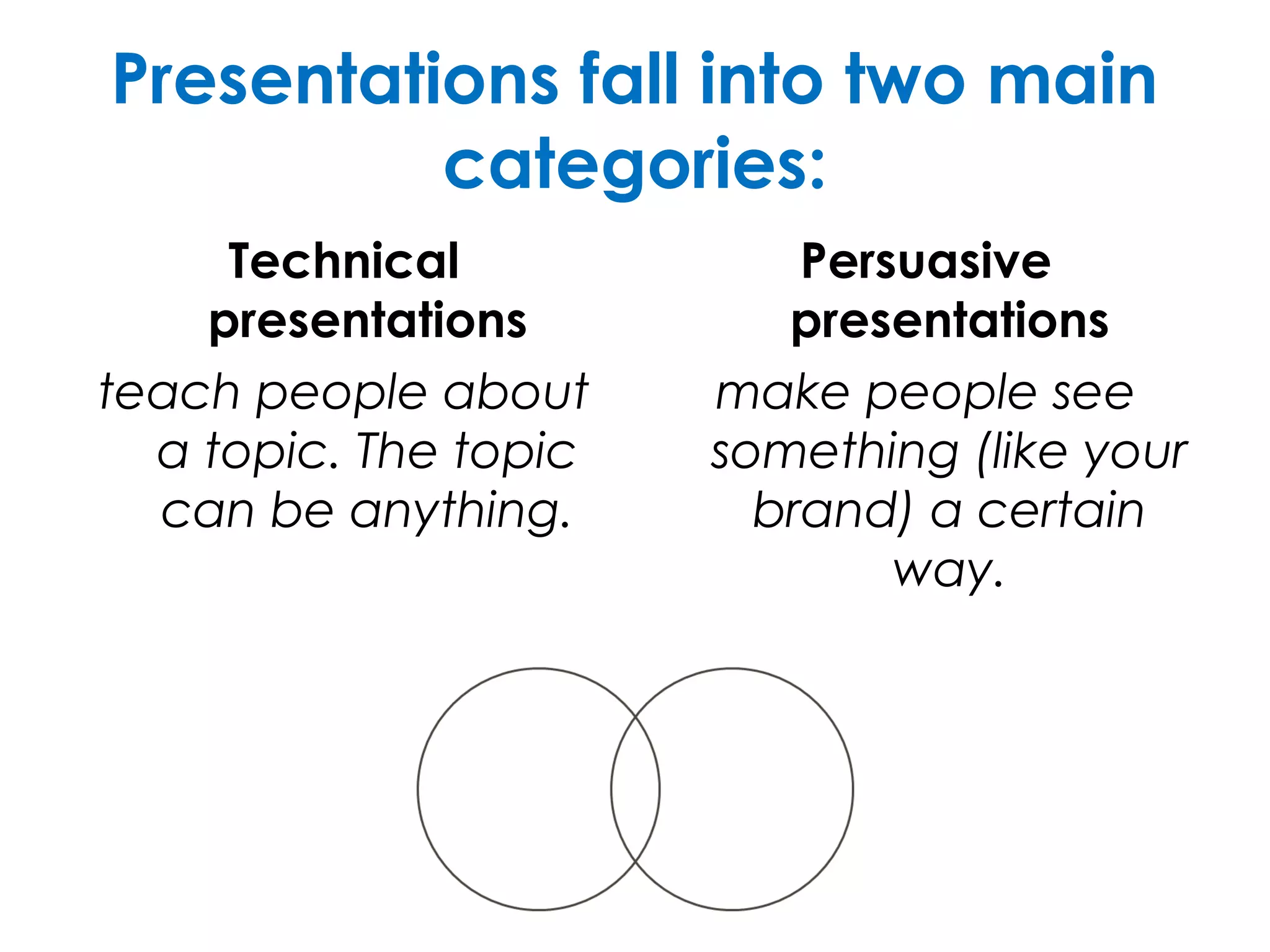
Presentations fall into two main
categories:
Technical
presentations
teach people about
a topic. The topic
can be anything.
Persuasive
presentations
make people see
something (like your
brand) a certain
way.
Tip #2
PLAN IT OUT
Create an outline or storyboard of the major topics
you want to address.
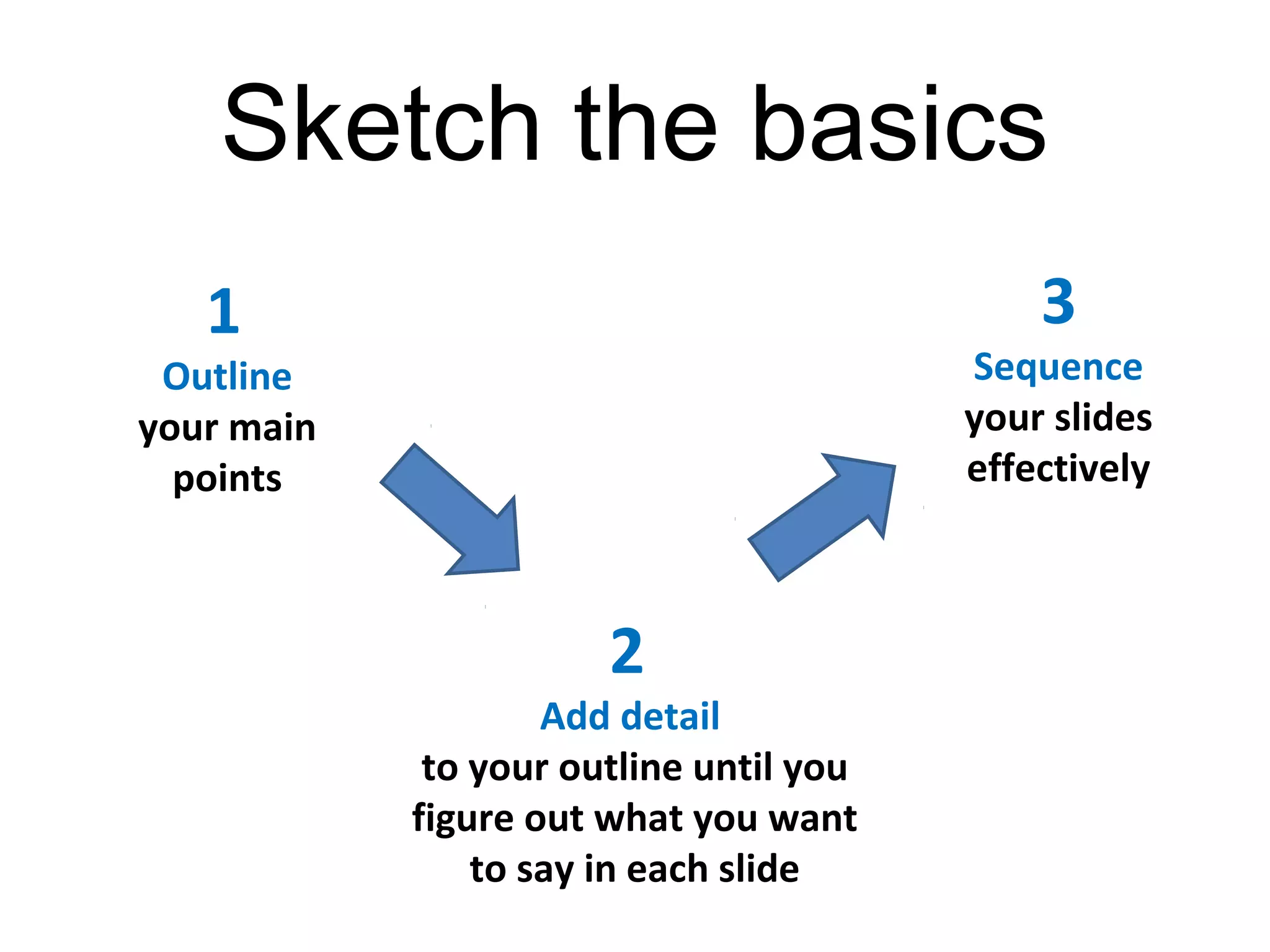
Sketch the basics
3
Sequence
your slides
effectively
2
Add detail
to your outline until you
figure out what you want
to say in each slide
1
Outline
your main
points
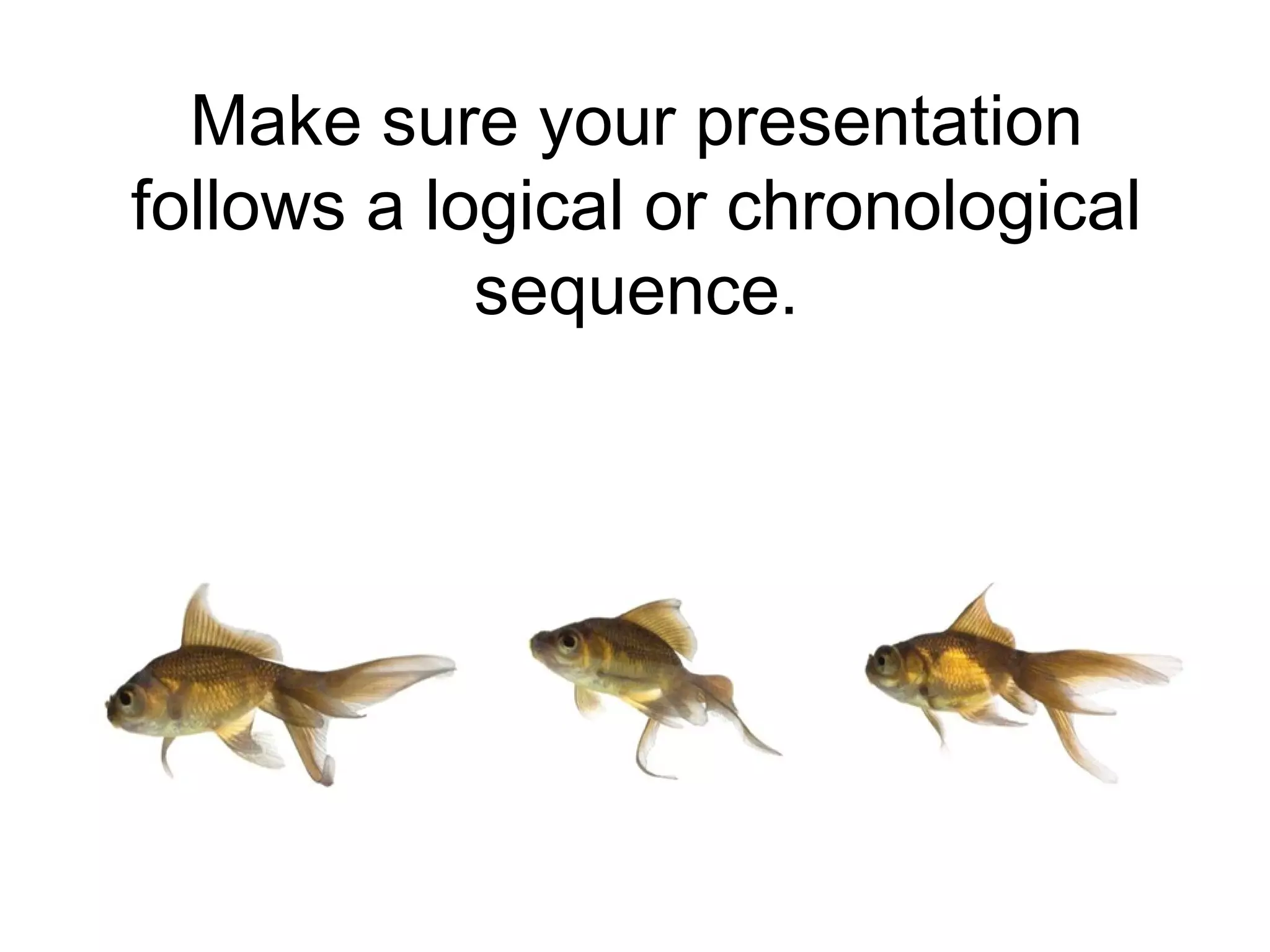
Make sure your presentation
follows a logical or chronological
sequence.
Show restraint
Resist the urge to cram everything you know about
your topic into your show.
If you
try and
tell them
everything,
they won’t
remember
anything.
Tip #3
AVOID STOCK
TEMPLATES
Run away! Run away!
THE PROBLEMS WITHSTOCK
TEMPLATES
• They lead to infinite bullet point syndrome (IBPS)
• They discourage graphics
• Every slide ends up looking the same
• The designs are usually bad
• The presentation looks like every slideshow
presentation you've ever seen
• Your audience will lose interest and focus after
slide number 1
• It reminds people of the 90s (that's bad)
Tip #4
CHOOSE A COLOR
SCHEME
Choose 5 colors that look good together and
match the tone of your presentation.
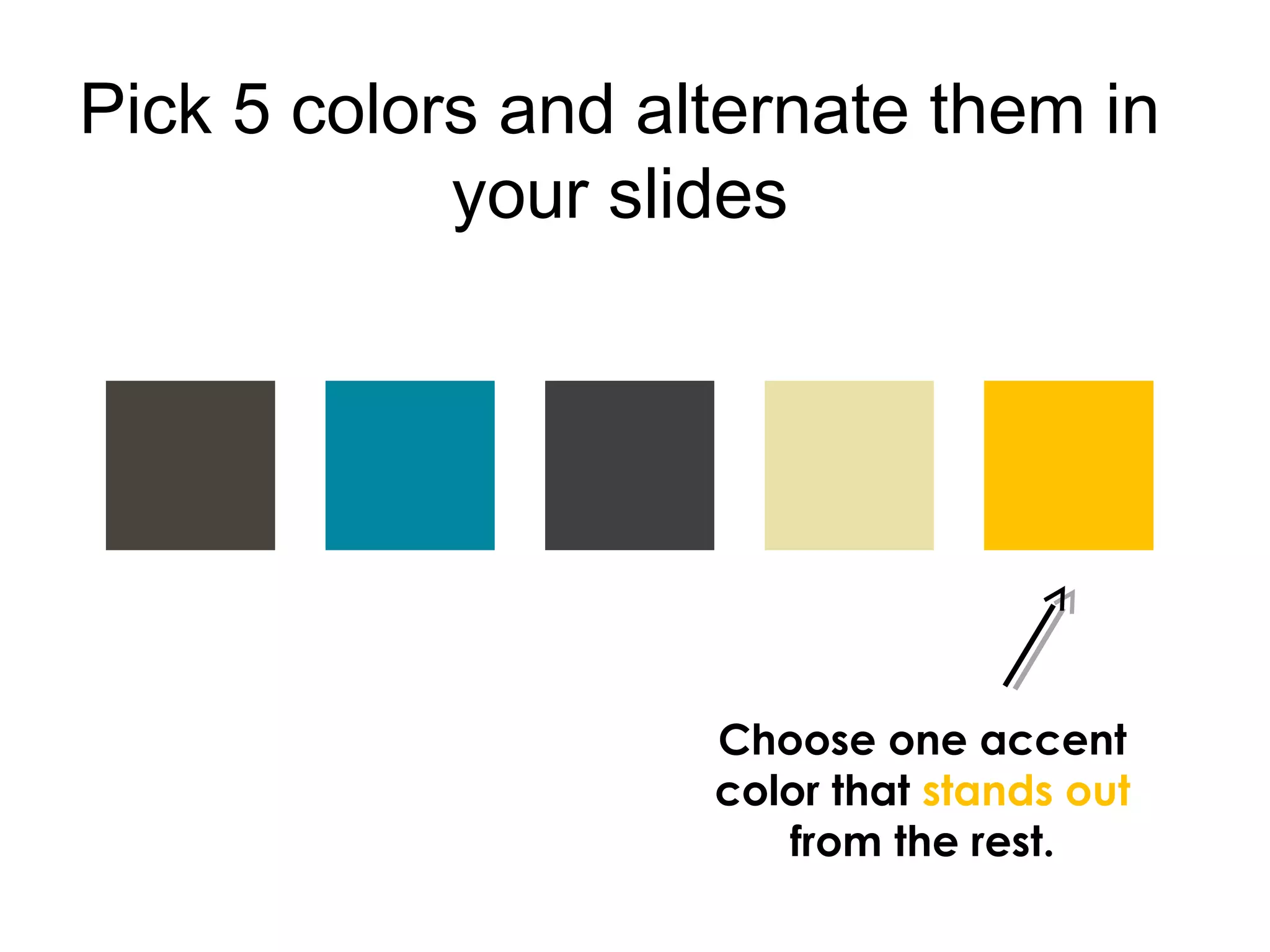
Pick 5 colors and alternate them in
your slides
Choose one accent
color that stands out
from the rest.
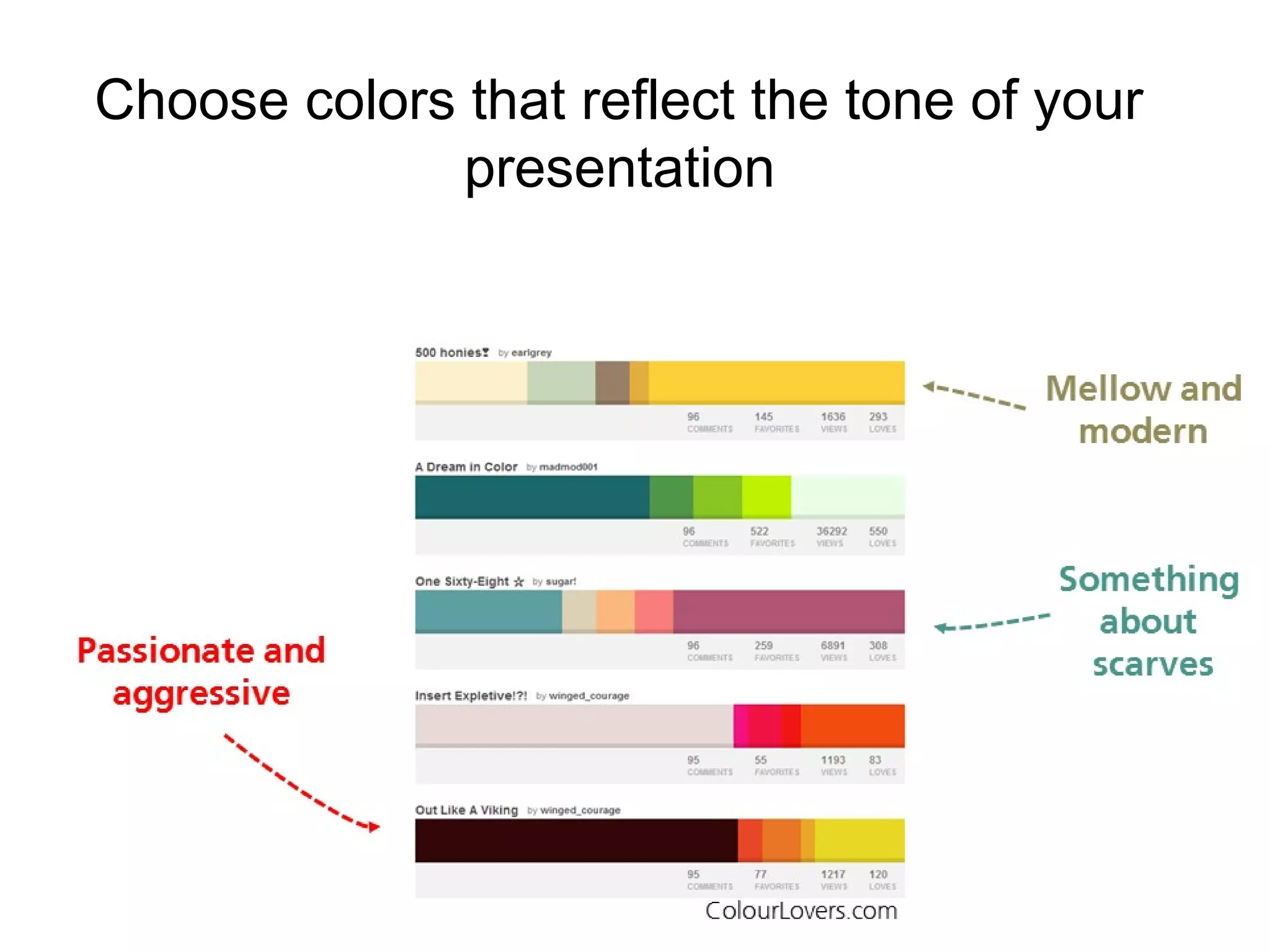
Choose colors that reflect the tone of your
presentation
Tip #5
CHOOSE A FONT
SCHEME
Don’t get too crazy with font.
Pick 3 and stick to them.
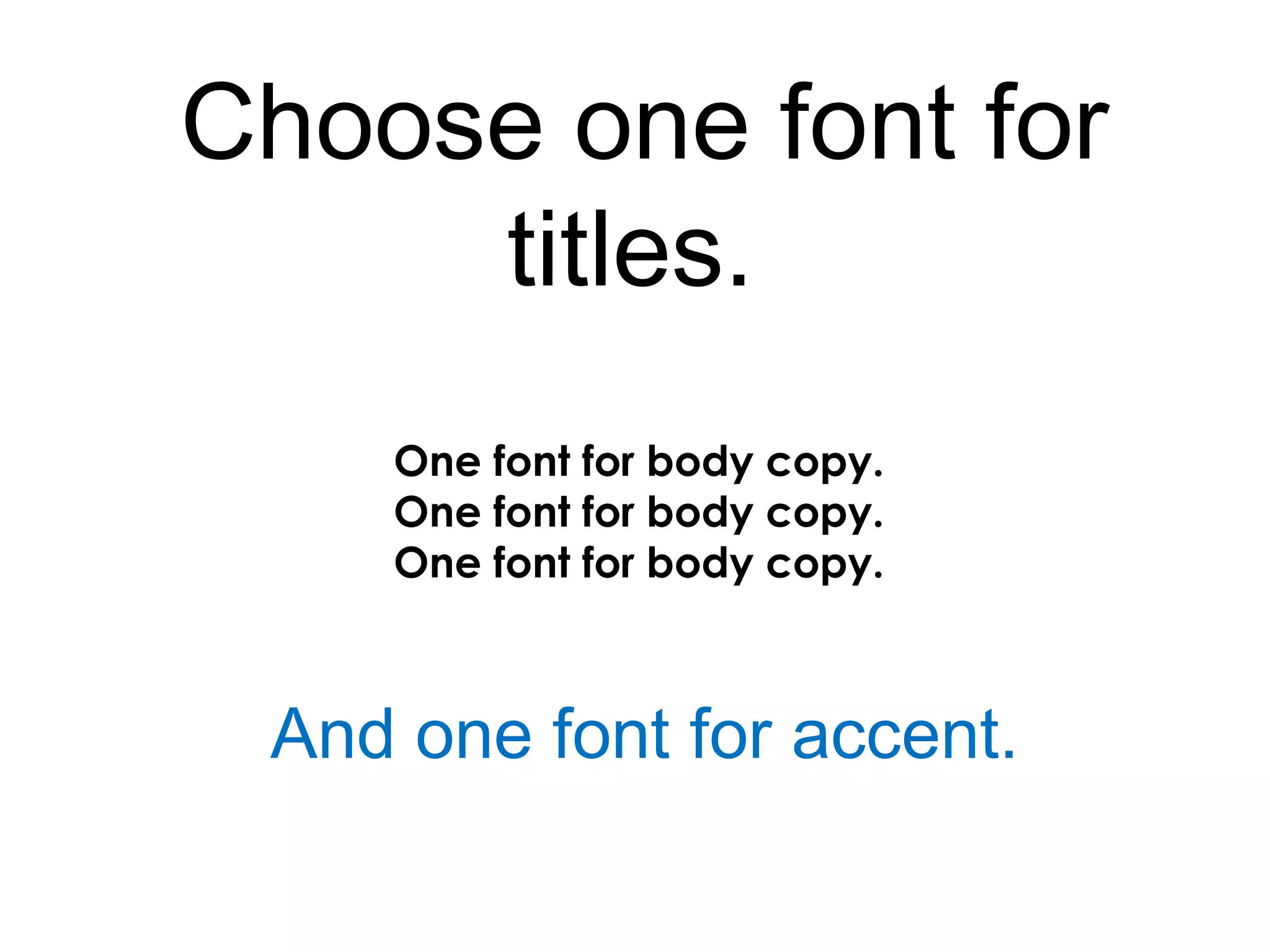
Choose one font for
titles.
One font for body copy.
And one font for accent.
Tip #6
CHOOSE A LAYOUT
SCHEME
Develop a few layouts and repeat them
throughout the presentation for cohesion and
clarity.
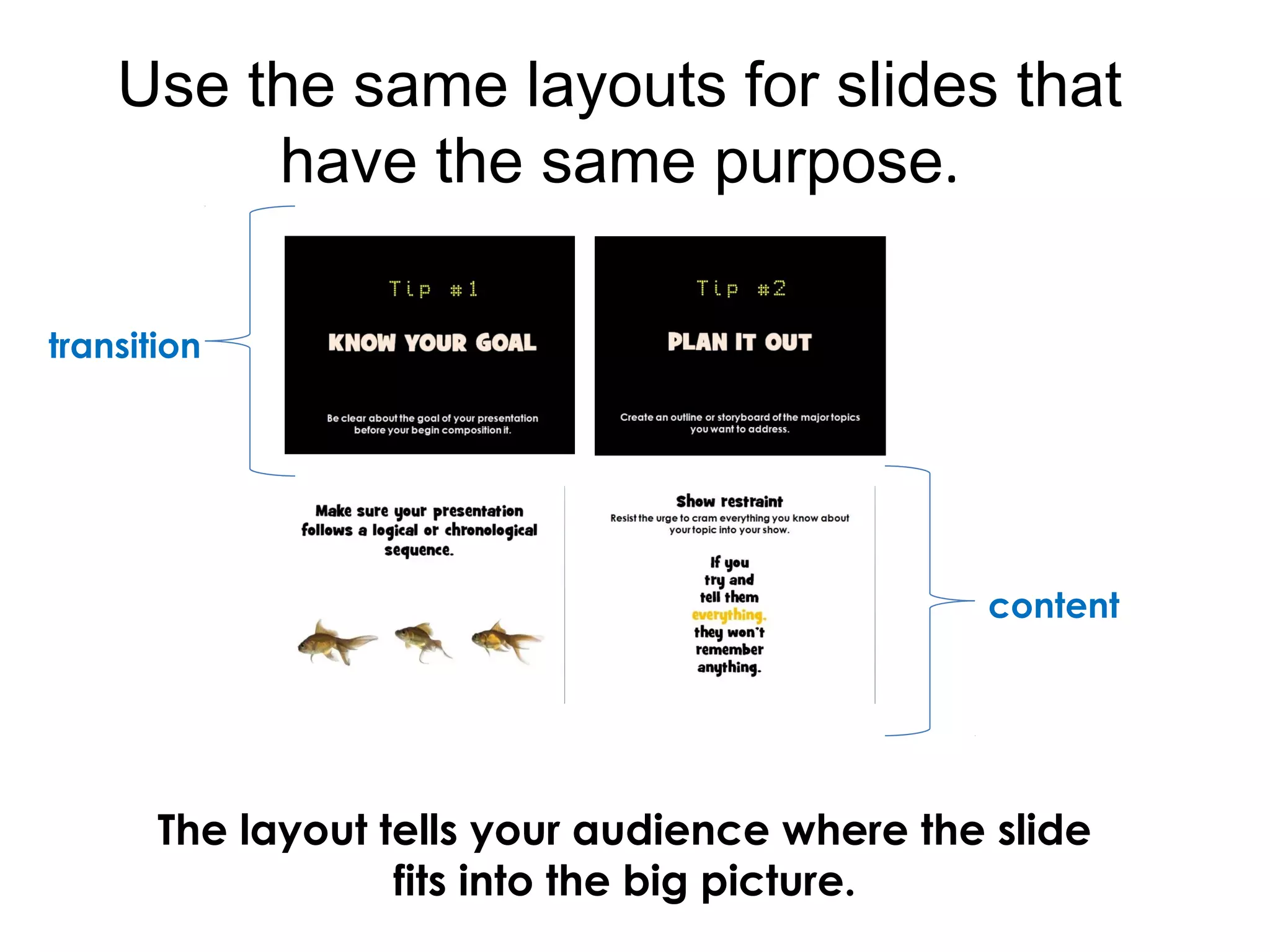
Use the same layouts for slides that
have the same purpose.
The layout tells your audience where the slide
fits into the big picture.
transition
content
You can sometimes get away with
just one layout, but in general,
you'll need a few basic layouts:
 Transitional slides
 Image only slides
 Text only slides
 Mixed slides
Tip #7
USE IMAGES (WISELY)
After 30-60 minute presentation, no one’s going to
remember what you said; they’re going to
remember meaningful imagery and quotes.
Let the images tell the story
If you’re using a
full page image,
find some room
in the picture
where the text
can contrast
against the
background.
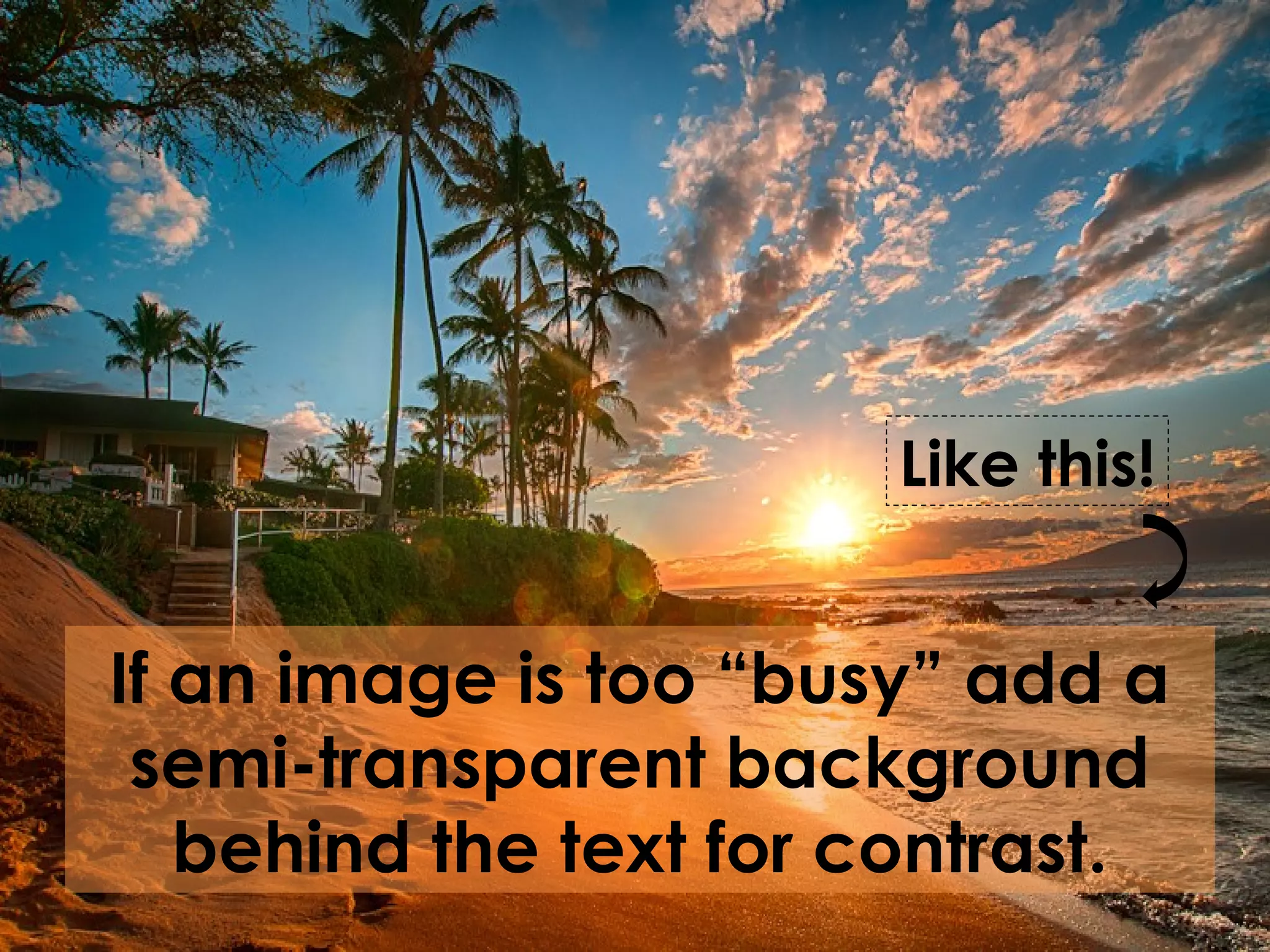
If an image is too “busy” add a
semi-transparent background
behind the text for contrast.
Like this!
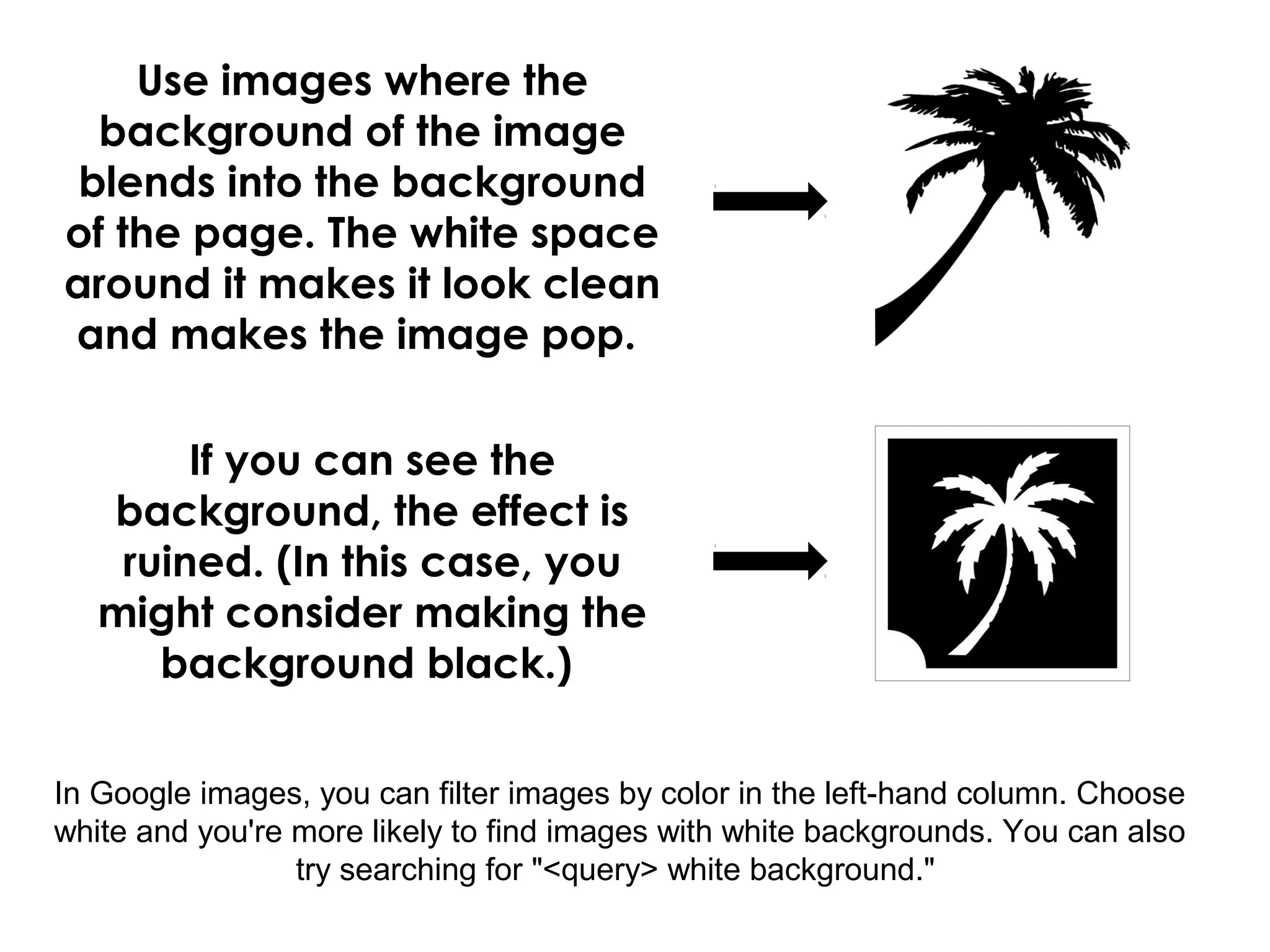
Use images where the
background of the image
blends into the background
of the page. The white space
around it makes it look clean
and makes the image pop.
In Google images, you can filter images by color in the left-hand column. Choose
white and you're more likely to find images with white backgrounds. You can also
try searching for "<query> white background."
If you can see the
background, the effect is
ruined. (In this case, you
might consider making the
background black.)
Tip #8
15 WORDS OR LESS
For live presentations.
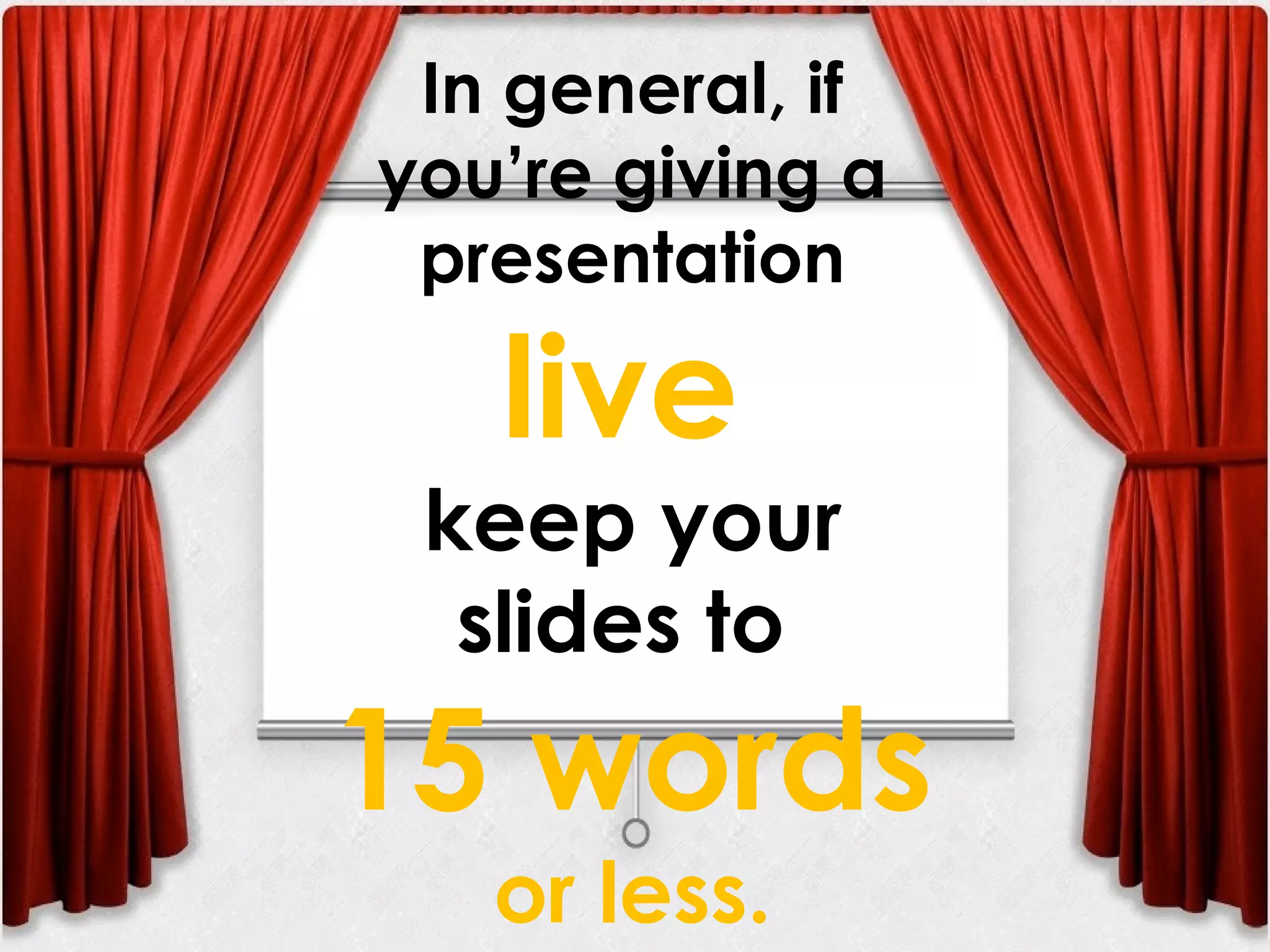
In general, if
you’re giving a
presentation
live
keep your
slides to
15 words
or less.
Limit one main
point per slide
or then your
main point is lost
Boo…
Hey!
What’s
up?
Bla bla
bla
Tip #9
PLAY WITH
TYPOGRAPHY
It’s an easy way to spice up slides with text
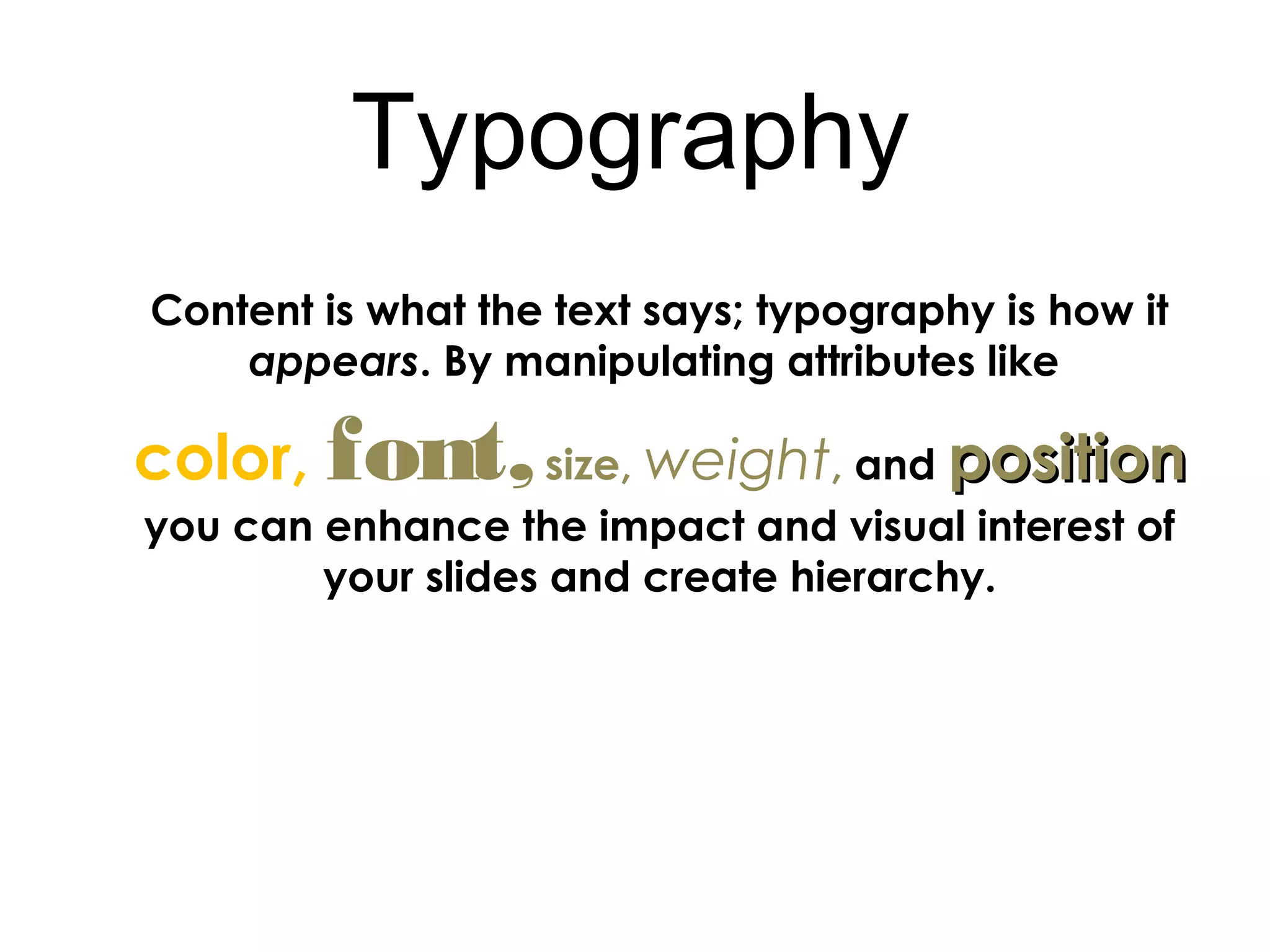
Content is what the text says; typography is how it
appears. By manipulating attributes like
color, font,size, weight, and positionposition
you can enhance the impact and visual interest of
your slides and create hierarchy.
Typography
Tip #10
DON’T OVERDO IT
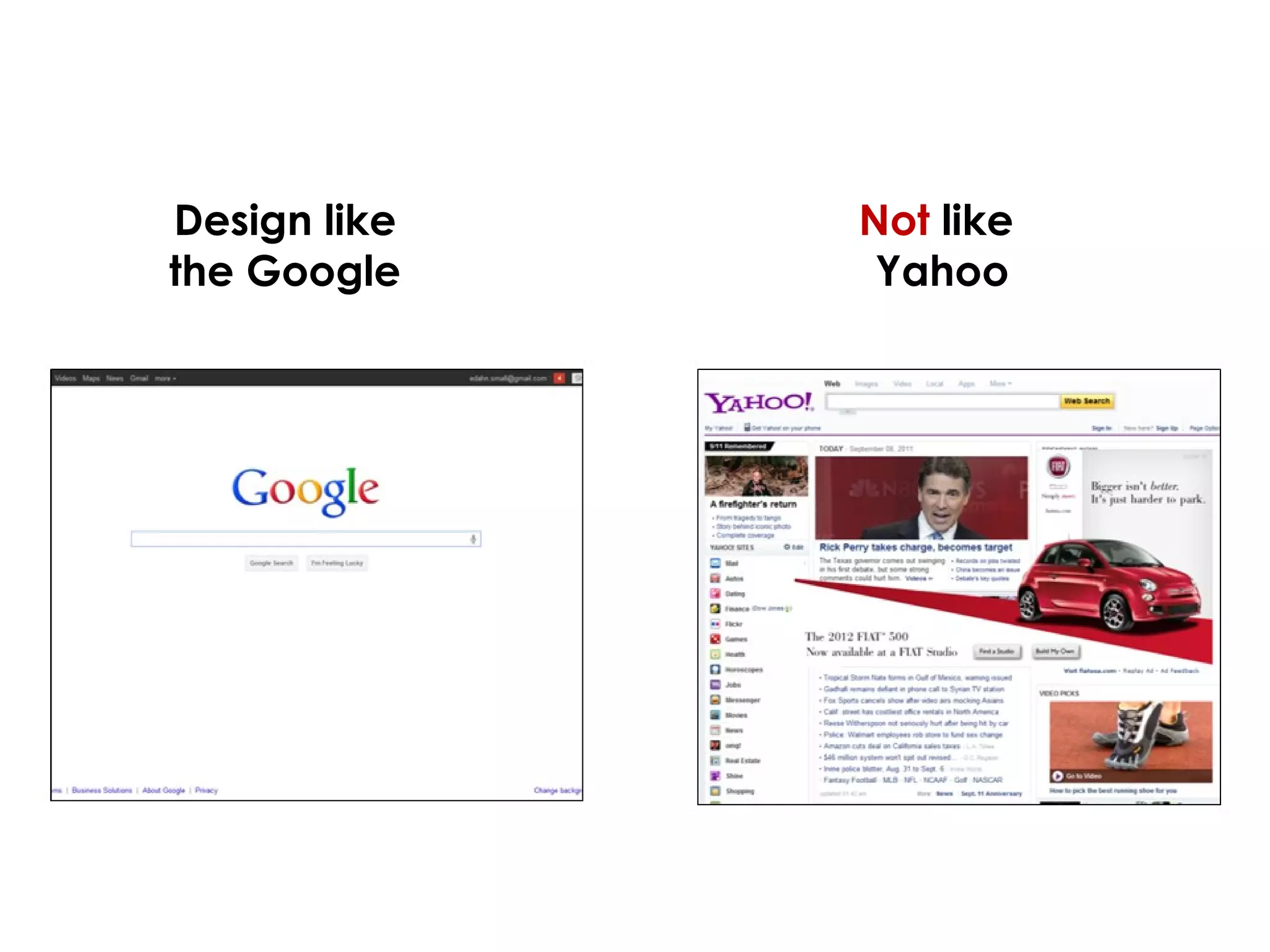
Remember white spice
Design like
the Google
Not like
Yahoo
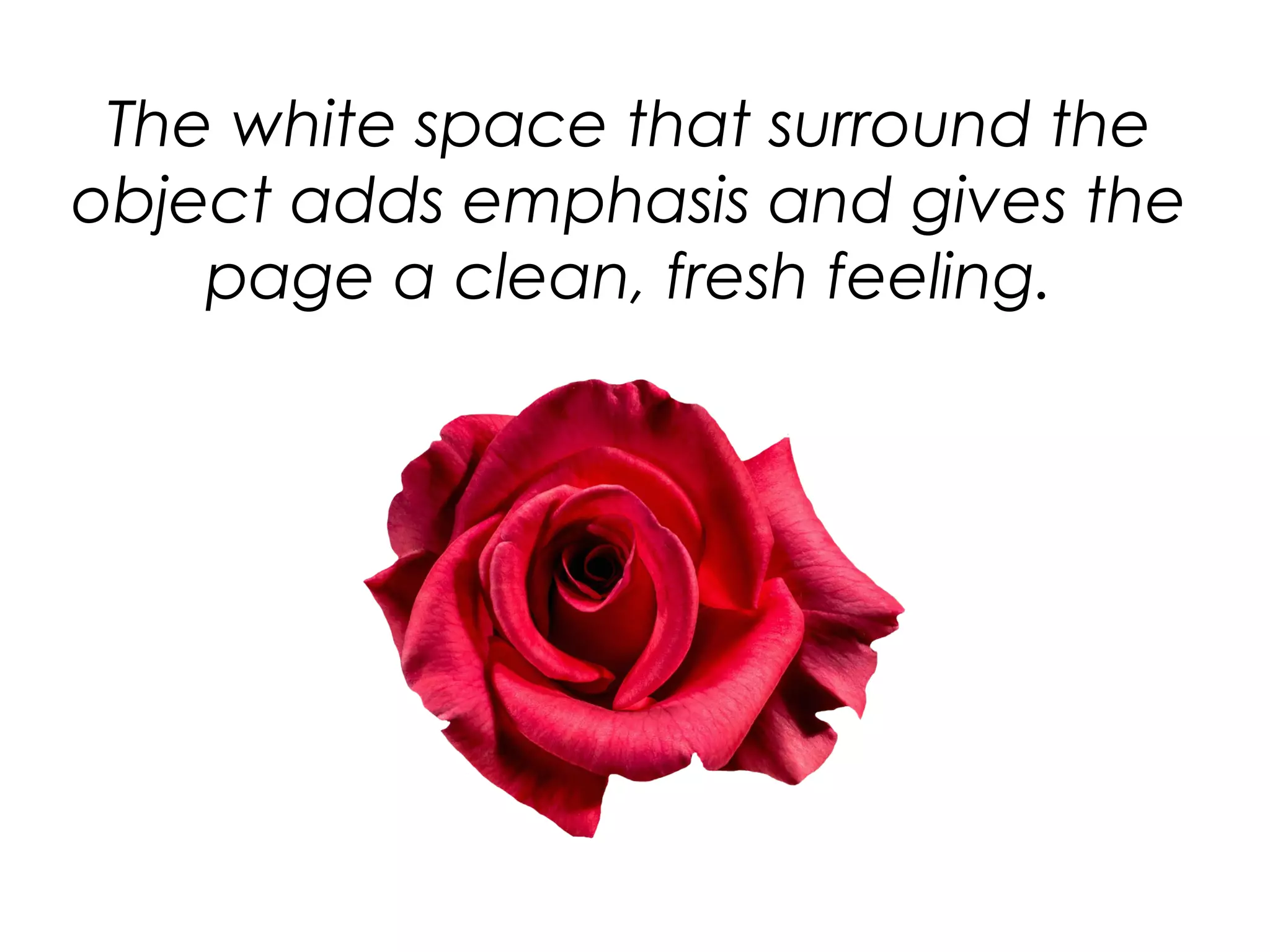
The white space that surround the
object adds emphasis and gives the
page a clean, fresh feeling.
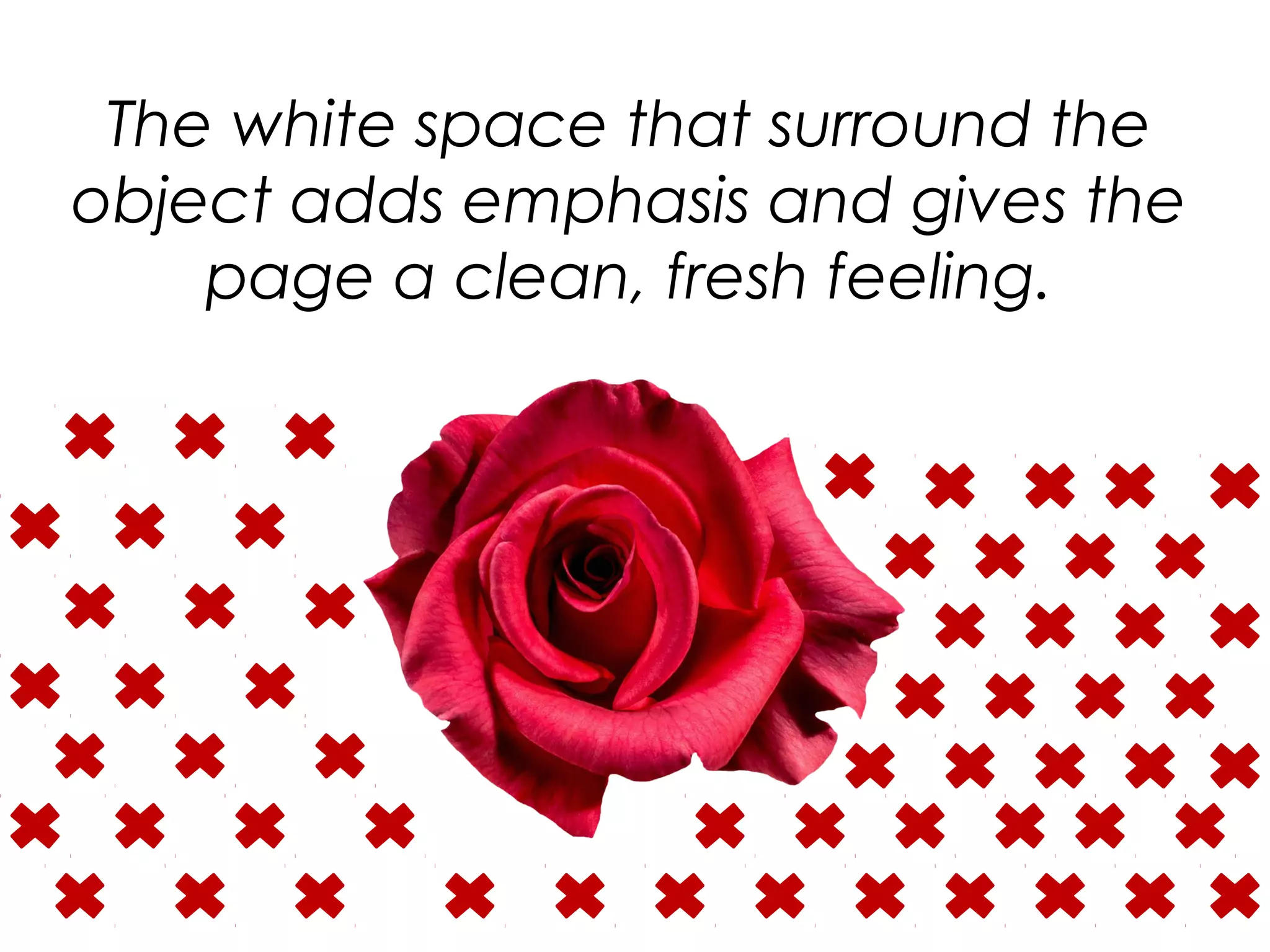
The white space that surround the
object adds emphasis and gives the
page a clean, fresh feeling.
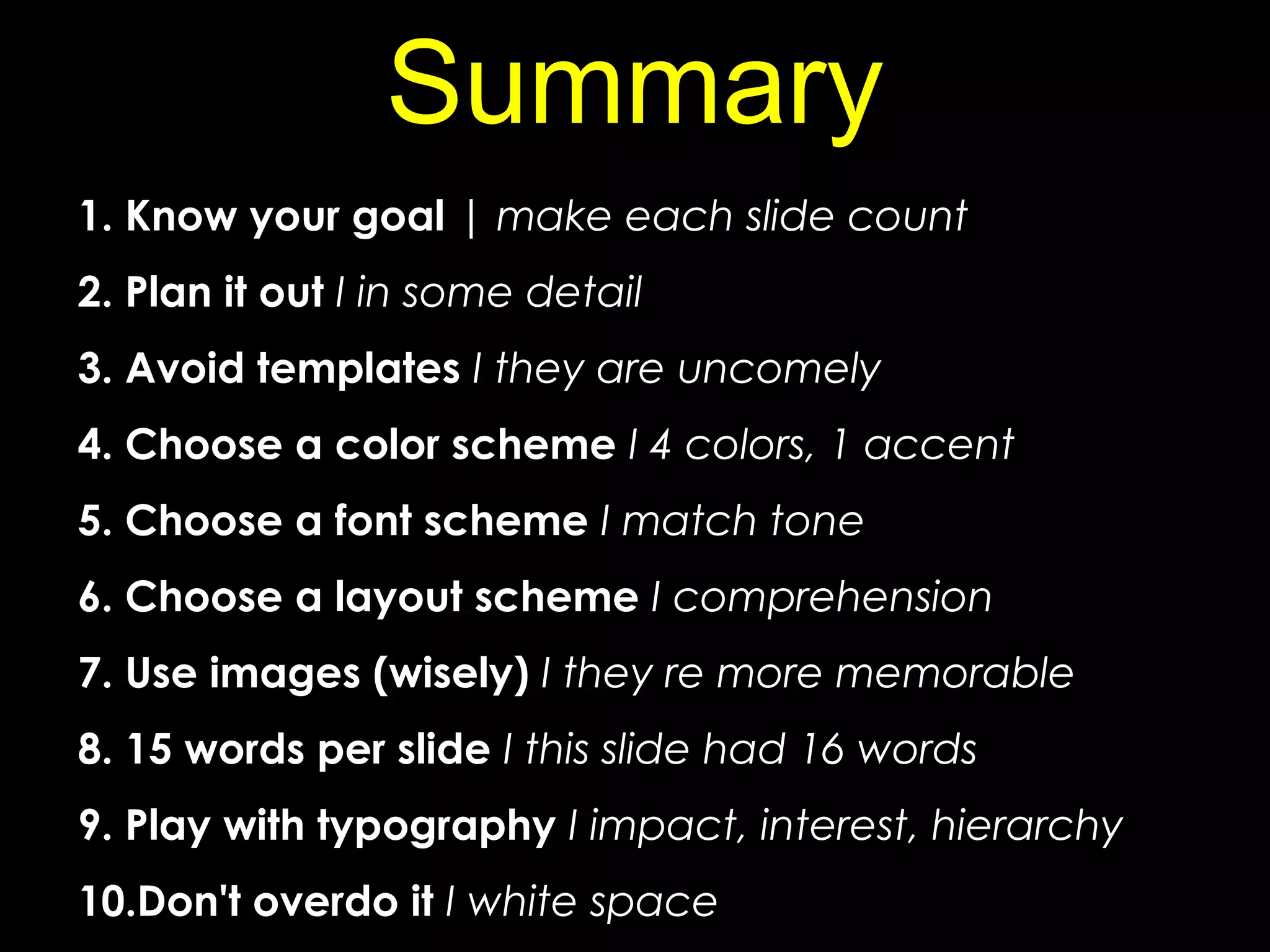
1. Know your goal | make each slide count
2. Plan it out I in some detail
3. Avoid templates I they are uncomely
4. Choose a color scheme I 4 colors, 1 accent
5. Choose a font scheme I match tone
6. Choose a layout scheme I comprehension
7. Use images (wisely) I they re more memorable
8. 15 words per slide I this slide had 16 words
9. Play with typography I impact, interest, hierarchy
10.Don't overdo it I white space
Summary
Anastasiia Vialova
FRGTB
1 year MSc
9a group

10 tips for making effective presentations

  • 1.
    10 Tips forMaking Effective Presentations Anastasiia Vialova FRGTB 1 year MSc 9a group
  • 2.
    Tip #1 KNOW YOURGOAL Be clear about the goal of your presentation before your begin composition it.
  • 3.
    Presentations fall intotwo main categories: Technical presentations teach people about a topic. The topic can be anything. Persuasive presentations make people see something (like your brand) a certain way.
  • 4.
    Tip #2 PLAN ITOUT Create an outline or storyboard of the major topics you want to address.
  • 5.
    Sketch the basics 3 Sequence yourslides effectively 2 Add detail to your outline until you figure out what you want to say in each slide 1 Outline your main points
  • 6.
    Make sure yourpresentation follows a logical or chronological sequence.
  • 7.
    Show restraint Resist theurge to cram everything you know about your topic into your show. If you try and tell them everything, they won’t remember anything.
  • 8.
  • 9.
    THE PROBLEMS WITHSTOCK TEMPLATES •They lead to infinite bullet point syndrome (IBPS) • They discourage graphics • Every slide ends up looking the same • The designs are usually bad • The presentation looks like every slideshow presentation you've ever seen • Your audience will lose interest and focus after slide number 1 • It reminds people of the 90s (that's bad)
  • 10.
    Tip #4 CHOOSE ACOLOR SCHEME Choose 5 colors that look good together and match the tone of your presentation.
  • 11.
    Pick 5 colorsand alternate them in your slides Choose one accent color that stands out from the rest.
  • 12.
    Choose colors thatreflect the tone of your presentation
  • 13.
    Tip #5 CHOOSE AFONT SCHEME Don’t get too crazy with font. Pick 3 and stick to them.
  • 14.
    Choose one fontfor titles. One font for body copy. One font for body copy. One font for body copy. And one font for accent.
  • 15.
    Tip #6 CHOOSE ALAYOUT SCHEME Develop a few layouts and repeat them throughout the presentation for cohesion and clarity.
  • 16.
    Use the samelayouts for slides that have the same purpose. The layout tells your audience where the slide fits into the big picture. transition content
  • 17.
    You can sometimesget away with just one layout, but in general, you'll need a few basic layouts:  Transitional slides  Image only slides  Text only slides  Mixed slides
  • 18.
    Tip #7 USE IMAGES(WISELY) After 30-60 minute presentation, no one’s going to remember what you said; they’re going to remember meaningful imagery and quotes.
  • 19.
    Let the imagestell the story
  • 20.
    If you’re usinga full page image, find some room in the picture where the text can contrast against the background.
  • 21.
    If an imageis too “busy” add a semi-transparent background behind the text for contrast. Like this!
  • 22.
    Use images wherethe background of the image blends into the background of the page. The white space around it makes it look clean and makes the image pop. In Google images, you can filter images by color in the left-hand column. Choose white and you're more likely to find images with white backgrounds. You can also try searching for "<query> white background." If you can see the background, the effect is ruined. (In this case, you might consider making the background black.)
  • 23.
    Tip #8 15 WORDSOR LESS For live presentations.
  • 24.
    In general, if you’regiving a presentation live keep your slides to 15 words or less.
  • 25.
  • 26.
    or then your mainpoint is lost Boo… Hey! What’s up? Bla bla bla
  • 27.
    Tip #9 PLAY WITH TYPOGRAPHY It’san easy way to spice up slides with text
  • 28.
    Content is whatthe text says; typography is how it appears. By manipulating attributes like color, font,size, weight, and positionposition you can enhance the impact and visual interest of your slides and create hierarchy. Typography
  • 29.
    Tip #10 DON’T OVERDOIT Remember white spice
  • 30.
  • 31.
    The white spacethat surround the object adds emphasis and gives the page a clean, fresh feeling.
  • 32.
    The white spacethat surround the object adds emphasis and gives the page a clean, fresh feeling.
  • 33.
    1. Know yourgoal | make each slide count 2. Plan it out I in some detail 3. Avoid templates I they are uncomely 4. Choose a color scheme I 4 colors, 1 accent 5. Choose a font scheme I match tone 6. Choose a layout scheme I comprehension 7. Use images (wisely) I they re more memorable 8. 15 words per slide I this slide had 16 words 9. Play with typography I impact, interest, hierarchy 10.Don't overdo it I white space Summary
  • 34.

Editor's Notes