Meet Selenium
Automated application testing
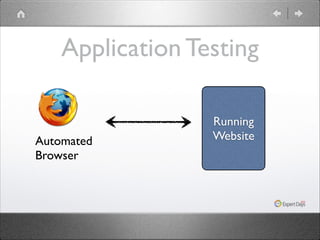
Application Testing

Automated
Browser

Running
Website
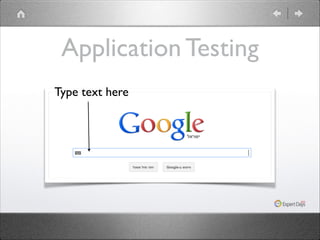
Application Testing
Type text here
Application Testing
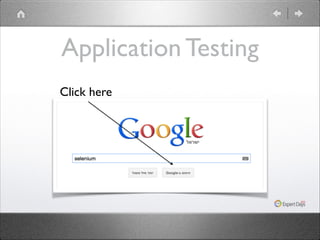
Click here
Application Testing
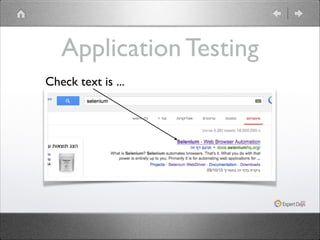
Check text is ...
Application Testing
• Don’t need to change source code	

• Can test (almost) anything	

• Less focused than unit testing
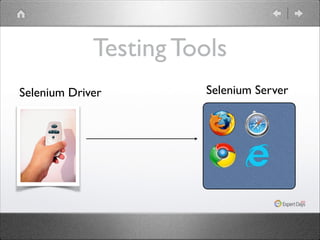
Testing Tools
• Selenium server	

• Web driver client	

• Browsers
Testing Tools
Selenium Driver

Selenium Server
Supported Languages
• Official:	

• Java, C#, Ruby, Python, JavaScript	

• Community:	

• perl, php, Haskell, Objective-C
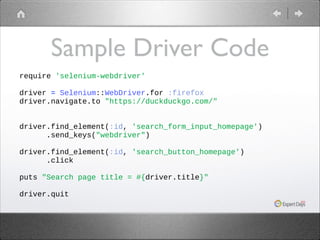
Sample Driver Code
require 'selenium-webdriver'
!
driver = Selenium::WebDriver.for :firefox
driver.navigate.to "https://duckduckgo.com/"
!
!
driver.find_element(:id, 'search_form_input_homepage')
.send_keys("webdriver")
!
driver.find_element(:id, 'search_button_homepage')
.click
!
puts "Search page title = #{driver.title}"
!
driver.quit
Online Resources
• Ruby Selenium Wiki:


https://code.google.com/p/selenium/wiki/
RubyBindings	


• Selenium Ruby API:


http://selenium.googlecode.com/git/docs/
api/rb/index.html
Selenium API
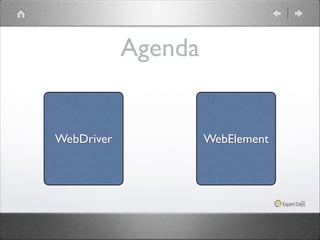
Agenda

WebDriver

WebElement
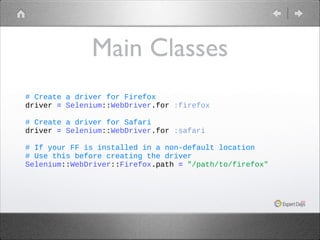
Main Classes
# Create a driver for Firefox
driver = Selenium::WebDriver.for :firefox
!
# Create a driver for Safari
driver = Selenium::WebDriver.for :safari
!
# If your FF is installed in a non-default location
# Use this before creating the driver
Selenium::WebDriver::Firefox.path = "/path/to/firefox"
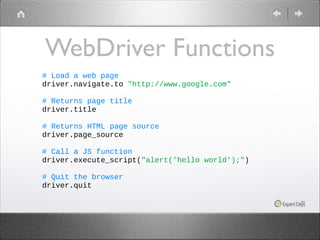
WebDriver Functions
# Load a web page
driver.navigate.to "http://www.google.com"
!
# Returns page title
driver.title
!
# Returns HTML page source
driver.page_source
!
# Call a JS function
driver.execute_script("alert('hello world');")
!
# Quit the browser
driver.quit
Web Element
• Query and interact with elements on the
page	


• Both visual and functional	

• Get using a locator
Locating Web Elements
# Get an element on the page
# By name
el = driver.find_element(:name, 'btnK')
!
# By css selector
el = driver.find_element(:css, '.menu-item')
!
# By id
el = driver.find_element(:id, 'login-form')
!
# By xpath
el = driver.find_element(:xpath, "//h2[@class='title']")
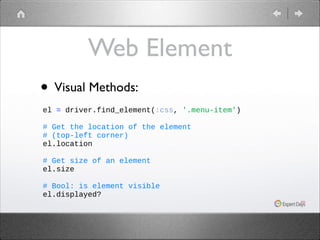
Web Element
• Visual Methods:
el = driver.find_element(:css, '.menu-item')
!
# Get the location of the element
# (top-left corner)
el.location
!
# Get size of an element
el.size
!
# Bool: is element visible
el.displayed?
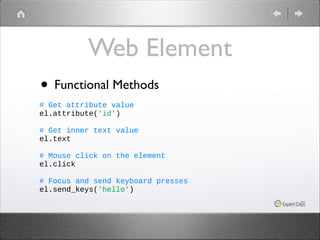
Web Element
• Functional Methods
# Get attribute value
el.attribute('id')
!
# Get inner text value
el.text
!
# Mouse click on the element
el.click
!
# Focus and send keyboard presses
el.send_keys('hello')
Testing with Ruby,
RSpec and Selenium
RSpec
• Ruby’s testing framework	

• Looks like jasmine / mocha
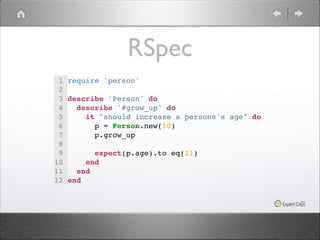
RSpec
1
2
3
4
5
6
7
8
9
10
11
12

require 'person'!
!
describe 'Person' do!
describe '#grow_up' do!
it "should increase a persons's age" do!
p = Person.new(10)!
p.grow_up!
!
expect(p.age).to eq(11)!
end!
end!
end!
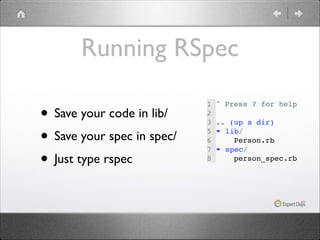
Running RSpec
• Save your code in lib/	

• Save your spec in spec/	

• Just type rspec

1
2
3
5
6
7
8

" Press ? for help!
!
.. (up a dir)!
▾ lib/!
Person.rb!
▾ spec/!
person_spec.rb!
Running Cloud RSpec
• Sign up and use a cloud based selenium
testing provider
Sauce Cloud Demo

•

Use ruby-sauce
gem	


•

Specify all
browsers in
Config

1
2
3
4
5
6
7
8
9
10
11
12
13
14
15
16

require 'sauce'!
!
Sauce.config do |c|!
c[:browsers] = [!
["Windows 7","Firefox","18"],!
]!
end!
!
# s / selenium are automatically available!
# inside the test!
describe 'Testing Google', :sauce => :true do!
it 'should be Google' do!
s.navigate.to('http://www.google.com')!
expect(s.title).to eq('Google')!
end!
end!
Demos
• Let’s test duckduckgo’s title for the input
search string (http://duckduckgo.com/)	


• Let’s test designmodo’s siedbar disappears
on small screen (http://designmodo.com/)
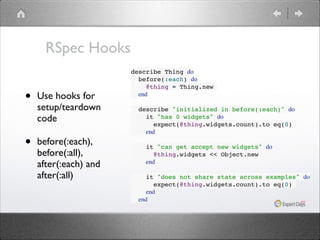
RSpec Hooks

•
•

Use hooks for
setup/teardown
code	

before(:each),
before(:all),
after(:each) and
after(:all)

describe Thing do!
before(:each) do!
@thing = Thing.new!
end!

!

!

!

describe "initialized in before(:each)" do!
it "has 0 widgets" do!
expect(@thing.widgets.count).to eq(0)!
end!
it "can get accept new widgets" do!
@thing.widgets << Object.new!
end!
it "does not share state across examples" do!
expect(@thing.widgets.count).to eq(0)!
end!
end
Advanced Selenium
APIs
Target Locator
• Selenium driver is “focused” on a single
frame or modal dialog	


• Change active frame using switch_to
Target Locator
1
2
3
4
5
6
7
8
9

frame = driver.find_elements(:css, 'iframe').first!
!
driver.switch_to.frame(frame['id'])!
element = driver.find_element(:css, 'button')!
element.click!
!
alert = driver.switch_to.alert!
puts alert.text!
alert.accept!

Demo URL: http://jsfiddle.net/Wchm5/embedded/result/
Explicit Waits
• When async JS is involved, you may need to
wait for state change	


• Selenium has a Wait object
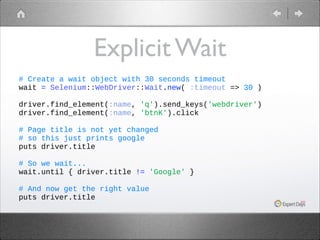
Explicit Wait
# Create a wait object with 30 seconds timeout
wait = Selenium::WebDriver::Wait.new( :timeout => 30 )
!
driver.find_element(:name, 'q').send_keys('webdriver')
driver.find_element(:name, 'btnK').click
!
# Page title is not yet changed
# so this just prints google
puts driver.title
!
# So we wait...
wait.until { driver.title != 'Google' }
!
# And now get the right value
puts driver.title
Selenium
Actions
Simulating mouse interactions
and complex ui gestures
Selenium Actions
# Use method chaining to describe the sequence,
# and perform to execute
!
# Move mouse to el1 center and click
driver.action.move_to(el1).click.perform
!
# Press and hold shift, move mouse to el1 and click
# then move mouse to second_element and click again
# release shift key, and drag element to third_element
driver.action.key_down(:shift).
click(el1).
click(second_element).
key_up(:shift).
drag_and_drop(element, third_element).
perform
Live Demo #1
• Enter AccuWeather	

• Check weather for Tel Aviv	

• Make sure (F) and (C) match	

• Use SaucaLabs to run on multiple browsers
Takeaways
• Wrap website access in your own ruby
class (which uses Selenium)	


• Aim for short test specs
System Testing
• Be selective about what you test	

• Run tests nightly	

• Use a remote test server

Introduction to Selenium and Ruby

  • 1.
  • 2.
  • 3.
  • 4.
  • 5.
  • 6.
    Application Testing • Don’tneed to change source code • Can test (almost) anything • Less focused than unit testing
  • 7.
    Testing Tools • Seleniumserver • Web driver client • Browsers
  • 8.
  • 9.
    Supported Languages • Official: •Java, C#, Ruby, Python, JavaScript • Community: • perl, php, Haskell, Objective-C
  • 10.
    Sample Driver Code require'selenium-webdriver' ! driver = Selenium::WebDriver.for :firefox driver.navigate.to "https://duckduckgo.com/" ! ! driver.find_element(:id, 'search_form_input_homepage') .send_keys("webdriver") ! driver.find_element(:id, 'search_button_homepage') .click ! puts "Search page title = #{driver.title}" ! driver.quit
  • 11.
    Online Resources • RubySelenium Wiki:
 https://code.google.com/p/selenium/wiki/ RubyBindings • Selenium Ruby API:
 http://selenium.googlecode.com/git/docs/ api/rb/index.html
  • 12.
  • 13.
  • 14.
    Main Classes # Createa driver for Firefox driver = Selenium::WebDriver.for :firefox ! # Create a driver for Safari driver = Selenium::WebDriver.for :safari ! # If your FF is installed in a non-default location # Use this before creating the driver Selenium::WebDriver::Firefox.path = "/path/to/firefox"
  • 15.
    WebDriver Functions # Loada web page driver.navigate.to "http://www.google.com" ! # Returns page title driver.title ! # Returns HTML page source driver.page_source ! # Call a JS function driver.execute_script("alert('hello world');") ! # Quit the browser driver.quit
  • 16.
    Web Element • Queryand interact with elements on the page • Both visual and functional • Get using a locator
  • 17.
    Locating Web Elements #Get an element on the page # By name el = driver.find_element(:name, 'btnK') ! # By css selector el = driver.find_element(:css, '.menu-item') ! # By id el = driver.find_element(:id, 'login-form') ! # By xpath el = driver.find_element(:xpath, "//h2[@class='title']")
  • 18.
    Web Element • VisualMethods: el = driver.find_element(:css, '.menu-item') ! # Get the location of the element # (top-left corner) el.location ! # Get size of an element el.size ! # Bool: is element visible el.displayed?
  • 19.
    Web Element • FunctionalMethods # Get attribute value el.attribute('id') ! # Get inner text value el.text ! # Mouse click on the element el.click ! # Focus and send keyboard presses el.send_keys('hello')
  • 20.
  • 21.
    RSpec • Ruby’s testingframework • Looks like jasmine / mocha
  • 22.
    RSpec 1 2 3 4 5 6 7 8 9 10 11 12 require 'person'! ! describe 'Person'do! describe '#grow_up' do! it "should increase a persons's age" do! p = Person.new(10)! p.grow_up! ! expect(p.age).to eq(11)! end! end! end!
  • 23.
    Running RSpec • Saveyour code in lib/ • Save your spec in spec/ • Just type rspec 1 2 3 5 6 7 8 " Press ? for help! ! .. (up a dir)! ▾ lib/! Person.rb! ▾ spec/! person_spec.rb!
  • 24.
    Running Cloud RSpec •Sign up and use a cloud based selenium testing provider
  • 25.
    Sauce Cloud Demo • Useruby-sauce gem • Specify all browsers in Config 1 2 3 4 5 6 7 8 9 10 11 12 13 14 15 16 require 'sauce'! ! Sauce.config do |c|! c[:browsers] = [! ["Windows 7","Firefox","18"],! ]! end! ! # s / selenium are automatically available! # inside the test! describe 'Testing Google', :sauce => :true do! it 'should be Google' do! s.navigate.to('http://www.google.com')! expect(s.title).to eq('Google')! end! end!
  • 26.
    Demos • Let’s testduckduckgo’s title for the input search string (http://duckduckgo.com/) • Let’s test designmodo’s siedbar disappears on small screen (http://designmodo.com/)
  • 27.
    RSpec Hooks • • Use hooksfor setup/teardown code before(:each), before(:all), after(:each) and after(:all) describe Thing do! before(:each) do! @thing = Thing.new! end! ! ! ! describe "initialized in before(:each)" do! it "has 0 widgets" do! expect(@thing.widgets.count).to eq(0)! end! it "can get accept new widgets" do! @thing.widgets << Object.new! end! it "does not share state across examples" do! expect(@thing.widgets.count).to eq(0)! end! end
  • 28.
  • 29.
    Target Locator • Seleniumdriver is “focused” on a single frame or modal dialog • Change active frame using switch_to
  • 30.
    Target Locator 1 2 3 4 5 6 7 8 9 frame =driver.find_elements(:css, 'iframe').first! ! driver.switch_to.frame(frame['id'])! element = driver.find_element(:css, 'button')! element.click! ! alert = driver.switch_to.alert! puts alert.text! alert.accept! Demo URL: http://jsfiddle.net/Wchm5/embedded/result/
  • 31.
    Explicit Waits • Whenasync JS is involved, you may need to wait for state change • Selenium has a Wait object
  • 32.
    Explicit Wait # Createa wait object with 30 seconds timeout wait = Selenium::WebDriver::Wait.new( :timeout => 30 ) ! driver.find_element(:name, 'q').send_keys('webdriver') driver.find_element(:name, 'btnK').click ! # Page title is not yet changed # so this just prints google puts driver.title ! # So we wait... wait.until { driver.title != 'Google' } ! # And now get the right value puts driver.title
  • 33.
  • 34.
    Selenium Actions # Usemethod chaining to describe the sequence, # and perform to execute ! # Move mouse to el1 center and click driver.action.move_to(el1).click.perform ! # Press and hold shift, move mouse to el1 and click # then move mouse to second_element and click again # release shift key, and drag element to third_element driver.action.key_down(:shift). click(el1). click(second_element). key_up(:shift). drag_and_drop(element, third_element). perform
  • 35.
    Live Demo #1 •Enter AccuWeather • Check weather for Tel Aviv • Make sure (F) and (C) match • Use SaucaLabs to run on multiple browsers
  • 36.
    Takeaways • Wrap websiteaccess in your own ruby class (which uses Selenium) • Aim for short test specs
  • 37.
    System Testing • Beselective about what you test • Run tests nightly • Use a remote test server