Basic Troubleshooting
What is Troubleshooting?
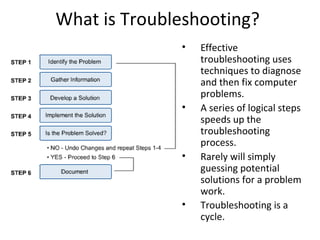
              •   Effective
                  troubleshooting uses
                  techniques to diagnose
                  and then fix computer
                  problems.
              •   A series of logical steps
                  speeds up the
                  troubleshooting
                  process.
              •   Rarely will simply
                  guessing potential
                  solutions for a problem
                  work.
              •   Troubleshooting is a
                  cycle.
Identify the Problem
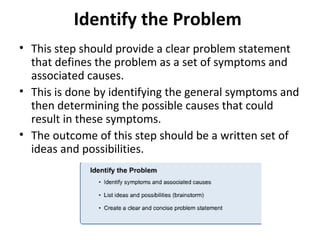
• This step should provide a clear problem statement
  that defines the problem as a set of symptoms and
  associated causes.
• This is done by identifying the general symptoms and
  then determining the possible causes that could
  result in these symptoms.
• The outcome of this step should be a written set of
  ideas and possibilities.
Gathering Information
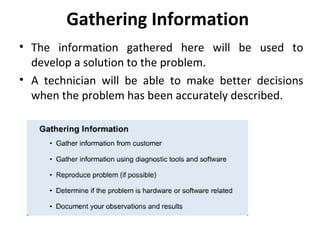
• The information gathered here will be used to
  develop a solution to the problem.
• A technician will be able to make better decisions
  when the problem has been accurately described.
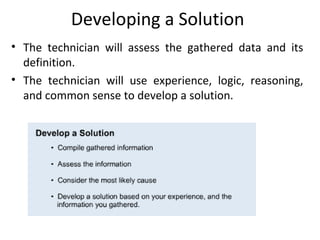
Developing a Solution
• The technician will assess the gathered data and its
  definition.
• The technician will use experience, logic, reasoning,
  and common sense to develop a solution.
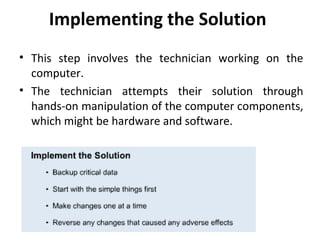
Implementing the Solution
• This step involves the technician working on the
  computer.
• The technician attempts their solution through
  hands-on manipulation of the computer components,
  which might be hardware and software.
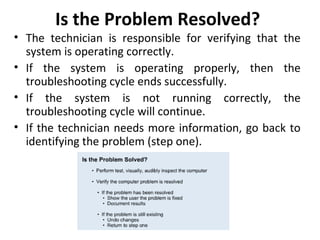
Is the Problem Resolved?
• The technician is responsible for verifying that the
  system is operating correctly.
• If the system is operating properly, then the
  troubleshooting cycle ends successfully.
• If the system is not running correctly, the
  troubleshooting cycle will continue.
• If the technician needs more information, go back to
  identifying the problem (step one).
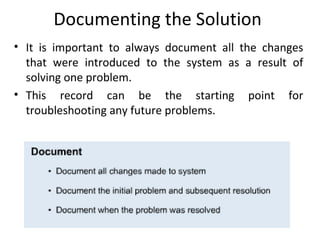
Documenting the Solution
• It is important to always document all the changes
  that were introduced to the system as a result of
  solving one problem.
• This record can be the starting point for
  troubleshooting any future problems.
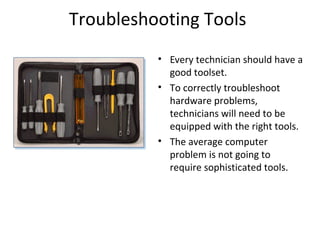
Troubleshooting Tools
          • Every technician should have a
            good toolset.
          • To correctly troubleshoot
            hardware problems,
            technicians will need to be
            equipped with the right tools.
          • The average computer
            problem is not going to
            require sophisticated tools.
Step 1
• Rule out any Common Causes:
  – All plugs are connected – double check
  – Determine if it is a desktop problem or a network
    problem – what were you doing when it
    happened?
     • Turning it on? Using a program? Is it a piece of
       hardware that is not working?
Hardware Problems
• Computer wont turn on
  – Check all plugs – especially power plug
  – Check any fuses or breakers
  – Listen to see if you can hear the fan
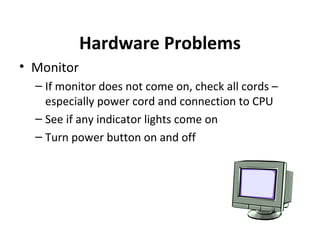
Hardware Problems
• Monitor
  – If monitor does not come on, check all cords –
    especially power cord and connection to CPU
  – See if any indicator lights come on
  – Turn power button on and off
Hardware Problems
• Mouse and/or Keyboard
  – Check all connections!!
  – Clean mouse if not working properly
     • Use rubbing alcohol and Q-tip
  – Clean keyboard if keys are sticking
     • Can use a spray cleaner or rubbing alcohol
     • Make sure it is given time to dry
Software Problems
• Computer starts up (you can hear it running),
  but nothing happens or your receive an error
  message on the screen.

• You are using a program, such as Word or
  Netscape, and it stops working (you cant
  move the mouse or click on
Step 2
• Try to reboot the system to see if that fixes
  the problem:

  – PC users – hold down the Ctrl, Alt and Delete keys
    and select Shutdown, or close the program that is
    having the error.
Other solutions
• Sometimes a software program freezes up or
  has an error and you need to close that
  program.

• Sometimes files need to be removed or
  extensions and/or start up files need to be
  removed in order for the computer to work.
Windows Platform
• In the Windows operating system, to force
  quit a program, hold down the Ctrl, Atl, and
  Delete keys.

• A menu will appear that lets you quit the
  application you are in and/or restart your
  computer.
Windows Platform

• When Windows has problems starting up,
  sometimes it will give you the option of
  starting in a Safe Mode so that you can fix a
  problem without it ruining your system or
  losing files.
Windows Platform
• When windows is in Safe Mode, you can
  get assistance with problems in Window
  98, use the Trouble Shooting Wizard under
  the Help menu in the Start Menu.

• This will allow you to answer some
  questions that will evaluate what the
  problem could be.
Windows Platform
• In Safe Mode, you can also remove programs
  from the start-up that may be causing
  problems.

• To remove programs from Start up folder by
  going to the Start Menu, Settings, Taskbar &
  Start Menu. You can click on remove and then
  remove a program that appears to be freezing
  your computer, then restart to see if this fixes
  the problem.
Reminder
• Computers are not perfect!

• They are created by humans – you will have
  errors and problems

• In order to work, the computer must read
  millions of code – it can happen that the code
  is misread and therefore results in errors.

Basic Troubleshooting

  • 1.
  • 2.
    What is Troubleshooting? • Effective troubleshooting uses techniques to diagnose and then fix computer problems. • A series of logical steps speeds up the troubleshooting process. • Rarely will simply guessing potential solutions for a problem work. • Troubleshooting is a cycle.
  • 3.
    Identify the Problem •This step should provide a clear problem statement that defines the problem as a set of symptoms and associated causes. • This is done by identifying the general symptoms and then determining the possible causes that could result in these symptoms. • The outcome of this step should be a written set of ideas and possibilities.
  • 4.
    Gathering Information • Theinformation gathered here will be used to develop a solution to the problem. • A technician will be able to make better decisions when the problem has been accurately described.
  • 5.
    Developing a Solution •The technician will assess the gathered data and its definition. • The technician will use experience, logic, reasoning, and common sense to develop a solution.
  • 6.
    Implementing the Solution •This step involves the technician working on the computer. • The technician attempts their solution through hands-on manipulation of the computer components, which might be hardware and software.
  • 7.
    Is the ProblemResolved? • The technician is responsible for verifying that the system is operating correctly. • If the system is operating properly, then the troubleshooting cycle ends successfully. • If the system is not running correctly, the troubleshooting cycle will continue. • If the technician needs more information, go back to identifying the problem (step one).
  • 8.
    Documenting the Solution •It is important to always document all the changes that were introduced to the system as a result of solving one problem. • This record can be the starting point for troubleshooting any future problems.
  • 9.
    Troubleshooting Tools • Every technician should have a good toolset. • To correctly troubleshoot hardware problems, technicians will need to be equipped with the right tools. • The average computer problem is not going to require sophisticated tools.
  • 10.
    Step 1 • Ruleout any Common Causes: – All plugs are connected – double check – Determine if it is a desktop problem or a network problem – what were you doing when it happened? • Turning it on? Using a program? Is it a piece of hardware that is not working?
  • 11.
    Hardware Problems • Computerwont turn on – Check all plugs – especially power plug – Check any fuses or breakers – Listen to see if you can hear the fan
  • 12.
    Hardware Problems • Monitor – If monitor does not come on, check all cords – especially power cord and connection to CPU – See if any indicator lights come on – Turn power button on and off
  • 13.
    Hardware Problems • Mouseand/or Keyboard – Check all connections!! – Clean mouse if not working properly • Use rubbing alcohol and Q-tip – Clean keyboard if keys are sticking • Can use a spray cleaner or rubbing alcohol • Make sure it is given time to dry
  • 14.
    Software Problems • Computerstarts up (you can hear it running), but nothing happens or your receive an error message on the screen. • You are using a program, such as Word or Netscape, and it stops working (you cant move the mouse or click on
  • 15.
    Step 2 • Tryto reboot the system to see if that fixes the problem: – PC users – hold down the Ctrl, Alt and Delete keys and select Shutdown, or close the program that is having the error.
  • 16.
    Other solutions • Sometimesa software program freezes up or has an error and you need to close that program. • Sometimes files need to be removed or extensions and/or start up files need to be removed in order for the computer to work.
  • 17.
    Windows Platform • Inthe Windows operating system, to force quit a program, hold down the Ctrl, Atl, and Delete keys. • A menu will appear that lets you quit the application you are in and/or restart your computer.
  • 18.
    Windows Platform • WhenWindows has problems starting up, sometimes it will give you the option of starting in a Safe Mode so that you can fix a problem without it ruining your system or losing files.
  • 19.
    Windows Platform • Whenwindows is in Safe Mode, you can get assistance with problems in Window 98, use the Trouble Shooting Wizard under the Help menu in the Start Menu. • This will allow you to answer some questions that will evaluate what the problem could be.
  • 20.
    Windows Platform • InSafe Mode, you can also remove programs from the start-up that may be causing problems. • To remove programs from Start up folder by going to the Start Menu, Settings, Taskbar & Start Menu. You can click on remove and then remove a program that appears to be freezing your computer, then restart to see if this fixes the problem.
  • 21.
    Reminder • Computers arenot perfect! • They are created by humans – you will have errors and problems • In order to work, the computer must read millions of code – it can happen that the code is misread and therefore results in errors.