Blackboard Collaborate
Matt Cornock
E-Learning Development Team
University of York
mattcornock
Key uses: synchronous discussion
Photo: flickr.com/ernestduffoo/5741454316
Text chat
Voice chat
Video chat
Full control and support for multiple simultaneous speakers
Key uses: presentations
Present and view on or off campus
Improve access to external speakers
Remote student presentations
Photo: flickr.com/juhansonin/3947180005
More opportunities for audience engagement
Key uses: supervision
Virtual office hours
Personal support for distance learners and placement students
Review assessments and feedback
More opportunities for audience engagement
Key uses: recruitment and outreach
Virtual open days, live chat and presentations
Online public engagement events
No University log in required
Mobile app for participants for quick access
Photo: flickr.com/jorgecorrea/364792633
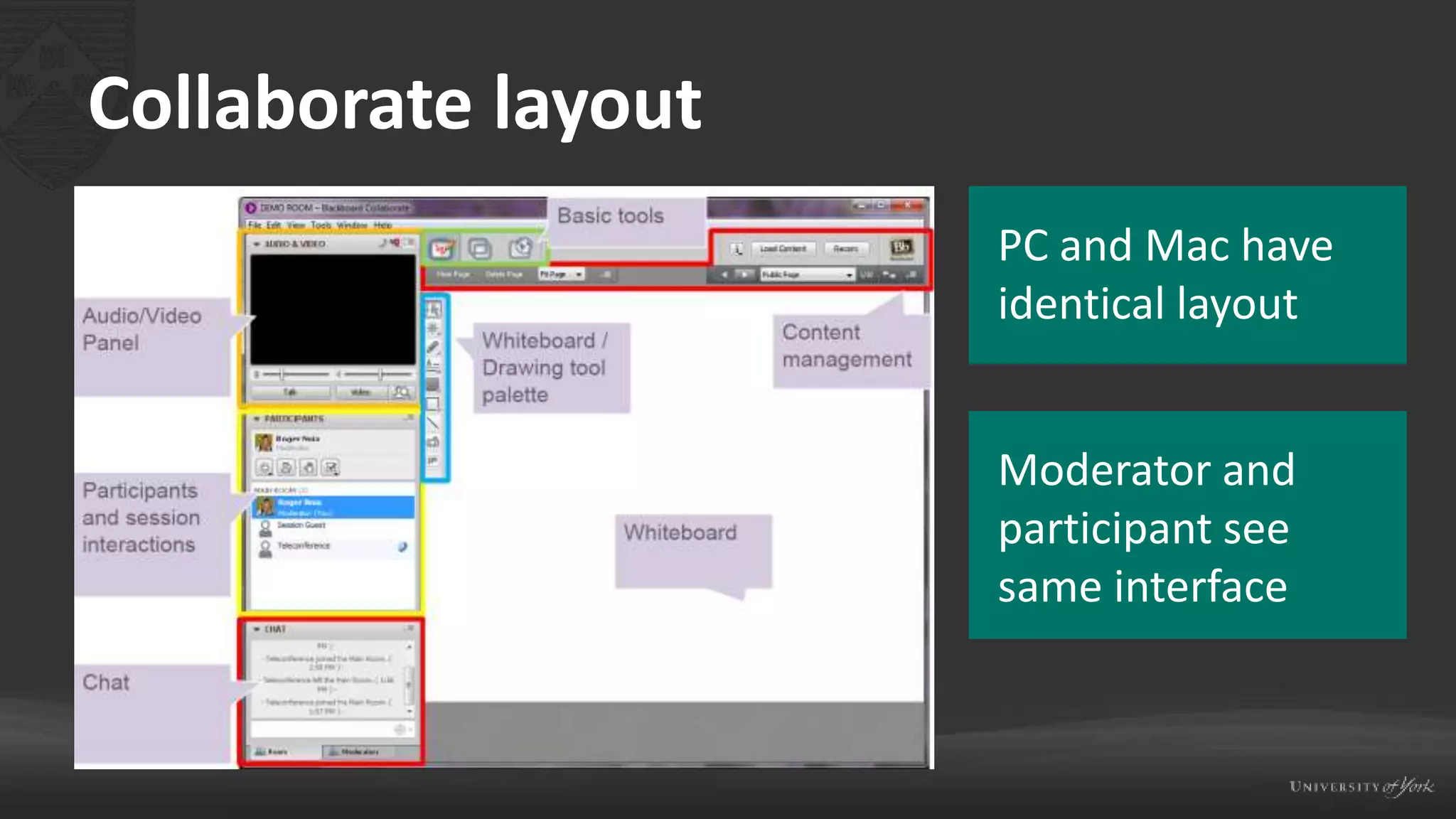
Collaborate layout
PC and Mac have
identical layout
Moderator and
participant see
same interface
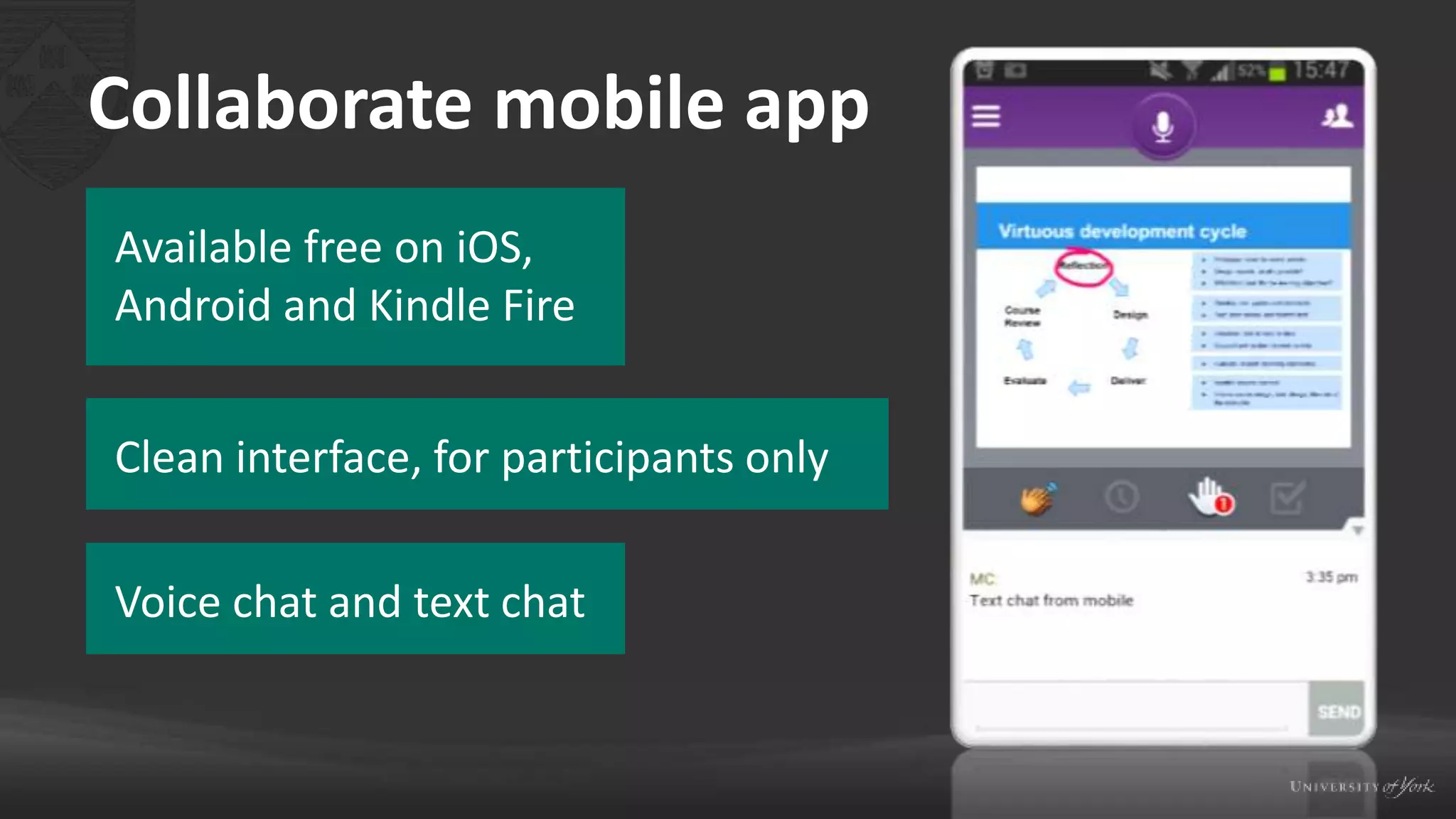
Collaborate mobile app
Available free on iOS,
Android and Kindle Fire
Clean interface, for participants only
Voice chat and text chat
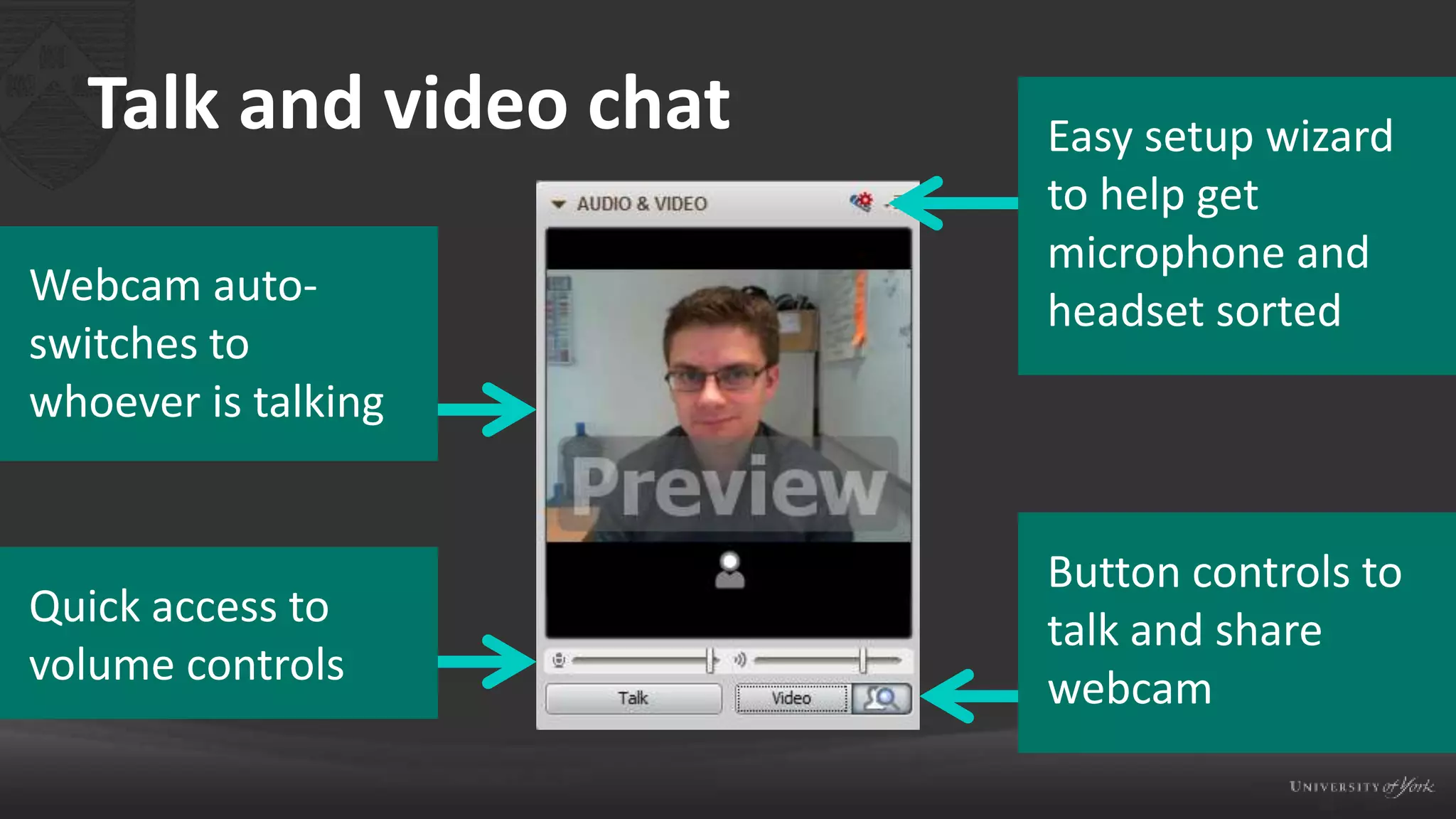
Talk and video chat Easy setup wizard
to help get
microphone and
headset sorted
Button controls to
talk and share
webcam
Quick access to
volume controls
Webcam auto-
switches to
whoever is talking
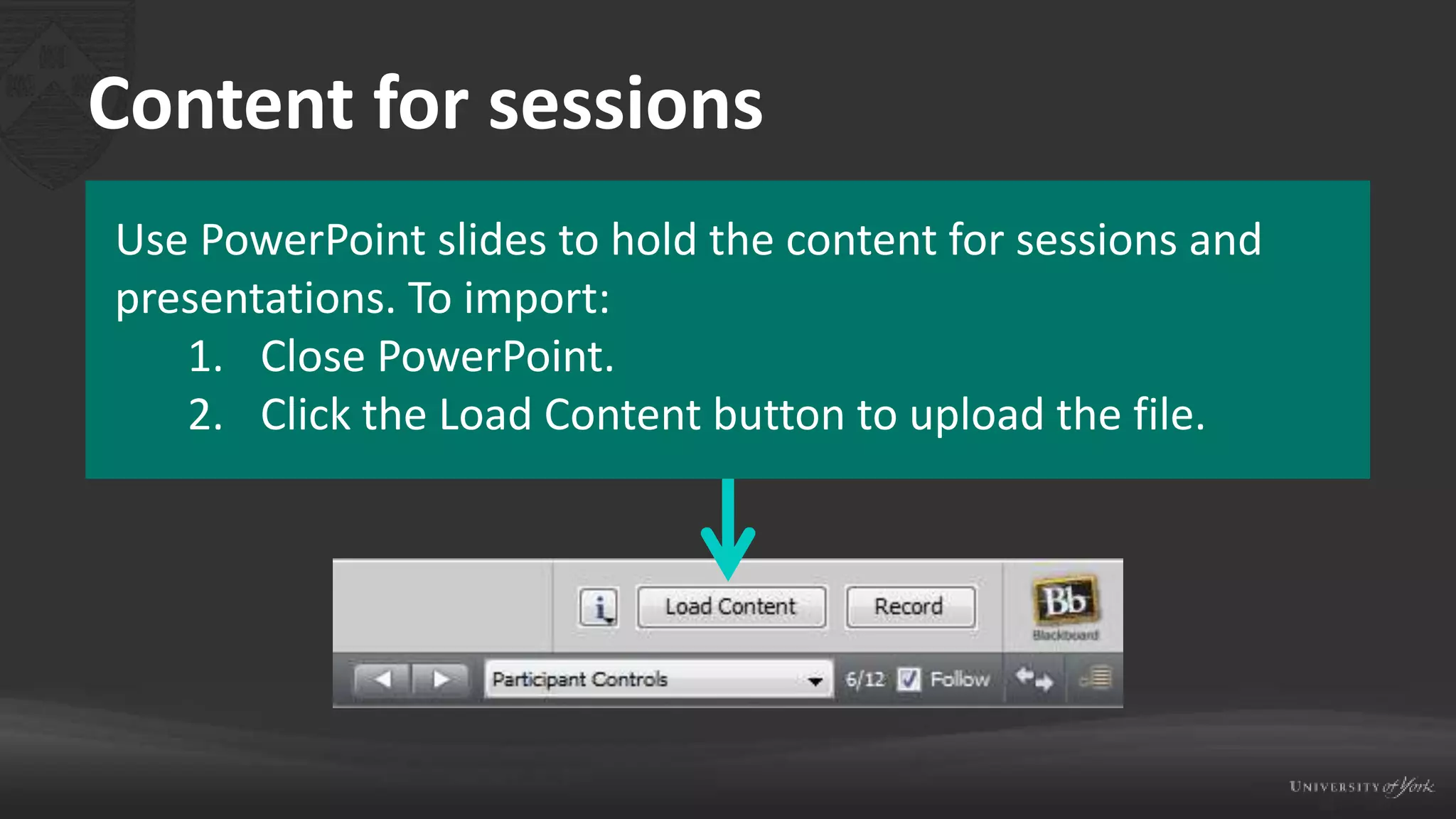
Content for sessions
Use PowerPoint slides to hold the content for sessions and
presentations. To import:
1. Close PowerPoint.
2. Click the Load Content button to upload the file.
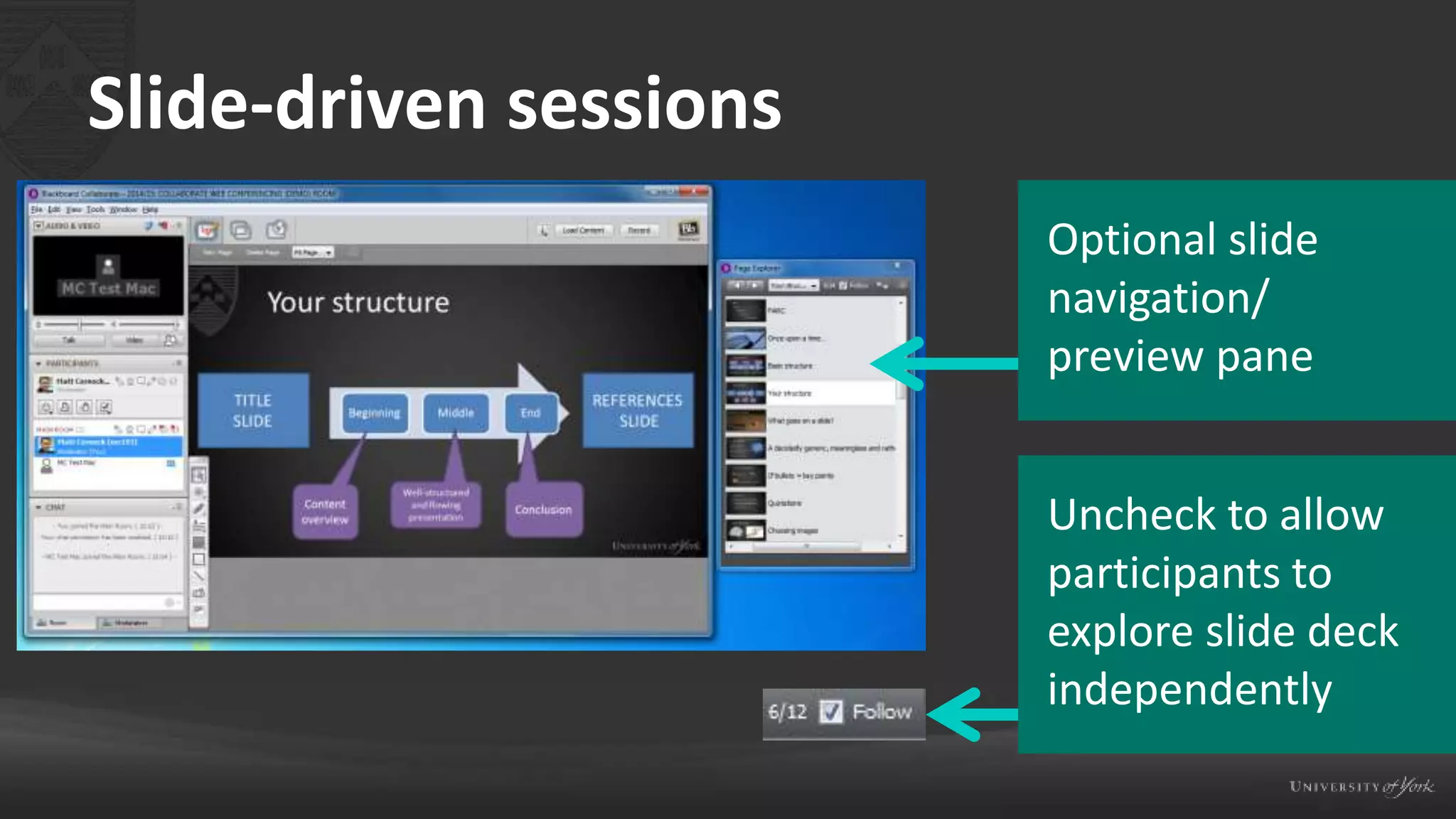
Slide-driven sessions
Optional slide
navigation/
preview pane
Uncheck to allow
participants to
explore slide deck
independently
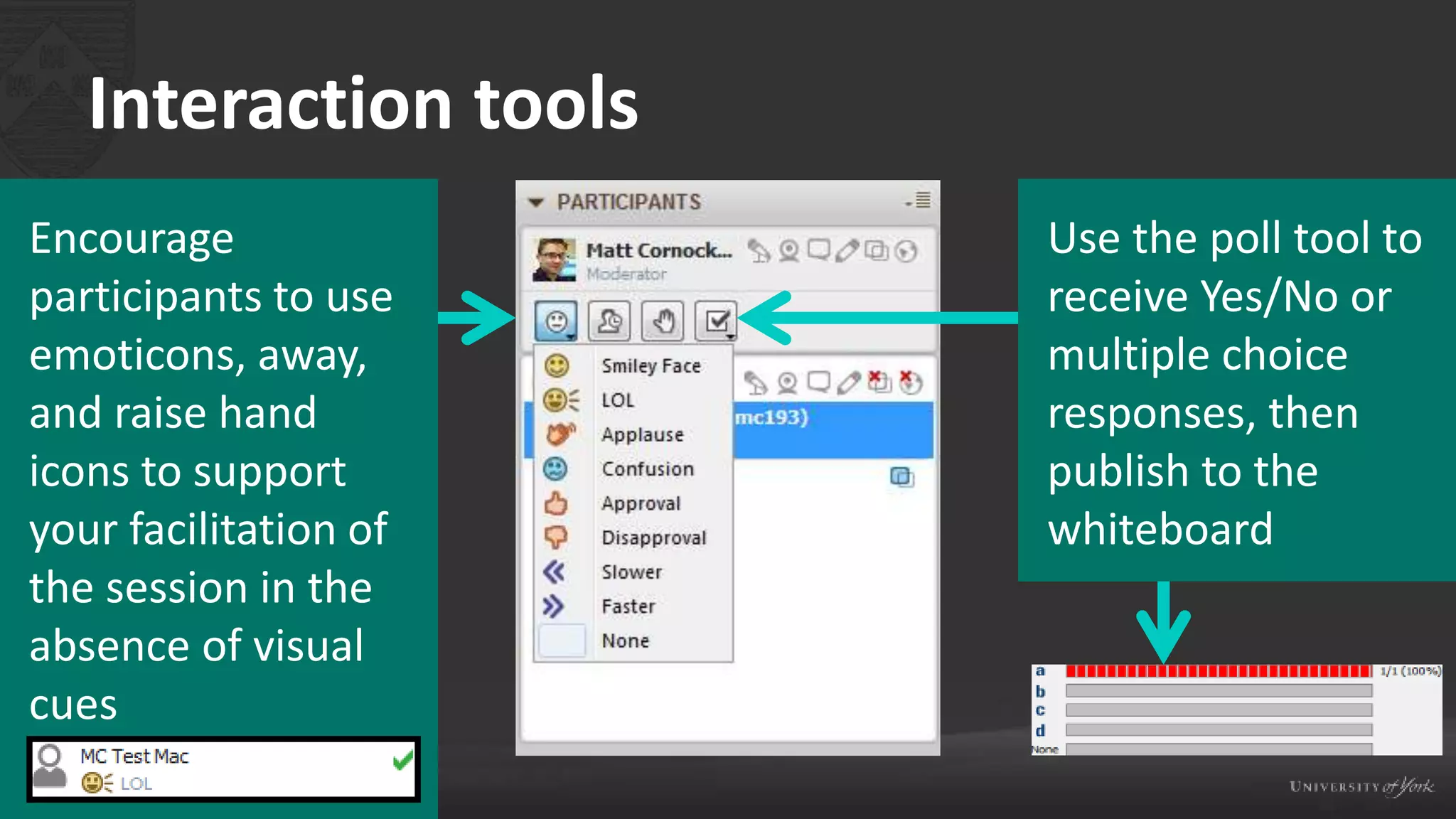
Interaction tools
Encourage
participants to use
emoticons, away,
and raise hand
icons to support
your facilitation of
the session in the
absence of visual
cues
Use the poll tool to
receive Yes/No or
multiple choice
responses, then
publish to the
whiteboard
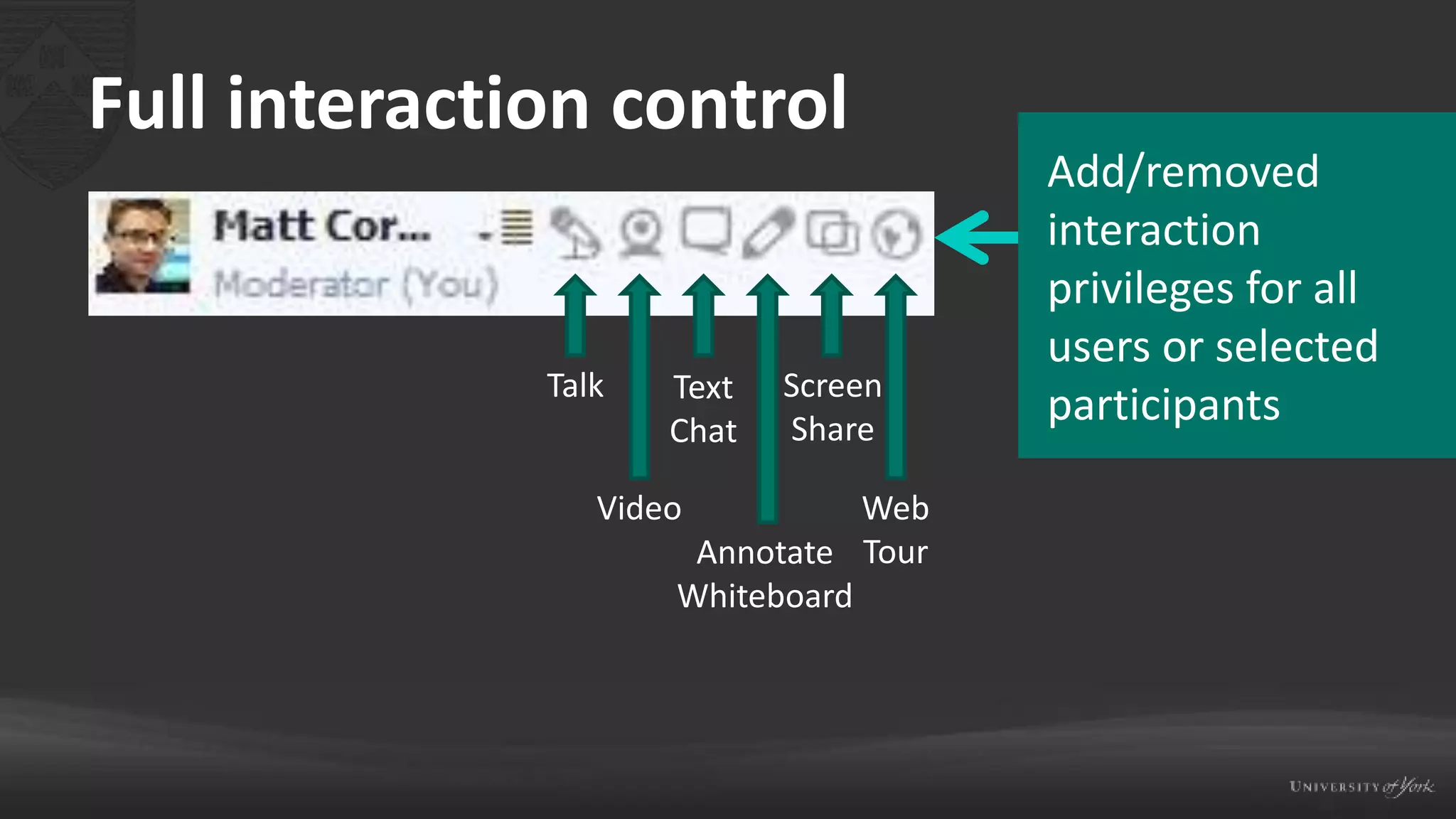
Full interaction control
Talk
Video
Text
Chat
Annotate
Whiteboard
Screen
Share
Web
Tour
Add/removed
interaction
privileges for all
users or selected
participants
Collaborative workspace
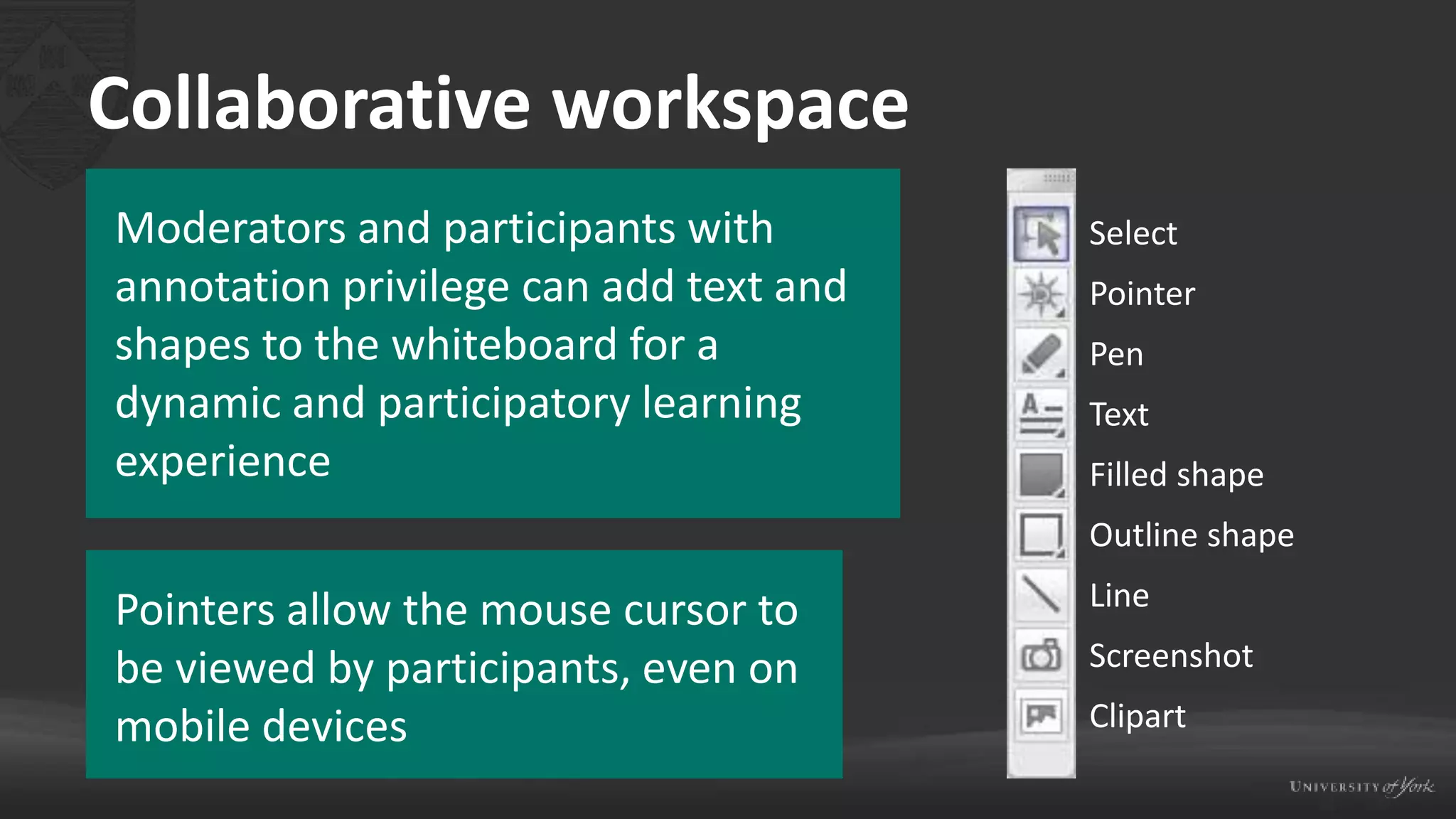
Moderators and participants with
annotation privilege can add text and
shapes to the whiteboard for a
dynamic and participatory learning
experience
Pointers allow the mouse cursor to
be viewed by participants, even on
mobile devices
Select
Pointer
Pen
Text
Filled shape
Outline shape
Line
Screenshot
Clipart
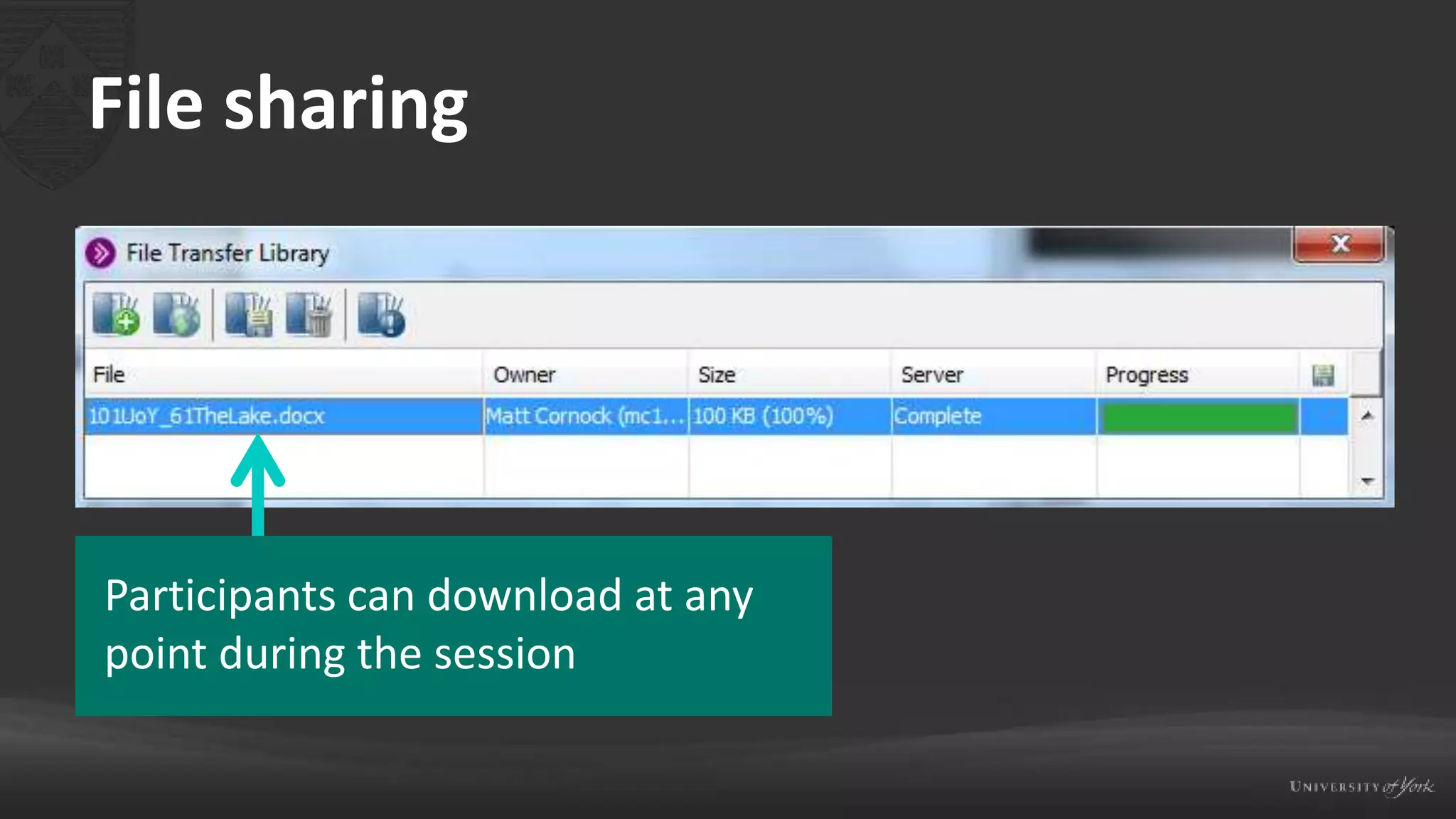
File sharing
Participants can download at any
point during the session
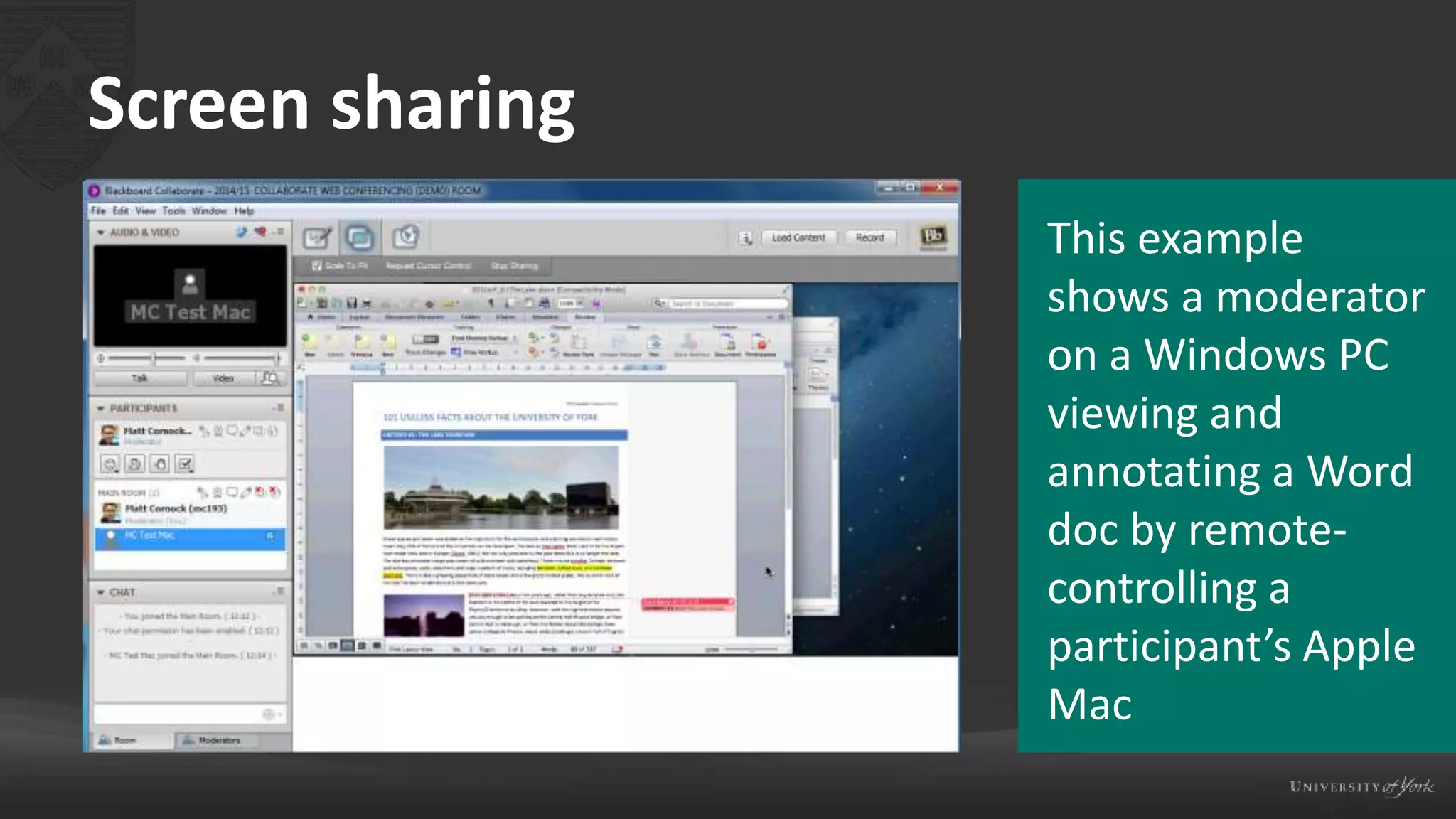
Screen sharing
This example
shows a moderator
on a Windows PC
viewing and
annotating a Word
doc by remote-
controlling a
participant’s Apple
Mac
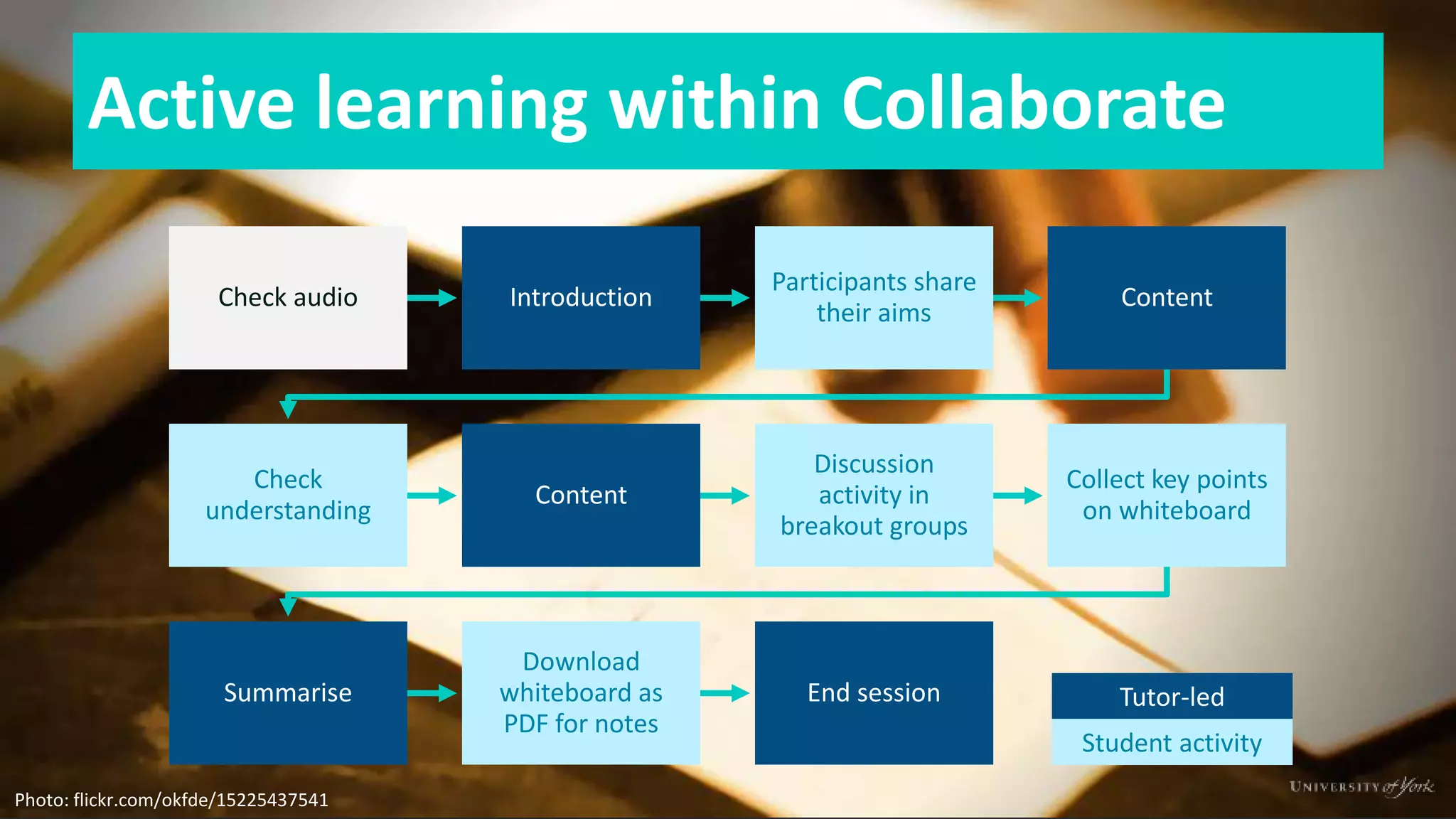
Active learning within Collaborate
Check audio Introduction
Participants share
their aims
Content
Check
understanding
Content
Discussion
activity in
breakout groups
Collect key points
on whiteboard
Summarise
Download
whiteboard as
PDF for notes
End session Tutor-led
Student activity
Photo: flickr.com/okfde/15225437541
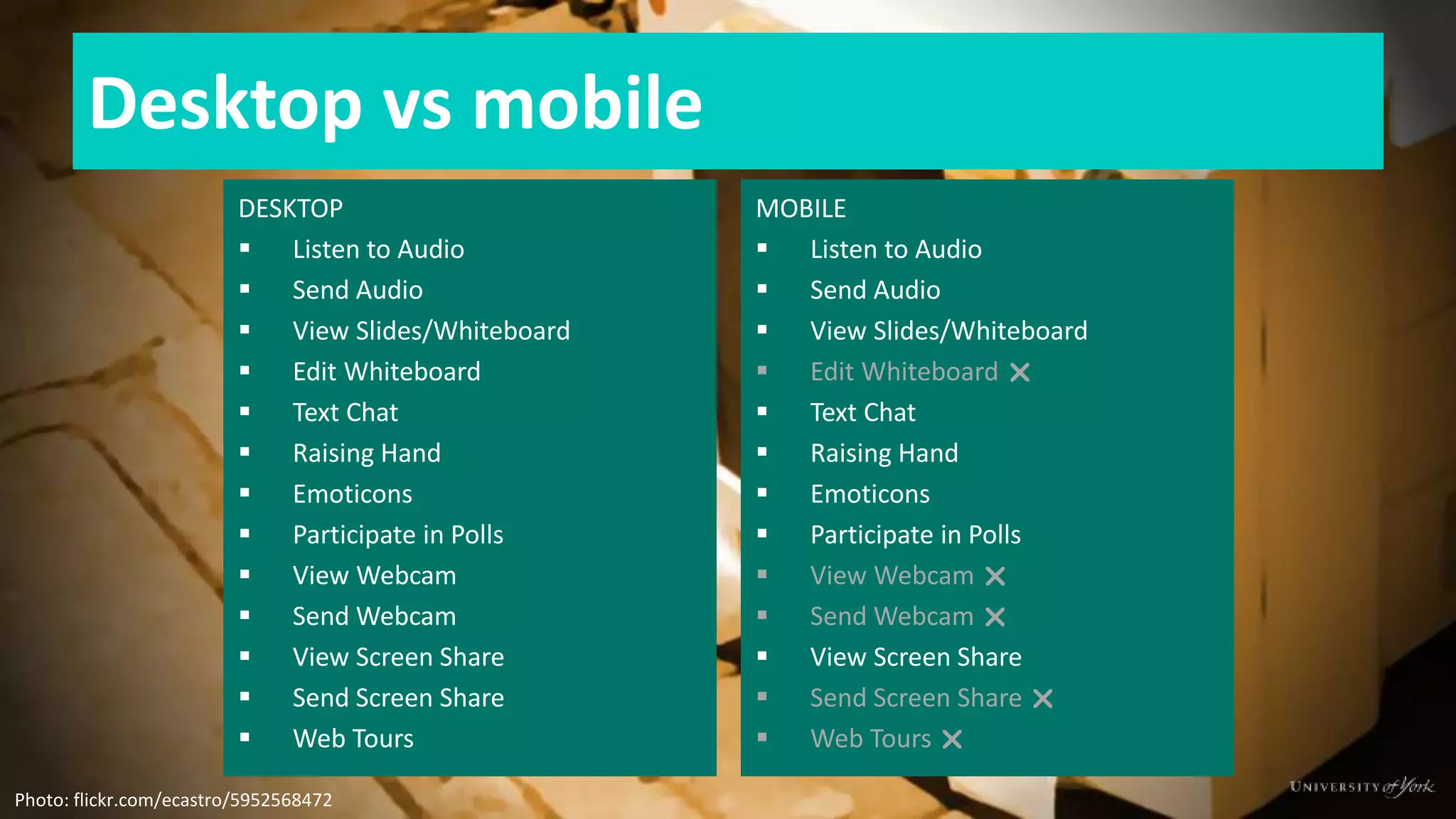
Desktop vs mobile
DESKTOP
 Listen to Audio
 Send Audio
 View Slides/Whiteboard
 Edit Whiteboard
 Text Chat
 Raising Hand
 Emoticons
 Participate in Polls
 View Webcam
 Send Webcam
 View Screen Share
 Send Screen Share
 Web Tours
MOBILE
 Listen to Audio
 Send Audio
 View Slides/Whiteboard
 Edit Whiteboard 
 Text Chat
 Raising Hand
 Emoticons
 Participate in Polls
 View Webcam 
 Send Webcam 
 View Screen Share
 Send Screen Share 
 Web Tours 
Photo: flickr.com/ecastro/5952568472
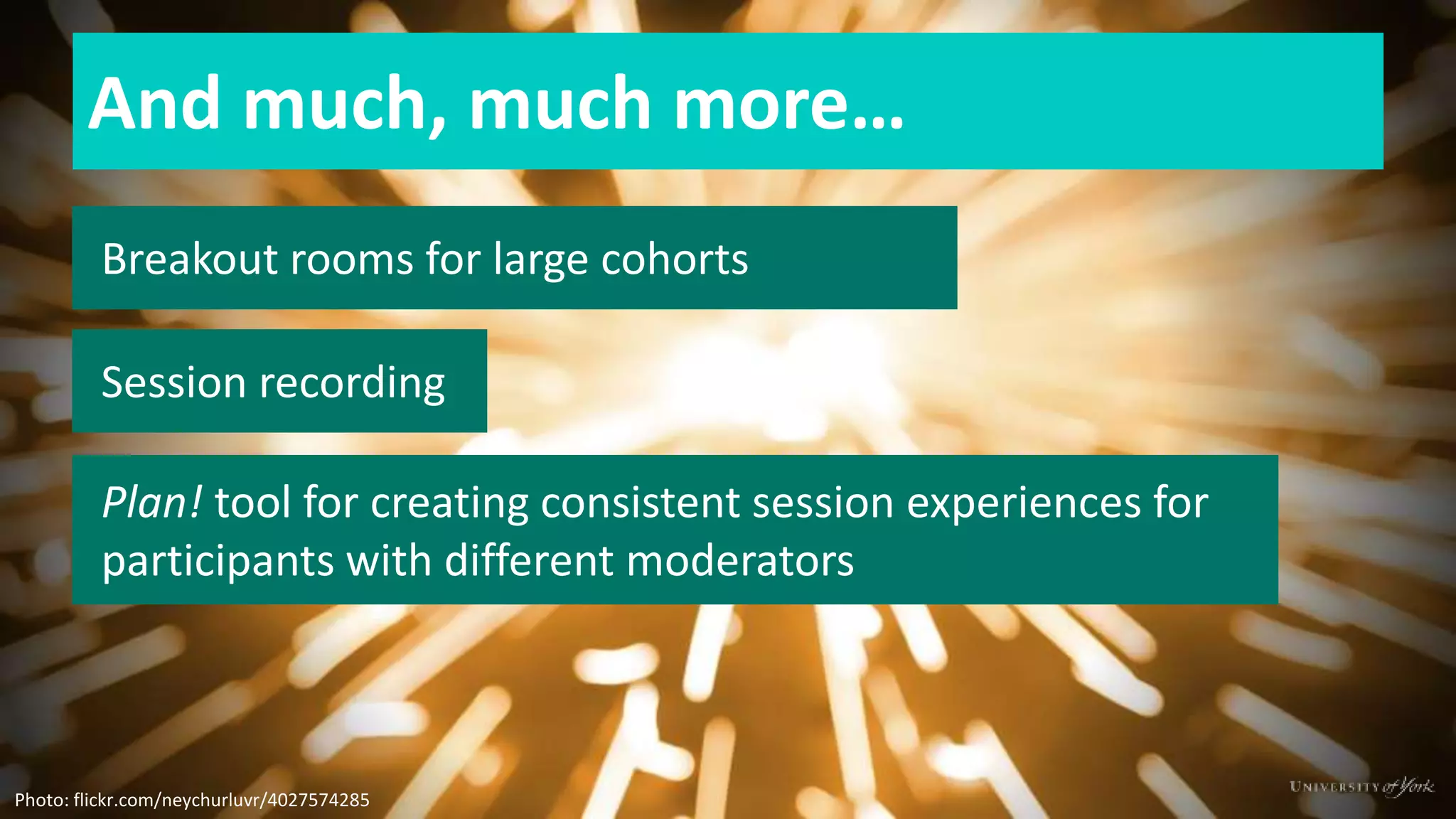
And much, much more…
Breakout rooms for large cohorts
Session recording
Plan! tool for creating consistent session experiences for
participants with different moderators
Photo: flickr.com/neychurluvr/4027574285
Further info and guides
Complete guides for getting started with
Collaborate are available online
http://bit.ly/eldt-webinars
Contact us to discuss use cases or to set up a
separate Collaborate site in Yorkshare
vle-support@york.ac.uk

Blackboard Collaborate Overview

  • 1.
    Blackboard Collaborate Matt Cornock E-LearningDevelopment Team University of York mattcornock
  • 2.
    Key uses: synchronousdiscussion Photo: flickr.com/ernestduffoo/5741454316 Text chat Voice chat Video chat Full control and support for multiple simultaneous speakers
  • 3.
    Key uses: presentations Presentand view on or off campus Improve access to external speakers Remote student presentations Photo: flickr.com/juhansonin/3947180005 More opportunities for audience engagement
  • 4.
    Key uses: supervision Virtualoffice hours Personal support for distance learners and placement students Review assessments and feedback More opportunities for audience engagement
  • 5.
    Key uses: recruitmentand outreach Virtual open days, live chat and presentations Online public engagement events No University log in required Mobile app for participants for quick access Photo: flickr.com/jorgecorrea/364792633
  • 6.
    Collaborate layout PC andMac have identical layout Moderator and participant see same interface
  • 7.
    Collaborate mobile app Availablefree on iOS, Android and Kindle Fire Clean interface, for participants only Voice chat and text chat
  • 8.
    Talk and videochat Easy setup wizard to help get microphone and headset sorted Button controls to talk and share webcam Quick access to volume controls Webcam auto- switches to whoever is talking
  • 9.
    Content for sessions UsePowerPoint slides to hold the content for sessions and presentations. To import: 1. Close PowerPoint. 2. Click the Load Content button to upload the file.
  • 10.
    Slide-driven sessions Optional slide navigation/ previewpane Uncheck to allow participants to explore slide deck independently
  • 11.
    Interaction tools Encourage participants touse emoticons, away, and raise hand icons to support your facilitation of the session in the absence of visual cues Use the poll tool to receive Yes/No or multiple choice responses, then publish to the whiteboard
  • 12.
  • 13.
    Collaborative workspace Moderators andparticipants with annotation privilege can add text and shapes to the whiteboard for a dynamic and participatory learning experience Pointers allow the mouse cursor to be viewed by participants, even on mobile devices Select Pointer Pen Text Filled shape Outline shape Line Screenshot Clipart
  • 14.
    File sharing Participants candownload at any point during the session
  • 15.
    Screen sharing This example showsa moderator on a Windows PC viewing and annotating a Word doc by remote- controlling a participant’s Apple Mac
  • 16.
    Active learning withinCollaborate Check audio Introduction Participants share their aims Content Check understanding Content Discussion activity in breakout groups Collect key points on whiteboard Summarise Download whiteboard as PDF for notes End session Tutor-led Student activity Photo: flickr.com/okfde/15225437541
  • 17.
    Desktop vs mobile DESKTOP Listen to Audio  Send Audio  View Slides/Whiteboard  Edit Whiteboard  Text Chat  Raising Hand  Emoticons  Participate in Polls  View Webcam  Send Webcam  View Screen Share  Send Screen Share  Web Tours MOBILE  Listen to Audio  Send Audio  View Slides/Whiteboard  Edit Whiteboard   Text Chat  Raising Hand  Emoticons  Participate in Polls  View Webcam   Send Webcam   View Screen Share  Send Screen Share   Web Tours  Photo: flickr.com/ecastro/5952568472
  • 18.
    And much, muchmore… Breakout rooms for large cohorts Session recording Plan! tool for creating consistent session experiences for participants with different moderators Photo: flickr.com/neychurluvr/4027574285
  • 19.
    Further info andguides Complete guides for getting started with Collaborate are available online http://bit.ly/eldt-webinars Contact us to discuss use cases or to set up a separate Collaborate site in Yorkshare vle-support@york.ac.uk