Humayun Khan(BS in Library and Information
Sciences.)
Vice principal
SEA School & College Barikot Swat
Contact #. 03321937909
Email : humayunsea@gmail.com
1
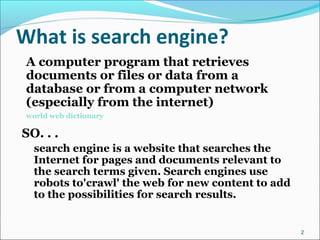
What is search engine?
A computer program that retrieves
documents or files or data from a
database or from a computer network
(especially from the internet)
world web dictionary
2
SO. . .
search engine is a website that searches the
Internet for pages and documents relevant to
the search terms given. Search engines use
robots to'crawl' the web for new content to add
to the possibilities for search results.
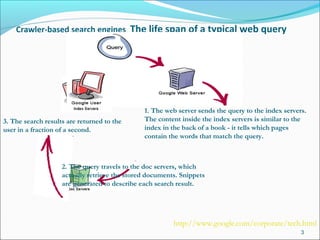
Crawler-based search engines The life span of a typical web query
3
1. The web server sends the query to the index servers.
The content inside the index servers is similar to the
index in the back of a book - it tells which pages
contain the words that match the query.
2. The query travels to the doc servers, which
actually retrieve the stored documents. Snippets
are generated to describe each search result.
3. The search results are returned to the
user in a fraction of a second.
http://www.google.com/corporate/tech.html
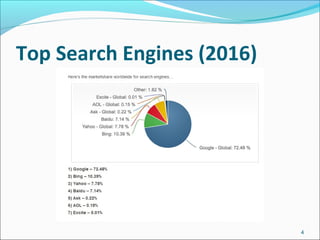
Top Search Engines (2016)
4
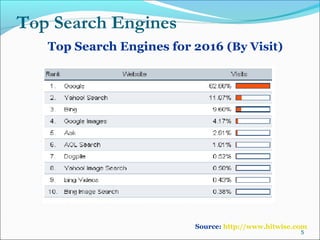
Top Search Engines for 2016 (By Visit)
5
Top Search Engines
Source: http://www.hitwise.com
Google: A Search Engine
6
Facts about Google
 Google started in January, 1996 as a research project at
Stanford University, by Ph.D. candidates Larry Page (24
Years old) and Sergey Brin (23 years old).
 The name “Google” was an accident. A spelling mistake
made by the original founders who thought they were going
for “Googol”.
 Google is the largest American company (by market
capitalization)
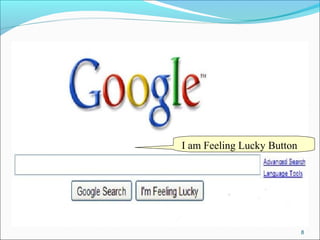
 The infamous “I m feeling lucky” button is nearly never
used. However, it costs Google $110 Million a Year
7
Cont…
8
I am Feeling Lucky Button
Cont…
The Google search engine receives about a
billion search requests per day.
Google has the largest network of translators in
the world.
Google consists of over 450,000 servers
Number of languages in which you can have the
Google home page set up, including Urdu and
Latin : 88
9
10
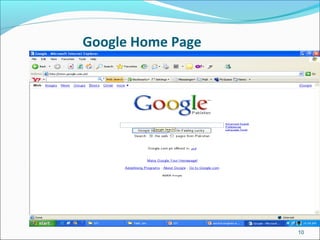
Google Home Page
11
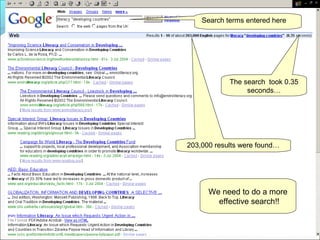
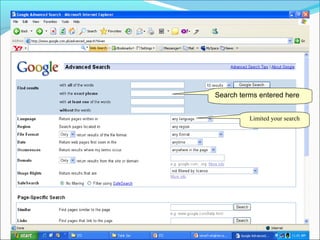
Search terms entered here
The search took 0.35
seconds…
203,000 results were found…
We need to do a more
effective search!!
12
Names Used for Digital Library
Search terms entered here
Limited your search
How to read search results
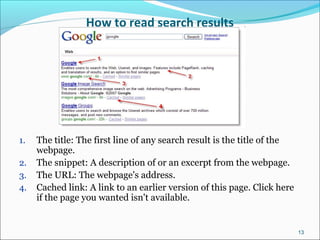
1. The title: The first line of any search result is the title of the
webpage.
2. The snippet: A description of or an excerpt from the webpage.
3. The URL: The webpage's address.
4. Cached link: A link to an earlier version of this page. Click here
if the page you wanted isn't available.
13
Google: Advance Search Features
Phrase Search [ “ ” ]: always use quotations to search a
phrase
Example: “Digital Library”
Hyphen [ -]: always hyphenate a word that is sometimes
hyphenated
Example: front-line searches front-line, frontline, and
front line
Synonyms Search [~ ]: let google “think” of synonyms
Example: ~youth finds youth, juvenile, adolescent
14
More search features…
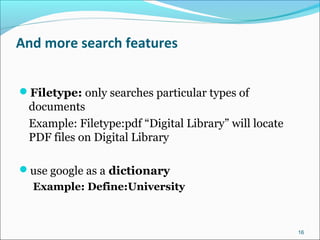
Intitle: Requires terms to appear in the title of the document
Example: intitle: “global warming”
Allintitle: Requires all terms to appear in the title of the document
Example: Allintitle: traditional knowledge intellectual property
pacific
Inurl: requires terms to be in the url
Example: Inurl: ICP “Central Library” will find all references to Central Library
on websites with ICP in the url.
Allinurl: Requires All terms to appear in the URL of the document.
Domain Search [Site:] used to search within a particular Site
Example: Site:icp.edu.pk “Central Library”
15
And more search features
Filetype: only searches particular types of
documents
Example: Filetype:pdf “Digital Library” will locate
PDF files on Digital Library
use google as a dictionary
Example: Define:University
16
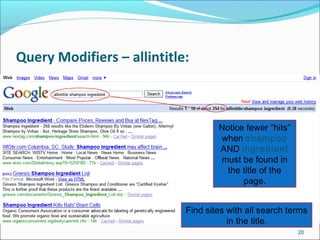
Query Modifiers – intitle:
17
Find sites with one search term in the title.
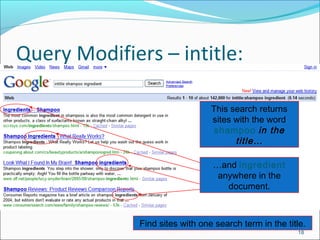
Query Modifiers – intitle:
18
…and ingredient
anywhere in the
document.
This search returns
sites with the word
shampoo in the
title…
Find sites with one search term in the title.
Query Modifiers – allintitle:
19
Find sites with ALL search terms in the title.
Query Modifiers – allintitle:
20
Notice fewer “hits”
when shampoo
AND ingredient
must be found in
the title of the
page.
Find sites with all search terms
in the title.
Query Modifiers – inurl:
21
Find sites with one search term in the URL.
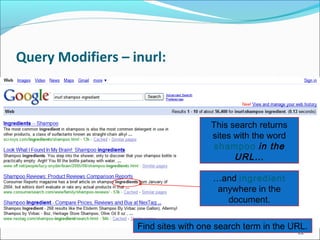
Query Modifiers – inurl:
22
…and ingredient
anywhere in the
document.
This search returns
sites with the word
shampoo in the
URL…
Find sites with one search term in the URL.
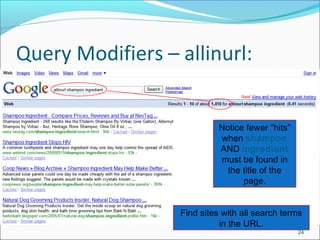
Query Modifiers – allinurl:
23
Find sites with ALL search terms in the URL.
Query Modifiers – allinurl:
24
Find sites with all search terms
in the URL.
Notice fewer “hits”
when shampoo
AND ingredient
must be found in
the title of the
page.
Query Modifiers – site:
25
Limit your search to a specific web site.
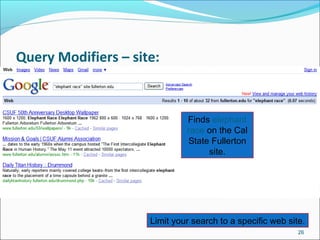
Query Modifiers – site:
26
Example 1
Enter search terms,
then qualifier.
Finds elephant
race on the Cal
State Fullerton
site.
Limit your search to a specific web site.
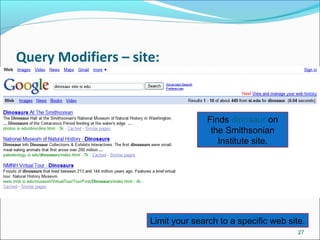
Query Modifiers – site:
27
Example 2
Enter search
terms, then
qualifier.
Finds dinosaur on
the Smithsonian
Institute site.
Limit your search to a specific web site.
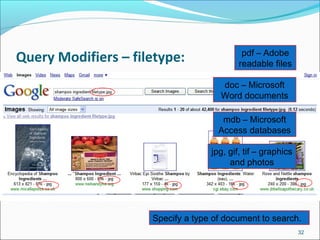
Query Modifiers – filetype:
28
Specify a type of document to search
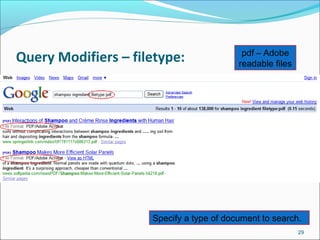
Query Modifiers – filetype:
29
Specify a type of document to search.
pdf – Adobe
readable files
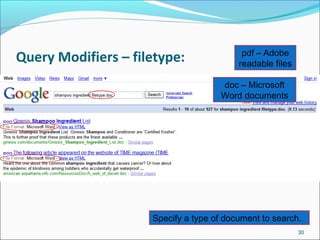
Query Modifiers – filetype:
30
Specify a type of document to search.
pdf – Adobe
readable files
doc – Microsoft
Word documents
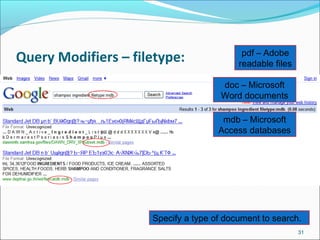
Query Modifiers – filetype:
31
Specify a type of document to search.
pdf – Adobe
readable files
doc – Microsoft
Word documents
mdb – Microsoft
Access databases
Query Modifiers – filetype:
32
D’oh!
If you get no results from Google
Web, try Google Images.
Specify a type of document to search.
pdf – Adobe
readable files
doc – Microsoft
Word documents
mdb – Microsoft
Access databases
jpg, gif, tif – graphics
and photos
Query Modifiers – filetype:
33
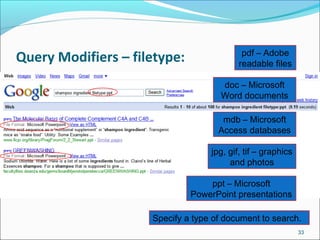
Specify a type of document to search.
pdf – Adobe
readable files
doc – Microsoft
Word documents
mdb – Microsoft
Access databases
jpg, gif, tif – graphics
and photos
ppt – Microsoft
PowerPoint presentations
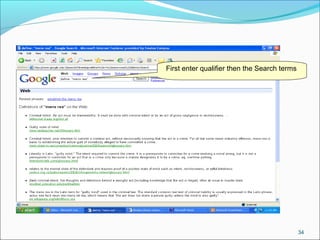
Example: dictionary search
34
First enter qualifier then the Search terms
Boolean searching
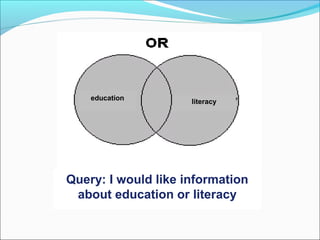
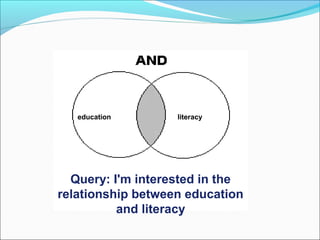
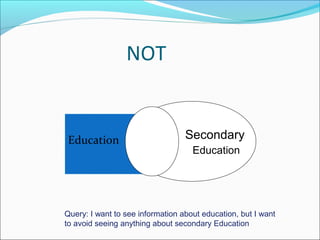
Uses commands (operators) such as AND, OR, NOT
Different search tools may use different symbols
AND +
NOT –
Different search tools may use OR or AND as a default
setting
Sometimes Boolean operators must be entered in capital
letters (e.g. Synergy)
education
literacy
Query: I would like information
about education or literacy
education literacy
Query: I'm interested in the
relationship between education
and literacy
NOT
Education Secondary
Education
Query: I want to see information about education, but I want
to avoid seeing anything about secondary Education
Truncation or wildcard
searches
Truncation: place a symbol at the end of the word so
you search for variant endings of that word
e.g. literac$ would look for literature, literacy, literal
Wildcards: place a symbol within a word to find
variations on it
e.g. analy*e would find analyse or analyze
Different symbols - including $ * # ! : - are used by
different search tools
Phrase searching
Using quotation marks allows you to search for an
exact phrase, e.g. “information literacy”
Using NEAR allows you to specify how close to each
other the terms you are searching for should be
Lesser Used Databases of Google
Images
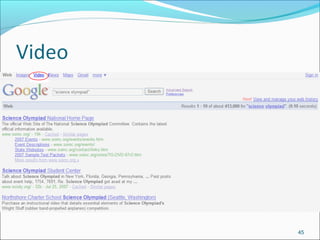
Video
News
Maps
Books
Doc
41
Groups
Labs
Products
Scholar
Directory
42
43
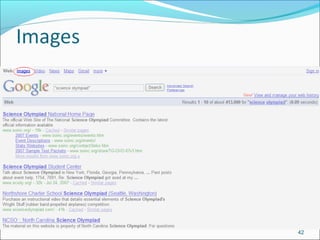
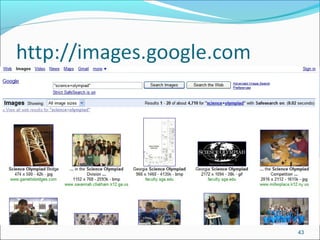
About Google Images
Google analyzes
Text on the web page adjacent to the image
Captions
Get more info online at
http://images.google.com/help/faq_images.html
44
45
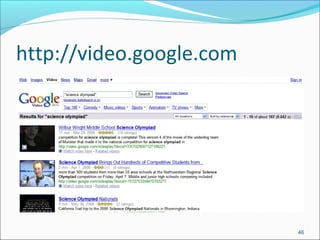
http://video.google.com
46
47
 Google analyzes
 Text on the web page adjacent to the video
 Captions
 Get more info online at
http://video.google.com/video_about.html
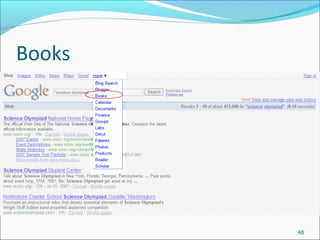
Books
48
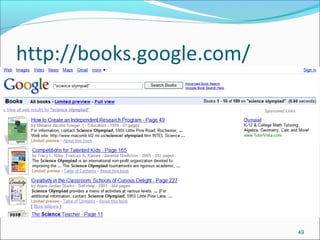
http://books.google.com/
49
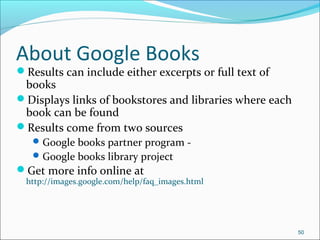
About Google Books
Results can include either excerpts or full text of
books
Displays links of bookstores and libraries where each
book can be found
Results come from two sources
Google books partner program -
Google books library project
Get more info online at
http://images.google.com/help/faq_images.html
50
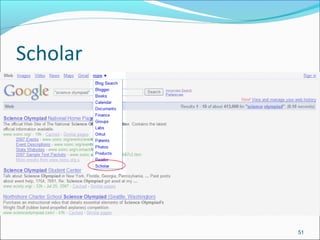
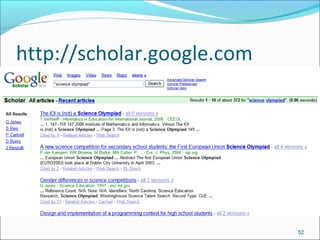
Scholar
51
http://scholar.google.com
52
About Google Scholar
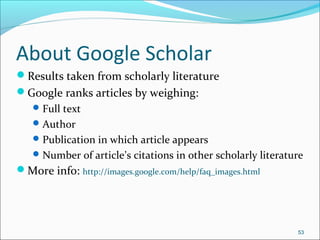
Results taken from scholarly literature
Google ranks articles by weighing:
Full text
Author
Publication in which article appears
Number of article’s citations in other scholarly literature
More info: http://images.google.com/help/faq_images.html
53
Any query regarding search engines.
???
54

Advance searching techniques

  • 1.
    Humayun Khan(BS inLibrary and Information Sciences.) Vice principal SEA School & College Barikot Swat Contact #. 03321937909 Email : humayunsea@gmail.com 1
  • 2.
    What is searchengine? A computer program that retrieves documents or files or data from a database or from a computer network (especially from the internet) world web dictionary 2 SO. . . search engine is a website that searches the Internet for pages and documents relevant to the search terms given. Search engines use robots to'crawl' the web for new content to add to the possibilities for search results.
  • 3.
    Crawler-based search enginesThe life span of a typical web query 3 1. The web server sends the query to the index servers. The content inside the index servers is similar to the index in the back of a book - it tells which pages contain the words that match the query. 2. The query travels to the doc servers, which actually retrieve the stored documents. Snippets are generated to describe each search result. 3. The search results are returned to the user in a fraction of a second. http://www.google.com/corporate/tech.html
  • 4.
  • 5.
    Top Search Enginesfor 2016 (By Visit) 5 Top Search Engines Source: http://www.hitwise.com
  • 6.
  • 7.
    Facts about Google Google started in January, 1996 as a research project at Stanford University, by Ph.D. candidates Larry Page (24 Years old) and Sergey Brin (23 years old).  The name “Google” was an accident. A spelling mistake made by the original founders who thought they were going for “Googol”.  Google is the largest American company (by market capitalization)  The infamous “I m feeling lucky” button is nearly never used. However, it costs Google $110 Million a Year 7
  • 8.
  • 9.
    Cont… The Google searchengine receives about a billion search requests per day. Google has the largest network of translators in the world. Google consists of over 450,000 servers Number of languages in which you can have the Google home page set up, including Urdu and Latin : 88 9
  • 10.
  • 11.
    11 Search terms enteredhere The search took 0.35 seconds… 203,000 results were found… We need to do a more effective search!!
  • 12.
    12 Names Used forDigital Library Search terms entered here Limited your search
  • 13.
    How to readsearch results 1. The title: The first line of any search result is the title of the webpage. 2. The snippet: A description of or an excerpt from the webpage. 3. The URL: The webpage's address. 4. Cached link: A link to an earlier version of this page. Click here if the page you wanted isn't available. 13
  • 14.
    Google: Advance SearchFeatures Phrase Search [ “ ” ]: always use quotations to search a phrase Example: “Digital Library” Hyphen [ -]: always hyphenate a word that is sometimes hyphenated Example: front-line searches front-line, frontline, and front line Synonyms Search [~ ]: let google “think” of synonyms Example: ~youth finds youth, juvenile, adolescent 14
  • 15.
    More search features… Intitle:Requires terms to appear in the title of the document Example: intitle: “global warming” Allintitle: Requires all terms to appear in the title of the document Example: Allintitle: traditional knowledge intellectual property pacific Inurl: requires terms to be in the url Example: Inurl: ICP “Central Library” will find all references to Central Library on websites with ICP in the url. Allinurl: Requires All terms to appear in the URL of the document. Domain Search [Site:] used to search within a particular Site Example: Site:icp.edu.pk “Central Library” 15
  • 16.
    And more searchfeatures Filetype: only searches particular types of documents Example: Filetype:pdf “Digital Library” will locate PDF files on Digital Library use google as a dictionary Example: Define:University 16
  • 17.
    Query Modifiers –intitle: 17 Find sites with one search term in the title.
  • 18.
    Query Modifiers –intitle: 18 …and ingredient anywhere in the document. This search returns sites with the word shampoo in the title… Find sites with one search term in the title.
  • 19.
    Query Modifiers –allintitle: 19 Find sites with ALL search terms in the title.
  • 20.
    Query Modifiers –allintitle: 20 Notice fewer “hits” when shampoo AND ingredient must be found in the title of the page. Find sites with all search terms in the title.
  • 21.
    Query Modifiers –inurl: 21 Find sites with one search term in the URL.
  • 22.
    Query Modifiers –inurl: 22 …and ingredient anywhere in the document. This search returns sites with the word shampoo in the URL… Find sites with one search term in the URL.
  • 23.
    Query Modifiers –allinurl: 23 Find sites with ALL search terms in the URL.
  • 24.
    Query Modifiers –allinurl: 24 Find sites with all search terms in the URL. Notice fewer “hits” when shampoo AND ingredient must be found in the title of the page.
  • 25.
    Query Modifiers –site: 25 Limit your search to a specific web site.
  • 26.
    Query Modifiers –site: 26 Example 1 Enter search terms, then qualifier. Finds elephant race on the Cal State Fullerton site. Limit your search to a specific web site.
  • 27.
    Query Modifiers –site: 27 Example 2 Enter search terms, then qualifier. Finds dinosaur on the Smithsonian Institute site. Limit your search to a specific web site.
  • 28.
    Query Modifiers –filetype: 28 Specify a type of document to search
  • 29.
    Query Modifiers –filetype: 29 Specify a type of document to search. pdf – Adobe readable files
  • 30.
    Query Modifiers –filetype: 30 Specify a type of document to search. pdf – Adobe readable files doc – Microsoft Word documents
  • 31.
    Query Modifiers –filetype: 31 Specify a type of document to search. pdf – Adobe readable files doc – Microsoft Word documents mdb – Microsoft Access databases
  • 32.
    Query Modifiers –filetype: 32 D’oh! If you get no results from Google Web, try Google Images. Specify a type of document to search. pdf – Adobe readable files doc – Microsoft Word documents mdb – Microsoft Access databases jpg, gif, tif – graphics and photos
  • 33.
    Query Modifiers –filetype: 33 Specify a type of document to search. pdf – Adobe readable files doc – Microsoft Word documents mdb – Microsoft Access databases jpg, gif, tif – graphics and photos ppt – Microsoft PowerPoint presentations
  • 34.
    Example: dictionary search 34 Firstenter qualifier then the Search terms
  • 35.
    Boolean searching Uses commands(operators) such as AND, OR, NOT Different search tools may use different symbols AND + NOT – Different search tools may use OR or AND as a default setting Sometimes Boolean operators must be entered in capital letters (e.g. Synergy)
  • 36.
    education literacy Query: I wouldlike information about education or literacy
  • 37.
    education literacy Query: I'minterested in the relationship between education and literacy
  • 38.
    NOT Education Secondary Education Query: Iwant to see information about education, but I want to avoid seeing anything about secondary Education
  • 39.
    Truncation or wildcard searches Truncation:place a symbol at the end of the word so you search for variant endings of that word e.g. literac$ would look for literature, literacy, literal Wildcards: place a symbol within a word to find variations on it e.g. analy*e would find analyse or analyze Different symbols - including $ * # ! : - are used by different search tools
  • 40.
    Phrase searching Using quotationmarks allows you to search for an exact phrase, e.g. “information literacy” Using NEAR allows you to specify how close to each other the terms you are searching for should be
  • 41.
    Lesser Used Databasesof Google Images Video News Maps Books Doc 41 Groups Labs Products Scholar Directory
  • 42.
  • 43.
  • 44.
    About Google Images Googleanalyzes Text on the web page adjacent to the image Captions Get more info online at http://images.google.com/help/faq_images.html 44
  • 45.
  • 46.
  • 47.
    47  Google analyzes Text on the web page adjacent to the video  Captions  Get more info online at http://video.google.com/video_about.html
  • 48.
  • 49.
  • 50.
    About Google Books Resultscan include either excerpts or full text of books Displays links of bookstores and libraries where each book can be found Results come from two sources Google books partner program - Google books library project Get more info online at http://images.google.com/help/faq_images.html 50
  • 51.
  • 52.
  • 53.
    About Google Scholar Resultstaken from scholarly literature Google ranks articles by weighing: Full text Author Publication in which article appears Number of article’s citations in other scholarly literature More info: http://images.google.com/help/faq_images.html 53
  • 54.
    Any query regardingsearch engines. ??? 54

Editor's Notes

  • #3 A SEARCH engine is software designed specifically to allow you to find anything you want on the Internet. There are many search engines available. All you need to do is pick the one that you would like to use, insert the search string (what you are looking for) and start the search. You will get back a list of entries matching your entry and then all you need to do is double click on the lines that interest you and you will be taken to that homepage. Meaning of Crawling: (computing) index linked files or web sites, e.g. so they can later be searched
  • #4 The life span of a typical web query normally lasts less than half a second, yet involves a number of different steps that must be completed before results can be delivered to a person seeking information. The following graphic (Figure 1) illustrates this life span (from http://www.google.com/corporate/tech.html):
  • #5 *Google alone is not sufficient. Even though probably the biggest search engine, studies show that less than half the searchable web is fully searchable in google. Tip 1: Use the ‘advanced search’ option with ALL search engines to refine your search Tip 2: Become familiar with your search engine by looking at the ‘Advanced Search Tips’ page