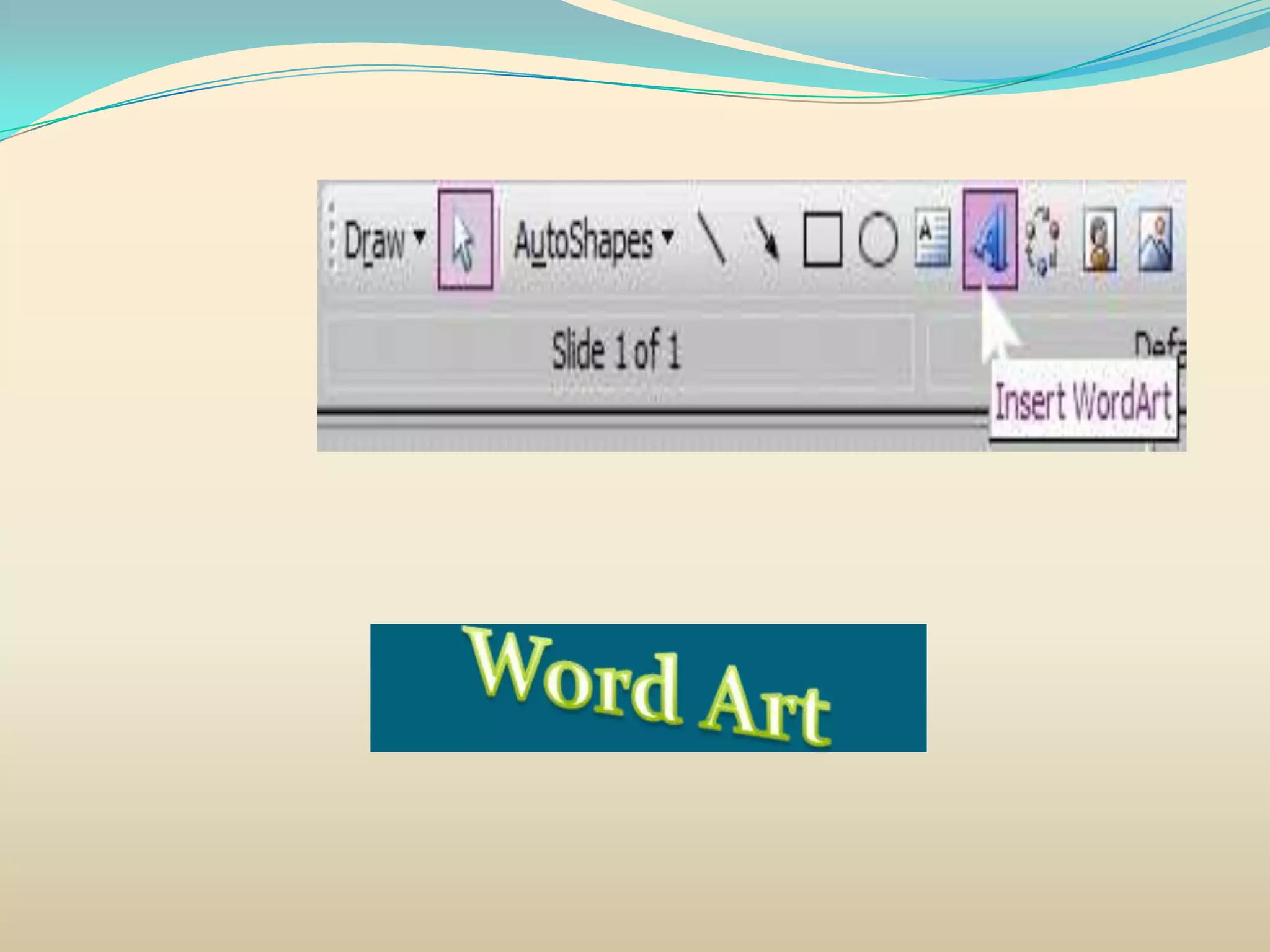
Goal: Create a basic PowerPoint presentation slide

• Slide Masters and gradient background fills
• Adding text boxes, images, auto shapes, drop
    shadows,
•   clip art, sounds, movies, and hyperlinks
•    How to create your own template
•    Custom animations and slide transition basics
•   Speaker notes
•    Combining existing presentations
•    Slide Show controls
Presentation Guidelines
 The key to a good presentation is developing well
  organized, clear, and professional looking slides.

 Slide layout, font, color scheme, and slide content
 are the main components to developing a great
 presentation.

 Use no more than six bullet points per slide.
 Minimize the number of fonts used in your
  presentation.
 Keep font sizes consistent.
 Don’t type in all caps.
 Keep bullet points short and to the point.
  Incomplete sentences are OK.
 For contrast, use a light colored font on a
  dark background and vice versa.
 Use bold formatting to make appropriate
  words stand out.
•Minimize use of italics. They are more
difficult to read.

•Do not vary the look of one slide greatly
from the next.

• Consistency is the key.

• Keep it simple.
Keep your objects Big.
 Make your information Clear.
 Limit the number of slides
 3 slides per minute is the
 maximum
 Run your presentation from a hard disk rather
  than from removable media.
 Communication is the key.
 Use Text to support the communication.
 Use Pictures to simplify complex concepts.
 Use Animations for complex relationships.
 Use Visuals to support, not to distract.
 Use Sounds only when absolutely necessary.
 Practice moving between slides.
 Don’t read from your slides.
 Don’t speak to your slides.
 Be prepared for technical difficulties
 Avoid the use of flashy transitions.
There are three options to create a new
presentation:
1. AutoContent Wizard
2. Design Template
3. Blank Presentation
 Creating a Template and Presentation with the
Blank Presentation Option
1. Open PowerPoint. From the Start
button in the taskbar, choose
Programs > Microsoft PowerPoint.
2. A new “Blank Presentation” is the
automatic default.
3. Slide Master
View   Master  Slide Master
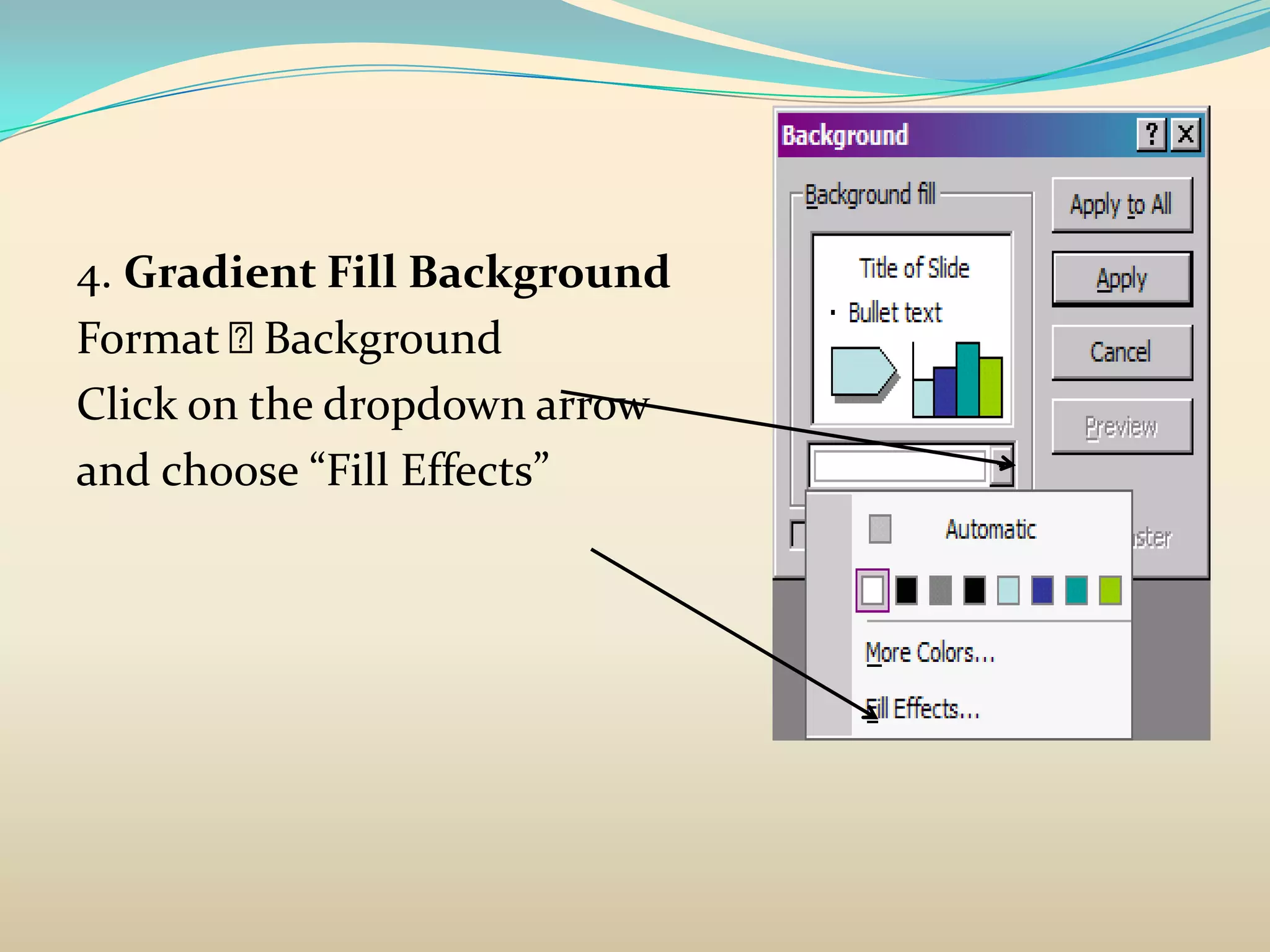
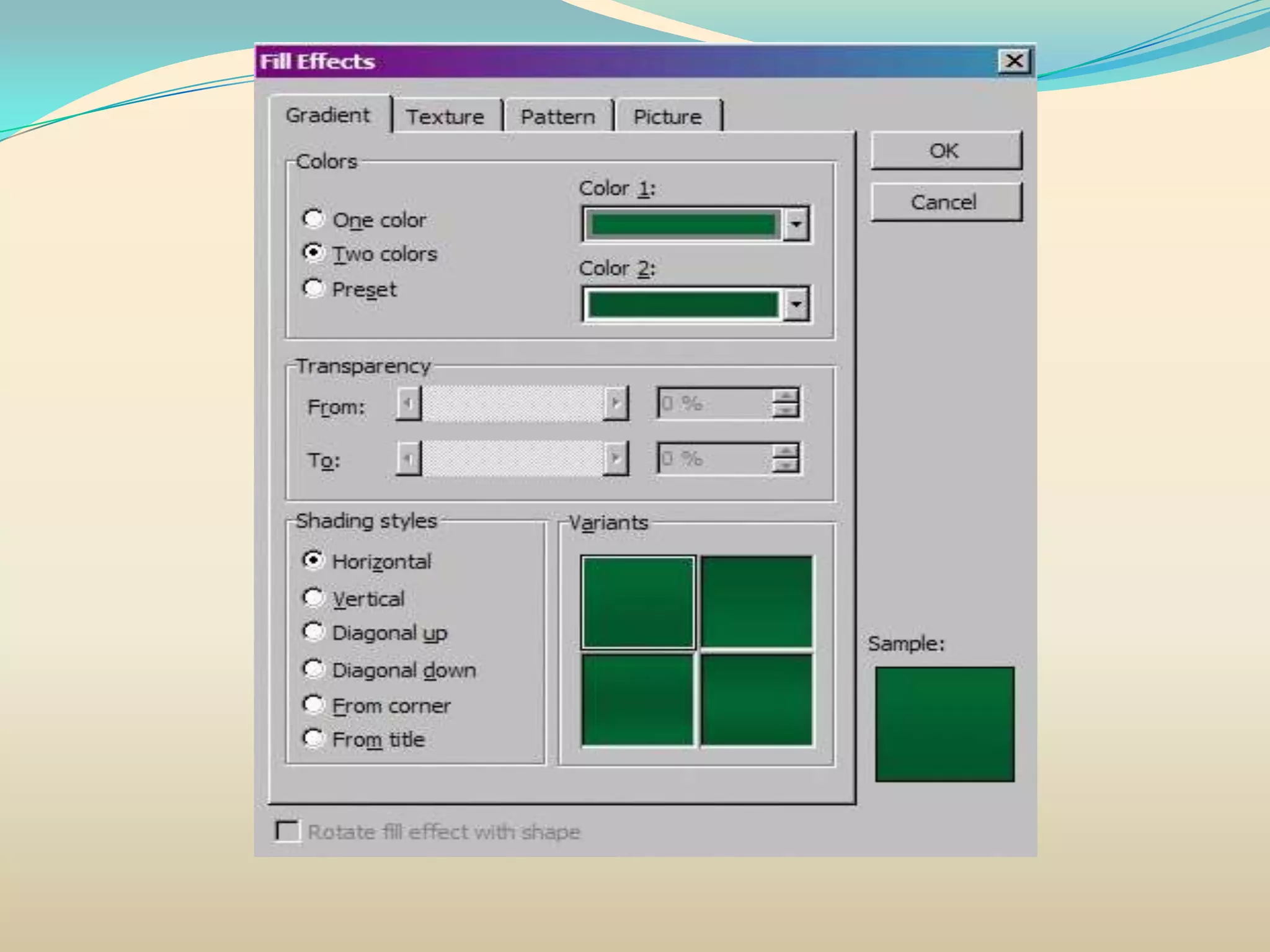
4. Gradient Fill Background
Format   Background
Click on the dropdown arrow
and choose “Fill Effects”
Color guidelines
• Select intense colors when you want to make text stand
   out, but keep in mind that too much of a good thing can
   overwhelm viewers.

• Select contrasting colors for slide text and the slide
   background to make the text easier for your audience to
   see and read.

• Select complementary colors to make your color
   combinations aesthetically pleasing – contrast a
   secondary color (a color created by mixing two primary
   colors) with the third (complementary) primary color.
Complementary Colors

The following list describes the three secondary
 colors and their complementary primary colors:

    Purple (blue and red) goes with yellow.
    Green (yellow and blue) goes with red.
    Orange (yellow and red) goes with blue.
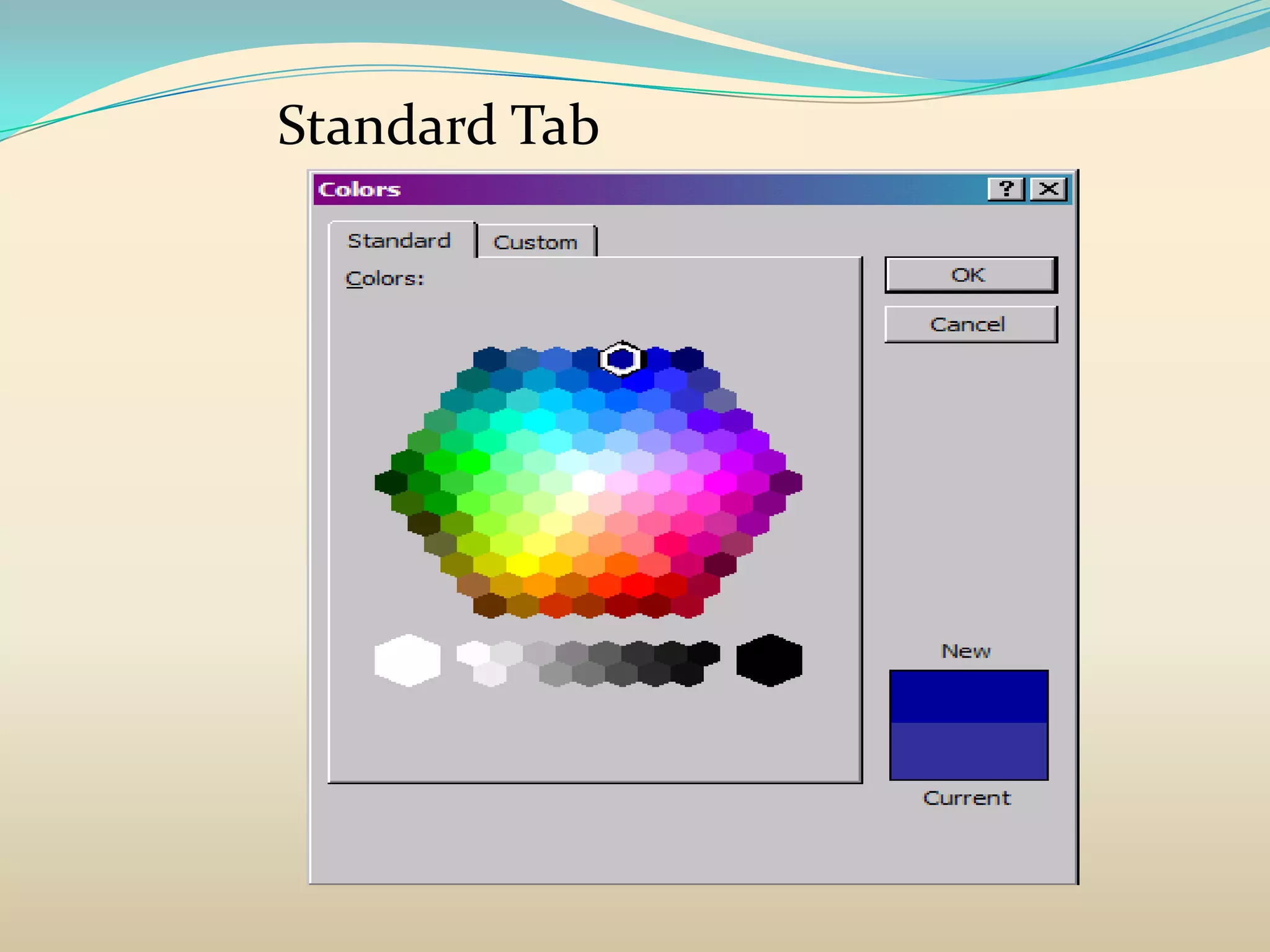
Standard Tab
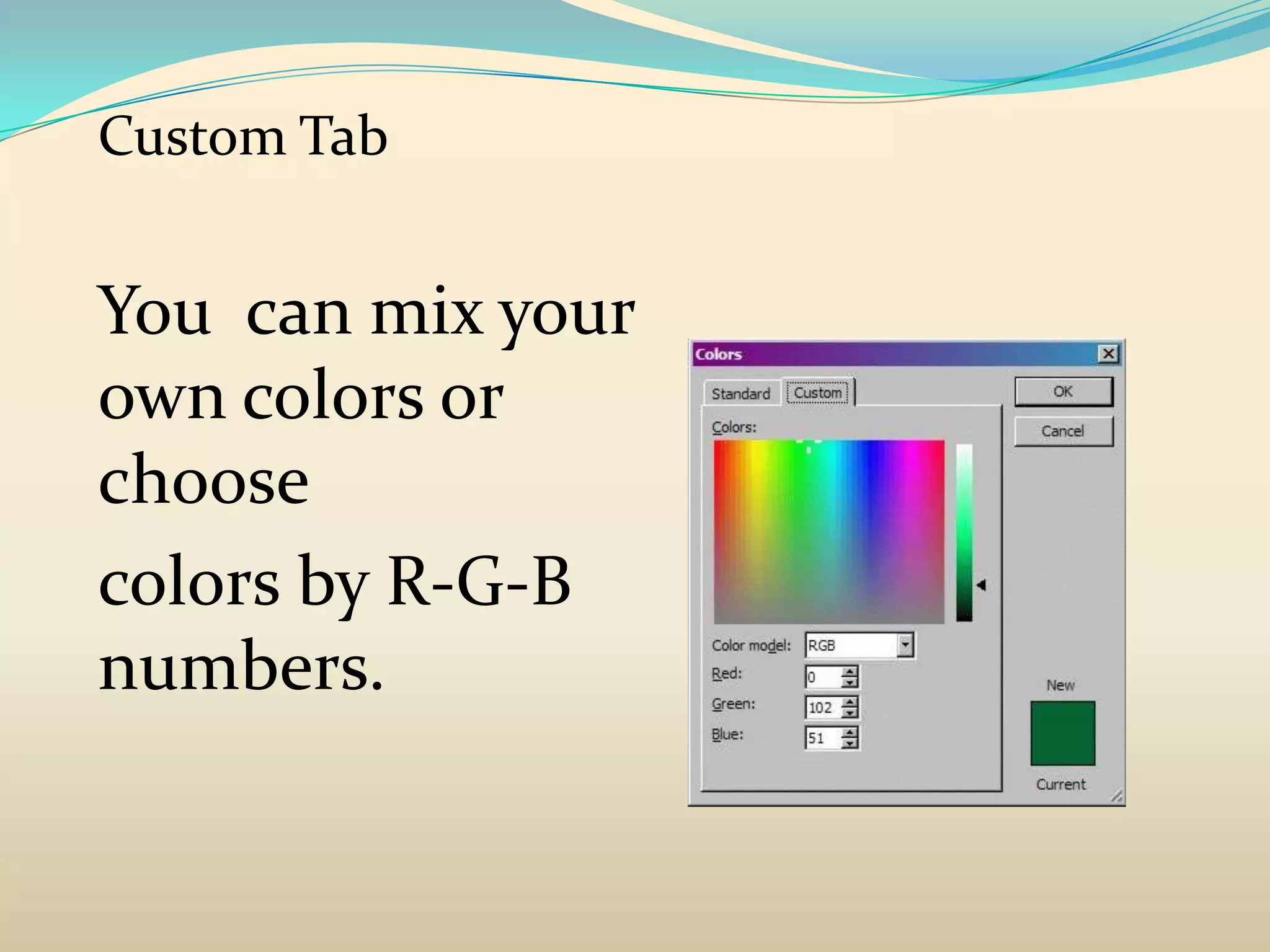
Custom Tab


You can mix your
own colors or
choose
colors by R-G-B
numbers.
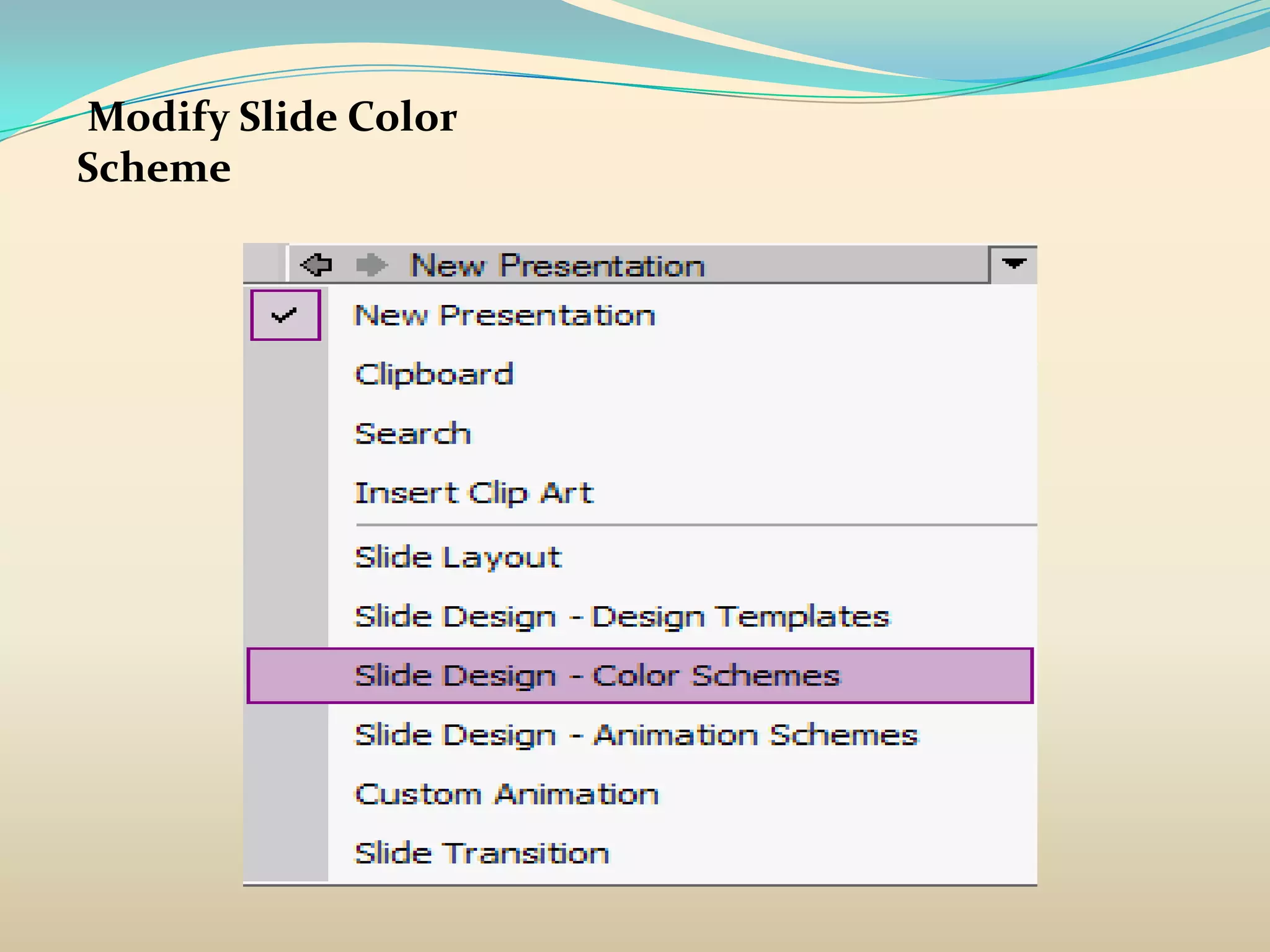
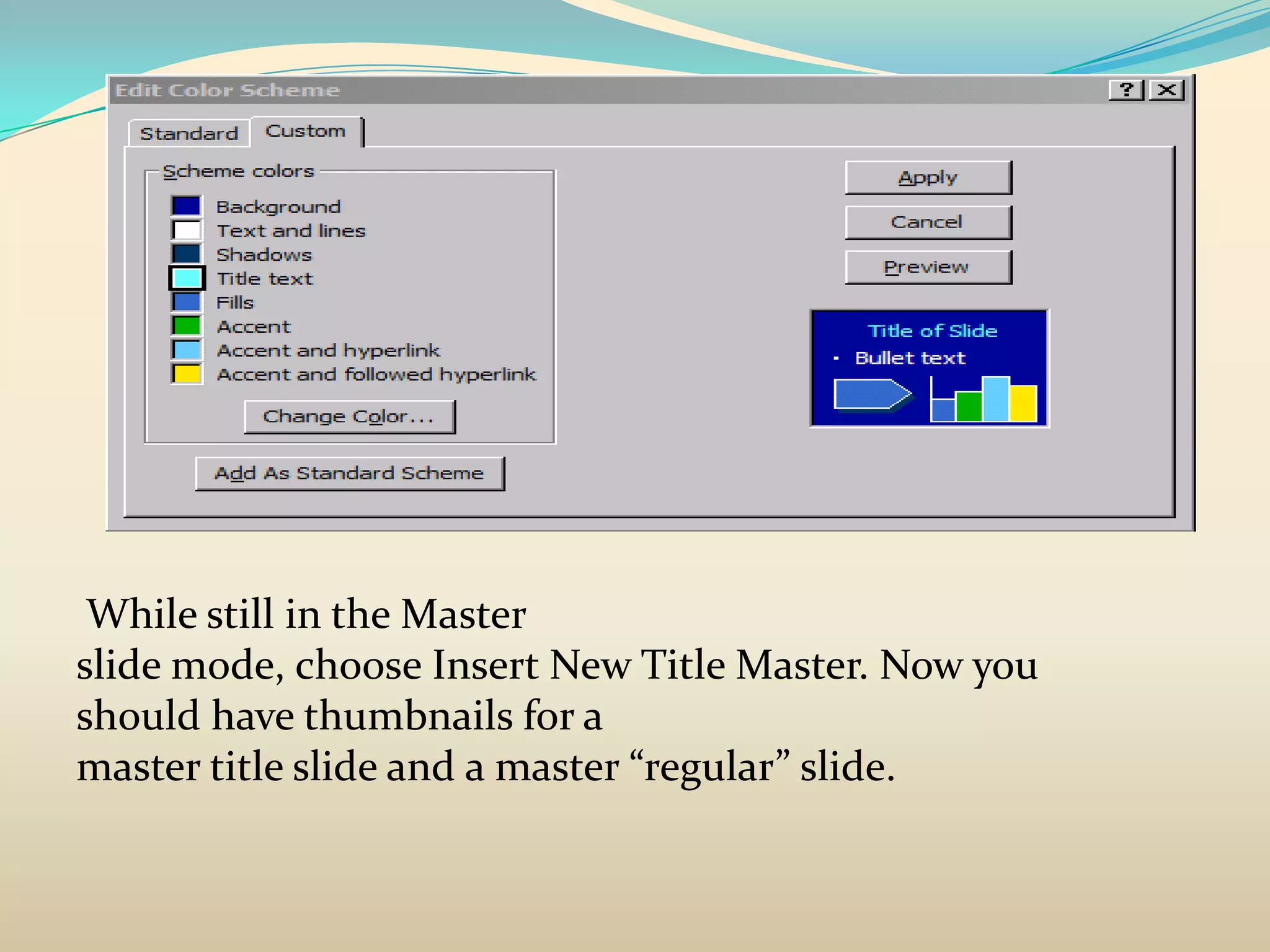
Modify Slide Color
Scheme
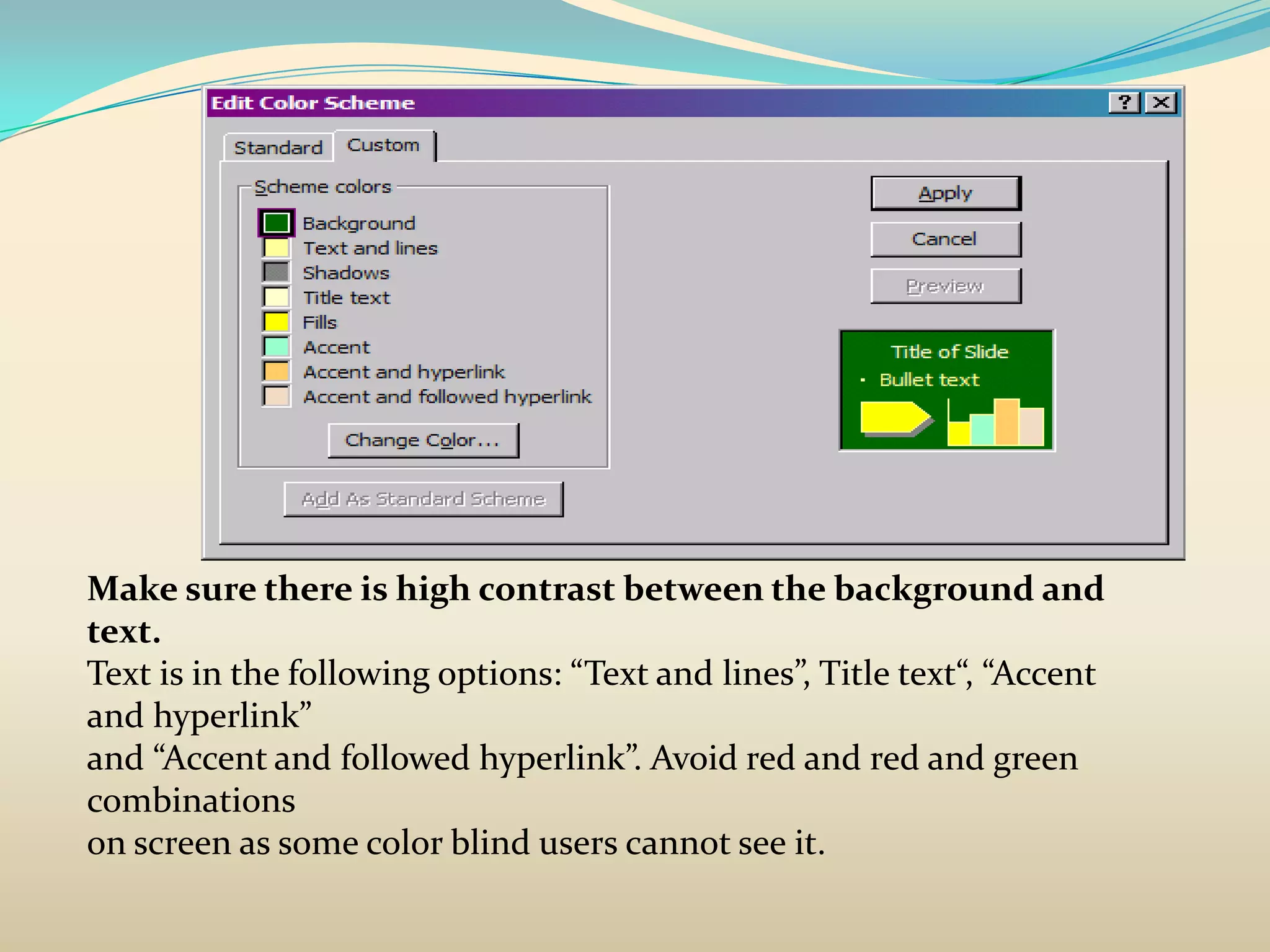
Make sure there is high contrast between the background and
text.
Text is in the following options: “Text and lines”, Title text“, “Accent
and hyperlink”
and “Accent and followed hyperlink”. Avoid red and red and green
combinations
on screen as some color blind users cannot see it.
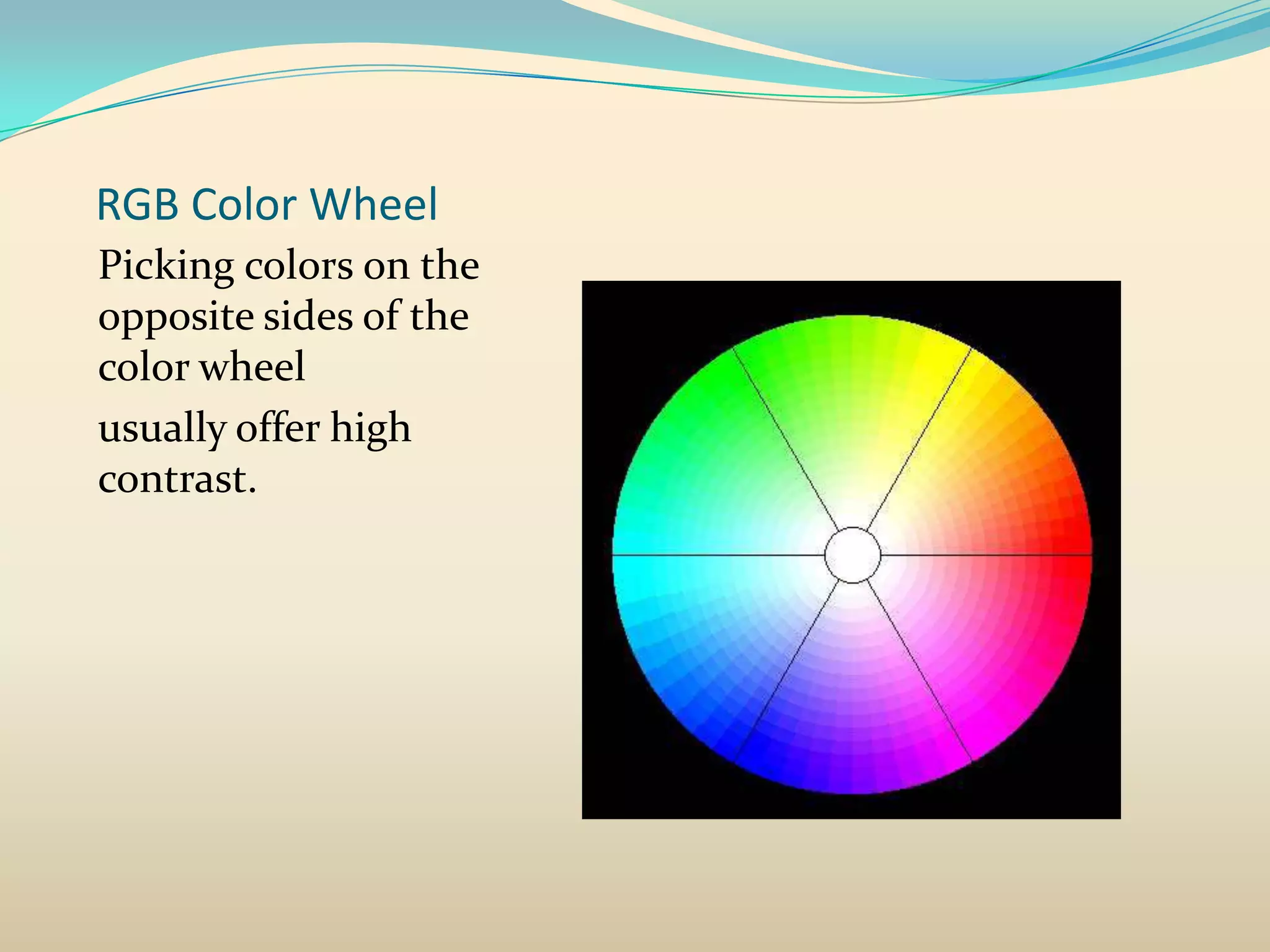
RGB Color Wheel
Picking colors on the
opposite sides of the
color wheel
usually offer high
contrast.
While still in the Master
slide mode, choose Insert New Title Master. Now you
should have thumbnails for a
master title slide and a master “regular” slide.
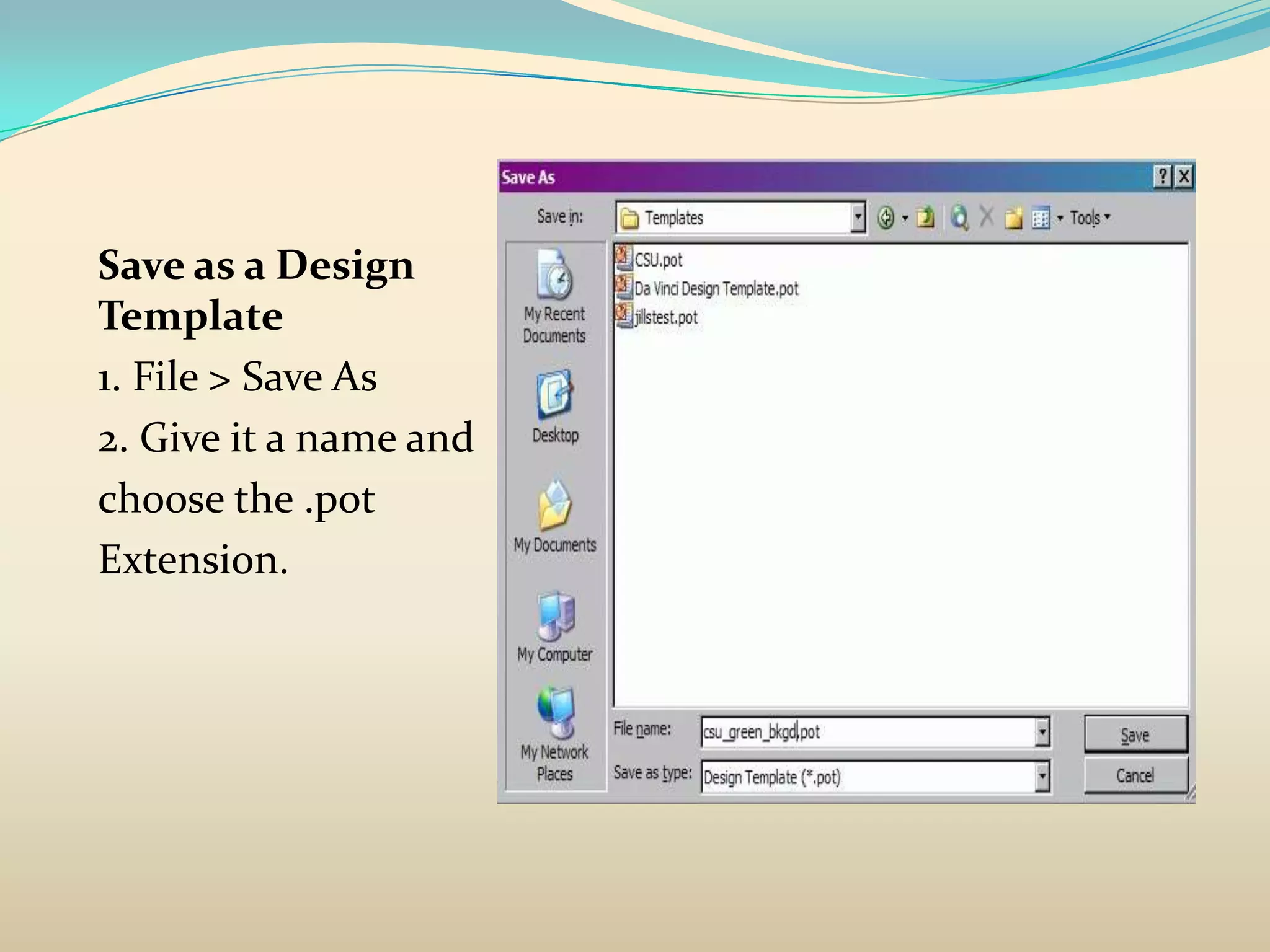
Save as a Design
Template
1. File > Save As
2. Give it a name and
choose the .pot
Extension.
Create a new presentation
from a Design Template

1. File > New > From Design Template
2. Look for the one you just created and choose it
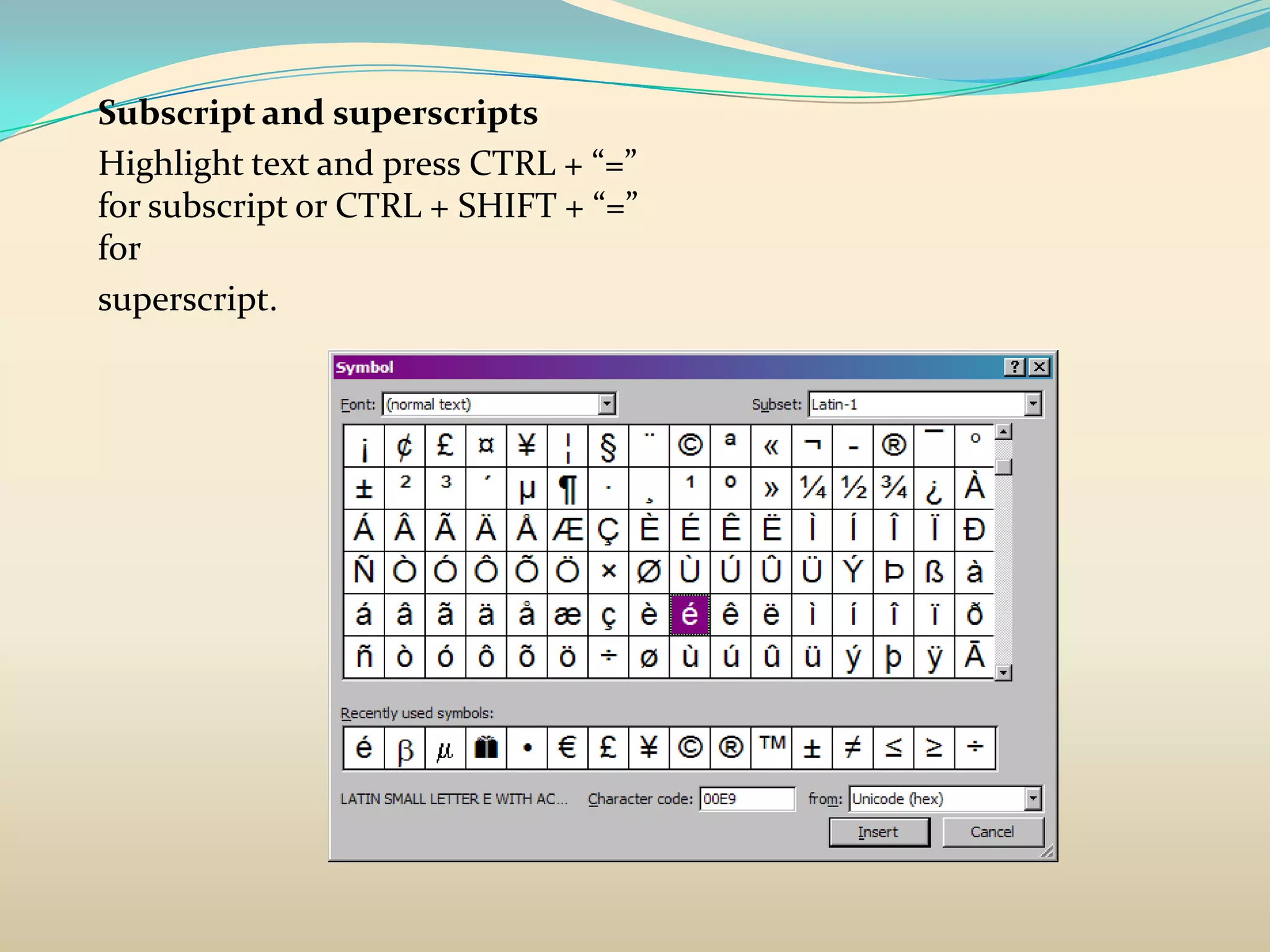
Subscript and superscripts
Highlight text and press CTRL + “=”
for subscript or CTRL + SHIFT + “=”
for
superscript.
Add Images from Existing Image
Files

Add Slide
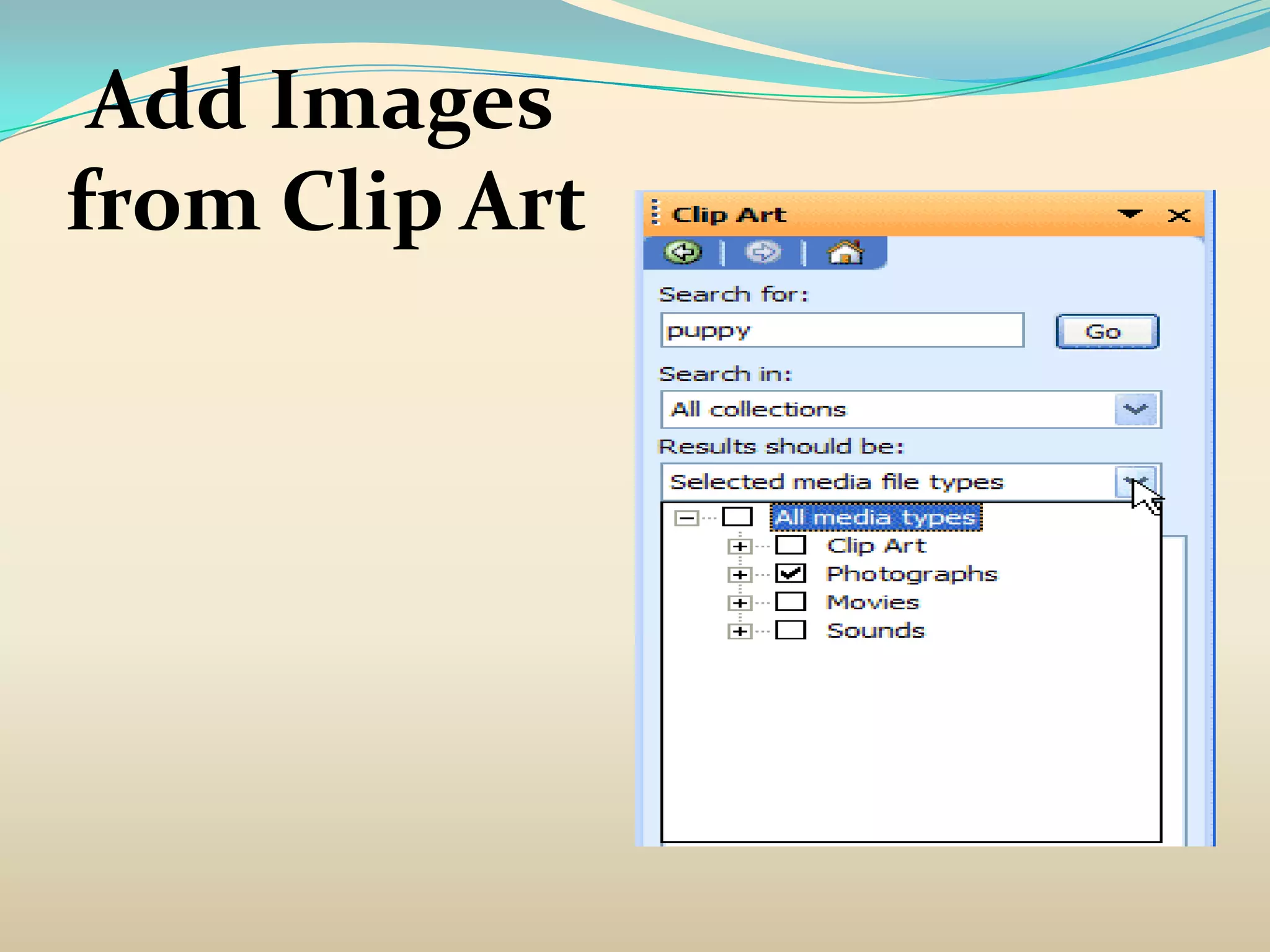
Add Images
from Clip Art
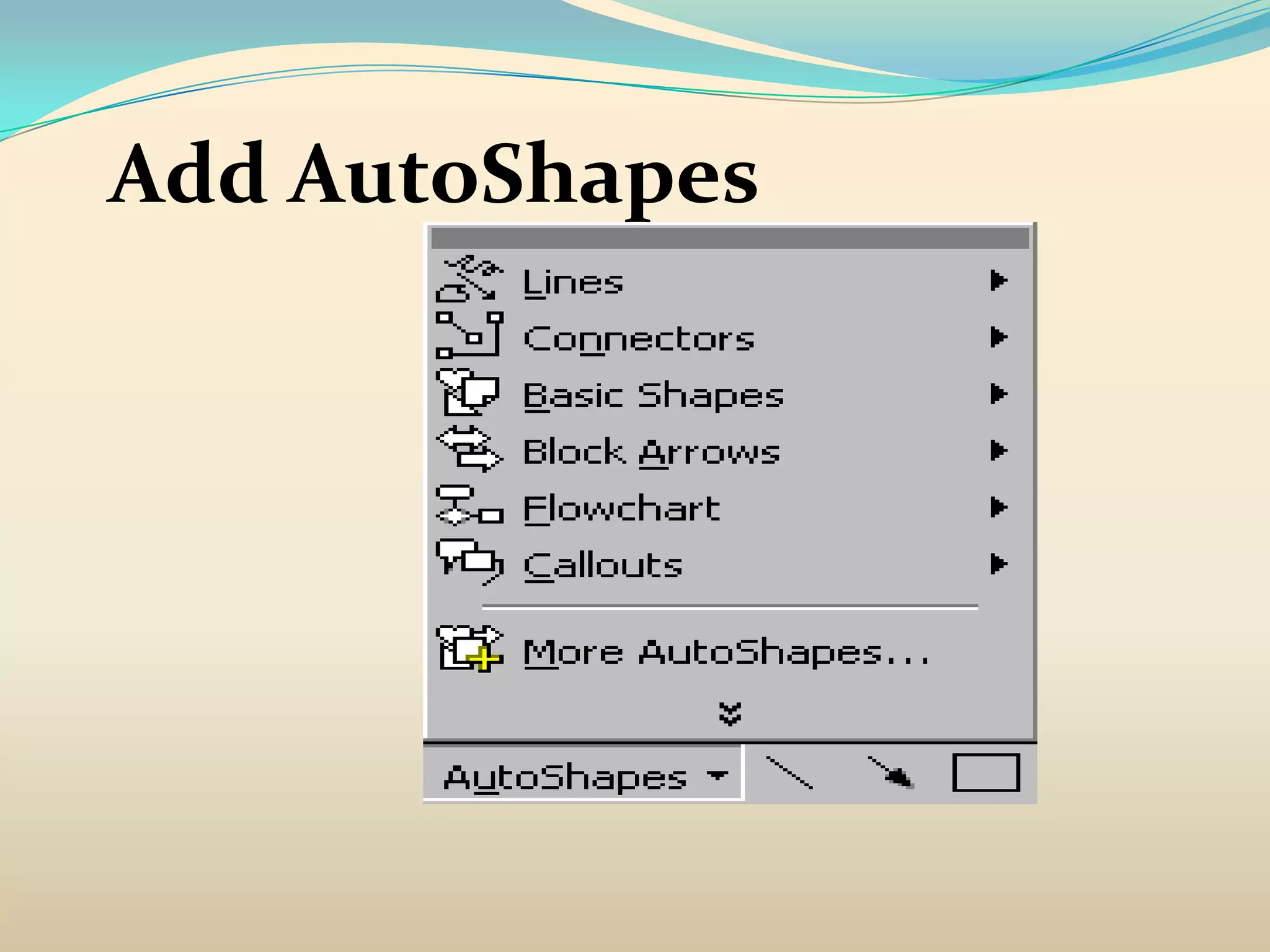
Add AutoShapes
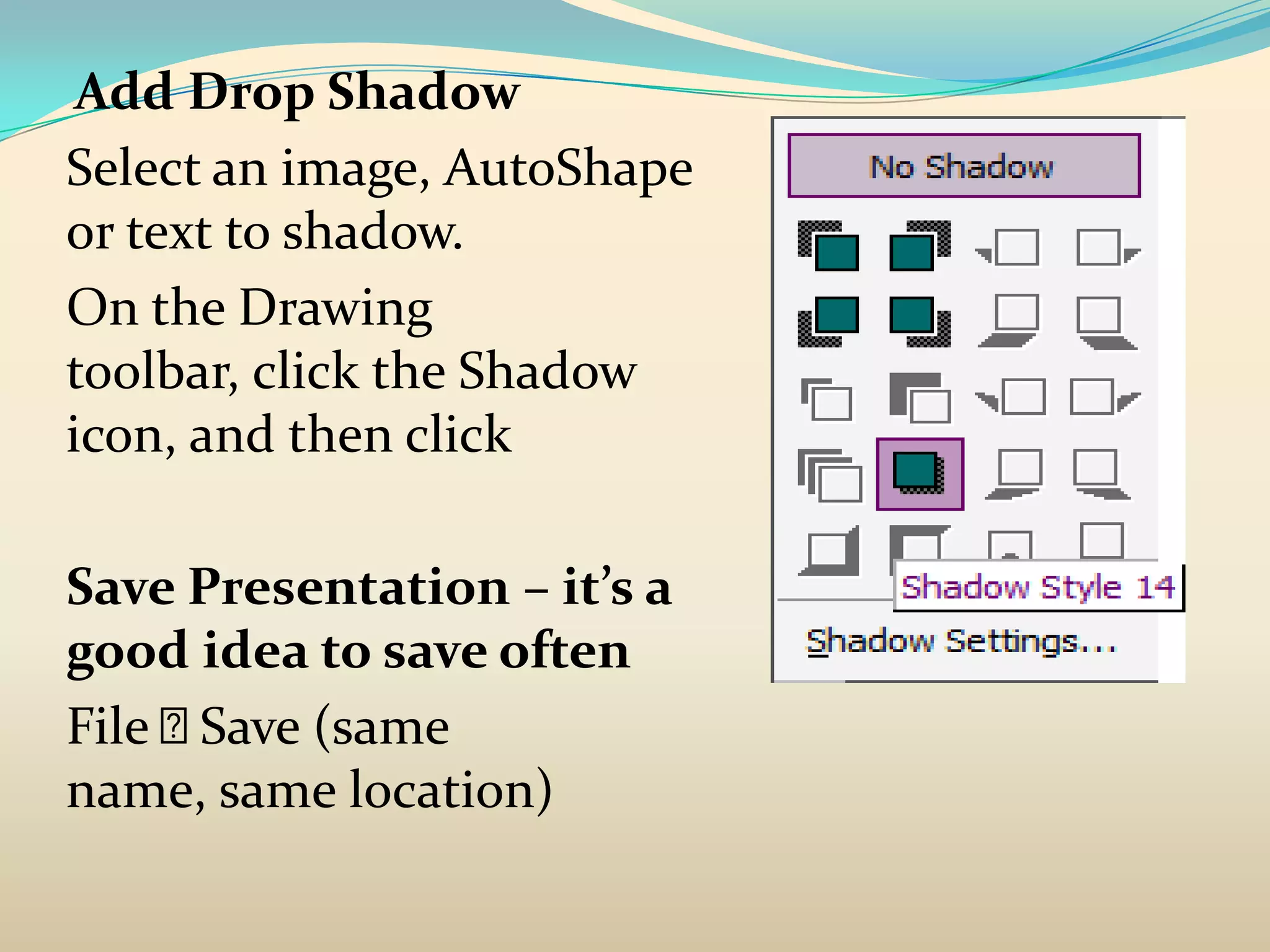
Add Drop Shadow
Select an image, AutoShape
or text to shadow.
On the Drawing
toolbar, click the Shadow
icon, and then click

Save Presentation – it’s a
good idea to save often
File Save (same
name, same location)
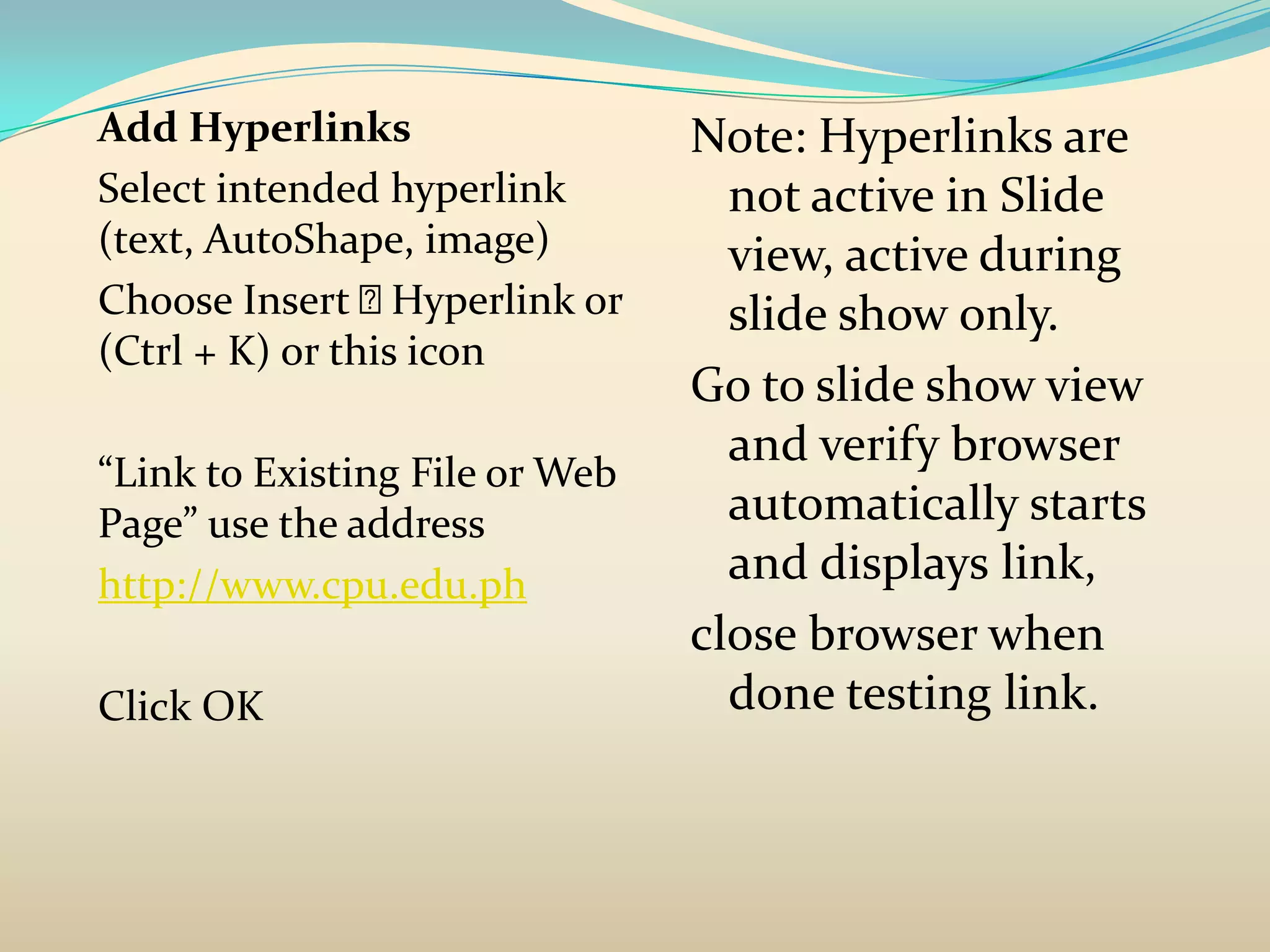
Add Hyperlinks                   Note: Hyperlinks are
Select intended hyperlink          not active in Slide
(text, AutoShape, image)           view, active during
Choose Insert    Hyperlink or     slide show only.
(Ctrl + K) or this icon
                                 Go to slide show view
                                   and verify browser
“Link to Existing File or Web
Page” use the address              automatically starts
http://www.cpu.edu.ph              and displays link,
                                 close browser when
Click OK                           done testing link.
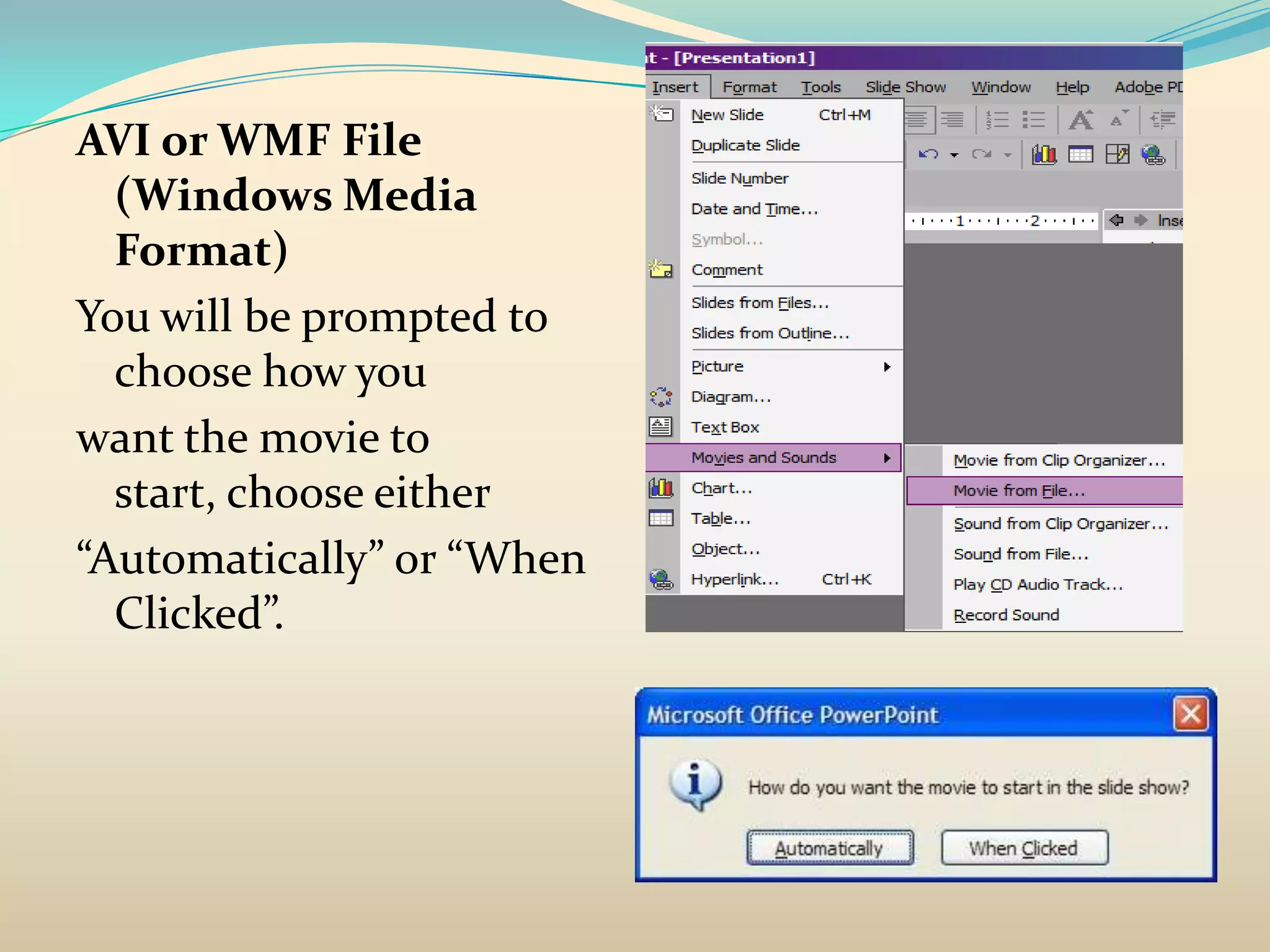
Add Movies

Format:

AVI
WMF

Add sound
AVI or WMF File
  (Windows Media
  Format)
You will be prompted to
  choose how you
want the movie to
  start, choose either
“Automatically” or “When
  Clicked”.
Animate Text and
  Bullet Points
  Add Speaker
     Notes
View Slide Show
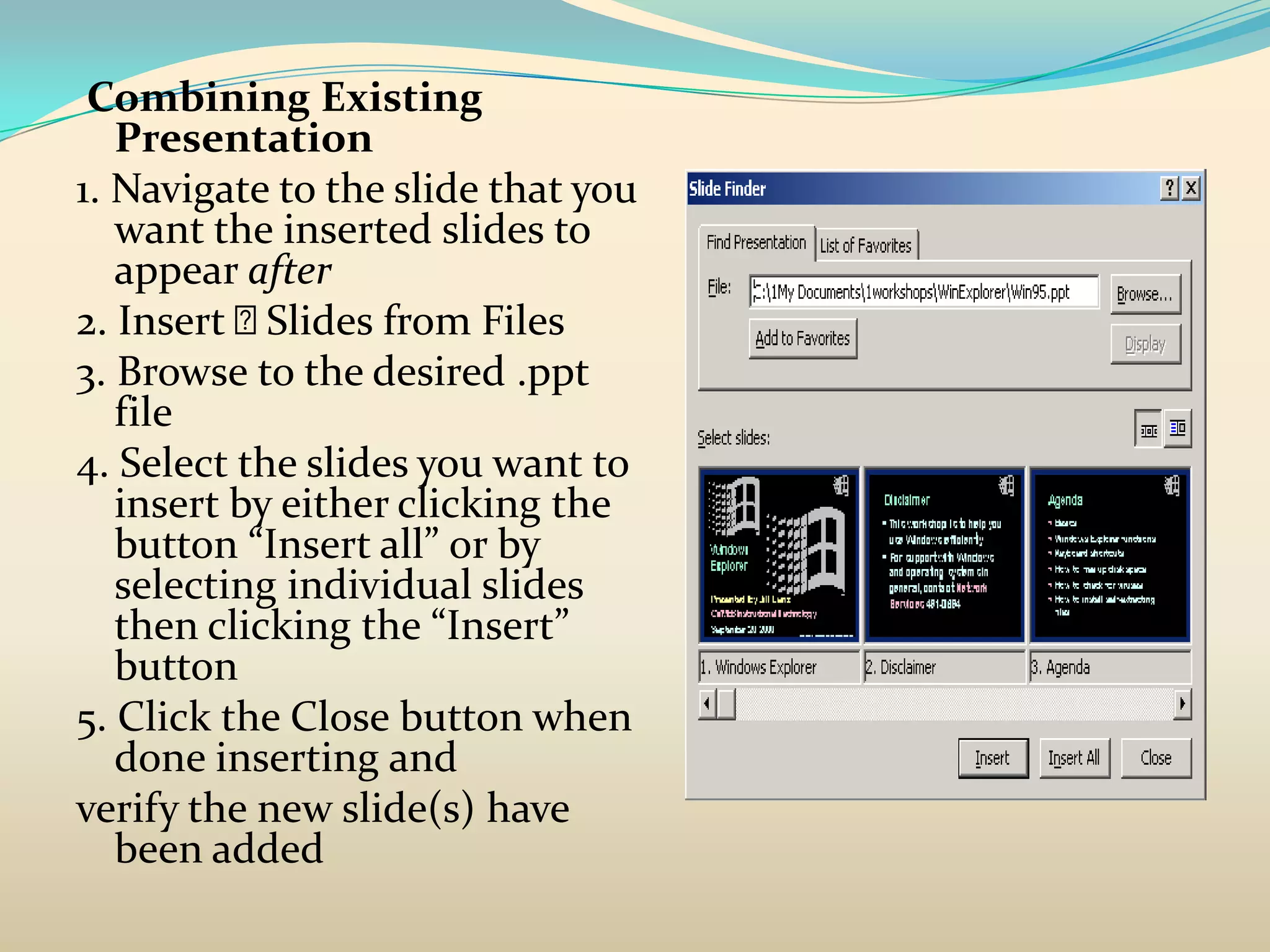
Combining Existing
   Presentation
1. Navigate to the slide that you
   want the inserted slides to
   appear after
2. Insert  Slides from Files
3. Browse to the desired .ppt
   file
4. Select the slides you want to
   insert by either clicking the
   button “Insert all” or by
   selecting individual slides
   then clicking the “Insert”
   button
5. Click the Close button when
   done inserting and
verify the new slide(s) have
   been added
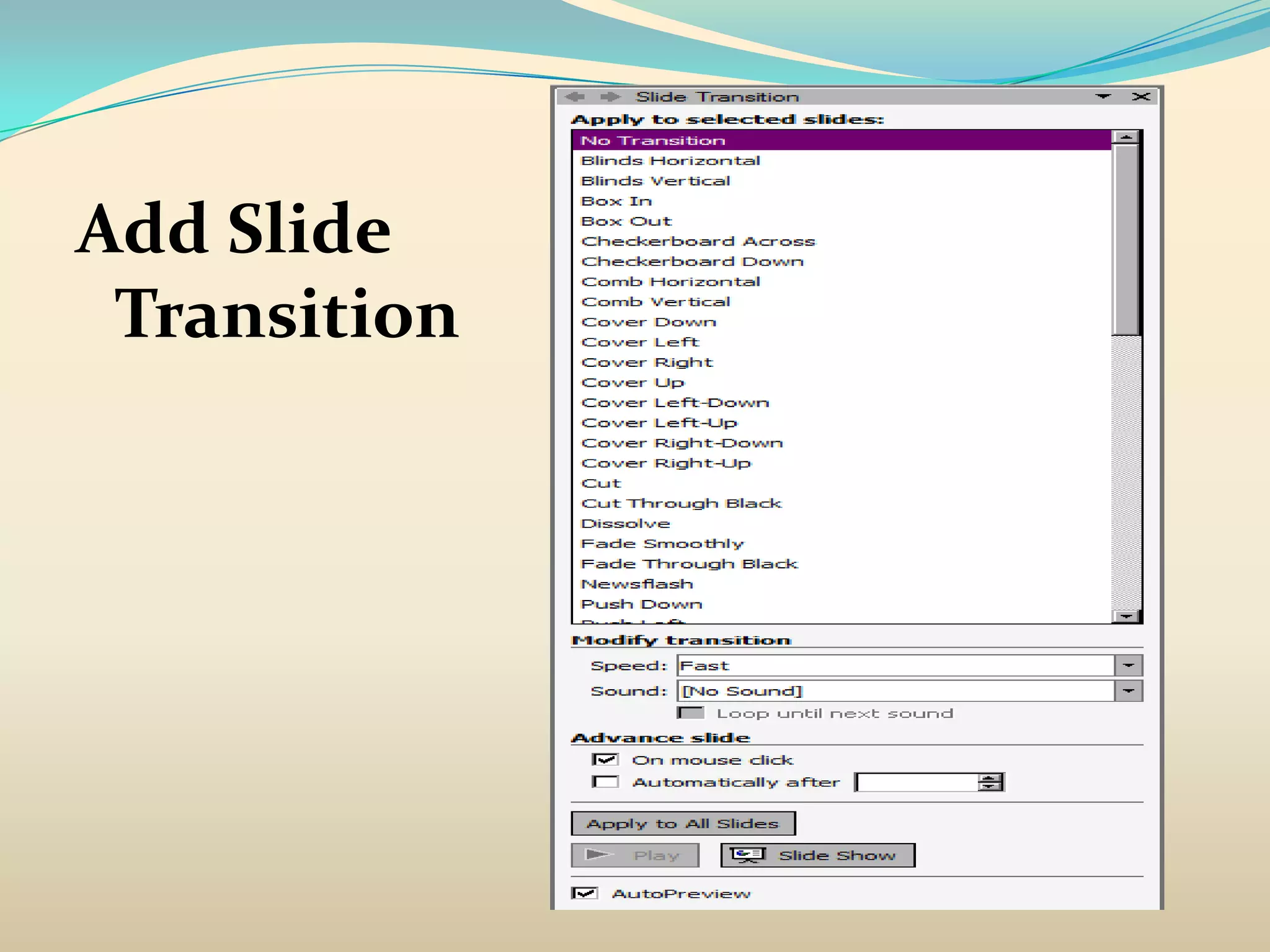
Add Slide
 Transition
Delivering a Presentation
Navigating in a Presentation
• Use the F5 key on the keyboard to begin a slide show
  from your first slide.
• Use the ESC key on your keyboard to exit the slide
  show.
• Use the space button, mouse click, and arrow keys on
  the keyboard to navigate through a slide show. Use Alt
  + tab to navigate through applications via the
  keyboard.
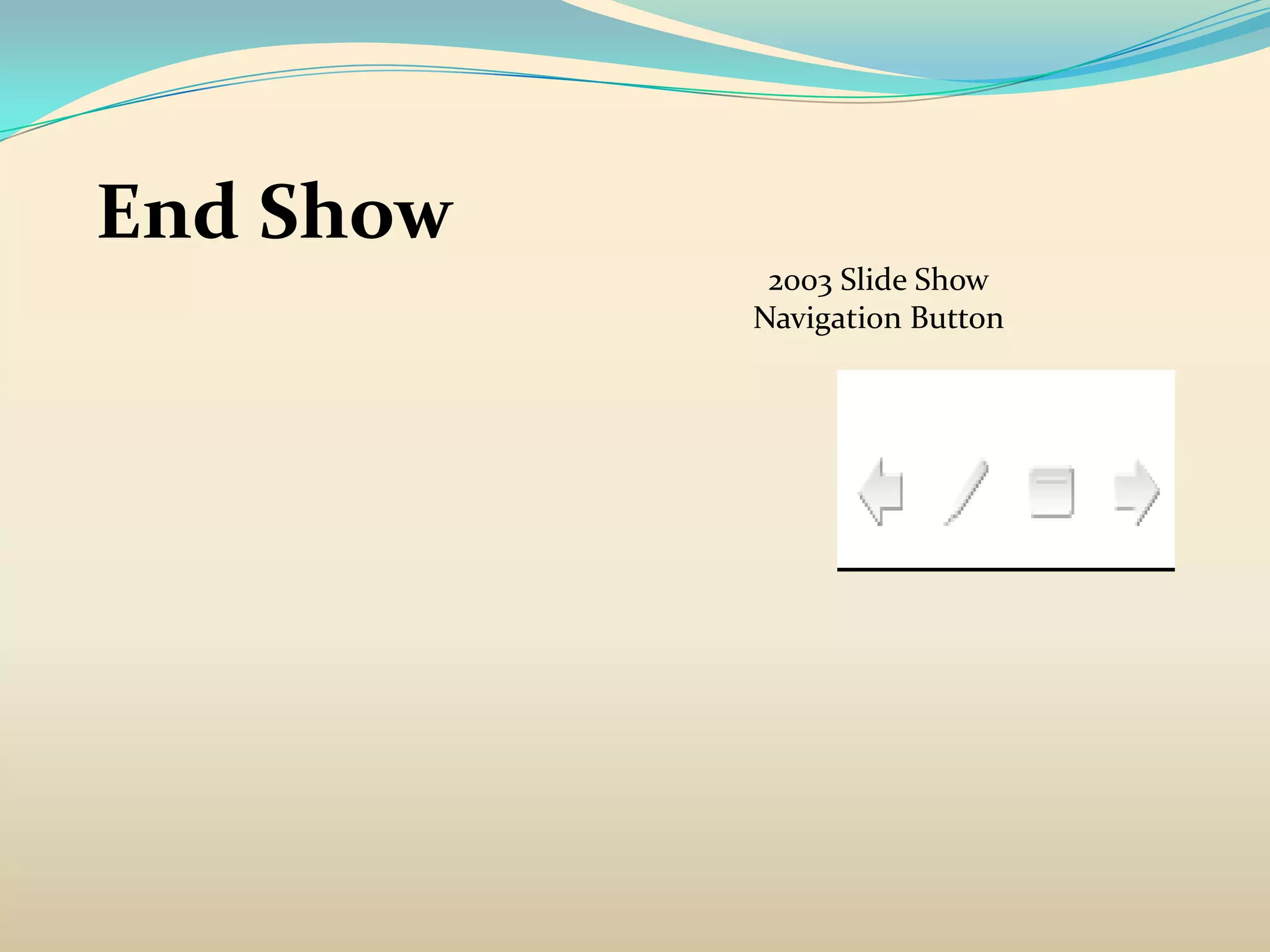
End Show
            2003 Slide Show
           Navigation Button
Annotating During a Presentation
1. When in your slide show, right-click the slide.
2. Choose Pointer Options to display the list of
   annotation tools.
3. Choose an annotation tool.
4. Draw on the slide by clicking and dragging the mouse.
5. Change the mouse cursor back to the arrow to
   continue with the presentation.
6. When at the end of the show, you will get the dialog:
   “Do you want to keep your ink annotations?” Click
   Discard.

Presentation1

  • 1.
    Goal: Create abasic PowerPoint presentation slide • Slide Masters and gradient background fills • Adding text boxes, images, auto shapes, drop shadows, • clip art, sounds, movies, and hyperlinks • How to create your own template • Custom animations and slide transition basics • Speaker notes • Combining existing presentations • Slide Show controls
  • 2.
    Presentation Guidelines  Thekey to a good presentation is developing well organized, clear, and professional looking slides.  Slide layout, font, color scheme, and slide content are the main components to developing a great presentation.  Use no more than six bullet points per slide.
  • 3.
     Minimize thenumber of fonts used in your presentation.  Keep font sizes consistent.  Don’t type in all caps.  Keep bullet points short and to the point. Incomplete sentences are OK.  For contrast, use a light colored font on a dark background and vice versa.  Use bold formatting to make appropriate words stand out.
  • 4.
    •Minimize use ofitalics. They are more difficult to read. •Do not vary the look of one slide greatly from the next. • Consistency is the key. • Keep it simple.
  • 5.
    Keep your objectsBig.  Make your information Clear.  Limit the number of slides  3 slides per minute is the maximum
  • 6.
     Run yourpresentation from a hard disk rather than from removable media.  Communication is the key.  Use Text to support the communication.  Use Pictures to simplify complex concepts.  Use Animations for complex relationships.  Use Visuals to support, not to distract.  Use Sounds only when absolutely necessary.
  • 7.
     Practice movingbetween slides.  Don’t read from your slides.  Don’t speak to your slides.  Be prepared for technical difficulties  Avoid the use of flashy transitions.
  • 8.
    There are threeoptions to create a new presentation: 1. AutoContent Wizard 2. Design Template 3. Blank Presentation Creating a Template and Presentation with the Blank Presentation Option 1. Open PowerPoint. From the Start button in the taskbar, choose Programs > Microsoft PowerPoint. 2. A new “Blank Presentation” is the automatic default. 3. Slide Master View  Master  Slide Master
  • 9.
    4. Gradient FillBackground Format  Background Click on the dropdown arrow and choose “Fill Effects”
  • 11.
    Color guidelines • Selectintense colors when you want to make text stand out, but keep in mind that too much of a good thing can overwhelm viewers. • Select contrasting colors for slide text and the slide background to make the text easier for your audience to see and read. • Select complementary colors to make your color combinations aesthetically pleasing – contrast a secondary color (a color created by mixing two primary colors) with the third (complementary) primary color.
  • 12.
    Complementary Colors The followinglist describes the three secondary colors and their complementary primary colors: Purple (blue and red) goes with yellow. Green (yellow and blue) goes with red. Orange (yellow and red) goes with blue.
  • 13.
  • 14.
    Custom Tab You canmix your own colors or choose colors by R-G-B numbers.
  • 15.
  • 16.
    Make sure thereis high contrast between the background and text. Text is in the following options: “Text and lines”, Title text“, “Accent and hyperlink” and “Accent and followed hyperlink”. Avoid red and red and green combinations on screen as some color blind users cannot see it.
  • 17.
    RGB Color Wheel Pickingcolors on the opposite sides of the color wheel usually offer high contrast.
  • 18.
    While still inthe Master slide mode, choose Insert New Title Master. Now you should have thumbnails for a master title slide and a master “regular” slide.
  • 19.
    Save as aDesign Template 1. File > Save As 2. Give it a name and choose the .pot Extension.
  • 20.
    Create a newpresentation from a Design Template 1. File > New > From Design Template 2. Look for the one you just created and choose it
  • 21.
    Subscript and superscripts Highlighttext and press CTRL + “=” for subscript or CTRL + SHIFT + “=” for superscript.
  • 23.
    Add Images fromExisting Image Files Add Slide
  • 24.
  • 25.
  • 26.
    Add Drop Shadow Selectan image, AutoShape or text to shadow. On the Drawing toolbar, click the Shadow icon, and then click Save Presentation – it’s a good idea to save often File Save (same name, same location)
  • 27.
    Add Hyperlinks Note: Hyperlinks are Select intended hyperlink not active in Slide (text, AutoShape, image) view, active during Choose Insert  Hyperlink or slide show only. (Ctrl + K) or this icon Go to slide show view and verify browser “Link to Existing File or Web Page” use the address automatically starts http://www.cpu.edu.ph and displays link, close browser when Click OK done testing link.
  • 28.
  • 29.
    AVI or WMFFile (Windows Media Format) You will be prompted to choose how you want the movie to start, choose either “Automatically” or “When Clicked”.
  • 30.
    Animate Text and Bullet Points Add Speaker Notes View Slide Show
  • 31.
    Combining Existing Presentation 1. Navigate to the slide that you want the inserted slides to appear after 2. Insert  Slides from Files 3. Browse to the desired .ppt file 4. Select the slides you want to insert by either clicking the button “Insert all” or by selecting individual slides then clicking the “Insert” button 5. Click the Close button when done inserting and verify the new slide(s) have been added
  • 32.
  • 33.
    Delivering a Presentation Navigatingin a Presentation • Use the F5 key on the keyboard to begin a slide show from your first slide. • Use the ESC key on your keyboard to exit the slide show. • Use the space button, mouse click, and arrow keys on the keyboard to navigate through a slide show. Use Alt + tab to navigate through applications via the keyboard.
  • 34.
    End Show 2003 Slide Show Navigation Button
  • 35.
    Annotating During aPresentation 1. When in your slide show, right-click the slide. 2. Choose Pointer Options to display the list of annotation tools. 3. Choose an annotation tool. 4. Draw on the slide by clicking and dragging the mouse. 5. Change the mouse cursor back to the arrow to continue with the presentation. 6. When at the end of the show, you will get the dialog: “Do you want to keep your ink annotations?” Click Discard.

Editor's Notes

  • #22 Here are some keyboard shortcuts and tricks to make text formatting quick andeasy.
  • #30 4. The movie appears inthe slide showing the first frame. It can be moved as desired on the slide.