How to create an academic poster
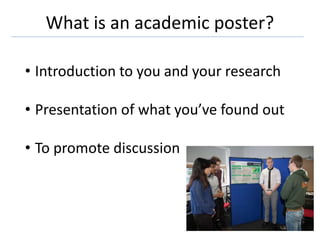
What is an academic poster?
• Introduction to you and your research
• Presentation of what you’ve found out
• To promote discussion
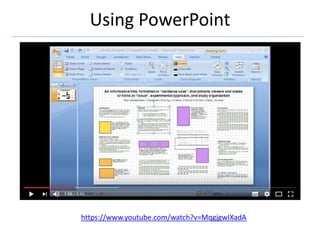
Using PowerPoint
https://www.youtube.com/watch?v=MqgjgwIXadA
Plan your content
• Purpose?
• Audience?
• Detailed information/brief summary?
• Displayed where?
• Any set guidelines?
Include…
• Title, author(s) and contact details
• Introduction
• Methods
• Results
• Conclusions
• Literature cited
• Acknowledgments
• Further information
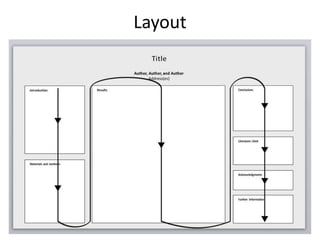
Layout
Text Formatting
• Headings and sub-headings
• Font – serif/ sans-serif?
• No more than two fonts
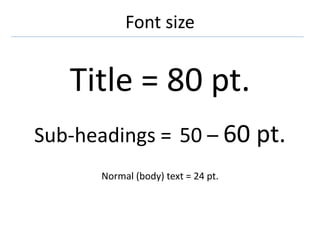
Font size
Title = 80 pt.
Sub-headings = 50 – 60 pt.
Normal (body) text = 24 pt.
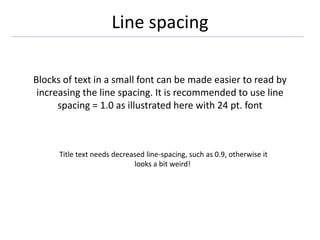
Line spacing
Blocks of text in a small font can be made easier to read by
increasing the line spacing. It is recommended to use line
spacing = 1.0 as illustrated here with 24 pt. font
Title text needs decreased line-spacing, such as 0.9, otherwise it
looks a bit weird!
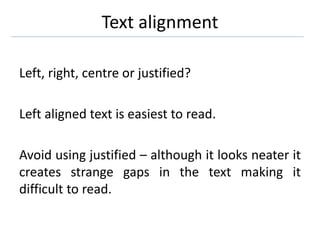
Text alignment
Left, right, centre or justified?
Left aligned text is easiest to read.
Avoid using justified – although it looks neater it
creates strange gaps in the text making it
difficult to read.
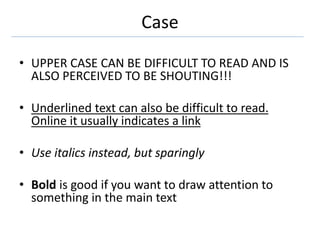
Case
• UPPER CASE CAN BE DIFFICULT TO READ AND IS
ALSO PERCEIVED TO BE SHOUTING!!!
• Underlined text can also be difficult to read.
Online it usually indicates a link
• Use italics instead, but sparingly
• Bold is good if you want to draw attention to
something in the main text
Pictures
Screen resolution = 72 pixels/dots per inch (dpi)
Print resolution = 150 – 300 dpi
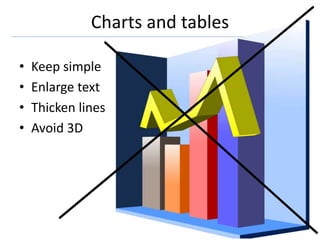
Charts and tables
• Keep simple
• Enlarge text
• Thicken lines
• Avoid 3D
Copyright
• Use own or those you have permission to use
• Creative commons
• pexels.com or pixabay.com
• See FoBIT site
search.creativecommons.org
University logo
The University Logo can be downloaded
from https://staff.plymouth.ac.uk/dpc/intranet.htm
(log-in required)
DO NOT ALTER IT!
Colour scheme
• 2 or 3 colours plus black, which is always best
for the smallest text.
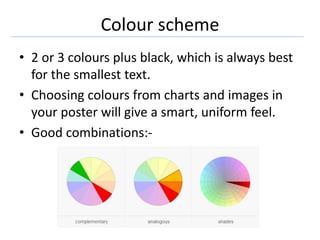
• Choosing colours from charts and images in
your poster will give a smart, uniform feel.
• Good combinations:-
Proof-read and print
Check your poster thorughly for speling mitakes
and grammaticl errors before you send it to
prnt.
NB – to print, save your poster as a PDF (Print)
Present
• Explain your poster and answer questions
• Print A4 versions?
• Allow people to photograph?
• Take business cards
Further help & support
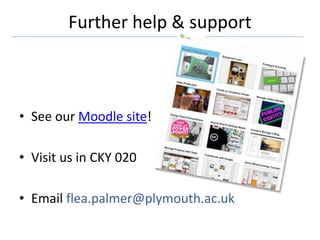
• See our Moodle site!
• Visit us in CKY 020
• Email flea.palmer@plymouth.ac.uk

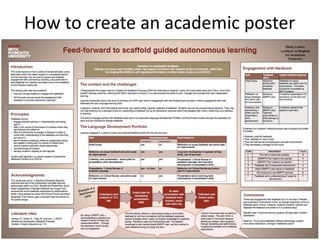
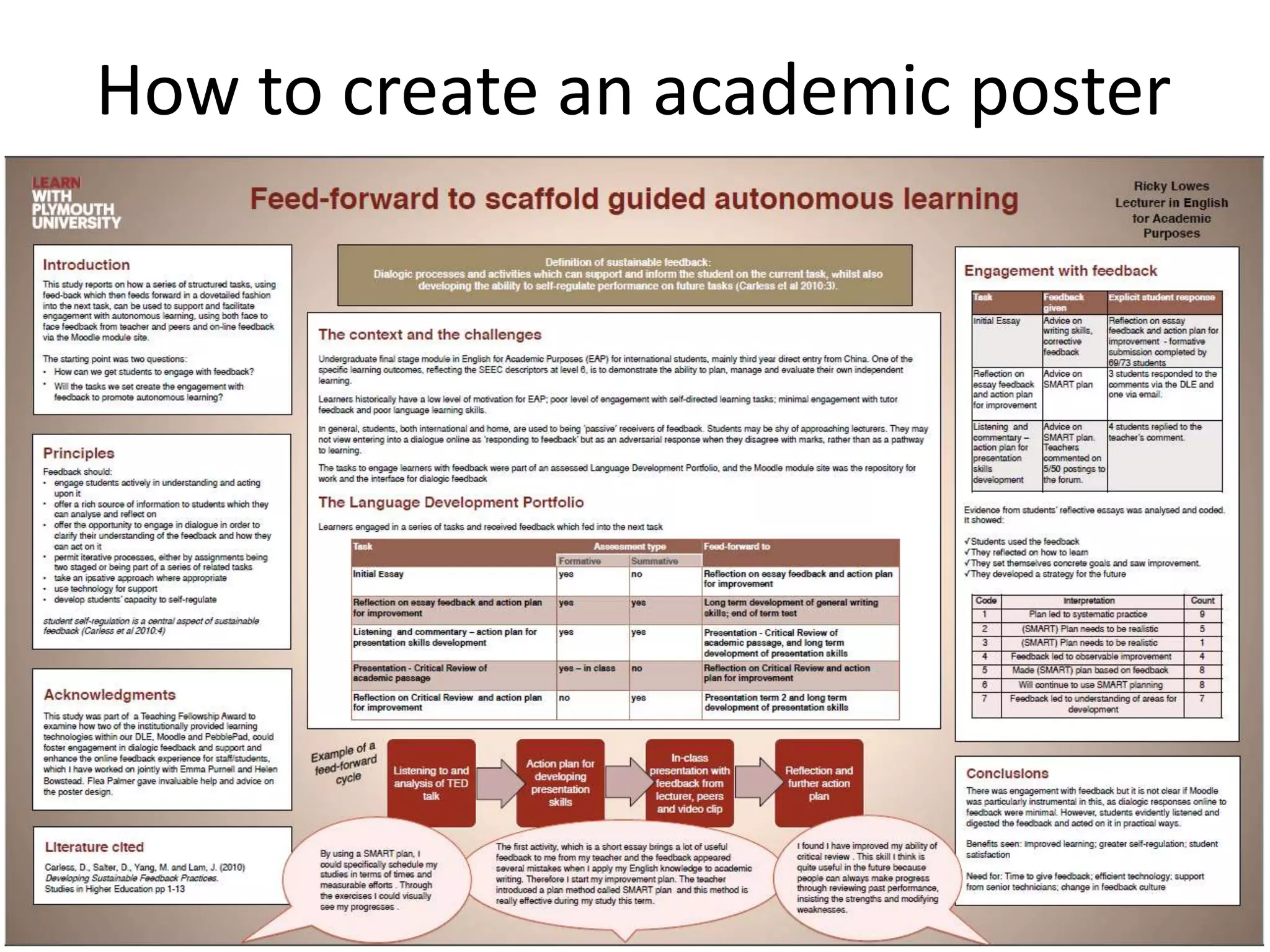
How to create an academic poster

  • 1.
    How to createan academic poster
  • 2.
    What is anacademic poster? • Introduction to you and your research • Presentation of what you’ve found out • To promote discussion
  • 3.
  • 4.
    Plan your content •Purpose? • Audience? • Detailed information/brief summary? • Displayed where? • Any set guidelines?
  • 5.
    Include… • Title, author(s)and contact details • Introduction • Methods • Results • Conclusions • Literature cited • Acknowledgments • Further information
  • 6.
  • 7.
    Text Formatting • Headingsand sub-headings • Font – serif/ sans-serif? • No more than two fonts
  • 8.
    Font size Title =80 pt. Sub-headings = 50 – 60 pt. Normal (body) text = 24 pt.
  • 9.
    Line spacing Blocks oftext in a small font can be made easier to read by increasing the line spacing. It is recommended to use line spacing = 1.0 as illustrated here with 24 pt. font Title text needs decreased line-spacing, such as 0.9, otherwise it looks a bit weird!
  • 10.
    Text alignment Left, right,centre or justified? Left aligned text is easiest to read. Avoid using justified – although it looks neater it creates strange gaps in the text making it difficult to read.
  • 11.
    Case • UPPER CASECAN BE DIFFICULT TO READ AND IS ALSO PERCEIVED TO BE SHOUTING!!! • Underlined text can also be difficult to read. Online it usually indicates a link • Use italics instead, but sparingly • Bold is good if you want to draw attention to something in the main text
  • 12.
    Pictures Screen resolution =72 pixels/dots per inch (dpi) Print resolution = 150 – 300 dpi
  • 13.
    Charts and tables •Keep simple • Enlarge text • Thicken lines • Avoid 3D
  • 14.
    Copyright • Use ownor those you have permission to use • Creative commons • pexels.com or pixabay.com • See FoBIT site search.creativecommons.org
  • 15.
    University logo The UniversityLogo can be downloaded from https://staff.plymouth.ac.uk/dpc/intranet.htm (log-in required) DO NOT ALTER IT!
  • 16.
    Colour scheme • 2or 3 colours plus black, which is always best for the smallest text. • Choosing colours from charts and images in your poster will give a smart, uniform feel. • Good combinations:-
  • 17.
    Proof-read and print Checkyour poster thorughly for speling mitakes and grammaticl errors before you send it to prnt. NB – to print, save your poster as a PDF (Print)
  • 18.
    Present • Explain yourposter and answer questions • Print A4 versions? • Allow people to photograph? • Take business cards
  • 19.
    Further help &support • See our Moodle site! • Visit us in CKY 020 • Email flea.palmer@plymouth.ac.uk