An academic poster is a visual representation of work.
It can be used within courses as a form of assessment, and it summarises
information or research concisely and attractively.
Check with your lecturer before starting your poster, as they can differ
greatly between subject areas.
What is an Academic Poster?
What
What do you need to consider
when planning your poster?
Planning your poster
Content Structure
Design Layout
Content
Who is your audience?
What will they expect?
What is the assessment
criteria?
Is the information vital?
What are the key themes?
Are images/charts etc.
appropriate?






As with other pieces of work, such as academic writing, an academic
poster should have a clear structure.
Title
Your name
Methods
Introduction
Results
Discussion
Conclusions
References
It should contain the following elements:
Structure
Structure
Ensure your poster has a logical flow, with
a beginning, middle and end
Generally, posters are read left to right, so
lay out your information in this way
Try to group key themes or ideas together
and avoid adding too much text
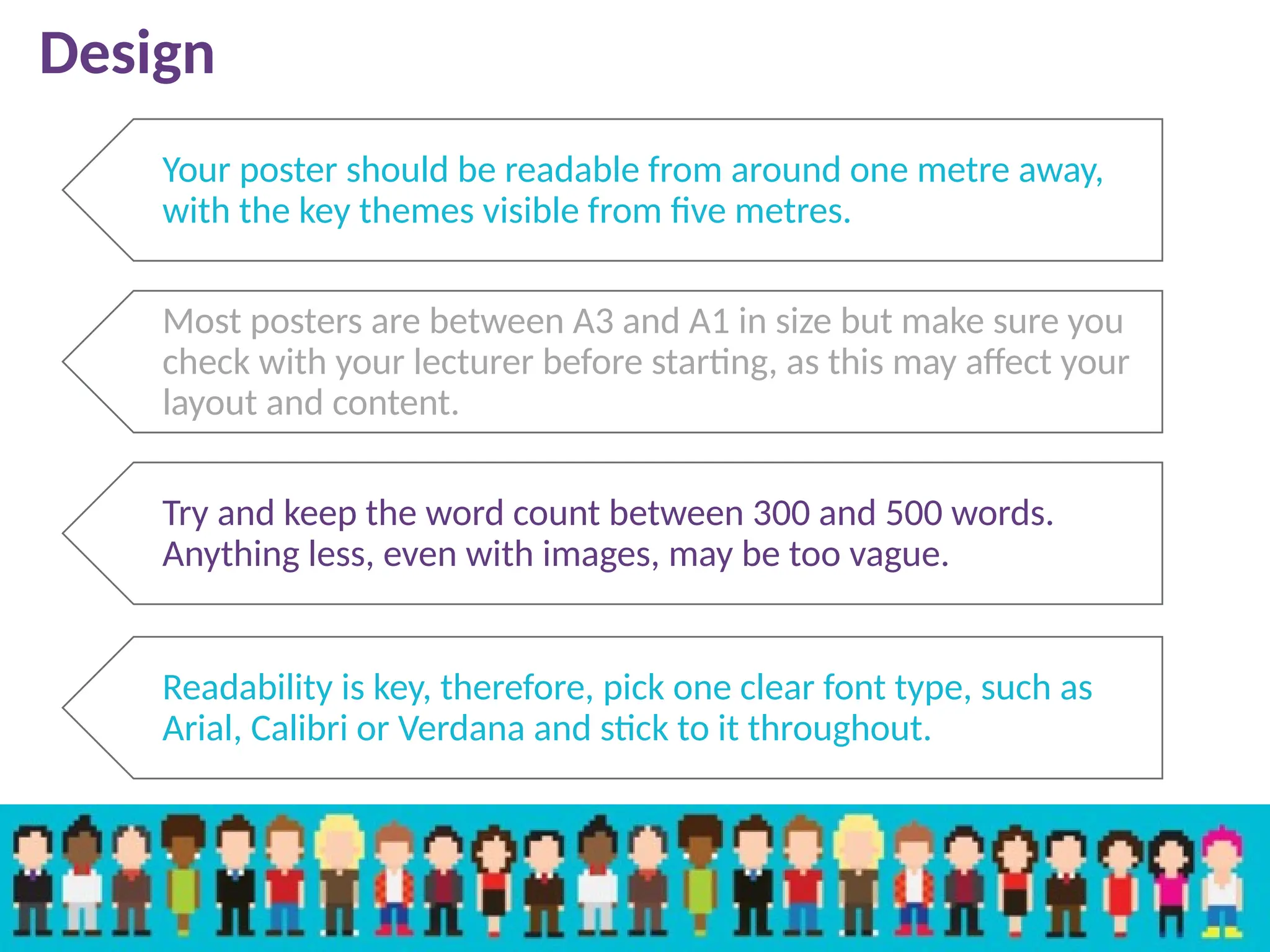
Your poster should be readable from around one metre away,
with the key themes visible from five metres.
Most posters are between A3 and A1 in size but make sure you
check with your lecturer before starting, as this may affect your
layout and content.
Try and keep the word count between 300 and 500 words.
Anything less, even with images, may be too vague.
Readability is key, therefore, pick one clear font type, such as
Arial, Calibri or Verdana and stick to it throughout.
Design
Design
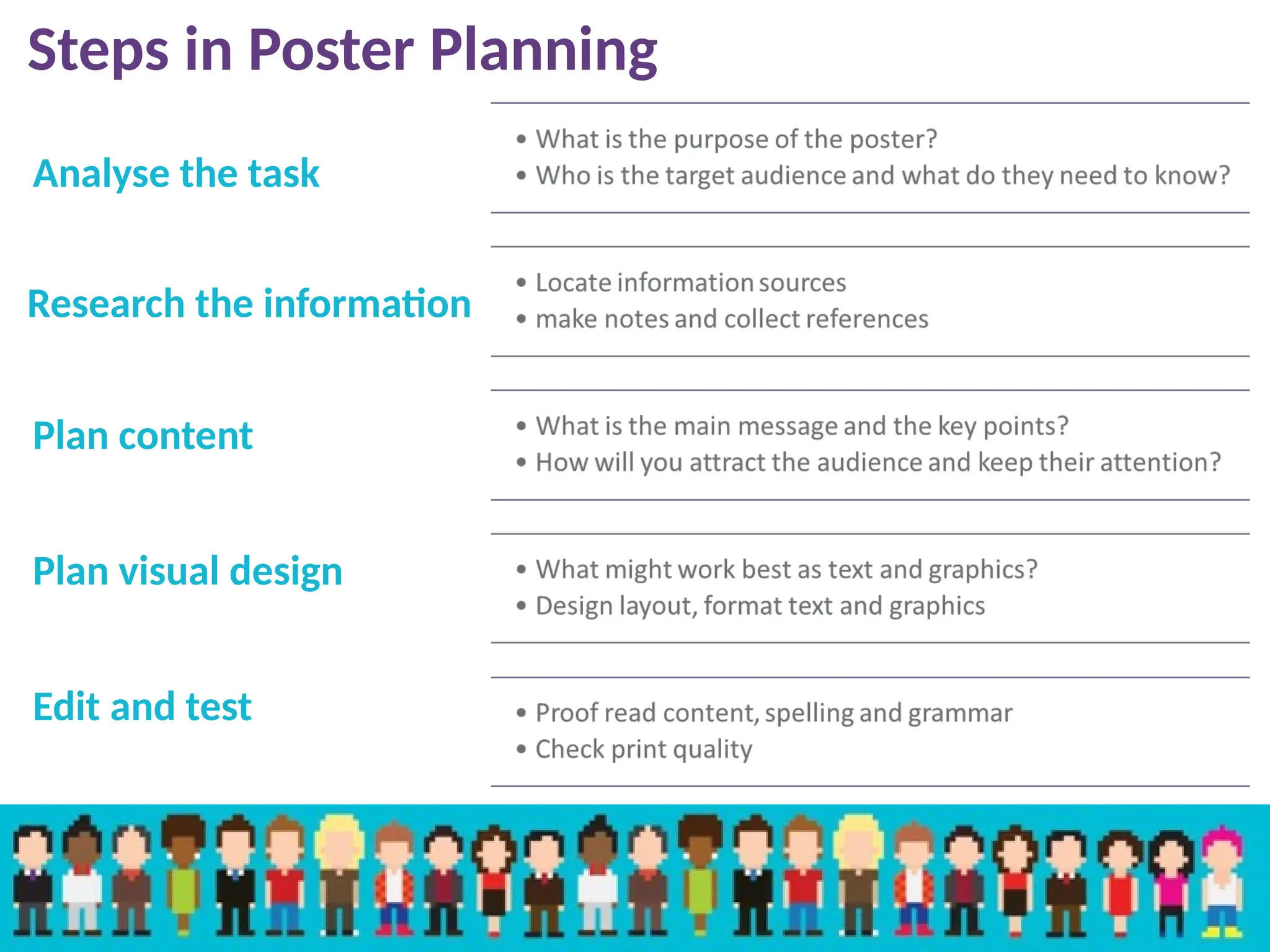
Steps in Poster Planning
Analyse the task
Research the information
Plan content
Plan visual design
Edit and test
Centimetres Inches
A2 42.0 (h) x 59.4 (w) 16.53 (h) x 23.39 (w)
A3 29.7 (h) x 42.0 (w) 11.69 (h) x 16.53 (w)
A4 21.0 (h) x 29.7 (w) 8.27 (h) x 11.69 (w)
Poster Sizing Guide
Go to Design > Slide Size > Custom Slide Size and then
enter the required poster size (see below)
Activity
Create Your Poster
Open PowerPoint. Set the slide design to blank. This is achieved by clicking on the
Home tab, selecting the Layout tab and then choosing a blank template.
If you wish to apply an all-over
colour to your background,
select the Design tab, Format
Background tab, Solid fill and
then choose your colour.
• Placing text boxes, graphics
and images within your
poster can be difficult.
• Inserting tables for your text
enables you to plan and
structure your poster design
more easily.
• You can do this by clicking
on the Insert tab, clicking on
Table icon and then Draw
Table.
This will allow you to structure your poster and add the
relevant text.
By structuring your poster in this way you can resize and move
boxes to suit. This will allow you to adjust space so that you can
add images, graphics or graphs where required. The boxes can
be adjusted by simply clicking on the box and using the re-size
arrows to adjust accordingly.
Inserting an image into your PowerPoint is simply a case
of copying, pasting and then resizing the object to fit the
space you have created.
TITLE
Text, text, text, text, text,
text, text, text, text, text,
text, text and more text!
Text, text, text, text, text,
text, text, text, text, text,
text, text and more text!
References and Links:
Please click on link:
Job Spec for Mock intervi
ew - Research analyst.do
cx
Future Talent Support and Contacts
Email: futuretalent@dundeeandangus.ac.uk
Twitter: @dacfuturetalent Instagram: dafuturetalent TikTok: @ldr287
Future Talent Website: futuretalent.dundeeandangus.ac.uk/
We’re here to help!

Academic Poster An introduction. Level 5

  • 1.
    An academic posteris a visual representation of work. It can be used within courses as a form of assessment, and it summarises information or research concisely and attractively. Check with your lecturer before starting your poster, as they can differ greatly between subject areas. What is an Academic Poster?
  • 2.
    What What do youneed to consider when planning your poster? Planning your poster Content Structure Design Layout
  • 3.
    Content Who is youraudience? What will they expect? What is the assessment criteria? Is the information vital? What are the key themes? Are images/charts etc. appropriate?      
  • 4.
    As with otherpieces of work, such as academic writing, an academic poster should have a clear structure. Title Your name Methods Introduction Results Discussion Conclusions References It should contain the following elements: Structure
  • 5.
    Structure Ensure your posterhas a logical flow, with a beginning, middle and end Generally, posters are read left to right, so lay out your information in this way Try to group key themes or ideas together and avoid adding too much text
  • 6.
    Your poster shouldbe readable from around one metre away, with the key themes visible from five metres. Most posters are between A3 and A1 in size but make sure you check with your lecturer before starting, as this may affect your layout and content. Try and keep the word count between 300 and 500 words. Anything less, even with images, may be too vague. Readability is key, therefore, pick one clear font type, such as Arial, Calibri or Verdana and stick to it throughout. Design
  • 7.
  • 8.
    Steps in PosterPlanning Analyse the task Research the information Plan content Plan visual design Edit and test
  • 9.
    Centimetres Inches A2 42.0(h) x 59.4 (w) 16.53 (h) x 23.39 (w) A3 29.7 (h) x 42.0 (w) 11.69 (h) x 16.53 (w) A4 21.0 (h) x 29.7 (w) 8.27 (h) x 11.69 (w) Poster Sizing Guide Go to Design > Slide Size > Custom Slide Size and then enter the required poster size (see below)
  • 10.
  • 11.
    Open PowerPoint. Setthe slide design to blank. This is achieved by clicking on the Home tab, selecting the Layout tab and then choosing a blank template.
  • 12.
    If you wishto apply an all-over colour to your background, select the Design tab, Format Background tab, Solid fill and then choose your colour.
  • 13.
    • Placing textboxes, graphics and images within your poster can be difficult. • Inserting tables for your text enables you to plan and structure your poster design more easily. • You can do this by clicking on the Insert tab, clicking on Table icon and then Draw Table.
  • 14.
    This will allowyou to structure your poster and add the relevant text.
  • 15.
    By structuring yourposter in this way you can resize and move boxes to suit. This will allow you to adjust space so that you can add images, graphics or graphs where required. The boxes can be adjusted by simply clicking on the box and using the re-size arrows to adjust accordingly.
  • 16.
    Inserting an imageinto your PowerPoint is simply a case of copying, pasting and then resizing the object to fit the space you have created. TITLE Text, text, text, text, text, text, text, text, text, text, text, text, text, text, text, text, text and more text! Text, text, text, text, text, text, text, text, text, text, text, text, text, text, text, text, text, text, text, text, text, text, text, text, text, text, text, text, text, text, text, text and more text! References and Links: Please click on link: Job Spec for Mock intervi ew - Research analyst.do cx
  • 17.
    Future Talent Supportand Contacts Email: futuretalent@dundeeandangus.ac.uk Twitter: @dacfuturetalent Instagram: dafuturetalent TikTok: @ldr287 Future Talent Website: futuretalent.dundeeandangus.ac.uk/ We’re here to help!