Containers + Docker
workshop
Davide Pelosi
Enterprise Software Advisor
davide.pelosi@dpstudio.eu
Agenda
Day 1
● Virtualization
○ Theory
○ VirtualBox
○ Hands-on Labs
Day 2
● Containers
○ Theory
○ Docker
○ Hands-on Labs
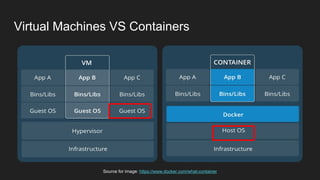
Virtual Machines VS Containers
Source for image: https://www.docker.com/what-container
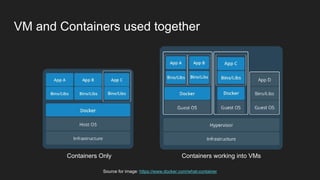
VM and Containers used together
Source for image: https://www.docker.com/what-container
Containers Only Containers working into VMs
Container Image
● A container image is a lightweight, stand-alone, executable package of a
piece of software
● Includes everything needed to run it: code, runtime, system tools, system
libraries, settings
● Containers isolate software from its surroundings, for example differences
between development and staging environments
● Help reduce conflicts between teams running different software on the same
infrastructure.
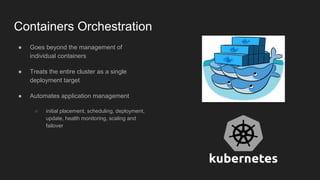
Containers Orchestration
● Goes beyond the management of
individual containers
● Treats the entire cluster as a single
deployment target
● Automates application management
○ initial placement, scheduling, deployment,
update, health monitoring, scaling and
failover
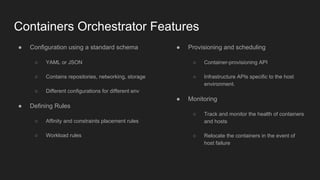
Containers Orchestrator Features
● Configuration using a standard schema
○ YAML or JSON
○ Contains repositories, networking, storage
○ Different configurations for different env
● Defining Rules
○ Affinity and constraints placement rules
○ Workload rules
● Provisioning and scheduling
○ Container-provisioning API
○ Infrastructure APIs specific to the host
environment.
● Monitoring
○ Track and monitor the health of containers
and hosts
○ Relocate the containers in the event of
host failure
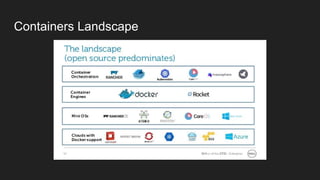
Containers Landscape
Docker - Command Line Interface (CLI)
➢ docker ps
○ Lists all running containers
○ shows information including their ID, name, base image name, and port forwarding
➢ docker build
○ Processes the Dockerfile and creates a new container
➢ docker pull [image name]
○ Pulls the container image from the remote repository and stores the definition locally
➢ docker run
○ Starts a container based on a local or remote (e.g. DockerHub) container definition
➢ docker push
○ Publishes a built container definition to a repository, typically DockerHub.
Docker - Dockerfile
● Script composed of commands
● Automatically perform actions on a base image
○ FROM ubuntu
● Main commands (instructions)
○ ADD - copies files from the host into the container's filesystem
○ CMD - executes a specific command when a container is instantiated
○ RUN - runs a command to build the image (forming another layer on top of the previous one)
○ EXPOSE - associates a port to enable networking between the running process inside the
container and the outside world (EXPOSE 8080)
○ ENTRYPOINT - sets the concrete default application that is used
○ ENV - sets the environment variables
○ VOLUME - enables access from container to a directory on the host machine
Docker - Image Layers
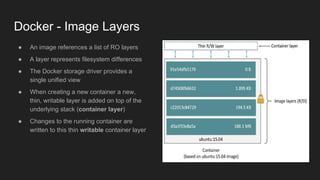
● An image references a list of RO layers
● A layer represents filesystem differences
● The Docker storage driver provides a
single unified view
● When creating a new container a new,
thin, writable layer is added on top of the
underlying stack (container layer)
● Changes to the running container are
written to this thin writable container layer
Docker - Networking
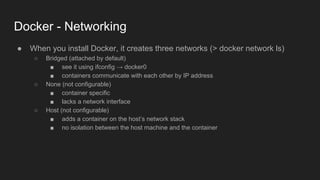
● When you install Docker, it creates three networks (> docker network ls)
○ Bridged (attached by default)
■ see it using ifconfig → docker0
■ containers communicate with each other by IP address
○ None (not configurable)
■ container specific
■ lacks a network interface
○ Host (not configurable)
■ adds a container on the host’s network stack
■ no isolation between the host machine and the container
Lab 0 - Play with cowsay and fortunes
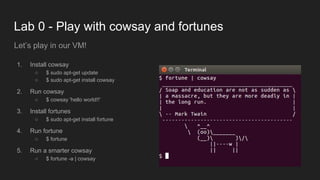
1. Install cowsay
○ $ sudo apt-get update
○ $ sudo apt-get install cowsay
2. Run cowsay
○ $ cowsay 'hello world!!'
3. Install fortunes
○ $ sudo apt-get install fortune
4. Run fortune
○ $ fortune
5. Run a smarter cowsay
○ $ fortune -a | cowsay
Let’s play in our VM!
Lab 1 - Install and test docker
Now let’s make the same in a docker container!!
1. Install docker
○ $ sudo apt-get install apt-transport-https ca-certificates curl software-properties-common
○ $ curl -fsSL https://download.docker.com/linux/ubuntu/gpg | sudo apt-key add -
○ $ sudo add-apt-repository "deb [arch=amd64] https://download.docker.com/linux/ubuntu xenial
stable"
○ $ sudo apt-get update
○ $ sudo apt-get install docker-ce
○ $ sudo groupadd docker
○ $ sudo usermod -aG docker $USER
2. Test docker working
○ $ docker run hello-world
○ $ docker run -it ubuntu bash
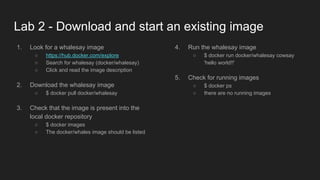
Lab 2 - Download and start an existing image
1. Look for a whalesay image
○ https://hub.docker.com/explore
○ Search for whalesay (docker/whalesay)
○ Click and read the image description
2. Download the whalesay image
○ $ docker pull docker/whalesay
3. Check that the image is present into the
local docker repository
○ $ docker images
○ The docker/whales image should be listed
4. Run the whalesay image
○ $ docker run docker/whalesay cowsay
'hello world!!'
5. Check for running images
○ $ docker ps
○ there are no running images
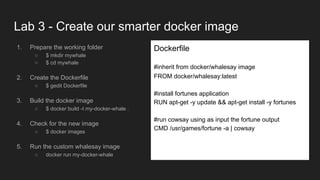
Lab 3 - Create our smarter docker image
1. Prepare the working folder
○ $ mkdir mywhale
○ $ cd mywhale
2. Create the Dockerfile
○ $ gedit Dockerfile
3. Build the docker image
○ $ docker build -t my-docker-whale .
4. Check for the new image
○ $ docker images
5. Run the custom whalesay image
○ docker run my-docker-whale
Dockerfile
#inherit from docker/whalesay image
FROM docker/whalesay:latest
#install fortunes application
RUN apt-get -y update && apt-get install -y fortunes
#run cowsay using as input the fortune output
CMD /usr/games/fortune -a | cowsay
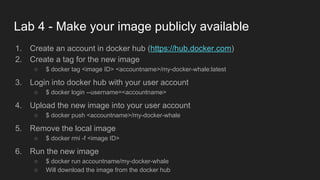
Lab 4 - Make your image publicly available
1. Create an account in docker hub (https://hub.docker.com)
2. Create a tag for the new image
○ $ docker tag <image ID> <accountname>/my-docker-whale:latest
3. Login into docker hub with your user account
○ $ docker login --username=<accountname>
4. Upload the new image into your user account
○ $ docker push <accountname>/my-docker-whale
5. Remove the local image
○ $ docker rmi -f <image ID>
6. Run the new image
○ $ docker run accountname/my-docker-whale
○ Will download the image from the docker hub
The end!
Davide Pelosi
davide.pelosi@dpstudio.eu

Containers + Docker workshop - part 2

  • 1.
    Containers + Docker workshop DavidePelosi Enterprise Software Advisor davide.pelosi@dpstudio.eu
  • 2.
    Agenda Day 1 ● Virtualization ○Theory ○ VirtualBox ○ Hands-on Labs Day 2 ● Containers ○ Theory ○ Docker ○ Hands-on Labs
  • 3.
    Virtual Machines VSContainers Source for image: https://www.docker.com/what-container
  • 4.
    VM and Containersused together Source for image: https://www.docker.com/what-container Containers Only Containers working into VMs
  • 5.
    Container Image ● Acontainer image is a lightweight, stand-alone, executable package of a piece of software ● Includes everything needed to run it: code, runtime, system tools, system libraries, settings ● Containers isolate software from its surroundings, for example differences between development and staging environments ● Help reduce conflicts between teams running different software on the same infrastructure.
  • 6.
    Containers Orchestration ● Goesbeyond the management of individual containers ● Treats the entire cluster as a single deployment target ● Automates application management ○ initial placement, scheduling, deployment, update, health monitoring, scaling and failover
  • 7.
    Containers Orchestrator Features ●Configuration using a standard schema ○ YAML or JSON ○ Contains repositories, networking, storage ○ Different configurations for different env ● Defining Rules ○ Affinity and constraints placement rules ○ Workload rules ● Provisioning and scheduling ○ Container-provisioning API ○ Infrastructure APIs specific to the host environment. ● Monitoring ○ Track and monitor the health of containers and hosts ○ Relocate the containers in the event of host failure
  • 8.
  • 9.
    Docker - CommandLine Interface (CLI) ➢ docker ps ○ Lists all running containers ○ shows information including their ID, name, base image name, and port forwarding ➢ docker build ○ Processes the Dockerfile and creates a new container ➢ docker pull [image name] ○ Pulls the container image from the remote repository and stores the definition locally ➢ docker run ○ Starts a container based on a local or remote (e.g. DockerHub) container definition ➢ docker push ○ Publishes a built container definition to a repository, typically DockerHub.
  • 10.
    Docker - Dockerfile ●Script composed of commands ● Automatically perform actions on a base image ○ FROM ubuntu ● Main commands (instructions) ○ ADD - copies files from the host into the container's filesystem ○ CMD - executes a specific command when a container is instantiated ○ RUN - runs a command to build the image (forming another layer on top of the previous one) ○ EXPOSE - associates a port to enable networking between the running process inside the container and the outside world (EXPOSE 8080) ○ ENTRYPOINT - sets the concrete default application that is used ○ ENV - sets the environment variables ○ VOLUME - enables access from container to a directory on the host machine
  • 11.
    Docker - ImageLayers ● An image references a list of RO layers ● A layer represents filesystem differences ● The Docker storage driver provides a single unified view ● When creating a new container a new, thin, writable layer is added on top of the underlying stack (container layer) ● Changes to the running container are written to this thin writable container layer
  • 12.
    Docker - Networking ●When you install Docker, it creates three networks (> docker network ls) ○ Bridged (attached by default) ■ see it using ifconfig → docker0 ■ containers communicate with each other by IP address ○ None (not configurable) ■ container specific ■ lacks a network interface ○ Host (not configurable) ■ adds a container on the host’s network stack ■ no isolation between the host machine and the container
  • 13.
    Lab 0 -Play with cowsay and fortunes 1. Install cowsay ○ $ sudo apt-get update ○ $ sudo apt-get install cowsay 2. Run cowsay ○ $ cowsay 'hello world!!' 3. Install fortunes ○ $ sudo apt-get install fortune 4. Run fortune ○ $ fortune 5. Run a smarter cowsay ○ $ fortune -a | cowsay Let’s play in our VM!
  • 14.
    Lab 1 -Install and test docker Now let’s make the same in a docker container!! 1. Install docker ○ $ sudo apt-get install apt-transport-https ca-certificates curl software-properties-common ○ $ curl -fsSL https://download.docker.com/linux/ubuntu/gpg | sudo apt-key add - ○ $ sudo add-apt-repository "deb [arch=amd64] https://download.docker.com/linux/ubuntu xenial stable" ○ $ sudo apt-get update ○ $ sudo apt-get install docker-ce ○ $ sudo groupadd docker ○ $ sudo usermod -aG docker $USER 2. Test docker working ○ $ docker run hello-world ○ $ docker run -it ubuntu bash
  • 15.
    Lab 2 -Download and start an existing image 1. Look for a whalesay image ○ https://hub.docker.com/explore ○ Search for whalesay (docker/whalesay) ○ Click and read the image description 2. Download the whalesay image ○ $ docker pull docker/whalesay 3. Check that the image is present into the local docker repository ○ $ docker images ○ The docker/whales image should be listed 4. Run the whalesay image ○ $ docker run docker/whalesay cowsay 'hello world!!' 5. Check for running images ○ $ docker ps ○ there are no running images
  • 16.
    Lab 3 -Create our smarter docker image 1. Prepare the working folder ○ $ mkdir mywhale ○ $ cd mywhale 2. Create the Dockerfile ○ $ gedit Dockerfile 3. Build the docker image ○ $ docker build -t my-docker-whale . 4. Check for the new image ○ $ docker images 5. Run the custom whalesay image ○ docker run my-docker-whale Dockerfile #inherit from docker/whalesay image FROM docker/whalesay:latest #install fortunes application RUN apt-get -y update && apt-get install -y fortunes #run cowsay using as input the fortune output CMD /usr/games/fortune -a | cowsay
  • 17.
    Lab 4 -Make your image publicly available 1. Create an account in docker hub (https://hub.docker.com) 2. Create a tag for the new image ○ $ docker tag <image ID> <accountname>/my-docker-whale:latest 3. Login into docker hub with your user account ○ $ docker login --username=<accountname> 4. Upload the new image into your user account ○ $ docker push <accountname>/my-docker-whale 5. Remove the local image ○ $ docker rmi -f <image ID> 6. Run the new image ○ $ docker run accountname/my-docker-whale ○ Will download the image from the docker hub
  • 18.