Basic Network and Hardware Troubleshooting
 
1 st  Line of Defense Prior to submitting a request for support, make sure to check a few things. If the problem is a network issue, check the Network Connection Flowchart to see if the problem can be corrected. If the problem is a hardware problem, make note of what the computer is doing and check those symptoms with the documentation.
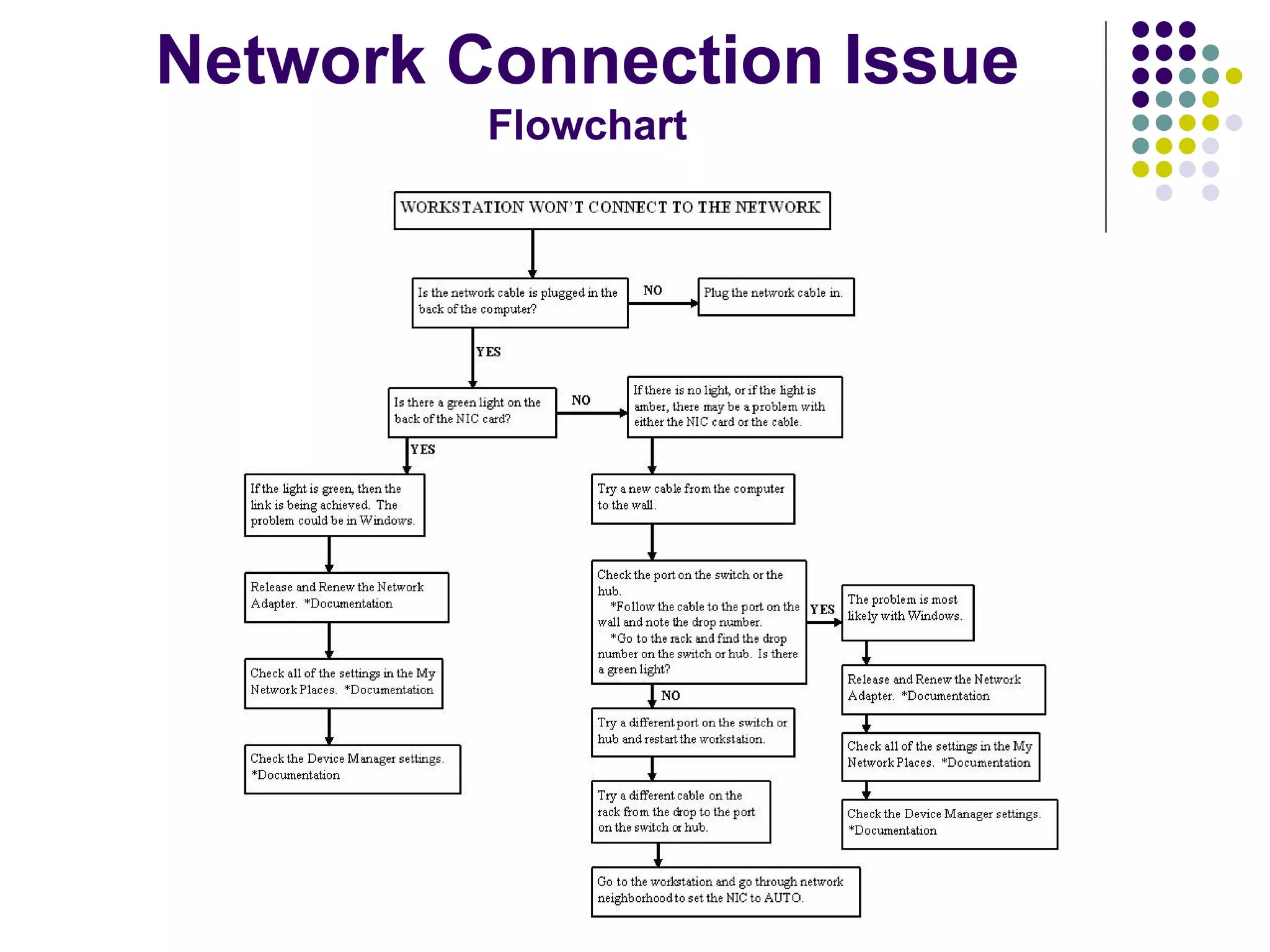
Network Connection Issue Flowchart
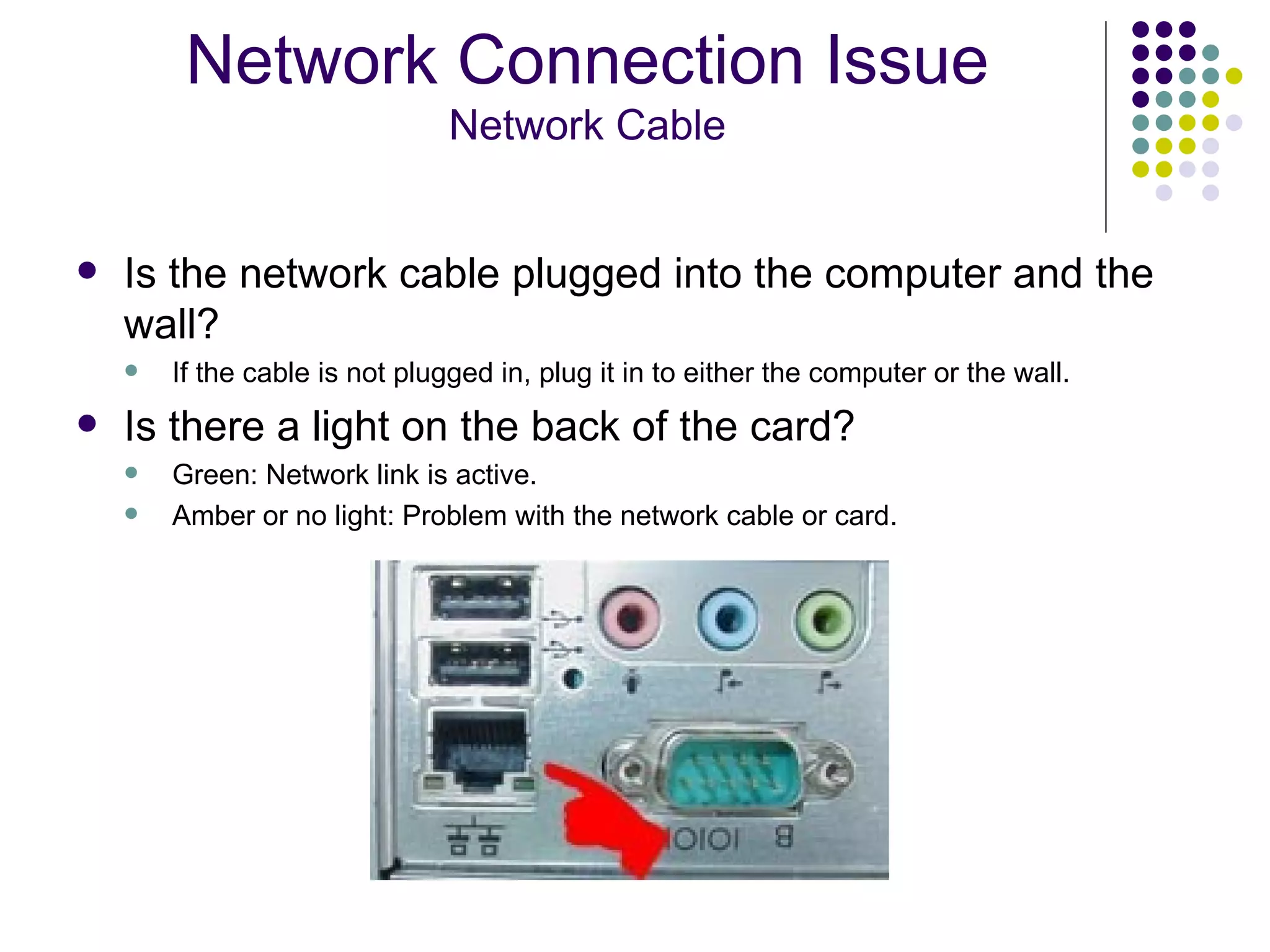
Is the network cable plugged into the computer and the wall? If the cable is not plugged in, plug it in to either the computer or the wall. Is there a light on the back of the card? Green: Network link is active. Amber or no light: Problem with the network cable or card. Network Connection Issue Network Cable
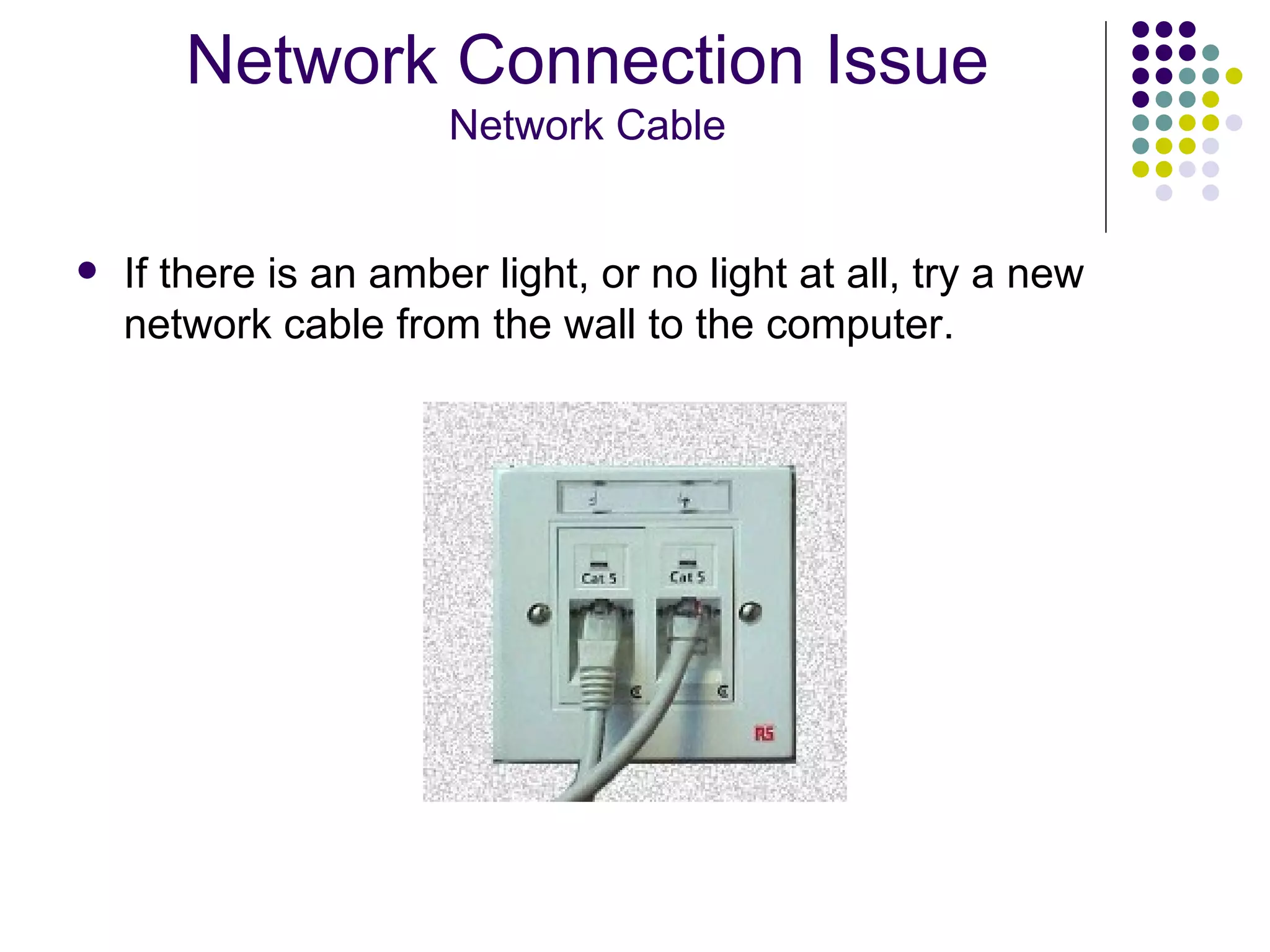
If there is an amber light, or no light at all, try a new network cable from the wall to the computer. Network Connection Issue Network Cable
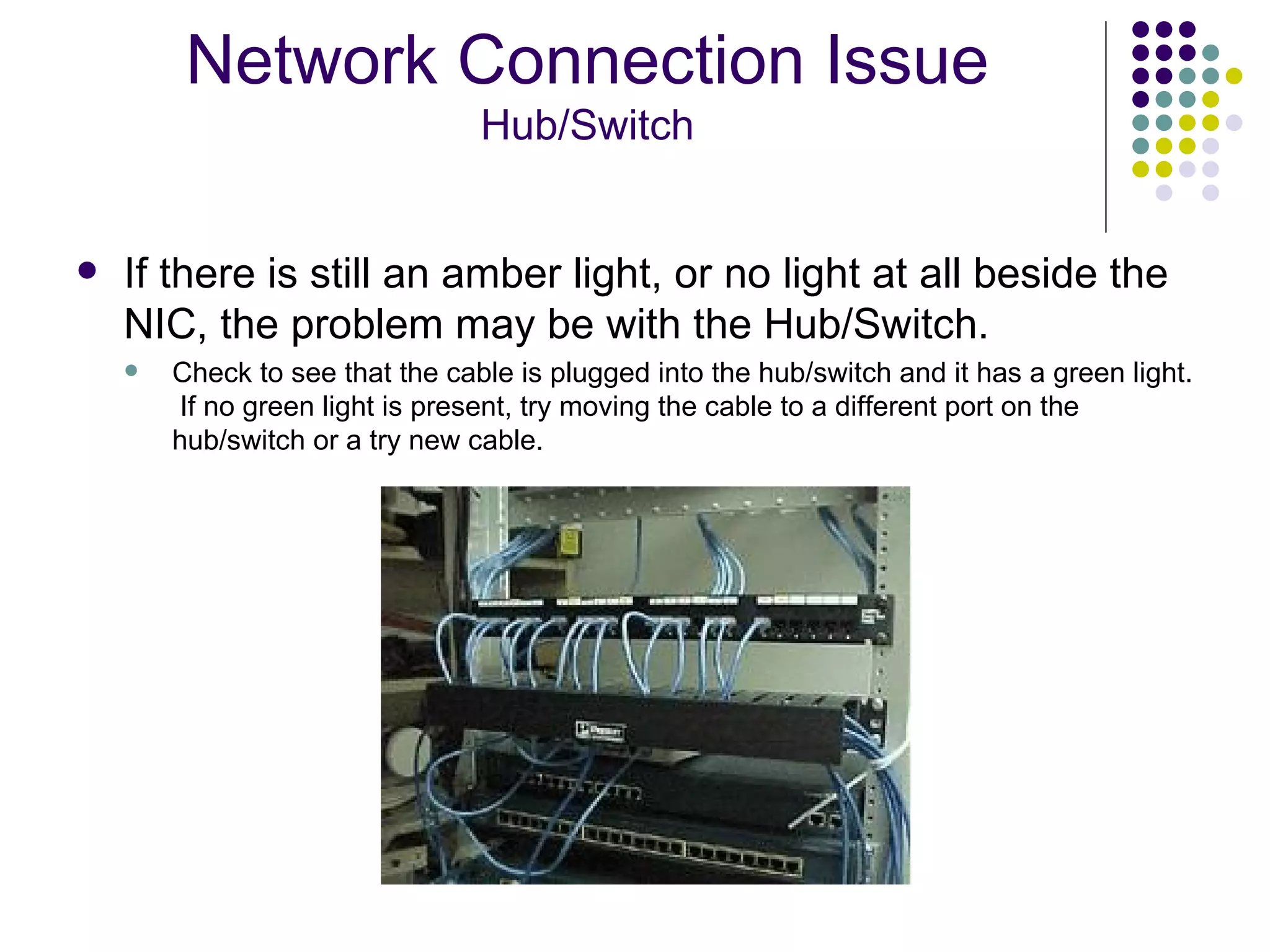
If there is still an amber light, or no light at all beside the NIC, the problem may be with the Hub/Switch.  Check to see that the cable is plugged into the hub/switch and it has a green light.  If no green light is present, try moving the cable to a different port on the hub/switch or a try new cable. Network Connection Issue Hub/Switch
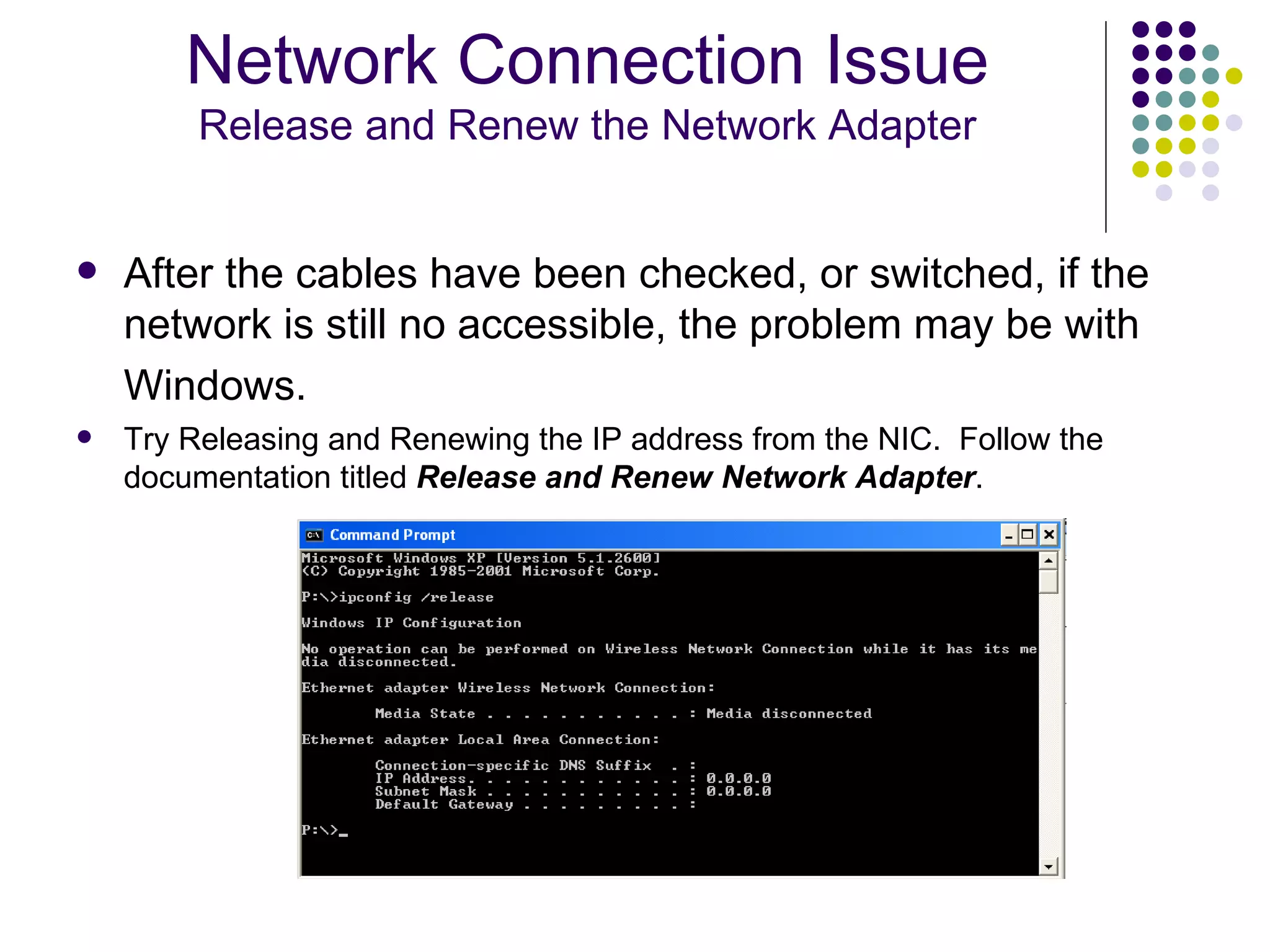
After the cables have been checked, or switched, if the network is still no accessible, the problem may be with Windows.   Try Releasing and Renewing the IP address from the NIC.  Follow the documentation titled  Release and Renew Network Adapter . Network Connection Issue Release and Renew the Network Adapter
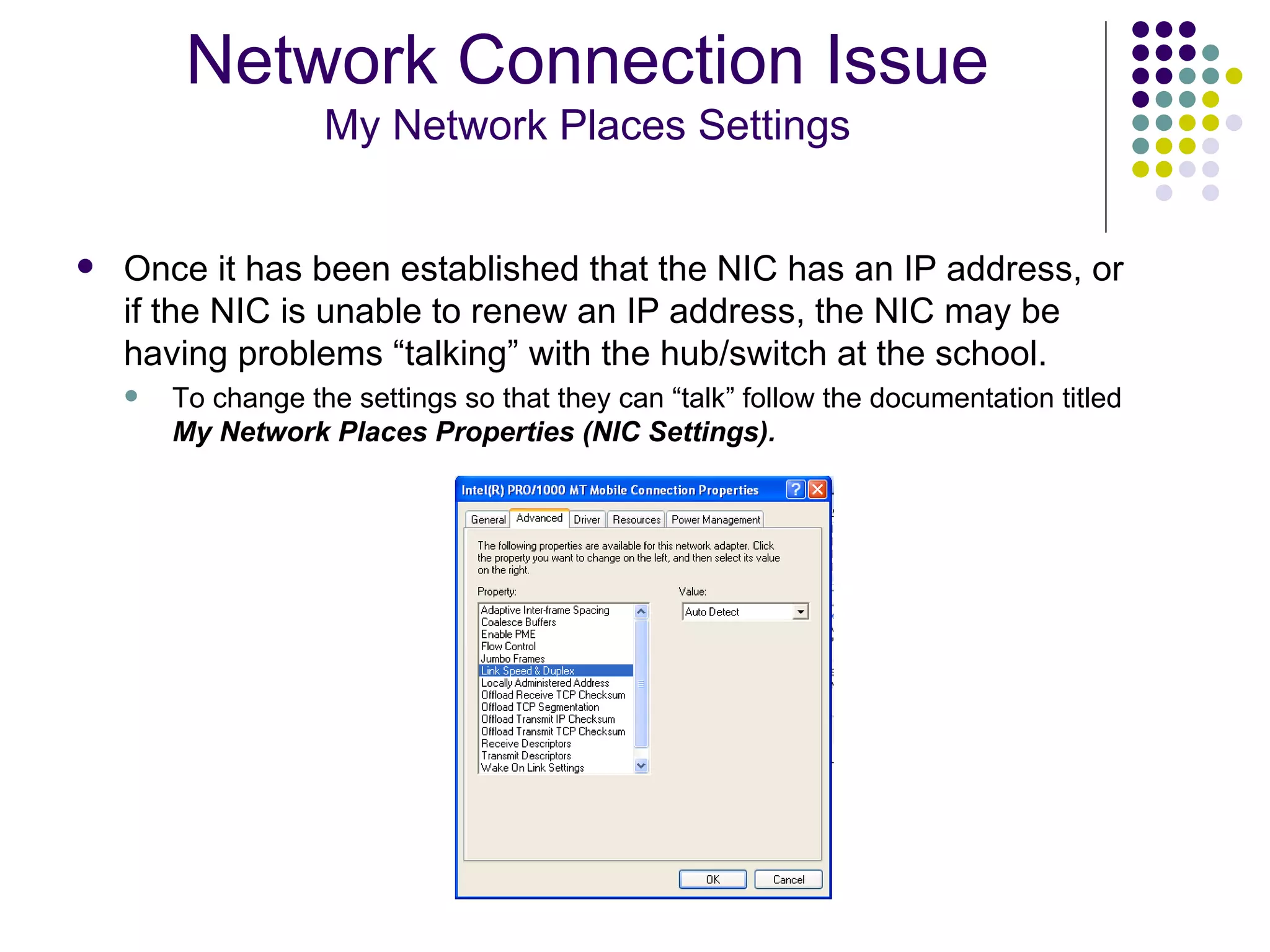
Once it has been established that the NIC has an IP address, or if the NIC is unable to renew an IP address, the NIC may be having problems “talking” with the hub/switch at the school.  To change the settings so that they can “talk” follow the documentation titled  My Network Places Properties (NIC Settings). Network Connection Issue My Network Places Settings
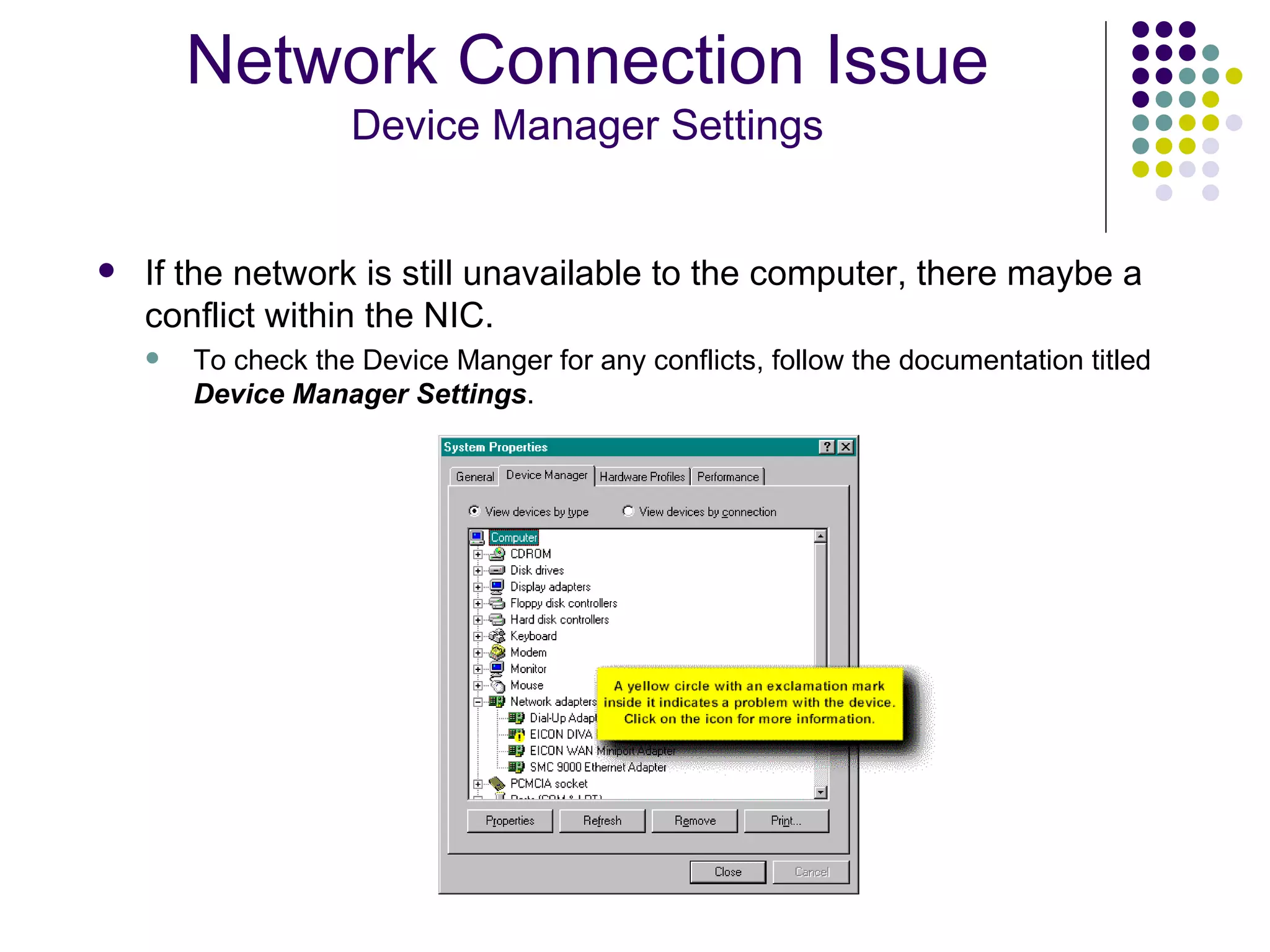
If the network is still unavailable to the computer, there maybe a conflict within the NIC.  To check the Device Manger for any conflicts, follow the documentation titled  Device Manager Settings . Network Connection Issue Device Manager Settings
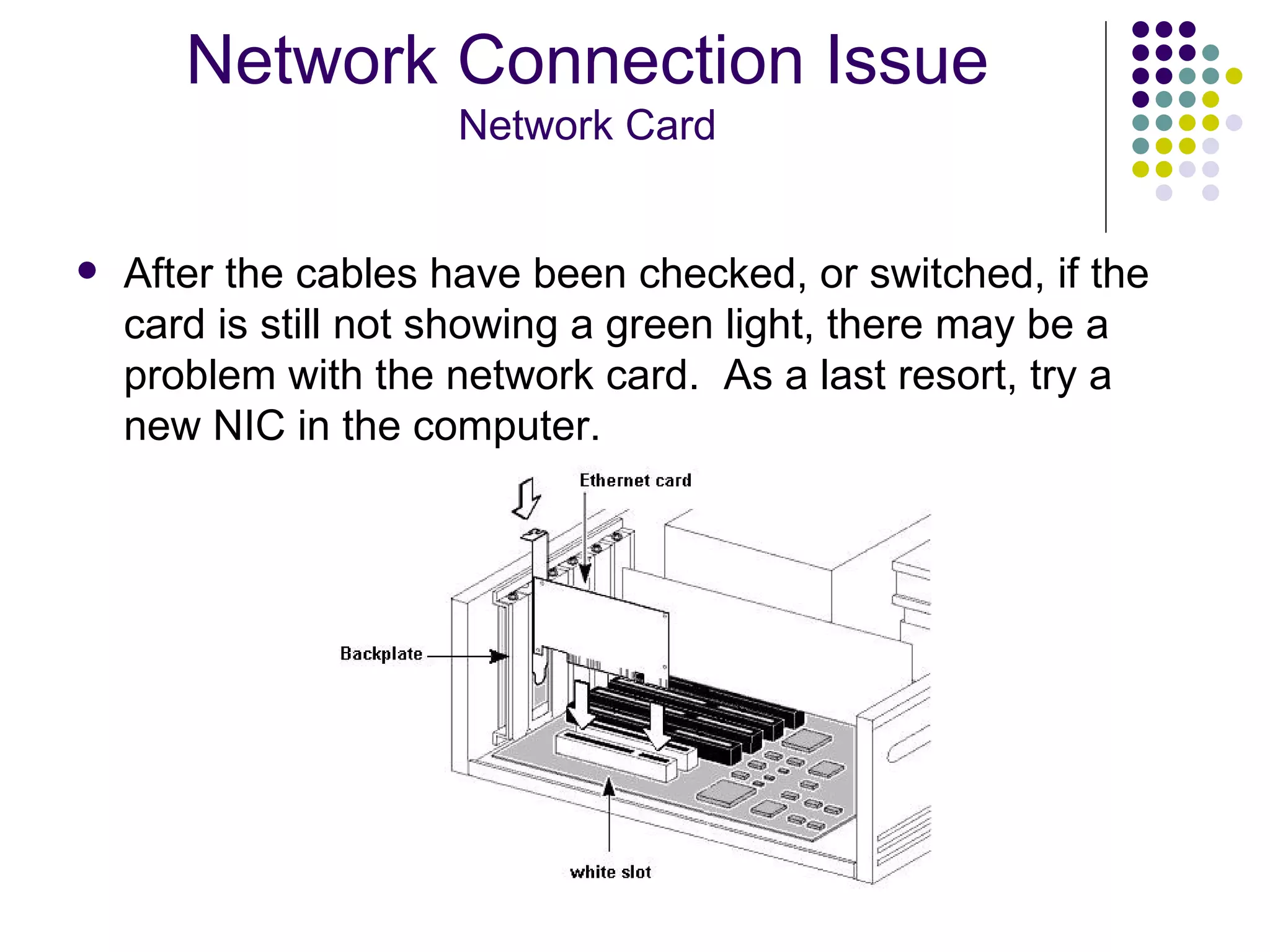
After the cables have been checked, or switched, if the card is still not showing a green light, there may be a problem with the network card.  As a last resort, try a new NIC in the computer. Network Connection Issue Network Card
If the computer will not boot as soon as it is turned on, there may be a hardware problem. These problems can include: Bad Memory (RAM) Bad Hard Drive Non-Bootable disk in drive Hardware Issues Computer Won’t Boot
If the computer will not start when it is first powered on, and there are two beeps that occur, there may be a problem with the memory (RAM).  Generally, once the beeps occur, a screen will come up alert that there was a POST startup error.  Each computer system may have a different screen that comes up. Hardware Issues Computer Won’t Boot—Bad Memory
If the computer has a bad hard drive, a few symptoms may occur.  When the computer is powered on, there may be a number of “clicks”.  The computer may act like it is going to boot, but it may never go past the initial splash screen. Other symptoms may depend on the type of computer system that the hard drive is in. Hardware Issues Computer Won’t Boot—Bad Hard Drive
If the computer is powered on, and a message comes up that says the ‘ NTLDR is missing ’, chances are there is a non-bootable disk in one of the drives. Check to make sure there is not a CD or a floppy disk in any of the drives.  If there is, take the disk out and restart the computer.  If the message shows up again, there may possibly be a problem with the operating system. Hardware Issues Computer Won’t Boot—NTLDR is missing
Questions?

Basic Network And Hardware Troubleshooting

  • 1.
    Basic Network andHardware Troubleshooting
  • 2.
  • 3.
    1 st Line of Defense Prior to submitting a request for support, make sure to check a few things. If the problem is a network issue, check the Network Connection Flowchart to see if the problem can be corrected. If the problem is a hardware problem, make note of what the computer is doing and check those symptoms with the documentation.
  • 4.
  • 5.
    Is the networkcable plugged into the computer and the wall? If the cable is not plugged in, plug it in to either the computer or the wall. Is there a light on the back of the card? Green: Network link is active. Amber or no light: Problem with the network cable or card. Network Connection Issue Network Cable
  • 6.
    If there isan amber light, or no light at all, try a new network cable from the wall to the computer. Network Connection Issue Network Cable
  • 7.
    If there isstill an amber light, or no light at all beside the NIC, the problem may be with the Hub/Switch. Check to see that the cable is plugged into the hub/switch and it has a green light. If no green light is present, try moving the cable to a different port on the hub/switch or a try new cable. Network Connection Issue Hub/Switch
  • 8.
    After the cableshave been checked, or switched, if the network is still no accessible, the problem may be with Windows. Try Releasing and Renewing the IP address from the NIC. Follow the documentation titled Release and Renew Network Adapter . Network Connection Issue Release and Renew the Network Adapter
  • 9.
    Once it hasbeen established that the NIC has an IP address, or if the NIC is unable to renew an IP address, the NIC may be having problems “talking” with the hub/switch at the school. To change the settings so that they can “talk” follow the documentation titled My Network Places Properties (NIC Settings). Network Connection Issue My Network Places Settings
  • 10.
    If the networkis still unavailable to the computer, there maybe a conflict within the NIC. To check the Device Manger for any conflicts, follow the documentation titled Device Manager Settings . Network Connection Issue Device Manager Settings
  • 11.
    After the cableshave been checked, or switched, if the card is still not showing a green light, there may be a problem with the network card. As a last resort, try a new NIC in the computer. Network Connection Issue Network Card
  • 12.
    If the computerwill not boot as soon as it is turned on, there may be a hardware problem. These problems can include: Bad Memory (RAM) Bad Hard Drive Non-Bootable disk in drive Hardware Issues Computer Won’t Boot
  • 13.
    If the computerwill not start when it is first powered on, and there are two beeps that occur, there may be a problem with the memory (RAM). Generally, once the beeps occur, a screen will come up alert that there was a POST startup error. Each computer system may have a different screen that comes up. Hardware Issues Computer Won’t Boot—Bad Memory
  • 14.
    If the computerhas a bad hard drive, a few symptoms may occur. When the computer is powered on, there may be a number of “clicks”. The computer may act like it is going to boot, but it may never go past the initial splash screen. Other symptoms may depend on the type of computer system that the hard drive is in. Hardware Issues Computer Won’t Boot—Bad Hard Drive
  • 15.
    If the computeris powered on, and a message comes up that says the ‘ NTLDR is missing ’, chances are there is a non-bootable disk in one of the drives. Check to make sure there is not a CD or a floppy disk in any of the drives. If there is, take the disk out and restart the computer. If the message shows up again, there may possibly be a problem with the operating system. Hardware Issues Computer Won’t Boot—NTLDR is missing
  • 16.