INTRODUCTION TO MATLAB SUBMITTED BY CHINMAYA MAHAPATRA
WHAT IS MATLAB MATLAB stands for matrix laboratory.  It is a high-performance language for technical computing. It integrates computation, visualization, and programming in an easy-to-use environment where problems and solutions are expressed in familiar mathematical notation
USES Math and computation Algorithm development  Data acquisition  Modeling, simulation, and prototyping Data analysis, exploration, and visualization  Scientific and engineering graphics  Application development, including graphical user interface building
MATLAB LANGUAGE It accepts only vectors or arrays as inputs. All the valid syntax of ‘c’ and ‘c++’ are valid syntax here. Writing a program in MATLAB is just like writing an algorithm. It is user friendly . Many default commands do those works which require big programs to be written in ‘c’ or ‘c++’.
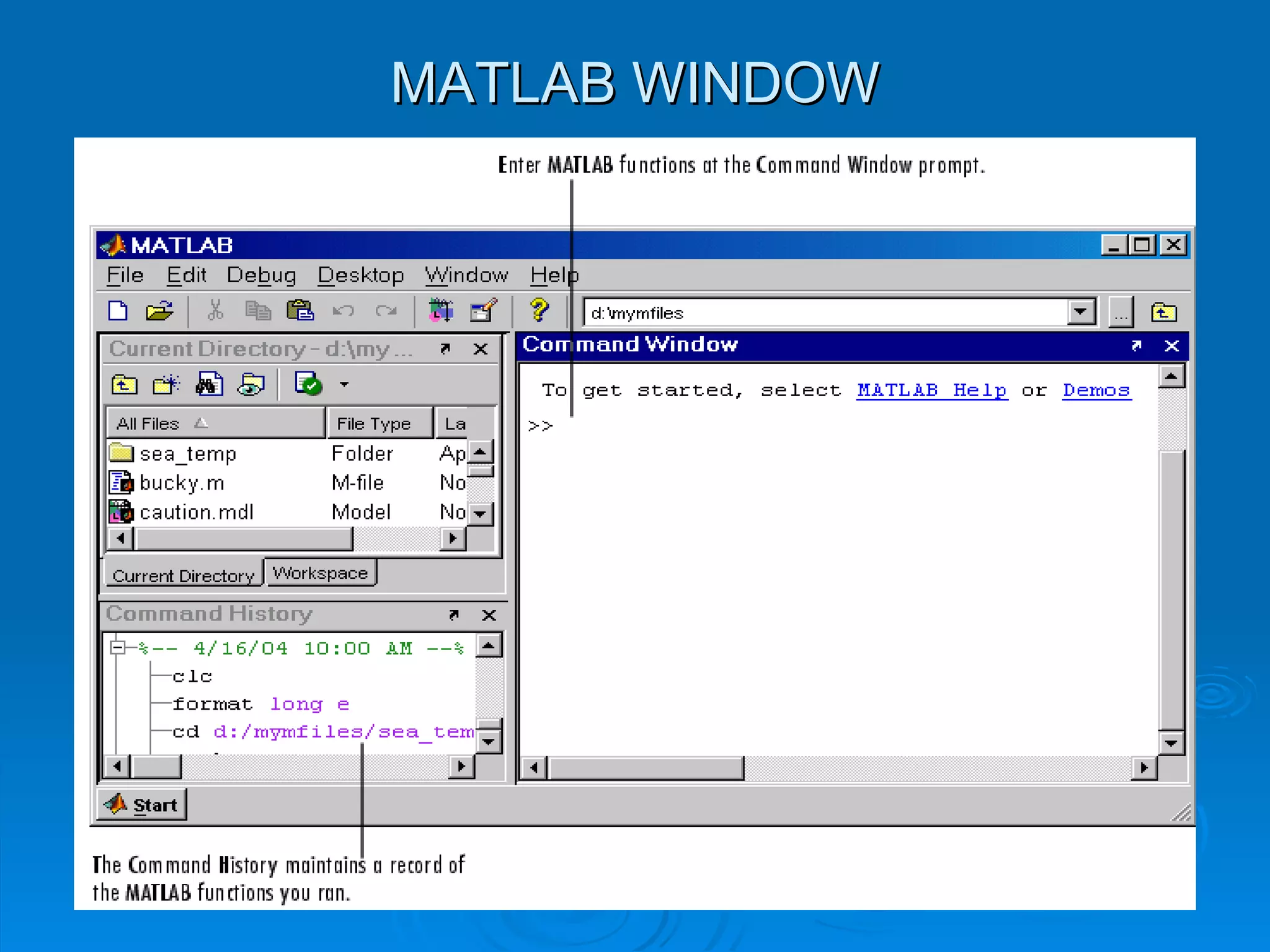
STARTING AND QUITTING MATLAB To start MATLAB on  Microsoft Windows platform select the  Start -> Programs -> MATLAB 7.0 -> MATLAB 7.0 Double-click the MATLAB shortcut icon on your Windows desktop.   To quit MATLAB Click the close box  ×  in the MATLAB desktop.   Select Exit MATLAB from the desktop File menu.  Type quit at the Command Window prompt.
MATLAB WINDOW
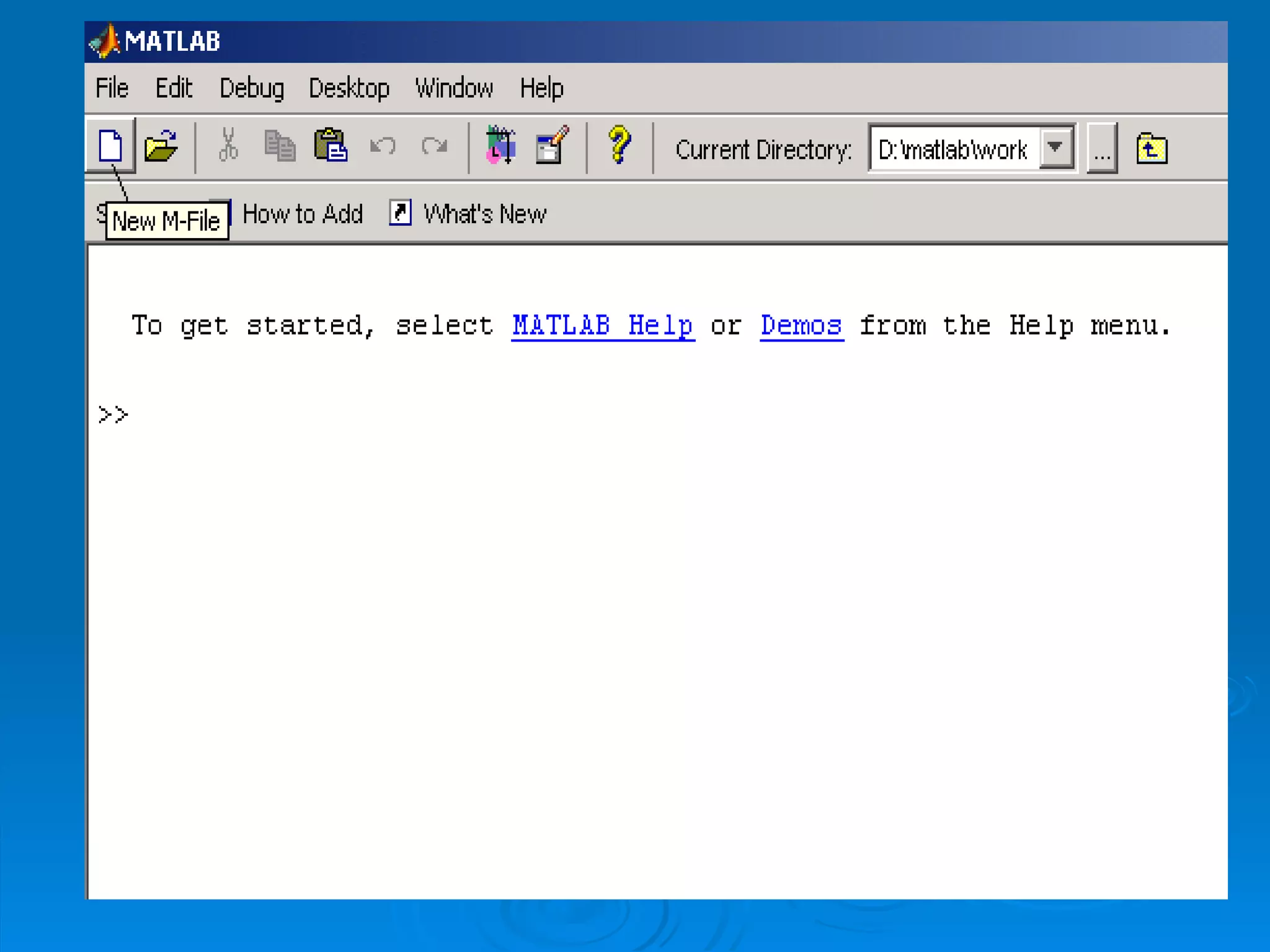
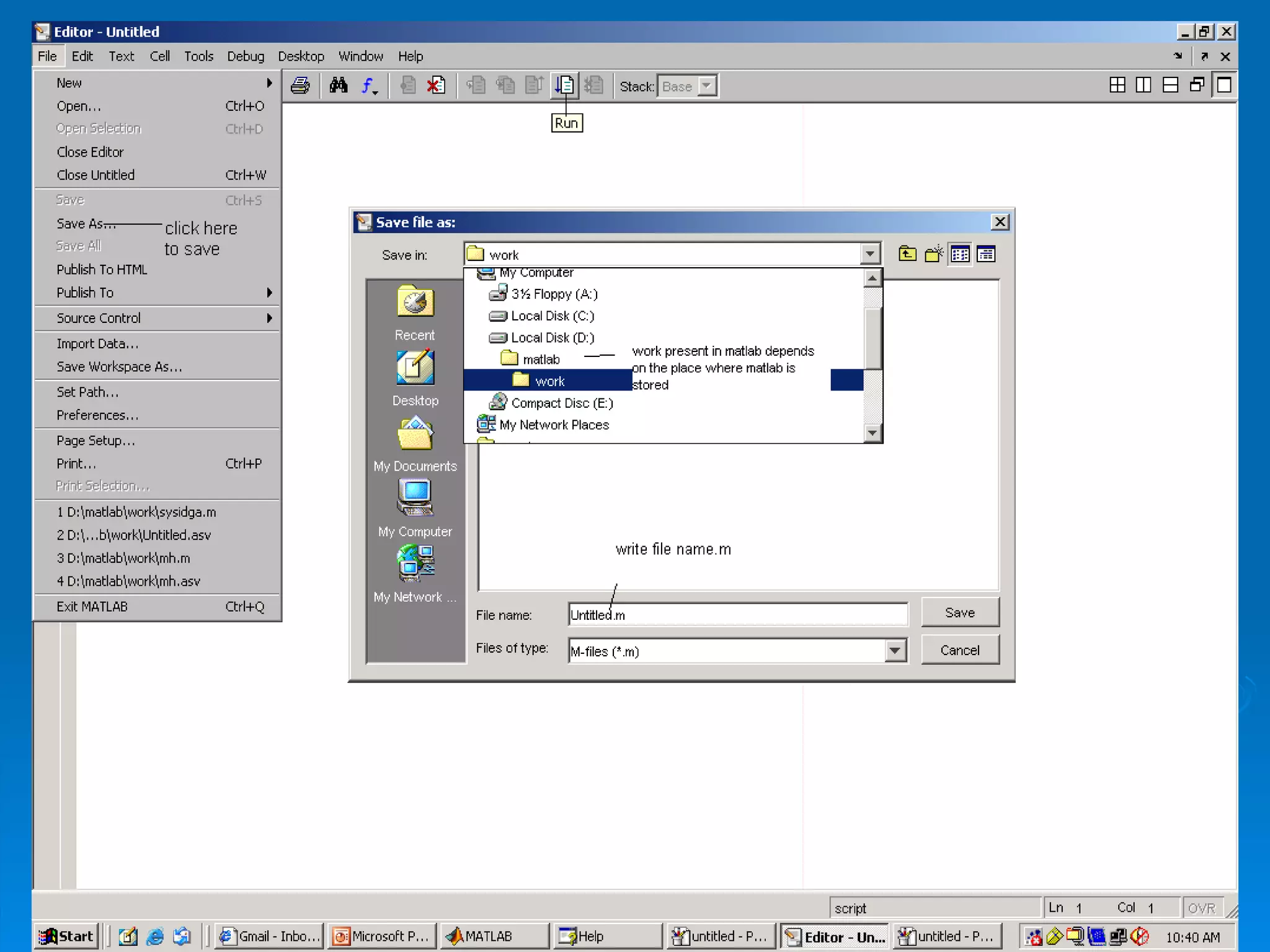
WRITING A PROGRAM IN MATLAB Follow the steps written and the figure shown Open a mat (.m) file in the MATLAB window .  Click on  file menu   -> save -> your file name.m  to save a  file in  MATLAB  for further use . All the saved files can be accessed from the workspace directory present in MATLAB folder. Results of all the command written in .m editor can be seen in command prompt if  programs are written without semicolon in .m editor. Press F5 to run the program after saving it.
 
 
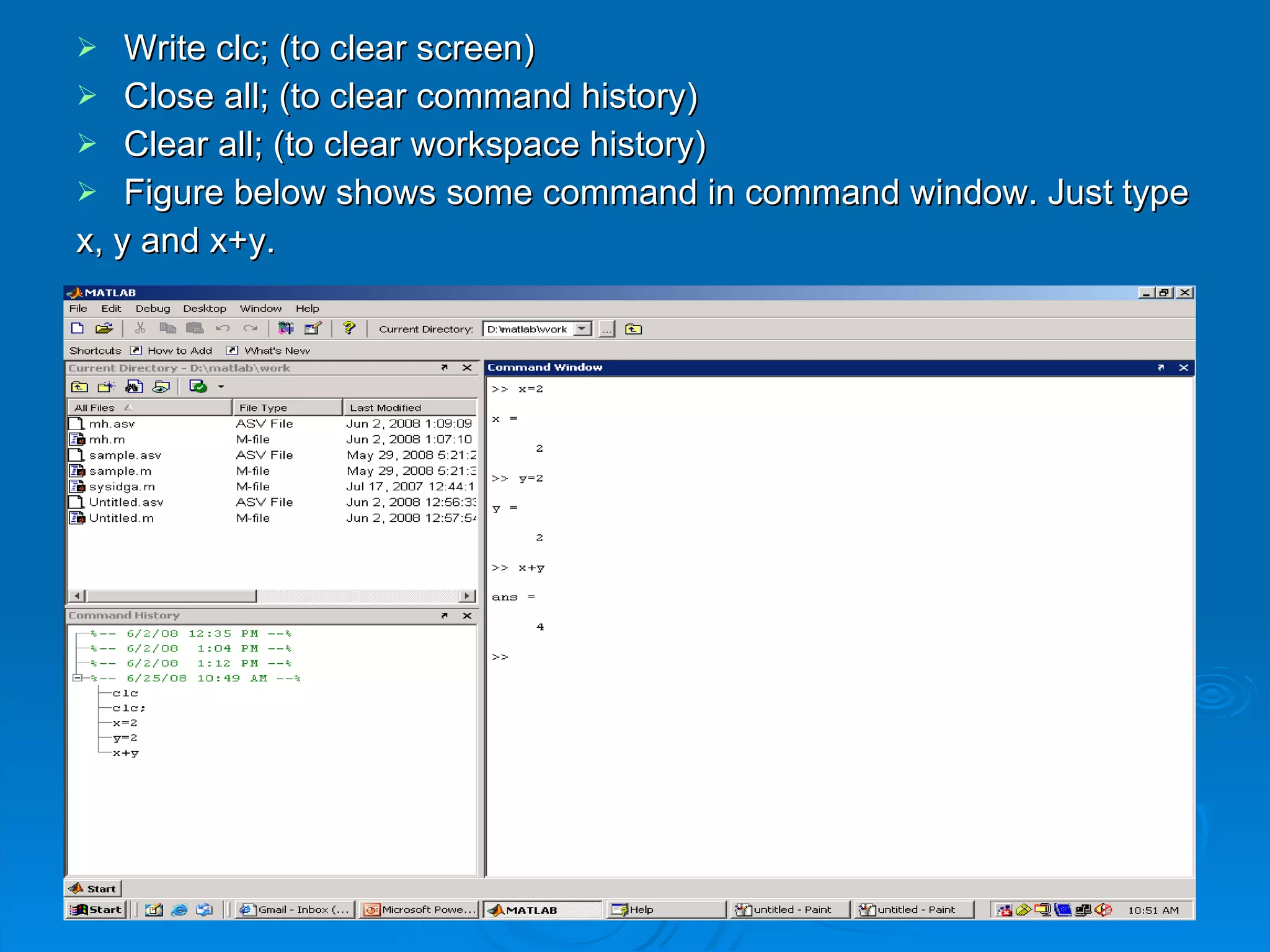
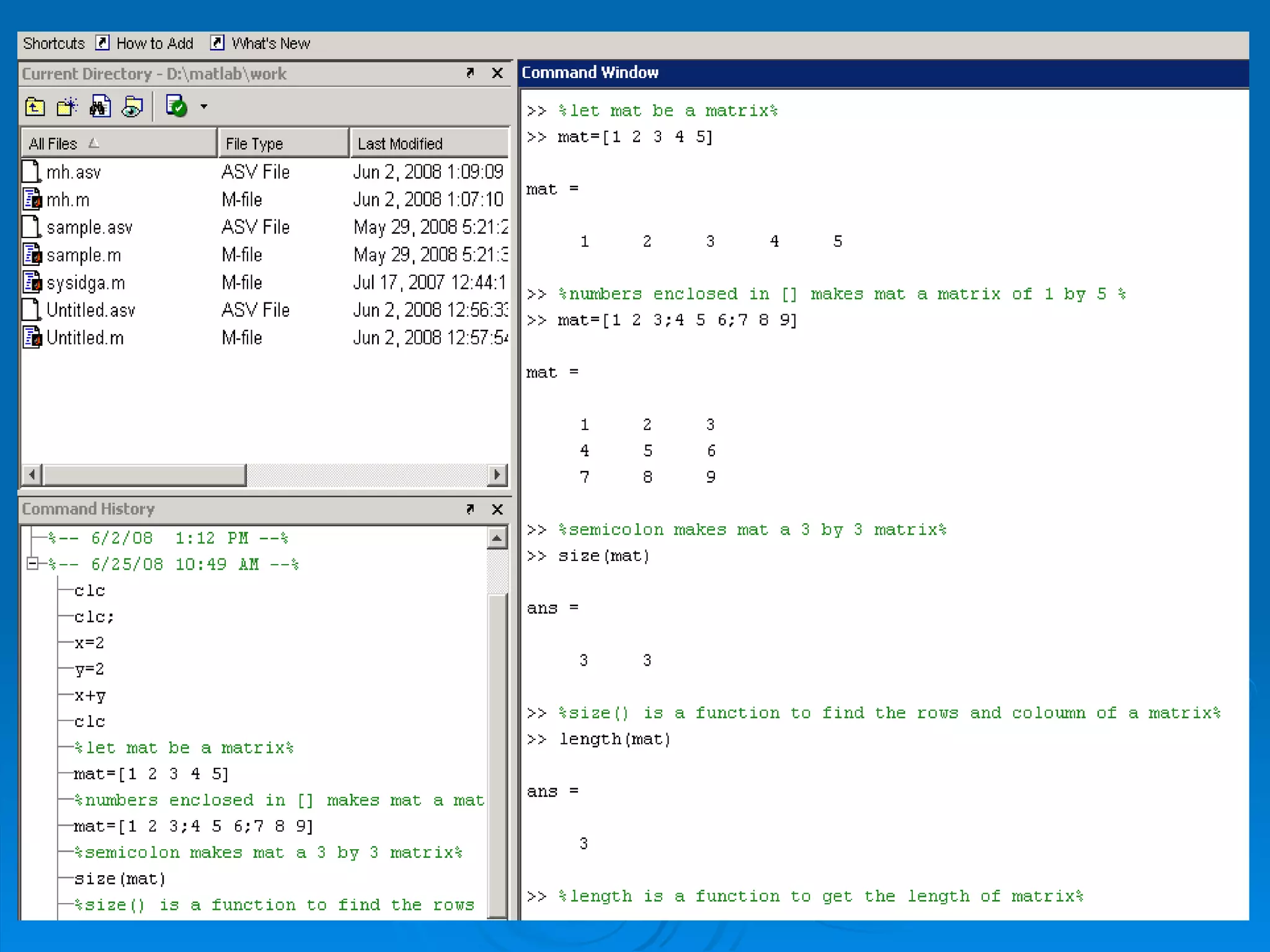
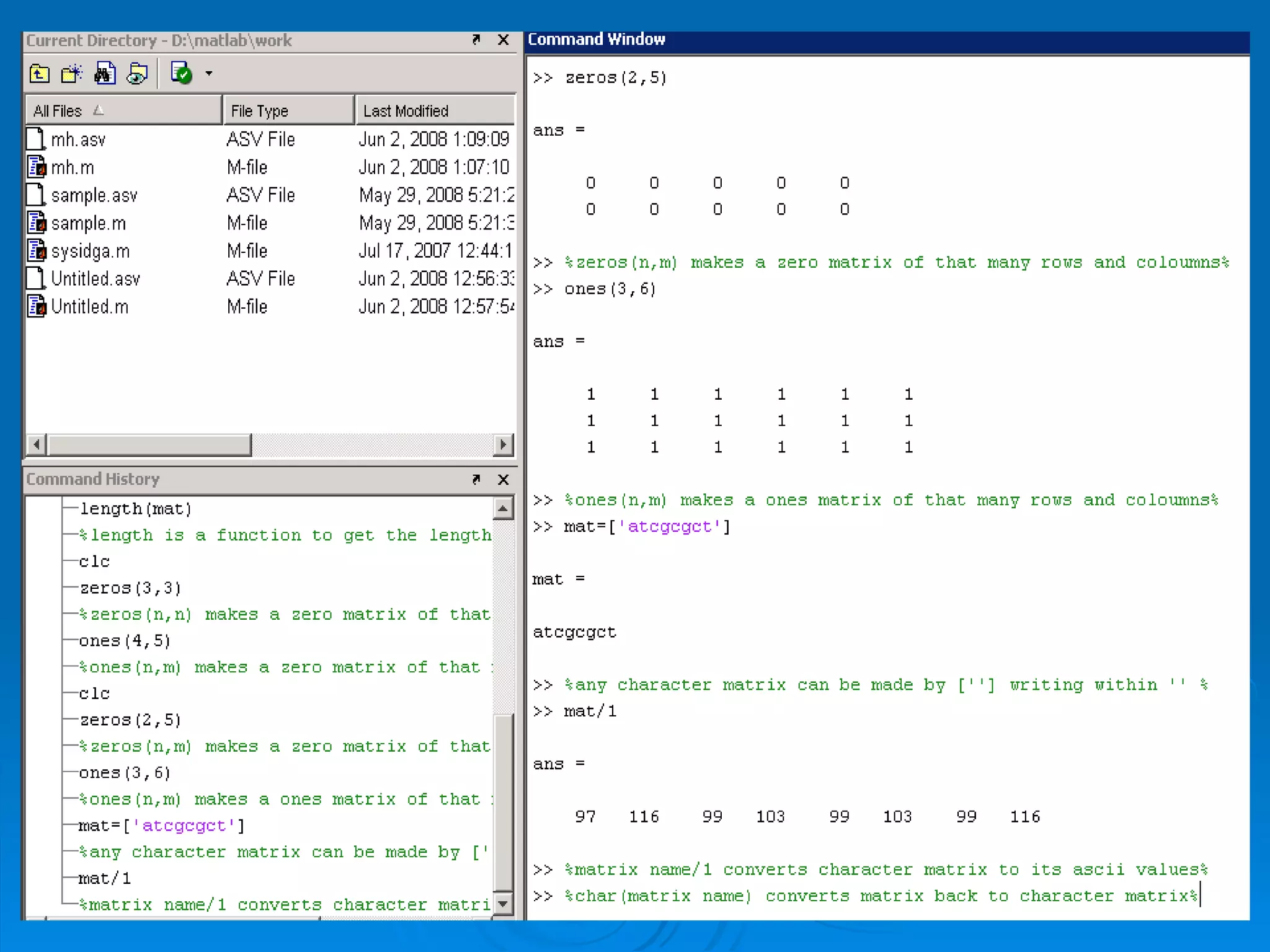
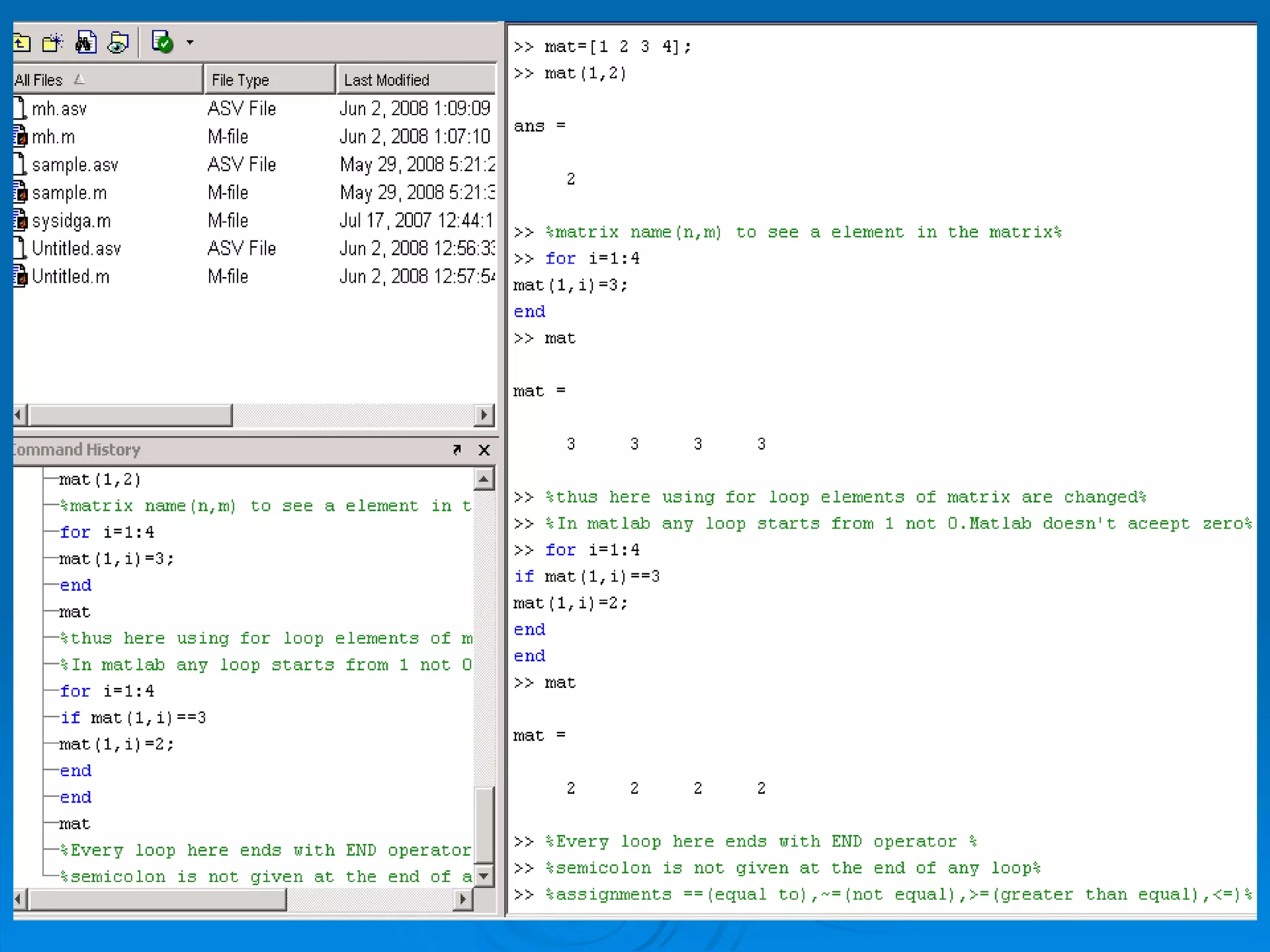
Write clc; (to clear screen) Close all; (to clear command history) Clear all; (to clear workspace history) Figure below shows some command in command window. Just type x, y and x+y.


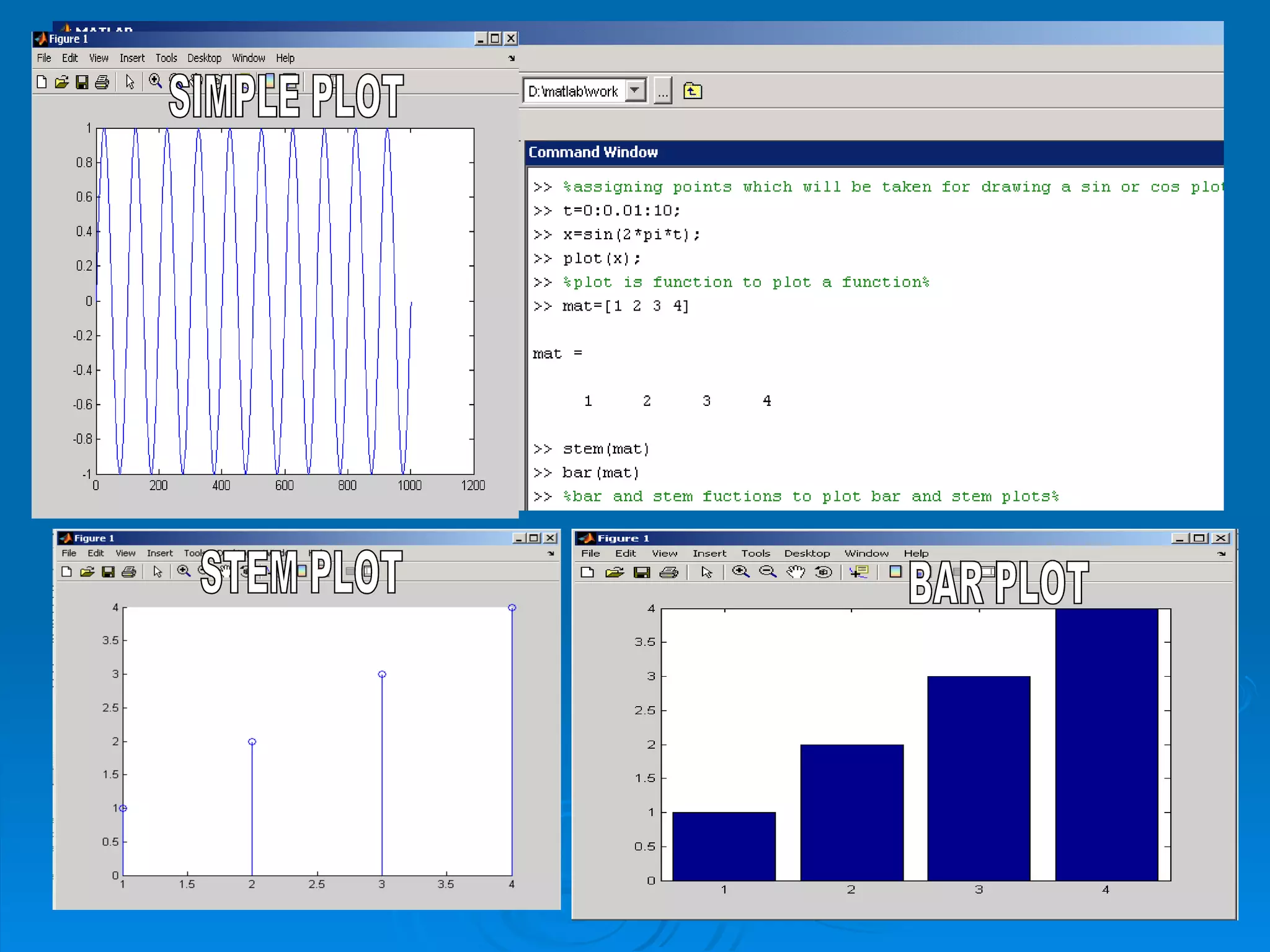
SIMPLE PLOT BAR PLOT STEM PLOT
 
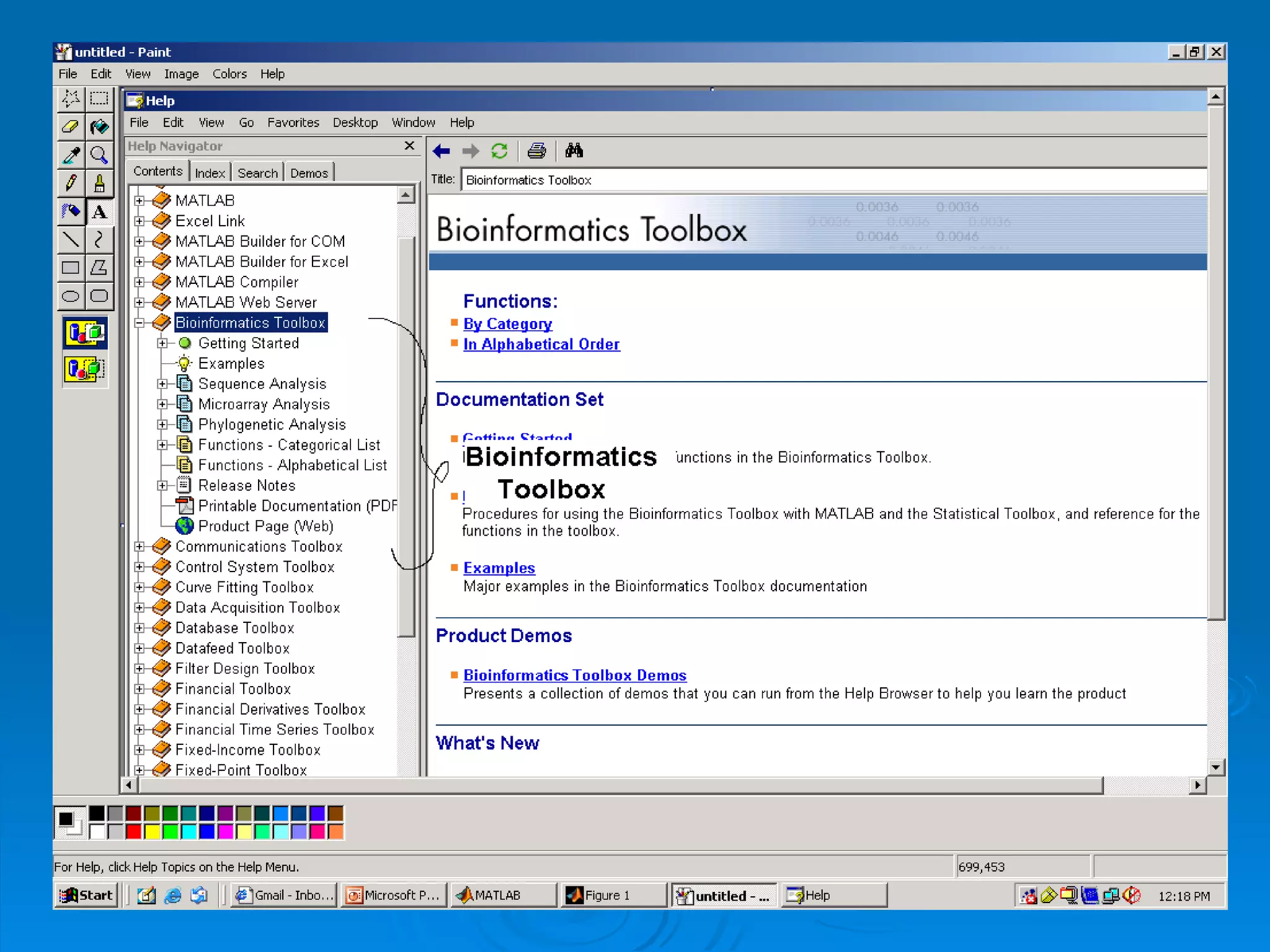
CONCLUSION This provides the basic knowledge on MATLAB. In the MATLAB window by typing help all the commands can be found out. In the MATLAB window go to help toolbox . In that go to bioinformatics toolbox  to perform jobs like Blast Sequence alignment Phylogenetic analysis Micro array analysis

How to work on Matlab.......

  • 1.
    INTRODUCTION TO MATLABSUBMITTED BY CHINMAYA MAHAPATRA
  • 2.
    WHAT IS MATLABMATLAB stands for matrix laboratory. It is a high-performance language for technical computing. It integrates computation, visualization, and programming in an easy-to-use environment where problems and solutions are expressed in familiar mathematical notation
  • 3.
    USES Math andcomputation Algorithm development Data acquisition Modeling, simulation, and prototyping Data analysis, exploration, and visualization Scientific and engineering graphics Application development, including graphical user interface building
  • 4.
    MATLAB LANGUAGE Itaccepts only vectors or arrays as inputs. All the valid syntax of ‘c’ and ‘c++’ are valid syntax here. Writing a program in MATLAB is just like writing an algorithm. It is user friendly . Many default commands do those works which require big programs to be written in ‘c’ or ‘c++’.
  • 5.
    STARTING AND QUITTINGMATLAB To start MATLAB on Microsoft Windows platform select the Start -> Programs -> MATLAB 7.0 -> MATLAB 7.0 Double-click the MATLAB shortcut icon on your Windows desktop. To quit MATLAB Click the close box × in the MATLAB desktop. Select Exit MATLAB from the desktop File menu. Type quit at the Command Window prompt.
  • 6.
  • 7.
    WRITING A PROGRAMIN MATLAB Follow the steps written and the figure shown Open a mat (.m) file in the MATLAB window . Click on file menu -> save -> your file name.m to save a file in MATLAB for further use . All the saved files can be accessed from the workspace directory present in MATLAB folder. Results of all the command written in .m editor can be seen in command prompt if programs are written without semicolon in .m editor. Press F5 to run the program after saving it.
  • 8.
  • 9.
  • 10.
    Write clc; (toclear screen) Close all; (to clear command history) Clear all; (to clear workspace history) Figure below shows some command in command window. Just type x, y and x+y.
  • 11.
  • 12.
  • 13.
  • 14.
    SIMPLE PLOT BARPLOT STEM PLOT
  • 15.
  • 16.
    CONCLUSION This providesthe basic knowledge on MATLAB. In the MATLAB window by typing help all the commands can be found out. In the MATLAB window go to help toolbox . In that go to bioinformatics toolbox to perform jobs like Blast Sequence alignment Phylogenetic analysis Micro array analysis