Your (WordPress)
Freelance Business
Site
Brian Hogg
@brianhogg
brianhogg.com
Working with JavaScript and WordPress
https://brianhogg.com/jswp
WordCamp Hamilton
https://hamilton.wordcamp.org/
Plugins
https://brianhogg.com/plugins/
Hamilton Freelancers
http://freelancermeetup.com/
Video of this
Presentation
https://www.crowdcast.io/e/your-freelance-business
Terms
• Domain Name: yourbusinessname.com (.org, .ca,
…)
• WordPress: The code and content management
system for your website
• Hosting: So clients can see your WordPress site
Relationship Between Domain Name, Hosting and
WordPress
Domain Name
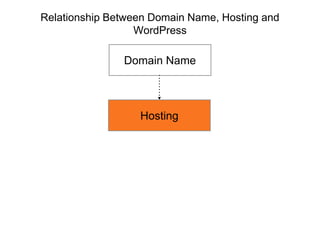
Relationship Between Domain Name, Hosting and
WordPress
Domain Name
Hosting
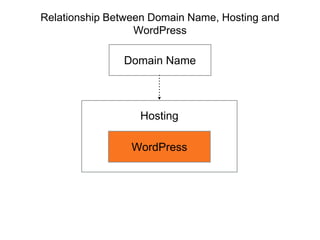
Relationship Between Domain Name, Hosting and
WordPress
Domain Name
Hosting
WordPress
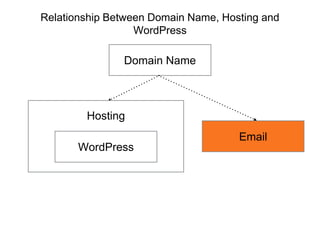
Relationship Between Domain Name, Hosting and
WordPress
Domain Name
Hosting
WordPress
Email
Registering Your Domain
Name
• Go to namecheap.com
• Search for your desired domain name
• Add to cart
• Make sure Auto-renew enabled during checkout
Setting Up Hosting
Why WP Engine?
• WordPress installed/configured with no other steps
• Fast, reliable, secure, 24/7 support
• Faster site = higher rankings + less user
frustration
• All they do is WordPress
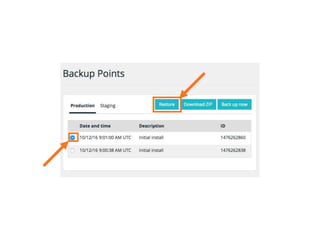
• Nice intuitive interface
• ie. restoring a backup if you make a mistake
Why WP Engine?
• Automatic WordPress core updates
• Will automatically restore/rollback if error
• (Usually) alerts you if there is a major security
issue with a plugin/theme
• Easy to configure SSL certificate (https://)
• You get what you pay for.
• WP Engine gives 2 months free if you pay
annually
https://brianhogg.com/wpengin
e
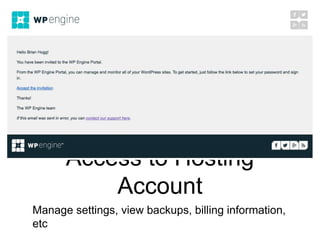
Access to Hosting
Account
Manage settings, view backups, billing information,
etc
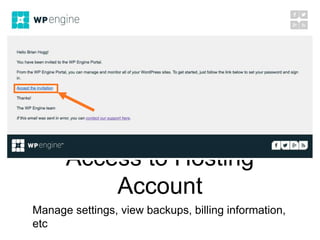
Access to Hosting
Account
Manage settings, view backups, billing information,
etc
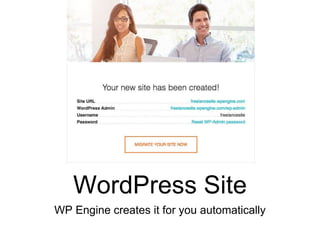
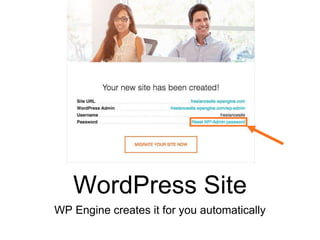
WordPress Site
WP Engine creates it for you automatically
WordPress Site
WP Engine creates it for you automatically
Demo:
Setting up your site!
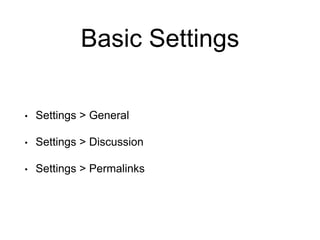
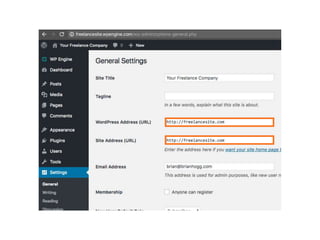
Basic Settings
• Settings > General
• Settings > Discussion
• Settings > Permalinks
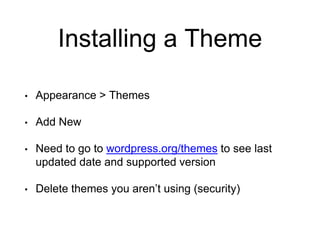
Installing a Theme
• Appearance > Themes
• Add New
• Need to go to wordpress.org/themes to see last
updated date and supported version
• Delete themes you aren’t using (security)
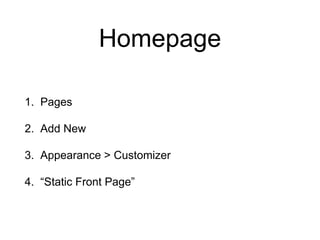
Homepage
1. Pages
2. Add New
3. Appearance > Customizer
4. “Static Front Page”
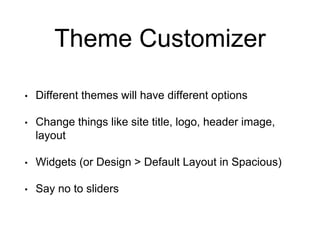
Theme Customizer
• Different themes will have different options
• Change things like site title, logo, header image,
layout
• Widgets (or Design > Default Layout in Spacious)
• Say no to sliders
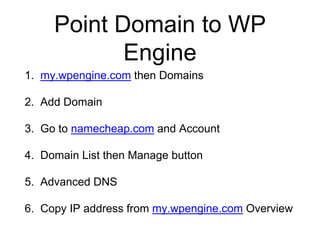
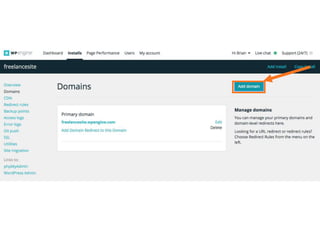
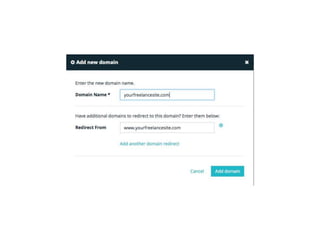
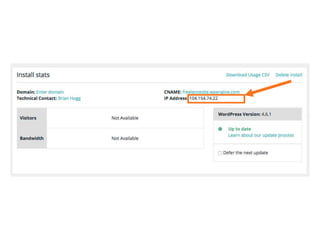
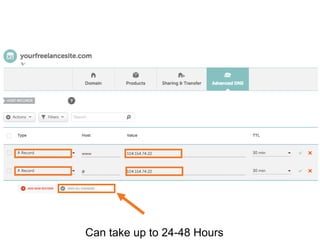
Point Domain to WP
Engine
1. my.wpengine.com then Domains
2. Add Domain
3. Go to namecheap.com and Account
4. Domain List then Manage button
5. Advanced DNS
6. Copy IP address from my.wpengine.com Overview
Can take up to 24-48 Hours
You have a site!
Staging Site:
Safe Way to Test Things
What’s Next?
• Add other page(s)
• Keep plugins/theme up to date
• Additional backups with VaultPress
• Free SSL certificate
• Store with WooCommerce?
• WordPress Tutorials
Questions?

Your WordPress Freelance Business Site

Editor's Notes

  • #3 JSWP course - another course on creating your first WP site, and a WP-focused blog there too
  • #10 DEMO
  • #11 Lots of options, but recommend WP Engine
  • #12 you get WordPress installed with no other steps! Fast, reliable, secure, 24/7 support - all important bits for a business website. Faster site = higher rankings All they do is WordPress. Nice intuitive interface (screenshot of backup screen, vs. bluehost?) How to restore a backup if you make a mistake Automatic core wordpress updates, will fall back. Still need to update plugins/themes (though if there’s a major issue they’ll usually auto upgrade that too) You get what you pay for. Cheap(er) hosting usually requires you pre-pay for 2 or 3 years in advance A couple clicks to configure a (free) SSL certificate! (Note on google ranking / article?) Daily Backups included, (but you’d want to set up a secondary backup like VaultPress, which I’ll go through later....)
  • #13 Automatic once a day… often pay extra for it
  • #14 you get WordPress installed with no other steps! Fast, reliable, secure, 24/7 support - all important bits for a business website. Faster site = higher rankings All they do is WordPress. Nice intuitive interface (screenshot of backup screen, vs. bluehost?) How to restore a backup if you make a mistake Automatic core wordpress updates, will fall back. Still need to update plugins/themes (though if there’s a major issue they’ll usually auto upgrade that too) You get what you pay for. Cheap(er) hosting usually requires you pre-pay for 2 or 3 years in advance A couple clicks to configure a (free) SSL certificate! (Note on google ranking / article?) Daily Backups included, (but you’d want to set up a secondary backup like VaultPress, which I’ll go through later....)
  • #15 - Yes, it’s an affiliate link, which means I get a bit if someone uses it. - Costs nothing for you to use the link - Money will go towards providing webinars like this one, meetup group fees, MORE CUPCAKES at the anniversary meetups, and the like… but if you don’t like me you can go directly to WP Engine :) I still recommend them regardless for all the reasons I just said. DEMO: Go to the link… Personal Plan