UNLEASH YOUR DESIGN
POTENTIAL WITH CSS FOR
BEGINNERS
By Michael Earley - ATL Squared Web Design
What is CSS?
¨  It’s the language in which you set your general
styling rules for a website.
¨  These rules apply to different HTML Tags throughout
the website so one rule can affect many areas of
the website. This keeps website styles consistent.
¨  Stands for Cascading Style Sheets. The rules at the
bottom take precedence over the rules above them.
¨  Don’t be afraid of CSS. It’s much easier than most
coding languages to understand and therefore
implement
Languages of WordPress
There are 3 Primary coding languages
used with WordPress: HTML, PHP &
CSS.
¨ PHP – Functionality
¨ HTML – Structure for Content
¨ CSS – Style
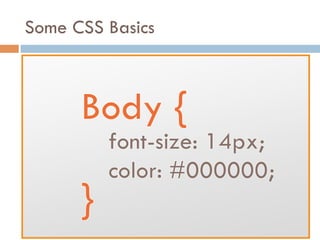
Some CSS Basics
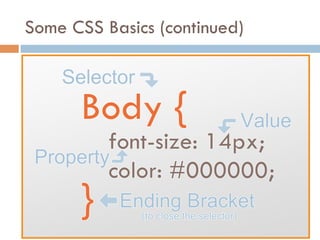
Some CSS Basics (continued)
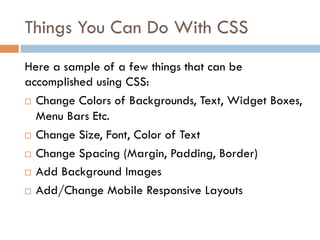
Things You Can Do With CSS
Here a sample of a few things that can be
accomplished using CSS:
¨  Change Colors of Backgrounds, Text, Widget Boxes,
Menu Bars Etc.
¨  Change Size, Font, Color of Text
¨  Change Spacing (Margin, Padding, Border)
¨  Add Background Images
¨  Add/Change Mobile Responsive Layouts
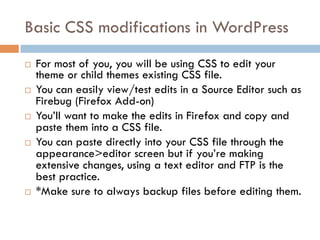
Basic CSS modifications in WordPress
¨  For most of you, you will be using CSS to edit your
theme or child themes existing CSS file.
¨  You can easily view/test edits in a Source Editor such as
Firebug (Firefox Add-on)
¨  You’ll want to make the edits in Firefox and copy and
paste them into a CSS file.
¨  You can paste directly into your CSS file through the
appearance>editor screen but if you’re making
extensive changes, using a text editor and FTP is the
best practice.
¨  *Make sure to always backup files before editing them.
I will now demonstrate how to use Firebug to test
CSS edits and show the different options for
adding the CSS to your .CSS file.
•  Finding the Right Selector, Property & Value
•  Where to Add The CSS
•  style.css through appearance>editor or FTP
•  custom css (Jetpack)
•  Child themes CSS
•  Some other Basic CSS Rules
Using Firebug, Appearance Editor & FTP
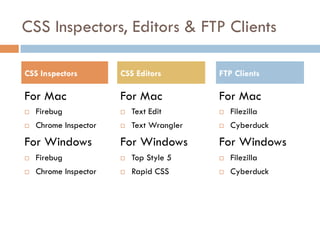
CSS Inspectors, Editors & FTP Clients
For Mac
¨  Firebug
¨  Chrome Inspector
For Windows
¨  Firebug
¨  Chrome Inspector
For Mac
¨  Text Edit
¨  Text Wrangler
For Windows
¨  Top Style 5
¨  Rapid CSS
CSS Inspectors CSS Editors
For Mac
¨  Filezilla
¨  Cyberduck
For Windows
¨  Filezilla
¨  Cyberduck
FTP Clients
Additional CSS Tips & Tricks
¨ !important declaration
(Do Not Overuse)
¨ /* Write Notes in Your CSS */
QUESTIONS?

WordCamp Atlanta 2014 - CSS For Beginners - By Michael Earley of ATL Squared Website Design

  • 1.
    UNLEASH YOUR DESIGN POTENTIALWITH CSS FOR BEGINNERS By Michael Earley - ATL Squared Web Design
  • 2.
    What is CSS? ¨ It’s the language in which you set your general styling rules for a website. ¨  These rules apply to different HTML Tags throughout the website so one rule can affect many areas of the website. This keeps website styles consistent. ¨  Stands for Cascading Style Sheets. The rules at the bottom take precedence over the rules above them. ¨  Don’t be afraid of CSS. It’s much easier than most coding languages to understand and therefore implement
  • 3.
    Languages of WordPress Thereare 3 Primary coding languages used with WordPress: HTML, PHP & CSS. ¨ PHP – Functionality ¨ HTML – Structure for Content ¨ CSS – Style
  • 4.
  • 5.
    Some CSS Basics(continued)
  • 6.
    Things You CanDo With CSS Here a sample of a few things that can be accomplished using CSS: ¨  Change Colors of Backgrounds, Text, Widget Boxes, Menu Bars Etc. ¨  Change Size, Font, Color of Text ¨  Change Spacing (Margin, Padding, Border) ¨  Add Background Images ¨  Add/Change Mobile Responsive Layouts
  • 7.
    Basic CSS modificationsin WordPress ¨  For most of you, you will be using CSS to edit your theme or child themes existing CSS file. ¨  You can easily view/test edits in a Source Editor such as Firebug (Firefox Add-on) ¨  You’ll want to make the edits in Firefox and copy and paste them into a CSS file. ¨  You can paste directly into your CSS file through the appearance>editor screen but if you’re making extensive changes, using a text editor and FTP is the best practice. ¨  *Make sure to always backup files before editing them.
  • 8.
    I will nowdemonstrate how to use Firebug to test CSS edits and show the different options for adding the CSS to your .CSS file. •  Finding the Right Selector, Property & Value •  Where to Add The CSS •  style.css through appearance>editor or FTP •  custom css (Jetpack) •  Child themes CSS •  Some other Basic CSS Rules Using Firebug, Appearance Editor & FTP
  • 9.
    CSS Inspectors, Editors& FTP Clients For Mac ¨  Firebug ¨  Chrome Inspector For Windows ¨  Firebug ¨  Chrome Inspector For Mac ¨  Text Edit ¨  Text Wrangler For Windows ¨  Top Style 5 ¨  Rapid CSS CSS Inspectors CSS Editors For Mac ¨  Filezilla ¨  Cyberduck For Windows ¨  Filezilla ¨  Cyberduck FTP Clients
  • 10.
    Additional CSS Tips& Tricks ¨ !important declaration (Do Not Overuse) ¨ /* Write Notes in Your CSS */
  • 11.