



ARTDM 171, Week 4:
   HTML Basics
Gilbert Guerrero, gguerrero@dvc.edu
gilbertguerrero.com/blog/artdm-171/
HTML Tags
     
HTML Reference
http://xhtml.com/en/xhtml/reference/
Create a new page in
   Dreamweaver
           
Working folders for this week
• Create a new folder in your ARTDM171 folder
  called Week4
• Create a new folder in Week4 called html
• Set the html folder as your local root folder
• Example:

    ARTDM171
      Week4
       html
Tags used for Page
Properties
•   <!DOCTYPE > - Defines the document type
•   <html></html> - Starts and ends the
    document
•   <head></head> - HTML Header. Comes after
    the <html> tag and before the <body> tag
•   <title></title> - HTML Title, the name of the
    document
•   <body></body> - Contains your visible
    content
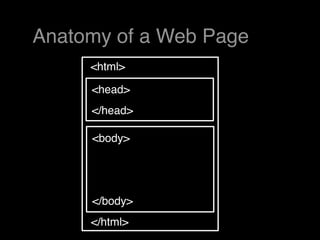
Anatomy of a Web Page
     <html>

     <head>
     </head>

     <body>


     </body>
     </html>
Nesting

• Be sure to properly nest your tags
• Right: href=”xyz.html”>Xyz</a></em>
  <em><a


• Wrong:href=”xyz.html”>Xyz</em></a>
  <em><a
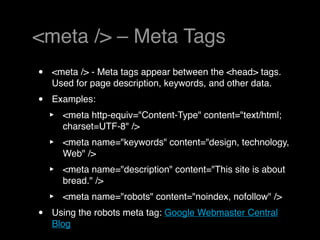
<meta /> – Meta Tags
•   <meta /> - Meta tags appear between the <head> tags.
    Used for page description, keywords, and other data.
•   Examples:
    ‣   <meta http-equiv="Content-Type" content="text/html;
        charset=UTF-8" />
    ‣   <meta name="keywords" content="design, technology,
        Web" /> 
    ‣   <meta name="description" content="This site is about
        bread." />
    ‣   <meta name="robots" content="noindex, nofollow" />
•   Using the robots meta tag: Google Webmaster Central
    Blog
Basic Tags

• <p></p> Paragraph
• <br /> Line break
 ‣ An empty tag, always end with a
   forward slash
• <em></em> Emphasis
• <strong></strong> Stronger emphasis
• <h1></h1> <h2></h2> <h3></h3>
  Headers
Semantic Web
• <em></em> and <strong></strong>     are
  known as Idiomatic Elements
 ‣ They help to convey meaning, which can
   be interpreted by a browser or device as
   a visual style, motion, sound volume, etc
•  <i></i> and <b></b> are Typographic
  Elements
 ‣ Add visual style to a page, but do not
   convey meaning
Semantic Web

• <p></p> add structure to content
  which helps convey meaning and
  thought progression
• <br /> could be used everywhere, but
  then meaning gets lost
Semantic Web
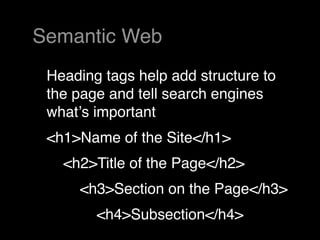
 Heading tags help add structure to
 the page and tell search engines
 whatʼs important
 <h1>Name of the Site</h1>
   <h2>Title of the Page</h2>
     <h3>Section on the Page</h3>
        <h4>Subsection</h4>
Semantic Web
 The Semantic Web by Tim Berners-
 Lee, James Hendler, and Ora Lassila
 “A new form of Web content that is
 meaningful to computers...”
Firefox Web Developer
        Plugin
https://addons.mozilla.org/en-US/
          firefox/addon/60
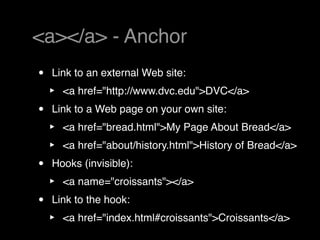
<a></a> - Anchor
•   Link to an external Web site:
    ‣   <a href="http://www.dvc.edu">DVC</a>
•   Link to a Web page on your own site:
    ‣   <a href="bread.html">My Page About Bread</a>
    ‣   <a href="about/history.html">History of Bread</a>
•   Hooks (invisible):
    ‣   <a name="croissants"></a>
•   Link to the hook:
    ‣   <a href="index.html#croissants">Croissants</a>
<img /> - Image

• <img src="images/file.jpg"
  border="0" height="10" width="10" /> 
• Border, Width and Height are
  optional.
<ul>, <ol> — Lists
•   Unordered Lists (Bulleted)
•   <ul>
       <li>Eggs</li>
       <li>Milk</li>
       <li>Potatoes</li>

•   </ul>
•   Ordered Lists (Numbered)
•   <ol>
       <li>Eggs</li>
       <li>Milk</li>
       <li>Potatoes</li>
•   </ol>
&nbsp; — non breaking
        space
<table> – Table tags
<table></table> – Table. Encloses your table.
  You can set the width (Pixels or Percentage
  %), border, and cellpadding and cellspacing
  as attributes.

<tr></tr> – Row. Encloses a row in your table.

<td></td> – Cell. Encloses what's in each cell of
  the table. These also create your columns.
  Make sure you have the same number of cells
  in each row.
Table Example
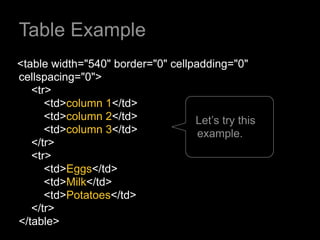
<table width="540" border="0" cellpadding="0"
cellspacing="0">
   <tr>
      <td>column 1</td>
      <td>column 2</td>            Let’s try this
      <td>column 3</td>             example.
   </tr>
   <tr>
      <td>Eggs</td>
      <td>Milk</td>
      <td>Potatoes</td>
   </tr>
</table>
Table Example
                              <table>


<tr>   <td> Column 1 </td> <td> Column 2 </td> <td> Column 3 </td>
                                                                     </tr>
<tr>     <td> Eggs </td>     <td> Milk </td>   <td> Potatoes </td>    </tr>


                               </table>
Fonts
• For fonts, colors, and sizes, use CSS. 
• Placed between the <head></head> tags
• <style type="text/css></style> - Style
  tags. Enclose your CSS code in these.
• Page Elements
 ‣ CSS uses page elements to specify
   fonts.  You can set a font on any page
   element, body, h1, p, a,...
What about the <font> tag?

• <font> tag is dead!
• No longer the standard in todayʼs
  World Wide Web
• <font> tags embed presentation in
  the structure
• With CSS, our goal will be to
  separate presentation from structure
Group Projects
Homework due Feb 23
•   Read and follow along Chapter 7: Styling Page
    Content
    ‣   Use last weekʼs homework and add CSS
    ‣   Add at least 9 rules
           3 style rules for tags
           2 custom classes
           2 compound styles
           2 divs with styles applied to the idʼs
•   There will be a quiz on Chapter 7 next week!
•   Next week we'll go deep into CSS
Thank You

Artdm171 Week4 Tags

  • 1.
    ARTDM 171, Week4: HTML Basics Gilbert Guerrero, gguerrero@dvc.edu gilbertguerrero.com/blog/artdm-171/
  • 2.
  • 3.
  • 4.
    Create a newpage in Dreamweaver  
  • 5.
    Working folders forthis week • Create a new folder in your ARTDM171 folder called Week4 • Create a new folder in Week4 called html • Set the html folder as your local root folder • Example: ARTDM171 Week4 html
  • 6.
    Tags used forPage Properties • <!DOCTYPE > - Defines the document type • <html></html> - Starts and ends the document • <head></head> - HTML Header. Comes after the <html> tag and before the <body> tag • <title></title> - HTML Title, the name of the document • <body></body> - Contains your visible content
  • 7.
    Anatomy of aWeb Page <html> <head> </head> <body> </body> </html>
  • 8.
    Nesting • Be sureto properly nest your tags • Right: href=”xyz.html”>Xyz</a></em> <em><a • Wrong:href=”xyz.html”>Xyz</em></a> <em><a
  • 9.
    <meta /> –Meta Tags • <meta /> - Meta tags appear between the <head> tags. Used for page description, keywords, and other data. • Examples: ‣ <meta http-equiv="Content-Type" content="text/html; charset=UTF-8" /> ‣ <meta name="keywords" content="design, technology, Web" />  ‣ <meta name="description" content="This site is about bread." /> ‣ <meta name="robots" content="noindex, nofollow" /> • Using the robots meta tag: Google Webmaster Central Blog
  • 10.
    Basic Tags • <p></p>Paragraph • <br /> Line break ‣ An empty tag, always end with a forward slash • <em></em> Emphasis • <strong></strong> Stronger emphasis • <h1></h1> <h2></h2> <h3></h3> Headers
  • 11.
    Semantic Web • <em></em>and <strong></strong> are known as Idiomatic Elements ‣ They help to convey meaning, which can be interpreted by a browser or device as a visual style, motion, sound volume, etc •  <i></i> and <b></b> are Typographic Elements ‣ Add visual style to a page, but do not convey meaning
  • 12.
    Semantic Web • <p></p>add structure to content which helps convey meaning and thought progression • <br /> could be used everywhere, but then meaning gets lost
  • 13.
    Semantic Web Headingtags help add structure to the page and tell search engines whatʼs important <h1>Name of the Site</h1> <h2>Title of the Page</h2> <h3>Section on the Page</h3> <h4>Subsection</h4>
  • 14.
    Semantic Web TheSemantic Web by Tim Berners- Lee, James Hendler, and Ora Lassila “A new form of Web content that is meaningful to computers...”
  • 15.
    Firefox Web Developer Plugin https://addons.mozilla.org/en-US/ firefox/addon/60
  • 16.
    <a></a> - Anchor • Link to an external Web site: ‣ <a href="http://www.dvc.edu">DVC</a> • Link to a Web page on your own site: ‣ <a href="bread.html">My Page About Bread</a> ‣ <a href="about/history.html">History of Bread</a> • Hooks (invisible): ‣ <a name="croissants"></a> • Link to the hook: ‣ <a href="index.html#croissants">Croissants</a>
  • 17.
    <img /> -Image • <img src="images/file.jpg" border="0" height="10" width="10" />  • Border, Width and Height are optional.
  • 18.
    <ul>, <ol> —Lists • Unordered Lists (Bulleted) • <ul> <li>Eggs</li> <li>Milk</li> <li>Potatoes</li> • </ul> • Ordered Lists (Numbered) • <ol> <li>Eggs</li> <li>Milk</li> <li>Potatoes</li> • </ol>
  • 19.
    &nbsp; — nonbreaking space
  • 20.
    <table> – Tabletags <table></table> – Table. Encloses your table. You can set the width (Pixels or Percentage %), border, and cellpadding and cellspacing as attributes. <tr></tr> – Row. Encloses a row in your table. <td></td> – Cell. Encloses what's in each cell of the table. These also create your columns. Make sure you have the same number of cells in each row.
  • 21.
    Table Example <table width="540"border="0" cellpadding="0" cellspacing="0"> <tr> <td>column 1</td> <td>column 2</td> Let’s try this <td>column 3</td> example. </tr> <tr> <td>Eggs</td> <td>Milk</td> <td>Potatoes</td> </tr> </table>
  • 22.
    Table Example <table> <tr> <td> Column 1 </td> <td> Column 2 </td> <td> Column 3 </td> </tr> <tr> <td> Eggs </td> <td> Milk </td> <td> Potatoes </td> </tr> </table>
  • 23.
    Fonts • For fonts,colors, and sizes, use CSS.  • Placed between the <head></head> tags • <style type="text/css></style> - Style tags. Enclose your CSS code in these. • Page Elements ‣ CSS uses page elements to specify fonts.  You can set a font on any page element, body, h1, p, a,...
  • 24.
    What about the<font> tag? • <font> tag is dead! • No longer the standard in todayʼs World Wide Web • <font> tags embed presentation in the structure • With CSS, our goal will be to separate presentation from structure
  • 25.
  • 26.
    Homework due Feb23 • Read and follow along Chapter 7: Styling Page Content ‣ Use last weekʼs homework and add CSS ‣ Add at least 9 rules  3 style rules for tags  2 custom classes  2 compound styles  2 divs with styles applied to the idʼs • There will be a quiz on Chapter 7 next week! • Next week we'll go deep into CSS
  • 27.

Editor's Notes

  • #7 &amp;#xA0;&amp;#xA0;
  • #10 Dreamweaver automatically generates most of this when you create a new document. 10 lines of code (including a blank line between head and body.) &amp;#xA0; Take a look at these tags in Dreamweaver in a basic HTML document.
  • #17 (Notice the attributes.)
  • #18 Class Exercise:&amp;#x2192;&amp;#xA0;&amp;#xA0; Add a page heading, paragraph, bold, italics, link, and an image. Use the image saved in the ARTDM-171 folder. (Drag and drop it into the images folder on your USB drive.)