Windows 10 Error c1900101
The Problem
 Windows Update process stucks with a blank screen and error c1900101.
Restarting the PC will not help.
 The error still persists after retrying the update installation.
Remove Software Distribution
There are quite a few reasons behind Windows 10 error c1900101. The error occurs
when downloaded software distribution files are corrupted.
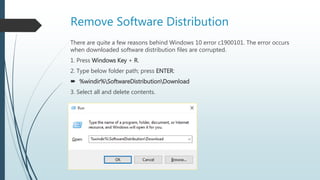
1. Press Windows Key + R.
2. Type below folder path; press ENTER:
 %windir%SoftwareDistributionDownload
3. Select all and delete contents.
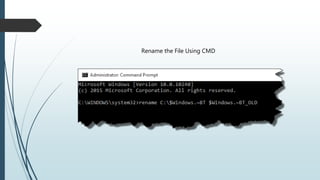
Rename $Windows.~BT
This is a temporary folder and it is safe to delete or rename it. You might want to
rename that folder to fix Windows 10 error c1900101.
1. Press Windows Key + X; choose Command Prompt (Admin).
2. Execute below commands:
 rename C:$Windows.~BT $Windows.~BT_OLD
 exit
3. Restart your computer.
Note: In case Command Prompt fails to rename folder with special characters,
manually perform the operation from File Explorer.
Rename the File Using CMD
Turn Off Overclocking & UEFI Boot
By simply resetting BIOS defaults you’d be able to disable both the overclocking and
UEFI boot features that are known for causing this issue.
1. Restart your computer.
2. Go to the BIOS Setup screen by repeatedly pressing the Delete or F2 key whichever
applicable.
3. Press F5 to restore BIOS defaults.
4. Press F10 to save changes and exit the screen.
Unplug External Hardware
Do you installed a new hardware? An incompatible hardware can cause this error.
Download BIOS Update
Your BIOS (Basic Input Output System) driver might be out-of-date. The company
occasionally releases new updates for your BIOS. Obtain latest version, close all
running programs and then install the BIOS update.
1. Visit the website of your motherboard/ system board manufacturer.
2. Go to the Downloads/ Drivers section on the top right corner of the webpage.
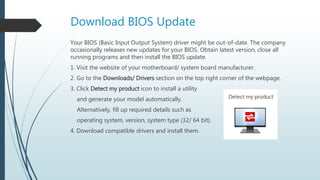
3. Click Detect my product icon to install a utility
and generate your model automatically.
Alternatively, fill up required details such as
operating system, version, system type (32/ 64 bit).
4. Download compatible drivers and install them.
Change Boot Type
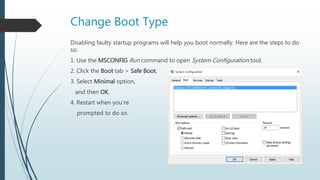
Disabling faulty startup programs will help you boot normally. Here are the steps to do
so:
1. Use the MSCONFIG Run command to open System Configuration tool.
2. Click the Boot tab > Safe Boot.
3. Select Minimal option,
and then OK.
4. Restart when you’re
prompted to do so.
Update Devices
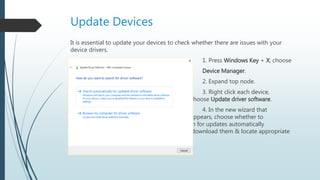
It is essential to update your devices to check whether there are issues with your
device drivers.
1. Press Windows Key + X; choose
Device Manager.
2. Expand top node.
3. Right click each device,
choose Update driver software.
4. In the new wizard that
appears, choose whether to
search for updates automatically
online or download them & locate appropriate
file.
Uninstall ReadyNAS 104 Driver
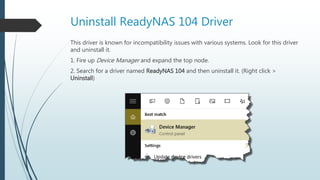
This driver is known for incompatibility issues with various systems. Look for this driver
and uninstall it.
1. Fire up Device Manager and expand the top node.
2. Search for a driver named ReadyNAS 104 and then uninstall it. (Right click >
Uninstall)
Remove WIMMount Key
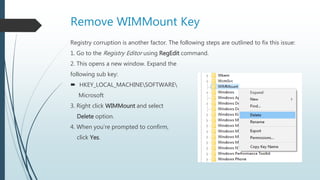
Registry corruption is another factor. The following steps are outlined to fix this issue:
1. Go to the Registry Editor using RegEdit command.
2. This opens a new window. Expand the
following sub key:
 HKEY_LOCAL_MACHINESOFTWARE
Microsoft
3. Right click WIMMount and select
Delete option.
4. When you’re prompted to confirm,
click Yes.
For more info, visit:
 http://sorcim.com/blog/windows-10-error-c1900101

Windows 10 Error c1900101

  • 1.
  • 2.
    The Problem  WindowsUpdate process stucks with a blank screen and error c1900101. Restarting the PC will not help.  The error still persists after retrying the update installation.
  • 3.
    Remove Software Distribution Thereare quite a few reasons behind Windows 10 error c1900101. The error occurs when downloaded software distribution files are corrupted. 1. Press Windows Key + R. 2. Type below folder path; press ENTER:  %windir%SoftwareDistributionDownload 3. Select all and delete contents.
  • 4.
    Rename $Windows.~BT This isa temporary folder and it is safe to delete or rename it. You might want to rename that folder to fix Windows 10 error c1900101. 1. Press Windows Key + X; choose Command Prompt (Admin). 2. Execute below commands:  rename C:$Windows.~BT $Windows.~BT_OLD  exit 3. Restart your computer. Note: In case Command Prompt fails to rename folder with special characters, manually perform the operation from File Explorer.
  • 5.
    Rename the FileUsing CMD
  • 6.
    Turn Off Overclocking& UEFI Boot By simply resetting BIOS defaults you’d be able to disable both the overclocking and UEFI boot features that are known for causing this issue. 1. Restart your computer. 2. Go to the BIOS Setup screen by repeatedly pressing the Delete or F2 key whichever applicable. 3. Press F5 to restore BIOS defaults. 4. Press F10 to save changes and exit the screen.
  • 7.
    Unplug External Hardware Doyou installed a new hardware? An incompatible hardware can cause this error.
  • 8.
    Download BIOS Update YourBIOS (Basic Input Output System) driver might be out-of-date. The company occasionally releases new updates for your BIOS. Obtain latest version, close all running programs and then install the BIOS update. 1. Visit the website of your motherboard/ system board manufacturer. 2. Go to the Downloads/ Drivers section on the top right corner of the webpage. 3. Click Detect my product icon to install a utility and generate your model automatically. Alternatively, fill up required details such as operating system, version, system type (32/ 64 bit). 4. Download compatible drivers and install them.
  • 9.
    Change Boot Type Disablingfaulty startup programs will help you boot normally. Here are the steps to do so: 1. Use the MSCONFIG Run command to open System Configuration tool. 2. Click the Boot tab > Safe Boot. 3. Select Minimal option, and then OK. 4. Restart when you’re prompted to do so.
  • 10.
    Update Devices It isessential to update your devices to check whether there are issues with your device drivers. 1. Press Windows Key + X; choose Device Manager. 2. Expand top node. 3. Right click each device, choose Update driver software. 4. In the new wizard that appears, choose whether to search for updates automatically online or download them & locate appropriate file.
  • 11.
    Uninstall ReadyNAS 104Driver This driver is known for incompatibility issues with various systems. Look for this driver and uninstall it. 1. Fire up Device Manager and expand the top node. 2. Search for a driver named ReadyNAS 104 and then uninstall it. (Right click > Uninstall)
  • 12.
    Remove WIMMount Key Registrycorruption is another factor. The following steps are outlined to fix this issue: 1. Go to the Registry Editor using RegEdit command. 2. This opens a new window. Expand the following sub key:  HKEY_LOCAL_MACHINESOFTWARE Microsoft 3. Right click WIMMount and select Delete option. 4. When you’re prompted to confirm, click Yes.
  • 13.
    For more info,visit:  http://sorcim.com/blog/windows-10-error-c1900101