An Easy Guide to
Knowledge Forum 4.7 (Lite)
Overview
Knowledge Forum (KF) is an online environment for multiple users’ discussions. It is better than
traditional newsgroup discussion because its features help writers to develop their ideas.

1. Signing On
   Type the URL in your browser:         http://kf48.sol.edu.hku.hk/login
   You will be prompted to download the file “KnowledgeForum.jnpl”.
   Save the file on your desktop with a new name.
   The next time you want to login, you can just simply double-click the
   “KnowledgeForum.jnpl” file.

2. The Login Page
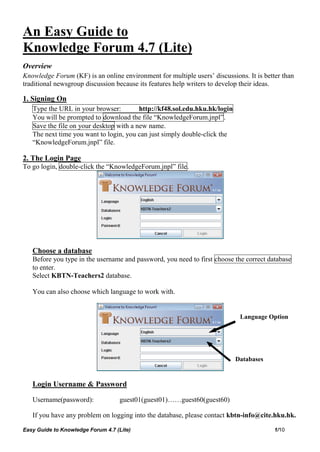
To go login, double-click the “KnowledgeForum.jnpl” file.


   Choose a database
   Before you type in the username and password, you need to first choose the correct database
   to enter.
   Select KBTN-Teachers2 database.

   You can also choose which language to work with.


                                                                             Language Option


                                                                            Databases


   Login Username & Password

   Username(password):             guest01(guest01)……guest60(guest60)

   If you have any problem on logging into the database, please contact kbtn-info@cite.hku.hk.

Easy Guide to Knowledge Forum 4.7 (Lite)                                                 1/10
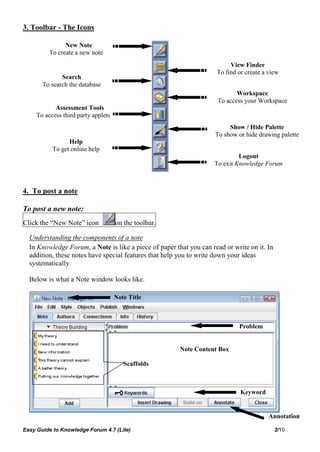
3. Toolbar - The Icons

                New Note
          To create a new note
                                                                          View Finder
                                                                     To find or create a view
              Search
       To search the database
                                                                            Workspace
                                                                     To access your Workspace
            Assessment Tools
     To access third party applets
                                                                          Show / Hide Palette
                                                                     To show or hide drawing palette
                 Help
           To get online help
                                                                             Logout
                                                                    To exit Knowledge Forum


4. To post a note

To post a new note:
Click the “New Note” icon            on the toolbar.

  Understanding the components of a note
  In Knowledge Forum, a Note is like a piece of paper that you can read or write on it. In
  addition, these notes have special features that help you to write down your ideas
  systematically.

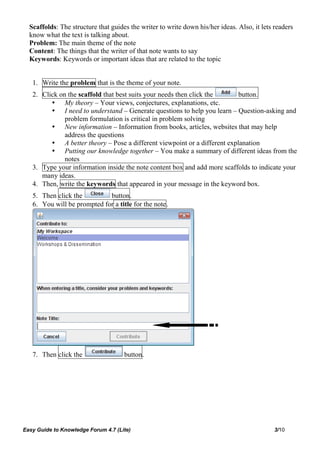
  Below is what a Note window looks like.

                                     Note Title


                                                                             Problem


                                                        Note Content Box

                                        Scaffolds


                                                                              Keyword


                                                                                         Annotation

Easy Guide to Knowledge Forum 4.7 (Lite)                                                     2/10
Scaffolds: The structure that guides the writer to write down his/her ideas. Also, it lets readers
  know what the text is talking about.
  Problem: The main theme of the note
  Content: The things that the writer of that note wants to say
  Keywords: Keywords or important ideas that are related to the topic


   1. Write the problem that is the theme of your note.
   2. Click on the scaffold that best suits your needs then click the      button.
          My theory – Your views, conjectures, explanations, etc.
          I need to understand – Generate questions to help you learn – Question-asking and
              problem formulation is critical in problem solving
          New information – Information from books, articles, websites that may help
              address the questions
          A better theory – Pose a different viewpoint or a different explanation
          Putting our knowledge together – You make a summary of different ideas from the
              notes
   3. Type your information inside the note content box and add more scaffolds to indicate your
      many ideas.
   4. Then, write the keywords that appeared in your message in the keyword box.
   5. Then click the         button.
   6. You will be prompted for a title for the note.


   7. Then click the                 button.


Easy Guide to Knowledge Forum 4.7 (Lite)                                                     3/10
To build-on to someone’s note:
   1. Click to open the note that you want to build-on to.
   2. Click the              button to open a new note that is linked to the original note.


   3. A New Note window will pop out. Follow steps 1-6 for creating a new note to make your
      response.


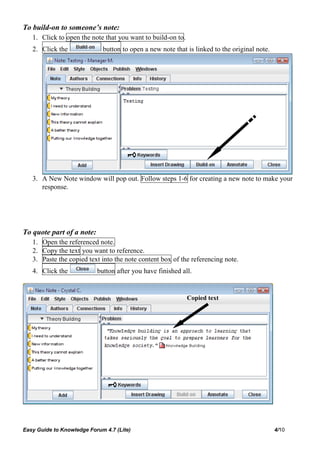
To quote part of a note:
   1. Open the referenced note.
   2. Copy the text you want to reference.
   3. Paste the copied text into the note content box of the referencing note.
   4. Click the            button after you have finished all.


                                                             Copied text


Easy Guide to Knowledge Forum 4.7 (Lite)                                                      4/10
To delete a note (with caution):
   Sometimes you may want to delete your note after you have posted it. Do it only if it is
   absolutely necessary, for example, the note is useless. In KF, you can only delete your own
   notes.

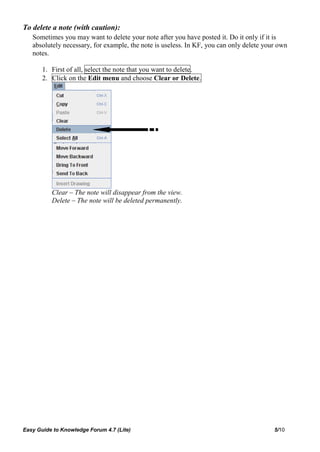
       1. First of all, select the note that you want to delete.
       2. Click on the Edit menu and choose Clear or Delete.


          Clear – The note will disappear from the view.
          Delete – The note will be deleted permanently.


Easy Guide to Knowledge Forum 4.7 (Lite)                                                 5/10
To use the ‘Rise-above’ function:

Rise-above function allows writer to write an idea that 'rises above' the previous thinking and to
store the relevant notes in a collection. Rise-above note is more than a folder which contains all
the relevant notes.

To make an accurate rise-above note, you also have to wrap up the discussion, write a summary
for it and also to lead to a new direction for your work. The Notes in the Rise-Above folder will
disappear visually from the View after you have done the rise-above and become accessible only
through the new Rise-Above Note.

To make rise-above note:

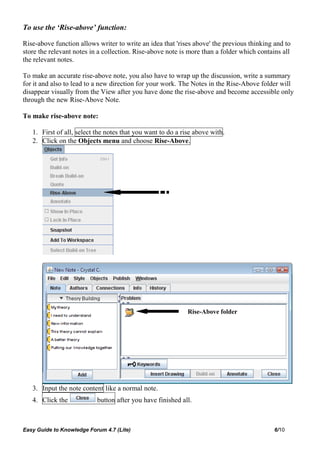
   1. First of all, select the notes that you want to do a rise above with.
   2. Click on the Objects menu and choose Rise-Above.


                                                             Rise-Above folder


   3. Input the note content like a normal note.
   4. Click the            button after you have finished all.


Easy Guide to Knowledge Forum 4.7 (Lite)                                                    6/10
5. Workspace

   The Workspace in Knowledge Forum 4.7 acts as a temporary storage area for collecting
   related notes, attachments, movies, and views from multiple sources. You can work with
   Workspace as you would work with objects listed in a view or your search results.

   You can open objects, create a rise-above note, create a reference note, and copy objects to
   another view from Workspace.


   To go to Workspace, click        .

   To add to Workspace:

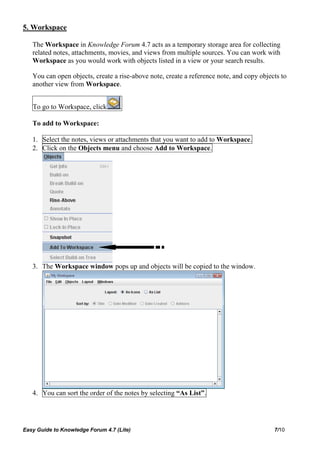
   1. Select the notes, views or attachments that you want to add to Workspace.
   2. Click on the Objects menu and choose Add to Workspace.


   3. The Workspace window pops up and objects will be copied to the window.


   4. You can sort the order of the notes by selecting “As List”.


Easy Guide to Knowledge Forum 4.7 (Lite)                                                  7/10
6. Drawings

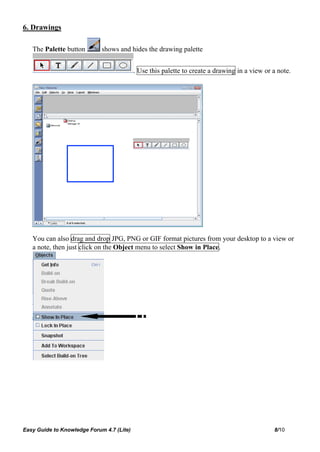
   The Palette button        shows and hides the drawing palette


                                           . Use this palette to create a drawing in a view or a note.


   You can also drag and drop JPG, PNG or GIF format pictures from your desktop to a view or
   a note, then just click on the Object menu to select Show in Place.


Easy Guide to Knowledge Forum 4.7 (Lite)                                                       8/10
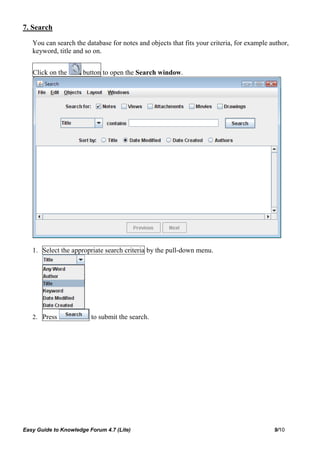
7. Search

   You can search the database for notes and objects that fits your criteria, for example author,
   keyword, title and so on.


   Click on the       button to open the Search window.


   1. Select the appropriate search criteria by the pull-down menu.


   2. Press              to submit the search.


Easy Guide to Knowledge Forum 4.7 (Lite)                                                   9/10
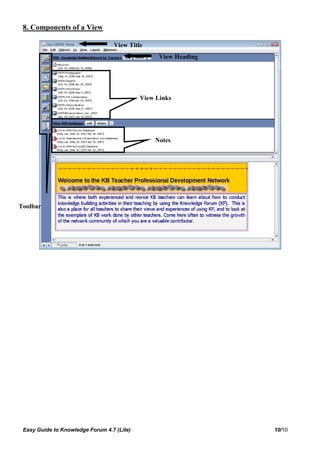
8. Components of a View

                                  View Title
                                                  View Heading


                                            View Links


                                                Notes


Toolbar


 Easy Guide to Knowledge Forum 4.7 (Lite)                        10/10

Kf47 user manual(lite)2

  • 1.
    An Easy Guideto Knowledge Forum 4.7 (Lite) Overview Knowledge Forum (KF) is an online environment for multiple users’ discussions. It is better than traditional newsgroup discussion because its features help writers to develop their ideas. 1. Signing On Type the URL in your browser: http://kf48.sol.edu.hku.hk/login You will be prompted to download the file “KnowledgeForum.jnpl”. Save the file on your desktop with a new name. The next time you want to login, you can just simply double-click the “KnowledgeForum.jnpl” file. 2. The Login Page To go login, double-click the “KnowledgeForum.jnpl” file. Choose a database Before you type in the username and password, you need to first choose the correct database to enter. Select KBTN-Teachers2 database. You can also choose which language to work with. Language Option Databases Login Username & Password Username(password): guest01(guest01)……guest60(guest60) If you have any problem on logging into the database, please contact kbtn-info@cite.hku.hk. Easy Guide to Knowledge Forum 4.7 (Lite) 1/10
  • 2.
    3. Toolbar -The Icons New Note To create a new note View Finder To find or create a view Search To search the database Workspace To access your Workspace Assessment Tools To access third party applets Show / Hide Palette To show or hide drawing palette Help To get online help Logout To exit Knowledge Forum 4. To post a note To post a new note: Click the “New Note” icon on the toolbar. Understanding the components of a note In Knowledge Forum, a Note is like a piece of paper that you can read or write on it. In addition, these notes have special features that help you to write down your ideas systematically. Below is what a Note window looks like. Note Title Problem Note Content Box Scaffolds Keyword Annotation Easy Guide to Knowledge Forum 4.7 (Lite) 2/10
  • 3.
    Scaffolds: The structurethat guides the writer to write down his/her ideas. Also, it lets readers know what the text is talking about. Problem: The main theme of the note Content: The things that the writer of that note wants to say Keywords: Keywords or important ideas that are related to the topic 1. Write the problem that is the theme of your note. 2. Click on the scaffold that best suits your needs then click the button.  My theory – Your views, conjectures, explanations, etc.  I need to understand – Generate questions to help you learn – Question-asking and problem formulation is critical in problem solving  New information – Information from books, articles, websites that may help address the questions  A better theory – Pose a different viewpoint or a different explanation  Putting our knowledge together – You make a summary of different ideas from the notes 3. Type your information inside the note content box and add more scaffolds to indicate your many ideas. 4. Then, write the keywords that appeared in your message in the keyword box. 5. Then click the button. 6. You will be prompted for a title for the note. 7. Then click the button. Easy Guide to Knowledge Forum 4.7 (Lite) 3/10
  • 4.
    To build-on tosomeone’s note: 1. Click to open the note that you want to build-on to. 2. Click the button to open a new note that is linked to the original note. 3. A New Note window will pop out. Follow steps 1-6 for creating a new note to make your response. To quote part of a note: 1. Open the referenced note. 2. Copy the text you want to reference. 3. Paste the copied text into the note content box of the referencing note. 4. Click the button after you have finished all. Copied text Easy Guide to Knowledge Forum 4.7 (Lite) 4/10
  • 5.
    To delete anote (with caution): Sometimes you may want to delete your note after you have posted it. Do it only if it is absolutely necessary, for example, the note is useless. In KF, you can only delete your own notes. 1. First of all, select the note that you want to delete. 2. Click on the Edit menu and choose Clear or Delete. Clear – The note will disappear from the view. Delete – The note will be deleted permanently. Easy Guide to Knowledge Forum 4.7 (Lite) 5/10
  • 6.
    To use the‘Rise-above’ function: Rise-above function allows writer to write an idea that 'rises above' the previous thinking and to store the relevant notes in a collection. Rise-above note is more than a folder which contains all the relevant notes. To make an accurate rise-above note, you also have to wrap up the discussion, write a summary for it and also to lead to a new direction for your work. The Notes in the Rise-Above folder will disappear visually from the View after you have done the rise-above and become accessible only through the new Rise-Above Note. To make rise-above note: 1. First of all, select the notes that you want to do a rise above with. 2. Click on the Objects menu and choose Rise-Above. Rise-Above folder 3. Input the note content like a normal note. 4. Click the button after you have finished all. Easy Guide to Knowledge Forum 4.7 (Lite) 6/10
  • 7.
    5. Workspace The Workspace in Knowledge Forum 4.7 acts as a temporary storage area for collecting related notes, attachments, movies, and views from multiple sources. You can work with Workspace as you would work with objects listed in a view or your search results. You can open objects, create a rise-above note, create a reference note, and copy objects to another view from Workspace. To go to Workspace, click . To add to Workspace: 1. Select the notes, views or attachments that you want to add to Workspace. 2. Click on the Objects menu and choose Add to Workspace. 3. The Workspace window pops up and objects will be copied to the window. 4. You can sort the order of the notes by selecting “As List”. Easy Guide to Knowledge Forum 4.7 (Lite) 7/10
  • 8.
    6. Drawings The Palette button shows and hides the drawing palette . Use this palette to create a drawing in a view or a note. You can also drag and drop JPG, PNG or GIF format pictures from your desktop to a view or a note, then just click on the Object menu to select Show in Place. Easy Guide to Knowledge Forum 4.7 (Lite) 8/10
  • 9.
    7. Search You can search the database for notes and objects that fits your criteria, for example author, keyword, title and so on. Click on the button to open the Search window. 1. Select the appropriate search criteria by the pull-down menu. 2. Press to submit the search. Easy Guide to Knowledge Forum 4.7 (Lite) 9/10
  • 10.
    8. Components ofa View View Title View Heading View Links Notes Toolbar Easy Guide to Knowledge Forum 4.7 (Lite) 10/10