Page 1 of 3
Updated: 1/25/2017
How to Set Up a WebEx Meeting
In this guide, you will learn how to:
1. Set up a Webex Meeting
2. Start a WebEx meeting
Part 1: Setting Up a Meeting with WebEx Meeting Center
1. Go to https://purdue.webex.com/
2. Click the Login in on the upper right.
3. Login with your Purdue Career Account and password. After successfully logged in, you should see your
username on the upper right.
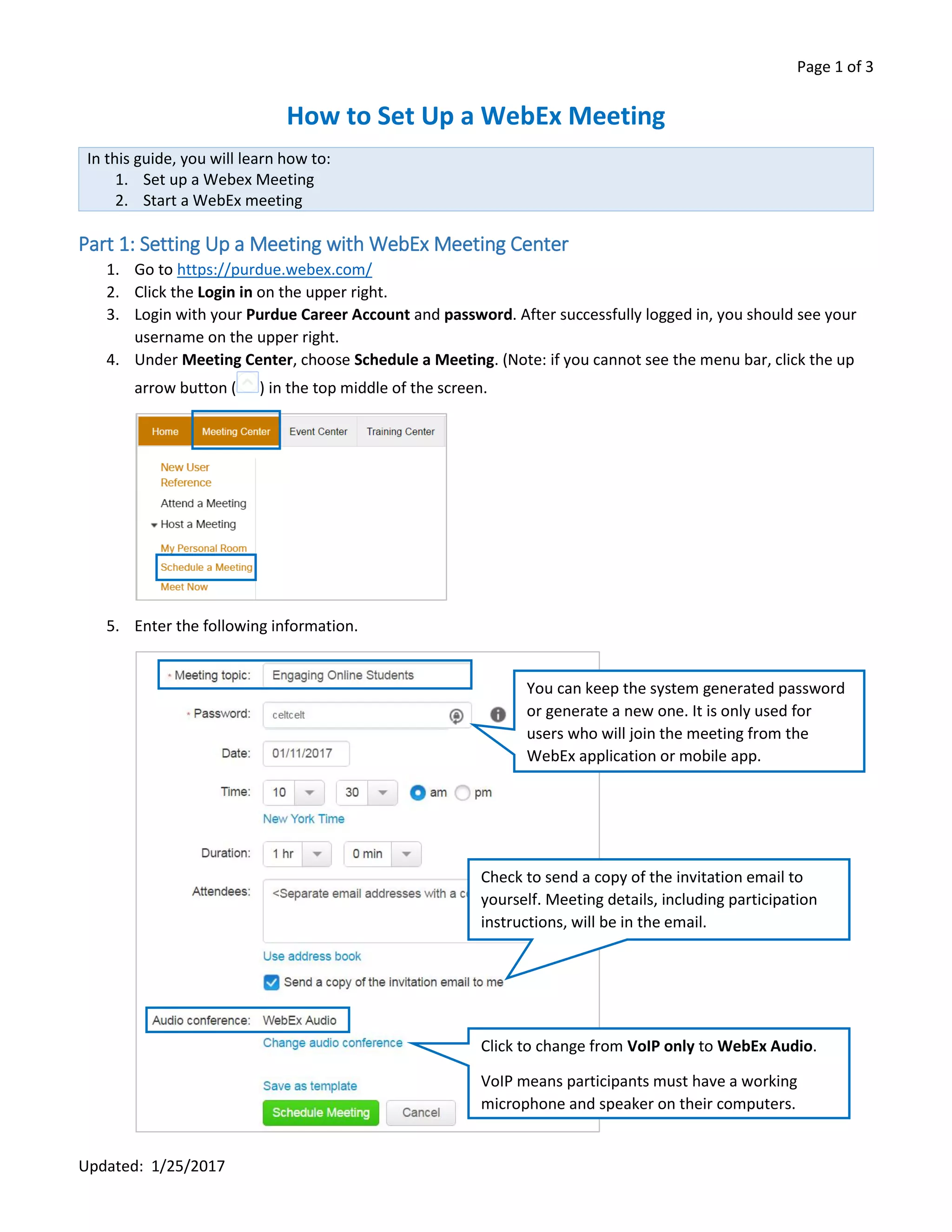
4. Under Meeting Center, choose Schedule a Meeting. (Note: if you cannot see the menu bar, click the up
arrow button ( ) in the top middle of the screen.
5. Enter the following information.
You can keep the system generated password
or generate a new one. It is only used for
users who will join the meeting from the
WebEx application or mobile app.
Click to change from VoIP only to WebEx Audio.
VoIP means participants must have a working
microphone and speaker on their computers.
Check to send a copy of the invitation email to
yourself. Meeting details, including participation
instructions, will be in the email.
Page 2 of 3
Updated: 1/25/2017
6. Click the green Schedule Meeting button to set up the meeting.
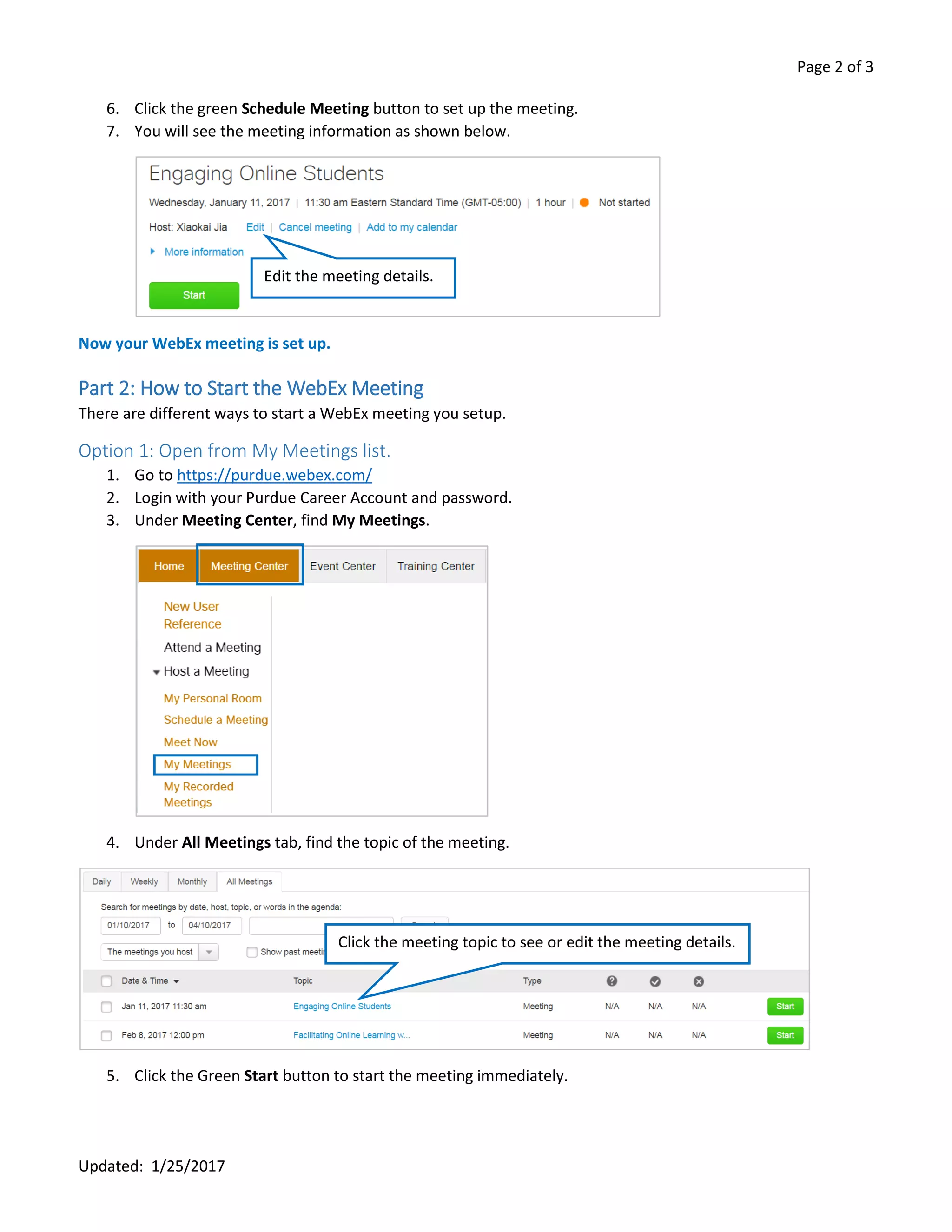
7. You will see the meeting information as shown below.
Now your WebEx meeting is set up.
Part 2: How to Start the WebEx Meeting
There are different ways to start a WebEx meeting you setup.
Option 1: Open from My Meetings list.
1. Go to https://purdue.webex.com/
2. Login with your Purdue Career Account and password.
3. Under Meeting Center, find My Meetings.
4. Under All Meetings tab, find the topic of the meeting.
5. Click the Green Start button to start the meeting immediately.
Edit the meeting details.
Click the meeting topic to see or edit the meeting details.
Page 3 of 3
Updated: 1/25/2017
Option 2: Start from the Link in the Email
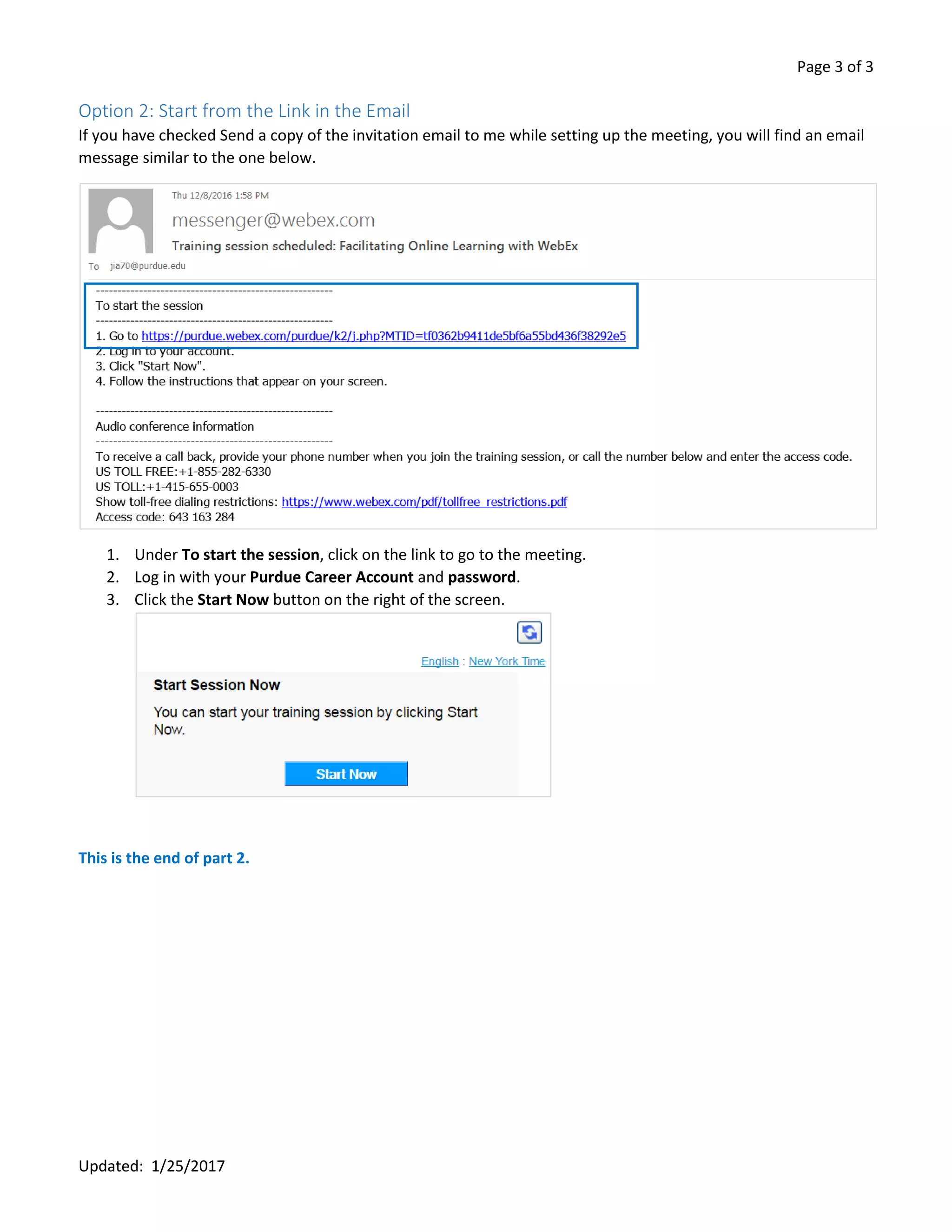
If you have checked Send a copy of the invitation email to me while setting up the meeting, you will find an email
message similar to the one below.
1. Under To start the session, click on the link to go to the meeting.
2. Log in with your Purdue Career Account and password.
3. Click the Start Now button on the right of the screen.
This is the end of part 2.

Webex meeting-setup

  • 1.
    Page 1 of3 Updated: 1/25/2017 How to Set Up a WebEx Meeting In this guide, you will learn how to: 1. Set up a Webex Meeting 2. Start a WebEx meeting Part 1: Setting Up a Meeting with WebEx Meeting Center 1. Go to https://purdue.webex.com/ 2. Click the Login in on the upper right. 3. Login with your Purdue Career Account and password. After successfully logged in, you should see your username on the upper right. 4. Under Meeting Center, choose Schedule a Meeting. (Note: if you cannot see the menu bar, click the up arrow button ( ) in the top middle of the screen. 5. Enter the following information. You can keep the system generated password or generate a new one. It is only used for users who will join the meeting from the WebEx application or mobile app. Click to change from VoIP only to WebEx Audio. VoIP means participants must have a working microphone and speaker on their computers. Check to send a copy of the invitation email to yourself. Meeting details, including participation instructions, will be in the email.
  • 2.
    Page 2 of3 Updated: 1/25/2017 6. Click the green Schedule Meeting button to set up the meeting. 7. You will see the meeting information as shown below. Now your WebEx meeting is set up. Part 2: How to Start the WebEx Meeting There are different ways to start a WebEx meeting you setup. Option 1: Open from My Meetings list. 1. Go to https://purdue.webex.com/ 2. Login with your Purdue Career Account and password. 3. Under Meeting Center, find My Meetings. 4. Under All Meetings tab, find the topic of the meeting. 5. Click the Green Start button to start the meeting immediately. Edit the meeting details. Click the meeting topic to see or edit the meeting details.
  • 3.
    Page 3 of3 Updated: 1/25/2017 Option 2: Start from the Link in the Email If you have checked Send a copy of the invitation email to me while setting up the meeting, you will find an email message similar to the one below. 1. Under To start the session, click on the link to go to the meeting. 2. Log in with your Purdue Career Account and password. 3. Click the Start Now button on the right of the screen. This is the end of part 2.