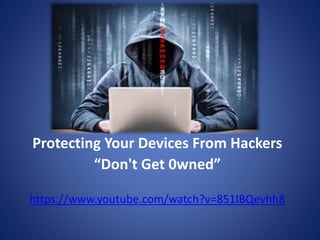
Protecting Your Devices From Hackers
“Don't Get 0wned”
https://www.youtube.com/watch?v=851IBQevhh8
Windows 10 Regaining
your privacy
Limiting the amount of information
Microsoft collects about it’s users
• Privacy invasion; Microsoft can track what you type,
Search for, browsing habits, contact information,
access to personal passwords. They also control your
updates and even the advertisement that pops up on
your screen menu.
Steps to regain your privacy on Microsoft Windows 10…
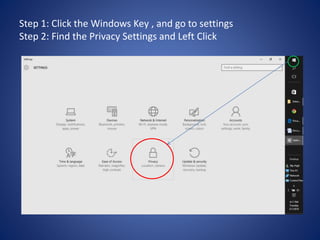
Step 1: Click the Windows Key , and go to settings
Step 2: Find the Privacy Settings and Left Click
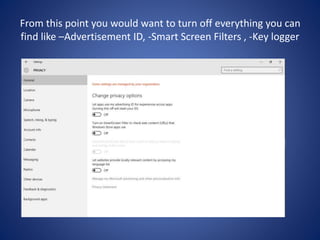
From this point you would want to turn off everything you can
find like –Advertisement ID, -Smart Screen Filters , -Key logger
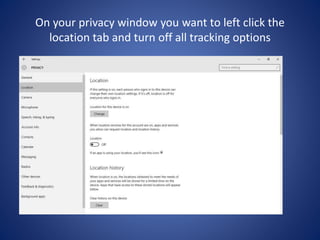
On your privacy window you want to left click the
location tab and turn off all tracking options
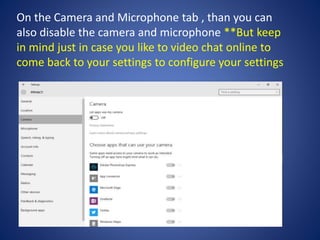
On the Camera and Microphone tab , than you can
also disable the camera and microphone **But keep
in mind just in case you like to video chat online to
come back to your settings to configure your settings
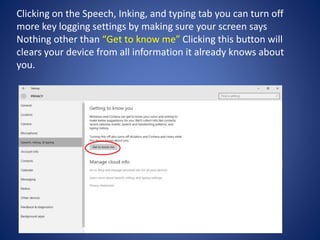
Clicking on the Speech, Inking, and typing tab you can turn off
more key logging settings by making sure your screen says
Nothing other than “Get to know me” Clicking this button will
clears your device from all information it already knows about
you.
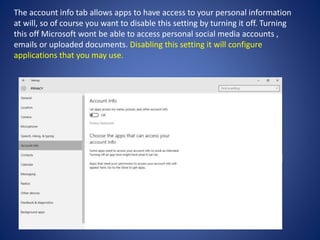
The account info tab allows apps to have access to your personal information
at will, so of course you want to disable this setting by turning it off. Turning
this off Microsoft wont be able to access personal social media accounts ,
emails or uploaded documents. Disabling this setting it will configure
applications that you may use.
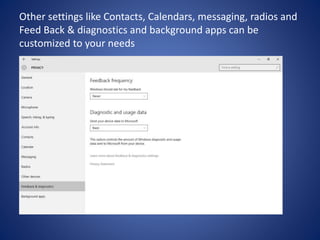
Other settings like Contacts, Calendars, messaging, radios and
Feed Back & diagnostics and background apps can be
customized to your needs
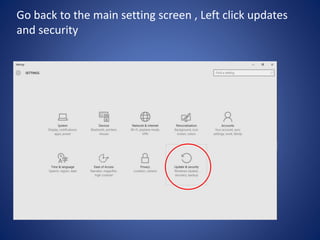
Go back to the main setting screen , Left click updates
and security
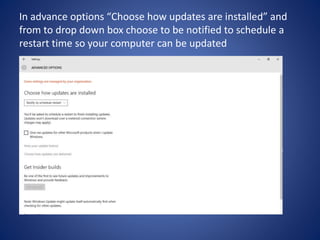
In advance options “Choose how updates are installed” and
from to drop down box choose to be notified to schedule a
restart time so your computer can be updated
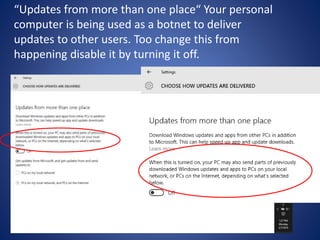
“Updates from more than one place“ Your personal
computer is being used as a botnet to deliver
updates to other users. Too change this from
happening disable it by turning it off.
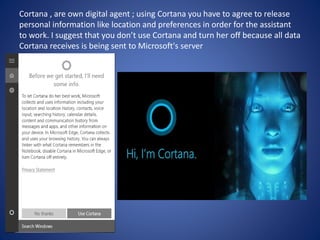
Cortana , are own digital agent ; using Cortana you have to agree to release
personal information like location and preferences in order for the assistant
to work. I suggest that you don’t use Cortana and turn her off because all data
Cortana receives is being sent to Microsoft's server

WorkShop Presentation

  • 2.
    Protecting Your DevicesFrom Hackers “Don't Get 0wned” https://www.youtube.com/watch?v=851IBQevhh8
  • 3.
  • 4.
    Limiting the amountof information Microsoft collects about it’s users • Privacy invasion; Microsoft can track what you type, Search for, browsing habits, contact information, access to personal passwords. They also control your updates and even the advertisement that pops up on your screen menu. Steps to regain your privacy on Microsoft Windows 10…
  • 5.
    Step 1: Clickthe Windows Key , and go to settings Step 2: Find the Privacy Settings and Left Click
  • 6.
    From this pointyou would want to turn off everything you can find like –Advertisement ID, -Smart Screen Filters , -Key logger
  • 7.
    On your privacywindow you want to left click the location tab and turn off all tracking options
  • 8.
    On the Cameraand Microphone tab , than you can also disable the camera and microphone **But keep in mind just in case you like to video chat online to come back to your settings to configure your settings
  • 9.
    Clicking on theSpeech, Inking, and typing tab you can turn off more key logging settings by making sure your screen says Nothing other than “Get to know me” Clicking this button will clears your device from all information it already knows about you.
  • 10.
    The account infotab allows apps to have access to your personal information at will, so of course you want to disable this setting by turning it off. Turning this off Microsoft wont be able to access personal social media accounts , emails or uploaded documents. Disabling this setting it will configure applications that you may use.
  • 11.
    Other settings likeContacts, Calendars, messaging, radios and Feed Back & diagnostics and background apps can be customized to your needs
  • 12.
    Go back tothe main setting screen , Left click updates and security
  • 13.
    In advance options“Choose how updates are installed” and from to drop down box choose to be notified to schedule a restart time so your computer can be updated
  • 14.
    “Updates from morethan one place“ Your personal computer is being used as a botnet to deliver updates to other users. Too change this from happening disable it by turning it off.
  • 15.
    Cortana , areown digital agent ; using Cortana you have to agree to release personal information like location and preferences in order for the assistant to work. I suggest that you don’t use Cortana and turn her off because all data Cortana receives is being sent to Microsoft's server