WASART Webex Teleconferencing TrainingDecember 4, 2010
What is Webex?WebEx is a web-based, real-time desktop sharing tool with phone conferencing that: Eliminates or reduces the need for face-to-face meetings; Permits a meeting of up to 25 computers at one time (six video and 19 audio); Shares documents, presentations and applications among attendees from any computer screen; Records meetings and can playback recordings; Uses integrated voice conferencing – by phone or computer (VoIP) (WASART does not utilize the phone capability because long distances charges will be incurred); Connects via PC, Mac, iPhone, Blackberry, or other WiFi or 3G-enabled mobile device;Has multi-media support for PowerPoint, Flash animations, audio and videoMeeting can be started from desktop, browser, Outlook, IM, etc;Provides for unlimited meetings.
Minimum Desktop RequirementsOperating System – Windows XP SP3 - Windows Vista 32- bit  CPU - CPU Intel Pentium – Processor Intel Pentium processor (1.8 GHz recommended)Disk Space - Disk Space 80 MB 80RAM – 256 MB+Browser – Internet Explorer 7.0 or later - Mozilla Firefox 3.0 or later – JavaScript and cookies enabled in browserI/O Ports USB 2.0 (for video camera)Audio - Full duplex sound card with microphone.  Headset optional but usefulVideo - At least 1.8 GHz CPU, 800x600 resolution, 256 colors or more, and a webcamInternet Connection – 56K+ Webcam (if wanting to utilize video capabilities)
Preliminary Matters Before Joining a Meeting for the First TimeDownload and install Meeting Manager (allows the use of interactive features in a meeting and allows the sharing of most types of documents, presentations, applications, Web pages and desktops):  go to https://washingtonsart.webex.com/washingtonsart/mcclick on ‘Set Up’ on left side of pageclick on ‘Meeting Center’Verify you have the requisite Rich Media PlayersClick ‘Set Up’ and follow on-screen directionsIf a security box appears, click ‘Yes’ 	This is a one-time setup and Meeting Center automatically maintains and updates itself each time you join a meeting. 
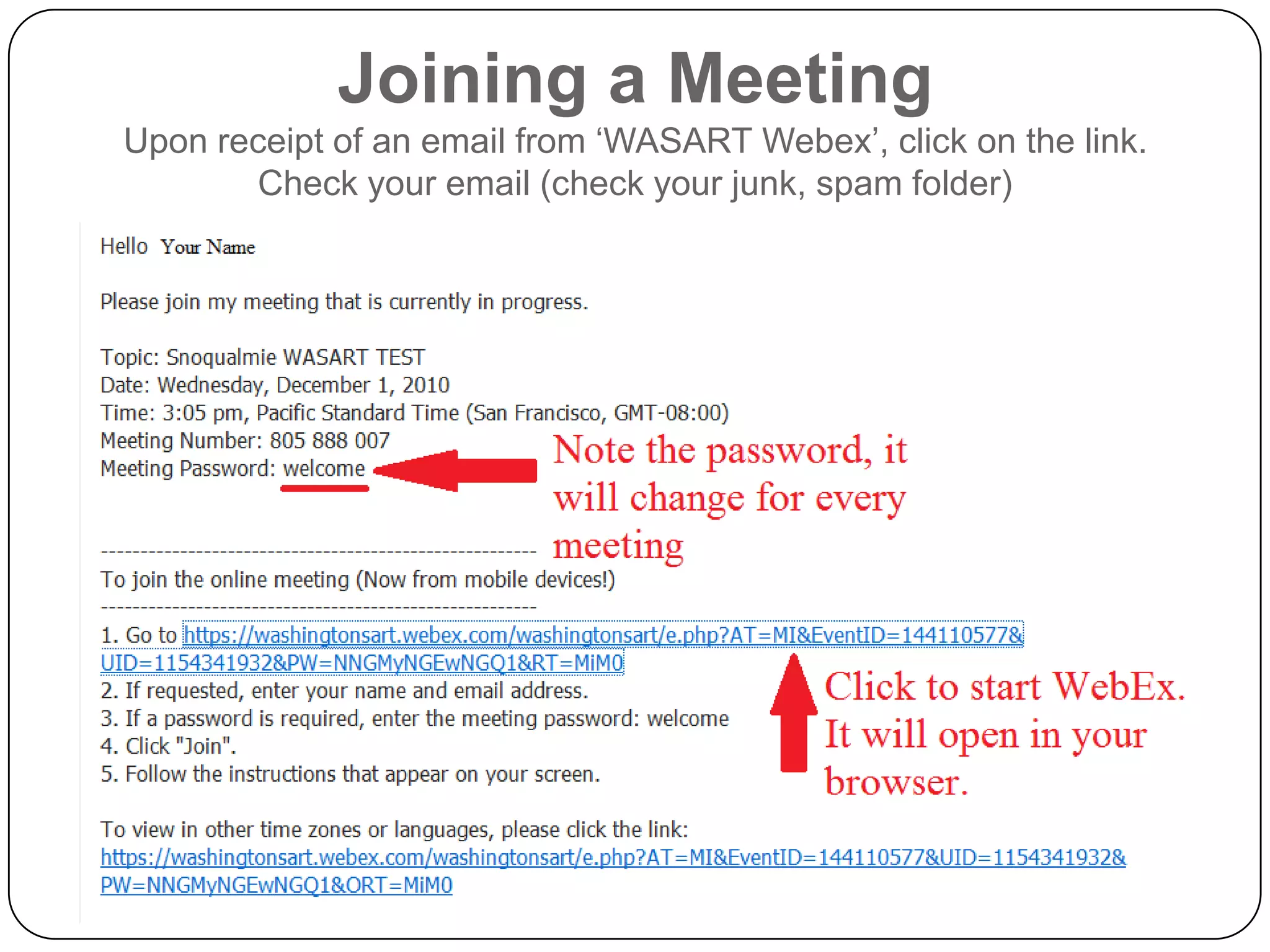
Joining a MeetingUpon receipt of an email from ‘WASART Webex’, click on the link.  Check your email (check your junk, spam folder)
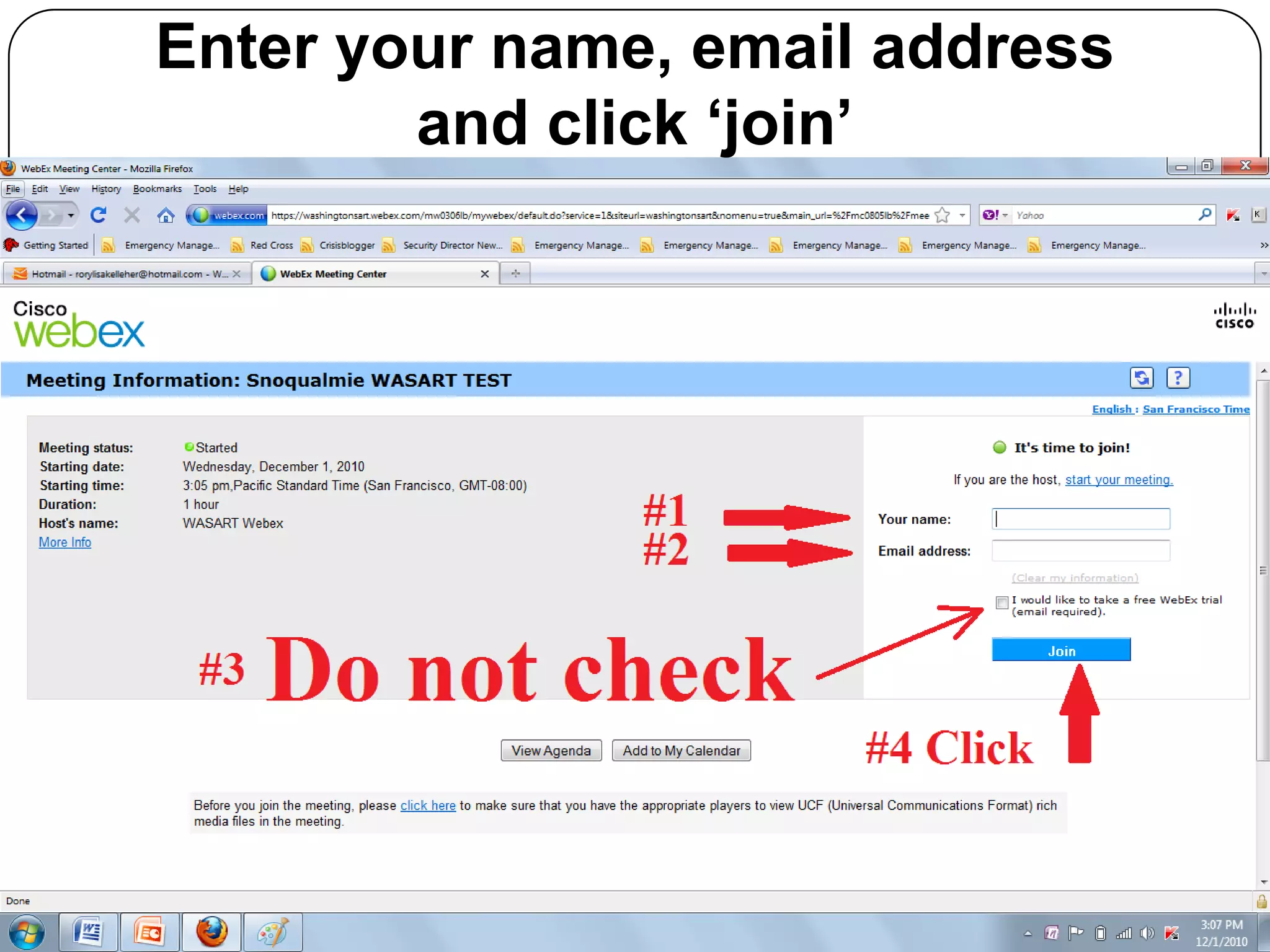
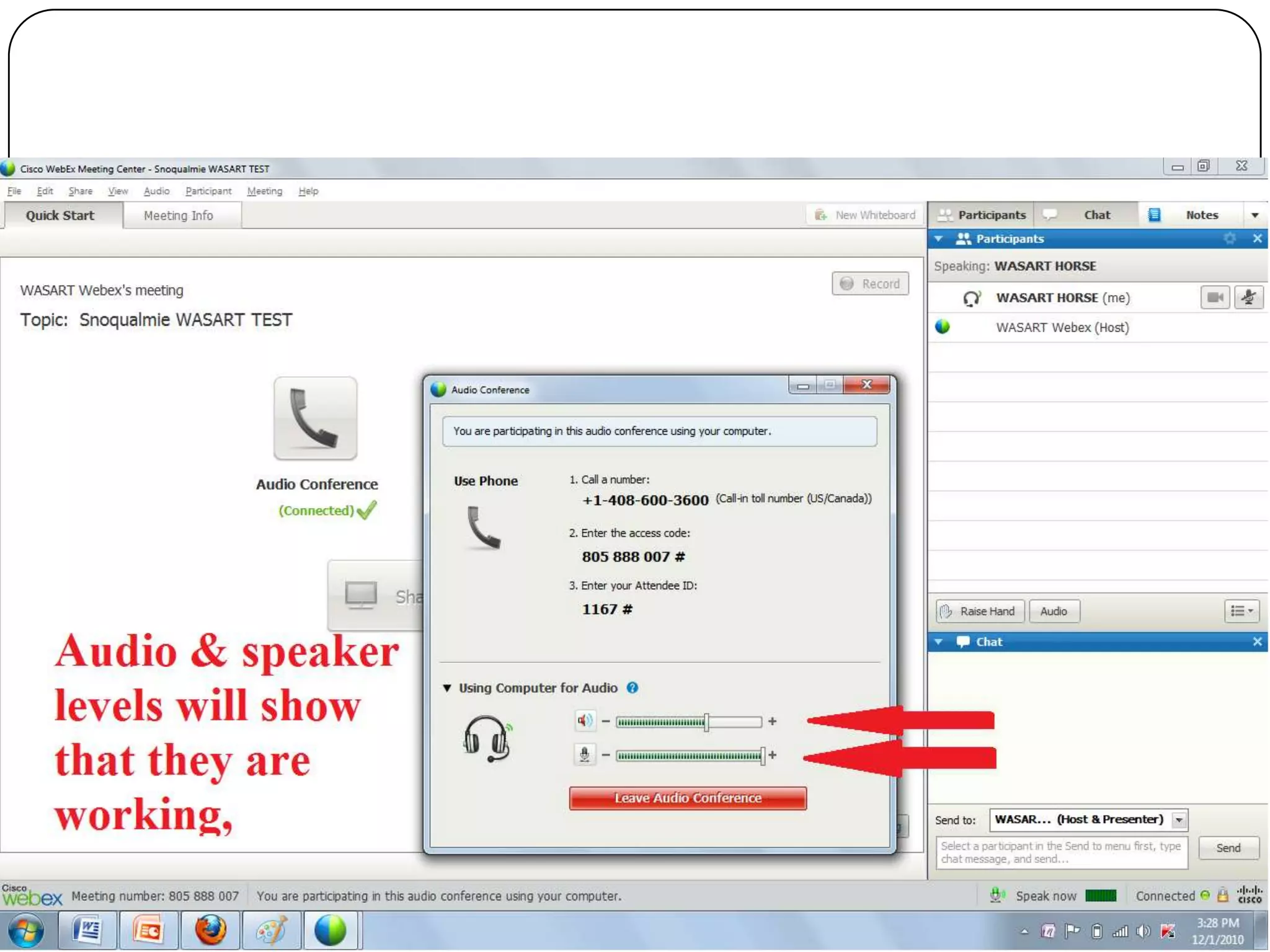
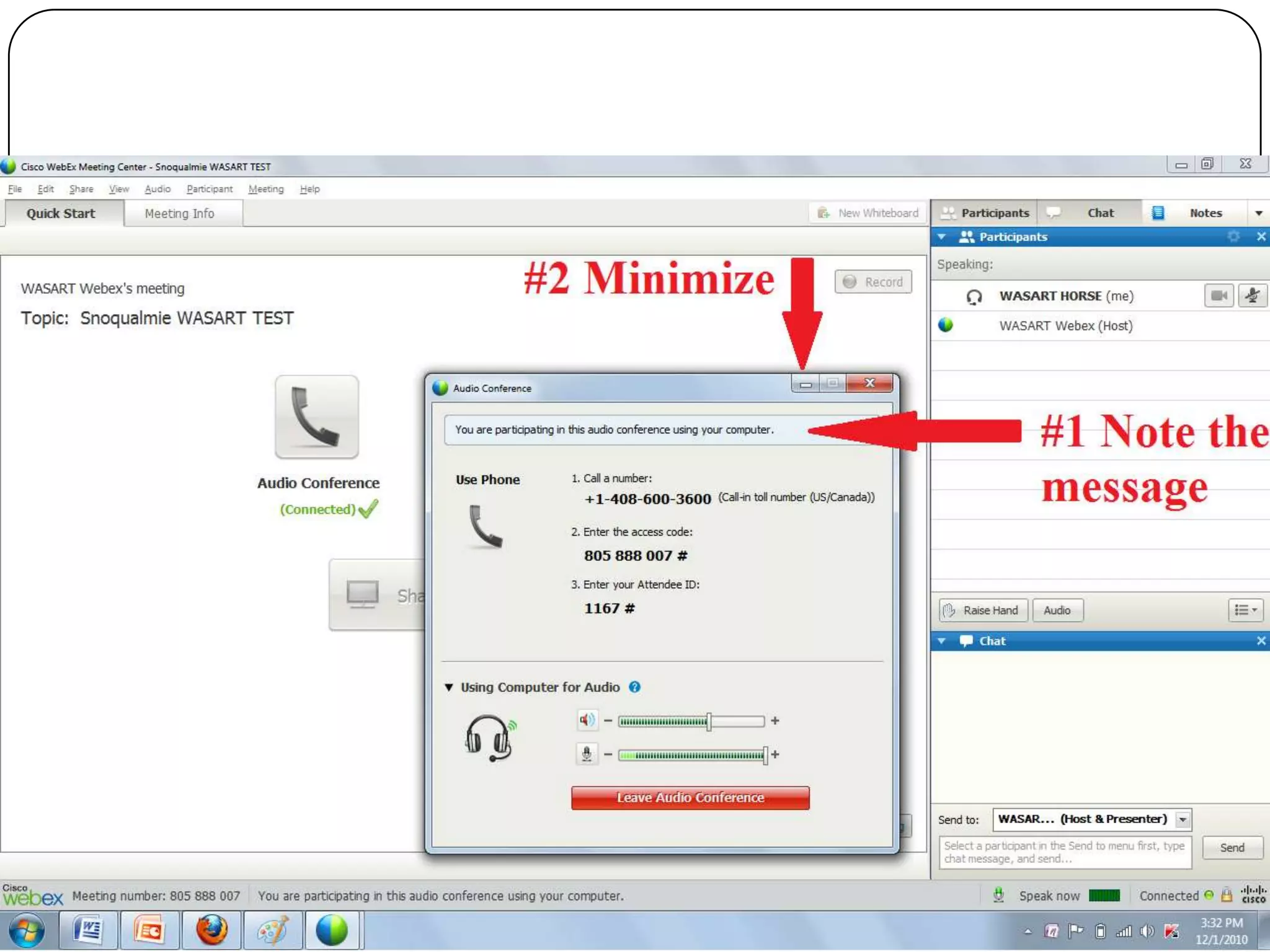
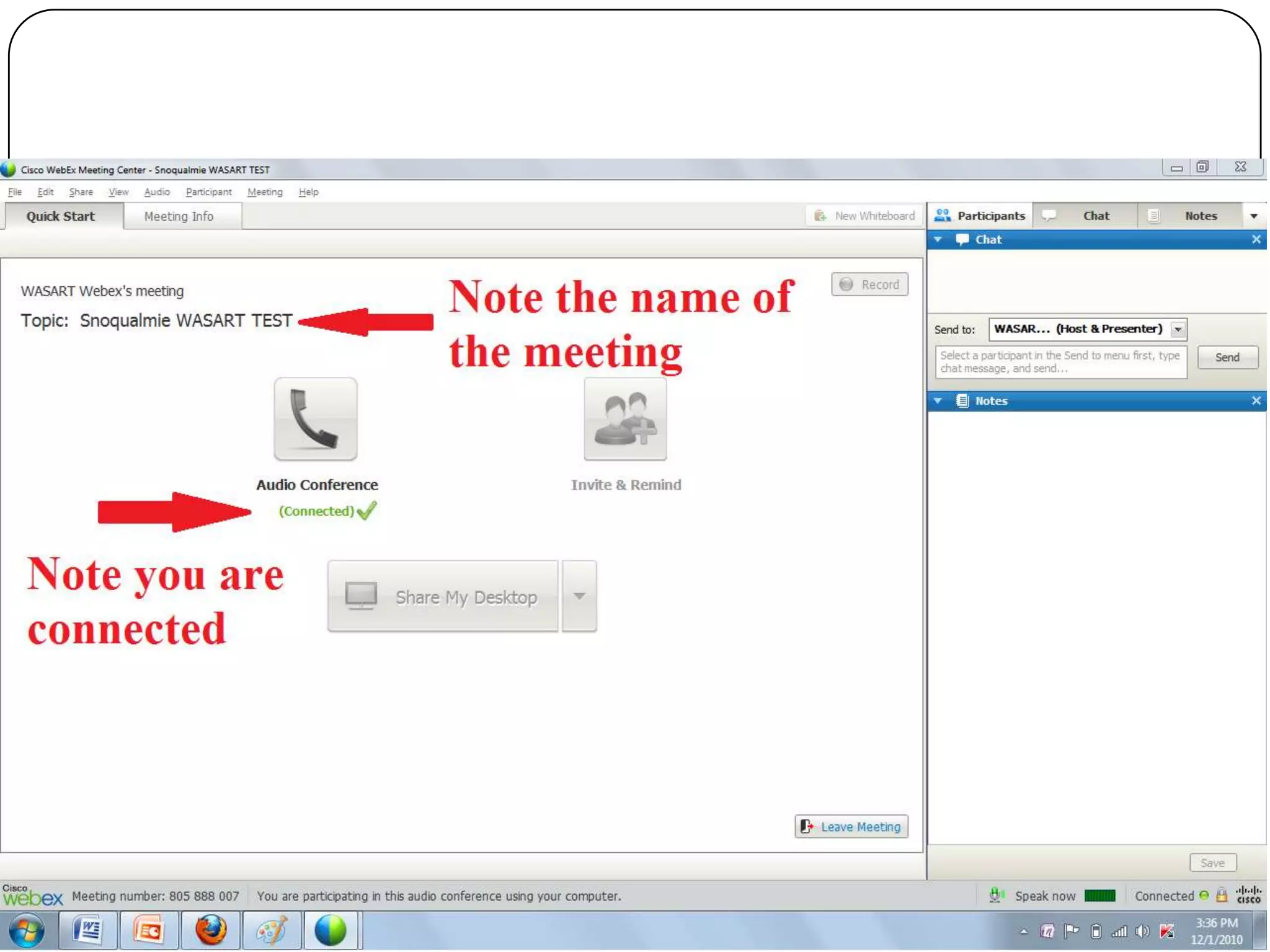
Enter your name, email address and click ‘join’
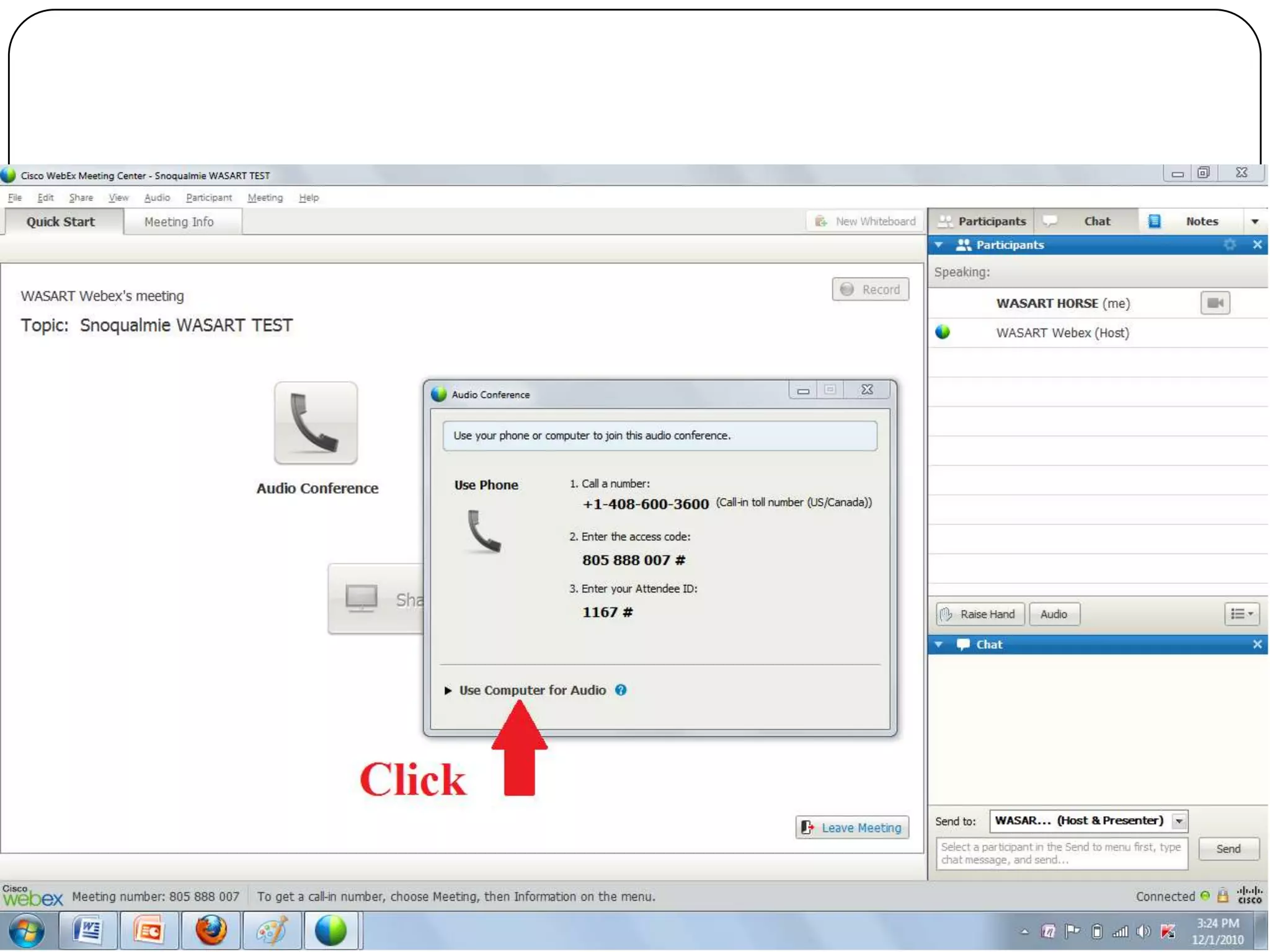
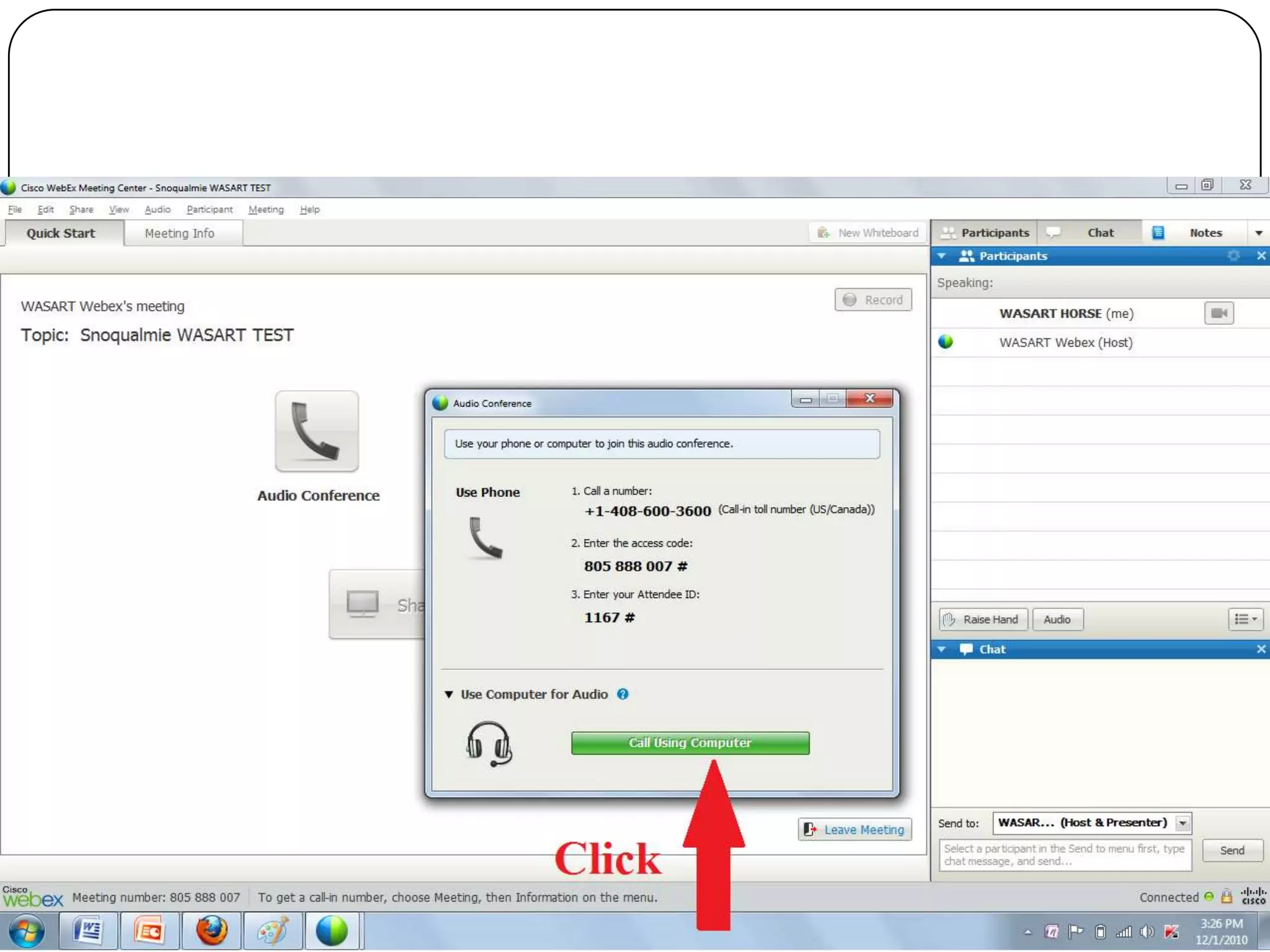
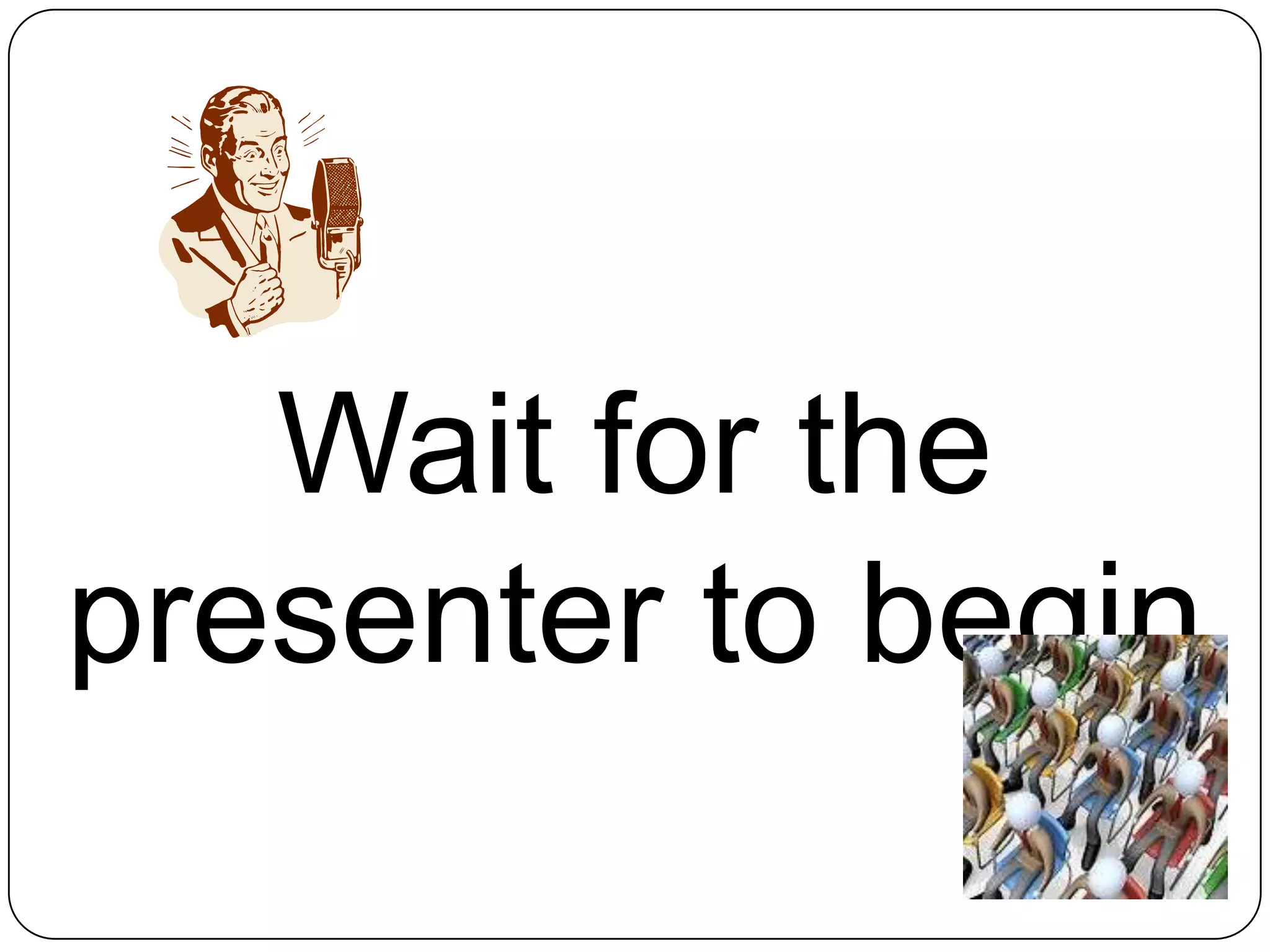
Wait for the presenter to begin
During the MeetingDocuments and applications can be shared although applications with streaming content may not work well;
A whiteboard is available with colored, free-hand drawing annotation tools at the upper left of the page;

WASART WebEx Training 12 2-10

  • 1.
    WASART Webex TeleconferencingTrainingDecember 4, 2010
  • 2.
    What is Webex?WebExis a web-based, real-time desktop sharing tool with phone conferencing that: Eliminates or reduces the need for face-to-face meetings; Permits a meeting of up to 25 computers at one time (six video and 19 audio); Shares documents, presentations and applications among attendees from any computer screen; Records meetings and can playback recordings; Uses integrated voice conferencing – by phone or computer (VoIP) (WASART does not utilize the phone capability because long distances charges will be incurred); Connects via PC, Mac, iPhone, Blackberry, or other WiFi or 3G-enabled mobile device;Has multi-media support for PowerPoint, Flash animations, audio and videoMeeting can be started from desktop, browser, Outlook, IM, etc;Provides for unlimited meetings.
  • 3.
    Minimum Desktop RequirementsOperatingSystem – Windows XP SP3 - Windows Vista 32- bit CPU - CPU Intel Pentium – Processor Intel Pentium processor (1.8 GHz recommended)Disk Space - Disk Space 80 MB 80RAM – 256 MB+Browser – Internet Explorer 7.0 or later - Mozilla Firefox 3.0 or later – JavaScript and cookies enabled in browserI/O Ports USB 2.0 (for video camera)Audio - Full duplex sound card with microphone. Headset optional but usefulVideo - At least 1.8 GHz CPU, 800x600 resolution, 256 colors or more, and a webcamInternet Connection – 56K+ Webcam (if wanting to utilize video capabilities)
  • 4.
    Preliminary Matters BeforeJoining a Meeting for the First TimeDownload and install Meeting Manager (allows the use of interactive features in a meeting and allows the sharing of most types of documents, presentations, applications, Web pages and desktops):  go to https://washingtonsart.webex.com/washingtonsart/mcclick on ‘Set Up’ on left side of pageclick on ‘Meeting Center’Verify you have the requisite Rich Media PlayersClick ‘Set Up’ and follow on-screen directionsIf a security box appears, click ‘Yes’  This is a one-time setup and Meeting Center automatically maintains and updates itself each time you join a meeting. 
  • 5.
    Joining a MeetingUponreceipt of an email from ‘WASART Webex’, click on the link. Check your email (check your junk, spam folder)
  • 6.
    Enter your name,email address and click ‘join’
  • 12.
    Wait for thepresenter to begin
  • 13.
    During the MeetingDocumentsand applications can be shared although applications with streaming content may not work well;
  • 14.
    A whiteboard isavailable with colored, free-hand drawing annotation tools at the upper left of the page;
  • 15.
     All attendees’ viewsautomatically display the meeting content, even if they have different display resolutions. No matter which resolution attendees’ monitors are set to, attendees’ views automatically follow the presenter’s mouse pointer;
  • 16.
    In order foran attendee to share a document, etc., the host must pass control to that presenter.;
  • 17.
     Attendees in themeeting are listed on the right side of the page, and visible in the video;
  • 18.
     One or moreattendees can conduct private conversations, hidden from the rest of the attendees, by utilizing the ‘Chat’ facility when those privileges have been extended;
  • 19.
     Only one meetingcan be conducted at a time. 
  • 20.
    Useful InformationHelp’ informationcan be viewed at: https://meetings.webex.com/docs/T26L/mc0800l/en_US/pe/help/host/wwhelp/wwhimpl/js/html/wwhelp.htmUser Guides in .pdf format are available under the ‘Support’ tab at: https://washingtonsart.webex.com/mw0306lb/mywebex/default.do?siteurl=washingtonsartwww.webex.comContact Rory at rorykc4x4@msn.com or 425-281-2211 or Gretchen at animalresponseteam@gmail.com or 360-886-7276 for assistance in setting up to host a meeting, or other matters.