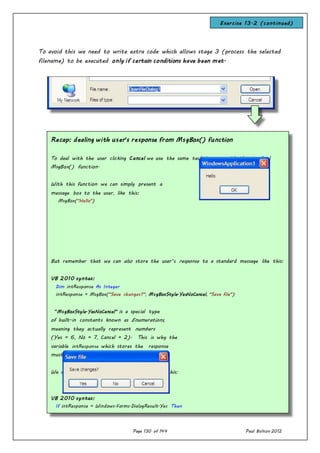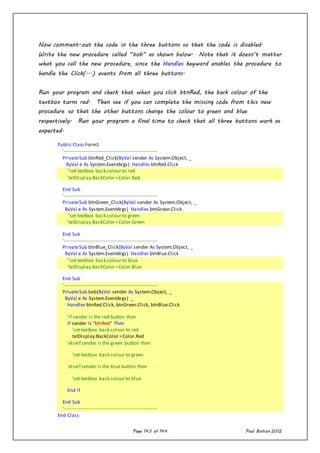
Page 2 of 144 Paul Bolton 2012
Table of Contents
Part 1 - The Basics ...........................................................7
Introduction: Three Steps in Developing a Windows Application ............... 7
Exercise 1.1 - Changing the text in a label control .................................................9
Designing the Form .......................................................................................12
Coding .......................................................................................................13
Running the Program ....................................................................................14
Saving the Program ......................................................................................14
More on the VB Integrated Development Environment (IDE)................. 14
Menu Bar ...................................................................................................14
Toolbox......................................................................................................16
Solution Explorer Window ...............................................................................17
Standard naming conventions for controls ...........................................................19
The Visual Basic 2010 IDE – In depth.............................................. 21
Structure of a Visual Basic Windows Application..................................................22
Part 2 - Moving on from the Basics....................................23
Consolidation exercises introducing Visual Basic ................................... 23
Exercise 2.1 ...............................................................................................23
Exercise 2.2 ...............................................................................................24
Exercise 2.3 ...............................................................................................24
Exercise 2.4 ...............................................................................................25
Part 3 – Arithmetic & Variables.........................................26
Arithmetic Introductory Exercise 3.1............................................... 26
Introduction to data types ............................................................................26
Task 1 ....................................................................................................26
Task 2 ................................................................................................... 27
Task 3 ...................................................................................................28
Observations ............................................................................................28
Arithmetic & Variables: Underpinning Knowledge ................................ 29
Data Types ................................................................................................29
Arithmetic Exercise 3.2 Declaring variables & type casting.....................................30
Page 3 of 144 Paul Bolton 2012
Task 1 ....................................................................................................30
Task 2 ...................................................................................................33
Task 3 ...................................................................................................33
Task 4 ...................................................................................................34
Arithmetic, Data-Types & Variables ................................................ 35
Converting data before storing it into variables (known as data “ Type Casting”) ........35
Part 4 - More on Arithmetic & Variables.............................36
Arithmetic Exercise 4.1................................................................ 36
Introducing the scrollbar control ......................................................................36
Scrollbar Setting scrollbar properties ............................................... 38
(1) Setting Max and Min properties ................................................................40
(2) Setting SmallCange and LargeChange properties.............................................40
(3) Setting Value property ............................................................................41
Arithmetic Exercise 4.2 – Wallpaper Estimator...................................................43
Data types, arithmetical operators & variables .................................................43
Part 5 - Making selections using If..Then..Else .................48
Program Control – making selections using “If..Then..Else”................... 48
Tax Calculator Program - Scenario ....................................................................51
Part (a) ..................................................................................................51
Part (b).................................................................................................52
Part (c) .................................................................................................52
If…Then…Else - Exercise 5.1 - Tax Calculator......................................................53
If…Then…Else - Exercise 5.2 Tax Calculator Enhancements .....................................58
(a) Using the TabIndex property ..................................................................58
(b) Providing a “Clear” button and improving navigation ....................................58
(c) Protecting data and improving navigation...................................................59
If…Then…Else – Exercise 5.3 Tax Calculator – adding a password form .....................60
Task 1 ....................................................................................................60
Task 2 ....................................................................................................61
Part 6 - More on making selections using If..Then..Else ...........64
Page 4 of 144 Paul Bolton 2012
Sports Club Membership Fees Program - Scenario .............................. 64
Part (a) – creation of basic program ...............................................................64
Part (b) enhancing basic program to provide a password protection form .................64
Part (c) enhancing basic program to provide a printed receipt ...............................64
Part (d) enhancing basic program to work without a mouse ..................................65
If..Then..Else – Exercise 6.1 Using multiple criteria to make selections .....................65
If..Then..Else – Exercise 6.1 SOLUTION ............................................................66
Part 7 Creating menus using the MenuStrip Control ............... 67
MenuStrip Control.......................................................................67
Exercise 7.1 adding a menu to the Tax Calculator ................................................ 67
Part 8 Making selections using Select Case ........................ 70
Select Case................................................................................70
Exercise 8.1 Demonstration of advantage of Select Case construction........................ 70
Sports Club Membership Fees Program - Revisit of scenario: converting
If..Then..Else to Select Case............................................................ 71
Select Case – Exercise 8.2 Membership fees program revisited ................................71
Select Case - Further theory ......................................................................... 74
Select Case Demonstration of advantage of If..Then..Else construction
over Select Case construction .....................................................76
Select Case – Exercise 8.1 SOLUTION ............................................................... 77
Part 9 - Iterations (loops) using For..Next........................... 78
For…Next loops - underpinning knowledge..........................................78
Background................................................................................................. 78
Example .................................................................................................... 78
For..Next Loops - Exercise 9.1 Beep exercise ....................................................80
For.. Next Loops - Underpinning knowledge (continued) ...................... 82
Counting in steps ........................................................................................82
Counting backwards ......................................................................................82
For.. Next loops - Exercise 9.2 - Mobile phone credits exercise ..............................84
Extended Task ............................................................................................84
For… Next Loops - Quiz .............................................................................86
For… Next Loops - Quiz (Answers) ...............................................................88
Page 5 of 144 Paul Bolton 2012
Coding solution to Exercise 9.2 For... Next loops - Mobile phone credits exercise
SOLUTION.................................................................................................89
Part 10 - Iterations (loops) using Do..Loops .........................90
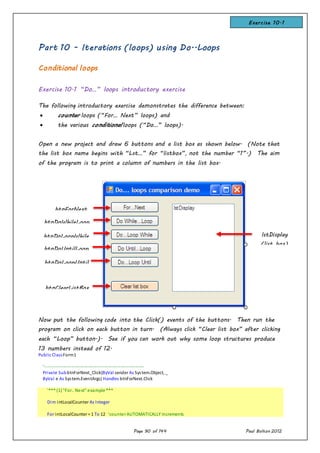
Conditional loops ........................................................................ 90
Exercise 10.1 “Do…” loops introductory exercise ..................................................90
Conditional loops continued ........................................................... 93
Exercise 10.2 “Do…” loops exercise: Moving a picture ..........................................93
Task 1 ....................................................................................................93
Task 2 ...................................................................................................94
Task 3 ...................................................................................................94
Part 11 - Debugging, Testing & Error Handling .......................95
Debugging ................................................................................. 95
Exercise 11.1 Sales Department Wage Calculator ..................................................95
Debugging – Exercise 11.1: Sales Department Wage Calculator code ........................... 97
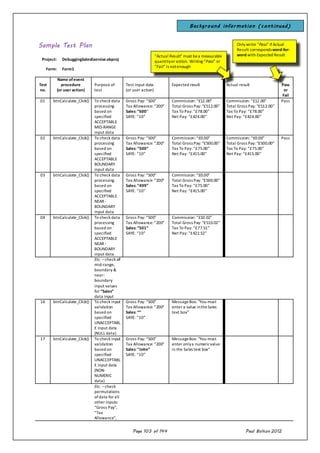
How to write testing documentation .............................................. 99
Design-time errors .......................................................................................99
Run-time errors..........................................................................................99
How to write testing documentation (continued) ............................... 101
Sample Test Plan .......................................................................................103
How to write an Error Report ..................................................... 105
Error Report (action taken to correct errors)................................................... 107
Error Handling .......................................................................... 108
Exercise 11.2 Tax Calculator program revisited ...................................................108
Task 1 ...................................................................................................108
Task 2: Error Handling ............................................................................... 111
Task 2 (continued) – Further study ..............................................................113
Task 3: Exception Handling..........................................................................114
Task 3 (continued) – Further study ..............................................................116
Part 12 - File Handling: Using Sequential Data Files (Text Files)117
File handling.............................................................................. 117
Exercise 12.1: Storing student marks in a Data File .............................................117
Page 6 of 144 Paul Bolton 2012
Task 1 – writing one record .........................................................................117
Task 2 – reading one record ........................................................................118
Task 3 – writing multiple records .................................................................118
Task 4 – reading multiple records ................................................................120
Part 13 Dialog Controls ................................................... 121
Dialog Controls .......................................................................... 121
Exercise 13.1: Adding the Color Dialog control to a program ..................................121
ColorDialog Customisation ...........................................................................122
Exercise 13.2: Adding Open / Save File Dialogs to the “Student Marks” program ......124
(1) Customising the dialog box display .............................................................126
(a) Setting the default filename .................................................................126
(b) Filtering the list of file types................................................................128
(c) Setting the default file location (folder) ..................................................128
(d) Setting the title................................................................................129
(2) Dealing with errors ...............................................................................129
(a) Errors when clicking the “Cancel” button .................................................129
Exercise 13.3: Adding Save File Dialog to the “Student Marks” program .................132
Code for the SaveFile dialog control:.............................................................134
Additional customisation ............................................................................134
Part 14 - Listbox & Combobox controls...............................136
List & Combo Box ..................................................................... 136
Exercise 14.1 Flight Seat Planner....................................................................136
List & Combo Box ..................................................................... 139
Exercise 14.2: Flight Seat Planner enhancement .................................................139
Task 1 ...................................................................................................139
Task 2 ..................................................................................................139
Task 3 ..................................................................................................139
Part 15 Multiple Event Handlers........................................ 141
Multiple Event Handlers............................................................... 141
Exercise 15.1: Colour Picker ............................................................................141
Page 7 of 144 Paul Bolton 2012
Part 1 - The Basics
Introduction: Three Steps in Developing a Windows Application
The Visual Basic Integrated Development Environment (IDE)
Makes building an application a straightforward process. There are three
primary steps involved in building a Visual Basic application:
1. We draw the user interface by placing
controls on a Windows form
2. We assign properties to controls
3. We write code for control events (and perhaps write other procedures)
Example
Example
Page 8 of 144 Paul Bolton 2012
These same steps are followed whether you are building a very simple
application or one involving many controls and many lines of code.
The event-driven nature of Visual Basic applications allows you to build your
application in stages and test it at each stage. You can build one procedure,
or part of a procedure, at a time and try it until it works as desired. This
minimises errors.
Example
Page 9 of 144 Paul Bolton 2012
Exercise 1.1 - Changing the text in a label control
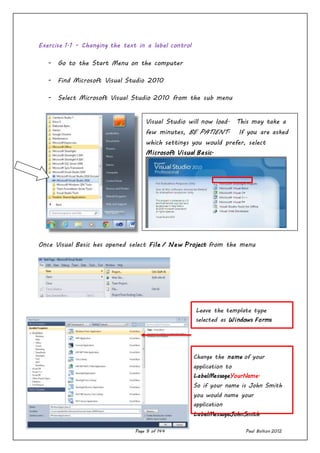
- Go to the Start Menu on the computer
- Find Microsoft Visual Studio 2010
- Select Microsoft Visual Studio 2010 from the sub menu
Once Visual Basic has opened select File / New Project from the menu
Change the name of your
application to
LabelMessageYourName.
So if your name is John Smith
you would name your
application
LabelMessageJohnSmith
Visual Studio will now load. This may take a
few minutes, BE PATIENT. If you are asked
which settings you would prefer, select
Microsoft Visual Basic.
Leave the template type
selected as Windows Forms
Application.
Page 10 of 144 Paul Bolton 2012
(no spaces between the words).
Click OK
Page 11 of 144 Paul Bolton 2012
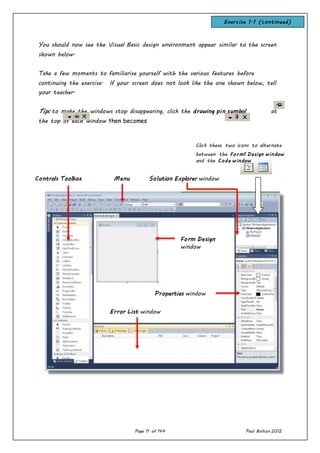
You should now see the Visual Basic design environment appear similar to the screen
shown below.
Take a few moments to familiarise yourself with the various features before
continuing the exercise. If your screen does not look like the one shown below, tell
your teacher.
Tip: to make the windows stop disappearing, click the drawing pin symbol at
the top of each window then becomes
Click these two icons to alternate
between the Form1 Design window
and the Code window
Solution Explorer windowControls Toolbox Menu
Properties window
Error List window
Form Design
window
Exercise 1.1 (continued)
Page 12 of 144 Paul Bolton 2012
The Form Designer Window is, as the name implies, where you design your
visual interface. You can add controls from the Toolbox, on the left, onto
your form.
The title bar area shows you the name of your project and the name of the
form currently displayed. Also shown in brackets is one of three words:
Design, Run or Break. This shows the mode Visual Basic is operating in.
Visual Basic operates in three modes.
 Design mode - used to build application
 Run mode - used to run the application
 Break mode - application halted and debugger is available
We focus here on the design mode. You should, however, always be aware of
what mode you are working in.
Now continue with Exercise 1.
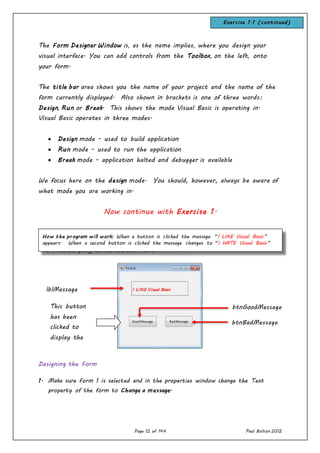
The finished program can be seen here:
Designing the Form
1. Make sure Form 1 is selected and in the properties window change the Text
property of the form to Change a message.
lblMessage
This button
has been
clicked to
display the
message above
btnGoodMessage
btnBadMessage
How the program will work: When a button is clicked the message “I LIKE Visual Basic”
appears. When a second button is clicked the message changes to “I HATE Visual Basic”
Exercise 1.1 (continued)
I LIKE Visual Basic
Page 13 of 144 Paul Bolton 2012
2. Click on the Label control in the toolbox, and then with the mouse draw a
rectangle in the upper part of the form (by holding down the left mouse button
and dragging the mouse).
3. Find the label’s Name property in the Properties window and change it from
Label1 to lblMessage, using the prefix ‘lbl’. Note that this prefix begins with the
letter ‘l’for lion and not the number 1.(one)
4. Set the label’s Text property to blank by deleting the default value “Label1".
5. The default value for the label’s BorderStyle property is None, meaning that it
has no border will be shown when the program runs. To get the sunken border
effect in the illustration, change this to Fixed3D.
6. Set the label’s Font property to 14 Bold.
7. Set autosize to false
8. Set size width to 200 and height to 50
9. Drag a button from the Toolbox and draw a rectangle at the bottom left of the
form. Set its Text property to Good Message. Change its Name property to
btnGoodMessage. Now place a second button at the bottom right of the form.
Set its Text property to Bad Message. Change its Name property to
btnBadMessage.
Coding
10.Double-click on the Good Message button and you’ll see the code template for its
Click() event as shown below.
The words after the brackets, Handles btnGoodMessage.Click, shows that the code
you are about to write will be executed if the btnGoodMessage is clicked when
the program is running. The code template plus any code that is written inside
the template, is known as an event procedure.
11. Type the line of code below to set the Text property of the label to the
message you wish to display in the label.
Page 14 of 144 Paul Bolton 2012
12. Return to the form either by clicking the Form1.vb [Design] Page tab or the
View Designer button in the Solution Explorer’s small toolbar (you will need to
hover the mouse over the button to see its name.
13. Double-click the Bad Message button on the form. Type in a line of code similar
to that in step 10 to display the “I do not like Visual Basic” message when the
Bad Message button is clicked.
Running the Program
14. Click the Start button on the toolbar or select Debug/Start from the menu.
Click on each of the two buttons to check that the message changes. Close the
program by clicking the red “X” in the top-right corner of the program window
(i.e. the “form” you created)
Saving the Program
15. Click the icon on the menu. In the Save Project window you should see
LabelMessage automatically displayed as the application name. Don’t alter any of
the entries. Just click the Save button.
More on the VB Integrated Development Environment (IDE)
Menu Bar
Under the title bar is the Menu. This menu is dynamic, changing as you try to do different
things in Visual Basic .NET. When you start working on a project, it should look like this:
You will become familiar with each menu topic as you work through the course. Briefly, they
are:
File Use to open/close projects and files. Use to exit Visual Basic .NET
Edit Used when writing code to do the usual editing tasks of cutting, pasting, copying and
deleting text
View Provides access to most of the windows in the Integrated Development Environment
(IDE)
Project Allows adding files and objects to your application
Build Allows you to compile and run your completed application (go to Run mode)
Debug Comes in handy to help track down errors in your code (works when Visual Basic .NET
is in Break mode)
Background information
Page 15 of 144 Paul Bolton 2012
Team Ability to work in a Team Foundation Server
Data Used when building database applications
Format Useful for manipulating controls placed on your forms
Tools Allows custom configuration of the IDE. Be particularly aware of the Options choice
under this menu item. This choice allows you to modify the IDE to meet any personal
requirements.
Test Used for testing and debugging your applications
Window Lets you change the layout of windows in the IDE
Help Perhaps, the most important item in the Menu. Provides access to the
Visual Basic on-line documentation via help contents, index or search.
The View menu also allows you to choose from a myriad of toolbars available in the Visual
Basic .NET IDE. Toolbars provide quick access to many features. The Standard (default)
toolbar appears below the Menu:
New project
Open file
Save all
Undo, Re-do
Move backward / forward
Build configuration
View Solution Explorer Window
View Properties Window
View Object Browser
View Toolbox
Team Explorer Window
Start Page
Extensions
Command Window
If you forget what a
toolbar button does,
hover your mouse cursor
over the button until a
descriptive tool tip
appears.
We will discuss most of
these toolbar functions in
the remainder of the IDE
information.
Page 16 of 144 Paul Bolton 2012
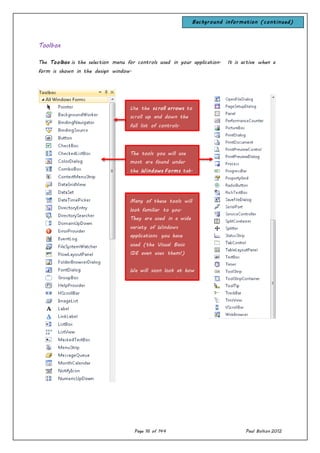
Toolbox
The Toolbox is the selection menu for controls used in your application. It is active when a
form is shown in the design window.
The tools you will use
most are found under
the Windows Forms tab.
Use the scroll arrows to
scroll up and down the
full list of controls.
Many of these tools will
look familiar to you.
They are used in a wide
variety of Windows
applications you have
used (the Visual Basic
IDE even uses them!)
We will soon look at how
to move a control from
the toolbox to a form.
Background information (continued)
Page 17 of 144 Paul Bolton 2012
Solution Explorer Window
Two other windows (not illustrated) which are useful when running an application are the
Task List Window and Output Window. The task list window highlights any errors
encountered while trying to run an application.
The window will direct you to the line(s) of code with identified errors. The output window
outlines the steps followed as an application is compiled.
Background information (continued)
The Solution Explorer Window displays a
list of all forms, modules and other files
making up your application. To view a
form in this window, simply double-click
the file name. Or, highlight the file
and press <Shift>-<F7>.
Or, you can obtain a view of the Form
or Code windows (window containing the
actual Basic coding) from the Project
window, using the toolbar near the top
of the window. As we mentioned,
there are many ways to do things using
the Visual Basic IDE.
The Properties Window is used to establish design
mode (initial) property values for objects
(controls). The drop-down box at the top of the
window lists all objects in the current form.
Two views are available: Alphabetic and Categorized
(selection is made using menu bar under this box
are the available properties for the active
(currently selected) object.
Help with any property can be obtained by
highlighting the property of interest and pressing
<F1>.
Page 18 of 144 Paul Bolton 2012
Page 19 of 144 Paul Bolton 2012
Standard naming conventions for controls
List continued on next page
lbl...
btn...
txt...
mnu...
chk...
rad...
grp...
pic...
pnl...
dgd...
lst...
cbo...
hsb...
vsb...
tmr...
lblDisplay
btnEnter
txtInput
mnuEditPaste
chkBold
radYellow
grpFontSize
picLogo
pnlFontStyle
dgdEmployees
lstAge
cboFavoriteFood
hsbWidth
vsbHeight
tmrAnimate
Type of control Prefix Example
We name controls using the first 3 letters (the prefix) written in lowercase to represent what
type of control it is. A list of prefixes is shown below. The rest of the name can be any
meaningful word or combination of words representing what the control does. There must be
no gaps in the name. We therefore start each word after the prefix with a capital letter.
This is known as “camel-case”, because the middle of the name has taller (capital) letters, like
the humps of a camel.
For more information on Visual Basic naming conventions, go to:
http://www.akadia.com/services/naming_conventions.html
and scroll to the bottom of the page and find the heading: “12) Visual Control Type
Notation”
Background information (continued)
Page 20 of 144 Paul Bolton 2012
We usually give
dialogue controls these
standard names rather
than use different
names for different
applications – as we
do with the other
controls. This is
because there is
usually only one dialog
control of each type
on any of our forms.
dlgOpenFile
dlgSaveFile
dlgFont
dlgColor
dlgPrint
dlgPrintPreview
Type of control Prefix AND Example (see explanation below)
Background information (continued)
Page 21 of 144 Paul Bolton 2012
The Visual Basic 2010 IDE – In depth
Visual Basic is an integrated development environment within the Visual Studio. Net
Framework. The visual environment is used to design, develop, debug and deploy Windows
Forms and Web Forms applications. These applications can also be used to integrate database
applications. The major advantage of this new environment is that multi-language applications
can be used over the Internet, thus creating, in theory, a truly open application platform.
In summary the visual studio has the following features:
1. Windows Forms Designer. A graphical design surface for creating GUI. You can drag &
drop controls onto forms.
2. Tools for Windows Forms. A Windows Forms Designer, A Windows Application Template
(e.g. windows or database application etc.), project references and generated starter
code for the applications.
3. Tools for Web Forms. A Web Forms Designer, an ASP.Net Web Application template,
project references and generated starter code.
4. Tools for XML (eXtendible Markup Language) Web Services. A generalised web language
can be generated from your .net application solution file.
5. Multiple language Support. A range of language such as C# and VB.net can used in the
same application or solution. The environment now has Object-Oriented Programming
(OOP) capabilities.
6. Data Access. Components for creating applications that share data, visual database
applications for accessing data using the ADO.NET classes.
7. Error handling. Has a range of debugging tools, classes and objects to find and fix
errors within your application.
8. Wizards. Help you create common and complex tasks, by choosing options, configuring
settings and customising projects.
Background information (continued)
Page 22 of 144 Paul Bolton 2012
Structure of a Visual Basic Windows Application
We want to get started building our first Visual Basic Windows application. But, first we
need to define some of the terminology we will be using. In Visual Basic .NET, a Windows
application is defined as a solution.
A solution is made up of one or more projects. Projects are groups of forms and code that
make up some application. In most of our work in this course, our applications (solutions)
will be made up of a single project. Because of this, we will usually use the terms
application, solution and project synonymously.
Thus an Application (Project) is made up of:
 Forms - Windows that you create for user interface
 Controls - Graphical features drawn on forms to allow user interaction (text boxes,
labels, scroll bars, buttons, etc.) (Forms and Controls are objects.)
 Properties - Every characteristic of a form or control is specified by a property.
Example properties include names, captions, size, colour, position, and contents. Visual
Background information (continued)
Page 23 of 144 Paul Bolton 2012
Basic .NET applies default properties. You can change properties when designing the
application or even when an application is executing.
 Methods - Built-in procedures that can be invoked to impart some action to a
particular object.
 Event Procedures - Code related to some object or control. This is the code that is
executed when a certain event occurs. In our applications, this code will be written in
the BASIC language
 General Procedures - Code not related to objects. This code must be invoked or called
in the application.
 Modules - Collection of general procedures, variable declarations, and constant
definitions used by an application.
Part 2 - Moving on from the Basics
Consolidation exercises introducing Visual Basic
Exercise 2.1
 Start a new project.
 Create a form with two labels.
Exercises 2.1 to 2.4
Visual Basic uses a very specific directory structure for
saving all of the components for a particular application.
When you start a new project (solution), you will be
asked for a Name and Location (folder / directory).
A folder named Name will be established in the selected
Location. That folder will be used to store all solution
files, project files, form and module files (vb extension)
and other files needed by the project.
Two subfolders will be established within the Name
folder: bin and obj. The bin folder contains your
compiled application (the actual executable code or exe
file). Later, you will see that this folder is considered
the ‘application path’ when ancillary data, graphics and
sound files are needed by an application. The obj folder
contains files used for debugging your application as it is
being developed.
Page 24 of 144 Paul Bolton 2012
 When the program runs display your name in label 1 and your address in label 2
by using the Form_Load() event. (Double-click on the grey area of the form at
design time display the code window for this event.)
Exercise 2.2
 Start a new project.
 Place a button on a form. When it is clicked the title bar of the form should
display Welcome to Visual Basic .NET.
Exercise 2.3
 Start a new project.
Public ClassForm1
Private SubForm1_Load(...) HandlesMyBase.Load
lblName.Text = "MyName"
lblAddress.Text = "MyAddress"
End Sub
End Class
Public ClassForm1
Private SubbtnWelcome_Click(sender As System.Object, e As
System.EventArgs) Handles btnWelcome.Click
Me.Text = "Welcome to Visual Basic .NET"
End Sub
End Class
Page 25 of 144 Paul Bolton 2012
 Place two buttons on a form and set their Text properties to Show and Hide
respectively using the Properties Window.
 Place a label on the form and set its Visible property to False (which means it
will be invisible when the program first runs).
 Clicking the Show button should make the label visible and display the message
Hello inside it. Clicking the Hide button should remove the label and its message.
(Note: When you set the Visible property in code you do not need quotation
marks around the True or False.)
Exercise 2.4
 Start a new project.
 Write a program with a label and two buttons.Label width:200 height: 100
 Clicking the ForeColour button displays the message shown in a blue colour.
Clicking the BackColour button displays a different message and colours the rest of
the label yellow. Note that the message is centred within the label. Use the
label’s ForeColor and BackColor properties. To set these properties write
Color.Blue or Color.Yellow to the right of the assignment statement ( = ).
Public ClassForm1
Private SubbtnShow_Click(sender As System.Object, e As System.EventArgs)
HandlesbtnShow.Click
lblHello.Visible = True
lblHello.Text = "Hello"
End Sub
Private SubbtnHide_Click(sender As System.Object, e As System.EventArgs)
HandlesbtnHide.Click
lblHello.Visible = False
lblHello.Text = "Hello"
End Sub
End Class
Public ClassForm1
Private SubbtnForeColour_Click(sender As System.Object, e As System.EventArgs) Handles
btnForeColour.Click
lblColour.Text = "MyForeColour propertyis set to blue"
lblColour.ForeColor = Color.Blue
End Sub
Private SubbtnBackColour_Click(sender As System.Object, e As System.EventArgs)Handles
btnBackColour.Click
lblColour.Text = "MyBackColour propertyis set to yellow"
lblColour.BackColor = Color.Yellow
End Sub
End Class
Page 26 of 144 Paul Bolton 2012
Part 3 – Arithmetic & Variables
Arithmetic Introductory Exercise 3.1
Introduction to data types
We are going to look at how we can use the properties of controls to transfer
information (data) from one control to another. The program we are about to
create will enable us to:
(1)assign a new BackColor property value (yellow) to a textbox on the left of
the form by copying the existing BackColor property value from a textbox on
the right
(2) assign a new Text property value to a textbox on the left of the form
by copying the existing Text property value from a textbox on the right
(3) assign a new Text property value to a textbox on the left of the form
by copying the existing Text property values from two textboxes on the right.
We will see if we can get two numbers to add up using this technique (a
simple maths calculation).
Task 1
Open a new Windows Application project and create a form like the one illustrated:
txtCopiedColour
txtCopiedText
txtResult
btnCopyColour btnCopyText
txtOriginalColour
txtOriginalText
Exercise 3.1
Page 27 of 144 Paul Bolton 2012
At design-time, set the BackColor property of txtOriginalColour to yellow (select this
from Custom on the BackColor property list).
Double-click on the Copy Colour button. The code window should open revealing the
template code for this button procedure ready for us to write code into. Write the
following code shown in bold:
Run your program, click the Copy Colour button an see if the yellow colour appears
in the first textbox.
If so, we have successfully assigned a new value to the BackColor property of the
textbox on the left of the form by copying the existing BackColor property value
from a textbox on the right.
Task 2
Now see if you can complete the line of code for the next button, as shown below:
Run your program again, write your name in the txtOriginalText textbox on the
right, click the Copy Text button and see if your name appears in the txtCopiedText
textbox on the left.
Public ClassForm1
Private SubbtnCopyColour_Click(ByVal sender As System.Object, _
ByVal e As System.EventArgs)HandlesbtnCopyColour.Click
txtCopiedColour.BackColor = txtOriginalColour.BackColor
End Sub
End Class
btnAdd txtFirstNumber txtSecondNumber
Private SubbtnCopyText_Click(ByVal sender As System.Object, _
ByVal e As System.EventArgs)HandlesbtnCopyText.Click
txtCopiedText.Text = .
End Sub
Exercise 3.1
Page 28 of 144 Paul Bolton 2012
Task 3
Repeat the process with the final button (“Add”). See if you can complete the line
of code below:
Run your program again, write your 2 whole numbers in the txtFirstNumber and
txtSecondNumber textboxes on the right (e.g. 2 + 2), click the Add button and see
if the correct answer appears in the txtResult textbox on the left.
Observations
Try to answer the following questions:
 what result did you get in txtResult?
 how do you think VB is processing the data you have input?
 what data type do you think VB has assumed the number “2” is?
Now look at the handouts / tutorials on data types and converting data types
(“type-casting”) and see if you can work out what must be added to your code to
cure the problem we are encountering.
Private SubbtnAdd_Click(ByValsender As System.Object, _
ByVal e As System.EventArgs)HandlesbtnAdd.Click
txtResult.Text = .
End Sub
Page 29 of 144 Paul Bolton 2012
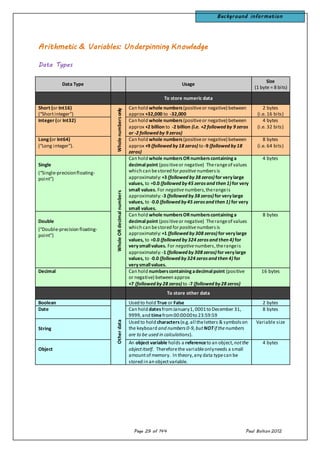
Arithmetic & Variables: Underpinning Knowledge
Data Types
Data Type Usage
Size
(1 byte = 8 bits)
To store numeric data
Short (or Int16)
(“Shortinteger”)
Wholenumbersonly
Can hold whole numbers(positiveor negative) between
approx +32,000 to -32,000
2 bytes
(i.e. 16 bits)
Integer (or Int32) Can hold whole numbers(positiveor negative) between
approx +2 billion to -2 billion (i.e. +2 followed by 9 zeros
or -2 followed by 9 zeros)
4 bytes
(i.e. 32 bits)
Long(or Int64)
(“Long integer”).
Can hold whole numbers(positiveor negative) between
approx +9 (followed by18 zeros) to -9 (followed by18
zeros)
8 bytes
(i.e. 64 bits)
Single
(“Single-precisionfloating-
point”)
WholeORdecimalnumbers
Can hold whole numbersORnumberscontaininga
decimalpoint (positiveor negative) Therangeof values
which can bestored forpositivenumbersis
approximately:+3 (followed by38 zeros) for verylarge
values, to +0.0 (followed by45 zerosand then 1) for very
small values. For negativenumbers,therangeis
approximately:-3 (followed by38 zeros) for verylarge
values, to -0.0 (followed by45 zerosand then 1) for very
small values.
4 bytes
Double
(“Double-precision floating-
point”)
Can hold whole numbersORnumberscontaininga
decimalpoint (positiveor negative) Therangeof values
which can bestored forpositivenumbersis
approximately:+1 (followed by308 zeros) for verylarge
values, to +0.0 (followed by324 zerosand then 4) for
verysmallvalues. For negativenumbers,therangeis
approximately:-1 (followed by308 zeros) for verylarge
values, to -0.0 (followed by324 zerosand then 4) for
verysmallvalues.
8 bytes
Decimal Can hold numberscontainingadecimalpoint (positive
or negative) between approx
+7 (followed by28 zeros) to -7 (followed by28 zeros)
16 bytes
To store other data
Boolean
Otherdata
Used to hold True or False 2 bytes
Date Can hold datesfromJanuary1,0001to December 31,
9999,and timefrom00:00:00to 23:59:59
8 bytes
String
Used to hold characters(e.g.all theletters & symbolson
the keyboard and numbers 0-9,butNOTif thenumbers
are to be used in calculations).
Variable size
Object
An object variable holds a referenceto an object,notthe
objectitself. Thereforethe variableonlyneeds a small
amountof memory. In theory,any data typecan be
stored in an objectvariable.
4 bytes
Background information
Page 30 of 144 Paul Bolton 2012
Arithmetic Exercise 3.2 Declaring variables & type casting
Task 1
We are going to
create a simple
calculator. Open a
new Windows
Application project
and create a form
like the one
illustrated:
Give the buttons suitable names (e.g. btnAdd, btnSubtract etc.). Give the
textboxes the names txtFirstNumber, txtSecondNumber and txtResult respectively.
Double-click on the Add button. The code window should open revealing the
template code for this button procedure ready for us to write code into:
Move the cursor and insert it between the line: Public Class Form1 and the line:
Private Sub btnAdd_Click(…) and then write the following code:
Public ClassForm1
Private SubbtnAdd_Click(ByValsender As System.Object, _
ByVal e As System.EventArgs)HandlesbtnAdd.Click
|
End Sub
End Class
Cursor
Public ClassForm1
'declare variables
Dim intFirstNumber As Integer
Dim intSecondNumber As Integer
Dim intResult As Integer
Private SubbtnAdd_Click(ByValsender As System.Object, _
ByVal e As System.EventArgs)HandlesbtnAdd.Click
End Sub
End Class
Cursor
Exercise 3.2
Page 31 of 144 Paul Bolton 2012
Page 32 of 144 Paul Bolton 2012
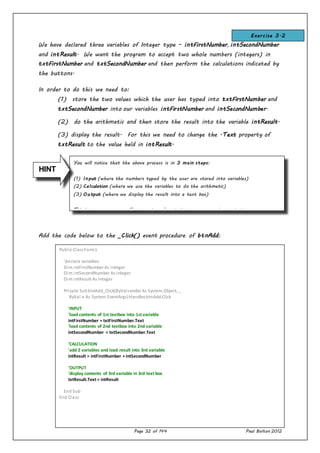
You will notice that the above process is in 3 main steps:
(1) Input (where the numbers typed by the user are stored into variables)
(2) Calculation (where we use the variables to do the arithmetic)
(3) Output (where we display the result into a text box)
This is a sequence we will use again and again in our programming projects.
We have declared three variables of Integer type – intFirstNumber, intSecondNumber
and intResult. We want the program to accept two whole numbers (integers) in
txtFirstNumber and txtSecondNumber and then perform the calculations indicated by
the buttons.
In order to do this we need to:
(1) store the two values which the user has typed into txtFirstNumber and
txtSecondNumber into our variables intFirstNumber and intSecondNumber.
(2) do the arithmetic and then store the result into the variable intResult.
(3) display the result. For this we need to change the .Text property of
txtResult to the value held in intResult.
Add the code below to the _Click() event procedure of btnAdd:
HINT
Public ClassForm1
'declare variables
Dim intFirstNumber As Integer
Dim intSecondNumber As Integer
Dim intResult As Integer
Private SubbtnAdd_Click(ByValsender As System.Object, _
ByVal e As System.EventArgs)HandlesbtnAdd.Click
'INPUT
'load contents of 1st textbox into 1st variable
intFirstNumber = txtFirstNumber.Text
'load contents of 2nd textbox into 2nd variable
intSecondNumber = txtSecondNumber.Text
'CALCULATION
'add 2 variables and load result into 3rd variable
intResult = intFirstNumber + intSecondNumber
'OUTPUT
'display contents of 3rd variable in 3rd text box
txtResult.Text = intResult
End Sub
End Class
Exercise 3.2
Page 33 of 144 Paul Bolton 2012
Run you program, enter two numbers and click the add button. See if the correct
answer appears in txtResult.
Task 2
We have relied upon Visual Basic automatically converting data into the appropriate
data types for us. For example, it took the text from the first textbox (a String
data-type) and converted it into an Integer before adding it to the second number.
This is data-type conversion is known as type casting.
We are now going to do this with functions in our code.
Add the following statement to the top of your code:
You will immediately see parts of the code underlined in blue and errors appear in
the Error List Window.
To solve this problem we need to convert the data-type of the numbers from String
to Integer in the first button (btnAdd) by including the conversion function CInt().
Amend you code as follows:
Run your program, enter two numbers and click the add button. See if the correct
answer appears in txtResult.
Task 3
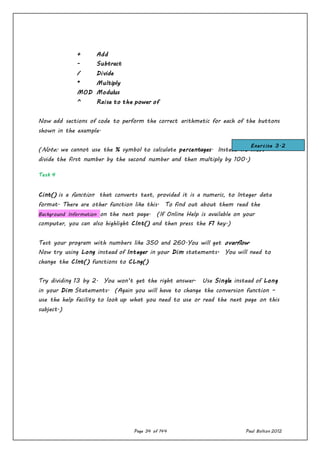
So far we have used the + operator to add the two numbers together. The other
operators that we can use are:
Option Strict On
Public ClassForm1
'declare variables
Dim intFirstNumber As Integer
Dim intSecondNumber As Integer
Dim intResult As Integer
Private SubbtnAdd_Click(ByValsender As System.Object, _
ByVal e As System.EventArgs)HandlesbtnAdd.Click
End Sub
End Class
Private SubbtnAdd_Click(ByValsender As System.Object, _
ByVal e As System.EventArgs)HandlesbtnAdd.Click
'INPUT
'load contents of 1st textbox into1st variable
intFirstNumber = CInt(txtFirstNumber.Text)
'load contents of 2ndtextbox into2ndvariable
intSecondNumber = CInt(txtSecondNumber.Text)
Exercise 3.2
Page 34 of 144 Paul Bolton 2012
+ Add
- Subtract
/ Divide
* Multiply
MOD Modulus
^ Raise to the power of
Now add sections of code to perform the correct arithmetic for each of the buttons
shown in the example.
(Note: we cannot use the % symbol to calculate percentages. Instead we must
divide the first number by the second number and then multiply by 100.)
Task 4
Cint() is a function that converts text, provided it is a numeric, to Integer data
format. There are other function like this. To find out about them read the
Background Information on the next page. (If Online Help is available on your
computer, you can also highlight CInt() and then press the F1 key.)
Test your program with numbers like 350 and 260.You will get overflow.
Now try using Long instead of Integer in your Dim statements. You will need to
change the CInt() functions to CLng()
Try dividing 13 by 2. You won’t get the right answer. Use Single instead of Long
in your Dim Statements. (Again you will have to change the conversion function –
use the help facility to look up what you need to use or read the next page on this
subject.)
Exercise 3.2
Page 35 of 144 Paul Bolton 2012
Arithmetic, Data-Types & Variables
Converting data before storing it into variables (known as data “Type
Casting”)
So far we have looked at how to declare a variable and store data into it. For
example, suppose our user is going to type the number “123” into a text box called
txtFirstNumber. We want to write code which will store this number into a variable
called intFirstNumber and then do a maths calculation with it. To do this we would:
(1)declare the variable:
Dim intFirstNumber As Integer
(2) then store the data into it by writing:
intFirstNumber = txtFirstNumber.Text
But this does not actually convert the string “123” into numbers which our program
can use to do maths with. Remember that because the number is in a text box,
Visual Basic does not automatically recognise that this is a number. It assumes the
number is a series of characters (a “string”) like a telephone number or bank account
number. If we try to get VB to add 1 to this string, we will probably get the
answer 1231 instead of 124. VB will simply put the 1 on the end of 123 like a
putting letter on the end of a word.
Declaring a variable as an Integer type does not convert the data to an integer, it
simply puts a “filter” over the variable so that it refuses to accept anything but an
integer! So if we try to store the decimal number 0.75 into it we will simply get
an error message.
Therefore we need to use a function to convert the data in the text box into the
correct data type before we try to store it into the variable. To do this we use
one of the following data type conversion functions, for example:
Numeric data types:
CShort( ) to convert to Short data type
CInt( ) to convert to Integer data type
CLng( ) to convert to Long data type
CSng( ) to convert to Single data type
CDbl( ) to convert to Double data type
CDec( ) to convert to Decimal data type (used especially for currency data)
Otherdata types:
Background information
Page 36 of 144 Paul Bolton 2012
CBool( ) to convert to Boolean data type (True / False)
CDate( ) to convert to Date / Time data type (e.g. #17/10/06 13:50:02#)
CStr( ) to convert to String data type (e.g. "My name is John")
For example, to convert the string “123” contained in text box txtFirstNumber into
an integer and then store it into our variable, we would write:
intFirstNumber = CInt(txtFirstNumber.Text)
We need to be careful however, because if the data doesn’t exactly match the data
type, VB will do its best to convert it anyway. For example, if we write the above
code and the user writes the string 12.75 into the text box, the integer 13 will be
stored in the variable intFirstNumber. In other words the 0.75 part of the number
will simply be rounded up to the next whole number. (Note: if we actually wanted
to store decimal numbers we would need to declare the data type of our variable as
a single and use the conversion function CSng() instead.)
Part 4 - More on Arithmetic & Variables
Arithmetic Exercise 4.1
Introducing the scrollbar control
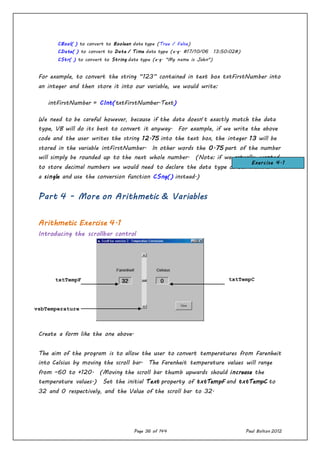
Create a form like the one above.
The aim of the program is to allow the user to convert temperatures from Farenheit
into Celsius by moving the scroll bar. The Farenheit temperature values will range
from –60 to +120. (Moving the scroll bar thumb upwards should increase the
temperature values.) Set the initial Text property of txtTempF and txtTempC to
32 and 0 respectively, and the Value of the scroll bar to 32.
txtTempF txtTempC
vsbTemperature
Exercise 4.1
Page 37 of 144 Paul Bolton 2012
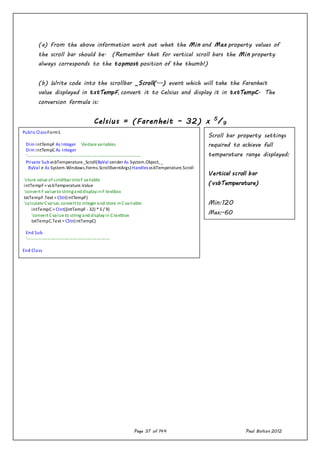
(a) From the above information work out what the Min and Max property values of
the scroll bar should be. (Remember that for vertical scroll bars the Min property
always corresponds to the topmost position of the thumb!)
(b) Write code into the scrollbar _Scroll(...) event which will take the Farenheit
value displayed in txtTempF, convert it to Celsius and display it in txtTempC. The
conversion formula is:
Celsius = (Farenheit – 32) x 5
/9
Public ClassForm1
Dim intTempF As Integer 'declare variables
Dim intTempCAs Integer
'----------------------------------------------------------------------------
Private SubvsbTemperature_Scroll(ByVal sender As System.Object, _
ByVal e As System.Windows.Forms.ScrollEventArgs)HandlesvsbTemperature.Scroll
'store value of scrollbar intoF variable
intTempF= vsbTemperature.Value
'convert F value to stringanddisplayinF textbox
txtTempF.Text = CStr(intTempF)
'calculate Cvalue, convert to integer and store inCvariable
intTempC= CInt((intTempF - 32) * 5 / 9)
'convert Cvalue to string anddisplayin Ctextbox
txtTempC.Text = CStr(intTempC)
End Sub
'-------------------------------------------------------
End Class
Scroll bar property settings
required to achieve full
temperature range displayed:
Vertical scroll bar
(vsbTemperature)
Min:120
Max:-60
Small change:1
Large change:10
Value:32
Page 38 of 144 Paul Bolton 2012
Scrollbar Setting scrollbar properties
A scroll bar returns a numeric value depending on the position of the slider or
(“thumb”).
Scroll bars are quite complex because they have 5 main properties to set and 2
events to code in order for them to work properly.
The 5 properties are listed below:
Property Horizontal
ScrollBar
Vertical
ScrollBar
Max the value returned when the slider
is at the right hand end of the
ScrollBar
The value returned when the slider
is at the bottom of the ScrollBar
Min the Value returned when the slider
is at the left hand end of the
ScrollBar
The Value returned when the slider
is at the top of the ScrollBar
Large Change The amount by which the Value property is changed when the user
clicks on the grey area between the slider and either end of the
ScrollBar.
Small Change The amount by which the Value property is changed when the user
clicks on the arrows at either end of the ScrollBar
Value This returns an integer which indicates the position of the slider in
terms of the range set by Max and Min.
slider or “thumb”
clicking here
affects
SmallChange
property
clicking here
affects
SmallChange
property
clicking here
affects
LargeChange
property
Background information
Page 39 of 144 Paul Bolton 2012
Page 40 of 144 Paul Bolton 2012
(1) Setting Max and Min properties
We set Max and Min to suit the application we are using. For example, if we
wanted to use a scroll bar to input the temperature of a pan of water in degrees
Celsius we would set the Min property to 0 and the Max property to 100 to
correspond to the freezing and boiling point of water. When you first draw a scroll
bar on your form the default value of Min is 10 and Max is 100. Note that with
vertical scroll bars, the Min value is always returned when the thumb is at the top.
Therefore it is quite common for the Min value to be set greater than the Max
value when using vertical scroll bars.
(2) Setting SmallCange and LargeChange properties
There are no rules governing what values you should set the SmallChange and
LargeChange properties to. However, by default the SmallChange property is set to 1
when you first draw the scroll bar, and the LargeChange property is set to 10. This
means that if the range of the scrollbar (i.e. the Max value minus the Min value) is
quite large the thumb will move incredibly slowly when the user clicks on the arrows.
Therefore it is very important that you set these properties to values which will give
reasonable travel of the thumb.
As a rough guide, set the LargeChange property to one tenth of the range value, and
set the SmallChange property to one tenth of the LargeChange property.
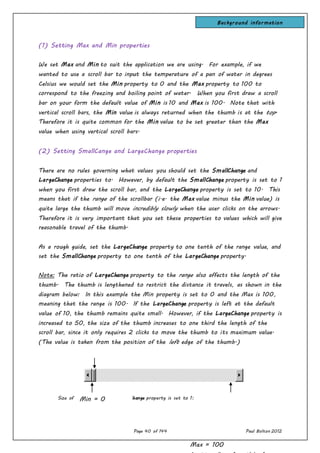
Note: The ratio of LargeChange property to the range also affects the length of the
thumb. The thumb is lengthened to restrict the distance it travels, as shown in the
diagram below: In this example the Min property is set to 0 and the Max is 100,
meaning that the range is 100. If the LargeChange property is left at the default
value of 10, the thumb remains quite small. However, if the LargeChange property is
increased to 50, the size of the thumb increases to one third the length of the
scroll bar, since it only requires 2 clicks to move the thumb to its maximum value.
(The value is taken from the position of the left edge of the thumb.)
Size of the thumb when LargeChange property is set to 1:Min = 0
Max = 100
Background information
Page 41 of 144 Paul Bolton 2012
Size of the thumb when LargeChange property is set to 50 on the same scroll bar:
(3) Setting Value property
This is the initial value of the scroll bar at run-time, and hence determines the
initial position of the thumb. The Value property must be within the range of the
Max and Min properties. Often the Value property will be the same as the Min
property so as to put the thumb at one end of the scrollbar, but this is not always
the case.
Scrollbars
Summary of features
 The purpose of a scrollbar is to generate numbers
which we can use elsewhere in our program
 We can use these numbers to:
o change the value of properties of other
controls
o perform calculations
 We use the scrollbar’s value property as the source of these numbers
 As the user clicks the scrollbar arrows (or drags the scrollbar slider) the value of
the scrollbar changes
 We control what range of values will be generated by setting the Max and Min
properties of the scrollbar at design time
 We can decide where the position of the slider is when the program first opens
by setting the scrollbar’s value property at design time (but this initial value
must lie somewhere between the Max and Min values)
Min = 0 Max = 100
(position allows for width of
thumb)
Page 42 of 144 Paul Bolton 2012
 We can decide how quickly the value of a scrollbar changes when the user clicks
the scrollbar arrows (or drags the scrollbar slider). We do this by setting the:
o SmallChange and
o LargeChange properties
 (As a guide, set the LargeChange property to 1/10th
the value of the Max
property, and set the SmallChange property to 1/10th
the value of the
LargeChange property)
 when the user clicks the scrollbar arrows or drags the scrollbar slider it fires the
_Scroll(...) event
Page 43 of 144 Paul Bolton 2012
Arithmetic Exercise 4.2 – Wallpaper Estimator
Data types, arithmetical operators & variables
In this exercise we will be revising what we have covered so far on:
 data types
 converting data to different types (known as “type casting”)
 declaring variables of appropriate data types
 arithmetical operator precedence using the common operators:
Your task is to estimate the amount of wallpaper required to cover the wall
illustrated below which has one window.
The wallpaper comes in rolls 0.7 metres wide and 10 metres long.
Cost per roll is £8.00
Your task is to calculate and display:
4.5m
3m
4.5m2.5m
1.5m
Area A Area B
Area C
Area D
0.5m
Order of precedence:
(1)( ) brackets (parentheses)
(2) ^ exponentiation (“power of”)
(3) + - positive & negative signs
(4) * / multiplication & division
(5)  integer division (gives only whole number result of
Exercise 4.2
Page 44 of 144 Paul Bolton 2012
 the number of rolls required
 the total cost of wallpaper
 the relative cost of wasted wallpaper left over from the last full roll (e.g. if
half a roll was left over, we could say that £4.00 worth of wallpaper was
wasted)
Assume the wallpaper pieces can be pasted in any sequence / orientation irrespective
of where the joins occur, and that there is no wastage due to overlap or off-cuts.
In other words, assume the total area of one roll covers exactly the same amount of
area of the wall.
Page 45 of 144 Paul Bolton 2012
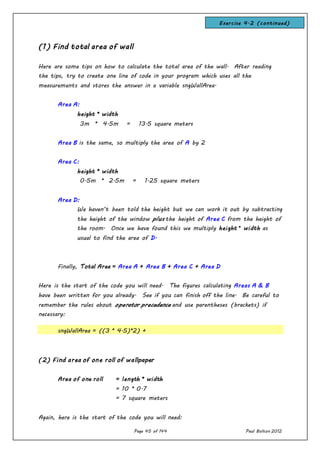
(1) Find total area of wall
Here are some tips on how to calculate the total area of the wall. After reading
the tips, try to create one line of code in your program which uses all the
measurements and stores the answer in a variable sngWallArea.
Area A:
height * width
3m * 4.5m = 13.5 square meters
Area B is the same, so multiply the area of A by 2
Area C:
height * width
0.5m * 2.5m = 1.25 square meters
Area D:
We haven’t been told the height but we can work it out by subtracting
the height of the window plus the height of Area C from the height of
the room. Once we have found this we multiply height * width as
usual to find the area of D.
Finally, Total Area = Area A + Area B + Area C + Area D
Here is the start of the code you will need. The figures calculating Areas A & B
have been written for you already. See if you can finish off the line. Be careful to
remember the rules about operator precedence and use parentheses (brackets) if
necessary:
sngWallArea = ((3 * 4.5)*2) +
(2) Find area of one roll of wallpaper
Area of one roll = length * width
= 10 * 0.7
= 7 square meters
Again, here is the start of the code you will need:
Exercise 4.2 (continued)
Page 46 of 144 Paul Bolton 2012
sngOneRollArea =
(3) Find number of whole rolls needed
(4) (a) Find area of wallpaper roll left over
(4) (b) Find length of wallpaper roll left over
(5) Find cost of total wallpaper rolls purchased
(6) Find relative cost of fraction of wallpaper roll left over
Page 47 of 144 Paul Bolton 2012
Public ClassForm1
Dim sngWallArea As Single
Dim sngOneRollArea As Single
Dim intNoOfRolls As Integer
Dim sngRemainderAreaOfRoll As Single
Dim sngRemainderLengthOfRoll As Single
Dim decCostOfWallpaperPurchased As Decimal
Dim decCostOfWallpaperWasted As Decimal
Private SubbtnCalculate_Click(ByVal sender As System.Object, _
ByVal e As System.EventArgs) Handles btnCalculate.Click
'(1) calculate total area of wall
sngWallArea = ((3 * 4.5) * 2) + (0.5 * 2.5) + ((3 - (1.5 + 0.5)) * 2.5)
MsgBox("Wall area is:" & sngWallArea & " square metres")
'(2) calculate area ofone rollof wallpaper
sngOneRollArea = 0.7 * 10
MsgBox("Area of one roll is:" & sngOneRollArea & " square metres")
'(3) calculate number ofwhole rolls ofwallpaper needed
intNoOfRolls = (sngWallArea sngOneRollArea)+ 1
MsgBox("Noof rollsneededis:" & intNoOfRolls)
'(4)(a) calculate fractionarea ofroll left over
sngRemainderAreaOfRoll = sngWallArea ModsngOneRollArea
MsgBox("Area of roll left over is:" & sngRemainderAreaOfRoll & " sq m")
'(4)(b) calculate length ofroll left over
sngRemainderLengthOfRoll= sngRemainderAreaOfRoll / 0.7
MsgBox("Length ofroll left over is:" & sngRemainderLengthOfRoll & " m")
'(5) calculate total cost ofwallpaper
decCostOfWallpaperPurchased= intNoOfRolls * 8.0
MsgBox("Cost ofwallpaper purchased:£" & decCostOfWallpaperPurchased)
'(6) calculate relative cost ofwallpaper wasted
decCostOfWallpaperWasted = sngRemainderLengthOfRoll* 8.0 / 10
MsgBox("Relative cost ofwallpaper wasted:£" & decCostOfWallpaperWasted)
End Sub
Solution to Exercises 4.2
Page 48 of 144 Paul Bolton 2012
Part 5 - Making selections using If..Then..Else
Program Control – making selections using “If..Then..Else”
So far we have only written code for a sequence of actions for any one event.
However, in many programs we need to make selections according to certain criteria.
In other words, make a decision.
For example, imagine we were shopping for a new mobile phone, and we could spend
up to £100. In our minds we would be performing the following test as we browsed
the shops looking at all the different phones on offer:
If the phone costs up to £100, then
Ask the shop assistant for more details about the phone
Else
Look for a different phone
End of decision
We could write this process into Visual Basic code. If the cost of the mobile phone
was stored in a variable called decCost, we could write:
If decCost < 101 Then
txtMessage.Text = "Make further enquiries"
Else
txtMessage.Text = "Look for a different phone"
End If
The general way this code structure works is:
If a certain condition is true Then
Do this action
Else
Do this other action
End If
The code written between “If” and “Then” is a condition. A condition is an
expression which may be considered to be either “True” or “False”. If the condition
is “True” then the code up to “Else” is carried out. If the Condition is false, then
the code between “Else” and “End If” is carried out.
Background information
Page 49 of 144 Paul Bolton 2012
Notice that if the condition is False (that is, if the mobile phone does not cost up
to £100), we don’t have to test the condition again. If the phone does not cost up
to £100, then logically it must cost more than £100, and the code underneath the
“Else” will run. Also, the Else is optional. Sometimes, depending on our program,
we don’t need to write any code dealing with an Else condition.
< less than
> greater than
= equal to
<> not equal to
>= greater than or equal to
<= less than or equal to
In our code have used the “ < “ symbol
which means “less than”. This is known as
a relational operator, because it compares
one value with another. The full list of
relational operators is:
Page 50 of 144 Paul Bolton 2012
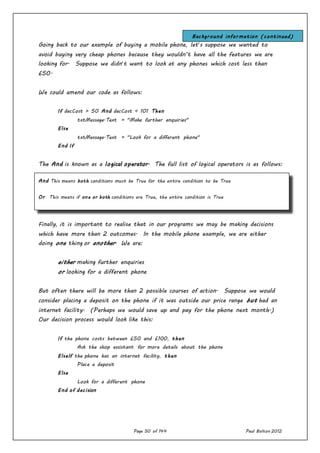
Going back to our example of buying a mobile phone, let’s suppose we wanted to
avoid buying very cheap phones because they wouldn’t have all the features we are
looking for. Suppose we didn’t want to look at any phones which cost less than
£50.
We could amend our code as follows:
If decCost > 50 And decCost < 101 Then
txtMessage.Text = "Make further enquiries"
Else
txtMessage.Text = "Look for a different phone"
End If
The And is known as a logical operator. The full list of logical operators is as follows:
Finally, it is important to realise that in our programs we may be making decisions
which have more than 2 outcomes. In the mobile phone example, we are either
doing one thing or another. We are:
either making further enquiries
or looking for a different phone
But often there will be more than 2 possible courses of action. Suppose we would
consider placing a deposit on the phone if it was outside our price range but had an
internet facility. (Perhaps we would save up and pay for the phone next month.)
Our decision process would look like this:
If the phone costs between £50 and £100, then
Ask the shop assistant for more details about the phone
ElseIf the phone has an internet facility, then
Place a deposit
Else
Look for a different phone
End of decision
And This means both conditions must be True for the entire condition to be True
Or This means if one or both conditions are True, the entire condition is True
Not This reverses the condition so that a True condition will evaluate False, and vice versa.
Background information (continued)
Page 51 of 144 Paul Bolton 2012
The code for the above process could be written as follows. (The answer to whether
the phone has an “internet facility” is stored in a “Yes/No” variable called
“blnInternet”):
If decCost > 50 And decCost < 101 Then
txtMessage.Text = "Make further enquiries"
ElseIf blnInternetFacility = True Then
txtMessage.Text = "Place a deposit"
Else
txtMessage.Text = "Look for a different phone"
End If
We can write as many ElseIf tests as we want to, and each one can result in a
different course of action.
Tax Calculator Program - Scenario
Read the scenario below and then try to carry out the exercises on the following
pages.
Part (a)
A wages department wants you to create a program to help them calculate their
employees’ pay.
At the moment this calculation is done on a hand-held calculator. They want the
program to run as follows:
(1)The wages clerk will type in the Gross Pay and the Tax Allowance for an
employee. (The clerk does not need to type in the employee’s name, just the
figures.)
(2) When the clerk clicks the “Calculate” button, the program will display the Tax
Payable and the Net Pay.
(3) The clerk will then write down the Net Pay for the employee and then type
in figures for the next employee.
The Rate of Tax is 25%. The Tax Payable is calculated by the following equation:
Tax Payable = (Gross Pay – Tax Allowance) x Rate of Tax
Exercises 5.1 – 5.3
Page 52 of 144 Paul Bolton 2012
Because the wages need to be calculated quickly, the wages clerk does not want to
have to use the mouse on the computer. So the program must run by using only
the computer keyboard. You will therefore need to think about:
- how to get the cursor to move about the screen in the right order, and
- how to clear any text boxes after the wages clerk has processed the figures for
one employee and wants to enter details for the next employee.
Part (b)
Once you have demonstrated that the program works to their satisfaction, the wages
department want you to amend the program so that the wages clerk only has to use
the numeric keypad on the keyboard.
Part (c)
Finally, the wages department will want you to restrict access to the program by
creating a password system. When the program first opens there should be a
Password Form which invites the wages clerk to enter a password into a text box.
If the correct password is entered, the Tax Allowance Calculator form you created in
Parts (a) and (b) should open.
If an incorrect password is entered, the program should display a message stating
that the password is incorrect, the text box on the password form should clear and
the cursor return to the text box. If an incorrect password is entered for a total
of 3 times, a message should be displayed that the program is shutting down, and
the program should terminate.
Page 53 of 144 Paul Bolton 2012
If…Then…Else - Exercise 5.1 - Tax Calculator
In this exercise we will be looking at the following topics:
 making selections using If…Then…Else statements
 relational operators such as “>” (“greater than”)
 declaring constants
 drawing Group boxes
 using data-type conversion function to convert String data to decimal
Create a new project and draw group boxes, labels, text boxes and buttons on the
form as shown below:
The aim of the program is that the user should be able enter values into
txtGrossPay and txtTaxAllowance. When the Calculate button is clicked, the program
should calculate and display the Tax Payable and Net Pay.
For this exercise we are assuming the Tax Rate is 25%. The Tax Payable is therefore
calculated by subtracting the Tax Allowance from the Gross Pay, and then finding
25% of the remainder.
txtGrossPay
txtTaxAllowance
txtTaxPayable
txtNetPay
grpInput
grpOutput
btnCalculate
Exercise 5.1
Page 54 of 144 Paul Bolton 2012
For example, if the Gross Pay is £200 and the Tax Allowance (the amount of wage
which is free of tax) is £100, the Tax Payable would be £25 and the Net Pay would
be £175.
Page 55 of 144 Paul Bolton 2012
First, we need to declare 4 variables in which to store the input data (Gross Pay
and Tax Allowance) and the output data (Tax Payable and Net Pay). The data-
type Decimal is the best one to use for currency data. In the code window, declare
the following variables as Decimal by writing:
Note that when we declare variables in this place (just
below the line Public Class Form1) they are available for
use in any procedure in the form (e.g. code written
behind any button). Because the form is technically
known as a module, variables declared here are known as
module-level variables.
Since the Tax Rate is going to remain constant throughout our calculations, we can
declare it as a constant. (A constant is similar to a variable, except that its value
does not change during the life of the program.) We usually write the names of
constants in CAPITAL letters, separated by an underscore if there is more than one
word. Because Tax Rate is a decimal number it is best to store it in a variable of
data-type: Single. We would therefore name the constant SNG_TAX_RATE and
declare it follows:
Note that when we declare constants we must assign a value to them in the same
line of code. Writing 0.25 is the same as writing 25% or 25/100. Remember, we
cannot write 25% in VB code.
Public ClassForm1
Dim decGrossPay As Decimal 'declare variables
Dim decTaxAllowance As Decimal
Dim decTaxPayable As Decimal
Dim decNetPay As Decimal
Const SNG_TAX_RATE As Single = 0.25 'declare constant
Point
to note
Exercise 5.1 (continued)
Page 56 of 144 Paul Bolton 2012
Next we need to write code into btnCalculate which carries out the following steps:
Input Gross Pay and Tax Allowance data from text boxes and store into 2 variables
Calculate Tax Payable as follows:
If Gross Payis greater thanTax Allowance Then
Tax Payable = (Gross Pay – Tax Allowance)x Tax Rate whichis 25%
Else Tax Payable = 0
Calculate Net Pay as follows:
Net Pay= Gross Pay– Tax Payable
Output Tax Payable by displaying in text box txtTaxPayable
Output Net Pay by displaying in text box txtNetPay
The “>” symbol means “greater than”, and it is one of the many relational operators
we can use to compare values in the If…Then…Else statements. The full list of
relational operators is as follows:
< less than
> greater than
= equal to
<> not equal to
>= greater than or equal to
Note: the code for calculating the Tax Payable is as follows:
If decGrossPay > decTaxAllowance Then
decTaxPayable= (decGrossPay - decTaxAllowance) * SNG_TAX_RATE
Else
decTaxPayable= 0
End If
Exercise 5.1 (continued)
Page 57 of 144 Paul Bolton 2012
Try to work out the rest of the code for btnCalculate yourself. Remember that
when data is written in textboxes it is String data-type by default. We therefore
need to convert this to Decimal data-type when it is input to the two variables
using the CDec( ) function.
Page 58 of 144 Paul Bolton 2012
If…Then…Else - Exercise 5.2 Tax Calculator Enhancements
In this exercise we will be looking at the following topics which will protect the data
to processed and make our program more user friendly:
 Setting the TabIndex property
 Using the .Focus() method to move focus to a textbox or button
 Enabling / disabling textboxes using .Enabled = True / False
 Formatting output textboxes by using Format(... ,"Currency") function
 Re-formatting input textboxes by using this same function
 Using the .Clear() method to clear a textbox
 Using the _LostFocus(...) event to run code
(a) Using the TabIndex property
We want to make the program user friendly by arranging it to work without the
user having to use the mouse. We can arrange that the Tab key on the keyboard
will move the focus from one control to another in any order we choose. We do
this by setting the TabIndex property of the controls at design time.
Set the TabIndex of the following controls and check the results when running your
program:
Control name TabIndex Result
value
txtGrossPay 1 Puts cursor in text box when form loads
txtTaxAllowance 2 Puts cursor in text box after pressing Tab key
btnCalculate 3 Sets focus to command button after pressing
Tab key so that user only needs to press
Enter key to “Click” the command button
(b) Providing a “Clear” button and improving navigation
We want to make it easier for the user to re-set the form after they have
performed one calculation. Draw another button on the form, set its Text property
to “Clear” and name it btnClear. Double-click it and write the following code in its
Click event procedure:
PrivateSub btnClear_Click(ByVal sender As System.Object, _
ByVal e As System.EventArgs) Handles btnClear.Click
txtGrossPay.Clear() 'clear textbox entries
txtTaxAllowance.Clear()
Exercise 5.2
Page 59 of 144 Paul Bolton 2012
Run your program, enter some data in the first two textboxes and check that both
buttons work as expected.
(c) Protecting data and improving navigation
There is an easy way to provide guidance to the user about which controls to use,
and that is by disabling controls in a set order in response to the user’s actions.
This technique can also be used to protect data.
Double-click on the form itself and write the following code in the Form_Load()
event procedure:
Can you think of similar code you need to write in the btnCalculate_Click() and
btnClear_Click() event procedures?
PrivateSub Form1_Load(ByVal sender As System.Object, _
ByVal e As System.EventArgs) Handles MyBase.Load
txtTaxPayable.Enabled = False 'disabletextboxes
txtNetPay.Enabled = False
End Sub
Exercise 5.2 (continued)
Page 60 of 144 Paul Bolton 2012
If…Then…Else – Exercise 5.3 Tax Calculator – adding a password form
In this exercise we will be looking at the following topics:
 Making further selections using If…Then…ElseIf…Else statements
 Incrementing counter variables using the += operator
 Using .Show() and .Hide() methods with forms
 Using .Clear() and .Focus() methods with controls
We are going to enhance the program we created earlier to incorporate a password
protection system. When the program first opens there should be a Password Form
which invites the user to enter a password into a text box.
Feature A: If the correct password is entered, the Tax Calculator form we created
in Exercise 5.1 should open. If an incorrect password is entered, the program should
display a message stating that the password is incorrect, the text box on the
password form should clear and the cursor return to the text box.
Feature B: If an incorrect password is entered for a total of 3 times, a message
should be displayed that the program is shutting down, and the program execution
should terminate.
Task 1
Add a new form to your project by
Clicking Project / Add Windows Form…
on the top menu of the design window.
Accept the name of the new form as Form2
Resize the form so that it resembles
the size of a logon screen and draw
the controls as illustrated:
To create Feature A described above, add the following code to the OK button’s
Click() event. Run your program and check if it works as expected by entering an
incorrect password and clicking “OK”, then the correct password (“tax”) and clicking
“OK”.
Private SubbtnOK_Click(ByVal sender As System.Object, _
ByVal e As System.EventArgs) Handles btnOK.Click
'if password correct
If txtPassword.Text = "tax" Then
'display message
MsgBox("Access to Tax Calculator permitted.")
'show Tax Calculator form
txtPassword
btnOK
Exercise 5.3
Page 61 of 144 Paul Bolton 2012
Task 2
To create Feature B we need to amend the code we have just written so that if an
incorrect password is entered for a total of 3 times, a message should be displayed
that the program is shutting down, and the program execution should terminate.
We need to create a variable which will keep a tally of the number of times the OK
button has been clicked, then add an ElseIf statement to our If…Then…Else
construction to add further conditions to the decision-making process. Add/amend
the following code shown in bold and highlighted below.
(Note: Be careful to declare the variable intAttemptNumber outside the
btnOK_Click() procedure. If you declare it inside the procedure, it won’t hold its
value between button clicks and won’t count up the number of incorrect password
attempts.)
Public ClassForm2
Dim intAttemptNumber As Integer
Private SubbtnOK_Click(ByVal sender As System.Object, _
ByVal e As System.EventArgs) Handles btnOK.Click
'increment counter to store number of attempts
intAttemptNumber += 1
'if passwordcorrect
If txtPassword.Text = "tax" Then
'displaymessage
MsgBox("Access to Tax Calculator permitted.")
'showTax Calculator form
Form1.Show()
'and hide Passwordform
Me.Hide()
'else if attempt number lessthan3
ElseIf intAttemptNumber < 3 Then
'displaymessage
MsgBox("Password incorrect. Please re-type password.")
'clear text box
txtPassword.Clear()
'and put cursor back in text box
txtPassword.Focus()
Else
'else display message
Exercise 5.3 (continued)
Page 62 of 144 Paul Bolton 2012
Further study
Can you think how to incorporate the number of incorrect attempts into the message
displayed to the user, like this:
Page 63 of 144 Paul Bolton 2012
Public Class Form1
Dim decGrossPay As Decimal 'declare variables
Dim decTaxAllowance As Decimal
Dim decTaxPayable As Decimal
Dim decNetPay As Decimal
Const SNG_TAX_RATE As Single = 0.25 'declare constant
'---------------------------------------------------------------------
Private Sub btnCalculate_Click(ByVal sender As System.Object, _
ByVal e As System.EventArgs) Handles btnCalculate.Click
'(1) INPUT from textboxes into variables:
'****************************************
decGrossPay = CDec(txtGrossPay.Text) 'store Gross Pay
decTaxAllowance = CDec(txtTaxAllowance.Text) 'store Tax Allowance
'(2) CALCULATE using only variables:
'***********************************
'(a) calculate Gross Pay
If decGrossPay > decTaxAllowance Then 'if Gross Pay > Tax Allowance
decTaxPayable = _
(decGrossPay - decTaxAllowance) * SNG_TAX_RATE 'calculate Tax Payable
Else
decTaxPayable = 0 'else Tax Payable = 0
End If
'(b) calculate Net Pay
decNetPay = decGrossPay - decTaxPayable 'calculate Net Pay
'(3) OUTPUT from variables to textboxes
'**************************************
txtTaxPayable.Text = decTaxPayable 'output Tax Payables
txtNetPay.Text = decNetPay 'output Net Pay
End Sub
'---------------------------------------------------------------------
End Class
Solution to Exercise 5.1
Page 64 of 144 Paul Bolton 2012
Part 6 - More on making selections using If..Then..Else
Sports Club Membership Fees Program - Scenario
Part (a) – creation of basic program
A newly-opened local sports club wants has ask you to create a program to help
them display the difference subscription fees payable by new members.
There are 3 rates:
 Full rate (“F”) is £100
 Senior rate (“S”) is £75
 Junior rate (“J”) is £50
The club wants you to create a program to be used by the receptionist, to run as
follows. The receptionist will enter one letter (either “F”, “S” or “J”) and the
program will display a fee of either £100, £75 or £50 respectively.
Part (b) enhancing basic program to provide a password protection form
The Sports Club want you to restrict access to the program by creating a password
system. When the program first opens there should be a Password Form which
invites the user to enter a password into a text box If the correct password is
entered, the Membership Fees form you created in Part (a) should open.
If an incorrect password is entered, the program should display a message stating
that the password is incorrect, the text box on the password form should clear and
the cursor return to the text box. If an incorrect password is entered for a total
of 3 times, a message should be displayed that the program is shutting down, and
the program should terminate.
Part (c) enhancing basic program to provide a printed receipt
The Sports Club also want the program to provide a printed receipt for each
member. The receipt show contains the following data:
 member name
 member type
 fee paid
 date
Exercise 6.1
Page 65 of 144 Paul Bolton 2012
Part (d) enhancing basic program to work without a mouse
Once you have demonstrated that the program works to their satisfaction, the
sports club wants you to amend the program so that the receptionist only has to
use the keyboard to perform most of the repetitive operations. You will therefore
need to think about:
 how to get the cursor to move about the screen in the right order, and
 how to clear any text boxes after the receptionist has processed the details
for each member.
If..Then..Else – Exercise 6.1 Using multiple criteria to make selections
We can use an If… Then… ElseIf statement in the Click Event for
btnCalculateFeeIfThenElse, (highlighted below):
Private Sub btnCalculateFeeIfThenElse_Click(...)
Dim strMemberType As String 'declare variables
Dim decFee As Decimal
'INPUT data
strMemberType = txtMemberType.Text 'load data into variable
'CALCULATE Membership Fee
If strMemberType = "F" Then 'if Member Type is "F"
decFee = 100 '.. load 100 into variable
ElseIf Then 'if Member Type is "S"
'.. load 75 into variable
ElseIf Then 'if Member Type is "J"
'.. load 50 into variable
Else 'if Member Type is none of the above,
MsgBox("YouNeedto input F, S or J in UpperCase") '..display message
End If
'OUTPUT data
txtDisplayFee.Text = FormatCurrency(decFee, 2) 'format output to currency
'..& display into text box
btnCalculateFeeIfThenElse
txtMemberType
txtDisplayFee
Exercise 6.1 continued
Create the Sports Club Membership Fees form shown
here. In this exercise, the fee for a Full member is
£100, that for a Senior is £75 and that for Junior
is £50.
Page 66 of 144 Paul Bolton 2012
End Sub
See if you can complete the missing code listed above, copy all the code into your
program and then check the program runs as expected.
Further study
In the above example, if the user types in a lowercase letter “f”, “s” or “j”, these
letters are not recognised. See if you can amend your code so that the user can
type in either uppercase or lowercase “F”, “f”, “S”, “s”, “J” or “j”.
(HINT: you can use the Or operator to add criteria to each If / ElseIf statement.
If..Then..Else – Exercise 6.1 SOLUTION
Private Sub btnCalculateFeeIfThenElse_Click(...)
Dim strMemberType As String 'declare variables
Dim decFee As Decimal
'INPUT data
strMemberType = txtMemberType.Text 'loaddata into variable
'CALCULATE Membership Fee
If strMemberType = "F" OrstrMemberType = "f" Then 'if MemberType is "F" or "f"
decFee = 100 '.. load 100 into variable
ElseIf strMemberType = "S" OrstrMemberType = "s" Then'if MemberType is "S" or "s"
decFee = 75 '.. load 75 into variable
ElseIf strMemberType = "J" OrstrMemberType = "j" Then'if MemberType is "J" or "j"
decFee = 50 '.. load 50 into variable
Else 'if Member Type is none of the above,
MsgBox("YouNeed to input F, f, S, s, J or j") '..display message
End If
'OUTPUT data
txtDisplayFee.Text = FormatCurrency(decFee, 2) 'format output to currency
'.. & display into text box
End Sub
Exercise 6.1 continued
Page 67 of 144 Paul Bolton 2012
Part 7 Creating menus using the MenuStrip Control
MenuStrip Control
Exercise 7.1 adding a menu to the Tax Calculator
Open your Tax Calculator program which you completed in Exercise 5.2
Exercise 7.1
Drag a MenuStrip Control
onto the form. An icon
will appear in the grey
Component Tray below the
form, and a blue menu bar
will appear on the top
part of the form
containing he words “Type
Here”.
Page 68 of 144 Paul Bolton 2012
Double-click on the word “Exit” on the top-level menu and the following event
procedure should open in the code window. Type in the code Application.Exit() as
shown
Private SubExitToolStripMenuItem_Click(ByVal sender As System.Object, _
ByVal e As System.EventArgs) Handles ExitToolStripMenuItem.Click
'exit program
Application.Exit()
End Sub
Run your program and check that when you click the menu items File / Exit with
your mouse, the program exits.
Further study
Add a second top-level menu
item “Options”. Add two sub-
menu items beneath this:
“Calculate” and “Clear”:
Double-click on the “Calculate” menu item and write the following code in the event
procedure:
Private SubCalculateToolStripMenuItem_Click(ByValsender As System.Object, _
ByVal e As System.EventArgs) Handles CalculateToolStripMenuItem.Click
'click Calculate button remotely(evoke PerformClickmethod)
btnCalculate.PerformClick()
End Sub
Page 69 of 144 Paul Bolton 2012
Run your program and see if the Calculate menu item performs the calculation in the
same way as when you click the Calculate button.
See if you can work out how to add code to the Clear menu item to clear all the
textboxes and place the cursor back in the Gross Pay textbox.
Can you think of any other menu items and sub-menus you may want to add to
enhance your program?
Page 70 of 144 Paul Bolton 2012
Part 8 Making selections using Select Case
Select Case
Exercise 8.1 Demonstration of advantage of Select Case construction
Complete the following code (and include a message which responds to the user
entering any number not between 1 and 12):
Private Sub btnMonth_Click(...) Handles btnMonth.Click
Dim intMonthNumber As Integer
'input month number intovariable
intMonthNumber = CInt(txtNumber.Text)
'output monthbasedonmonth number
Select Case intMonthNumber
Case 1
MsgBox("Youhave selectedJanuary")
Case 2
MsgBox("Youhave selectedFebruary")
'** continue coding from this point onwards **
End select
End Sub
txtNumber
btnMonth
Exercise 8.1
Page 71 of 144 Paul Bolton 2012
Sports Club Membership Fees Program - Revisit of scenario:
converting If..Then..Else to Select Case
Select Case – Exercise 8.2 Membership fees program revisited
We have looked at two program control structures so far:
(1) A straight sequence of commands, which are executed one after the other.
(2) A selection using “If ... Then... ElseIf… Else… End If”
There is an alternative to the If statement, which is the Select Case structure.
We have already used an If… Then… ElseIf statement in the Click Event for
btnCalculateFeeIfThenElse, (highlighted below):
Private Sub btnCalculateFeeIfThenElse_Click(...)
Dim strMemberType As String 'declare variables
Dim decFee As Decimal
'INPUT data
strMemberType = txtMemberType.Text 'loaddata into variable
'CALCULATE Membership Fee
If strMemberType = "F" Then 'if Member Type is "F"
decFee = 100 '.. load 100 into variable
ElseIf strMemberType = "S" Then 'if Member Type is "S"
decFee = 75 '.. load 75 into variable
ElseIf strMemberType = "J" Then 'if Member Type is "J"
decFee = 50 '.. load 50 into variable
Else 'if Member Type is none of the above,
MsgBox("YouNeedto input F, S or J in UpperCase") '..display message
btnCalculateFeeIfThenElse
txtMemberType
txtDisplayFee
btnCalculateFeeSelectCase
Exercise 8.2
Existing code
Open (or create) the Sports Club Membership
Fees form shown here. In this exercise, the
fee for a Full member is £100, that for a
Senior is £75 and that for Junior is £50.
Run your program and check that the first
button works as expected before coding the
second button (see next page).
Page 72 of 144 Paul Bolton 2012
End If
'OUTPUT data
txtDisplayFee.Text = FormatCurrency(decFee, 2) 'format output to currency & display into text box
End Sub
Using the Select Case structure as an alternative to the If…Then…Else structure.
Code the btnCalculateFeeSelectCase button as follows and check the program runs
with this alternative code. Compare the two constructions.
'CALCULATE Membership Fee
Select Case strMemberType
Case "F" 'if Member Type is "F"
decFee = 100 '..load 100 into variable
Case "S" 'if Member Type is "S"
decFee = 75 '.. load 75 into variable
Case "J" 'if Member Type is "J"
decFee = 50 '.. load 50 into variable
Case Else 'if Member Type is none of the above,
MsgBox("You Needto input F, S or J in UpperCase") 'display message
End Select
Each Case acts like an If / ElseIf Statement. The instructions after an individual
Case are carried out if the variable being tested matches it.
Further study:
Multiple tests within one “case” using a comma to separate tests.
In the above example, if the user types in a lower case letter “f”, “s” or “j”, these
letters are not recognised. We can get round this by the following construction:
Select Case strMemberType
Case "F", "f" 'if Member Type is "F"or "f"
decFee = 100 '..load 100 into variable
Case "S", "s" 'if Member Type is "S" or "s"
decFee = 75 '.. load 75 into variable
Case "J", "j" 'if Member Type is "J" or "j"
decFee = 50 '.. load 50 into variable
Case Else 'if Member Type is none of the above, display message
MsgBox("You Needto input F, S or J in Upper or LowerCase")
End Select
Try amending your code and check if it works.
Exercise 8.2 (continued)
Page 73 of 144 Paul Bolton 2012
Page 74 of 144 Paul Bolton 2012
Select Case - Further theory
Testing for a range using the “To” keyword.
You may wish to display exam grades according to a range of marks obtained by
students. You would use the keyword “To” and the code would look something
like this:
Select Case txtExamGrade.Text
Case 90 To 100
strGrade = “A”
Case 60 To 89
strGrade = “B”
Case 40 To 59
strGrade = “C”
Case 0 To 39
strGrade = “FAIL”
Case Else
MsgBox ("You Need to input a number between 0 and 100")
End Select
Using “Case Is” followed
by “relational operators”
You can also test how the input value compares to another value by using the
optional keyword “Is" followed by a relational operator in this way:
Select Case decSales
Case Is > 2000
decCommission = (decSales * 10 / 100) + 100
Case Is > 1750
decCommission = (decSales * 10 / 100)
Case Is > 1000
decCommission = (decSales * 7 / 100)
Case Is > 750
decCommission = (decSales * 5 / 100)
Case Is > 500
Background information
< less than
> greater than
= equal to
<> not equal to
>= greater than or equal to
Page 75 of 144 Paul Bolton 2012
decCommission = (decSales * 2 / 100)
Case Else
decCommission = 0
End Select
Page 76 of 144 Paul Bolton 2012
Select Case Demonstration of advantage of If..Then..Else
construction over Select Case construction
Private Sub btnOK_Click(...)HandlesbtnOk.Click
Dim intAge As Integer
Dim strGender As String
'input age and gender
strGender = CStr(txtInputGender.Text)
intAge = CInt(txtInputAge.Text)
'process data and displayappropriate message
If strGender = "M" And intAge < 21 Then
MsgBox("Premium is £500")
ElseIf strGender = "M" And intAge >= 21 Then
MsgBox("Premium is £250")
ElseIf strGender = "F" And intAge < 21 Then
MsgBox("Premium is £300")
ElseIf strGender = "F" And intAge >= 21 Then
MsgBox("Premium is £150")
Else
MsgBox("Youhave entered invaliddata")
End If
End Sub We cannot test 2 conditions at once
using Select Case
Background information
Page 77 of 144 Paul Bolton 2012
Select Case – Exercise 8.1 SOLUTION
Solution to Exercise 8.1
Private Sub btnMonth_Click(...) Handles btnMonth.Click
Dim intMonthNumber As Integer
'input month number intovariable
intMonthNumber = CInt(txtNumber.Text)
'output monthbasedonmonth number
Select Case intMonthNumber
Case 1
MsgBox("Youhave selectedJanuary")
Case 2
MsgBox("Youhave selectedFebruary")
Case 3
MsgBox("Youhave selectedMarch")
Case 4
MsgBox("Youhave selectedApril")
Case 5
MsgBox("Youhave selectedMay")
Case 6
MsgBox("Youhave selectedJune")
Case 7
MsgBox("Youhave selectedJuly")
Case 8
MsgBox("Youhave selectedAugust")
Case 9
MsgBox("Youhave selectedSeptember")
Case 10
MsgBox("Youhave selectedOctober")
Case 11
MsgBox("Youhave selectedNovember")
Case 12
MsgBox("Youhave selectedDecember")
Case Else
MsgBox("Youhave not entereda number between1 and12")
End Select
'clear textbox
txtNumber.Clear()
'put cursor backintextbox
txtNumber.Focus()
End Sub
Page 78 of 144 Paul Bolton 2012
Part 9 - Iterations (loops) using For..Next
For…Next loops - underpinning knowledge
Background
There are 3 program control structures covered by this course. We have already
looked at the first two:
- sequences (one instruction after another)
- selections (such as “If… Then… Else” or “Select Case” statements)
The third program control structure introduces the concept of iteration (meaning
“repeat the process”) using loops. There are two types of loop:
the counter loop, and
the conditional loop (such as “Do… While” ).
Here we are only going to deal with the counter loop (otherwise known as the “For…
Next” loop).
Example
Suppose we wanted to make the computer beep 5 times. (By the way, there is a
simple line of code which makes the computer beep, namely: “beep”!) You could put
this line of code behind a command button, and press the button 5 times:
Private Sub btnBeep_Click(...)
Beep
End Sub
However, what if we wanted to only click the command button once, and then make
the code run automatically 5 times? The answer is to use a counter loop (known as
a “For…Next” loop). For… Next loops need to have a variable in which to store the
number of times the code should be run. In this example, let us name the variable
“intCounter” and declare it as an integer. The code would be written as follows:
Private Sub btnBeep_Click(...)
Dim intCounter As Integer
For intCounter = 1 To 5
Beep
Next intCounter
End Sub
This code means:
“Increment the value of the “intCounter” variable from 1 to 5,
Background information
Page 79 of 144 Paul Bolton 2012
and every time you increment it, execute the code below”.
This is the simplest way of using the “For… Next” loop, but you need to know some
more details to use it properly (covered on next handout). For now, try the
exercise overleaf.
Page 80 of 144 Paul Bolton 2012
For..Next Loops - Exercise 9.1 Beep exercise
Create a form with a button as shown below. We want the code to produce 5
“beeps” when the button is pressed. However, modern computers run so fast that
you will never hear the 5 beeps, so instead we will use a Message Box to produce the
beeps. (Message Boxes require user response, which “interrupts” the execution of
the code so you can see how the code in fact loops 5 times.)
Write the code below into the “Click event” sub-procedure of the button btnBeep:
Private Sub btnBeep_Click(...)
Dim intCounter As Integer
For intCounter = 1 To 5
MsgBox("Press to beep")
Next intCounter
End Sub
After pressing the “beep” button, you will find that a
MessageBox similar to this one appears, and after
clicking “OK” it will re-appear another 4 times.
Next, it would be good to make the Message Box tell us how many times the code
has looped.
To do this, we can include the name of the counter variable into the MsgBox
function. This will display the contents of the variable each time the code loops.
However, we will need to:
(1)convert the counter variable data from an integer into a string, and then
(2) “tack it on” to the existing message string (known as concatenation)
To convert the variable data into a string we use the conversion function CStr( )
and put the name of the variable into the brackets, i.e. CStr(intCounter). We then
“tack it on” to (concatenate it to) the original message using the “&” symbol:
MsgBox("Press to beep. Iteration no: " & CStr(intCounter))
Alter you code as above and see what effect this has.
Exercise 9.1
Page 81 of 144 Paul Bolton 2012
(Note: we will be looking in more detail at how to use Message Boxes later in the
course.)
Page 82 of 144 Paul Bolton 2012
For.. Next Loops - Underpinning knowledge (continued)
Counting in steps
By default, the “For… Next” loop counts upwards in steps of 1, unless you tell it
otherwise.
So, the value of the variable “intCounter” above became: 1, then 2, then 3, then
4, then 5, as the loop was repeated 5 times.
However, you can tell it to count upwards in increments other than 1, by adding
the word “step” to the line of code. You could make the loop count up to 10
in steps of 2, for example:
For intCounter = 1 To 10 Step 2
The result here would be that the loop is repeated 5 times. (The value of the
variable would be 1, 3, 5, 7, and 9.)
Counting backwards
There are times when you will want to count down instead of counting up. You
do this by using a negative “step” number. The example below again will run the
code 5 times.
For intCounter = 5 To 1 Step -1
In summary, the general structure of the “For… Next” loop is shown below.
(the code written in brackets [ ] is optional)
For countervariable = startnumber to endnumber [Step stepnumber]
Next [countervariable]
(3) Using variables for the start and end numbers.
Body of code
to be repeated
Background information
Page 83 of 144 Paul Bolton 2012
“For… Next” loops can become very useful by substituting variables for either the
start or end numbers (or both).
This method is used, for example, when the user puts in a number and you need
to get the code to repeat that same number of times. This is demonstrated in
the following exercise.
Page 84 of 144 Paul Bolton 2012
For.. Next loops - Exercise 9.2 - Mobile phone credits exercise
If we were crediting a mobile phone with £10 vouchers; rather than enter each value
we might want to be able to enter how many vouchers were being presented. We
could just multiply the two together but that would be too easy and wouldn’t show
the working of the iterative loop.
We will use a form like the one below. The form above should accept the value of
vouchers, their number and then calculate the total credit.
The user should enter the value of the vouchers and the number. When the calculate
button is depressed, a message box should appear and show the number of times a
credit voucher has been entered, as shown below:
When the user clicks “OK” on the message box, it keeps re-appearing until all the
vouchers have been entered. Create a form like the one above and see if you can
work out the code.
Extended Task
txtValue
txtNumber
txtCredit
btnCalculate btnClear
then… etc.
Exercise 9.2
Page 85 of 144 Paul Bolton 2012
For further study: draw an extra text box on the form to allow the user to enter
their existing credit before adding further vouchers. See if you can work out how to
amend the code to achieve this.
Page 86 of 144 Paul Bolton 2012
For… Next Loops - Quiz
Check if you have understood how “For... Next” loops work by
answering the following questions:
(1) What is wrong with the following “For… Next” code structures?
(a) For intIndex = 3.5 To 6, Step .5
Next intIndex
(b) For intCounter = 9 To 0
Next intCounter
(c) For 4 = 1 To 10
Next For
(2) How many times will the following “For… Next” codes loop?
(a) For intCounter = 2 To 11 Step 3
Next intCounter
(b) For intIndex = 100 To 0 Step -25
Next intIndex
(3) Will both the code structures below run okay?
(a) For intCounter = 1 To 5
Next intCounter
(b) For intCounter = 1 To 5
Next
Background information
Page 87 of 144 Paul Bolton 2012
Answers are overleaf
Page 88 of 144 Paul Bolton 2012
For… Next Loops - Quiz (Answers)
(1) (a) There should be no comma after the “6”.
(b) By default the code will count upwards from the first number (9) and so
will never reach the second number (zero). This code simply won’t run.
(c) The item following the word “For” must be a variable, and must be the
same one as the one in the “Next” statement.
(2) (a) 4 times.
(b) 5 times.
(3) Yes, both codes will run okay and loop 5 times. You do not need to write the
name of the counter variable after the word “Next” (as in (b)), but it is advisable
to do so especially when writing complex code.
Background information
Page 89 of 144 Paul Bolton 2012
Coding solution to Exercise 9.2 For... Next loops - Mobile phone credits
exercise SOLUTION
Option Explicit
Dim decValue As Decimal 'declare variables
Dim intNumberOfVouchers As Integer
Dim decCredit As Decimal
Dim intCounter As Integer
Private SubbtnCalculate_Click(...)
'-- INITIALISE VARIABLE --
decCredit = 0
'-- INPUT --
decValue = txtValue.Text
intNumberOfVouchers = txtNumber.Text
'-- ITERATION(Loop) --
For intCounter = 1 To intNumberOfVouchers
' This means start witha value of1 andincrement
' the variable intCounter by1 until it reaches
' the value heldinintNumberOfVouchers
' Instructions betweenthe FOR andNEXT statements
' will be carried out once for eachvalue of intCounter
decCredit = decCredit + decValue 'addValue ofVoucher to existingCredit total
txtCredit.Text = decCredit 'displayCredit total
' The next line puts together (concatenates)a string
' from two elements:
' (1) The words "Iterationno" and
' (2) the value inintCounter, whichare
' then expressed as one complete stringof characters
' as the message inthe MsgBox
MsgBox "Iterationno" & intCounter
' Next ends the loop
Next
End Sub
Private SubcmdClear_Click()
txtValue.Text = "" 'clear text boxes
txtNumber.Text = ""
txtCredit.Text = ""
txtValue.SetFocus 'put cursor backintofirst text box
End Sub
Solution to Exercises 9.2
Page 90 of 144 Paul Bolton 2012
Part 10 - Iterations (loops) using Do..Loops
Conditional loops
Exercise 10.1 “Do…” loops introductory exercise
The following introductory exercise demonstrates the difference between:
 counter loops (“For… Next” loops) and
 the various conditional loops (“Do…” loops).
Open a new project and draw 6 buttons and a list box as shown below. (Note that
the list box name begins with “Lst…” for “listbox”, not the number “1”.) The aim
of the program is to print a column of numbers in the list box.
Now put the following code into the Click() events of the buttons. Then run the
program on click on each button in turn. (Always click “Clear list box” after clicking
each “Loop” button.). See if you can work out why some loop structures produce
13 numbers instead of 12.
Public ClassForm1
'-------------------------------------------------------------------
Private SubbtnForNext_Click(ByVal sender As System.Object, _
ByVal e As System.EventArgs) Handles btnForNext.Click
'*** (1) "For.. Next" example ***
Dim intLocalCounter As Integer
For intLocalCounter = 1 To 12 'counter AUTOMATICALLY increments
btnForNext
btnDoWhileLoop
btnDoLoopWhile
btnDoUntilLoop
btnDoLoopUntil
btnClearListBox
lstDisplay
(list box)
Exercise 10.1
Page 91 of 144 Paul Bolton 2012
'print value ofcounter intolist box
lstDisplay.Items.Add("Counter value: " & intLocalCounter)
Next
End Sub
'Continued onnext page
Private SubbtnDoWhileLoop_Click(ByVal sender As System.Object, _
ByVal e As System.EventArgs) Handles btnDoWhileLoop.Click
'*** (2) "Do While.. Loop" example (counts to 13!) ***
Dim intLocalCounter As Integer
Do While intLocalCounter <= 12
intLocalCounter += 1 'Note:WE increment the counter!
'print value ofcounter intolist box
lstDisplay.Items.Add("Counter value: " & intLocalCounter)
Loop
End Sub
'-------------------------------------------------------------------
Private SubbtnDoLoopWhile_Click(ByVal sender As System.Object, _
ByVal e As System.EventArgs) Handles btnDoLoopWhile.Click
'*** (3) "Do.. Loop While"example (counts to 13!) ***
Dim intLocalCounter As Integer
Do
intLocalCounter += 1 'Note:WE increment counter!
'print value ofcounter intolist box
lstDisplay.Items.Add("Counter value: " & intLocalCounter)
Loop While intLocalCounter <= 12
End Sub
'-------------------------------------------------------------------
Private SubbtnDoUntilLoop_Click(ByVal sender As System.Object, _
ByVal e As System.EventArgs) Handles btnDoUntilLoop.Click
'*** (4) "Do Until.. Loop"example (counts to 12) ***
Dim intLocalCounter As Integer
Do Until intLocalCounter = 12 'Note:NOT " <= "
intLocalCounter += 1 'Note:WE increment counter!
'print value ofcounter intolist box
lstDisplay.Items.Add("Counter value: " & intLocalCounter)
Loop
End Sub
'-------------------------------------------------------------------
Private SubbtnDoLoopUntil_Click(ByVal sender As System.Object, _
ByVal e As System.EventArgs) Handles btnDoLoopUntil.Click
'*** (5) "Do.. Loop Until"example (counts to 12) ***
Dim intLocalCounter As Integer
Do
intLocalCounter += 1 'Note:WE increment counter!
'print value ofcounter intolist box
lstDisplay.Items.Add("Counter value: " & intLocalCounter)
Loop Until intLocalCounter = 12 'Note:NOT " <= "
End Sub
'-------------------------------------------------------------------
Private SubbtnClearListBox_Click(ByValsender As System.Object, _
ByVal e As System.EventArgs) Handles btnClearListBox.Click
'clear items fromlist box
lstDisplay.Items.Clear()
Exercise 10.1 (continued)
Page 92 of 144 Paul Bolton 2012
End Sub
'-------------------------------------------------------------------
End Class
Page 93 of 144 Paul Bolton 2012
Conditional loops continued
Exercise 10.2 “Do…” loops exercise: Moving a picture
We are going to put our knowledge of Do…loops into practice by making a picture
move across the form at runtime. Draw the form as shown below. Load a suitable
image from clipart or from the internet into the Image property of picDisplay.
Task 1
Put the following code into the Click() event of the button btnMovePictureManually.
Run the program on click on each button in turn. Once you have checked that the
picture moves once, comment out the first block of code (1), uncomment the second
block of code (2) and see what effect this has:
Public ClassForm1
Dim intXposition As Integer = 50
Private Sub btnMovePictureManually_Click(ByVal sender As System.Object, _
ByVal e As System.EventArgs) Handles btnMovePictureManually.Click
'(1) move picture 10 units to the right
picDisplay.Location = NewPoint(60, 50)
'(2) move picture 10 units to the right on each button click
'intXposition+= 10
'picDisplay.Location= New Point(intXposition, 50)
End Sub
End Class
btnMovePictureManually
picDisplay
btnMovePictureWithLoop
btnMovePictureWithLoopRepeated
Exercise 10.2
Page 94 of 144 Paul Bolton 2012
Task 2
To save keep having to click the button to make the picture move, we are now going
to create a loop to let the code do the work for us.
Write the following code in the second button btnMovePictureWithLoop:
Private SubbtnMovePictureWithLoop_Click(ByVal sender As System.Object, _
ByVal e As System.EventArgs) Handles btnMovePictureWithLoop.Click
'repeat the followingwhile Xposition
'of picture is less than 500 units
Do While intXposition< 500
'move picture 10 units to the right on iterationof loop
intXposition+= 10
picDisplay.Location= New Point(intXposition, 50)
Loop
End Sub
Run your program, click this button and see what effect it has. Try changing the
value of 500 to some other value and see if the distance travelled by the picture
alters.
Task 3
Copy the above code into the third button btnMovePictureWithLoopRepeated. See if
you can add another loop to make the image move repeatedly across the form from
left to right.. (Tip: you will need to write one loop inside another!)
Exercise 10.2 (continued)
Page 95 of 144 Paul Bolton 2012
Part 11 - Debugging, Testing & Error Handling
Debugging
Exercise 11.1 Sales Department Wage Calculator
Your program design team has created a program which will help a wages department
to calculate the payroll for their employees in the sales department. The gross wage
of the employees has certain amounts added and deducted from it.
Deductions: Some employees have an amount of money deducted from their Gross
Pay to contribute to a savings scheme called “Save As You Earn (SAYE)”.
Additions: Employees earn Commission based on the total value of the Sales they
make, and this is added to their Gross Pay.
Tax: After the above amounts have been added / deducted, this gives a revised
amount of pay called “Total Gross Pay”. Tax is deducted from the Total Gross Pay
to give the Net Pay.
Your program design team have
given you the program, fully
coded, as illustrated here:
The program specification is as
follows:
The user should enter Gross
Pay, Tax allowance, and Sales
into the first 3 text boxes,
and indicate the level of Save
As You Earn (SAYE) by
clicking on the appropriate radio button. When the Calculate Button is pressed the
program should calculate the following:
(1) The Commission is calculated on the following basis:
On sales over £500 up to and including £750
Commission = 2%
On sales over £750 up to and including £1000 Commission = 3%
On sales over £1000 up to and including £1750 Commission = 7%
Exercise 11.1
Page 96 of 144 Paul Bolton 2012
On sales over £1750
Commission = 10%
An additional bonus of £100, over and above the commission, is paid for sales
over £2000.
(2) The Commission should then be added to the Gross Wage to give a Total Gross
Pay figure.
(3) The Tax to Pay is calculated as follows: if the Total Gross Pay exceeds the
Tax Allowance, Tax of 25% is paid on the difference between the total Gross Pay
and the Tax Allowance.
(4) The Net pay is calculated on the basis of Total Gross – (Tax To Pay + SAYE
contribution).
Debugging:
Although most of the coding is correct it has come to light after testing that there
are a number of bugs in the program, and you have been given the task of locating
and correcting the errors in the code (see other hand-out).
Page 97 of 144 Paul Bolton 2012
Debugging – Exercise 11.1: Sales Department Wage Calculator code
'************************************************************'
' DEBUGGING EXERCISE '
' '
' Find and correct the following errors in this program: '
' '
' 4 syntax errors (show up at design-time, before '
' running the program) '
' 2 logic errors (meaning that the program runs fine '
' but it outputs the wrong results) '
' '
'************************************************************'
Public ClassForm1
'----------------------------------------------------------------------
Private Sub btnCalculate_Click(ByVal sender As System.Object, _
ByVal e As System.EventArgs) Handles btnCalculate.Click
Const SNG_TAX_RATE As Single = 0.25 'declare constant
Dim decGrossPayAs Decimal 'declare variables
Dim decTaxAllowance As Decimal
Dim decSalesAs Decimal
Dim decSAYE As Decimal
Dim decCommission As Decimal
Dim decTotalGrossPayAs Decimal
Dim decTaxToPayAs Decimal
Dim decNetPayAs Decimal
' *** Load value ofS.A.Y.E. into variable ***
If radNone.Checked= True Then 'if option button "optNone" clicked,
decSAYE = 0 'loadvalue of0 intovariable
ElseIf rad5.Checked= True Then 'ifoptionbutton"opt5" clicked,
decSAYE = 5 'loadvalue of5 intovariable
ElseIf rad10.Checked= True Then 'if optionbutton"opt10" clicked,
decSAYE = 10 'loadvalue of 10 into variable
Else 'otherwise
decSAYE = 25 'loadvalue of 25 into variable
End If
' *** CALCULATE & OUTPUT Commission***
If decSales> 500 Then
decCommission = decSales * 2 / 100
ElseIf decSales > 750 Then
decCommission = decSales * 3 / 100
ElseIf decSales > 1000 Then
decCommission = decSales * 7 / 100
ElseIf decSales > 1750 Then
decCommission = decSales * 10 / 100
ElseIf decSales > 2000 Then
decCommission = (decSales * 10 / 100) + 100
Else
decCommission = 0
End If
'displaycontents of "Commision" variable
Exercise 11.1 (continued)
Page 98 of 144 Paul Bolton 2012
txtCommission.Text = FormatCurrency(decCommission, 2)
' *** CALCULATE & OUTPUT Total Gross ***
'calculate value of "Total Gross" variable
decTotalGrossPay= decGrossPay+ decCommission
'displaycontents of "Total Gross" variable
txtTotalGrossPay.Text = FormatCurrency(decTotalGrossPay, 2)
' *** INPUT DATA ***
'convert contents of 3 textboxes intoCurrency& load into 3 variables
decGrossPay= CDec(txtGrossPay.Text)
decTaxAllowance = CDec(txtTaxAllowance.Text)
decSales = CDec(txtSales.Text)
' **** Reformat input text boxes ***
'format & re-load data from variables backintotext boxes
txtGrossPay.Text = FormatCurrency(decGrossPay, 2)
txtTaxAllowance.Text = FormatCurrency(decTaxAllowance, 2)
txtSales.Text = FormatCurrency(decSales, 2)
' *** CALCULATE & OUTPUT Tax To Pay***
'if Total Gross Payexceeds Tax Allowance
If decTotalGrossPay> decTaxAllowance Then
Then
'calculate value of "Tax To Pay" variable
decTaxToPay= (decTotalGrossPay - decTaxAllowance) * SNG_TAX_RATE
Else
'otherwise "Tax To Pay" is nil
decTaxToPay= 0
'displaycontents of "Tax To Pay" variable
txtTaxToPay.Text = FormatCurrency(decTaxToPay, 2)
' *** CALCULATE & OUTPUT Net Pay***
'calculate value of "Net Pay" variable
decNetPay= decTotalGrossPay - (decTaxToPay+ decSAYE)
'displaycontents of "Net Pay" variable
txtNetPay.Text = FormatCurrency(decNetPay, 2)
End Sub
'----------------------------------------------------------------------
Private SubbtnClear_Click(ByVal sender As System.Object, _
ByVal e As System.EventArgs) Handles btnClear.Click
txtCommission.Clear() 'clear contents oftext boxes
txtGrossPay.Clear()
txtNetPay.Clear()
txtSales.Clear()
txtTaxAllowance.Clear()
txtTaxToPay.Clear()
txtTotalGrossPay.Clear()
radNone.Checked= 'make first radiobuttonselected
txtGrossPay.Focus() 'put cursor back intofirst text box
End Sub
'----------------------------------------------------------------------
End Class
Exercise 11.1 (continued)
Page 99 of 144 Paul Bolton 2012
How to write testing documentation
Design-time errors
Some coding errors show up at design time. These are known as syntax or
compilation errors. These types of error “break the rules” of the programming
language. The interpreter / compiler usually informs us of such errors by underlining
the erroneous code and displaying the error in the Error List window, together with
the form and line number in which the coding error appears.
Run-time errors
However, even if our program compiles without errors, this does not mean our
program will run error-free. There are two main causes of run-time errors:
(a)The user inputting certain data / initiating some action which causes the
program to:
 generate erroneous results / output, or
 behave contrary to specification, or
 crash
(b)The program processing the data correctly without error and without crashing,
but generating an incorrect or unexpected result / output (known as a logic
error).
Both these types of run-time errors can be detected and the code corrected by use
of systematic, planned testing procedures.
Run-time errors cause by:
(a) data input / user actions are usually corrected by writing input validation
code.
Run-time errors cause by:
(b) logic errors are usually corrected by changing the construction of the code
(e.g. selection statements such as If..Then..Else)
There are three stages to carrying out planned testing procedures:
Step 1. We create test data to test and determine the expected results /
output when running a set of pre-determined sub-procedures or event
procedures
Step 2. We prepare a test plan using the above data
Background information
Page 100 of 144 Paul Bolton 2012
Step 3. We test the program by
 comparing the actual results to the expected results
 keeping a log for each test which identifies any discrepancies between
actual and expected results
 recording any amendments made to correct errors
The following pages illustrate how such systematic testing may be documented. The
partially completed test plan for Form1 shows the following:
 Test data already entered before testing is shown to the left of the bold
vertical line
 Actual results entered after testing is shown to the right of the bold vertical
line
(Failed tests which require further action are denoted by “Fail” are listed in an Error
Report Log & action is taken to correct errors.)
Page 101 of 144 Paul Bolton 2012
How to write testing documentation (continued)
Before you start to test any program, you need to ask yourself questions such as:
 Does the program meet the agreed specification?
 Does it deal correctly with normal, extreme and abnormal data?
 Is the program robust or can it be made to crash?
Create a test plan that defines tests for:
 acceptable data-input values (both maximum and minimum)
 unacceptable data values that should be automatically rejected
 inputs such as mouse or key depressions that require a specific response
 inputs such as mouse or key depressions to which the system should not respond
 checking every path through the program
 checking, independently, that all calculation and manipulation works correctly
 Checking that the system meets user requirements.
Your test plan must include test data and predicted results. One way to organise
your test plan is to draw a table with the following headings. Data for two tests
are shown as an example:
Project: prjTaxAllowance
Form: frmProcessing
Test
no
Name of event
procedure (or user
action)
Purpose of test Test input data
(or user
action)
Expected
result
Actual
result
Pass
/ fail
1 cmdCalculate_Click() To check
output values
of Tax Payable
and Net Pay
Gross Pay =
200
Tax Allow. =
100
Tax Payable
= £25.00
Net Pay =
£175.00
Tax Payable
= £25.00
Net Pay =
£175.00
Pass
2 Press Tab key To check
TabIndex
setting
Press Tab key Focus moves
to text box
Focus moves
to text box
Pass
You also need to create an error report form to record the errors found while
testing the program. Test your program using the test plan. When you find test
cases where the predicted results do not match the actual result, fill out one of the
error report forms you have created.
Background information (continued)
Page 102 of 144 Paul Bolton 2012
When you have completed your testing of the program, work through the error
reports correcting the errors in your program. Explain how you resolved each
problem on the error report form.
Page 103 of 144 Paul Bolton 2012
Sample Test Plan
Project: DebuggingSalesExercise.vbproj
Form: Form1
Test
no.
Name ofevent
procedure
(or user action)
Purpose of
test
Test input data
(or user action)
Expected result Actual result Pass
or
Fail
01 btnCalculate_Click() To check data
processing
based on
specified
ACCEPTABLE
MID-RANGE
input data
Gross Pay: “500”
Tax Allowance: “200”
Sales: “600”
SAYE: “10”
Commission: “£12.00”
Total Gross Pay: “£512.00”
Tax To Pay: “£78.00”
Net Pay: “£424.00”
Commission: “£12.00”
Total Gross Pay: “£512.00”
Tax To Pay: “£78.00”
Net Pay: “£424.00”
Pass
02 btnCalculate_Click() To check data
processing
based on
specified
ACCEPTABLE
BOUNDARY
input data
Gross Pay: “500”
Tax Allowance: “200”
Sales: “500”
SAYE: “10”
Commission: “£0.00”
Total Gross Pay: “£500.00”
Tax To Pay: “£75.00”
Net Pay: “£415.00”
Commission: “£0.00”
Total Gross Pay: “£500.00”
Tax To Pay: “£75.00”
Net Pay: “£415.00”
Pass
03 btnCalculate_Click() To check data
processing
based on
specified
ACCEPTABLE
NEAR -
BOUNDARY
input data
Gross Pay: “500”
Tax Allowance: “200”
Sales: “499”
SAYE: “10”
Commission: “£0.00”
Total Gross Pay: “£500.00”
Tax To Pay: “£75.00”
Net Pay: “£415.00”
04 btnCalculate_Click() To check data
processing
based on
specified
ACCEPTABLE
NEAR -
BOUNDARY
input data
Gross Pay: “500”
Tax Allowance: “200”
Sales: “501”
SAYE: “10”
Commission: “£10.02”
Total Gross Pay: “£510.02”
Tax To Pay: “£77.51”
Net Pay: “£422.52”
Etc. –check all
mid-range,
boundary &
near-
boundary
input values
for “Sales”
data input
16 btnCalculate_Click() To check input
validation
based on
specified
UNACCEPTABL
E input data
(NULL data)
Gross Pay: “500”
Tax Allowance: “200”
Sales: “”
SAYE: “10”
MessageBox: “You must
enter a value intheSales
text box”
17 btnCalculate_Click() To check input
validation
based on
specified
UNACCEPTABL
E input data
(NON-
NUMERIC
data)
Gross Pay: “500”
Tax Allowance: “200”
Sales: “John”
SAYE: “10”
MessageBox: “You must
enter onlya numericvalue
in the Sales text box”
Etc. –check
permutations
ofdata for all
other inputs:
“Gross Pay”,
“Tax
Allowance”,
“Actual Result” must bea measurable
quantityor action. Writing “Pass” or
“Fail” is notenough
Only write “Pass” ifActual
Result correspondsword-for-
word with Expected Result
Background information (continued)
Page 104 of 144 Paul Bolton 2012
“SAYE”
30 btnClear_
Click()
To check form
resets ready
for new input
Click “Clear” button Gross Pay: “”
Tax Allowance: “”
Sales: “”
SAYE: “NONE”
Commission: “0.00”
Total Gross Pay: “£0.00”
Tax To Pay: “£0.00”
Net Pay: “£0.00”
Cursor in Gross Pay textbox
Gross Pay: “”
Tax Allowance: “”
Sales: “”
SAYE: “NONE”
Commission: “0.00”
Total Gross Pay: “£0.00”
Tax To Pay: “£0.00”
Net Pay: “£0.00”
Cursor in Gross Pay textbox
Pass
31 KeyboardTab key To check focus
moves to
correct
controls when
user
depresses Tab
key
Cursor in Gross Pay
textbox.
Press Tabkey.
Cursor moves to Tax
Allowancetextbox
Cursor moves to Tax
Allowancetextbox
Pass
Etc. –check all
user actions
(mouse &
keyboard)
How to write an Error Report
The partially completed test plan below for frmStock shows the following:
 Test data already entered before testing (blue text).
 Actual results entered after testing (green text).
 Failed tests (red text) require further action, and an example of the error report log & action taken to correct errors
Project: TaskA.vbp
Form: frmStock
Test
number
Name ofevent procedure
(or user action) Purpose oftest Test input data
(or user action)
Expected result Actual result Pass /
Fail
01 cmdPrint_Click() To check printoutproduced
ofall current records
Click Printbutton Printout produced ofallcurrent records
conforming to layoutspecification
Printout produced ofallcurrent records
conforming to layoutspecification
Pass
02 cmdArchive_Click() To check sequential data file
(text file) “archive.dat”
createdcontaining
“discontinued stock item”
data, and tocheck
“discontinued stock item”
records deletedfrom
database.
(1) Click Archivebutton
(2) Click Print button
(3) Locate & opensequential data file
“archive.dat”
Printout produced showing only records
which do not contain the4
“discontinued”stock items.
Sequential data file “archive.dat”
contains records of4 “discontinued”
stock items.
Printout produced showing only records
which do not contain the 4
“discontinued”stock items.
Sequential data file “archive.dat”
contains records of4 “discontinued”
stock items.
Pass
03 cmdAddNew_Click() To check new record is
added to databasewhen
entering acceptabledata
(1) Click Add New button.
(2) Enter data:
Ref= “A123”
Description =“Glue”
Price =“0.85”
Discontinued=“Yes”
(3) Navigate toprevious record then
last record.
Bound controls display last(new)
record:
Ref= “A123”
Description =“Glue”
Price =“0.85”
Discontinued=“Yes”
Bound controls display last(new) record:
Ref= “A123
Description =“Glue”
Price =“0.85”
Discontinued=“Yes”
Pass
04 datStock_Validate() To check inputvalidation:
reject spacein Refdata
(1) Click Add New button.
(2) Enter data:
Ref= “A 123” (incl. space)
Description =“Glue”
Price =“0.85”
Discontinued=“Yes”
(3) Navigate toprevious record then
Messagedisplayed:
“InvalidReference.Spaces not
allowed.”
Data not saved.
Bound controls display last(new) record:
Ref= “A 123” (incl. space)
Description =“Glue”
Price =“0.85”
Discontinued=“Yes”
Fail
(see
page 5)
Include the name of the Project and
Form, because you maybe testing
more thanone Form
“Actual Result” must be a measurable
quantityoraction. Writing “Pass” or“Fail”
is not enough
Onlywrite “Pass” ifActual Result
corresponds word-for-word with
Expected Result
Background information (continued)
Page 106 of 144 Paul Bolton 2012
last record.
Page 107 of 144 Paul Bolton 2012
Error Report (action taken to correct errors)
(1) Create the following table:
Project: TaskA.vbp
Form: frmStock
Failed
Test
no
Name ofevent procedure
(or user action)
Description of
error
Original code (or form design) Amended code (or form design)
& explanation ofamendment
Re-test
no.
04 datStock_Validate() Code did not
validateinput of
space withinRef
after AddNew
record,
e.g. “A 123”
Code linenumber2 ofprocedure:
IfInStr(txtReference.Text, "") <>0 Then
Space omitted betweenquotationmarks.
Code amended as follows:
IfInStr(txtReference.Text, "") <>0 Then
05
11 cmdQuery_Click() To check frmStockform
hides & frmQueryform
loads & shows (appears)
05
(re-test of
test 04)
datStock_Validate() To check input validation:
reject space inRefdata
(1) Click Add New button.
(2) Enter data:
Ref = “A 123” (incl. space)
Description= “Glue”
Price = “0.85”
Discontinued= “Yes”
(3) Navigate to previous record
then last record.
Message displayed:
“InvalidReference. Spaces not
allowed.”
Data not saved.
Message displayed:
“InvalidReference. Spaces not
allowed.”
Data not saved.
Pass
Complete entries foranyfurtherfailedtests, thenre-
test and addresults to end oforiginal test plan
document, as shownbelow.
(2) Finally append re-tests to end of original test plan document:
Background information (continued)
Error Handling
Exercise 11.2 Tax Calculator program revisited
For this exercise we will add Error Handling code to the Tax Calculator program we
created in Exercise 5.1. On the previous pages we have discussed run-time errors
which show up when we test programs. Some run-time errors cause the program to
crash. Adding Error Handling to our programs avoids the program crashing when such
run-time errors occur.
Reproduction of Exercise 5.1:
Task 1
Locate and run the above Tax Calculator program. Without entering any data in the
textboxes, click the Calculate button. You will find that an Exception (Error) occurs
and the program crashes. Read the Exception message. Why do you think this
exception (error) has occurred? Note: You may need to refer to the reproduction
of Exercise 5.1 code which is shown on the next page.
Exercise 11.2
txtGrossPay
txtTaxAllowance
txtTaxPayable
txtNetPay
btnCalculate
Now add two buttons to your form as shown
here. These will enable you to add Error
Handling code and Exception Handling code in
the next two tasks.
btnCalculateUsingErrorHandling
Page 109 of 144 Paul Bolton 2012
btnCalculateUsingExceptionHandling
Page 110 of 144 Paul Bolton 2012
Reproduction of original Exercise 5.1 code
Public ClassForm1
Dim decGrossPayAs Decimal 'declare variables
Dim decTaxAllowance As Decimal
Dim decTaxPayable As Decimal
Dim decNetPayAs Decimal
Const SNG_TAX_RATE As Single = 0.25 'declare constant
'---------------------------------------------------------------------
Private Sub btnCalculate_Click(ByVal sender As System.Object, _
ByVal e As System.EventArgs) Handles btnCalculate.Click
'(1) INPUT from textboxes into variables:
'****************************************
decGrossPay= CDec(txtGrossPay.Text) 'store GrossPay
decTaxAllowance = CDec(txtTaxAllowance.Text) 'store Tax Allowance
'(2) CALCULATE using onlyvariables:
'***********************************
'(a) calculate GrossPay
If decGrossPay> decTaxAllowance Then 'if Gross Pay> Tax Allowance
decTaxPayable = _
(decGrossPay- decTaxAllowance) * SNG_TAX_RATE 'calculate Tax Payable
Else
decTaxPayable = 0 'else Tax Payable = 0
End If
'(b) calculate Net Pay
decNetPay= decGrossPay - decTaxPayable 'calculate Net Pay
'(3) OUTPUT from variablesto textboxes
'**************************************
txtTaxPayable.Text = decTaxPayable 'output Tax Payables
txtNetPay.Text = decNetPay 'output Net Pay
End Sub
'---------------------------------------------------------------------
End Class
Exercise 11.2 (continued)
Page 111 of 144 Paul Bolton 2012
Task 2: Error Handling
Copy and paste the existing program code from the
btnCalculate_Click(...) procedure to the
btnCalculateUsingErrorHandling_Click(...) procedure.
Add the following highlighted code to the code you have just pasted. This extra
code will provide what is known as Unstructured Error Handling. The construction of
the Error Handling is of a type used in the older Visual Basic 6 language, but is still
very effective in trapping errors and dealing with them. (In Task 3 we will be using
the more up-to-date construction known as Structured Exception Handling.)
Once you have added the code, run your program, click the Calculate Using Error
Handling button without entering any data in the textboxes, and see what happens.
Can you think why your program now responds differently to the error?
'---------------------------------------------------------------------
Private SubbtnCalculateUsingErrorHandling_Click(ByVal sender As System.Object, ByVal e As System.EventArgs)_
HandlesbtnCalculateUsingErrorHandling.Click
'***********************************************
'add prompt to dealwithanyerrors (exceptions)
On Error GoTo MyErrorHandler
'***********************************************
'(1) INPUT from textboxes into variables:
'****************************************
decGrossPay= CDec(txtGrossPay.Text) 'store GrossPay
decTaxAllowance = CDec(txtTaxAllowance.Text) 'store Tax Allowance
'(2) CALCULATE using onlyvariables:
'***********************************
'(a) calculate GrossPay
If decGrossPay> decTaxAllowance Then 'if Gross Pay> Tax Allowance
decTaxPayable = _
(decGrossPay- decTaxAllowance) * SNG_TAX_RATE 'calculate Tax Payable
Else
decTaxPayable = 0 'else Tax Payable = 0
End If
'(b) calculate Net Pay
decNetPay= decGrossPay - decTaxPayable 'calculate Net Pay
'(3) OUTPUT from variablesto textboxes
'**************************************
txtTaxPayable.Text = decTaxPayable 'output Tax Payables
txtNetPay.Text = decNetPay 'output Net Pay
'***********************************************************
'add code label to identifystart of error-handling code
OnNoErrors:
'Exit Sub
MyErrorHandler:
'error-handling code follows:
MsgBox("Error decription:" & Err.Number)
MsgBox("Error decription:" & Err.Description)
'***********************************************************
End Sub
Exercise 11.2 (continued)
Page 112 of 144 Paul Bolton 2012
'---------------------------------------------------------------------
Page 113 of 144 Paul Bolton 2012
Task 2 (continued) – Further study
Now amend the code you have written so that it resembles the code shown below.
'***********************************************************
'add code label to identifystart of error-handling code
OnNoErrors:
Exit Sub
MyErrorHandler:
'error-handling code follows:
If Err.Number = 13 Then
MsgBox("Please enter a number")
txtGrossPay.Focus()
Else
MsgBox("Error number is:" & Err.Number)
MsgBox("Error descriptionis:" & Err.Description)
End If
Resume Next
'***********************************************************
What is the effect of the adding extra code?
Can you think of any further error handling code you might want to add to your
program? Try experimenting with further code to handle the different types of
errors that may arise.
Exercise 11.2 (continued)
Page 114 of 144 Paul Bolton 2012
Task 3: Exception Handling
Copy and paste the existing program code from the
btnCalculate_Click(...) procedure to the
btnCalculateUsingExceptionHandling_Click(...) procedure.
Add the following highlighted code to the code you have just pasted. This extra
code will provide what is known as Structured Exception Handling. The construction
of the Exception Handling is of a type used in the new Visual Basic.NET language,
and is nowadays the preferred technique when writing new programs for wide
applications.
Once you have added the code, run your program, click the Calculate Using Exception
Handing button without entering any data in the textboxes, and see what happens.
Can you think why your program now responds to the error in a way different from
the previous two Tasks?
'---------------------------------------------------------------------
Private SubbtnCalculateUsingExceptionHandling_Click(ByVal sender As System.Object, ByVal e As System.EventArgs)_
HandlesbtnCalculateUsingExceptionHandling.Click
'***********************************************************
'add prompt to dealwithanyexceptions (errors)
Try
'***********************************************************
'(1) INPUT from textboxes into variables:
'****************************************
decGrossPay= CDec(txtGrossPay.Text) 'store GrossPay
decTaxAllowance = CDec(txtTaxAllowance.Text) 'store Tax Allowance
'(2) CALCULATE using onlyvariables:
'***********************************
'(a) calculate GrossPay
If decGrossPay> decTaxAllowance Then 'if Gross Pay> Tax Allowance
decTaxPayable = _
(decGrossPay- decTaxAllowance) * SNG_TAX_RATE 'calculate Tax Payable
Else
decTaxPayable = 0 'else Tax Payable = 0
End If
'(b) calculate Net Pay
decNetPay= decGrossPay - decTaxPayable 'calculate Net Pay
'(3) OUTPUT from variablesto textboxes
'**************************************
txtTaxPayable.Text = decTaxPayable 'output Tax Payables
txtNetPay.Text = decNetPay 'output Net Pay
'***********************************************************
'add exception-handling code here...
Catch ex As Exception
'exception-handling code follows:
MsgBox("Exceptiondecription:" & ex.Message)
Finally
'code whichruns after exception is dealt with follows:
MsgBox("End ofprocedure")
End Try
Exercise 11.2 (continued)
Page 115 of 144 Paul Bolton 2012
'***********************************************************
End Sub
'---------------------------------------------------------------------
Page 116 of 144 Paul Bolton 2012
Task 3 (continued) – Further study
Now amend the code you have written so that it resembles the code shown below.
Tip:
Choose the exception-type from the drop-down list which appears after you write the
word “As”:
'***********************************************************
'add exception-handling code here...
Catch ex As InvalidCastException
'exception-handling code follows:
MsgBox("Invaliddata-type" & ex.Message)
Catch ex As OverflowException
'exception-handling code follows:
MsgBox("Number too large"& ex.Message)
Catch ex As Exception
'exception-handling code follows:
MsgBox("Exceptiondecription:" & ex.Message)
Finally
'code whichruns after exception is dealt with follows:
MsgBox("End ofprocedure")
End Try
'***********************************************************
What is the effect of the adding extra code?
Why is it useful to isolate different types of exception and handle them differently?
Can you think of any further exception handling code you might want to add to your
program? Try experimenting with further code to handle the different types of
exceptions that may arise.
Exercise 11.2 (continued)
Page 117 of 144 Paul Bolton 2012
Part 12 - File Handling: Using Sequential Data Files (Text
Files)
File handling
Exercise 12.1: Storing student marks in a Data File
Task 1 – writing one record
Create the following form and add the code shown below and save your project.
Public ClassForm1
Dim strWriteName As String
Dim intWriteMark As Integer
Dim strReadName As String
Dim intReadMark As Integer
Private SubbtnWriteRecordOutput_Click(ByVal sender As System.Object, _
ByVal e As System.EventArgs) Handles btnWriteRecordOutput.Click
'store input onto variables
strWriteName = txtWriteName.Text
intWriteMark = txtWriteMark.Text
'write data to data file
FileOpen(1, "studentrecords.txt", OpenMode.Output)
Write(1, strWriteName, intWriteMark)
FileClose(1)
End Sub
End Class
Run your program, enter data into the name & mark input textboxes and click the
first Write Record button (Open Mode Output).
txtWriteName
txtWriteMark
btnWriteRecordOutput
btnWriteRecordAppend
btnReadOneRecord
txtReadName txtReadMark
Exercise 12.1
Page 118 of 144 Paul Bolton 2012
Using the My Computer file manager on your computer, locate the folder in which
your project has been saved. Navigate to the binDebug folder and you should find
the text file your program has just created called studentrecords.txt. Double-click
on this file and you should see Notepad open showing the data you have just
entered.
Task 2 – reading one record
Write the following code into the Read One Record button:
Private SubbtnReadOneRecord_Click(ByVal sender As System.Object, _
ByVal e As System.EventArgs) Handles btnReadOneRecord.Click
'read data from data file
FileOpen(1, "studentrecords.txt", OpenMode.Input)
Input(1, strReadName)
Input(1, intReadMark)
txtReadName.Text = strReadName
txtReadMark.Text = intReadMark
FileClose(1)
End Sub
Run your program again, and this time click the Read One Record button. The data
you wrote before should appear Read Name and Read Mark textboxes.
Task 3 – writing multiple records
Run your program, enter a new set of data into the name & mark input textboxes
and click the first Write Record button. Using the My Computer file manager on
your computer, locate the folder again in which your project has been saved.
Navigate to the binDebug folder and you should find the text file your program has
just created called studentrecords.txt. Double-click on this file and you should see
Notepad open showing the data you have just entered.
What do you notice about the data? Has the first set of data you entered
for Task 1 been retained in the file?
Now copy the code you wrote in btnWriteRecordOutput into btnWriteRecordAppend.
Edit the part of the code which states OpenMode.Output and alter this to
OpenMode.Append.
Run your program and repeat the process of entering data.
What do you notice about the data this time? Has the first set of data you
entered before been retained in the file?
Exercise 12.1 (continued)
Page 119 of 144 Paul Bolton 2012
Finally, click the Read One Record button.
What do you notice about the data displayed in the Read Name and Read
Mark textboxes? Why do you think this is happening?
Page 120 of 144 Paul Bolton 2012
Task 4 – reading multiple records
Now that we are able to write multiple records to the data file we need a means of
reading back and displaying all these records onto our form. The easiest way to do
this is by using a list box.
Add the following button and list box to your form:
PrivateSub btnReadAllRecords_Click(ByVal sender As System.Object, _
ByVal e As System.EventArgs) Handles btnReadAllRecords.Click
'read data from data file
FileOpen(1, "studentrecords.txt", OpenMode.Input)
Do WhileNot EOF(1)
Input(1, strReadName)
Input(1, intReadMark)
lstReadAllRecords.Items.Add(strReadName & Constants.vbTab _
& intReadMark)
Loop
FileClose(1)
End Sub
btnReadAllRecords lstReadAllRecords
Exercise 12.1 (continued)
Page 121 of 144 Paul Bolton 2012
Part 13 Dialog Controls
Dialog Controls
Exercise 13.1: Adding the Color Dialog control to a program
Create a new form as shown below (or add a textbox and button to an existing
form).
Add the following code to the button, run your program and check if it works as
expected:
PrivateSub btnSelectColor_Click(...)
'if user clicksOK button on dialogbox
If ColorDialog1.ShowDialog() =Windows.Forms.DialogResult.OK Then
'assign user's selected colour to font colour
txtDisplay.ForeColor =ColorDialog1.Color
txtDisplay
(Text property set
to “Text to display
colour changes”,
Font Size property
set to 14pt)
btnSelectColor
Double-click on the ColorDialog control in
the Toolbox and the icon will appear in
the grey area below the form design
window. As with the previous exercises,
don’t rename the control when coding.
Keep the default name ColorDialog1.
Exercise 13.1
Page 122 of 144 Paul Bolton 2012
End If
End Sub
ColorDialog Customisation
Standard ColorDialog box
Add the following code above the stage in the code where the dialog box is opened:
' Allowthe user to create custom colors?
' (The default is True.)
ColorDialog1.AllowFullOpen = False
' If True, dialogbox displayswith the custom
' color settings sideopen, as well.
' (The default is False.)
ColorDialog1.FullOpen = False
Run your program and see the effect this extra code has.
When user clicks the “Define Custom Colors” button, the
dialog box becomes “Full open” with the “Add Custom
Colors” section visible
However, if the AllowFullOpen property is set
to False, the “Define Custom Colors” button
is disabled meaning the user cannot “fully
open” the dialog box to add custom colors.
Exercise 13.1 (continued)
Page 123 of 144 Paul Bolton 2012
Now set the AllowFullOpen property to True. Run your program again and see what
effect this has.
Finally set the FullOpen property to True. Run your program once more and see
what effect this has.
Page 124 of 144 Paul Bolton 2012
Exercise 13.2: Adding Open / Save File Dialogs to the “Student Marks”
program
Once you have added the Open File dialog control to your project, declare an
additional variable in which to store the file name (which the user is going to select
using the Open File dialog box):
Public ClassForm1
Dim strFilePathAndName As String
Double-click on the “Read All Records” button and locate the line of code which
opened the data file:
'read data from data file
FileOpen(1, "studentrecords.txt", OpenMode.Input)
Amend this so that it reads as follows:
FileOpen(1, strFilePathAndName, OpenMode.Input)
Just above this line of code, write the following code which will show the Open File
dialog box when the user clicks this button. An illustration of the resulting dialog
box is shown on the next page.
VB has five built-in dialog
controls which are listed in
the Toolbox under “Dialogs”
We are going to use an Open
File dialog control to allow
the user to select which
data file to open.
Double-click on the Open File
dialog control in the Toolbox
and an icon named
“OpenFileDialog1” should
appear in a grey region below
the form design.
Note that the control does not appear on
the form itself because the user does not
interact directly with the control.
However, the icon in grey region confirms
that the control is available to us (the
programmer) to refer to in our code.
Also, we do not usually change the default
name “OpenFileDialog1” when writing the
code.
Exercise 13.2
Page 125 of 144 Paul Bolton 2012
'show dialog box
OpenFileDialog1.ShowDialog()
'store filename selectedbyuser
strFilePathAndName = OpenFileDialog1.FileName
Page 126 of 144 Paul Bolton 2012
Run your program and click the “Read All Records” button. You should see the
Open File dialog box similar to the one shown below:
(1) Customising the dialog box display
We can make the dialog control more user-friendly by customising it. The code in
the following sections must be written above the line OpenFileDialog1.ShowDialog():
(a) Setting the default filename
Add the following line, run your program and see the effect it has:
'set default filenameof dialogcontrol
OpenFileDialog1.FileName= "studentrecords.txt"
Alternatively we can simply clear the default filename from the dialog
box to prompt the user to select one:
'set default filename of dialogcontrol
OpenFileDialog1.FileName= ""
Whichever method we choose depends on how we want the user to
interact with our program. For further study: Open several Windows
The default Open File folder is the
binDebug folder located within the
current VB project folder
The data file we created previously
is stored in this same binDebug
folder by default
The default file name is the name of
the dialog control unless we set this
property in advance
Alternative
Exercise 13.2 (continued)
Page 127 of 144 Paul Bolton 2012
applications such as MS Word, MS Excel or Notepad. Open the File
Open dialog box in each application and see whether there is default
filename shown in each case.
Page 128 of 144 Paul Bolton 2012
(b) Filtering the list of file types
Add the following code to your program just below the code you wrote in section
(a):
'set file types filter
OpenFileDialog1.Filter = "All files|*.*|Text files (*.txt)|*.txt"
'.. and set index of which filter should be applied first
OpenFileDialog1.FilterIndex = 2
Note: the FilterIndex starts at 1.
(c) Setting the default file location (folder)
To set the default file location we simply type the path of the folder as a string
and set it to the InitialDirectory property of the dialog control.
For example, if we had created a folder called “MyDataFiles” in the
root of the C: drive we would type:
OpenFileDialog1.InitialDirectory = "C:MyDataFiles"
Note that at this stage of the exercise we must create any new
folders manually first (using MyComputer) before referring to them in
code. Later we will use the VB program itself to create new folders.
Example
We can set the default
file types by setting the
.Filter property of the
dialog control. We write
the file-type parameters
in pairs, like this:
User display | DOS filter
This symbol is known as
the “pipe” symbol and is
usually found near the
Shift key on your
keyboard.
User display | DOS filter User display | DOS filter
Exercise 13.2 (continued)
Page 129 of 144 Paul Bolton 2012
For now, go to MyComputer on your desktop and locate the current folder where
your VB project has been saved. (It usually has the same name as your project.)
Inside the main project folder you should find sub-folders. Navigate until you find
the bin folder, and within this you should find the Debug folder.
The binDebug folder is the default folder which the VB program navigates to when
using the File Dialog controls. (Incidentally, it is also the folder in which VB stores
the executable file (.exe) it creates every time we run our program.)
Using MyComputer, create a new folder within the Debug folder and name it
NewDataFolder. Now add the following code to your project immediately underneath
the previous code and above the line OpenFileDialog1.ShowDialog()):
'set default filelocation (folder)
OpenFileDialog1.InitialDirectory =My.Computer.FileSystem.CurrentDirectory & "NewDataFolder"
The statement My.Computer.FileSystem.CurrentDirectory is a shorthand way of telling VB
to find the default binDebug folder.
(d) Setting the title
Finally, try amending the title of the dialog box as follows:
'set title
OpenFileDialog1.Title = "Open data file"
(2) Dealing with errors
(a) Errors when clicking the “Cancel” button
The code we have written so far is in a sequence as follows:
1. customise the dialog box
2. show the dialog box
3. process the user’s selection of the filename (i.e. open the selected data file)
However, what happens if the user doesn’t select a filename (e.g. presses Cancel on
the dialog box) or tries to open a file or go to a folder which doesn’t exist? In each
case, the action will cause an error.
See next page
Exercise 13.2 (continued)
Page 130 of 144 Paul Bolton 2012
To avoid this we need to write extra code which allows stage 3 (process the selected
filename) to be executed only if certain conditions have been met.
Recap: dealing with user’s response from MsgBox() function
To deal with the user clicking Cancel we use the same technique as with the standard
MsgBox() function.
With this function we can simply present a
message box to the user, like this:
MsgBox("Hello")
But remember that we can also store the user’s response to a standard message like this:
VB 2010 syntax:
Dim intResponse As Integer
intResponse = MsgBox("Save changes?", MsgBoxStyle.YesNoCancel, "Save file")
“MsgBoxStyle.YesNoCancel” is a special type
of built-in constants known as Enumerations,
meaning they actually represent numbers
(Yes = 6, No = 7, Cancel = 2). This is why the
variable intResponse which stores the response
must be of Integer data-type.
We can now process the user’s response, like this:
VB 2010 syntax:
If intResponse = Windows.Forms.DialogResult.Yes Then
process user’s response
Exercise 13.2 (continued)
Page 131 of 144 Paul Bolton 2012
Study the following highlighted code, and then add it above and below the existing
file handling code you have already written:
'show dialogbox – COMMENT OUT THE NEXT LINE:
'OpenFileDialog1.ShowDialog()
'process users selection only if Open button on dialogbox clicked
Dim intResponse As Integer
intResponse = OpenFileDialog1.ShowDialog()
If intResponse = Windows.Forms.DialogResult.OK Then
'store filename selected by user
strFilePathAndName = OpenFileDialog1.FileName
Remainder of file handling code listed here
End If
Note: we can take a shortcut when returning the Integer value of the user’s response.
Instead of storing the response in the Integer variable intResponse and then testing its value,
we can read the result of the .ShowDialog() method directly, like this:
'show dialog box – COMMENT OUT THE NEXT LINE:
'OpenFileDialog1.ShowDialog()
'process users selection only if Open button on dialog box clicked
If OpenFileDialog1.ShowDialog() = Windows.Forms.DialogResult.OKThen
'store filename selected by user
strFilePathAndName = OpenFileDialog1.FileName
remainder of file handling code listed here
Alternative 1
Note: we can use an alternative logic when detecting if the Open or the Cancel button on the
dialog box has been clicked. You can try amending your code to read as follows (highlighted).
The logic here is that the file handling code is executed only if the Cancel button is not
clicked:
'process users selection only if Open button on dialog box clicked
If OpenFileDialog1.ShowDialog() <> Windows.Forms.DialogResult.Cancel Then
'store filename selected by user
strFilePathAndName = OpenFileDialog1.FileName
remainder of file handling code listed here
Alternative 2
Exercise 13.2 (continued)
Page 132 of 144 Paul Bolton 2012
Exercise 13.3: Adding Save File Dialog to the “Student Marks” program
Double-click on the “Write Record( Open Mode Output)” button and locate the line
of code which opened the data file:
'write data to data file
FileOpen(1, "studentrecords.txt", OpenMode.Output)
Amend this so that it reads as follows:
FileOpen(1, strFilePathAndName, OpenMode.Output)
Just above this line of code, copy & paste the code you wrote for the OpenFile
dialog control. Amend the name OpenFileDialog1 throughout this block of code so
that it reads SaveFileDialog1. This will show the SaveFile dialog box when the user
clicks this button instead of the OpenFile dialog box. The completed code is shown
on the next page.
We are now going to add a
SaveFile dialog control to our
existing project.
Double-click on the Save File
dialog control in the Toolbox
and an icon named
“SaveFileDialog1” should
appear in a grey region below
the form design.
As before, do not change the
default name
“SaveFileDialog1” when
writing the code.
We have already declared a
variable
“strFilePathAndName” for
storing the file path & name
with the OpenFile dialog box,
and we can re-use this when
writing code for the SaveFile
dialog box.
Whenever we quote the name of a control on several successive lines of code, we can
save typing the name by using the With...End With construction, like this:
With SaveFileDialog1
.Title = "Save data file As..."
.FileName = "studentrecords.txt"
.DefaultExt = "txt"
End With
Tip
Exercise 13.3
Page 133 of 144 Paul Bolton 2012
Page 134 of 144 Paul Bolton 2012
Code for the SaveFile dialog control:
Private SubbtnWriteRecordOutput_Click(...)
'store input onto variables
strWriteName = txtWriteName.Text
intWriteMark = txtWriteMark.Text
'customise dialog box before it is shown:
'(a) set default filename ofdialog box
SaveFileDialog1.FileName = "studentrecords.txt"
'(b) set file types filter
SaveFileDialog1.Filter = "All files|*.*|Text files(*.txt)|*.txt"
'.. and set index of which filter shouldbe appliedfirst
SaveFileDialog1.FilterIndex = 2
'(c) set default filelocation (folder)
SaveFileDialog1.InitialDirectory= _
My.Computer.FileSystem.CurrentDirectory& "NewDataFolder"
'(d) set title
SaveFileDialog1.Title= "Save data file As..."
'FURTHER CUSTOMISATION:
SaveFileDialog1.AddExtension= True
SaveFileDialog1.DefaultExt = "txt"
'DEAL WITH CANCEL BUTTON BEINGCLICKED:
Dim intResponse As Integer
intResponse = SaveFileDialog1.ShowDialog()
'process users selection onlyifOpen button ondialogbox clicked
If intResponse = Windows.Forms.DialogResult.OK Then
'store filename selectedbyuser
strFilePathAndName = SaveFileDialog1.FileName
'write data to data file
FileOpen(1, strFilePathAndName, OpenMode.Output)
Write(1, strWriteName, intWriteMark)
FileClose(1)
End If
End Sub
Once you have completed the code, run your program and check that both the Save
File and Open File dialog boxes work. Try saving data files under different names in
different folder locations, and check that you can locate and open them again.
Additional customisation
Add the following lines of code before the stage in the code when the dialog box is
opened. Run your program again and check what effect they have:
' Check to verifythat the output path actuallyexists.
' (The default is True.)
SaveFileDialog1.CheckPathExists = True
' Prompt before creating a new file? (The default is False.)
SaveFileDialog1.CreatePrompt = True
' Prompt before overwriting existing file? (The default is True.)
Exercise 13.3 (continued)
Page 135 of 144 Paul Bolton 2012
SaveFileDialog1.OverwritePrompt = True
Page 136 of 144 Paul Bolton 2012
Part 14 - Listbox & Combobox controls
List & Combo Box
Exercise 14.1 Flight Seat Planner
1. Start a new project. In this exercise, we will create a program which generates
an airline ticket based on selecting a destination city, a seat location, and a meal
preference for airline passengers.
2. Place a list box, two combo boxes, and labels and buttons on the form as
illustrated below:
3. Write the following code in the Form_Load(...) event which will populate the list
box and combo boxes at run time.
PrivateSub Form1_Load(ByVal sender As System.Object, _
ByVal e As System.EventArgs) Handles MyBase.Load
'Clear listbox
lstCities.Items.Clear()
'Add city names to listbox
lstCities.Items.Add("Paris")
Listbox
Name:
lstCities
Combo box Name: cboSeat
Set DropDownStyle to DropDown
Combo box Name: cboMeal
Set DropDownStyle to Simple
btnCreateTicket
btnAddCity
btnRemoveSelectedCity btnSortCities
Exercise 14.1
Page 137 of 144 Paul Bolton 2012
lstCities.Items.Add("Rome")
lstCities.Items.Add("Venice")
lstCities.Items.Add("New York")
lstCities.Items.Add("London")
lstCities.Items.Add("Moscow")
lstCities.Items.Add("Perth")
lstCities.Items.Add("Sydney")
lstCities.Items.Add("San Francisco")
lstCities.Items.Add("Manchester")
lstCities.Items.Add("Glasgow")
lstCities.Items.Add("Berlin")
lstCities.Items.Add("Madrid")
lstCities.Items.Add("Mexico City")
'Add seat types to firstcombo box
cboSeat.Items.Add("Aisle")
cboSeat.Items.Add("Middle")
cboSeat.Items.Add("Window")
'Set default text in combo box
cboSeat.Text = "Select seat"
'Add meal types to second combo box
cboMeal.Items.Add("Chicken")
cboMeal.Items.Add("Beef")
cboMeal.Items.Add("Kosher")
cboMeal.Items.Add("Vegetarian")
cboMeal.Items.Add("Fruit Plate")
cboMeal.Text = "No Preference"
End Sub
Run your program and check that the list box and combo boxes are populated with
the above data when the form first opens.
4. Write the following code in the
btnCreateTicket_Click()event
which will produce this
message box displaying the index
number of the data item (City)
in the list box, the Destination,
the Seat Location and the Meal Selection
PrivateSub btnCreateTicket_Click(ByVal sender As System.Object, _
ByVal e As System.EventArgs) Handles btnCreateTicket.Click
'store text of selected item
Dim strSelectedCity As String
'SYNTAX 1:
strSelectedCity = lstCities.Items(lstCities.SelectedIndex)
'ALTERNATIVE SYNTAX 2:
'strSelectedCity = lstCities.SelectedItem
'ALTERNATIVE SYNTAX 3:
'strSelectedCity = lstCities.Text
'concatenate message to display seatallocation
Dim strMessageAs String
strMessage= _
"City index no: " & CStr(lstCities.SelectedIndex) & Constants.vbCr
strMessage&= "City: " & strSelectedCity & Constants.vbCr
Exercise 14.1 (continued)
Page 138 of 144 Paul Bolton 2012
strMessage&= "Seat Location: " & cboSeat.Text & Constants.vbCr
strMessage&= "Meal: " & cboMeal.Text
'display message
MsgBox(strMessage)
End Sub
Run your program again, make selections in the list box and the two combo boxes
and check that the message appears as expected.
Page 139 of 144 Paul Bolton 2012
List & Combo Box
Exercise 14.2: Flight Seat Planner enhancement
Task 1
Add code to btnAddCity to allow the user to type in additional cities (which does
not appear on the list) into list box. See if you can remember how to use an
InputBox to get data from the user. (Tip: store the name of the city in a string
variable strAddedCity before adding it to the list box.)
Task 2
Add code to btnRemoveSelectedCity to allow the user to select one city and remove
it from the list:
'remove item from list- SYNTAX 1:
lstCities.Items.Remove("London")
Now try writing each of these alternative lines of code in turn. Study each line in
turn and see if you can understand how the line removing the city from the list:
'remove item from list- ALTERNATIVE SYNTAX 2:
lstCities.Items.Remove(lstCities.SelectedItem)
'remove item from list- ALTERNATIVE SYNTAX 3:
lstCities.Items.RemoveAt(4)
'remove item from list- ALTERNATIVE SYNTAX 4:
lstCities.Items.RemoveAt(lstCities.SelectedIndex)
Task 3
Add the following code to btnSortCities to allow the user to sort the cities display
into alphabetic order:
We are now going to add code to the remaining buttons on the form:
Exercise 14.2
btnAddCity btnRemoveSelectedCity btnSortCities
Page 140 of 144 Paul Bolton 2012
lstCities.Sorted = True
Further study
Try to use some of the above techniques with the two combo boxes which allow the
user to select Seat Location and Meal Preference.
Page 141 of 144 Paul Bolton 2012
Part 15 Multiple Event Handlers
Multiple Event Handlers
Exercise 15.1: Colour Picker
Create the form as shown below and add the code shown in the btnRed, btnGreen
and btnBlue Click(...) event procedures.
Public Class Form1
'----------------------------------------------------------
PrivateSub btnRed_Click(ByVal sender As System.Object, _
ByVal e As System.EventArgs) Handles btnRed.Click
'set textbox back colour to red
txtDisplay.BackColor=Color.Red
End Sub
'----------------------------------------------------------
PrivateSub btnGreen_Click(ByVal sender As System.Object, _
ByVal e As System.EventArgs) Handles btnGreen.Click
'set textbox back colour to green
txtDisplay.BackColor=Color.Green
End Sub
'----------------------------------------------------------
PrivateSub btnBlue_Click(ByVal sender As System.Object, _
ByVal e As System.EventArgs) Handles btnBlue.Click
'set textbox back colour to blue
txtDisplay.BackColor=Color.Blue
End Sub
'----------------------------------------------------------
End Class
txtDisplay
btnRed
btnGreen
btnBlue
Exercise 15.1
Page 142 of 144 Paul Bolton 2012
Run your program and check that each button changes the back colour of the
textbox as expected.
Page 143 of 144 Paul Bolton 2012
Now comment-out the code in the three buttons so that the code is disabled.
Write the new procedure called “bob” as shown below. Note that it doesn’t matter
what you call the new procedure, since the Handles keyword enables the procedure to
handle the Click(...) events from all three buttons.
Run your program and check that when you click btnRed, the back colour of the
textbox turns red. Then see if you can complete the missing code from this new
procedure so that the other buttons change the colour to green and blue
respectively. Run your program a final time to check that all three buttons work as
expected.
Public Class Form1
'----------------------------------------------------------
PrivateSub btnRed_Click(ByVal sender As System.Object, _
ByVal e As System.EventArgs) Handles btnRed.Click
''set textbox back colour to red
'txtDisplay.BackColor=Color.Red
End Sub
'----------------------------------------------------------
PrivateSub btnGreen_Click(ByVal sender As System.Object, _
ByVal e As System.EventArgs) Handles btnGreen.Click
''set textbox back colour to green
'txtDisplay.BackColor=Color.Green
End Sub
'----------------------------------------------------------
PrivateSub btnBlue_Click(ByVal sender As System.Object, _
ByVal e As System.EventArgs) Handles btnBlue.Click
''set textbox back colour to blue
'txtDisplay.BackColor=Color.Blue
End Sub
'----------------------------------------------------------
PrivateSub bob(ByVal sender As System.Object, _
ByVal e As System.EventArgs) _
Handles btnRed.Click, btnGreen.Click, btnBlue.Click
'if sender is the red button then
If sender Is "btnRed" Then
'set textbox back colour to red
txtDisplay.BackColor =Color.Red
'elseif sender is the green button then
'set textbox back colour to green
'elseif sender is the blue button then
'set textbox back colour to blue
End If
End Sub
'----------------------------------------------------------
End Class
Page 144 of 144 Paul Bolton 2012
Further study
Try to think of examples of applications where the use of multiple event handlers
could make the coding more efficient.

Visual basic2010bookletfinal

  • 2.
    Page 2 of144 Paul Bolton 2012 Table of Contents Part 1 - The Basics ...........................................................7 Introduction: Three Steps in Developing a Windows Application ............... 7 Exercise 1.1 - Changing the text in a label control .................................................9 Designing the Form .......................................................................................12 Coding .......................................................................................................13 Running the Program ....................................................................................14 Saving the Program ......................................................................................14 More on the VB Integrated Development Environment (IDE)................. 14 Menu Bar ...................................................................................................14 Toolbox......................................................................................................16 Solution Explorer Window ...............................................................................17 Standard naming conventions for controls ...........................................................19 The Visual Basic 2010 IDE – In depth.............................................. 21 Structure of a Visual Basic Windows Application..................................................22 Part 2 - Moving on from the Basics....................................23 Consolidation exercises introducing Visual Basic ................................... 23 Exercise 2.1 ...............................................................................................23 Exercise 2.2 ...............................................................................................24 Exercise 2.3 ...............................................................................................24 Exercise 2.4 ...............................................................................................25 Part 3 – Arithmetic & Variables.........................................26 Arithmetic Introductory Exercise 3.1............................................... 26 Introduction to data types ............................................................................26 Task 1 ....................................................................................................26 Task 2 ................................................................................................... 27 Task 3 ...................................................................................................28 Observations ............................................................................................28 Arithmetic & Variables: Underpinning Knowledge ................................ 29 Data Types ................................................................................................29 Arithmetic Exercise 3.2 Declaring variables & type casting.....................................30
  • 3.
    Page 3 of144 Paul Bolton 2012 Task 1 ....................................................................................................30 Task 2 ...................................................................................................33 Task 3 ...................................................................................................33 Task 4 ...................................................................................................34 Arithmetic, Data-Types & Variables ................................................ 35 Converting data before storing it into variables (known as data “ Type Casting”) ........35 Part 4 - More on Arithmetic & Variables.............................36 Arithmetic Exercise 4.1................................................................ 36 Introducing the scrollbar control ......................................................................36 Scrollbar Setting scrollbar properties ............................................... 38 (1) Setting Max and Min properties ................................................................40 (2) Setting SmallCange and LargeChange properties.............................................40 (3) Setting Value property ............................................................................41 Arithmetic Exercise 4.2 – Wallpaper Estimator...................................................43 Data types, arithmetical operators & variables .................................................43 Part 5 - Making selections using If..Then..Else .................48 Program Control – making selections using “If..Then..Else”................... 48 Tax Calculator Program - Scenario ....................................................................51 Part (a) ..................................................................................................51 Part (b).................................................................................................52 Part (c) .................................................................................................52 If…Then…Else - Exercise 5.1 - Tax Calculator......................................................53 If…Then…Else - Exercise 5.2 Tax Calculator Enhancements .....................................58 (a) Using the TabIndex property ..................................................................58 (b) Providing a “Clear” button and improving navigation ....................................58 (c) Protecting data and improving navigation...................................................59 If…Then…Else – Exercise 5.3 Tax Calculator – adding a password form .....................60 Task 1 ....................................................................................................60 Task 2 ....................................................................................................61 Part 6 - More on making selections using If..Then..Else ...........64
  • 4.
    Page 4 of144 Paul Bolton 2012 Sports Club Membership Fees Program - Scenario .............................. 64 Part (a) – creation of basic program ...............................................................64 Part (b) enhancing basic program to provide a password protection form .................64 Part (c) enhancing basic program to provide a printed receipt ...............................64 Part (d) enhancing basic program to work without a mouse ..................................65 If..Then..Else – Exercise 6.1 Using multiple criteria to make selections .....................65 If..Then..Else – Exercise 6.1 SOLUTION ............................................................66 Part 7 Creating menus using the MenuStrip Control ............... 67 MenuStrip Control.......................................................................67 Exercise 7.1 adding a menu to the Tax Calculator ................................................ 67 Part 8 Making selections using Select Case ........................ 70 Select Case................................................................................70 Exercise 8.1 Demonstration of advantage of Select Case construction........................ 70 Sports Club Membership Fees Program - Revisit of scenario: converting If..Then..Else to Select Case............................................................ 71 Select Case – Exercise 8.2 Membership fees program revisited ................................71 Select Case - Further theory ......................................................................... 74 Select Case Demonstration of advantage of If..Then..Else construction over Select Case construction .....................................................76 Select Case – Exercise 8.1 SOLUTION ............................................................... 77 Part 9 - Iterations (loops) using For..Next........................... 78 For…Next loops - underpinning knowledge..........................................78 Background................................................................................................. 78 Example .................................................................................................... 78 For..Next Loops - Exercise 9.1 Beep exercise ....................................................80 For.. Next Loops - Underpinning knowledge (continued) ...................... 82 Counting in steps ........................................................................................82 Counting backwards ......................................................................................82 For.. Next loops - Exercise 9.2 - Mobile phone credits exercise ..............................84 Extended Task ............................................................................................84 For… Next Loops - Quiz .............................................................................86 For… Next Loops - Quiz (Answers) ...............................................................88
  • 5.
    Page 5 of144 Paul Bolton 2012 Coding solution to Exercise 9.2 For... Next loops - Mobile phone credits exercise SOLUTION.................................................................................................89 Part 10 - Iterations (loops) using Do..Loops .........................90 Conditional loops ........................................................................ 90 Exercise 10.1 “Do…” loops introductory exercise ..................................................90 Conditional loops continued ........................................................... 93 Exercise 10.2 “Do…” loops exercise: Moving a picture ..........................................93 Task 1 ....................................................................................................93 Task 2 ...................................................................................................94 Task 3 ...................................................................................................94 Part 11 - Debugging, Testing & Error Handling .......................95 Debugging ................................................................................. 95 Exercise 11.1 Sales Department Wage Calculator ..................................................95 Debugging – Exercise 11.1: Sales Department Wage Calculator code ........................... 97 How to write testing documentation .............................................. 99 Design-time errors .......................................................................................99 Run-time errors..........................................................................................99 How to write testing documentation (continued) ............................... 101 Sample Test Plan .......................................................................................103 How to write an Error Report ..................................................... 105 Error Report (action taken to correct errors)................................................... 107 Error Handling .......................................................................... 108 Exercise 11.2 Tax Calculator program revisited ...................................................108 Task 1 ...................................................................................................108 Task 2: Error Handling ............................................................................... 111 Task 2 (continued) – Further study ..............................................................113 Task 3: Exception Handling..........................................................................114 Task 3 (continued) – Further study ..............................................................116 Part 12 - File Handling: Using Sequential Data Files (Text Files)117 File handling.............................................................................. 117 Exercise 12.1: Storing student marks in a Data File .............................................117
  • 6.
    Page 6 of144 Paul Bolton 2012 Task 1 – writing one record .........................................................................117 Task 2 – reading one record ........................................................................118 Task 3 – writing multiple records .................................................................118 Task 4 – reading multiple records ................................................................120 Part 13 Dialog Controls ................................................... 121 Dialog Controls .......................................................................... 121 Exercise 13.1: Adding the Color Dialog control to a program ..................................121 ColorDialog Customisation ...........................................................................122 Exercise 13.2: Adding Open / Save File Dialogs to the “Student Marks” program ......124 (1) Customising the dialog box display .............................................................126 (a) Setting the default filename .................................................................126 (b) Filtering the list of file types................................................................128 (c) Setting the default file location (folder) ..................................................128 (d) Setting the title................................................................................129 (2) Dealing with errors ...............................................................................129 (a) Errors when clicking the “Cancel” button .................................................129 Exercise 13.3: Adding Save File Dialog to the “Student Marks” program .................132 Code for the SaveFile dialog control:.............................................................134 Additional customisation ............................................................................134 Part 14 - Listbox & Combobox controls...............................136 List & Combo Box ..................................................................... 136 Exercise 14.1 Flight Seat Planner....................................................................136 List & Combo Box ..................................................................... 139 Exercise 14.2: Flight Seat Planner enhancement .................................................139 Task 1 ...................................................................................................139 Task 2 ..................................................................................................139 Task 3 ..................................................................................................139 Part 15 Multiple Event Handlers........................................ 141 Multiple Event Handlers............................................................... 141 Exercise 15.1: Colour Picker ............................................................................141
  • 7.
    Page 7 of144 Paul Bolton 2012 Part 1 - The Basics Introduction: Three Steps in Developing a Windows Application The Visual Basic Integrated Development Environment (IDE) Makes building an application a straightforward process. There are three primary steps involved in building a Visual Basic application: 1. We draw the user interface by placing controls on a Windows form 2. We assign properties to controls 3. We write code for control events (and perhaps write other procedures) Example Example
  • 8.
    Page 8 of144 Paul Bolton 2012 These same steps are followed whether you are building a very simple application or one involving many controls and many lines of code. The event-driven nature of Visual Basic applications allows you to build your application in stages and test it at each stage. You can build one procedure, or part of a procedure, at a time and try it until it works as desired. This minimises errors. Example
  • 9.
    Page 9 of144 Paul Bolton 2012 Exercise 1.1 - Changing the text in a label control - Go to the Start Menu on the computer - Find Microsoft Visual Studio 2010 - Select Microsoft Visual Studio 2010 from the sub menu Once Visual Basic has opened select File / New Project from the menu Change the name of your application to LabelMessageYourName. So if your name is John Smith you would name your application LabelMessageJohnSmith Visual Studio will now load. This may take a few minutes, BE PATIENT. If you are asked which settings you would prefer, select Microsoft Visual Basic. Leave the template type selected as Windows Forms Application.
  • 10.
    Page 10 of144 Paul Bolton 2012 (no spaces between the words). Click OK
  • 11.
    Page 11 of144 Paul Bolton 2012 You should now see the Visual Basic design environment appear similar to the screen shown below. Take a few moments to familiarise yourself with the various features before continuing the exercise. If your screen does not look like the one shown below, tell your teacher. Tip: to make the windows stop disappearing, click the drawing pin symbol at the top of each window then becomes Click these two icons to alternate between the Form1 Design window and the Code window Solution Explorer windowControls Toolbox Menu Properties window Error List window Form Design window Exercise 1.1 (continued)
  • 12.
    Page 12 of144 Paul Bolton 2012 The Form Designer Window is, as the name implies, where you design your visual interface. You can add controls from the Toolbox, on the left, onto your form. The title bar area shows you the name of your project and the name of the form currently displayed. Also shown in brackets is one of three words: Design, Run or Break. This shows the mode Visual Basic is operating in. Visual Basic operates in three modes.  Design mode - used to build application  Run mode - used to run the application  Break mode - application halted and debugger is available We focus here on the design mode. You should, however, always be aware of what mode you are working in. Now continue with Exercise 1. The finished program can be seen here: Designing the Form 1. Make sure Form 1 is selected and in the properties window change the Text property of the form to Change a message. lblMessage This button has been clicked to display the message above btnGoodMessage btnBadMessage How the program will work: When a button is clicked the message “I LIKE Visual Basic” appears. When a second button is clicked the message changes to “I HATE Visual Basic” Exercise 1.1 (continued) I LIKE Visual Basic
  • 13.
    Page 13 of144 Paul Bolton 2012 2. Click on the Label control in the toolbox, and then with the mouse draw a rectangle in the upper part of the form (by holding down the left mouse button and dragging the mouse). 3. Find the label’s Name property in the Properties window and change it from Label1 to lblMessage, using the prefix ‘lbl’. Note that this prefix begins with the letter ‘l’for lion and not the number 1.(one) 4. Set the label’s Text property to blank by deleting the default value “Label1". 5. The default value for the label’s BorderStyle property is None, meaning that it has no border will be shown when the program runs. To get the sunken border effect in the illustration, change this to Fixed3D. 6. Set the label’s Font property to 14 Bold. 7. Set autosize to false 8. Set size width to 200 and height to 50 9. Drag a button from the Toolbox and draw a rectangle at the bottom left of the form. Set its Text property to Good Message. Change its Name property to btnGoodMessage. Now place a second button at the bottom right of the form. Set its Text property to Bad Message. Change its Name property to btnBadMessage. Coding 10.Double-click on the Good Message button and you’ll see the code template for its Click() event as shown below. The words after the brackets, Handles btnGoodMessage.Click, shows that the code you are about to write will be executed if the btnGoodMessage is clicked when the program is running. The code template plus any code that is written inside the template, is known as an event procedure. 11. Type the line of code below to set the Text property of the label to the message you wish to display in the label.
  • 14.
    Page 14 of144 Paul Bolton 2012 12. Return to the form either by clicking the Form1.vb [Design] Page tab or the View Designer button in the Solution Explorer’s small toolbar (you will need to hover the mouse over the button to see its name. 13. Double-click the Bad Message button on the form. Type in a line of code similar to that in step 10 to display the “I do not like Visual Basic” message when the Bad Message button is clicked. Running the Program 14. Click the Start button on the toolbar or select Debug/Start from the menu. Click on each of the two buttons to check that the message changes. Close the program by clicking the red “X” in the top-right corner of the program window (i.e. the “form” you created) Saving the Program 15. Click the icon on the menu. In the Save Project window you should see LabelMessage automatically displayed as the application name. Don’t alter any of the entries. Just click the Save button. More on the VB Integrated Development Environment (IDE) Menu Bar Under the title bar is the Menu. This menu is dynamic, changing as you try to do different things in Visual Basic .NET. When you start working on a project, it should look like this: You will become familiar with each menu topic as you work through the course. Briefly, they are: File Use to open/close projects and files. Use to exit Visual Basic .NET Edit Used when writing code to do the usual editing tasks of cutting, pasting, copying and deleting text View Provides access to most of the windows in the Integrated Development Environment (IDE) Project Allows adding files and objects to your application Build Allows you to compile and run your completed application (go to Run mode) Debug Comes in handy to help track down errors in your code (works when Visual Basic .NET is in Break mode) Background information
  • 15.
    Page 15 of144 Paul Bolton 2012 Team Ability to work in a Team Foundation Server Data Used when building database applications Format Useful for manipulating controls placed on your forms Tools Allows custom configuration of the IDE. Be particularly aware of the Options choice under this menu item. This choice allows you to modify the IDE to meet any personal requirements. Test Used for testing and debugging your applications Window Lets you change the layout of windows in the IDE Help Perhaps, the most important item in the Menu. Provides access to the Visual Basic on-line documentation via help contents, index or search. The View menu also allows you to choose from a myriad of toolbars available in the Visual Basic .NET IDE. Toolbars provide quick access to many features. The Standard (default) toolbar appears below the Menu: New project Open file Save all Undo, Re-do Move backward / forward Build configuration View Solution Explorer Window View Properties Window View Object Browser View Toolbox Team Explorer Window Start Page Extensions Command Window If you forget what a toolbar button does, hover your mouse cursor over the button until a descriptive tool tip appears. We will discuss most of these toolbar functions in the remainder of the IDE information.
  • 16.
    Page 16 of144 Paul Bolton 2012 Toolbox The Toolbox is the selection menu for controls used in your application. It is active when a form is shown in the design window. The tools you will use most are found under the Windows Forms tab. Use the scroll arrows to scroll up and down the full list of controls. Many of these tools will look familiar to you. They are used in a wide variety of Windows applications you have used (the Visual Basic IDE even uses them!) We will soon look at how to move a control from the toolbox to a form. Background information (continued)
  • 17.
    Page 17 of144 Paul Bolton 2012 Solution Explorer Window Two other windows (not illustrated) which are useful when running an application are the Task List Window and Output Window. The task list window highlights any errors encountered while trying to run an application. The window will direct you to the line(s) of code with identified errors. The output window outlines the steps followed as an application is compiled. Background information (continued) The Solution Explorer Window displays a list of all forms, modules and other files making up your application. To view a form in this window, simply double-click the file name. Or, highlight the file and press <Shift>-<F7>. Or, you can obtain a view of the Form or Code windows (window containing the actual Basic coding) from the Project window, using the toolbar near the top of the window. As we mentioned, there are many ways to do things using the Visual Basic IDE. The Properties Window is used to establish design mode (initial) property values for objects (controls). The drop-down box at the top of the window lists all objects in the current form. Two views are available: Alphabetic and Categorized (selection is made using menu bar under this box are the available properties for the active (currently selected) object. Help with any property can be obtained by highlighting the property of interest and pressing <F1>.
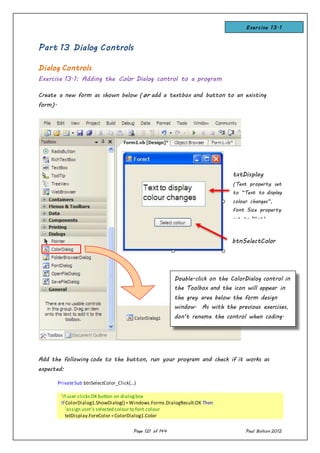
  • 18.
    Page 18 of144 Paul Bolton 2012
  • 19.
    Page 19 of144 Paul Bolton 2012 Standard naming conventions for controls List continued on next page lbl... btn... txt... mnu... chk... rad... grp... pic... pnl... dgd... lst... cbo... hsb... vsb... tmr... lblDisplay btnEnter txtInput mnuEditPaste chkBold radYellow grpFontSize picLogo pnlFontStyle dgdEmployees lstAge cboFavoriteFood hsbWidth vsbHeight tmrAnimate Type of control Prefix Example We name controls using the first 3 letters (the prefix) written in lowercase to represent what type of control it is. A list of prefixes is shown below. The rest of the name can be any meaningful word or combination of words representing what the control does. There must be no gaps in the name. We therefore start each word after the prefix with a capital letter. This is known as “camel-case”, because the middle of the name has taller (capital) letters, like the humps of a camel. For more information on Visual Basic naming conventions, go to: http://www.akadia.com/services/naming_conventions.html and scroll to the bottom of the page and find the heading: “12) Visual Control Type Notation” Background information (continued)
  • 20.
    Page 20 of144 Paul Bolton 2012 We usually give dialogue controls these standard names rather than use different names for different applications – as we do with the other controls. This is because there is usually only one dialog control of each type on any of our forms. dlgOpenFile dlgSaveFile dlgFont dlgColor dlgPrint dlgPrintPreview Type of control Prefix AND Example (see explanation below) Background information (continued)
  • 21.
    Page 21 of144 Paul Bolton 2012 The Visual Basic 2010 IDE – In depth Visual Basic is an integrated development environment within the Visual Studio. Net Framework. The visual environment is used to design, develop, debug and deploy Windows Forms and Web Forms applications. These applications can also be used to integrate database applications. The major advantage of this new environment is that multi-language applications can be used over the Internet, thus creating, in theory, a truly open application platform. In summary the visual studio has the following features: 1. Windows Forms Designer. A graphical design surface for creating GUI. You can drag & drop controls onto forms. 2. Tools for Windows Forms. A Windows Forms Designer, A Windows Application Template (e.g. windows or database application etc.), project references and generated starter code for the applications. 3. Tools for Web Forms. A Web Forms Designer, an ASP.Net Web Application template, project references and generated starter code. 4. Tools for XML (eXtendible Markup Language) Web Services. A generalised web language can be generated from your .net application solution file. 5. Multiple language Support. A range of language such as C# and VB.net can used in the same application or solution. The environment now has Object-Oriented Programming (OOP) capabilities. 6. Data Access. Components for creating applications that share data, visual database applications for accessing data using the ADO.NET classes. 7. Error handling. Has a range of debugging tools, classes and objects to find and fix errors within your application. 8. Wizards. Help you create common and complex tasks, by choosing options, configuring settings and customising projects. Background information (continued)
  • 22.
    Page 22 of144 Paul Bolton 2012 Structure of a Visual Basic Windows Application We want to get started building our first Visual Basic Windows application. But, first we need to define some of the terminology we will be using. In Visual Basic .NET, a Windows application is defined as a solution. A solution is made up of one or more projects. Projects are groups of forms and code that make up some application. In most of our work in this course, our applications (solutions) will be made up of a single project. Because of this, we will usually use the terms application, solution and project synonymously. Thus an Application (Project) is made up of:  Forms - Windows that you create for user interface  Controls - Graphical features drawn on forms to allow user interaction (text boxes, labels, scroll bars, buttons, etc.) (Forms and Controls are objects.)  Properties - Every characteristic of a form or control is specified by a property. Example properties include names, captions, size, colour, position, and contents. Visual Background information (continued)
  • 23.
    Page 23 of144 Paul Bolton 2012 Basic .NET applies default properties. You can change properties when designing the application or even when an application is executing.  Methods - Built-in procedures that can be invoked to impart some action to a particular object.  Event Procedures - Code related to some object or control. This is the code that is executed when a certain event occurs. In our applications, this code will be written in the BASIC language  General Procedures - Code not related to objects. This code must be invoked or called in the application.  Modules - Collection of general procedures, variable declarations, and constant definitions used by an application. Part 2 - Moving on from the Basics Consolidation exercises introducing Visual Basic Exercise 2.1  Start a new project.  Create a form with two labels. Exercises 2.1 to 2.4 Visual Basic uses a very specific directory structure for saving all of the components for a particular application. When you start a new project (solution), you will be asked for a Name and Location (folder / directory). A folder named Name will be established in the selected Location. That folder will be used to store all solution files, project files, form and module files (vb extension) and other files needed by the project. Two subfolders will be established within the Name folder: bin and obj. The bin folder contains your compiled application (the actual executable code or exe file). Later, you will see that this folder is considered the ‘application path’ when ancillary data, graphics and sound files are needed by an application. The obj folder contains files used for debugging your application as it is being developed.
  • 24.
    Page 24 of144 Paul Bolton 2012  When the program runs display your name in label 1 and your address in label 2 by using the Form_Load() event. (Double-click on the grey area of the form at design time display the code window for this event.) Exercise 2.2  Start a new project.  Place a button on a form. When it is clicked the title bar of the form should display Welcome to Visual Basic .NET. Exercise 2.3  Start a new project. Public ClassForm1 Private SubForm1_Load(...) HandlesMyBase.Load lblName.Text = "MyName" lblAddress.Text = "MyAddress" End Sub End Class Public ClassForm1 Private SubbtnWelcome_Click(sender As System.Object, e As System.EventArgs) Handles btnWelcome.Click Me.Text = "Welcome to Visual Basic .NET" End Sub End Class
  • 25.
    Page 25 of144 Paul Bolton 2012  Place two buttons on a form and set their Text properties to Show and Hide respectively using the Properties Window.  Place a label on the form and set its Visible property to False (which means it will be invisible when the program first runs).  Clicking the Show button should make the label visible and display the message Hello inside it. Clicking the Hide button should remove the label and its message. (Note: When you set the Visible property in code you do not need quotation marks around the True or False.) Exercise 2.4  Start a new project.  Write a program with a label and two buttons.Label width:200 height: 100  Clicking the ForeColour button displays the message shown in a blue colour. Clicking the BackColour button displays a different message and colours the rest of the label yellow. Note that the message is centred within the label. Use the label’s ForeColor and BackColor properties. To set these properties write Color.Blue or Color.Yellow to the right of the assignment statement ( = ). Public ClassForm1 Private SubbtnShow_Click(sender As System.Object, e As System.EventArgs) HandlesbtnShow.Click lblHello.Visible = True lblHello.Text = "Hello" End Sub Private SubbtnHide_Click(sender As System.Object, e As System.EventArgs) HandlesbtnHide.Click lblHello.Visible = False lblHello.Text = "Hello" End Sub End Class Public ClassForm1 Private SubbtnForeColour_Click(sender As System.Object, e As System.EventArgs) Handles btnForeColour.Click lblColour.Text = "MyForeColour propertyis set to blue" lblColour.ForeColor = Color.Blue End Sub Private SubbtnBackColour_Click(sender As System.Object, e As System.EventArgs)Handles btnBackColour.Click lblColour.Text = "MyBackColour propertyis set to yellow" lblColour.BackColor = Color.Yellow End Sub End Class
  • 26.
    Page 26 of144 Paul Bolton 2012 Part 3 – Arithmetic & Variables Arithmetic Introductory Exercise 3.1 Introduction to data types We are going to look at how we can use the properties of controls to transfer information (data) from one control to another. The program we are about to create will enable us to: (1)assign a new BackColor property value (yellow) to a textbox on the left of the form by copying the existing BackColor property value from a textbox on the right (2) assign a new Text property value to a textbox on the left of the form by copying the existing Text property value from a textbox on the right (3) assign a new Text property value to a textbox on the left of the form by copying the existing Text property values from two textboxes on the right. We will see if we can get two numbers to add up using this technique (a simple maths calculation). Task 1 Open a new Windows Application project and create a form like the one illustrated: txtCopiedColour txtCopiedText txtResult btnCopyColour btnCopyText txtOriginalColour txtOriginalText Exercise 3.1
  • 27.
    Page 27 of144 Paul Bolton 2012 At design-time, set the BackColor property of txtOriginalColour to yellow (select this from Custom on the BackColor property list). Double-click on the Copy Colour button. The code window should open revealing the template code for this button procedure ready for us to write code into. Write the following code shown in bold: Run your program, click the Copy Colour button an see if the yellow colour appears in the first textbox. If so, we have successfully assigned a new value to the BackColor property of the textbox on the left of the form by copying the existing BackColor property value from a textbox on the right. Task 2 Now see if you can complete the line of code for the next button, as shown below: Run your program again, write your name in the txtOriginalText textbox on the right, click the Copy Text button and see if your name appears in the txtCopiedText textbox on the left. Public ClassForm1 Private SubbtnCopyColour_Click(ByVal sender As System.Object, _ ByVal e As System.EventArgs)HandlesbtnCopyColour.Click txtCopiedColour.BackColor = txtOriginalColour.BackColor End Sub End Class btnAdd txtFirstNumber txtSecondNumber Private SubbtnCopyText_Click(ByVal sender As System.Object, _ ByVal e As System.EventArgs)HandlesbtnCopyText.Click txtCopiedText.Text = . End Sub Exercise 3.1
  • 28.
    Page 28 of144 Paul Bolton 2012 Task 3 Repeat the process with the final button (“Add”). See if you can complete the line of code below: Run your program again, write your 2 whole numbers in the txtFirstNumber and txtSecondNumber textboxes on the right (e.g. 2 + 2), click the Add button and see if the correct answer appears in the txtResult textbox on the left. Observations Try to answer the following questions:  what result did you get in txtResult?  how do you think VB is processing the data you have input?  what data type do you think VB has assumed the number “2” is? Now look at the handouts / tutorials on data types and converting data types (“type-casting”) and see if you can work out what must be added to your code to cure the problem we are encountering. Private SubbtnAdd_Click(ByValsender As System.Object, _ ByVal e As System.EventArgs)HandlesbtnAdd.Click txtResult.Text = . End Sub
  • 29.
    Page 29 of144 Paul Bolton 2012 Arithmetic & Variables: Underpinning Knowledge Data Types Data Type Usage Size (1 byte = 8 bits) To store numeric data Short (or Int16) (“Shortinteger”) Wholenumbersonly Can hold whole numbers(positiveor negative) between approx +32,000 to -32,000 2 bytes (i.e. 16 bits) Integer (or Int32) Can hold whole numbers(positiveor negative) between approx +2 billion to -2 billion (i.e. +2 followed by 9 zeros or -2 followed by 9 zeros) 4 bytes (i.e. 32 bits) Long(or Int64) (“Long integer”). Can hold whole numbers(positiveor negative) between approx +9 (followed by18 zeros) to -9 (followed by18 zeros) 8 bytes (i.e. 64 bits) Single (“Single-precisionfloating- point”) WholeORdecimalnumbers Can hold whole numbersORnumberscontaininga decimalpoint (positiveor negative) Therangeof values which can bestored forpositivenumbersis approximately:+3 (followed by38 zeros) for verylarge values, to +0.0 (followed by45 zerosand then 1) for very small values. For negativenumbers,therangeis approximately:-3 (followed by38 zeros) for verylarge values, to -0.0 (followed by45 zerosand then 1) for very small values. 4 bytes Double (“Double-precision floating- point”) Can hold whole numbersORnumberscontaininga decimalpoint (positiveor negative) Therangeof values which can bestored forpositivenumbersis approximately:+1 (followed by308 zeros) for verylarge values, to +0.0 (followed by324 zerosand then 4) for verysmallvalues. For negativenumbers,therangeis approximately:-1 (followed by308 zeros) for verylarge values, to -0.0 (followed by324 zerosand then 4) for verysmallvalues. 8 bytes Decimal Can hold numberscontainingadecimalpoint (positive or negative) between approx +7 (followed by28 zeros) to -7 (followed by28 zeros) 16 bytes To store other data Boolean Otherdata Used to hold True or False 2 bytes Date Can hold datesfromJanuary1,0001to December 31, 9999,and timefrom00:00:00to 23:59:59 8 bytes String Used to hold characters(e.g.all theletters & symbolson the keyboard and numbers 0-9,butNOTif thenumbers are to be used in calculations). Variable size Object An object variable holds a referenceto an object,notthe objectitself. Thereforethe variableonlyneeds a small amountof memory. In theory,any data typecan be stored in an objectvariable. 4 bytes Background information
  • 30.
    Page 30 of144 Paul Bolton 2012 Arithmetic Exercise 3.2 Declaring variables & type casting Task 1 We are going to create a simple calculator. Open a new Windows Application project and create a form like the one illustrated: Give the buttons suitable names (e.g. btnAdd, btnSubtract etc.). Give the textboxes the names txtFirstNumber, txtSecondNumber and txtResult respectively. Double-click on the Add button. The code window should open revealing the template code for this button procedure ready for us to write code into: Move the cursor and insert it between the line: Public Class Form1 and the line: Private Sub btnAdd_Click(…) and then write the following code: Public ClassForm1 Private SubbtnAdd_Click(ByValsender As System.Object, _ ByVal e As System.EventArgs)HandlesbtnAdd.Click | End Sub End Class Cursor Public ClassForm1 'declare variables Dim intFirstNumber As Integer Dim intSecondNumber As Integer Dim intResult As Integer Private SubbtnAdd_Click(ByValsender As System.Object, _ ByVal e As System.EventArgs)HandlesbtnAdd.Click End Sub End Class Cursor Exercise 3.2
  • 31.
    Page 31 of144 Paul Bolton 2012
  • 32.
    Page 32 of144 Paul Bolton 2012 You will notice that the above process is in 3 main steps: (1) Input (where the numbers typed by the user are stored into variables) (2) Calculation (where we use the variables to do the arithmetic) (3) Output (where we display the result into a text box) This is a sequence we will use again and again in our programming projects. We have declared three variables of Integer type – intFirstNumber, intSecondNumber and intResult. We want the program to accept two whole numbers (integers) in txtFirstNumber and txtSecondNumber and then perform the calculations indicated by the buttons. In order to do this we need to: (1) store the two values which the user has typed into txtFirstNumber and txtSecondNumber into our variables intFirstNumber and intSecondNumber. (2) do the arithmetic and then store the result into the variable intResult. (3) display the result. For this we need to change the .Text property of txtResult to the value held in intResult. Add the code below to the _Click() event procedure of btnAdd: HINT Public ClassForm1 'declare variables Dim intFirstNumber As Integer Dim intSecondNumber As Integer Dim intResult As Integer Private SubbtnAdd_Click(ByValsender As System.Object, _ ByVal e As System.EventArgs)HandlesbtnAdd.Click 'INPUT 'load contents of 1st textbox into 1st variable intFirstNumber = txtFirstNumber.Text 'load contents of 2nd textbox into 2nd variable intSecondNumber = txtSecondNumber.Text 'CALCULATION 'add 2 variables and load result into 3rd variable intResult = intFirstNumber + intSecondNumber 'OUTPUT 'display contents of 3rd variable in 3rd text box txtResult.Text = intResult End Sub End Class Exercise 3.2
  • 33.
    Page 33 of144 Paul Bolton 2012 Run you program, enter two numbers and click the add button. See if the correct answer appears in txtResult. Task 2 We have relied upon Visual Basic automatically converting data into the appropriate data types for us. For example, it took the text from the first textbox (a String data-type) and converted it into an Integer before adding it to the second number. This is data-type conversion is known as type casting. We are now going to do this with functions in our code. Add the following statement to the top of your code: You will immediately see parts of the code underlined in blue and errors appear in the Error List Window. To solve this problem we need to convert the data-type of the numbers from String to Integer in the first button (btnAdd) by including the conversion function CInt(). Amend you code as follows: Run your program, enter two numbers and click the add button. See if the correct answer appears in txtResult. Task 3 So far we have used the + operator to add the two numbers together. The other operators that we can use are: Option Strict On Public ClassForm1 'declare variables Dim intFirstNumber As Integer Dim intSecondNumber As Integer Dim intResult As Integer Private SubbtnAdd_Click(ByValsender As System.Object, _ ByVal e As System.EventArgs)HandlesbtnAdd.Click End Sub End Class Private SubbtnAdd_Click(ByValsender As System.Object, _ ByVal e As System.EventArgs)HandlesbtnAdd.Click 'INPUT 'load contents of 1st textbox into1st variable intFirstNumber = CInt(txtFirstNumber.Text) 'load contents of 2ndtextbox into2ndvariable intSecondNumber = CInt(txtSecondNumber.Text) Exercise 3.2
  • 34.
    Page 34 of144 Paul Bolton 2012 + Add - Subtract / Divide * Multiply MOD Modulus ^ Raise to the power of Now add sections of code to perform the correct arithmetic for each of the buttons shown in the example. (Note: we cannot use the % symbol to calculate percentages. Instead we must divide the first number by the second number and then multiply by 100.) Task 4 Cint() is a function that converts text, provided it is a numeric, to Integer data format. There are other function like this. To find out about them read the Background Information on the next page. (If Online Help is available on your computer, you can also highlight CInt() and then press the F1 key.) Test your program with numbers like 350 and 260.You will get overflow. Now try using Long instead of Integer in your Dim statements. You will need to change the CInt() functions to CLng() Try dividing 13 by 2. You won’t get the right answer. Use Single instead of Long in your Dim Statements. (Again you will have to change the conversion function – use the help facility to look up what you need to use or read the next page on this subject.) Exercise 3.2
  • 35.
    Page 35 of144 Paul Bolton 2012 Arithmetic, Data-Types & Variables Converting data before storing it into variables (known as data “Type Casting”) So far we have looked at how to declare a variable and store data into it. For example, suppose our user is going to type the number “123” into a text box called txtFirstNumber. We want to write code which will store this number into a variable called intFirstNumber and then do a maths calculation with it. To do this we would: (1)declare the variable: Dim intFirstNumber As Integer (2) then store the data into it by writing: intFirstNumber = txtFirstNumber.Text But this does not actually convert the string “123” into numbers which our program can use to do maths with. Remember that because the number is in a text box, Visual Basic does not automatically recognise that this is a number. It assumes the number is a series of characters (a “string”) like a telephone number or bank account number. If we try to get VB to add 1 to this string, we will probably get the answer 1231 instead of 124. VB will simply put the 1 on the end of 123 like a putting letter on the end of a word. Declaring a variable as an Integer type does not convert the data to an integer, it simply puts a “filter” over the variable so that it refuses to accept anything but an integer! So if we try to store the decimal number 0.75 into it we will simply get an error message. Therefore we need to use a function to convert the data in the text box into the correct data type before we try to store it into the variable. To do this we use one of the following data type conversion functions, for example: Numeric data types: CShort( ) to convert to Short data type CInt( ) to convert to Integer data type CLng( ) to convert to Long data type CSng( ) to convert to Single data type CDbl( ) to convert to Double data type CDec( ) to convert to Decimal data type (used especially for currency data) Otherdata types: Background information
  • 36.
    Page 36 of144 Paul Bolton 2012 CBool( ) to convert to Boolean data type (True / False) CDate( ) to convert to Date / Time data type (e.g. #17/10/06 13:50:02#) CStr( ) to convert to String data type (e.g. "My name is John") For example, to convert the string “123” contained in text box txtFirstNumber into an integer and then store it into our variable, we would write: intFirstNumber = CInt(txtFirstNumber.Text) We need to be careful however, because if the data doesn’t exactly match the data type, VB will do its best to convert it anyway. For example, if we write the above code and the user writes the string 12.75 into the text box, the integer 13 will be stored in the variable intFirstNumber. In other words the 0.75 part of the number will simply be rounded up to the next whole number. (Note: if we actually wanted to store decimal numbers we would need to declare the data type of our variable as a single and use the conversion function CSng() instead.) Part 4 - More on Arithmetic & Variables Arithmetic Exercise 4.1 Introducing the scrollbar control Create a form like the one above. The aim of the program is to allow the user to convert temperatures from Farenheit into Celsius by moving the scroll bar. The Farenheit temperature values will range from –60 to +120. (Moving the scroll bar thumb upwards should increase the temperature values.) Set the initial Text property of txtTempF and txtTempC to 32 and 0 respectively, and the Value of the scroll bar to 32. txtTempF txtTempC vsbTemperature Exercise 4.1
  • 37.
    Page 37 of144 Paul Bolton 2012 (a) From the above information work out what the Min and Max property values of the scroll bar should be. (Remember that for vertical scroll bars the Min property always corresponds to the topmost position of the thumb!) (b) Write code into the scrollbar _Scroll(...) event which will take the Farenheit value displayed in txtTempF, convert it to Celsius and display it in txtTempC. The conversion formula is: Celsius = (Farenheit – 32) x 5 /9 Public ClassForm1 Dim intTempF As Integer 'declare variables Dim intTempCAs Integer '---------------------------------------------------------------------------- Private SubvsbTemperature_Scroll(ByVal sender As System.Object, _ ByVal e As System.Windows.Forms.ScrollEventArgs)HandlesvsbTemperature.Scroll 'store value of scrollbar intoF variable intTempF= vsbTemperature.Value 'convert F value to stringanddisplayinF textbox txtTempF.Text = CStr(intTempF) 'calculate Cvalue, convert to integer and store inCvariable intTempC= CInt((intTempF - 32) * 5 / 9) 'convert Cvalue to string anddisplayin Ctextbox txtTempC.Text = CStr(intTempC) End Sub '------------------------------------------------------- End Class Scroll bar property settings required to achieve full temperature range displayed: Vertical scroll bar (vsbTemperature) Min:120 Max:-60 Small change:1 Large change:10 Value:32
  • 38.
    Page 38 of144 Paul Bolton 2012 Scrollbar Setting scrollbar properties A scroll bar returns a numeric value depending on the position of the slider or (“thumb”). Scroll bars are quite complex because they have 5 main properties to set and 2 events to code in order for them to work properly. The 5 properties are listed below: Property Horizontal ScrollBar Vertical ScrollBar Max the value returned when the slider is at the right hand end of the ScrollBar The value returned when the slider is at the bottom of the ScrollBar Min the Value returned when the slider is at the left hand end of the ScrollBar The Value returned when the slider is at the top of the ScrollBar Large Change The amount by which the Value property is changed when the user clicks on the grey area between the slider and either end of the ScrollBar. Small Change The amount by which the Value property is changed when the user clicks on the arrows at either end of the ScrollBar Value This returns an integer which indicates the position of the slider in terms of the range set by Max and Min. slider or “thumb” clicking here affects SmallChange property clicking here affects SmallChange property clicking here affects LargeChange property Background information
  • 39.
    Page 39 of144 Paul Bolton 2012
  • 40.
    Page 40 of144 Paul Bolton 2012 (1) Setting Max and Min properties We set Max and Min to suit the application we are using. For example, if we wanted to use a scroll bar to input the temperature of a pan of water in degrees Celsius we would set the Min property to 0 and the Max property to 100 to correspond to the freezing and boiling point of water. When you first draw a scroll bar on your form the default value of Min is 10 and Max is 100. Note that with vertical scroll bars, the Min value is always returned when the thumb is at the top. Therefore it is quite common for the Min value to be set greater than the Max value when using vertical scroll bars. (2) Setting SmallCange and LargeChange properties There are no rules governing what values you should set the SmallChange and LargeChange properties to. However, by default the SmallChange property is set to 1 when you first draw the scroll bar, and the LargeChange property is set to 10. This means that if the range of the scrollbar (i.e. the Max value minus the Min value) is quite large the thumb will move incredibly slowly when the user clicks on the arrows. Therefore it is very important that you set these properties to values which will give reasonable travel of the thumb. As a rough guide, set the LargeChange property to one tenth of the range value, and set the SmallChange property to one tenth of the LargeChange property. Note: The ratio of LargeChange property to the range also affects the length of the thumb. The thumb is lengthened to restrict the distance it travels, as shown in the diagram below: In this example the Min property is set to 0 and the Max is 100, meaning that the range is 100. If the LargeChange property is left at the default value of 10, the thumb remains quite small. However, if the LargeChange property is increased to 50, the size of the thumb increases to one third the length of the scroll bar, since it only requires 2 clicks to move the thumb to its maximum value. (The value is taken from the position of the left edge of the thumb.) Size of the thumb when LargeChange property is set to 1:Min = 0 Max = 100 Background information
  • 41.
    Page 41 of144 Paul Bolton 2012 Size of the thumb when LargeChange property is set to 50 on the same scroll bar: (3) Setting Value property This is the initial value of the scroll bar at run-time, and hence determines the initial position of the thumb. The Value property must be within the range of the Max and Min properties. Often the Value property will be the same as the Min property so as to put the thumb at one end of the scrollbar, but this is not always the case. Scrollbars Summary of features  The purpose of a scrollbar is to generate numbers which we can use elsewhere in our program  We can use these numbers to: o change the value of properties of other controls o perform calculations  We use the scrollbar’s value property as the source of these numbers  As the user clicks the scrollbar arrows (or drags the scrollbar slider) the value of the scrollbar changes  We control what range of values will be generated by setting the Max and Min properties of the scrollbar at design time  We can decide where the position of the slider is when the program first opens by setting the scrollbar’s value property at design time (but this initial value must lie somewhere between the Max and Min values) Min = 0 Max = 100 (position allows for width of thumb)
  • 42.
    Page 42 of144 Paul Bolton 2012  We can decide how quickly the value of a scrollbar changes when the user clicks the scrollbar arrows (or drags the scrollbar slider). We do this by setting the: o SmallChange and o LargeChange properties  (As a guide, set the LargeChange property to 1/10th the value of the Max property, and set the SmallChange property to 1/10th the value of the LargeChange property)  when the user clicks the scrollbar arrows or drags the scrollbar slider it fires the _Scroll(...) event
  • 43.
    Page 43 of144 Paul Bolton 2012 Arithmetic Exercise 4.2 – Wallpaper Estimator Data types, arithmetical operators & variables In this exercise we will be revising what we have covered so far on:  data types  converting data to different types (known as “type casting”)  declaring variables of appropriate data types  arithmetical operator precedence using the common operators: Your task is to estimate the amount of wallpaper required to cover the wall illustrated below which has one window. The wallpaper comes in rolls 0.7 metres wide and 10 metres long. Cost per roll is £8.00 Your task is to calculate and display: 4.5m 3m 4.5m2.5m 1.5m Area A Area B Area C Area D 0.5m Order of precedence: (1)( ) brackets (parentheses) (2) ^ exponentiation (“power of”) (3) + - positive & negative signs (4) * / multiplication & division (5) integer division (gives only whole number result of Exercise 4.2
  • 44.
    Page 44 of144 Paul Bolton 2012  the number of rolls required  the total cost of wallpaper  the relative cost of wasted wallpaper left over from the last full roll (e.g. if half a roll was left over, we could say that £4.00 worth of wallpaper was wasted) Assume the wallpaper pieces can be pasted in any sequence / orientation irrespective of where the joins occur, and that there is no wastage due to overlap or off-cuts. In other words, assume the total area of one roll covers exactly the same amount of area of the wall.
  • 45.
    Page 45 of144 Paul Bolton 2012 (1) Find total area of wall Here are some tips on how to calculate the total area of the wall. After reading the tips, try to create one line of code in your program which uses all the measurements and stores the answer in a variable sngWallArea. Area A: height * width 3m * 4.5m = 13.5 square meters Area B is the same, so multiply the area of A by 2 Area C: height * width 0.5m * 2.5m = 1.25 square meters Area D: We haven’t been told the height but we can work it out by subtracting the height of the window plus the height of Area C from the height of the room. Once we have found this we multiply height * width as usual to find the area of D. Finally, Total Area = Area A + Area B + Area C + Area D Here is the start of the code you will need. The figures calculating Areas A & B have been written for you already. See if you can finish off the line. Be careful to remember the rules about operator precedence and use parentheses (brackets) if necessary: sngWallArea = ((3 * 4.5)*2) + (2) Find area of one roll of wallpaper Area of one roll = length * width = 10 * 0.7 = 7 square meters Again, here is the start of the code you will need: Exercise 4.2 (continued)
  • 46.
    Page 46 of144 Paul Bolton 2012 sngOneRollArea = (3) Find number of whole rolls needed (4) (a) Find area of wallpaper roll left over (4) (b) Find length of wallpaper roll left over (5) Find cost of total wallpaper rolls purchased (6) Find relative cost of fraction of wallpaper roll left over
  • 47.
    Page 47 of144 Paul Bolton 2012 Public ClassForm1 Dim sngWallArea As Single Dim sngOneRollArea As Single Dim intNoOfRolls As Integer Dim sngRemainderAreaOfRoll As Single Dim sngRemainderLengthOfRoll As Single Dim decCostOfWallpaperPurchased As Decimal Dim decCostOfWallpaperWasted As Decimal Private SubbtnCalculate_Click(ByVal sender As System.Object, _ ByVal e As System.EventArgs) Handles btnCalculate.Click '(1) calculate total area of wall sngWallArea = ((3 * 4.5) * 2) + (0.5 * 2.5) + ((3 - (1.5 + 0.5)) * 2.5) MsgBox("Wall area is:" & sngWallArea & " square metres") '(2) calculate area ofone rollof wallpaper sngOneRollArea = 0.7 * 10 MsgBox("Area of one roll is:" & sngOneRollArea & " square metres") '(3) calculate number ofwhole rolls ofwallpaper needed intNoOfRolls = (sngWallArea sngOneRollArea)+ 1 MsgBox("Noof rollsneededis:" & intNoOfRolls) '(4)(a) calculate fractionarea ofroll left over sngRemainderAreaOfRoll = sngWallArea ModsngOneRollArea MsgBox("Area of roll left over is:" & sngRemainderAreaOfRoll & " sq m") '(4)(b) calculate length ofroll left over sngRemainderLengthOfRoll= sngRemainderAreaOfRoll / 0.7 MsgBox("Length ofroll left over is:" & sngRemainderLengthOfRoll & " m") '(5) calculate total cost ofwallpaper decCostOfWallpaperPurchased= intNoOfRolls * 8.0 MsgBox("Cost ofwallpaper purchased:£" & decCostOfWallpaperPurchased) '(6) calculate relative cost ofwallpaper wasted decCostOfWallpaperWasted = sngRemainderLengthOfRoll* 8.0 / 10 MsgBox("Relative cost ofwallpaper wasted:£" & decCostOfWallpaperWasted) End Sub Solution to Exercises 4.2
  • 48.
    Page 48 of144 Paul Bolton 2012 Part 5 - Making selections using If..Then..Else Program Control – making selections using “If..Then..Else” So far we have only written code for a sequence of actions for any one event. However, in many programs we need to make selections according to certain criteria. In other words, make a decision. For example, imagine we were shopping for a new mobile phone, and we could spend up to £100. In our minds we would be performing the following test as we browsed the shops looking at all the different phones on offer: If the phone costs up to £100, then Ask the shop assistant for more details about the phone Else Look for a different phone End of decision We could write this process into Visual Basic code. If the cost of the mobile phone was stored in a variable called decCost, we could write: If decCost < 101 Then txtMessage.Text = "Make further enquiries" Else txtMessage.Text = "Look for a different phone" End If The general way this code structure works is: If a certain condition is true Then Do this action Else Do this other action End If The code written between “If” and “Then” is a condition. A condition is an expression which may be considered to be either “True” or “False”. If the condition is “True” then the code up to “Else” is carried out. If the Condition is false, then the code between “Else” and “End If” is carried out. Background information
  • 49.
    Page 49 of144 Paul Bolton 2012 Notice that if the condition is False (that is, if the mobile phone does not cost up to £100), we don’t have to test the condition again. If the phone does not cost up to £100, then logically it must cost more than £100, and the code underneath the “Else” will run. Also, the Else is optional. Sometimes, depending on our program, we don’t need to write any code dealing with an Else condition. < less than > greater than = equal to <> not equal to >= greater than or equal to <= less than or equal to In our code have used the “ < “ symbol which means “less than”. This is known as a relational operator, because it compares one value with another. The full list of relational operators is:
  • 50.
    Page 50 of144 Paul Bolton 2012 Going back to our example of buying a mobile phone, let’s suppose we wanted to avoid buying very cheap phones because they wouldn’t have all the features we are looking for. Suppose we didn’t want to look at any phones which cost less than £50. We could amend our code as follows: If decCost > 50 And decCost < 101 Then txtMessage.Text = "Make further enquiries" Else txtMessage.Text = "Look for a different phone" End If The And is known as a logical operator. The full list of logical operators is as follows: Finally, it is important to realise that in our programs we may be making decisions which have more than 2 outcomes. In the mobile phone example, we are either doing one thing or another. We are: either making further enquiries or looking for a different phone But often there will be more than 2 possible courses of action. Suppose we would consider placing a deposit on the phone if it was outside our price range but had an internet facility. (Perhaps we would save up and pay for the phone next month.) Our decision process would look like this: If the phone costs between £50 and £100, then Ask the shop assistant for more details about the phone ElseIf the phone has an internet facility, then Place a deposit Else Look for a different phone End of decision And This means both conditions must be True for the entire condition to be True Or This means if one or both conditions are True, the entire condition is True Not This reverses the condition so that a True condition will evaluate False, and vice versa. Background information (continued)
  • 51.
    Page 51 of144 Paul Bolton 2012 The code for the above process could be written as follows. (The answer to whether the phone has an “internet facility” is stored in a “Yes/No” variable called “blnInternet”): If decCost > 50 And decCost < 101 Then txtMessage.Text = "Make further enquiries" ElseIf blnInternetFacility = True Then txtMessage.Text = "Place a deposit" Else txtMessage.Text = "Look for a different phone" End If We can write as many ElseIf tests as we want to, and each one can result in a different course of action. Tax Calculator Program - Scenario Read the scenario below and then try to carry out the exercises on the following pages. Part (a) A wages department wants you to create a program to help them calculate their employees’ pay. At the moment this calculation is done on a hand-held calculator. They want the program to run as follows: (1)The wages clerk will type in the Gross Pay and the Tax Allowance for an employee. (The clerk does not need to type in the employee’s name, just the figures.) (2) When the clerk clicks the “Calculate” button, the program will display the Tax Payable and the Net Pay. (3) The clerk will then write down the Net Pay for the employee and then type in figures for the next employee. The Rate of Tax is 25%. The Tax Payable is calculated by the following equation: Tax Payable = (Gross Pay – Tax Allowance) x Rate of Tax Exercises 5.1 – 5.3
  • 52.
    Page 52 of144 Paul Bolton 2012 Because the wages need to be calculated quickly, the wages clerk does not want to have to use the mouse on the computer. So the program must run by using only the computer keyboard. You will therefore need to think about: - how to get the cursor to move about the screen in the right order, and - how to clear any text boxes after the wages clerk has processed the figures for one employee and wants to enter details for the next employee. Part (b) Once you have demonstrated that the program works to their satisfaction, the wages department want you to amend the program so that the wages clerk only has to use the numeric keypad on the keyboard. Part (c) Finally, the wages department will want you to restrict access to the program by creating a password system. When the program first opens there should be a Password Form which invites the wages clerk to enter a password into a text box. If the correct password is entered, the Tax Allowance Calculator form you created in Parts (a) and (b) should open. If an incorrect password is entered, the program should display a message stating that the password is incorrect, the text box on the password form should clear and the cursor return to the text box. If an incorrect password is entered for a total of 3 times, a message should be displayed that the program is shutting down, and the program should terminate.
  • 53.
    Page 53 of144 Paul Bolton 2012 If…Then…Else - Exercise 5.1 - Tax Calculator In this exercise we will be looking at the following topics:  making selections using If…Then…Else statements  relational operators such as “>” (“greater than”)  declaring constants  drawing Group boxes  using data-type conversion function to convert String data to decimal Create a new project and draw group boxes, labels, text boxes and buttons on the form as shown below: The aim of the program is that the user should be able enter values into txtGrossPay and txtTaxAllowance. When the Calculate button is clicked, the program should calculate and display the Tax Payable and Net Pay. For this exercise we are assuming the Tax Rate is 25%. The Tax Payable is therefore calculated by subtracting the Tax Allowance from the Gross Pay, and then finding 25% of the remainder. txtGrossPay txtTaxAllowance txtTaxPayable txtNetPay grpInput grpOutput btnCalculate Exercise 5.1
  • 54.
    Page 54 of144 Paul Bolton 2012 For example, if the Gross Pay is £200 and the Tax Allowance (the amount of wage which is free of tax) is £100, the Tax Payable would be £25 and the Net Pay would be £175.
  • 55.
    Page 55 of144 Paul Bolton 2012 First, we need to declare 4 variables in which to store the input data (Gross Pay and Tax Allowance) and the output data (Tax Payable and Net Pay). The data- type Decimal is the best one to use for currency data. In the code window, declare the following variables as Decimal by writing: Note that when we declare variables in this place (just below the line Public Class Form1) they are available for use in any procedure in the form (e.g. code written behind any button). Because the form is technically known as a module, variables declared here are known as module-level variables. Since the Tax Rate is going to remain constant throughout our calculations, we can declare it as a constant. (A constant is similar to a variable, except that its value does not change during the life of the program.) We usually write the names of constants in CAPITAL letters, separated by an underscore if there is more than one word. Because Tax Rate is a decimal number it is best to store it in a variable of data-type: Single. We would therefore name the constant SNG_TAX_RATE and declare it follows: Note that when we declare constants we must assign a value to them in the same line of code. Writing 0.25 is the same as writing 25% or 25/100. Remember, we cannot write 25% in VB code. Public ClassForm1 Dim decGrossPay As Decimal 'declare variables Dim decTaxAllowance As Decimal Dim decTaxPayable As Decimal Dim decNetPay As Decimal Const SNG_TAX_RATE As Single = 0.25 'declare constant Point to note Exercise 5.1 (continued)
  • 56.
    Page 56 of144 Paul Bolton 2012 Next we need to write code into btnCalculate which carries out the following steps: Input Gross Pay and Tax Allowance data from text boxes and store into 2 variables Calculate Tax Payable as follows: If Gross Payis greater thanTax Allowance Then Tax Payable = (Gross Pay – Tax Allowance)x Tax Rate whichis 25% Else Tax Payable = 0 Calculate Net Pay as follows: Net Pay= Gross Pay– Tax Payable Output Tax Payable by displaying in text box txtTaxPayable Output Net Pay by displaying in text box txtNetPay The “>” symbol means “greater than”, and it is one of the many relational operators we can use to compare values in the If…Then…Else statements. The full list of relational operators is as follows: < less than > greater than = equal to <> not equal to >= greater than or equal to Note: the code for calculating the Tax Payable is as follows: If decGrossPay > decTaxAllowance Then decTaxPayable= (decGrossPay - decTaxAllowance) * SNG_TAX_RATE Else decTaxPayable= 0 End If Exercise 5.1 (continued)
  • 57.
    Page 57 of144 Paul Bolton 2012 Try to work out the rest of the code for btnCalculate yourself. Remember that when data is written in textboxes it is String data-type by default. We therefore need to convert this to Decimal data-type when it is input to the two variables using the CDec( ) function.
  • 58.
    Page 58 of144 Paul Bolton 2012 If…Then…Else - Exercise 5.2 Tax Calculator Enhancements In this exercise we will be looking at the following topics which will protect the data to processed and make our program more user friendly:  Setting the TabIndex property  Using the .Focus() method to move focus to a textbox or button  Enabling / disabling textboxes using .Enabled = True / False  Formatting output textboxes by using Format(... ,"Currency") function  Re-formatting input textboxes by using this same function  Using the .Clear() method to clear a textbox  Using the _LostFocus(...) event to run code (a) Using the TabIndex property We want to make the program user friendly by arranging it to work without the user having to use the mouse. We can arrange that the Tab key on the keyboard will move the focus from one control to another in any order we choose. We do this by setting the TabIndex property of the controls at design time. Set the TabIndex of the following controls and check the results when running your program: Control name TabIndex Result value txtGrossPay 1 Puts cursor in text box when form loads txtTaxAllowance 2 Puts cursor in text box after pressing Tab key btnCalculate 3 Sets focus to command button after pressing Tab key so that user only needs to press Enter key to “Click” the command button (b) Providing a “Clear” button and improving navigation We want to make it easier for the user to re-set the form after they have performed one calculation. Draw another button on the form, set its Text property to “Clear” and name it btnClear. Double-click it and write the following code in its Click event procedure: PrivateSub btnClear_Click(ByVal sender As System.Object, _ ByVal e As System.EventArgs) Handles btnClear.Click txtGrossPay.Clear() 'clear textbox entries txtTaxAllowance.Clear() Exercise 5.2
  • 59.
    Page 59 of144 Paul Bolton 2012 Run your program, enter some data in the first two textboxes and check that both buttons work as expected. (c) Protecting data and improving navigation There is an easy way to provide guidance to the user about which controls to use, and that is by disabling controls in a set order in response to the user’s actions. This technique can also be used to protect data. Double-click on the form itself and write the following code in the Form_Load() event procedure: Can you think of similar code you need to write in the btnCalculate_Click() and btnClear_Click() event procedures? PrivateSub Form1_Load(ByVal sender As System.Object, _ ByVal e As System.EventArgs) Handles MyBase.Load txtTaxPayable.Enabled = False 'disabletextboxes txtNetPay.Enabled = False End Sub Exercise 5.2 (continued)
  • 60.
    Page 60 of144 Paul Bolton 2012 If…Then…Else – Exercise 5.3 Tax Calculator – adding a password form In this exercise we will be looking at the following topics:  Making further selections using If…Then…ElseIf…Else statements  Incrementing counter variables using the += operator  Using .Show() and .Hide() methods with forms  Using .Clear() and .Focus() methods with controls We are going to enhance the program we created earlier to incorporate a password protection system. When the program first opens there should be a Password Form which invites the user to enter a password into a text box. Feature A: If the correct password is entered, the Tax Calculator form we created in Exercise 5.1 should open. If an incorrect password is entered, the program should display a message stating that the password is incorrect, the text box on the password form should clear and the cursor return to the text box. Feature B: If an incorrect password is entered for a total of 3 times, a message should be displayed that the program is shutting down, and the program execution should terminate. Task 1 Add a new form to your project by Clicking Project / Add Windows Form… on the top menu of the design window. Accept the name of the new form as Form2 Resize the form so that it resembles the size of a logon screen and draw the controls as illustrated: To create Feature A described above, add the following code to the OK button’s Click() event. Run your program and check if it works as expected by entering an incorrect password and clicking “OK”, then the correct password (“tax”) and clicking “OK”. Private SubbtnOK_Click(ByVal sender As System.Object, _ ByVal e As System.EventArgs) Handles btnOK.Click 'if password correct If txtPassword.Text = "tax" Then 'display message MsgBox("Access to Tax Calculator permitted.") 'show Tax Calculator form txtPassword btnOK Exercise 5.3
  • 61.
    Page 61 of144 Paul Bolton 2012 Task 2 To create Feature B we need to amend the code we have just written so that if an incorrect password is entered for a total of 3 times, a message should be displayed that the program is shutting down, and the program execution should terminate. We need to create a variable which will keep a tally of the number of times the OK button has been clicked, then add an ElseIf statement to our If…Then…Else construction to add further conditions to the decision-making process. Add/amend the following code shown in bold and highlighted below. (Note: Be careful to declare the variable intAttemptNumber outside the btnOK_Click() procedure. If you declare it inside the procedure, it won’t hold its value between button clicks and won’t count up the number of incorrect password attempts.) Public ClassForm2 Dim intAttemptNumber As Integer Private SubbtnOK_Click(ByVal sender As System.Object, _ ByVal e As System.EventArgs) Handles btnOK.Click 'increment counter to store number of attempts intAttemptNumber += 1 'if passwordcorrect If txtPassword.Text = "tax" Then 'displaymessage MsgBox("Access to Tax Calculator permitted.") 'showTax Calculator form Form1.Show() 'and hide Passwordform Me.Hide() 'else if attempt number lessthan3 ElseIf intAttemptNumber < 3 Then 'displaymessage MsgBox("Password incorrect. Please re-type password.") 'clear text box txtPassword.Clear() 'and put cursor back in text box txtPassword.Focus() Else 'else display message Exercise 5.3 (continued)
  • 62.
    Page 62 of144 Paul Bolton 2012 Further study Can you think how to incorporate the number of incorrect attempts into the message displayed to the user, like this:
  • 63.
    Page 63 of144 Paul Bolton 2012 Public Class Form1 Dim decGrossPay As Decimal 'declare variables Dim decTaxAllowance As Decimal Dim decTaxPayable As Decimal Dim decNetPay As Decimal Const SNG_TAX_RATE As Single = 0.25 'declare constant '--------------------------------------------------------------------- Private Sub btnCalculate_Click(ByVal sender As System.Object, _ ByVal e As System.EventArgs) Handles btnCalculate.Click '(1) INPUT from textboxes into variables: '**************************************** decGrossPay = CDec(txtGrossPay.Text) 'store Gross Pay decTaxAllowance = CDec(txtTaxAllowance.Text) 'store Tax Allowance '(2) CALCULATE using only variables: '*********************************** '(a) calculate Gross Pay If decGrossPay > decTaxAllowance Then 'if Gross Pay > Tax Allowance decTaxPayable = _ (decGrossPay - decTaxAllowance) * SNG_TAX_RATE 'calculate Tax Payable Else decTaxPayable = 0 'else Tax Payable = 0 End If '(b) calculate Net Pay decNetPay = decGrossPay - decTaxPayable 'calculate Net Pay '(3) OUTPUT from variables to textboxes '************************************** txtTaxPayable.Text = decTaxPayable 'output Tax Payables txtNetPay.Text = decNetPay 'output Net Pay End Sub '--------------------------------------------------------------------- End Class Solution to Exercise 5.1
  • 64.
    Page 64 of144 Paul Bolton 2012 Part 6 - More on making selections using If..Then..Else Sports Club Membership Fees Program - Scenario Part (a) – creation of basic program A newly-opened local sports club wants has ask you to create a program to help them display the difference subscription fees payable by new members. There are 3 rates:  Full rate (“F”) is £100  Senior rate (“S”) is £75  Junior rate (“J”) is £50 The club wants you to create a program to be used by the receptionist, to run as follows. The receptionist will enter one letter (either “F”, “S” or “J”) and the program will display a fee of either £100, £75 or £50 respectively. Part (b) enhancing basic program to provide a password protection form The Sports Club want you to restrict access to the program by creating a password system. When the program first opens there should be a Password Form which invites the user to enter a password into a text box If the correct password is entered, the Membership Fees form you created in Part (a) should open. If an incorrect password is entered, the program should display a message stating that the password is incorrect, the text box on the password form should clear and the cursor return to the text box. If an incorrect password is entered for a total of 3 times, a message should be displayed that the program is shutting down, and the program should terminate. Part (c) enhancing basic program to provide a printed receipt The Sports Club also want the program to provide a printed receipt for each member. The receipt show contains the following data:  member name  member type  fee paid  date Exercise 6.1
  • 65.
    Page 65 of144 Paul Bolton 2012 Part (d) enhancing basic program to work without a mouse Once you have demonstrated that the program works to their satisfaction, the sports club wants you to amend the program so that the receptionist only has to use the keyboard to perform most of the repetitive operations. You will therefore need to think about:  how to get the cursor to move about the screen in the right order, and  how to clear any text boxes after the receptionist has processed the details for each member. If..Then..Else – Exercise 6.1 Using multiple criteria to make selections We can use an If… Then… ElseIf statement in the Click Event for btnCalculateFeeIfThenElse, (highlighted below): Private Sub btnCalculateFeeIfThenElse_Click(...) Dim strMemberType As String 'declare variables Dim decFee As Decimal 'INPUT data strMemberType = txtMemberType.Text 'load data into variable 'CALCULATE Membership Fee If strMemberType = "F" Then 'if Member Type is "F" decFee = 100 '.. load 100 into variable ElseIf Then 'if Member Type is "S" '.. load 75 into variable ElseIf Then 'if Member Type is "J" '.. load 50 into variable Else 'if Member Type is none of the above, MsgBox("YouNeedto input F, S or J in UpperCase") '..display message End If 'OUTPUT data txtDisplayFee.Text = FormatCurrency(decFee, 2) 'format output to currency '..& display into text box btnCalculateFeeIfThenElse txtMemberType txtDisplayFee Exercise 6.1 continued Create the Sports Club Membership Fees form shown here. In this exercise, the fee for a Full member is £100, that for a Senior is £75 and that for Junior is £50.
  • 66.
    Page 66 of144 Paul Bolton 2012 End Sub See if you can complete the missing code listed above, copy all the code into your program and then check the program runs as expected. Further study In the above example, if the user types in a lowercase letter “f”, “s” or “j”, these letters are not recognised. See if you can amend your code so that the user can type in either uppercase or lowercase “F”, “f”, “S”, “s”, “J” or “j”. (HINT: you can use the Or operator to add criteria to each If / ElseIf statement. If..Then..Else – Exercise 6.1 SOLUTION Private Sub btnCalculateFeeIfThenElse_Click(...) Dim strMemberType As String 'declare variables Dim decFee As Decimal 'INPUT data strMemberType = txtMemberType.Text 'loaddata into variable 'CALCULATE Membership Fee If strMemberType = "F" OrstrMemberType = "f" Then 'if MemberType is "F" or "f" decFee = 100 '.. load 100 into variable ElseIf strMemberType = "S" OrstrMemberType = "s" Then'if MemberType is "S" or "s" decFee = 75 '.. load 75 into variable ElseIf strMemberType = "J" OrstrMemberType = "j" Then'if MemberType is "J" or "j" decFee = 50 '.. load 50 into variable Else 'if Member Type is none of the above, MsgBox("YouNeed to input F, f, S, s, J or j") '..display message End If 'OUTPUT data txtDisplayFee.Text = FormatCurrency(decFee, 2) 'format output to currency '.. & display into text box End Sub Exercise 6.1 continued
  • 67.
    Page 67 of144 Paul Bolton 2012 Part 7 Creating menus using the MenuStrip Control MenuStrip Control Exercise 7.1 adding a menu to the Tax Calculator Open your Tax Calculator program which you completed in Exercise 5.2 Exercise 7.1 Drag a MenuStrip Control onto the form. An icon will appear in the grey Component Tray below the form, and a blue menu bar will appear on the top part of the form containing he words “Type Here”.
  • 68.
    Page 68 of144 Paul Bolton 2012 Double-click on the word “Exit” on the top-level menu and the following event procedure should open in the code window. Type in the code Application.Exit() as shown Private SubExitToolStripMenuItem_Click(ByVal sender As System.Object, _ ByVal e As System.EventArgs) Handles ExitToolStripMenuItem.Click 'exit program Application.Exit() End Sub Run your program and check that when you click the menu items File / Exit with your mouse, the program exits. Further study Add a second top-level menu item “Options”. Add two sub- menu items beneath this: “Calculate” and “Clear”: Double-click on the “Calculate” menu item and write the following code in the event procedure: Private SubCalculateToolStripMenuItem_Click(ByValsender As System.Object, _ ByVal e As System.EventArgs) Handles CalculateToolStripMenuItem.Click 'click Calculate button remotely(evoke PerformClickmethod) btnCalculate.PerformClick() End Sub
  • 69.
    Page 69 of144 Paul Bolton 2012 Run your program and see if the Calculate menu item performs the calculation in the same way as when you click the Calculate button. See if you can work out how to add code to the Clear menu item to clear all the textboxes and place the cursor back in the Gross Pay textbox. Can you think of any other menu items and sub-menus you may want to add to enhance your program?
  • 70.
    Page 70 of144 Paul Bolton 2012 Part 8 Making selections using Select Case Select Case Exercise 8.1 Demonstration of advantage of Select Case construction Complete the following code (and include a message which responds to the user entering any number not between 1 and 12): Private Sub btnMonth_Click(...) Handles btnMonth.Click Dim intMonthNumber As Integer 'input month number intovariable intMonthNumber = CInt(txtNumber.Text) 'output monthbasedonmonth number Select Case intMonthNumber Case 1 MsgBox("Youhave selectedJanuary") Case 2 MsgBox("Youhave selectedFebruary") '** continue coding from this point onwards ** End select End Sub txtNumber btnMonth Exercise 8.1
  • 71.
    Page 71 of144 Paul Bolton 2012 Sports Club Membership Fees Program - Revisit of scenario: converting If..Then..Else to Select Case Select Case – Exercise 8.2 Membership fees program revisited We have looked at two program control structures so far: (1) A straight sequence of commands, which are executed one after the other. (2) A selection using “If ... Then... ElseIf… Else… End If” There is an alternative to the If statement, which is the Select Case structure. We have already used an If… Then… ElseIf statement in the Click Event for btnCalculateFeeIfThenElse, (highlighted below): Private Sub btnCalculateFeeIfThenElse_Click(...) Dim strMemberType As String 'declare variables Dim decFee As Decimal 'INPUT data strMemberType = txtMemberType.Text 'loaddata into variable 'CALCULATE Membership Fee If strMemberType = "F" Then 'if Member Type is "F" decFee = 100 '.. load 100 into variable ElseIf strMemberType = "S" Then 'if Member Type is "S" decFee = 75 '.. load 75 into variable ElseIf strMemberType = "J" Then 'if Member Type is "J" decFee = 50 '.. load 50 into variable Else 'if Member Type is none of the above, MsgBox("YouNeedto input F, S or J in UpperCase") '..display message btnCalculateFeeIfThenElse txtMemberType txtDisplayFee btnCalculateFeeSelectCase Exercise 8.2 Existing code Open (or create) the Sports Club Membership Fees form shown here. In this exercise, the fee for a Full member is £100, that for a Senior is £75 and that for Junior is £50. Run your program and check that the first button works as expected before coding the second button (see next page).
  • 72.
    Page 72 of144 Paul Bolton 2012 End If 'OUTPUT data txtDisplayFee.Text = FormatCurrency(decFee, 2) 'format output to currency & display into text box End Sub Using the Select Case structure as an alternative to the If…Then…Else structure. Code the btnCalculateFeeSelectCase button as follows and check the program runs with this alternative code. Compare the two constructions. 'CALCULATE Membership Fee Select Case strMemberType Case "F" 'if Member Type is "F" decFee = 100 '..load 100 into variable Case "S" 'if Member Type is "S" decFee = 75 '.. load 75 into variable Case "J" 'if Member Type is "J" decFee = 50 '.. load 50 into variable Case Else 'if Member Type is none of the above, MsgBox("You Needto input F, S or J in UpperCase") 'display message End Select Each Case acts like an If / ElseIf Statement. The instructions after an individual Case are carried out if the variable being tested matches it. Further study: Multiple tests within one “case” using a comma to separate tests. In the above example, if the user types in a lower case letter “f”, “s” or “j”, these letters are not recognised. We can get round this by the following construction: Select Case strMemberType Case "F", "f" 'if Member Type is "F"or "f" decFee = 100 '..load 100 into variable Case "S", "s" 'if Member Type is "S" or "s" decFee = 75 '.. load 75 into variable Case "J", "j" 'if Member Type is "J" or "j" decFee = 50 '.. load 50 into variable Case Else 'if Member Type is none of the above, display message MsgBox("You Needto input F, S or J in Upper or LowerCase") End Select Try amending your code and check if it works. Exercise 8.2 (continued)
  • 73.
    Page 73 of144 Paul Bolton 2012
  • 74.
    Page 74 of144 Paul Bolton 2012 Select Case - Further theory Testing for a range using the “To” keyword. You may wish to display exam grades according to a range of marks obtained by students. You would use the keyword “To” and the code would look something like this: Select Case txtExamGrade.Text Case 90 To 100 strGrade = “A” Case 60 To 89 strGrade = “B” Case 40 To 59 strGrade = “C” Case 0 To 39 strGrade = “FAIL” Case Else MsgBox ("You Need to input a number between 0 and 100") End Select Using “Case Is” followed by “relational operators” You can also test how the input value compares to another value by using the optional keyword “Is" followed by a relational operator in this way: Select Case decSales Case Is > 2000 decCommission = (decSales * 10 / 100) + 100 Case Is > 1750 decCommission = (decSales * 10 / 100) Case Is > 1000 decCommission = (decSales * 7 / 100) Case Is > 750 decCommission = (decSales * 5 / 100) Case Is > 500 Background information < less than > greater than = equal to <> not equal to >= greater than or equal to
  • 75.
    Page 75 of144 Paul Bolton 2012 decCommission = (decSales * 2 / 100) Case Else decCommission = 0 End Select
  • 76.
    Page 76 of144 Paul Bolton 2012 Select Case Demonstration of advantage of If..Then..Else construction over Select Case construction Private Sub btnOK_Click(...)HandlesbtnOk.Click Dim intAge As Integer Dim strGender As String 'input age and gender strGender = CStr(txtInputGender.Text) intAge = CInt(txtInputAge.Text) 'process data and displayappropriate message If strGender = "M" And intAge < 21 Then MsgBox("Premium is £500") ElseIf strGender = "M" And intAge >= 21 Then MsgBox("Premium is £250") ElseIf strGender = "F" And intAge < 21 Then MsgBox("Premium is £300") ElseIf strGender = "F" And intAge >= 21 Then MsgBox("Premium is £150") Else MsgBox("Youhave entered invaliddata") End If End Sub We cannot test 2 conditions at once using Select Case Background information
  • 77.
    Page 77 of144 Paul Bolton 2012 Select Case – Exercise 8.1 SOLUTION Solution to Exercise 8.1 Private Sub btnMonth_Click(...) Handles btnMonth.Click Dim intMonthNumber As Integer 'input month number intovariable intMonthNumber = CInt(txtNumber.Text) 'output monthbasedonmonth number Select Case intMonthNumber Case 1 MsgBox("Youhave selectedJanuary") Case 2 MsgBox("Youhave selectedFebruary") Case 3 MsgBox("Youhave selectedMarch") Case 4 MsgBox("Youhave selectedApril") Case 5 MsgBox("Youhave selectedMay") Case 6 MsgBox("Youhave selectedJune") Case 7 MsgBox("Youhave selectedJuly") Case 8 MsgBox("Youhave selectedAugust") Case 9 MsgBox("Youhave selectedSeptember") Case 10 MsgBox("Youhave selectedOctober") Case 11 MsgBox("Youhave selectedNovember") Case 12 MsgBox("Youhave selectedDecember") Case Else MsgBox("Youhave not entereda number between1 and12") End Select 'clear textbox txtNumber.Clear() 'put cursor backintextbox txtNumber.Focus() End Sub
  • 78.
    Page 78 of144 Paul Bolton 2012 Part 9 - Iterations (loops) using For..Next For…Next loops - underpinning knowledge Background There are 3 program control structures covered by this course. We have already looked at the first two: - sequences (one instruction after another) - selections (such as “If… Then… Else” or “Select Case” statements) The third program control structure introduces the concept of iteration (meaning “repeat the process”) using loops. There are two types of loop: the counter loop, and the conditional loop (such as “Do… While” ). Here we are only going to deal with the counter loop (otherwise known as the “For… Next” loop). Example Suppose we wanted to make the computer beep 5 times. (By the way, there is a simple line of code which makes the computer beep, namely: “beep”!) You could put this line of code behind a command button, and press the button 5 times: Private Sub btnBeep_Click(...) Beep End Sub However, what if we wanted to only click the command button once, and then make the code run automatically 5 times? The answer is to use a counter loop (known as a “For…Next” loop). For… Next loops need to have a variable in which to store the number of times the code should be run. In this example, let us name the variable “intCounter” and declare it as an integer. The code would be written as follows: Private Sub btnBeep_Click(...) Dim intCounter As Integer For intCounter = 1 To 5 Beep Next intCounter End Sub This code means: “Increment the value of the “intCounter” variable from 1 to 5, Background information
  • 79.
    Page 79 of144 Paul Bolton 2012 and every time you increment it, execute the code below”. This is the simplest way of using the “For… Next” loop, but you need to know some more details to use it properly (covered on next handout). For now, try the exercise overleaf.
  • 80.
    Page 80 of144 Paul Bolton 2012 For..Next Loops - Exercise 9.1 Beep exercise Create a form with a button as shown below. We want the code to produce 5 “beeps” when the button is pressed. However, modern computers run so fast that you will never hear the 5 beeps, so instead we will use a Message Box to produce the beeps. (Message Boxes require user response, which “interrupts” the execution of the code so you can see how the code in fact loops 5 times.) Write the code below into the “Click event” sub-procedure of the button btnBeep: Private Sub btnBeep_Click(...) Dim intCounter As Integer For intCounter = 1 To 5 MsgBox("Press to beep") Next intCounter End Sub After pressing the “beep” button, you will find that a MessageBox similar to this one appears, and after clicking “OK” it will re-appear another 4 times. Next, it would be good to make the Message Box tell us how many times the code has looped. To do this, we can include the name of the counter variable into the MsgBox function. This will display the contents of the variable each time the code loops. However, we will need to: (1)convert the counter variable data from an integer into a string, and then (2) “tack it on” to the existing message string (known as concatenation) To convert the variable data into a string we use the conversion function CStr( ) and put the name of the variable into the brackets, i.e. CStr(intCounter). We then “tack it on” to (concatenate it to) the original message using the “&” symbol: MsgBox("Press to beep. Iteration no: " & CStr(intCounter)) Alter you code as above and see what effect this has. Exercise 9.1
  • 81.
    Page 81 of144 Paul Bolton 2012 (Note: we will be looking in more detail at how to use Message Boxes later in the course.)
  • 82.
    Page 82 of144 Paul Bolton 2012 For.. Next Loops - Underpinning knowledge (continued) Counting in steps By default, the “For… Next” loop counts upwards in steps of 1, unless you tell it otherwise. So, the value of the variable “intCounter” above became: 1, then 2, then 3, then 4, then 5, as the loop was repeated 5 times. However, you can tell it to count upwards in increments other than 1, by adding the word “step” to the line of code. You could make the loop count up to 10 in steps of 2, for example: For intCounter = 1 To 10 Step 2 The result here would be that the loop is repeated 5 times. (The value of the variable would be 1, 3, 5, 7, and 9.) Counting backwards There are times when you will want to count down instead of counting up. You do this by using a negative “step” number. The example below again will run the code 5 times. For intCounter = 5 To 1 Step -1 In summary, the general structure of the “For… Next” loop is shown below. (the code written in brackets [ ] is optional) For countervariable = startnumber to endnumber [Step stepnumber] Next [countervariable] (3) Using variables for the start and end numbers. Body of code to be repeated Background information
  • 83.
    Page 83 of144 Paul Bolton 2012 “For… Next” loops can become very useful by substituting variables for either the start or end numbers (or both). This method is used, for example, when the user puts in a number and you need to get the code to repeat that same number of times. This is demonstrated in the following exercise.
  • 84.
    Page 84 of144 Paul Bolton 2012 For.. Next loops - Exercise 9.2 - Mobile phone credits exercise If we were crediting a mobile phone with £10 vouchers; rather than enter each value we might want to be able to enter how many vouchers were being presented. We could just multiply the two together but that would be too easy and wouldn’t show the working of the iterative loop. We will use a form like the one below. The form above should accept the value of vouchers, their number and then calculate the total credit. The user should enter the value of the vouchers and the number. When the calculate button is depressed, a message box should appear and show the number of times a credit voucher has been entered, as shown below: When the user clicks “OK” on the message box, it keeps re-appearing until all the vouchers have been entered. Create a form like the one above and see if you can work out the code. Extended Task txtValue txtNumber txtCredit btnCalculate btnClear then… etc. Exercise 9.2
  • 85.
    Page 85 of144 Paul Bolton 2012 For further study: draw an extra text box on the form to allow the user to enter their existing credit before adding further vouchers. See if you can work out how to amend the code to achieve this.
  • 86.
    Page 86 of144 Paul Bolton 2012 For… Next Loops - Quiz Check if you have understood how “For... Next” loops work by answering the following questions: (1) What is wrong with the following “For… Next” code structures? (a) For intIndex = 3.5 To 6, Step .5 Next intIndex (b) For intCounter = 9 To 0 Next intCounter (c) For 4 = 1 To 10 Next For (2) How many times will the following “For… Next” codes loop? (a) For intCounter = 2 To 11 Step 3 Next intCounter (b) For intIndex = 100 To 0 Step -25 Next intIndex (3) Will both the code structures below run okay? (a) For intCounter = 1 To 5 Next intCounter (b) For intCounter = 1 To 5 Next Background information
  • 87.
    Page 87 of144 Paul Bolton 2012 Answers are overleaf
  • 88.
    Page 88 of144 Paul Bolton 2012 For… Next Loops - Quiz (Answers) (1) (a) There should be no comma after the “6”. (b) By default the code will count upwards from the first number (9) and so will never reach the second number (zero). This code simply won’t run. (c) The item following the word “For” must be a variable, and must be the same one as the one in the “Next” statement. (2) (a) 4 times. (b) 5 times. (3) Yes, both codes will run okay and loop 5 times. You do not need to write the name of the counter variable after the word “Next” (as in (b)), but it is advisable to do so especially when writing complex code. Background information
  • 89.
    Page 89 of144 Paul Bolton 2012 Coding solution to Exercise 9.2 For... Next loops - Mobile phone credits exercise SOLUTION Option Explicit Dim decValue As Decimal 'declare variables Dim intNumberOfVouchers As Integer Dim decCredit As Decimal Dim intCounter As Integer Private SubbtnCalculate_Click(...) '-- INITIALISE VARIABLE -- decCredit = 0 '-- INPUT -- decValue = txtValue.Text intNumberOfVouchers = txtNumber.Text '-- ITERATION(Loop) -- For intCounter = 1 To intNumberOfVouchers ' This means start witha value of1 andincrement ' the variable intCounter by1 until it reaches ' the value heldinintNumberOfVouchers ' Instructions betweenthe FOR andNEXT statements ' will be carried out once for eachvalue of intCounter decCredit = decCredit + decValue 'addValue ofVoucher to existingCredit total txtCredit.Text = decCredit 'displayCredit total ' The next line puts together (concatenates)a string ' from two elements: ' (1) The words "Iterationno" and ' (2) the value inintCounter, whichare ' then expressed as one complete stringof characters ' as the message inthe MsgBox MsgBox "Iterationno" & intCounter ' Next ends the loop Next End Sub Private SubcmdClear_Click() txtValue.Text = "" 'clear text boxes txtNumber.Text = "" txtCredit.Text = "" txtValue.SetFocus 'put cursor backintofirst text box End Sub Solution to Exercises 9.2
  • 90.
    Page 90 of144 Paul Bolton 2012 Part 10 - Iterations (loops) using Do..Loops Conditional loops Exercise 10.1 “Do…” loops introductory exercise The following introductory exercise demonstrates the difference between:  counter loops (“For… Next” loops) and  the various conditional loops (“Do…” loops). Open a new project and draw 6 buttons and a list box as shown below. (Note that the list box name begins with “Lst…” for “listbox”, not the number “1”.) The aim of the program is to print a column of numbers in the list box. Now put the following code into the Click() events of the buttons. Then run the program on click on each button in turn. (Always click “Clear list box” after clicking each “Loop” button.). See if you can work out why some loop structures produce 13 numbers instead of 12. Public ClassForm1 '------------------------------------------------------------------- Private SubbtnForNext_Click(ByVal sender As System.Object, _ ByVal e As System.EventArgs) Handles btnForNext.Click '*** (1) "For.. Next" example *** Dim intLocalCounter As Integer For intLocalCounter = 1 To 12 'counter AUTOMATICALLY increments btnForNext btnDoWhileLoop btnDoLoopWhile btnDoUntilLoop btnDoLoopUntil btnClearListBox lstDisplay (list box) Exercise 10.1
  • 91.
    Page 91 of144 Paul Bolton 2012 'print value ofcounter intolist box lstDisplay.Items.Add("Counter value: " & intLocalCounter) Next End Sub 'Continued onnext page Private SubbtnDoWhileLoop_Click(ByVal sender As System.Object, _ ByVal e As System.EventArgs) Handles btnDoWhileLoop.Click '*** (2) "Do While.. Loop" example (counts to 13!) *** Dim intLocalCounter As Integer Do While intLocalCounter <= 12 intLocalCounter += 1 'Note:WE increment the counter! 'print value ofcounter intolist box lstDisplay.Items.Add("Counter value: " & intLocalCounter) Loop End Sub '------------------------------------------------------------------- Private SubbtnDoLoopWhile_Click(ByVal sender As System.Object, _ ByVal e As System.EventArgs) Handles btnDoLoopWhile.Click '*** (3) "Do.. Loop While"example (counts to 13!) *** Dim intLocalCounter As Integer Do intLocalCounter += 1 'Note:WE increment counter! 'print value ofcounter intolist box lstDisplay.Items.Add("Counter value: " & intLocalCounter) Loop While intLocalCounter <= 12 End Sub '------------------------------------------------------------------- Private SubbtnDoUntilLoop_Click(ByVal sender As System.Object, _ ByVal e As System.EventArgs) Handles btnDoUntilLoop.Click '*** (4) "Do Until.. Loop"example (counts to 12) *** Dim intLocalCounter As Integer Do Until intLocalCounter = 12 'Note:NOT " <= " intLocalCounter += 1 'Note:WE increment counter! 'print value ofcounter intolist box lstDisplay.Items.Add("Counter value: " & intLocalCounter) Loop End Sub '------------------------------------------------------------------- Private SubbtnDoLoopUntil_Click(ByVal sender As System.Object, _ ByVal e As System.EventArgs) Handles btnDoLoopUntil.Click '*** (5) "Do.. Loop Until"example (counts to 12) *** Dim intLocalCounter As Integer Do intLocalCounter += 1 'Note:WE increment counter! 'print value ofcounter intolist box lstDisplay.Items.Add("Counter value: " & intLocalCounter) Loop Until intLocalCounter = 12 'Note:NOT " <= " End Sub '------------------------------------------------------------------- Private SubbtnClearListBox_Click(ByValsender As System.Object, _ ByVal e As System.EventArgs) Handles btnClearListBox.Click 'clear items fromlist box lstDisplay.Items.Clear() Exercise 10.1 (continued)
  • 92.
    Page 92 of144 Paul Bolton 2012 End Sub '------------------------------------------------------------------- End Class
  • 93.
    Page 93 of144 Paul Bolton 2012 Conditional loops continued Exercise 10.2 “Do…” loops exercise: Moving a picture We are going to put our knowledge of Do…loops into practice by making a picture move across the form at runtime. Draw the form as shown below. Load a suitable image from clipart or from the internet into the Image property of picDisplay. Task 1 Put the following code into the Click() event of the button btnMovePictureManually. Run the program on click on each button in turn. Once you have checked that the picture moves once, comment out the first block of code (1), uncomment the second block of code (2) and see what effect this has: Public ClassForm1 Dim intXposition As Integer = 50 Private Sub btnMovePictureManually_Click(ByVal sender As System.Object, _ ByVal e As System.EventArgs) Handles btnMovePictureManually.Click '(1) move picture 10 units to the right picDisplay.Location = NewPoint(60, 50) '(2) move picture 10 units to the right on each button click 'intXposition+= 10 'picDisplay.Location= New Point(intXposition, 50) End Sub End Class btnMovePictureManually picDisplay btnMovePictureWithLoop btnMovePictureWithLoopRepeated Exercise 10.2
  • 94.
    Page 94 of144 Paul Bolton 2012 Task 2 To save keep having to click the button to make the picture move, we are now going to create a loop to let the code do the work for us. Write the following code in the second button btnMovePictureWithLoop: Private SubbtnMovePictureWithLoop_Click(ByVal sender As System.Object, _ ByVal e As System.EventArgs) Handles btnMovePictureWithLoop.Click 'repeat the followingwhile Xposition 'of picture is less than 500 units Do While intXposition< 500 'move picture 10 units to the right on iterationof loop intXposition+= 10 picDisplay.Location= New Point(intXposition, 50) Loop End Sub Run your program, click this button and see what effect it has. Try changing the value of 500 to some other value and see if the distance travelled by the picture alters. Task 3 Copy the above code into the third button btnMovePictureWithLoopRepeated. See if you can add another loop to make the image move repeatedly across the form from left to right.. (Tip: you will need to write one loop inside another!) Exercise 10.2 (continued)
  • 95.
    Page 95 of144 Paul Bolton 2012 Part 11 - Debugging, Testing & Error Handling Debugging Exercise 11.1 Sales Department Wage Calculator Your program design team has created a program which will help a wages department to calculate the payroll for their employees in the sales department. The gross wage of the employees has certain amounts added and deducted from it. Deductions: Some employees have an amount of money deducted from their Gross Pay to contribute to a savings scheme called “Save As You Earn (SAYE)”. Additions: Employees earn Commission based on the total value of the Sales they make, and this is added to their Gross Pay. Tax: After the above amounts have been added / deducted, this gives a revised amount of pay called “Total Gross Pay”. Tax is deducted from the Total Gross Pay to give the Net Pay. Your program design team have given you the program, fully coded, as illustrated here: The program specification is as follows: The user should enter Gross Pay, Tax allowance, and Sales into the first 3 text boxes, and indicate the level of Save As You Earn (SAYE) by clicking on the appropriate radio button. When the Calculate Button is pressed the program should calculate the following: (1) The Commission is calculated on the following basis: On sales over £500 up to and including £750 Commission = 2% On sales over £750 up to and including £1000 Commission = 3% On sales over £1000 up to and including £1750 Commission = 7% Exercise 11.1
  • 96.
    Page 96 of144 Paul Bolton 2012 On sales over £1750 Commission = 10% An additional bonus of £100, over and above the commission, is paid for sales over £2000. (2) The Commission should then be added to the Gross Wage to give a Total Gross Pay figure. (3) The Tax to Pay is calculated as follows: if the Total Gross Pay exceeds the Tax Allowance, Tax of 25% is paid on the difference between the total Gross Pay and the Tax Allowance. (4) The Net pay is calculated on the basis of Total Gross – (Tax To Pay + SAYE contribution). Debugging: Although most of the coding is correct it has come to light after testing that there are a number of bugs in the program, and you have been given the task of locating and correcting the errors in the code (see other hand-out).
  • 97.
    Page 97 of144 Paul Bolton 2012 Debugging – Exercise 11.1: Sales Department Wage Calculator code '************************************************************' ' DEBUGGING EXERCISE ' ' ' ' Find and correct the following errors in this program: ' ' ' ' 4 syntax errors (show up at design-time, before ' ' running the program) ' ' 2 logic errors (meaning that the program runs fine ' ' but it outputs the wrong results) ' ' ' '************************************************************' Public ClassForm1 '---------------------------------------------------------------------- Private Sub btnCalculate_Click(ByVal sender As System.Object, _ ByVal e As System.EventArgs) Handles btnCalculate.Click Const SNG_TAX_RATE As Single = 0.25 'declare constant Dim decGrossPayAs Decimal 'declare variables Dim decTaxAllowance As Decimal Dim decSalesAs Decimal Dim decSAYE As Decimal Dim decCommission As Decimal Dim decTotalGrossPayAs Decimal Dim decTaxToPayAs Decimal Dim decNetPayAs Decimal ' *** Load value ofS.A.Y.E. into variable *** If radNone.Checked= True Then 'if option button "optNone" clicked, decSAYE = 0 'loadvalue of0 intovariable ElseIf rad5.Checked= True Then 'ifoptionbutton"opt5" clicked, decSAYE = 5 'loadvalue of5 intovariable ElseIf rad10.Checked= True Then 'if optionbutton"opt10" clicked, decSAYE = 10 'loadvalue of 10 into variable Else 'otherwise decSAYE = 25 'loadvalue of 25 into variable End If ' *** CALCULATE & OUTPUT Commission*** If decSales> 500 Then decCommission = decSales * 2 / 100 ElseIf decSales > 750 Then decCommission = decSales * 3 / 100 ElseIf decSales > 1000 Then decCommission = decSales * 7 / 100 ElseIf decSales > 1750 Then decCommission = decSales * 10 / 100 ElseIf decSales > 2000 Then decCommission = (decSales * 10 / 100) + 100 Else decCommission = 0 End If 'displaycontents of "Commision" variable Exercise 11.1 (continued)
  • 98.
    Page 98 of144 Paul Bolton 2012 txtCommission.Text = FormatCurrency(decCommission, 2) ' *** CALCULATE & OUTPUT Total Gross *** 'calculate value of "Total Gross" variable decTotalGrossPay= decGrossPay+ decCommission 'displaycontents of "Total Gross" variable txtTotalGrossPay.Text = FormatCurrency(decTotalGrossPay, 2) ' *** INPUT DATA *** 'convert contents of 3 textboxes intoCurrency& load into 3 variables decGrossPay= CDec(txtGrossPay.Text) decTaxAllowance = CDec(txtTaxAllowance.Text) decSales = CDec(txtSales.Text) ' **** Reformat input text boxes *** 'format & re-load data from variables backintotext boxes txtGrossPay.Text = FormatCurrency(decGrossPay, 2) txtTaxAllowance.Text = FormatCurrency(decTaxAllowance, 2) txtSales.Text = FormatCurrency(decSales, 2) ' *** CALCULATE & OUTPUT Tax To Pay*** 'if Total Gross Payexceeds Tax Allowance If decTotalGrossPay> decTaxAllowance Then Then 'calculate value of "Tax To Pay" variable decTaxToPay= (decTotalGrossPay - decTaxAllowance) * SNG_TAX_RATE Else 'otherwise "Tax To Pay" is nil decTaxToPay= 0 'displaycontents of "Tax To Pay" variable txtTaxToPay.Text = FormatCurrency(decTaxToPay, 2) ' *** CALCULATE & OUTPUT Net Pay*** 'calculate value of "Net Pay" variable decNetPay= decTotalGrossPay - (decTaxToPay+ decSAYE) 'displaycontents of "Net Pay" variable txtNetPay.Text = FormatCurrency(decNetPay, 2) End Sub '---------------------------------------------------------------------- Private SubbtnClear_Click(ByVal sender As System.Object, _ ByVal e As System.EventArgs) Handles btnClear.Click txtCommission.Clear() 'clear contents oftext boxes txtGrossPay.Clear() txtNetPay.Clear() txtSales.Clear() txtTaxAllowance.Clear() txtTaxToPay.Clear() txtTotalGrossPay.Clear() radNone.Checked= 'make first radiobuttonselected txtGrossPay.Focus() 'put cursor back intofirst text box End Sub '---------------------------------------------------------------------- End Class Exercise 11.1 (continued)
  • 99.
    Page 99 of144 Paul Bolton 2012 How to write testing documentation Design-time errors Some coding errors show up at design time. These are known as syntax or compilation errors. These types of error “break the rules” of the programming language. The interpreter / compiler usually informs us of such errors by underlining the erroneous code and displaying the error in the Error List window, together with the form and line number in which the coding error appears. Run-time errors However, even if our program compiles without errors, this does not mean our program will run error-free. There are two main causes of run-time errors: (a)The user inputting certain data / initiating some action which causes the program to:  generate erroneous results / output, or  behave contrary to specification, or  crash (b)The program processing the data correctly without error and without crashing, but generating an incorrect or unexpected result / output (known as a logic error). Both these types of run-time errors can be detected and the code corrected by use of systematic, planned testing procedures. Run-time errors cause by: (a) data input / user actions are usually corrected by writing input validation code. Run-time errors cause by: (b) logic errors are usually corrected by changing the construction of the code (e.g. selection statements such as If..Then..Else) There are three stages to carrying out planned testing procedures: Step 1. We create test data to test and determine the expected results / output when running a set of pre-determined sub-procedures or event procedures Step 2. We prepare a test plan using the above data Background information
  • 100.
    Page 100 of144 Paul Bolton 2012 Step 3. We test the program by  comparing the actual results to the expected results  keeping a log for each test which identifies any discrepancies between actual and expected results  recording any amendments made to correct errors The following pages illustrate how such systematic testing may be documented. The partially completed test plan for Form1 shows the following:  Test data already entered before testing is shown to the left of the bold vertical line  Actual results entered after testing is shown to the right of the bold vertical line (Failed tests which require further action are denoted by “Fail” are listed in an Error Report Log & action is taken to correct errors.)
  • 101.
    Page 101 of144 Paul Bolton 2012 How to write testing documentation (continued) Before you start to test any program, you need to ask yourself questions such as:  Does the program meet the agreed specification?  Does it deal correctly with normal, extreme and abnormal data?  Is the program robust or can it be made to crash? Create a test plan that defines tests for:  acceptable data-input values (both maximum and minimum)  unacceptable data values that should be automatically rejected  inputs such as mouse or key depressions that require a specific response  inputs such as mouse or key depressions to which the system should not respond  checking every path through the program  checking, independently, that all calculation and manipulation works correctly  Checking that the system meets user requirements. Your test plan must include test data and predicted results. One way to organise your test plan is to draw a table with the following headings. Data for two tests are shown as an example: Project: prjTaxAllowance Form: frmProcessing Test no Name of event procedure (or user action) Purpose of test Test input data (or user action) Expected result Actual result Pass / fail 1 cmdCalculate_Click() To check output values of Tax Payable and Net Pay Gross Pay = 200 Tax Allow. = 100 Tax Payable = £25.00 Net Pay = £175.00 Tax Payable = £25.00 Net Pay = £175.00 Pass 2 Press Tab key To check TabIndex setting Press Tab key Focus moves to text box Focus moves to text box Pass You also need to create an error report form to record the errors found while testing the program. Test your program using the test plan. When you find test cases where the predicted results do not match the actual result, fill out one of the error report forms you have created. Background information (continued)
  • 102.
    Page 102 of144 Paul Bolton 2012 When you have completed your testing of the program, work through the error reports correcting the errors in your program. Explain how you resolved each problem on the error report form.
  • 103.
    Page 103 of144 Paul Bolton 2012 Sample Test Plan Project: DebuggingSalesExercise.vbproj Form: Form1 Test no. Name ofevent procedure (or user action) Purpose of test Test input data (or user action) Expected result Actual result Pass or Fail 01 btnCalculate_Click() To check data processing based on specified ACCEPTABLE MID-RANGE input data Gross Pay: “500” Tax Allowance: “200” Sales: “600” SAYE: “10” Commission: “£12.00” Total Gross Pay: “£512.00” Tax To Pay: “£78.00” Net Pay: “£424.00” Commission: “£12.00” Total Gross Pay: “£512.00” Tax To Pay: “£78.00” Net Pay: “£424.00” Pass 02 btnCalculate_Click() To check data processing based on specified ACCEPTABLE BOUNDARY input data Gross Pay: “500” Tax Allowance: “200” Sales: “500” SAYE: “10” Commission: “£0.00” Total Gross Pay: “£500.00” Tax To Pay: “£75.00” Net Pay: “£415.00” Commission: “£0.00” Total Gross Pay: “£500.00” Tax To Pay: “£75.00” Net Pay: “£415.00” Pass 03 btnCalculate_Click() To check data processing based on specified ACCEPTABLE NEAR - BOUNDARY input data Gross Pay: “500” Tax Allowance: “200” Sales: “499” SAYE: “10” Commission: “£0.00” Total Gross Pay: “£500.00” Tax To Pay: “£75.00” Net Pay: “£415.00” 04 btnCalculate_Click() To check data processing based on specified ACCEPTABLE NEAR - BOUNDARY input data Gross Pay: “500” Tax Allowance: “200” Sales: “501” SAYE: “10” Commission: “£10.02” Total Gross Pay: “£510.02” Tax To Pay: “£77.51” Net Pay: “£422.52” Etc. –check all mid-range, boundary & near- boundary input values for “Sales” data input 16 btnCalculate_Click() To check input validation based on specified UNACCEPTABL E input data (NULL data) Gross Pay: “500” Tax Allowance: “200” Sales: “” SAYE: “10” MessageBox: “You must enter a value intheSales text box” 17 btnCalculate_Click() To check input validation based on specified UNACCEPTABL E input data (NON- NUMERIC data) Gross Pay: “500” Tax Allowance: “200” Sales: “John” SAYE: “10” MessageBox: “You must enter onlya numericvalue in the Sales text box” Etc. –check permutations ofdata for all other inputs: “Gross Pay”, “Tax Allowance”, “Actual Result” must bea measurable quantityor action. Writing “Pass” or “Fail” is notenough Only write “Pass” ifActual Result correspondsword-for- word with Expected Result Background information (continued)
  • 104.
    Page 104 of144 Paul Bolton 2012 “SAYE” 30 btnClear_ Click() To check form resets ready for new input Click “Clear” button Gross Pay: “” Tax Allowance: “” Sales: “” SAYE: “NONE” Commission: “0.00” Total Gross Pay: “£0.00” Tax To Pay: “£0.00” Net Pay: “£0.00” Cursor in Gross Pay textbox Gross Pay: “” Tax Allowance: “” Sales: “” SAYE: “NONE” Commission: “0.00” Total Gross Pay: “£0.00” Tax To Pay: “£0.00” Net Pay: “£0.00” Cursor in Gross Pay textbox Pass 31 KeyboardTab key To check focus moves to correct controls when user depresses Tab key Cursor in Gross Pay textbox. Press Tabkey. Cursor moves to Tax Allowancetextbox Cursor moves to Tax Allowancetextbox Pass Etc. –check all user actions (mouse & keyboard)
  • 105.
    How to writean Error Report The partially completed test plan below for frmStock shows the following:  Test data already entered before testing (blue text).  Actual results entered after testing (green text).  Failed tests (red text) require further action, and an example of the error report log & action taken to correct errors Project: TaskA.vbp Form: frmStock Test number Name ofevent procedure (or user action) Purpose oftest Test input data (or user action) Expected result Actual result Pass / Fail 01 cmdPrint_Click() To check printoutproduced ofall current records Click Printbutton Printout produced ofallcurrent records conforming to layoutspecification Printout produced ofallcurrent records conforming to layoutspecification Pass 02 cmdArchive_Click() To check sequential data file (text file) “archive.dat” createdcontaining “discontinued stock item” data, and tocheck “discontinued stock item” records deletedfrom database. (1) Click Archivebutton (2) Click Print button (3) Locate & opensequential data file “archive.dat” Printout produced showing only records which do not contain the4 “discontinued”stock items. Sequential data file “archive.dat” contains records of4 “discontinued” stock items. Printout produced showing only records which do not contain the 4 “discontinued”stock items. Sequential data file “archive.dat” contains records of4 “discontinued” stock items. Pass 03 cmdAddNew_Click() To check new record is added to databasewhen entering acceptabledata (1) Click Add New button. (2) Enter data: Ref= “A123” Description =“Glue” Price =“0.85” Discontinued=“Yes” (3) Navigate toprevious record then last record. Bound controls display last(new) record: Ref= “A123” Description =“Glue” Price =“0.85” Discontinued=“Yes” Bound controls display last(new) record: Ref= “A123 Description =“Glue” Price =“0.85” Discontinued=“Yes” Pass 04 datStock_Validate() To check inputvalidation: reject spacein Refdata (1) Click Add New button. (2) Enter data: Ref= “A 123” (incl. space) Description =“Glue” Price =“0.85” Discontinued=“Yes” (3) Navigate toprevious record then Messagedisplayed: “InvalidReference.Spaces not allowed.” Data not saved. Bound controls display last(new) record: Ref= “A 123” (incl. space) Description =“Glue” Price =“0.85” Discontinued=“Yes” Fail (see page 5) Include the name of the Project and Form, because you maybe testing more thanone Form “Actual Result” must be a measurable quantityoraction. Writing “Pass” or“Fail” is not enough Onlywrite “Pass” ifActual Result corresponds word-for-word with Expected Result Background information (continued)
  • 106.
    Page 106 of144 Paul Bolton 2012 last record.
  • 107.
    Page 107 of144 Paul Bolton 2012 Error Report (action taken to correct errors) (1) Create the following table: Project: TaskA.vbp Form: frmStock Failed Test no Name ofevent procedure (or user action) Description of error Original code (or form design) Amended code (or form design) & explanation ofamendment Re-test no. 04 datStock_Validate() Code did not validateinput of space withinRef after AddNew record, e.g. “A 123” Code linenumber2 ofprocedure: IfInStr(txtReference.Text, "") <>0 Then Space omitted betweenquotationmarks. Code amended as follows: IfInStr(txtReference.Text, "") <>0 Then 05 11 cmdQuery_Click() To check frmStockform hides & frmQueryform loads & shows (appears) 05 (re-test of test 04) datStock_Validate() To check input validation: reject space inRefdata (1) Click Add New button. (2) Enter data: Ref = “A 123” (incl. space) Description= “Glue” Price = “0.85” Discontinued= “Yes” (3) Navigate to previous record then last record. Message displayed: “InvalidReference. Spaces not allowed.” Data not saved. Message displayed: “InvalidReference. Spaces not allowed.” Data not saved. Pass Complete entries foranyfurtherfailedtests, thenre- test and addresults to end oforiginal test plan document, as shownbelow. (2) Finally append re-tests to end of original test plan document: Background information (continued)
  • 108.
    Error Handling Exercise 11.2Tax Calculator program revisited For this exercise we will add Error Handling code to the Tax Calculator program we created in Exercise 5.1. On the previous pages we have discussed run-time errors which show up when we test programs. Some run-time errors cause the program to crash. Adding Error Handling to our programs avoids the program crashing when such run-time errors occur. Reproduction of Exercise 5.1: Task 1 Locate and run the above Tax Calculator program. Without entering any data in the textboxes, click the Calculate button. You will find that an Exception (Error) occurs and the program crashes. Read the Exception message. Why do you think this exception (error) has occurred? Note: You may need to refer to the reproduction of Exercise 5.1 code which is shown on the next page. Exercise 11.2 txtGrossPay txtTaxAllowance txtTaxPayable txtNetPay btnCalculate Now add two buttons to your form as shown here. These will enable you to add Error Handling code and Exception Handling code in the next two tasks. btnCalculateUsingErrorHandling
  • 109.
    Page 109 of144 Paul Bolton 2012 btnCalculateUsingExceptionHandling
  • 110.
    Page 110 of144 Paul Bolton 2012 Reproduction of original Exercise 5.1 code Public ClassForm1 Dim decGrossPayAs Decimal 'declare variables Dim decTaxAllowance As Decimal Dim decTaxPayable As Decimal Dim decNetPayAs Decimal Const SNG_TAX_RATE As Single = 0.25 'declare constant '--------------------------------------------------------------------- Private Sub btnCalculate_Click(ByVal sender As System.Object, _ ByVal e As System.EventArgs) Handles btnCalculate.Click '(1) INPUT from textboxes into variables: '**************************************** decGrossPay= CDec(txtGrossPay.Text) 'store GrossPay decTaxAllowance = CDec(txtTaxAllowance.Text) 'store Tax Allowance '(2) CALCULATE using onlyvariables: '*********************************** '(a) calculate GrossPay If decGrossPay> decTaxAllowance Then 'if Gross Pay> Tax Allowance decTaxPayable = _ (decGrossPay- decTaxAllowance) * SNG_TAX_RATE 'calculate Tax Payable Else decTaxPayable = 0 'else Tax Payable = 0 End If '(b) calculate Net Pay decNetPay= decGrossPay - decTaxPayable 'calculate Net Pay '(3) OUTPUT from variablesto textboxes '************************************** txtTaxPayable.Text = decTaxPayable 'output Tax Payables txtNetPay.Text = decNetPay 'output Net Pay End Sub '--------------------------------------------------------------------- End Class Exercise 11.2 (continued)
  • 111.
    Page 111 of144 Paul Bolton 2012 Task 2: Error Handling Copy and paste the existing program code from the btnCalculate_Click(...) procedure to the btnCalculateUsingErrorHandling_Click(...) procedure. Add the following highlighted code to the code you have just pasted. This extra code will provide what is known as Unstructured Error Handling. The construction of the Error Handling is of a type used in the older Visual Basic 6 language, but is still very effective in trapping errors and dealing with them. (In Task 3 we will be using the more up-to-date construction known as Structured Exception Handling.) Once you have added the code, run your program, click the Calculate Using Error Handling button without entering any data in the textboxes, and see what happens. Can you think why your program now responds differently to the error? '--------------------------------------------------------------------- Private SubbtnCalculateUsingErrorHandling_Click(ByVal sender As System.Object, ByVal e As System.EventArgs)_ HandlesbtnCalculateUsingErrorHandling.Click '*********************************************** 'add prompt to dealwithanyerrors (exceptions) On Error GoTo MyErrorHandler '*********************************************** '(1) INPUT from textboxes into variables: '**************************************** decGrossPay= CDec(txtGrossPay.Text) 'store GrossPay decTaxAllowance = CDec(txtTaxAllowance.Text) 'store Tax Allowance '(2) CALCULATE using onlyvariables: '*********************************** '(a) calculate GrossPay If decGrossPay> decTaxAllowance Then 'if Gross Pay> Tax Allowance decTaxPayable = _ (decGrossPay- decTaxAllowance) * SNG_TAX_RATE 'calculate Tax Payable Else decTaxPayable = 0 'else Tax Payable = 0 End If '(b) calculate Net Pay decNetPay= decGrossPay - decTaxPayable 'calculate Net Pay '(3) OUTPUT from variablesto textboxes '************************************** txtTaxPayable.Text = decTaxPayable 'output Tax Payables txtNetPay.Text = decNetPay 'output Net Pay '*********************************************************** 'add code label to identifystart of error-handling code OnNoErrors: 'Exit Sub MyErrorHandler: 'error-handling code follows: MsgBox("Error decription:" & Err.Number) MsgBox("Error decription:" & Err.Description) '*********************************************************** End Sub Exercise 11.2 (continued)
  • 112.
    Page 112 of144 Paul Bolton 2012 '---------------------------------------------------------------------
  • 113.
    Page 113 of144 Paul Bolton 2012 Task 2 (continued) – Further study Now amend the code you have written so that it resembles the code shown below. '*********************************************************** 'add code label to identifystart of error-handling code OnNoErrors: Exit Sub MyErrorHandler: 'error-handling code follows: If Err.Number = 13 Then MsgBox("Please enter a number") txtGrossPay.Focus() Else MsgBox("Error number is:" & Err.Number) MsgBox("Error descriptionis:" & Err.Description) End If Resume Next '*********************************************************** What is the effect of the adding extra code? Can you think of any further error handling code you might want to add to your program? Try experimenting with further code to handle the different types of errors that may arise. Exercise 11.2 (continued)
  • 114.
    Page 114 of144 Paul Bolton 2012 Task 3: Exception Handling Copy and paste the existing program code from the btnCalculate_Click(...) procedure to the btnCalculateUsingExceptionHandling_Click(...) procedure. Add the following highlighted code to the code you have just pasted. This extra code will provide what is known as Structured Exception Handling. The construction of the Exception Handling is of a type used in the new Visual Basic.NET language, and is nowadays the preferred technique when writing new programs for wide applications. Once you have added the code, run your program, click the Calculate Using Exception Handing button without entering any data in the textboxes, and see what happens. Can you think why your program now responds to the error in a way different from the previous two Tasks? '--------------------------------------------------------------------- Private SubbtnCalculateUsingExceptionHandling_Click(ByVal sender As System.Object, ByVal e As System.EventArgs)_ HandlesbtnCalculateUsingExceptionHandling.Click '*********************************************************** 'add prompt to dealwithanyexceptions (errors) Try '*********************************************************** '(1) INPUT from textboxes into variables: '**************************************** decGrossPay= CDec(txtGrossPay.Text) 'store GrossPay decTaxAllowance = CDec(txtTaxAllowance.Text) 'store Tax Allowance '(2) CALCULATE using onlyvariables: '*********************************** '(a) calculate GrossPay If decGrossPay> decTaxAllowance Then 'if Gross Pay> Tax Allowance decTaxPayable = _ (decGrossPay- decTaxAllowance) * SNG_TAX_RATE 'calculate Tax Payable Else decTaxPayable = 0 'else Tax Payable = 0 End If '(b) calculate Net Pay decNetPay= decGrossPay - decTaxPayable 'calculate Net Pay '(3) OUTPUT from variablesto textboxes '************************************** txtTaxPayable.Text = decTaxPayable 'output Tax Payables txtNetPay.Text = decNetPay 'output Net Pay '*********************************************************** 'add exception-handling code here... Catch ex As Exception 'exception-handling code follows: MsgBox("Exceptiondecription:" & ex.Message) Finally 'code whichruns after exception is dealt with follows: MsgBox("End ofprocedure") End Try Exercise 11.2 (continued)
  • 115.
    Page 115 of144 Paul Bolton 2012 '*********************************************************** End Sub '---------------------------------------------------------------------
  • 116.
    Page 116 of144 Paul Bolton 2012 Task 3 (continued) – Further study Now amend the code you have written so that it resembles the code shown below. Tip: Choose the exception-type from the drop-down list which appears after you write the word “As”: '*********************************************************** 'add exception-handling code here... Catch ex As InvalidCastException 'exception-handling code follows: MsgBox("Invaliddata-type" & ex.Message) Catch ex As OverflowException 'exception-handling code follows: MsgBox("Number too large"& ex.Message) Catch ex As Exception 'exception-handling code follows: MsgBox("Exceptiondecription:" & ex.Message) Finally 'code whichruns after exception is dealt with follows: MsgBox("End ofprocedure") End Try '*********************************************************** What is the effect of the adding extra code? Why is it useful to isolate different types of exception and handle them differently? Can you think of any further exception handling code you might want to add to your program? Try experimenting with further code to handle the different types of exceptions that may arise. Exercise 11.2 (continued)
  • 117.
    Page 117 of144 Paul Bolton 2012 Part 12 - File Handling: Using Sequential Data Files (Text Files) File handling Exercise 12.1: Storing student marks in a Data File Task 1 – writing one record Create the following form and add the code shown below and save your project. Public ClassForm1 Dim strWriteName As String Dim intWriteMark As Integer Dim strReadName As String Dim intReadMark As Integer Private SubbtnWriteRecordOutput_Click(ByVal sender As System.Object, _ ByVal e As System.EventArgs) Handles btnWriteRecordOutput.Click 'store input onto variables strWriteName = txtWriteName.Text intWriteMark = txtWriteMark.Text 'write data to data file FileOpen(1, "studentrecords.txt", OpenMode.Output) Write(1, strWriteName, intWriteMark) FileClose(1) End Sub End Class Run your program, enter data into the name & mark input textboxes and click the first Write Record button (Open Mode Output). txtWriteName txtWriteMark btnWriteRecordOutput btnWriteRecordAppend btnReadOneRecord txtReadName txtReadMark Exercise 12.1
  • 118.
    Page 118 of144 Paul Bolton 2012 Using the My Computer file manager on your computer, locate the folder in which your project has been saved. Navigate to the binDebug folder and you should find the text file your program has just created called studentrecords.txt. Double-click on this file and you should see Notepad open showing the data you have just entered. Task 2 – reading one record Write the following code into the Read One Record button: Private SubbtnReadOneRecord_Click(ByVal sender As System.Object, _ ByVal e As System.EventArgs) Handles btnReadOneRecord.Click 'read data from data file FileOpen(1, "studentrecords.txt", OpenMode.Input) Input(1, strReadName) Input(1, intReadMark) txtReadName.Text = strReadName txtReadMark.Text = intReadMark FileClose(1) End Sub Run your program again, and this time click the Read One Record button. The data you wrote before should appear Read Name and Read Mark textboxes. Task 3 – writing multiple records Run your program, enter a new set of data into the name & mark input textboxes and click the first Write Record button. Using the My Computer file manager on your computer, locate the folder again in which your project has been saved. Navigate to the binDebug folder and you should find the text file your program has just created called studentrecords.txt. Double-click on this file and you should see Notepad open showing the data you have just entered. What do you notice about the data? Has the first set of data you entered for Task 1 been retained in the file? Now copy the code you wrote in btnWriteRecordOutput into btnWriteRecordAppend. Edit the part of the code which states OpenMode.Output and alter this to OpenMode.Append. Run your program and repeat the process of entering data. What do you notice about the data this time? Has the first set of data you entered before been retained in the file? Exercise 12.1 (continued)
  • 119.
    Page 119 of144 Paul Bolton 2012 Finally, click the Read One Record button. What do you notice about the data displayed in the Read Name and Read Mark textboxes? Why do you think this is happening?
  • 120.
    Page 120 of144 Paul Bolton 2012 Task 4 – reading multiple records Now that we are able to write multiple records to the data file we need a means of reading back and displaying all these records onto our form. The easiest way to do this is by using a list box. Add the following button and list box to your form: PrivateSub btnReadAllRecords_Click(ByVal sender As System.Object, _ ByVal e As System.EventArgs) Handles btnReadAllRecords.Click 'read data from data file FileOpen(1, "studentrecords.txt", OpenMode.Input) Do WhileNot EOF(1) Input(1, strReadName) Input(1, intReadMark) lstReadAllRecords.Items.Add(strReadName & Constants.vbTab _ & intReadMark) Loop FileClose(1) End Sub btnReadAllRecords lstReadAllRecords Exercise 12.1 (continued)
  • 121.
    Page 121 of144 Paul Bolton 2012 Part 13 Dialog Controls Dialog Controls Exercise 13.1: Adding the Color Dialog control to a program Create a new form as shown below (or add a textbox and button to an existing form). Add the following code to the button, run your program and check if it works as expected: PrivateSub btnSelectColor_Click(...) 'if user clicksOK button on dialogbox If ColorDialog1.ShowDialog() =Windows.Forms.DialogResult.OK Then 'assign user's selected colour to font colour txtDisplay.ForeColor =ColorDialog1.Color txtDisplay (Text property set to “Text to display colour changes”, Font Size property set to 14pt) btnSelectColor Double-click on the ColorDialog control in the Toolbox and the icon will appear in the grey area below the form design window. As with the previous exercises, don’t rename the control when coding. Keep the default name ColorDialog1. Exercise 13.1
  • 122.
    Page 122 of144 Paul Bolton 2012 End If End Sub ColorDialog Customisation Standard ColorDialog box Add the following code above the stage in the code where the dialog box is opened: ' Allowthe user to create custom colors? ' (The default is True.) ColorDialog1.AllowFullOpen = False ' If True, dialogbox displayswith the custom ' color settings sideopen, as well. ' (The default is False.) ColorDialog1.FullOpen = False Run your program and see the effect this extra code has. When user clicks the “Define Custom Colors” button, the dialog box becomes “Full open” with the “Add Custom Colors” section visible However, if the AllowFullOpen property is set to False, the “Define Custom Colors” button is disabled meaning the user cannot “fully open” the dialog box to add custom colors. Exercise 13.1 (continued)
  • 123.
    Page 123 of144 Paul Bolton 2012 Now set the AllowFullOpen property to True. Run your program again and see what effect this has. Finally set the FullOpen property to True. Run your program once more and see what effect this has.
  • 124.
    Page 124 of144 Paul Bolton 2012 Exercise 13.2: Adding Open / Save File Dialogs to the “Student Marks” program Once you have added the Open File dialog control to your project, declare an additional variable in which to store the file name (which the user is going to select using the Open File dialog box): Public ClassForm1 Dim strFilePathAndName As String Double-click on the “Read All Records” button and locate the line of code which opened the data file: 'read data from data file FileOpen(1, "studentrecords.txt", OpenMode.Input) Amend this so that it reads as follows: FileOpen(1, strFilePathAndName, OpenMode.Input) Just above this line of code, write the following code which will show the Open File dialog box when the user clicks this button. An illustration of the resulting dialog box is shown on the next page. VB has five built-in dialog controls which are listed in the Toolbox under “Dialogs” We are going to use an Open File dialog control to allow the user to select which data file to open. Double-click on the Open File dialog control in the Toolbox and an icon named “OpenFileDialog1” should appear in a grey region below the form design. Note that the control does not appear on the form itself because the user does not interact directly with the control. However, the icon in grey region confirms that the control is available to us (the programmer) to refer to in our code. Also, we do not usually change the default name “OpenFileDialog1” when writing the code. Exercise 13.2
  • 125.
    Page 125 of144 Paul Bolton 2012 'show dialog box OpenFileDialog1.ShowDialog() 'store filename selectedbyuser strFilePathAndName = OpenFileDialog1.FileName
  • 126.
    Page 126 of144 Paul Bolton 2012 Run your program and click the “Read All Records” button. You should see the Open File dialog box similar to the one shown below: (1) Customising the dialog box display We can make the dialog control more user-friendly by customising it. The code in the following sections must be written above the line OpenFileDialog1.ShowDialog(): (a) Setting the default filename Add the following line, run your program and see the effect it has: 'set default filenameof dialogcontrol OpenFileDialog1.FileName= "studentrecords.txt" Alternatively we can simply clear the default filename from the dialog box to prompt the user to select one: 'set default filename of dialogcontrol OpenFileDialog1.FileName= "" Whichever method we choose depends on how we want the user to interact with our program. For further study: Open several Windows The default Open File folder is the binDebug folder located within the current VB project folder The data file we created previously is stored in this same binDebug folder by default The default file name is the name of the dialog control unless we set this property in advance Alternative Exercise 13.2 (continued)
  • 127.
    Page 127 of144 Paul Bolton 2012 applications such as MS Word, MS Excel or Notepad. Open the File Open dialog box in each application and see whether there is default filename shown in each case.
  • 128.
    Page 128 of144 Paul Bolton 2012 (b) Filtering the list of file types Add the following code to your program just below the code you wrote in section (a): 'set file types filter OpenFileDialog1.Filter = "All files|*.*|Text files (*.txt)|*.txt" '.. and set index of which filter should be applied first OpenFileDialog1.FilterIndex = 2 Note: the FilterIndex starts at 1. (c) Setting the default file location (folder) To set the default file location we simply type the path of the folder as a string and set it to the InitialDirectory property of the dialog control. For example, if we had created a folder called “MyDataFiles” in the root of the C: drive we would type: OpenFileDialog1.InitialDirectory = "C:MyDataFiles" Note that at this stage of the exercise we must create any new folders manually first (using MyComputer) before referring to them in code. Later we will use the VB program itself to create new folders. Example We can set the default file types by setting the .Filter property of the dialog control. We write the file-type parameters in pairs, like this: User display | DOS filter This symbol is known as the “pipe” symbol and is usually found near the Shift key on your keyboard. User display | DOS filter User display | DOS filter Exercise 13.2 (continued)
  • 129.
    Page 129 of144 Paul Bolton 2012 For now, go to MyComputer on your desktop and locate the current folder where your VB project has been saved. (It usually has the same name as your project.) Inside the main project folder you should find sub-folders. Navigate until you find the bin folder, and within this you should find the Debug folder. The binDebug folder is the default folder which the VB program navigates to when using the File Dialog controls. (Incidentally, it is also the folder in which VB stores the executable file (.exe) it creates every time we run our program.) Using MyComputer, create a new folder within the Debug folder and name it NewDataFolder. Now add the following code to your project immediately underneath the previous code and above the line OpenFileDialog1.ShowDialog()): 'set default filelocation (folder) OpenFileDialog1.InitialDirectory =My.Computer.FileSystem.CurrentDirectory & "NewDataFolder" The statement My.Computer.FileSystem.CurrentDirectory is a shorthand way of telling VB to find the default binDebug folder. (d) Setting the title Finally, try amending the title of the dialog box as follows: 'set title OpenFileDialog1.Title = "Open data file" (2) Dealing with errors (a) Errors when clicking the “Cancel” button The code we have written so far is in a sequence as follows: 1. customise the dialog box 2. show the dialog box 3. process the user’s selection of the filename (i.e. open the selected data file) However, what happens if the user doesn’t select a filename (e.g. presses Cancel on the dialog box) or tries to open a file or go to a folder which doesn’t exist? In each case, the action will cause an error. See next page Exercise 13.2 (continued)
  • 130.
    Page 130 of144 Paul Bolton 2012 To avoid this we need to write extra code which allows stage 3 (process the selected filename) to be executed only if certain conditions have been met. Recap: dealing with user’s response from MsgBox() function To deal with the user clicking Cancel we use the same technique as with the standard MsgBox() function. With this function we can simply present a message box to the user, like this: MsgBox("Hello") But remember that we can also store the user’s response to a standard message like this: VB 2010 syntax: Dim intResponse As Integer intResponse = MsgBox("Save changes?", MsgBoxStyle.YesNoCancel, "Save file") “MsgBoxStyle.YesNoCancel” is a special type of built-in constants known as Enumerations, meaning they actually represent numbers (Yes = 6, No = 7, Cancel = 2). This is why the variable intResponse which stores the response must be of Integer data-type. We can now process the user’s response, like this: VB 2010 syntax: If intResponse = Windows.Forms.DialogResult.Yes Then process user’s response Exercise 13.2 (continued)
  • 131.
    Page 131 of144 Paul Bolton 2012 Study the following highlighted code, and then add it above and below the existing file handling code you have already written: 'show dialogbox – COMMENT OUT THE NEXT LINE: 'OpenFileDialog1.ShowDialog() 'process users selection only if Open button on dialogbox clicked Dim intResponse As Integer intResponse = OpenFileDialog1.ShowDialog() If intResponse = Windows.Forms.DialogResult.OK Then 'store filename selected by user strFilePathAndName = OpenFileDialog1.FileName Remainder of file handling code listed here End If Note: we can take a shortcut when returning the Integer value of the user’s response. Instead of storing the response in the Integer variable intResponse and then testing its value, we can read the result of the .ShowDialog() method directly, like this: 'show dialog box – COMMENT OUT THE NEXT LINE: 'OpenFileDialog1.ShowDialog() 'process users selection only if Open button on dialog box clicked If OpenFileDialog1.ShowDialog() = Windows.Forms.DialogResult.OKThen 'store filename selected by user strFilePathAndName = OpenFileDialog1.FileName remainder of file handling code listed here Alternative 1 Note: we can use an alternative logic when detecting if the Open or the Cancel button on the dialog box has been clicked. You can try amending your code to read as follows (highlighted). The logic here is that the file handling code is executed only if the Cancel button is not clicked: 'process users selection only if Open button on dialog box clicked If OpenFileDialog1.ShowDialog() <> Windows.Forms.DialogResult.Cancel Then 'store filename selected by user strFilePathAndName = OpenFileDialog1.FileName remainder of file handling code listed here Alternative 2 Exercise 13.2 (continued)
  • 132.
    Page 132 of144 Paul Bolton 2012 Exercise 13.3: Adding Save File Dialog to the “Student Marks” program Double-click on the “Write Record( Open Mode Output)” button and locate the line of code which opened the data file: 'write data to data file FileOpen(1, "studentrecords.txt", OpenMode.Output) Amend this so that it reads as follows: FileOpen(1, strFilePathAndName, OpenMode.Output) Just above this line of code, copy & paste the code you wrote for the OpenFile dialog control. Amend the name OpenFileDialog1 throughout this block of code so that it reads SaveFileDialog1. This will show the SaveFile dialog box when the user clicks this button instead of the OpenFile dialog box. The completed code is shown on the next page. We are now going to add a SaveFile dialog control to our existing project. Double-click on the Save File dialog control in the Toolbox and an icon named “SaveFileDialog1” should appear in a grey region below the form design. As before, do not change the default name “SaveFileDialog1” when writing the code. We have already declared a variable “strFilePathAndName” for storing the file path & name with the OpenFile dialog box, and we can re-use this when writing code for the SaveFile dialog box. Whenever we quote the name of a control on several successive lines of code, we can save typing the name by using the With...End With construction, like this: With SaveFileDialog1 .Title = "Save data file As..." .FileName = "studentrecords.txt" .DefaultExt = "txt" End With Tip Exercise 13.3
  • 133.
    Page 133 of144 Paul Bolton 2012
  • 134.
    Page 134 of144 Paul Bolton 2012 Code for the SaveFile dialog control: Private SubbtnWriteRecordOutput_Click(...) 'store input onto variables strWriteName = txtWriteName.Text intWriteMark = txtWriteMark.Text 'customise dialog box before it is shown: '(a) set default filename ofdialog box SaveFileDialog1.FileName = "studentrecords.txt" '(b) set file types filter SaveFileDialog1.Filter = "All files|*.*|Text files(*.txt)|*.txt" '.. and set index of which filter shouldbe appliedfirst SaveFileDialog1.FilterIndex = 2 '(c) set default filelocation (folder) SaveFileDialog1.InitialDirectory= _ My.Computer.FileSystem.CurrentDirectory& "NewDataFolder" '(d) set title SaveFileDialog1.Title= "Save data file As..." 'FURTHER CUSTOMISATION: SaveFileDialog1.AddExtension= True SaveFileDialog1.DefaultExt = "txt" 'DEAL WITH CANCEL BUTTON BEINGCLICKED: Dim intResponse As Integer intResponse = SaveFileDialog1.ShowDialog() 'process users selection onlyifOpen button ondialogbox clicked If intResponse = Windows.Forms.DialogResult.OK Then 'store filename selectedbyuser strFilePathAndName = SaveFileDialog1.FileName 'write data to data file FileOpen(1, strFilePathAndName, OpenMode.Output) Write(1, strWriteName, intWriteMark) FileClose(1) End If End Sub Once you have completed the code, run your program and check that both the Save File and Open File dialog boxes work. Try saving data files under different names in different folder locations, and check that you can locate and open them again. Additional customisation Add the following lines of code before the stage in the code when the dialog box is opened. Run your program again and check what effect they have: ' Check to verifythat the output path actuallyexists. ' (The default is True.) SaveFileDialog1.CheckPathExists = True ' Prompt before creating a new file? (The default is False.) SaveFileDialog1.CreatePrompt = True ' Prompt before overwriting existing file? (The default is True.) Exercise 13.3 (continued)
  • 135.
    Page 135 of144 Paul Bolton 2012 SaveFileDialog1.OverwritePrompt = True
  • 136.
    Page 136 of144 Paul Bolton 2012 Part 14 - Listbox & Combobox controls List & Combo Box Exercise 14.1 Flight Seat Planner 1. Start a new project. In this exercise, we will create a program which generates an airline ticket based on selecting a destination city, a seat location, and a meal preference for airline passengers. 2. Place a list box, two combo boxes, and labels and buttons on the form as illustrated below: 3. Write the following code in the Form_Load(...) event which will populate the list box and combo boxes at run time. PrivateSub Form1_Load(ByVal sender As System.Object, _ ByVal e As System.EventArgs) Handles MyBase.Load 'Clear listbox lstCities.Items.Clear() 'Add city names to listbox lstCities.Items.Add("Paris") Listbox Name: lstCities Combo box Name: cboSeat Set DropDownStyle to DropDown Combo box Name: cboMeal Set DropDownStyle to Simple btnCreateTicket btnAddCity btnRemoveSelectedCity btnSortCities Exercise 14.1
  • 137.
    Page 137 of144 Paul Bolton 2012 lstCities.Items.Add("Rome") lstCities.Items.Add("Venice") lstCities.Items.Add("New York") lstCities.Items.Add("London") lstCities.Items.Add("Moscow") lstCities.Items.Add("Perth") lstCities.Items.Add("Sydney") lstCities.Items.Add("San Francisco") lstCities.Items.Add("Manchester") lstCities.Items.Add("Glasgow") lstCities.Items.Add("Berlin") lstCities.Items.Add("Madrid") lstCities.Items.Add("Mexico City") 'Add seat types to firstcombo box cboSeat.Items.Add("Aisle") cboSeat.Items.Add("Middle") cboSeat.Items.Add("Window") 'Set default text in combo box cboSeat.Text = "Select seat" 'Add meal types to second combo box cboMeal.Items.Add("Chicken") cboMeal.Items.Add("Beef") cboMeal.Items.Add("Kosher") cboMeal.Items.Add("Vegetarian") cboMeal.Items.Add("Fruit Plate") cboMeal.Text = "No Preference" End Sub Run your program and check that the list box and combo boxes are populated with the above data when the form first opens. 4. Write the following code in the btnCreateTicket_Click()event which will produce this message box displaying the index number of the data item (City) in the list box, the Destination, the Seat Location and the Meal Selection PrivateSub btnCreateTicket_Click(ByVal sender As System.Object, _ ByVal e As System.EventArgs) Handles btnCreateTicket.Click 'store text of selected item Dim strSelectedCity As String 'SYNTAX 1: strSelectedCity = lstCities.Items(lstCities.SelectedIndex) 'ALTERNATIVE SYNTAX 2: 'strSelectedCity = lstCities.SelectedItem 'ALTERNATIVE SYNTAX 3: 'strSelectedCity = lstCities.Text 'concatenate message to display seatallocation Dim strMessageAs String strMessage= _ "City index no: " & CStr(lstCities.SelectedIndex) & Constants.vbCr strMessage&= "City: " & strSelectedCity & Constants.vbCr Exercise 14.1 (continued)
  • 138.
    Page 138 of144 Paul Bolton 2012 strMessage&= "Seat Location: " & cboSeat.Text & Constants.vbCr strMessage&= "Meal: " & cboMeal.Text 'display message MsgBox(strMessage) End Sub Run your program again, make selections in the list box and the two combo boxes and check that the message appears as expected.
  • 139.
    Page 139 of144 Paul Bolton 2012 List & Combo Box Exercise 14.2: Flight Seat Planner enhancement Task 1 Add code to btnAddCity to allow the user to type in additional cities (which does not appear on the list) into list box. See if you can remember how to use an InputBox to get data from the user. (Tip: store the name of the city in a string variable strAddedCity before adding it to the list box.) Task 2 Add code to btnRemoveSelectedCity to allow the user to select one city and remove it from the list: 'remove item from list- SYNTAX 1: lstCities.Items.Remove("London") Now try writing each of these alternative lines of code in turn. Study each line in turn and see if you can understand how the line removing the city from the list: 'remove item from list- ALTERNATIVE SYNTAX 2: lstCities.Items.Remove(lstCities.SelectedItem) 'remove item from list- ALTERNATIVE SYNTAX 3: lstCities.Items.RemoveAt(4) 'remove item from list- ALTERNATIVE SYNTAX 4: lstCities.Items.RemoveAt(lstCities.SelectedIndex) Task 3 Add the following code to btnSortCities to allow the user to sort the cities display into alphabetic order: We are now going to add code to the remaining buttons on the form: Exercise 14.2 btnAddCity btnRemoveSelectedCity btnSortCities
  • 140.
    Page 140 of144 Paul Bolton 2012 lstCities.Sorted = True Further study Try to use some of the above techniques with the two combo boxes which allow the user to select Seat Location and Meal Preference.
  • 141.
    Page 141 of144 Paul Bolton 2012 Part 15 Multiple Event Handlers Multiple Event Handlers Exercise 15.1: Colour Picker Create the form as shown below and add the code shown in the btnRed, btnGreen and btnBlue Click(...) event procedures. Public Class Form1 '---------------------------------------------------------- PrivateSub btnRed_Click(ByVal sender As System.Object, _ ByVal e As System.EventArgs) Handles btnRed.Click 'set textbox back colour to red txtDisplay.BackColor=Color.Red End Sub '---------------------------------------------------------- PrivateSub btnGreen_Click(ByVal sender As System.Object, _ ByVal e As System.EventArgs) Handles btnGreen.Click 'set textbox back colour to green txtDisplay.BackColor=Color.Green End Sub '---------------------------------------------------------- PrivateSub btnBlue_Click(ByVal sender As System.Object, _ ByVal e As System.EventArgs) Handles btnBlue.Click 'set textbox back colour to blue txtDisplay.BackColor=Color.Blue End Sub '---------------------------------------------------------- End Class txtDisplay btnRed btnGreen btnBlue Exercise 15.1
  • 142.
    Page 142 of144 Paul Bolton 2012 Run your program and check that each button changes the back colour of the textbox as expected.
  • 143.
    Page 143 of144 Paul Bolton 2012 Now comment-out the code in the three buttons so that the code is disabled. Write the new procedure called “bob” as shown below. Note that it doesn’t matter what you call the new procedure, since the Handles keyword enables the procedure to handle the Click(...) events from all three buttons. Run your program and check that when you click btnRed, the back colour of the textbox turns red. Then see if you can complete the missing code from this new procedure so that the other buttons change the colour to green and blue respectively. Run your program a final time to check that all three buttons work as expected. Public Class Form1 '---------------------------------------------------------- PrivateSub btnRed_Click(ByVal sender As System.Object, _ ByVal e As System.EventArgs) Handles btnRed.Click ''set textbox back colour to red 'txtDisplay.BackColor=Color.Red End Sub '---------------------------------------------------------- PrivateSub btnGreen_Click(ByVal sender As System.Object, _ ByVal e As System.EventArgs) Handles btnGreen.Click ''set textbox back colour to green 'txtDisplay.BackColor=Color.Green End Sub '---------------------------------------------------------- PrivateSub btnBlue_Click(ByVal sender As System.Object, _ ByVal e As System.EventArgs) Handles btnBlue.Click ''set textbox back colour to blue 'txtDisplay.BackColor=Color.Blue End Sub '---------------------------------------------------------- PrivateSub bob(ByVal sender As System.Object, _ ByVal e As System.EventArgs) _ Handles btnRed.Click, btnGreen.Click, btnBlue.Click 'if sender is the red button then If sender Is "btnRed" Then 'set textbox back colour to red txtDisplay.BackColor =Color.Red 'elseif sender is the green button then 'set textbox back colour to green 'elseif sender is the blue button then 'set textbox back colour to blue End If End Sub '---------------------------------------------------------- End Class
  • 144.
    Page 144 of144 Paul Bolton 2012 Further study Try to think of examples of applications where the use of multiple event handlers could make the coding more efficient.