PROCEDURE FOR UMC_18_CMOS LIBRARY IN CADENCE
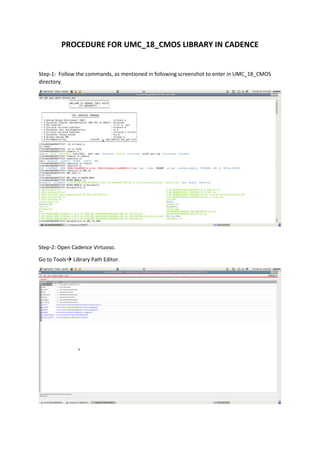
Step-1: Follow the commands, as mentioned in following screenshot to enter in UMC_18_CMOS
directory.
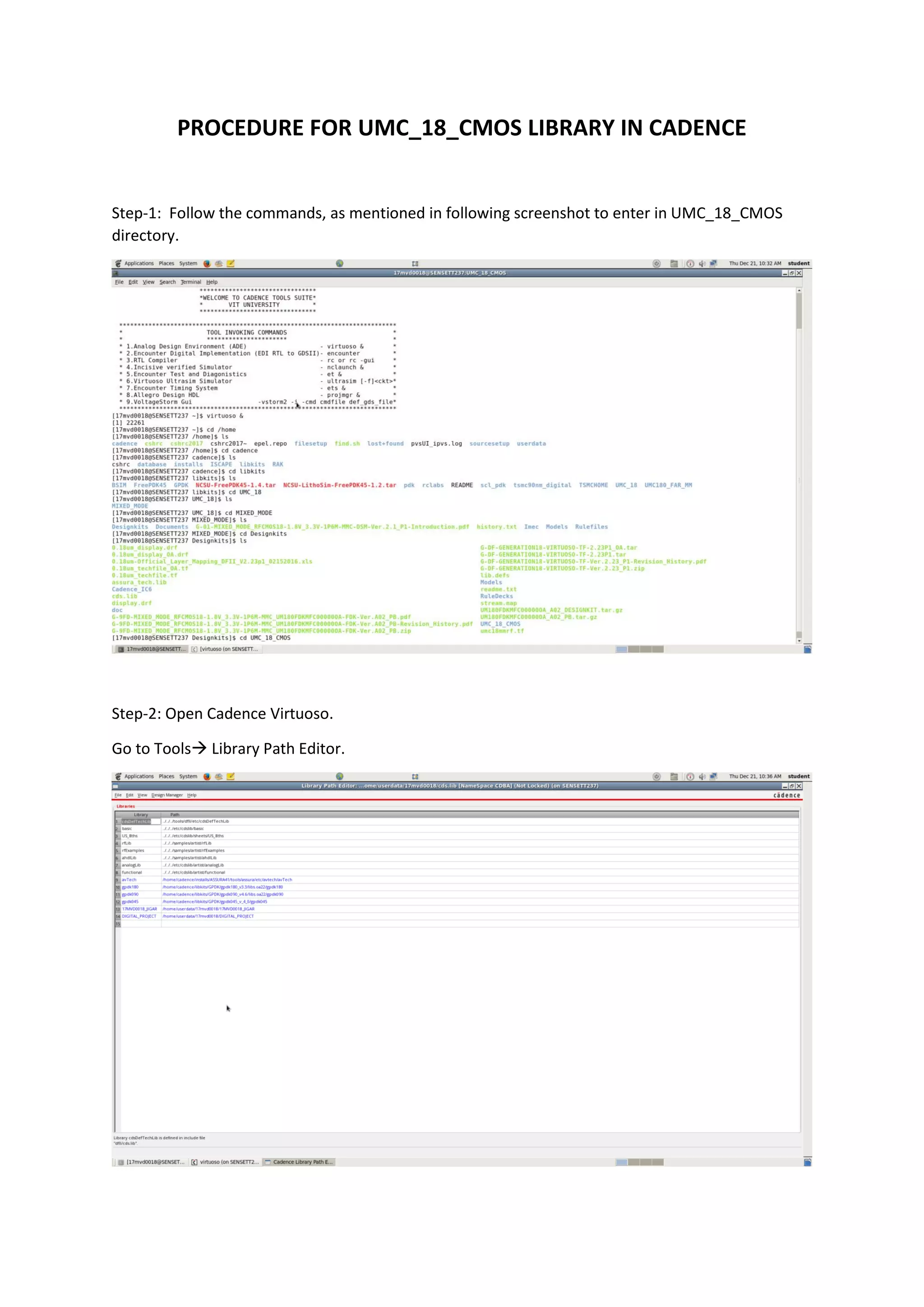
Step-2: Open Cadence Virtuoso.
Go to Tools Library Path Editor.
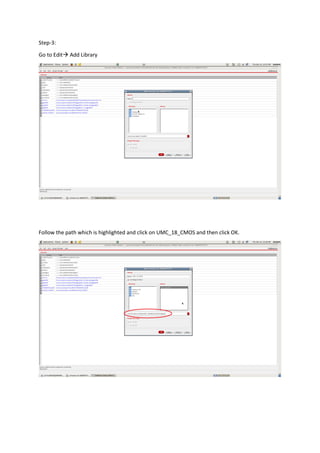
Step-3:
Go to Edit Add Library
Follow the path which is highlighted and click on UMC_18_CMOS and then click OK.
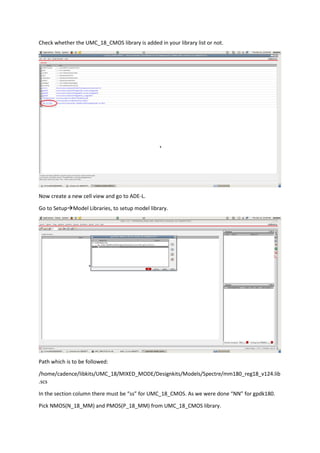
Check whether the UMC_18_CMOS library is added in your library list or not.
Now create a new cell view and go to ADE-L.
Go to SetupModel Libraries, to setup model library.
Path which is to be followed:
/home/cadence/libkits/UMC_18/MIXED_MODE/Designkits/Models/Spectre/mm180_reg18_v124.lib
.scs
In the section column there must be “ss” for UMC_18_CMOS. As we were done “NN” for gpdk180.
Pick NMOS(N_18_MM) and PMOS(P_18_MM) from UMC_18_CMOS library.
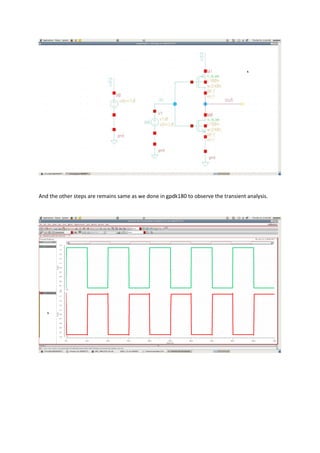
And the other steps are remains same as we done in gpdk180 to observe the transient analysis.

Umc_18_CMOS

  • 1.
    PROCEDURE FOR UMC_18_CMOSLIBRARY IN CADENCE Step-1: Follow the commands, as mentioned in following screenshot to enter in UMC_18_CMOS directory. Step-2: Open Cadence Virtuoso. Go to Tools Library Path Editor.
  • 2.
    Step-3: Go to EditAdd Library Follow the path which is highlighted and click on UMC_18_CMOS and then click OK.
  • 3.
    Check whether theUMC_18_CMOS library is added in your library list or not. Now create a new cell view and go to ADE-L. Go to SetupModel Libraries, to setup model library. Path which is to be followed: /home/cadence/libkits/UMC_18/MIXED_MODE/Designkits/Models/Spectre/mm180_reg18_v124.lib .scs In the section column there must be “ss” for UMC_18_CMOS. As we were done “NN” for gpdk180. Pick NMOS(N_18_MM) and PMOS(P_18_MM) from UMC_18_CMOS library.
  • 4.
    And the othersteps are remains same as we done in gpdk180 to observe the transient analysis.