Twitter for Teachers 2.0Al Rowell @locotechTechnology DirectorLowndes County SchoolsGeorgia
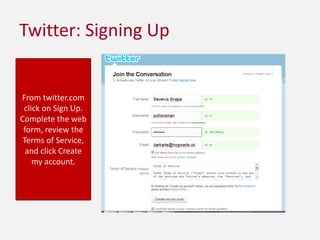
Twitter: Signing UpFrom twitter.com click on Sign Up. Complete the web form, review the Terms of Service, and click Create my account.
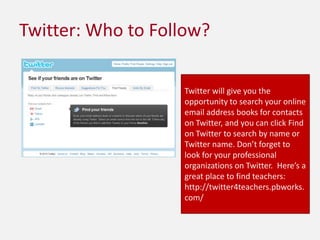
Twitter: Who to Follow?Twitter will give you the opportunity to search your online email address books for contacts on Twitter, and you can click Find on Twitter to search by name or Twitter name. Don’t forget to look for your professional organizations on Twitter.  Here’s a great place to find teachers: http://twitter4teachers.pbworks.com/
Twitter: Collecting People to FollowAs you read tweets in your subject area, you will notice people who share items of the most interest to you.  When you click on their @twitternames in the timeline, you’ll see their profile info.  Click +Follow to follow them.  [You can always change your mind later!]
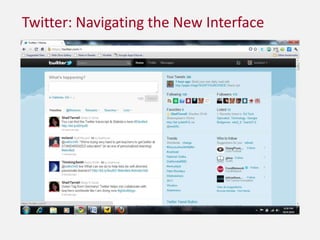
Twitter: Navigating the New Interface
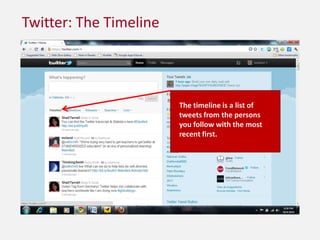
Twitter: The TimelineThe timeline is a list of  tweets from the persons you follow with the most recent first.
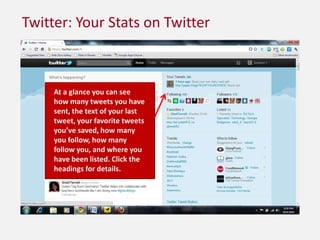
Twitter: Your Stats on TwitterAt a glance you can see how many tweets you have sent, the text of your last tweet, your favorite tweets you’ve saved, how many you follow, how many follow you, and where you have been listed. Click the headings for details.
Twitter: Tracking the TrendsConfused about a Trending Topic? Check out whatthetrend.comTrends are the words and phrases that are currently appearing most often on Twitter.  From the significant ( #IranElection ) to the peculiar ( maple syrup [blame Justin Bieber]). Click a trend for the tweets!
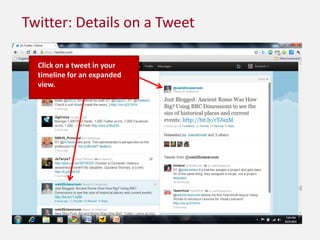
Twitter: Details on a TweetClick on a tweet in your timeline for an expanded view.
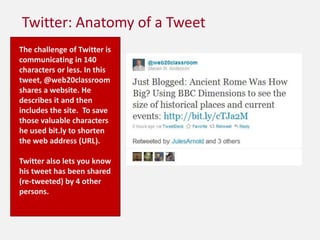
Twitter: Anatomy of a TweetThe challenge of Twitter is communicating in 140 characters or less. In this tweet, @web20classroom shares a website. He describes it and then includes the site.  To save those valuable characters he used bit.ly to shorten the web address (URL).Twitter also lets you know his tweet has been shared (re-tweeted) by 4 other persons.
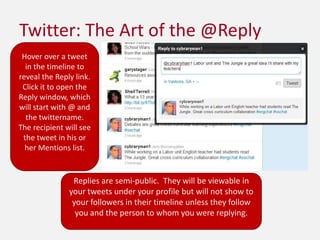
Twitter: The Art of the @ReplyHover over a tweet in the timeline to reveal the Reply link.  Click it to open the Reply window, which will start with @ and the twittername.  The recipient will see the tweet in his or her Mentions list.Replies are semi-public.  They will be viewable in your tweets under your profile but will not show to your followers in their timeline unless they follow you and the person to whom you were replying.
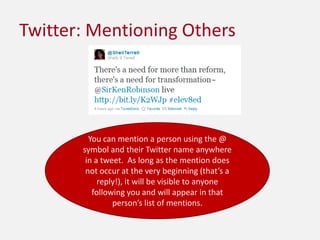
Twitter: Mentioning OthersYou can mention a person using the @ symbol and their Twitter name anywhere in a tweet.  As long as the mention does not occur at the very beginning (that’s a reply!), it will be visible to anyone following you and will appear in that person’s list of mentions.
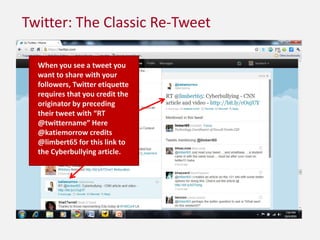
Twitter: The Classic Re-TweetWhen you see a tweet you want to share with your followers, Twitter etiquette requires that you credit the originator by preceding their tweet with “RT @twittername” Here @katiemorrow credits @limbert65 for this link to the Cyberbullying article.
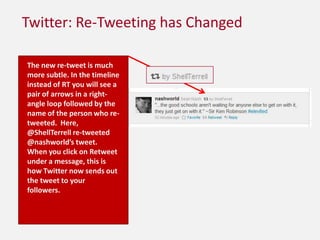
Twitter: Re-Tweeting has ChangedThe new re-tweet is much more subtle. In the timeline instead of RT you will see a pair of arrows in a right-angle loop followed by the name of the person who re-tweeted.  Here, @ShellTerrell re-tweeted @nashworld’s tweet.  When you click on Retweet under a message, this is how Twitter now sends out the tweet to your followers.
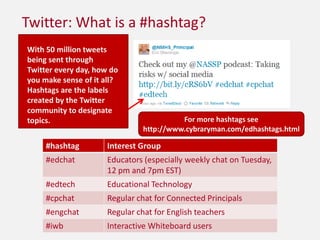
Twitter: What is a #hashtag?With 50 million tweets being sent through Twitter every day, how do you make sense of it all?  Hashtags are the labels created by the Twitter community to designate topics.For more hashtags see http://www.cybraryman.com/edhashtags.html
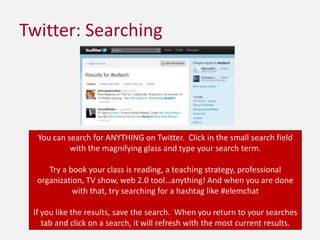
Twitter: SearchingYou can search for ANYTHING on Twitter.  Click in the small search field with the magnifying glass and type your search term. Try a book your class is reading, a teaching strategy, professional organization, TV show, web 2.0 tool…anything! And when you are done with that, try searching for a hashtag like #elemchatIf you like the results, save the search.  When you return to your searches tab and click on a search, it will refresh with the most current results.
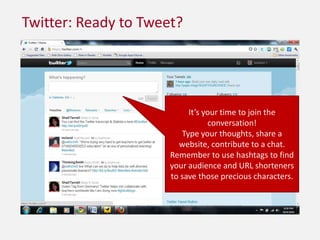
Twitter: Ready to Tweet?It’s your time to join the conversation!Type your thoughts, share a website, contribute to a chat.  Remember to use hashtags to find your audience and URL shorteners to save those precious characters.
ResourcesBlumengarten, Jerry. “Some Educational Hashtags.” Cybrary Man's Educational Web Sites. http://www.cybraryman.com/edhashtags.htmlParr, Ben. “HOW TO: Get the Most Out of Twitter  #Hashtags.” Mashable.com http://mashable.com/2009/05/17/twitter-hashtags/Terrell, Shelly. “#Edchat: Join the Conversation.” Teacher Reboot Camp. http://teacherbootcamp.edublogs.org/2009/08/18/edchat-join-the-conversation/“Twitter 101: Twitter Terminology.” Geekette Bits  http://geekettebits.com/technology/twitter-101-twitter-terminology/

Twitter for Teachers 2.0

  • 1.
    Twitter for Teachers2.0Al Rowell @locotechTechnology DirectorLowndes County SchoolsGeorgia
  • 2.
    Twitter: Signing UpFromtwitter.com click on Sign Up. Complete the web form, review the Terms of Service, and click Create my account.
  • 3.
    Twitter: Who toFollow?Twitter will give you the opportunity to search your online email address books for contacts on Twitter, and you can click Find on Twitter to search by name or Twitter name. Don’t forget to look for your professional organizations on Twitter. Here’s a great place to find teachers: http://twitter4teachers.pbworks.com/
  • 4.
    Twitter: Collecting Peopleto FollowAs you read tweets in your subject area, you will notice people who share items of the most interest to you. When you click on their @twitternames in the timeline, you’ll see their profile info. Click +Follow to follow them. [You can always change your mind later!]
  • 5.
  • 6.
    Twitter: The TimelineThetimeline is a list of tweets from the persons you follow with the most recent first.
  • 7.
    Twitter: Your Statson TwitterAt a glance you can see how many tweets you have sent, the text of your last tweet, your favorite tweets you’ve saved, how many you follow, how many follow you, and where you have been listed. Click the headings for details.
  • 8.
    Twitter: Tracking theTrendsConfused about a Trending Topic? Check out whatthetrend.comTrends are the words and phrases that are currently appearing most often on Twitter. From the significant ( #IranElection ) to the peculiar ( maple syrup [blame Justin Bieber]). Click a trend for the tweets!
  • 9.
    Twitter: Details ona TweetClick on a tweet in your timeline for an expanded view.
  • 10.
    Twitter: Anatomy ofa TweetThe challenge of Twitter is communicating in 140 characters or less. In this tweet, @web20classroom shares a website. He describes it and then includes the site. To save those valuable characters he used bit.ly to shorten the web address (URL).Twitter also lets you know his tweet has been shared (re-tweeted) by 4 other persons.
  • 11.
    Twitter: The Artof the @ReplyHover over a tweet in the timeline to reveal the Reply link. Click it to open the Reply window, which will start with @ and the twittername. The recipient will see the tweet in his or her Mentions list.Replies are semi-public. They will be viewable in your tweets under your profile but will not show to your followers in their timeline unless they follow you and the person to whom you were replying.
  • 12.
    Twitter: Mentioning OthersYoucan mention a person using the @ symbol and their Twitter name anywhere in a tweet. As long as the mention does not occur at the very beginning (that’s a reply!), it will be visible to anyone following you and will appear in that person’s list of mentions.
  • 13.
    Twitter: The ClassicRe-TweetWhen you see a tweet you want to share with your followers, Twitter etiquette requires that you credit the originator by preceding their tweet with “RT @twittername” Here @katiemorrow credits @limbert65 for this link to the Cyberbullying article.
  • 14.
    Twitter: Re-Tweeting hasChangedThe new re-tweet is much more subtle. In the timeline instead of RT you will see a pair of arrows in a right-angle loop followed by the name of the person who re-tweeted. Here, @ShellTerrell re-tweeted @nashworld’s tweet. When you click on Retweet under a message, this is how Twitter now sends out the tweet to your followers.
  • 15.
    Twitter: What isa #hashtag?With 50 million tweets being sent through Twitter every day, how do you make sense of it all? Hashtags are the labels created by the Twitter community to designate topics.For more hashtags see http://www.cybraryman.com/edhashtags.html
  • 16.
    Twitter: SearchingYou cansearch for ANYTHING on Twitter. Click in the small search field with the magnifying glass and type your search term. Try a book your class is reading, a teaching strategy, professional organization, TV show, web 2.0 tool…anything! And when you are done with that, try searching for a hashtag like #elemchatIf you like the results, save the search. When you return to your searches tab and click on a search, it will refresh with the most current results.
  • 17.
    Twitter: Ready toTweet?It’s your time to join the conversation!Type your thoughts, share a website, contribute to a chat. Remember to use hashtags to find your audience and URL shorteners to save those precious characters.
  • 18.
    ResourcesBlumengarten, Jerry. “SomeEducational Hashtags.” Cybrary Man's Educational Web Sites. http://www.cybraryman.com/edhashtags.htmlParr, Ben. “HOW TO: Get the Most Out of Twitter #Hashtags.” Mashable.com http://mashable.com/2009/05/17/twitter-hashtags/Terrell, Shelly. “#Edchat: Join the Conversation.” Teacher Reboot Camp. http://teacherbootcamp.edublogs.org/2009/08/18/edchat-join-the-conversation/“Twitter 101: Twitter Terminology.” Geekette Bits http://geekettebits.com/technology/twitter-101-twitter-terminology/