Office 365 Productivity Tips
“April Affray"
Christian Buckley
CollabTalk LLC
Thomas Duff
Cambia Health
Christian Buckley
Founder & CEO of CollabTalk LLC
cbuck@CollabTalk.com
@buckleyplanet
http://www.buckleyplanet.com
Please remember to subscribe on YouTube!
Thomas Duff
Software Engineer at Cambia Health
Thomas.Duff@CambiaHealth.com
@Duffbert
http://oneminuteofficemagic.com
Rules of Engagement
1. Each opponent will take turns
2. No duplicates
3. Audience votes after each round
4. No hitting below the belt
5. Winner based on overall voting
Let’s get started!
Round 1
Publish External Content to Microsoft Teams as a Card
 One of the most compelling values of Teams is
its ability to make it a “hub” for everything your
project team is working on – which sometimes
includes external content, including discussions
on various blogs and social networks.
 Through direct connectors or 3rd party platforms,
you can add any content using the RSS feed.
 Shared by Mark Jones at Collab365, he walks
you through the steps of adding a RSS feed (via
Zapier) as a method for publishing external blog
content to your Microsoft Teams feed as a card.
Read More
 Another great tool is the integration with
Twitter, allowing you to capture customer
feedback to a Teams feed, and setup alerts so
that the right person can respond accordingly.
Editing your video transcript in Microsoft Stream
This tip is the result of someone asking me yesterday whether they could edit a transcript once a
video had been uploaded to Microsoft Stream. Much to my surprise, you *can* edit a video
transcript, and it's pretty easy!
First, call up the video you want to edit. This does assume you are an owner of the video and/or
have owner rights to it. At the bottom of the Transcript panel, you should see an Edit button. Click
it to put the Transcript into Edit mode:
Editing your video transcript in Microsoft Stream
Once you're in Edit mode, you can click a Transcript snippet to allow editing for that section. If you
click on the black circular arrow icon, the video will start playing at that point so you can listen to
what was actually said:
Editing your video transcript in Microsoft Stream
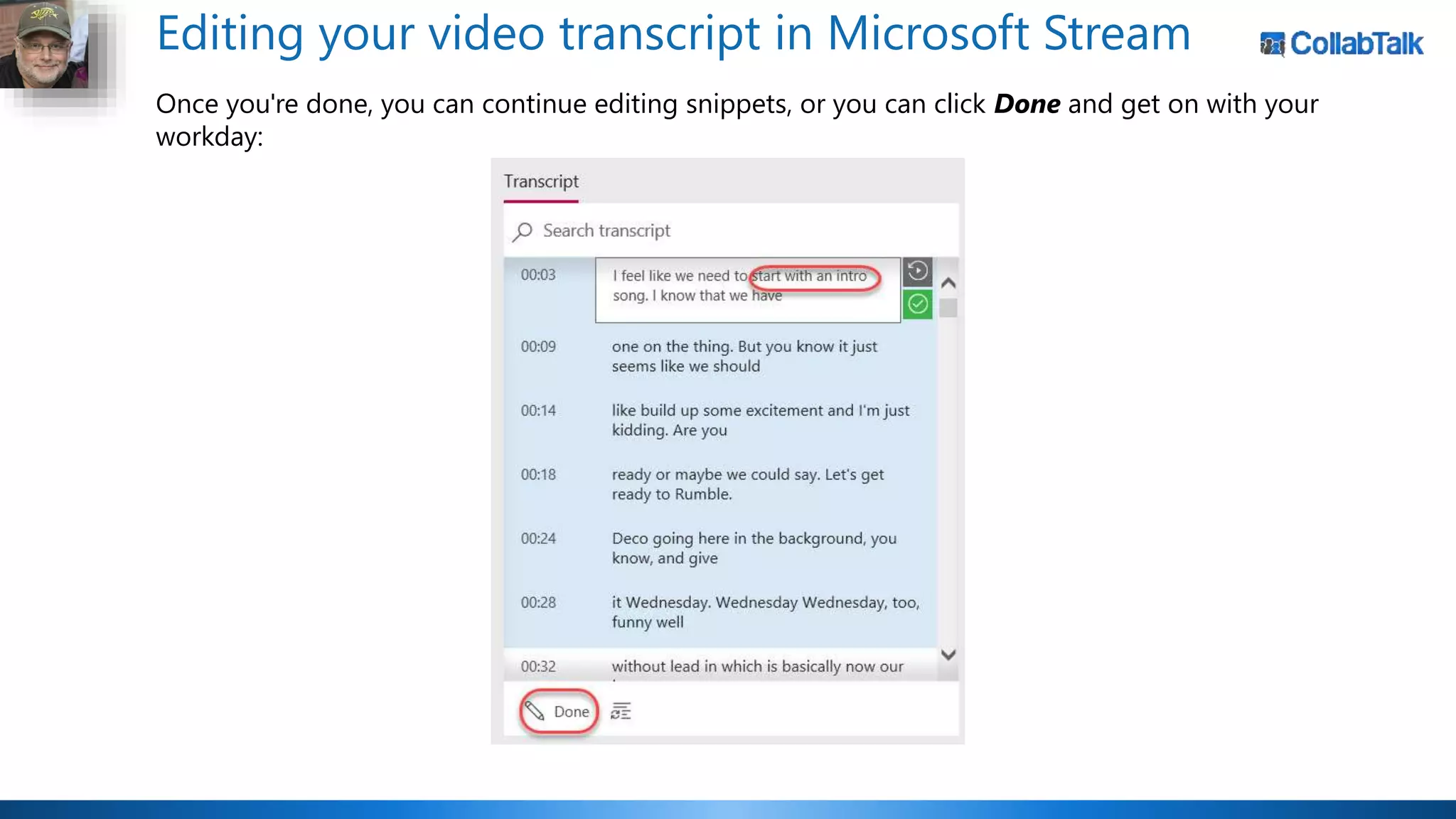
Once you're done, you can continue editing snippets, or you can click Done and get on with your
workday:
Who won the round?
15 votes 4 votes
Round 2
Multiple Office Clipboard in Office Applications
Having done this tip gig for a number of years now, I don't often find a tip that blows my mind. It's
even more rare that I find a tip that blows my mind, *and* has apparently been there for years.
Today's tip fits that bill… you can have up to 24 selectable Office Clipboard entries to choose from
when you're working in Outlook, Word, Excel, or PowerPoint. Even better is that they are shared
across all those programs! Here's how it works…
I went to a web page and copied some text for the One Minute Office Magic
(https://oneminuteofficemagic.com) site:
Multiple Office Clipboard in Office Applications
I then opened a Word document and clicked the Expand icon for the Home > Clipboard option in
the Ribbon Bar:
Multiple Office Clipboard in Office Applications
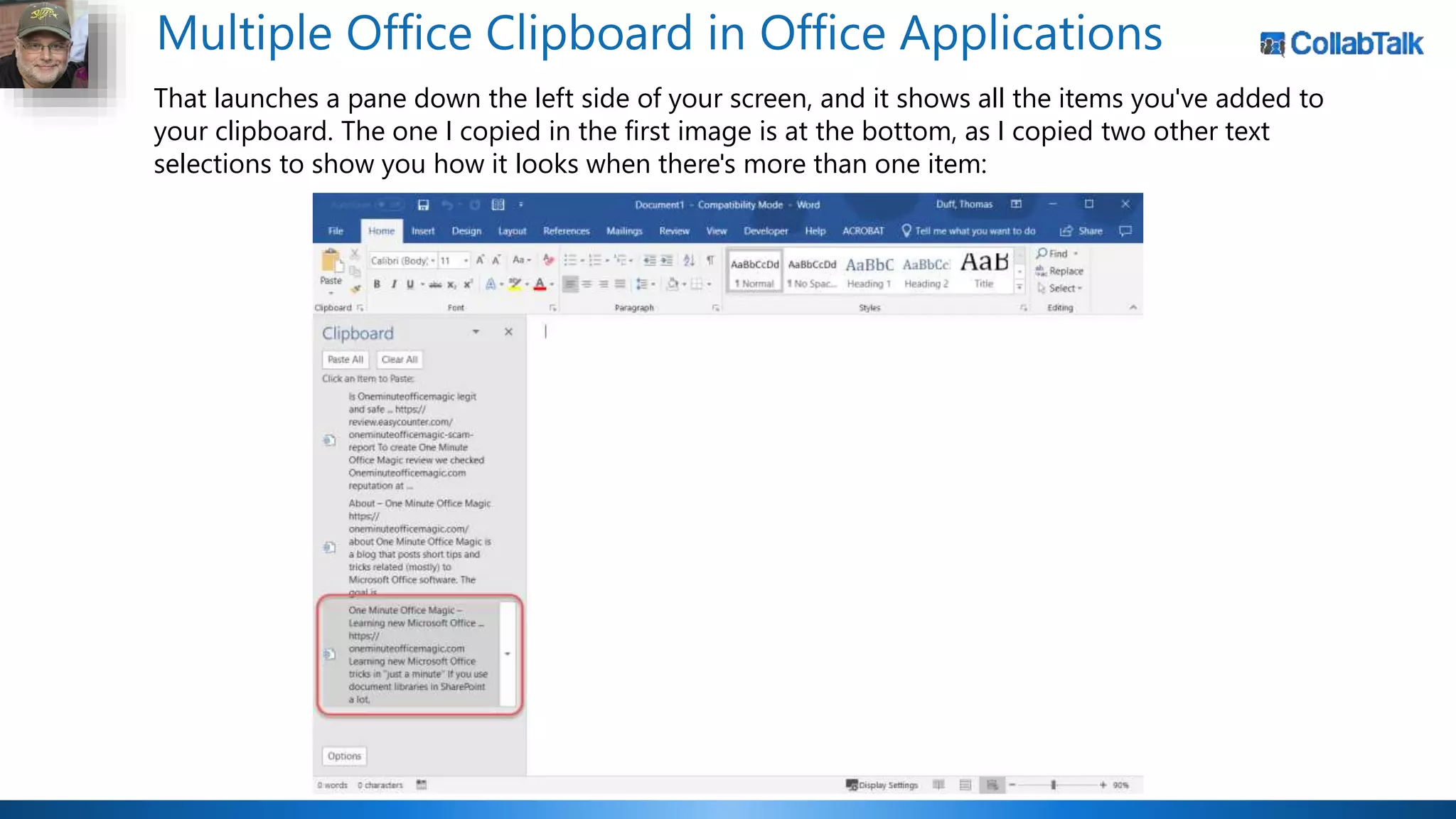
That launches a pane down the left side of your screen, and it shows all the items you've added to
your clipboard. The one I copied in the first image is at the bottom, as I copied two other text
selections to show you how it looks when there's more than one item:
Multiple Office Clipboard in Office Applications
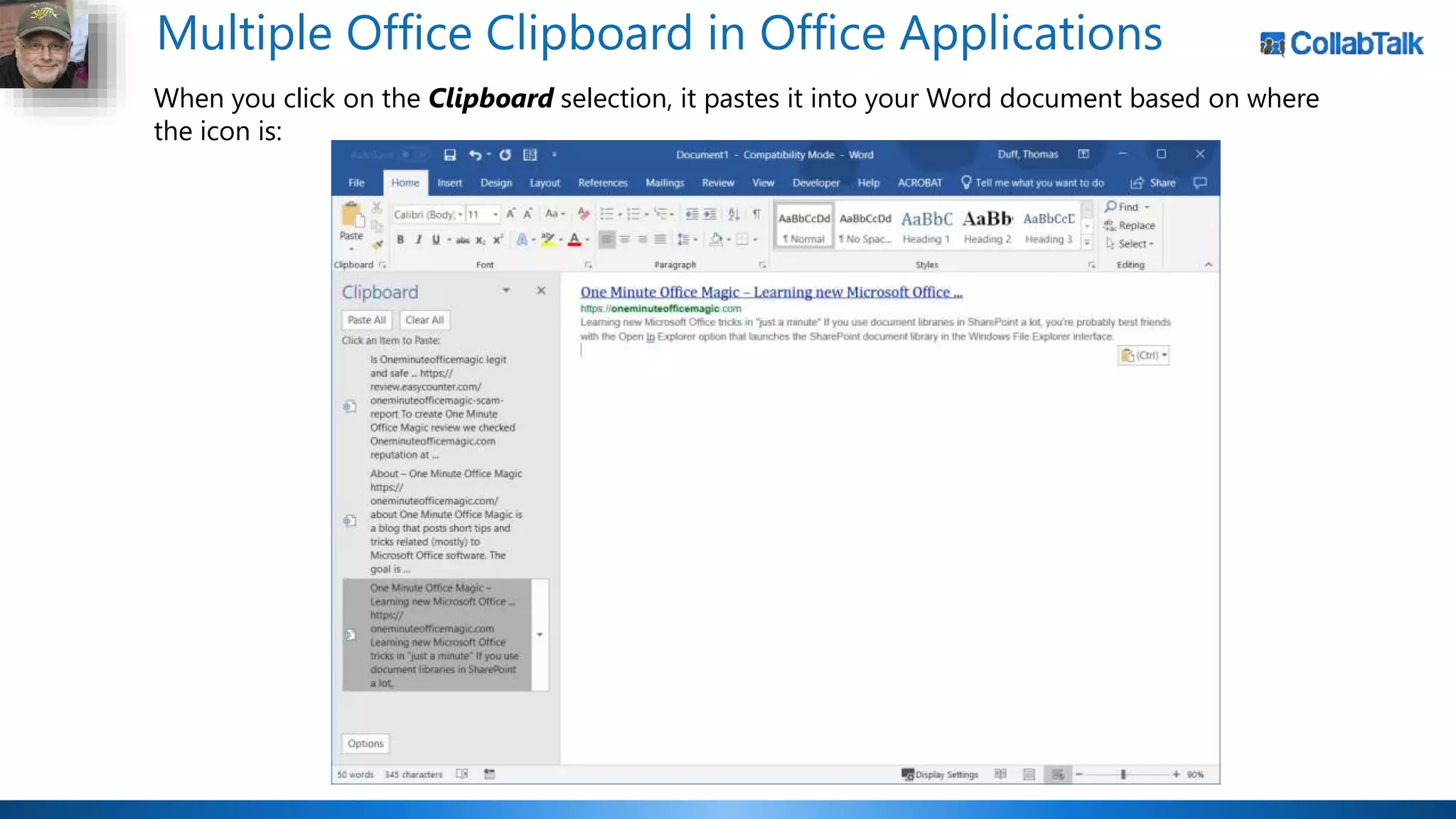
When you click on the Clipboard selection, it pastes it into your Word document based on where
the icon is:
Multiple Office Clipboard in Office Applications
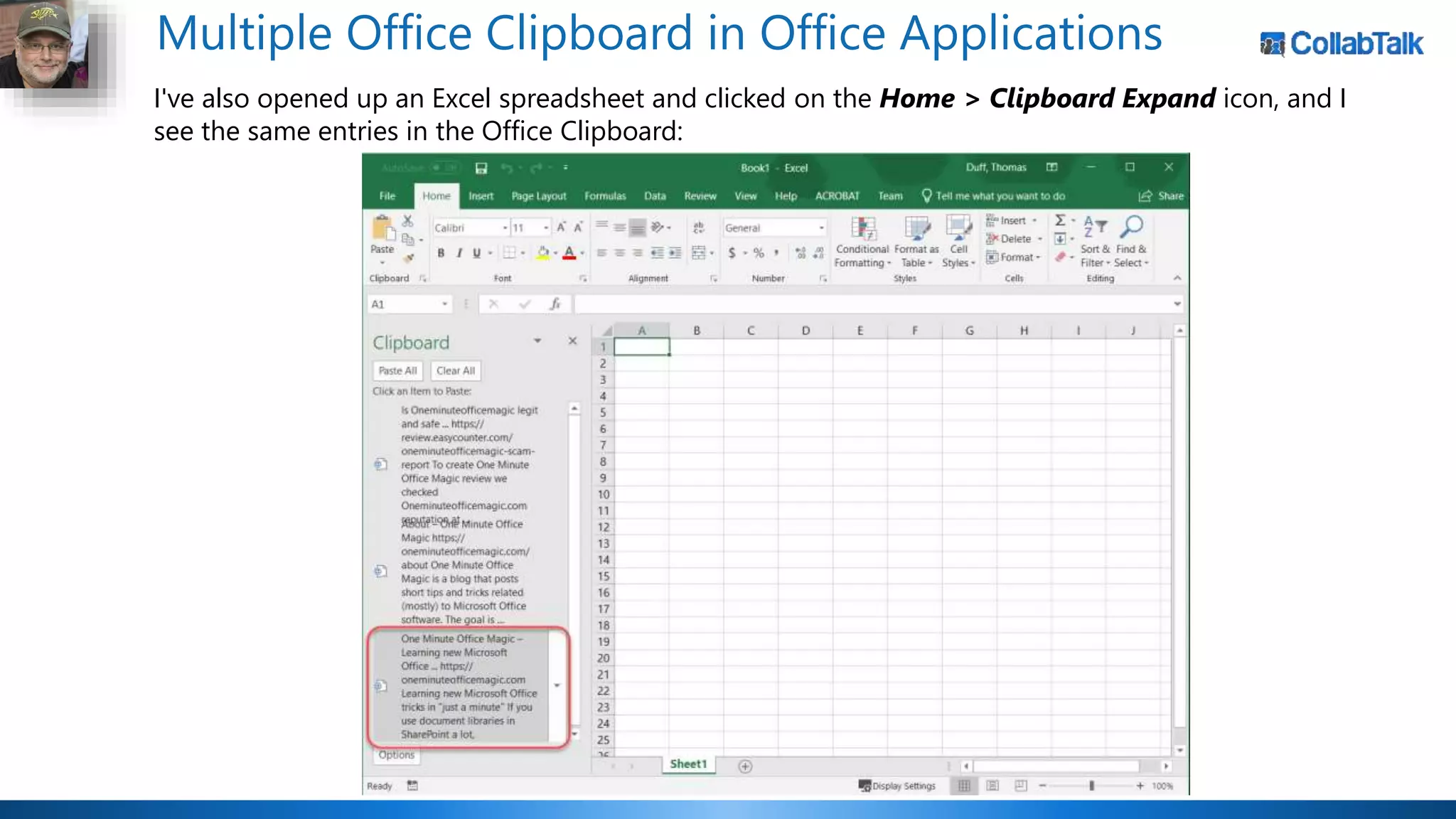
I've also opened up an Excel spreadsheet and clicked on the Home > Clipboard Expand icon, and I
see the same entries in the Office Clipboard:
Multiple Office Clipboard in Office Applications
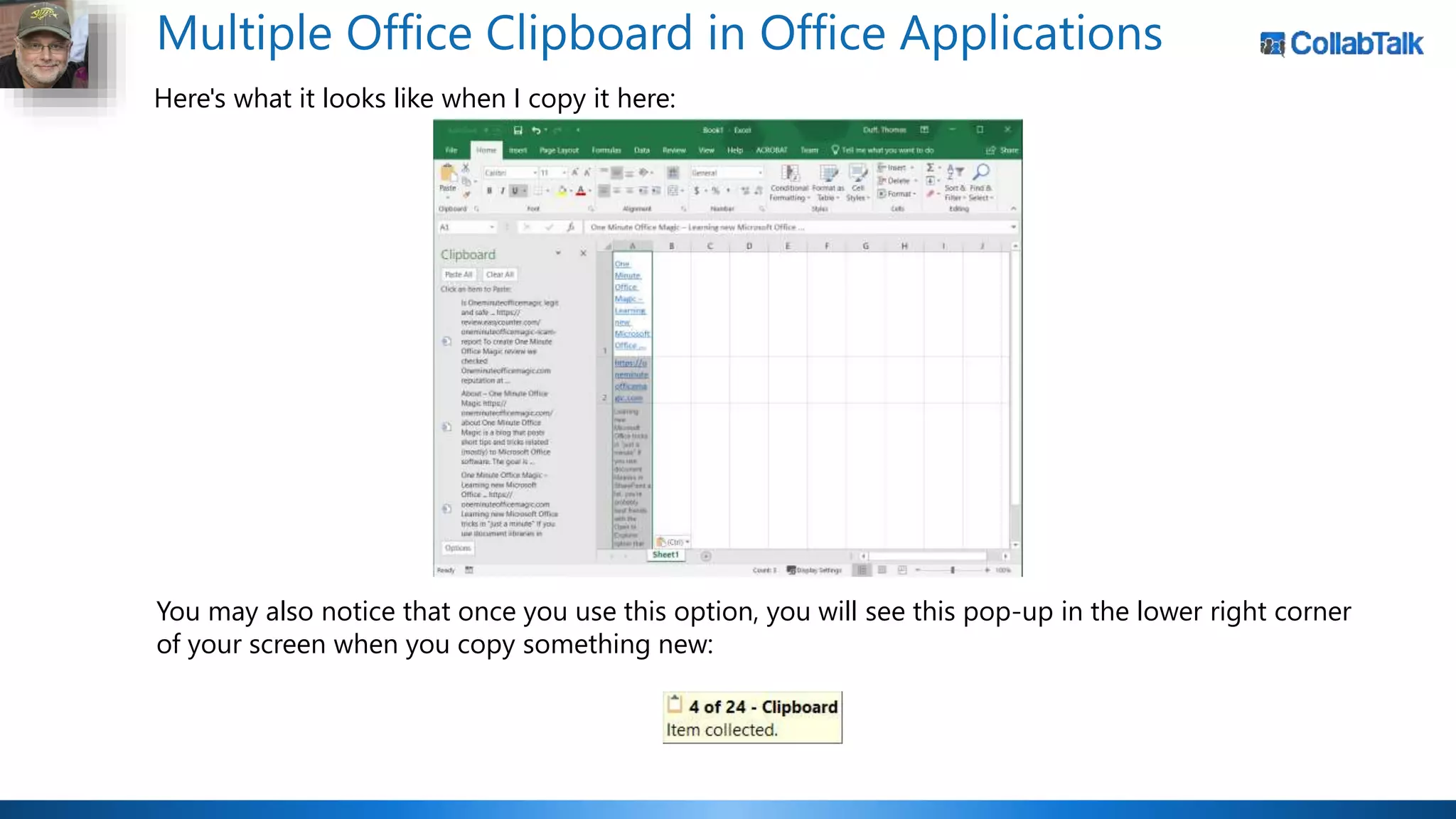
Here's what it looks like when I copy it here:
You may also notice that once you use this option, you will see this pop-up in the lower right corner
of your screen when you copy something new:
Add a Yammer Tab in Microsoft Teams
 You can now add a Yammer tab to your Teams
channel that loads a specified group or topic
feed from Yammer, allowing you to follow and
share conversations in Yammer without having
to leave Teams.
 Using this new connector, user can participate
in the Yammer conversation directly, or discuss
a Yammer conversation in Teams before posting
a reply to the wider Yammer group.
 Permissions are dynamic, so that when a Teams
member goes to the Yammer tab, they are
authenticated again by Yammer and can only
see Yammer content for which they have access.
 Read More
Who won the round?
8 votes 11 votes
Round 3
Make Connections to Teams 2-Way
 Great advice from Emma Jobling at
cobweb.com on how to get more out
of your Microsoft Teams experiences,
including this advice on a 2-way
connection with SharePoint.
 Create a link in SharePoint by simply
copying the URL of the Teams team
and adding it to the Quick Launch
links. This link will then open directly
into Microsoft Teams through the
normal authentication steps, or, if
Teams is already open, it will just open
into that Team.
 Of course, you may also want to
include a link to the relevant Yammer
group, as well.
Concatenating Excel data with Fill Justify
This is one of those tips you may not know about, but it will be a lifesaver if you only have to use it
once. Using the Fill > Justify feature in Excel, you can concatenate data from multiple Excel cells into
a single cell. It's easy, and here's how it works…
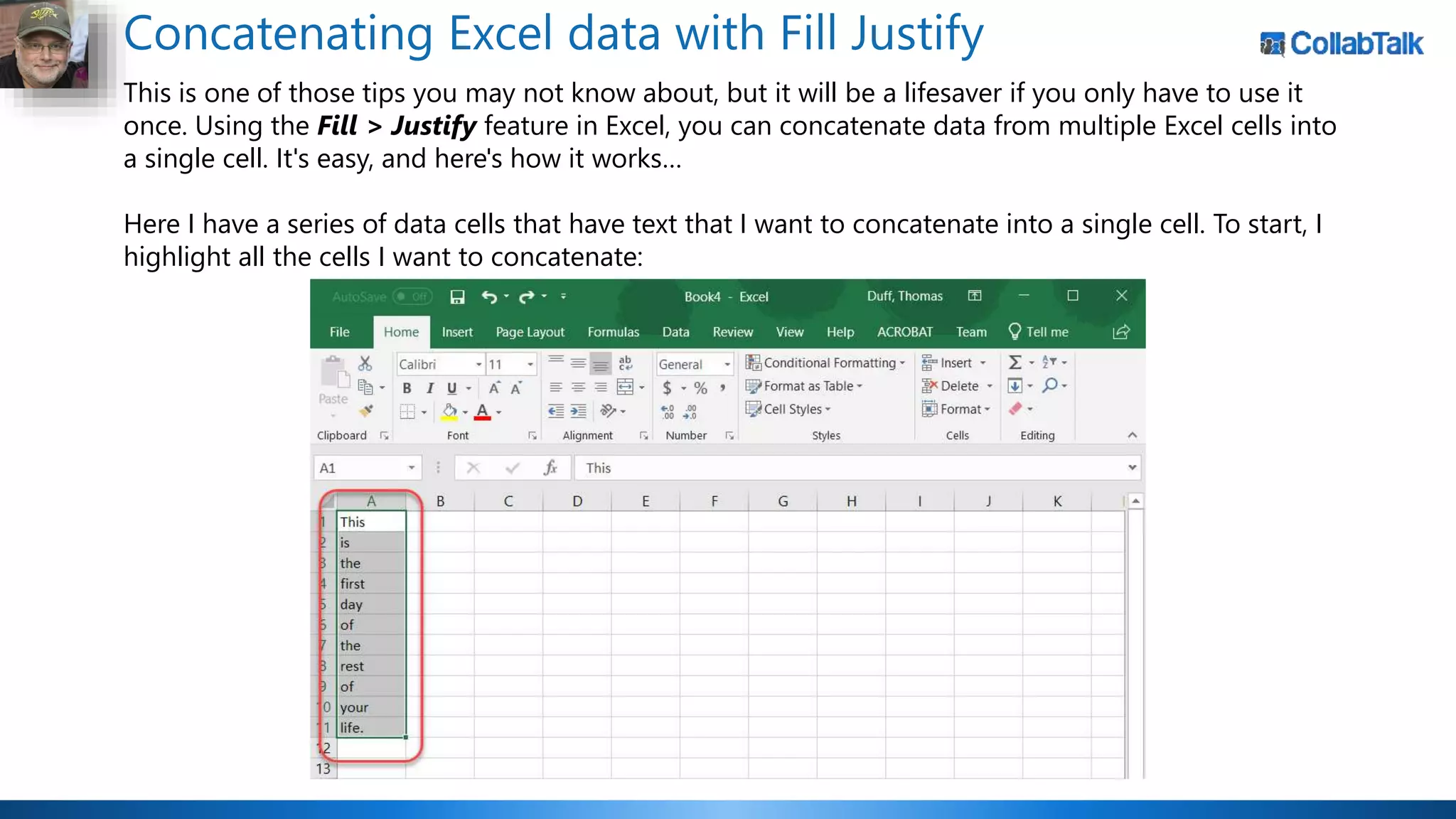
Here I have a series of data cells that have text that I want to concatenate into a single cell. To start, I
highlight all the cells I want to concatenate:
Concatenating Excel data with Fill Justify
Next, I expand out the column to be wide enough to accommodate all the data. If it's too short, it will
break up the data into multiple cells in the column:
Concatenating Excel data with Fill Justify
Now for the magic… select Home > Edit > Fill > Justify in the Ribbon Bar:
Concatenating Excel data with Fill Justify
Yay! All the data is concatenated into a single cell, without you having to know any Formula language
or wear out your fingers using copy/paste!
Who won the round?
14 votes 5 votes
Round 4
Spicing up your Microsoft Teams channel posts and conversations
In the Conversation tabs of your various Microsoft Teams channels, you can have a lot of information
going back and forth that just sort of blends together into a blur. That's fine for the normal team
chatter, but you may have something to post in there that should be more noticeable than everything
else. That's when you want to use the Formatting feature in the post area. Here's how to do that…
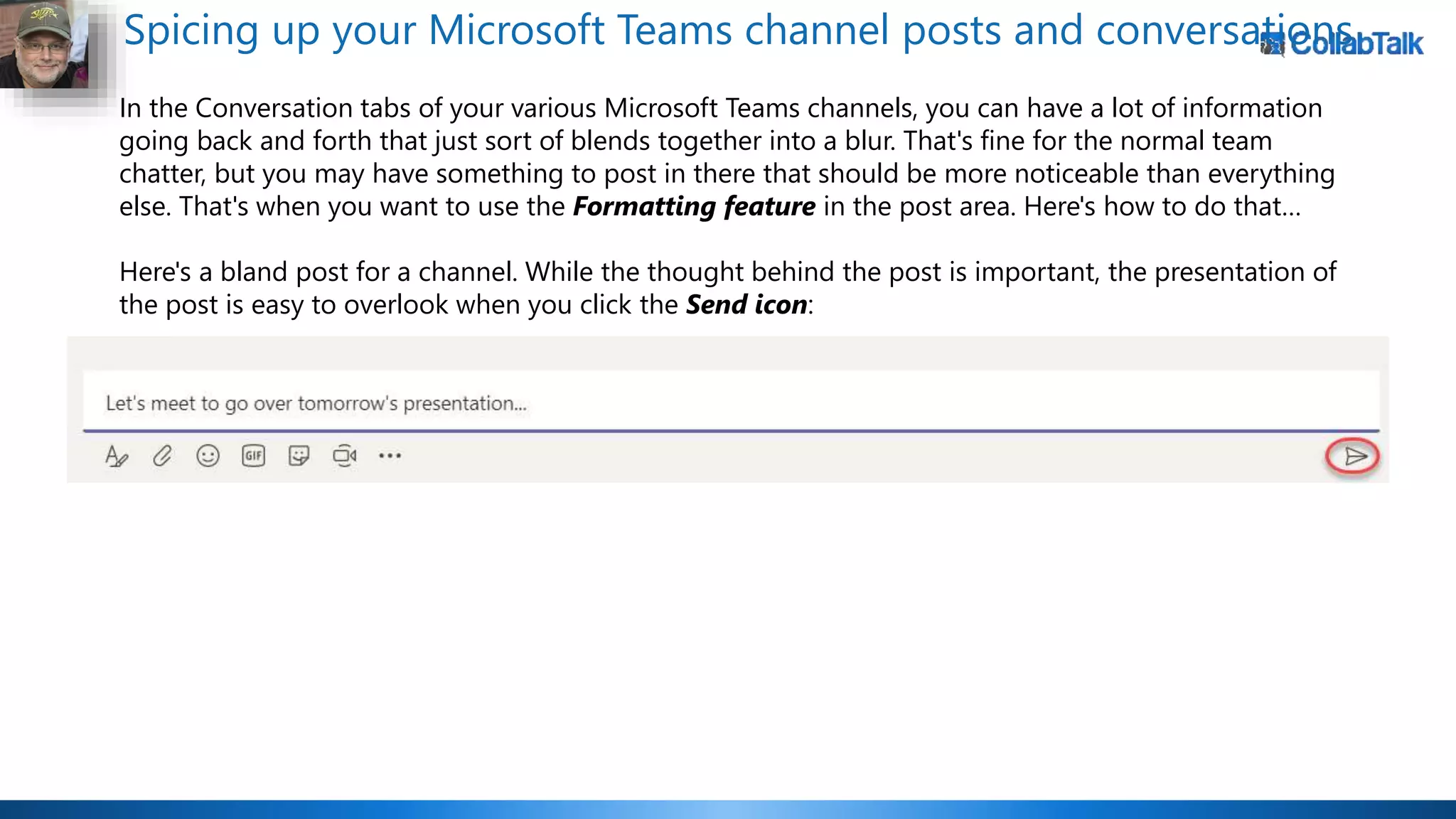
Here's a bland post for a channel. While the thought behind the post is important, the presentation of
the post is easy to overlook when you click the Send icon:
Spicing up your Microsoft Teams channel posts and conversations
I could (and probably have) overlooked posts like this:
Now… let's take the same post, but this time click the Format icon in the lower left corner instead of
sending it right away:
Spicing up your Microsoft Teams channel posts and conversations
You can now:
• Add a Subject
• Bold/Italicize/Underline wording

• Highlight text/change font sizes
• Create a bulleted/numbered list
• Add a hyperlink
• Offset a section of the post as a quote
• Add HTML
• Format the text for paragraphs
• Flag the post as being important
Spicing up your Microsoft Teams channel posts and conversations
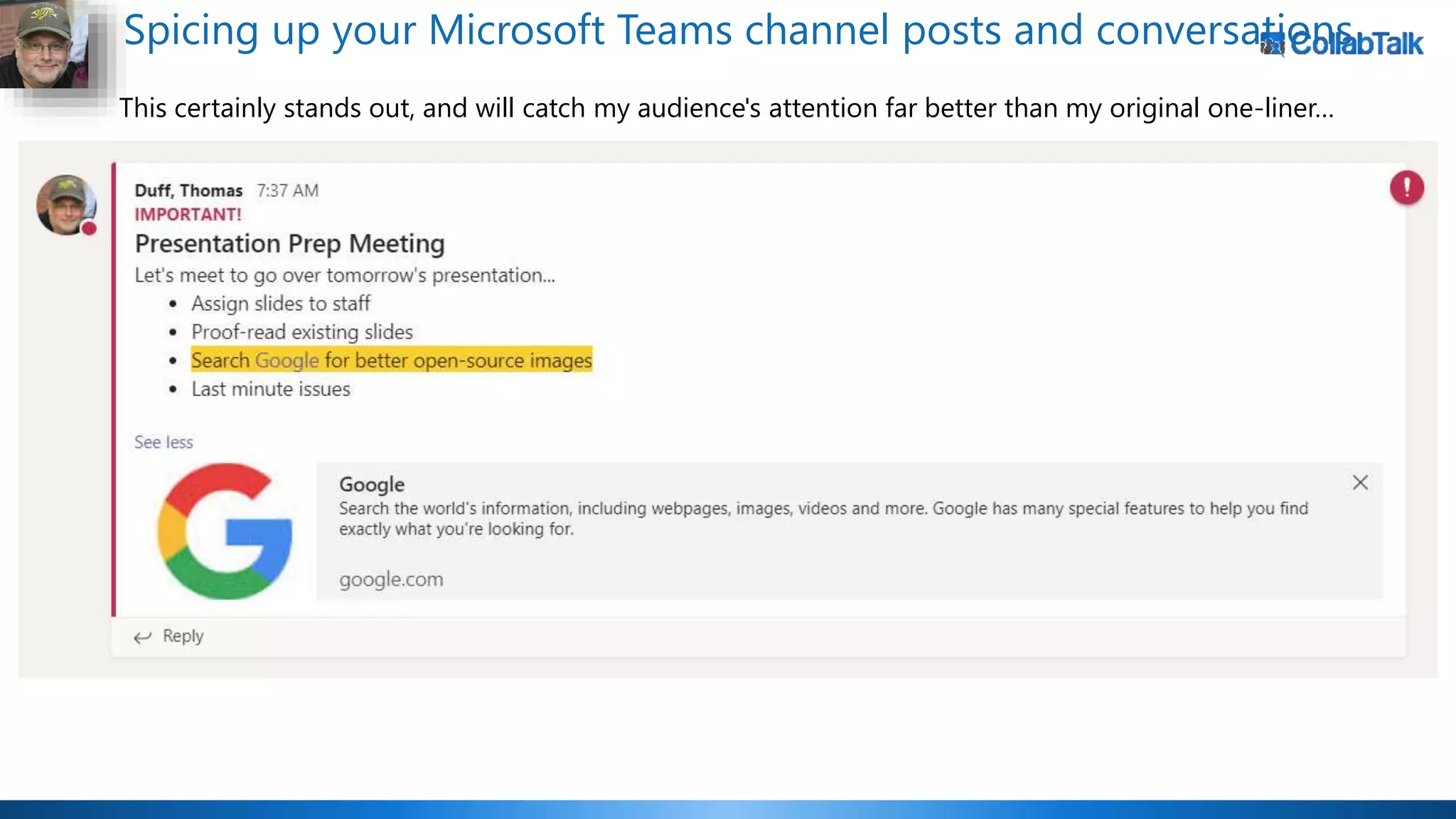
Here I've updated my original post with a subject, a bulleted list, highlighted text, a link to Google,
and I've marked the message as important:
Spicing up your Microsoft Teams channel posts and conversations
This certainly stands out, and will catch my audience's attention far better than my original one-liner…
Easily Edit Documents with a Digital Pen
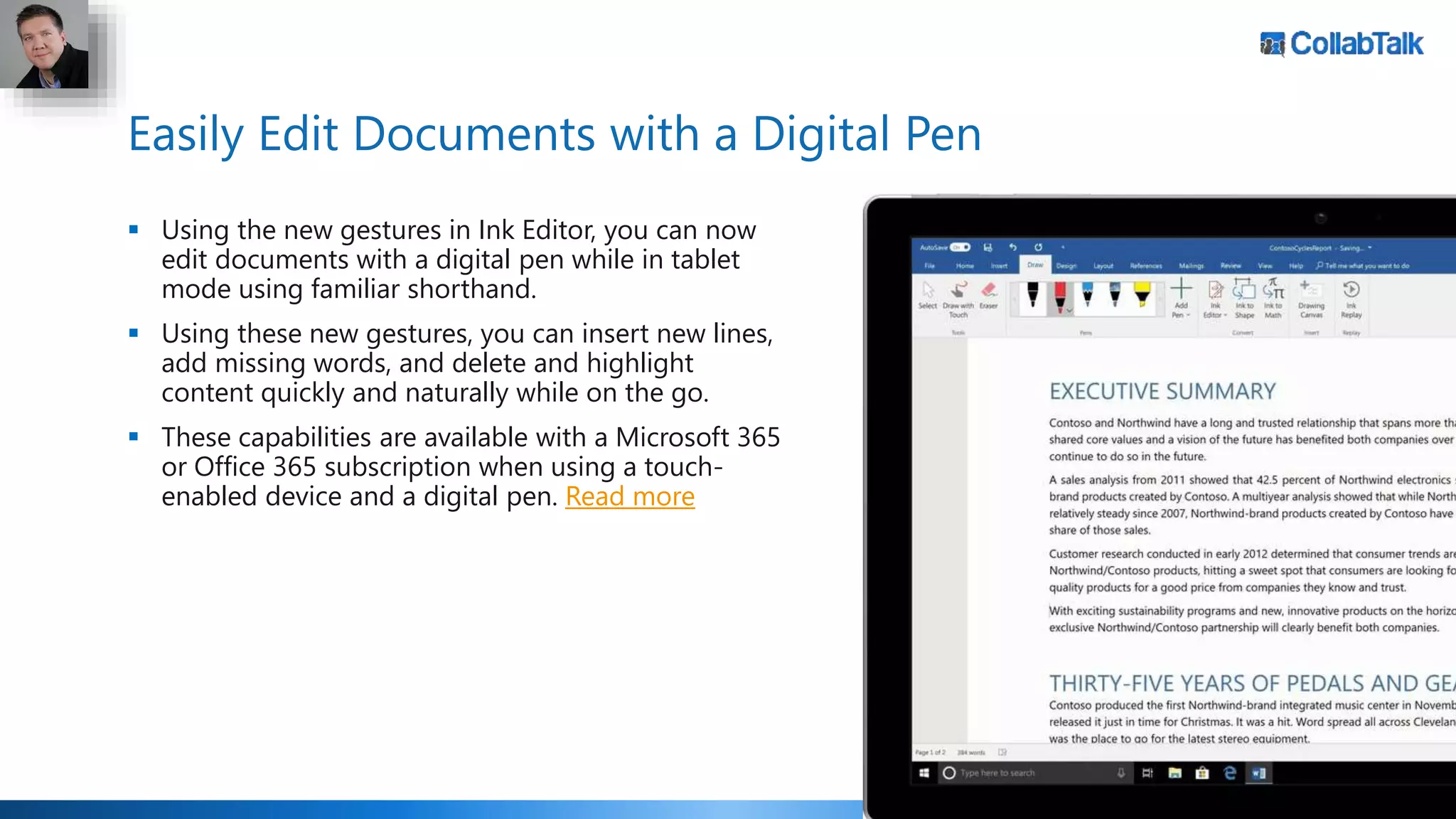
 Using the new gestures in Ink Editor, you can now
edit documents with a digital pen while in tablet
mode using familiar shorthand.
 Using these new gestures, you can insert new lines,
add missing words, and delete and highlight
content quickly and naturally while on the go.
 These capabilities are available with a Microsoft 365
or Office 365 subscription when using a touch-
enabled device and a digital pen. Read more
Who won the round?
12 votes 7 votes
Round 5
Send your iPhone screenshots to OneNote
 If you leverage OneNote as your primary
content creation platform, graduating
notes into Word documents, PowerPoint
presentations, and other formats, you
may love this capability for adding
iPhone content more quickly.
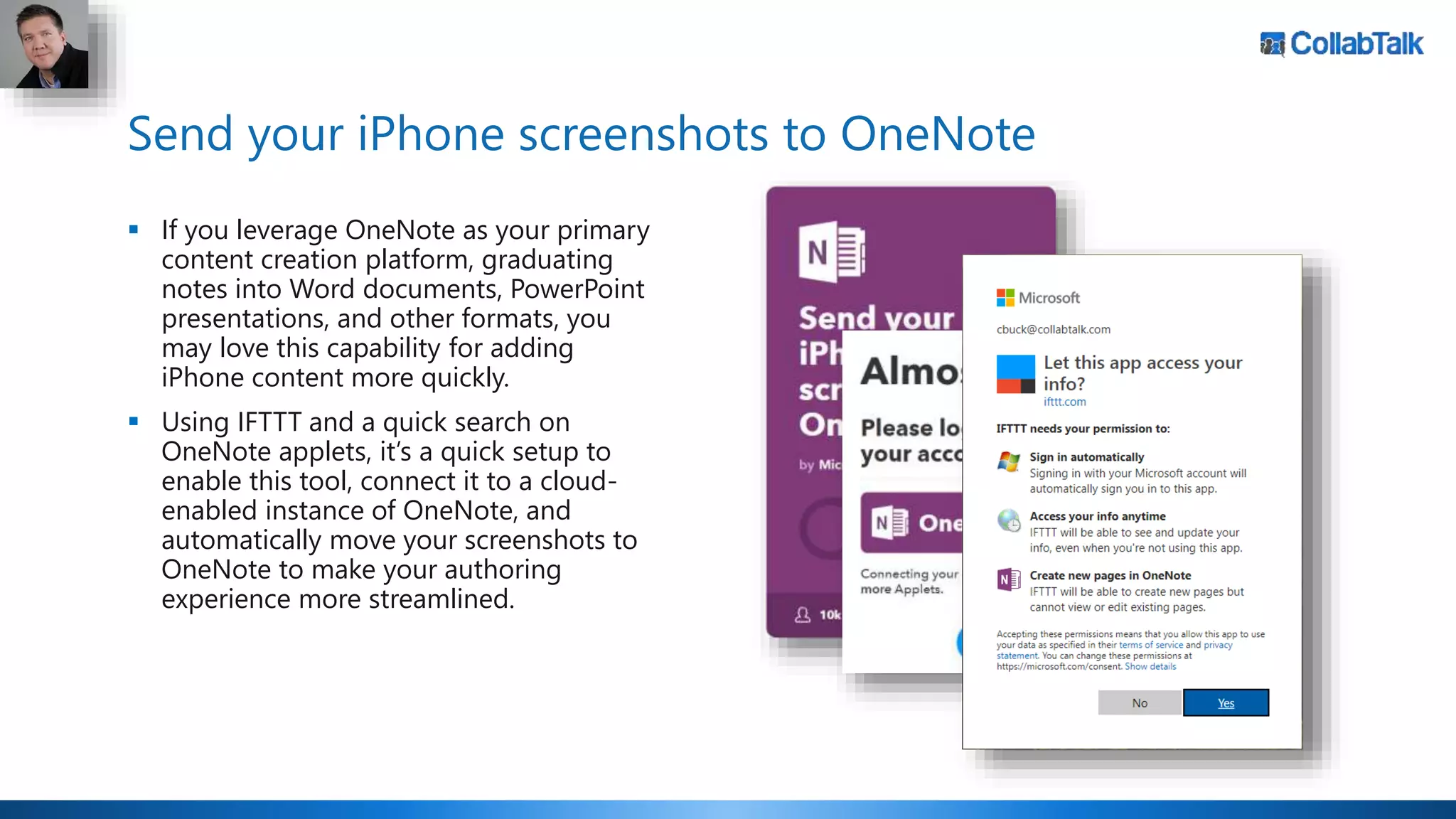
 Using IFTTT and a quick search on
OneNote applets, it’s a quick setup to
enable this tool, connect it to a cloud-
enabled instance of OneNote, and
automatically move your screenshots to
OneNote to make your authoring
experience more streamlined.
Getting more screen real estate in Microsoft Teams with
Expand Tab
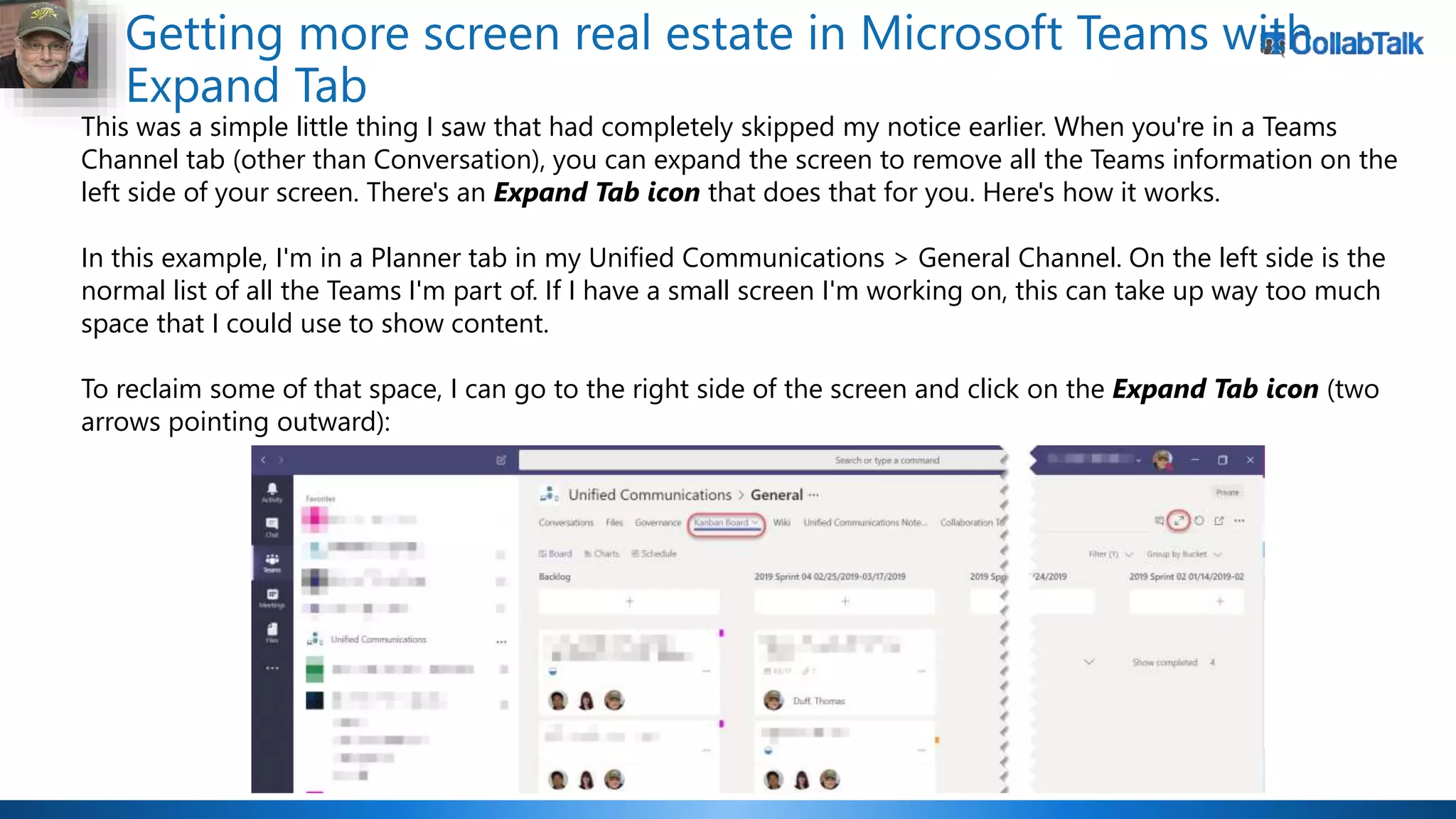
This was a simple little thing I saw that had completely skipped my notice earlier. When you're in a Teams
Channel tab (other than Conversation), you can expand the screen to remove all the Teams information on the
left side of your screen. There's an Expand Tab icon that does that for you. Here's how it works.
In this example, I'm in a Planner tab in my Unified Communications > General Channel. On the left side is the
normal list of all the Teams I'm part of. If I have a small screen I'm working on, this can take up way too much
space that I could use to show content.
To reclaim some of that space, I can go to the right side of the screen and click on the Expand Tab icon (two
arrows pointing outward):
Getting more screen real estate in Microsoft Teams with
Expand Tab
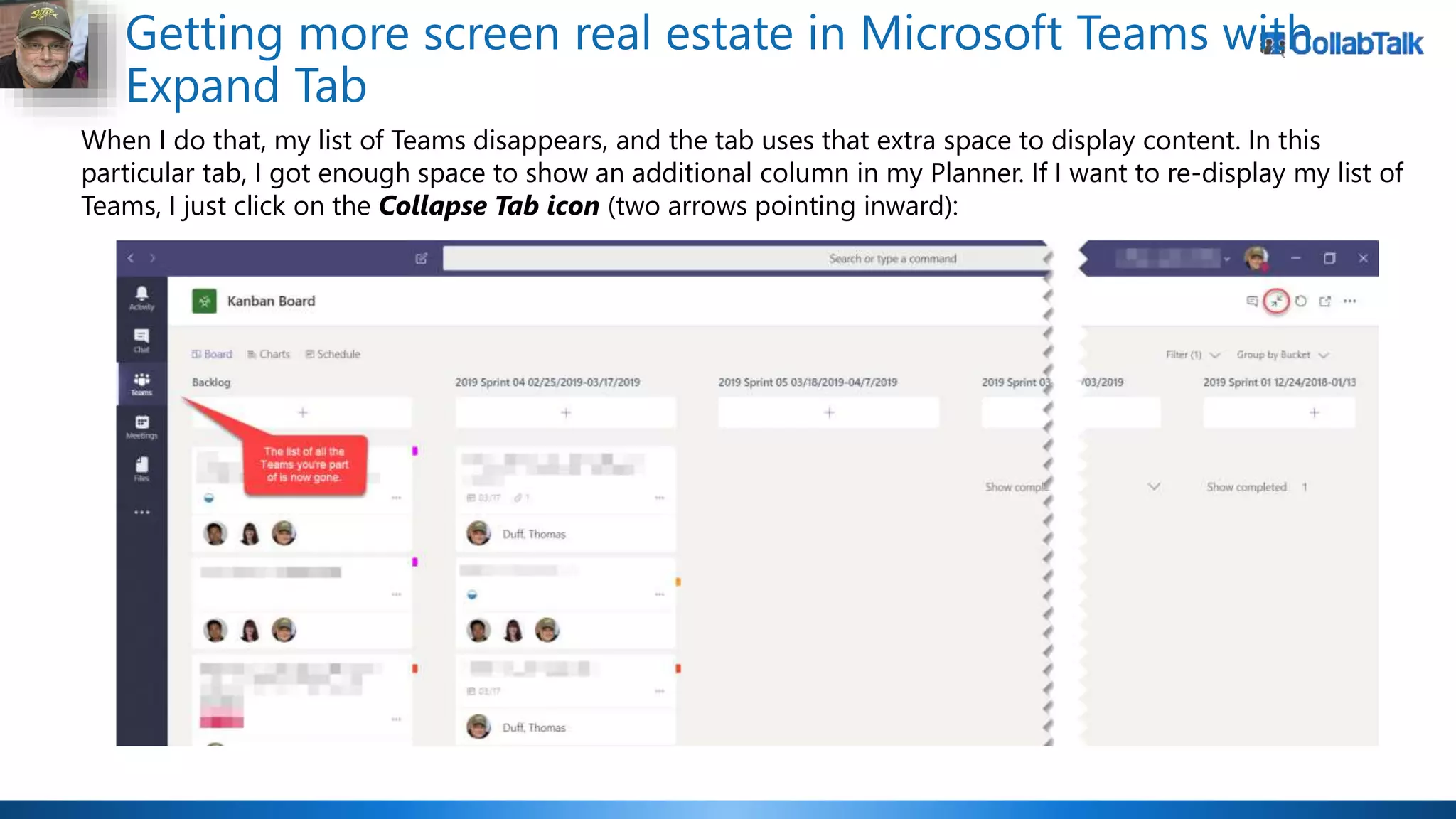
When I do that, my list of Teams disappears, and the tab uses that extra space to display content. In this
particular tab, I got enough space to show an additional column in my Planner. If I want to re-display my list of
Teams, I just click on the Collapse Tab icon (two arrows pointing inward):
Who won the round?
15 votes 4 votes
Overall winner?
Christian!
0 2 4 6 8 10 12 14 16
WHO WON ROUND 5?
WHO WON ROUND 4?
WHO WON ROUND 3?
WHO WON ROUND 2?
WHO WON ROUND 1?
April Affray
Christian Tom
Current Leaderboard
Most Rounds Won – Christian (32-28)
Most Events Won – Tie (6-6)
Most Overall Votes – Christian (1076-1026)
Most Votes in Single Event – Christian (183)
Most Clean Sweeps – Christian (1)
Event Date Location Rounds Won Votes Won Rounds Won Votes Won
9/12/2017 Online 3 31 2 29
10/28/2017 SPSTC 1 74 4 96
11/28/2017 Online 2 11 3 15
1/16/2018 Online 4 167 1 104
2 54 3 53
3 152 2 122
3 141 2 136
2 87 3 104
3 63 2 33
4 178 1 137
0 37 5 183
1 31 4 64
TOTAL 28 1026 32 1076
4/19/2019 Online
Tom Christian
1/15/2019 Online
7/25/2018 Online
2/3/2018 SPSUTAH
8/28/2018 Online
11/17/2018 SPSTC
12/19/2018 Online
2/7/2019 Online
Our next bout:
Thursday, June 20th, 2019
“Summer Scuffle”
Register at http://bit.ly/O365scuffle
Thank you!
Christian Buckley
@buckleyplanet
http://www.buckleyplanet.com
Tom Duff
@Duffbert
http://OneMinuteOfficeMagic.com
Please remember to subscribe on YouTube!

Office 365 Productivity Tips "April Affray"

  • 1.
    Office 365 ProductivityTips “April Affray" Christian Buckley CollabTalk LLC Thomas Duff Cambia Health
  • 2.
    Christian Buckley Founder &CEO of CollabTalk LLC cbuck@CollabTalk.com @buckleyplanet http://www.buckleyplanet.com Please remember to subscribe on YouTube!
  • 3.
    Thomas Duff Software Engineerat Cambia Health Thomas.Duff@CambiaHealth.com @Duffbert http://oneminuteofficemagic.com
  • 4.
    Rules of Engagement 1.Each opponent will take turns 2. No duplicates 3. Audience votes after each round 4. No hitting below the belt 5. Winner based on overall voting
  • 5.
  • 6.
  • 7.
    Publish External Contentto Microsoft Teams as a Card  One of the most compelling values of Teams is its ability to make it a “hub” for everything your project team is working on – which sometimes includes external content, including discussions on various blogs and social networks.  Through direct connectors or 3rd party platforms, you can add any content using the RSS feed.  Shared by Mark Jones at Collab365, he walks you through the steps of adding a RSS feed (via Zapier) as a method for publishing external blog content to your Microsoft Teams feed as a card. Read More  Another great tool is the integration with Twitter, allowing you to capture customer feedback to a Teams feed, and setup alerts so that the right person can respond accordingly.
  • 8.
    Editing your videotranscript in Microsoft Stream This tip is the result of someone asking me yesterday whether they could edit a transcript once a video had been uploaded to Microsoft Stream. Much to my surprise, you *can* edit a video transcript, and it's pretty easy! First, call up the video you want to edit. This does assume you are an owner of the video and/or have owner rights to it. At the bottom of the Transcript panel, you should see an Edit button. Click it to put the Transcript into Edit mode:
  • 9.
    Editing your videotranscript in Microsoft Stream Once you're in Edit mode, you can click a Transcript snippet to allow editing for that section. If you click on the black circular arrow icon, the video will start playing at that point so you can listen to what was actually said:
  • 10.
    Editing your videotranscript in Microsoft Stream Once you're done, you can continue editing snippets, or you can click Done and get on with your workday:
  • 11.
    Who won theround? 15 votes 4 votes
  • 12.
  • 13.
    Multiple Office Clipboardin Office Applications Having done this tip gig for a number of years now, I don't often find a tip that blows my mind. It's even more rare that I find a tip that blows my mind, *and* has apparently been there for years. Today's tip fits that bill… you can have up to 24 selectable Office Clipboard entries to choose from when you're working in Outlook, Word, Excel, or PowerPoint. Even better is that they are shared across all those programs! Here's how it works… I went to a web page and copied some text for the One Minute Office Magic (https://oneminuteofficemagic.com) site:
  • 14.
    Multiple Office Clipboardin Office Applications I then opened a Word document and clicked the Expand icon for the Home > Clipboard option in the Ribbon Bar:
  • 15.
    Multiple Office Clipboardin Office Applications That launches a pane down the left side of your screen, and it shows all the items you've added to your clipboard. The one I copied in the first image is at the bottom, as I copied two other text selections to show you how it looks when there's more than one item:
  • 16.
    Multiple Office Clipboardin Office Applications When you click on the Clipboard selection, it pastes it into your Word document based on where the icon is:
  • 17.
    Multiple Office Clipboardin Office Applications I've also opened up an Excel spreadsheet and clicked on the Home > Clipboard Expand icon, and I see the same entries in the Office Clipboard:
  • 18.
    Multiple Office Clipboardin Office Applications Here's what it looks like when I copy it here: You may also notice that once you use this option, you will see this pop-up in the lower right corner of your screen when you copy something new:
  • 19.
    Add a YammerTab in Microsoft Teams  You can now add a Yammer tab to your Teams channel that loads a specified group or topic feed from Yammer, allowing you to follow and share conversations in Yammer without having to leave Teams.  Using this new connector, user can participate in the Yammer conversation directly, or discuss a Yammer conversation in Teams before posting a reply to the wider Yammer group.  Permissions are dynamic, so that when a Teams member goes to the Yammer tab, they are authenticated again by Yammer and can only see Yammer content for which they have access.  Read More
  • 20.
    Who won theround? 8 votes 11 votes
  • 21.
  • 22.
    Make Connections toTeams 2-Way  Great advice from Emma Jobling at cobweb.com on how to get more out of your Microsoft Teams experiences, including this advice on a 2-way connection with SharePoint.  Create a link in SharePoint by simply copying the URL of the Teams team and adding it to the Quick Launch links. This link will then open directly into Microsoft Teams through the normal authentication steps, or, if Teams is already open, it will just open into that Team.  Of course, you may also want to include a link to the relevant Yammer group, as well.
  • 23.
    Concatenating Excel datawith Fill Justify This is one of those tips you may not know about, but it will be a lifesaver if you only have to use it once. Using the Fill > Justify feature in Excel, you can concatenate data from multiple Excel cells into a single cell. It's easy, and here's how it works… Here I have a series of data cells that have text that I want to concatenate into a single cell. To start, I highlight all the cells I want to concatenate:
  • 24.
    Concatenating Excel datawith Fill Justify Next, I expand out the column to be wide enough to accommodate all the data. If it's too short, it will break up the data into multiple cells in the column:
  • 25.
    Concatenating Excel datawith Fill Justify Now for the magic… select Home > Edit > Fill > Justify in the Ribbon Bar:
  • 26.
    Concatenating Excel datawith Fill Justify Yay! All the data is concatenated into a single cell, without you having to know any Formula language or wear out your fingers using copy/paste!
  • 27.
    Who won theround? 14 votes 5 votes
  • 28.
  • 29.
    Spicing up yourMicrosoft Teams channel posts and conversations In the Conversation tabs of your various Microsoft Teams channels, you can have a lot of information going back and forth that just sort of blends together into a blur. That's fine for the normal team chatter, but you may have something to post in there that should be more noticeable than everything else. That's when you want to use the Formatting feature in the post area. Here's how to do that… Here's a bland post for a channel. While the thought behind the post is important, the presentation of the post is easy to overlook when you click the Send icon:
  • 30.
    Spicing up yourMicrosoft Teams channel posts and conversations I could (and probably have) overlooked posts like this: Now… let's take the same post, but this time click the Format icon in the lower left corner instead of sending it right away:
  • 31.
    Spicing up yourMicrosoft Teams channel posts and conversations You can now: • Add a Subject • Bold/Italicize/Underline wording • Highlight text/change font sizes • Create a bulleted/numbered list • Add a hyperlink • Offset a section of the post as a quote • Add HTML • Format the text for paragraphs • Flag the post as being important
  • 32.
    Spicing up yourMicrosoft Teams channel posts and conversations Here I've updated my original post with a subject, a bulleted list, highlighted text, a link to Google, and I've marked the message as important:
  • 33.
    Spicing up yourMicrosoft Teams channel posts and conversations This certainly stands out, and will catch my audience's attention far better than my original one-liner…
  • 34.
    Easily Edit Documentswith a Digital Pen  Using the new gestures in Ink Editor, you can now edit documents with a digital pen while in tablet mode using familiar shorthand.  Using these new gestures, you can insert new lines, add missing words, and delete and highlight content quickly and naturally while on the go.  These capabilities are available with a Microsoft 365 or Office 365 subscription when using a touch- enabled device and a digital pen. Read more
  • 35.
    Who won theround? 12 votes 7 votes
  • 36.
  • 37.
    Send your iPhonescreenshots to OneNote  If you leverage OneNote as your primary content creation platform, graduating notes into Word documents, PowerPoint presentations, and other formats, you may love this capability for adding iPhone content more quickly.  Using IFTTT and a quick search on OneNote applets, it’s a quick setup to enable this tool, connect it to a cloud- enabled instance of OneNote, and automatically move your screenshots to OneNote to make your authoring experience more streamlined.
  • 38.
    Getting more screenreal estate in Microsoft Teams with Expand Tab This was a simple little thing I saw that had completely skipped my notice earlier. When you're in a Teams Channel tab (other than Conversation), you can expand the screen to remove all the Teams information on the left side of your screen. There's an Expand Tab icon that does that for you. Here's how it works. In this example, I'm in a Planner tab in my Unified Communications > General Channel. On the left side is the normal list of all the Teams I'm part of. If I have a small screen I'm working on, this can take up way too much space that I could use to show content. To reclaim some of that space, I can go to the right side of the screen and click on the Expand Tab icon (two arrows pointing outward):
  • 39.
    Getting more screenreal estate in Microsoft Teams with Expand Tab When I do that, my list of Teams disappears, and the tab uses that extra space to display content. In this particular tab, I got enough space to show an additional column in my Planner. If I want to re-display my list of Teams, I just click on the Collapse Tab icon (two arrows pointing inward):
  • 40.
    Who won theround? 15 votes 4 votes
  • 41.
    Overall winner? Christian! 0 24 6 8 10 12 14 16 WHO WON ROUND 5? WHO WON ROUND 4? WHO WON ROUND 3? WHO WON ROUND 2? WHO WON ROUND 1? April Affray Christian Tom
  • 42.
    Current Leaderboard Most RoundsWon – Christian (32-28) Most Events Won – Tie (6-6) Most Overall Votes – Christian (1076-1026) Most Votes in Single Event – Christian (183) Most Clean Sweeps – Christian (1) Event Date Location Rounds Won Votes Won Rounds Won Votes Won 9/12/2017 Online 3 31 2 29 10/28/2017 SPSTC 1 74 4 96 11/28/2017 Online 2 11 3 15 1/16/2018 Online 4 167 1 104 2 54 3 53 3 152 2 122 3 141 2 136 2 87 3 104 3 63 2 33 4 178 1 137 0 37 5 183 1 31 4 64 TOTAL 28 1026 32 1076 4/19/2019 Online Tom Christian 1/15/2019 Online 7/25/2018 Online 2/3/2018 SPSUTAH 8/28/2018 Online 11/17/2018 SPSTC 12/19/2018 Online 2/7/2019 Online
  • 43.
    Our next bout: Thursday,June 20th, 2019 “Summer Scuffle” Register at http://bit.ly/O365scuffle
  • 44.
    Thank you! Christian Buckley @buckleyplanet http://www.buckleyplanet.com TomDuff @Duffbert http://OneMinuteOfficeMagic.com Please remember to subscribe on YouTube!