Excel Function Dictionary                                                                                Time Calculation
© 1998 - 2000 Peter Noneley                                                                                  Page 1 of 2

      A       B           C          D           E           F          G                        H   I         J
 1    Time Calculation
 2
 3        Excel can work with time very easily.
 4        Time can be entered in various different formats and calculations performed.
 5        There are one or two oddities, but nothing which should put you off working with it.
 6        See the TimeSheet example for an example.
 7
 8        Typing time
 9        When time is entered into worksheet it should be entered with a colon between
 10       the hour and the minutes, such as 12:30, rather than 12.30
 11
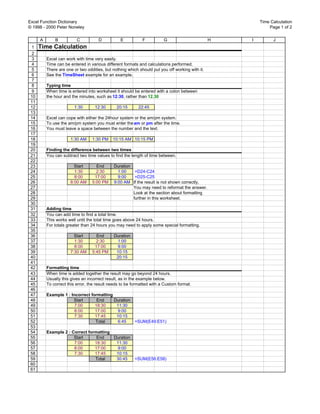
 12                     1:30       12:30       20:15       22:45
 13
 14       Excel can cope with either the 24hour system or the am/pm system.
 15       To use the am/pm system you must enter the am or pm after the time.
 16       You must leave a space between the number and the text.
 17
 18                   1:30 AM     1:30 PM    10:15 AM 10:15 PM
 19
 20       Finding the difference between two times
 21       You can subtract two time values to find the length of time between.
 22
 23                     Start       End       Duration
 24                     1:30        2:30        1:00    =D24-C24
 25                     8:00       17:00        9:00    =D25-C25
 26                   8:00 AM     5:00 PM     9:00 AM If the result is not shown correctly,
 27                                                    You may need to reformat the answer.
 28                                                    Look at the section about formatting
 29                                                    further in this worksheet.
 30
 31       Adding time
 32       You can add time to find a total time.
 33       This works well until the total time goes above 24 hours.
 34       For totals greater than 24 hours you may need to apply some special formatting.
 35
 36                     Start       End       Duration
 37                     1:30        2:30       1:00
 38                     8:00       17:00       9:00
 39                   7:30 AM     5:45 PM      10:15
 40                                            20:15
 41
 42       Formatting time
 43       When time is added together the result may go beyond 24 hours.
 44       Usually this gives an incorrect result, as in the example below.
 45       To correct this error, the result needs to be formatted with a Custom format.
 46
 47       Example 1 : Incorrect formatting
 48                    Start       End     Duration
 49                     7:00      18:30     11:30
 50                     8:00      17:00     9:00
 51                     7:30      17:45     10:15
 52                               Total     6:45         =SUM(E49:E51)
 53
 54       Example 2 : Correct formatting
 55                    Start      End    Duration
 56                    7:00      18:30    11:30
 57                    8:00      17:00    9:00
 58                    7:30      17:45    10:15
 59                              Total    30:45          =SUM(E56:E58)
 60
 61
Excel Function Dictionary                                                                        Time Calculation
© 1998 - 2000 Peter Noneley                                                                          Page 2 of 2

      A        B           C        D           E           F          G                 H   I         J
 62       How To Apply Custom Formatting
 63       The custom format for time use a pair of square brackets [hh] on either side
 64       of the hours indicators.
 65
 66       1. Click on the cell which needs the format.
 67       2. Choose the Format menu.
 68       3. Choose Cells.
 69       4. Click the Number tag at the top right.
 70       5. Choose Custom.
 71       6. Click inside the Type: box.
 72       7. Type [hh]:mm as the format.
 73       8. Click OK to confirm.
 74
 75
 76
 77
 78
 79
 80
 81
 82
 83
 84
 85
 86
 87

Time calculation

  • 1.
    Excel Function Dictionary Time Calculation © 1998 - 2000 Peter Noneley Page 1 of 2 A B C D E F G H I J 1 Time Calculation 2 3 Excel can work with time very easily. 4 Time can be entered in various different formats and calculations performed. 5 There are one or two oddities, but nothing which should put you off working with it. 6 See the TimeSheet example for an example. 7 8 Typing time 9 When time is entered into worksheet it should be entered with a colon between 10 the hour and the minutes, such as 12:30, rather than 12.30 11 12 1:30 12:30 20:15 22:45 13 14 Excel can cope with either the 24hour system or the am/pm system. 15 To use the am/pm system you must enter the am or pm after the time. 16 You must leave a space between the number and the text. 17 18 1:30 AM 1:30 PM 10:15 AM 10:15 PM 19 20 Finding the difference between two times 21 You can subtract two time values to find the length of time between. 22 23 Start End Duration 24 1:30 2:30 1:00 =D24-C24 25 8:00 17:00 9:00 =D25-C25 26 8:00 AM 5:00 PM 9:00 AM If the result is not shown correctly, 27 You may need to reformat the answer. 28 Look at the section about formatting 29 further in this worksheet. 30 31 Adding time 32 You can add time to find a total time. 33 This works well until the total time goes above 24 hours. 34 For totals greater than 24 hours you may need to apply some special formatting. 35 36 Start End Duration 37 1:30 2:30 1:00 38 8:00 17:00 9:00 39 7:30 AM 5:45 PM 10:15 40 20:15 41 42 Formatting time 43 When time is added together the result may go beyond 24 hours. 44 Usually this gives an incorrect result, as in the example below. 45 To correct this error, the result needs to be formatted with a Custom format. 46 47 Example 1 : Incorrect formatting 48 Start End Duration 49 7:00 18:30 11:30 50 8:00 17:00 9:00 51 7:30 17:45 10:15 52 Total 6:45 =SUM(E49:E51) 53 54 Example 2 : Correct formatting 55 Start End Duration 56 7:00 18:30 11:30 57 8:00 17:00 9:00 58 7:30 17:45 10:15 59 Total 30:45 =SUM(E56:E58) 60 61
  • 2.
    Excel Function Dictionary Time Calculation © 1998 - 2000 Peter Noneley Page 2 of 2 A B C D E F G H I J 62 How To Apply Custom Formatting 63 The custom format for time use a pair of square brackets [hh] on either side 64 of the hours indicators. 65 66 1. Click on the cell which needs the format. 67 2. Choose the Format menu. 68 3. Choose Cells. 69 4. Click the Number tag at the top right. 70 5. Choose Custom. 71 6. Click inside the Type: box. 72 7. Type [hh]:mm as the format. 73 8. Click OK to confirm. 74 75 76 77 78 79 80 81 82 83 84 85 86 87