Time & Attendance
Suprema Inc.
Contents
Overview
T&A configuration
Device configuration
Reports
Example
Overview
 Basic concepts
 Configuring steps
 Simple example
Basic Concepts
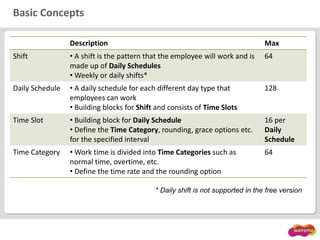
Basic Concepts
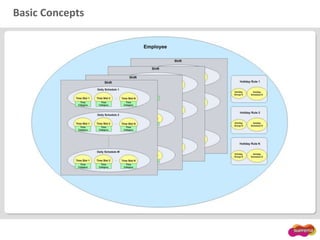
Description Max
Shift • A shift is the pattern that the employee will work and is
made up of Daily Schedules
• Weekly or daily shifts*
64
Daily Schedule • A daily schedule for each different day type that
employees can work
• Building blocks for Shift and consists of Time Slots
128
Time Slot • Building block for Daily Schedule
• Define the Time Category, rounding, grace options etc.
for the specified interval
16 per
Daily
Schedule
Time Category • Work time is divided into Time Categories such as
normal time, overtime, etc.
• Define the time rate and the rounding option
64
* Daily shift is not supported in the free version
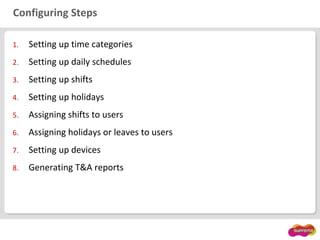
Configuring Steps
1. Setting up time categories
2. Setting up daily schedules
3. Setting up shifts
4. Setting up holidays
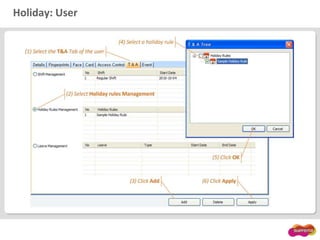
5. Assigning shifts to users
6. Assigning holidays or leaves to users
7. Setting up devices
8. Generating T&A reports
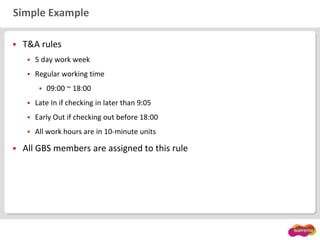
Simple Example
 T&A rules
 5 day work week
 Regular working time
 09:00 ~ 18:00
 Late In if checking in later than 9:05
 Early Out if checking out before 18:00
 All work hours are in 10-minute units
 All GBS members are assigned to this rule
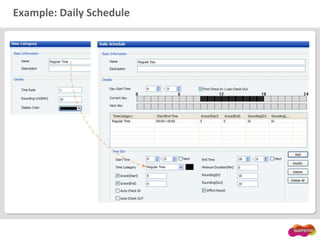
Example: Daily Schedule
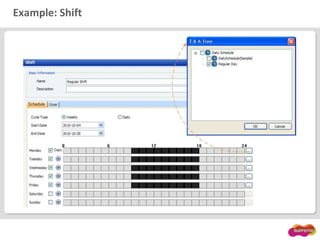
Example: Shift
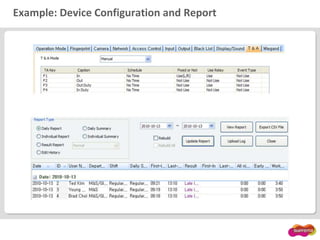
Example: Device Configuration and Report
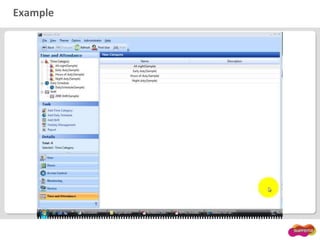
Example
T&A Configuration
 Time category
 Daily schedule
 Shift
 Holiday management
 Leave management
Time Category
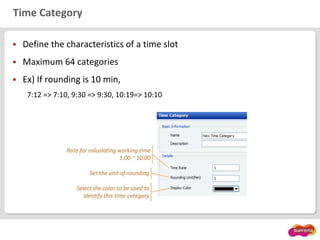
 Define the characteristics of a time slot
 Maximum 64 categories
 Ex) If rounding is 10 min,
7:12 => 7:10, 9:30 => 9:30, 10:19=> 10:10
Daily Schedule
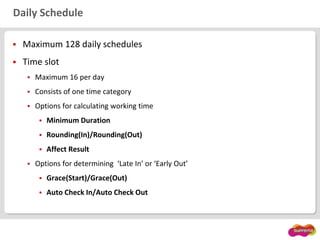
 Maximum 128 daily schedules
 Time slot
 Maximum 16 per day
 Consists of one time category
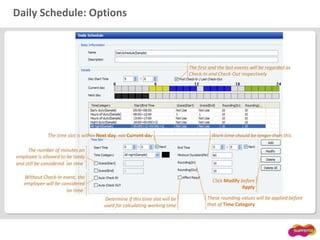
 Options for calculating working time
 Minimum Duration
 Rounding(In)/Rounding(Out)
 Affect Result
 Options for determining ‘Late In’ or ‘Early Out’
 Grace(Start)/Grace(Out)
 Auto Check In/Auto Check Out
Daily Schedule: Options
Daily Schedule: Tips
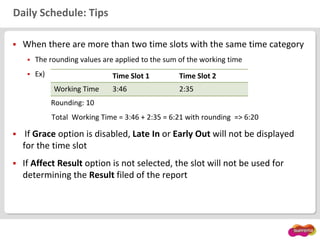
 When there are more than two time slots with the same time category
 The rounding values are applied to the sum of the working time
 Ex)
Rounding: 10
Total Working Time = 3:46 + 2:35 = 6:21 with rounding => 6:20
 If Grace option is disabled, Late In or Early Out will not be displayed
for the time slot
 If Affect Result option is not selected, the slot will not be used for
determining the Result filed of the report
Time Slot 1 Time Slot 2
Working Time 3:46 2:35
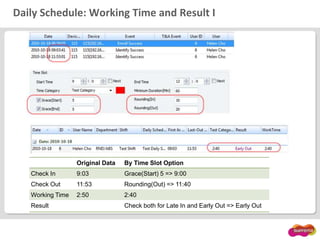
Daily Schedule: Working Time and Result I
Original Data By Time Slot Option
Check In 9:03 Grace(Start) 5 => 9:00
Check Out 11:53 Rounding(Out) => 11:40
Working Time 2:50 2:40
Result Check both for Late In and Early Out => Early Out
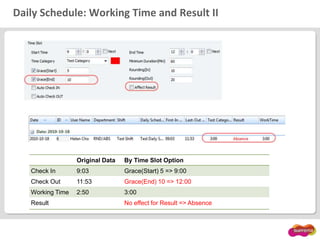
Daily Schedule: Working Time and Result II
Original Data By Time Slot Option
Check In 9:03 Grace(Start) 5 => 9:00
Check Out 11:53 Grace(End) 10 => 12:00
Working Time 2:50 3:00
Result No effect for Result => Absence
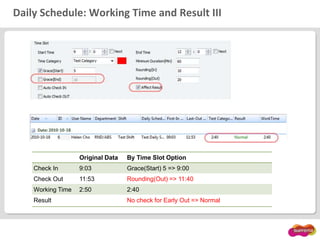
Daily Schedule: Working Time and Result III
Original Data By Time Slot Option
Check In 9:03 Grace(Start) 5 => 9:00
Check Out 11:53 Rounding(Out) => 11:40
Working Time 2:50 2:40
Result No check for Early Out => Normal
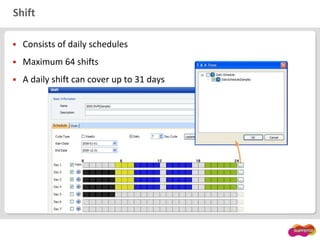
Shift
 Consists of daily schedules
 Maximum 64 shifts
 A daily shift can cover up to 31 days
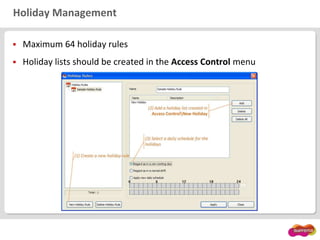
Holiday Management
 Maximum 64 holiday rules
 Holiday lists should be created in the Access Control menu
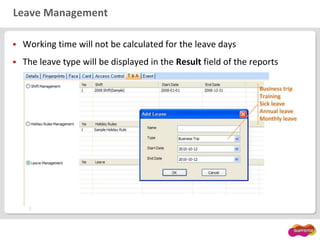
Leave Management
 Working time will not be calculated for the leave days
 The leave type will be displayed in the Result field of the reports
Device Configuration
 T&A mode
 T&A key configuration
 Example
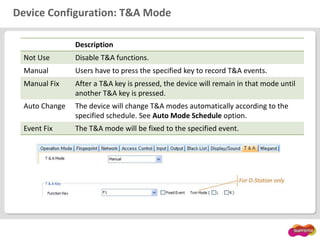
Device Configuration: T&A Mode
Description
Not Use Disable T&A functions.
Manual Users have to press the specified key to record T&A events.
Manual Fix After a T&A key is pressed, the device will remain in that mode until
another T&A key is pressed.
Auto Change The device will change T&A modes automatically according to the
specified schedule. See Auto Mode Schedule option.
Event Fix The T&A mode will be fixed to the specified event.
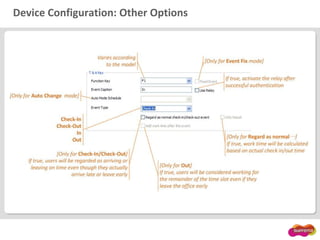
Device Configuration: Other Options
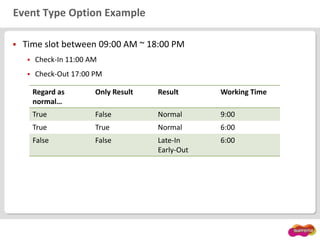
Event Type Option Example
 Time slot between 09:00 AM ~ 18:00 PM
 Check-In 11:00 AM
 Check-Out 17:00 PM
Regard as
normal…
Only Result Result Working Time
True False Normal 9:00
True True Normal 6:00
False False Late-In
Early-Out
6:00
Reports
 Generating report
 Report types
 Calculating working time
 Determining the Result field
 Editing report data
 I/O board
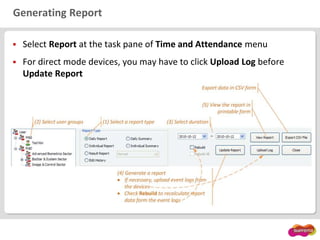
Generating Report
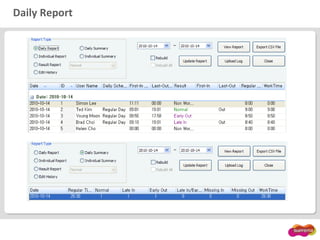
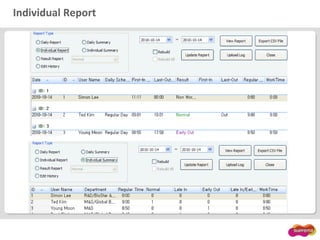
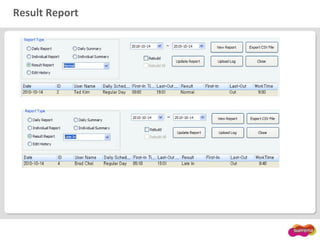
 Select Report at the task pane of Time and Attendance menu
 For direct mode devices, you may have to click Upload Log before
Update Report
Daily Report
Individual Report
Result Report
Calculating Working Time
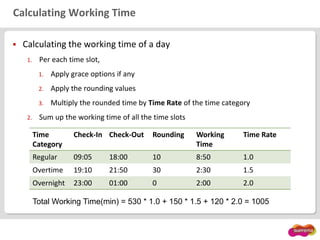
 Calculating the working time of a day
1. Per each time slot,
1. Apply grace options if any
2. Apply the rounding values
3. Multiply the rounded time by Time Rate of the time category
2. Sum up the working time of all the time slots
Time
Category
Check-In Check-Out Rounding Working
Time
Time Rate
Regular 09:05 18:00 10 8:50 1.0
Overtime 19:10 21:50 30 2:30 1.5
Overnight 23:00 01:00 0 2:00 2.0
Total Working Time(min) = 530 * 1.0 + 150 * 1.5 + 120 * 2.0 = 1005
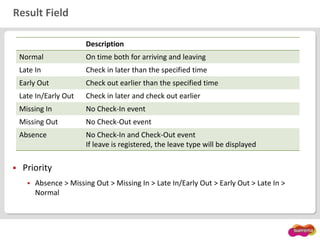
Result Field
 Priority
 Absence > Missing Out > Missing In > Late In/Early Out > Early Out > Late In >
Normal
Description
Normal On time both for arriving and leaving
Late In Check in later than the specified time
Early Out Check out earlier than the specified time
Late In/Early Out Check in later and check out earlier
Missing In No Check-In event
Missing Out No Check-Out event
Absence No Check-In and Check-Out event
If leave is registered, the leave type will be displayed
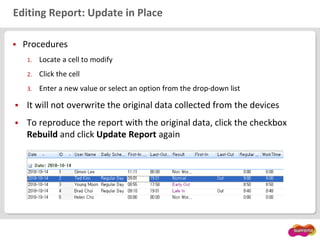
Editing Report: Update in Place
 Procedures
1. Locate a cell to modify
2. Click the cell
3. Enter a new value or select an option from the drop-down list
 It will not overwrite the original data collected from the devices
 To reproduce the report with the original data, click the checkbox
Rebuild and click Update Report again
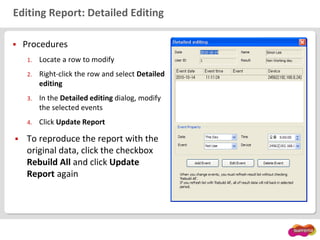
Editing Report: Detailed Editing
 Procedures
1. Locate a row to modify
2. Right-click the row and select Detailed
editing
3. In the Detailed editing dialog, modify
the selected events
4. Click Update Report
 To reproduce the report with the
original data, click the checkbox
Rebuild All and click Update
Report again
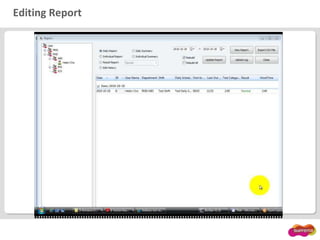
Editing Report
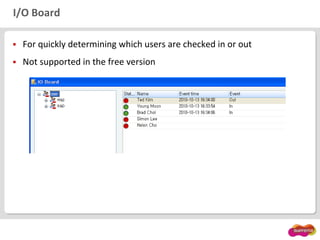
I/O Board
 For quickly determining which users are checked in or out
 Not supported in the free version
Example
 Case 1: Over time
 Case 2: Holiday
 Case 3: Daily shift
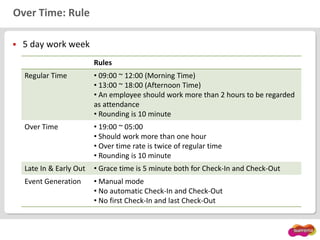
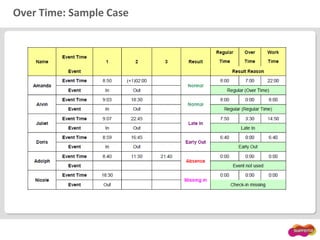
Over Time: Rule
 5 day work week
Rules
Regular Time • 09:00 ~ 12:00 (Morning Time)
• 13:00 ~ 18:00 (Afternoon Time)
• An employee should work more than 2 hours to be regarded
as attendance
• Rounding is 10 minute
Over Time • 19:00 ~ 05:00
• Should work more than one hour
• Over time rate is twice of regular time
• Rounding is 10 minute
Late In & Early Out • Grace time is 5 minute both for Check-In and Check-Out
Event Generation • Manual mode
• No automatic Check-In and Check-Out
• No first Check-In and last Check-Out
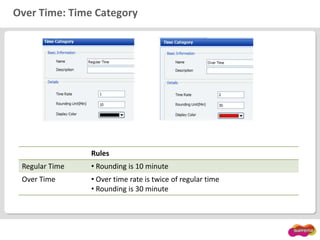
Over Time: Time Category
Rules
Regular Time • Rounding is 10 minute
Over Time • Over time rate is twice of regular time
• Rounding is 30 minute
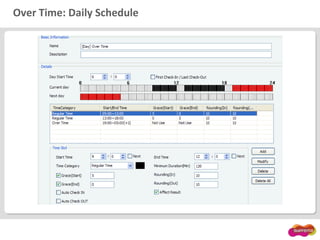
Over Time: Daily Schedule
Over Time: Time Slot
Rules
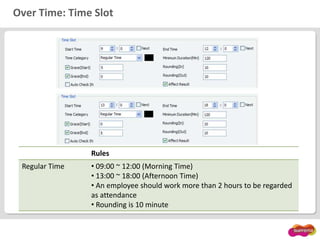
Regular Time • 09:00 ~ 12:00 (Morning Time)
• 13:00 ~ 18:00 (Afternoon Time)
• An employee should work more than 2 hours to be regarded
as attendance
• Rounding is 10 minute
Over Time: Time Slot
Rules
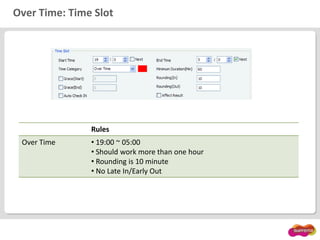
Over Time • 19:00 ~ 05:00
• Should work more than one hour
• Rounding is 10 minute
• No Late In/Early Out
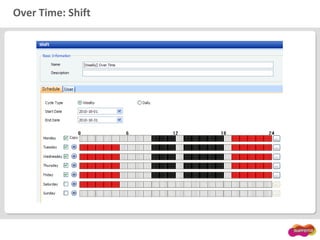
Over Time: Shift
Over Time: Device Configuration
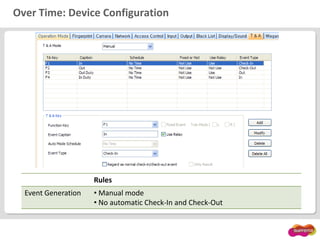
Rules
Event Generation • Manual mode
• No automatic Check-In and Check-Out
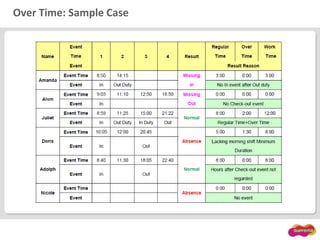
Over Time: Sample Case
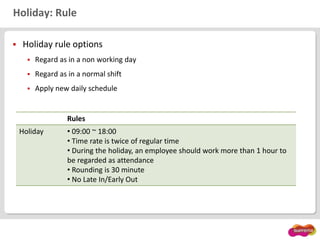
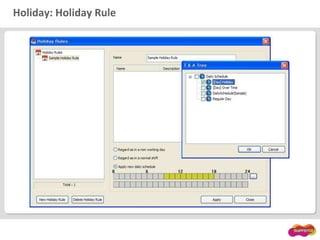
Holiday: Rule
 Holiday rule options
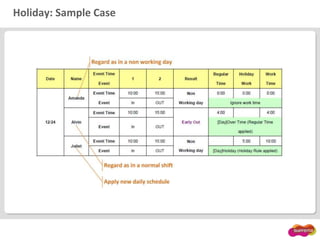
 Regard as in a non working day
 Regard as in a normal shift
 Apply new daily schedule
Rules
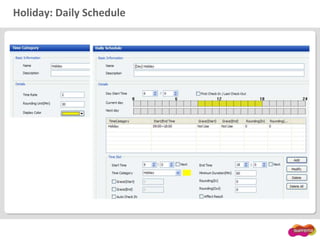
Holiday • 09:00 ~ 18:00
• Time rate is twice of regular time
• During the holiday, an employee should work more than 1 hour to
be regarded as attendance
• Rounding is 30 minute
• No Late In/Early Out
Holiday: Daily Schedule
Holiday: Holiday Rule
Holiday: User
Holiday: Sample Case
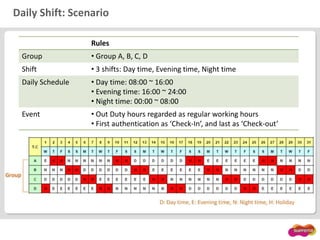
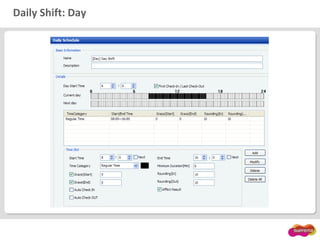
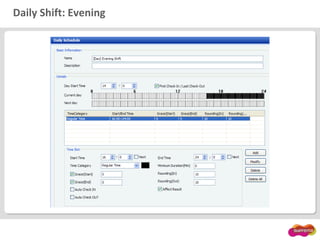
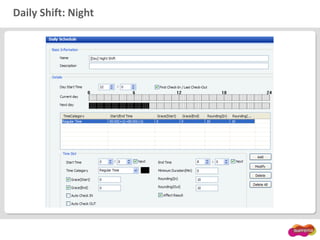
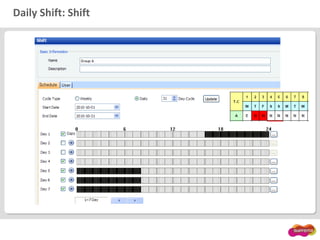
Daily Shift: Scenario
Rules
Group • Group A, B, C, D
Shift • 3 shifts: Day time, Evening time, Night time
Daily Schedule • Day time: 08:00 ~ 16:00
• Evening time: 16:00 ~ 24:00
• Night time: 00:00 ~ 08:00
Event • Out Duty hours regarded as regular working hours
• First authentication as ‘Check-In’, and last as ‘Check-out’
Daily Shift: Day
Daily Shift: Evening
Daily Shift: Night
Daily Shift: Shift

Suprema - Time & Attendance management system.pptx

  • 1.
  • 2.
  • 3.
    Overview  Basic concepts Configuring steps  Simple example
  • 4.
  • 5.
    Basic Concepts Description Max Shift• A shift is the pattern that the employee will work and is made up of Daily Schedules • Weekly or daily shifts* 64 Daily Schedule • A daily schedule for each different day type that employees can work • Building blocks for Shift and consists of Time Slots 128 Time Slot • Building block for Daily Schedule • Define the Time Category, rounding, grace options etc. for the specified interval 16 per Daily Schedule Time Category • Work time is divided into Time Categories such as normal time, overtime, etc. • Define the time rate and the rounding option 64 * Daily shift is not supported in the free version
  • 6.
    Configuring Steps 1. Settingup time categories 2. Setting up daily schedules 3. Setting up shifts 4. Setting up holidays 5. Assigning shifts to users 6. Assigning holidays or leaves to users 7. Setting up devices 8. Generating T&A reports
  • 7.
    Simple Example  T&Arules  5 day work week  Regular working time  09:00 ~ 18:00  Late In if checking in later than 9:05  Early Out if checking out before 18:00  All work hours are in 10-minute units  All GBS members are assigned to this rule
  • 8.
  • 9.
  • 10.
  • 11.
  • 12.
    T&A Configuration  Timecategory  Daily schedule  Shift  Holiday management  Leave management
  • 13.
    Time Category  Definethe characteristics of a time slot  Maximum 64 categories  Ex) If rounding is 10 min, 7:12 => 7:10, 9:30 => 9:30, 10:19=> 10:10
  • 14.
    Daily Schedule  Maximum128 daily schedules  Time slot  Maximum 16 per day  Consists of one time category  Options for calculating working time  Minimum Duration  Rounding(In)/Rounding(Out)  Affect Result  Options for determining ‘Late In’ or ‘Early Out’  Grace(Start)/Grace(Out)  Auto Check In/Auto Check Out
  • 15.
  • 16.
    Daily Schedule: Tips When there are more than two time slots with the same time category  The rounding values are applied to the sum of the working time  Ex) Rounding: 10 Total Working Time = 3:46 + 2:35 = 6:21 with rounding => 6:20  If Grace option is disabled, Late In or Early Out will not be displayed for the time slot  If Affect Result option is not selected, the slot will not be used for determining the Result filed of the report Time Slot 1 Time Slot 2 Working Time 3:46 2:35
  • 17.
    Daily Schedule: WorkingTime and Result I Original Data By Time Slot Option Check In 9:03 Grace(Start) 5 => 9:00 Check Out 11:53 Rounding(Out) => 11:40 Working Time 2:50 2:40 Result Check both for Late In and Early Out => Early Out
  • 18.
    Daily Schedule: WorkingTime and Result II Original Data By Time Slot Option Check In 9:03 Grace(Start) 5 => 9:00 Check Out 11:53 Grace(End) 10 => 12:00 Working Time 2:50 3:00 Result No effect for Result => Absence
  • 19.
    Daily Schedule: WorkingTime and Result III Original Data By Time Slot Option Check In 9:03 Grace(Start) 5 => 9:00 Check Out 11:53 Rounding(Out) => 11:40 Working Time 2:50 2:40 Result No check for Early Out => Normal
  • 20.
    Shift  Consists ofdaily schedules  Maximum 64 shifts  A daily shift can cover up to 31 days
  • 21.
    Holiday Management  Maximum64 holiday rules  Holiday lists should be created in the Access Control menu
  • 22.
    Leave Management  Workingtime will not be calculated for the leave days  The leave type will be displayed in the Result field of the reports
  • 23.
    Device Configuration  T&Amode  T&A key configuration  Example
  • 24.
    Device Configuration: T&AMode Description Not Use Disable T&A functions. Manual Users have to press the specified key to record T&A events. Manual Fix After a T&A key is pressed, the device will remain in that mode until another T&A key is pressed. Auto Change The device will change T&A modes automatically according to the specified schedule. See Auto Mode Schedule option. Event Fix The T&A mode will be fixed to the specified event.
  • 25.
  • 26.
    Event Type OptionExample  Time slot between 09:00 AM ~ 18:00 PM  Check-In 11:00 AM  Check-Out 17:00 PM Regard as normal… Only Result Result Working Time True False Normal 9:00 True True Normal 6:00 False False Late-In Early-Out 6:00
  • 27.
    Reports  Generating report Report types  Calculating working time  Determining the Result field  Editing report data  I/O board
  • 28.
    Generating Report  SelectReport at the task pane of Time and Attendance menu  For direct mode devices, you may have to click Upload Log before Update Report
  • 29.
  • 30.
  • 31.
  • 32.
    Calculating Working Time Calculating the working time of a day 1. Per each time slot, 1. Apply grace options if any 2. Apply the rounding values 3. Multiply the rounded time by Time Rate of the time category 2. Sum up the working time of all the time slots Time Category Check-In Check-Out Rounding Working Time Time Rate Regular 09:05 18:00 10 8:50 1.0 Overtime 19:10 21:50 30 2:30 1.5 Overnight 23:00 01:00 0 2:00 2.0 Total Working Time(min) = 530 * 1.0 + 150 * 1.5 + 120 * 2.0 = 1005
  • 33.
    Result Field  Priority Absence > Missing Out > Missing In > Late In/Early Out > Early Out > Late In > Normal Description Normal On time both for arriving and leaving Late In Check in later than the specified time Early Out Check out earlier than the specified time Late In/Early Out Check in later and check out earlier Missing In No Check-In event Missing Out No Check-Out event Absence No Check-In and Check-Out event If leave is registered, the leave type will be displayed
  • 34.
    Editing Report: Updatein Place  Procedures 1. Locate a cell to modify 2. Click the cell 3. Enter a new value or select an option from the drop-down list  It will not overwrite the original data collected from the devices  To reproduce the report with the original data, click the checkbox Rebuild and click Update Report again
  • 35.
    Editing Report: DetailedEditing  Procedures 1. Locate a row to modify 2. Right-click the row and select Detailed editing 3. In the Detailed editing dialog, modify the selected events 4. Click Update Report  To reproduce the report with the original data, click the checkbox Rebuild All and click Update Report again
  • 36.
  • 37.
    I/O Board  Forquickly determining which users are checked in or out  Not supported in the free version
  • 38.
    Example  Case 1:Over time  Case 2: Holiday  Case 3: Daily shift
  • 39.
    Over Time: Rule 5 day work week Rules Regular Time • 09:00 ~ 12:00 (Morning Time) • 13:00 ~ 18:00 (Afternoon Time) • An employee should work more than 2 hours to be regarded as attendance • Rounding is 10 minute Over Time • 19:00 ~ 05:00 • Should work more than one hour • Over time rate is twice of regular time • Rounding is 10 minute Late In & Early Out • Grace time is 5 minute both for Check-In and Check-Out Event Generation • Manual mode • No automatic Check-In and Check-Out • No first Check-In and last Check-Out
  • 40.
    Over Time: TimeCategory Rules Regular Time • Rounding is 10 minute Over Time • Over time rate is twice of regular time • Rounding is 30 minute
  • 41.
  • 42.
    Over Time: TimeSlot Rules Regular Time • 09:00 ~ 12:00 (Morning Time) • 13:00 ~ 18:00 (Afternoon Time) • An employee should work more than 2 hours to be regarded as attendance • Rounding is 10 minute
  • 43.
    Over Time: TimeSlot Rules Over Time • 19:00 ~ 05:00 • Should work more than one hour • Rounding is 10 minute • No Late In/Early Out
  • 44.
  • 45.
    Over Time: DeviceConfiguration Rules Event Generation • Manual mode • No automatic Check-In and Check-Out
  • 46.
  • 47.
  • 48.
    Holiday: Rule  Holidayrule options  Regard as in a non working day  Regard as in a normal shift  Apply new daily schedule Rules Holiday • 09:00 ~ 18:00 • Time rate is twice of regular time • During the holiday, an employee should work more than 1 hour to be regarded as attendance • Rounding is 30 minute • No Late In/Early Out
  • 49.
  • 50.
  • 51.
  • 52.
  • 53.
    Daily Shift: Scenario Rules Group• Group A, B, C, D Shift • 3 shifts: Day time, Evening time, Night time Daily Schedule • Day time: 08:00 ~ 16:00 • Evening time: 16:00 ~ 24:00 • Night time: 00:00 ~ 08:00 Event • Out Duty hours regarded as regular working hours • First authentication as ‘Check-In’, and last as ‘Check-out’
  • 54.
  • 55.
  • 56.
  • 57.