ESX Server from the Command Line The command-line environment Working with disks Working with virtual machines
Tips for command-line use Install an ssh (Secure Shell) client on your desktop Windows: PuTTY (freeware), SecureCRT (commercial) Know the features of the  bash  shell Use arrow keys to navigate command history Use  TAB  to complete file names and commands Useful keystrokes: ctrl- A : beginning of line ctrl- E : end of line ctrl- W : erase previous word ctrl- U : blank this line ctrl- Z : suspend this job bg  command puts suspended job in background Caution! ctrl- S  freezes the screen; use ctrl- Q  to unfreeze
Useful Service Console add-on packages nano : a simple text editor An alternative to  vi Always invoke as  nano –w   filename  to turn off word-wrap lynx : a text-only Web browser Especially useful for downloading files from Web sites to Service Console ncftp : an enhanced text-only FTP client Contains  ncftpget , useful for unattended FTP downloads lsof : list open files Shows what processes are using what files and ports
Working with Service Console packages rpm –qa : list installed packages rpm –qi   packagename  : get more information about a package rpm –ql  packagename  : list files composing a package rpm –Uvh   filename(s)  : install a package You may need to satisfy a package’s dependencies; list multiple package filenames on command line rpm –e   packagename  : uninstalls a package Warning: do not uninstall VMware packages! Or use  –p  packagefilename  in place of  packagename
Partitioning disks with fdisk fdisk requires a device file pointing at desired disk fdisk /dev/sdb Enter  p  to print the present partition table Enter  n  to create a new partition  Specify partition number if primary Specify starting cylinder Specify size:  +1024M  gives a 1 GB partition Enter  t  to change the partition type:  FB  for VMFS Enter  w  to save partition table to disk Warning: Changing partition table of a disk with mounted Linux file systems may require reboot
vmkfstools  Syntax The option flag governs the action of the command Either a single letter with one hyphen or a word with two The last argument is always a path using the VMkernel’s device space Either a VMFS name (physical or friendly) vmhba0:1:0:5  /vmfs/vmhba0:1:0:5 myvmfs  /vmfs/myvmfs Or a VMFS name followed by a virtual disk file name vmhba0:1:0:5:a.dsk  /vmfs/vmhba0:1:0:5/a.dsk myvmfs:a.dsk  /vmfs/myvmfs/a.dsk vmkfstools -? [  otherarg   otherarg  … ]  VMkernel-path
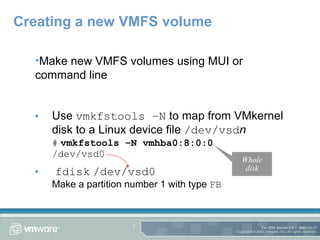
Creating a new VMFS volume Use  vmkfstools –N  to map from VMkernel disk to a Linux device file  /dev/vsd n #   vmkfstools –N vmhba0:8:0:0 /dev/vsd0 fdisk   /dev/vsd0 Make a partition number 1 with type  FB Make new VMFS volumes using MUI or command line Whole disk
Creating a new VMFS volume (cont’d) Use  vmkfstools –C  to build a new VMFS vmkfstools –C vmfs2 vmhba0:8:0:1 Use  vmkfstools –S  to set the volume label vmkfstools –S VOL3 vmhba0:8:0:1 Use  vmkfstools –l  to list contents vmkfstools –l VOL3 or ls –l /vmfs/VOL3
Basic VMFS virtual-disk operations To create a new virtual disk: vmkfstools –c 4096m VOL3:webserver.dsk To set access rights: chown ted:finance /vmfs/VOL3/webserver.dsk chmod u=rw,go= /vmfs/VOL3/webserver.dsk To rename a virtual disk mv /vmfs/VOL3/ws.dsk /vmfs/VOL3/webserver.dsk To remove a virtual disk rm /vmfs/VOL3/ws.dsk
Copying a virtual disk It’s safe to use the Service Console’s  cp  command on > 2 GB virtual disks Not all Service Console utilities have been customized Other environments may contain unsafe tools too Safest to handle virtual disks in their exported (“COW”) format To export: vmkfstools –e /vmimages/ws.vmdk vmfs3:ws.dsk
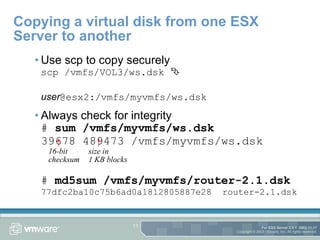
Copying a virtual disk from one ESX Server to another Use scp to copy securely scp /vmfs/VOL3/ws.dsk     user @esx2:/vmfs/myvmfs/ws.dsk Always check for integrity #  sum /vmfs/myvmfs/ws.dsk 39678 489473 /vmfs/myvmfs/ws.dsk #  md5sum /vmfs/myvmfs/router-2.1.dsk 77dfc2ba10c75b6ad0a1812805887e28  router-2.1.dsk 16-bit  checksum size in  1 KB blocks
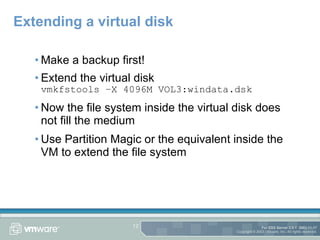
Extending a virtual disk Make a backup first! Extend the virtual disk vmkfstools –X 4096M VOL3:windata.dsk Now the file system inside the virtual disk does not fill the medium Use Partition Magic or the equivalent inside the VM to extend the file system
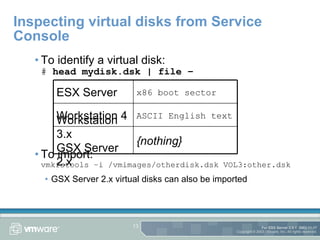
Inspecting virtual disks from Service Console To identify a virtual disk: #  head mydisk.dsk | file – To import: vmkfstools –i /vmimages/otherdisk.dsk VOL3:other.dsk GSX Server 2.x virtual disks can also be imported {nothing} Workstation 3.x GSX Server 2.x ASCII English text Workstation 4 x86 boot sector ESX Server
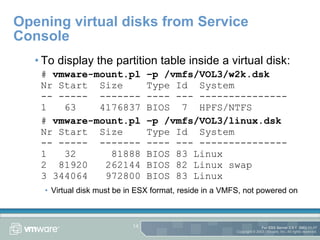
Opening virtual disks from Service Console To display the partition table inside a virtual disk: #  vmware-mount.pl –p /vmfs/VOL3/w2k.dsk   Nr Start  Size  Type Id  System -- -----  ------- ---- --- --------------- 1  63  4176837 BIOS  7  HPFS/NTFS #  vmware-mount.pl –p /vmfs/VOL3/linux.dsk   Nr Start  Size  Type Id  System -- -----  ------- ---- --- --------------- 1  32  81888 BIOS 83 Linux 2  81920  262144 BIOS 82 Linux swap 3 344064  972800 BIOS 83 Linux Virtual disk must be in ESX format, reside in a VMFS, not powered on
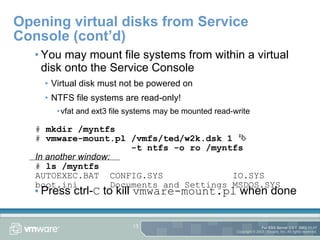
Opening virtual disks from Service Console (cont’d) You may mount file systems from within a virtual disk onto the Service Console Virtual disk must not be powered on NTFS file systems are read-only! vfat and ext3 file systems may be mounted read-write Press ctrl- C  to kill  vmware-mount.pl  when done #  mkdir /myntfs #  vmware-mount.pl /vmfs/ted/w2k.dsk 1     -t ntfs -o ro /myntfs In another window: #  ls /myntfs AUTOEXEC.BAT  CONFIG.SYS  IO.SYS boot.ini  Documents and Settings MSDOS.SYS
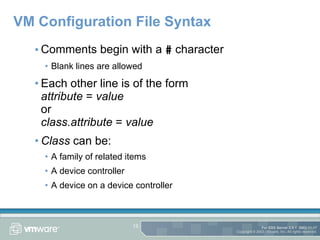
VM Configuration File Syntax Comments begin with a  #  character Blank lines are allowed Each other line is of the form attribute  =  value   or class.attribute  =  value Class  can be: A family of related items A device controller A device on a device controller
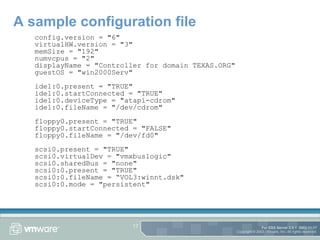
A sample configuration file config.version = "6" virtualHW.version = "3" memSize = "192" numvcpus = "2" displayName = "Controller for domain TEXAS.ORG" guestOS = "win2000Serv" ide1:0.present = "TRUE" ide1:0.startConnected = "TRUE" ide1:0.deviceType = "atapi-cdrom" ide1:0.fileName = "/dev/cdrom" floppy0.present = "TRUE" floppy0.startConnected = "FALSE" floppy0.fileName = "/dev/fd0" scsi0.present = "TRUE" scsi0.virtualDev = "vmxbuslogic" scsi0.sharedBus = "none" scsi0:0.present = "TRUE" scsi0:0.fileName = “VOL3:winnt.dsk" scsi0:0.mode = "persistent"
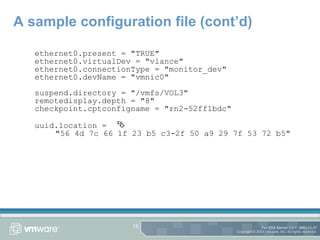
A sample configuration file (cont’d) ethernet0.present = "TRUE" ethernet0.virtualDev = "vlance" ethernet0.connectionType = "monitor_dev" ethernet0.devName = "vmnic0" suspend.directory = "/vmfs/VOL3" remotedisplay.depth = "8" checkpoint.cptconfigname = "rn2-52ff1bdc" uuid.location =       "56 4d 7c 66 1f 23 b5 c3-2f 50 a9 29 7f 53 72 b5"
Configuring for Terminal Services Windows Terminal Services and Citrix Metaframe systems run with many processes Windows 2000 systems benefit from a performance tweak Add to configuration file workload = "TerminalServices" If Citrix Metaframe XP, install Citrix hotfix XE102W014 in guest OS
Time sync for graphicsless VMs Normally need GUI VMware Tools agent to enable time synchronization between guest OS and Service Console But Linux servers often run without graphics To enable time sync without GUI: tools.syncTime = "TRUE"
Adjusting Remote Console keyboard repeat By default, virtual keyboard device in VM starts autorepeat if a physical key is not released within less than a second Network latency or congestion may trigger autorepeat Add to config file: keyboard.typematicMinDelay = 2000000 Value in microseconds (2 million   sec = 2 sec) Choose a value that results in satisfactory performance
Specifying autostart and autostop behavior Config files may contain  autostart = "poweron" autostart.delay = "2" Seconds to pause autostop = "poweroff"  or… autostop = "suspend" autostop.delay = "2" Seconds to pause Caution!  Memory page sharing is not active when suspended VMs are resumed
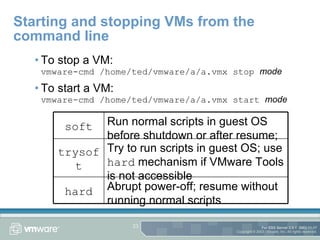
Starting and stopping VMs from the command line To stop a VM: vmware-cmd /home/ted/vmware/a/a.vmx stop  mode To start a VM: vmware-cmd /home/ted/vmware/a/a.vmx start  mode Abrupt power-off; resume without running normal scripts hard Try to run scripts in guest OS; use  hard  mechanism if VMware Tools is not accessible trysoft Run normal scripts in guest OS before shutdown or after resume; soft
Questions?

Vmware Command Line

  • 1.
    ESX Server fromthe Command Line The command-line environment Working with disks Working with virtual machines
  • 2.
    Tips for command-lineuse Install an ssh (Secure Shell) client on your desktop Windows: PuTTY (freeware), SecureCRT (commercial) Know the features of the bash shell Use arrow keys to navigate command history Use TAB to complete file names and commands Useful keystrokes: ctrl- A : beginning of line ctrl- E : end of line ctrl- W : erase previous word ctrl- U : blank this line ctrl- Z : suspend this job bg command puts suspended job in background Caution! ctrl- S freezes the screen; use ctrl- Q to unfreeze
  • 3.
    Useful Service Consoleadd-on packages nano : a simple text editor An alternative to vi Always invoke as nano –w filename to turn off word-wrap lynx : a text-only Web browser Especially useful for downloading files from Web sites to Service Console ncftp : an enhanced text-only FTP client Contains ncftpget , useful for unattended FTP downloads lsof : list open files Shows what processes are using what files and ports
  • 4.
    Working with ServiceConsole packages rpm –qa : list installed packages rpm –qi packagename : get more information about a package rpm –ql packagename : list files composing a package rpm –Uvh filename(s) : install a package You may need to satisfy a package’s dependencies; list multiple package filenames on command line rpm –e packagename : uninstalls a package Warning: do not uninstall VMware packages! Or use –p packagefilename in place of packagename
  • 5.
    Partitioning disks withfdisk fdisk requires a device file pointing at desired disk fdisk /dev/sdb Enter p to print the present partition table Enter n to create a new partition Specify partition number if primary Specify starting cylinder Specify size: +1024M gives a 1 GB partition Enter t to change the partition type: FB for VMFS Enter w to save partition table to disk Warning: Changing partition table of a disk with mounted Linux file systems may require reboot
  • 6.
    vmkfstools SyntaxThe option flag governs the action of the command Either a single letter with one hyphen or a word with two The last argument is always a path using the VMkernel’s device space Either a VMFS name (physical or friendly) vmhba0:1:0:5 /vmfs/vmhba0:1:0:5 myvmfs /vmfs/myvmfs Or a VMFS name followed by a virtual disk file name vmhba0:1:0:5:a.dsk /vmfs/vmhba0:1:0:5/a.dsk myvmfs:a.dsk /vmfs/myvmfs/a.dsk vmkfstools -? [ otherarg otherarg … ] VMkernel-path
  • 7.
    Creating a newVMFS volume Use vmkfstools –N to map from VMkernel disk to a Linux device file /dev/vsd n # vmkfstools –N vmhba0:8:0:0 /dev/vsd0 fdisk /dev/vsd0 Make a partition number 1 with type FB Make new VMFS volumes using MUI or command line Whole disk
  • 8.
    Creating a newVMFS volume (cont’d) Use vmkfstools –C to build a new VMFS vmkfstools –C vmfs2 vmhba0:8:0:1 Use vmkfstools –S to set the volume label vmkfstools –S VOL3 vmhba0:8:0:1 Use vmkfstools –l to list contents vmkfstools –l VOL3 or ls –l /vmfs/VOL3
  • 9.
    Basic VMFS virtual-diskoperations To create a new virtual disk: vmkfstools –c 4096m VOL3:webserver.dsk To set access rights: chown ted:finance /vmfs/VOL3/webserver.dsk chmod u=rw,go= /vmfs/VOL3/webserver.dsk To rename a virtual disk mv /vmfs/VOL3/ws.dsk /vmfs/VOL3/webserver.dsk To remove a virtual disk rm /vmfs/VOL3/ws.dsk
  • 10.
    Copying a virtualdisk It’s safe to use the Service Console’s cp command on > 2 GB virtual disks Not all Service Console utilities have been customized Other environments may contain unsafe tools too Safest to handle virtual disks in their exported (“COW”) format To export: vmkfstools –e /vmimages/ws.vmdk vmfs3:ws.dsk
  • 11.
    Copying a virtualdisk from one ESX Server to another Use scp to copy securely scp /vmfs/VOL3/ws.dsk  user @esx2:/vmfs/myvmfs/ws.dsk Always check for integrity # sum /vmfs/myvmfs/ws.dsk 39678 489473 /vmfs/myvmfs/ws.dsk # md5sum /vmfs/myvmfs/router-2.1.dsk 77dfc2ba10c75b6ad0a1812805887e28 router-2.1.dsk 16-bit checksum size in 1 KB blocks
  • 12.
    Extending a virtualdisk Make a backup first! Extend the virtual disk vmkfstools –X 4096M VOL3:windata.dsk Now the file system inside the virtual disk does not fill the medium Use Partition Magic or the equivalent inside the VM to extend the file system
  • 13.
    Inspecting virtual disksfrom Service Console To identify a virtual disk: # head mydisk.dsk | file – To import: vmkfstools –i /vmimages/otherdisk.dsk VOL3:other.dsk GSX Server 2.x virtual disks can also be imported {nothing} Workstation 3.x GSX Server 2.x ASCII English text Workstation 4 x86 boot sector ESX Server
  • 14.
    Opening virtual disksfrom Service Console To display the partition table inside a virtual disk: # vmware-mount.pl –p /vmfs/VOL3/w2k.dsk Nr Start Size Type Id System -- ----- ------- ---- --- --------------- 1 63 4176837 BIOS 7 HPFS/NTFS # vmware-mount.pl –p /vmfs/VOL3/linux.dsk Nr Start Size Type Id System -- ----- ------- ---- --- --------------- 1 32 81888 BIOS 83 Linux 2 81920 262144 BIOS 82 Linux swap 3 344064 972800 BIOS 83 Linux Virtual disk must be in ESX format, reside in a VMFS, not powered on
  • 15.
    Opening virtual disksfrom Service Console (cont’d) You may mount file systems from within a virtual disk onto the Service Console Virtual disk must not be powered on NTFS file systems are read-only! vfat and ext3 file systems may be mounted read-write Press ctrl- C to kill vmware-mount.pl when done # mkdir /myntfs # vmware-mount.pl /vmfs/ted/w2k.dsk 1  -t ntfs -o ro /myntfs In another window: # ls /myntfs AUTOEXEC.BAT CONFIG.SYS IO.SYS boot.ini Documents and Settings MSDOS.SYS
  • 16.
    VM Configuration FileSyntax Comments begin with a # character Blank lines are allowed Each other line is of the form attribute = value or class.attribute = value Class can be: A family of related items A device controller A device on a device controller
  • 17.
    A sample configurationfile config.version = "6" virtualHW.version = "3" memSize = "192" numvcpus = "2" displayName = "Controller for domain TEXAS.ORG" guestOS = "win2000Serv" ide1:0.present = "TRUE" ide1:0.startConnected = "TRUE" ide1:0.deviceType = "atapi-cdrom" ide1:0.fileName = "/dev/cdrom" floppy0.present = "TRUE" floppy0.startConnected = "FALSE" floppy0.fileName = "/dev/fd0" scsi0.present = "TRUE" scsi0.virtualDev = "vmxbuslogic" scsi0.sharedBus = "none" scsi0:0.present = "TRUE" scsi0:0.fileName = “VOL3:winnt.dsk" scsi0:0.mode = "persistent"
  • 18.
    A sample configurationfile (cont’d) ethernet0.present = "TRUE" ethernet0.virtualDev = "vlance" ethernet0.connectionType = "monitor_dev" ethernet0.devName = "vmnic0" suspend.directory = "/vmfs/VOL3" remotedisplay.depth = "8" checkpoint.cptconfigname = "rn2-52ff1bdc" uuid.location =  "56 4d 7c 66 1f 23 b5 c3-2f 50 a9 29 7f 53 72 b5"
  • 19.
    Configuring for TerminalServices Windows Terminal Services and Citrix Metaframe systems run with many processes Windows 2000 systems benefit from a performance tweak Add to configuration file workload = "TerminalServices" If Citrix Metaframe XP, install Citrix hotfix XE102W014 in guest OS
  • 20.
    Time sync forgraphicsless VMs Normally need GUI VMware Tools agent to enable time synchronization between guest OS and Service Console But Linux servers often run without graphics To enable time sync without GUI: tools.syncTime = "TRUE"
  • 21.
    Adjusting Remote Consolekeyboard repeat By default, virtual keyboard device in VM starts autorepeat if a physical key is not released within less than a second Network latency or congestion may trigger autorepeat Add to config file: keyboard.typematicMinDelay = 2000000 Value in microseconds (2 million  sec = 2 sec) Choose a value that results in satisfactory performance
  • 22.
    Specifying autostart andautostop behavior Config files may contain autostart = "poweron" autostart.delay = "2" Seconds to pause autostop = "poweroff" or… autostop = "suspend" autostop.delay = "2" Seconds to pause Caution! Memory page sharing is not active when suspended VMs are resumed
  • 23.
    Starting and stoppingVMs from the command line To stop a VM: vmware-cmd /home/ted/vmware/a/a.vmx stop mode To start a VM: vmware-cmd /home/ted/vmware/a/a.vmx start mode Abrupt power-off; resume without running normal scripts hard Try to run scripts in guest OS; use hard mechanism if VMware Tools is not accessible trysoft Run normal scripts in guest OS before shutdown or after resume; soft
  • 24.