TECH CLUB PROJECTS THROUGHOUT THE YEAR
OOO
Each activity is bolded and how many sessions it took us. Keep in mind that we met for
75 minutes each session.
GETTING STARTED (1 session)
We started small by introducing Class Dojo, Edmodo, and creating a Self-Portrait for our display
wall outside the computer lab.
Class Dojo - http://www.classdojo.com/
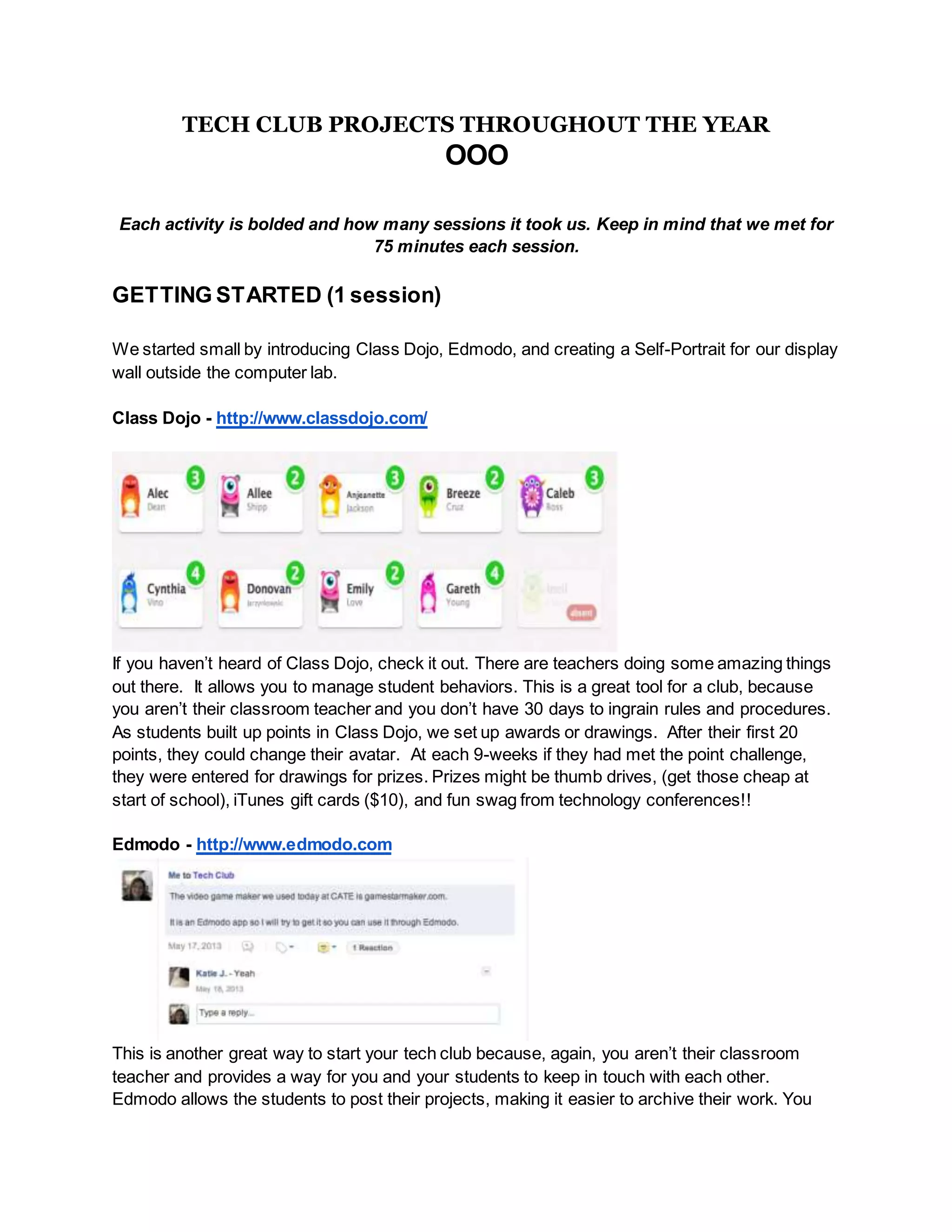
If you haven’t heard of Class Dojo, check it out. There are teachers doing some amazing things
out there. It allows you to manage student behaviors. This is a great tool for a club, because
you aren’t their classroom teacher and you don’t have 30 days to ingrain rules and procedures.
As students built up points in Class Dojo, we set up awards or drawings. After their first 20
points, they could change their avatar. At each 9-weeks if they had met the point challenge,
they were entered for drawings for prizes. Prizes might be thumb drives, (get those cheap at
start of school), iTunes gift cards ($10), and fun swag from technology conferences!!
Edmodo - http://www.edmodo.com
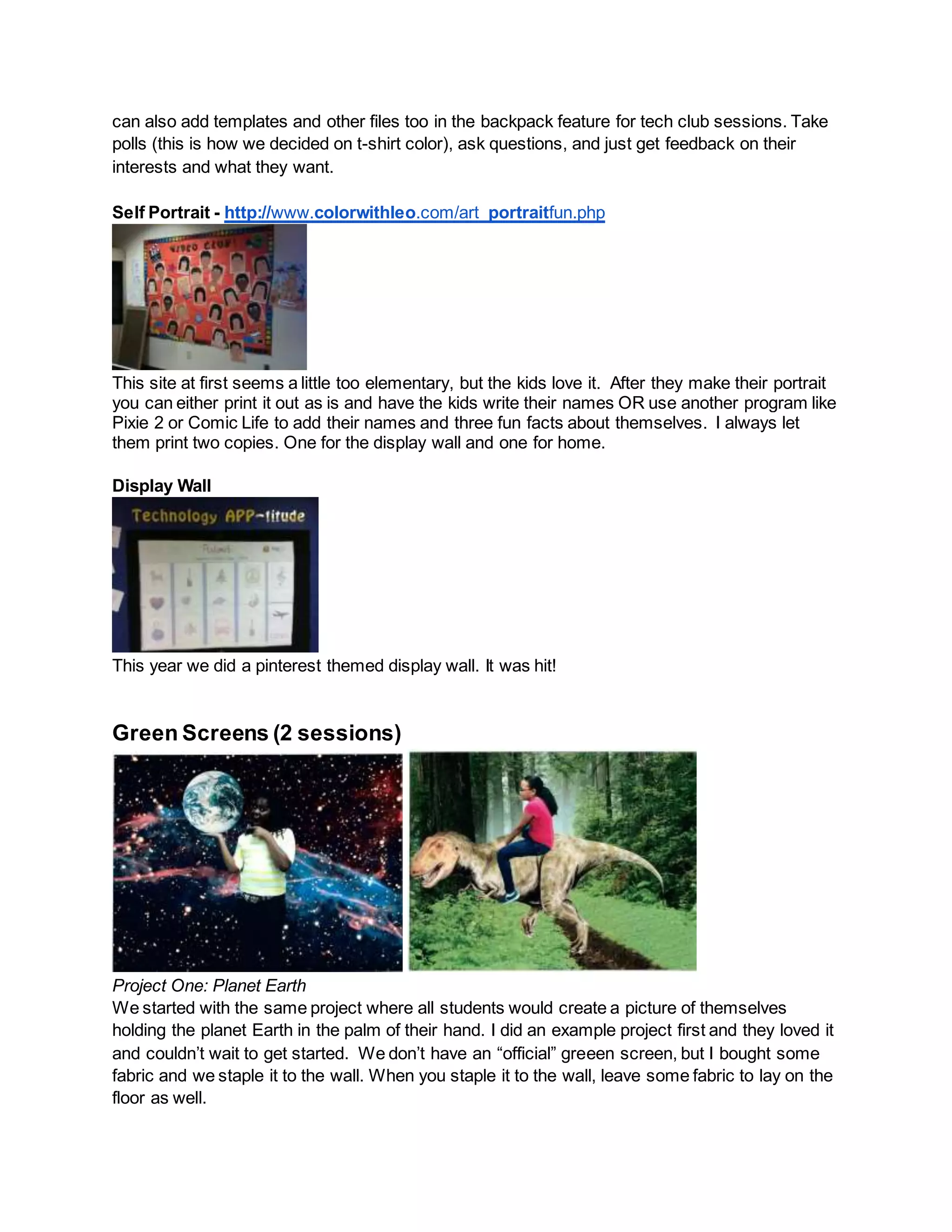
This is another great way to start your tech club because, again, you aren’t their classroom
teacher and provides a way for you and your students to keep in touch with each other.
Edmodo allows the students to post their projects, making it easier to archive their work. You
can also add templates and other files too in the backpack feature for tech club sessions. Take
polls (this is how we decided on t-shirt color), ask questions, and just get feedback on their
interests and what they want.
Self Portrait - http://www.colorwithleo.com/art_portraitfun.php
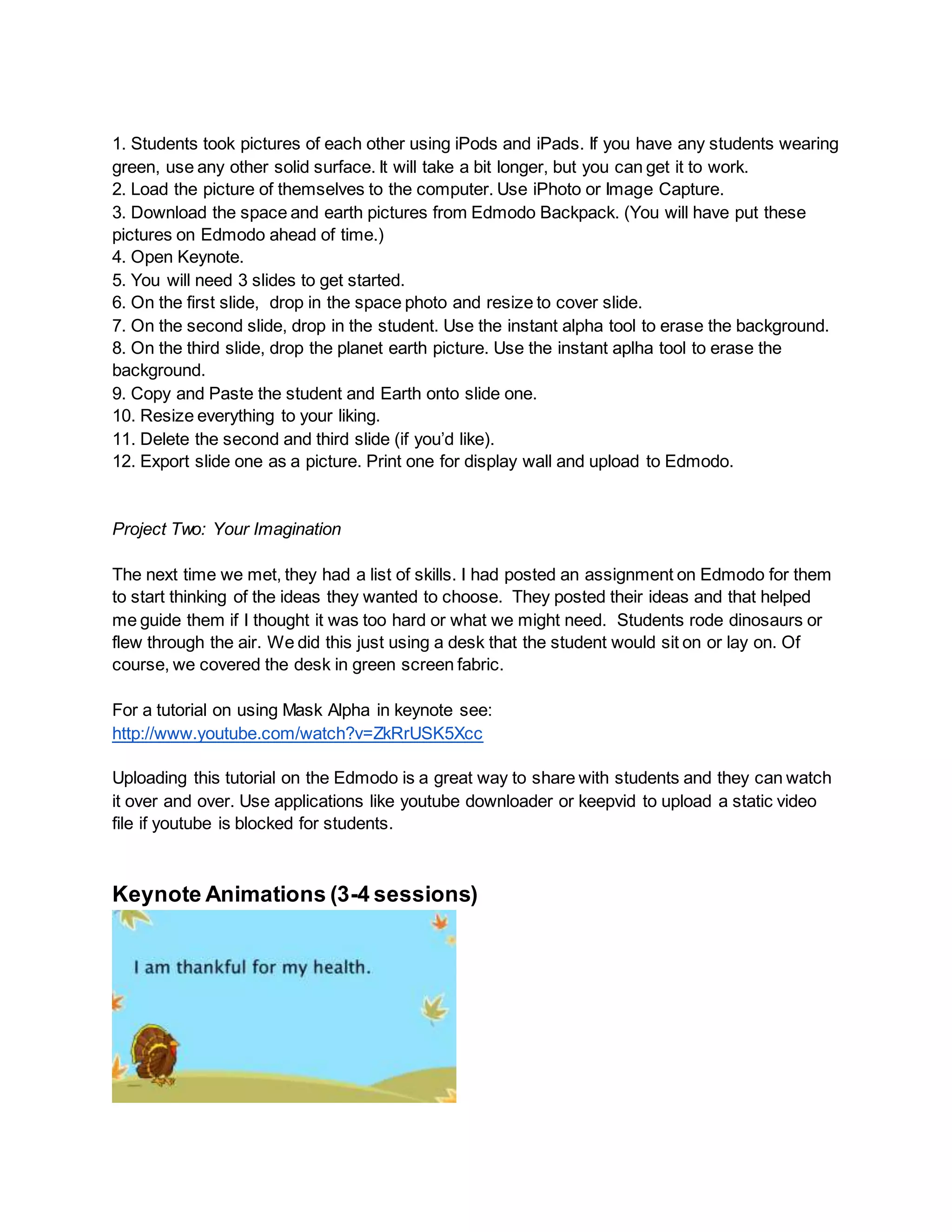
This site at first seems a little too elementary, but the kids love it. After they make their portrait
you can either print it out as is and have the kids write their names OR use another program like
Pixie 2 or Comic Life to add their names and three fun facts about themselves. I always let
them print two copies. One for the display wall and one for home.
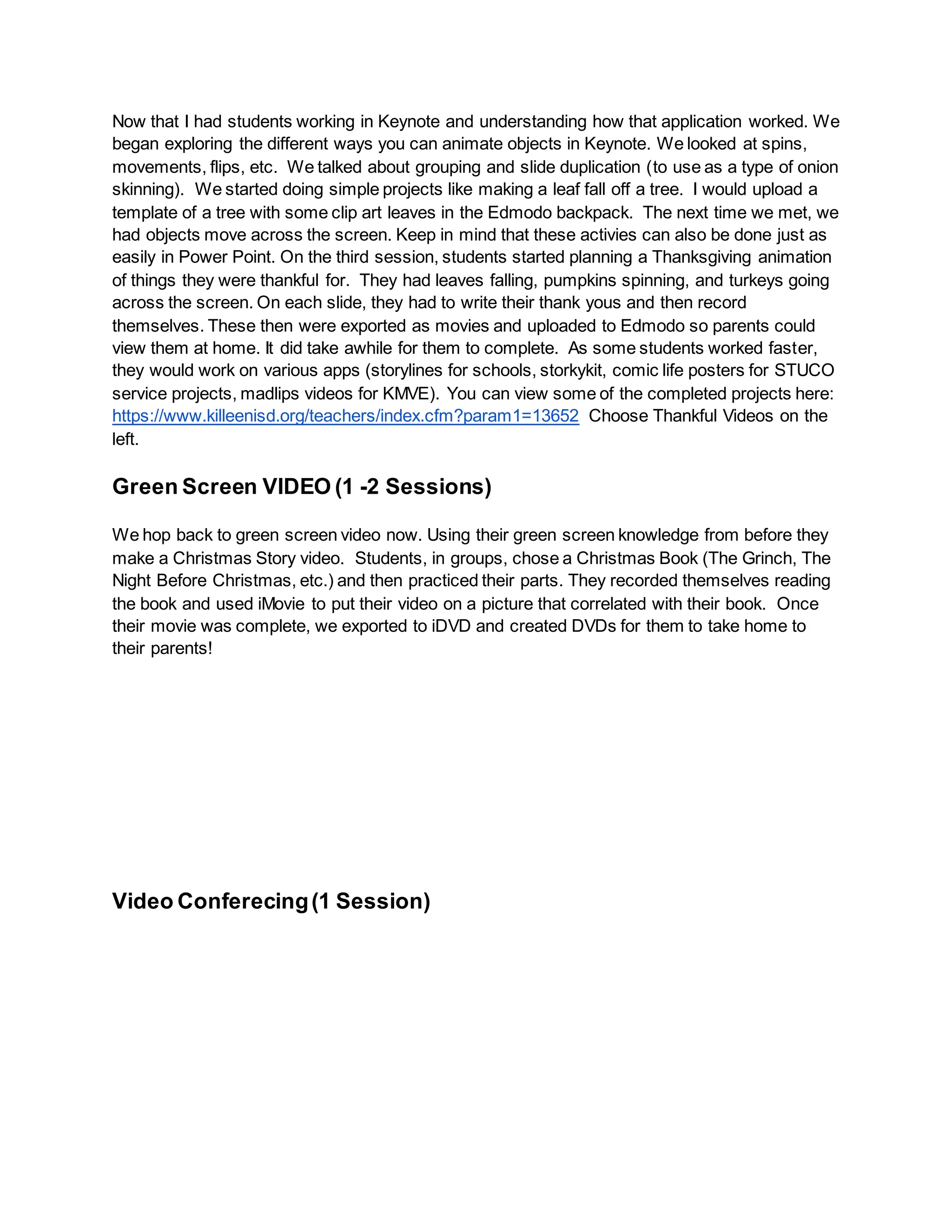
Display Wall
This year we did a pinterest themed display wall. It was hit!
Green Screens (2 sessions)
Project One: Planet Earth
We started with the same project where all students would create a picture of themselves
holding the planet Earth in the palm of their hand. I did an example project first and they loved it
and couldn’t wait to get started. We don’t have an “official” greeen screen, but I bought some
fabric and we staple it to the wall. When you staple it to the wall, leave some fabric to lay on the
floor as well.
1. Students took pictures of each other using iPods and iPads. If you have any students wearing
green, use any other solid surface. It will take a bit longer, but you can get it to work.
2. Load the picture of themselves to the computer. Use iPhoto or Image Capture.
3. Download the space and earth pictures from Edmodo Backpack. (You will have put these
pictures on Edmodo ahead of time.)
4. Open Keynote.
5. You will need 3 slides to get started.
6. On the first slide, drop in the space photo and resize to cover slide.
7. On the second slide, drop in the student. Use the instant alpha tool to erase the background.
8. On the third slide, drop the planet earth picture. Use the instant aplha tool to erase the
background.
9. Copy and Paste the student and Earth onto slide one.
10. Resize everything to your liking.
11. Delete the second and third slide (if you’d like).
12. Export slide one as a picture. Print one for display wall and upload to Edmodo.
Project Two: Your Imagination
The next time we met, they had a list of skills. I had posted an assignment on Edmodo for them
to start thinking of the ideas they wanted to choose. They posted their ideas and that helped
me guide them if I thought it was too hard or what we might need. Students rode dinosaurs or
flew through the air. We did this just using a desk that the student would sit on or lay on. Of
course, we covered the desk in green screen fabric.
For a tutorial on using Mask Alpha in keynote see:
http://www.youtube.com/watch?v=ZkRrUSK5Xcc
Uploading this tutorial on the Edmodo is a great way to share with students and they can watch
it over and over. Use applications like youtube downloader or keepvid to upload a static video
file if youtube is blocked for students.
Keynote Animations (3-4 sessions)
Now that I had students working in Keynote and understanding how that application worked. We
began exploring the different ways you can animate objects in Keynote. We looked at spins,
movements, flips, etc. We talked about grouping and slide duplication (to use as a type of onion
skinning). We started doing simple projects like making a leaf fall off a tree. I would upload a
template of a tree with some clip art leaves in the Edmodo backpack. The next time we met, we
had objects move across the screen. Keep in mind that these activies can also be done just as
easily in Power Point. On the third session, students started planning a Thanksgiving animation
of things they were thankful for. They had leaves falling, pumpkins spinning, and turkeys going
across the screen. On each slide, they had to write their thank yous and then record
themselves. These then were exported as movies and uploaded to Edmodo so parents could
view them at home. It did take awhile for them to complete. As some students worked faster,
they would work on various apps (storylines for schools, storkykit, comic life posters for STUCO
service projects, madlips videos for KMVE). You can view some of the completed projects here:
https://www.killeenisd.org/teachers/index.cfm?param1=13652 Choose Thankful Videos on the
left.
Green Screen VIDEO (1 -2 Sessions)
We hop back to green screen video now. Using their green screen knowledge from before they
make a Christmas Story video. Students, in groups, chose a Christmas Book (The Grinch, The
Night Before Christmas, etc.) and then practiced their parts. They recorded themselves reading
the book and used iMovie to put their video on a picture that correlated with their book. Once
their movie was complete, we exported to iDVD and created DVDs for them to take home to
their parents!
Video Conferecing(1 Session)
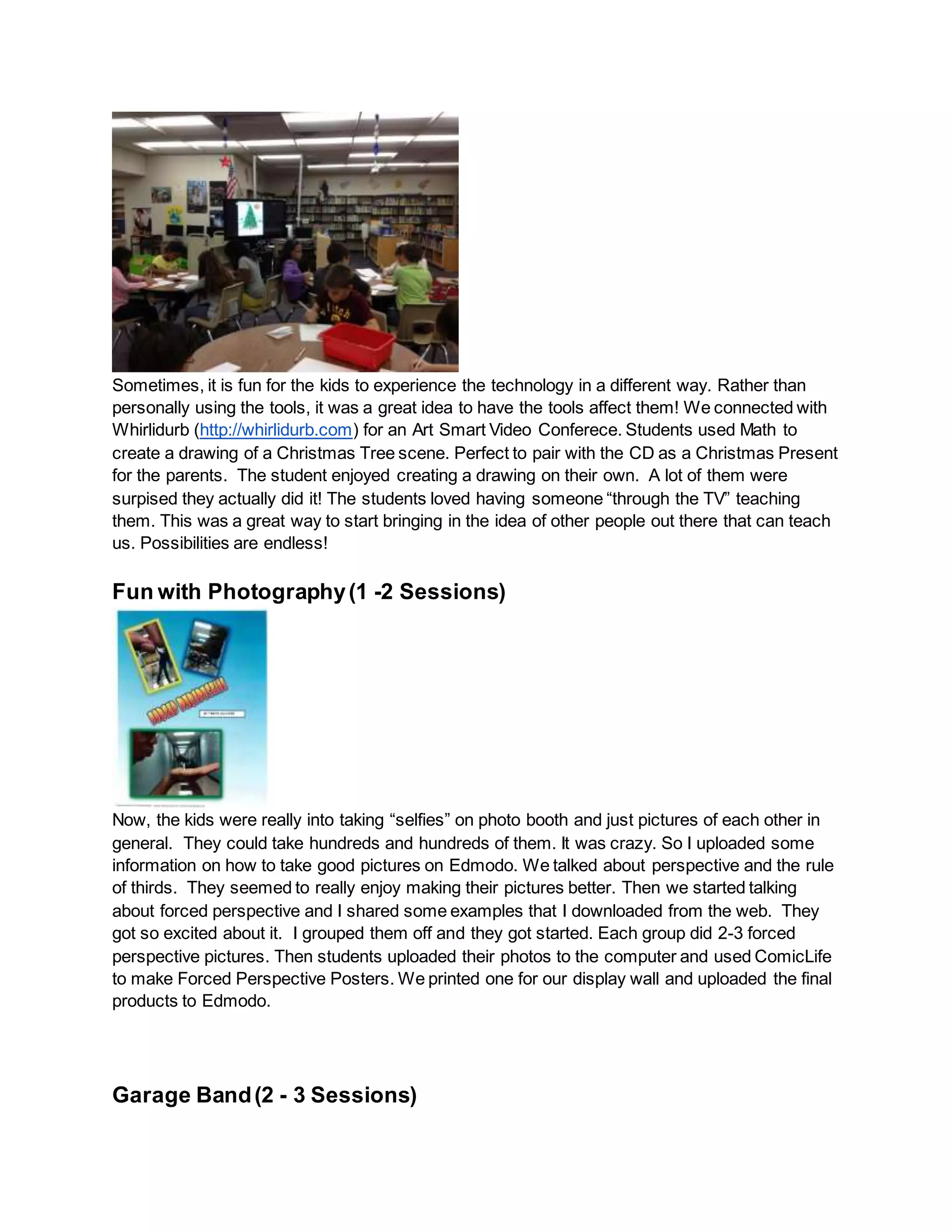
Sometimes, it is fun for the kids to experience the technology in a different way. Rather than
personally using the tools, it was a great idea to have the tools affect them! We connected with
Whirlidurb (http://whirlidurb.com) for an Art Smart Video Conferece. Students used Math to
create a drawing of a Christmas Tree scene. Perfect to pair with the CD as a Christmas Present
for the parents. The student enjoyed creating a drawing on their own. A lot of them were
surpised they actually did it! The students loved having someone “through the TV” teaching
them. This was a great way to start bringing in the idea of other people out there that can teach
us. Possibilities are endless!
Fun with Photography(1 -2 Sessions)
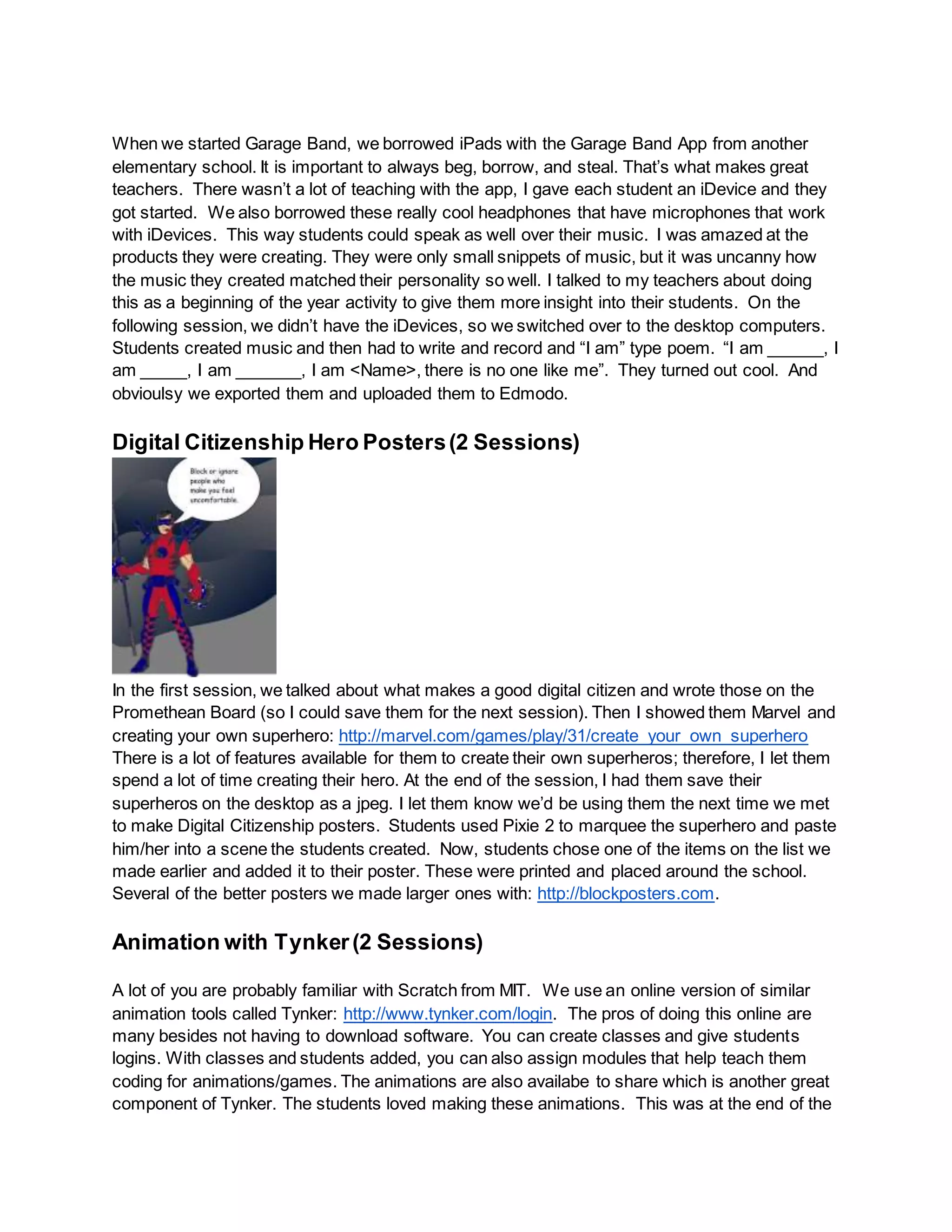
Now, the kids were really into taking “selfies” on photo booth and just pictures of each other in
general. They could take hundreds and hundreds of them. It was crazy. So I uploaded some
information on how to take good pictures on Edmodo. We talked about perspective and the rule
of thirds. They seemed to really enjoy making their pictures better. Then we started talking
about forced perspective and I shared some examples that I downloaded from the web. They
got so excited about it. I grouped them off and they got started. Each group did 2-3 forced
perspective pictures. Then students uploaded their photos to the computer and used ComicLife
to make Forced Perspective Posters. We printed one for our display wall and uploaded the final
products to Edmodo.
Garage Band(2 - 3 Sessions)
When we started Garage Band, we borrowed iPads with the Garage Band App from another
elementary school. It is important to always beg, borrow, and steal. That’s what makes great
teachers. There wasn’t a lot of teaching with the app, I gave each student an iDevice and they
got started. We also borrowed these really cool headphones that have microphones that work
with iDevices. This way students could speak as well over their music. I was amazed at the
products they were creating. They were only small snippets of music, but it was uncanny how
the music they created matched their personality so well. I talked to my teachers about doing
this as a beginning of the year activity to give them more insight into their students. On the
following session, we didn’t have the iDevices, so we switched over to the desktop computers.
Students created music and then had to write and record and “I am” type poem. “I am ______, I
am _____, I am _______, I am <Name>, there is no one like me”. They turned out cool. And
obvioulsy we exported them and uploaded them to Edmodo.
Digital Citizenship Hero Posters(2 Sessions)
In the first session, we talked about what makes a good digital citizen and wrote those on the
Promethean Board (so I could save them for the next session). Then I showed them Marvel and
creating your own superhero: http://marvel.com/games/play/31/create_your_own_superhero
There is a lot of features available for them to create their own superheros; therefore, I let them
spend a lot of time creating their hero. At the end of the session, I had them save their
superheros on the desktop as a jpeg. I let them know we’d be using them the next time we met
to make Digital Citizenship posters. Students used Pixie 2 to marquee the superhero and paste
him/her into a scene the students created. Now, students chose one of the items on the list we
made earlier and added it to their poster. These were printed and placed around the school.
Several of the better posters we made larger ones with: http://blockposters.com.
Animation with Tynker(2 Sessions)
A lot of you are probably familiar with Scratch from MIT. We use an online version of similar
animation tools called Tynker: http://www.tynker.com/login. The pros of doing this online are
many besides not having to download software. You can create classes and give students
logins. With classes and students added, you can also assign modules that help teach them
coding for animations/games. The animations are also availabe to share which is another great
component of Tynker. The students loved making these animations. This was at the end of the
year and some of them were a little more frustrated than others and that mostly had to do with
their readability level. However, I was surprised at how motivated they still were to read and
follow the directions to understand how to use the program. They were also not afraid to ask for
help and collaborate with one another.
Culminating Field Trip (1 Sessions)
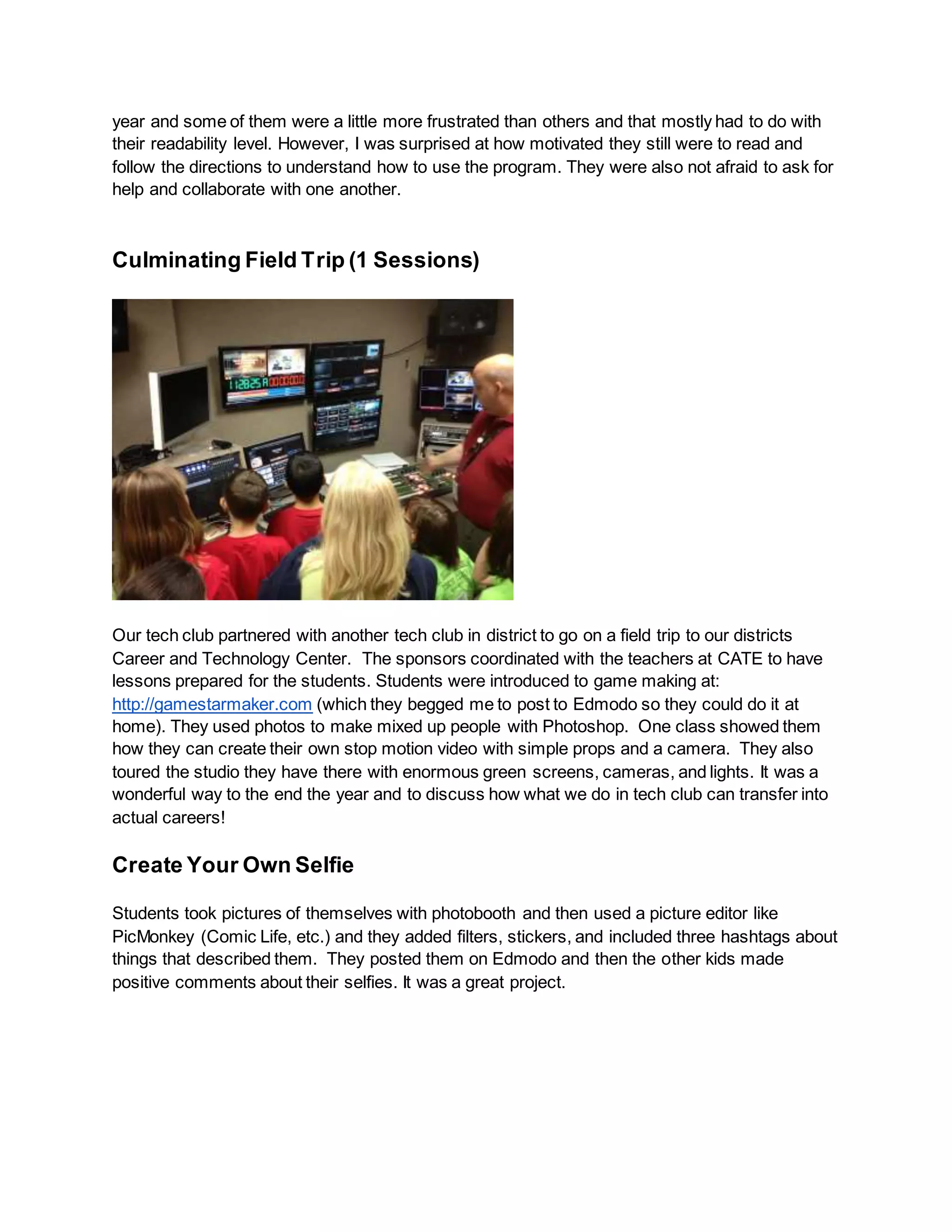
Our tech club partnered with another tech club in district to go on a field trip to our districts
Career and Technology Center. The sponsors coordinated with the teachers at CATE to have
lessons prepared for the students. Students were introduced to game making at:
http://gamestarmaker.com (which they begged me to post to Edmodo so they could do it at
home). They used photos to make mixed up people with Photoshop. One class showed them
how they can create their own stop motion video with simple props and a camera. They also
toured the studio they have there with enormous green screens, cameras, and lights. It was a
wonderful way to the end the year and to discuss how what we do in tech club can transfer into
actual careers!
Create Your Own Selfie
Students took pictures of themselves with photobooth and then used a picture editor like
PicMonkey (Comic Life, etc.) and they added filters, stickers, and included three hashtags about
things that described them. They posted them on Edmodo and then the other kids made
positive comments about their selfies. It was a great project.

Tech club projects iste 2013

  • 1.
    TECH CLUB PROJECTSTHROUGHOUT THE YEAR OOO Each activity is bolded and how many sessions it took us. Keep in mind that we met for 75 minutes each session. GETTING STARTED (1 session) We started small by introducing Class Dojo, Edmodo, and creating a Self-Portrait for our display wall outside the computer lab. Class Dojo - http://www.classdojo.com/ If you haven’t heard of Class Dojo, check it out. There are teachers doing some amazing things out there. It allows you to manage student behaviors. This is a great tool for a club, because you aren’t their classroom teacher and you don’t have 30 days to ingrain rules and procedures. As students built up points in Class Dojo, we set up awards or drawings. After their first 20 points, they could change their avatar. At each 9-weeks if they had met the point challenge, they were entered for drawings for prizes. Prizes might be thumb drives, (get those cheap at start of school), iTunes gift cards ($10), and fun swag from technology conferences!! Edmodo - http://www.edmodo.com This is another great way to start your tech club because, again, you aren’t their classroom teacher and provides a way for you and your students to keep in touch with each other. Edmodo allows the students to post their projects, making it easier to archive their work. You
  • 2.
    can also addtemplates and other files too in the backpack feature for tech club sessions. Take polls (this is how we decided on t-shirt color), ask questions, and just get feedback on their interests and what they want. Self Portrait - http://www.colorwithleo.com/art_portraitfun.php This site at first seems a little too elementary, but the kids love it. After they make their portrait you can either print it out as is and have the kids write their names OR use another program like Pixie 2 or Comic Life to add their names and three fun facts about themselves. I always let them print two copies. One for the display wall and one for home. Display Wall This year we did a pinterest themed display wall. It was hit! Green Screens (2 sessions) Project One: Planet Earth We started with the same project where all students would create a picture of themselves holding the planet Earth in the palm of their hand. I did an example project first and they loved it and couldn’t wait to get started. We don’t have an “official” greeen screen, but I bought some fabric and we staple it to the wall. When you staple it to the wall, leave some fabric to lay on the floor as well.
  • 3.
    1. Students tookpictures of each other using iPods and iPads. If you have any students wearing green, use any other solid surface. It will take a bit longer, but you can get it to work. 2. Load the picture of themselves to the computer. Use iPhoto or Image Capture. 3. Download the space and earth pictures from Edmodo Backpack. (You will have put these pictures on Edmodo ahead of time.) 4. Open Keynote. 5. You will need 3 slides to get started. 6. On the first slide, drop in the space photo and resize to cover slide. 7. On the second slide, drop in the student. Use the instant alpha tool to erase the background. 8. On the third slide, drop the planet earth picture. Use the instant aplha tool to erase the background. 9. Copy and Paste the student and Earth onto slide one. 10. Resize everything to your liking. 11. Delete the second and third slide (if you’d like). 12. Export slide one as a picture. Print one for display wall and upload to Edmodo. Project Two: Your Imagination The next time we met, they had a list of skills. I had posted an assignment on Edmodo for them to start thinking of the ideas they wanted to choose. They posted their ideas and that helped me guide them if I thought it was too hard or what we might need. Students rode dinosaurs or flew through the air. We did this just using a desk that the student would sit on or lay on. Of course, we covered the desk in green screen fabric. For a tutorial on using Mask Alpha in keynote see: http://www.youtube.com/watch?v=ZkRrUSK5Xcc Uploading this tutorial on the Edmodo is a great way to share with students and they can watch it over and over. Use applications like youtube downloader or keepvid to upload a static video file if youtube is blocked for students. Keynote Animations (3-4 sessions)
  • 4.
    Now that Ihad students working in Keynote and understanding how that application worked. We began exploring the different ways you can animate objects in Keynote. We looked at spins, movements, flips, etc. We talked about grouping and slide duplication (to use as a type of onion skinning). We started doing simple projects like making a leaf fall off a tree. I would upload a template of a tree with some clip art leaves in the Edmodo backpack. The next time we met, we had objects move across the screen. Keep in mind that these activies can also be done just as easily in Power Point. On the third session, students started planning a Thanksgiving animation of things they were thankful for. They had leaves falling, pumpkins spinning, and turkeys going across the screen. On each slide, they had to write their thank yous and then record themselves. These then were exported as movies and uploaded to Edmodo so parents could view them at home. It did take awhile for them to complete. As some students worked faster, they would work on various apps (storylines for schools, storkykit, comic life posters for STUCO service projects, madlips videos for KMVE). You can view some of the completed projects here: https://www.killeenisd.org/teachers/index.cfm?param1=13652 Choose Thankful Videos on the left. Green Screen VIDEO (1 -2 Sessions) We hop back to green screen video now. Using their green screen knowledge from before they make a Christmas Story video. Students, in groups, chose a Christmas Book (The Grinch, The Night Before Christmas, etc.) and then practiced their parts. They recorded themselves reading the book and used iMovie to put their video on a picture that correlated with their book. Once their movie was complete, we exported to iDVD and created DVDs for them to take home to their parents! Video Conferecing(1 Session)
  • 5.
    Sometimes, it isfun for the kids to experience the technology in a different way. Rather than personally using the tools, it was a great idea to have the tools affect them! We connected with Whirlidurb (http://whirlidurb.com) for an Art Smart Video Conferece. Students used Math to create a drawing of a Christmas Tree scene. Perfect to pair with the CD as a Christmas Present for the parents. The student enjoyed creating a drawing on their own. A lot of them were surpised they actually did it! The students loved having someone “through the TV” teaching them. This was a great way to start bringing in the idea of other people out there that can teach us. Possibilities are endless! Fun with Photography(1 -2 Sessions) Now, the kids were really into taking “selfies” on photo booth and just pictures of each other in general. They could take hundreds and hundreds of them. It was crazy. So I uploaded some information on how to take good pictures on Edmodo. We talked about perspective and the rule of thirds. They seemed to really enjoy making their pictures better. Then we started talking about forced perspective and I shared some examples that I downloaded from the web. They got so excited about it. I grouped them off and they got started. Each group did 2-3 forced perspective pictures. Then students uploaded their photos to the computer and used ComicLife to make Forced Perspective Posters. We printed one for our display wall and uploaded the final products to Edmodo. Garage Band(2 - 3 Sessions)
  • 6.
    When we startedGarage Band, we borrowed iPads with the Garage Band App from another elementary school. It is important to always beg, borrow, and steal. That’s what makes great teachers. There wasn’t a lot of teaching with the app, I gave each student an iDevice and they got started. We also borrowed these really cool headphones that have microphones that work with iDevices. This way students could speak as well over their music. I was amazed at the products they were creating. They were only small snippets of music, but it was uncanny how the music they created matched their personality so well. I talked to my teachers about doing this as a beginning of the year activity to give them more insight into their students. On the following session, we didn’t have the iDevices, so we switched over to the desktop computers. Students created music and then had to write and record and “I am” type poem. “I am ______, I am _____, I am _______, I am <Name>, there is no one like me”. They turned out cool. And obvioulsy we exported them and uploaded them to Edmodo. Digital Citizenship Hero Posters(2 Sessions) In the first session, we talked about what makes a good digital citizen and wrote those on the Promethean Board (so I could save them for the next session). Then I showed them Marvel and creating your own superhero: http://marvel.com/games/play/31/create_your_own_superhero There is a lot of features available for them to create their own superheros; therefore, I let them spend a lot of time creating their hero. At the end of the session, I had them save their superheros on the desktop as a jpeg. I let them know we’d be using them the next time we met to make Digital Citizenship posters. Students used Pixie 2 to marquee the superhero and paste him/her into a scene the students created. Now, students chose one of the items on the list we made earlier and added it to their poster. These were printed and placed around the school. Several of the better posters we made larger ones with: http://blockposters.com. Animation with Tynker(2 Sessions) A lot of you are probably familiar with Scratch from MIT. We use an online version of similar animation tools called Tynker: http://www.tynker.com/login. The pros of doing this online are many besides not having to download software. You can create classes and give students logins. With classes and students added, you can also assign modules that help teach them coding for animations/games. The animations are also availabe to share which is another great component of Tynker. The students loved making these animations. This was at the end of the
  • 7.
    year and someof them were a little more frustrated than others and that mostly had to do with their readability level. However, I was surprised at how motivated they still were to read and follow the directions to understand how to use the program. They were also not afraid to ask for help and collaborate with one another. Culminating Field Trip (1 Sessions) Our tech club partnered with another tech club in district to go on a field trip to our districts Career and Technology Center. The sponsors coordinated with the teachers at CATE to have lessons prepared for the students. Students were introduced to game making at: http://gamestarmaker.com (which they begged me to post to Edmodo so they could do it at home). They used photos to make mixed up people with Photoshop. One class showed them how they can create their own stop motion video with simple props and a camera. They also toured the studio they have there with enormous green screens, cameras, and lights. It was a wonderful way to the end the year and to discuss how what we do in tech club can transfer into actual careers! Create Your Own Selfie Students took pictures of themselves with photobooth and then used a picture editor like PicMonkey (Comic Life, etc.) and they added filters, stickers, and included three hashtags about things that described them. They posted them on Edmodo and then the other kids made positive comments about their selfies. It was a great project.