Technology Tools
for Young Learners
Plainville Community Schools
Ann Carnevale presents
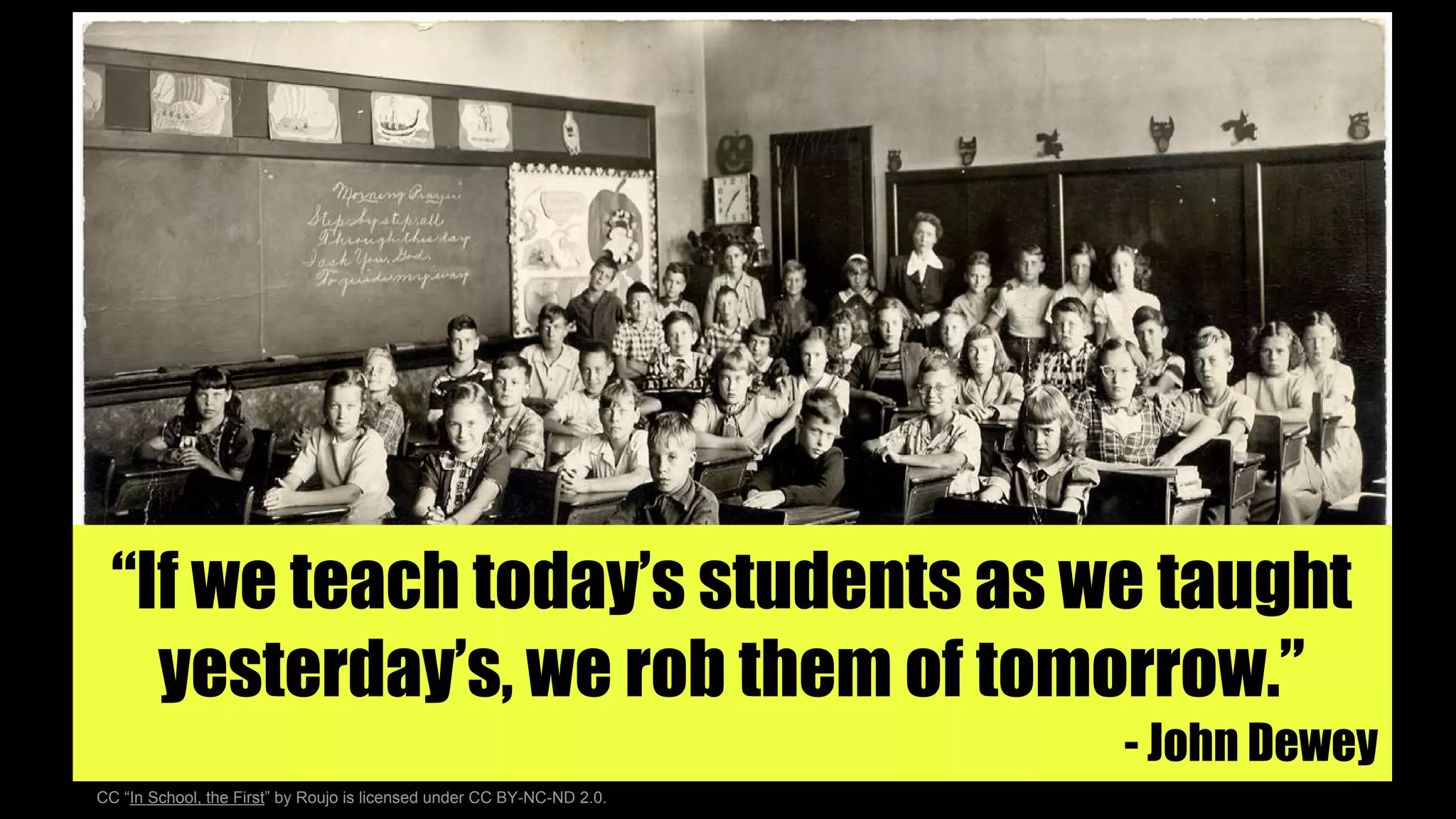
“If we teach today’s students as we taught
yesterday’s, we rob them of tomorrow.”
- John Dewey
CC “In School, the First” by Roujo is licensed under CC BY-NC-ND 2.0.
“Technology should add new dimensions to young
children's experiences, helping them learn not just
to recognize letters and understand numbers, but
to explore the real world, interact more closely with
adults, and create their own magic.”
-Kyle Snow, National Association for the Education of Young Children
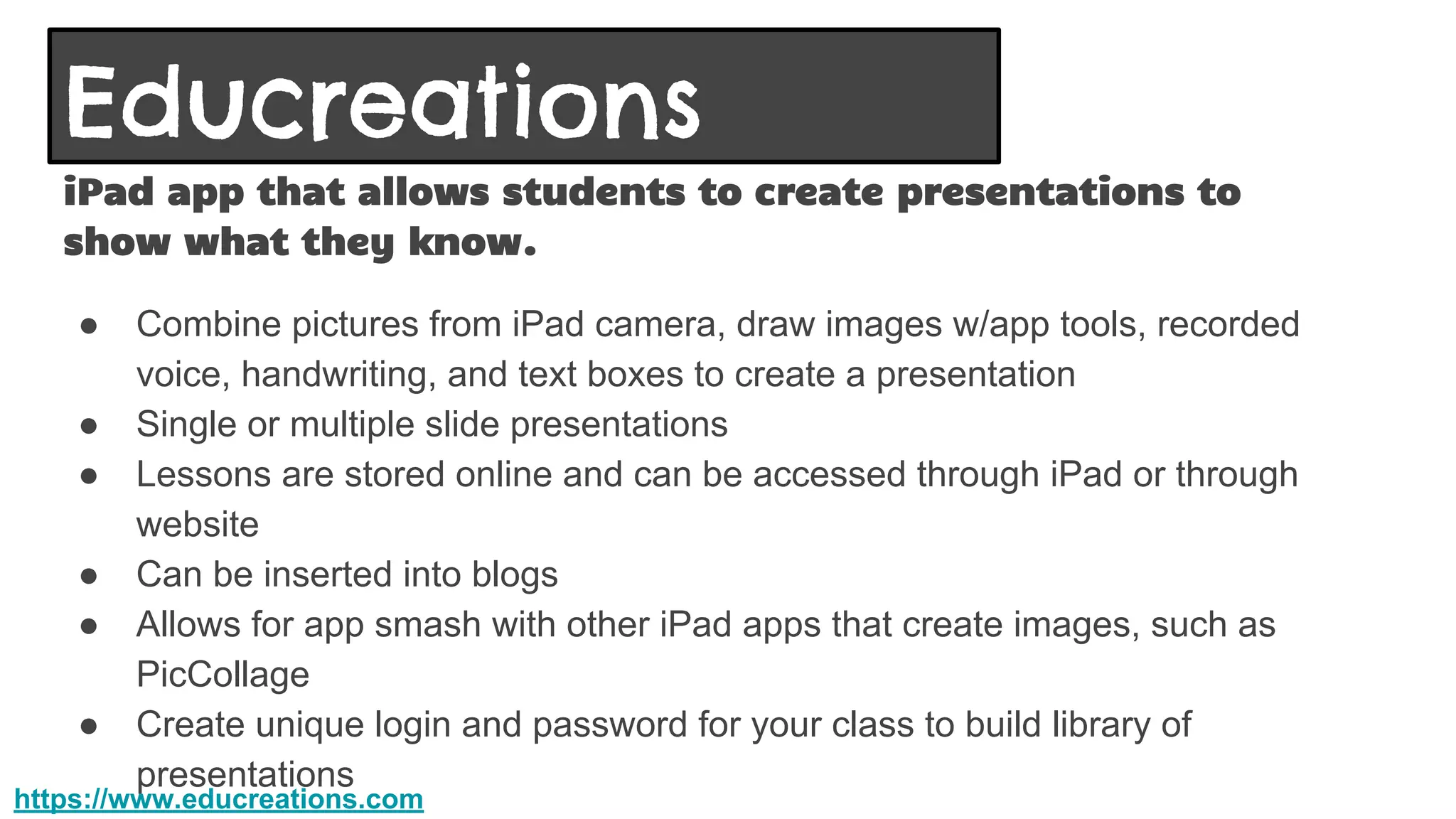
iPad app tool to create
presentations
Educreations
Web based word cloud
generator
ABCYa Word Clouds
Web and iPad app to
create sticky note walls
Padlet
iPad app and web based
tool to create interactive
images
ThingLink
iPad app to create
infopics
PicCollage
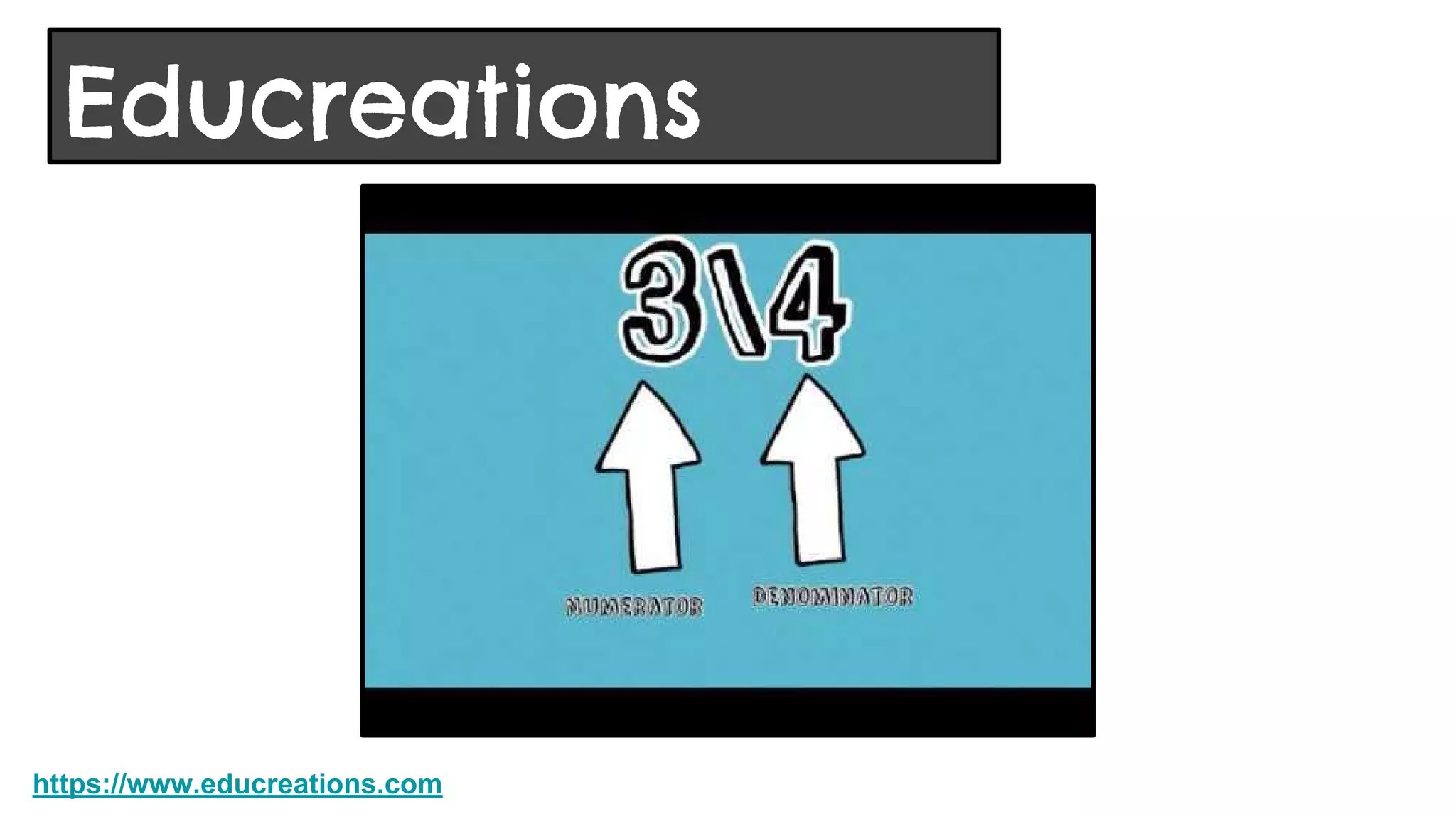
Educreations
iPad app that allows students to create presentations to
show what they know.
● Combine pictures from iPad camera, draw images w/app tools, recorded
voice, handwriting, and text boxes to create a presentation
● Single or multiple slide presentations
● Lessons are stored online and can be accessed through iPad or through
website
● Can be inserted into blogs
● Allows for app smash with other iPad apps that create images, such as
PicCollage
● Create unique login and password for your class to build library of
presentations
https://www.educreations.com
Educreations
Educreations
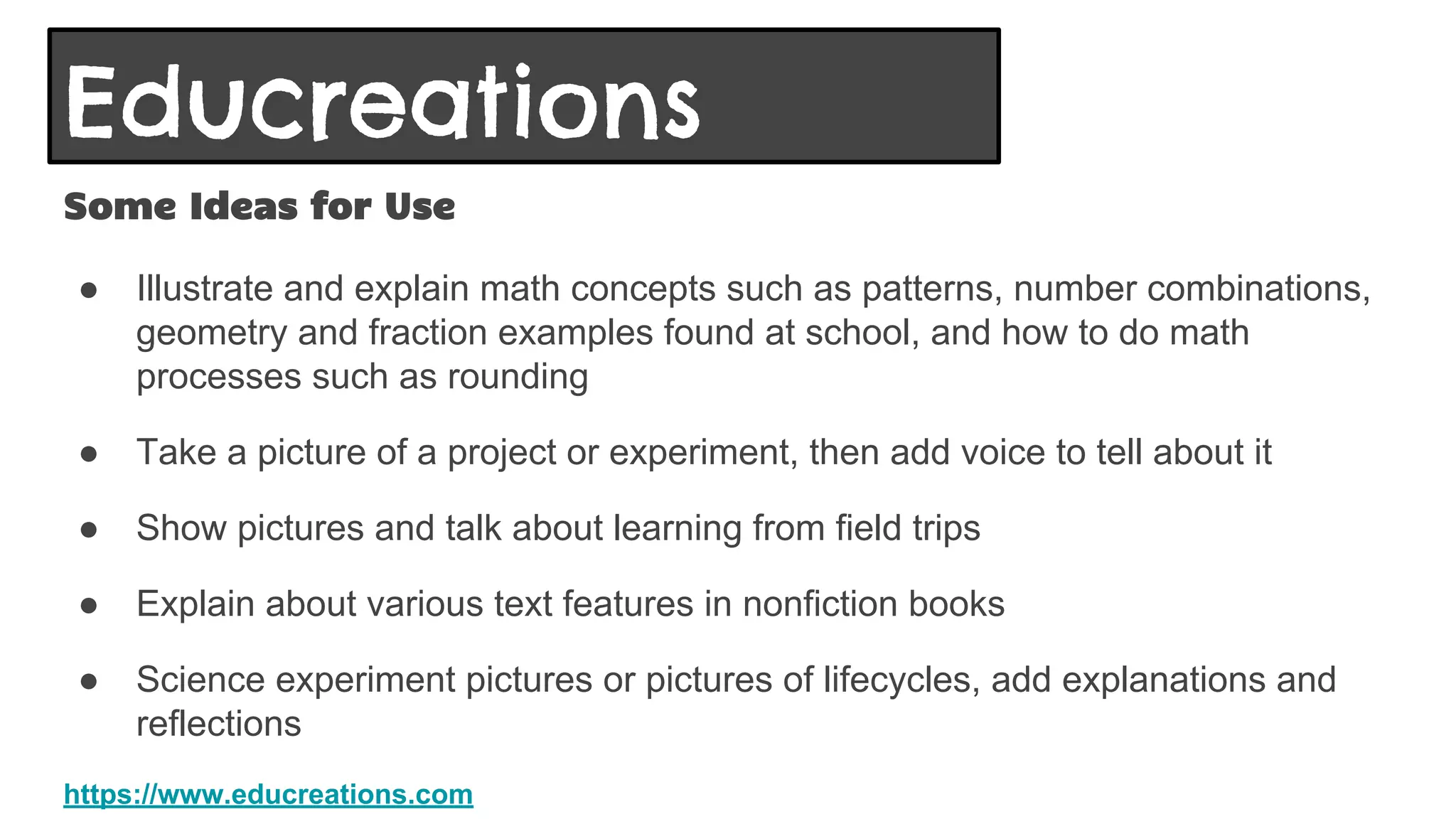
Some Ideas for Use
● Illustrate and explain math concepts such as patterns, number combinations,
geometry and fraction examples found at school, and how to do math
processes such as rounding
● Take a picture of a project or experiment, then add voice to tell about it
● Show pictures and talk about learning from field trips
● Explain about various text features in nonfiction books
● Science experiment pictures or pictures of lifecycles, add explanations and
reflections
https://www.educreations.com
Educreations
Management Thoughts
● First show students a finished project so they understand what the app does
● Use an iPad under your document camera to demonstrate to students how to
create an Educreation
● Create a handout with directions and/or examples of what should go on each
slide
● Have students make notes about narration for each slide, and who will be doing
that narration if they are working with partners or groups
● Check their Educreation and recording notes before they record
● Practice narration before recording
● Let students practice with the app, don’t expect a polished piece the first time or
two they create a project. You’ll be amazed how much they grow with it after a
couple of projects!
https://www.educreations.com
Web based word cloud generator
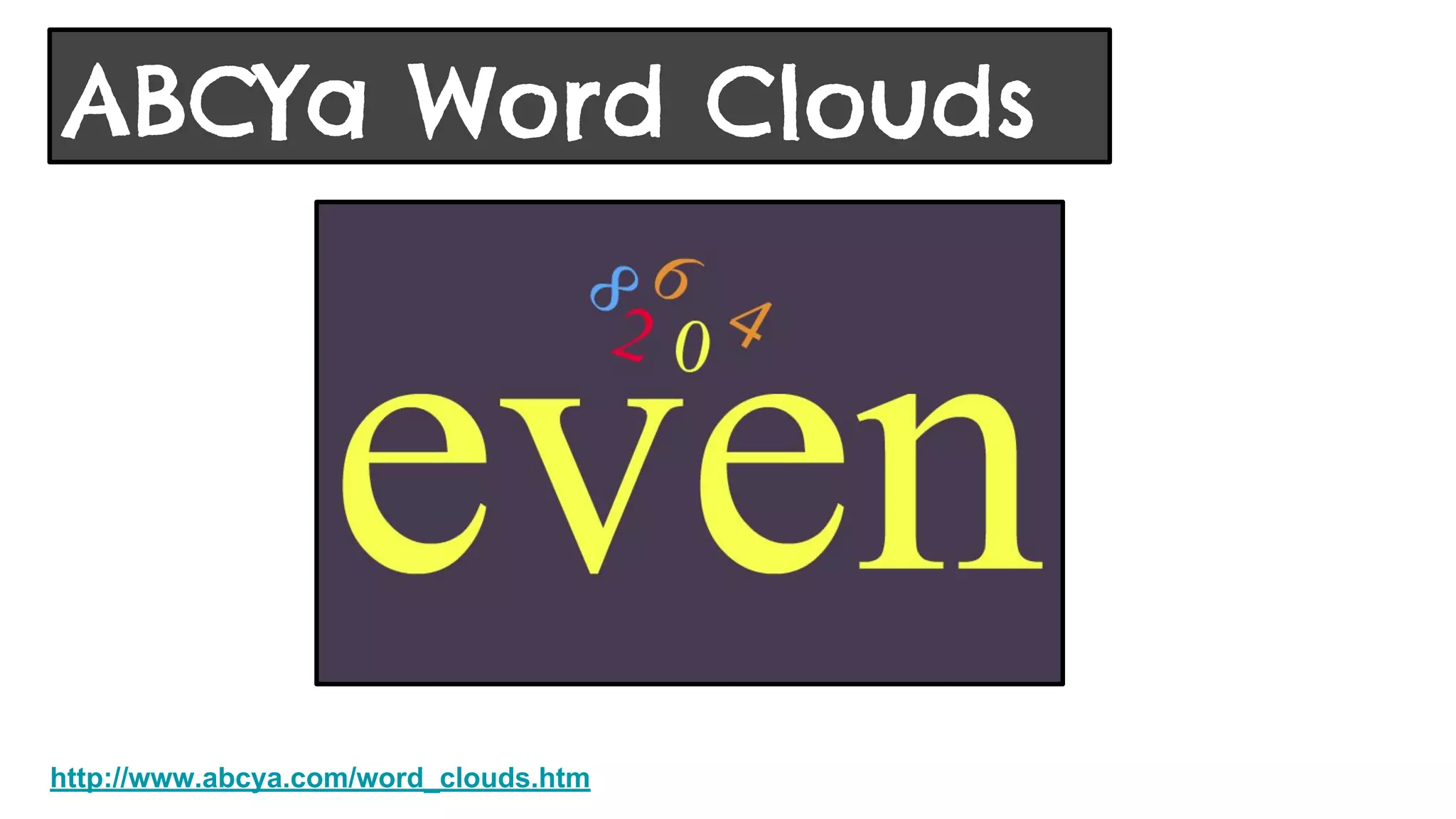
● Enter variety of words or numbers, the more frequently the word/number is
used, the larger it is in the visual graphic representation
● Built in designs or customize colors, fonts, and text directions
● Easy to use!
ABCYa Word Clouds
http://www.abcya.com/word_clouds.htm
ABCYa Word Clouds
Some Ideas for Use
● Fundations trick words
● All about me art display
● Character traits for book characters
● Words to describe science concepts
● Skip counting
● Even or odd numbers
http://www.abcya.com/word_clouds.htm
ABCYa Word Clouds
Management Thoughts
● First show students a finished project so they understand what the tool does
● Demo on the SmartBoard how to make one, and use the various options
● Create a handout for students to write their words on (this will let you check and
correct spelling)
● Remind students that once they hit the button to make the word cloud, they
can’t go back and edit their spelling or words, it would have to be retyped.
http://www.abcya.com/word_clouds.htm
ABCYa Word Clouds
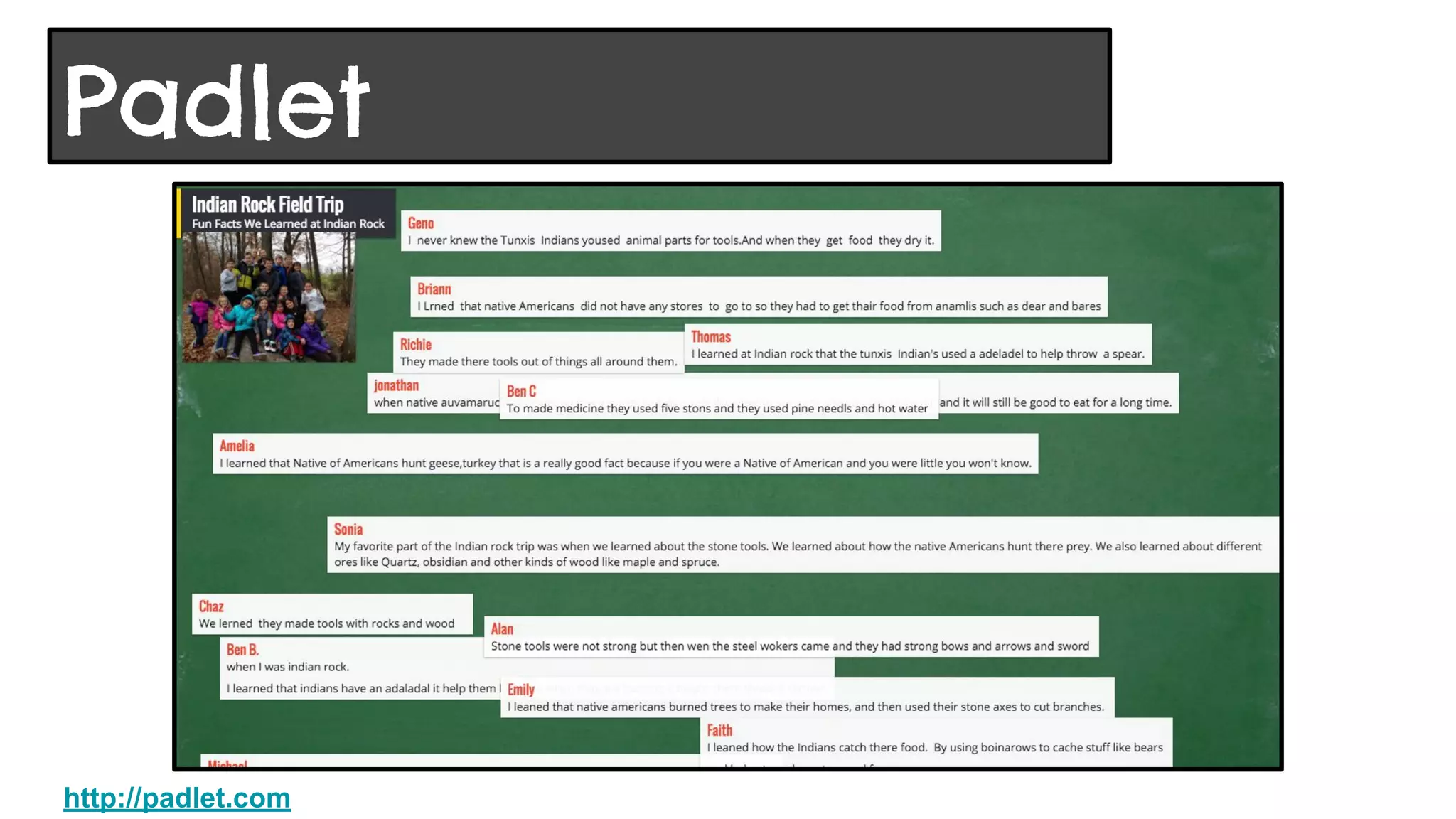
Web and iPad app “wall” that allows collaborators to post
sticky notes on a specific topic or respond to a question.
● Formerly known as Wall Wisher
● Privacy levels include only those added by email address, password
protection, hidden link, or totally public. I keep them public and share with
parents
● Teachers can set an option that all posts must be moderated before they
appear on the wall
● Images can be added to stickies
● Wall can be embedded in blog or website, or exported as picture or pdf file
● Use a QR Code for students to access with iPads
Padlet
http://padlet.com
Padlet
http://padlet.com
Some Ideas for Use
● Literature responses
● KWL Charts for science or social studies topics
● Reflections on field trips
● Book recommendations
● Words that go with Fundations lesson sounds
http://padlet.com
Padlet
Management Thoughts
● First show students a finished project so they understand what the tool does
● Use the web based tool before using the iPad app. My students have stated
that the app is harder to use.
● Demo on the SmartBoard how to add a sticky response.
● If you are moderating posts, remind students that no one will see their sticky
until you approve it.
● Place a link on your website directly to the Padlet you want students to access.
● If you’re going to use the iPads, consider using a QR code so students don’t
have to type in the URL.
Padlet
http://padlet.com
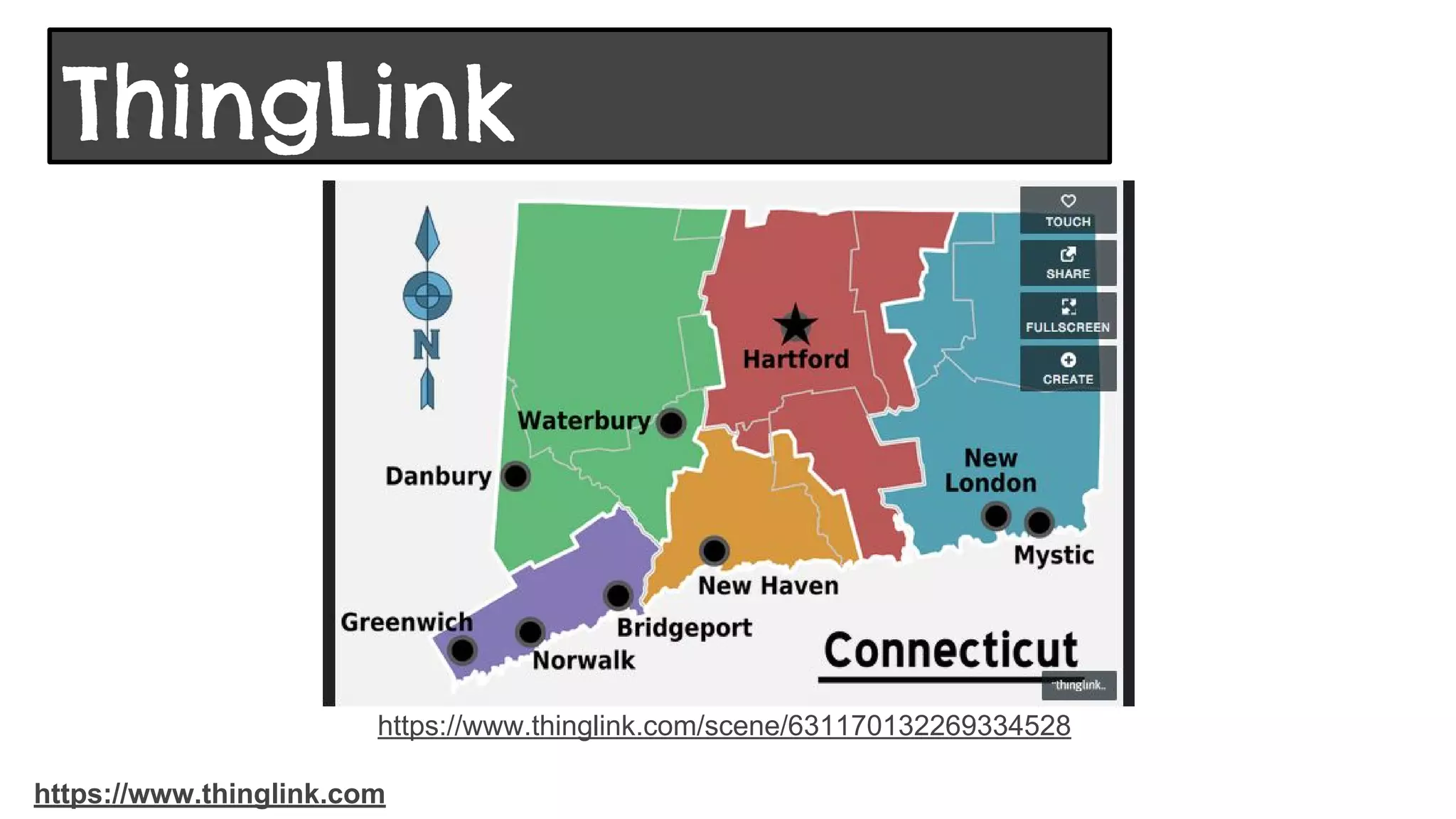
Turn a “flat” image into an interactive image!
● Create hotspots on the image and embed pop-up images, text boxes, links to
videos, and links to other webpages
● A great way to use an image to tell a deeper story or provide more information
https://www.thinglink.com
ThingLink
https://www.thinglink.com/scene/631170132269334528
https://www.thinglink.com
ThingLink
Some Ideas for Use
● Illustrate science and social studies topics
● Create posters on school and community helpers
● Take picture of playground, have students identify and tell about the 2D and
3D shapes
● Take a picture of 3 favorite books a student read in a certain period of time,
and write something about each book
● Create a collage of field trip or science experiment pictures in another app,
then insert collage and tell about each picture
● You can even create audio recordings in Vocaroo and link them to hot spots
https://www.thinglink.com
ThingLink
Management Thoughts
● First show students a finished project so they understand what the tool does
● Use this tool as a whole class project, or teacher directed small group. Young
children will have a hard time using this on their own.
https://www.thinglink.com
ThingLink
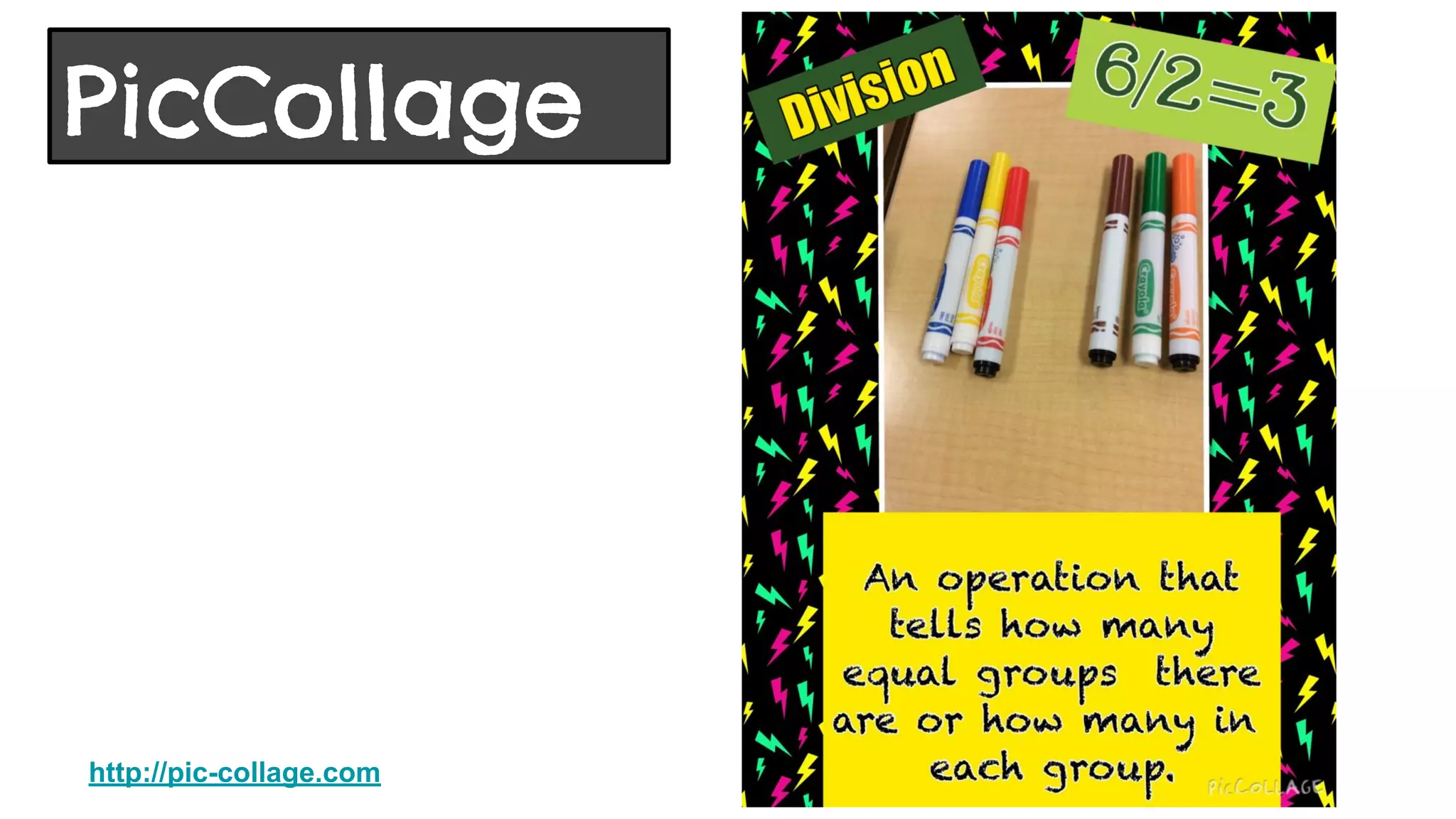
An iPad used to create infopics (images to convey information).
● Combine pictures from the iPad camera with backgrounds, text boxes, and
stickers to create a collage or poster
● Highly engaging - allows for artistic creativity
● Great app to use in conjunction with Educreations (app smash)
● Very easy to use
http://pic-collage.com
PicCollage
http://pic-collage.com
PicCollage
Some Ideas for Use
● Illustrate math vocabulary terms and concepts
● Illustrate science and social studies topics
● Create biography posters on important people
http://pic-collage.com
PicCollage
PicCollage
Management Thoughts
● First show students a finished project so they understand what the app does
● Use an iPad under your document camera to demonstrate to students how to
create a PicCollage
● Create a handout with directions of what should be included in the picture
● Let students practice with this app before having to create assignment
http://pic-collage.com
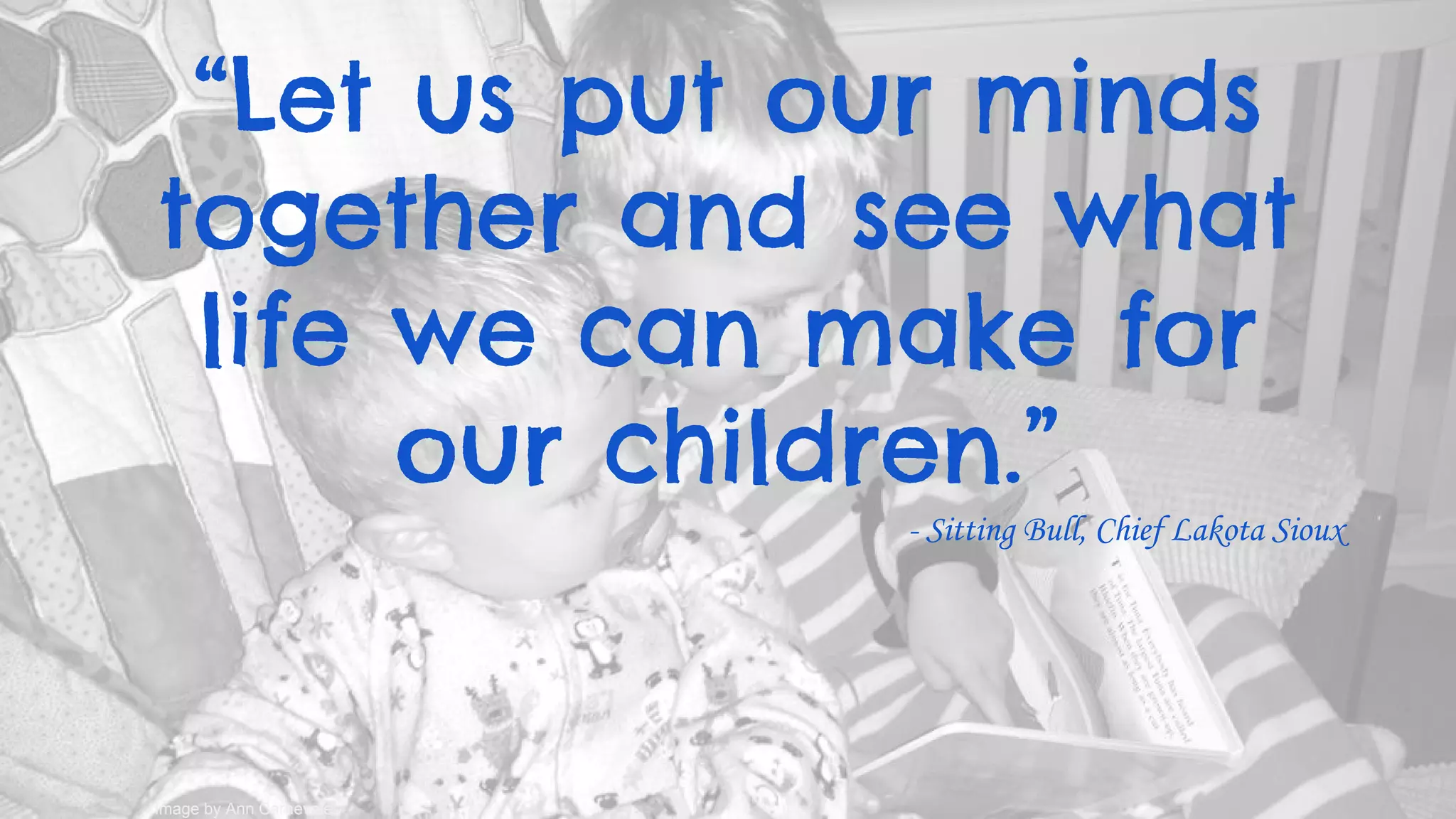
“Let us put our minds
together and see what
life we can make for
our children.”
- Sitting Bull, Chief Lakota Sioux
Image by Ann Carnevale
● Build your PLN
● Global connections!
● Great resource for quick help and ideas!
● 24/7/365 PD!
● Hashtags are the not-so-secret codes to
connections!
#edtechchat, #edchat, #tcrwp, #elemchat,
#kinderchat, #1stchat, #2ndchat, #3rdchat
#educreations, #piccollage, #thinglink,
#padlet, #abcya
@annmcarnevale
Twitter logo used with permission from twitter.com
https://twitter.com

Technology Tools for Young Learners

  • 1.
    Technology Tools for YoungLearners Plainville Community Schools Ann Carnevale presents
  • 2.
    “If we teachtoday’s students as we taught yesterday’s, we rob them of tomorrow.” - John Dewey CC “In School, the First” by Roujo is licensed under CC BY-NC-ND 2.0.
  • 3.
    “Technology should addnew dimensions to young children's experiences, helping them learn not just to recognize letters and understand numbers, but to explore the real world, interact more closely with adults, and create their own magic.” -Kyle Snow, National Association for the Education of Young Children
  • 5.
    iPad app toolto create presentations Educreations Web based word cloud generator ABCYa Word Clouds Web and iPad app to create sticky note walls Padlet iPad app and web based tool to create interactive images ThingLink iPad app to create infopics PicCollage
  • 6.
    Educreations iPad app thatallows students to create presentations to show what they know. ● Combine pictures from iPad camera, draw images w/app tools, recorded voice, handwriting, and text boxes to create a presentation ● Single or multiple slide presentations ● Lessons are stored online and can be accessed through iPad or through website ● Can be inserted into blogs ● Allows for app smash with other iPad apps that create images, such as PicCollage ● Create unique login and password for your class to build library of presentations https://www.educreations.com
  • 7.
  • 8.
    Educreations Some Ideas forUse ● Illustrate and explain math concepts such as patterns, number combinations, geometry and fraction examples found at school, and how to do math processes such as rounding ● Take a picture of a project or experiment, then add voice to tell about it ● Show pictures and talk about learning from field trips ● Explain about various text features in nonfiction books ● Science experiment pictures or pictures of lifecycles, add explanations and reflections https://www.educreations.com
  • 9.
    Educreations Management Thoughts ● Firstshow students a finished project so they understand what the app does ● Use an iPad under your document camera to demonstrate to students how to create an Educreation ● Create a handout with directions and/or examples of what should go on each slide ● Have students make notes about narration for each slide, and who will be doing that narration if they are working with partners or groups ● Check their Educreation and recording notes before they record ● Practice narration before recording ● Let students practice with the app, don’t expect a polished piece the first time or two they create a project. You’ll be amazed how much they grow with it after a couple of projects! https://www.educreations.com
  • 10.
    Web based wordcloud generator ● Enter variety of words or numbers, the more frequently the word/number is used, the larger it is in the visual graphic representation ● Built in designs or customize colors, fonts, and text directions ● Easy to use! ABCYa Word Clouds http://www.abcya.com/word_clouds.htm
  • 11.
  • 12.
    Some Ideas forUse ● Fundations trick words ● All about me art display ● Character traits for book characters ● Words to describe science concepts ● Skip counting ● Even or odd numbers http://www.abcya.com/word_clouds.htm ABCYa Word Clouds
  • 13.
    Management Thoughts ● Firstshow students a finished project so they understand what the tool does ● Demo on the SmartBoard how to make one, and use the various options ● Create a handout for students to write their words on (this will let you check and correct spelling) ● Remind students that once they hit the button to make the word cloud, they can’t go back and edit their spelling or words, it would have to be retyped. http://www.abcya.com/word_clouds.htm ABCYa Word Clouds
  • 14.
    Web and iPadapp “wall” that allows collaborators to post sticky notes on a specific topic or respond to a question. ● Formerly known as Wall Wisher ● Privacy levels include only those added by email address, password protection, hidden link, or totally public. I keep them public and share with parents ● Teachers can set an option that all posts must be moderated before they appear on the wall ● Images can be added to stickies ● Wall can be embedded in blog or website, or exported as picture or pdf file ● Use a QR Code for students to access with iPads Padlet http://padlet.com
  • 15.
  • 16.
    Some Ideas forUse ● Literature responses ● KWL Charts for science or social studies topics ● Reflections on field trips ● Book recommendations ● Words that go with Fundations lesson sounds http://padlet.com Padlet
  • 17.
    Management Thoughts ● Firstshow students a finished project so they understand what the tool does ● Use the web based tool before using the iPad app. My students have stated that the app is harder to use. ● Demo on the SmartBoard how to add a sticky response. ● If you are moderating posts, remind students that no one will see their sticky until you approve it. ● Place a link on your website directly to the Padlet you want students to access. ● If you’re going to use the iPads, consider using a QR code so students don’t have to type in the URL. Padlet http://padlet.com
  • 18.
    Turn a “flat”image into an interactive image! ● Create hotspots on the image and embed pop-up images, text boxes, links to videos, and links to other webpages ● A great way to use an image to tell a deeper story or provide more information https://www.thinglink.com ThingLink
  • 19.
  • 20.
    Some Ideas forUse ● Illustrate science and social studies topics ● Create posters on school and community helpers ● Take picture of playground, have students identify and tell about the 2D and 3D shapes ● Take a picture of 3 favorite books a student read in a certain period of time, and write something about each book ● Create a collage of field trip or science experiment pictures in another app, then insert collage and tell about each picture ● You can even create audio recordings in Vocaroo and link them to hot spots https://www.thinglink.com ThingLink
  • 21.
    Management Thoughts ● Firstshow students a finished project so they understand what the tool does ● Use this tool as a whole class project, or teacher directed small group. Young children will have a hard time using this on their own. https://www.thinglink.com ThingLink
  • 22.
    An iPad usedto create infopics (images to convey information). ● Combine pictures from the iPad camera with backgrounds, text boxes, and stickers to create a collage or poster ● Highly engaging - allows for artistic creativity ● Great app to use in conjunction with Educreations (app smash) ● Very easy to use http://pic-collage.com PicCollage
  • 23.
  • 24.
    Some Ideas forUse ● Illustrate math vocabulary terms and concepts ● Illustrate science and social studies topics ● Create biography posters on important people http://pic-collage.com PicCollage
  • 25.
    PicCollage Management Thoughts ● Firstshow students a finished project so they understand what the app does ● Use an iPad under your document camera to demonstrate to students how to create a PicCollage ● Create a handout with directions of what should be included in the picture ● Let students practice with this app before having to create assignment http://pic-collage.com
  • 26.
    “Let us putour minds together and see what life we can make for our children.” - Sitting Bull, Chief Lakota Sioux Image by Ann Carnevale
  • 27.
    ● Build yourPLN ● Global connections! ● Great resource for quick help and ideas! ● 24/7/365 PD! ● Hashtags are the not-so-secret codes to connections! #edtechchat, #edchat, #tcrwp, #elemchat, #kinderchat, #1stchat, #2ndchat, #3rdchat #educreations, #piccollage, #thinglink, #padlet, #abcya @annmcarnevale Twitter logo used with permission from twitter.com https://twitter.com