Meerstetter Engineering GmbH, Schulhausgasse 12,
3113 Rubigen, Switzerland
http://www.meerstetter.ch
1
21 October 2016
5182H
TEC Controller Setup Guide
This step by step guide will help you setting up a Meerstetter Engineering TEC controller for
the first time.
Goal:
• Avoid difficulties and save time at first use
• Get familiar with the TEC service software
As an example application we set up a system to keep an object at a constant temperature.
This means that the TEC controller will supply a Peltier element, to heat and cool depending
on the measured temperature at the object.
Meerstetter Engineering GmbH, Schulhausgasse 12,
3113 Rubigen, Switzerland
http://www.meerstetter.ch
2
21 October 2016
5182H
TEC Controller Setup Guide
During the setup we will perform the following steps:
1. Software Installation
2. Hardware Setup
3. Default Configuration
4. Temperature Measurement
5. Peltier Element Characteristics
6. Temperature Controller
7. Auto Tuning
Meerstetter Engineering GmbH, Schulhausgasse 12,
3113 Rubigen, Switzerland
http://www.meerstetter.ch
3
21 October 2016
5182H
TEC Controller Setup GuideMaterial
Components used for this example:
• TEC-1089-SV-NTC39K controller
• Peltier element (CUI Inc. CP40236)
• Heat sink
• PC with Microsoft Windows 8
• Cable with mini USB-B connector
• Object temperature sensor (NTC 10K, B value = 3988K)
• Sink temperature sensor: none (fixed temperature selected)
• Power supply (24 V, 6 A output)
• Soldering station
This is a general TEC setup guide. So you can follow the steps even if you don’t use exactly
the same material and controller for your setup.
Meerstetter Engineering GmbH, Schulhausgasse 12,
3113 Rubigen, Switzerland
http://www.meerstetter.ch
4
21 October 2016
5182H
TEC Controller Setup GuideHow to Use this Guide
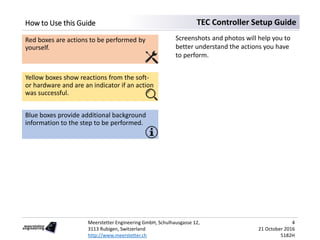
Red boxes are actions to be performed by
yourself.
Yellow boxes show reactions from the soft-
or hardware and are an indicator if an action
was successful.
Blue boxes provide additional background
information to the step to be performed.
Screenshots and photos will help you to
better understand the actions you have
to perform.
Meerstetter Engineering GmbH, Schulhausgasse 12,
3113 Rubigen, Switzerland
http://www.meerstetter.ch
5
21 October 2016
5182H
TEC Controller Setup GuideMechanical Setup
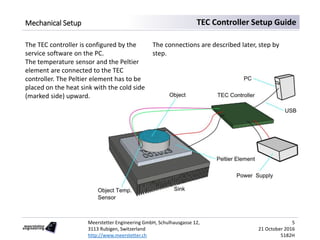
The TEC controller is configured by the
service software on the PC.
The temperature sensor and the Peltier
element are connected to the TEC
controller. The Peltier element has to be
placed on the heat sink with the cold side
(marked side) upward.
The connections are described later, step by
step.
Meerstetter Engineering GmbH, Schulhausgasse 12,
3113 Rubigen, Switzerland
http://www.meerstetter.ch
6
21 October 2016
5182H
TEC Controller Setup Guide1. Software Installation
1.1 USB Driver Installation
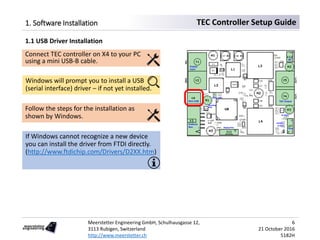
Connect TEC controller on X4 to your PC
using a mini USB-B cable.
Windows will prompt you to install a USB
(serial interface) driver – if not yet installed.
Follow the steps for the installation as
shown by Windows.
If Windows cannot recognize a new device
you can install the driver from FTDI directly.
(http://www.ftdichip.com/Drivers/D2XX.htm)
Meerstetter Engineering GmbH, Schulhausgasse 12,
3113 Rubigen, Switzerland
http://www.meerstetter.ch
7
21 October 2016
5182H
TEC Controller Setup Guide1. Software Installation
There are some minimum requirements for the service software:
• Microsoft .NET Framework 4.6.x
• Microsoft Visual C++ 2015 Redistributable Package
Install Microsoft .NET Framework if necessary:
http://dotnetsocial.cloudapp.net/GetDotnet?tfm=.NETFramework,Version=v4.6
1.2 Microsoft .NET Installation
Install Microsoft Visual C++ 2015 Redistributable (x86) if necessary:
https://www.microsoft.com/en-us/download/details.aspx?id=48145
(Use Microsoft Visual C++ 2010 Redistributable (x86) for Service Software Versions < 2.70)
1.3 Microsoft Visual C++ 2015 Redistributable (x86) Installation
• Download TEC controllers software package to a folder on your PC
(http://meerstetter.ch/category/31-latest-software?download=331)
• Right-click on the ZIP-file, click «Properties», click on «Unblock» on the bottom right
1.4 TEC Service Software Installation
Meerstetter Engineering GmbH, Schulhausgasse 12,
3113 Rubigen, Switzerland
http://www.meerstetter.ch
8
21 October 2016
5182H
TEC Controller Setup Guide1. Install Service Software
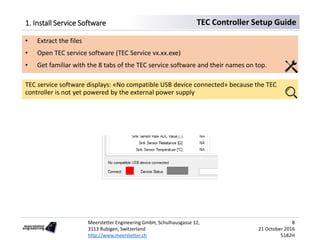
• Extract the files
• Open TEC service software (TEC Service vx.xx.exe)
• Get familiar with the 8 tabs of the TEC service software and their names on top.
TEC service software displays: «No compatible USB device connected» because the TEC
controller is not yet powered by the external power supply
Meerstetter Engineering GmbH, Schulhausgasse 12,
3113 Rubigen, Switzerland
http://www.meerstetter.ch
9
21 October 2016
5182H
TEC Controller Setup Guide2. Hardware Setup
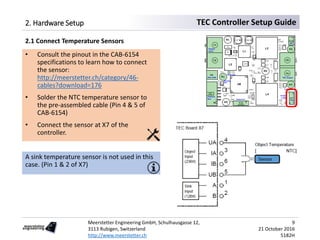
2.1 Connect Temperature Sensors
• Consult the pinout in the CAB-6154
specifications to learn how to connect
the sensor:
http://meerstetter.ch/category/46-
cables?download=176
• Solder the NTC temperature sensor to
the pre-assembled cable (Pin 4 & 5 of
CAB-6154)
• Connect the sensor at X7 of the
controller.
A sink temperature sensor is not used in this
case. (Pin 1 & 2 of X7)
Meerstetter Engineering GmbH, Schulhausgasse 12,
3113 Rubigen, Switzerland
http://www.meerstetter.ch
10
21 October 2016
5182H
TEC Controller Setup Guide2. Hardware Setup
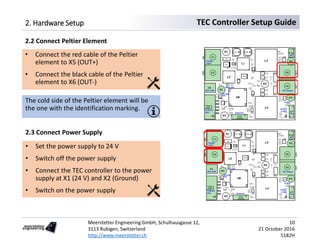
2.2 Connect Peltier Element
• Connect the red cable of the Peltier
element to X5 (OUT+)
• Connect the black cable of the Peltier
element to X6 (OUT-)
The cold side of the Peltier element will be
the one with the identification marking.
2.3 Connect Power Supply
• Set the power supply to 24 V
• Switch off the power supply
• Connect the TEC controller to the power
supply at X1 (24 V) and X2 (Ground)
• Switch on the power supply
Meerstetter Engineering GmbH, Schulhausgasse 12,
3113 Rubigen, Switzerland
http://www.meerstetter.ch
11
21 October 2016
5182H
TEC Controller Setup Guide2. Hardware Setup
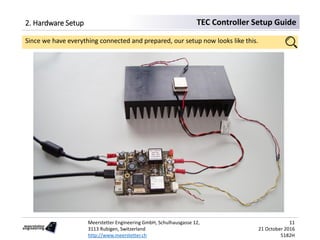
Since we have everything connected and prepared, our setup now looks like this.
Meerstetter Engineering GmbH, Schulhausgasse 12,
3113 Rubigen, Switzerland
http://www.meerstetter.ch
12
21 October 2016
5182H
TEC Controller Setup Guide2. Hardware Setup
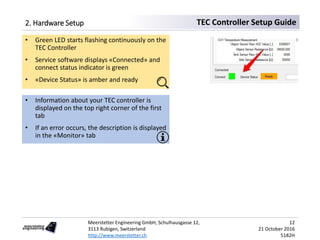
• Green LED starts flashing continuously on the
TEC Controller
• Service software displays «Connected» and
connect status indicator is green
• «Device Status» is amber and ready
• Information about your TEC controller is
displayed on the top right corner of the first
tab
• If an error occurs, the description is displayed
in the «Monitor» tab
Meerstetter Engineering GmbH, Schulhausgasse 12,
3113 Rubigen, Switzerland
http://www.meerstetter.ch
13
21 October 2016
5182H
TEC Controller Setup Guide3. Default Configuration
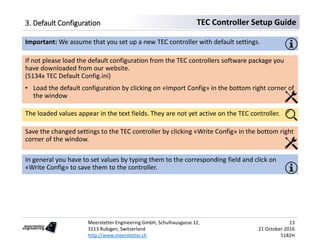
If not please load the default configuration from the TEC controllers software package you
have downloaded from our website.
(5134x TEC Default Config.ini)
• Load the default configuration by clicking on «Import Config» in the bottom right corner of
the window
Important: We assume that you set up a new TEC controller with default settings.
The loaded values appear in the text fields. They are not yet active on the TEC controller.
Save the changed settings to the TEC controller by clicking «Write Config» in the bottom right
corner of the window.
In general you have to set values by typing them to the corresponding field and click on
«Write Config» to save them to the controller.
Meerstetter Engineering GmbH, Schulhausgasse 12,
3113 Rubigen, Switzerland
http://www.meerstetter.ch
14
21 October 2016
5182H
TEC Controller Setup Guide4. Temperature Measurement
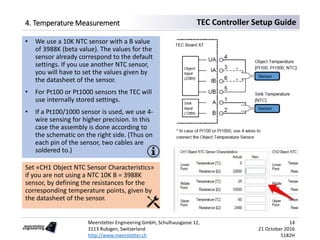
• We use a 10K NTC sensor with a B value
of 3988K (beta value). The values for the
sensor already correspond to the default
settings. If you use another NTC sensor,
you will have to set the values given by
the datasheet of the sensor.
• For Pt100 or Pt1000 sensors the TEC will
use internally stored settings.
• If a Pt100/1000 sensor is used, we use 4-
wire sensing for higher precision. In this
case the assembly is done according to
the schematic on the right side. (Thus on
each pin of the sensor, two cables are
soldered to.)
Set «CH1 Object NTC Sensor Characteristics»
if you are not using a NTC 10K B = 3988K
sensor, by defining the resistances for the
corresponding temperature points, given by
the datasheet of the sensor.
Meerstetter Engineering GmbH, Schulhausgasse 12,
3113 Rubigen, Switzerland
http://www.meerstetter.ch
15
21 October 2016
5182H
TEC Controller Setup Guide4. Temperature Measurement
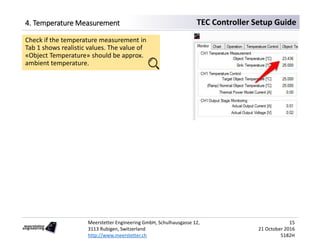
Check if the temperature measurement in
Tab 1 shows realistic values. The value of
«Object Temperature» should be approx.
ambient temperature.
Meerstetter Engineering GmbH, Schulhausgasse 12,
3113 Rubigen, Switzerland
http://www.meerstetter.ch
16
21 October 2016
5182H
TEC Controller Setup Guide5. Peltier Element Characteristics
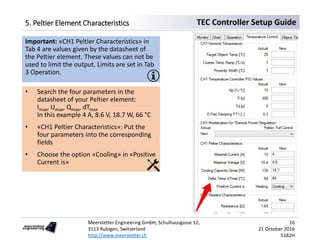
• Search the four parameters in the
datasheet of your Peltier element:
Imax, Umax, Qmax, dTmax
In this example 4 A, 8.6 V, 18.7 W, 66 °C
• «CH1 Peltier Characteristics»: Put the
four parameters into the corresponding
fields
• Choose the option «Cooling» in «Positive
Current is»
Important: «CH1 Peltier Characteristics» in
Tab 4 are values given by the datasheet of
the Peltier element. These values can not be
used to limit the output. Limits are set in Tab
3 Operation.
Meerstetter Engineering GmbH, Schulhausgasse 12,
3113 Rubigen, Switzerland
http://www.meerstetter.ch
17
21 October 2016
5182H
TEC Controller Setup Guide6. Temperature Controller
Set «Target Object Temp [°C]» at «CH1
Nominal Temperature» to 15
In «CH1 Modelization for Thermal Power
Regulation» the option «Peltier, Full Control»
is chosen. That means that the controller can
heat and cool the object using the Peltier
element.
Our goal is now to keep an object at a
constant temperature. First we set the
control parameters. Then we have to limit
the output of the TEC controller.
6.1 Target Object Temperature
Meerstetter Engineering GmbH, Schulhausgasse 12,
3113 Rubigen, Switzerland
http://www.meerstetter.ch
18
21 October 2016
5182H
TEC Controller Setup Guide6. Temperature Controller
• Set «CH1 Output Stage Control Input
Selection» to «Temperature Controller»
• Set «CH1 Output Stage Limits» & Error
thresholds for this example:
«Current Limitation [A]»: 4
«Voltage Limitation [V]»: 9.6
«Current Error Threshold [A]»: 4.8
«Voltage Error Threshold [V]»: 12
Error thresholds should be set approx. 20%
over the corresponding limits. An error is
generated if a value reaches the threshold.
Now we need to set the output limits for the
operation of the Peltier element.
Limits are set depending on the application.
However, usually the voltage limitation
should be set approx. 1 V over Umax of the
Peltier element.
6.2 Operation Limits
Meerstetter Engineering GmbH, Schulhausgasse 12,
3113 Rubigen, Switzerland
http://www.meerstetter.ch
19
21 October 2016
5182H
TEC Controller Setup Guide6. Temperature Controller
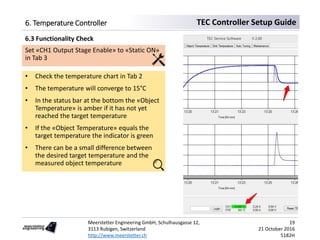
Set «CH1 Output Stage Enable» to «Static ON»
in Tab 3
• Check the temperature chart in Tab 2
• The temperature will converge to 15°C
• In the status bar at the bottom the «Object
Temperature» is amber if it has not yet
reached the target temperature
• If the «Object Temperature» equals the
target temperature the indicator is green
• There can be a small difference between
the desired target temperature and the
measured object temperature
6.3 Functionality Check
Meerstetter Engineering GmbH, Schulhausgasse 12,
3113 Rubigen, Switzerland
http://www.meerstetter.ch
20
21 October 2016
5182H
TEC Controller Setup Guide6. Temperature Controller
• If the temperature is changing in the wrong direction, the Peltier element is connected
the wrong way. Switch the wires at X5 and X6 and test your setup again.
• See step 2.2 for more information about how to connect the Peltier element.
Meerstetter Engineering GmbH, Schulhausgasse 12,
3113 Rubigen, Switzerland
http://www.meerstetter.ch
21
21 October 2016
5182H
TEC Controller Setup Guide7. Auto Tuning
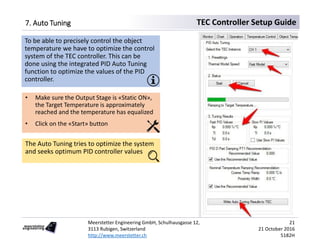
• Make sure the Output Stage is «Static ON»,
the Target Temperature is approximately
reached and the temperature has equalized
• Click on the «Start» button
The Auto Tuning tries to optimize the system
and seeks optimum PID controller values
To be able to precisely control the object
temperature we have to optimize the control
system of the TEC controller. This can be
done using the integrated PID Auto Tuning
function to optimize the values of the PID
controller.
Meerstetter Engineering GmbH, Schulhausgasse 12,
3113 Rubigen, Switzerland
http://www.meerstetter.ch
22
21 October 2016
5182H
TEC Controller Setup Guide7. Auto Tuning
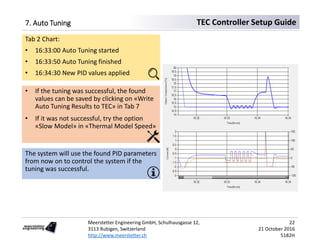
Tab 2 Chart:
• 16:33:00 Auto Tuning started
• 16:33:50 Auto Tuning finished
• 16:34:30 New PID values applied
• If the tuning was successful, the found
values can be saved by clicking on «Write
Auto Tuning Results to TEC» in Tab 7
• If it was not successful, try the option
«Slow Model» in «Thermal Model Speed»
The system will use the found PID parameters
from now on to control the system if the
tuning was successful.
Meerstetter Engineering GmbH, Schulhausgasse 12,
3113 Rubigen, Switzerland
http://www.meerstetter.ch
23
21 October 2016
5182H
TEC Controller Setup GuideNext Steps
Congratulations! Your TEC controller is working and you should be able to set up a simple
application with your TEC controller.
• If you need more information about how to design a thermoelectric application including
calculations, choosing Peltier elements, temperature sensors, heat sinks and power
supplies, please refer to our «TEC / Peltier Element Design Guide» on our website:
http://meerstetter.ch/compendium/tec-peltier-element-design-guide
• If you need further or more detailed information about operating our TEC controllers,
please refer to the TEC Family User Manual:
http://meerstetter.ch/de/category/33-latest-user-manuals?download=4
• For a general overview of our TEC controllers please visit our products page:
http://meerstetter.ch/products/tec-controllers

Tec setup guide 5182H

  • 1.
    Meerstetter Engineering GmbH,Schulhausgasse 12, 3113 Rubigen, Switzerland http://www.meerstetter.ch 1 21 October 2016 5182H TEC Controller Setup Guide This step by step guide will help you setting up a Meerstetter Engineering TEC controller for the first time. Goal: • Avoid difficulties and save time at first use • Get familiar with the TEC service software As an example application we set up a system to keep an object at a constant temperature. This means that the TEC controller will supply a Peltier element, to heat and cool depending on the measured temperature at the object.
  • 2.
    Meerstetter Engineering GmbH,Schulhausgasse 12, 3113 Rubigen, Switzerland http://www.meerstetter.ch 2 21 October 2016 5182H TEC Controller Setup Guide During the setup we will perform the following steps: 1. Software Installation 2. Hardware Setup 3. Default Configuration 4. Temperature Measurement 5. Peltier Element Characteristics 6. Temperature Controller 7. Auto Tuning
  • 3.
    Meerstetter Engineering GmbH,Schulhausgasse 12, 3113 Rubigen, Switzerland http://www.meerstetter.ch 3 21 October 2016 5182H TEC Controller Setup GuideMaterial Components used for this example: • TEC-1089-SV-NTC39K controller • Peltier element (CUI Inc. CP40236) • Heat sink • PC with Microsoft Windows 8 • Cable with mini USB-B connector • Object temperature sensor (NTC 10K, B value = 3988K) • Sink temperature sensor: none (fixed temperature selected) • Power supply (24 V, 6 A output) • Soldering station This is a general TEC setup guide. So you can follow the steps even if you don’t use exactly the same material and controller for your setup.
  • 4.
    Meerstetter Engineering GmbH,Schulhausgasse 12, 3113 Rubigen, Switzerland http://www.meerstetter.ch 4 21 October 2016 5182H TEC Controller Setup GuideHow to Use this Guide Red boxes are actions to be performed by yourself. Yellow boxes show reactions from the soft- or hardware and are an indicator if an action was successful. Blue boxes provide additional background information to the step to be performed. Screenshots and photos will help you to better understand the actions you have to perform.
  • 5.
    Meerstetter Engineering GmbH,Schulhausgasse 12, 3113 Rubigen, Switzerland http://www.meerstetter.ch 5 21 October 2016 5182H TEC Controller Setup GuideMechanical Setup The TEC controller is configured by the service software on the PC. The temperature sensor and the Peltier element are connected to the TEC controller. The Peltier element has to be placed on the heat sink with the cold side (marked side) upward. The connections are described later, step by step.
  • 6.
    Meerstetter Engineering GmbH,Schulhausgasse 12, 3113 Rubigen, Switzerland http://www.meerstetter.ch 6 21 October 2016 5182H TEC Controller Setup Guide1. Software Installation 1.1 USB Driver Installation Connect TEC controller on X4 to your PC using a mini USB-B cable. Windows will prompt you to install a USB (serial interface) driver – if not yet installed. Follow the steps for the installation as shown by Windows. If Windows cannot recognize a new device you can install the driver from FTDI directly. (http://www.ftdichip.com/Drivers/D2XX.htm)
  • 7.
    Meerstetter Engineering GmbH,Schulhausgasse 12, 3113 Rubigen, Switzerland http://www.meerstetter.ch 7 21 October 2016 5182H TEC Controller Setup Guide1. Software Installation There are some minimum requirements for the service software: • Microsoft .NET Framework 4.6.x • Microsoft Visual C++ 2015 Redistributable Package Install Microsoft .NET Framework if necessary: http://dotnetsocial.cloudapp.net/GetDotnet?tfm=.NETFramework,Version=v4.6 1.2 Microsoft .NET Installation Install Microsoft Visual C++ 2015 Redistributable (x86) if necessary: https://www.microsoft.com/en-us/download/details.aspx?id=48145 (Use Microsoft Visual C++ 2010 Redistributable (x86) for Service Software Versions < 2.70) 1.3 Microsoft Visual C++ 2015 Redistributable (x86) Installation • Download TEC controllers software package to a folder on your PC (http://meerstetter.ch/category/31-latest-software?download=331) • Right-click on the ZIP-file, click «Properties», click on «Unblock» on the bottom right 1.4 TEC Service Software Installation
  • 8.
    Meerstetter Engineering GmbH,Schulhausgasse 12, 3113 Rubigen, Switzerland http://www.meerstetter.ch 8 21 October 2016 5182H TEC Controller Setup Guide1. Install Service Software • Extract the files • Open TEC service software (TEC Service vx.xx.exe) • Get familiar with the 8 tabs of the TEC service software and their names on top. TEC service software displays: «No compatible USB device connected» because the TEC controller is not yet powered by the external power supply
  • 9.
    Meerstetter Engineering GmbH,Schulhausgasse 12, 3113 Rubigen, Switzerland http://www.meerstetter.ch 9 21 October 2016 5182H TEC Controller Setup Guide2. Hardware Setup 2.1 Connect Temperature Sensors • Consult the pinout in the CAB-6154 specifications to learn how to connect the sensor: http://meerstetter.ch/category/46- cables?download=176 • Solder the NTC temperature sensor to the pre-assembled cable (Pin 4 & 5 of CAB-6154) • Connect the sensor at X7 of the controller. A sink temperature sensor is not used in this case. (Pin 1 & 2 of X7)
  • 10.
    Meerstetter Engineering GmbH,Schulhausgasse 12, 3113 Rubigen, Switzerland http://www.meerstetter.ch 10 21 October 2016 5182H TEC Controller Setup Guide2. Hardware Setup 2.2 Connect Peltier Element • Connect the red cable of the Peltier element to X5 (OUT+) • Connect the black cable of the Peltier element to X6 (OUT-) The cold side of the Peltier element will be the one with the identification marking. 2.3 Connect Power Supply • Set the power supply to 24 V • Switch off the power supply • Connect the TEC controller to the power supply at X1 (24 V) and X2 (Ground) • Switch on the power supply
  • 11.
    Meerstetter Engineering GmbH,Schulhausgasse 12, 3113 Rubigen, Switzerland http://www.meerstetter.ch 11 21 October 2016 5182H TEC Controller Setup Guide2. Hardware Setup Since we have everything connected and prepared, our setup now looks like this.
  • 12.
    Meerstetter Engineering GmbH,Schulhausgasse 12, 3113 Rubigen, Switzerland http://www.meerstetter.ch 12 21 October 2016 5182H TEC Controller Setup Guide2. Hardware Setup • Green LED starts flashing continuously on the TEC Controller • Service software displays «Connected» and connect status indicator is green • «Device Status» is amber and ready • Information about your TEC controller is displayed on the top right corner of the first tab • If an error occurs, the description is displayed in the «Monitor» tab
  • 13.
    Meerstetter Engineering GmbH,Schulhausgasse 12, 3113 Rubigen, Switzerland http://www.meerstetter.ch 13 21 October 2016 5182H TEC Controller Setup Guide3. Default Configuration If not please load the default configuration from the TEC controllers software package you have downloaded from our website. (5134x TEC Default Config.ini) • Load the default configuration by clicking on «Import Config» in the bottom right corner of the window Important: We assume that you set up a new TEC controller with default settings. The loaded values appear in the text fields. They are not yet active on the TEC controller. Save the changed settings to the TEC controller by clicking «Write Config» in the bottom right corner of the window. In general you have to set values by typing them to the corresponding field and click on «Write Config» to save them to the controller.
  • 14.
    Meerstetter Engineering GmbH,Schulhausgasse 12, 3113 Rubigen, Switzerland http://www.meerstetter.ch 14 21 October 2016 5182H TEC Controller Setup Guide4. Temperature Measurement • We use a 10K NTC sensor with a B value of 3988K (beta value). The values for the sensor already correspond to the default settings. If you use another NTC sensor, you will have to set the values given by the datasheet of the sensor. • For Pt100 or Pt1000 sensors the TEC will use internally stored settings. • If a Pt100/1000 sensor is used, we use 4- wire sensing for higher precision. In this case the assembly is done according to the schematic on the right side. (Thus on each pin of the sensor, two cables are soldered to.) Set «CH1 Object NTC Sensor Characteristics» if you are not using a NTC 10K B = 3988K sensor, by defining the resistances for the corresponding temperature points, given by the datasheet of the sensor.
  • 15.
    Meerstetter Engineering GmbH,Schulhausgasse 12, 3113 Rubigen, Switzerland http://www.meerstetter.ch 15 21 October 2016 5182H TEC Controller Setup Guide4. Temperature Measurement Check if the temperature measurement in Tab 1 shows realistic values. The value of «Object Temperature» should be approx. ambient temperature.
  • 16.
    Meerstetter Engineering GmbH,Schulhausgasse 12, 3113 Rubigen, Switzerland http://www.meerstetter.ch 16 21 October 2016 5182H TEC Controller Setup Guide5. Peltier Element Characteristics • Search the four parameters in the datasheet of your Peltier element: Imax, Umax, Qmax, dTmax In this example 4 A, 8.6 V, 18.7 W, 66 °C • «CH1 Peltier Characteristics»: Put the four parameters into the corresponding fields • Choose the option «Cooling» in «Positive Current is» Important: «CH1 Peltier Characteristics» in Tab 4 are values given by the datasheet of the Peltier element. These values can not be used to limit the output. Limits are set in Tab 3 Operation.
  • 17.
    Meerstetter Engineering GmbH,Schulhausgasse 12, 3113 Rubigen, Switzerland http://www.meerstetter.ch 17 21 October 2016 5182H TEC Controller Setup Guide6. Temperature Controller Set «Target Object Temp [°C]» at «CH1 Nominal Temperature» to 15 In «CH1 Modelization for Thermal Power Regulation» the option «Peltier, Full Control» is chosen. That means that the controller can heat and cool the object using the Peltier element. Our goal is now to keep an object at a constant temperature. First we set the control parameters. Then we have to limit the output of the TEC controller. 6.1 Target Object Temperature
  • 18.
    Meerstetter Engineering GmbH,Schulhausgasse 12, 3113 Rubigen, Switzerland http://www.meerstetter.ch 18 21 October 2016 5182H TEC Controller Setup Guide6. Temperature Controller • Set «CH1 Output Stage Control Input Selection» to «Temperature Controller» • Set «CH1 Output Stage Limits» & Error thresholds for this example: «Current Limitation [A]»: 4 «Voltage Limitation [V]»: 9.6 «Current Error Threshold [A]»: 4.8 «Voltage Error Threshold [V]»: 12 Error thresholds should be set approx. 20% over the corresponding limits. An error is generated if a value reaches the threshold. Now we need to set the output limits for the operation of the Peltier element. Limits are set depending on the application. However, usually the voltage limitation should be set approx. 1 V over Umax of the Peltier element. 6.2 Operation Limits
  • 19.
    Meerstetter Engineering GmbH,Schulhausgasse 12, 3113 Rubigen, Switzerland http://www.meerstetter.ch 19 21 October 2016 5182H TEC Controller Setup Guide6. Temperature Controller Set «CH1 Output Stage Enable» to «Static ON» in Tab 3 • Check the temperature chart in Tab 2 • The temperature will converge to 15°C • In the status bar at the bottom the «Object Temperature» is amber if it has not yet reached the target temperature • If the «Object Temperature» equals the target temperature the indicator is green • There can be a small difference between the desired target temperature and the measured object temperature 6.3 Functionality Check
  • 20.
    Meerstetter Engineering GmbH,Schulhausgasse 12, 3113 Rubigen, Switzerland http://www.meerstetter.ch 20 21 October 2016 5182H TEC Controller Setup Guide6. Temperature Controller • If the temperature is changing in the wrong direction, the Peltier element is connected the wrong way. Switch the wires at X5 and X6 and test your setup again. • See step 2.2 for more information about how to connect the Peltier element.
  • 21.
    Meerstetter Engineering GmbH,Schulhausgasse 12, 3113 Rubigen, Switzerland http://www.meerstetter.ch 21 21 October 2016 5182H TEC Controller Setup Guide7. Auto Tuning • Make sure the Output Stage is «Static ON», the Target Temperature is approximately reached and the temperature has equalized • Click on the «Start» button The Auto Tuning tries to optimize the system and seeks optimum PID controller values To be able to precisely control the object temperature we have to optimize the control system of the TEC controller. This can be done using the integrated PID Auto Tuning function to optimize the values of the PID controller.
  • 22.
    Meerstetter Engineering GmbH,Schulhausgasse 12, 3113 Rubigen, Switzerland http://www.meerstetter.ch 22 21 October 2016 5182H TEC Controller Setup Guide7. Auto Tuning Tab 2 Chart: • 16:33:00 Auto Tuning started • 16:33:50 Auto Tuning finished • 16:34:30 New PID values applied • If the tuning was successful, the found values can be saved by clicking on «Write Auto Tuning Results to TEC» in Tab 7 • If it was not successful, try the option «Slow Model» in «Thermal Model Speed» The system will use the found PID parameters from now on to control the system if the tuning was successful.
  • 23.
    Meerstetter Engineering GmbH,Schulhausgasse 12, 3113 Rubigen, Switzerland http://www.meerstetter.ch 23 21 October 2016 5182H TEC Controller Setup GuideNext Steps Congratulations! Your TEC controller is working and you should be able to set up a simple application with your TEC controller. • If you need more information about how to design a thermoelectric application including calculations, choosing Peltier elements, temperature sensors, heat sinks and power supplies, please refer to our «TEC / Peltier Element Design Guide» on our website: http://meerstetter.ch/compendium/tec-peltier-element-design-guide • If you need further or more detailed information about operating our TEC controllers, please refer to the TEC Family User Manual: http://meerstetter.ch/de/category/33-latest-user-manuals?download=4 • For a general overview of our TEC controllers please visit our products page: http://meerstetter.ch/products/tec-controllers