In Android
Supporting Multiple ScreenSupporting Multiple Screen
In Android
Robby Pratama
robby.pratama@ansvia.com
@robbypontas
Why it's important?
Android runs on a variety of devices that offer
different screen sizes and densities. For
applications, the Android system provides a
consistent development environment across
devices and handles most of the work to adjust
each application's user interface to the screen
on which it is displayed.
How ?
1. Know about screen support
2. Explicitly declare in the manifest which screen sizes your
application supports
3. Using configuration qualifiers
4. Provide different bitmap drawables for different screen densities
5. Provide different layouts for different screen sizes
6. Use values
7. Scaling programmatically
8. Provide different APK
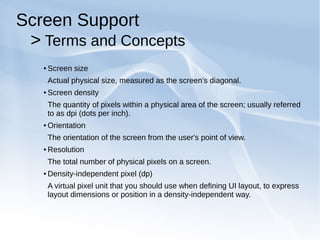
Screen Support
> Terms and Concepts
● Screen size
Actual physical size, measured as the screen's diagonal.
● Screen density
The quantity of pixels within a physical area of the screen; usually referred
to as dpi (dots per inch).
● Orientation
The orientation of the screen from the user's point of view.
● Resolution
The total number of physical pixels on a screen.
● Density-independent pixel (dp)
A virtual pixel unit that you should use when defining UI layout, to express
layout dimensions or position in a density-independent way.
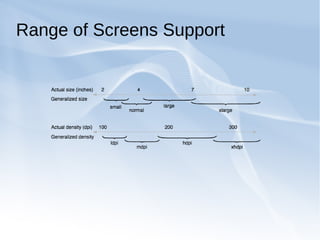
Range of Screens Support
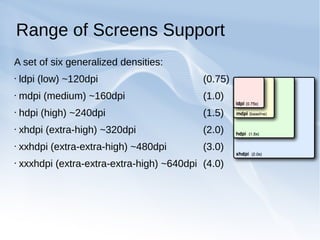
A set of six generalized densities:
• ldpi (low) ~120dpi (0.75)
• mdpi (medium) ~160dpi (1.0)
• hdpi (high) ~240dpi (1.5)
• xhdpi (extra-high) ~320dpi (2.0)
• xxhdpi (extra-extra-high) ~480dpi (3.0)
• xxxhdpi (extra-extra-extra-high) ~640dpi (4.0)
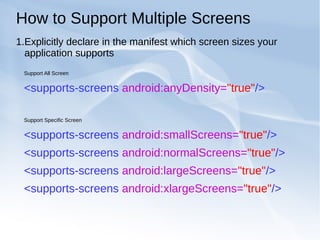
How to Support Multiple Screens
1.Explicitly declare in the manifest which screen sizes your
application supports
Support All Screen
<supports-screens android:anyDensity="true"/>
Support Specific Screen
<supports-screens android:smallScreens="true"/>
<supports-screens android:normalScreens="true"/>
<supports-screens android:largeScreens="true"/>
<supports-screens android:xlargeScreens="true"/>
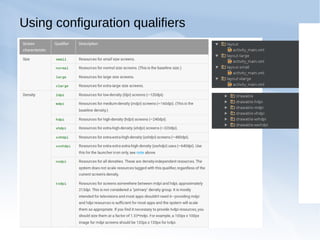
Using configuration qualifiers
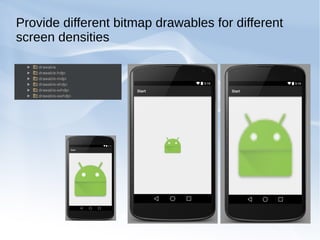
Provide different bitmap drawables for different
screen densities
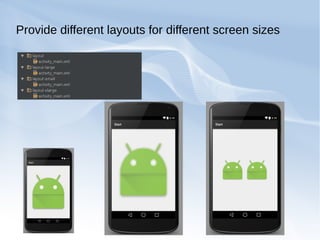
Provide different layouts for different screen sizes
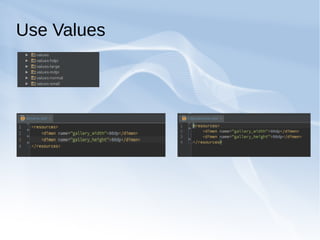
Use Values
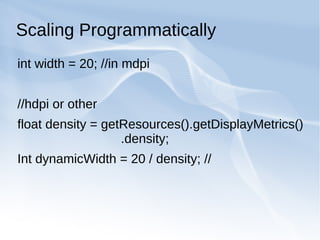
Scaling Programmatically
int width = 20; //in mdpi
//hdpi or other
float density = getResources().getDisplayMetrics()
.density;
Int dynamicWidth = 20 / density; //
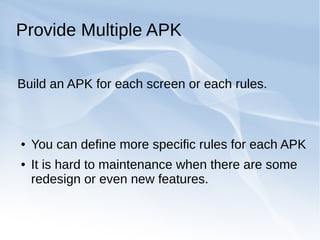
Provide Multiple APK
Build an APK for each screen or each rules.
● You can define more specific rules for each APK
● It is hard to maintenance when there are some
redesign or even new features.
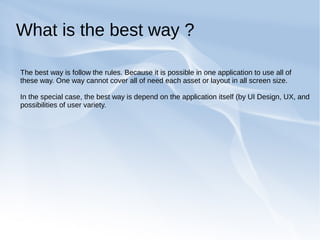
What is the best way ?
The best way is follow the rules. Because it is possible in one application to use all of
these way. One way cannot cover all of need each asset or layout in all screen size.
In the special case, the best way is depend on the application itself (by UI Design, UX, and
possibilities of user variety.
● Question?
Source
● http://developer.android.com/

Supporting Multiple Screen In Android

  • 1.
    In Android Supporting MultipleScreenSupporting Multiple Screen In Android Robby Pratama robby.pratama@ansvia.com @robbypontas
  • 2.
    Why it's important? Androidruns on a variety of devices that offer different screen sizes and densities. For applications, the Android system provides a consistent development environment across devices and handles most of the work to adjust each application's user interface to the screen on which it is displayed.
  • 3.
    How ? 1. Knowabout screen support 2. Explicitly declare in the manifest which screen sizes your application supports 3. Using configuration qualifiers 4. Provide different bitmap drawables for different screen densities 5. Provide different layouts for different screen sizes 6. Use values 7. Scaling programmatically 8. Provide different APK
  • 4.
    Screen Support > Termsand Concepts ● Screen size Actual physical size, measured as the screen's diagonal. ● Screen density The quantity of pixels within a physical area of the screen; usually referred to as dpi (dots per inch). ● Orientation The orientation of the screen from the user's point of view. ● Resolution The total number of physical pixels on a screen. ● Density-independent pixel (dp) A virtual pixel unit that you should use when defining UI layout, to express layout dimensions or position in a density-independent way.
  • 5.
  • 6.
    Range of ScreensSupport A set of six generalized densities: • ldpi (low) ~120dpi (0.75) • mdpi (medium) ~160dpi (1.0) • hdpi (high) ~240dpi (1.5) • xhdpi (extra-high) ~320dpi (2.0) • xxhdpi (extra-extra-high) ~480dpi (3.0) • xxxhdpi (extra-extra-extra-high) ~640dpi (4.0)
  • 7.
    How to SupportMultiple Screens 1.Explicitly declare in the manifest which screen sizes your application supports Support All Screen <supports-screens android:anyDensity="true"/> Support Specific Screen <supports-screens android:smallScreens="true"/> <supports-screens android:normalScreens="true"/> <supports-screens android:largeScreens="true"/> <supports-screens android:xlargeScreens="true"/>
  • 8.
  • 9.
    Provide different bitmapdrawables for different screen densities
  • 10.
    Provide different layoutsfor different screen sizes
  • 11.
  • 12.
    Scaling Programmatically int width= 20; //in mdpi //hdpi or other float density = getResources().getDisplayMetrics() .density; Int dynamicWidth = 20 / density; //
  • 13.
    Provide Multiple APK Buildan APK for each screen or each rules. ● You can define more specific rules for each APK ● It is hard to maintenance when there are some redesign or even new features.
  • 14.
    What is thebest way ? The best way is follow the rules. Because it is possible in one application to use all of these way. One way cannot cover all of need each asset or layout in all screen size. In the special case, the best way is depend on the application itself (by UI Design, UX, and possibilities of user variety.
  • 15.
  • 16.