Screen orientations in
Android
By Nataraj Manja
http://natdroid.blogspot.in/
Types of screen orientation in android
• port: Device is in portrait orientation (vertical)
• land: Device is in landscape orientation
(horizontal)
This can change during the life of your
application if the user rotates the screen.
Some example:
Example: 1
This code is used when you have 2 different layout file that is
portrait and landscape.
protected void onCreate(Bundle savedInstanceState) {
int result = this.getResources().getConfiguration().orientation;
if (result == 1){
//set content view to portrait
setContentView(R.layout.portrait);
}
else{
//set content view to landscape}
setContentView(R.layout.landscape);
}
}
Example: 2
Check screen orientation in runtime.
public void onConfigurationChanged(Configuration newConfig) {
super.onConfigurationChanged(newConfig);
// Checks the orientation of the screen
if (newConfig.orientation == Configuration.ORIENTATION_LANDSCAPE) {
Toast.makeText(this, "landscape", Toast.LENGTH_SHORT).show();
} else if (newConfig.orientation ==
Configuration.ORIENTATION_PORTRAIT){
Toast.makeText(this, "portrait", Toast.LENGTH_SHORT).show();
}
}
Example: 3
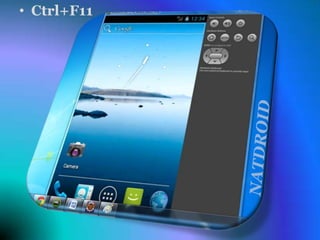
Switching to landscape mode in Android Emulator.
Ctrl+F11
• Ctrl+F11
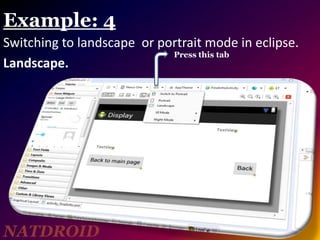
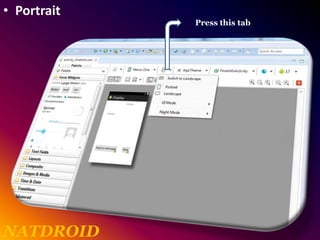
Example: 4
Switching to landscape or portrait mode in eclipse.
Landscape.
Press this tab
NATDROID
• Portrait
Press this tab
NATDROID
Example: 5
How to lock phone orientation in Android to prevent
landscape mode?
By adding the following code in your AndroidManifest.xml.
<activity
android:name="com.example.display.InfoActivity"
android:configChanges="orientation|keyboardHidden"
android:label="@string/app_name"
android:screenOrientation="landscape" />
(com.example.display.InfoActivity) its your actvity name.
Example: 6
Making the application to support for all devices
resolution.
You can add following code in your AndroidManifest.xml to support different
screens.
<supports-screens
android:anyDensity="true"
android:largeScreens="true"
android:normalScreens="true"
android:resizeable="true"
android:smallScreens="true"
android:xlargeScreens="true" />
OR
<supports-screens android:anyDensity="true" />
Screen orientations in android

Screen orientations in android

  • 1.
    Screen orientations in Android ByNataraj Manja http://natdroid.blogspot.in/
  • 2.
    Types of screenorientation in android • port: Device is in portrait orientation (vertical) • land: Device is in landscape orientation (horizontal) This can change during the life of your application if the user rotates the screen. Some example:
  • 3.
    Example: 1 This codeis used when you have 2 different layout file that is portrait and landscape. protected void onCreate(Bundle savedInstanceState) { int result = this.getResources().getConfiguration().orientation; if (result == 1){ //set content view to portrait setContentView(R.layout.portrait); } else{ //set content view to landscape} setContentView(R.layout.landscape); } }
  • 4.
    Example: 2 Check screenorientation in runtime. public void onConfigurationChanged(Configuration newConfig) { super.onConfigurationChanged(newConfig); // Checks the orientation of the screen if (newConfig.orientation == Configuration.ORIENTATION_LANDSCAPE) { Toast.makeText(this, "landscape", Toast.LENGTH_SHORT).show(); } else if (newConfig.orientation == Configuration.ORIENTATION_PORTRAIT){ Toast.makeText(this, "portrait", Toast.LENGTH_SHORT).show(); } }
  • 5.
    Example: 3 Switching tolandscape mode in Android Emulator. Ctrl+F11
  • 6.
  • 7.
    Example: 4 Switching tolandscape or portrait mode in eclipse. Landscape. Press this tab NATDROID
  • 8.
  • 9.
    Example: 5 How tolock phone orientation in Android to prevent landscape mode? By adding the following code in your AndroidManifest.xml. <activity android:name="com.example.display.InfoActivity" android:configChanges="orientation|keyboardHidden" android:label="@string/app_name" android:screenOrientation="landscape" /> (com.example.display.InfoActivity) its your actvity name.
  • 10.
    Example: 6 Making theapplication to support for all devices resolution. You can add following code in your AndroidManifest.xml to support different screens. <supports-screens android:anyDensity="true" android:largeScreens="true" android:normalScreens="true" android:resizeable="true" android:smallScreens="true" android:xlargeScreens="true" /> OR <supports-screens android:anyDensity="true" />